Cisco Wireless LAN Controller
Configuration Guide
Software Release 4.0
January 2007


Corporate Headquarters
Cisco Systems, Inc.
170 West Tasman Drive
San Jose, CA 95134-1706
USA
http://www.cisco.com
Tel: 408 526-4000
       800 553-NETS (6387)
Fax: 408 526-4100


Text Part Number: OL-9141-03
THE SPECIFICATIONS AND INFORMATION REGARDING THE PRODUCTS IN THIS MANUAL ARE SUBJECT TO CHANGE WITHOUT NOTICE. ALL
STATEMENTS, INFORMATION, AND RECOMMENDATIONS IN THIS MANUAL ARE BELIEVED TO BE ACCURATE BUT ARE PRESENTED WITHOUT
WARRANTY OF ANY KIND, EXPRESS OR IMPLIED. USERS MUST TAKE FULL RESPONSIBILITY FOR THEIR APPLICATION OF ANY PRODUCTS.

THE SOFTWARE LICENSE AND LIMITED WARRANTY FOR THE ACCOMPANYING PRODUCT ARE SET FORTH IN THE INFORMATION PACKET THAT
SHIPPED WITH THE PRODUCT AND ARE INCORPORATED HEREIN BY THIS REFERENCE. IF YOU ARE UNABLE TO LOCATE THE SOFTWARE LICENSE
OR LIMITED WARRANTY, CONTACT YOUR CISCO REPRESENTATIVE FOR A COPY.

The Cisco implementation of TCP header compression is an adaptation of a program developed by the University of California, Berkeley (UCB) as part of UCB’s public
domain version of the UNIX operating system. All rights reserved. Copyright © 1981, Regents of the University of California.

NOTWITHSTANDING ANY OTHER WARRANTY HEREIN, ALL DOCUMENT FILES AND SOFTWARE OF THESE SUPPLIERS ARE PROVIDED “AS IS” WITH
ALL FAULTS. CISCO AND THE ABOVE-NAMED SUPPLIERS DISCLAIM ALL WARRANTIES, EXPRESSED OR IMPLIED, INCLUDING, WITHOUT
LIMITATION, THOSE OF MERCHANTABILITY, FITNESS FOR A PARTICULAR PURPOSE AND NONINFRINGEMENT OR ARISING FROM A COURSE OF
DEALING, USAGE, OR TRADE PRACTICE.

IN NO EVENT SHALL CISCO OR ITS SUPPLIERS BE LIABLE FOR ANY INDIRECT, SPECIAL, CONSEQUENTIAL, OR INCIDENTAL DAMAGES, INCLUDING,
WITHOUT LIMITATION, LOST PROFITS OR LOSS OR DAMAGE TO DATA ARISING OUT OF THE USE OR INABILITY TO USE THIS MANUAL, EVEN IF CISCO
OR ITS SUPPLIERS HAVE BEEN ADVISED OF THE POSSIBILITY OF SUCH DAMAGES.

CCSP, CCVP, the Cisco Square Bridge logo, Follow Me Browsing, and StackWise are trademarks of Cisco Systems, Inc.; Changing the Way We Work, Live, Play, and Learn,
and iQuick Study are service marks of Cisco Systems, Inc.; and Access Registrar, Aironet, BPX, Catalyst, CCDA, CCDP, CCIE, CCIP, CCNA, CCNP, Cisco, the Cisco
Certified Internetwork Expert logo, Cisco IOS, Cisco Press, Cisco Systems, Cisco Systems Capital, the Cisco Systems logo, Cisco Unity, Enterprise/Solver, EtherChannel,
EtherFast, EtherSwitch, Fast Step, FormShare, GigaDrive, GigaStack, HomeLink, Internet Quotient, IOS, IP/TV, iQ Expertise, the iQ logo, iQ Net Readiness Scorecard,
LightStream, Linksys, MeetingPlace, MGX, the Networkers logo, Networking Academy, Network Registrar, Packet, PIX, Post-Routing, Pre-Routing, ProConnect,
RateMUX, ScriptShare, SlideCast, SMARTnet, The Fastest Way to Increase Your Internet Quotient, and TransPath are registered trademarks of Cisco Systems, Inc. and/or
its affiliates in the United States and certain other countries.

All other trademarks mentioned in this document or Website are the property of their respective owners. The use of the word partner does not imply a partnership relationship
between Cisco and any other company. (0601R)

Any Internet Protocol (IP) addresses used in this document are not intended to be actual addresses. Any examples, command display output, and figures included in the
document are shown for illustrative purposes only. Any use of actual IP addresses in illustrative content is unintentional and coincidental.

Cisco Wireless LAN Controller Configuration Guide
Copyright © 2007 Cisco Systems, Inc.
All rights reserved.
CONTENTS

              Preface    17

                 Audience       18

                 Purpose       18

                 Organization        18

                 Conventions         19

                 Related Publications     21

                 Obtaining Documentation 22
                     Cisco.com 22
                     Product Documentation DVD 22
                     Ordering Documentation 22
                 Documentation Feedback        22

                 Cisco Product Security Overview 23
                     Reporting Security Problems in Cisco Products       23

                 Obtaining Technical Assistance 24
                     Cisco Technical Support & Documentation Website          25
                     Submitting a Service Request 25
                     Definitions of Service Request Severity 26
                 Obtaining Additional Publications and Information       26


CHAPTER   1   Overview     1

                 Cisco Unified Wireless Network Solution Overview         2
                     Single-Controller Deployments 3
                     Multiple-Controller Deployments 4
                 Operating System Software          5

                 Operating System Security 6
                     Cisco WLAN Solution Wired Security      6

                 Layer 2 and Layer 3 LWAPP Operation     7
                     Operational Requirements 7
                     Configuration Requirements 7
                 Cisco Wireless LAN Controllers 7
                     Primary, Secondary, and Tertiary Controllers    8
                     Client Location 8
                 Controller Platforms     9


                                                                 Cisco Wireless LAN Controller Configuration Guide
 OL-9141-03                                                                                                          3
Contents


                                   Cisco 2000 and 2100 Series Controllers 9
                                       Features Not Supported 9
                                   Cisco 4400 Series Controllers 10
                                   Catalyst 6500 Series Wireless Services Module 10
                                   Cisco 28/37/38xx Series Integrated Services Router 11
                                   Catalyst 3750G Integrated Wireless LAN Controller Switch        11

                              Cisco UWN Solution Wired Connections     11

                              Cisco UWN Solution WLANs            12

                              Identity Networking 12
                                  Enhanced Integration with Cisco Secure ACS        13

                              File Transfers     14

                              Power over Ethernet        14

                              Pico Cell Functionality 14
                                   Startup Wizard 15
                                   Cisco Wireless LAN Controller Memory 16
                                   Cisco Wireless LAN Controller Failover Protection 16
                                   Network Connections to Cisco Wireless LAN Controllers 17
                                        Cisco 2000 and 2100 Series Wireless LAN Controllers 17
                                        Cisco 4400 Series Wireless LAN Controllers 18
                              Rogue Access Points 19
                                  Rogue Access Point Location, Tagging, and Containment       19


CHAPTER   2             Using the Web-Browser and CLI Interfaces            1

                              Using the Web-Browser Interface 2
                                  Guidelines for Using the GUI 2
                                  Opening the GUI 2
                              Enabling Web and Secure Web Modes 3
                                  Configuring the GUI for HTTPS 3
                                       Loading an Externally Generated HTTPS Certificate   4
                                  Disabling the GUI 5
                                  Using Online Help 5
                              Using the CLI 5
                                  Logging into the CLI 7
                                       Using a Local Serial Connection 7
                                       Using a Remote Ethernet Connection       7
                                  Logging Out of the CLI 8
                                  Navigating the CLI 8


              Cisco Wireless LAN Controller Configuration Guide
   4                                                                                                    OL-9141-03
Contents


                  Enabling Wireless Connections to the Web-Browser and
                  CLI Interfaces 9


CHAPTER   3   Configuring Ports and Interfaces     1

                  Overview of Ports and Interfaces 2
                      Ports 2
                           Distribution System Ports 3
                           Service Port 5
                      Interfaces 5
                           Management Interface 6
                           AP-Manager Interface 6
                           Virtual Interface 7
                           Service-Port Interface 8
                           Dynamic Interface 8
                      WLANs 8
                  Configuring the Management, AP-Manager, Virtual, and Service-Port Interfaces 10
                      Using the GUI to Configure the Management, AP-Manager, Virtual, and Service-Port Interfaces 10
                      Using the CLI to Configure the Management, AP-Manager, Virtual, and Service-Port Interfaces 12
                           Using the CLI to Configure the Management Interface 12
                           Using the CLI to Configure the AP-Manager Interface 13
                           Using the CLI to Configure the Virtual Interface 14
                           Using the CLI to Configure the Service-Port Interface 15
                  Configuring Dynamic Interfaces 15
                      Using the GUI to Configure Dynamic Interfaces 15
                      Using the CLI to Configure Dynamic Interfaces 17
                  Configuring Ports 19
                      Configuring Port Mirroring 22
                      Configuring Spanning Tree Protocol 23
                           Using the GUI to Configure Spanning Tree Protocol 24
                           Using the CLI to Configure Spanning Tree Protocol 28
                  Enabling Link Aggregation 29
                      Link Aggregation Guidelines 33
                      Using the GUI to Enable Link Aggregation 34
                      Using the CLI to Enable Link Aggregation 35
                      Verifying LAG Settings Using the CLI 35
                      Configuring Neighbor Devices to Support LAG 35
                  Configuring a 4400 Series Controller to Support More Than 48 Access Points        36
                      Using Link Aggregation 36
                      Using Multiple AP-Manager Interfaces 36


                                                                Cisco Wireless LAN Controller Configuration Guide
 OL-9141-03                                                                                                               5
Contents


                                   Connecting Additional Ports             41


CHAPTER   4             Configuring Controller SettingsWireless Device Access                         1

                              Using the Configuration Wizard 2
                                  Before You Start 2
                                  Resetting the Device to Default Settings 3
                                       Resetting to Default Settings Using the CLI 3
                                       Resetting to Default Settings Using the GUI 3
                                  Running the Configuration Wizard on the CLI 4
                              Managing the System Time and Date 5
                                 Configuring the Time and Date Manually                       5
                                 Configuring an NTP Server 5
                              Configuring a Country Code          6

                              Enabling and Disabling 802.11 Bands               7

                              Configuring Administrator Usernames and Passwords                   7

                              Configuring RADIUS Settings             8

                              Configuring SNMP         8

                              Changing the Default Values of SNMP Community Strings 9
                                  Using the GUI to Change the SNMP Community String Default Values 9
                                  Using the CLI to Change the SNMP Community String Default Values 11
                              Changing the Default Values for SNMP v3 Users 11
                                  Using the GUI to Change the SNMP v3 User Default Values 12
                                  Using the CLI to Change the SNMP v3 User Default Values 13
                              Enabling 802.3x Flow Control            13

                              Enabling System Logging 13
                                  Using the GUI to Enable System Logging 13
                                  Using the CLI to Enable System Logging 15
                              Enabling Dynamic Transmit Power Control                    16

                              Configuring Multicast Mode 16
                                  Understanding Multicast Mode 16
                                  Guidelines for Using Multicast Mode                    16
                                  Enabling Multicast Mode 17
                              Configuring Client Roaming 17
                                  Intra-Controller Roaming 18
                                  Inter-Controller Roaming 18
                                  Inter-Subnet Roaming 18
                                  Voice-over-IP Telephone Roaming                   18
                                  CCX Layer 2 Client Roaming 19

              Cisco Wireless LAN Controller Configuration Guide
   6                                                                                                      OL-9141-03
Contents


                         Using the GUI to Configure CCX Client Roaming Parameters 20
                         Using the CLI to Configure CCX Client Roaming Parameters 21
                 Configuring Voice and Video Parameters 22
                     Call Admission Control 22
                     U-APSD 23
                     Traffic Stream Metrics 23
                     Using the GUI to Configure Voice Parameters 23
                     Using the GUI to Configure Video Parameters 25
                     Using the GUI to View Voice and Video Settings 26
                     Using the CLI to Configure Voice Parameters 30
                     Using the CLI to Configure Video Parameters 31
                     Using the CLI to View Voice and Video Settings 32
                 Configuring the Supervisor 720 to Support the WiSM    34
                     General WiSM Guidelines 34
                     Configuring the Supervisor 35
                 Using the Wireless LAN Controller Network Module      35


CHAPTER   5   Configuring Security Solutions       1

                 Cisco UWN Solution Security 2
                     Security Overview 2
                     Layer 1 Solutions 2
                     Layer 2 Solutions 2
                     Layer 3 Solutions 3
                     Rogue Access Point Solutions 3
                          Rogue Access Point Challenges 3
                          Tagging and Containing Rogue Access Points        3
                     Integrated Security Solutions 4
                 Configuring the System for SpectraLink NetLink Telephones 4
                     Using the GUI to Enable Long Preambles 4
                     Using the CLI to Enable Long Preambles 5
                     Using the CLI to Configure Enhanced Distributed Channel Access       6

                 Using Management over Wireless 6
                     Using the GUI to Enable Management over Wireless 6
                     Using the CLI to Enable Management over Wireless 7
                 Configuring DHCP Option 82    7

                 Configuring Access Control Lists 8
                     Using the GUI to Configure Access Control Lists 9
                     Using the CLI to Configure Access Control Lists 12
                 Configuring Management Frame Protection     13

                                                              Cisco Wireless LAN Controller Configuration Guide
 OL-9141-03                                                                                                             7
Contents


                                   Using the GUI to Configure MFP 14
                                   Using the GUI to View MFP Settings 15
                                   Using the CLI to Configure MFP 17
                                   Using the CLI to View MFP Settings 18
                              Configuring Identity Networking 20
                                  Identity Networking Overview 21
                                  RADIUS Attributes Used in Identity Networking 22
                                       QoS-Level 22
                                       ACL-Name 22
                                       Interface-Name 23
                                       VLAN-Tag 23
                                       Tunnel Attributes 24
                                  Configuring AAA Override 25
                                       Using the GUI to Configure AAA Override 25
                                       Using the CLI to Configure AAA Override 26
                              Configuring IDS 26
                                  Configuring IDS Sensors 26
                                       Using the GUI to Configure IDS Sensors 26
                                       Using the CLI to Configure IDS Sensors 28
                                       Viewing Shunned Clients 29
                                  Configuring IDS Signatures 30
                                       Using the GUI to Configure IDS Signatures 31
                                       Using the CLI to Configure IDS Signatures 37
                                       Using the CLI to View IDS Signature Events 38
                              Configuring AES Key Wrap 39
                                  Using the GUI to Configure AES Key Wrap 39
                                  Using the CLI to Configure AES Key Wrap 40
                              Configuring Maximum Local Database Entries 41
                                  Using the GUI to Specify the Maximum Number of Local Database Entries 41
                                  Using the CLI to Specify the Maximum Number of Local Database Entries 41


CHAPTER   6             Configuring WLANsWireless Device Access             1

                              WLAN Overview          2

                              Configuring WLANs 2
                                  Displaying, Creating, Disabling, and Deleting WLANs   2
                                  Activating WLANs 3
                                  Configuring DHCP 3
                                       Internal DHCP Server 3
                                       External DHCP Servers 4

              Cisco Wireless LAN Controller Configuration Guide
   8                                                                                                         OL-9141-03
Contents


                 Using the GUI to Configure DHCP 5
                 Using the CLI to Configure DHCP 5
             Configuring MAC Filtering for WLANs 6
                 Enabling MAC Filtering 6
                 Creating a Local MAC Filter 6
                 Configuring a Timeout for Disabled Clients 6
             Assigning WLANs to VLANs 6
             Configuring Layer 2 Security 7
                 Static WEP Keys 7
                 Dynamic 802.1X Keys and Authorization 7
                 Configuring a WLAN for Both Static and Dynamic WEP 8
                 WPA1 and WPA2 8
                 CKIP 12
             Configuring Layer 3 Security 14
                 VPN Passthrough 15
                 Web-Based Authentication 16
                 Local Netuser 16
             Configuring 802.3 Bridging 17
             Configuring Quality of Service 17
                 Configuring QoS Enhanced BSS (QBSS) 18
                 Configuring Quality of Service Profiles 19
             Configuring Cisco Client Extensions 22
                 Using the GUI to Configure CCX Aironet IEs 22
                 Using the GUI to View a Client’s CCX Version 24
                 Using the CLI to Configure CCX Aironet IEs 24
                 Using the CLI to View a Client’s CCX Version 25
             Enabling WLAN Override 25
                 Using the GUI to Enable WLAN Override 25
                 Using the CLI to Enable WLAN Override 25
             Configuring Access Point Groups 26
                 Creating Access Point Groups 27
                 Assigning Access Points to Access Point Groups 29
             Configuring Multiple WLANs with the Same SSID 30
                 Additions to the Controller GUI 30
                 Addition to the Controller CLI 31
             Configuring Conditional Web Redirect with 802.1X Authentication       32
                 Configuring the RADIUS Server 32
                 Using the GUI to Configure Conditional Web Redirect 34
                 Using the CLI to Configure Conditional Web Redirect 34
             Disabling Accounting Servers per WLAN 35

                                                      Cisco Wireless LAN Controller Configuration Guide
OL-9141-03                                                                                                      9
Contents


CHAPTER   7             Controlling Lightweight Access Points          1

                              The Controller Discovery Process 2
                                  Verifying that Access Points Join the Controller 3
                                       Verifying that Access Points Join the Controller Using the GUI 3
                                       Verifying that Access Points Join the Controller Using the CLI 3
                              Cisco 1000 Series Lightweight Access Points 4
                                  Cisco 1030 Remote Edge Lightweight Access Points 5
                                  Cisco 1000 Series Lightweight Access Point Models 6
                                  Cisco 1000 Series Lightweight Access Point External and Internal Antennas       6
                                       External Antenna Connectors 6
                                       Antenna Sectorization 7
                                  Cisco 1000 Series Lightweight Access Point LEDs 7
                                  Cisco 1000 Series Lightweight Access Point Connectors 7
                                  Cisco 1000 Series Lightweight Access Point Power Requirements 8
                                       Cisco 1000 Series Lightweight Access Point External Power Supply 8
                                  Cisco 1000 Series Lightweight Access Point Mounting Options 8
                                  Cisco 1000 Series Lightweight Access Point Physical Security 9
                                  Cisco 1000 Series Lightweight Access Point Monitor Mode 9
                              Cisco Aironet 1510 Series Lightweight Outdoor Mesh Access Points 9
                                  Wireless Mesh 10
                                  Configuring and Deploying the AP1510 11
                                       Adding the MAC Address of the Access Point to the Controller Filter List       12
                                       Configuring Mesh Parameters 14
                                       Configuring the Mesh Security Timer 16
                                       Configuring Bridging Parameters 16
                              Autonomous Access Points Converted to Lightweight Mode 19
                                  Guidelines for Using Access Points Converted to Lightweight Mode 20
                                  Reverting from Lightweight Mode to Autonomous Mode 20
                                      Using a Controller to Return to a Previous Release 20
                                      Using the MODE Button and a TFTP Server to Return to a Previous Release 21
                                  Access Point Authorization 21
                                      Controllers Accept SSCs from Access Points Converted to Lightweight Mode 21
                                  Using DHCP Option 43 22
                                  Using a Controller to Send Debug Commands to Access Points Converted to Lightweight Mode          22
                                  Converted Access Points Send Crash Information to Controller 22
                                  Converted Access Points Send Radio Core Dumps to Controller 23
                                  Enabling Memory Core Dumps from Converted Access Points 23
                                  Display of MAC Addresses for Converted Access Points 23
                                  Disabling the Reset Button on Access Points Converted to Lightweight Mode 24


              Cisco Wireless LAN Controller Configuration Guide
  10                                                                                                                       OL-9141-03
Contents


                     Configuring a Static IP Address on an Access Point Converted to Lightweight Mode                          24

                 Dynamic Frequency Selection             24

                 Retrieving the Unique Device Identifier on Controllers and Access Points 25
                      Using the GUI to Retrieve the Unique Device Identifier on Controllers and Access Points 26
                      Using the CLI to Retrieve the Unique Device Identifier on Controllers and Access Points 27
                 Performing a Link Test 27
                     Using the GUI to Perform a Link Test 29
                     Using the CLI to Perform a Link Test 30
                 Configuring Cisco Discovery Protocol         31

                 Configuring Power over Ethernet 33
                     Using the GUI to Configure Power over Ethernet 33
                     Using the CLI to Configure Power over Ethernet 35
                 Configuring Flashing LEDs          36

                 Authorizing Access Points Using MICs             36


CHAPTER   8   Managing Controller Software and Configurations                     1

                 Transferring Files to and from a Controller           2

                 Upgrading Controller Software 2
                     Updating Controller Software 3
                 Saving Configurations      4

                 Clearing the Controller Configuration        5

                 Erasing the Controller Configuration         5

                 Resetting the Controller       5


CHAPTER   9   Managing User Accounts            1
                 Creating Guest User Accounts 2
                     Creating a Lobby Ambassador Account 2
                          Using the GUI to Create a Lobby Ambassador Account 2
                          Using the CLI to Create a Lobby Ambassador Account 4
                     Creating Guest User Accounts as a Lobby Ambassador 4
                     Viewing Guest User Accounts 6
                          Using the GUI to View Guest Accounts 6
                          Using the CLI to View Guest Accounts 7
                 Web Authentication Process              7

                 Choosing the Web Authentication Login Window 9
                     Choosing the Default Web Authentication Login Window 9
                         Using the GUI to Choose the Default Web Authentication Login Window 9
                         Using the CLI to Choose the Default Web Authentication Login Window 10

                                                                           Cisco Wireless LAN Controller Configuration Guide
 OL-9141-03                                                                                                                              11
Contents


                                      Modified Default Web Authentication Login Window Example 12
                                  Using a Customized Web Authentication Login Window from an External Web Server 13
                                      Using the GUI to Choose a Customized Web Authentication Login Window from an External Web
                                      Server 13
                                      Using the CLI to Choose a Customized Web Authentication Login Window from an External Web
                                      Server 14
                                  Downloading a Customized Web Authentication Login Window 14
                                      Using the GUI to Download a Customized Web Authentication Login Window 15
                                      Using the CLI to Download a Customized Web Authentication Login Window 16
                                      Customized Web Authentication Login Window Example 17
                                      Using the CLI to Verify the Web Authentication Login Window Settings 17


CHAPTER   10           Configuring Radio Resource ManagementWireless Device Access                 1

                             Overview of Radio Resource Management 2
                                 Radio Resource Monitoring 2
                                 Dynamic Channel Assignment 3
                                 Dynamic Transmit Power Control 4
                                 Coverage Hole Detection and Correction 4
                                 Client and Network Load Balancing 4
                                 RRM Benefits 5
                             Overview of RF Groups 5
                                 RF Group Leader 5
                                 RF Group Name 6
                             Configuring an RF Group 6
                                 Using the GUI to Configure an RF Group 7
                                 Using the CLI to Configure RF Groups 8
                             Viewing RF Group Status 8
                                 Using the GUI to View RF Group Status 8
                                 Using the CLI to View RF Group Status 11
                             Enabling Rogue Access Point Detection 12
                                 Using the GUI to Enable Rogue Access Point Detection 12
                                 Using the CLI to Enable Rogue Access Point Detection 14
                             Configuring Dynamic RRM 15
                                 Using the GUI to Configure Dynamic RRM 15
                                 Using the CLI to Configure Dynamic RRM 22
                             Overriding Dynamic RRM 23
                                 Statically Assigning Channel and Transmit Power Settings to Access Point Radios   24
                                      Using the GUI to Statically Assign Channel and Transmit Power Settings 24
                                      Using the CLI to Statically Assign Channel and Transmit Power Settings 26


             Cisco Wireless LAN Controller Configuration Guide
  12                                                                                                                    OL-9141-03
Contents


                      Disabling Dynamic Channel and Power Assignment Globally for a Controller 27
                          Using the GUI to Disable Dynamic Channel and Power Assignment 27
                          Using the CLI to Disable Dynamic Channel and Power Assignment 27
                  Viewing Additional RRM Settings Using the CLI     28

                  Configuring CCX Radio Management Features 29
                      Broadcast Location Measurement Requests 29
                      Location Calibration 29
                      Using the GUI to Configure CCX Radio Management 30
                      Using the CLI to Configure CCX Radio Management 31
                      Using the CLI to Obtain CCX Radio Management Information           32


CHAPTER   11   Configuring Mobility GroupsWireless Device Access             1

                  Overview of Mobility   2

                  Overview of Mobility Groups 5
                      Determining When to Include Controllers in a Mobility Group        7

                  Configuring Mobility Groups 7
                      Prerequisites 7
                      Using the GUI to Configure Mobility Groups 8
                      Using the CLI to Configure Mobility Groups 11
                  Configuring Auto-Anchor Mobility 11
                      Guidelines for Using Auto-Anchor Mobility 12
                      Using the GUI to Configure Auto-Anchor Mobility 13
                      Using the CLI to Configure Auto-Anchor Mobility 14
                  Running Mobility Ping Tests   15


CHAPTER   12   Configuring Hybrid REAPWireless Device Access             1

                  Overview of Hybrid REAP 2
                      Hybrid-REAP Authentication Process    2
                      Hybrid REAP Guidelines 4
                  Configuring Hybrid REAP 5
                      Configuring the Switch at the Remote Site 5
                      Configuring the Controller for Hybrid REAP 6
                           Using the GUI to Configure the Controller for Hybrid REAP 6
                           Using the CLI to Configure the Controller for Hybrid REAP 12
                      Configuring an Access Point for Hybrid REAP 12
                           Using the GUI to Configure an Access Point for Hybrid REAP 12
                           Using the CLI to Configure an Access Point for Hybrid REAP 15
                      Connecting Client Devices to the WLANs 16


                                                                  Cisco Wireless LAN Controller Configuration Guide
 OL-9141-03                                                                                                                13
Contents


APPENDIX      A             Safety Considerations and
                            Translated Safety Warnings                1
                                  Safety Considerations          2

                                  Warning Definition         2

                                  Class 1 Laser Product Warning               5

                                  Ground Conductor Warning            7

                                  Chassis Warning for Rack-Mounting and Servicing          9

                                  Battery Handling Warning for 4400 Series Controllers         18

                                  Equipment Installation Warning                  20

                                  More Than One Power Supply Warning for 4400 Series Controllers            23


APPENDIX      B             Declarations of Conformity and Regulatory Information                   1

                                  Regulatory Information for 1000 Series Access Points 2
                                      Manufacturers Federal Communication Commission Declaration of Conformity Statement      2
                                      Department of Communications—Canada 3
                                          Canadian Compliance Statement 3
                                      European Community, Switzerland, Norway, Iceland, and Liechtenstein 4
                                          Declaration of Conformity with Regard to the R&TTE Directive 1999/5/EC 4
                                      Declaration of Conformity for RF Exposure 5
                                      Guidelines for Operating Cisco Aironet Access Points in Japan 6
                                      Administrative Rules for Cisco Aironet Access Points in Taiwan 7
                                          Access Points with IEEE 802.11a Radios 7
                                          All Access Points 7
                                      Declaration of Conformity Statements 8
                                  FCC Statement for Cisco 2000 Series Wireless LAN Controllers          8
                                  FCC Statement for Cisco 4400 Series Wireless LAN Controllers          9


APPENDIX      C             End User License and Warranty                     1

                                  End User License Agreement              2

                                  Limited Warranty 4
                                       Disclaimer of Warranty             6

                                  General Terms Applicable to the Limited Warranty Statement and End User License Agreement       6

                                  Additional Open Source Terms                7


APPENDIX      D             System Messages and LED Patterns                           1

                                  System Messages            2

                                  Interpreting LEDs      5


                  Cisco Wireless LAN Controller Configuration Guide
  14                                                                                                                     OL-9141-03
Contents


                         Interpreting Controller LEDs 5
                         Interpreting Lightweight Access Point LEDs       5


APPENDIX      E   Logical Connectivity Diagrams     1

                     Cisco WiSM    3

                     Cisco 28/37/38xx Integrated Services Router      5

                     Catalyst 3750G Integrated Wireless LAN Controller Switch        6

INDEX


                                                                      Cisco Wireless LAN Controller Configuration Guide
 OL-9141-03                                                                                                                    15
Contents


           Cisco Wireless LAN Controller Configuration Guide
16                                                             OL-9141-03
Preface

             This preface provides an overview of the Cisco Wireless LAN Controller Configuration Guide, Release
             4.0, references related publications, and explains how to obtain other documentation and technical
             assistance, if necessary. It contains these sections:
              •   Audience, page 18
              •   Purpose, page 18
              •   Organization, page 18
              •   Conventions, page 19
              •   Related Publications, page 21
              •   Obtaining Documentation and Submitting a Service Request, page 22


                                                             Cisco Wireless LAN Controller Configuration Guide
OL-9141-03                                                                                                       17
Preface
 Audience


Audience
                      This guide describes Cisco Wireless LAN Controllers and Cisco Lightweight Access Points. This guide
                      is for the networking professional who installs and manages these devices. To use this guide, you should
                      be familiar with the concepts and terminology of wireless LANs.


Purpose
                      This guide provides the information you need to set up and configure wireless LAN controllers.


            Note      This version of the Cisco Wireless LAN Controller Configuration Guide pertains specifically to
                      controller software release 4.0. If you are using an earlier version of software, you will notice differences
                      in features, functionality, and GUI pages.


Organization
                      This guide is organized into these chapters:
                      Chapter 1, “Overview,” provides an overview of the network roles and features of wireless LAN
                      controllers.
                      Chapter 2, “Using the Web-Browser and CLI Interfaces,” describes how to use the controller GUI and
                      CLI.
                      Chapter 3, “Configuring Ports and Interfaces,” describes the controller’s physical ports and interfaces
                      and provides instructions for configuring them.
                      Chapter 4, “Configuring Controller SettingsWireless Device Access,” describes how to configure
                      settings on the controllers.
                      Chapter 5, “Configuring Security Solutions,” describes application-specific solutions for wireless
                      LANs.
                      Chapter 6, “Configuring WLANsWireless Device Access,” describes how to configure wireless LANs
                      and SSIDs on your system.
                      Chapter 7, “Controlling Lightweight Access Points,” explains how to connect access points to the
                      controller and manage access point settings.
                      Chapter 8, “Managing Controller Software and Configurations,” describes how to upgrade and manage
                      controller software and configurations.
                      Chapter 9, “Managing User Accounts,” explains how to create and manage guest user accounts,
                      describes the web authentication process, and provides instructions for customizing the web
                      authentication login window.
                      Chapter 10, “Configuring Radio Resource ManagementWireless Device Access,” describes radio
                      resource management (RRM) and explains how to configure it on the controllers.
                      Chapter 11, “Configuring Mobility GroupsWireless Device Access,” describes mobility groups and
                      explains how to configure them on the controllers.
                      Chapter 12, “Configuring Hybrid REAPWireless Device Access,” describes hybrid REAP and explains
                      how to configure this feature on controllers and access points.


            Cisco Wireless LAN Controller Configuration Guide
 18                                                                                                                     OL-9141-03
Preface
                                                                                                                           Conventions


                       Appendix A, “Safety Considerations and Translated Safety Warnings,” lists safety considerations and
                       translations of the safety warnings that apply to the Cisco Unified Wireless Network Solution products.
                       Appendix B, “Declarations of Conformity and Regulatory Information,” provides declarations of
                       conformity and regulatory information for the products in the Cisco Unified Wireless Network Solution.
                       Appendix C, “End User License and Warranty,” describes the end user license and warranty that apply
                       to the Cisco Unified Wireless Network Solution products.
                       Appendix D, “System Messages and LED Patterns,” lists system messages that can appear on the Cisco
                       Unified Wireless Network Solution interfaces and describes the LED patterns on controllers and
                       lightweight access points.
                       Appendix E, “Logical Connectivity Diagrams,”provides logical connectivity diagrams and related
                       software commands for controllers that are integrated into other Cisco products.


Conventions
                       This publication uses these conventions to convey instructions and information:
                       Command descriptions use these conventions:
                        •   Commands and keywords are in boldface text.
                        •   Arguments for which you supply values are in italic.
                        •   Square brackets ([ ]) mean optional elements.
                        •   Braces ({ }) group required choices, and vertical bars ( | ) separate the alternative elements.
                        •   Braces and vertical bars within square brackets ([{ | }]) mean a required choice within an optional
                            element.
                       Interactive examples use these conventions:
                        •   Terminal sessions and system displays are in screen font.
                        •   Information you enter is in boldface screen font.
                        •   Nonprinting characters, such as passwords or tabs, are in angle brackets (< >).
                       Notes, cautions, and timesavers use these conventions and symbols:


               Note    Means reader take note. Notes contain helpful suggestions or references to materials not contained in
                       this manual.


             Caution   Means reader be careful. In this situation, you might do something that could result equipment damage
                       or loss of data.


                                                                           Cisco Wireless LAN Controller Configuration Guide
OL-9141-03                                                                                                                         19
Preface
Conventions


       Warning      This warning symbol means danger. You are in a situation that could cause bodily injury. Before you
                    work on any equipment, be aware of the hazards involved with electrical circuitry and be familiar
                    with standard practices for preventing accidents. (To see translations of the warnings that appear
                    in this publication, refer to the appendix “Translated Safety Warnings.”)

Waarschuwing        Dit waarschuwingssymbool betekent gevaar. U verkeert in een situatie die lichamelijk letsel kan
                    veroorzaken. Voordat u aan enige apparatuur gaat werken, dient u zich bewust te zijn van de bij
                    elektrische schakelingen betrokken risico’s en dient u op de hoogte te zijn van standaard
                    maatregelen om ongelukken te voorkomen. (Voor vertalingen van de waarschuwingen die in deze
                    publicatie verschijnen, kunt u het aanhangsel “Translated Safety Warnings” (Vertalingen van
                    veiligheidsvoorschriften) raadplegen.)

       Varoitus     Tämä varoitusmerkki merkitsee vaaraa. Olet tilanteessa, joka voi johtaa ruumiinvammaan. Ennen
                    kuin työskentelet minkään laitteiston parissa, ota selvää sähkökytkentöihin liittyvistä vaaroista ja
                    tavanomaisista onnettomuuksien ehkäisykeinoista. (Tässä julkaisussa esiintyvien varoitusten
                    käännökset löydät liitteestä "Translated Safety Warnings" (käännetyt turvallisuutta koskevat
                    varoitukset).)

      Attention     Ce symbole d’avertissement indique un danger. Vous vous trouvez dans une situation pouvant
                    entraîner des blessures. Avant d’accéder à cet équipement, soyez conscient des dangers posés par
                    les circuits électriques et familiarisez-vous avec les procédures courantes de prévention des
                    accidents. Pour obtenir les traductions des mises en garde figurant dans cette publication, veuillez
                    consulter l’annexe intitulée « Translated Safety Warnings » (Traduction des avis de sécurité).

      Warnung       Dieses Warnsymbol bedeutet Gefahr. Sie befinden sich in einer Situation, die zu einer
                    Körperverletzung führen könnte. Bevor Sie mit der Arbeit an irgendeinem Gerät beginnen, seien Sie
                    sich der mit elektrischen Stromkreisen verbundenen Gefahren und der Standardpraktiken zur
                    Vermeidung von Unfällen bewußt. (Übersetzungen der in dieser Veröffentlichung enthaltenen
                    Warnhinweise finden Sie im Anhang mit dem Titel “Translated Safety Warnings” (Übersetzung der
                    Warnhinweise).)

     Avvertenza     Questo simbolo di avvertenza indica un pericolo. Si è in una situazione che può causare infortuni.
                    Prima di lavorare su qualsiasi apparecchiatura, occorre conoscere i pericoli relativi ai circuiti
                    elettrici ed essere al corrente delle pratiche standard per la prevenzione di incidenti. La traduzione
                    delle avvertenze riportate in questa pubblicazione si trova nell’appendice, “Translated Safety
                    Warnings” (Traduzione delle avvertenze di sicurezza).

       Advarsel     Dette varselsymbolet betyr fare. Du befinner deg i en situasjon som kan føre til personskade. Før du
                    utfører arbeid på utstyr, må du være oppmerksom på de faremomentene som elektriske kretser
                    innebærer, samt gjøre deg kjent med vanlig praksis når det gjelder å unngå ulykker. (Hvis du vil se
                    oversettelser av de advarslene som finnes i denne publikasjonen, kan du se i vedlegget "Translated
                    Safety Warnings" [Oversatte sikkerhetsadvarsler].)

          Aviso     Este símbolo de aviso indica perigo. Encontra-se numa situação que lhe poderá causar danos
                    fisicos. Antes de começar a trabalhar com qualquer equipamento, familiarize-se com os perigos
                    relacionados com circuitos eléctricos, e com quaisquer práticas comuns que possam prevenir
                    possíveis acidentes. (Para ver as traduções dos avisos que constam desta publicação, consulte o
                    apêndice “Translated Safety Warnings” - “Traduções dos Avisos de Segurança”).


          Cisco Wireless LAN Controller Configuration Guide
20                                                                                                               OL-9141-03
Preface
                                                                                                               Related Publications


     ¡Advertencia!   Este símbolo de aviso significa peligro. Existe riesgo para su integridad física. Antes de manipular
                     cualquier equipo, considerar los riesgos que entraña la corriente eléctrica y familiarizarse con los
                     procedimientos estándar de prevención de accidentes. (Para ver traducciones de las advertencias
                     que aparecen en esta publicación, consultar el apéndice titulado “Translated Safety Warnings.”)

          Varning!   Denna varningssymbol signalerar fara. Du befinner dig i en situation som kan leda till personskada.
                     Innan du utför arbete på någon utrustning måste du vara medveten om farorna med elkretsar och
                     känna till vanligt förfarande för att förebygga skador. (Se förklaringar av de varningar som
                     förekommer i denna publikation i appendix "Translated Safety Warnings" [Översatta
                     säkerhetsvarningar].)


Related Publications
                     These documents provide complete information about the Cisco Unified Wireless Network Solution:
                      •   Quick Start Guide: Cisco 2000 Series Wireless LAN Controllers
                      •   Quick Start Guide: Cisco 4400 Series Wireless LAN Controllers
                      •   Cisco Wireless LAN Controller Command Reference
                      •   Cisco Wireless Control System Configuration Guide
                      •   Quick Start Guide: Cisco Wireless Control System for Microsoft Windows
                      •   Quick Start Guide: Cisco Wireless Control System for Linux
                      •   Quick start guide and hardware installation guide for your specific lightweight access point
                     Click this link to browse to the Cisco Support and Documentation page:
                     http://www.cisco.com/cisco/web/support/index.html
                      •   Cisco 1800 Series Routers Hardware Installation Guide
                      •   Cisco AP HWIC Wireless Configuration Guide
                      •   Cisco Router and Security Device Manager (SDM) Quick Start Guide
                      •   Cisco Aironet 2.4-GHz Articulated Dipole Antenna (AIR-ANT4941)
                      •   Cisco Aironet High Gain Omnidirectional Ceiling Mount Antenna (AIR-ANT1728)
                      •   Mounting Instructions for the Cisco Aironet 6.5 dBi Diversity Patch Wall Mount Antenna
                      •   Cisco Aironet 2 dBi Diversity Omnidirectional Ceiling Mount Antenna (AIR-ANT5959)
                      •   Cisco Multiband 2.4/5GHz Articulated Dipole Antenna (AIR-ANT1841)
                      •   Cisco Multiband 2.4/5G Diversity Omnidirectional Ceiling Mount Antenna (AIR-ANT1828)
                      •   Cisco Multiband 2.4/5G Patch Wall Mount Antenna (AIR-ANT1859)
                      •   Mounting Instructions for the Cisco Diversity Omnidirectional Ceiling Mount Antenna
                      •   Mounting Instructions for the Cisco Patch Wall Mount Antenna
                     Related documents from the Cisco TAC Web pages include:
                      •   Antenna Cabling


                                                                       Cisco Wireless LAN Controller Configuration Guide
 OL-9141-03                                                                                                                     21
Preface
 Obtaining Documentation and Submitting a Service Request


Obtaining Documentation and Submitting a Service Request
                       For information on obtaining documentation, submitting a service request, and gathering additional
                       information, see the monthly What’s New in Cisco Product Documentation, which also lists all new and
                       revised Cisco technical documentation, at:
                       http://www.cisco.com/en/US/docs/general/whatsnew/whatsnew.html
                       Subscribe to the What’s New in Cisco Product Documentation as a Really Simple Syndication (RSS) feed
                       and set content to be delivered directly to your desktop using a reader application. The RSS feeds are a free
                       service and Cisco currently supports RSS Version 2.0.


            Cisco Wireless LAN Controller Configuration Guide
 22                                                                                                                      OL-9141-03
C H A P T E R                          1
             Overview

             This chapter describes the controller components and features. Its contains these sections:
              •   Cisco Unified Wireless Network Solution Overview, page 1-2
              •   Operating System Software, page 1-5
              •   Operating System Security, page 1-6
              •   Layer 2 and Layer 3 LWAPP Operation, page 1-7
              •   Cisco Wireless LAN Controllers, page 1-7
              •   Controller Platforms, page 1-9
              •   Cisco UWN Solution Wired Connections, page 1-11
              •   Cisco UWN Solution WLANs, page 1-12
              •   Identity Networking, page 1-12
              •   File Transfers, page 1-14
              •   Power over Ethernet, page 1-14
              •   Pico Cell Functionality, page 1-14
              •   Rogue Access Points, page 1-19


                                                               Cisco Wireless LAN Controller Configuration Guide
OL-9141-03                                                                                                         1-1
Chapter 1    Overview
 Cisco Unified Wireless Network Solution Overview


Cisco Unified Wireless Network Solution Overview
                       The Cisco Unified Wireless Network (Cisco UWN) Solution is designed to provide 802.11 wireless
                       networking solutions for enterprises and service providers. The Cisco UWN Solution simplifies
                       deploying and managing large-scale wireless LANs and enables a unique best-in-class security
                       infrastructure. The operating system manages all data client, communications, and system
                       administration functions, performs radio resource management (RRM) functions, manages system-wide
                       mobility policies using the operating system security solution, and coordinates all security functions
                       using the operating system security framework.
                       The Cisco UWN Solution consists of Cisco Wireless LAN Controllers and their associated lightweight
                       access points controlled by the operating system, all concurrently managed by any or all of the operating
                       system user interfaces:
                        •   An HTTP and/or HTTPS full-featured Web User Interface hosted by Cisco Wireless LAN
                            Controllers can be used to configure and monitor individual controllers. See Chapter 2.
                        •   A full-featured command-line interface (CLI) can be used to configure and monitor individual Cisco
                            Wireless LAN Controllers. See Chapter 2.
                        •   The Cisco Wireless Control System (WCS), which you use to configure and monitor one or more
                            Cisco Wireless LAN Controllers and associated access points. WCS has tools to facilitate
                            large-system monitoring and control. WCS runs on Windows 2000, Windows 2003, and Red Hat
                            Enterprise Linux ES servers.


                            Note     WCS software release 4.0 must be used with controllers running controller software release
                                     4.0. Do not attempt to use older versions of WCS software with controllers running
                                     controller software release 4.0.

                        •   An industry-standard SNMP V1, V2c, and V3 interface can be used with any SNMP-compliant
                            third-party network management system.
                       The Cisco UWN Solution supports client data services, client monitoring and control, and all rogue
                       access point detection, monitoring, and containment functions. It uses lightweight access points, Cisco
                       Wireless LAN Controllers, and the optional Cisco WCS to provide wireless services to enterprises and
                       service providers.


             Note      Unless otherwise noted, all of the Cisco wireless LAN controllers are hereafter referred to as controllers,
                       and all of the Cisco lightweight access points are hereafter referred to as access points.


            Cisco Wireless LAN Controller Configuration Guide
 1-2                                                                                                                      OL-9141-03
Chapter 1    Overview
                                                                                      Cisco Unified Wireless Network Solution Overview


                         Figure 1-1 shows the Cisco Wireless LAN Solution components, which can be simultaneously deployed
                         across multiple floors and buildings.

                         Figure 1-1        Cisco UWN Solution Components


Single-Controller Deployments
                         A standalone controller can support lightweight access points across multiple floors and buildings
                         simultaneously, and supports the following features:
                          •   Autodetecting and autoconfiguring lightweight access points as they are added to the network.
                          •   Full control of lightweight access points.
                          •   Full control of up to 16 wireless LAN (SSID) policies for Cisco 1000 series access points.


                              Note    LWAPP-enabled access points support up to 8 wireless LAN (SSID) policies.

                          •   Lightweight access points connect to controllers through the network. The network equipment may
                              or may not provide Power over Ethernet to the access points.
                         Note that some controllers use redundant Gigabit Ethernet connections to bypass single network failures.


                Note     Some controllers can connect through multiple physical ports to multiple subnets in the network. This
                         feature can be helpful when operators want to confine multiple VLANs to separate subnets.


                                                                           Cisco Wireless LAN Controller Configuration Guide
 OL-9141-03                                                                                                                        1-3
Chapter 1    Overview
  Cisco Unified Wireless Network Solution Overview


                        Figure 1-2 shows a typical single-controller deployment.

                        Figure 1-2           Single-Controller Deployment


Multiple-Controller Deployments
                        Each controller can support lightweight access points across multiple floors and buildings
                        simultaneously. However, full functionality of the Cisco Wireless LAN Solution is realized when it
                        includes multiple controllers. A multiple-controller system has the following additional features:
                         •   Autodetecting and autoconfiguring RF parameters as the controllers are added to the network.
                         •   Same-Subnet (Layer 2) Roaming and Inter-Subnet (Layer 3) Roaming.
                         •   Automatic access point failover to any redundant controller with a reduced access point load (refer
                             to the “Cisco Wireless LAN Controller Failover Protection” section on page 1-16).


             Cisco Wireless LAN Controller Configuration Guide
 1-4                                                                                                                    OL-9141-03
Chapter 1    Overview
                                                                                                           Operating System Software


                        Figure 1-3 shows a typical multiple-controller deployment. The figure also shows an optional dedicated
                        Management Network and the three physical connection types between the network and the controllers.

                        Figure 1-3       Typical Multi-Controller Deployment


Operating System Software
                        The operating system software controls Cisco Wireless LAN Controllers and Cisco 1000 Series
                        Lightweight Access Points. It includes full operating system security and Radio Resource Management
                        (RRM) features.


                                                                         Cisco Wireless LAN Controller Configuration Guide
OL-9141-03                                                                                                                       1-5
Chapter 1    Overview
  Operating System Security


Operating System Security
                        Operating system security bundles Layer 1, Layer 2, and Layer 3 security components into a simple,
                        Cisco WLAN Solution-wide policy manager that creates independent security policies for each of up to
                        16 wireless LANs. (Refer to the “Cisco UWN Solution WLANs” section on page 1-12.)
                        The 802.11 Static WEP weaknesses can be overcome using robust industry-standard security solutions,
                        such as:
                         •    802.1X dynamic keys with extensible authentication protocol (EAP).
                         •    Wi-Fi protected access (WPA) dynamic keys. The Cisco WLAN Solution WPA implementation
                              includes:
                               – Temporal key integrity protocol (TKIP) + message integrity code checksum (Michael) dynamic
                                  keys, or
                               – WEP keys, with or without Pre-Shared key Passphrase.
                         •    RSN with or without Pre-Shared key.
                         •    Cranite FIPS140-2 compliant passthrough.
                         •    Fortress FIPS140-2 compliant passthrough.
                         •    Optional MAC Filtering.
                        The WEP problem can be further solved using industry-standard Layer 3 security solutions, such as:
                         •    Passthrough VPNs
                         •    The Cisco Wireless LAN Solution supports local and RADIUS MAC Address filtering.
                         •    The Cisco Wireless LAN Solution supports local and RADIUS user/password authentication.
                         •    The Cisco Wireless LAN Solution also uses manual and automated Disabling to block access to
                              network services. In manual Disabling, the operator blocks access using client MAC addresses. In
                              automated Disabling, which is always active, the operating system software automatically blocks
                              access to network services for an operator-defined period of time when a client fails to authenticate
                              for a fixed number of consecutive attempts. This can be used to deter brute-force login attacks.
                        These and other security features use industry-standard authorization and authentication methods to
                        ensure the highest possible security for your business-critical wireless LAN traffic.


Cisco WLAN Solution Wired Security
                        Many traditional access point vendors concentrate on security for the Wireless interface similar to that
                        described in the “Operating System Security” section on page 1-6. However, for secure Cisco Wireless
                        LAN Controller Service Interfaces, Cisco Wireless LAN Controller to access point, and inter-Cisco
                        Wireless LAN Controller communications during device servicing and client roaming, the operating
                        system includes built-in security.
                        Each Cisco Wireless LAN Controller and Cisco 1000 series lightweight access point is manufactured
                        with a unique, signed X.509 certificate. These signed certificates are used to verify downloaded code
                        before it is loaded, ensuring that hackers do not download malicious code into any Cisco Wireless LAN
                        Controller or Cisco 1000 series lightweight access point.


             Cisco Wireless LAN Controller Configuration Guide
 1-6                                                                                                                       OL-9141-03
Chapter 1    Overview
                                                                                                   Layer 2 and Layer 3 LWAPP Operation


Layer 2 and Layer 3 LWAPP Operation
                         The LWAPP communications between Cisco Wireless LAN Controller and Cisco 1000 series
                         lightweight access points can be conducted at ISO Data Link Layer 2 or Network Layer 3.


                Note     The IPv4 network layer protocol is supported for transport through an LWAPP controller system. IPv6
                         (for clients only) and AppleTalk are also supported but only on 4400 series controllers and the Cisco
                         WiSM. Other Layer 3 protocols (such as IPX, DECnet Phase IV, OSI CLNP, and so on) and Layer 2
                         (bridged) protocols (such as LAT and NetBeui) are not supported.


Operational Requirements
                         The requirement for Layer 2 LWAPP communications is that the Cisco Wireless LAN Controller and
                         Cisco 1000 series lightweight access points must be connected to each other through Layer 2 devices on
                         the same subnet. This is the default operational mode for the Cisco Wireless LAN Solution. Note that
                         when the Cisco Wireless LAN Controller and Cisco 1000 series lightweight access points are on
                         different subnets, these devices must be operated in Layer 3 mode.
                         The requirement for Layer 3 LWAPP communications is that the Cisco Wireless LAN Controllers and
                         Cisco 1000 series lightweight access points can be connected through Layer 2 devices on the same
                         subnet, or connected through Layer 3 devices across subnets. Another requirement is that the IP
                         addresses of access points should be either statically assigned or dynamically assigned through an
                         external DHCP server.
                         Note that all Cisco Wireless LAN Controllers in a mobility group must use the same LWAPP Layer 2 or
                         Layer 3 mode, or you will defeat the Mobility software algorithm.


Configuration Requirements
                         When you are operating the Cisco Wireless LAN Solution in Layer 2 mode, you must configure a
                         management interface to control your Layer 2 communications.
                         When you are operating the Cisco Wireless LAN Solution in Layer 3 mode, you must configure an
                         AP-manager interface to control Cisco 1000 series lightweight access points and a management interface
                         as configured for Layer 2 mode.


Cisco Wireless LAN Controllers
                         When you are adding Cisco 1000 series lightweight access points to a multiple Cisco Wireless LAN
                         Controller deployments network, it is convenient to have all Cisco 1000 series lightweight access points
                         associate with one master controller on the same subnet. That way, the operator does not have to log into
                         multiple controllers to find out which controller newly-added Cisco 1000 series lightweight access
                         points associated with.
                         One controller in each subnet can be assigned as the master controller while adding lightweight access
                         points. As long as a master controller is active on the same subnet, all new access points without a
                         primary, secondary, and tertiary controller assigned automatically attempt to associate with the master
                         Cisco Wireless LAN Controller. This process is described in the “Cisco Wireless LAN Controller
                         Failover Protection” section on page 1-16.


                                                                           Cisco Wireless LAN Controller Configuration Guide
 OL-9141-03                                                                                                                        1-7
Chapter 1    Overview
  Cisco Wireless LAN Controllers


                        The operator can monitor the master controller using the WCS Web User Interface and watch as access
                        points associate with the master controller. The operator can then verify access point configuration and
                        assign a primary, secondary, and tertiary controller to the access point, and reboot the access point so it
                        reassociates with its primary, secondary, or tertiary controller.


              Note      Lightweight access points without a primary, secondary, and tertiary controller assigned always search
                        for a master controller first upon reboot. After adding lightweight access points through the master
                        controller, assign primary, secondary, and tertiary controllers to each access point. Cisco recommends
                        that you disable the master setting on all controllers after initial configuration.


Primary, Secondary, and Tertiary Controllers
                        In multiple-controller networks, lightweight access points can associate with any controller on the same
                        subnet. To ensure that each access point associates with a particular controller, the operator can assign
                        primary, secondary, and tertiary controllers to the access point.
                        When a primed access point is added to a network, it looks for its primary, secondary, and tertiary
                        controllers first, then a master controller, then the least-loaded controller with available access point
                        ports. Refer to the “Cisco Wireless LAN Controller Failover Protection” section on page 1-16 for more
                        information.


Client Location
                        When you use Cisco WCS in your Cisco Wireless LAN Solution, controllers periodically determine
                        client, rogue access point, rogue access point client, radio frequency ID (RFID) tag location and store
                        the locations in the Cisco WCS database. For more information on location solutions, refer to the Cisco
                        Wireless Control System Configuration Guide and the Cisco Location Appliance Configuration Guide at
                        these URLs:
                        Cisco Wireless Control System Configuration Guide:
                        http://www.cisco.com/en/US/products/ps6305/products_installation_and_configuration_guides_list.ht
                        ml
                        Cisco Location Appliance Configuration Guide:
                        http://www.cisco.com/en/US/products/ps6386/products_installation_and_configuration_guides_list.ht
                        ml


             Cisco Wireless LAN Controller Configuration Guide
 1-8                                                                                                                       OL-9141-03
Chapter 1    Overview
                                                                                                                     Controller Platforms


Controller Platforms
                         Controllers are enterprise-class high-performance wireless switching platforms that support 802.11a and
                         802.11b/802.11g protocols. They operate under control of the operating system, which includes the
                         Radio Resource Management (RRM), creating a Cisco UWN Solution that can automatically adjust to
                         real-time changes in the 802.11 RF environment. The controllers are built around high-performance
                         network and security hardware, resulting in highly-reliable 802.11 enterprise networks with unparalleled
                         security.
                         The following controllers are supported for use with software release 4.0:
                          •   Cisco 2000 series controllers
                          •   Cisco 2100 series controllers (4.0.206.0 and later)
                          •   Cisco 4400 series controllers
                          •   Catalyst 6500 Series Wireless Services Module (WiSM)
                          •   Cisco 28/37/38xx Series Integrated Services Router with Controller Network Module
                          •   Catalyst 3750G Integrated Wireless LAN Controller Switch
                         The first three controllers are stand-alone platforms. The remaining three controllers are integrated into
                         Cisco switch and router products.


Cisco 2000 and 2100 Series Controllers
                         The Cisco 2000 and 2100 series (2106) Wireless LAN Controllers work in conjunction with Cisco
                         lightweight access points and the Cisco Wireless Control System (WCS) to provide system-wide
                         wireless LAN functions.
                         Each 2000 and 2100 series controller controls up to six lightweight access points for multi-controller
                         architectures typical of enterprise branch deployments. It may also be used for single controller
                         deployments for small and medium-sized business environments.


              Caution    Do not connect a power-over-Ethernet (PoE) cable to the controller’s console port. Doing so may damage
                         the controller.


                Note     Wait at least 20 seconds before reconnecting an access point to the controller. Otherwise, the controller
                         may fail to detect the device.


Features Not Supported
                         These hardware features are not supported on 2000 and 2100 series controllers:
                          •   Power over Ethernet (PoE) [2000 series controllers only]


                              Note   Ports 7 and 8 on 2100 series controllers are PoE ports.

                          •   Service port (separate out-of-band management 10/100-Mbps Ethernet interface)


                                                                            Cisco Wireless LAN Controller Configuration Guide
 OL-9141-03                                                                                                                          1-9
Chapter 1    Overview
  Controller Platforms


                         These software features are not supported on 2000 and 2100 series controllers:
                          •   VPN termination (such as IPSec and L2TP)
                          •   Termination of guest controller tunnels (origination of guest controller tunnels is supported)
                          •   External web authentication web server list
                          •   Layer 2 LWAPP
                          •   Spanning tree
                          •   Port mirroring
                          •   Cranite
                          •   Fortress
                          •   AppleTalk
                          •   QoS per-user bandwidth contracts
                          •   IPv6 pass-through
                          •   Link aggregation (LAG)


Cisco 4400 Series Controllers
                         Figure - The Cisco 4400 Series Wireless LAN Controller is available in two models: 4402 and 4404.
                         The 4402 supports up to 50 lightweight access points while the 4404 supports up to 100, making it ideal
                         for large-sized enterprises and large-density applications. Cisco 4400 Series Wireless LAN Controller


                         The Cisco 4400 Series Wireless LAN Controller can be factory-ordered with a VPN/Enhanced
                         Security Module (Crypto Card) to support VPN, IPSec and other processor-intensive tasks. The
                         VPN/Enhanced Security Module can also be installed in the field.
                         The 4400 series controller can be equipped with one or two Cisco 4400 series power supplies. When the
                         controller is equipped with two Cisco 4400 series power supplies, the power supplies are redundant, and
                         either power supply can continue to power the controller if the other power supply fails.


Catalyst 6500 Series Wireless Services Module
                         The Catalyst 6500 Series Wireless Services Module (WiSM) is an integrated Catalyst 6500 switch and
                         two Cisco 4404 controllers that supports up to 300 lightweight access points. The switch has eight
                         internal gigabit Ethernet ports that connect the switch and the controller. The switch and the internal
                         controller run separate software versions, which must be upgraded separately.


               Note      The Catalyst 6500 Series Switch chassis can support up to five Cisco WiSMs without any other service
                         module installed. If one or more service modules are installed, the chassis can support up to a maximum
                         of four service modules (WiSMs included).


              Cisco Wireless LAN Controller Configuration Guide
 1-10                                                                                                                     OL-9141-03
Chapter 1    Overview
                                                                                                  Cisco UWN Solution Wired Connections


                         Refer to the following documents for additional information:
                          •   Catalyst 6500 Series Switch Installation Guide
                          •   Catalyst 6500 Series Switch Wireless Services Module Installation and Configuration Note
                          •   Release Notes for Catalyst 6500 Series Switch Wireless LAN Services Module
                         You can find these documents at this URL:
                         http://www.cisco.com/en/US/products/hw/switches/ps708/tsd_products_support_series_home.html


Cisco 28/37/38xx Series Integrated Services Router
                         The Cisco 28/37/38xx Series Integrated Services Router is an integrated 28/37/38xx router and Cisco
                         2006 controller network module that supports up to six lightweight access points. The router has one
                         Ethernet port that connects the router and the controller. The router and the internal controller run
                         separate software versions, which must be upgraded separately. Refer to the following documents for
                         additional information:
                          •   Cisco Wireless LAN Controller Module Feature Guide
                          •   Cisco 28/37/38xx Series Hardware Installation Guide
                         You can find these documents at this URL:
                         http://www.cisco.com/en/US/products/hw/wireless/index.html


Catalyst 3750G Integrated Wireless LAN Controller Switch
                         The Catalyst 3750G Integrated Wireless LAN Controller Switch is an integrated Catalyst 3750 switch
                         and Cisco 4400 series controller that supports up to 25 or 50 lightweight access points. The switch has
                         two internal gigabit Ethernet ports that connect the switch and the controller. The switch and the internal
                         controller run separate software versions, which must be upgraded separately. Refer to the following
                         documents for additional information:
                          •   Catalyst 3750G Integrated Wireless LAN Controller Switch Getting Started Guide
                          •   Catalyst 3750 Switch Hardware Installation Guide
                          •   Release Notes for the Catalyst 3750 Integrated Wireless LAN Controller Switch, Cisco IOS Release
                              12.2(25)FZ
                         You can find these documents at this URL:
                         http://www.cisco.com/en/US/products/hw/switches/ps5023/tsd_products_support_series_home.html


Cisco UWN Solution Wired Connections
                         The Cisco UWN Solution components communicate with each other using industry-standard Ethernet
                         cables and connectors. The following paragraphs contain details of the wired connections.
                          •   The 2000 series controller connects to the network using from one to four 10/100BASE-T Ethernet
                              cables.
                          •   The 2100 series controller connects to the network using from one to six 10/100BASE-T Ethernet
                              cables.


                                                                            Cisco Wireless LAN Controller Configuration Guide
 OL-9141-03                                                                                                                       1-11
Chapter 1    Overview
  Cisco UWN Solution WLANs


                        •    The 4402 controller connects to the network using one or two fiber-optic Gigabit Ethernet cables,
                             and the 4404 controller connects to the network using up to four fiber-optic Gigabit Ethernet cables:
                             two redundant Gigabit Ethernet connections to bypass single network failures.
                        •    The controllers in the Wireless Services Module (WiSM), installed in a Cisco Catalyst 6500 Series
                             Switch, connect to the network through switch ports on the switch.
                        •    The Wireless LAN Controller Network Module, installed in a Cisco Integrated Services Router,
                             connects to the network through the ports on the router.
                        •    The controller in the Catalyst 3750G Integrated Wireless LAN Controller Switch connects to the
                             network through the ports on the switch.
                        •    Cisco lightweight access points connects to the network using 10/100BASE-T Ethernet cables. The
                             standard CAT-5 cable can also be used to conduct power for the Cisco 1000 series lightweight access
                             points from a network device equipped with Power over Ethernet (PoE) capability. This power
                             distribution plan can be used to reduce the cost of individual AP power supplies and related cabling.


Cisco UWN Solution WLANs
                      The Cisco UWN Solution can control up to 16 WLANs for lightweight access points. Each WLAN has
                      a separate WLAN ID (1 through 16), a separate WLAN SSID (WLAN name), and can be assigned unique
                      security policies. Using software release 3.2 and later you can configure both static and dynamic WEP
                      on the same WLAN.
                      The lightweight access points broadcast all active Cisco UWN Solution WLAN SSIDs and enforce the
                      policies defined for each WLAN.


             Note     Cisco recommends that you assign one set of VLANs for WLANs and a different set of VLANs for
                      management interfaces to ensure that controllers operate with optimum performance and ease of
                      management.

                      If management over wireless is enabled across Cisco UWN Solution, the operator can manage the
                      System across the enabled WLAN using CLI and Telnet, http/https, and SNMP.
                      To configure the WLANs, refer to Chapter 6.


Identity Networking
                      Controllers can have the following parameters applied to all clients associating with a particular wireless
                      LAN: QoS, global or Interface-specific DHCP server, Layer 2 and Layer 3 Security Policies, and default
                      Interface (which includes physical port, VLAN and ACL assignments).
                      However, the controllers can also have individual clients (MAC addresses) override the preset wireless
                      LAN parameters by using MAC Filtering or by Allowing AAA Override parameters. This configuration
                      can be used, for example, to have all company clients log into the corporate wireless LAN, and then have
                      clients connect using different QoS, DHCP server, Layer 2 and Layer 3 Security Policies, and Interface
                      (which includes physical port, VLAN and ACL assignments) settings on a per-MAC Address basis.
                      When Cisco UWN Solution operators configure MAC Filtering for a client, they can assign a different
                      VLAN to the MAC Address, which can be used to have operating system automatically reroute the client
                      to the management interface or any of the operator-defined interfaces, each of which have their own


            Cisco Wireless LAN Controller Configuration Guide
 1-12                                                                                                                     OL-9141-03
Chapter 1    Overview
                                                                                                                   Identity Networking


                         VLAN, access control list (ACL), DHCP server, and physical port assignments. This MAC Filtering can
                         be used as a coarse version of AAA Override, and normally takes precedence over any AAA (RADIUS
                         or other) Override.
                         However, when Allow AAA Override is enabled, the RADIUS (or other AAA) server can alternatively
                         be configured to return QoS, DSCP, 802.1p priority tag values and ACL on a per-MAC Address basis.
                         Allow AAA Override gives the AAA Override precedence over the MAC Filtering parameters set in the
                         controller; if there are no AAA Overrides available for a given MAC Address, the operating system uses
                         the MAC Filtering parameters already in the controller. This AAA (RADIUS or other) Override can be
                         used as a finer version of AAA Override, but only takes precedence over MAC Filtering when Allow
                         AAA Override is enabled.
                         Note that in all cases, the Override parameters (Operator-Defined Interface and QoS, for example) must
                         already be defined in the controller configuration.
                         In all cases, the operating system will use QoS, DSCP, 802.1p priority tag values and ACL provided
                         by the AAA server or MAC Filtering regardless of the Layer 2 and/or Layer 3 authentication used.
                         Also note that the operating system only moves clients from the default Cisco UWN Solution WLAN
                         VLAN to a different VLAN when configured for MAC filtering, 802.1X, and/or WPA Layer 2
                         authentication. To configure WLANs, refer to Chapter 6.


Enhanced Integration with Cisco Secure ACS
                         The identity-based networking feature uses authentication, authorization, and accounting (AAA)
                         override. When the following vendor-specific attributes are present in the RADIUS access accept
                         message, the values override those present in the wireless LAN profile:
                          •   QoS level
                          •   802.1p value
                          •   VLAN interface name
                          •   Access control list (ACL) name
                         In this release, support is being added for the AAA server to return the VLAN number or name using the
                         standard “RADIUS assigned VLAN name/number” feature defined in IETF RFC 2868 (RADIUS
                         Attributes for Tunnel Protocol Support). To assign a wireless client to a particular VLAN, the AAA
                         server sends the following attributes to the controller in the access accept message:
                          •   IETF 64 (Tunnel Type): VLAN
                          •   IETF 65 (Tunnel Medium Type): 802
                          •   IETF 81 (Tunnel Private Group ID): VLAN # or VLAN Name String
                         This enables Cisco Secure ACS to communicate a VLAN change that may be a result of a posture
                         analysis. Benefits of this new feature include:
                          •   Integration with Cisco Secure ACS reduces installation and setup time
                          •   Cisco Secure ACS operates smoothly across both wired and wireless networks
                         This feature supports 2000, 2100 and 4400 series controllers and 1000, 1130, 1200 and 1500 series
                         lightweight access points.


                                                                          Cisco Wireless LAN Controller Configuration Guide
 OL-9141-03                                                                                                                       1-13
Chapter 1    Overview
  File Transfers


File Transfers
                        The Cisco UWN Solution operator can upload and download operating system code, configuration, and
                        certificate files to and from controller using the GUI, CLI commands, or Cisco WCS.
                          •   To use CLI commands, refer to the “Transferring Files to and from a Controller” section on
                              page 8-2.
                          •   To use Cisco WCS to upgrade software, refer to the Cisco Wireless Control System Configuration
                              Guide. Click this URL to browse to this document:
                              http://www.cisco.com/en/US/products/ps6305/products_installation_and_configuration_guides_lis
                              t.html


Power over Ethernet
                        Lightweight access points can receive power via their Ethernet cables from 802.3af-compatible Power
                        over Ethernet (PoE) devices, which can reduce the cost of discrete power supplies, additional wiring,
                        conduits, outlets, and installer time. PoE also frees installers from having to mount Cisco 1000 series
                        lightweight access points or other powered equipment near AC outlets, providing greater flexibility in
                        positioning Cisco 1000 series lightweight access points for maximum coverage.
                        When you are using PoE, the installer runs a single CAT-5 cable from each lightweight access point to
                        PoE-equipped network elements, such as a PoE power hub or a Cisco WLAN Solution Single-Line PoE
                        Injector. When the PoE equipment determines that the lightweight access point is PoE-enabled, it sends
                        48 VDC over the unused pairs in the Ethernet cable to power the lightweight access point.
                        The PoE cable length is limited by the 100BASE-T or 10BASE-T specification to 100 m or 200 m,
                        respectively.
                        Lightweight access points can receive power from an 802.3af-compliant device or from the external
                        power supply.


Pico Cell Functionality
                        A Pico Cell is a small area of wireless provisioning provided by antenna, which allows for a dense
                        high-bandwidth deployment for installations such as stock exchanges. Pico Cell wireless configurations
                        require a specific supplicant to function correctly with Pico Cell environments. Off-the-shelf laptop
                        supplicants are not supported.


               Note     Do not attempt to configure Pico Cell functionality within your wireless LAN without consulting your
                        sales team. Non-standard installation is not supported.


               Note     Do not change the configuration database setting unless you are committing to a Pico Cell installation
                        or without the advice of Cisco technical support.


              Cisco Wireless LAN Controller Configuration Guide
 1-14                                                                                                                   OL-9141-03
Chapter 1    Overview
                                                                                                                   Pico Cell Functionality


                         Pico Cell functionality includes optimization of the operating system (operating system) to support this
                         functionality as follows:
                          •   The Cisco WCS Pico Cell Mode parameter reconfigures operating system parameters, allowing
                              operating system to function efficiently in pico cell deployments. Note that when the operator is
                              deploying a pico cell network the operating system must also have more memory allocated (512 to
                              2048 MB) using the config database size 2048 CLI command.
                          •   Client mobility between multiple mobility domains when such exist.
                          •   Addition of a WPA2 VFF extension to eliminate the need to re-key after every association. This
                              allows the re-use of existing PTK and GTK.
                          •   With WPA2 PMK caching and VFF, the PMK cache is transferred as part of context transfer prior
                              to the authentication phase. This allows expedited handoffs to work for both intra- and
                              inter-controller roaming events.
                          •   A beacon/probe response that allows lightweight access point to indicate which controller it is
                              attached to so that reauthorization events only occur when needed, minimizing inter-controller
                              handoffs and thus reducing CPU usage.
                          •   Allows changes to lightweight access point sensitivity for pico cells.
                          •   Allows control of lightweight access point fallback behavior to optimize pico cell use.
                          •   Supports heat maps for directional antennas.
                          •   Allows specific control over blacklisting events
                          •   Allows configuring and viewing basic LWAPP configuration using the lightweight access point CLI.


Startup Wizard
                         When a controller is powered up with a new factory operating system software load or after being reset
                         to factory defaults, the bootup script runs the Startup Wizard, which prompts the installer for initial
                         configuration. The Startup Wizard:
                          •   Ensures that the controller has a System Name, up to 32 characters.
                          •   Adds an Administrative username and password, each up to 24 characters.
                          •   Ensures that the controller can communicate with the GUI, CLI, or Cisco WCS (either directly or
                              indirectly) through the service port by accepting a valid IP configuration protocol (none or DHCP),
                              and if none, IP Address and netmask. If you do not want to use the service port, enter 0.0.0.0 for the
                              IP Address and netmask.
                          •   Ensures that the controller can communicate with the network (802.11 Distribution System) through
                              the management interface by collecting a valid static IP Address, netmask, default router IP address,
                              VLAN identifier, and physical port assignment.
                          •   Prompts for the IP address of the DHCP server used to supply IP addresses to clients, the controller
                              management interface, and optionally to the service port interface.
                          •   Asks for the LWAPP Transport Mode, described in the “Layer 2 and Layer 3 LWAPP Operation”
                              section on page 1-7.
                          •   Collects the Virtual Gateway IP Address; any fictitious, unassigned IP address (such as 1.1.1.1) to
                              be used by Layer 3 Security and Mobility managers.
                          •   Allows you to enter the Mobility Group (RF Group) Name.
                          •   Collects the wireless LAN 1 802.11 SSID, or Network Name.


                                                                             Cisco Wireless LAN Controller Configuration Guide
 OL-9141-03                                                                                                                          1-15
Chapter 1    Overview
  Pico Cell Functionality


                             •   Asks you to define whether or not clients can use static IP addresses. Yes = more convenient, but
                                 lower security (session can be hijacked), clients can supply their own IP Address, better for devices
                                 that cannot use DHCP. No = less convenient, higher security, clients must DHCP for an IP Address,
                                 works well for Windows XP devices.
                             •   If you want to configure a RADIUS server from the Startup Wizard, the RADIUS server IP address,
                                 communication port, and Secret.
                             •   Collects the Country Code.
                             •   Enables and/or disables the 802.11a, 802.11b and 802.11g lightweight access point networks.
                             •   Enables or disables Radio Resource Management (RRM).
                            To use the Startup Wizard, refer to the “Using the Configuration Wizard” section on page 4-2.


Cisco Wireless LAN Controller Memory
                            The controller contains two kinds of memory: volatile RAM, which holds the current, active controller
                            configuration, and NVRAM (non-volatile RAM), which holds the reboot configuration. When you are
                            configuring the operating system in controller, you are modifying volatile RAM; you must save the
                            configuration from the volatile RAM to the NVRAM to ensure that the controller reboots in the current
                            configuration.
                            Knowing which memory you are modifying is important when you are:
                             •   Using the Configuration Wizard
                             •   Clearing the Controller Configuration
                             •   Saving Configurations
                             •   Resetting the Controller
                             •   Logging Out of the CLI


Cisco Wireless LAN Controller Failover Protection
                            Each controller has a defined number of communication ports for lightweight access points. This means
                            that when multiple controllers with unused access point ports are deployed on the same network, if one
                            controller fails, the dropped access points automatically poll for unused controller ports and associate
                            with them.
                            During installation, Cisco recommends that you connect all lightweight access points to a dedicated
                            controller, and configure each lightweight access point for final operation. This step configures each
                            lightweight access point for a primary, secondary, and tertiary controller and allows it to store the
                            configured mobility group information.
                            During failover recovery, the configured lightweight access points obtain an IP address from the local
                            DHCP server (only in Layer 3 operation), attempt to contact their primary, secondary, and tertiary
                            controllers, and then attempt to contact the IP addresses of the other controllers in the Mobility group.
                            This prevents the access points from spending time sending out blind polling messages, resulting in a
                            faster recovery period.
                            In multiple-controller deployments, this means that if one controller fails, its dropped access points
                            reboot and do the following under direction of the radio resource management (RRM):
                             •   Obtain an IP address from a local DHCP server (one on the local subnet).


              Cisco Wireless LAN Controller Configuration Guide
 1-16                                                                                                                         OL-9141-03
Chapter 1    Overview
                                                                                                                    Pico Cell Functionality


                          •   If the lightweight access point has a primary, secondary, and tertiary controller assigned, it attempts
                              to associate with that controller.
                          •   If the access point has no primary, secondary, or tertiary controllers assigned or if its primary,
                              secondary, or tertiary controllers are unavailable, it attempts to associate with a master controller on
                              the same subnet.
                          •   If the access point finds no master controller on the same subnet, it attempts to contact stored
                              mobility group members by IP address.
                          •   Should none of the mobility group members be available, and if the lightweight access point has no
                              primary, secondary, and tertiary controllers assigned and there is no master controller active, it
                              attempts to associate with the least-loaded controller on the same subnet to respond to its discovery
                              messages with unused ports.
                         This means that when sufficient controllers are deployed, should one controller fail, active access point
                         client sessions are momentarily dropped while the dropped access point associates with an unused port
                         on another controller, allowing the client device to immediately reassociate and reauthenticate.


Network Connections to Cisco Wireless LAN Controllers
                         Regardless of operating mode, all controllers use the network as an 802.11 distribution system.
                         Regardless of the Ethernet port type or speed, each controller monitors and communicates with its
                         related controllers across the network. The following sections give details of these network connections:
                          •   Cisco 2000 and 2100 Series Wireless LAN Controllers, page 1-17
                          •   Cisco 4400 Series Wireless LAN Controllers, page 1-18


                Note     Chapter 3 provides information on configuring the controller’s ports and assigning interfaces to them.


Cisco 2000 and 2100 Series Wireless LAN Controllers
                         Cisco 2000 and 2100 series controllers can communicate with the network through any one of their
                         physical data ports, as the logical management interface can be assigned to one of the ports. The physical
                         port description follows:
                          •   Up to four 10/100BASE-T cables can plug into the four back-panel data ports on the 2000 series
                              controller chassis.
                          •   Up to six 10/100BASE-T cables can plug into the six back-panel data ports on the 2100 series
                              controller chassis. The 2100 series also has two PoE ports (ports 7 and 8).
                         Figure 1-4 shows connections to a 2000 series controller.


                                                                              Cisco Wireless LAN Controller Configuration Guide
 OL-9141-03                                                                                                                           1-17
Chapter 1    Overview
  Pico Cell Functionality


                            Figure 1-4        Physical Network Connections to the 2000 Series Controller


Cisco 4400 Series Wireless LAN Controllers
                            Cisco 4400 series controllers can communicate with the network through one or two pairs of physical
                            data ports, and the logical management interface can be assigned to the ports. The physical port
                            descriptions follows:
                             •   For the 4402 controller, up to two of the following connections are supported in any combination:
                                  – 1000BASE-T (Gigabit Ethernet, front panel, RJ-45 physical port, UTP cable).
                                  – 1000BASE-SX (Gigabit Ethernet, front panel, LC physical port, multi-mode 850nM (SX)
                                     fiber-optic links using LC physical connectors).
                                  – 1000BASE-LX (Gigabit Ethernet, front panel, LC physical port, multi-mode 1300nM (LX/LH)
                                     fiber-optic links using LC physical connectors).
                             •   For the 4404 controller, up to four of the following connections are supported in any combination:
                                  – 1000BASE-T (Gigabit Ethernet, front panel, RJ-45 physical port, UTP cable).
                                  – 1000BASE-SX (Gigabit Ethernet, front panel, LC physical port, multi-mode 850nM (SX)
                                     fiber-optic links using LC physical connectors).
                                  – 1000BASE-LX (Gigabit Ethernet, front panel, LX physical port, multi-mode 1300nM (LX/LH)
                                     fiber-optic links using LC physical connectors).


              Cisco Wireless LAN Controller Configuration Guide
 1-18                                                                                                                       OL-9141-03
Chapter 1    Overview
                                                                                                                    Rogue Access Points


                         Figure 1-5 shows connections to the 4400 series controller.

                         Figure 1-5       Physical Network Connections to 4402 and 4404 Series Controllers


Rogue Access Points
                         Because they are inexpensive and readily available, employees sometimes plug unauthorized rogue
                         access points into existing LANs and build ad hoc wireless networks without IT department knowledge
                         or consent.
                         These rogue access points can be a serious breach of network security because they can be plugged into
                         a network port behind the corporate firewall. Because employees generally do not enable any security
                         settings on the rogue access point, it is easy for unauthorized users to use the access point to intercept
                         network traffic and hijack client sessions. Even more alarming, wireless users and war chalkers
                         frequently publish unsecure access point locations, increasing the odds of having the enterprise security
                         breached.
                         Rather than using a person with a scanner to manually detect rogue access point, the Cisco UWN
                         Solution automatically collects information on rogue access point detected by its managed access points,
                         by MAC and IP Address, and allows the system operator to locate, tag and monitor them. The operating
                         system can also be used to discourage rogue access point clients by sending them deauthenticate and
                         disassociate messages from one to four lightweight access points. Finally, the operating system can be
                         used to automatically discourage all clients attempting to authenticate with all rogue access point on the
                         enterprise subnet. Because this real-time detection is automated, it saves labor costs used for detecting
                         and monitoring rogue access point while vastly improving LAN security. Note that peer-to-peer, or
                         ad-hoc, clients can also be considered rogue access points.


Rogue Access Point Location, Tagging, and Containment
                         This built-in detection, tagging, monitoring, and containment capability allows system administrators to
                         take required actions:
                          •   Locate rogue access point as described in the Cisco Wireless Control System Configuration Guide.
                          •   Receive new rogue access point notifications, eliminating hallway scans.
                          •   Monitor unknown rogue access point until they are eliminated or acknowledged.


                                                                            Cisco Wireless LAN Controller Configuration Guide
 OL-9141-03                                                                                                                        1-19
Chapter 1    Overview
 Rogue Access Points


                        •   Determine the closest authorized access point, making directed scans faster and more effective.
                        •   Contain rogue access points by sending their clients deauthenticate and disassociate messages from
                            one to four lightweight access points. This containment can be done for individual rogue access
                            points by MAC address, or can be mandated for all rogue access points connected to the enterprise
                            subnet.
                        •   Tag rogue access points:
                             – Acknowledge rogue access point when they are outside of the LAN and do not compromise the
                                 LAN or wireless LAN security.
                             – Accept rogue access point when they do not compromise the LAN or wireless LAN security.
                             – Tag rogue access point as unknown until they are eliminated or acknowledged.
                             – Tag rogue access point as contained and discourage clients from associating with the rogue
                                 access point by having between one and four lightweight access points transmit deauthenticate
                                 and disassociate messages to all rogue access point clients. This function contains all active
                                 channels on the same rogue access point.
                       Rogue Detector mode detects whether or not a rogue access point is on a trusted network. It does not
                       provide RF service of any kind, but rather receives periodic rogue access point reports from the
                       controller, and sniffs all ARP packets. If it finds a match between an ARP request and a MAC address it
                       receives from the controller, it generates a rogue access point alert to the controller.
                       To facilitate automated rogue access point detection in a crowded RF space, lightweight access points
                       can be configured to operate in monitor mode, allowing monitoring without creating unnecessary
                       interference.


            Cisco Wireless LAN Controller Configuration Guide
1-20                                                                                                                    OL-9141-03
C H A P T E R                          2
              Using the Web-Browser and CLI Interfaces

              This chapter describes the web-browser and CLI interfaces that you use to configure the controllers. It
              contains these sections:
               •   Using the Web-Browser Interface, page 2-2
               •   Enabling Web and Secure Web Modes, page 2-3
               •   Using the CLI, page 2-5
               •   Enabling Wireless Connections to the Web-Browser and CLI Interfaces, page 2-9


                        Cisco Wireless LAN Controller Configuration GuideCisco Access Router Wireless Configuration Guide
OL--9141-03                                                                                                                 2-1
Chapter 2   Using the Web-Browser and CLI Interfaces
  Using the Web-Browser Interface


Using the Web-Browser Interface
                       The web-browser interface (hereafter called the GUI) is built into each controller. It allows up to five
                       users to simultaneously browse into the controller http or https (http + SSL) management pages to
                       configure parameters and monitor operational status for the controller and its associated access points.


              Note     Cisco recommends that you enable the https: and disable the http: interfaces to ensure more robust
                       security for your Cisco UWN Solution.


Guidelines for Using the GUI
                       Keep these guidelines in mind when using the GUI:
                         •   The GUI must be used on a PC running Windows XP SP1 or higher or Windows 2000 SP4 or higher.
                         •   The GUI is fully compatible with Microsoft Internet Explorer version 6.0 SP1 or higher.


                             Note      Opera, Mozilla, and Netscape are not supported.


                             Note      Microsoft Internet Explorer version 6.0 SP1 or higher is required for using Web
                                       Authentication.

                         •   You can use either the service port interface or the management interface to open the GUI. Cisco
                             recommends that you use the service-port interface. Refer to Chapter 3, “Using the CLI to
                             Configure the Service-Port Interface” for instructions on configuring the service port interface.
                         •   You might need to disable your browser’s pop-up blocker to view the online help.
                         •   Before accessing the controller using the web browser interface verify the following items:
                              – The IP address and network mask are configured correctly on the Management interface
                              – The native vlan is configured correctly on the switch that connects to the WLC
                              – The management interface and the AP management interface VLANs are configured correctly
                                    or the VLANS should be left at default settings, which is an untagged VLAN (VLAN 0 on the
                                    WLC)
                         •   By default only https access is enabled. To enable http access, enter the following command from
                             the controller CLI interface:
                             config network webmode enable


Opening the GUI
                       To open the GUI, enter the controller IP address in the browser’s address line. For an unsecure
                       connection enter http://ip-address. For a secure connection, enter https://ip-address. See the
                       “Configuring the GUI for HTTPS” section on page 2-3 for instructions on setting up HTTPS.


                                               Cisco Wireless LAN Controller Configuration GuideCisco Access Router Wireless Configuration Guide
 2-2                                                                                                                        OL-6415-01OL-9141-03
Chapter 2    Using the Web-Browser and CLI Interfaces
                                                                                                             Enabling Web and Secure Web Modes


Enabling Web and Secure Web Modes
                          Use these commands to enable or disable the distribution system port as a web port or as a secure web
                          port:
                           •   config network webmode {enable | disable}
                           •   config network secureweb {enable | disable}
                          Web and secure web modes are enabled by default.


Configuring the GUI for HTTPS
                          You can protect communication with the GUI by enabling HTTPS. HTTPS protects HTTP browser
                          sessions by using the Secure Socket Layer (SSL) protocol. When you enable HTTPS, the controller
                          generates its own local Web Administration SSL certificate and automatically applies it to the GUI.
                          You can also load an externally generated certificate. Follow the instructions in the “Loading an
                          Externally Generated HTTPS Certificate” section on page 2-4 for instructions on loading an externally
                          generated certificate.
                          Using the CLI, follow these steps to enable HTTPS:


               Step 1     Enter show certificate summary to verify that the controller has generated a certificate:
                          >show certificate summary
                          Web Administration Certificate................. Locally Generated
                          Web Authentication Certificate................. Locally Generated
                          Certificate compatibility mode:................ off

               Step 2     (Optional) If you need to generate a new certificate, enter this command:
                          >config certificate generate webadmin

                          After a few seconds the controller verifies that the certificate is generated:
                          Web Administration certificate has been generated

               Step 3     Enter this command to enable HTTPS:
                          >config network secureweb enable

               Step 4     Save the SSL certificate, key, and secure web password to NVRAM (non-volatile RAM) so your changes
                          are retained across reboots:
                          >save config
                          Are you sure you want to save? (y/n) y
                          Configuration Saved!

               Step 5     Reboot the controller:
                          >reset system
                          Are you sure you would like to reset the system? (y/n) y
                          System will now restart!

                          The controller reboots.


                                      Cisco Wireless LAN Controller Configuration GuideCisco Access Router Wireless Configuration Guide
 OL-9141-03                                                                                                                                2-3
Chapter 2   Using the Web-Browser and CLI Interfaces
  Enabling Web and Secure Web Modes


Loading an Externally Generated HTTPS Certificate
                      You use a TFTP server to load the certificate. Follow these guidelines for using TFTP:
                       •   If you load the certificate through the service port, the TFTP server must be on the same subnet as
                           the controller because the service port is not routable. However, if you load the certificate through
                           the distribution system (DS) network port, the TFTP server can be on any subnet.
                       •   A third-party TFTP server cannot run on the same computer as the Cisco WCS because the WCS
                           built-in TFTP server and the third-party TFTP server require the same communication port.


             Note     Every HTTPS certificate contains an embedded RSA Key. The length of the RSA key can vary from 512
                      bits, which is relatively insecure, through thousands of bits, which is very secure. When you obtain a
                      new certificate from a Certificate Authority, make sure the RSA key embedded in the certificate is at
                      least 768 bits long.

                      Follow these steps to load an externally generated HTTPS certificate:


           Step 1     Use a password to encrypt the HTTPS certificate in a .PEM-encoded file. The PEM-encoded file is called
                      a Web Administration Certificate file (webadmincert_name.pem).
           Step 2     Move the webadmincert_name.pem file to the default directory on your TFTP server.
           Step 3     In the CLI, enter transfer download start and answer n to the prompt to view the current download
                      settings:
                      >transfer download start
                      Mode...........................................                 TFTP
                      Data Type......................................                 Admin Cert
                      TFTP Server IP.................................                 xxx.xxx.xxx.xxx
                      TFTP Path......................................                 <directory path>
                      TFTP Filename..................................
                      Are you sure you want to start? (y/n) n
                      Transfer Canceled

           Step 4     Use these commands to change the download settings:
                      >transfer       download   mode tftp
                      >transfer       download   datatype webauthcert
                      >transfer       download   serverip TFTP server IP address
                      >transfer       download   path absolute TFTP server path to the update file
                      >transfer       download   filename webadmincert_name.pem

           Step 5     Enter the password for the .PEM file so the operating system can decrypt the Web Administration SSL
                      key and certificate:
                      >transfer download certpassword private_key_password
                      >Setting password to private_key_password

           Step 6     Enter transfer download start to view the updated settings, and answer y to the prompt to confirm the
                      current download settings and start the certificate and key download:
                      >transfer download start
                      Mode...........................................                 TFTP
                      Data Type......................................                 Site Cert
                      TFTP Server IP.................................                 xxx.xxx.xxx.xxx
                      TFTP Path......................................                 directory path
                      TFTP Filename..................................                 webadmincert_name
                      Are you sure you want to start? (y/n) y
                      TFTP Webadmin cert transfer starting.


                                             Cisco Wireless LAN Controller Configuration GuideCisco Access Router Wireless Configuration Guide
  2-4                                                                                                                     OL-6415-01OL-9141-03
Chapter 2    Using the Web-Browser and CLI Interfaces
                                                                                                                                      Using the CLI


                          Certificate installed.
                          Please restart the switch (reset system) to use the new certificate.

               Step 7     Enter this command to enable HTTPS:
                          >config network secureweb enable

               Step 8     Save the SSL certificate, key, and secure web password to NVRAM (non-volatile RAM) so your changes
                          are retained across reboots:
                          >save config
                          Are you sure you want to save? (y/n) y
                          Configuration Saved!

               Step 9     Reboot the controller:
                          >reset system
                          Are you sure you would like to reset the system? (y/n) y
                          System will now restart!

                          The controller reboots.


Disabling the GUI
                          To prevent all use of the GUI, select the Disable Web-Based Management check box on the Services:
                          HTTP-Web Server page and click Apply.
                          To re-enable the GUI, enter this command on the CLI:
                          >ip http server


Using Online Help
                          Click the help icon at the top of any page in the GUI to display online help. You might have to disable
                          the browser pop-up blocker to view online help.


Using the CLI
                          The Cisco UWN Solution command line interface (CLI) is built into each controller. The CLI allows
                          operators to use a VT-100 emulator to locally or remotely configure, monitor and control individual
                          controllers, and to access extensive debugging capabilities. Because the CLI works with one controller
                          at a time, the command line interface is especially useful when you wish to configure or monitor a single
                          controller.
                          The controller and its associated lightweight access points can be configured and monitored using the
                          command line interface (CLI), which consists of a simple text-based, tree-structured interface that
                          allows up to five users with Telnet-capable terminal emulators to simultaneously configure and monitor
                          all aspects of the controller and associated lightweight access points.
                          The CLI allows you to use a VT-100 emulator to locally or remotely configure, monitor, and control a
                          WLAN controller and its associated lightweight access points. The CLI is a simple text-based,
                          tree-structured interface that allows up to five users with Telnet-capable terminal emulators to access the
                          controller.


                                      Cisco Wireless LAN Controller Configuration GuideCisco Access Router Wireless Configuration Guide
 OL-9141-03                                                                                                                                    2-5
Chapter 2   Using the Web-Browser and CLI Interfaces
Using the CLI


                Note   Refer to the Cisco Wireless LAN Controller Command Reference for information on specific commands.


                                          Cisco Wireless LAN Controller Configuration GuideCisco Access Router Wireless Configuration Guide
2-6                                                                                                                    OL-6415-01OL-9141-03
Chapter 2    Using the Web-Browser and CLI Interfaces
                                                                                                                                      Using the CLI


Logging into the CLI
                          You access the CLI using either of two methods:
                           •   A direct ASCII serial connection to the controller console port
                           •   A remote console session over Ethernet through the pre-configured Service Port or through
                               Distribution System Ports
                          Before you log into the CLI, configure your connectivity and environment variables based on the type
                          of connection you use.


Using a Local Serial Connection
                          You need these items to connect to the serial port:
                           •   A computer that has a DB-9 serial port and is running a terminal emulation program
                           •   A DB-9 male-to-female null-modem serial cable
                          Follow these steps to log into the CLI through the serial port.


               Step 1     Connect your computer to the controller using the DB-9 null-modem serial cable.
               Step 2     Open a terminal emulator session using these settings:
                           •   9600 baud
                           •   8 data bits
                           •   1 stop bit
                           •   no parity
                           •   no hardware flow control
               Step 3     At the prompt, log into the CLI. The default username is admin, and the default password is admin.


                Note      The controller serial port is set for a 9600 baud rate and a short timeout. If you would like to change
                          either of these values, enter config serial baudrate baudrate and config serial timeout timeout to make
                          your changes. If you enter config serial timeout 0, serial sessions never time out.


Using a Remote Ethernet Connection
                          You need these items to connect to a controller remotely:
                           •   A computer with access to the controller over the Ethernet network
                           •   The IP address of the controller
                           •   A terminal emulation program or a DOS shell for the Telnet session


                Note      By default, controllers block Telnet sessions. You must use a local connection to the serial port to enable
                          Telnet sessions.


                                      Cisco Wireless LAN Controller Configuration GuideCisco Access Router Wireless Configuration Guide
 OL-9141-03                                                                                                                                    2-7
Chapter 2   Using the Web-Browser and CLI Interfaces
  Using the CLI


                      Follow these steps to log into the CLI through the serial port:


             Step 1   Verify that your terminal emulator or DOS shell interface is configured with these parameters:
                       •   Ethernet address
                       •   Port 23
             Step 2   Use the controller IP address to Telnet to the CLI.
             Step 3   At the prompt, log into the CLI. The default username is admin and the default password is admin.


Logging Out of the CLI
                      When you finish using the CLI, navigate to the root level and enter logout. The system prompts you to
                      save any changes you made to the volatile RAM.


Navigating the CLI
                      The is organized around five levels:
                      Root Level
                      Level 2
                      Level 3
                      Level 4
                      Level 5
                      When you log into the CLI, you are at the root level. From the root level, you can enter any full command
                      without first navigating to the correct command level. Table 2-1 lists commands you use to navigate the
                      CLI and to perform common tasks.

                      Table 2-1      Commands for CLI Navigation and Common Tasks

                      Command                                                    Action
                      help                                                       At the root level, view system-wide navigation
                                                                                 commands
                      ?                                                          View commands available at the current level
                      command ?                                                  View parameters for a specific command
                      exit                                                       Move down one level
                      Ctrl-Z                                                     Return from any level to the root level
                      save config                                                At the root level, save configuration changes from
                                                                                 active working RAM to non-volatile RAM
                                                                                 (NVRAM) so they are retained after reboot
                      reset system                                               At the root level, reset the controller without
                                                                                 logging out


                                            Cisco Wireless LAN Controller Configuration GuideCisco Access Router Wireless Configuration Guide
 2-8                                                                                                                     OL-6415-01OL-9141-03
Chapter 2     Using the Web-Browser and CLI Interfaces
                                                                               Enabling Wireless Connections to the Web-Browser and CLI Interfaces


Enabling Wireless Connections to the Web-Browser and
CLI Interfaces
                          You can monitor and configure controllers using a wireless client. This feature is supported for all
                          management tasks except uploads from and downloads to the controller.
                          Before you can open the GUI or the CLI from a wireless client device you must configure the controller
                          to allow the connection. Follow these steps to enable wireless connections to the GUI or CLI:


               Step 1     Log into the CLI.
               Step 2     Enter config network mgmt-via-wireless enable
               Step 3     Use a wireless client to associate to a lightweight access point connected to the controller.
               Step 4     On the wireless client, open a Telnet session to the controller, or browse to the controller GUI.


                 Tip      To use the controller GUI to enable wireless connections, browse to the Management Via Wireless page
                          and select the Enable Controller Management to be accessible from Wireless Clients check box.


                                      Cisco Wireless LAN Controller Configuration GuideCisco Access Router Wireless Configuration Guide
 OL-9141-03                                                                                                                                    2-9
Chapter 2   Using the Web-Browser and CLI Interfaces
 Enabling Wireless Connections to the Web-Browser and CLI Interfaces


                                                Cisco Wireless LAN Controller Configuration GuideCisco Access Router Wireless Configuration Guide
2-10                                                                                                                         OL-6415-01OL-9141-03
C H A P T E R                          3
             Configuring Ports and Interfaces

             This chapter describes the controller’s physical ports and interfaces and provides instructions for
             configuring them. It contains these sections:
              •   Overview of Ports and Interfaces, page 3-2
              •   Configuring the Management, AP-Manager, Virtual, and Service-Port Interfaces, page 3-10
              •   Configuring Dynamic Interfaces, page 3-15
              •   Configuring Ports, page 3-19
              •   Enabling Link Aggregation, page 3-29
              •   Configuring a 4400 Series Controller to Support More Than 48 Access Points, page 3-36


                                                               Cisco Wireless LAN Controller Configuration Guide
OL-9141-03                                                                                                         3-1
Chapter 3      Configuring Ports and Interfaces
  Overview of Ports and Interfaces


Overview of Ports and Interfaces
                         Three concepts are key to understanding how controllers connect to a wireless network: ports, interfaces,
                         and WLANs.


Ports
                         A port is a physical entity that is used for connections on the controller platform. Controllers have two
                         types of ports: distribution system ports and a service port. The following figures show the ports
                         available on each controller.


              Note       The controller in a Cisco Integrated Services Router and the controllers on the Cisco WiSM do not have
                         external physical ports. They connect to the network through ports on the router or switch, respectively.


                         Figure 3-1                       Ports on the Cisco 2000 Series Wireless LAN Controllers


                                                                                                                                                           155242
                                                              Serial console   Distribution                                         Distribution
                                                                   port      system ports 1-3                                      system port 4


                         Figure 3-2                       Ports on the Cisco 4400 Series Wireless LAN Controllers


                             LINK             ACT                       LINK             ACT


                                                                                                                                                                            146999
                                                              STATUS   PS1                         LINK                         LINK
                                                              ALARM    PS2                         ACT                          ACT
                                    SERVICE         CONSOLE                    UTILITY         1            2           3              4


                              Service
                               port    Serial                                                             Distribution system
                                    console port
                                                                                                                ports 1-4


              Note       Figure 3-2 shows a Cisco 4404 controller. The Cisco 4402 controller is similar but has only two
                         distribution system ports. The utility port, which is the unlabeled port in Figure 3-2, is currently not
                         operational.


             Cisco Wireless LAN Controller Configuration Guide
 3-2                                                                                                                                                                OL-9141-03
Chapter 3    Configuring Ports and Interfaces
                                                                                                                         Overview of Ports and Interfaces


                           Figure 3-3            Ports on the Catalyst 3750G Integrated Wireless LAN Controller Switch

                                                        Controller console                                                                Service
                                                               port                                                                        port

                                                               CONTROLLER
                                                                CONSOLE                                                                      SERVICE


                                                                 SWITCH
                                                                CONSOLE


                                                                                                                                                             155755
                                        STACK1        STACK2


                           Table 3-1 provides a list of ports per controller.

                           Table 3-1             Controller Ports

                                                                                                      Distribution System
                           Controller                                       Service Ports             Ethernet Ports              Serial Console Port
                           2000 series                                      None                      4                           1
                           2100 series                                      None                      6 + 2 PoE ports             1
                           4402                                             1                         2                           1
                           4404                                             1                         4                           1
                           Cisco WiSM                                       2 (ports 9 and 10)        8 (ports 1-8)               2
                           Controller Network Module                        None                      1                           1
                           within the Cisco 28/37/38xx
                           Series Integrated Services
                           Routers
                           Catalyst 3750G Integrated      1                                           2 (ports 27 and 28)         1
                           Wireless LAN Controller Switch


                Note       Appendix E provides logical connectivity diagrams and related software commands for the integrated
                           controllers.


Distribution System Ports
                           A distribution system port connects the controller to a neighbor switch and serves as the data path
                           between these two devices.
                            •   Cisco 2000 series controllers have four 10/100 copper Ethernet distribution system ports through
                                which the controller can support up to six access points.
                            •   Cisco 2100 series controllers have six 10/100 copper Ethernet distribution system ports through
                                which the controller can support up to six access points. Ports 7 and 8 can function as PoE ports.


                                                                                            Cisco Wireless LAN Controller Configuration Guide
 OL-9141-03                                                                                                                                            3-3
Chapter 3   Configuring Ports and Interfaces
Overview of Ports and Interfaces


                        •     Cisco 4402 controllers have two gigabit Ethernet distribution system ports, each of which is capable
                              of managing up to 48 access points. However, Cisco recommend no more than 25 access points per
                              port due to bandwidth constraints. The 4402-25 and 4402-50 models allow a total of 25 or 50 access
                              points to join the controller.
                        •     Cisco 4404 controllers have four gigabit Ethernet distribution system ports, each of which is capable
                              of managing up to 48 access points. However, Cisco recommend no more than 25 access points per
                              port due to bandwidth constraints. The 4404-25, 4404-50, and 4404-100 models allow a total of 25,
                              50, or 100 access points, respectively, to join the controller.


                       Note        The gigabit Ethernet ports on the 4402 and 4404 controllers accept these SX/LC/T small
                                   form-factor plug-in (SFP) modules:
                                   - 1000BASE-SX SFP modules, which provide a 1000-Mbps wired connection to a network
                                   through an 850nM (SX) fiber-optic link using an LC physical connector
                                   - 1000BASE-LX SFP modules, which provide a 1000-Mbps wired connection to a network
                                   through a 1300nM (LX/LH) fiber-optic link using an LC physical connector
                                   - 1000BASE-T SFP modules, which provide a 1000-Mbps wired connection to a network
                                   through a copper link using an RJ-45 physical connector

                        •     The Cisco Catalyst 6500 Series Switch Wireless Services Module (WiSM) has eight internal gigabit
                              Ethernet distribution system ports (ports 1 through 8) that connect the switch and the integrated
                              controller. These internal ports are located on the switch backplane and are not visible on the front
                              panel. Through these ports, the controller can support up to 300 access points.
                        •     The Controller Network Module within the Cisco 28/37/38xx Series Integrated Services Router has
                              one Fast Ethernet distribution system port that connects the router and the integrated controller. This
                              port is located on the router backplane and is not visible on the front panel. Through this port, the
                              controller can support up to six access points.
                        •     The Catalyst 3750G Integrated Wireless LAN Controller Switch has two internal gigabit Ethernet
                              distribution system ports (ports 27 and 28) that connect the switch and the integrated controller.
                              These internal ports are located on the switch backplane and are not visible on the front panel. Each
                              port is capable of managing up to 48 access points. However, Cisco recommends no more than 25
                              access points per port due to bandwidth constraints. The -S25 and -S50 models allow a total of 25
                              or 50 access points to join the controller.


            Note       Refer to the “Configuring a 4400 Series Controller to Support More Than 48 Access Points” section on
                       page 3-36 if you want to configure your Cisco 4400 series controller to support more than 48 access
                       points.

                       Each distribution system port is, by default, an 802.1Q VLAN trunk port. The VLAN trunking
                       characteristics of the port are not configurable.


            Note       Some controllers support link aggregation (LAG), which bundles all of the controller’s distribution
                       system ports into a single 802.3ad port channel. Cisco 4400 series controllers support LAG in software
                       release 3.2 and higher, and LAG is enabled automatically on the Cisco WiSM controllers. Refer to the
                       “Enabling Link Aggregation” section on page 3-29 for more information.

                       The controller’s gigabit Ethernet ports can be configured for fiber-optic or wire Ethernet cables and
                       require gigabit Ethernet ports on the switch. They cannot operate with fast ethernet switch ports.


           Cisco Wireless LAN Controller Configuration Guide
3-4                                                                                                                            OL-9141-03
Chapter 3    Configuring Ports and Interfaces
                                                                                                            Overview of Ports and Interfaces


                Note       GLC-T adapters can purchased for use with wire Ethernet cables. This adapter converts the controller
                           port into a gigabit Ethernet port with an RJ45 connector for wire Ethernet cables. The wire Ethernet
                           cable from the controller must be connected to a gigabit Ethernet port on the switch. Fiber adapters might
                           also be required for the switch if it has fiber ports.


                Note       For smaller systems needing only 6 access points, the Cisco 2006 or 2106 controllers can be used. A
                           Cisco CAT6k with a service module or a Cisco 2800 router can also support 6 access points.


Service Port
                           Cisco 4400 series controllers also have a 10/100 copper Ethernet service port. The service port is
                           controlled by the service-port interface and is reserved for out-of-band management of the controller and
                           system recovery and maintenance in the event of a network failure. It is also the only port that is active
                           when the controller is in boot mode. The service port is not capable of carrying 802.1Q tags, so it must
                           be connected to an access port on the neighbor switch. Use of the service port is optional.


                Note       The Cisco WiSM’s 4404 controllers use the service port for internal protocol communication between
                           the controllers and the Supervisor 720.


                Note       The Cisco 2000 series controller and the controller in the Cisco Integrated Services Router do not have
                           a service port.


                Note       The service port is not auto-sensing. You must use the correct straight-through or crossover Ethernet
                           cable to communicate with the service port.


Interfaces
                           An interface is a logical entity on the controller. An interface has multiple parameters associated with it,
                           including an IP address, default-gateway (for the IP subnet), primary physical port, secondary physical
                           port, VLAN identifier, and DHCP server.
                           These five types of interfaces are available on the controller. Four of these are static and are configured
                           at setup time:
                            •   Management interface (Static and configured at setup time; mandatory)
                            •   AP-manager interface (When using Layer 3 LWAPP, static and configured at setup time; mandatory)
                            •   Virtual interface (Static and configured at setup time; mandatory)
                            •   Service-port interface (Static and configured at setup time; optional)
                            •   Dynamic interface (User-defined)


                                                                               Cisco Wireless LAN Controller Configuration Guide
 OL-9141-03                                                                                                                             3-5
Chapter 3   Configuring Ports and Interfaces
  Overview of Ports and Interfaces


                         Each interface is mapped to at least one primary port, and some interfaces (management and dynamic)
                         can be mapped to an optional secondary (or backup) port. If the primary port for an interface fails, the
                         interface automatically moves to the backup port. In addition, multiple interfaces can be mapped to a
                         single controller port.


              Note       Refer to the “Enabling Link Aggregation” section on page 3-29 if you want to configure the controller
                         to dynamically map the interfaces to a single port channel rather than having to configure primary and
                         secondary ports for each interface.


Management Interface
                         The management interface is the default interface for in-band management of the controller and
                         connectivity to enterprise services such as AAA servers. The management interface has the only
                         consistently “pingable” in-band interface IP address on the controller. You can access the controller’s
                         GUI by entering the controller’s management interface IP address in Internet Explorer’s Address field.
                         The management interface is also used for Layer 2 communications between the controller and Cisco
                         1000 series lightweight access points. It must be assigned to distribution system port 1 but can also be
                         mapped to a backup port and can be assigned to WLANs if desired. It may be on the same VLAN or IP
                         subnet as the AP-manager interface. However, the management interface can also communicate through
                         the other distribution system ports as follows:
                          •   Sends messages through the Layer 2 network to autodiscover and communicate with other
                              controllers through all distribution system ports.
                          •   Listens across the Layer 2 network for Cisco 1000 series lightweight access point LWAPP polling
                              messages to autodiscover, associate to, and communicate with as many Cisco 1000 series
                              lightweight access points as possible.
                         When LWAPP communications are set to Layer 2 (same subnet) mode, the controller requires one
                         management interface to control all inter-controller and all controller-to-access point communications,
                         regardless of the number of ports. When LWAPP communications are set to Layer 3 (different subnet)
                         mode, the controller requires one management interface to control all inter-controller communications
                         and one AP-manager interface to control all controller-to-access point communications, regardless of the
                         number of ports.


              Note       If the service port is in use, the management interface must be on a different Supernet from the
                         service-port interface.


AP-Manager Interface
                         A controller has one or more AP-manager interfaces, which are used for all Layer 3 communications
                         between the controller and lightweight access points after the access points have joined the controller.
                         The AP-manager IP address is used as the tunnel source for LWAPP packets from the controller to the
                         access point and as the destination for LWAPP packets from the access point to the controller.
                         For Cisco 4404 and WiSM controllers, configure the AP-manager interface on all distribution system
                         ports (1, 2, 3, and 4). For Cisco 4402 controllers, configure the AP-manager interface on distribution
                         system ports 1 and 2. In both cases, the static (or permanent) AP-manager interface is always assigned
                         to distribution system port 1 and given a unique IP address. Configuring the AP-manager interface on
                         the same VLAN or IP subnet as the management interface results in optimum access point association,
                         but it is not a requirement.


             Cisco Wireless LAN Controller Configuration Guide
  3-6                                                                                                                        OL-9141-03
Chapter 3    Configuring Ports and Interfaces
                                                                                                            Overview of Ports and Interfaces


                Note       If LAG is enabled, there can be only one AP-manager interface. But when LAG is disabled, you must
                           assign an AP-manager interface to each port on the controller.


                Note       If only one distribution system port can be used, you should use distribution system port 1.

                           The AP-manager interface communicates through any distribution system port by listening across the
                           Layer 3 or Layer 2 network for lightweight access point (LWAPP) join messages to associate and
                           communicate with as many lightweight access points as possible.


                Note        •   Port redundancy for the AP-manager interface is not supported. You cannot map the AP-manager
                                interface to a backup port. If the AP-manager interface fails, all of the access points connected to
                                the controller through that interface are evenly distributed among the other configured AP-manager
                                interfaces.
                            •   Refer to the “Using Multiple AP-Manager Interfaces” section on page 3-36 for information on
                                creating and using multiple AP-manager interfaces.


Virtual Interface
                           The virtual interface is used to support mobility management, Dynamic Host Configuration Protocol
                           (DHCP) relay, and embedded Layer 3 security such as guest web authentication. It also maintains the
                           DNS gateway host name used by Layer 3 security and mobility managers to verify the source of
                           certificates when Layer 3 web authorization is enabled.
                           Specifically, the virtual interface plays these two primary roles:
                            •   Acts as the DHCP server placeholder for wireless clients that obtain their IP address from a DHCP
                                server.
                            •   Serves as the redirect address for the web authentication login window.


                                Note      See Chapter 5 for additional information on web authentication.

                           The virtual interface IP address is used only in communications between the controller and wireless
                           clients. It never appears as the source or destination address of a packet that goes out a distribution
                           system port and onto the switched network. For the system to operate correctly, the virtual interface IP
                           address must be set (it cannot be 0.0.0.0), and no other device on the network can have the same address
                           as the virtual interface. Therefore, the virtual interface must be configured with an unassigned and
                           unused gateway IP address, such as 1.1.1.1. The virtual interface IP address is not pingable and should
                           not exist in any routing table in your network. In addition, the virtual interface cannot be mapped to a
                           backup port.


                Note       All controllers within a mobility group must be configured with the same virtual interface IP address.
                           Otherwise, inter-controller roaming may appear to work, but the hand-off does not complete, and the
                           client loses connectivity for a period of time.


                                                                               Cisco Wireless LAN Controller Configuration Guide
 OL-9141-03                                                                                                                             3-7
Chapter 3   Configuring Ports and Interfaces
   Overview of Ports and Interfaces


Service-Port Interface
                          The service-port interface controls communications through and is statically mapped by the system to
                          the service port. It must have an IP address on a different Supernet from the management, AP-manager,
                          and any dynamic interfaces, and it cannot be mapped to a backup port. This configuration enables you
                          to manage the controller directly or through a dedicated operating system network, such as 10.1.2.x,
                          which can ensure service access during network downtime.
                          The service port can obtain an IP address using DHCP, or it can be assigned a static IP address, but a
                          default gateway cannot be assigned to the service-port interface. Static routes can be defined through the
                          controller for remote network access to the service port.


               Note       Only Cisco 4400 series controllers have a service-port interface.


               Note       You must configure an IP address on the service-port interface of both Cisco WiSM controllers.
                          Otherwise, the neighbor switch is unable to check the status of each controller.


Dynamic Interface
                          Dynamic interfaces, also known as VLAN interfaces, are created by users and designed to be analogous
                          to VLANs for wireless LAN clients. A controller can support up to 512 dynamic interfaces (VLANs).
                          Each dynamic interface is individually configured and allows separate communication streams to exist
                          on any or all of a controller’s distribution system ports. Each dynamic interface controls VLAN and other
                          communications between controllers and all other network devices, and each acts as a DHCP relay for
                          wireless clients associated to WLANs mapped to the interface. You can assign dynamic interfaces to
                          distribution system ports, WLANs, the Layer 2 management interface, and the Layer 3 AP-manager
                          interface, and you can map the dynamic interface to a backup port.
                          You can configure zero, one, or multiple dynamic interfaces on a distribution system port. However, all
                          dynamic interfaces must be on a different VLAN or IP subnet from all other interfaces configured on the
                          port. If the port is untagged, all dynamic interfaces must be on a different IP subnet from any other
                          interface configured on the port.


               Note       Tagged VLANs must be used for dynamic interfaces.


               Note       Cisco recommends that wired devices (DHCP servers, RADIUS servers, file servers, desktops, etc) be
                          configured on separate VLANs and subnets from wireless devices.


WLANs
                          A WLAN associates a service set identifier (SSID) to an interface. It is configured with security, quality
                          of service (QoS), radio policies, and other wireless network parameters. Up to 16 access point WLANs
                          can be configured per controller.


               Note       Chapter 6 provides instructions for configuring WLANs.


              Cisco Wireless LAN Controller Configuration Guide
  3-8                                                                                                                          OL-9141-03
Chapter 3    Configuring Ports and Interfaces
                                                                                                            Overview of Ports and Interfaces


                          Figure 3-4 illustrates the relationship between ports, interfaces, and WLANs.

                          Figure 3-4            Ports, Interfaces, and WLANs


                          As shown in Figure 3-4, each controller port connection is an 802.1Q trunk and should be configured as
                          such on the neighbor switch. On Cisco switches, the native VLAN of an 802.1Q trunk is an untagged
                          VLAN. Therefore, if you configure an interface to use the native VLAN on a neighboring Cisco switch,
                          make sure you configure the interface on the controller to be untagged.


               Note       A zero value for the VLAN identifier (on the Controller > Interfaces page) means that the interface is
                          untagged.

                          The default (untagged) native VLAN on Cisco switches is VLAN 1. When controller interfaces are
                          configured as tagged (meaning that the VLAN identifier is set to a non-zero value), the VLAN must be
                          allowed on the 802.1Q trunk configuration on the neighbor switch and not be the native untagged VLAN.


                                                                               Cisco Wireless LAN Controller Configuration Guide
OL-9141-03                                                                                                                              3-9
Chapter 3   Configuring Ports and Interfaces
  Configuring the Management, AP-Manager, Virtual, and Service-Port Interfaces


                        Cisco recommends that only tagged VLANs be used on the controller. You should also allow only
                        relevant VLANs on the neighbor switch’s 802.1Q trunk connections to controller ports. All other
                        VLANs should be disallowed or pruned in the switch port trunk configuration. This practice is extremely
                        important for optimal performance of the controller.


              Note      Cisco recommends that you assign one set of VLANs for WLANs and a different set of VLANs for
                        management interfaces to ensure that controllers properly route VLAN traffic.

                        Follow the instructions on the pages indicated to configure your controller’s interfaces and ports:
                          •   Configuring the Management, AP-Manager, Virtual, and Service-Port Interfaces, page 3-10
                          •   Configuring Dynamic Interfaces, page 3-15
                          •   Configuring Ports, page 3-19
                          •   Enabling Link Aggregation, page 3-29
                          •   Configuring a 4400 Series Controller to Support More Than 48 Access Points, page 3-36


Configuring the Management, AP-Manager, Virtual, and
Service-Port Interfaces
                        Typically, you define the management, AP-manager, virtual, and service-port interface parameters using
                        the Startup Wizard. However, you can display and configure interface parameters through either the GUI
                        or CLI after the controller is running.


              Note      When assigning a WLAN to a DHCP server, both should be on the same subnet. Otherwise, you will
                        need to use a router to route traffic between the WLAN and the DHCP server.


Using the GUI to Configure the Management, AP-Manager, Virtual, and
Service-Port Interfaces
                        Follow these steps to display and configure the management, AP-manager, virtual, and service-port
                        interface parameters using the GUI.


             Step 1     Click Controller > Interfaces to access the Interfaces page (see Figure 3-5).


             Cisco Wireless LAN Controller Configuration Guide
 3-10                                                                                                                       OL-9141-03
Chapter 3    Configuring Ports and Interfaces
                                                                  Configuring the Management, AP-Manager, Virtual, and Service-Port Interfaces


                          Figure 3-5            Interfaces Page


                          This page shows the current controller interface settings.
              Step 2      If you want to modify the settings of a particular interface, click the interface’s Edit link. The Interfaces
                          > Edit page for that interface appears.
              Step 3      Configure the following parameters for each interface type:
                          Management Interface


                          Note      The management interface uses the controller’s factory-set distribution system MAC address.

                           •     VLAN identifier


                                 Note    Enter 0 for an untagged VLAN or a non-zero value for a tagged VLAN. Cisco recommends
                                         that only tagged VLANs be used on the controller.

                           •     Fixed IP address, IP netmask, and default gateway
                           •     Physical port assignment
                           •     Primary and secondary DHCP servers
                           •     Access control list (ACL) setting, if required


                                 Note    To create ACLs, follow the instructions in Chapter 5.

                          AP-Manager Interface
                           •     VLAN identifier


                                 Note    Enter 0 for an untagged VLAN or a non-zero value for a tagged VLAN. Cisco recommends
                                         that only tagged VLANs be used on the controller.

                           •     Fixed IP address, IP netmask, and default gateway


                                                                                  Cisco Wireless LAN Controller Configuration Guide
OL-9141-03                                                                                                                                3-11
Chapter 3   Configuring Ports and Interfaces
  Configuring the Management, AP-Manager, Virtual, and Service-Port Interfaces


                               Note    The AP-manager interface’s IP address must be different from the management interface’s
                                       IP address and may or may not be on the same subnet as the management interface. However,
                                       Cisco recommends that both interfaces be on the same subnet for optimum access point
                                       association.

                          •    Physical port assignment
                          •    Primary and secondary DHCP servers
                          •    Access control list (ACL) name, if required


                               Note    To create ACLs, follow the instructions in Chapter 5.

                        Virtual Interface
                          •    Any fictitious, unassigned, and unused gateway IP address, such as 1.1.1.1
                          •    DNS gateway host name


                               Note    To ensure connectivity and web authentication, the DNS server should always point to the
                                       virtual interface. If a DNS host name is configured for the virtual interface, then the same
                                       DNS host name must be configured on the DNS server(s) used by the client.

                        Service-Port Interface


                        Note      The service-port interface uses the controller’s factory-set service-port MAC address.

                          •    DHCP protocol (enabled) or
                          •    DHCP protocol (disabled) and IP address and IP netmask
             Step 4     Click Save Configuration to save your changes.
             Step 5     If you made any changes to the virtual interface, reboot the controller so your changes take effect.


Using the CLI to Configure the Management, AP-Manager, Virtual, and
Service-Port Interfaces
                        This section provides instructions for displaying and configuring the management, AP-manager, virtual,
                        and service-port interfaces using the CLI.


Using the CLI to Configure the Management Interface
                        Follow these steps to display and configure the management interface parameters using the CLI.


             Step 1     Enter show interface detailed management to view the current management interface settings.


             Cisco Wireless LAN Controller Configuration Guide
 3-12                                                                                                                           OL-9141-03
Chapter 3    Configuring Ports and Interfaces
                                                                  Configuring the Management, AP-Manager, Virtual, and Service-Port Interfaces


                           Note      The management interface uses the controller’s factory-set distribution system MAC address.

               Step 2      Enter config wlan disable wlan-number to disable each WLAN that uses the management interface for
                           distribution system communication.
               Step 3      Enter these commands to define the management interface:
                            •     config interface address management ip-addr ip-netmask gateway
                            •     config interface vlan management {vlan-id | 0}


                                  Note    Enter 0 for an untagged VLAN or a non-zero value for a tagged VLAN. Cisco recommends
                                          that only tagged VLANs be used on the controller.

                            •     config interface port management physical-ds-port-number
                            •     config interface dhcp management ip-address-of-primary-dhcp-server
                                  [ip-address-of-secondary-dhcp-server]
                            •     config interface acl management access-control-list-name


                                  Note    See Chapter 5 for more information on ACLs.

               Step 4      Enter save config to save your changes.
               Step 5      Enter show interface detailed management to verify that your changes have been saved.


Using the CLI to Configure the AP-Manager Interface
                           Follow these steps to display and configure the AP-manager interface parameters using the CLI.


               Step 1      Enter show interface summary to view the current interfaces.


                           Note      If the system is operating in Layer 2 mode, the AP-manager interface is not listed.

               Step 2      Enter show interface detailed ap-manager to view the current AP-manager interface settings.
               Step 3      Enter config wlan disable wlan-number to disable each WLAN that uses the AP-manager interface for
                           distribution system communication.


                                                                                 Cisco Wireless LAN Controller Configuration Guide
 OL-9141-03                                                                                                                               3-13
Chapter 3   Configuring Ports and Interfaces
   Configuring the Management, AP-Manager, Virtual, and Service-Port Interfaces


              Step 4     Enter these commands to define the AP-manager interface:
                           •   config interface address ap-manager ip-addr ip-netmask gateway
                           •   config interface vlan ap-manager {vlan-id | 0}


                               Note     Enter 0 for an untagged VLAN or a non-zero value for a tagged VLAN. Cisco recommends
                                        that only tagged VLANs be used on the controller.

                           •   config interface port ap-manager physical-ds-port-number
                           •   config interface dhcp ap-manager ip-address-of-primary-dhcp-server
                               [ip-address-of-secondary-dhcp-server]
                           •   config interface acl ap-manager access-control-list-name


                               Note     See Chapter 5 for more information on ACLs.

              Step 5     Enter save config to save your changes.
              Step 6     Enter show interface detailed ap-manager to verify that your changes have been saved.


Using the CLI to Configure the Virtual Interface
                         Follow these steps to display and configure the virtual interface parameters using the CLI.


              Step 1     Enter show interface detailed virtual to view the current virtual interface settings.
              Step 2     Enter config wlan disable wlan-number to disable each WLAN that uses the virtual interface for
                         distribution system communication.
              Step 3     Enter these commands to define the virtual interface:
                           •   config interface address virtual ip-address


                               Note     For ip-address, enter any fictitious, unassigned, and unused gateway IP address, such as
                                        1.1.1.1.

                           •   config interface hostname virtual dns-host-name
              Step 4     Enter reset system. At the confirmation prompt, enter Y to save your configuration changes to NVRAM.
                         The controller reboots.
              Step 5     Enter show interface detailed virtual to verify that your changes have been saved.


              Cisco Wireless LAN Controller Configuration Guide
 3-14                                                                                                                         OL-9141-03
Chapter 3    Configuring Ports and Interfaces
                                                                                                              Configuring Dynamic Interfaces


Using the CLI to Configure the Service-Port Interface
                           Follow these steps to display and configure the service-port interface parameters using the CLI.


               Step 1      Enter show interface detailed service-port to view the current service-port interface settings.


                           Note      The service-port interface uses the controller’s factory-set service-port MAC address.

               Step 2      Enter these commands to define the service-port interface:
                            •     To configure the DHCP server: config interface dhcp service-port ip-address-of-primary-dhcp-
                                  server [ip-address-of-secondary-dhcp-server]
                            •     To disable the DHCP server: config interface dhcp service-port none
                            •     To configure the IP address: config interface address service-port ip-addr ip-netmask gateway
               Step 3      The service port is used for out-of-band management of the controller. If the management workstation
                           is in a remote subnet, you may need to add a route on the controller in order to manage the controller
                           from that remote workstation. To do so, enter this command:
                           config route network-ip-addr ip-netmask gateway
               Step 4      Enter save config to save your changes.
               Step 5      Enter show interface detailed service-port to verify that your changes have been saved.


Configuring Dynamic Interfaces
                           This section provides instructions for configuring dynamic interfaces using either the GUI or CLI.


Using the GUI to Configure Dynamic Interfaces
                           Follow these steps to create new or edit existing dynamic interfaces using the GUI.


               Step 1      Click Controller > Interfaces to access the Interfaces page (see Figure 3-5).
               Step 2      Perform one of the following:
                            •     To create a new dynamic interface, click New. The Interfaces > New page appears (see Figure 3-6).
                                  Go to Step 3.
                            •     To modify the settings of an existing dynamic interface, click the interface’s Edit link. The
                                  Interfaces > Edit page for that interface appears (see Figure 3-7). Go to Step 5.
                            •     To delete an existing dynamic interface, click the interface’s Remove link.


                                                                                Cisco Wireless LAN Controller Configuration Guide
 OL-9141-03                                                                                                                             3-15
Chapter 3   Configuring Ports and Interfaces
 Configuring Dynamic Interfaces


                       Figure 3-6           Interfaces > New Page


            Step 3     Enter an interface name and a VLAN identifier, as shown in Figure 3-6.


                       Note       Enter a non-zero value for the VLAN identifier. Tagged VLANs must be used for dynamic
                                  interfaces.

            Step 4     Click Apply to commit your changes. The Interfaces > Edit page appears (see Figure 3-7).

                       Figure 3-7           Interfaces > Edit Page


            Cisco Wireless LAN Controller Configuration Guide
3-16                                                                                                                     OL-9141-03
Chapter 3    Configuring Ports and Interfaces
                                                                                                              Configuring Dynamic Interfaces


               Step 5      Configure the following parameters:
                            •     VLAN identifier
                            •     Fixed IP address, IP netmask, and default gateway
                            •     Physical port assignment
                            •     Quarantine


                                  Note    Check the Quarantine check box if you want to configure this VLAN as unhealthy. Doing
                                          so causes the data traffic of any client that is assigned to this VLAN to pass through the
                                          controller, even if the WLAN is configured for local switching. This command is generally
                                          used for clients that are associated to a hybrid-REAP access point and the access point’s
                                          controller is configured for network access control (NAC). See Chapter 12 for more
                                          information on hybrid REAP.

                            •     Primary and secondary DHCP servers
                            •     Access control list (ACL) name, if required


                                  Note    See Chapter 5 for more information on ACLs.


                           Note      To ensure proper operation, you must set the Port Number and Primary DHCP Server
                                     parameters.

               Step 6      Click Save Configuration to save your changes.
               Step 7      Repeat this procedure for each dynamic interface that you want to create or edit.


Using the CLI to Configure Dynamic Interfaces
                           Follow these steps to configure dynamic interfaces using the CLI.


               Step 1      Enter show interface summary to view the current dynamic interfaces.
               Step 2      To view the details of a specific dynamic interface, enter show interface detailed
                           operator-defined-interface-name.
               Step 3      Enter config wlan disable wlan-number to disable each WLAN that uses the dynamic interface for
                           distribution system communication.


                                                                                Cisco Wireless LAN Controller Configuration Guide
 OL-9141-03                                                                                                                             3-17
Chapter 3   Configuring Ports and Interfaces
 Configuring Dynamic Interfaces


            Step 4     Enter these commands to configure dynamic interfaces:
                        •   config interface create operator-defined-interface-name {vlan-id | x}


                            Note     Enter a non-zero value for the VLAN identifier. Tagged VLANs must be used for dynamic
                                     interfaces.

                        •   config interface address operator-defined-interface-name ip-addr ip-netmask [gateway]
                        •   config interface vlan operator-defined-interface-name {vlan-id | 0}
                        •   config interface port operator-defined-interface-name physical-ds-port-number
                        •   config interface dhcp operator-defined-interface-name ip-address-of-primary-dhcp-server
                            [ip-address-of-secondary-dhcp-server]
                        •   config interface operator-defined-interface-name quarantine enable


                            Note     Use this command if you want to configure this VLAN as unhealthy. Doing so causes the
                                     data traffic of any client that is assigned to this VLAN to pass through the controller, even
                                     if the WLAN is configured for local switching. This command is generally used for clients
                                     that are associated to a hybrid-REAP access point and the access point’s controller is
                                     configured for network access control (NAC). See Chapter 12 for more information on
                                     hybrid REAP.

                        •   config interface acl operator-defined-interface-name access-control-list-name


                            Note     See Chapter 5 for more information on ACLs.

            Step 5     Enter save config to save your changes.
            Step 6     Enter show interface detailed operator-defined-interface-name and show interface summary to verify
                       that your changes have been saved.


             Note      If desired, you can enter config interface delete operator-defined-interface-name to delete a dynamic
                       interface.


            Cisco Wireless LAN Controller Configuration Guide
3-18                                                                                                                         OL-9141-03
Chapter 3     Configuring Ports and Interfaces
                                                                                                                         Configuring Ports


Configuring Ports
                           The controller’s ports are preconfigured with factory default settings designed to make the controllers’
                           ports operational without additional configuration. However, you can view the status of the controller’s
                           ports and edit their configuration parameters at any time.
                           Follow these steps to use the GUI to view the status of the controller’s ports and make any configuration
                           changes if necessary.


               Step 1      Click Controller > Ports to access the Ports page (see Figure 3-8).

                           Figure 3-8            Ports Page


                           This page shows the current configuration for each of the controller’s ports.
               Step 2      If you want to change the settings of any port, click the Edit link for that specific port. The Port >
                           Configure page appears (see Figure 3-9).


                           Note      If the management and AP-manager interfaces are mapped to the same port and are members of
                                     the same VLAN, you must disable the WLAN before making a port-mapping change to either
                                     interface. If the management and AP-manager interfaces are assigned to different VLANs, you
                                     do not need to disable the WLAN.


                           Note      The number of parameters available on the Port > Configure page depends on your controller
                                     type. For instance, 2000 and 2100 series controllers and the controller in a Cisco Integrated
                                     Services Router have fewer configurable parameters than a 4400 series controller, which is
                                     shown in Figure 3-9.


                                                                              Cisco Wireless LAN Controller Configuration Guide
 OL-9141-03                                                                                                                           3-19
Chapter 3   Configuring Ports and Interfaces
 Configuring Ports


                      Figure 3-9            Port > Configure Page


                      Table 3-2 interprets the current status of the port.

                      Table 3-2           Port Status

                       Parameter                                Description
                       Port Number                              The number of the current port.
                       Physical Status                          The data rate being used by the port. The available data rates vary
                                                                based on controller type.

                                                                Controller                         Available Data Rates
                                                                4400 series                        1000 Mbps full duplex
                                                                2000 and 2100 series               10 or 100 Mbps, half or full duplex
                                                                WiSM                               1000 Mbps full duplex
                                                                Catalyst 3750G Integrated          1000 Mbps full duplex
                                                                Wireless LAN Controller Switch

                                                                WLAN controller module             100 Mbps full duplex
                       Link Status                              The port’s link status.
                                                                Values: Link Up or Link Down


            Cisco Wireless LAN Controller Configuration Guide
3-20                                                                                                                               OL-9141-03
Chapter 3    Configuring Ports and Interfaces
                                                                                                                           Configuring Ports


                          Table 3-2             Port Status

                          Parameter                           Description
                          Power Over Ethernet (PoE)           Determines if the connecting device is equipped to receive power
                                                              through the Ethernet cable and if so provides -48 VDC.
                                                              Values: Enable or Disable
                                                              Note    Some older Cisco access points do not draw PoE even if it is
                                                                      enabled on the controller port. In such cases, contact the Cisco
                                                                      Technical Assistance Center (TAC).

                                                              Note    The controller in the Catalyst 3750G Integrated Wireless LAN
                                                                      Controller Switch supports PoE on all ports.


              Step 3      Table 3-3 lists and describes the port’s configurable parameters. Follow the instructions in the table to
                          make any desired changes.
                          Table 3-3             Port Parameters

                          Parameter                           Description
                          Admin Status                        Enables or disables the flow of traffic through the port.
                                                              Options: Enable or Disable
                                                              Default: Enable
                                                              Note    Administratively disabling the port on a controller does not
                                                                      affect the port’s link status. The link can be brought down only
                                                                      by other Cisco devices. On other Cisco products, however,
                                                                      administratively disabling a port brings the link down.
                          Physical Mode                       Determines whether the port’s data rate is set automatically or
                                                              specified by the user. The supported data rates vary based on
                                                              controller type.
                                                              Default: Auto

                                                              Controller                            Supported Data Rates
                                                              4400 series                           Auto or 1000 Mbps full duplex
                                                              2000 and 2100 series                  Auto or 10 or 100 Mbps, half or
                                                                                                    full duplex
                                                              WiSM                                  Auto or 1000 Mbps full duplex
                                                              Catalyst 3750G Integrated      Auto or 1000 Mbps full duplex
                                                              Wireless LAN Controller Switch

                                                              WLAN controller module                Auto or 100 Mbps full duplex
                          Link Trap                           Causes the port to send a trap when the port’s link status changes.
                                                              Options: Enable or Disable
                                                              Default: Enable


                                                                                Cisco Wireless LAN Controller Configuration Guide
OL-9141-03                                                                                                                              3-21
Chapter 3   Configuring Ports and Interfaces
  Configuring Ports


                       Table 3-3           Port Parameters (continued)

                        Parameter                                Description
                        Multicast Appliance Mode                 Enables or disables the multicast appliance service for this port.
                                                                 Options: Enable or Disable
                                                                 Default: Enable


             Step 4    Click Apply to commit your changes.
             Step 5    Click Save Configuration to save your changes.
             Step 6    Click Back to return to the Ports page and review your changes.
             Step 7    Repeat this procedure for each additional port that you want to configure.
             Step 8    Go to the following sections if you want to configure the controller’s ports for these advanced features:
                         •   Port mirroring, see below
                         •   Spanning Tree Protocol (STP), page 3-23


Configuring Port Mirroring
                       Mirror mode enables you to duplicate to another port all of the traffic originating from or terminating at
                       a single client device or access point. It is useful in diagnosing specific network problems. Mirror mode
                       should be enabled only on an unused port as any connections to this port become unresponsive.


              Note     WiSM controllers do not support mirror mode. Also, a controller’s service port cannot be used as a
                       mirrored port.


              Note     Port mirroring is not supported when link aggregation (LAG) is enabled on the controller.


              Note     Cisco recommends that you do not mirror traffic from one controller port to another as this setup could
                       cause network problems.

                       Follow these steps to enable port mirroring.


             Step 1    Click Controller > Ports to access the Ports page (see Figure 3-8).
             Step 2    Click Edit for the unused port for which you want to enable mirror mode. The Port > Configure page
                       appears (see Figure 3-9).
             Step 3    Set the Mirror Mode parameter to Enable.
             Step 4    Click Apply to commit your changes.


             Cisco Wireless LAN Controller Configuration Guide
 3-22                                                                                                                                OL-9141-03
Chapter 3    Configuring Ports and Interfaces
                                                                                                                           Configuring Ports


               Step 5      Perform one of the following:
                            •   Follow these steps if you want to choose a specific client device that will mirror its traffic to the port
                                you selected on the controller:
                                a. Click Wireless > Clients to access the Clients page.
                                b. Click Detail for the client on which you want to enable mirror mode. The Clients > Detail page
                                    appears.
                                c. Under Client Details, set the Mirror Mode parameter to Enable.
                            •   Follow these steps if you want to choose an access point that will mirror its traffic to the port you
                                selected on the controller:
                                a. Click Wireless > All APs to access the All APs page.
                                b. Click Detail for the access point on which you want to enable mirror mode. The All APs > Details
                                    page appears.
                                c. Under General, set the Mirror Mode parameter to Enable.
               Step 6      Click Save Configuration to save your changes.


Configuring Spanning Tree Protocol
                           Spanning Tree Protocol (STP) is a Layer 2 link management protocol that provides path redundancy
                           while preventing loops in the network. For a Layer 2 Ethernet network to function properly, only one
                           active path can exist between any two network devices. STP allows only one active path at a time
                           between network devices but establishes redundant links as a backup if the initial link should fail.
                           The spanning-tree algorithm calculates the best loop-free path throughout a Layer 2 network.
                           Infrastructure devices such as controllers and switches send and receive spanning-tree frames, called
                           bridge protocol data units (BPDUs), at regular intervals. The devices do not forward these frames but
                           use them to construct a loop-free path.
                           Multiple active paths among end stations cause loops in the network. If a loop exists in the network, end
                           stations might receive duplicate messages. Infrastructure devices might also learn end-station MAC
                           addresses on multiple Layer 2 interfaces. These conditions result in an unstable network.
                           STP defines a tree with a root bridge and a loop-free path from the root to all infrastructure devices in
                           the Layer 2 network.


                Note       STP discussions use the term root to describe two concepts: the controller on the network that serves as
                           a central point in the spanning tree is called the root bridge, and the port on each controller that provides
                           the most efficient path to the root bridge is called the root port. The root bridge in the spanning tree is
                           called the spanning-tree root.

                           STP forces redundant data paths into a standby (blocked) state. If a network segment in the spanning tree
                           fails and a redundant path exists, the spanning-tree algorithm recalculates the spanning-tree topology
                           and activates the standby path.
                           When two ports on a controller are part of a loop, the spanning-tree port priority and path cost settings
                           determine which port is put in the forwarding state and which is put in the blocking state. The port
                           priority value represents the location of a port in the network topology and how well it is located to pass
                           traffic. The path cost value represents media speed.


                                                                                Cisco Wireless LAN Controller Configuration Guide
 OL-9141-03                                                                                                                             3-23
Chapter 3   Configuring Ports and Interfaces
  Configuring Ports


                       The controller maintains a separate spanning-tree instance for each active VLAN configured on it. A
                       bridge ID, consisting of the bridge priority and the controller’s MAC address, is associated with each
                       instance. For each VLAN, the controller with the lowest controller ID becomes the spanning-tree root
                       for that VLAN.
                       STP is disabled for the controller’s distribution system ports by default. The following sections provide
                       instructions for configuring STP for your controller using either the GUI or CLI.


              Note     STP cannot be configured for the controller in the Catalyst 3750G Integrated Wireless LAN Controller
                       Switch.


Using the GUI to Configure Spanning Tree Protocol
                       Follow these steps to configure STP using the GUI.


             Step 1    Click Controller > Ports to access the Ports page (see Figure 3-8).
             Step 2    Click Edit for the specific port for which you want to configure STP. The Port > Configure page appears
                       (see Figure 3-9). This page shows the STP status of the port and enables you to configure STP
                       parameters.
                       Table 3-4 interprets the current STP status of the port.

                       Table 3-4           Port Spanning Tree Status

                        Parameter                                Description
                        STP Port ID                              The number of the port for which STP is enabled or disabled.
                        STP State                                The port’s current STP state. It controls the action that a port takes upon
                                                                 receiving a frame.
                                                                 Values: Disabled, Blocking, Listening, Learning, Forwarding, and
                                                                         Broken

                                                                 STP State      Description
                                                                 Disabled       The port is not participating in spanning tree because the
                                                                                port is shut down, the link is down, or STP is not enabled
                                                                                for this port.
                                                                 Blocking       The port does not participate in frame forwarding.
                                                                 Listening      The first transitional state after the blocking state when
                                                                                STP determines that the port should participate in frame
                                                                                forwarding.
                                                                 Learning       The port prepares to participate in frame forwarding.
                                                                 Forwarding     The port forwards frames.
                                                                 Broken         The port is malfunctioning.
                        STP Port Designated Root                 The unique identifier of the root bridge in the configuration BPDUs.
                        STP Port Designated Cost                 The path cost of the designated port.
                        STP Port Designated Bridge               The identifier of the bridge that the port considers to be the designated
                                                                 bridge for this port.


             Cisco Wireless LAN Controller Configuration Guide
 3-24                                                                                                                                 OL-9141-03
Chapter 3    Configuring Ports and Interfaces
                                                                                                                           Configuring Ports


                          Table 3-4             Port Spanning Tree Status (continued)

                          Parameter                           Description
                          STP Port Designated Port            The port identifier on the designated bridge for this port.
                          STP Port Forward Transitions The number of times that the port has transitioned from the learning
                          Count                        state to the forwarding state.


              Step 3       Table 3-5 lists and describes the port’s configurable STP parameters. Follow the instructions in the table
                          to make any desired changes.

                          Table 3-5             Port Spanning Tree Parameters

                          Parameter                           Description
                          STP Mode                            The STP administrative mode associated with this port.
                                                              Options: Off, 802.1D, or Fast
                                                              Default: Off
                                                              STP Mode                      Description
                                                              Off                           Disables STP for this port.
                                                              802.1D                        Enables this port to participate in the
                                                                                            spanning tree and go through all of the
                                                                                            spanning tree states when the link state
                                                                                            transitions from down to up.
                                                              Fast                          Enables this port to participate in the
                                                                                            spanning tree and puts it in the forwarding
                                                                                            state when the link state transitions from
                                                                                            down to up more quickly than when the
                                                                                            STP mode is set to 802.1D.
                                                                                            Note      In this state, the forwarding delay
                                                                                                      timer is ignored on link up.
                          STP Port Priority                   The location of the port in the network topology and how well the port
                                                              is located to pass traffic.
                                                              Range: 0 to 255
                                                              Default: 128
                          STP Port Path Cost Mode             Determines whether the STP port path cost is set automatically or
                                                              specified by the user. If you choose User Configured, you also need to
                                                              set a value for the STP Port Path Cost parameter.
                                                              Range: Auto or User Configured
                                                              Default: Auto


                                                                                Cisco Wireless LAN Controller Configuration Guide
OL-9141-03                                                                                                                              3-25
Chapter 3   Configuring Ports and Interfaces
 Configuring Ports


                      Table 3-5           Port Spanning Tree Parameters (continued)

                       Parameter                                Description
                       STP Port Path Cost                       The speed at which traffic is passed through the port. This parameter
                                                                must be set if the STP Port Path Cost Mode parameter is set to User
                                                                Configured.
                                                                Options: 0 to 65535
                                                                Default: 0, which causes the cost to be adjusted for the speed of the
                                                                         port when the link comes up.
                                                                Note   Typically, a value of 100 is used for 10-Mbps ports and 19 for
                                                                       100-Mbps ports.


            Step 4    Click Apply to commit your changes.
            Step 5    Click Save Configuration to save your changes.
            Step 6    Click Back to return to the Ports page.
            Step 7    Repeat Step 2 through Step 6 for each port for which you want to enable STP.
            Step 8    Click Controller > Spanning Tree to access the Controller Spanning Tree Configuration page (see
                      Figure 3-10).

                      Figure 3-10           Controller Spanning Tree Configuration Page


                      This page allows you to enable or disable the spanning tree algorithm for the controller, modify its
                      characteristics, and view the STP status.Table 3-6 interprets the current STP status for the controller.


            Cisco Wireless LAN Controller Configuration Guide
3-26                                                                                                                               OL-9141-03
Chapter 3    Configuring Ports and Interfaces
                                                                                                                             Configuring Ports


                          Table 3-6             Controller Spanning Tree Status

                          Parameter                           Description
                          Spanning Tree Specification         The STP version being used by the controller. Currently, only an IEEE
                                                              802.1D implementation is available.
                          Base MAC Address                    The MAC address used by this bridge when it must be referred to in a
                                                              unique fashion. When it is concatenated with dot1dStpPriority, a
                                                              unique bridge identifier is formed that is used in STP.
                          Topology Change Count               The total number of topology changes detected by this bridge since the
                                                              management entity was last reset or initialized.
                          Time Since Topology                 The time (in days, hours, minutes, and seconds) since a topology
                          Changed                             change was detected by the bridge.
                          Designated Root                     The bridge identifier of the spanning tree root. This value is used as the
                                                              Root Identifier parameter in all configuration BPDUs originated by this
                                                              node.
                          Root Port                           The number of the port that offers the lowest cost path from this bridge
                                                              to the root bridge.
                          Root Cost                           The cost of the path to the root as seen from this bridge.
                          Max Age (seconds)                   The maximum age of STP information learned from the network on any
                                                              port before it is discarded.
                          Hello Time (seconds)                The amount of time between the transmission of configuration BPDUs
                                                              by this node on any port when it is the root of the spanning tree or trying
                                                              to become so. This is the actual value that this bridge is currently using.
                          Forward Delay (seconds)             This value controls how fast a port changes its spanning tree state when
                                                              moving toward the forwarding state. It determines how long the port
                                                              stays in each of the listening and learning states that precede the
                                                              forwarding state. This value is also used, when a topology change has
                                                              been detected and is underway, to age all dynamic entries in the
                                                              forwarding database.
                                                              Note    This is the actual value that this bridge is currently using, in
                                                                      contrast to Stp Bridge Forward Delay, which is the value that
                                                                      this bridge and all others would start using if this bridge were
                                                                      to become the root.
                          Hold Time (seconds)                 The minimum time period to elapse between the transmission of
                                                              configuration BPDUs through a given LAN port.
                                                              Note    At most, one configuration BPDU can be transmitted in any
                                                                      hold time period.


              Step 9      Table 3-7 lists and describes the controller’s configurable STP parameters. Follow the instructions in the
                          table to make any desired changes.


                                                                                  Cisco Wireless LAN Controller Configuration Guide
OL-9141-03                                                                                                                                3-27
Chapter 3   Configuring Ports and Interfaces
  Configuring Ports


                       Table 3-7           Controller Spanning Tree Parameters

                        Parameter                                Description
                        Spanning Tree Algorithm                  Enables or disables STP for the controller.
                                                                 Options: Enable or Disable
                                                                 Default: Disable
                        Priority                                 The location of the controller in the network topology and how well the
                                                                 controller is located to pass traffic.
                                                                 Range: 0 to 65535
                                                                 Default: 32768
                        Maximum Age (seconds)                    The length of time that the controller stores protocol information
                                                                 received on a port.
                                                                 Range: 6 to 40 seconds
                                                                 Default: 20 seconds
                        Hello Time (seconds)                     The length of time that the controller broadcasts hello messages to
                                                                 other controllers.
                                                                 Options: 1 to 10 seconds
                                                                 Default: 2 seconds
                        Forward Delay (seconds)                  The length of time that each of the listening and learning states lasts
                                                                 before the port begins forwarding.
                                                                 Options: 4 to 30 seconds
                                                                 Default: 15 seconds


             Step 10   Click Apply to commit your changes.
             Step 11   Click Save Configuration to save your changes.


Using the CLI to Configure Spanning Tree Protocol
                       Follow these steps to configure STP using the CLI.


             Step 1    Enter show spanningtree port and show spanningtree switch to view the current STP status.
             Step 2    If STP is enabled, you must disable it before you can change STP settings. Enter config spanningtree
                       switch mode disable to disable STP on all ports.
             Step 3    Enter one of these commands to configure the STP port administrative mode:
                         •   config spanningtree port mode 802.1d {port-number | all}
                         •   config spanningtree port mode fast {port-number | all}
                         •   config spanningtree port mode off {port-number | all}


             Cisco Wireless LAN Controller Configuration Guide
 3-28                                                                                                                                OL-9141-03
Chapter 3     Configuring Ports and Interfaces
                                                                                                                 Enabling Link Aggregation


               Step 4      Enter one of these commands to configure the STP port path cost on the STP ports:
                            •   config spanningtree port pathcost 1-65535 {port-number | all}—Specifies a path cost from 1 to
                                65535 to the port.
                            •   config spanningtree port mode pathcost auto {port-number | all}—Enables the STP algorithm to
                                automatically assign the path cost. This is the default setting.
               Step 5      Enter config spanningtree port priority 0-255 port-number to configure the port priority on STP ports.
                           The default priority is 128.
               Step 6      If necessary, enter config spanningtree switch bridgepriority 0-65535 to configure the controller’s
                           STP bridge priority. The default bridge priority is 32768.
               Step 7      If necessary, enter config spanningtree switch forwarddelay 4-30 to configure the controller’s STP
                           forward delay in seconds. The default forward delay is 15 seconds.
               Step 8      If necessary, enter config spanningtree switch hellotime 1-10 to configure the controller’s STP hello
                           time in seconds. The default hello time is 2 seconds.
               Step 9      If necessary, enter config spanningtree switch maxage 6-40 to configure the controller’s STP maximum
                           age. The default maximum age is 20 seconds.
               Step 10     After you configure STP settings for the ports, enter config spanningtree switch mode enable to enable
                           STP for the controller. The controller automatically detects logical network loops, places redundant
                           ports on standby, and builds a network with the most efficient pathways.
               Step 11     Enter save config to save your settings.
               Step 12     Enter show spanningtree port and show spanningtree switch to verify that your changes have been
                           saved.


Enabling Link Aggregation
                           Link aggregation (LAG) is a partial implementation of the 802.3ad port aggregation standard. It bundles
                           all of the controller’s distribution system ports into a single 802.3ad port channel, thereby reducing the
                           number of IP addresses needed to configure the ports on your controller. When LAG is enabled, the system
                           dynamically manages port redundancy and load balances access points transparently to the user.
                           Cisco 4400 series controllers support LAG in software release 3.2 and higher, and LAG is enabled
                           automatically on the controllers within the Cisco WiSM and the Catalyst 3750G Integrated Wireless
                           LAN Controller Switch. Without LAG, each distribution system port on the controller supports up to 48
                           access points. With LAG enabled, a 4402 controller’s logical port supports up to 50 access points, a 4404
                           controller’s logical port supports up to 100 access points, and the logical port on each Cisco WiSM
                           controller supports up to 150 access points.


                Note       You can bundle all four ports on a 4404 controller (or two on a 4402 controller) into a single link.

                           Figure 3-11 illustrates LAG.


                                                                              Cisco Wireless LAN Controller Configuration Guide
 OL-9141-03                                                                                                                           3-29
Chapter 3   Configuring Ports and Interfaces
 Enabling Link Aggregation


                       Figure 3-11          Link Aggregation


                       LAG simplifies controller configuration because you no longer need to configure primary and secondary
                       ports for each interface. If any of the controller ports fail, traffic is automatically migrated to one of the
                       other ports. As long as at least one controller port is functioning, the system continues to operate, access
                       points remain connected to the network, and wireless clients continue to send and receive data.
                       When configuring bundled ports on the controller, you may want to consider terminating on two different
                       modules within a modular switch such as the Catalyst 6500; however, we do not recommend connecting
                       LAG ports of a 4400 controller to multiple Catalyst 6500 or 3750G switches.
                       Terminating on two different modules within a single Catalyst 6500 switch provides redundancy and
                       ensures that connectivity between the switch and the controller is maintained when one module fails.
                       Figure 3-12 illustrates this use of redundant modules. A 4402-50 controller is connected to two different
                       gigabit modules (slots 2 and 3) within the Catalyst 6500. The controller’s port 1 is connected to gigabit
                       interface 3/1, and the controller’s port 2 is connected to gigabit interface 2/1 on the Catalyst 6500. Both
                       switch ports are assigned to the same channel group.


            Cisco Wireless LAN Controller Configuration Guide
3-30                                                                                                                          OL-9141-03
Chapter 3    Configuring Ports and Interfaces
                                                                                                                  Enabling Link Aggregation


               Note       When a 4404 controller or WiSM controller module LAG port is connected to a Catalyst 3750G or 6500
                          channel group employing load balancing, note the following:
                           •   LAG requires the etherchannel to be configured for the “on” mode on both the controller and the
                               Catalyst switch.
                           •   Once the etherchannel is configured as “on,” at both ends of the link, it does not matter if the Catalyst
                               switch is configured with either Link Aggregation Control Protocol (LACP) or Cisco proprietary
                               Port Aggregation Protocol (PAgP) because no channel negotiation is done between the controller
                               and the switch. Additionally, LACP and PAgP are not supported on the controller.
                           •   However, the load-balancing method configured on the Catalyst switch must be a load-balancing
                               method that terminates all IP datagram fragments on a single controller port. Not following this
                               recommendation may result in problems with access point association.
                           •   The recommended load-balancing method for Catalyst switches is src-dest-ip (Command line
                               interface command: port-channel load-balance src-dest-ip).
                           •   The Catalyst 6500 series switches running in PFC3 or PFC3CXL mode implement enhanced
                               EtherChannel load balancing. The enhanced EtherChannel load balancing adds the VLAN number
                               to the hash function, which is incompatible with LAG. From Release 12.2(33)SXH and later
                               releases, Catalyst 6500 IOS software offers the exclude vlan keyword to the port-channel
                               load-balance command to implement src-dst-ip load distribution. See the Cisco IOS Interface and
                               Hardware Component Command Reference guide for more information.
                           •   Enter the show platform hardware pfc mode command on the Catalyst 6500 switch to confirm the
                               PFC operating mode.
                               The following example shows a Catalyst 6500 series switch in PFC3B mode when you enter the
                               global configuration port-channel load-balance src-dst-ip command for proper LAG
                               functionality:
                               # show platform hardware pfc mode PFC operating mode
                               PFC operating mode : PFC3B
                               # show EtherChannel load-balance
                               EtherChannel Load-Balancing Configuration:
                               src-dst-ip

                               The following example shows Catalyst 6500 series switch in PFC3C mode when you enter the
                               exclude vlan keyword in the port-channel load- balance src-dst-ip exclude vlan command.
                               # show platform hardware pfc mode
                               PFC operating mode : PFC3C
                               # show EtherChannel load-balance
                               EtherChannel Load-Balancing Configuration:
                               src-ip enhanced
                               # mpls label-ip

                           •   If the recommended load-balancing method cannot be configured on the Catalyst switch, then
                               configure the LAG connection as a single member link or disable LAG on the controller.


                                                                               Cisco Wireless LAN Controller Configuration Guide
OL-9141-03                                                                                                                             3-31
Chapter 3   Configuring Ports and Interfaces
 Enabling Link Aggregation


                       Figure 3-12          Link Aggregation with Catalyst 6500 Neighbor Switch


            Cisco Wireless LAN Controller Configuration Guide
3-32                                                                                                                      OL-9141-03
Chapter 3    Configuring Ports and Interfaces
                                                                                                                  Enabling Link Aggregation


Link Aggregation Guidelines
                           Keep these guidelines in mind when using LAG:
                            •   You cannot configure the controller’s ports into separate LAG groups. Only one LAG group is
                                supported per controller. Therefore, you can connect a controller in LAG mode to only one neighbor
                                device.


                                Note      The two internal gigabit ports on the controller within the Catalyst 3750G Integrated
                                          Wireless LAN Controller Switch are always assigned to the same LAG group.

                            •   When LAG is enabled, any change to the LAG configuration requires a controller reboot.
                            •   When you enable LAG, you can configure only one AP-manager interface because only one logical
                                port is needed. LAG removes the requirement for supporting multiple AP-manager interfaces.
                            •   When you enable LAG, all dynamic AP-manager interfaces and untagged interfaces are deleted, and
                                all WLANs are disabled and mapped to the management interface. Also, the management, static
                                AP-manager, and VLAN-tagged dynamic interfaces are moved to the LAG port.
                            •   Multiple untagged interfaces to the same port are not allowed.
                            •   When you enable LAG, you cannot create interfaces with a primary port other than 29.
                            •   When you enable LAG, all ports participate in LAG by default. Therefore, you must configure LAG
                                for all of the connected ports in the neighbor switch.
                            •   When you enable LAG, port mirroring is not supported.
                            •   With LAG, if any single link goes down, traffic migrates to the other links.
                            •   With LAG, only one functional physical port is needed for the controller to pass client traffic.
                            •   When you enable LAG, access points remain connected to the switch and data service for users
                                continues uninterrupted.
                            •   When you enable LAG, you eliminate the need to configure primary and secondary ports for each
                                interface.
                            •   When you disable LAG, the management, static AP-manager, and dynamic interfaces are moved to
                                port 1.
                            •   When you disable LAG, you may configure primary and secondary ports for all interfaces.
                            •   When you disable LAG, you must assign an AP-manager interface to each port on the controller.
                            •   When you enable LAG, the controller sends packets out on the same port on which it received them.
                                If an LWAPP packet from an access point enters the controller on physical port 1, the controller
                                removes the LWAPP wrapper, processes the packet, and forwards it to the network on physical port
                                1. This may not be the case if you disable LAG.
                            •   Cisco 4400 series controllers support a single static link aggregation bundle.
                            •   LAG is typically configured using the Startup Wizard, but you can enable or disable it at any time
                                through either the GUI or CLI.


                                Note      LAG is enabled by default and is the only option on the WiSM controller and the controller
                                          in the Catalyst 3750G Integrated Wireless LAN Controller Switch.


                                                                               Cisco Wireless LAN Controller Configuration Guide
 OL-9141-03                                                                                                                            3-33
Chapter 3   Configuring Ports and Interfaces
  Enabling Link Aggregation


Using the GUI to Enable Link Aggregation
                        Follow these steps to enable LAG on your controller using the GUI.


            Step 1      Click Controller > General to access the General page (see Figure 3-13).

                        Figure 3-13          General Page


            Step 2      Set the LAG Mode on Next Reboot parameter to Enabled.


                        Note     Choose Disabled if you want to disable LAG. LAG is disabled by default on the Cisco 4400
                                 series controllers but enabled by default on the Cisco WiSM.

            Step 3      Click Apply to commit your changes.
            Step 4      Click Save Configuration to save your changes.
            Step 5      Reboot the controller.
            Step 6      Assign the WLAN to the appropriate VLAN.


             Cisco Wireless LAN Controller Configuration Guide
 3-34                                                                                                                    OL-9141-03
Chapter 3    Configuring Ports and Interfaces
                                                                                                                 Enabling Link Aggregation


Using the CLI to Enable Link Aggregation
                           Follow these steps to enable LAG on your controller using the CLI.


               Step 1      Enter config lag enable to enable LAG.


                           Note      Enter config lag disable if you want to disable LAG.

               Step 2      Enter save config to save your settings.
               Step 3      Reboot the controller.


Verifying LAG Settings Using the CLI
                           To verify the new LAG settings, enter show lag summary.
                           To show the physical port used for a specific MAC address, enter show lag eth-port-hash mac_address.
                           Use this command for Layer 2 packets (LWAPP Layer 2 mode).
                           To show the physical port used for a specific IP address, enter show lag ip-port-hash ip_address. Use
                           this command for Layer 3 packets (LWAPP Layer 3 mode).
                           Examples:
                           >show lag summary
                           LAG Enabled

                           >show lag eth-port-hash 00:0b:85:1b:e2:b0
                           Destination MAC 00:0b:85:1b:e2:b0 currently maps to port 2

                           >show lag ip-port-hash 10.9.4.128
                           Destination IP 10.9.4.128 currently maps to port 2


Configuring Neighbor Devices to Support LAG
                           The controller’s neighbor devices must also be properly configured to support LAG.
                            •     Each neighbor port to which the controller is connected should be configured as follows:
                                  interface GigabitEthernet <interface id>
                                      switchport
                                      channel-group <id> mode on
                                      no shutdown

                            •     The port channel on the neighbor switch should be configured as follows:
                                  interface port-channel <id>
                                      switchport
                                      switchport trunk encapsulation dot1q
                                      switchport trunk native vlan <native vlan id>
                                      switchport trunk allowed vlan <allowed vlans>
                                      switchport mode trunk
                                      no shutdown


                                                                              Cisco Wireless LAN Controller Configuration Guide
 OL-9141-03                                                                                                                           3-35
Chapter 3   Configuring Ports and Interfaces
  Configuring a 4400 Series Controller to Support More Than 48 Access Points


Configuring a 4400 Series Controller to Support More Than 48
Access Points
                         As noted earlier, 4400 series controllers can support up to 48 access points per port. When the limit is
                         reached and another access point tries to register with the controller, the following error message is
                         generated:
                              Error: AP cannot join because the maximum number of APs on interface 1 is reached.
                         However, you can configure your 4400 series controller to support more access points using one of the
                         following methods:
                          •   Link aggregation (for controllers in Layer 3 mode), see page 3-36.
                          •   Multiple AP-manager interfaces (for controllers in Layer 3 mode). A single AP manager interface
                              supports upto 48 access points, but multiple AP manager interfaces allows more than 48 access
                              points to be registered with the controller. See page 3-36.
                          •   Connecting additional ports (for controllers in Layer 2 mode), see page 3-41.
                         Follow the instructions on the page indicated for the method you want to use.
                         The following factors should help you decide which method to use if your controller is set for Layer 3
                         operation:
                          •   With link aggregation, all of the controller ports need to connect to the same neighbor switch. If the
                              neighbor switch goes down, the controller loses connectivity.
                          •   With multiple AP-manager interfaces, you can connect your ports to different neighbor devices. If
                              one of the neighbor switches goes down, the controller still has connectivity. However, using
                              multiple AP-manager interfaces presents certain challenges (as discussed in the “Using Multiple
                              AP-Manager Interfaces” section below) when port redundancy is a concern.


Using Link Aggregation
                         See the “Enabling Link Aggregation” section on page 3-29 for more information and instructions on
                         enabling link aggregation.


               Note      Link aggregation is the only method that can be used for the Cisco WiSM and Catalyst 3750G Integrated
                         Wireless LAN Controller Switch controllers.


Using Multiple AP-Manager Interfaces

               Note      This method can be used only with Cisco 4400 series stand-alone controllers.

                         When you create two or more AP-manager interfaces, each one is mapped to a different port (see
                         Figure 3-14). The ports should be configured in sequential order such that AP-manager interface 2 is on
                         port 2, AP-manager interface 3 is on port 3, and AP-manager interface 4 is on port 4.


             Cisco Wireless LAN Controller Configuration Guide
 3-36                                                                                                                         OL-9141-03
Chapter 3    Configuring Ports and Interfaces
                                                                    Configuring a 4400 Series Controller to Support More Than 48 Access Points


               Note       AP-manager interfaces need not be on the same VLAN or IP subnet, and they may or may not be on the
                          same VLAN or IP subnet as the management interface. However, Cisco recommends that you configure
                          all AP-manager interfaces on the same VLAN or IP subnet.


               Note       You must assign an AP-manager interface to each port on the controller.

                          Before an access point joins a controller, it sends out a discovery request. From the discovery response
                          that it receives, the access point can tell the number of AP-manager interfaces on the controller and the
                          number of access points on each AP-manager interface. The access point generally joins the AP-manager
                          with the least number of access points. In this way, the access point load is dynamically distributed
                          across the multiple AP-manager interfaces.


               Note       Access points may not be distributed completely evenly across all of the AP-manager interfaces, but a
                          certain level of load balancing occurs.


                          Figure 3-14           Two AP-Manager Interfaces


                          Before implementing multiple AP-manager interfaces, you should consider how they would impact your
                          controller’s port redundancy.
                          Examples:
                           1.   The 4402-50 controller supports a maximum of 50 access points and has two ports. To support the
                                maximum number of access points, you would need to create two AP-manager interfaces (see
                                Figure 3-14) because a controller can support only 48 access points on one port.


                                                                                Cisco Wireless LAN Controller Configuration Guide
OL-9141-03                                                                                                                                3-37
Chapter 3   Configuring Ports and Interfaces
 Configuring a 4400 Series Controller to Support More Than 48 Access Points


                         2.   The 4404-100 controller supports up to 100 access points and has four ports. To support the
                              maximum number of access points, you would need to create three (or more) AP-manager interfaces
                              (see Figure 3-15). If the port of one of the AP-manager interfaces fails, the controller clears the
                              access points’ state, and the access points must reboot to reestablish communication with the
                              controller using the normal controller join process. The controller no longer includes the failed
                              AP-manager interface in the LWAPP discovery responses. The access points then rejoin the
                              controller and are load-balanced among the available AP-manager interfaces.

                        Figure 3-15           Three AP-Manager Interfaces


            Cisco Wireless LAN Controller Configuration Guide
3-38                                                                                                                        OL-9141-03
Chapter 3    Configuring Ports and Interfaces
                                                                     Configuring a 4400 Series Controller to Support More Than 48 Access Points


                          Figure 3-16 illustrates the use of four AP-manager interfaces to support 100 access points.

                          Figure 3-16           Four AP-Manager Interfaces


                               This configuration has the advantage of load-balancing all 100 access points evenly across all four
                               AP-manager interfaces. If one of the AP-manager interfaces fails, all of the access points connected
                               to the controller would be evenly distributed among the three available AP-manager interfaces. For
                               example, if AP-manager interface 2 fails, the remaining AP-manager interfaces (1, 3, and 4) would
                               each manage approximately 33 access points.
                          Follow these steps to create multiple AP-manager interfaces.


              Step 1      Click Controller > Interfaces to access the Interfaces page.
              Step 2      Click New. The Interfaces > New page appears (see Figure 3-18).


                                                                                 Cisco Wireless LAN Controller Configuration Guide
OL-9141-03                                                                                                                                 3-39
Chapter 3   Configuring Ports and Interfaces
 Configuring a 4400 Series Controller to Support More Than 48 Access Points


                        Figure 3-17           Interfaces > New Page


            Step 3      Enter an AP-manager interface name and a VLAN identifier, as shown above.
            Step 4      Click Apply to commit your changes. The Interfaces > Edit page appears (see Figure 3-18).

                        Figure 3-18           Interfaces > Edit Page


            Cisco Wireless LAN Controller Configuration Guide
3-40                                                                                                                    OL-9141-03
Chapter 3    Configuring Ports and Interfaces
                                                                       Configuring a 4400 Series Controller to Support More Than 48 Access Points


               Step 5      Enter the appropriate interface parameters.


                           Note      Do not define a backup port for an AP-Manager Interface. Port redundancy is not supported for
                                     AP-manager interfaces. If the AP-manager interface fails, all of the access points connected to
                                     the controller through that interface are evenly distributed among the other configured
                                     AP-manager interfaces.

               Step 6      To make the interface an AP-manager interface, check the Enable Dynamic AP Management check
                           box.
               Step 7      Click Save Configuration to save your settings.
               Step 8      Repeat this procedure for each additional AP-manager interface that you want to create.


Connecting Additional Ports
                           To support more than 48 access points with a 4400 series controller in Layer 2 mode, you must connect
                           more controller ports to individual broadcast domains that are completely separated. Table 3-8 provides
                           an example in which each controller port is connected to an individual switch.

                           Table 3-8             Example Port Configuration on a 4404 Controller in Layer 2 Mode

                           [Distribution Switch 1]=Trunk=[Distribution Switch 2]
                           dot1q                          access                      access                          access
                           VLAN 250                       VLAN 992                    VLAN 993                        VLAN 994
                           port 1                         port 2                      port 3                          port 4


                           VLANs 992, 993, and 994 (used here as VLAN examples) are access VLANs, and you can assign them
                           any VLAN IDs that you choose. An IP address is not allocated to these VLANs, and these ports are
                           access ports only. To connect additional access points, assign the access port connecting the access point
                           to VLAN 992, 993, or 994. The access point then joins the controller using that isolated VLAN with
                           Layer 2 LWAPP. All Layer 2 LWAPP traffic received on ports 2, 3, and 4 egresses the management port
                           (configured as port 1) on VLAN 250 with a dot1q tag of 250.
                           With a Layer 2 LWAPP configuration, you should distribute access points across VLANs 250, 992, 993,
                           and 994 manually. Ideally, you should distribute 25 access points per port to balance a total of 100 access
                           points. If you have less than 100 access points, divide the number of access points by 4 and distribute
                           that number. For example, 48 total access points divided by 4 equals 12 access points per 4404 port. You
                           could connect 48 access points to port 1, 48 to port 2, and only 2 to port 3, but this unbalanced
                           distribution does not provide the best throughput performance for wireless clients and is not
                           recommended.
                           It does not matter where you connect ports 2, 3, and 4 as long as they can communicate with the access
                           points configured for their isolated VLANs. If VLAN 250 is a widely used infrastructure VLAN within
                           your network and you notice network congestion, redistribute all of the access points connected to
                           VLAN 250 to ports 2, 3, and 4. Port 1 still remains connected to VLAN 250 as the management network
                           interface but transports data only from wireless clients proxied by the controller.


                                                                                   Cisco Wireless LAN Controller Configuration Guide
 OL-9141-03                                                                                                                                  3-41
Chapter 3   Configuring Ports and Interfaces
 Configuring a 4400 Series Controller to Support More Than 48 Access Points


            Cisco Wireless LAN Controller Configuration Guide
3-42                                                                                                           OL-9141-03
C H A P T E R                          4
             Configuring Controller SettingsWireless Device
             Access

             This chapter describes how to configure settings on the controllers. It contains these sections:
              •   Using the Configuration Wizard, page 4-2
              •   Managing the System Time and Date, page 4-5
              •   Configuring a Country Code, page 4-6
              •   Enabling and Disabling 802.11 Bands, page 4-7
              •   Configuring Administrator Usernames and Passwords, page 4-7
              •   Configuring RADIUS Settings, page 4-8
              •   Configuring SNMP, page 4-8
              •   Changing the Default Values of SNMP Community Strings, page 4-9
              •   Changing the Default Values for SNMP v3 Users, page 4-11
              •   Enabling 802.3x Flow Control, page 4-13
              •   Enabling System Logging, page 4-13
              •   Enabling Dynamic Transmit Power Control, page 4-16
              •   Configuring Multicast Mode, page 4-16
              •   Configuring Client Roaming, page 4-17
              •   Configuring Voice and Video Parameters, page 4-22
              •   Configuring the Supervisor 720 to Support the WiSM, page 4-34
              •   Using the Wireless LAN Controller Network Module, page 4-35


                                                                Cisco Wireless LAN Controller Configuration Guide
OL-9141-03                                                                                                          4-1
Chapter 4    Configuring Controller SettingsWireless Device Access
  Using the Configuration Wizard


Using the Configuration Wizard
                        This section describes how to configure basic settings on a controller for the first time or after the
                        configuration has been reset to factory defaults. The contents of this chapter are similar to the
                        instructions in the quick start guide that shipped with your controller.
                        You use the configuration wizard to configure basic settings. You can run the wizard on the CLI or the
                        GUI. This section explains how to run the wizard on the CLI.
                        This section contains these sections:
                          •   Before You Start, page 4-2
                          •   Resetting the Device to Default Settings, page 4-3
                          •   Running the Configuration Wizard on the CLI, page 4-4


Before You Start
                        You should collect these basic configuration parameters before configuring the controller:
                          •   System name for the controller
                          •   802.11 protocols supported: 802.11a and/or 802.11b/g
                          •   Administrator usernames and passwords (optional)
                          •   Distribution system (network) port static IP address, netmask, and optional default gateway IP
                              address
                          •   Service port static IP address and netmask (optional)
                          •   Distribution system physical port (1000BASE-T, 1000BASE-SX, or 10/100BASE-T)


                              Note    Each 1000BASE-SX connector provides a 100/1000-Mbps wired connection to a network
                                      through an 850nM (SX) fiber-optic link using an LC physical connector.

                          •   Distribution system port VALN assignment (optional)
                          •   Distribution system port web and secure web mode settings: enabled or disabled
                          •   Distribution system port Spanning Tree Protocol: enabled/disabled, 802.1D/fast/off mode per port,
                              path cost per port, priority per port, bridge priority, forward delay, hello time, maximum age
                          •   WLAN configuration: SSID, VLAN assignments, Layer 2 security settings, Layer 3 security
                              settings, QoS assignments
                          •   Mobility Settings: Mobility Group Name (optional)
                          •   RADIUS Settings
                          •   SNMP Settings
                          •   NTP server settings (the wizard prompts you for NTP server settings only when you run the wizard
                              on a wireless controller network module installed in a Cisco Integrated Services router)
                          •   Other port and parameter settings: service port, Radio Resource Management (RRM), third-party
                              access points, console port, 802.3x flow control, and system logging


             Cisco Wireless LAN Controller Configuration Guide
 4-2                                                                                                                            OL-9141-03
Chapter 4    Configuring Controller SettingsWireless Device Access
                                                                                                            Using the Configuration Wizard


Resetting the Device to Default Settings
                          If you need to start over during the initial setup process, you can reset the controller to factory default
                          settings.


                Note      After resetting the configuration to defaults, you need a serial connection to the controller to use the
                          configuration wizard.


Resetting to Default Settings Using the CLI
                          Follow these steps to reset the configuration to factory default settings using the CLI.


               Step 1     Enter reset system. At the prompt that asks whether you need to save changes to the configuration, enter
                          Y or N. The unit reboots.
               Step 2     When you are prompted for a username, enter recover-config to restore the factory default
                          configuration. The controller reboots and displays this message:
                          Welcome to the Cisco WLAN Solution Wizard Configuration Tool

               Step 3     Use the configuration wizard to enter configuration settings.


Resetting to Default Settings Using the GUI
                          Follow these steps to return to default settings using the GUI.


               Step 1     Open your Internet browser. The GUI is fully compatible with Microsoft Internet Explorer version 6.0
                          or later on Windows platforms.
               Step 2     Enter the controller IP address in the browser address line and press Enter. An Enter Network Password
                          windows appears.
               Step 3     Enter your username in the User Name field. The default username is admin.
               Step 4     Enter the wireless device password in the Password field and press Enter. The default password is
                          admin.
               Step 5     Browse to the Commands > Reset to Factory Defaults page.
               Step 6     Click Reset. At the prompt, confirm the reset.
               Step 7     Reboot the unit and do not save changes.
               Step 8     Use the configuration wizard to enter configuration settings.


                                                                              Cisco Wireless LAN Controller Configuration Guide
 Ol-9141-03                                                                                                                           4-3
Chapter 4   Configuring Controller SettingsWireless Device Access
  Using the Configuration Wizard


Running the Configuration Wizard on the CLI
                        When the controller boots at factory defaults, the bootup script runs the configuration wizard, which
                        prompts the installer for initial configuration settings. Follow these steps to enter settings using the
                        wizard on the CLI.


              Note      To configure the controller in the Catalyst 3750G Integrated Wireless LAN Controller Switch, Cisco
                        recommends that you use the GUI configuration wizard that launches from the 3750 Device Manager.
                        Refer to the Catalyst 3750G Integrated Wireless LAN Controller Switch Getting Started Guide for
                        instructions.


             Step 1     Connect your computer to the controller using a DB-9 null-modem serial cable.
             Step 2     Open a terminal emulator session using these settings:
                          •    9600 baud
                          •    8 data bits
                          •    1 stop bit
                          •    no parity
                          •    no hardware flow control
             Step 3     At the prompt, log into the CLI. The default username is admin and the default password is admin.
             Step 4     If necessary, enter reset system to reboot the unit and start the wizard.
             Step 5     The first wizard prompt is for the system name. Enter up to 32 printable ASCII characters.
             Step 6     Enter an administrator username and password, each up to 24 printable ASCII characters.
             Step 7     Enter the service-port interface IP configuration protocol: none or DHCP. If you do not want to use the
                        service port or if you want to assign a static IP Address to the service port, enter none.
             Step 8     If you entered none, enter the service-port interface IP address and netmask on the next two lines. If you
                        do not want to use the service port, enter a fictitious IP address that is not routable anywhere on your
                        network.
             Step 9     Enter the management interface IP Address, netmask, default router IP address, and optional VLAN
                        identifier (a valid VLAN identifier, or 0 for untagged).
             Step 10    Enter the Network Interface (Distribution System) Physical Port number. For the controller, the possible
                        ports are 1 through 4 for a front panel GigE port.
             Step 11    Enter the IP address of the default DHCP Server that will supply IP Addresses to clients, the
                        management interface, and the service port interface if you use one.
             Step 12    Enter the LWAPP Transport Mode, LAYER2 or LAYER3 (refer to the Layer 2 and Layer 3 LWAPP
                        Operation chapter for an explanation of this setting).


                        Note       The controller in the Catalyst 3750G Integrated Wireless LAN Controller Switch operates only
                                   in Layer 3 mode.

             Step 13    Enter the Virtual Gateway IP Address. This address can be any fictitious, unassigned IP address (such
                        as 1.1.1.1) to be used by Layer 3 Security and Mobility managers.
             Step 14    Enter the Cisco WLAN Solution Mobility Group (RF group) name.


             Cisco Wireless LAN Controller Configuration Guide
 4-4                                                                                                                           OL-9141-03
Chapter 4    Configuring Controller SettingsWireless Device Access
                                                                                                        Managing the System Time and Date


               Step 15    Enter the WLAN 1 SSID, or network name. This is the default SSID that lightweight access points use
                          to associate to a controller.
               Step 16    Allow or disallow Static IP Addresses for clients. Enter yes to allow clients to supply their own IP
                          addresses. Enter no to require clients to request an IP Address from a DHCP server.
               Step 17    If you need to configure a RADIUS Server, enter yes, and enter the RADIUS server IP address, the
                          communication port, and the shared secret. If you do not need to configure a RADIUS server or you want
                          to configure the server later, enter no.
               Step 18    Enter a country code for the unit. Enter help to list the supported countries.


                          Note      When you run the wizard on a wireless controller network module installed in a Cisco Integrated
                                    Services Router, the wizard prompts you for NTP server settings. The controller network module
                                    does not have a battery and cannot save a time setting. It must receive a time setting from an NTP
                                    server when it powers up.

               Step 19    Enable and disable support for 802.11b, 802.11a, and 802.11g.
               Step 20    Enable or disable radio resource management (RRM) (auto RF).
                          When you answer the last prompt, the controller saves the configuration, reboots with your changes, and
                          prompts you to log in or to enter recover-config to reset to the factory default configuration and return
                          to the wizard.


Managing the System Time and Date
                          You can configure the controller to obtain the time and date from a Network Time Protocol (NTP) server,
                          or you can configure the time and date manually.


Configuring the Time and Date Manually
                          On the CLI, enter show time to check the system time and date. If necessary, enter
                          config time mm/dd/yy hh:mm:ss to set the time and date.
                          To enable Daylight Saving Time, enter config time timezone enable.


Configuring an NTP Server
                          Each NTP server IP address is added to the controller database. Each controller searches for an NTP
                          server and obtains the current time upon reboot and at each user-defined polling interval (daily to
                          weekly).
                          On the CLI, enter config time ntp server-ip-address to specify the NTP server for the controller. Enter
                          config time ntp interval to specify, in seconds, the polling interval.


                Note      For access points to successfully join a Cisco WLAN controller, Cisco recommends that you configure
                          the controller to obtain the time from an NTP server.


                                                                               Cisco Wireless LAN Controller Configuration Guide
 Ol-9141-03                                                                                                                           4-5
Chapter 4    Configuring Controller SettingsWireless Device Access
 Configuring a Country Code


Configuring a Country Code
                       Controllers are designed for use in many countries with varying regulatory requirements. You can
                       configure a country code for the controller to ensure that it complies with your country’s regulations.


             Note      Controllers and access points may not operate properly if they are not designed for use in your country
                       of operation. For example, an access point with part number AIR-AP1030-A-K9 (which is included in
                       the Americas regulatory domain) cannot be used in Australia. Always be sure to purchase controllers
                       and access points that match your country’s regulatory domain.

                       On the controller GUI, click Wireless > Country, enter the desired country code in the Country Code
                       field, and click Save Configuration.
                       On the controller CLI, enter config country code to configure the country code. Enter show country to
                       check the configuration.


             Note      For an access point to successfully join a controller, the access point’s regulatory domain must match
                       the country code of the controller.


             Note      Controllers running software release 4.0 or earlier do not have the ability to control access points in more
                       than one regulatory domain.


             Note      The controller must be installed by a network administrator or qualified IT professional, and the proper
                       country code must be selected. Following installation, access to the unit should be password protected
                       by the installer to maintain compliance with regulatory requirements and to ensure proper unit
                       functionality.

                       Table 4-1 lists commonly used country codes and the 802.11 bands that they allow. For a complete list
                       of country codes supported per product, go to
                       http://www.cisco.com/en/US/prod/collateral/wireless/ps5679/ps5861/product_data_sheet0900aecd805
                       37b6a_ps430_Products_Data_Sheet.html.

                       Table 4-1          Commonly Used Country Codes

                        Country Code                     Country                       802.11 Bands Allowed
                        US                               United States of America      802.11b, 802.11g, and 802.11a low, medium,
                                                                                       and high bands
                        USL                              US Low                        802.11b, 802.11g, and 802.11a low and
                                                                                       medium bands (used for legacy 802.11a
                                                                                       interface cards that do not support 802.11a
                                                                                       high band)
                        AU                               Australia                     802.11b, 802.11g, and 802.11a
                        AT                               Austria                       802.11b, 802.11g, and 802.11a
                        BE                               Belgium                       802.11b, 802.11g, and 802.11a
                        CA                               Canada                        802.11b and 802.11g


            Cisco Wireless LAN Controller Configuration Guide
 4-6                                                                                                                              OL-9141-03
Chapter 4     Configuring Controller SettingsWireless Device Access
                                                                                                          Enabling and Disabling 802.11 Bands


                          Table 4-1            Commonly Used Country Codes (continued)

                           Country Code                      Country                     802.11 Bands Allowed
                           DK                                Denmark                     802.11b, 802.11g, and 802.11a
                           FI                                Finland                     802.11b, 802.11g, and 802.11a
                           FR                                France                      802.11b, 802.11g, and 802.11a
                           DE                                Germany                     802.11b, 802.11g, and 802.11a
                           GR                                Greece                      802.11b and 802.11g
                           IE                                Ireland                     802.11b, 802.11g, and 802.11a
                           IN                                India                       802.11b and 802.11a
                           IT                                Italy                       802.11b, 802.11g, and 802.11a
                           JP                                Japan                       802.11b, 802.11g, and 802.11a
                           KR                                Republic of Korea           802.11b, 802.11g, and 802.11a
                           LU                                Luxembourg                  802.11b, 802.11g, and 802.11a
                           NL                                Netherlands                 802.11b, 802.11g, and 802.11a
                           PT                                Portugal                    802.11b, 802.11g, and 802.11a
                           ES                                Spain                       802.11b, 802.11g, and 802.11a
                           SE                                Sweden                      802.11b, 802.11g, and 802.11a
                           GB                                United Kingdom              802.11b, 802.11g, and 802.11a


Enabling and Disabling 802.11 Bands
                          You can enable or disable the 802.11b/g (2.4-GHz) and the 802.11a (5-GHz) bands for the controller to
                          comply with the regulatory requirements in your country. By default, both 802.11b/g and 802.11a are
                          enabled.
                          On the CLI, enter config 80211b disable network to disable 802.11b/g operation on the controller.
                          Enter config 80211b enable network to re-enable 802.11b/g operation.
                          Enter config 80211a disable network to disable 802.11a operation on the controller. Enter
                          config 80211a enable network to re-enable 802.11a operation.


Configuring Administrator Usernames and Passwords
                Note      The controller does not have a password recovery mechanism. If you use WCS to manage the controller,
                          you should be able to access the controller from WCS and create a new admin user without logging into
                          the controller itself. If you have not saved the configuration on the controller after deleting the user, then
                          rebooting (power cycling) the controller should bring it back up with the deleted user still in the system.
                          If you do not have the default admin account or another user account with which you can log in, your
                          only option is to default the controller to factory settings and reconfigure it from scratch or to reload the
                          previously saved configuration.


                                                                                 Cisco Wireless LAN Controller Configuration Guide
 Ol-9141-03                                                                                                                              4-7
Chapter 4   Configuring Controller SettingsWireless Device Access
 Configuring RADIUS Settings


                       You can configure administrator usernames and passwords to prevent unauthorized users from
                       reconfiguring the controller and viewing configuration information.
                       On the CLI, enter config mgmtuser add username password read-write to create a username-password
                       pair with read-write privileges. Enter config mgmtuser add username password read-only to create a
                       username-password pair with read-only privileges. Usernames and passwords are case-sensitive and can
                       contain up to 24 ASCII characters. Usernames and passwords cannot contain spaces.
                       To change the password for an existing username, enter
                       config mgmtuser password username new_password
                       To list configured users, enter show mgmtuser.


Configuring RADIUS Settings
                       If you need to use a RADIUS server for accounting or authentication, follow these steps on the CLI to
                       configure RADIUS settings for the controller:


           Step 1      Enter config radius acct ip-address to configure a RADIUS server for accounting.
           Step 2      Enter config radius acct port to specify the UDP port for accounting.
           Step 3      Enter config radius acct secret to configure the shared secret.
           Step 4      Enter config radius acct enable to enable accounting. Enter config radius acct disable to disable
                       accounting. Accounting is disabled by default.
           Step 5      Enter config radius auth ip-address to configure a RADIUS server for authentication.
           Step 6      Enter config radius auth port to specify the UDP port for authentication.
           Step 7      Enter config radius auth secret to configure the shared secret.
           Step 8      Enter config radius auth enable to enable authentication. Enter config radius acct disable to disable
                       authentication. Authentication is disabled by default.
           Step 9      Use the show radius acct statistics, show radius auth statistics, and show radius summary
                       commands to verify that the RADIUS settings are correctly configured.


Configuring SNMP
                       Cisco recommends that you use the GUI to configure SNMP settings on the controller. To use the CLI,
                       follow these steps:


           Step 1      Enter config snmp community create name to create an SNMP community name.
           Step 2      Enter config snmp community delete name to delete an SNMP community name.
           Step 3      Enter config snmp community accessmode ro name to configure an SNMP community name with
                       read-only privileges. Enter config snmp community accessmode rw name to configure an SNMP
                       community name with read-write privileges.
           Step 4      Enter config snmp community ipaddr ip-address ip-mask name to configure an IP address and subnet
                       mask for an SNMP community.


            Cisco Wireless LAN Controller Configuration Guide
 4-8                                                                                                                          OL-9141-03
Chapter 4    Configuring Controller SettingsWireless Device Access
                                                                                    Changing the Default Values of SNMP Community Strings


                          Note      This command behaves like an SNMP access list. It specifies the IP address from which the
                                    device accepts SNMP packets with the associated community. The requesting entity’s IP address
                                    is ANDed with the subnet mask before being compared to the IP address. If the subnet mask is
                                    set to 0.0.0.0, an IP address of 0.0.0.0 matches to all IP addresses. The default value is 0.0.0.0.


                          Note      The controller can use only one IP address range to manage an SNMP community.

               Step 5     Enter config snmp community mode enable to enable a community name. Enter config snmp
                          community mode disable to disable a community name.
               Step 6     Enter config snmp trapreceiver create name ip-address to configure a destination for a trap.
               Step 7     Enter config snmp trapreceiver delete name to delete a trap.
               Step 8     Enter config snmp trapreceiver ipaddr old-ip-address name new-ip-address to change the destination
                          for a trap.
               Step 9     Enter config snmp trapreceiver mode enable to enable traps. Enter config snmp trapreceiver mode
                          disable to disable traps.
               Step 10    Enter config snmp syscontact syscontact-name to configure the name of the SNMP contact. Enter up to
                          31 alphanumeric characters for the contact name.
               Step 11    Enter config snmp syslocation syslocation-name to configure the SNMP system location. Enter up to
                          31 alphanumeric characters for the location.
               Step 12    Use the show snmpcommunity and show snmptrap commands to verify that the SNMP traps and
                          communities are correctly configured.
               Step 13    Use the show trapflags command to see the enabled and disabled trapflags. If necessary, use the
                          config trapflags commands to enable or disable trapflags.


Changing the Default Values of SNMP Community Strings
                          The controller has commonly known default values of “public” and “private” for the read-only and
                          read-write SNMP community strings. Using these standard values presents a security risk. Therefore,
                          Cisco strongly advises that you change these values.


Using the GUI to Change the SNMP Community String Default Values
                          Follow these steps to change the SNMP community string default values through the controller GUI.


               Step 1     Click Management and then Communities under SNMP. The SNMP v1 / v2c Community page appears
                          (see Figure 4-1).


                                                                               Cisco Wireless LAN Controller Configuration Guide
 Ol-9141-03                                                                                                                           4-9
Chapter 4   Configuring Controller SettingsWireless Device Access
 Changing the Default Values of SNMP Community Strings


                       Figure 4-1           SNMP v1 / v2c Community Page


           Step 2      If “public” or “private” appears in the Community Name column, click Remove to delete this
                       community.
           Step 3      Click New to create a new community. The SNMP v1 / v2c Community > New page appears (see
                       Figure 4-2).

                       Figure 4-2           SNMP v1 / v2c Community > New Page


           Step 4      In the Community Name field, enter a unique name containing up to 16 alphanumeric characters. Do not
                       enter “public” or “private.”
           Step 5      In the next two fields, enter the IP address from which this device accepts SNMP packets with the
                       associated community and the IP mask.
           Step 6      Choose Read Only or Read/Write from the Access Mode drop-down box to specify the access level for
                       this community.
           Step 7      Choose Enable or Disable from the Status drop-down box to specify the status of this community.
           Step 8      Click Apply to commit your changes.
           Step 9      Click Save Configuration to save your settings.
           Step 10     Repeat this procedure if a “public” or “private” community still appears on the SNMP v1 / v2c
                       Community page.


            Cisco Wireless LAN Controller Configuration Guide
4-10                                                                                                                        OL-9141-03
Chapter 4    Configuring Controller SettingsWireless Device Access
                                                                                           Changing the Default Values for SNMP v3 Users


Using the CLI to Change the SNMP Community String Default Values
                          Follow these steps to change the SNMP community string default values through the controller CLI.


               Step 1     To see the current list of SNMP communities for this controller, enter this command:
                          show snmp community
               Step 2     If “public” or “private” appears in the SNMP Community Name column, enter this command to delete
                          this community:
                          config snmp community delete name
                          The name parameter is the community name (in this case, “public” or “private”).
               Step 3     To create a new community, enter this command:
                          config snmp community create name
                          Enter up to 16 alphanumeric characters for the name parameter. Do not enter “public” or “private.”
               Step 4     To enter the IP address from which this device accepts SNMP packets with the associated community,
                          enter this command:
                          config snmp community ipaddr ip_address ip_mask name
               Step 5     To specify the access level for this community, enter this command, where ro is read-only mode and rw
                          is read/write mode:
                          config snmp community accessmode {ro | rw} name
               Step 6     To enable or disable this SNMP community, enter this command:
                          config snmp community mode {enable | disable} name
               Step 7     To save your changes, enter save config.
               Step 8     Repeat this procedure if you still need to change the default values for a “public” or “private” community
                          string.


Changing the Default Values for SNMP v3 Users
                          The controller uses a default value of “default” for the username, authentication password, and privacy
                          password for SNMP v3 users. Using these standard values presents a security risk. Therefore, Cisco
                          strongly advises that you change these values.


                Note      SNMP v3 is time sensitive. Make sure that you have configured the correct time and timezone on your
                          controller.


                                                                             Cisco Wireless LAN Controller Configuration Guide
 Ol-9141-03                                                                                                                         4-11
Chapter 4   Configuring Controller SettingsWireless Device Access
  Changing the Default Values for SNMP v3 Users


Using the GUI to Change the SNMP v3 User Default Values
                        Follow these steps to change the SNMP v3 user default values through the controller GUI.


            Step 1      Click Management and then SNMP V3 Users under SNMP. The SNMP V3 Users page appears (see
                        Figure 4-3).

                        Figure 4-3           SNMP V3 Users Page


            Step 2      If “default” appears in the User Name column, click Remove to delete this SNMP v3 user.
            Step 3      Click New to add a new SNMP v3 user. The SNMP V3 Users > New page appears (see Figure 4-4).

                        Figure 4-4           SNMP V3 Users > New Page


            Step 4      In the User Profile Name field, enter a unique name. Do not enter “default.”
            Step 5      Choose Read Only or Read Write from the Access Mode drop-down box to specify the access level for
                        this user.
            Step 6      In the next two fields, choose the authentication and privacy protocols to be used, and enter a password
                        for each.
            Step 7      Click Apply to commit your changes.
            Step 8      Click Save Configuration to save your settings.


             Cisco Wireless LAN Controller Configuration Guide
 4-12                                                                                                                         OL-9141-03
Chapter 4    Configuring Controller SettingsWireless Device Access
                                                                                                              Enabling 802.3x Flow Control


Using the CLI to Change the SNMP v3 User Default Values
                          Follow these steps to change the SNMP v3 user default values through the controller CLI.


               Step 1     To see the current list of SNMP v3 users for this controller, enter this command:
                          show snmpv3user
               Step 2     If “default” appears in the SNMP v3 User Name column, enter this command to delete this user:
                          config snmp v3user delete username
                          The username parameter is the SNMP v3 username (in this case, “default”).
               Step 3     To create a new SNMP v3 user, enter this command:
                          config snmp v3user create username {ro | rw} {none | hmacmd5 | hmacsha} {none | des}
                          auth_password privacy_password
                          where
                            •   username is the SNMP v3 username,
                            •   ro is read-only mode and rw is read/write mode,
                            •   none, hmacmd5, and hmacsha are the authentication protocol options,
                            •   none and des are the privacy protocol options,
                            •   auth_password is the authentication password, and
                            •   privacy_password is the privacy password.
                          Do not enter “default” for the username and password parameters.
               Step 4     To save your changes, enter save config.


Enabling 802.3x Flow Control
                          802.3x Flow Control is disabled by default. To enable it, enter config switchconfig flowcontrol enable.


Enabling System Logging
                          System logging allows controllers to log their system events to an external syslog server. System logging
                          is disabled by default. You can use the GUI or CLI to enable system logging.


Using the GUI to Enable System Logging
                          Follow these steps to enable system logging through the controller GUI.


               Step 1     Click Management and then Config under Logs. The Syslog Configuration page appears (Figure 4-5).


                                                                             Cisco Wireless LAN Controller Configuration Guide
 Ol-9141-03                                                                                                                           4-13
Chapter 4   Configuring Controller SettingsWireless Device Access
 Enabling System Logging


                      Figure 4-5            Syslog Configuration Page


           Step 2     Check the Syslog check box.
           Step 3     In the Syslog Server IP Address field, enter the IP address of the server to which to send the system log.
           Step 4     Choose a logging level from the Message Log Level drop-down box.
                      There are five logging levels from which you can choose:
                           •   Critical Failure
                           •   Software Error
                           •   Authentication or Security Errors
                           •   Unexpected Software Events
                           •   Significant System Events
                      When you choose a logging level, the system logs messages for that level and for the levels above it. For
                      example, if you choose Unexpected Software Events, the system logs unexpected software events,
                      authentication or security errors, software errors, and critical failures.
           Step 5     Click Apply to commit your changes.
           Step 6     Click Save Configuration to save your changes.
           Step 7     To view the message logs, click Management and then Message Logs under Logs (see Figure 4-6).


            Cisco Wireless LAN Controller Configuration Guide
4-14                                                                                                                          OL-9141-03
Chapter 4    Configuring Controller SettingsWireless Device Access
                                                                                                                Enabling System Logging


                          Figure 4-6            Message Logs Page


Using the CLI to Enable System Logging
                          Follow these steps to enable system logging through the controller CLI.


               Step 1     Enter config syslog ip_address to enable system logging and set the IP address of the Syslog server.
               Step 2     Enter config msglog level msg_level to set the logging level.
                          For msg_level, you can enter one of the following five values:
                            •   critical—Critical hardware or software failure
                            •   error—Non-critical software errors
                            •   security—Authentication- or security-related errors
                            •   warning—Unexpected software events
                            •   verbose—Significant system events
               Step 3     To view the current syslog status, enter show syslog. To view the message logs, enter show msglog.


                                                                            Cisco Wireless LAN Controller Configuration Guide
 Ol-9141-03                                                                                                                        4-15
Chapter 4   Configuring Controller SettingsWireless Device Access
  Enabling Dynamic Transmit Power Control


Enabling Dynamic Transmit Power Control
                       When you enable Dynamic Transmit Power Control (DTPC), access points add channel and transmit
                       power information to beacons. (On access points that run Cisco IOS software, this feature is called world
                       mode.) Client devices using DTPC receive the information and adjust their settings automatically. For
                       example, a client device used primarily in Japan could rely on DTPC to adjust its channel and power
                       settings automatically when it travels to Italy and joins a network there. DTPC is enabled by default.
                       Enter this command to disable or enable DTPC:
                       config {802.11a | 802.11bg} dtpc {enable | disable}


Configuring Multicast Mode
                       If your network supports packet multicasting you can configure the multicast method that the controller
                       uses. The controller performs multicasting in two modes:
                         •   Unicast mode—In this mode the controller unicasts every multicast packet to every access point
                             associated to the controller. This mode is inefficient but might be required on networks that do not
                             support multicasting.
                         •   Multicast mode—In this mode the controller sends multicast packets to an LWAPP multicast group.
                             This method reduces overhead on the controller processor and shifts the work of packet replication
                             to your network, which is much more efficient than the unicast method.


Understanding Multicast Mode
                       When you enable multicast mode, the controller does not become a member the multicast group. When
                       the controller receives a multicast packet from the wired LAN, the controller encapsulates the packet
                       using LWAPP and forwards the packet to the LWAPP multicast group address. The controller always
                       uses the management interface for sending multicast packets. Access points in the multicast group
                       receive the packet and forward it to all the BSSIDs mapped to the interface on which clients receive
                       multicast traffic. From the access point perspective, the multicast appears to be a broadcast to all SSIDs.
                       When the source of the multicast is a wireless client, the multicast packet is unicast to the controller. In
                       this case the controller makes two copies of the packet. One copy is the raw Ethernet packet that the
                       controller sends out to the interface for the wireless LAN on which the client is associated, enabling the
                       receivers on the wired LAN to receive the multicast traffic. The second copy of the packet is
                       LWAPP-encapsulated and is sent to the multicast group. In this case the source of the multicast also
                       receives the multicast packet, which helps the wireless client receive the multicast source.


Guidelines for Using Multicast Mode
                       Follow these guidelines when you enable multicast mode on your network:
                         •   The Cisco Unified Wireless Network solution uses some IP address ranges for specific purposes,
                             and you should keep these ranges in mind when configuring a multicast group:
                              – 224.0.0.0 through 224.0.0.255—Reserved link local addresses
                              – 224.0.1.0 through 238.255.255.255—Globally scoped addresses
                              – 239.0.0.0 through 239.255.255.255—Limited scope addresses


             Cisco Wireless LAN Controller Configuration Guide
 4-16                                                                                                                          OL-9141-03
Chapter 4    Configuring Controller SettingsWireless Device Access
                                                                                                              Configuring Client Roaming


                            •   When you enable multicast mode on the controller you also must configure an LWAPP multicast
                                group address on the controller. Access points subscribe to the LWAPP multicast group using IGMP.
                            •   Cisco 1100, 1130, 1200, 1230, and 1240 access points use IGMP versions 1, 2, and 3. However,
                                Cisco 1000 series access points use only IGMP v1 to join the multicast group.
                            •   Multicast mode works only in Layer 3 LWAPP mode.
                            •   Access points in monitor mode, sniffer mode, or rogue detector mode do not join the LWAPP
                                multicast group address.
                            •   When using Multiple controllers on the network, make sure that the same multicast address is
                                configured on all the controllers.
                            •   Multicast mode does not work across intersubnet mobility events such as guest tunneling,
                                site-specific VLANs, or interface override using RADIUS. However, multicast mode does work in
                                these subnet mobility events when you disable the Layer 2 IGMP snooping/CGMP features on the
                                wired LAN.
                            •   The controller drops any multicast packets sent to the UDP port numbers 12222, 12223, and 12224.
                                Make sure the multicast applications on your network do not use those port numbers.
                            •   Multicast traffic is transmitted at 6 Mbps in an 802.11a network. Therefore, if several WLANs
                                attempt to transmit at 1.5 Mbps, packet loss occurs, which breaks the multicast session.


Enabling Multicast Mode
                          Multicasting is disabled by default. Use the commands in Table 4-2 to configure multicast mode on the
                          controller CLI.

                          Table 4-2            CLI Commands for Configuring Multicast Mode

                           Command                                            Multicast Mode
                           config network multicast global                    Enable or disable multicasting
                           {enable | disable}
                           config network multicast mode unicast              Configure the controller to use the unicast method
                                                                              to send multicast packets
                           config network multicast mode multicast            Configure the controller to use the multicast
                           multicast-group-ip-address                         method to send multicast packets to an LWAPP
                                                                              multicast group.


                          You can also enable multicast mode on the Configure > Switch IP System General page on the WCS
                          interface.


Configuring Client Roaming
                          The Cisco UWN Solution supports seamless client roaming across lightweight access points managed
                          by the same controller, between controllers in the same mobility group on the same subnet, and across
                          controllers in the same mobility group on different subnets.


                Note      In controller software release 4.0.206.0 and later, client roaming with multicast is supported.


                                                                            Cisco Wireless LAN Controller Configuration Guide
 Ol-9141-03                                                                                                                         4-17
Chapter 4   Configuring Controller SettingsWireless Device Access
  Configuring Client Roaming


Intra-Controller Roaming
                        Each controller supports same-controller client roaming across access points managed by the same
                        controller. This roaming is transparent to the client as the session is sustained, and the client continues
                        using the same DHCP-assigned or client-assigned IP address. The controller provides DHCP
                        functionality with a relay function. Same-controller roaming is supported in single-controller
                        deployments and in multiple-controller deployments.


Inter-Controller Roaming
                        Multiple-controller deployments support client roaming across access points managed by controllers in
                        the same mobility group and on the same subnet. This roaming is also transparent to the client because
                        the session is sustained and a tunnel between controllers allows the client to continue using the same
                        DHCP- or client-assigned IP address as long as the session remains active. The tunnel is torn down, and
                        the client must reauthenticate when the client sends a DHCP Discover with a 0.0.0.0 client IP address or
                        a 169.254.*.* client auto-IP address or when the operator-set session timeout is exceeded.


              Note      Cisco 1030 remote edge lightweight access points at a remote location must be on the same subnet to
                        support roaming.


Inter-Subnet Roaming
                        Multiple-controller deployments support client roaming across access points managed by controllers in
                        the same mobility group on different subnets. This roaming is transparent to the client because the
                        session is sustained and a tunnel between the controllers allows the client to continue using the same
                        DHCP-assigned or client-assigned IP address as long as the session remains active. The tunnel is torn
                        down, and the client must reauthenticate when the client sends a DHCP Discover with a 0.0.0.0 client IP
                        address or a 169.254.*.* client auto-IP address or when the operator-set user timeout is exceeded.


              Note      Cisco 1030 remote edge lightweight access points at a remote location must be on the same subnet to
                        support roaming.


Voice-over-IP Telephone Roaming
                        802.11 voice-over-IP (VoIP) telephones actively seek out associations with the strongest RF signal to
                        ensure the best quality of service (QoS) and the maximum throughput. The minimum VoIP telephone
                        requirement of 20-millisecond or shorter latency time for the roaming handover is easily met by the
                        Cisco UWN Solution, which has an average handover latency of 9 or fewer milliseconds. This short
                        latency period is controlled by controllers rather than allowing independent access points to negotiate
                        roaming handovers.
                        The Cisco UWN Solution supports 802.11 VoIP telephone roaming across lightweight access points
                        managed by controllers on different subnets, as long as the controllers are in the same mobility group.
                        This roaming is transparent to the VoIP telephone because the session is sustained and a tunnel between
                        controllers allows the VoIP telephone to continue using the same DHCP-assigned IP address as long as


             Cisco Wireless LAN Controller Configuration Guide
 4-18                                                                                                                          OL-9141-03
Chapter 4    Configuring Controller SettingsWireless Device Access
                                                                                                                  Configuring Client Roaming


                          the session remains active. The tunnel is torn down, and the VoIP client must reauthenticate when the
                          VoIP telephone sends a DHCP Discover with a 0.0.0.0 VoIP telephone IP address or a 169.254.*.* VoIP
                          telephone auto-IP address or when the operator-set user timeout is exceeded.


CCX Layer 2 Client Roaming
                          Controller software release 4.0 supports five CCX Layer 2 client roaming enhancements:
                            •   Access point assisted roaming—This feature helps clients save scanning time. Whenever a CCXv2
                                client associates to an access point, it sends an information packet to the new access point listing the
                                characteristics of its previous access point. The access point uses this information to build a list of
                                previous access points, which it sends (via unicast) to clients immediately after association to reduce
                                roaming time. The access point list contains the channels, BSSIDs of neighbor access points that
                                support the client’s current SSID(s), and time elapsed since disassociation.
                            •   Enhanced neighbor list—This feature focuses on improving a CCXv4 client’s roam experience and
                                network edge performance, especially when servicing voice applications. The access point provides
                                its associated client information about its neighbors using a neighbor-list update unicast message.
                            •   Enhanced neighbor list request (E2E)—The End-2-End specification is a Cisco and Intel joint
                                program that defines new protocols and interfaces to improve the overall voice and roaming
                                experience. It applies only to Intel clients in a CCX environment. Specifically, it enables Intel clients
                                to request a neighbor list at will. When this occurs, the access point forwards the request to the
                                controller. The controller receives the request and replies with the current CCX roaming sublist of
                                neighbors for the access point to which the client is associated.


                                Note     To see whether a particular client supports E2E, click Wireless > Clients on the controller
                                         GUI, click the Detail link for the desired client, and look at the E2E Version field under
                                         Client Properties.

                            •   Roam reason report—This feature enables CCXV4 clients to report the reason why they roamed
                                to a new access point. It also allows network administrators to build and monitor a roam history.
                          The 4.0 release of controller software supports CCX versions 1 through 4. CCX support is enabled
                          automatically for every WLAN on the controller and cannot be disabled. The controller stores the CCX
                          version of the client in its client database and uses it to generate and respond to CCX frames
                          appropriately. Clients must support CCX v4 (or CCXv2 for access point assisted roaming) in order to
                          utilize these roaming enhancements. See the “Configuring Quality of Service Profiles” section on
                          page 6-19 for more information on CCX.
                          The roaming enhancements mentioned above are enabled automatically, with the appropriate CCX
                          support. However, you can fine-tune client roaming behavior by configuring several RF parameters
                          through either the GUI or the CLI.


                Note      AP1030s in REAP mode and hybrid-REAP access points in standalone mode do not support CCX Layer
                          2 roaming.


                                                                                Cisco Wireless LAN Controller Configuration Guide
 Ol-9141-03                                                                                                                             4-19
Chapter 4   Configuring Controller SettingsWireless Device Access
  Configuring Client Roaming


Using the GUI to Configure CCX Client Roaming Parameters
                        Follow these steps to configure CCX client roaming parameters using the GUI.


             Step 1     Click Wireless and then click Client Roaming under either 802.11a or 802.11b/g. The 802.11a (or
                        802.11b) > Client Roaming page appears (see Figure 4-7).

                        Figure 4-7           802.11a > Client Roaming Page


             Step 2     If you want to fine-tune the RF parameters that affect client roaming, choose Custom from the Mode
                        drop-down box and go to Step 3. If you want to leave the RF parameters at their default values, choose
                        Default and go to Step 8.
             Step 3     In the Minimum RSSI field, enter a value for the minimum received signal strength indicator (RSSI)
                        required for the client to associate to an access point. If the client’s average received signal power dips
                        below this threshold, reliable communication is usually impossible. Therefore, clients must already have
                        found and roamed to another access point with a stronger signal before the minimum RSSI value is
                        reached.
                        Range: –80 to –90 dBm
                        Default: –85 dBm
             Step 4     In the Hysteresis field, enter a value to indicate how strong the signal strength of a neighboring access
                        point must be in order for the client to roam to it. This parameter is intended to reduce the amount of
                        “ping-ponging” between access points if the client is physically located on or near the border between
                        two access points.
                        Range: 2 to 4 dB
                        Default: 2 dB


             Cisco Wireless LAN Controller Configuration Guide
 4-20                                                                                                                          OL-9141-03
Chapter 4    Configuring Controller SettingsWireless Device Access
                                                                                                                 Configuring Client Roaming


               Step 5     In the Scan Threshold field, enter the RSSI value, from a client’s associated access point, below which
                          the client must be able to roam to a neighboring access point within the specified transition time. This
                          parameter also provides a power-save method to minimize the time that the client spends in active or
                          passive scanning. For example, the client can scan slowly when the RSSI is above the threshold and scan
                          more rapidly when below the threshold.
                          Range: –70 to –72 dBm
                          Default: –72 dBm
               Step 6     In the Transition Time field, enter the maximum time allowed for the client to detect a suitable
                          neighboring access point to roam to and to complete the roam, whenever the RSSI from the client’s
                          associated access point is below the scan threshold.
                          The Scan Threshold and Transition Time parameters guarantee a minimum level of client roaming
                          performance. Together with the highest expected client speed and roaming hysteresis, these parameters
                          make it possible to design a wireless LAN network that supports roaming simply by ensuring a certain
                          minimum overlap distance between access points.
                          Range: 1 to 10 seconds
                          Default: 5 seconds
               Step 7     Click Apply to commit your changes.
               Step 8     Click Save Configuration to save your changes.
               Step 9     Repeat this procedure if you want to configure client roaming for another radio band (802.11a or
                          802.11b/g).


Using the CLI to Configure CCX Client Roaming Parameters
                          To configure CCX Layer 2 client roaming parameters, enter this command:
                          config {802.11a | 802.11bg} l2roam rf-params min-rssi rssi_value roam-hyst hyst_value scan-thres
                          thres_value trans-time time_value


                          Note      See the description, range, and default value of each RF parameter in the “Using the GUI to
                                    Configure CCX Client Roaming Parameters” section on page 4-20.


                          Use these commands to view information about CCX Layer 2 client roaming.
                           1.    To view the current RF parameters configured for client roaming for the 802.11a or 802.11b/g
                                 network, enter this command:
                                 show {802.11a | 802.11bg} l2roam rf-params
                           2.    To view the CCX Layer 2 client roaming statistics for a particular access point, enter this command:
                                 show {802.11a | 802.11bg} l2roam statistics ap_mac
                                 This command provides the following information:
                                  – The number of roam reason reports received
                                  – The number of neighbor list requests received
                                  – The number of neighbor list reports sent
                                  – The number of broadcast neighbor updates sent


                                                                               Cisco Wireless LAN Controller Configuration Guide
 Ol-9141-03                                                                                                                            4-21
Chapter 4   Configuring Controller SettingsWireless Device Access
  Configuring Voice and Video Parameters


                         3.   To view the roaming history for a particular client, enter this command:
                              show client roam-history client_mac
                              This command provides the following information:
                               – The time when the report was received
                               – The MAC address of the access point to which the client is currently associated
                               – The MAC address of the access point to which the client was previously associated
                               – The channel of the access point to which the client was previously associated
                               – The SSID of the access point to which the client was previously associated
                               – The time when the client disassociated from the previous access point
                               – The reason for the client roam


                        To obtain debug information for CCX Layer 2 client roaming, enter this command:
                        debug l2roam {detail | error | packet | all} enable


Configuring Voice and Video Parameters
                        You can configure two parameters on the controller that affect voice and/or video quality:
                         •    Call admission control
                         •    Unscheduled automatic power save delivery
                        You can also configure the traffic stream metrics parameter to monitor voice and video quality.
                        Each of these parameters is supported in Cisco Compatible Extensions (CCX) v4. See the “Configuring
                        Cisco Client Extensions” section on page 6-22 for more information on CCX.


              Note      CCX is not supported on the AP1030.


Call Admission Control
                        Call admission control (CAC) enables an access point to maintain controlled quality of service (QoS)
                        when the wireless LAN is experiencing congestion. The Wi-Fi Multimedia (WMM) protocol deployed
                        in CCX v3 ensures sufficient QoS as long as the wireless LAN is not congested. However, in order to
                        maintain QoS under differing network loads, CAC in CCX v4 is required.
                        CAC enables the client to specify how much bandwidth or shared medium time would be required to
                        accept a new call and in turn enables the access point to determine whether it is capable of
                        accommodating this particular call. The access point rejects the call if necessary in order to maintain the
                        maximum allowed number of calls with acceptable quality.
                        The QoS setting for a WLAN determines the level of CAC support. To use CAC with voice applications,
                        the WLAN must be configured for Platinum QoS. To use CAC with video applications, the WLAN must
                        be configured for Gold QoS. Also, make sure that WMM is enabled for the WLAN. See the “Configuring
                        Quality of Service” section on page 6-17 for QoS and WMM configuration instructions.


             Cisco Wireless LAN Controller Configuration Guide
 4-22                                                                                                                          OL-9141-03
Chapter 4    Configuring Controller SettingsWireless Device Access
                                                                                                  Configuring Voice and Video Parameters


                Note      You must enable admission control (ACM) for CCXv4 clients that have WMM enabled. Otherwise, CAC
                          does not operate properly.


U-APSD
                          Unscheduled automatic power save delivery (U-APSD) is a QoS facility defined in IEEE 802.11e that
                          extends the battery life of mobile clients. In addition to extending battery life, this feature reduces the
                          latency of traffic flow delivered over the wireless media. Because U-APSD does not require the client to
                          poll each individual packet buffered at the access point, it allows delivery of multiple downlink packets
                          by sending a single uplink trigger packet. U-APSD is enabled automatically when WMM is enabled.


Traffic Stream Metrics
                          In a voice-over-wireless LAN (VoWLAN) deployment, four variables can affect audio quality: packet
                          latency, packet jitter, packet loss, and roaming time. These variables are referred to as traffic stream
                          metrics (TSM). An administrator can isolate poor voice quality issues by studying these variables.
                          The metrics consist of a collection of uplink (client side) and downlink (access point side) statistics
                          between an access point and a client device that supports CCX v4. If the client is not CCX v4 compliant,
                          only downlink statistics are captured. The client and access point measure these metrics. The access
                          point also collects the measurements every 5 seconds, prepares 90-second reports, and then sends the
                          reports to the controller. The controller organizes the uplink measurements on a client basis and the
                          downlink measurements on an access point basis and maintains an hour’s worth of historical data. To
                          store this data, the controller requires 32 MB of additional memory for uplink metrics and 4.8 MB for
                          downlink metrics.
                          TSM can be configured through either the GUI or the CLI on a per radio-band basis (for example, all
                          802.11a radios). The controller saves the configuration in flash memory so that it persists across reboots.
                          After an access point receives the configuration from the controller, it enables TSM on the specified
                          radio band.


                Note      Access points support TSM in both local and hybrid-REAP modes.


Using the GUI to Configure Voice Parameters
                          Follow these steps to configure voice parameters using the GUI.


               Step 1     Make sure that the WLAN is configured for WMM and the Platinum QoS level.
               Step 2     To disable the radio network, click Wireless and then Network under 802.11a or 802.11b/g, uncheck
                          the 802.11a (or 802.11b/g) Network Status check box, and click Apply.
               Step 3     Click Voice under 802.11a or 802.11b/g. The 802.11a (or 802.11b) > Voice Parameters page appears (see
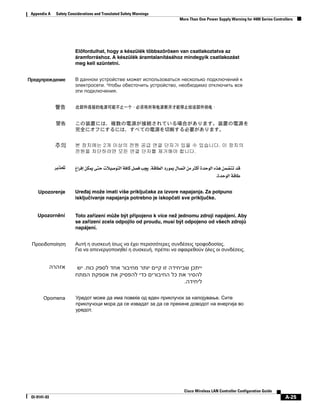
                          Figure 4-8).


                                                                             Cisco Wireless LAN Controller Configuration Guide
 Ol-9141-03                                                                                                                         4-23
Chapter 4   Configuring Controller SettingsWireless Device Access
 Configuring Voice and Video Parameters


                       Figure 4-8           802.11a > Voice Parameters Page


           Step 4      To enable voice CAC for this radio band, check the Admission Control (ACM) check box. The default
                       value is disabled.


                       Note     For WMM clients that do not support traffic specifications (TSPEC), disable ACM to allow for
                                proper QoS mapping.

           Step 5      In the Max RF Bandwidth field, enter the percentage of the maximum bandwidth allocated to clients for
                       voice applications on this radio band. Once the client reaches the value specified, the access point rejects
                       new calls on this radio band.
                       Range: 40 to 85%
                       Default: 75%
           Step 6      In the Reserved Roaming Bandwidth field, enter the percentage of maximum allocated bandwidth
                       reserved for roaming voice clients. The controller reserves this much bandwidth from the maximum
                       allocated bandwidth for roaming voice clients.
                       Range: 0 to 25%
                       Default: 6%
           Step 7      To enable TSM, check the Metrics Collection check box.
           Step 8      Click Apply to commit your changes.
           Step 9      To enable the radio network, click Network under 802.11a or 802.11b/g, check the 802.11a (or
                       802.11b/g) Network Status check box, and click Apply.
           Step 10     Click Save Configuration to save your changes.
           Step 11     Repeat this procedure if you want to configure voice parameters for another radio band (802.11a or
                       802.11b/g).


            Cisco Wireless LAN Controller Configuration Guide
4-24                                                                                                                           OL-9141-03
Chapter 4    Configuring Controller SettingsWireless Device Access
                                                                                                    Configuring Voice and Video Parameters


Using the GUI to Configure Video Parameters
                          Follow these steps to configure video parameters using the GUI.


               Step 1     Make sure that the WLAN is configured for WMM and the Gold QoS level.
               Step 2     To disable the radio network, click Wireless and then Network under 802.11a or 802.11b/g, uncheck
                          the 802.11a (or 802.11b/g) Network Status check box, and click Apply.
               Step 3     Click Video under 802.11a or 802.11b/g. The 802.11a (or 802.11b) > Video Parameters page appears
                          (see Figure 4-8).

                          Figure 4-9            802.11a > Video Parameters Page


               Step 4     To enable video CAC for this radio band, check the Admission Control (ACM) check box. The default
                          value is disabled.
               Step 5     In the Max RF Bandwidth field, enter the percentage of the maximum bandwidth allocated to clients for
                          video applications on this radio band. Once the client reaches the value specified, the access point rejects
                          new requests on this radio band.
                          Range: 0 to 100% (However, the maximum RF bandwidth cannot exceed 100% for voice + video.)
                          Default: 0%


                          Note      If this parameter is set to zero (0), the controller assumes that the operator does not want to do
                                    any bandwidth allocation and, therefore, allows all bandwidth requests.

               Step 6     In the Reserved Roaming Bandwidth field, enter the percentage of maximum allocated bandwidth
                          reserved for roaming video clients. The controller reserves this much bandwidth from the maximum
                          allocated bandwidth for roaming video clients.
                          Range: 0 to 25%
                          Default: 0%


                                                                               Cisco Wireless LAN Controller Configuration Guide
 Ol-9141-03                                                                                                                           4-25
Chapter 4   Configuring Controller SettingsWireless Device Access
  Configuring Voice and Video Parameters


            Step 7      Click Apply to commit your changes.
            Step 8      To enable the radio network, click Network under 802.11a or 802.11b/g, check the 802.11a (or
                        802.11b/g) Network Status check box, and click Apply.
            Step 9      Click Save Configuration to save your changes.
            Step 10     Repeat this procedure if you want to configure video parameters for another radio band (802.11a or
                        802.11b/g).


Using the GUI to View Voice and Video Settings
                        Follow these steps to view voice and video settings using the GUI.


            Step 1      Click Wireless > Clients to access the Clients page (see Figure 4-10).

                        Figure 4-10          Clients Page


            Step 2      Click the Detail link for the desired client to access the Clients > Detail page (see Figure 4-11).


             Cisco Wireless LAN Controller Configuration Guide
 4-26                                                                                                                          OL-9141-03
Chapter 4    Configuring Controller SettingsWireless Device Access
                                                                                                   Configuring Voice and Video Parameters


                         Figure 4-11           Clients > Detail Page


                         This page shows the U-APSD status for this client under Quality of Service Properties.
              Step 3     Click Back to return to the Clients page.
              Step 4     Follow these steps to see the TSM statistics for a particular client and the access point to which this client
                         is associated:
                          a.   Click the 802.11aTSM or 802.11b/gTSM link for the desired client. The Clients > AP page appears
                               (see Figure 4-12).


                                                                              Cisco Wireless LAN Controller Configuration Guide
Ol-9141-03                                                                                                                           4-27
Chapter 4   Configuring Controller SettingsWireless Device Access
 Configuring Voice and Video Parameters


                       Figure 4-12          Clients > AP Page


                       b.   Click the Detail link for the desired access point to access the Clients > AP > Traffic Stream Metrics
                            page (see Figure 4-13).

                       Figure 4-13          Clients > AP > Traffic Stream Metrics Page


            Cisco Wireless LAN Controller Configuration Guide
4-28                                                                                                                            OL-9141-03
Chapter 4    Configuring Controller SettingsWireless Device Access
                                                                                                   Configuring Voice and Video Parameters


                               This page shows the TSM statistics for this client and the access point to which it is associated. The
                               statistics are shown in 90-second intervals. The timestamp field shows the specific interval when the
                               statistics were collected.
              Step 5     Follow these steps to see the TSM statistics for a particular access point and a particular client associated
                         to this access point:
                          a.   Click Wireless and then click 802.11a Radios or 802.11b/g Radios under Access Points. The
                               802.11a Radios or 802.11b/g Radios page appears (see Figure 4-14).

                         Figure 4-14           802.11a Radios Page


                          b.   Click the 802.11aTSM or 802.11b/gTSM link for the desired access point. The AP > Clients page
                               appears (see Figure 4-15).

                         Figure 4-15           AP > Clients Page


                                                                              Cisco Wireless LAN Controller Configuration Guide
Ol-9141-03                                                                                                                           4-29
Chapter 4   Configuring Controller SettingsWireless Device Access
  Configuring Voice and Video Parameters


                        c.   Click the Detail link for the desired client to access the AP > Clients > Traffic Stream Metrics page
                             (see Figure 4-16).

                        Figure 4-16          AP > Clients > Traffic Stream Metrics Page


                             This page shows the TSM statistics for this access point and a client associated to it. The statistics
                             are shown in 90-second intervals. The timestamp field shows the specific interval when the statistics
                             were collected.


Using the CLI to Configure Voice Parameters
                        Follow these steps to configure voice parameters using the CLI.


            Step 1      Make sure that the WLAN is configured for WMM and the QoS level is set to Platinum. See
                        “Configuring Quality of Service” section on page 6-17 for instructions.
            Step 2      To disable the radio network, enter this command:
                        config {802.11a | 802.11b} disable network
            Step 3      To save your settings, enter this command:
                        save config


             Cisco Wireless LAN Controller Configuration Guide
 4-30                                                                                                                            OL-9141-03
Chapter 4    Configuring Controller SettingsWireless Device Access
                                                                                                  Configuring Voice and Video Parameters


               Step 4     To enable or disable voice CAC for the 802.11a or 802.11b/g network, enter this command:
                          config {802.11a | 802.11b} cac voice acm {enable | disable}
               Step 5     To set the percentage of maximum bandwidth allocated to clients for voice applications on the 802.11a
                          or 802.11b/g network, enter this command:
                          config {802.11a | 802.11b} cac voice max-bandwidth bandwidth
                          The bandwidth range is 40 to 85%, and the default value is 75%. Once the client reaches the value
                          specified, the access point rejects new calls on this network.
               Step 6     To set the percentage of maximum allocated bandwidth reserved for roaming voice clients, enter this
                          command:
                          config {802.11a | 802.11b} cac voice roam-bandwidth bandwidth
                          The bandwidth range is 0 to 25%, and the default value is 6%. The controller reserves this much
                          bandwidth from the maximum allocated bandwidth for roaming voice clients.
               Step 7     To enable or disable TSM for the 802.11a or 802.11b/g network, enter this command:
                          config {802.11a | 802.11b} tsm {enable | disable}
               Step 8     To enable the radio network, enter this command:
                          config {802.11a | 802.11b} enable network
               Step 9     To save your settings, enter this command:
                          save config


Using the CLI to Configure Video Parameters
                          Follow these steps to configure video parameters using the CLI.


               Step 1     Make sure that the WLAN is configured for WMM and the QoS level is set to Gold. See “Configuring
                          Quality of Service” section on page 6-17 for instructions.
               Step 2     To disable the radio network, enter this command:
                          config {802.11a | 802.11b} disable network
               Step 3     To save your settings, enter this command:
                          save config
               Step 4     To enable or disable video CAC for the 802.11 or 802.11b/g network, enter this command:
                          config {802.11a | 802.11b} cac video acm {enable | disable}
               Step 5     To set the percentage of maximum bandwidth allocated to clients for video applications on the 802.11a
                          or 802.11b/g network, enter this command:
                          config {802.11a | 802.11b} cac video max-bandwidth bandwidth
                          The bandwidth range is 0 to 100%, and the default value is 0%. However, the maximum RF bandwidth
                          cannot exceed 100% for voice + video. Once the client reaches the value specified, the access point
                          rejects new calls on this network.


                                                                             Cisco Wireless LAN Controller Configuration Guide
 Ol-9141-03                                                                                                                         4-31
Chapter 4   Configuring Controller SettingsWireless Device Access
  Configuring Voice and Video Parameters


                        Note      If this parameter is set to zero (0), the controller assumes that the operator does not want to do
                                  any bandwidth allocation and, therefore, allows all bandwidth requests.

            Step 6      To set the percentage of maximum allocated bandwidth reserved for roaming video clients, enter this
                        command:
                        config {802.11a | 802.11b} cac video roam-bandwidth bandwidth
                        The bandwidth range is 0 to 25%, and the default value is 0%. The controller reserves this much
                        bandwidth from the maximum allocated bandwidth for roaming video clients.
            Step 7      To enable the radio network, enter this command:
                        config {802.11a | 802.11b} enable network
            Step 8      To save your settings, enter this command:
                        save config


Using the CLI to View Voice and Video Settings
                        Use these commands to view voice and video settings using the CLI.
                         1.    To see the CAC configuration for the 802.11a or 802.11b/g network, enter this command:
                               show {802.11a | show 802.11b}
                         2.    To see the CAC statistics for a particular access point, enter this command:
                               show ap stats {802.11a | 802.11b} ap_name
                               Information similar to the following appears:
                               Call Admission Control (CAC) Stats
                                 Voice Bandwidth in use(% of config bw)......... 0
                                 Video Bandwidth in use(% of config bw)......... 0
                                 Total num of voice calls in progress........... 0
                                 Num of roaming voice calls in progress......... 0
                                 Total Num of voice calls since AP joined....... 0
                                 Total Num of roaming calls since AP joined..... 0
                                 Num of voice calls rejected since AP joined.... 0
                                 Num of roam calls rejected since AP joined..... 0
                                 Num of calls rejected due to insufficient bw.... 0
                                 Num of calls rejected due to invalid params.... 0
                                 Num of calls rejected due to PHY rate.......... 0
                                 Num of calls rejected due to QoS policy........ 0

                         3.    To see the U-APSD status for a particular client, enter this command:
                               show client detail client_mac


             Cisco Wireless LAN Controller Configuration Guide
 4-32                                                                                                                            OL-9141-03
Chapter 4    Configuring Controller SettingsWireless Device Access
                                                                                                    Configuring Voice and Video Parameters


                          4.   To see the TSM statistics for a particular client and the access point to which this client is associated,
                               enter this command:
                               show client tsm {802.11a | 802.11b} client_mac [ap_mac | all]
                               The optional all command shows all access points to which this client has associated. Information
                               similar to the following appears:
                               AP Interface Mac:                           00:0b:85:01:02:03
                               Client Interface Mac:                       00:01:02:03:04:05
                               Measurement Duration:                       90 seconds

                                  Timestamp                           1st Jan 2006, 06:35:80
                                    UpLink Stats
                                    ================
                                       Average Delay (5sec intervals)............................35
                                       Delay less than 10 ms.....................................20
                                       Delay bet 10 - 20 ms......................................20
                                       Delay bet 20 - 40 ms......................................20
                                       Delay greater than 40 ms..................................20
                                      Total packet Count.........................................80
                                      Total packet lost count (5sec).............................10
                                      Maximum Lost Packet count(5sec)............................5
                                      Average Lost Packet count(5secs)...........................2
                                    DownLink Stats
                                    ================
                                       Average Delay (5sec intervals)............................35
                                       Delay less than 10 ms.....................................20
                                       Delay bet 10 - 20 ms......................................20
                                       Delay bet 20 - 40 ms......................................20
                                       Delay greater than 40 ms..................................20
                                      Total packet Count.........................................80
                                      Total packet lost count (5sec).............................10
                                      Maximum Lost Packet count(5sec)............................5
                                      Average Lost Packet count(5secs)...........................2


                               Note     The statistics are shown in 90-second intervals. The timestamp field shows the specific
                                        interval when the statistics were collected.

                          5.   To see the TSM statistics for a particular access point and a particular client associated to this access
                               point, enter this command:
                               show ap stats {802.11a | 802.11b} ap_name tsm [client_mac | all]
                               The optional all command shows all clients associated to this access point. Information similar to
                               the following appears:
                               AP Interface Mac:                           00:0b:85:01:02:03
                               Client Interface Mac:                       00:01:02:03:04:05
                               Measurement Duration:                       90 seconds

                                  Timestamp                           1st Jan 2006, 06:35:80
                                    UpLink Stats
                                    ================
                                       Average Delay (5sec intervals)............................35
                                       Delay less than 10 ms.....................................20
                                       Delay bet 10 - 20 ms......................................20
                                       Delay bet 20 - 40 ms......................................20
                                       Delay greater than 40 ms..................................20
                                      Total packet Count.........................................80
                                      Total packet lost count (5sec).............................10


                                                                               Cisco Wireless LAN Controller Configuration Guide
Ol-9141-03                                                                                                                            4-33
Chapter 4   Configuring Controller SettingsWireless Device Access
  Configuring the Supervisor 720 to Support the WiSM


                                       Maximum Lost Packet count(5sec)............................5
                                       Average Lost Packet count(5secs)...........................2
                                     DownLink Stats
                                     ================
                                        Average Delay (5sec intervals)............................35
                                        Delay less than 10 ms.....................................20
                                        Delay bet 10 - 20 ms......................................20
                                        Delay bet 20 - 40 ms......................................20
                                        Delay greater than 40 ms..................................20
                                       Total packet Count.........................................80
                                       Total packet lost count (5sec).............................10
                                       Maximum Lost Packet count(5sec)............................5
                                       Average Lost Packet count(5secs)...........................2


                              Note     The statistics are shown in 90-second intervals. The timestamp field shows the specific
                                       interval when the statistics were collected.


Configuring the Supervisor 720 to Support the WiSM
                        When you install a WiSM in a Cisco Catalyst 6500 switch, you must configure the Supervisor 720 to
                        support the WiSM. When the supervisor detects the WiSM, the supervisor creates 10 GigabitEthernet
                        interfaces, ranging from Gigslot/1 to Gigslot/8. For example, if the WiSM is in slot 9, the supervisor
                        creates interfaces Gig9/1 through Gig9/8. The first eight GigabitEthernet interfaces must be organized
                        into two etherchannel bundles of four interfaces each. The remaining two GigabitEthernet interfaces are
                        used as service-port interfaces, one for each controller on the WiSM. You must manually create VLANs
                        to communicate with the ports on the WiSM.


              Note      The WiSM is also supported on Cisco 7600 Series Routers running only Cisco IOS Release
                        12.2(18)SXF5.


General WiSM Guidelines
                        Keep these general guidelines in mind when you add a WiSM to your network:
                          •   The switch ports leading to the controller service port are automatically configured and cannot be
                              manually configured.
                          •   The switch ports leading to the controller data ports should be configured as edge ports to avoid
                              sending unnecessary BPDUs.
                          •   The switch ports leading to the controller data ports should not be configured with any additional
                              settings (such as port channel or SPAN destination) other than settings necessary for carrying data
                              traffic to and from the controllers.
                          •   The WiSM controllers support Layer 3 LWAPP mode, but they do not support Layer 2 LWAPP
                              mode.


              Note      Refer to Chapter 3 for information on configuring the WiSM’s ports and interfaces.


             Cisco Wireless LAN Controller Configuration Guide
 4-34                                                                                                                           OL-9141-03
Chapter 4    Configuring Controller SettingsWireless Device Access
                                                                                             Using the Wireless LAN Controller Network Module


Configuring the Supervisor
                          Log into the switch CLI and, beginning in Privileged Exec mode, follow these steps to configure the
                          supervisor to support the WiSM:


                           Command                                    Purpose
                Step 1     configure terminal                         Enter global configuration mode.
                Step 2     interface vlan                             Create a VLAN to communicate with the data ports on the WiSM
                                                                      and enter interface config mode.
                Step 3     ip address ip-address gateway              Assign an IP address and gateway to the VLAN.
                Step 4     ip helper-address ip-address               Assign a helper address to the VLAN.
                Step 5     end                                        Return to global config mode.
                Step 6     wism module module_number                  Create Gigabit port-channel interfaces automatically for the
                           controller {1 | 2}                         specified WiSM controller and configure the port-channel
                           allowed-vlan vlan_number                   interfaces as trunk ports. Also, specify the VLAN you created
                                                                      earlier as the allowed VLAN on the port-channel trunk. VLAN
                                                                      traffic will be carried on the trunk between the WiSM controller
                                                                      and the supervisor.
                Step 7     wism module module_number                  For the native VLAN on the ports, specify the VLAN that you
                           controller {1 | 2}                         created earlier to communicate with the WiSM data ports.
                           native-vlan vlan_number
                Step 8     interface vlan                             Create a VLAN to communicate with the service ports on the
                                                                      WiSM.
                Step 9     ip address ip-address gateway              Assign an IP address and gateway to the VLAN.
                Step 10    end                                        Return to global config mode.
                Step 11    wism service-vlan vlan                     Configure the VLAN that you created in steps 8 through 10 to
                                                                      communicate with the WiSM service ports.
                Step 12    end                                        Return to global config mode.
                Step 13    show wism status                           Verify that the WiSM is operational.


Using the Wireless LAN Controller Network Module
                          Keep these guidelines in mind when using a wireless LAN controller network module (CNM) installed
                          in a Cisco Integrated Services Router:
                            •    The controller network module does not support IPSec. To use IPSec with the CNM, configure
                                 IPSec on the router in which the CNM is installed. Click this link to browse to IPSec configuration
                                 instructions for routers:
                                 http://www.cisco.com/en/US/tech/tk583/tk372/tech_configuration_guides_list.html
                            •    The controller network module does not have a battery and cannot save a time setting. It must receive
                                 a time setting from an NTP server when it powers up. When you install the module the configuration
                                 wizard prompts you for NTP server information.


                                                                                   Cisco Wireless LAN Controller Configuration Guide
 Ol-9141-03                                                                                                                              4-35
Chapter 4   Configuring Controller SettingsWireless Device Access
 Using the Wireless LAN Controller Network Module


                        •   To access the CNM bootloader, Cisco recommends that you reset the CNM from the router. If you
                            reset the CNM from a CNM user interface the router might reset the CNM while you are using the
                            bootloader.
                            When you reset the CNM from a CNM interface you have 17 minutes to use the bootloader before
                            the router automatically resets the CNM. The CNM bootloader does not run the Router Blade
                            Configuration Protocol (RBCP), so the RBCP heartbeat running on the router times out after 17
                            minutes, triggering a reset of the CNM.
                            If you reset the CNM from the router, the router stops the RBCP heartbeat exchange and does not
                            restart it until the CNM boots up. To reset the CNM from the router, enter this command on the
                            router CLI:
                            service-module wlan-controller 1/0 reset


            Cisco Wireless LAN Controller Configuration Guide
4-36                                                                                                                         OL-9141-03
C H A P T E R                          5
             Configuring Security Solutions

             This chapter describes security solutions for wireless LANs. It contains these sections:
              •   Cisco UWN Solution Security, page 5-2
              •   Configuring the System for SpectraLink NetLink Telephones, page 5-4
              •   Using Management over Wireless, page 5-6
              •   Configuring DHCP Option 82, page 5-7
              •   Configuring Access Control Lists, page 5-8
              •   Configuring Management Frame Protection, page 5-13
              •   Configuring Identity Networking, page 5-20
              •   Configuring IDS, page 5-26
              •   Configuring AES Key Wrap, page 5-39
              •   Configuring Maximum Local Database Entries, page 5-41


                                                               Cisco Wireless LAN Controller Configuration Guide
OL-9141-03                                                                                                         5-1
Chapter 5   Configuring Security Solutions
  Cisco UWN Solution Security


Cisco UWN Solution Security
                       Cisco UWN Solution security includes the following sections:
                         •      Security Overview, page 5-2
                         •      Layer 1 Solutions, page 5-2
                         •      Layer 2 Solutions, page 5-2
                         •      Layer 3 Solutions, page 5-3
                         •      Rogue Access Point Solutions, page 5-3
                         •      Integrated Security Solutions, page 5-4


Security Overview
                       The Cisco UWN security solution bundles potentially complicated Layer 1, Layer 2, and Layer 3 802.11
                       Access Point security components into a simple policy manager that customizes system-wide security
                       policies on a per-WLAN basis. The Cisco UWN security solution provides simple, unified, and
                       systematic security management tools.
                       One of the biggest hurdles to WLAN deployment in the enterprise is WEP encryption, which is a weak
                       standalone encryption method. A newer problem is the availability of low-cost access points, which can
                       be connected to the enterprise network and used to mount man-in-the-middle and denial-of-service
                       attacks. Also, the complexity of add-on security solutions has prevented many IT managers from
                       embracing the benefits of the latest advances in WLAN security.


Layer 1 Solutions
                       The Cisco UWN security solution ensures that all clients gain access within an operator-set number of
                       attempts. Should a client fail to gain access within that limit, it is automatically excluded (blocked from
                       access) until the operator-set timer expires. The operating system can also disable SSID broadcasts on a
                       per-WLAN basis.


Layer 2 Solutions
                       If a higher level of security and encryption is required, the network administrator can also implement
                       industry-standard security solutions, such as: 802.1X dynamic keys with EAP (extensible authentication
                       protocol), or WPA (Wi-Fi protected access) dynamic keys. The Cisco UWN Solution WPA
                       implementation includes AES (advanced encryption standard), TKIP + Michael (temporal key integrity
                       protocol + message integrity code checksum) dynamic keys, or WEP (Wired Equivalent Privacy) static
                       keys. Disabling is also used to automatically block Layer 2 access after an operator-set number of failed
                       authentication attempts.
                       Regardless of the wireless security solution selected, all Layer 2 wired communications between
                       controllers and lightweight access points are secured by passing data through LWAPP tunnels.


             Cisco Wireless LAN Controller Configuration Guide
 5-2                                                                                                                        OL-9141-03
Chapter 5    Configuring Security Solutions
                                                                                                             Cisco UWN Solution Security


Layer 3 Solutions
                           The WEP problem can be further solved using industry-standard Layer 3 security solutions such as
                           passthrough VPNs (virtual private networks).
                           The Cisco UWN Solution supports local and RADIUS MAC (media access control) filtering. This
                           filtering is best suited to smaller client groups with a known list of 802.11 access card MAC addresses.
                           Finally, the Cisco UWN Solution supports local and RADIUS user/password authentication. This
                           authentication is best suited to small to medium client groups.


Rogue Access Point Solutions
                           This section describes security solutions for rogue access points.


Rogue Access Point Challenges
                           Rogue access points can disrupt WLAN operations by hijacking legitimate clients and using plaintext or
                           other denial-of-service or man-in-the-middle attacks. That is, a hacker can use a rogue access point to
                           capture sensitive information, such as passwords and username. The hacker can then transmit a series of
                           clear-to-send (CTS) frames, which mimics an access point informing a particular NIC to transmit and
                           instructing all others to wait, which results in legitimate clients being unable to access the WLAN
                           resources. WLAN service providers thus have a strong interest in banning rogue access points from the
                           air space.
                           The operating system security solution uses the radio resource management (RRM) function to
                           continuously monitor all nearby access points, automatically discover rogue access points, and locate
                           them as described in the “Tagging and Containing Rogue Access Points” section on page 5-3.


Tagging and Containing Rogue Access Points
                           When the Cisco UWN Solution is monitored using WCS. WCS generates the flags as rogue access point
                           traps, and displays the known rogue access points by MAC address. The operator can then display a map
                           showing the location of the lightweight access points closest to each rogue access point, allowing Known
                           or Acknowledged rogue access points (no further action), marking them as Alert rogue access points
                           (watch for and notify when active), or marking them as contained rogue access points. Between one and
                           four lightweight access points discourage rogue access point clients by sending the clients
                           deauthenticate and disassociate messages whenever they associate with the rogue access point.
                           When the Cisco UWN Solution is monitored using a GUI or a CLI, the interface displays the known
                           rogue access points by MAC address. The operator then has the option of marking them as Known or
                           Acknowledged rogue access points (no further action), marking them as Alert rogue access points (watch
                           for and notify when active), or marking them as Contained rogue access points (have between one and
                           four lightweight access points discourage rogue access point clients by sending the clients
                           deauthenticate and disassociate messages whenever they associate with the rogue access point).


                                                                             Cisco Wireless LAN Controller Configuration Guide
 OL-9141-03                                                                                                                          5-3
Chapter 5   Configuring Security Solutions
  Configuring the System for SpectraLink NetLink Telephones


Integrated Security Solutions
                          •   Cisco UWN Solution operating system security is built around a robust 802.1X AAA (authorization,
                              authentication and accounting) engine, which allows operators to rapidly configure and enforce a
                              variety of security policies across the Cisco UWN Solution.
                          •   The controllers and lightweight access points are equipped with system-wide authentication and
                              authorization protocols across all ports and interfaces, maximizing system security.
                          •   Operating system security policies are assigned to individual WLANs, and lightweight access points
                              simultaneously broadcast all (up to 16) configured WLANs. This can eliminate the need for
                              additional access points, which can increase interference and degrade system throughput.
                          •   Operating system security uses the RRM function to continually monitor the air space for
                              interference and security breaches, and notify the operator when they are detected.
                          •   Operating system security works with industry-standard authorization, authentication, and
                              accounting (AAA) servers, making system integration simple and easy.


Configuring the System for SpectraLink NetLink Telephones
                        For best integration with the Cisco UWN Solution, SpectraLink NetLink Telephones require an extra
                        operating system configuration step: enable long preambles. The radio preamble (sometimes called a
                        header) is a section of data at the head of a packet that contains information that wireless devices need
                        when sending and receiving packets. Short preambles improve throughput performance, so they are
                        enabled by default. However, some wireless devices, such as SpectraLink NetLink phones, require long
                        preambles.
                        Use one of these methods to enable long preambles:
                          •   Using the GUI to Enable Long Preambles, page 5-4
                          •   Using the CLI to Enable Long Preambles, page 5-5


Using the GUI to Enable Long Preambles
                        Use this procedure to use the GUI to enable long preambles to optimize the operation of SpectraLink
                        NetLink phones on your wireless LAN.


             Step 1     Log into the controller GUI.
             Step 2     Follow this path to navigate to the 802.11b/g Global Parameters page:
                        Wireless > Global RF > 802.11b/g Network
                        If the Short Preamble Enabled box is checked, continue with this procedure. However, if the Short
                        Preamble Enabled box is unchecked (which means that long preambles are enabled), the controller is
                        already optimized for SpectraLink NetLink phones and you do not need to continue this procedure.
             Step 3     Uncheck the Short Preamble Enabled check box to enable long preambles.


             Cisco Wireless LAN Controller Configuration Guide
 5-4                                                                                                                       OL-9141-03
Chapter 5    Configuring Security Solutions
                                                                                  Configuring the System for SpectraLink NetLink Telephones


               Step 4      Click Apply to update the controller configuration.


                           Note      If you do not already have an active CLI session to the controller, Cisco recommends that you
                                     start a CLI session to reboot the controller and watch the reboot process. A CLI session is also
                                     useful because the GUI loses its connection when the controller reboots.

               Step 5      Reboot the controller using Commands > Reboot > Reboot. Click OK in response to this prompt:
                           Configuration will be saved and switch will be rebooted. Click ok to confirm.

                           The controller reboots.
               Step 6      Log back into the controller GUI and verify that the controller is properly configured. Follow this path
                           to navigate to the 802.11b/g Global Parameters page:
                           Wireless > Global RF > 802.11b/g Network
                           If the Short Preamble Enabled box is unchecked, the controller is optimized for SpectraLink NetLink
                           phones.


Using the CLI to Enable Long Preambles
                           Use this procedure to use the CLI to enable long preambles to optimize the operation of SpectraLink
                           NetLink phones on your wireless LAN.


               Step 1      Log into the controller CLI.
               Step 2      Enter show 802.11b and check the Short preamble mandatory parameter. If the parameter indicates that
                           short preambles are enabled, continue with this procedure. This example shows that short preambles are
                           enabled:
                           Short Preamble mandatory....................... Enabled

                           However, if the parameter shows that short preambles are disabled (which means that long preambles
                           are enabled), the controller is already optimized for SpectraLink NetLink phones and you do not need
                           to continue this procedure. This example shows that short preambles are disabled:
                           Short Preamble mandatory....................... Disabled

               Step 3      Enter config 802.11b disable network to disable the 802.11b/g network. (You cannot enable long
                           preambles on the 802.11a network.)
               Step 4      Enter config 802.11b preamble long to enable long preambles.
               Step 5      Enter config 802.11b enable network to re-enable the 802.11b/g network.
               Step 6      Enter reset system to reboot the controller. Enter y when this prompt appears:
                           The system has unsaved changes. Would you like to save them now? (y/n)

                           The controller reboots.


                                                                               Cisco Wireless LAN Controller Configuration Guide
 OL-9141-03                                                                                                                            5-5
Chapter 5   Configuring Security Solutions
  Using Management over Wireless


            Step 7     To verify that the controller is properly configured, log back into the CLI and enter show 802.11b to
                       view these parameters:
                       802.11b Network................................ Enabled
                       Short Preamble mandatory....................... Disabled

                       These parameters show that the 802.11b/g network is enabled and that short preambles are disabled.


Using the CLI to Configure Enhanced Distributed Channel Access
                       Use this CLI command to configure 802.11 enhanced distributed channel access (EDCA) parameters to
                       support SpectraLink phones.
                            config advanced edca-parameters {svp-voice | wmm-default}
                            where
                            svp-voice enables SpectraLink voice priority (SVP) parameters and
                            wmm-default enables wireless multimedia (WMM) default parameters


                            Note     To propagate this command to all access points connected to the controller, make sure to
                                     disable and then re-enable the 802.11b/g network after entering this command.


Using Management over Wireless
                       The Cisco UWN Solution Management over Wireless feature allows operators to monitor and configure
                       local controllers using a wireless client. This feature is supported for all management tasks except
                       uploads to and downloads from (transfers to and from) the controller.
                       Before you can use the Management over Wireless feature, you must properly configure the controller
                       using one of these sections:
                        •   Using the GUI to Enable Management over Wireless, page 5-6
                        •   Using the CLI to Enable Management over Wireless, page 5-7


Using the GUI to Enable Management over Wireless
            Step 1     Click Management > Mgmt Via Wireless to access the Management Via Wireless page.
            Step 2     Check the Enable Controller Management to be accessible from Wireless Clients check box. If the
                       selection box is not checked, continue with Step 3. Otherwise, continue with Step 3.
            Step 3     Click Apply to commit your changes.
            Step 4     Click Save Configuration to save your changes.
            Step 5     Use a wireless client web browser to connect to the controller management port or DNS port IP address, and
                       log into the controller GUI to verify that you can manage the WLAN using a wireless client.


            Cisco Wireless LAN Controller Configuration Guide
 5-6                                                                                                                       OL-9141-03
Chapter 5    Configuring Security Solutions
                                                                                                               Configuring DHCP Option 82


Using the CLI to Enable Management over Wireless
               Step 1      In the CLI, use the show network command to verify whether the Mgmt Via Wireless Interface is
                           Enabled or Disabled. If Mgmt Via Wireless Interface is Disabled, continue with Step 2. Otherwise,
                           continue with Step 3.
               Step 2      To Enable Management over Wireless, enter config network mgmt-via-wireless enable.
               Step 3      Use a wireless client to associate with an access point connected to the controller that you want to
                           manage.
               Step 4      Enter telnet controller-ip-address and log into the CLI to verify that you can manage the WLAN using
                           a wireless client.


Configuring DHCP Option 82
                           DHCP option 82 provides additional security when DHCP is used to allocate network addresses.
                           Specifically, it enables the controller to act as a DHCP relay agent to prevent DHCP client requests from
                           untrusted sources. The controller can be configured to add option 82 information to DHCP requests from
                           clients before forwarding the requests to the DHCP server. See Figure 5-1 for an illustration of this
                           process.

                           Figure 5-1      DHCP Option 82

                                                              Controller adds Option 82
                            PC or PDA with 802.11
                                                                payload to the request
                           Client and IP Soft-Phone
                                                            and forwards it to DHCP Server


                                                                                                  IP
                                                      Access            DHCP                                        DHCP
                                                       Point                                                        Server

                                                                                                                              155182
                                                                      Relay Agent
                                 802.11 WLAN                          (Controller)
                                   IP Phone


                           The access point forwards all DHCP requests from a client to the controller. The controller adds the
                           DHCP option 82 payload and forwards the request to the DHCP server. The payload can contain the
                           MAC address or the MAC address and SSID of the access point, depending on how you configure this
                           option.


                Note       Any DHCP packets that already include a relay agent option are dropped at the controller.


                Note       DHCP option 82 is not supported for use with auto-anchor mobility, which is described in Chapter 11.


                                                                              Cisco Wireless LAN Controller Configuration Guide
 OL-9141-03                                                                                                                            5-7
Chapter 5   Configuring Security Solutions
 Configuring Access Control Lists


                        Use these commands to configure DHCP option 82 on the controller.
                         1.   To configure the format of the DHCP option 82 payload, enter one of these commands:
                               – config dhcp opt-82 remote-id ap_mac
                                    This command adds the MAC address of the access point to the DHCP option 82 payload.
                               – config dhcp opt-82 remote-id ap_mac:ssid
                                    This command adds the MAC address and SSID of the access point to the DHCP option 82
                                    payload.
                         2.   To enable or disable DHCP option 82 on the controller, enter this command:
                              config interface dhcp ap-manager opt-82 {enable | disable}
                         3.   To see the status of DHCP option 82 on the controller, enter this command:
                              show interface detailed ap-manager
                              Information similar to the following appears:
                              Interface Name...................................           ap-manager
                              IP Address.......................................           10.30.16.13
                              IP Netmask.......................................           255.255.248.0
                              IP Gateway.......................................           10.30.16.1
                              VLAN.............................................           untagged
                              Active Physical Port.............................           LAG (29)
                              Primary Physical Port............................           LAG (29)
                              Backup Physical Port.............................           Unconfigured
                              Primary DHCP Server..............................           10.1.0.10
                              Secondary DHCP Server............................           Unconfigured
                              DHCP Option 82...................................           Enabled
                              ACL..............................................           Unconfigured
                              AP Manager.......................................           Yes


Configuring Access Control Lists
                        An access control list (ACL) is a set of rules used to limit access to a particular interface (for example,
                        if you want to restrict a wireless client from pinging the management interface of the controller). ACLs
                        can be applied to data traffic to and from wireless clients or to all traffic destined for the controller CPU.
                        After they are defined, ACLs can be applied to the management interface, the AP-manager interface, or
                        any of the dynamic interfaces for client data traffic or to the NPU interface for traffic to the controller
                        CPU.


              Note      If you are using an external web server, you must configure a preauthentication ACL on the WLAN for
                        the external web server.

                        You can define up to 64 ACLs, each with up to 64 rules (or filters). Each rule has parameters that affect
                        its action. When a packet matches all of the parameters for a rule, the action set for that rule is applied
                        to the packet.
                        You can configure ACLs through either the GUI or the CLI.


             Cisco Wireless LAN Controller Configuration Guide
 5-8                                                                                                                           OL-9141-03
Chapter 5    Configuring Security Solutions
                                                                                                           Configuring Access Control Lists


Using the GUI to Configure Access Control Lists
                           Follow these steps to configure ACLs using the controller GUI.


               Step 1      Click Security > Access Control Lists to access the Access Control Lists page (see Figure 5-2).

                           Figure 5-2      Access Control Lists Page


                           This page lists all of the ACLs that have been configured for this controller. It also enables you to edit
                           or remove any of the ACLs.
               Step 2      To add a new ACL, click New. The Access Control Lists > New page appears (see Figure 5-3).

                           Figure 5-3      Access Control Lists > New Page


               Step 3      In the Access Control List Name field, enter a name for the new ACL. You can enter up to 32
                           alphanumeric characters.
               Step 4      Click Apply. When the Access Control Lists page reappears, click the Edit link for the new ACL.


                                                                              Cisco Wireless LAN Controller Configuration Guide
 OL-9141-03                                                                                                                            5-9
Chapter 5   Configuring Security Solutions
 Configuring Access Control Lists


            Step 5      When the Access Control Lists > Edit page appears, click Add New Rule. The Access Control Lists >
                        Rules > New page appears (see Figure 5-4).

                        Figure 5-4       Access Control Lists > Rules > New Page


            Step 6      Follow these steps to configure a rule for this ACL:
                         a.   The controller supports up to 64 rules for each ACL. These rules are listed in order from 1 to 64. In
                              the Sequence field, enter a value (between 1 and 64) to determine the order of this rule in relation
                              to any other rules defined for this ACL.


                              Note      If rules 1 through 4 are already defined and you add rule 29, it is added as rule 5. If you add
                                        or change a sequence number for a rule, the sequence numbers for other rules adjust to
                                        maintain a contiguous sequence. For instance, if you change a rule’s sequence number from
                                        7 to 5, the rules with sequence numbers 5 and 6 are automatically reassigned as 6 and 7,
                                        respectively.

                         b.   From the Source drop-down box, choose one of these options to specify the source of the packets to
                              which this ACL applies:
                               •     Any—Any source (This is the default value.)
                               •     IP Address—A specific source. If you choose this option, enter the IP address and netmask of
                                     the source in the edit boxes.
                         c.   From the Destination drop-down box, choose one of these options to specify the destination of the
                              packets to which this ACL applies:
                               •     Any—Any destination (This is the default value.)
                               •     IP Address—A specific destination. If you choose this option, enter the IP address and netmask
                                     of the destination in the edit boxes.
                         d.   From the Protocol drop-down box, choose the protocol to be used for this ACL. These are the
                              protocol options:
                               •     Any—All protocol (This is the default value.)
                               •     TCP—Transmission Control Protocol
                               •     UDP—User Datagram Protocol
                               •     ICMP—Internet Control Message Protocol
                               •     ESP—IP Encapsulating Security Payload


             Cisco Wireless LAN Controller Configuration Guide
5-10                                                                                                                            OL-9141-03
Chapter 5    Configuring Security Solutions
                                                                                                           Configuring Access Control Lists


                                 •   AH—Authentication Header
                                 •   GRE—Generic Routing Encapsulation
                                 •   IP—Internet Protocol
                                 •   Eth Over IP—Ethernet-over-Internet Protocol
                                 •   OSPF—Open Shortest Path First
                                 •   Other—Any other Internet Assigned Numbers Authority (IANA) protocol
                                     (http://www.iana.org)
                          e.    If you chose TCP or UDP in the previous step, two additional parameters appear: Source Port and
                                Destination Port. These parameters enable you to choose a specific source port and destination
                                protocol or port ranges. The port options are used by applications that send and receive data to and
                                from the networking stack. Some ports are designated for certain applications such as telnet, ssh,
                                http, ICMP, and so on.
                           f.   From the DSCP drop-down box, choose one of these options to specify the differentiated services
                                code point (DSCP) value of this ACL. DSCP is a packet header code that can be used to define the
                                quality of service across the Internet.
                                 •   Any—Any DSCP (This is the default value.)
                                 •   Specific—A specific DSCP from 0 to 63, which you enter in the DSCP edit box
                          g.    From the Direction drop-down box, choose one of these options to specify the direction of the traffic
                                to which this ACL applies:
                                 •   Any—Any direction (This is the default value.)
                                 •   Inbound—From the client
                                 •   Outbound—To the client
                          h.    From the Action drop-down box, choose Deny to cause this ACL to block packets or Permit to cause
                                this ACL to allow packets. The default value is Deny.
                           i.   Click Apply to commit your changes. The Access Control Lists > Edit page reappears, showing the
                                rules for this ACL. See Figure 5-5.

                          Figure 5-5      Access Control Lists > Edit Page


                                This page also enables you to edit or remove any of the rules.
                           j.   Repeat this procedure to add any additional rules for this ACL.
              Step 7      Click Save Configuration to save your changes.


                                                                              Cisco Wireless LAN Controller Configuration Guide
OL-9141-03                                                                                                                             5-11
Chapter 5   Configuring Security Solutions
  Configuring Access Control Lists


             Step 8      Repeat this procedure to add any additional ACLs.
             Step 9      To apply an ACL to a management, AP-manager, or dynamic interface, choose the desired ACL from the
                         ACL Name drop-down box on the interface’s Edit page and click Apply. See Chapter 3 for more
                         information on configuring controller interfaces.


                         Note        You cannot apply an ACL to the NPU-CPU interface through the GUI. You can configure this
                                     setting only through the CLI.

             Step 10     To apply a preauthentication ACL to a WLAN for an external web server, choose the desired ACL from
                         the Preauthentication ACL drop-down box under Security Policies > Web Policy on the WLAN’s Edit
                         page. See Chapter 6 for more information on configuring WLANs.
             Step 11     Click Save Configuration to save your changes.


Using the CLI to Configure Access Control Lists
                         Follow these steps to configure ACLs using the controller CLI.


             Step 1      To see all of the ACLs that are configured on the controller, enter this command:
                         show acl summary
             Step 2      To see detailed information for a particular ACL, enter this command:
                         show acl detailed acl_name
             Step 3      To add a new ACL, enter this command:
                         config acl create acl_name
                         You can enter up to 32 alphanumeric characters for the acl_name parameter.
             Step 4      To add a rule for an ACL, enter this command:
                         config acl rule {
                                action acl_name rule_index {permit | deny} |
                                add acl_name rule_index |
                                change index acl_name old_index new_index |
                                destination address acl_name rule_index ip_address netmask |
                                destination port range acl_name rule_index start_port end_port |
                                direction acl_name rule_index {in | out | any} |
                                dscp acl_name rule_index dscp |
                                protocol acl_name rule_index protocol |
                                source address acl_name rule_index ip_address netmask |
                                source port range acl_name rule_index start_port end_port |
                                swap index acl_name index_1 index_2}
                         Refer to Step 6 in the previous section for explanations of the rule parameters.


              Cisco Wireless LAN Controller Configuration Guide
 5-12                                                                                                                        OL-9141-03
Chapter 5    Configuring Security Solutions
                                                                                                Configuring Management Frame Protection


              Step 5      To apply an ACL to the data path, enter this command:
                          config acl apply acl_name
              Step 6      To create a new ACL that restricts the type of traffic (wired, wireless, or both) reaching the controller
                          CPU, enter this command:
                          config acl cpu acl_name {wired | wireless | both}
              Step 7      To see the ACL that is configured on the controller CPU, enter this command:
                          show acl cpu
              Step 8      To apply an ACL to a management, AP-manager, or dynamic interface, enter this command:
                          config interface acl {management | ap-manager | dynamic_interface_name} acl_name
                          See Chapter 3 for more information on configuring controller interfaces.
              Step 9      To apply a preauthentication ACL to a WLAN for an external web server, enter this command:
                          config wlan security web-auth acl wlan_id acl_name
                          See Chapter 6 for more information on configuring WLANs.
              Step 10     To save your settings, enter this command:
                          save config


               Note       To delete an ACL, enter config acl delete acl_name. To delete an ACL rule, enter config acl rule delete
                          acl_name rule_index.


Configuring Management Frame Protection
                          Management frame protection (MFP) provides for the authentication of 802.11 management frames by
                          the wireless network infrastructure. Management frames can be protected in order to detect adversaries
                          that are invoking denial-of-service attacks, flooding the network with associations and probes,
                          interjecting as rogue access points, and affecting network performance by attacking the QoS and radio
                          measurement frames. MFP also provides a quick and effective means to detect and report phishing
                          incidents.
                          MFP performs three main functions:
                           •   Management frame protection—When management frame protection is enabled, the access point
                               protects the management frames it transmits by adding a message integrity check information
                               element (MIC IE) to each frame. Any attempt to copy, alter, or replay the frame invalidates the MIC,
                               causing any receiving access point configured to detect MFP frames to report the discrepancy.
                           •   Management frame validation—When management frame validation is enabled, the access point
                               validates every management frame that it receives from other access points in the network. It ensures
                               that the MIC IE is present (when the originator is configured to transmit MFP frames) and matches
                               the content of the management frame. If it receives any frame that does not contain a valid MIC IE
                               from a BSSID belonging to an access point that is configured to transmit MFP frames, it reports the
                               discrepancy to the network management system. In order for the timestamps to operate properly, all
                               controllers must be Network Transfer Protocol (NTP) synchronized.


                                                                             Cisco Wireless LAN Controller Configuration Guide
OL-9141-03                                                                                                                         5-13
Chapter 5   Configuring Security Solutions
  Configuring Management Frame Protection


                         •   Event reporting—The access point notifies the controller when it detects an anomaly, and the
                             controller aggregates the received anomaly events and can report the results through SNMP traps to
                             alert the network manager.
                       You can globally configure MFP on a controller. When you do so, management frame protection and
                       validation are enabled by default for each joined access point, and access point authentication is
                       automatically disabled. Once MFP is globally enabled on a controller, you can disable and re-enable it
                       for individual WLANs and access points.


              Note     Access points support MFP in local and monitor modes and in REAP and H-REAP modes when the
                       access point is connected to a controller.

                       You can configure MFP through either the GUI or the CLI.


Using the GUI to Configure MFP
                       Follow these steps to configure MFP using the controller GUI.


            Step 1     Click Security and then AP Authentication/MFP under Wireless Protection Policies. The AP
                       Authentication Policy page appears (see Figure 5-6).

                       Figure 5-6      AP Authentication Policy Page


            Step 2     To enable MFP globally for the controller, choose Management Frame Protection from the Protection
                       Type drop-down box.
            Step 3     Click Apply to commit your changes.


             Cisco Wireless LAN Controller Configuration Guide
 5-14                                                                                                                     OL-9141-03
Chapter 5    Configuring Security Solutions
                                                                                                Configuring Management Frame Protection


               Step 4      Follow these steps if you want to disable or re-enable MFP protection for a particular WLAN after MFP
                           has been enabled globally for the controller:
                           a.   Click WLANs.
                           b.   Click the Edit link of the desired WLAN. The WLANs > Edit page appears.
                           c.   Uncheck the MFP Signature Generation check box to disable MFP for this WLAN or check this
                                check box to enable MFP for this WLAN.
                           d.   Click Apply to commit your changes.
               Step 5      Follow these steps if you want to disable or re-enable MFP validation for a particular access point after
                           MFP has been enabled globally for the controller:
                           a.   Click Wireless to access the All APs page.
                           b.   Click the Detail link of the desired access point. The All APs > Details page appears.
                           c.   Uncheck the MFP Frame Validation check box to disable MFP for this access point or check this
                                check box to enable MFP for this access point.
                           d.   Click Apply to commit your changes.
               Step 6      Click Save Configuration to save your settings.


Using the GUI to View MFP Settings
                           Follow these steps to view MFP settings using the controller GUI.


               Step 1      To see the controller’s current global MFP settings, click Security and then Management Frame
                           Protection under Wireless Protection Policies. The Management Frame Protection Settings page
                           appears (see Figure 5-7).


                                                                             Cisco Wireless LAN Controller Configuration Guide
 OL-9141-03                                                                                                                        5-15
Chapter 5   Configuring Security Solutions
 Configuring Management Frame Protection


                      Figure 5-7      Management Frame Protection Settings Page


                      On this page, you can see the following MFP settings:
                        •   The Management Frame Protection field shows if MFP is enabled globally for the controller.
                        •   The Controller Time Source Valid field indicates whether the controller time is set locally (by
                            manually entering the time) or through an external source (such as NTP server). If the time is set by
                            an external source, the value of this field is “True.” If the time is set locally, the value is “False.”
                            The time source is used for validating management frames between access points of different
                            controllers that also have mobility configured.
                        •   The MFP Protection field shows if MFP is enabled for individual WLANs.
                        •   The MFP Validation field shows if MFP is enabled for individual access points.
           Step 2     To see the current MFP state for a particular access point, click Wireless, 802.11a Radios or 802.11b/g
                      Radios under Access Points, and the Configure link of the desired access point. The 802.11a (or
                      802.11b/g) Cisco APs > Configure page appears (see Figure 5-8).


            Cisco Wireless LAN Controller Configuration Guide
5-16                                                                                                                         OL-9141-03
Chapter 5    Configuring Security Solutions
                                                                                                   Configuring Management Frame Protection


                           Figure 5-8      802.11a Cisco APs > Configure Page


                           Under Management Frame Protection, this page shows the level of MFP protection and validation.


Using the CLI to Configure MFP
                           Use these commands to configure MFP using the controller CLI.
                            1.   To enable or disable MFP globally for the controller, enter this command:
                                 config wps mfp {enable | disable}
                            2.   If MFP is enabled globally for the controller and you want to disable or re-enable it for a particular
                                 WLAN, enter this command:
                                 config wlan mfp protection {enable | disable} wlan_id
                            3.   If MFP is enabled globally for the controller and you want to disable or re-enable it for a particular
                                 access point, enter this command:
                                 config ap mfp validation {enable | disable} Cisco_AP


                                                                                Cisco Wireless LAN Controller Configuration Guide
 OL-9141-03                                                                                                                           5-17
Chapter 5   Configuring Security Solutions
  Configuring Management Frame Protection


Using the CLI to View MFP Settings
                       Use these commands to view MFP settings using the controller CLI.
                        1.   To see a summary of the controller’s current wireless protection policies (including MFP), enter this
                             command:
                             show wps summary
                             Information similar to the following appears:
                             Client Exclusion Policy
                               Excessive 802.11-association failures..........         Enabled
                               Excessive 802.11-authentication failures.......         Enabled
                               Excessive 802.1x-authentication................         Enabled
                               Network access control failure.................         Enabled
                               IP-theft.......................................         Enabled
                               Excessive Web authentication failure...........         Enabled

                             Trusted AP Policy
                               Management Frame Protection....................         Enabled
                               Mis-configured AP Action.......................         Alarm Only
                                 Enforced encryption policy...................         none
                                 Enforced preamble policy.....................         none
                                 Enforced radio type policy...................         none
                                 Validate SSID................................         Disabled
                               Alert if Trusted AP is missing.................         Disabled
                               Trusted AP timeout.............................         120

                             Untrusted AP Policy
                               Rogue Location Discovery Protocol..............         Disabled
                                 RLDP Action..................................         Alarm Only
                                 Automatically contain rogues advertising ....         Alarm Only
                                 Detect Ad-Hoc Networks.......................         Alarm Only
                               Rogue Clients
                                 Validate rogue clients against AAA...........         Disabled
                                 Detect trusted clients on rogue APs..........         Alarm Only
                               Rogue AP timeout...............................         1200

                             Signature Policy
                               Signature Processing........................... Enabled

                        2.   To see the controller’s current global MFP settings, enter this command:
                             show wps mfp summary
                             Information similar to the following appears:
                             Management Frame Protection state................ enabled
                             Controller Time Source Valid..................... true
                             WLAN ID WLAN Name                Status      MFP Protection
                             ------- ---------------------- --------- --------------
                             1        tester-2006             Enabled     Enabled
                                                   MFP                       Operational                      MFP Capability
                             AP Name               Validation Slot Radio State                           Protection Validation
                             -------------------- ---------- ---- ----- --------------                   ---------- ----------
                             tester-1000           Enabled     0      a      Up                          Full         Full
                                                               1      b/g    Up                          Full         Full
                             tester-1000b          Enabled     0      a      Up                          Full         Full
                                                               1      b/g    Up                          Full         Full


             Cisco Wireless LAN Controller Configuration Guide
 5-18                                                                                                                       OL-9141-03
Chapter 5    Configuring Security Solutions
                                                                                                   Configuring Management Frame Protection


                           3.   To see the current MFP state for a particular WLAN, enter this command:
                                show wlan wlan_id
                                Information similar to the following appears:
                                WLAN Identifier..................................             1
                                Network Name (SSID)..............................             tester-2006
                                Status...........................................             Enabled
                                MAC Filtering....................................             Disabled
                                Broadcast SSID...................................             Disabled
                                AAA Policy Override..............................             Disabled
                                Network Access Control...........................             Disabled
                                Number of Active Clients.........................             0
                                Exclusionlist....................................             Disabled
                                Session Timeout..................................             1800 seconds
                                Interface........................................             management
                                DHCP Server......................................             Default
                                Quality of Service...............................             Silver (best effort)
                                WMM..............................................             Disabled
                                CCX - AironetIe Support..........................             Disabled
                                Dot11-Phone Mode (7920)..........................             Disabled
                                Wired Protocol...................................             None
                                IPv6 Support.....................................             Disabled
                                Radio Policy.....................................             All
                                Security
                                   802.11 Authentication:........................             Open System
                                   Static WEP Keys...............................             Disabled
                                   802.1X........................................             Enabled
                                   Encryption:...................................             104-bit WEP
                                   Wi-Fi Protected Access (WPA1).................             Disabled
                                   Wi-Fi Protected Access v2 (WPA2)..............             Disabled
                                   IP Security Passthru..........................             Disabled
                                   Web Based Authentication......................             Disabled
                                   Web-Passthrough...............................             Disabled
                                   Auto Anchor...................................             Disabled
                                   Management Frame Protection ..................             Enabled

                           4.   To see the current MFP state for a particular access point, enter this command:
                                show ap config general AP_name
                                Information similar to the following appears:
                                Cisco AP Identifier..............................             0
                                Cisco AP Name....................................             ap:52:c5:c0
                                AP Regulatory Domain.............................             80211bg: -N 80211a: -N
                                Switch Port Number ..............................             1
                                MAC Address......................................             00:0b:85:52:c5:c0
                                IP Address Configuration.........................             Static IP assigned
                                IP Address.......................................             10.67.73.33
                                IP NetMask.......................................             255.255.255.192
                                Cisco AP Location................................             default_location
                                Cisco AP Group Name..............................             default-group
                                Primary Cisco Switch.............................             tester-2006
                                Secondary Cisco Switch...........................
                                Tertiary Cisco Switch............................
                                Administrative State ............................             ADMIN_ENABLED
                                Operation State .................................             REGISTERED
                                Mirroring Mode ..................................             Disabled
                                AP Mode .........................................             Local
                                Remote AP Debug .................................             Disabled
                                S/W Version ....................................              4.0.2.0
                                Boot Version ...................................              2.1.78.0
                                Mini IOS Version ................................                   --


                                                                                Cisco Wireless LAN Controller Configuration Guide
OL-9141-03                                                                                                                            5-19
Chapter 5   Configuring Security Solutions
  Configuring Identity Networking


                              Stats Reporting Period ..........................         180
                              LED State........................................         Enabled
                              ILP Pre Standard Switch..........................         Disabled
                              ILP Power Injector...............................         Disabled
                              Number Of Slots..................................         2
                              AP Model.........................................         AP1020
                              AP Serial Number.................................         WCN09260057
                              AP Certificate Type..............................         Manufacture Installed
                              Management Frame Protection Validation ..........         Enabled

                         5.   To see MFP statistics for the controller, enter this command:
                              show wps mfp statistics
                              Information similar to the following appears:
                              BSSID              Radio           Validator AP Name Invalid MIC  Invalid Seq    No MIC MIC
                              ---------------- -------           ----------------- ------------ ------------ ------- ------
                              00:12:44:b0:6a:80 a                tester-1000b               28 0             0     0
                              00:0b:85:56:c2:c0 b/g              tester-1000b                0 0             3     0
                              00:14:1b:5b:fc:80 a                tester-1000b              774 0             0     0


                         6.   Use these commands to obtain MFP debug information:
                              debug wps mfp ?
                              where ? is one of the following:
                              lwapp—Shows debug information for MFP messages.
                              detail—Shows detailed debug information for MFP messages.
                              report—Shows debug information for MFP reporting.
                              mm—Shows debug information for MFP mobility (inter-controller) messages.


Configuring Identity Networking
                        These sections explain the identity networking feature, how it is configured, and the expected behavior
                        for various security policies:
                          •   Identity Networking Overview, page 5-21
                          •   RADIUS Attributes Used in Identity Networking, page 5-22
                          •   Configuring AAA Override, page 5-25


             Cisco Wireless LAN Controller Configuration Guide
 5-20                                                                                                                        OL-9141-03
Chapter 5    Configuring Security Solutions
                                                                                                            Configuring Identity Networking


Identity Networking Overview
                           In most wireless LAN systems, each WLAN has a static policy that applies to all clients associated with
                           an SSID. Although powerful, this method has limitations since it requires clients to associate with
                           different SSIDs to inherit different QoS and security policies.
                           However, the Cisco Wireless LAN Solution supports identity networking, which allows the network to
                           advertise a single SSID but allows specific users to inherit different QoS or security policies based on
                           their user profiles. The specific policies that you can control using identity networking include:
                            •   Quality of Service. When present in a RADIUS Access Accept, the QoS-Level value overrides the
                                QoS value specified in the WLAN profile.
                            •   ACL. When the ACL attribute is present in the RADIUS Access Accept, the system applies the
                                ACL-Name to the client station after it authenticates. This overrides any ACLs that are assigned to
                                the interface.
                            •   VLAN. When a VLAN Interface-Name or VLAN-Tag is present in a RADIUS Access Accept, the
                                system places the client on a specific interface.


                                Note      The VLAN feature only supports MAC filtering, 802.1X, and WPA. The VLAN feature does
                                          not support Web Authentication or IPSec.

                            •   Tunnel Attributes.


                                Note      When any of the other RADIUS attributes (QoS-Level, ACL-Name, Interface-Name, or
                                          VLAN-Tag), which are described later in this section, are returned, the Tunnel Attributes
                                          must also be returned.

                           The operating system’s local MAC Filter database has been extended to include the interface name,
                           allowing local MAC filters to specify to which interface the client should be assigned. A separate
                           RADIUS server can also be used, but the RADIUS server must be defined using the Security menus.


                                                                               Cisco Wireless LAN Controller Configuration Guide
 OL-9141-03                                                                                                                            5-21
Chapter 5   Configuring Security Solutions
  Configuring Identity Networking


RADIUS Attributes Used in Identity Networking
                        This section explains the RADIUS attributes used in identity networking.


QoS-Level
                        This attribute indicates the Quality of Service level to be applied to the mobile client's traffic within the
                        switching fabric, as well as over the air. This example shows a summary of the QoS-Level Attribute
                        format. The fields are transmitted from left to right.
                          0                   1                   2                    3
                          0 1 2 3 4 5 6 7 8 9 0 1 2 3 4 5 6 7 8 9 0 1 2 3 4 5 6 7 8 9 0 1
                        +-+-+-+-+-+-+-+-+-+-+-+-+-+-+-+-+-+-+-+-+-+-+-+-+-+-+-+-+-+-+-+-+
                        |      Type      | Length        |             Vendor-Id
                        +-+-+-+-+-+-+-+-+-+-+-+-+-+-+-+-+-+-+-+-+-+-+-+-+-+-+-+-+-+-+-+-+
                              Vendor-Id (cont.)          | Vendor type    | Vendor length |
                        +-+-+-+-+-+-+-+-+-+-+-+-+-+-+-+-+-+-+-+-+-+-+-+-+-+-+-+-+-+-+-+-+
                        |                            QoS Level                            |
                        +-+-+-+-+-+-+-+-+-+-+-+-+-+-+-+-+-+-+-+-+-+-+-+-+-+-+-+-+-+-+-+-+

                          •   Type – 26 for Vendor-Specific
                          •   Length – 10
                          •   Vendor-Id – 14179
                          •   Vendor type – 2
                          •   Vendor length – 4
                          •   Value – Three octets:
                               – 0 – Bronze (Background)
                               – 1 – Silver (Best Effort)
                               – 2 – Gold (Video)
                               – 3 – Platinum (Voice)


ACL-Name
                        This attribute indicates the ACL name to be applied to the client. A summary of the ACL-Name Attribute
                        format is shown below. The fields are transmitted from left to right.
                          0                   1                   2                    3
                          0 1 2 3 4 5 6 7 8 9 0 1 2 3 4 5 6 7 8 9 0 1 2 3 4 5 6 7 8 9 0 1
                        +-+-+-+-+-+-+-+-+-+-+-+-+-+-+-+-+-+-+-+-+-+-+-+-+-+-+-+-+-+-+-+-+
                        |      Type      | Length        |             Vendor-Id
                        +-+-+-+-+-+-+-+-+-+-+-+-+-+-+-+-+-+-+-+-+-+-+-+-+-+-+-+-+-+-+-+-+
                              Vendor-Id (cont.)          | Vendor type    | Vendor length |
                        +-+-+-+-+-+-+-+-+-+-+-+-+-+-+-+-+-+-+-+-+-+-+-+-+-+-+-+-+-+-+-+-+
                        |         ACL Name...
                        +-+-+-+-+-+-+-+-+-+-+-+-+-+-+-
                          •   Type – 26 for Vendor-Specific
                          •   Length – >7
                          •   Vendor-Id – 14179


             Cisco Wireless LAN Controller Configuration Guide
 5-22                                                                                                                         OL-9141-03
Chapter 5    Configuring Security Solutions
                                                                                                              Configuring Identity Networking


                            •     Vendor type – 6
                            •     Vendor length – >0
                            •     Value – A string that includes the name of the ACL to use for the client


Interface-Name
                           This attribute indicates the VLAN Interface a client is to be associated to. A summary of the
                           Interface-Name Attribute format is shown below. The fields are transmitted from left to right.
                             0                   1                   2                   3
                             0 1 2 3 4 5 6 7 8 9 0 1 2 3 4 5 6 7 8 9 0 1 2 3 4 5 6 7 8 9 0 1
                           +-+-+-+-+-+-+-+-+-+-+-+-+-+-+-+-+-+-+-+-+-+-+-+-+-+-+-+-+-+-+-+-+
                           |      Type      | Length        |            Vendor-Id
                           +-+-+-+-+-+-+-+-+-+-+-+-+-+-+-+-+-+-+-+-+-+-+-+-+-+-+-+-+-+-+-+-+
                                 Vendor-Id (cont.)          | Vendor type | Vendor length |
                           +-+-+-+-+-+-+-+-+-+-+-+-+-+-+-+-+-+-+-+-+-+-+-+-+-+-+-+-+-+-+-+-+
                           |     Interface Name...
                           +-+-+-+-+-+-+-+-+-+-+-+-+-+-+-
                            •     Type – 26 for Vendor-Specific
                            •     Length – >7
                            •     Vendor-Id – 14179
                            •     Vendor type – 5
                            •     Vendor length – >0
                            •     Value – A string that includes the name of the interface the client is to be assigned to.


                           Note      This Attribute only works when MAC filtering is enabled or if 802.1X or WPA is used as the
                                     security policy.


VLAN-Tag
                           This attribute indicates the group ID for a particular tunneled session, and is also known as the
                           Tunnel-Private-Group-ID attribute.
                           This attribute might be included in the Access-Request packet if the tunnel initiator can predetermine
                           the group resulting from a particular connection and should be included in the Access-Accept packet if
                           this tunnel session is to be treated as belonging to a particular private group. Private groups may be used
                           to associate a tunneled session with a particular group of users. For example, it may be used to facilitate
                           routing of unregistered IP addresses through a particular interface. It should be included in
                           Accounting-Request packets which contain Acct-Status-Type attributes with values of either Start or
                           Stop and which pertain to a tunneled session.
                           A summary of the Tunnel-Private-Group-ID Attribute format is shown below. The fields are transmitted
                           from left to right.
                             0                   1                    2                   3
                             0 1 2 3 4 5 6 7 8 9 0 1 2 3 4 5 6 7 8 9 0 1 2 3 4 5 6 7 8 9 0 1
                           +-+-+-+-+-+-+-+-+-+-+-+-+-+-+-+-+-+-+-+-+-+-+-+-+-+-+-+-+-+-+-+-+
                           |       Type     |    Length     |     Tag       |   String...
                           +-+-+-+-+-+-+-+-+-+-+-+-+-+-+-+-+-+-+-+-+-+-+-+-+-+-+-+-+-+-+-+-+
                            •     Type – 81 for Tunnel-Private-Group-ID.
                            •     Length – >= 3


                                                                                 Cisco Wireless LAN Controller Configuration Guide
 OL-9141-03                                                                                                                              5-23
Chapter 5   Configuring Security Solutions
   Configuring Identity Networking


                           •   Tag – The Tag field is one octet in length and is intended to provide a means of grouping attributes
                               in the same packet which refer to the same tunnel. If the value of the Tag field is greater than 0x00
                               and less than or equal to 0x1F, it should be interpreted as indicating which tunnel (of several
                               alternatives) this attribute pertains. If the Tag field is greater than 0x1F, it should be interpreted as
                               the first byte of the following String field.
                           •   String – This field must be present. The group is represented by the String field. There is no
                               restriction on the format of group IDs.


Tunnel Attributes

               Note      When any of the other RADIUS attributes (QoS-Level, ACL-Name, Interface-Name, or VLAN-Tag) are
                         returned, the Tunnel Attributes must also be returned.

                         Reference RFC2868 defines RADIUS tunnel attributes used for authentication and authorization, and
                         RFC2867 defines tunnel attributes used for accounting. Where the IEEE 802.1X Authenticator supports
                         tunneling, a compulsory tunnel may be set up for the Supplicant as a result of the authentication.
                         In particular, it may be desirable to allow a port to be placed into a particular Virtual LAN (VLAN),
                         defined in IEEE8021Q, based on the result of the authentication. This can be used, for example, to allow
                         a wireless host to remain on the same VLAN as it moves within a campus network.
                         The RADIUS server typically indicates the desired VLAN by including tunnel attributes within the
                         Access-Accept. However, the IEEE 802.1X Authenticator may also provide a hint as to the VLAN to be
                         assigned to the Supplicant by including Tunnel attributes within the Access- Request.
                         For use in VLAN assignment, the following tunnel attributes are used:
                           •   Tunnel-Type=VLAN (13)
                           •   Tunnel-Medium-Type=802
                           •   Tunnel-Private-Group-ID=VLANID
                         Note that the VLANID is 12-bits, taking a value between 1 and 4094, inclusive. Since the
                         Tunnel-Private-Group-ID is of type String as defined in RFC2868, for use with IEEE 802.1X, the
                         VLANID integer value is encoded as a string.
                         When Tunnel attributes are sent, it is necessary to fill in the Tag field. As noted in RFC2868, section 3.1:
                           •   The Tag field is one octet in length and is intended to provide a means of grouping attributes in the
                               same packet which refer to the same tunnel. Valid values for this field are 0x01 through 0x1F,
                               inclusive. If the Tag field is unused, it must be zero (0x00).
                           •   For use with Tunnel-Client-Endpoint, Tunnel-Server-Endpoint, Tunnel-Private-Group-ID,
                               Tunnel-Assignment-ID, Tunnel-Client-Auth-ID or Tunnel-Server-Auth-ID attributes (but not
                               Tunnel-Type, Tunnel-Medium-Type, Tunnel-Password, or Tunnel-Preference), a tag field of greater
                               than 0x1F is interpreted as the first octet of the following field.
                           •   Unless alternative tunnel types are provided, (e.g. for IEEE 802.1X Authenticators that may support
                               tunneling but not VLANs), it is only necessary for tunnel attributes to specify a single tunnel. As a
                               result, where it is only desired to specify the VLANID, the tag field should be set to zero (0x00) in
                               all tunnel attributes. Where alternative tunnel types are to be provided, tag values between 0x01 and
                               0x1F should be chosen.


              Cisco Wireless LAN Controller Configuration Guide
 5-24                                                                                                                            OL-9141-03
Chapter 5    Configuring Security Solutions
                                                                                                          Configuring Identity Networking


Configuring AAA Override
                           The Allow AAA Override option of a WLAN allows you to configure the WLAN for identity
                           networking. This option allows you to apply VLAN tagging, QoS, and ACLs to individual clients based
                           on the returned RADIUS attributes from the AAA server.
                           Most of the configuration for allowing AAA override is done at the RADIUS server where you should
                           configure the Access Control Server (ACS) with the override properties you would like it to return to the
                           controller (for example, Interface-Name, QoS-Level, and VLAN-Tag).
                           On the controller, all you have to do is enable the Allow AAA Override configuration parameter using
                           the GUI or CLI. Enabling this flag allows the controller to accept the attributes returned by the RADIUS
                           server. The controller then applies these attributes to its clients.


                Note       Multicast traffic is not supported when the AAA override for a client assigns a VLAN other than one
                           mapped to the WLAN.


Using the GUI to Configure AAA Override
                           Follow these steps to configure AAA override using the controller GUI.


               Step 1      Click WLANs.
               Step 2      Click the Edit link for the WLAN you want to configure.
               Step 3      Check the Allow AAA Override check box (see Figure 5-9).

                           Figure 5-9      WLANs > Edit Page


                                                                             Cisco Wireless LAN Controller Configuration Guide
 OL-9141-03                                                                                                                          5-25
Chapter 5   Configuring Security Solutions
  Configuring IDS


             Step 4    Click Apply to commit your changes.
             Step 5    Click Save Configuration to save your changes.


Using the CLI to Configure AAA Override
                       To enable AAA override using the controller CLI, enter this command:
                       config wlan aaa-override enable wlan-id
                       For wlan-id, enter an ID from 1 to 16.


Configuring IDS
                       The Cisco intrusion detection system/intrusion prevention system (CIDS/IPS) instructs controllers to
                       block certain clients from accessing the wireless network when attacks involving these clients are
                       detected at Layer 3 through Layer 7. This system offers significant network protection by helping to
                       detect, classify, and stop threats including worms, spyware/adware, network viruses, and application
                       abuse. Two methods are available to detect IDS attacks:
                         •   IDS sensors, see below
                         •   IDS signatures, see page 5-30


Configuring IDS Sensors
                       You can configure IDS sensors to detect various types of IP-level attacks in your network. When the
                       sensors identify an attack, they can alert the controller to shun the offending client. When you add a new
                       IDS sensor, you register the controller with that IDS sensor so that the controller can query the sensor
                       to get the list of shunned clients. You can configure IDS sensor registration through either the GUI or
                       the CLI.


Using the GUI to Configure IDS Sensors
                       Follow these steps to configure IDS sensors using the controller GUI.


             Step 1    Click Security and then Sensors under CIDS. The CIDS Sensors List page appears (see Figure 5-10).


             Cisco Wireless LAN Controller Configuration Guide
 5-26                                                                                                                      OL-9141-03
Chapter 5    Configuring Security Solutions
                                                                                                                           Configuring IDS


                          Figure 5-10 CIDS Sensors List Page


                          This page lists all of the IDS sensors that have been configured for this controller. It also enables you to
                          edit or remove any of the sensors.
              Step 2      To add an IDS sensor to the list, click New. The CIDS Sensor Add page appears (see Figure 5-11).

                          Figure 5-11 CIDS Sensor Add Page


              Step 3      The controller supports up to five IPS sensors. From the Index drop-down box, choose a number
                          (between 1 and 5) to determine the sequence in which the controller consults the IPS sensors. For
                          example, if you choose 1, the controller consults this IPS sensor first.
              Step 4      In the Server Address field, enter the IP address of your IDS server.


                                                                              Cisco Wireless LAN Controller Configuration Guide
OL-9141-03                                                                                                                            5-27
Chapter 5   Configuring Security Solutions
   Configuring IDS


              Step 5    The Port field contains the number of the HTTPS port through which the controller is to communicate
                        with the IDS sensor. Cisco recommends that you set this parameter to 443 because the sensor uses this
                        value to communicate by default.
                        Default: 0
                        Range: 1 to 65535
              Step 6    In the Username field, enter the name that the controller uses to authenticate to the IDS sensor.


                        Note      This username must be configured on the IDS sensor and have at least a read-only privilege.

              Step 7    In the Password and Confirm Password fields, enter the password that the controller uses to authenticate
                        to the IDS sensor.
              Step 8    In the Query Interval field, enter the time (in seconds) for how often the controller should query the IDS
                        server for IDS events.
                        Default: 0 seconds
                        Range: 10 to 3600 seconds
              Step 9    Check the State check box to register the controller with this IDS sensor or uncheck this check box to
                        disable registration.
              Step 10   Enter a 40-hexadecimal-character security key in the Fingerprint field. This key is used to verify the
                        validity of the sensor and is used to prevent security attacks.


                        Note      Do not include the colons that appear between every two bytes within the key. For example, enter
                                  AABBCCDD instead of AA:BB:CC:DD.

              Step 11   Click Apply. Your new IDS sensor appears in the list of sensors on the CIDS Sensors List page.
              Step 12   Click Save Configuration to save your changes.


Using the CLI to Configure IDS Sensors
                        Follow these steps to configure IDS sensors using the controller CLI.


              Step 1    To add an IDS sensor, enter this command:
                        config wps cids-sensor add index ids_ip_address username password
                        The index parameter determines the sequence in which the controller consults the IPS sensors. The
                        controller supports up to five IPS sensors. Enter a number (between 1 and 5) to determine the priority of
                        this sensor. For example, if you enter 1, the controller consults this IPS sensor first.


                        Note      The username must be configured on the IDS sensor and have at least a read-only privilege.

              Step 2    (Optional) To specify the number of the HTTPS port through which the controller is to communicate
                        with the IDS sensor, enter this command:
                        config wps cids-sensor port index port_number


              Cisco Wireless LAN Controller Configuration Guide
 5-28                                                                                                                        OL-9141-03
Chapter 5    Configuring Security Solutions
                                                                                                                            Configuring IDS


                           For the port-number parameter, you can enter a value between 1 and 65535. The default value is 443.
                           This step is optional because Cisco recommends that you use the default value of 443. The sensor uses
                           this value to communicate by default.
               Step 3      To specify how often the controller should query the IDS server for IDS events, enter this command:
                           config wps cids-sensor interval index interval
                           For the interval parameter, you can enter a value between 10 and 3600 seconds. The default value is 60
                           seconds.
               Step 4      To enter a 40-hexadecimal-character security key used to verify the validity of the sensor, enter this
                           command:
                           config wps cids-sensor fingerprint index sha1 fingerprint
                           You can get the value of the fingerprint by entering show tls fingerprint on the sensor’s console.


                           Note      Make sure to include the colons that appear between every two bytes within the key (for
                                     example, AA:BB:CC:DD).

               Step 5      To enable or disable this controller’s registration with an IDS sensor, enter this command:
                           config wps cids-sensor {enable | disable} index
               Step 6      To save your settings, enter this command:
                           save config
               Step 7      To view the IDS sensor configuration, enter one of these commands:
                            •     show wps cids-sensor summary
                            •     show wps cids-sensor detail index
                           The second command provides more information than the first.
               Step 8      To obtain debug information regarding IDS sensor configuration, enter this command:
                           debug wps cids enable


                Note       If you ever want to delete or change the configuration of a sensor, you must first disable it by entering
                           config wps cids-sensor disable index. To then delete the sensor, enter config wps cids-sensor delete
                           index.


Viewing Shunned Clients
                           When an IDS sensor detects a suspicious client, it alerts the controller to shun this client. The shun entry
                           is distributed to all controllers within the same mobility group. If the client to be shunned is currently
                           joined to a controller in this mobility group, the anchor controller adds this client to the dynamic
                           exclusion list, and the foreign controller removes the client. The next time the client tries to connect to
                           a controller, the anchor controller rejects the handoff and informs the foreign controller that the client is
                           being excluded. See Chapter 11 for more information on mobility groups.
                           You can view the list of clients that the IDS sensors have identified to be shunned through either the GUI
                           or the CLI.


                                                                               Cisco Wireless LAN Controller Configuration Guide
 OL-9141-03                                                                                                                            5-29
Chapter 5   Configuring Security Solutions
   Configuring IDS


Using the GUI to View Shunned Clients

                        Follow these steps to view the list of clients that the IDS sensors have identified to be shunned using the
                        controller GUI.


              Step 1    Click Security and then Shunned Clients under CIDS. The CIDS Shun List page appears (see
                        Figure 5-12).

                        Figure 5-12 CIDS Shun List Page


                        This page shows the IP address and MAC address of each shunned client, the length of time that the
                        client’s data packets should be blocked by the controller as requested by the IDS sensor, and the IP
                        address of the IDS sensor that discovered the client.
              Step 2    Click Re-sync to purge and reset the list as desired.


Using the CLI to View Shunned Clients

                        Follow these steps to view the list of clients that the IDS sensors have identified to be shunned using the
                        controller CLI.


              Step 1    To view the list of clients to be shunned, enter this command:
                        show wps shun-list
              Step 2    To force the controller to sync up with other controllers in the mobility group for the shun list, enter this
                        command:
                        config wps shun-list re-sync


Configuring IDS Signatures
                        You can configure IDS signatures, or bit-pattern matching rules used to identify various types of attacks
                        in incoming 802.11 packets, on the controller. When the signatures are enabled, the access points joined
                        to the controller perform signature analysis on the received 802.11 data or management frames and
                        report any discrepancies to the controller.


              Cisco Wireless LAN Controller Configuration Guide
  5-30                                                                                                                        OL-9141-03
Chapter 5     Configuring Security Solutions
                                                                                                                              Configuring IDS


                            A standard signature file exists on the controller by default. You can upload this signature file from the
                            controller, or you can create a custom signature file and download it to the controller or modify the
                            standard signature file to create a custom signature. You can configure signatures through either the GUI
                            or the CLI.


Using the GUI to Configure IDS Signatures
                            You must follow these instructions to configure signatures using the controller GUI:
                             •   Uploading or downloading IDS signatures, page 5-31
                             •   Enabling or disabling IDS signatures, page 5-32
                             •   Viewing IDS signature events, page 5-35

Using the GUI to Upload or Download IDS Signatures

                            Follow these steps to upload or download IDS signatures using the controller GUI.


                Step 1      If desired, create your own custom signature file.
                Step 2      Make sure that you have a Trivial File Transfer Protocol (TFTP) server available. Keep these guidelines
                            in mind when setting up a TFTP server:
                             •   If you are downloading through the service port, the TFTP server must be on the same subnet as the
                                 service port because the service port is not routable.
                             •   If you are downloading through the distribution system network port, the TFTP server can be on the
                                 same or a different subnet because the distribution system port is routable.
                             •   A third-party TFTP server cannot run on the same computer as the Cisco WCS because the WCS
                                 built-in TFTP server and the third-party TFTP server require the same communication port.
                Step 3      If you are downloading a custom signature file (*.sig), copy it to the default directory on your TFTP
                            server.
                Step 4      Click Commands to access the Download File to Controller page (see Figure 5-13).

                            Figure 5-13 Download File to Controller Page


                                                                                 Cisco Wireless LAN Controller Configuration Guide
  OL-9141-03                                                                                                                             5-31
Chapter 5   Configuring Security Solutions
   Configuring IDS


              Step 5    Perform one of the following:
                          •    If you want to download a custom signature file to the controller, choose Signature File from the
                               File Type drop-down box on the Download File to Controller page.
                          •    If you want to upload a standard signature file from the controller, click Upload File and then
                               choose Signature File from the File Type drop-down box on the Upload File from Controller page.
              Step 6    In the IP Address field, enter the IP address of the TFTP server.
              Step 7    If you are downloading the signature file, enter the maximum number of times the controller should
                        attempt to download the signature file in the Maximum Retries field.
                        Range: 1 to 254
                        Default: 10
              Step 8    If you are downloading the signature file, enter the amount of time in seconds before the controller times
                        out while attempting to download the signature file in the Timeout field.
                        Range: 1 to 254 seconds
                        Default: 6 seconds
              Step 9    In the File Path field, enter the path of the signature file to be downloaded or uploaded. The default value
                        is “/.”
              Step 10   In the File Name field, enter the name of the signature file to be downloaded or uploaded.


                        Note      When uploading signatures, the controller uses the filename you specify as a base name and then
                                  adds “_std.sig” and “_custom.sig” to it in order to upload both standard and custom signature
                                  files to the TFTP server. For example, if you upload a signature file called “ids1,” the controller
                                  automatically generates and uploads both ids1_std.sig and ids1_custom.sig to the TFTP server.
                                  If desired, you can then modify ids1_custom.sig on the TFTP server (making sure to set
                                  “Revision = custom”) and download it by itself.

              Step 11   Click Download to download the signature file to the controller or Upload to upload the signature file
                        from the controller.


Using the GUI to Enable or Disable IDS Signatures

                        Follow these steps to enable or disable IDS signatures using the controller GUI.


              Step 1    Click Security and then Standard Signatures or Custom Signatures under Wireless Protection
                        Policies. The Standard Signatures page (see Figure 5-14) or the Custom Signatures page appears.


              Cisco Wireless LAN Controller Configuration Guide
  5-32                                                                                                                        OL-9141-03
Chapter 5    Configuring Security Solutions
                                                                                                                           Configuring IDS


                          Figure 5-14 Standard Signatures Page


                          The Standard Signatures page shows the list of Cisco-supplied signatures that are currently on the
                          controller. The Custom Signatures page shows the list of customer-supplied signatures that are currently
                          on the controller. This page shows the following information for each signature:
                           •   The order, or precedence, in which the controller performs the signature checks.
                           •   The name of the signature, which specifies the type of attack that the signature is trying to detect.
                           •   The frame type on which the signature is looking for a security attack. The possible frame types are
                               data and management.
                           •   The action that the controller is directed to take when the signature detects an attack. The possible
                               action are None and Report.
                           •   The state of the signature, which indicates whether the signature is enabled to detect security attacks.
                           •   A description of the type of attack that the signature is trying to detect.
              Step 2      Perform one of the following:
                           •   If you want to allow all signatures (both standard and custom) whose individual states are set to
                               Enabled to remain enabled, check the Enable Check for All Standard and Custom Signatures
                               check box at the top of either the Standard Signatures page or the Custom Signatures page. The
                               default value is enabled (or checked). When the signatures are enabled, the access points joined to
                               the controller perform signature analysis on the received 802.11 data or management frames and
                               report any discrepancies to the controller.
                           •   If you want to disable all signatures (both standard and custom) on the controller, uncheck the
                               Enable Check for All Standard and Custom Signatures check box. If you uncheck this check
                               box, all signatures are disabled, even the ones whose individual states are set to Enabled.
              Step 3      Click Apply to commit your changes.


                                                                              Cisco Wireless LAN Controller Configuration Guide
OL-9141-03                                                                                                                            5-33
Chapter 5   Configuring Security Solutions
 Configuring IDS


            Step 4    To enable or disable an individual signature, click the Detail link for the desired signature. The Signature
                      > Detail page appears (see Figure 5-15).

                      Figure 5-15 Signature > Detail Page


                      This page shows much of the same information as the Standard Signatures and Custom Signatures pages
                      but provides these additional details:
                        •   The measurement interval, or the number of seconds that must elapse before the controller resets the
                            signature threshold counters
                        •   The tracking method used by the access points to perform signature analysis and report the results
                            to the controller. The possible values are:
                             – Per Signature—Signature analysis and pattern matching are tracked and reported on a
                                 per-signature and per-channel basis.
                             – Per MAC—Signature analysis and pattern matching are tracked and reported separately for
                                 individual client MAC addresses on a per-channel basis.
                             – Per Signature and MAC—Signature analysis and pattern matching are tracked and reported on
                                 a per-signature and per-channel basis as well as on a per-MAC-address and per-channel basis.
                        •   The signature frequency, or the number of matching packets per second that must be identified at
                            the individual access point level before an attack is detected
                        •   The signature MAC frequency, or the number of matching packets per second that must be identified
                            per client per access point before an attack is detected
                        •   The quiet time, or the length of time (in seconds) after which no attacks have been detected at the
                            individual access point level and the alarm can stop
                        •   The pattern that is being used to detect a security attack


            Cisco Wireless LAN Controller Configuration Guide
5-34                                                                                                                       OL-9141-03
Chapter 5     Configuring Security Solutions
                                                                                                                            Configuring IDS


                Step 5      Check the State check box to enable this signature to detect security attacks or uncheck it to disable this
                            signature. The default value is enabled (or checked).
                Step 6      Click Apply to commit your changes. The Standard Signatures or Custom Signatures page reflects the
                            signature’s updated state.
                Step 7      Click Save Configuration to save your changes.


Using the GUI to View IDS Signature Events

                            Follow these steps to view signature events using the controller GUI.


                Step 1      Click Security and then Signature Events Summary under Wireless Protection Policies. The Signature
                            Events Summary page appears (see Figure 5-16).

                            Figure 5-16 Signature Events Summary Page


                            This page shows the number of attacks detected by the enabled signatures.
                Step 2      To see more information on the attacks detected by a particular signature, click the Detail link for that
                            signature. The Signature Events Detail page appears (see Figure 5-17).


                                                                               Cisco Wireless LAN Controller Configuration Guide
  OL-9141-03                                                                                                                           5-35
Chapter 5   Configuring Security Solutions
 Configuring IDS


                      Figure 5-17 Signature Events Detail Page


                      This page shows the following information:
                        •   The MAC addresses of the clients identified as attackers
                        •   The method used by the access point to track the attacks
                        •   The number of matching packets per second that were identified before an attack was detected
                        •   The number of access points on the channel on which the attack was detected
                        •   The day and time when the access point detected the attack
            Step 3    To see more information for a particular attack, click the Detail link for that attack. The Signature Events
                      Track Detail page appears (see Figure 5-18).

                      Figure 5-18 Signature Events Track Detail Page


                      This page shows the following information:
                        •   The MAC address of the access point that detected the attack
                        •   The name of the access point that detected the attack
                        •   The type of radio (802.11a or 802.11b/g) used by the access point to detect the attack


            Cisco Wireless LAN Controller Configuration Guide
5-36                                                                                                                       OL-9141-03
Chapter 5    Configuring Security Solutions
                                                                                                                             Configuring IDS


                            •     The radio channel on which the attack was detected
                            •     The day and time when the access point reported the attack


Using the CLI to Configure IDS Signatures
                           Follow these steps to configure IDS signatures using the controller CLI.


               Step 1      If desired, create your own custom signature file.
               Step 2      Make sure that you have a TFTP server available. See the guidelines for setting up a TFTP server in Step
                           2 of the “Using the GUI to Upload or Download IDS Signatures” section on page 5-31.
               Step 3      Copy the custom signature file (*.sig) to the default directory on your TFTP server.
               Step 4      To specify the download or upload mode, enter transfer {download | upload} mode tftp.
               Step 5      To specify the type of file to be downloaded or uploaded, enter transfer {download | upload} datatype
                           signature.
               Step 6      To specify the IP address of the TFTP server, enter transfer {download | upload} serverip
                           tftp-server-ip-address.


                           Note      Some TFTP servers require only a forward slash (/) as the TFTP server IP address, and the TFTP
                                     server automatically determines the path to the correct directory.

               Step 7      To specify the download or upload path, enter transfer {download | upload} path
                           absolute-tftp-server-path-to-file.
               Step 8      To specify the file to be downloaded or uploaded, enter transfer {download | upload} filename
                           filename.sig.


                           Note      When uploading signatures, the controller uses the filename you specify as a base name and then
                                     adds “_std.sig” and “_custom.sig” to it in order to upload both standard and custom signature
                                     files to the TFTP server. For example, if you upload a signature file called “ids1,” the controller
                                     automatically generates and uploads both ids1_std.sig and ids1_custom.sig to the TFTP server.
                                     If desired, you can then modify ids1_custom.sig on the TFTP server (making sure to set
                                     “Revision = custom”) and download it by itself.

               Step 9      Enter transfer {download | upload} start and answer y to the prompt to confirm the current settings
                           and start the download or upload.
               Step 10     To enable or disable individual signatures, enter this command:
                           config wps signature {standard | custom} state precedence# {enable | disable}
               Step 11     To save your changes, enter this command:
                           save config


                                                                                Cisco Wireless LAN Controller Configuration Guide
 OL-9141-03                                                                                                                             5-37
Chapter 5   Configuring Security Solutions
  Configuring IDS


Using the CLI to View IDS Signature Events
                       Use these commands to view signature events using the controller CLI.
                        1.   To see all of the standard and custom signatures installed on the controller, enter this command:
                             show wps signature summary
                        2.   To see the number of attacks detected by the enabled signatures, enter this command:
                             show wps signature events summary
                             Information similar to the following appears:
                             Precedence     Signature Name       Type     No. Events
                             ----------     ------------------   -----   -----------
                             1              Bcast deauth         Standard     2
                             2              NULL probe resp 1    Standard     1

                        3.   To see more information on the attacks detected by a particular standard or custom signature, enter
                             this command:
                             show wps signature events {standard | custom} precedence# summary
                             Information similar to the following appears:
                             Precedence....................................... 1
                             Signature Name................................... Bcast deauth
                             Type............................................. Standard
                             Number of active events....................... 2

                             Source MAC Addr          Track Method Frequency No. APs Last Heard
                             -----------------        ------------ --------- -------- ------------------------
                             00:01:02:03:04:01        Per Signature  4          3    Tue Dec 6 00:17:44 2005
                             00:01:02:03:04:01        Per Mac        6          2    Tue Dec 6 00:30:04 2005

                        4.   To see information on attacks that are tracked by access points on a per-signature and per-channel
                             basis, enter this command:
                             show wps signature events {standard | custom} precedence# detailed per-signature source_mac

                        5.   To see information on attacks that are tracked by access points on an individual-client basis (by
                             MAC address), enter this command:
                             show wps signature events {standard | custom} precedence# detailed per-mac source_mac
                             Information similar to the following appears:
                             Source MAC.......................................         00:01:02:03:04:01
                             Precedence.......................................         1
                             Signature Name...................................         Bcast deauth
                             Type.............................................         Standard
                             Track............................................         Per Mac
                             Frequency........................................         6
                             Reported By
                                 AP 1
                                     MAC Address..............................         00:0b:85:01:4d:80
                                     Name.....................................         Test_AP_1
                                     Radio Type...............................         802.11bg
                                     Channel..................................         4
                                     Last reported by this AP.................         Tue Dec 6 00:17:49 2005


             Cisco Wireless LAN Controller Configuration Guide
 5-38                                                                                                                      OL-9141-03
Chapter 5    Configuring Security Solutions
                                                                                                               Configuring AES Key Wrap


                                      AP 2
                                          MAC Address..............................      00:0b:85:26:91:52
                                          Name.....................................      Test_AP_2
                                          Radio Type...............................      802.11bg
                                          Channel..................................      6
                                           Last reported by this AP.................      Tue Dec 6 00:30:04 2005


Configuring AES Key Wrap
                           You can use the GUI or CLI to configure a controller to use AES key wrap, which makes the shared
                           secret between the controller and the RADIUS server more secure. AES key wrap is designed for Federal
                           Information Processing Standards (FIPS) customers and requires a key-wrap compliant RADIUS
                           authentication server.


Using the GUI to Configure AES Key Wrap
                           To configure a controller to use AES key wrap using the GUI, follow these steps.


               Step 1      Click Security > AAA > RADIUS Authentication to access the RADIUS Authentication Servers page.
               Step 2      To enable AES key wrap, check the Use AES Key Wrap check box.
               Step 3      Click Apply.
               Step 4      Click Save Configuration.
               Step 5      Click New to configure a new RADIUS authentication server or click the Edit link of one of the servers
                           listed on the page to configure AES key wrap.
               Step 6      Check the Key Wrap check box (see Figure 5-19).
               Step 7      Choose ASCII or Hex from the Key Wrap Format drop-down box to specify the format of the AES key
                           wrap keys: Key Encryption Key (KEK) and Message Authentication Code Key (MACK).
               Step 8      Enter the 16-byte KEK in the Key Encryption Key (KEK) field.
               Step 9      Enter the 20-byte KEK in the Message Authentication Code Key (MACK) field.


                                                                            Cisco Wireless LAN Controller Configuration Guide
 OL-9141-03                                                                                                                        5-39
Chapter 5   Configuring Security Solutions
  Configuring AES Key Wrap


                       Figure 5-19 RADIUS Authentication Servers > New Page


            Step 10    Click Apply.
            Step 11    Click Save Configuration.


Using the CLI to Configure AES Key Wrap
                       To configure a controller to use AES key wrap using the CLI, follow these steps.


            Step 1     To enable the use of AES key wrap attributes, enter this command:
                       config radius auth keywrap enable
            Step 2     To configure AES key wrap attributes, enter this command:
                       config radius auth keywrap add {ascii | hex} index
                       The index attribute specifies the index of the RADIUS authentication server on which to configure AES
                       key wrap.


             Cisco Wireless LAN Controller Configuration Guide
 5-40                                                                                                                     OL-9141-03
Chapter 5    Configuring Security Solutions
                                                                                             Configuring Maximum Local Database Entries


Configuring Maximum Local Database Entries
                           You can use the GUI or CLI to specify the maximum local database entries used for storing users’
                           authentication information. The information in the database is used in conjunction with the web
                           authentication feature of the controller.


Using the GUI to Specify the Maximum Number of Local Database Entries
                           To configure a controller to use the maximum local database entries using the GUI, follow these steps.


               Step 1      Click Security > AAA > General to open the General page (see Figure 5-20).
               Step 2      Type the desired maximum value in the Maximum Local Database entries field. The range of possible
                           values is 512 to 2048 (which also includes any configured MAC filter entries). The default value is 2048.

                           Figure 5-20 Security > AAA > General Page


               Step 3      Click Apply.
               Step 4      Click Save Configuration.


Using the CLI to Specify the Maximum Number of Local Database Entries
                           To configure the maximum number of local database entries using the CLI, enter this command:
                           config database size max_entries


                                                                             Cisco Wireless LAN Controller Configuration Guide
 OL-9141-03                                                                                                                        5-41
Chapter 5   Configuring Security Solutions
 Configuring Maximum Local Database Entries


            Cisco Wireless LAN Controller Configuration Guide
5-42                                                                                           OL-9141-03
C H A P T E R                          6
             Configuring WLANsWireless Device Access

             This chapter describes how to configure up to 16 WLANs for your Cisco UWN Solution. It contains
             these sections:
              •   WLAN Overview, page 6-2
              •   Configuring WLANs, page 6-2


                                                            Cisco Wireless LAN Controller Configuration Guide
OL-9141-03                                                                                                      6-1
Chapter 6   Configuring WLANsWireless Device Access
  WLAN Overview


WLAN Overview
                     The Cisco UWN Solution can control up to 16 WLANs for lightweight access points. Each WLAN has
                     a separate WLAN ID (1 through 16), a separate WLAN SSID (WLAN name), and can be assigned unique
                     security policies.
                     Lightweight access points broadcast all active Cisco UWN Solution WLAN SSIDs and enforce the
                     policies that you define for each WLAN.


            Note     Cisco recommends that you assign one set of VLANs for WLANs and a different set of VLANs for
                     management interfaces to ensure that controllers properly route VLAN traffic.


Configuring WLANs
                     These sections describe how to configure WLANs:
                       •   Displaying, Creating, Disabling, and Deleting WLANs, page 6-2
                       •   Activating WLANs, page 6-3
                       •   Configuring DHCP, page 6-3
                       •   Configuring MAC Filtering for WLANs, page 6-6
                       •   Assigning WLANs to VLANs, page 6-6
                       •   Configuring Layer 2 Security, page 6-7
                       •   Configuring Layer 3 Security, page 6-14
                       •   Configuring 802.3 Bridging, page 6-17
                       •   Configuring Quality of Service, page 6-17
                       •   Configuring Cisco Client Extensions, page 6-22
                       •   Configuring Access Point Groups, page 6-26
                       •   Configuring Multiple WLANs with the Same SSID, page 6-30
                       •   Configuring Conditional Web Redirect with 802.1X Authentication, page 6-32
                       •   Disabling Accounting Servers per WLAN, page 6-35


Displaying, Creating, Disabling, and Deleting WLANs
                     On the controller CLI, enter these commands to display, create, disable, and delete WLANs:
                       •   Enter show wlan summary to display existing WLANs and whether they are enabled or disabled.
                           Note that each WLAN is assigned a WLAN ID from 1 to 16.
                       •   Enter config wlan create wlan-id wlan-name to create a new WLAN. For wlan-id, enter an ID from
                           1 to 16. For wlan-name, enter an SSID of up to 31 alphanumeric characters.


           Cisco Wireless LAN Controller Configuration Guide
 6-2                                                                                                       OL-1926-06OL-9141-03
Chapter 6   Configuring WLANsWireless Device Access
                                                                                                                     Configuring WLANs


                        Note      For release 4.0.206.0 and greater , the command format is expanded to allow support for multiple
                                  WLANs with the same SSID. To distinguish between the two WLANs, a unique profile name is
                                  added. The definition of the profile name is added to the command as follows: config wlan
                                  create wlan_id profile_name ssid. If you do not specify an ssid the profile_name parameter is
                                  used for both the profile name and the SSID. Refer to the “Configuring Multiple WLANs with
                                  the Same SSID” section on page 6-30 for more details.


                        Note      When WLAN 1 is created in the configuration wizard, it is created in enabled mode; disable it
                                  until you have finished configuring it. When you create a new WLAN using the config wlan
                                  create command, it is created in disabled mode; leave it disabled until you have finished
                                  configuring it.

                          •    Enter config wlan disable wlan-id to disable a WLAN, before making any modifications.


                        Note      If the management and AP-manager interfaces are mapped to the same port and are members of
                                  the same VLAN, you must disable the WLAN before making a port-mapping change to either
                                  interface. If the management and AP-manager interfaces are assigned to different VLANs, you
                                  do not need to disable the WLAN.

                          •    Enter config wlan enable wlan-id to enable a WLAN.
                          •    Enter config wlan delete wlan-id to delete a WLAN.


Activating WLANs
                        After you have completely configured your WLAN settings, enter config wlan enable wlan-id to
                        activate the WLAN.


Configuring DHCP
                        WLANs can be configured to use the same or different DHCP servers or no DHCP server. Two types of
                        DHCP servers are available: internal and external.


               Note     When using the Layer 3 LWAPP mode, you should configure the management and AP-manager
                        interfaces to be on the same subnet so that access points can join the controller.


Internal DHCP Server
                        The controllers contain an internal DHCP server. This server is typically used in branch offices that do
                        not already have a DHCP server. The wireless network generally contains 10 access points or fewer, with
                        the access points on the same IP subnet as the controller. The internal server provides DHCP addresses
                        to wireless clients, direct-connect access points, appliance-mode access points on the management
                        interface, and DHCP requests that are relayed from access points. Only lightweight access points are
                        supported.


                                                                            Cisco Wireless LAN Controller Configuration Guide
 OL-1926-06OL-9141-03                                                                                                              6-3
Chapter 6   Configuring WLANsWireless Device Access
   Configuring WLANs


                       DHCP option 43 is not supported on the internal server. Therefore, the access point must use an
                       alternative method to locate the management interface IP address of the controller, such as local subnet
                       broadcast, DNS, priming, or over-the-air discovery.


              Note     Refer to Chapter 7 or the Controller Deployment Guide at this URL for more information on how access
                       points find controllers:
                       http://www.cisco.com/en/US/products/ps6366/prod_technical_reference_list.html


External DHCP Servers
                       The operating system is designed to appear as a DHCP Relay to the network and as a DHCP server to
                       clients with industry-standard external DHCP servers that support DHCP Relay. This means that each
                       controller appears as a DHCP Relay agent to the DHCP server. This also means that the controller
                       appears as a DHCP server at the virtual IP Address to wireless clients.
                       Because the controller captures the client IP address obtained from a DHCP server, it maintains the same
                       IP address for that client during intra-controller, inter-controller, and inter-subnet client roaming.

Per-WLAN Assignment

                       WLANs that support management over wireless must allow management (device-servicing) clients to
                       obtain an IP address from a DHCP server. See the “Using Management over Wireless” section on
                       page 5-6 for instructions on configuring management over wireless.

Per-Interface Assignment

                       You can assign DHCP servers for individual interfaces. The Layer 2 management interface, Layer 3
                       AP-manager interface, and dynamic interfaces can be configured for a primary and secondary DHCP
                       server, and the service-port interface can be configured to enable or disable DHCP servers.


              Note     Refer to Chapter 3 for information on configuring the controller’s interfaces.


Security Considerations

                       For enhanced security, Cisco recommends that operators require all clients to obtain their IP addresses
                       from a DHCP server. To enforce this requirement, all WLANs can be configured with a DHCP Required
                       setting and a valid DHCP server IP address, which disallows client static IP addresses. If DHCP
                       Required is selected, clients must obtain an IP address via DHCP. Any client with a static IP address is
                       not be allowed on the network. The controller monitors DHCP traffic because it acts as a DHCP proxy
                       for the clients.
                       If slightly less security is tolerable, operators can create WLANs with DHCP Required disabled and a
                       valid DHCP server IP address. Clients then have the option of using a static IP address or obtaining an
                       IP address from the designated DHCP server.
                       Operators are also allowed to create separate WLANs with DHCP Required disabled and a DHCP server
                       IP address of 0.0.0.0. These WLANs drop all DHCP requests and force clients to use a static IP address.
                       Note that these WLANs do not support management over wireless connections.
                       This section provides both GUI and CLI instructions for configuring your WLAN to use a DHCP server.


             Cisco Wireless LAN Controller Configuration Guide
  6-4                                                                                                          OL-1926-06OL-9141-03
Chapter 6   Configuring WLANsWireless Device Access
                                                                                                                  Configuring WLANs


Using the GUI to Configure DHCP
                        Follow these steps to use the GUI to configure DHCP.


              Step 1    In the web user interface, navigate to the WLANs page.
              Step 2    Locate the WLAN which you wish to configure for a DHCP server, and click the associated Edit link to
                        display the WLANs > Edit page.
              Step 3    Under General Policies, check the DHCP Relay/DHCP Server IP Addr check box to verify whether
                        you have a valid DHCP server assigned to the WLAN. If you have no DHCP server assigned to the
                        WLAN, continue with Step 4. Otherwise, continue with Step 9.
              Step 4    Under General Policies, uncheck the Admin Status check box.
              Step 5    Click Apply to disable the WLAN.
              Step 6    In the DHCP Relay/DHCP Server IP Addr edit box, enter a valid DHCP server IP address for this
                        WLAN.
              Step 7    Under General Policies, check the Admin Status check box.
              Step 8    Click Apply to assign the DHCP server to the WLAN and to enable the WLAN. You are returned to the
                        WLANs page.
              Step 9    In the upper-right corner of the WLANs page, click Ping and enter the DHCP server IP address to verify
                        that the WLAN can communicate with the DHCP server.


Using the CLI to Configure DHCP
                        Follow these steps to use the CLI to configure DHCP.


              Step 1    In the CLI, enter show wlan to verify whether you have a valid DHCP server assigned to the WLAN. If
                        you have no DHCP server assigned to the WLAN, continue with Step 2. Otherwise, continue with
                        Step 4.
              Step 2    If necessary, use these commands:
                          •   config wlan disable wlan-id
                          •   config wlan dhcp_server wlan-id dhcp-server-ip-address
                          •   config wlan enable wlan-id
                        In these commands, wlan-id = 1 through 16, and dhcp-server-ip-address = DHCP server IP address.
              Step 3    Enter show wlan to verify that you have a DHCP server assigned to the WLAN.
              Step 4    Enter ping dhcp-ip-address to verify that the WLAN can communicate with the DHCP server.


                                                                         Cisco Wireless LAN Controller Configuration Guide
 OL-1926-06OL-9141-03                                                                                                           6-5
Chapter 6   Configuring WLANsWireless Device Access
   Configuring WLANs


Configuring MAC Filtering for WLANs
                       When you use MAC filtering for client or administrator authorization, you need to enable it at the WLAN
                       level first. If you plan to use local MAC address filtering for any WLAN, use the commands in this
                       section to configure MAC filtering for a WLAN.


Enabling MAC Filtering
                       Use these commands to enable MAC filtering on a WLAN:
                         •   Enter config wlan mac-filtering enable wlan-id to enable MAC filtering.
                         •   Enter show wlan to verify that you have MAC filtering enabled for the WLAN.
                       When you enable MAC filtering, only the MAC addresses that you add to the WLAN are allowed to join
                       the WLAN. MAC addresses that have not been added are not allowed to join the WLAN.


Creating a Local MAC Filter
                       Controllers have built-in MAC filtering capability, similar to that provided by a RADIUS authorization
                       server.
                       Use these commands to add MAC addresses to a WLAN MAC filter:
                         •   Enter show macfilter to view MAC addresses assigned to WLANs.
                         •   Enter config macfilter add mac-addr wlan-id to assign a MAC address to a WLAN MAC filter.
                         •   Enter show macfilter to verify that MAC addresses are assigned to the WLAN.


Configuring a Timeout for Disabled Clients
                       You can configure a timeout for disabled clients. Clients who fail to authenticate three times when
                       attempting to associate are automatically disabled from further association attempts. After the timeout
                       period expires, the client is allowed to retry authentication until it associates or fails authentication and
                       is excluded again. Use these commands to configure a timeout for disabled clients:
                         •   Enter config wlan blacklist wlan-id timeout to configure the timeout for disabled clients. Enter a
                             timeout from 1 to 65535 seconds, or enter 0 to permanently disable the client.
                         •   Use the show wlan command to verify the current timeout.


Assigning WLANs to VLANs
                       Use these commands to assign a WLAN to a VLAN:
                         •   Enter this command to assign a WLAN to a VLAN:
                             config wlan vlan wlan-id {default | untagged | vlan-id controller-vlan-ip-address vlan-netmask
                             vlan-gateway}
                              – Use the default option to assign the WLAN to the VLAN configured on the network port.
                              – Use the untagged option to assign the WLAN to VLAN 0.
                              – Use the vlan-id, controller-vlan-ip-address, vlan-netmask, and vlan-gateway options to assign
                                  the WLAN to a specific VLAN and to specify the controller VLAN IP address, the local IP
                                  netmask for the VLAN, and the local IP gateway for the VLAN.


             Cisco Wireless LAN Controller Configuration Guide
  6-6                                                                                                             OL-1926-06OL-9141-03
Chapter 6   Configuring WLANsWireless Device Access
                                                                                                                    Configuring WLANs


                          •   Enter show wlan to verify VLAN assignment status.


               Note     Cisco recommends that you assign one set of VLANs for WLANs and a different set of VLANs for
                        management interfaces to ensure that controllers properly route VLAN traffic.

                          •   To remove a VLAN assignment from a WLAN, use this command:
                              config wlan vlan wlan-id untagged


Configuring Layer 2 Security
                        This section explains how to assign Layer 2 security settings to WLANs.


               Note     Clients using the Microsoft Wireless Configuration Manager and 802.1X must use WLANs configured
                        for 40- or 104-bit key length. Configuring for 128-bit key length results in clients that can associate but
                        cannot authenticate.


Static WEP Keys
                        Controllers can control static WEP keys across access points. Use these commands to configure static
                        WEP for WLANs:
                          •   Enter this command to disable 802.1X encryption:
                              config wlan security 802.1X disable wlan-id
                          •   Enter this command to configure 40/64, 104/128, or 128/152-bit WEP keys:
                              config wlan security static-wep-key encryption wlan-id {40 | 104 | 128} {hex | ascii} key
                              key-index
                               – Use the 40, 104, or 128 options to specify 40/64-bit, 104/128-bit, or 128/152-bit encryption.
                                  The default setting is 104/128.
                               – Use the hex or ascii option to specify the character format for the WEP key.
                               – Enter 10 hexadecimal digits (any combination of 0-9, a-f, or A-F) or five printable ASCII
                                  characters for 40-bit/64-bit WEP keys; enter 26 hexadecimal or 13 ASCII characters for
                                  104-bit/128-bit keys; enter 32 hexadecimal or 16 ASCII characters for 128-bit/152-bit keys.
                               – Enter a key index (sometimes called a key slot) of 1 through 4.


Dynamic 802.1X Keys and Authorization
                        Controllers can control 802.1X dynamic WEP keys using Extensible Authentication Protocol (EAP)
                        across access points and support 802.1X dynamic key settings for WLANs.


               Note     To use LEAP with lightweight access points and wireless clients, make sure to choose Cisco-Aironet as
                        the RADIUS server type when configuring the CiscoSecure Access Control Server (ACS).

                          •   Enter show wlan wlan-id to check the security settings of each WLAN. The default security setting
                              for new WLANs is 802.1X with dynamic keys enabled. To maintain robust Layer 2 security, leave
                              802.1X configured on your WLANs.


                                                                           Cisco Wireless LAN Controller Configuration Guide
 OL-1926-06OL-9141-03                                                                                                             6-7
Chapter 6   Configuring WLANsWireless Device Access
  Configuring WLANs


                        •   To disable or enable the 802.1X authentication, use this command:
                            config wlan security 802.1X {enable | disable} wlan-id
                            After you enable 802.1X authentication, the controller sends EAP authentication packets between
                            the wireless client and the authentication server. This command allows all EAP-type packets to be
                            sent to and from the controller.
                        •   If you want to change the 802.1X encryption level for a WLAN, use this command:
                            config wlan security 802.1X encryption wlan-id [40 | 104 | 128]
                             – Use the 40 option to specify 40/64-bit encryption.
                             – Use the 104 option to specify 104/128-bit encryption. (This is the default encryption setting.)
                             – Use the 128 option to specify 128/152-bit encryption.
                        •   If you want to configure Cisco Aironet 802.11a/b/g Wireless LAN Client Adapters (CB21AG and
                            PI21AG) running PEAP-GTC to authenticate to a controller through a one-time password to a token
                            server, use these commands:
                             – config advanced eap identity-request-timeout—Configures the EAP identity request timeout
                                 value in seconds. The default setting is 1 second.
                             – config advanced eap identity-request-retries—Configures the EAP identity request
                                 maximum retries value. The default setting is 20.
                             – config advanced eap request-timeout—Configures the EAP request timeout value in seconds.
                                 The default setting is 1 second.
                             – config advanced eap request-retries—Configures the EAP request maximum retries value.
                                 The default setting is 2.
                             – show advanced eap—Shows the values that are currently configured for the config advanced
                                 eap commands. Information similar to the following appears:
                                  EAP-Identity-Request Timeout (seconds)...........          1
                                  EAP-Identity-Request Max Retries.................          20
                                  EAP-Request Timeout (seconds)....................          1
                                  EAP-Request Max Retries..........................          2


Configuring a WLAN for Both Static and Dynamic WEP
                      You can configure up to four WLANs to support static WEP keys, and you can also configure dynamic
                      WEP on any of these static-WEP WLANs. Follow these guidelines when configuring a WLAN for both
                      static and dynamic WEP:
                        •   The static WEP key and the dynamic WEP key must be the same length.
                        •   When you configure both static and dynamic WEP as the Layer-2 security policy, no other security
                            policies can be specified. That is, you cannot configure web authentication. However, when you
                            configure either the dynamic WEP or the static WEP as the Layer 2 security policy, you can
                            configure web authentication.


WPA1 and WPA2
                      Wi-Fi Protected Access (WPA or WPA1) and WPA2 are standards-based security solutions from the
                      Wi-Fi Alliance that provide data protection and access control for wireless LAN systems. WPA1 is
                      compatible with the IEEE 802.11i standard but was implemented prior to the standard's ratification;
                      WPA2 is the Wi-Fi Alliance's implementation of the ratified IEEE 802.11i standard.


            Cisco Wireless LAN Controller Configuration Guide
  6-8                                                                                                           OL-1926-06OL-9141-03
Chapter 6   Configuring WLANsWireless Device Access
                                                                                                                       Configuring WLANs


                        By default, WPA1 uses Temporal Key Integrity Protocol (TKIP) and message integrity check (MIC) for
                        data protection while WPA2 uses the stronger Advanced Encryption Standard encryption algorithm
                        using Counter Mode with Cipher Block Chaining Message Authentication Code Protocol (AES-CCMP).
                        Both WPA1 and WPA2 use 802.1X for authenticated key management by default. However, these
                        options are also available: PSK, CCKM, and 802.1X+CCKM.
                          •   802.1X—The standard for wireless LAN security, as defined by IEEE, is called 802.1X for 802.11,
                              or simply 802.1X. An access point that supports 802.1X acts as the interface between a wireless
                              client and an authentication server, such as a RADIUS server, to which the access point
                              communicates over the wired network. If 802.1X is selected, only 802.1X clients are supported.
                          •   PSK—When you choose PSK (also known as WPA pre-shared key or WPA passphrase), you need
                              to configure a pre-shared key (or a passphrase). This key is used as the pairwise master key (PMK)
                              between the clients and the authentication server.
                          •   CCKM—Cisco Centralized Key Management (CCKM) uses a fast rekeying technique that enables
                              clients to roam from one access point to another without going through the controller, typically in
                              under 150 milliseconds (ms). CCKM reduces the time required by the client to mutually authenticate
                              with the new access point and derive a new session key during reassociation. CCKM fast secure
                              roaming ensures that there is no perceptible delay in time-sensitive applications such as wireless
                              Voice over IP (VoIP), enterprise resource planning (ERP), or Citrix-based solutions. CCKM is a
                              CCXv4-compliant feature. If CCKM is selected, only CCKM clients are supported.


                              Note    The 4.0 release of controller software supports CCX versions 1 through 4. CCX support is
                                      enabled automatically for every WLAN on the controller and cannot be disabled. The
                                      controller stores the CCX version of the client in its client database and uses it to limit client
                                      functionality. Clients must support CCX v4 in order to use CCKM. See the “Configuring
                                      Quality of Service Profiles” section on page 6-19 for more information on CCX.

                          •   802.1X+CCKM—During normal operation, 802.1X-enabled clients mutually authenticate with a
                              new access point by performing a complete 802.1X authentication, including communication with
                              the main RADIUS server. However, when you configure your WLAN for 802.1X and CCKM fast
                              secure roaming, CCKM-enabled clients securely roam from one access point to another without the
                              need to reauthenticate to the RADIUS server. 802.1X+CCKM is considered optional CCKM
                              because both CCKM and non-CCKM clients are supported when this option is selected.
                        On a single WLAN, you can allow WPA1, WPA2, and 802.1X/PSK/CCKM/802.1X+CCKM clients to
                        join. All of the access points on such a WLAN advertise WPA1, WPA2, and 802.1X/PSK/CCKM/
                        802.1X+CCKM information elements in their beacons and probe responses. When you enable WPA1
                        and/or WPA2, you can also enable one or two ciphers, or cryptographic algorithms, designed to protect
                        data traffic. Specifically, you can enable AES and/or TKIP data encryption for WPA1 and/or WPA2.
                        TKIP is the default value for WPA1, and AES is the default value for WPA2.
                        You can configure WPA1+WPA2 through either the GUI or the CLI.

Using the GUI to Configure WPA1+WPA2

                        Follow these steps to configure a WLAN for WPA1+WPA2 using the controller GUI.


              Step 1    Click WLANs to access the WLANs page.
              Step 2    Click the Edit link for the desired WLAN to access the WLANs > Edit page (see Figure 6-1).


                                                                              Cisco Wireless LAN Controller Configuration Guide
 OL-1926-06OL-9141-03                                                                                                                6-9
Chapter 6   Configuring WLANsWireless Device Access
 Configuring WLANs


                     Figure 6-1      WLANs > Edit Page


           Step 3    Under Security Policies, choose WPA1+WPA2 from the Layer 2 Security drop-down box.
           Step 4    Under WPA1+WPA2 Parameters, check the WPA1 Policy check box to enable WPA1, check the WPA2
                     Policy check box to enable WPA2, or check both check boxes to enable both WPA1 and WPA2.


                     Note      The default value is disabled for both WPA1 and WPA2. If you leave both WPA1 and WPA2
                               disabled, the access points advertise in their beacons and probe responses information elements
                               only for the authentication key management method you choose in Step 6.

           Step 5    Check the AES check box to enable AES data encryption or the TKIP check box to enable TKIP data
                     encryption for WPA1, WPA2, or both. The default values are TKIP for WPA1 and AES for WPA2.
           Step 6    Choose one of the following key management methods from the Auth Key Mgmt drop-down box:
                     802.1X, CCKM, PSK, or 802.1X+CCKM.


           Cisco Wireless LAN Controller Configuration Guide
6-10                                                                                                          OL-1926-06OL-9141-03
Chapter 6   Configuring WLANsWireless Device Access
                                                                                                                  Configuring WLANs


              Step 7    If you chose PSK in Step 6, choose ascii or hex from the PSK Format drop-down box and then enter a
                        pre-shared key in the blank field. WPA pre-shared keys must contain 8 to 63 ASCII text characters or 64
                        hexadecimal characters.
              Step 8    Click Apply to commit your changes.
              Step 9    Click Save Configuration to save your changes.


Using the CLI to Configure WPA1+WPA2

                        Follow these steps to configure a WLAN for WPA1+WPA2 using the controller CLI.


              Step 1    Enter this command to disable the WLAN:
                        config wlan disable wlan_id
              Step 2    Enter this command to enable or disable WPA for the WLAN:
                        config wlan security wpa {enable | disable} wlan_id
              Step 3    Enter this command to enable or disable WPA1 for the WLAN:
                        config wlan security wpa wpa1 {enable | disable} wlan_id
              Step 4    Enter this command to enable or disable WPA2 for the WLAN:
                        config wlan security wpa wpa2 {enable | disable} wlan_id
              Step 5    Enter these commands to enable or disable AES or TKIP data encryption for WPA1 or WPA2:
                          •   config wlan security wpa wpa1 ciphers {aes | tkip} {enable | disable} wlan_id
                          •   config wlan security wpa wpa2 ciphers {aes | tkip} {enable | disable} wlan_id
                        The default values are TKIP for WPA1 and AES for WPA2.
              Step 6    Enter this command to enable or disable 802.1X, PSK, or CCKM authenticated key management:
                        config wlan security wpa akm {802.1X | psk | cckm} {enable | disable} wlan_id
                        The default value is 802.1X.
              Step 7    If you enabled PSK in Step 6, enter this command to specify a pre-shared key:
                        config wlan security wpa akm psk set-key {ascii | hex} psk-key wlan_id
                        WPA pre-shared keys must contain 8 to 63 ASCII text characters or 64 hexadecimal characters.
              Step 8    Enter this command to enable the WLAN:
                        config wlan enable wlan_id
              Step 9    Enter this command to save your settings:
                        save config


                                                                         Cisco Wireless LAN Controller Configuration Guide
 OL-1926-06OL-9141-03                                                                                                          6-11
Chapter 6   Configuring WLANsWireless Device Access
   Configuring WLANs


CKIP
                       Cisco Key Integrity Protocol (CKIP) is a Cisco-proprietary security protocol for encrypting 802.11
                       media. CKIP improves 802.11 security in infrastructure mode using key permutation, message integrity
                       check (MIC), and message sequence number. Software release 4.0 supports CKIP with static key. For
                       this feature to operate correctly, you must enable Aironet information elements (IEs) for the WLAN.
                       A lightweight access point advertises support for CKIP in beacon and probe response packets by adding
                       an Aironet IE and setting one or both of the CKIP negotiation bits [key permutation and multi-modular
                       hash message integrity check (MMH MIC)]. Key permutation is a data encryption technique that uses
                       the basic encryption key and the current initialization vector (IV) to create a new key. MMH MIC
                       prevents bit-flip attacks on encrypted packets by using a hash function to compute message integrity
                       code.
                       The CKIP settings specified in a WLAN are mandatory for any client attempting to associate. If the
                       WLAN is configured for both CKIP key permutation and MMH MIC, the client must support both. If
                       the WLAN is configured for only one of these features, the client must support only this CKIP feature.
                       CKIP requires that 5-byte and 13-byte encryption keys be expanded to 16-byte keys. The algorithm to
                       perform key expansion happens at the access point. The key is appended to itself repeatedly until the
                       length reaches 16 bytes. All lightweight access points except the AP1000 support CKIP.
                       You can configure CKIP through either the GUI or the CLI.

Using the GUI to Configure CKIP

                       Follow these steps to configure a WLAN for CKIP using the controller GUI.


             Step 1    To enable Aironet IEs for this WLAN, check the Aironet IE check box under Cisco Client Extension
                       (CCX).
             Step 2    Click WLANs to access the WLANs page.


             Cisco Wireless LAN Controller Configuration Guide
  6-12                                                                                                        OL-1926-06OL-9141-03
Chapter 6   Configuring WLANsWireless Device Access
                                                                                                                Configuring WLANs


             Step 3    Click the Edit link for the desired WLAN to access the WLANs > Edit page (see Figure 6-1).

                       Figure 6-2     WLANs > Edit Page


             Step 4    Uncheck the Admin Status check box, if checked, to disable this WLAN and click Apply.
             Step 5    Under Security Policies, choose CKIP from the Layer 2 Security drop-down box.
             Step 6    Under CKIP Parameters, choose the length of the CKIP encryption key from the Key Size drop-down
                       box.
                       Range: Not Set, 40 bits, or 104 bits
                       Default: Not Set
             Step 7    Choose the number to be assigned to this key from the Key Index drop-down box. You can configure up
                       to four keys.
             Step 8    Choose ASCII or HEX from the Key Format drop-down box and then enter an encryption key in the
                       Encryption Key field. 40-bit keys must contain 5 ASCII text characters or 10 hexadecimal characters.
                       104-bit keys must contain 13 ASCII text characters or 26 hexadecimal characters.


                                                                       Cisco Wireless LAN Controller Configuration Guide
OL-1926-06OL-9141-03                                                                                                         6-13
Chapter 6   Configuring WLANsWireless Device Access
   Configuring WLANs


             Step 9    Check the MMH Mode check box to enable MMH MIC data protection for this WLAN. The default
                       value is disabled (or unchecked).
             Step 10   Check the Key Permutation check box to enable this form of CKIP data protection. The default value
                       is disabled (or unchecked).
             Step 11   Check the Admin Status check box to enable this WLAN.
             Step 12   Click Apply to commit your changes.
             Step 13   Click Save Configuration to save your changes.


Using the CLI to Configure CKIP

                       Follow these steps to configure a WLAN for CKIP using the controller CLI.


             Step 1    Enter this command to disable the WLAN:
                       config wlan disable wlan_id
             Step 2    Enter this command to enable Aironet IEs for this WLAN:
                       config wlan ccx aironet-ie enable wlan_id
             Step 3    Enter this command to enable or disable CKIP for the WLAN:
                       config wlan security ckip {enable | disable} wlan_id
             Step 4    Enter this command to specify a CKIP encryption key for the WLAN:
                       config wlan security ckip akm psk set-key wlan_id {40 | 104} {hex | ascii} key key_index
             Step 5    Enter this command to enable or disable CKIP MMH MIC for the WLAN:
                       config wlan security ckip mmh-mic {enable | disable} wlan_id
             Step 6    Enter this command to enable or disable CKIP key permutation for the WLAN:
                       config wlan security ckip kp {enable | disable} wlan_id
             Step 7    Enter this command to enable the WLAN:
                       config wlan enable wlan_id
             Step 8    Enter this command to save your settings:
                       save config


Configuring Layer 3 Security
                       This section explains how to configure Layer 3 security settings for a wireless LAN on the controller.


              Note     VPN termination (IPSec) and Layer 2 Tunnel Protocol (L2TP) are not supported on controllers with
                       software release 4.0x or greater.


             Cisco Wireless LAN Controller Configuration Guide
  6-14                                                                                                        OL-1926-06OL-9141-03
Chapter 6   Configuring WLANsWireless Device Access
                                                                                                                    Configuring WLANs


VPN Passthrough

Using the GUI to Configure VPN Passthrough

                         Follow these steps to configure a WLAN for VPN Passthrough using the controller GUI.


              Step 1     Select WLANs from the navigation bar at top of window.
              Step 2     At the WLANs window, select the Edit link next to the WLAN for which you want to configure VPN
                         passthrough.
                         The WLANs > Edit page appears.
              Step 3     Select VPN Passthrough from the Layer 3 Security drop-down menu (right-hand).
              Step 4     Check the Web Policy box and the Passthrough option that appears (Figure 6-3).

                         Figure 6-3    WLANs > Edit Page (top)


              Step 5     Scroll to the bottom of the WLAN > Edit window to enter the VPN Gateway Address (Figure 6-4). This
                         IP address is that of the gateway router that is terminating the VPN tunnels initiated by the client and
                         passed through the controller.


                                                                           Cisco Wireless LAN Controller Configuration Guide
  OL-1926-06OL-9141-03                                                                                                           6-15
Chapter 6   Configuring WLANsWireless Device Access
   Configuring WLANs


                       Figure 6-4      WLANs > Edit Page (bottom)


             Step 6    Click Save Configuration.


Using the CLI to Configure VPN Passthrough

                       Enter this command to enable VPN Passthrough for a WLAN using the controller CLI.
                         •   config wlan security passthru {enable | disable} wlan-id gateway
                              – For gateway, enter the IP address of the router that is terminating the VPN tunnel.
                              – Enter show wlan to verify that the passthrough is enabled.


Web-Based Authentication
                       Web authentication is simple to set up and use and can be used with SSL to improve the overall security
                       of the WLAN. The use of Web authentication requires Microsoft Internet Explorer with Active Scripts
                       enabled. Enter these commands to enable web authentication for a WLAN:
                         •   config wlan security web {enable | disable} wlan-id
                         •   Enter show wlan to verify that web authentication is enabled.


Local Netuser
                       Controllers have built-in network client authentication capability, similar to that provided by a RADIUS
                       authentication server. Enter these commands to create a list of usernames and passwords allowed access
                       to the WLAN:
                         •   Enter show netuser to display client names assigned to WLANs.
                         •   Enter config netuser add username password wlan-id to add a user to a WLAN.


             Cisco Wireless LAN Controller Configuration Guide
  6-16                                                                                                          OL-1926-06OL-9141-03
Chapter 6   Configuring WLANsWireless Device Access
                                                                                                                          Configuring WLANs


                              Note    Local netuser names must be unique because they are stored in the same database.

                          •   Enter config netuser wlan-id username wlan-id to add a user to a WLAN without specifying a
                              password for the user.
                          •   Enter config netuser password username password to create or change a password for a particular
                              user.
                          •   Enter config netuser delete username to delete a user from the WLAN.


Configuring 802.3 Bridging
                        Controller software release 4.0 supports 802.3 frames and the applications that use them, such as those
                        typically used for cash registers and cash register servers. To make these applications work with the
                        controller, the 802.3 frames must be bridged on the controller.
                        Support for raw 802.3 frames allows the controller to bridge non-IP frames for applications not running
                        over IP. Only this raw 802.3 frame format is currently supported:
                        +-------------------+---------------------+-----------------+------------------------+
                        | Destination | Source      | Total packet | Payload .....
                        | MAC address | MAC address | length         |
                        +-------------------+----------------------+-----------------+------------------------
                        Use these commands to configure 802.3 bridging using the controller CLI.
                         1.   To enable or disable 802.3 bridging globally on all WLANs, enter this command:
                              config network 802.3-bridging {enable | disable}
                              The default value is disabled.
                         2.   To see the current status of 802.3 bridging for all WLANs, enter this command:
                              show network


Configuring Quality of Service
                        Cisco UWN Solution WLANs support four levels of QoS: Platinum/Voice, Gold/Video, Silver/Best
                        Effort (default), and Bronze/Background. You can configure the voice traffic WLAN to use Platinum
                        QoS, assign the low-bandwidth WLAN to use Bronze QoS, and assign all other traffic between the
                        remaining QoS levels. Enter these commands to assign a QoS level to a WLAN:
                          •   config wlan qos wlan-id {bronze | silver | gold | platinum}
                          •   Enter show wlan to verify that you have QoS properly set for each WLAN.
                        The WLAN QoS level (platinum, gold, silver, or bronze) defines a specific 802.11e user priority (UP)
                        for over-the-air traffic. This UP is used to derive the over-the-wire priorities for non-WMM traffic, and
                        it also acts as the ceiling when managing WMM traffic with various levels of priorities. The access point
                        uses this QoS-profile-specific UP in accordance with the values in Table 6-1 to derive the IP DSCP value
                        that is visible on the wired LAN.


                                                                                 Cisco Wireless LAN Controller Configuration Guide
 OL-1926-06OL-9141-03                                                                                                                  6-17
Chapter 6       Configuring WLANsWireless Device Access
   Configuring WLANs


                       Table 6-1      Access Point QoS Translation Values

                        AVVID 802.1p UP-Based
                        Traffic Type          AVVID IP DSCP          AVVID 802.1p UP       IEEE 802.11e UP
                        Network control                –             7                     –
                        Inter-network control          48            6                     7
                        (LWAPP control,
                        802.11 management)
                        Voice                          46 (EF)       5                     6
                        Video                          34 (AF41)     4                     5
                        Voice control                  26 (AF31)     3                     4
                        Background (Gold)              18 (AF21)     2                     2
                        Background (Gold)              20 (AF22)     2                     2
                        Background (Gold)              22 (AF23)     2                     2
                        Background (Silver)            10 (AF11)     1                     1
                        Background (Silver)            12 (AF12)     1                     1
                        Background (Silver)            14 (AF13)     1                     1
                        Best Effort                    0 (BE)        0                     0, 3
                        Background                     2             0                     1
                        Background                     4             0                     1
                        Background                     6             0                     1


Configuring QoS Enhanced BSS (QBSS)
                       You can enable QBSS in these two modes:
                         •    Wireless Multimedia (WMM) mode, which supports devices that meet the 802.11E QBSS standard
                         •    7920 support mode, which supports Cisco 7920 IP telephones on your 802.11b/g network
                       QBSS is disabled by default.

Enabling WMM Mode

                       Enter this command to enable WMM mode:
                       config wlan wmm {disabled | allowed | required} wlan-id
                         •    The allowed option allows client devices to use WMM on the WLAN.
                         •    The required option requires client devices to use WMM; devices that do not support WMM cannot
                              join the WLAN.


                       Note      Do not enable WMM mode if Cisco 7920 phones are used on your network.


             Cisco Wireless LAN Controller Configuration Guide
 6-18                                                                                                             OL-1926-06OL-9141-03
Chapter 6   Configuring WLANsWireless Device Access
                                                                                                                     Configuring WLANs


                         Note      When the controller is in Layer 2 mode and WMM is enabled, you must put the access points on
                                   a trunk port in order to allow them to join the controller.


Enabling 7920 Support Mode

                         The 7920 support mode contains two options:
                           •    Support for 7920 phones that require call admission control (CAC) to be configured on and
                                advertised by the client device (these are typically older 7920 phones)
                           •    Support for 7920 phones that require CAC to be configured on and advertised by the access point
                                (these are typically newer 7920 phones)


                         Note      When access point-controlled CAC is enabled, the access point sends out a Cisco proprietary
                                   CAC Information Element (IE) and does not send out the standard QBSS IE.

                         Enter this command to enable 7920 support mode for phones that require client-controlled CAC:
                         config wlan 7920-support client-cac-limit {enabled | disabled} wlan-id


                         Note      You cannot enable both WMM mode and client-controlled CAC mode on the same WLAN.

                         Enter this command to enable 7920 support mode for phones that require access point-controlled CAC:
                         config wlan 7920-support ap-cac-limit {enabled | disabled} wlan-id

QBSS Information Elements Sometimes Degrade 7920 Phone Performance

                         If your WLAN contains both 1000 series access points and Cisco 7920 wireless phones, do not enable
                         the WMM or AP-CAC-LIMIT QBSS information elements. Do not enter either of these commands:
                         config wlan 7920-support ap-cac-limit enable wlan-id
                         config wlan wmm [allow | require] wlan-id
                         The information sent by 1000 series access points in the WMM and AP-CAC-LIMIT QBSS information
                         elements is inaccurate and could result in degradation of voice quality 7920 wireless phones. This issue
                         does not affect the CLIENT-CAC-LIMIT QBSS IE, which you enable using this command:
                         config wlan 7920-support client-cac-limit enable wlan-id
                         The CLIENT-CAC-LIMIT QBSS IE is the only QBSS IE that should be used in networks containing
                         both 1000 series access points and 7920 wireless phones.


Configuring Quality of Service Profiles
                         You can use the GUI or CLI to configure the Platinum, Gold, Silver, and Bronze QoS profiles.

Using the GUI to Configure QoS Profiles

                         To configure the Platinum, Gold, Silver, and Bronze QoS profiles using the GUI, follow these steps.


               Step 1    Disable the 802.11a and 802.11b/g networks so that you can configure the QoS profiles.


                                                                            Cisco Wireless LAN Controller Configuration Guide
  OL-1926-06OL-9141-03                                                                                                            6-19
Chapter 6   Configuring WLANsWireless Device Access
 Configuring WLANs


                     To disable the radio network, click Wireless > 802.11a > Network or Wireless > 802.11b/g > Network,
                     uncheck the 802.11a (or 802.11b/g) Network Status check box, and click Apply.
           Step 2    Click Controller > QoS > Profiles to access the QoS Profiles page.
           Step 3    Click Edit for the specific profile you want to configure (see Figure 6-5).

                     Figure 6-5      Controller > Edit QoS Profiles Page


           Step 4    To change the description of the profile, modify the contents of the Description field.
           Step 5    To define the average data rate for TCP traffic on a per user basis, enter the rate in Kbps in the Average
                     Data Rate field. A value of 0 disables this option.
           Step 6    To define the peak data rate for TCP traffic on a per user basis, enter the rate in Kbps in the Burst Data
                     Rate field. A value of 0 disables this option.
           Step 7    To define the average real-time rate for UDP traffic on a per user basis, enter the rate in Kbps in the
                     Average Real-Time Rate field. A value of 0 disables this option.
           Step 8    To define the peak real-time rate for UDP traffic on a per user basis, enter the rate in Kbps in the Burst
                     Real-Time Rate field. A value of 0 disables this option.
           Step 9    In the Maximum RF usage per AP (%) field, enter the maximum percentage of air bandwidth given to a
                     user class.
                     For example if you set 50% for Bronze QoS, all the Bronze WLAN users combined will not get more
                     than 50% of available RF bandwidth. Actual throughput could be less than 50%, but it will never be more
                     than 50%.
           Step 10   In the Queue Depth field, enter the number packets that access points keep in their queues. Any
                     additional packets are dropped.


           Cisco Wireless LAN Controller Configuration Guide
6-20                                                                                                          OL-1926-06OL-9141-03
Chapter 6   Configuring WLANsWireless Device Access
                                                                                                                    Configuring WLANs


               Step 11   To define the maximum value for the priority tag (0–7) associated with packets that fall within the
                         profile, choose 802.1p from the Protocol Type drop-down box and enter the maximum priority value in
                         the 802.1p Tag field.
                         The tagged packets include LWAPP data packets (between access points and the controller) and packets
                         sent towards the core network.
               Step 12   Click Apply.
               Step 13   Click Save Configuration.
               Step 14   Reenable the 802.11a and 802.11b/g networks.
                         To enable the radio network, click Wireless > 802.11a > Network or Wireless > 802.11b/g > Network,
                         check the 802.11a (or 802.11b/g) Network Status check box, and click Apply.


Using the CLI to Configure QoS Profiles

                         To configure the Platinum, Gold, Silver, and Bronze QoS profiles using the CLI, follow these steps.


               Step 1    Disable the 802.11a and 802.11b/g networks so that you can configure the QoS profiles. Enter these
                         commands:
                         config 802.11a disable network
                         config 802.11b disable network
               Step 2    To change the profile description, enter this command:
                         config qos description {bronze | silver | gold | platinum} description
               Step 3    To define the average data rate in Kbps for TCP traffic on a per user basis, enter this command:
                         config qos average-data-rate {bronze | silver | gold | platinum} rate
               Step 4    To define the peak data rate in Kbps for TCP traffic on a per user basis, enter this command:
                         config qos burst-data-rate {bronze | silver | gold | platinum} rate
               Step 5    To define the average real-time rate in Kbps for UDP traffic on a per user basis, enter this command:
                         config qos average-realtime-rate {bronze | silver | gold | platinum} rate
               Step 6    To define the peak real-time rate in Kbps for UDP traffic on a per user basis, enter this command:
                         config qos burst-realtime-rate {bronze | silver | gold | platinum} rate
               Step 7    To specify the maximum percentage of RF usage per access point, enter this command:
                         config qos max-rf-usage {bronze | silver | gold | platinum} usage_percentage
               Step 8    To specify the maximum number of packets that access points keep in their queues, enter this command:
                         config qos queue_length {bronze | silver | gold | platinum} queue_length
               Step 9    To define the maximum value for the priority tag (0–7) associated with packets that fall within the
                         profile, enter this commands:
                         config qos protocol-type {bronze | silver | gold | platinum} dot1p
                         config qos dot1p-tag {bronze | silver | gold | platinum} tag


                                                                           Cisco Wireless LAN Controller Configuration Guide
  OL-1926-06OL-9141-03                                                                                                           6-21
Chapter 6   Configuring WLANsWireless Device Access
   Configuring WLANs


             Step 10   Reenable the 802.11a and 802.11b/g networks so that you can configure the QoS profiles. Enter these
                       commands:
                       config 802.11a enable network
                       config 802.11b enable network


Configuring Cisco Client Extensions
                       Cisco Client Extensions (CCX) software is licensed to manufacturers and vendors of third-party client
                       devices. The CCX code resident on these clients enables them to communicate wirelessly with Cisco
                       access points and to support Cisco features that other client devices do not, including those related to
                       increased security, enhanced performance, fast roaming, and superior power management.
                       The 4.0 release of controller software supports CCX versions 1 through 4, which enables controllers and
                       their access points to communicate wirelessly with third-party client devices that support CCX. CCX
                       support is enabled automatically for every WLAN on the controller and cannot be disabled. However,
                       you can configure a specific CCX feature per WLAN. This feature is Aironet information elements (IEs).
                       If Aironet IE support is enabled, the access point sends an Aironet IE 0x85 (which contains the access
                       point name, load, number of associated clients, and so on) in the beacon and probe responses of this
                       WLAN, and the controller sends Aironet IEs 0x85 and 0x95 (which contains the management IP address
                       of the controller and the IP address of the access point) in the reassociation response if it receives Aironet
                       IE 0x85 in the reassociation request.
                       Follow the instructions in this section to configure a WLAN for the CCX Aironet IE feature and to see
                       the CCX version supported by specific client devices using either the GUI or the CLI.


              Note     CCX is not supported on the AP1030.


Using the GUI to Configure CCX Aironet IEs
                       Follow these steps to configure a WLAN for CCX Aironet IEs using the GUI.


             Step 1    Click WLANs to access the WLANs page.
             Step 2    Click the Edit link of the desired WLAN to access the WLANs > Edit page (see Figure 6-6).


             Cisco Wireless LAN Controller Configuration Guide
 6-22                                                                                                             OL-1926-06OL-9141-03
Chapter 6   Configuring WLANsWireless Device Access
                                                                                                                 Configuring WLANs


                       Figure 6-6     WLANs > Edit Page


             Step 3    Check the Aironet IE check box if you want to enable support for Aironet IEs for this WLAN.
                       Otherwise, uncheck this check box. The default value is enabled (or checked).
             Step 4    Click Apply to commit your changes.
             Step 5    Click Save Configuration to save your changes.


                                                                        Cisco Wireless LAN Controller Configuration Guide
OL-1926-06OL-9141-03                                                                                                          6-23
Chapter 6   Configuring WLANsWireless Device Access
   Configuring WLANs


Using the GUI to View a Client’s CCX Version
                       A client device sends its CCX version in association request packets to the access point. The controller
                       then stores the client’s CCX version in its database and uses it to limit the features for this client. For
                       example, if a client supports CCX version 2, the controller does not allow the client to use CCX version
                       4 features. Follow these steps to see the CCX version supported by a particular client device using the
                       GUI.


             Step 1    Click Wireless > Clients to access the Clients page.
             Step 2    Click the Detail link for the desired client device to access the Clients > Detail page (see Figure 6-7).

                       Figure 6-7      Clients > Detail Page


                       The CCX Version field shows the CCX version supported by this client device. Not Supported appears
                       if the client does not support CCX.
             Step 3    Click Back to return to the previous screen.
             Step 4    Repeat this procedure to view the CCX version supported by any other client devices.


Using the CLI to Configure CCX Aironet IEs
                       To enable or disable support for Aironet IEs for a particular WLAN, enter this command:
                       config wlan ccx aironet-ie {enable | disable} wlan_id
                       The default value is enabled.


             Cisco Wireless LAN Controller Configuration Guide
 6-24                                                                                                           OL-1926-06OL-9141-03
Chapter 6   Configuring WLANsWireless Device Access
                                                                                                                     Configuring WLANs


Using the CLI to View a Client’s CCX Version
                        To see the CCX version supported by a particular client device, enter this command:
                        show client detail mac-addr


Enabling WLAN Override
                        By default, access points transmit all defined WLANs on the controller. However, you can use the
                        WLAN Override option to select which WLANs are transmitted and which ones are not on a per access
                        point basis. For example, you can use WLAN override to control where in the network the guest WLAN
                        is transmitted or you can use it to disable a specific WLAN in a certain area of the network.


Using the GUI to Enable WLAN Override
                        Follow these steps to enable the WLAN Override option.


              Step 1    Click Wireless to access the Wireless page.
              Step 2    Click 802.11a Radios or 802.11b/g Radios under Access Points to list the corresponding access points.
              Step 3    Click the Configure link for the desired access point.

              Step 4    Choose Enable from the WLAN Override drop-down box to enable this option and display a list of the
                        available WLANs (see Figure 6-8).

                        Figure 6-8     802.11a Cisco APs > Configure Page


              Step 5    Check the check boxes for the WLANs you want this access point to broadcast.
              Step 6    Click Apply to commit your changes.
              Step 7    Click Save Configuration to save your changes.


Using the CLI to Enable WLAN Override
                        To enable the WLAN Override option using the controller CLI, enter this command:
                        config ap wlan enable {802.11a | 802.11b} cisco_ap
                        To define which WLANs you wish to transmit, enter this command:
                        config ap wlan add {802.11a | 802.11b} wlan-id cisco_ap


                                                                            Cisco Wireless LAN Controller Configuration Guide
 OL-1926-06OL-9141-03                                                                                                             6-25
Chapter 6   Configuring WLANsWireless Device Access
  Configuring WLANs


Configuring Access Point Groups
                      In a typical deployment, all users on a WLAN are mapped to a single interface on the controller.
                      Therefore, all users associated with that WLAN are on the same subnet or VLAN. However, you can
                      override this default WLAN setting to distribute the load among several interfaces or to group users based
                      on specific criteria such as individual departments (for example, marketing) by creating access point
                      groups (formerly known as site-specific VLANs). Additionally, these access point groups can be
                      configured in separate VLANs to simplify network administration as illustrated in the example in
                      Figure 6-9.


             Note     The required access control list (ACL) must be defined on the router that serves the VLAN or subnet.


             Note     Multicast traffic is not supported when access point group VLANs are configured.


                      Figure 6-9      Access Point Groups


            Cisco Wireless LAN Controller Configuration Guide
 6-26                                                                                                          OL-1926-06OL-9141-03
Chapter 6   Configuring WLANsWireless Device Access
                                                                                                                    Configuring WLANs


                         In Figure 6-9, there are three configured dynamic interfaces that are mapped to three different VLANs
                         identified as VLAN 61, VLAN 62, and VLAN 63. Three access point groups are defined and each is a
                         member of a different VLAN but all are members of the same SSID. A client within the wireless SSID
                         is assigned an IP address from the VLAN subnet on which its access point is a member. For example,
                         any user that associates with an access point that is a member of the access point group: VLAN 61 is
                         assigned an IP address from that subnet.
                         In the example in Figure 6-9, the controller internally treats roaming between access points as a Layer
                         3 roaming event. In this way, WLAN clients maintain their original IP addresses.
                         To configure access point groups, follow these top-level steps.
                         1.   Configure the appropriate dynamic interfaces and map them to the desired VLANs.
                              For example, to implement the network in Figure 6-9, create dynamic interfaces for VLANs 61, 62,
                              and 63 on the controller. Refer to Chapter 3, “Configuring Ports and Interfaces” for more
                              information about how to configure dynamic interfaces.
                         2.   Create the access point groups. Refer to the “Creating Access Point Groups” section on page 6-27.
                         3.   Assign access points to the appropriate access point group. Refer to the “Assigning Access Points
                              to Access Point Groups” section on page 6-29.


Creating Access Point Groups
                         Once all access points have joined the controller, you can create access point groups and assign each
                         group to one or more WLANs. You also need to define WLAN-to-interface mapping.

Using the GUI to Create Access Point Groups

                         To create an access point group using the GUI, follow these steps.


              Step 1     Click WLANs.
              Step 2     Click AP Groups VLAN.
              Step 3     Check the AP Groups VLAN Feature Enable check box.
              Step 4     Enter the group’s name in the AP Group Name field.
              Step 5     Enter the group’s description in the AP Group Description field.
              Step 6     Click Create New AP Group to create the group. The newly created access point group appears on the
                         AP Groups VLAN page (see Figure 6-10).


                                                                           Cisco Wireless LAN Controller Configuration Guide
  OL-1926-06OL-9141-03                                                                                                           6-27
Chapter 6   Configuring WLANsWireless Device Access
 Configuring WLANs


                     Figure 6-10 AP Groups VLAN Page


           Step 7    To edit this new group, click Detail. The window seen in Figure 6-11 appears.
           Step 8    To map the access point group to a WLAN, choose its ID from the WLAN SSID drop-down box.
           Step 9    To map the access point group to an interface, choose its name from the Interface Name drop-down box.
           Step 10   Click Add Interface-Mapping to add WLAN-to-interface mappings to the group.

                     Figure 6-11 AP Groups VLAN Page


           Step 11   When you are done adding your interface mappings, click Apply.
           Step 12   Repeat Steps 4 through 11 to add more access point groups.
           Step 13   Click Save Configuration to save your changes.


           Cisco Wireless LAN Controller Configuration Guide
6-28                                                                                                       OL-1926-06OL-9141-03
Chapter 6   Configuring WLANsWireless Device Access
                                                                                                                    Configuring WLANs


Using the CLI to Create Access Point Groups

                         To create an access point group, enter this command:
                         config ap group-name group_name


Assigning Access Points to Access Point Groups
                         After you have created your access point groups, use the GUI or CLI to assign access points to these
                         groups.

Using the GUI to Assign Access Points to Access Point Groups

                         To assign an access point to an access point group, follow these steps:


              Step 1     Click Wireless > Access Points > All APs.
              Step 2     Click the Detail link for the access point.
              Step 3     Select the access point group from the AP Group Name drop-down box (see Figure 6-12).

                         Figure 6-12 All APs > Details Page


              Step 4     Click Apply.
              Step 5     Click Save Configuration to save your changes.


Using the CLI to Assign Access Points to Access Point Groups

                         To assign an access point to an access point group, enter this command:
                         config ap group-name group_name ap_name


                                                                           Cisco Wireless LAN Controller Configuration Guide
  OL-1926-06OL-9141-03                                                                                                           6-29
Chapter 6   Configuring WLANsWireless Device Access
   Configuring WLANs


Configuring Multiple WLANs with the Same SSID
                       In release 4.0.206.0 and greater, you can configure multiple WLANs with the same SSID. This feature
                       enables you to assign different Layer 2 security policies within the same wireless LAN. To distinguish
                       among WLANs with the same SSID, you must create a unique profile name for each WLAN.
                       These restrictions apply when configuring multiple WLANs with the same SSID:
                         •   WLANs with the same SSID must have unique Layer 2 security policies so that clients can make a
                             WLAN selection based on information advertised in beacon and probe response. These are the
                             available Layer 2 security policies:
                              – None (open WLAN)
                              – Static WEP or 802.1X


                                  Note     Because static WEP and 802.1X are both advertised by the same bit in beacon and probe
                                           responses, they cannot be differentiated by clients. Therefore, they cannot both be used
                                           by multiple WLANs with the same SSID.

                              – CKIP
                              – WPA/WPA2


                                  Note     Although WPA and WPA2 cannot both be used by multiple WLANs with the same
                                           SSID, two WLANs with the same SSID could be configured with WPA/TKIP with PSK
                                           and WPA/TKIP with 802.1X, respectively, or with WPA/TKIP with 802.1X or
                                           WPA/AES with 802.1X, respectively.

                         •   Hybrid-REAP access points do not support multiple SSIDs.


Additions to the Controller GUI
                       The new Profile Name parameter appears on three controller GUI pages:
                        1.   The WLANs page, which lists all WLANs configured on the controller. Figure 6-13 shows two
                             SSIDs named “abc” but with different profile names (abc1 and abc2). Notice that their security
                             policies are also different.

                       Figure 6-13 WLANs Page


             Cisco Wireless LAN Controller Configuration Guide
 6-30                                                                                                             OL-1926-06OL-9141-03
Chapter 6   Configuring WLANsWireless Device Access
                                                                                                                    Configuring WLANs


                         2.    The WLANs > New page, which appears when you click New on the WLANs page to create a
                               WLAN. Figure 6-14 shows the fields in which to enter the profile name and SSID for the WLAN.

                        Figure 6-14 WLANs > New Page


                         3.    The WLANs > Edit page, which appears when you click Apply on the WLANs > New page or when
                               you edit an existing WLAN. Figure 6-15 shows the ID, profile name, and SSID of the WLAN.

                        Figure 6-15 WLANs > Edit Page


Addition to the Controller CLI
                        In release 4.0.206.0, the command for creating a WLAN has expanded to allow the addition of the profile
                        name in the command.


               Note     The config wlan enable wlan_id and config wlan delete wlan_id commands do not require the profile
                        name to be specified. Their format has not changed.

                        The new command for creating a WLAN is as follows.
                        config wlan create wlan_id profile_name ssid


                        Note      If you do not specify an ssid, the profile_name parameter is used for both the profile name and
                                  the SSID.


                        Note      For releases earlier than 4.0.206.0, the CLI command for creating a WLAN remains as config
                                  wlan create wlan_id ssid.


                                                                           Cisco Wireless LAN Controller Configuration Guide
 OL-1926-06OL-9141-03                                                                                                            6-31
Chapter 6   Configuring WLANsWireless Device Access
  Configuring WLANs


Configuring Conditional Web Redirect with 802.1X Authentication
                      In release 4.0.206.0 and later, a user can be conditionally redirected to a particular web page after 802.1X
                      authentication has completed successfully. Such conditions might include the user’s password reaching
                      expiration or the user needing to pay his or her bill for continued usage. You can specify the redirect
                      page and the conditions under which the redirect occurs on your RADIUS server.
                      If the RADIUS server returns the Cisco AV-pair “url-redirect,” then the user is redirected to the specified
                      URL upon opening a browser. If the server also returns the Cisco AV-pair “url-redirect-acl,” the specified
                      access control list (ACL) is installed as a preauthentication ACL for this client. The client is not
                      considered fully authorized at this point and is only allowed to pass traffic allowed by the
                      preauthentication ACL.
                      After the client completes a particular operation at the specified URL (for example, changing a password
                      or paying a bill), it must reauthenticate. When the RADIUS server does not return a “url-redirect,” the
                      client is considered fully authorized and allowed to pass traffic.
                      The conditional web redirect feature is available only for WLANs that are configured for 802.1X or
                      WPA1+WPA2 Layer 2 Security.
                      Once the RADIUS server is configured, you can then configure the conditional web redirect on the
                      controller using either the controller GUI or CLI.


Configuring the RADIUS Server
                      Follow these steps to configure your RADIUS server.


             Note     These instructions are specific to the CiscoSecure ACS; however, they should be similar to those for
                      other RADIUS servers.


            Step 1    From the CiscoSecure ACS main menu, click Group Setup.
            Step 2    Click Edit Settings.
            Step 3    From the Jump To drop-down menu, choose RADIUS (Cisco IOS/PIX 6.0). The window seen in
                      Figure 6-16 appears.


            Cisco Wireless LAN Controller Configuration Guide
 6-32                                                                                                           OL-1926-06OL-9141-03
Chapter 6   Configuring WLANsWireless Device Access
                                                                                                                 Configuring WLANs


                       Figure 6-16 ACS Server Configuration


             Step 4    Check the [009001] cisco-av-pair check box.
             Step 5    Enter the following Cisco AV-pairs in the [009001] cisco-av-pair edit box to specify the URL to which
                       the user is redirected and the conditions under which the redirect takes place, respectively:
                       url-redirect=http://url
                       url-redirect-acl=acl_name


                                                                        Cisco Wireless LAN Controller Configuration Guide
OL-1926-06OL-9141-03                                                                                                          6-33
Chapter 6   Configuring WLANsWireless Device Access
  Configuring WLANs


Using the GUI to Configure Conditional Web Redirect
                      Follow these steps to configure conditional web redirect using the controller GUI.


            Step 1    Click WLANs to access the WLANs page.
            Step 2    Click the Edit link for the desired WLAN. The WLANs > Edit page appears (see Figure 6-17).

                      Figure 6-17 WLANs > Edit Page


            Step 3    Make sure that 802.1X or WPA1+WPA2 is selected for Layer 2 Security.
            Step 4    Check the Web Policy check box under Layer 3 Security.
            Step 5    Choose Conditional Web Redirect to enable this feature. The default value is disabled (unchecked
                      box).
            Step 6    If the user is to be redirected to a site external to the controller, choose the ACL that was configured on
                      your RADIUS server from the Preauthentication ACL drop-down list.
            Step 7    Click Apply to commit your changes.
            Step 8    Click Save Configuration to save your changes.


Using the CLI to Configure Conditional Web Redirect
                      Follow these steps to configure conditional web redirect using the controller CLI.


            Step 1    To enable or disable conditional web redirect, enter this command:
                      config wlan security cond-web-redir {enable | disable} wlan_id
            Step 2    To save your settings, enter this command:
                      save config


            Cisco Wireless LAN Controller Configuration Guide
 6-34                                                                                                          OL-1926-06OL-9141-03
Chapter 6   Configuring WLANsWireless Device Access
                                                                                                                   Configuring WLANs


Disabling Accounting Servers per WLAN
                        In release 4.0.206.0 and later, a new check box in the RADIUS Servers section of the WLANs > Edit
                        page allows you to disable all accounting servers on a WLAN.
                        Disabling accounting servers disables all accounting operations and prevents the controller from falling
                        back to the default RADIUS server for the WLAN.
                        Follow these steps to disable all accounting servers for a RADIUS authentication server.


              Step 1    Click WLANs.
              Step 2    Select the edit link next to WLAN to be modified.
                        The WLANs > Edit page appears.
              Step 3    Scroll down to the RADIUS servers section of the page (see Figure 6-18).
              Step 4    Uncheck the Enabled box for the Accounting Servers.

                        Figure 6-18 WLANs > Edit Page


                                                                          Cisco Wireless LAN Controller Configuration Guide
 OL-1926-06OL-9141-03                                                                                                           6-35
Chapter 6   Configuring WLANsWireless Device Access
 Configuring WLANs


           Cisco Wireless LAN Controller Configuration Guide
6-36                                                                                          OL-1926-06OL-9141-03
C H A P T E R                          7
             Controlling Lightweight Access Points

             This chapter describes the Cisco lightweight access points and explains how to connect them to the
             controller and manage access point settings. It contains these sections:
              •   The Controller Discovery Process, page 7-2
              •   Cisco 1000 Series Lightweight Access Points, page 7-4
              •   Cisco Aironet 1510 Series Lightweight Outdoor Mesh Access Points, page 7-9
              •   Autonomous Access Points Converted to Lightweight Mode, page 7-19
              •   Dynamic Frequency Selection, page 7-24
              •   Retrieving the Unique Device Identifier on Controllers and Access Points, page 7-25
              •   Performing a Link Test, page 7-27
              •   Configuring Cisco Discovery Protocol, page 7-31
              •   Configuring Power over Ethernet, page 7-33
              •   Configuring Flashing LEDs, page 7-36
              •   Authorizing Access Points Using MICs, page 7-36


                                                               Cisco Wireless LAN Controller Configuration Guide
OL-9141-03                                                                                                         7-1
Chapter 7   Controlling Lightweight Access Points
 The Controller Discovery Process


The Controller Discovery Process
                       Cisco’s lightweight access points use the Lightweight Access Point Protocol (LWAPP) to communicate
                       between the controller and other lightweight access points on the network. In an LWAPP environment,
                       a lightweight access point discovers a controller by using LWAPP discovery mechanisms and then sends
                       it an LWAPP join request. The controller sends the access point an LWAPP join response allowing the
                       access point to join the controller. When the access point joins the controller, the controller manages its
                       configuration, firmware, control transactions, and data transactions.


             Note      You must install software release 4.0.155.0 or greater on the controller before connecting 1100 and 1300
                       series access points to the controller. The 1120 and 1310 access points were not supported prior to
                       software release 4.0.155.0.


             Note      The Cisco controllers cannot edit or query any access point information using the CLI if the name of the
                       access point contains a space.

                       Lightweight access points must be discovered by a controller before they can become an active part of
                       the network. The lightweight access points support these controller discovery processes:
                         •   Layer 3 LWAPP discovery—Can occur on different subnets from the access point and uses IP
                             addresses and UDP packets rather the MAC addresses used by Layer 2 discovery.
                         •   Layer 2 LWAPP discovery—Occurs on the same subnet as the access point and uses encapsulated
                             Ethernet frames containing MAC addresses for communications between the access point and the
                             controller. Layer 2 LWAPP discovery is not suited for Layer 3 environments.
                         •   Over-the-air provisioning (OTAP)—This feature is supported by Cisco 4400 series controllers. If
                             this feature is enabled on the controller, all associated access points transmit wireless LWAPP
                             neighbor messages, and new access points receive the controller IP address from these messages.
                             This feature should be disabled when all access points are installed.
                         •   Locally stored controller IP address discovery—If the access point was previously associated to
                             a controller, the IP addresses of the primary, secondary, and tertiary controllers are stored in the
                             access point’s non-volatile memory. This process of storing controller IP addresses on access points
                             for later deployment is called priming the access point.
                         •   DHCP server discovery—This feature uses DHCP option 43 to provide controller IP addresses to
                             the access points. Cisco switches support a DHCP server option that is typically used for this
                             capability. For more information about DHCP option 43, see the “Using DHCP Option 43” section
                             on page 7-22.
                         •   DNS discovery—The access point can discover controllers through your domain name server
                             (DNS). For the access point to do so, you must configure your DNS to return controller IP addresses
                             in response to CISCO-LWAPP-CONTROLLER.localdomain, where localdomain is the access point
                             domain name. When an access point receives an IP address and DNS information from a DHCP
                             server, it contacts the DNS to resolve CISCO-LWAPP-CONTROLLER@localdomain. When the
                             DNS sends a list of controller IP addresses, the access point sends discovery requests to the
                             controllers.


            Cisco Wireless LAN Controller Configuration Guide
 7-2                                                                                                                        OL-9141-03
Chapter 7    Controlling Lightweight Access Points
                                                                                                          The Controller Discovery Process


Verifying that Access Points Join the Controller
                           When replacing a controller, you need to make sure that access points join the new controller.


Verifying that Access Points Join the Controller Using the GUI
                           Follow these steps to ensure that access points join the new controller.


               Step 1      Follow these steps to configure the new controller as a master controller.
                           a.   Using the GUI, click Controller > Master Controller Mode.
                           b.   Check the Master Controller Mode check box.
                           c.   Click Apply to commit your changes.
                           d.   Click Save Configuration to save your changes.
               Step 2      (Optional) Flush the ARP and MAC address tables within the network infrastructure. Ask your network
                           administrator for more information about this step.
               Step 3      Restart the access points.
               Step 4      Once all the access points have joined the new controller, configure the controller not to be a master
                           controller by unchecking the Master Controller Mode check box in the GUI.


Verifying that Access Points Join the Controller Using the CLI
                           Follow these steps to ensure that access points join the new controller.


               Step 1      Enter this command to configure the new controller as a master controller:
                           config network master-base enable
               Step 2      (Optional) Flush the ARP and MAC address tables within the network infrastructure. Ask your network
                           administrator for more information about this step.
               Step 3      Restart the access points.
               Step 4      Once all the access points have joined the new controller, configure the controller not to be a master
                           controller by entering this command in the CLI:
                           config network master-base disable


                                                                              Cisco Wireless LAN Controller Configuration Guide
 OL-9141-03                                                                                                                           7-3
Chapter 7   Controlling Lightweight Access Points
 Cisco 1000 Series Lightweight Access Points


Cisco 1000 Series Lightweight Access Points
                       The Cisco 1000 series lightweight access point is a part of the innovative Cisco Unified Wireless
                       Network (UWN) Solution. When associated with controllers as described below, the Cisco 1000 series
                       lightweight access point provides advanced 802.11a and/or 802.11b/g Access Point functions in a single
                       aesthetically pleasing plenum-rated enclosure. Figure 7-1 shows the two types of Cisco 1000 Series
                       IEEE 802.11a/b/g lightweight access point: without and with connectors for external antennas.

                       Figure 7-1              1000 Series Lightweight Access Points


                       The Cisco WLAN Solution also offers 802.11a/b/g Cisco 1030 Remote Edge Lightweight Access Points,
                       which are Cisco 1000 series lightweight access points designed for remote deployment, Radio Resource
                       Management (RRM) control via a WAN link, and which include connectors for external antennas.
                       The Cisco 1000 series lightweight access point is manufactured in a neutral color so it blends into most
                       environments (but can be painted), contains pairs of high-gain internal antennas for unidirectional
                       (180-degree) or omnidirectional (360-degree) coverage, and is plenum-rated for installations in hanging
                       ceiling spaces.
                       In the Cisco Wireless LAN Solution, most of the processing responsibility is removed from traditional
                       SOHO (small office, home office) access points and resides in the Cisco Wireless LAN Controller.


            Cisco Wireless LAN Controller Configuration Guide
 7-4                                                                                                                         OL-9141-03
Chapter 7    Controlling Lightweight Access Points
                                                                                                Cisco 1000 Series Lightweight Access Points


Cisco 1030 Remote Edge Lightweight Access Points
                           The only exception to the general rule of lightweight access points being continuously controlled by
                           Cisco Wireless LAN Controllers is the Cisco 1030 IEEE 802.11a/b/g remote edge lightweight access
                           point (Cisco 1030 remote edge lightweight access point). The Cisco 1030 remote edge lightweight
                           access point is intended to be located at a remote site, initially configured by a Cisco Wireless LAN
                           Controller, and normally controlled by a Cisco Wireless LAN Controller.
                           However, because the Cisco 1030 remote edge lightweight access point bridges the client data
                           (compared with other Cisco 1000 series lightweight access points, which pass all client data through
                           their respective Cisco Wireless LAN Controller), if the WAN link breaks between the Cisco 1030 remote
                           edge lightweight access point and its Cisco Wireless LAN Controller, the Cisco 1030 remote edge
                           lightweight access point continues transmitting wireless LAN 1 client data through other Cisco 1030
                           remote edge lightweight access points on its local subnet. However, it cannot take advantage of features
                           accessed from the Cisco Wireless LAN Controller, such as establishing new VLANs, until
                           communication is reestablished.
                           The Cisco 1030 remote edge lightweight access point includes the traditional SOHO (small office, home
                           office) AP processing power, and thus can continue operating if the WAN link to its associated Cisco
                           Wireless LAN Controller fails. Because it is configured by its associated Cisco Wireless LAN
                           Controller, it has the same wireless LAN configuration as the rest of the Cisco Wireless LAN Solution.
                           As long as it remains connected to its Cisco Wireless LAN Controller, it varies its transmit power and
                           channel selection under control of the RRM, and performs the same rogue access point location as any
                           other Cisco 1000 series lightweight access point.
                           Note that the Cisco 1030 remote edge lightweight access point can support multiple wireless LANs while
                           it is connected to its Cisco Wireless LAN Controller. However, when it loses connection to its Cisco
                           Wireless LAN Controller, it supports only one wireless LAN on its local subnet.
                           Figure 7-2 shows a typical Cisco 1030 remote edge lightweight access point configuration:

                           Figure 7-2           Typical 1030 Lightweight Access Point Configuration


                                                                               Cisco Wireless LAN Controller Configuration Guide
 OL-9141-03                                                                                                                            7-5
Chapter 7   Controlling Lightweight Access Points
  Cisco 1000 Series Lightweight Access Points


                        Note that the Cisco 1030 remote edge lightweight access point must have a DHCP server available on
                        its local subnet, so it can obtain an IP address upon reboot. Also note that the Cisco 1030 remote edge
                        lightweight access points at each remote location must be on the same subnet to allow client roaming.


Cisco 1000 Series Lightweight Access Point Models
                        The Cisco 1000 series lightweight access point includes one 802.11a and one 802.11b/g radio. The Cisco
                        1000 series lightweight access point is available in the following configurations:
                          •   AP1010—A 1000 series access point with four high-gain internal antennas and no external antenna
                              adapters.
                          •   AP1020—A 1000 series access point with four high-gain internal antennas and one 5-GHz external
                              antenna adapter and two 2.4-GHz external antenna adapters.
                          •   AP1030—A 1030 remote edge access point with four high-gain internal antennas and one 5-GHz
                              external antenna adapter and two 2.4-GHz external antenna adapters.
                        The 1000 series access point is shipped with a color-coordinated ceiling mount base and hanging-ceiling
                        rail clips. You can also order projection- and flush-mount sheet metal wall mounting bracket kits. The
                        base, clips, and optional brackets allow quick mounting to ceiling or wall. The access point can be
                        powered by power over Ethernet or by an external power supply.


Cisco 1000 Series Lightweight Access Point External and Internal Antennas
                        The Cisco 1000 series lightweight access point enclosure contains one 802.11a or one 802.11b/g radio
                        and four (two 802.11a and two 802.11b/g) high-gain antennas, which can be independently enabled or
                        disabled to produce a 180-degree sectorized or 360-degree omnidirectional coverage area.


              Note      Cisco 1000 series lightweight access points must use the factory-supplied internal or external antennas
                        to avoid violating FCC requirements and voiding the user’s authority to operate the equipment.

                        Note that the wireless LAN operator can disable either one of each pair of the Cisco 1000 series
                        lightweight access point internal antennas to produce a 180-degree sectorized coverage area. This feature
                        can be useful, for instance, for outside-wall mounting locations where coverage is only desired inside
                        the building, and in a back-to-back arrangement that can allow twice as many clients in a given area.


External Antenna Connectors
                        The AP1020 and AP1030 have male reverse-polarity TNC jacks for installations requiring
                        factory-supplied external directional or high-gain antennas. The external antenna option can create more
                        flexibility in Cisco 1000 series lightweight access point antenna placement.


              Note      The AP1010 is designed to be used exclusively with the internal high-gain antenna. It has no jacks for
                        external antennas.

                        Note that the 802.11b/g 2.4 GHz Left external antenna connector is associated with the internal Side A
                        antenna, and that the 2.4 GHz Right external antenna connector is associated with the internal Side B
                        antenna. When you have 802.11b/g diversity enabled, the Left external or Side A internal antennas are
                        diverse from the Right external or Side B internal antennas.


             Cisco Wireless LAN Controller Configuration Guide
  7-6                                                                                                                       OL-9141-03
Chapter 7    Controlling Lightweight Access Points
                                                                                                 Cisco 1000 Series Lightweight Access Points


                           Also note that the 802.11a 5 GHz Left external antenna connector is separate from the internal antennas,
                           and adds diversity to the 802.11a transmit and receive path. Note that no external 802.11a antennas are
                           certified in FCC-regulated areas, but external 802.11a antennas may be certified for use in other
                           countries.


Antenna Sectorization
                           Note that the Cisco WLAN Solution supports Antenna Sectorization, which can be used to increase the
                           number of clients and/or client throughput a given air space. Installers can mount two Cisco 1000 series
                           lightweight access points back-to-back, and the Network operator can disable the second antenna in both
                           access points to create a 360-degree coverage area with two sectors.
                           Installers can also mount Cisco 1000 series lightweight access points on the periphery of a building and
                           disable the Side B internal antennas. This configuration can be used to supply service to the building
                           interior without extending coverage to the parking lot, at the cost of eliminating the internal antenna
                           diversity function.


Cisco 1000 Series Lightweight Access Point LEDs
                           Each Cisco 1000 series lightweight access point is equipped with four LEDs across the top of the case.
                           They can be viewed from nearly any angle. The LEDs indicate power and fault status, 2.4 GHz
                           (802.11b/g) Cisco Radio activity, and 5 GHz (802.11a) Cisco Radio activity.
                           This LED display allows the wireless LAN manager to quickly monitor the Cisco 1000 series
                           lightweight access point status. For more detailed troubleshooting instructions, refer to the hardware
                           installation guide for the access point.


Cisco 1000 Series Lightweight Access Point Connectors
                           The AP1020 and AP1030 Cisco 1000 series lightweight access points have the following external
                           connectors:
                            •     One RJ-45 Ethernet jack, used for connecting the Cisco 1000 series lightweight access point to the
                                  network.
                            •     One 48 VDC power input jack, used to plug in an optional factory-supplied external power adapter.
                            •     Three male reverse-polarity TNC antenna jacks, used to plug optional external antennas into the
                                  Cisco 1000 series lightweight access point: two for an 802.11b/g radio, and one for an 802.11a radio.


                           Note      The AP1010 Cisco 1000 Series lightweight access points are designed to be used exclusively
                                     with the internal high-gain antennas, and have no jacks for external antennas.

                           The Cisco 1000 series lightweight access point communicates with a Cisco Wireless LAN Controller
                           using standard CAT-5 (Category 5) or higher 10/100 Mbps twisted pair cable with RJ-45 connectors.
                           Plug the CAT-5 cable into the RJ-45 jack on the side of the Cisco 1000 series lightweight access point.
                           Note that the Cisco 1000 series lightweight access point can receive power over the CAT-5 cable from
                           network equipment. Refer to Power over Ethernet for more information about this option.


                                                                                Cisco Wireless LAN Controller Configuration Guide
 OL-9141-03                                                                                                                             7-7
Chapter 7   Controlling Lightweight Access Points
  Cisco 1000 Series Lightweight Access Points


                        The Cisco 1000 series lightweight access point can be powered from an optional factory-supplied
                        external AC-to-48 VDC power adapter. If you are powering the Cisco 1000 series lightweight access
                        point using an external adapter, plug the adapter into the 48 VDC power jack on the side of the Cisco
                        1000 series lightweight access point.
                        The Cisco 1000 series lightweight access point includes two 802.11a and two 802.11b/g high-gain
                        internal antennas, which provide omnidirectional coverage. However, some Cisco 1000 series
                        lightweight access points can also use optional factory-supplied external high-gain and/or directional
                        antennas. When you are using external antennas, plug them into the male reverse-polarity TNC jacks on
                        the side of the AP1020 and AP1030 Cisco 1000 series lightweight access points.


              Note      Cisco 1000 Series lightweight access points must use the factory-supplied internal or external antennas
                        to avoid violating FCC requirements and voiding the user’s authority to operate the equipment.


Cisco 1000 Series Lightweight Access Point Power Requirements
                        Each Cisco 1000 series lightweight access point requires a 48 VDC nominal (between 38 and 57 VDC)
                        power source capable of providing 7 W. If you use +48 VDC, the connector is center positive. Because
                        the power supply on the access point is isolated, a negative 48-volt supply could be used. In this case,
                        the ground side of the supply would go to the center pole “tip,” and the negative 48-volt side would go
                        to the outside “ring” portion.
                        Cisco 1000 series lightweight access points can receive power from the external power supply (which
                        draws power from a 110-220 VAC electrical outlet) plugged into the side of the access point case, or
                        from Power over Ethernet.


Cisco 1000 Series Lightweight Access Point External Power Supply
                        The Cisco 1000 series lightweight access point can receive power from an external 110-220 VAC-
                        to-48 VDC power supply or from Power over Ethernet equipment.
                        The external power supply plugs into a secure 110 through 220 VAC electrical outlet. The converter
                        produces the required 48 VDC output for the Cisco 1000 series lightweight access point. The converter
                        output feeds into the side of the Cisco 1000 series lightweight access point through a 48 VDC jack.
                        Note that the AIR-PWR-1000 external power supply can be ordered with country-specific electrical
                        outlet power cords. Contact Cisco when ordering to receive the correct power cord.


Cisco 1000 Series Lightweight Access Point Mounting Options
                        Refer to the Internal-Antenna AP1010 Cisco 1000 Series IEEE 802.11a/b/g Lightweight Access Point
                        Quick Start Guide or the External-Antenna AP1020 and AP1030 Cisco 1000 Series IEEE 802.11a/b/g
                        Lightweight Access Point Quick Start Guide for the Cisco 1000 series lightweight access point mounting
                        options.


             Cisco Wireless LAN Controller Configuration Guide
  7-8                                                                                                                      OL-9141-03
Chapter 7    Controlling Lightweight Access Points
                                                                          Cisco Aironet 1510 Series Lightweight Outdoor Mesh Access Points


Cisco 1000 Series Lightweight Access Point Physical Security
                           The side of the Cisco 1000 series lightweight access point housing includes a slot for a Kensington
                           MicroSaver Security Cable. Refer to the Kensington website for more information about their security
                           products, or to the Internal-Antenna AP1010 Cisco 1000 Series IEEE 802.11a/b/g Lightweight Access
                           Point Quick Start Guide or External-Antenna AP1020 and AP1030 Cisco 1000 Series IEEE 802.11a/b/g
                           Lightweight Access Point Quick Start Guide for installation instructions.


Cisco 1000 Series Lightweight Access Point Monitor Mode
                           The Cisco 1000 series lightweight access points and Cisco Wireless LAN Controllers can perform rogue
                           access point detection and containment while providing regular service. The rogue access point detection
                           is performed across all 801.11 channels, regardless of the Country Code selected.
                           However, if the administrator would prefer to dedicate specific Cisco 1000 series lightweight access
                           points to rogue access point detection and containment, the Monitor mode should be enabled for
                           individual Cisco 1000 series lightweight access points.
                           The Monitor function is set for all 802.11 Cisco Radios on a per-access point basis using any of the Cisco
                           Wireless LAN Controller user interfaces.


Cisco Aironet 1510 Series Lightweight Outdoor Mesh Access
Points
                           The Cisco Aironet 1510 Series Lightweight Outdoor Mesh Access Point (hereafter called AP1510) is a
                           wireless device designed for wireless client access and point-to-point bridging, point-to-multipoint
                           bridging, and point-to-multipoint mesh wireless connectivity. The outdoor access point is a standalone
                           unit that can be mounted on a wall or overhang, on a rooftop pole, or on a street light pole.
                           It is a self-contained outdoor unit that can be configured with a wired backhaul connection to an Ethernet
                           segment for a rooftop deployment or with a wireless backhaul for a pole-top deployment. The AP1510
                           can be installed anywhere power is available, without the need for a network connection. Using the Cisco
                           Adaptive Wireless Path Protocol (AWPP), the AP1510 is able to dynamically optimize the best route to
                           the connected network within the mesh.
                           The AP1510 operates with controllers to provide centralized and scalable management, high security,
                           and mobility. Designed to support zero-configuration deployments, the AP1510 easily and securely joins
                           the mesh network and is available to manage and monitor the network through the controller GUI or CLI.
                           The AP1510 is equipped with two simultaneously operating radios: a 2.4-GHz radio used for client
                           access and a 5-GHz radio used for data backhaul to other AP1510s. A wide variety of antennas are
                           available that provide flexibility when deploying the AP1510 over various terrains. Wireless LAN client
                           traffic passes through the access point’s backhaul radio or is relayed through other AP1510s until it
                           reaches the controller Ethernet connection.


                Note       For more information on the AP1510, refer to the quick start guide and hardware installation guide for
                           this access point. You can find these documents at this URL:
                           http://www.cisco.com/en/US/products/ps6548/tsd_products_support_series_home.html


                                                                              Cisco Wireless LAN Controller Configuration Guide
 OL-9141-03                                                                                                                            7-9
Chapter 7   Controlling Lightweight Access Points
  Cisco Aironet 1510 Series Lightweight Outdoor Mesh Access Points


Wireless Mesh
                        In a wireless mesh deployment (see Figure 7-3), multiple AP1510s are deployed as part of the same
                        network. One or more AP1510s have a wired connection to the controller and are designated as root
                        access points (RAPs). Other AP1510s that relay their wireless connections to connect to the controller
                        are called mesh access points (MAPs). The MAPs use the AWPP protocol to determine the best path
                        through the other AP1510s to the controller. The possible paths between the MAPs and RAPs form the
                        wireless mesh that is used to carry traffic from wireless LAN clients connected to MAPs and to carry
                        traffic from devices connected to MAP Ethernet ports.
                        The mesh network can carry two types of traffic simultaneously: wireless LAN client traffic and MAP
                        bridge traffic. Wireless LAN client traffic terminates on the controller, and MAP bridge traffic
                        terminates on the Ethernet ports of the AP1510s. You need to keep in mind three important concepts
                        when considering the configuration of a mesh network:
                         •   Sector—A collection of mesh access points connected together by the AWPP and through a single
                             RAP to the controller.
                         •   Network—A collection of sectors that cover a proximate geographic area.
                         •   Controller subnet service set—A collection of controllers on a subnet servicing one or more
                             sectors.
                        Membership in the mesh network is controlled in a variety of ways:
                         •   Each AP1510 MAC address must be entered into the MAC filter list database to ensure that the
                             access points are authorized to use the controller. Each controller to which the access point may
                             connect must have its MAC address entered into the database.
                             The MAC filter list works in conjunction with the certificate that is stored in the access point’s
                             nonvolatile memory to provide strong security for access points connecting to the network. As such,
                             the MAC filter list is required for mesh access points to be able to connect to the controller.


                             Note      The MAC filter lists of all controllers on a controller subnet service set must be identical and
                                       include all the RAPs and MAPs that may connect on that subnet. Failure to have uniform
                                       MAC filter lists on the service set may prevent access points from being able to
                                       communicate.

                         •   AP1510s are configured with a shared secret for secure access point-to-access point communication
                             over the backhaul. In order to communicate, all radios in the network must have the same shared
                             secret.
                         •   A bridge group name can be used to logically group access points into sectors. Each sector has a
                             unique bridge group name. Cisco recommends that you use bridge group names whenever multiple
                             sectors are proximate.
                             An access point that is unable to connect to a sector with its bridge group name temporarily connects
                             to the sector with the best RF characteristics so that its bridge group name can be configured. The
                             access point connects for short periods of time only (roughly 30 minutes) and then disconnects to
                             seek the sector with the correct bridge group name. When an access point connects to the network
                             using a mismatched bridge group name, the parent access point does not allow it to accept children
                             access points or clients.


             Cisco Wireless LAN Controller Configuration Guide
 7-10                                                                                                                           OL-9141-03
Chapter 7    Controlling Lightweight Access Points
                                                                              Cisco Aironet 1510 Series Lightweight Outdoor Mesh Access Points


                           Figure 7-3           Wireless Mesh Deployment


                                                                         RAP

                                   Network


                                    WCS
                                                      MAP 1      MAP 2                             MAP 3


                                           MAP 4                                                        MAP 6
                                                              MAP 5


                                                                                                             148441
                                                MAP 7                 MAP 8                     MAP 9


Configuring and Deploying the AP1510

                Note       For information on planning and initially configuring your Cisco mesh network, refer to the Cisco Mesh
                           Networking Solution Deployment Guide. You can find this document at this URL:
                           http://www.cisco.com/en/US/products/ps6548/prod_technical_reference_list.html

                           Before deploying the AP1510, you must perform three procedures on the controller to ensure proper
                           operation:
                            •   Add the MAC address of the access point to the controller filter list, page 7-12
                            •   Configure mesh parameters, page 7-14
                            •   Configure bridging parameters, page 7-16


                                                                                 Cisco Wireless LAN Controller Configuration Guide
 OL-9141-03                                                                                                                               7-11
Chapter 7   Controlling Lightweight Access Points
   Cisco Aironet 1510 Series Lightweight Outdoor Mesh Access Points


Adding the MAC Address of the Access Point to the Controller Filter List
                         You must add the MAC address of the access point to the controller filter list in order for the access point
                         to be able to associate to the controller. This process ensures that the access point is included in the
                         database of access points authorized to use the controller. You can add the access point using either the
                         GUI or the CLI.


               Note      You can also download the list of access point MAC addresses and push them to the controller using the
                         Cisco Wireless Control System (WCS). Refer to the Cisco Wireless Control System Configuration Guide
                         for instructions.


Using the GUI to Add the MAC Address of the Access Point to the Controller Filter List

                         Follow these steps to add a MAC filter entry for the access point on the controller using the controller
                         GUI.


              Step 1     Click Security and then MAC Filtering under AAA. The MAC Filtering page appears (see Figure 7-4).

                         Figure 7-4           MAC Filtering Page


              Cisco Wireless LAN Controller Configuration Guide
  7-12                                                                                                                         OL-9141-03
Chapter 7    Controlling Lightweight Access Points
                                                                           Cisco Aironet 1510 Series Lightweight Outdoor Mesh Access Points


                Step 2      Click New. The MAC Filters > New page appears (see Figure 7-5).

                            Figure 7-5           MAC Filters > New Page


                Step 3      In the MAC Address field, enter the MAC address of the access point.
                Step 4      From the WLAN ID drop-down box, choose “Any WLAN.”
                Step 5      In the Description field, enter a description of the access point. The text that you enter identifies the
                            access point on the controller. You may want to include an abbreviated name and the last few digits of
                            the MAC address, such as ap1510:62:39:10.
                Step 6      From the Interface Name drop-down box, choose the controller interface to which the access point is to
                            connect.
                Step 7      Click Apply to commit your changes. The access point now appears in the list of MAC filters on the
                            MAC Filtering page.
                Step 8      Click Save Configuration to save your changes.
                Step 9      Repeat this procedure to add the MAC addresses of additional access points to the list.


Using the CLI to Add the MAC Address of the Access Point to the Controller Filter List

                            Follow these steps to add a MAC filter entry for the access point on the controller using the controller
                            CLI.


                Step 1      To add the MAC address of the access point to the controller filter list, enter this command:
                            config macfilter add ap_mac wlan_id interface [description]
                            A value of zero (0) for the wlan_id parameter specifies any WLAN, and a value of zero (0) for the
                            interface parameter specifies none. You can enter up to 32 characters for the optional description
                            parameter.
                Step 2      To save your changes, enter this command:
                            save config


                                                                               Cisco Wireless LAN Controller Configuration Guide
  OL-9141-03                                                                                                                           7-13
Chapter 7   Controlling Lightweight Access Points
   Cisco Aironet 1510 Series Lightweight Outdoor Mesh Access Points


Configuring Mesh Parameters
                         This section provides instructions for configuring the access point to establish a connection with the
                         controller. You can configure the necessary mesh parameters using either the GUI or the CLI.

Using the GUI to Configure Mesh Parameters

                         Follow these steps to configure mesh parameters using the controller GUI.


              Step 1     Click Wireless and Mesh to access the Mesh page (see Figure 7-6).

                         Figure 7-6           Mesh Page


              Step 2     In the Range field, enter the maximum range (in feet) of all access points in the network. This global
                         parameter applies to all access points joined to the controller, all connected access points in the network,
                         and all new access points upon connecting.
                         Range: 150 to 132,000 feet
                         Default: 12,000 feet


                         Note      Cisco recommends that you set all controllers in the mesh network to the same value.

              Step 3     Check the Enable Zero Touch Configuration check box to enable the access points to get the shared
                         secret key from the controller. If you uncheck the check box, the controller does not provide the shared
                         secret key, and the access points use a default pre-shared key for secure communication. The default
                         value is enabled (or checked).
              Step 4     If you enabled zero-touch configuration, the controller automatically fills in the key format (ASCII or
                         hexadecimal) and the shared secret key. This key enables the access points to establish a connection with
                         the controller. It also enables the access points to communicate with other access points in the same
                         bridge group upon installation. If desired, you can change the shared secret key. When you do so, the
                         access points lose connectivity until they are able to negotiate the new shared secret key from the
                         controller.


              Cisco Wireless LAN Controller Configuration Guide
  7-14                                                                                                                         OL-9141-03
Chapter 7     Controlling Lightweight Access Points
                                                                             Cisco Aironet 1510 Series Lightweight Outdoor Mesh Access Points


                            Note      If you change the shared secret key while the access point is not associated to the controller, an
                                      “Invalid bridge key hash” error message appears. To clear this error, set the shared secret back
                                      to the default value “youshouldsetme.” To change the shared secret, you must first enable
                                      zero-touch configuration.

                Step 5      Click Apply to commit your changes.
                Step 6      Click Save Configuration to save your changes.


Using the CLI to Configure Mesh Parameters

                            Follow these steps to configure mesh parameters using the controller CLI.


                Step 1      To enter the maximum range (in feet) of all access points in the network, enter this command:
                            config mesh range feet
                            You can enter a value between 150 and 132,000 feet for the feet parameter. The default value is 12,000
                            feet. This command applies to all access points joined to the controller, all connected access points in
                            the network, and all new access points upon connecting. To see the current range, enter show mesh
                            range.
                Step 2      To enable zero-touch configuration, enter this command:
                            config network zero-config
                            This command enables the access points to get the shared secret key from the controller. If you do not
                            enable zero-touch configuration, the controller does not provide the shared secret key, and the access
                            points use a default pre-shared key for secure communication.
                Step 3      If you enabled zero-touch configuration, the controller automatically provides the shared secret key that
                            enables the access points to establish a connection with the controller. It also enables the access points
                            to communicate with other access points in the same bridge group upon installation. If desired, you can
                            change the shared secret key by entering this command:
                            config network bridging-shared-secret shared_secret
                            After you enter this command, the access points lose connectivity until they are able to negotiate the new
                            shared secret key from the controller.
                Step 4      To save your changes, enter this command:
                            save config
                Step 5      Use these commands to obtain information on your mesh access points:
                             •     show mesh summary Cisco_AP— Displays the mesh configuration for the specified access point.
                             •     show mesh stats Cisco_AP—Displays the mesh statistics for the specified access point.
                             •     show mesh neigh Cisco_AP—Displays the mesh neighbors for the specified access point.
                             •     show mesh path Cisco_AP—Displays the mesh path for the specified access point.


                                                                                 Cisco Wireless LAN Controller Configuration Guide
  OL-9141-03                                                                                                                             7-15
Chapter 7   Controlling Lightweight Access Points
   Cisco Aironet 1510 Series Lightweight Outdoor Mesh Access Points


Configuring the Mesh Security Timer
                         Beginning with controller software release 4.0.206.0, you can configure a security timer for the mesh
                         access point (MAP) with regard to the bridge shared secret. Once the timer is configured, the MAP will
                         only attempt to join a network with the same bridge shared secret for a specified period of time (for
                         example, 10 hours). To eliminate access point stranding, the MAP starts to use PMK after the timer
                         expires. The timer gives the MAP enough buffered time (up to 24 hours) to rejoin the correct network in
                         case of any scheduled or unscheduled network downtime.
                         Follow these steps to configure the mesh security timer using the controller CLI.


              Step 1     To see your current network settings, enter this command:
                         show network
              Step 2     Make sure that Allow Old Bridging APs to Authenticate is disabled.
              Step 3     Make sure that the default bridge shared secret is not set to “youshouldsetme.”
              Step 4     To configure the mesh security timer, enter this command:
                         config mesh security-timer timer
                         where timer is a value between 0 and 24 hours.
                         After you enter this command, all of the MAPs reboot with the security timer set.
              Step 5     To see the length of time set for the mesh security timer, enter this command:
                         show mesh security-timer
                         Information similar to the following appears:
                         Bridge Security Timer:               10 hour(s)


               Note      If you change the bridge shared secret, the MAPs do not re-join the network until the security timer
                         expires. Setting the security timer to zero (0) allows the bridge shared secret to be changed without delay.
                         However, changing the security timer on an operational system may cause the MAPs to reboot.


Configuring Bridging Parameters
                         This section provides instructions for configuring the access point’s role in the mesh network and related
                         bridging parameters. You can configure these parameters using either the GUI or the CLI.

Using the GUI to Configure Bridging Parameters

                         Follow these steps to configure bridging parameters using the controller GUI.


              Step 1     Click Wireless and then All APs under Access Points. The All APs page appears.
              Step 2     Click the Detail link for your AP1510 to access the All APs > Details page (see Figure 7-7).


              Cisco Wireless LAN Controller Configuration Guide
  7-16                                                                                                                         OL-9141-03
Chapter 7    Controlling Lightweight Access Points
                                                                            Cisco Aironet 1510 Series Lightweight Outdoor Mesh Access Points


                          Figure 7-7           All APs > Details Page


                          On this page, the AP Mode under General is automatically set to Bridge for access points that have
                          bridge functionality, such as the AP1510. This page also shows the following information under
                          Bridging Information:
                           •     The bridge type, which specifies whether the access point is designed for indoor or outdoor use. This
                                 field is set to Outdoor for the AP1510.
                           •     The backhaul interface, or the radio band that this access point uses to transfer data to other
                                 AP1510s. The only possible value is 802.11a.
              Step 3      Under Bridging Information, choose one of the following options to specify the role of this access point
                          in the mesh network:
                           •     MeshAP—Choose this option if the AP1510 has a wireless connection to the controller. This is the
                                 default setting in software release 4.0.
                           •     RootAP—Choose this option if the AP1510 has a wired connection to the controller.


                          Note      If you upgrade to software release 4.0 from a previous release, your root access points default to
                                    the MeshAP role. You must reconfigure them for the RootAP role.


                          Note      You must set the root access point to RootAP. Otherwise, a mesh network is not created.

              Step 4      To assign this AP1510 to a bridge group, enter a name for the group in the Bridge Group Name field.
              Step 5      Check the Ethernet Bridging check box if you want to enable Ethernet bridging on the access point.
                          Otherwise, uncheck this check box. The default setting is disabled (or unchecked).


                                                                                Cisco Wireless LAN Controller Configuration Guide
OL-9141-03                                                                                                                              7-17
Chapter 7   Controlling Lightweight Access Points
   Cisco Aironet 1510 Series Lightweight Outdoor Mesh Access Points


                         Note      You must enable bridging on all access points for which you want to allow bridging, including
                                   the RAP. Therefore, if you want to allow an Ethernet on a MAP to bridge to the RAP’s Ethernet,
                                   you must enable bridging on the RAP as well as the MAP.

              Step 6     From the Bridge Data Rate drop-down box, choose a value (in Mbps) for the rate at which data is shared
                         between access points on the backhaul interface. The default value is 18 Mbps for the 802.11a backhaul
                         interface.
              Step 7     Click Apply to commit your changes.
              Step 8     Click Save Configuration to save your changes.


Using the CLI to Configure Bridging Parameters

                         Follow these steps to configure bridging parameters using the controller CLI.


              Step 1     To specify that your AP1510 has bridge functionality, enter this command:
                         config ap mode bridge Cisco_AP
              Step 2     To specify the role of this access point in the mesh network, enter this command:
                         config ap role {rootAP | meshAP} Cisco_AP
                         Use the meshAP parameter if the AP1510 has a wireless connection to the controller (this is the default
                         setting in software release 4.0), or use the rootAP parameter if the AP1510 has a wired connection to
                         the controller.


                         Note      If you upgrade to software release 4.0 from a previous release, your root access points default to
                                   the meshAP role. You must reconfigure them for the rootAP role.

              Step 3     To assign this AP1510 to a bridge group, enter this command:
                         config ap bridgegroupname set groupname Cisco_AP
              Step 4     To specify the rate (in Kbps) at which data is shared between access points on the backhaul interface,
                         enter this command:
                         config ap bhrate rate Cisco_AP
                         The default value is 18 Kbps for the 802.11a backhaul interface.
              Step 5     To save your settings, enter this command:
                         save config


              Cisco Wireless LAN Controller Configuration Guide
  7-18                                                                                                                          OL-9141-03
Chapter 7    Controlling Lightweight Access Points
                                                                                   Autonomous Access Points Converted to Lightweight Mode


Autonomous Access Points Converted to Lightweight Mode
                          You can use an upgrade conversion tool to convert autonomous Cisco Aironet 1100, 1130AG, 1200,
                          1240AG, and 1300 Series Access Points to lightweight mode. When you upgrade one of these access
                          points to lightweight mode, the access point communicates with a controller and receives a configuration
                          and software image from the controller.


               Note       The conversion tool adds the self-signed certificate (SSC) key-hash to only one of the controllers on the
                          Cisco WiSM. After the conversion has been completed, add the SSC key-hash to the second controller
                          on the Cisco WiSM by copying the SSC key-hash from the first controller to the second controller. To
                          copy the SSC key-hash, open the AP Policies page of the controller GUI (Security > AAA > AP Policies)
                          and copy the SSC key-hash from the SHA1 Key Hash column under AP Authorization List (see
                          Figure 7-8). Then, using the second controller’s GUI, open the same page and paste the key-hash into
                          the SHA1 Key Hash field under Add AP to Authorization List. If you have more than one Cisco WiSM,
                          use WCS to push the SSC key-hash to all the other controllers.


                          Figure 7-8           Security > AAA > AP Policies Page


                          Refer to the Upgrading Autonomous Cisco Aironet Access Points to Lightweight Mode document for
                          instructions on upgrading an autonomous access point to lightweight mode. You can find this document
                          at this URL:
                          http://cisco-images.cisco.com/en/US/docs/wireless/access_point/conversion/lwapp/upgrade/guide/lwap
                          note.html


                                                                              Cisco Wireless LAN Controller Configuration Guide
OL-9141-03                                                                                                                           7-19
Chapter 7   Controlling Lightweight Access Points
   Autonomous Access Points Converted to Lightweight Mode


Guidelines for Using Access Points Converted to Lightweight Mode
                        Keep these guidelines in mind when you use autonomous access points that have been converted to
                        lightweight mode:
                          •   Converted access points support 2006, and 4400, and WiSM controllers only. When you convert an
                              autonomous access point to lightweight mode, the access point can communicate with Cisco 2006
                              series controllers, and 4400 series controllers, or the controllers on a WiSM only.
                          •   Access points converted to lightweight mode do not support Wireless Domain Services (WDS).
                              Converted access points communicate only with Cisco wireless LAN controllers and cannot
                              communicate with WDS devices. However, the controller provides functionality equivalent to WDS
                              when the access point associates to it.
                          •   Access points converted to LWAPP mode support 8 BSSIDs per radio and a total of 8 wireless LANs
                              per access point. (Cisco 1000 series access points support 16 BSSIDs per radio and 16 wireless
                              LANs per access point.) When a converted access point associates to a controller, only wireless
                              LANs with IDs 1 through 8 are pushed to the access point.
                          •   Access points converted to lightweight mode do not support Layer 2 LWAPP. Access Points
                              converted to lightweight mode must get an IP address and discover the controller using DHCP, DNS,
                              or IP subnet broadcast.
                          •   After you convert an access point to lightweight mode, the console port provides read-only access
                              to the unit.
                          •   The 1130AG and 1240AG access points support hybrid-REAP mode. See Chapter 12 for details.


Reverting from Lightweight Mode to Autonomous Mode
                        After you use the upgrade tool to convert an autonomous access point to lightweight mode, you can
                        convert the access point from a lightweight unit back to an autonomous unit by loading a Cisco IOS
                        release that supports autonomous mode (Cisco IOS release 12.3(7)JA or earlier). If the access point is
                        associated to a controller, you can use the controller to load the Cisco IOS release. If the access point is
                        not associated to a controller, you can load the Cisco IOS release using TFTP. In either method, the
                        access point must be able to access a TFTP server that contains the Cisco IOS release to be loaded.


Using a Controller to Return to a Previous Release
                        Follow these steps to revert from lightweight mode to autonomous mode using a wireless LAN
                        controller:


             Step 1     Log into the CLI on the controller to which the access point is associated.
             Step 2     Enter this command:
                        config ap tftp-downgrade tftp-server-ip-address filename access-point-name
             Step 3     Wait until the access point reboots and reconfigure the access point using the CLI or GUI.


              Cisco Wireless LAN Controller Configuration Guide
 7-20                                                                                                                         OL-9141-03
Chapter 7    Controlling Lightweight Access Points
                                                                                 Autonomous Access Points Converted to Lightweight Mode


Using the MODE Button and a TFTP Server to Return to a Previous Release
                           Follow these steps to revert from lightweight mode to autonomous mode by using the access point
                           MODE (reset) button to load a Cisco IOS release from a TFTP server:


               Step 1      The PC on which your TFTP server software runs must be configured with a static IP address in the range
                           of 10.0.0.2 to 10.0.0.30.
               Step 2      Make sure that the PC contains the access point image file (such as c1200-k9w7-tar.123-7.JA.tar for a
                           1200 series access point) in the TFTP server folder and that the TFTP server is activated.
               Step 3      Rename the access point image file in the TFTP server folder to c1200-k9w7-tar.default for a 1200
                           series access point.
               Step 4      Connect the PC to the access point using a Category 5 (CAT5) Ethernet cable.
               Step 5      Disconnect power from the access point.
               Step 6      Press and hold the MODE button while you reconnect power to the access point.


                           Note      The MODE button on the access point must be enabled. Follow the steps in the “Disabling the
                                     Reset Button on Access Points Converted to Lightweight Mode” section on page 7-24 to check
                                     the status of the access point MODE button.

               Step 7      Hold the MODE button until the status LED turns red (approximately 20 to 30 seconds), and release the
                           MODE button.
               Step 8      Wait until the access point reboots as indicated by all LEDs turning green followed by the Status LED
                           blinking green.
               Step 9      After the access point reboots, reconfigure the access point using the GUI or the CLI.


Access Point Authorization
                           Depending on whether access points have manufacturing-installed certificates (MICs), the controller
                           may either use self-signed certificates (SSCs) to authenticate access points or send the authorization
                           information to a RADIUS server.


Controllers Accept SSCs from Access Points Converted to Lightweight Mode
                           The lightweight access point protocol (LWAPP) secures the control communication between the access
                           point and controller by means of a secure key distribution requiring X.509 certificates on both the access
                           point and controller. LWAPP relies on a priori provisioning of the X.509 certificates. Cisco Aironet
                           access points shipped before July 18, 2005 do not have a MIC, so these access points create an SSC when
                           upgraded to operate in lightweight mode. Controllers are programmed to accept local SSCs for
                           authentication of specific access points and do not forward those authentication requests to a RADIUS
                           server. This behavior is acceptable and secure.


                                                                              Cisco Wireless LAN Controller Configuration Guide
 OL-9141-03                                                                                                                        7-21
Chapter 7   Controlling Lightweight Access Points
  Autonomous Access Points Converted to Lightweight Mode


Using DHCP Option 43
                       Cisco 1000 series access points use a string format for DHCP option 43, whereas Cisco Aironet access
                       points use the type-length-value (TLV) format for DHCP option 43. DHCP servers must be programmed
                       to return the option based on the access point’s DHCP Vendor Class Identifier (VCI) string (DHCP
                       Option 60). Table 7-1 lists the VCI strings for Cisco access points capable of operating in lightweight
                       mode.

                       Table 7-1           VCI Strings For Lightweight Access Points

                        Access Point                                         VCI String
                        Cisco 1000 Series                                    Airespace 1200
                        Cisco Aironet 1130 Series                            Cisco AP c1130
                        Cisco Aironet 1200 Series                            Cisco AP c1200
                        Cisco Aironet 1240 Series                            Cisco AP c1240


                       This is the format of the TLV block:
                         •   Type: 0xf1 (decimal 241)
                         •   Length: Number of controller IP addresses * 4
                         •   Value: List of the IP addresses of controller management interfaces
                       Refer to the product documentation for your DHCP server for instructions on configuring DHCP option
                       43. The Upgrading Autonomous Cisco Aironet Access Points to Lightweight Mode document contains
                       example steps for configuring option 43 on a DHCP server.


Using a Controller to Send Debug Commands to Access Points Converted to
Lightweight Mode
                       Enter this command to enable the controller to send debug commands to an access point converted to
                       lightweight mode:
                       config ap remote-debug [enable | disable | exc-command] Cisco_AP
                       When this feature is enabled, the controller sends debug commands to the converted access point as
                       character strings. You can send any debug command supported by Cisco Aironet access points that run
                       Cisco IOS software in lightweight mode.


Converted Access Points Send Crash Information to Controller
                       When a converted access point unexpectedly reboots, the access point stores a crash file on its local flash
                       memory at the time of crash. After the unit reboots, it sends the reason for the reboot to the controller.
                       If the unit rebooted because of a crash, the controller pulls up the crash file using existing LWAPP
                       messages and stores it in the controller flash memory. The crash info copy is removed from the access
                       point flash memory when the controller pulls it from the access point.


             Cisco Wireless LAN Controller Configuration Guide
 7-22                                                                                                                        OL-9141-03
Chapter 7    Controlling Lightweight Access Points
                                                                                  Autonomous Access Points Converted to Lightweight Mode


Converted Access Points Send Radio Core Dumps to Controller
                           When a radio module in a converted access point generates a core dump, the access point stores the core
                           dump file of the radio on its local flash memory at the time of the radio crash. It sends a notification
                           message to the controller indicating which radio generated a core dump file. The controller sends a trap
                           alerting the network administrator, and the administrator can retrieve the radio core file from the access
                           point.
                           On the controller CLI, enter this command to pull the core file from the access point:
                           config ap get-radio-core-dump slot ap-name
                           For slot, enter the radio interface number on the access point.
                           The retrieved core file is stored in the controller flash and can subsequently be uploaded through TFTP
                           to an external server for analysis. The core file is removed from the access point flash memory when the
                           controller pulls it from the access point.


Enabling Memory Core Dumps from Converted Access Points
                           By default, access points converted to lightweight mode do not send memory core dumps to the
                           controller. To enable this feature, enter this command:
                           config ap core-dump enable tftp-server-ip-address filename {compress | uncompress} {ap-name | all}
                            •   For tftp-server-ip-address, enter the IP address of the TFTP server to which the access point sends
                                core files. The access point must be able to reach the TFTP server.
                            •   For filename, enter a filename that the access points uses to label the core file.
                            •   Enter compress to configure the access point to send compressed core files. Enter uncompress to
                                configure the access point to send uncompressed core files.
                            •   For ap-name, enter the name of a specific access point, or enter all to enable memory core dumps
                                from all access points converted to lightweight mode.


Display of MAC Addresses for Converted Access Points
                           There are some differences in the way that controllers display the MAC addresses of converted access
                           points on information pages in the controller GUI:
                            •   On the AP Summary page, the controller lists the Ethernet MAC addresses of converted access
                                points.
                            •   On the AP Detail page, the controller lists the BSS MAC addresses and Ethernet MAC addresses of
                                converted access points.
                            •   On the Radio Summary page, the controller lists converted access points by radio MAC address.


                                                                               Cisco Wireless LAN Controller Configuration Guide
 OL-9141-03                                                                                                                         7-23
Chapter 7   Controlling Lightweight Access Points
  Dynamic Frequency Selection


Disabling the Reset Button on Access Points Converted to Lightweight Mode
                       You can disable the reset button on access points converted to lightweight mode. The reset button is
                       labeled MODE on the outside of the access point.
                       Use this command to disable or enable the reset button on one or all converted access points associated
                       to a controller:
                       config ap reset-button {enable | disable} {ap-name | all}
                       The reset button on converted access points is enabled by default.


Configuring a Static IP Address on an Access Point Converted to Lightweight
Mode
                       After an access point converted to lightweight mode associates to a controller, enter this command to
                       configure a static IP address on the access point:
                       config ap static-ip enable ap-name ip-address mask gateway


              Note     If you configure an access point to use a static IP address that is not on the same subnet on which the
                       access point’s previous DHCP address was, the access point falls back to a DHCP address after the
                       access point reboots. If the access point falls back to a DHCP address, the show ap config general
                       ap-name CLI command correctly shows that the access point is using a fallback IP address. However,
                       the GUI shows both the static IP address and the DHCP address, but it does not identify the DHCP
                       address as a fallback address.


Dynamic Frequency Selection
                       The Cisco UWN Solution complies with regulations that require radio devices to use Dynamic
                       Frequency Selection (DFS) to detect radar signals and avoid interfering with them.
                       When a lightweight access point with a 5-GHz radio operates on one of the 15 channels listed in
                       Table 7-2, the controller to which the access point is associated automatically uses DFS to set the
                       operating frequency.
                       When you manually select a channel for DFS-enabled 5-GHz radios, the controller checks for radar
                       activity on the channel for 60 seconds. If there is no radar activity, the access point operates on the
                       channel you selected. If there is radar activity on the channel you selected the controller automatically
                       selects a different channel, and after 30 minutes, the access point re-tries the channel you selected.


              Note     The Rogue Location Detection Protocol (RLDP) is not supported on the channels listed in Table 7-2.


              Note     The maximum legal transmit power is greater for some 5-GHz channels than for others. When it
                       randomly selects a 5-GHz channel on which power is restricted, the controller automatically reduces
                       transmit power to comply with power limits for that channel.


             Cisco Wireless LAN Controller Configuration Guide
 7-24                                                                                                                      OL-9141-03
Chapter 7    Controlling Lightweight Access Points
                                                                       Retrieving the Unique Device Identifier on Controllers and Access Points


                           Table 7-2           5-GHz Channels on Which DFS is Automatically Enabled

                           52 (5260 MHz)              104 (5520 MHz)       124 (5620 MHz)
                           56 (5280 MHz)              108 (5540 MHz)       128 (5640 MHz)
                           60 (5300 MHz)              112 (5560 MHz)       132 (5660 MHz)
                           64 (5320 MHz)              116 (5580 MHz)       136 (5680 MHz)
                           100 (5500 MHz)             120 (5600 MHz)       140 (5700 MHz)


                           Using DFS, the controller monitors operating frequencies for radar signals. If it detects radar signals on
                           a channel, the controller takes these steps:
                            •   It changes the access point channel to a channel that has not shown radar activity. The controller
                                selects the channel at random.
                            •   If the channel selected is one of the channels in Table 7-2, it scans the new channel for radar signals
                                for 60 seconds. If there are no radar signals on the new channel, the controller accepts client
                                associations.
                            •   It records the channel that showed radar activity as a radar channel and prevents activity on that
                                channel for 30 minutes.
                            •   It generates a trap to alert the network manager.


Retrieving the Unique Device Identifier on Controllers and
Access Points
                           The unique device identifier (UDI) standard uniquely identifies products across all Cisco hardware
                           product families, enabling customers to identify and track Cisco products throughout their business and
                           network operations and to automate their asset management systems. The standard is consistent across
                           all electronic, physical, and standard business communications. The UDI consists of five data elements:
                            •   The orderable product identifier (PID)
                            •   The version of the product identifier (VID)
                            •   The serial number (SN)
                            •   The entity name
                            •   The product description
                           The UDI is burned into the EEPROM of controllers and lightweight access points at the factory. It can
                           be retrieved through either the GUI or the CLI.


                                                                                Cisco Wireless LAN Controller Configuration Guide
 OL-9141-03                                                                                                                                7-25
Chapter 7   Controlling Lightweight Access Points
  Retrieving the Unique Device Identifier on Controllers and Access Points


Using the GUI to Retrieve the Unique Device Identifier on Controllers and
Access Points
                         Follow these steps to retrieve the UDI on controllers and access points using the GUI.


             Step 1      Click Controller > Inventory to access the Inventory page (see Figure 7-9).

                         Figure 7-9            Inventory Page


                         This page shows the five data elements of the controller UDI.
             Step 2      Click Wireless to access the All APs page.
             Step 3      Click the Detail link for the desired access point. The All APs > Details page appears (see Figure 7-10).


              Cisco Wireless LAN Controller Configuration Guide
 7-26                                                                                                                        OL-9141-03
Chapter 7    Controlling Lightweight Access Points
                                                                                                                     Performing a Link Test


                           Figure 7-10          All APs > Details Page


                           This page shows the five data elements of the access point UDI under Inventory Information.


Using the CLI to Retrieve the Unique Device Identifier on Controllers and
Access Points
                           Enter these commands to retrieve the UDI on controllers and access points using the CLI:
                            •   show inventory—Shows the UDI string of the controller. Information similar to the following
                                appears:
                                NAME: "Chassis"    , DESCR: "Cisco Wireless Controller"
                                PID: WS-C3750G-24PS-W24, VID: V01, SN: FLS0952H00F

                            •   show inventory ap ap_id—Shows the UDI string of the access point specified.


Performing a Link Test
                           A link test is used to determine the quality of the radio link between two devices. Two types of link-test
                           packets are transmitted during a link test: request and response. Any radio receiving a link-test request
                           packet fills in the appropriate fields and echoes the packet back to the sender with the response type set.
                           The radio link quality in the client-to-access point direction can differ from that in the access
                           point-to-client direction due to the asymmetrical distribution of transmit power and receive sensitivity
                           on both sides. Two types of link tests can be performed: a ping test and a CCX link test.
                           With the ping link test, the controller can test link quality only in the client-to-access point direction.
                           The RF parameters of the ping reply packets received by the access point are polled by the controller to
                           determine the client-to-access point link quality.


                                                                              Cisco Wireless LAN Controller Configuration Guide
 OL-9141-03                                                                                                                            7-27
Chapter 7   Controlling Lightweight Access Points
 Performing a Link Test


                          With the CCX link test, the controller can also test the link quality in the access point-to-client direction.
                          The controller issues link-test requests to the client, and the client records the RF parameters [received
                          signal strength indicator (RSSI), signal-to-noise ratio (SNR), etc.] of the received request packet in the
                          response packet. Both the link-test requestor and responder roles are implemented on the access point
                          and controller. Therefore, not only can the access point or controller initiate a link test to a CCX v4
                          client, but a CCX v4 client can initiate a link test to the access point or controller.
                          The controller shows these link-quality metrics for CCX link tests in both directions (out: access point
                          to client; in: client to access point):
                           •   Signal strength in the form of RSSI (minimum, maximum, and average)
                           •   Signal quality in the form of SNR (minimum, maximum, and average)
                           •   Total number of packets that are retried
                           •   Maximum retry count for a single packet
                           •   Number of lost packets
                           •   Data rate of a successfully transmitted packet
                          The controller shows this metric regardless of direction:
                           •   Link test request/reply round-trip time (minimum, maximum, and average)
                          The 4.0 release of controller software supports CCX versions 1 through 4. CCX support is enabled
                          automatically for every WLAN on the controller and cannot be disabled. The controller stores the CCX
                          version of the client in its client database and uses it to limit the features for this client. If a client does
                          not support CCX v4, the controller performs a ping link test on the client. If a client supports CCX v4,
                          the controller performs a CCX link test on the client. If a client times out during a CCX link test, the
                          controller switches to the ping link test automatically. See the “Configuring Quality of Service Profiles”
                          section on page 6-19 for more information on CCX.


              Note        CCX is not supported on the AP1030.

                          Follow the instructions in this section to perform a link test using either the GUI or the CLI.


             Cisco Wireless LAN Controller Configuration Guide
7-28                                                                                                                              OL-9141-03
Chapter 7    Controlling Lightweight Access Points
                                                                                                                        Performing a Link Test


Using the GUI to Perform a Link Test
                           Follow these steps to run a link test using the GUI.


               Step 1      Click Wireless > Clients to access the Clients page (see Figure 7-11).

                           Figure 7-11          Clients Page


               Step 2      Click the LinkTest link for the desired client. A link test page appears (see Figure 7-12).


                           Note      You can also access this screen by clicking the Detail link for the desired client and then clicking
                                     the Link Test button on the top of the Clients > Detail page.


                                                                                 Cisco Wireless LAN Controller Configuration Guide
 OL-9141-03                                                                                                                               7-29
Chapter 7   Controlling Lightweight Access Points
  Performing a Link Test


                           Figure 7-12         Link Test Page


                           This page shows the results of the CCX link test.


                           Note      If the client and/or controller does not support CCX v4, the controller performs a ping link test
                                     on the client instead, and a much more limited link test page appears.

             Step 3        Click OK to exit the link test page.


Using the CLI to Perform a Link Test
                           Use these commands to run a link test using the CLI.
                           1.     To run a link test, enter this command:
                                  linktest ap_mac
                                  When CCX v4 is enabled on both the controller and the client being tested, information similar to
                                  the following appears:
                                  CCX Link Test to 00:0d:88:c5:8a:d1.
                                       Link Test Packets Sent...................................... 20
                                       Link Test Packets Received................................. 10
                                       Link Test Packets Lost (Total/AP to Client/Client to AP).... 10/5/5
                                       Link Test Packets round trip time (min/max/average)......... 5ms/20ms/15ms
                                       RSSI at AP (min/max/average)................................ -60dBm/-50dBm/-55dBm
                                       RSSI at Client (min/max/average)............................ -50dBm/-40dBm/-45dBm
                                       SNR at AP (min/max/average)................................. 40dB/30dB/35dB
                                       SNR at Client (min/max/average)............................. 40dB/30dB/35dB
                                       Transmit Retries at AP (Total/Maximum)...................... 5/3
                                       Transmit Retries at Client (Total/Maximum).................. 4/2
                                       Transmit rate: 1M    2M   5.5M   6M   9M 11M 12M 18M    24M    36M 48M 54M 108M
                                       Packet Count:   0     0     0    0    0    0   0   0     0      2   0   18     0
                                       Transmit rate: 1M    2M   5.5M   6M   9M 11M 12M 18M    24M    36M 48M 54M 108M
                                       Packet Count:   0     0     0    0    0    0   0   0     0      2   0    8     0


              Cisco Wireless LAN Controller Configuration Guide
 7-30                                                                                                                            OL-9141-03
Chapter 7     Controlling Lightweight Access Points
                                                                                                        Configuring Cisco Discovery Protocol


                                When CCX v4 is not enabled on either the controller or the client being tested, fewer details appear:
                                Ping Link Test to 00:0d:88:c5:8a:d1.
                                        Link Test Packets Sent..........................                20
                                        Link Test Packets Received......................                20
                                        Local Signal Strength...........................                -49dBm
                                        Local Signal to Noise Ratio.....................                39dB

                           2.   To adjust the link-test parameters that are applicable to both the CCX link test and the ping test, enter
                                these commands from config mode:
                                config > linktest frame-size size_of_link-test_frames
                                config > linktest num-of-frame number_of_link-test_request_frames_per_test


Configuring Cisco Discovery Protocol
                           Cisco Discovery Protocol (CDP) is a device discovery protocol that runs on all Cisco-manufactured
                           equipment. A device enabled with CDP sends out periodic interface updates to a multicast address in
                           order to make itself known to neighboring devices.
                           The default value for the frequency of periodic transmissions is 60 seconds, and the default advertised
                           time-to-live value is 180 seconds. The second and latest version of the protocol, CDPv2, introduces new
                           time-length-values (TLVs) and provides a reporting mechanism that allows for more rapid error tracking,
                           thereby reducing down time.
                           CDPv1 and CDPv2 are supported on the following devices:
                            •   2000, 2100 and 4400 series controllers


                                Note      CDP is not supported on the controllers that are integrated into Cisco switches and routers,
                                          including those in the Catalyst 3750G Integrated Wireless LAN Controller Switch, the Cisco
                                          WiSM and the Cisco 28/37/38xx Series Integrated Services Router.

                            •   LWAPP-enabled access points
                            •   1000 series access points that run VxWorks
                            •   An access point connected directly to a 2000 or 2100 series controller
                           This support enables network management applications to discover Cisco devices.
                           These TLVs are supported by both the controller and the access point:
                            •   Device-ID TLV: 0x0001—The host name of the controller or the access point.
                            •   Address TLV: 0x0002—The IP address of the controller or the access point.
                            •   Port-ID: 0x0003—The name of the interface on which CDP packets are sent out.
                            •   Capabilities TLV: 0x0004—The capabilities of the device. The controller sends out this TLV with
                                a value of Host: 0x10, and the access point sends out this TLV with a value of Transparent Bridge:
                                0x02.


                                                                                Cisco Wireless LAN Controller Configuration Guide
 OL-9141-03                                                                                                                             7-31
Chapter 7   Controlling Lightweight Access Points
 Configuring Cisco Discovery Protocol


                         •   Version TLV: 0x0005—The software version of the controller or the access point.
                         •   Platform TLV: 0x0006—The hardware platform of the controller or the access point.
                       This TLV is supported only by the access point:
                         •   Full/Half Duplex TLV: 0x000b—The full- or half-duplex mode of the Ethernet link on which the
                             CDP packet is sent out. This TLV is not supported on access points that are connected directly to a
                             2000 or 2100 series controller.
                         •   Power Consumption TLV: 0x0010—The maximum amount of power consumed by the access
                             point. This TLV is not supported on access points that are connected directly to a 2000 or 2100 series
                             controller.
                       Use these commands to configure CDP.
                        1.   To enable or disable CDP on the controller, enter this command:
                             config cdp {enable | disable}
                             CDP is enabled by default.
                        2.   To specify the refresh time interval, enter this command:
                             config cdp timer seconds
                             The range is 5 to 900 seconds, and the default value is 60 seconds.
                        3.   To specify the holdtime that would be advertised as the time-to-live value in generated CDP packets,
                             enter this command:
                             config cdp holdtime seconds
                             The range is 10 to 255 seconds, and the default value is 180 seconds.
                        4.   To specify the highest CDP version supported on the controller, enter this command:
                             config cdp advertise {v1 | v2}
                             The default value is CDPv1.
                        5.   To enable or disable CDP on all access points that are joined to this controller, enter this command:
                             config ap cdp {enable | disable} all
                             The config ap cdp disable all command disables CDP on all access points that are joined to the
                             controller and all access points that join in the future. CDP remains disabled on both current and
                             future access points even after the controller or access point reboots. To disable this behavior, enter
                             config ap cdp enable all.


                             Note       After you enable CDP on all access points joined to the controller, you can disable and then
                                        re-enable CDP on individual access points using the commands in #6 below. After you
                                        disable CDP on all access points joined to the controller, you cannot enable and then disable
                                        CDP on individual access points.

                        6.   To enable or disable CDP on a specific access point, enter this command:
                             config ap cdp {enable | disable} Cisco_AP
                        7.   To save your settings, enter this command:
                             save config


            Cisco Wireless LAN Controller Configuration Guide
7-32                                                                                                                            OL-9141-03
Chapter 7    Controlling Lightweight Access Points
                                                                                                           Configuring Power over Ethernet


                           Use these commands to obtain information about CDP neighbors on the controller.
                           1.   To see the status of CDP and to view CDP protocol information, enter this command:
                                show cdp
                           2.   To see a list of all CDP neighbors on all interfaces, enter this command:
                                show cdp neighbors [detail]
                                The optional detail command provides detailed information for the controller’s CDP neighbors.


                                Note      This command shows only the CDP neighbors of the controller. It does not show the CDP
                                          neighbors of the controller’s associated access points.

                           3.   To see all CDP entries in the database, enter this command:
                                show cdp entry all
                           4.   To see various traffic-related parameters on a given port (for example, packets sent and received,
                                CRC errors, and so on), enter this command:
                                show cdp traffic
                           5.   To see the CDP status for a specific access point, enter this command:
                                show ap cdp Cisco_AP
                           6.   To see the CDP status for all access points that are connected to this controller, enter this command:
                                show ap cdp all

                           Use these commands to obtain CDP debug information for the controller.
                           1.   To obtain debug information related to CDP packets, enter this command:
                                debug cdp packets
                           2.   To obtain debug information related to CDP events, enter this command:
                                debug cdp events


Configuring Power over Ethernet
                           When an LWAPP-enabled access point (such as an AP1131 or AP1242) is powered by a power injector
                           that is connected to a Cisco pre-Intelligent Power Management (pre-IPM) switch, you need to configure
                           power over Ethernet (PoE), also known as inline power. You can configure PoE through either the GUI
                           or the CLI.


Using the GUI to Configure Power over Ethernet
                           Follow these steps to configure PoE using the controller GUI.


               Step 1      Click Wireless and then the Detail link of the desired access point. The All APs > Details page appears
                           (see Figure 7-13).


                                                                              Cisco Wireless LAN Controller Configuration Guide
 OL-9141-03                                                                                                                           7-33
Chapter 7   Controlling Lightweight Access Points
 Configuring Power over Ethernet


                       Figure 7-13          All APs > Details Page


            Step 2     Perform one of the following:
                        •   Check the Pre-Standard State check box if the access point is being powered by a high-power
                            Cisco switch. These switches provide more than the traditional 6 Watts of power but do not support
                            the intelligent power management (IPM) feature. These switches include:
                              – WS-C3550, WS-C3560, WS-C3750,
                              – C1880,
                              – 2600, 2610, 2611, 2621, 2650, 2651,
                              – 2610XM, 2611XM, 2621XM, 2650XM, 2651XM, 2691,
                              – 2811, 2821, 2851,
                              – 3620, 3631-telco, 3640, 3660,
                              – 3725, 3745,
                              – 3825, and 3845.
                        •   Uncheck the Pre-Standard State check box if power is being provided by a power injector or by a
                            switch not on the above list.
            Step 3     Check the Power Injector State check box if the attached switch does not support IPM and a power
                       injector is being used. If the attached switch supports IPM, you do not need to check this check box.
            Step 4     If you checked the Power Injector State check box in the previous step, the Power Injector Selection
                       parameter appears. This parameter enables you to protect your switch port from an accidental overload
                       if the power injector is inadvertently bypassed. Choose one of these options from the drop-down box to
                       specify the desired level of protection:


            Cisco Wireless LAN Controller Configuration Guide
7-34                                                                                                                      OL-9141-03
Chapter 7    Controlling Lightweight Access Points
                                                                                                             Configuring Power over Ethernet


                            •   Installed—This option examines and remembers the MAC address of the currently connected
                                switch port and assumes that a power injector is connected. Choose this option if your network
                                contains older Cisco 6-Watt switches and you want to avoid possible overloads by forcing a
                                double-check of any relocated access points.


                                Note      Each time an access point is relocated, the MAC address of the new switch port will fail to
                                          match the remembered MAC address, and the access point will remain in low-power mode.
                                          You must then physically verify the existence of a power injector and reselect this option to
                                          cause the new MAC address to be remembered.

                            •   Override—This option allows the access point to operate in high-power mode without first
                                verifying a matching MAC address. It is acceptable to use this option if your network does not
                                contain any older Cisco 6-Watt switches that could be overloaded if connected directly to a 12-Watt
                                access point. The advantage of this option is that if you relocate the access point, it continues to
                                operate in high-power mode without any further configuration. The disadvantage of this option is
                                that if the access point is connected directly to a 6-Watt switch, an overload will occur.
                            •   Foreign—This option causes the Injector Switch MAC Address parameter to appear. The Injector
                                Switch MAC Address parameter allows the remembered MAC address to be modified by hand.
                                Choose this option if you know the MAC address of the connected switch port and do not wish to
                                automatically detect it using the Installed option.
               Step 5      Click Apply to commit your changes.
               Step 6      Click Save Configuration to save your settings.


Using the CLI to Configure Power over Ethernet
                           Use these commands to configure PoE using the controller CLI.
                           1.   config ap power injector enable ap installed
                                This command is recommended if your network contains any older Cisco 6-Watt switches that could
                                be accidentally overloaded if connected directly to a 12-Watt access point. The access point
                                remembers that a power injector is connected to this particular switch port. If you relocate the access
                                point, you must reissue this command after the presence of a new power injector is verified.


                                Note      Make sure CDP is enabled before issuing this command. Otherwise, this command will fail.
                                          See the previous section for information on enabling CDP.

                           2.   config ap power injector enable ap override
                                This command removes the safety checks and allows the access point to be connected to any switch
                                port. It is acceptable to use this command if your network does not contain any older Cisco 6-Watt
                                switches that could be overloaded if connected directly to a 12-Watt access point. The access point
                                assumes that a power injector is always connected. If you relocate the access point, it continues to
                                assume that a power injector is present.


                                                                                Cisco Wireless LAN Controller Configuration Guide
 OL-9141-03                                                                                                                             7-35
Chapter 7   Controlling Lightweight Access Points
  Configuring Flashing LEDs


Configuring Flashing LEDs
                        Controller software release 4.0 enables you to flash the LEDs on an access point in order to locate it. All
                        IOS lightweight access points support this feature.
                        Use these commands to configure LED flashing from the Privileged Exec mode of the controller.


              Note      The output of these commands is sent only to the controller console, regardless of whether the commands
                        were issued on the console or in a TELNET/SSH CLI session.

                         1.   To enable the controller to send commands to the access point from its CLI, enter this command:
                              config ap remote-debug enable Cisco_AP
                         2.   To cause a specific access point to flash its LEDs for a specified number of seconds, enter this
                              command:
                              config ap remote-debug exc-command “led flash seconds” Cisco_AP
                              You can enter a value between 1 and 3600 seconds for the seconds parameter.
                         3.   To disable LED flashing for a specific access point, enter this command:
                              config ap remote-debug exc-command “led flash disable” Cisco_AP
                              This command disables LED flashing immediately. For example, if you run the previous command
                              (with the seconds parameter set to 60 seconds) and then disable LED flashing after only 20 seconds,
                              the access point’s LEDs stop flashing immediately.


Authorizing Access Points Using MICs
                        You can configure controllers to use RADIUS servers to authorize access points using MICs. The
                        controller uses an access point’s MAC address as both the username and password when sending the
                        information to a RADIUS server. For example, if the MAC address of the access point is 000b85229a70,
                        both the username and password used by the controller to authorize the access point are 000b85229a70.


              Note      The lack of a strong password by the use of the access point’s MAC address should not be an issue
                        because the controller uses MIC to authenticate the access point prior to authorizing the access point
                        through the RADIUS server. Using MIC provides strong authentication.


              Note      If you use the MAC address as the username and password for access point authentication on a RADIUS
                        AAA server, do not use the same AAA server for client authentication.


             Cisco Wireless LAN Controller Configuration Guide
 7-36                                                                                                                        OL-9141-03
C H A P T E R                          8
             Managing Controller Software and
             Configurations

             This chapter describes how to manage configurations and software versions on the controllers. It
             contains these sections:
              •   Transferring Files to and from a Controller, page 8-2
              •   Upgrading Controller Software, page 8-2
              •   Saving Configurations, page 8-4
              •   Clearing the Controller Configuration, page 8-5
              •   Erasing the Controller Configuration, page 8-5
              •   Resetting the Controller, page 8-5


                                                               Cisco Wireless LAN Controller Configuration Guide
OL-9141-03                                                                                                         8-1
Chapter 8   Managing Controller Software and Configurations
  Transferring Files to and from a Controller


Transferring Files to and from a Controller
                          Controllers have built-in utilities for uploading and downloading software, certificates, and
                          configuration files.
                          Use these transfer commands:
                           •    transfer download datatype
                           •    transfer download filename
                           •    transfer download mode
                           •    transfer download path
                           •    transfer download serverip
                           •    transfer download start
                           •    transfer upload datatype
                           •    transfer upload filename
                           •    transfer upload mode
                           •    transfer upload path
                           •    transfer upload serverip
                           •    transfer upload start


Upgrading Controller Software
                          When a controller is upgraded, the code on its associated access points is also automatically upgraded.
                          When an access point is loading code, each of its lights blinks in succession.


               Note       In release 4.0.206.0, up to10 access points can be concurrently upgraded from the controller.


            Caution       Do not power down the controller or any access point during this process; otherwise, you might corrupt
                          the software image! Upgrading a controller with a large number of access points can take as long as 30
                          minutes, depending on the size of your network. However, with the increased number of concurrent
                          access point upgrades supported in software release 4.0.206.0, the upgrade time should be significantly
                          reduced. The access points must remain powered, and the controller must not be reset during this time.

                          Cisco recommends the following sequence when performing an upgrade:
                           1.   Upload your controller configuration files to a server to back them up.
                           2.   Turn off the controller 802.11a and 802.11b/g networks.
                           3.   Upgrade your controller to the latest software release, following the steps in the“Updating
                                Controller Software” section on page 8-3.
                           4.   Re-enable your 802.11a and 802.11b/g networks.


              Cisco Wireless LAN Controller Configuration Guide
 8-2                                                                                                                            OL-9141-03
Chapter 8    Managing Controller Software and Configurations
                                                                                                             Upgrading Controller Software


                Note      Controllers can be upgraded from one release to another. However, should you require a downgrade from
                          one release to another, you may be unable to use the higher release configuration. The workaround is to
                          reload the previous controller configuration files saved on the backup server or to reconfigure the
                          controller.


Updating Controller Software
                          Follow these steps to upgrade the controller software using the CLI.


                          Note      You can also update the controller software using the GUI or through a wireless connection.
                                    However, in these cases, you will lose your connection to the controller sometime during the
                                    update process. For this reason, Cisco recommends that you use a direct CLI console port
                                    connection to update controller software.


               Step 1     Make sure you have a TFTP server available for the Operating System software download. Keep these
                          guidelines in mind when setting up a TFTP server:
                            •    If you are downloading through the service port, the TFTP server must be on the same subnet as the
                                 service port because the service port is not routable.
                            •    If you are downloading through the distribution system network port, the TFTP server can be on the
                                 same or a different subnet because the distribution system port is routable.
                            •    A third-party TFTP server cannot run on the same computer as the Cisco WCS because the WCS
                                 built-in TFTP server and the third-party TFTP server require the same communication port.
               Step 2     Download the desired Operating System software update file from the Cisco website to the default
                          directory on your TFTP server.
               Step 3     Log into the controller CLI.
               Step 4     Enter ping server-ip-address to verify that the controller can contact the TFTP server.
               Step 5     Enter transfer download start and answer n to the prompt to view the current download settings. This
                          example shows the command output:
                          >transfer download start
                          Mode...........................................           TFTP
                          Data Type......................................           Code
                          TFTP Server IP.................................           xxx.xxx.xxx.xxx
                          TFTP Path......................................           <directory path>
                          TFTP Filename..................................           AS_2000_3_0_x_x.aes --OR--
                                                                                    AS_4100_3_0_x_x.aes --OR--
                                                                                    AS_4400_3_0_x_x.aes

                          Are you sure you want to start? (y/n) n
                          Transfer Canceled
                          >
               Step 6     Enter these commands to change the download settings:
                          transfer download mode tftp
                          transfer download datatype code
                          transfer download serverip tftp-server-ip-address
                          transfer download filename filename


                                                                              Cisco Wireless LAN Controller Configuration Guide
 OL-9141-03                                                                                                                            8-3
Chapter 8   Managing Controller Software and Configurations
 Saving Configurations


                         transfer download path tftp-server-path-to-file


                         Note      Pathnames on a TFTP server are relative to the server’s default or root directory. For example,
                                   in the case of Solarwinds TFTP server, the path is “/”.

            Step 7       Enter transfer download start to view the updated settings, and answer y to the prompt to confirm the
                         current download settings and start the Operating System code download. This example shows the
                         download command output:
                         transfer download start
                         Mode...........................................          TFTP
                         Data Type......................................          Code
                         TFTP Server IP.................................          xxx.xxx.xxx.xxx
                         TFTP Path......................................          <directory path>
                         TFTP Filename..................................          AS_2000_3_0_x_x.aes --OR--
                                                                                  AS_4100_3_0_x_x.aes --OR--
                                                                                  AS_4400_3_0_x_x.aes

                         Are you sure you want to start? (y/n) y
                         TFTP Code transfer starting.
                         TFTP receive complete... extracting components.
                         Writing new bootloader to flash.
                         Making backup copy of RTOS.
                         Writing new RTOS to flash.
                         Making backup copy of Code.
                         Writing new Code to flash.
                         TFTP File transfer operation completed successfully.
                           Please restart the switch (reset system) for update to complete.

            Step 8       The controller now has the code update in active volatile RAM, but you must enter reset system to save
                         the code update to non-volatile NVRAM and reboot the Cisco Wireless LAN Controller:
                         reset system
                         The system has unsaved changes.
                         Would you like to save them now? (y/n) y

                         The controller completes the bootup process.


Saving Configurations
                         Controllers contain two kinds of memory: volatile RAM and NVRAM. At any time, you can save the
                         configuration changes from active volatile RAM to non-volatile RAM (NVRAM) using one of these
                         commands:
                          •     Use the save config command. This command saves the configuration from volatile RAM to
                                NVRAM without resetting the controller.
                          •     Use the reset system command. The CLI prompts you to confirm that you want to save
                                configuration changes before the controller reboots.
                          •     Use the logout command. The CLI prompts you to confirm that you want to save configuration
                                changes before you log out.


            Cisco Wireless LAN Controller Configuration Guide
 8-4                                                                                                                           OL-9141-03
Chapter 8    Managing Controller Software and Configurations
                                                                                                        Clearing the Controller Configuration


Clearing the Controller Configuration
                          Follow these steps to clear the active configuration in NVRAM.


               Step 1     Enter clear config and enter y at the confirmation prompt to confirm the action.
               Step 2     Enter reset system. At the confirmation prompt, enter n to reboot without saving configuration changes.
                          When the controller reboots, the configuration wizard starts automatically.
               Step 3     Follow the instructions in the “Using the Configuration Wizard” section on page 4-2 to complete the
                          initial configuration.


Erasing the Controller Configuration
                          Follow these steps to reset the controller configuration to default settings:


               Step 1     Enter reset system. At the confirmation prompt, enter y to save configuration changes to NVRAM. The
                          controller reboots.
               Step 2     When you are prompted for a username, enter recover-config to restore the factory default
                          configuration. The controller reboots and the configuration wizard starts automatically.
               Step 3     Follow the instructions in the “Using the Configuration Wizard” section on page 4-2 to complete the
                          initial configuration.


Resetting the Controller
                          You can reset the controller and view the reboot process on the CLI console using one of the following
                          two methods:
                            •   Turn the controller off and then turn it back on.
                            •   On the CLI, enter reset system. At the confirmation prompt, enter y to save configuration changes
                                to NVRAM. The controller reboots.
                          When the controller reboots, the CLI console displays the following reboot information:
                            •   Initializing the system.
                            •   Verifying the hardware configuration.
                            •   Loading microcode into memory.
                            •   Verifying the Operating System software load.
                            •   Initializing with its stored configurations.
                            •   Displaying the login prompt.


                                                                               Cisco Wireless LAN Controller Configuration Guide
 OL-9141-03                                                                                                                              8-5
Chapter 8   Managing Controller Software and Configurations
Resetting the Controller


            Cisco Wireless LAN Controller Configuration Guide
8-6                                                                                                             OL-9141-03
C H A P T E R                          9
             Managing User Accounts

             This chapter explains how to create and manage guest user accounts, describes the web authentication
             process, and provides instructions for customizing the web authentication login window. It contains
             these sections:
              •   Creating Guest User Accounts, page 9-2
              •   Web Authentication Process, page 9-7
              •   Choosing the Web Authentication Login Window, page 9-9


                                                             Cisco Wireless LAN Controller Configuration Guide
OL-9141-03                                                                                                       9-1
Chapter 9   Managing User Accounts
  Creating Guest User Accounts


Creating Guest User Accounts
                        The controller can provide guest user access on WLANs. The first step in creating guest user accounts
                        is to create a lobby administrator account, also known as a lobby ambassador account. Once this account
                        has been created, a lobby ambassador can create and manage guest user accounts on the controller. The
                        lobby ambassador has limited configuration privileges and access only to the web pages used to manage
                        the guest accounts.
                        The lobby ambassador can specify the amount of time that the guest user accounts remain active. After
                        the specified time elapses, the guest user accounts expire automatically.
                        The local user database is limited to a maximum of 2048 entries and is set to a default value of 512
                        entries (on the Security > General page). This database is shared by local management users (including
                        lobby ambassadors), net users (including guest users), MAC filter entries, and disabled clients. Together
                        these cannot exceed the configured database size.


Creating a Lobby Ambassador Account
                        You can create a lobby ambassador account on the controller through either the GUI or the CLI.


Using the GUI to Create a Lobby Ambassador Account
                        Follow these steps to create a lobby ambassador account using the controller GUI.


            Step 1      Click Management > Local Management Users to access the Local Management Users page (see
                        Figure 9-1).

                        Figure 9-1     Local Management Users Page


             Cisco Wireless LAN Controller Configuration Guide
  9-2                                                                                                                   OL-9141-03
Chapter 9    Managing User Accounts
                                                                                                         Creating Guest User Accounts


                        This page lists the names and access privileges of the local management users.


                        Note     You can click Remove to delete any of the user accounts from the controller. However, deleting
                                 the default administrative user prohibits both GUI and CLI access to the controller. Therefore,
                                 you must create a user with administrative privileges (ReadWrite) before you remove the default
                                 user.

              Step 2    To create a lobby ambassador account, click New under Management. The Local Management Users >
                        New page appears (see Figure 9-2).

                        Figure 9-2    Management > Local Management Users > New Page


              Step 3    In the User Name field, enter a username for the lobby ambassador account.


                        Note     Management usernames must be unique because they are stored in a single database.

              Step 4    In the Password and Confirm Password fields, enter a password for the lobby ambassador account.


                        Note     Passwords are case sensitive.

              Step 5    Choose LobbyAdmin from the User Access Mode drop-down box. This option enables the lobby
                        ambassador to create guest user accounts.


                        Note     The ReadOnly option creates an account with read-only privileges, and the ReadWrite option
                                 creates an administrative account with both read and write privileges.

              Step 6    Click Apply to commit your changes. The new lobby ambassador account appears in the list of local
                        management users.
              Step 7    Click Save Configuration to save your changes.


                                                                          Cisco Wireless LAN Controller Configuration Guide
OL-9141-03                                                                                                                        9-3
Chapter 9   Managing User Accounts
  Creating Guest User Accounts


Using the CLI to Create a Lobby Ambassador Account
                        Enter this command to create a lobby ambassador account using the controller CLI:
                        config mgmtuser add lobbyadmin_username lobbyadmin_pwd lobby-admin


              Note      Replacing lobby-admin with read-only creates an account with read-only privileges. Replacing
                        lobby-admin with read-write creates an administrative account with both read and write privileges.


Creating Guest User Accounts as a Lobby Ambassador
                        A lobby ambassador would follow these steps to create guest user accounts.


              Note      A lobby ambassador cannot access the controller CLI interface and therefore can create guest user
                        accounts only from the controller GUI.


            Step 1      Log into the controller as the lobby ambassador, using the username and password specified in the
                        “Creating a Lobby Ambassador Account” section above. The Lobby Ambassador Guest Management >
                        Guest Users List page appears (see Figure 9-3).

                        Figure 9-3     Lobby Ambassador Guest Management > Guest Users List Page


            Step 2      Click New to create a guest user account. The Lobby Ambassador Guest Management > Guest Users
                        List > New page appears (see Figure 9-4).

                        Figure 9-4     Lobby Ambassador Guest Management > Guest Users List > New Page


             Cisco Wireless LAN Controller Configuration Guide
  9-4                                                                                                                 OL-9141-03
Chapter 9    Managing User Accounts
                                                                                                           Creating Guest User Accounts


              Step 3    In the User Name field, enter a name for the guest user. You can enter up to 24 characters.
              Step 4    Perform one of the following:
                         •     If you want to generate an automatic password for this guest user, check the Generate Password
                               check box. The generated password is entered automatically in the Password and Confirm Password
                               fields.
                         •     If you want to create a password for this guest user, leave the Generate Password check box
                               unchecked and enter a password in both the Password and Confirm Password fields.


                        Note      Passwords can contain up to 24 characters and are case sensitive.

              Step 5    From the Lifetime drop-down boxes, choose the amount of time (in days, hours, minutes, and seconds)
                        that this guest user account is to remain active. A value of zero (0) for all four fields creates a permanent
                        account.
                        Default: 1 day
                        Range: 5 minutes to 30 days


                        Note      The smaller of this value or the session timeout for the guest WLAN, which is the WLAN on
                                  which the guest account is created, takes precedence. For example, if a WLAN session timeout
                                  is due to expire in 30 minutes but the guest account lifetime has 10 minutes remaining, the
                                  account is deleted in 10 minutes upon guest account expiry. Similarly, if the WLAN session
                                  timeout expires before the guest account lifetime, the client experiences a recurring session
                                  timeout that requires reauthentication.


                        Note      You can change a guest user account with a non-zero lifetime to another lifetime value at any
                                  time while the account is active. However, to make a guest user account permanent or to change
                                  a permanent account to a guest account, you must delete the account and create it again.

              Step 6    From the WLAN SSID drop-down box, choose the SSID that will be used by the guest user. The only
                        WLANs that are listed are those for which Layer 3 web authentication has been configured (under
                        WLAN Security Policies).


                        Note      Cisco recommends that the system administrator create a specific guest WLAN to prevent any
                                  potential conflicts. If a guest account expires and it has a name conflict with an account on the
                                  RADIUS server and both are on the same WLAN, the users associated with both accounts are
                                  disassociated before the guest account is deleted.

              Step 7    In the Description field, enter a description of the guest user account. You can enter up to 32 characters.


                                                                            Cisco Wireless LAN Controller Configuration Guide
OL-9141-03                                                                                                                          9-5
Chapter 9   Managing User Accounts
  Creating Guest User Accounts


            Step 8      Click Apply to commit your changes. The new guest user account appears in the list of guest users on
                        the Guest Users List page (see Figure 9-5).

                        Figure 9-5     Lobby Ambassador Guest Management > Guest Users List Page


                        From this page, you can see all of the guest user accounts, their WLAN SSID, and their lifetime. You
                        can also edit or remove a guest user account. When you remove a guest user account, all of the clients
                        that are using the guest WLAN and are logged in using that account’s username are deleted.
            Step 9      Repeat this procedure to create any additional guest user accounts.


Viewing Guest User Accounts
                        After a lobby ambassador has created guest user accounts, the system administrator can view them from
                        the controller GUI or CLI.


Using the GUI to View Guest Accounts
                        To view guest user accounts using the controller GUI, click Security and then Local Net Users under
                        AAA. The Local Net Users page appears (see Figure 9-6).

                        Figure 9-6     Local Net Users Page


                        From this page, the system administrator can see all of the local net user accounts (including guest user
                        accounts) and can edit or remove them as desired. When you remove a guest user account, all of the
                        clients that are using the guest WLAN and are logged in using that account’s username are deleted.


             Cisco Wireless LAN Controller Configuration Guide
  9-6                                                                                                                    OL-9141-03
Chapter 9    Managing User Accounts
                                                                                                              Web Authentication Process


Using the CLI to View Guest Accounts
                         To view all of the local net user accounts (including guest user accounts) using the controller CLI, enter
                         this command:
                         show netuser summary


Web Authentication Process
                         Web authentication is a Layer 3 security feature that causes the controller to not allow IP traffic (except
                         DHCP-related packets) from a particular client until that client has correctly supplied a valid username
                         and password. When you use web authentication to authenticate clients, you must define a username and
                         password for each client. Then when the clients attempt to join the wireless LAN, their users must enter
                         the username and password when prompted by a login window.
                         When web authentication is enabled (under WLAN Security Policies), users might receive a
                         web-browser security alert the first time that they attempt to access a URL. Figure 9-7 shows a typical
                         security alert.

                         Figure 9-7        Typical Web-Browser Security Alert


                         After the user clicks Yes to proceed (or if the client’s browser does not display a security alert), the web
                         authentication system redirects the client to a login window. Figure 9-8 shows the default web
                         authentication login window.


                                                                             Cisco Wireless LAN Controller Configuration Guide
 OL-9141-03                                                                                                                          9-7
Chapter 9   Managing User Accounts
Web Authentication Process


                     Figure 9-8            Default Web Authentication Login Window


                     The default login window contains a Cisco logo and Cisco-specific text. You can choose to have the web
                     authentication system display one of the following:
                       •     The default login window
                       •     A modified version of the default login window
                       •     A customized login window that you configure on an external web server
                       •     A customized login window that you download to the controller
                     The “Choosing the Web Authentication Login Window” section on page 9-9 provides instructions for
                     choosing how the web authentication login window appears.
                     When the user enters a valid username and password on the web authentication login window and clicks
                     Submit, the web authentication system displays a successful login window and redirects the
                     authenticated client to the requested URL. Figure 9-9 shows a typical successful login window.

                     Figure 9-9            Successful Login Window


                     The default successful login window contains a pointer to a virtual gateway address URL:
                     https://1.1.1.1/logout.html. The IP address that you set for the controller virtual interface serves as the
                     redirect address for the login window (see Chapter 3 for more information on the virtual interface).


           Cisco Wireless LAN Controller Configuration Guide
9-8                                                                                                                    OL-9141-03
Chapter 9    Managing User Accounts
                                                                                         Choosing the Web Authentication Login Window


Choosing the Web Authentication Login Window
                         This section provides instructions for specifying the content and appearance of the web authentication
                         login window. Follow the instructions in one of these sections to choose the web authentication login
                         window using the controller GUI or CLI:
                          •   Choosing the Default Web Authentication Login Window, page 9-9
                          •   Using a Customized Web Authentication Login Window from an External Web Server, page 9-13
                          •   Downloading a Customized Web Authentication Login Window, page 9-14


Choosing the Default Web Authentication Login Window
                         If you want to use the default web authentication login window as is (see Figure 9-8) or with a few
                         modifications, follow the instructions in the GUI or CLI procedure below.


Using the GUI to Choose the Default Web Authentication Login Window

               Step 1    Click Security > Web Login Page to access the Web Login page (see Figure 9-10).

                         Figure 9-10 Web Login Page


               Step 2    From the Web Authentication Type drop-down box, choose Internal (Default).
               Step 3    If you want to use the default web authentication login window as is, go to Step 8. If you want to modify
                         the default login window, go to Step 4.


                                                                           Cisco Wireless LAN Controller Configuration Guide
 OL-9141-03                                                                                                                       9-9
Chapter 9   Managing User Accounts
  Choosing the Web Authentication Login Window


            Step 4     If you want to hide the Cisco logo that appears in the top right corner of the default window, choose the
                       Cisco Logo Hide option. Otherwise, click the Show option.
            Step 5     If you want the user to be directed to a particular URL (such as the URL for your company) after login,
                       enter the desired URL (such as www.AcompanyBC.com) in the Redirect URL After Login field. You
                       can enter up to 254 characters.
            Step 6     If you want to create your own headline on the login window, enter the desired text in the Headline field.
                       You can enter up to 127 characters. The default headline is “Welcome to the Cisco wireless network.”
            Step 7     If you want to create your own message on the login window, enter the desired text in the Message field.
                       You can enter up to 2047 characters. The default message is “Cisco is pleased to provide the Wireless
                       LAN infrastructure for your network. Please login and put your air space to work.”
            Step 8     Click Apply to commit your changes.
            Step 9     Click Preview to view the web authentication login window.
            Step 10    If you are satisfied with the content and appearance of the login window, click Save Configuration to
                       save your changes. Otherwise, repeat any of the previous steps as necessary to achieve your desired
                       results.


Using the CLI to Choose the Default Web Authentication Login Window

            Step 1     To specify the default web authentication type, enter this command:
                       config custom-web webauth_type internal
            Step 2     If you want to use the default web authentication login window as is, go to Step 7. If you want to modify
                       the default login window, go to Step 3.
            Step 3     To show or hide the Cisco logo that appears in the top right corner of the default login window, enter this
                       command:
                       config custom-web weblogo {enable | disable}
            Step 4     If you want the user to be directed to a particular URL (such as the URL for your company) after login,
                       enter this command:
                       config custom-web redirecturl url
                       You can enter up to 130 characters for the URL. To change the redirect back to the default setting, enter
                       clear redirecturl.
            Step 5     If you want to create your own headline on the login window, enter this command:
                       config custom-web webtitle title
                       You can enter up to 130 characters. The default headline is “Welcome to the Cisco wireless network.”
                       To reset the headline to the default setting, enter clear webtitle.
            Step 6     If you want to create your own message on the login window, enter this command:
                       config custom-web webmessage message
                       You can enter up to 130 characters. The default message is “Cisco is pleased to provide the Wireless
                       LAN infrastructure for your network. Please login and put your air space to work.” To reset the message
                       to the default setting, enter clear webmessage.
            Step 7     Enter save config to save your settings.


             Cisco Wireless LAN Controller Configuration Guide
 9-10                                                                                                                    OL-9141-03
Chapter 9    Managing User Accounts
                                                                                           Choosing the Web Authentication Login Window


              Step 8    If you want to import your own logo into the web authentication login window, follow these steps:
                         a.    Make sure that you have a Trivial File Transfer Protocol (TFTP) server available for the file
                               download. Keep these guidelines in mind when setting up a TFTP server:
                                – If you are downloading through the service port, the TFTP server must be on the same subnet
                                   as the service port because the service port is not routable.
                                – If you are downloading through the distribution system network port, the TFTP server can be
                                   on the same or a different subnet because the distribution system port is routable.
                                – A third-party TFTP server cannot run on the same computer as the Cisco WCS because the WCS
                                   built-in TFTP server and the third-party TFTP server require the same communication port.
                         b.    Enter ping ip-address to ensure that the controller can contact the TFTP server.
                         c.    Copy the logo file (in .jpg, .gif, or .png format) to the default directory on your TFTP server. The
                               maximum file size is 30 kilobits. For an optimal fit, the logo should be approximately 180 pixels
                               wide and 360 pixels high.
                         d.    To specify the download mode, enter transfer download mode tftp.
                         e.    To specify the type of file to be downloaded, enter transfer download datatype image.
                         f.    To specify the IP address of the TFTP server, enter transfer download serverip
                               tftp-server-ip-address.


                                   Note    Some TFTP servers require only a forward slash (/) as the TFTP server IP address, and
                                           the TFTP server automatically determines the path to the correct directory.

                         g.    To specify the download path, enter transfer download path absolute-tftp-server-path-to-file.
                         h.    To specify the file to be downloaded, enter transfer download filename {filename.jpg | filename.gif
                               | filename.png}.
                         i.    Enter transfer download start to view your updated settings and answer y to the prompt to confirm
                               the current download settings and start the download. Information similar to the following appears:
                               Mode........................................... TFTP
                               Data Type...................................... Login Image
                               TFTP Server IP................................. xxx.xxx.xxx.xxx
                               TFTP Path...................................... <directory path>
                               TFTP Filename..................................... <filename.jpg|.gif|.png>
                               This may take some time.
                               Are you sure you want to start? (y/n) y
                               TFTP Image transfer starting.
                               Image installed.

                         j.    Enter save config to save your settings.


                        Note      If you ever want to remove this logo from the web authentication login window, enter clear
                                  webimage.

              Step 9    Follow the instructions in the “Using the CLI to Verify the Web Authentication Login Window Settings”
                        section on page 9-17 to verify your settings.


                                                                             Cisco Wireless LAN Controller Configuration Guide
OL-9141-03                                                                                                                         9-11
Chapter 9   Managing User Accounts
  Choosing the Web Authentication Login Window


Modified Default Web Authentication Login Window Example
                       Figure 9-11 shows an example of a modified default web authentication login window.

                       Figure 9-11           Modified Default Web Authentication Login Window Example


                       These are the CLI commands used to create this login window:
                       config custom-web weblogo disable
                       config custom-web webtitle Welcome to the AcompanyBC Wireless LAN!
                       config custom-web webmessage Contact the System Administrator for a Username and Password.
                       transfer download start
                       Mode........................................... TFTP
                       Data Type...................................... Login Image
                       TFTP Server IP................................. xxx.xxx.xxx.xxx
                       TFTP Path...................................... /
                       TFTP Filename..................................... Logo.gif
                       This may take some time.
                       Are you sure you want to start? (y/n) y
                       TFTP Image transfer starting.
                       Image installed.

                       config custom-web redirecturl http://www.AcompanyBC.com
                       show custom-web
                       Cisco Logo..................              Disabled
                       CustomLogo..................              00_logo.gif
                       Custom Title................              Welcome to the AcompanyBC Wireless LAN!
                       Custom Message .............              Contact the System Administrator for a Username and Password.


             Cisco Wireless LAN Controller Configuration Guide
 9-12                                                                                                                     OL-9141-03
Chapter 9    Managing User Accounts
                                                                                         Choosing the Web Authentication Login Window


                         Custom Redirect URL......... http://www.AcompanyBC.com
                         Web Authentication Mode..... Disabled
                         Web Authentication URL........ Disabled


Using a Customized Web Authentication Login Window from an External Web
Server
                         If you want to use a customized web authentication login window that you configured on an external web
                         server, follow the instructions in the GUI or CLI procedure below. When you enable this feature, the user
                         is directed to your customized login window on the external web server.


                Note     You must configure a preauthentication access control list (ACL) on the WLAN for the external web
                         server and then choose this ACL as the WLAN preauthentication ACL under Security Policies > Web
                         Policy on the WLANs > Edit page. See Chapter 5, “Configuring Access Control Lists” for more
                         information on ACLs.


Using the GUI to Choose a Customized Web Authentication Login Window from an External Web
Server

               Step 1    Click Security > Web Login Page to access the Web Login page (see Figure 9-12).

                         Figure 9-12 Web Login Page


               Step 2    From the Web Authentication Type drop-down box, choose External (Redirect to external server).
               Step 3    In the URL field, enter the URL of the customized web authentication login window on your web server.
                         You can enter up to 252 characters.
               Step 4    In the Web Server IP Address field, enter the IP address of your web server. Your web server should be
                         on a different network from the controller service port network.


                                                                           Cisco Wireless LAN Controller Configuration Guide
 OL-9141-03                                                                                                                      9-13
Chapter 9   Managing User Accounts
  Choosing the Web Authentication Login Window


            Step 5     Click Add Web Server. This server now appears in the list of external web servers.
            Step 6     Click Apply to commit your changes.
            Step 7     If you are satisfied with the content and appearance of the login window, click Save Configuration to
                       save your changes.


Using the CLI to Choose a Customized Web Authentication Login Window from an External Web
Server

            Step 1     To specify the web authentication type, enter this command:
                       config custom-web webauth_type external.
            Step 2     To specify the URL of the customized web authentication login window on your web server, enter this
                       command:
                       config custom-web ext-webauth-url url
                       You can enter up to 252 characters for the URL.
            Step 3     To specify the IP address of your web server, enter this command:
                       config custom-web ext-webserver {add | delete} server_IP_address
            Step 4     Enter save config to save your settings.
            Step 5     Follow the instructions in the “Using the CLI to Verify the Web Authentication Login Window Settings”
                       section on page 9-17 to verify your settings.


Downloading a Customized Web Authentication Login Window
                       You can compress the page and image files used for displaying a web authentication login window into
                       a tar file for download to a controller. These files are known as the webauth bundle. The maximum
                       allowed size of the files in their uncompressed state is 1 MB. When the .tar file is downloaded from a
                       local TFTP server, it enters the controller’s file system as an untarred file.
                       Follow these guidelines when preparing the customized login window:
                         •   Name the login page “login.html.” The controller prepares the web authentication URL based on
                             this name. If the does not find this file after the webauth bundle has been untarred, the bundle is
                             discarded, and an error message appears.
                         •   Include input fields for both a username and password.
                         •   Retain the redirect URL as a hidden input item after extracting from the original URL.
                         •   Extract and set the action URL in the page from the original URL.
                         •   Include scripts to decode the return status code.
                         •   Make sure that all paths used in the main page (to refer to images, for example) are of relative type.


             Cisco Wireless LAN Controller Configuration Guide
 9-14                                                                                                                     OL-9141-03
Chapter 9    Managing User Accounts
                                                                                           Choosing the Web Authentication Login Window


                         You can download a sample login page from Cisco WCS and use it as a starting point for your
                         customized login page. Refer to the “Downloading a Customized Web Auth Page” section in the Using
                         Templates chapter of the Cisco Wireless Control System Configuration Guide, Release 4.0 for
                         instructions.
                         If you want to download a customized web authentication login window to the controller, follow the
                         instructions in the GUI or CLI procedure below.


Using the GUI to Download a Customized Web Authentication Login Window

               Step 1    Make sure that you have a TFTP server available for the file download. See the guidelines for setting up
                         a TFTP server in Step 8 of the “Using the CLI to Choose the Default Web Authentication Login
                         Window” section on page 9-10.
               Step 2    Copy the .tar file containing your login page to the default directory on your TFTP server.
               Step 3    Click Commands > Download File to access the Download File to Controller page (see Figure 9-13).

                         Figure 9-13 Download File to Controller Page


               Step 4    From the File Type drop-down box, choose Webauth Bundle.
               Step 5    In the IP Address field, enter the IP address of the TFTP server.
               Step 6    In the Maximum Retries field, enter the maximum number of times the controller should attempt to
                         download the .tar file.
                         Range: 1 to 254
                         Default: 10
               Step 7    In the Timeout field, enter the amount of time in seconds before the controller times out while attempting
                         to download the *.tar file.
                         Range: 1 to 254 seconds
                         Default: 6 seconds
               Step 8    In the File Path field, enter the path of the .tar file to be downloaded. The default value is “/.”
               Step 9    In the File Name field, enter the name of the .tar file to be downloaded.
               Step 10   Click Download to download the .tar file to the controller.
               Step 11   Click Security > Web Login Page to access the Web Login page.
               Step 12   From the Web Authentication Type drop-down box, choose Customized (Downloaded).


                                                                             Cisco Wireless LAN Controller Configuration Guide
 OL-9141-03                                                                                                                        9-15
Chapter 9   Managing User Accounts
  Choosing the Web Authentication Login Window


            Step 13    Click Apply to commit your changes.
            Step 14    Click Preview to view your customized web authentication login window.
            Step 15    If you are satisfied with the content and appearance of the login window, click Save Configuration to
                       save your changes.


Using the CLI to Download a Customized Web Authentication Login Window

            Step 1     Make sure that you have a TFTP server available for the file download. See the guidelines for setting up
                       a TFTP server in Step 8 of the “Using the CLI to Choose the Default Web Authentication Login
                       Window” section on page 9-10.
            Step 2     Copy the .tar file containing your login page to the default directory on your TFTP server.
            Step 3     To specify the download mode, enter transfer download mode tftp.
            Step 4     To specify the type of file to be downloaded, enter transfer download datatype webauthbundle.
            Step 5     To specify the IP address of the TFTP server, enter transfer download serverip tftp-server-ip-address.


                       Note      Some TFTP servers require only a forward slash (/) as the TFTP server IP address, and the TFTP
                                 server automatically determines the path to the correct directory.

            Step 6     To specify the download path, enter transfer download path absolute-tftp-server-path-to-file.
            Step 7     To specify the file to be downloaded, enter transfer download filename filename.tar.
            Step 8     Enter transfer download start to view your updated settings and answer y to the prompt to confirm the
                       current download settings and start the download.
            Step 9     To specify the web authentication type, enter config custom-web webauth_type customized.
            Step 10    Enter save config to save your settings.
            Step 11    Follow the instructions in the “Using the CLI to Verify the Web Authentication Login Window Settings”
                       section on page 9-17 to verify your settings.


             Cisco Wireless LAN Controller Configuration Guide
 9-16                                                                                                                  OL-9141-03
Chapter 9    Managing User Accounts
                                                                                       Choosing the Web Authentication Login Window


Customized Web Authentication Login Window Example
                         Figure 9-14 shows an example of a customized web authentication login window.

                         Figure 9-14     Customized Web Authentication Login Window Example


Using the CLI to Verify the Web Authentication Login Window Settings
                         Enter show custom-web to verify your changes to the web authentication login window. This example
                         shows the information that appears when the configuration settings are set to default values:
                         Cisco Logo.....................................       Enabled
                         CustomLogo.....................................       Disabled
                         Custom Title...................................       Disabled
                         Custom Message.................................       Disabled
                         Custom Redirect URL............................       Disabled
                         Web Authentication Mode........................       Disabled
                         Web Authentication URL.........................       Disabled

                         This example shows the information that appears when the configuration settings have been modified:
                         Cisco Logo..................................... Disabled
                         CustomLogo..................................... 00_logo.gif
                         Custom Title................................... Welcome to the AcompanyBC Wireless LAN!
                         Custom Message................................. Contact the System Administrator for a
                                                                          Username and Password.
                         Custom Redirect URL............................ http://www.AcompanyBC.com
                         Web Authentication Mode........................ Internal
                         Web Authentication URL............................ Disabled


                                                                         Cisco Wireless LAN Controller Configuration Guide
 OL-9141-03                                                                                                                    9-17
Chapter 9   Managing User Accounts
 Choosing the Web Authentication Login Window


            Cisco Wireless LAN Controller Configuration Guide
9-18                                                                                    OL-9141-03
C H A P T E R                    10
             Configuring Radio Resource
             ManagementWireless Device Access

             This chapter describes radio resource management (RRM) and explains how to configure it on the
             controllers. It contains these sections:
              •   Overview of Radio Resource Management, page 10-2
              •   Overview of RF Groups, page 10-5
              •   Configuring an RF Group, page 10-6
              •   Viewing RF Group Status, page 10-8
              •   Enabling Rogue Access Point Detection, page 10-12
              •   Configuring Dynamic RRM, page 10-15
              •   Overriding Dynamic RRM, page 10-23
              •   Viewing Additional RRM Settings Using the CLI, page 10-28
              •   Configuring CCX Radio Management Features, page 10-29


                                                            Cisco Wireless LAN Controller Configuration Guide
OL-9141-03                                                                                                      10-1
Chapter 10   Configuring Radio Resource ManagementWireless Device Access
  Overview of Radio Resource Management


Overview of Radio Resource Management
                      The radio resource management (RRM) software embedded in the controller acts as a built-in RF
                      engineer to consistently provide real-time RF management of your wireless network. RRM enables
                      controllers to continually monitor their associated lightweight access points for the following
                      information:
                        •   Traffic load—The total bandwidth used for transmitting and receiving traffic. It enables wireless
                            LAN managers to track and plan network growth ahead of client demand.
                        •   Interference—The amount of traffic coming from other 802.11 sources.
                        •   Noise—The amount of non-802.11 traffic that is interfering with the currently assigned channel.
                        •   Coverage—The received signal strength (RSSI) and signal-to-noise ratio (SNR) for all connected
                            clients.
                        •   Other access points—The number of nearby access points.
                      Using this information, RRM can periodically reconfigure the 802.11 RF network for best efficiency. To
                      do this, RRM performs these functions:
                        •   Radio resource monitoring
                        •   Dynamic channel assignment
                        •   Dynamic transmit power control
                        •   Coverage hole detection and correction
                        •   Client and network load balancing


Radio Resource Monitoring
                      RRM automatically detects and configures new controllers and lightweight access points as they are
                      added to the network. It then automatically adjusts associated and nearby lightweight access points to
                      optimize coverage and capacity.
                      Lightweight access points can simultaneously scan all valid 802.11a/b/g channels for the country of
                      operation as well as for channels available in other locations. The access point goes “off-channel” for a
                      period not greater than 60 ms to monitor these channels for noise and interference. Packets collected
                      during this time are analyzed to detect rogue access points, rogue clients, ad-hoc clients, and interfering
                      access points.


             Note     If packets have been in the voice queue in the last 100 ms, the access point does not go off-channel.

                      By default, each access point spends only 0.2 percent of its time off-channel. This activity is distributed
                      across all access points so that adjacent access points are not scanning at the same time, which could
                      adversely affect wireless LAN performance. In this way, administrators gain the perspective of every
                      access point, thereby increasing network visibility.


            Cisco Wireless LAN Controller Configuration Guide
 10-2                                                                                                               OL-1926-06OL-9141-03
Chapter 10   Configuring Radio Resource ManagementWireless Device Access
                                                                                                 Overview of Radio Resource Management


Dynamic Channel Assignment
                         Two adjacent access points on the same channel can cause either signal contention or signal collision.
                         In the case of a collision, data is simply not received by the access point. This functionality can become
                         a problem, for example, when someone reading e-mail in a café affects the performance of the access
                         point in a neighboring business. Even though these are completely separate networks, someone sending
                         traffic to the café on channel 1 can disrupt communication in an enterprise using the same channel.
                         Controllers address this problem by dynamically allocating access point channel assignments to avoid
                         conflict and to increase capacity and performance. Channels are “reused” to avoid wasting scarce RF
                         resources. In other words, channel 1 is allocated to a different access point far from the café, which is
                         more effective than not using channel 1 altogether.
                         The controller’s dynamic channel assignment capabilities are also useful in minimizing adjacent channel
                         interference between access points. For example, two overlapping channels in the 802.11b/g band, such
                         as 1 and 2, cannot both simultaneously use 11/54 Mbps. By effectively reassigning channels, the controller
                         keeps adjacent channels separated, thereby avoiding this problem.
                         The controller examines a variety of real-time RF characteristics to efficiently handle channel
                         assignments. These include:
                          •   Access point received energy—The received signal strength measured between each access point
                              and its nearby neighboring access points. Channels are optimized for the highest network capacity.
                          •   Noise—Noise can limit signal quality at the client and access point. An increase in noise reduces
                              the effective cell size and degrades user experience. By optimizing channels to avoid noise sources,
                              the controller can optimize coverage while maintaining system capacity. If a channel is unusable due
                              to excessive noise, that channel can be avoided.
                          •   802.11 Interference—Interference is any 802.11 traffic that is not part of your wireless LAN,
                              including rogue access points and neighboring wireless networks. Lightweight access points
                              constantly scan all channels looking for sources of interference. If the amount of 802.11 interference
                              exceeds a predefined configurable threshold (the default is 10 percent), the access point sends an
                              alert to the controller. Using the RRM algorithms, the controller may then dynamically rearrange
                              channel assignments to increase system performance in the presence of the interference. Such an
                              adjustment could result in adjacent lightweight access points being on the same channel, but this
                              setup is preferable to having the access points remain on a channel that is unusable due to an
                              interfering foreign access point.
                              In addition, if other wireless networks are present, the controller shifts the usage of channels to
                              complement the other networks. For example, if one network is on channel 6, an adjacent wireless
                              LAN is assigned to channel 1 or 11. This arrangement increases the capacity of the network by
                              limiting the sharing of frequencies. If a channel has virtually no capacity remaining, the controller
                              may choose to avoid this channel. In very dense deployments in which all non-overlapping channels
                              are occupied, the controller does its best, but you must consider RF density when setting
                              expectations.
                          •   Utilization—When utilization monitoring is enabled, capacity calculations can consider that some
                              access points are deployed in ways that carry more traffic than other access points (for example, a
                              lobby versus an engineering area). The controller can then assign channels to improve the access
                              point with the worst performance (and therefore utilization) reported.
                          •   Load—Load is taken into account when changing the channel structure to minimize the impact on
                              clients currently in the wireless LAN. This metric keeps track of every access point’s transmitted
                              and received packet counts to determine how busy the access points are. New clients avoid an
                              overloaded access point and associate to a new access point.


                                                                             Cisco Wireless LAN Controller Configuration Guide
 OL-1926-06OL-9141-03                                                                                                             10-3
Chapter 10   Configuring Radio Resource ManagementWireless Device Access
  Overview of Radio Resource Management


                      The controller combines this RF characteristic information with RRM algorithms to make system-wide
                      decisions. Conflicting demands are resolved using soft-decision metrics that guarantee the best choice
                      for minimizing network interference. The end result is optimal channel configuration in a
                      three-dimensional space, where access points on the floor above and below play a major factor in an
                      overall wireless LAN configuration.


Dynamic Transmit Power Control
                      The controller dynamically controls access point transmit power based on real-time wireless LAN
                      conditions. Normally, power can be kept low to gain extra capacity and reduce interference. The
                      controller attempts to balance access points such that they see their fourth strongest neighbor at an
                      optimal –65 dbm or better.
                      The transmit power control algorithm only reduces an access point’s power. However, the coverage hole
                      algorithm, explained below, can increase access point power, thereby filling a coverage hole. For
                      example, if a failed access point is detected, the coverage hole algorithm can automatically increase
                      power on surrounding access points to fill the gap created by the loss in coverage.


             Note     See Step 5 on page 10-25 for an explanation of the transmit power levels.


Coverage Hole Detection and Correction
                      RRM’s coverage hole detection feature can alert you to the need for an additional (or relocated)
                      lightweight access point. If clients on a lightweight access point are detected at signal-to-noise ratio
                      (SNR) levels that are lower than the thresholds specified in the Auto RF configuration, the access point
                      sends a “coverage hole” alert to the controller. The alert indicates the existence of an area where clients
                      are continually experiencing poor signal coverage, without having a viable access point to which to
                      roam. The administrator can look up the historical record of access points to see if these alerts are
                      chronic, indicating the existence of a persistent coverage hole as opposed to an isolated problem.


Client and Network Load Balancing
                      RRM load-balances new clients across grouped lightweight access points reporting to each controller.
                      This function is particularly important when many clients converge in one spot (such as a conference
                      room or auditorium) because RRM can automatically force some subscribers to associate with nearby
                      access points, allowing higher throughput for all clients. The controller provides a centralized view of
                      client loads on all access points. This information can be used to influence where new clients attach to
                      the network or to direct existing clients to new access points to improve wireless LAN performance. The
                      result is an even distribution of capacity across an entire wireless network.


             Note     Client load balancing works only for a single controller. It is not operate in a multi-controller
                      environment.


            Cisco Wireless LAN Controller Configuration Guide
 10-4                                                                                                               OL-1926-06OL-9141-03
Chapter 10   Configuring Radio Resource ManagementWireless Device Access
                                                                                                                  Overview of RF Groups


RRM Benefits
                         RRM produces a network with optimal capacity, performance, and reliability while enabling you to
                         avoid the cost of laborious historical data interpretation and individual lightweight access point
                         reconfiguration. It also frees you from having to continually monitor the network for noise and
                         interference problems, which can be transient and difficult to troubleshoot. Finally, RRM ensures that
                         clients enjoy a seamless, trouble-free connection throughout the Cisco unified wireless network.
                         RRM uses separate monitoring and control for each deployed network: 802.11a and 802.11b/g. That is,
                         the RRM algorithms run separately for each radio type (802.11a and 802.11b/g). RRM uses both
                         measurements and algorithms. RRM measurements can be adjusted using the monitor intervals specified
                         in Table 10-1, but they cannot be disabled. RRM algorithms, on the other hand, are enabled
                         automatically but can be disabled by statically configuring channel and power assignment. The RRM
                         algorithms run at a specified updated interval, which is 600 seconds by default.


               Note      RRM measurements are postponed on a per access point basis where traffic remains in the platinum QoS
                         queue, if there was voice traffic in the last 100 ms.


Overview of RF Groups
                         An RF group, also known as an RF domain, is a cluster of controllers that coordinates its dynamic RRM
                         calculations on a per 802.11-network basis. An RF group exists for each 802.11 network type. Clustering
                         controllers into RF groups enables the RRM algorithms to scale beyond a single controller.
                         Lightweight access points periodically send out neighbor messages over the air. The RRM algorithms
                         use a shared secret that is configured on the controller and sent to each access point. Access points
                         sharing the same secret are able to validate messages from each other. When access points on different
                         controllers hear validated neighbor messages at a signal strength of –80 dBm or stronger, the controllers
                         dynamically form an RF group.


               Note      RF groups and mobility groups are similar in that they both define clusters of controllers, but they are
                         different in terms of their use. These two concepts are often confused because the mobility group name
                         and RF group name are configured to be the same in the Startup Wizard. Most of the time, all of the
                         controllers in an RF group are also in the same mobility group and vice versa. However, an RF group
                         facilitates scalable, system-wide dynamic RF management while a mobility group facilitates scalable,
                         system-wide mobility and controller redundancy. Refer to Chapter 11 for more information on mobility
                         groups.


RF Group Leader
                         The members of an RF group elect an RF group leader to maintain a “master” power and channel scheme
                         for the group. The RF group leader is dynamically chosen and cannot be selected by the user. In addition,
                         the RF group leader can change at any time, depending on the RRM algorithm calculations.


                                                                            Cisco Wireless LAN Controller Configuration Guide
 OL-1926-06OL-9141-03                                                                                                              10-5
Chapter 10   Configuring Radio Resource ManagementWireless Device Access
  Configuring an RF Group


                        The RF group leader analyzes real-time radio data collected by the system and calculates the master
                        power and channel plan. The RRM algorithms try to optimize around a signal strength of –65 dBm
                        between all access points and to avoid 802.11 co-channel interference and contention as well as
                        non-802.11 interference. The RRM algorithms employ dampening calculations to minimize
                        system-wide dynamic changes. The end result is dynamically calculated optimal power and channel
                        planning that is responsive to an always changing RF environment.
                        The RRM algorithms run at a specified updated interval, which is 600 seconds by default. Between
                        update intervals, the RF group leader sends keep-alive messages to each of the RF group members and
                        collects real-time RF data.


              Note      Several monitoring intervals are also available. See Table 10-1 for details.


RF Group Name
                        A controller is configured with an RF group name, which is sent to all access points joined to the
                        controller and used by the access points as the shared secret for generating the hashed MIC in the
                        neighbor messages. To create an RF group, you simply configure all of the controllers to be included in
                        the group with the same RF group name. You can include up to 20 controllers and 1000 access points in
                        an RF group.
                        If there is any possibility that an access point joined to a controller may hear RF transmissions from an
                        access point on a different controller, the controllers should be configured with the same RF group name.
                        If RF transmissions between access points can be heard, then system-wide RRM is recommended to
                        avoid 802.11 interference and contention as much as possible.


Configuring an RF Group
                        This section provides instructions for configuring RF groups through either the GUI or the CLI.


              Note      The RF group name is generally set at deployment time through the Startup Wizard. However, you can
                        change it as necessary.


              Note      You can also configure RF groups using the Cisco Wireless Control System (WCS). Refer to the Cisco
                        Wireless Control System Configuration Guide for instructions.


             Cisco Wireless LAN Controller Configuration Guide
 10-6                                                                                                                OL-1926-06OL-9141-03
Chapter 10   Configuring Radio Resource ManagementWireless Device Access
                                                                                                                 Configuring an RF Group


Using the GUI to Configure an RF Group
                         Follow these steps to create an RF group using the GUI.


              Step 1     Click Controller > General to access the General page (see Figure 10-1).

                         Figure 10-1 General Page


              Step 2     Enter a name for the RF group in the RF-Network Name field. The name can contain up to 19 ASCII
                         characters.
              Step 3     Click Apply to commit your changes.
              Step 4     Click Save Configuration to save your changes.
              Step 5     Repeat this procedure for each controller that you want to include in the RF group.


                                                                            Cisco Wireless LAN Controller Configuration Guide
 OL-1926-06OL-9141-03                                                                                                               10-7
Chapter 10   Configuring Radio Resource ManagementWireless Device Access
  Viewing RF Group Status


Using the CLI to Configure RF Groups
                        Follow these steps to configure an RF group using the CLI.


            Step 1      Enter config network rf-network-name name to create an RF group.


                        Note     Enter up to 19 ASCII characters for the group name.

            Step 2      Enter show network to view the RF group.
            Step 3      Enter save config to save your settings.
            Step 4      Repeat this procedure for each controller that you want to include in the RF group.


Viewing RF Group Status
                        This section provides instructions for viewing the status of the RF group through either the GUI or the
                        CLI.


              Note      You can also view the status of RF groups using the Cisco Wireless Control System (WCS). Refer to the
                        Cisco Wireless Control System Configuration Guide for instructions.


Using the GUI to View RF Group Status
                        Follow these steps to view the status of the RF group using the GUI.


            Step 1      Click Wireless to access the All APs page (see Figure 10-2).


             Cisco Wireless LAN Controller Configuration Guide
 10-8                                                                                                                OL-1926-06OL-9141-03
Chapter 10   Configuring Radio Resource ManagementWireless Device Access
                                                                                                               Viewing RF Group Status


                        Figure 10-2 All APs Page


             Step 2     Under 802.11a or 802.11b/g, click Network to access the 802.11a (or 802.11b/g) Global Parameters
                        page (see Figure 10-3).

                        Figure 10-3 802.11a Global Parameters Page


             Step 3     Click Auto RF to access the 802.11a (or 802.11b/g) Global Parameters > Auto RF page (see
                        Figure 10-4).


                                                                           Cisco Wireless LAN Controller Configuration Guide
OL-1926-06OL-9141-03                                                                                                              10-9
Chapter 10   Configuring Radio Resource ManagementWireless Device Access
 Viewing RF Group Status


                       Figure 10-4 802.11a Global Parameters > Auto RF Page


            Cisco Wireless LAN Controller Configuration Guide
10-10                                                                                                               OL-1926-06OL-9141-03
Chapter 10   Configuring Radio Resource ManagementWireless Device Access
                                                                                                                Viewing RF Group Status


                         The top of this page shows the details of the RF group, specifically how often the group information is
                         updated (600 seconds by default), the MAC address of the RF group leader, whether this particular
                         controller is the group leader, the last time the group information was updated, and the MAC addresses
                         of all group members.


                         Note     Automatic RF grouping, which is set through the Group Mode check box, is enabled by default.
                                  See Table 10-1 for more information on this parameter.

              Step 4     If desired, repeat this procedure for the network type you did not select (802.11a or 802.11b/g).


Using the CLI to View RF Group Status
                         Follow these steps to view the status of the RF group using the CLI.


              Step 1     Enter show advanced 802.11a group to see which controller is the RF group leader for the 802.11a RF
                         network. Information similar to the following appears:
                         Radio RF Grouping
                               802.11a Group Mode............................. AUTO
                               802.11a Group Update Interval.................. 600 seconds
                               802.11a Group Leader........................... 00:16:9d:ca:d9:60
                               802.11a Group Member........................... 00:16:9d:ca:d9:60
                               802.11a Last Run............................ 594 seconds ago

                         This text shows the details of the RF group, specifically whether automatic RF grouping is enabled for
                         this controller, how often the group information is updated (600 seconds by default), the MAC address
                         of the RF group leader, the MAC address of this particular controller, and the last time the group
                         information was updated.


                         Note     If the MAC addresses of the group leader and the group member are identical, this controller is
                                  currently the group leader.

              Step 2     Enter show advanced 802.11b group to see which controller is the RF group leader for the 802.11b/g
                         RF network.


                                                                            Cisco Wireless LAN Controller Configuration Guide
 OL-1926-06OL-9141-03                                                                                                             10-11
Chapter 10   Configuring Radio Resource ManagementWireless Device Access
  Enabling Rogue Access Point Detection


Enabling Rogue Access Point Detection
                        After you have created an RF group of controllers, you need to configure the access points connected to
                        the controllers to detect rogue access points. The access points will then check the beacon/
                        probe-response frames in neighboring access point messages to see if they contain an authentication
                        information element (IE) that matches that of the RF group. If the check is successful, the frames are
                        authenticated. Otherwise, the authorized access point reports the neighboring access point as a rogue,
                        records its BSSID in a rogue table, and sends the table to the controller.


Using the GUI to Enable Rogue Access Point Detection
                        Follow these steps to enable rogue access point detection using the GUI.


            Step 1      Make sure that each controller in the RF group has been configured with the same RF group name.


                        Note     The name is used to verify the authentication IE in all beacon frames. If the controllers have
                                 different names, false alarms will occur.

            Step 2      Click Wireless to access the All APs page (see Figure 10-5).

                        Figure 10-5 All APs Page


             Cisco Wireless LAN Controller Configuration Guide
10-12                                                                                                                OL-1926-06OL-9141-03
Chapter 10   Configuring Radio Resource ManagementWireless Device Access
                                                                                                 Enabling Rogue Access Point Detection


             Step 3     Click the Detail link for an access point to access the All APs > Details page (see Figure 10-6).

                        Figure 10-6 All APs > Details Page


             Step 4     Choose either local or monitor from the AP Mode drop-down box and click Apply to commit your
                        changes.
             Step 5     Click Save Configuration to save your changes.
             Step 6     Repeat Step 2 through Step 5 for every access point connected to the controller.
             Step 7     Click Security > AP Authentication/MFP (under Wireless Protection Policies) to access the AP
                        Authentication Policy page (see Figure 10-7).

                        Figure 10-7 AP Authentication Policy Page


                        The name of the RF group to which this controller belongs appears at the top of the page.


                                                                           Cisco Wireless LAN Controller Configuration Guide
OL-1926-06OL-9141-03                                                                                                             10-13
Chapter 10   Configuring Radio Resource ManagementWireless Device Access
  Enabling Rogue Access Point Detection


            Step 8      Choose AP Authentication from the Protection Type drop-down box to enable rogue access point
                        detection.
            Step 9      Enter a number in the Alarm Trigger Threshold edit box to specify when a rogue access point alarm is
                        generated. An alarm occurs when the threshold value (which specifies the number of access point frames
                        with an invalid authentication IE) is met or exceeded within the detection period.


                        Note     The valid threshold range is from1 to 255, and the default threshold value is 1. To avoid false
                                 alarms, you may want to set the threshold to a higher value.

            Step 10     Click Apply to commit your changes.
            Step 11     Click Save Configuration to save your changes.
            Step 12     Repeat this procedure on every controller in the RF group.


                        Note     If rogue access point detection is not enabled on every controller in the RF group, the access
                                 points on the controllers with this feature disabled are reported as rogues.


Using the CLI to Enable Rogue Access Point Detection
                        Follow these steps to enable rogue access point detection using the CLI.


            Step 1      Make sure that each controller in the RF group has been configured with the same RF group name.


                        Note     The name is used to verify the authentication IE in all beacon frames. If the controllers have
                                 different names, false alarms will occur.

            Step 2      Enter config ap mode local Cisco_AP or config ap mode monitor Cisco_AP to configure this particular
                        access point for local (normal) mode or monitor (listen-only) mode.
            Step 3      Enter save config to save your settings.
            Step 4      Repeat Step 2 and Step 3 for every access point connected to the controller.
            Step 5      Enter config wps ap-authentication to enable rogue access point detection.
            Step 6      Enter config wps ap-authentication threshold to specify when a rogue access point alarm is generated.
                        An alarm occurs when the threshold value (which specifies the number of access point frames with an
                        invalid authentication IE) is met or exceeded within the detection period.


                        Note     The valid threshold range is from1 to 255, and the default threshold value is 1. To avoid false
                                 alarms, you may want to set the threshold to a higher value.


             Cisco Wireless LAN Controller Configuration Guide
10-14                                                                                                                OL-1926-06OL-9141-03
Chapter 10   Configuring Radio Resource ManagementWireless Device Access
                                                                                                                 Configuring Dynamic RRM


              Step 7     Enter save config to save your settings.
              Step 8     Repeat Step 5 through Step 7 on every controller in the RF group.


                         Note     If rogue access point detection is not enabled on every controller in the RF group, the access
                                  points on the controllers with this feature disabled are reported as rogues.


Configuring Dynamic RRM
                         The controller is preconfigured with factory default RRM settings designed to optimize radio
                         performance. However, you can modify the controller’s dynamic RRM configuration parameters at any
                         time through either the GUI or the CLI.


               Note      You can configure these parameters on an individual controller that is not part of an RF group or on RF
                         group members.


               Note      The RRM parameters should be set to the same values on every controller in an RF group. The RF group
                         leader can change at any time. If the RRM parameters are not identical for all RF group members,
                         varying results can occur when the group leader changes.


Using the GUI to Configure Dynamic RRM
                         Follow these steps to configure dynamic RRM parameters using the GUI.


              Step 1     Access the 802.11a (or 802.11b/g) Global Parameters > Auto RF page (see Figure 10-4).


                         Note     Click Set to Factory Default at the bottom of the page if you want to return all of the controller’s
                                  RRM parameters to their factory default values.


                                                                              Cisco Wireless LAN Controller Configuration Guide
 OL-1926-06OL-9141-03                                                                                                              10-15
Chapter 10   Configuring Radio Resource ManagementWireless Device Access
 Configuring Dynamic RRM


           Step 2    Table 10-1 lists and describes the configurable RRM parameters. Follow the instructions in the table to
                     make any desired changes.

                     Table 10-1 RRM Parameters

                      Parameter                                Description
                      RF Group
                           Group Mode                          Determines whether the controller participates in an RF group.
                                                               Options: Enabled or Disabled
                                                               Default: Enabled

                                                               Group Mode Description
                                                               Enabled         The controller automatically forms an RF group with
                                                                               other controllers. The group dynamically elects a leader
                                                                               to optimize RRM parameter settings for the group.
                                                               Disabled        The controller does not participate in automatic RF
                                                                               grouping. Rather, it optimizes its own access point
                                                                               parameters.
                                                               Note    Cisco recommends that controllers participate in automatic RF
                                                                       grouping. However, you can disable this feature if necessary by
                                                                       unchecking the check box. Note also, however, that you
                                                                       override dynamic RRM settings without disabling automatic
                                                                       RF group participation. See the “Overriding Dynamic RRM”
                                                                       section on page 10-23 for instructions.


           Cisco Wireless LAN Controller Configuration Guide
10-16                                                                                                                     OL-1926-06OL-9141-03
Chapter 10   Configuring Radio Resource ManagementWireless Device Access
                                                                                                                  Configuring Dynamic RRM


                        Table 10-1 RRM Parameters (continued)

                        Parameter                           Description
                        RF Channel Assignment
                             Channel Assignment             The controller’s dynamic channel assignment mode.
                             Method
                                                            Options: Automatic, On Demand, or Off
                                                            Default: Automatic

                                                            Channel
                                                            Assignment
                                                            Method         Description
                                                            Automatic      Causes the controller to periodically evaluate and, if
                                                                           necessary, update the channel assignment for all joined
                                                                           access points.
                                                            On Demand Causes the controller to periodically evaluate the channel
                                                                      assignment for all joined access points. However, the
                                                                      controller reassigns channels, if necessary, only when
                                                                      you click Invoke Channel Update Now.
                                                                           Note    The controller does not evaluate and update the
                                                                                   channel immediately after you click Invoke
                                                                                   Channel Update Now. It waits for the next
                                                                                   interval (default is 600 seconds).
                                                            Off            Prevents the controller from evaluating and, if necessary,
                                                                           updating the channel assignment for joined access
                                                                           points.
                                                            Note     For optimal performance, Cisco recommends that you use the
                                                                     Automatic setting. Refer to the “Disabling Dynamic Channel
                                                                     and Power Assignment Globally for a Controller” section on
                                                                     page 10-27 for instructions if you ever need to disable the
                                                                     controller’s dynamic settings.
                             Avoid Foreign AP               Causes the controller’s RRM algorithms to consider 802.11 traffic from
                             Interference                   foreign access points (those not included in your wireless network)
                                                            when assigning channels to lightweight access points. For example,
                                                            RRM may adjust the channel assignment to have access points avoid
                                                            channels close to foreign access points.
                                                            Options: Enabled or Disabled
                                                            Default: Enabled


                                                                               Cisco Wireless LAN Controller Configuration Guide
OL-1926-06OL-9141-03                                                                                                                10-17
Chapter 10   Configuring Radio Resource ManagementWireless Device Access
 Configuring Dynamic RRM


                     Table 10-1 RRM Parameters (continued)

                      Parameter                                Description
                           Avoid Cisco AP Load                 Causes the controller’s RRM algorithms to consider 802.11 traffic from
                                                               Cisco lightweight access points in your wireless network when
                                                               assigning channels. For example, RRM can assign better reuse patterns
                                                               to access points that carry a heavier traffic load.
                                                               Options: Enabled or Disabled
                                                               Default: Disabled
                           Avoid Non-802.11a                   Causes the controller’s RRM algorithms to consider noise (non-802.11
                           (802.11b) Noise                     traffic) in the channel when assigning channels to lightweight access
                                                               points. For example, RRM may have access points avoid channels with
                                                               significant interference from non-access point sources, such as
                                                               microwave ovens.
                                                               Options: Enabled or Disabled
                                                               Default: Enabled
                      The following non-configurable RF channel parameter settings are also shown:
                       •   Signal Strength Contribution—This parameter is always enabled. RRM constantly monitors the
                           relative location of all access points within the RF group to ensure near-optimal channel reuse.
                       •   Channel Assignment Leader—The MAC address of the RF group leader, which is responsible for
                           channel assignment.
                       •   Last Auto Channel Assignment—The last time RRM evaluated the current channel assignments.


           Cisco Wireless LAN Controller Configuration Guide
10-18                                                                                                                    OL-1926-06OL-9141-03
Chapter 10   Configuring Radio Resource ManagementWireless Device Access
                                                                                                                 Configuring Dynamic RRM


                        Table 10-1 RRM Parameters (continued)

                        Parameter                           Description
                        Tx Power Level Assignment
                             Power Level Assignment The controller’s dynamic power assignment mode.
                             Method
                                                    Options: Automatic, On Demand, or Fixed
                                                            Default: Automatic

                                                            Power Level
                                                            Assignment
                                                            Method      Description
                                                            Automatic      Causes the controller to periodically evaluate and, if
                                                                           necessary, update the transmit power for all joined access
                                                                           points.
                                                            On Demand Causes the controller to periodically evaluate the
                                                                      transmit power for all joined access points. However, the
                                                                      controller updates the power, if necessary, only when you
                                                                      click Invoke Power Update Now.
                                                                           Note    The controller does not evaluate and update the
                                                                                   transmit power immediately after you click
                                                                                   Invoke Power Update Now. It waits for the next
                                                                                   interval (default is 600 seconds).
                                                            Fixed          Prevents the controller from evaluating and, if necessary,
                                                                           updating the transmit power for joined access points. The
                                                                           power level is set to the fixed value chosen from the
                                                                           drop-down box.
                                                                           Note    The transmit power level is assigned an integer
                                                                                   value instead of a value in mW or dBm. The
                                                                                   integer corresponds to a power level that varies
                                                                                   depending on the regulatory domain in which the
                                                                                   access points are deployed. See Step 5 on page
                                                                                   10-25 for information on available transmit
                                                                                   power levels.
                                                            Note     For optimal performance, Cisco recommends that you use the
                                                                     Automatic setting. Refer to the “Disabling Dynamic Channel
                                                                     and Power Assignment Globally for a Controller” section on
                                                                     page 10-27 for instructions if you ever need to disable the
                                                                     controller’s dynamic settings.


                                                                              Cisco Wireless LAN Controller Configuration Guide
OL-1926-06OL-9141-03                                                                                                               10-19
Chapter 10   Configuring Radio Resource ManagementWireless Device Access
 Configuring Dynamic RRM


                     Table 10-1 RRM Parameters (continued)

                      Parameter                                Description
                      The following non-configurable transmit power level parameter settings are also shown:
                       •   Power Threshold and Power Neighbor Count—These parameters are used to fine tune the power
                           control. The objective is to limit power so that at most the neighbor count access points receive the
                           signal of each access point above a power threshold.
                       •   Power Update Contribution—The factors used for changing power assignment levels: load (L),
                           signal (S), noise (N), or interference (I).
                       •   Power Assignment Leader—The MAC address of the RF group leader, which is responsible for
                           power level assignment.
                       •   Last Power Level Assignment—The last time RRM evaluated the current transmit power level
                           assignments.
                      Profile Thresholds—Lightweight access points send an SNMP trap (or an alert) to the controller when
                      the values set for these threshold parameters are exceeded. The controller’s RRM software uses this
                      information to evaluate the integrity of the entire network and makes adjustments accordingly.
                           Interference (0 to 100%)            The percentage of interference (802.11 traffic from sources outside of
                                                               your wireless network) on a single access point.
                                                               Default: 10%
                           Clients (1 to 75)                   The number of clients on a single access point.
                                                               Default: 12
                           Noise (–127 to 0 dBm)               The level of noise (non-802.11 traffic) on a single access point.
                                                               Default: –70 dBm
                           Coverage (3 to 50 dB)               The signal-to-noise ratio (SNR) per access point. This value is also
                                                               used for reporting detected coverage holes.
                                                               Default: 12 dB (802.11b/g) or 16 dB (802.11a)
                           Utilization (0 to 100%)             The percentage of RF bandwidth being used by a single access point.
                                                               Default: 80%
                           Coverage Exception                  The percentage of clients on an access point that are experiencing a low
                           Level (0 to 100%)                   signal level but cannot roam to another access point. This value is based
                                                               on the Coverage threshold and the Client Min Exception Level
                                                               threshold.
                                                               Default: 25%
                           Data Rate (1 to 1000                The rate at which a single access point transmits or receives data
                           Kbps)                               packets.
                                                               Default: 1000 Kbps


           Cisco Wireless LAN Controller Configuration Guide
10-20                                                                                                                    OL-1926-06OL-9141-03
Chapter 10   Configuring Radio Resource ManagementWireless Device Access
                                                                                                                 Configuring Dynamic RRM


                        Table 10-1 RRM Parameters (continued)

                        Parameter                           Description
                             Client Min Exception           The minimum number of clients on an access point with a
                             Level (1 to 75)                signal-to-noise ratio (SNR) below the Coverage threshold. This
                                                            threshold works in conjunction with the Coverage and Coverage
                                                            Exception Level thresholds. A coverage exception is alerted if the
                                                            Coverage Exception Level percentage of clients (25%) and the Client
                                                            Min Exception Level number of clients (3) fall below the Coverage
                                                            threshold (12 dB). In this example, a coverage alarm would be
                                                            generated if at least 25% and a minimum of 3 clients have an SNR value
                                                            below 12 dB (802.11b/g) or 16 dB (802.11a).
                                                            Default: 3
                        Noise/Interference/Rogue Monitoring Channels
                             Channel List                   The set of channels that the access point uses for RRM scanning.
                                                            Options: All Channels, Country Channels, or DCA Channels
                                                            Default: Country Channels

                                                            Channel List Description
                                                            All            RRM channel scanning occurs on all channels supported
                                                            Channels       by the selected radio, which includes channels not
                                                                           allowed in the country of operation.
                                                            Country        RRM channel scanning occurs only on the data channels
                                                            Channels       in the country of operation.
                                                            DCA            RRM channel scanning occurs only on the channel set
                                                            Channels       used by the dynamic channel allocation (DCA)
                                                                           algorithm, which typically includes all the
                                                                           non-overlapping channels allowed in the country of
                                                                           operation.
                                                                           Note    You can specify the channel set to be used for
                                                                                   DCA from the controller CLI. See the “Using the
                                                                                   CLI to Configure Dynamic RRM” section on
                                                                                   page 10-22 for instructions.
                        Monitor Intervals
                             Noise Measurement              How frequently the access point measures noise and interference.
                                                            Range: 60 to 3600 seconds
                                                            Default: 180 seconds
                             Load Measurement               How frequently the access point measures 802.11 traffic.
                                                            Range: 60 to 3600 seconds
                                                            Default: 60 seconds


                                                                              Cisco Wireless LAN Controller Configuration Guide
OL-1926-06OL-9141-03                                                                                                               10-21
Chapter 10   Configuring Radio Resource ManagementWireless Device Access
  Configuring Dynamic RRM


                      Table 10-1 RRM Parameters (continued)

                       Parameter                                Description
                            Signal Measurement                  How frequently the access point measures signal strength and how
                                                                frequently neighbor packets (messages) are sent, which eventually
                                                                builds the neighbor list.
                                                                Range: 60 to 3600 seconds
                                                                Default: 60 seconds
                            Coverage Measurement                How frequently the access point measures the coverage area and passes
                                                                this information to the controller.
                                                                Range: 60 to 3600 seconds
                                                                Default: 180 seconds


            Step 3    Click Apply to commit your changes.
            Step 4    Click Save Configuration to save your changes.
            Step 5    Repeat this procedure to set the same parameter values for every controller in the RF group.


Using the CLI to Configure Dynamic RRM
                      Follow these steps to configure dynamic RRM using the CLI.


            Step 1    Enter this command to disable the 802.11a or 802.11b/g network:
                      config {802.11a | 802.11b} disable
            Step 2    Perform one of the following:
                        •   To have RRM automatically configure all 802.11a or 802.11b/g channels based on availability and
                            interference, enter this command:
                            config {802.11a | 802.11b} channel global auto
                        •   To have RRM automatically reconfigure all 802.11a or 802.11b/g channels one time based on
                            availability and interference, enter this command:
                            config {802.11a | 802.11b} channel global once
                        •   To specify the channel set used for dynamic channel allocation, enter this command:
                            config advanced {802.11a | 802.11b} channel {add | delete} channel_number
                            You can enter only one channel number per command. This command is helpful when you know that
                            the clients do not support certain channels because they are legacy devices or they have certain
                            regulatory restrictions.


            Cisco Wireless LAN Controller Configuration Guide
10-22                                                                                                                     OL-1926-06OL-9141-03
Chapter 10   Configuring Radio Resource ManagementWireless Device Access
                                                                                                               Overriding Dynamic RRM


             Step 3     Perform one of the following:
                         •     To have RRM automatically set the transmit power for all 802.11a or 802.11b/g radios at periodic
                               intervals, enter this command:
                               config {802.11a | 802.11b} txPower global auto
                         •     To have RRM automatically reset the transmit power for all 802.11a or 802.11b/g radios one time,
                               enter this command:
                               config {802.11a | 802.11b} txPower global once
             Step 4     Enter this command to enable the 802.11a or 802.11b/g network:
                        config {802.11a | 802.11b} enable


                        Note      To enable the 802.11g network, enter config 802.11b 11gSupport enable after the config
                                  802.11b enable command.

             Step 5     Enter this command to save your settings:
                        save config


Overriding Dynamic RRM
                        In some deployments, it is desirable to statically assign channel and transmit power settings to the access
                        points instead of relying on the dynamic RRM algorithms provided by Cisco. Typically, this is true in
                        challenging RF environments and non-standard deployments but not the more typical carpeted offices.


              Note      If you choose to statically assign channels and power levels to your access points and/or to disable
                        dynamic channel and power assignment, you should still use automatic RF grouping to avoid spurious
                        rogue device events.

                        You can disable dynamic channel and power assignment globally for a controller, or you can leave
                        dynamic channel and power assignment enabled and statically configure specific access point radios
                        with a channel and power setting. Follow the instructions in one of the following sections:
                         •     Statically Assigning Channel and Transmit Power Settings to Access Point Radios, page 10-24
                         •     Disabling Dynamic Channel and Power Assignment Globally for a Controller, page 10-27


              Note      While you can specify a global default transmit power parameter for each network type that applies to
                        all the access point radios on a controller, you must set the channel for each access point radio when you
                        disable dynamic channel assignment. You may also want to set the transmit power for each access point
                        instead of leaving the global transmit power in effect.


              Note      You can also override dynamic RRM using the Cisco Wireless Control System (WCS). Refer to the Cisco
                        Wireless Control System Configuration Guide for instructions.


                                                                           Cisco Wireless LAN Controller Configuration Guide
OL-1926-06OL-9141-03                                                                                                            10-23
Chapter 10   Configuring Radio Resource ManagementWireless Device Access
  Overriding Dynamic RRM


Statically Assigning Channel and Transmit Power Settings to Access Point
Radios
                      This section provides instructions for statically assigning channel and power settings using the GUI or
                      CLI.


             Note     Cisco recommends that you assign different nonoverlapping channels to access points that are within
                      close proximity to each other. The nonoverlapping channels in the U.S. are 36, 40, 44, 48, 52, 56, 60,
                      64, 149, 153, 157, and 161 in an 802.11a network and 1, 6, and 11 in an 802.11b/g network.


             Note     Cisco recommends that you do not assign all access points that are within close proximity to each other
                      to the maximum power level.


Using the GUI to Statically Assign Channel and Transmit Power Settings
                      Follow these steps to statically assign channel and/or power settings on a per access point radio basis
                      using the GUI.


            Step 1    Click Wireless to access the All APs page (see Figure 10-2).
            Step 2    Under Access Points, click either 802.11a Radios or 802.11b/g Radios to access the 802.11a (or
                      802.11b/g) Radios page (see Figure 10-8).

                      Figure 10-8 802.11a Radios Page


                      This page shows all the 802.11a or 802.11b/g access point radios that are joined to the controller and
                      their current settings.


            Cisco Wireless LAN Controller Configuration Guide
 10-24                                                                                                              OL-1926-06OL-9141-03
Chapter 10   Configuring Radio Resource ManagementWireless Device Access
                                                                                                                Overriding Dynamic RRM


             Step 3     Click Configure for the access point for which you want to modify the radio configuration. The 802.11a
                        (or 802.11b/g) Cisco APs > Configure page appears (see Figure 10-9).

                        Figure 10-9 802.11a Cisco APs > Configure Page


             Step 4     To assign an RF channel to the access point radio, choose Custom for the Assignment Method under RF
                        Channel Assignment and choose a channel from the drop-down box.
             Step 5     To assign a transmit power level to the access point radio, choose Custom for the Assignment Method
                        under Tx Power Level Assignment and choose a transmit power level from the drop-down box.
                        The transmit power level is assigned an integer value instead of a value in mW or dBm. The integer
                        corresponds to a power level that varies depending on the regulatory domain in which the access points
                        are deployed. The number of available power levels varies based on the access point model. However,
                        power level 1 is always the maximum power level allowed per country code setting, with each successive
                        power level representing 50% of the previous power level. For example, 1 = maximum power level in a
                        particular regulatory domain, 2 = 50% power, 3 = 25% power, 4 = 12.5% power, and so on.


                        Note     Refer to the hardware installation guide for your access point for the maximum transmit power
                                 levels supported per regulatory domain. Also, refer to the data sheet for your access point for the
                                 number of power levels supported.

             Step 6     Click Apply to commit your changes.
             Step 7     Click Save Configuration to save the changes to the access point radio.
             Step 8     Repeat this procedure for each access point radio for which you want to assign a static channel and power
                        level.


                                                                            Cisco Wireless LAN Controller Configuration Guide
OL-1926-06OL-9141-03                                                                                                             10-25
Chapter 10   Configuring Radio Resource ManagementWireless Device Access
  Overriding Dynamic RRM


Using the CLI to Statically Assign Channel and Transmit Power Settings
                      Follow these steps to statically assign channel and/or power settings on a per access point radio basis
                      using the CLI.


            Step 1    Enter this command to disable the 802.11a or 802.11b/g network:
                      config {802.11a | 802.11b} disable
            Step 2    To specify the channel that a particular access point is to use, enter this command:
                      config {802.11a | 802.11b} channel Cisco_AP channel
                      Example: To configure 802.11a channel 36 as the default channel on AP1, enter this command:
                      config 802.11a channel AP1 36.
            Step 3    To specify the transmit power level that a particular access point is to use, enter this command:
                      config {802.11a | 802.11b} txPower Cisco_AP power_level
                      Example: To set the transmit power for 802.11a AP1 to power level 2, enter this command:
                      config 802.11a txPower AP1 2.
                      The transmit power level is assigned an integer value instead of a value in mW or dBm. The integer
                      corresponds to a power level that varies depending on the regulatory domain in which the access points
                      are deployed. The number of available power levels varies based on the access point model. However,
                      power level 1 is always the maximum power level allowed per country code setting, with each successive
                      power level representing 50% of the previous power level. For example, 1 = maximum power level in a
                      particular regulatory domain, 2 = 50% power, 3 = 25% power, 4 = 12.5% power, and so on.


                      Note      Refer to the hardware installation guide for your access point for the maximum transmit power
                                levels supported per regulatory domain. Also, refer to the data sheet for your access point for the
                                number of power levels supported.

            Step 4    Enter this command to save your settings:
                      save config
            Step 5    Repeat Step 2 through Step 4 for each access point radio for which you want to assign a static channel
                      and power level.
            Step 6    Enter this command to enable the 802.11a or 802.11b/g network:
                      config {802.11a | 802.11b} enable


                      Note      To enable the 802.11g network, enter config 802.11b 11gSupport enable after the config
                                802.11b enable command.

            Step 7    Enter this command to save your settings:
                      save config


            Cisco Wireless LAN Controller Configuration Guide
 10-26                                                                                                              OL-1926-06OL-9141-03
Chapter 10   Configuring Radio Resource ManagementWireless Device Access
                                                                                                                Overriding Dynamic RRM


Disabling Dynamic Channel and Power Assignment Globally for a Controller
                         You can use the GUI or CLI to disable dynamic channel and power assignment.


Using the GUI to Disable Dynamic Channel and Power Assignment
                         Follow these steps to configure disable dynamic channel and power assignment using the GUI.


              Step 1     Click Wireless to access the All APs page (see Figure 10-2).
              Step 2     Under 802.11a or 802.11b/g, click Network to access the 802.11a (or 802.11b/g) Global Parameters
                         page (see Figure 10-3).
              Step 3     Click Auto RF to access the 802.11a (or 802.11b/g) Global Parameters > Auto RF page (see
                         Figure 10-4).
              Step 4     To disable dynamic channel assignment, choose Off under RF Channel Assignment.
              Step 5     To disable dynamic power assignment, choose Fixed under Tx Power Level Assignment and choose a
                         default transmit power level from the drop-down box.


                         Note     See Step 5 on page 10-25 for information on transmit power levels.

              Step 6     Click Apply to commit your changes.
              Step 7     Click Save Configuration to save your changes.
              Step 8     If you are overriding the default channel and power settings on a per radio basis, assign static channel
                         and power settings to each of the access point radios that are joined to the controller.
              Step 9     If desired, repeat this procedure for the network type you did not select (802.11a or 802.11b/g).


Using the CLI to Disable Dynamic Channel and Power Assignment
                         Follow these steps to disable RRM for all 802.11a or 802.11b/g radios.


              Step 1     Enter this command to disable the 802.11a or 802.11b/g network:
                         config {802.11a | 802.11b} disable
              Step 2     Enter this command to disable RRM for all 802.11a or 802.11b/g radios and set all channels to the
                         default value:
                         config {802.11a | 802.11b} channel global off
              Step 3     Enter this command to enable the 802.11a or 802.11b/g network:
                         config {802.11a | 802.11b} enable


                         Note     To enable the 802.11g network, enter config 802.11b 11gSupport enable after the config
                                  802.11b enable command.


                                                                            Cisco Wireless LAN Controller Configuration Guide
 OL-1926-06OL-9141-03                                                                                                            10-27
Chapter 10   Configuring Radio Resource ManagementWireless Device Access
 Viewing Additional RRM Settings Using the CLI


            Step 4     Enter this command to save your settings:
                       save config


Viewing Additional RRM Settings Using the CLI
                       Use these commands to view additional 802.11a and 802.11b/g RRM settings:
                         •   show advanced 802.11a ?
                         •   show advanced 802.11b ?
                             where ? is one of the following:
                             ccx—Shows the Cisco Compatible Extensions (CCX) RRM configuration.
                             channel—Shows the channel assignment configuration and statistics.
                             logging—Shows the RF event and performance logging.
                             monitor—Shows the Cisco radio monitoring.
                             profile—Shows the access point performance profiles.
                             receiver—Shows the 802.11a or 802.11b/g receiver configuration and statistics.
                             summary—Shows the configuration and statistics of the 802.11a or 802.11b/g access points
                             txpower—Shows the transmit power assignment configuration and statistics.


             Note      To troubleshoot RRM-related issues, refer to the Cisco Wireless LAN Controller Command Reference,
                       Release 3.2 for RRM (airewave-director) debug commands.


            Cisco Wireless LAN Controller Configuration Guide
10-28                                                                                                               OL-1926-06OL-9141-03
Chapter 10   Configuring Radio Resource ManagementWireless Device Access
                                                                                             Configuring CCX Radio Management Features


Configuring CCX Radio Management Features
                         In controller software release 4.0, you can configure two parameters that affect client location
                         calculations:
                          •   Broadcast location measurement requests
                          •   Location calibration
                         These parameters are supported in Cisco Client Extensions (CCX) v2 and higher and are designed to
                         enhance location accuracy and timeliness for participating CCX clients. See the “Configuring Quality
                         of Service Profiles” section on page 6-19 for more information on CCX.
                         For the location features to operate properly, the access points must be configured for normal, monitor,
                         or hybrid-REAP mode. However, for hybrid-REAP mode, the access point must be connected to the
                         controller.


               Note      CCX is not supported on the AP1030.


Broadcast Location Measurement Requests
                         When this feature is enabled, lightweight access points issue broadcast radio measurement request
                         messages to clients running CCXv2 or higher. The access points transmit these messages for every SSID
                         over each enabled radio interface at a configured interval. In the process of performing 802.11 location
                         measurements, CCX clients send 802.11 broadcast probe requests on all the channels specified in the
                         measurement request. The Cisco Location Appliance uses the uplink measurements based on these
                         requests received at the access points to quickly and accurately calculate the client location.
                         You do not need to specify on which channels the clients are to measure. The controller, access point,
                         and client automatically determine which channels to use.


               Note      Non-CCX and CCXv1 clients simply ignore the CCX measurement requests and therefore do not
                         participate in this location measurement activity.


Location Calibration
                         For CCX clients that need to be tracked more closely (for example, when a client calibration is
                         performed), the controller can be configured to command the access point to send unicast measurement
                         requests to these clients at a configured interval and whenever a CCX client roams to a new access point.
                         These unicast requests can be sent out more often to these specific CCX clients than the broadcast
                         measurement requests, which are sent to all clients.
                         When location calibration is configured for non-CCX and CCXv1 clients, the clients are forced to
                         disassociate at a specified interval to generate location measurements.


                                                                            Cisco Wireless LAN Controller Configuration Guide
 OL-1926-06OL-9141-03                                                                                                            10-29
Chapter 10   Configuring Radio Resource ManagementWireless Device Access
  Configuring CCX Radio Management Features


Using the GUI to Configure CCX Radio Management
                       Follow these steps to configure CCX radio management using the controller GUI.


            Step 1     Click Wireless and then click Network under either 802.11a or 802.11b/g. The 802.11a (or 802.11b/g)
                       Global Parameters page appears (see Figure 10-10).

                       Figure 10-10 802.11a Global Parameters Page


            Step 2     Under CCX Location Measurement, check the Mode check box to globally enable CCX radio
                       management. This parameter causes the access points connected to this controller to issue broadcast
                       radio measurement requests to clients running CCX v2 or higher. The default value is disabled (or
                       unchecked).
            Step 3     If you checked the Mode check box in the previous step, enter a value in the Interval field to specify how
                       often the access points are to issue the broadcast radio measurement requests.
                       Range: 60 to 32400 seconds
                       Default: 60 seconds
            Step 4     Click Apply to commit your changes.
            Step 5     Click Save Configuration to save your settings.


             Cisco Wireless LAN Controller Configuration Guide
10-30                                                                                                                OL-1926-06OL-9141-03
Chapter 10   Configuring Radio Resource ManagementWireless Device Access
                                                                                               Configuring CCX Radio Management Features


              Step 6     Follow the instructions in Step 2 of the “Using the CLI to Configure CCX Radio Management” section
                         below to enable access point customization.


                         Note      To enable CCX radio management for a particular access point, you must enable access point
                                   customization, which can be done only through the controller CLI.

              Step 7     If desired, repeat this procedure for the other radio band (802.11a or 802.11b/g).


Using the CLI to Configure CCX Radio Management
                         Follow these steps to enable CCX radio management using the controller CLI.


              Step 1     Enter this command to globally enable CCX radio management:
                         config advanced {802.11a | 802.11b} ccx location-meas global enable interval_seconds
                         The range for the interval_seconds parameter is 60 to 32400 seconds, and the default value is 60 seconds.
                         This command causes all access points connected to this controller in the 802.11a or 802.11b/g network
                         to issue broadcast radio measurement requests to clients running CCXv2 or higher.
              Step 2     Enter these two commands to enable access point customization:
                          •     config advanced {802.11a | 802.11b} ccx customize Cisco_AP {on | off}
                                This command enables or disables CCX radio management features for a particular access point in
                                the 802.11a or 802.11b/g network.
                          •     config advanced {802.11a | 802.11b} ccx location-meas ap Cisco_AP enable interval_seconds
                                The range for the interval_seconds parameter is 60 to 32400 seconds, and the default value is 60
                                seconds. This command causes a particular access point in the 802.11a or 802.11b/g network to
                                issue broadcast radio measurement requests to clients running CCXv2 or higher.
              Step 3     Enter this command to enable or disable location calibration for a particular client:
                         config client location-calibration {enable | disable} client _mac interval_seconds


                         Note      You can configure up to five clients per controller for location calibration.

              Step 4     Enter this command to save your settings:
                         save config


                                                                              Cisco Wireless LAN Controller Configuration Guide
 OL-1926-06OL-9141-03                                                                                                              10-31
Chapter 10   Configuring Radio Resource ManagementWireless Device Access
  Configuring CCX Radio Management Features


Using the CLI to Obtain CCX Radio Management Information
                       Use these commands to obtain information about CCX radio management on the controller.
                        1.   To see the CCX broadcast location measurement request configuration for all access points
                             connected to this controller in the 802.11a or 802.11b/g network, enter this command:
                             show advanced {802.11a | 802.11b} ccx global
                        2.   To see the CCX broadcast location measurement request configuration for a particular access point
                             in the 802.11a or 802.11b/g network, enter this command:
                             show advanced {802.11a | 802.11b} ccx ap Cisco_AP
                        3.   To see the clients configured for location calibration, enter this command:
                             show client location-calibration summary
                        4.   To see the RSSI reported for both antennas on each access point that heard the client, enter this
                             command:
                             show client detail client_mac

                       Use these commands to obtain radio management debug information for the controller.
                        1.   To debug CCX broadcast measurement request activity, enter this command:
                             debug airewave-director message {enable | disable}
                        2.   To debug client location calibration activity, enter this command:
                             debug ccxrm [all | error | warning | message | packet | detail {enable | disable}]
                        3.   To debug the output for forwarded probes and their included RSSI for both antennas, enter this
                             command:
                             debug dot11 load-balancing


             Cisco Wireless LAN Controller Configuration Guide
10-32                                                                                                                OL-1926-06OL-9141-03
C H A P T E R                     11
                       Configuring Mobility GroupsWireless Device
                       Access

                       This chapter describes mobility groups and explains how to configure them on the controllers. It contains
                       these sections:
                        •   Overview of Mobility, page 11-2
                        •   Overview of Mobility Groups, page 11-5
                        •   Configuring Mobility Groups, page 11-7
                        •   Configuring Auto-Anchor Mobility, page 11-11
                        •   Running Mobility Ping Tests, page 11-15


                                                                         Cisco Wireless LAN Controller Configuration Guide
OL-1926-06OL-9141-03                                                                                                         11-1
Chapter 11   Configuring Mobility GroupsWireless Device Access
  Overview of Mobility


Overview of Mobility
                         Mobility, or roaming, is a wireless LAN client’s ability to maintain its association seamlessly from one
                         access point to another securely and with as little latency as possible. This section explains how mobility
                         works when controllers are included in a wireless network.
                         When a wireless client associates and authenticates to an access point, the access point’s controller
                         places an entry for that client in its client database. This entry includes the client’s MAC and IP
                         addresses, security context and associations, quality of service (QoS) contexts, the WLAN, and the
                         associated access point. The controller uses this information to forward frames and manage traffic to and
                         from the wireless client. Figure 11-1 illustrates a wireless client roaming from one access point to
                         another when both access points are joined to the same controller.

                         Figure 11-1 Intra-Controller Roaming


                         When the wireless client moves its association from one access point to another, the controller simply
                         updates the client database with the newly associated access point. If necessary, new security context
                         and associations are established as well.


             Cisco Wireless LAN Controller Configuration Guide
 11-2                                                                                                                          OL-9141-03
Chapter 11   Configuring Mobility GroupsWireless Device Access
                                                                                                                  Overview of Mobility


                        The process becomes more complicated, however, when a client roams from an access point joined to
                        one controller to an access point joined to a different controller. It also varies based on whether the
                        controllers are operating on the same subnet. Figure 11-2 illustrates inter-controller roaming, which
                        occurs when the controllers’ wireless LAN interfaces are on the same IP subnet.

                        Figure 11-2 Inter-Controller Roaming


                        When the client associates to an access point joined to a new controller, the new controller exchanges
                        mobility messages with the original controller, and the client database entry is moved to the new
                        controller. New security context and associations are established if necessary, and the client database
                        entry is updated for the new access point. This process remains transparent to the user.


              Note      All clients configured with 802.1x/Wi-Fi Protected Access (WPA) security complete a full
                        authentication in order to comply with the IEEE standard.

                        Figure 11-3 illustrates inter-subnet roaming, which occurs when the controllers’ wireless LAN
                        interfaces are on different IP subnets.


                                                                          Cisco Wireless LAN Controller Configuration Guide
OL-9141-03                                                                                                                        11-3
Chapter 11   Configuring Mobility GroupsWireless Device Access
 Overview of Mobility


                        Figure 11-3 Inter-Subnet Roaming


                        Inter-subnet roaming is similar to inter-controller roaming in that the controllers exchange mobility
                        messages on the client roam. However, instead of moving the client database entry to the new controller,
                        the original controller marks the client with an “Anchor” entry in its own client database. The database
                        entry is copied to the new controller client database and marked with a “Foreign” entry in the new
                        controller. The roam remains transparent to the wireless client, and the client maintains its original IP
                        address.
                        After an inter-subnet roam, data to and from the wireless client flows in an asymmetric traffic path.
                        Traffic from the client to the network is forwarded directly into the network by the foreign controller.
                        Traffic to the client arrives at the anchor controller, which forwards the traffic to the foreign controller
                        in an EtherIP tunnel. The foreign controller then forwards the data to the client. If a wireless client roams
                        to a new foreign controller, the client database entry is moved from the original foreign controller to the
                        new foreign controller, but the original anchor controller is always maintained. If the client moves back
                        to the original controller, it becomes local again.
                        In inter-subnet roaming, WLANs on both anchor and foreign controllers need to have the same network
                        access privileges and no source-based routing or source-based firewalls in place. Otherwise, the clients
                        may have network connectivity issues after the handoff.


             Note       Currently, multicast traffic cannot be passed during inter-subnet roaming. With this in mind, you would
                        not want to design an inter-subnet network for SpectraLink phones that need to send multicast traffic
                        while using push to talk.


            Cisco Wireless LAN Controller Configuration Guide
11-4                                                                                                                           OL-9141-03
Chapter 11    Configuring Mobility GroupsWireless Device Access
                                                                                                            Overview of Mobility Groups


               Note      Both inter-controller roaming and inter-subnet roaming require the controllers to be in the same mobility
                         group. See the next two sections for a description of mobility groups and instructions for configuring
                         them.


Overview of Mobility Groups
                         A set of controllers can be configured as a mobility group to allow seamless client roaming within a
                         group of controllers. By creating a mobility group, you can enable multiple controllers in a network to
                         dynamically share information and forward data traffic when inter-controller or inter-subnet roaming
                         occurs. Controllers can share the context and state of client devices and controller loading information.
                         With this information, the network can support inter-controller wireless LAN roaming and controller
                         redundancy.


               Note      Clients do not roam across mobility groups.

                         Figure 11-4 shows an example of a mobility group.

                         Figure 11-4 A Single Mobility Group


                                                                           Cisco Wireless LAN Controller Configuration Guide
 OL-9141-03                                                                                                                        11-5
Chapter 11   Configuring Mobility GroupsWireless Device Access
 Overview of Mobility Groups


                       As shown above, each controller is configured with a list of the other members of the mobility group.
                       Whenever a new client joins a controller, the controller sends out a unicast message to all of the
                       controllers in the mobility group. The controller to which the client was previously connected passes on
                       the status of the client. All mobility exchange traffic between controllers is carried over an LWAPP
                       tunnel. IPSec encryption can also be configured for the inter-controller mobility messages.
                       A mobility group can include up to 24 controllers of any type. The number of access points supported
                       in a mobility group is bound by the number of controllers and controller types in the group.
                       Examples:
                        1.     A 4404-100 controller supports up to 100 access points. Therefore, a mobility group consisting of
                               24 4404-100 controllers supports up to 2400 access points (24 * 100 = 2400 access points).
                        2.     A 4402-25 controller supports up to 25 access points, and a 4402-50 controller supports up to 50
                               access points. Therefore, a mobility group consisting of 12 4402-25 controllers and 12 4402-50
                               controllers supports up to 900 access points (12 * 25 + 12 * 50 = 300 + 600 = 900 access points).
                       Mobility groups enable you to limit roaming between different floors, buildings, or campuses in the same
                       enterprise by assigning different mobility group names to different controllers within the same wireless
                       network. Figure 11-5 shows the results of creating distinct mobility group names for two groups of
                       controllers.

                       Figure 11-5 Two Mobility Groups


                       The controllers in the ABC mobility group recognize and communicate with each other through their
                       access points and through their shared subnets. The controllers in the ABC mobility group do not
                       recognize or communicate with the XYZ controllers, which are in a different mobility group. Likewise,
                       the controllers in the XYZ mobility group do not recognize or communicate with the controllers in the
                       ABC mobility group. This feature ensures mobility group isolation across the network.


            Cisco Wireless LAN Controller Configuration Guide
11-6                                                                                                                          OL-9141-03
Chapter 11   Configuring Mobility GroupsWireless Device Access
                                                                                                              Configuring Mobility Groups


               Note      Clients may roam between access points in different mobility groups, provided they can hear them.
                         However, their session information is not carried between controllers in different mobility groups.


Determining When to Include Controllers in a Mobility Group
                         If it is possible for a wireless client in your network to roam from an access point joined to one controller
                         to an access point joined to another controller, both controllers should be in the same mobility group.


Configuring Mobility Groups
                         This section provides instructions for configuring controller mobility groups through either the GUI or
                         the CLI.


               Note      You can also configure mobility groups using the Cisco Wireless Control System (WCS). Refer to the
                         Cisco Wireless Control System Configuration Guide for instructions.


Prerequisites
                         Before you add controllers to a mobility group, you must verify that the following requirements have
                         been met for all controllers that are to be included in the group:
                          •   All controllers must be configured for the same LWAPP transport mode (Layer 2 or Layer 3).


                              Note     You can verify and, if necessary, change the LWAPP transport mode on the Controller >
                                       General page.

                          •   IP connectivity must exist between the management interfaces of all controllers.


                              Note     You can verify IP connectivity by pinging the controllers.

                          •   All controllers must be configured with the same mobility group name.


                              Note     The mobility group name is generally set at deployment time through the Startup Wizard.
                                       However, you can change it if necessary through the Default Mobility Domain Name field
                                       on the Controller > General page. The mobility group name is case sensitive.


                              Note     For the Cisco WiSM, both controllers should be configured with the same mobility group
                                       name for seamless routing among 300 access points.


                                                                             Cisco Wireless LAN Controller Configuration Guide
 OL-9141-03                                                                                                                          11-7
Chapter 11   Configuring Mobility GroupsWireless Device Access
  Configuring Mobility Groups


                          •     All controllers must be configured with the same virtual interface IP address.


                                Note   If necessary, you can change the virtual interface IP address by editing the virtual interface
                                       name on the Controller > Interfaces page. See Chapter 3 for more information on the
                                       controller’s virtual interface.


                                Note   If all the controllers within a mobility group are not using the same virtual interface,
                                       inter-controller roaming may appear to work, but the hand-off does not complete, and the
                                       client loses connectivity for a period of time.

                          •     You must have gathered the MAC address and IP address of every controller that is to be included
                                in the mobility group. This information is necessary because you will be configuring all controllers
                                with the MAC address and IP address of all the other mobility group members.


                                Note   You can find the MAC and IP addresses of the other controllers to be included in the mobility
                                       group on the Controller > Mobility Groups page of each controller’s GUI.


Using the GUI to Configure Mobility Groups
                        Follow these steps to configure mobility groups using the GUI.


              Note      See the “Using the CLI to Configure Mobility Groups” section on page 11-11 if you would prefer to
                        configure mobility groups using the CLI.


             Step 1     Click Controller > Mobility Groups to access the Static Mobility Group Members page (see
                        Figure 11-6).

                        Figure 11-6 Static Mobility Group Members Page


             Cisco Wireless LAN Controller Configuration Guide
 11-8                                                                                                                           OL-9141-03
Chapter 11   Configuring Mobility GroupsWireless Device Access
                                                                                                               Configuring Mobility Groups


                        This page shows the mobility group name in the Default Mobility Group field and lists the MAC address
                        and IP address of each controller that is currently a member of the mobility group. The first entry is the
                        local controller, which cannot be deleted.


                        Note      Click Remove if you want to delete any of the remote controllers from the mobility group.

             Step 2     Perform one of the following to add controllers to a mobility group:
                         •     If you are adding only one controller or want to individually add multiple controllers, click New and
                               go to Step 3.
                         •     If you are adding multiple controllers and want to add them in bulk, click EditAll and go to Step 4.


                               Note   The EditAll option enables you to enter the MAC and IP addresses of all the current mobility
                                      group members and then copy and paste all the entries from one controller to the other controllers
                                      in the mobility group.

             Step 3     The Mobility Group Member > New page appears (see Figure 11-7).

                        Figure 11-7 Mobility Group Member > New Page


                        Follow these steps to add a controller to the mobility group:
                         a.    In the Member IP Address field, enter the management interface IP address of the controller to be
                               added.
                         b.    In the Member MAC Address field, enter the MAC address of the controller to be added.
                         c.    In the Group Name field, enter the name of the mobility group.


                               Note   The mobility group name is case sensitive.

                         d.    Click Apply to commit your changes. The new controller is added to the list of mobility group
                               members on the Static Mobility Group Members page.


                                                                              Cisco Wireless LAN Controller Configuration Guide
OL-9141-03                                                                                                                            11-9
Chapter 11   Configuring Mobility GroupsWireless Device Access
 Configuring Mobility Groups


                        e.     Click Save Configuration to save your changes.
                         f.    Repeat Step a through Step d to add all of the controllers in the mobility group.
                        g.     Repeat this procedure on every controller to be included in the mobility group. All controllers in the
                               mobility group must be configured with the MAC address and IP address of all other mobility group
                               members.
            Step 4     The Mobility Group Members > Edit All page (see Figure 11-8) lists the MAC address, IP address, and
                       mobility group name (optional) of all the controllers currently in the mobility group. The controllers are
                       listed one per line with the local controller at the top of the list.


                       Note       If desired, you can edit or delete any of the controllers in the list.


                       Figure 11-8 Mobility Group Members > Edit All Page


                       Follow these steps to add more controllers to the mobility group:
                        a.     Click inside the edit box to start a new line.
                        b.     Enter the MAC address, the management interface IP address, and the name of the mobility group
                               for the controller to be added.


                               Note    These values should be entered on one line and separated by one or two spaces.


                               Note    The mobility group name is case sensitive.

                        c.     Repeat Step a and Step b for each additional controller that you want to add to the mobility group.
                        d.     Highlight and copy the complete list of entries in the edit box.
                        e.     Click Apply to commit your changes. The new controllers are added to the list of mobility group
                               members on the Static Mobility Group Members page.


            Cisco Wireless LAN Controller Configuration Guide
11-10                                                                                                                              OL-9141-03
Chapter 11   Configuring Mobility GroupsWireless Device Access
                                                                                                         Configuring Auto-Anchor Mobility


                          f.    Click Save Configuration to save your changes.
                          g.    Paste the list into the edit box on the Mobility Group Members > Edit All page of all the other
                                controllers in the mobility group and click Apply and Save Configuration.


Using the CLI to Configure Mobility Groups
                         Follow these steps to configure mobility groups using the CLI.


              Step 1     Enter show mobility summary to check the current mobility settings.
              Step 2     Enter config mobility group name group_name to create a mobility group.


                         Note      Enter up to 31 case-sensitive ASCII characters for the group name. Spaces are not allowed in
                                   mobility group names.

              Step 3     Enter config mobility group member add mac-address ip-addr to add a group member.


                         Note      Enter config mobility group member delete mac-address ip-addr if you want to delete a group
                                   member.

              Step 4     Enter show mobility summary to verify the mobility configuration.
              Step 5     Enter save config to save your settings.
              Step 6     Repeat this procedure on every controller to be included in the mobility group. All controllers in the
                         mobility group must be configured with the MAC address and IP address of all other mobility group
                         members.


Configuring Auto-Anchor Mobility
                         You can use auto-anchor mobility (or guest WLAN mobility) to improve load balancing and security for
                         roaming clients on your wireless LANs. Under normal roaming conditions, client devices join a wireless
                         LAN and are anchored to the first controller that they contact. If a client roams to a different subnet, the
                         controller to which the client roamed sets up a foreign session for the client with the anchor controller.
                         However, using the auto-anchor mobility feature, you can specify a controller or set of controllers as the
                         anchor points for clients on a wireless LAN.
                         In auto-anchor mobility mode, a subset of a mobility group is specified as the anchor controllers for a
                         WLAN. You can use this feature to restrict a WLAN to a single subnet, regardless of a client’s entry
                         point into the network. Clients can then access a guest WLAN throughout an enterprise but still be
                         restricted to a specific subnet. Auto-anchor mobility can also provide geographic load balancing because
                         the WLANs can represent a particular section of a building (such as a lobby, a restaurant, and so on),
                         effectively creating a set of home controllers for a WLAN. Instead of being anchored to the first
                         controller that they happen to contact, mobile clients can be anchored to controllers that control access
                         points in a particular vicinity.


                                                                             Cisco Wireless LAN Controller Configuration Guide
 OL-9141-03                                                                                                                         11-11
Chapter 11   Configuring Mobility GroupsWireless Device Access
  Configuring Auto-Anchor Mobility


                        When a client first associates to a controller of a mobility group that has been preconfigured as a mobility
                        anchor for a WLAN, the client associates to the controller locally, and a local session is created for the
                        client. Clients can be anchored only to preconfigured anchor controllers of the WLAN. For a given
                        WLAN, you should configure the same set of anchor controllers on all controllers in the mobility group.
                        When a client first associates to a controller of a mobility group that has not been configured as a
                        mobility anchor for a WLAN, the client associates to the controller locally, a local session is created for
                        the client, and the controller is announced to the other controllers in the same mobility group. If the
                        announcement is not answered, the controller contacts one of the anchor controllers configured for the
                        WLAN and creates a foreign session for the client on the local switch. Packets from the client are
                        encapsulated through a mobility tunnel using EtherIP and sent to the anchor controller, where they are
                        decapsulated and delivered to the wired network. Packets to the client are received by the anchor
                        controller and forwarded to the foreign controller through a mobility tunnel using EtherIP. The foreign
                        controller decapsulates the packets and forwards them to the client.


              Note      A 2000 series controller cannot be designated as an anchor for a WLAN. However, a WLAN created on
                        a 2000 series controller can have a 4400 series controller as its anchor.


              Note      The IPSec and L2TP Layer 3 security policies are unavailable for WLANs configured with a mobility
                        anchor.


Guidelines for Using Auto-Anchor Mobility
                        Keep these guidelines in mind when you configure auto-anchor mobility:
                         •   Controllers must be added to the mobility group member list before you can designate them as
                             mobility anchors for a WLAN.
                         •   You can configure multiple controllers as mobility anchors for a WLAN.
                         •   You must disable the WLAN before configuring mobility anchors for it.
                         •   Auto-anchor mobility supports web authorization but does not support other Layer 3 security types.
                         •   The WLANs on both the foreign controller and the anchor controller must be configured with
                             mobility anchors. On the anchor controller, configure the anchor controller itself as a mobility
                             anchor. On the foreign controller, configure the anchor as a mobility anchor.
                         •   Auto-anchor mobility is not supported for use with DHCP option 82.


             Cisco Wireless LAN Controller Configuration Guide
11-12                                                                                                                         OL-9141-03
Chapter 11   Configuring Mobility GroupsWireless Device Access
                                                                                                        Configuring Auto-Anchor Mobility


Using the GUI to Configure Auto-Anchor Mobility
                         Follow these steps to create a new mobility anchor for a WLAN using the GUI.


               Note      See the “Using the CLI to Configure Auto-Anchor Mobility” section on page 11-14 if you would prefer
                         to configure auto-anchor mobility using the CLI.


              Step 1     Click Controller > WLANs to access the WLANs page (see Figure 11-9).

                         Figure 11-9 WLANs Page


              Step 2     On the WLANs page, click the Mobility Anchors link for the desired WLAN. The Mobility Anchors
                         page for that WLAN appears (see Figure 11-10).

                         Figure 11-10 Mobility Anchors Page


              Step 3     Select the IP address of the controller to be designated a mobility anchor in the Switch IP Address
                         (Anchor) drop-down box.
              Step 4     Click Mobility Anchor Create. The selected controller becomes an anchor for this WLAN.


                         Note      To delete a mobility anchor for a WLAN, click Remove to the right of the controller’s IP
                                   address.


                                                                            Cisco Wireless LAN Controller Configuration Guide
 OL-9141-03                                                                                                                        11-13
Chapter 11   Configuring Mobility GroupsWireless Device Access
  Configuring Auto-Anchor Mobility


            Step 5      Click Save Configuration to save your changes.
            Step 6      Repeat Step 3 and Step 5 to set any other controllers as mobility anchors for this WLAN.
            Step 7      Configure the same set of anchor controllers on every controller in the mobility group.


Using the CLI to Configure Auto-Anchor Mobility
                        Use these commands to configure auto-anchor mobility using the CLI.
                         1.   Enter config wlan disable wlan-id to disable the WLAN for which you are configuring anchor
                              controllers.
                         2.   To create a new mobility anchor for the WLAN, enter one of these commands:
                               – config mobility group anchor add wlan-id anchor-controller-ip-address
                               – config wlan mobility anchor add wlan-id anchor-controller-ip-address


                              Note    The wlan-id must exist and be disabled, and the anchor-controller-ip-address must be a
                                      member of the default mobility group.


                              Note    Auto-anchor mobility is enabled for the WLAN when you configure the first anchor
                                      controller.

                         3.   To delete a mobility anchor for the WLAN, enter one of these commands:
                               – config mobility group anchor delete wlan-id anchor-controller-ip-address
                               – config wlan mobility anchor delete wlan-id anchor-controller-ip-address


                              Note    The wlan-id must exist and be disabled.


                              Note    Deleting the last anchor disables the auto-anchor mobility feature and resumes normal
                                      mobility for new associations.

                         4.   To see the list of controllers configured as mobility anchors for a specific WLAN, enter one of these
                              commands:
                               – show mobility anchor [wlan-id]
                               – show wlan mobility anchor [wlan-id]


                              Note    The wlan-id is optional and constrains the list to the anchors in a particular WLAN. To see
                                      all of the mobility anchors on your system, enter show mobility anchor.

                         5.   To save your settings, enter this command:
                              save config


             Cisco Wireless LAN Controller Configuration Guide
 11-14                                                                                                                        OL-9141-03
Chapter 11    Configuring Mobility GroupsWireless Device Access
                                                                                                             Running Mobility Ping Tests


Running Mobility Ping Tests
                         Controllers belonging to the same mobility group communicate with each other by controlling
                         information over a well-known UDP port and exchanging data traffic through an Ethernet-over-IP
                         (EoIP) tunnel. Because UDP and EoIP are not reliable transport mechanisms, there is no guarantee that
                         a mobility control packet or data packet will be delivered to a mobility peer. Mobility packets may be
                         lost in transit due to a firewall filtering the UDP port or EoIP packets or due to routing issues.
                         Controller software release 4.0 enables you to test the mobility communication environment by
                         performing mobility ping tests. These tests may be used to validate connectivity between members of a
                         mobility group (including guest controllers). Two ping tests are available:
                          •    Mobility ping over UDP—This test runs over mobility UDP port 16666. It tests whether the
                               mobility control packet can be reached over the management interface.
                          •    Mobility ping over EoIP—This test runs over EoIP. It tests the mobility data traffic over the
                               management interface.
                         Only one mobility ping test per controller can be run at a given time.


               Note      These ping tests are not Internet Control Message Protocol (ICMP) based. The term “ping” is used to
                         indicate an echo request and an echo reply message.

                         Use these commands to run mobility ping tests using the controller CLI.
                          1.   To test the mobility UDP control packet communication between two controllers, enter this
                               command:
                               mping mobility_peer_IP_address
                               The mobility_peer_IP_address parameter must be the IP address of a controller that belongs to a
                               mobility group.
                          2.   To test the mobility EoIP data packet communication between two controllers, enter this command:
                               eping mobility_peer_IP_address
                               The mobility_peer_IP_address parameter must be the IP address of a controller that belongs to a
                               mobility group.
                          3.   To troubleshoot your controller for mobility ping, enter these commands:
                               config msglog level verbose
                               show msglog
                               To troubleshoot your controller for mobility ping over UDP, enter this command to display the
                               mobility control packet:
                               debug mobility handoff enable


                               Note    Cisco recommends using an ethereal trace capture when troubleshooting.


                                                                            Cisco Wireless LAN Controller Configuration Guide
 OL-9141-03                                                                                                                        11-15
Chapter 11   Configuring Mobility GroupsWireless Device Access
 Running Mobility Ping Tests


            Cisco Wireless LAN Controller Configuration Guide
11-16                                                                                                              OL-9141-03
C H A P T E R                    12
             Configuring Hybrid REAPWireless Device
             Access

             This chapter describes hybrid REAP and explains how to configure this feature on controllers and access
             points. It contains these sections:
              •   Overview of Hybrid REAP, page 12-2
              •   Configuring Hybrid REAP, page 12-5


                                                              Cisco Wireless LAN Controller Configuration Guide
OL-9141-03                                                                                                        12-1
Chapter 12   Configuring Hybrid REAPWireless Device Access
  Overview of Hybrid REAP


Overview of Hybrid REAP
                       Hybrid REAP is a solution for branch office and remote office deployments. It enables customers to
                       configure and control two or three access points in a branch or remote office from the corporate office
                       through a wide area network (WAN) link without deploying a controller in each office.


              Note     In release 4.0.206.0 and greater, Hybrid REAP can be used with up to eight access points.

                       The hybrid-REAP access points can switch client data traffic locally and perform client authentication
                       locally when their connection to the controller is lost. When they are connected to the controller, they
                       can also send traffic back to the controller.
                       Hybrid REAP is supported only on the 1130AG and 1240AG access points and on the 2000 and 4400
                       series controllers, the Catalyst 3750G Integrated Wireless LAN Controller Switch, the Cisco WiSM, and
                       the Controller Network Module for Integrated Services Routers. Figure 12-1 illustrates a typical
                       hybrid-REAP deployment.

                       Figure 12-1           Hybrid REAP Deployment

                                                     Headquarters
                                       WCS
                                                                                                             DHCP server


                                                                                 WAN link                                 VLAN 101
                                    Controller
                                                                                                                         Local VLAN
                                                                                               802.1x                   Local switch

                        Management 10.10.99.2 AAA
                        AP-Manager 10.10.99.3 server
                             WLAN 99                                               Branch                   Trunk port
                                                                                                         native VLAN 100


                                                                                                                                         155859
                                                                                                         Hybrid-REAP Access Points


Hybrid-REAP Authentication Process
                       When a hybrid-REAP access point boots up, it looks for a controller. If it finds one, it joins the controller,
                       downloads the latest software image and configuration from the controller, and initializes the radio. It
                       saves the downloaded configuration in non-volatile memory for use in standalone mode.
                       A hybrid-REAP access point can learn the controller IP address in one of these ways:
                            •   If the access point has been assigned an IP address from a DHCP server, it can discover a controller
                                through the regular LWAPP discovery process [Layer 3 broadcast, over-the-air provisioning
                                (OTAP), DNS, or DHCP option 43].


                                Note   OTAP does not work on the first boot out of the box.


             Cisco Wireless LAN Controller Configuration Guide
 12-2                                                                                                                          OL-9141-03
Chapter 12   Configuring Hybrid REAPWireless Device Access
                                                                                                                 Overview of Hybrid REAP


                         •   If the access point has been assigned a static IP address, it can discover a controller through any of
                             the LWAPP discovery process methods except DHCP option 43. If the access point cannot discover
                             a controller through Layer 3 broadcast or OTAP, Cisco recommends DNS resolution. With DNS, any
                             access point with a static IP address that knows of a DNS server can find at least one controller.
                         •   If you want the access point to discover a controller from a remote network where LWAPP discovery
                             mechanisms are not available, you can use priming. This method enables you to specify (through
                             the access point CLI) the controller to which the access point is to connect.


              Note      Refer to Chapter 7 or the Deploying Cisco 440X Series Wireless LAN Controllers at this URL for more
                        information on how access points find controllers:
                        http://www.cisco.com/en/US/products/ps6366/tsd_products_support_series_home.html

                        When a hybrid-REAP access point can reach the controller (referred to as connected mode), the
                        controller assists in client authentication. When a hybrid-REAP access point cannot access the
                        controller, the access point enters standalone mode and authenticates clients by itself.


              Note      The LEDs on the access point change as the device enters different hybrid-REAP modes. Refer to the
                        hardware installation guide for your access point for information on LED patterns.

                        When a client associates to a hybrid-REAP access point, the access point sends all authentication
                        messages to the controller and either switches the client data packets locally (locally switched) or sends
                        them to the controller (centrally switched), depending on the WLAN configuration. With respect to
                        client authentication (open, shared, EAP, web authentication, and NAC) and data packets, the WLAN
                        can be in any one of the following states depending on the configuration and state of controller
                        connectivity:
                         •   central authentication, central switching—In this state, the controller handles client
                             authentication, and all client data is tunneled back to the controller. This state is valid only in
                             connected mode.
                         •   central authentication, local switching—In this state, the controller handles client authentication,
                             and the hybrid-REAP access point switches data packets locally. After the client authenticates
                             successfully, the controller sends a configuration command with a new payload to instruct the
                             hybrid-REAP access point to start switching data packets locally. This message is sent per client.
                             This state is applicable only in connected mode.
                         •   local authentication, local switching—In this state, the hybrid-REAP access point handles client
                             authentication and switches client data packets locally. This state is valid only in standalone mode.
                         •   authentication down, switching down—In this state, the WLAN disassociates existing clients and
                             stops sending beacon and probe responses. This state is valid only in standalone mode.
                         •   authentication down, local switching—In this state, the WLAN rejects any new clients trying to
                             authenticate, but it continues sending beacon and probe responses to keep existing clients alive. This
                             state is valid only in standalone mode.
                        When a hybrid-REAP access point enters standalone mode, WLANs that are configured for open,
                        shared, WPA-PSK, or WPA2-PSK authentication enter the “local authentication, local switching” state
                        and continue new client authentications. Other WLANs enter either the “authentication down, switching
                        down” state (if the WLAN was configured for central switching) or the “authentication down, local
                        switching” state (if the WLAN was configured for local switching).


                                                                             Cisco Wireless LAN Controller Configuration Guide
OL-9141-03                                                                                                                          12-3
Chapter 12   Configuring Hybrid REAPWireless Device Access
  Overview of Hybrid REAP


                       When a hybrid-REAP access point enters standalone mode, it disassociates all clients that are on
                       centrally switched WLANs. For 802.1X or web-authentication WLANs, existing clients are not
                       disassociated, but the hybrid-REAP access point stops sending beacons when the number of associated
                       clients reaches zero (0). It also sends disassociation messages to new clients associating to 802.1X or
                       web-authentication WLANs. Controller-dependent activities such as 802.1X authentication, NAC, and
                       web authentication (guest access) are disabled, and the access point does not send any intrusion detection
                       system (IDS) reports to the controller. Furthermore, most radio resource management (RRM) features
                       (such as neighbor discovery; noise, interference, load, and coverage measurements; use of the neighbor
                       list; and rogue containment and detection) are disabled. However, a hybrid-REAP access point supports
                       dynamic frequency selection in standalone mode.


              Note     If your controller is configured for network access control (NAC), clients can associate only when the
                       access point is in connected mode. When NAC is enabled, you need to create an unhealthy (or
                       quarantined) VLAN so that the data traffic of any client that is assigned to this VLAN passes through
                       the controller, even if the WLAN is configured for local switching. Once a client is assigned to a
                       quarantined VLAN, all of its data packets are centrally switched. See the “Configuring Dynamic
                       Interfaces” section on page 3-15 for information on creating quarantined VLANs.

                       The hybrid-REAP access point maintains client connectivity even after entering standalone mode.
                       However, once the access point re-establishes a connection with the controller, it disassociates all clients,
                       applies new configuration information from the controller, and reallows client connectivity.


Hybrid REAP Guidelines
                       Keep these guidelines in mind when using hybrid REAP:
                            •   A hybrid-REAP access point can be deployed with either a static IP address or a DHCP address. In
                                the case of DHCP, a DHCP server must be available locally and must be able to provide the IP
                                address for the access point at bootup.
                            •   Hybrid REAP supports up to four fragmented packets or a minimum 500-byte maximum
                                transmission unit (MTU) WAN link.
                            •   Roundtrip latency must not exceed 100 milliseconds (ms) between the access point and the
                                controller, and LWAPP control packets must be prioritized over all other traffic.
                            •   The controller can send multicast packets in the form of unicast or multicast packets to the access
                                point. In hybrid-REAP mode, the access point can receive multicast packets only in unicast form.
                            •   Hybrid REAP supports CCKM full authentication but not CCKM fast roaming.
                            •   Hybrid REAP supports a 1-1 network address translation (NAT) configuration. It also supports port
                                address translation (PAT) for all features except true multicast. Multicast is supported across NAT
                                boundaries when configured using the Unicast option.
                            •   VPN, PPTP, Fortress authentication, and Cranite authentication are supported for locally switched
                                traffic, provided that these security types are accessible locally at the access point.


             Cisco Wireless LAN Controller Configuration Guide
 12-4                                                                                                                          OL-9141-03
Chapter 12   Configuring Hybrid REAPWireless Device Access
                                                                                                                 Configuring Hybrid REAP


Configuring Hybrid REAP
                         To configure hybrid REAP, you must follow the instructions in these sections in the order provided:
                          •     Configuring the Switch at the Remote Site, page 12-5
                          •     Configuring the Controller for Hybrid REAP, page 12-6
                          •     Configuring an Access Point for Hybrid REAP, page 12-12
                          •     Connecting Client Devices to the WLANs, page 12-16


Configuring the Switch at the Remote Site
                         Follow these steps to prepare the switch at the remote site.


              Step 1     Attach the access point that will be enabled for hybrid REAP to a trunk or access port on the switch.


                         Note      The sample configuration below shows the hybrid-REAP access point connected to a trunk port
                                   on the switch.

              Step 2     Refer to the sample configuration below to configure the switch to support the hybrid-REAP access
                         point.
                         In this sample configuration, the hybrid-REAP access point is connected to trunk interface FastEthernet
                         1/0/2 with native VLAN 100. The access point needs IP connectivity on the native VLAN. The remote
                         site has local servers/resources on VLAN 101. A DHCP pool in created in the local switch for both
                         VLANs in the switch. The first DHCP pool (NATIVE) will be used by the hybrid-REAP access point,
                         and the second DHCP pool (LOCAL-SWITCH) will be used by the clients when they associate to a
                         WLAN that is locally switched. The bolded text in the sample configuration illustrates these settings.


                         Note      The addresses in this sample configuration are for illustration purposes only. The addresses that
                                   you use must fit into your upstream network.

                         Sample local switch configuration:
                         ip dhcp pool NATIVE
                             network 10.10.100.0 255.255.255.0
                             default-router 10.10.100.1
                         !
                         ip dhcp pool LOCAL-SWITCH
                             network 10.10.101.0 255.255.255.0
                             default-router 10.10.101.1
                         !
                         interface FastEthernet1/0/1
                           description Uplink port
                           no switchport
                           ip address 10.10.98.2 255.255.255.0
                           spanning-tree portfast
                         !
                         interface FastEthernet1/0/2
                           description the Access Point port
                           switchport trunk encapsulation dot1q
                           switchport trunk native vlan 100
                           switchport trunk allowed vlan 100,101


                                                                             Cisco Wireless LAN Controller Configuration Guide
 OL-9141-03                                                                                                                         12-5
Chapter 12   Configuring Hybrid REAPWireless Device Access
   Configuring Hybrid REAP


                             switchport mode trunk
                             spanning-tree portfast
                         !
                         interface Vlan100
                           ip address 10.10.100.1 255.255.255.0
                           ip helper-address 10.10.100.1
                         !
                         interface Vlan101
                           ip address 10.10.101.1 255.255.255.0
                           ip helper-address 10.10.101.1
                         end


Configuring the Controller for Hybrid REAP
                         This section provides instructions for configuring the controller for hybrid REAP using either the GUI
                         or the CLI.


Using the GUI to Configure the Controller for Hybrid REAP
                         The controller configuration for hybrid REAP consists of creating centrally switched and locally
                         switched WLANs. Follow the steps in this section to use the GUI to configure the controller for these
                         WLANs. This procedure uses these three WLANs as examples:


                         WLAN                        Security             Switching                Interface Mapping (VLAN)
                         employee                    WPA1+WPA2            Central                  management (centrally switched
                                                                                                   VLAN)
                         employee-local              WPA1+WPA2 (PSK) Local                         101 (locally switched VLAN)
                         guest-central               Web authentication   Central                  management (centrally switched
                                                                                                   VLAN)


               Note      See the “Using the CLI to Configure the Controller for Hybrid REAP” section on page 12-12 if you
                         would prefer to configure the controller for hybrid REAP using the CLI.


             Step 1      Follow these steps to create a centrally switched WLAN. In our example, this is the first WLAN
                         (employee).
                         a.    Click WLANs to access the WLANs page.
                         b.    Click Next to access the WLANs > New page (see Figure 12-2).


              Cisco Wireless LAN Controller Configuration Guide
 12-6                                                                                                                        OL-9141-03
Chapter 12   Configuring Hybrid REAPWireless Device Access
                                                                                                             Configuring Hybrid REAP


                        Figure 12-2         WLANs > New Page


                        c.   Enter a name for the WLAN in the WLAN SSID field.
                        d.   Click Apply to commit your changes. The WLANs > Edit page appears (see Figure 12-3).

                        Figure 12-3         WLANs > Edit Page (Centrally Switched WLAN)


                                                                         Cisco Wireless LAN Controller Configuration Guide
OL-9141-03                                                                                                                      12-7
Chapter 12   Configuring Hybrid REAPWireless Device Access
 Configuring Hybrid REAP


                       e.       Modify the configuration parameters for this WLAN using the settings in Figure 12-3 as a reference.
                                In our employee WLAN example, you would need to choose WPA1+WPA2 from the Layer 2
                                Security drop-down box and then set the WPA1+WPA2 parameters at the bottom of the page.


                                Note   Be sure to enable this WLAN by checking the Admin Status check box under General
                                       Policies.


                                Note   If NAC is enabled and you created a quarantined VLAN and want to use it for this WLAN,
                                       make sure to select it from the Interface Name drop-down box under General Policies. Also,
                                       check the Allow AAA Override check box to ensure that the controller checks for a
                                       quarantine VLAN assignment.

                           f.   Click Apply to commit your changes.
                       g.       Click Save Configuration to save your changes.
           Step 2      Follow these steps to create a locally switched WLAN. In our example, this is the second WLAN
                       (employee-local).
                       a.       Follow the substeps in Step 1 to create a new WLAN. In our example, this WLAN is named
                                “employee-local.”
                       b.       When the WLANs > Edit page appears, modify the configuration parameters for this WLAN using
                                the settings in Figure 12-4 as a reference. In our employee WLAN example, you would need to
                                choose WPA1+WPA2 from the Layer 2 Security drop-down box and then set the WPA1+WPA2
                                parameters at the bottom of the page. Make sure to choose PSK authentication key management and
                                enter a pre-shared key.


                                Note   Be sure to enable this WLAN by checking the Admin Status check box under General
                                       Policies. Also, be sure to enable local switching by checking the H-REAP Local Switching
                                       check box. When you enable local switching, any hybrid-REAP access point that advertises
                                       this WLAN is able to locally switch data packets (instead of tunneling them to the
                                       controller).


                                Note   For hybrid-REAP access points, the interface mapping at the controller for WLANs
                                       configured for H-REAP Local Switching is inherited at the access point as the default VLAN
                                       tagging. This can be easily changed per SSID, per hybrid-REAP access point.
                                       Non-hybrid-REAP access points tunnel all traffic back to the controller, and VLAN tagging
                                       is dictated by each WLAN’s interface mapping.


            Cisco Wireless LAN Controller Configuration Guide
12-8                                                                                                                          OL-9141-03
Chapter 12   Configuring Hybrid REAPWireless Device Access
                                                                                                               Configuring Hybrid REAP


                        Figure 12-4         WLANs > Edit Page (Locally Switched WLAN)


                        c.     Click Apply to commit your changes.
                        d.     Click Save Configuration to save your changes.
             Step 3     Follow these steps if you also want to create a centrally switched WLAN that is used for guest access.
                        In our example, this is the third WLAN (guest-central). You might want to tunnel guest traffic to the
                        controller so you can exercise your corporate data policies for unprotected guest traffic from a central
                        site.


                        Note      Chapter 9 provides additional information on creating guest user accounts.


                                                                           Cisco Wireless LAN Controller Configuration Guide
OL-9141-03                                                                                                                        12-9
Chapter 12   Configuring Hybrid REAPWireless Device Access
 Configuring Hybrid REAP


                       a.   Follow the substeps in Step 1 to create a new WLAN. In our example, this WLAN is named
                            “guest-central.”
                       b.   When the WLANs > Edit page appears, modify the configuration parameters for this WLAN using
                            the settings in Figure 12-5 as a reference. In our employee WLAN example, you would need to
                            choose None from both the Layer 2 Security and Layer 3 Security drop-down boxes, check the Web
                            Policy check box, and make sure Authentication is selected.


                            Note     If you are using an external web server, you must configure a preauthentication access
                                     control list (ACL) on the WLAN for the server and then choose this ACL as the WLAN
                                     preauthentication ACL under Security Policies > Web Policy. See Chapter 5 for more
                                     information on ACLs.


                            Note     Make sure to enable this WLAN by checking the Admin Status check box under General
                                     Policies.


                       Figure 12-5          WLANs > Edit Page (Centrally Switched Guest Access WLAN)


                       c.   Click Apply to commit your changes.
                       d.   Click Save Configuration to save your changes.


            Cisco Wireless LAN Controller Configuration Guide
12-10                                                                                                                     OL-9141-03
Chapter 12   Configuring Hybrid REAPWireless Device Access
                                                                                                                  Configuring Hybrid REAP


                        e.    If you want to customize the content and appearance of the login page that guest users will see the
                              first time they access this WLAN, follow the instructions in Chapter 5.
                         f.   To add a local user to this WLAN, click Security and then click Local Net Users under AAA.
                        g.    When the Local Net Users page appears, click New. The Local Net Users > New page appears (see
                              Figure 12-6).

                        Figure 12-6         Local Net Users > New Page


                        h.    In the User Name and Password fields, enter a username and password for the local user.
                         i.   In the Confirm Password field, re-enter the password.
                         j.   Check the Guest User check box to enable this local user account.
                        k.    In the Lifetime field, enter the amount of time (in seconds) for this user account to remain active.
                         l.   In the WLAN ID field, enter the number of the WLAN that will be accessed by the local user.
                        m.    In the Description field, enter a descriptive title for the local user (such as “Guest user”).
                        n.    Click Apply to commit your changes.
                        o.    Click Save Configuration to save your changes.
             Step 4     Go to the “Configuring an Access Point for Hybrid REAP” section on page 12-12 to configure two or
                        three access points for hybrid REAP.


                                                                              Cisco Wireless LAN Controller Configuration Guide
OL-9141-03                                                                                                                          12-11
Chapter 12   Configuring Hybrid REAPWireless Device Access
   Configuring Hybrid REAP


Using the CLI to Configure the Controller for Hybrid REAP
                         Use these commands to configure the controller for hybrid REAP:
                             •   config wlan h-reap local-switch wlan-id enable—Configures the WLAN for local switching.
                             •   config wlan h-reap local-switch wlan-id disable—Configures the WLAN for central switching.
                                 This is the default value.


               Note      Go to the “Configuring an Access Point for Hybrid REAP” section on page 12-12 to configure two or
                         three access points for hybrid REAP.

                         Use these commands to obtain hybrid-REAP information:
                             •   show ap config general Cisco_AP—Shows VLAN configurations.
                             •   show wlan wlan_id—Shows whether the WLAN is locally or centrally switched.
                             •   show client detail client_mac—Shows whether the client is locally or centrally switched.

                         Use these commands to obtain debug information:
                             •   debug lwapp events enable—Provides debug information on LWAPP events.
                             •   debug lwapp error enable—Provides debug information on LWAPP errors.
                             •   debug pem state enable—Provides debug information on the policy manager State Machine.
                             •   debug pem events enable—Provides debug information on policy manager events.
                             •   debug dhcp packet enable—Provides debug information on DHCP packets.
                             •   debug dhcp message enable—Provides debug information on DHCP error messages.


Configuring an Access Point for Hybrid REAP
                         This section provides instructions for configuring an access point for hybrid REAP using either the
                         controller GUI or CLI.


Using the GUI to Configure an Access Point for Hybrid REAP
                         Follow these steps to configure an access point for hybrid REAP using the controller GUI.


             Step 1      Make sure that the access point has been physically added to your network.
             Step 2      Click Wireless to access the All APs page (see Figure 12-7).


              Cisco Wireless LAN Controller Configuration Guide
 12-12                                                                                                                        OL-9141-03
Chapter 12   Configuring Hybrid REAPWireless Device Access
                                                                                                              Configuring Hybrid REAP


                        Figure 12-7         All APs Page


             Step 3     Click the Details link of the desired access point. The All APs > Details page appears (see Figure 12-8).

                        Figure 12-8         All APs > Details Page


                        The last parameter under Inventory Information indicates whether this access point can be configured
                        for hybrid REAP. Only the 1130AG and 1240AG access points support hybrid REAP.
             Step 4     Choose H-REAP from the AP Mode drop-down box to enable hybrid REAP for this access point.


                                                                          Cisco Wireless LAN Controller Configuration Guide
OL-9141-03                                                                                                                      12-13
Chapter 12   Configuring Hybrid REAPWireless Device Access
 Configuring Hybrid REAP


           Step 5      Click Apply to commit your changes and to cause the access point to reboot.
           Step 6      Under H-REAP Configuration, check the VLAN Support check box and enter the number of the native
                       VLAN on the remote network (such as 100) in the Native VLAN ID field.


                       Note     By default, a VLAN is not enabled on the hybrid-REAP access point. Once hybrid REAP is
                                enabled, the access point inherits the VLAN ID associated to the WLAN. This configuration is
                                saved in the access point and received after the successful join response. By default, the native
                                VLAN is 1. One native VLAN must be configured per hybrid-REAP access point in a
                                VLAN-enabled domain. Otherwise, the access point cannot send and receive packets to and from
                                the controller.

           Step 7      Click Apply to commit your changes. The access point temporarily loses its connection to the controller
                       while its Ethernet port is reset.
           Step 8      Click VLAN Mappings to access the VLAN Mappings page (see Figure 12-9).

                       Figure 12-9          VLAN Mappings Page


           Step 9      Enter the number of the VLAN from which the clients will get an IP address when doing local switching
                       (VLAN 101, in this example) in the VLAN ID field.
           Step 10     Click Apply to commit your changes.
           Step 11     Click Save Configuration to save your changes.
           Step 12     Repeat this procedure for any additional access points that need to be configured for hybrid REAP at the
                       remote site.


            Cisco Wireless LAN Controller Configuration Guide
12-14                                                                                                                      OL-9141-03
Chapter 12   Configuring Hybrid REAPWireless Device Access
                                                                                                              Configuring Hybrid REAP


Using the CLI to Configure an Access Point for Hybrid REAP
                         Use these commands on the controller to configure an access point for hybrid REAP:
                          •   config ap mode h-reap Cisco_AP—Enables hybrid REAP for this access point.
                          •   config ap h-reap vlan wlan wlan_id vlan-id Cisco_AP—Enables you to assign a VLAN ID to this
                              hybrid-REAP access point. By default, the access point inherits the VLAN ID associated to the
                              WLAN.
                          •   config ap h-reap vlan {enable | disable} Cisco_AP—Enables or disables VLAN tagging for this
                              hybrid-REAP access point. By default, VLAN tagging is not enabled. Once VLAN tagging is
                              enabled on the hybrid-REAP access point, WLANs enabled for local switching inherit the VLAN
                              assigned at the controller.
                          •   config ap h-reap vlan native vlan-id Cisco_AP—Enables you to configure a native VLAN for this
                              hybrid-REAP access point. By default, no VLAN is set as the native VLAN. One native VLAN must
                              be configured per hybrid-REAP access point (when VLAN tagging is enabled). Make sure the
                              switchport to which the access point is connected has a corresponding native VLAN configured as
                              well. If the hybrid-REAP access point’s native VLAN setting and the upstream switchport native
                              VLAN do not match, the access point cannot transmit packets to and from the controller.

                         Use these commands on the hybrid-REAP access point to obtain status information:
                          •   show lwapp reap status—Shows the status of the hybrid-REAP access point (connected or
                              standalone).
                          •   show lwapp reap association—Shows the list of clients associated to this access point and their
                              SSIDs.

                         Use these commands on the hybrid-REAP access point to obtain debug information:
                          •   debug lwapp reap—Shows general hybrid-REAP activities.
                          •   debug lwapp reap mgmt—Shows client authentication and association messages.
                          •   debug lwapp reap load—Shows payload activities, which is useful when the hybrid-REAP access
                              point boots up in standalone mode.
                          •   debug dot11 mgmt interface—Shows 802.11 management interface events.
                          •   debug dot11 mgmt msg—Shows 802.11 management messages.
                          •   debug dot11 mgmt ssid—Shows SSID management events.
                          •   debug dot11 mgmt state-machine—Shows the 802.11 state machine.
                          •   debug dot11 mgmt station—Shows client events.


                                                                          Cisco Wireless LAN Controller Configuration Guide
 OL-9141-03                                                                                                                     12-15
Chapter 12   Configuring Hybrid REAPWireless Device Access
  Configuring Hybrid REAP


Connecting Client Devices to the WLANs
                        Follow the instructions for your client device to create profiles to connect to the WLANs you created in
                        the “Configuring the Controller for Hybrid REAP” section on page 12-6.
                        In our example, you would create three profiles on the client:
                        1.   To connect to the “employee” WLAN, you would create a client profile that uses WPA/WPA2 with
                             PEAP-MSCHAPV2 authentication. Once the client becomes authenticated, it should get an IP
                             address from the management VLAN of the controller.
                        2.   To connect to the “local-employee” WLAN, you would create a client profile that uses
                             WPA/WPA2-PSK authentication. Once the client becomes authenticated, it should get an IP address
                             from VLAN 101 on the local switch.
                        3.   To connect to the “guest-central” WLAN, you would create a client profile that uses open
                             authentication. Once the client becomes authenticated, it should get an IP address from VLAN 101
                             on the network local to the access point. Once the client connects, the local user can type any http
                             address in the web browser. The user is automatically directed to the controller to complete the
                             web-authentication process. When the web login page appears, the user enters his or her username
                             and password.
                        To see if a client’s data traffic is being locally or centrally switched, click Monitor > Clients on the
                        controller GUI, click the Detail link for the desired client, and look at the Data Switching parameter
                        under AP Properties.


             Cisco Wireless LAN Controller Configuration Guide
12-16                                                                                                                       OL-9141-03
A P P E N D I X                           A
             Safety Considerations and
             Translated Safety Warnings

             This appendix lists safety considerations and translations of the safety warnings that apply to the Cisco
             UWN Solution products. The following safety considerations and safety warnings appear in this
             appendix:
              •   Safety Considerations, page A-2
              •   Warning Definition, page A-2
              •   Class 1 Laser Product Warning, page A-5
              •   Ground Conductor Warning, page A-7
              •   Chassis Warning for Rack-Mounting and Servicing, page A-9
              •   Battery Handling Warning for 4400 Series Controllers, page A-18
              •   Equipment Installation Warning, page A-20
              •   More Than One Power Supply Warning for 4400 Series Controllers, page A-23


                                                               Cisco Wireless LAN Controller Configuration Guide
OL-9141-03                                                                                                         A-1
Appendix A   Safety Considerations and Translated Safety Warnings
 Safety Considerations


Safety Considerations
                         Keep these guidelines in mind when installing Cisco UWN Solution products:
                          •   The Cisco 1000 Series lightweight access points with or without external antenna ports are only
                              intended for installation in Environment A as defined in IEEE 802.3af. All interconnected
                              equipment must be contained within the same building including the interconnected equipment's
                              associated LAN connections.
                          •   For AP1020 and AP1030 Cisco 1000 Series lightweight access points provided with optional
                              external antenna ports, make sure that all external antennas and their associated wiring are located
                              entirely indoors. Cisco 1000 Series lightweight access points and their optional external antennas
                              are not suitable for outdoor use.
                          •   Make sure that plenum-mounted Cisco 1000 Series lightweight access points are powered using
                              Power over Ethernet (PoE) to comply with safety regulations.
                          •   For all controllers, verify that the ambient temperature remains between 0 and 40° C (32 and 104°
                              F), taking into account the elevated temperatures that occur when they are installed in a rack.
                          •   When multiple controllers are mounted in an equipment rack, be sure that the power source is
                              sufficiently rated to safely run all of the equipment in the rack.
                          •   Verify the integrity of the ground before installing controllers in an equipment rack.
                          •   Lightweight access points are suitable for use in environmental air space in accordance with Section
                              300.22.C of the National Electrical Code, and Sections 2-128, 12-010(3) and 12-100 of the Canadian
                              Electrical Code, Part 1, C22.1.


Warning Definition

         Warning         IMPORTANT SAFETY INSTRUCTIONS

                         This warning symbol means danger. You are in a situation that could cause bodily injury. Before you
                         work on any equipment, be aware of the hazards involved with electrical circuitry and be familiar
                         with standard practices for preventing accidents. Use the statement number provided at the end of
                         each warning to locate its translation in the translated safety warnings that accompanied this
                         device. Statement 1071

                         SAVE THESE INSTRUCTIONS

  Waarschuwing           BELANGRIJKE VEILIGHEIDSINSTRUCTIES

                         Dit waarschuwingssymbool betekent gevaar. U verkeert in een situatie die lichamelijk letsel kan
                         veroorzaken. Voordat u aan enige apparatuur gaat werken, dient u zich bewust te zijn van de bij
                         elektrische schakelingen betrokken risico's en dient u op de hoogte te zijn van de standaard
                         praktijken om ongelukken te voorkomen. Gebruik het nummer van de verklaring onderaan de
                         waarschuwing als u een vertaling van de waarschuwing die bij het apparaat wordt geleverd, wilt
                         raadplegen.

                         BEWAAR DEZE INSTRUCTIES


            Cisco Wireless LAN Controller Configuration Guide
 A-2                                                                                                                           OL-9141-03
Appendix A      Safety Considerations and Translated Safety Warnings
                                                                                                                     Warning Definition


             Varoitus     TÄRKEITÄ TURVALLISUUSOHJEITA

                          Tämä varoitusmerkki merkitsee vaaraa. Tilanne voi aiheuttaa ruumiillisia vammoja. Ennen kuin
                          käsittelet laitteistoa, huomioi sähköpiirien käsittelemiseen liittyvät riskit ja tutustu
                          onnettomuuksien yleisiin ehkäisytapoihin. Turvallisuusvaroitusten käännökset löytyvät laitteen
                          mukana toimitettujen käännettyjen turvallisuusvaroitusten joukosta varoitusten lopussa näkyvien
                          lausuntonumeroiden avulla.

                          SÄILYTÄ NÄMÄ OHJEET

         Attention        IMPORTANTES INFORMATIONS DE SÉCURITÉ

                          Ce symbole d'avertissement indique un danger. Vous vous trouvez dans une situation pouvant
                          entraîner des blessures ou des dommages corporels. Avant de travailler sur un équipement, soyez
                          conscient des dangers liés aux circuits électriques et familiarisez-vous avec les procédures
                          couramment utilisées pour éviter les accidents. Pour prendre connaissance des traductions des
                          avertissements figurant dans les consignes de sécurité traduites qui accompagnent cet appareil,
                          référez-vous au numéro de l'instruction situé à la fin de chaque avertissement.

                          CONSERVEZ CES INFORMATIONS

         Warnung          WICHTIGE SICHERHEITSHINWEISE

                          Dieses Warnsymbol bedeutet Gefahr. Sie befinden sich in einer Situation, die zu Verletzungen führen
                          kann. Machen Sie sich vor der Arbeit mit Geräten mit den Gefahren elektrischer Schaltungen und
                          den üblichen Verfahren zur Vorbeugung vor Unfällen vertraut. Suchen Sie mit der am Ende jeder
                          Warnung angegebenen Anweisungsnummer nach der jeweiligen Übersetzung in den übersetzten
                          Sicherheitshinweisen, die zusammen mit diesem Gerät ausgeliefert wurden.

                          BEWAHREN SIE DIESE HINWEISE GUT AUF.

       Avvertenza         IMPORTANTI ISTRUZIONI SULLA SICUREZZA

                          Questo simbolo di avvertenza indica un pericolo. La situazione potrebbe causare infortuni alle
                          persone. Prima di intervenire su qualsiasi apparecchiatura, occorre essere al corrente dei pericoli
                          relativi ai circuiti elettrici e conoscere le procedure standard per la prevenzione di incidenti.
                          Utilizzare il numero di istruzione presente alla fine di ciascuna avvertenza per individuare le
                          traduzioni delle avvertenze riportate in questo documento.

                          CONSERVARE QUESTE ISTRUZIONI

         Advarsel         VIKTIGE SIKKERHETSINSTRUKSJONER

                          Dette advarselssymbolet betyr fare. Du er i en situasjon som kan føre til skade på person. Før du
                          begynner å arbeide med noe av utstyret, må du være oppmerksom på farene forbundet med
                          elektriske kretser, og kjenne til standardprosedyrer for å forhindre ulykker. Bruk nummeret i slutten
                          av hver advarsel for å finne oversettelsen i de oversatte sikkerhetsadvarslene som fulgte med denne
                          enheten.

                          TA VARE PÅ DISSE INSTRUKSJONENE


                                                                           Cisco Wireless LAN Controller Configuration Guide
Ol-9141-03                                                                                                                         A-3
Appendix A   Safety Considerations and Translated Safety Warnings
Warning Definition


           Aviso     INSTRUÇÕES IMPORTANTES DE SEGURANÇA

                     Este símbolo de aviso significa perigo. Você está em uma situação que poderá ser causadora de
                     lesões corporais. Antes de iniciar a utilização de qualquer equipamento, tenha conhecimento dos
                     perigos envolvidos no manuseio de circuitos elétricos e familiarize-se com as práticas habituais de
                     prevenção de acidentes. Utilize o número da instrução fornecido ao final de cada aviso para
                     localizar sua tradução nos avisos de segurança traduzidos que acompanham este dispositivo.

                     GUARDE ESTAS INSTRUÇÕES

  ¡Advertencia!      INSTRUCCIONES IMPORTANTES DE SEGURIDAD

                     Este símbolo de aviso indica peligro. Existe riesgo para su integridad física. Antes de manipular
                     cualquier equipo, considere los riesgos de la corriente eléctrica y familiarícese con los
                     procedimientos estándar de prevención de accidentes. Al final de cada advertencia encontrará el
                     número que le ayudará a encontrar el texto traducido en el apartado de traducciones que acompaña
                     a este dispositivo.

                     GUARDE ESTAS INSTRUCCIONES

        Varning!     VIKTIGA SÄKERHETSANVISNINGAR

                     Denna varningssignal signalerar fara. Du befinner dig i en situation som kan leda till personskada.
                     Innan du utför arbete på någon utrustning måste du vara medveten om farorna med elkretsar och
                     känna till vanliga förfaranden för att förebygga olyckor. Använd det nummer som finns i slutet av
                     varje varning för att hitta dess översättning i de översatta säkerhetsvarningar som medföljer denna
                     anordning.

                     SPARA DESSA ANVISNINGAR


           Cisco Wireless LAN Controller Configuration Guide
A-4                                                                                                                     OL-9141-03
Appendix A       Safety Considerations and Translated Safety Warnings
                                                                                                       Class 1 Laser Product Warning


Class 1 Laser Product Warning
                  Note     The 1000BASE-SX and 1000BASE-LX SFP modules contain Class 1 Lasers (Laser Klasse 1) according
                           to EN 60825-1+A1+A2.


              Warning      Class 1 laser product. Statement 1008


   Waarschuwing            Klasse-1 laser produkt.

              Varoitus     Luokan 1 lasertuote.

          Attention        Produit laser de classe 1.

          Warnung          Laserprodukt der Klasse 1.

        Avvertenza         Prodotto laser di Classe 1.

          Advarsel         Laserprodukt av klasse 1.

                Aviso      Produto laser de classe 1.

     ¡Advertencia!         Producto láser Clase I.

              Varning!     Laserprodukt av klass 1.


                                                                        Cisco Wireless LAN Controller Configuration Guide
 Ol-9141-03                                                                                                                     A-5
Appendix A   Safety Considerations and Translated Safety Warnings
Class 1 Laser Product Warning


           Aviso      Produto a laser de classe 1.

       Advarsel       Klasse 1 laserprodukt.


           Cisco Wireless LAN Controller Configuration Guide
A-6                                                                                                                  OL-9141-03
Appendix A      Safety Considerations and Translated Safety Warnings
                                                                                                             Ground Conductor Warning


Ground Conductor Warning

             Warning      This equipment must be grounded. Never defeat the ground conductor or operate the equipment in
                          the absence of a suitably installed ground conductor. Contact the appropriate electrical inspection
                          authority or an electrician if you are uncertain that suitable grounding is available. Statement 1024

  Waarschuwing            Deze apparatuur dient geaard te zijn. De aardingsleiding mag nooit buiten werking worden gesteld
                          en de apparatuur mag nooit bediend worden zonder dat er een op de juiste wijze geïnstalleerde
                          aardingsleiding aanwezig is. Neem contact op met de bevoegde instantie voor elektrische
                          inspecties of met een elektricien als u er niet zeker van bent dat er voor passende aarding
                          gezorgd is.

             Varoitus     Laitteiden on oltava maadoitettuja. Älä koskaan ohita maajohdinta tai käytä laitteita ilman oikein
                          asennettua maajohdinta. Ota yhteys sähkötarkastusviranomaiseen tai sähköasentajaan, jos olet
                          epävarma maadoituksen sopivuudesta.

         Attention        Cet équipement doit être mis à la masse. Ne jamais rendre inopérant le conducteur de masse ni
                          utiliser l'équipement sans un conducteur de masse adéquatement installé. En cas de doute sur la
                          mise à la masse appropriée disponible, s'adresser à l'organisme responsable de la sécurité
                          électrique ou à un électricien.


                                                                           Cisco Wireless LAN Controller Configuration Guide
Ol-9141-03                                                                                                                        A-7
Appendix A   Safety Considerations and Translated Safety Warnings
Ground Conductor Warning


       Warnung       Dieses Gerät muss geerdet sein. Auf keinen Fall den Erdungsleiter unwirksam machen oder das
                     Gerät ohne einen sachgerecht installierten Erdungsleiter verwenden. Wenn Sie sich nicht sicher
                     sind, ob eine sachgerechte Erdung vorhanden ist, wenden Sie sich an die zuständige
                     Inspektionsbehörde oder einen Elektriker.

      Avvertenza     Questa apparecchiatura deve essere dotata di messa a terra. Non escludere mai il conduttore di
                     protezione né usare l'apparecchiatura in assenza di un conduttore di protezione installato in modo
                     corretto. Se non si è certi della disponibilità di un adeguato collegamento di messa a terra,
                     richiedere un controllo elettrico presso le autorità competenti o rivolgersi a un elettricista.

       Advarsel      Dette utstyret må jordes. Omgå aldri jordingslederen og bruk aldri utstyret uten riktig montert
                     jordingsleder. Ta kontakt med fagfolk innen elektrisk inspeksjon eller med en elektriker hvis du er
                     usikker på om det finnes velegnet jordning.

          Aviso      Este equipamento deve ser aterrado. Nunca anule o fio terra nem opere o equipamento sem um
                     aterramento adequadamente instalado. Em caso de dúvida com relação ao sistema de aterramento
                     disponível, entre em contato com os serviços locais de inspeção elétrica ou um eletricista
                     qualificado.

  ¡Advertencia!      Este equipo debe estar conectado a tierra. No inhabilite el conductor de tierra ni haga funcionar el
                     equipo si no hay un conductor de tierra instalado correctamente. Póngase en contacto con la
                     autoridad correspondiente de inspección eléctrica o con un electricista si no está seguro de que
                     haya una conexión a tierra adecuada.

        Varning!     Denna utrustning måste jordas. Koppla aldrig från jordledningen och använd aldrig utrustningen
                     utan en på lämpligt sätt installerad jordledning. Om det föreligger osäkerhet huruvida lämplig
                     jordning finns skall elektrisk besiktningsauktoritet eller elektriker kontaktas.


           Cisco Wireless LAN Controller Configuration Guide
A-8                                                                                                                      OL-9141-03
Appendix A      Safety Considerations and Translated Safety Warnings
                                                                                                  Chassis Warning for Rack-Mounting and Servicing


Chassis Warning for Rack-Mounting and Servicing

              Warning     To prevent bodily injury when mounting or servicing this unit in a rack, you must take special
                          precautions to ensure that the system remains stable. The following guidelines are provided to
                          ensure your safety:

                            •   This unit should be mounted at the bottom of the rack if it is the only unit in the rack.
                            •   When mounting this unit in a partially filled rack, load the rack from the bottom to the top with the heaviest
                                component at the bottom of the rack.
                            •   If the rack is provided with stabilizing devices, install the stabilizers before mounting or servicing the unit in
                                the rack. Statement 1006

   Waarschuwing           Om lichamelijk letsel te voorkomen wanneer u dit toestel in een rek monteert of het daar een
                          servicebeurt geeft, moet u speciale voorzorgsmaatregelen nemen om ervoor te zorgen dat het toestel
                          stabiel blijft. De onderstaande richtlijnen worden verstrekt om uw veiligheid te verzekeren:

                            •   Dit toestel dient onderaan in het rek gemonteerd te worden als het toestel het enige in het rek is.
                            •   Wanneer u dit toestel in een gedeeltelijk gevuld rek monteert, dient u het rek van onderen naar boven te laden
                                met het zwaarste onderdeel onderaan in het rek.
                            •   Als het rek voorzien is van stabiliseringshulpmiddelen, dient u de stabilisatoren te monteren voordat u het
                                toestel in het rek monteert of het daar een servicebeurt geeft.


                                                                                      Cisco Wireless LAN Controller Configuration Guide
 Ol-9141-03                                                                                                                                  A-9
Appendix A    Safety Considerations and Translated Safety Warnings
 Chassis Warning for Rack-Mounting and Servicing


         Varoitus      Kun laite asetetaan telineeseen tai huolletaan sen ollessa telineessä, on noudatettava erityisiä
                       varotoimia järjestelmän vakavuuden säilyttämiseksi, jotta vältytään loukkaantumiselta. Noudata
                       seuraavia turvallisuusohjeita:

                        •   Jos telineessä ei ole muita laitteita, aseta laite telineen alaosaan.
                        •   Jos laite asetetaan osaksi täytettyyn telineeseen, aloita kuormittaminen sen alaosasta kaikkein raskaimmalla
                            esineellä ja siirry sitten sen yläosaan.
                        •   Jos telinettä varten on vakaimet, asenna ne ennen laitteen asettamista telineeseen tai sen huoltamista siinä.

        Attention      Pour éviter toute blessure corporelle pendant les opérations de montage ou de réparation de cette
                       unité en casier, il convient de prendre des précautions spéciales afin de maintenir la stabilité du
                       système. Les directives ci-dessous sont destinées à assurer la protection du personnelþ:

                        •   Si cette unité constitue la seule unité montée en casier, elle doit être placée dans le bas.
                        •   Si cette unité est montée dans un casier partiellement rempli, charger le casier de bas en haut en plaçant
                            l'élément le plus lourd dans le bas.
                        •   Si le casier est équipé de dispositifs stabilisateurs, installer les stabilisateurs avant de monter ou de réparer
                            l'unité en casier.

        Warnung        Zur Vermeidung von Körperverletzung beim Anbringen oder Warten dieser Einheit in einem Gestell
                       müssen Sie besondere Vorkehrungen treffen, um sicherzustellen, daß das System stabil bleibt. Die
                       folgenden Richtlinien sollen zur Gewährleistung Ihrer Sicherheit dienen:

                        •   Wenn diese Einheit die einzige im Gestell ist, sollte sie unten im Gestell angebracht werden.
                        •   Bei Anbringung dieser Einheit in einem zum Teil gefüllten Gestell ist das Gestell von unten nach oben zu laden,
                            wobei das schwerste Bauteil unten im Gestell anzubringen ist.
                        •   Wird das Gestell mit Stabilisierungszubehör geliefert, sind zuerst die Stabilisatoren zu installieren, bevor Sie
                            die Einheit im Gestell anbringen oder sie warten.

       Avvertenza      Per evitare infortuni fisici durante il montaggio o la manutenzione di questa unità in un supporto,
                       occorre osservare speciali precauzioni per garantire che il sistema rimanga stabile. Le seguenti
                       direttive vengono fornite per garantire la sicurezza personale:

                        •   Questa unità deve venire montata sul fondo del supporto, se si tratta dell’unica unità da montare nel supporto.
                        •   Quando questa unità viene montata in un supporto parzialmente pieno, caricare il supporto dal basso all’alto,
                            con il componente più pesante sistemato sul fondo del supporto.
                        •   Se il supporto è dotato di dispositivi stabilizzanti, installare tali dispositivi prima di montare o di procedere alla
                            manutenzione dell’unità nel supporto.

        Advarsel       Unngå fysiske skader under montering eller reparasjonsarbeid på denne enheten når den befinner
                       seg i et kabinett. Vær nøye med at systemet er stabilt. Følgende retningslinjer er gitt for å verne
                       om sikkerheten:

                        •   Denne enheten bør monteres nederst i kabinettet hvis dette er den eneste enheten i kabinettet.
                        •   Ved montering av denne enheten i et kabinett som er delvis fylt, skal kabinettet lastes fra bunnen og opp med
                            den tyngste komponenten nederst i kabinettet.
                        •   Hvis kabinettet er utstyrt med stabiliseringsutstyr, skal stabilisatorene installeres før montering eller utføring
                            av reparasjonsarbeid på enheten i kabinettet.


            Cisco Wireless LAN Controller Configuration Guide
A-10                                                                                                                                   OL-9141-03
Appendix A      Safety Considerations and Translated Safety Warnings
                                                                                                Chassis Warning for Rack-Mounting and Servicing


               Aviso      Para se prevenir contra danos corporais ao montar ou reparar esta unidade numa estante, deverá
                          tomar precauções especiais para se certificar de que o sistema possui um suporte estável. As
                          seguintes directrizes ajudá-lo-ão a efectuar o seu trabalho com segurança:

                            •   Esta unidade deverá ser montada na parte inferior da estante, caso seja esta a única unidade a ser montada.
                            •   Ao montar esta unidade numa estante parcialmente ocupada, coloque os itens mais pesados na parte inferior
                                da estante, arrumando-os de baixo para cima.
                            •   Se a estante possuir um dispositivo de estabilização, instale-o antes de montar ou reparar a unidade.

    ¡Advertencia!         Para evitar lesiones durante el montaje de este equipo sobre un bastidor, o posteriormente durante
                          su mantenimiento, se debe poner mucho cuidado en que el sistema quede bien estable. Para
                          garantizar su seguridad, proceda según las siguientes instrucciones:

                            •   Colocar el equipo en la parte inferior del bastidor, cuando sea la única unidad en el mismo.
                            •   Cuando este equipo se vaya a instalar en un bastidor parcialmente ocupado, comenzar la instalación desde la
                                parte inferior hacia la superior colocando el equipo más pesado en la parte inferior.
                            •   Si el bastidor dispone de dispositivos estabilizadores, instalar éstos antes de montar o proceder al
                                mantenimiento del equipo instalado en el bastidor.

             Varning!     För att undvika kroppsskada när du installerar eller utför underhållsarbete på denna enhet på en
                          ställning måste du vidta särskilda försiktighetsåtgärder för att försäkra dig om att systemet står
                          stadigt. Följande riktlinjer ges för att trygga din säkerhet:

                            •   Om denna enhet är den enda enheten på ställningen skall den installeras längst ned på ställningen.
                            •   Om denna enhet installeras på en delvis fylld ställning skall ställningen fyllas nedifrån och upp, med de tyngsta
                                enheterna längst ned på ställningen.
                            •   Om ställningen är försedd med stabiliseringsdon skall dessa monteras fast innan enheten installeras eller
                                underhålls på ställningen.


                            •
                            •

                            •


                            •
                            •
                            •


                                                                                    Cisco Wireless LAN Controller Configuration Guide
Ol-9141-03                                                                                                                                 A-11
Appendix A   Safety Considerations and Translated Safety Warnings
 Chassis Warning for Rack-Mounting and Servicing


                        •
                        •

                        •


           Aviso       Para evitar lesões corporais ao montar ou dar manutenção a esta unidade em um rack, é necessário
                       tomar todas as precauções para garantir a estabilidade do sistema. As seguintes orientações são
                       fornecidas para garantir a sua segurança:

                        •   Se esta for a única unidade, ela deverá ser montada na parte inferior do rack.
                        •   Ao montar esta unidade em um rack parcialmente preenchido, carregue-o de baixo para cima com o
                            componente mais pesado em sua parte inferior.
                        •   Se o rack contiver dispositivos estabilizadores, instale-os antes de montar ou dar manutenção à unidade
                            existente.

        Advarsel       For at forhindre legemesbeskadigelse ved montering eller service af denne enhed i et rack, skal du
                       sikre at systemet står stabilt. Følgende retningslinjer er også for din sikkerheds skyld:

                        •   Enheden skal monteres i bunden af dit rack, hvis det er den eneste enhed i racket.
                        •   Ved montering af denne enhed i et delvist fyldt rack, skal enhederne installeres fra bunden og opad med den
                            tungeste enhed nederst.
                        •   Hvis racket leveres med stabiliseringsenheder, skal disse installeres for enheden monteres eller serviceres i
                            racket.


            Cisco Wireless LAN Controller Configuration Guide
A-12                                                                                                                              OL-9141-03
Appendix A   Safety Considerations and Translated Safety Warnings
                                                                                Chassis Warning for Rack-Mounting and Servicing


                                                                    Cisco Wireless LAN Controller Configuration Guide
Ol-9141-03                                                                                                                 A-13
Appendix A   Safety Considerations and Translated Safety Warnings
 Chassis Warning for Rack-Mounting and Servicing


            Cisco Wireless LAN Controller Configuration Guide
A-14                                                                                                                  OL-9141-03
Appendix A   Safety Considerations and Translated Safety Warnings
                                                                                Chassis Warning for Rack-Mounting and Servicing


                         •

                         •


                         •


                         •
                         •

                         •


                         •

                         •

                         •


                                                                    Cisco Wireless LAN Controller Configuration Guide
Ol-9141-03                                                                                                                 A-15
Appendix A   Safety Considerations and Translated Safety Warnings
 Chassis Warning for Rack-Mounting and Servicing


            Cisco Wireless LAN Controller Configuration Guide
A-16                                                                                                                  OL-9141-03
Appendix A   Safety Considerations and Translated Safety Warnings
                                                                                Chassis Warning for Rack-Mounting and Servicing


                                                                    Cisco Wireless LAN Controller Configuration Guide
Ol-9141-03                                                                                                                 A-17
Appendix A   Safety Considerations and Translated Safety Warnings
  Battery Handling Warning for 4400 Series Controllers


Battery Handling Warning for 4400 Series Controllers

          Warning        There is the danger of explosion if the Cisco 4400 Series Wireless LAN Controller battery is replaced
                         incorrectly. Replace the battery only with the same or equivalent type recommended by the
                         manufacturer. Dispose of used batteries according to the manufacturer’s instructions. Statement 1015

  Waarschuwing           Er is ontploffingsgevaar als de batterij verkeerd vervangen wordt. Vervang de batterij slechts met
                         hetzelfde of een equivalent type dat door de fabrikant aanbevolen is. Gebruikte batterijen dienen
                         overeenkomstig fabrieksvoorschriften weggeworpen te worden.

          Varoitus       Räjähdyksen vaara, jos akku on vaihdettu väärään akkuun. Käytä vaihtamiseen ainoastaan saman-
                         tai vastaavantyyppistä akkua, joka on valmistajan suosittelema. Hävitä käytetyt akut valmistajan
                         ohjeiden mukaan.

         Attention       Danger d'explosion si la pile n'est pas remplacée correctement. Ne la remplacer que par une pile
                         de type semblable ou équivalent, recommandée par le fabricant. Jeter les piles usagées
                         conformément aux instructions du fabricant.


              Cisco Wireless LAN Controller Configuration Guide
 A-18                                                                                                                        OL-9141-03
Appendix A      Safety Considerations and Translated Safety Warnings
                                                                                    Battery Handling Warning for 4400 Series Controllers


         Warnung          Bei Einsetzen einer falschen Batterie besteht Explosionsgefahr. Ersetzen Sie die Batterie nur durch
                          den gleichen oder vom Hersteller empfohlenen Batterietyp. Entsorgen Sie die benutzten Batterien
                          nach den Anweisungen des Herstellers.

       Avvertenza         Pericolo di esplosione se la batteria non è installata correttamente. Sostituire solo con una di tipo
                          uguale o equivalente, consigliata dal produttore. Eliminare le batterie usate secondo le istruzioni
                          del produttore.

         Advarsel         Det kan være fare for eksplosjon hvis batteriet skiftes på feil måte. Skift kun med samme eller
                          tilsvarende type som er anbefalt av produsenten. Kasser brukte batterier i henhold til produsentens
                          instruksjoner.

               Aviso      Existe perigo de explosão se a bateria for substituída incorrectamente. Substitua a bateria por uma
                          bateria igual ou de um tipo equivalente recomendado pelo fabricante. Destrua as baterias usadas
                          conforme as instruções do fabricante.

    ¡Advertencia!         Existe peligro de explosión si la batería se reemplaza de manera incorrecta. Reemplazar la batería
                          exclusivamente con el mismo tipo o el equivalente recomendado por el fabricante. Desechar las
                          baterías gastadas según las instrucciones del fabricante.

             Varning!     Explosionsfara vid felaktigt batteribyte. Ersätt endast batteriet med samma batterityp som
                          rekommenderas av tillverkaren eller motsvarande. Följ tillverkarens anvisningar vid kassering av
                          använda batterier.


                                                                           Cisco Wireless LAN Controller Configuration Guide
Ol-9141-03                                                                                                                         A-19
Appendix A   Safety Considerations and Translated Safety Warnings
  Equipment Installation Warning


Equipment Installation Warning

          Warning       Only trained and qualified personnel should be allowed to install, replace, or service
                        this equipment. Statement 1030

  Waarschuwing          Deze apparatuur mag alleen worden geïnstalleerd, vervangen of hersteld door bevoegd
                        geschoold personeel.

          Varoitus      Tämän laitteen saa asentaa, vaihtaa tai huoltaa ainoastaan koulutettu ja laitteen
                        tunteva henkilökunta.

         Attention      Il est vivement recommandé de confier l'installation, le remplacement et la maintenance de ces
                        équipements à des personnels qualifiés et expérimentés.

         Warnung        Das Installieren, Ersetzen oder Bedienen dieser Ausrüstung sollte nur geschultem, qualifiziertem
                        Personal gestattet werden.

        Avvertenza      Questo apparato può essere installato, sostituito o mantenuto unicamente da un personale
                        competente.

         Advarsel       Bare opplært og kvalifisert personell skal foreta installasjoner, utskiftninger eller service på
                        dette utstyret.

             Aviso      Apenas pessoal treinado e qualificado deve ser autorizado a instalar, substituir ou fazer a revisão
                        deste equipamento.


             Cisco Wireless LAN Controller Configuration Guide
 A-20                                                                                                                       OL-9141-03
Appendix A      Safety Considerations and Translated Safety Warnings
                                                                                                          Equipment Installation Warning


    ¡Advertencia!         Solamente el personal calificado debe instalar, reemplazar o utilizar este equipo.

             Varning!     Endast utbildad och kvalificerad personal bör få tillåtelse att installera, byta ut eller reparera
                          denna utrustning.


               Aviso      Somente uma equipe treinada e qualificada tem permissão para instalar, substituir ou dar
                          manutenção a este equipamento.

         Advarsel         Kun uddannede personer må installere, udskifte komponenter i eller servicere dette udstyr.


                                                                            Cisco Wireless LAN Controller Configuration Guide
Ol-9141-03                                                                                                                          A-21
Appendix A   Safety Considerations and Translated Safety Warnings
 Equipment Installation Warning


            Cisco Wireless LAN Controller Configuration Guide
A-22                                                                                                                  OL-9141-03
Appendix A       Safety Considerations and Translated Safety Warnings
                                                                           More Than One Power Supply Warning for 4400 Series Controllers


More Than One Power Supply Warning for 4400 Series
Controllers

              Warning      The Cisco 4400 Series Wireless LAN Controller might have more than one power supply connection.
                           All connections must be removed to de-energize the unit. Statement 1028

   Waarschuwing            Deze eenheid kan meer dan één stroomtoevoeraansluiting bevatten. Alle aansluitingen dienen
                           ontkoppeld te worden om de eenheid te ontkrachten.

              Varoitus     Tässä laitteessa voi olla useampia kuin yksi virtakytkentä. Kaikki liitännät on irrotettava, jotta
                           jännite poistetaan laitteesta.

          Attention        Cette unité peut avoir plus d'une connexion d'alimentation. Pour supprimer toute tension et tout
                           courant électrique de l'unité, toutes les connexions d'alimentation doivent être débranchées.

          Warnung          Dieses Gerät kann mehr als eine Stromzufuhr haben. Um sicherzustellen, dass der Einheit kein Strom
                           zugeführt wird, müssen alle Verbindungen entfernt werden.

        Avvertenza         Questa unità può avere più di una connessione all'alimentazione elettrica. Tutte le connessioni
                           devono essere staccate per togliere la corrente dall'unità.

          Advarsel         Denne enheten kan ha mer enn én strømtilførselskobling. Alle koblinger må fjernes fra enheten for
                           å utkoble all strøm.

                Aviso      Esta unidade poderá ter mais de uma conexão de fonte de energia. Todas as conexões devem ser
                           removidas para desligar a unidade.

     ¡Advertencia!         Puede que esta unidad tenga más de una conexión para fuentes de alimentación. Para cortar por
                           completo el suministro de energía, deben desconectarse todas las conexiones.

              Varning!     Denna enhet har eventuellt mer än en strömförsörjningsanslutning. Alla anslutningar måste tas bort
                           för att göra enheten strömlös.


                                                                             Cisco Wireless LAN Controller Configuration Guide
 Ol-9141-03                                                                                                                          A-23
Appendix A   Safety Considerations and Translated Safety Warnings
 More Than One Power Supply Warning for 4400 Series Controllers


            Aviso      Esta unidade pode ter mais de uma conexão de fonte de alimentação. Todas as conexões devem ser
                       removidas para interromper a alimentação da unidade.

        Advarsel       Denne enhed har muligvis mere end en strømforsyningstilslutning. Alle tilslutninger skal fjernes for
                       at aflade strømmen fra enheden.


            Cisco Wireless LAN Controller Configuration Guide
A-24                                                                                                                       OL-9141-03
Appendix A   Safety Considerations and Translated Safety Warnings
                                                                    More Than One Power Supply Warning for 4400 Series Controllers


                                                                      Cisco Wireless LAN Controller Configuration Guide
Ol-9141-03                                                                                                                    A-25
Appendix A   Safety Considerations and Translated Safety Warnings
 More Than One Power Supply Warning for 4400 Series Controllers


            Cisco Wireless LAN Controller Configuration Guide
A-26                                                                                                                    OL-9141-03
A P P E N D I X                           B
             Declarations of Conformity and Regulatory
             Information

             This appendix provides declarations of conformity and regulatory information for the products in the
             Cisco UWN Solution.
             This appendix contains these sections:
              •   Regulatory Information for 1000 Series Access Points, page B-2
              •   FCC Statement for Cisco 2000 Series Wireless LAN Controllers, page B-8
              •   FCC Statement for Cisco 4400 Series Wireless LAN Controllers, page B-9


                                                              Cisco Wireless LAN Controller Configuration Guide
OL-9141-03                                                                                                        B-1
Appendix B   Declarations of Conformity and Regulatory Information
  Regulatory Information for 1000 Series Access Points


Regulatory Information for 1000 Series Access Points
                         This section contains regulatory information for 1000 series access points. The information is in these
                         sections:
                          •     Manufacturers Federal Communication Commission Declaration of Conformity Statement, page
                                B-2
                          •     Department of Communications—Canada, page B-3
                          •     European Community, Switzerland, Norway, Iceland, and Liechtenstein, page B-4
                          •     Declaration of Conformity for RF Exposure, page B-5
                          •     Guidelines for Operating Cisco Aironet Access Points in Japan, page B-6
                          •     Administrative Rules for Cisco Aironet Access Points in Taiwan, page B-7
                          •     Declaration of Conformity Statements, page B-8


Manufacturers Federal Communication Commission Declaration of Conformity
Statement


                                           Tested To Comply
                                           With FCC Standards

                               FOR HOME OR OFFICE USE


                         Model:
                                AIR-AP1010-A-K9, AIR-AP1020-A-K9, AIR-AP1030-A-K9
                         FCC Certification number:
                                LDK102057
                         Manufacturer:
                                Cisco Systems, Inc.
                                170 West Tasman Drive
                                San Jose, CA 95134-1706
                                USA
                         This device complies with Part 15 rules. Operation is subject to the following two conditions:
                          1.    This device may not cause harmful interference, and
                          2.    This device must accept any interference received, including interference that may cause undesired
                                operation.
                         This equipment has been tested and found to comply with the limits of a Class B digital device, pursuant
                         to Part 15 of the FCC Rules. These limits are designed to provide reasonable protection against harmful
                         interference when the equipment is operated in a residential environment. This equipment generates,
                         uses, and radiates radio frequency energy, and if not installed and used in accordance with the
                         instructions, may cause harmful interference. However, there is no guarantee that interference will not


              Cisco Wireless LAN Controller Configuration Guide
 B-2                                                                                                                             Ol-9141-03
Appendix B    Declarations of Conformity and Regulatory Information
                                                                                      Regulatory Information for 1000 Series Access Points


                          occur. If this equipment does cause interference to radio or television reception, which can be determined
                          by turning the equipment off and on, the user is encouraged to correct the interference by one of the
                          following measures:
                           •   Reorient or relocate the receiving antenna.
                           •   Increase separation between the equipment and receiver.
                           •   Connect the equipment to an outlet on a circuit different from which the receiver is connected.
                           •   Consult the dealer or an experienced radio/TV technician.


              Caution     The Part 15 radio device operates on a non-interference basis with other devices operating at this
                          frequency when using the integrated antennas. Any changes or modification to the product not expressly
                          approved by Cisco could void the user’s authority to operate this device.


              Caution     Within the 5.15 to 5.25 GHz band (5 GHz radio channels 34 to 48) the U-NII devices are restricted to
                          indoor operations to reduce any potential for harmful interference to co-channel Mobile Satellite System
                          (MSS) operations.


Department of Communications—Canada
                          Model:
                               AIR-AP1010-A-K9, AIR-AP1020-A-K9, AIR-AP1030-A-K9
                          Certification number:
                               2461B-102057


Canadian Compliance Statement
                          This Class B Digital apparatus meets all the requirements of the Canadian Interference-Causing
                          Equipment Regulations.
                          Cet appareil numerique de la classe B respecte les exigences du Reglement sur le material broilleur du
                          Canada.
                          This device complies with Class B Limits of Industry Canada. Operation is subject to the following two
                          conditions:
                          1.   This device may not cause harmful interference, and
                          2.   This device must accept any interference received, including interference that may cause undesired
                               operation.
                          Cisco Aironet 2.4-GHz Access Points are certified to the requirements of RSS-210 for 2.4-GHz spread
                          spectrum devices, and Cisco Aironet 54-Mbps, 5-GHz Access Points are certified to the requirements of
                          RSS-210 for 5-GHz spread spectrum devices.The use of this device in a system operating either partially
                          or completely outdoors may require the user to obtain a license for the system according to the Canadian
                          regulations. For further information, contact your local Industry Canada office.


                                                                             Cisco Wireless LAN Controller Configuration Guide
 OL-9141-03                                                                                                                           B-3
Appendix B   Declarations of Conformity and Regulatory Information
  Regulatory Information for 1000 Series Access Points


European Community, Switzerland, Norway, Iceland, and Liechtenstein
                         Model:
                              AIR-AP1010-E-K9, AIR-AP1020-E-K9, AIR-AP1030-E-K9


Declaration of Conformity with Regard to the R&TTE Directive 1999/5/EC


                           English:                This equipment is in compliance with the essential requirements and other relevant
                                                   provisions of Directive 1999/5/EC.

                           Deutsch:                Dieses Gerät entspricht den grundlegenden Anforderungen und den weiteren
                                                   entsprecheneden Vorgaben der Richtlinie 1999/5/EU.

                           Dansk:                  Dette udstyr er i overensstemmelse med de væsentlige krav og andre relevante
                                                   bestemmelser i Directiv 1999/5/EF.

                           Español:                Este equipo cumple con los requisitos esenciales asi como con otras disposiciones de
                                                   la Directive 1999/5/EC.

                           Έλληνας:                Αυτός ο εξοπλισμός συμμορφώνεται με τις ουσιώδεις απαιτήσεις και τις λοιπές
                                                   διατάξεις της Οδηγίας 1999/5/EΚ.

                           Français:               Cet appareil est conforme aux exigencies essentialles et aux autres dispositions
                                                   pertinantes de la Directive 1999/5/EC.

                           Íslenska:               Þessi búnaður samrýmist lögboðnum kröfum og öðrum ákvæðum tilskipunar
                                                   1999/5/ESB.

                           Italiano:               Questo apparato é conforme ai requisiti essenziali ed agli altri principi sanciti dalla
                                                   Direttiva 1999/5/EC.

                           Nederlands:             Deze apparatuur voldoet aan de belangrijkste eisen en andere voorzieningen van
                                                   richtlijn 1999/5/EC.

                           Norsk:                  Dette utstyret er i samsvar med de grunnleggende krav og andre relevante
                                                   bestemmelser i EU-directiv 1999/5/EC.

                           Português:              Este equipamento satisfaz os requisitos essenciais e outras provisões da Directiva
                                                   1999/5/EC.

                           Suomalainen:            Tämä laite täyttää direktiivin 1999/5/EY oleelliset vaatimukset ja on siinä asetettujen
                                                   muidenkin ehtojen mukainen.

                           Svenska:                Denna utrustning är i överensstämmelse med de väsentliga kraven och andra
                                                   relevanta bestämmelser i Direktiv 1999/5/EC.

                         For 2.4 GHz radios, the following standards were applied:
                          •   Radio:                EN 300.328-1, EN 300.328-2
                          •   EMC:                  EN 301.489-1, EN 301.489-17
                          •   Safety:               EN 60950


              Cisco Wireless LAN Controller Configuration Guide
  B-4                                                                                                                                 Ol-9141-03
Appendix B   Declarations of Conformity and Regulatory Information
                                                                                     Regulatory Information for 1000 Series Access Points


              Note       This equipment is intended to be used in all EU and EFTA countries. Outdoor use may be restricted to
                         certain frequencies and/or may require a license for operation. For more details, contact Cisco Corporate
                         Compliance.

                         For 54 Mbps, 5 GHz access points, the following standards were applied:
                          •   Radio:                EN 301.893
                          •   EMC:                  EN 301.489-1, EN 301.489-17
                          •   Safety:               EN 60950
                         The following CE mark is affixed to the access point with a 2.4 GHz radio and a 54 Mbps, 5 GHz radio:


Declaration of Conformity for RF Exposure
                         The radio has been found to be compliant to the requirements set forth in CFR 47 Sections 2.1091, and
                         15.247 (b) (4) addressing RF Exposure from radio frequency devices as defined in Evaluating
                         Compliance with FCC Guidelines for Human Exposure to Radio Frequency Electromagnetic Fields. The
                         equipment should be installed more than 20 cm (7.9 in.) from your body or nearby persons.
                         The access point must be installed to maintain a minimum 20 cm (7.9 in.) co-located separation distance
                         from other FCC approved indoor/outdoor antennas used with the access point. Any antennas or
                         transmitters not approved by the FCC cannot be co-located with the access point. The access point’s
                         co-located 2.4 GHz and 5 GHz integrated antennas support a minimum separation distance of
                         8 cm (3.2 in.) and are compliant with the applicable FCC RF exposure limit when transmitting
                         simultaneously.


              Note       Dual antennas used for diversity operation are not considered co-located.


                                                                            Cisco Wireless LAN Controller Configuration Guide
 OL-9141-03                                                                                                                          B-5
Appendix B   Declarations of Conformity and Regulatory Information
   Regulatory Information for 1000 Series Access Points


Guidelines for Operating Cisco Aironet Access Points in Japan
                          This section provides guidelines for avoiding interference when operating Cisco Aironet access points
                          in Japan. These guidelines are provided in both Japanese and English.
                          Model:
                                AIR-AP1010-J-K9, AIR-AP1020-J-K9, AIR-AP1030-J-K9

Japanese Translation


English Translation

                          This equipment operates in the same frequency bandwidth as industrial, scientific, and medical devices
                          such as microwave ovens and mobile object identification (RF-ID) systems (licensed premises radio
                          stations and unlicensed specified low-power radio stations) used in factory production lines.
                           1.   Before using this equipment, make sure that no premises radio stations or specified low-power radio
                                stations of RF-ID are used in the vicinity.
                           2.   If this equipment causes RF interference to a premises radio station of RF-ID, promptly change the
                                frequency or stop using the device; contact the number below and ask for recommendations on
                                avoiding radio interference, such as setting partitions.
                           3.   If this equipment causes RF interference to a specified low-power radio station of RF-ID, contact
                                the number below.
                                Contact Number: 03-5549-6500


               Cisco Wireless LAN Controller Configuration Guide
  B-6                                                                                                                            Ol-9141-03
Appendix B   Declarations of Conformity and Regulatory Information
                                                                                     Regulatory Information for 1000 Series Access Points


Administrative Rules for Cisco Aironet Access Points in Taiwan
                          This section provides administrative rules for operating Cisco Aironet access points in Taiwan. The rules
                          are provided in both Chinese and English.


Access Points with IEEE 802.11a Radios

Chinese Translation


English Translation

                          This equipment is limited for indoor use.


All Access Points

Chinese Translation


                                                                            Cisco Wireless LAN Controller Configuration Guide
  OL-9141-03                                                                                                                         B-7
Appendix B   Declarations of Conformity and Regulatory Information
   FCC Statement for Cisco 2000 Series Wireless LAN Controllers


English Translation

                          Administrative Rules for Low-power Radio-Frequency Devices
                          Article 12
                          For those low-power radio-frequency devices that have already received a type-approval, companies,
                          business units or users should not change its frequencies, increase its power or change its original
                          features and functions.
                          Article 14
                          The operation of the low-power radio-frequency devices is subject to the conditions that no harmful
                          interference is caused to aviation safety and authorized radio station; and if interference is caused, the
                          user must stop operating the device immediately and can't re-operate it until the harmful interference is
                          clear.
                          The authorized radio station means a radio-communication service operating in accordance with the
                          Communication Act.
                          The operation of the low-power radio-frequency devices is subject to the interference caused by the
                          operation of an authorized radio station, by another intentional or unintentional radiator, by industrial,
                          scientific and medical (ISM) equipment, or by an incidental radiator.


Declaration of Conformity Statements
                          All the Declaration of Conformity statements related to this product can be found at the following URL:
                          http://tools.cisco.com/cse/prdapp/jsp/disclosure.jsp


FCC Statement for Cisco 2000 Series Wireless LAN Controllers
                          This equipment has been tested and found to comply with the limits for a Class B digital device, pursuant
                          to Part 15 of the FCC Rules. These limits are designed to provide reasonable protection against harmful
                          interference in a residential installation. This equipment generates, uses and can radiate radio frequency
                          energy and, if not installed and used in accordance with the instructions, may cause harmful interference
                          to radio communications. However, there is no guarantee that interference will not occur in a particular
                          installation. If this equipment does cause harmful interference to radio or television reception, which can
                          be determined by turning the equipment off and on, the user is encouraged to try to correct the
                          interference by one or more of the following measures:
                           •   Reorient or relocate the receiving antenna.
                           •   Increase the separation between the equipment and receiver.
                           •   Connect the equipment into an outlet on a circuit different from that to which the receiver is
                               connected.
                           •   Consult the dealer or an experienced radio/TV technician for help. [cfr reference 15.105]


              Cisco Wireless LAN Controller Configuration Guide
  B-8                                                                                                                               Ol-9141-03
Appendix B    Declarations of Conformity and Regulatory Information
                                                                            FCC Statement for Cisco 4400 Series Wireless LAN Controllers


FCC Statement for Cisco 4400 Series Wireless LAN Controllers
                         The Cisco 4400 Series Wireless LAN Controller equipment has been tested and found to comply with
                         the limits for a Class A digital device, pursuant to Part 15 of the FCC Rules. These limits are designed
                         to provide reasonable protection against harmful interference when the equipment is operated in a
                         commercial environment. This equipment generates, uses, and can radiate radio frequency energy and,
                         if not installed and used in accordance with the instruction manual, may cause harmful interference to
                         radio communications. Operation of this equipment in a residential area is likely to cause harmful
                         interference in which case the user will be required to correct the interference at his own expense.


                                                                           Cisco Wireless LAN Controller Configuration Guide
 OL-9141-03                                                                                                                         B-9
Appendix B   Declarations of Conformity and Regulatory Information
 FCC Statement for Cisco 4400 Series Wireless LAN Controllers


            Cisco Wireless LAN Controller Configuration Guide
B-10                                                                                                                   Ol-9141-03
A P P E N D I X                           C
             End User License and Warranty

             This appendix describes the end user license and warranty that apply to the Cisco UWN Solution
             products:
              •   Cisco 1000 Series Lightweight Access Points
              •   Cisco 2000 Series Wireless LAN Controllers
              •   Cisco 4400 Series Wireless LAN Controllers
              •   Cisco Wireless Services Modules
             This appendix contains these sections:
              •   End User License Agreement, page C-2
              •   Limited Warranty, page C-4
              •   General Terms Applicable to the Limited Warranty Statement and End User License Agreement,
                  page C-6
              •   Additional Open Source Terms, page C-7


                                                                Cisco Wireless LAN Controller Configuration Guide
OL-9141-03                                                                                                          C-1
Appendix C   End User License and Warranty
 End User License Agreement


End User License Agreement
                      End User License Agreement


                      IMPORTANT: PLEASE READ THIS END USER LICENSE AGREEMENT CAREFULLY.
                      DOWNLOADING, INSTALLING OR USING CISCO OR CISCO-SUPPLIED SOFTWARE
                      CONSTITUTES ACCEPTANCE OF THIS AGREEMENT.
                      CISCO IS WILLING TO LICENSE THE SOFTWARE TO YOU ONLY UPON THE CONDITION
                      THAT YOU ACCEPT ALL OF THE TERMS CONTAINED IN THIS LICENSE AGREEMENT. BY
                      DOWNLOADING OR INSTALLING THE SOFTWARE, OR USING THE EQUIPMENT THAT
                      CONTAINS THIS SOFTWARE, YOU ARE BINDING YOURSELF AND THE BUSINESS ENTITY
                      THAT YOU REPRESENT (COLLECTIVELY, “CUSTOMER”) TO THIS AGREEMENT. IF YOU DO
                      NOT AGREE TO ALL OF THE TERMS OF THIS AGREEMENT, THEN CISCO IS UNWILLING TO
                      LICENSE THE SOFTWARE TO YOU AND (A) DO NOT DOWNLOAD, INSTALL OR USE THE
                      SOFTWARE, AND (B) YOU MAY RETURN THE SOFTWARE FOR A FULL REFUND, OR, IF THE
                      SOFTWARE IS SUPPLIED AS PART OF ANOTHER PRODUCT, YOU MAY RETURN THE ENTIRE
                      PRODUCT FOR A FULL REFUND. YOUR RIGHT TO RETURN AND REFUND EXPIRES 30 DAYS
                      AFTER PURCHASE FROM CISCO OR AN AUTHORIZED CISCO RESELLER, AND APPLIES
                      ONLY IF YOU ARE THE ORIGINAL END USER PURCHASER.
                      The following terms of this End User License Agreement (“Agreement”) govern Customer’s access and
                      use of the Software, except to the extent (a) there is a separate signed agreement between Customer and
                      Cisco governing Customer’s use of the Software or (b) the Software includes a separate “click-accept”
                      license agreement as part of the installation and/or download process. To the extent of a conflict between
                      the provisions of the foregoing documents, the order of precedence shall be (1) the signed agreement, (2)
                      the click-accept agreement, and (3) this End User License Agreement.
                      License. Conditioned upon compliance with the terms and conditions of this Agreement, Cisco Systems,
                      Inc. or its subsidiary licensing the Software instead of Cisco Systems, Inc. (“Cisco”), grants to Customer
                      a nonexclusive and nontransferable license to use for Customer’s internal business purposes the Software
                      and the Documentation for which Customer has paid the required license fees. “Documentation” means
                      written information (whether contained in user or technical manuals, training materials, specifications
                      or otherwise) specifically pertaining to the Software and made available by Cisco with the Software in
                      any manner (including on CD-ROM, or on-line).
                      Customer’s license to use the Software shall be limited to, and Customer shall not use the Software in
                      excess of, a single hardware chassis or card or that number of agent(s), concurrent users, sessions, IP
                      addresses, port(s), seat(s), server(s) or site(s), as set forth in the applicable Purchase Order which has
                      been accepted by Cisco and for which Customer has paid to Cisco the required license fee.
                      Unless otherwise expressly provided in the Documentation, Customer shall use the Software solely as
                      embedded in, for execution on, or (where the applicable documentation permits installation on
                      non-Cisco equipment) for communication with Cisco equipment owned or leased by Customer and used
                      for Customer’s internal business purposes. NOTE: For evaluation or beta copies for which Cisco does
                      not charge a license fee, the above requirement to pay license fees does not apply.
                      General Limitations. This is a license, not a transfer of title, to the Software and Documentation, and
                      Cisco retains ownership of all copies of the Software and Documentation. Customer acknowledges that
                      the Software and Documentation contain trade secrets of Cisco, its suppliers or licensors, including but
                      not limited to the specific internal design and structure of individual programs and associated interface
                      information. Accordingly, except as otherwise expressly provided under this Agreement, Customer shall
                      have no right, and Customer specifically agrees not to:
                      (i) transfer, assign or sublicense its license rights to any other person or entity, or use the Software on
                      unauthorized or secondhand Cisco equipment, and Customer acknowledges that any attempted transfer,
                      assignment, sublicense or use shall be void;


            Cisco Wireless LAN Controller Configuration Guide
 C-2                                                                                                                    OL-9141-03
Appendix C   End User License and Warranty
                                                                                                           End User License Agreement


                       (ii) make error corrections to or otherwise modify or adapt the Software or create derivative works
                       based upon the Software, or permit third parties to do the same;
                       (iii) reverse engineer or decompile, decrypt, disassemble or otherwise reduce the Software to
                       human-readable form, except to the extent otherwise expressly permitted under applicable law
                       notwithstanding this restriction;
                       (iv) use or permit the Software to be used to perform services for third parties, whether on a service
                       bureau or time sharing basis or otherwise, without the express written authorization of Cisco; or
                       (v) disclose, provide, or otherwise make available trade secrets contained within the Software and
                       Documentation in any form to any third party without the prior written consent of Cisco. Customer shall
                       implement reasonable security measures to protect such trade secrets; or
                       (vi) use the Software to develop any software application intended for resale which employs the
                       Software.
                       To the extent required by law, and at Customer's written request, Cisco shall provide Customer with the
                       interface information needed to achieve interoperability between the Software and another
                       independently created program, on payment of Cisco's applicable fee, if any. Customer shall observe
                       strict obligations of confidentiality with respect to such information and shall use such information in
                       compliance with any applicable terms and conditions upon which Cisco makes such information
                       available. Customer is granted no implied licenses to any other intellectual property rights other than as
                       specifically granted herein.
                       Software, Upgrades and Additional Copies. For purposes of this Agreement, “Software” shall include
                       (and the terms and conditions of this Agreement shall apply to) computer programs, including firmware,
                       as provided to Customer by Cisco or an authorized Cisco reseller, and any upgrades, updates, bug fixes
                       or modified versions thereto (collectively, “Upgrades”) or backup copies of the Software licensed or
                       provided to Customer by Cisco or an authorized Cisco reseller. NOTWITHSTANDING ANY OTHER
                       PROVISION OF THIS AGREEMENT: (1) CUSTOMER HAS NO LICENSE OR RIGHT TO USE ANY
                       ADDITIONAL COPIES OR UPGRADES UNLESS CUSTOMER, AT THE TIME OF ACQUIRING
                       SUCH COPY OR UPGRADE, ALREADY HOLDS A VALID LICENSE TO THE ORIGINAL
                       SOFTWARE AND HAS PAID THE APPLICABLE FEE FOR THE UPGRADE OR ADDITIONAL
                       COPIES; (2) USE OF UPGRADES IS LIMITED TO CISCO EQUIPMENT FOR WHICH CUSTOMER
                       IS THE ORIGINAL END USER PURCHASER OR LESSEE OR WHO OTHERWISE HOLDS A
                       VALID LICENSE TO USE THE SOFTWARE WHICH IS BEING UPGRADED; AND (3) THE
                       MAKING AND USE OF ADDITIONAL COPIES IS LIMITED TO NECESSARY BACKUP
                       PURPOSES ONLY.
                       Proprietary Notices. Customer agrees to maintain and reproduce all copyright and other proprietary
                       notices on all copies, in any form, of the Software in the same form and manner that such copyright and
                       other proprietary notices are included on the Software. Except as expressly authorized in this
                       Agreement, Customer shall not make any copies or duplicates of any Software without the prior written
                       permission of Cisco.
                       Open Source Content. Customer acknowledges that the Software contains open source or publicly
                       available content under separate license and copyright requirements which are located either in an
                       attachment to this license, the Software README file or the Documentation. Customer agrees to
                       comply with such separate license and copyright requirements.
                       Third Party Beneficiaries. Certain Cisco or Cisco affiliate suppliers are intended third party
                       beneficiaries of this Agreement. The terms and conditions herein are made expressly for the benefit of
                       and are enforceable by Cisco’s suppliers; provided, however, that suppliers are not in any contractual
                       relationship with Customer. Cisco’s suppliers include without limitation: (a) Hifn, Inc., a Delaware
                       corporation with principal offices at 750 University Avenue, Los Gatos, California and (b) Wind River
                       Systems, Inc., and its suppliers. Additional suppliers may be provided in subsequent updates of
                       Documentation supplied to Customer.


                                                                          Cisco Wireless LAN Controller Configuration Guide
OL-9141-03                                                                                                                        C-3
Appendix C   End User License and Warranty
 Limited Warranty


                      Term and Termination. This Agreement and the license granted herein shall remain effective until
                      terminated. Customer may terminate this Agreement and the license at any time by destroying all copies
                      of Software and any Documentation. Customer’s rights under this Agreement will terminate
                      immediately without notice from Cisco if Customer fails to comply with any provision of this
                      Agreement. Cisco and its suppliers are further entitled to obtain injunctive relief if Customer’s use of the
                      Software is in violation of any license restrictions. Upon termination, Customer shall destroy all copies
                      of Software and Documentation in its possession or control. All confidentiality obligations of Customer
                      and all limitations of liability and disclaimers and restrictions of warranty shall survive termination of
                      this Agreement. In addition, the provisions of the sections titled “U.S. Government End User
                      Purchasers” and “General Terms Applicable to the Limited Warranty Statement and End User License”
                      shall survive termination of this Agreement.
                      Customer Records. Customer grants to Cisco and its independent accountants the right to examine
                      Customer’s books, records and accounts during Customer’s normal business hours to verify compliance
                      with this Agreement. In the event such audit discloses non-compliance with this Agreement, Customer
                      shall promptly pay to Cisco the appropriate license fees, plus the reasonable cost of conducting the audit.
                      Export. Software and Documentation, including technical data, may be subject to U.S. export control
                      laws, including the U.S. Export Administration Act and its associated regulations, and may be subject
                      to export or import regulations in other countries. Customer agrees to comply strictly with all such
                      regulations and acknowledges that it has the responsibility to obtain licenses to export, re-export, or
                      import Software and Documentation. Customer’s failure to comply with such restrictions shall constitute
                      a material breach of the Agreement.
                      U.S. Government End User Purchasers. The Software and Documentation qualify as “commercial
                      items,” as that term is defined at Federal Acquisition Regulation (“FAR”) (48 C.F.R.) 2.101, consisting
                      of “commercial computer software” and “commercial computer software documentation” as such terms
                      are used in FAR 12.212. Consistent with FAR 12.212 and DoD FAR Supp. 227.7202-1 through
                      227.7202-4, and notwithstanding any other FAR or other contractual clause to the contrary in any
                      agreement into which this End User License Agreement may be incorporated, Customer may provide to
                      Government end user or, if this Agreement is direct, Government end user will acquire, the Software and
                      Documentation with only those rights set forth in this End User License Agreement. Use of either the
                      Software or Documentation or both constitutes agreement by the Government that the Software and
                      Documentation are “commercial computer software” and “commercial computer software
                      documentation,” and constitutes acceptance of the rights and restrictions herein.


Limited Warranty
                      Limited Warranty


                      Hardware for 1000 Series Access Points. Cisco Systems, Inc., or the Cisco Systems, Inc. subsidiary
                      selling the Product (“Cisco”) warrants that commencing from the date of shipment to Customer (and in
                      case of resale by a Cisco reseller, commencing not more than ninety (90) days after original shipment
                      by Cisco), and continuing for a period of one (1) year, the Hardware will be free from defects in material
                      and workmanship under normal use. The date of shipment of a Product by Cisco is set forth on the
                      packaging material in which the Product is shipped. This limited warranty extends only to the original
                      user of the Product. Customer's sole and exclusive remedy and the entire liability of Cisco and its
                      suppliers under this limited warranty will be, at Cisco's or its service center's option, shipment of a
                      replacement within the warranty period and according to the replacement process described in the
                      Warranty Card (if any), or if no Warranty Card, as described at
                      www.cisco.com/en/US/products/prod_warranties_listing.html or a refund of the purchase price if the
                      Hardware is returned to the party supplying it to Customer, freight and insurance prepaid. Cisco


            Cisco Wireless LAN Controller Configuration Guide
 C-4                                                                                                                     OL-9141-03
Appendix C   End User License and Warranty
                                                                                                                       Limited Warranty


                       replacement parts used in Hardware replacement may be new or equivalent to new. Cisco's obligations
                       hereunder are conditioned upon the return of affected Hardware in accordance with Cisco's or its service
                       center's then-current Return Material Authorization (RMA) procedures.
                       Hardware for Cisco 2000 Series Wireless LAN Controllers, Cisco 4400 Series Wireless LAN
                       Controllers, and Cisco Wireless Services Modules. Cisco Systems, Inc., or the Cisco Systems, Inc.
                       subsidiary selling the Product (“Cisco”) warrants that commencing from the date of shipment to
                       Customer (and in case of resale by a Cisco reseller, commencing not more than ninety (90) days after
                       original shipment by Cisco), and continuing for a period of ninety (90) days, the Hardware will be free
                       from defects in material and workmanship under normal use. The date of shipment of a Product by Cisco
                       is set forth on the packaging material in which the Product is shipped. This limited warranty extends only
                       to the original user of the Product. Customer's sole and exclusive remedy and the entire liability of Cisco
                       and its suppliers under this limited warranty will be, at Cisco's or its service center's option, shipment of
                       a replacement within the warranty period and according to the replacement process described in the
                       Warranty Card (if any), or if no Warranty Card, as described at
                       www.cisco.com/en/US/products/prod_warranties_listing.html or a refund of the purchase price if the
                       Hardware is returned to the party supplying it to Customer, freight and insurance prepaid. Cisco
                       replacement parts used in Hardware replacement may be new or equivalent to new. Cisco's obligations
                       hereunder are conditioned upon the return of affected Hardware in accordance with Cisco's or its service
                       center's then-current Return Material Authorization (RMA) procedures.
                       Software. Cisco warrants that commencing from the date of shipment to Customer (but in case of resale
                       by an authorized Cisco reseller, commencing not more than ninety (90) days after original shipment by
                       Cisco), and continuing for a period of the longer of (a) ninety (90) days or (b) the software warranty
                       period (if any) set forth in the warranty card accompanying the Product (if any): (a) the media on which
                       the Software is furnished will be free of defects in materials and workmanship under normal use; and (b)
                       the Software substantially conforms to its published specifications. The date of shipment of a Product
                       by Cisco is set forth on the packaging material in which the Product is shipped. Except for the foregoing,
                       the Software is provided AS IS. This limited warranty extends only to the Customer who is the original
                       licensee. Customer's sole and exclusive remedy and the entire liability of Cisco and its suppliers and
                       licensors under this limited warranty will be, at Cisco's option, repair, replacement, or refund of the
                       Software if reported (or, upon request, returned) to Cisco or the party supplying the Software to
                       Customer. In no event does Cisco warrant that the Software is error free or that Customer will be able to
                       operate the Software without problems or interruptions. In addition, due to the continual development
                       of new techniques for intruding upon and attacking networks, Cisco does not warrant that the Software
                       or any equipment, system or network on which the Software is used will be free of vulnerability to
                       intrusion or attack.
                       Restrictions. This warranty does not apply if the Software, Product or any other equipment upon which
                       the Software is authorized to be used (a) has been altered, except by Cisco or its authorized
                       representative, (b) has not been installed, operated, repaired, or maintained in accordance with
                       instructions supplied by Cisco, (c) has been subjected to abnormal physical or electrical stress, misuse,
                       negligence, or accident; or (d) is licensed, for beta, evaluation, testing or demonstration purposes for
                       which Cisco does not charge a purchase price or license fee.


                                                                           Cisco Wireless LAN Controller Configuration Guide
OL-9141-03                                                                                                                         C-5
Appendix C   End User License and Warranty
  General Terms Applicable to the Limited Warranty Statement and End User License Agreement


Disclaimer of Warranty
                        DISCLAIMER OF WARRANTY


                        EXCEPT AS SPECIFIED IN THIS WARRANTY, ALL EXPRESS OR IMPLIED CONDITIONS,
                        REPRESENTATIONS, AND WARRANTIES INCLUDING, WITHOUT LIMITATION, ANY
                        IMPLIED WARRANTY OR CONDITION OF MERCHANTABILITY, FITNESS FOR A
                        PARTICULAR PURPOSE, NON-INFRINGEMENT, SATISFACTORY QUALITY,
                        NON-INTERFERENCE, ACCURACY OF INFORMATIONAL CONTENT, OR ARISING FROM
                        A COURSE OF DEALING, LAW, USAGE, OR TRADE PRACTICE, ARE HEREBY EXCLUDED
                        TO THE EXTENT ALLOWED BY APPLICABLE LAW AND ARE EXPRESSLY DISCLAIMED
                        BY CISCO, ITS SUPPLIERS AND LICENSORS. TO THE EXTENT AN IMPLIED WARRANTY
                        CANNOT BE EXCLUDED, SUCH WARRANTY IS LIMITED IN DURATION TO THE
                        EXPRESS WARRANTY PERIOD. BECAUSE SOME STATES OR JURISDICTIONS DO NOT
                        ALLOW LIMITATIONS ON HOW LONG AN IMPLIED WARRANTY LASTS, THE ABOVE
                        LIMITATION MAY NOT APPLY. THIS WARRANTY GIVES CUSTOMER SPECIFIC LEGAL
                        RIGHTS, AND CUSTOMER MAY ALSO HAVE OTHER RIGHTS WHICH VARY FROM
                        JURISDICTION TO JURISDICTION. This disclaimer and exclusion shall apply even if the express
                        warranty set forth above fails of its essential purpose.


General Terms Applicable to the Limited Warranty Statement
and End User License Agreement
                        General Terms Applicable to the Limited Warranty Statement and End User License Agreement


                        Disclaimer of Liabilities. REGARDLESS WHETHER ANY REMEDY SET FORTH HEREIN FAILS
                        OF ITS ESSENTIAL PURPOSE OR OTHERWISE, IN NO EVENT WILL CISCO OR ITS SUPPLIERS
                        BE LIABLE FOR ANY LOST REVENUE, PROFIT, OR LOST OR DAMAGED DATA, BUSINESS
                        INTERRUPTION, LOSS OF CAPITAL, OR FOR SPECIAL, INDIRECT, CONSEQUENTIAL,
                        INCIDENTAL, OR PUNITIVE DAMAGES HOWEVER CAUSED AND REGARDLESS OF THE
                        THEORY OF LIABILITY OR WHETHER ARISING OUT OF THE USE OF OR INABILITY TO USE
                        SOFTWARE OR OTHERWISE AND EVEN IF CISCO OR ITS SUPPLIERS OR LICENSORS HAVE
                        BEEN ADVISED OF THE POSSIBILITY OF SUCH DAMAGES. In no event shall Cisco's or its
                        suppliers' or licensors’ liability to Customer, whether in contract, tort (including negligence), breach of
                        warranty, or otherwise, exceed the price paid by Customer for the Software that gave rise to the claim or
                        if the Software is part of another Product, the price paid for such other Product. BECAUSE SOME
                        STATES OR JURISDICTIONS DO NOT ALLOW LIMITATION OR EXCLUSION OF
                        CONSEQUENTIAL OR INCIDENTAL DAMAGES, THE ABOVE LIMITATION MAY NOT APPLY
                        TO YOU.
                        Customer agrees that the limitations of liability and disclaimers set forth herein will apply regardless of
                        whether Customer has accepted the Software or any other product or service delivered by Cisco.
                        Customer acknowledges and agrees that Cisco has set its prices and entered into this Agreement in
                        reliance upon the disclaimers of warranty and the limitations of liability set forth herein, that the same
                        reflect an allocation of risk between the parties (including the risk that a contract remedy may fail of its
                        essential purpose and cause consequential loss), and that the same form an essential basis of the bargain
                        between the parties.
                        The Warranty and the End User License shall be governed by and construed in accordance with the laws
                        of the State of California, without reference to or application of choice of law rules or principles. The
                        United Nations Convention on the International Sale of Goods shall not apply. If any portion hereof is
                        found to be void or unenforceable, the remaining provisions of the Agreement shall remain in full force
                        and effect. Except as expressly provided herein, this Agreement constitutes the entire agreement between


             Cisco Wireless LAN Controller Configuration Guide
 C-6                                                                                                                                               OL-9141-03
Appendix C   End User License and Warranty
                                                                                                        Additional Open Source Terms


                       the parties with respect to the license of the Software and Documentation and supersedes any conflicting
                       or additional terms contained in any purchase order or elsewhere, all of which terms are excluded. This
                       Agreement has been written in the English language, and the parties agree that the English version will
                       govern. For warranty or license terms which may apply in particular countries and for translations of the
                       above information please contact the Cisco Legal Department, 300 E. Tasman Drive, San Jose,
                       California 95134.


Additional Open Source Terms
                       Additional Open Source Terms


                       GNU General Public License. Certain portions of the Software are licensed under and Customer’s use
                       of such portions are subject to the GNU General Public License version 2. A copy of the license is
                       available at www.fsf.org or by writing to licensing@fsf.org or the Free Software Foundation, 59 Temple
                       Place, Suite 330, Boston, MA 02111-1307. Source code governed by the GNU General Public License
                       version 2 is available upon written request to the Cisco Legal Department, 300 E. Tasman Drive, San
                       Jose, California 95134.
                       SSH Source Code Statement. © 1995 - 2004 SAFENET, Inc. This software is protected by international
                       copyright laws. All rights reserved. SafeNet is a registered trademark of SAFENET, Inc., in the United
                       States and in certain other jurisdictions. SAFENET and the SAFENET logo are trademarks of
                       SAFENET, Inc., and may be registered in certain jurisdictions. All other names and marks are property
                       of their respective owners.
                       Copyright (c) 1983, 1990, 1992, 1993, 1995 The Regents of the University of California. All rights
                       reserved.
                       THIS SOFTWARE IS PROVIDED BY THE REGENTS AND CONTRIBUTORS ``AS IS'' AND ANY
                       EXPRESS OR IMPLIED WARRANTIES, INCLUDING, BUT NOT LIMITED TO, THE IMPLIED
                       WARRANTIES OF MERCHANTABILITY AND FITNESS FOR A PARTICULAR PURPOSE ARE
                       DISCLAIMED. IN NO EVENT SHALL THE REGENTS OR CONTRIBUTORS BE LIABLE FOR
                       ANY DIRECT, INDIRECT, INCIDENTAL, SPECIAL, EXEMPLARY, OR CONSEQUENTIAL
                       DAMAGES (INCLUDING, BUT NOT LIMITED TO, PROCUREMENT OF SUBSTITUTE GOODS
                       OR SERVICES; LOSS OF USE, DATA, OR PROFITS; OR BUSINESS INTERRUPTION) HOWEVER
                       CAUSED AND ON ANY THEORY OF LIABILITY, WHETHER IN CONTRACT, STRICT
                       LIABILITY, OR TORT (INCLUDING NEGLIGENCE OR OTHERWISE) ARISING IN ANY WAY
                       OUT OF THE USE OF THIS SOFTWARE, EVEN IF ADVISED OF THE POSSIBILITY OF SUCH
                       DAMAGE.
                       Components of the software are provided under a standard 2-term BSD license with the following names
                       as copyright holders:
                           •           Markus Friedl
                           •           Theo de Raadt
                           •           Niels Provos
                           •           Dug Song
                           •           Aaron Campbell
                           •           Damien Miller
                           •           Kevin Steves


                                                                         Cisco Wireless LAN Controller Configuration Guide
OL-9141-03                                                                                                                      C-7
Appendix C   End User License and Warranty
Additional Open Source Terms


           Cisco Wireless LAN Controller Configuration Guide
C-8                                                                                           OL-9141-03
A P P E N D I X                           D
             System Messages and LED Patterns

             This appendix lists system messages that can appear on the Cisco UWN Solution interfaces and
             describes the LED patterns on controllers and lightweight access points. It contains these sections:
              •   System Messages, page D-2
              •   Interpreting LEDs, page D-5


                                                               Cisco Wireless LAN Controller Configuration Guide
OL-9141-03                                                                                                         D-1
Appendix D   System Messages and LED Patterns
 System Messages


System Messages
                     Table D-1 lists system messages and descriptions.
                     Table D-1           System Messages and Descriptions

                      Error Message                                       Description
                      apf_utils.c 680: Received a CIF field without the   A client is sending an association request on a
                      protected bit set from mobile xx:xx:xx:xx:xx:xx     security-enabled WLAN with the protected bit set
                                                                          to 0 (in the Capability field of the association
                                                                          request). As designed, the controller rejects the
                                                                          association request, and the client sees an
                                                                          association failure.
                      dtl_arp.c 480: Got an idle-timeout message from     The controller’s network processing unit (NPU)
                      an unknown client xx:xx:xx:xx:xx:xx                 sends a timeout message to the central processing
                                                                          unit (CPU) indicating that a particular client has
                                                                          timed out or aged out. This normally occurs when
                                                                          the CPU has removed a wireless client from its
                                                                          internal database but has not notified the NPU.
                                                                          Because the client remains in the NPU database, it
                                                                          ages out on the network processor and notifies the
                                                                          CPU. The CPU finds the client that is not present
                                                                          in its database and then sends this message.
                      STATION_DISASSOCIATE                                Client may have intentionally terminated usage or
                                                                          may have experienced a service disruption.
                      STATION_DEAUTHENTICATE                              Client may have intentionally terminated usage or
                                                                          it could indicate an authentication issue.
                      STATION_AUTHENTICATION_FAIL                         Check disable, key mismatch or other
                                                                          configuration issues.
                      STATION_ASSOCIATE_FAIL                              Check load on the Cisco Radio or signal quality
                                                                          issues.
                      LRAD_ASSOCIATED                                     The associated Cisco 1000 Series lightweight
                                                                          access point is now managed by this Cisco
                                                                          Wireless LAN Controller.
                      LRAD_DISASSOCIATED                                  Cisco 1000 Series lightweight access point may
                                                                          have associated with a different Cisco Wireless
                                                                          LAN Controller or may have become completely
                                                                          unreachable.
                      LRAD_UP                                             Cisco 1000 Series lightweight access point is
                                                                          operational, no action required.
                      LRAD_DOWN                                           Cisco 1000 Series lightweight access point may
                                                                          have a problem or is administratively disabled.
                      LRADIF_UP                                           Cisco Radio is UP.
                      LRADIF_DOWN                                         Cisco Radio may have a problem or is
                                                                          administratively disabled.
                      LRADIF_LOAD_PROFILE_FAILED                          Client density may have exceeded system
                                                                          capacity.


           Cisco Wireless LAN Controller Configuration Guide
 D-2                                                                                                                  OL-9141-03
Appendix D   System Messages and LED Patterns
                                                                                                                   System Messages


                       Table D-1          System Messages and Descriptions (continued)

                       Error Message                                      Description
                       LRADIF_NOISE_PROFILE_FAILED                        The non-802.11 noise has exceed configured
                                                                          threshold.
                       LRADIF_INTERFERENCE_PROFILE_FAILED 802.11 interference has exceeded threshold on
                                                          channel -- check channel assignments.
                       LRADIF_COVERAGE_PROFILE_FAILED                     Possible coverage hole detected - check Cisco
                                                                          1000 Series lightweight access point history to see
                                                                          if common problem - add Cisco 1000 Series
                                                                          lightweight access points if necessary.
                       LRADIF_LOAD_PROFILE_PASSED                         Load is now within threshold limits.
                       LRADIF_NOISE_PROFILE_PASSED                        Detected noise is now less than threshold.
                       LRADIF_INTERFERENCE_PROFILE_PASSED Detected interference is now less than threshold.
                       LRADIF_COVERAGE_PROFILE_PASSED                     Number of clients receiving poor signal are within
                                                                          threshold.
                       LRADIF_CURRENT_TXPOWER_CHANGED                     Informational message.
                       LRADIF_CURRENT_CHANNEL_CHANGED                     Informational message.
                       LRADIF_RTS_THRESHOLD_CHANGED                       Informational message.
                       LRADIF_ED_THRESHOLD_CHANGED                        Informational message.
                       LRADIF_FRAGMENTATION_THRESHOLD_                    Informational message.
                       CHANGED
                       RRM_DOT11_A_GROUPING_DONE                          Informational message.
                       RRM_DOT11_B_GROUPING_DONE                          Informational message.
                       ROGUE_AP_DETECTED                                  May be a security issue.Use maps and trends to
                                                                          investigate.
                       ROGUE_AP_REMOVED                                   Detected rogue access point has timed out. The
                                                                          unit might have shut down or moved out of the
                                                                          coverage area.
                       AP_MAX_ROGUE_COUNT_EXCEEDED                        The current number of active rogue access points
                                                                          has exceeded system threshold.
                       LINK_UP                                            Positive confirmation message.
                       LINK_DOWN                                          Port may have a problem or is administratively
                                                                          disabled.
                       LINK_FAILURE                                       Port may have a problem or is administratively
                                                                          disabled.
                       AUTHENTICATION_FAILURE                             Attempted security breech. Investigate.
                       STP_NEWROOT                                        Informational message.
                       STP_TOPOLOGY_CHANGE                                Informational message.
                       IPSEC_ESP_AUTH_FAILURE                             Check WLAN IPSec configuration.
                       IPSEC_ESP_REPLAY_FAILURE                           Check for attempt to spoof IP Address.
                       IPSEC_ESP_POLICY_FAILURE                           Check for IPSec configuration mismatch between
                                                                          WLAN and client.


                                                                        Cisco Wireless LAN Controller Configuration Guide
OL-9141-03                                                                                                                     D-3
Appendix D   System Messages and LED Patterns
System Messages


                    Table D-1           System Messages and Descriptions (continued)

                     Error Message                                      Description
                     IPSEC_ESP_INVALID_SPI                              Informational message.
                     IPSEC_OTHER_POLICY_FAILURE                         Check for IPSec configuration mismatch between
                                                                        WLAN and client.
                     IPSEC_IKE_NEG_FAILURE                              Check for IPSec IKE configuration mismatch
                                                                        between WLAN and client.
                     IPSEC_SUITE_NEG_FAILURE                            Check for IPSec IKE configuration mismatch
                                                                        between WLAN and client.
                     IPSEC_INVALID_COOKIE                               Informational message.
                     RADIOS_EXCEEDED                                    Maximum number of supported Cisco Radios
                                                                        exceeded. Check for controller failure in the same
                                                                        Layer 2 network or add another controller.
                     SENSED_TEMPERATURE_HIGH                            Check fan, air conditioning and/or other cooling
                                                                        arrangements.
                     SENSED_TEMPERATURE_LOW                             Check room temperature and/or other reasons for
                                                                        low temperature.
                     TEMPERATURE_SENSOR_FAILURE                         Replace temperature sensor ASAP.
                     TEMPERATURE_SENSOR_CLEAR                           Temperature sensor is operational.
                     POE_CONTROLLER_FAILURE                             Check ports — possible serious failure detected.
                     MAX_ROGUE_COUNT_EXCEEDED                           The current number of active rogue access points
                                                                        has exceeded system threshold.
                     SWITCH_UP                                          Controller is responding to SNMP polls.
                     SWITCH_DOWN                                        Controller is not responding to SNMP polls, check
                                                                        controller and SNMP settings.
                     RADIUS_SERVERS_FAILED                              Check network connectivity between RADIUS
                                                                        and the controller.
                     CONFIG_SAVED                                       Running configuration has been saved to flash -
                                                                        will be active after reboot.
                     MULTIPLE_USERS                                     Another user with the same username has logged
                                                                        in.
                     FAN_FAILURE                                        Monitor Cisco Wireless LAN Controller
                                                                        temperature to avoid overheating.
                     POWER_SUPPLY_CHANGE                                Check for power-supply malfunction.
                     COLD_START                                         Cisco Wireless LAN Controller may have been
                                                                        rebooted.
                     WARM_START                                         Cisco Wireless LAN Controller may have been
                                                                        rebooted.


          Cisco Wireless LAN Controller Configuration Guide
D-4                                                                                                                 OL-9141-03
Appendix D   System Messages and LED Patterns
                                                                                                                       Interpreting LEDs


Interpreting LEDs

Interpreting Controller LEDs
                        Refer to the quick start guide for your specific controller for a description of the LED patterns. You can
                        find the guides at this URL:
                        http://www.cisco.com/en/US/products/hw/wireless/index.html


Interpreting Lightweight Access Point LEDs
                        Refer to the hardware installation guide for your specific access point for a description of the LED
                        patterns. You can find the guides at this URL:
                        http://www.cisco.com/en/US/products/hw/wireless/index.html


                                                                           Cisco Wireless LAN Controller Configuration Guide
 OL-9141-03                                                                                                                         D-5
Appendix D   System Messages and LED Patterns
Interpreting LEDs


            Cisco Wireless LAN Controller Configuration Guide
D-6                                                                                                OL-9141-03
A P P E N D I X                           E
             Logical Connectivity Diagrams

             This appendix provides logical connectivity diagrams and related software commands for integrated
             controllers. It contains these sections:
              •   Cisco WiSM, page E-3
              •   Cisco 28/37/38xx Integrated Services Router, page E-5
              •   Catalyst 3750G Integrated Wireless LAN Controller Switch, page E-6


                                                             Cisco Wireless LAN Controller Configuration Guide
OL-9141-03                                                                                                       E-1
Appendix E   Logical Connectivity Diagrams


                This section provides logical connectivity diagrams for the controllers integrated into other Cisco
                products, specifically the Catalyst 3750G Integrated Wireless LAN Controller Switch, the Cisco WiSM
                and the Cisco 28/37/38xx Series Integrated Services Router. These diagrams show the internal
                connections between the switch or router and the controller. The software commands used for
                communication between the devices are also provided.


      Cisco Wireless LAN Controller Configuration Guide
E-2                                                                                                           OL-9141-03
Appendix E   Logical Connectivity Diagrams
                                                                                                                               Cisco WiSM


Cisco WiSM
                        Figure E-1            Logical Connectivity Diagram for the Cisco WiSM


                                 Supervisor 720                       Switch or Router Motherboard
                                                        Memory    Boot Flash     Flash File System         Flash File System
                                                                                                              on CF Card
                                                                                                                 Disk 0
                                                                                                                  Disk 1


                                             Hidden    Ethernet
                                             Port 1    4 Gig E
                                             Port 2     Ports                                              Flash File System
                                             Port 3                                                           on CF Card
                                             Port 4                      Memory         Boot Flash          Do not remove
                                     4404                               Controller Motherboard
                                  Controller-A


                                             Hidden     Gig E                                                        Console
                                             Port 9    Service                                                  RS-232 Serial
                                                       Ethernet                                                 at 9600 baud

                                             Hidden    Ethernet
                                             Port 5
                                             Port 6    4 Gig E
                                                        Ports                                              Flash File System
                                             Port 7                                                           on CF Card
                                             Port 8                                                         Do not remove
                                                                         Memory         Boot Flash
                                     4404
                                  Controller-B                          Controller Motherboard


                                                        Gig E                                                        Console
                                             Hidden
                                             Port 10   Service                                                  RS-232 Serial


                                                                                                                                   155912
                                                       Ethernet                                                 at 9600 baud


                                                                               Cisco Wireless LAN Controller Configuration Guide
OL-9141-03                                                                                                                                  E-3
Appendix E   Logical Connectivity Diagrams
Cisco WiSM


                    The commands used for communication between the Cisco WiSM, the Supervisor 720, and the 4404
                    controllers will be added to this section in a future release of the document.


             Note   Refer to the Catalyst 6500 Series Switch Wireless Services Module Installation and Configuration Note
                    for more information. You can find this document at this URL:
                    http://www.cisco.com/en/US/products/hw/switches/ps708/products_installation_and_configuration_gu
                    ides_list.html


         Cisco Wireless LAN Controller Configuration Guide
E-4                                                                                                                OL-9141-03
Appendix E    Logical Connectivity Diagrams
                                                                                               Cisco 28/37/38xx Integrated Services Router


Cisco 28/37/38xx Integrated Services Router
                         Figure E-2           Logical Connectivity Diagram for the Cisco 28/37/38xx Integrated Services Router

                                                       Console
                           28/37/38xx
                           Integrated                                                  Memory
                         Services Router             Router CPU
                                                 (Cisco IOS Software)
                                                                                         Flash


                         2006 Controller
                                                     Fast Ethernet
                         Network Module


                                                    Fast Ethernet 1                                   CPU


                                                                                                                                         155910
                                                      256 MB
                                                                                  Memory                            StrataFlash
                                                    Compact Flash


                         These commands are used for communication between the Integrated Services Router and the 2006
                         controller network module. They are initiated from the router.
                          •   interface wlan-controller slot/unit (and support for subinterfaces with dot1q encap)
                          •   show interfaces wlan-controller slot/unit
                          •   show controllers wlan-controller slot/unit
                          •   test service-module wlan-controller slot/unit
                          •   test HW-module wlan-controller slot/unit reset {enable | disable}


              Note       Refer to the Cisco Wireless LAN Controller Module Feature Guide for more information. You can find
                         this document at this URL:
                         http://www.cisco.com/univercd/cc/td/doc/product/software/ios124/124newft/124limit/124x/124xa2/bo
                         xernm.htm#wp2033271


                                                                             Cisco Wireless LAN Controller Configuration Guide
 OL-9141-03                                                                                                                           E-5
Appendix E   Logical Connectivity Diagrams
 Catalyst 3750G Integrated Wireless LAN Controller Switch


Catalyst 3750G Integrated Wireless LAN Controller Switch
                        Figure E-3           Logical Connectivity Diagram for the Catalyst 3750G Integrated Wireless LAN
                                             Controller Switch

                                                 RS-232 Serial                                                G1/0/25
                                                 at 9600 baud          G1/0/1 through G1/0/24                 G1/0/26

                                                     Console              24 Gig PoE Ports                  2 SFP Ports

                             3750G Switch

                                                                        Switch Motherboard

                                                                    Memory        Boot Flash      Flash File System
                               Hidden
                               G1/0/27            2 SFP Ports
                               G1/0/28


                                Hidden
                                Port 1            2 SFP Ports                                     Flash File System
                                Port 2                                                               on CF Card
                                                                    Memory        Boot Flash       Do not remove
                                4402                                   Controller Motherboard
                              Controller


                                                                                                                                    155911
                                                     Console      Gig E Service

                                                 RS-232 Serial      Ethernet
                                                 at 9600 baud


                        These commands are used for communication between the Catalyst 3750G switch and the 4402
                        controller.
                        Login Command
                        This command is used to initiate a telnet session from the switch to the controller:
                        session switch_number processor 1
                        Because there can be several switches in a stack, the switch_number parameter is used to indicate to
                        which controller in the stack this session should be directed. Once a session is established, the user
                        interacts with the controller CLI. Entering exit terminates the session and returns the user to the switch
                        CLI.

                        Show Commands
                        These commands are used to view the status of the internal controller. They are initiated from the switch.
                         •   show platform wireless-controller switch_number summary
                             Information similar to the following appears:
                             Switch     Status      State
                             1          up          operational
                             2          up          operational


            Cisco Wireless LAN Controller Configuration Guide
 E-6                                                                                                                          OL-9141-03
Appendix E   Logical Connectivity Diagrams
                                                                                  Catalyst 3750G Integrated Wireless LAN Controller Switch


                         •   show platform wireless-controller switch_number status
                             Information similar to the following appears:
                             Switch Service IP       Management IP   SW Version      Status
                             ------+---------------+---------------+---------------+-------
                              1      127.0.1.1       70.1.30.1       4.0.52.0        operational
                              2      127.0.1.2       70.1.31.1       4.0.45.0        operational


                         •   show platform wireless-controller switch_number management-info
                             sw vlan ip                          gateway         http https mac            version
                             1 0     70.1.30.1/16                70.1.1.1        1    1     0016.9dca.d963 4.0.52.0
                             2 0     70.1.31.1/16                70.1.1.1        0    1     0016.9dca.dba3 4.0.45.0


                        Debug Commands
                        The Wireless Control Protocol (WCP) is an internal keep-alive protocol that runs between the switch and
                        the controller. It enables the switch to monitor the health of the controller and to report any problems. It
                        uses UDP and runs over the two internal Gigabit ports, but it creates an internal VLAN 4095 to separate
                        control traffic from data traffic. Every 20 seconds the switch sends a keep-alive message to the controller.
                        If the controller does not acknowledge 16 consecutive keep-alive messages, the switch declares the
                        controller dead and sends a reset signal to reboot the controller.
                        These commands are used to monitor the health of the internal controller.
                        This command is initiated from the controller.
                         •   debug wcp ?
                             where ? is one of the following:
                             packet—Debugs WCP packets.
                             events—Debugs WCP events.
                             Information similar to the following appears:
                             Tue   Feb   7   23:30:31   2006:   Received WCP_MSG_TYPE_REQUEST
                             Tue   Feb   7   23:30:31   2006:   Received WCP_MSG_TYPE_REQUEST,of type WCP_TLV_KEEP_ALIVE
                             Tue   Feb   7   23:30:31   2006:   Sent WCP_MSG_TYPE_RESPONSE,of type WCP_TLV_KEEP_ALIVE
                             Tue   Feb   7   23:30:51   2006:   Received WCP_MSG_TYPE_REQUEST
                             Tue   Feb   7   23:30:51   2006:   Received WCP_MSG_TYPE_REQUEST,of type WCP_TLV_KEEP_ALIVE
                             Tue   Feb   7   23:30:51   2006:   Sent WCP_MSG_TYPE_RESPONSE,of type WCP_TLV_KEEP_ALIVE
                             Tue   Feb   7   23:31:11   2006:   Received WCP_MSG_TYPE_REQUEST
                             Tue   Feb   7   23:31:11   2006:   Received WCP_MSG_TYPE_REQUEST,of type WCP_TLV_KEEP_ALIVE
                             Tue   Feb   7   23:31:11   2006:   Sent WCP_MSG_TYPE_RESPONSE,of type WCP_TLV_KEEP_ALIVE


                        This command is initiated from the switch.
                         •   debug platform wireless-controller switch_number ?
                             where ? is one of the following:
                              all—All
                              errors—Errors
                              packets—WCP packets
                              sm—State machine
                              wcp—WCP protocol


                                                                             Cisco Wireless LAN Controller Configuration Guide
OL-9141-03                                                                                                                            E-7
Appendix E   Logical Connectivity Diagrams
Catalyst 3750G Integrated Wireless LAN Controller Switch


                       Reset Commands
                       These two commands (in this order) are used to reset the controller from the switch. They are not yet
                       available but will be supported in a future release.
                        •   test wireless-controller stop switch_number
                        •   test wireless-controller start switch_number


            Note       A direct console connection to the controller does not operate when hardware flow control is enabled on
                       the PC. However, the switch console port operates with hardware flow control enabled.


           Cisco Wireless LAN Controller Configuration Guide
E-8                                                                                                                    OL-9141-03
INDEX


                                                                    802.1X dynamic key settings                6-7
Numerics
                                                                    802.3 bridging, configuring           6-17
1000 series access points                                           802.3 frames, described        6-17
     antennas      7-6 to 7-7                                       802.3x flow control, enabling              4-13
     models      7-6
     overview      7-4
1030 remote edge access points
                                                                    A
     illustrated       7-5                                          Access Control List Name parameter                      5-9
     overview      7-5 to 7-6                                       access control lists (ACLs)
1500 series access points                                               and identity networking            5-22
     See AP1510                                                         applying to an interface           5-12, 5-13
7920 support mode                                                       configuring
     configuring        6-19                                                 using the CLI        5-12 to 5-13
     described      6-18                                                     using the GUI        5-9 to 5-12
802.11a (or 802.11b) > Client Roaming page       4-20                   described     5-8
802.11a (or 802.11b) > Video Parameters page         4-25               rules   5-8, 5-10, 5-12
802.11a (or 802.11b) > Voice Parameters page         4-23           Access Control Lists > Edit page                 5-11
802.11a (or 802.11b/g) Cisco APs > Configure page           5-17,   Access Control Lists > New page                   5-9
10-25
                                                                    Access Control Lists > Rules > New page                        5-10
802.11a (or 802.11b/g) Global Parameters > Auto RF
page 10-10                                                          Access Control Lists page            5-9

802.11a (or 802.11b/g) Global Parameters page        10-9, 10-30    Access Mode parameter           4-10, 4-12

802.11a (or 802.11b/g) Network Status parameter         4-24,       access point assisted roaming, described                      4-19
4-25, 4-26                                                          access points
802.11a (or 802.11b/g) Radios page     4-29, 10-24                      1000 series
802.11 bands, enabling and disabling     4-7                                 models     7-6
802.1Q VLAN trunk port          3-4                                          overview       7-4
802.1X                                                                  adding MAC address to controller filter list
     configuring        6-10                                                 using the CLI        7-13
     described      6-9                                                      using the GUI        7-12 to 7-13
802.1X+CCKM                                                             antennas     7-6 to 7-7
     configuring        6-10                                            AP1030 overview           7-5 to 7-6
     described      6-9                                                 AP1510 overview           7-9
802.1X authentication, configuring     6-8


                                                                         Cisco Wireless LAN Controller Configuration Guide
  OL-9141-02                                                                                                                              IN-1
Index


    configuring 4400 series controller to support more                            Allow AAA Override parameter                    12-8
    than 48 3-36 to 3-41
                                                                                  anchor controller, in inter-subnet roaming                     11-4
    connectors         7-7 to 7-8
                                                                                  antenna connectors, external             7-6 to 7-7
    guidelines for operating in Japan                   B-6
                                                                                  antennas, for access points            7-6 to 7-7
    LEDs
                                                                                  antenna sectorization        7-7
           configuring        7-36
                                                                                  AP > Clients > Traffic Stream Metrics page                        4-30
           described      7-7
                                                                                  AP > Clients page        4-29
           interpreting       D-5
                                                                                  AP1010, described        7-6
    mounting options            7-8
                                                                                  AP1020, described        7-6
    number supported per controller                     3-3 to ??, 3-3 to 3-4
                                                                                  AP1030, described        7-6
    physical security           7-9
                                                                                  AP1510
    power supply          7-8
                                                                                      configuring and deploying                  7-11 to 7-18
    priming      7-2
                                                                                      overview       7-9
    regulatory information                B-2 to ??
                                                                                  AP Authentication Policy page                  5-14, 10-13
    rules for operating in Taiwan                B-7 to B-8
                                                                                  AP-manager interface
    See also LWAPP-enabled access points                                              configuring
    supported for use with hybrid REAP                        12-2
                                                                                           using the CLI          3-13 to 3-14
    using monitor mode                7-9
                                                                                           using the GUI          3-10 to 3-12
    VCI strings        7-22
                                                                                      creating multiple interfaces                3-39 to 3-41
ACL Name parameter               5-12
                                                                                      described      3-6
Action parameter         5-11
                                                                                      illustration
Adaptive Wireless Path Protocol (AWPP), described                           7-9
                                                                                           of four AP-manager interfaces                    3-39
Add New Rule button             5-10
                                                                                           of three AP-manager interfaces                    3-38
Add Web Server button               9-14
                                                                                           of two AP-manager interfaces                     3-37
administrator access          4-8
                                                                                      using multiple       3-36 to 3-41
administrator usernames and passwords, configuring                          4-8
                                                                                  AP Mode parameter           7-17, 10-13, 12-13
Admin Status parameter                3-21, 6-5, 6-13
                                                                                  AP Role parameter        7-17
Admission Control (ACM) parameter                        4-24, 4-25
                                                                                  Assignment Method parameter                    10-25
AES
                                                                                  audience of document            1-18
    configuring         6-10, 6-11
                                                                                  authentication information element (IE)                    10-12
    parameter      6-10
                                                                                  Authentication Protocol parameter                  4-12
AES-CCMP, described                 6-9
                                                                                  Auth Key Mgmt parameter                 6-10
Aironet IE parameter            6-12, 6-23
                                                                                  auto-anchor mobility
Aironet IEs                                                                           configuring
    configuring using the CLI                6-24
                                                                                           using the CLI          11-14
    configuring using the GUI                 6-22 to 6-23
                                                                                           using the GUI          11-13 to 11-14
Alarm Trigger Threshold parameter                     10-14
                                                                                      guidelines      11-12
All APs > Details page              7-17, 7-27, 7-34, 10-13, 12-13
                                                                                      overview       11-11 to 11-12
All APs page      10-9, 10-12, 12-13
                                                                                  autonomous access points converted to lightweight mode

               Cisco Wireless LAN Controller Configuration Guide
  IN-2                                                                                                                                               OL-9141-02
Index


      See LWAPP-enabled access points                                                 CCKM
auto RF, configuring using the configuration wizard                             4-5       configuring       6-10
Auto RF button              10-9, 10-27                                                   described      6-9
Avoid Cisco AP Load parameter                      10-18                              CCX
Avoid Foreign AP Interference parameter                         10-17                     configuring Aironet IEs
Avoid Non-802.11a (802.11b) Noise parameter                             10-18                   using the CLI       6-24
                                                                                                using the GUI       6-22 to 6-23
                                                                                          described      6-22
B
                                                                                          viewing a client’s version
Backhaul Interface parameter                 7-17                                               using the CLI       6-25
Base MAC Address parameter                       3-27                                           using the GUI       6-24
bootup script        4-4                                                              CCX Layer 2 client roaming
Bridge Data Rate parameter                 7-18                                           configuring
bridge group name, described                 7-10                                               using the CLI       4-21 to 4-22
Bridge Group Name parameter                      7-17                                           using the GUI       4-20 to 4-21
bridge protocol data units (BPDUs)                      3-23                              described      4-19
Bridge Type parameter               7-17                                              CCX link test      7-28
bridging parameters                                                                   CCX radio management
      configuring using the CLI              7-18                                         configuring
      configuring using the GUI                  7-16 to 7-18                                   using the CLI       10-31
broadcast radio measurement requests                       10-29                                using the GUI       10-30 to 10-31
                                                                                          features     10-29
                                                                                          hybrid-REAP considerations               10-29
C                                                                                         obtaining information using the CLI                 10-32

CAC                                                                                   CCX Version parameter           6-24

      configuring for 7920 phones                  6-19                               Channel Assignment Leader parameter                   10-18

      described       4-22                                                            Channel Assignment Method parameter                    10-17

      enabling                                                                        Channel List parameter         10-21

           using the CLI           4-31                                               channels
           using the GUI            4-24, 4-25                                            statically assigning using the CLI               10-26

      viewing using the CLI               4-32                                            statically assigning using the GUI               10-24 to 10-25

Canadian compliance statement                     B-3                                 CIDS Sensor Add page           5-27

Catalyst 3750G Integrated Wireless LAN Controller                                     CIDS Sensors List page          5-26
Switch                                                                                CIDS Shun List page          5-30
      described       1-11                                                            ciphers
      logical connectivity diagram and associated software                                configuring       6-10, 6-11
      commands E-6 to E-8
                                                                                          described      6-9
      ports      3-3, 3-4
                                                                                      Cisco.com, obtaining documentation               1-22
caution, defined            1-19
                                                                                      Cisco 2000 Series Wireless LAN Controllers

                                                                                            Cisco Wireless LAN Controller Configuration Guide
    OL-9141-02                                                                                                                                         IN-3
Index


    FCC statement            B-8                                            logical connectivity diagram and associated software
                                                                            commands E-3 to ??
    network connections
           overview                                                         ports   3-3, 3-4
                            ?? to 1-18
                                                                      CKIP
    ports     3-2, 3-3
                                                                            configuring
Cisco 28/37/38xx Integrated Services Router
                                                                                using the CLI             6-14, 6-15
    described      1-11
                                                                                using the GUI             6-12 to 6-14
    logical connectivity diagram and associated software
    commands E-5                                                            described      6-12
    ports     3-3, 3-4                                                clearing the controller configuration                8-5
    using     4-35 to 4-36                                            CLI
Cisco 4400 Series Wireless LAN Controllers                                  basic commands             2-8
    configuring to support more than 48 access                              enabling wireless connections                2-9
    points 3-36 to 3-41
                                                                            logging into       2-7 to 2-8
    described      1-10
                                                                            logging out        2-8
    FCC statement            B-9
                                                                            navigating      2-8
    models      3-4
                                                                            using     2-5 to 2-8
    network connections
                                                                      client location      1-8
           illustrated       1-19
                                                                      Client Min Exception Level threshold parameter                          10-21
           overview         1-18 to ??
                                                                      client roaming, configuring               4-17 to 4-22
    ports     3-2, 3-3
                                                                      clients
Cisco Aironet 1510 Series Lightweight Outdoor Mesh
                                                                            viewing CCX version using the CLI                    6-25
Access Point
                                                                            viewing CCX version using the GUI                    6-24
    See AP1510
                                                                      Clients > AP > Traffic Stream Metrics page                    4-28
Cisco Client Extensions (CCX)
                                                                      Clients > AP page            4-28
    See CCX
                                                                      Clients > Detail page            4-27, 6-24
Cisco Discovery Protocol (CDP)
                                                                      Clients page       4-26, 7-29
    configuring          7-31 to 7-33
                                                                      Clients threshold parameter               10-20
    described      7-31
                                                                      Commands > Reset to Factory Defaults page                         4-3
    supported devices              7-31
                                                                      Community Name parameter                    4-10
Cisco high-power switches                 7-34
                                                                      configuration wizard
Cisco Logo parameter             9-10
                                                                            described      4-2
Cisco Unified Wireless Network (UWN) Solution
                                                                            running     4-4 to 4-5
    described      1-2 to 1-5
                                                                      controllers
    illustrated       1-3
                                                                            configuration
Cisco Wireless Control System (WCS), described                  1-2
                                                                                clearing         8-5
Cisco WiSM
                                                                                erasing        8-5
    configuring the Supervisor 720               4-34 to 4-35
                                                                                saving      8-4
    described      1-10
                                                                            connections        1-11 to 1-12
    guidelines        4-34
                                                                            discovery process             7-2


                Cisco Wireless LAN Controller Configuration Guide
  IN-4                                                                                                                                  OL-9141-02
Index


    multiple-controller deployment                                          debug commands, sending from controller to
                                                                            LWAPP-enabled access points 7-22
         overview      1-4 to 1-5
                                                                            Default Mobility Group parameter                        11-9
    overview      1-7 to 1-8
                                                                            Description parameter             7-13
    platforms     1-9 to 1-11
                                                                            Designated Root parameter                  3-27
    primary, secondary, and tertiary                 1-8
                                                                            Destination parameter             5-10
    resetting factory default settings
         using the CLI                                                      Destination Port parameter                 5-11
                               4-3
                                                                            DHCP
         using the GUI         4-3
                                                                                configuring using the CLI                 6-5
    single-controller deployment
         overview                                                               configuring using the GUI                     6-5
                       1-3 to 1-4
                                                                            DHCP option 43
    types of memory          1-16
                                                                                in controller discovery process                      7-2
    upgrading software          8-3 to 8-4
Controller Spanning Tree Configuration page                        3-26
                                                                                using      7-22

controller subnet service set, described                7-10
                                                                            DHCP option 82
                                                                                configuring          5-7 to 5-8
Controller Time Source Valid parameter                      5-16
conventions of document              1-19 to 1-21
                                                                                described         5-7

country channels      10-21
                                                                                illustrated       5-7

Country Code parameter           4-6
                                                                            DHCP Relay/DHCP Server IP Addr parameter                                 6-5

country codes                                                               DHCP server discovery               7-2

    commonly used           ?? to 4-7
                                                                            DHCP servers
                                                                                configuring using the configuration wizard                               4-4
    configuring
         using the CLI         4-6 to 4-7
                                                                                external      6-4

         using the configuration wizard                    4-5
                                                                                internal      6-3

         using the GUI         4-6 to 4-7
                                                                            Direction parameter            5-11

Coverage Exception Level threshold parameter                        10-20
                                                                            disabled clients, configuring a timeout                        6-6

coverage hole, detection         10-4
                                                                            Disable Web-Based Management parameter                                 2-5

Coverage Measurement parameter                  10-22
                                                                            distribution system ports, described                      3-3 to 3-4
                                                                            document
Coverage threshold parameter              10-20
                                                                                audience       1-18
crash information, sending from LWAPP-enabled access
points to controller 7-22                                                       conventions          1-19 to 1-21
Custom Signatures page           5-32                                           organization            1-18 to 1-19
                                                                                purpose       1-18
                                                                            documentation
D
                                                                                feedback       1-22
Data Rate threshold parameter               10-20                               obtaining         1-22
date, configuring     4-5                                                       ordering      1-22
daylight saving time, configuring              4-5                          domain name server (DNS) discovery                          7-2
DCA channels       10-21                                                    Download button             5-32, 9-15
                                                                            Download File to Controller page                        5-31, 9-15


                                                                                 Cisco Wireless LAN Controller Configuration Guide
  OL-9141-02                                                                                                                                               IN-5
Index


DSCP parameter            5-11                                                   resetting using the GUI              4-3
dynamic channel allocation, specifying the channel                           failover protection        1-16 to 1-17
set 10-22
                                                                             FCC declaration of conformity                  B-2 to B-3
dynamic channel assignment                 10-3
                                                                             FCC statement
dynamic frequency selection, described                     7-24 to 7-25
                                                                                 2000 series controllers             B-8
dynamic interface
                                                                                 4400 series controllers             B-9
     configuring
                                                                             File Name parameter           5-32, 9-15
             using the CLI       3-17 to 3-18
                                                                             File Path parameter         5-32, 9-15
             using the GUI          3-15 to 3-17
                                                                             file transfers     1-14
     described      3-8
                                                                             File Type parameter         5-32, 9-15
dynamic RRM
                                                                             Fingerprint parameter           5-28
     See radio resource management (RRM)                        10-15
                                                                             flashing LEDs, configuring               7-36
dynamic transmit power control                                               foreign controller, in inter-subnet roaming                  11-4
     configuring       4-16
                                                                             Forward Delay parameter                3-27, 3-28
     described      10-4
dynamic WEP, configuring                 6-7
                                                                             G

E                                                                            General page       3-34, 10-7
                                                                             Generate Password parameter                 9-5
Enable Check for All Standard and Custom Signatures
                                                                             Group Mode parameter             10-11, 10-16
parameter 5-33
                                                                             guest user accounts
Enable Controller Management to be accessible from
Wireless Clients parameter 2-9                                                   creating     9-2 to 9-7

Enable Dynamic AP Management parameter                             3-41          creating as a lobby ambassador                   9-4 to 9-6

Enable Zero Touch Configuration parameter                       7-14             viewing
Encryption Key parameter                6-13                                          using the CLI          9-7

end user license agreement               C-2 to C-4                                   using the GUI          9-6

enhanced neighbor list, described                  4-19                      guest WLAN, creating            9-5

enhanced neighbor list request (E2E), described                       4-19   guest WLAN mobility
erasing the controller configuration                 8-5                         See auto-anchor mobility               11-11

Ethernet Bridging parameter                7-17                              GUI
Ethernet connection           2-7                                                configuring for HTTPS                2-3

European declaration of conformity                    B-4 to B-5                 disabling      2-5

Extensible Authentication Protocol (EAP),                                        enabling wireless connections                   2-9
configuring 6-7                                                                  guidelines       2-2
                                                                                 opening      2-2
                                                                                 using    2-2
F

factory default settings
     resetting using the CLI             4-3


                 Cisco Wireless LAN Controller Configuration Guide
    IN-6                                                                                                                                       OL-9141-02
Index


                                                                  using the CLI          5-37
H
                                                                  using the GUI          5-31 to 5-37
Headline parameter          9-10                             described     5-30
Hello Time parameter          3-27, 3-28                     enabling/disabling using the GUI                    5-32 to 5-35
help, obtaining      2-5                                     frequency      5-34
Hold Time parameter           3-27                           MAC frequency             5-34
H-REAP Local Switching parameter                  12-8       measurement interval             5-34
HTTPS                                                        pattern    5-34
      configuring the GUI for           2-3                  quiet time     5-34
      loading certificate      2-4 to 2-5                    tracking method           5-34
hybrid REAP                                                  uploading or downloading using the GUI                         5-31 to 5-32
      access points supported           12-2             Index parameter        5-27
      authentication process          12-2 to 12-4       Injector Switch MAC Address parameter                       7-35
      configuring     12-5 to 12-16                      inline power, described           7-33
      guidelines     12-4                                intelligent power management (IPM)                  7-34
      illustrated   12-2                                 inter-controller roaming
      overview      12-2                                     described     4-18
Hysteresis parameter         4-20                            illustrated    11-3
                                                         Interface Name parameter               7-13
                                                         interfaces
I
                                                             and identity networking              5-23
identity networking                                          configuring
      configuring     5-20 to 5-24                                using the CLI          3-12 to 3-15
      described     1-12 to 1-13                                  using the GUI          3-10 to 3-12
      overview      5-21                                     overview      3-5 to 3-8
      RADIUS attributes            5-22 to 5-24          Interfaces > Edit page         3-16, 3-40
IDS                                                      Interfaces > New page           3-16, 3-40
      configuring     5-26 to 5-39                       Interfaces page       3-11
      described     5-26                                 interference, defined         10-3
IDS sensors                                              Interference threshold parameter                10-20
      configuring                                        inter-subnet roaming
           using the CLI      5-28 to 5-29                   described     4-18
           using the GUI       5-26 to 5-28                  illustrated    11-3 to 11-4
      described     5-26                                 Interval parameter        10-30
IDS signature events                                     intra-controller roaming
      viewing using the CLI           5-38 to 5-39           described     4-18
      viewing using the GUI            5-35 to 5-37          illustrated    11-2
IDS signatures                                           Inventory page        7-26
      configuring                                        Invoke Channel Update Now button                   10-17

                                                              Cisco Wireless LAN Controller Configuration Guide
    OL-9141-02                                                                                                                   IN-7
Index


Invoke Power Update Now button                       10-19                for controllers           D-5
IP Address parameter              4-10, 5-32, 9-15                    license agreement           C-2 to C-4
IP Mask parameter              4-10                                   Lifetime parameter            9-5
                                                                      Lightweight Access Point Protocol (LWAPP),
                                                                      described 7-2
K                                                                     lightweight mode, reverting to autonomous mode                      7-20
                                                                      limited warranty         C-4 to C-7
Key Format parameter               6-13, 7-14
                                                                      link aggregation (LAG)
Key Index parameter              6-13
                                                                          configuring neighboring devices                      3-35
key permutation
                                                                          described        3-29 to 3-30
     configuring         6-14
                                                                          enabling
     described      6-12
                                                                                  using the CLI           3-35
Key Permutation parameter                   6-14
                                                                                  using the GUI           3-34
Key Size parameter              6-13
                                                                          guidelines         3-33
                                                                          illustrated        3-30, 3-32
L                                                                     Link Status parameter               3-20
                                                                      Link Test
LAG
                                                                          button      7-29
     See link aggregation (LAG)                    3-29
                                                                          page      7-30
LAG Mode on Next Reboot parameter                         3-34
                                                                      link test
Last Auto Channel Assignment parameter                        10-18
                                                                          described        7-27
Last Power Level Assignment parameter                        10-20
                                                                          performing
Layer 1 security         5-2
                                                                                  using the CLI           7-30
Layer 2
                                                                                  using the GUI           7-29 to 7-30
     LWAPP discovery                  7-2
                                                                          types of packets           7-27
     operation      1-7
                                                                      Link Trap parameter             3-21
     security
                                                                      load balancing         10-4
             configuring        6-7 to 6-14
                                                                      Load Measurement parameter                       10-21
             described     5-2
                                                                      lobby ambassador account
Layer 2 Security parameter                  6-10, 6-13
                                                                          creating using the CLI                 9-4
Layer 3
                                                                          creating using the GUI                 9-2 to 9-3
     LWAPP discovery                  7-2
                                                                      Lobby Ambassador Guest Management > Guest Users List
     operation      1-7                                               > New page 9-4
     security                                                         Lobby Ambassador Guest Management > Guest Users List
             configuring        6-14 to 6-17                          page 9-4, 9-6
             described     5-3                                        Local Management Users > New page                         9-3
LEDs                                                                  Local Management Users page                       9-2
     configuring         7-36                                         local netusers, configuring                6-16
     for access points           7-7                                  Local Net Users > New page                   12-11
                                                                      Local Net Users page            9-6

                 Cisco Wireless LAN Controller Configuration Guide
    IN-8                                                                                                                              OL-9141-02
Index


local user database, capacity              9-2                                    MAC Filters > New page             7-13
location calibration        10-29                                                 management frame protection (MFP)
logical connectivity diagram                                                         configuring
       Catalyst 3750G Integrated Wireless LAN Controller                                   using the CLI       5-17
       Switch E-6
                                                                                           using the GUI        5-14 to 5-15
       Cisco 28/37/38xx Integrated Services Router                         E-5
                                                                                     described       5-13 to 5-14
       Cisco WiSM         E-3
                                                                                     viewing settings
logs     4-14
                                                                                           using the CLI       5-18 to 5-20
long preambles
                                                                                           using the GUI        5-15 to 5-17
       described    5-4
                                                                                  Management Frame Protection parameter                     5-16
       enabling on SpectraLink NetLink phones
                                                                                  Management Frame Protection Settings page                     5-16
           using the CLI          5-5 to 5-6
                                                                                  management interface
           using the GUI          5-4
                                                                                     configuring
LWAPP-enabled access points                                                                using the CLI       3-12
       configuring a static IP address                7-24
                                                                                           using the configuration wizard                 4-4
       disabling the reset button              7-24
                                                                                           using the GUI        3-10 to 3-12
       enabling memory core dumps                     7-23
                                                                                     described       3-6
       guidelines    7-20
                                                                                  management over wireless
       MAC addresses displayed on controller GUI                           7-23
                                                                                     described       5-6
       overview     7-20
                                                                                     enabling
       receiving debug commands from controller                           7-22
                                                                                           using the CLI       5-7
       reverting to autonomous mode                    7-20 to 7-21
                                                                                           using the GUI        5-6
       sending crash information to controller                     7-22
                                                                                  Max Age parameter          3-27
       sending radio core dumps to controller                      7-23
                                                                                  Maximum Age parameter               3-28
       sending SSCs to controller               7-21
                                                                                  Maximum Retries parameter              5-32, 9-15
LWAPP transport mode, configuring using the                                       Max RF Bandwidth parameter                 4-24, 4-25
configuration wizard 4-4
                                                                                  memory
                                                                                     core dumps, enabling for LWAPP-enabled access
M                                                                                    points 7-23
                                                                                     types    1-16
MAC address of access point                                                       mesh
       adding to controller filter list                                              described       7-10 to 7-11
           using the CLI          7-13                                               illustrated      7-11
           using the GUI          7-12 to 7-13, 7-18                                 parameters
       displayed on controller GUI                7-23                                     configuring using the CLI              7-15
MAC Address parameter                  7-13                                                configuring using the GUI              7-14 to 7-15
MAC filtering, configuring on WLANs                          6-6                  mesh access points (MAPs)
MAC Filtering page              7-12                                                 described       7-10
MAC filter list, described              7-10                                         selecting       7-17


                                                                                      Cisco Wireless LAN Controller Configuration Guide
  OL-9141-02                                                                                                                                           IN-9
Index


Mesh page      7-14                                                     monitor mode, described           7-9
message logs      4-14                                                  Multicast Appliance Mode parameter                      3-22
Message parameter          9-10                                         multicast mode
Metrics Collection parameter              4-24                              configuring        4-17
MFP Frame Validation parameter                   5-15                       described     4-16
MFP Protection parameter              5-16                                  guidelines     4-16
MFP Signature Generation parameter                      5-15
MFP Validation parameter              5-16
                                                                        N
MIC, described        6-9, 6-12
Minimum RSSI parameter               4-20                               Native VLAN ID parameter                12-14
mirror mode                                                             network, described        7-10
    See port mirroring         3-22                                     Noise Measurement parameter                 10-21
MMH MIC                                                                 Noise threshold parameter             10-20
    configuring       6-14                                              note, defined    1-19
    described     6-12                                                  NTP server, configuring          4-5
MMH Mode parameter                6-14
mobility, overview         11-2 to 11-5
Mobility Anchor Create button                11-13
                                                                        O
mobility anchors                                                        online help, using       2-5
    See auto-anchor mobility               11-12                        open source terms        C-7
Mobility Anchors page             11-13                                 operating system
Mobility Group Member > New page                        11-9                security     1-6
Mobility Group Members > Edit All page                         11-10        software     1-5
mobility group name, entering                11-9                       organization of document           1-18 to 1-19
mobility groups                                                         over-the-air provisioning (OTAP)                  7-2
    configuring
           using the CLI       11-11
           using the configuration wizard                 4-4           P
           using the GUI       11-8 to 11-11                            password recovery mechanism                 4-7
    determining when to include controllers                      11-7   Physical Mode parameter            3-21
    difference from RF groups                10-5                       Physical Status parameter          3-20
    examples      11-6                                                  pico cell, described      1-14 to 1-15
    illustrated    11-5                                                 ping link test, described        7-27
    overview      11-5 to 11-7                                          Port > Configure page          3-20
    prerequisites        11-7 to 11-8                                   port mirroring, configuring             3-22 to 3-23
mobility ping tests, running             11-15                          Port Number parameter            3-20
mode button                                                             Port parameter     5-28
    See reset button                                                    ports
Mode parameter         4-20, 10-30

               Cisco Wireless LAN Controller Configuration Guide
 IN-10                                                                                                                                 OL-9141-02
Index


    comparison table        3-3                                          PSK
    configuring       3-19 to 3-29                                           configuring         6-11
    connecting additional ports to support more than 48                      described         6-9
    access points 3-41
                                                                         PSK Format parameter             6-11
    on 2000 series controllers             3-2, 3-3
                                                                         publications and information, obtaining                 1-26 to 1-27
    on 4400 series controllers             3-2, 3-3
                                                                         purpose of document            1-18
    on Catalyst 3750G Integrated Wireless LAN
    Controller Switch 3-3, 3-4
    on Cisco 28/37/38xx Series Integrated Services                       Q
    Router 3-3, 3-4
    on Cisco WiSM          3-3, 3-4                                      QBSS
    overview      3-2 to 3-5                                                 configuring         6-18
Ports page     3-19                                                          information elements              6-19
Power Assignment Leader parameter                      10-20             QoS
Power Injector Selection parameter                    7-34                   and identity networking              5-22
Power Injector State parameter                 7-34                          configuring         6-17, 6-19
Power Level Assignment Method parameter                          10-19       levels     6-17
Power Neighbor Count parameter                    10-20                      with CAC          4-22
power over Ethernet (PoE)                                                quarantined VLAN
    configuring                                                              configuring         3-17
         using the CLI          7-35                                         using      12-8
         using the GUI          7-33 to 7-35                             Quarantine parameter           3-17
    described      1-14, 7-33                                            Query Interval parameter              5-28
Power Over Ethernet (PoE) parameter                      3-21
Power Threshold parameter               10-20
                                                                         R
Power Update Contribution parameter                      10-20
preauthentication access control list (ACL)                              radio core dumps, sending from LWAPP-enabled access
    applying to a WLAN               5-12, 5-13                          points to controller 7-23

    for external web server             5-8, 9-13, 12-10                 radio preamble, described             5-4

Pre-Standard State parameter              7-34                           radio resource management (RRM)

priming access points          7-2                                           benefits     10-5

Priority parameter      3-28                                                 CCX features

Privacy Protocol parameter              4-12                                       See CCX radio management

product documentation DVD                1-22                                configuring

product security                                                                   using the CLI         10-22 to 10-23

    overview      1-23 to 1-24                                                     using the configuration wizard               4-5

    reporting problems           1-23                                              using the GUI         10-15 to 10-22

profile thresholds     10-20 to 10-21                                        disabling dynamic channel and power assignment

Protection Type parameter              5-14, 10-14                                 using the CLI         10-27 to 10-28

Protocol parameter       5-10                                                overriding dynamic RRM                   10-23 to 10-28


                                                                               Cisco Wireless LAN Controller Configuration Guide
  OL-9141-02                                                                                                                               IN-11
Index


    overview       10-2 to ??, 10-15                                             difference from mobility groups                   10-5
    statically assigning channel and transmit power                              overview      10-5 to 10-6
    settings
                                                                                 viewing status
            using the CLI        10-26
                                                                                        using the CLI         10-11
            using the GUI        10-24 to 10-25
                                                                                        using the GUI          10-8 to 10-11
    update interval         10-6, 10-11
                                                                             RF-Network Name parameter                      10-7
    viewing settings using the CLI                   10-28
                                                                             roam reason report, described                  4-19
radio resource monitoring               10-2
                                                                             rogue access point alarm               10-14
RADIUS server, configuring using the configuration
                                                                             rogue access point detection
wizard 4-5
                                                                                 enabling using the CLI               10-14 to 10-15
RADIUS settings, configuring                   4-8
                                                                                 enabling using the GUI                10-12 to 10-14
Range parameter           7-14
                                                                             rogue access points
Redirect URL After Login parameter                     9-10
                                                                                 challenges         5-3
regulatory information
                                                                                 overview      1-19
    for 1000 series access points                B-2 to ??
                                                                                 tagging, location, and containment                  1-19, 5-3
    for 2000 series controllers                B-8
                                                                             root access points (RAPs)
    for 4400 series controllers                B-9
                                                                                 described      7-10
related publications         1-21
                                                                                 selecting     7-17
Reserved Roaming Bandwidth parameter                          4-24, 4-25
                                                                             root bridge     3-23
reset button
                                                                             Root Cost parameter             3-27
    disabling on LWAPP-enabled access points                          7-24
                                                                             Root Port parameter          3-27
    using to revert LWAPP-enabled access points to
    autonomous mode 7-21                                                     RRM
resetting the controller         8-5                                             See radio resource management (RRM)
Re-sync button       5-30
RF Channel Assignment parameter                      10-27
                                                                             S
RF domain
    See RF groups                                                            safety warnings         A-1 to A-26
RF exposure declaration of conformity                    B-5                 saving configuration settings              8-4
RF group leader                                                              Scan Threshold parameter                4-21
    described      10-5 to 10-6                                              sector, described        7-10
    viewing       10-11                                                      secure web mode, enabling                2-3
RF group name                                                                security
    described      10-6                                                          overview      5-2
    entering      10-7                                                           solutions     5-2 to 5-4
RF groups                                                                    self-signed certificate (SSC), LWAPP-enabled access
                                                                             points sending to controller 7-21
    configuring
                                                                             Sequence parameter           5-10
            using the CLI        10-8
                                                                             serial port
            using the configuration wizard               4-4
                                                                                 baudrate setting         2-7
            using the GUI        10-7

                Cisco Wireless LAN Controller Configuration Guide
 IN-12                                                                                                                                      OL-9141-02
Index


    connecting        2-7                                                        SNMP V3 Users > New page                      4-12
    timeout     2-7                                                              SNMP V3 Users page               4-12
Server Address parameter                5-27                                     Source parameter         5-10
service port, described           3-5                                            Source Port parameter            5-11
service-port interface                                                           Spanning Tree Algorithm parameter                    3-28
    configuring                                                                  Spanning Tree Protocol (STP)
         using the CLI            3-15                                               configuring
         using the configuration wizard                     4-4                           using the CLI           3-28 to 3-29
         using the GUI            3-10 to 3-12                                            using the GUI           3-24 to 3-28
    described        3-8                                                             described     3-23
service request                                                                  spanning-tree root        3-23
    definitions of severity              1-26                                    Spanning Tree Specification parameter                   3-27
    submitting        1-25                                                       SpectraLink NetLink phones
Set to Factory Default button               10-15                                    enabling long preambles using the CLI                      5-5 to 5-6
shared secret key          7-14                                                      enabling long preambles using the GUI                      5-4
Short Preamble Enabled parameter                    5-4                              overview      5-4
short preambles, described               5-4                                     SSID, configuring using the configuration wizard                       4-5
shunned clients                                                                  SSL protocol      2-3
    described        5-29                                                        Standard Signatures page               5-32
    viewing                                                                      State parameter     5-28, 5-35
         using the CLI            5-26, 5-30                                     Static Mobility Group Members page                    11-8
         using the GUI            5-30                                           Status parameter        4-10
Signal Measurement parameter                    10-22                            STP Mode parameter              3-25
Signal Strength Contribution parameter                      10-18                STP Port Designated Bridge parameter                    3-24
Signature > Detail page            5-34                                          STP Port Designated Cost parameter                   3-24
Signature Events Detail page                5-36                                 STP Port Designated Port parameter                   3-25
Signature Events Summary page                    5-35                            STP Port Designated Root parameter                   3-24
Signature Events Track Detail page                   5-36                        STP Port Forward Transitions Count parameter                         3-25
SNMP, configuring            4-8 to 4-9                                          STP Port ID parameter             3-24
SNMP alert      10-20                                                            STP Port Path Cost Mode parameter                    3-25
SNMP community string                                                            STP Port Path Cost parameter                  3-26
    changing default values using the CLI                         4-11           STP Port Priority parameter              3-25
    changing default values using the GUI                         4-9 to 4-10    STP State parameter            3-24
snmp traps     4-9                                                               Supervisor 720
SNMP v1 / v2c Community > New page                           4-10                    configuring         4-34 to 4-35
SNMP v1 / v2c Community page                       4-9                               described     4-34
SNMP v3 users                                                                    SX/LC/T small form-factor plug-in (SFP) modules                         3-4
    changing default values using the CLI                         4-13           syslog   4-13
    changing default values using the GUI                         4-11 to 4-12   system logging      4-13

                                                                                     Cisco Wireless LAN Controller Configuration Guide
  OL-9141-02                                                                                                                                           IN-13
Index


system logging, enabling           4-13
                                                                             U
system messages          D-2 to D-4
                                                                             U-APSD
                                                                                 described       4-23
T                                                                                viewing status
technical assistance, obtaining               1-24 to 1-26                            using the CLI         4-32

technical support and documentation website                         1-25              using the GUI         4-27

terminal emulator, settings            2-7                                   unicast mode, described           4-16

TFTP server, guidelines           2-4, 5-31, 8-3                             unique device identifier (UDI)
time, configuring        4-5                                                     described       7-25

time-length-values (TLVs), supported for CDP                          7-31       retrieving
timeout, configuring for disabled clients                  6-6                        using the CLI         7-27

Timeout parameter           5-32, 9-15                                                using the GUI         7-26 to 7-27

Time Since Topology Changed parameter                        3-27            upgrading controller software            8-3 to 8-4

TKIP                                                                         Upload button       5-32

    configuring       6-10, 6-11                                             URL parameter           9-13

    described      6-9                                                       User Access Mode parameter               9-3

    parameter        6-10                                                    user accounts
Topology Change Count parameter                    3-27                          deleting     9-3

traffic stream metrics (TSM)                                                     managing        9-1 to 9-17

    described      4-23                                                      User Profile Name parameter              4-12

    enabling                                                                 Utilization threshold parameter            10-20

            using the CLI      4-31
            using the GUI       4-24
                                                                             V
    viewing statistics
            using the CLI      4-33 to 4-34                                  VCI strings      7-22
            using the GUI       4-27 to 4-30                                 video parameters
transferring files       8-2                                                     configuring using the CLI             4-31 to 4-32
Transition Time parameter              4-21                                      configuring using the GUI             4-25 to 4-26
transmit power                                                               video settings
    statically assigning using the CLI                  10-26                    viewing using the CLI             4-32 to 4-34
    statically assigning using the GUI                  10-24 to 10-25           viewing using the GUI             4-26 to 4-30
transmit power levels, described                10-25                        virtual interface
tunnel attributes, and identity networking                   5-24                configuring
Tx Power Level Assignment parameter                       10-27                       using the CLI         3-14
                                                                                      using the configuration wizard               4-4
                                                                                      using the GUI         3-10 to 3-12
                                                                                 described       3-7
                                                                             VLAN Identifier parameter

                Cisco Wireless LAN Controller Configuration Guide
 IN-14                                                                                                                                   OL-9141-02
Index


    for AP-manager interface                  3-11                           using the GUI          9-9 to 9-10
    for dynamic interface              3-16, 3-17                        customized example              9-17
    for management interface                  3-11                       customizing from an external web server
VLAN ID parameter              12-14                                         using the CLI          9-14
VLAN interface                                                               using the GUI          9-13 to 9-14
    See dynamic interface                                                default    9-8
VLAN Mappings                                                            downloading a customized login window
    button       12-14                                                       using the CLI          9-16
    page       12-14                                                         using the GUI          9-15 to 9-16
VLANs                                                                    guidelines for downloading customized login
                                                                         window 9-14 to 9-15
    and identity networking                  5-23
                                                                         modified default example                9-12
    assigning WLANs to                 6-6
    described          3-8
                                                                         previewing         9-10, 9-16

    guidelines         3-10
                                                                         verifying settings using the CLI                 9-17

VLAN Support parameter                 12-14
                                                                     Web Authentication Type parameter                    9-9, 9-13, 9-15

VLAN tag, and identity networking                    5-23
                                                                     web-browser security alert            9-7

voice-over-IP (VoIP) telephone roaming, described             4-18
                                                                     Web Login page          9-9, 9-13

voice parameters                                                     Web Server IP Address parameter                    9-13

    configuring using the CLI                  4-30 to 4-31
                                                                     WEP keys, configuring           6-7 to ??

    configuring using the GUI                  4-23 to 4-24
                                                                     wired security       1-6

voice settings                                                       wireless mesh

    viewing using the CLI                                                See mesh
                                        4-32 to 4-34
                                                                     WLAN
    viewing using the GUI                4-26 to 4-30
                                                                         activating       6-3
                                                                         checking security settings              6-7
W                                                                        configuring        6-2 to 6-25
                                                                         configuring both static and dynamic WEP                      6-8
warnings
                                                                         creating     6-2
    defined       1-20 to 1-21
                                                                         deleting     6-3
    translated         A-1 to A-26
                                                                         described     1-12, 3-8 to 3-10
warranty       C-4 to C-7
                                                                         displaying       6-2
webauth bundle, described               9-14
                                                                     WLAN ID parameter            7-13
web authentication
                                                                     WLANs > Edit page            6-9, 6-13, 6-23
    described          9-7
                                                                     WLANs > Edit page (centrally switched guest access
    process       9-7 to 9-8
                                                                     WLAN) 12-10
    successful login window                  9-8
                                                                     WLANs > Edit page (centrally switched WLAN)                            12-7
Web Authentication Login window
                                                                     WLANs > Edit page (locally switched WLAN)                         12-9
    choosing        9-9 to 9-17
                                                                     WLANs > New page             12-7
    choosing the default
                                                                     WLANs page        11-13
         using the CLI            9-10 to 9-11

                                                                         Cisco Wireless LAN Controller Configuration Guide
  OL-9141-02                                                                                                                            IN-15
Index


WLAN SSID parameter            9-5
WMM
   configuring         6-18
   described      6-18
   with CAC        4-22
world mode      4-16
WPA1+WPA2
   configuring
           using the CLI      6-11
           using the GUI      6-9 to 6-11
   described      6-8
WPA1 Policy parameter           6-10
WPA2 Policy parameter           6-10


               Cisco Wireless LAN Controller Configuration Guide
 IN-16                                                             OL-9141-02

Cont cg40 oct

  • 1.
    Cisco Wireless LANController Configuration Guide Software Release 4.0 January 2007 Corporate Headquarters Cisco Systems, Inc. 170 West Tasman Drive San Jose, CA 95134-1706 USA http://www.cisco.com Tel: 408 526-4000 800 553-NETS (6387) Fax: 408 526-4100 Text Part Number: OL-9141-03
  • 2.
    THE SPECIFICATIONS ANDINFORMATION REGARDING THE PRODUCTS IN THIS MANUAL ARE SUBJECT TO CHANGE WITHOUT NOTICE. ALL STATEMENTS, INFORMATION, AND RECOMMENDATIONS IN THIS MANUAL ARE BELIEVED TO BE ACCURATE BUT ARE PRESENTED WITHOUT WARRANTY OF ANY KIND, EXPRESS OR IMPLIED. USERS MUST TAKE FULL RESPONSIBILITY FOR THEIR APPLICATION OF ANY PRODUCTS. THE SOFTWARE LICENSE AND LIMITED WARRANTY FOR THE ACCOMPANYING PRODUCT ARE SET FORTH IN THE INFORMATION PACKET THAT SHIPPED WITH THE PRODUCT AND ARE INCORPORATED HEREIN BY THIS REFERENCE. IF YOU ARE UNABLE TO LOCATE THE SOFTWARE LICENSE OR LIMITED WARRANTY, CONTACT YOUR CISCO REPRESENTATIVE FOR A COPY. The Cisco implementation of TCP header compression is an adaptation of a program developed by the University of California, Berkeley (UCB) as part of UCB’s public domain version of the UNIX operating system. All rights reserved. Copyright © 1981, Regents of the University of California. NOTWITHSTANDING ANY OTHER WARRANTY HEREIN, ALL DOCUMENT FILES AND SOFTWARE OF THESE SUPPLIERS ARE PROVIDED “AS IS” WITH ALL FAULTS. CISCO AND THE ABOVE-NAMED SUPPLIERS DISCLAIM ALL WARRANTIES, EXPRESSED OR IMPLIED, INCLUDING, WITHOUT LIMITATION, THOSE OF MERCHANTABILITY, FITNESS FOR A PARTICULAR PURPOSE AND NONINFRINGEMENT OR ARISING FROM A COURSE OF DEALING, USAGE, OR TRADE PRACTICE. IN NO EVENT SHALL CISCO OR ITS SUPPLIERS BE LIABLE FOR ANY INDIRECT, SPECIAL, CONSEQUENTIAL, OR INCIDENTAL DAMAGES, INCLUDING, WITHOUT LIMITATION, LOST PROFITS OR LOSS OR DAMAGE TO DATA ARISING OUT OF THE USE OR INABILITY TO USE THIS MANUAL, EVEN IF CISCO OR ITS SUPPLIERS HAVE BEEN ADVISED OF THE POSSIBILITY OF SUCH DAMAGES. CCSP, CCVP, the Cisco Square Bridge logo, Follow Me Browsing, and StackWise are trademarks of Cisco Systems, Inc.; Changing the Way We Work, Live, Play, and Learn, and iQuick Study are service marks of Cisco Systems, Inc.; and Access Registrar, Aironet, BPX, Catalyst, CCDA, CCDP, CCIE, CCIP, CCNA, CCNP, Cisco, the Cisco Certified Internetwork Expert logo, Cisco IOS, Cisco Press, Cisco Systems, Cisco Systems Capital, the Cisco Systems logo, Cisco Unity, Enterprise/Solver, EtherChannel, EtherFast, EtherSwitch, Fast Step, FormShare, GigaDrive, GigaStack, HomeLink, Internet Quotient, IOS, IP/TV, iQ Expertise, the iQ logo, iQ Net Readiness Scorecard, LightStream, Linksys, MeetingPlace, MGX, the Networkers logo, Networking Academy, Network Registrar, Packet, PIX, Post-Routing, Pre-Routing, ProConnect, RateMUX, ScriptShare, SlideCast, SMARTnet, The Fastest Way to Increase Your Internet Quotient, and TransPath are registered trademarks of Cisco Systems, Inc. and/or its affiliates in the United States and certain other countries. All other trademarks mentioned in this document or Website are the property of their respective owners. The use of the word partner does not imply a partnership relationship between Cisco and any other company. (0601R) Any Internet Protocol (IP) addresses used in this document are not intended to be actual addresses. Any examples, command display output, and figures included in the document are shown for illustrative purposes only. Any use of actual IP addresses in illustrative content is unintentional and coincidental. Cisco Wireless LAN Controller Configuration Guide Copyright © 2007 Cisco Systems, Inc. All rights reserved.
  • 3.
    CONTENTS Preface 17 Audience 18 Purpose 18 Organization 18 Conventions 19 Related Publications 21 Obtaining Documentation 22 Cisco.com 22 Product Documentation DVD 22 Ordering Documentation 22 Documentation Feedback 22 Cisco Product Security Overview 23 Reporting Security Problems in Cisco Products 23 Obtaining Technical Assistance 24 Cisco Technical Support & Documentation Website 25 Submitting a Service Request 25 Definitions of Service Request Severity 26 Obtaining Additional Publications and Information 26 CHAPTER 1 Overview 1 Cisco Unified Wireless Network Solution Overview 2 Single-Controller Deployments 3 Multiple-Controller Deployments 4 Operating System Software 5 Operating System Security 6 Cisco WLAN Solution Wired Security 6 Layer 2 and Layer 3 LWAPP Operation 7 Operational Requirements 7 Configuration Requirements 7 Cisco Wireless LAN Controllers 7 Primary, Secondary, and Tertiary Controllers 8 Client Location 8 Controller Platforms 9 Cisco Wireless LAN Controller Configuration Guide OL-9141-03 3
  • 4.
    Contents Cisco 2000 and 2100 Series Controllers 9 Features Not Supported 9 Cisco 4400 Series Controllers 10 Catalyst 6500 Series Wireless Services Module 10 Cisco 28/37/38xx Series Integrated Services Router 11 Catalyst 3750G Integrated Wireless LAN Controller Switch 11 Cisco UWN Solution Wired Connections 11 Cisco UWN Solution WLANs 12 Identity Networking 12 Enhanced Integration with Cisco Secure ACS 13 File Transfers 14 Power over Ethernet 14 Pico Cell Functionality 14 Startup Wizard 15 Cisco Wireless LAN Controller Memory 16 Cisco Wireless LAN Controller Failover Protection 16 Network Connections to Cisco Wireless LAN Controllers 17 Cisco 2000 and 2100 Series Wireless LAN Controllers 17 Cisco 4400 Series Wireless LAN Controllers 18 Rogue Access Points 19 Rogue Access Point Location, Tagging, and Containment 19 CHAPTER 2 Using the Web-Browser and CLI Interfaces 1 Using the Web-Browser Interface 2 Guidelines for Using the GUI 2 Opening the GUI 2 Enabling Web and Secure Web Modes 3 Configuring the GUI for HTTPS 3 Loading an Externally Generated HTTPS Certificate 4 Disabling the GUI 5 Using Online Help 5 Using the CLI 5 Logging into the CLI 7 Using a Local Serial Connection 7 Using a Remote Ethernet Connection 7 Logging Out of the CLI 8 Navigating the CLI 8 Cisco Wireless LAN Controller Configuration Guide 4 OL-9141-03
  • 5.
    Contents Enabling Wireless Connections to the Web-Browser and CLI Interfaces 9 CHAPTER 3 Configuring Ports and Interfaces 1 Overview of Ports and Interfaces 2 Ports 2 Distribution System Ports 3 Service Port 5 Interfaces 5 Management Interface 6 AP-Manager Interface 6 Virtual Interface 7 Service-Port Interface 8 Dynamic Interface 8 WLANs 8 Configuring the Management, AP-Manager, Virtual, and Service-Port Interfaces 10 Using the GUI to Configure the Management, AP-Manager, Virtual, and Service-Port Interfaces 10 Using the CLI to Configure the Management, AP-Manager, Virtual, and Service-Port Interfaces 12 Using the CLI to Configure the Management Interface 12 Using the CLI to Configure the AP-Manager Interface 13 Using the CLI to Configure the Virtual Interface 14 Using the CLI to Configure the Service-Port Interface 15 Configuring Dynamic Interfaces 15 Using the GUI to Configure Dynamic Interfaces 15 Using the CLI to Configure Dynamic Interfaces 17 Configuring Ports 19 Configuring Port Mirroring 22 Configuring Spanning Tree Protocol 23 Using the GUI to Configure Spanning Tree Protocol 24 Using the CLI to Configure Spanning Tree Protocol 28 Enabling Link Aggregation 29 Link Aggregation Guidelines 33 Using the GUI to Enable Link Aggregation 34 Using the CLI to Enable Link Aggregation 35 Verifying LAG Settings Using the CLI 35 Configuring Neighbor Devices to Support LAG 35 Configuring a 4400 Series Controller to Support More Than 48 Access Points 36 Using Link Aggregation 36 Using Multiple AP-Manager Interfaces 36 Cisco Wireless LAN Controller Configuration Guide OL-9141-03 5
  • 6.
    Contents Connecting Additional Ports 41 CHAPTER 4 Configuring Controller SettingsWireless Device Access 1 Using the Configuration Wizard 2 Before You Start 2 Resetting the Device to Default Settings 3 Resetting to Default Settings Using the CLI 3 Resetting to Default Settings Using the GUI 3 Running the Configuration Wizard on the CLI 4 Managing the System Time and Date 5 Configuring the Time and Date Manually 5 Configuring an NTP Server 5 Configuring a Country Code 6 Enabling and Disabling 802.11 Bands 7 Configuring Administrator Usernames and Passwords 7 Configuring RADIUS Settings 8 Configuring SNMP 8 Changing the Default Values of SNMP Community Strings 9 Using the GUI to Change the SNMP Community String Default Values 9 Using the CLI to Change the SNMP Community String Default Values 11 Changing the Default Values for SNMP v3 Users 11 Using the GUI to Change the SNMP v3 User Default Values 12 Using the CLI to Change the SNMP v3 User Default Values 13 Enabling 802.3x Flow Control 13 Enabling System Logging 13 Using the GUI to Enable System Logging 13 Using the CLI to Enable System Logging 15 Enabling Dynamic Transmit Power Control 16 Configuring Multicast Mode 16 Understanding Multicast Mode 16 Guidelines for Using Multicast Mode 16 Enabling Multicast Mode 17 Configuring Client Roaming 17 Intra-Controller Roaming 18 Inter-Controller Roaming 18 Inter-Subnet Roaming 18 Voice-over-IP Telephone Roaming 18 CCX Layer 2 Client Roaming 19 Cisco Wireless LAN Controller Configuration Guide 6 OL-9141-03
  • 7.
    Contents Using the GUI to Configure CCX Client Roaming Parameters 20 Using the CLI to Configure CCX Client Roaming Parameters 21 Configuring Voice and Video Parameters 22 Call Admission Control 22 U-APSD 23 Traffic Stream Metrics 23 Using the GUI to Configure Voice Parameters 23 Using the GUI to Configure Video Parameters 25 Using the GUI to View Voice and Video Settings 26 Using the CLI to Configure Voice Parameters 30 Using the CLI to Configure Video Parameters 31 Using the CLI to View Voice and Video Settings 32 Configuring the Supervisor 720 to Support the WiSM 34 General WiSM Guidelines 34 Configuring the Supervisor 35 Using the Wireless LAN Controller Network Module 35 CHAPTER 5 Configuring Security Solutions 1 Cisco UWN Solution Security 2 Security Overview 2 Layer 1 Solutions 2 Layer 2 Solutions 2 Layer 3 Solutions 3 Rogue Access Point Solutions 3 Rogue Access Point Challenges 3 Tagging and Containing Rogue Access Points 3 Integrated Security Solutions 4 Configuring the System for SpectraLink NetLink Telephones 4 Using the GUI to Enable Long Preambles 4 Using the CLI to Enable Long Preambles 5 Using the CLI to Configure Enhanced Distributed Channel Access 6 Using Management over Wireless 6 Using the GUI to Enable Management over Wireless 6 Using the CLI to Enable Management over Wireless 7 Configuring DHCP Option 82 7 Configuring Access Control Lists 8 Using the GUI to Configure Access Control Lists 9 Using the CLI to Configure Access Control Lists 12 Configuring Management Frame Protection 13 Cisco Wireless LAN Controller Configuration Guide OL-9141-03 7
  • 8.
    Contents Using the GUI to Configure MFP 14 Using the GUI to View MFP Settings 15 Using the CLI to Configure MFP 17 Using the CLI to View MFP Settings 18 Configuring Identity Networking 20 Identity Networking Overview 21 RADIUS Attributes Used in Identity Networking 22 QoS-Level 22 ACL-Name 22 Interface-Name 23 VLAN-Tag 23 Tunnel Attributes 24 Configuring AAA Override 25 Using the GUI to Configure AAA Override 25 Using the CLI to Configure AAA Override 26 Configuring IDS 26 Configuring IDS Sensors 26 Using the GUI to Configure IDS Sensors 26 Using the CLI to Configure IDS Sensors 28 Viewing Shunned Clients 29 Configuring IDS Signatures 30 Using the GUI to Configure IDS Signatures 31 Using the CLI to Configure IDS Signatures 37 Using the CLI to View IDS Signature Events 38 Configuring AES Key Wrap 39 Using the GUI to Configure AES Key Wrap 39 Using the CLI to Configure AES Key Wrap 40 Configuring Maximum Local Database Entries 41 Using the GUI to Specify the Maximum Number of Local Database Entries 41 Using the CLI to Specify the Maximum Number of Local Database Entries 41 CHAPTER 6 Configuring WLANsWireless Device Access 1 WLAN Overview 2 Configuring WLANs 2 Displaying, Creating, Disabling, and Deleting WLANs 2 Activating WLANs 3 Configuring DHCP 3 Internal DHCP Server 3 External DHCP Servers 4 Cisco Wireless LAN Controller Configuration Guide 8 OL-9141-03
  • 9.
    Contents Using the GUI to Configure DHCP 5 Using the CLI to Configure DHCP 5 Configuring MAC Filtering for WLANs 6 Enabling MAC Filtering 6 Creating a Local MAC Filter 6 Configuring a Timeout for Disabled Clients 6 Assigning WLANs to VLANs 6 Configuring Layer 2 Security 7 Static WEP Keys 7 Dynamic 802.1X Keys and Authorization 7 Configuring a WLAN for Both Static and Dynamic WEP 8 WPA1 and WPA2 8 CKIP 12 Configuring Layer 3 Security 14 VPN Passthrough 15 Web-Based Authentication 16 Local Netuser 16 Configuring 802.3 Bridging 17 Configuring Quality of Service 17 Configuring QoS Enhanced BSS (QBSS) 18 Configuring Quality of Service Profiles 19 Configuring Cisco Client Extensions 22 Using the GUI to Configure CCX Aironet IEs 22 Using the GUI to View a Client’s CCX Version 24 Using the CLI to Configure CCX Aironet IEs 24 Using the CLI to View a Client’s CCX Version 25 Enabling WLAN Override 25 Using the GUI to Enable WLAN Override 25 Using the CLI to Enable WLAN Override 25 Configuring Access Point Groups 26 Creating Access Point Groups 27 Assigning Access Points to Access Point Groups 29 Configuring Multiple WLANs with the Same SSID 30 Additions to the Controller GUI 30 Addition to the Controller CLI 31 Configuring Conditional Web Redirect with 802.1X Authentication 32 Configuring the RADIUS Server 32 Using the GUI to Configure Conditional Web Redirect 34 Using the CLI to Configure Conditional Web Redirect 34 Disabling Accounting Servers per WLAN 35 Cisco Wireless LAN Controller Configuration Guide OL-9141-03 9
  • 10.
    Contents CHAPTER 7 Controlling Lightweight Access Points 1 The Controller Discovery Process 2 Verifying that Access Points Join the Controller 3 Verifying that Access Points Join the Controller Using the GUI 3 Verifying that Access Points Join the Controller Using the CLI 3 Cisco 1000 Series Lightweight Access Points 4 Cisco 1030 Remote Edge Lightweight Access Points 5 Cisco 1000 Series Lightweight Access Point Models 6 Cisco 1000 Series Lightweight Access Point External and Internal Antennas 6 External Antenna Connectors 6 Antenna Sectorization 7 Cisco 1000 Series Lightweight Access Point LEDs 7 Cisco 1000 Series Lightweight Access Point Connectors 7 Cisco 1000 Series Lightweight Access Point Power Requirements 8 Cisco 1000 Series Lightweight Access Point External Power Supply 8 Cisco 1000 Series Lightweight Access Point Mounting Options 8 Cisco 1000 Series Lightweight Access Point Physical Security 9 Cisco 1000 Series Lightweight Access Point Monitor Mode 9 Cisco Aironet 1510 Series Lightweight Outdoor Mesh Access Points 9 Wireless Mesh 10 Configuring and Deploying the AP1510 11 Adding the MAC Address of the Access Point to the Controller Filter List 12 Configuring Mesh Parameters 14 Configuring the Mesh Security Timer 16 Configuring Bridging Parameters 16 Autonomous Access Points Converted to Lightweight Mode 19 Guidelines for Using Access Points Converted to Lightweight Mode 20 Reverting from Lightweight Mode to Autonomous Mode 20 Using a Controller to Return to a Previous Release 20 Using the MODE Button and a TFTP Server to Return to a Previous Release 21 Access Point Authorization 21 Controllers Accept SSCs from Access Points Converted to Lightweight Mode 21 Using DHCP Option 43 22 Using a Controller to Send Debug Commands to Access Points Converted to Lightweight Mode 22 Converted Access Points Send Crash Information to Controller 22 Converted Access Points Send Radio Core Dumps to Controller 23 Enabling Memory Core Dumps from Converted Access Points 23 Display of MAC Addresses for Converted Access Points 23 Disabling the Reset Button on Access Points Converted to Lightweight Mode 24 Cisco Wireless LAN Controller Configuration Guide 10 OL-9141-03
  • 11.
    Contents Configuring a Static IP Address on an Access Point Converted to Lightweight Mode 24 Dynamic Frequency Selection 24 Retrieving the Unique Device Identifier on Controllers and Access Points 25 Using the GUI to Retrieve the Unique Device Identifier on Controllers and Access Points 26 Using the CLI to Retrieve the Unique Device Identifier on Controllers and Access Points 27 Performing a Link Test 27 Using the GUI to Perform a Link Test 29 Using the CLI to Perform a Link Test 30 Configuring Cisco Discovery Protocol 31 Configuring Power over Ethernet 33 Using the GUI to Configure Power over Ethernet 33 Using the CLI to Configure Power over Ethernet 35 Configuring Flashing LEDs 36 Authorizing Access Points Using MICs 36 CHAPTER 8 Managing Controller Software and Configurations 1 Transferring Files to and from a Controller 2 Upgrading Controller Software 2 Updating Controller Software 3 Saving Configurations 4 Clearing the Controller Configuration 5 Erasing the Controller Configuration 5 Resetting the Controller 5 CHAPTER 9 Managing User Accounts 1 Creating Guest User Accounts 2 Creating a Lobby Ambassador Account 2 Using the GUI to Create a Lobby Ambassador Account 2 Using the CLI to Create a Lobby Ambassador Account 4 Creating Guest User Accounts as a Lobby Ambassador 4 Viewing Guest User Accounts 6 Using the GUI to View Guest Accounts 6 Using the CLI to View Guest Accounts 7 Web Authentication Process 7 Choosing the Web Authentication Login Window 9 Choosing the Default Web Authentication Login Window 9 Using the GUI to Choose the Default Web Authentication Login Window 9 Using the CLI to Choose the Default Web Authentication Login Window 10 Cisco Wireless LAN Controller Configuration Guide OL-9141-03 11
  • 12.
    Contents Modified Default Web Authentication Login Window Example 12 Using a Customized Web Authentication Login Window from an External Web Server 13 Using the GUI to Choose a Customized Web Authentication Login Window from an External Web Server 13 Using the CLI to Choose a Customized Web Authentication Login Window from an External Web Server 14 Downloading a Customized Web Authentication Login Window 14 Using the GUI to Download a Customized Web Authentication Login Window 15 Using the CLI to Download a Customized Web Authentication Login Window 16 Customized Web Authentication Login Window Example 17 Using the CLI to Verify the Web Authentication Login Window Settings 17 CHAPTER 10 Configuring Radio Resource ManagementWireless Device Access 1 Overview of Radio Resource Management 2 Radio Resource Monitoring 2 Dynamic Channel Assignment 3 Dynamic Transmit Power Control 4 Coverage Hole Detection and Correction 4 Client and Network Load Balancing 4 RRM Benefits 5 Overview of RF Groups 5 RF Group Leader 5 RF Group Name 6 Configuring an RF Group 6 Using the GUI to Configure an RF Group 7 Using the CLI to Configure RF Groups 8 Viewing RF Group Status 8 Using the GUI to View RF Group Status 8 Using the CLI to View RF Group Status 11 Enabling Rogue Access Point Detection 12 Using the GUI to Enable Rogue Access Point Detection 12 Using the CLI to Enable Rogue Access Point Detection 14 Configuring Dynamic RRM 15 Using the GUI to Configure Dynamic RRM 15 Using the CLI to Configure Dynamic RRM 22 Overriding Dynamic RRM 23 Statically Assigning Channel and Transmit Power Settings to Access Point Radios 24 Using the GUI to Statically Assign Channel and Transmit Power Settings 24 Using the CLI to Statically Assign Channel and Transmit Power Settings 26 Cisco Wireless LAN Controller Configuration Guide 12 OL-9141-03
  • 13.
    Contents Disabling Dynamic Channel and Power Assignment Globally for a Controller 27 Using the GUI to Disable Dynamic Channel and Power Assignment 27 Using the CLI to Disable Dynamic Channel and Power Assignment 27 Viewing Additional RRM Settings Using the CLI 28 Configuring CCX Radio Management Features 29 Broadcast Location Measurement Requests 29 Location Calibration 29 Using the GUI to Configure CCX Radio Management 30 Using the CLI to Configure CCX Radio Management 31 Using the CLI to Obtain CCX Radio Management Information 32 CHAPTER 11 Configuring Mobility GroupsWireless Device Access 1 Overview of Mobility 2 Overview of Mobility Groups 5 Determining When to Include Controllers in a Mobility Group 7 Configuring Mobility Groups 7 Prerequisites 7 Using the GUI to Configure Mobility Groups 8 Using the CLI to Configure Mobility Groups 11 Configuring Auto-Anchor Mobility 11 Guidelines for Using Auto-Anchor Mobility 12 Using the GUI to Configure Auto-Anchor Mobility 13 Using the CLI to Configure Auto-Anchor Mobility 14 Running Mobility Ping Tests 15 CHAPTER 12 Configuring Hybrid REAPWireless Device Access 1 Overview of Hybrid REAP 2 Hybrid-REAP Authentication Process 2 Hybrid REAP Guidelines 4 Configuring Hybrid REAP 5 Configuring the Switch at the Remote Site 5 Configuring the Controller for Hybrid REAP 6 Using the GUI to Configure the Controller for Hybrid REAP 6 Using the CLI to Configure the Controller for Hybrid REAP 12 Configuring an Access Point for Hybrid REAP 12 Using the GUI to Configure an Access Point for Hybrid REAP 12 Using the CLI to Configure an Access Point for Hybrid REAP 15 Connecting Client Devices to the WLANs 16 Cisco Wireless LAN Controller Configuration Guide OL-9141-03 13
  • 14.
    Contents APPENDIX A Safety Considerations and Translated Safety Warnings 1 Safety Considerations 2 Warning Definition 2 Class 1 Laser Product Warning 5 Ground Conductor Warning 7 Chassis Warning for Rack-Mounting and Servicing 9 Battery Handling Warning for 4400 Series Controllers 18 Equipment Installation Warning 20 More Than One Power Supply Warning for 4400 Series Controllers 23 APPENDIX B Declarations of Conformity and Regulatory Information 1 Regulatory Information for 1000 Series Access Points 2 Manufacturers Federal Communication Commission Declaration of Conformity Statement 2 Department of Communications—Canada 3 Canadian Compliance Statement 3 European Community, Switzerland, Norway, Iceland, and Liechtenstein 4 Declaration of Conformity with Regard to the R&TTE Directive 1999/5/EC 4 Declaration of Conformity for RF Exposure 5 Guidelines for Operating Cisco Aironet Access Points in Japan 6 Administrative Rules for Cisco Aironet Access Points in Taiwan 7 Access Points with IEEE 802.11a Radios 7 All Access Points 7 Declaration of Conformity Statements 8 FCC Statement for Cisco 2000 Series Wireless LAN Controllers 8 FCC Statement for Cisco 4400 Series Wireless LAN Controllers 9 APPENDIX C End User License and Warranty 1 End User License Agreement 2 Limited Warranty 4 Disclaimer of Warranty 6 General Terms Applicable to the Limited Warranty Statement and End User License Agreement 6 Additional Open Source Terms 7 APPENDIX D System Messages and LED Patterns 1 System Messages 2 Interpreting LEDs 5 Cisco Wireless LAN Controller Configuration Guide 14 OL-9141-03
  • 15.
    Contents Interpreting Controller LEDs 5 Interpreting Lightweight Access Point LEDs 5 APPENDIX E Logical Connectivity Diagrams 1 Cisco WiSM 3 Cisco 28/37/38xx Integrated Services Router 5 Catalyst 3750G Integrated Wireless LAN Controller Switch 6 INDEX Cisco Wireless LAN Controller Configuration Guide OL-9141-03 15
  • 16.
    Contents Cisco Wireless LAN Controller Configuration Guide 16 OL-9141-03
  • 17.
    Preface This preface provides an overview of the Cisco Wireless LAN Controller Configuration Guide, Release 4.0, references related publications, and explains how to obtain other documentation and technical assistance, if necessary. It contains these sections: • Audience, page 18 • Purpose, page 18 • Organization, page 18 • Conventions, page 19 • Related Publications, page 21 • Obtaining Documentation and Submitting a Service Request, page 22 Cisco Wireless LAN Controller Configuration Guide OL-9141-03 17
  • 18.
    Preface Audience Audience This guide describes Cisco Wireless LAN Controllers and Cisco Lightweight Access Points. This guide is for the networking professional who installs and manages these devices. To use this guide, you should be familiar with the concepts and terminology of wireless LANs. Purpose This guide provides the information you need to set up and configure wireless LAN controllers. Note This version of the Cisco Wireless LAN Controller Configuration Guide pertains specifically to controller software release 4.0. If you are using an earlier version of software, you will notice differences in features, functionality, and GUI pages. Organization This guide is organized into these chapters: Chapter 1, “Overview,” provides an overview of the network roles and features of wireless LAN controllers. Chapter 2, “Using the Web-Browser and CLI Interfaces,” describes how to use the controller GUI and CLI. Chapter 3, “Configuring Ports and Interfaces,” describes the controller’s physical ports and interfaces and provides instructions for configuring them. Chapter 4, “Configuring Controller SettingsWireless Device Access,” describes how to configure settings on the controllers. Chapter 5, “Configuring Security Solutions,” describes application-specific solutions for wireless LANs. Chapter 6, “Configuring WLANsWireless Device Access,” describes how to configure wireless LANs and SSIDs on your system. Chapter 7, “Controlling Lightweight Access Points,” explains how to connect access points to the controller and manage access point settings. Chapter 8, “Managing Controller Software and Configurations,” describes how to upgrade and manage controller software and configurations. Chapter 9, “Managing User Accounts,” explains how to create and manage guest user accounts, describes the web authentication process, and provides instructions for customizing the web authentication login window. Chapter 10, “Configuring Radio Resource ManagementWireless Device Access,” describes radio resource management (RRM) and explains how to configure it on the controllers. Chapter 11, “Configuring Mobility GroupsWireless Device Access,” describes mobility groups and explains how to configure them on the controllers. Chapter 12, “Configuring Hybrid REAPWireless Device Access,” describes hybrid REAP and explains how to configure this feature on controllers and access points. Cisco Wireless LAN Controller Configuration Guide 18 OL-9141-03
  • 19.
    Preface Conventions Appendix A, “Safety Considerations and Translated Safety Warnings,” lists safety considerations and translations of the safety warnings that apply to the Cisco Unified Wireless Network Solution products. Appendix B, “Declarations of Conformity and Regulatory Information,” provides declarations of conformity and regulatory information for the products in the Cisco Unified Wireless Network Solution. Appendix C, “End User License and Warranty,” describes the end user license and warranty that apply to the Cisco Unified Wireless Network Solution products. Appendix D, “System Messages and LED Patterns,” lists system messages that can appear on the Cisco Unified Wireless Network Solution interfaces and describes the LED patterns on controllers and lightweight access points. Appendix E, “Logical Connectivity Diagrams,”provides logical connectivity diagrams and related software commands for controllers that are integrated into other Cisco products. Conventions This publication uses these conventions to convey instructions and information: Command descriptions use these conventions: • Commands and keywords are in boldface text. • Arguments for which you supply values are in italic. • Square brackets ([ ]) mean optional elements. • Braces ({ }) group required choices, and vertical bars ( | ) separate the alternative elements. • Braces and vertical bars within square brackets ([{ | }]) mean a required choice within an optional element. Interactive examples use these conventions: • Terminal sessions and system displays are in screen font. • Information you enter is in boldface screen font. • Nonprinting characters, such as passwords or tabs, are in angle brackets (< >). Notes, cautions, and timesavers use these conventions and symbols: Note Means reader take note. Notes contain helpful suggestions or references to materials not contained in this manual. Caution Means reader be careful. In this situation, you might do something that could result equipment damage or loss of data. Cisco Wireless LAN Controller Configuration Guide OL-9141-03 19
  • 20.
    Preface Conventions Warning This warning symbol means danger. You are in a situation that could cause bodily injury. Before you work on any equipment, be aware of the hazards involved with electrical circuitry and be familiar with standard practices for preventing accidents. (To see translations of the warnings that appear in this publication, refer to the appendix “Translated Safety Warnings.”) Waarschuwing Dit waarschuwingssymbool betekent gevaar. U verkeert in een situatie die lichamelijk letsel kan veroorzaken. Voordat u aan enige apparatuur gaat werken, dient u zich bewust te zijn van de bij elektrische schakelingen betrokken risico’s en dient u op de hoogte te zijn van standaard maatregelen om ongelukken te voorkomen. (Voor vertalingen van de waarschuwingen die in deze publicatie verschijnen, kunt u het aanhangsel “Translated Safety Warnings” (Vertalingen van veiligheidsvoorschriften) raadplegen.) Varoitus Tämä varoitusmerkki merkitsee vaaraa. Olet tilanteessa, joka voi johtaa ruumiinvammaan. Ennen kuin työskentelet minkään laitteiston parissa, ota selvää sähkökytkentöihin liittyvistä vaaroista ja tavanomaisista onnettomuuksien ehkäisykeinoista. (Tässä julkaisussa esiintyvien varoitusten käännökset löydät liitteestä "Translated Safety Warnings" (käännetyt turvallisuutta koskevat varoitukset).) Attention Ce symbole d’avertissement indique un danger. Vous vous trouvez dans une situation pouvant entraîner des blessures. Avant d’accéder à cet équipement, soyez conscient des dangers posés par les circuits électriques et familiarisez-vous avec les procédures courantes de prévention des accidents. Pour obtenir les traductions des mises en garde figurant dans cette publication, veuillez consulter l’annexe intitulée « Translated Safety Warnings » (Traduction des avis de sécurité). Warnung Dieses Warnsymbol bedeutet Gefahr. Sie befinden sich in einer Situation, die zu einer Körperverletzung führen könnte. Bevor Sie mit der Arbeit an irgendeinem Gerät beginnen, seien Sie sich der mit elektrischen Stromkreisen verbundenen Gefahren und der Standardpraktiken zur Vermeidung von Unfällen bewußt. (Übersetzungen der in dieser Veröffentlichung enthaltenen Warnhinweise finden Sie im Anhang mit dem Titel “Translated Safety Warnings” (Übersetzung der Warnhinweise).) Avvertenza Questo simbolo di avvertenza indica un pericolo. Si è in una situazione che può causare infortuni. Prima di lavorare su qualsiasi apparecchiatura, occorre conoscere i pericoli relativi ai circuiti elettrici ed essere al corrente delle pratiche standard per la prevenzione di incidenti. La traduzione delle avvertenze riportate in questa pubblicazione si trova nell’appendice, “Translated Safety Warnings” (Traduzione delle avvertenze di sicurezza). Advarsel Dette varselsymbolet betyr fare. Du befinner deg i en situasjon som kan føre til personskade. Før du utfører arbeid på utstyr, må du være oppmerksom på de faremomentene som elektriske kretser innebærer, samt gjøre deg kjent med vanlig praksis når det gjelder å unngå ulykker. (Hvis du vil se oversettelser av de advarslene som finnes i denne publikasjonen, kan du se i vedlegget "Translated Safety Warnings" [Oversatte sikkerhetsadvarsler].) Aviso Este símbolo de aviso indica perigo. Encontra-se numa situação que lhe poderá causar danos fisicos. Antes de começar a trabalhar com qualquer equipamento, familiarize-se com os perigos relacionados com circuitos eléctricos, e com quaisquer práticas comuns que possam prevenir possíveis acidentes. (Para ver as traduções dos avisos que constam desta publicação, consulte o apêndice “Translated Safety Warnings” - “Traduções dos Avisos de Segurança”). Cisco Wireless LAN Controller Configuration Guide 20 OL-9141-03
  • 21.
    Preface Related Publications ¡Advertencia! Este símbolo de aviso significa peligro. Existe riesgo para su integridad física. Antes de manipular cualquier equipo, considerar los riesgos que entraña la corriente eléctrica y familiarizarse con los procedimientos estándar de prevención de accidentes. (Para ver traducciones de las advertencias que aparecen en esta publicación, consultar el apéndice titulado “Translated Safety Warnings.”) Varning! Denna varningssymbol signalerar fara. Du befinner dig i en situation som kan leda till personskada. Innan du utför arbete på någon utrustning måste du vara medveten om farorna med elkretsar och känna till vanligt förfarande för att förebygga skador. (Se förklaringar av de varningar som förekommer i denna publikation i appendix "Translated Safety Warnings" [Översatta säkerhetsvarningar].) Related Publications These documents provide complete information about the Cisco Unified Wireless Network Solution: • Quick Start Guide: Cisco 2000 Series Wireless LAN Controllers • Quick Start Guide: Cisco 4400 Series Wireless LAN Controllers • Cisco Wireless LAN Controller Command Reference • Cisco Wireless Control System Configuration Guide • Quick Start Guide: Cisco Wireless Control System for Microsoft Windows • Quick Start Guide: Cisco Wireless Control System for Linux • Quick start guide and hardware installation guide for your specific lightweight access point Click this link to browse to the Cisco Support and Documentation page: http://www.cisco.com/cisco/web/support/index.html • Cisco 1800 Series Routers Hardware Installation Guide • Cisco AP HWIC Wireless Configuration Guide • Cisco Router and Security Device Manager (SDM) Quick Start Guide • Cisco Aironet 2.4-GHz Articulated Dipole Antenna (AIR-ANT4941) • Cisco Aironet High Gain Omnidirectional Ceiling Mount Antenna (AIR-ANT1728) • Mounting Instructions for the Cisco Aironet 6.5 dBi Diversity Patch Wall Mount Antenna • Cisco Aironet 2 dBi Diversity Omnidirectional Ceiling Mount Antenna (AIR-ANT5959) • Cisco Multiband 2.4/5GHz Articulated Dipole Antenna (AIR-ANT1841) • Cisco Multiband 2.4/5G Diversity Omnidirectional Ceiling Mount Antenna (AIR-ANT1828) • Cisco Multiband 2.4/5G Patch Wall Mount Antenna (AIR-ANT1859) • Mounting Instructions for the Cisco Diversity Omnidirectional Ceiling Mount Antenna • Mounting Instructions for the Cisco Patch Wall Mount Antenna Related documents from the Cisco TAC Web pages include: • Antenna Cabling Cisco Wireless LAN Controller Configuration Guide OL-9141-03 21
  • 22.
    Preface Obtaining Documentationand Submitting a Service Request Obtaining Documentation and Submitting a Service Request For information on obtaining documentation, submitting a service request, and gathering additional information, see the monthly What’s New in Cisco Product Documentation, which also lists all new and revised Cisco technical documentation, at: http://www.cisco.com/en/US/docs/general/whatsnew/whatsnew.html Subscribe to the What’s New in Cisco Product Documentation as a Really Simple Syndication (RSS) feed and set content to be delivered directly to your desktop using a reader application. The RSS feeds are a free service and Cisco currently supports RSS Version 2.0. Cisco Wireless LAN Controller Configuration Guide 22 OL-9141-03
  • 23.
    C H AP T E R 1 Overview This chapter describes the controller components and features. Its contains these sections: • Cisco Unified Wireless Network Solution Overview, page 1-2 • Operating System Software, page 1-5 • Operating System Security, page 1-6 • Layer 2 and Layer 3 LWAPP Operation, page 1-7 • Cisco Wireless LAN Controllers, page 1-7 • Controller Platforms, page 1-9 • Cisco UWN Solution Wired Connections, page 1-11 • Cisco UWN Solution WLANs, page 1-12 • Identity Networking, page 1-12 • File Transfers, page 1-14 • Power over Ethernet, page 1-14 • Pico Cell Functionality, page 1-14 • Rogue Access Points, page 1-19 Cisco Wireless LAN Controller Configuration Guide OL-9141-03 1-1
  • 24.
    Chapter 1 Overview Cisco Unified Wireless Network Solution Overview Cisco Unified Wireless Network Solution Overview The Cisco Unified Wireless Network (Cisco UWN) Solution is designed to provide 802.11 wireless networking solutions for enterprises and service providers. The Cisco UWN Solution simplifies deploying and managing large-scale wireless LANs and enables a unique best-in-class security infrastructure. The operating system manages all data client, communications, and system administration functions, performs radio resource management (RRM) functions, manages system-wide mobility policies using the operating system security solution, and coordinates all security functions using the operating system security framework. The Cisco UWN Solution consists of Cisco Wireless LAN Controllers and their associated lightweight access points controlled by the operating system, all concurrently managed by any or all of the operating system user interfaces: • An HTTP and/or HTTPS full-featured Web User Interface hosted by Cisco Wireless LAN Controllers can be used to configure and monitor individual controllers. See Chapter 2. • A full-featured command-line interface (CLI) can be used to configure and monitor individual Cisco Wireless LAN Controllers. See Chapter 2. • The Cisco Wireless Control System (WCS), which you use to configure and monitor one or more Cisco Wireless LAN Controllers and associated access points. WCS has tools to facilitate large-system monitoring and control. WCS runs on Windows 2000, Windows 2003, and Red Hat Enterprise Linux ES servers. Note WCS software release 4.0 must be used with controllers running controller software release 4.0. Do not attempt to use older versions of WCS software with controllers running controller software release 4.0. • An industry-standard SNMP V1, V2c, and V3 interface can be used with any SNMP-compliant third-party network management system. The Cisco UWN Solution supports client data services, client monitoring and control, and all rogue access point detection, monitoring, and containment functions. It uses lightweight access points, Cisco Wireless LAN Controllers, and the optional Cisco WCS to provide wireless services to enterprises and service providers. Note Unless otherwise noted, all of the Cisco wireless LAN controllers are hereafter referred to as controllers, and all of the Cisco lightweight access points are hereafter referred to as access points. Cisco Wireless LAN Controller Configuration Guide 1-2 OL-9141-03
  • 25.
    Chapter 1 Overview Cisco Unified Wireless Network Solution Overview Figure 1-1 shows the Cisco Wireless LAN Solution components, which can be simultaneously deployed across multiple floors and buildings. Figure 1-1 Cisco UWN Solution Components Single-Controller Deployments A standalone controller can support lightweight access points across multiple floors and buildings simultaneously, and supports the following features: • Autodetecting and autoconfiguring lightweight access points as they are added to the network. • Full control of lightweight access points. • Full control of up to 16 wireless LAN (SSID) policies for Cisco 1000 series access points. Note LWAPP-enabled access points support up to 8 wireless LAN (SSID) policies. • Lightweight access points connect to controllers through the network. The network equipment may or may not provide Power over Ethernet to the access points. Note that some controllers use redundant Gigabit Ethernet connections to bypass single network failures. Note Some controllers can connect through multiple physical ports to multiple subnets in the network. This feature can be helpful when operators want to confine multiple VLANs to separate subnets. Cisco Wireless LAN Controller Configuration Guide OL-9141-03 1-3
  • 26.
    Chapter 1 Overview Cisco Unified Wireless Network Solution Overview Figure 1-2 shows a typical single-controller deployment. Figure 1-2 Single-Controller Deployment Multiple-Controller Deployments Each controller can support lightweight access points across multiple floors and buildings simultaneously. However, full functionality of the Cisco Wireless LAN Solution is realized when it includes multiple controllers. A multiple-controller system has the following additional features: • Autodetecting and autoconfiguring RF parameters as the controllers are added to the network. • Same-Subnet (Layer 2) Roaming and Inter-Subnet (Layer 3) Roaming. • Automatic access point failover to any redundant controller with a reduced access point load (refer to the “Cisco Wireless LAN Controller Failover Protection” section on page 1-16). Cisco Wireless LAN Controller Configuration Guide 1-4 OL-9141-03
  • 27.
    Chapter 1 Overview Operating System Software Figure 1-3 shows a typical multiple-controller deployment. The figure also shows an optional dedicated Management Network and the three physical connection types between the network and the controllers. Figure 1-3 Typical Multi-Controller Deployment Operating System Software The operating system software controls Cisco Wireless LAN Controllers and Cisco 1000 Series Lightweight Access Points. It includes full operating system security and Radio Resource Management (RRM) features. Cisco Wireless LAN Controller Configuration Guide OL-9141-03 1-5
  • 28.
    Chapter 1 Overview Operating System Security Operating System Security Operating system security bundles Layer 1, Layer 2, and Layer 3 security components into a simple, Cisco WLAN Solution-wide policy manager that creates independent security policies for each of up to 16 wireless LANs. (Refer to the “Cisco UWN Solution WLANs” section on page 1-12.) The 802.11 Static WEP weaknesses can be overcome using robust industry-standard security solutions, such as: • 802.1X dynamic keys with extensible authentication protocol (EAP). • Wi-Fi protected access (WPA) dynamic keys. The Cisco WLAN Solution WPA implementation includes: – Temporal key integrity protocol (TKIP) + message integrity code checksum (Michael) dynamic keys, or – WEP keys, with or without Pre-Shared key Passphrase. • RSN with or without Pre-Shared key. • Cranite FIPS140-2 compliant passthrough. • Fortress FIPS140-2 compliant passthrough. • Optional MAC Filtering. The WEP problem can be further solved using industry-standard Layer 3 security solutions, such as: • Passthrough VPNs • The Cisco Wireless LAN Solution supports local and RADIUS MAC Address filtering. • The Cisco Wireless LAN Solution supports local and RADIUS user/password authentication. • The Cisco Wireless LAN Solution also uses manual and automated Disabling to block access to network services. In manual Disabling, the operator blocks access using client MAC addresses. In automated Disabling, which is always active, the operating system software automatically blocks access to network services for an operator-defined period of time when a client fails to authenticate for a fixed number of consecutive attempts. This can be used to deter brute-force login attacks. These and other security features use industry-standard authorization and authentication methods to ensure the highest possible security for your business-critical wireless LAN traffic. Cisco WLAN Solution Wired Security Many traditional access point vendors concentrate on security for the Wireless interface similar to that described in the “Operating System Security” section on page 1-6. However, for secure Cisco Wireless LAN Controller Service Interfaces, Cisco Wireless LAN Controller to access point, and inter-Cisco Wireless LAN Controller communications during device servicing and client roaming, the operating system includes built-in security. Each Cisco Wireless LAN Controller and Cisco 1000 series lightweight access point is manufactured with a unique, signed X.509 certificate. These signed certificates are used to verify downloaded code before it is loaded, ensuring that hackers do not download malicious code into any Cisco Wireless LAN Controller or Cisco 1000 series lightweight access point. Cisco Wireless LAN Controller Configuration Guide 1-6 OL-9141-03
  • 29.
    Chapter 1 Overview Layer 2 and Layer 3 LWAPP Operation Layer 2 and Layer 3 LWAPP Operation The LWAPP communications between Cisco Wireless LAN Controller and Cisco 1000 series lightweight access points can be conducted at ISO Data Link Layer 2 or Network Layer 3. Note The IPv4 network layer protocol is supported for transport through an LWAPP controller system. IPv6 (for clients only) and AppleTalk are also supported but only on 4400 series controllers and the Cisco WiSM. Other Layer 3 protocols (such as IPX, DECnet Phase IV, OSI CLNP, and so on) and Layer 2 (bridged) protocols (such as LAT and NetBeui) are not supported. Operational Requirements The requirement for Layer 2 LWAPP communications is that the Cisco Wireless LAN Controller and Cisco 1000 series lightweight access points must be connected to each other through Layer 2 devices on the same subnet. This is the default operational mode for the Cisco Wireless LAN Solution. Note that when the Cisco Wireless LAN Controller and Cisco 1000 series lightweight access points are on different subnets, these devices must be operated in Layer 3 mode. The requirement for Layer 3 LWAPP communications is that the Cisco Wireless LAN Controllers and Cisco 1000 series lightweight access points can be connected through Layer 2 devices on the same subnet, or connected through Layer 3 devices across subnets. Another requirement is that the IP addresses of access points should be either statically assigned or dynamically assigned through an external DHCP server. Note that all Cisco Wireless LAN Controllers in a mobility group must use the same LWAPP Layer 2 or Layer 3 mode, or you will defeat the Mobility software algorithm. Configuration Requirements When you are operating the Cisco Wireless LAN Solution in Layer 2 mode, you must configure a management interface to control your Layer 2 communications. When you are operating the Cisco Wireless LAN Solution in Layer 3 mode, you must configure an AP-manager interface to control Cisco 1000 series lightweight access points and a management interface as configured for Layer 2 mode. Cisco Wireless LAN Controllers When you are adding Cisco 1000 series lightweight access points to a multiple Cisco Wireless LAN Controller deployments network, it is convenient to have all Cisco 1000 series lightweight access points associate with one master controller on the same subnet. That way, the operator does not have to log into multiple controllers to find out which controller newly-added Cisco 1000 series lightweight access points associated with. One controller in each subnet can be assigned as the master controller while adding lightweight access points. As long as a master controller is active on the same subnet, all new access points without a primary, secondary, and tertiary controller assigned automatically attempt to associate with the master Cisco Wireless LAN Controller. This process is described in the “Cisco Wireless LAN Controller Failover Protection” section on page 1-16. Cisco Wireless LAN Controller Configuration Guide OL-9141-03 1-7
  • 30.
    Chapter 1 Overview Cisco Wireless LAN Controllers The operator can monitor the master controller using the WCS Web User Interface and watch as access points associate with the master controller. The operator can then verify access point configuration and assign a primary, secondary, and tertiary controller to the access point, and reboot the access point so it reassociates with its primary, secondary, or tertiary controller. Note Lightweight access points without a primary, secondary, and tertiary controller assigned always search for a master controller first upon reboot. After adding lightweight access points through the master controller, assign primary, secondary, and tertiary controllers to each access point. Cisco recommends that you disable the master setting on all controllers after initial configuration. Primary, Secondary, and Tertiary Controllers In multiple-controller networks, lightweight access points can associate with any controller on the same subnet. To ensure that each access point associates with a particular controller, the operator can assign primary, secondary, and tertiary controllers to the access point. When a primed access point is added to a network, it looks for its primary, secondary, and tertiary controllers first, then a master controller, then the least-loaded controller with available access point ports. Refer to the “Cisco Wireless LAN Controller Failover Protection” section on page 1-16 for more information. Client Location When you use Cisco WCS in your Cisco Wireless LAN Solution, controllers periodically determine client, rogue access point, rogue access point client, radio frequency ID (RFID) tag location and store the locations in the Cisco WCS database. For more information on location solutions, refer to the Cisco Wireless Control System Configuration Guide and the Cisco Location Appliance Configuration Guide at these URLs: Cisco Wireless Control System Configuration Guide: http://www.cisco.com/en/US/products/ps6305/products_installation_and_configuration_guides_list.ht ml Cisco Location Appliance Configuration Guide: http://www.cisco.com/en/US/products/ps6386/products_installation_and_configuration_guides_list.ht ml Cisco Wireless LAN Controller Configuration Guide 1-8 OL-9141-03
  • 31.
    Chapter 1 Overview Controller Platforms Controller Platforms Controllers are enterprise-class high-performance wireless switching platforms that support 802.11a and 802.11b/802.11g protocols. They operate under control of the operating system, which includes the Radio Resource Management (RRM), creating a Cisco UWN Solution that can automatically adjust to real-time changes in the 802.11 RF environment. The controllers are built around high-performance network and security hardware, resulting in highly-reliable 802.11 enterprise networks with unparalleled security. The following controllers are supported for use with software release 4.0: • Cisco 2000 series controllers • Cisco 2100 series controllers (4.0.206.0 and later) • Cisco 4400 series controllers • Catalyst 6500 Series Wireless Services Module (WiSM) • Cisco 28/37/38xx Series Integrated Services Router with Controller Network Module • Catalyst 3750G Integrated Wireless LAN Controller Switch The first three controllers are stand-alone platforms. The remaining three controllers are integrated into Cisco switch and router products. Cisco 2000 and 2100 Series Controllers The Cisco 2000 and 2100 series (2106) Wireless LAN Controllers work in conjunction with Cisco lightweight access points and the Cisco Wireless Control System (WCS) to provide system-wide wireless LAN functions. Each 2000 and 2100 series controller controls up to six lightweight access points for multi-controller architectures typical of enterprise branch deployments. It may also be used for single controller deployments for small and medium-sized business environments. Caution Do not connect a power-over-Ethernet (PoE) cable to the controller’s console port. Doing so may damage the controller. Note Wait at least 20 seconds before reconnecting an access point to the controller. Otherwise, the controller may fail to detect the device. Features Not Supported These hardware features are not supported on 2000 and 2100 series controllers: • Power over Ethernet (PoE) [2000 series controllers only] Note Ports 7 and 8 on 2100 series controllers are PoE ports. • Service port (separate out-of-band management 10/100-Mbps Ethernet interface) Cisco Wireless LAN Controller Configuration Guide OL-9141-03 1-9
  • 32.
    Chapter 1 Overview Controller Platforms These software features are not supported on 2000 and 2100 series controllers: • VPN termination (such as IPSec and L2TP) • Termination of guest controller tunnels (origination of guest controller tunnels is supported) • External web authentication web server list • Layer 2 LWAPP • Spanning tree • Port mirroring • Cranite • Fortress • AppleTalk • QoS per-user bandwidth contracts • IPv6 pass-through • Link aggregation (LAG) Cisco 4400 Series Controllers Figure - The Cisco 4400 Series Wireless LAN Controller is available in two models: 4402 and 4404. The 4402 supports up to 50 lightweight access points while the 4404 supports up to 100, making it ideal for large-sized enterprises and large-density applications. Cisco 4400 Series Wireless LAN Controller The Cisco 4400 Series Wireless LAN Controller can be factory-ordered with a VPN/Enhanced Security Module (Crypto Card) to support VPN, IPSec and other processor-intensive tasks. The VPN/Enhanced Security Module can also be installed in the field. The 4400 series controller can be equipped with one or two Cisco 4400 series power supplies. When the controller is equipped with two Cisco 4400 series power supplies, the power supplies are redundant, and either power supply can continue to power the controller if the other power supply fails. Catalyst 6500 Series Wireless Services Module The Catalyst 6500 Series Wireless Services Module (WiSM) is an integrated Catalyst 6500 switch and two Cisco 4404 controllers that supports up to 300 lightweight access points. The switch has eight internal gigabit Ethernet ports that connect the switch and the controller. The switch and the internal controller run separate software versions, which must be upgraded separately. Note The Catalyst 6500 Series Switch chassis can support up to five Cisco WiSMs without any other service module installed. If one or more service modules are installed, the chassis can support up to a maximum of four service modules (WiSMs included). Cisco Wireless LAN Controller Configuration Guide 1-10 OL-9141-03
  • 33.
    Chapter 1 Overview Cisco UWN Solution Wired Connections Refer to the following documents for additional information: • Catalyst 6500 Series Switch Installation Guide • Catalyst 6500 Series Switch Wireless Services Module Installation and Configuration Note • Release Notes for Catalyst 6500 Series Switch Wireless LAN Services Module You can find these documents at this URL: http://www.cisco.com/en/US/products/hw/switches/ps708/tsd_products_support_series_home.html Cisco 28/37/38xx Series Integrated Services Router The Cisco 28/37/38xx Series Integrated Services Router is an integrated 28/37/38xx router and Cisco 2006 controller network module that supports up to six lightweight access points. The router has one Ethernet port that connects the router and the controller. The router and the internal controller run separate software versions, which must be upgraded separately. Refer to the following documents for additional information: • Cisco Wireless LAN Controller Module Feature Guide • Cisco 28/37/38xx Series Hardware Installation Guide You can find these documents at this URL: http://www.cisco.com/en/US/products/hw/wireless/index.html Catalyst 3750G Integrated Wireless LAN Controller Switch The Catalyst 3750G Integrated Wireless LAN Controller Switch is an integrated Catalyst 3750 switch and Cisco 4400 series controller that supports up to 25 or 50 lightweight access points. The switch has two internal gigabit Ethernet ports that connect the switch and the controller. The switch and the internal controller run separate software versions, which must be upgraded separately. Refer to the following documents for additional information: • Catalyst 3750G Integrated Wireless LAN Controller Switch Getting Started Guide • Catalyst 3750 Switch Hardware Installation Guide • Release Notes for the Catalyst 3750 Integrated Wireless LAN Controller Switch, Cisco IOS Release 12.2(25)FZ You can find these documents at this URL: http://www.cisco.com/en/US/products/hw/switches/ps5023/tsd_products_support_series_home.html Cisco UWN Solution Wired Connections The Cisco UWN Solution components communicate with each other using industry-standard Ethernet cables and connectors. The following paragraphs contain details of the wired connections. • The 2000 series controller connects to the network using from one to four 10/100BASE-T Ethernet cables. • The 2100 series controller connects to the network using from one to six 10/100BASE-T Ethernet cables. Cisco Wireless LAN Controller Configuration Guide OL-9141-03 1-11
  • 34.
    Chapter 1 Overview Cisco UWN Solution WLANs • The 4402 controller connects to the network using one or two fiber-optic Gigabit Ethernet cables, and the 4404 controller connects to the network using up to four fiber-optic Gigabit Ethernet cables: two redundant Gigabit Ethernet connections to bypass single network failures. • The controllers in the Wireless Services Module (WiSM), installed in a Cisco Catalyst 6500 Series Switch, connect to the network through switch ports on the switch. • The Wireless LAN Controller Network Module, installed in a Cisco Integrated Services Router, connects to the network through the ports on the router. • The controller in the Catalyst 3750G Integrated Wireless LAN Controller Switch connects to the network through the ports on the switch. • Cisco lightweight access points connects to the network using 10/100BASE-T Ethernet cables. The standard CAT-5 cable can also be used to conduct power for the Cisco 1000 series lightweight access points from a network device equipped with Power over Ethernet (PoE) capability. This power distribution plan can be used to reduce the cost of individual AP power supplies and related cabling. Cisco UWN Solution WLANs The Cisco UWN Solution can control up to 16 WLANs for lightweight access points. Each WLAN has a separate WLAN ID (1 through 16), a separate WLAN SSID (WLAN name), and can be assigned unique security policies. Using software release 3.2 and later you can configure both static and dynamic WEP on the same WLAN. The lightweight access points broadcast all active Cisco UWN Solution WLAN SSIDs and enforce the policies defined for each WLAN. Note Cisco recommends that you assign one set of VLANs for WLANs and a different set of VLANs for management interfaces to ensure that controllers operate with optimum performance and ease of management. If management over wireless is enabled across Cisco UWN Solution, the operator can manage the System across the enabled WLAN using CLI and Telnet, http/https, and SNMP. To configure the WLANs, refer to Chapter 6. Identity Networking Controllers can have the following parameters applied to all clients associating with a particular wireless LAN: QoS, global or Interface-specific DHCP server, Layer 2 and Layer 3 Security Policies, and default Interface (which includes physical port, VLAN and ACL assignments). However, the controllers can also have individual clients (MAC addresses) override the preset wireless LAN parameters by using MAC Filtering or by Allowing AAA Override parameters. This configuration can be used, for example, to have all company clients log into the corporate wireless LAN, and then have clients connect using different QoS, DHCP server, Layer 2 and Layer 3 Security Policies, and Interface (which includes physical port, VLAN and ACL assignments) settings on a per-MAC Address basis. When Cisco UWN Solution operators configure MAC Filtering for a client, they can assign a different VLAN to the MAC Address, which can be used to have operating system automatically reroute the client to the management interface or any of the operator-defined interfaces, each of which have their own Cisco Wireless LAN Controller Configuration Guide 1-12 OL-9141-03
  • 35.
    Chapter 1 Overview Identity Networking VLAN, access control list (ACL), DHCP server, and physical port assignments. This MAC Filtering can be used as a coarse version of AAA Override, and normally takes precedence over any AAA (RADIUS or other) Override. However, when Allow AAA Override is enabled, the RADIUS (or other AAA) server can alternatively be configured to return QoS, DSCP, 802.1p priority tag values and ACL on a per-MAC Address basis. Allow AAA Override gives the AAA Override precedence over the MAC Filtering parameters set in the controller; if there are no AAA Overrides available for a given MAC Address, the operating system uses the MAC Filtering parameters already in the controller. This AAA (RADIUS or other) Override can be used as a finer version of AAA Override, but only takes precedence over MAC Filtering when Allow AAA Override is enabled. Note that in all cases, the Override parameters (Operator-Defined Interface and QoS, for example) must already be defined in the controller configuration. In all cases, the operating system will use QoS, DSCP, 802.1p priority tag values and ACL provided by the AAA server or MAC Filtering regardless of the Layer 2 and/or Layer 3 authentication used. Also note that the operating system only moves clients from the default Cisco UWN Solution WLAN VLAN to a different VLAN when configured for MAC filtering, 802.1X, and/or WPA Layer 2 authentication. To configure WLANs, refer to Chapter 6. Enhanced Integration with Cisco Secure ACS The identity-based networking feature uses authentication, authorization, and accounting (AAA) override. When the following vendor-specific attributes are present in the RADIUS access accept message, the values override those present in the wireless LAN profile: • QoS level • 802.1p value • VLAN interface name • Access control list (ACL) name In this release, support is being added for the AAA server to return the VLAN number or name using the standard “RADIUS assigned VLAN name/number” feature defined in IETF RFC 2868 (RADIUS Attributes for Tunnel Protocol Support). To assign a wireless client to a particular VLAN, the AAA server sends the following attributes to the controller in the access accept message: • IETF 64 (Tunnel Type): VLAN • IETF 65 (Tunnel Medium Type): 802 • IETF 81 (Tunnel Private Group ID): VLAN # or VLAN Name String This enables Cisco Secure ACS to communicate a VLAN change that may be a result of a posture analysis. Benefits of this new feature include: • Integration with Cisco Secure ACS reduces installation and setup time • Cisco Secure ACS operates smoothly across both wired and wireless networks This feature supports 2000, 2100 and 4400 series controllers and 1000, 1130, 1200 and 1500 series lightweight access points. Cisco Wireless LAN Controller Configuration Guide OL-9141-03 1-13
  • 36.
    Chapter 1 Overview File Transfers File Transfers The Cisco UWN Solution operator can upload and download operating system code, configuration, and certificate files to and from controller using the GUI, CLI commands, or Cisco WCS. • To use CLI commands, refer to the “Transferring Files to and from a Controller” section on page 8-2. • To use Cisco WCS to upgrade software, refer to the Cisco Wireless Control System Configuration Guide. Click this URL to browse to this document: http://www.cisco.com/en/US/products/ps6305/products_installation_and_configuration_guides_lis t.html Power over Ethernet Lightweight access points can receive power via their Ethernet cables from 802.3af-compatible Power over Ethernet (PoE) devices, which can reduce the cost of discrete power supplies, additional wiring, conduits, outlets, and installer time. PoE also frees installers from having to mount Cisco 1000 series lightweight access points or other powered equipment near AC outlets, providing greater flexibility in positioning Cisco 1000 series lightweight access points for maximum coverage. When you are using PoE, the installer runs a single CAT-5 cable from each lightweight access point to PoE-equipped network elements, such as a PoE power hub or a Cisco WLAN Solution Single-Line PoE Injector. When the PoE equipment determines that the lightweight access point is PoE-enabled, it sends 48 VDC over the unused pairs in the Ethernet cable to power the lightweight access point. The PoE cable length is limited by the 100BASE-T or 10BASE-T specification to 100 m or 200 m, respectively. Lightweight access points can receive power from an 802.3af-compliant device or from the external power supply. Pico Cell Functionality A Pico Cell is a small area of wireless provisioning provided by antenna, which allows for a dense high-bandwidth deployment for installations such as stock exchanges. Pico Cell wireless configurations require a specific supplicant to function correctly with Pico Cell environments. Off-the-shelf laptop supplicants are not supported. Note Do not attempt to configure Pico Cell functionality within your wireless LAN without consulting your sales team. Non-standard installation is not supported. Note Do not change the configuration database setting unless you are committing to a Pico Cell installation or without the advice of Cisco technical support. Cisco Wireless LAN Controller Configuration Guide 1-14 OL-9141-03
  • 37.
    Chapter 1 Overview Pico Cell Functionality Pico Cell functionality includes optimization of the operating system (operating system) to support this functionality as follows: • The Cisco WCS Pico Cell Mode parameter reconfigures operating system parameters, allowing operating system to function efficiently in pico cell deployments. Note that when the operator is deploying a pico cell network the operating system must also have more memory allocated (512 to 2048 MB) using the config database size 2048 CLI command. • Client mobility between multiple mobility domains when such exist. • Addition of a WPA2 VFF extension to eliminate the need to re-key after every association. This allows the re-use of existing PTK and GTK. • With WPA2 PMK caching and VFF, the PMK cache is transferred as part of context transfer prior to the authentication phase. This allows expedited handoffs to work for both intra- and inter-controller roaming events. • A beacon/probe response that allows lightweight access point to indicate which controller it is attached to so that reauthorization events only occur when needed, minimizing inter-controller handoffs and thus reducing CPU usage. • Allows changes to lightweight access point sensitivity for pico cells. • Allows control of lightweight access point fallback behavior to optimize pico cell use. • Supports heat maps for directional antennas. • Allows specific control over blacklisting events • Allows configuring and viewing basic LWAPP configuration using the lightweight access point CLI. Startup Wizard When a controller is powered up with a new factory operating system software load or after being reset to factory defaults, the bootup script runs the Startup Wizard, which prompts the installer for initial configuration. The Startup Wizard: • Ensures that the controller has a System Name, up to 32 characters. • Adds an Administrative username and password, each up to 24 characters. • Ensures that the controller can communicate with the GUI, CLI, or Cisco WCS (either directly or indirectly) through the service port by accepting a valid IP configuration protocol (none or DHCP), and if none, IP Address and netmask. If you do not want to use the service port, enter 0.0.0.0 for the IP Address and netmask. • Ensures that the controller can communicate with the network (802.11 Distribution System) through the management interface by collecting a valid static IP Address, netmask, default router IP address, VLAN identifier, and physical port assignment. • Prompts for the IP address of the DHCP server used to supply IP addresses to clients, the controller management interface, and optionally to the service port interface. • Asks for the LWAPP Transport Mode, described in the “Layer 2 and Layer 3 LWAPP Operation” section on page 1-7. • Collects the Virtual Gateway IP Address; any fictitious, unassigned IP address (such as 1.1.1.1) to be used by Layer 3 Security and Mobility managers. • Allows you to enter the Mobility Group (RF Group) Name. • Collects the wireless LAN 1 802.11 SSID, or Network Name. Cisco Wireless LAN Controller Configuration Guide OL-9141-03 1-15
  • 38.
    Chapter 1 Overview Pico Cell Functionality • Asks you to define whether or not clients can use static IP addresses. Yes = more convenient, but lower security (session can be hijacked), clients can supply their own IP Address, better for devices that cannot use DHCP. No = less convenient, higher security, clients must DHCP for an IP Address, works well for Windows XP devices. • If you want to configure a RADIUS server from the Startup Wizard, the RADIUS server IP address, communication port, and Secret. • Collects the Country Code. • Enables and/or disables the 802.11a, 802.11b and 802.11g lightweight access point networks. • Enables or disables Radio Resource Management (RRM). To use the Startup Wizard, refer to the “Using the Configuration Wizard” section on page 4-2. Cisco Wireless LAN Controller Memory The controller contains two kinds of memory: volatile RAM, which holds the current, active controller configuration, and NVRAM (non-volatile RAM), which holds the reboot configuration. When you are configuring the operating system in controller, you are modifying volatile RAM; you must save the configuration from the volatile RAM to the NVRAM to ensure that the controller reboots in the current configuration. Knowing which memory you are modifying is important when you are: • Using the Configuration Wizard • Clearing the Controller Configuration • Saving Configurations • Resetting the Controller • Logging Out of the CLI Cisco Wireless LAN Controller Failover Protection Each controller has a defined number of communication ports for lightweight access points. This means that when multiple controllers with unused access point ports are deployed on the same network, if one controller fails, the dropped access points automatically poll for unused controller ports and associate with them. During installation, Cisco recommends that you connect all lightweight access points to a dedicated controller, and configure each lightweight access point for final operation. This step configures each lightweight access point for a primary, secondary, and tertiary controller and allows it to store the configured mobility group information. During failover recovery, the configured lightweight access points obtain an IP address from the local DHCP server (only in Layer 3 operation), attempt to contact their primary, secondary, and tertiary controllers, and then attempt to contact the IP addresses of the other controllers in the Mobility group. This prevents the access points from spending time sending out blind polling messages, resulting in a faster recovery period. In multiple-controller deployments, this means that if one controller fails, its dropped access points reboot and do the following under direction of the radio resource management (RRM): • Obtain an IP address from a local DHCP server (one on the local subnet). Cisco Wireless LAN Controller Configuration Guide 1-16 OL-9141-03
  • 39.
    Chapter 1 Overview Pico Cell Functionality • If the lightweight access point has a primary, secondary, and tertiary controller assigned, it attempts to associate with that controller. • If the access point has no primary, secondary, or tertiary controllers assigned or if its primary, secondary, or tertiary controllers are unavailable, it attempts to associate with a master controller on the same subnet. • If the access point finds no master controller on the same subnet, it attempts to contact stored mobility group members by IP address. • Should none of the mobility group members be available, and if the lightweight access point has no primary, secondary, and tertiary controllers assigned and there is no master controller active, it attempts to associate with the least-loaded controller on the same subnet to respond to its discovery messages with unused ports. This means that when sufficient controllers are deployed, should one controller fail, active access point client sessions are momentarily dropped while the dropped access point associates with an unused port on another controller, allowing the client device to immediately reassociate and reauthenticate. Network Connections to Cisco Wireless LAN Controllers Regardless of operating mode, all controllers use the network as an 802.11 distribution system. Regardless of the Ethernet port type or speed, each controller monitors and communicates with its related controllers across the network. The following sections give details of these network connections: • Cisco 2000 and 2100 Series Wireless LAN Controllers, page 1-17 • Cisco 4400 Series Wireless LAN Controllers, page 1-18 Note Chapter 3 provides information on configuring the controller’s ports and assigning interfaces to them. Cisco 2000 and 2100 Series Wireless LAN Controllers Cisco 2000 and 2100 series controllers can communicate with the network through any one of their physical data ports, as the logical management interface can be assigned to one of the ports. The physical port description follows: • Up to four 10/100BASE-T cables can plug into the four back-panel data ports on the 2000 series controller chassis. • Up to six 10/100BASE-T cables can plug into the six back-panel data ports on the 2100 series controller chassis. The 2100 series also has two PoE ports (ports 7 and 8). Figure 1-4 shows connections to a 2000 series controller. Cisco Wireless LAN Controller Configuration Guide OL-9141-03 1-17
  • 40.
    Chapter 1 Overview Pico Cell Functionality Figure 1-4 Physical Network Connections to the 2000 Series Controller Cisco 4400 Series Wireless LAN Controllers Cisco 4400 series controllers can communicate with the network through one or two pairs of physical data ports, and the logical management interface can be assigned to the ports. The physical port descriptions follows: • For the 4402 controller, up to two of the following connections are supported in any combination: – 1000BASE-T (Gigabit Ethernet, front panel, RJ-45 physical port, UTP cable). – 1000BASE-SX (Gigabit Ethernet, front panel, LC physical port, multi-mode 850nM (SX) fiber-optic links using LC physical connectors). – 1000BASE-LX (Gigabit Ethernet, front panel, LC physical port, multi-mode 1300nM (LX/LH) fiber-optic links using LC physical connectors). • For the 4404 controller, up to four of the following connections are supported in any combination: – 1000BASE-T (Gigabit Ethernet, front panel, RJ-45 physical port, UTP cable). – 1000BASE-SX (Gigabit Ethernet, front panel, LC physical port, multi-mode 850nM (SX) fiber-optic links using LC physical connectors). – 1000BASE-LX (Gigabit Ethernet, front panel, LX physical port, multi-mode 1300nM (LX/LH) fiber-optic links using LC physical connectors). Cisco Wireless LAN Controller Configuration Guide 1-18 OL-9141-03
  • 41.
    Chapter 1 Overview Rogue Access Points Figure 1-5 shows connections to the 4400 series controller. Figure 1-5 Physical Network Connections to 4402 and 4404 Series Controllers Rogue Access Points Because they are inexpensive and readily available, employees sometimes plug unauthorized rogue access points into existing LANs and build ad hoc wireless networks without IT department knowledge or consent. These rogue access points can be a serious breach of network security because they can be plugged into a network port behind the corporate firewall. Because employees generally do not enable any security settings on the rogue access point, it is easy for unauthorized users to use the access point to intercept network traffic and hijack client sessions. Even more alarming, wireless users and war chalkers frequently publish unsecure access point locations, increasing the odds of having the enterprise security breached. Rather than using a person with a scanner to manually detect rogue access point, the Cisco UWN Solution automatically collects information on rogue access point detected by its managed access points, by MAC and IP Address, and allows the system operator to locate, tag and monitor them. The operating system can also be used to discourage rogue access point clients by sending them deauthenticate and disassociate messages from one to four lightweight access points. Finally, the operating system can be used to automatically discourage all clients attempting to authenticate with all rogue access point on the enterprise subnet. Because this real-time detection is automated, it saves labor costs used for detecting and monitoring rogue access point while vastly improving LAN security. Note that peer-to-peer, or ad-hoc, clients can also be considered rogue access points. Rogue Access Point Location, Tagging, and Containment This built-in detection, tagging, monitoring, and containment capability allows system administrators to take required actions: • Locate rogue access point as described in the Cisco Wireless Control System Configuration Guide. • Receive new rogue access point notifications, eliminating hallway scans. • Monitor unknown rogue access point until they are eliminated or acknowledged. Cisco Wireless LAN Controller Configuration Guide OL-9141-03 1-19
  • 42.
    Chapter 1 Overview Rogue Access Points • Determine the closest authorized access point, making directed scans faster and more effective. • Contain rogue access points by sending their clients deauthenticate and disassociate messages from one to four lightweight access points. This containment can be done for individual rogue access points by MAC address, or can be mandated for all rogue access points connected to the enterprise subnet. • Tag rogue access points: – Acknowledge rogue access point when they are outside of the LAN and do not compromise the LAN or wireless LAN security. – Accept rogue access point when they do not compromise the LAN or wireless LAN security. – Tag rogue access point as unknown until they are eliminated or acknowledged. – Tag rogue access point as contained and discourage clients from associating with the rogue access point by having between one and four lightweight access points transmit deauthenticate and disassociate messages to all rogue access point clients. This function contains all active channels on the same rogue access point. Rogue Detector mode detects whether or not a rogue access point is on a trusted network. It does not provide RF service of any kind, but rather receives periodic rogue access point reports from the controller, and sniffs all ARP packets. If it finds a match between an ARP request and a MAC address it receives from the controller, it generates a rogue access point alert to the controller. To facilitate automated rogue access point detection in a crowded RF space, lightweight access points can be configured to operate in monitor mode, allowing monitoring without creating unnecessary interference. Cisco Wireless LAN Controller Configuration Guide 1-20 OL-9141-03
  • 43.
    C H AP T E R 2 Using the Web-Browser and CLI Interfaces This chapter describes the web-browser and CLI interfaces that you use to configure the controllers. It contains these sections: • Using the Web-Browser Interface, page 2-2 • Enabling Web and Secure Web Modes, page 2-3 • Using the CLI, page 2-5 • Enabling Wireless Connections to the Web-Browser and CLI Interfaces, page 2-9 Cisco Wireless LAN Controller Configuration GuideCisco Access Router Wireless Configuration Guide OL--9141-03 2-1
  • 44.
    Chapter 2 Using the Web-Browser and CLI Interfaces Using the Web-Browser Interface Using the Web-Browser Interface The web-browser interface (hereafter called the GUI) is built into each controller. It allows up to five users to simultaneously browse into the controller http or https (http + SSL) management pages to configure parameters and monitor operational status for the controller and its associated access points. Note Cisco recommends that you enable the https: and disable the http: interfaces to ensure more robust security for your Cisco UWN Solution. Guidelines for Using the GUI Keep these guidelines in mind when using the GUI: • The GUI must be used on a PC running Windows XP SP1 or higher or Windows 2000 SP4 or higher. • The GUI is fully compatible with Microsoft Internet Explorer version 6.0 SP1 or higher. Note Opera, Mozilla, and Netscape are not supported. Note Microsoft Internet Explorer version 6.0 SP1 or higher is required for using Web Authentication. • You can use either the service port interface or the management interface to open the GUI. Cisco recommends that you use the service-port interface. Refer to Chapter 3, “Using the CLI to Configure the Service-Port Interface” for instructions on configuring the service port interface. • You might need to disable your browser’s pop-up blocker to view the online help. • Before accessing the controller using the web browser interface verify the following items: – The IP address and network mask are configured correctly on the Management interface – The native vlan is configured correctly on the switch that connects to the WLC – The management interface and the AP management interface VLANs are configured correctly or the VLANS should be left at default settings, which is an untagged VLAN (VLAN 0 on the WLC) • By default only https access is enabled. To enable http access, enter the following command from the controller CLI interface: config network webmode enable Opening the GUI To open the GUI, enter the controller IP address in the browser’s address line. For an unsecure connection enter http://ip-address. For a secure connection, enter https://ip-address. See the “Configuring the GUI for HTTPS” section on page 2-3 for instructions on setting up HTTPS. Cisco Wireless LAN Controller Configuration GuideCisco Access Router Wireless Configuration Guide 2-2 OL-6415-01OL-9141-03
  • 45.
    Chapter 2 Using the Web-Browser and CLI Interfaces Enabling Web and Secure Web Modes Enabling Web and Secure Web Modes Use these commands to enable or disable the distribution system port as a web port or as a secure web port: • config network webmode {enable | disable} • config network secureweb {enable | disable} Web and secure web modes are enabled by default. Configuring the GUI for HTTPS You can protect communication with the GUI by enabling HTTPS. HTTPS protects HTTP browser sessions by using the Secure Socket Layer (SSL) protocol. When you enable HTTPS, the controller generates its own local Web Administration SSL certificate and automatically applies it to the GUI. You can also load an externally generated certificate. Follow the instructions in the “Loading an Externally Generated HTTPS Certificate” section on page 2-4 for instructions on loading an externally generated certificate. Using the CLI, follow these steps to enable HTTPS: Step 1 Enter show certificate summary to verify that the controller has generated a certificate: >show certificate summary Web Administration Certificate................. Locally Generated Web Authentication Certificate................. Locally Generated Certificate compatibility mode:................ off Step 2 (Optional) If you need to generate a new certificate, enter this command: >config certificate generate webadmin After a few seconds the controller verifies that the certificate is generated: Web Administration certificate has been generated Step 3 Enter this command to enable HTTPS: >config network secureweb enable Step 4 Save the SSL certificate, key, and secure web password to NVRAM (non-volatile RAM) so your changes are retained across reboots: >save config Are you sure you want to save? (y/n) y Configuration Saved! Step 5 Reboot the controller: >reset system Are you sure you would like to reset the system? (y/n) y System will now restart! The controller reboots. Cisco Wireless LAN Controller Configuration GuideCisco Access Router Wireless Configuration Guide OL-9141-03 2-3
  • 46.
    Chapter 2 Using the Web-Browser and CLI Interfaces Enabling Web and Secure Web Modes Loading an Externally Generated HTTPS Certificate You use a TFTP server to load the certificate. Follow these guidelines for using TFTP: • If you load the certificate through the service port, the TFTP server must be on the same subnet as the controller because the service port is not routable. However, if you load the certificate through the distribution system (DS) network port, the TFTP server can be on any subnet. • A third-party TFTP server cannot run on the same computer as the Cisco WCS because the WCS built-in TFTP server and the third-party TFTP server require the same communication port. Note Every HTTPS certificate contains an embedded RSA Key. The length of the RSA key can vary from 512 bits, which is relatively insecure, through thousands of bits, which is very secure. When you obtain a new certificate from a Certificate Authority, make sure the RSA key embedded in the certificate is at least 768 bits long. Follow these steps to load an externally generated HTTPS certificate: Step 1 Use a password to encrypt the HTTPS certificate in a .PEM-encoded file. The PEM-encoded file is called a Web Administration Certificate file (webadmincert_name.pem). Step 2 Move the webadmincert_name.pem file to the default directory on your TFTP server. Step 3 In the CLI, enter transfer download start and answer n to the prompt to view the current download settings: >transfer download start Mode........................................... TFTP Data Type...................................... Admin Cert TFTP Server IP................................. xxx.xxx.xxx.xxx TFTP Path...................................... <directory path> TFTP Filename.................................. Are you sure you want to start? (y/n) n Transfer Canceled Step 4 Use these commands to change the download settings: >transfer download mode tftp >transfer download datatype webauthcert >transfer download serverip TFTP server IP address >transfer download path absolute TFTP server path to the update file >transfer download filename webadmincert_name.pem Step 5 Enter the password for the .PEM file so the operating system can decrypt the Web Administration SSL key and certificate: >transfer download certpassword private_key_password >Setting password to private_key_password Step 6 Enter transfer download start to view the updated settings, and answer y to the prompt to confirm the current download settings and start the certificate and key download: >transfer download start Mode........................................... TFTP Data Type...................................... Site Cert TFTP Server IP................................. xxx.xxx.xxx.xxx TFTP Path...................................... directory path TFTP Filename.................................. webadmincert_name Are you sure you want to start? (y/n) y TFTP Webadmin cert transfer starting. Cisco Wireless LAN Controller Configuration GuideCisco Access Router Wireless Configuration Guide 2-4 OL-6415-01OL-9141-03
  • 47.
    Chapter 2 Using the Web-Browser and CLI Interfaces Using the CLI Certificate installed. Please restart the switch (reset system) to use the new certificate. Step 7 Enter this command to enable HTTPS: >config network secureweb enable Step 8 Save the SSL certificate, key, and secure web password to NVRAM (non-volatile RAM) so your changes are retained across reboots: >save config Are you sure you want to save? (y/n) y Configuration Saved! Step 9 Reboot the controller: >reset system Are you sure you would like to reset the system? (y/n) y System will now restart! The controller reboots. Disabling the GUI To prevent all use of the GUI, select the Disable Web-Based Management check box on the Services: HTTP-Web Server page and click Apply. To re-enable the GUI, enter this command on the CLI: >ip http server Using Online Help Click the help icon at the top of any page in the GUI to display online help. You might have to disable the browser pop-up blocker to view online help. Using the CLI The Cisco UWN Solution command line interface (CLI) is built into each controller. The CLI allows operators to use a VT-100 emulator to locally or remotely configure, monitor and control individual controllers, and to access extensive debugging capabilities. Because the CLI works with one controller at a time, the command line interface is especially useful when you wish to configure or monitor a single controller. The controller and its associated lightweight access points can be configured and monitored using the command line interface (CLI), which consists of a simple text-based, tree-structured interface that allows up to five users with Telnet-capable terminal emulators to simultaneously configure and monitor all aspects of the controller and associated lightweight access points. The CLI allows you to use a VT-100 emulator to locally or remotely configure, monitor, and control a WLAN controller and its associated lightweight access points. The CLI is a simple text-based, tree-structured interface that allows up to five users with Telnet-capable terminal emulators to access the controller. Cisco Wireless LAN Controller Configuration GuideCisco Access Router Wireless Configuration Guide OL-9141-03 2-5
  • 48.
    Chapter 2 Using the Web-Browser and CLI Interfaces Using the CLI Note Refer to the Cisco Wireless LAN Controller Command Reference for information on specific commands. Cisco Wireless LAN Controller Configuration GuideCisco Access Router Wireless Configuration Guide 2-6 OL-6415-01OL-9141-03
  • 49.
    Chapter 2 Using the Web-Browser and CLI Interfaces Using the CLI Logging into the CLI You access the CLI using either of two methods: • A direct ASCII serial connection to the controller console port • A remote console session over Ethernet through the pre-configured Service Port or through Distribution System Ports Before you log into the CLI, configure your connectivity and environment variables based on the type of connection you use. Using a Local Serial Connection You need these items to connect to the serial port: • A computer that has a DB-9 serial port and is running a terminal emulation program • A DB-9 male-to-female null-modem serial cable Follow these steps to log into the CLI through the serial port. Step 1 Connect your computer to the controller using the DB-9 null-modem serial cable. Step 2 Open a terminal emulator session using these settings: • 9600 baud • 8 data bits • 1 stop bit • no parity • no hardware flow control Step 3 At the prompt, log into the CLI. The default username is admin, and the default password is admin. Note The controller serial port is set for a 9600 baud rate and a short timeout. If you would like to change either of these values, enter config serial baudrate baudrate and config serial timeout timeout to make your changes. If you enter config serial timeout 0, serial sessions never time out. Using a Remote Ethernet Connection You need these items to connect to a controller remotely: • A computer with access to the controller over the Ethernet network • The IP address of the controller • A terminal emulation program or a DOS shell for the Telnet session Note By default, controllers block Telnet sessions. You must use a local connection to the serial port to enable Telnet sessions. Cisco Wireless LAN Controller Configuration GuideCisco Access Router Wireless Configuration Guide OL-9141-03 2-7
  • 50.
    Chapter 2 Using the Web-Browser and CLI Interfaces Using the CLI Follow these steps to log into the CLI through the serial port: Step 1 Verify that your terminal emulator or DOS shell interface is configured with these parameters: • Ethernet address • Port 23 Step 2 Use the controller IP address to Telnet to the CLI. Step 3 At the prompt, log into the CLI. The default username is admin and the default password is admin. Logging Out of the CLI When you finish using the CLI, navigate to the root level and enter logout. The system prompts you to save any changes you made to the volatile RAM. Navigating the CLI The is organized around five levels: Root Level Level 2 Level 3 Level 4 Level 5 When you log into the CLI, you are at the root level. From the root level, you can enter any full command without first navigating to the correct command level. Table 2-1 lists commands you use to navigate the CLI and to perform common tasks. Table 2-1 Commands for CLI Navigation and Common Tasks Command Action help At the root level, view system-wide navigation commands ? View commands available at the current level command ? View parameters for a specific command exit Move down one level Ctrl-Z Return from any level to the root level save config At the root level, save configuration changes from active working RAM to non-volatile RAM (NVRAM) so they are retained after reboot reset system At the root level, reset the controller without logging out Cisco Wireless LAN Controller Configuration GuideCisco Access Router Wireless Configuration Guide 2-8 OL-6415-01OL-9141-03
  • 51.
    Chapter 2 Using the Web-Browser and CLI Interfaces Enabling Wireless Connections to the Web-Browser and CLI Interfaces Enabling Wireless Connections to the Web-Browser and CLI Interfaces You can monitor and configure controllers using a wireless client. This feature is supported for all management tasks except uploads from and downloads to the controller. Before you can open the GUI or the CLI from a wireless client device you must configure the controller to allow the connection. Follow these steps to enable wireless connections to the GUI or CLI: Step 1 Log into the CLI. Step 2 Enter config network mgmt-via-wireless enable Step 3 Use a wireless client to associate to a lightweight access point connected to the controller. Step 4 On the wireless client, open a Telnet session to the controller, or browse to the controller GUI. Tip To use the controller GUI to enable wireless connections, browse to the Management Via Wireless page and select the Enable Controller Management to be accessible from Wireless Clients check box. Cisco Wireless LAN Controller Configuration GuideCisco Access Router Wireless Configuration Guide OL-9141-03 2-9
  • 52.
    Chapter 2 Using the Web-Browser and CLI Interfaces Enabling Wireless Connections to the Web-Browser and CLI Interfaces Cisco Wireless LAN Controller Configuration GuideCisco Access Router Wireless Configuration Guide 2-10 OL-6415-01OL-9141-03
  • 53.
    C H AP T E R 3 Configuring Ports and Interfaces This chapter describes the controller’s physical ports and interfaces and provides instructions for configuring them. It contains these sections: • Overview of Ports and Interfaces, page 3-2 • Configuring the Management, AP-Manager, Virtual, and Service-Port Interfaces, page 3-10 • Configuring Dynamic Interfaces, page 3-15 • Configuring Ports, page 3-19 • Enabling Link Aggregation, page 3-29 • Configuring a 4400 Series Controller to Support More Than 48 Access Points, page 3-36 Cisco Wireless LAN Controller Configuration Guide OL-9141-03 3-1
  • 54.
    Chapter 3 Configuring Ports and Interfaces Overview of Ports and Interfaces Overview of Ports and Interfaces Three concepts are key to understanding how controllers connect to a wireless network: ports, interfaces, and WLANs. Ports A port is a physical entity that is used for connections on the controller platform. Controllers have two types of ports: distribution system ports and a service port. The following figures show the ports available on each controller. Note The controller in a Cisco Integrated Services Router and the controllers on the Cisco WiSM do not have external physical ports. They connect to the network through ports on the router or switch, respectively. Figure 3-1 Ports on the Cisco 2000 Series Wireless LAN Controllers 155242 Serial console Distribution Distribution port system ports 1-3 system port 4 Figure 3-2 Ports on the Cisco 4400 Series Wireless LAN Controllers LINK ACT LINK ACT 146999 STATUS PS1 LINK LINK ALARM PS2 ACT ACT SERVICE CONSOLE UTILITY 1 2 3 4 Service port Serial Distribution system console port ports 1-4 Note Figure 3-2 shows a Cisco 4404 controller. The Cisco 4402 controller is similar but has only two distribution system ports. The utility port, which is the unlabeled port in Figure 3-2, is currently not operational. Cisco Wireless LAN Controller Configuration Guide 3-2 OL-9141-03
  • 55.
    Chapter 3 Configuring Ports and Interfaces Overview of Ports and Interfaces Figure 3-3 Ports on the Catalyst 3750G Integrated Wireless LAN Controller Switch Controller console Service port port CONTROLLER CONSOLE SERVICE SWITCH CONSOLE 155755 STACK1 STACK2 Table 3-1 provides a list of ports per controller. Table 3-1 Controller Ports Distribution System Controller Service Ports Ethernet Ports Serial Console Port 2000 series None 4 1 2100 series None 6 + 2 PoE ports 1 4402 1 2 1 4404 1 4 1 Cisco WiSM 2 (ports 9 and 10) 8 (ports 1-8) 2 Controller Network Module None 1 1 within the Cisco 28/37/38xx Series Integrated Services Routers Catalyst 3750G Integrated 1 2 (ports 27 and 28) 1 Wireless LAN Controller Switch Note Appendix E provides logical connectivity diagrams and related software commands for the integrated controllers. Distribution System Ports A distribution system port connects the controller to a neighbor switch and serves as the data path between these two devices. • Cisco 2000 series controllers have four 10/100 copper Ethernet distribution system ports through which the controller can support up to six access points. • Cisco 2100 series controllers have six 10/100 copper Ethernet distribution system ports through which the controller can support up to six access points. Ports 7 and 8 can function as PoE ports. Cisco Wireless LAN Controller Configuration Guide OL-9141-03 3-3
  • 56.
    Chapter 3 Configuring Ports and Interfaces Overview of Ports and Interfaces • Cisco 4402 controllers have two gigabit Ethernet distribution system ports, each of which is capable of managing up to 48 access points. However, Cisco recommend no more than 25 access points per port due to bandwidth constraints. The 4402-25 and 4402-50 models allow a total of 25 or 50 access points to join the controller. • Cisco 4404 controllers have four gigabit Ethernet distribution system ports, each of which is capable of managing up to 48 access points. However, Cisco recommend no more than 25 access points per port due to bandwidth constraints. The 4404-25, 4404-50, and 4404-100 models allow a total of 25, 50, or 100 access points, respectively, to join the controller. Note The gigabit Ethernet ports on the 4402 and 4404 controllers accept these SX/LC/T small form-factor plug-in (SFP) modules: - 1000BASE-SX SFP modules, which provide a 1000-Mbps wired connection to a network through an 850nM (SX) fiber-optic link using an LC physical connector - 1000BASE-LX SFP modules, which provide a 1000-Mbps wired connection to a network through a 1300nM (LX/LH) fiber-optic link using an LC physical connector - 1000BASE-T SFP modules, which provide a 1000-Mbps wired connection to a network through a copper link using an RJ-45 physical connector • The Cisco Catalyst 6500 Series Switch Wireless Services Module (WiSM) has eight internal gigabit Ethernet distribution system ports (ports 1 through 8) that connect the switch and the integrated controller. These internal ports are located on the switch backplane and are not visible on the front panel. Through these ports, the controller can support up to 300 access points. • The Controller Network Module within the Cisco 28/37/38xx Series Integrated Services Router has one Fast Ethernet distribution system port that connects the router and the integrated controller. This port is located on the router backplane and is not visible on the front panel. Through this port, the controller can support up to six access points. • The Catalyst 3750G Integrated Wireless LAN Controller Switch has two internal gigabit Ethernet distribution system ports (ports 27 and 28) that connect the switch and the integrated controller. These internal ports are located on the switch backplane and are not visible on the front panel. Each port is capable of managing up to 48 access points. However, Cisco recommends no more than 25 access points per port due to bandwidth constraints. The -S25 and -S50 models allow a total of 25 or 50 access points to join the controller. Note Refer to the “Configuring a 4400 Series Controller to Support More Than 48 Access Points” section on page 3-36 if you want to configure your Cisco 4400 series controller to support more than 48 access points. Each distribution system port is, by default, an 802.1Q VLAN trunk port. The VLAN trunking characteristics of the port are not configurable. Note Some controllers support link aggregation (LAG), which bundles all of the controller’s distribution system ports into a single 802.3ad port channel. Cisco 4400 series controllers support LAG in software release 3.2 and higher, and LAG is enabled automatically on the Cisco WiSM controllers. Refer to the “Enabling Link Aggregation” section on page 3-29 for more information. The controller’s gigabit Ethernet ports can be configured for fiber-optic or wire Ethernet cables and require gigabit Ethernet ports on the switch. They cannot operate with fast ethernet switch ports. Cisco Wireless LAN Controller Configuration Guide 3-4 OL-9141-03
  • 57.
    Chapter 3 Configuring Ports and Interfaces Overview of Ports and Interfaces Note GLC-T adapters can purchased for use with wire Ethernet cables. This adapter converts the controller port into a gigabit Ethernet port with an RJ45 connector for wire Ethernet cables. The wire Ethernet cable from the controller must be connected to a gigabit Ethernet port on the switch. Fiber adapters might also be required for the switch if it has fiber ports. Note For smaller systems needing only 6 access points, the Cisco 2006 or 2106 controllers can be used. A Cisco CAT6k with a service module or a Cisco 2800 router can also support 6 access points. Service Port Cisco 4400 series controllers also have a 10/100 copper Ethernet service port. The service port is controlled by the service-port interface and is reserved for out-of-band management of the controller and system recovery and maintenance in the event of a network failure. It is also the only port that is active when the controller is in boot mode. The service port is not capable of carrying 802.1Q tags, so it must be connected to an access port on the neighbor switch. Use of the service port is optional. Note The Cisco WiSM’s 4404 controllers use the service port for internal protocol communication between the controllers and the Supervisor 720. Note The Cisco 2000 series controller and the controller in the Cisco Integrated Services Router do not have a service port. Note The service port is not auto-sensing. You must use the correct straight-through or crossover Ethernet cable to communicate with the service port. Interfaces An interface is a logical entity on the controller. An interface has multiple parameters associated with it, including an IP address, default-gateway (for the IP subnet), primary physical port, secondary physical port, VLAN identifier, and DHCP server. These five types of interfaces are available on the controller. Four of these are static and are configured at setup time: • Management interface (Static and configured at setup time; mandatory) • AP-manager interface (When using Layer 3 LWAPP, static and configured at setup time; mandatory) • Virtual interface (Static and configured at setup time; mandatory) • Service-port interface (Static and configured at setup time; optional) • Dynamic interface (User-defined) Cisco Wireless LAN Controller Configuration Guide OL-9141-03 3-5
  • 58.
    Chapter 3 Configuring Ports and Interfaces Overview of Ports and Interfaces Each interface is mapped to at least one primary port, and some interfaces (management and dynamic) can be mapped to an optional secondary (or backup) port. If the primary port for an interface fails, the interface automatically moves to the backup port. In addition, multiple interfaces can be mapped to a single controller port. Note Refer to the “Enabling Link Aggregation” section on page 3-29 if you want to configure the controller to dynamically map the interfaces to a single port channel rather than having to configure primary and secondary ports for each interface. Management Interface The management interface is the default interface for in-band management of the controller and connectivity to enterprise services such as AAA servers. The management interface has the only consistently “pingable” in-band interface IP address on the controller. You can access the controller’s GUI by entering the controller’s management interface IP address in Internet Explorer’s Address field. The management interface is also used for Layer 2 communications between the controller and Cisco 1000 series lightweight access points. It must be assigned to distribution system port 1 but can also be mapped to a backup port and can be assigned to WLANs if desired. It may be on the same VLAN or IP subnet as the AP-manager interface. However, the management interface can also communicate through the other distribution system ports as follows: • Sends messages through the Layer 2 network to autodiscover and communicate with other controllers through all distribution system ports. • Listens across the Layer 2 network for Cisco 1000 series lightweight access point LWAPP polling messages to autodiscover, associate to, and communicate with as many Cisco 1000 series lightweight access points as possible. When LWAPP communications are set to Layer 2 (same subnet) mode, the controller requires one management interface to control all inter-controller and all controller-to-access point communications, regardless of the number of ports. When LWAPP communications are set to Layer 3 (different subnet) mode, the controller requires one management interface to control all inter-controller communications and one AP-manager interface to control all controller-to-access point communications, regardless of the number of ports. Note If the service port is in use, the management interface must be on a different Supernet from the service-port interface. AP-Manager Interface A controller has one or more AP-manager interfaces, which are used for all Layer 3 communications between the controller and lightweight access points after the access points have joined the controller. The AP-manager IP address is used as the tunnel source for LWAPP packets from the controller to the access point and as the destination for LWAPP packets from the access point to the controller. For Cisco 4404 and WiSM controllers, configure the AP-manager interface on all distribution system ports (1, 2, 3, and 4). For Cisco 4402 controllers, configure the AP-manager interface on distribution system ports 1 and 2. In both cases, the static (or permanent) AP-manager interface is always assigned to distribution system port 1 and given a unique IP address. Configuring the AP-manager interface on the same VLAN or IP subnet as the management interface results in optimum access point association, but it is not a requirement. Cisco Wireless LAN Controller Configuration Guide 3-6 OL-9141-03
  • 59.
    Chapter 3 Configuring Ports and Interfaces Overview of Ports and Interfaces Note If LAG is enabled, there can be only one AP-manager interface. But when LAG is disabled, you must assign an AP-manager interface to each port on the controller. Note If only one distribution system port can be used, you should use distribution system port 1. The AP-manager interface communicates through any distribution system port by listening across the Layer 3 or Layer 2 network for lightweight access point (LWAPP) join messages to associate and communicate with as many lightweight access points as possible. Note • Port redundancy for the AP-manager interface is not supported. You cannot map the AP-manager interface to a backup port. If the AP-manager interface fails, all of the access points connected to the controller through that interface are evenly distributed among the other configured AP-manager interfaces. • Refer to the “Using Multiple AP-Manager Interfaces” section on page 3-36 for information on creating and using multiple AP-manager interfaces. Virtual Interface The virtual interface is used to support mobility management, Dynamic Host Configuration Protocol (DHCP) relay, and embedded Layer 3 security such as guest web authentication. It also maintains the DNS gateway host name used by Layer 3 security and mobility managers to verify the source of certificates when Layer 3 web authorization is enabled. Specifically, the virtual interface plays these two primary roles: • Acts as the DHCP server placeholder for wireless clients that obtain their IP address from a DHCP server. • Serves as the redirect address for the web authentication login window. Note See Chapter 5 for additional information on web authentication. The virtual interface IP address is used only in communications between the controller and wireless clients. It never appears as the source or destination address of a packet that goes out a distribution system port and onto the switched network. For the system to operate correctly, the virtual interface IP address must be set (it cannot be 0.0.0.0), and no other device on the network can have the same address as the virtual interface. Therefore, the virtual interface must be configured with an unassigned and unused gateway IP address, such as 1.1.1.1. The virtual interface IP address is not pingable and should not exist in any routing table in your network. In addition, the virtual interface cannot be mapped to a backup port. Note All controllers within a mobility group must be configured with the same virtual interface IP address. Otherwise, inter-controller roaming may appear to work, but the hand-off does not complete, and the client loses connectivity for a period of time. Cisco Wireless LAN Controller Configuration Guide OL-9141-03 3-7
  • 60.
    Chapter 3 Configuring Ports and Interfaces Overview of Ports and Interfaces Service-Port Interface The service-port interface controls communications through and is statically mapped by the system to the service port. It must have an IP address on a different Supernet from the management, AP-manager, and any dynamic interfaces, and it cannot be mapped to a backup port. This configuration enables you to manage the controller directly or through a dedicated operating system network, such as 10.1.2.x, which can ensure service access during network downtime. The service port can obtain an IP address using DHCP, or it can be assigned a static IP address, but a default gateway cannot be assigned to the service-port interface. Static routes can be defined through the controller for remote network access to the service port. Note Only Cisco 4400 series controllers have a service-port interface. Note You must configure an IP address on the service-port interface of both Cisco WiSM controllers. Otherwise, the neighbor switch is unable to check the status of each controller. Dynamic Interface Dynamic interfaces, also known as VLAN interfaces, are created by users and designed to be analogous to VLANs for wireless LAN clients. A controller can support up to 512 dynamic interfaces (VLANs). Each dynamic interface is individually configured and allows separate communication streams to exist on any or all of a controller’s distribution system ports. Each dynamic interface controls VLAN and other communications between controllers and all other network devices, and each acts as a DHCP relay for wireless clients associated to WLANs mapped to the interface. You can assign dynamic interfaces to distribution system ports, WLANs, the Layer 2 management interface, and the Layer 3 AP-manager interface, and you can map the dynamic interface to a backup port. You can configure zero, one, or multiple dynamic interfaces on a distribution system port. However, all dynamic interfaces must be on a different VLAN or IP subnet from all other interfaces configured on the port. If the port is untagged, all dynamic interfaces must be on a different IP subnet from any other interface configured on the port. Note Tagged VLANs must be used for dynamic interfaces. Note Cisco recommends that wired devices (DHCP servers, RADIUS servers, file servers, desktops, etc) be configured on separate VLANs and subnets from wireless devices. WLANs A WLAN associates a service set identifier (SSID) to an interface. It is configured with security, quality of service (QoS), radio policies, and other wireless network parameters. Up to 16 access point WLANs can be configured per controller. Note Chapter 6 provides instructions for configuring WLANs. Cisco Wireless LAN Controller Configuration Guide 3-8 OL-9141-03
  • 61.
    Chapter 3 Configuring Ports and Interfaces Overview of Ports and Interfaces Figure 3-4 illustrates the relationship between ports, interfaces, and WLANs. Figure 3-4 Ports, Interfaces, and WLANs As shown in Figure 3-4, each controller port connection is an 802.1Q trunk and should be configured as such on the neighbor switch. On Cisco switches, the native VLAN of an 802.1Q trunk is an untagged VLAN. Therefore, if you configure an interface to use the native VLAN on a neighboring Cisco switch, make sure you configure the interface on the controller to be untagged. Note A zero value for the VLAN identifier (on the Controller > Interfaces page) means that the interface is untagged. The default (untagged) native VLAN on Cisco switches is VLAN 1. When controller interfaces are configured as tagged (meaning that the VLAN identifier is set to a non-zero value), the VLAN must be allowed on the 802.1Q trunk configuration on the neighbor switch and not be the native untagged VLAN. Cisco Wireless LAN Controller Configuration Guide OL-9141-03 3-9
  • 62.
    Chapter 3 Configuring Ports and Interfaces Configuring the Management, AP-Manager, Virtual, and Service-Port Interfaces Cisco recommends that only tagged VLANs be used on the controller. You should also allow only relevant VLANs on the neighbor switch’s 802.1Q trunk connections to controller ports. All other VLANs should be disallowed or pruned in the switch port trunk configuration. This practice is extremely important for optimal performance of the controller. Note Cisco recommends that you assign one set of VLANs for WLANs and a different set of VLANs for management interfaces to ensure that controllers properly route VLAN traffic. Follow the instructions on the pages indicated to configure your controller’s interfaces and ports: • Configuring the Management, AP-Manager, Virtual, and Service-Port Interfaces, page 3-10 • Configuring Dynamic Interfaces, page 3-15 • Configuring Ports, page 3-19 • Enabling Link Aggregation, page 3-29 • Configuring a 4400 Series Controller to Support More Than 48 Access Points, page 3-36 Configuring the Management, AP-Manager, Virtual, and Service-Port Interfaces Typically, you define the management, AP-manager, virtual, and service-port interface parameters using the Startup Wizard. However, you can display and configure interface parameters through either the GUI or CLI after the controller is running. Note When assigning a WLAN to a DHCP server, both should be on the same subnet. Otherwise, you will need to use a router to route traffic between the WLAN and the DHCP server. Using the GUI to Configure the Management, AP-Manager, Virtual, and Service-Port Interfaces Follow these steps to display and configure the management, AP-manager, virtual, and service-port interface parameters using the GUI. Step 1 Click Controller > Interfaces to access the Interfaces page (see Figure 3-5). Cisco Wireless LAN Controller Configuration Guide 3-10 OL-9141-03
  • 63.
    Chapter 3 Configuring Ports and Interfaces Configuring the Management, AP-Manager, Virtual, and Service-Port Interfaces Figure 3-5 Interfaces Page This page shows the current controller interface settings. Step 2 If you want to modify the settings of a particular interface, click the interface’s Edit link. The Interfaces > Edit page for that interface appears. Step 3 Configure the following parameters for each interface type: Management Interface Note The management interface uses the controller’s factory-set distribution system MAC address. • VLAN identifier Note Enter 0 for an untagged VLAN or a non-zero value for a tagged VLAN. Cisco recommends that only tagged VLANs be used on the controller. • Fixed IP address, IP netmask, and default gateway • Physical port assignment • Primary and secondary DHCP servers • Access control list (ACL) setting, if required Note To create ACLs, follow the instructions in Chapter 5. AP-Manager Interface • VLAN identifier Note Enter 0 for an untagged VLAN or a non-zero value for a tagged VLAN. Cisco recommends that only tagged VLANs be used on the controller. • Fixed IP address, IP netmask, and default gateway Cisco Wireless LAN Controller Configuration Guide OL-9141-03 3-11
  • 64.
    Chapter 3 Configuring Ports and Interfaces Configuring the Management, AP-Manager, Virtual, and Service-Port Interfaces Note The AP-manager interface’s IP address must be different from the management interface’s IP address and may or may not be on the same subnet as the management interface. However, Cisco recommends that both interfaces be on the same subnet for optimum access point association. • Physical port assignment • Primary and secondary DHCP servers • Access control list (ACL) name, if required Note To create ACLs, follow the instructions in Chapter 5. Virtual Interface • Any fictitious, unassigned, and unused gateway IP address, such as 1.1.1.1 • DNS gateway host name Note To ensure connectivity and web authentication, the DNS server should always point to the virtual interface. If a DNS host name is configured for the virtual interface, then the same DNS host name must be configured on the DNS server(s) used by the client. Service-Port Interface Note The service-port interface uses the controller’s factory-set service-port MAC address. • DHCP protocol (enabled) or • DHCP protocol (disabled) and IP address and IP netmask Step 4 Click Save Configuration to save your changes. Step 5 If you made any changes to the virtual interface, reboot the controller so your changes take effect. Using the CLI to Configure the Management, AP-Manager, Virtual, and Service-Port Interfaces This section provides instructions for displaying and configuring the management, AP-manager, virtual, and service-port interfaces using the CLI. Using the CLI to Configure the Management Interface Follow these steps to display and configure the management interface parameters using the CLI. Step 1 Enter show interface detailed management to view the current management interface settings. Cisco Wireless LAN Controller Configuration Guide 3-12 OL-9141-03
  • 65.
    Chapter 3 Configuring Ports and Interfaces Configuring the Management, AP-Manager, Virtual, and Service-Port Interfaces Note The management interface uses the controller’s factory-set distribution system MAC address. Step 2 Enter config wlan disable wlan-number to disable each WLAN that uses the management interface for distribution system communication. Step 3 Enter these commands to define the management interface: • config interface address management ip-addr ip-netmask gateway • config interface vlan management {vlan-id | 0} Note Enter 0 for an untagged VLAN or a non-zero value for a tagged VLAN. Cisco recommends that only tagged VLANs be used on the controller. • config interface port management physical-ds-port-number • config interface dhcp management ip-address-of-primary-dhcp-server [ip-address-of-secondary-dhcp-server] • config interface acl management access-control-list-name Note See Chapter 5 for more information on ACLs. Step 4 Enter save config to save your changes. Step 5 Enter show interface detailed management to verify that your changes have been saved. Using the CLI to Configure the AP-Manager Interface Follow these steps to display and configure the AP-manager interface parameters using the CLI. Step 1 Enter show interface summary to view the current interfaces. Note If the system is operating in Layer 2 mode, the AP-manager interface is not listed. Step 2 Enter show interface detailed ap-manager to view the current AP-manager interface settings. Step 3 Enter config wlan disable wlan-number to disable each WLAN that uses the AP-manager interface for distribution system communication. Cisco Wireless LAN Controller Configuration Guide OL-9141-03 3-13
  • 66.
    Chapter 3 Configuring Ports and Interfaces Configuring the Management, AP-Manager, Virtual, and Service-Port Interfaces Step 4 Enter these commands to define the AP-manager interface: • config interface address ap-manager ip-addr ip-netmask gateway • config interface vlan ap-manager {vlan-id | 0} Note Enter 0 for an untagged VLAN or a non-zero value for a tagged VLAN. Cisco recommends that only tagged VLANs be used on the controller. • config interface port ap-manager physical-ds-port-number • config interface dhcp ap-manager ip-address-of-primary-dhcp-server [ip-address-of-secondary-dhcp-server] • config interface acl ap-manager access-control-list-name Note See Chapter 5 for more information on ACLs. Step 5 Enter save config to save your changes. Step 6 Enter show interface detailed ap-manager to verify that your changes have been saved. Using the CLI to Configure the Virtual Interface Follow these steps to display and configure the virtual interface parameters using the CLI. Step 1 Enter show interface detailed virtual to view the current virtual interface settings. Step 2 Enter config wlan disable wlan-number to disable each WLAN that uses the virtual interface for distribution system communication. Step 3 Enter these commands to define the virtual interface: • config interface address virtual ip-address Note For ip-address, enter any fictitious, unassigned, and unused gateway IP address, such as 1.1.1.1. • config interface hostname virtual dns-host-name Step 4 Enter reset system. At the confirmation prompt, enter Y to save your configuration changes to NVRAM. The controller reboots. Step 5 Enter show interface detailed virtual to verify that your changes have been saved. Cisco Wireless LAN Controller Configuration Guide 3-14 OL-9141-03
  • 67.
    Chapter 3 Configuring Ports and Interfaces Configuring Dynamic Interfaces Using the CLI to Configure the Service-Port Interface Follow these steps to display and configure the service-port interface parameters using the CLI. Step 1 Enter show interface detailed service-port to view the current service-port interface settings. Note The service-port interface uses the controller’s factory-set service-port MAC address. Step 2 Enter these commands to define the service-port interface: • To configure the DHCP server: config interface dhcp service-port ip-address-of-primary-dhcp- server [ip-address-of-secondary-dhcp-server] • To disable the DHCP server: config interface dhcp service-port none • To configure the IP address: config interface address service-port ip-addr ip-netmask gateway Step 3 The service port is used for out-of-band management of the controller. If the management workstation is in a remote subnet, you may need to add a route on the controller in order to manage the controller from that remote workstation. To do so, enter this command: config route network-ip-addr ip-netmask gateway Step 4 Enter save config to save your changes. Step 5 Enter show interface detailed service-port to verify that your changes have been saved. Configuring Dynamic Interfaces This section provides instructions for configuring dynamic interfaces using either the GUI or CLI. Using the GUI to Configure Dynamic Interfaces Follow these steps to create new or edit existing dynamic interfaces using the GUI. Step 1 Click Controller > Interfaces to access the Interfaces page (see Figure 3-5). Step 2 Perform one of the following: • To create a new dynamic interface, click New. The Interfaces > New page appears (see Figure 3-6). Go to Step 3. • To modify the settings of an existing dynamic interface, click the interface’s Edit link. The Interfaces > Edit page for that interface appears (see Figure 3-7). Go to Step 5. • To delete an existing dynamic interface, click the interface’s Remove link. Cisco Wireless LAN Controller Configuration Guide OL-9141-03 3-15
  • 68.
    Chapter 3 Configuring Ports and Interfaces Configuring Dynamic Interfaces Figure 3-6 Interfaces > New Page Step 3 Enter an interface name and a VLAN identifier, as shown in Figure 3-6. Note Enter a non-zero value for the VLAN identifier. Tagged VLANs must be used for dynamic interfaces. Step 4 Click Apply to commit your changes. The Interfaces > Edit page appears (see Figure 3-7). Figure 3-7 Interfaces > Edit Page Cisco Wireless LAN Controller Configuration Guide 3-16 OL-9141-03
  • 69.
    Chapter 3 Configuring Ports and Interfaces Configuring Dynamic Interfaces Step 5 Configure the following parameters: • VLAN identifier • Fixed IP address, IP netmask, and default gateway • Physical port assignment • Quarantine Note Check the Quarantine check box if you want to configure this VLAN as unhealthy. Doing so causes the data traffic of any client that is assigned to this VLAN to pass through the controller, even if the WLAN is configured for local switching. This command is generally used for clients that are associated to a hybrid-REAP access point and the access point’s controller is configured for network access control (NAC). See Chapter 12 for more information on hybrid REAP. • Primary and secondary DHCP servers • Access control list (ACL) name, if required Note See Chapter 5 for more information on ACLs. Note To ensure proper operation, you must set the Port Number and Primary DHCP Server parameters. Step 6 Click Save Configuration to save your changes. Step 7 Repeat this procedure for each dynamic interface that you want to create or edit. Using the CLI to Configure Dynamic Interfaces Follow these steps to configure dynamic interfaces using the CLI. Step 1 Enter show interface summary to view the current dynamic interfaces. Step 2 To view the details of a specific dynamic interface, enter show interface detailed operator-defined-interface-name. Step 3 Enter config wlan disable wlan-number to disable each WLAN that uses the dynamic interface for distribution system communication. Cisco Wireless LAN Controller Configuration Guide OL-9141-03 3-17
  • 70.
    Chapter 3 Configuring Ports and Interfaces Configuring Dynamic Interfaces Step 4 Enter these commands to configure dynamic interfaces: • config interface create operator-defined-interface-name {vlan-id | x} Note Enter a non-zero value for the VLAN identifier. Tagged VLANs must be used for dynamic interfaces. • config interface address operator-defined-interface-name ip-addr ip-netmask [gateway] • config interface vlan operator-defined-interface-name {vlan-id | 0} • config interface port operator-defined-interface-name physical-ds-port-number • config interface dhcp operator-defined-interface-name ip-address-of-primary-dhcp-server [ip-address-of-secondary-dhcp-server] • config interface operator-defined-interface-name quarantine enable Note Use this command if you want to configure this VLAN as unhealthy. Doing so causes the data traffic of any client that is assigned to this VLAN to pass through the controller, even if the WLAN is configured for local switching. This command is generally used for clients that are associated to a hybrid-REAP access point and the access point’s controller is configured for network access control (NAC). See Chapter 12 for more information on hybrid REAP. • config interface acl operator-defined-interface-name access-control-list-name Note See Chapter 5 for more information on ACLs. Step 5 Enter save config to save your changes. Step 6 Enter show interface detailed operator-defined-interface-name and show interface summary to verify that your changes have been saved. Note If desired, you can enter config interface delete operator-defined-interface-name to delete a dynamic interface. Cisco Wireless LAN Controller Configuration Guide 3-18 OL-9141-03
  • 71.
    Chapter 3 Configuring Ports and Interfaces Configuring Ports Configuring Ports The controller’s ports are preconfigured with factory default settings designed to make the controllers’ ports operational without additional configuration. However, you can view the status of the controller’s ports and edit their configuration parameters at any time. Follow these steps to use the GUI to view the status of the controller’s ports and make any configuration changes if necessary. Step 1 Click Controller > Ports to access the Ports page (see Figure 3-8). Figure 3-8 Ports Page This page shows the current configuration for each of the controller’s ports. Step 2 If you want to change the settings of any port, click the Edit link for that specific port. The Port > Configure page appears (see Figure 3-9). Note If the management and AP-manager interfaces are mapped to the same port and are members of the same VLAN, you must disable the WLAN before making a port-mapping change to either interface. If the management and AP-manager interfaces are assigned to different VLANs, you do not need to disable the WLAN. Note The number of parameters available on the Port > Configure page depends on your controller type. For instance, 2000 and 2100 series controllers and the controller in a Cisco Integrated Services Router have fewer configurable parameters than a 4400 series controller, which is shown in Figure 3-9. Cisco Wireless LAN Controller Configuration Guide OL-9141-03 3-19
  • 72.
    Chapter 3 Configuring Ports and Interfaces Configuring Ports Figure 3-9 Port > Configure Page Table 3-2 interprets the current status of the port. Table 3-2 Port Status Parameter Description Port Number The number of the current port. Physical Status The data rate being used by the port. The available data rates vary based on controller type. Controller Available Data Rates 4400 series 1000 Mbps full duplex 2000 and 2100 series 10 or 100 Mbps, half or full duplex WiSM 1000 Mbps full duplex Catalyst 3750G Integrated 1000 Mbps full duplex Wireless LAN Controller Switch WLAN controller module 100 Mbps full duplex Link Status The port’s link status. Values: Link Up or Link Down Cisco Wireless LAN Controller Configuration Guide 3-20 OL-9141-03
  • 73.
    Chapter 3 Configuring Ports and Interfaces Configuring Ports Table 3-2 Port Status Parameter Description Power Over Ethernet (PoE) Determines if the connecting device is equipped to receive power through the Ethernet cable and if so provides -48 VDC. Values: Enable or Disable Note Some older Cisco access points do not draw PoE even if it is enabled on the controller port. In such cases, contact the Cisco Technical Assistance Center (TAC). Note The controller in the Catalyst 3750G Integrated Wireless LAN Controller Switch supports PoE on all ports. Step 3 Table 3-3 lists and describes the port’s configurable parameters. Follow the instructions in the table to make any desired changes. Table 3-3 Port Parameters Parameter Description Admin Status Enables or disables the flow of traffic through the port. Options: Enable or Disable Default: Enable Note Administratively disabling the port on a controller does not affect the port’s link status. The link can be brought down only by other Cisco devices. On other Cisco products, however, administratively disabling a port brings the link down. Physical Mode Determines whether the port’s data rate is set automatically or specified by the user. The supported data rates vary based on controller type. Default: Auto Controller Supported Data Rates 4400 series Auto or 1000 Mbps full duplex 2000 and 2100 series Auto or 10 or 100 Mbps, half or full duplex WiSM Auto or 1000 Mbps full duplex Catalyst 3750G Integrated Auto or 1000 Mbps full duplex Wireless LAN Controller Switch WLAN controller module Auto or 100 Mbps full duplex Link Trap Causes the port to send a trap when the port’s link status changes. Options: Enable or Disable Default: Enable Cisco Wireless LAN Controller Configuration Guide OL-9141-03 3-21
  • 74.
    Chapter 3 Configuring Ports and Interfaces Configuring Ports Table 3-3 Port Parameters (continued) Parameter Description Multicast Appliance Mode Enables or disables the multicast appliance service for this port. Options: Enable or Disable Default: Enable Step 4 Click Apply to commit your changes. Step 5 Click Save Configuration to save your changes. Step 6 Click Back to return to the Ports page and review your changes. Step 7 Repeat this procedure for each additional port that you want to configure. Step 8 Go to the following sections if you want to configure the controller’s ports for these advanced features: • Port mirroring, see below • Spanning Tree Protocol (STP), page 3-23 Configuring Port Mirroring Mirror mode enables you to duplicate to another port all of the traffic originating from or terminating at a single client device or access point. It is useful in diagnosing specific network problems. Mirror mode should be enabled only on an unused port as any connections to this port become unresponsive. Note WiSM controllers do not support mirror mode. Also, a controller’s service port cannot be used as a mirrored port. Note Port mirroring is not supported when link aggregation (LAG) is enabled on the controller. Note Cisco recommends that you do not mirror traffic from one controller port to another as this setup could cause network problems. Follow these steps to enable port mirroring. Step 1 Click Controller > Ports to access the Ports page (see Figure 3-8). Step 2 Click Edit for the unused port for which you want to enable mirror mode. The Port > Configure page appears (see Figure 3-9). Step 3 Set the Mirror Mode parameter to Enable. Step 4 Click Apply to commit your changes. Cisco Wireless LAN Controller Configuration Guide 3-22 OL-9141-03
  • 75.
    Chapter 3 Configuring Ports and Interfaces Configuring Ports Step 5 Perform one of the following: • Follow these steps if you want to choose a specific client device that will mirror its traffic to the port you selected on the controller: a. Click Wireless > Clients to access the Clients page. b. Click Detail for the client on which you want to enable mirror mode. The Clients > Detail page appears. c. Under Client Details, set the Mirror Mode parameter to Enable. • Follow these steps if you want to choose an access point that will mirror its traffic to the port you selected on the controller: a. Click Wireless > All APs to access the All APs page. b. Click Detail for the access point on which you want to enable mirror mode. The All APs > Details page appears. c. Under General, set the Mirror Mode parameter to Enable. Step 6 Click Save Configuration to save your changes. Configuring Spanning Tree Protocol Spanning Tree Protocol (STP) is a Layer 2 link management protocol that provides path redundancy while preventing loops in the network. For a Layer 2 Ethernet network to function properly, only one active path can exist between any two network devices. STP allows only one active path at a time between network devices but establishes redundant links as a backup if the initial link should fail. The spanning-tree algorithm calculates the best loop-free path throughout a Layer 2 network. Infrastructure devices such as controllers and switches send and receive spanning-tree frames, called bridge protocol data units (BPDUs), at regular intervals. The devices do not forward these frames but use them to construct a loop-free path. Multiple active paths among end stations cause loops in the network. If a loop exists in the network, end stations might receive duplicate messages. Infrastructure devices might also learn end-station MAC addresses on multiple Layer 2 interfaces. These conditions result in an unstable network. STP defines a tree with a root bridge and a loop-free path from the root to all infrastructure devices in the Layer 2 network. Note STP discussions use the term root to describe two concepts: the controller on the network that serves as a central point in the spanning tree is called the root bridge, and the port on each controller that provides the most efficient path to the root bridge is called the root port. The root bridge in the spanning tree is called the spanning-tree root. STP forces redundant data paths into a standby (blocked) state. If a network segment in the spanning tree fails and a redundant path exists, the spanning-tree algorithm recalculates the spanning-tree topology and activates the standby path. When two ports on a controller are part of a loop, the spanning-tree port priority and path cost settings determine which port is put in the forwarding state and which is put in the blocking state. The port priority value represents the location of a port in the network topology and how well it is located to pass traffic. The path cost value represents media speed. Cisco Wireless LAN Controller Configuration Guide OL-9141-03 3-23
  • 76.
    Chapter 3 Configuring Ports and Interfaces Configuring Ports The controller maintains a separate spanning-tree instance for each active VLAN configured on it. A bridge ID, consisting of the bridge priority and the controller’s MAC address, is associated with each instance. For each VLAN, the controller with the lowest controller ID becomes the spanning-tree root for that VLAN. STP is disabled for the controller’s distribution system ports by default. The following sections provide instructions for configuring STP for your controller using either the GUI or CLI. Note STP cannot be configured for the controller in the Catalyst 3750G Integrated Wireless LAN Controller Switch. Using the GUI to Configure Spanning Tree Protocol Follow these steps to configure STP using the GUI. Step 1 Click Controller > Ports to access the Ports page (see Figure 3-8). Step 2 Click Edit for the specific port for which you want to configure STP. The Port > Configure page appears (see Figure 3-9). This page shows the STP status of the port and enables you to configure STP parameters. Table 3-4 interprets the current STP status of the port. Table 3-4 Port Spanning Tree Status Parameter Description STP Port ID The number of the port for which STP is enabled or disabled. STP State The port’s current STP state. It controls the action that a port takes upon receiving a frame. Values: Disabled, Blocking, Listening, Learning, Forwarding, and Broken STP State Description Disabled The port is not participating in spanning tree because the port is shut down, the link is down, or STP is not enabled for this port. Blocking The port does not participate in frame forwarding. Listening The first transitional state after the blocking state when STP determines that the port should participate in frame forwarding. Learning The port prepares to participate in frame forwarding. Forwarding The port forwards frames. Broken The port is malfunctioning. STP Port Designated Root The unique identifier of the root bridge in the configuration BPDUs. STP Port Designated Cost The path cost of the designated port. STP Port Designated Bridge The identifier of the bridge that the port considers to be the designated bridge for this port. Cisco Wireless LAN Controller Configuration Guide 3-24 OL-9141-03
  • 77.
    Chapter 3 Configuring Ports and Interfaces Configuring Ports Table 3-4 Port Spanning Tree Status (continued) Parameter Description STP Port Designated Port The port identifier on the designated bridge for this port. STP Port Forward Transitions The number of times that the port has transitioned from the learning Count state to the forwarding state. Step 3 Table 3-5 lists and describes the port’s configurable STP parameters. Follow the instructions in the table to make any desired changes. Table 3-5 Port Spanning Tree Parameters Parameter Description STP Mode The STP administrative mode associated with this port. Options: Off, 802.1D, or Fast Default: Off STP Mode Description Off Disables STP for this port. 802.1D Enables this port to participate in the spanning tree and go through all of the spanning tree states when the link state transitions from down to up. Fast Enables this port to participate in the spanning tree and puts it in the forwarding state when the link state transitions from down to up more quickly than when the STP mode is set to 802.1D. Note In this state, the forwarding delay timer is ignored on link up. STP Port Priority The location of the port in the network topology and how well the port is located to pass traffic. Range: 0 to 255 Default: 128 STP Port Path Cost Mode Determines whether the STP port path cost is set automatically or specified by the user. If you choose User Configured, you also need to set a value for the STP Port Path Cost parameter. Range: Auto or User Configured Default: Auto Cisco Wireless LAN Controller Configuration Guide OL-9141-03 3-25
  • 78.
    Chapter 3 Configuring Ports and Interfaces Configuring Ports Table 3-5 Port Spanning Tree Parameters (continued) Parameter Description STP Port Path Cost The speed at which traffic is passed through the port. This parameter must be set if the STP Port Path Cost Mode parameter is set to User Configured. Options: 0 to 65535 Default: 0, which causes the cost to be adjusted for the speed of the port when the link comes up. Note Typically, a value of 100 is used for 10-Mbps ports and 19 for 100-Mbps ports. Step 4 Click Apply to commit your changes. Step 5 Click Save Configuration to save your changes. Step 6 Click Back to return to the Ports page. Step 7 Repeat Step 2 through Step 6 for each port for which you want to enable STP. Step 8 Click Controller > Spanning Tree to access the Controller Spanning Tree Configuration page (see Figure 3-10). Figure 3-10 Controller Spanning Tree Configuration Page This page allows you to enable or disable the spanning tree algorithm for the controller, modify its characteristics, and view the STP status.Table 3-6 interprets the current STP status for the controller. Cisco Wireless LAN Controller Configuration Guide 3-26 OL-9141-03
  • 79.
    Chapter 3 Configuring Ports and Interfaces Configuring Ports Table 3-6 Controller Spanning Tree Status Parameter Description Spanning Tree Specification The STP version being used by the controller. Currently, only an IEEE 802.1D implementation is available. Base MAC Address The MAC address used by this bridge when it must be referred to in a unique fashion. When it is concatenated with dot1dStpPriority, a unique bridge identifier is formed that is used in STP. Topology Change Count The total number of topology changes detected by this bridge since the management entity was last reset or initialized. Time Since Topology The time (in days, hours, minutes, and seconds) since a topology Changed change was detected by the bridge. Designated Root The bridge identifier of the spanning tree root. This value is used as the Root Identifier parameter in all configuration BPDUs originated by this node. Root Port The number of the port that offers the lowest cost path from this bridge to the root bridge. Root Cost The cost of the path to the root as seen from this bridge. Max Age (seconds) The maximum age of STP information learned from the network on any port before it is discarded. Hello Time (seconds) The amount of time between the transmission of configuration BPDUs by this node on any port when it is the root of the spanning tree or trying to become so. This is the actual value that this bridge is currently using. Forward Delay (seconds) This value controls how fast a port changes its spanning tree state when moving toward the forwarding state. It determines how long the port stays in each of the listening and learning states that precede the forwarding state. This value is also used, when a topology change has been detected and is underway, to age all dynamic entries in the forwarding database. Note This is the actual value that this bridge is currently using, in contrast to Stp Bridge Forward Delay, which is the value that this bridge and all others would start using if this bridge were to become the root. Hold Time (seconds) The minimum time period to elapse between the transmission of configuration BPDUs through a given LAN port. Note At most, one configuration BPDU can be transmitted in any hold time period. Step 9 Table 3-7 lists and describes the controller’s configurable STP parameters. Follow the instructions in the table to make any desired changes. Cisco Wireless LAN Controller Configuration Guide OL-9141-03 3-27
  • 80.
    Chapter 3 Configuring Ports and Interfaces Configuring Ports Table 3-7 Controller Spanning Tree Parameters Parameter Description Spanning Tree Algorithm Enables or disables STP for the controller. Options: Enable or Disable Default: Disable Priority The location of the controller in the network topology and how well the controller is located to pass traffic. Range: 0 to 65535 Default: 32768 Maximum Age (seconds) The length of time that the controller stores protocol information received on a port. Range: 6 to 40 seconds Default: 20 seconds Hello Time (seconds) The length of time that the controller broadcasts hello messages to other controllers. Options: 1 to 10 seconds Default: 2 seconds Forward Delay (seconds) The length of time that each of the listening and learning states lasts before the port begins forwarding. Options: 4 to 30 seconds Default: 15 seconds Step 10 Click Apply to commit your changes. Step 11 Click Save Configuration to save your changes. Using the CLI to Configure Spanning Tree Protocol Follow these steps to configure STP using the CLI. Step 1 Enter show spanningtree port and show spanningtree switch to view the current STP status. Step 2 If STP is enabled, you must disable it before you can change STP settings. Enter config spanningtree switch mode disable to disable STP on all ports. Step 3 Enter one of these commands to configure the STP port administrative mode: • config spanningtree port mode 802.1d {port-number | all} • config spanningtree port mode fast {port-number | all} • config spanningtree port mode off {port-number | all} Cisco Wireless LAN Controller Configuration Guide 3-28 OL-9141-03
  • 81.
    Chapter 3 Configuring Ports and Interfaces Enabling Link Aggregation Step 4 Enter one of these commands to configure the STP port path cost on the STP ports: • config spanningtree port pathcost 1-65535 {port-number | all}—Specifies a path cost from 1 to 65535 to the port. • config spanningtree port mode pathcost auto {port-number | all}—Enables the STP algorithm to automatically assign the path cost. This is the default setting. Step 5 Enter config spanningtree port priority 0-255 port-number to configure the port priority on STP ports. The default priority is 128. Step 6 If necessary, enter config spanningtree switch bridgepriority 0-65535 to configure the controller’s STP bridge priority. The default bridge priority is 32768. Step 7 If necessary, enter config spanningtree switch forwarddelay 4-30 to configure the controller’s STP forward delay in seconds. The default forward delay is 15 seconds. Step 8 If necessary, enter config spanningtree switch hellotime 1-10 to configure the controller’s STP hello time in seconds. The default hello time is 2 seconds. Step 9 If necessary, enter config spanningtree switch maxage 6-40 to configure the controller’s STP maximum age. The default maximum age is 20 seconds. Step 10 After you configure STP settings for the ports, enter config spanningtree switch mode enable to enable STP for the controller. The controller automatically detects logical network loops, places redundant ports on standby, and builds a network with the most efficient pathways. Step 11 Enter save config to save your settings. Step 12 Enter show spanningtree port and show spanningtree switch to verify that your changes have been saved. Enabling Link Aggregation Link aggregation (LAG) is a partial implementation of the 802.3ad port aggregation standard. It bundles all of the controller’s distribution system ports into a single 802.3ad port channel, thereby reducing the number of IP addresses needed to configure the ports on your controller. When LAG is enabled, the system dynamically manages port redundancy and load balances access points transparently to the user. Cisco 4400 series controllers support LAG in software release 3.2 and higher, and LAG is enabled automatically on the controllers within the Cisco WiSM and the Catalyst 3750G Integrated Wireless LAN Controller Switch. Without LAG, each distribution system port on the controller supports up to 48 access points. With LAG enabled, a 4402 controller’s logical port supports up to 50 access points, a 4404 controller’s logical port supports up to 100 access points, and the logical port on each Cisco WiSM controller supports up to 150 access points. Note You can bundle all four ports on a 4404 controller (or two on a 4402 controller) into a single link. Figure 3-11 illustrates LAG. Cisco Wireless LAN Controller Configuration Guide OL-9141-03 3-29
  • 82.
    Chapter 3 Configuring Ports and Interfaces Enabling Link Aggregation Figure 3-11 Link Aggregation LAG simplifies controller configuration because you no longer need to configure primary and secondary ports for each interface. If any of the controller ports fail, traffic is automatically migrated to one of the other ports. As long as at least one controller port is functioning, the system continues to operate, access points remain connected to the network, and wireless clients continue to send and receive data. When configuring bundled ports on the controller, you may want to consider terminating on two different modules within a modular switch such as the Catalyst 6500; however, we do not recommend connecting LAG ports of a 4400 controller to multiple Catalyst 6500 or 3750G switches. Terminating on two different modules within a single Catalyst 6500 switch provides redundancy and ensures that connectivity between the switch and the controller is maintained when one module fails. Figure 3-12 illustrates this use of redundant modules. A 4402-50 controller is connected to two different gigabit modules (slots 2 and 3) within the Catalyst 6500. The controller’s port 1 is connected to gigabit interface 3/1, and the controller’s port 2 is connected to gigabit interface 2/1 on the Catalyst 6500. Both switch ports are assigned to the same channel group. Cisco Wireless LAN Controller Configuration Guide 3-30 OL-9141-03
  • 83.
    Chapter 3 Configuring Ports and Interfaces Enabling Link Aggregation Note When a 4404 controller or WiSM controller module LAG port is connected to a Catalyst 3750G or 6500 channel group employing load balancing, note the following: • LAG requires the etherchannel to be configured for the “on” mode on both the controller and the Catalyst switch. • Once the etherchannel is configured as “on,” at both ends of the link, it does not matter if the Catalyst switch is configured with either Link Aggregation Control Protocol (LACP) or Cisco proprietary Port Aggregation Protocol (PAgP) because no channel negotiation is done between the controller and the switch. Additionally, LACP and PAgP are not supported on the controller. • However, the load-balancing method configured on the Catalyst switch must be a load-balancing method that terminates all IP datagram fragments on a single controller port. Not following this recommendation may result in problems with access point association. • The recommended load-balancing method for Catalyst switches is src-dest-ip (Command line interface command: port-channel load-balance src-dest-ip). • The Catalyst 6500 series switches running in PFC3 or PFC3CXL mode implement enhanced EtherChannel load balancing. The enhanced EtherChannel load balancing adds the VLAN number to the hash function, which is incompatible with LAG. From Release 12.2(33)SXH and later releases, Catalyst 6500 IOS software offers the exclude vlan keyword to the port-channel load-balance command to implement src-dst-ip load distribution. See the Cisco IOS Interface and Hardware Component Command Reference guide for more information. • Enter the show platform hardware pfc mode command on the Catalyst 6500 switch to confirm the PFC operating mode. The following example shows a Catalyst 6500 series switch in PFC3B mode when you enter the global configuration port-channel load-balance src-dst-ip command for proper LAG functionality: # show platform hardware pfc mode PFC operating mode PFC operating mode : PFC3B # show EtherChannel load-balance EtherChannel Load-Balancing Configuration: src-dst-ip The following example shows Catalyst 6500 series switch in PFC3C mode when you enter the exclude vlan keyword in the port-channel load- balance src-dst-ip exclude vlan command. # show platform hardware pfc mode PFC operating mode : PFC3C # show EtherChannel load-balance EtherChannel Load-Balancing Configuration: src-ip enhanced # mpls label-ip • If the recommended load-balancing method cannot be configured on the Catalyst switch, then configure the LAG connection as a single member link or disable LAG on the controller. Cisco Wireless LAN Controller Configuration Guide OL-9141-03 3-31
  • 84.
    Chapter 3 Configuring Ports and Interfaces Enabling Link Aggregation Figure 3-12 Link Aggregation with Catalyst 6500 Neighbor Switch Cisco Wireless LAN Controller Configuration Guide 3-32 OL-9141-03
  • 85.
    Chapter 3 Configuring Ports and Interfaces Enabling Link Aggregation Link Aggregation Guidelines Keep these guidelines in mind when using LAG: • You cannot configure the controller’s ports into separate LAG groups. Only one LAG group is supported per controller. Therefore, you can connect a controller in LAG mode to only one neighbor device. Note The two internal gigabit ports on the controller within the Catalyst 3750G Integrated Wireless LAN Controller Switch are always assigned to the same LAG group. • When LAG is enabled, any change to the LAG configuration requires a controller reboot. • When you enable LAG, you can configure only one AP-manager interface because only one logical port is needed. LAG removes the requirement for supporting multiple AP-manager interfaces. • When you enable LAG, all dynamic AP-manager interfaces and untagged interfaces are deleted, and all WLANs are disabled and mapped to the management interface. Also, the management, static AP-manager, and VLAN-tagged dynamic interfaces are moved to the LAG port. • Multiple untagged interfaces to the same port are not allowed. • When you enable LAG, you cannot create interfaces with a primary port other than 29. • When you enable LAG, all ports participate in LAG by default. Therefore, you must configure LAG for all of the connected ports in the neighbor switch. • When you enable LAG, port mirroring is not supported. • With LAG, if any single link goes down, traffic migrates to the other links. • With LAG, only one functional physical port is needed for the controller to pass client traffic. • When you enable LAG, access points remain connected to the switch and data service for users continues uninterrupted. • When you enable LAG, you eliminate the need to configure primary and secondary ports for each interface. • When you disable LAG, the management, static AP-manager, and dynamic interfaces are moved to port 1. • When you disable LAG, you may configure primary and secondary ports for all interfaces. • When you disable LAG, you must assign an AP-manager interface to each port on the controller. • When you enable LAG, the controller sends packets out on the same port on which it received them. If an LWAPP packet from an access point enters the controller on physical port 1, the controller removes the LWAPP wrapper, processes the packet, and forwards it to the network on physical port 1. This may not be the case if you disable LAG. • Cisco 4400 series controllers support a single static link aggregation bundle. • LAG is typically configured using the Startup Wizard, but you can enable or disable it at any time through either the GUI or CLI. Note LAG is enabled by default and is the only option on the WiSM controller and the controller in the Catalyst 3750G Integrated Wireless LAN Controller Switch. Cisco Wireless LAN Controller Configuration Guide OL-9141-03 3-33
  • 86.
    Chapter 3 Configuring Ports and Interfaces Enabling Link Aggregation Using the GUI to Enable Link Aggregation Follow these steps to enable LAG on your controller using the GUI. Step 1 Click Controller > General to access the General page (see Figure 3-13). Figure 3-13 General Page Step 2 Set the LAG Mode on Next Reboot parameter to Enabled. Note Choose Disabled if you want to disable LAG. LAG is disabled by default on the Cisco 4400 series controllers but enabled by default on the Cisco WiSM. Step 3 Click Apply to commit your changes. Step 4 Click Save Configuration to save your changes. Step 5 Reboot the controller. Step 6 Assign the WLAN to the appropriate VLAN. Cisco Wireless LAN Controller Configuration Guide 3-34 OL-9141-03
  • 87.
    Chapter 3 Configuring Ports and Interfaces Enabling Link Aggregation Using the CLI to Enable Link Aggregation Follow these steps to enable LAG on your controller using the CLI. Step 1 Enter config lag enable to enable LAG. Note Enter config lag disable if you want to disable LAG. Step 2 Enter save config to save your settings. Step 3 Reboot the controller. Verifying LAG Settings Using the CLI To verify the new LAG settings, enter show lag summary. To show the physical port used for a specific MAC address, enter show lag eth-port-hash mac_address. Use this command for Layer 2 packets (LWAPP Layer 2 mode). To show the physical port used for a specific IP address, enter show lag ip-port-hash ip_address. Use this command for Layer 3 packets (LWAPP Layer 3 mode). Examples: >show lag summary LAG Enabled >show lag eth-port-hash 00:0b:85:1b:e2:b0 Destination MAC 00:0b:85:1b:e2:b0 currently maps to port 2 >show lag ip-port-hash 10.9.4.128 Destination IP 10.9.4.128 currently maps to port 2 Configuring Neighbor Devices to Support LAG The controller’s neighbor devices must also be properly configured to support LAG. • Each neighbor port to which the controller is connected should be configured as follows: interface GigabitEthernet <interface id> switchport channel-group <id> mode on no shutdown • The port channel on the neighbor switch should be configured as follows: interface port-channel <id> switchport switchport trunk encapsulation dot1q switchport trunk native vlan <native vlan id> switchport trunk allowed vlan <allowed vlans> switchport mode trunk no shutdown Cisco Wireless LAN Controller Configuration Guide OL-9141-03 3-35
  • 88.
    Chapter 3 Configuring Ports and Interfaces Configuring a 4400 Series Controller to Support More Than 48 Access Points Configuring a 4400 Series Controller to Support More Than 48 Access Points As noted earlier, 4400 series controllers can support up to 48 access points per port. When the limit is reached and another access point tries to register with the controller, the following error message is generated: Error: AP cannot join because the maximum number of APs on interface 1 is reached. However, you can configure your 4400 series controller to support more access points using one of the following methods: • Link aggregation (for controllers in Layer 3 mode), see page 3-36. • Multiple AP-manager interfaces (for controllers in Layer 3 mode). A single AP manager interface supports upto 48 access points, but multiple AP manager interfaces allows more than 48 access points to be registered with the controller. See page 3-36. • Connecting additional ports (for controllers in Layer 2 mode), see page 3-41. Follow the instructions on the page indicated for the method you want to use. The following factors should help you decide which method to use if your controller is set for Layer 3 operation: • With link aggregation, all of the controller ports need to connect to the same neighbor switch. If the neighbor switch goes down, the controller loses connectivity. • With multiple AP-manager interfaces, you can connect your ports to different neighbor devices. If one of the neighbor switches goes down, the controller still has connectivity. However, using multiple AP-manager interfaces presents certain challenges (as discussed in the “Using Multiple AP-Manager Interfaces” section below) when port redundancy is a concern. Using Link Aggregation See the “Enabling Link Aggregation” section on page 3-29 for more information and instructions on enabling link aggregation. Note Link aggregation is the only method that can be used for the Cisco WiSM and Catalyst 3750G Integrated Wireless LAN Controller Switch controllers. Using Multiple AP-Manager Interfaces Note This method can be used only with Cisco 4400 series stand-alone controllers. When you create two or more AP-manager interfaces, each one is mapped to a different port (see Figure 3-14). The ports should be configured in sequential order such that AP-manager interface 2 is on port 2, AP-manager interface 3 is on port 3, and AP-manager interface 4 is on port 4. Cisco Wireless LAN Controller Configuration Guide 3-36 OL-9141-03
  • 89.
    Chapter 3 Configuring Ports and Interfaces Configuring a 4400 Series Controller to Support More Than 48 Access Points Note AP-manager interfaces need not be on the same VLAN or IP subnet, and they may or may not be on the same VLAN or IP subnet as the management interface. However, Cisco recommends that you configure all AP-manager interfaces on the same VLAN or IP subnet. Note You must assign an AP-manager interface to each port on the controller. Before an access point joins a controller, it sends out a discovery request. From the discovery response that it receives, the access point can tell the number of AP-manager interfaces on the controller and the number of access points on each AP-manager interface. The access point generally joins the AP-manager with the least number of access points. In this way, the access point load is dynamically distributed across the multiple AP-manager interfaces. Note Access points may not be distributed completely evenly across all of the AP-manager interfaces, but a certain level of load balancing occurs. Figure 3-14 Two AP-Manager Interfaces Before implementing multiple AP-manager interfaces, you should consider how they would impact your controller’s port redundancy. Examples: 1. The 4402-50 controller supports a maximum of 50 access points and has two ports. To support the maximum number of access points, you would need to create two AP-manager interfaces (see Figure 3-14) because a controller can support only 48 access points on one port. Cisco Wireless LAN Controller Configuration Guide OL-9141-03 3-37
  • 90.
    Chapter 3 Configuring Ports and Interfaces Configuring a 4400 Series Controller to Support More Than 48 Access Points 2. The 4404-100 controller supports up to 100 access points and has four ports. To support the maximum number of access points, you would need to create three (or more) AP-manager interfaces (see Figure 3-15). If the port of one of the AP-manager interfaces fails, the controller clears the access points’ state, and the access points must reboot to reestablish communication with the controller using the normal controller join process. The controller no longer includes the failed AP-manager interface in the LWAPP discovery responses. The access points then rejoin the controller and are load-balanced among the available AP-manager interfaces. Figure 3-15 Three AP-Manager Interfaces Cisco Wireless LAN Controller Configuration Guide 3-38 OL-9141-03
  • 91.
    Chapter 3 Configuring Ports and Interfaces Configuring a 4400 Series Controller to Support More Than 48 Access Points Figure 3-16 illustrates the use of four AP-manager interfaces to support 100 access points. Figure 3-16 Four AP-Manager Interfaces This configuration has the advantage of load-balancing all 100 access points evenly across all four AP-manager interfaces. If one of the AP-manager interfaces fails, all of the access points connected to the controller would be evenly distributed among the three available AP-manager interfaces. For example, if AP-manager interface 2 fails, the remaining AP-manager interfaces (1, 3, and 4) would each manage approximately 33 access points. Follow these steps to create multiple AP-manager interfaces. Step 1 Click Controller > Interfaces to access the Interfaces page. Step 2 Click New. The Interfaces > New page appears (see Figure 3-18). Cisco Wireless LAN Controller Configuration Guide OL-9141-03 3-39
  • 92.
    Chapter 3 Configuring Ports and Interfaces Configuring a 4400 Series Controller to Support More Than 48 Access Points Figure 3-17 Interfaces > New Page Step 3 Enter an AP-manager interface name and a VLAN identifier, as shown above. Step 4 Click Apply to commit your changes. The Interfaces > Edit page appears (see Figure 3-18). Figure 3-18 Interfaces > Edit Page Cisco Wireless LAN Controller Configuration Guide 3-40 OL-9141-03
  • 93.
    Chapter 3 Configuring Ports and Interfaces Configuring a 4400 Series Controller to Support More Than 48 Access Points Step 5 Enter the appropriate interface parameters. Note Do not define a backup port for an AP-Manager Interface. Port redundancy is not supported for AP-manager interfaces. If the AP-manager interface fails, all of the access points connected to the controller through that interface are evenly distributed among the other configured AP-manager interfaces. Step 6 To make the interface an AP-manager interface, check the Enable Dynamic AP Management check box. Step 7 Click Save Configuration to save your settings. Step 8 Repeat this procedure for each additional AP-manager interface that you want to create. Connecting Additional Ports To support more than 48 access points with a 4400 series controller in Layer 2 mode, you must connect more controller ports to individual broadcast domains that are completely separated. Table 3-8 provides an example in which each controller port is connected to an individual switch. Table 3-8 Example Port Configuration on a 4404 Controller in Layer 2 Mode [Distribution Switch 1]=Trunk=[Distribution Switch 2] dot1q access access access VLAN 250 VLAN 992 VLAN 993 VLAN 994 port 1 port 2 port 3 port 4 VLANs 992, 993, and 994 (used here as VLAN examples) are access VLANs, and you can assign them any VLAN IDs that you choose. An IP address is not allocated to these VLANs, and these ports are access ports only. To connect additional access points, assign the access port connecting the access point to VLAN 992, 993, or 994. The access point then joins the controller using that isolated VLAN with Layer 2 LWAPP. All Layer 2 LWAPP traffic received on ports 2, 3, and 4 egresses the management port (configured as port 1) on VLAN 250 with a dot1q tag of 250. With a Layer 2 LWAPP configuration, you should distribute access points across VLANs 250, 992, 993, and 994 manually. Ideally, you should distribute 25 access points per port to balance a total of 100 access points. If you have less than 100 access points, divide the number of access points by 4 and distribute that number. For example, 48 total access points divided by 4 equals 12 access points per 4404 port. You could connect 48 access points to port 1, 48 to port 2, and only 2 to port 3, but this unbalanced distribution does not provide the best throughput performance for wireless clients and is not recommended. It does not matter where you connect ports 2, 3, and 4 as long as they can communicate with the access points configured for their isolated VLANs. If VLAN 250 is a widely used infrastructure VLAN within your network and you notice network congestion, redistribute all of the access points connected to VLAN 250 to ports 2, 3, and 4. Port 1 still remains connected to VLAN 250 as the management network interface but transports data only from wireless clients proxied by the controller. Cisco Wireless LAN Controller Configuration Guide OL-9141-03 3-41
  • 94.
    Chapter 3 Configuring Ports and Interfaces Configuring a 4400 Series Controller to Support More Than 48 Access Points Cisco Wireless LAN Controller Configuration Guide 3-42 OL-9141-03
  • 95.
    C H AP T E R 4 Configuring Controller SettingsWireless Device Access This chapter describes how to configure settings on the controllers. It contains these sections: • Using the Configuration Wizard, page 4-2 • Managing the System Time and Date, page 4-5 • Configuring a Country Code, page 4-6 • Enabling and Disabling 802.11 Bands, page 4-7 • Configuring Administrator Usernames and Passwords, page 4-7 • Configuring RADIUS Settings, page 4-8 • Configuring SNMP, page 4-8 • Changing the Default Values of SNMP Community Strings, page 4-9 • Changing the Default Values for SNMP v3 Users, page 4-11 • Enabling 802.3x Flow Control, page 4-13 • Enabling System Logging, page 4-13 • Enabling Dynamic Transmit Power Control, page 4-16 • Configuring Multicast Mode, page 4-16 • Configuring Client Roaming, page 4-17 • Configuring Voice and Video Parameters, page 4-22 • Configuring the Supervisor 720 to Support the WiSM, page 4-34 • Using the Wireless LAN Controller Network Module, page 4-35 Cisco Wireless LAN Controller Configuration Guide OL-9141-03 4-1
  • 96.
    Chapter 4 Configuring Controller SettingsWireless Device Access Using the Configuration Wizard Using the Configuration Wizard This section describes how to configure basic settings on a controller for the first time or after the configuration has been reset to factory defaults. The contents of this chapter are similar to the instructions in the quick start guide that shipped with your controller. You use the configuration wizard to configure basic settings. You can run the wizard on the CLI or the GUI. This section explains how to run the wizard on the CLI. This section contains these sections: • Before You Start, page 4-2 • Resetting the Device to Default Settings, page 4-3 • Running the Configuration Wizard on the CLI, page 4-4 Before You Start You should collect these basic configuration parameters before configuring the controller: • System name for the controller • 802.11 protocols supported: 802.11a and/or 802.11b/g • Administrator usernames and passwords (optional) • Distribution system (network) port static IP address, netmask, and optional default gateway IP address • Service port static IP address and netmask (optional) • Distribution system physical port (1000BASE-T, 1000BASE-SX, or 10/100BASE-T) Note Each 1000BASE-SX connector provides a 100/1000-Mbps wired connection to a network through an 850nM (SX) fiber-optic link using an LC physical connector. • Distribution system port VALN assignment (optional) • Distribution system port web and secure web mode settings: enabled or disabled • Distribution system port Spanning Tree Protocol: enabled/disabled, 802.1D/fast/off mode per port, path cost per port, priority per port, bridge priority, forward delay, hello time, maximum age • WLAN configuration: SSID, VLAN assignments, Layer 2 security settings, Layer 3 security settings, QoS assignments • Mobility Settings: Mobility Group Name (optional) • RADIUS Settings • SNMP Settings • NTP server settings (the wizard prompts you for NTP server settings only when you run the wizard on a wireless controller network module installed in a Cisco Integrated Services router) • Other port and parameter settings: service port, Radio Resource Management (RRM), third-party access points, console port, 802.3x flow control, and system logging Cisco Wireless LAN Controller Configuration Guide 4-2 OL-9141-03
  • 97.
    Chapter 4 Configuring Controller SettingsWireless Device Access Using the Configuration Wizard Resetting the Device to Default Settings If you need to start over during the initial setup process, you can reset the controller to factory default settings. Note After resetting the configuration to defaults, you need a serial connection to the controller to use the configuration wizard. Resetting to Default Settings Using the CLI Follow these steps to reset the configuration to factory default settings using the CLI. Step 1 Enter reset system. At the prompt that asks whether you need to save changes to the configuration, enter Y or N. The unit reboots. Step 2 When you are prompted for a username, enter recover-config to restore the factory default configuration. The controller reboots and displays this message: Welcome to the Cisco WLAN Solution Wizard Configuration Tool Step 3 Use the configuration wizard to enter configuration settings. Resetting to Default Settings Using the GUI Follow these steps to return to default settings using the GUI. Step 1 Open your Internet browser. The GUI is fully compatible with Microsoft Internet Explorer version 6.0 or later on Windows platforms. Step 2 Enter the controller IP address in the browser address line and press Enter. An Enter Network Password windows appears. Step 3 Enter your username in the User Name field. The default username is admin. Step 4 Enter the wireless device password in the Password field and press Enter. The default password is admin. Step 5 Browse to the Commands > Reset to Factory Defaults page. Step 6 Click Reset. At the prompt, confirm the reset. Step 7 Reboot the unit and do not save changes. Step 8 Use the configuration wizard to enter configuration settings. Cisco Wireless LAN Controller Configuration Guide Ol-9141-03 4-3
  • 98.
    Chapter 4 Configuring Controller SettingsWireless Device Access Using the Configuration Wizard Running the Configuration Wizard on the CLI When the controller boots at factory defaults, the bootup script runs the configuration wizard, which prompts the installer for initial configuration settings. Follow these steps to enter settings using the wizard on the CLI. Note To configure the controller in the Catalyst 3750G Integrated Wireless LAN Controller Switch, Cisco recommends that you use the GUI configuration wizard that launches from the 3750 Device Manager. Refer to the Catalyst 3750G Integrated Wireless LAN Controller Switch Getting Started Guide for instructions. Step 1 Connect your computer to the controller using a DB-9 null-modem serial cable. Step 2 Open a terminal emulator session using these settings: • 9600 baud • 8 data bits • 1 stop bit • no parity • no hardware flow control Step 3 At the prompt, log into the CLI. The default username is admin and the default password is admin. Step 4 If necessary, enter reset system to reboot the unit and start the wizard. Step 5 The first wizard prompt is for the system name. Enter up to 32 printable ASCII characters. Step 6 Enter an administrator username and password, each up to 24 printable ASCII characters. Step 7 Enter the service-port interface IP configuration protocol: none or DHCP. If you do not want to use the service port or if you want to assign a static IP Address to the service port, enter none. Step 8 If you entered none, enter the service-port interface IP address and netmask on the next two lines. If you do not want to use the service port, enter a fictitious IP address that is not routable anywhere on your network. Step 9 Enter the management interface IP Address, netmask, default router IP address, and optional VLAN identifier (a valid VLAN identifier, or 0 for untagged). Step 10 Enter the Network Interface (Distribution System) Physical Port number. For the controller, the possible ports are 1 through 4 for a front panel GigE port. Step 11 Enter the IP address of the default DHCP Server that will supply IP Addresses to clients, the management interface, and the service port interface if you use one. Step 12 Enter the LWAPP Transport Mode, LAYER2 or LAYER3 (refer to the Layer 2 and Layer 3 LWAPP Operation chapter for an explanation of this setting). Note The controller in the Catalyst 3750G Integrated Wireless LAN Controller Switch operates only in Layer 3 mode. Step 13 Enter the Virtual Gateway IP Address. This address can be any fictitious, unassigned IP address (such as 1.1.1.1) to be used by Layer 3 Security and Mobility managers. Step 14 Enter the Cisco WLAN Solution Mobility Group (RF group) name. Cisco Wireless LAN Controller Configuration Guide 4-4 OL-9141-03
  • 99.
    Chapter 4 Configuring Controller SettingsWireless Device Access Managing the System Time and Date Step 15 Enter the WLAN 1 SSID, or network name. This is the default SSID that lightweight access points use to associate to a controller. Step 16 Allow or disallow Static IP Addresses for clients. Enter yes to allow clients to supply their own IP addresses. Enter no to require clients to request an IP Address from a DHCP server. Step 17 If you need to configure a RADIUS Server, enter yes, and enter the RADIUS server IP address, the communication port, and the shared secret. If you do not need to configure a RADIUS server or you want to configure the server later, enter no. Step 18 Enter a country code for the unit. Enter help to list the supported countries. Note When you run the wizard on a wireless controller network module installed in a Cisco Integrated Services Router, the wizard prompts you for NTP server settings. The controller network module does not have a battery and cannot save a time setting. It must receive a time setting from an NTP server when it powers up. Step 19 Enable and disable support for 802.11b, 802.11a, and 802.11g. Step 20 Enable or disable radio resource management (RRM) (auto RF). When you answer the last prompt, the controller saves the configuration, reboots with your changes, and prompts you to log in or to enter recover-config to reset to the factory default configuration and return to the wizard. Managing the System Time and Date You can configure the controller to obtain the time and date from a Network Time Protocol (NTP) server, or you can configure the time and date manually. Configuring the Time and Date Manually On the CLI, enter show time to check the system time and date. If necessary, enter config time mm/dd/yy hh:mm:ss to set the time and date. To enable Daylight Saving Time, enter config time timezone enable. Configuring an NTP Server Each NTP server IP address is added to the controller database. Each controller searches for an NTP server and obtains the current time upon reboot and at each user-defined polling interval (daily to weekly). On the CLI, enter config time ntp server-ip-address to specify the NTP server for the controller. Enter config time ntp interval to specify, in seconds, the polling interval. Note For access points to successfully join a Cisco WLAN controller, Cisco recommends that you configure the controller to obtain the time from an NTP server. Cisco Wireless LAN Controller Configuration Guide Ol-9141-03 4-5
  • 100.
    Chapter 4 Configuring Controller SettingsWireless Device Access Configuring a Country Code Configuring a Country Code Controllers are designed for use in many countries with varying regulatory requirements. You can configure a country code for the controller to ensure that it complies with your country’s regulations. Note Controllers and access points may not operate properly if they are not designed for use in your country of operation. For example, an access point with part number AIR-AP1030-A-K9 (which is included in the Americas regulatory domain) cannot be used in Australia. Always be sure to purchase controllers and access points that match your country’s regulatory domain. On the controller GUI, click Wireless > Country, enter the desired country code in the Country Code field, and click Save Configuration. On the controller CLI, enter config country code to configure the country code. Enter show country to check the configuration. Note For an access point to successfully join a controller, the access point’s regulatory domain must match the country code of the controller. Note Controllers running software release 4.0 or earlier do not have the ability to control access points in more than one regulatory domain. Note The controller must be installed by a network administrator or qualified IT professional, and the proper country code must be selected. Following installation, access to the unit should be password protected by the installer to maintain compliance with regulatory requirements and to ensure proper unit functionality. Table 4-1 lists commonly used country codes and the 802.11 bands that they allow. For a complete list of country codes supported per product, go to http://www.cisco.com/en/US/prod/collateral/wireless/ps5679/ps5861/product_data_sheet0900aecd805 37b6a_ps430_Products_Data_Sheet.html. Table 4-1 Commonly Used Country Codes Country Code Country 802.11 Bands Allowed US United States of America 802.11b, 802.11g, and 802.11a low, medium, and high bands USL US Low 802.11b, 802.11g, and 802.11a low and medium bands (used for legacy 802.11a interface cards that do not support 802.11a high band) AU Australia 802.11b, 802.11g, and 802.11a AT Austria 802.11b, 802.11g, and 802.11a BE Belgium 802.11b, 802.11g, and 802.11a CA Canada 802.11b and 802.11g Cisco Wireless LAN Controller Configuration Guide 4-6 OL-9141-03
  • 101.
    Chapter 4 Configuring Controller SettingsWireless Device Access Enabling and Disabling 802.11 Bands Table 4-1 Commonly Used Country Codes (continued) Country Code Country 802.11 Bands Allowed DK Denmark 802.11b, 802.11g, and 802.11a FI Finland 802.11b, 802.11g, and 802.11a FR France 802.11b, 802.11g, and 802.11a DE Germany 802.11b, 802.11g, and 802.11a GR Greece 802.11b and 802.11g IE Ireland 802.11b, 802.11g, and 802.11a IN India 802.11b and 802.11a IT Italy 802.11b, 802.11g, and 802.11a JP Japan 802.11b, 802.11g, and 802.11a KR Republic of Korea 802.11b, 802.11g, and 802.11a LU Luxembourg 802.11b, 802.11g, and 802.11a NL Netherlands 802.11b, 802.11g, and 802.11a PT Portugal 802.11b, 802.11g, and 802.11a ES Spain 802.11b, 802.11g, and 802.11a SE Sweden 802.11b, 802.11g, and 802.11a GB United Kingdom 802.11b, 802.11g, and 802.11a Enabling and Disabling 802.11 Bands You can enable or disable the 802.11b/g (2.4-GHz) and the 802.11a (5-GHz) bands for the controller to comply with the regulatory requirements in your country. By default, both 802.11b/g and 802.11a are enabled. On the CLI, enter config 80211b disable network to disable 802.11b/g operation on the controller. Enter config 80211b enable network to re-enable 802.11b/g operation. Enter config 80211a disable network to disable 802.11a operation on the controller. Enter config 80211a enable network to re-enable 802.11a operation. Configuring Administrator Usernames and Passwords Note The controller does not have a password recovery mechanism. If you use WCS to manage the controller, you should be able to access the controller from WCS and create a new admin user without logging into the controller itself. If you have not saved the configuration on the controller after deleting the user, then rebooting (power cycling) the controller should bring it back up with the deleted user still in the system. If you do not have the default admin account or another user account with which you can log in, your only option is to default the controller to factory settings and reconfigure it from scratch or to reload the previously saved configuration. Cisco Wireless LAN Controller Configuration Guide Ol-9141-03 4-7
  • 102.
    Chapter 4 Configuring Controller SettingsWireless Device Access Configuring RADIUS Settings You can configure administrator usernames and passwords to prevent unauthorized users from reconfiguring the controller and viewing configuration information. On the CLI, enter config mgmtuser add username password read-write to create a username-password pair with read-write privileges. Enter config mgmtuser add username password read-only to create a username-password pair with read-only privileges. Usernames and passwords are case-sensitive and can contain up to 24 ASCII characters. Usernames and passwords cannot contain spaces. To change the password for an existing username, enter config mgmtuser password username new_password To list configured users, enter show mgmtuser. Configuring RADIUS Settings If you need to use a RADIUS server for accounting or authentication, follow these steps on the CLI to configure RADIUS settings for the controller: Step 1 Enter config radius acct ip-address to configure a RADIUS server for accounting. Step 2 Enter config radius acct port to specify the UDP port for accounting. Step 3 Enter config radius acct secret to configure the shared secret. Step 4 Enter config radius acct enable to enable accounting. Enter config radius acct disable to disable accounting. Accounting is disabled by default. Step 5 Enter config radius auth ip-address to configure a RADIUS server for authentication. Step 6 Enter config radius auth port to specify the UDP port for authentication. Step 7 Enter config radius auth secret to configure the shared secret. Step 8 Enter config radius auth enable to enable authentication. Enter config radius acct disable to disable authentication. Authentication is disabled by default. Step 9 Use the show radius acct statistics, show radius auth statistics, and show radius summary commands to verify that the RADIUS settings are correctly configured. Configuring SNMP Cisco recommends that you use the GUI to configure SNMP settings on the controller. To use the CLI, follow these steps: Step 1 Enter config snmp community create name to create an SNMP community name. Step 2 Enter config snmp community delete name to delete an SNMP community name. Step 3 Enter config snmp community accessmode ro name to configure an SNMP community name with read-only privileges. Enter config snmp community accessmode rw name to configure an SNMP community name with read-write privileges. Step 4 Enter config snmp community ipaddr ip-address ip-mask name to configure an IP address and subnet mask for an SNMP community. Cisco Wireless LAN Controller Configuration Guide 4-8 OL-9141-03
  • 103.
    Chapter 4 Configuring Controller SettingsWireless Device Access Changing the Default Values of SNMP Community Strings Note This command behaves like an SNMP access list. It specifies the IP address from which the device accepts SNMP packets with the associated community. The requesting entity’s IP address is ANDed with the subnet mask before being compared to the IP address. If the subnet mask is set to 0.0.0.0, an IP address of 0.0.0.0 matches to all IP addresses. The default value is 0.0.0.0. Note The controller can use only one IP address range to manage an SNMP community. Step 5 Enter config snmp community mode enable to enable a community name. Enter config snmp community mode disable to disable a community name. Step 6 Enter config snmp trapreceiver create name ip-address to configure a destination for a trap. Step 7 Enter config snmp trapreceiver delete name to delete a trap. Step 8 Enter config snmp trapreceiver ipaddr old-ip-address name new-ip-address to change the destination for a trap. Step 9 Enter config snmp trapreceiver mode enable to enable traps. Enter config snmp trapreceiver mode disable to disable traps. Step 10 Enter config snmp syscontact syscontact-name to configure the name of the SNMP contact. Enter up to 31 alphanumeric characters for the contact name. Step 11 Enter config snmp syslocation syslocation-name to configure the SNMP system location. Enter up to 31 alphanumeric characters for the location. Step 12 Use the show snmpcommunity and show snmptrap commands to verify that the SNMP traps and communities are correctly configured. Step 13 Use the show trapflags command to see the enabled and disabled trapflags. If necessary, use the config trapflags commands to enable or disable trapflags. Changing the Default Values of SNMP Community Strings The controller has commonly known default values of “public” and “private” for the read-only and read-write SNMP community strings. Using these standard values presents a security risk. Therefore, Cisco strongly advises that you change these values. Using the GUI to Change the SNMP Community String Default Values Follow these steps to change the SNMP community string default values through the controller GUI. Step 1 Click Management and then Communities under SNMP. The SNMP v1 / v2c Community page appears (see Figure 4-1). Cisco Wireless LAN Controller Configuration Guide Ol-9141-03 4-9
  • 104.
    Chapter 4 Configuring Controller SettingsWireless Device Access Changing the Default Values of SNMP Community Strings Figure 4-1 SNMP v1 / v2c Community Page Step 2 If “public” or “private” appears in the Community Name column, click Remove to delete this community. Step 3 Click New to create a new community. The SNMP v1 / v2c Community > New page appears (see Figure 4-2). Figure 4-2 SNMP v1 / v2c Community > New Page Step 4 In the Community Name field, enter a unique name containing up to 16 alphanumeric characters. Do not enter “public” or “private.” Step 5 In the next two fields, enter the IP address from which this device accepts SNMP packets with the associated community and the IP mask. Step 6 Choose Read Only or Read/Write from the Access Mode drop-down box to specify the access level for this community. Step 7 Choose Enable or Disable from the Status drop-down box to specify the status of this community. Step 8 Click Apply to commit your changes. Step 9 Click Save Configuration to save your settings. Step 10 Repeat this procedure if a “public” or “private” community still appears on the SNMP v1 / v2c Community page. Cisco Wireless LAN Controller Configuration Guide 4-10 OL-9141-03
  • 105.
    Chapter 4 Configuring Controller SettingsWireless Device Access Changing the Default Values for SNMP v3 Users Using the CLI to Change the SNMP Community String Default Values Follow these steps to change the SNMP community string default values through the controller CLI. Step 1 To see the current list of SNMP communities for this controller, enter this command: show snmp community Step 2 If “public” or “private” appears in the SNMP Community Name column, enter this command to delete this community: config snmp community delete name The name parameter is the community name (in this case, “public” or “private”). Step 3 To create a new community, enter this command: config snmp community create name Enter up to 16 alphanumeric characters for the name parameter. Do not enter “public” or “private.” Step 4 To enter the IP address from which this device accepts SNMP packets with the associated community, enter this command: config snmp community ipaddr ip_address ip_mask name Step 5 To specify the access level for this community, enter this command, where ro is read-only mode and rw is read/write mode: config snmp community accessmode {ro | rw} name Step 6 To enable or disable this SNMP community, enter this command: config snmp community mode {enable | disable} name Step 7 To save your changes, enter save config. Step 8 Repeat this procedure if you still need to change the default values for a “public” or “private” community string. Changing the Default Values for SNMP v3 Users The controller uses a default value of “default” for the username, authentication password, and privacy password for SNMP v3 users. Using these standard values presents a security risk. Therefore, Cisco strongly advises that you change these values. Note SNMP v3 is time sensitive. Make sure that you have configured the correct time and timezone on your controller. Cisco Wireless LAN Controller Configuration Guide Ol-9141-03 4-11
  • 106.
    Chapter 4 Configuring Controller SettingsWireless Device Access Changing the Default Values for SNMP v3 Users Using the GUI to Change the SNMP v3 User Default Values Follow these steps to change the SNMP v3 user default values through the controller GUI. Step 1 Click Management and then SNMP V3 Users under SNMP. The SNMP V3 Users page appears (see Figure 4-3). Figure 4-3 SNMP V3 Users Page Step 2 If “default” appears in the User Name column, click Remove to delete this SNMP v3 user. Step 3 Click New to add a new SNMP v3 user. The SNMP V3 Users > New page appears (see Figure 4-4). Figure 4-4 SNMP V3 Users > New Page Step 4 In the User Profile Name field, enter a unique name. Do not enter “default.” Step 5 Choose Read Only or Read Write from the Access Mode drop-down box to specify the access level for this user. Step 6 In the next two fields, choose the authentication and privacy protocols to be used, and enter a password for each. Step 7 Click Apply to commit your changes. Step 8 Click Save Configuration to save your settings. Cisco Wireless LAN Controller Configuration Guide 4-12 OL-9141-03
  • 107.
    Chapter 4 Configuring Controller SettingsWireless Device Access Enabling 802.3x Flow Control Using the CLI to Change the SNMP v3 User Default Values Follow these steps to change the SNMP v3 user default values through the controller CLI. Step 1 To see the current list of SNMP v3 users for this controller, enter this command: show snmpv3user Step 2 If “default” appears in the SNMP v3 User Name column, enter this command to delete this user: config snmp v3user delete username The username parameter is the SNMP v3 username (in this case, “default”). Step 3 To create a new SNMP v3 user, enter this command: config snmp v3user create username {ro | rw} {none | hmacmd5 | hmacsha} {none | des} auth_password privacy_password where • username is the SNMP v3 username, • ro is read-only mode and rw is read/write mode, • none, hmacmd5, and hmacsha are the authentication protocol options, • none and des are the privacy protocol options, • auth_password is the authentication password, and • privacy_password is the privacy password. Do not enter “default” for the username and password parameters. Step 4 To save your changes, enter save config. Enabling 802.3x Flow Control 802.3x Flow Control is disabled by default. To enable it, enter config switchconfig flowcontrol enable. Enabling System Logging System logging allows controllers to log their system events to an external syslog server. System logging is disabled by default. You can use the GUI or CLI to enable system logging. Using the GUI to Enable System Logging Follow these steps to enable system logging through the controller GUI. Step 1 Click Management and then Config under Logs. The Syslog Configuration page appears (Figure 4-5). Cisco Wireless LAN Controller Configuration Guide Ol-9141-03 4-13
  • 108.
    Chapter 4 Configuring Controller SettingsWireless Device Access Enabling System Logging Figure 4-5 Syslog Configuration Page Step 2 Check the Syslog check box. Step 3 In the Syslog Server IP Address field, enter the IP address of the server to which to send the system log. Step 4 Choose a logging level from the Message Log Level drop-down box. There are five logging levels from which you can choose: • Critical Failure • Software Error • Authentication or Security Errors • Unexpected Software Events • Significant System Events When you choose a logging level, the system logs messages for that level and for the levels above it. For example, if you choose Unexpected Software Events, the system logs unexpected software events, authentication or security errors, software errors, and critical failures. Step 5 Click Apply to commit your changes. Step 6 Click Save Configuration to save your changes. Step 7 To view the message logs, click Management and then Message Logs under Logs (see Figure 4-6). Cisco Wireless LAN Controller Configuration Guide 4-14 OL-9141-03
  • 109.
    Chapter 4 Configuring Controller SettingsWireless Device Access Enabling System Logging Figure 4-6 Message Logs Page Using the CLI to Enable System Logging Follow these steps to enable system logging through the controller CLI. Step 1 Enter config syslog ip_address to enable system logging and set the IP address of the Syslog server. Step 2 Enter config msglog level msg_level to set the logging level. For msg_level, you can enter one of the following five values: • critical—Critical hardware or software failure • error—Non-critical software errors • security—Authentication- or security-related errors • warning—Unexpected software events • verbose—Significant system events Step 3 To view the current syslog status, enter show syslog. To view the message logs, enter show msglog. Cisco Wireless LAN Controller Configuration Guide Ol-9141-03 4-15
  • 110.
    Chapter 4 Configuring Controller SettingsWireless Device Access Enabling Dynamic Transmit Power Control Enabling Dynamic Transmit Power Control When you enable Dynamic Transmit Power Control (DTPC), access points add channel and transmit power information to beacons. (On access points that run Cisco IOS software, this feature is called world mode.) Client devices using DTPC receive the information and adjust their settings automatically. For example, a client device used primarily in Japan could rely on DTPC to adjust its channel and power settings automatically when it travels to Italy and joins a network there. DTPC is enabled by default. Enter this command to disable or enable DTPC: config {802.11a | 802.11bg} dtpc {enable | disable} Configuring Multicast Mode If your network supports packet multicasting you can configure the multicast method that the controller uses. The controller performs multicasting in two modes: • Unicast mode—In this mode the controller unicasts every multicast packet to every access point associated to the controller. This mode is inefficient but might be required on networks that do not support multicasting. • Multicast mode—In this mode the controller sends multicast packets to an LWAPP multicast group. This method reduces overhead on the controller processor and shifts the work of packet replication to your network, which is much more efficient than the unicast method. Understanding Multicast Mode When you enable multicast mode, the controller does not become a member the multicast group. When the controller receives a multicast packet from the wired LAN, the controller encapsulates the packet using LWAPP and forwards the packet to the LWAPP multicast group address. The controller always uses the management interface for sending multicast packets. Access points in the multicast group receive the packet and forward it to all the BSSIDs mapped to the interface on which clients receive multicast traffic. From the access point perspective, the multicast appears to be a broadcast to all SSIDs. When the source of the multicast is a wireless client, the multicast packet is unicast to the controller. In this case the controller makes two copies of the packet. One copy is the raw Ethernet packet that the controller sends out to the interface for the wireless LAN on which the client is associated, enabling the receivers on the wired LAN to receive the multicast traffic. The second copy of the packet is LWAPP-encapsulated and is sent to the multicast group. In this case the source of the multicast also receives the multicast packet, which helps the wireless client receive the multicast source. Guidelines for Using Multicast Mode Follow these guidelines when you enable multicast mode on your network: • The Cisco Unified Wireless Network solution uses some IP address ranges for specific purposes, and you should keep these ranges in mind when configuring a multicast group: – 224.0.0.0 through 224.0.0.255—Reserved link local addresses – 224.0.1.0 through 238.255.255.255—Globally scoped addresses – 239.0.0.0 through 239.255.255.255—Limited scope addresses Cisco Wireless LAN Controller Configuration Guide 4-16 OL-9141-03
  • 111.
    Chapter 4 Configuring Controller SettingsWireless Device Access Configuring Client Roaming • When you enable multicast mode on the controller you also must configure an LWAPP multicast group address on the controller. Access points subscribe to the LWAPP multicast group using IGMP. • Cisco 1100, 1130, 1200, 1230, and 1240 access points use IGMP versions 1, 2, and 3. However, Cisco 1000 series access points use only IGMP v1 to join the multicast group. • Multicast mode works only in Layer 3 LWAPP mode. • Access points in monitor mode, sniffer mode, or rogue detector mode do not join the LWAPP multicast group address. • When using Multiple controllers on the network, make sure that the same multicast address is configured on all the controllers. • Multicast mode does not work across intersubnet mobility events such as guest tunneling, site-specific VLANs, or interface override using RADIUS. However, multicast mode does work in these subnet mobility events when you disable the Layer 2 IGMP snooping/CGMP features on the wired LAN. • The controller drops any multicast packets sent to the UDP port numbers 12222, 12223, and 12224. Make sure the multicast applications on your network do not use those port numbers. • Multicast traffic is transmitted at 6 Mbps in an 802.11a network. Therefore, if several WLANs attempt to transmit at 1.5 Mbps, packet loss occurs, which breaks the multicast session. Enabling Multicast Mode Multicasting is disabled by default. Use the commands in Table 4-2 to configure multicast mode on the controller CLI. Table 4-2 CLI Commands for Configuring Multicast Mode Command Multicast Mode config network multicast global Enable or disable multicasting {enable | disable} config network multicast mode unicast Configure the controller to use the unicast method to send multicast packets config network multicast mode multicast Configure the controller to use the multicast multicast-group-ip-address method to send multicast packets to an LWAPP multicast group. You can also enable multicast mode on the Configure > Switch IP System General page on the WCS interface. Configuring Client Roaming The Cisco UWN Solution supports seamless client roaming across lightweight access points managed by the same controller, between controllers in the same mobility group on the same subnet, and across controllers in the same mobility group on different subnets. Note In controller software release 4.0.206.0 and later, client roaming with multicast is supported. Cisco Wireless LAN Controller Configuration Guide Ol-9141-03 4-17
  • 112.
    Chapter 4 Configuring Controller SettingsWireless Device Access Configuring Client Roaming Intra-Controller Roaming Each controller supports same-controller client roaming across access points managed by the same controller. This roaming is transparent to the client as the session is sustained, and the client continues using the same DHCP-assigned or client-assigned IP address. The controller provides DHCP functionality with a relay function. Same-controller roaming is supported in single-controller deployments and in multiple-controller deployments. Inter-Controller Roaming Multiple-controller deployments support client roaming across access points managed by controllers in the same mobility group and on the same subnet. This roaming is also transparent to the client because the session is sustained and a tunnel between controllers allows the client to continue using the same DHCP- or client-assigned IP address as long as the session remains active. The tunnel is torn down, and the client must reauthenticate when the client sends a DHCP Discover with a 0.0.0.0 client IP address or a 169.254.*.* client auto-IP address or when the operator-set session timeout is exceeded. Note Cisco 1030 remote edge lightweight access points at a remote location must be on the same subnet to support roaming. Inter-Subnet Roaming Multiple-controller deployments support client roaming across access points managed by controllers in the same mobility group on different subnets. This roaming is transparent to the client because the session is sustained and a tunnel between the controllers allows the client to continue using the same DHCP-assigned or client-assigned IP address as long as the session remains active. The tunnel is torn down, and the client must reauthenticate when the client sends a DHCP Discover with a 0.0.0.0 client IP address or a 169.254.*.* client auto-IP address or when the operator-set user timeout is exceeded. Note Cisco 1030 remote edge lightweight access points at a remote location must be on the same subnet to support roaming. Voice-over-IP Telephone Roaming 802.11 voice-over-IP (VoIP) telephones actively seek out associations with the strongest RF signal to ensure the best quality of service (QoS) and the maximum throughput. The minimum VoIP telephone requirement of 20-millisecond or shorter latency time for the roaming handover is easily met by the Cisco UWN Solution, which has an average handover latency of 9 or fewer milliseconds. This short latency period is controlled by controllers rather than allowing independent access points to negotiate roaming handovers. The Cisco UWN Solution supports 802.11 VoIP telephone roaming across lightweight access points managed by controllers on different subnets, as long as the controllers are in the same mobility group. This roaming is transparent to the VoIP telephone because the session is sustained and a tunnel between controllers allows the VoIP telephone to continue using the same DHCP-assigned IP address as long as Cisco Wireless LAN Controller Configuration Guide 4-18 OL-9141-03
  • 113.
    Chapter 4 Configuring Controller SettingsWireless Device Access Configuring Client Roaming the session remains active. The tunnel is torn down, and the VoIP client must reauthenticate when the VoIP telephone sends a DHCP Discover with a 0.0.0.0 VoIP telephone IP address or a 169.254.*.* VoIP telephone auto-IP address or when the operator-set user timeout is exceeded. CCX Layer 2 Client Roaming Controller software release 4.0 supports five CCX Layer 2 client roaming enhancements: • Access point assisted roaming—This feature helps clients save scanning time. Whenever a CCXv2 client associates to an access point, it sends an information packet to the new access point listing the characteristics of its previous access point. The access point uses this information to build a list of previous access points, which it sends (via unicast) to clients immediately after association to reduce roaming time. The access point list contains the channels, BSSIDs of neighbor access points that support the client’s current SSID(s), and time elapsed since disassociation. • Enhanced neighbor list—This feature focuses on improving a CCXv4 client’s roam experience and network edge performance, especially when servicing voice applications. The access point provides its associated client information about its neighbors using a neighbor-list update unicast message. • Enhanced neighbor list request (E2E)—The End-2-End specification is a Cisco and Intel joint program that defines new protocols and interfaces to improve the overall voice and roaming experience. It applies only to Intel clients in a CCX environment. Specifically, it enables Intel clients to request a neighbor list at will. When this occurs, the access point forwards the request to the controller. The controller receives the request and replies with the current CCX roaming sublist of neighbors for the access point to which the client is associated. Note To see whether a particular client supports E2E, click Wireless > Clients on the controller GUI, click the Detail link for the desired client, and look at the E2E Version field under Client Properties. • Roam reason report—This feature enables CCXV4 clients to report the reason why they roamed to a new access point. It also allows network administrators to build and monitor a roam history. The 4.0 release of controller software supports CCX versions 1 through 4. CCX support is enabled automatically for every WLAN on the controller and cannot be disabled. The controller stores the CCX version of the client in its client database and uses it to generate and respond to CCX frames appropriately. Clients must support CCX v4 (or CCXv2 for access point assisted roaming) in order to utilize these roaming enhancements. See the “Configuring Quality of Service Profiles” section on page 6-19 for more information on CCX. The roaming enhancements mentioned above are enabled automatically, with the appropriate CCX support. However, you can fine-tune client roaming behavior by configuring several RF parameters through either the GUI or the CLI. Note AP1030s in REAP mode and hybrid-REAP access points in standalone mode do not support CCX Layer 2 roaming. Cisco Wireless LAN Controller Configuration Guide Ol-9141-03 4-19
  • 114.
    Chapter 4 Configuring Controller SettingsWireless Device Access Configuring Client Roaming Using the GUI to Configure CCX Client Roaming Parameters Follow these steps to configure CCX client roaming parameters using the GUI. Step 1 Click Wireless and then click Client Roaming under either 802.11a or 802.11b/g. The 802.11a (or 802.11b) > Client Roaming page appears (see Figure 4-7). Figure 4-7 802.11a > Client Roaming Page Step 2 If you want to fine-tune the RF parameters that affect client roaming, choose Custom from the Mode drop-down box and go to Step 3. If you want to leave the RF parameters at their default values, choose Default and go to Step 8. Step 3 In the Minimum RSSI field, enter a value for the minimum received signal strength indicator (RSSI) required for the client to associate to an access point. If the client’s average received signal power dips below this threshold, reliable communication is usually impossible. Therefore, clients must already have found and roamed to another access point with a stronger signal before the minimum RSSI value is reached. Range: –80 to –90 dBm Default: –85 dBm Step 4 In the Hysteresis field, enter a value to indicate how strong the signal strength of a neighboring access point must be in order for the client to roam to it. This parameter is intended to reduce the amount of “ping-ponging” between access points if the client is physically located on or near the border between two access points. Range: 2 to 4 dB Default: 2 dB Cisco Wireless LAN Controller Configuration Guide 4-20 OL-9141-03
  • 115.
    Chapter 4 Configuring Controller SettingsWireless Device Access Configuring Client Roaming Step 5 In the Scan Threshold field, enter the RSSI value, from a client’s associated access point, below which the client must be able to roam to a neighboring access point within the specified transition time. This parameter also provides a power-save method to minimize the time that the client spends in active or passive scanning. For example, the client can scan slowly when the RSSI is above the threshold and scan more rapidly when below the threshold. Range: –70 to –72 dBm Default: –72 dBm Step 6 In the Transition Time field, enter the maximum time allowed for the client to detect a suitable neighboring access point to roam to and to complete the roam, whenever the RSSI from the client’s associated access point is below the scan threshold. The Scan Threshold and Transition Time parameters guarantee a minimum level of client roaming performance. Together with the highest expected client speed and roaming hysteresis, these parameters make it possible to design a wireless LAN network that supports roaming simply by ensuring a certain minimum overlap distance between access points. Range: 1 to 10 seconds Default: 5 seconds Step 7 Click Apply to commit your changes. Step 8 Click Save Configuration to save your changes. Step 9 Repeat this procedure if you want to configure client roaming for another radio band (802.11a or 802.11b/g). Using the CLI to Configure CCX Client Roaming Parameters To configure CCX Layer 2 client roaming parameters, enter this command: config {802.11a | 802.11bg} l2roam rf-params min-rssi rssi_value roam-hyst hyst_value scan-thres thres_value trans-time time_value Note See the description, range, and default value of each RF parameter in the “Using the GUI to Configure CCX Client Roaming Parameters” section on page 4-20. Use these commands to view information about CCX Layer 2 client roaming. 1. To view the current RF parameters configured for client roaming for the 802.11a or 802.11b/g network, enter this command: show {802.11a | 802.11bg} l2roam rf-params 2. To view the CCX Layer 2 client roaming statistics for a particular access point, enter this command: show {802.11a | 802.11bg} l2roam statistics ap_mac This command provides the following information: – The number of roam reason reports received – The number of neighbor list requests received – The number of neighbor list reports sent – The number of broadcast neighbor updates sent Cisco Wireless LAN Controller Configuration Guide Ol-9141-03 4-21
  • 116.
    Chapter 4 Configuring Controller SettingsWireless Device Access Configuring Voice and Video Parameters 3. To view the roaming history for a particular client, enter this command: show client roam-history client_mac This command provides the following information: – The time when the report was received – The MAC address of the access point to which the client is currently associated – The MAC address of the access point to which the client was previously associated – The channel of the access point to which the client was previously associated – The SSID of the access point to which the client was previously associated – The time when the client disassociated from the previous access point – The reason for the client roam To obtain debug information for CCX Layer 2 client roaming, enter this command: debug l2roam {detail | error | packet | all} enable Configuring Voice and Video Parameters You can configure two parameters on the controller that affect voice and/or video quality: • Call admission control • Unscheduled automatic power save delivery You can also configure the traffic stream metrics parameter to monitor voice and video quality. Each of these parameters is supported in Cisco Compatible Extensions (CCX) v4. See the “Configuring Cisco Client Extensions” section on page 6-22 for more information on CCX. Note CCX is not supported on the AP1030. Call Admission Control Call admission control (CAC) enables an access point to maintain controlled quality of service (QoS) when the wireless LAN is experiencing congestion. The Wi-Fi Multimedia (WMM) protocol deployed in CCX v3 ensures sufficient QoS as long as the wireless LAN is not congested. However, in order to maintain QoS under differing network loads, CAC in CCX v4 is required. CAC enables the client to specify how much bandwidth or shared medium time would be required to accept a new call and in turn enables the access point to determine whether it is capable of accommodating this particular call. The access point rejects the call if necessary in order to maintain the maximum allowed number of calls with acceptable quality. The QoS setting for a WLAN determines the level of CAC support. To use CAC with voice applications, the WLAN must be configured for Platinum QoS. To use CAC with video applications, the WLAN must be configured for Gold QoS. Also, make sure that WMM is enabled for the WLAN. See the “Configuring Quality of Service” section on page 6-17 for QoS and WMM configuration instructions. Cisco Wireless LAN Controller Configuration Guide 4-22 OL-9141-03
  • 117.
    Chapter 4 Configuring Controller SettingsWireless Device Access Configuring Voice and Video Parameters Note You must enable admission control (ACM) for CCXv4 clients that have WMM enabled. Otherwise, CAC does not operate properly. U-APSD Unscheduled automatic power save delivery (U-APSD) is a QoS facility defined in IEEE 802.11e that extends the battery life of mobile clients. In addition to extending battery life, this feature reduces the latency of traffic flow delivered over the wireless media. Because U-APSD does not require the client to poll each individual packet buffered at the access point, it allows delivery of multiple downlink packets by sending a single uplink trigger packet. U-APSD is enabled automatically when WMM is enabled. Traffic Stream Metrics In a voice-over-wireless LAN (VoWLAN) deployment, four variables can affect audio quality: packet latency, packet jitter, packet loss, and roaming time. These variables are referred to as traffic stream metrics (TSM). An administrator can isolate poor voice quality issues by studying these variables. The metrics consist of a collection of uplink (client side) and downlink (access point side) statistics between an access point and a client device that supports CCX v4. If the client is not CCX v4 compliant, only downlink statistics are captured. The client and access point measure these metrics. The access point also collects the measurements every 5 seconds, prepares 90-second reports, and then sends the reports to the controller. The controller organizes the uplink measurements on a client basis and the downlink measurements on an access point basis and maintains an hour’s worth of historical data. To store this data, the controller requires 32 MB of additional memory for uplink metrics and 4.8 MB for downlink metrics. TSM can be configured through either the GUI or the CLI on a per radio-band basis (for example, all 802.11a radios). The controller saves the configuration in flash memory so that it persists across reboots. After an access point receives the configuration from the controller, it enables TSM on the specified radio band. Note Access points support TSM in both local and hybrid-REAP modes. Using the GUI to Configure Voice Parameters Follow these steps to configure voice parameters using the GUI. Step 1 Make sure that the WLAN is configured for WMM and the Platinum QoS level. Step 2 To disable the radio network, click Wireless and then Network under 802.11a or 802.11b/g, uncheck the 802.11a (or 802.11b/g) Network Status check box, and click Apply. Step 3 Click Voice under 802.11a or 802.11b/g. The 802.11a (or 802.11b) > Voice Parameters page appears (see Figure 4-8). Cisco Wireless LAN Controller Configuration Guide Ol-9141-03 4-23
  • 118.
    Chapter 4 Configuring Controller SettingsWireless Device Access Configuring Voice and Video Parameters Figure 4-8 802.11a > Voice Parameters Page Step 4 To enable voice CAC for this radio band, check the Admission Control (ACM) check box. The default value is disabled. Note For WMM clients that do not support traffic specifications (TSPEC), disable ACM to allow for proper QoS mapping. Step 5 In the Max RF Bandwidth field, enter the percentage of the maximum bandwidth allocated to clients for voice applications on this radio band. Once the client reaches the value specified, the access point rejects new calls on this radio band. Range: 40 to 85% Default: 75% Step 6 In the Reserved Roaming Bandwidth field, enter the percentage of maximum allocated bandwidth reserved for roaming voice clients. The controller reserves this much bandwidth from the maximum allocated bandwidth for roaming voice clients. Range: 0 to 25% Default: 6% Step 7 To enable TSM, check the Metrics Collection check box. Step 8 Click Apply to commit your changes. Step 9 To enable the radio network, click Network under 802.11a or 802.11b/g, check the 802.11a (or 802.11b/g) Network Status check box, and click Apply. Step 10 Click Save Configuration to save your changes. Step 11 Repeat this procedure if you want to configure voice parameters for another radio band (802.11a or 802.11b/g). Cisco Wireless LAN Controller Configuration Guide 4-24 OL-9141-03
  • 119.
    Chapter 4 Configuring Controller SettingsWireless Device Access Configuring Voice and Video Parameters Using the GUI to Configure Video Parameters Follow these steps to configure video parameters using the GUI. Step 1 Make sure that the WLAN is configured for WMM and the Gold QoS level. Step 2 To disable the radio network, click Wireless and then Network under 802.11a or 802.11b/g, uncheck the 802.11a (or 802.11b/g) Network Status check box, and click Apply. Step 3 Click Video under 802.11a or 802.11b/g. The 802.11a (or 802.11b) > Video Parameters page appears (see Figure 4-8). Figure 4-9 802.11a > Video Parameters Page Step 4 To enable video CAC for this radio band, check the Admission Control (ACM) check box. The default value is disabled. Step 5 In the Max RF Bandwidth field, enter the percentage of the maximum bandwidth allocated to clients for video applications on this radio band. Once the client reaches the value specified, the access point rejects new requests on this radio band. Range: 0 to 100% (However, the maximum RF bandwidth cannot exceed 100% for voice + video.) Default: 0% Note If this parameter is set to zero (0), the controller assumes that the operator does not want to do any bandwidth allocation and, therefore, allows all bandwidth requests. Step 6 In the Reserved Roaming Bandwidth field, enter the percentage of maximum allocated bandwidth reserved for roaming video clients. The controller reserves this much bandwidth from the maximum allocated bandwidth for roaming video clients. Range: 0 to 25% Default: 0% Cisco Wireless LAN Controller Configuration Guide Ol-9141-03 4-25
  • 120.
    Chapter 4 Configuring Controller SettingsWireless Device Access Configuring Voice and Video Parameters Step 7 Click Apply to commit your changes. Step 8 To enable the radio network, click Network under 802.11a or 802.11b/g, check the 802.11a (or 802.11b/g) Network Status check box, and click Apply. Step 9 Click Save Configuration to save your changes. Step 10 Repeat this procedure if you want to configure video parameters for another radio band (802.11a or 802.11b/g). Using the GUI to View Voice and Video Settings Follow these steps to view voice and video settings using the GUI. Step 1 Click Wireless > Clients to access the Clients page (see Figure 4-10). Figure 4-10 Clients Page Step 2 Click the Detail link for the desired client to access the Clients > Detail page (see Figure 4-11). Cisco Wireless LAN Controller Configuration Guide 4-26 OL-9141-03
  • 121.
    Chapter 4 Configuring Controller SettingsWireless Device Access Configuring Voice and Video Parameters Figure 4-11 Clients > Detail Page This page shows the U-APSD status for this client under Quality of Service Properties. Step 3 Click Back to return to the Clients page. Step 4 Follow these steps to see the TSM statistics for a particular client and the access point to which this client is associated: a. Click the 802.11aTSM or 802.11b/gTSM link for the desired client. The Clients > AP page appears (see Figure 4-12). Cisco Wireless LAN Controller Configuration Guide Ol-9141-03 4-27
  • 122.
    Chapter 4 Configuring Controller SettingsWireless Device Access Configuring Voice and Video Parameters Figure 4-12 Clients > AP Page b. Click the Detail link for the desired access point to access the Clients > AP > Traffic Stream Metrics page (see Figure 4-13). Figure 4-13 Clients > AP > Traffic Stream Metrics Page Cisco Wireless LAN Controller Configuration Guide 4-28 OL-9141-03
  • 123.
    Chapter 4 Configuring Controller SettingsWireless Device Access Configuring Voice and Video Parameters This page shows the TSM statistics for this client and the access point to which it is associated. The statistics are shown in 90-second intervals. The timestamp field shows the specific interval when the statistics were collected. Step 5 Follow these steps to see the TSM statistics for a particular access point and a particular client associated to this access point: a. Click Wireless and then click 802.11a Radios or 802.11b/g Radios under Access Points. The 802.11a Radios or 802.11b/g Radios page appears (see Figure 4-14). Figure 4-14 802.11a Radios Page b. Click the 802.11aTSM or 802.11b/gTSM link for the desired access point. The AP > Clients page appears (see Figure 4-15). Figure 4-15 AP > Clients Page Cisco Wireless LAN Controller Configuration Guide Ol-9141-03 4-29
  • 124.
    Chapter 4 Configuring Controller SettingsWireless Device Access Configuring Voice and Video Parameters c. Click the Detail link for the desired client to access the AP > Clients > Traffic Stream Metrics page (see Figure 4-16). Figure 4-16 AP > Clients > Traffic Stream Metrics Page This page shows the TSM statistics for this access point and a client associated to it. The statistics are shown in 90-second intervals. The timestamp field shows the specific interval when the statistics were collected. Using the CLI to Configure Voice Parameters Follow these steps to configure voice parameters using the CLI. Step 1 Make sure that the WLAN is configured for WMM and the QoS level is set to Platinum. See “Configuring Quality of Service” section on page 6-17 for instructions. Step 2 To disable the radio network, enter this command: config {802.11a | 802.11b} disable network Step 3 To save your settings, enter this command: save config Cisco Wireless LAN Controller Configuration Guide 4-30 OL-9141-03
  • 125.
    Chapter 4 Configuring Controller SettingsWireless Device Access Configuring Voice and Video Parameters Step 4 To enable or disable voice CAC for the 802.11a or 802.11b/g network, enter this command: config {802.11a | 802.11b} cac voice acm {enable | disable} Step 5 To set the percentage of maximum bandwidth allocated to clients for voice applications on the 802.11a or 802.11b/g network, enter this command: config {802.11a | 802.11b} cac voice max-bandwidth bandwidth The bandwidth range is 40 to 85%, and the default value is 75%. Once the client reaches the value specified, the access point rejects new calls on this network. Step 6 To set the percentage of maximum allocated bandwidth reserved for roaming voice clients, enter this command: config {802.11a | 802.11b} cac voice roam-bandwidth bandwidth The bandwidth range is 0 to 25%, and the default value is 6%. The controller reserves this much bandwidth from the maximum allocated bandwidth for roaming voice clients. Step 7 To enable or disable TSM for the 802.11a or 802.11b/g network, enter this command: config {802.11a | 802.11b} tsm {enable | disable} Step 8 To enable the radio network, enter this command: config {802.11a | 802.11b} enable network Step 9 To save your settings, enter this command: save config Using the CLI to Configure Video Parameters Follow these steps to configure video parameters using the CLI. Step 1 Make sure that the WLAN is configured for WMM and the QoS level is set to Gold. See “Configuring Quality of Service” section on page 6-17 for instructions. Step 2 To disable the radio network, enter this command: config {802.11a | 802.11b} disable network Step 3 To save your settings, enter this command: save config Step 4 To enable or disable video CAC for the 802.11 or 802.11b/g network, enter this command: config {802.11a | 802.11b} cac video acm {enable | disable} Step 5 To set the percentage of maximum bandwidth allocated to clients for video applications on the 802.11a or 802.11b/g network, enter this command: config {802.11a | 802.11b} cac video max-bandwidth bandwidth The bandwidth range is 0 to 100%, and the default value is 0%. However, the maximum RF bandwidth cannot exceed 100% for voice + video. Once the client reaches the value specified, the access point rejects new calls on this network. Cisco Wireless LAN Controller Configuration Guide Ol-9141-03 4-31
  • 126.
    Chapter 4 Configuring Controller SettingsWireless Device Access Configuring Voice and Video Parameters Note If this parameter is set to zero (0), the controller assumes that the operator does not want to do any bandwidth allocation and, therefore, allows all bandwidth requests. Step 6 To set the percentage of maximum allocated bandwidth reserved for roaming video clients, enter this command: config {802.11a | 802.11b} cac video roam-bandwidth bandwidth The bandwidth range is 0 to 25%, and the default value is 0%. The controller reserves this much bandwidth from the maximum allocated bandwidth for roaming video clients. Step 7 To enable the radio network, enter this command: config {802.11a | 802.11b} enable network Step 8 To save your settings, enter this command: save config Using the CLI to View Voice and Video Settings Use these commands to view voice and video settings using the CLI. 1. To see the CAC configuration for the 802.11a or 802.11b/g network, enter this command: show {802.11a | show 802.11b} 2. To see the CAC statistics for a particular access point, enter this command: show ap stats {802.11a | 802.11b} ap_name Information similar to the following appears: Call Admission Control (CAC) Stats Voice Bandwidth in use(% of config bw)......... 0 Video Bandwidth in use(% of config bw)......... 0 Total num of voice calls in progress........... 0 Num of roaming voice calls in progress......... 0 Total Num of voice calls since AP joined....... 0 Total Num of roaming calls since AP joined..... 0 Num of voice calls rejected since AP joined.... 0 Num of roam calls rejected since AP joined..... 0 Num of calls rejected due to insufficient bw.... 0 Num of calls rejected due to invalid params.... 0 Num of calls rejected due to PHY rate.......... 0 Num of calls rejected due to QoS policy........ 0 3. To see the U-APSD status for a particular client, enter this command: show client detail client_mac Cisco Wireless LAN Controller Configuration Guide 4-32 OL-9141-03
  • 127.
    Chapter 4 Configuring Controller SettingsWireless Device Access Configuring Voice and Video Parameters 4. To see the TSM statistics for a particular client and the access point to which this client is associated, enter this command: show client tsm {802.11a | 802.11b} client_mac [ap_mac | all] The optional all command shows all access points to which this client has associated. Information similar to the following appears: AP Interface Mac: 00:0b:85:01:02:03 Client Interface Mac: 00:01:02:03:04:05 Measurement Duration: 90 seconds Timestamp 1st Jan 2006, 06:35:80 UpLink Stats ================ Average Delay (5sec intervals)............................35 Delay less than 10 ms.....................................20 Delay bet 10 - 20 ms......................................20 Delay bet 20 - 40 ms......................................20 Delay greater than 40 ms..................................20 Total packet Count.........................................80 Total packet lost count (5sec).............................10 Maximum Lost Packet count(5sec)............................5 Average Lost Packet count(5secs)...........................2 DownLink Stats ================ Average Delay (5sec intervals)............................35 Delay less than 10 ms.....................................20 Delay bet 10 - 20 ms......................................20 Delay bet 20 - 40 ms......................................20 Delay greater than 40 ms..................................20 Total packet Count.........................................80 Total packet lost count (5sec).............................10 Maximum Lost Packet count(5sec)............................5 Average Lost Packet count(5secs)...........................2 Note The statistics are shown in 90-second intervals. The timestamp field shows the specific interval when the statistics were collected. 5. To see the TSM statistics for a particular access point and a particular client associated to this access point, enter this command: show ap stats {802.11a | 802.11b} ap_name tsm [client_mac | all] The optional all command shows all clients associated to this access point. Information similar to the following appears: AP Interface Mac: 00:0b:85:01:02:03 Client Interface Mac: 00:01:02:03:04:05 Measurement Duration: 90 seconds Timestamp 1st Jan 2006, 06:35:80 UpLink Stats ================ Average Delay (5sec intervals)............................35 Delay less than 10 ms.....................................20 Delay bet 10 - 20 ms......................................20 Delay bet 20 - 40 ms......................................20 Delay greater than 40 ms..................................20 Total packet Count.........................................80 Total packet lost count (5sec).............................10 Cisco Wireless LAN Controller Configuration Guide Ol-9141-03 4-33
  • 128.
    Chapter 4 Configuring Controller SettingsWireless Device Access Configuring the Supervisor 720 to Support the WiSM Maximum Lost Packet count(5sec)............................5 Average Lost Packet count(5secs)...........................2 DownLink Stats ================ Average Delay (5sec intervals)............................35 Delay less than 10 ms.....................................20 Delay bet 10 - 20 ms......................................20 Delay bet 20 - 40 ms......................................20 Delay greater than 40 ms..................................20 Total packet Count.........................................80 Total packet lost count (5sec).............................10 Maximum Lost Packet count(5sec)............................5 Average Lost Packet count(5secs)...........................2 Note The statistics are shown in 90-second intervals. The timestamp field shows the specific interval when the statistics were collected. Configuring the Supervisor 720 to Support the WiSM When you install a WiSM in a Cisco Catalyst 6500 switch, you must configure the Supervisor 720 to support the WiSM. When the supervisor detects the WiSM, the supervisor creates 10 GigabitEthernet interfaces, ranging from Gigslot/1 to Gigslot/8. For example, if the WiSM is in slot 9, the supervisor creates interfaces Gig9/1 through Gig9/8. The first eight GigabitEthernet interfaces must be organized into two etherchannel bundles of four interfaces each. The remaining two GigabitEthernet interfaces are used as service-port interfaces, one for each controller on the WiSM. You must manually create VLANs to communicate with the ports on the WiSM. Note The WiSM is also supported on Cisco 7600 Series Routers running only Cisco IOS Release 12.2(18)SXF5. General WiSM Guidelines Keep these general guidelines in mind when you add a WiSM to your network: • The switch ports leading to the controller service port are automatically configured and cannot be manually configured. • The switch ports leading to the controller data ports should be configured as edge ports to avoid sending unnecessary BPDUs. • The switch ports leading to the controller data ports should not be configured with any additional settings (such as port channel or SPAN destination) other than settings necessary for carrying data traffic to and from the controllers. • The WiSM controllers support Layer 3 LWAPP mode, but they do not support Layer 2 LWAPP mode. Note Refer to Chapter 3 for information on configuring the WiSM’s ports and interfaces. Cisco Wireless LAN Controller Configuration Guide 4-34 OL-9141-03
  • 129.
    Chapter 4 Configuring Controller SettingsWireless Device Access Using the Wireless LAN Controller Network Module Configuring the Supervisor Log into the switch CLI and, beginning in Privileged Exec mode, follow these steps to configure the supervisor to support the WiSM: Command Purpose Step 1 configure terminal Enter global configuration mode. Step 2 interface vlan Create a VLAN to communicate with the data ports on the WiSM and enter interface config mode. Step 3 ip address ip-address gateway Assign an IP address and gateway to the VLAN. Step 4 ip helper-address ip-address Assign a helper address to the VLAN. Step 5 end Return to global config mode. Step 6 wism module module_number Create Gigabit port-channel interfaces automatically for the controller {1 | 2} specified WiSM controller and configure the port-channel allowed-vlan vlan_number interfaces as trunk ports. Also, specify the VLAN you created earlier as the allowed VLAN on the port-channel trunk. VLAN traffic will be carried on the trunk between the WiSM controller and the supervisor. Step 7 wism module module_number For the native VLAN on the ports, specify the VLAN that you controller {1 | 2} created earlier to communicate with the WiSM data ports. native-vlan vlan_number Step 8 interface vlan Create a VLAN to communicate with the service ports on the WiSM. Step 9 ip address ip-address gateway Assign an IP address and gateway to the VLAN. Step 10 end Return to global config mode. Step 11 wism service-vlan vlan Configure the VLAN that you created in steps 8 through 10 to communicate with the WiSM service ports. Step 12 end Return to global config mode. Step 13 show wism status Verify that the WiSM is operational. Using the Wireless LAN Controller Network Module Keep these guidelines in mind when using a wireless LAN controller network module (CNM) installed in a Cisco Integrated Services Router: • The controller network module does not support IPSec. To use IPSec with the CNM, configure IPSec on the router in which the CNM is installed. Click this link to browse to IPSec configuration instructions for routers: http://www.cisco.com/en/US/tech/tk583/tk372/tech_configuration_guides_list.html • The controller network module does not have a battery and cannot save a time setting. It must receive a time setting from an NTP server when it powers up. When you install the module the configuration wizard prompts you for NTP server information. Cisco Wireless LAN Controller Configuration Guide Ol-9141-03 4-35
  • 130.
    Chapter 4 Configuring Controller SettingsWireless Device Access Using the Wireless LAN Controller Network Module • To access the CNM bootloader, Cisco recommends that you reset the CNM from the router. If you reset the CNM from a CNM user interface the router might reset the CNM while you are using the bootloader. When you reset the CNM from a CNM interface you have 17 minutes to use the bootloader before the router automatically resets the CNM. The CNM bootloader does not run the Router Blade Configuration Protocol (RBCP), so the RBCP heartbeat running on the router times out after 17 minutes, triggering a reset of the CNM. If you reset the CNM from the router, the router stops the RBCP heartbeat exchange and does not restart it until the CNM boots up. To reset the CNM from the router, enter this command on the router CLI: service-module wlan-controller 1/0 reset Cisco Wireless LAN Controller Configuration Guide 4-36 OL-9141-03
  • 131.
    C H AP T E R 5 Configuring Security Solutions This chapter describes security solutions for wireless LANs. It contains these sections: • Cisco UWN Solution Security, page 5-2 • Configuring the System for SpectraLink NetLink Telephones, page 5-4 • Using Management over Wireless, page 5-6 • Configuring DHCP Option 82, page 5-7 • Configuring Access Control Lists, page 5-8 • Configuring Management Frame Protection, page 5-13 • Configuring Identity Networking, page 5-20 • Configuring IDS, page 5-26 • Configuring AES Key Wrap, page 5-39 • Configuring Maximum Local Database Entries, page 5-41 Cisco Wireless LAN Controller Configuration Guide OL-9141-03 5-1
  • 132.
    Chapter 5 Configuring Security Solutions Cisco UWN Solution Security Cisco UWN Solution Security Cisco UWN Solution security includes the following sections: • Security Overview, page 5-2 • Layer 1 Solutions, page 5-2 • Layer 2 Solutions, page 5-2 • Layer 3 Solutions, page 5-3 • Rogue Access Point Solutions, page 5-3 • Integrated Security Solutions, page 5-4 Security Overview The Cisco UWN security solution bundles potentially complicated Layer 1, Layer 2, and Layer 3 802.11 Access Point security components into a simple policy manager that customizes system-wide security policies on a per-WLAN basis. The Cisco UWN security solution provides simple, unified, and systematic security management tools. One of the biggest hurdles to WLAN deployment in the enterprise is WEP encryption, which is a weak standalone encryption method. A newer problem is the availability of low-cost access points, which can be connected to the enterprise network and used to mount man-in-the-middle and denial-of-service attacks. Also, the complexity of add-on security solutions has prevented many IT managers from embracing the benefits of the latest advances in WLAN security. Layer 1 Solutions The Cisco UWN security solution ensures that all clients gain access within an operator-set number of attempts. Should a client fail to gain access within that limit, it is automatically excluded (blocked from access) until the operator-set timer expires. The operating system can also disable SSID broadcasts on a per-WLAN basis. Layer 2 Solutions If a higher level of security and encryption is required, the network administrator can also implement industry-standard security solutions, such as: 802.1X dynamic keys with EAP (extensible authentication protocol), or WPA (Wi-Fi protected access) dynamic keys. The Cisco UWN Solution WPA implementation includes AES (advanced encryption standard), TKIP + Michael (temporal key integrity protocol + message integrity code checksum) dynamic keys, or WEP (Wired Equivalent Privacy) static keys. Disabling is also used to automatically block Layer 2 access after an operator-set number of failed authentication attempts. Regardless of the wireless security solution selected, all Layer 2 wired communications between controllers and lightweight access points are secured by passing data through LWAPP tunnels. Cisco Wireless LAN Controller Configuration Guide 5-2 OL-9141-03
  • 133.
    Chapter 5 Configuring Security Solutions Cisco UWN Solution Security Layer 3 Solutions The WEP problem can be further solved using industry-standard Layer 3 security solutions such as passthrough VPNs (virtual private networks). The Cisco UWN Solution supports local and RADIUS MAC (media access control) filtering. This filtering is best suited to smaller client groups with a known list of 802.11 access card MAC addresses. Finally, the Cisco UWN Solution supports local and RADIUS user/password authentication. This authentication is best suited to small to medium client groups. Rogue Access Point Solutions This section describes security solutions for rogue access points. Rogue Access Point Challenges Rogue access points can disrupt WLAN operations by hijacking legitimate clients and using plaintext or other denial-of-service or man-in-the-middle attacks. That is, a hacker can use a rogue access point to capture sensitive information, such as passwords and username. The hacker can then transmit a series of clear-to-send (CTS) frames, which mimics an access point informing a particular NIC to transmit and instructing all others to wait, which results in legitimate clients being unable to access the WLAN resources. WLAN service providers thus have a strong interest in banning rogue access points from the air space. The operating system security solution uses the radio resource management (RRM) function to continuously monitor all nearby access points, automatically discover rogue access points, and locate them as described in the “Tagging and Containing Rogue Access Points” section on page 5-3. Tagging and Containing Rogue Access Points When the Cisco UWN Solution is monitored using WCS. WCS generates the flags as rogue access point traps, and displays the known rogue access points by MAC address. The operator can then display a map showing the location of the lightweight access points closest to each rogue access point, allowing Known or Acknowledged rogue access points (no further action), marking them as Alert rogue access points (watch for and notify when active), or marking them as contained rogue access points. Between one and four lightweight access points discourage rogue access point clients by sending the clients deauthenticate and disassociate messages whenever they associate with the rogue access point. When the Cisco UWN Solution is monitored using a GUI or a CLI, the interface displays the known rogue access points by MAC address. The operator then has the option of marking them as Known or Acknowledged rogue access points (no further action), marking them as Alert rogue access points (watch for and notify when active), or marking them as Contained rogue access points (have between one and four lightweight access points discourage rogue access point clients by sending the clients deauthenticate and disassociate messages whenever they associate with the rogue access point). Cisco Wireless LAN Controller Configuration Guide OL-9141-03 5-3
  • 134.
    Chapter 5 Configuring Security Solutions Configuring the System for SpectraLink NetLink Telephones Integrated Security Solutions • Cisco UWN Solution operating system security is built around a robust 802.1X AAA (authorization, authentication and accounting) engine, which allows operators to rapidly configure and enforce a variety of security policies across the Cisco UWN Solution. • The controllers and lightweight access points are equipped with system-wide authentication and authorization protocols across all ports and interfaces, maximizing system security. • Operating system security policies are assigned to individual WLANs, and lightweight access points simultaneously broadcast all (up to 16) configured WLANs. This can eliminate the need for additional access points, which can increase interference and degrade system throughput. • Operating system security uses the RRM function to continually monitor the air space for interference and security breaches, and notify the operator when they are detected. • Operating system security works with industry-standard authorization, authentication, and accounting (AAA) servers, making system integration simple and easy. Configuring the System for SpectraLink NetLink Telephones For best integration with the Cisco UWN Solution, SpectraLink NetLink Telephones require an extra operating system configuration step: enable long preambles. The radio preamble (sometimes called a header) is a section of data at the head of a packet that contains information that wireless devices need when sending and receiving packets. Short preambles improve throughput performance, so they are enabled by default. However, some wireless devices, such as SpectraLink NetLink phones, require long preambles. Use one of these methods to enable long preambles: • Using the GUI to Enable Long Preambles, page 5-4 • Using the CLI to Enable Long Preambles, page 5-5 Using the GUI to Enable Long Preambles Use this procedure to use the GUI to enable long preambles to optimize the operation of SpectraLink NetLink phones on your wireless LAN. Step 1 Log into the controller GUI. Step 2 Follow this path to navigate to the 802.11b/g Global Parameters page: Wireless > Global RF > 802.11b/g Network If the Short Preamble Enabled box is checked, continue with this procedure. However, if the Short Preamble Enabled box is unchecked (which means that long preambles are enabled), the controller is already optimized for SpectraLink NetLink phones and you do not need to continue this procedure. Step 3 Uncheck the Short Preamble Enabled check box to enable long preambles. Cisco Wireless LAN Controller Configuration Guide 5-4 OL-9141-03
  • 135.
    Chapter 5 Configuring Security Solutions Configuring the System for SpectraLink NetLink Telephones Step 4 Click Apply to update the controller configuration. Note If you do not already have an active CLI session to the controller, Cisco recommends that you start a CLI session to reboot the controller and watch the reboot process. A CLI session is also useful because the GUI loses its connection when the controller reboots. Step 5 Reboot the controller using Commands > Reboot > Reboot. Click OK in response to this prompt: Configuration will be saved and switch will be rebooted. Click ok to confirm. The controller reboots. Step 6 Log back into the controller GUI and verify that the controller is properly configured. Follow this path to navigate to the 802.11b/g Global Parameters page: Wireless > Global RF > 802.11b/g Network If the Short Preamble Enabled box is unchecked, the controller is optimized for SpectraLink NetLink phones. Using the CLI to Enable Long Preambles Use this procedure to use the CLI to enable long preambles to optimize the operation of SpectraLink NetLink phones on your wireless LAN. Step 1 Log into the controller CLI. Step 2 Enter show 802.11b and check the Short preamble mandatory parameter. If the parameter indicates that short preambles are enabled, continue with this procedure. This example shows that short preambles are enabled: Short Preamble mandatory....................... Enabled However, if the parameter shows that short preambles are disabled (which means that long preambles are enabled), the controller is already optimized for SpectraLink NetLink phones and you do not need to continue this procedure. This example shows that short preambles are disabled: Short Preamble mandatory....................... Disabled Step 3 Enter config 802.11b disable network to disable the 802.11b/g network. (You cannot enable long preambles on the 802.11a network.) Step 4 Enter config 802.11b preamble long to enable long preambles. Step 5 Enter config 802.11b enable network to re-enable the 802.11b/g network. Step 6 Enter reset system to reboot the controller. Enter y when this prompt appears: The system has unsaved changes. Would you like to save them now? (y/n) The controller reboots. Cisco Wireless LAN Controller Configuration Guide OL-9141-03 5-5
  • 136.
    Chapter 5 Configuring Security Solutions Using Management over Wireless Step 7 To verify that the controller is properly configured, log back into the CLI and enter show 802.11b to view these parameters: 802.11b Network................................ Enabled Short Preamble mandatory....................... Disabled These parameters show that the 802.11b/g network is enabled and that short preambles are disabled. Using the CLI to Configure Enhanced Distributed Channel Access Use this CLI command to configure 802.11 enhanced distributed channel access (EDCA) parameters to support SpectraLink phones. config advanced edca-parameters {svp-voice | wmm-default} where svp-voice enables SpectraLink voice priority (SVP) parameters and wmm-default enables wireless multimedia (WMM) default parameters Note To propagate this command to all access points connected to the controller, make sure to disable and then re-enable the 802.11b/g network after entering this command. Using Management over Wireless The Cisco UWN Solution Management over Wireless feature allows operators to monitor and configure local controllers using a wireless client. This feature is supported for all management tasks except uploads to and downloads from (transfers to and from) the controller. Before you can use the Management over Wireless feature, you must properly configure the controller using one of these sections: • Using the GUI to Enable Management over Wireless, page 5-6 • Using the CLI to Enable Management over Wireless, page 5-7 Using the GUI to Enable Management over Wireless Step 1 Click Management > Mgmt Via Wireless to access the Management Via Wireless page. Step 2 Check the Enable Controller Management to be accessible from Wireless Clients check box. If the selection box is not checked, continue with Step 3. Otherwise, continue with Step 3. Step 3 Click Apply to commit your changes. Step 4 Click Save Configuration to save your changes. Step 5 Use a wireless client web browser to connect to the controller management port or DNS port IP address, and log into the controller GUI to verify that you can manage the WLAN using a wireless client. Cisco Wireless LAN Controller Configuration Guide 5-6 OL-9141-03
  • 137.
    Chapter 5 Configuring Security Solutions Configuring DHCP Option 82 Using the CLI to Enable Management over Wireless Step 1 In the CLI, use the show network command to verify whether the Mgmt Via Wireless Interface is Enabled or Disabled. If Mgmt Via Wireless Interface is Disabled, continue with Step 2. Otherwise, continue with Step 3. Step 2 To Enable Management over Wireless, enter config network mgmt-via-wireless enable. Step 3 Use a wireless client to associate with an access point connected to the controller that you want to manage. Step 4 Enter telnet controller-ip-address and log into the CLI to verify that you can manage the WLAN using a wireless client. Configuring DHCP Option 82 DHCP option 82 provides additional security when DHCP is used to allocate network addresses. Specifically, it enables the controller to act as a DHCP relay agent to prevent DHCP client requests from untrusted sources. The controller can be configured to add option 82 information to DHCP requests from clients before forwarding the requests to the DHCP server. See Figure 5-1 for an illustration of this process. Figure 5-1 DHCP Option 82 Controller adds Option 82 PC or PDA with 802.11 payload to the request Client and IP Soft-Phone and forwards it to DHCP Server IP Access DHCP DHCP Point Server 155182 Relay Agent 802.11 WLAN (Controller) IP Phone The access point forwards all DHCP requests from a client to the controller. The controller adds the DHCP option 82 payload and forwards the request to the DHCP server. The payload can contain the MAC address or the MAC address and SSID of the access point, depending on how you configure this option. Note Any DHCP packets that already include a relay agent option are dropped at the controller. Note DHCP option 82 is not supported for use with auto-anchor mobility, which is described in Chapter 11. Cisco Wireless LAN Controller Configuration Guide OL-9141-03 5-7
  • 138.
    Chapter 5 Configuring Security Solutions Configuring Access Control Lists Use these commands to configure DHCP option 82 on the controller. 1. To configure the format of the DHCP option 82 payload, enter one of these commands: – config dhcp opt-82 remote-id ap_mac This command adds the MAC address of the access point to the DHCP option 82 payload. – config dhcp opt-82 remote-id ap_mac:ssid This command adds the MAC address and SSID of the access point to the DHCP option 82 payload. 2. To enable or disable DHCP option 82 on the controller, enter this command: config interface dhcp ap-manager opt-82 {enable | disable} 3. To see the status of DHCP option 82 on the controller, enter this command: show interface detailed ap-manager Information similar to the following appears: Interface Name................................... ap-manager IP Address....................................... 10.30.16.13 IP Netmask....................................... 255.255.248.0 IP Gateway....................................... 10.30.16.1 VLAN............................................. untagged Active Physical Port............................. LAG (29) Primary Physical Port............................ LAG (29) Backup Physical Port............................. Unconfigured Primary DHCP Server.............................. 10.1.0.10 Secondary DHCP Server............................ Unconfigured DHCP Option 82................................... Enabled ACL.............................................. Unconfigured AP Manager....................................... Yes Configuring Access Control Lists An access control list (ACL) is a set of rules used to limit access to a particular interface (for example, if you want to restrict a wireless client from pinging the management interface of the controller). ACLs can be applied to data traffic to and from wireless clients or to all traffic destined for the controller CPU. After they are defined, ACLs can be applied to the management interface, the AP-manager interface, or any of the dynamic interfaces for client data traffic or to the NPU interface for traffic to the controller CPU. Note If you are using an external web server, you must configure a preauthentication ACL on the WLAN for the external web server. You can define up to 64 ACLs, each with up to 64 rules (or filters). Each rule has parameters that affect its action. When a packet matches all of the parameters for a rule, the action set for that rule is applied to the packet. You can configure ACLs through either the GUI or the CLI. Cisco Wireless LAN Controller Configuration Guide 5-8 OL-9141-03
  • 139.
    Chapter 5 Configuring Security Solutions Configuring Access Control Lists Using the GUI to Configure Access Control Lists Follow these steps to configure ACLs using the controller GUI. Step 1 Click Security > Access Control Lists to access the Access Control Lists page (see Figure 5-2). Figure 5-2 Access Control Lists Page This page lists all of the ACLs that have been configured for this controller. It also enables you to edit or remove any of the ACLs. Step 2 To add a new ACL, click New. The Access Control Lists > New page appears (see Figure 5-3). Figure 5-3 Access Control Lists > New Page Step 3 In the Access Control List Name field, enter a name for the new ACL. You can enter up to 32 alphanumeric characters. Step 4 Click Apply. When the Access Control Lists page reappears, click the Edit link for the new ACL. Cisco Wireless LAN Controller Configuration Guide OL-9141-03 5-9
  • 140.
    Chapter 5 Configuring Security Solutions Configuring Access Control Lists Step 5 When the Access Control Lists > Edit page appears, click Add New Rule. The Access Control Lists > Rules > New page appears (see Figure 5-4). Figure 5-4 Access Control Lists > Rules > New Page Step 6 Follow these steps to configure a rule for this ACL: a. The controller supports up to 64 rules for each ACL. These rules are listed in order from 1 to 64. In the Sequence field, enter a value (between 1 and 64) to determine the order of this rule in relation to any other rules defined for this ACL. Note If rules 1 through 4 are already defined and you add rule 29, it is added as rule 5. If you add or change a sequence number for a rule, the sequence numbers for other rules adjust to maintain a contiguous sequence. For instance, if you change a rule’s sequence number from 7 to 5, the rules with sequence numbers 5 and 6 are automatically reassigned as 6 and 7, respectively. b. From the Source drop-down box, choose one of these options to specify the source of the packets to which this ACL applies: • Any—Any source (This is the default value.) • IP Address—A specific source. If you choose this option, enter the IP address and netmask of the source in the edit boxes. c. From the Destination drop-down box, choose one of these options to specify the destination of the packets to which this ACL applies: • Any—Any destination (This is the default value.) • IP Address—A specific destination. If you choose this option, enter the IP address and netmask of the destination in the edit boxes. d. From the Protocol drop-down box, choose the protocol to be used for this ACL. These are the protocol options: • Any—All protocol (This is the default value.) • TCP—Transmission Control Protocol • UDP—User Datagram Protocol • ICMP—Internet Control Message Protocol • ESP—IP Encapsulating Security Payload Cisco Wireless LAN Controller Configuration Guide 5-10 OL-9141-03
  • 141.
    Chapter 5 Configuring Security Solutions Configuring Access Control Lists • AH—Authentication Header • GRE—Generic Routing Encapsulation • IP—Internet Protocol • Eth Over IP—Ethernet-over-Internet Protocol • OSPF—Open Shortest Path First • Other—Any other Internet Assigned Numbers Authority (IANA) protocol (http://www.iana.org) e. If you chose TCP or UDP in the previous step, two additional parameters appear: Source Port and Destination Port. These parameters enable you to choose a specific source port and destination protocol or port ranges. The port options are used by applications that send and receive data to and from the networking stack. Some ports are designated for certain applications such as telnet, ssh, http, ICMP, and so on. f. From the DSCP drop-down box, choose one of these options to specify the differentiated services code point (DSCP) value of this ACL. DSCP is a packet header code that can be used to define the quality of service across the Internet. • Any—Any DSCP (This is the default value.) • Specific—A specific DSCP from 0 to 63, which you enter in the DSCP edit box g. From the Direction drop-down box, choose one of these options to specify the direction of the traffic to which this ACL applies: • Any—Any direction (This is the default value.) • Inbound—From the client • Outbound—To the client h. From the Action drop-down box, choose Deny to cause this ACL to block packets or Permit to cause this ACL to allow packets. The default value is Deny. i. Click Apply to commit your changes. The Access Control Lists > Edit page reappears, showing the rules for this ACL. See Figure 5-5. Figure 5-5 Access Control Lists > Edit Page This page also enables you to edit or remove any of the rules. j. Repeat this procedure to add any additional rules for this ACL. Step 7 Click Save Configuration to save your changes. Cisco Wireless LAN Controller Configuration Guide OL-9141-03 5-11
  • 142.
    Chapter 5 Configuring Security Solutions Configuring Access Control Lists Step 8 Repeat this procedure to add any additional ACLs. Step 9 To apply an ACL to a management, AP-manager, or dynamic interface, choose the desired ACL from the ACL Name drop-down box on the interface’s Edit page and click Apply. See Chapter 3 for more information on configuring controller interfaces. Note You cannot apply an ACL to the NPU-CPU interface through the GUI. You can configure this setting only through the CLI. Step 10 To apply a preauthentication ACL to a WLAN for an external web server, choose the desired ACL from the Preauthentication ACL drop-down box under Security Policies > Web Policy on the WLAN’s Edit page. See Chapter 6 for more information on configuring WLANs. Step 11 Click Save Configuration to save your changes. Using the CLI to Configure Access Control Lists Follow these steps to configure ACLs using the controller CLI. Step 1 To see all of the ACLs that are configured on the controller, enter this command: show acl summary Step 2 To see detailed information for a particular ACL, enter this command: show acl detailed acl_name Step 3 To add a new ACL, enter this command: config acl create acl_name You can enter up to 32 alphanumeric characters for the acl_name parameter. Step 4 To add a rule for an ACL, enter this command: config acl rule { action acl_name rule_index {permit | deny} | add acl_name rule_index | change index acl_name old_index new_index | destination address acl_name rule_index ip_address netmask | destination port range acl_name rule_index start_port end_port | direction acl_name rule_index {in | out | any} | dscp acl_name rule_index dscp | protocol acl_name rule_index protocol | source address acl_name rule_index ip_address netmask | source port range acl_name rule_index start_port end_port | swap index acl_name index_1 index_2} Refer to Step 6 in the previous section for explanations of the rule parameters. Cisco Wireless LAN Controller Configuration Guide 5-12 OL-9141-03
  • 143.
    Chapter 5 Configuring Security Solutions Configuring Management Frame Protection Step 5 To apply an ACL to the data path, enter this command: config acl apply acl_name Step 6 To create a new ACL that restricts the type of traffic (wired, wireless, or both) reaching the controller CPU, enter this command: config acl cpu acl_name {wired | wireless | both} Step 7 To see the ACL that is configured on the controller CPU, enter this command: show acl cpu Step 8 To apply an ACL to a management, AP-manager, or dynamic interface, enter this command: config interface acl {management | ap-manager | dynamic_interface_name} acl_name See Chapter 3 for more information on configuring controller interfaces. Step 9 To apply a preauthentication ACL to a WLAN for an external web server, enter this command: config wlan security web-auth acl wlan_id acl_name See Chapter 6 for more information on configuring WLANs. Step 10 To save your settings, enter this command: save config Note To delete an ACL, enter config acl delete acl_name. To delete an ACL rule, enter config acl rule delete acl_name rule_index. Configuring Management Frame Protection Management frame protection (MFP) provides for the authentication of 802.11 management frames by the wireless network infrastructure. Management frames can be protected in order to detect adversaries that are invoking denial-of-service attacks, flooding the network with associations and probes, interjecting as rogue access points, and affecting network performance by attacking the QoS and radio measurement frames. MFP also provides a quick and effective means to detect and report phishing incidents. MFP performs three main functions: • Management frame protection—When management frame protection is enabled, the access point protects the management frames it transmits by adding a message integrity check information element (MIC IE) to each frame. Any attempt to copy, alter, or replay the frame invalidates the MIC, causing any receiving access point configured to detect MFP frames to report the discrepancy. • Management frame validation—When management frame validation is enabled, the access point validates every management frame that it receives from other access points in the network. It ensures that the MIC IE is present (when the originator is configured to transmit MFP frames) and matches the content of the management frame. If it receives any frame that does not contain a valid MIC IE from a BSSID belonging to an access point that is configured to transmit MFP frames, it reports the discrepancy to the network management system. In order for the timestamps to operate properly, all controllers must be Network Transfer Protocol (NTP) synchronized. Cisco Wireless LAN Controller Configuration Guide OL-9141-03 5-13
  • 144.
    Chapter 5 Configuring Security Solutions Configuring Management Frame Protection • Event reporting—The access point notifies the controller when it detects an anomaly, and the controller aggregates the received anomaly events and can report the results through SNMP traps to alert the network manager. You can globally configure MFP on a controller. When you do so, management frame protection and validation are enabled by default for each joined access point, and access point authentication is automatically disabled. Once MFP is globally enabled on a controller, you can disable and re-enable it for individual WLANs and access points. Note Access points support MFP in local and monitor modes and in REAP and H-REAP modes when the access point is connected to a controller. You can configure MFP through either the GUI or the CLI. Using the GUI to Configure MFP Follow these steps to configure MFP using the controller GUI. Step 1 Click Security and then AP Authentication/MFP under Wireless Protection Policies. The AP Authentication Policy page appears (see Figure 5-6). Figure 5-6 AP Authentication Policy Page Step 2 To enable MFP globally for the controller, choose Management Frame Protection from the Protection Type drop-down box. Step 3 Click Apply to commit your changes. Cisco Wireless LAN Controller Configuration Guide 5-14 OL-9141-03
  • 145.
    Chapter 5 Configuring Security Solutions Configuring Management Frame Protection Step 4 Follow these steps if you want to disable or re-enable MFP protection for a particular WLAN after MFP has been enabled globally for the controller: a. Click WLANs. b. Click the Edit link of the desired WLAN. The WLANs > Edit page appears. c. Uncheck the MFP Signature Generation check box to disable MFP for this WLAN or check this check box to enable MFP for this WLAN. d. Click Apply to commit your changes. Step 5 Follow these steps if you want to disable or re-enable MFP validation for a particular access point after MFP has been enabled globally for the controller: a. Click Wireless to access the All APs page. b. Click the Detail link of the desired access point. The All APs > Details page appears. c. Uncheck the MFP Frame Validation check box to disable MFP for this access point or check this check box to enable MFP for this access point. d. Click Apply to commit your changes. Step 6 Click Save Configuration to save your settings. Using the GUI to View MFP Settings Follow these steps to view MFP settings using the controller GUI. Step 1 To see the controller’s current global MFP settings, click Security and then Management Frame Protection under Wireless Protection Policies. The Management Frame Protection Settings page appears (see Figure 5-7). Cisco Wireless LAN Controller Configuration Guide OL-9141-03 5-15
  • 146.
    Chapter 5 Configuring Security Solutions Configuring Management Frame Protection Figure 5-7 Management Frame Protection Settings Page On this page, you can see the following MFP settings: • The Management Frame Protection field shows if MFP is enabled globally for the controller. • The Controller Time Source Valid field indicates whether the controller time is set locally (by manually entering the time) or through an external source (such as NTP server). If the time is set by an external source, the value of this field is “True.” If the time is set locally, the value is “False.” The time source is used for validating management frames between access points of different controllers that also have mobility configured. • The MFP Protection field shows if MFP is enabled for individual WLANs. • The MFP Validation field shows if MFP is enabled for individual access points. Step 2 To see the current MFP state for a particular access point, click Wireless, 802.11a Radios or 802.11b/g Radios under Access Points, and the Configure link of the desired access point. The 802.11a (or 802.11b/g) Cisco APs > Configure page appears (see Figure 5-8). Cisco Wireless LAN Controller Configuration Guide 5-16 OL-9141-03
  • 147.
    Chapter 5 Configuring Security Solutions Configuring Management Frame Protection Figure 5-8 802.11a Cisco APs > Configure Page Under Management Frame Protection, this page shows the level of MFP protection and validation. Using the CLI to Configure MFP Use these commands to configure MFP using the controller CLI. 1. To enable or disable MFP globally for the controller, enter this command: config wps mfp {enable | disable} 2. If MFP is enabled globally for the controller and you want to disable or re-enable it for a particular WLAN, enter this command: config wlan mfp protection {enable | disable} wlan_id 3. If MFP is enabled globally for the controller and you want to disable or re-enable it for a particular access point, enter this command: config ap mfp validation {enable | disable} Cisco_AP Cisco Wireless LAN Controller Configuration Guide OL-9141-03 5-17
  • 148.
    Chapter 5 Configuring Security Solutions Configuring Management Frame Protection Using the CLI to View MFP Settings Use these commands to view MFP settings using the controller CLI. 1. To see a summary of the controller’s current wireless protection policies (including MFP), enter this command: show wps summary Information similar to the following appears: Client Exclusion Policy Excessive 802.11-association failures.......... Enabled Excessive 802.11-authentication failures....... Enabled Excessive 802.1x-authentication................ Enabled Network access control failure................. Enabled IP-theft....................................... Enabled Excessive Web authentication failure........... Enabled Trusted AP Policy Management Frame Protection.................... Enabled Mis-configured AP Action....................... Alarm Only Enforced encryption policy................... none Enforced preamble policy..................... none Enforced radio type policy................... none Validate SSID................................ Disabled Alert if Trusted AP is missing................. Disabled Trusted AP timeout............................. 120 Untrusted AP Policy Rogue Location Discovery Protocol.............. Disabled RLDP Action.................................. Alarm Only Automatically contain rogues advertising .... Alarm Only Detect Ad-Hoc Networks....................... Alarm Only Rogue Clients Validate rogue clients against AAA........... Disabled Detect trusted clients on rogue APs.......... Alarm Only Rogue AP timeout............................... 1200 Signature Policy Signature Processing........................... Enabled 2. To see the controller’s current global MFP settings, enter this command: show wps mfp summary Information similar to the following appears: Management Frame Protection state................ enabled Controller Time Source Valid..................... true WLAN ID WLAN Name Status MFP Protection ------- ---------------------- --------- -------------- 1 tester-2006 Enabled Enabled MFP Operational MFP Capability AP Name Validation Slot Radio State Protection Validation -------------------- ---------- ---- ----- -------------- ---------- ---------- tester-1000 Enabled 0 a Up Full Full 1 b/g Up Full Full tester-1000b Enabled 0 a Up Full Full 1 b/g Up Full Full Cisco Wireless LAN Controller Configuration Guide 5-18 OL-9141-03
  • 149.
    Chapter 5 Configuring Security Solutions Configuring Management Frame Protection 3. To see the current MFP state for a particular WLAN, enter this command: show wlan wlan_id Information similar to the following appears: WLAN Identifier.................................. 1 Network Name (SSID).............................. tester-2006 Status........................................... Enabled MAC Filtering.................................... Disabled Broadcast SSID................................... Disabled AAA Policy Override.............................. Disabled Network Access Control........................... Disabled Number of Active Clients......................... 0 Exclusionlist.................................... Disabled Session Timeout.................................. 1800 seconds Interface........................................ management DHCP Server...................................... Default Quality of Service............................... Silver (best effort) WMM.............................................. Disabled CCX - AironetIe Support.......................... Disabled Dot11-Phone Mode (7920).......................... Disabled Wired Protocol................................... None IPv6 Support..................................... Disabled Radio Policy..................................... All Security 802.11 Authentication:........................ Open System Static WEP Keys............................... Disabled 802.1X........................................ Enabled Encryption:................................... 104-bit WEP Wi-Fi Protected Access (WPA1)................. Disabled Wi-Fi Protected Access v2 (WPA2).............. Disabled IP Security Passthru.......................... Disabled Web Based Authentication...................... Disabled Web-Passthrough............................... Disabled Auto Anchor................................... Disabled Management Frame Protection .................. Enabled 4. To see the current MFP state for a particular access point, enter this command: show ap config general AP_name Information similar to the following appears: Cisco AP Identifier.............................. 0 Cisco AP Name.................................... ap:52:c5:c0 AP Regulatory Domain............................. 80211bg: -N 80211a: -N Switch Port Number .............................. 1 MAC Address...................................... 00:0b:85:52:c5:c0 IP Address Configuration......................... Static IP assigned IP Address....................................... 10.67.73.33 IP NetMask....................................... 255.255.255.192 Cisco AP Location................................ default_location Cisco AP Group Name.............................. default-group Primary Cisco Switch............................. tester-2006 Secondary Cisco Switch........................... Tertiary Cisco Switch............................ Administrative State ............................ ADMIN_ENABLED Operation State ................................. REGISTERED Mirroring Mode .................................. Disabled AP Mode ......................................... Local Remote AP Debug ................................. Disabled S/W Version .................................... 4.0.2.0 Boot Version ................................... 2.1.78.0 Mini IOS Version ................................ -- Cisco Wireless LAN Controller Configuration Guide OL-9141-03 5-19
  • 150.
    Chapter 5 Configuring Security Solutions Configuring Identity Networking Stats Reporting Period .......................... 180 LED State........................................ Enabled ILP Pre Standard Switch.......................... Disabled ILP Power Injector............................... Disabled Number Of Slots.................................. 2 AP Model......................................... AP1020 AP Serial Number................................. WCN09260057 AP Certificate Type.............................. Manufacture Installed Management Frame Protection Validation .......... Enabled 5. To see MFP statistics for the controller, enter this command: show wps mfp statistics Information similar to the following appears: BSSID Radio Validator AP Name Invalid MIC Invalid Seq No MIC MIC ---------------- ------- ----------------- ------------ ------------ ------- ------ 00:12:44:b0:6a:80 a tester-1000b 28 0 0 0 00:0b:85:56:c2:c0 b/g tester-1000b 0 0 3 0 00:14:1b:5b:fc:80 a tester-1000b 774 0 0 0 6. Use these commands to obtain MFP debug information: debug wps mfp ? where ? is one of the following: lwapp—Shows debug information for MFP messages. detail—Shows detailed debug information for MFP messages. report—Shows debug information for MFP reporting. mm—Shows debug information for MFP mobility (inter-controller) messages. Configuring Identity Networking These sections explain the identity networking feature, how it is configured, and the expected behavior for various security policies: • Identity Networking Overview, page 5-21 • RADIUS Attributes Used in Identity Networking, page 5-22 • Configuring AAA Override, page 5-25 Cisco Wireless LAN Controller Configuration Guide 5-20 OL-9141-03
  • 151.
    Chapter 5 Configuring Security Solutions Configuring Identity Networking Identity Networking Overview In most wireless LAN systems, each WLAN has a static policy that applies to all clients associated with an SSID. Although powerful, this method has limitations since it requires clients to associate with different SSIDs to inherit different QoS and security policies. However, the Cisco Wireless LAN Solution supports identity networking, which allows the network to advertise a single SSID but allows specific users to inherit different QoS or security policies based on their user profiles. The specific policies that you can control using identity networking include: • Quality of Service. When present in a RADIUS Access Accept, the QoS-Level value overrides the QoS value specified in the WLAN profile. • ACL. When the ACL attribute is present in the RADIUS Access Accept, the system applies the ACL-Name to the client station after it authenticates. This overrides any ACLs that are assigned to the interface. • VLAN. When a VLAN Interface-Name or VLAN-Tag is present in a RADIUS Access Accept, the system places the client on a specific interface. Note The VLAN feature only supports MAC filtering, 802.1X, and WPA. The VLAN feature does not support Web Authentication or IPSec. • Tunnel Attributes. Note When any of the other RADIUS attributes (QoS-Level, ACL-Name, Interface-Name, or VLAN-Tag), which are described later in this section, are returned, the Tunnel Attributes must also be returned. The operating system’s local MAC Filter database has been extended to include the interface name, allowing local MAC filters to specify to which interface the client should be assigned. A separate RADIUS server can also be used, but the RADIUS server must be defined using the Security menus. Cisco Wireless LAN Controller Configuration Guide OL-9141-03 5-21
  • 152.
    Chapter 5 Configuring Security Solutions Configuring Identity Networking RADIUS Attributes Used in Identity Networking This section explains the RADIUS attributes used in identity networking. QoS-Level This attribute indicates the Quality of Service level to be applied to the mobile client's traffic within the switching fabric, as well as over the air. This example shows a summary of the QoS-Level Attribute format. The fields are transmitted from left to right. 0 1 2 3 0 1 2 3 4 5 6 7 8 9 0 1 2 3 4 5 6 7 8 9 0 1 2 3 4 5 6 7 8 9 0 1 +-+-+-+-+-+-+-+-+-+-+-+-+-+-+-+-+-+-+-+-+-+-+-+-+-+-+-+-+-+-+-+-+ | Type | Length | Vendor-Id +-+-+-+-+-+-+-+-+-+-+-+-+-+-+-+-+-+-+-+-+-+-+-+-+-+-+-+-+-+-+-+-+ Vendor-Id (cont.) | Vendor type | Vendor length | +-+-+-+-+-+-+-+-+-+-+-+-+-+-+-+-+-+-+-+-+-+-+-+-+-+-+-+-+-+-+-+-+ | QoS Level | +-+-+-+-+-+-+-+-+-+-+-+-+-+-+-+-+-+-+-+-+-+-+-+-+-+-+-+-+-+-+-+-+ • Type – 26 for Vendor-Specific • Length – 10 • Vendor-Id – 14179 • Vendor type – 2 • Vendor length – 4 • Value – Three octets: – 0 – Bronze (Background) – 1 – Silver (Best Effort) – 2 – Gold (Video) – 3 – Platinum (Voice) ACL-Name This attribute indicates the ACL name to be applied to the client. A summary of the ACL-Name Attribute format is shown below. The fields are transmitted from left to right. 0 1 2 3 0 1 2 3 4 5 6 7 8 9 0 1 2 3 4 5 6 7 8 9 0 1 2 3 4 5 6 7 8 9 0 1 +-+-+-+-+-+-+-+-+-+-+-+-+-+-+-+-+-+-+-+-+-+-+-+-+-+-+-+-+-+-+-+-+ | Type | Length | Vendor-Id +-+-+-+-+-+-+-+-+-+-+-+-+-+-+-+-+-+-+-+-+-+-+-+-+-+-+-+-+-+-+-+-+ Vendor-Id (cont.) | Vendor type | Vendor length | +-+-+-+-+-+-+-+-+-+-+-+-+-+-+-+-+-+-+-+-+-+-+-+-+-+-+-+-+-+-+-+-+ | ACL Name... +-+-+-+-+-+-+-+-+-+-+-+-+-+-+- • Type – 26 for Vendor-Specific • Length – >7 • Vendor-Id – 14179 Cisco Wireless LAN Controller Configuration Guide 5-22 OL-9141-03
  • 153.
    Chapter 5 Configuring Security Solutions Configuring Identity Networking • Vendor type – 6 • Vendor length – >0 • Value – A string that includes the name of the ACL to use for the client Interface-Name This attribute indicates the VLAN Interface a client is to be associated to. A summary of the Interface-Name Attribute format is shown below. The fields are transmitted from left to right. 0 1 2 3 0 1 2 3 4 5 6 7 8 9 0 1 2 3 4 5 6 7 8 9 0 1 2 3 4 5 6 7 8 9 0 1 +-+-+-+-+-+-+-+-+-+-+-+-+-+-+-+-+-+-+-+-+-+-+-+-+-+-+-+-+-+-+-+-+ | Type | Length | Vendor-Id +-+-+-+-+-+-+-+-+-+-+-+-+-+-+-+-+-+-+-+-+-+-+-+-+-+-+-+-+-+-+-+-+ Vendor-Id (cont.) | Vendor type | Vendor length | +-+-+-+-+-+-+-+-+-+-+-+-+-+-+-+-+-+-+-+-+-+-+-+-+-+-+-+-+-+-+-+-+ | Interface Name... +-+-+-+-+-+-+-+-+-+-+-+-+-+-+- • Type – 26 for Vendor-Specific • Length – >7 • Vendor-Id – 14179 • Vendor type – 5 • Vendor length – >0 • Value – A string that includes the name of the interface the client is to be assigned to. Note This Attribute only works when MAC filtering is enabled or if 802.1X or WPA is used as the security policy. VLAN-Tag This attribute indicates the group ID for a particular tunneled session, and is also known as the Tunnel-Private-Group-ID attribute. This attribute might be included in the Access-Request packet if the tunnel initiator can predetermine the group resulting from a particular connection and should be included in the Access-Accept packet if this tunnel session is to be treated as belonging to a particular private group. Private groups may be used to associate a tunneled session with a particular group of users. For example, it may be used to facilitate routing of unregistered IP addresses through a particular interface. It should be included in Accounting-Request packets which contain Acct-Status-Type attributes with values of either Start or Stop and which pertain to a tunneled session. A summary of the Tunnel-Private-Group-ID Attribute format is shown below. The fields are transmitted from left to right. 0 1 2 3 0 1 2 3 4 5 6 7 8 9 0 1 2 3 4 5 6 7 8 9 0 1 2 3 4 5 6 7 8 9 0 1 +-+-+-+-+-+-+-+-+-+-+-+-+-+-+-+-+-+-+-+-+-+-+-+-+-+-+-+-+-+-+-+-+ | Type | Length | Tag | String... +-+-+-+-+-+-+-+-+-+-+-+-+-+-+-+-+-+-+-+-+-+-+-+-+-+-+-+-+-+-+-+-+ • Type – 81 for Tunnel-Private-Group-ID. • Length – >= 3 Cisco Wireless LAN Controller Configuration Guide OL-9141-03 5-23
  • 154.
    Chapter 5 Configuring Security Solutions Configuring Identity Networking • Tag – The Tag field is one octet in length and is intended to provide a means of grouping attributes in the same packet which refer to the same tunnel. If the value of the Tag field is greater than 0x00 and less than or equal to 0x1F, it should be interpreted as indicating which tunnel (of several alternatives) this attribute pertains. If the Tag field is greater than 0x1F, it should be interpreted as the first byte of the following String field. • String – This field must be present. The group is represented by the String field. There is no restriction on the format of group IDs. Tunnel Attributes Note When any of the other RADIUS attributes (QoS-Level, ACL-Name, Interface-Name, or VLAN-Tag) are returned, the Tunnel Attributes must also be returned. Reference RFC2868 defines RADIUS tunnel attributes used for authentication and authorization, and RFC2867 defines tunnel attributes used for accounting. Where the IEEE 802.1X Authenticator supports tunneling, a compulsory tunnel may be set up for the Supplicant as a result of the authentication. In particular, it may be desirable to allow a port to be placed into a particular Virtual LAN (VLAN), defined in IEEE8021Q, based on the result of the authentication. This can be used, for example, to allow a wireless host to remain on the same VLAN as it moves within a campus network. The RADIUS server typically indicates the desired VLAN by including tunnel attributes within the Access-Accept. However, the IEEE 802.1X Authenticator may also provide a hint as to the VLAN to be assigned to the Supplicant by including Tunnel attributes within the Access- Request. For use in VLAN assignment, the following tunnel attributes are used: • Tunnel-Type=VLAN (13) • Tunnel-Medium-Type=802 • Tunnel-Private-Group-ID=VLANID Note that the VLANID is 12-bits, taking a value between 1 and 4094, inclusive. Since the Tunnel-Private-Group-ID is of type String as defined in RFC2868, for use with IEEE 802.1X, the VLANID integer value is encoded as a string. When Tunnel attributes are sent, it is necessary to fill in the Tag field. As noted in RFC2868, section 3.1: • The Tag field is one octet in length and is intended to provide a means of grouping attributes in the same packet which refer to the same tunnel. Valid values for this field are 0x01 through 0x1F, inclusive. If the Tag field is unused, it must be zero (0x00). • For use with Tunnel-Client-Endpoint, Tunnel-Server-Endpoint, Tunnel-Private-Group-ID, Tunnel-Assignment-ID, Tunnel-Client-Auth-ID or Tunnel-Server-Auth-ID attributes (but not Tunnel-Type, Tunnel-Medium-Type, Tunnel-Password, or Tunnel-Preference), a tag field of greater than 0x1F is interpreted as the first octet of the following field. • Unless alternative tunnel types are provided, (e.g. for IEEE 802.1X Authenticators that may support tunneling but not VLANs), it is only necessary for tunnel attributes to specify a single tunnel. As a result, where it is only desired to specify the VLANID, the tag field should be set to zero (0x00) in all tunnel attributes. Where alternative tunnel types are to be provided, tag values between 0x01 and 0x1F should be chosen. Cisco Wireless LAN Controller Configuration Guide 5-24 OL-9141-03
  • 155.
    Chapter 5 Configuring Security Solutions Configuring Identity Networking Configuring AAA Override The Allow AAA Override option of a WLAN allows you to configure the WLAN for identity networking. This option allows you to apply VLAN tagging, QoS, and ACLs to individual clients based on the returned RADIUS attributes from the AAA server. Most of the configuration for allowing AAA override is done at the RADIUS server where you should configure the Access Control Server (ACS) with the override properties you would like it to return to the controller (for example, Interface-Name, QoS-Level, and VLAN-Tag). On the controller, all you have to do is enable the Allow AAA Override configuration parameter using the GUI or CLI. Enabling this flag allows the controller to accept the attributes returned by the RADIUS server. The controller then applies these attributes to its clients. Note Multicast traffic is not supported when the AAA override for a client assigns a VLAN other than one mapped to the WLAN. Using the GUI to Configure AAA Override Follow these steps to configure AAA override using the controller GUI. Step 1 Click WLANs. Step 2 Click the Edit link for the WLAN you want to configure. Step 3 Check the Allow AAA Override check box (see Figure 5-9). Figure 5-9 WLANs > Edit Page Cisco Wireless LAN Controller Configuration Guide OL-9141-03 5-25
  • 156.
    Chapter 5 Configuring Security Solutions Configuring IDS Step 4 Click Apply to commit your changes. Step 5 Click Save Configuration to save your changes. Using the CLI to Configure AAA Override To enable AAA override using the controller CLI, enter this command: config wlan aaa-override enable wlan-id For wlan-id, enter an ID from 1 to 16. Configuring IDS The Cisco intrusion detection system/intrusion prevention system (CIDS/IPS) instructs controllers to block certain clients from accessing the wireless network when attacks involving these clients are detected at Layer 3 through Layer 7. This system offers significant network protection by helping to detect, classify, and stop threats including worms, spyware/adware, network viruses, and application abuse. Two methods are available to detect IDS attacks: • IDS sensors, see below • IDS signatures, see page 5-30 Configuring IDS Sensors You can configure IDS sensors to detect various types of IP-level attacks in your network. When the sensors identify an attack, they can alert the controller to shun the offending client. When you add a new IDS sensor, you register the controller with that IDS sensor so that the controller can query the sensor to get the list of shunned clients. You can configure IDS sensor registration through either the GUI or the CLI. Using the GUI to Configure IDS Sensors Follow these steps to configure IDS sensors using the controller GUI. Step 1 Click Security and then Sensors under CIDS. The CIDS Sensors List page appears (see Figure 5-10). Cisco Wireless LAN Controller Configuration Guide 5-26 OL-9141-03
  • 157.
    Chapter 5 Configuring Security Solutions Configuring IDS Figure 5-10 CIDS Sensors List Page This page lists all of the IDS sensors that have been configured for this controller. It also enables you to edit or remove any of the sensors. Step 2 To add an IDS sensor to the list, click New. The CIDS Sensor Add page appears (see Figure 5-11). Figure 5-11 CIDS Sensor Add Page Step 3 The controller supports up to five IPS sensors. From the Index drop-down box, choose a number (between 1 and 5) to determine the sequence in which the controller consults the IPS sensors. For example, if you choose 1, the controller consults this IPS sensor first. Step 4 In the Server Address field, enter the IP address of your IDS server. Cisco Wireless LAN Controller Configuration Guide OL-9141-03 5-27
  • 158.
    Chapter 5 Configuring Security Solutions Configuring IDS Step 5 The Port field contains the number of the HTTPS port through which the controller is to communicate with the IDS sensor. Cisco recommends that you set this parameter to 443 because the sensor uses this value to communicate by default. Default: 0 Range: 1 to 65535 Step 6 In the Username field, enter the name that the controller uses to authenticate to the IDS sensor. Note This username must be configured on the IDS sensor and have at least a read-only privilege. Step 7 In the Password and Confirm Password fields, enter the password that the controller uses to authenticate to the IDS sensor. Step 8 In the Query Interval field, enter the time (in seconds) for how often the controller should query the IDS server for IDS events. Default: 0 seconds Range: 10 to 3600 seconds Step 9 Check the State check box to register the controller with this IDS sensor or uncheck this check box to disable registration. Step 10 Enter a 40-hexadecimal-character security key in the Fingerprint field. This key is used to verify the validity of the sensor and is used to prevent security attacks. Note Do not include the colons that appear between every two bytes within the key. For example, enter AABBCCDD instead of AA:BB:CC:DD. Step 11 Click Apply. Your new IDS sensor appears in the list of sensors on the CIDS Sensors List page. Step 12 Click Save Configuration to save your changes. Using the CLI to Configure IDS Sensors Follow these steps to configure IDS sensors using the controller CLI. Step 1 To add an IDS sensor, enter this command: config wps cids-sensor add index ids_ip_address username password The index parameter determines the sequence in which the controller consults the IPS sensors. The controller supports up to five IPS sensors. Enter a number (between 1 and 5) to determine the priority of this sensor. For example, if you enter 1, the controller consults this IPS sensor first. Note The username must be configured on the IDS sensor and have at least a read-only privilege. Step 2 (Optional) To specify the number of the HTTPS port through which the controller is to communicate with the IDS sensor, enter this command: config wps cids-sensor port index port_number Cisco Wireless LAN Controller Configuration Guide 5-28 OL-9141-03
  • 159.
    Chapter 5 Configuring Security Solutions Configuring IDS For the port-number parameter, you can enter a value between 1 and 65535. The default value is 443. This step is optional because Cisco recommends that you use the default value of 443. The sensor uses this value to communicate by default. Step 3 To specify how often the controller should query the IDS server for IDS events, enter this command: config wps cids-sensor interval index interval For the interval parameter, you can enter a value between 10 and 3600 seconds. The default value is 60 seconds. Step 4 To enter a 40-hexadecimal-character security key used to verify the validity of the sensor, enter this command: config wps cids-sensor fingerprint index sha1 fingerprint You can get the value of the fingerprint by entering show tls fingerprint on the sensor’s console. Note Make sure to include the colons that appear between every two bytes within the key (for example, AA:BB:CC:DD). Step 5 To enable or disable this controller’s registration with an IDS sensor, enter this command: config wps cids-sensor {enable | disable} index Step 6 To save your settings, enter this command: save config Step 7 To view the IDS sensor configuration, enter one of these commands: • show wps cids-sensor summary • show wps cids-sensor detail index The second command provides more information than the first. Step 8 To obtain debug information regarding IDS sensor configuration, enter this command: debug wps cids enable Note If you ever want to delete or change the configuration of a sensor, you must first disable it by entering config wps cids-sensor disable index. To then delete the sensor, enter config wps cids-sensor delete index. Viewing Shunned Clients When an IDS sensor detects a suspicious client, it alerts the controller to shun this client. The shun entry is distributed to all controllers within the same mobility group. If the client to be shunned is currently joined to a controller in this mobility group, the anchor controller adds this client to the dynamic exclusion list, and the foreign controller removes the client. The next time the client tries to connect to a controller, the anchor controller rejects the handoff and informs the foreign controller that the client is being excluded. See Chapter 11 for more information on mobility groups. You can view the list of clients that the IDS sensors have identified to be shunned through either the GUI or the CLI. Cisco Wireless LAN Controller Configuration Guide OL-9141-03 5-29
  • 160.
    Chapter 5 Configuring Security Solutions Configuring IDS Using the GUI to View Shunned Clients Follow these steps to view the list of clients that the IDS sensors have identified to be shunned using the controller GUI. Step 1 Click Security and then Shunned Clients under CIDS. The CIDS Shun List page appears (see Figure 5-12). Figure 5-12 CIDS Shun List Page This page shows the IP address and MAC address of each shunned client, the length of time that the client’s data packets should be blocked by the controller as requested by the IDS sensor, and the IP address of the IDS sensor that discovered the client. Step 2 Click Re-sync to purge and reset the list as desired. Using the CLI to View Shunned Clients Follow these steps to view the list of clients that the IDS sensors have identified to be shunned using the controller CLI. Step 1 To view the list of clients to be shunned, enter this command: show wps shun-list Step 2 To force the controller to sync up with other controllers in the mobility group for the shun list, enter this command: config wps shun-list re-sync Configuring IDS Signatures You can configure IDS signatures, or bit-pattern matching rules used to identify various types of attacks in incoming 802.11 packets, on the controller. When the signatures are enabled, the access points joined to the controller perform signature analysis on the received 802.11 data or management frames and report any discrepancies to the controller. Cisco Wireless LAN Controller Configuration Guide 5-30 OL-9141-03
  • 161.
    Chapter 5 Configuring Security Solutions Configuring IDS A standard signature file exists on the controller by default. You can upload this signature file from the controller, or you can create a custom signature file and download it to the controller or modify the standard signature file to create a custom signature. You can configure signatures through either the GUI or the CLI. Using the GUI to Configure IDS Signatures You must follow these instructions to configure signatures using the controller GUI: • Uploading or downloading IDS signatures, page 5-31 • Enabling or disabling IDS signatures, page 5-32 • Viewing IDS signature events, page 5-35 Using the GUI to Upload or Download IDS Signatures Follow these steps to upload or download IDS signatures using the controller GUI. Step 1 If desired, create your own custom signature file. Step 2 Make sure that you have a Trivial File Transfer Protocol (TFTP) server available. Keep these guidelines in mind when setting up a TFTP server: • If you are downloading through the service port, the TFTP server must be on the same subnet as the service port because the service port is not routable. • If you are downloading through the distribution system network port, the TFTP server can be on the same or a different subnet because the distribution system port is routable. • A third-party TFTP server cannot run on the same computer as the Cisco WCS because the WCS built-in TFTP server and the third-party TFTP server require the same communication port. Step 3 If you are downloading a custom signature file (*.sig), copy it to the default directory on your TFTP server. Step 4 Click Commands to access the Download File to Controller page (see Figure 5-13). Figure 5-13 Download File to Controller Page Cisco Wireless LAN Controller Configuration Guide OL-9141-03 5-31
  • 162.
    Chapter 5 Configuring Security Solutions Configuring IDS Step 5 Perform one of the following: • If you want to download a custom signature file to the controller, choose Signature File from the File Type drop-down box on the Download File to Controller page. • If you want to upload a standard signature file from the controller, click Upload File and then choose Signature File from the File Type drop-down box on the Upload File from Controller page. Step 6 In the IP Address field, enter the IP address of the TFTP server. Step 7 If you are downloading the signature file, enter the maximum number of times the controller should attempt to download the signature file in the Maximum Retries field. Range: 1 to 254 Default: 10 Step 8 If you are downloading the signature file, enter the amount of time in seconds before the controller times out while attempting to download the signature file in the Timeout field. Range: 1 to 254 seconds Default: 6 seconds Step 9 In the File Path field, enter the path of the signature file to be downloaded or uploaded. The default value is “/.” Step 10 In the File Name field, enter the name of the signature file to be downloaded or uploaded. Note When uploading signatures, the controller uses the filename you specify as a base name and then adds “_std.sig” and “_custom.sig” to it in order to upload both standard and custom signature files to the TFTP server. For example, if you upload a signature file called “ids1,” the controller automatically generates and uploads both ids1_std.sig and ids1_custom.sig to the TFTP server. If desired, you can then modify ids1_custom.sig on the TFTP server (making sure to set “Revision = custom”) and download it by itself. Step 11 Click Download to download the signature file to the controller or Upload to upload the signature file from the controller. Using the GUI to Enable or Disable IDS Signatures Follow these steps to enable or disable IDS signatures using the controller GUI. Step 1 Click Security and then Standard Signatures or Custom Signatures under Wireless Protection Policies. The Standard Signatures page (see Figure 5-14) or the Custom Signatures page appears. Cisco Wireless LAN Controller Configuration Guide 5-32 OL-9141-03
  • 163.
    Chapter 5 Configuring Security Solutions Configuring IDS Figure 5-14 Standard Signatures Page The Standard Signatures page shows the list of Cisco-supplied signatures that are currently on the controller. The Custom Signatures page shows the list of customer-supplied signatures that are currently on the controller. This page shows the following information for each signature: • The order, or precedence, in which the controller performs the signature checks. • The name of the signature, which specifies the type of attack that the signature is trying to detect. • The frame type on which the signature is looking for a security attack. The possible frame types are data and management. • The action that the controller is directed to take when the signature detects an attack. The possible action are None and Report. • The state of the signature, which indicates whether the signature is enabled to detect security attacks. • A description of the type of attack that the signature is trying to detect. Step 2 Perform one of the following: • If you want to allow all signatures (both standard and custom) whose individual states are set to Enabled to remain enabled, check the Enable Check for All Standard and Custom Signatures check box at the top of either the Standard Signatures page or the Custom Signatures page. The default value is enabled (or checked). When the signatures are enabled, the access points joined to the controller perform signature analysis on the received 802.11 data or management frames and report any discrepancies to the controller. • If you want to disable all signatures (both standard and custom) on the controller, uncheck the Enable Check for All Standard and Custom Signatures check box. If you uncheck this check box, all signatures are disabled, even the ones whose individual states are set to Enabled. Step 3 Click Apply to commit your changes. Cisco Wireless LAN Controller Configuration Guide OL-9141-03 5-33
  • 164.
    Chapter 5 Configuring Security Solutions Configuring IDS Step 4 To enable or disable an individual signature, click the Detail link for the desired signature. The Signature > Detail page appears (see Figure 5-15). Figure 5-15 Signature > Detail Page This page shows much of the same information as the Standard Signatures and Custom Signatures pages but provides these additional details: • The measurement interval, or the number of seconds that must elapse before the controller resets the signature threshold counters • The tracking method used by the access points to perform signature analysis and report the results to the controller. The possible values are: – Per Signature—Signature analysis and pattern matching are tracked and reported on a per-signature and per-channel basis. – Per MAC—Signature analysis and pattern matching are tracked and reported separately for individual client MAC addresses on a per-channel basis. – Per Signature and MAC—Signature analysis and pattern matching are tracked and reported on a per-signature and per-channel basis as well as on a per-MAC-address and per-channel basis. • The signature frequency, or the number of matching packets per second that must be identified at the individual access point level before an attack is detected • The signature MAC frequency, or the number of matching packets per second that must be identified per client per access point before an attack is detected • The quiet time, or the length of time (in seconds) after which no attacks have been detected at the individual access point level and the alarm can stop • The pattern that is being used to detect a security attack Cisco Wireless LAN Controller Configuration Guide 5-34 OL-9141-03
  • 165.
    Chapter 5 Configuring Security Solutions Configuring IDS Step 5 Check the State check box to enable this signature to detect security attacks or uncheck it to disable this signature. The default value is enabled (or checked). Step 6 Click Apply to commit your changes. The Standard Signatures or Custom Signatures page reflects the signature’s updated state. Step 7 Click Save Configuration to save your changes. Using the GUI to View IDS Signature Events Follow these steps to view signature events using the controller GUI. Step 1 Click Security and then Signature Events Summary under Wireless Protection Policies. The Signature Events Summary page appears (see Figure 5-16). Figure 5-16 Signature Events Summary Page This page shows the number of attacks detected by the enabled signatures. Step 2 To see more information on the attacks detected by a particular signature, click the Detail link for that signature. The Signature Events Detail page appears (see Figure 5-17). Cisco Wireless LAN Controller Configuration Guide OL-9141-03 5-35
  • 166.
    Chapter 5 Configuring Security Solutions Configuring IDS Figure 5-17 Signature Events Detail Page This page shows the following information: • The MAC addresses of the clients identified as attackers • The method used by the access point to track the attacks • The number of matching packets per second that were identified before an attack was detected • The number of access points on the channel on which the attack was detected • The day and time when the access point detected the attack Step 3 To see more information for a particular attack, click the Detail link for that attack. The Signature Events Track Detail page appears (see Figure 5-18). Figure 5-18 Signature Events Track Detail Page This page shows the following information: • The MAC address of the access point that detected the attack • The name of the access point that detected the attack • The type of radio (802.11a or 802.11b/g) used by the access point to detect the attack Cisco Wireless LAN Controller Configuration Guide 5-36 OL-9141-03
  • 167.
    Chapter 5 Configuring Security Solutions Configuring IDS • The radio channel on which the attack was detected • The day and time when the access point reported the attack Using the CLI to Configure IDS Signatures Follow these steps to configure IDS signatures using the controller CLI. Step 1 If desired, create your own custom signature file. Step 2 Make sure that you have a TFTP server available. See the guidelines for setting up a TFTP server in Step 2 of the “Using the GUI to Upload or Download IDS Signatures” section on page 5-31. Step 3 Copy the custom signature file (*.sig) to the default directory on your TFTP server. Step 4 To specify the download or upload mode, enter transfer {download | upload} mode tftp. Step 5 To specify the type of file to be downloaded or uploaded, enter transfer {download | upload} datatype signature. Step 6 To specify the IP address of the TFTP server, enter transfer {download | upload} serverip tftp-server-ip-address. Note Some TFTP servers require only a forward slash (/) as the TFTP server IP address, and the TFTP server automatically determines the path to the correct directory. Step 7 To specify the download or upload path, enter transfer {download | upload} path absolute-tftp-server-path-to-file. Step 8 To specify the file to be downloaded or uploaded, enter transfer {download | upload} filename filename.sig. Note When uploading signatures, the controller uses the filename you specify as a base name and then adds “_std.sig” and “_custom.sig” to it in order to upload both standard and custom signature files to the TFTP server. For example, if you upload a signature file called “ids1,” the controller automatically generates and uploads both ids1_std.sig and ids1_custom.sig to the TFTP server. If desired, you can then modify ids1_custom.sig on the TFTP server (making sure to set “Revision = custom”) and download it by itself. Step 9 Enter transfer {download | upload} start and answer y to the prompt to confirm the current settings and start the download or upload. Step 10 To enable or disable individual signatures, enter this command: config wps signature {standard | custom} state precedence# {enable | disable} Step 11 To save your changes, enter this command: save config Cisco Wireless LAN Controller Configuration Guide OL-9141-03 5-37
  • 168.
    Chapter 5 Configuring Security Solutions Configuring IDS Using the CLI to View IDS Signature Events Use these commands to view signature events using the controller CLI. 1. To see all of the standard and custom signatures installed on the controller, enter this command: show wps signature summary 2. To see the number of attacks detected by the enabled signatures, enter this command: show wps signature events summary Information similar to the following appears: Precedence Signature Name Type No. Events ---------- ------------------ ----- ----------- 1 Bcast deauth Standard 2 2 NULL probe resp 1 Standard 1 3. To see more information on the attacks detected by a particular standard or custom signature, enter this command: show wps signature events {standard | custom} precedence# summary Information similar to the following appears: Precedence....................................... 1 Signature Name................................... Bcast deauth Type............................................. Standard Number of active events....................... 2 Source MAC Addr Track Method Frequency No. APs Last Heard ----------------- ------------ --------- -------- ------------------------ 00:01:02:03:04:01 Per Signature 4 3 Tue Dec 6 00:17:44 2005 00:01:02:03:04:01 Per Mac 6 2 Tue Dec 6 00:30:04 2005 4. To see information on attacks that are tracked by access points on a per-signature and per-channel basis, enter this command: show wps signature events {standard | custom} precedence# detailed per-signature source_mac 5. To see information on attacks that are tracked by access points on an individual-client basis (by MAC address), enter this command: show wps signature events {standard | custom} precedence# detailed per-mac source_mac Information similar to the following appears: Source MAC....................................... 00:01:02:03:04:01 Precedence....................................... 1 Signature Name................................... Bcast deauth Type............................................. Standard Track............................................ Per Mac Frequency........................................ 6 Reported By AP 1 MAC Address.............................. 00:0b:85:01:4d:80 Name..................................... Test_AP_1 Radio Type............................... 802.11bg Channel.................................. 4 Last reported by this AP................. Tue Dec 6 00:17:49 2005 Cisco Wireless LAN Controller Configuration Guide 5-38 OL-9141-03
  • 169.
    Chapter 5 Configuring Security Solutions Configuring AES Key Wrap AP 2 MAC Address.............................. 00:0b:85:26:91:52 Name..................................... Test_AP_2 Radio Type............................... 802.11bg Channel.................................. 6 Last reported by this AP................. Tue Dec 6 00:30:04 2005 Configuring AES Key Wrap You can use the GUI or CLI to configure a controller to use AES key wrap, which makes the shared secret between the controller and the RADIUS server more secure. AES key wrap is designed for Federal Information Processing Standards (FIPS) customers and requires a key-wrap compliant RADIUS authentication server. Using the GUI to Configure AES Key Wrap To configure a controller to use AES key wrap using the GUI, follow these steps. Step 1 Click Security > AAA > RADIUS Authentication to access the RADIUS Authentication Servers page. Step 2 To enable AES key wrap, check the Use AES Key Wrap check box. Step 3 Click Apply. Step 4 Click Save Configuration. Step 5 Click New to configure a new RADIUS authentication server or click the Edit link of one of the servers listed on the page to configure AES key wrap. Step 6 Check the Key Wrap check box (see Figure 5-19). Step 7 Choose ASCII or Hex from the Key Wrap Format drop-down box to specify the format of the AES key wrap keys: Key Encryption Key (KEK) and Message Authentication Code Key (MACK). Step 8 Enter the 16-byte KEK in the Key Encryption Key (KEK) field. Step 9 Enter the 20-byte KEK in the Message Authentication Code Key (MACK) field. Cisco Wireless LAN Controller Configuration Guide OL-9141-03 5-39
  • 170.
    Chapter 5 Configuring Security Solutions Configuring AES Key Wrap Figure 5-19 RADIUS Authentication Servers > New Page Step 10 Click Apply. Step 11 Click Save Configuration. Using the CLI to Configure AES Key Wrap To configure a controller to use AES key wrap using the CLI, follow these steps. Step 1 To enable the use of AES key wrap attributes, enter this command: config radius auth keywrap enable Step 2 To configure AES key wrap attributes, enter this command: config radius auth keywrap add {ascii | hex} index The index attribute specifies the index of the RADIUS authentication server on which to configure AES key wrap. Cisco Wireless LAN Controller Configuration Guide 5-40 OL-9141-03
  • 171.
    Chapter 5 Configuring Security Solutions Configuring Maximum Local Database Entries Configuring Maximum Local Database Entries You can use the GUI or CLI to specify the maximum local database entries used for storing users’ authentication information. The information in the database is used in conjunction with the web authentication feature of the controller. Using the GUI to Specify the Maximum Number of Local Database Entries To configure a controller to use the maximum local database entries using the GUI, follow these steps. Step 1 Click Security > AAA > General to open the General page (see Figure 5-20). Step 2 Type the desired maximum value in the Maximum Local Database entries field. The range of possible values is 512 to 2048 (which also includes any configured MAC filter entries). The default value is 2048. Figure 5-20 Security > AAA > General Page Step 3 Click Apply. Step 4 Click Save Configuration. Using the CLI to Specify the Maximum Number of Local Database Entries To configure the maximum number of local database entries using the CLI, enter this command: config database size max_entries Cisco Wireless LAN Controller Configuration Guide OL-9141-03 5-41
  • 172.
    Chapter 5 Configuring Security Solutions Configuring Maximum Local Database Entries Cisco Wireless LAN Controller Configuration Guide 5-42 OL-9141-03
  • 173.
    C H AP T E R 6 Configuring WLANsWireless Device Access This chapter describes how to configure up to 16 WLANs for your Cisco UWN Solution. It contains these sections: • WLAN Overview, page 6-2 • Configuring WLANs, page 6-2 Cisco Wireless LAN Controller Configuration Guide OL-9141-03 6-1
  • 174.
    Chapter 6 Configuring WLANsWireless Device Access WLAN Overview WLAN Overview The Cisco UWN Solution can control up to 16 WLANs for lightweight access points. Each WLAN has a separate WLAN ID (1 through 16), a separate WLAN SSID (WLAN name), and can be assigned unique security policies. Lightweight access points broadcast all active Cisco UWN Solution WLAN SSIDs and enforce the policies that you define for each WLAN. Note Cisco recommends that you assign one set of VLANs for WLANs and a different set of VLANs for management interfaces to ensure that controllers properly route VLAN traffic. Configuring WLANs These sections describe how to configure WLANs: • Displaying, Creating, Disabling, and Deleting WLANs, page 6-2 • Activating WLANs, page 6-3 • Configuring DHCP, page 6-3 • Configuring MAC Filtering for WLANs, page 6-6 • Assigning WLANs to VLANs, page 6-6 • Configuring Layer 2 Security, page 6-7 • Configuring Layer 3 Security, page 6-14 • Configuring 802.3 Bridging, page 6-17 • Configuring Quality of Service, page 6-17 • Configuring Cisco Client Extensions, page 6-22 • Configuring Access Point Groups, page 6-26 • Configuring Multiple WLANs with the Same SSID, page 6-30 • Configuring Conditional Web Redirect with 802.1X Authentication, page 6-32 • Disabling Accounting Servers per WLAN, page 6-35 Displaying, Creating, Disabling, and Deleting WLANs On the controller CLI, enter these commands to display, create, disable, and delete WLANs: • Enter show wlan summary to display existing WLANs and whether they are enabled or disabled. Note that each WLAN is assigned a WLAN ID from 1 to 16. • Enter config wlan create wlan-id wlan-name to create a new WLAN. For wlan-id, enter an ID from 1 to 16. For wlan-name, enter an SSID of up to 31 alphanumeric characters. Cisco Wireless LAN Controller Configuration Guide 6-2 OL-1926-06OL-9141-03
  • 175.
    Chapter 6 Configuring WLANsWireless Device Access Configuring WLANs Note For release 4.0.206.0 and greater , the command format is expanded to allow support for multiple WLANs with the same SSID. To distinguish between the two WLANs, a unique profile name is added. The definition of the profile name is added to the command as follows: config wlan create wlan_id profile_name ssid. If you do not specify an ssid the profile_name parameter is used for both the profile name and the SSID. Refer to the “Configuring Multiple WLANs with the Same SSID” section on page 6-30 for more details. Note When WLAN 1 is created in the configuration wizard, it is created in enabled mode; disable it until you have finished configuring it. When you create a new WLAN using the config wlan create command, it is created in disabled mode; leave it disabled until you have finished configuring it. • Enter config wlan disable wlan-id to disable a WLAN, before making any modifications. Note If the management and AP-manager interfaces are mapped to the same port and are members of the same VLAN, you must disable the WLAN before making a port-mapping change to either interface. If the management and AP-manager interfaces are assigned to different VLANs, you do not need to disable the WLAN. • Enter config wlan enable wlan-id to enable a WLAN. • Enter config wlan delete wlan-id to delete a WLAN. Activating WLANs After you have completely configured your WLAN settings, enter config wlan enable wlan-id to activate the WLAN. Configuring DHCP WLANs can be configured to use the same or different DHCP servers or no DHCP server. Two types of DHCP servers are available: internal and external. Note When using the Layer 3 LWAPP mode, you should configure the management and AP-manager interfaces to be on the same subnet so that access points can join the controller. Internal DHCP Server The controllers contain an internal DHCP server. This server is typically used in branch offices that do not already have a DHCP server. The wireless network generally contains 10 access points or fewer, with the access points on the same IP subnet as the controller. The internal server provides DHCP addresses to wireless clients, direct-connect access points, appliance-mode access points on the management interface, and DHCP requests that are relayed from access points. Only lightweight access points are supported. Cisco Wireless LAN Controller Configuration Guide OL-1926-06OL-9141-03 6-3
  • 176.
    Chapter 6 Configuring WLANsWireless Device Access Configuring WLANs DHCP option 43 is not supported on the internal server. Therefore, the access point must use an alternative method to locate the management interface IP address of the controller, such as local subnet broadcast, DNS, priming, or over-the-air discovery. Note Refer to Chapter 7 or the Controller Deployment Guide at this URL for more information on how access points find controllers: http://www.cisco.com/en/US/products/ps6366/prod_technical_reference_list.html External DHCP Servers The operating system is designed to appear as a DHCP Relay to the network and as a DHCP server to clients with industry-standard external DHCP servers that support DHCP Relay. This means that each controller appears as a DHCP Relay agent to the DHCP server. This also means that the controller appears as a DHCP server at the virtual IP Address to wireless clients. Because the controller captures the client IP address obtained from a DHCP server, it maintains the same IP address for that client during intra-controller, inter-controller, and inter-subnet client roaming. Per-WLAN Assignment WLANs that support management over wireless must allow management (device-servicing) clients to obtain an IP address from a DHCP server. See the “Using Management over Wireless” section on page 5-6 for instructions on configuring management over wireless. Per-Interface Assignment You can assign DHCP servers for individual interfaces. The Layer 2 management interface, Layer 3 AP-manager interface, and dynamic interfaces can be configured for a primary and secondary DHCP server, and the service-port interface can be configured to enable or disable DHCP servers. Note Refer to Chapter 3 for information on configuring the controller’s interfaces. Security Considerations For enhanced security, Cisco recommends that operators require all clients to obtain their IP addresses from a DHCP server. To enforce this requirement, all WLANs can be configured with a DHCP Required setting and a valid DHCP server IP address, which disallows client static IP addresses. If DHCP Required is selected, clients must obtain an IP address via DHCP. Any client with a static IP address is not be allowed on the network. The controller monitors DHCP traffic because it acts as a DHCP proxy for the clients. If slightly less security is tolerable, operators can create WLANs with DHCP Required disabled and a valid DHCP server IP address. Clients then have the option of using a static IP address or obtaining an IP address from the designated DHCP server. Operators are also allowed to create separate WLANs with DHCP Required disabled and a DHCP server IP address of 0.0.0.0. These WLANs drop all DHCP requests and force clients to use a static IP address. Note that these WLANs do not support management over wireless connections. This section provides both GUI and CLI instructions for configuring your WLAN to use a DHCP server. Cisco Wireless LAN Controller Configuration Guide 6-4 OL-1926-06OL-9141-03
  • 177.
    Chapter 6 Configuring WLANsWireless Device Access Configuring WLANs Using the GUI to Configure DHCP Follow these steps to use the GUI to configure DHCP. Step 1 In the web user interface, navigate to the WLANs page. Step 2 Locate the WLAN which you wish to configure for a DHCP server, and click the associated Edit link to display the WLANs > Edit page. Step 3 Under General Policies, check the DHCP Relay/DHCP Server IP Addr check box to verify whether you have a valid DHCP server assigned to the WLAN. If you have no DHCP server assigned to the WLAN, continue with Step 4. Otherwise, continue with Step 9. Step 4 Under General Policies, uncheck the Admin Status check box. Step 5 Click Apply to disable the WLAN. Step 6 In the DHCP Relay/DHCP Server IP Addr edit box, enter a valid DHCP server IP address for this WLAN. Step 7 Under General Policies, check the Admin Status check box. Step 8 Click Apply to assign the DHCP server to the WLAN and to enable the WLAN. You are returned to the WLANs page. Step 9 In the upper-right corner of the WLANs page, click Ping and enter the DHCP server IP address to verify that the WLAN can communicate with the DHCP server. Using the CLI to Configure DHCP Follow these steps to use the CLI to configure DHCP. Step 1 In the CLI, enter show wlan to verify whether you have a valid DHCP server assigned to the WLAN. If you have no DHCP server assigned to the WLAN, continue with Step 2. Otherwise, continue with Step 4. Step 2 If necessary, use these commands: • config wlan disable wlan-id • config wlan dhcp_server wlan-id dhcp-server-ip-address • config wlan enable wlan-id In these commands, wlan-id = 1 through 16, and dhcp-server-ip-address = DHCP server IP address. Step 3 Enter show wlan to verify that you have a DHCP server assigned to the WLAN. Step 4 Enter ping dhcp-ip-address to verify that the WLAN can communicate with the DHCP server. Cisco Wireless LAN Controller Configuration Guide OL-1926-06OL-9141-03 6-5
  • 178.
    Chapter 6 Configuring WLANsWireless Device Access Configuring WLANs Configuring MAC Filtering for WLANs When you use MAC filtering for client or administrator authorization, you need to enable it at the WLAN level first. If you plan to use local MAC address filtering for any WLAN, use the commands in this section to configure MAC filtering for a WLAN. Enabling MAC Filtering Use these commands to enable MAC filtering on a WLAN: • Enter config wlan mac-filtering enable wlan-id to enable MAC filtering. • Enter show wlan to verify that you have MAC filtering enabled for the WLAN. When you enable MAC filtering, only the MAC addresses that you add to the WLAN are allowed to join the WLAN. MAC addresses that have not been added are not allowed to join the WLAN. Creating a Local MAC Filter Controllers have built-in MAC filtering capability, similar to that provided by a RADIUS authorization server. Use these commands to add MAC addresses to a WLAN MAC filter: • Enter show macfilter to view MAC addresses assigned to WLANs. • Enter config macfilter add mac-addr wlan-id to assign a MAC address to a WLAN MAC filter. • Enter show macfilter to verify that MAC addresses are assigned to the WLAN. Configuring a Timeout for Disabled Clients You can configure a timeout for disabled clients. Clients who fail to authenticate three times when attempting to associate are automatically disabled from further association attempts. After the timeout period expires, the client is allowed to retry authentication until it associates or fails authentication and is excluded again. Use these commands to configure a timeout for disabled clients: • Enter config wlan blacklist wlan-id timeout to configure the timeout for disabled clients. Enter a timeout from 1 to 65535 seconds, or enter 0 to permanently disable the client. • Use the show wlan command to verify the current timeout. Assigning WLANs to VLANs Use these commands to assign a WLAN to a VLAN: • Enter this command to assign a WLAN to a VLAN: config wlan vlan wlan-id {default | untagged | vlan-id controller-vlan-ip-address vlan-netmask vlan-gateway} – Use the default option to assign the WLAN to the VLAN configured on the network port. – Use the untagged option to assign the WLAN to VLAN 0. – Use the vlan-id, controller-vlan-ip-address, vlan-netmask, and vlan-gateway options to assign the WLAN to a specific VLAN and to specify the controller VLAN IP address, the local IP netmask for the VLAN, and the local IP gateway for the VLAN. Cisco Wireless LAN Controller Configuration Guide 6-6 OL-1926-06OL-9141-03
  • 179.
    Chapter 6 Configuring WLANsWireless Device Access Configuring WLANs • Enter show wlan to verify VLAN assignment status. Note Cisco recommends that you assign one set of VLANs for WLANs and a different set of VLANs for management interfaces to ensure that controllers properly route VLAN traffic. • To remove a VLAN assignment from a WLAN, use this command: config wlan vlan wlan-id untagged Configuring Layer 2 Security This section explains how to assign Layer 2 security settings to WLANs. Note Clients using the Microsoft Wireless Configuration Manager and 802.1X must use WLANs configured for 40- or 104-bit key length. Configuring for 128-bit key length results in clients that can associate but cannot authenticate. Static WEP Keys Controllers can control static WEP keys across access points. Use these commands to configure static WEP for WLANs: • Enter this command to disable 802.1X encryption: config wlan security 802.1X disable wlan-id • Enter this command to configure 40/64, 104/128, or 128/152-bit WEP keys: config wlan security static-wep-key encryption wlan-id {40 | 104 | 128} {hex | ascii} key key-index – Use the 40, 104, or 128 options to specify 40/64-bit, 104/128-bit, or 128/152-bit encryption. The default setting is 104/128. – Use the hex or ascii option to specify the character format for the WEP key. – Enter 10 hexadecimal digits (any combination of 0-9, a-f, or A-F) or five printable ASCII characters for 40-bit/64-bit WEP keys; enter 26 hexadecimal or 13 ASCII characters for 104-bit/128-bit keys; enter 32 hexadecimal or 16 ASCII characters for 128-bit/152-bit keys. – Enter a key index (sometimes called a key slot) of 1 through 4. Dynamic 802.1X Keys and Authorization Controllers can control 802.1X dynamic WEP keys using Extensible Authentication Protocol (EAP) across access points and support 802.1X dynamic key settings for WLANs. Note To use LEAP with lightweight access points and wireless clients, make sure to choose Cisco-Aironet as the RADIUS server type when configuring the CiscoSecure Access Control Server (ACS). • Enter show wlan wlan-id to check the security settings of each WLAN. The default security setting for new WLANs is 802.1X with dynamic keys enabled. To maintain robust Layer 2 security, leave 802.1X configured on your WLANs. Cisco Wireless LAN Controller Configuration Guide OL-1926-06OL-9141-03 6-7
  • 180.
    Chapter 6 Configuring WLANsWireless Device Access Configuring WLANs • To disable or enable the 802.1X authentication, use this command: config wlan security 802.1X {enable | disable} wlan-id After you enable 802.1X authentication, the controller sends EAP authentication packets between the wireless client and the authentication server. This command allows all EAP-type packets to be sent to and from the controller. • If you want to change the 802.1X encryption level for a WLAN, use this command: config wlan security 802.1X encryption wlan-id [40 | 104 | 128] – Use the 40 option to specify 40/64-bit encryption. – Use the 104 option to specify 104/128-bit encryption. (This is the default encryption setting.) – Use the 128 option to specify 128/152-bit encryption. • If you want to configure Cisco Aironet 802.11a/b/g Wireless LAN Client Adapters (CB21AG and PI21AG) running PEAP-GTC to authenticate to a controller through a one-time password to a token server, use these commands: – config advanced eap identity-request-timeout—Configures the EAP identity request timeout value in seconds. The default setting is 1 second. – config advanced eap identity-request-retries—Configures the EAP identity request maximum retries value. The default setting is 20. – config advanced eap request-timeout—Configures the EAP request timeout value in seconds. The default setting is 1 second. – config advanced eap request-retries—Configures the EAP request maximum retries value. The default setting is 2. – show advanced eap—Shows the values that are currently configured for the config advanced eap commands. Information similar to the following appears: EAP-Identity-Request Timeout (seconds)........... 1 EAP-Identity-Request Max Retries................. 20 EAP-Request Timeout (seconds).................... 1 EAP-Request Max Retries.......................... 2 Configuring a WLAN for Both Static and Dynamic WEP You can configure up to four WLANs to support static WEP keys, and you can also configure dynamic WEP on any of these static-WEP WLANs. Follow these guidelines when configuring a WLAN for both static and dynamic WEP: • The static WEP key and the dynamic WEP key must be the same length. • When you configure both static and dynamic WEP as the Layer-2 security policy, no other security policies can be specified. That is, you cannot configure web authentication. However, when you configure either the dynamic WEP or the static WEP as the Layer 2 security policy, you can configure web authentication. WPA1 and WPA2 Wi-Fi Protected Access (WPA or WPA1) and WPA2 are standards-based security solutions from the Wi-Fi Alliance that provide data protection and access control for wireless LAN systems. WPA1 is compatible with the IEEE 802.11i standard but was implemented prior to the standard's ratification; WPA2 is the Wi-Fi Alliance's implementation of the ratified IEEE 802.11i standard. Cisco Wireless LAN Controller Configuration Guide 6-8 OL-1926-06OL-9141-03
  • 181.
    Chapter 6 Configuring WLANsWireless Device Access Configuring WLANs By default, WPA1 uses Temporal Key Integrity Protocol (TKIP) and message integrity check (MIC) for data protection while WPA2 uses the stronger Advanced Encryption Standard encryption algorithm using Counter Mode with Cipher Block Chaining Message Authentication Code Protocol (AES-CCMP). Both WPA1 and WPA2 use 802.1X for authenticated key management by default. However, these options are also available: PSK, CCKM, and 802.1X+CCKM. • 802.1X—The standard for wireless LAN security, as defined by IEEE, is called 802.1X for 802.11, or simply 802.1X. An access point that supports 802.1X acts as the interface between a wireless client and an authentication server, such as a RADIUS server, to which the access point communicates over the wired network. If 802.1X is selected, only 802.1X clients are supported. • PSK—When you choose PSK (also known as WPA pre-shared key or WPA passphrase), you need to configure a pre-shared key (or a passphrase). This key is used as the pairwise master key (PMK) between the clients and the authentication server. • CCKM—Cisco Centralized Key Management (CCKM) uses a fast rekeying technique that enables clients to roam from one access point to another without going through the controller, typically in under 150 milliseconds (ms). CCKM reduces the time required by the client to mutually authenticate with the new access point and derive a new session key during reassociation. CCKM fast secure roaming ensures that there is no perceptible delay in time-sensitive applications such as wireless Voice over IP (VoIP), enterprise resource planning (ERP), or Citrix-based solutions. CCKM is a CCXv4-compliant feature. If CCKM is selected, only CCKM clients are supported. Note The 4.0 release of controller software supports CCX versions 1 through 4. CCX support is enabled automatically for every WLAN on the controller and cannot be disabled. The controller stores the CCX version of the client in its client database and uses it to limit client functionality. Clients must support CCX v4 in order to use CCKM. See the “Configuring Quality of Service Profiles” section on page 6-19 for more information on CCX. • 802.1X+CCKM—During normal operation, 802.1X-enabled clients mutually authenticate with a new access point by performing a complete 802.1X authentication, including communication with the main RADIUS server. However, when you configure your WLAN for 802.1X and CCKM fast secure roaming, CCKM-enabled clients securely roam from one access point to another without the need to reauthenticate to the RADIUS server. 802.1X+CCKM is considered optional CCKM because both CCKM and non-CCKM clients are supported when this option is selected. On a single WLAN, you can allow WPA1, WPA2, and 802.1X/PSK/CCKM/802.1X+CCKM clients to join. All of the access points on such a WLAN advertise WPA1, WPA2, and 802.1X/PSK/CCKM/ 802.1X+CCKM information elements in their beacons and probe responses. When you enable WPA1 and/or WPA2, you can also enable one or two ciphers, or cryptographic algorithms, designed to protect data traffic. Specifically, you can enable AES and/or TKIP data encryption for WPA1 and/or WPA2. TKIP is the default value for WPA1, and AES is the default value for WPA2. You can configure WPA1+WPA2 through either the GUI or the CLI. Using the GUI to Configure WPA1+WPA2 Follow these steps to configure a WLAN for WPA1+WPA2 using the controller GUI. Step 1 Click WLANs to access the WLANs page. Step 2 Click the Edit link for the desired WLAN to access the WLANs > Edit page (see Figure 6-1). Cisco Wireless LAN Controller Configuration Guide OL-1926-06OL-9141-03 6-9
  • 182.
    Chapter 6 Configuring WLANsWireless Device Access Configuring WLANs Figure 6-1 WLANs > Edit Page Step 3 Under Security Policies, choose WPA1+WPA2 from the Layer 2 Security drop-down box. Step 4 Under WPA1+WPA2 Parameters, check the WPA1 Policy check box to enable WPA1, check the WPA2 Policy check box to enable WPA2, or check both check boxes to enable both WPA1 and WPA2. Note The default value is disabled for both WPA1 and WPA2. If you leave both WPA1 and WPA2 disabled, the access points advertise in their beacons and probe responses information elements only for the authentication key management method you choose in Step 6. Step 5 Check the AES check box to enable AES data encryption or the TKIP check box to enable TKIP data encryption for WPA1, WPA2, or both. The default values are TKIP for WPA1 and AES for WPA2. Step 6 Choose one of the following key management methods from the Auth Key Mgmt drop-down box: 802.1X, CCKM, PSK, or 802.1X+CCKM. Cisco Wireless LAN Controller Configuration Guide 6-10 OL-1926-06OL-9141-03
  • 183.
    Chapter 6 Configuring WLANsWireless Device Access Configuring WLANs Step 7 If you chose PSK in Step 6, choose ascii or hex from the PSK Format drop-down box and then enter a pre-shared key in the blank field. WPA pre-shared keys must contain 8 to 63 ASCII text characters or 64 hexadecimal characters. Step 8 Click Apply to commit your changes. Step 9 Click Save Configuration to save your changes. Using the CLI to Configure WPA1+WPA2 Follow these steps to configure a WLAN for WPA1+WPA2 using the controller CLI. Step 1 Enter this command to disable the WLAN: config wlan disable wlan_id Step 2 Enter this command to enable or disable WPA for the WLAN: config wlan security wpa {enable | disable} wlan_id Step 3 Enter this command to enable or disable WPA1 for the WLAN: config wlan security wpa wpa1 {enable | disable} wlan_id Step 4 Enter this command to enable or disable WPA2 for the WLAN: config wlan security wpa wpa2 {enable | disable} wlan_id Step 5 Enter these commands to enable or disable AES or TKIP data encryption for WPA1 or WPA2: • config wlan security wpa wpa1 ciphers {aes | tkip} {enable | disable} wlan_id • config wlan security wpa wpa2 ciphers {aes | tkip} {enable | disable} wlan_id The default values are TKIP for WPA1 and AES for WPA2. Step 6 Enter this command to enable or disable 802.1X, PSK, or CCKM authenticated key management: config wlan security wpa akm {802.1X | psk | cckm} {enable | disable} wlan_id The default value is 802.1X. Step 7 If you enabled PSK in Step 6, enter this command to specify a pre-shared key: config wlan security wpa akm psk set-key {ascii | hex} psk-key wlan_id WPA pre-shared keys must contain 8 to 63 ASCII text characters or 64 hexadecimal characters. Step 8 Enter this command to enable the WLAN: config wlan enable wlan_id Step 9 Enter this command to save your settings: save config Cisco Wireless LAN Controller Configuration Guide OL-1926-06OL-9141-03 6-11
  • 184.
    Chapter 6 Configuring WLANsWireless Device Access Configuring WLANs CKIP Cisco Key Integrity Protocol (CKIP) is a Cisco-proprietary security protocol for encrypting 802.11 media. CKIP improves 802.11 security in infrastructure mode using key permutation, message integrity check (MIC), and message sequence number. Software release 4.0 supports CKIP with static key. For this feature to operate correctly, you must enable Aironet information elements (IEs) for the WLAN. A lightweight access point advertises support for CKIP in beacon and probe response packets by adding an Aironet IE and setting one or both of the CKIP negotiation bits [key permutation and multi-modular hash message integrity check (MMH MIC)]. Key permutation is a data encryption technique that uses the basic encryption key and the current initialization vector (IV) to create a new key. MMH MIC prevents bit-flip attacks on encrypted packets by using a hash function to compute message integrity code. The CKIP settings specified in a WLAN are mandatory for any client attempting to associate. If the WLAN is configured for both CKIP key permutation and MMH MIC, the client must support both. If the WLAN is configured for only one of these features, the client must support only this CKIP feature. CKIP requires that 5-byte and 13-byte encryption keys be expanded to 16-byte keys. The algorithm to perform key expansion happens at the access point. The key is appended to itself repeatedly until the length reaches 16 bytes. All lightweight access points except the AP1000 support CKIP. You can configure CKIP through either the GUI or the CLI. Using the GUI to Configure CKIP Follow these steps to configure a WLAN for CKIP using the controller GUI. Step 1 To enable Aironet IEs for this WLAN, check the Aironet IE check box under Cisco Client Extension (CCX). Step 2 Click WLANs to access the WLANs page. Cisco Wireless LAN Controller Configuration Guide 6-12 OL-1926-06OL-9141-03
  • 185.
    Chapter 6 Configuring WLANsWireless Device Access Configuring WLANs Step 3 Click the Edit link for the desired WLAN to access the WLANs > Edit page (see Figure 6-1). Figure 6-2 WLANs > Edit Page Step 4 Uncheck the Admin Status check box, if checked, to disable this WLAN and click Apply. Step 5 Under Security Policies, choose CKIP from the Layer 2 Security drop-down box. Step 6 Under CKIP Parameters, choose the length of the CKIP encryption key from the Key Size drop-down box. Range: Not Set, 40 bits, or 104 bits Default: Not Set Step 7 Choose the number to be assigned to this key from the Key Index drop-down box. You can configure up to four keys. Step 8 Choose ASCII or HEX from the Key Format drop-down box and then enter an encryption key in the Encryption Key field. 40-bit keys must contain 5 ASCII text characters or 10 hexadecimal characters. 104-bit keys must contain 13 ASCII text characters or 26 hexadecimal characters. Cisco Wireless LAN Controller Configuration Guide OL-1926-06OL-9141-03 6-13
  • 186.
    Chapter 6 Configuring WLANsWireless Device Access Configuring WLANs Step 9 Check the MMH Mode check box to enable MMH MIC data protection for this WLAN. The default value is disabled (or unchecked). Step 10 Check the Key Permutation check box to enable this form of CKIP data protection. The default value is disabled (or unchecked). Step 11 Check the Admin Status check box to enable this WLAN. Step 12 Click Apply to commit your changes. Step 13 Click Save Configuration to save your changes. Using the CLI to Configure CKIP Follow these steps to configure a WLAN for CKIP using the controller CLI. Step 1 Enter this command to disable the WLAN: config wlan disable wlan_id Step 2 Enter this command to enable Aironet IEs for this WLAN: config wlan ccx aironet-ie enable wlan_id Step 3 Enter this command to enable or disable CKIP for the WLAN: config wlan security ckip {enable | disable} wlan_id Step 4 Enter this command to specify a CKIP encryption key for the WLAN: config wlan security ckip akm psk set-key wlan_id {40 | 104} {hex | ascii} key key_index Step 5 Enter this command to enable or disable CKIP MMH MIC for the WLAN: config wlan security ckip mmh-mic {enable | disable} wlan_id Step 6 Enter this command to enable or disable CKIP key permutation for the WLAN: config wlan security ckip kp {enable | disable} wlan_id Step 7 Enter this command to enable the WLAN: config wlan enable wlan_id Step 8 Enter this command to save your settings: save config Configuring Layer 3 Security This section explains how to configure Layer 3 security settings for a wireless LAN on the controller. Note VPN termination (IPSec) and Layer 2 Tunnel Protocol (L2TP) are not supported on controllers with software release 4.0x or greater. Cisco Wireless LAN Controller Configuration Guide 6-14 OL-1926-06OL-9141-03
  • 187.
    Chapter 6 Configuring WLANsWireless Device Access Configuring WLANs VPN Passthrough Using the GUI to Configure VPN Passthrough Follow these steps to configure a WLAN for VPN Passthrough using the controller GUI. Step 1 Select WLANs from the navigation bar at top of window. Step 2 At the WLANs window, select the Edit link next to the WLAN for which you want to configure VPN passthrough. The WLANs > Edit page appears. Step 3 Select VPN Passthrough from the Layer 3 Security drop-down menu (right-hand). Step 4 Check the Web Policy box and the Passthrough option that appears (Figure 6-3). Figure 6-3 WLANs > Edit Page (top) Step 5 Scroll to the bottom of the WLAN > Edit window to enter the VPN Gateway Address (Figure 6-4). This IP address is that of the gateway router that is terminating the VPN tunnels initiated by the client and passed through the controller. Cisco Wireless LAN Controller Configuration Guide OL-1926-06OL-9141-03 6-15
  • 188.
    Chapter 6 Configuring WLANsWireless Device Access Configuring WLANs Figure 6-4 WLANs > Edit Page (bottom) Step 6 Click Save Configuration. Using the CLI to Configure VPN Passthrough Enter this command to enable VPN Passthrough for a WLAN using the controller CLI. • config wlan security passthru {enable | disable} wlan-id gateway – For gateway, enter the IP address of the router that is terminating the VPN tunnel. – Enter show wlan to verify that the passthrough is enabled. Web-Based Authentication Web authentication is simple to set up and use and can be used with SSL to improve the overall security of the WLAN. The use of Web authentication requires Microsoft Internet Explorer with Active Scripts enabled. Enter these commands to enable web authentication for a WLAN: • config wlan security web {enable | disable} wlan-id • Enter show wlan to verify that web authentication is enabled. Local Netuser Controllers have built-in network client authentication capability, similar to that provided by a RADIUS authentication server. Enter these commands to create a list of usernames and passwords allowed access to the WLAN: • Enter show netuser to display client names assigned to WLANs. • Enter config netuser add username password wlan-id to add a user to a WLAN. Cisco Wireless LAN Controller Configuration Guide 6-16 OL-1926-06OL-9141-03
  • 189.
    Chapter 6 Configuring WLANsWireless Device Access Configuring WLANs Note Local netuser names must be unique because they are stored in the same database. • Enter config netuser wlan-id username wlan-id to add a user to a WLAN without specifying a password for the user. • Enter config netuser password username password to create or change a password for a particular user. • Enter config netuser delete username to delete a user from the WLAN. Configuring 802.3 Bridging Controller software release 4.0 supports 802.3 frames and the applications that use them, such as those typically used for cash registers and cash register servers. To make these applications work with the controller, the 802.3 frames must be bridged on the controller. Support for raw 802.3 frames allows the controller to bridge non-IP frames for applications not running over IP. Only this raw 802.3 frame format is currently supported: +-------------------+---------------------+-----------------+------------------------+ | Destination | Source | Total packet | Payload ..... | MAC address | MAC address | length | +-------------------+----------------------+-----------------+------------------------ Use these commands to configure 802.3 bridging using the controller CLI. 1. To enable or disable 802.3 bridging globally on all WLANs, enter this command: config network 802.3-bridging {enable | disable} The default value is disabled. 2. To see the current status of 802.3 bridging for all WLANs, enter this command: show network Configuring Quality of Service Cisco UWN Solution WLANs support four levels of QoS: Platinum/Voice, Gold/Video, Silver/Best Effort (default), and Bronze/Background. You can configure the voice traffic WLAN to use Platinum QoS, assign the low-bandwidth WLAN to use Bronze QoS, and assign all other traffic between the remaining QoS levels. Enter these commands to assign a QoS level to a WLAN: • config wlan qos wlan-id {bronze | silver | gold | platinum} • Enter show wlan to verify that you have QoS properly set for each WLAN. The WLAN QoS level (platinum, gold, silver, or bronze) defines a specific 802.11e user priority (UP) for over-the-air traffic. This UP is used to derive the over-the-wire priorities for non-WMM traffic, and it also acts as the ceiling when managing WMM traffic with various levels of priorities. The access point uses this QoS-profile-specific UP in accordance with the values in Table 6-1 to derive the IP DSCP value that is visible on the wired LAN. Cisco Wireless LAN Controller Configuration Guide OL-1926-06OL-9141-03 6-17
  • 190.
    Chapter 6 Configuring WLANsWireless Device Access Configuring WLANs Table 6-1 Access Point QoS Translation Values AVVID 802.1p UP-Based Traffic Type AVVID IP DSCP AVVID 802.1p UP IEEE 802.11e UP Network control – 7 – Inter-network control 48 6 7 (LWAPP control, 802.11 management) Voice 46 (EF) 5 6 Video 34 (AF41) 4 5 Voice control 26 (AF31) 3 4 Background (Gold) 18 (AF21) 2 2 Background (Gold) 20 (AF22) 2 2 Background (Gold) 22 (AF23) 2 2 Background (Silver) 10 (AF11) 1 1 Background (Silver) 12 (AF12) 1 1 Background (Silver) 14 (AF13) 1 1 Best Effort 0 (BE) 0 0, 3 Background 2 0 1 Background 4 0 1 Background 6 0 1 Configuring QoS Enhanced BSS (QBSS) You can enable QBSS in these two modes: • Wireless Multimedia (WMM) mode, which supports devices that meet the 802.11E QBSS standard • 7920 support mode, which supports Cisco 7920 IP telephones on your 802.11b/g network QBSS is disabled by default. Enabling WMM Mode Enter this command to enable WMM mode: config wlan wmm {disabled | allowed | required} wlan-id • The allowed option allows client devices to use WMM on the WLAN. • The required option requires client devices to use WMM; devices that do not support WMM cannot join the WLAN. Note Do not enable WMM mode if Cisco 7920 phones are used on your network. Cisco Wireless LAN Controller Configuration Guide 6-18 OL-1926-06OL-9141-03
  • 191.
    Chapter 6 Configuring WLANsWireless Device Access Configuring WLANs Note When the controller is in Layer 2 mode and WMM is enabled, you must put the access points on a trunk port in order to allow them to join the controller. Enabling 7920 Support Mode The 7920 support mode contains two options: • Support for 7920 phones that require call admission control (CAC) to be configured on and advertised by the client device (these are typically older 7920 phones) • Support for 7920 phones that require CAC to be configured on and advertised by the access point (these are typically newer 7920 phones) Note When access point-controlled CAC is enabled, the access point sends out a Cisco proprietary CAC Information Element (IE) and does not send out the standard QBSS IE. Enter this command to enable 7920 support mode for phones that require client-controlled CAC: config wlan 7920-support client-cac-limit {enabled | disabled} wlan-id Note You cannot enable both WMM mode and client-controlled CAC mode on the same WLAN. Enter this command to enable 7920 support mode for phones that require access point-controlled CAC: config wlan 7920-support ap-cac-limit {enabled | disabled} wlan-id QBSS Information Elements Sometimes Degrade 7920 Phone Performance If your WLAN contains both 1000 series access points and Cisco 7920 wireless phones, do not enable the WMM or AP-CAC-LIMIT QBSS information elements. Do not enter either of these commands: config wlan 7920-support ap-cac-limit enable wlan-id config wlan wmm [allow | require] wlan-id The information sent by 1000 series access points in the WMM and AP-CAC-LIMIT QBSS information elements is inaccurate and could result in degradation of voice quality 7920 wireless phones. This issue does not affect the CLIENT-CAC-LIMIT QBSS IE, which you enable using this command: config wlan 7920-support client-cac-limit enable wlan-id The CLIENT-CAC-LIMIT QBSS IE is the only QBSS IE that should be used in networks containing both 1000 series access points and 7920 wireless phones. Configuring Quality of Service Profiles You can use the GUI or CLI to configure the Platinum, Gold, Silver, and Bronze QoS profiles. Using the GUI to Configure QoS Profiles To configure the Platinum, Gold, Silver, and Bronze QoS profiles using the GUI, follow these steps. Step 1 Disable the 802.11a and 802.11b/g networks so that you can configure the QoS profiles. Cisco Wireless LAN Controller Configuration Guide OL-1926-06OL-9141-03 6-19
  • 192.
    Chapter 6 Configuring WLANsWireless Device Access Configuring WLANs To disable the radio network, click Wireless > 802.11a > Network or Wireless > 802.11b/g > Network, uncheck the 802.11a (or 802.11b/g) Network Status check box, and click Apply. Step 2 Click Controller > QoS > Profiles to access the QoS Profiles page. Step 3 Click Edit for the specific profile you want to configure (see Figure 6-5). Figure 6-5 Controller > Edit QoS Profiles Page Step 4 To change the description of the profile, modify the contents of the Description field. Step 5 To define the average data rate for TCP traffic on a per user basis, enter the rate in Kbps in the Average Data Rate field. A value of 0 disables this option. Step 6 To define the peak data rate for TCP traffic on a per user basis, enter the rate in Kbps in the Burst Data Rate field. A value of 0 disables this option. Step 7 To define the average real-time rate for UDP traffic on a per user basis, enter the rate in Kbps in the Average Real-Time Rate field. A value of 0 disables this option. Step 8 To define the peak real-time rate for UDP traffic on a per user basis, enter the rate in Kbps in the Burst Real-Time Rate field. A value of 0 disables this option. Step 9 In the Maximum RF usage per AP (%) field, enter the maximum percentage of air bandwidth given to a user class. For example if you set 50% for Bronze QoS, all the Bronze WLAN users combined will not get more than 50% of available RF bandwidth. Actual throughput could be less than 50%, but it will never be more than 50%. Step 10 In the Queue Depth field, enter the number packets that access points keep in their queues. Any additional packets are dropped. Cisco Wireless LAN Controller Configuration Guide 6-20 OL-1926-06OL-9141-03
  • 193.
    Chapter 6 Configuring WLANsWireless Device Access Configuring WLANs Step 11 To define the maximum value for the priority tag (0–7) associated with packets that fall within the profile, choose 802.1p from the Protocol Type drop-down box and enter the maximum priority value in the 802.1p Tag field. The tagged packets include LWAPP data packets (between access points and the controller) and packets sent towards the core network. Step 12 Click Apply. Step 13 Click Save Configuration. Step 14 Reenable the 802.11a and 802.11b/g networks. To enable the radio network, click Wireless > 802.11a > Network or Wireless > 802.11b/g > Network, check the 802.11a (or 802.11b/g) Network Status check box, and click Apply. Using the CLI to Configure QoS Profiles To configure the Platinum, Gold, Silver, and Bronze QoS profiles using the CLI, follow these steps. Step 1 Disable the 802.11a and 802.11b/g networks so that you can configure the QoS profiles. Enter these commands: config 802.11a disable network config 802.11b disable network Step 2 To change the profile description, enter this command: config qos description {bronze | silver | gold | platinum} description Step 3 To define the average data rate in Kbps for TCP traffic on a per user basis, enter this command: config qos average-data-rate {bronze | silver | gold | platinum} rate Step 4 To define the peak data rate in Kbps for TCP traffic on a per user basis, enter this command: config qos burst-data-rate {bronze | silver | gold | platinum} rate Step 5 To define the average real-time rate in Kbps for UDP traffic on a per user basis, enter this command: config qos average-realtime-rate {bronze | silver | gold | platinum} rate Step 6 To define the peak real-time rate in Kbps for UDP traffic on a per user basis, enter this command: config qos burst-realtime-rate {bronze | silver | gold | platinum} rate Step 7 To specify the maximum percentage of RF usage per access point, enter this command: config qos max-rf-usage {bronze | silver | gold | platinum} usage_percentage Step 8 To specify the maximum number of packets that access points keep in their queues, enter this command: config qos queue_length {bronze | silver | gold | platinum} queue_length Step 9 To define the maximum value for the priority tag (0–7) associated with packets that fall within the profile, enter this commands: config qos protocol-type {bronze | silver | gold | platinum} dot1p config qos dot1p-tag {bronze | silver | gold | platinum} tag Cisco Wireless LAN Controller Configuration Guide OL-1926-06OL-9141-03 6-21
  • 194.
    Chapter 6 Configuring WLANsWireless Device Access Configuring WLANs Step 10 Reenable the 802.11a and 802.11b/g networks so that you can configure the QoS profiles. Enter these commands: config 802.11a enable network config 802.11b enable network Configuring Cisco Client Extensions Cisco Client Extensions (CCX) software is licensed to manufacturers and vendors of third-party client devices. The CCX code resident on these clients enables them to communicate wirelessly with Cisco access points and to support Cisco features that other client devices do not, including those related to increased security, enhanced performance, fast roaming, and superior power management. The 4.0 release of controller software supports CCX versions 1 through 4, which enables controllers and their access points to communicate wirelessly with third-party client devices that support CCX. CCX support is enabled automatically for every WLAN on the controller and cannot be disabled. However, you can configure a specific CCX feature per WLAN. This feature is Aironet information elements (IEs). If Aironet IE support is enabled, the access point sends an Aironet IE 0x85 (which contains the access point name, load, number of associated clients, and so on) in the beacon and probe responses of this WLAN, and the controller sends Aironet IEs 0x85 and 0x95 (which contains the management IP address of the controller and the IP address of the access point) in the reassociation response if it receives Aironet IE 0x85 in the reassociation request. Follow the instructions in this section to configure a WLAN for the CCX Aironet IE feature and to see the CCX version supported by specific client devices using either the GUI or the CLI. Note CCX is not supported on the AP1030. Using the GUI to Configure CCX Aironet IEs Follow these steps to configure a WLAN for CCX Aironet IEs using the GUI. Step 1 Click WLANs to access the WLANs page. Step 2 Click the Edit link of the desired WLAN to access the WLANs > Edit page (see Figure 6-6). Cisco Wireless LAN Controller Configuration Guide 6-22 OL-1926-06OL-9141-03
  • 195.
    Chapter 6 Configuring WLANsWireless Device Access Configuring WLANs Figure 6-6 WLANs > Edit Page Step 3 Check the Aironet IE check box if you want to enable support for Aironet IEs for this WLAN. Otherwise, uncheck this check box. The default value is enabled (or checked). Step 4 Click Apply to commit your changes. Step 5 Click Save Configuration to save your changes. Cisco Wireless LAN Controller Configuration Guide OL-1926-06OL-9141-03 6-23
  • 196.
    Chapter 6 Configuring WLANsWireless Device Access Configuring WLANs Using the GUI to View a Client’s CCX Version A client device sends its CCX version in association request packets to the access point. The controller then stores the client’s CCX version in its database and uses it to limit the features for this client. For example, if a client supports CCX version 2, the controller does not allow the client to use CCX version 4 features. Follow these steps to see the CCX version supported by a particular client device using the GUI. Step 1 Click Wireless > Clients to access the Clients page. Step 2 Click the Detail link for the desired client device to access the Clients > Detail page (see Figure 6-7). Figure 6-7 Clients > Detail Page The CCX Version field shows the CCX version supported by this client device. Not Supported appears if the client does not support CCX. Step 3 Click Back to return to the previous screen. Step 4 Repeat this procedure to view the CCX version supported by any other client devices. Using the CLI to Configure CCX Aironet IEs To enable or disable support for Aironet IEs for a particular WLAN, enter this command: config wlan ccx aironet-ie {enable | disable} wlan_id The default value is enabled. Cisco Wireless LAN Controller Configuration Guide 6-24 OL-1926-06OL-9141-03
  • 197.
    Chapter 6 Configuring WLANsWireless Device Access Configuring WLANs Using the CLI to View a Client’s CCX Version To see the CCX version supported by a particular client device, enter this command: show client detail mac-addr Enabling WLAN Override By default, access points transmit all defined WLANs on the controller. However, you can use the WLAN Override option to select which WLANs are transmitted and which ones are not on a per access point basis. For example, you can use WLAN override to control where in the network the guest WLAN is transmitted or you can use it to disable a specific WLAN in a certain area of the network. Using the GUI to Enable WLAN Override Follow these steps to enable the WLAN Override option. Step 1 Click Wireless to access the Wireless page. Step 2 Click 802.11a Radios or 802.11b/g Radios under Access Points to list the corresponding access points. Step 3 Click the Configure link for the desired access point. Step 4 Choose Enable from the WLAN Override drop-down box to enable this option and display a list of the available WLANs (see Figure 6-8). Figure 6-8 802.11a Cisco APs > Configure Page Step 5 Check the check boxes for the WLANs you want this access point to broadcast. Step 6 Click Apply to commit your changes. Step 7 Click Save Configuration to save your changes. Using the CLI to Enable WLAN Override To enable the WLAN Override option using the controller CLI, enter this command: config ap wlan enable {802.11a | 802.11b} cisco_ap To define which WLANs you wish to transmit, enter this command: config ap wlan add {802.11a | 802.11b} wlan-id cisco_ap Cisco Wireless LAN Controller Configuration Guide OL-1926-06OL-9141-03 6-25
  • 198.
    Chapter 6 Configuring WLANsWireless Device Access Configuring WLANs Configuring Access Point Groups In a typical deployment, all users on a WLAN are mapped to a single interface on the controller. Therefore, all users associated with that WLAN are on the same subnet or VLAN. However, you can override this default WLAN setting to distribute the load among several interfaces or to group users based on specific criteria such as individual departments (for example, marketing) by creating access point groups (formerly known as site-specific VLANs). Additionally, these access point groups can be configured in separate VLANs to simplify network administration as illustrated in the example in Figure 6-9. Note The required access control list (ACL) must be defined on the router that serves the VLAN or subnet. Note Multicast traffic is not supported when access point group VLANs are configured. Figure 6-9 Access Point Groups Cisco Wireless LAN Controller Configuration Guide 6-26 OL-1926-06OL-9141-03
  • 199.
    Chapter 6 Configuring WLANsWireless Device Access Configuring WLANs In Figure 6-9, there are three configured dynamic interfaces that are mapped to three different VLANs identified as VLAN 61, VLAN 62, and VLAN 63. Three access point groups are defined and each is a member of a different VLAN but all are members of the same SSID. A client within the wireless SSID is assigned an IP address from the VLAN subnet on which its access point is a member. For example, any user that associates with an access point that is a member of the access point group: VLAN 61 is assigned an IP address from that subnet. In the example in Figure 6-9, the controller internally treats roaming between access points as a Layer 3 roaming event. In this way, WLAN clients maintain their original IP addresses. To configure access point groups, follow these top-level steps. 1. Configure the appropriate dynamic interfaces and map them to the desired VLANs. For example, to implement the network in Figure 6-9, create dynamic interfaces for VLANs 61, 62, and 63 on the controller. Refer to Chapter 3, “Configuring Ports and Interfaces” for more information about how to configure dynamic interfaces. 2. Create the access point groups. Refer to the “Creating Access Point Groups” section on page 6-27. 3. Assign access points to the appropriate access point group. Refer to the “Assigning Access Points to Access Point Groups” section on page 6-29. Creating Access Point Groups Once all access points have joined the controller, you can create access point groups and assign each group to one or more WLANs. You also need to define WLAN-to-interface mapping. Using the GUI to Create Access Point Groups To create an access point group using the GUI, follow these steps. Step 1 Click WLANs. Step 2 Click AP Groups VLAN. Step 3 Check the AP Groups VLAN Feature Enable check box. Step 4 Enter the group’s name in the AP Group Name field. Step 5 Enter the group’s description in the AP Group Description field. Step 6 Click Create New AP Group to create the group. The newly created access point group appears on the AP Groups VLAN page (see Figure 6-10). Cisco Wireless LAN Controller Configuration Guide OL-1926-06OL-9141-03 6-27
  • 200.
    Chapter 6 Configuring WLANsWireless Device Access Configuring WLANs Figure 6-10 AP Groups VLAN Page Step 7 To edit this new group, click Detail. The window seen in Figure 6-11 appears. Step 8 To map the access point group to a WLAN, choose its ID from the WLAN SSID drop-down box. Step 9 To map the access point group to an interface, choose its name from the Interface Name drop-down box. Step 10 Click Add Interface-Mapping to add WLAN-to-interface mappings to the group. Figure 6-11 AP Groups VLAN Page Step 11 When you are done adding your interface mappings, click Apply. Step 12 Repeat Steps 4 through 11 to add more access point groups. Step 13 Click Save Configuration to save your changes. Cisco Wireless LAN Controller Configuration Guide 6-28 OL-1926-06OL-9141-03
  • 201.
    Chapter 6 Configuring WLANsWireless Device Access Configuring WLANs Using the CLI to Create Access Point Groups To create an access point group, enter this command: config ap group-name group_name Assigning Access Points to Access Point Groups After you have created your access point groups, use the GUI or CLI to assign access points to these groups. Using the GUI to Assign Access Points to Access Point Groups To assign an access point to an access point group, follow these steps: Step 1 Click Wireless > Access Points > All APs. Step 2 Click the Detail link for the access point. Step 3 Select the access point group from the AP Group Name drop-down box (see Figure 6-12). Figure 6-12 All APs > Details Page Step 4 Click Apply. Step 5 Click Save Configuration to save your changes. Using the CLI to Assign Access Points to Access Point Groups To assign an access point to an access point group, enter this command: config ap group-name group_name ap_name Cisco Wireless LAN Controller Configuration Guide OL-1926-06OL-9141-03 6-29
  • 202.
    Chapter 6 Configuring WLANsWireless Device Access Configuring WLANs Configuring Multiple WLANs with the Same SSID In release 4.0.206.0 and greater, you can configure multiple WLANs with the same SSID. This feature enables you to assign different Layer 2 security policies within the same wireless LAN. To distinguish among WLANs with the same SSID, you must create a unique profile name for each WLAN. These restrictions apply when configuring multiple WLANs with the same SSID: • WLANs with the same SSID must have unique Layer 2 security policies so that clients can make a WLAN selection based on information advertised in beacon and probe response. These are the available Layer 2 security policies: – None (open WLAN) – Static WEP or 802.1X Note Because static WEP and 802.1X are both advertised by the same bit in beacon and probe responses, they cannot be differentiated by clients. Therefore, they cannot both be used by multiple WLANs with the same SSID. – CKIP – WPA/WPA2 Note Although WPA and WPA2 cannot both be used by multiple WLANs with the same SSID, two WLANs with the same SSID could be configured with WPA/TKIP with PSK and WPA/TKIP with 802.1X, respectively, or with WPA/TKIP with 802.1X or WPA/AES with 802.1X, respectively. • Hybrid-REAP access points do not support multiple SSIDs. Additions to the Controller GUI The new Profile Name parameter appears on three controller GUI pages: 1. The WLANs page, which lists all WLANs configured on the controller. Figure 6-13 shows two SSIDs named “abc” but with different profile names (abc1 and abc2). Notice that their security policies are also different. Figure 6-13 WLANs Page Cisco Wireless LAN Controller Configuration Guide 6-30 OL-1926-06OL-9141-03
  • 203.
    Chapter 6 Configuring WLANsWireless Device Access Configuring WLANs 2. The WLANs > New page, which appears when you click New on the WLANs page to create a WLAN. Figure 6-14 shows the fields in which to enter the profile name and SSID for the WLAN. Figure 6-14 WLANs > New Page 3. The WLANs > Edit page, which appears when you click Apply on the WLANs > New page or when you edit an existing WLAN. Figure 6-15 shows the ID, profile name, and SSID of the WLAN. Figure 6-15 WLANs > Edit Page Addition to the Controller CLI In release 4.0.206.0, the command for creating a WLAN has expanded to allow the addition of the profile name in the command. Note The config wlan enable wlan_id and config wlan delete wlan_id commands do not require the profile name to be specified. Their format has not changed. The new command for creating a WLAN is as follows. config wlan create wlan_id profile_name ssid Note If you do not specify an ssid, the profile_name parameter is used for both the profile name and the SSID. Note For releases earlier than 4.0.206.0, the CLI command for creating a WLAN remains as config wlan create wlan_id ssid. Cisco Wireless LAN Controller Configuration Guide OL-1926-06OL-9141-03 6-31
  • 204.
    Chapter 6 Configuring WLANsWireless Device Access Configuring WLANs Configuring Conditional Web Redirect with 802.1X Authentication In release 4.0.206.0 and later, a user can be conditionally redirected to a particular web page after 802.1X authentication has completed successfully. Such conditions might include the user’s password reaching expiration or the user needing to pay his or her bill for continued usage. You can specify the redirect page and the conditions under which the redirect occurs on your RADIUS server. If the RADIUS server returns the Cisco AV-pair “url-redirect,” then the user is redirected to the specified URL upon opening a browser. If the server also returns the Cisco AV-pair “url-redirect-acl,” the specified access control list (ACL) is installed as a preauthentication ACL for this client. The client is not considered fully authorized at this point and is only allowed to pass traffic allowed by the preauthentication ACL. After the client completes a particular operation at the specified URL (for example, changing a password or paying a bill), it must reauthenticate. When the RADIUS server does not return a “url-redirect,” the client is considered fully authorized and allowed to pass traffic. The conditional web redirect feature is available only for WLANs that are configured for 802.1X or WPA1+WPA2 Layer 2 Security. Once the RADIUS server is configured, you can then configure the conditional web redirect on the controller using either the controller GUI or CLI. Configuring the RADIUS Server Follow these steps to configure your RADIUS server. Note These instructions are specific to the CiscoSecure ACS; however, they should be similar to those for other RADIUS servers. Step 1 From the CiscoSecure ACS main menu, click Group Setup. Step 2 Click Edit Settings. Step 3 From the Jump To drop-down menu, choose RADIUS (Cisco IOS/PIX 6.0). The window seen in Figure 6-16 appears. Cisco Wireless LAN Controller Configuration Guide 6-32 OL-1926-06OL-9141-03
  • 205.
    Chapter 6 Configuring WLANsWireless Device Access Configuring WLANs Figure 6-16 ACS Server Configuration Step 4 Check the [009001] cisco-av-pair check box. Step 5 Enter the following Cisco AV-pairs in the [009001] cisco-av-pair edit box to specify the URL to which the user is redirected and the conditions under which the redirect takes place, respectively: url-redirect=http://url url-redirect-acl=acl_name Cisco Wireless LAN Controller Configuration Guide OL-1926-06OL-9141-03 6-33
  • 206.
    Chapter 6 Configuring WLANsWireless Device Access Configuring WLANs Using the GUI to Configure Conditional Web Redirect Follow these steps to configure conditional web redirect using the controller GUI. Step 1 Click WLANs to access the WLANs page. Step 2 Click the Edit link for the desired WLAN. The WLANs > Edit page appears (see Figure 6-17). Figure 6-17 WLANs > Edit Page Step 3 Make sure that 802.1X or WPA1+WPA2 is selected for Layer 2 Security. Step 4 Check the Web Policy check box under Layer 3 Security. Step 5 Choose Conditional Web Redirect to enable this feature. The default value is disabled (unchecked box). Step 6 If the user is to be redirected to a site external to the controller, choose the ACL that was configured on your RADIUS server from the Preauthentication ACL drop-down list. Step 7 Click Apply to commit your changes. Step 8 Click Save Configuration to save your changes. Using the CLI to Configure Conditional Web Redirect Follow these steps to configure conditional web redirect using the controller CLI. Step 1 To enable or disable conditional web redirect, enter this command: config wlan security cond-web-redir {enable | disable} wlan_id Step 2 To save your settings, enter this command: save config Cisco Wireless LAN Controller Configuration Guide 6-34 OL-1926-06OL-9141-03
  • 207.
    Chapter 6 Configuring WLANsWireless Device Access Configuring WLANs Disabling Accounting Servers per WLAN In release 4.0.206.0 and later, a new check box in the RADIUS Servers section of the WLANs > Edit page allows you to disable all accounting servers on a WLAN. Disabling accounting servers disables all accounting operations and prevents the controller from falling back to the default RADIUS server for the WLAN. Follow these steps to disable all accounting servers for a RADIUS authentication server. Step 1 Click WLANs. Step 2 Select the edit link next to WLAN to be modified. The WLANs > Edit page appears. Step 3 Scroll down to the RADIUS servers section of the page (see Figure 6-18). Step 4 Uncheck the Enabled box for the Accounting Servers. Figure 6-18 WLANs > Edit Page Cisco Wireless LAN Controller Configuration Guide OL-1926-06OL-9141-03 6-35
  • 208.
    Chapter 6 Configuring WLANsWireless Device Access Configuring WLANs Cisco Wireless LAN Controller Configuration Guide 6-36 OL-1926-06OL-9141-03
  • 209.
    C H AP T E R 7 Controlling Lightweight Access Points This chapter describes the Cisco lightweight access points and explains how to connect them to the controller and manage access point settings. It contains these sections: • The Controller Discovery Process, page 7-2 • Cisco 1000 Series Lightweight Access Points, page 7-4 • Cisco Aironet 1510 Series Lightweight Outdoor Mesh Access Points, page 7-9 • Autonomous Access Points Converted to Lightweight Mode, page 7-19 • Dynamic Frequency Selection, page 7-24 • Retrieving the Unique Device Identifier on Controllers and Access Points, page 7-25 • Performing a Link Test, page 7-27 • Configuring Cisco Discovery Protocol, page 7-31 • Configuring Power over Ethernet, page 7-33 • Configuring Flashing LEDs, page 7-36 • Authorizing Access Points Using MICs, page 7-36 Cisco Wireless LAN Controller Configuration Guide OL-9141-03 7-1
  • 210.
    Chapter 7 Controlling Lightweight Access Points The Controller Discovery Process The Controller Discovery Process Cisco’s lightweight access points use the Lightweight Access Point Protocol (LWAPP) to communicate between the controller and other lightweight access points on the network. In an LWAPP environment, a lightweight access point discovers a controller by using LWAPP discovery mechanisms and then sends it an LWAPP join request. The controller sends the access point an LWAPP join response allowing the access point to join the controller. When the access point joins the controller, the controller manages its configuration, firmware, control transactions, and data transactions. Note You must install software release 4.0.155.0 or greater on the controller before connecting 1100 and 1300 series access points to the controller. The 1120 and 1310 access points were not supported prior to software release 4.0.155.0. Note The Cisco controllers cannot edit or query any access point information using the CLI if the name of the access point contains a space. Lightweight access points must be discovered by a controller before they can become an active part of the network. The lightweight access points support these controller discovery processes: • Layer 3 LWAPP discovery—Can occur on different subnets from the access point and uses IP addresses and UDP packets rather the MAC addresses used by Layer 2 discovery. • Layer 2 LWAPP discovery—Occurs on the same subnet as the access point and uses encapsulated Ethernet frames containing MAC addresses for communications between the access point and the controller. Layer 2 LWAPP discovery is not suited for Layer 3 environments. • Over-the-air provisioning (OTAP)—This feature is supported by Cisco 4400 series controllers. If this feature is enabled on the controller, all associated access points transmit wireless LWAPP neighbor messages, and new access points receive the controller IP address from these messages. This feature should be disabled when all access points are installed. • Locally stored controller IP address discovery—If the access point was previously associated to a controller, the IP addresses of the primary, secondary, and tertiary controllers are stored in the access point’s non-volatile memory. This process of storing controller IP addresses on access points for later deployment is called priming the access point. • DHCP server discovery—This feature uses DHCP option 43 to provide controller IP addresses to the access points. Cisco switches support a DHCP server option that is typically used for this capability. For more information about DHCP option 43, see the “Using DHCP Option 43” section on page 7-22. • DNS discovery—The access point can discover controllers through your domain name server (DNS). For the access point to do so, you must configure your DNS to return controller IP addresses in response to CISCO-LWAPP-CONTROLLER.localdomain, where localdomain is the access point domain name. When an access point receives an IP address and DNS information from a DHCP server, it contacts the DNS to resolve CISCO-LWAPP-CONTROLLER@localdomain. When the DNS sends a list of controller IP addresses, the access point sends discovery requests to the controllers. Cisco Wireless LAN Controller Configuration Guide 7-2 OL-9141-03
  • 211.
    Chapter 7 Controlling Lightweight Access Points The Controller Discovery Process Verifying that Access Points Join the Controller When replacing a controller, you need to make sure that access points join the new controller. Verifying that Access Points Join the Controller Using the GUI Follow these steps to ensure that access points join the new controller. Step 1 Follow these steps to configure the new controller as a master controller. a. Using the GUI, click Controller > Master Controller Mode. b. Check the Master Controller Mode check box. c. Click Apply to commit your changes. d. Click Save Configuration to save your changes. Step 2 (Optional) Flush the ARP and MAC address tables within the network infrastructure. Ask your network administrator for more information about this step. Step 3 Restart the access points. Step 4 Once all the access points have joined the new controller, configure the controller not to be a master controller by unchecking the Master Controller Mode check box in the GUI. Verifying that Access Points Join the Controller Using the CLI Follow these steps to ensure that access points join the new controller. Step 1 Enter this command to configure the new controller as a master controller: config network master-base enable Step 2 (Optional) Flush the ARP and MAC address tables within the network infrastructure. Ask your network administrator for more information about this step. Step 3 Restart the access points. Step 4 Once all the access points have joined the new controller, configure the controller not to be a master controller by entering this command in the CLI: config network master-base disable Cisco Wireless LAN Controller Configuration Guide OL-9141-03 7-3
  • 212.
    Chapter 7 Controlling Lightweight Access Points Cisco 1000 Series Lightweight Access Points Cisco 1000 Series Lightweight Access Points The Cisco 1000 series lightweight access point is a part of the innovative Cisco Unified Wireless Network (UWN) Solution. When associated with controllers as described below, the Cisco 1000 series lightweight access point provides advanced 802.11a and/or 802.11b/g Access Point functions in a single aesthetically pleasing plenum-rated enclosure. Figure 7-1 shows the two types of Cisco 1000 Series IEEE 802.11a/b/g lightweight access point: without and with connectors for external antennas. Figure 7-1 1000 Series Lightweight Access Points The Cisco WLAN Solution also offers 802.11a/b/g Cisco 1030 Remote Edge Lightweight Access Points, which are Cisco 1000 series lightweight access points designed for remote deployment, Radio Resource Management (RRM) control via a WAN link, and which include connectors for external antennas. The Cisco 1000 series lightweight access point is manufactured in a neutral color so it blends into most environments (but can be painted), contains pairs of high-gain internal antennas for unidirectional (180-degree) or omnidirectional (360-degree) coverage, and is plenum-rated for installations in hanging ceiling spaces. In the Cisco Wireless LAN Solution, most of the processing responsibility is removed from traditional SOHO (small office, home office) access points and resides in the Cisco Wireless LAN Controller. Cisco Wireless LAN Controller Configuration Guide 7-4 OL-9141-03
  • 213.
    Chapter 7 Controlling Lightweight Access Points Cisco 1000 Series Lightweight Access Points Cisco 1030 Remote Edge Lightweight Access Points The only exception to the general rule of lightweight access points being continuously controlled by Cisco Wireless LAN Controllers is the Cisco 1030 IEEE 802.11a/b/g remote edge lightweight access point (Cisco 1030 remote edge lightweight access point). The Cisco 1030 remote edge lightweight access point is intended to be located at a remote site, initially configured by a Cisco Wireless LAN Controller, and normally controlled by a Cisco Wireless LAN Controller. However, because the Cisco 1030 remote edge lightweight access point bridges the client data (compared with other Cisco 1000 series lightweight access points, which pass all client data through their respective Cisco Wireless LAN Controller), if the WAN link breaks between the Cisco 1030 remote edge lightweight access point and its Cisco Wireless LAN Controller, the Cisco 1030 remote edge lightweight access point continues transmitting wireless LAN 1 client data through other Cisco 1030 remote edge lightweight access points on its local subnet. However, it cannot take advantage of features accessed from the Cisco Wireless LAN Controller, such as establishing new VLANs, until communication is reestablished. The Cisco 1030 remote edge lightweight access point includes the traditional SOHO (small office, home office) AP processing power, and thus can continue operating if the WAN link to its associated Cisco Wireless LAN Controller fails. Because it is configured by its associated Cisco Wireless LAN Controller, it has the same wireless LAN configuration as the rest of the Cisco Wireless LAN Solution. As long as it remains connected to its Cisco Wireless LAN Controller, it varies its transmit power and channel selection under control of the RRM, and performs the same rogue access point location as any other Cisco 1000 series lightweight access point. Note that the Cisco 1030 remote edge lightweight access point can support multiple wireless LANs while it is connected to its Cisco Wireless LAN Controller. However, when it loses connection to its Cisco Wireless LAN Controller, it supports only one wireless LAN on its local subnet. Figure 7-2 shows a typical Cisco 1030 remote edge lightweight access point configuration: Figure 7-2 Typical 1030 Lightweight Access Point Configuration Cisco Wireless LAN Controller Configuration Guide OL-9141-03 7-5
  • 214.
    Chapter 7 Controlling Lightweight Access Points Cisco 1000 Series Lightweight Access Points Note that the Cisco 1030 remote edge lightweight access point must have a DHCP server available on its local subnet, so it can obtain an IP address upon reboot. Also note that the Cisco 1030 remote edge lightweight access points at each remote location must be on the same subnet to allow client roaming. Cisco 1000 Series Lightweight Access Point Models The Cisco 1000 series lightweight access point includes one 802.11a and one 802.11b/g radio. The Cisco 1000 series lightweight access point is available in the following configurations: • AP1010—A 1000 series access point with four high-gain internal antennas and no external antenna adapters. • AP1020—A 1000 series access point with four high-gain internal antennas and one 5-GHz external antenna adapter and two 2.4-GHz external antenna adapters. • AP1030—A 1030 remote edge access point with four high-gain internal antennas and one 5-GHz external antenna adapter and two 2.4-GHz external antenna adapters. The 1000 series access point is shipped with a color-coordinated ceiling mount base and hanging-ceiling rail clips. You can also order projection- and flush-mount sheet metal wall mounting bracket kits. The base, clips, and optional brackets allow quick mounting to ceiling or wall. The access point can be powered by power over Ethernet or by an external power supply. Cisco 1000 Series Lightweight Access Point External and Internal Antennas The Cisco 1000 series lightweight access point enclosure contains one 802.11a or one 802.11b/g radio and four (two 802.11a and two 802.11b/g) high-gain antennas, which can be independently enabled or disabled to produce a 180-degree sectorized or 360-degree omnidirectional coverage area. Note Cisco 1000 series lightweight access points must use the factory-supplied internal or external antennas to avoid violating FCC requirements and voiding the user’s authority to operate the equipment. Note that the wireless LAN operator can disable either one of each pair of the Cisco 1000 series lightweight access point internal antennas to produce a 180-degree sectorized coverage area. This feature can be useful, for instance, for outside-wall mounting locations where coverage is only desired inside the building, and in a back-to-back arrangement that can allow twice as many clients in a given area. External Antenna Connectors The AP1020 and AP1030 have male reverse-polarity TNC jacks for installations requiring factory-supplied external directional or high-gain antennas. The external antenna option can create more flexibility in Cisco 1000 series lightweight access point antenna placement. Note The AP1010 is designed to be used exclusively with the internal high-gain antenna. It has no jacks for external antennas. Note that the 802.11b/g 2.4 GHz Left external antenna connector is associated with the internal Side A antenna, and that the 2.4 GHz Right external antenna connector is associated with the internal Side B antenna. When you have 802.11b/g diversity enabled, the Left external or Side A internal antennas are diverse from the Right external or Side B internal antennas. Cisco Wireless LAN Controller Configuration Guide 7-6 OL-9141-03
  • 215.
    Chapter 7 Controlling Lightweight Access Points Cisco 1000 Series Lightweight Access Points Also note that the 802.11a 5 GHz Left external antenna connector is separate from the internal antennas, and adds diversity to the 802.11a transmit and receive path. Note that no external 802.11a antennas are certified in FCC-regulated areas, but external 802.11a antennas may be certified for use in other countries. Antenna Sectorization Note that the Cisco WLAN Solution supports Antenna Sectorization, which can be used to increase the number of clients and/or client throughput a given air space. Installers can mount two Cisco 1000 series lightweight access points back-to-back, and the Network operator can disable the second antenna in both access points to create a 360-degree coverage area with two sectors. Installers can also mount Cisco 1000 series lightweight access points on the periphery of a building and disable the Side B internal antennas. This configuration can be used to supply service to the building interior without extending coverage to the parking lot, at the cost of eliminating the internal antenna diversity function. Cisco 1000 Series Lightweight Access Point LEDs Each Cisco 1000 series lightweight access point is equipped with four LEDs across the top of the case. They can be viewed from nearly any angle. The LEDs indicate power and fault status, 2.4 GHz (802.11b/g) Cisco Radio activity, and 5 GHz (802.11a) Cisco Radio activity. This LED display allows the wireless LAN manager to quickly monitor the Cisco 1000 series lightweight access point status. For more detailed troubleshooting instructions, refer to the hardware installation guide for the access point. Cisco 1000 Series Lightweight Access Point Connectors The AP1020 and AP1030 Cisco 1000 series lightweight access points have the following external connectors: • One RJ-45 Ethernet jack, used for connecting the Cisco 1000 series lightweight access point to the network. • One 48 VDC power input jack, used to plug in an optional factory-supplied external power adapter. • Three male reverse-polarity TNC antenna jacks, used to plug optional external antennas into the Cisco 1000 series lightweight access point: two for an 802.11b/g radio, and one for an 802.11a radio. Note The AP1010 Cisco 1000 Series lightweight access points are designed to be used exclusively with the internal high-gain antennas, and have no jacks for external antennas. The Cisco 1000 series lightweight access point communicates with a Cisco Wireless LAN Controller using standard CAT-5 (Category 5) or higher 10/100 Mbps twisted pair cable with RJ-45 connectors. Plug the CAT-5 cable into the RJ-45 jack on the side of the Cisco 1000 series lightweight access point. Note that the Cisco 1000 series lightweight access point can receive power over the CAT-5 cable from network equipment. Refer to Power over Ethernet for more information about this option. Cisco Wireless LAN Controller Configuration Guide OL-9141-03 7-7
  • 216.
    Chapter 7 Controlling Lightweight Access Points Cisco 1000 Series Lightweight Access Points The Cisco 1000 series lightweight access point can be powered from an optional factory-supplied external AC-to-48 VDC power adapter. If you are powering the Cisco 1000 series lightweight access point using an external adapter, plug the adapter into the 48 VDC power jack on the side of the Cisco 1000 series lightweight access point. The Cisco 1000 series lightweight access point includes two 802.11a and two 802.11b/g high-gain internal antennas, which provide omnidirectional coverage. However, some Cisco 1000 series lightweight access points can also use optional factory-supplied external high-gain and/or directional antennas. When you are using external antennas, plug them into the male reverse-polarity TNC jacks on the side of the AP1020 and AP1030 Cisco 1000 series lightweight access points. Note Cisco 1000 Series lightweight access points must use the factory-supplied internal or external antennas to avoid violating FCC requirements and voiding the user’s authority to operate the equipment. Cisco 1000 Series Lightweight Access Point Power Requirements Each Cisco 1000 series lightweight access point requires a 48 VDC nominal (between 38 and 57 VDC) power source capable of providing 7 W. If you use +48 VDC, the connector is center positive. Because the power supply on the access point is isolated, a negative 48-volt supply could be used. In this case, the ground side of the supply would go to the center pole “tip,” and the negative 48-volt side would go to the outside “ring” portion. Cisco 1000 series lightweight access points can receive power from the external power supply (which draws power from a 110-220 VAC electrical outlet) plugged into the side of the access point case, or from Power over Ethernet. Cisco 1000 Series Lightweight Access Point External Power Supply The Cisco 1000 series lightweight access point can receive power from an external 110-220 VAC- to-48 VDC power supply or from Power over Ethernet equipment. The external power supply plugs into a secure 110 through 220 VAC electrical outlet. The converter produces the required 48 VDC output for the Cisco 1000 series lightweight access point. The converter output feeds into the side of the Cisco 1000 series lightweight access point through a 48 VDC jack. Note that the AIR-PWR-1000 external power supply can be ordered with country-specific electrical outlet power cords. Contact Cisco when ordering to receive the correct power cord. Cisco 1000 Series Lightweight Access Point Mounting Options Refer to the Internal-Antenna AP1010 Cisco 1000 Series IEEE 802.11a/b/g Lightweight Access Point Quick Start Guide or the External-Antenna AP1020 and AP1030 Cisco 1000 Series IEEE 802.11a/b/g Lightweight Access Point Quick Start Guide for the Cisco 1000 series lightweight access point mounting options. Cisco Wireless LAN Controller Configuration Guide 7-8 OL-9141-03
  • 217.
    Chapter 7 Controlling Lightweight Access Points Cisco Aironet 1510 Series Lightweight Outdoor Mesh Access Points Cisco 1000 Series Lightweight Access Point Physical Security The side of the Cisco 1000 series lightweight access point housing includes a slot for a Kensington MicroSaver Security Cable. Refer to the Kensington website for more information about their security products, or to the Internal-Antenna AP1010 Cisco 1000 Series IEEE 802.11a/b/g Lightweight Access Point Quick Start Guide or External-Antenna AP1020 and AP1030 Cisco 1000 Series IEEE 802.11a/b/g Lightweight Access Point Quick Start Guide for installation instructions. Cisco 1000 Series Lightweight Access Point Monitor Mode The Cisco 1000 series lightweight access points and Cisco Wireless LAN Controllers can perform rogue access point detection and containment while providing regular service. The rogue access point detection is performed across all 801.11 channels, regardless of the Country Code selected. However, if the administrator would prefer to dedicate specific Cisco 1000 series lightweight access points to rogue access point detection and containment, the Monitor mode should be enabled for individual Cisco 1000 series lightweight access points. The Monitor function is set for all 802.11 Cisco Radios on a per-access point basis using any of the Cisco Wireless LAN Controller user interfaces. Cisco Aironet 1510 Series Lightweight Outdoor Mesh Access Points The Cisco Aironet 1510 Series Lightweight Outdoor Mesh Access Point (hereafter called AP1510) is a wireless device designed for wireless client access and point-to-point bridging, point-to-multipoint bridging, and point-to-multipoint mesh wireless connectivity. The outdoor access point is a standalone unit that can be mounted on a wall or overhang, on a rooftop pole, or on a street light pole. It is a self-contained outdoor unit that can be configured with a wired backhaul connection to an Ethernet segment for a rooftop deployment or with a wireless backhaul for a pole-top deployment. The AP1510 can be installed anywhere power is available, without the need for a network connection. Using the Cisco Adaptive Wireless Path Protocol (AWPP), the AP1510 is able to dynamically optimize the best route to the connected network within the mesh. The AP1510 operates with controllers to provide centralized and scalable management, high security, and mobility. Designed to support zero-configuration deployments, the AP1510 easily and securely joins the mesh network and is available to manage and monitor the network through the controller GUI or CLI. The AP1510 is equipped with two simultaneously operating radios: a 2.4-GHz radio used for client access and a 5-GHz radio used for data backhaul to other AP1510s. A wide variety of antennas are available that provide flexibility when deploying the AP1510 over various terrains. Wireless LAN client traffic passes through the access point’s backhaul radio or is relayed through other AP1510s until it reaches the controller Ethernet connection. Note For more information on the AP1510, refer to the quick start guide and hardware installation guide for this access point. You can find these documents at this URL: http://www.cisco.com/en/US/products/ps6548/tsd_products_support_series_home.html Cisco Wireless LAN Controller Configuration Guide OL-9141-03 7-9
  • 218.
    Chapter 7 Controlling Lightweight Access Points Cisco Aironet 1510 Series Lightweight Outdoor Mesh Access Points Wireless Mesh In a wireless mesh deployment (see Figure 7-3), multiple AP1510s are deployed as part of the same network. One or more AP1510s have a wired connection to the controller and are designated as root access points (RAPs). Other AP1510s that relay their wireless connections to connect to the controller are called mesh access points (MAPs). The MAPs use the AWPP protocol to determine the best path through the other AP1510s to the controller. The possible paths between the MAPs and RAPs form the wireless mesh that is used to carry traffic from wireless LAN clients connected to MAPs and to carry traffic from devices connected to MAP Ethernet ports. The mesh network can carry two types of traffic simultaneously: wireless LAN client traffic and MAP bridge traffic. Wireless LAN client traffic terminates on the controller, and MAP bridge traffic terminates on the Ethernet ports of the AP1510s. You need to keep in mind three important concepts when considering the configuration of a mesh network: • Sector—A collection of mesh access points connected together by the AWPP and through a single RAP to the controller. • Network—A collection of sectors that cover a proximate geographic area. • Controller subnet service set—A collection of controllers on a subnet servicing one or more sectors. Membership in the mesh network is controlled in a variety of ways: • Each AP1510 MAC address must be entered into the MAC filter list database to ensure that the access points are authorized to use the controller. Each controller to which the access point may connect must have its MAC address entered into the database. The MAC filter list works in conjunction with the certificate that is stored in the access point’s nonvolatile memory to provide strong security for access points connecting to the network. As such, the MAC filter list is required for mesh access points to be able to connect to the controller. Note The MAC filter lists of all controllers on a controller subnet service set must be identical and include all the RAPs and MAPs that may connect on that subnet. Failure to have uniform MAC filter lists on the service set may prevent access points from being able to communicate. • AP1510s are configured with a shared secret for secure access point-to-access point communication over the backhaul. In order to communicate, all radios in the network must have the same shared secret. • A bridge group name can be used to logically group access points into sectors. Each sector has a unique bridge group name. Cisco recommends that you use bridge group names whenever multiple sectors are proximate. An access point that is unable to connect to a sector with its bridge group name temporarily connects to the sector with the best RF characteristics so that its bridge group name can be configured. The access point connects for short periods of time only (roughly 30 minutes) and then disconnects to seek the sector with the correct bridge group name. When an access point connects to the network using a mismatched bridge group name, the parent access point does not allow it to accept children access points or clients. Cisco Wireless LAN Controller Configuration Guide 7-10 OL-9141-03
  • 219.
    Chapter 7 Controlling Lightweight Access Points Cisco Aironet 1510 Series Lightweight Outdoor Mesh Access Points Figure 7-3 Wireless Mesh Deployment RAP Network WCS MAP 1 MAP 2 MAP 3 MAP 4 MAP 6 MAP 5 148441 MAP 7 MAP 8 MAP 9 Configuring and Deploying the AP1510 Note For information on planning and initially configuring your Cisco mesh network, refer to the Cisco Mesh Networking Solution Deployment Guide. You can find this document at this URL: http://www.cisco.com/en/US/products/ps6548/prod_technical_reference_list.html Before deploying the AP1510, you must perform three procedures on the controller to ensure proper operation: • Add the MAC address of the access point to the controller filter list, page 7-12 • Configure mesh parameters, page 7-14 • Configure bridging parameters, page 7-16 Cisco Wireless LAN Controller Configuration Guide OL-9141-03 7-11
  • 220.
    Chapter 7 Controlling Lightweight Access Points Cisco Aironet 1510 Series Lightweight Outdoor Mesh Access Points Adding the MAC Address of the Access Point to the Controller Filter List You must add the MAC address of the access point to the controller filter list in order for the access point to be able to associate to the controller. This process ensures that the access point is included in the database of access points authorized to use the controller. You can add the access point using either the GUI or the CLI. Note You can also download the list of access point MAC addresses and push them to the controller using the Cisco Wireless Control System (WCS). Refer to the Cisco Wireless Control System Configuration Guide for instructions. Using the GUI to Add the MAC Address of the Access Point to the Controller Filter List Follow these steps to add a MAC filter entry for the access point on the controller using the controller GUI. Step 1 Click Security and then MAC Filtering under AAA. The MAC Filtering page appears (see Figure 7-4). Figure 7-4 MAC Filtering Page Cisco Wireless LAN Controller Configuration Guide 7-12 OL-9141-03
  • 221.
    Chapter 7 Controlling Lightweight Access Points Cisco Aironet 1510 Series Lightweight Outdoor Mesh Access Points Step 2 Click New. The MAC Filters > New page appears (see Figure 7-5). Figure 7-5 MAC Filters > New Page Step 3 In the MAC Address field, enter the MAC address of the access point. Step 4 From the WLAN ID drop-down box, choose “Any WLAN.” Step 5 In the Description field, enter a description of the access point. The text that you enter identifies the access point on the controller. You may want to include an abbreviated name and the last few digits of the MAC address, such as ap1510:62:39:10. Step 6 From the Interface Name drop-down box, choose the controller interface to which the access point is to connect. Step 7 Click Apply to commit your changes. The access point now appears in the list of MAC filters on the MAC Filtering page. Step 8 Click Save Configuration to save your changes. Step 9 Repeat this procedure to add the MAC addresses of additional access points to the list. Using the CLI to Add the MAC Address of the Access Point to the Controller Filter List Follow these steps to add a MAC filter entry for the access point on the controller using the controller CLI. Step 1 To add the MAC address of the access point to the controller filter list, enter this command: config macfilter add ap_mac wlan_id interface [description] A value of zero (0) for the wlan_id parameter specifies any WLAN, and a value of zero (0) for the interface parameter specifies none. You can enter up to 32 characters for the optional description parameter. Step 2 To save your changes, enter this command: save config Cisco Wireless LAN Controller Configuration Guide OL-9141-03 7-13
  • 222.
    Chapter 7 Controlling Lightweight Access Points Cisco Aironet 1510 Series Lightweight Outdoor Mesh Access Points Configuring Mesh Parameters This section provides instructions for configuring the access point to establish a connection with the controller. You can configure the necessary mesh parameters using either the GUI or the CLI. Using the GUI to Configure Mesh Parameters Follow these steps to configure mesh parameters using the controller GUI. Step 1 Click Wireless and Mesh to access the Mesh page (see Figure 7-6). Figure 7-6 Mesh Page Step 2 In the Range field, enter the maximum range (in feet) of all access points in the network. This global parameter applies to all access points joined to the controller, all connected access points in the network, and all new access points upon connecting. Range: 150 to 132,000 feet Default: 12,000 feet Note Cisco recommends that you set all controllers in the mesh network to the same value. Step 3 Check the Enable Zero Touch Configuration check box to enable the access points to get the shared secret key from the controller. If you uncheck the check box, the controller does not provide the shared secret key, and the access points use a default pre-shared key for secure communication. The default value is enabled (or checked). Step 4 If you enabled zero-touch configuration, the controller automatically fills in the key format (ASCII or hexadecimal) and the shared secret key. This key enables the access points to establish a connection with the controller. It also enables the access points to communicate with other access points in the same bridge group upon installation. If desired, you can change the shared secret key. When you do so, the access points lose connectivity until they are able to negotiate the new shared secret key from the controller. Cisco Wireless LAN Controller Configuration Guide 7-14 OL-9141-03
  • 223.
    Chapter 7 Controlling Lightweight Access Points Cisco Aironet 1510 Series Lightweight Outdoor Mesh Access Points Note If you change the shared secret key while the access point is not associated to the controller, an “Invalid bridge key hash” error message appears. To clear this error, set the shared secret back to the default value “youshouldsetme.” To change the shared secret, you must first enable zero-touch configuration. Step 5 Click Apply to commit your changes. Step 6 Click Save Configuration to save your changes. Using the CLI to Configure Mesh Parameters Follow these steps to configure mesh parameters using the controller CLI. Step 1 To enter the maximum range (in feet) of all access points in the network, enter this command: config mesh range feet You can enter a value between 150 and 132,000 feet for the feet parameter. The default value is 12,000 feet. This command applies to all access points joined to the controller, all connected access points in the network, and all new access points upon connecting. To see the current range, enter show mesh range. Step 2 To enable zero-touch configuration, enter this command: config network zero-config This command enables the access points to get the shared secret key from the controller. If you do not enable zero-touch configuration, the controller does not provide the shared secret key, and the access points use a default pre-shared key for secure communication. Step 3 If you enabled zero-touch configuration, the controller automatically provides the shared secret key that enables the access points to establish a connection with the controller. It also enables the access points to communicate with other access points in the same bridge group upon installation. If desired, you can change the shared secret key by entering this command: config network bridging-shared-secret shared_secret After you enter this command, the access points lose connectivity until they are able to negotiate the new shared secret key from the controller. Step 4 To save your changes, enter this command: save config Step 5 Use these commands to obtain information on your mesh access points: • show mesh summary Cisco_AP— Displays the mesh configuration for the specified access point. • show mesh stats Cisco_AP—Displays the mesh statistics for the specified access point. • show mesh neigh Cisco_AP—Displays the mesh neighbors for the specified access point. • show mesh path Cisco_AP—Displays the mesh path for the specified access point. Cisco Wireless LAN Controller Configuration Guide OL-9141-03 7-15
  • 224.
    Chapter 7 Controlling Lightweight Access Points Cisco Aironet 1510 Series Lightweight Outdoor Mesh Access Points Configuring the Mesh Security Timer Beginning with controller software release 4.0.206.0, you can configure a security timer for the mesh access point (MAP) with regard to the bridge shared secret. Once the timer is configured, the MAP will only attempt to join a network with the same bridge shared secret for a specified period of time (for example, 10 hours). To eliminate access point stranding, the MAP starts to use PMK after the timer expires. The timer gives the MAP enough buffered time (up to 24 hours) to rejoin the correct network in case of any scheduled or unscheduled network downtime. Follow these steps to configure the mesh security timer using the controller CLI. Step 1 To see your current network settings, enter this command: show network Step 2 Make sure that Allow Old Bridging APs to Authenticate is disabled. Step 3 Make sure that the default bridge shared secret is not set to “youshouldsetme.” Step 4 To configure the mesh security timer, enter this command: config mesh security-timer timer where timer is a value between 0 and 24 hours. After you enter this command, all of the MAPs reboot with the security timer set. Step 5 To see the length of time set for the mesh security timer, enter this command: show mesh security-timer Information similar to the following appears: Bridge Security Timer: 10 hour(s) Note If you change the bridge shared secret, the MAPs do not re-join the network until the security timer expires. Setting the security timer to zero (0) allows the bridge shared secret to be changed without delay. However, changing the security timer on an operational system may cause the MAPs to reboot. Configuring Bridging Parameters This section provides instructions for configuring the access point’s role in the mesh network and related bridging parameters. You can configure these parameters using either the GUI or the CLI. Using the GUI to Configure Bridging Parameters Follow these steps to configure bridging parameters using the controller GUI. Step 1 Click Wireless and then All APs under Access Points. The All APs page appears. Step 2 Click the Detail link for your AP1510 to access the All APs > Details page (see Figure 7-7). Cisco Wireless LAN Controller Configuration Guide 7-16 OL-9141-03
  • 225.
    Chapter 7 Controlling Lightweight Access Points Cisco Aironet 1510 Series Lightweight Outdoor Mesh Access Points Figure 7-7 All APs > Details Page On this page, the AP Mode under General is automatically set to Bridge for access points that have bridge functionality, such as the AP1510. This page also shows the following information under Bridging Information: • The bridge type, which specifies whether the access point is designed for indoor or outdoor use. This field is set to Outdoor for the AP1510. • The backhaul interface, or the radio band that this access point uses to transfer data to other AP1510s. The only possible value is 802.11a. Step 3 Under Bridging Information, choose one of the following options to specify the role of this access point in the mesh network: • MeshAP—Choose this option if the AP1510 has a wireless connection to the controller. This is the default setting in software release 4.0. • RootAP—Choose this option if the AP1510 has a wired connection to the controller. Note If you upgrade to software release 4.0 from a previous release, your root access points default to the MeshAP role. You must reconfigure them for the RootAP role. Note You must set the root access point to RootAP. Otherwise, a mesh network is not created. Step 4 To assign this AP1510 to a bridge group, enter a name for the group in the Bridge Group Name field. Step 5 Check the Ethernet Bridging check box if you want to enable Ethernet bridging on the access point. Otherwise, uncheck this check box. The default setting is disabled (or unchecked). Cisco Wireless LAN Controller Configuration Guide OL-9141-03 7-17
  • 226.
    Chapter 7 Controlling Lightweight Access Points Cisco Aironet 1510 Series Lightweight Outdoor Mesh Access Points Note You must enable bridging on all access points for which you want to allow bridging, including the RAP. Therefore, if you want to allow an Ethernet on a MAP to bridge to the RAP’s Ethernet, you must enable bridging on the RAP as well as the MAP. Step 6 From the Bridge Data Rate drop-down box, choose a value (in Mbps) for the rate at which data is shared between access points on the backhaul interface. The default value is 18 Mbps for the 802.11a backhaul interface. Step 7 Click Apply to commit your changes. Step 8 Click Save Configuration to save your changes. Using the CLI to Configure Bridging Parameters Follow these steps to configure bridging parameters using the controller CLI. Step 1 To specify that your AP1510 has bridge functionality, enter this command: config ap mode bridge Cisco_AP Step 2 To specify the role of this access point in the mesh network, enter this command: config ap role {rootAP | meshAP} Cisco_AP Use the meshAP parameter if the AP1510 has a wireless connection to the controller (this is the default setting in software release 4.0), or use the rootAP parameter if the AP1510 has a wired connection to the controller. Note If you upgrade to software release 4.0 from a previous release, your root access points default to the meshAP role. You must reconfigure them for the rootAP role. Step 3 To assign this AP1510 to a bridge group, enter this command: config ap bridgegroupname set groupname Cisco_AP Step 4 To specify the rate (in Kbps) at which data is shared between access points on the backhaul interface, enter this command: config ap bhrate rate Cisco_AP The default value is 18 Kbps for the 802.11a backhaul interface. Step 5 To save your settings, enter this command: save config Cisco Wireless LAN Controller Configuration Guide 7-18 OL-9141-03
  • 227.
    Chapter 7 Controlling Lightweight Access Points Autonomous Access Points Converted to Lightweight Mode Autonomous Access Points Converted to Lightweight Mode You can use an upgrade conversion tool to convert autonomous Cisco Aironet 1100, 1130AG, 1200, 1240AG, and 1300 Series Access Points to lightweight mode. When you upgrade one of these access points to lightweight mode, the access point communicates with a controller and receives a configuration and software image from the controller. Note The conversion tool adds the self-signed certificate (SSC) key-hash to only one of the controllers on the Cisco WiSM. After the conversion has been completed, add the SSC key-hash to the second controller on the Cisco WiSM by copying the SSC key-hash from the first controller to the second controller. To copy the SSC key-hash, open the AP Policies page of the controller GUI (Security > AAA > AP Policies) and copy the SSC key-hash from the SHA1 Key Hash column under AP Authorization List (see Figure 7-8). Then, using the second controller’s GUI, open the same page and paste the key-hash into the SHA1 Key Hash field under Add AP to Authorization List. If you have more than one Cisco WiSM, use WCS to push the SSC key-hash to all the other controllers. Figure 7-8 Security > AAA > AP Policies Page Refer to the Upgrading Autonomous Cisco Aironet Access Points to Lightweight Mode document for instructions on upgrading an autonomous access point to lightweight mode. You can find this document at this URL: http://cisco-images.cisco.com/en/US/docs/wireless/access_point/conversion/lwapp/upgrade/guide/lwap note.html Cisco Wireless LAN Controller Configuration Guide OL-9141-03 7-19
  • 228.
    Chapter 7 Controlling Lightweight Access Points Autonomous Access Points Converted to Lightweight Mode Guidelines for Using Access Points Converted to Lightweight Mode Keep these guidelines in mind when you use autonomous access points that have been converted to lightweight mode: • Converted access points support 2006, and 4400, and WiSM controllers only. When you convert an autonomous access point to lightweight mode, the access point can communicate with Cisco 2006 series controllers, and 4400 series controllers, or the controllers on a WiSM only. • Access points converted to lightweight mode do not support Wireless Domain Services (WDS). Converted access points communicate only with Cisco wireless LAN controllers and cannot communicate with WDS devices. However, the controller provides functionality equivalent to WDS when the access point associates to it. • Access points converted to LWAPP mode support 8 BSSIDs per radio and a total of 8 wireless LANs per access point. (Cisco 1000 series access points support 16 BSSIDs per radio and 16 wireless LANs per access point.) When a converted access point associates to a controller, only wireless LANs with IDs 1 through 8 are pushed to the access point. • Access points converted to lightweight mode do not support Layer 2 LWAPP. Access Points converted to lightweight mode must get an IP address and discover the controller using DHCP, DNS, or IP subnet broadcast. • After you convert an access point to lightweight mode, the console port provides read-only access to the unit. • The 1130AG and 1240AG access points support hybrid-REAP mode. See Chapter 12 for details. Reverting from Lightweight Mode to Autonomous Mode After you use the upgrade tool to convert an autonomous access point to lightweight mode, you can convert the access point from a lightweight unit back to an autonomous unit by loading a Cisco IOS release that supports autonomous mode (Cisco IOS release 12.3(7)JA or earlier). If the access point is associated to a controller, you can use the controller to load the Cisco IOS release. If the access point is not associated to a controller, you can load the Cisco IOS release using TFTP. In either method, the access point must be able to access a TFTP server that contains the Cisco IOS release to be loaded. Using a Controller to Return to a Previous Release Follow these steps to revert from lightweight mode to autonomous mode using a wireless LAN controller: Step 1 Log into the CLI on the controller to which the access point is associated. Step 2 Enter this command: config ap tftp-downgrade tftp-server-ip-address filename access-point-name Step 3 Wait until the access point reboots and reconfigure the access point using the CLI or GUI. Cisco Wireless LAN Controller Configuration Guide 7-20 OL-9141-03
  • 229.
    Chapter 7 Controlling Lightweight Access Points Autonomous Access Points Converted to Lightweight Mode Using the MODE Button and a TFTP Server to Return to a Previous Release Follow these steps to revert from lightweight mode to autonomous mode by using the access point MODE (reset) button to load a Cisco IOS release from a TFTP server: Step 1 The PC on which your TFTP server software runs must be configured with a static IP address in the range of 10.0.0.2 to 10.0.0.30. Step 2 Make sure that the PC contains the access point image file (such as c1200-k9w7-tar.123-7.JA.tar for a 1200 series access point) in the TFTP server folder and that the TFTP server is activated. Step 3 Rename the access point image file in the TFTP server folder to c1200-k9w7-tar.default for a 1200 series access point. Step 4 Connect the PC to the access point using a Category 5 (CAT5) Ethernet cable. Step 5 Disconnect power from the access point. Step 6 Press and hold the MODE button while you reconnect power to the access point. Note The MODE button on the access point must be enabled. Follow the steps in the “Disabling the Reset Button on Access Points Converted to Lightweight Mode” section on page 7-24 to check the status of the access point MODE button. Step 7 Hold the MODE button until the status LED turns red (approximately 20 to 30 seconds), and release the MODE button. Step 8 Wait until the access point reboots as indicated by all LEDs turning green followed by the Status LED blinking green. Step 9 After the access point reboots, reconfigure the access point using the GUI or the CLI. Access Point Authorization Depending on whether access points have manufacturing-installed certificates (MICs), the controller may either use self-signed certificates (SSCs) to authenticate access points or send the authorization information to a RADIUS server. Controllers Accept SSCs from Access Points Converted to Lightweight Mode The lightweight access point protocol (LWAPP) secures the control communication between the access point and controller by means of a secure key distribution requiring X.509 certificates on both the access point and controller. LWAPP relies on a priori provisioning of the X.509 certificates. Cisco Aironet access points shipped before July 18, 2005 do not have a MIC, so these access points create an SSC when upgraded to operate in lightweight mode. Controllers are programmed to accept local SSCs for authentication of specific access points and do not forward those authentication requests to a RADIUS server. This behavior is acceptable and secure. Cisco Wireless LAN Controller Configuration Guide OL-9141-03 7-21
  • 230.
    Chapter 7 Controlling Lightweight Access Points Autonomous Access Points Converted to Lightweight Mode Using DHCP Option 43 Cisco 1000 series access points use a string format for DHCP option 43, whereas Cisco Aironet access points use the type-length-value (TLV) format for DHCP option 43. DHCP servers must be programmed to return the option based on the access point’s DHCP Vendor Class Identifier (VCI) string (DHCP Option 60). Table 7-1 lists the VCI strings for Cisco access points capable of operating in lightweight mode. Table 7-1 VCI Strings For Lightweight Access Points Access Point VCI String Cisco 1000 Series Airespace 1200 Cisco Aironet 1130 Series Cisco AP c1130 Cisco Aironet 1200 Series Cisco AP c1200 Cisco Aironet 1240 Series Cisco AP c1240 This is the format of the TLV block: • Type: 0xf1 (decimal 241) • Length: Number of controller IP addresses * 4 • Value: List of the IP addresses of controller management interfaces Refer to the product documentation for your DHCP server for instructions on configuring DHCP option 43. The Upgrading Autonomous Cisco Aironet Access Points to Lightweight Mode document contains example steps for configuring option 43 on a DHCP server. Using a Controller to Send Debug Commands to Access Points Converted to Lightweight Mode Enter this command to enable the controller to send debug commands to an access point converted to lightweight mode: config ap remote-debug [enable | disable | exc-command] Cisco_AP When this feature is enabled, the controller sends debug commands to the converted access point as character strings. You can send any debug command supported by Cisco Aironet access points that run Cisco IOS software in lightweight mode. Converted Access Points Send Crash Information to Controller When a converted access point unexpectedly reboots, the access point stores a crash file on its local flash memory at the time of crash. After the unit reboots, it sends the reason for the reboot to the controller. If the unit rebooted because of a crash, the controller pulls up the crash file using existing LWAPP messages and stores it in the controller flash memory. The crash info copy is removed from the access point flash memory when the controller pulls it from the access point. Cisco Wireless LAN Controller Configuration Guide 7-22 OL-9141-03
  • 231.
    Chapter 7 Controlling Lightweight Access Points Autonomous Access Points Converted to Lightweight Mode Converted Access Points Send Radio Core Dumps to Controller When a radio module in a converted access point generates a core dump, the access point stores the core dump file of the radio on its local flash memory at the time of the radio crash. It sends a notification message to the controller indicating which radio generated a core dump file. The controller sends a trap alerting the network administrator, and the administrator can retrieve the radio core file from the access point. On the controller CLI, enter this command to pull the core file from the access point: config ap get-radio-core-dump slot ap-name For slot, enter the radio interface number on the access point. The retrieved core file is stored in the controller flash and can subsequently be uploaded through TFTP to an external server for analysis. The core file is removed from the access point flash memory when the controller pulls it from the access point. Enabling Memory Core Dumps from Converted Access Points By default, access points converted to lightweight mode do not send memory core dumps to the controller. To enable this feature, enter this command: config ap core-dump enable tftp-server-ip-address filename {compress | uncompress} {ap-name | all} • For tftp-server-ip-address, enter the IP address of the TFTP server to which the access point sends core files. The access point must be able to reach the TFTP server. • For filename, enter a filename that the access points uses to label the core file. • Enter compress to configure the access point to send compressed core files. Enter uncompress to configure the access point to send uncompressed core files. • For ap-name, enter the name of a specific access point, or enter all to enable memory core dumps from all access points converted to lightweight mode. Display of MAC Addresses for Converted Access Points There are some differences in the way that controllers display the MAC addresses of converted access points on information pages in the controller GUI: • On the AP Summary page, the controller lists the Ethernet MAC addresses of converted access points. • On the AP Detail page, the controller lists the BSS MAC addresses and Ethernet MAC addresses of converted access points. • On the Radio Summary page, the controller lists converted access points by radio MAC address. Cisco Wireless LAN Controller Configuration Guide OL-9141-03 7-23
  • 232.
    Chapter 7 Controlling Lightweight Access Points Dynamic Frequency Selection Disabling the Reset Button on Access Points Converted to Lightweight Mode You can disable the reset button on access points converted to lightweight mode. The reset button is labeled MODE on the outside of the access point. Use this command to disable or enable the reset button on one or all converted access points associated to a controller: config ap reset-button {enable | disable} {ap-name | all} The reset button on converted access points is enabled by default. Configuring a Static IP Address on an Access Point Converted to Lightweight Mode After an access point converted to lightweight mode associates to a controller, enter this command to configure a static IP address on the access point: config ap static-ip enable ap-name ip-address mask gateway Note If you configure an access point to use a static IP address that is not on the same subnet on which the access point’s previous DHCP address was, the access point falls back to a DHCP address after the access point reboots. If the access point falls back to a DHCP address, the show ap config general ap-name CLI command correctly shows that the access point is using a fallback IP address. However, the GUI shows both the static IP address and the DHCP address, but it does not identify the DHCP address as a fallback address. Dynamic Frequency Selection The Cisco UWN Solution complies with regulations that require radio devices to use Dynamic Frequency Selection (DFS) to detect radar signals and avoid interfering with them. When a lightweight access point with a 5-GHz radio operates on one of the 15 channels listed in Table 7-2, the controller to which the access point is associated automatically uses DFS to set the operating frequency. When you manually select a channel for DFS-enabled 5-GHz radios, the controller checks for radar activity on the channel for 60 seconds. If there is no radar activity, the access point operates on the channel you selected. If there is radar activity on the channel you selected the controller automatically selects a different channel, and after 30 minutes, the access point re-tries the channel you selected. Note The Rogue Location Detection Protocol (RLDP) is not supported on the channels listed in Table 7-2. Note The maximum legal transmit power is greater for some 5-GHz channels than for others. When it randomly selects a 5-GHz channel on which power is restricted, the controller automatically reduces transmit power to comply with power limits for that channel. Cisco Wireless LAN Controller Configuration Guide 7-24 OL-9141-03
  • 233.
    Chapter 7 Controlling Lightweight Access Points Retrieving the Unique Device Identifier on Controllers and Access Points Table 7-2 5-GHz Channels on Which DFS is Automatically Enabled 52 (5260 MHz) 104 (5520 MHz) 124 (5620 MHz) 56 (5280 MHz) 108 (5540 MHz) 128 (5640 MHz) 60 (5300 MHz) 112 (5560 MHz) 132 (5660 MHz) 64 (5320 MHz) 116 (5580 MHz) 136 (5680 MHz) 100 (5500 MHz) 120 (5600 MHz) 140 (5700 MHz) Using DFS, the controller monitors operating frequencies for radar signals. If it detects radar signals on a channel, the controller takes these steps: • It changes the access point channel to a channel that has not shown radar activity. The controller selects the channel at random. • If the channel selected is one of the channels in Table 7-2, it scans the new channel for radar signals for 60 seconds. If there are no radar signals on the new channel, the controller accepts client associations. • It records the channel that showed radar activity as a radar channel and prevents activity on that channel for 30 minutes. • It generates a trap to alert the network manager. Retrieving the Unique Device Identifier on Controllers and Access Points The unique device identifier (UDI) standard uniquely identifies products across all Cisco hardware product families, enabling customers to identify and track Cisco products throughout their business and network operations and to automate their asset management systems. The standard is consistent across all electronic, physical, and standard business communications. The UDI consists of five data elements: • The orderable product identifier (PID) • The version of the product identifier (VID) • The serial number (SN) • The entity name • The product description The UDI is burned into the EEPROM of controllers and lightweight access points at the factory. It can be retrieved through either the GUI or the CLI. Cisco Wireless LAN Controller Configuration Guide OL-9141-03 7-25
  • 234.
    Chapter 7 Controlling Lightweight Access Points Retrieving the Unique Device Identifier on Controllers and Access Points Using the GUI to Retrieve the Unique Device Identifier on Controllers and Access Points Follow these steps to retrieve the UDI on controllers and access points using the GUI. Step 1 Click Controller > Inventory to access the Inventory page (see Figure 7-9). Figure 7-9 Inventory Page This page shows the five data elements of the controller UDI. Step 2 Click Wireless to access the All APs page. Step 3 Click the Detail link for the desired access point. The All APs > Details page appears (see Figure 7-10). Cisco Wireless LAN Controller Configuration Guide 7-26 OL-9141-03
  • 235.
    Chapter 7 Controlling Lightweight Access Points Performing a Link Test Figure 7-10 All APs > Details Page This page shows the five data elements of the access point UDI under Inventory Information. Using the CLI to Retrieve the Unique Device Identifier on Controllers and Access Points Enter these commands to retrieve the UDI on controllers and access points using the CLI: • show inventory—Shows the UDI string of the controller. Information similar to the following appears: NAME: "Chassis" , DESCR: "Cisco Wireless Controller" PID: WS-C3750G-24PS-W24, VID: V01, SN: FLS0952H00F • show inventory ap ap_id—Shows the UDI string of the access point specified. Performing a Link Test A link test is used to determine the quality of the radio link between two devices. Two types of link-test packets are transmitted during a link test: request and response. Any radio receiving a link-test request packet fills in the appropriate fields and echoes the packet back to the sender with the response type set. The radio link quality in the client-to-access point direction can differ from that in the access point-to-client direction due to the asymmetrical distribution of transmit power and receive sensitivity on both sides. Two types of link tests can be performed: a ping test and a CCX link test. With the ping link test, the controller can test link quality only in the client-to-access point direction. The RF parameters of the ping reply packets received by the access point are polled by the controller to determine the client-to-access point link quality. Cisco Wireless LAN Controller Configuration Guide OL-9141-03 7-27
  • 236.
    Chapter 7 Controlling Lightweight Access Points Performing a Link Test With the CCX link test, the controller can also test the link quality in the access point-to-client direction. The controller issues link-test requests to the client, and the client records the RF parameters [received signal strength indicator (RSSI), signal-to-noise ratio (SNR), etc.] of the received request packet in the response packet. Both the link-test requestor and responder roles are implemented on the access point and controller. Therefore, not only can the access point or controller initiate a link test to a CCX v4 client, but a CCX v4 client can initiate a link test to the access point or controller. The controller shows these link-quality metrics for CCX link tests in both directions (out: access point to client; in: client to access point): • Signal strength in the form of RSSI (minimum, maximum, and average) • Signal quality in the form of SNR (minimum, maximum, and average) • Total number of packets that are retried • Maximum retry count for a single packet • Number of lost packets • Data rate of a successfully transmitted packet The controller shows this metric regardless of direction: • Link test request/reply round-trip time (minimum, maximum, and average) The 4.0 release of controller software supports CCX versions 1 through 4. CCX support is enabled automatically for every WLAN on the controller and cannot be disabled. The controller stores the CCX version of the client in its client database and uses it to limit the features for this client. If a client does not support CCX v4, the controller performs a ping link test on the client. If a client supports CCX v4, the controller performs a CCX link test on the client. If a client times out during a CCX link test, the controller switches to the ping link test automatically. See the “Configuring Quality of Service Profiles” section on page 6-19 for more information on CCX. Note CCX is not supported on the AP1030. Follow the instructions in this section to perform a link test using either the GUI or the CLI. Cisco Wireless LAN Controller Configuration Guide 7-28 OL-9141-03
  • 237.
    Chapter 7 Controlling Lightweight Access Points Performing a Link Test Using the GUI to Perform a Link Test Follow these steps to run a link test using the GUI. Step 1 Click Wireless > Clients to access the Clients page (see Figure 7-11). Figure 7-11 Clients Page Step 2 Click the LinkTest link for the desired client. A link test page appears (see Figure 7-12). Note You can also access this screen by clicking the Detail link for the desired client and then clicking the Link Test button on the top of the Clients > Detail page. Cisco Wireless LAN Controller Configuration Guide OL-9141-03 7-29
  • 238.
    Chapter 7 Controlling Lightweight Access Points Performing a Link Test Figure 7-12 Link Test Page This page shows the results of the CCX link test. Note If the client and/or controller does not support CCX v4, the controller performs a ping link test on the client instead, and a much more limited link test page appears. Step 3 Click OK to exit the link test page. Using the CLI to Perform a Link Test Use these commands to run a link test using the CLI. 1. To run a link test, enter this command: linktest ap_mac When CCX v4 is enabled on both the controller and the client being tested, information similar to the following appears: CCX Link Test to 00:0d:88:c5:8a:d1. Link Test Packets Sent...................................... 20 Link Test Packets Received................................. 10 Link Test Packets Lost (Total/AP to Client/Client to AP).... 10/5/5 Link Test Packets round trip time (min/max/average)......... 5ms/20ms/15ms RSSI at AP (min/max/average)................................ -60dBm/-50dBm/-55dBm RSSI at Client (min/max/average)............................ -50dBm/-40dBm/-45dBm SNR at AP (min/max/average)................................. 40dB/30dB/35dB SNR at Client (min/max/average)............................. 40dB/30dB/35dB Transmit Retries at AP (Total/Maximum)...................... 5/3 Transmit Retries at Client (Total/Maximum).................. 4/2 Transmit rate: 1M 2M 5.5M 6M 9M 11M 12M 18M 24M 36M 48M 54M 108M Packet Count: 0 0 0 0 0 0 0 0 0 2 0 18 0 Transmit rate: 1M 2M 5.5M 6M 9M 11M 12M 18M 24M 36M 48M 54M 108M Packet Count: 0 0 0 0 0 0 0 0 0 2 0 8 0 Cisco Wireless LAN Controller Configuration Guide 7-30 OL-9141-03
  • 239.
    Chapter 7 Controlling Lightweight Access Points Configuring Cisco Discovery Protocol When CCX v4 is not enabled on either the controller or the client being tested, fewer details appear: Ping Link Test to 00:0d:88:c5:8a:d1. Link Test Packets Sent.......................... 20 Link Test Packets Received...................... 20 Local Signal Strength........................... -49dBm Local Signal to Noise Ratio..................... 39dB 2. To adjust the link-test parameters that are applicable to both the CCX link test and the ping test, enter these commands from config mode: config > linktest frame-size size_of_link-test_frames config > linktest num-of-frame number_of_link-test_request_frames_per_test Configuring Cisco Discovery Protocol Cisco Discovery Protocol (CDP) is a device discovery protocol that runs on all Cisco-manufactured equipment. A device enabled with CDP sends out periodic interface updates to a multicast address in order to make itself known to neighboring devices. The default value for the frequency of periodic transmissions is 60 seconds, and the default advertised time-to-live value is 180 seconds. The second and latest version of the protocol, CDPv2, introduces new time-length-values (TLVs) and provides a reporting mechanism that allows for more rapid error tracking, thereby reducing down time. CDPv1 and CDPv2 are supported on the following devices: • 2000, 2100 and 4400 series controllers Note CDP is not supported on the controllers that are integrated into Cisco switches and routers, including those in the Catalyst 3750G Integrated Wireless LAN Controller Switch, the Cisco WiSM and the Cisco 28/37/38xx Series Integrated Services Router. • LWAPP-enabled access points • 1000 series access points that run VxWorks • An access point connected directly to a 2000 or 2100 series controller This support enables network management applications to discover Cisco devices. These TLVs are supported by both the controller and the access point: • Device-ID TLV: 0x0001—The host name of the controller or the access point. • Address TLV: 0x0002—The IP address of the controller or the access point. • Port-ID: 0x0003—The name of the interface on which CDP packets are sent out. • Capabilities TLV: 0x0004—The capabilities of the device. The controller sends out this TLV with a value of Host: 0x10, and the access point sends out this TLV with a value of Transparent Bridge: 0x02. Cisco Wireless LAN Controller Configuration Guide OL-9141-03 7-31
  • 240.
    Chapter 7 Controlling Lightweight Access Points Configuring Cisco Discovery Protocol • Version TLV: 0x0005—The software version of the controller or the access point. • Platform TLV: 0x0006—The hardware platform of the controller or the access point. This TLV is supported only by the access point: • Full/Half Duplex TLV: 0x000b—The full- or half-duplex mode of the Ethernet link on which the CDP packet is sent out. This TLV is not supported on access points that are connected directly to a 2000 or 2100 series controller. • Power Consumption TLV: 0x0010—The maximum amount of power consumed by the access point. This TLV is not supported on access points that are connected directly to a 2000 or 2100 series controller. Use these commands to configure CDP. 1. To enable or disable CDP on the controller, enter this command: config cdp {enable | disable} CDP is enabled by default. 2. To specify the refresh time interval, enter this command: config cdp timer seconds The range is 5 to 900 seconds, and the default value is 60 seconds. 3. To specify the holdtime that would be advertised as the time-to-live value in generated CDP packets, enter this command: config cdp holdtime seconds The range is 10 to 255 seconds, and the default value is 180 seconds. 4. To specify the highest CDP version supported on the controller, enter this command: config cdp advertise {v1 | v2} The default value is CDPv1. 5. To enable or disable CDP on all access points that are joined to this controller, enter this command: config ap cdp {enable | disable} all The config ap cdp disable all command disables CDP on all access points that are joined to the controller and all access points that join in the future. CDP remains disabled on both current and future access points even after the controller or access point reboots. To disable this behavior, enter config ap cdp enable all. Note After you enable CDP on all access points joined to the controller, you can disable and then re-enable CDP on individual access points using the commands in #6 below. After you disable CDP on all access points joined to the controller, you cannot enable and then disable CDP on individual access points. 6. To enable or disable CDP on a specific access point, enter this command: config ap cdp {enable | disable} Cisco_AP 7. To save your settings, enter this command: save config Cisco Wireless LAN Controller Configuration Guide 7-32 OL-9141-03
  • 241.
    Chapter 7 Controlling Lightweight Access Points Configuring Power over Ethernet Use these commands to obtain information about CDP neighbors on the controller. 1. To see the status of CDP and to view CDP protocol information, enter this command: show cdp 2. To see a list of all CDP neighbors on all interfaces, enter this command: show cdp neighbors [detail] The optional detail command provides detailed information for the controller’s CDP neighbors. Note This command shows only the CDP neighbors of the controller. It does not show the CDP neighbors of the controller’s associated access points. 3. To see all CDP entries in the database, enter this command: show cdp entry all 4. To see various traffic-related parameters on a given port (for example, packets sent and received, CRC errors, and so on), enter this command: show cdp traffic 5. To see the CDP status for a specific access point, enter this command: show ap cdp Cisco_AP 6. To see the CDP status for all access points that are connected to this controller, enter this command: show ap cdp all Use these commands to obtain CDP debug information for the controller. 1. To obtain debug information related to CDP packets, enter this command: debug cdp packets 2. To obtain debug information related to CDP events, enter this command: debug cdp events Configuring Power over Ethernet When an LWAPP-enabled access point (such as an AP1131 or AP1242) is powered by a power injector that is connected to a Cisco pre-Intelligent Power Management (pre-IPM) switch, you need to configure power over Ethernet (PoE), also known as inline power. You can configure PoE through either the GUI or the CLI. Using the GUI to Configure Power over Ethernet Follow these steps to configure PoE using the controller GUI. Step 1 Click Wireless and then the Detail link of the desired access point. The All APs > Details page appears (see Figure 7-13). Cisco Wireless LAN Controller Configuration Guide OL-9141-03 7-33
  • 242.
    Chapter 7 Controlling Lightweight Access Points Configuring Power over Ethernet Figure 7-13 All APs > Details Page Step 2 Perform one of the following: • Check the Pre-Standard State check box if the access point is being powered by a high-power Cisco switch. These switches provide more than the traditional 6 Watts of power but do not support the intelligent power management (IPM) feature. These switches include: – WS-C3550, WS-C3560, WS-C3750, – C1880, – 2600, 2610, 2611, 2621, 2650, 2651, – 2610XM, 2611XM, 2621XM, 2650XM, 2651XM, 2691, – 2811, 2821, 2851, – 3620, 3631-telco, 3640, 3660, – 3725, 3745, – 3825, and 3845. • Uncheck the Pre-Standard State check box if power is being provided by a power injector or by a switch not on the above list. Step 3 Check the Power Injector State check box if the attached switch does not support IPM and a power injector is being used. If the attached switch supports IPM, you do not need to check this check box. Step 4 If you checked the Power Injector State check box in the previous step, the Power Injector Selection parameter appears. This parameter enables you to protect your switch port from an accidental overload if the power injector is inadvertently bypassed. Choose one of these options from the drop-down box to specify the desired level of protection: Cisco Wireless LAN Controller Configuration Guide 7-34 OL-9141-03
  • 243.
    Chapter 7 Controlling Lightweight Access Points Configuring Power over Ethernet • Installed—This option examines and remembers the MAC address of the currently connected switch port and assumes that a power injector is connected. Choose this option if your network contains older Cisco 6-Watt switches and you want to avoid possible overloads by forcing a double-check of any relocated access points. Note Each time an access point is relocated, the MAC address of the new switch port will fail to match the remembered MAC address, and the access point will remain in low-power mode. You must then physically verify the existence of a power injector and reselect this option to cause the new MAC address to be remembered. • Override—This option allows the access point to operate in high-power mode without first verifying a matching MAC address. It is acceptable to use this option if your network does not contain any older Cisco 6-Watt switches that could be overloaded if connected directly to a 12-Watt access point. The advantage of this option is that if you relocate the access point, it continues to operate in high-power mode without any further configuration. The disadvantage of this option is that if the access point is connected directly to a 6-Watt switch, an overload will occur. • Foreign—This option causes the Injector Switch MAC Address parameter to appear. The Injector Switch MAC Address parameter allows the remembered MAC address to be modified by hand. Choose this option if you know the MAC address of the connected switch port and do not wish to automatically detect it using the Installed option. Step 5 Click Apply to commit your changes. Step 6 Click Save Configuration to save your settings. Using the CLI to Configure Power over Ethernet Use these commands to configure PoE using the controller CLI. 1. config ap power injector enable ap installed This command is recommended if your network contains any older Cisco 6-Watt switches that could be accidentally overloaded if connected directly to a 12-Watt access point. The access point remembers that a power injector is connected to this particular switch port. If you relocate the access point, you must reissue this command after the presence of a new power injector is verified. Note Make sure CDP is enabled before issuing this command. Otherwise, this command will fail. See the previous section for information on enabling CDP. 2. config ap power injector enable ap override This command removes the safety checks and allows the access point to be connected to any switch port. It is acceptable to use this command if your network does not contain any older Cisco 6-Watt switches that could be overloaded if connected directly to a 12-Watt access point. The access point assumes that a power injector is always connected. If you relocate the access point, it continues to assume that a power injector is present. Cisco Wireless LAN Controller Configuration Guide OL-9141-03 7-35
  • 244.
    Chapter 7 Controlling Lightweight Access Points Configuring Flashing LEDs Configuring Flashing LEDs Controller software release 4.0 enables you to flash the LEDs on an access point in order to locate it. All IOS lightweight access points support this feature. Use these commands to configure LED flashing from the Privileged Exec mode of the controller. Note The output of these commands is sent only to the controller console, regardless of whether the commands were issued on the console or in a TELNET/SSH CLI session. 1. To enable the controller to send commands to the access point from its CLI, enter this command: config ap remote-debug enable Cisco_AP 2. To cause a specific access point to flash its LEDs for a specified number of seconds, enter this command: config ap remote-debug exc-command “led flash seconds” Cisco_AP You can enter a value between 1 and 3600 seconds for the seconds parameter. 3. To disable LED flashing for a specific access point, enter this command: config ap remote-debug exc-command “led flash disable” Cisco_AP This command disables LED flashing immediately. For example, if you run the previous command (with the seconds parameter set to 60 seconds) and then disable LED flashing after only 20 seconds, the access point’s LEDs stop flashing immediately. Authorizing Access Points Using MICs You can configure controllers to use RADIUS servers to authorize access points using MICs. The controller uses an access point’s MAC address as both the username and password when sending the information to a RADIUS server. For example, if the MAC address of the access point is 000b85229a70, both the username and password used by the controller to authorize the access point are 000b85229a70. Note The lack of a strong password by the use of the access point’s MAC address should not be an issue because the controller uses MIC to authenticate the access point prior to authorizing the access point through the RADIUS server. Using MIC provides strong authentication. Note If you use the MAC address as the username and password for access point authentication on a RADIUS AAA server, do not use the same AAA server for client authentication. Cisco Wireless LAN Controller Configuration Guide 7-36 OL-9141-03
  • 245.
    C H AP T E R 8 Managing Controller Software and Configurations This chapter describes how to manage configurations and software versions on the controllers. It contains these sections: • Transferring Files to and from a Controller, page 8-2 • Upgrading Controller Software, page 8-2 • Saving Configurations, page 8-4 • Clearing the Controller Configuration, page 8-5 • Erasing the Controller Configuration, page 8-5 • Resetting the Controller, page 8-5 Cisco Wireless LAN Controller Configuration Guide OL-9141-03 8-1
  • 246.
    Chapter 8 Managing Controller Software and Configurations Transferring Files to and from a Controller Transferring Files to and from a Controller Controllers have built-in utilities for uploading and downloading software, certificates, and configuration files. Use these transfer commands: • transfer download datatype • transfer download filename • transfer download mode • transfer download path • transfer download serverip • transfer download start • transfer upload datatype • transfer upload filename • transfer upload mode • transfer upload path • transfer upload serverip • transfer upload start Upgrading Controller Software When a controller is upgraded, the code on its associated access points is also automatically upgraded. When an access point is loading code, each of its lights blinks in succession. Note In release 4.0.206.0, up to10 access points can be concurrently upgraded from the controller. Caution Do not power down the controller or any access point during this process; otherwise, you might corrupt the software image! Upgrading a controller with a large number of access points can take as long as 30 minutes, depending on the size of your network. However, with the increased number of concurrent access point upgrades supported in software release 4.0.206.0, the upgrade time should be significantly reduced. The access points must remain powered, and the controller must not be reset during this time. Cisco recommends the following sequence when performing an upgrade: 1. Upload your controller configuration files to a server to back them up. 2. Turn off the controller 802.11a and 802.11b/g networks. 3. Upgrade your controller to the latest software release, following the steps in the“Updating Controller Software” section on page 8-3. 4. Re-enable your 802.11a and 802.11b/g networks. Cisco Wireless LAN Controller Configuration Guide 8-2 OL-9141-03
  • 247.
    Chapter 8 Managing Controller Software and Configurations Upgrading Controller Software Note Controllers can be upgraded from one release to another. However, should you require a downgrade from one release to another, you may be unable to use the higher release configuration. The workaround is to reload the previous controller configuration files saved on the backup server or to reconfigure the controller. Updating Controller Software Follow these steps to upgrade the controller software using the CLI. Note You can also update the controller software using the GUI or through a wireless connection. However, in these cases, you will lose your connection to the controller sometime during the update process. For this reason, Cisco recommends that you use a direct CLI console port connection to update controller software. Step 1 Make sure you have a TFTP server available for the Operating System software download. Keep these guidelines in mind when setting up a TFTP server: • If you are downloading through the service port, the TFTP server must be on the same subnet as the service port because the service port is not routable. • If you are downloading through the distribution system network port, the TFTP server can be on the same or a different subnet because the distribution system port is routable. • A third-party TFTP server cannot run on the same computer as the Cisco WCS because the WCS built-in TFTP server and the third-party TFTP server require the same communication port. Step 2 Download the desired Operating System software update file from the Cisco website to the default directory on your TFTP server. Step 3 Log into the controller CLI. Step 4 Enter ping server-ip-address to verify that the controller can contact the TFTP server. Step 5 Enter transfer download start and answer n to the prompt to view the current download settings. This example shows the command output: >transfer download start Mode........................................... TFTP Data Type...................................... Code TFTP Server IP................................. xxx.xxx.xxx.xxx TFTP Path...................................... <directory path> TFTP Filename.................................. AS_2000_3_0_x_x.aes --OR-- AS_4100_3_0_x_x.aes --OR-- AS_4400_3_0_x_x.aes Are you sure you want to start? (y/n) n Transfer Canceled > Step 6 Enter these commands to change the download settings: transfer download mode tftp transfer download datatype code transfer download serverip tftp-server-ip-address transfer download filename filename Cisco Wireless LAN Controller Configuration Guide OL-9141-03 8-3
  • 248.
    Chapter 8 Managing Controller Software and Configurations Saving Configurations transfer download path tftp-server-path-to-file Note Pathnames on a TFTP server are relative to the server’s default or root directory. For example, in the case of Solarwinds TFTP server, the path is “/”. Step 7 Enter transfer download start to view the updated settings, and answer y to the prompt to confirm the current download settings and start the Operating System code download. This example shows the download command output: transfer download start Mode........................................... TFTP Data Type...................................... Code TFTP Server IP................................. xxx.xxx.xxx.xxx TFTP Path...................................... <directory path> TFTP Filename.................................. AS_2000_3_0_x_x.aes --OR-- AS_4100_3_0_x_x.aes --OR-- AS_4400_3_0_x_x.aes Are you sure you want to start? (y/n) y TFTP Code transfer starting. TFTP receive complete... extracting components. Writing new bootloader to flash. Making backup copy of RTOS. Writing new RTOS to flash. Making backup copy of Code. Writing new Code to flash. TFTP File transfer operation completed successfully. Please restart the switch (reset system) for update to complete. Step 8 The controller now has the code update in active volatile RAM, but you must enter reset system to save the code update to non-volatile NVRAM and reboot the Cisco Wireless LAN Controller: reset system The system has unsaved changes. Would you like to save them now? (y/n) y The controller completes the bootup process. Saving Configurations Controllers contain two kinds of memory: volatile RAM and NVRAM. At any time, you can save the configuration changes from active volatile RAM to non-volatile RAM (NVRAM) using one of these commands: • Use the save config command. This command saves the configuration from volatile RAM to NVRAM without resetting the controller. • Use the reset system command. The CLI prompts you to confirm that you want to save configuration changes before the controller reboots. • Use the logout command. The CLI prompts you to confirm that you want to save configuration changes before you log out. Cisco Wireless LAN Controller Configuration Guide 8-4 OL-9141-03
  • 249.
    Chapter 8 Managing Controller Software and Configurations Clearing the Controller Configuration Clearing the Controller Configuration Follow these steps to clear the active configuration in NVRAM. Step 1 Enter clear config and enter y at the confirmation prompt to confirm the action. Step 2 Enter reset system. At the confirmation prompt, enter n to reboot without saving configuration changes. When the controller reboots, the configuration wizard starts automatically. Step 3 Follow the instructions in the “Using the Configuration Wizard” section on page 4-2 to complete the initial configuration. Erasing the Controller Configuration Follow these steps to reset the controller configuration to default settings: Step 1 Enter reset system. At the confirmation prompt, enter y to save configuration changes to NVRAM. The controller reboots. Step 2 When you are prompted for a username, enter recover-config to restore the factory default configuration. The controller reboots and the configuration wizard starts automatically. Step 3 Follow the instructions in the “Using the Configuration Wizard” section on page 4-2 to complete the initial configuration. Resetting the Controller You can reset the controller and view the reboot process on the CLI console using one of the following two methods: • Turn the controller off and then turn it back on. • On the CLI, enter reset system. At the confirmation prompt, enter y to save configuration changes to NVRAM. The controller reboots. When the controller reboots, the CLI console displays the following reboot information: • Initializing the system. • Verifying the hardware configuration. • Loading microcode into memory. • Verifying the Operating System software load. • Initializing with its stored configurations. • Displaying the login prompt. Cisco Wireless LAN Controller Configuration Guide OL-9141-03 8-5
  • 250.
    Chapter 8 Managing Controller Software and Configurations Resetting the Controller Cisco Wireless LAN Controller Configuration Guide 8-6 OL-9141-03
  • 251.
    C H AP T E R 9 Managing User Accounts This chapter explains how to create and manage guest user accounts, describes the web authentication process, and provides instructions for customizing the web authentication login window. It contains these sections: • Creating Guest User Accounts, page 9-2 • Web Authentication Process, page 9-7 • Choosing the Web Authentication Login Window, page 9-9 Cisco Wireless LAN Controller Configuration Guide OL-9141-03 9-1
  • 252.
    Chapter 9 Managing User Accounts Creating Guest User Accounts Creating Guest User Accounts The controller can provide guest user access on WLANs. The first step in creating guest user accounts is to create a lobby administrator account, also known as a lobby ambassador account. Once this account has been created, a lobby ambassador can create and manage guest user accounts on the controller. The lobby ambassador has limited configuration privileges and access only to the web pages used to manage the guest accounts. The lobby ambassador can specify the amount of time that the guest user accounts remain active. After the specified time elapses, the guest user accounts expire automatically. The local user database is limited to a maximum of 2048 entries and is set to a default value of 512 entries (on the Security > General page). This database is shared by local management users (including lobby ambassadors), net users (including guest users), MAC filter entries, and disabled clients. Together these cannot exceed the configured database size. Creating a Lobby Ambassador Account You can create a lobby ambassador account on the controller through either the GUI or the CLI. Using the GUI to Create a Lobby Ambassador Account Follow these steps to create a lobby ambassador account using the controller GUI. Step 1 Click Management > Local Management Users to access the Local Management Users page (see Figure 9-1). Figure 9-1 Local Management Users Page Cisco Wireless LAN Controller Configuration Guide 9-2 OL-9141-03
  • 253.
    Chapter 9 Managing User Accounts Creating Guest User Accounts This page lists the names and access privileges of the local management users. Note You can click Remove to delete any of the user accounts from the controller. However, deleting the default administrative user prohibits both GUI and CLI access to the controller. Therefore, you must create a user with administrative privileges (ReadWrite) before you remove the default user. Step 2 To create a lobby ambassador account, click New under Management. The Local Management Users > New page appears (see Figure 9-2). Figure 9-2 Management > Local Management Users > New Page Step 3 In the User Name field, enter a username for the lobby ambassador account. Note Management usernames must be unique because they are stored in a single database. Step 4 In the Password and Confirm Password fields, enter a password for the lobby ambassador account. Note Passwords are case sensitive. Step 5 Choose LobbyAdmin from the User Access Mode drop-down box. This option enables the lobby ambassador to create guest user accounts. Note The ReadOnly option creates an account with read-only privileges, and the ReadWrite option creates an administrative account with both read and write privileges. Step 6 Click Apply to commit your changes. The new lobby ambassador account appears in the list of local management users. Step 7 Click Save Configuration to save your changes. Cisco Wireless LAN Controller Configuration Guide OL-9141-03 9-3
  • 254.
    Chapter 9 Managing User Accounts Creating Guest User Accounts Using the CLI to Create a Lobby Ambassador Account Enter this command to create a lobby ambassador account using the controller CLI: config mgmtuser add lobbyadmin_username lobbyadmin_pwd lobby-admin Note Replacing lobby-admin with read-only creates an account with read-only privileges. Replacing lobby-admin with read-write creates an administrative account with both read and write privileges. Creating Guest User Accounts as a Lobby Ambassador A lobby ambassador would follow these steps to create guest user accounts. Note A lobby ambassador cannot access the controller CLI interface and therefore can create guest user accounts only from the controller GUI. Step 1 Log into the controller as the lobby ambassador, using the username and password specified in the “Creating a Lobby Ambassador Account” section above. The Lobby Ambassador Guest Management > Guest Users List page appears (see Figure 9-3). Figure 9-3 Lobby Ambassador Guest Management > Guest Users List Page Step 2 Click New to create a guest user account. The Lobby Ambassador Guest Management > Guest Users List > New page appears (see Figure 9-4). Figure 9-4 Lobby Ambassador Guest Management > Guest Users List > New Page Cisco Wireless LAN Controller Configuration Guide 9-4 OL-9141-03
  • 255.
    Chapter 9 Managing User Accounts Creating Guest User Accounts Step 3 In the User Name field, enter a name for the guest user. You can enter up to 24 characters. Step 4 Perform one of the following: • If you want to generate an automatic password for this guest user, check the Generate Password check box. The generated password is entered automatically in the Password and Confirm Password fields. • If you want to create a password for this guest user, leave the Generate Password check box unchecked and enter a password in both the Password and Confirm Password fields. Note Passwords can contain up to 24 characters and are case sensitive. Step 5 From the Lifetime drop-down boxes, choose the amount of time (in days, hours, minutes, and seconds) that this guest user account is to remain active. A value of zero (0) for all four fields creates a permanent account. Default: 1 day Range: 5 minutes to 30 days Note The smaller of this value or the session timeout for the guest WLAN, which is the WLAN on which the guest account is created, takes precedence. For example, if a WLAN session timeout is due to expire in 30 minutes but the guest account lifetime has 10 minutes remaining, the account is deleted in 10 minutes upon guest account expiry. Similarly, if the WLAN session timeout expires before the guest account lifetime, the client experiences a recurring session timeout that requires reauthentication. Note You can change a guest user account with a non-zero lifetime to another lifetime value at any time while the account is active. However, to make a guest user account permanent or to change a permanent account to a guest account, you must delete the account and create it again. Step 6 From the WLAN SSID drop-down box, choose the SSID that will be used by the guest user. The only WLANs that are listed are those for which Layer 3 web authentication has been configured (under WLAN Security Policies). Note Cisco recommends that the system administrator create a specific guest WLAN to prevent any potential conflicts. If a guest account expires and it has a name conflict with an account on the RADIUS server and both are on the same WLAN, the users associated with both accounts are disassociated before the guest account is deleted. Step 7 In the Description field, enter a description of the guest user account. You can enter up to 32 characters. Cisco Wireless LAN Controller Configuration Guide OL-9141-03 9-5
  • 256.
    Chapter 9 Managing User Accounts Creating Guest User Accounts Step 8 Click Apply to commit your changes. The new guest user account appears in the list of guest users on the Guest Users List page (see Figure 9-5). Figure 9-5 Lobby Ambassador Guest Management > Guest Users List Page From this page, you can see all of the guest user accounts, their WLAN SSID, and their lifetime. You can also edit or remove a guest user account. When you remove a guest user account, all of the clients that are using the guest WLAN and are logged in using that account’s username are deleted. Step 9 Repeat this procedure to create any additional guest user accounts. Viewing Guest User Accounts After a lobby ambassador has created guest user accounts, the system administrator can view them from the controller GUI or CLI. Using the GUI to View Guest Accounts To view guest user accounts using the controller GUI, click Security and then Local Net Users under AAA. The Local Net Users page appears (see Figure 9-6). Figure 9-6 Local Net Users Page From this page, the system administrator can see all of the local net user accounts (including guest user accounts) and can edit or remove them as desired. When you remove a guest user account, all of the clients that are using the guest WLAN and are logged in using that account’s username are deleted. Cisco Wireless LAN Controller Configuration Guide 9-6 OL-9141-03
  • 257.
    Chapter 9 Managing User Accounts Web Authentication Process Using the CLI to View Guest Accounts To view all of the local net user accounts (including guest user accounts) using the controller CLI, enter this command: show netuser summary Web Authentication Process Web authentication is a Layer 3 security feature that causes the controller to not allow IP traffic (except DHCP-related packets) from a particular client until that client has correctly supplied a valid username and password. When you use web authentication to authenticate clients, you must define a username and password for each client. Then when the clients attempt to join the wireless LAN, their users must enter the username and password when prompted by a login window. When web authentication is enabled (under WLAN Security Policies), users might receive a web-browser security alert the first time that they attempt to access a URL. Figure 9-7 shows a typical security alert. Figure 9-7 Typical Web-Browser Security Alert After the user clicks Yes to proceed (or if the client’s browser does not display a security alert), the web authentication system redirects the client to a login window. Figure 9-8 shows the default web authentication login window. Cisco Wireless LAN Controller Configuration Guide OL-9141-03 9-7
  • 258.
    Chapter 9 Managing User Accounts Web Authentication Process Figure 9-8 Default Web Authentication Login Window The default login window contains a Cisco logo and Cisco-specific text. You can choose to have the web authentication system display one of the following: • The default login window • A modified version of the default login window • A customized login window that you configure on an external web server • A customized login window that you download to the controller The “Choosing the Web Authentication Login Window” section on page 9-9 provides instructions for choosing how the web authentication login window appears. When the user enters a valid username and password on the web authentication login window and clicks Submit, the web authentication system displays a successful login window and redirects the authenticated client to the requested URL. Figure 9-9 shows a typical successful login window. Figure 9-9 Successful Login Window The default successful login window contains a pointer to a virtual gateway address URL: https://1.1.1.1/logout.html. The IP address that you set for the controller virtual interface serves as the redirect address for the login window (see Chapter 3 for more information on the virtual interface). Cisco Wireless LAN Controller Configuration Guide 9-8 OL-9141-03
  • 259.
    Chapter 9 Managing User Accounts Choosing the Web Authentication Login Window Choosing the Web Authentication Login Window This section provides instructions for specifying the content and appearance of the web authentication login window. Follow the instructions in one of these sections to choose the web authentication login window using the controller GUI or CLI: • Choosing the Default Web Authentication Login Window, page 9-9 • Using a Customized Web Authentication Login Window from an External Web Server, page 9-13 • Downloading a Customized Web Authentication Login Window, page 9-14 Choosing the Default Web Authentication Login Window If you want to use the default web authentication login window as is (see Figure 9-8) or with a few modifications, follow the instructions in the GUI or CLI procedure below. Using the GUI to Choose the Default Web Authentication Login Window Step 1 Click Security > Web Login Page to access the Web Login page (see Figure 9-10). Figure 9-10 Web Login Page Step 2 From the Web Authentication Type drop-down box, choose Internal (Default). Step 3 If you want to use the default web authentication login window as is, go to Step 8. If you want to modify the default login window, go to Step 4. Cisco Wireless LAN Controller Configuration Guide OL-9141-03 9-9
  • 260.
    Chapter 9 Managing User Accounts Choosing the Web Authentication Login Window Step 4 If you want to hide the Cisco logo that appears in the top right corner of the default window, choose the Cisco Logo Hide option. Otherwise, click the Show option. Step 5 If you want the user to be directed to a particular URL (such as the URL for your company) after login, enter the desired URL (such as www.AcompanyBC.com) in the Redirect URL After Login field. You can enter up to 254 characters. Step 6 If you want to create your own headline on the login window, enter the desired text in the Headline field. You can enter up to 127 characters. The default headline is “Welcome to the Cisco wireless network.” Step 7 If you want to create your own message on the login window, enter the desired text in the Message field. You can enter up to 2047 characters. The default message is “Cisco is pleased to provide the Wireless LAN infrastructure for your network. Please login and put your air space to work.” Step 8 Click Apply to commit your changes. Step 9 Click Preview to view the web authentication login window. Step 10 If you are satisfied with the content and appearance of the login window, click Save Configuration to save your changes. Otherwise, repeat any of the previous steps as necessary to achieve your desired results. Using the CLI to Choose the Default Web Authentication Login Window Step 1 To specify the default web authentication type, enter this command: config custom-web webauth_type internal Step 2 If you want to use the default web authentication login window as is, go to Step 7. If you want to modify the default login window, go to Step 3. Step 3 To show or hide the Cisco logo that appears in the top right corner of the default login window, enter this command: config custom-web weblogo {enable | disable} Step 4 If you want the user to be directed to a particular URL (such as the URL for your company) after login, enter this command: config custom-web redirecturl url You can enter up to 130 characters for the URL. To change the redirect back to the default setting, enter clear redirecturl. Step 5 If you want to create your own headline on the login window, enter this command: config custom-web webtitle title You can enter up to 130 characters. The default headline is “Welcome to the Cisco wireless network.” To reset the headline to the default setting, enter clear webtitle. Step 6 If you want to create your own message on the login window, enter this command: config custom-web webmessage message You can enter up to 130 characters. The default message is “Cisco is pleased to provide the Wireless LAN infrastructure for your network. Please login and put your air space to work.” To reset the message to the default setting, enter clear webmessage. Step 7 Enter save config to save your settings. Cisco Wireless LAN Controller Configuration Guide 9-10 OL-9141-03
  • 261.
    Chapter 9 Managing User Accounts Choosing the Web Authentication Login Window Step 8 If you want to import your own logo into the web authentication login window, follow these steps: a. Make sure that you have a Trivial File Transfer Protocol (TFTP) server available for the file download. Keep these guidelines in mind when setting up a TFTP server: – If you are downloading through the service port, the TFTP server must be on the same subnet as the service port because the service port is not routable. – If you are downloading through the distribution system network port, the TFTP server can be on the same or a different subnet because the distribution system port is routable. – A third-party TFTP server cannot run on the same computer as the Cisco WCS because the WCS built-in TFTP server and the third-party TFTP server require the same communication port. b. Enter ping ip-address to ensure that the controller can contact the TFTP server. c. Copy the logo file (in .jpg, .gif, or .png format) to the default directory on your TFTP server. The maximum file size is 30 kilobits. For an optimal fit, the logo should be approximately 180 pixels wide and 360 pixels high. d. To specify the download mode, enter transfer download mode tftp. e. To specify the type of file to be downloaded, enter transfer download datatype image. f. To specify the IP address of the TFTP server, enter transfer download serverip tftp-server-ip-address. Note Some TFTP servers require only a forward slash (/) as the TFTP server IP address, and the TFTP server automatically determines the path to the correct directory. g. To specify the download path, enter transfer download path absolute-tftp-server-path-to-file. h. To specify the file to be downloaded, enter transfer download filename {filename.jpg | filename.gif | filename.png}. i. Enter transfer download start to view your updated settings and answer y to the prompt to confirm the current download settings and start the download. Information similar to the following appears: Mode........................................... TFTP Data Type...................................... Login Image TFTP Server IP................................. xxx.xxx.xxx.xxx TFTP Path...................................... <directory path> TFTP Filename..................................... <filename.jpg|.gif|.png> This may take some time. Are you sure you want to start? (y/n) y TFTP Image transfer starting. Image installed. j. Enter save config to save your settings. Note If you ever want to remove this logo from the web authentication login window, enter clear webimage. Step 9 Follow the instructions in the “Using the CLI to Verify the Web Authentication Login Window Settings” section on page 9-17 to verify your settings. Cisco Wireless LAN Controller Configuration Guide OL-9141-03 9-11
  • 262.
    Chapter 9 Managing User Accounts Choosing the Web Authentication Login Window Modified Default Web Authentication Login Window Example Figure 9-11 shows an example of a modified default web authentication login window. Figure 9-11 Modified Default Web Authentication Login Window Example These are the CLI commands used to create this login window: config custom-web weblogo disable config custom-web webtitle Welcome to the AcompanyBC Wireless LAN! config custom-web webmessage Contact the System Administrator for a Username and Password. transfer download start Mode........................................... TFTP Data Type...................................... Login Image TFTP Server IP................................. xxx.xxx.xxx.xxx TFTP Path...................................... / TFTP Filename..................................... Logo.gif This may take some time. Are you sure you want to start? (y/n) y TFTP Image transfer starting. Image installed. config custom-web redirecturl http://www.AcompanyBC.com show custom-web Cisco Logo.................. Disabled CustomLogo.................. 00_logo.gif Custom Title................ Welcome to the AcompanyBC Wireless LAN! Custom Message ............. Contact the System Administrator for a Username and Password. Cisco Wireless LAN Controller Configuration Guide 9-12 OL-9141-03
  • 263.
    Chapter 9 Managing User Accounts Choosing the Web Authentication Login Window Custom Redirect URL......... http://www.AcompanyBC.com Web Authentication Mode..... Disabled Web Authentication URL........ Disabled Using a Customized Web Authentication Login Window from an External Web Server If you want to use a customized web authentication login window that you configured on an external web server, follow the instructions in the GUI or CLI procedure below. When you enable this feature, the user is directed to your customized login window on the external web server. Note You must configure a preauthentication access control list (ACL) on the WLAN for the external web server and then choose this ACL as the WLAN preauthentication ACL under Security Policies > Web Policy on the WLANs > Edit page. See Chapter 5, “Configuring Access Control Lists” for more information on ACLs. Using the GUI to Choose a Customized Web Authentication Login Window from an External Web Server Step 1 Click Security > Web Login Page to access the Web Login page (see Figure 9-12). Figure 9-12 Web Login Page Step 2 From the Web Authentication Type drop-down box, choose External (Redirect to external server). Step 3 In the URL field, enter the URL of the customized web authentication login window on your web server. You can enter up to 252 characters. Step 4 In the Web Server IP Address field, enter the IP address of your web server. Your web server should be on a different network from the controller service port network. Cisco Wireless LAN Controller Configuration Guide OL-9141-03 9-13
  • 264.
    Chapter 9 Managing User Accounts Choosing the Web Authentication Login Window Step 5 Click Add Web Server. This server now appears in the list of external web servers. Step 6 Click Apply to commit your changes. Step 7 If you are satisfied with the content and appearance of the login window, click Save Configuration to save your changes. Using the CLI to Choose a Customized Web Authentication Login Window from an External Web Server Step 1 To specify the web authentication type, enter this command: config custom-web webauth_type external. Step 2 To specify the URL of the customized web authentication login window on your web server, enter this command: config custom-web ext-webauth-url url You can enter up to 252 characters for the URL. Step 3 To specify the IP address of your web server, enter this command: config custom-web ext-webserver {add | delete} server_IP_address Step 4 Enter save config to save your settings. Step 5 Follow the instructions in the “Using the CLI to Verify the Web Authentication Login Window Settings” section on page 9-17 to verify your settings. Downloading a Customized Web Authentication Login Window You can compress the page and image files used for displaying a web authentication login window into a tar file for download to a controller. These files are known as the webauth bundle. The maximum allowed size of the files in their uncompressed state is 1 MB. When the .tar file is downloaded from a local TFTP server, it enters the controller’s file system as an untarred file. Follow these guidelines when preparing the customized login window: • Name the login page “login.html.” The controller prepares the web authentication URL based on this name. If the does not find this file after the webauth bundle has been untarred, the bundle is discarded, and an error message appears. • Include input fields for both a username and password. • Retain the redirect URL as a hidden input item after extracting from the original URL. • Extract and set the action URL in the page from the original URL. • Include scripts to decode the return status code. • Make sure that all paths used in the main page (to refer to images, for example) are of relative type. Cisco Wireless LAN Controller Configuration Guide 9-14 OL-9141-03
  • 265.
    Chapter 9 Managing User Accounts Choosing the Web Authentication Login Window You can download a sample login page from Cisco WCS and use it as a starting point for your customized login page. Refer to the “Downloading a Customized Web Auth Page” section in the Using Templates chapter of the Cisco Wireless Control System Configuration Guide, Release 4.0 for instructions. If you want to download a customized web authentication login window to the controller, follow the instructions in the GUI or CLI procedure below. Using the GUI to Download a Customized Web Authentication Login Window Step 1 Make sure that you have a TFTP server available for the file download. See the guidelines for setting up a TFTP server in Step 8 of the “Using the CLI to Choose the Default Web Authentication Login Window” section on page 9-10. Step 2 Copy the .tar file containing your login page to the default directory on your TFTP server. Step 3 Click Commands > Download File to access the Download File to Controller page (see Figure 9-13). Figure 9-13 Download File to Controller Page Step 4 From the File Type drop-down box, choose Webauth Bundle. Step 5 In the IP Address field, enter the IP address of the TFTP server. Step 6 In the Maximum Retries field, enter the maximum number of times the controller should attempt to download the .tar file. Range: 1 to 254 Default: 10 Step 7 In the Timeout field, enter the amount of time in seconds before the controller times out while attempting to download the *.tar file. Range: 1 to 254 seconds Default: 6 seconds Step 8 In the File Path field, enter the path of the .tar file to be downloaded. The default value is “/.” Step 9 In the File Name field, enter the name of the .tar file to be downloaded. Step 10 Click Download to download the .tar file to the controller. Step 11 Click Security > Web Login Page to access the Web Login page. Step 12 From the Web Authentication Type drop-down box, choose Customized (Downloaded). Cisco Wireless LAN Controller Configuration Guide OL-9141-03 9-15
  • 266.
    Chapter 9 Managing User Accounts Choosing the Web Authentication Login Window Step 13 Click Apply to commit your changes. Step 14 Click Preview to view your customized web authentication login window. Step 15 If you are satisfied with the content and appearance of the login window, click Save Configuration to save your changes. Using the CLI to Download a Customized Web Authentication Login Window Step 1 Make sure that you have a TFTP server available for the file download. See the guidelines for setting up a TFTP server in Step 8 of the “Using the CLI to Choose the Default Web Authentication Login Window” section on page 9-10. Step 2 Copy the .tar file containing your login page to the default directory on your TFTP server. Step 3 To specify the download mode, enter transfer download mode tftp. Step 4 To specify the type of file to be downloaded, enter transfer download datatype webauthbundle. Step 5 To specify the IP address of the TFTP server, enter transfer download serverip tftp-server-ip-address. Note Some TFTP servers require only a forward slash (/) as the TFTP server IP address, and the TFTP server automatically determines the path to the correct directory. Step 6 To specify the download path, enter transfer download path absolute-tftp-server-path-to-file. Step 7 To specify the file to be downloaded, enter transfer download filename filename.tar. Step 8 Enter transfer download start to view your updated settings and answer y to the prompt to confirm the current download settings and start the download. Step 9 To specify the web authentication type, enter config custom-web webauth_type customized. Step 10 Enter save config to save your settings. Step 11 Follow the instructions in the “Using the CLI to Verify the Web Authentication Login Window Settings” section on page 9-17 to verify your settings. Cisco Wireless LAN Controller Configuration Guide 9-16 OL-9141-03
  • 267.
    Chapter 9 Managing User Accounts Choosing the Web Authentication Login Window Customized Web Authentication Login Window Example Figure 9-14 shows an example of a customized web authentication login window. Figure 9-14 Customized Web Authentication Login Window Example Using the CLI to Verify the Web Authentication Login Window Settings Enter show custom-web to verify your changes to the web authentication login window. This example shows the information that appears when the configuration settings are set to default values: Cisco Logo..................................... Enabled CustomLogo..................................... Disabled Custom Title................................... Disabled Custom Message................................. Disabled Custom Redirect URL............................ Disabled Web Authentication Mode........................ Disabled Web Authentication URL......................... Disabled This example shows the information that appears when the configuration settings have been modified: Cisco Logo..................................... Disabled CustomLogo..................................... 00_logo.gif Custom Title................................... Welcome to the AcompanyBC Wireless LAN! Custom Message................................. Contact the System Administrator for a Username and Password. Custom Redirect URL............................ http://www.AcompanyBC.com Web Authentication Mode........................ Internal Web Authentication URL............................ Disabled Cisco Wireless LAN Controller Configuration Guide OL-9141-03 9-17
  • 268.
    Chapter 9 Managing User Accounts Choosing the Web Authentication Login Window Cisco Wireless LAN Controller Configuration Guide 9-18 OL-9141-03
  • 269.
    C H AP T E R 10 Configuring Radio Resource ManagementWireless Device Access This chapter describes radio resource management (RRM) and explains how to configure it on the controllers. It contains these sections: • Overview of Radio Resource Management, page 10-2 • Overview of RF Groups, page 10-5 • Configuring an RF Group, page 10-6 • Viewing RF Group Status, page 10-8 • Enabling Rogue Access Point Detection, page 10-12 • Configuring Dynamic RRM, page 10-15 • Overriding Dynamic RRM, page 10-23 • Viewing Additional RRM Settings Using the CLI, page 10-28 • Configuring CCX Radio Management Features, page 10-29 Cisco Wireless LAN Controller Configuration Guide OL-9141-03 10-1
  • 270.
    Chapter 10 Configuring Radio Resource ManagementWireless Device Access Overview of Radio Resource Management Overview of Radio Resource Management The radio resource management (RRM) software embedded in the controller acts as a built-in RF engineer to consistently provide real-time RF management of your wireless network. RRM enables controllers to continually monitor their associated lightweight access points for the following information: • Traffic load—The total bandwidth used for transmitting and receiving traffic. It enables wireless LAN managers to track and plan network growth ahead of client demand. • Interference—The amount of traffic coming from other 802.11 sources. • Noise—The amount of non-802.11 traffic that is interfering with the currently assigned channel. • Coverage—The received signal strength (RSSI) and signal-to-noise ratio (SNR) for all connected clients. • Other access points—The number of nearby access points. Using this information, RRM can periodically reconfigure the 802.11 RF network for best efficiency. To do this, RRM performs these functions: • Radio resource monitoring • Dynamic channel assignment • Dynamic transmit power control • Coverage hole detection and correction • Client and network load balancing Radio Resource Monitoring RRM automatically detects and configures new controllers and lightweight access points as they are added to the network. It then automatically adjusts associated and nearby lightweight access points to optimize coverage and capacity. Lightweight access points can simultaneously scan all valid 802.11a/b/g channels for the country of operation as well as for channels available in other locations. The access point goes “off-channel” for a period not greater than 60 ms to monitor these channels for noise and interference. Packets collected during this time are analyzed to detect rogue access points, rogue clients, ad-hoc clients, and interfering access points. Note If packets have been in the voice queue in the last 100 ms, the access point does not go off-channel. By default, each access point spends only 0.2 percent of its time off-channel. This activity is distributed across all access points so that adjacent access points are not scanning at the same time, which could adversely affect wireless LAN performance. In this way, administrators gain the perspective of every access point, thereby increasing network visibility. Cisco Wireless LAN Controller Configuration Guide 10-2 OL-1926-06OL-9141-03
  • 271.
    Chapter 10 Configuring Radio Resource ManagementWireless Device Access Overview of Radio Resource Management Dynamic Channel Assignment Two adjacent access points on the same channel can cause either signal contention or signal collision. In the case of a collision, data is simply not received by the access point. This functionality can become a problem, for example, when someone reading e-mail in a café affects the performance of the access point in a neighboring business. Even though these are completely separate networks, someone sending traffic to the café on channel 1 can disrupt communication in an enterprise using the same channel. Controllers address this problem by dynamically allocating access point channel assignments to avoid conflict and to increase capacity and performance. Channels are “reused” to avoid wasting scarce RF resources. In other words, channel 1 is allocated to a different access point far from the café, which is more effective than not using channel 1 altogether. The controller’s dynamic channel assignment capabilities are also useful in minimizing adjacent channel interference between access points. For example, two overlapping channels in the 802.11b/g band, such as 1 and 2, cannot both simultaneously use 11/54 Mbps. By effectively reassigning channels, the controller keeps adjacent channels separated, thereby avoiding this problem. The controller examines a variety of real-time RF characteristics to efficiently handle channel assignments. These include: • Access point received energy—The received signal strength measured between each access point and its nearby neighboring access points. Channels are optimized for the highest network capacity. • Noise—Noise can limit signal quality at the client and access point. An increase in noise reduces the effective cell size and degrades user experience. By optimizing channels to avoid noise sources, the controller can optimize coverage while maintaining system capacity. If a channel is unusable due to excessive noise, that channel can be avoided. • 802.11 Interference—Interference is any 802.11 traffic that is not part of your wireless LAN, including rogue access points and neighboring wireless networks. Lightweight access points constantly scan all channels looking for sources of interference. If the amount of 802.11 interference exceeds a predefined configurable threshold (the default is 10 percent), the access point sends an alert to the controller. Using the RRM algorithms, the controller may then dynamically rearrange channel assignments to increase system performance in the presence of the interference. Such an adjustment could result in adjacent lightweight access points being on the same channel, but this setup is preferable to having the access points remain on a channel that is unusable due to an interfering foreign access point. In addition, if other wireless networks are present, the controller shifts the usage of channels to complement the other networks. For example, if one network is on channel 6, an adjacent wireless LAN is assigned to channel 1 or 11. This arrangement increases the capacity of the network by limiting the sharing of frequencies. If a channel has virtually no capacity remaining, the controller may choose to avoid this channel. In very dense deployments in which all non-overlapping channels are occupied, the controller does its best, but you must consider RF density when setting expectations. • Utilization—When utilization monitoring is enabled, capacity calculations can consider that some access points are deployed in ways that carry more traffic than other access points (for example, a lobby versus an engineering area). The controller can then assign channels to improve the access point with the worst performance (and therefore utilization) reported. • Load—Load is taken into account when changing the channel structure to minimize the impact on clients currently in the wireless LAN. This metric keeps track of every access point’s transmitted and received packet counts to determine how busy the access points are. New clients avoid an overloaded access point and associate to a new access point. Cisco Wireless LAN Controller Configuration Guide OL-1926-06OL-9141-03 10-3
  • 272.
    Chapter 10 Configuring Radio Resource ManagementWireless Device Access Overview of Radio Resource Management The controller combines this RF characteristic information with RRM algorithms to make system-wide decisions. Conflicting demands are resolved using soft-decision metrics that guarantee the best choice for minimizing network interference. The end result is optimal channel configuration in a three-dimensional space, where access points on the floor above and below play a major factor in an overall wireless LAN configuration. Dynamic Transmit Power Control The controller dynamically controls access point transmit power based on real-time wireless LAN conditions. Normally, power can be kept low to gain extra capacity and reduce interference. The controller attempts to balance access points such that they see their fourth strongest neighbor at an optimal –65 dbm or better. The transmit power control algorithm only reduces an access point’s power. However, the coverage hole algorithm, explained below, can increase access point power, thereby filling a coverage hole. For example, if a failed access point is detected, the coverage hole algorithm can automatically increase power on surrounding access points to fill the gap created by the loss in coverage. Note See Step 5 on page 10-25 for an explanation of the transmit power levels. Coverage Hole Detection and Correction RRM’s coverage hole detection feature can alert you to the need for an additional (or relocated) lightweight access point. If clients on a lightweight access point are detected at signal-to-noise ratio (SNR) levels that are lower than the thresholds specified in the Auto RF configuration, the access point sends a “coverage hole” alert to the controller. The alert indicates the existence of an area where clients are continually experiencing poor signal coverage, without having a viable access point to which to roam. The administrator can look up the historical record of access points to see if these alerts are chronic, indicating the existence of a persistent coverage hole as opposed to an isolated problem. Client and Network Load Balancing RRM load-balances new clients across grouped lightweight access points reporting to each controller. This function is particularly important when many clients converge in one spot (such as a conference room or auditorium) because RRM can automatically force some subscribers to associate with nearby access points, allowing higher throughput for all clients. The controller provides a centralized view of client loads on all access points. This information can be used to influence where new clients attach to the network or to direct existing clients to new access points to improve wireless LAN performance. The result is an even distribution of capacity across an entire wireless network. Note Client load balancing works only for a single controller. It is not operate in a multi-controller environment. Cisco Wireless LAN Controller Configuration Guide 10-4 OL-1926-06OL-9141-03
  • 273.
    Chapter 10 Configuring Radio Resource ManagementWireless Device Access Overview of RF Groups RRM Benefits RRM produces a network with optimal capacity, performance, and reliability while enabling you to avoid the cost of laborious historical data interpretation and individual lightweight access point reconfiguration. It also frees you from having to continually monitor the network for noise and interference problems, which can be transient and difficult to troubleshoot. Finally, RRM ensures that clients enjoy a seamless, trouble-free connection throughout the Cisco unified wireless network. RRM uses separate monitoring and control for each deployed network: 802.11a and 802.11b/g. That is, the RRM algorithms run separately for each radio type (802.11a and 802.11b/g). RRM uses both measurements and algorithms. RRM measurements can be adjusted using the monitor intervals specified in Table 10-1, but they cannot be disabled. RRM algorithms, on the other hand, are enabled automatically but can be disabled by statically configuring channel and power assignment. The RRM algorithms run at a specified updated interval, which is 600 seconds by default. Note RRM measurements are postponed on a per access point basis where traffic remains in the platinum QoS queue, if there was voice traffic in the last 100 ms. Overview of RF Groups An RF group, also known as an RF domain, is a cluster of controllers that coordinates its dynamic RRM calculations on a per 802.11-network basis. An RF group exists for each 802.11 network type. Clustering controllers into RF groups enables the RRM algorithms to scale beyond a single controller. Lightweight access points periodically send out neighbor messages over the air. The RRM algorithms use a shared secret that is configured on the controller and sent to each access point. Access points sharing the same secret are able to validate messages from each other. When access points on different controllers hear validated neighbor messages at a signal strength of –80 dBm or stronger, the controllers dynamically form an RF group. Note RF groups and mobility groups are similar in that they both define clusters of controllers, but they are different in terms of their use. These two concepts are often confused because the mobility group name and RF group name are configured to be the same in the Startup Wizard. Most of the time, all of the controllers in an RF group are also in the same mobility group and vice versa. However, an RF group facilitates scalable, system-wide dynamic RF management while a mobility group facilitates scalable, system-wide mobility and controller redundancy. Refer to Chapter 11 for more information on mobility groups. RF Group Leader The members of an RF group elect an RF group leader to maintain a “master” power and channel scheme for the group. The RF group leader is dynamically chosen and cannot be selected by the user. In addition, the RF group leader can change at any time, depending on the RRM algorithm calculations. Cisco Wireless LAN Controller Configuration Guide OL-1926-06OL-9141-03 10-5
  • 274.
    Chapter 10 Configuring Radio Resource ManagementWireless Device Access Configuring an RF Group The RF group leader analyzes real-time radio data collected by the system and calculates the master power and channel plan. The RRM algorithms try to optimize around a signal strength of –65 dBm between all access points and to avoid 802.11 co-channel interference and contention as well as non-802.11 interference. The RRM algorithms employ dampening calculations to minimize system-wide dynamic changes. The end result is dynamically calculated optimal power and channel planning that is responsive to an always changing RF environment. The RRM algorithms run at a specified updated interval, which is 600 seconds by default. Between update intervals, the RF group leader sends keep-alive messages to each of the RF group members and collects real-time RF data. Note Several monitoring intervals are also available. See Table 10-1 for details. RF Group Name A controller is configured with an RF group name, which is sent to all access points joined to the controller and used by the access points as the shared secret for generating the hashed MIC in the neighbor messages. To create an RF group, you simply configure all of the controllers to be included in the group with the same RF group name. You can include up to 20 controllers and 1000 access points in an RF group. If there is any possibility that an access point joined to a controller may hear RF transmissions from an access point on a different controller, the controllers should be configured with the same RF group name. If RF transmissions between access points can be heard, then system-wide RRM is recommended to avoid 802.11 interference and contention as much as possible. Configuring an RF Group This section provides instructions for configuring RF groups through either the GUI or the CLI. Note The RF group name is generally set at deployment time through the Startup Wizard. However, you can change it as necessary. Note You can also configure RF groups using the Cisco Wireless Control System (WCS). Refer to the Cisco Wireless Control System Configuration Guide for instructions. Cisco Wireless LAN Controller Configuration Guide 10-6 OL-1926-06OL-9141-03
  • 275.
    Chapter 10 Configuring Radio Resource ManagementWireless Device Access Configuring an RF Group Using the GUI to Configure an RF Group Follow these steps to create an RF group using the GUI. Step 1 Click Controller > General to access the General page (see Figure 10-1). Figure 10-1 General Page Step 2 Enter a name for the RF group in the RF-Network Name field. The name can contain up to 19 ASCII characters. Step 3 Click Apply to commit your changes. Step 4 Click Save Configuration to save your changes. Step 5 Repeat this procedure for each controller that you want to include in the RF group. Cisco Wireless LAN Controller Configuration Guide OL-1926-06OL-9141-03 10-7
  • 276.
    Chapter 10 Configuring Radio Resource ManagementWireless Device Access Viewing RF Group Status Using the CLI to Configure RF Groups Follow these steps to configure an RF group using the CLI. Step 1 Enter config network rf-network-name name to create an RF group. Note Enter up to 19 ASCII characters for the group name. Step 2 Enter show network to view the RF group. Step 3 Enter save config to save your settings. Step 4 Repeat this procedure for each controller that you want to include in the RF group. Viewing RF Group Status This section provides instructions for viewing the status of the RF group through either the GUI or the CLI. Note You can also view the status of RF groups using the Cisco Wireless Control System (WCS). Refer to the Cisco Wireless Control System Configuration Guide for instructions. Using the GUI to View RF Group Status Follow these steps to view the status of the RF group using the GUI. Step 1 Click Wireless to access the All APs page (see Figure 10-2). Cisco Wireless LAN Controller Configuration Guide 10-8 OL-1926-06OL-9141-03
  • 277.
    Chapter 10 Configuring Radio Resource ManagementWireless Device Access Viewing RF Group Status Figure 10-2 All APs Page Step 2 Under 802.11a or 802.11b/g, click Network to access the 802.11a (or 802.11b/g) Global Parameters page (see Figure 10-3). Figure 10-3 802.11a Global Parameters Page Step 3 Click Auto RF to access the 802.11a (or 802.11b/g) Global Parameters > Auto RF page (see Figure 10-4). Cisco Wireless LAN Controller Configuration Guide OL-1926-06OL-9141-03 10-9
  • 278.
    Chapter 10 Configuring Radio Resource ManagementWireless Device Access Viewing RF Group Status Figure 10-4 802.11a Global Parameters > Auto RF Page Cisco Wireless LAN Controller Configuration Guide 10-10 OL-1926-06OL-9141-03
  • 279.
    Chapter 10 Configuring Radio Resource ManagementWireless Device Access Viewing RF Group Status The top of this page shows the details of the RF group, specifically how often the group information is updated (600 seconds by default), the MAC address of the RF group leader, whether this particular controller is the group leader, the last time the group information was updated, and the MAC addresses of all group members. Note Automatic RF grouping, which is set through the Group Mode check box, is enabled by default. See Table 10-1 for more information on this parameter. Step 4 If desired, repeat this procedure for the network type you did not select (802.11a or 802.11b/g). Using the CLI to View RF Group Status Follow these steps to view the status of the RF group using the CLI. Step 1 Enter show advanced 802.11a group to see which controller is the RF group leader for the 802.11a RF network. Information similar to the following appears: Radio RF Grouping 802.11a Group Mode............................. AUTO 802.11a Group Update Interval.................. 600 seconds 802.11a Group Leader........................... 00:16:9d:ca:d9:60 802.11a Group Member........................... 00:16:9d:ca:d9:60 802.11a Last Run............................ 594 seconds ago This text shows the details of the RF group, specifically whether automatic RF grouping is enabled for this controller, how often the group information is updated (600 seconds by default), the MAC address of the RF group leader, the MAC address of this particular controller, and the last time the group information was updated. Note If the MAC addresses of the group leader and the group member are identical, this controller is currently the group leader. Step 2 Enter show advanced 802.11b group to see which controller is the RF group leader for the 802.11b/g RF network. Cisco Wireless LAN Controller Configuration Guide OL-1926-06OL-9141-03 10-11
  • 280.
    Chapter 10 Configuring Radio Resource ManagementWireless Device Access Enabling Rogue Access Point Detection Enabling Rogue Access Point Detection After you have created an RF group of controllers, you need to configure the access points connected to the controllers to detect rogue access points. The access points will then check the beacon/ probe-response frames in neighboring access point messages to see if they contain an authentication information element (IE) that matches that of the RF group. If the check is successful, the frames are authenticated. Otherwise, the authorized access point reports the neighboring access point as a rogue, records its BSSID in a rogue table, and sends the table to the controller. Using the GUI to Enable Rogue Access Point Detection Follow these steps to enable rogue access point detection using the GUI. Step 1 Make sure that each controller in the RF group has been configured with the same RF group name. Note The name is used to verify the authentication IE in all beacon frames. If the controllers have different names, false alarms will occur. Step 2 Click Wireless to access the All APs page (see Figure 10-5). Figure 10-5 All APs Page Cisco Wireless LAN Controller Configuration Guide 10-12 OL-1926-06OL-9141-03
  • 281.
    Chapter 10 Configuring Radio Resource ManagementWireless Device Access Enabling Rogue Access Point Detection Step 3 Click the Detail link for an access point to access the All APs > Details page (see Figure 10-6). Figure 10-6 All APs > Details Page Step 4 Choose either local or monitor from the AP Mode drop-down box and click Apply to commit your changes. Step 5 Click Save Configuration to save your changes. Step 6 Repeat Step 2 through Step 5 for every access point connected to the controller. Step 7 Click Security > AP Authentication/MFP (under Wireless Protection Policies) to access the AP Authentication Policy page (see Figure 10-7). Figure 10-7 AP Authentication Policy Page The name of the RF group to which this controller belongs appears at the top of the page. Cisco Wireless LAN Controller Configuration Guide OL-1926-06OL-9141-03 10-13
  • 282.
    Chapter 10 Configuring Radio Resource ManagementWireless Device Access Enabling Rogue Access Point Detection Step 8 Choose AP Authentication from the Protection Type drop-down box to enable rogue access point detection. Step 9 Enter a number in the Alarm Trigger Threshold edit box to specify when a rogue access point alarm is generated. An alarm occurs when the threshold value (which specifies the number of access point frames with an invalid authentication IE) is met or exceeded within the detection period. Note The valid threshold range is from1 to 255, and the default threshold value is 1. To avoid false alarms, you may want to set the threshold to a higher value. Step 10 Click Apply to commit your changes. Step 11 Click Save Configuration to save your changes. Step 12 Repeat this procedure on every controller in the RF group. Note If rogue access point detection is not enabled on every controller in the RF group, the access points on the controllers with this feature disabled are reported as rogues. Using the CLI to Enable Rogue Access Point Detection Follow these steps to enable rogue access point detection using the CLI. Step 1 Make sure that each controller in the RF group has been configured with the same RF group name. Note The name is used to verify the authentication IE in all beacon frames. If the controllers have different names, false alarms will occur. Step 2 Enter config ap mode local Cisco_AP or config ap mode monitor Cisco_AP to configure this particular access point for local (normal) mode or monitor (listen-only) mode. Step 3 Enter save config to save your settings. Step 4 Repeat Step 2 and Step 3 for every access point connected to the controller. Step 5 Enter config wps ap-authentication to enable rogue access point detection. Step 6 Enter config wps ap-authentication threshold to specify when a rogue access point alarm is generated. An alarm occurs when the threshold value (which specifies the number of access point frames with an invalid authentication IE) is met or exceeded within the detection period. Note The valid threshold range is from1 to 255, and the default threshold value is 1. To avoid false alarms, you may want to set the threshold to a higher value. Cisco Wireless LAN Controller Configuration Guide 10-14 OL-1926-06OL-9141-03
  • 283.
    Chapter 10 Configuring Radio Resource ManagementWireless Device Access Configuring Dynamic RRM Step 7 Enter save config to save your settings. Step 8 Repeat Step 5 through Step 7 on every controller in the RF group. Note If rogue access point detection is not enabled on every controller in the RF group, the access points on the controllers with this feature disabled are reported as rogues. Configuring Dynamic RRM The controller is preconfigured with factory default RRM settings designed to optimize radio performance. However, you can modify the controller’s dynamic RRM configuration parameters at any time through either the GUI or the CLI. Note You can configure these parameters on an individual controller that is not part of an RF group or on RF group members. Note The RRM parameters should be set to the same values on every controller in an RF group. The RF group leader can change at any time. If the RRM parameters are not identical for all RF group members, varying results can occur when the group leader changes. Using the GUI to Configure Dynamic RRM Follow these steps to configure dynamic RRM parameters using the GUI. Step 1 Access the 802.11a (or 802.11b/g) Global Parameters > Auto RF page (see Figure 10-4). Note Click Set to Factory Default at the bottom of the page if you want to return all of the controller’s RRM parameters to their factory default values. Cisco Wireless LAN Controller Configuration Guide OL-1926-06OL-9141-03 10-15
  • 284.
    Chapter 10 Configuring Radio Resource ManagementWireless Device Access Configuring Dynamic RRM Step 2 Table 10-1 lists and describes the configurable RRM parameters. Follow the instructions in the table to make any desired changes. Table 10-1 RRM Parameters Parameter Description RF Group Group Mode Determines whether the controller participates in an RF group. Options: Enabled or Disabled Default: Enabled Group Mode Description Enabled The controller automatically forms an RF group with other controllers. The group dynamically elects a leader to optimize RRM parameter settings for the group. Disabled The controller does not participate in automatic RF grouping. Rather, it optimizes its own access point parameters. Note Cisco recommends that controllers participate in automatic RF grouping. However, you can disable this feature if necessary by unchecking the check box. Note also, however, that you override dynamic RRM settings without disabling automatic RF group participation. See the “Overriding Dynamic RRM” section on page 10-23 for instructions. Cisco Wireless LAN Controller Configuration Guide 10-16 OL-1926-06OL-9141-03
  • 285.
    Chapter 10 Configuring Radio Resource ManagementWireless Device Access Configuring Dynamic RRM Table 10-1 RRM Parameters (continued) Parameter Description RF Channel Assignment Channel Assignment The controller’s dynamic channel assignment mode. Method Options: Automatic, On Demand, or Off Default: Automatic Channel Assignment Method Description Automatic Causes the controller to periodically evaluate and, if necessary, update the channel assignment for all joined access points. On Demand Causes the controller to periodically evaluate the channel assignment for all joined access points. However, the controller reassigns channels, if necessary, only when you click Invoke Channel Update Now. Note The controller does not evaluate and update the channel immediately after you click Invoke Channel Update Now. It waits for the next interval (default is 600 seconds). Off Prevents the controller from evaluating and, if necessary, updating the channel assignment for joined access points. Note For optimal performance, Cisco recommends that you use the Automatic setting. Refer to the “Disabling Dynamic Channel and Power Assignment Globally for a Controller” section on page 10-27 for instructions if you ever need to disable the controller’s dynamic settings. Avoid Foreign AP Causes the controller’s RRM algorithms to consider 802.11 traffic from Interference foreign access points (those not included in your wireless network) when assigning channels to lightweight access points. For example, RRM may adjust the channel assignment to have access points avoid channels close to foreign access points. Options: Enabled or Disabled Default: Enabled Cisco Wireless LAN Controller Configuration Guide OL-1926-06OL-9141-03 10-17
  • 286.
    Chapter 10 Configuring Radio Resource ManagementWireless Device Access Configuring Dynamic RRM Table 10-1 RRM Parameters (continued) Parameter Description Avoid Cisco AP Load Causes the controller’s RRM algorithms to consider 802.11 traffic from Cisco lightweight access points in your wireless network when assigning channels. For example, RRM can assign better reuse patterns to access points that carry a heavier traffic load. Options: Enabled or Disabled Default: Disabled Avoid Non-802.11a Causes the controller’s RRM algorithms to consider noise (non-802.11 (802.11b) Noise traffic) in the channel when assigning channels to lightweight access points. For example, RRM may have access points avoid channels with significant interference from non-access point sources, such as microwave ovens. Options: Enabled or Disabled Default: Enabled The following non-configurable RF channel parameter settings are also shown: • Signal Strength Contribution—This parameter is always enabled. RRM constantly monitors the relative location of all access points within the RF group to ensure near-optimal channel reuse. • Channel Assignment Leader—The MAC address of the RF group leader, which is responsible for channel assignment. • Last Auto Channel Assignment—The last time RRM evaluated the current channel assignments. Cisco Wireless LAN Controller Configuration Guide 10-18 OL-1926-06OL-9141-03
  • 287.
    Chapter 10 Configuring Radio Resource ManagementWireless Device Access Configuring Dynamic RRM Table 10-1 RRM Parameters (continued) Parameter Description Tx Power Level Assignment Power Level Assignment The controller’s dynamic power assignment mode. Method Options: Automatic, On Demand, or Fixed Default: Automatic Power Level Assignment Method Description Automatic Causes the controller to periodically evaluate and, if necessary, update the transmit power for all joined access points. On Demand Causes the controller to periodically evaluate the transmit power for all joined access points. However, the controller updates the power, if necessary, only when you click Invoke Power Update Now. Note The controller does not evaluate and update the transmit power immediately after you click Invoke Power Update Now. It waits for the next interval (default is 600 seconds). Fixed Prevents the controller from evaluating and, if necessary, updating the transmit power for joined access points. The power level is set to the fixed value chosen from the drop-down box. Note The transmit power level is assigned an integer value instead of a value in mW or dBm. The integer corresponds to a power level that varies depending on the regulatory domain in which the access points are deployed. See Step 5 on page 10-25 for information on available transmit power levels. Note For optimal performance, Cisco recommends that you use the Automatic setting. Refer to the “Disabling Dynamic Channel and Power Assignment Globally for a Controller” section on page 10-27 for instructions if you ever need to disable the controller’s dynamic settings. Cisco Wireless LAN Controller Configuration Guide OL-1926-06OL-9141-03 10-19
  • 288.
    Chapter 10 Configuring Radio Resource ManagementWireless Device Access Configuring Dynamic RRM Table 10-1 RRM Parameters (continued) Parameter Description The following non-configurable transmit power level parameter settings are also shown: • Power Threshold and Power Neighbor Count—These parameters are used to fine tune the power control. The objective is to limit power so that at most the neighbor count access points receive the signal of each access point above a power threshold. • Power Update Contribution—The factors used for changing power assignment levels: load (L), signal (S), noise (N), or interference (I). • Power Assignment Leader—The MAC address of the RF group leader, which is responsible for power level assignment. • Last Power Level Assignment—The last time RRM evaluated the current transmit power level assignments. Profile Thresholds—Lightweight access points send an SNMP trap (or an alert) to the controller when the values set for these threshold parameters are exceeded. The controller’s RRM software uses this information to evaluate the integrity of the entire network and makes adjustments accordingly. Interference (0 to 100%) The percentage of interference (802.11 traffic from sources outside of your wireless network) on a single access point. Default: 10% Clients (1 to 75) The number of clients on a single access point. Default: 12 Noise (–127 to 0 dBm) The level of noise (non-802.11 traffic) on a single access point. Default: –70 dBm Coverage (3 to 50 dB) The signal-to-noise ratio (SNR) per access point. This value is also used for reporting detected coverage holes. Default: 12 dB (802.11b/g) or 16 dB (802.11a) Utilization (0 to 100%) The percentage of RF bandwidth being used by a single access point. Default: 80% Coverage Exception The percentage of clients on an access point that are experiencing a low Level (0 to 100%) signal level but cannot roam to another access point. This value is based on the Coverage threshold and the Client Min Exception Level threshold. Default: 25% Data Rate (1 to 1000 The rate at which a single access point transmits or receives data Kbps) packets. Default: 1000 Kbps Cisco Wireless LAN Controller Configuration Guide 10-20 OL-1926-06OL-9141-03
  • 289.
    Chapter 10 Configuring Radio Resource ManagementWireless Device Access Configuring Dynamic RRM Table 10-1 RRM Parameters (continued) Parameter Description Client Min Exception The minimum number of clients on an access point with a Level (1 to 75) signal-to-noise ratio (SNR) below the Coverage threshold. This threshold works in conjunction with the Coverage and Coverage Exception Level thresholds. A coverage exception is alerted if the Coverage Exception Level percentage of clients (25%) and the Client Min Exception Level number of clients (3) fall below the Coverage threshold (12 dB). In this example, a coverage alarm would be generated if at least 25% and a minimum of 3 clients have an SNR value below 12 dB (802.11b/g) or 16 dB (802.11a). Default: 3 Noise/Interference/Rogue Monitoring Channels Channel List The set of channels that the access point uses for RRM scanning. Options: All Channels, Country Channels, or DCA Channels Default: Country Channels Channel List Description All RRM channel scanning occurs on all channels supported Channels by the selected radio, which includes channels not allowed in the country of operation. Country RRM channel scanning occurs only on the data channels Channels in the country of operation. DCA RRM channel scanning occurs only on the channel set Channels used by the dynamic channel allocation (DCA) algorithm, which typically includes all the non-overlapping channels allowed in the country of operation. Note You can specify the channel set to be used for DCA from the controller CLI. See the “Using the CLI to Configure Dynamic RRM” section on page 10-22 for instructions. Monitor Intervals Noise Measurement How frequently the access point measures noise and interference. Range: 60 to 3600 seconds Default: 180 seconds Load Measurement How frequently the access point measures 802.11 traffic. Range: 60 to 3600 seconds Default: 60 seconds Cisco Wireless LAN Controller Configuration Guide OL-1926-06OL-9141-03 10-21
  • 290.
    Chapter 10 Configuring Radio Resource ManagementWireless Device Access Configuring Dynamic RRM Table 10-1 RRM Parameters (continued) Parameter Description Signal Measurement How frequently the access point measures signal strength and how frequently neighbor packets (messages) are sent, which eventually builds the neighbor list. Range: 60 to 3600 seconds Default: 60 seconds Coverage Measurement How frequently the access point measures the coverage area and passes this information to the controller. Range: 60 to 3600 seconds Default: 180 seconds Step 3 Click Apply to commit your changes. Step 4 Click Save Configuration to save your changes. Step 5 Repeat this procedure to set the same parameter values for every controller in the RF group. Using the CLI to Configure Dynamic RRM Follow these steps to configure dynamic RRM using the CLI. Step 1 Enter this command to disable the 802.11a or 802.11b/g network: config {802.11a | 802.11b} disable Step 2 Perform one of the following: • To have RRM automatically configure all 802.11a or 802.11b/g channels based on availability and interference, enter this command: config {802.11a | 802.11b} channel global auto • To have RRM automatically reconfigure all 802.11a or 802.11b/g channels one time based on availability and interference, enter this command: config {802.11a | 802.11b} channel global once • To specify the channel set used for dynamic channel allocation, enter this command: config advanced {802.11a | 802.11b} channel {add | delete} channel_number You can enter only one channel number per command. This command is helpful when you know that the clients do not support certain channels because they are legacy devices or they have certain regulatory restrictions. Cisco Wireless LAN Controller Configuration Guide 10-22 OL-1926-06OL-9141-03
  • 291.
    Chapter 10 Configuring Radio Resource ManagementWireless Device Access Overriding Dynamic RRM Step 3 Perform one of the following: • To have RRM automatically set the transmit power for all 802.11a or 802.11b/g radios at periodic intervals, enter this command: config {802.11a | 802.11b} txPower global auto • To have RRM automatically reset the transmit power for all 802.11a or 802.11b/g radios one time, enter this command: config {802.11a | 802.11b} txPower global once Step 4 Enter this command to enable the 802.11a or 802.11b/g network: config {802.11a | 802.11b} enable Note To enable the 802.11g network, enter config 802.11b 11gSupport enable after the config 802.11b enable command. Step 5 Enter this command to save your settings: save config Overriding Dynamic RRM In some deployments, it is desirable to statically assign channel and transmit power settings to the access points instead of relying on the dynamic RRM algorithms provided by Cisco. Typically, this is true in challenging RF environments and non-standard deployments but not the more typical carpeted offices. Note If you choose to statically assign channels and power levels to your access points and/or to disable dynamic channel and power assignment, you should still use automatic RF grouping to avoid spurious rogue device events. You can disable dynamic channel and power assignment globally for a controller, or you can leave dynamic channel and power assignment enabled and statically configure specific access point radios with a channel and power setting. Follow the instructions in one of the following sections: • Statically Assigning Channel and Transmit Power Settings to Access Point Radios, page 10-24 • Disabling Dynamic Channel and Power Assignment Globally for a Controller, page 10-27 Note While you can specify a global default transmit power parameter for each network type that applies to all the access point radios on a controller, you must set the channel for each access point radio when you disable dynamic channel assignment. You may also want to set the transmit power for each access point instead of leaving the global transmit power in effect. Note You can also override dynamic RRM using the Cisco Wireless Control System (WCS). Refer to the Cisco Wireless Control System Configuration Guide for instructions. Cisco Wireless LAN Controller Configuration Guide OL-1926-06OL-9141-03 10-23
  • 292.
    Chapter 10 Configuring Radio Resource ManagementWireless Device Access Overriding Dynamic RRM Statically Assigning Channel and Transmit Power Settings to Access Point Radios This section provides instructions for statically assigning channel and power settings using the GUI or CLI. Note Cisco recommends that you assign different nonoverlapping channels to access points that are within close proximity to each other. The nonoverlapping channels in the U.S. are 36, 40, 44, 48, 52, 56, 60, 64, 149, 153, 157, and 161 in an 802.11a network and 1, 6, and 11 in an 802.11b/g network. Note Cisco recommends that you do not assign all access points that are within close proximity to each other to the maximum power level. Using the GUI to Statically Assign Channel and Transmit Power Settings Follow these steps to statically assign channel and/or power settings on a per access point radio basis using the GUI. Step 1 Click Wireless to access the All APs page (see Figure 10-2). Step 2 Under Access Points, click either 802.11a Radios or 802.11b/g Radios to access the 802.11a (or 802.11b/g) Radios page (see Figure 10-8). Figure 10-8 802.11a Radios Page This page shows all the 802.11a or 802.11b/g access point radios that are joined to the controller and their current settings. Cisco Wireless LAN Controller Configuration Guide 10-24 OL-1926-06OL-9141-03
  • 293.
    Chapter 10 Configuring Radio Resource ManagementWireless Device Access Overriding Dynamic RRM Step 3 Click Configure for the access point for which you want to modify the radio configuration. The 802.11a (or 802.11b/g) Cisco APs > Configure page appears (see Figure 10-9). Figure 10-9 802.11a Cisco APs > Configure Page Step 4 To assign an RF channel to the access point radio, choose Custom for the Assignment Method under RF Channel Assignment and choose a channel from the drop-down box. Step 5 To assign a transmit power level to the access point radio, choose Custom for the Assignment Method under Tx Power Level Assignment and choose a transmit power level from the drop-down box. The transmit power level is assigned an integer value instead of a value in mW or dBm. The integer corresponds to a power level that varies depending on the regulatory domain in which the access points are deployed. The number of available power levels varies based on the access point model. However, power level 1 is always the maximum power level allowed per country code setting, with each successive power level representing 50% of the previous power level. For example, 1 = maximum power level in a particular regulatory domain, 2 = 50% power, 3 = 25% power, 4 = 12.5% power, and so on. Note Refer to the hardware installation guide for your access point for the maximum transmit power levels supported per regulatory domain. Also, refer to the data sheet for your access point for the number of power levels supported. Step 6 Click Apply to commit your changes. Step 7 Click Save Configuration to save the changes to the access point radio. Step 8 Repeat this procedure for each access point radio for which you want to assign a static channel and power level. Cisco Wireless LAN Controller Configuration Guide OL-1926-06OL-9141-03 10-25
  • 294.
    Chapter 10 Configuring Radio Resource ManagementWireless Device Access Overriding Dynamic RRM Using the CLI to Statically Assign Channel and Transmit Power Settings Follow these steps to statically assign channel and/or power settings on a per access point radio basis using the CLI. Step 1 Enter this command to disable the 802.11a or 802.11b/g network: config {802.11a | 802.11b} disable Step 2 To specify the channel that a particular access point is to use, enter this command: config {802.11a | 802.11b} channel Cisco_AP channel Example: To configure 802.11a channel 36 as the default channel on AP1, enter this command: config 802.11a channel AP1 36. Step 3 To specify the transmit power level that a particular access point is to use, enter this command: config {802.11a | 802.11b} txPower Cisco_AP power_level Example: To set the transmit power for 802.11a AP1 to power level 2, enter this command: config 802.11a txPower AP1 2. The transmit power level is assigned an integer value instead of a value in mW or dBm. The integer corresponds to a power level that varies depending on the regulatory domain in which the access points are deployed. The number of available power levels varies based on the access point model. However, power level 1 is always the maximum power level allowed per country code setting, with each successive power level representing 50% of the previous power level. For example, 1 = maximum power level in a particular regulatory domain, 2 = 50% power, 3 = 25% power, 4 = 12.5% power, and so on. Note Refer to the hardware installation guide for your access point for the maximum transmit power levels supported per regulatory domain. Also, refer to the data sheet for your access point for the number of power levels supported. Step 4 Enter this command to save your settings: save config Step 5 Repeat Step 2 through Step 4 for each access point radio for which you want to assign a static channel and power level. Step 6 Enter this command to enable the 802.11a or 802.11b/g network: config {802.11a | 802.11b} enable Note To enable the 802.11g network, enter config 802.11b 11gSupport enable after the config 802.11b enable command. Step 7 Enter this command to save your settings: save config Cisco Wireless LAN Controller Configuration Guide 10-26 OL-1926-06OL-9141-03
  • 295.
    Chapter 10 Configuring Radio Resource ManagementWireless Device Access Overriding Dynamic RRM Disabling Dynamic Channel and Power Assignment Globally for a Controller You can use the GUI or CLI to disable dynamic channel and power assignment. Using the GUI to Disable Dynamic Channel and Power Assignment Follow these steps to configure disable dynamic channel and power assignment using the GUI. Step 1 Click Wireless to access the All APs page (see Figure 10-2). Step 2 Under 802.11a or 802.11b/g, click Network to access the 802.11a (or 802.11b/g) Global Parameters page (see Figure 10-3). Step 3 Click Auto RF to access the 802.11a (or 802.11b/g) Global Parameters > Auto RF page (see Figure 10-4). Step 4 To disable dynamic channel assignment, choose Off under RF Channel Assignment. Step 5 To disable dynamic power assignment, choose Fixed under Tx Power Level Assignment and choose a default transmit power level from the drop-down box. Note See Step 5 on page 10-25 for information on transmit power levels. Step 6 Click Apply to commit your changes. Step 7 Click Save Configuration to save your changes. Step 8 If you are overriding the default channel and power settings on a per radio basis, assign static channel and power settings to each of the access point radios that are joined to the controller. Step 9 If desired, repeat this procedure for the network type you did not select (802.11a or 802.11b/g). Using the CLI to Disable Dynamic Channel and Power Assignment Follow these steps to disable RRM for all 802.11a or 802.11b/g radios. Step 1 Enter this command to disable the 802.11a or 802.11b/g network: config {802.11a | 802.11b} disable Step 2 Enter this command to disable RRM for all 802.11a or 802.11b/g radios and set all channels to the default value: config {802.11a | 802.11b} channel global off Step 3 Enter this command to enable the 802.11a or 802.11b/g network: config {802.11a | 802.11b} enable Note To enable the 802.11g network, enter config 802.11b 11gSupport enable after the config 802.11b enable command. Cisco Wireless LAN Controller Configuration Guide OL-1926-06OL-9141-03 10-27
  • 296.
    Chapter 10 Configuring Radio Resource ManagementWireless Device Access Viewing Additional RRM Settings Using the CLI Step 4 Enter this command to save your settings: save config Viewing Additional RRM Settings Using the CLI Use these commands to view additional 802.11a and 802.11b/g RRM settings: • show advanced 802.11a ? • show advanced 802.11b ? where ? is one of the following: ccx—Shows the Cisco Compatible Extensions (CCX) RRM configuration. channel—Shows the channel assignment configuration and statistics. logging—Shows the RF event and performance logging. monitor—Shows the Cisco radio monitoring. profile—Shows the access point performance profiles. receiver—Shows the 802.11a or 802.11b/g receiver configuration and statistics. summary—Shows the configuration and statistics of the 802.11a or 802.11b/g access points txpower—Shows the transmit power assignment configuration and statistics. Note To troubleshoot RRM-related issues, refer to the Cisco Wireless LAN Controller Command Reference, Release 3.2 for RRM (airewave-director) debug commands. Cisco Wireless LAN Controller Configuration Guide 10-28 OL-1926-06OL-9141-03
  • 297.
    Chapter 10 Configuring Radio Resource ManagementWireless Device Access Configuring CCX Radio Management Features Configuring CCX Radio Management Features In controller software release 4.0, you can configure two parameters that affect client location calculations: • Broadcast location measurement requests • Location calibration These parameters are supported in Cisco Client Extensions (CCX) v2 and higher and are designed to enhance location accuracy and timeliness for participating CCX clients. See the “Configuring Quality of Service Profiles” section on page 6-19 for more information on CCX. For the location features to operate properly, the access points must be configured for normal, monitor, or hybrid-REAP mode. However, for hybrid-REAP mode, the access point must be connected to the controller. Note CCX is not supported on the AP1030. Broadcast Location Measurement Requests When this feature is enabled, lightweight access points issue broadcast radio measurement request messages to clients running CCXv2 or higher. The access points transmit these messages for every SSID over each enabled radio interface at a configured interval. In the process of performing 802.11 location measurements, CCX clients send 802.11 broadcast probe requests on all the channels specified in the measurement request. The Cisco Location Appliance uses the uplink measurements based on these requests received at the access points to quickly and accurately calculate the client location. You do not need to specify on which channels the clients are to measure. The controller, access point, and client automatically determine which channels to use. Note Non-CCX and CCXv1 clients simply ignore the CCX measurement requests and therefore do not participate in this location measurement activity. Location Calibration For CCX clients that need to be tracked more closely (for example, when a client calibration is performed), the controller can be configured to command the access point to send unicast measurement requests to these clients at a configured interval and whenever a CCX client roams to a new access point. These unicast requests can be sent out more often to these specific CCX clients than the broadcast measurement requests, which are sent to all clients. When location calibration is configured for non-CCX and CCXv1 clients, the clients are forced to disassociate at a specified interval to generate location measurements. Cisco Wireless LAN Controller Configuration Guide OL-1926-06OL-9141-03 10-29
  • 298.
    Chapter 10 Configuring Radio Resource ManagementWireless Device Access Configuring CCX Radio Management Features Using the GUI to Configure CCX Radio Management Follow these steps to configure CCX radio management using the controller GUI. Step 1 Click Wireless and then click Network under either 802.11a or 802.11b/g. The 802.11a (or 802.11b/g) Global Parameters page appears (see Figure 10-10). Figure 10-10 802.11a Global Parameters Page Step 2 Under CCX Location Measurement, check the Mode check box to globally enable CCX radio management. This parameter causes the access points connected to this controller to issue broadcast radio measurement requests to clients running CCX v2 or higher. The default value is disabled (or unchecked). Step 3 If you checked the Mode check box in the previous step, enter a value in the Interval field to specify how often the access points are to issue the broadcast radio measurement requests. Range: 60 to 32400 seconds Default: 60 seconds Step 4 Click Apply to commit your changes. Step 5 Click Save Configuration to save your settings. Cisco Wireless LAN Controller Configuration Guide 10-30 OL-1926-06OL-9141-03
  • 299.
    Chapter 10 Configuring Radio Resource ManagementWireless Device Access Configuring CCX Radio Management Features Step 6 Follow the instructions in Step 2 of the “Using the CLI to Configure CCX Radio Management” section below to enable access point customization. Note To enable CCX radio management for a particular access point, you must enable access point customization, which can be done only through the controller CLI. Step 7 If desired, repeat this procedure for the other radio band (802.11a or 802.11b/g). Using the CLI to Configure CCX Radio Management Follow these steps to enable CCX radio management using the controller CLI. Step 1 Enter this command to globally enable CCX radio management: config advanced {802.11a | 802.11b} ccx location-meas global enable interval_seconds The range for the interval_seconds parameter is 60 to 32400 seconds, and the default value is 60 seconds. This command causes all access points connected to this controller in the 802.11a or 802.11b/g network to issue broadcast radio measurement requests to clients running CCXv2 or higher. Step 2 Enter these two commands to enable access point customization: • config advanced {802.11a | 802.11b} ccx customize Cisco_AP {on | off} This command enables or disables CCX radio management features for a particular access point in the 802.11a or 802.11b/g network. • config advanced {802.11a | 802.11b} ccx location-meas ap Cisco_AP enable interval_seconds The range for the interval_seconds parameter is 60 to 32400 seconds, and the default value is 60 seconds. This command causes a particular access point in the 802.11a or 802.11b/g network to issue broadcast radio measurement requests to clients running CCXv2 or higher. Step 3 Enter this command to enable or disable location calibration for a particular client: config client location-calibration {enable | disable} client _mac interval_seconds Note You can configure up to five clients per controller for location calibration. Step 4 Enter this command to save your settings: save config Cisco Wireless LAN Controller Configuration Guide OL-1926-06OL-9141-03 10-31
  • 300.
    Chapter 10 Configuring Radio Resource ManagementWireless Device Access Configuring CCX Radio Management Features Using the CLI to Obtain CCX Radio Management Information Use these commands to obtain information about CCX radio management on the controller. 1. To see the CCX broadcast location measurement request configuration for all access points connected to this controller in the 802.11a or 802.11b/g network, enter this command: show advanced {802.11a | 802.11b} ccx global 2. To see the CCX broadcast location measurement request configuration for a particular access point in the 802.11a or 802.11b/g network, enter this command: show advanced {802.11a | 802.11b} ccx ap Cisco_AP 3. To see the clients configured for location calibration, enter this command: show client location-calibration summary 4. To see the RSSI reported for both antennas on each access point that heard the client, enter this command: show client detail client_mac Use these commands to obtain radio management debug information for the controller. 1. To debug CCX broadcast measurement request activity, enter this command: debug airewave-director message {enable | disable} 2. To debug client location calibration activity, enter this command: debug ccxrm [all | error | warning | message | packet | detail {enable | disable}] 3. To debug the output for forwarded probes and their included RSSI for both antennas, enter this command: debug dot11 load-balancing Cisco Wireless LAN Controller Configuration Guide 10-32 OL-1926-06OL-9141-03
  • 301.
    C H AP T E R 11 Configuring Mobility GroupsWireless Device Access This chapter describes mobility groups and explains how to configure them on the controllers. It contains these sections: • Overview of Mobility, page 11-2 • Overview of Mobility Groups, page 11-5 • Configuring Mobility Groups, page 11-7 • Configuring Auto-Anchor Mobility, page 11-11 • Running Mobility Ping Tests, page 11-15 Cisco Wireless LAN Controller Configuration Guide OL-1926-06OL-9141-03 11-1
  • 302.
    Chapter 11 Configuring Mobility GroupsWireless Device Access Overview of Mobility Overview of Mobility Mobility, or roaming, is a wireless LAN client’s ability to maintain its association seamlessly from one access point to another securely and with as little latency as possible. This section explains how mobility works when controllers are included in a wireless network. When a wireless client associates and authenticates to an access point, the access point’s controller places an entry for that client in its client database. This entry includes the client’s MAC and IP addresses, security context and associations, quality of service (QoS) contexts, the WLAN, and the associated access point. The controller uses this information to forward frames and manage traffic to and from the wireless client. Figure 11-1 illustrates a wireless client roaming from one access point to another when both access points are joined to the same controller. Figure 11-1 Intra-Controller Roaming When the wireless client moves its association from one access point to another, the controller simply updates the client database with the newly associated access point. If necessary, new security context and associations are established as well. Cisco Wireless LAN Controller Configuration Guide 11-2 OL-9141-03
  • 303.
    Chapter 11 Configuring Mobility GroupsWireless Device Access Overview of Mobility The process becomes more complicated, however, when a client roams from an access point joined to one controller to an access point joined to a different controller. It also varies based on whether the controllers are operating on the same subnet. Figure 11-2 illustrates inter-controller roaming, which occurs when the controllers’ wireless LAN interfaces are on the same IP subnet. Figure 11-2 Inter-Controller Roaming When the client associates to an access point joined to a new controller, the new controller exchanges mobility messages with the original controller, and the client database entry is moved to the new controller. New security context and associations are established if necessary, and the client database entry is updated for the new access point. This process remains transparent to the user. Note All clients configured with 802.1x/Wi-Fi Protected Access (WPA) security complete a full authentication in order to comply with the IEEE standard. Figure 11-3 illustrates inter-subnet roaming, which occurs when the controllers’ wireless LAN interfaces are on different IP subnets. Cisco Wireless LAN Controller Configuration Guide OL-9141-03 11-3
  • 304.
    Chapter 11 Configuring Mobility GroupsWireless Device Access Overview of Mobility Figure 11-3 Inter-Subnet Roaming Inter-subnet roaming is similar to inter-controller roaming in that the controllers exchange mobility messages on the client roam. However, instead of moving the client database entry to the new controller, the original controller marks the client with an “Anchor” entry in its own client database. The database entry is copied to the new controller client database and marked with a “Foreign” entry in the new controller. The roam remains transparent to the wireless client, and the client maintains its original IP address. After an inter-subnet roam, data to and from the wireless client flows in an asymmetric traffic path. Traffic from the client to the network is forwarded directly into the network by the foreign controller. Traffic to the client arrives at the anchor controller, which forwards the traffic to the foreign controller in an EtherIP tunnel. The foreign controller then forwards the data to the client. If a wireless client roams to a new foreign controller, the client database entry is moved from the original foreign controller to the new foreign controller, but the original anchor controller is always maintained. If the client moves back to the original controller, it becomes local again. In inter-subnet roaming, WLANs on both anchor and foreign controllers need to have the same network access privileges and no source-based routing or source-based firewalls in place. Otherwise, the clients may have network connectivity issues after the handoff. Note Currently, multicast traffic cannot be passed during inter-subnet roaming. With this in mind, you would not want to design an inter-subnet network for SpectraLink phones that need to send multicast traffic while using push to talk. Cisco Wireless LAN Controller Configuration Guide 11-4 OL-9141-03
  • 305.
    Chapter 11 Configuring Mobility GroupsWireless Device Access Overview of Mobility Groups Note Both inter-controller roaming and inter-subnet roaming require the controllers to be in the same mobility group. See the next two sections for a description of mobility groups and instructions for configuring them. Overview of Mobility Groups A set of controllers can be configured as a mobility group to allow seamless client roaming within a group of controllers. By creating a mobility group, you can enable multiple controllers in a network to dynamically share information and forward data traffic when inter-controller or inter-subnet roaming occurs. Controllers can share the context and state of client devices and controller loading information. With this information, the network can support inter-controller wireless LAN roaming and controller redundancy. Note Clients do not roam across mobility groups. Figure 11-4 shows an example of a mobility group. Figure 11-4 A Single Mobility Group Cisco Wireless LAN Controller Configuration Guide OL-9141-03 11-5
  • 306.
    Chapter 11 Configuring Mobility GroupsWireless Device Access Overview of Mobility Groups As shown above, each controller is configured with a list of the other members of the mobility group. Whenever a new client joins a controller, the controller sends out a unicast message to all of the controllers in the mobility group. The controller to which the client was previously connected passes on the status of the client. All mobility exchange traffic between controllers is carried over an LWAPP tunnel. IPSec encryption can also be configured for the inter-controller mobility messages. A mobility group can include up to 24 controllers of any type. The number of access points supported in a mobility group is bound by the number of controllers and controller types in the group. Examples: 1. A 4404-100 controller supports up to 100 access points. Therefore, a mobility group consisting of 24 4404-100 controllers supports up to 2400 access points (24 * 100 = 2400 access points). 2. A 4402-25 controller supports up to 25 access points, and a 4402-50 controller supports up to 50 access points. Therefore, a mobility group consisting of 12 4402-25 controllers and 12 4402-50 controllers supports up to 900 access points (12 * 25 + 12 * 50 = 300 + 600 = 900 access points). Mobility groups enable you to limit roaming between different floors, buildings, or campuses in the same enterprise by assigning different mobility group names to different controllers within the same wireless network. Figure 11-5 shows the results of creating distinct mobility group names for two groups of controllers. Figure 11-5 Two Mobility Groups The controllers in the ABC mobility group recognize and communicate with each other through their access points and through their shared subnets. The controllers in the ABC mobility group do not recognize or communicate with the XYZ controllers, which are in a different mobility group. Likewise, the controllers in the XYZ mobility group do not recognize or communicate with the controllers in the ABC mobility group. This feature ensures mobility group isolation across the network. Cisco Wireless LAN Controller Configuration Guide 11-6 OL-9141-03
  • 307.
    Chapter 11 Configuring Mobility GroupsWireless Device Access Configuring Mobility Groups Note Clients may roam between access points in different mobility groups, provided they can hear them. However, their session information is not carried between controllers in different mobility groups. Determining When to Include Controllers in a Mobility Group If it is possible for a wireless client in your network to roam from an access point joined to one controller to an access point joined to another controller, both controllers should be in the same mobility group. Configuring Mobility Groups This section provides instructions for configuring controller mobility groups through either the GUI or the CLI. Note You can also configure mobility groups using the Cisco Wireless Control System (WCS). Refer to the Cisco Wireless Control System Configuration Guide for instructions. Prerequisites Before you add controllers to a mobility group, you must verify that the following requirements have been met for all controllers that are to be included in the group: • All controllers must be configured for the same LWAPP transport mode (Layer 2 or Layer 3). Note You can verify and, if necessary, change the LWAPP transport mode on the Controller > General page. • IP connectivity must exist between the management interfaces of all controllers. Note You can verify IP connectivity by pinging the controllers. • All controllers must be configured with the same mobility group name. Note The mobility group name is generally set at deployment time through the Startup Wizard. However, you can change it if necessary through the Default Mobility Domain Name field on the Controller > General page. The mobility group name is case sensitive. Note For the Cisco WiSM, both controllers should be configured with the same mobility group name for seamless routing among 300 access points. Cisco Wireless LAN Controller Configuration Guide OL-9141-03 11-7
  • 308.
    Chapter 11 Configuring Mobility GroupsWireless Device Access Configuring Mobility Groups • All controllers must be configured with the same virtual interface IP address. Note If necessary, you can change the virtual interface IP address by editing the virtual interface name on the Controller > Interfaces page. See Chapter 3 for more information on the controller’s virtual interface. Note If all the controllers within a mobility group are not using the same virtual interface, inter-controller roaming may appear to work, but the hand-off does not complete, and the client loses connectivity for a period of time. • You must have gathered the MAC address and IP address of every controller that is to be included in the mobility group. This information is necessary because you will be configuring all controllers with the MAC address and IP address of all the other mobility group members. Note You can find the MAC and IP addresses of the other controllers to be included in the mobility group on the Controller > Mobility Groups page of each controller’s GUI. Using the GUI to Configure Mobility Groups Follow these steps to configure mobility groups using the GUI. Note See the “Using the CLI to Configure Mobility Groups” section on page 11-11 if you would prefer to configure mobility groups using the CLI. Step 1 Click Controller > Mobility Groups to access the Static Mobility Group Members page (see Figure 11-6). Figure 11-6 Static Mobility Group Members Page Cisco Wireless LAN Controller Configuration Guide 11-8 OL-9141-03
  • 309.
    Chapter 11 Configuring Mobility GroupsWireless Device Access Configuring Mobility Groups This page shows the mobility group name in the Default Mobility Group field and lists the MAC address and IP address of each controller that is currently a member of the mobility group. The first entry is the local controller, which cannot be deleted. Note Click Remove if you want to delete any of the remote controllers from the mobility group. Step 2 Perform one of the following to add controllers to a mobility group: • If you are adding only one controller or want to individually add multiple controllers, click New and go to Step 3. • If you are adding multiple controllers and want to add them in bulk, click EditAll and go to Step 4. Note The EditAll option enables you to enter the MAC and IP addresses of all the current mobility group members and then copy and paste all the entries from one controller to the other controllers in the mobility group. Step 3 The Mobility Group Member > New page appears (see Figure 11-7). Figure 11-7 Mobility Group Member > New Page Follow these steps to add a controller to the mobility group: a. In the Member IP Address field, enter the management interface IP address of the controller to be added. b. In the Member MAC Address field, enter the MAC address of the controller to be added. c. In the Group Name field, enter the name of the mobility group. Note The mobility group name is case sensitive. d. Click Apply to commit your changes. The new controller is added to the list of mobility group members on the Static Mobility Group Members page. Cisco Wireless LAN Controller Configuration Guide OL-9141-03 11-9
  • 310.
    Chapter 11 Configuring Mobility GroupsWireless Device Access Configuring Mobility Groups e. Click Save Configuration to save your changes. f. Repeat Step a through Step d to add all of the controllers in the mobility group. g. Repeat this procedure on every controller to be included in the mobility group. All controllers in the mobility group must be configured with the MAC address and IP address of all other mobility group members. Step 4 The Mobility Group Members > Edit All page (see Figure 11-8) lists the MAC address, IP address, and mobility group name (optional) of all the controllers currently in the mobility group. The controllers are listed one per line with the local controller at the top of the list. Note If desired, you can edit or delete any of the controllers in the list. Figure 11-8 Mobility Group Members > Edit All Page Follow these steps to add more controllers to the mobility group: a. Click inside the edit box to start a new line. b. Enter the MAC address, the management interface IP address, and the name of the mobility group for the controller to be added. Note These values should be entered on one line and separated by one or two spaces. Note The mobility group name is case sensitive. c. Repeat Step a and Step b for each additional controller that you want to add to the mobility group. d. Highlight and copy the complete list of entries in the edit box. e. Click Apply to commit your changes. The new controllers are added to the list of mobility group members on the Static Mobility Group Members page. Cisco Wireless LAN Controller Configuration Guide 11-10 OL-9141-03
  • 311.
    Chapter 11 Configuring Mobility GroupsWireless Device Access Configuring Auto-Anchor Mobility f. Click Save Configuration to save your changes. g. Paste the list into the edit box on the Mobility Group Members > Edit All page of all the other controllers in the mobility group and click Apply and Save Configuration. Using the CLI to Configure Mobility Groups Follow these steps to configure mobility groups using the CLI. Step 1 Enter show mobility summary to check the current mobility settings. Step 2 Enter config mobility group name group_name to create a mobility group. Note Enter up to 31 case-sensitive ASCII characters for the group name. Spaces are not allowed in mobility group names. Step 3 Enter config mobility group member add mac-address ip-addr to add a group member. Note Enter config mobility group member delete mac-address ip-addr if you want to delete a group member. Step 4 Enter show mobility summary to verify the mobility configuration. Step 5 Enter save config to save your settings. Step 6 Repeat this procedure on every controller to be included in the mobility group. All controllers in the mobility group must be configured with the MAC address and IP address of all other mobility group members. Configuring Auto-Anchor Mobility You can use auto-anchor mobility (or guest WLAN mobility) to improve load balancing and security for roaming clients on your wireless LANs. Under normal roaming conditions, client devices join a wireless LAN and are anchored to the first controller that they contact. If a client roams to a different subnet, the controller to which the client roamed sets up a foreign session for the client with the anchor controller. However, using the auto-anchor mobility feature, you can specify a controller or set of controllers as the anchor points for clients on a wireless LAN. In auto-anchor mobility mode, a subset of a mobility group is specified as the anchor controllers for a WLAN. You can use this feature to restrict a WLAN to a single subnet, regardless of a client’s entry point into the network. Clients can then access a guest WLAN throughout an enterprise but still be restricted to a specific subnet. Auto-anchor mobility can also provide geographic load balancing because the WLANs can represent a particular section of a building (such as a lobby, a restaurant, and so on), effectively creating a set of home controllers for a WLAN. Instead of being anchored to the first controller that they happen to contact, mobile clients can be anchored to controllers that control access points in a particular vicinity. Cisco Wireless LAN Controller Configuration Guide OL-9141-03 11-11
  • 312.
    Chapter 11 Configuring Mobility GroupsWireless Device Access Configuring Auto-Anchor Mobility When a client first associates to a controller of a mobility group that has been preconfigured as a mobility anchor for a WLAN, the client associates to the controller locally, and a local session is created for the client. Clients can be anchored only to preconfigured anchor controllers of the WLAN. For a given WLAN, you should configure the same set of anchor controllers on all controllers in the mobility group. When a client first associates to a controller of a mobility group that has not been configured as a mobility anchor for a WLAN, the client associates to the controller locally, a local session is created for the client, and the controller is announced to the other controllers in the same mobility group. If the announcement is not answered, the controller contacts one of the anchor controllers configured for the WLAN and creates a foreign session for the client on the local switch. Packets from the client are encapsulated through a mobility tunnel using EtherIP and sent to the anchor controller, where they are decapsulated and delivered to the wired network. Packets to the client are received by the anchor controller and forwarded to the foreign controller through a mobility tunnel using EtherIP. The foreign controller decapsulates the packets and forwards them to the client. Note A 2000 series controller cannot be designated as an anchor for a WLAN. However, a WLAN created on a 2000 series controller can have a 4400 series controller as its anchor. Note The IPSec and L2TP Layer 3 security policies are unavailable for WLANs configured with a mobility anchor. Guidelines for Using Auto-Anchor Mobility Keep these guidelines in mind when you configure auto-anchor mobility: • Controllers must be added to the mobility group member list before you can designate them as mobility anchors for a WLAN. • You can configure multiple controllers as mobility anchors for a WLAN. • You must disable the WLAN before configuring mobility anchors for it. • Auto-anchor mobility supports web authorization but does not support other Layer 3 security types. • The WLANs on both the foreign controller and the anchor controller must be configured with mobility anchors. On the anchor controller, configure the anchor controller itself as a mobility anchor. On the foreign controller, configure the anchor as a mobility anchor. • Auto-anchor mobility is not supported for use with DHCP option 82. Cisco Wireless LAN Controller Configuration Guide 11-12 OL-9141-03
  • 313.
    Chapter 11 Configuring Mobility GroupsWireless Device Access Configuring Auto-Anchor Mobility Using the GUI to Configure Auto-Anchor Mobility Follow these steps to create a new mobility anchor for a WLAN using the GUI. Note See the “Using the CLI to Configure Auto-Anchor Mobility” section on page 11-14 if you would prefer to configure auto-anchor mobility using the CLI. Step 1 Click Controller > WLANs to access the WLANs page (see Figure 11-9). Figure 11-9 WLANs Page Step 2 On the WLANs page, click the Mobility Anchors link for the desired WLAN. The Mobility Anchors page for that WLAN appears (see Figure 11-10). Figure 11-10 Mobility Anchors Page Step 3 Select the IP address of the controller to be designated a mobility anchor in the Switch IP Address (Anchor) drop-down box. Step 4 Click Mobility Anchor Create. The selected controller becomes an anchor for this WLAN. Note To delete a mobility anchor for a WLAN, click Remove to the right of the controller’s IP address. Cisco Wireless LAN Controller Configuration Guide OL-9141-03 11-13
  • 314.
    Chapter 11 Configuring Mobility GroupsWireless Device Access Configuring Auto-Anchor Mobility Step 5 Click Save Configuration to save your changes. Step 6 Repeat Step 3 and Step 5 to set any other controllers as mobility anchors for this WLAN. Step 7 Configure the same set of anchor controllers on every controller in the mobility group. Using the CLI to Configure Auto-Anchor Mobility Use these commands to configure auto-anchor mobility using the CLI. 1. Enter config wlan disable wlan-id to disable the WLAN for which you are configuring anchor controllers. 2. To create a new mobility anchor for the WLAN, enter one of these commands: – config mobility group anchor add wlan-id anchor-controller-ip-address – config wlan mobility anchor add wlan-id anchor-controller-ip-address Note The wlan-id must exist and be disabled, and the anchor-controller-ip-address must be a member of the default mobility group. Note Auto-anchor mobility is enabled for the WLAN when you configure the first anchor controller. 3. To delete a mobility anchor for the WLAN, enter one of these commands: – config mobility group anchor delete wlan-id anchor-controller-ip-address – config wlan mobility anchor delete wlan-id anchor-controller-ip-address Note The wlan-id must exist and be disabled. Note Deleting the last anchor disables the auto-anchor mobility feature and resumes normal mobility for new associations. 4. To see the list of controllers configured as mobility anchors for a specific WLAN, enter one of these commands: – show mobility anchor [wlan-id] – show wlan mobility anchor [wlan-id] Note The wlan-id is optional and constrains the list to the anchors in a particular WLAN. To see all of the mobility anchors on your system, enter show mobility anchor. 5. To save your settings, enter this command: save config Cisco Wireless LAN Controller Configuration Guide 11-14 OL-9141-03
  • 315.
    Chapter 11 Configuring Mobility GroupsWireless Device Access Running Mobility Ping Tests Running Mobility Ping Tests Controllers belonging to the same mobility group communicate with each other by controlling information over a well-known UDP port and exchanging data traffic through an Ethernet-over-IP (EoIP) tunnel. Because UDP and EoIP are not reliable transport mechanisms, there is no guarantee that a mobility control packet or data packet will be delivered to a mobility peer. Mobility packets may be lost in transit due to a firewall filtering the UDP port or EoIP packets or due to routing issues. Controller software release 4.0 enables you to test the mobility communication environment by performing mobility ping tests. These tests may be used to validate connectivity between members of a mobility group (including guest controllers). Two ping tests are available: • Mobility ping over UDP—This test runs over mobility UDP port 16666. It tests whether the mobility control packet can be reached over the management interface. • Mobility ping over EoIP—This test runs over EoIP. It tests the mobility data traffic over the management interface. Only one mobility ping test per controller can be run at a given time. Note These ping tests are not Internet Control Message Protocol (ICMP) based. The term “ping” is used to indicate an echo request and an echo reply message. Use these commands to run mobility ping tests using the controller CLI. 1. To test the mobility UDP control packet communication between two controllers, enter this command: mping mobility_peer_IP_address The mobility_peer_IP_address parameter must be the IP address of a controller that belongs to a mobility group. 2. To test the mobility EoIP data packet communication between two controllers, enter this command: eping mobility_peer_IP_address The mobility_peer_IP_address parameter must be the IP address of a controller that belongs to a mobility group. 3. To troubleshoot your controller for mobility ping, enter these commands: config msglog level verbose show msglog To troubleshoot your controller for mobility ping over UDP, enter this command to display the mobility control packet: debug mobility handoff enable Note Cisco recommends using an ethereal trace capture when troubleshooting. Cisco Wireless LAN Controller Configuration Guide OL-9141-03 11-15
  • 316.
    Chapter 11 Configuring Mobility GroupsWireless Device Access Running Mobility Ping Tests Cisco Wireless LAN Controller Configuration Guide 11-16 OL-9141-03
  • 317.
    C H AP T E R 12 Configuring Hybrid REAPWireless Device Access This chapter describes hybrid REAP and explains how to configure this feature on controllers and access points. It contains these sections: • Overview of Hybrid REAP, page 12-2 • Configuring Hybrid REAP, page 12-5 Cisco Wireless LAN Controller Configuration Guide OL-9141-03 12-1
  • 318.
    Chapter 12 Configuring Hybrid REAPWireless Device Access Overview of Hybrid REAP Overview of Hybrid REAP Hybrid REAP is a solution for branch office and remote office deployments. It enables customers to configure and control two or three access points in a branch or remote office from the corporate office through a wide area network (WAN) link without deploying a controller in each office. Note In release 4.0.206.0 and greater, Hybrid REAP can be used with up to eight access points. The hybrid-REAP access points can switch client data traffic locally and perform client authentication locally when their connection to the controller is lost. When they are connected to the controller, they can also send traffic back to the controller. Hybrid REAP is supported only on the 1130AG and 1240AG access points and on the 2000 and 4400 series controllers, the Catalyst 3750G Integrated Wireless LAN Controller Switch, the Cisco WiSM, and the Controller Network Module for Integrated Services Routers. Figure 12-1 illustrates a typical hybrid-REAP deployment. Figure 12-1 Hybrid REAP Deployment Headquarters WCS DHCP server WAN link VLAN 101 Controller Local VLAN 802.1x Local switch Management 10.10.99.2 AAA AP-Manager 10.10.99.3 server WLAN 99 Branch Trunk port native VLAN 100 155859 Hybrid-REAP Access Points Hybrid-REAP Authentication Process When a hybrid-REAP access point boots up, it looks for a controller. If it finds one, it joins the controller, downloads the latest software image and configuration from the controller, and initializes the radio. It saves the downloaded configuration in non-volatile memory for use in standalone mode. A hybrid-REAP access point can learn the controller IP address in one of these ways: • If the access point has been assigned an IP address from a DHCP server, it can discover a controller through the regular LWAPP discovery process [Layer 3 broadcast, over-the-air provisioning (OTAP), DNS, or DHCP option 43]. Note OTAP does not work on the first boot out of the box. Cisco Wireless LAN Controller Configuration Guide 12-2 OL-9141-03
  • 319.
    Chapter 12 Configuring Hybrid REAPWireless Device Access Overview of Hybrid REAP • If the access point has been assigned a static IP address, it can discover a controller through any of the LWAPP discovery process methods except DHCP option 43. If the access point cannot discover a controller through Layer 3 broadcast or OTAP, Cisco recommends DNS resolution. With DNS, any access point with a static IP address that knows of a DNS server can find at least one controller. • If you want the access point to discover a controller from a remote network where LWAPP discovery mechanisms are not available, you can use priming. This method enables you to specify (through the access point CLI) the controller to which the access point is to connect. Note Refer to Chapter 7 or the Deploying Cisco 440X Series Wireless LAN Controllers at this URL for more information on how access points find controllers: http://www.cisco.com/en/US/products/ps6366/tsd_products_support_series_home.html When a hybrid-REAP access point can reach the controller (referred to as connected mode), the controller assists in client authentication. When a hybrid-REAP access point cannot access the controller, the access point enters standalone mode and authenticates clients by itself. Note The LEDs on the access point change as the device enters different hybrid-REAP modes. Refer to the hardware installation guide for your access point for information on LED patterns. When a client associates to a hybrid-REAP access point, the access point sends all authentication messages to the controller and either switches the client data packets locally (locally switched) or sends them to the controller (centrally switched), depending on the WLAN configuration. With respect to client authentication (open, shared, EAP, web authentication, and NAC) and data packets, the WLAN can be in any one of the following states depending on the configuration and state of controller connectivity: • central authentication, central switching—In this state, the controller handles client authentication, and all client data is tunneled back to the controller. This state is valid only in connected mode. • central authentication, local switching—In this state, the controller handles client authentication, and the hybrid-REAP access point switches data packets locally. After the client authenticates successfully, the controller sends a configuration command with a new payload to instruct the hybrid-REAP access point to start switching data packets locally. This message is sent per client. This state is applicable only in connected mode. • local authentication, local switching—In this state, the hybrid-REAP access point handles client authentication and switches client data packets locally. This state is valid only in standalone mode. • authentication down, switching down—In this state, the WLAN disassociates existing clients and stops sending beacon and probe responses. This state is valid only in standalone mode. • authentication down, local switching—In this state, the WLAN rejects any new clients trying to authenticate, but it continues sending beacon and probe responses to keep existing clients alive. This state is valid only in standalone mode. When a hybrid-REAP access point enters standalone mode, WLANs that are configured for open, shared, WPA-PSK, or WPA2-PSK authentication enter the “local authentication, local switching” state and continue new client authentications. Other WLANs enter either the “authentication down, switching down” state (if the WLAN was configured for central switching) or the “authentication down, local switching” state (if the WLAN was configured for local switching). Cisco Wireless LAN Controller Configuration Guide OL-9141-03 12-3
  • 320.
    Chapter 12 Configuring Hybrid REAPWireless Device Access Overview of Hybrid REAP When a hybrid-REAP access point enters standalone mode, it disassociates all clients that are on centrally switched WLANs. For 802.1X or web-authentication WLANs, existing clients are not disassociated, but the hybrid-REAP access point stops sending beacons when the number of associated clients reaches zero (0). It also sends disassociation messages to new clients associating to 802.1X or web-authentication WLANs. Controller-dependent activities such as 802.1X authentication, NAC, and web authentication (guest access) are disabled, and the access point does not send any intrusion detection system (IDS) reports to the controller. Furthermore, most radio resource management (RRM) features (such as neighbor discovery; noise, interference, load, and coverage measurements; use of the neighbor list; and rogue containment and detection) are disabled. However, a hybrid-REAP access point supports dynamic frequency selection in standalone mode. Note If your controller is configured for network access control (NAC), clients can associate only when the access point is in connected mode. When NAC is enabled, you need to create an unhealthy (or quarantined) VLAN so that the data traffic of any client that is assigned to this VLAN passes through the controller, even if the WLAN is configured for local switching. Once a client is assigned to a quarantined VLAN, all of its data packets are centrally switched. See the “Configuring Dynamic Interfaces” section on page 3-15 for information on creating quarantined VLANs. The hybrid-REAP access point maintains client connectivity even after entering standalone mode. However, once the access point re-establishes a connection with the controller, it disassociates all clients, applies new configuration information from the controller, and reallows client connectivity. Hybrid REAP Guidelines Keep these guidelines in mind when using hybrid REAP: • A hybrid-REAP access point can be deployed with either a static IP address or a DHCP address. In the case of DHCP, a DHCP server must be available locally and must be able to provide the IP address for the access point at bootup. • Hybrid REAP supports up to four fragmented packets or a minimum 500-byte maximum transmission unit (MTU) WAN link. • Roundtrip latency must not exceed 100 milliseconds (ms) between the access point and the controller, and LWAPP control packets must be prioritized over all other traffic. • The controller can send multicast packets in the form of unicast or multicast packets to the access point. In hybrid-REAP mode, the access point can receive multicast packets only in unicast form. • Hybrid REAP supports CCKM full authentication but not CCKM fast roaming. • Hybrid REAP supports a 1-1 network address translation (NAT) configuration. It also supports port address translation (PAT) for all features except true multicast. Multicast is supported across NAT boundaries when configured using the Unicast option. • VPN, PPTP, Fortress authentication, and Cranite authentication are supported for locally switched traffic, provided that these security types are accessible locally at the access point. Cisco Wireless LAN Controller Configuration Guide 12-4 OL-9141-03
  • 321.
    Chapter 12 Configuring Hybrid REAPWireless Device Access Configuring Hybrid REAP Configuring Hybrid REAP To configure hybrid REAP, you must follow the instructions in these sections in the order provided: • Configuring the Switch at the Remote Site, page 12-5 • Configuring the Controller for Hybrid REAP, page 12-6 • Configuring an Access Point for Hybrid REAP, page 12-12 • Connecting Client Devices to the WLANs, page 12-16 Configuring the Switch at the Remote Site Follow these steps to prepare the switch at the remote site. Step 1 Attach the access point that will be enabled for hybrid REAP to a trunk or access port on the switch. Note The sample configuration below shows the hybrid-REAP access point connected to a trunk port on the switch. Step 2 Refer to the sample configuration below to configure the switch to support the hybrid-REAP access point. In this sample configuration, the hybrid-REAP access point is connected to trunk interface FastEthernet 1/0/2 with native VLAN 100. The access point needs IP connectivity on the native VLAN. The remote site has local servers/resources on VLAN 101. A DHCP pool in created in the local switch for both VLANs in the switch. The first DHCP pool (NATIVE) will be used by the hybrid-REAP access point, and the second DHCP pool (LOCAL-SWITCH) will be used by the clients when they associate to a WLAN that is locally switched. The bolded text in the sample configuration illustrates these settings. Note The addresses in this sample configuration are for illustration purposes only. The addresses that you use must fit into your upstream network. Sample local switch configuration: ip dhcp pool NATIVE network 10.10.100.0 255.255.255.0 default-router 10.10.100.1 ! ip dhcp pool LOCAL-SWITCH network 10.10.101.0 255.255.255.0 default-router 10.10.101.1 ! interface FastEthernet1/0/1 description Uplink port no switchport ip address 10.10.98.2 255.255.255.0 spanning-tree portfast ! interface FastEthernet1/0/2 description the Access Point port switchport trunk encapsulation dot1q switchport trunk native vlan 100 switchport trunk allowed vlan 100,101 Cisco Wireless LAN Controller Configuration Guide OL-9141-03 12-5
  • 322.
    Chapter 12 Configuring Hybrid REAPWireless Device Access Configuring Hybrid REAP switchport mode trunk spanning-tree portfast ! interface Vlan100 ip address 10.10.100.1 255.255.255.0 ip helper-address 10.10.100.1 ! interface Vlan101 ip address 10.10.101.1 255.255.255.0 ip helper-address 10.10.101.1 end Configuring the Controller for Hybrid REAP This section provides instructions for configuring the controller for hybrid REAP using either the GUI or the CLI. Using the GUI to Configure the Controller for Hybrid REAP The controller configuration for hybrid REAP consists of creating centrally switched and locally switched WLANs. Follow the steps in this section to use the GUI to configure the controller for these WLANs. This procedure uses these three WLANs as examples: WLAN Security Switching Interface Mapping (VLAN) employee WPA1+WPA2 Central management (centrally switched VLAN) employee-local WPA1+WPA2 (PSK) Local 101 (locally switched VLAN) guest-central Web authentication Central management (centrally switched VLAN) Note See the “Using the CLI to Configure the Controller for Hybrid REAP” section on page 12-12 if you would prefer to configure the controller for hybrid REAP using the CLI. Step 1 Follow these steps to create a centrally switched WLAN. In our example, this is the first WLAN (employee). a. Click WLANs to access the WLANs page. b. Click Next to access the WLANs > New page (see Figure 12-2). Cisco Wireless LAN Controller Configuration Guide 12-6 OL-9141-03
  • 323.
    Chapter 12 Configuring Hybrid REAPWireless Device Access Configuring Hybrid REAP Figure 12-2 WLANs > New Page c. Enter a name for the WLAN in the WLAN SSID field. d. Click Apply to commit your changes. The WLANs > Edit page appears (see Figure 12-3). Figure 12-3 WLANs > Edit Page (Centrally Switched WLAN) Cisco Wireless LAN Controller Configuration Guide OL-9141-03 12-7
  • 324.
    Chapter 12 Configuring Hybrid REAPWireless Device Access Configuring Hybrid REAP e. Modify the configuration parameters for this WLAN using the settings in Figure 12-3 as a reference. In our employee WLAN example, you would need to choose WPA1+WPA2 from the Layer 2 Security drop-down box and then set the WPA1+WPA2 parameters at the bottom of the page. Note Be sure to enable this WLAN by checking the Admin Status check box under General Policies. Note If NAC is enabled and you created a quarantined VLAN and want to use it for this WLAN, make sure to select it from the Interface Name drop-down box under General Policies. Also, check the Allow AAA Override check box to ensure that the controller checks for a quarantine VLAN assignment. f. Click Apply to commit your changes. g. Click Save Configuration to save your changes. Step 2 Follow these steps to create a locally switched WLAN. In our example, this is the second WLAN (employee-local). a. Follow the substeps in Step 1 to create a new WLAN. In our example, this WLAN is named “employee-local.” b. When the WLANs > Edit page appears, modify the configuration parameters for this WLAN using the settings in Figure 12-4 as a reference. In our employee WLAN example, you would need to choose WPA1+WPA2 from the Layer 2 Security drop-down box and then set the WPA1+WPA2 parameters at the bottom of the page. Make sure to choose PSK authentication key management and enter a pre-shared key. Note Be sure to enable this WLAN by checking the Admin Status check box under General Policies. Also, be sure to enable local switching by checking the H-REAP Local Switching check box. When you enable local switching, any hybrid-REAP access point that advertises this WLAN is able to locally switch data packets (instead of tunneling them to the controller). Note For hybrid-REAP access points, the interface mapping at the controller for WLANs configured for H-REAP Local Switching is inherited at the access point as the default VLAN tagging. This can be easily changed per SSID, per hybrid-REAP access point. Non-hybrid-REAP access points tunnel all traffic back to the controller, and VLAN tagging is dictated by each WLAN’s interface mapping. Cisco Wireless LAN Controller Configuration Guide 12-8 OL-9141-03
  • 325.
    Chapter 12 Configuring Hybrid REAPWireless Device Access Configuring Hybrid REAP Figure 12-4 WLANs > Edit Page (Locally Switched WLAN) c. Click Apply to commit your changes. d. Click Save Configuration to save your changes. Step 3 Follow these steps if you also want to create a centrally switched WLAN that is used for guest access. In our example, this is the third WLAN (guest-central). You might want to tunnel guest traffic to the controller so you can exercise your corporate data policies for unprotected guest traffic from a central site. Note Chapter 9 provides additional information on creating guest user accounts. Cisco Wireless LAN Controller Configuration Guide OL-9141-03 12-9
  • 326.
    Chapter 12 Configuring Hybrid REAPWireless Device Access Configuring Hybrid REAP a. Follow the substeps in Step 1 to create a new WLAN. In our example, this WLAN is named “guest-central.” b. When the WLANs > Edit page appears, modify the configuration parameters for this WLAN using the settings in Figure 12-5 as a reference. In our employee WLAN example, you would need to choose None from both the Layer 2 Security and Layer 3 Security drop-down boxes, check the Web Policy check box, and make sure Authentication is selected. Note If you are using an external web server, you must configure a preauthentication access control list (ACL) on the WLAN for the server and then choose this ACL as the WLAN preauthentication ACL under Security Policies > Web Policy. See Chapter 5 for more information on ACLs. Note Make sure to enable this WLAN by checking the Admin Status check box under General Policies. Figure 12-5 WLANs > Edit Page (Centrally Switched Guest Access WLAN) c. Click Apply to commit your changes. d. Click Save Configuration to save your changes. Cisco Wireless LAN Controller Configuration Guide 12-10 OL-9141-03
  • 327.
    Chapter 12 Configuring Hybrid REAPWireless Device Access Configuring Hybrid REAP e. If you want to customize the content and appearance of the login page that guest users will see the first time they access this WLAN, follow the instructions in Chapter 5. f. To add a local user to this WLAN, click Security and then click Local Net Users under AAA. g. When the Local Net Users page appears, click New. The Local Net Users > New page appears (see Figure 12-6). Figure 12-6 Local Net Users > New Page h. In the User Name and Password fields, enter a username and password for the local user. i. In the Confirm Password field, re-enter the password. j. Check the Guest User check box to enable this local user account. k. In the Lifetime field, enter the amount of time (in seconds) for this user account to remain active. l. In the WLAN ID field, enter the number of the WLAN that will be accessed by the local user. m. In the Description field, enter a descriptive title for the local user (such as “Guest user”). n. Click Apply to commit your changes. o. Click Save Configuration to save your changes. Step 4 Go to the “Configuring an Access Point for Hybrid REAP” section on page 12-12 to configure two or three access points for hybrid REAP. Cisco Wireless LAN Controller Configuration Guide OL-9141-03 12-11
  • 328.
    Chapter 12 Configuring Hybrid REAPWireless Device Access Configuring Hybrid REAP Using the CLI to Configure the Controller for Hybrid REAP Use these commands to configure the controller for hybrid REAP: • config wlan h-reap local-switch wlan-id enable—Configures the WLAN for local switching. • config wlan h-reap local-switch wlan-id disable—Configures the WLAN for central switching. This is the default value. Note Go to the “Configuring an Access Point for Hybrid REAP” section on page 12-12 to configure two or three access points for hybrid REAP. Use these commands to obtain hybrid-REAP information: • show ap config general Cisco_AP—Shows VLAN configurations. • show wlan wlan_id—Shows whether the WLAN is locally or centrally switched. • show client detail client_mac—Shows whether the client is locally or centrally switched. Use these commands to obtain debug information: • debug lwapp events enable—Provides debug information on LWAPP events. • debug lwapp error enable—Provides debug information on LWAPP errors. • debug pem state enable—Provides debug information on the policy manager State Machine. • debug pem events enable—Provides debug information on policy manager events. • debug dhcp packet enable—Provides debug information on DHCP packets. • debug dhcp message enable—Provides debug information on DHCP error messages. Configuring an Access Point for Hybrid REAP This section provides instructions for configuring an access point for hybrid REAP using either the controller GUI or CLI. Using the GUI to Configure an Access Point for Hybrid REAP Follow these steps to configure an access point for hybrid REAP using the controller GUI. Step 1 Make sure that the access point has been physically added to your network. Step 2 Click Wireless to access the All APs page (see Figure 12-7). Cisco Wireless LAN Controller Configuration Guide 12-12 OL-9141-03
  • 329.
    Chapter 12 Configuring Hybrid REAPWireless Device Access Configuring Hybrid REAP Figure 12-7 All APs Page Step 3 Click the Details link of the desired access point. The All APs > Details page appears (see Figure 12-8). Figure 12-8 All APs > Details Page The last parameter under Inventory Information indicates whether this access point can be configured for hybrid REAP. Only the 1130AG and 1240AG access points support hybrid REAP. Step 4 Choose H-REAP from the AP Mode drop-down box to enable hybrid REAP for this access point. Cisco Wireless LAN Controller Configuration Guide OL-9141-03 12-13
  • 330.
    Chapter 12 Configuring Hybrid REAPWireless Device Access Configuring Hybrid REAP Step 5 Click Apply to commit your changes and to cause the access point to reboot. Step 6 Under H-REAP Configuration, check the VLAN Support check box and enter the number of the native VLAN on the remote network (such as 100) in the Native VLAN ID field. Note By default, a VLAN is not enabled on the hybrid-REAP access point. Once hybrid REAP is enabled, the access point inherits the VLAN ID associated to the WLAN. This configuration is saved in the access point and received after the successful join response. By default, the native VLAN is 1. One native VLAN must be configured per hybrid-REAP access point in a VLAN-enabled domain. Otherwise, the access point cannot send and receive packets to and from the controller. Step 7 Click Apply to commit your changes. The access point temporarily loses its connection to the controller while its Ethernet port is reset. Step 8 Click VLAN Mappings to access the VLAN Mappings page (see Figure 12-9). Figure 12-9 VLAN Mappings Page Step 9 Enter the number of the VLAN from which the clients will get an IP address when doing local switching (VLAN 101, in this example) in the VLAN ID field. Step 10 Click Apply to commit your changes. Step 11 Click Save Configuration to save your changes. Step 12 Repeat this procedure for any additional access points that need to be configured for hybrid REAP at the remote site. Cisco Wireless LAN Controller Configuration Guide 12-14 OL-9141-03
  • 331.
    Chapter 12 Configuring Hybrid REAPWireless Device Access Configuring Hybrid REAP Using the CLI to Configure an Access Point for Hybrid REAP Use these commands on the controller to configure an access point for hybrid REAP: • config ap mode h-reap Cisco_AP—Enables hybrid REAP for this access point. • config ap h-reap vlan wlan wlan_id vlan-id Cisco_AP—Enables you to assign a VLAN ID to this hybrid-REAP access point. By default, the access point inherits the VLAN ID associated to the WLAN. • config ap h-reap vlan {enable | disable} Cisco_AP—Enables or disables VLAN tagging for this hybrid-REAP access point. By default, VLAN tagging is not enabled. Once VLAN tagging is enabled on the hybrid-REAP access point, WLANs enabled for local switching inherit the VLAN assigned at the controller. • config ap h-reap vlan native vlan-id Cisco_AP—Enables you to configure a native VLAN for this hybrid-REAP access point. By default, no VLAN is set as the native VLAN. One native VLAN must be configured per hybrid-REAP access point (when VLAN tagging is enabled). Make sure the switchport to which the access point is connected has a corresponding native VLAN configured as well. If the hybrid-REAP access point’s native VLAN setting and the upstream switchport native VLAN do not match, the access point cannot transmit packets to and from the controller. Use these commands on the hybrid-REAP access point to obtain status information: • show lwapp reap status—Shows the status of the hybrid-REAP access point (connected or standalone). • show lwapp reap association—Shows the list of clients associated to this access point and their SSIDs. Use these commands on the hybrid-REAP access point to obtain debug information: • debug lwapp reap—Shows general hybrid-REAP activities. • debug lwapp reap mgmt—Shows client authentication and association messages. • debug lwapp reap load—Shows payload activities, which is useful when the hybrid-REAP access point boots up in standalone mode. • debug dot11 mgmt interface—Shows 802.11 management interface events. • debug dot11 mgmt msg—Shows 802.11 management messages. • debug dot11 mgmt ssid—Shows SSID management events. • debug dot11 mgmt state-machine—Shows the 802.11 state machine. • debug dot11 mgmt station—Shows client events. Cisco Wireless LAN Controller Configuration Guide OL-9141-03 12-15
  • 332.
    Chapter 12 Configuring Hybrid REAPWireless Device Access Configuring Hybrid REAP Connecting Client Devices to the WLANs Follow the instructions for your client device to create profiles to connect to the WLANs you created in the “Configuring the Controller for Hybrid REAP” section on page 12-6. In our example, you would create three profiles on the client: 1. To connect to the “employee” WLAN, you would create a client profile that uses WPA/WPA2 with PEAP-MSCHAPV2 authentication. Once the client becomes authenticated, it should get an IP address from the management VLAN of the controller. 2. To connect to the “local-employee” WLAN, you would create a client profile that uses WPA/WPA2-PSK authentication. Once the client becomes authenticated, it should get an IP address from VLAN 101 on the local switch. 3. To connect to the “guest-central” WLAN, you would create a client profile that uses open authentication. Once the client becomes authenticated, it should get an IP address from VLAN 101 on the network local to the access point. Once the client connects, the local user can type any http address in the web browser. The user is automatically directed to the controller to complete the web-authentication process. When the web login page appears, the user enters his or her username and password. To see if a client’s data traffic is being locally or centrally switched, click Monitor > Clients on the controller GUI, click the Detail link for the desired client, and look at the Data Switching parameter under AP Properties. Cisco Wireless LAN Controller Configuration Guide 12-16 OL-9141-03
  • 333.
    A P PE N D I X A Safety Considerations and Translated Safety Warnings This appendix lists safety considerations and translations of the safety warnings that apply to the Cisco UWN Solution products. The following safety considerations and safety warnings appear in this appendix: • Safety Considerations, page A-2 • Warning Definition, page A-2 • Class 1 Laser Product Warning, page A-5 • Ground Conductor Warning, page A-7 • Chassis Warning for Rack-Mounting and Servicing, page A-9 • Battery Handling Warning for 4400 Series Controllers, page A-18 • Equipment Installation Warning, page A-20 • More Than One Power Supply Warning for 4400 Series Controllers, page A-23 Cisco Wireless LAN Controller Configuration Guide OL-9141-03 A-1
  • 334.
    Appendix A Safety Considerations and Translated Safety Warnings Safety Considerations Safety Considerations Keep these guidelines in mind when installing Cisco UWN Solution products: • The Cisco 1000 Series lightweight access points with or without external antenna ports are only intended for installation in Environment A as defined in IEEE 802.3af. All interconnected equipment must be contained within the same building including the interconnected equipment's associated LAN connections. • For AP1020 and AP1030 Cisco 1000 Series lightweight access points provided with optional external antenna ports, make sure that all external antennas and their associated wiring are located entirely indoors. Cisco 1000 Series lightweight access points and their optional external antennas are not suitable for outdoor use. • Make sure that plenum-mounted Cisco 1000 Series lightweight access points are powered using Power over Ethernet (PoE) to comply with safety regulations. • For all controllers, verify that the ambient temperature remains between 0 and 40° C (32 and 104° F), taking into account the elevated temperatures that occur when they are installed in a rack. • When multiple controllers are mounted in an equipment rack, be sure that the power source is sufficiently rated to safely run all of the equipment in the rack. • Verify the integrity of the ground before installing controllers in an equipment rack. • Lightweight access points are suitable for use in environmental air space in accordance with Section 300.22.C of the National Electrical Code, and Sections 2-128, 12-010(3) and 12-100 of the Canadian Electrical Code, Part 1, C22.1. Warning Definition Warning IMPORTANT SAFETY INSTRUCTIONS This warning symbol means danger. You are in a situation that could cause bodily injury. Before you work on any equipment, be aware of the hazards involved with electrical circuitry and be familiar with standard practices for preventing accidents. Use the statement number provided at the end of each warning to locate its translation in the translated safety warnings that accompanied this device. Statement 1071 SAVE THESE INSTRUCTIONS Waarschuwing BELANGRIJKE VEILIGHEIDSINSTRUCTIES Dit waarschuwingssymbool betekent gevaar. U verkeert in een situatie die lichamelijk letsel kan veroorzaken. Voordat u aan enige apparatuur gaat werken, dient u zich bewust te zijn van de bij elektrische schakelingen betrokken risico's en dient u op de hoogte te zijn van de standaard praktijken om ongelukken te voorkomen. Gebruik het nummer van de verklaring onderaan de waarschuwing als u een vertaling van de waarschuwing die bij het apparaat wordt geleverd, wilt raadplegen. BEWAAR DEZE INSTRUCTIES Cisco Wireless LAN Controller Configuration Guide A-2 OL-9141-03
  • 335.
    Appendix A Safety Considerations and Translated Safety Warnings Warning Definition Varoitus TÄRKEITÄ TURVALLISUUSOHJEITA Tämä varoitusmerkki merkitsee vaaraa. Tilanne voi aiheuttaa ruumiillisia vammoja. Ennen kuin käsittelet laitteistoa, huomioi sähköpiirien käsittelemiseen liittyvät riskit ja tutustu onnettomuuksien yleisiin ehkäisytapoihin. Turvallisuusvaroitusten käännökset löytyvät laitteen mukana toimitettujen käännettyjen turvallisuusvaroitusten joukosta varoitusten lopussa näkyvien lausuntonumeroiden avulla. SÄILYTÄ NÄMÄ OHJEET Attention IMPORTANTES INFORMATIONS DE SÉCURITÉ Ce symbole d'avertissement indique un danger. Vous vous trouvez dans une situation pouvant entraîner des blessures ou des dommages corporels. Avant de travailler sur un équipement, soyez conscient des dangers liés aux circuits électriques et familiarisez-vous avec les procédures couramment utilisées pour éviter les accidents. Pour prendre connaissance des traductions des avertissements figurant dans les consignes de sécurité traduites qui accompagnent cet appareil, référez-vous au numéro de l'instruction situé à la fin de chaque avertissement. CONSERVEZ CES INFORMATIONS Warnung WICHTIGE SICHERHEITSHINWEISE Dieses Warnsymbol bedeutet Gefahr. Sie befinden sich in einer Situation, die zu Verletzungen führen kann. Machen Sie sich vor der Arbeit mit Geräten mit den Gefahren elektrischer Schaltungen und den üblichen Verfahren zur Vorbeugung vor Unfällen vertraut. Suchen Sie mit der am Ende jeder Warnung angegebenen Anweisungsnummer nach der jeweiligen Übersetzung in den übersetzten Sicherheitshinweisen, die zusammen mit diesem Gerät ausgeliefert wurden. BEWAHREN SIE DIESE HINWEISE GUT AUF. Avvertenza IMPORTANTI ISTRUZIONI SULLA SICUREZZA Questo simbolo di avvertenza indica un pericolo. La situazione potrebbe causare infortuni alle persone. Prima di intervenire su qualsiasi apparecchiatura, occorre essere al corrente dei pericoli relativi ai circuiti elettrici e conoscere le procedure standard per la prevenzione di incidenti. Utilizzare il numero di istruzione presente alla fine di ciascuna avvertenza per individuare le traduzioni delle avvertenze riportate in questo documento. CONSERVARE QUESTE ISTRUZIONI Advarsel VIKTIGE SIKKERHETSINSTRUKSJONER Dette advarselssymbolet betyr fare. Du er i en situasjon som kan føre til skade på person. Før du begynner å arbeide med noe av utstyret, må du være oppmerksom på farene forbundet med elektriske kretser, og kjenne til standardprosedyrer for å forhindre ulykker. Bruk nummeret i slutten av hver advarsel for å finne oversettelsen i de oversatte sikkerhetsadvarslene som fulgte med denne enheten. TA VARE PÅ DISSE INSTRUKSJONENE Cisco Wireless LAN Controller Configuration Guide Ol-9141-03 A-3
  • 336.
    Appendix A Safety Considerations and Translated Safety Warnings Warning Definition Aviso INSTRUÇÕES IMPORTANTES DE SEGURANÇA Este símbolo de aviso significa perigo. Você está em uma situação que poderá ser causadora de lesões corporais. Antes de iniciar a utilização de qualquer equipamento, tenha conhecimento dos perigos envolvidos no manuseio de circuitos elétricos e familiarize-se com as práticas habituais de prevenção de acidentes. Utilize o número da instrução fornecido ao final de cada aviso para localizar sua tradução nos avisos de segurança traduzidos que acompanham este dispositivo. GUARDE ESTAS INSTRUÇÕES ¡Advertencia! INSTRUCCIONES IMPORTANTES DE SEGURIDAD Este símbolo de aviso indica peligro. Existe riesgo para su integridad física. Antes de manipular cualquier equipo, considere los riesgos de la corriente eléctrica y familiarícese con los procedimientos estándar de prevención de accidentes. Al final de cada advertencia encontrará el número que le ayudará a encontrar el texto traducido en el apartado de traducciones que acompaña a este dispositivo. GUARDE ESTAS INSTRUCCIONES Varning! VIKTIGA SÄKERHETSANVISNINGAR Denna varningssignal signalerar fara. Du befinner dig i en situation som kan leda till personskada. Innan du utför arbete på någon utrustning måste du vara medveten om farorna med elkretsar och känna till vanliga förfaranden för att förebygga olyckor. Använd det nummer som finns i slutet av varje varning för att hitta dess översättning i de översatta säkerhetsvarningar som medföljer denna anordning. SPARA DESSA ANVISNINGAR Cisco Wireless LAN Controller Configuration Guide A-4 OL-9141-03
  • 337.
    Appendix A Safety Considerations and Translated Safety Warnings Class 1 Laser Product Warning Class 1 Laser Product Warning Note The 1000BASE-SX and 1000BASE-LX SFP modules contain Class 1 Lasers (Laser Klasse 1) according to EN 60825-1+A1+A2. Warning Class 1 laser product. Statement 1008 Waarschuwing Klasse-1 laser produkt. Varoitus Luokan 1 lasertuote. Attention Produit laser de classe 1. Warnung Laserprodukt der Klasse 1. Avvertenza Prodotto laser di Classe 1. Advarsel Laserprodukt av klasse 1. Aviso Produto laser de classe 1. ¡Advertencia! Producto láser Clase I. Varning! Laserprodukt av klass 1. Cisco Wireless LAN Controller Configuration Guide Ol-9141-03 A-5
  • 338.
    Appendix A Safety Considerations and Translated Safety Warnings Class 1 Laser Product Warning Aviso Produto a laser de classe 1. Advarsel Klasse 1 laserprodukt. Cisco Wireless LAN Controller Configuration Guide A-6 OL-9141-03
  • 339.
    Appendix A Safety Considerations and Translated Safety Warnings Ground Conductor Warning Ground Conductor Warning Warning This equipment must be grounded. Never defeat the ground conductor or operate the equipment in the absence of a suitably installed ground conductor. Contact the appropriate electrical inspection authority or an electrician if you are uncertain that suitable grounding is available. Statement 1024 Waarschuwing Deze apparatuur dient geaard te zijn. De aardingsleiding mag nooit buiten werking worden gesteld en de apparatuur mag nooit bediend worden zonder dat er een op de juiste wijze geïnstalleerde aardingsleiding aanwezig is. Neem contact op met de bevoegde instantie voor elektrische inspecties of met een elektricien als u er niet zeker van bent dat er voor passende aarding gezorgd is. Varoitus Laitteiden on oltava maadoitettuja. Älä koskaan ohita maajohdinta tai käytä laitteita ilman oikein asennettua maajohdinta. Ota yhteys sähkötarkastusviranomaiseen tai sähköasentajaan, jos olet epävarma maadoituksen sopivuudesta. Attention Cet équipement doit être mis à la masse. Ne jamais rendre inopérant le conducteur de masse ni utiliser l'équipement sans un conducteur de masse adéquatement installé. En cas de doute sur la mise à la masse appropriée disponible, s'adresser à l'organisme responsable de la sécurité électrique ou à un électricien. Cisco Wireless LAN Controller Configuration Guide Ol-9141-03 A-7
  • 340.
    Appendix A Safety Considerations and Translated Safety Warnings Ground Conductor Warning Warnung Dieses Gerät muss geerdet sein. Auf keinen Fall den Erdungsleiter unwirksam machen oder das Gerät ohne einen sachgerecht installierten Erdungsleiter verwenden. Wenn Sie sich nicht sicher sind, ob eine sachgerechte Erdung vorhanden ist, wenden Sie sich an die zuständige Inspektionsbehörde oder einen Elektriker. Avvertenza Questa apparecchiatura deve essere dotata di messa a terra. Non escludere mai il conduttore di protezione né usare l'apparecchiatura in assenza di un conduttore di protezione installato in modo corretto. Se non si è certi della disponibilità di un adeguato collegamento di messa a terra, richiedere un controllo elettrico presso le autorità competenti o rivolgersi a un elettricista. Advarsel Dette utstyret må jordes. Omgå aldri jordingslederen og bruk aldri utstyret uten riktig montert jordingsleder. Ta kontakt med fagfolk innen elektrisk inspeksjon eller med en elektriker hvis du er usikker på om det finnes velegnet jordning. Aviso Este equipamento deve ser aterrado. Nunca anule o fio terra nem opere o equipamento sem um aterramento adequadamente instalado. Em caso de dúvida com relação ao sistema de aterramento disponível, entre em contato com os serviços locais de inspeção elétrica ou um eletricista qualificado. ¡Advertencia! Este equipo debe estar conectado a tierra. No inhabilite el conductor de tierra ni haga funcionar el equipo si no hay un conductor de tierra instalado correctamente. Póngase en contacto con la autoridad correspondiente de inspección eléctrica o con un electricista si no está seguro de que haya una conexión a tierra adecuada. Varning! Denna utrustning måste jordas. Koppla aldrig från jordledningen och använd aldrig utrustningen utan en på lämpligt sätt installerad jordledning. Om det föreligger osäkerhet huruvida lämplig jordning finns skall elektrisk besiktningsauktoritet eller elektriker kontaktas. Cisco Wireless LAN Controller Configuration Guide A-8 OL-9141-03
  • 341.
    Appendix A Safety Considerations and Translated Safety Warnings Chassis Warning for Rack-Mounting and Servicing Chassis Warning for Rack-Mounting and Servicing Warning To prevent bodily injury when mounting or servicing this unit in a rack, you must take special precautions to ensure that the system remains stable. The following guidelines are provided to ensure your safety: • This unit should be mounted at the bottom of the rack if it is the only unit in the rack. • When mounting this unit in a partially filled rack, load the rack from the bottom to the top with the heaviest component at the bottom of the rack. • If the rack is provided with stabilizing devices, install the stabilizers before mounting or servicing the unit in the rack. Statement 1006 Waarschuwing Om lichamelijk letsel te voorkomen wanneer u dit toestel in een rek monteert of het daar een servicebeurt geeft, moet u speciale voorzorgsmaatregelen nemen om ervoor te zorgen dat het toestel stabiel blijft. De onderstaande richtlijnen worden verstrekt om uw veiligheid te verzekeren: • Dit toestel dient onderaan in het rek gemonteerd te worden als het toestel het enige in het rek is. • Wanneer u dit toestel in een gedeeltelijk gevuld rek monteert, dient u het rek van onderen naar boven te laden met het zwaarste onderdeel onderaan in het rek. • Als het rek voorzien is van stabiliseringshulpmiddelen, dient u de stabilisatoren te monteren voordat u het toestel in het rek monteert of het daar een servicebeurt geeft. Cisco Wireless LAN Controller Configuration Guide Ol-9141-03 A-9
  • 342.
    Appendix A Safety Considerations and Translated Safety Warnings Chassis Warning for Rack-Mounting and Servicing Varoitus Kun laite asetetaan telineeseen tai huolletaan sen ollessa telineessä, on noudatettava erityisiä varotoimia järjestelmän vakavuuden säilyttämiseksi, jotta vältytään loukkaantumiselta. Noudata seuraavia turvallisuusohjeita: • Jos telineessä ei ole muita laitteita, aseta laite telineen alaosaan. • Jos laite asetetaan osaksi täytettyyn telineeseen, aloita kuormittaminen sen alaosasta kaikkein raskaimmalla esineellä ja siirry sitten sen yläosaan. • Jos telinettä varten on vakaimet, asenna ne ennen laitteen asettamista telineeseen tai sen huoltamista siinä. Attention Pour éviter toute blessure corporelle pendant les opérations de montage ou de réparation de cette unité en casier, il convient de prendre des précautions spéciales afin de maintenir la stabilité du système. Les directives ci-dessous sont destinées à assurer la protection du personnelþ: • Si cette unité constitue la seule unité montée en casier, elle doit être placée dans le bas. • Si cette unité est montée dans un casier partiellement rempli, charger le casier de bas en haut en plaçant l'élément le plus lourd dans le bas. • Si le casier est équipé de dispositifs stabilisateurs, installer les stabilisateurs avant de monter ou de réparer l'unité en casier. Warnung Zur Vermeidung von Körperverletzung beim Anbringen oder Warten dieser Einheit in einem Gestell müssen Sie besondere Vorkehrungen treffen, um sicherzustellen, daß das System stabil bleibt. Die folgenden Richtlinien sollen zur Gewährleistung Ihrer Sicherheit dienen: • Wenn diese Einheit die einzige im Gestell ist, sollte sie unten im Gestell angebracht werden. • Bei Anbringung dieser Einheit in einem zum Teil gefüllten Gestell ist das Gestell von unten nach oben zu laden, wobei das schwerste Bauteil unten im Gestell anzubringen ist. • Wird das Gestell mit Stabilisierungszubehör geliefert, sind zuerst die Stabilisatoren zu installieren, bevor Sie die Einheit im Gestell anbringen oder sie warten. Avvertenza Per evitare infortuni fisici durante il montaggio o la manutenzione di questa unità in un supporto, occorre osservare speciali precauzioni per garantire che il sistema rimanga stabile. Le seguenti direttive vengono fornite per garantire la sicurezza personale: • Questa unità deve venire montata sul fondo del supporto, se si tratta dell’unica unità da montare nel supporto. • Quando questa unità viene montata in un supporto parzialmente pieno, caricare il supporto dal basso all’alto, con il componente più pesante sistemato sul fondo del supporto. • Se il supporto è dotato di dispositivi stabilizzanti, installare tali dispositivi prima di montare o di procedere alla manutenzione dell’unità nel supporto. Advarsel Unngå fysiske skader under montering eller reparasjonsarbeid på denne enheten når den befinner seg i et kabinett. Vær nøye med at systemet er stabilt. Følgende retningslinjer er gitt for å verne om sikkerheten: • Denne enheten bør monteres nederst i kabinettet hvis dette er den eneste enheten i kabinettet. • Ved montering av denne enheten i et kabinett som er delvis fylt, skal kabinettet lastes fra bunnen og opp med den tyngste komponenten nederst i kabinettet. • Hvis kabinettet er utstyrt med stabiliseringsutstyr, skal stabilisatorene installeres før montering eller utføring av reparasjonsarbeid på enheten i kabinettet. Cisco Wireless LAN Controller Configuration Guide A-10 OL-9141-03
  • 343.
    Appendix A Safety Considerations and Translated Safety Warnings Chassis Warning for Rack-Mounting and Servicing Aviso Para se prevenir contra danos corporais ao montar ou reparar esta unidade numa estante, deverá tomar precauções especiais para se certificar de que o sistema possui um suporte estável. As seguintes directrizes ajudá-lo-ão a efectuar o seu trabalho com segurança: • Esta unidade deverá ser montada na parte inferior da estante, caso seja esta a única unidade a ser montada. • Ao montar esta unidade numa estante parcialmente ocupada, coloque os itens mais pesados na parte inferior da estante, arrumando-os de baixo para cima. • Se a estante possuir um dispositivo de estabilização, instale-o antes de montar ou reparar a unidade. ¡Advertencia! Para evitar lesiones durante el montaje de este equipo sobre un bastidor, o posteriormente durante su mantenimiento, se debe poner mucho cuidado en que el sistema quede bien estable. Para garantizar su seguridad, proceda según las siguientes instrucciones: • Colocar el equipo en la parte inferior del bastidor, cuando sea la única unidad en el mismo. • Cuando este equipo se vaya a instalar en un bastidor parcialmente ocupado, comenzar la instalación desde la parte inferior hacia la superior colocando el equipo más pesado en la parte inferior. • Si el bastidor dispone de dispositivos estabilizadores, instalar éstos antes de montar o proceder al mantenimiento del equipo instalado en el bastidor. Varning! För att undvika kroppsskada när du installerar eller utför underhållsarbete på denna enhet på en ställning måste du vidta särskilda försiktighetsåtgärder för att försäkra dig om att systemet står stadigt. Följande riktlinjer ges för att trygga din säkerhet: • Om denna enhet är den enda enheten på ställningen skall den installeras längst ned på ställningen. • Om denna enhet installeras på en delvis fylld ställning skall ställningen fyllas nedifrån och upp, med de tyngsta enheterna längst ned på ställningen. • Om ställningen är försedd med stabiliseringsdon skall dessa monteras fast innan enheten installeras eller underhålls på ställningen. • • • • • • Cisco Wireless LAN Controller Configuration Guide Ol-9141-03 A-11
  • 344.
    Appendix A Safety Considerations and Translated Safety Warnings Chassis Warning for Rack-Mounting and Servicing • • • Aviso Para evitar lesões corporais ao montar ou dar manutenção a esta unidade em um rack, é necessário tomar todas as precauções para garantir a estabilidade do sistema. As seguintes orientações são fornecidas para garantir a sua segurança: • Se esta for a única unidade, ela deverá ser montada na parte inferior do rack. • Ao montar esta unidade em um rack parcialmente preenchido, carregue-o de baixo para cima com o componente mais pesado em sua parte inferior. • Se o rack contiver dispositivos estabilizadores, instale-os antes de montar ou dar manutenção à unidade existente. Advarsel For at forhindre legemesbeskadigelse ved montering eller service af denne enhed i et rack, skal du sikre at systemet står stabilt. Følgende retningslinjer er også for din sikkerheds skyld: • Enheden skal monteres i bunden af dit rack, hvis det er den eneste enhed i racket. • Ved montering af denne enhed i et delvist fyldt rack, skal enhederne installeres fra bunden og opad med den tungeste enhed nederst. • Hvis racket leveres med stabiliseringsenheder, skal disse installeres for enheden monteres eller serviceres i racket. Cisco Wireless LAN Controller Configuration Guide A-12 OL-9141-03
  • 345.
    Appendix A Safety Considerations and Translated Safety Warnings Chassis Warning for Rack-Mounting and Servicing Cisco Wireless LAN Controller Configuration Guide Ol-9141-03 A-13
  • 346.
    Appendix A Safety Considerations and Translated Safety Warnings Chassis Warning for Rack-Mounting and Servicing Cisco Wireless LAN Controller Configuration Guide A-14 OL-9141-03
  • 347.
    Appendix A Safety Considerations and Translated Safety Warnings Chassis Warning for Rack-Mounting and Servicing • • • • • • • • • Cisco Wireless LAN Controller Configuration Guide Ol-9141-03 A-15
  • 348.
    Appendix A Safety Considerations and Translated Safety Warnings Chassis Warning for Rack-Mounting and Servicing Cisco Wireless LAN Controller Configuration Guide A-16 OL-9141-03
  • 349.
    Appendix A Safety Considerations and Translated Safety Warnings Chassis Warning for Rack-Mounting and Servicing Cisco Wireless LAN Controller Configuration Guide Ol-9141-03 A-17
  • 350.
    Appendix A Safety Considerations and Translated Safety Warnings Battery Handling Warning for 4400 Series Controllers Battery Handling Warning for 4400 Series Controllers Warning There is the danger of explosion if the Cisco 4400 Series Wireless LAN Controller battery is replaced incorrectly. Replace the battery only with the same or equivalent type recommended by the manufacturer. Dispose of used batteries according to the manufacturer’s instructions. Statement 1015 Waarschuwing Er is ontploffingsgevaar als de batterij verkeerd vervangen wordt. Vervang de batterij slechts met hetzelfde of een equivalent type dat door de fabrikant aanbevolen is. Gebruikte batterijen dienen overeenkomstig fabrieksvoorschriften weggeworpen te worden. Varoitus Räjähdyksen vaara, jos akku on vaihdettu väärään akkuun. Käytä vaihtamiseen ainoastaan saman- tai vastaavantyyppistä akkua, joka on valmistajan suosittelema. Hävitä käytetyt akut valmistajan ohjeiden mukaan. Attention Danger d'explosion si la pile n'est pas remplacée correctement. Ne la remplacer que par une pile de type semblable ou équivalent, recommandée par le fabricant. Jeter les piles usagées conformément aux instructions du fabricant. Cisco Wireless LAN Controller Configuration Guide A-18 OL-9141-03
  • 351.
    Appendix A Safety Considerations and Translated Safety Warnings Battery Handling Warning for 4400 Series Controllers Warnung Bei Einsetzen einer falschen Batterie besteht Explosionsgefahr. Ersetzen Sie die Batterie nur durch den gleichen oder vom Hersteller empfohlenen Batterietyp. Entsorgen Sie die benutzten Batterien nach den Anweisungen des Herstellers. Avvertenza Pericolo di esplosione se la batteria non è installata correttamente. Sostituire solo con una di tipo uguale o equivalente, consigliata dal produttore. Eliminare le batterie usate secondo le istruzioni del produttore. Advarsel Det kan være fare for eksplosjon hvis batteriet skiftes på feil måte. Skift kun med samme eller tilsvarende type som er anbefalt av produsenten. Kasser brukte batterier i henhold til produsentens instruksjoner. Aviso Existe perigo de explosão se a bateria for substituída incorrectamente. Substitua a bateria por uma bateria igual ou de um tipo equivalente recomendado pelo fabricante. Destrua as baterias usadas conforme as instruções do fabricante. ¡Advertencia! Existe peligro de explosión si la batería se reemplaza de manera incorrecta. Reemplazar la batería exclusivamente con el mismo tipo o el equivalente recomendado por el fabricante. Desechar las baterías gastadas según las instrucciones del fabricante. Varning! Explosionsfara vid felaktigt batteribyte. Ersätt endast batteriet med samma batterityp som rekommenderas av tillverkaren eller motsvarande. Följ tillverkarens anvisningar vid kassering av använda batterier. Cisco Wireless LAN Controller Configuration Guide Ol-9141-03 A-19
  • 352.
    Appendix A Safety Considerations and Translated Safety Warnings Equipment Installation Warning Equipment Installation Warning Warning Only trained and qualified personnel should be allowed to install, replace, or service this equipment. Statement 1030 Waarschuwing Deze apparatuur mag alleen worden geïnstalleerd, vervangen of hersteld door bevoegd geschoold personeel. Varoitus Tämän laitteen saa asentaa, vaihtaa tai huoltaa ainoastaan koulutettu ja laitteen tunteva henkilökunta. Attention Il est vivement recommandé de confier l'installation, le remplacement et la maintenance de ces équipements à des personnels qualifiés et expérimentés. Warnung Das Installieren, Ersetzen oder Bedienen dieser Ausrüstung sollte nur geschultem, qualifiziertem Personal gestattet werden. Avvertenza Questo apparato può essere installato, sostituito o mantenuto unicamente da un personale competente. Advarsel Bare opplært og kvalifisert personell skal foreta installasjoner, utskiftninger eller service på dette utstyret. Aviso Apenas pessoal treinado e qualificado deve ser autorizado a instalar, substituir ou fazer a revisão deste equipamento. Cisco Wireless LAN Controller Configuration Guide A-20 OL-9141-03
  • 353.
    Appendix A Safety Considerations and Translated Safety Warnings Equipment Installation Warning ¡Advertencia! Solamente el personal calificado debe instalar, reemplazar o utilizar este equipo. Varning! Endast utbildad och kvalificerad personal bör få tillåtelse att installera, byta ut eller reparera denna utrustning. Aviso Somente uma equipe treinada e qualificada tem permissão para instalar, substituir ou dar manutenção a este equipamento. Advarsel Kun uddannede personer må installere, udskifte komponenter i eller servicere dette udstyr. Cisco Wireless LAN Controller Configuration Guide Ol-9141-03 A-21
  • 354.
    Appendix A Safety Considerations and Translated Safety Warnings Equipment Installation Warning Cisco Wireless LAN Controller Configuration Guide A-22 OL-9141-03
  • 355.
    Appendix A Safety Considerations and Translated Safety Warnings More Than One Power Supply Warning for 4400 Series Controllers More Than One Power Supply Warning for 4400 Series Controllers Warning The Cisco 4400 Series Wireless LAN Controller might have more than one power supply connection. All connections must be removed to de-energize the unit. Statement 1028 Waarschuwing Deze eenheid kan meer dan één stroomtoevoeraansluiting bevatten. Alle aansluitingen dienen ontkoppeld te worden om de eenheid te ontkrachten. Varoitus Tässä laitteessa voi olla useampia kuin yksi virtakytkentä. Kaikki liitännät on irrotettava, jotta jännite poistetaan laitteesta. Attention Cette unité peut avoir plus d'une connexion d'alimentation. Pour supprimer toute tension et tout courant électrique de l'unité, toutes les connexions d'alimentation doivent être débranchées. Warnung Dieses Gerät kann mehr als eine Stromzufuhr haben. Um sicherzustellen, dass der Einheit kein Strom zugeführt wird, müssen alle Verbindungen entfernt werden. Avvertenza Questa unità può avere più di una connessione all'alimentazione elettrica. Tutte le connessioni devono essere staccate per togliere la corrente dall'unità. Advarsel Denne enheten kan ha mer enn én strømtilførselskobling. Alle koblinger må fjernes fra enheten for å utkoble all strøm. Aviso Esta unidade poderá ter mais de uma conexão de fonte de energia. Todas as conexões devem ser removidas para desligar a unidade. ¡Advertencia! Puede que esta unidad tenga más de una conexión para fuentes de alimentación. Para cortar por completo el suministro de energía, deben desconectarse todas las conexiones. Varning! Denna enhet har eventuellt mer än en strömförsörjningsanslutning. Alla anslutningar måste tas bort för att göra enheten strömlös. Cisco Wireless LAN Controller Configuration Guide Ol-9141-03 A-23
  • 356.
    Appendix A Safety Considerations and Translated Safety Warnings More Than One Power Supply Warning for 4400 Series Controllers Aviso Esta unidade pode ter mais de uma conexão de fonte de alimentação. Todas as conexões devem ser removidas para interromper a alimentação da unidade. Advarsel Denne enhed har muligvis mere end en strømforsyningstilslutning. Alle tilslutninger skal fjernes for at aflade strømmen fra enheden. Cisco Wireless LAN Controller Configuration Guide A-24 OL-9141-03
  • 357.
    Appendix A Safety Considerations and Translated Safety Warnings More Than One Power Supply Warning for 4400 Series Controllers Cisco Wireless LAN Controller Configuration Guide Ol-9141-03 A-25
  • 358.
    Appendix A Safety Considerations and Translated Safety Warnings More Than One Power Supply Warning for 4400 Series Controllers Cisco Wireless LAN Controller Configuration Guide A-26 OL-9141-03
  • 359.
    A P PE N D I X B Declarations of Conformity and Regulatory Information This appendix provides declarations of conformity and regulatory information for the products in the Cisco UWN Solution. This appendix contains these sections: • Regulatory Information for 1000 Series Access Points, page B-2 • FCC Statement for Cisco 2000 Series Wireless LAN Controllers, page B-8 • FCC Statement for Cisco 4400 Series Wireless LAN Controllers, page B-9 Cisco Wireless LAN Controller Configuration Guide OL-9141-03 B-1
  • 360.
    Appendix B Declarations of Conformity and Regulatory Information Regulatory Information for 1000 Series Access Points Regulatory Information for 1000 Series Access Points This section contains regulatory information for 1000 series access points. The information is in these sections: • Manufacturers Federal Communication Commission Declaration of Conformity Statement, page B-2 • Department of Communications—Canada, page B-3 • European Community, Switzerland, Norway, Iceland, and Liechtenstein, page B-4 • Declaration of Conformity for RF Exposure, page B-5 • Guidelines for Operating Cisco Aironet Access Points in Japan, page B-6 • Administrative Rules for Cisco Aironet Access Points in Taiwan, page B-7 • Declaration of Conformity Statements, page B-8 Manufacturers Federal Communication Commission Declaration of Conformity Statement Tested To Comply With FCC Standards FOR HOME OR OFFICE USE Model: AIR-AP1010-A-K9, AIR-AP1020-A-K9, AIR-AP1030-A-K9 FCC Certification number: LDK102057 Manufacturer: Cisco Systems, Inc. 170 West Tasman Drive San Jose, CA 95134-1706 USA This device complies with Part 15 rules. Operation is subject to the following two conditions: 1. This device may not cause harmful interference, and 2. This device must accept any interference received, including interference that may cause undesired operation. This equipment has been tested and found to comply with the limits of a Class B digital device, pursuant to Part 15 of the FCC Rules. These limits are designed to provide reasonable protection against harmful interference when the equipment is operated in a residential environment. This equipment generates, uses, and radiates radio frequency energy, and if not installed and used in accordance with the instructions, may cause harmful interference. However, there is no guarantee that interference will not Cisco Wireless LAN Controller Configuration Guide B-2 Ol-9141-03
  • 361.
    Appendix B Declarations of Conformity and Regulatory Information Regulatory Information for 1000 Series Access Points occur. If this equipment does cause interference to radio or television reception, which can be determined by turning the equipment off and on, the user is encouraged to correct the interference by one of the following measures: • Reorient or relocate the receiving antenna. • Increase separation between the equipment and receiver. • Connect the equipment to an outlet on a circuit different from which the receiver is connected. • Consult the dealer or an experienced radio/TV technician. Caution The Part 15 radio device operates on a non-interference basis with other devices operating at this frequency when using the integrated antennas. Any changes or modification to the product not expressly approved by Cisco could void the user’s authority to operate this device. Caution Within the 5.15 to 5.25 GHz band (5 GHz radio channels 34 to 48) the U-NII devices are restricted to indoor operations to reduce any potential for harmful interference to co-channel Mobile Satellite System (MSS) operations. Department of Communications—Canada Model: AIR-AP1010-A-K9, AIR-AP1020-A-K9, AIR-AP1030-A-K9 Certification number: 2461B-102057 Canadian Compliance Statement This Class B Digital apparatus meets all the requirements of the Canadian Interference-Causing Equipment Regulations. Cet appareil numerique de la classe B respecte les exigences du Reglement sur le material broilleur du Canada. This device complies with Class B Limits of Industry Canada. Operation is subject to the following two conditions: 1. This device may not cause harmful interference, and 2. This device must accept any interference received, including interference that may cause undesired operation. Cisco Aironet 2.4-GHz Access Points are certified to the requirements of RSS-210 for 2.4-GHz spread spectrum devices, and Cisco Aironet 54-Mbps, 5-GHz Access Points are certified to the requirements of RSS-210 for 5-GHz spread spectrum devices.The use of this device in a system operating either partially or completely outdoors may require the user to obtain a license for the system according to the Canadian regulations. For further information, contact your local Industry Canada office. Cisco Wireless LAN Controller Configuration Guide OL-9141-03 B-3
  • 362.
    Appendix B Declarations of Conformity and Regulatory Information Regulatory Information for 1000 Series Access Points European Community, Switzerland, Norway, Iceland, and Liechtenstein Model: AIR-AP1010-E-K9, AIR-AP1020-E-K9, AIR-AP1030-E-K9 Declaration of Conformity with Regard to the R&TTE Directive 1999/5/EC English: This equipment is in compliance with the essential requirements and other relevant provisions of Directive 1999/5/EC. Deutsch: Dieses Gerät entspricht den grundlegenden Anforderungen und den weiteren entsprecheneden Vorgaben der Richtlinie 1999/5/EU. Dansk: Dette udstyr er i overensstemmelse med de væsentlige krav og andre relevante bestemmelser i Directiv 1999/5/EF. Español: Este equipo cumple con los requisitos esenciales asi como con otras disposiciones de la Directive 1999/5/EC. Έλληνας: Αυτός ο εξοπλισμός συμμορφώνεται με τις ουσιώδεις απαιτήσεις και τις λοιπές διατάξεις της Οδηγίας 1999/5/EΚ. Français: Cet appareil est conforme aux exigencies essentialles et aux autres dispositions pertinantes de la Directive 1999/5/EC. Íslenska: Þessi búnaður samrýmist lögboðnum kröfum og öðrum ákvæðum tilskipunar 1999/5/ESB. Italiano: Questo apparato é conforme ai requisiti essenziali ed agli altri principi sanciti dalla Direttiva 1999/5/EC. Nederlands: Deze apparatuur voldoet aan de belangrijkste eisen en andere voorzieningen van richtlijn 1999/5/EC. Norsk: Dette utstyret er i samsvar med de grunnleggende krav og andre relevante bestemmelser i EU-directiv 1999/5/EC. Português: Este equipamento satisfaz os requisitos essenciais e outras provisões da Directiva 1999/5/EC. Suomalainen: Tämä laite täyttää direktiivin 1999/5/EY oleelliset vaatimukset ja on siinä asetettujen muidenkin ehtojen mukainen. Svenska: Denna utrustning är i överensstämmelse med de väsentliga kraven och andra relevanta bestämmelser i Direktiv 1999/5/EC. For 2.4 GHz radios, the following standards were applied: • Radio: EN 300.328-1, EN 300.328-2 • EMC: EN 301.489-1, EN 301.489-17 • Safety: EN 60950 Cisco Wireless LAN Controller Configuration Guide B-4 Ol-9141-03
  • 363.
    Appendix B Declarations of Conformity and Regulatory Information Regulatory Information for 1000 Series Access Points Note This equipment is intended to be used in all EU and EFTA countries. Outdoor use may be restricted to certain frequencies and/or may require a license for operation. For more details, contact Cisco Corporate Compliance. For 54 Mbps, 5 GHz access points, the following standards were applied: • Radio: EN 301.893 • EMC: EN 301.489-1, EN 301.489-17 • Safety: EN 60950 The following CE mark is affixed to the access point with a 2.4 GHz radio and a 54 Mbps, 5 GHz radio: Declaration of Conformity for RF Exposure The radio has been found to be compliant to the requirements set forth in CFR 47 Sections 2.1091, and 15.247 (b) (4) addressing RF Exposure from radio frequency devices as defined in Evaluating Compliance with FCC Guidelines for Human Exposure to Radio Frequency Electromagnetic Fields. The equipment should be installed more than 20 cm (7.9 in.) from your body or nearby persons. The access point must be installed to maintain a minimum 20 cm (7.9 in.) co-located separation distance from other FCC approved indoor/outdoor antennas used with the access point. Any antennas or transmitters not approved by the FCC cannot be co-located with the access point. The access point’s co-located 2.4 GHz and 5 GHz integrated antennas support a minimum separation distance of 8 cm (3.2 in.) and are compliant with the applicable FCC RF exposure limit when transmitting simultaneously. Note Dual antennas used for diversity operation are not considered co-located. Cisco Wireless LAN Controller Configuration Guide OL-9141-03 B-5
  • 364.
    Appendix B Declarations of Conformity and Regulatory Information Regulatory Information for 1000 Series Access Points Guidelines for Operating Cisco Aironet Access Points in Japan This section provides guidelines for avoiding interference when operating Cisco Aironet access points in Japan. These guidelines are provided in both Japanese and English. Model: AIR-AP1010-J-K9, AIR-AP1020-J-K9, AIR-AP1030-J-K9 Japanese Translation English Translation This equipment operates in the same frequency bandwidth as industrial, scientific, and medical devices such as microwave ovens and mobile object identification (RF-ID) systems (licensed premises radio stations and unlicensed specified low-power radio stations) used in factory production lines. 1. Before using this equipment, make sure that no premises radio stations or specified low-power radio stations of RF-ID are used in the vicinity. 2. If this equipment causes RF interference to a premises radio station of RF-ID, promptly change the frequency or stop using the device; contact the number below and ask for recommendations on avoiding radio interference, such as setting partitions. 3. If this equipment causes RF interference to a specified low-power radio station of RF-ID, contact the number below. Contact Number: 03-5549-6500 Cisco Wireless LAN Controller Configuration Guide B-6 Ol-9141-03
  • 365.
    Appendix B Declarations of Conformity and Regulatory Information Regulatory Information for 1000 Series Access Points Administrative Rules for Cisco Aironet Access Points in Taiwan This section provides administrative rules for operating Cisco Aironet access points in Taiwan. The rules are provided in both Chinese and English. Access Points with IEEE 802.11a Radios Chinese Translation English Translation This equipment is limited for indoor use. All Access Points Chinese Translation Cisco Wireless LAN Controller Configuration Guide OL-9141-03 B-7
  • 366.
    Appendix B Declarations of Conformity and Regulatory Information FCC Statement for Cisco 2000 Series Wireless LAN Controllers English Translation Administrative Rules for Low-power Radio-Frequency Devices Article 12 For those low-power radio-frequency devices that have already received a type-approval, companies, business units or users should not change its frequencies, increase its power or change its original features and functions. Article 14 The operation of the low-power radio-frequency devices is subject to the conditions that no harmful interference is caused to aviation safety and authorized radio station; and if interference is caused, the user must stop operating the device immediately and can't re-operate it until the harmful interference is clear. The authorized radio station means a radio-communication service operating in accordance with the Communication Act. The operation of the low-power radio-frequency devices is subject to the interference caused by the operation of an authorized radio station, by another intentional or unintentional radiator, by industrial, scientific and medical (ISM) equipment, or by an incidental radiator. Declaration of Conformity Statements All the Declaration of Conformity statements related to this product can be found at the following URL: http://tools.cisco.com/cse/prdapp/jsp/disclosure.jsp FCC Statement for Cisco 2000 Series Wireless LAN Controllers This equipment has been tested and found to comply with the limits for a Class B digital device, pursuant to Part 15 of the FCC Rules. These limits are designed to provide reasonable protection against harmful interference in a residential installation. This equipment generates, uses and can radiate radio frequency energy and, if not installed and used in accordance with the instructions, may cause harmful interference to radio communications. However, there is no guarantee that interference will not occur in a particular installation. If this equipment does cause harmful interference to radio or television reception, which can be determined by turning the equipment off and on, the user is encouraged to try to correct the interference by one or more of the following measures: • Reorient or relocate the receiving antenna. • Increase the separation between the equipment and receiver. • Connect the equipment into an outlet on a circuit different from that to which the receiver is connected. • Consult the dealer or an experienced radio/TV technician for help. [cfr reference 15.105] Cisco Wireless LAN Controller Configuration Guide B-8 Ol-9141-03
  • 367.
    Appendix B Declarations of Conformity and Regulatory Information FCC Statement for Cisco 4400 Series Wireless LAN Controllers FCC Statement for Cisco 4400 Series Wireless LAN Controllers The Cisco 4400 Series Wireless LAN Controller equipment has been tested and found to comply with the limits for a Class A digital device, pursuant to Part 15 of the FCC Rules. These limits are designed to provide reasonable protection against harmful interference when the equipment is operated in a commercial environment. This equipment generates, uses, and can radiate radio frequency energy and, if not installed and used in accordance with the instruction manual, may cause harmful interference to radio communications. Operation of this equipment in a residential area is likely to cause harmful interference in which case the user will be required to correct the interference at his own expense. Cisco Wireless LAN Controller Configuration Guide OL-9141-03 B-9
  • 368.
    Appendix B Declarations of Conformity and Regulatory Information FCC Statement for Cisco 4400 Series Wireless LAN Controllers Cisco Wireless LAN Controller Configuration Guide B-10 Ol-9141-03
  • 369.
    A P PE N D I X C End User License and Warranty This appendix describes the end user license and warranty that apply to the Cisco UWN Solution products: • Cisco 1000 Series Lightweight Access Points • Cisco 2000 Series Wireless LAN Controllers • Cisco 4400 Series Wireless LAN Controllers • Cisco Wireless Services Modules This appendix contains these sections: • End User License Agreement, page C-2 • Limited Warranty, page C-4 • General Terms Applicable to the Limited Warranty Statement and End User License Agreement, page C-6 • Additional Open Source Terms, page C-7 Cisco Wireless LAN Controller Configuration Guide OL-9141-03 C-1
  • 370.
    Appendix C End User License and Warranty End User License Agreement End User License Agreement End User License Agreement IMPORTANT: PLEASE READ THIS END USER LICENSE AGREEMENT CAREFULLY. DOWNLOADING, INSTALLING OR USING CISCO OR CISCO-SUPPLIED SOFTWARE CONSTITUTES ACCEPTANCE OF THIS AGREEMENT. CISCO IS WILLING TO LICENSE THE SOFTWARE TO YOU ONLY UPON THE CONDITION THAT YOU ACCEPT ALL OF THE TERMS CONTAINED IN THIS LICENSE AGREEMENT. BY DOWNLOADING OR INSTALLING THE SOFTWARE, OR USING THE EQUIPMENT THAT CONTAINS THIS SOFTWARE, YOU ARE BINDING YOURSELF AND THE BUSINESS ENTITY THAT YOU REPRESENT (COLLECTIVELY, “CUSTOMER”) TO THIS AGREEMENT. IF YOU DO NOT AGREE TO ALL OF THE TERMS OF THIS AGREEMENT, THEN CISCO IS UNWILLING TO LICENSE THE SOFTWARE TO YOU AND (A) DO NOT DOWNLOAD, INSTALL OR USE THE SOFTWARE, AND (B) YOU MAY RETURN THE SOFTWARE FOR A FULL REFUND, OR, IF THE SOFTWARE IS SUPPLIED AS PART OF ANOTHER PRODUCT, YOU MAY RETURN THE ENTIRE PRODUCT FOR A FULL REFUND. YOUR RIGHT TO RETURN AND REFUND EXPIRES 30 DAYS AFTER PURCHASE FROM CISCO OR AN AUTHORIZED CISCO RESELLER, AND APPLIES ONLY IF YOU ARE THE ORIGINAL END USER PURCHASER. The following terms of this End User License Agreement (“Agreement”) govern Customer’s access and use of the Software, except to the extent (a) there is a separate signed agreement between Customer and Cisco governing Customer’s use of the Software or (b) the Software includes a separate “click-accept” license agreement as part of the installation and/or download process. To the extent of a conflict between the provisions of the foregoing documents, the order of precedence shall be (1) the signed agreement, (2) the click-accept agreement, and (3) this End User License Agreement. License. Conditioned upon compliance with the terms and conditions of this Agreement, Cisco Systems, Inc. or its subsidiary licensing the Software instead of Cisco Systems, Inc. (“Cisco”), grants to Customer a nonexclusive and nontransferable license to use for Customer’s internal business purposes the Software and the Documentation for which Customer has paid the required license fees. “Documentation” means written information (whether contained in user or technical manuals, training materials, specifications or otherwise) specifically pertaining to the Software and made available by Cisco with the Software in any manner (including on CD-ROM, or on-line). Customer’s license to use the Software shall be limited to, and Customer shall not use the Software in excess of, a single hardware chassis or card or that number of agent(s), concurrent users, sessions, IP addresses, port(s), seat(s), server(s) or site(s), as set forth in the applicable Purchase Order which has been accepted by Cisco and for which Customer has paid to Cisco the required license fee. Unless otherwise expressly provided in the Documentation, Customer shall use the Software solely as embedded in, for execution on, or (where the applicable documentation permits installation on non-Cisco equipment) for communication with Cisco equipment owned or leased by Customer and used for Customer’s internal business purposes. NOTE: For evaluation or beta copies for which Cisco does not charge a license fee, the above requirement to pay license fees does not apply. General Limitations. This is a license, not a transfer of title, to the Software and Documentation, and Cisco retains ownership of all copies of the Software and Documentation. Customer acknowledges that the Software and Documentation contain trade secrets of Cisco, its suppliers or licensors, including but not limited to the specific internal design and structure of individual programs and associated interface information. Accordingly, except as otherwise expressly provided under this Agreement, Customer shall have no right, and Customer specifically agrees not to: (i) transfer, assign or sublicense its license rights to any other person or entity, or use the Software on unauthorized or secondhand Cisco equipment, and Customer acknowledges that any attempted transfer, assignment, sublicense or use shall be void; Cisco Wireless LAN Controller Configuration Guide C-2 OL-9141-03
  • 371.
    Appendix C End User License and Warranty End User License Agreement (ii) make error corrections to or otherwise modify or adapt the Software or create derivative works based upon the Software, or permit third parties to do the same; (iii) reverse engineer or decompile, decrypt, disassemble or otherwise reduce the Software to human-readable form, except to the extent otherwise expressly permitted under applicable law notwithstanding this restriction; (iv) use or permit the Software to be used to perform services for third parties, whether on a service bureau or time sharing basis or otherwise, without the express written authorization of Cisco; or (v) disclose, provide, or otherwise make available trade secrets contained within the Software and Documentation in any form to any third party without the prior written consent of Cisco. Customer shall implement reasonable security measures to protect such trade secrets; or (vi) use the Software to develop any software application intended for resale which employs the Software. To the extent required by law, and at Customer's written request, Cisco shall provide Customer with the interface information needed to achieve interoperability between the Software and another independently created program, on payment of Cisco's applicable fee, if any. Customer shall observe strict obligations of confidentiality with respect to such information and shall use such information in compliance with any applicable terms and conditions upon which Cisco makes such information available. Customer is granted no implied licenses to any other intellectual property rights other than as specifically granted herein. Software, Upgrades and Additional Copies. For purposes of this Agreement, “Software” shall include (and the terms and conditions of this Agreement shall apply to) computer programs, including firmware, as provided to Customer by Cisco or an authorized Cisco reseller, and any upgrades, updates, bug fixes or modified versions thereto (collectively, “Upgrades”) or backup copies of the Software licensed or provided to Customer by Cisco or an authorized Cisco reseller. NOTWITHSTANDING ANY OTHER PROVISION OF THIS AGREEMENT: (1) CUSTOMER HAS NO LICENSE OR RIGHT TO USE ANY ADDITIONAL COPIES OR UPGRADES UNLESS CUSTOMER, AT THE TIME OF ACQUIRING SUCH COPY OR UPGRADE, ALREADY HOLDS A VALID LICENSE TO THE ORIGINAL SOFTWARE AND HAS PAID THE APPLICABLE FEE FOR THE UPGRADE OR ADDITIONAL COPIES; (2) USE OF UPGRADES IS LIMITED TO CISCO EQUIPMENT FOR WHICH CUSTOMER IS THE ORIGINAL END USER PURCHASER OR LESSEE OR WHO OTHERWISE HOLDS A VALID LICENSE TO USE THE SOFTWARE WHICH IS BEING UPGRADED; AND (3) THE MAKING AND USE OF ADDITIONAL COPIES IS LIMITED TO NECESSARY BACKUP PURPOSES ONLY. Proprietary Notices. Customer agrees to maintain and reproduce all copyright and other proprietary notices on all copies, in any form, of the Software in the same form and manner that such copyright and other proprietary notices are included on the Software. Except as expressly authorized in this Agreement, Customer shall not make any copies or duplicates of any Software without the prior written permission of Cisco. Open Source Content. Customer acknowledges that the Software contains open source or publicly available content under separate license and copyright requirements which are located either in an attachment to this license, the Software README file or the Documentation. Customer agrees to comply with such separate license and copyright requirements. Third Party Beneficiaries. Certain Cisco or Cisco affiliate suppliers are intended third party beneficiaries of this Agreement. The terms and conditions herein are made expressly for the benefit of and are enforceable by Cisco’s suppliers; provided, however, that suppliers are not in any contractual relationship with Customer. Cisco’s suppliers include without limitation: (a) Hifn, Inc., a Delaware corporation with principal offices at 750 University Avenue, Los Gatos, California and (b) Wind River Systems, Inc., and its suppliers. Additional suppliers may be provided in subsequent updates of Documentation supplied to Customer. Cisco Wireless LAN Controller Configuration Guide OL-9141-03 C-3
  • 372.
    Appendix C End User License and Warranty Limited Warranty Term and Termination. This Agreement and the license granted herein shall remain effective until terminated. Customer may terminate this Agreement and the license at any time by destroying all copies of Software and any Documentation. Customer’s rights under this Agreement will terminate immediately without notice from Cisco if Customer fails to comply with any provision of this Agreement. Cisco and its suppliers are further entitled to obtain injunctive relief if Customer’s use of the Software is in violation of any license restrictions. Upon termination, Customer shall destroy all copies of Software and Documentation in its possession or control. All confidentiality obligations of Customer and all limitations of liability and disclaimers and restrictions of warranty shall survive termination of this Agreement. In addition, the provisions of the sections titled “U.S. Government End User Purchasers” and “General Terms Applicable to the Limited Warranty Statement and End User License” shall survive termination of this Agreement. Customer Records. Customer grants to Cisco and its independent accountants the right to examine Customer’s books, records and accounts during Customer’s normal business hours to verify compliance with this Agreement. In the event such audit discloses non-compliance with this Agreement, Customer shall promptly pay to Cisco the appropriate license fees, plus the reasonable cost of conducting the audit. Export. Software and Documentation, including technical data, may be subject to U.S. export control laws, including the U.S. Export Administration Act and its associated regulations, and may be subject to export or import regulations in other countries. Customer agrees to comply strictly with all such regulations and acknowledges that it has the responsibility to obtain licenses to export, re-export, or import Software and Documentation. Customer’s failure to comply with such restrictions shall constitute a material breach of the Agreement. U.S. Government End User Purchasers. The Software and Documentation qualify as “commercial items,” as that term is defined at Federal Acquisition Regulation (“FAR”) (48 C.F.R.) 2.101, consisting of “commercial computer software” and “commercial computer software documentation” as such terms are used in FAR 12.212. Consistent with FAR 12.212 and DoD FAR Supp. 227.7202-1 through 227.7202-4, and notwithstanding any other FAR or other contractual clause to the contrary in any agreement into which this End User License Agreement may be incorporated, Customer may provide to Government end user or, if this Agreement is direct, Government end user will acquire, the Software and Documentation with only those rights set forth in this End User License Agreement. Use of either the Software or Documentation or both constitutes agreement by the Government that the Software and Documentation are “commercial computer software” and “commercial computer software documentation,” and constitutes acceptance of the rights and restrictions herein. Limited Warranty Limited Warranty Hardware for 1000 Series Access Points. Cisco Systems, Inc., or the Cisco Systems, Inc. subsidiary selling the Product (“Cisco”) warrants that commencing from the date of shipment to Customer (and in case of resale by a Cisco reseller, commencing not more than ninety (90) days after original shipment by Cisco), and continuing for a period of one (1) year, the Hardware will be free from defects in material and workmanship under normal use. The date of shipment of a Product by Cisco is set forth on the packaging material in which the Product is shipped. This limited warranty extends only to the original user of the Product. Customer's sole and exclusive remedy and the entire liability of Cisco and its suppliers under this limited warranty will be, at Cisco's or its service center's option, shipment of a replacement within the warranty period and according to the replacement process described in the Warranty Card (if any), or if no Warranty Card, as described at www.cisco.com/en/US/products/prod_warranties_listing.html or a refund of the purchase price if the Hardware is returned to the party supplying it to Customer, freight and insurance prepaid. Cisco Cisco Wireless LAN Controller Configuration Guide C-4 OL-9141-03
  • 373.
    Appendix C End User License and Warranty Limited Warranty replacement parts used in Hardware replacement may be new or equivalent to new. Cisco's obligations hereunder are conditioned upon the return of affected Hardware in accordance with Cisco's or its service center's then-current Return Material Authorization (RMA) procedures. Hardware for Cisco 2000 Series Wireless LAN Controllers, Cisco 4400 Series Wireless LAN Controllers, and Cisco Wireless Services Modules. Cisco Systems, Inc., or the Cisco Systems, Inc. subsidiary selling the Product (“Cisco”) warrants that commencing from the date of shipment to Customer (and in case of resale by a Cisco reseller, commencing not more than ninety (90) days after original shipment by Cisco), and continuing for a period of ninety (90) days, the Hardware will be free from defects in material and workmanship under normal use. The date of shipment of a Product by Cisco is set forth on the packaging material in which the Product is shipped. This limited warranty extends only to the original user of the Product. Customer's sole and exclusive remedy and the entire liability of Cisco and its suppliers under this limited warranty will be, at Cisco's or its service center's option, shipment of a replacement within the warranty period and according to the replacement process described in the Warranty Card (if any), or if no Warranty Card, as described at www.cisco.com/en/US/products/prod_warranties_listing.html or a refund of the purchase price if the Hardware is returned to the party supplying it to Customer, freight and insurance prepaid. Cisco replacement parts used in Hardware replacement may be new or equivalent to new. Cisco's obligations hereunder are conditioned upon the return of affected Hardware in accordance with Cisco's or its service center's then-current Return Material Authorization (RMA) procedures. Software. Cisco warrants that commencing from the date of shipment to Customer (but in case of resale by an authorized Cisco reseller, commencing not more than ninety (90) days after original shipment by Cisco), and continuing for a period of the longer of (a) ninety (90) days or (b) the software warranty period (if any) set forth in the warranty card accompanying the Product (if any): (a) the media on which the Software is furnished will be free of defects in materials and workmanship under normal use; and (b) the Software substantially conforms to its published specifications. The date of shipment of a Product by Cisco is set forth on the packaging material in which the Product is shipped. Except for the foregoing, the Software is provided AS IS. This limited warranty extends only to the Customer who is the original licensee. Customer's sole and exclusive remedy and the entire liability of Cisco and its suppliers and licensors under this limited warranty will be, at Cisco's option, repair, replacement, or refund of the Software if reported (or, upon request, returned) to Cisco or the party supplying the Software to Customer. In no event does Cisco warrant that the Software is error free or that Customer will be able to operate the Software without problems or interruptions. In addition, due to the continual development of new techniques for intruding upon and attacking networks, Cisco does not warrant that the Software or any equipment, system or network on which the Software is used will be free of vulnerability to intrusion or attack. Restrictions. This warranty does not apply if the Software, Product or any other equipment upon which the Software is authorized to be used (a) has been altered, except by Cisco or its authorized representative, (b) has not been installed, operated, repaired, or maintained in accordance with instructions supplied by Cisco, (c) has been subjected to abnormal physical or electrical stress, misuse, negligence, or accident; or (d) is licensed, for beta, evaluation, testing or demonstration purposes for which Cisco does not charge a purchase price or license fee. Cisco Wireless LAN Controller Configuration Guide OL-9141-03 C-5
  • 374.
    Appendix C End User License and Warranty General Terms Applicable to the Limited Warranty Statement and End User License Agreement Disclaimer of Warranty DISCLAIMER OF WARRANTY EXCEPT AS SPECIFIED IN THIS WARRANTY, ALL EXPRESS OR IMPLIED CONDITIONS, REPRESENTATIONS, AND WARRANTIES INCLUDING, WITHOUT LIMITATION, ANY IMPLIED WARRANTY OR CONDITION OF MERCHANTABILITY, FITNESS FOR A PARTICULAR PURPOSE, NON-INFRINGEMENT, SATISFACTORY QUALITY, NON-INTERFERENCE, ACCURACY OF INFORMATIONAL CONTENT, OR ARISING FROM A COURSE OF DEALING, LAW, USAGE, OR TRADE PRACTICE, ARE HEREBY EXCLUDED TO THE EXTENT ALLOWED BY APPLICABLE LAW AND ARE EXPRESSLY DISCLAIMED BY CISCO, ITS SUPPLIERS AND LICENSORS. TO THE EXTENT AN IMPLIED WARRANTY CANNOT BE EXCLUDED, SUCH WARRANTY IS LIMITED IN DURATION TO THE EXPRESS WARRANTY PERIOD. BECAUSE SOME STATES OR JURISDICTIONS DO NOT ALLOW LIMITATIONS ON HOW LONG AN IMPLIED WARRANTY LASTS, THE ABOVE LIMITATION MAY NOT APPLY. THIS WARRANTY GIVES CUSTOMER SPECIFIC LEGAL RIGHTS, AND CUSTOMER MAY ALSO HAVE OTHER RIGHTS WHICH VARY FROM JURISDICTION TO JURISDICTION. This disclaimer and exclusion shall apply even if the express warranty set forth above fails of its essential purpose. General Terms Applicable to the Limited Warranty Statement and End User License Agreement General Terms Applicable to the Limited Warranty Statement and End User License Agreement Disclaimer of Liabilities. REGARDLESS WHETHER ANY REMEDY SET FORTH HEREIN FAILS OF ITS ESSENTIAL PURPOSE OR OTHERWISE, IN NO EVENT WILL CISCO OR ITS SUPPLIERS BE LIABLE FOR ANY LOST REVENUE, PROFIT, OR LOST OR DAMAGED DATA, BUSINESS INTERRUPTION, LOSS OF CAPITAL, OR FOR SPECIAL, INDIRECT, CONSEQUENTIAL, INCIDENTAL, OR PUNITIVE DAMAGES HOWEVER CAUSED AND REGARDLESS OF THE THEORY OF LIABILITY OR WHETHER ARISING OUT OF THE USE OF OR INABILITY TO USE SOFTWARE OR OTHERWISE AND EVEN IF CISCO OR ITS SUPPLIERS OR LICENSORS HAVE BEEN ADVISED OF THE POSSIBILITY OF SUCH DAMAGES. In no event shall Cisco's or its suppliers' or licensors’ liability to Customer, whether in contract, tort (including negligence), breach of warranty, or otherwise, exceed the price paid by Customer for the Software that gave rise to the claim or if the Software is part of another Product, the price paid for such other Product. BECAUSE SOME STATES OR JURISDICTIONS DO NOT ALLOW LIMITATION OR EXCLUSION OF CONSEQUENTIAL OR INCIDENTAL DAMAGES, THE ABOVE LIMITATION MAY NOT APPLY TO YOU. Customer agrees that the limitations of liability and disclaimers set forth herein will apply regardless of whether Customer has accepted the Software or any other product or service delivered by Cisco. Customer acknowledges and agrees that Cisco has set its prices and entered into this Agreement in reliance upon the disclaimers of warranty and the limitations of liability set forth herein, that the same reflect an allocation of risk between the parties (including the risk that a contract remedy may fail of its essential purpose and cause consequential loss), and that the same form an essential basis of the bargain between the parties. The Warranty and the End User License shall be governed by and construed in accordance with the laws of the State of California, without reference to or application of choice of law rules or principles. The United Nations Convention on the International Sale of Goods shall not apply. If any portion hereof is found to be void or unenforceable, the remaining provisions of the Agreement shall remain in full force and effect. Except as expressly provided herein, this Agreement constitutes the entire agreement between Cisco Wireless LAN Controller Configuration Guide C-6 OL-9141-03
  • 375.
    Appendix C End User License and Warranty Additional Open Source Terms the parties with respect to the license of the Software and Documentation and supersedes any conflicting or additional terms contained in any purchase order or elsewhere, all of which terms are excluded. This Agreement has been written in the English language, and the parties agree that the English version will govern. For warranty or license terms which may apply in particular countries and for translations of the above information please contact the Cisco Legal Department, 300 E. Tasman Drive, San Jose, California 95134. Additional Open Source Terms Additional Open Source Terms GNU General Public License. Certain portions of the Software are licensed under and Customer’s use of such portions are subject to the GNU General Public License version 2. A copy of the license is available at www.fsf.org or by writing to licensing@fsf.org or the Free Software Foundation, 59 Temple Place, Suite 330, Boston, MA 02111-1307. Source code governed by the GNU General Public License version 2 is available upon written request to the Cisco Legal Department, 300 E. Tasman Drive, San Jose, California 95134. SSH Source Code Statement. © 1995 - 2004 SAFENET, Inc. This software is protected by international copyright laws. All rights reserved. SafeNet is a registered trademark of SAFENET, Inc., in the United States and in certain other jurisdictions. SAFENET and the SAFENET logo are trademarks of SAFENET, Inc., and may be registered in certain jurisdictions. All other names and marks are property of their respective owners. Copyright (c) 1983, 1990, 1992, 1993, 1995 The Regents of the University of California. All rights reserved. THIS SOFTWARE IS PROVIDED BY THE REGENTS AND CONTRIBUTORS ``AS IS'' AND ANY EXPRESS OR IMPLIED WARRANTIES, INCLUDING, BUT NOT LIMITED TO, THE IMPLIED WARRANTIES OF MERCHANTABILITY AND FITNESS FOR A PARTICULAR PURPOSE ARE DISCLAIMED. IN NO EVENT SHALL THE REGENTS OR CONTRIBUTORS BE LIABLE FOR ANY DIRECT, INDIRECT, INCIDENTAL, SPECIAL, EXEMPLARY, OR CONSEQUENTIAL DAMAGES (INCLUDING, BUT NOT LIMITED TO, PROCUREMENT OF SUBSTITUTE GOODS OR SERVICES; LOSS OF USE, DATA, OR PROFITS; OR BUSINESS INTERRUPTION) HOWEVER CAUSED AND ON ANY THEORY OF LIABILITY, WHETHER IN CONTRACT, STRICT LIABILITY, OR TORT (INCLUDING NEGLIGENCE OR OTHERWISE) ARISING IN ANY WAY OUT OF THE USE OF THIS SOFTWARE, EVEN IF ADVISED OF THE POSSIBILITY OF SUCH DAMAGE. Components of the software are provided under a standard 2-term BSD license with the following names as copyright holders: • Markus Friedl • Theo de Raadt • Niels Provos • Dug Song • Aaron Campbell • Damien Miller • Kevin Steves Cisco Wireless LAN Controller Configuration Guide OL-9141-03 C-7
  • 376.
    Appendix C End User License and Warranty Additional Open Source Terms Cisco Wireless LAN Controller Configuration Guide C-8 OL-9141-03
  • 377.
    A P PE N D I X D System Messages and LED Patterns This appendix lists system messages that can appear on the Cisco UWN Solution interfaces and describes the LED patterns on controllers and lightweight access points. It contains these sections: • System Messages, page D-2 • Interpreting LEDs, page D-5 Cisco Wireless LAN Controller Configuration Guide OL-9141-03 D-1
  • 378.
    Appendix D System Messages and LED Patterns System Messages System Messages Table D-1 lists system messages and descriptions. Table D-1 System Messages and Descriptions Error Message Description apf_utils.c 680: Received a CIF field without the A client is sending an association request on a protected bit set from mobile xx:xx:xx:xx:xx:xx security-enabled WLAN with the protected bit set to 0 (in the Capability field of the association request). As designed, the controller rejects the association request, and the client sees an association failure. dtl_arp.c 480: Got an idle-timeout message from The controller’s network processing unit (NPU) an unknown client xx:xx:xx:xx:xx:xx sends a timeout message to the central processing unit (CPU) indicating that a particular client has timed out or aged out. This normally occurs when the CPU has removed a wireless client from its internal database but has not notified the NPU. Because the client remains in the NPU database, it ages out on the network processor and notifies the CPU. The CPU finds the client that is not present in its database and then sends this message. STATION_DISASSOCIATE Client may have intentionally terminated usage or may have experienced a service disruption. STATION_DEAUTHENTICATE Client may have intentionally terminated usage or it could indicate an authentication issue. STATION_AUTHENTICATION_FAIL Check disable, key mismatch or other configuration issues. STATION_ASSOCIATE_FAIL Check load on the Cisco Radio or signal quality issues. LRAD_ASSOCIATED The associated Cisco 1000 Series lightweight access point is now managed by this Cisco Wireless LAN Controller. LRAD_DISASSOCIATED Cisco 1000 Series lightweight access point may have associated with a different Cisco Wireless LAN Controller or may have become completely unreachable. LRAD_UP Cisco 1000 Series lightweight access point is operational, no action required. LRAD_DOWN Cisco 1000 Series lightweight access point may have a problem or is administratively disabled. LRADIF_UP Cisco Radio is UP. LRADIF_DOWN Cisco Radio may have a problem or is administratively disabled. LRADIF_LOAD_PROFILE_FAILED Client density may have exceeded system capacity. Cisco Wireless LAN Controller Configuration Guide D-2 OL-9141-03
  • 379.
    Appendix D System Messages and LED Patterns System Messages Table D-1 System Messages and Descriptions (continued) Error Message Description LRADIF_NOISE_PROFILE_FAILED The non-802.11 noise has exceed configured threshold. LRADIF_INTERFERENCE_PROFILE_FAILED 802.11 interference has exceeded threshold on channel -- check channel assignments. LRADIF_COVERAGE_PROFILE_FAILED Possible coverage hole detected - check Cisco 1000 Series lightweight access point history to see if common problem - add Cisco 1000 Series lightweight access points if necessary. LRADIF_LOAD_PROFILE_PASSED Load is now within threshold limits. LRADIF_NOISE_PROFILE_PASSED Detected noise is now less than threshold. LRADIF_INTERFERENCE_PROFILE_PASSED Detected interference is now less than threshold. LRADIF_COVERAGE_PROFILE_PASSED Number of clients receiving poor signal are within threshold. LRADIF_CURRENT_TXPOWER_CHANGED Informational message. LRADIF_CURRENT_CHANNEL_CHANGED Informational message. LRADIF_RTS_THRESHOLD_CHANGED Informational message. LRADIF_ED_THRESHOLD_CHANGED Informational message. LRADIF_FRAGMENTATION_THRESHOLD_ Informational message. CHANGED RRM_DOT11_A_GROUPING_DONE Informational message. RRM_DOT11_B_GROUPING_DONE Informational message. ROGUE_AP_DETECTED May be a security issue.Use maps and trends to investigate. ROGUE_AP_REMOVED Detected rogue access point has timed out. The unit might have shut down or moved out of the coverage area. AP_MAX_ROGUE_COUNT_EXCEEDED The current number of active rogue access points has exceeded system threshold. LINK_UP Positive confirmation message. LINK_DOWN Port may have a problem or is administratively disabled. LINK_FAILURE Port may have a problem or is administratively disabled. AUTHENTICATION_FAILURE Attempted security breech. Investigate. STP_NEWROOT Informational message. STP_TOPOLOGY_CHANGE Informational message. IPSEC_ESP_AUTH_FAILURE Check WLAN IPSec configuration. IPSEC_ESP_REPLAY_FAILURE Check for attempt to spoof IP Address. IPSEC_ESP_POLICY_FAILURE Check for IPSec configuration mismatch between WLAN and client. Cisco Wireless LAN Controller Configuration Guide OL-9141-03 D-3
  • 380.
    Appendix D System Messages and LED Patterns System Messages Table D-1 System Messages and Descriptions (continued) Error Message Description IPSEC_ESP_INVALID_SPI Informational message. IPSEC_OTHER_POLICY_FAILURE Check for IPSec configuration mismatch between WLAN and client. IPSEC_IKE_NEG_FAILURE Check for IPSec IKE configuration mismatch between WLAN and client. IPSEC_SUITE_NEG_FAILURE Check for IPSec IKE configuration mismatch between WLAN and client. IPSEC_INVALID_COOKIE Informational message. RADIOS_EXCEEDED Maximum number of supported Cisco Radios exceeded. Check for controller failure in the same Layer 2 network or add another controller. SENSED_TEMPERATURE_HIGH Check fan, air conditioning and/or other cooling arrangements. SENSED_TEMPERATURE_LOW Check room temperature and/or other reasons for low temperature. TEMPERATURE_SENSOR_FAILURE Replace temperature sensor ASAP. TEMPERATURE_SENSOR_CLEAR Temperature sensor is operational. POE_CONTROLLER_FAILURE Check ports — possible serious failure detected. MAX_ROGUE_COUNT_EXCEEDED The current number of active rogue access points has exceeded system threshold. SWITCH_UP Controller is responding to SNMP polls. SWITCH_DOWN Controller is not responding to SNMP polls, check controller and SNMP settings. RADIUS_SERVERS_FAILED Check network connectivity between RADIUS and the controller. CONFIG_SAVED Running configuration has been saved to flash - will be active after reboot. MULTIPLE_USERS Another user with the same username has logged in. FAN_FAILURE Monitor Cisco Wireless LAN Controller temperature to avoid overheating. POWER_SUPPLY_CHANGE Check for power-supply malfunction. COLD_START Cisco Wireless LAN Controller may have been rebooted. WARM_START Cisco Wireless LAN Controller may have been rebooted. Cisco Wireless LAN Controller Configuration Guide D-4 OL-9141-03
  • 381.
    Appendix D System Messages and LED Patterns Interpreting LEDs Interpreting LEDs Interpreting Controller LEDs Refer to the quick start guide for your specific controller for a description of the LED patterns. You can find the guides at this URL: http://www.cisco.com/en/US/products/hw/wireless/index.html Interpreting Lightweight Access Point LEDs Refer to the hardware installation guide for your specific access point for a description of the LED patterns. You can find the guides at this URL: http://www.cisco.com/en/US/products/hw/wireless/index.html Cisco Wireless LAN Controller Configuration Guide OL-9141-03 D-5
  • 382.
    Appendix D System Messages and LED Patterns Interpreting LEDs Cisco Wireless LAN Controller Configuration Guide D-6 OL-9141-03
  • 383.
    A P PE N D I X E Logical Connectivity Diagrams This appendix provides logical connectivity diagrams and related software commands for integrated controllers. It contains these sections: • Cisco WiSM, page E-3 • Cisco 28/37/38xx Integrated Services Router, page E-5 • Catalyst 3750G Integrated Wireless LAN Controller Switch, page E-6 Cisco Wireless LAN Controller Configuration Guide OL-9141-03 E-1
  • 384.
    Appendix E Logical Connectivity Diagrams This section provides logical connectivity diagrams for the controllers integrated into other Cisco products, specifically the Catalyst 3750G Integrated Wireless LAN Controller Switch, the Cisco WiSM and the Cisco 28/37/38xx Series Integrated Services Router. These diagrams show the internal connections between the switch or router and the controller. The software commands used for communication between the devices are also provided. Cisco Wireless LAN Controller Configuration Guide E-2 OL-9141-03
  • 385.
    Appendix E Logical Connectivity Diagrams Cisco WiSM Cisco WiSM Figure E-1 Logical Connectivity Diagram for the Cisco WiSM Supervisor 720 Switch or Router Motherboard Memory Boot Flash Flash File System Flash File System on CF Card Disk 0 Disk 1 Hidden Ethernet Port 1 4 Gig E Port 2 Ports Flash File System Port 3 on CF Card Port 4 Memory Boot Flash Do not remove 4404 Controller Motherboard Controller-A Hidden Gig E Console Port 9 Service RS-232 Serial Ethernet at 9600 baud Hidden Ethernet Port 5 Port 6 4 Gig E Ports Flash File System Port 7 on CF Card Port 8 Do not remove Memory Boot Flash 4404 Controller-B Controller Motherboard Gig E Console Hidden Port 10 Service RS-232 Serial 155912 Ethernet at 9600 baud Cisco Wireless LAN Controller Configuration Guide OL-9141-03 E-3
  • 386.
    Appendix E Logical Connectivity Diagrams Cisco WiSM The commands used for communication between the Cisco WiSM, the Supervisor 720, and the 4404 controllers will be added to this section in a future release of the document. Note Refer to the Catalyst 6500 Series Switch Wireless Services Module Installation and Configuration Note for more information. You can find this document at this URL: http://www.cisco.com/en/US/products/hw/switches/ps708/products_installation_and_configuration_gu ides_list.html Cisco Wireless LAN Controller Configuration Guide E-4 OL-9141-03
  • 387.
    Appendix E Logical Connectivity Diagrams Cisco 28/37/38xx Integrated Services Router Cisco 28/37/38xx Integrated Services Router Figure E-2 Logical Connectivity Diagram for the Cisco 28/37/38xx Integrated Services Router Console 28/37/38xx Integrated Memory Services Router Router CPU (Cisco IOS Software) Flash 2006 Controller Fast Ethernet Network Module Fast Ethernet 1 CPU 155910 256 MB Memory StrataFlash Compact Flash These commands are used for communication between the Integrated Services Router and the 2006 controller network module. They are initiated from the router. • interface wlan-controller slot/unit (and support for subinterfaces with dot1q encap) • show interfaces wlan-controller slot/unit • show controllers wlan-controller slot/unit • test service-module wlan-controller slot/unit • test HW-module wlan-controller slot/unit reset {enable | disable} Note Refer to the Cisco Wireless LAN Controller Module Feature Guide for more information. You can find this document at this URL: http://www.cisco.com/univercd/cc/td/doc/product/software/ios124/124newft/124limit/124x/124xa2/bo xernm.htm#wp2033271 Cisco Wireless LAN Controller Configuration Guide OL-9141-03 E-5
  • 388.
    Appendix E Logical Connectivity Diagrams Catalyst 3750G Integrated Wireless LAN Controller Switch Catalyst 3750G Integrated Wireless LAN Controller Switch Figure E-3 Logical Connectivity Diagram for the Catalyst 3750G Integrated Wireless LAN Controller Switch RS-232 Serial G1/0/25 at 9600 baud G1/0/1 through G1/0/24 G1/0/26 Console 24 Gig PoE Ports 2 SFP Ports 3750G Switch Switch Motherboard Memory Boot Flash Flash File System Hidden G1/0/27 2 SFP Ports G1/0/28 Hidden Port 1 2 SFP Ports Flash File System Port 2 on CF Card Memory Boot Flash Do not remove 4402 Controller Motherboard Controller 155911 Console Gig E Service RS-232 Serial Ethernet at 9600 baud These commands are used for communication between the Catalyst 3750G switch and the 4402 controller. Login Command This command is used to initiate a telnet session from the switch to the controller: session switch_number processor 1 Because there can be several switches in a stack, the switch_number parameter is used to indicate to which controller in the stack this session should be directed. Once a session is established, the user interacts with the controller CLI. Entering exit terminates the session and returns the user to the switch CLI. Show Commands These commands are used to view the status of the internal controller. They are initiated from the switch. • show platform wireless-controller switch_number summary Information similar to the following appears: Switch Status State 1 up operational 2 up operational Cisco Wireless LAN Controller Configuration Guide E-6 OL-9141-03
  • 389.
    Appendix E Logical Connectivity Diagrams Catalyst 3750G Integrated Wireless LAN Controller Switch • show platform wireless-controller switch_number status Information similar to the following appears: Switch Service IP Management IP SW Version Status ------+---------------+---------------+---------------+------- 1 127.0.1.1 70.1.30.1 4.0.52.0 operational 2 127.0.1.2 70.1.31.1 4.0.45.0 operational • show platform wireless-controller switch_number management-info sw vlan ip gateway http https mac version 1 0 70.1.30.1/16 70.1.1.1 1 1 0016.9dca.d963 4.0.52.0 2 0 70.1.31.1/16 70.1.1.1 0 1 0016.9dca.dba3 4.0.45.0 Debug Commands The Wireless Control Protocol (WCP) is an internal keep-alive protocol that runs between the switch and the controller. It enables the switch to monitor the health of the controller and to report any problems. It uses UDP and runs over the two internal Gigabit ports, but it creates an internal VLAN 4095 to separate control traffic from data traffic. Every 20 seconds the switch sends a keep-alive message to the controller. If the controller does not acknowledge 16 consecutive keep-alive messages, the switch declares the controller dead and sends a reset signal to reboot the controller. These commands are used to monitor the health of the internal controller. This command is initiated from the controller. • debug wcp ? where ? is one of the following: packet—Debugs WCP packets. events—Debugs WCP events. Information similar to the following appears: Tue Feb 7 23:30:31 2006: Received WCP_MSG_TYPE_REQUEST Tue Feb 7 23:30:31 2006: Received WCP_MSG_TYPE_REQUEST,of type WCP_TLV_KEEP_ALIVE Tue Feb 7 23:30:31 2006: Sent WCP_MSG_TYPE_RESPONSE,of type WCP_TLV_KEEP_ALIVE Tue Feb 7 23:30:51 2006: Received WCP_MSG_TYPE_REQUEST Tue Feb 7 23:30:51 2006: Received WCP_MSG_TYPE_REQUEST,of type WCP_TLV_KEEP_ALIVE Tue Feb 7 23:30:51 2006: Sent WCP_MSG_TYPE_RESPONSE,of type WCP_TLV_KEEP_ALIVE Tue Feb 7 23:31:11 2006: Received WCP_MSG_TYPE_REQUEST Tue Feb 7 23:31:11 2006: Received WCP_MSG_TYPE_REQUEST,of type WCP_TLV_KEEP_ALIVE Tue Feb 7 23:31:11 2006: Sent WCP_MSG_TYPE_RESPONSE,of type WCP_TLV_KEEP_ALIVE This command is initiated from the switch. • debug platform wireless-controller switch_number ? where ? is one of the following: all—All errors—Errors packets—WCP packets sm—State machine wcp—WCP protocol Cisco Wireless LAN Controller Configuration Guide OL-9141-03 E-7
  • 390.
    Appendix E Logical Connectivity Diagrams Catalyst 3750G Integrated Wireless LAN Controller Switch Reset Commands These two commands (in this order) are used to reset the controller from the switch. They are not yet available but will be supported in a future release. • test wireless-controller stop switch_number • test wireless-controller start switch_number Note A direct console connection to the controller does not operate when hardware flow control is enabled on the PC. However, the switch console port operates with hardware flow control enabled. Cisco Wireless LAN Controller Configuration Guide E-8 OL-9141-03
  • 391.
    INDEX 802.1X dynamic key settings 6-7 Numerics 802.3 bridging, configuring 6-17 1000 series access points 802.3 frames, described 6-17 antennas 7-6 to 7-7 802.3x flow control, enabling 4-13 models 7-6 overview 7-4 1030 remote edge access points A illustrated 7-5 Access Control List Name parameter 5-9 overview 7-5 to 7-6 access control lists (ACLs) 1500 series access points and identity networking 5-22 See AP1510 applying to an interface 5-12, 5-13 7920 support mode configuring configuring 6-19 using the CLI 5-12 to 5-13 described 6-18 using the GUI 5-9 to 5-12 802.11a (or 802.11b) > Client Roaming page 4-20 described 5-8 802.11a (or 802.11b) > Video Parameters page 4-25 rules 5-8, 5-10, 5-12 802.11a (or 802.11b) > Voice Parameters page 4-23 Access Control Lists > Edit page 5-11 802.11a (or 802.11b/g) Cisco APs > Configure page 5-17, Access Control Lists > New page 5-9 10-25 Access Control Lists > Rules > New page 5-10 802.11a (or 802.11b/g) Global Parameters > Auto RF page 10-10 Access Control Lists page 5-9 802.11a (or 802.11b/g) Global Parameters page 10-9, 10-30 Access Mode parameter 4-10, 4-12 802.11a (or 802.11b/g) Network Status parameter 4-24, access point assisted roaming, described 4-19 4-25, 4-26 access points 802.11a (or 802.11b/g) Radios page 4-29, 10-24 1000 series 802.11 bands, enabling and disabling 4-7 models 7-6 802.1Q VLAN trunk port 3-4 overview 7-4 802.1X adding MAC address to controller filter list configuring 6-10 using the CLI 7-13 described 6-9 using the GUI 7-12 to 7-13 802.1X+CCKM antennas 7-6 to 7-7 configuring 6-10 AP1030 overview 7-5 to 7-6 described 6-9 AP1510 overview 7-9 802.1X authentication, configuring 6-8 Cisco Wireless LAN Controller Configuration Guide OL-9141-02 IN-1
  • 392.
    Index configuring 4400 series controller to support more Allow AAA Override parameter 12-8 than 48 3-36 to 3-41 anchor controller, in inter-subnet roaming 11-4 connectors 7-7 to 7-8 antenna connectors, external 7-6 to 7-7 guidelines for operating in Japan B-6 antennas, for access points 7-6 to 7-7 LEDs antenna sectorization 7-7 configuring 7-36 AP > Clients > Traffic Stream Metrics page 4-30 described 7-7 AP > Clients page 4-29 interpreting D-5 AP1010, described 7-6 mounting options 7-8 AP1020, described 7-6 number supported per controller 3-3 to ??, 3-3 to 3-4 AP1030, described 7-6 physical security 7-9 AP1510 power supply 7-8 configuring and deploying 7-11 to 7-18 priming 7-2 overview 7-9 regulatory information B-2 to ?? AP Authentication Policy page 5-14, 10-13 rules for operating in Taiwan B-7 to B-8 AP-manager interface See also LWAPP-enabled access points configuring supported for use with hybrid REAP 12-2 using the CLI 3-13 to 3-14 using monitor mode 7-9 using the GUI 3-10 to 3-12 VCI strings 7-22 creating multiple interfaces 3-39 to 3-41 ACL Name parameter 5-12 described 3-6 Action parameter 5-11 illustration Adaptive Wireless Path Protocol (AWPP), described 7-9 of four AP-manager interfaces 3-39 Add New Rule button 5-10 of three AP-manager interfaces 3-38 Add Web Server button 9-14 of two AP-manager interfaces 3-37 administrator access 4-8 using multiple 3-36 to 3-41 administrator usernames and passwords, configuring 4-8 AP Mode parameter 7-17, 10-13, 12-13 Admin Status parameter 3-21, 6-5, 6-13 AP Role parameter 7-17 Admission Control (ACM) parameter 4-24, 4-25 Assignment Method parameter 10-25 AES audience of document 1-18 configuring 6-10, 6-11 authentication information element (IE) 10-12 parameter 6-10 Authentication Protocol parameter 4-12 AES-CCMP, described 6-9 Auth Key Mgmt parameter 6-10 Aironet IE parameter 6-12, 6-23 auto-anchor mobility Aironet IEs configuring configuring using the CLI 6-24 using the CLI 11-14 configuring using the GUI 6-22 to 6-23 using the GUI 11-13 to 11-14 Alarm Trigger Threshold parameter 10-14 guidelines 11-12 All APs > Details page 7-17, 7-27, 7-34, 10-13, 12-13 overview 11-11 to 11-12 All APs page 10-9, 10-12, 12-13 autonomous access points converted to lightweight mode Cisco Wireless LAN Controller Configuration Guide IN-2 OL-9141-02
  • 393.
    Index See LWAPP-enabled access points CCKM auto RF, configuring using the configuration wizard 4-5 configuring 6-10 Auto RF button 10-9, 10-27 described 6-9 Avoid Cisco AP Load parameter 10-18 CCX Avoid Foreign AP Interference parameter 10-17 configuring Aironet IEs Avoid Non-802.11a (802.11b) Noise parameter 10-18 using the CLI 6-24 using the GUI 6-22 to 6-23 described 6-22 B viewing a client’s version Backhaul Interface parameter 7-17 using the CLI 6-25 Base MAC Address parameter 3-27 using the GUI 6-24 bootup script 4-4 CCX Layer 2 client roaming Bridge Data Rate parameter 7-18 configuring bridge group name, described 7-10 using the CLI 4-21 to 4-22 Bridge Group Name parameter 7-17 using the GUI 4-20 to 4-21 bridge protocol data units (BPDUs) 3-23 described 4-19 Bridge Type parameter 7-17 CCX link test 7-28 bridging parameters CCX radio management configuring using the CLI 7-18 configuring configuring using the GUI 7-16 to 7-18 using the CLI 10-31 broadcast radio measurement requests 10-29 using the GUI 10-30 to 10-31 features 10-29 hybrid-REAP considerations 10-29 C obtaining information using the CLI 10-32 CAC CCX Version parameter 6-24 configuring for 7920 phones 6-19 Channel Assignment Leader parameter 10-18 described 4-22 Channel Assignment Method parameter 10-17 enabling Channel List parameter 10-21 using the CLI 4-31 channels using the GUI 4-24, 4-25 statically assigning using the CLI 10-26 viewing using the CLI 4-32 statically assigning using the GUI 10-24 to 10-25 Canadian compliance statement B-3 CIDS Sensor Add page 5-27 Catalyst 3750G Integrated Wireless LAN Controller CIDS Sensors List page 5-26 Switch CIDS Shun List page 5-30 described 1-11 ciphers logical connectivity diagram and associated software configuring 6-10, 6-11 commands E-6 to E-8 described 6-9 ports 3-3, 3-4 Cisco.com, obtaining documentation 1-22 caution, defined 1-19 Cisco 2000 Series Wireless LAN Controllers Cisco Wireless LAN Controller Configuration Guide OL-9141-02 IN-3
  • 394.
    Index FCC statement B-8 logical connectivity diagram and associated software commands E-3 to ?? network connections overview ports 3-3, 3-4 ?? to 1-18 CKIP ports 3-2, 3-3 configuring Cisco 28/37/38xx Integrated Services Router using the CLI 6-14, 6-15 described 1-11 using the GUI 6-12 to 6-14 logical connectivity diagram and associated software commands E-5 described 6-12 ports 3-3, 3-4 clearing the controller configuration 8-5 using 4-35 to 4-36 CLI Cisco 4400 Series Wireless LAN Controllers basic commands 2-8 configuring to support more than 48 access enabling wireless connections 2-9 points 3-36 to 3-41 logging into 2-7 to 2-8 described 1-10 logging out 2-8 FCC statement B-9 navigating 2-8 models 3-4 using 2-5 to 2-8 network connections client location 1-8 illustrated 1-19 Client Min Exception Level threshold parameter 10-21 overview 1-18 to ?? client roaming, configuring 4-17 to 4-22 ports 3-2, 3-3 clients Cisco Aironet 1510 Series Lightweight Outdoor Mesh viewing CCX version using the CLI 6-25 Access Point viewing CCX version using the GUI 6-24 See AP1510 Clients > AP > Traffic Stream Metrics page 4-28 Cisco Client Extensions (CCX) Clients > AP page 4-28 See CCX Clients > Detail page 4-27, 6-24 Cisco Discovery Protocol (CDP) Clients page 4-26, 7-29 configuring 7-31 to 7-33 Clients threshold parameter 10-20 described 7-31 Commands > Reset to Factory Defaults page 4-3 supported devices 7-31 Community Name parameter 4-10 Cisco high-power switches 7-34 configuration wizard Cisco Logo parameter 9-10 described 4-2 Cisco Unified Wireless Network (UWN) Solution running 4-4 to 4-5 described 1-2 to 1-5 controllers illustrated 1-3 configuration Cisco Wireless Control System (WCS), described 1-2 clearing 8-5 Cisco WiSM erasing 8-5 configuring the Supervisor 720 4-34 to 4-35 saving 8-4 described 1-10 connections 1-11 to 1-12 guidelines 4-34 discovery process 7-2 Cisco Wireless LAN Controller Configuration Guide IN-4 OL-9141-02
  • 395.
    Index multiple-controller deployment debug commands, sending from controller to LWAPP-enabled access points 7-22 overview 1-4 to 1-5 Default Mobility Group parameter 11-9 overview 1-7 to 1-8 Description parameter 7-13 platforms 1-9 to 1-11 Designated Root parameter 3-27 primary, secondary, and tertiary 1-8 Destination parameter 5-10 resetting factory default settings using the CLI Destination Port parameter 5-11 4-3 DHCP using the GUI 4-3 configuring using the CLI 6-5 single-controller deployment overview configuring using the GUI 6-5 1-3 to 1-4 DHCP option 43 types of memory 1-16 in controller discovery process 7-2 upgrading software 8-3 to 8-4 Controller Spanning Tree Configuration page 3-26 using 7-22 controller subnet service set, described 7-10 DHCP option 82 configuring 5-7 to 5-8 Controller Time Source Valid parameter 5-16 conventions of document 1-19 to 1-21 described 5-7 country channels 10-21 illustrated 5-7 Country Code parameter 4-6 DHCP Relay/DHCP Server IP Addr parameter 6-5 country codes DHCP server discovery 7-2 commonly used ?? to 4-7 DHCP servers configuring using the configuration wizard 4-4 configuring using the CLI 4-6 to 4-7 external 6-4 using the configuration wizard 4-5 internal 6-3 using the GUI 4-6 to 4-7 Direction parameter 5-11 Coverage Exception Level threshold parameter 10-20 disabled clients, configuring a timeout 6-6 coverage hole, detection 10-4 Disable Web-Based Management parameter 2-5 Coverage Measurement parameter 10-22 distribution system ports, described 3-3 to 3-4 document Coverage threshold parameter 10-20 audience 1-18 crash information, sending from LWAPP-enabled access points to controller 7-22 conventions 1-19 to 1-21 Custom Signatures page 5-32 organization 1-18 to 1-19 purpose 1-18 documentation D feedback 1-22 Data Rate threshold parameter 10-20 obtaining 1-22 date, configuring 4-5 ordering 1-22 daylight saving time, configuring 4-5 domain name server (DNS) discovery 7-2 DCA channels 10-21 Download button 5-32, 9-15 Download File to Controller page 5-31, 9-15 Cisco Wireless LAN Controller Configuration Guide OL-9141-02 IN-5
  • 396.
    Index DSCP parameter 5-11 resetting using the GUI 4-3 dynamic channel allocation, specifying the channel failover protection 1-16 to 1-17 set 10-22 FCC declaration of conformity B-2 to B-3 dynamic channel assignment 10-3 FCC statement dynamic frequency selection, described 7-24 to 7-25 2000 series controllers B-8 dynamic interface 4400 series controllers B-9 configuring File Name parameter 5-32, 9-15 using the CLI 3-17 to 3-18 File Path parameter 5-32, 9-15 using the GUI 3-15 to 3-17 file transfers 1-14 described 3-8 File Type parameter 5-32, 9-15 dynamic RRM Fingerprint parameter 5-28 See radio resource management (RRM) 10-15 flashing LEDs, configuring 7-36 dynamic transmit power control foreign controller, in inter-subnet roaming 11-4 configuring 4-16 Forward Delay parameter 3-27, 3-28 described 10-4 dynamic WEP, configuring 6-7 G E General page 3-34, 10-7 Generate Password parameter 9-5 Enable Check for All Standard and Custom Signatures Group Mode parameter 10-11, 10-16 parameter 5-33 guest user accounts Enable Controller Management to be accessible from Wireless Clients parameter 2-9 creating 9-2 to 9-7 Enable Dynamic AP Management parameter 3-41 creating as a lobby ambassador 9-4 to 9-6 Enable Zero Touch Configuration parameter 7-14 viewing Encryption Key parameter 6-13 using the CLI 9-7 end user license agreement C-2 to C-4 using the GUI 9-6 enhanced neighbor list, described 4-19 guest WLAN, creating 9-5 enhanced neighbor list request (E2E), described 4-19 guest WLAN mobility erasing the controller configuration 8-5 See auto-anchor mobility 11-11 Ethernet Bridging parameter 7-17 GUI Ethernet connection 2-7 configuring for HTTPS 2-3 European declaration of conformity B-4 to B-5 disabling 2-5 Extensible Authentication Protocol (EAP), enabling wireless connections 2-9 configuring 6-7 guidelines 2-2 opening 2-2 using 2-2 F factory default settings resetting using the CLI 4-3 Cisco Wireless LAN Controller Configuration Guide IN-6 OL-9141-02
  • 397.
    Index using the CLI 5-37 H using the GUI 5-31 to 5-37 Headline parameter 9-10 described 5-30 Hello Time parameter 3-27, 3-28 enabling/disabling using the GUI 5-32 to 5-35 help, obtaining 2-5 frequency 5-34 Hold Time parameter 3-27 MAC frequency 5-34 H-REAP Local Switching parameter 12-8 measurement interval 5-34 HTTPS pattern 5-34 configuring the GUI for 2-3 quiet time 5-34 loading certificate 2-4 to 2-5 tracking method 5-34 hybrid REAP uploading or downloading using the GUI 5-31 to 5-32 access points supported 12-2 Index parameter 5-27 authentication process 12-2 to 12-4 Injector Switch MAC Address parameter 7-35 configuring 12-5 to 12-16 inline power, described 7-33 guidelines 12-4 intelligent power management (IPM) 7-34 illustrated 12-2 inter-controller roaming overview 12-2 described 4-18 Hysteresis parameter 4-20 illustrated 11-3 Interface Name parameter 7-13 interfaces I and identity networking 5-23 identity networking configuring configuring 5-20 to 5-24 using the CLI 3-12 to 3-15 described 1-12 to 1-13 using the GUI 3-10 to 3-12 overview 5-21 overview 3-5 to 3-8 RADIUS attributes 5-22 to 5-24 Interfaces > Edit page 3-16, 3-40 IDS Interfaces > New page 3-16, 3-40 configuring 5-26 to 5-39 Interfaces page 3-11 described 5-26 interference, defined 10-3 IDS sensors Interference threshold parameter 10-20 configuring inter-subnet roaming using the CLI 5-28 to 5-29 described 4-18 using the GUI 5-26 to 5-28 illustrated 11-3 to 11-4 described 5-26 Interval parameter 10-30 IDS signature events intra-controller roaming viewing using the CLI 5-38 to 5-39 described 4-18 viewing using the GUI 5-35 to 5-37 illustrated 11-2 IDS signatures Inventory page 7-26 configuring Invoke Channel Update Now button 10-17 Cisco Wireless LAN Controller Configuration Guide OL-9141-02 IN-7
  • 398.
    Index Invoke Power UpdateNow button 10-19 for controllers D-5 IP Address parameter 4-10, 5-32, 9-15 license agreement C-2 to C-4 IP Mask parameter 4-10 Lifetime parameter 9-5 Lightweight Access Point Protocol (LWAPP), described 7-2 K lightweight mode, reverting to autonomous mode 7-20 limited warranty C-4 to C-7 Key Format parameter 6-13, 7-14 link aggregation (LAG) Key Index parameter 6-13 configuring neighboring devices 3-35 key permutation described 3-29 to 3-30 configuring 6-14 enabling described 6-12 using the CLI 3-35 Key Permutation parameter 6-14 using the GUI 3-34 Key Size parameter 6-13 guidelines 3-33 illustrated 3-30, 3-32 L Link Status parameter 3-20 Link Test LAG button 7-29 See link aggregation (LAG) 3-29 page 7-30 LAG Mode on Next Reboot parameter 3-34 link test Last Auto Channel Assignment parameter 10-18 described 7-27 Last Power Level Assignment parameter 10-20 performing Layer 1 security 5-2 using the CLI 7-30 Layer 2 using the GUI 7-29 to 7-30 LWAPP discovery 7-2 types of packets 7-27 operation 1-7 Link Trap parameter 3-21 security load balancing 10-4 configuring 6-7 to 6-14 Load Measurement parameter 10-21 described 5-2 lobby ambassador account Layer 2 Security parameter 6-10, 6-13 creating using the CLI 9-4 Layer 3 creating using the GUI 9-2 to 9-3 LWAPP discovery 7-2 Lobby Ambassador Guest Management > Guest Users List operation 1-7 > New page 9-4 security Lobby Ambassador Guest Management > Guest Users List configuring 6-14 to 6-17 page 9-4, 9-6 described 5-3 Local Management Users > New page 9-3 LEDs Local Management Users page 9-2 configuring 7-36 local netusers, configuring 6-16 for access points 7-7 Local Net Users > New page 12-11 Local Net Users page 9-6 Cisco Wireless LAN Controller Configuration Guide IN-8 OL-9141-02
  • 399.
    Index local user database,capacity 9-2 MAC Filters > New page 7-13 location calibration 10-29 management frame protection (MFP) logical connectivity diagram configuring Catalyst 3750G Integrated Wireless LAN Controller using the CLI 5-17 Switch E-6 using the GUI 5-14 to 5-15 Cisco 28/37/38xx Integrated Services Router E-5 described 5-13 to 5-14 Cisco WiSM E-3 viewing settings logs 4-14 using the CLI 5-18 to 5-20 long preambles using the GUI 5-15 to 5-17 described 5-4 Management Frame Protection parameter 5-16 enabling on SpectraLink NetLink phones Management Frame Protection Settings page 5-16 using the CLI 5-5 to 5-6 management interface using the GUI 5-4 configuring LWAPP-enabled access points using the CLI 3-12 configuring a static IP address 7-24 using the configuration wizard 4-4 disabling the reset button 7-24 using the GUI 3-10 to 3-12 enabling memory core dumps 7-23 described 3-6 guidelines 7-20 management over wireless MAC addresses displayed on controller GUI 7-23 described 5-6 overview 7-20 enabling receiving debug commands from controller 7-22 using the CLI 5-7 reverting to autonomous mode 7-20 to 7-21 using the GUI 5-6 sending crash information to controller 7-22 Max Age parameter 3-27 sending radio core dumps to controller 7-23 Maximum Age parameter 3-28 sending SSCs to controller 7-21 Maximum Retries parameter 5-32, 9-15 LWAPP transport mode, configuring using the Max RF Bandwidth parameter 4-24, 4-25 configuration wizard 4-4 memory core dumps, enabling for LWAPP-enabled access M points 7-23 types 1-16 MAC address of access point mesh adding to controller filter list described 7-10 to 7-11 using the CLI 7-13 illustrated 7-11 using the GUI 7-12 to 7-13, 7-18 parameters displayed on controller GUI 7-23 configuring using the CLI 7-15 MAC Address parameter 7-13 configuring using the GUI 7-14 to 7-15 MAC filtering, configuring on WLANs 6-6 mesh access points (MAPs) MAC Filtering page 7-12 described 7-10 MAC filter list, described 7-10 selecting 7-17 Cisco Wireless LAN Controller Configuration Guide OL-9141-02 IN-9
  • 400.
    Index Mesh page 7-14 monitor mode, described 7-9 message logs 4-14 Multicast Appliance Mode parameter 3-22 Message parameter 9-10 multicast mode Metrics Collection parameter 4-24 configuring 4-17 MFP Frame Validation parameter 5-15 described 4-16 MFP Protection parameter 5-16 guidelines 4-16 MFP Signature Generation parameter 5-15 MFP Validation parameter 5-16 N MIC, described 6-9, 6-12 Minimum RSSI parameter 4-20 Native VLAN ID parameter 12-14 mirror mode network, described 7-10 See port mirroring 3-22 Noise Measurement parameter 10-21 MMH MIC Noise threshold parameter 10-20 configuring 6-14 note, defined 1-19 described 6-12 NTP server, configuring 4-5 MMH Mode parameter 6-14 mobility, overview 11-2 to 11-5 Mobility Anchor Create button 11-13 O mobility anchors online help, using 2-5 See auto-anchor mobility 11-12 open source terms C-7 Mobility Anchors page 11-13 operating system Mobility Group Member > New page 11-9 security 1-6 Mobility Group Members > Edit All page 11-10 software 1-5 mobility group name, entering 11-9 organization of document 1-18 to 1-19 mobility groups over-the-air provisioning (OTAP) 7-2 configuring using the CLI 11-11 using the configuration wizard 4-4 P using the GUI 11-8 to 11-11 password recovery mechanism 4-7 determining when to include controllers 11-7 Physical Mode parameter 3-21 difference from RF groups 10-5 Physical Status parameter 3-20 examples 11-6 pico cell, described 1-14 to 1-15 illustrated 11-5 ping link test, described 7-27 overview 11-5 to 11-7 Port > Configure page 3-20 prerequisites 11-7 to 11-8 port mirroring, configuring 3-22 to 3-23 mobility ping tests, running 11-15 Port Number parameter 3-20 mode button Port parameter 5-28 See reset button ports Mode parameter 4-20, 10-30 Cisco Wireless LAN Controller Configuration Guide IN-10 OL-9141-02
  • 401.
    Index comparison table 3-3 PSK configuring 3-19 to 3-29 configuring 6-11 connecting additional ports to support more than 48 described 6-9 access points 3-41 PSK Format parameter 6-11 on 2000 series controllers 3-2, 3-3 publications and information, obtaining 1-26 to 1-27 on 4400 series controllers 3-2, 3-3 purpose of document 1-18 on Catalyst 3750G Integrated Wireless LAN Controller Switch 3-3, 3-4 on Cisco 28/37/38xx Series Integrated Services Q Router 3-3, 3-4 on Cisco WiSM 3-3, 3-4 QBSS overview 3-2 to 3-5 configuring 6-18 Ports page 3-19 information elements 6-19 Power Assignment Leader parameter 10-20 QoS Power Injector Selection parameter 7-34 and identity networking 5-22 Power Injector State parameter 7-34 configuring 6-17, 6-19 Power Level Assignment Method parameter 10-19 levels 6-17 Power Neighbor Count parameter 10-20 with CAC 4-22 power over Ethernet (PoE) quarantined VLAN configuring configuring 3-17 using the CLI 7-35 using 12-8 using the GUI 7-33 to 7-35 Quarantine parameter 3-17 described 1-14, 7-33 Query Interval parameter 5-28 Power Over Ethernet (PoE) parameter 3-21 Power Threshold parameter 10-20 R Power Update Contribution parameter 10-20 preauthentication access control list (ACL) radio core dumps, sending from LWAPP-enabled access applying to a WLAN 5-12, 5-13 points to controller 7-23 for external web server 5-8, 9-13, 12-10 radio preamble, described 5-4 Pre-Standard State parameter 7-34 radio resource management (RRM) priming access points 7-2 benefits 10-5 Priority parameter 3-28 CCX features Privacy Protocol parameter 4-12 See CCX radio management product documentation DVD 1-22 configuring product security using the CLI 10-22 to 10-23 overview 1-23 to 1-24 using the configuration wizard 4-5 reporting problems 1-23 using the GUI 10-15 to 10-22 profile thresholds 10-20 to 10-21 disabling dynamic channel and power assignment Protection Type parameter 5-14, 10-14 using the CLI 10-27 to 10-28 Protocol parameter 5-10 overriding dynamic RRM 10-23 to 10-28 Cisco Wireless LAN Controller Configuration Guide OL-9141-02 IN-11
  • 402.
    Index overview 10-2 to ??, 10-15 difference from mobility groups 10-5 statically assigning channel and transmit power overview 10-5 to 10-6 settings viewing status using the CLI 10-26 using the CLI 10-11 using the GUI 10-24 to 10-25 using the GUI 10-8 to 10-11 update interval 10-6, 10-11 RF-Network Name parameter 10-7 viewing settings using the CLI 10-28 roam reason report, described 4-19 radio resource monitoring 10-2 rogue access point alarm 10-14 RADIUS server, configuring using the configuration rogue access point detection wizard 4-5 enabling using the CLI 10-14 to 10-15 RADIUS settings, configuring 4-8 enabling using the GUI 10-12 to 10-14 Range parameter 7-14 rogue access points Redirect URL After Login parameter 9-10 challenges 5-3 regulatory information overview 1-19 for 1000 series access points B-2 to ?? tagging, location, and containment 1-19, 5-3 for 2000 series controllers B-8 root access points (RAPs) for 4400 series controllers B-9 described 7-10 related publications 1-21 selecting 7-17 Reserved Roaming Bandwidth parameter 4-24, 4-25 root bridge 3-23 reset button Root Cost parameter 3-27 disabling on LWAPP-enabled access points 7-24 Root Port parameter 3-27 using to revert LWAPP-enabled access points to autonomous mode 7-21 RRM resetting the controller 8-5 See radio resource management (RRM) Re-sync button 5-30 RF Channel Assignment parameter 10-27 S RF domain See RF groups safety warnings A-1 to A-26 RF exposure declaration of conformity B-5 saving configuration settings 8-4 RF group leader Scan Threshold parameter 4-21 described 10-5 to 10-6 sector, described 7-10 viewing 10-11 secure web mode, enabling 2-3 RF group name security described 10-6 overview 5-2 entering 10-7 solutions 5-2 to 5-4 RF groups self-signed certificate (SSC), LWAPP-enabled access points sending to controller 7-21 configuring Sequence parameter 5-10 using the CLI 10-8 serial port using the configuration wizard 4-4 baudrate setting 2-7 using the GUI 10-7 Cisco Wireless LAN Controller Configuration Guide IN-12 OL-9141-02
  • 403.
    Index connecting 2-7 SNMP V3 Users > New page 4-12 timeout 2-7 SNMP V3 Users page 4-12 Server Address parameter 5-27 Source parameter 5-10 service port, described 3-5 Source Port parameter 5-11 service-port interface Spanning Tree Algorithm parameter 3-28 configuring Spanning Tree Protocol (STP) using the CLI 3-15 configuring using the configuration wizard 4-4 using the CLI 3-28 to 3-29 using the GUI 3-10 to 3-12 using the GUI 3-24 to 3-28 described 3-8 described 3-23 service request spanning-tree root 3-23 definitions of severity 1-26 Spanning Tree Specification parameter 3-27 submitting 1-25 SpectraLink NetLink phones Set to Factory Default button 10-15 enabling long preambles using the CLI 5-5 to 5-6 shared secret key 7-14 enabling long preambles using the GUI 5-4 Short Preamble Enabled parameter 5-4 overview 5-4 short preambles, described 5-4 SSID, configuring using the configuration wizard 4-5 shunned clients SSL protocol 2-3 described 5-29 Standard Signatures page 5-32 viewing State parameter 5-28, 5-35 using the CLI 5-26, 5-30 Static Mobility Group Members page 11-8 using the GUI 5-30 Status parameter 4-10 Signal Measurement parameter 10-22 STP Mode parameter 3-25 Signal Strength Contribution parameter 10-18 STP Port Designated Bridge parameter 3-24 Signature > Detail page 5-34 STP Port Designated Cost parameter 3-24 Signature Events Detail page 5-36 STP Port Designated Port parameter 3-25 Signature Events Summary page 5-35 STP Port Designated Root parameter 3-24 Signature Events Track Detail page 5-36 STP Port Forward Transitions Count parameter 3-25 SNMP, configuring 4-8 to 4-9 STP Port ID parameter 3-24 SNMP alert 10-20 STP Port Path Cost Mode parameter 3-25 SNMP community string STP Port Path Cost parameter 3-26 changing default values using the CLI 4-11 STP Port Priority parameter 3-25 changing default values using the GUI 4-9 to 4-10 STP State parameter 3-24 snmp traps 4-9 Supervisor 720 SNMP v1 / v2c Community > New page 4-10 configuring 4-34 to 4-35 SNMP v1 / v2c Community page 4-9 described 4-34 SNMP v3 users SX/LC/T small form-factor plug-in (SFP) modules 3-4 changing default values using the CLI 4-13 syslog 4-13 changing default values using the GUI 4-11 to 4-12 system logging 4-13 Cisco Wireless LAN Controller Configuration Guide OL-9141-02 IN-13
  • 404.
    Index system logging, enabling 4-13 U system messages D-2 to D-4 U-APSD described 4-23 T viewing status technical assistance, obtaining 1-24 to 1-26 using the CLI 4-32 technical support and documentation website 1-25 using the GUI 4-27 terminal emulator, settings 2-7 unicast mode, described 4-16 TFTP server, guidelines 2-4, 5-31, 8-3 unique device identifier (UDI) time, configuring 4-5 described 7-25 time-length-values (TLVs), supported for CDP 7-31 retrieving timeout, configuring for disabled clients 6-6 using the CLI 7-27 Timeout parameter 5-32, 9-15 using the GUI 7-26 to 7-27 Time Since Topology Changed parameter 3-27 upgrading controller software 8-3 to 8-4 TKIP Upload button 5-32 configuring 6-10, 6-11 URL parameter 9-13 described 6-9 User Access Mode parameter 9-3 parameter 6-10 user accounts Topology Change Count parameter 3-27 deleting 9-3 traffic stream metrics (TSM) managing 9-1 to 9-17 described 4-23 User Profile Name parameter 4-12 enabling Utilization threshold parameter 10-20 using the CLI 4-31 using the GUI 4-24 V viewing statistics using the CLI 4-33 to 4-34 VCI strings 7-22 using the GUI 4-27 to 4-30 video parameters transferring files 8-2 configuring using the CLI 4-31 to 4-32 Transition Time parameter 4-21 configuring using the GUI 4-25 to 4-26 transmit power video settings statically assigning using the CLI 10-26 viewing using the CLI 4-32 to 4-34 statically assigning using the GUI 10-24 to 10-25 viewing using the GUI 4-26 to 4-30 transmit power levels, described 10-25 virtual interface tunnel attributes, and identity networking 5-24 configuring Tx Power Level Assignment parameter 10-27 using the CLI 3-14 using the configuration wizard 4-4 using the GUI 3-10 to 3-12 described 3-7 VLAN Identifier parameter Cisco Wireless LAN Controller Configuration Guide IN-14 OL-9141-02
  • 405.
    Index for AP-manager interface 3-11 using the GUI 9-9 to 9-10 for dynamic interface 3-16, 3-17 customized example 9-17 for management interface 3-11 customizing from an external web server VLAN ID parameter 12-14 using the CLI 9-14 VLAN interface using the GUI 9-13 to 9-14 See dynamic interface default 9-8 VLAN Mappings downloading a customized login window button 12-14 using the CLI 9-16 page 12-14 using the GUI 9-15 to 9-16 VLANs guidelines for downloading customized login window 9-14 to 9-15 and identity networking 5-23 modified default example 9-12 assigning WLANs to 6-6 described 3-8 previewing 9-10, 9-16 guidelines 3-10 verifying settings using the CLI 9-17 VLAN Support parameter 12-14 Web Authentication Type parameter 9-9, 9-13, 9-15 VLAN tag, and identity networking 5-23 web-browser security alert 9-7 voice-over-IP (VoIP) telephone roaming, described 4-18 Web Login page 9-9, 9-13 voice parameters Web Server IP Address parameter 9-13 configuring using the CLI 4-30 to 4-31 WEP keys, configuring 6-7 to ?? configuring using the GUI 4-23 to 4-24 wired security 1-6 voice settings wireless mesh viewing using the CLI See mesh 4-32 to 4-34 WLAN viewing using the GUI 4-26 to 4-30 activating 6-3 checking security settings 6-7 W configuring 6-2 to 6-25 configuring both static and dynamic WEP 6-8 warnings creating 6-2 defined 1-20 to 1-21 deleting 6-3 translated A-1 to A-26 described 1-12, 3-8 to 3-10 warranty C-4 to C-7 displaying 6-2 webauth bundle, described 9-14 WLAN ID parameter 7-13 web authentication WLANs > Edit page 6-9, 6-13, 6-23 described 9-7 WLANs > Edit page (centrally switched guest access process 9-7 to 9-8 WLAN) 12-10 successful login window 9-8 WLANs > Edit page (centrally switched WLAN) 12-7 Web Authentication Login window WLANs > Edit page (locally switched WLAN) 12-9 choosing 9-9 to 9-17 WLANs > New page 12-7 choosing the default WLANs page 11-13 using the CLI 9-10 to 9-11 Cisco Wireless LAN Controller Configuration Guide OL-9141-02 IN-15
  • 406.
    Index WLAN SSID parameter 9-5 WMM configuring 6-18 described 6-18 with CAC 4-22 world mode 4-16 WPA1+WPA2 configuring using the CLI 6-11 using the GUI 6-9 to 6-11 described 6-8 WPA1 Policy parameter 6-10 WPA2 Policy parameter 6-10 Cisco Wireless LAN Controller Configuration Guide IN-16 OL-9141-02