Official Microsoft E-Learning Course
                        Print Version


                          2695

                           Computer Basics
Information in this document, including URL and other Internet Web site references, is subject to change without notice.
Unless otherwise noted, the example companies, organizations, products, domain names, e-mail addresses, logos, people,
places, and events depicted herein are fictitious, and no association with any real company, organization, product, domain
name, e-mail address, logo, person, place or event is intended or should be inferred. Complying with all applicable
copyright laws is the responsibility of the user. Without limiting the rights under copyright, no part of this document may be
reproduced, stored in or introduced into a retrieval system, or transmitted in any form or by any means (electronic,
mechanical, photocopying, recording, or otherwise), or for any purpose, without the express written permission of Microsoft
Corporation.

The names of manufacturers, products, or URLs are provided for informational purposes only and Microsoft makes no
representations and warranties, either expressed, implied, or statutory, regarding these manufacturers or the use of the
products with any Microsoft technologies. The inclusion of a manufacturer or product does not imply endorsement of
Microsoft of the manufacturer or product. Links are provided to third party sites. Such sites are not under the control of
Microsoft and Microsoft is not responsible for the contents of any linked site or any link contained in a linked site, or any
changes or updates to such sites. Microsoft is not responsible for webcasting or any other form of transmission received
from any linked site. Microsoft is providing these links to you only as a convenience, and the inclusion of any link does not
imply endorsement of Microsoft of the site or the products contained therein.

Microsoft may have patents, patent applications, trademarks, copyrights, or other intellectual property rights covering subject
matter in this document. Except as expressly provided in any written license agreement from Microsoft, the furnishing of this
document does not give you any license to these patents, trademarks, copyrights, or other intellectual property.

© 2006 Microsoft Corporation. All rights reserved.

Microsoft, Encarta, Excel, MSN, PowerPoint, and Windows are either registered trademarks or trademarks of Microsoft
Corporation in the United States and/or other countries.

All other trademarks are property of their respective owners.


                                                                                                   Course: Computer Basics

                                                                                                                                2
© 2006 Microsoft Corporation, All rights reserved.
Table of Contents


 Course Overview
 Navigation Overview
 Course Information


 Module: 1: Computer Basics


 Introduction to Computers
 Common Computer Terminology
 Computer Performance and Features
 Computer Operating Systems
 Career Opportunities
 Module Summary


 Glossary


                                                     Course: Computer Basics

                                                                          3
© 2006 Microsoft Corporation, All rights reserved.
Course Overview

Imagine that you own a local grocery store where you deal with a number of customers every day. You
have to manually track customer details and the purchases made during each day. In this scenario, these
tasks take a lot of time. Computers help you to perform these tasks quickly and efficiently.
Today, computers are used in every field. People use computers in schools, hospitals, libraries, and even
in grocery stores. Computers allow you to record a lot of data, perform simple and complicated
calculations, draw pictures, and even play music.


                                                                                 Course: Computer Basics

                                                                                                       4
© 2006 Microsoft Corporation, All rights reserved.
Course Information

This course explains the role of computers and basic computer terminology. It familiarizes you with the
various programs available for performing different tasks. This course also introduces you to the different
areas where computers are used and the different career opportunities that computers have made
available.

 Course Details           Description

  Audience                This course is intended for anyone who wants to acquire digital literacy skills.
  Description


  Prerequisites           Students should have basic reading comprehension skills at the level required to
                          read a local newspaper.
                          Students should have access to a computer at home, school, or an institution.


  Course                  After completing this course, you will be able to define what a computer is and what it
  Objectives              does. You will also be able to perform basic computer operations.


  For More                For more information, see the Microsoft Learning Web site
  Information             (http://go.microsoft.com/fwlink/?LinkId=34834) .


                                                                                         Course: Computer Basics

                                                                                                              5
© 2006 Microsoft Corporation, All rights reserved.
Module: 1
       Computer Basics


 Module Contents

 Introduction to Computers
 Common Computer Terminology
 Computer Performance and Features
 Computer Operating Systems
 Career Opportunities
 Module Summary


                                                     Course: Computer Basics

                                                                          6
© 2006 Microsoft Corporation, All rights reserved.
Module Introduction
  Computers help organizations and individuals to conduct business transactions efficiently and quickly. In
  today’s world, one of the basic skills necessary to succeed at a workplace is to know how to use the
  computer. Computers are used in every field. To be able to get better jobs, you need to know how to
  use a computer.
  This module explains the role of computers and the basic concepts about the parts of a computer. This
  module also explains how to use a computer in different aspects of life.


  Module Objectives
  After completing this module, you will be able to:
       •    Identify the role of computers, their main parts, and the steps involved in working with a
            computer.
       •    Define common computer terminology.
       •    Explain the basic concepts concerning types of computers, programs, and performance issues.
       •    Explain the core concepts related to computer operating systems.
       •    Identify the different areas where computers can be used and the different career opportunities
            made available by computers.


                                  Computers have transformed the way people conduct business transactions
                                  and perform their daily tasks. With computers, you can maintain your monthly
                                  budget, create business reports, do your project work, listen to music, watch
                                  movies, and even create drawings just as you would do on paper.
                                  The growth in the field of computers has lead to development of new
                                  technologies for creation, storage, and transfer of data over a group of
                                  computers. This group of technologies is collectively called Information
                                  Technology (IT).
                                  You do not need to have much technical knowledge to work on a computer.
                                  Just about anyone can learn to use one. The only two requirements are to
                                  have patience and determination.
                                  This module explains the basic concepts related to computers and also
                                  familiarizes you with the components that make up the computer. In addition,
                                  this module familiarizes you with the various tools that will help you perform
                                  your daily tasks.


                                                                                         Course: Computer Basics

                                                                                                               7
© 2006 Microsoft Corporation, All rights reserved.
Lesson: 1
       Introduction to Computers


 Lesson Contents


               The Role of Computers


               Parts of a Computer


               Using a Computer


               Using a Keyboard


               Using a Mouse


               Sort Game: Input, Output, and Storage Devices


               Self Test


                                                               Course: Computer Basics

                                                                                    8
© 2006 Microsoft Corporation, All rights reserved.
Lesson Introduction
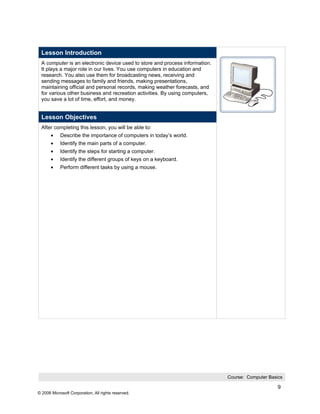
 A computer is an electronic device used to store and process information.
 It plays a major role in our lives. You use computers in education and
 research. You also use them for broadcasting news, receiving and
 sending messages to family and friends, making presentations,
 maintaining official and personal records, making weather forecasts, and
 for various other business and recreation activities. By using computers,
 you save a lot of time, effort, and money.


 Lesson Objectives
 After completing this lesson, you will be able to:
       •    Describe the importance of computers in today’s world.
       •    Identify the main parts of a computer.
       •    Identify the steps for starting a computer.
       •    Identify the different groups of keys on a keyboard.
       •    Perform different tasks by using a mouse.


                                                                             Course: Computer Basics

                                                                                                  9
© 2006 Microsoft Corporation, All rights reserved.
Topic:        The Role of Computers


The following table contains the transcript of an online animation.


 Computers play a major role in our daily lives. They are used in industries, schools, government offices,
 and shops. You can use computers to communicate with your family and friends, create a household
 budget, book travel and movie tickets, or manage your business.
 In business and industry, you use computers to maintain accounts, create personnel records, track
 inventory, prepare presentations and reports, manage projects, and communicate by e-mail.
 You can use computers to design any type of publication ranging from simple newsletters to fashion
 magazines, marketing materials, books, or newspapers.
 In the field of education, trainers can use computers to deliver training through audio-visual learning aids,
 maintain student records to track performance, search for information on different topics, and create or
 submit assignments.
 In government organizations, you use computers to organize information by storing and updating
 records. Computers are also used for providing services to citizens. For example, you can view
 information on current policies and government issues on a computer.
 In the field of medicine, doctors use computers to review medical records of patients. Doctors also use
 computers to find information about the latest drugs available to treat a disease. Doctors can also use
 computer technology to discuss and share information about various diseases.
 You can use computers to view the details of your bank account. Traders use computer technology to
 get instant information on stock markets, to trade stocks, and to manage investments.
 Scientists use computers for scientific research, and to gather and analyze information. For example,
 they use computers to view images from space and to publish information on their recent research.
 You can also use computers to create drawings and paintings. Photographers use computers to edit and
 enhance pictures. Writers use computers to write content for their books and to also create illustrations.
 By using computers, writers can make changes in the content easily and save a lot of time.
 In the field of entertainment, you can use computers to listen to music, watch movies, store and print
 photographs, send greetings, and play games.


                                                                                    Course: Computer Basics

                                                                                                           10
© 2006 Microsoft Corporation, All rights reserved.
Topic:        Parts of a Computer


A computer has various parts, and each part performs a specific function. The following table describes
the parts of a computer.

 Part                    Description

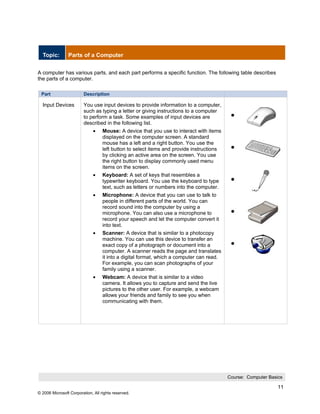
  Input Devices          You use input devices to provide information to a computer,
                         such as typing a letter or giving instructions to a computer
                         to perform a task. Some examples of input devices are
                         described in the following list.
                              •    Mouse: A device that you use to interact with items
                                   displayed on the computer screen. A standard
                                   mouse has a left and a right button. You use the
                                   left button to select items and provide instructions
                                   by clicking an active area on the screen. You use
                                   the right button to display commonly used menu
                                   items on the screen.
                              •    Keyboard: A set of keys that resembles a
                                   typewriter keyboard. You use the keyboard to type
                                   text, such as letters or numbers into the computer.
                              •    Microphone: A device that you can use to talk to
                                   people in different parts of the world. You can
                                   record sound into the computer by using a
                                   microphone. You can also use a microphone to
                                   record your speech and let the computer convert it
                                   into text.
                              •    Scanner: A device that is similar to a photocopy
                                   machine. You can use this device to transfer an
                                   exact copy of a photograph or document into a
                                   computer. A scanner reads the page and translates
                                   it into a digital format, which a computer can read.
                                   For example, you can scan photographs of your
                                   family using a scanner.
                              •    Webcam: A device that is similar to a video
                                   camera. It allows you to capture and send the live
                                   pictures to the other user. For example, a webcam
                                   allows your friends and family to see you when
                                   communicating with them.


                                                                                          Course: Computer Basics

                                                                                                               11
© 2006 Microsoft Corporation, All rights reserved.
Output                 You use output devices to get feedback from a computer
  Devices                after it performs a task. Some examples of output devices
                         are described in the following list.
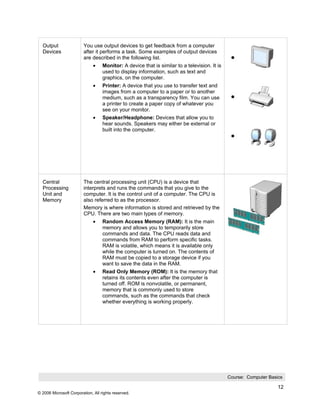
                              •    Monitor: A device that is similar to a television. It is
                                   used to display information, such as text and
                                   graphics, on the computer.
                              •    Printer: A device that you use to transfer text and
                                   images from a computer to a paper or to another
                                   medium, such as a transparency film. You can use
                                   a printer to create a paper copy of whatever you
                                   see on your monitor.
                              •    Speaker/Headphone: Devices that allow you to
                                   hear sounds. Speakers may either be external or
                                   built into the computer.


  Central                The central processing unit (CPU) is a device that
  Processing             interprets and runs the commands that you give to the
  Unit and               computer. It is the control unit of a computer. The CPU is
  Memory                 also referred to as the processor.
                         Memory is where information is stored and retrieved by the
                         CPU. There are two main types of memory.
                              •    Random Access Memory (RAM): It is the main
                                   memory and allows you to temporarily store
                                   commands and data. The CPU reads data and
                                   commands from RAM to perform specific tasks.
                                   RAM is volatile, which means it is available only
                                   while the computer is turned on. The contents of
                                   RAM must be copied to a storage device if you
                                   want to save the data in the RAM.
                              •    Read Only Memory (ROM): It is the memory that
                                   retains its contents even after the computer is
                                   turned off. ROM is nonvolatile, or permanent,
                                   memory that is commonly used to store
                                   commands, such as the commands that check
                                   whether everything is working properly.


                                                                                              Course: Computer Basics

                                                                                                                   12
© 2006 Microsoft Corporation, All rights reserved.
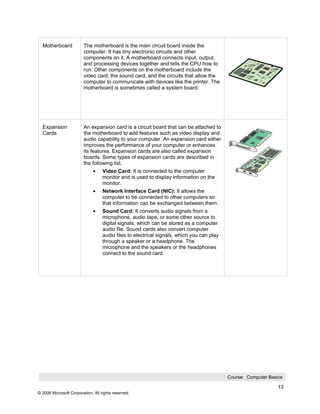
Motherboard            The motherboard is the main circuit board inside the
                         computer. It has tiny electronic circuits and other
                         components on it. A motherboard connects input, output,
                         and processing devices together and tells the CPU how to
                         run. Other components on the motherboard include the
                         video card, the sound card, and the circuits that allow the
                         computer to communicate with devices like the printer. The
                         motherboard is sometimes called a system board.


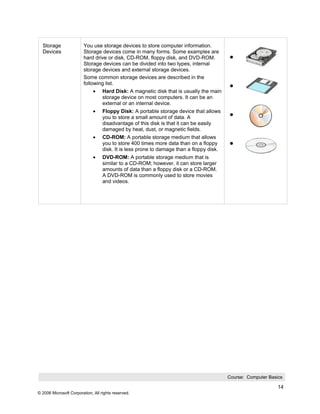
  Expansion              An expansion card is a circuit board that can be attached to
  Cards                  the motherboard to add features such as video display and
                         audio capability to your computer. An expansion card either
                         improves the performance of your computer or enhances
                         its features. Expansion cards are also called expansion
                         boards. Some types of expansion cards are described in
                         the following list.
                              •    Video Card: It is connected to the computer
                                   monitor and is used to display information on the
                                   monitor.
                              •    Network Interface Card (NIC): It allows the
                                   computer to be connected to other computers so
                                   that information can be exchanged between them.
                              •    Sound Card: It converts audio signals from a
                                   microphone, audio tape, or some other source to
                                   digital signals, which can be stored as a computer
                                   audio file. Sound cards also convert computer

                                   audio files to electrical signals, which you can play
                                   through a speaker or a headphone. The
                                   microphone and the speakers or the headphones
                                   connect to the sound card.


                                                                                           Course: Computer Basics

                                                                                                                13
© 2006 Microsoft Corporation, All rights reserved.
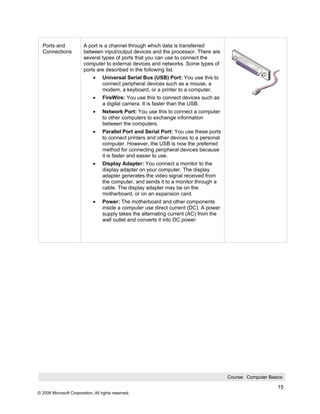
Storage                You use storage devices to store computer information.
  Devices                Storage devices come in many forms. Some examples are
                         hard drive or disk, CD-ROM, floppy disk, and DVD-ROM.
                         Storage devices can be divided into two types, internal
                         storage devices and external storage devices.
                         Some common storage devices are described in the
                         following list.
                              •    Hard Disk: A magnetic disk that is usually the main
                                   storage device on most computers. It can be an
                                   external or an internal device.
                              •    Floppy Disk: A portable storage device that allows
                                   you to store a small amount of data. A
                                   disadvantage of this disk is that it can be easily
                                   damaged by heat, dust, or magnetic fields.
                              •    CD-ROM: A portable storage medium that allows
                                   you to store 400 times more data than on a floppy
                                   disk. It is less prone to damage than a floppy disk.
                              •    DVD-ROM: A portable storage medium that is
                                   similar to a CD-ROM; however, it can store larger
                                   amounts of data than a floppy disk or a CD-ROM.
                                   A DVD-ROM is commonly used to store movies
                                   and videos.


                                                                                          Course: Computer Basics

                                                                                                               14
© 2006 Microsoft Corporation, All rights reserved.
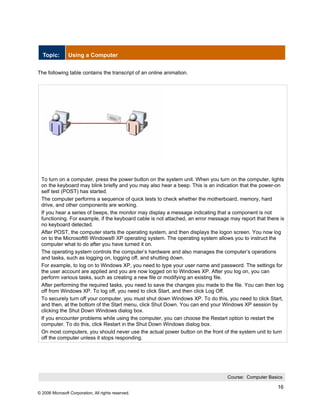
Ports and              A port is a channel through which data is transferred
  Connections            between input/output devices and the processor. There are
                         several types of ports that you can use to connect the
                         computer to external devices and networks. Some types of
                         ports are described in the following list.
                              •    Universal Serial Bus (USB) Port: You use this to
                                   connect peripheral devices such as a mouse, a
                                   modem, a keyboard, or a printer to a computer.
                              •    FireWire: You use this to connect devices such as
                                   a digital camera. It is faster than the USB.
                              •    Network Port: You use this to connect a computer
                                   to other computers to exchange information
                                   between the computers.
                              •    Parallel Port and Serial Port: You use these ports
                                   to connect printers and other devices to a personal
                                   computer. However, the USB is now the preferred
                                   method for connecting peripheral devices because
                                   it is faster and easier to use.
                              •    Display Adapter: You connect a monitor to the
                                   display adapter on your computer. The display
                                   adapter generates the video signal received from
                                   the computer, and sends it to a monitor through a
                                   cable. The display adapter may be on the
                                   motherboard, or on an expansion card.
                              •    Power: The motherboard and other components
                                   inside a computer use direct current (DC). A power
                                   supply takes the alternating current (AC) from the
                                   wall outlet and converts it into DC power.


                                                                                         Course: Computer Basics

                                                                                                              15
© 2006 Microsoft Corporation, All rights reserved.
Topic:        Using a Computer


The following table contains the transcript of an online animation.


 To turn on a computer, press the power button on the system unit. When you turn on the computer, lights
 on the keyboard may blink briefly and you may also hear a beep. This is an indication that the power-on
 self test (POST) has started.
 The computer performs a sequence of quick tests to check whether the motherboard, memory, hard
 drive, and other components are working.
 If you hear a series of beeps, the monitor may display a message indicating that a component is not
 functioning. For example, if the keyboard cable is not attached, an error message may report that there is
 no keyboard detected.
 After POST, the computer starts the operating system, and then displays the logon screen. You now log
 on to the Microsoft® Windows® XP operating system. The operating system allows you to instruct the
 computer what to do after you have turned it on.
 The operating system controls the computer’s hardware and also manages the computer’s operations
 and tasks, such as logging on, logging off, and shutting down.
 For example, to log on to Windows XP, you need to type your user name and password. The settings for
 the user account are applied and you are now logged on to Windows XP. After you log on, you can
 perform various tasks, such as creating a new file or modifying an existing file.
 After performing the required tasks, you need to save the changes you made to the file. You can then log
 off from Windows XP. To log off, you need to click Start, and then click Log Off.
 To securely turn off your computer, you must shut down Windows XP. To do this, you need to click Start,
 and then, at the bottom of the Start menu, click Shut Down. You can end your Windows XP session by
 clicking the Shut Down Windows dialog box.
 If you encounter problems while using the computer, you can choose the Restart option to restart the
 computer. To do this, click Restart in the Shut Down Windows dialog box.
 On most computers, you should never use the actual power button on the front of the system unit to turn
 off the computer unless it stops responding.


                                                                                  Course: Computer Basics

                                                                                                        16
© 2006 Microsoft Corporation, All rights reserved.
Topic:        Using a Keyboard


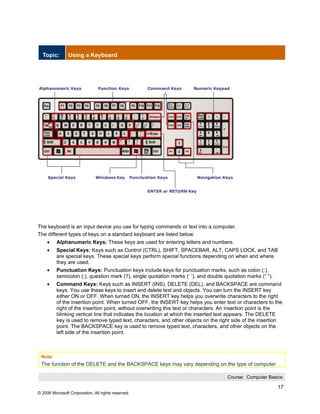
The keyboard is an input device you use for typing commands or text into a computer.
The different types of keys on a standard keyboard are listed below:
     •    Alphanumeric Keys: These keys are used for entering letters and numbers.
     •    Special Keys: Keys such as Control (CTRL), SHIFT, SPACEBAR, ALT, CAPS LOCK, and TAB
          are special keys. These special keys perform special functions depending on when and where
          they are used.
     •    Punctuation Keys: Punctuation keys include keys for punctuation marks, such as colon (:),
          semicolon (;), question mark (?), single quotation marks (‘ ’), and double quotation marks (“ ”).
     •    Command Keys: Keys such as INSERT (INS), DELETE (DEL), and BACKSPACE are command
          keys. You use these keys to insert and delete text and objects. You can turn the INSERT key
          either ON or OFF. When turned ON, the INSERT key helps you overwrite characters to the right
          of the insertion point. When turned OFF, the INSERT key helps you enter text or characters to the
          right of the insertion point, without overwriting this text or characters. An insertion point is the
          blinking vertical line that indicates the location at which the inserted text appears. The DELETE
          key is used to remove typed text, characters, and other objects on the right side of the insertion
          point. The BACKSPACE key is used to remove typed text, characters, and other objects on the
          left side of the insertion point.


 Note:
 The function of the DELETE and the BACKSPACE keys may vary depending on the type of computer

                                                                                      Course: Computer Basics

                                                                                                              17
© 2006 Microsoft Corporation, All rights reserved.
you are using.


     •    ENTER or RETURN Key: The label on this key can be either ENTER or RETURN, depending on
          the brand of computer that you are using. You use the ENTER or the RETURN key to move the
          insertion point to the beginning of a new line. In some programs, it is used to send commands
          and to confirm a task on a computer.
     •    Navigation Keys: Keys such as the arrow keys, HOME, END, PAGE UP, and PAGE DOWN, are
          navigation keys. You use the arrow keys to move the insertion point up, down, right, and left. The
          HOME key is used to move the cursor to the left end of a line of text or the top of a document.
          The END key, in contrast, moves the cursor to the end of a line or a file, depending on the
          program. The PAGE UP key is used to move one page up and the PAGE DOWN key is used to
          move one page down while viewing a document. The functions of PAGE UP and PAGE DOWN
          keys differ from program to program.
     •    Function Keys: Keys labeled from F1 to F12 are function keys. You use them to perform specific
          functions. Their functions differ from program to program. The function of the F1 key in most
          programs is to access the help file associated with a program. Some keyboards may have fewer
          function keys.
     •    Numeric Keypad: Not all keyboards have a numeric keyboard. If available, this is a separate set
          of keys with numbers from 0 to 9, the decimal point, special characters, and navigation symbols.
          The NUM LOCK key on this keypad allows you to switch between the numeric and the navigation
          keys.
     •    Windows Key: The key between the CTRL key and the ALT key is the Windows key. It has the
          Microsoft Logo or the Windows flag. This key is used to open the Start menu, or is used in
          combination with a second key to perform common Windows tasks. The exact use of the
          Windows key may vary from program to program.


 Note:
 Different keyboards have different key layouts. Therefore, the features of the keys may differ.


                                                                                    Course: Computer Basics

                                                                                                          18
© 2006 Microsoft Corporation, All rights reserved.
Topic:        Using a Mouse


The following table contains the transcript of an online animation.


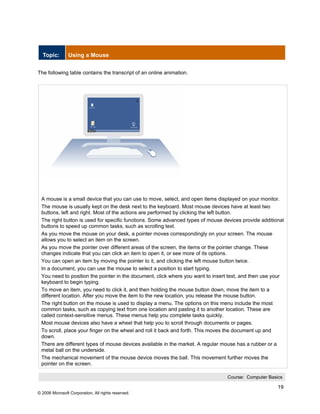
 A mouse is a small device that you can use to move, select, and open items displayed on your monitor.
 The mouse is usually kept on the desk next to the keyboard. Most mouse devices have at least two
 buttons, left and right. Most of the actions are performed by clicking the left button.
 The right button is used for specific functions. Some advanced types of mouse devices provide additional
 buttons to speed up common tasks, such as scrolling text.
 As you move the mouse on your desk, a pointer moves correspondingly on your screen. The mouse
 allows you to select an item on the screen.
 As you move the pointer over different areas of the screen, the items or the pointer change. These
 changes indicate that you can click an item to open it, or see more of its options.
 You can open an item by moving the pointer to it, and clicking the left mouse button twice.
 In a document, you can use the mouse to select a position to start typing.
 You need to position the pointer in the document, click where you want to insert text, and then use your
 keyboard to begin typing.
 To move an item, you need to click it, and then holding the mouse button down, move the item to a
 different location. After you move the item to the new location, you release the mouse button.
 The right button on the mouse is used to display a menu. The options on this menu include the most
 common tasks, such as copying text from one location and pasting it to another location. These are
 called context-sensitive menus. These menus help you complete tasks quickly.
 Most mouse devices also have a wheel that help you to scroll through documents or pages.
 To scroll, place your finger on the wheel and roll it back and forth. This moves the document up and
 down.
 There are different types of mouse devices available in the market. A regular mouse has a rubber or a
 metal ball on the underside.
 The mechanical movement of the mouse device moves the ball. This movement further moves the
 pointer on the screen.

                                                                                Course: Computer Basics

                                                                                                      19
© 2006 Microsoft Corporation, All rights reserved.
A trackball is like a regular mouse, but upside down, with the ball on the top. It allows you to have the
 same control as a mouse in a confined space.
 You can use the thumb or the finger to move the trackball to move the pointer.
 An optical mouse can be used in the same way as a regular mouse. However, it does not have a ball. It
 uses a laser to detect movement.


                                                                                  Course: Computer Basics

                                                                                                         20
© 2006 Microsoft Corporation, All rights reserved.
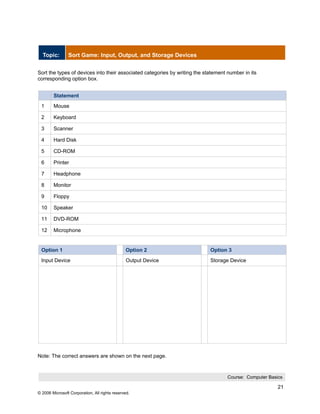
Topic:        Sort Game: Input, Output, and Storage Devices


Sort the types of devices into their associated categories by writing the statement number in its
corresponding option box.


        Statement
 1      Mouse

 2      Keyboard

 3      Scanner

 4      Hard Disk

 5      CD-ROM

 6      Printer

 7      Headphone

 8      Monitor

 9      Floppy

 10     Speaker

 11     DVD-ROM

 12     Microphone


 Option 1                                      Option 2                     Option 3
 Input Device                                  Output Device                Storage Device


Note: The correct answers are shown on the next page.


                                                                                    Course: Computer Basics

                                                                                                         21
© 2006 Microsoft Corporation, All rights reserved.
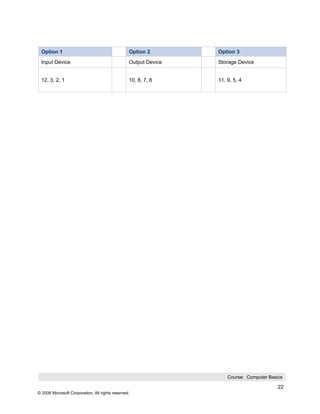
Option 1                                        Option 2        Option 3
 Input Device                                    Output Device   Storage Device


 12, 3, 2, 1                                     10, 8, 7, 6     11, 9, 5, 4


                                                                     Course: Computer Basics

                                                                                          22
© 2006 Microsoft Corporation, All rights reserved.
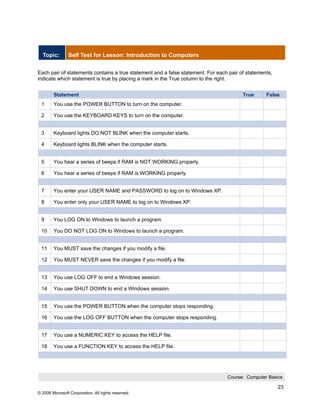
Topic:        Self Test for Lesson: Introduction to Computers


Each pair of statements contains a true statement and a false statement. For each pair of statements,
indicate which statement is true by placing a mark in the True column to the right.


        Statement                                                                       True      False
 1      You use the POWER BUTTON to turn on the computer.

 2      You use the KEYBOARD KEYS to turn on the computer.


 3      Keyboard lights DO NOT BLINK when the computer starts.

 4      Keyboard lights BLINK when the computer starts.


 5      You hear a series of beeps if RAM is NOT WORKING properly.

 6      You hear a series of beeps if RAM is WORKING properly.


 7      You enter your USER NAME and PASSWORD to log on to Windows XP.

 8      You enter only your USER NAME to log on to Windows XP.


 9      You LOG ON to Windows to launch a program.

 10     You DO NOT LOG ON to Windows to launch a program.


 11     You MUST save the changes if you modify a file.

 12     You MUST NEVER save the changes if you modify a file.


 13     You use LOG OFF to end a Windows session.

 14     You use SHUT DOWN to end a Windows session.


 15     You use the POWER BUTTON when the computer stops responding.

 16     You use the LOG OFF BUTTON when the computer stops responding.


 17     You use a NUMERIC KEY to access the HELP file.

 18     You use a FUNCTION KEY to access the HELP file.


                                                                                 Course: Computer Basics

                                                                                                        23
© 2006 Microsoft Corporation, All rights reserved.
Note: The correct answers are shown on the next page.


                                                        Course: Computer Basics

                                                                             24
© 2006 Microsoft Corporation, All rights reserved.
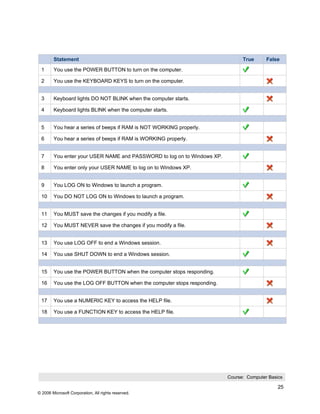
Statement                                                              True      False
 1      You use the POWER BUTTON to turn on the computer.

 2      You use the KEYBOARD KEYS to turn on the computer.


 3      Keyboard lights DO NOT BLINK when the computer starts.

 4      Keyboard lights BLINK when the computer starts.


 5      You hear a series of beeps if RAM is NOT WORKING properly.

 6      You hear a series of beeps if RAM is WORKING properly.


 7      You enter your USER NAME and PASSWORD to log on to Windows XP.

 8      You enter only your USER NAME to log on to Windows XP.


 9      You LOG ON to Windows to launch a program.

 10     You DO NOT LOG ON to Windows to launch a program.


 11     You MUST save the changes if you modify a file.

 12     You MUST NEVER save the changes if you modify a file.


 13     You use LOG OFF to end a Windows session.

 14     You use SHUT DOWN to end a Windows session.


 15     You use the POWER BUTTON when the computer stops responding.

 16     You use the LOG OFF BUTTON when the computer stops responding.


 17     You use a NUMERIC KEY to access the HELP file.

 18     You use a FUNCTION KEY to access the HELP file.


                                                                         Course: Computer Basics

                                                                                              25
© 2006 Microsoft Corporation, All rights reserved.
Lesson: 2
       Common Computer Terminology


 Lesson Contents


               About Hardware


               About Operating Systems


               About Programs


               About Data


               About Networks


               About the Internet


               Self Test


                                                     Course: Computer Basics

                                                                          26
© 2006 Microsoft Corporation, All rights reserved.
Lesson Introduction
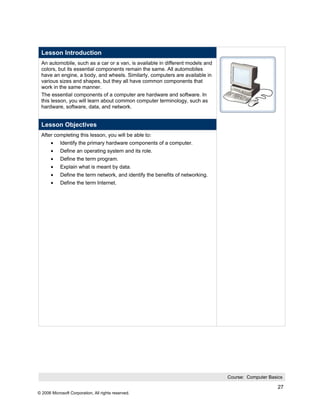
 An automobile, such as a car or a van, is available in different models and
 colors, but its essential components remain the same. All automobiles
 have an engine, a body, and wheels. Similarly, computers are available in
 various sizes and shapes, but they all have common components that
 work in the same manner.
 The essential components of a computer are hardware and software. In
 this lesson, you will learn about common computer terminology, such as
 hardware, software, data, and network.


 Lesson Objectives
 After completing this lesson, you will be able to:
       •    Identify the primary hardware components of a computer.
       •    Define an operating system and its role.
       •    Define the term program.
       •    Explain what is meant by data.
       •    Define the term network, and identify the benefits of networking.
       •    Define the term Internet.


                                                                                Course: Computer Basics

                                                                                                     27
© 2006 Microsoft Corporation, All rights reserved.
Topic:        About Hardware


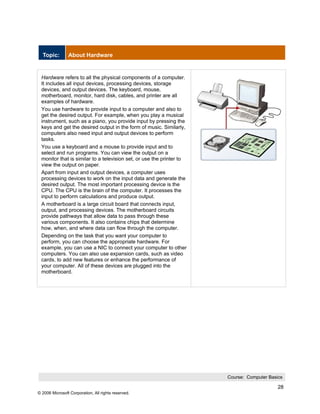
 Hardware refers to all the physical components of a computer.
 It includes all input devices, processing devices, storage
 devices, and output devices. The keyboard, mouse,
 motherboard, monitor, hard disk, cables, and printer are all
 examples of hardware.
 You use hardware to provide input to a computer and also to
 get the desired output. For example, when you play a musical
 instrument, such as a piano, you provide input by pressing the
 keys and get the desired output in the form of music. Similarly,
 computers also need input and output devices to perform
 tasks.
 You use a keyboard and a mouse to provide input and to
 select and run programs. You can view the output on a
 monitor that is similar to a television set, or use the printer to
 view the output on paper.
 Apart from input and output devices, a computer uses
 processing devices to work on the input data and generate the
 desired output. The most important processing device is the
 CPU. The CPU is the brain of the computer. It processes the
 input to perform calculations and produce output.
 A motherboard is a large circuit board that connects input,
 output, and processing devices. The motherboard circuits
 provide pathways that allow data to pass through these
 various components. It also contains chips that determine
 how, when, and where data can flow through the computer.
 Depending on the task that you want your computer to
 perform, you can choose the appropriate hardware. For
 example, you can use a NIC to connect your computer to other
 computers. You can also use expansion cards, such as video
 cards, to add new features or enhance the performance of
 your computer. All of these devices are plugged into the
 motherboard.


                                                                      Course: Computer Basics

                                                                                           28
© 2006 Microsoft Corporation, All rights reserved.
Topic:        About Operating Systems


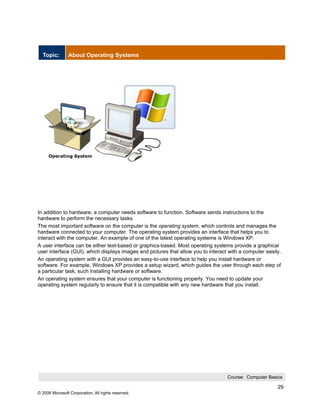
In addition to hardware, a computer needs software to function. Software sends instructions to the
hardware to perform the necessary tasks.
The most important software on the computer is the operating system, which controls and manages the
hardware connected to your computer. The operating system provides an interface that helps you to
interact with the computer. An example of one of the latest operating systems is Windows XP.
A user interface can be either text-based or graphics-based. Most operating systems provide a graphical
user interface (GUI), which displays images and pictures that allow you to interact with a computer easily.
An operating system with a GUI provides an easy-to-use interface to help you install hardware or
software. For example, Windows XP provides a setup wizard, which guides the user through each step of
a particular task, such installing hardware or software.
An operating system ensures that your computer is functioning properly. You need to update your
operating system regularly to ensure that it is compatible with any new hardware that you install.


                                                                                   Course: Computer Basics

                                                                                                         29
© 2006 Microsoft Corporation, All rights reserved.
Topic:        About Programs


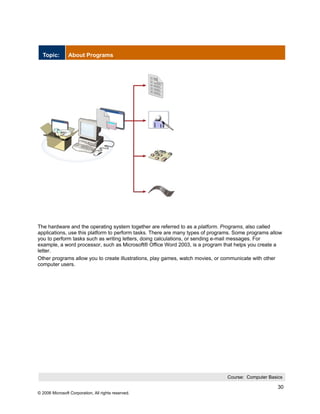
The hardware and the operating system together are referred to as a platform. Programs, also called
applications, use this platform to perform tasks. There are many types of programs. Some programs allow
you to perform tasks such as writing letters, doing calculations, or sending e-mail messages. For
example, a word processor, such as Microsoft® Office Word 2003, is a program that helps you create a
letter.
Other programs allow you to create illustrations, play games, watch movies, or communicate with other
computer users.


                                                                                Course: Computer Basics

                                                                                                     30
© 2006 Microsoft Corporation, All rights reserved.
Topic:        About Data


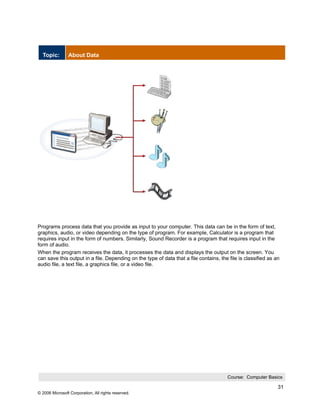
Programs process data that you provide as input to your computer. This data can be in the form of text,
graphics, audio, or video depending on the type of program. For example, Calculator is a program that
requires input in the form of numbers. Similarly, Sound Recorder is a program that requires input in the
form of audio.
When the program receives the data, it processes the data and displays the output on the screen. You
can save this output in a file. Depending on the type of data that a file contains, the file is classified as an
audio file, a text file, a graphics file, or a video file.


                                                                                       Course: Computer Basics

                                                                                                               31
© 2006 Microsoft Corporation, All rights reserved.
Topic:        About Networks


Consider a scenario where an organization has 10 employees. These employees use computers to
perform daily tasks. They also need print data frequently. Instead of giving each employee a printer,
which would be expensive, all computers can be connected to a single printer.
You can connect your computer to other computers to share information and hardware components. A
group of computers and associated devices that are linked together to facilitate sharing information is
called a network. Networks can also be used to share data and devices such as printers.
A network offers many advantages for the computer connected to it. In addition to sharing hardware and
software, you can share files and communicate with other computer users on the network. A typical
network has the following three components:
Server: The main computer on a network that provides services to other computers on the network. A
server decides which computers are allowed to access the hardware and software on the network.
Workstation: A computer connected to a network. You use a workstation to access the hardware and
software on a network.
Communication channel: A path or link that connects computers or peripheral devices, such as printers
and disk drives, to transfer information. Cables are commonly used as communication channels in a
network, but networks can also transfer information through wireless connections.
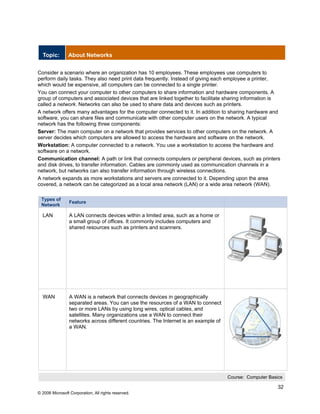
A network expands as more workstations and servers are connected to it. Depending upon the area
covered, a network can be categorized as a local area network (LAN) or a wide area network (WAN).

 Types of
                 Feature
 Network

  LAN            A LAN connects devices within a limited area, such as a home or
                 a small group of offices. It commonly includes computers and
                 shared resources such as printers and scanners.


  WAN            A WAN is a network that connects devices in geographically
                 separated areas. You can use the resources of a WAN to connect
                 two or more LANs by using long wires, optical cables, and
                 satellites. Many organizations use a WAN to connect their
                 networks across different countries. The Internet is an example of
                 a WAN.


                                                                                      Course: Computer Basics

                                                                                                           32
© 2006 Microsoft Corporation, All rights reserved.
Topic:        About the Internet


The following table contains the transcript of an online animation.


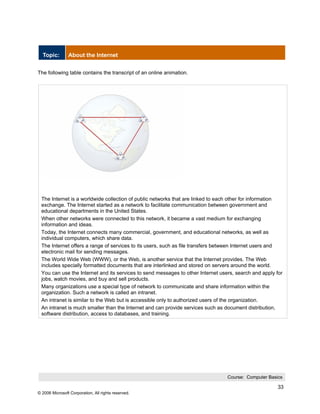
 The Internet is a worldwide collection of public networks that are linked to each other for information
 exchange. The Internet started as a network to facilitate communication between government and
 educational departments in the United States.
 When other networks were connected to this network, it became a vast medium for exchanging
 information and ideas.
 Today, the Internet connects many commercial, government, and educational networks, as well as
 individual computers, which share data.
 The Internet offers a range of services to its users, such as file transfers between Internet users and
 electronic mail for sending messages.
 The World Wide Web (WWW), or the Web, is another service that the Internet provides. The Web
 includes specially formatted documents that are interlinked and stored on servers around the world.
 You can use the Internet and its services to send messages to other Internet users, search and apply for
 jobs, watch movies, and buy and sell products.
 Many organizations use a special type of network to communicate and share information within the
 organization. Such a network is called an intranet.
 An intranet is similar to the Web but is accessible only to authorized users of the organization.
 An intranet is much smaller than the Internet and can provide services such as document distribution,
 software distribution, access to databases, and training.


                                                                                 Course: Computer Basics

                                                                                                      33
© 2006 Microsoft Corporation, All rights reserved.
Topic:        Self Test for Lesson: Common Computer Terminology


Sort the items into their associated categories by writing the statement number in its corresponding option
box.


        Statement
 1      Includes computer devices

 2      Helps control the physical components

 3      Allows you to play games or watch movies

 4      Helps provide input to a computer

 5      Ensures reliable operation of the computer

 6      Uses the platform to perform a task

 7      Helps you view the output of a computer


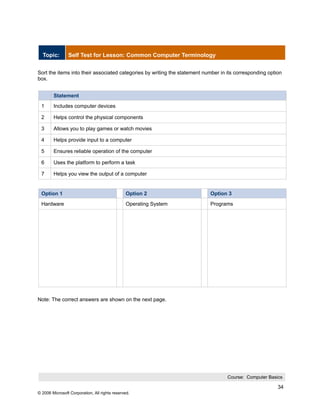
 Option 1                                      Option 2                    Option 3
 Hardware                                      Operating System            Programs


Note: The correct answers are shown on the next page.


                                                                                   Course: Computer Basics

                                                                                                         34
© 2006 Microsoft Corporation, All rights reserved.
Option 1                                        Option 2           Option 3
 Hardware                                        Operating System   Programs


 1, 4, 7                                         2, 5               3, 6


                                                                           Course: Computer Basics

                                                                                                35
© 2006 Microsoft Corporation, All rights reserved.
Lesson: 3
       Computer Performance and Features


 Lesson Contents


               Types of Computers


               The Role of Memory


               Computer Performance


               Productivity Programs


               Communication Programs


               Educational and Entertainment Programs


               Self Test


                                                        Course: Computer Basics

                                                                             36
© 2006 Microsoft Corporation, All rights reserved.
Lesson Introduction
 Consider a situation where you want to buy a television. There are many
 brands and models available in the market. You need to make a decision
 based on the features that you want and the price of the product. Similarly,
 there are different types of personal computers available in the market.
 They differ on the basis of features such as price, size, and speed. In
 addition, these factors affect the overall performance of the computer.
 After you buy a television, you need to choose from different kinds of
 channels that are available. These channels may offer entertainment,
 sports, or news. You can choose to view a channel based on your
 preferences. In the same way, after you start using a computer, there are
 different types of programs available that help you perform different tasks.
 You can use a word processor to create documents or a spreadsheet to
 perform mathematical calculations. Communications programs can help
 you talk to people at distant locations. With entertainment programs, you
 can watch movies, listen to music, or play games.


 Lesson Objectives
 After completing this lesson, you will be able to:
       •    Identify and compare the features of different types of computers.
       •    Explain the role of memory.
       •    Explain the basics of computer performance and how it relates to
            productivity.
       •    Describe the different types of productivity programs and their
            uses.
       •    Describe the different types of communications programs and
            their uses.
       •    Describe the uses of educational and entertainment programs.


                                                                                 Course: Computer Basics

                                                                                                      37
© 2006 Microsoft Corporation, All rights reserved.
Course: Computer Basics

                                                                          38
© 2006 Microsoft Corporation, All rights reserved.
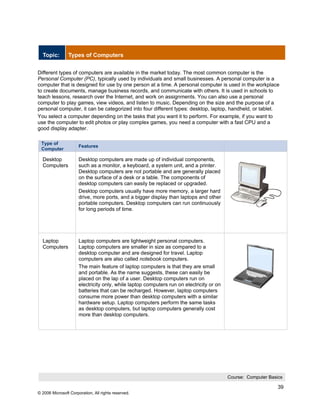
Topic:        Types of Computers


Different types of computers are available in the market today. The most common computer is the
Personal Computer (PC), typically used by individuals and small businesses. A personal computer is a
computer that is designed for use by one person at a time. A personal computer is used in the workplace
to create documents, manage business records, and communicate with others. It is used in schools to
teach lessons, research over the Internet, and work on assignments. You can also use a personal
computer to play games, view videos, and listen to music. Depending on the size and the purpose of a
personal computer, it can be categorized into four different types: desktop, laptop, handheld, or tablet.
You select a computer depending on the tasks that you want it to perform. For example, if you want to
use the computer to edit photos or play complex games, you need a computer with a fast CPU and a
good display adapter.

 Type of
                      Features
 Computer

  Desktop             Desktop computers are made up of individual components,
  Computers           such as a monitor, a keyboard, a system unit, and a printer.
                      Desktop computers are not portable and are generally placed
                      on the surface of a desk or a table. The components of
                      desktop computers can easily be replaced or upgraded.
                      Desktop computers usually have more memory, a larger hard
                      drive, more ports, and a bigger display than laptops and other
                      portable computers. Desktop computers can run continuously
                      for long periods of time.


  Laptop              Laptop computers are lightweight personal computers.
  Computers           Laptop computers are smaller in size as compared to a
                      desktop computer and are designed for travel. Laptop
                      computers are also called notebook computers.
                      The main feature of laptop computers is that they are small
                      and portable. As the name suggests, these can easily be
                      placed on the lap of a user. Desktop computers run on
                      electricity only, while laptop computers run on electricity or on
                      batteries that can be recharged. However, laptop computers
                      consume more power than desktop computers with a similar
                      hardware setup. Laptop computers perform the same tasks
                      as desktop computers, but laptop computers generally cost
                      more than desktop computers.


                                                                                          Course: Computer Basics

                                                                                                               39
© 2006 Microsoft Corporation, All rights reserved.
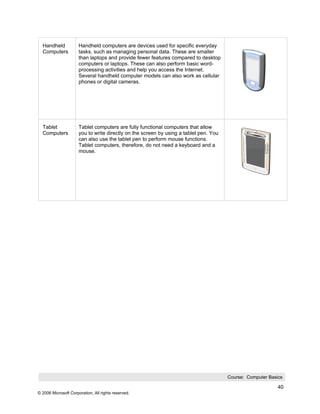
Handheld            Handheld computers are devices used for specific everyday
  Computers           tasks, such as managing personal data. These are smaller
                      than laptops and provide fewer features compared to desktop
                      computers or laptops. These can also perform basic word-
                      processing activities and help you access the Internet.
                      Several handheld computer models can also work as cellular
                      phones or digital cameras.


  Tablet              Tablet computers are fully functional computers that allow
  Computers           you to write directly on the screen by using a tablet pen. You
                      can also use the tablet pen to perform mouse functions.
                      Tablet computers, therefore, do not need a keyboard and a
                      mouse.


                                                                                       Course: Computer Basics

                                                                                                            40
© 2006 Microsoft Corporation, All rights reserved.
Topic:        The Role of Memory


 When a computer performs a task, it requires a place to store data. Memory
 is a device where information can be stored and retrieved. Before buying
 software for your computer, you need to know if your computer has enough
 memory to run the software properly. Computer memory can be volatile or
 nonvolatile.
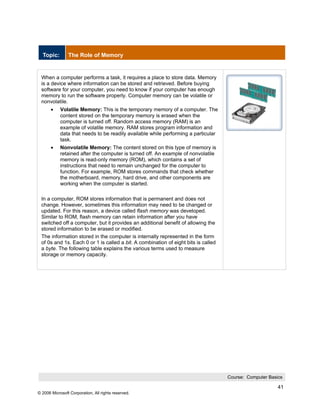
       •    Volatile Memory: This is the temporary memory of a computer. The
            content stored on the temporary memory is erased when the
            computer is turned off. Random access memory (RAM) is an
            example of volatile memory. RAM stores program information and
            data that needs to be readily available while performing a particular
            task.
       •    Nonvolatile Memory: The content stored on this type of memory is
            retained after the computer is turned off. An example of nonvolatile
            memory is read-only memory (ROM), which contains a set of
            instructions that need to remain unchanged for the computer to
            function. For example, ROM stores commands that check whether
            the motherboard, memory, hard drive, and other components are
            working when the computer is started.

 In a computer, ROM stores information that is permanent and does not
 change. However, sometimes this information may need to be changed or
 updated. For this reason, a device called flash memory was developed.
 Similar to ROM, flash memory can retain information after you have
 switched off a computer, but it provides an additional benefit of allowing the
 stored information to be erased or modified.
 The information stored in the computer is internally represented in the form
 of 0s and 1s. Each 0 or 1 is called a bit. A combination of eight bits is called
 a byte. The following table explains the various terms used to measure
 storage or memory capacity.


                                                                                    Course: Computer Basics

                                                                                                         41
© 2006 Microsoft Corporation, All rights reserved.
Term
     Descriptio
     n


     Bit
     A bit is the
     smallest
     unit of
     informatio
     n that a
     computer
     handles. A
     single bit
     can hold
     only one of
     two
     values, 0
     or 1. One
     of the two
     values is
     always
     present. A
     single bit
     conveys
     little
     meaningful
     informatio
     n.
     However,
     you can
     obtain
     more
     meaningful
     informatio
     n by
     combining
     consecutiv
     e bits into
     larger
     units.


     Byte
     A byte is a
     combinatio
     n of eight
     bits
     arranged
     in a
     particular
     sequence.
     Each
     sequence
     represents
     a single
                                                     Course: Computer Basics

                                                                          42
© 2006 Microsoft Corporation, All rights reserved.
Course: Computer Basics

                                                                          43
© 2006 Microsoft Corporation, All rights reserved.
Topic:        Computer Performance


Whether you use your computer for business or for personal use, it is important that your computer
perform efficiently. However, performance does not depend on a single factor. The following table lists
some of the important factors that affect the overall performance of the computer.

 Factor           Description

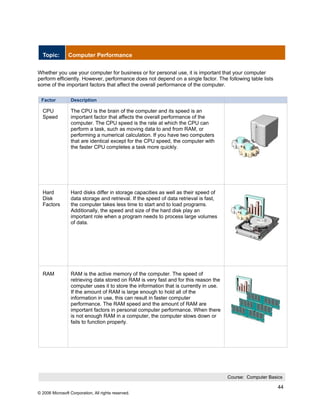
  CPU             The CPU is the brain of the computer and its speed is an
  Speed           important factor that affects the overall performance of the
                  computer. The CPU speed is the rate at which the CPU can
                  perform a task, such as moving data to and from RAM, or
                  performing a numerical calculation. If you have two computers
                  that are identical except for the CPU speed, the computer with
                  the faster CPU completes a task more quickly.


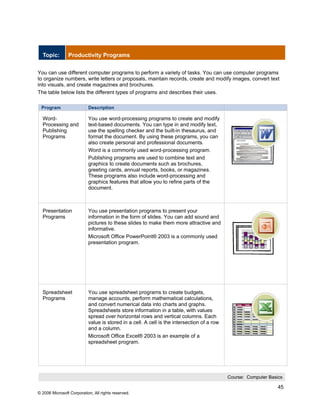
  Hard            Hard disks differ in storage capacities as well as their speed of
  Disk            data storage and retrieval. If the speed of data retrieval is fast,
  Factors         the computer takes less time to start and to load programs.
                  Additionally, the speed and size of the hard disk play an
                  important role when a program needs to process large volumes
                  of data.


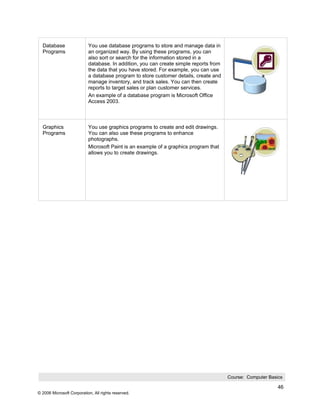
  RAM             RAM is the active memory of the computer. The speed of
                  retrieving data stored on RAM is very fast and for this reason the
                  computer uses it to store the information that is currently in use.
                  If the amount of RAM is large enough to hold all of the
                  information in use, this can result in faster computer
                  performance. The RAM speed and the amount of RAM are
                  important factors in personal computer performance. When there
                  is not enough RAM in a computer, the computer slows down or
                  fails to function properly.


                                                                                        Course: Computer Basics

                                                                                                             44
© 2006 Microsoft Corporation, All rights reserved.
Topic:        Productivity Programs


You can use different computer programs to perform a variety of tasks. You can use computer programs
to organize numbers, write letters or proposals, maintain records, create and modify images, convert text
into visuals, and create magazines and brochures.
The table below lists the different types of programs and describes their uses.

 Program                   Description

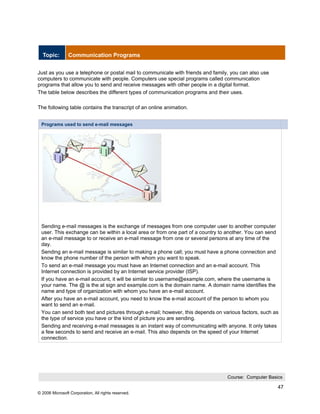
  Word-                    You use word-processing programs to create and modify
  Processing and           text-based documents. You can type in and modify text,
  Publishing               use the spelling checker and the built-in thesaurus, and
  Programs                 format the document. By using these programs, you can
                           also create personal and professional documents.
                           Word is a commonly used word-processing program.
                           Publishing programs are used to combine text and
                           graphics to create documents such as brochures,
                           greeting cards, annual reports, books, or magazines.
                           These programs also include word-processing and
                           graphics features that allow you to refine parts of the
                           document.


  Presentation             You use presentation programs to present your
  Programs                 information in the form of slides. You can add sound and
                           pictures to these slides to make them more attractive and
                           informative.
                           Microsoft Office PowerPoint® 2003 is a commonly used
                           presentation program.


  Spreadsheet              You use spreadsheet programs to create budgets,
  Programs                 manage accounts, perform mathematical calculations,
                           and convert numerical data into charts and graphs.
                           Spreadsheets store information in a table, with values
                           spread over horizontal rows and vertical columns. Each
                           value is stored in a cell. A cell is the intersection of a row
                           and a column.
                           Microsoft Office Excel® 2003 is an example of a
                           spreadsheet program.


                                                                                            Course: Computer Basics

                                                                                                                 45
© 2006 Microsoft Corporation, All rights reserved.
Database                 You use database programs to store and manage data in
  Programs                 an organized way. By using these programs, you can
                           also sort or search for the information stored in a
                           database. In addition, you can create simple reports from
                           the data that you have stored. For example, you can use
                           a database program to store customer details, create and
                           manage inventory, and track sales. You can then create
                           reports to target sales or plan customer services.
                           An example of a database program is Microsoft Office
                           Access 2003.


  Graphics                 You use graphics programs to create and edit drawings.
  Programs                 You can also use these programs to enhance
                           photographs.
                           Microsoft Paint is an example of a graphics program that
                           allows you to create drawings.


                                                                                       Course: Computer Basics

                                                                                                            46
© 2006 Microsoft Corporation, All rights reserved.
Topic:        Communication Programs


Just as you use a telephone or postal mail to communicate with friends and family, you can also use
computers to communicate with people. Computers use special programs called communication
programs that allow you to send and receive messages with other people in a digital format.
The table below describes the different types of communication programs and their uses.

The following table contains the transcript of an online animation.


 Programs used to send e-mail messages


 Sending e-mail messages is the exchange of messages from one computer user to another computer
 user. This exchange can be within a local area or from one part of a country to another. You can send
 an e-mail message to or receive an e-mail message from one or several persons at any time of the
 day.
 Sending an e-mail message is similar to making a phone call; you must have a phone connection and
 know the phone number of the person with whom you want to speak.
 To send an e-mail message you must have an Internet connection and an e-mail account. This
 Internet connection is provided by an Internet service provider (ISP).
 If you have an e-mail account, it will be similar to username@example.com, where the username is
 your name. The @ is the at sign and example.com is the domain name. A domain name identifies the
 name and type of organization with whom you have an e-mail account.
 After you have an e-mail account, you need to know the e-mail account of the person to whom you
 want to send an e-mail.
 You can send both text and pictures through e-mail; however, this depends on various factors, such as
 the type of service you have or the kind of picture you are sending.
 Sending and receiving e-mail messages is an instant way of communicating with anyone. It only takes
 a few seconds to send and receive an e-mail. This also depends on the speed of your Internet
 connection.


                                                                                 Course: Computer Basics

                                                                                                      47
© 2006 Microsoft Corporation, All rights reserved.
The following table contains the transcript of an online animation.


 Programs used to chat


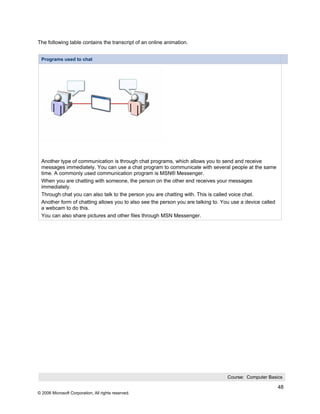
 Another type of communication is through chat programs, which allows you to send and receive
 messages immediately. You can use a chat program to communicate with several people at the same
 time. A commonly used communication program is MSN® Messenger.
 When you are chatting with someone, the person on the other end receives your messages
 immediately.
 Through chat you can also talk to the person you are chatting with. This is called voice chat.
 Another form of chatting allows you to also see the person you are talking to. You use a device called
 a webcam to do this.
 You can also share pictures and other files through MSN Messenger.


                                                                                 Course: Computer Basics

                                                                                                          48
© 2006 Microsoft Corporation, All rights reserved.
Topic:        Educational and Entertainment Programs


 Consider a scenario in which you want to learn a new language. However,
 there are no schools in your area that teach the language. With educational
 software program, a computer can help you learn the new language.
 Educational software programs often use audio-visual clips and games to
 make learning more effective.
 Educational software is used in classrooms, offices, and homes. Educational
 software is available on various topics that are applicable to different age
 groups. For example, Microsoft Encarta® is a widely used digital
 encyclopedia that is available on both CD-ROM and DVD-ROM.
 You can also use computers as a source of entertainment. You can use
 entertainment software to play games, listen to music, record music, draw
 pictures, and watch movies on a computer. Video CDs and DVDs that allow
 you to watch movies and music videos as well as listen to music are all
 examples of entertainment software that is used for recreation.


                                                                                Course: Computer Basics

                                                                                                     49
© 2006 Microsoft Corporation, All rights reserved.
Topic:        Self Test for Lesson: Computer Performance and Features


 Question 1

 Which of the following features are true of laptops as compared with desktop computers?

 Select all answers that apply.

          They generally cost more for similar hardware.

          They consume less power.

          They are good travel companions.

          They are easier to upgrade.


 Question 2

 Which of the following are true statements about RAM?

 Select all answers that apply.

          The amount affects the computer’s performance.

          Its contents are permanent.

          It has lower data-retrieval speed compared with storage memory.

          It stores active data and programs.


 Question 3

 Which one of the following programs do you use to create personal and professional documents?

 Select the one best answer.

          Microsoft Office Word 2003

          Microsoft Paint

          Microsoft Office PowerPoint 2003

          Microsoft Office Excel 2003


Note: The correct answers are shown on the next page.


                                                                               Course: Computer Basics

                                                                                                    50
© 2006 Microsoft Corporation, All rights reserved.
Answer 1

 Which of the following features are true of laptops as compared with desktop computers?

 Select all answers that apply.

          They generally cost more for similar hardware.

          They consume less power.

          They are good travel companions.

          They are easier to upgrade.


 Answer 2

 Which of the following are true statements about RAM?

 Select all answers that apply.

          The amount affects the computer’s performance.

          Its contents are permanent.

          It has lower data-retrieval speed compared with storage memory.

          It stores active data and programs.


 Answer 3

 Which one of the following programs do you use to create personal and professional documents?

 Select the one best answer.

          Microsoft Office Word 2003

          Microsoft Paint

          Microsoft Office PowerPoint 2003

          Microsoft Office Excel 2003


                                                                               Course: Computer Basics

                                                                                                    51
© 2006 Microsoft Corporation, All rights reserved.
Lesson: 4
       Computer Operating Systems


 Lesson Contents


               Introduction to Operating Systems


               Understanding the Windows User Interface


               Working with Windows-Based Programs


               Managing Files and Folders


               Performing Basic File Operations


               Self Test


                                                          Course: Computer Basics

                                                                               52
© 2006 Microsoft Corporation, All rights reserved.
Lesson Introduction
 The operating system is the most important program in the computer. An
 operating system performs four primary functions. It manages and controls
 the hardware connected to a computer. It helps other programs running on
 a computer to use the hardware. It helps you organize and manage files
 and folders on the computer. It provides a user interface that allows you to
 interact with the hardware, the operating system itself, and other
 programs.
 An example of an operating system is Windows XP.


 Lesson Objectives
 After completing this lesson, you will be able to:
       •    Explain the common functions of an operating system.
       •    Identify the basic components of the Windows XP user interface.
       •    Work with the Windows XP user interface within programs.
       •    Manage files and folders in Microsoft® Windows® Explorer.
       •    Perform basic file operations.


                                                                                Course: Computer Basics

                                                                                                     53
© 2006 Microsoft Corporation, All rights reserved.
Topic:        Introduction to Operating Systems


An operating system controls how programs work with each other and how they interact with the
computer hardware. It also creates the file system that determines how your data is stored within a
storage device.
The performance of an operating system depends on the number of bits that it can transfer at a time.
Early operating systems could transfer only 8 bits of data at a time and were called 8-bit operating
systems. However, with the introduction of the GUI interface, 16-bit operating systems were developed.
Currently, operating systems such as Windows XP are 32-bit operating systems. The newest operating
systems, such as Microsoft® Windows® XP Professional x64 Edition, can transfer up to 64 bits at a time,
which enables programs to run much faster.
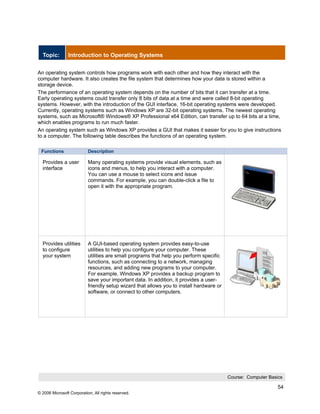
An operating system such as Windows XP provides a GUI that makes it easier for you to give instructions
to a computer. The following table describes the functions of an operating system.

 Functions                 Description

  Provides a user          Many operating systems provide visual elements, such as
  interface                icons and menus, to help you interact with a computer.
                           You can use a mouse to select icons and issue
                           commands. For example, you can double-click a file to
                           open it with the appropriate program.


  Provides utilities       A GUI-based operating system provides easy-to-use
  to configure             utilities to help you configure your computer. These
  your system              utilities are small programs that help you perform specific
                           functions, such as connecting to a network, managing
                           resources, and adding new programs to your computer.
                           For example, Windows XP provides a backup program to
                           save your important data. In addition, it provides a user-
                           friendly setup wizard that allows you to install hardware or
                           software, or connect to other computers.


                                                                                          Course: Computer Basics

                                                                                                               54
© 2006 Microsoft Corporation, All rights reserved.
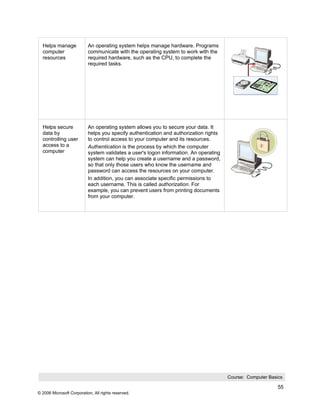
Helps manage             An operating system helps manage hardware. Programs
  computer                 communicate with the operating system to work with the
  resources                required hardware, such as the CPU, to complete the
                           required tasks.


  Helps secure             An operating system allows you to secure your data. It
  data by                  helps you specify authentication and authorization rights
  controlling user         to control access to your computer and its resources.
  access to a              Authentication is the process by which the computer
  computer                 system validates a user's logon information. An operating
                           system can help you create a username and a password,
                           so that only those users who know the username and
                           password can access the resources on your computer.
                           In addition, you can associate specific permissions to
                           each username. This is called authorization. For
                           example, you can prevent users from printing documents
                           from your computer.


                                                                                       Course: Computer Basics

                                                                                                            55
© 2006 Microsoft Corporation, All rights reserved.
Topic:        Understanding the Windows User Interface


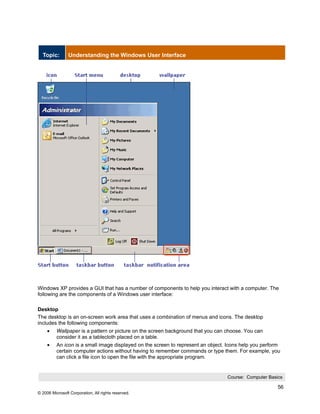
Windows XP provides a GUI that has a number of components to help you interact with a computer. The
following are the components of a Windows user interface:

Desktop
The desktop is an on-screen work area that uses a combination of menus and icons. The desktop
includes the following components:
     •    Wallpaper is a pattern or picture on the screen background that you can choose. You can
          consider it as a tablecloth placed on a table.
     •    An icon is a small image displayed on the screen to represent an object. Icons help you perform
          certain computer actions without having to remember commands or type them. For example, you
          can click a file icon to open the file with the appropriate program.


                                                                                  Course: Computer Basics

                                                                                                       56
© 2006 Microsoft Corporation, All rights reserved.
Taskbar
The taskbar is a rectangular bar that is usually located at the bottom of the screen. You can use the
taskbar to select a program running on your computer. The taskbar displays the programs in the form of
taskbar buttons. The program displayed on the taskbar in the graphic is Word.

Notification Area
When the taskbar is located at the bottom of a screen, the notification area is located on the right side of
the taskbar. The notification area displays the time, a volume icon, and icons of some programs running
on a computer. For example, the printer shortcut icon appears after a document has been sent to the
printer and disappears when the printing is complete.

Start
In Windows XP, the Start button opens the Start menu. You can use the commands on the Start menu to
start a program, or to restart or shutdown the computer. The Start menu typically displays the following
commands:
     •    My Documents: When you click My Documents on the Start menu, the contents in the My
          Documents folder appear in a rectangular area, called the window. The window displays two
          specialized folders, My Pictures and My Music. You can use the My Documents folder to share
          your documents and also keep private the documents you do not want to share.
     •    My Computer: When you click My Computer on the Start menu, the contents of your floppy
          disk, hard disk, CD-ROM drive, and network drives appear in a window. You can use the icons
          and menus in My Computer window to search for or open files and folders.
     •    My Network Places: When you click My Network Places on the Start menu, the My Network
          Places window appears. It provides a view of all the shared computers and other resources on
          the network to which your computer is connected.
     •    Control Panel: When you click Control Panel on the Start menu, the Control Panel window
          appears. It allows you to control the various aspects of the operating system or hardware, such
          as setting the system time and date, adding and removing programs, troubleshooting hardware
          and software, and setting keyboard characteristics.
     •    Printers and Faxes: When you click Printers and Faxes on the Start menu, the Printers and
          Faxes window appears. It allows you to install and share printing resources. After you install a
          printer, you can print documents from your computer.
     •    Help and Support: When you click Help and Support on the Start menu, the Help and Support
          Center window appears. You can use the Microsoft Help and Support Center whenever you have
          a question about the operating system. It is a comprehensive resource that helps you learn about
          Windows XP. You can use the Search or the Index feature to view all Windows Help resources,
          including those available on the Internet.
     •    Search: When you click Search on the Start menu, the Search window appears . It allows you to
          search for a file or a folder on your computer. In addition, if you are authorized to access other
          computers on your network, you can search files on those computers.
     •    Run: This allows you to start a program.


                                                                                     Course: Computer Basics

                                                                                                             57
© 2006 Microsoft Corporation, All rights reserved.
Topic:        Working with Windows-Based Programs


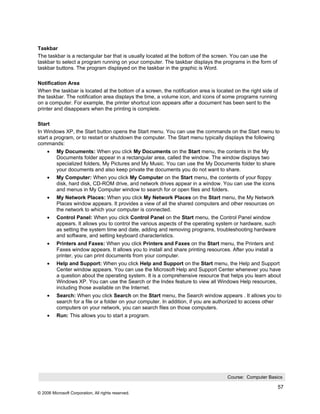
In Windows XP, a window is a rectangular area on the monitor that displays a program. Each program
has its own window.
In this demonstration, you will see how to work with a Windows-based program.

The following table contains the steps and transcript of an online demonstration.

Step List


 1      Demonstration: Working with Windows-Based Programs

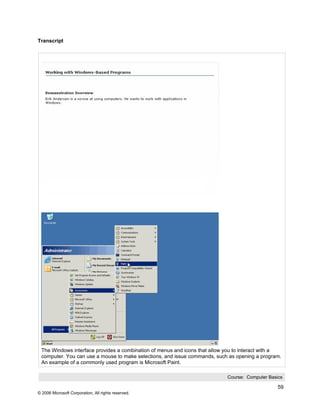
 2      Click Start, point to All Programs, point to Accessories, and then click Paint.

 3      Point to the title bar.

 4      To move the Microsoft Paint window, drag the title bar.

 5      Point to the menu bar.

 6      Point to the toolbar.

 7      Drag the horizontal scroll box and then drag the vertical scroll box.

 8      To minimize the window, click the Minimize button.

 9      To view the Microsoft Paint window, on the taskbar, click the Microsoft Paint button.

 10     To maximize the window, click the Maximize button.

 11     To restore the window to its original size, click the Restore Down button.

        Move the mouse pointer to the corner of the Microsoft Paint window till the shape of the mouse
 12
        pointer changes to a double-headed arrow. Drag the double-headed arrow to resize the window.

 13     On the Microsoft Paint window, click the Close button.


                                                                                     Course: Computer Basics

                                                                                                          58
© 2006 Microsoft Corporation, All rights reserved.
Transcript


 The Windows interface provides a combination of menus and icons that allow you to interact with a
 computer. You can use a mouse to make selections, and issue commands, such as opening a program.
 An example of a commonly used program is Microsoft Paint.

                                                                            Course: Computer Basics

                                                                                                 59
© 2006 Microsoft Corporation, All rights reserved.
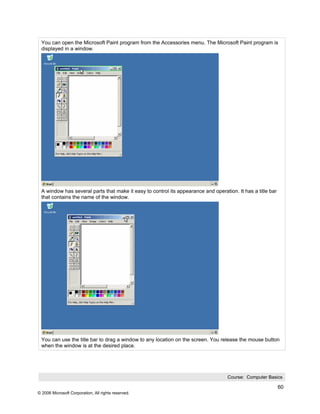
You can open the Microsoft Paint program from the Accessories menu. The Microsoft Paint program is
 displayed in a window.


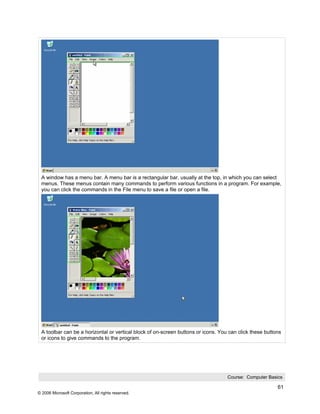
 A window has several parts that make it easy to control its appearance and operation. It has a title bar
 that contains the name of the window.


 You can use the title bar to drag a window to any location on the screen. You release the mouse button
 when the window is at the desired place.


                                                                                   Course: Computer Basics

                                                                                                            60
© 2006 Microsoft Corporation, All rights reserved.
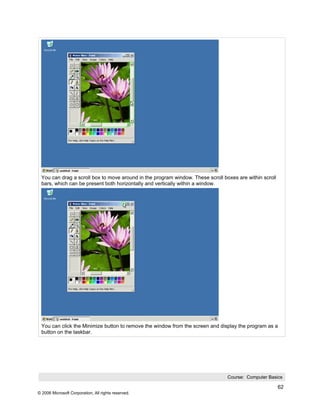
A window has a menu bar. A menu bar is a rectangular bar, usually at the top, in which you can select
 menus. These menus contain many commands to perform various functions in a program. For example,
 you can click the commands in the File menu to save a file or open a file.


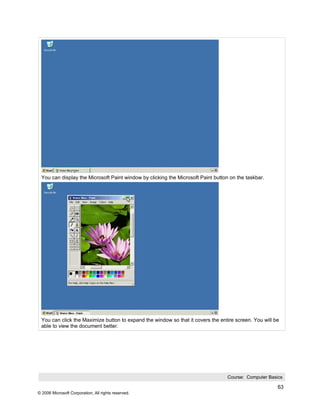
 A toolbar can be a horizontal or vertical block of on-screen buttons or icons. You can click these buttons
 or icons to give commands to the program.


                                                                                   Course: Computer Basics

                                                                                                         61
© 2006 Microsoft Corporation, All rights reserved.
You can drag a scroll box to move around in the program window. These scroll boxes are within scroll
 bars, which can be present both horizontally and vertically within a window.


 You can click the Minimize button to remove the window from the screen and display the program as a
 button on the taskbar.


                                                                                Course: Computer Basics

                                                                                                        62
© 2006 Microsoft Corporation, All rights reserved.
You can display the Microsoft Paint window by clicking the Microsoft Paint button on the taskbar.


 You can click the Maximize button to expand the window so that it covers the entire screen. You will be
 able to view the document better.


                                                                                  Course: Computer Basics

                                                                                                       63
© 2006 Microsoft Corporation, All rights reserved.
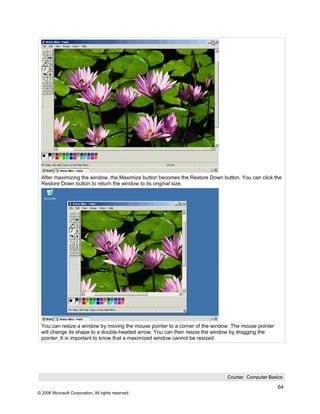
After maximizing the window, the Maximize button becomes the Restore Down button. You can click the
 Restore Down button to return the window to its original size.


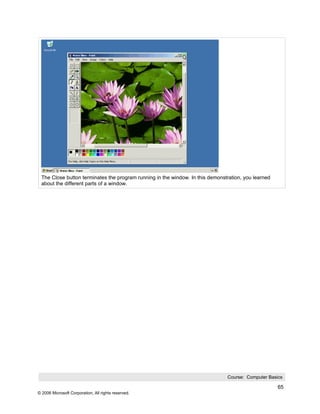
 You can resize a window by moving the mouse pointer to a corner of the window. The mouse pointer
 will change its shape to a double-headed arrow. You can then resize the window by dragging the
 pointer. It is important to know that a maximized window cannot be resized.


                                                                             Course: Computer Basics

                                                                                                    64
© 2006 Microsoft Corporation, All rights reserved.
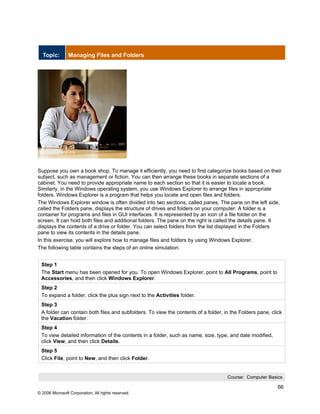
The Close button terminates the program running in the window. In this demonstration, you learned
 about the different parts of a window.


                                                                               Course: Computer Basics

                                                                                                     65
© 2006 Microsoft Corporation, All rights reserved.
Topic:        Managing Files and Folders


Suppose you own a book shop. To manage it efficiently, you need to first categorize books based on their
subject, such as management or fiction. You can then arrange these books in separate sections of a
cabinet. You need to provide appropriate name to each section so that it is easier to locate a book.
Similarly, in the Windows operating system, you use Windows Explorer to arrange files in appropriate
folders. Windows Explorer is a program that helps you locate and open files and folders.
The Windows Explorer window is often divided into two sections, called panes. The pane on the left side,
called the Folders pane, displays the structure of drives and folders on your computer. A folder is a
container for programs and files in GUI interfaces. It is represented by an icon of a file folder on the
screen. It can hold both files and additional folders. The pane on the right is called the details pane. It
displays the contents of a drive or folder. You can select folders from the list displayed in the Folders
pane to view its contents in the details pane.
In this exercise, you will explore how to manage files and folders by using Windows Explorer.
The following table contains the steps of an online simulation.


 Step 1
 The Start menu has been opened for you. To open Windows Explorer, point to All Programs, point to
 Accessories, and then click Windows Explorer.
 Step 2
 To expand a folder, click the plus sign next to the Activities folder.
 Step 3
 A folder can contain both files and subfolders. To view the contents of a folder, in the Folders pane, click
 the Vacation folder.
 Step 4
 To view detailed information of the contents in a folder, such as name, size, type, and date modified,
 click View, and then click Details.
 Step 5
 Click File, point to New, and then click Folder.


                                                                                    Course: Computer Basics

                                                                                                           66
© 2006 Microsoft Corporation, All rights reserved.
Step 6
 To give the new folder a descriptive name, press SPACEBAR to have the folder name typed for you,
 and then press ENTER.
 Step 7
 To rename a folder, click the Activities folder.
 Step 8
 Click File, and then click Rename.
 Step 9
 To specify the new name, press SPACEBAR to have the folder name typed for you, and then press
 ENTER.
 Step 10
 To move a file to a new location, click the Insurance Agency file.
 Step 11
 Click Edit, and then click Cut.
 Step 12
 To select the Legal folder as the destination folder, in the Folders pane, click Legal.
 Step 13
 To move the file, click Edit, and then click Paste.
 Step 14
 To verify that the Insurance Agency file has been moved, click the Volunteer Activities folder.
 Step 15
 To copy a file, click the Notes file.
 Step 16
 Click Edit, and then click Copy.
 Step 17
 To select the Memos folder as the destination folder, click Memos.
 Step 18
 To copy the file, click Edit, and then click Paste.
 Step 19
 To delete the Draft Garden Report file from the Volunteer Activities folder, in the Folders pane, click
 Volunteer Activities.
 Step 20
 To delete a file from a folder, click Draft Garden Report, click File, and then click Delete.
 Step 21
 To confirm that you want to send the file to the Recycle Bin, in the Confirm File Delete box, click Yes.


                                                                                    Course: Computer Basics

                                                                                                            67
© 2006 Microsoft Corporation, All rights reserved.
Topic:        Performing Basic File Operations


Every file has an associated format that defines the way data is stored in the file. The file format is
identified by a period (also called a dot) appended to a file name, followed by three or four letters. The
following are some of the more common file formats:
     •    Word documents (.doc)
     •    Images (.gif and .jpg)
     •    Executable programs (.exe)
     •    Multimedia files (.wma and others)

When you open a file, the operating system selects an appropriate program to display the contents of the
file based on the file format. For example, when you open a Word document, the operating system opens
a word processor, such as Word, to display the contents of the document.
To understand this concept of performing basic file operations, consider a scenario. You want to create a
document by using WordPad. You are new to the concept of files and want to know how to create and
save the file in a specific location. You also want to know how to open or delete an existing file.
In this exercise, you will explore how to perform basic file operations.
The following table contains the steps of an online simulation.


 Step 1
 The Start menu has been opened for you. To open the WordPad program, point to All Programs, point
 to Accessories, and then click WordPad.
 Step 2
 To add text to the white screen, called the document window, press SPACEBAR.
 Step 3
 To save a document, click File, and then click Save As.
 Step 4
 To save the document in the Garden Company folder, double-click Garden Company.


                                                                                     Course: Computer Basics

                                                                                                             68
© 2006 Microsoft Corporation, All rights reserved.
Step 5
 Click the File name box, and then press SPACEBAR to have the new name entered for you.
 Step 6
 To save the document, click Save.
 Step 7
 To close a file, click the Close button.
 Step 8
 You can open Windows Explorer to browse to the Flyers file. To open Windows Explorer, click Start,
 point to All Programs, point to Accessories, and then click Windows Explorer.
 Step 9
 To view the contents of the folder, in the Folders pane, click the Garden Company folder.
 Step 10
 To open the file, double-click Flyers.
 Step 11
 To close a file, click the Close button.
 Step 12
 To delete a file, click Flyers, click File, and then click Delete.
 Step 13
 To confirm that you want to send the file to the Recycle Bin, in the Confirm File Delete dialog box, click
 Yes.
 Step 14
 To close Windows Explorer, click the Close button.
 Step 15
 To begin restoring a file to its original location, double-click Recycle Bin.
 Step 16
 In the Recycle Bin window, click Flyers to select the file.
 Step 17
 To restore the file, click File, and then click Restore.


                                                                                   Course: Computer Basics

                                                                                                         69
© 2006 Microsoft Corporation, All rights reserved.
Topic:        Self Test for Lesson: Computer Operating Systems


In this exercise, you will explore how to work with the Windows XP operating system.
The following table contains the steps of an online simulation.


 Step 1
 The Start menu has been opened for you. To open the WordPad program, point to All Programs, point
 to Accessories, and then click WordPad.
 Step 2
 To add text to the document, click in the document window, and then press SPACEBAR to have the text
 typed for you.
 Step 3
 To save the document, click File, and then click Save As.
 Step 4
 To save the document in the Garden Company folder, double-click Garden Company.
 Step 5
 To change the file name to Map Kit Flyer, click the File name box, and then press SPACEBAR to have
 the new name entered for you.
 Step 6
 To save the file, click the Save button.
 Step 7
 To close the file, click the Close button.
 Step 8
 You can open Windows Explorer to browse to the Map Kit Flyer file. To open Windows Explorer, click
 Start, point to All Programs, point to Accessories, and then click Windows Explorer.
 Step 9
 To view the contents of a folder, in the Folders pane, click the Garden Company folder.
 Step 10
 To create a new folder, click File, point to New, and then click Folder.
 Step 11
 To give the new folder a descriptive name, press SPACEBAR to have the folder name typed for you,
 and then press ENTER.
 Step 12
 To copy a file, click the Map Kit Flyer file.
 Step 13
 Click Edit, and then click Copy.
 Step 14
 To select the Activities folder as the destination folder, in the Folders pane, click the Activities folder.


                                                                                       Course: Computer Basics

                                                                                                                70
© 2006 Microsoft Corporation, All rights reserved.
Step 15
 To copy the file, click Edit, and then click Paste.
 Step 16
 To delete the Map Kit Flyer file from the Garden Company folder, in the Folders pane, click the Garden
 Company folder.
 Step 17
 To delete a file, click the Map Kit Flyer file, click File, and then click Delete.
 Step 18
 To confirm that you want to send the file to the Recycle Bin, in the Confirm File Delete dialog box, click
 Yes.
 Step 19
 Click the Minimize button to minimize the Windows Explorer window
 Step 20
 To begin restoring a file to its original location, double-click Recycle Bin.
 Step 21
 In the Recycle Bin window, click the Map Kit Flyer file to select the file.
 Step 22
 To restore the file, click File, and then click Restore.


                                                                                      Course: Computer Basics

                                                                                                           71
© 2006 Microsoft Corporation, All rights reserved.
Lesson: 5
       Career Opportunities


 Lesson Contents


               Understanding the Widespread Reach of Computers


               Career Opportunities in the IT World


               Self Test


                                                                 Course: Computer Basics

                                                                                      72
© 2006 Microsoft Corporation, All rights reserved.
Lesson Introduction
 Using computers is no longer restricted to any specific field of work. They
 are extensively used everywhere, from households to large businesses.
 This widespread use of computers has created many career opportunities.
 Depending on your field of interest and degree of knowledge about
 computers, you can select a job that matches your skills.


 Lesson Objectives
 After completing this lesson, you will be able to:
       •    Describe how computers have become a central part of our
            everyday life.
       •    Identify the different career opportunities available for a person
            who is computer literate.


                                                                                 Course: Computer Basics

                                                                                                      73
© 2006 Microsoft Corporation, All rights reserved.
Topic:        Understanding the Widespread Reach of Computers


The following table contains the transcript of an online animation.


 Computers are now being used extensively in business. You can use computers to maintain records,
 exchange information with people at distant locations, and analyze daily transactions to generate reports.
 You can also use computers to buy or sell products over the Internet.
 Computers can analyze your sales for the day to determine the products that have sold the most. As a
 result, you need not perform lengthy calculations to manually analyze your sales data.
 With advancements in technology, electronic devices such as bar code scanners are now used in stores.
 Bar codes are printed black-and-white bars that contain information about a product, such as its price
 and product ID.
 The bar code scanner, which is connected to a computer, reads the bar code and sends information to
 the computer.
 The computer decodes the information and generates the invoice for the customer. You do not have to
 manually enter information in a computer to store sales information and generate the invoice. At the end
 of day, the computer can automatically analyze your sales data.
 Computers can also be used for online transactions, such as selling products over the Internet.
 Customers can visit the Web sites of different stores to purchase products. They can pay for these
 products over the Internet, and the products can be delivered to their doorstep.
 Traders can also use computers to check stock prices over the Internet. This helps them organize and
 manage investments.


                                                                                  Course: Computer Basics

                                                                                                        74
© 2006 Microsoft Corporation, All rights reserved.
Topic:        Career Opportunities in the IT World


The following table contains the transcript of an online animation.


 You can seek various job opportunities in the field of computers if you have relevant computer
 knowledge. Depending on your skills, you can work as an information worker, an IT professional, or a
 software developer.
 An information worker, such as a data entry operator, a warehouse manager, or a travel agent, uses the
 computer to enter and maintain records. For example, a data entry operator can use the computer to
 create documents and maintain records. These records can be analyzed by the computer to generate
 reports.
 A warehouse manager keeps an account of the warehouse stocks. With the help of a computer, the
 warehouse manager also plans the schedules and working hours for the people working in the
 warehouse.
 Travel agents use computers to provide their customers with information on various holiday destinations,
 flight schedules, and details about a specific location. The details may range from information on the
 weather to hotel accommodations.
 Travel agents can also provide information about the local tourist attractions and modes of transport.
 They also use computers to update travel plans and schedules.
 You can also use your computer knowledge to work as an IT professional. Network administrators,
 graphic designers, and database administrators are some examples of IT professionals. Network
 administrators are responsible for managing a network and installing new devices on the network.
 They also add and remove individuals from the list of authorized users. They archive files on a computer
 and administer access rights.
 Graphic designers use computers to create graphics and animations for commercial purposes.
 Database administrators work with databases to maintain and organize the information stored on a
 computer. A database is an organized collection of information on a computer.
 Database administrators organize and manage the structure of database in a computer. They also
 decide who should be given access to which part of the database.
 A software developer creates software for commercial purposes, such as managing the inventory for a
 small business or editing a media file. Similar to a software developer, a computer game designer
 creates games that can be played on computers.


                                                                                 Course: Computer Basics

                                                                                                      75
© 2006 Microsoft Corporation, All rights reserved.
Topic:        Self Test for Lesson: Career Opportunities


Each pair of statements contains a true statement and a false statement. For each pair of statements,
indicate which statement is true by placing a mark in the True column to the right.


        Statement                                                                       True      False
 1      A database administrator is an IT PROFESSIONAL.

 2      A database administrator is an INFORMATION WORKER.


 3      A travel agent is an IT PROFESSIONAL.

 4      A travel agent is an INFORMATION WORKER.


 5      A graphic designer is an IT PROFESSIONAL.

 6      A graphic designer is a SOFTWARE DEVELOPER.


 7      Bar codes contain only the PRICE of a product.

 8      Bar codes contain PRODUCT information.


 9      A BAR CODE SCANNER transmits data to a COMPUTING DEVICE.

 10     A COMPUTING DEVICE transmits data to a BAR CODE SCANNER.


 11     A NETWORK ADMINISTRATOR handles malfunctioning equipment.

 12     A DATABASE ADMINISTRATOR handles malfunctioning equipment.


 13     Customers CANNOT pay for a product over the Internet.

 14     Customers CAN pay for a product over the Internet.


 15     A database is an organized collection of DATA.

 16     A database is an organized collection of COMMONLY USED PROGRAMS.


 17     A SOFTWARE DEVELOPER is in charge of security.

 18     A NETWORK ADMINISTRATOR is in charge of security.


Note: The correct answers are shown on the next page.

                                                                                 Course: Computer Basics

                                                                                                        76
© 2006 Microsoft Corporation, All rights reserved.
Statement                                                            True      False
 1      A database administrator is an IT PROFESSIONAL.

 2      A database administrator is an INFORMATION WORKER.


 3      A travel agent is an IT PROFESSIONAL.

 4      A travel agent is an INFORMATION WORKER.


 5      A graphic designer is an IT PROFESSIONAL.

 6      A graphic designer is a SOFTWARE DEVELOPER.


 7      Bar codes contain only the PRICE of a product.

 8      Bar codes contain PRODUCT information.


 9      A BAR CODE SCANNER transmits data to a COMPUTING DEVICE.

 10     A COMPUTING DEVICE transmits data to a BAR CODE SCANNER.


 11     A NETWORK ADMINISTRATOR handles malfunctioning equipment.

 12     A DATABASE ADMINISTRATOR handles malfunctioning equipment.


 13     Customers CANNOT pay for a product over the Internet.

 14     Customers CAN pay for a product over the Internet.


 15     A database is an organized collection of DATA.

 16     A database is an organized collection of COMMONLY USED PROGRAMS.


 17     A SOFTWARE DEVELOPER is in charge of security.

 18     A NETWORK ADMINISTRATOR is in charge of security.


                                                                       Course: Computer Basics

                                                                                            77
© 2006 Microsoft Corporation, All rights reserved.
Module Summary


 Lessons

  Introduction to          Computers help you perform your tasks efficiently and
  Computers                quickly. They are used in almost every field, such as
                           industry, government offices, shops, and educational
                           institutions.
                           Computers are made of various parts that can be broadly
                           categorized into input devices, output devices, processing
                           devices, and storage devices.


  Common                   The essential components of a computer are hardware
  Computer                 and software. Hardware refers to all the physical
  Terminology              components connected to a computer and software refers
                           to the instructions for the hardware to perform the
                           necessary tasks. The most important software on the
                           computer is the operating system, which controls and
                           manages the hardware connected to your computer.
                           You can share your computer components with other
                           computer users by connecting your computer to other
                           computers. A group of computers and associated devices
                           that are linked together to facilitate sharing information is
                           called a network. The Internet is a collection of these
                           networks that are linked together.


  Computer                 The different kinds of computers come in a wide selection
  Performance              based on shape, size, and performance. These include
  and Features             desktop computers, laptop computers, handheld
                           computers, and tablet computers. All computers have
                           memory, which is used to store information that is being
                           used by the operating system and programs. Information
                           that the computer uses is represented in the form of 0s
                           and 1s.
                           Different computer programs perform different tasks.
                           Productivity programs help you organize numbers, write
                           letters or proposals, maintain records, and create images.
                           Communications programs help you talk to other
                           computer users. With entertainment programs, you can
                           watch movies, listen to music, or play games.


                                                                                           Course: Computer Basics

                                                                                                                78
© 2006 Microsoft Corporation, All rights reserved.
Computer                 An operating system is a program that controls how the
  Operating                hardware works and helps manage files and folders on
  Systems                  the computer. Some operating systems, such as
                           Windows XP, provide a GUI, which makes it easier for
                           you to provide instructions to a computer. Windows
                           Explorer is a program in the Windows operating system
                           that helps you locate and open files and folders. Each file
                           has an associated format. Depending on the file format,
                           the operating system decides the appropriate program to
                           open the file.


  Career                   Computers are extensively used everywhere, from
  Opportunities            households to large businesses. Computers are used to
                           maintain records, exchange information, and analyze
                           daily transactions to generate reports. Computers are
                           also being used for online trading and checking stock
                           prices. This widespread use of computers has created
                           many career opportunities. With relevant computer
                           knowledge, you can work as an information worker, an IT
                           professional, or a software developer.


                                                                                         Course: Computer Basics

                                                                                                              79
© 2006 Microsoft Corporation, All rights reserved.
Glossary


Applications
Applications, also called programs, use the platform to perform tasks.

Authentication
Authentication is the process by which the computer system validates a user's logon information.

Authorization
Authorization is the process by which the user can associate specific permissions to each username.

Bit
A bit is the smallest unit of information that a computer handles. A single bit can hold only one of two
values, 0 or 1.

Byte
A byte is a combination of eight bits arranged in sequence.

Central Processing Unit (CPU)
The central processing unit (CPU) is the primary hardware device that interprets and runs the commands
you give to the computer.

Chat Program
Chat programs allow you to send and receive messages instantly. You can use a chat program to
communicate with several people at the same time.

Commands
A command is an instruction, which you give to a computer, that causes an action to be carried out.
Commands are either typed by using a keyboard or are chosen from a menu.

Communication Channel
A communication channel is a path or a link that connects computers or peripheral devices, such as
printers and disk drives, to transfer information.

Communication Programs
Communication programs are used by computers to exchange messages and files with other people in a
digital format.

CPU speed
The CPU speed is the rate at which the CPU can perform a task, such as moving data to and from RAM,
or performing a numerical calculation.


                                                                                     Course: Computer Basics

                                                                                                           80
© 2006 Microsoft Corporation, All rights reserved.
Data
Data is the plural for the Latin word datum, meaning an item of information.

Database Programs
Database programs are used to store and manage data in an organized way. You can also use these
programs to sort or search for information stored in a database.

Desktop
The desktop is an on-screen work area that uses a combination of menus and icons.

Desktop Computers
Desktop computers are made up of individual components such as a monitor, a keyboard, a system unit,
and a printer.

E-mail
An electronic mail (e-mail) is the electronic form of the traditional postal mail. E-mail allows you to
exchange messages and files over a network.

Folder
A folder is a container for programs and files in GUI interfaces.

Gigabyte
One gigabyte (GB) is equal to 1,024 MB, which is approximately equal to one billion bytes.

Graphical User Interface (GUI)
A graphical user interface (GUI) displays images and pictures that allow a computer user to interact with a
computer easily.

Graphics Programs
Graphics programs are used to create and edit drawings. You can also use these programs to enhance
photographs.

Handheld Computer
Handheld computers are smaller than laptops computers and provide fewer features compared to than
desktop computers or laptops computers. They are used for specific everyday tasks, such as managing
personal data.

Hardware
Hardware refers to all the physical components of a computer.

Icon
An icon is a small image displayed on the screen to represent an object.

Input Devices
An input device is used to provide information to a computer. A keyboard is an example of an input
device.
                                                                                       Course: Computer Basics

                                                                                                            81
© 2006 Microsoft Corporation, All rights reserved.
Internet
The Internet is a worldwide collection of public networks that are linked to each other for information
exchange.

Internet Service Provider (ISP)
An ISP is a company that provides Internet connectivity to individuals, businesses, and organizations.

Intranet
An intranet is a special type of network used to communicate and share information within an
organization.

Kilobyte
One kilobyte (KB) is equal to 1,024 bytes.

Laptop Computers
Laptop computers are lightweight and portable personal computers. Laptop computers are also called
notebook computers.

Local Area Network (LAN)
A LAN connects devices within a limited area, such as a home or a small group of offices.

Megabyte
One megabyte (MB) is equal to 1,024 KB.

Menu
A menu is a list of options from which a user can select an option to perform a desired action, such as
choosing a command or applying a particular format to part of a document. Many programs, especially
those that offer a graphical interface, use menus as a means to provide the user with an easy-to-use
alternative to memorizing program commands and their appropriate usage.

Network
A network is a group of computers that are connected to share resources and exchange information.

Network Drives
A network drive is a disk drive that is shared with other computers on a network.

Notification Area
The notification area is located on the right side of the taskbar when the taskbar is located at the bottom
of a screen. The notification area displays the time, a volume icon, and icons of some programs that are
running on a computer.

Online
When a computer is connected to the Internet, it is said to be online.


                                                                                    Course: Computer Basics

                                                                                                              82
© 2006 Microsoft Corporation, All rights reserved.
Operating System
The operating system controls the computer’s hardware and provides services and access to the
hardware to programs. It also manages the computer’s operations and tasks, such as logging on, logging
off, and shutting down.

Platform
The hardware and the operating system together are referred to as a platform.

Presentation Programs
Presentation programs are used to present information in the form of slides.

Processing Devices
Processing devices are used by computer users to process the input data and generate the desired
output.

Programs
A program is a sequence of instructions that can be executed by a computer. A program is also known as
software.

Publishing Programs
Publishing programs are used to combine text and graphics to create documents such as brochures,
greeting cards, annual reports, books, or magazines.

Server
The server is the main computer on a network that provides services to other computers on the network.
A server decides which computers are allowed to access the hardware and software on the network.

Setup Wizard
Setup wizards are provided by Windows XP. They guide the user through each step of a particular task,
such installing hardware or software.

Software
Software is a sequence of instructions that a computer can execute. It is also referred to as programs.

Spreadsheet Programs
Spreadsheet programs are used to create budgets, manage accounts, perform mathematical calculations,
and convert numerical data into charts and graphs.

Storage Devices
Storage devices are used to store data. A hard disk is an example of a storage device.

System Unit
A system unit refers to the box that holds the processor, motherboard, disk drives, power supply, and the
expansion bus.


                                                                                   Course: Computer Basics

                                                                                                          83
© 2006 Microsoft Corporation, All rights reserved.
Tablet Computer
Tablet computers are computers that allow you to write directly on the screen by using a tablet pen.

Taskbar
The taskbar is a rectangular bar that is usually located at the bottom of the screen. You can use the
taskbar to select a program running on your computer.

Terabyte
One terabyte is equal to 1,024 GB, approximately equal to trillion bytes.

The Web
The Web, also known as the World Wide Web (WWW), is a collection of information that is accessible on
the Internet. This information is arranged logically and stored on computers known as Web servers.

Wallpaper
Wallpaper is a pattern or picture on the screen background that you can choose.

Wide Area Network (WAN)
A WAN is a network that connects devices in geographically separated areas.

Window
In Windows XP, a window is a rectangular area on the monitor that displays a program. Each program
has its own window.

Word-processing Programs
Word-processing programs are used to create and modify text-based documents.

Workstation
A workstation refers to a computer connected to a network. You use a workstation to access the
hardware and software on a network.


                                                                                   Course: Computer Basics

                                                                                                        84
© 2006 Microsoft Corporation, All rights reserved.

Computer basics

  • 1.
    Official Microsoft E-LearningCourse Print Version 2695 Computer Basics
  • 2.
    Information in thisdocument, including URL and other Internet Web site references, is subject to change without notice. Unless otherwise noted, the example companies, organizations, products, domain names, e-mail addresses, logos, people, places, and events depicted herein are fictitious, and no association with any real company, organization, product, domain name, e-mail address, logo, person, place or event is intended or should be inferred. Complying with all applicable copyright laws is the responsibility of the user. Without limiting the rights under copyright, no part of this document may be reproduced, stored in or introduced into a retrieval system, or transmitted in any form or by any means (electronic, mechanical, photocopying, recording, or otherwise), or for any purpose, without the express written permission of Microsoft Corporation. The names of manufacturers, products, or URLs are provided for informational purposes only and Microsoft makes no representations and warranties, either expressed, implied, or statutory, regarding these manufacturers or the use of the products with any Microsoft technologies. The inclusion of a manufacturer or product does not imply endorsement of Microsoft of the manufacturer or product. Links are provided to third party sites. Such sites are not under the control of Microsoft and Microsoft is not responsible for the contents of any linked site or any link contained in a linked site, or any changes or updates to such sites. Microsoft is not responsible for webcasting or any other form of transmission received from any linked site. Microsoft is providing these links to you only as a convenience, and the inclusion of any link does not imply endorsement of Microsoft of the site or the products contained therein. Microsoft may have patents, patent applications, trademarks, copyrights, or other intellectual property rights covering subject matter in this document. Except as expressly provided in any written license agreement from Microsoft, the furnishing of this document does not give you any license to these patents, trademarks, copyrights, or other intellectual property. © 2006 Microsoft Corporation. All rights reserved. Microsoft, Encarta, Excel, MSN, PowerPoint, and Windows are either registered trademarks or trademarks of Microsoft Corporation in the United States and/or other countries. All other trademarks are property of their respective owners. Course: Computer Basics 2 © 2006 Microsoft Corporation, All rights reserved.
  • 3.
    Table of Contents Course Overview Navigation Overview Course Information Module: 1: Computer Basics Introduction to Computers Common Computer Terminology Computer Performance and Features Computer Operating Systems Career Opportunities Module Summary Glossary Course: Computer Basics 3 © 2006 Microsoft Corporation, All rights reserved.
  • 4.
    Course Overview Imagine thatyou own a local grocery store where you deal with a number of customers every day. You have to manually track customer details and the purchases made during each day. In this scenario, these tasks take a lot of time. Computers help you to perform these tasks quickly and efficiently. Today, computers are used in every field. People use computers in schools, hospitals, libraries, and even in grocery stores. Computers allow you to record a lot of data, perform simple and complicated calculations, draw pictures, and even play music. Course: Computer Basics 4 © 2006 Microsoft Corporation, All rights reserved.
  • 5.
    Course Information This courseexplains the role of computers and basic computer terminology. It familiarizes you with the various programs available for performing different tasks. This course also introduces you to the different areas where computers are used and the different career opportunities that computers have made available. Course Details Description Audience This course is intended for anyone who wants to acquire digital literacy skills. Description Prerequisites Students should have basic reading comprehension skills at the level required to read a local newspaper. Students should have access to a computer at home, school, or an institution. Course After completing this course, you will be able to define what a computer is and what it Objectives does. You will also be able to perform basic computer operations. For More For more information, see the Microsoft Learning Web site Information (http://go.microsoft.com/fwlink/?LinkId=34834) . Course: Computer Basics 5 © 2006 Microsoft Corporation, All rights reserved.
  • 6.
    Module: 1 Computer Basics Module Contents Introduction to Computers Common Computer Terminology Computer Performance and Features Computer Operating Systems Career Opportunities Module Summary Course: Computer Basics 6 © 2006 Microsoft Corporation, All rights reserved.
  • 7.
    Module Introduction Computers help organizations and individuals to conduct business transactions efficiently and quickly. In today’s world, one of the basic skills necessary to succeed at a workplace is to know how to use the computer. Computers are used in every field. To be able to get better jobs, you need to know how to use a computer. This module explains the role of computers and the basic concepts about the parts of a computer. This module also explains how to use a computer in different aspects of life. Module Objectives After completing this module, you will be able to: • Identify the role of computers, their main parts, and the steps involved in working with a computer. • Define common computer terminology. • Explain the basic concepts concerning types of computers, programs, and performance issues. • Explain the core concepts related to computer operating systems. • Identify the different areas where computers can be used and the different career opportunities made available by computers. Computers have transformed the way people conduct business transactions and perform their daily tasks. With computers, you can maintain your monthly budget, create business reports, do your project work, listen to music, watch movies, and even create drawings just as you would do on paper. The growth in the field of computers has lead to development of new technologies for creation, storage, and transfer of data over a group of computers. This group of technologies is collectively called Information Technology (IT). You do not need to have much technical knowledge to work on a computer. Just about anyone can learn to use one. The only two requirements are to have patience and determination. This module explains the basic concepts related to computers and also familiarizes you with the components that make up the computer. In addition, this module familiarizes you with the various tools that will help you perform your daily tasks. Course: Computer Basics 7 © 2006 Microsoft Corporation, All rights reserved.
  • 8.
    Lesson: 1 Introduction to Computers Lesson Contents The Role of Computers Parts of a Computer Using a Computer Using a Keyboard Using a Mouse Sort Game: Input, Output, and Storage Devices Self Test Course: Computer Basics 8 © 2006 Microsoft Corporation, All rights reserved.
  • 9.
    Lesson Introduction Acomputer is an electronic device used to store and process information. It plays a major role in our lives. You use computers in education and research. You also use them for broadcasting news, receiving and sending messages to family and friends, making presentations, maintaining official and personal records, making weather forecasts, and for various other business and recreation activities. By using computers, you save a lot of time, effort, and money. Lesson Objectives After completing this lesson, you will be able to: • Describe the importance of computers in today’s world. • Identify the main parts of a computer. • Identify the steps for starting a computer. • Identify the different groups of keys on a keyboard. • Perform different tasks by using a mouse. Course: Computer Basics 9 © 2006 Microsoft Corporation, All rights reserved.
  • 10.
    Topic: The Role of Computers The following table contains the transcript of an online animation. Computers play a major role in our daily lives. They are used in industries, schools, government offices, and shops. You can use computers to communicate with your family and friends, create a household budget, book travel and movie tickets, or manage your business. In business and industry, you use computers to maintain accounts, create personnel records, track inventory, prepare presentations and reports, manage projects, and communicate by e-mail. You can use computers to design any type of publication ranging from simple newsletters to fashion magazines, marketing materials, books, or newspapers. In the field of education, trainers can use computers to deliver training through audio-visual learning aids, maintain student records to track performance, search for information on different topics, and create or submit assignments. In government organizations, you use computers to organize information by storing and updating records. Computers are also used for providing services to citizens. For example, you can view information on current policies and government issues on a computer. In the field of medicine, doctors use computers to review medical records of patients. Doctors also use computers to find information about the latest drugs available to treat a disease. Doctors can also use computer technology to discuss and share information about various diseases. You can use computers to view the details of your bank account. Traders use computer technology to get instant information on stock markets, to trade stocks, and to manage investments. Scientists use computers for scientific research, and to gather and analyze information. For example, they use computers to view images from space and to publish information on their recent research. You can also use computers to create drawings and paintings. Photographers use computers to edit and enhance pictures. Writers use computers to write content for their books and to also create illustrations. By using computers, writers can make changes in the content easily and save a lot of time. In the field of entertainment, you can use computers to listen to music, watch movies, store and print photographs, send greetings, and play games. Course: Computer Basics 10 © 2006 Microsoft Corporation, All rights reserved.
  • 11.
    Topic: Parts of a Computer A computer has various parts, and each part performs a specific function. The following table describes the parts of a computer. Part Description Input Devices You use input devices to provide information to a computer, such as typing a letter or giving instructions to a computer to perform a task. Some examples of input devices are described in the following list. • Mouse: A device that you use to interact with items displayed on the computer screen. A standard mouse has a left and a right button. You use the left button to select items and provide instructions by clicking an active area on the screen. You use the right button to display commonly used menu items on the screen. • Keyboard: A set of keys that resembles a typewriter keyboard. You use the keyboard to type text, such as letters or numbers into the computer. • Microphone: A device that you can use to talk to people in different parts of the world. You can record sound into the computer by using a microphone. You can also use a microphone to record your speech and let the computer convert it into text. • Scanner: A device that is similar to a photocopy machine. You can use this device to transfer an exact copy of a photograph or document into a computer. A scanner reads the page and translates it into a digital format, which a computer can read. For example, you can scan photographs of your family using a scanner. • Webcam: A device that is similar to a video camera. It allows you to capture and send the live pictures to the other user. For example, a webcam allows your friends and family to see you when communicating with them. Course: Computer Basics 11 © 2006 Microsoft Corporation, All rights reserved.
  • 12.
    Output You use output devices to get feedback from a computer Devices after it performs a task. Some examples of output devices are described in the following list. • Monitor: A device that is similar to a television. It is used to display information, such as text and graphics, on the computer. • Printer: A device that you use to transfer text and images from a computer to a paper or to another medium, such as a transparency film. You can use a printer to create a paper copy of whatever you see on your monitor. • Speaker/Headphone: Devices that allow you to hear sounds. Speakers may either be external or built into the computer. Central The central processing unit (CPU) is a device that Processing interprets and runs the commands that you give to the Unit and computer. It is the control unit of a computer. The CPU is Memory also referred to as the processor. Memory is where information is stored and retrieved by the CPU. There are two main types of memory. • Random Access Memory (RAM): It is the main memory and allows you to temporarily store commands and data. The CPU reads data and commands from RAM to perform specific tasks. RAM is volatile, which means it is available only while the computer is turned on. The contents of RAM must be copied to a storage device if you want to save the data in the RAM. • Read Only Memory (ROM): It is the memory that retains its contents even after the computer is turned off. ROM is nonvolatile, or permanent, memory that is commonly used to store commands, such as the commands that check whether everything is working properly. Course: Computer Basics 12 © 2006 Microsoft Corporation, All rights reserved.
  • 13.
    Motherboard The motherboard is the main circuit board inside the computer. It has tiny electronic circuits and other components on it. A motherboard connects input, output, and processing devices together and tells the CPU how to run. Other components on the motherboard include the video card, the sound card, and the circuits that allow the computer to communicate with devices like the printer. The motherboard is sometimes called a system board. Expansion An expansion card is a circuit board that can be attached to Cards the motherboard to add features such as video display and audio capability to your computer. An expansion card either improves the performance of your computer or enhances its features. Expansion cards are also called expansion boards. Some types of expansion cards are described in the following list. • Video Card: It is connected to the computer monitor and is used to display information on the monitor. • Network Interface Card (NIC): It allows the computer to be connected to other computers so that information can be exchanged between them. • Sound Card: It converts audio signals from a microphone, audio tape, or some other source to digital signals, which can be stored as a computer audio file. Sound cards also convert computer audio files to electrical signals, which you can play through a speaker or a headphone. The microphone and the speakers or the headphones connect to the sound card. Course: Computer Basics 13 © 2006 Microsoft Corporation, All rights reserved.
  • 14.
    Storage You use storage devices to store computer information. Devices Storage devices come in many forms. Some examples are hard drive or disk, CD-ROM, floppy disk, and DVD-ROM. Storage devices can be divided into two types, internal storage devices and external storage devices. Some common storage devices are described in the following list. • Hard Disk: A magnetic disk that is usually the main storage device on most computers. It can be an external or an internal device. • Floppy Disk: A portable storage device that allows you to store a small amount of data. A disadvantage of this disk is that it can be easily damaged by heat, dust, or magnetic fields. • CD-ROM: A portable storage medium that allows you to store 400 times more data than on a floppy disk. It is less prone to damage than a floppy disk. • DVD-ROM: A portable storage medium that is similar to a CD-ROM; however, it can store larger amounts of data than a floppy disk or a CD-ROM. A DVD-ROM is commonly used to store movies and videos. Course: Computer Basics 14 © 2006 Microsoft Corporation, All rights reserved.
  • 15.
    Ports and A port is a channel through which data is transferred Connections between input/output devices and the processor. There are several types of ports that you can use to connect the computer to external devices and networks. Some types of ports are described in the following list. • Universal Serial Bus (USB) Port: You use this to connect peripheral devices such as a mouse, a modem, a keyboard, or a printer to a computer. • FireWire: You use this to connect devices such as a digital camera. It is faster than the USB. • Network Port: You use this to connect a computer to other computers to exchange information between the computers. • Parallel Port and Serial Port: You use these ports to connect printers and other devices to a personal computer. However, the USB is now the preferred method for connecting peripheral devices because it is faster and easier to use. • Display Adapter: You connect a monitor to the display adapter on your computer. The display adapter generates the video signal received from the computer, and sends it to a monitor through a cable. The display adapter may be on the motherboard, or on an expansion card. • Power: The motherboard and other components inside a computer use direct current (DC). A power supply takes the alternating current (AC) from the wall outlet and converts it into DC power. Course: Computer Basics 15 © 2006 Microsoft Corporation, All rights reserved.
  • 16.
    Topic: Using a Computer The following table contains the transcript of an online animation. To turn on a computer, press the power button on the system unit. When you turn on the computer, lights on the keyboard may blink briefly and you may also hear a beep. This is an indication that the power-on self test (POST) has started. The computer performs a sequence of quick tests to check whether the motherboard, memory, hard drive, and other components are working. If you hear a series of beeps, the monitor may display a message indicating that a component is not functioning. For example, if the keyboard cable is not attached, an error message may report that there is no keyboard detected. After POST, the computer starts the operating system, and then displays the logon screen. You now log on to the Microsoft® Windows® XP operating system. The operating system allows you to instruct the computer what to do after you have turned it on. The operating system controls the computer’s hardware and also manages the computer’s operations and tasks, such as logging on, logging off, and shutting down. For example, to log on to Windows XP, you need to type your user name and password. The settings for the user account are applied and you are now logged on to Windows XP. After you log on, you can perform various tasks, such as creating a new file or modifying an existing file. After performing the required tasks, you need to save the changes you made to the file. You can then log off from Windows XP. To log off, you need to click Start, and then click Log Off. To securely turn off your computer, you must shut down Windows XP. To do this, you need to click Start, and then, at the bottom of the Start menu, click Shut Down. You can end your Windows XP session by clicking the Shut Down Windows dialog box. If you encounter problems while using the computer, you can choose the Restart option to restart the computer. To do this, click Restart in the Shut Down Windows dialog box. On most computers, you should never use the actual power button on the front of the system unit to turn off the computer unless it stops responding. Course: Computer Basics 16 © 2006 Microsoft Corporation, All rights reserved.
  • 17.
    Topic: Using a Keyboard The keyboard is an input device you use for typing commands or text into a computer. The different types of keys on a standard keyboard are listed below: • Alphanumeric Keys: These keys are used for entering letters and numbers. • Special Keys: Keys such as Control (CTRL), SHIFT, SPACEBAR, ALT, CAPS LOCK, and TAB are special keys. These special keys perform special functions depending on when and where they are used. • Punctuation Keys: Punctuation keys include keys for punctuation marks, such as colon (:), semicolon (;), question mark (?), single quotation marks (‘ ’), and double quotation marks (“ ”). • Command Keys: Keys such as INSERT (INS), DELETE (DEL), and BACKSPACE are command keys. You use these keys to insert and delete text and objects. You can turn the INSERT key either ON or OFF. When turned ON, the INSERT key helps you overwrite characters to the right of the insertion point. When turned OFF, the INSERT key helps you enter text or characters to the right of the insertion point, without overwriting this text or characters. An insertion point is the blinking vertical line that indicates the location at which the inserted text appears. The DELETE key is used to remove typed text, characters, and other objects on the right side of the insertion point. The BACKSPACE key is used to remove typed text, characters, and other objects on the left side of the insertion point. Note: The function of the DELETE and the BACKSPACE keys may vary depending on the type of computer Course: Computer Basics 17 © 2006 Microsoft Corporation, All rights reserved.
  • 18.
    you are using. • ENTER or RETURN Key: The label on this key can be either ENTER or RETURN, depending on the brand of computer that you are using. You use the ENTER or the RETURN key to move the insertion point to the beginning of a new line. In some programs, it is used to send commands and to confirm a task on a computer. • Navigation Keys: Keys such as the arrow keys, HOME, END, PAGE UP, and PAGE DOWN, are navigation keys. You use the arrow keys to move the insertion point up, down, right, and left. The HOME key is used to move the cursor to the left end of a line of text or the top of a document. The END key, in contrast, moves the cursor to the end of a line or a file, depending on the program. The PAGE UP key is used to move one page up and the PAGE DOWN key is used to move one page down while viewing a document. The functions of PAGE UP and PAGE DOWN keys differ from program to program. • Function Keys: Keys labeled from F1 to F12 are function keys. You use them to perform specific functions. Their functions differ from program to program. The function of the F1 key in most programs is to access the help file associated with a program. Some keyboards may have fewer function keys. • Numeric Keypad: Not all keyboards have a numeric keyboard. If available, this is a separate set of keys with numbers from 0 to 9, the decimal point, special characters, and navigation symbols. The NUM LOCK key on this keypad allows you to switch between the numeric and the navigation keys. • Windows Key: The key between the CTRL key and the ALT key is the Windows key. It has the Microsoft Logo or the Windows flag. This key is used to open the Start menu, or is used in combination with a second key to perform common Windows tasks. The exact use of the Windows key may vary from program to program. Note: Different keyboards have different key layouts. Therefore, the features of the keys may differ. Course: Computer Basics 18 © 2006 Microsoft Corporation, All rights reserved.
  • 19.
    Topic: Using a Mouse The following table contains the transcript of an online animation. A mouse is a small device that you can use to move, select, and open items displayed on your monitor. The mouse is usually kept on the desk next to the keyboard. Most mouse devices have at least two buttons, left and right. Most of the actions are performed by clicking the left button. The right button is used for specific functions. Some advanced types of mouse devices provide additional buttons to speed up common tasks, such as scrolling text. As you move the mouse on your desk, a pointer moves correspondingly on your screen. The mouse allows you to select an item on the screen. As you move the pointer over different areas of the screen, the items or the pointer change. These changes indicate that you can click an item to open it, or see more of its options. You can open an item by moving the pointer to it, and clicking the left mouse button twice. In a document, you can use the mouse to select a position to start typing. You need to position the pointer in the document, click where you want to insert text, and then use your keyboard to begin typing. To move an item, you need to click it, and then holding the mouse button down, move the item to a different location. After you move the item to the new location, you release the mouse button. The right button on the mouse is used to display a menu. The options on this menu include the most common tasks, such as copying text from one location and pasting it to another location. These are called context-sensitive menus. These menus help you complete tasks quickly. Most mouse devices also have a wheel that help you to scroll through documents or pages. To scroll, place your finger on the wheel and roll it back and forth. This moves the document up and down. There are different types of mouse devices available in the market. A regular mouse has a rubber or a metal ball on the underside. The mechanical movement of the mouse device moves the ball. This movement further moves the pointer on the screen. Course: Computer Basics 19 © 2006 Microsoft Corporation, All rights reserved.
  • 20.
    A trackball islike a regular mouse, but upside down, with the ball on the top. It allows you to have the same control as a mouse in a confined space. You can use the thumb or the finger to move the trackball to move the pointer. An optical mouse can be used in the same way as a regular mouse. However, it does not have a ball. It uses a laser to detect movement. Course: Computer Basics 20 © 2006 Microsoft Corporation, All rights reserved.
  • 21.
    Topic: Sort Game: Input, Output, and Storage Devices Sort the types of devices into their associated categories by writing the statement number in its corresponding option box. Statement 1 Mouse 2 Keyboard 3 Scanner 4 Hard Disk 5 CD-ROM 6 Printer 7 Headphone 8 Monitor 9 Floppy 10 Speaker 11 DVD-ROM 12 Microphone Option 1 Option 2 Option 3 Input Device Output Device Storage Device Note: The correct answers are shown on the next page. Course: Computer Basics 21 © 2006 Microsoft Corporation, All rights reserved.
  • 22.
    Option 1 Option 2 Option 3 Input Device Output Device Storage Device 12, 3, 2, 1 10, 8, 7, 6 11, 9, 5, 4 Course: Computer Basics 22 © 2006 Microsoft Corporation, All rights reserved.
  • 23.
    Topic: Self Test for Lesson: Introduction to Computers Each pair of statements contains a true statement and a false statement. For each pair of statements, indicate which statement is true by placing a mark in the True column to the right. Statement True False 1 You use the POWER BUTTON to turn on the computer. 2 You use the KEYBOARD KEYS to turn on the computer. 3 Keyboard lights DO NOT BLINK when the computer starts. 4 Keyboard lights BLINK when the computer starts. 5 You hear a series of beeps if RAM is NOT WORKING properly. 6 You hear a series of beeps if RAM is WORKING properly. 7 You enter your USER NAME and PASSWORD to log on to Windows XP. 8 You enter only your USER NAME to log on to Windows XP. 9 You LOG ON to Windows to launch a program. 10 You DO NOT LOG ON to Windows to launch a program. 11 You MUST save the changes if you modify a file. 12 You MUST NEVER save the changes if you modify a file. 13 You use LOG OFF to end a Windows session. 14 You use SHUT DOWN to end a Windows session. 15 You use the POWER BUTTON when the computer stops responding. 16 You use the LOG OFF BUTTON when the computer stops responding. 17 You use a NUMERIC KEY to access the HELP file. 18 You use a FUNCTION KEY to access the HELP file. Course: Computer Basics 23 © 2006 Microsoft Corporation, All rights reserved.
  • 24.
    Note: The correctanswers are shown on the next page. Course: Computer Basics 24 © 2006 Microsoft Corporation, All rights reserved.
  • 25.
    Statement True False 1 You use the POWER BUTTON to turn on the computer. 2 You use the KEYBOARD KEYS to turn on the computer. 3 Keyboard lights DO NOT BLINK when the computer starts. 4 Keyboard lights BLINK when the computer starts. 5 You hear a series of beeps if RAM is NOT WORKING properly. 6 You hear a series of beeps if RAM is WORKING properly. 7 You enter your USER NAME and PASSWORD to log on to Windows XP. 8 You enter only your USER NAME to log on to Windows XP. 9 You LOG ON to Windows to launch a program. 10 You DO NOT LOG ON to Windows to launch a program. 11 You MUST save the changes if you modify a file. 12 You MUST NEVER save the changes if you modify a file. 13 You use LOG OFF to end a Windows session. 14 You use SHUT DOWN to end a Windows session. 15 You use the POWER BUTTON when the computer stops responding. 16 You use the LOG OFF BUTTON when the computer stops responding. 17 You use a NUMERIC KEY to access the HELP file. 18 You use a FUNCTION KEY to access the HELP file. Course: Computer Basics 25 © 2006 Microsoft Corporation, All rights reserved.
  • 26.
    Lesson: 2 Common Computer Terminology Lesson Contents About Hardware About Operating Systems About Programs About Data About Networks About the Internet Self Test Course: Computer Basics 26 © 2006 Microsoft Corporation, All rights reserved.
  • 27.
    Lesson Introduction Anautomobile, such as a car or a van, is available in different models and colors, but its essential components remain the same. All automobiles have an engine, a body, and wheels. Similarly, computers are available in various sizes and shapes, but they all have common components that work in the same manner. The essential components of a computer are hardware and software. In this lesson, you will learn about common computer terminology, such as hardware, software, data, and network. Lesson Objectives After completing this lesson, you will be able to: • Identify the primary hardware components of a computer. • Define an operating system and its role. • Define the term program. • Explain what is meant by data. • Define the term network, and identify the benefits of networking. • Define the term Internet. Course: Computer Basics 27 © 2006 Microsoft Corporation, All rights reserved.
  • 28.
    Topic: About Hardware Hardware refers to all the physical components of a computer. It includes all input devices, processing devices, storage devices, and output devices. The keyboard, mouse, motherboard, monitor, hard disk, cables, and printer are all examples of hardware. You use hardware to provide input to a computer and also to get the desired output. For example, when you play a musical instrument, such as a piano, you provide input by pressing the keys and get the desired output in the form of music. Similarly, computers also need input and output devices to perform tasks. You use a keyboard and a mouse to provide input and to select and run programs. You can view the output on a monitor that is similar to a television set, or use the printer to view the output on paper. Apart from input and output devices, a computer uses processing devices to work on the input data and generate the desired output. The most important processing device is the CPU. The CPU is the brain of the computer. It processes the input to perform calculations and produce output. A motherboard is a large circuit board that connects input, output, and processing devices. The motherboard circuits provide pathways that allow data to pass through these various components. It also contains chips that determine how, when, and where data can flow through the computer. Depending on the task that you want your computer to perform, you can choose the appropriate hardware. For example, you can use a NIC to connect your computer to other computers. You can also use expansion cards, such as video cards, to add new features or enhance the performance of your computer. All of these devices are plugged into the motherboard. Course: Computer Basics 28 © 2006 Microsoft Corporation, All rights reserved.
  • 29.
    Topic: About Operating Systems In addition to hardware, a computer needs software to function. Software sends instructions to the hardware to perform the necessary tasks. The most important software on the computer is the operating system, which controls and manages the hardware connected to your computer. The operating system provides an interface that helps you to interact with the computer. An example of one of the latest operating systems is Windows XP. A user interface can be either text-based or graphics-based. Most operating systems provide a graphical user interface (GUI), which displays images and pictures that allow you to interact with a computer easily. An operating system with a GUI provides an easy-to-use interface to help you install hardware or software. For example, Windows XP provides a setup wizard, which guides the user through each step of a particular task, such installing hardware or software. An operating system ensures that your computer is functioning properly. You need to update your operating system regularly to ensure that it is compatible with any new hardware that you install. Course: Computer Basics 29 © 2006 Microsoft Corporation, All rights reserved.
  • 30.
    Topic: About Programs The hardware and the operating system together are referred to as a platform. Programs, also called applications, use this platform to perform tasks. There are many types of programs. Some programs allow you to perform tasks such as writing letters, doing calculations, or sending e-mail messages. For example, a word processor, such as Microsoft® Office Word 2003, is a program that helps you create a letter. Other programs allow you to create illustrations, play games, watch movies, or communicate with other computer users. Course: Computer Basics 30 © 2006 Microsoft Corporation, All rights reserved.
  • 31.
    Topic: About Data Programs process data that you provide as input to your computer. This data can be in the form of text, graphics, audio, or video depending on the type of program. For example, Calculator is a program that requires input in the form of numbers. Similarly, Sound Recorder is a program that requires input in the form of audio. When the program receives the data, it processes the data and displays the output on the screen. You can save this output in a file. Depending on the type of data that a file contains, the file is classified as an audio file, a text file, a graphics file, or a video file. Course: Computer Basics 31 © 2006 Microsoft Corporation, All rights reserved.
  • 32.
    Topic: About Networks Consider a scenario where an organization has 10 employees. These employees use computers to perform daily tasks. They also need print data frequently. Instead of giving each employee a printer, which would be expensive, all computers can be connected to a single printer. You can connect your computer to other computers to share information and hardware components. A group of computers and associated devices that are linked together to facilitate sharing information is called a network. Networks can also be used to share data and devices such as printers. A network offers many advantages for the computer connected to it. In addition to sharing hardware and software, you can share files and communicate with other computer users on the network. A typical network has the following three components: Server: The main computer on a network that provides services to other computers on the network. A server decides which computers are allowed to access the hardware and software on the network. Workstation: A computer connected to a network. You use a workstation to access the hardware and software on a network. Communication channel: A path or link that connects computers or peripheral devices, such as printers and disk drives, to transfer information. Cables are commonly used as communication channels in a network, but networks can also transfer information through wireless connections. A network expands as more workstations and servers are connected to it. Depending upon the area covered, a network can be categorized as a local area network (LAN) or a wide area network (WAN). Types of Feature Network LAN A LAN connects devices within a limited area, such as a home or a small group of offices. It commonly includes computers and shared resources such as printers and scanners. WAN A WAN is a network that connects devices in geographically separated areas. You can use the resources of a WAN to connect two or more LANs by using long wires, optical cables, and satellites. Many organizations use a WAN to connect their networks across different countries. The Internet is an example of a WAN. Course: Computer Basics 32 © 2006 Microsoft Corporation, All rights reserved.
  • 33.
    Topic: About the Internet The following table contains the transcript of an online animation. The Internet is a worldwide collection of public networks that are linked to each other for information exchange. The Internet started as a network to facilitate communication between government and educational departments in the United States. When other networks were connected to this network, it became a vast medium for exchanging information and ideas. Today, the Internet connects many commercial, government, and educational networks, as well as individual computers, which share data. The Internet offers a range of services to its users, such as file transfers between Internet users and electronic mail for sending messages. The World Wide Web (WWW), or the Web, is another service that the Internet provides. The Web includes specially formatted documents that are interlinked and stored on servers around the world. You can use the Internet and its services to send messages to other Internet users, search and apply for jobs, watch movies, and buy and sell products. Many organizations use a special type of network to communicate and share information within the organization. Such a network is called an intranet. An intranet is similar to the Web but is accessible only to authorized users of the organization. An intranet is much smaller than the Internet and can provide services such as document distribution, software distribution, access to databases, and training. Course: Computer Basics 33 © 2006 Microsoft Corporation, All rights reserved.
  • 34.
    Topic: Self Test for Lesson: Common Computer Terminology Sort the items into their associated categories by writing the statement number in its corresponding option box. Statement 1 Includes computer devices 2 Helps control the physical components 3 Allows you to play games or watch movies 4 Helps provide input to a computer 5 Ensures reliable operation of the computer 6 Uses the platform to perform a task 7 Helps you view the output of a computer Option 1 Option 2 Option 3 Hardware Operating System Programs Note: The correct answers are shown on the next page. Course: Computer Basics 34 © 2006 Microsoft Corporation, All rights reserved.
  • 35.
    Option 1 Option 2 Option 3 Hardware Operating System Programs 1, 4, 7 2, 5 3, 6 Course: Computer Basics 35 © 2006 Microsoft Corporation, All rights reserved.
  • 36.
    Lesson: 3 Computer Performance and Features Lesson Contents Types of Computers The Role of Memory Computer Performance Productivity Programs Communication Programs Educational and Entertainment Programs Self Test Course: Computer Basics 36 © 2006 Microsoft Corporation, All rights reserved.
  • 37.
    Lesson Introduction Considera situation where you want to buy a television. There are many brands and models available in the market. You need to make a decision based on the features that you want and the price of the product. Similarly, there are different types of personal computers available in the market. They differ on the basis of features such as price, size, and speed. In addition, these factors affect the overall performance of the computer. After you buy a television, you need to choose from different kinds of channels that are available. These channels may offer entertainment, sports, or news. You can choose to view a channel based on your preferences. In the same way, after you start using a computer, there are different types of programs available that help you perform different tasks. You can use a word processor to create documents or a spreadsheet to perform mathematical calculations. Communications programs can help you talk to people at distant locations. With entertainment programs, you can watch movies, listen to music, or play games. Lesson Objectives After completing this lesson, you will be able to: • Identify and compare the features of different types of computers. • Explain the role of memory. • Explain the basics of computer performance and how it relates to productivity. • Describe the different types of productivity programs and their uses. • Describe the different types of communications programs and their uses. • Describe the uses of educational and entertainment programs. Course: Computer Basics 37 © 2006 Microsoft Corporation, All rights reserved.
  • 38.
    Course: Computer Basics 38 © 2006 Microsoft Corporation, All rights reserved.
  • 39.
    Topic: Types of Computers Different types of computers are available in the market today. The most common computer is the Personal Computer (PC), typically used by individuals and small businesses. A personal computer is a computer that is designed for use by one person at a time. A personal computer is used in the workplace to create documents, manage business records, and communicate with others. It is used in schools to teach lessons, research over the Internet, and work on assignments. You can also use a personal computer to play games, view videos, and listen to music. Depending on the size and the purpose of a personal computer, it can be categorized into four different types: desktop, laptop, handheld, or tablet. You select a computer depending on the tasks that you want it to perform. For example, if you want to use the computer to edit photos or play complex games, you need a computer with a fast CPU and a good display adapter. Type of Features Computer Desktop Desktop computers are made up of individual components, Computers such as a monitor, a keyboard, a system unit, and a printer. Desktop computers are not portable and are generally placed on the surface of a desk or a table. The components of desktop computers can easily be replaced or upgraded. Desktop computers usually have more memory, a larger hard drive, more ports, and a bigger display than laptops and other portable computers. Desktop computers can run continuously for long periods of time. Laptop Laptop computers are lightweight personal computers. Computers Laptop computers are smaller in size as compared to a desktop computer and are designed for travel. Laptop computers are also called notebook computers. The main feature of laptop computers is that they are small and portable. As the name suggests, these can easily be placed on the lap of a user. Desktop computers run on electricity only, while laptop computers run on electricity or on batteries that can be recharged. However, laptop computers consume more power than desktop computers with a similar hardware setup. Laptop computers perform the same tasks as desktop computers, but laptop computers generally cost more than desktop computers. Course: Computer Basics 39 © 2006 Microsoft Corporation, All rights reserved.
  • 40.
    Handheld Handheld computers are devices used for specific everyday Computers tasks, such as managing personal data. These are smaller than laptops and provide fewer features compared to desktop computers or laptops. These can also perform basic word- processing activities and help you access the Internet. Several handheld computer models can also work as cellular phones or digital cameras. Tablet Tablet computers are fully functional computers that allow Computers you to write directly on the screen by using a tablet pen. You can also use the tablet pen to perform mouse functions. Tablet computers, therefore, do not need a keyboard and a mouse. Course: Computer Basics 40 © 2006 Microsoft Corporation, All rights reserved.
  • 41.
    Topic: The Role of Memory When a computer performs a task, it requires a place to store data. Memory is a device where information can be stored and retrieved. Before buying software for your computer, you need to know if your computer has enough memory to run the software properly. Computer memory can be volatile or nonvolatile. • Volatile Memory: This is the temporary memory of a computer. The content stored on the temporary memory is erased when the computer is turned off. Random access memory (RAM) is an example of volatile memory. RAM stores program information and data that needs to be readily available while performing a particular task. • Nonvolatile Memory: The content stored on this type of memory is retained after the computer is turned off. An example of nonvolatile memory is read-only memory (ROM), which contains a set of instructions that need to remain unchanged for the computer to function. For example, ROM stores commands that check whether the motherboard, memory, hard drive, and other components are working when the computer is started. In a computer, ROM stores information that is permanent and does not change. However, sometimes this information may need to be changed or updated. For this reason, a device called flash memory was developed. Similar to ROM, flash memory can retain information after you have switched off a computer, but it provides an additional benefit of allowing the stored information to be erased or modified. The information stored in the computer is internally represented in the form of 0s and 1s. Each 0 or 1 is called a bit. A combination of eight bits is called a byte. The following table explains the various terms used to measure storage or memory capacity. Course: Computer Basics 41 © 2006 Microsoft Corporation, All rights reserved.
  • 42.
    Term Descriptio n Bit A bit is the smallest unit of informatio n that a computer handles. A single bit can hold only one of two values, 0 or 1. One of the two values is always present. A single bit conveys little meaningful informatio n. However, you can obtain more meaningful informatio n by combining consecutiv e bits into larger units. Byte A byte is a combinatio n of eight bits arranged in a particular sequence. Each sequence represents a single Course: Computer Basics 42 © 2006 Microsoft Corporation, All rights reserved.
  • 43.
    Course: Computer Basics 43 © 2006 Microsoft Corporation, All rights reserved.
  • 44.
    Topic: Computer Performance Whether you use your computer for business or for personal use, it is important that your computer perform efficiently. However, performance does not depend on a single factor. The following table lists some of the important factors that affect the overall performance of the computer. Factor Description CPU The CPU is the brain of the computer and its speed is an Speed important factor that affects the overall performance of the computer. The CPU speed is the rate at which the CPU can perform a task, such as moving data to and from RAM, or performing a numerical calculation. If you have two computers that are identical except for the CPU speed, the computer with the faster CPU completes a task more quickly. Hard Hard disks differ in storage capacities as well as their speed of Disk data storage and retrieval. If the speed of data retrieval is fast, Factors the computer takes less time to start and to load programs. Additionally, the speed and size of the hard disk play an important role when a program needs to process large volumes of data. RAM RAM is the active memory of the computer. The speed of retrieving data stored on RAM is very fast and for this reason the computer uses it to store the information that is currently in use. If the amount of RAM is large enough to hold all of the information in use, this can result in faster computer performance. The RAM speed and the amount of RAM are important factors in personal computer performance. When there is not enough RAM in a computer, the computer slows down or fails to function properly. Course: Computer Basics 44 © 2006 Microsoft Corporation, All rights reserved.
  • 45.
    Topic: Productivity Programs You can use different computer programs to perform a variety of tasks. You can use computer programs to organize numbers, write letters or proposals, maintain records, create and modify images, convert text into visuals, and create magazines and brochures. The table below lists the different types of programs and describes their uses. Program Description Word- You use word-processing programs to create and modify Processing and text-based documents. You can type in and modify text, Publishing use the spelling checker and the built-in thesaurus, and Programs format the document. By using these programs, you can also create personal and professional documents. Word is a commonly used word-processing program. Publishing programs are used to combine text and graphics to create documents such as brochures, greeting cards, annual reports, books, or magazines. These programs also include word-processing and graphics features that allow you to refine parts of the document. Presentation You use presentation programs to present your Programs information in the form of slides. You can add sound and pictures to these slides to make them more attractive and informative. Microsoft Office PowerPoint® 2003 is a commonly used presentation program. Spreadsheet You use spreadsheet programs to create budgets, Programs manage accounts, perform mathematical calculations, and convert numerical data into charts and graphs. Spreadsheets store information in a table, with values spread over horizontal rows and vertical columns. Each value is stored in a cell. A cell is the intersection of a row and a column. Microsoft Office Excel® 2003 is an example of a spreadsheet program. Course: Computer Basics 45 © 2006 Microsoft Corporation, All rights reserved.
  • 46.
    Database You use database programs to store and manage data in Programs an organized way. By using these programs, you can also sort or search for the information stored in a database. In addition, you can create simple reports from the data that you have stored. For example, you can use a database program to store customer details, create and manage inventory, and track sales. You can then create reports to target sales or plan customer services. An example of a database program is Microsoft Office Access 2003. Graphics You use graphics programs to create and edit drawings. Programs You can also use these programs to enhance photographs. Microsoft Paint is an example of a graphics program that allows you to create drawings. Course: Computer Basics 46 © 2006 Microsoft Corporation, All rights reserved.
  • 47.
    Topic: Communication Programs Just as you use a telephone or postal mail to communicate with friends and family, you can also use computers to communicate with people. Computers use special programs called communication programs that allow you to send and receive messages with other people in a digital format. The table below describes the different types of communication programs and their uses. The following table contains the transcript of an online animation. Programs used to send e-mail messages Sending e-mail messages is the exchange of messages from one computer user to another computer user. This exchange can be within a local area or from one part of a country to another. You can send an e-mail message to or receive an e-mail message from one or several persons at any time of the day. Sending an e-mail message is similar to making a phone call; you must have a phone connection and know the phone number of the person with whom you want to speak. To send an e-mail message you must have an Internet connection and an e-mail account. This Internet connection is provided by an Internet service provider (ISP). If you have an e-mail account, it will be similar to username@example.com, where the username is your name. The @ is the at sign and example.com is the domain name. A domain name identifies the name and type of organization with whom you have an e-mail account. After you have an e-mail account, you need to know the e-mail account of the person to whom you want to send an e-mail. You can send both text and pictures through e-mail; however, this depends on various factors, such as the type of service you have or the kind of picture you are sending. Sending and receiving e-mail messages is an instant way of communicating with anyone. It only takes a few seconds to send and receive an e-mail. This also depends on the speed of your Internet connection. Course: Computer Basics 47 © 2006 Microsoft Corporation, All rights reserved.
  • 48.
    The following tablecontains the transcript of an online animation. Programs used to chat Another type of communication is through chat programs, which allows you to send and receive messages immediately. You can use a chat program to communicate with several people at the same time. A commonly used communication program is MSN® Messenger. When you are chatting with someone, the person on the other end receives your messages immediately. Through chat you can also talk to the person you are chatting with. This is called voice chat. Another form of chatting allows you to also see the person you are talking to. You use a device called a webcam to do this. You can also share pictures and other files through MSN Messenger. Course: Computer Basics 48 © 2006 Microsoft Corporation, All rights reserved.
  • 49.
    Topic: Educational and Entertainment Programs Consider a scenario in which you want to learn a new language. However, there are no schools in your area that teach the language. With educational software program, a computer can help you learn the new language. Educational software programs often use audio-visual clips and games to make learning more effective. Educational software is used in classrooms, offices, and homes. Educational software is available on various topics that are applicable to different age groups. For example, Microsoft Encarta® is a widely used digital encyclopedia that is available on both CD-ROM and DVD-ROM. You can also use computers as a source of entertainment. You can use entertainment software to play games, listen to music, record music, draw pictures, and watch movies on a computer. Video CDs and DVDs that allow you to watch movies and music videos as well as listen to music are all examples of entertainment software that is used for recreation. Course: Computer Basics 49 © 2006 Microsoft Corporation, All rights reserved.
  • 50.
    Topic: Self Test for Lesson: Computer Performance and Features Question 1 Which of the following features are true of laptops as compared with desktop computers? Select all answers that apply. They generally cost more for similar hardware. They consume less power. They are good travel companions. They are easier to upgrade. Question 2 Which of the following are true statements about RAM? Select all answers that apply. The amount affects the computer’s performance. Its contents are permanent. It has lower data-retrieval speed compared with storage memory. It stores active data and programs. Question 3 Which one of the following programs do you use to create personal and professional documents? Select the one best answer. Microsoft Office Word 2003 Microsoft Paint Microsoft Office PowerPoint 2003 Microsoft Office Excel 2003 Note: The correct answers are shown on the next page. Course: Computer Basics 50 © 2006 Microsoft Corporation, All rights reserved.
  • 51.
    Answer 1 Whichof the following features are true of laptops as compared with desktop computers? Select all answers that apply. They generally cost more for similar hardware. They consume less power. They are good travel companions. They are easier to upgrade. Answer 2 Which of the following are true statements about RAM? Select all answers that apply. The amount affects the computer’s performance. Its contents are permanent. It has lower data-retrieval speed compared with storage memory. It stores active data and programs. Answer 3 Which one of the following programs do you use to create personal and professional documents? Select the one best answer. Microsoft Office Word 2003 Microsoft Paint Microsoft Office PowerPoint 2003 Microsoft Office Excel 2003 Course: Computer Basics 51 © 2006 Microsoft Corporation, All rights reserved.
  • 52.
    Lesson: 4 Computer Operating Systems Lesson Contents Introduction to Operating Systems Understanding the Windows User Interface Working with Windows-Based Programs Managing Files and Folders Performing Basic File Operations Self Test Course: Computer Basics 52 © 2006 Microsoft Corporation, All rights reserved.
  • 53.
    Lesson Introduction Theoperating system is the most important program in the computer. An operating system performs four primary functions. It manages and controls the hardware connected to a computer. It helps other programs running on a computer to use the hardware. It helps you organize and manage files and folders on the computer. It provides a user interface that allows you to interact with the hardware, the operating system itself, and other programs. An example of an operating system is Windows XP. Lesson Objectives After completing this lesson, you will be able to: • Explain the common functions of an operating system. • Identify the basic components of the Windows XP user interface. • Work with the Windows XP user interface within programs. • Manage files and folders in Microsoft® Windows® Explorer. • Perform basic file operations. Course: Computer Basics 53 © 2006 Microsoft Corporation, All rights reserved.
  • 54.
    Topic: Introduction to Operating Systems An operating system controls how programs work with each other and how they interact with the computer hardware. It also creates the file system that determines how your data is stored within a storage device. The performance of an operating system depends on the number of bits that it can transfer at a time. Early operating systems could transfer only 8 bits of data at a time and were called 8-bit operating systems. However, with the introduction of the GUI interface, 16-bit operating systems were developed. Currently, operating systems such as Windows XP are 32-bit operating systems. The newest operating systems, such as Microsoft® Windows® XP Professional x64 Edition, can transfer up to 64 bits at a time, which enables programs to run much faster. An operating system such as Windows XP provides a GUI that makes it easier for you to give instructions to a computer. The following table describes the functions of an operating system. Functions Description Provides a user Many operating systems provide visual elements, such as interface icons and menus, to help you interact with a computer. You can use a mouse to select icons and issue commands. For example, you can double-click a file to open it with the appropriate program. Provides utilities A GUI-based operating system provides easy-to-use to configure utilities to help you configure your computer. These your system utilities are small programs that help you perform specific functions, such as connecting to a network, managing resources, and adding new programs to your computer. For example, Windows XP provides a backup program to save your important data. In addition, it provides a user- friendly setup wizard that allows you to install hardware or software, or connect to other computers. Course: Computer Basics 54 © 2006 Microsoft Corporation, All rights reserved.
  • 55.
    Helps manage An operating system helps manage hardware. Programs computer communicate with the operating system to work with the resources required hardware, such as the CPU, to complete the required tasks. Helps secure An operating system allows you to secure your data. It data by helps you specify authentication and authorization rights controlling user to control access to your computer and its resources. access to a Authentication is the process by which the computer computer system validates a user's logon information. An operating system can help you create a username and a password, so that only those users who know the username and password can access the resources on your computer. In addition, you can associate specific permissions to each username. This is called authorization. For example, you can prevent users from printing documents from your computer. Course: Computer Basics 55 © 2006 Microsoft Corporation, All rights reserved.
  • 56.
    Topic: Understanding the Windows User Interface Windows XP provides a GUI that has a number of components to help you interact with a computer. The following are the components of a Windows user interface: Desktop The desktop is an on-screen work area that uses a combination of menus and icons. The desktop includes the following components: • Wallpaper is a pattern or picture on the screen background that you can choose. You can consider it as a tablecloth placed on a table. • An icon is a small image displayed on the screen to represent an object. Icons help you perform certain computer actions without having to remember commands or type them. For example, you can click a file icon to open the file with the appropriate program. Course: Computer Basics 56 © 2006 Microsoft Corporation, All rights reserved.
  • 57.
    Taskbar The taskbar isa rectangular bar that is usually located at the bottom of the screen. You can use the taskbar to select a program running on your computer. The taskbar displays the programs in the form of taskbar buttons. The program displayed on the taskbar in the graphic is Word. Notification Area When the taskbar is located at the bottom of a screen, the notification area is located on the right side of the taskbar. The notification area displays the time, a volume icon, and icons of some programs running on a computer. For example, the printer shortcut icon appears after a document has been sent to the printer and disappears when the printing is complete. Start In Windows XP, the Start button opens the Start menu. You can use the commands on the Start menu to start a program, or to restart or shutdown the computer. The Start menu typically displays the following commands: • My Documents: When you click My Documents on the Start menu, the contents in the My Documents folder appear in a rectangular area, called the window. The window displays two specialized folders, My Pictures and My Music. You can use the My Documents folder to share your documents and also keep private the documents you do not want to share. • My Computer: When you click My Computer on the Start menu, the contents of your floppy disk, hard disk, CD-ROM drive, and network drives appear in a window. You can use the icons and menus in My Computer window to search for or open files and folders. • My Network Places: When you click My Network Places on the Start menu, the My Network Places window appears. It provides a view of all the shared computers and other resources on the network to which your computer is connected. • Control Panel: When you click Control Panel on the Start menu, the Control Panel window appears. It allows you to control the various aspects of the operating system or hardware, such as setting the system time and date, adding and removing programs, troubleshooting hardware and software, and setting keyboard characteristics. • Printers and Faxes: When you click Printers and Faxes on the Start menu, the Printers and Faxes window appears. It allows you to install and share printing resources. After you install a printer, you can print documents from your computer. • Help and Support: When you click Help and Support on the Start menu, the Help and Support Center window appears. You can use the Microsoft Help and Support Center whenever you have a question about the operating system. It is a comprehensive resource that helps you learn about Windows XP. You can use the Search or the Index feature to view all Windows Help resources, including those available on the Internet. • Search: When you click Search on the Start menu, the Search window appears . It allows you to search for a file or a folder on your computer. In addition, if you are authorized to access other computers on your network, you can search files on those computers. • Run: This allows you to start a program. Course: Computer Basics 57 © 2006 Microsoft Corporation, All rights reserved.
  • 58.
    Topic: Working with Windows-Based Programs In Windows XP, a window is a rectangular area on the monitor that displays a program. Each program has its own window. In this demonstration, you will see how to work with a Windows-based program. The following table contains the steps and transcript of an online demonstration. Step List 1 Demonstration: Working with Windows-Based Programs 2 Click Start, point to All Programs, point to Accessories, and then click Paint. 3 Point to the title bar. 4 To move the Microsoft Paint window, drag the title bar. 5 Point to the menu bar. 6 Point to the toolbar. 7 Drag the horizontal scroll box and then drag the vertical scroll box. 8 To minimize the window, click the Minimize button. 9 To view the Microsoft Paint window, on the taskbar, click the Microsoft Paint button. 10 To maximize the window, click the Maximize button. 11 To restore the window to its original size, click the Restore Down button. Move the mouse pointer to the corner of the Microsoft Paint window till the shape of the mouse 12 pointer changes to a double-headed arrow. Drag the double-headed arrow to resize the window. 13 On the Microsoft Paint window, click the Close button. Course: Computer Basics 58 © 2006 Microsoft Corporation, All rights reserved.
  • 59.
    Transcript The Windowsinterface provides a combination of menus and icons that allow you to interact with a computer. You can use a mouse to make selections, and issue commands, such as opening a program. An example of a commonly used program is Microsoft Paint. Course: Computer Basics 59 © 2006 Microsoft Corporation, All rights reserved.
  • 60.
    You can openthe Microsoft Paint program from the Accessories menu. The Microsoft Paint program is displayed in a window. A window has several parts that make it easy to control its appearance and operation. It has a title bar that contains the name of the window. You can use the title bar to drag a window to any location on the screen. You release the mouse button when the window is at the desired place. Course: Computer Basics 60 © 2006 Microsoft Corporation, All rights reserved.
  • 61.
    A window hasa menu bar. A menu bar is a rectangular bar, usually at the top, in which you can select menus. These menus contain many commands to perform various functions in a program. For example, you can click the commands in the File menu to save a file or open a file. A toolbar can be a horizontal or vertical block of on-screen buttons or icons. You can click these buttons or icons to give commands to the program. Course: Computer Basics 61 © 2006 Microsoft Corporation, All rights reserved.
  • 62.
    You can draga scroll box to move around in the program window. These scroll boxes are within scroll bars, which can be present both horizontally and vertically within a window. You can click the Minimize button to remove the window from the screen and display the program as a button on the taskbar. Course: Computer Basics 62 © 2006 Microsoft Corporation, All rights reserved.
  • 63.
    You can displaythe Microsoft Paint window by clicking the Microsoft Paint button on the taskbar. You can click the Maximize button to expand the window so that it covers the entire screen. You will be able to view the document better. Course: Computer Basics 63 © 2006 Microsoft Corporation, All rights reserved.
  • 64.
    After maximizing thewindow, the Maximize button becomes the Restore Down button. You can click the Restore Down button to return the window to its original size. You can resize a window by moving the mouse pointer to a corner of the window. The mouse pointer will change its shape to a double-headed arrow. You can then resize the window by dragging the pointer. It is important to know that a maximized window cannot be resized. Course: Computer Basics 64 © 2006 Microsoft Corporation, All rights reserved.
  • 65.
    The Close buttonterminates the program running in the window. In this demonstration, you learned about the different parts of a window. Course: Computer Basics 65 © 2006 Microsoft Corporation, All rights reserved.
  • 66.
    Topic: Managing Files and Folders Suppose you own a book shop. To manage it efficiently, you need to first categorize books based on their subject, such as management or fiction. You can then arrange these books in separate sections of a cabinet. You need to provide appropriate name to each section so that it is easier to locate a book. Similarly, in the Windows operating system, you use Windows Explorer to arrange files in appropriate folders. Windows Explorer is a program that helps you locate and open files and folders. The Windows Explorer window is often divided into two sections, called panes. The pane on the left side, called the Folders pane, displays the structure of drives and folders on your computer. A folder is a container for programs and files in GUI interfaces. It is represented by an icon of a file folder on the screen. It can hold both files and additional folders. The pane on the right is called the details pane. It displays the contents of a drive or folder. You can select folders from the list displayed in the Folders pane to view its contents in the details pane. In this exercise, you will explore how to manage files and folders by using Windows Explorer. The following table contains the steps of an online simulation. Step 1 The Start menu has been opened for you. To open Windows Explorer, point to All Programs, point to Accessories, and then click Windows Explorer. Step 2 To expand a folder, click the plus sign next to the Activities folder. Step 3 A folder can contain both files and subfolders. To view the contents of a folder, in the Folders pane, click the Vacation folder. Step 4 To view detailed information of the contents in a folder, such as name, size, type, and date modified, click View, and then click Details. Step 5 Click File, point to New, and then click Folder. Course: Computer Basics 66 © 2006 Microsoft Corporation, All rights reserved.
  • 67.
    Step 6 Togive the new folder a descriptive name, press SPACEBAR to have the folder name typed for you, and then press ENTER. Step 7 To rename a folder, click the Activities folder. Step 8 Click File, and then click Rename. Step 9 To specify the new name, press SPACEBAR to have the folder name typed for you, and then press ENTER. Step 10 To move a file to a new location, click the Insurance Agency file. Step 11 Click Edit, and then click Cut. Step 12 To select the Legal folder as the destination folder, in the Folders pane, click Legal. Step 13 To move the file, click Edit, and then click Paste. Step 14 To verify that the Insurance Agency file has been moved, click the Volunteer Activities folder. Step 15 To copy a file, click the Notes file. Step 16 Click Edit, and then click Copy. Step 17 To select the Memos folder as the destination folder, click Memos. Step 18 To copy the file, click Edit, and then click Paste. Step 19 To delete the Draft Garden Report file from the Volunteer Activities folder, in the Folders pane, click Volunteer Activities. Step 20 To delete a file from a folder, click Draft Garden Report, click File, and then click Delete. Step 21 To confirm that you want to send the file to the Recycle Bin, in the Confirm File Delete box, click Yes. Course: Computer Basics 67 © 2006 Microsoft Corporation, All rights reserved.
  • 68.
    Topic: Performing Basic File Operations Every file has an associated format that defines the way data is stored in the file. The file format is identified by a period (also called a dot) appended to a file name, followed by three or four letters. The following are some of the more common file formats: • Word documents (.doc) • Images (.gif and .jpg) • Executable programs (.exe) • Multimedia files (.wma and others) When you open a file, the operating system selects an appropriate program to display the contents of the file based on the file format. For example, when you open a Word document, the operating system opens a word processor, such as Word, to display the contents of the document. To understand this concept of performing basic file operations, consider a scenario. You want to create a document by using WordPad. You are new to the concept of files and want to know how to create and save the file in a specific location. You also want to know how to open or delete an existing file. In this exercise, you will explore how to perform basic file operations. The following table contains the steps of an online simulation. Step 1 The Start menu has been opened for you. To open the WordPad program, point to All Programs, point to Accessories, and then click WordPad. Step 2 To add text to the white screen, called the document window, press SPACEBAR. Step 3 To save a document, click File, and then click Save As. Step 4 To save the document in the Garden Company folder, double-click Garden Company. Course: Computer Basics 68 © 2006 Microsoft Corporation, All rights reserved.
  • 69.
    Step 5 Clickthe File name box, and then press SPACEBAR to have the new name entered for you. Step 6 To save the document, click Save. Step 7 To close a file, click the Close button. Step 8 You can open Windows Explorer to browse to the Flyers file. To open Windows Explorer, click Start, point to All Programs, point to Accessories, and then click Windows Explorer. Step 9 To view the contents of the folder, in the Folders pane, click the Garden Company folder. Step 10 To open the file, double-click Flyers. Step 11 To close a file, click the Close button. Step 12 To delete a file, click Flyers, click File, and then click Delete. Step 13 To confirm that you want to send the file to the Recycle Bin, in the Confirm File Delete dialog box, click Yes. Step 14 To close Windows Explorer, click the Close button. Step 15 To begin restoring a file to its original location, double-click Recycle Bin. Step 16 In the Recycle Bin window, click Flyers to select the file. Step 17 To restore the file, click File, and then click Restore. Course: Computer Basics 69 © 2006 Microsoft Corporation, All rights reserved.
  • 70.
    Topic: Self Test for Lesson: Computer Operating Systems In this exercise, you will explore how to work with the Windows XP operating system. The following table contains the steps of an online simulation. Step 1 The Start menu has been opened for you. To open the WordPad program, point to All Programs, point to Accessories, and then click WordPad. Step 2 To add text to the document, click in the document window, and then press SPACEBAR to have the text typed for you. Step 3 To save the document, click File, and then click Save As. Step 4 To save the document in the Garden Company folder, double-click Garden Company. Step 5 To change the file name to Map Kit Flyer, click the File name box, and then press SPACEBAR to have the new name entered for you. Step 6 To save the file, click the Save button. Step 7 To close the file, click the Close button. Step 8 You can open Windows Explorer to browse to the Map Kit Flyer file. To open Windows Explorer, click Start, point to All Programs, point to Accessories, and then click Windows Explorer. Step 9 To view the contents of a folder, in the Folders pane, click the Garden Company folder. Step 10 To create a new folder, click File, point to New, and then click Folder. Step 11 To give the new folder a descriptive name, press SPACEBAR to have the folder name typed for you, and then press ENTER. Step 12 To copy a file, click the Map Kit Flyer file. Step 13 Click Edit, and then click Copy. Step 14 To select the Activities folder as the destination folder, in the Folders pane, click the Activities folder. Course: Computer Basics 70 © 2006 Microsoft Corporation, All rights reserved.
  • 71.
    Step 15 Tocopy the file, click Edit, and then click Paste. Step 16 To delete the Map Kit Flyer file from the Garden Company folder, in the Folders pane, click the Garden Company folder. Step 17 To delete a file, click the Map Kit Flyer file, click File, and then click Delete. Step 18 To confirm that you want to send the file to the Recycle Bin, in the Confirm File Delete dialog box, click Yes. Step 19 Click the Minimize button to minimize the Windows Explorer window Step 20 To begin restoring a file to its original location, double-click Recycle Bin. Step 21 In the Recycle Bin window, click the Map Kit Flyer file to select the file. Step 22 To restore the file, click File, and then click Restore. Course: Computer Basics 71 © 2006 Microsoft Corporation, All rights reserved.
  • 72.
    Lesson: 5 Career Opportunities Lesson Contents Understanding the Widespread Reach of Computers Career Opportunities in the IT World Self Test Course: Computer Basics 72 © 2006 Microsoft Corporation, All rights reserved.
  • 73.
    Lesson Introduction Usingcomputers is no longer restricted to any specific field of work. They are extensively used everywhere, from households to large businesses. This widespread use of computers has created many career opportunities. Depending on your field of interest and degree of knowledge about computers, you can select a job that matches your skills. Lesson Objectives After completing this lesson, you will be able to: • Describe how computers have become a central part of our everyday life. • Identify the different career opportunities available for a person who is computer literate. Course: Computer Basics 73 © 2006 Microsoft Corporation, All rights reserved.
  • 74.
    Topic: Understanding the Widespread Reach of Computers The following table contains the transcript of an online animation. Computers are now being used extensively in business. You can use computers to maintain records, exchange information with people at distant locations, and analyze daily transactions to generate reports. You can also use computers to buy or sell products over the Internet. Computers can analyze your sales for the day to determine the products that have sold the most. As a result, you need not perform lengthy calculations to manually analyze your sales data. With advancements in technology, electronic devices such as bar code scanners are now used in stores. Bar codes are printed black-and-white bars that contain information about a product, such as its price and product ID. The bar code scanner, which is connected to a computer, reads the bar code and sends information to the computer. The computer decodes the information and generates the invoice for the customer. You do not have to manually enter information in a computer to store sales information and generate the invoice. At the end of day, the computer can automatically analyze your sales data. Computers can also be used for online transactions, such as selling products over the Internet. Customers can visit the Web sites of different stores to purchase products. They can pay for these products over the Internet, and the products can be delivered to their doorstep. Traders can also use computers to check stock prices over the Internet. This helps them organize and manage investments. Course: Computer Basics 74 © 2006 Microsoft Corporation, All rights reserved.
  • 75.
    Topic: Career Opportunities in the IT World The following table contains the transcript of an online animation. You can seek various job opportunities in the field of computers if you have relevant computer knowledge. Depending on your skills, you can work as an information worker, an IT professional, or a software developer. An information worker, such as a data entry operator, a warehouse manager, or a travel agent, uses the computer to enter and maintain records. For example, a data entry operator can use the computer to create documents and maintain records. These records can be analyzed by the computer to generate reports. A warehouse manager keeps an account of the warehouse stocks. With the help of a computer, the warehouse manager also plans the schedules and working hours for the people working in the warehouse. Travel agents use computers to provide their customers with information on various holiday destinations, flight schedules, and details about a specific location. The details may range from information on the weather to hotel accommodations. Travel agents can also provide information about the local tourist attractions and modes of transport. They also use computers to update travel plans and schedules. You can also use your computer knowledge to work as an IT professional. Network administrators, graphic designers, and database administrators are some examples of IT professionals. Network administrators are responsible for managing a network and installing new devices on the network. They also add and remove individuals from the list of authorized users. They archive files on a computer and administer access rights. Graphic designers use computers to create graphics and animations for commercial purposes. Database administrators work with databases to maintain and organize the information stored on a computer. A database is an organized collection of information on a computer. Database administrators organize and manage the structure of database in a computer. They also decide who should be given access to which part of the database. A software developer creates software for commercial purposes, such as managing the inventory for a small business or editing a media file. Similar to a software developer, a computer game designer creates games that can be played on computers. Course: Computer Basics 75 © 2006 Microsoft Corporation, All rights reserved.
  • 76.
    Topic: Self Test for Lesson: Career Opportunities Each pair of statements contains a true statement and a false statement. For each pair of statements, indicate which statement is true by placing a mark in the True column to the right. Statement True False 1 A database administrator is an IT PROFESSIONAL. 2 A database administrator is an INFORMATION WORKER. 3 A travel agent is an IT PROFESSIONAL. 4 A travel agent is an INFORMATION WORKER. 5 A graphic designer is an IT PROFESSIONAL. 6 A graphic designer is a SOFTWARE DEVELOPER. 7 Bar codes contain only the PRICE of a product. 8 Bar codes contain PRODUCT information. 9 A BAR CODE SCANNER transmits data to a COMPUTING DEVICE. 10 A COMPUTING DEVICE transmits data to a BAR CODE SCANNER. 11 A NETWORK ADMINISTRATOR handles malfunctioning equipment. 12 A DATABASE ADMINISTRATOR handles malfunctioning equipment. 13 Customers CANNOT pay for a product over the Internet. 14 Customers CAN pay for a product over the Internet. 15 A database is an organized collection of DATA. 16 A database is an organized collection of COMMONLY USED PROGRAMS. 17 A SOFTWARE DEVELOPER is in charge of security. 18 A NETWORK ADMINISTRATOR is in charge of security. Note: The correct answers are shown on the next page. Course: Computer Basics 76 © 2006 Microsoft Corporation, All rights reserved.
  • 77.
    Statement True False 1 A database administrator is an IT PROFESSIONAL. 2 A database administrator is an INFORMATION WORKER. 3 A travel agent is an IT PROFESSIONAL. 4 A travel agent is an INFORMATION WORKER. 5 A graphic designer is an IT PROFESSIONAL. 6 A graphic designer is a SOFTWARE DEVELOPER. 7 Bar codes contain only the PRICE of a product. 8 Bar codes contain PRODUCT information. 9 A BAR CODE SCANNER transmits data to a COMPUTING DEVICE. 10 A COMPUTING DEVICE transmits data to a BAR CODE SCANNER. 11 A NETWORK ADMINISTRATOR handles malfunctioning equipment. 12 A DATABASE ADMINISTRATOR handles malfunctioning equipment. 13 Customers CANNOT pay for a product over the Internet. 14 Customers CAN pay for a product over the Internet. 15 A database is an organized collection of DATA. 16 A database is an organized collection of COMMONLY USED PROGRAMS. 17 A SOFTWARE DEVELOPER is in charge of security. 18 A NETWORK ADMINISTRATOR is in charge of security. Course: Computer Basics 77 © 2006 Microsoft Corporation, All rights reserved.
  • 78.
    Module Summary Lessons Introduction to Computers help you perform your tasks efficiently and Computers quickly. They are used in almost every field, such as industry, government offices, shops, and educational institutions. Computers are made of various parts that can be broadly categorized into input devices, output devices, processing devices, and storage devices. Common The essential components of a computer are hardware Computer and software. Hardware refers to all the physical Terminology components connected to a computer and software refers to the instructions for the hardware to perform the necessary tasks. The most important software on the computer is the operating system, which controls and manages the hardware connected to your computer. You can share your computer components with other computer users by connecting your computer to other computers. A group of computers and associated devices that are linked together to facilitate sharing information is called a network. The Internet is a collection of these networks that are linked together. Computer The different kinds of computers come in a wide selection Performance based on shape, size, and performance. These include and Features desktop computers, laptop computers, handheld computers, and tablet computers. All computers have memory, which is used to store information that is being used by the operating system and programs. Information that the computer uses is represented in the form of 0s and 1s. Different computer programs perform different tasks. Productivity programs help you organize numbers, write letters or proposals, maintain records, and create images. Communications programs help you talk to other computer users. With entertainment programs, you can watch movies, listen to music, or play games. Course: Computer Basics 78 © 2006 Microsoft Corporation, All rights reserved.
  • 79.
    Computer An operating system is a program that controls how the Operating hardware works and helps manage files and folders on Systems the computer. Some operating systems, such as Windows XP, provide a GUI, which makes it easier for you to provide instructions to a computer. Windows Explorer is a program in the Windows operating system that helps you locate and open files and folders. Each file has an associated format. Depending on the file format, the operating system decides the appropriate program to open the file. Career Computers are extensively used everywhere, from Opportunities households to large businesses. Computers are used to maintain records, exchange information, and analyze daily transactions to generate reports. Computers are also being used for online trading and checking stock prices. This widespread use of computers has created many career opportunities. With relevant computer knowledge, you can work as an information worker, an IT professional, or a software developer. Course: Computer Basics 79 © 2006 Microsoft Corporation, All rights reserved.
  • 80.
    Glossary Applications Applications, also calledprograms, use the platform to perform tasks. Authentication Authentication is the process by which the computer system validates a user's logon information. Authorization Authorization is the process by which the user can associate specific permissions to each username. Bit A bit is the smallest unit of information that a computer handles. A single bit can hold only one of two values, 0 or 1. Byte A byte is a combination of eight bits arranged in sequence. Central Processing Unit (CPU) The central processing unit (CPU) is the primary hardware device that interprets and runs the commands you give to the computer. Chat Program Chat programs allow you to send and receive messages instantly. You can use a chat program to communicate with several people at the same time. Commands A command is an instruction, which you give to a computer, that causes an action to be carried out. Commands are either typed by using a keyboard or are chosen from a menu. Communication Channel A communication channel is a path or a link that connects computers or peripheral devices, such as printers and disk drives, to transfer information. Communication Programs Communication programs are used by computers to exchange messages and files with other people in a digital format. CPU speed The CPU speed is the rate at which the CPU can perform a task, such as moving data to and from RAM, or performing a numerical calculation. Course: Computer Basics 80 © 2006 Microsoft Corporation, All rights reserved.
  • 81.
    Data Data is theplural for the Latin word datum, meaning an item of information. Database Programs Database programs are used to store and manage data in an organized way. You can also use these programs to sort or search for information stored in a database. Desktop The desktop is an on-screen work area that uses a combination of menus and icons. Desktop Computers Desktop computers are made up of individual components such as a monitor, a keyboard, a system unit, and a printer. E-mail An electronic mail (e-mail) is the electronic form of the traditional postal mail. E-mail allows you to exchange messages and files over a network. Folder A folder is a container for programs and files in GUI interfaces. Gigabyte One gigabyte (GB) is equal to 1,024 MB, which is approximately equal to one billion bytes. Graphical User Interface (GUI) A graphical user interface (GUI) displays images and pictures that allow a computer user to interact with a computer easily. Graphics Programs Graphics programs are used to create and edit drawings. You can also use these programs to enhance photographs. Handheld Computer Handheld computers are smaller than laptops computers and provide fewer features compared to than desktop computers or laptops computers. They are used for specific everyday tasks, such as managing personal data. Hardware Hardware refers to all the physical components of a computer. Icon An icon is a small image displayed on the screen to represent an object. Input Devices An input device is used to provide information to a computer. A keyboard is an example of an input device. Course: Computer Basics 81 © 2006 Microsoft Corporation, All rights reserved.
  • 82.
    Internet The Internet isa worldwide collection of public networks that are linked to each other for information exchange. Internet Service Provider (ISP) An ISP is a company that provides Internet connectivity to individuals, businesses, and organizations. Intranet An intranet is a special type of network used to communicate and share information within an organization. Kilobyte One kilobyte (KB) is equal to 1,024 bytes. Laptop Computers Laptop computers are lightweight and portable personal computers. Laptop computers are also called notebook computers. Local Area Network (LAN) A LAN connects devices within a limited area, such as a home or a small group of offices. Megabyte One megabyte (MB) is equal to 1,024 KB. Menu A menu is a list of options from which a user can select an option to perform a desired action, such as choosing a command or applying a particular format to part of a document. Many programs, especially those that offer a graphical interface, use menus as a means to provide the user with an easy-to-use alternative to memorizing program commands and their appropriate usage. Network A network is a group of computers that are connected to share resources and exchange information. Network Drives A network drive is a disk drive that is shared with other computers on a network. Notification Area The notification area is located on the right side of the taskbar when the taskbar is located at the bottom of a screen. The notification area displays the time, a volume icon, and icons of some programs that are running on a computer. Online When a computer is connected to the Internet, it is said to be online. Course: Computer Basics 82 © 2006 Microsoft Corporation, All rights reserved.
  • 83.
    Operating System The operatingsystem controls the computer’s hardware and provides services and access to the hardware to programs. It also manages the computer’s operations and tasks, such as logging on, logging off, and shutting down. Platform The hardware and the operating system together are referred to as a platform. Presentation Programs Presentation programs are used to present information in the form of slides. Processing Devices Processing devices are used by computer users to process the input data and generate the desired output. Programs A program is a sequence of instructions that can be executed by a computer. A program is also known as software. Publishing Programs Publishing programs are used to combine text and graphics to create documents such as brochures, greeting cards, annual reports, books, or magazines. Server The server is the main computer on a network that provides services to other computers on the network. A server decides which computers are allowed to access the hardware and software on the network. Setup Wizard Setup wizards are provided by Windows XP. They guide the user through each step of a particular task, such installing hardware or software. Software Software is a sequence of instructions that a computer can execute. It is also referred to as programs. Spreadsheet Programs Spreadsheet programs are used to create budgets, manage accounts, perform mathematical calculations, and convert numerical data into charts and graphs. Storage Devices Storage devices are used to store data. A hard disk is an example of a storage device. System Unit A system unit refers to the box that holds the processor, motherboard, disk drives, power supply, and the expansion bus. Course: Computer Basics 83 © 2006 Microsoft Corporation, All rights reserved.
  • 84.
    Tablet Computer Tablet computersare computers that allow you to write directly on the screen by using a tablet pen. Taskbar The taskbar is a rectangular bar that is usually located at the bottom of the screen. You can use the taskbar to select a program running on your computer. Terabyte One terabyte is equal to 1,024 GB, approximately equal to trillion bytes. The Web The Web, also known as the World Wide Web (WWW), is a collection of information that is accessible on the Internet. This information is arranged logically and stored on computers known as Web servers. Wallpaper Wallpaper is a pattern or picture on the screen background that you can choose. Wide Area Network (WAN) A WAN is a network that connects devices in geographically separated areas. Window In Windows XP, a window is a rectangular area on the monitor that displays a program. Each program has its own window. Word-processing Programs Word-processing programs are used to create and modify text-based documents. Workstation A workstation refers to a computer connected to a network. You use a workstation to access the hardware and software on a network. Course: Computer Basics 84 © 2006 Microsoft Corporation, All rights reserved.