Introduction to Computers
________
Danish Ali
Contents
• Charles Babbage
• Ada
• Computer
• Benefits of using a computer
• What you can do with a computer
• Types of computers
• Tour the personal computer
• Learn about computer hardware
• Explore computer software
Charles Babbage (1791-1871)
• Charles Babbage invented the first calculating machine in 1830,
known as the “analytical engine”
• The first digital purpose computer
• A programmable, mechanical, digital machine
• Could carryout any calculation
• Could make decisions based upon the results of the previous calculation
• Components: input; memory; processor; output
Ada, Countess of Lovelace(1815-52)
• Babbage: the father of computing
Ada: the mother?
• Wrote a program for computing the Bernoulli’s sequence on the
Analytical Engine - world’s 1st computer program
• A programming language specifically designed by the US Dept of
Defense for developing military applications was named Ada to honor
her contributions towards computing
Computer
• A computer is a device that you can use to store, manipulate, and display
text, numbers, images, and sounds.
• A computer is an electronic device that is designed to work with
information.
• The computer takes information in, processes that information, and then
displays the results.
• In this way, a computer is similar to a calculator, except that even the
smallest computer is much more versatile than the most powerful
calculator is.
• Computers operate at amazingly fast speeds, with a typical computer
processing millions of calculations every second.
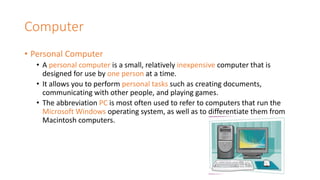
Computer
• Personal Computer
• A personal computer is a small, relatively inexpensive computer that is
designed for use by one person at a time.
• It allows you to perform personal tasks such as creating documents,
communicating with other people, and playing games.
• The abbreviation PC is most often used to refer to computers that run the
Microsoft Windows operating system, as well as to differentiate them from
Macintosh computers.
Benefits of Using a Computer
• A computer is a powerful and useful tool because it gives you a
number of benefits, including the ability to produce high-quality work
quickly.
• It also enables you to learn new skills that are an important part of
today's technological world.
• Speed
• Quality
• New Skills
Benefits of Using a Computer
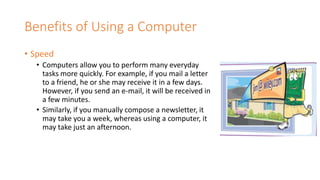
• Speed
• Computers allow you to perform many everyday
tasks more quickly. For example, if you mail a letter
to a friend, he or she may receive it in a few days.
However, if you send an e-mail, it will be received in
a few minutes.
• Similarly, if you manually compose a newsletter, it
may take you a week, whereas using a computer, it
may take just an afternoon.
Benefits of Using a Computer
• Quality
• The tools that come with a computer enable you to
create high-quality documents and drawings, even if
you are not a typesetter or an artist.
• With just a few simple techniques, you can create
documents that look professional or are exactly
suited to your present task.
Benefits of Using a Computer
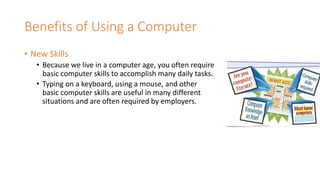
• New Skills
• Because we live in a computer age, you often require
basic computer skills to accomplish many daily tasks.
• Typing on a keyboard, using a mouse, and other
basic computer skills are useful in many different
situations and are often required by employers.
What you can do with a Computer
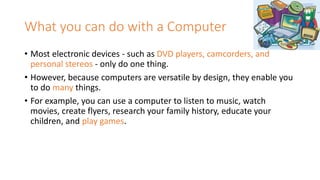
• Most electronic devices - such as DVD players, camcorders, and
personal stereos - only do one thing.
• However, because computers are versatile by design, they enable you
to do many things.
• For example, you can use a computer to listen to music, watch
movies, create flyers, research your family history, educate your
children, and play games.
What you can do with a Computer
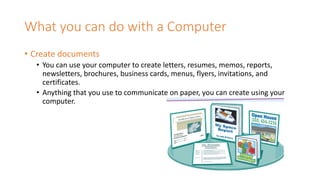
• Create documents
• You can use your computer to create letters, resumes, memos, reports,
newsletters, brochures, business cards, menus, flyers, invitations, and
certificates.
• Anything that you use to communicate on paper, you can create using your
computer.
What you can do with a Computer
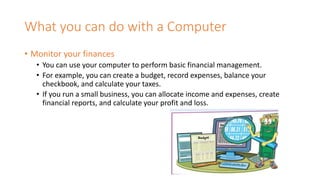
• Monitor your finances
• You can use your computer to perform basic financial management.
• For example, you can create a budget, record expenses, balance your
checkbook, and calculate your taxes.
• If you run a small business, you can allocate income and expenses, create
financial reports, and calculate your profit and loss.
What you can do with a Computer
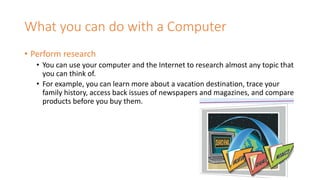
• Perform research
• You can use your computer and the Internet to research almost any topic that
you can think of.
• For example, you can learn more about a vacation destination, trace your
family history, access back issues of newspapers and magazines, and compare
products before you buy them.
What you can do with a Computer
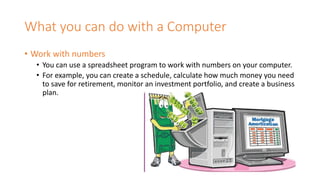
• Work with numbers
• You can use a spreadsheet program to work with numbers on your computer.
• For example, you can create a schedule, calculate how much money you need
to save for retirement, monitor an investment portfolio, and create a business
plan.
What you can do with a Computer
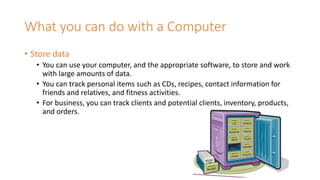
• Store data
• You can use your computer, and the appropriate software, to store and work
with large amounts of data.
• You can track personal items such as CDs, recipes, contact information for
friends and relatives, and fitness activities.
• For business, you can track clients and potential clients, inventory, products,
and orders.
What you can do with a Computer
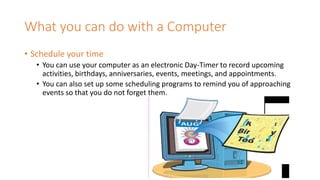
• Schedule your time
• You can use your computer as an electronic Day-Timer to record upcoming
activities, birthdays, anniversaries, events, meetings, and appointments.
• You can also set up some scheduling programs to remind you of approaching
events so that you do not forget them.
What you can do with a Computer
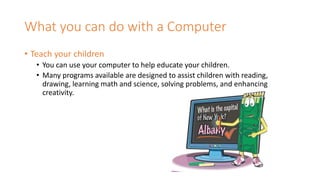
• Teach your children
• You can use your computer to help educate your children.
• Many programs available are designed to assist children with reading,
drawing, learning math and science, solving problems, and enhancing
creativity.
What you can do with a Computer
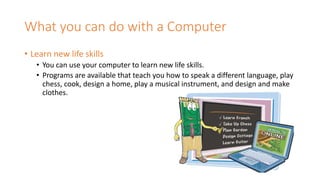
• Learn new life skills
• You can use your computer to learn new life skills.
• Programs are available that teach you how to speak a different language, play
chess, cook, design a home, play a musical instrument, and design and make
clothes.
What you can do with a Computer
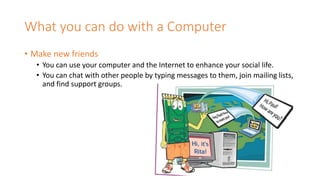
• Make new friends
• You can use your computer and the Internet to enhance your social life.
• You can chat with other people by typing messages to them, join mailing lists,
and find support groups.
What you can do with a Computer
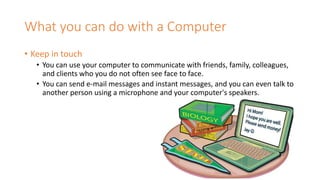
• Keep in touch
• You can use your computer to communicate with friends, family, colleagues,
and clients who you do not often see face to face.
• You can send e-mail messages and instant messages, and you can even talk to
another person using a microphone and your computer's speakers.
What you can do with a Computer
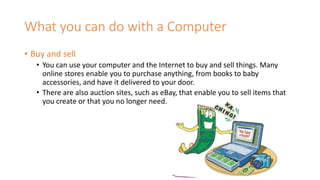
• Buy and sell
• You can use your computer and the Internet to buy and sell things. Many
online stores enable you to purchase anything, from books to baby
accessories, and have it delivered to your door.
• There are also auction sites, such as eBay, that enable you to sell items that
you create or that you no longer need.
What you can do with a Computer
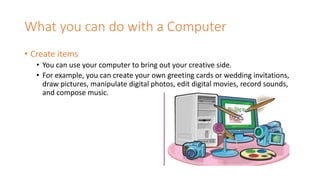
• Create items
• You can use your computer to bring out your creative side.
• For example, you can create your own greeting cards or wedding invitations,
draw pictures, manipulate digital photos, edit digital movies, record sounds,
and compose music.
What you can do with a Computer
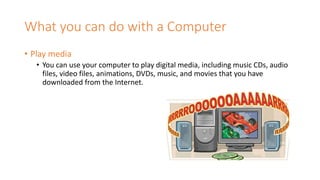
• Play media
• You can use your computer to play digital media, including music CDs, audio
files, video files, animations, DVDs, music, and movies that you have
downloaded from the Internet.
What you can do with a Computer
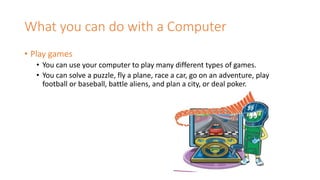
• Play games
• You can use your computer to play many different types of games.
• You can solve a puzzle, fly a plane, race a car, go on an adventure, play
football or baseball, battle aliens, and plan a city, or deal poker.
Types of Computer
• When selecting a computer that is best for your needs, you should
consider what purpose it will serve in your home or business, and
whether it should be mobile for travel.
• Desktop
• Notebook
• Tablet PC
• Handheld PC
• Server
Types of Computer
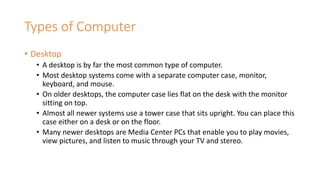
• Desktop
• A desktop is by far the most common type of computer.
• Most desktop systems come with a separate computer case, monitor,
keyboard, and mouse.
• On older desktops, the computer case lies flat on the desk with the monitor
sitting on top.
• Almost all newer systems use a tower case that sits upright. You can place this
case either on a desk or on the floor.
• Many newer desktops are Media Center PCs that enable you to play movies,
view pictures, and listen to music through your TV and stereo.
Types of Computer
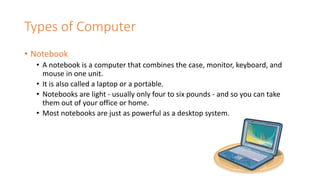
• Notebook
• A notebook is a computer that combines the case, monitor, keyboard, and
mouse in one unit.
• It is also called a laptop or a portable.
• Notebooks are light - usually only four to six pounds - and so you can take
them out of your office or home.
• Most notebooks are just as powerful as a desktop system.
Types of Computer
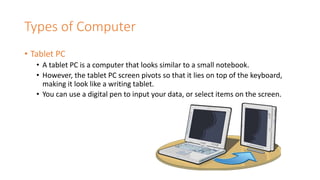
• Tablet PC
• A tablet PC is a computer that looks similar to a small notebook.
• However, the tablet PC screen pivots so that it lies on top of the keyboard,
making it look like a writing tablet.
• You can use a digital pen to input your data, or select items on the screen.
Types of Computer
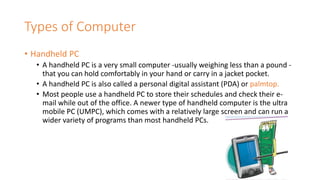
• Handheld PC
• A handheld PC is a very small computer -usually weighing less than a pound -
that you can hold comfortably in your hand or carry in a jacket pocket.
• A handheld PC is also called a personal digital assistant (PDA) or palmtop.
• Most people use a handheld PC to store their schedules and check their e-
mail while out of the office. A newer type of handheld computer is the ultra
mobile PC (UMPC), which comes with a relatively large screen and can run a
wider variety of programs than most handheld PCs.
Types of Computer
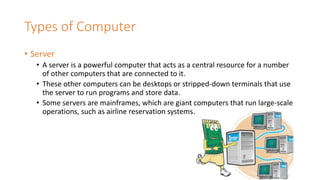
• Server
• A server is a powerful computer that acts as a central resource for a number
of other computers that are connected to it.
• These other computers can be desktops or stripped-down terminals that use
the server to run programs and store data.
• Some servers are mainframes, which are giant computers that run large-scale
operations, such as airline reservation systems.
Personal Computer
(main parts)
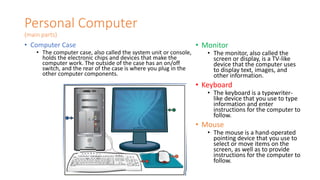
• Computer Case
• The computer case, also called the system unit or console,
holds the electronic chips and devices that make the
computer work. The outside of the case has an on/off
switch, and the rear of the case is where you plug in the
other computer components.
• Monitor
• The monitor, also called the
screen or display, is a TV-like
device that the computer uses
to display text, images, and
other information.
• Keyboard
• The keyboard is a typewriter-
like device that you use to type
information and enter
instructions for the computer to
follow.
• Mouse
• The mouse is a hand-operated
pointing device that you use to
select or move items on the
screen, as well as to provide
instructions for the computer to
follow.
Personal Computer
(personal computer accessories)
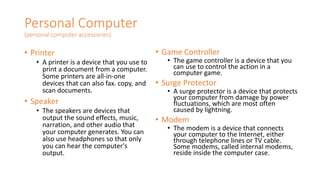
• Printer
• A printer is a device that you use to
print a document from a computer.
Some printers are all-in-one
devices that can also fax. copy, and
scan documents.
• Speaker
• The speakers are devices that
output the sound effects, music,
narration, and other audio that
your computer generates. You can
also use headphones so that only
you can hear the computer's
output.
• Game Controller
• The game controller is a device that you
can use to control the action in a
computer game.
• Surge Protector
• A surge protector is a device that protects
your computer from damage by power
fluctuations, which are most often
caused by lightning.
• Modem
• The modem is a device that connects
your computer to the Internet, either
through telephone lines or TV cable.
Some modems, called internal modems,
reside inside the computer case.
Personal Computer
(front of a personal computer)
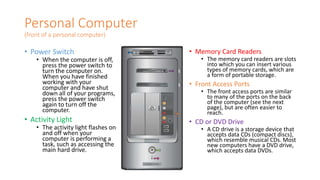
• Power Switch
• When the computer is off,
press the power switch to
turn the computer on.
When you have finished
working with your
computer and have shut
down all of your programs,
press the power switch
again to turn off the
computer.
• Activity Light
• The activity light flashes on
and off when your
computer is performing a
task, such as accessing the
main hard drive.
• Memory Card Readers
• The memory card readers are slots
into which you can insert various
types of memory cards, which are
a form of portable storage.
• Front Access Ports
• The front access ports are similar
to many of the ports on the back
of the computer (see the next
page), but are often easier to
reach.
• CD or DVD Drive
• A CD drive is a storage device that
accepts data CDs (compact discs),
which resemble musical CDs. Most
new computers have a DVD drive,
which accepts data DVDs.
Personal Computer
(personal computer ports)
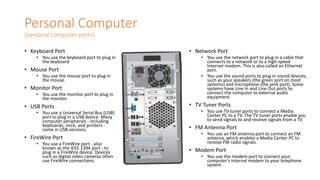
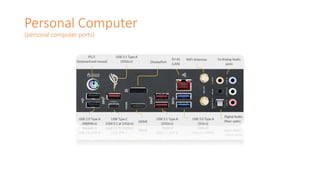
• Keyboard Port
• You use the keyboard port to plug in
the keyboard.
• Mouse Port
• You use the mouse port to plug in
the mouse.
• Monitor Port
• You use the monitor port to plug in
the monitor.
• USB Ports
• You use a Universal Serial Bus (USB)
port to plug in a USB device. Many
computer peripherals - including
keyboards, mice, and printers -
come in USB versions.
• FireWire Port
• You use a FireWire port - also
known as the IEEE 1394 port - to
plug in a FireWire device. Devices
such as digital video cameras often
use FireWire connections.
• Network Port
• You use the network port to plug in a cable that
connects to a network or to a high-speed
Internet modem. This is also called an Ethernet
port.
• You use the sound ports to plug in sound devices,
such as your speakers (the green port on most
systems) and microphone (the pink port). Some
systems have Line In and Line Out ports to
connect the computer to external audio
equipment.
• TV Tuner Ports
• You use TV tuner ports to connect a Media
Center PC to a TV. The TV tuner ports enable you
to send signals to and receive signals from a TV.
• FM Antenna Port
• You use an FM antenna port to connect an FM
antenna, which enables a Media Center PC to
receive FM radio signals.
• Modem Port
• You use the modem port to connect your
computer's internal modem to your telephone
system .
Personal Computer
(personal computer ports)
Computer Hardware
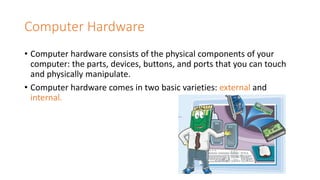
• Computer hardware consists of the physical components of your
computer: the parts, devices, buttons, and ports that you can touch
and physically manipulate.
• Computer hardware comes in two basic varieties: external and
internal.
Computer Hardware
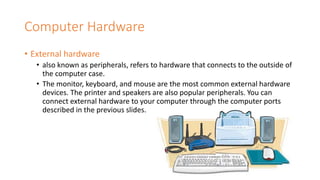
• External hardware
• also known as peripherals, refers to hardware that connects to the outside of
the computer case.
• The monitor, keyboard, and mouse are the most common external hardware
devices. The printer and speakers are also popular peripherals. You can
connect external hardware to your computer through the computer ports
described in the previous slides.
Computer Hardware
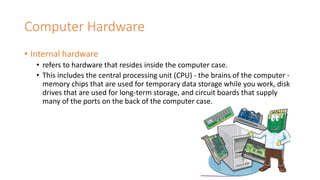
• Internal hardware
• refers to hardware that resides inside the computer case.
• This includes the central processing unit (CPU) - the brains of the computer -
memory chips that are used for temporary data storage while you work, disk
drives that are used for long-term storage, and circuit boards that supply
many of the ports on the back of the computer case.
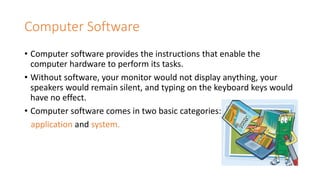
Computer Software
• Computer software provides the instructions that enable the
computer hardware to perform its tasks.
• Without software, your monitor would not display anything, your
speakers would remain silent, and typing on the keyboard keys would
have no effect.
• Computer software comes in two basic categories:
application and system.
Computer Software
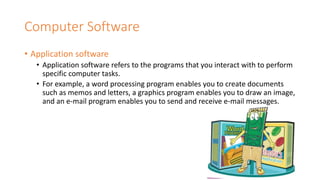
• Application software
• Application software refers to the programs that you interact with to perform
specific computer tasks.
• For example, a word processing program enables you to create documents
such as memos and letters, a graphics program enables you to draw an image,
and an e-mail program enables you to send and receive e-mail messages.
Computer Software
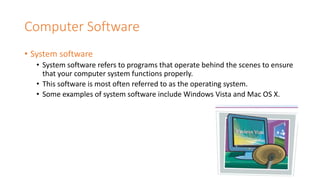
• System software
• System software refers to programs that operate behind the scenes to ensure
that your computer system functions properly.
• This software is most often referred to as the operating system.
• Some examples of system software include Windows Vista and Mac OS X.
Summary
• Computers, and all the technology related to them, are a part of
almost every aspect of modern life.
• If you understand computers, you can operate better in life.
• A knowledge of the foundation and fundamentals of technology and
computers makes it easier to keep up with future developments.
Any queries?

Introduction to Computers Detailed Notes

  • 1.
  • 2.
    Contents • Charles Babbage •Ada • Computer • Benefits of using a computer • What you can do with a computer • Types of computers • Tour the personal computer • Learn about computer hardware • Explore computer software
  • 3.
    Charles Babbage (1791-1871) •Charles Babbage invented the first calculating machine in 1830, known as the “analytical engine” • The first digital purpose computer • A programmable, mechanical, digital machine • Could carryout any calculation • Could make decisions based upon the results of the previous calculation • Components: input; memory; processor; output
  • 4.
    Ada, Countess ofLovelace(1815-52) • Babbage: the father of computing Ada: the mother? • Wrote a program for computing the Bernoulli’s sequence on the Analytical Engine - world’s 1st computer program • A programming language specifically designed by the US Dept of Defense for developing military applications was named Ada to honor her contributions towards computing
  • 5.
    Computer • A computeris a device that you can use to store, manipulate, and display text, numbers, images, and sounds. • A computer is an electronic device that is designed to work with information. • The computer takes information in, processes that information, and then displays the results. • In this way, a computer is similar to a calculator, except that even the smallest computer is much more versatile than the most powerful calculator is. • Computers operate at amazingly fast speeds, with a typical computer processing millions of calculations every second.
  • 6.
    Computer • Personal Computer •A personal computer is a small, relatively inexpensive computer that is designed for use by one person at a time. • It allows you to perform personal tasks such as creating documents, communicating with other people, and playing games. • The abbreviation PC is most often used to refer to computers that run the Microsoft Windows operating system, as well as to differentiate them from Macintosh computers.
  • 7.
    Benefits of Usinga Computer • A computer is a powerful and useful tool because it gives you a number of benefits, including the ability to produce high-quality work quickly. • It also enables you to learn new skills that are an important part of today's technological world. • Speed • Quality • New Skills
  • 8.
    Benefits of Usinga Computer • Speed • Computers allow you to perform many everyday tasks more quickly. For example, if you mail a letter to a friend, he or she may receive it in a few days. However, if you send an e-mail, it will be received in a few minutes. • Similarly, if you manually compose a newsletter, it may take you a week, whereas using a computer, it may take just an afternoon.
  • 9.
    Benefits of Usinga Computer • Quality • The tools that come with a computer enable you to create high-quality documents and drawings, even if you are not a typesetter or an artist. • With just a few simple techniques, you can create documents that look professional or are exactly suited to your present task.
  • 10.
    Benefits of Usinga Computer • New Skills • Because we live in a computer age, you often require basic computer skills to accomplish many daily tasks. • Typing on a keyboard, using a mouse, and other basic computer skills are useful in many different situations and are often required by employers.
  • 11.
    What you cando with a Computer • Most electronic devices - such as DVD players, camcorders, and personal stereos - only do one thing. • However, because computers are versatile by design, they enable you to do many things. • For example, you can use a computer to listen to music, watch movies, create flyers, research your family history, educate your children, and play games.
  • 12.
    What you cando with a Computer • Create documents • You can use your computer to create letters, resumes, memos, reports, newsletters, brochures, business cards, menus, flyers, invitations, and certificates. • Anything that you use to communicate on paper, you can create using your computer.
  • 13.
    What you cando with a Computer • Monitor your finances • You can use your computer to perform basic financial management. • For example, you can create a budget, record expenses, balance your checkbook, and calculate your taxes. • If you run a small business, you can allocate income and expenses, create financial reports, and calculate your profit and loss.
  • 14.
    What you cando with a Computer • Perform research • You can use your computer and the Internet to research almost any topic that you can think of. • For example, you can learn more about a vacation destination, trace your family history, access back issues of newspapers and magazines, and compare products before you buy them.
  • 15.
    What you cando with a Computer • Work with numbers • You can use a spreadsheet program to work with numbers on your computer. • For example, you can create a schedule, calculate how much money you need to save for retirement, monitor an investment portfolio, and create a business plan.
  • 16.
    What you cando with a Computer • Store data • You can use your computer, and the appropriate software, to store and work with large amounts of data. • You can track personal items such as CDs, recipes, contact information for friends and relatives, and fitness activities. • For business, you can track clients and potential clients, inventory, products, and orders.
  • 17.
    What you cando with a Computer • Schedule your time • You can use your computer as an electronic Day-Timer to record upcoming activities, birthdays, anniversaries, events, meetings, and appointments. • You can also set up some scheduling programs to remind you of approaching events so that you do not forget them.
  • 18.
    What you cando with a Computer • Teach your children • You can use your computer to help educate your children. • Many programs available are designed to assist children with reading, drawing, learning math and science, solving problems, and enhancing creativity.
  • 19.
    What you cando with a Computer • Learn new life skills • You can use your computer to learn new life skills. • Programs are available that teach you how to speak a different language, play chess, cook, design a home, play a musical instrument, and design and make clothes.
  • 20.
    What you cando with a Computer • Make new friends • You can use your computer and the Internet to enhance your social life. • You can chat with other people by typing messages to them, join mailing lists, and find support groups.
  • 21.
    What you cando with a Computer • Keep in touch • You can use your computer to communicate with friends, family, colleagues, and clients who you do not often see face to face. • You can send e-mail messages and instant messages, and you can even talk to another person using a microphone and your computer's speakers.
  • 22.
    What you cando with a Computer • Buy and sell • You can use your computer and the Internet to buy and sell things. Many online stores enable you to purchase anything, from books to baby accessories, and have it delivered to your door. • There are also auction sites, such as eBay, that enable you to sell items that you create or that you no longer need.
  • 23.
    What you cando with a Computer • Create items • You can use your computer to bring out your creative side. • For example, you can create your own greeting cards or wedding invitations, draw pictures, manipulate digital photos, edit digital movies, record sounds, and compose music.
  • 24.
    What you cando with a Computer • Play media • You can use your computer to play digital media, including music CDs, audio files, video files, animations, DVDs, music, and movies that you have downloaded from the Internet.
  • 25.
    What you cando with a Computer • Play games • You can use your computer to play many different types of games. • You can solve a puzzle, fly a plane, race a car, go on an adventure, play football or baseball, battle aliens, and plan a city, or deal poker.
  • 26.
    Types of Computer •When selecting a computer that is best for your needs, you should consider what purpose it will serve in your home or business, and whether it should be mobile for travel. • Desktop • Notebook • Tablet PC • Handheld PC • Server
  • 27.
    Types of Computer •Desktop • A desktop is by far the most common type of computer. • Most desktop systems come with a separate computer case, monitor, keyboard, and mouse. • On older desktops, the computer case lies flat on the desk with the monitor sitting on top. • Almost all newer systems use a tower case that sits upright. You can place this case either on a desk or on the floor. • Many newer desktops are Media Center PCs that enable you to play movies, view pictures, and listen to music through your TV and stereo.
  • 28.
    Types of Computer •Notebook • A notebook is a computer that combines the case, monitor, keyboard, and mouse in one unit. • It is also called a laptop or a portable. • Notebooks are light - usually only four to six pounds - and so you can take them out of your office or home. • Most notebooks are just as powerful as a desktop system.
  • 29.
    Types of Computer •Tablet PC • A tablet PC is a computer that looks similar to a small notebook. • However, the tablet PC screen pivots so that it lies on top of the keyboard, making it look like a writing tablet. • You can use a digital pen to input your data, or select items on the screen.
  • 30.
    Types of Computer •Handheld PC • A handheld PC is a very small computer -usually weighing less than a pound - that you can hold comfortably in your hand or carry in a jacket pocket. • A handheld PC is also called a personal digital assistant (PDA) or palmtop. • Most people use a handheld PC to store their schedules and check their e- mail while out of the office. A newer type of handheld computer is the ultra mobile PC (UMPC), which comes with a relatively large screen and can run a wider variety of programs than most handheld PCs.
  • 31.
    Types of Computer •Server • A server is a powerful computer that acts as a central resource for a number of other computers that are connected to it. • These other computers can be desktops or stripped-down terminals that use the server to run programs and store data. • Some servers are mainframes, which are giant computers that run large-scale operations, such as airline reservation systems.
  • 32.
    Personal Computer (main parts) •Computer Case • The computer case, also called the system unit or console, holds the electronic chips and devices that make the computer work. The outside of the case has an on/off switch, and the rear of the case is where you plug in the other computer components. • Monitor • The monitor, also called the screen or display, is a TV-like device that the computer uses to display text, images, and other information. • Keyboard • The keyboard is a typewriter- like device that you use to type information and enter instructions for the computer to follow. • Mouse • The mouse is a hand-operated pointing device that you use to select or move items on the screen, as well as to provide instructions for the computer to follow.
  • 33.
    Personal Computer (personal computeraccessories) • Printer • A printer is a device that you use to print a document from a computer. Some printers are all-in-one devices that can also fax. copy, and scan documents. • Speaker • The speakers are devices that output the sound effects, music, narration, and other audio that your computer generates. You can also use headphones so that only you can hear the computer's output. • Game Controller • The game controller is a device that you can use to control the action in a computer game. • Surge Protector • A surge protector is a device that protects your computer from damage by power fluctuations, which are most often caused by lightning. • Modem • The modem is a device that connects your computer to the Internet, either through telephone lines or TV cable. Some modems, called internal modems, reside inside the computer case.
  • 34.
    Personal Computer (front ofa personal computer) • Power Switch • When the computer is off, press the power switch to turn the computer on. When you have finished working with your computer and have shut down all of your programs, press the power switch again to turn off the computer. • Activity Light • The activity light flashes on and off when your computer is performing a task, such as accessing the main hard drive. • Memory Card Readers • The memory card readers are slots into which you can insert various types of memory cards, which are a form of portable storage. • Front Access Ports • The front access ports are similar to many of the ports on the back of the computer (see the next page), but are often easier to reach. • CD or DVD Drive • A CD drive is a storage device that accepts data CDs (compact discs), which resemble musical CDs. Most new computers have a DVD drive, which accepts data DVDs.
  • 35.
    Personal Computer (personal computerports) • Keyboard Port • You use the keyboard port to plug in the keyboard. • Mouse Port • You use the mouse port to plug in the mouse. • Monitor Port • You use the monitor port to plug in the monitor. • USB Ports • You use a Universal Serial Bus (USB) port to plug in a USB device. Many computer peripherals - including keyboards, mice, and printers - come in USB versions. • FireWire Port • You use a FireWire port - also known as the IEEE 1394 port - to plug in a FireWire device. Devices such as digital video cameras often use FireWire connections. • Network Port • You use the network port to plug in a cable that connects to a network or to a high-speed Internet modem. This is also called an Ethernet port. • You use the sound ports to plug in sound devices, such as your speakers (the green port on most systems) and microphone (the pink port). Some systems have Line In and Line Out ports to connect the computer to external audio equipment. • TV Tuner Ports • You use TV tuner ports to connect a Media Center PC to a TV. The TV tuner ports enable you to send signals to and receive signals from a TV. • FM Antenna Port • You use an FM antenna port to connect an FM antenna, which enables a Media Center PC to receive FM radio signals. • Modem Port • You use the modem port to connect your computer's internal modem to your telephone system .
  • 36.
  • 37.
    Computer Hardware • Computerhardware consists of the physical components of your computer: the parts, devices, buttons, and ports that you can touch and physically manipulate. • Computer hardware comes in two basic varieties: external and internal.
  • 38.
    Computer Hardware • Externalhardware • also known as peripherals, refers to hardware that connects to the outside of the computer case. • The monitor, keyboard, and mouse are the most common external hardware devices. The printer and speakers are also popular peripherals. You can connect external hardware to your computer through the computer ports described in the previous slides.
  • 39.
    Computer Hardware • Internalhardware • refers to hardware that resides inside the computer case. • This includes the central processing unit (CPU) - the brains of the computer - memory chips that are used for temporary data storage while you work, disk drives that are used for long-term storage, and circuit boards that supply many of the ports on the back of the computer case.
  • 40.
    Computer Software • Computersoftware provides the instructions that enable the computer hardware to perform its tasks. • Without software, your monitor would not display anything, your speakers would remain silent, and typing on the keyboard keys would have no effect. • Computer software comes in two basic categories: application and system.
  • 41.
    Computer Software • Applicationsoftware • Application software refers to the programs that you interact with to perform specific computer tasks. • For example, a word processing program enables you to create documents such as memos and letters, a graphics program enables you to draw an image, and an e-mail program enables you to send and receive e-mail messages.
  • 42.
    Computer Software • Systemsoftware • System software refers to programs that operate behind the scenes to ensure that your computer system functions properly. • This software is most often referred to as the operating system. • Some examples of system software include Windows Vista and Mac OS X.
  • 43.
    Summary • Computers, andall the technology related to them, are a part of almost every aspect of modern life. • If you understand computers, you can operate better in life. • A knowledge of the foundation and fundamentals of technology and computers makes it easier to keep up with future developments.
  • 44.