Communication Tracker
Managing Communications Centrally
Screenshots
Communication... Shared understanding!
© Acism Software Private Limited, All rights reserved
Project List View
This is the first page that a user lands on. It shows the
projects that are assigned to the user. A project is nothing
but a communication room where all assigned users can
communicate with one another, and all assigned users
have access to all communication within the room.
The count of open tasks
(high, medium and low
priority) is also visible. The
project progress is
calculated from the effort
requirement of open and
closed tasks in the project.
The count of green, yellow and red
discussions in a project denotes the
health of the communication in each
project. Red indicates someone being
upset, Green indicates normal tone and
Yellow would be something inbetween.
Project View
Up to 5 recent tasks and up to 5 recent
discussions in the project are shown on the
project page. More can be seen by clicking the
'More' link (not seen).
The presence of a
Clock icon indicates
an effort driven
task. If you are
assigned to the
task, then you can
log effort by clicking
on it.
Based on the due date, the progress and possibly
the effort in case of the effort driven task, whether a
task is ahead of schedule or behind schedule is
estimated.
Starting a Discussion
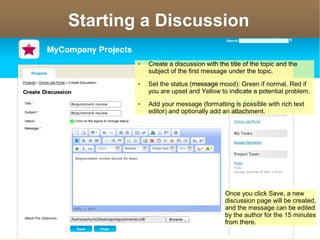
 Create a discussion with the title of the topic and the
subject of the first message under the topic.
 Set the status (message mood): Green if normal, Red if
you are upset and Yellow to indicate a potential problem.
 Add your message (formatting is possible with rich text
editor) and optionally add an attachment.
Once you click Save, a new
discussion page will be created,
and the message can be edited
by the author for the 15 minutes
from there.
Replying to a Discussion
 One can go to the Discussion page and
add the reply (a message).
 The status (mood) of the last message in a
Discussion defines the status of the entire
discussion.
 The message is editable by the author for
15 minutes.
 A message can be linked from outside.
The url can be obtained.
 A message may be moved to another
discussion by the Project Manager as
considered appropriate.
Creating a Task
If a task is effort driven, then
the assignees will be able to log
their effort against the task as it
progresses.
A task is a to-do item. Set the due
date, priority, and assign it to the
right people.
Task View
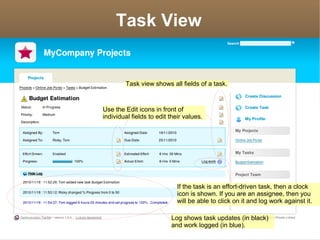
Task view shows all fields of a task.
Use the Edit icons in front of
individual fields to edit their values.
Log shows task updates (in black)
and work logged (in blue).
If the task is an effort-driven task, then a clock
icon is shown. If you are an assignee, then you
will be able to click on it and log work against it.
Adding Work Log to a Task
A user assigned to a task adds work log to it. It involves
entering the description, actual time taken and % progress.
Search Results
The search is made across all the messages and tasks
under the projects to which the user has access.
User Profile
Editing one's own profile and preferences.
Adding a Project (Admin only)
A Project may be considered as a
Communication room, where Users
assigned to it can inter-communicate.
Adding a User (Admin only)
Admin can add a user to the
Communication Tracker, and set
the user's profile and preference
information.
User Assignment (Admin only)
Assigning a user to project gives the user access to all the communication
that happens in the project.
The role that the user will play in the project is identified.
There is no differentiation between internal or external user. All roles
are functionally equal – except the Project Manager role, which has
special permission within the context of the project.
Settings (Admin only)
These settings have effect across the instance (site).
The logo and the header text
may be changed for branding.
Control over whether email alerts get only
the hyperlink to the message or also the
message contents.
Email Alerts
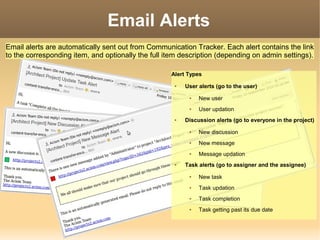
Alert Types
 User alerts (go to the user)
 New user
 User updation
 Discussion alerts (go to everyone in the project)
 New discussion
 New message
 Message updation
 Task alerts (go to assigner and the assignee)
 New task
 Task updation
 Task completion
 Task getting past its due date
Email alerts are automatically sent out from Communication Tracker. Each alert contains the link
to the corresponding item, and optionally the full item description (depending on admin settings).
Thank you
 Sales: sales@acism.com
 Order: billing@acism.com
 Feature request/ Support: support@acism.com
Acism Software Private Limited
http://www.acism.com

Communication Tracker Screenshots

  • 1.
  • 2.
    Project List View Thisis the first page that a user lands on. It shows the projects that are assigned to the user. A project is nothing but a communication room where all assigned users can communicate with one another, and all assigned users have access to all communication within the room. The count of open tasks (high, medium and low priority) is also visible. The project progress is calculated from the effort requirement of open and closed tasks in the project. The count of green, yellow and red discussions in a project denotes the health of the communication in each project. Red indicates someone being upset, Green indicates normal tone and Yellow would be something inbetween.
  • 3.
    Project View Up to5 recent tasks and up to 5 recent discussions in the project are shown on the project page. More can be seen by clicking the 'More' link (not seen). The presence of a Clock icon indicates an effort driven task. If you are assigned to the task, then you can log effort by clicking on it. Based on the due date, the progress and possibly the effort in case of the effort driven task, whether a task is ahead of schedule or behind schedule is estimated.
  • 4.
    Starting a Discussion Create a discussion with the title of the topic and the subject of the first message under the topic.  Set the status (message mood): Green if normal, Red if you are upset and Yellow to indicate a potential problem.  Add your message (formatting is possible with rich text editor) and optionally add an attachment. Once you click Save, a new discussion page will be created, and the message can be edited by the author for the 15 minutes from there.
  • 5.
    Replying to aDiscussion  One can go to the Discussion page and add the reply (a message).  The status (mood) of the last message in a Discussion defines the status of the entire discussion.  The message is editable by the author for 15 minutes.  A message can be linked from outside. The url can be obtained.  A message may be moved to another discussion by the Project Manager as considered appropriate.
  • 6.
    Creating a Task Ifa task is effort driven, then the assignees will be able to log their effort against the task as it progresses. A task is a to-do item. Set the due date, priority, and assign it to the right people.
  • 7.
    Task View Task viewshows all fields of a task. Use the Edit icons in front of individual fields to edit their values. Log shows task updates (in black) and work logged (in blue). If the task is an effort-driven task, then a clock icon is shown. If you are an assignee, then you will be able to click on it and log work against it.
  • 8.
    Adding Work Logto a Task A user assigned to a task adds work log to it. It involves entering the description, actual time taken and % progress.
  • 9.
    Search Results The searchis made across all the messages and tasks under the projects to which the user has access.
  • 10.
    User Profile Editing one'sown profile and preferences.
  • 11.
    Adding a Project(Admin only) A Project may be considered as a Communication room, where Users assigned to it can inter-communicate.
  • 12.
    Adding a User(Admin only) Admin can add a user to the Communication Tracker, and set the user's profile and preference information.
  • 13.
    User Assignment (Adminonly) Assigning a user to project gives the user access to all the communication that happens in the project. The role that the user will play in the project is identified. There is no differentiation between internal or external user. All roles are functionally equal – except the Project Manager role, which has special permission within the context of the project.
  • 14.
    Settings (Admin only) Thesesettings have effect across the instance (site). The logo and the header text may be changed for branding. Control over whether email alerts get only the hyperlink to the message or also the message contents.
  • 15.
    Email Alerts Alert Types User alerts (go to the user)  New user  User updation  Discussion alerts (go to everyone in the project)  New discussion  New message  Message updation  Task alerts (go to assigner and the assignee)  New task  Task updation  Task completion  Task getting past its due date Email alerts are automatically sent out from Communication Tracker. Each alert contains the link to the corresponding item, and optionally the full item description (depending on admin settings).
  • 16.
    Thank you  Sales:sales@acism.com  Order: billing@acism.com  Feature request/ Support: support@acism.com Acism Software Private Limited http://www.acism.com