© Acism Software Private Limited, Pune, india
Getting Started and Basic AdministrationGetting Started and Basic Administration
Step by Step GuideStep by Step Guide
Acism Software Private Limited, India
Web: http://kommbox.com
Email: sales@kommbox.com
Twitter: @kommbox
Facebook: Kommbox
Google+: +Kommbox
© Acism Software Private Limited, Pune, india
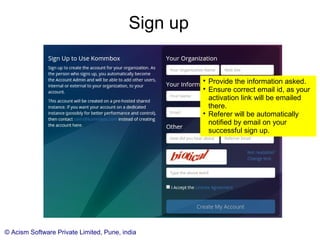
Sign up

Provide the information asked.

Ensure correct email id, as your
activation link will be emailed
there.

Referer will be automatically
notified by email on your
successful sign up.
© Acism Software Private Limited, Pune, india
Activation & One Time Setup

Click on the activation link provided to you in
email. You will be prompted to set your
password.

You can then log in to your new account with
your email id and password.

You will be taken to the One Time Setup.
© Acism Software Private Limited, Pune, india
Follow the instructions and complete all the 3 steps. Your initial
few kommboxes and users should be in place after that.
One Time Setup
© Acism Software Private Limited, Pune, india
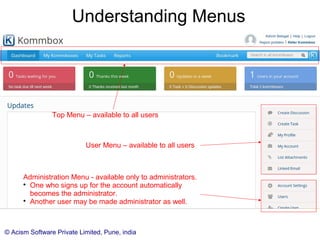
Understanding Menus
User Menu – available to all users
Administration Menu - available only to administrators.

One who signs up for the account automatically
becomes the administrator.

Another user may be made administrator as well.
Top Menu – available to all users
© Acism Software Private Limited, Pune, india
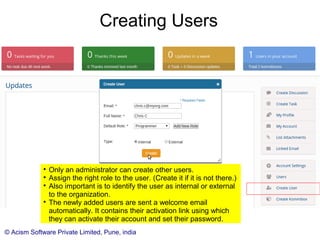
Creating Users

Only an administrator can create other users.

Assign the right role to the user. (Create it if it is not there.)

Also important is to identify the user as internal or external
to the organization.

The newly added users are sent a welcome email
automatically. It contains their activation link using which
they can activate their account and set their password.
© Acism Software Private Limited, Pune, india
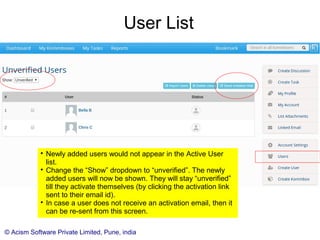
User List

Newly added users would not appear in the Active User
list.

Change the “Show” dropdown to “unverified”. The newly
added users will now be shown. They will stay “unverified”
till they activate themselves (by clicking the activation link
sent to their email id).

In case a user does not receive an activation email, then it
can be re-sent from this screen.
© Acism Software Private Limited, Pune, india
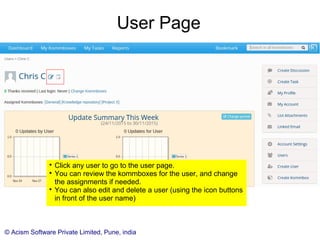
User Page

Click any user to go to the user page.

You can review the kommboxes for the user, and change
the assignments if needed.

You can also edit and delete a user (using the icon buttons
in front of the user name)
© Acism Software Private Limited, Pune, india
Editing a User

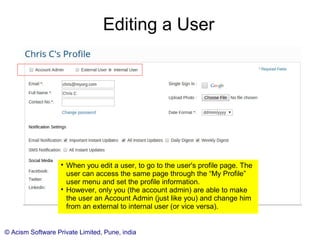
When you edit a user, to go to the user's profile page. The
user can access the same page through the “My Profile”
user menu and set the profile information.

However, only you (the account admin) are able to make
the user an Account Admin (just like you) and change him
from an external to internal user (or vice versa).
© Acism Software Private Limited, Pune, india
Creating a kommbox

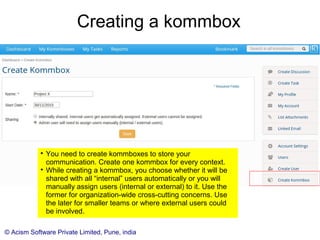
You need to create kommboxes to store your
communication. Create one kommbox for every context.

While creating a kommbox, you choose whether it will be
shared with all “internal” users automatically or you will
manually assign users (internal or external) to it. Use the
former for organization-wide cross-cutting concerns. Use
the later for smaller teams or where external users could
be involved.
© Acism Software Private Limited, Pune, india
Assigning Users to the kommbox

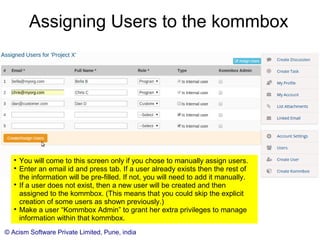
You will come to this screen only if you chose to manually assign users.

Enter an email id and press tab. If a user already exists then the rest of
the information will be pre-filled. If not, you will need to add it manually.

If a user does not exist, then a new user will be created and then
assigned to the kommbox. (This means that you could skip the explicit
creation of some users as shown previously.)

Make a user “Kommbox Admin” to grant her extra privileges to manage
information within that kommbox.
© Acism Software Private Limited, Pune, india
Reviewing kommboxes

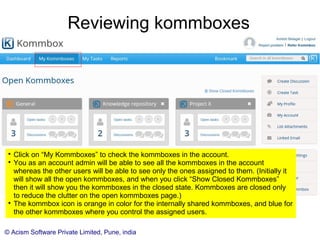
Click on “My Kommboxes” to check the kommboxes in the account.

You as an account admin will be able to see all the kommboxes in the account whereas
the other users will be able to see only the ones assigned to them. (Initially it will show
all the open kommboxes, and when you click “Show Closed Kommboxes” then it will
show you the kommboxes in the closed state. Kommboxes are closed only to reduce
the clutter on the open kommboxes page.)

The kommbox icon is orange in color for the internally shared kommboxes, and blue for
the other kommboxes where you control the assigned users.
© Acism Software Private Limited, Pune, india
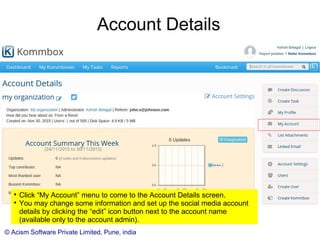
Account Details

Click “My Account” menu to come to the Account Details screen.

You may change some information and set up the social media account
details by clicking the “edit” icon button next to the account name
(available only to the account admin).
© Acism Software Private Limited, Pune, india
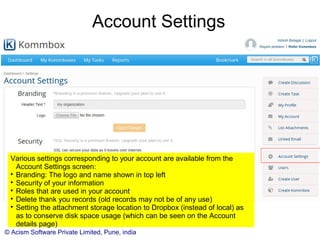
Account Settings
Various settings corresponding to your account are available from the
Account Settings screen:

Branding: The logo and name shown in top left

Security of your information

Roles that are used in your account

Delete thank you records (old records may not be of any use)

Setting the attachment storage location to Dropbox (instead of local) as
as to conserve disk space usage (which can be seen on the Account
details page)
© Acism Software Private Limited, Pune, india
You are done!

We covered the essentials about signing up
and basic administration of your account.

If you face any issue, write to us at
support@kommbox.com

Kommbox: Getting Started and Basic Administration Guide

  • 1.
    © Acism SoftwarePrivate Limited, Pune, india Getting Started and Basic AdministrationGetting Started and Basic Administration Step by Step GuideStep by Step Guide Acism Software Private Limited, India Web: http://kommbox.com Email: sales@kommbox.com Twitter: @kommbox Facebook: Kommbox Google+: +Kommbox
  • 2.
    © Acism SoftwarePrivate Limited, Pune, india Sign up  Provide the information asked.  Ensure correct email id, as your activation link will be emailed there.  Referer will be automatically notified by email on your successful sign up.
  • 3.
    © Acism SoftwarePrivate Limited, Pune, india Activation & One Time Setup  Click on the activation link provided to you in email. You will be prompted to set your password.  You can then log in to your new account with your email id and password.  You will be taken to the One Time Setup.
  • 4.
    © Acism SoftwarePrivate Limited, Pune, india Follow the instructions and complete all the 3 steps. Your initial few kommboxes and users should be in place after that. One Time Setup
  • 5.
    © Acism SoftwarePrivate Limited, Pune, india Understanding Menus User Menu – available to all users Administration Menu - available only to administrators.  One who signs up for the account automatically becomes the administrator.  Another user may be made administrator as well. Top Menu – available to all users
  • 6.
    © Acism SoftwarePrivate Limited, Pune, india Creating Users  Only an administrator can create other users.  Assign the right role to the user. (Create it if it is not there.)  Also important is to identify the user as internal or external to the organization.  The newly added users are sent a welcome email automatically. It contains their activation link using which they can activate their account and set their password.
  • 7.
    © Acism SoftwarePrivate Limited, Pune, india User List  Newly added users would not appear in the Active User list.  Change the “Show” dropdown to “unverified”. The newly added users will now be shown. They will stay “unverified” till they activate themselves (by clicking the activation link sent to their email id).  In case a user does not receive an activation email, then it can be re-sent from this screen.
  • 8.
    © Acism SoftwarePrivate Limited, Pune, india User Page  Click any user to go to the user page.  You can review the kommboxes for the user, and change the assignments if needed.  You can also edit and delete a user (using the icon buttons in front of the user name)
  • 9.
    © Acism SoftwarePrivate Limited, Pune, india Editing a User  When you edit a user, to go to the user's profile page. The user can access the same page through the “My Profile” user menu and set the profile information.  However, only you (the account admin) are able to make the user an Account Admin (just like you) and change him from an external to internal user (or vice versa).
  • 10.
    © Acism SoftwarePrivate Limited, Pune, india Creating a kommbox  You need to create kommboxes to store your communication. Create one kommbox for every context.  While creating a kommbox, you choose whether it will be shared with all “internal” users automatically or you will manually assign users (internal or external) to it. Use the former for organization-wide cross-cutting concerns. Use the later for smaller teams or where external users could be involved.
  • 11.
    © Acism SoftwarePrivate Limited, Pune, india Assigning Users to the kommbox  You will come to this screen only if you chose to manually assign users.  Enter an email id and press tab. If a user already exists then the rest of the information will be pre-filled. If not, you will need to add it manually.  If a user does not exist, then a new user will be created and then assigned to the kommbox. (This means that you could skip the explicit creation of some users as shown previously.)  Make a user “Kommbox Admin” to grant her extra privileges to manage information within that kommbox.
  • 12.
    © Acism SoftwarePrivate Limited, Pune, india Reviewing kommboxes  Click on “My Kommboxes” to check the kommboxes in the account.  You as an account admin will be able to see all the kommboxes in the account whereas the other users will be able to see only the ones assigned to them. (Initially it will show all the open kommboxes, and when you click “Show Closed Kommboxes” then it will show you the kommboxes in the closed state. Kommboxes are closed only to reduce the clutter on the open kommboxes page.)  The kommbox icon is orange in color for the internally shared kommboxes, and blue for the other kommboxes where you control the assigned users.
  • 13.
    © Acism SoftwarePrivate Limited, Pune, india Account Details  Click “My Account” menu to come to the Account Details screen.  You may change some information and set up the social media account details by clicking the “edit” icon button next to the account name (available only to the account admin).
  • 14.
    © Acism SoftwarePrivate Limited, Pune, india Account Settings Various settings corresponding to your account are available from the Account Settings screen:  Branding: The logo and name shown in top left  Security of your information  Roles that are used in your account  Delete thank you records (old records may not be of any use)  Setting the attachment storage location to Dropbox (instead of local) as as to conserve disk space usage (which can be seen on the Account details page)
  • 15.
    © Acism SoftwarePrivate Limited, Pune, india You are done!  We covered the essentials about signing up and basic administration of your account.  If you face any issue, write to us at support@kommbox.com