Colin Dockerty Task2 Work flow 
Creating my sprite 
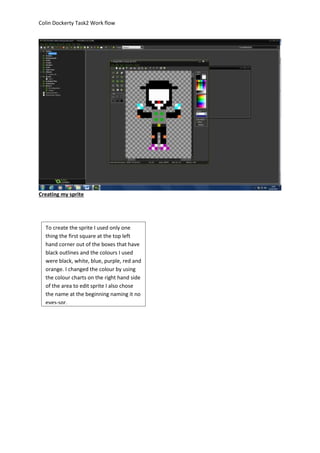
To create the sprite I used only one 
thing the first square at the top left 
hand corner out of the boxes that have 
black outlines and the colours I used 
were black, white, blue, purple, red and 
orange. I changed the colour by using 
the colour charts on the right hand side 
of the area to edit sprite I also chose 
the name at the beginning naming it no 
eyes-spr.
Colin Dockerty Task2 Work flow 
Sprite properties 
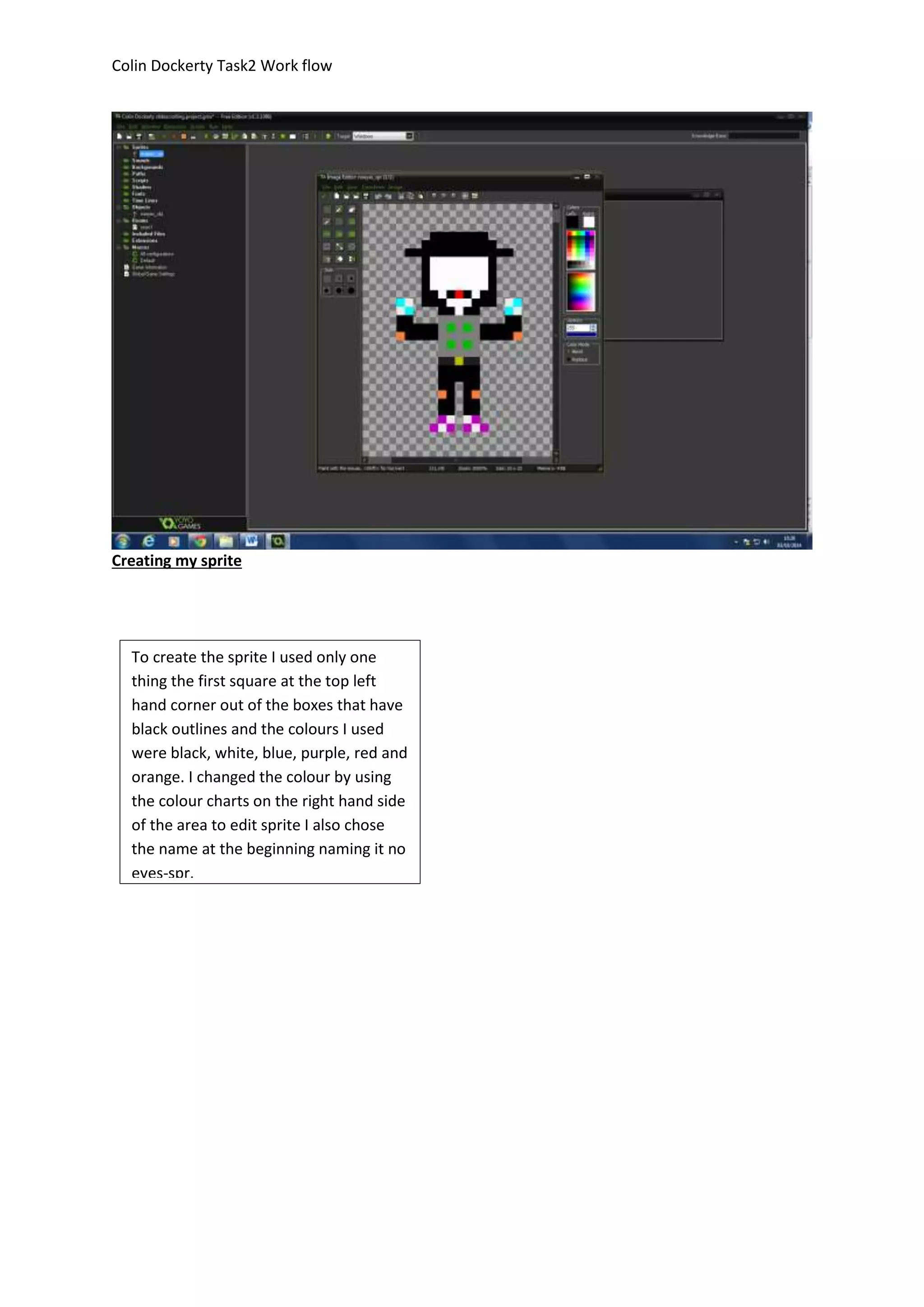
In the sprite properties before I got started on the object I first named it noeyes_obj 
and set the origin coordinates to centre so everything that went on was based in the 
centre. After I set the origin I hovered over the collision mask then I clicked on 
modify mask and I left it set on the rectangle shape then clicked the tick box to say I 
finished it.
Colin Dockerty Task2 Work flow 
Creating object and Coding keyboard controls
Colin Dockerty Task2 Work flow 
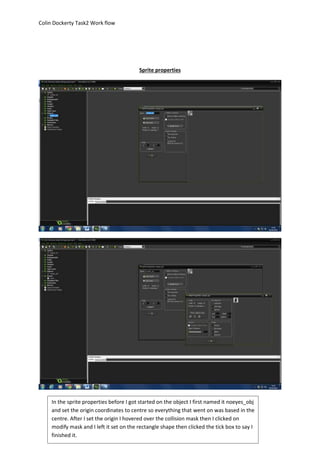
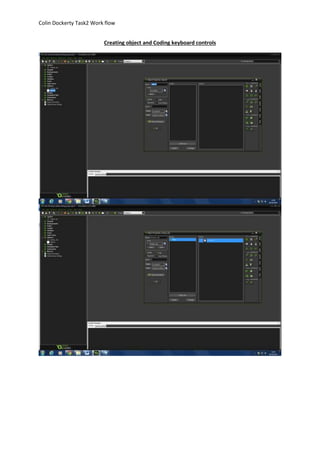
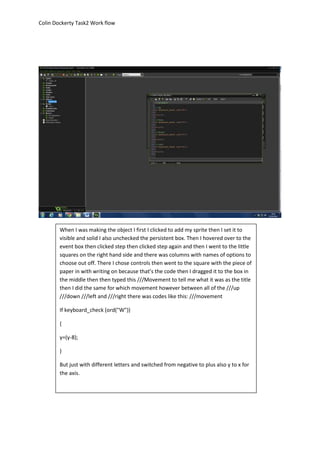
When I was making the object I first I clicked to add my sprite then I set it to 
visible and solid I also unchecked the persistent box. Then I hovered over to the 
event box then clicked step then clicked step again and then I went to the little 
squares on the right hand side and there was columns with names of options to 
choose out off. There I chose controls then went to the square with the piece of 
paper in with writing on because that’s the code then I dragged it to the box in 
the middle then then typed this ///Movement to tell me what it was as the title 
then I did the same for which movement however between all of the ///up 
///down ///left and ///right there was codes like this: ///movement 
If keyboard_check (ord("W")) 
{ 
y=(y-8); 
} 
But just with different letters and switched from negative to plus also y to x for 
the axis.
Colin Dockerty Task2 Work flow 
Creating a room 
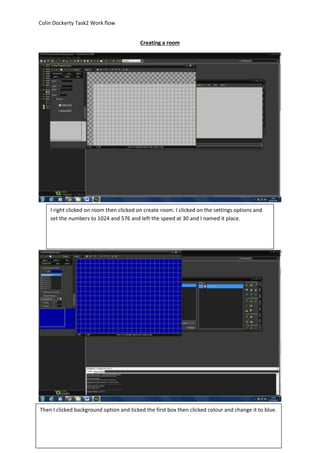
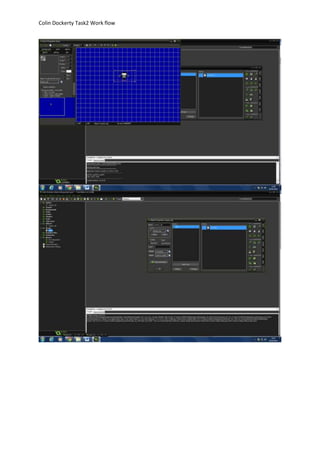
I right clicked on room then clicked on create room. I clicked on the settings options and 
set the numbers to 1024 and 576 and left the speed at 30 and I named it place. 
Then I clicked background option and ticked the first box then clicked colour and change it to blue.
Colin Dockerty Task2 Work flow
Colin Dockerty Task2 Work flow 
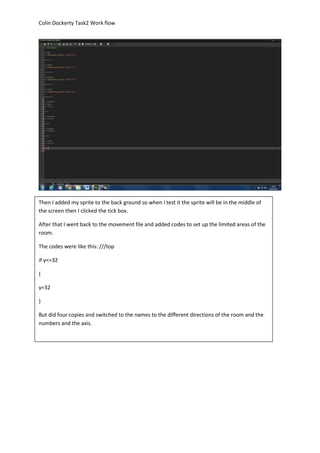
Then I added my sprite to the back ground so when I test it the sprite will be in the middle of 
the screen then I clicked the tick box. 
After that I went back to the movement file and added codes to set up the limited areas of the 
room. 
The codes were like this: ///top 
if y<=32 
{ 
y=32 
} 
But did four copies and switched to the names to the different directions of the room and the 
numbers and the axis.
Colin Dockerty Task2 Work flow 
Creating a scrooling background 
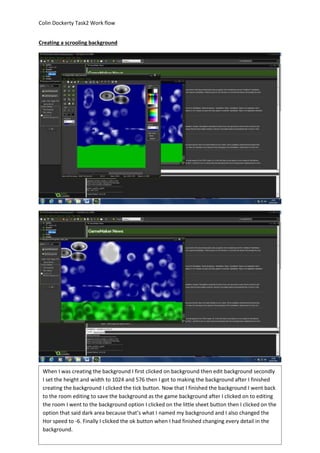
When I was creating the background I first clicked on background then edit background secondly 
I set the height and width to 1024 and 576 then I got to making the background after I finished 
creating the background I clicked the tick button. Now that I finished the background I went back 
to the room editing to save the background as the game background after I clicked on to editing 
the room I went to the background option I clicked on the little sheet button then I clicked on the 
option that said dark area because that’s what I named my background and I also changed the 
Hor speed to -6. Finally I clicked the ok button when I had finished changing every detail in the 
background.
Colin Dockerty Task2 Work flow 
Particle system effect
Colin Dockerty Task2 Work flow
Colin Dockerty Task2 Work flow 
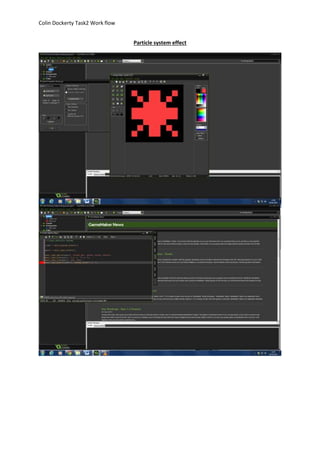
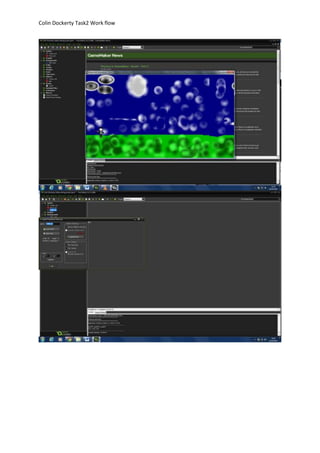
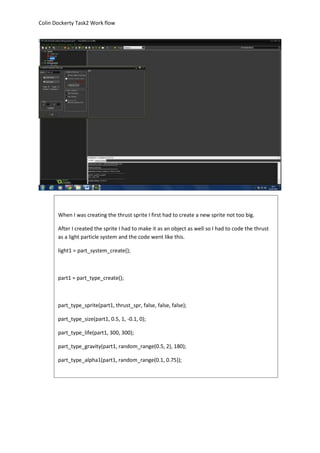
When I was creating the thrust sprite I first had to create a new sprite not too big. 
After I created the sprite I had to make it as an object as well so I had to code the thrust 
as a light particle system and the code went like this. 
light1 = part_system_create(); 
part1 = part_type_create(); 
part_type_sprite(part1, thrust_spr, false, false, false); 
part_type_size(part1, 0.5, 1, -0.1, 0); 
part_type_life(part1, 300, 300); 
part_type_gravity(part1, random_range(0.5, 2), 180); 
part_type_alpha1(part1, random_range(0.1, 0.75)); 
part_system_depth(light1, 2); 
part_particles_create(light1, noeyes_obj.x-18, noeyes_obj.y, part1, 10)

Colin dockerty task2 workflow

  • 1.
    Colin Dockerty Task2Work flow Creating my sprite To create the sprite I used only one thing the first square at the top left hand corner out of the boxes that have black outlines and the colours I used were black, white, blue, purple, red and orange. I changed the colour by using the colour charts on the right hand side of the area to edit sprite I also chose the name at the beginning naming it no eyes-spr.
  • 2.
    Colin Dockerty Task2Work flow Sprite properties In the sprite properties before I got started on the object I first named it noeyes_obj and set the origin coordinates to centre so everything that went on was based in the centre. After I set the origin I hovered over the collision mask then I clicked on modify mask and I left it set on the rectangle shape then clicked the tick box to say I finished it.
  • 3.
    Colin Dockerty Task2Work flow Creating object and Coding keyboard controls
  • 4.
    Colin Dockerty Task2Work flow When I was making the object I first I clicked to add my sprite then I set it to visible and solid I also unchecked the persistent box. Then I hovered over to the event box then clicked step then clicked step again and then I went to the little squares on the right hand side and there was columns with names of options to choose out off. There I chose controls then went to the square with the piece of paper in with writing on because that’s the code then I dragged it to the box in the middle then then typed this ///Movement to tell me what it was as the title then I did the same for which movement however between all of the ///up ///down ///left and ///right there was codes like this: ///movement If keyboard_check (ord("W")) { y=(y-8); } But just with different letters and switched from negative to plus also y to x for the axis.
  • 5.
    Colin Dockerty Task2Work flow Creating a room I right clicked on room then clicked on create room. I clicked on the settings options and set the numbers to 1024 and 576 and left the speed at 30 and I named it place. Then I clicked background option and ticked the first box then clicked colour and change it to blue.
  • 6.
  • 7.
    Colin Dockerty Task2Work flow Then I added my sprite to the back ground so when I test it the sprite will be in the middle of the screen then I clicked the tick box. After that I went back to the movement file and added codes to set up the limited areas of the room. The codes were like this: ///top if y<=32 { y=32 } But did four copies and switched to the names to the different directions of the room and the numbers and the axis.
  • 8.
    Colin Dockerty Task2Work flow Creating a scrooling background When I was creating the background I first clicked on background then edit background secondly I set the height and width to 1024 and 576 then I got to making the background after I finished creating the background I clicked the tick button. Now that I finished the background I went back to the room editing to save the background as the game background after I clicked on to editing the room I went to the background option I clicked on the little sheet button then I clicked on the option that said dark area because that’s what I named my background and I also changed the Hor speed to -6. Finally I clicked the ok button when I had finished changing every detail in the background.
  • 9.
    Colin Dockerty Task2Work flow Particle system effect
  • 10.
  • 11.
    Colin Dockerty Task2Work flow When I was creating the thrust sprite I first had to create a new sprite not too big. After I created the sprite I had to make it as an object as well so I had to code the thrust as a light particle system and the code went like this. light1 = part_system_create(); part1 = part_type_create(); part_type_sprite(part1, thrust_spr, false, false, false); part_type_size(part1, 0.5, 1, -0.1, 0); part_type_life(part1, 300, 300); part_type_gravity(part1, random_range(0.5, 2), 180); part_type_alpha1(part1, random_range(0.1, 0.75)); part_system_depth(light1, 2); part_particles_create(light1, noeyes_obj.x-18, noeyes_obj.y, part1, 10)