…CONTINUED – CHAPTER
FOUR
RECORDING ENTRIES
Recording Entries
In order to record day-to-day transactions,
Peachtree accounting itself has maintained
pre-set journals. Thus, you don’t to maintain
your own journal.
These pre-set journals maintained by Peachtree
include:
- Sales order journal: to record sales orders
received;
- Sales journal: to record sale on account
…continued
- Receipt journal: to record cash collections
- Purchase order journal: to record
purchase orders issued;
- Payment journal: to record cash
payments;
- General journal: to record miscellaneous
transactions that cannot be recorded into
any of the above special journals.
…continued
Note: All the transactions recorded to any of the above
journals are to be posted directly to the respective
accounts to the general ledger and subsidiary ledger
accounts immediately when the ‘save’ button is
pressed. (Real-time posting assumed.
Except: The transactions in the purchase order journal
and sales order journal are to be posted to the accounts
in the ledger as the transactions is not yet completed.
…continued
In journalizing transactions, Peachtree provides
a single window to record each transaction (a
transaction in one source document).
Thus, more than one source document
(transaction) cannot be recorded in a given
journal window. Each transactions should be
‘saved’ before proceeding with journalizing
the next one.
Recording General Journal
Entries
General journal entries include entries that
don’t affect cash and mainly used in
connection with:
- Correcting entries;
- Adjusting entries;
- To enter beginning balances or prior period
adjustments;
- To transfer funds from one account to
another;
…continued
- Other miscellaneous transactions that
cannot be recorded into special
journals;
- To record recurring transactions (to
create memorized transactions); and
- To record reversing entries;
…continued
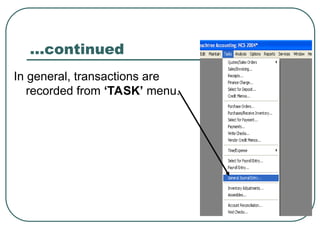
In general, transactions are
recorded from ‘TASK’ menu.
…continued
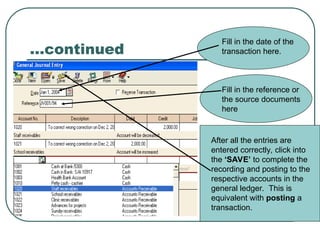
Fill in the date of the
transaction here.
Fill in the reference or
the source documents
here
After all the entries are
entered correctly, click into
the ‘SAVE’ to complete the
recording and posting to the
respective accounts in the
general ledger. This is
equivalent with posting a
transaction.
…continued
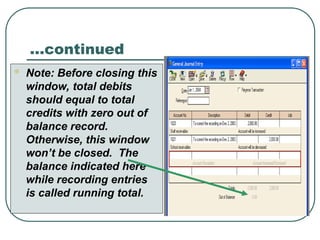
 Note: Before closing this
window, total debits
should equal to total
credits with zero out of
balance record.
Otherwise, this window
won’t be closed. The
balance indicated here
while recording entries
is called running total.
Do you know that entries recorded
can be edited or changed without
recording correcting entries?
Peachtree accounting allows to edit or
amend a transaction after it is recorded
and posted to the accounts in the general
ledger. The change can be made with
regard to:
- The account number affected;
- The description written;
- The amount of the entry;
…continued
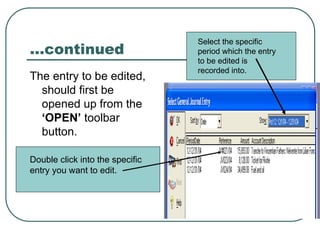
The entry to be edited,
should first be
opened up from the
‘OPEN’ toolbar
button.
Select the specific
period which the entry
to be edited is
recorded into.
Double click into the specific
entry you want to edit.
…continued
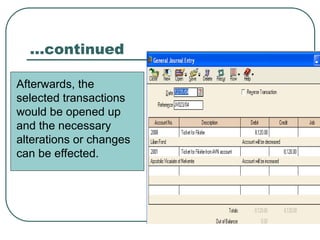
Afterwards, the
selected transactions
would be opened up
and the necessary
alterations or changes
can be effected.
Memorizing General Journal
Entry
This helps to save common transactions that
occur repeatedly for later use. This helps to
record the transaction later in similar manner
that would save time and effort.
Memorized transaction should be identified with:
(a) Transaction ID; and
(b) Description.
…continued
The transaction ID is used to refer the
transaction later when retrieved for re-
recording.
Memorized transactions are to be saved without
the amounts involved and won’t be posted into
general ledger accounts. They are only
maintained as a quick reference to record
recurring transactions.
…continued
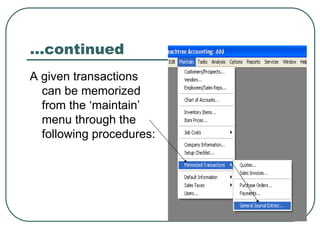
A given transactions
can be memorized
from the ‘maintain’
menu through the
following procedures:
…continued
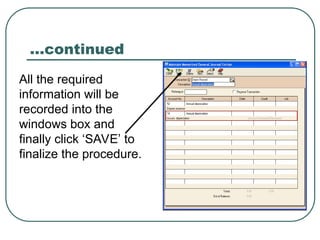
All the required
information will be
recorded into the
windows box and
finally click ‘SAVE’ to
finalize the procedure.
Retrieving Memorized
Transaction
Once a transaction is memorized it will be
retrieved as required to make repeated
entries.
In order to do that, first the respective
journal into which the memorized
transaction is to be recorded should be
activated from the ‘TASK’ menu.
…continued
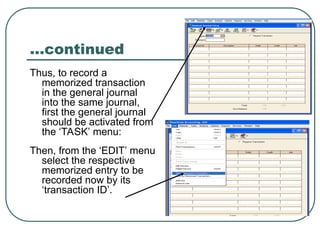
Thus, to record a
memorized transaction
in the general journal
into the same journal,
first the general journal
should be activated from
the ‘TASK’ menu:
Then, from the ‘EDIT’ menu
select the respective
memorized entry to be
recorded now by its
‘transaction ID’.
…continued
Finally, the transaction identified with its
‘transaction ID’ will automatically copied
into the general journal.
If the amounts are to be altered from those
memorized earlier, you may change the
figures.
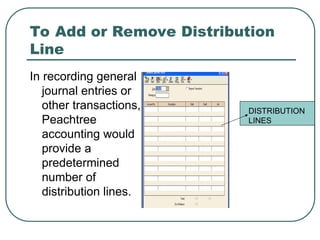
To Add or Remove Distribution
Line
In recording general
journal entries or
other transactions,
Peachtree
accounting would
provide a
predetermined
number of
distribution lines.
DISTRIBUTION
LINES
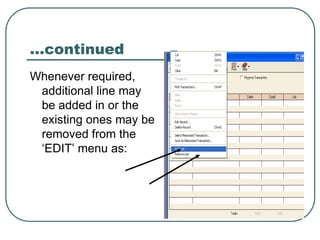
…continued
Whenever required,
additional line may
be added in or the
existing ones may be
removed from the
‘EDIT’ menu as:

Chapter 4-recording general journal entries.ppt

  • 1.
  • 2.
    Recording Entries In orderto record day-to-day transactions, Peachtree accounting itself has maintained pre-set journals. Thus, you don’t to maintain your own journal. These pre-set journals maintained by Peachtree include: - Sales order journal: to record sales orders received; - Sales journal: to record sale on account
  • 3.
    …continued - Receipt journal:to record cash collections - Purchase order journal: to record purchase orders issued; - Payment journal: to record cash payments; - General journal: to record miscellaneous transactions that cannot be recorded into any of the above special journals.
  • 4.
    …continued Note: All thetransactions recorded to any of the above journals are to be posted directly to the respective accounts to the general ledger and subsidiary ledger accounts immediately when the ‘save’ button is pressed. (Real-time posting assumed. Except: The transactions in the purchase order journal and sales order journal are to be posted to the accounts in the ledger as the transactions is not yet completed.
  • 5.
    …continued In journalizing transactions,Peachtree provides a single window to record each transaction (a transaction in one source document). Thus, more than one source document (transaction) cannot be recorded in a given journal window. Each transactions should be ‘saved’ before proceeding with journalizing the next one.
  • 6.
    Recording General Journal Entries Generaljournal entries include entries that don’t affect cash and mainly used in connection with: - Correcting entries; - Adjusting entries; - To enter beginning balances or prior period adjustments; - To transfer funds from one account to another;
  • 7.
    …continued - Other miscellaneoustransactions that cannot be recorded into special journals; - To record recurring transactions (to create memorized transactions); and - To record reversing entries;
  • 8.
    …continued In general, transactionsare recorded from ‘TASK’ menu.
  • 9.
    …continued Fill in thedate of the transaction here. Fill in the reference or the source documents here After all the entries are entered correctly, click into the ‘SAVE’ to complete the recording and posting to the respective accounts in the general ledger. This is equivalent with posting a transaction.
  • 10.
    …continued  Note: Beforeclosing this window, total debits should equal to total credits with zero out of balance record. Otherwise, this window won’t be closed. The balance indicated here while recording entries is called running total.
  • 11.
    Do you knowthat entries recorded can be edited or changed without recording correcting entries? Peachtree accounting allows to edit or amend a transaction after it is recorded and posted to the accounts in the general ledger. The change can be made with regard to: - The account number affected; - The description written; - The amount of the entry;
  • 12.
    …continued The entry tobe edited, should first be opened up from the ‘OPEN’ toolbar button. Select the specific period which the entry to be edited is recorded into. Double click into the specific entry you want to edit.
  • 13.
    …continued Afterwards, the selected transactions wouldbe opened up and the necessary alterations or changes can be effected.
  • 14.
    Memorizing General Journal Entry Thishelps to save common transactions that occur repeatedly for later use. This helps to record the transaction later in similar manner that would save time and effort. Memorized transaction should be identified with: (a) Transaction ID; and (b) Description.
  • 15.
    …continued The transaction IDis used to refer the transaction later when retrieved for re- recording. Memorized transactions are to be saved without the amounts involved and won’t be posted into general ledger accounts. They are only maintained as a quick reference to record recurring transactions.
  • 16.
    …continued A given transactions canbe memorized from the ‘maintain’ menu through the following procedures:
  • 17.
    …continued All the required informationwill be recorded into the windows box and finally click ‘SAVE’ to finalize the procedure.
  • 18.
    Retrieving Memorized Transaction Once atransaction is memorized it will be retrieved as required to make repeated entries. In order to do that, first the respective journal into which the memorized transaction is to be recorded should be activated from the ‘TASK’ menu.
  • 19.
    …continued Thus, to recorda memorized transaction in the general journal into the same journal, first the general journal should be activated from the ‘TASK’ menu: Then, from the ‘EDIT’ menu select the respective memorized entry to be recorded now by its ‘transaction ID’.
  • 20.
    …continued Finally, the transactionidentified with its ‘transaction ID’ will automatically copied into the general journal. If the amounts are to be altered from those memorized earlier, you may change the figures.
  • 21.
    To Add orRemove Distribution Line In recording general journal entries or other transactions, Peachtree accounting would provide a predetermined number of distribution lines. DISTRIBUTION LINES
  • 22.
    …continued Whenever required, additional linemay be added in or the existing ones may be removed from the ‘EDIT’ menu as: