chapter 2 – The
Computer
Lesson 3 – Virtual
Reality and 3D
Interaction
Lesson Objectives:
• At the end of the lesson the students
can:
• Compare and contrast the virtual reality
and 3D interaction.
• Distinguish the different physical control
and sensors
• Differentiate paper printing and
scanning
virtual reality and 3D interaction
positioning in 3D space
moving and grasping
seeing 3D (helmets and caves)
positioning in 3D space
• cockpit and virtual controls
– steering wheels, knobs and dials … just like real!
• the 3D mouse
– six-degrees of movement: x, y, z + roll, pitch, yaw
• data glove
– fibre optics used to detect finger position
• VR helmets
– detect head motion and possibly eye gaze
• whole body tracking
– accelerometers strapped to limbs or reflective dots
and video processing
pitch, yaw and roll
pitch
yaw
roll
3D displays
• desktop VR
– ordinary screen, mouse or keyboard control
– perspective and motion give 3D effect
• seeing in 3D
– use stereoscopic vision
– VR helmets
– screen plus shuttered specs, etc.
also see extra slides on 3D vision
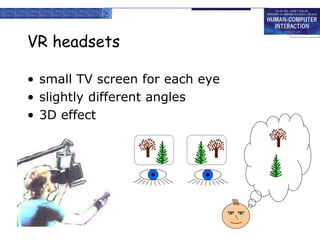
VR headsets
• small TV screen for each eye
• slightly different angles
• 3D effect
VR motion sickness
• time delay
– move head … lag … display moves
– conflict: head movement vs. eyes
• depth perception
– headset gives different stereo distance
– but all focused in same plane
– conflict: eye angle vs. focus
• conflicting cues => sickness
– helps motivate improvements in technology
simulators and VR caves
• scenes projected on walls
• realistic environment
• hydraulic rams!
• real controls
• other people
physical controls, sensors etc.
special displays and gauges
sound, touch, feel, smell
physical controls
environmental and bio-sensing
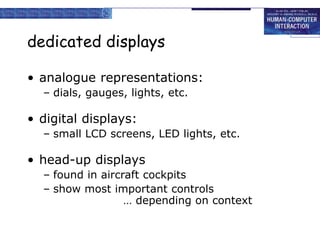
dedicated displays
• analogue representations:
– dials, gauges, lights, etc.
• digital displays:
– small LCD screens, LED lights, etc.
• head-up displays
– found in aircraft cockpits
– show most important controls
… depending on context
Sounds
• beeps, bongs, clonks, whistles and
whirrs
• used for error indications
• confirmation of actions e.g. keyclick
also see chapter 10
Touch, feel, smell
• touch and feeling important
– in games … vibration, force feedback
– in simulation … feel of surgical instruments
– called haptic devices
• texture, smell, taste
– current technology very limited
BMW iDrive
• for controlling menus
• feel small ‘bumps’ for each item
• makes it easier to select options by feel
• uses haptic technology from Immersion Corp.
physical controls
• specialist controls needed …
– industrial controls, consumer products, etc.
large buttons
clear dials
tiny buttons
multi-function
control
easy-clean
smooth buttons
Environment and bio-sensing
• sensors all around us
– car courtesy light – small switch on door
– ultrasound detectors – security, washbasins
– RFID security tags in shops
– temperature, weight, location
• … and even our own bodies …
– iris scanners, body temperature, heart rate,
galvanic skin response, blink rate
paper: printing and scanning
print technology
fonts, page description, WYSIWYG
scanning, OCR
Printing
• image made from small dots
– allows any character set or graphic to be
printed,
• critical features:
– resolution
• size and spacing of the dots
• measured in dots per inch (dpi)
– speed
• usually measured in pages per minute
– cost!!
Types of dot-based printers
• dot-matrix printers
– use inked ribbon (like a typewriter
– line of pins that can strike the ribbon, dotting the paper.
– typical resolution 80-120 dpi
• ink-jet and bubble-jet printers
– tiny blobs of ink sent from print head to paper
– typically 300 dpi or better .
• laser printer
– like photocopier: dots of electrostatic charge deposited on
drum, which picks up toner (black powder form of ink)
rolled onto paper which is then fixed with heat
– typically 600 dpi or better.
Printing in the workplace
• shop tills
– dot matrix
– same print head used for several paper rolls
– may also print cheques
• thermal printers
– special heat-sensitive paper
– paper heated by pins makes a dot
– poor quality, but simple & low maintenance
– used in some fax machines
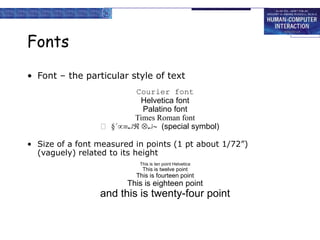
Fonts
• Font – the particular style of text
Courier font
Helvetica font
Palatino font
Times Roman font
 §´  (special symbol)
• Size of a font measured in points (1 pt about 1/72”)
(vaguely) related to its height
This is ten point Helvetica
This is twelve point
This is fourteen point
This is eighteen point
and this is twenty-four point
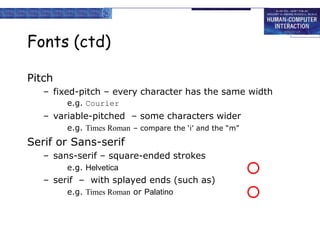
Fonts (ctd)
Pitch
– fixed-pitch – every character has the same width
e.g. Courier
– variable-pitched – some characters wider
e.g. Times Roman – compare the ‘i’ and the “m”
Serif or Sans-serif
– sans-serif – square-ended strokes
e.g. Helvetica
– serif – with splayed ends (such as)
e.g. Times Roman or Palatino
Readability of text
• lowercase
– easy to read shape of words
• UPPERCASE
– better for individual letters and non-words
e.g. flight numbers: BA793 vs. ba793
• serif fonts
– helps your eye on long lines of printed text
– but sans serif often better on screen
Page Description Languages
• Pages very complex
– different fonts, bitmaps, lines, digitised photos, etc.
• Can convert it all into a bitmap and send to the printer
… but often huge !
• Alternatively Use a page description language
– sends a description of the page can be sent,
– instructions for curves, lines, text in different styles, etc.
– like a programming language for printing!
• PostScript is the most common
Screen and page
• WYSIWYG
– what you see is what you get
– aim of word processing, etc.
• but …
– screen: 72 dpi, landscape image
– print: 600+ dpi, portrait
• can try to make them similar
but never quite the same
• so … need different designs, graphics etc, for
screen and print
Scanners
• Take paper and convert it into a bitmap
• Two sorts of scanner
– flat-bed: paper placed on a glass plate, whole page
converted into bitmap
– hand-held: scanner passed over paper, digitising strip
typically 3-4” wide
• Shines light at paper and note intensity of reflection
– colour or greyscale
• Typical resolutions from 600–2400 dpi
Scanners (ctd)
Used in
– desktop publishing for incorporating
photographs and other images
– document storage and retrieval systems,
doing away with paper storage
+ special scanners for slides and
photographic negatives
Optical character recognition
• OCR converts bitmap back into text
• different fonts
– create problems for simple “template
matching” algorithms
– more complex systems segment text,
decompose it into lines and arcs, and
decipher characters that way
• page format
– columns, pictures, headers and footers
Paper-based interaction
• paper usually regarded as output only
• can be input too – OCR, scanning, etc.
• Xerox PaperWorks
– glyphs – small patterns of ///
• used to identify forms etc.
• used with scanner and fax to control applications
• more recently
– papers micro printed - like wattermarks
• identify which sheet and where you are
– special ‘pen’ can read locations
• know where they are writing

Chapter 2 -Lesson 3

  • 1.
    chapter 2 –The Computer Lesson 3 – Virtual Reality and 3D Interaction
  • 2.
    Lesson Objectives: • Atthe end of the lesson the students can: • Compare and contrast the virtual reality and 3D interaction. • Distinguish the different physical control and sensors • Differentiate paper printing and scanning
  • 3.
    virtual reality and3D interaction positioning in 3D space moving and grasping seeing 3D (helmets and caves)
  • 4.
    positioning in 3Dspace • cockpit and virtual controls – steering wheels, knobs and dials … just like real! • the 3D mouse – six-degrees of movement: x, y, z + roll, pitch, yaw • data glove – fibre optics used to detect finger position • VR helmets – detect head motion and possibly eye gaze • whole body tracking – accelerometers strapped to limbs or reflective dots and video processing
  • 5.
    pitch, yaw androll pitch yaw roll
  • 6.
    3D displays • desktopVR – ordinary screen, mouse or keyboard control – perspective and motion give 3D effect • seeing in 3D – use stereoscopic vision – VR helmets – screen plus shuttered specs, etc. also see extra slides on 3D vision
  • 7.
    VR headsets • smallTV screen for each eye • slightly different angles • 3D effect
  • 8.
    VR motion sickness •time delay – move head … lag … display moves – conflict: head movement vs. eyes • depth perception – headset gives different stereo distance – but all focused in same plane – conflict: eye angle vs. focus • conflicting cues => sickness – helps motivate improvements in technology
  • 9.
    simulators and VRcaves • scenes projected on walls • realistic environment • hydraulic rams! • real controls • other people
  • 10.
    physical controls, sensorsetc. special displays and gauges sound, touch, feel, smell physical controls environmental and bio-sensing
  • 11.
    dedicated displays • analoguerepresentations: – dials, gauges, lights, etc. • digital displays: – small LCD screens, LED lights, etc. • head-up displays – found in aircraft cockpits – show most important controls … depending on context
  • 12.
    Sounds • beeps, bongs,clonks, whistles and whirrs • used for error indications • confirmation of actions e.g. keyclick also see chapter 10
  • 13.
    Touch, feel, smell •touch and feeling important – in games … vibration, force feedback – in simulation … feel of surgical instruments – called haptic devices • texture, smell, taste – current technology very limited
  • 14.
    BMW iDrive • forcontrolling menus • feel small ‘bumps’ for each item • makes it easier to select options by feel • uses haptic technology from Immersion Corp.
  • 15.
    physical controls • specialistcontrols needed … – industrial controls, consumer products, etc. large buttons clear dials tiny buttons multi-function control easy-clean smooth buttons
  • 16.
    Environment and bio-sensing •sensors all around us – car courtesy light – small switch on door – ultrasound detectors – security, washbasins – RFID security tags in shops – temperature, weight, location • … and even our own bodies … – iris scanners, body temperature, heart rate, galvanic skin response, blink rate
  • 17.
    paper: printing andscanning print technology fonts, page description, WYSIWYG scanning, OCR
  • 18.
    Printing • image madefrom small dots – allows any character set or graphic to be printed, • critical features: – resolution • size and spacing of the dots • measured in dots per inch (dpi) – speed • usually measured in pages per minute – cost!!
  • 19.
    Types of dot-basedprinters • dot-matrix printers – use inked ribbon (like a typewriter – line of pins that can strike the ribbon, dotting the paper. – typical resolution 80-120 dpi • ink-jet and bubble-jet printers – tiny blobs of ink sent from print head to paper – typically 300 dpi or better . • laser printer – like photocopier: dots of electrostatic charge deposited on drum, which picks up toner (black powder form of ink) rolled onto paper which is then fixed with heat – typically 600 dpi or better.
  • 20.
    Printing in theworkplace • shop tills – dot matrix – same print head used for several paper rolls – may also print cheques • thermal printers – special heat-sensitive paper – paper heated by pins makes a dot – poor quality, but simple & low maintenance – used in some fax machines
  • 21.
    Fonts • Font –the particular style of text Courier font Helvetica font Palatino font Times Roman font  §´  (special symbol) • Size of a font measured in points (1 pt about 1/72”) (vaguely) related to its height This is ten point Helvetica This is twelve point This is fourteen point This is eighteen point and this is twenty-four point
  • 22.
    Fonts (ctd) Pitch – fixed-pitch– every character has the same width e.g. Courier – variable-pitched – some characters wider e.g. Times Roman – compare the ‘i’ and the “m” Serif or Sans-serif – sans-serif – square-ended strokes e.g. Helvetica – serif – with splayed ends (such as) e.g. Times Roman or Palatino
  • 23.
    Readability of text •lowercase – easy to read shape of words • UPPERCASE – better for individual letters and non-words e.g. flight numbers: BA793 vs. ba793 • serif fonts – helps your eye on long lines of printed text – but sans serif often better on screen
  • 24.
    Page Description Languages •Pages very complex – different fonts, bitmaps, lines, digitised photos, etc. • Can convert it all into a bitmap and send to the printer … but often huge ! • Alternatively Use a page description language – sends a description of the page can be sent, – instructions for curves, lines, text in different styles, etc. – like a programming language for printing! • PostScript is the most common
  • 25.
    Screen and page •WYSIWYG – what you see is what you get – aim of word processing, etc. • but … – screen: 72 dpi, landscape image – print: 600+ dpi, portrait • can try to make them similar but never quite the same • so … need different designs, graphics etc, for screen and print
  • 26.
    Scanners • Take paperand convert it into a bitmap • Two sorts of scanner – flat-bed: paper placed on a glass plate, whole page converted into bitmap – hand-held: scanner passed over paper, digitising strip typically 3-4” wide • Shines light at paper and note intensity of reflection – colour or greyscale • Typical resolutions from 600–2400 dpi
  • 27.
    Scanners (ctd) Used in –desktop publishing for incorporating photographs and other images – document storage and retrieval systems, doing away with paper storage + special scanners for slides and photographic negatives
  • 28.
    Optical character recognition •OCR converts bitmap back into text • different fonts – create problems for simple “template matching” algorithms – more complex systems segment text, decompose it into lines and arcs, and decipher characters that way • page format – columns, pictures, headers and footers
  • 29.
    Paper-based interaction • paperusually regarded as output only • can be input too – OCR, scanning, etc. • Xerox PaperWorks – glyphs – small patterns of /// • used to identify forms etc. • used with scanner and fax to control applications • more recently – papers micro printed - like wattermarks • identify which sheet and where you are – special ‘pen’ can read locations • know where they are writing