CSC 101
Introduction to Computing
Lecture 5
1
Ergonomics and Input Devices
 Ergonomics
 which is the study of the physical relationship between
people and their tools—such as computers— addresses
these issues.
 People recognize the importance of having
ergonomically correct computer furniture
 Ergonomically correct
 means that a tool or a workplace is designed to work
properly with the human body, and
 thus reduces the risk of strain and injuries.
2
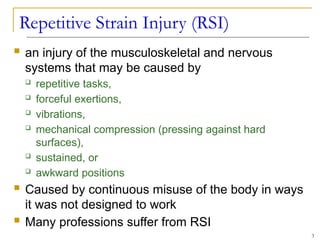
Repetitive Strain Injury (RSI)
 an injury of the musculoskeletal and nervous
systems that may be caused by
 repetitive tasks,
 forceful exertions,
 vibrations,
 mechanical compression (pressing against hard
surfaces),
 sustained, or
 awkward positions
 Caused by continuous misuse of the body in ways
it was not designed to work
 Many professions suffer from RSI
3
4
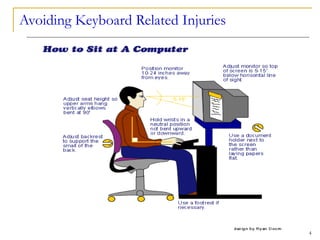
Avoiding Keyboard Related Injuries
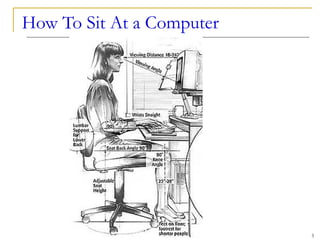
How To Sit At a Computer
5
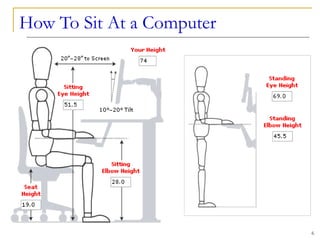
How To Sit At a Computer
6
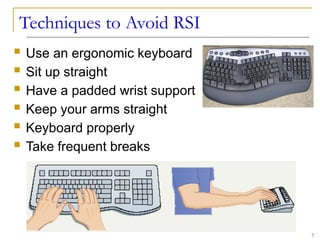
Techniques to Avoid RSI
 Use an ergonomic keyboard
 Sit up straight
 Have a padded wrist support
 Keep your arms straight
 Keyboard properly
 Take frequent breaks
7
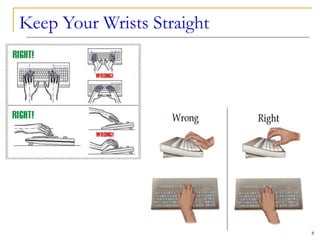
Keep Your Wrists Straight
8
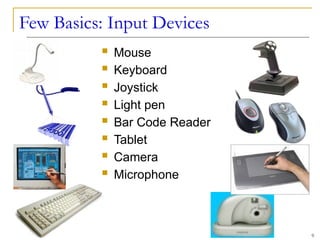
Few Basics: Input Devices
 Mouse
 Keyboard
 Joystick
 Light pen
 Bar Code Reader
 Tablet
 Camera
 Microphone
9
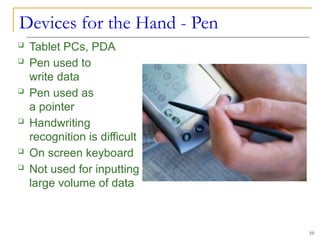
Devices for the Hand - Pen
10
 Tablet PCs, PDA
 Pen used to
write data
 Pen used as
a pointer
 Handwriting
recognition is difficult
 On screen keyboard
 Not used for inputting
large volume of data
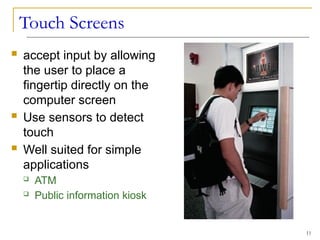
Touch Screens
 accept input by allowing
the user to place a
fingertip directly on the
computer screen
 Use sensors to detect
touch
 Well suited for simple
applications
 ATM
 Public information kiosk
11
Touch Screens
 work well in environments where dirt or weather
would render keyboards and pointing devices
useless, and
 where a simple, intuitive interface is important.
 Touch screens have become common in
 fast-food restaurants,
 department stores,
 drugstores, and supermarkets,
 where they are used for all kinds of purposes, from
creating personalized greeting cards to selling lottery
tickets.
12
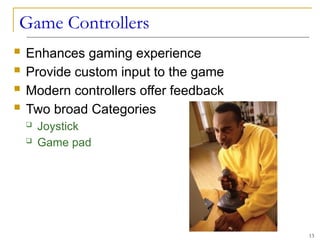
Game Controllers
 Enhances gaming experience
 Provide custom input to the game
 Modern controllers offer feedback
 Two broad Categories
 Joystick
 Game pad
13
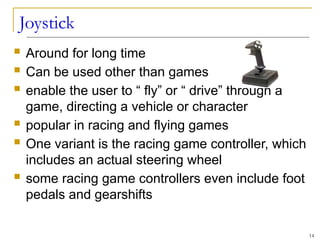
Joystick
 Around for long time
 Can be used other than games
 enable the user to “ fly” or “ drive” through a
game, directing a vehicle or character
 popular in racing and flying games
 One variant is the racing game controller, which
includes an actual steering wheel
 some racing game controllers even include foot
pedals and gearshifts
14
Game Pad
 is a small, flat device that usually provides two
sets of controls— one for each hand.
 extremely flexible and are used to control many
kinds of games
 If you do not have a joystick, you can use a
game pad to control most racing and flying
games.
 Many computer games still provide support for
a mouse or keyboard, so a dedicated game
controller is not always required
15
Optical Input Devices
16
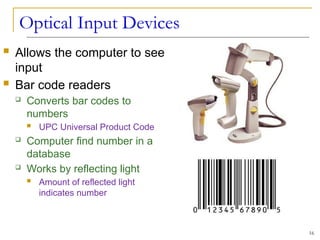
 Allows the computer to see
input
 Bar code readers
 Converts bar codes to
numbers
 UPC Universal Product Code
 Computer find number in a
database
 Works by reflecting light
 Amount of reflected light
indicates number
Bar Code Reading Process
 reader emits a beam of that is reflected by the bar
code image
 light-sensitive detector identifies the bar code image
by recognizing special bars at both ends of the
image
 special bars are different, so the reader can tell
whether the bar code has been read right-side up or
upside down
 After detector has identified the bar code, it converts
the individual bar patterns into numeric digits code
the computer can understand
 reader then feeds the data into the computer
17
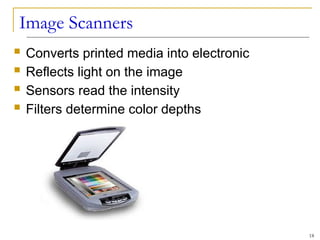
Image Scanners
 Converts printed media into electronic
 Reflects light on the image
 Sensors read the intensity
 Filters determine color depths
18
Color Scanners
 use filters to separate the components of color
into the primary additive colors (red, green, and
blue) at each point
 Red, Green, and Blue (RGB) are primary
additive colors because they can be combined
to create any other color
 The image scanner is useful because it
translates printed images into an electronic
format that can be stored in a computer’s
memory
19
Optical Character Recognition (OCR)
 Converts scanned image into editable text
 Image is stored in the computer’s memory as a
bitmap.
 Bitmap is a grid of dots, each dot represented
by one or more bits
 translate that array of dots into text that the
computer can interpret as letters and numbers
20
Optical Character Recognition (OCR)
 Each letter is scanned
 Letters are compared to known letters
 Best match is entered into document
 Rarely 100% accurate
21
Scanner types
22
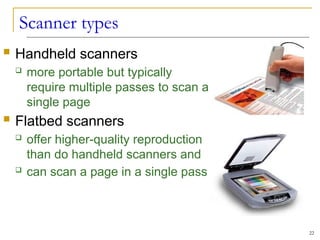
 Handheld scanners
 more portable but typically
require multiple passes to scan a
single page
 Flatbed scanners
 offer higher-quality reproduction
than do handheld scanners and
 can scan a page in a single pass
Audiovisual Input Devices
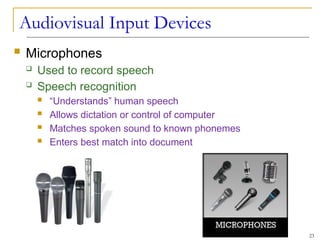
 Microphones
 Used to record speech
 Speech recognition
 “Understands” human speech
 Allows dictation or control of computer
 Matches spoken sound to known phonemes
 Enters best match into document
23
Speech Recognition
 demand for translating spoken words into text
 Translating voice to text is a capability known
as speech recognition (or voice recognition).
 With it, you can dictate to the computer instead
of typing, and you can control the computer with
simple commands
 translates Phonemes into text or commands
24
Other type of Audio Input
 Computers can accept many kinds of audio
input
 Sound card with the appropriate plugs
 a compact disc
 a tape player
 a radio or
 even a record player
 If the audio source outputs sounds in the form
of analog, sound card must convert the analog
signals into digital code so the computer can
store and use it.
25
Video Input
 With growth of multimedia and the Internet,
computer users are adding video input
capabilities to their systems in great numbers
 Applications such as video conferencing enable
people to use full-motion video images
 Videos are commonly used in presentations
and on Web pages
26
Video Camera and Webcam
 video cameras used with computers digitize
images by breaking them into individual pixels
 pixel is one or more dots that express a portion
of an image
 Each pixel’s color and other characteristics are
stored as digital code
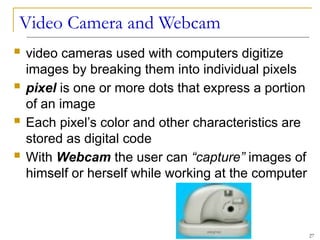
 With Webcam the user can “capture” images of
himself or herself while working at the computer
27

COMPUTER SCIENCEBASIC LECTURE Lecture_5.pptx

  • 1.
    CSC 101 Introduction toComputing Lecture 5 1
  • 2.
    Ergonomics and InputDevices  Ergonomics  which is the study of the physical relationship between people and their tools—such as computers— addresses these issues.  People recognize the importance of having ergonomically correct computer furniture  Ergonomically correct  means that a tool or a workplace is designed to work properly with the human body, and  thus reduces the risk of strain and injuries. 2
  • 3.
    Repetitive Strain Injury(RSI)  an injury of the musculoskeletal and nervous systems that may be caused by  repetitive tasks,  forceful exertions,  vibrations,  mechanical compression (pressing against hard surfaces),  sustained, or  awkward positions  Caused by continuous misuse of the body in ways it was not designed to work  Many professions suffer from RSI 3
  • 4.
  • 5.
    How To SitAt a Computer 5
  • 6.
    How To SitAt a Computer 6
  • 7.
    Techniques to AvoidRSI  Use an ergonomic keyboard  Sit up straight  Have a padded wrist support  Keep your arms straight  Keyboard properly  Take frequent breaks 7
  • 8.
    Keep Your WristsStraight 8
  • 9.
    Few Basics: InputDevices  Mouse  Keyboard  Joystick  Light pen  Bar Code Reader  Tablet  Camera  Microphone 9
  • 10.
    Devices for theHand - Pen 10  Tablet PCs, PDA  Pen used to write data  Pen used as a pointer  Handwriting recognition is difficult  On screen keyboard  Not used for inputting large volume of data
  • 11.
    Touch Screens  acceptinput by allowing the user to place a fingertip directly on the computer screen  Use sensors to detect touch  Well suited for simple applications  ATM  Public information kiosk 11
  • 12.
    Touch Screens  workwell in environments where dirt or weather would render keyboards and pointing devices useless, and  where a simple, intuitive interface is important.  Touch screens have become common in  fast-food restaurants,  department stores,  drugstores, and supermarkets,  where they are used for all kinds of purposes, from creating personalized greeting cards to selling lottery tickets. 12
  • 13.
    Game Controllers  Enhancesgaming experience  Provide custom input to the game  Modern controllers offer feedback  Two broad Categories  Joystick  Game pad 13
  • 14.
    Joystick  Around forlong time  Can be used other than games  enable the user to “ fly” or “ drive” through a game, directing a vehicle or character  popular in racing and flying games  One variant is the racing game controller, which includes an actual steering wheel  some racing game controllers even include foot pedals and gearshifts 14
  • 15.
    Game Pad  isa small, flat device that usually provides two sets of controls— one for each hand.  extremely flexible and are used to control many kinds of games  If you do not have a joystick, you can use a game pad to control most racing and flying games.  Many computer games still provide support for a mouse or keyboard, so a dedicated game controller is not always required 15
  • 16.
    Optical Input Devices 16 Allows the computer to see input  Bar code readers  Converts bar codes to numbers  UPC Universal Product Code  Computer find number in a database  Works by reflecting light  Amount of reflected light indicates number
  • 17.
    Bar Code ReadingProcess  reader emits a beam of that is reflected by the bar code image  light-sensitive detector identifies the bar code image by recognizing special bars at both ends of the image  special bars are different, so the reader can tell whether the bar code has been read right-side up or upside down  After detector has identified the bar code, it converts the individual bar patterns into numeric digits code the computer can understand  reader then feeds the data into the computer 17
  • 18.
    Image Scanners  Convertsprinted media into electronic  Reflects light on the image  Sensors read the intensity  Filters determine color depths 18
  • 19.
    Color Scanners  usefilters to separate the components of color into the primary additive colors (red, green, and blue) at each point  Red, Green, and Blue (RGB) are primary additive colors because they can be combined to create any other color  The image scanner is useful because it translates printed images into an electronic format that can be stored in a computer’s memory 19
  • 20.
    Optical Character Recognition(OCR)  Converts scanned image into editable text  Image is stored in the computer’s memory as a bitmap.  Bitmap is a grid of dots, each dot represented by one or more bits  translate that array of dots into text that the computer can interpret as letters and numbers 20
  • 21.
    Optical Character Recognition(OCR)  Each letter is scanned  Letters are compared to known letters  Best match is entered into document  Rarely 100% accurate 21
  • 22.
    Scanner types 22  Handheldscanners  more portable but typically require multiple passes to scan a single page  Flatbed scanners  offer higher-quality reproduction than do handheld scanners and  can scan a page in a single pass
  • 23.
    Audiovisual Input Devices Microphones  Used to record speech  Speech recognition  “Understands” human speech  Allows dictation or control of computer  Matches spoken sound to known phonemes  Enters best match into document 23
  • 24.
    Speech Recognition  demandfor translating spoken words into text  Translating voice to text is a capability known as speech recognition (or voice recognition).  With it, you can dictate to the computer instead of typing, and you can control the computer with simple commands  translates Phonemes into text or commands 24
  • 25.
    Other type ofAudio Input  Computers can accept many kinds of audio input  Sound card with the appropriate plugs  a compact disc  a tape player  a radio or  even a record player  If the audio source outputs sounds in the form of analog, sound card must convert the analog signals into digital code so the computer can store and use it. 25
  • 26.
    Video Input  Withgrowth of multimedia and the Internet, computer users are adding video input capabilities to their systems in great numbers  Applications such as video conferencing enable people to use full-motion video images  Videos are commonly used in presentations and on Web pages 26
  • 27.
    Video Camera andWebcam  video cameras used with computers digitize images by breaking them into individual pixels  pixel is one or more dots that express a portion of an image  Each pixel’s color and other characteristics are stored as digital code  With Webcam the user can “capture” images of himself or herself while working at the computer 27

Editor's Notes

  • #10 Teaching tip Microsoft has a demonstration of the tablet PC pen based input. Point your browser to http://www.microsoft.com/windowsxp/tabletpc/evaluation/tours/default.mspx and follow the tours.
  • #11 Discussion point Discuss the information kiosks at local malls. Many offer limited Internet access. Have students discuss what could happen to the computers if the malls were to provide keyboards to the mall shoppers.
  • #12 Discussion point Discuss the information kiosks at local malls. Many offer limited Internet access. Have students discuss what could happen to the computers if the malls were to provide keyboards to the mall shoppers.
  • #13 Teaching tip Microsoft’s Force Feedback joysticks vibrate. In driving games, when the player hits another car, the joystick will vibrate.
  • #14 Teaching tip Microsoft’s Force Feedback joysticks vibrate. In driving games, when the player hits another car, the joystick will vibrate.
  • #15 Teaching tip Microsoft’s Force Feedback joysticks vibrate. In driving games, when the player hits another car, the joystick will vibrate.
  • #16 Insider information For more information on the UPC code and a searchable database, visit http://www.upcdatabase.com/. A working UPC is 071662000240, which represents a 24 count box of Crayola Crayons.
  • #17 Insider information For more information on the UPC code and a searchable database, visit http://www.upcdatabase.com/. A working UPC is 071662000240, which represents a 24 count box of Crayola Crayons.
  • #18 Teaching tip Spend a few minutes here discussing computer screen colors. A good website to look at colors is http://www.radok.com/web-safe-colors_rgb.html. To demonstrate how computers generate color, use the custom color creator in Paint.
  • #19 Teaching tip Spend a few minutes here discussing computer screen colors. A good website to look at colors is http://www.radok.com/web-safe-colors_rgb.html. To demonstrate how computers generate color, use the custom color creator in Paint.
  • #20 Teaching tip Many companies ask for a plaintext resume. This is a resume, typed in Courier or other easy to read font, with no formatting. The intent is to allow the company to scan the resume for future searching. OCR technology makes this possible. For more information, see the website http://www.quintcareers.com/scannable_resumes.html.
  • #21 Teaching tip Many companies ask for a plaintext resume. This is a resume, typed in Courier or other easy to read font, with no formatting. The intent is to allow the company to scan the resume for future searching. OCR technology makes this possible. For more information, see the website http://www.quintcareers.com/scannable_resumes.html.
  • #22 Teaching tip Many companies ask for a plaintext resume. This is a resume, typed in Courier or other easy to read font, with no formatting. The intent is to allow the company to scan the resume for future searching. OCR technology makes this possible. For more information, see the website http://www.quintcareers.com/scannable_resumes.html.
  • #23 Insider information Two common products are IBM’s Via Voice and Scansoft Dragon NaturallySpeaking. More information for ViaVoice can be found at http://www-306.ibm.com/software/voice/viavoice/. More information regarding Dragon is located at http://www.scansoft.com/naturallyspeaking/.
  • #24 Insider information Two common products are IBM’s Via Voice and Scansoft Dragon NaturallySpeaking. More information for ViaVoice can be found at http://www-306.ibm.com/software/voice/viavoice/. More information regarding Dragon is located at http://www.scansoft.com/naturallyspeaking/.
  • #25 Insider information Two common products are IBM’s Via Voice and Scansoft Dragon NaturallySpeaking. More information for ViaVoice can be found at http://www-306.ibm.com/software/voice/viavoice/. More information regarding Dragon is located at http://www.scansoft.com/naturallyspeaking/.