#Creative Web
HTML & CSS
#HTML
Structure & content
Sir Tim Berners-Lee
Invents the Internet of today 1989
#HTML
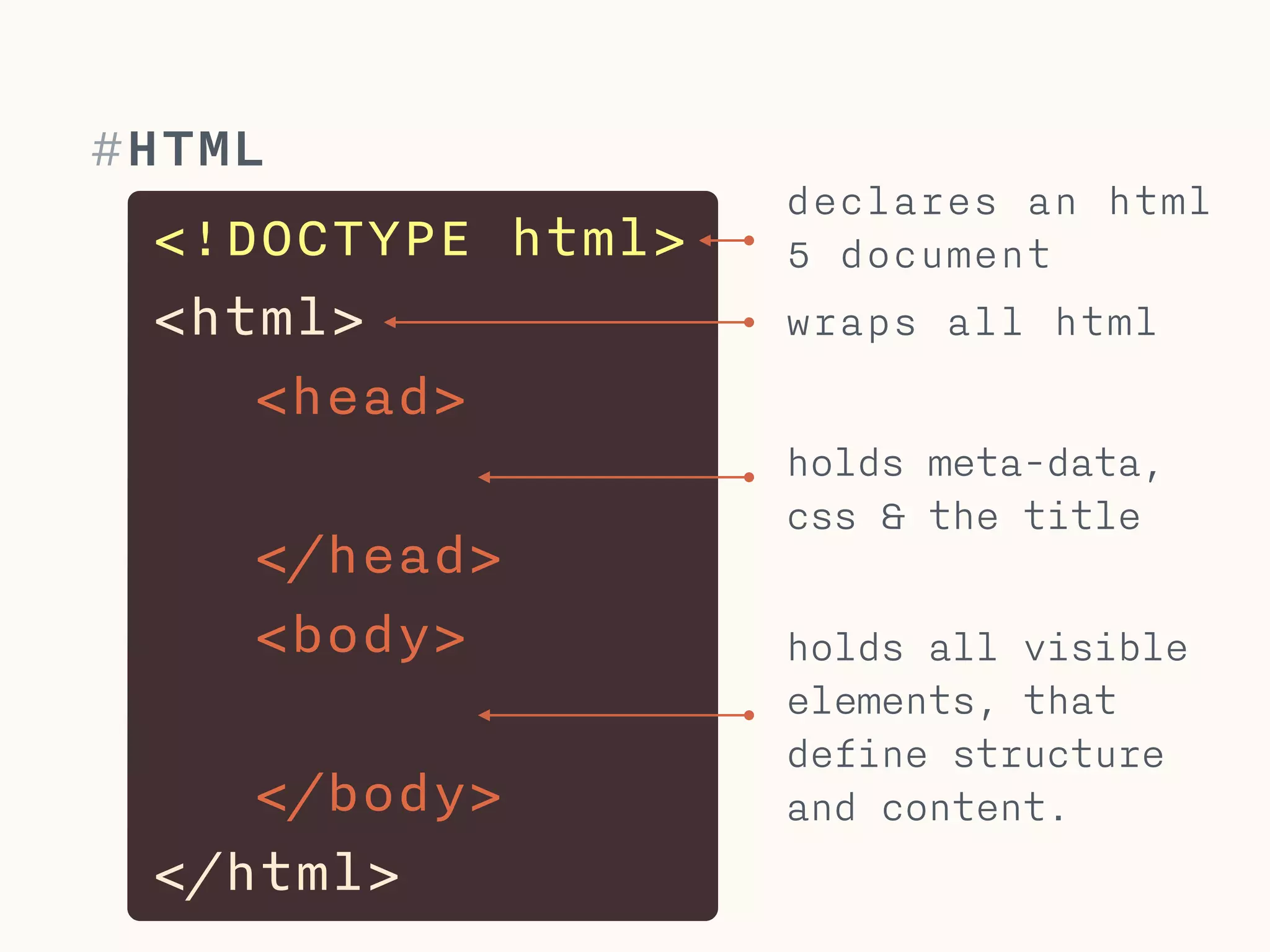
<!DOCTYPE html>
<html>
<head>
</head>
<body>
!
</body>
</html>
declares an html
5 document
wraps all html
holds meta-data,
css & the title
holds all visible
elements, that
define structure
and content.
#HTML - documents
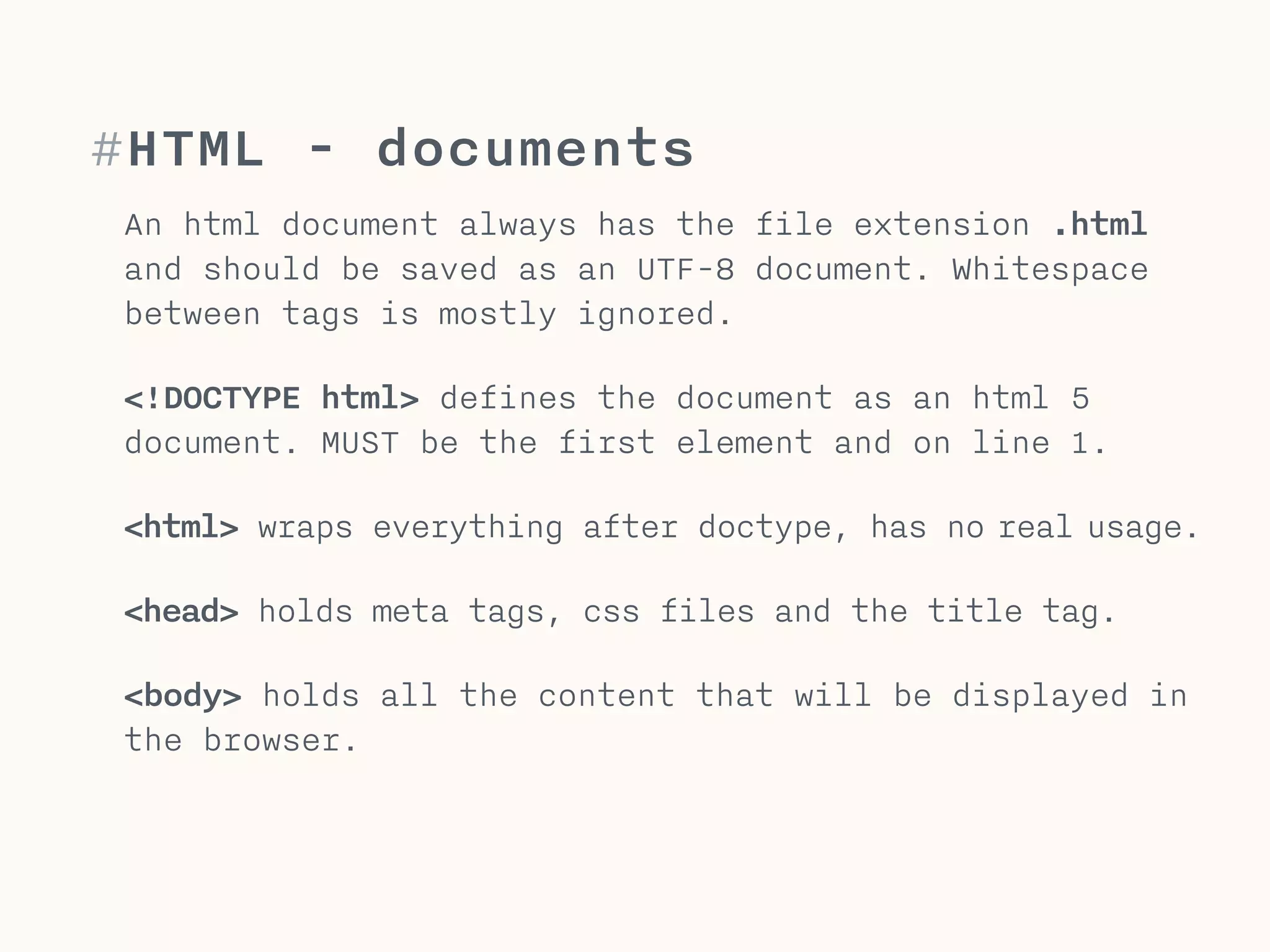
An html document always has the file extension .html
and should be saved as an UTF-8 document. Whitespace
between tags is mostly ignored.
!
<!DOCTYPE html> defines the document as an html 5
document. MUST be the first element and on line 1.
!
<html> wraps everything after doctype, has no real usage.
!
<head> holds meta tags, css files and the title tag.
!
<body> holds all the content that will be displayed in
the browser.
#Head
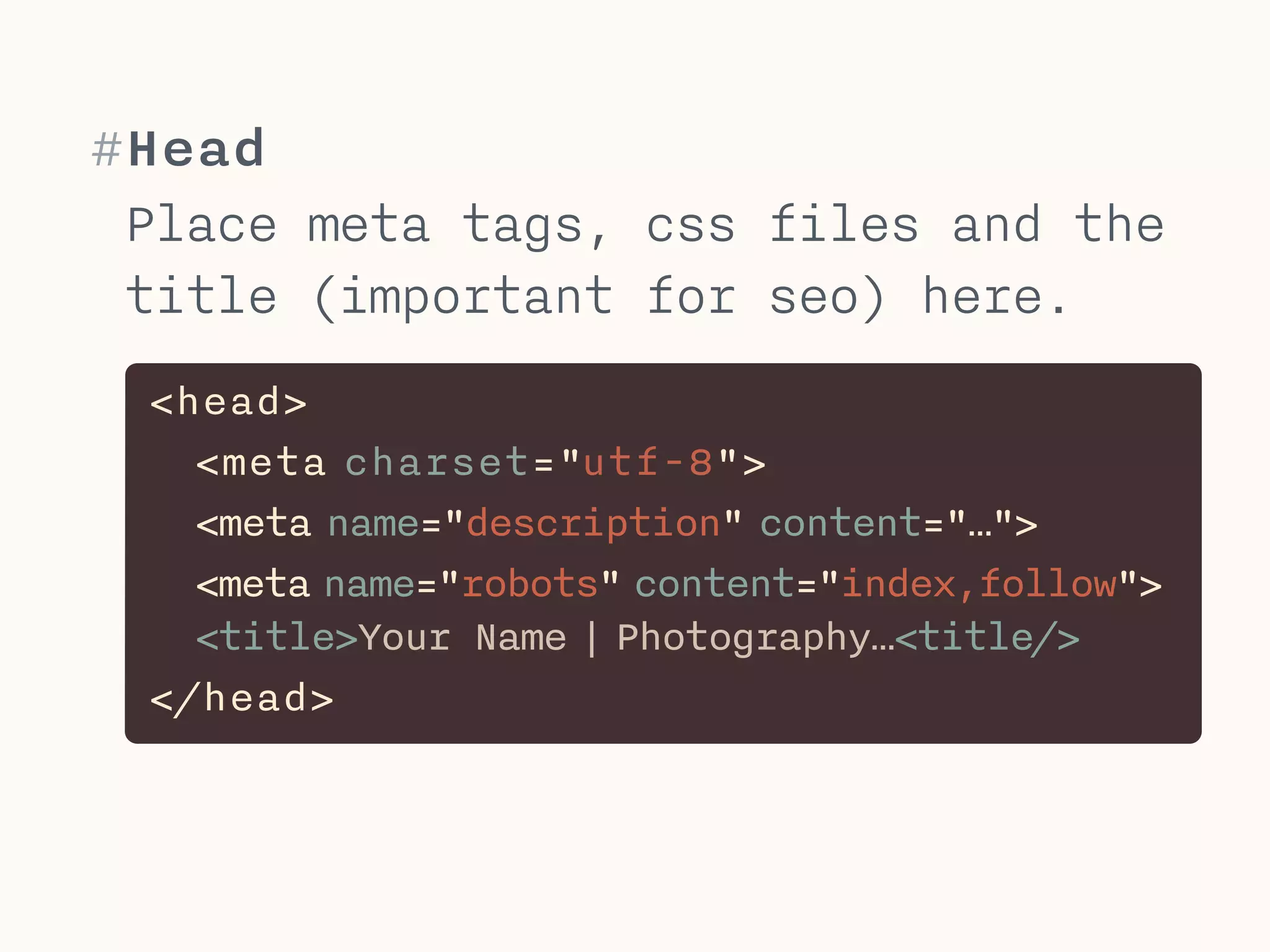
<head>
<meta charset="utf-8">
<meta name="description" content="…">
<meta name="robots" content="index,follow">

<title>Your Name | Photography…<title/>
</head>
Place meta tags, css files and the
title (important for seo) here.
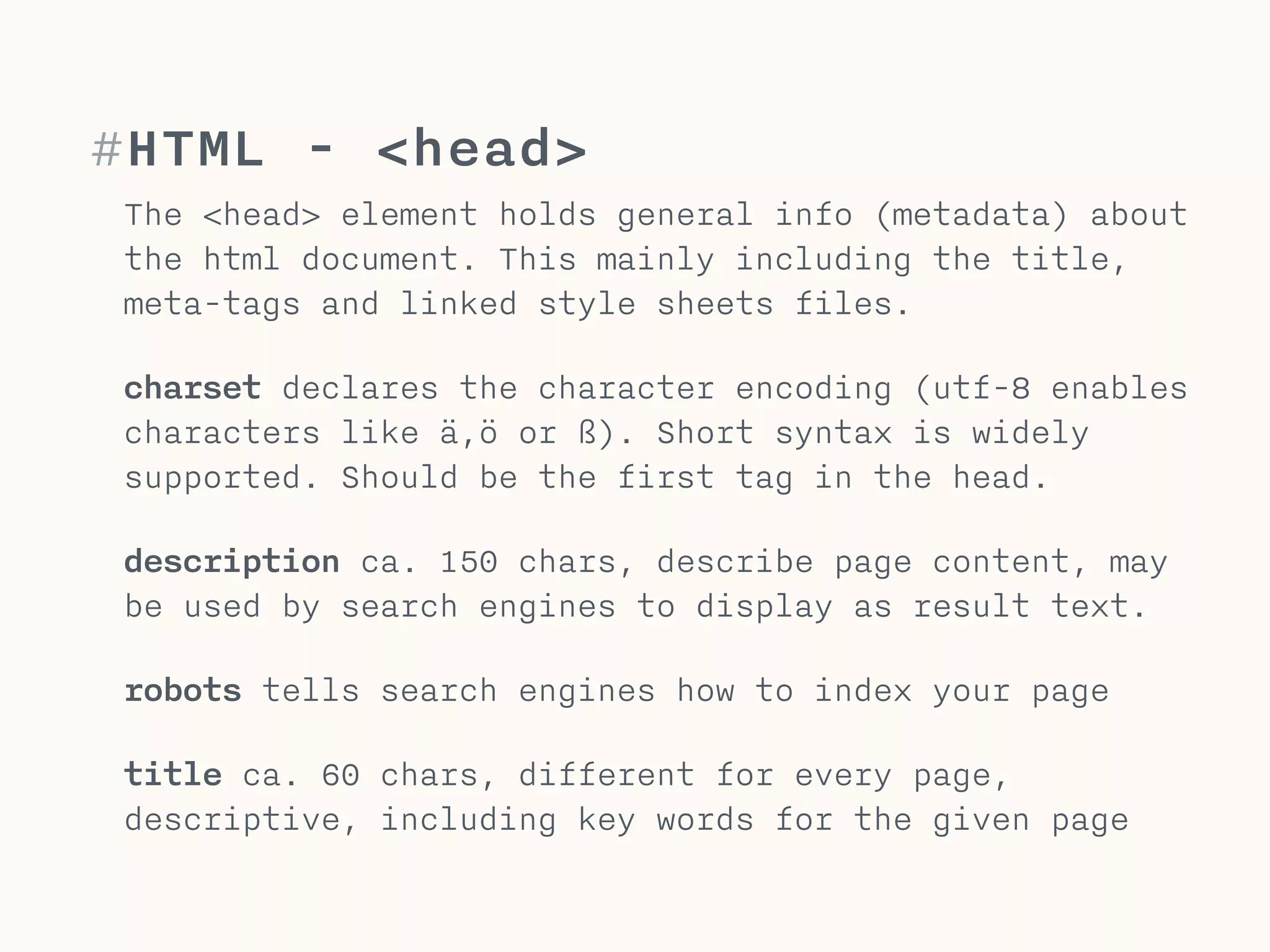
#HTML - <head>
The <head> element holds general info (metadata) about
the html document. This mainly including the title,
meta-tags and linked style sheets files.
!
charset declares the character encoding (utf-8 enables
characters like ä,ö or ß). Short syntax is widely
supported. Should be the first tag in the head.
!
description ca. 150 chars, describe page content, may
be used by search engines to display as result text.
!
robots tells search engines how to index your page
!
title ca. 60 chars, different for every page,
descriptive, including key words for the given page
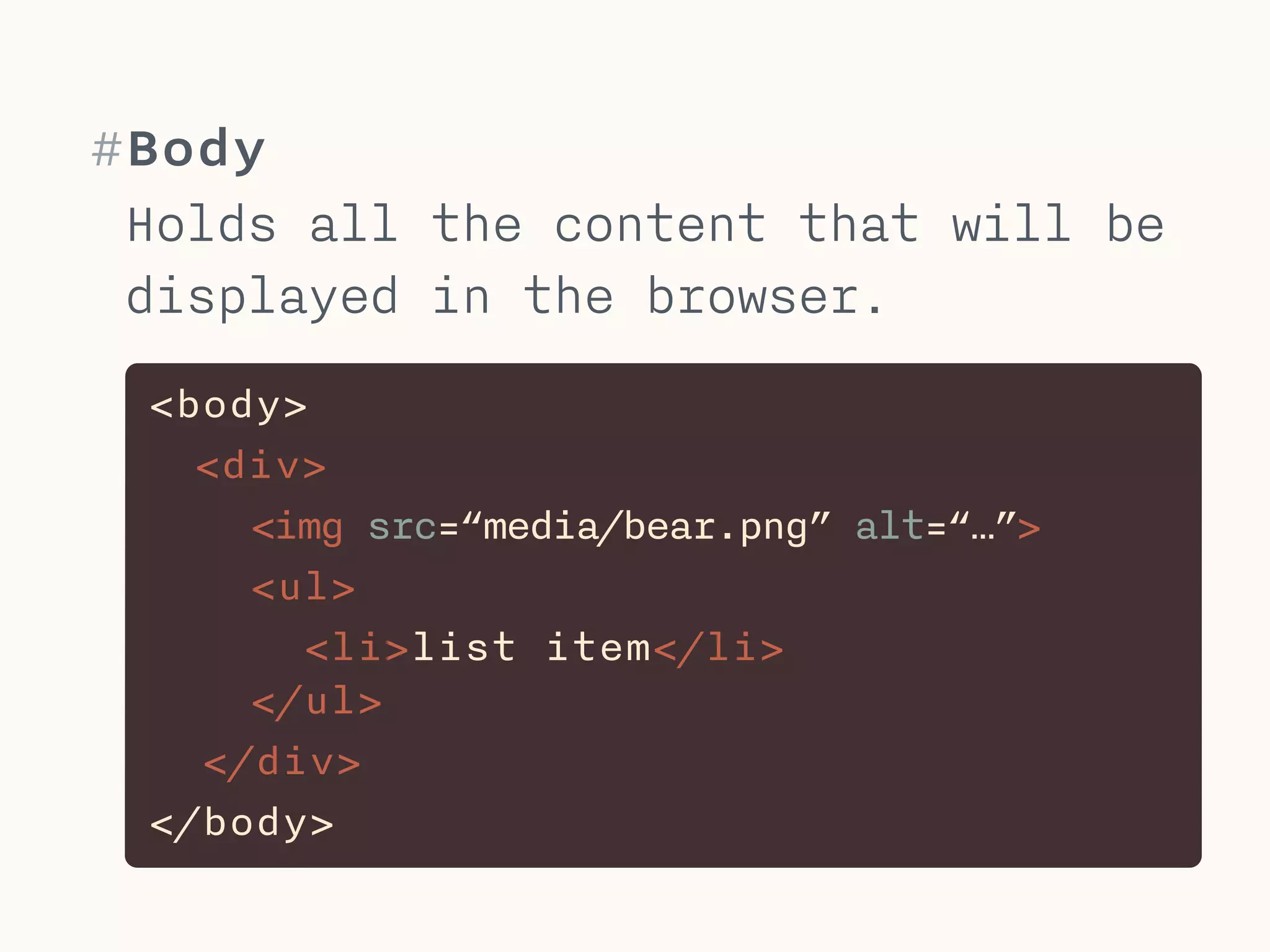
#Body
<body>
<div>
<img src=“media/bear.png” alt=“…”>
<ul>
<li>list item</li>

</ul>
</div>
</body>
Holds all the content that will be
displayed in the browser.
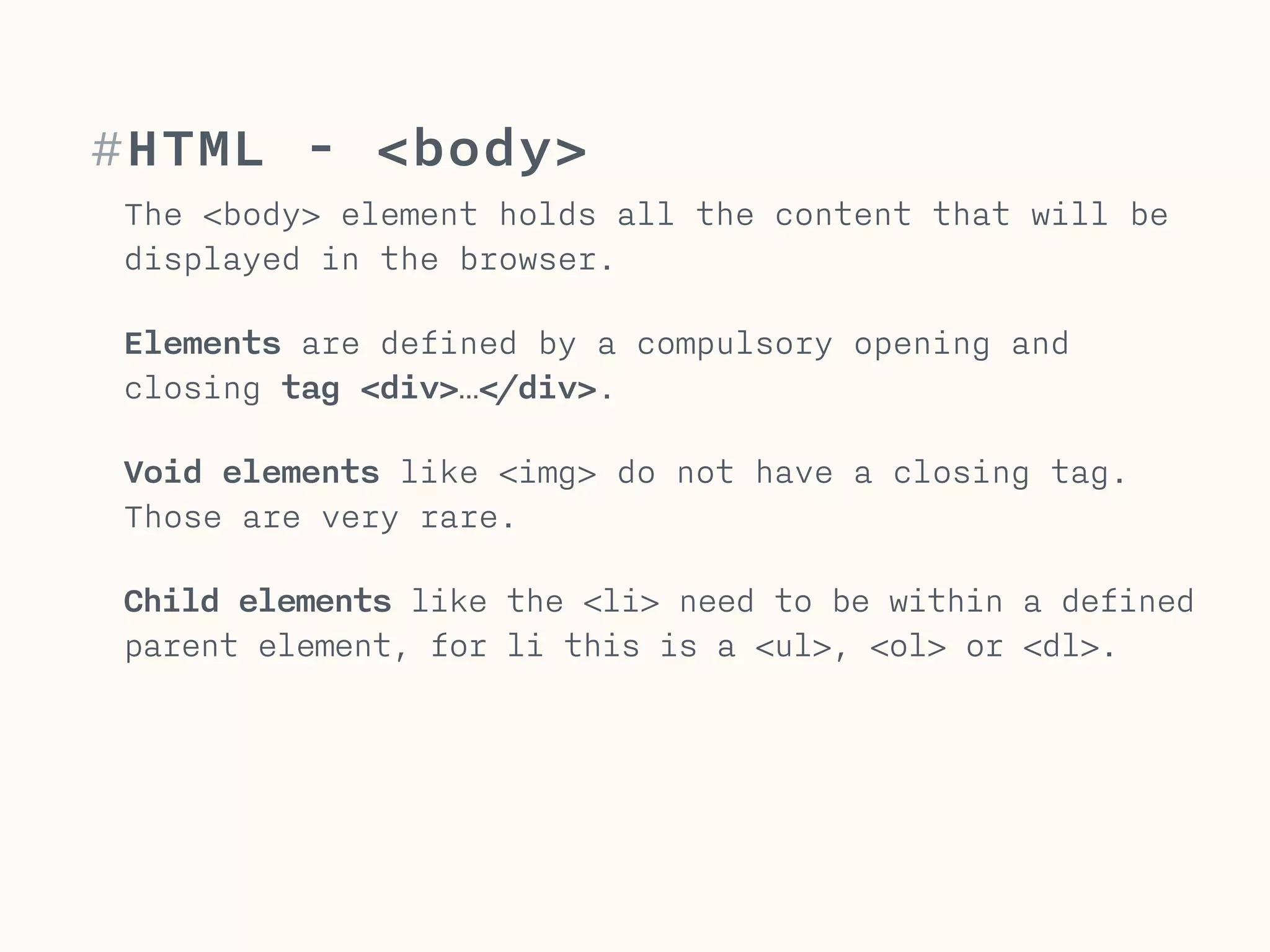
#HTML - <body>
The <body> element holds all the content that will be
displayed in the browser.
!
Elements are defined by a compulsory opening and
closing tag <div>…</div>.
!
Void elements like <img> do not have a closing tag.
Those are very rare.
!
Child elements like the <li> need to be within a defined
parent element, for li this is a <ul>, <ol> or <dl>.
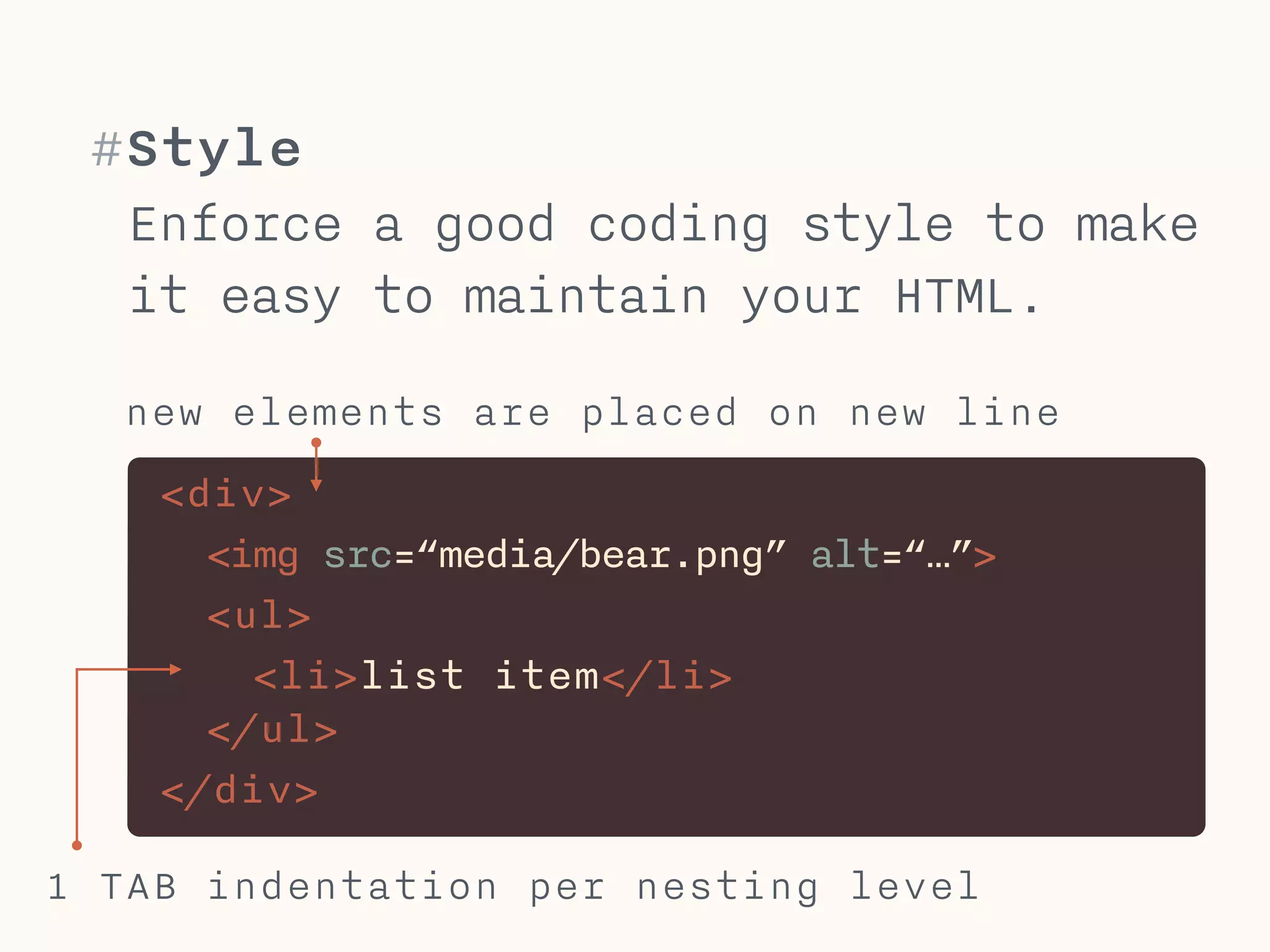
#Style
Enforce a good coding style to make
it easy to maintain your HTML.
1 TAB indentation per nesting level
new elements are placed on new line
<div>
<img src=“media/bear.png” alt=“…”>
<ul>
<li>list item</li>

</ul>
</div>
#HTML coding style
This coding style makes it easy to maintain your html.
!
Use only lowercase for everything (tags, attributes,
classes,…). Only copy text may use mixed or upper case.
!
Indentation use 1 TAB as indentation per nesting level.
!
Elements on new line every block, list, or table element
should be on a new line with indentation per level.
!
Use <p> for paragraphs, never use <br>.
#CSS
Styling the web.
Håkon Wium Lie
*1965 Norway / Opera
#CSS
CSS (Cascading Style Sheets) is a styling
language used to define the formatting & looks
of a document written in a markup language (e.g.
HTML).
Cascading means that a style with a lower
specificity is replaced by a style with a higher
specificity.
!
Developed by Håkon Wium Lie and Bert Bos 1994-96
Current Version CSS 3 (not fully implemented)
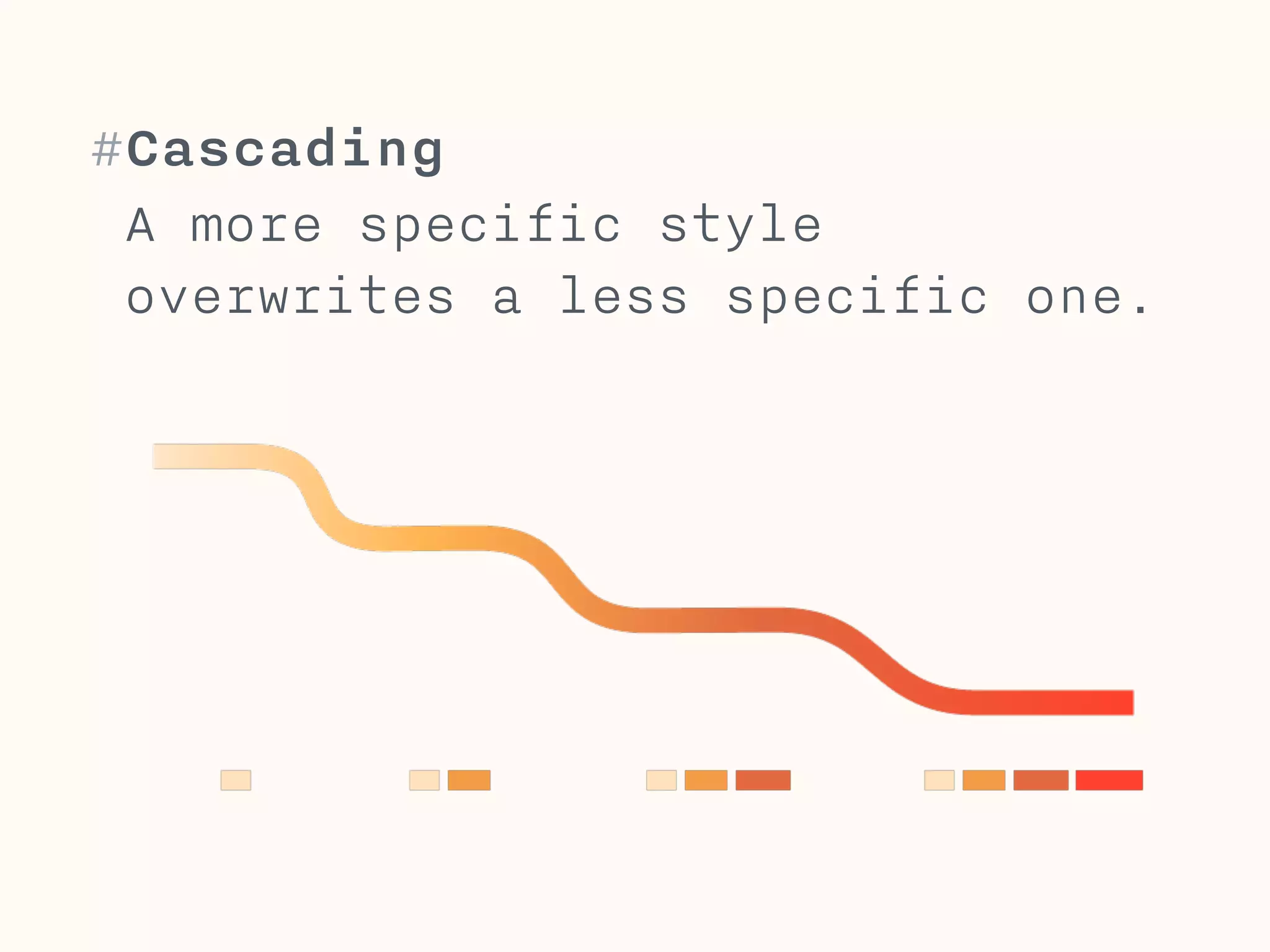
#Cascading
A more specific style
overwrites a less specific one.
#Cascading
CSS employes a Cascading method to deal with
multiple competing styles for one element.
This means CSS starts from the most generic set
of style-rules and overwrites rules that are
different in more specific rule-sets.
!
If a generic rule says “all text is red” and
another rule says “the first headline is blue”,
the first headline will be blue, because it is
more specific.
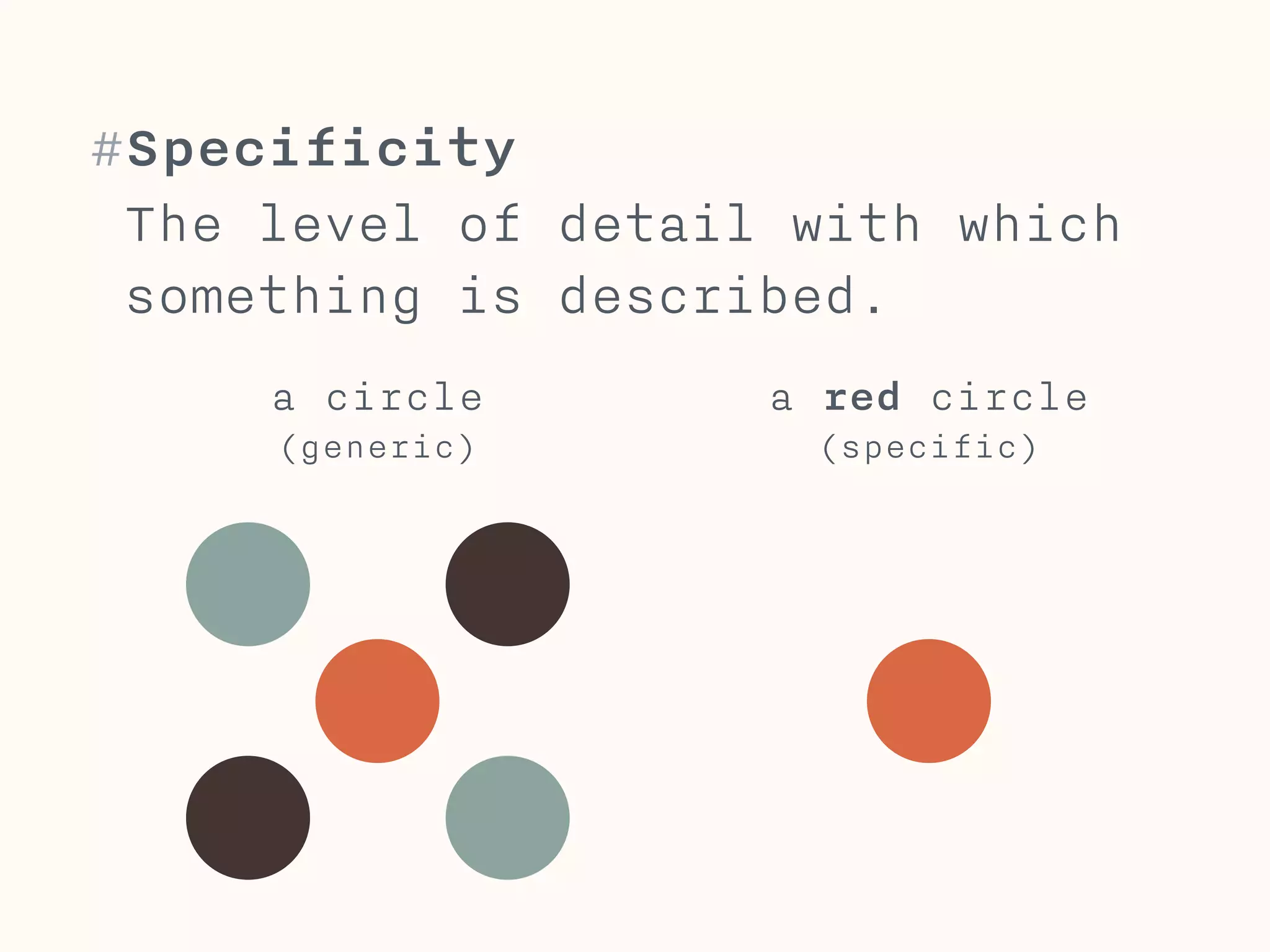
The level of detail with which
something is described.
a circle 

(generic)
a red circle 

(specific)
#Specificity
#CSS Specificy
Specificy: The more detailed you specify an
element, the higher its specificy. You should
however aim for a good code structure, so that
you do not need to be very specific.


If you need to be very specific, you are likely
to overwrite much code, which makes your CSS
hard to maintain.
#Selectors
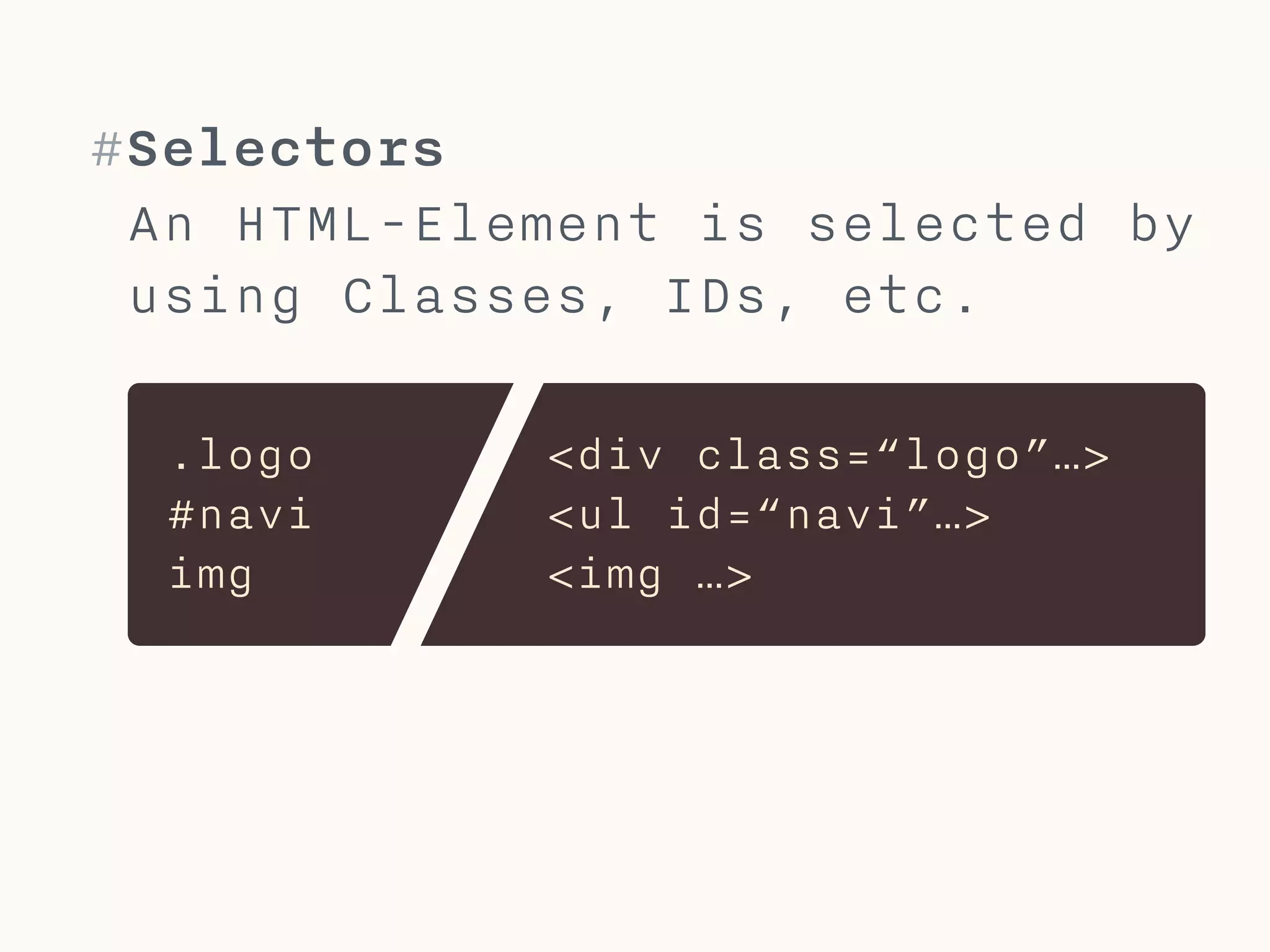
An HTML-Element is selected by
using Classes, IDs, etc.
.logo
#navi
img
<div class=“logo”…>
<ul id=“navi”…>
<img …>
#CSS Selectors
Specificy: element selectors (e.g. img) are less
specific than classes which are less specific
than IDs.
!
Elements can be used with different classes.
Classes can be used multiple times.
IDs may only be used once per document.
!
You should always use classes and never IDs or
element selectors, if you do not have a really
good reason for it. This will help in preventing

specificity-problems.
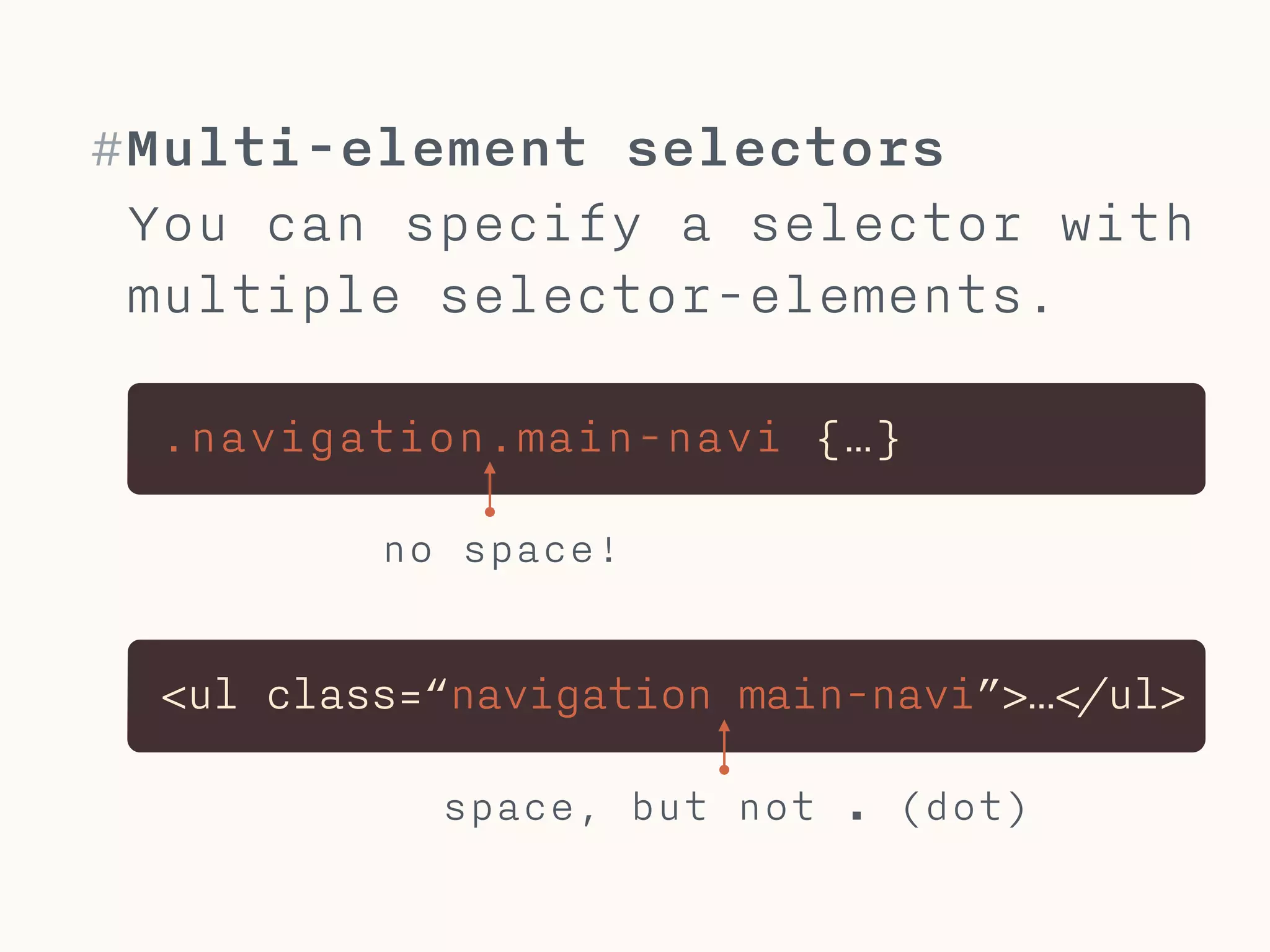
#Multi-element selectors
You can specify a selector with
multiple selector-elements.
.navigation.main-navi {…}
<ul class=“navigation main-navi”>…</ul>
no space!
space, but not . (dot)
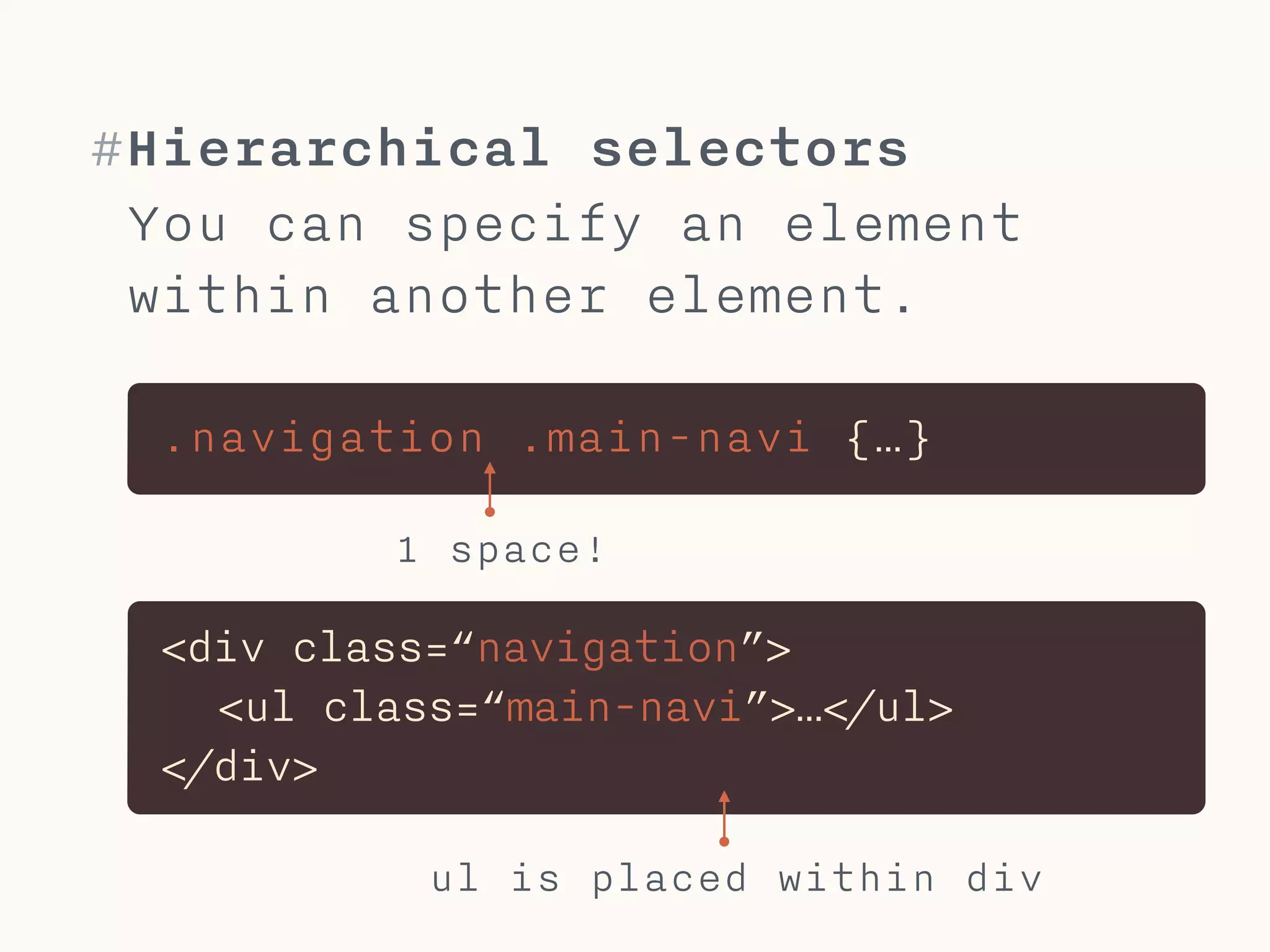
#Hierarchical selectors
You can specify an element
within another element.
.navigation .main-navi {…}
<div class=“navigation”>

<ul class=“main-navi”>…</ul>
</div>
1 space!
ul is placed within div
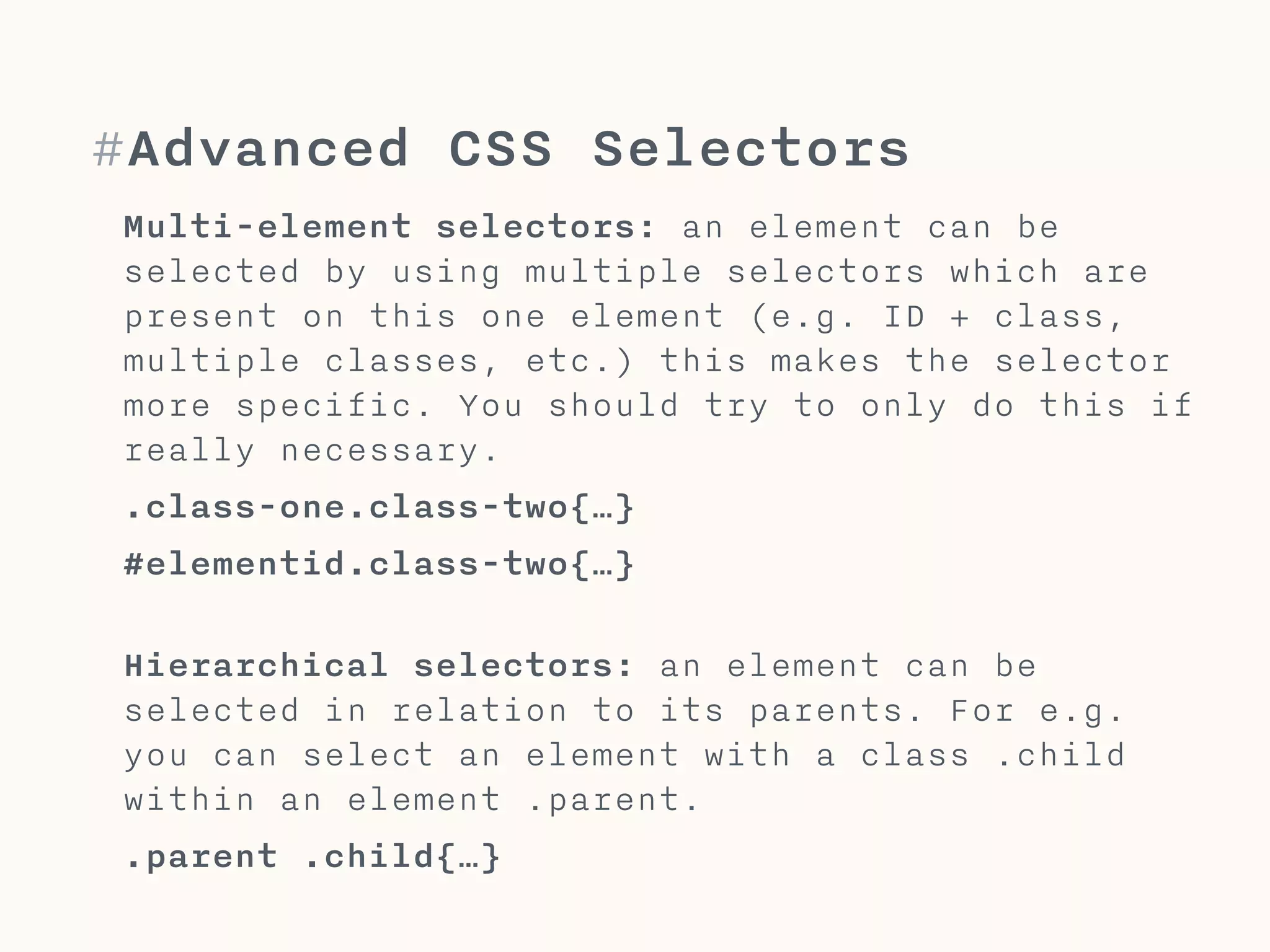
#Advanced CSS Selectors
Multi-element selectors: an element can be
selected by using multiple selectors which are
present on this one element (e.g. ID + class,
multiple classes, etc.) this makes the selector
more specific. You should try to only do this if
really necessary.
.class-one.class-two{…}
#elementid.class-two{…}


Hierarchical selectors: an element can be
selected in relation to its parents. For e.g.
you can select an element with a class .child
within an element .parent.
.parent .child{…}
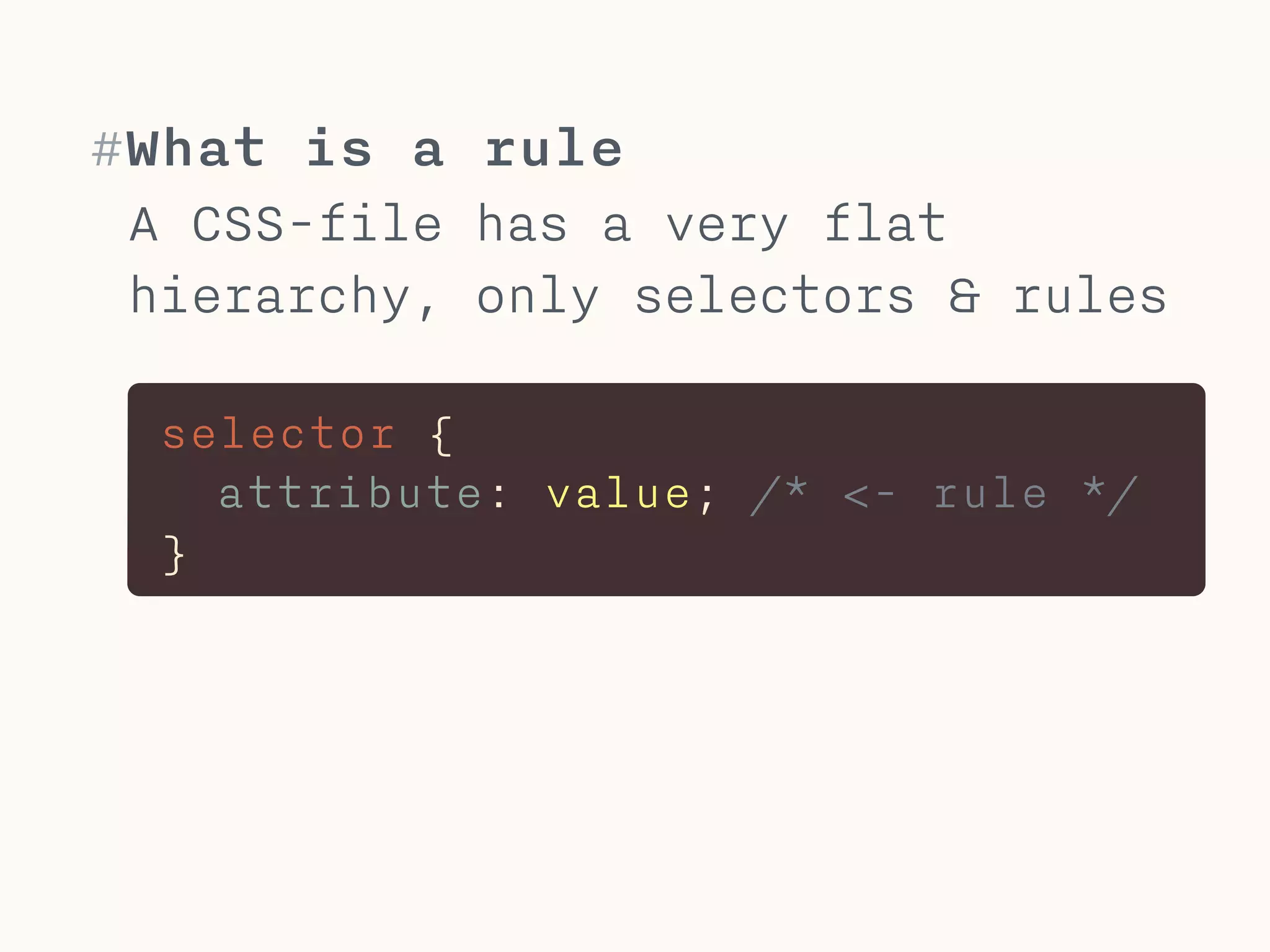
#What is a rule
A CSS-file has a very flat
hierarchy, only selectors & rules
selector {

attribute: value; /* <- rule */

}
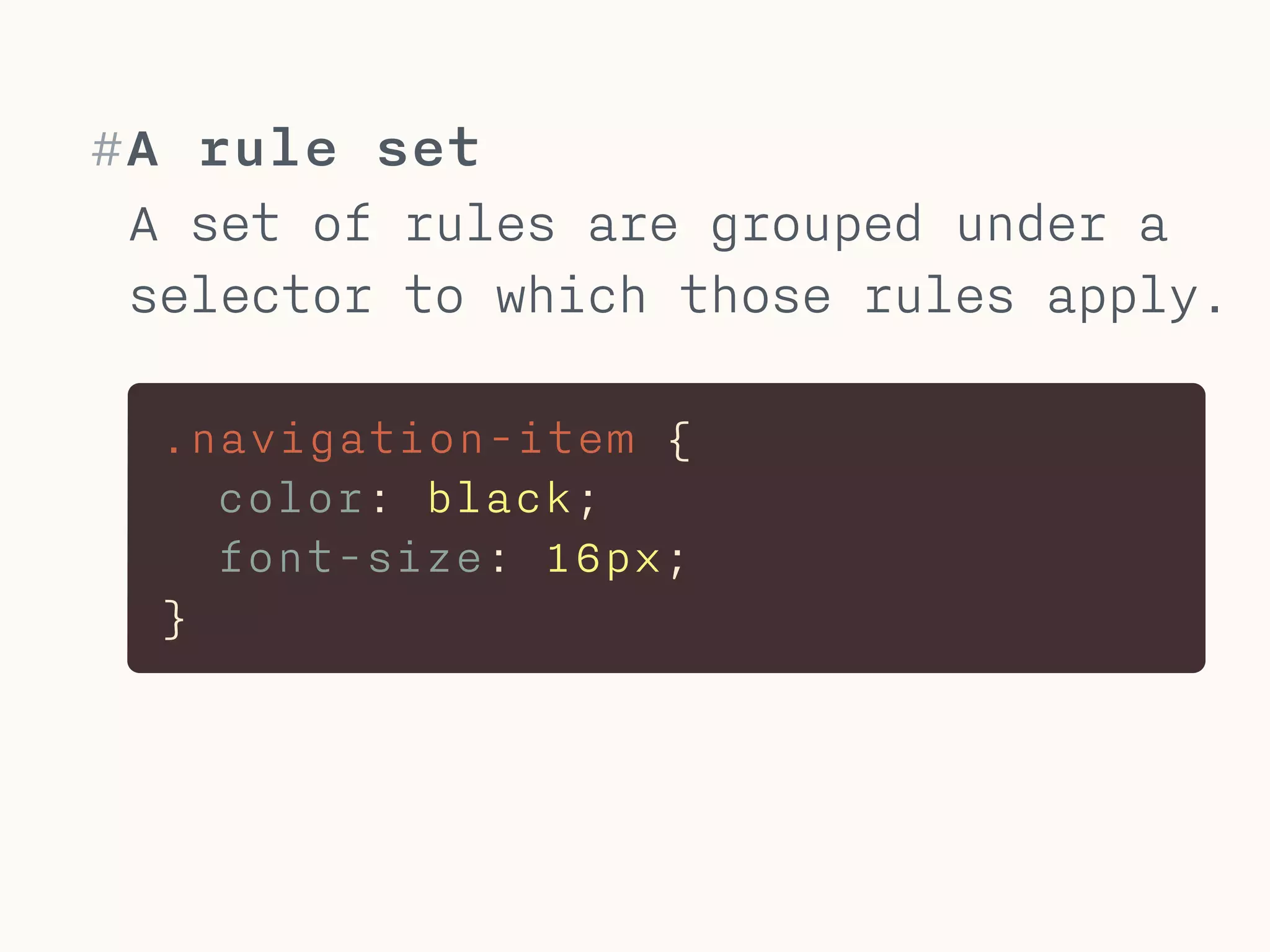
#A rule set
A set of rules are grouped under a
selector to which those rules apply.
.navigation-item {

color: black;

font-size: 16px;

}
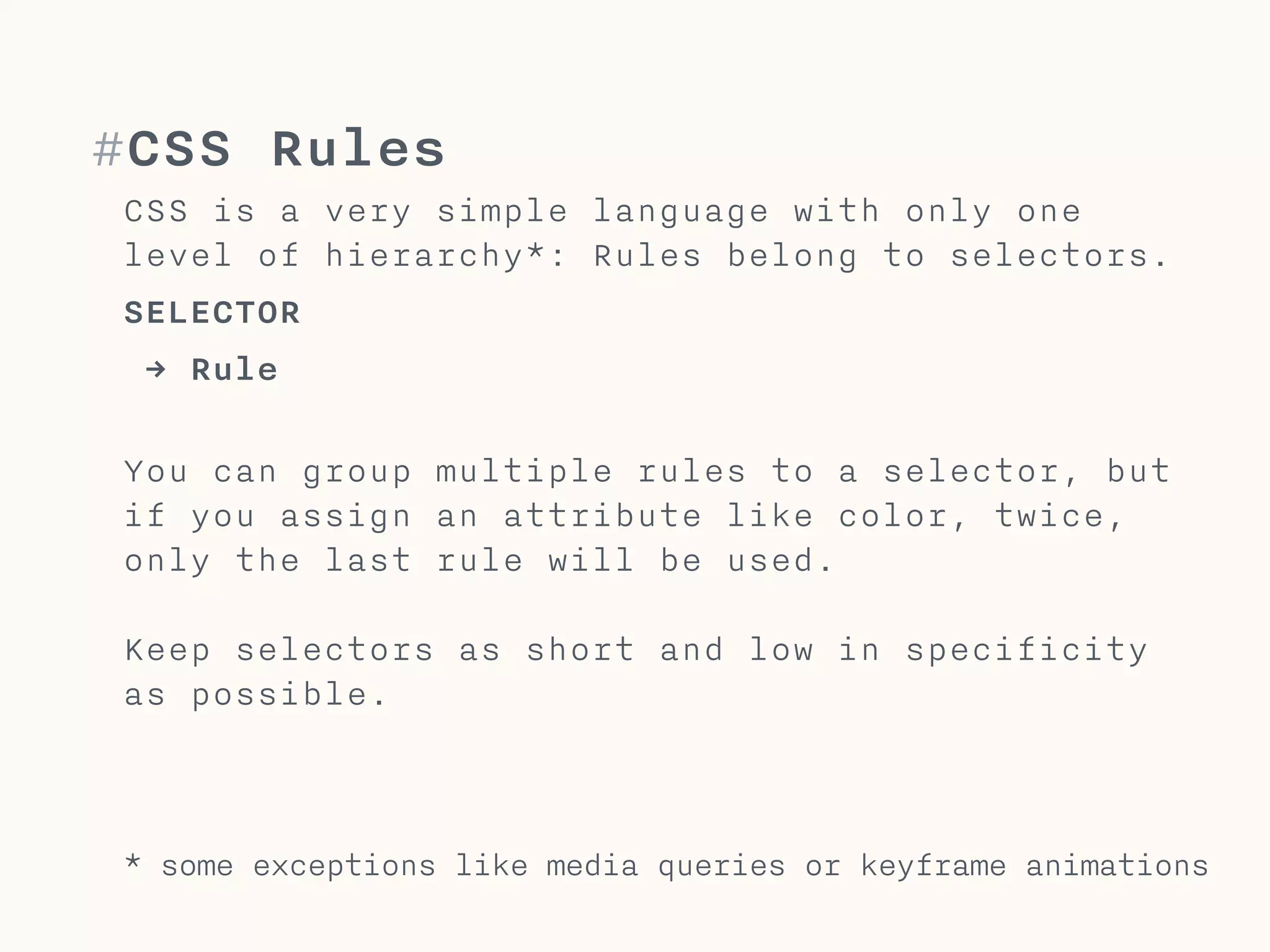
#CSS Rules
CSS is a very simple language with only one
level of hierarchy*: Rules belong to selectors.
SELECTOR
→ Rule

You can group multiple rules to a selector, but
if you assign an attribute like color, twice,
only the last rule will be used.


Keep selectors as short and low in specificity
as possible.
* some exceptions like media queries or keyframe animations
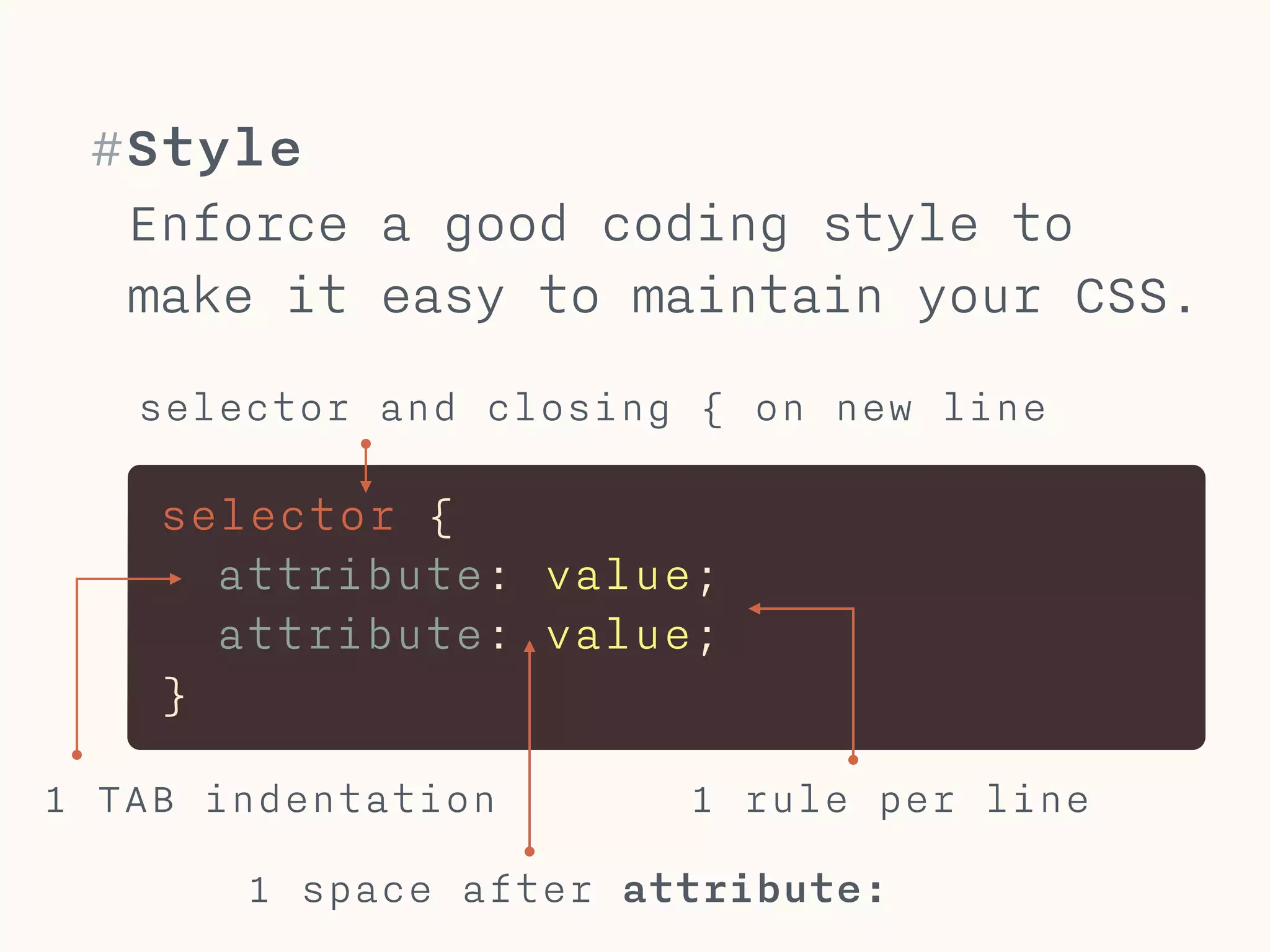
#Style
Enforce a good coding style to
make it easy to maintain your CSS.
1 TAB indentation 1 rule per line
selector and closing { on new line
selector {

attribute: value;

attribute: value;

}
1 space after attribute:
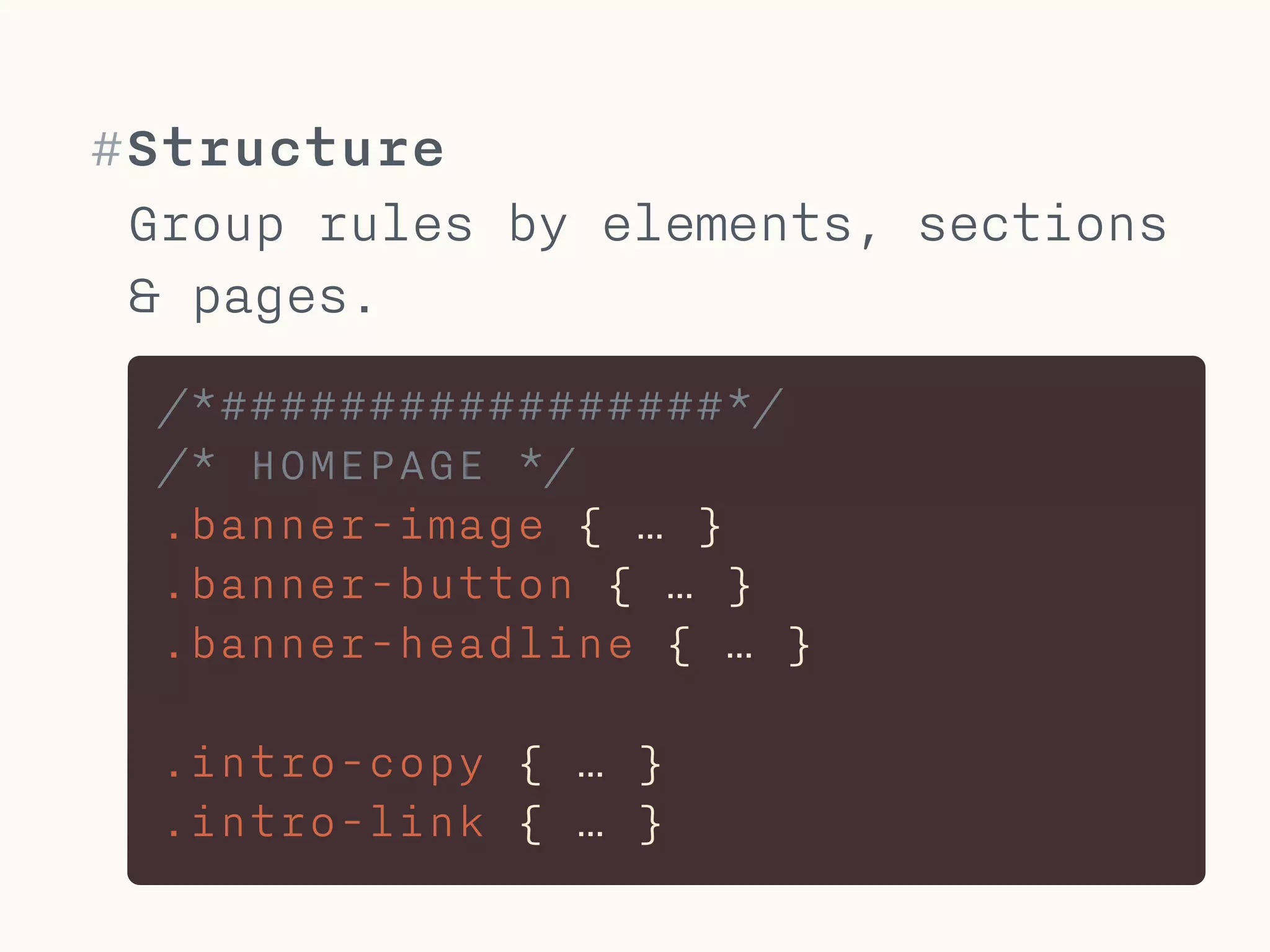
#Structure
Group rules by elements, sections
& pages.
/*#################*/
/* HOMEPAGE */

.banner-image { … }
.banner-button { … }
.banner-headline { … }


.intro-copy { … }
.intro-link { … }
#Don’ts
What not to do within CSS.
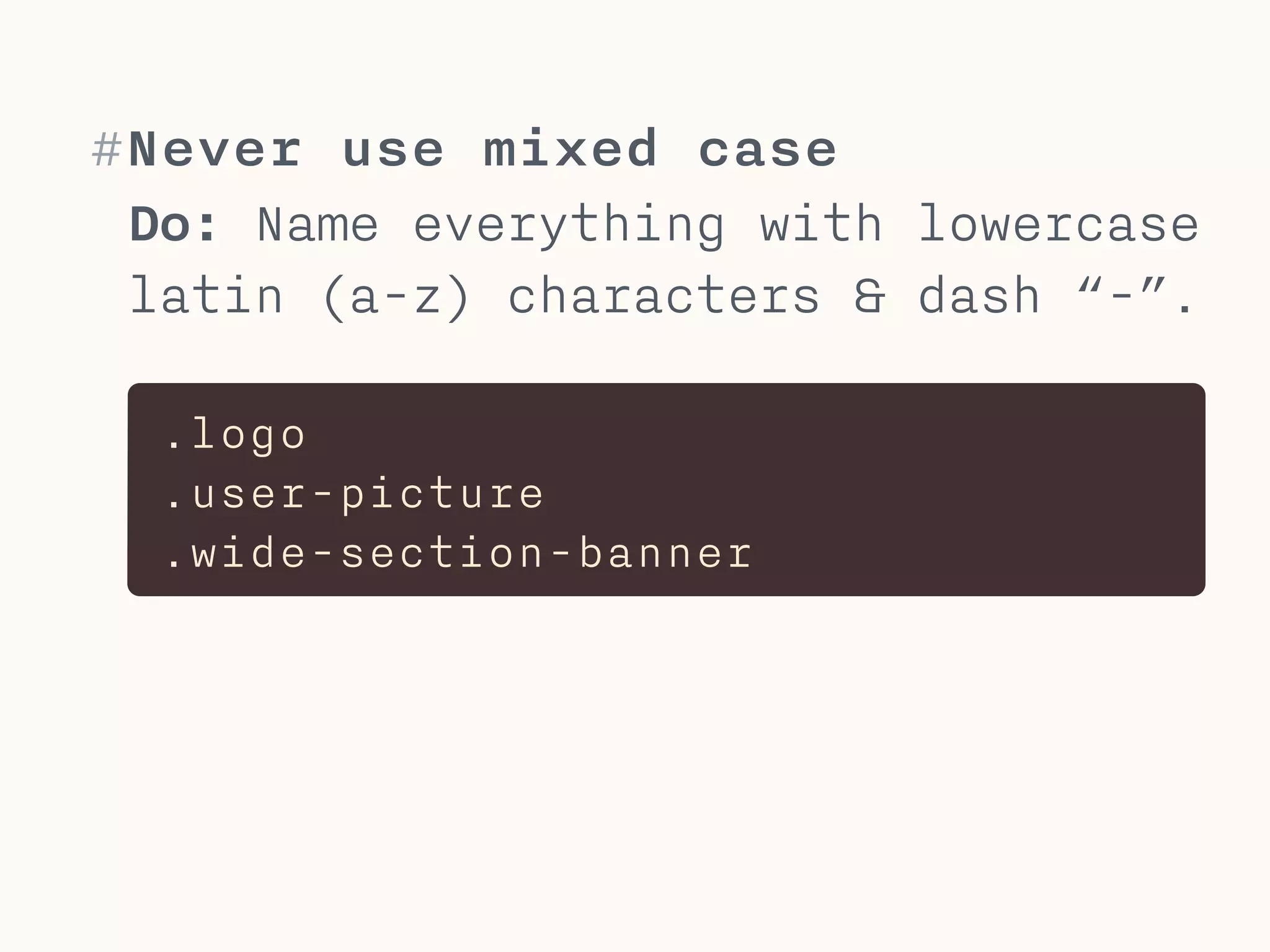
#Never use mixed case
Do: Name everything with lowercase
latin (a-z) characters & dash “-”.
.logo
.user-picture
.wide-section-banner
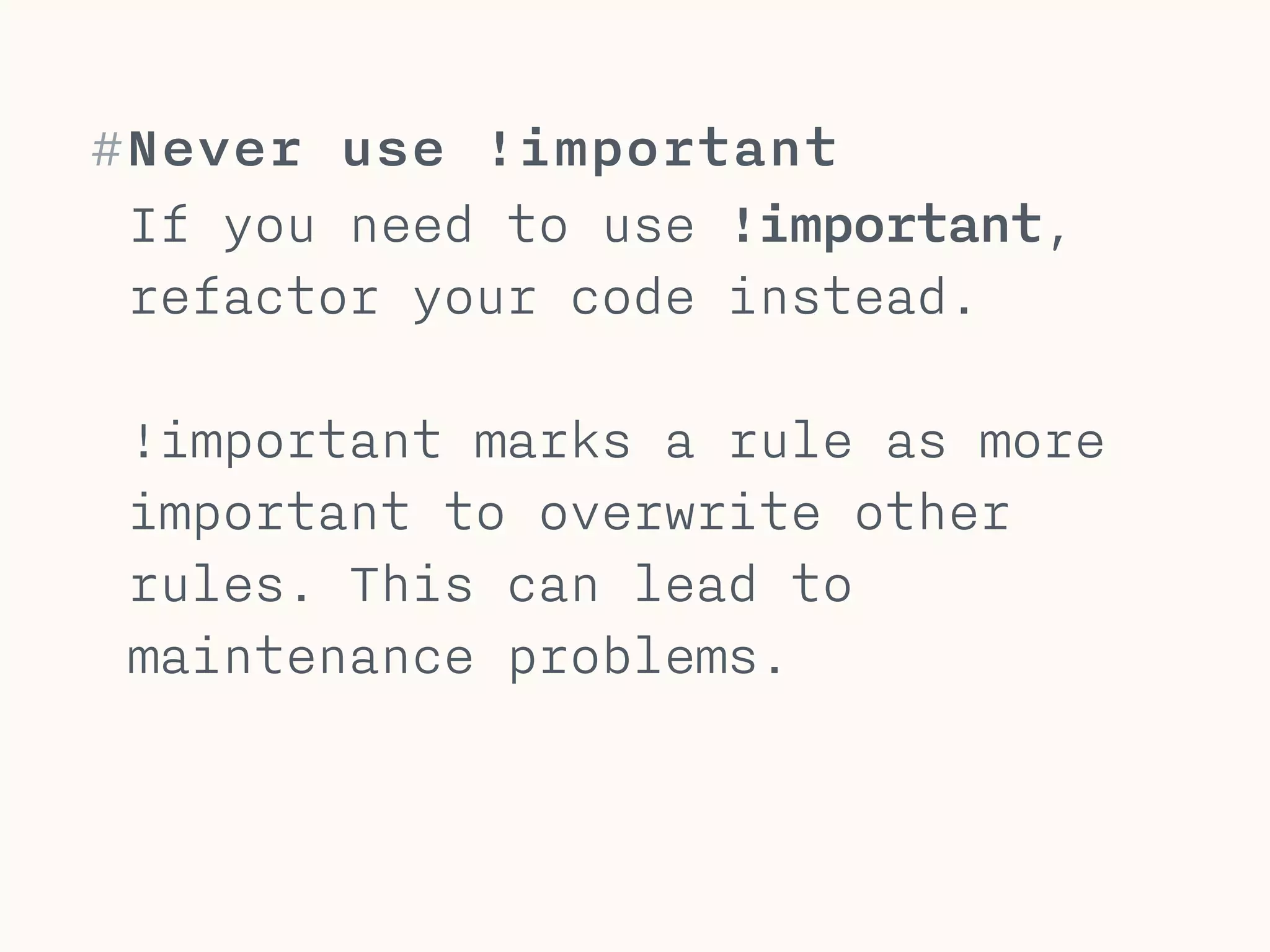
#Never use !important
If you need to use !important,
refactor your code instead.
!
!important marks a rule as more
important to overwrite other
rules. This can lead to
maintenance problems.


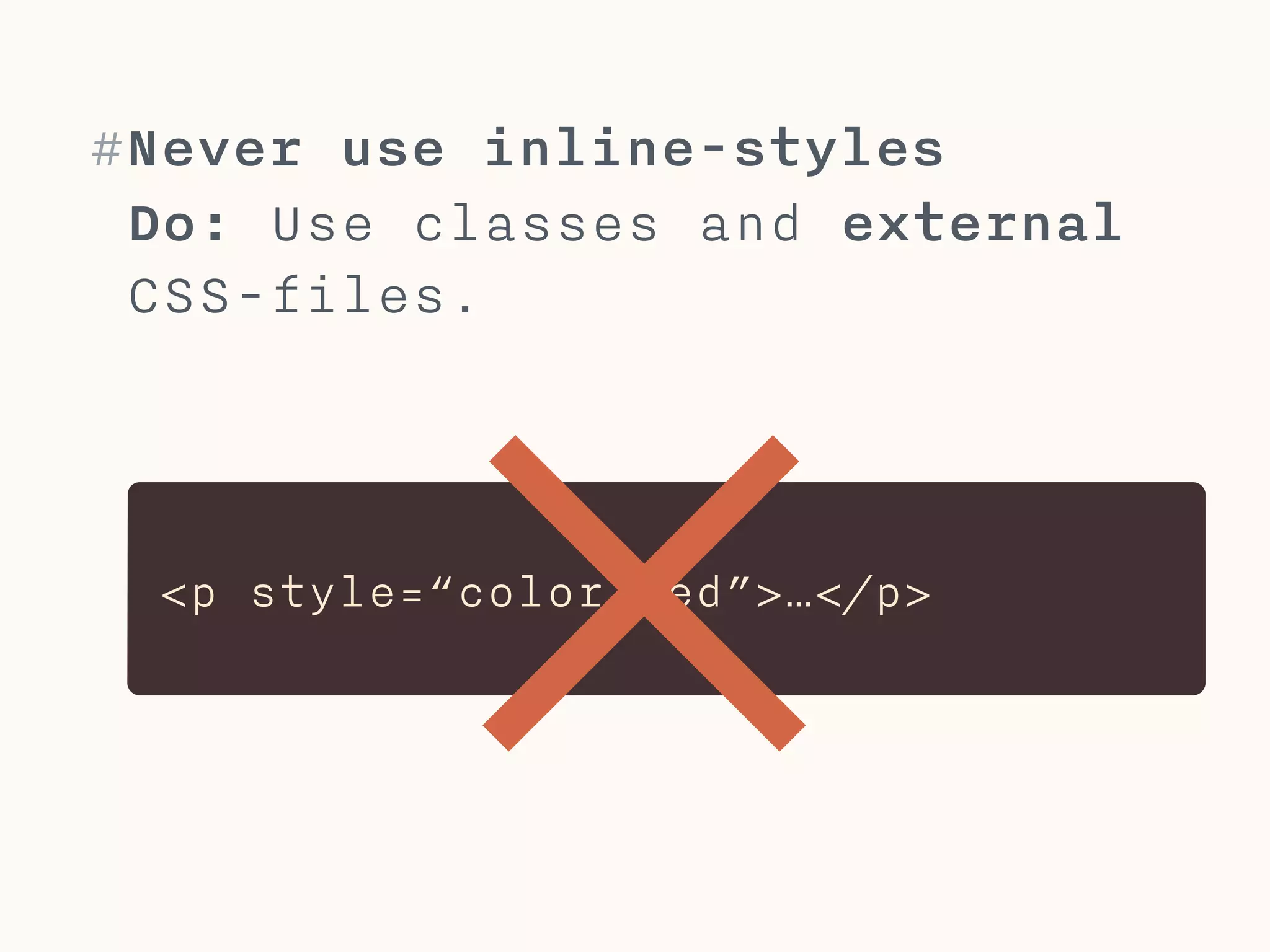
<p style=“color:red”>…</p>
#Never use inline-styles
Do: Use classes and external
CSS-files.
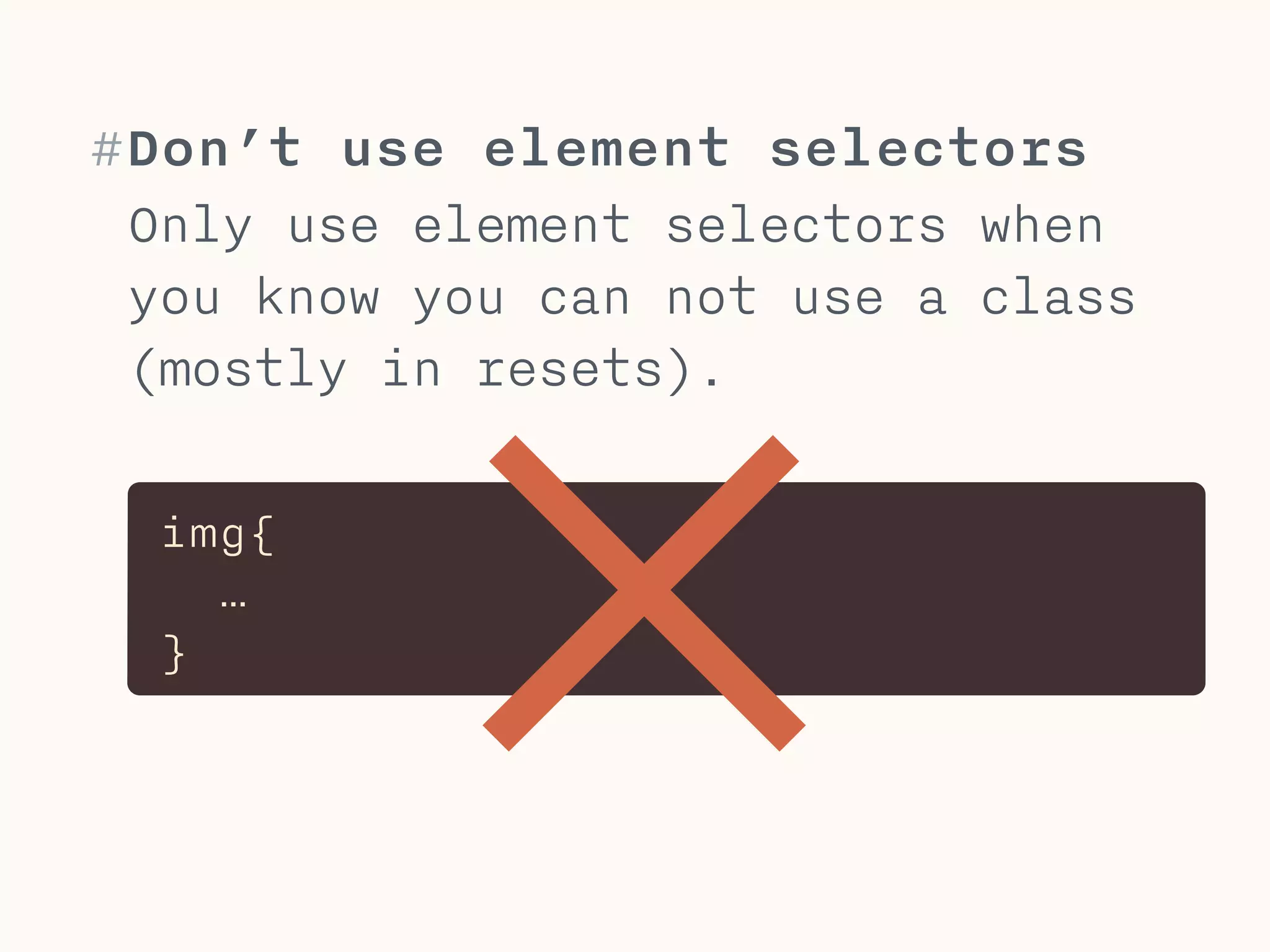
img{

…

}
#Don’t use element selectors
Only use element selectors when
you know you can not use a class
(mostly in resets).
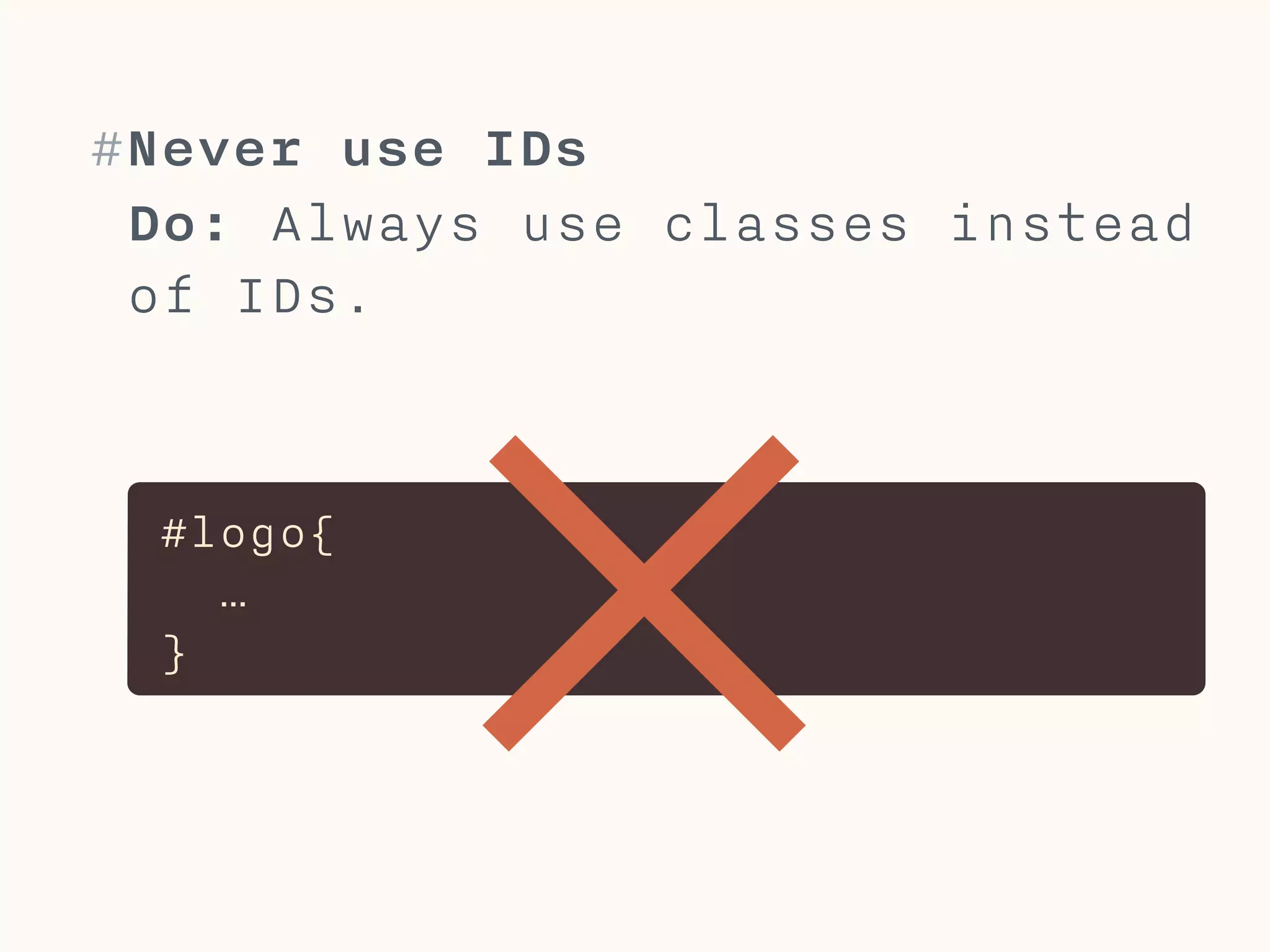
#logo{

…

}
#Never use IDs
Do: Always use classes instead
of IDs.
#Do’s
What to do within CSS.
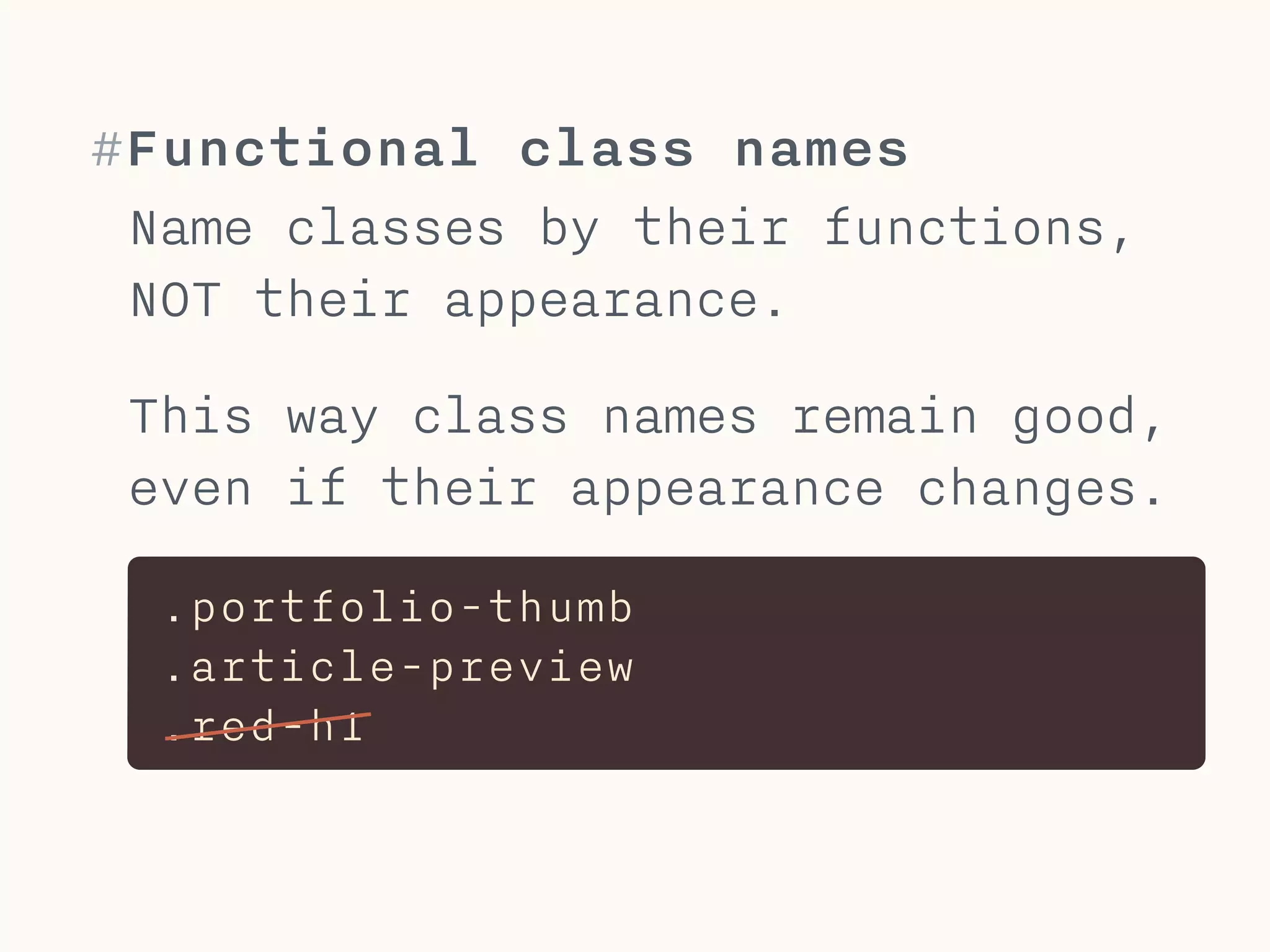
#Functional class names
Name classes by their functions,
NOT their appearance.


This way class names remain good,
even if their appearance changes.
.portfolio-thumb
.article-preview
.red-h1
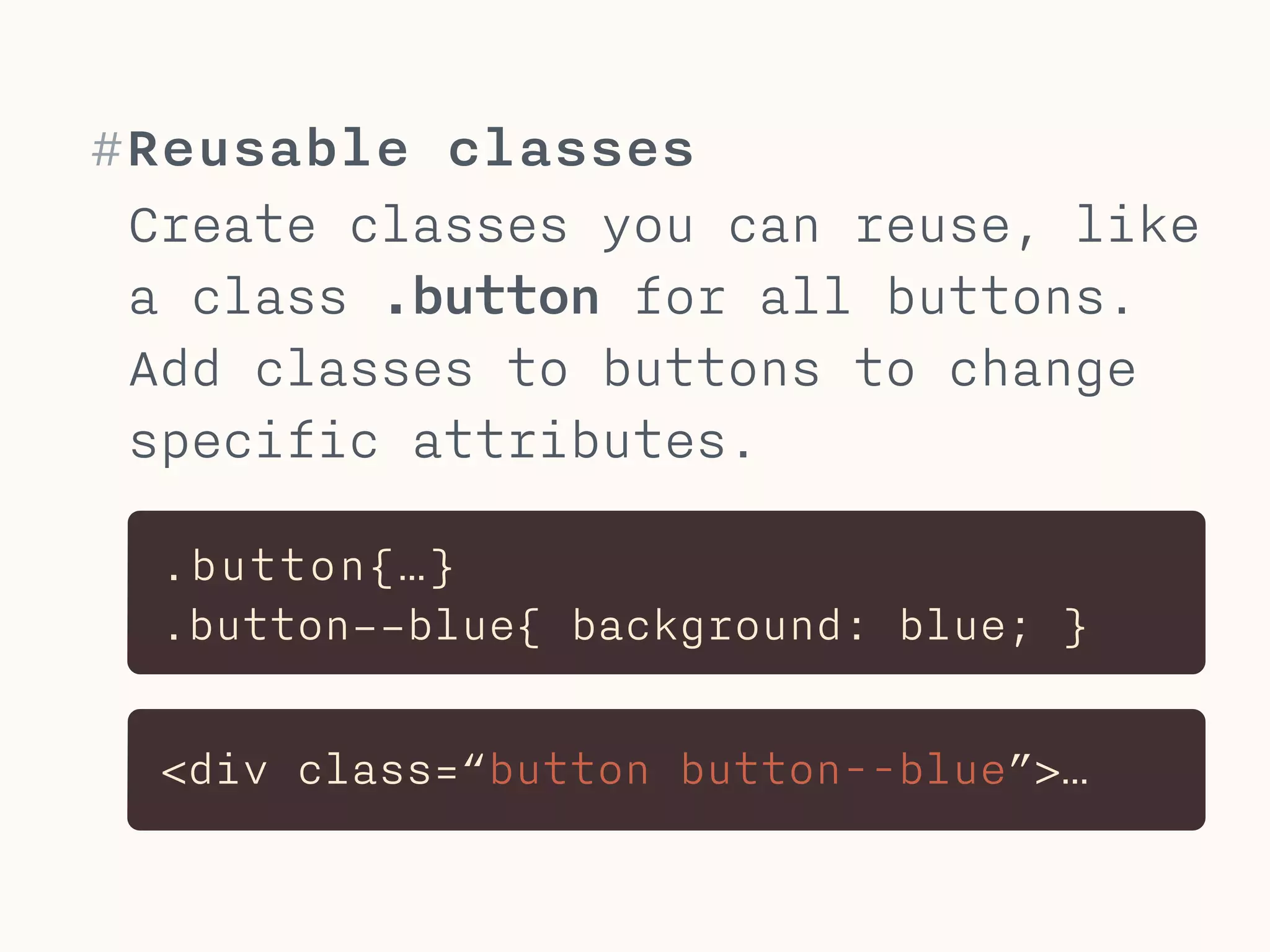
#Reusable classes
Create classes you can reuse, like
a class .button for all buttons.
Add classes to buttons to change
specific attributes.
.button{…}
.button––blue{ background: blue; }
<div class=“button button--blue”>…
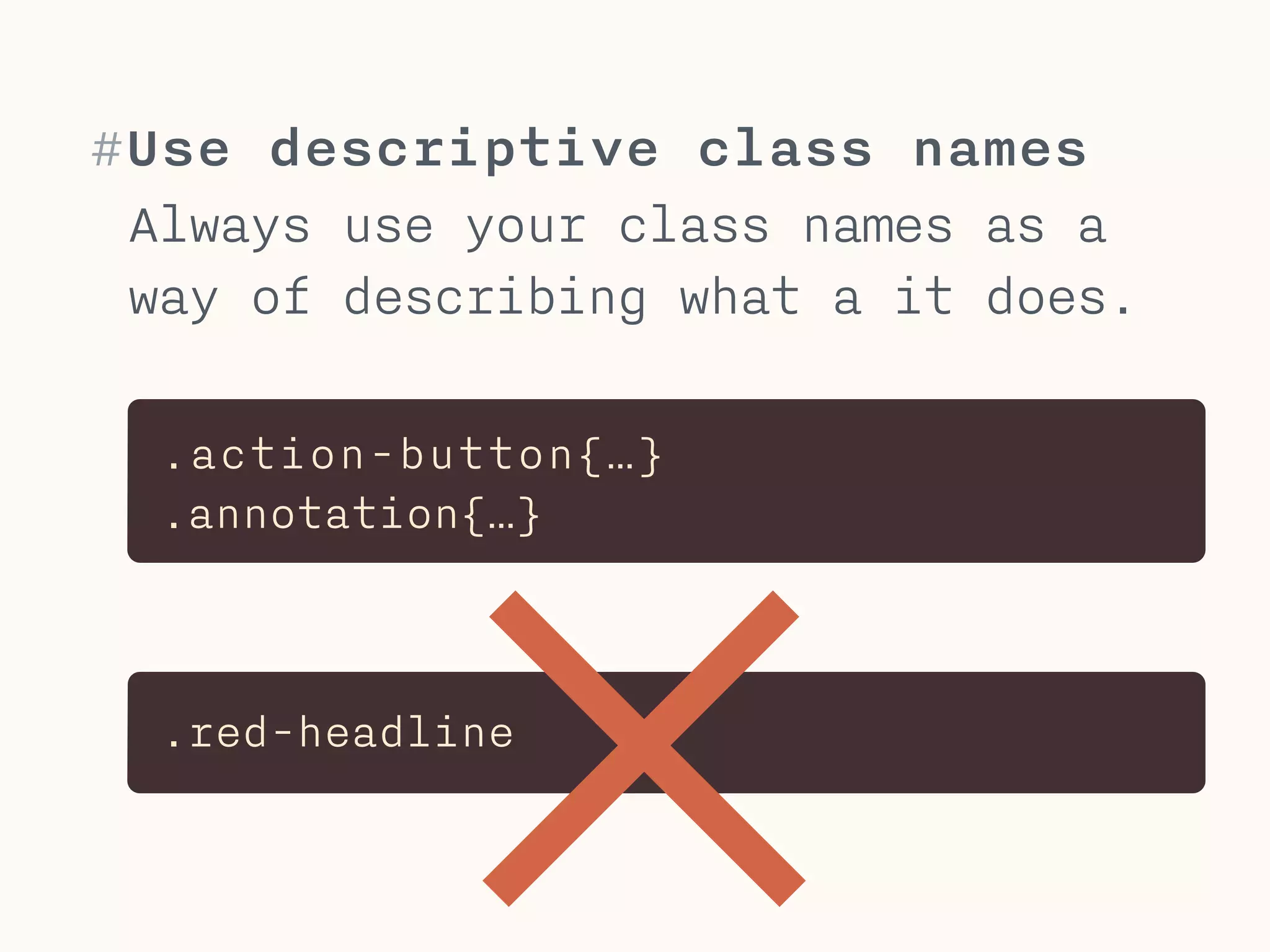
#Use descriptive class names
Always use your class names as a
way of describing what a it does.
.action-button{…}
.annotation{…}
.red-headline
#loading CSS
How to include a CSS-File?
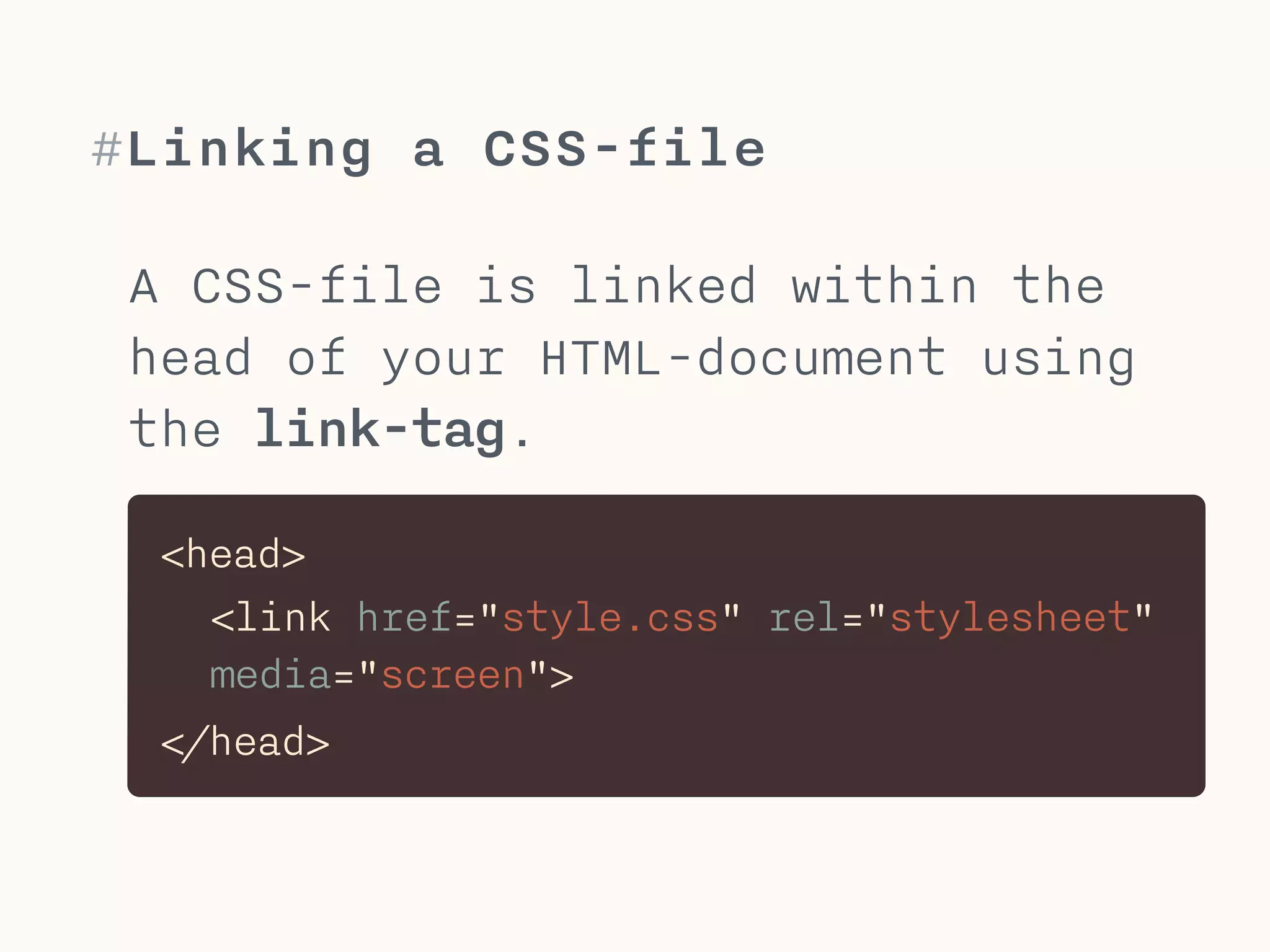
#Linking a CSS-file
A CSS-file is linked within the
head of your HTML-document using
the link-tag.
<link href="style.css" rel="stylesheet"
media="screen">
<head>
</head>
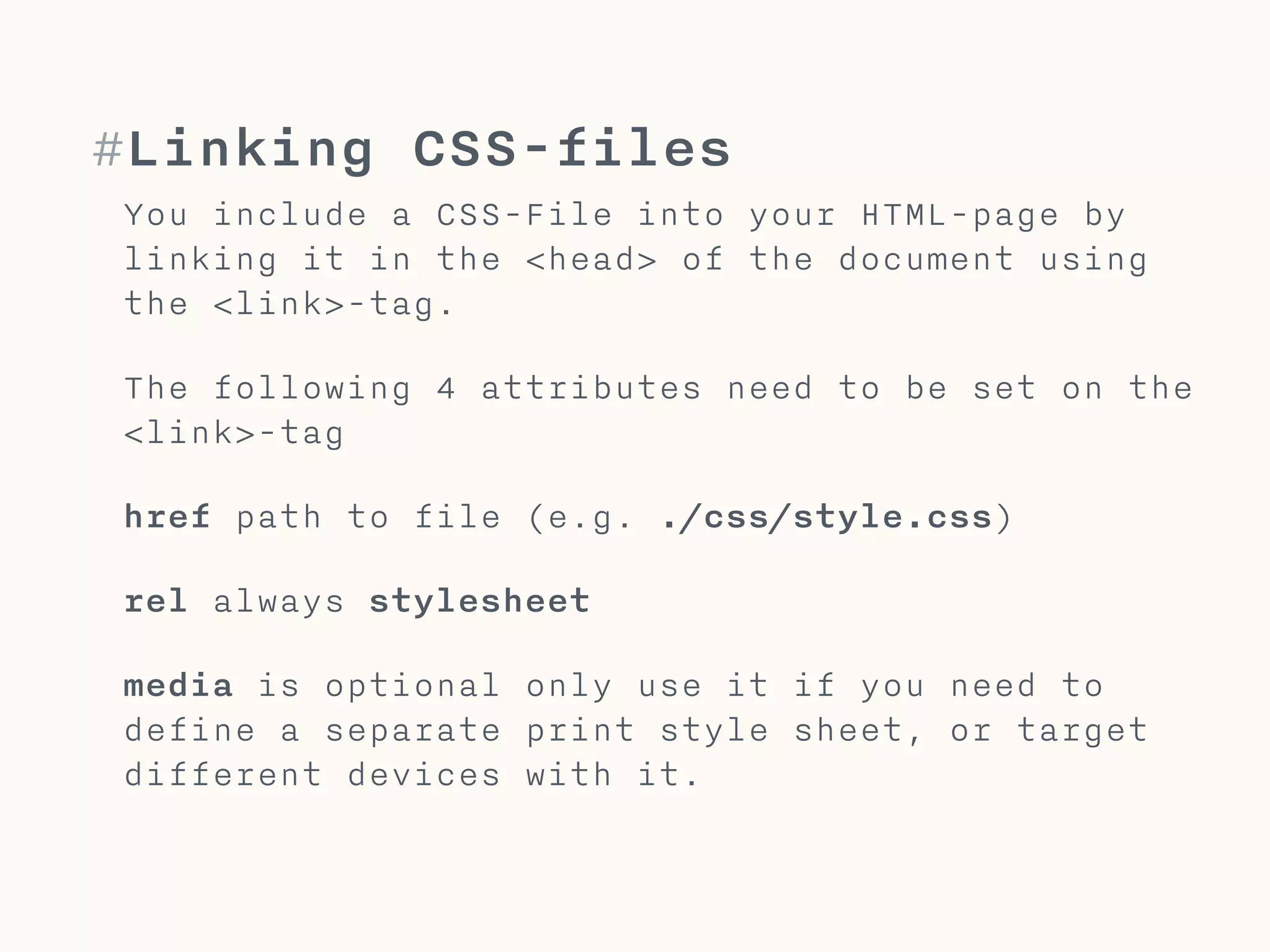
#Linking CSS-files
You include a CSS-File into your HTML-page by
linking it in the <head> of the document using
the <link>-tag.
!
The following 4 attributes need to be set on the
<link>-tag
!
href path to file (e.g. ./css/style.css)
!
rel always stylesheet
!
media is optional only use it if you need to
define a separate print style sheet, or target
different devices with it.
#Path
Absolute vs. relative
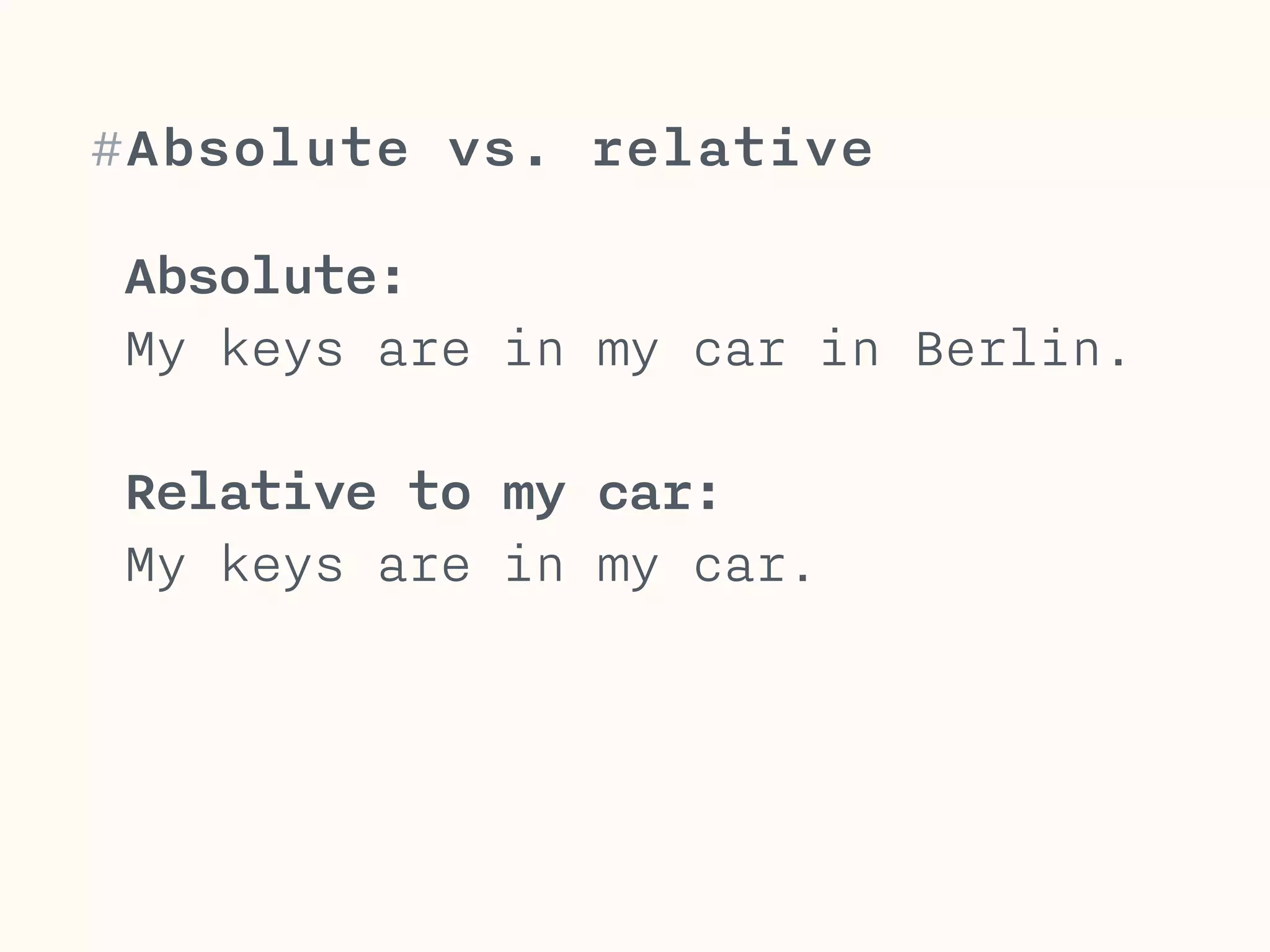
Absolute:
My keys are in my car in Berlin.
!
Relative to my car:

My keys are in my car.
#Absolute vs. relative
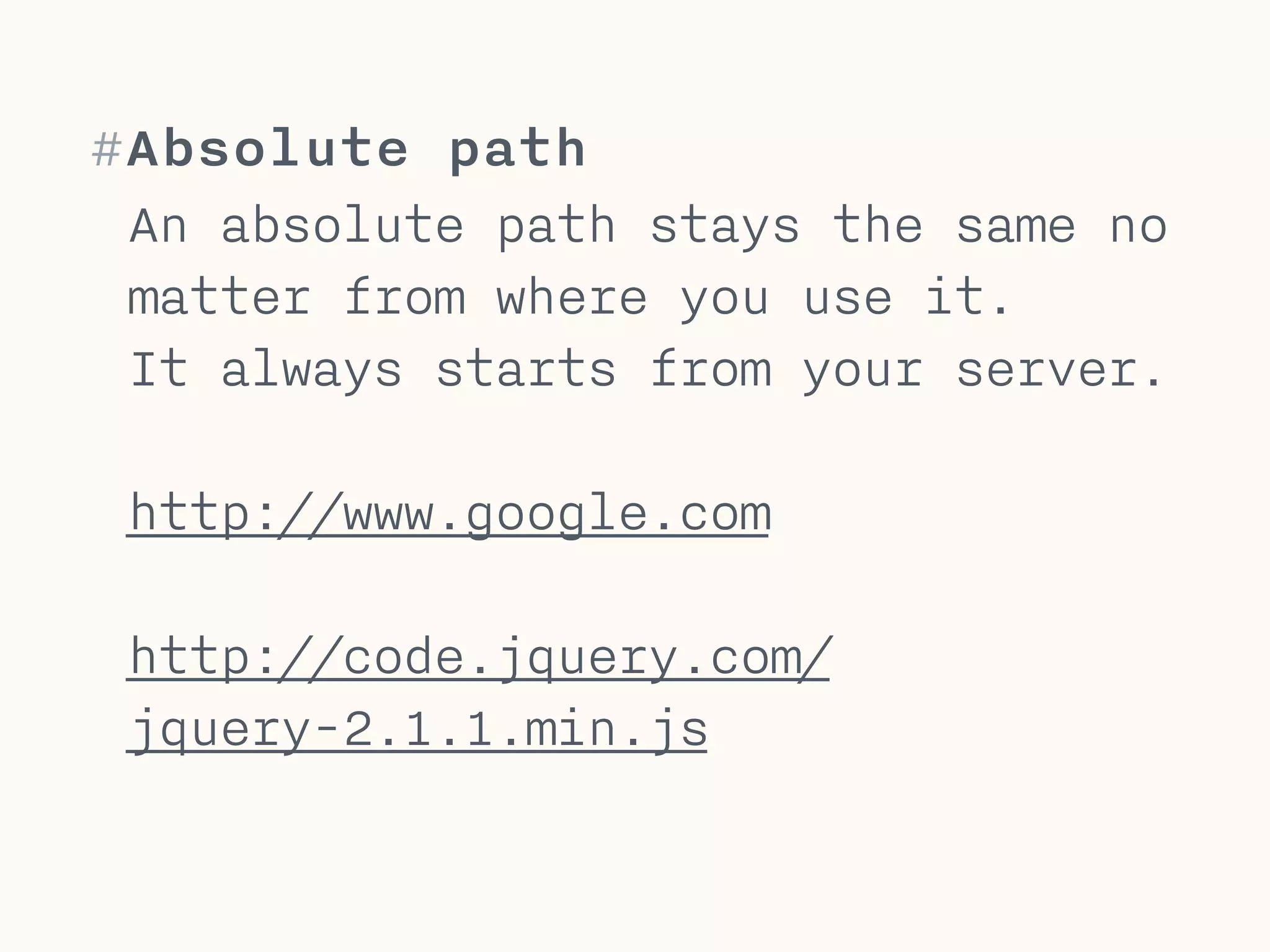
#Absolute path
An absolute path stays the same no
matter from where you use it.
It always starts from your server.
!
http://www.google.com

http://code.jquery.com/
jquery-2.1.1.min.js
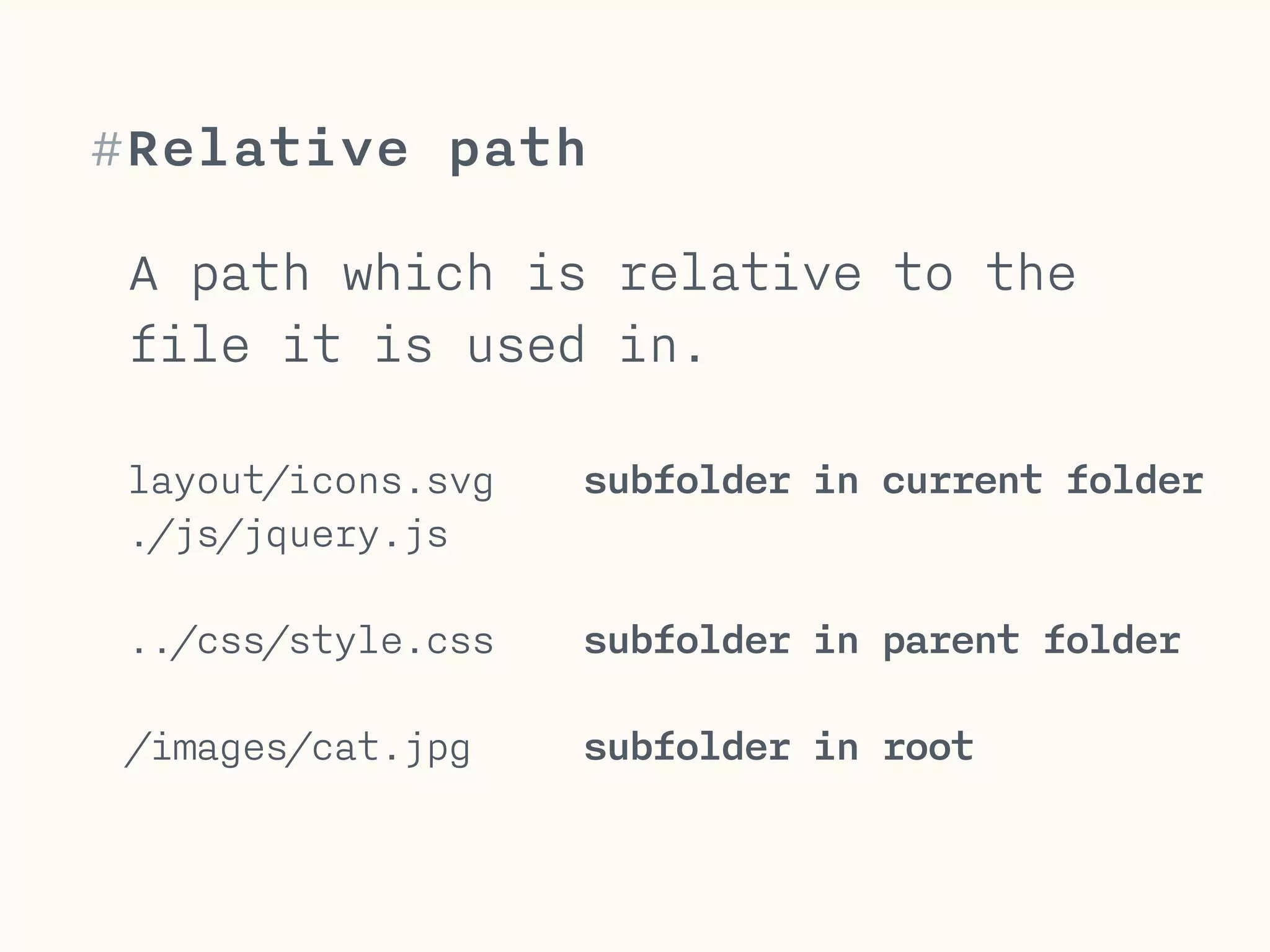
#Relative path
A path which is relative to the
file it is used in.
!
layout/icons.svg subfolder in current folder
./js/jquery.js
!
../css/style.css subfolder in parent folder
!
/images/cat.jpg subfolder in root
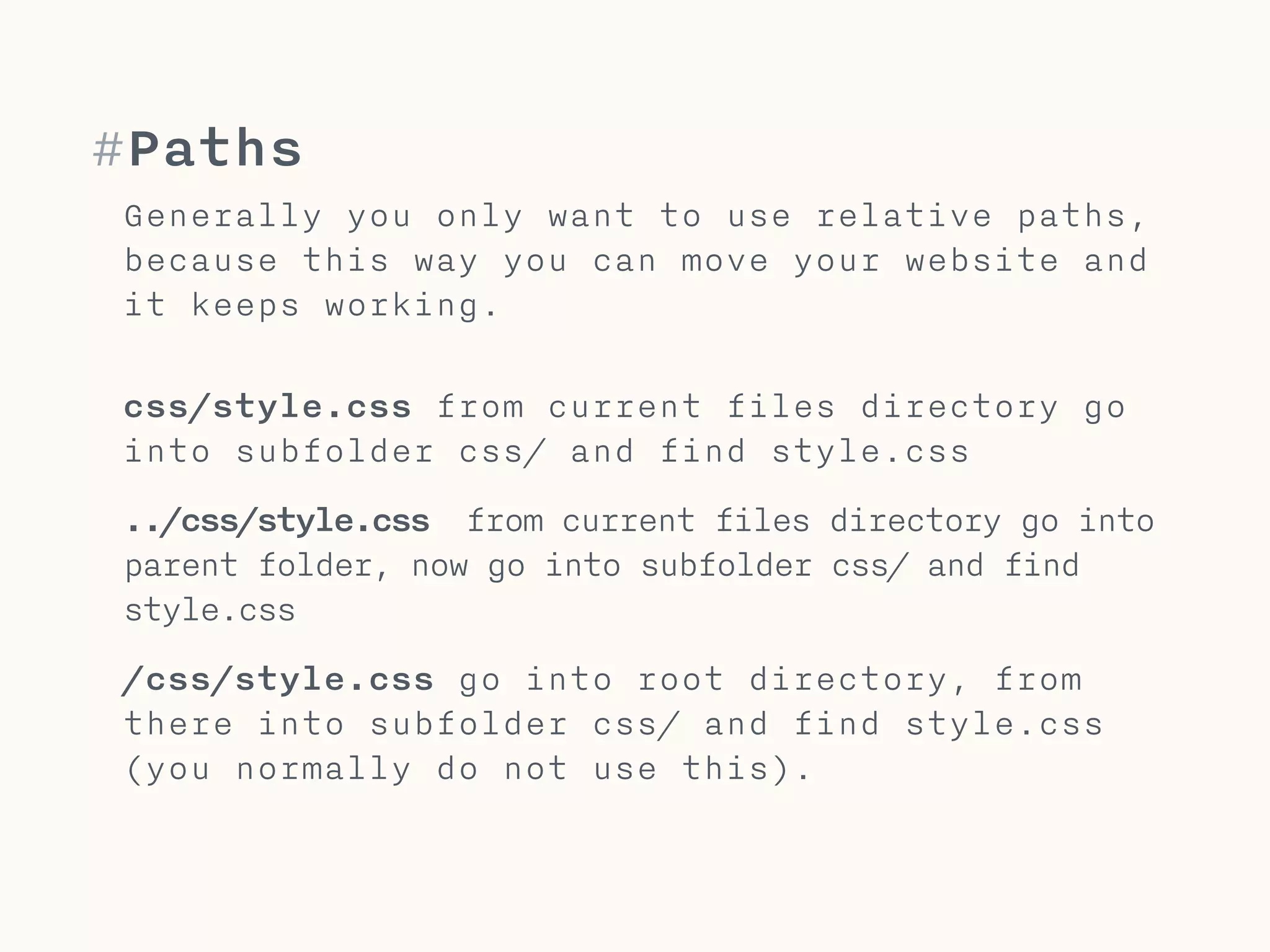
#Paths
Generally you only want to use relative paths,
because this way you can move your website and
it keeps working.

css/style.css from current files directory go
into subfolder css/ and find style.css
../css/style.css from current files directory go into
parent folder, now go into subfolder css/ and find
style.css
/css/style.css go into root directory, from
there into subfolder css/ and find style.css
(you normally do not use this).
#Quiz
Absolute or relative
http://tiny.cc/cw-path
images/bears/polarbear.jpg
cdn.jquery.com/jquery.js
./layout/logo.png
mediawiki.com/imgs/tiger.jpg
../icons/icons.svg
/Users/lukas/web/logo.jpg
Never ever use this!
#Lukas Oppermann
lukas@vea.re
#Homework
http://tiny.cc/cw-css
http://tiny.cc/cw-path

Creative Web 02 - HTML & CSS Basics

  • 1.
  • 2.
  • 3.
    Sir Tim Berners-Lee Inventsthe Internet of today 1989
  • 4.
    #HTML <!DOCTYPE html> <html> <head> </head> <body> ! </body> </html> declares anhtml 5 document wraps all html holds meta-data, css & the title holds all visible elements, that define structure and content.
  • 5.
    #HTML - documents Anhtml document always has the file extension .html and should be saved as an UTF-8 document. Whitespace between tags is mostly ignored. ! <!DOCTYPE html> defines the document as an html 5 document. MUST be the first element and on line 1. ! <html> wraps everything after doctype, has no real usage. ! <head> holds meta tags, css files and the title tag. ! <body> holds all the content that will be displayed in the browser.
  • 6.
    #Head <head> <meta charset="utf-8"> <meta name="description"content="…"> <meta name="robots" content="index,follow">
 <title>Your Name | Photography…<title/> </head> Place meta tags, css files and the title (important for seo) here.
  • 7.
    #HTML - <head> The<head> element holds general info (metadata) about the html document. This mainly including the title, meta-tags and linked style sheets files. ! charset declares the character encoding (utf-8 enables characters like ä,ö or ß). Short syntax is widely supported. Should be the first tag in the head. ! description ca. 150 chars, describe page content, may be used by search engines to display as result text. ! robots tells search engines how to index your page ! title ca. 60 chars, different for every page, descriptive, including key words for the given page
  • 8.
    #Body <body> <div> <img src=“media/bear.png” alt=“…”> <ul> <li>listitem</li>
 </ul> </div> </body> Holds all the content that will be displayed in the browser.
  • 9.
    #HTML - <body> The<body> element holds all the content that will be displayed in the browser. ! Elements are defined by a compulsory opening and closing tag <div>…</div>. ! Void elements like <img> do not have a closing tag. Those are very rare. ! Child elements like the <li> need to be within a defined parent element, for li this is a <ul>, <ol> or <dl>.
  • 10.
    #Style Enforce a goodcoding style to make it easy to maintain your HTML. 1 TAB indentation per nesting level new elements are placed on new line <div> <img src=“media/bear.png” alt=“…”> <ul> <li>list item</li>
 </ul> </div>
  • 11.
    #HTML coding style Thiscoding style makes it easy to maintain your html. ! Use only lowercase for everything (tags, attributes, classes,…). Only copy text may use mixed or upper case. ! Indentation use 1 TAB as indentation per nesting level. ! Elements on new line every block, list, or table element should be on a new line with indentation per level. ! Use <p> for paragraphs, never use <br>.
  • 12.
  • 13.
    Håkon Wium Lie *1965Norway / Opera
  • 14.
    #CSS CSS (Cascading StyleSheets) is a styling language used to define the formatting & looks of a document written in a markup language (e.g. HTML). Cascading means that a style with a lower specificity is replaced by a style with a higher specificity. ! Developed by Håkon Wium Lie and Bert Bos 1994-96 Current Version CSS 3 (not fully implemented)
  • 15.
    #Cascading A more specificstyle overwrites a less specific one.
  • 16.
    #Cascading CSS employes aCascading method to deal with multiple competing styles for one element. This means CSS starts from the most generic set of style-rules and overwrites rules that are different in more specific rule-sets. ! If a generic rule says “all text is red” and another rule says “the first headline is blue”, the first headline will be blue, because it is more specific.
  • 17.
    The level ofdetail with which something is described. a circle 
 (generic) a red circle 
 (specific) #Specificity
  • 18.
    #CSS Specificy Specificy: Themore detailed you specify an element, the higher its specificy. You should however aim for a good code structure, so that you do not need to be very specific.
 
 If you need to be very specific, you are likely to overwrite much code, which makes your CSS hard to maintain.
  • 19.
    #Selectors An HTML-Element isselected by using Classes, IDs, etc. .logo #navi img <div class=“logo”…> <ul id=“navi”…> <img …>
  • 20.
    #CSS Selectors Specificy: elementselectors (e.g. img) are less specific than classes which are less specific than IDs. ! Elements can be used with different classes. Classes can be used multiple times. IDs may only be used once per document. ! You should always use classes and never IDs or element selectors, if you do not have a really good reason for it. This will help in preventing
 specificity-problems.
  • 21.
    #Multi-element selectors You canspecify a selector with multiple selector-elements. .navigation.main-navi {…} <ul class=“navigation main-navi”>…</ul> no space! space, but not . (dot)
  • 22.
    #Hierarchical selectors You canspecify an element within another element. .navigation .main-navi {…} <div class=“navigation”>
 <ul class=“main-navi”>…</ul> </div> 1 space! ul is placed within div
  • 23.
    #Advanced CSS Selectors Multi-elementselectors: an element can be selected by using multiple selectors which are present on this one element (e.g. ID + class, multiple classes, etc.) this makes the selector more specific. You should try to only do this if really necessary. .class-one.class-two{…} #elementid.class-two{…} 
 Hierarchical selectors: an element can be selected in relation to its parents. For e.g. you can select an element with a class .child within an element .parent. .parent .child{…}
  • 24.
    #What is arule A CSS-file has a very flat hierarchy, only selectors & rules selector {
 attribute: value; /* <- rule */
 }
  • 25.
    #A rule set Aset of rules are grouped under a selector to which those rules apply. .navigation-item {
 color: black;
 font-size: 16px;
 }
  • 26.
    #CSS Rules CSS isa very simple language with only one level of hierarchy*: Rules belong to selectors. SELECTOR → Rule
 You can group multiple rules to a selector, but if you assign an attribute like color, twice, only the last rule will be used.
 
 Keep selectors as short and low in specificity as possible. * some exceptions like media queries or keyframe animations
  • 27.
    #Style Enforce a goodcoding style to make it easy to maintain your CSS. 1 TAB indentation 1 rule per line selector and closing { on new line selector {
 attribute: value;
 attribute: value;
 } 1 space after attribute:
  • 28.
    #Structure Group rules byelements, sections & pages. /*#################*/ /* HOMEPAGE */
 .banner-image { … } .banner-button { … } .banner-headline { … } 
 .intro-copy { … } .intro-link { … }
  • 29.
    #Don’ts What not todo within CSS.
  • 30.
    #Never use mixedcase Do: Name everything with lowercase latin (a-z) characters & dash “-”. .logo .user-picture .wide-section-banner
  • 31.
    #Never use !important Ifyou need to use !important, refactor your code instead. ! !important marks a rule as more important to overwrite other rules. This can lead to maintenance problems.
 

  • 32.
    <p style=“color:red”>…</p> #Never useinline-styles Do: Use classes and external CSS-files.
  • 33.
    img{
 …
 } #Don’t use elementselectors Only use element selectors when you know you can not use a class (mostly in resets).
  • 34.
    #logo{
 …
 } #Never use IDs Do:Always use classes instead of IDs.
  • 35.
    #Do’s What to dowithin CSS.
  • 36.
    #Functional class names Nameclasses by their functions, NOT their appearance.
 
 This way class names remain good, even if their appearance changes. .portfolio-thumb .article-preview .red-h1
  • 37.
    #Reusable classes Create classesyou can reuse, like a class .button for all buttons. Add classes to buttons to change specific attributes. .button{…} .button––blue{ background: blue; } <div class=“button button--blue”>…
  • 38.
    #Use descriptive classnames Always use your class names as a way of describing what a it does. .action-button{…} .annotation{…} .red-headline
  • 39.
    #loading CSS How toinclude a CSS-File?
  • 40.
    #Linking a CSS-file ACSS-file is linked within the head of your HTML-document using the link-tag. <link href="style.css" rel="stylesheet" media="screen"> <head> </head>
  • 41.
    #Linking CSS-files You includea CSS-File into your HTML-page by linking it in the <head> of the document using the <link>-tag. ! The following 4 attributes need to be set on the <link>-tag ! href path to file (e.g. ./css/style.css) ! rel always stylesheet ! media is optional only use it if you need to define a separate print style sheet, or target different devices with it.
  • 42.
  • 43.
    Absolute: My keys arein my car in Berlin. ! Relative to my car:
 My keys are in my car. #Absolute vs. relative
  • 44.
    #Absolute path An absolutepath stays the same no matter from where you use it. It always starts from your server. ! http://www.google.com
 http://code.jquery.com/ jquery-2.1.1.min.js
  • 45.
    #Relative path A pathwhich is relative to the file it is used in. ! layout/icons.svg subfolder in current folder ./js/jquery.js ! ../css/style.css subfolder in parent folder ! /images/cat.jpg subfolder in root
  • 46.
    #Paths Generally you onlywant to use relative paths, because this way you can move your website and it keeps working.
 css/style.css from current files directory go into subfolder css/ and find style.css ../css/style.css from current files directory go into parent folder, now go into subfolder css/ and find style.css /css/style.css go into root directory, from there into subfolder css/ and find style.css (you normally do not use this).
  • 47.
  • 48.
  • 49.
  • 50.
  • 51.
  • 52.
  • 53.
  • 54.
  • 55.
  • 56.