BMS
Business Management System
http://myredportal.com/bms
Central location for all;
“Draft”, “Pending”, “Approved”, “Rejected”
documents…
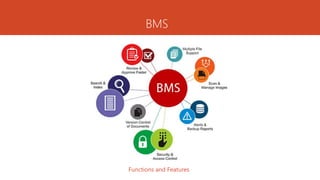
BMS
Functions and Features
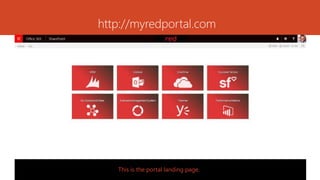
http://myredportal.com
This is the portal landing page.
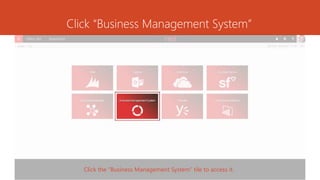
Click “Business Management System”
Click the “Business Management System” tile to access it.
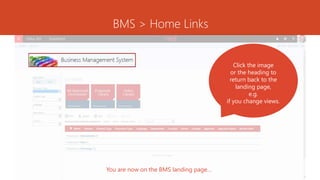
BMS > Home Links
You are now on the BMS landing page…
Click the image
or the heading to
return back to the
landing page,
e.g.
if you change views.
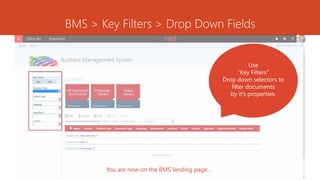
Use
“Key Filters”
Drop down selectors to
filter documents
by it’s properties.
BMS > Key Filters > Drop Down Fields
You are now on the BMS landing page…
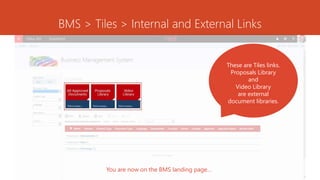
BMS > Tiles > Internal and External Links
You are now on the BMS landing page…
These are Tiles links.
Proposals Library
and
Video Library
are external
document libraries.
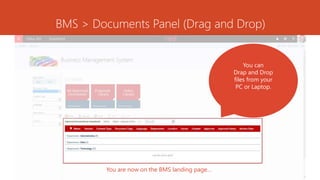
BMS > Documents Panel (Drag and Drop)
You are now on the BMS landing page…
You can
Drap and Drop
files from your
PC or Laptop.
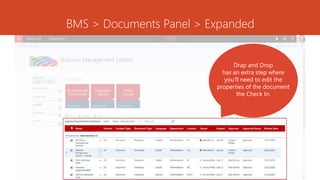
BMS > Documents Panel > Expanded
Drap and Drop
has an extra step where
you’ll need to edit the
properties of the document
the Check In.
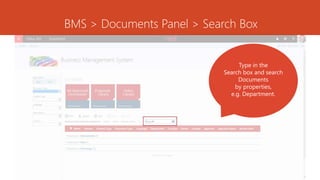
BMS > Documents Panel > Search Box
Type in the
Search box and search
Documents
by properties,
e.g. Department.
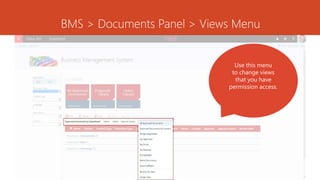
BMS > Documents Panel > Views Menu
Use this menu
to change views
that you have
permission access.
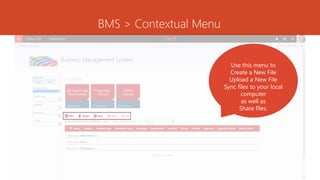
BMS > Contextual Menu
Use this menu to
Create a New File
Upload a New File
Sync files to your local
computer
as well as
Share files.
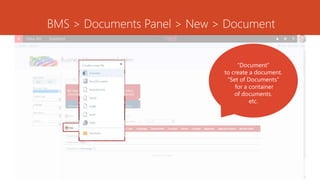
BMS > Documents Panel > New > Document
“Document”
to create a document.
“Set of Documents”
for a container
of documents.
etc.
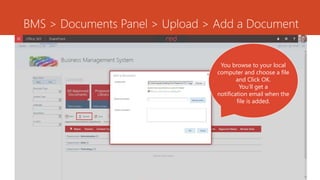
BMS > Documents Panel > Upload > Add a Document
Here you’ll find custom web parts, as listed above. I’ve created some using HTML and jQuery.
You browse to your local
computer and choose a file
and Click OK.
You’ll get a
notification email when the
file is added.
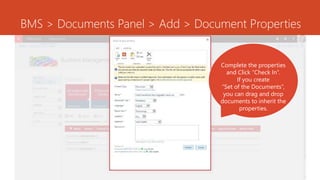
BMS > Documents Panel > Add > Document Properties
Complete the properties
and Click “Check In”.
If you create
“Set of the Documents”,
you can drag and drop
documents to inherit the
properties.
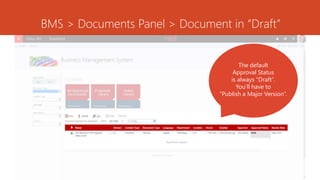
BMS > Documents Panel > Document in “Draft”
The default
Approval Status
is always “Draft”.
You’ll have to
“Publish a Major Version”.
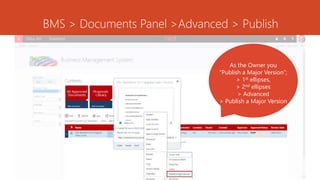
BMS > Documents Panel >Advanced > Publish
As the Owner you
“Publish a Major Version”;
> 1st ellipses,
> 2nd ellipses
> Advanced
> Publish a Major Version
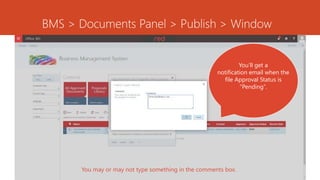
BMS > Documents Panel > Publish > Window
You may or may not type something in the comments box.
You’ll get a
notification email when the
file Approval Status is
“Pending”.
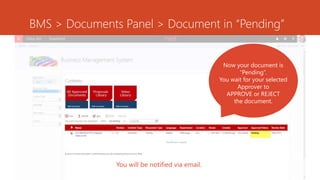
BMS > Documents Panel > Document in “Pending”
You will be notified via email.
Now your document is
“Pending”.
You wait for your selected
Approver to
APPROVE or REJECT
the document.
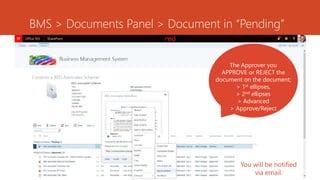
BMS > Documents Panel > Document in “Pending”
Now you wait for your selected Approver to APPROVE or REJECT the document.
You will be notified via email.
You will be notified
via email.
The Approver you
APPROVE or REJECT the
document on the document;
> 1st ellipses,
> 2nd ellipses
> Advanced
> Approve/Reject
B.M.S.
Business
Management
System
Site Location and Support
BMS: http://myredportal.com/bms
Portal: http://myredportal.com
Support: RedTechnologySupport@redsapsolutions.com

Business Management System (BMS) Slides

  • 1.
    BMS Business Management System http://myredportal.com/bms Centrallocation for all; “Draft”, “Pending”, “Approved”, “Rejected” documents…
  • 2.
  • 3.
  • 4.
    Click “Business ManagementSystem” Click the “Business Management System” tile to access it.
  • 5.
    BMS > HomeLinks You are now on the BMS landing page… Click the image or the heading to return back to the landing page, e.g. if you change views.
  • 6.
    Use “Key Filters” Drop downselectors to filter documents by it’s properties. BMS > Key Filters > Drop Down Fields You are now on the BMS landing page…
  • 7.
    BMS > Tiles> Internal and External Links You are now on the BMS landing page… These are Tiles links. Proposals Library and Video Library are external document libraries.
  • 8.
    BMS > DocumentsPanel (Drag and Drop) You are now on the BMS landing page… You can Drap and Drop files from your PC or Laptop.
  • 9.
    BMS > DocumentsPanel > Expanded Drap and Drop has an extra step where you’ll need to edit the properties of the document the Check In.
  • 10.
    BMS > DocumentsPanel > Search Box Type in the Search box and search Documents by properties, e.g. Department.
  • 11.
    BMS > DocumentsPanel > Views Menu Use this menu to change views that you have permission access.
  • 12.
    BMS > ContextualMenu Use this menu to Create a New File Upload a New File Sync files to your local computer as well as Share files.
  • 13.
    BMS > DocumentsPanel > New > Document “Document” to create a document. “Set of Documents” for a container of documents. etc.
  • 14.
    BMS > DocumentsPanel > Upload > Add a Document Here you’ll find custom web parts, as listed above. I’ve created some using HTML and jQuery. You browse to your local computer and choose a file and Click OK. You’ll get a notification email when the file is added.
  • 15.
    BMS > DocumentsPanel > Add > Document Properties Complete the properties and Click “Check In”. If you create “Set of the Documents”, you can drag and drop documents to inherit the properties.
  • 16.
    BMS > DocumentsPanel > Document in “Draft” The default Approval Status is always “Draft”. You’ll have to “Publish a Major Version”.
  • 17.
    BMS > DocumentsPanel >Advanced > Publish As the Owner you “Publish a Major Version”; > 1st ellipses, > 2nd ellipses > Advanced > Publish a Major Version
  • 18.
    BMS > DocumentsPanel > Publish > Window You may or may not type something in the comments box. You’ll get a notification email when the file Approval Status is “Pending”.
  • 19.
    BMS > DocumentsPanel > Document in “Pending” You will be notified via email. Now your document is “Pending”. You wait for your selected Approver to APPROVE or REJECT the document.
  • 20.
    BMS > DocumentsPanel > Document in “Pending” Now you wait for your selected Approver to APPROVE or REJECT the document. You will be notified via email. You will be notified via email. The Approver you APPROVE or REJECT the document on the document; > 1st ellipses, > 2nd ellipses > Advanced > Approve/Reject
  • 21.
    B.M.S. Business Management System Site Location andSupport BMS: http://myredportal.com/bms Portal: http://myredportal.com Support: RedTechnologySupport@redsapsolutions.com

Editor's Notes

  • #22 In Slide Show mode, click the arrow to enter the PowerPoint Getting Started Center.