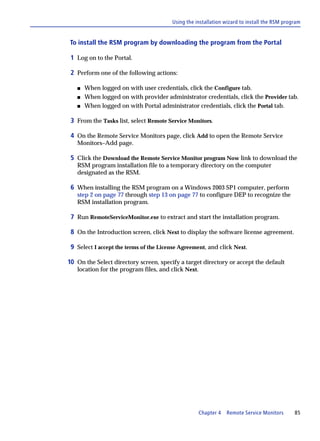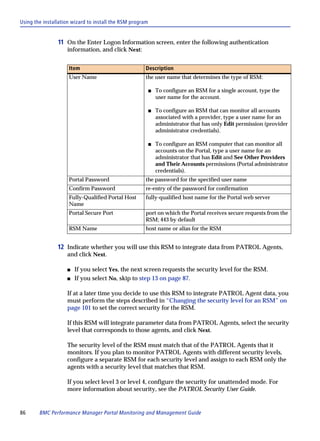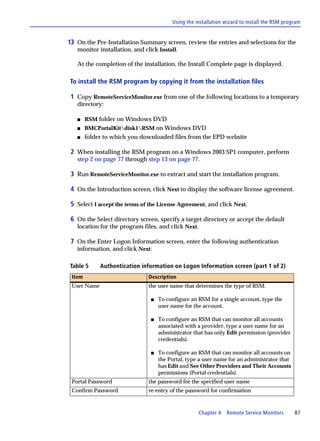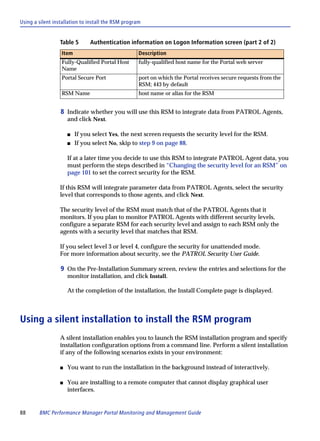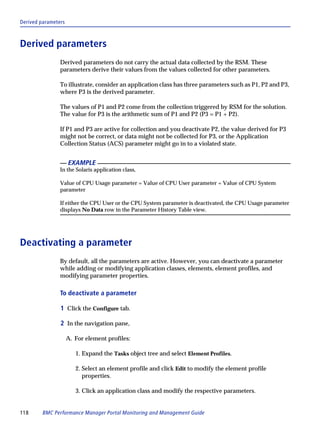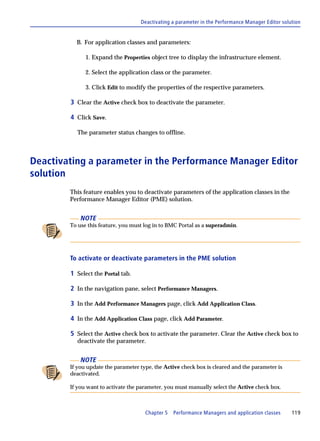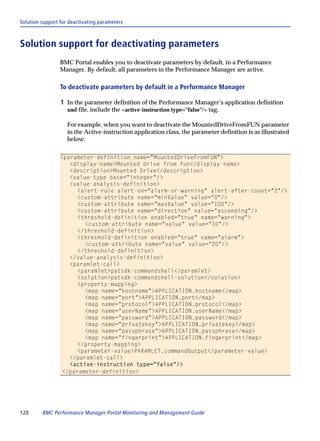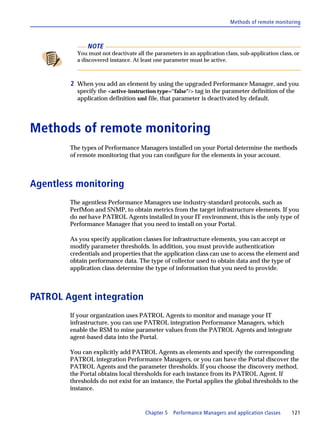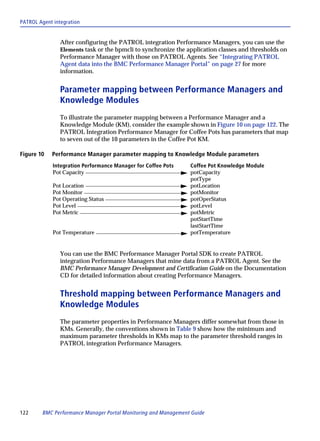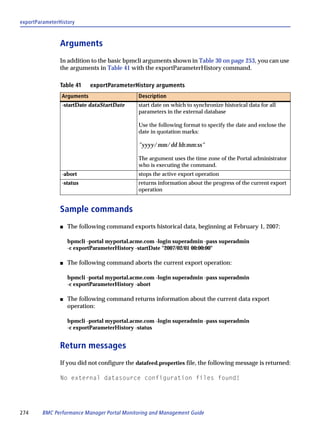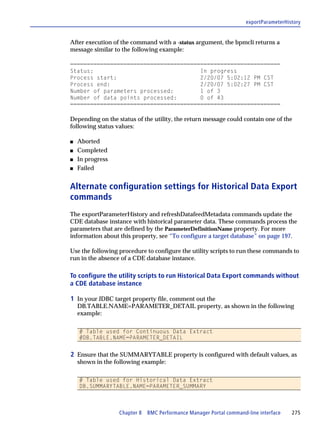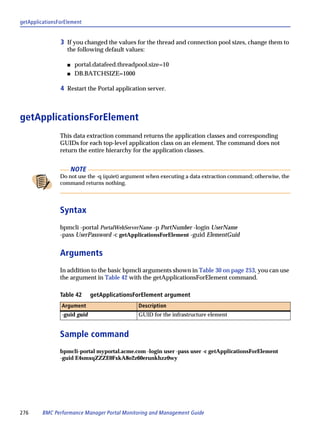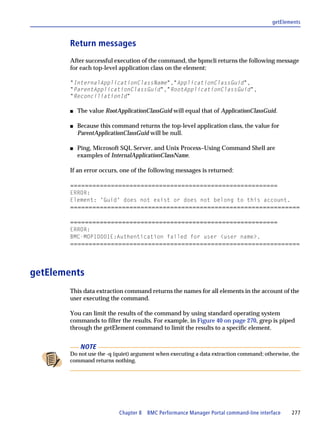



BMC Performance Manager Portal
Monitoring and Management Guide


Supporting
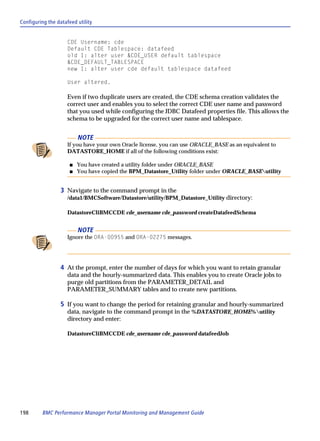
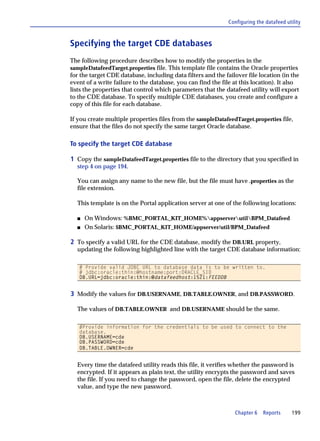
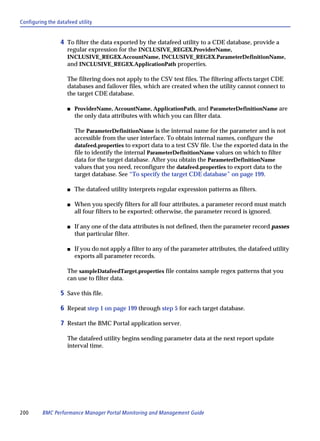
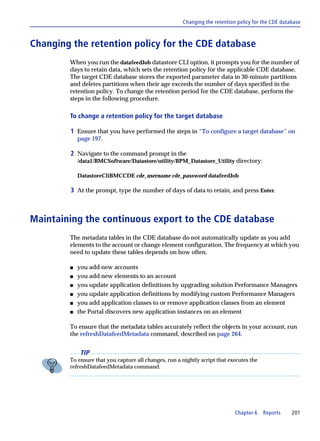
BMC Performance Manager Portal version 2.8
Remote Service Monitor version 2.8


February 2010


                                             www.bmc.com
Contacting BMC Software
 You can access the BMC Software website at http://www.bmc.com. From this website, you can obtain information
 about the company, its products, corporate offices, special events, and career opportunities.
 United States and Canada
 Address            BMC SOFTWARE INC                       Telephone        713 918 8800 or           Fax                713 918 8000
                    2101 CITYWEST BLVD                                      800 841 2031
                    HOUSTON TX 77042-2827
                    USA
 Outside United States and Canada
 Telephone          (01) 713 918 8800                      Fax              (01) 713 918 8000


© Copyright 2009–2010 BMC Software, Inc.
BMC, BMC Software, and the BMC Software logo are the exclusive properties of BMC Software, Inc., are registered with the U.S. Patent
and Trademark Office, and may be registered or pending registration in other countries. All other BMC trademarks, service marks, and
logos may be registered or pending registration in the U.S. or in other countries. All other trademarks or registered trademarks are the
property of their respective owners.
Linux is the registered trademark of Linus Torvalds.
Oracle is a registered trademark of Oracle Corporation.
SAP, SAP BusinessObjects, and Crystal Reports are the trademarks or registered trademarks of SAP AG in Germany and in several other
countries.
Solaris, Java, JMX, JRE, and Sun are trademarks or registered trademarks of Sun Microsystems, Inc., in the U.S. and other countries.
UNIX is the registered trademark of The Open Group in the US and other countries.
The information included in this documentation is the proprietary and confidential information of BMC Software, Inc., its affiliates, or
licensors. Your use of this information is subject to the terms and conditions of the applicable End User License agreement for the product
and to the proprietary and restricted rights notices included in the product documentation.


                                                   Restricted rights legend
U.S. Government Restricted Rights to Computer Software. UNPUBLISHED -- RIGHTS RESERVED UNDER THE COPYRIGHT LAWS OF
THE UNITED STATES. Use, duplication, or disclosure of any data and computer software by the U.S. Government is subject to
restrictions, as applicable, set forth in FAR Section 52.227-14, DFARS 252.227-7013, DFARS 252.227-7014, DFARS 252.227-7015, and
DFARS 252.227-7025, as amended from time to time. Contractor/Manufacturer is BMC SOFTWARE INC, 2101 CITYWEST BLVD,
HOUSTON TX 77042-2827, USA. Any contract notices should be sent to this address.
Customer support
You can obtain technical support by using the BMC Software Customer Support website or by contacting Customer
Support by telephone or e-mail. To expedite your inquiry, see “Before contacting BMC.”

Support website
You can obtain technical support from BMC 24 hours a day, 7 days a week at http://www.bmc.com/support. From this
website, you can
s   read overviews about support services and programs that BMC offers
s   find the most current information about BMC products
s   search a database for issues similar to yours and possible solutions
s   order or download product documentation
s   download products and maintenance
s   report an issue or ask a question
s   subscribe to receive proactive e-mail alerts when new product notices are released
s   find worldwide BMC support center locations and contact information, including e-mail addresses, fax numbers, and
    telephone numbers

Support by telephone or e-mail
In the United States and Canada, if you need technical support and do not have access to the web, call 800 537 1813 or
send an e-mail message to customer_support@bmc.com. (In the subject line, enter SupID:<yourSupportContractID>,
such as SupID:12345). Outside the United States and Canada, contact your local support center for assistance.

Before contacting BMC
Have the following information available so that Customer Support can begin working on your issue immediately:
s   product information
    —    product name
    —    product version (release number)
    —    license number and password (trial or permanent)
s   operating system and environment information
    —    machine type
    —    operating system type, version, and service pack or other maintenance level such as PUT or PTF
    —    system hardware configuration
    —    serial numbers
    —    related software (database, application, and communication) including type, version, and service pack or
         maintenance level
s   sequence of events leading to the issue
s   commands and options that you used
s   messages received (and the time and date that you received them)
    —    product error messages
    —    messages from the operating system, such as file system full
    —    messages from related software


                                                                                                                         3
License key and password information
If you have questions about your license key or password, contact BMC as follows:
s   (USA or Canada) Contact the Order Services Password Team at 800 841 2031, or send an e-mail message to
    ContractsPasswordAdministration@bmc.com.
s   (Europe, the Middle East, and Africa) Fax your questions to EMEA Contracts Administration at +31 20 354 8702, or send
    an e-mail message to password@bmc.com.
s   (Asia-Pacific) Contact your BMC sales representative or your local BMC office.


4      BMC Performance Manager Portal Monitoring and Management Guide
Contents
     Chapter 1              Overview of the BMC Performance Manager Portal                                                                        15
     How BMC Performance Manager Portal fits into BMC Portal . . . . . . . . . . . . . . . . . . .                                                15
        BMC Portal features common to all modules . . . . . . . . . . . . . . . . . . . . . . . . . . . . . .                                     16
        BMC Performance Manager Portal features . . . . . . . . . . . . . . . . . . . . . . . . . . . . . . .                                     17
        How the BMC Performance Manager Portal monitors your infrastructure. . . . .                                                              17
        Methods of data collection for Performance Managers . . . . . . . . . . . . . . . . . . . . . .                                           18
     Components . . . . . . . . . . . . . . . . . . . . . . . . . . . . . . . . . . . . . . . . . . . . . . . . . . . . . . . . . . . . .         18
        BMC Performance Manager Portal module in BMC Portal . . . . . . . . . . . . . . . . . .                                                   19
        Remote Service Monitor program. . . . . . . . . . . . . . . . . . . . . . . . . . . . . . . . . . . . . . . .                             19
     Security . . . . . . . . . . . . . . . . . . . . . . . . . . . . . . . . . . . . . . . . . . . . . . . . . . . . . . . . . . . . . . . . .   20
        Additional security for BMC Performance Manager Portal . . . . . . . . . . . . . . . . . .                                                21
        Security requirements for RSMs . . . . . . . . . . . . . . . . . . . . . . . . . . . . . . . . . . . . . . . . .                          22
        Infrastructure element credentials . . . . . . . . . . . . . . . . . . . . . . . . . . . . . . . . . . . . . . .                          22

     Chapter 2              Getting started with the BMC Performance Manager Portal                                                               23
     Verifying the BMC Performance Manager Portal installation . . . . . . . . . . . . . . . . . . .                                              24
     Adding infrastructure elements for agentless monitoring . . . . . . . . . . . . . . . . . . . . . .                                          25
     Verifying an upgrade from an earlier version . . . . . . . . . . . . . . . . . . . . . . . . . . . . . . . . .                               27
     Integrating PATROL Agent data into the BMC Performance Manager Portal . . . . .                                                              27
         Options for identifying PATROL Agents as elements . . . . . . . . . . . . . . . . . . . . . . .                                          28
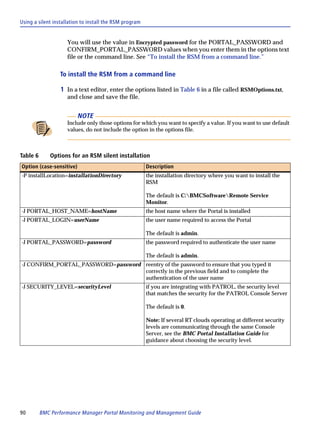
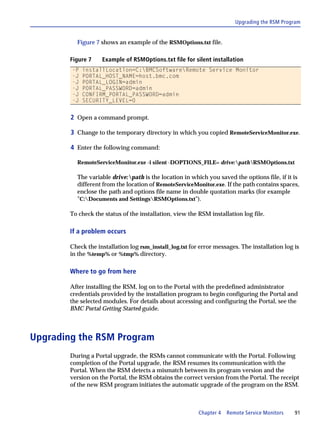
         Methods for discovering PATROL Agent data. . . . . . . . . . . . . . . . . . . . . . . . . . . . .                                       29
         Synchronization of thresholds and application classes . . . . . . . . . . . . . . . . . . . . . .                                        40
     Integrating infrastructure elements from the BMC Atrium CMDB . . . . . . . . . . . . . . .                                                   42
     Viewing object status . . . . . . . . . . . . . . . . . . . . . . . . . . . . . . . . . . . . . . . . . . . . . . . . . . . . . .            44
         Portal and infrastructure status views . . . . . . . . . . . . . . . . . . . . . . . . . . . . . . . . . . . .                           45
         Individual parameter history charts . . . . . . . . . . . . . . . . . . . . . . . . . . . . . . . . . . . . . .                          46
         Parameter history tables . . . . . . . . . . . . . . . . . . . . . . . . . . . . . . . . . . . . . . . . . . . . . . . .                 47
         Parameter filtering. . . . . . . . . . . . . . . . . . . . . . . . . . . . . . . . . . . . . . . . . . . . . . . . . . . . .             47

     Chapter 3              Users and administrators                                                                                              49
     User configuration options . . . . . . . . . . . . . . . . . . . . . . . . . . . . . . . . . . . . . . . . . . . . . . . . .                 50
        About task. . . . . . . . . . . . . . . . . . . . . . . . . . . . . . . . . . . . . . . . . . . . . . . . . . . . . . . . . . . .         50
        Account Information task. . . . . . . . . . . . . . . . . . . . . . . . . . . . . . . . . . . . . . . . . . . . . . .                     50
        Blackout Periods task . . . . . . . . . . . . . . . . . . . . . . . . . . . . . . . . . . . . . . . . . . . . . . . . . .                 50
        Change Password task . . . . . . . . . . . . . . . . . . . . . . . . . . . . . . . . . . . . . . . . . . . . . . . . .                    51
        Dashboards task. . . . . . . . . . . . . . . . . . . . . . . . . . . . . . . . . . . . . . . . . . . . . . . . . . . . . . .              51
        Element Profiles task. . . . . . . . . . . . . . . . . . . . . . . . . . . . . . . . . . . . . . . . . . . . . . . . . . .                51
        Elements task . . . . . . . . . . . . . . . . . . . . . . . . . . . . . . . . . . . . . . . . . . . . . . . . . . . . . . . . .           55


                                                                                                                              Contents             5
Monitoring On/Off task . . . . . . . . . . . . . . . . . . . . . . . . . . . . . . . . . . . . . . . . . . . . . . . . 55
              Notifications task . . . . . . . . . . . . . . . . . . . . . . . . . . . . . . . . . . . . . . . . . . . . . . . . . . . . . . 56
              Object Groups task. . . . . . . . . . . . . . . . . . . . . . . . . . . . . . . . . . . . . . . . . . . . . . . . . . . . . 59
              Personal Preferences task . . . . . . . . . . . . . . . . . . . . . . . . . . . . . . . . . . . . . . . . . . . . . . . 60
              Remote Service Monitors task . . . . . . . . . . . . . . . . . . . . . . . . . . . . . . . . . . . . . . . . . . . 60
              Shared Credentials task. . . . . . . . . . . . . . . . . . . . . . . . . . . . . . . . . . . . . . . . . . . . . . . . . 60
              Tags task . . . . . . . . . . . . . . . . . . . . . . . . . . . . . . . . . . . . . . . . . . . . . . . . . . . . . . . . . . . . . 61
              User Groups task . . . . . . . . . . . . . . . . . . . . . . . . . . . . . . . . . . . . . . . . . . . . . . . . . . . . . . 62
              Users task . . . . . . . . . . . . . . . . . . . . . . . . . . . . . . . . . . . . . . . . . . . . . . . . . . . . . . . . . . . . 62
            Administrator configuration options. . . . . . . . . . . . . . . . . . . . . . . . . . . . . . . . . . . . . . . . . 63
              Tasks on the Accounts tab . . . . . . . . . . . . . . . . . . . . . . . . . . . . . . . . . . . . . . . . . . . . . . 64
              Tasks on the Provider tab . . . . . . . . . . . . . . . . . . . . . . . . . . . . . . . . . . . . . . . . . . . . . . . 64
              Tasks on the Portal tab . . . . . . . . . . . . . . . . . . . . . . . . . . . . . . . . . . . . . . . . . . . . . . . . . 66

            Chapter 4             Remote Service Monitors                                                                                          69
            Overview . . . . . . . . . . . . . . . . . . . . . . . . . . . . . . . . . . . . . . . . . . . . . . . . . . . . . . . . . . . . . . . . 70
               Types of RSMs . . . . . . . . . . . . . . . . . . . . . . . . . . . . . . . . . . . . . . . . . . . . . . . . . . . . . . . . 70
               Communication between the Portal and RSMs. . . . . . . . . . . . . . . . . . . . . . . . . . . . . 71
               Communication between RSMs and elements . . . . . . . . . . . . . . . . . . . . . . . . . . . . . 74
               Communication between RSMs and PATROL Agents . . . . . . . . . . . . . . . . . . . . . . 74
               Notifications about RSM system problems . . . . . . . . . . . . . . . . . . . . . . . . . . . . . . . . 75
            RSM program installation . . . . . . . . . . . . . . . . . . . . . . . . . . . . . . . . . . . . . . . . . . . . . . . . . . 76
               RSM computer system requirements . . . . . . . . . . . . . . . . . . . . . . . . . . . . . . . . . . . . . 76
               Data execution prevention (DEP) configuration for the RSM . . . . . . . . . . . . . . . . . 76
               Configure Distributed Component Object Model (DCOM) and Windows
                  Management Instrumentation (WMI) . . . . . . . . . . . . . . . . . . . . . . . . . . . . . . . . . . 78
               Using the installation wizard to install the RSM program . . . . . . . . . . . . . . . . . . . 84
               Using a silent installation to install the RSM program. . . . . . . . . . . . . . . . . . . . . . . 88
               Upgrading the RSM Program. . . . . . . . . . . . . . . . . . . . . . . . . . . . . . . . . . . . . . . . . . . . 91
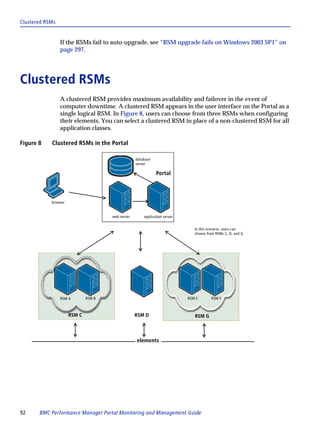
            Clustered RSMs. . . . . . . . . . . . . . . . . . . . . . . . . . . . . . . . . . . . . . . . . . . . . . . . . . . . . . . . . . . 92
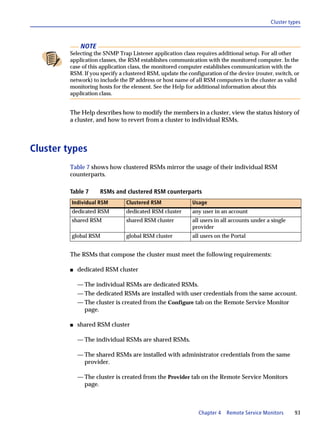
               Cluster types . . . . . . . . . . . . . . . . . . . . . . . . . . . . . . . . . . . . . . . . . . . . . . . . . . . . . . . . . . 93
               Clustered RSM operating status . . . . . . . . . . . . . . . . . . . . . . . . . . . . . . . . . . . . . . . . . 94
               Clustered RSM security considerations . . . . . . . . . . . . . . . . . . . . . . . . . . . . . . . . . . . 94
               RSM load-balancing. . . . . . . . . . . . . . . . . . . . . . . . . . . . . . . . . . . . . . . . . . . . . . . . . . . . 94
               RSM failover . . . . . . . . . . . . . . . . . . . . . . . . . . . . . . . . . . . . . . . . . . . . . . . . . . . . . . . . . . 95
               Clustering RSMs. . . . . . . . . . . . . . . . . . . . . . . . . . . . . . . . . . . . . . . . . . . . . . . . . . . . . . . 95
               Clustered RSM upgrades . . . . . . . . . . . . . . . . . . . . . . . . . . . . . . . . . . . . . . . . . . . . . . . 96
            RSM configuration and maintenance . . . . . . . . . . . . . . . . . . . . . . . . . . . . . . . . . . . . . . . . 96
               Configuration and maintenance tools. . . . . . . . . . . . . . . . . . . . . . . . . . . . . . . . . . . . . 97
               Changing the security level for an RSM . . . . . . . . . . . . . . . . . . . . . . . . . . . . . . . . . . 101
               Configuring an RSM to use a proxy server . . . . . . . . . . . . . . . . . . . . . . . . . . . . . . . 102
               Configuring the RSM to use HTTP protocol to communicate with the Portal . . 103
               Changing the credentials for an RSM . . . . . . . . . . . . . . . . . . . . . . . . . . . . . . . . . . . . 104
               Changing the maximum heap memory allocated for the Java VM on the RSM 106
               Viewing the log files for the RSM . . . . . . . . . . . . . . . . . . . . . . . . . . . . . . . . . . . . . . . 106
               Collecting log files . . . . . . . . . . . . . . . . . . . . . . . . . . . . . . . . . . . . . . . . . . . . . . . . . . . . 107
               Automating basic information gathering for RSM issues . . . . . . . . . . . . . . . . . . . 108
               Stopping notifications for Unknown state events . . . . . . . . . . . . . . . . . . . . . . . . . . 108
            RSM program uninstallation. . . . . . . . . . . . . . . . . . . . . . . . . . . . . . . . . . . . . . . . . . . . . . . 109


6   BMC Performance Manager Portal Monitoring and Management Guide
Using the installation wizard to uninstall the RSM program . . . . . . . . . . . . . . . . 109
      Manually uninstalling the RSM program . . . . . . . . . . . . . . . . . . . . . . . . . . . . . . . . 110
      Using command-line options to uninstall the RSM program . . . . . . . . . . . . . . . . 112

Chapter 5              Performance Managers and application classes                                                                      113
Overview . . . . . . . . . . . . . . . . . . . . . . . . . . . . . . . . . . . . . . . . . . . . . . . . . . . . . . . . . . . . . . .   114
Parameters and thresholds . . . . . . . . . . . . . . . . . . . . . . . . . . . . . . . . . . . . . . . . . . . . . . . .                114
    Parameter thresholds and event severity. . . . . . . . . . . . . . . . . . . . . . . . . . . . . . . . .                             115
    Thresholds and parameter status changes. . . . . . . . . . . . . . . . . . . . . . . . . . . . . . . .                               115
Deactivating parameters . . . . . . . . . . . . . . . . . . . . . . . . . . . . . . . . . . . . . . . . . . . . . . . . . .              116
    Points to remember while deactivating parameters. . . . . . . . . . . . . . . . . . . . . . . .                                      117
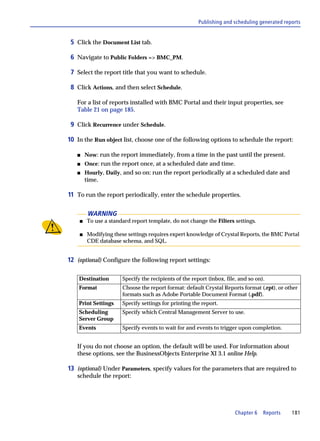
    Derived parameters. . . . . . . . . . . . . . . . . . . . . . . . . . . . . . . . . . . . . . . . . . . . . . . . . . .              118
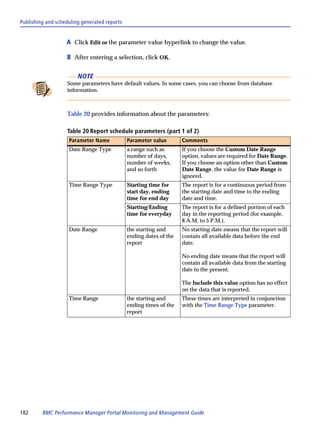
    Deactivating a parameter . . . . . . . . . . . . . . . . . . . . . . . . . . . . . . . . . . . . . . . . . . . . . .                 118
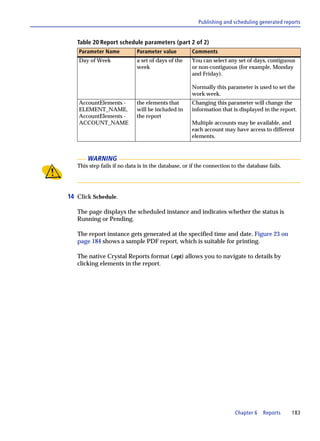
    Deactivating a parameter in the Performance Manager Editor solution . . . . . .                                                      119
    Solution support for deactivating parameters . . . . . . . . . . . . . . . . . . . . . . . . . . . .                                 120
Methods of remote monitoring . . . . . . . . . . . . . . . . . . . . . . . . . . . . . . . . . . . . . . . . . . . .                     121
    Agentless monitoring . . . . . . . . . . . . . . . . . . . . . . . . . . . . . . . . . . . . . . . . . . . . . . . . .               121
    PATROL Agent integration . . . . . . . . . . . . . . . . . . . . . . . . . . . . . . . . . . . . . . . . . . . .                     121
Installing new Performance Managers on the Portal . . . . . . . . . . . . . . . . . . . . . . . . . .                                    125
Upgrading Performance Managers on the Portal . . . . . . . . . . . . . . . . . . . . . . . . . . . . .                                   127
Removing Performance Managers from the Portal . . . . . . . . . . . . . . . . . . . . . . . . . . .                                      129
Types of Performance Managers . . . . . . . . . . . . . . . . . . . . . . . . . . . . . . . . . . . . . . . . . . .                      130
    Core Performance Managers . . . . . . . . . . . . . . . . . . . . . . . . . . . . . . . . . . . . . . . . . . .                      130
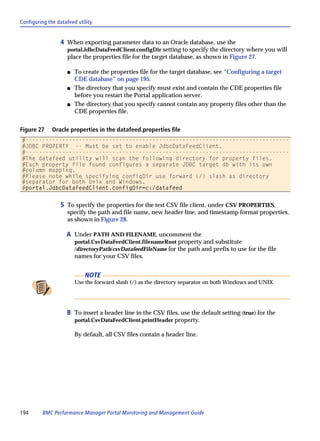
    Solution Performance Managers . . . . . . . . . . . . . . . . . . . . . . . . . . . . . . . . . . . . . . .                          131
    Custom Performance Managers . . . . . . . . . . . . . . . . . . . . . . . . . . . . . . . . . . . . . . . .                          131
Editing Performance Managers . . . . . . . . . . . . . . . . . . . . . . . . . . . . . . . . . . . . . . . . . . . .                     139
    Editing unpublished custom Performance Managers . . . . . . . . . . . . . . . . . . . . . .                                          139
    Editing published custom Performance Managers . . . . . . . . . . . . . . . . . . . . . . . .                                        139

Chapter 6              Reports                                                                                                           141
Overview . . . . . . . . . . . . . . . . . . . . . . . . . . . . . . . . . . . . . . . . . . . . . . . . . . . . . . . . . . . . . . .   142
Parameter update intervals . . . . . . . . . . . . . . . . . . . . . . . . . . . . . . . . . . . . . . . . . . . . . . .                 142
   Standard parameter values . . . . . . . . . . . . . . . . . . . . . . . . . . . . . . . . . . . . . . . . . . . .                     143
   Accumulated parameter values. . . . . . . . . . . . . . . . . . . . . . . . . . . . . . . . . . . . . . . . .                         144
Data summarization . . . . . . . . . . . . . . . . . . . . . . . . . . . . . . . . . . . . . . . . . . . . . . . . . . . . .             144
Data retention policies that affect object view content . . . . . . . . . . . . . . . . . . . . . . . . .                                145
   Retention policies . . . . . . . . . . . . . . . . . . . . . . . . . . . . . . . . . . . . . . . . . . . . . . . . . . . .            145
   Properties that control the raw data retention policies . . . . . . . . . . . . . . . . . . . . .                                     145
   Properties that control event history retention . . . . . . . . . . . . . . . . . . . . . . . . . . . .                               147
   Purging inactive data from the Portal history tables . . . . . . . . . . . . . . . . . . . . . . .                                    147
   Purging unknown and unused events from the event table. . . . . . . . . . . . . . . . .                                               149
Reports tab . . . . . . . . . . . . . . . . . . . . . . . . . . . . . . . . . . . . . . . . . . . . . . . . . . . . . . . . . . . . .    151
   Time interval controls . . . . . . . . . . . . . . . . . . . . . . . . . . . . . . . . . . . . . . . . . . . . . . . . .              152
   Top N report for object groups or the account . . . . . . . . . . . . . . . . . . . . . . . . . . . .                                 153
   Health At A Glance report for elements . . . . . . . . . . . . . . . . . . . . . . . . . . . . . . . . .                              156
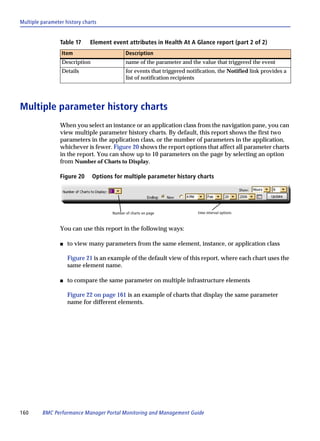
   Multiple parameter history charts . . . . . . . . . . . . . . . . . . . . . . . . . . . . . . . . . . . . . .                         160
   Dashboard parameter charts . . . . . . . . . . . . . . . . . . . . . . . . . . . . . . . . . . . . . . . . . . .                      161
Enterprise reports. . . . . . . . . . . . . . . . . . . . . . . . . . . . . . . . . . . . . . . . . . . . . . . . . . . . . . . .        162


                                                                                                                       Contents            7
Downloading and installing BMC Reporting Foundation 3.2.00, Crystal Reports
                  2008 (Designer component), and integration components . . . . . . . . . . . . . . . . 162
               Installing the integration components . . . . . . . . . . . . . . . . . . . . . . . . . . . . . . . . . . . 164
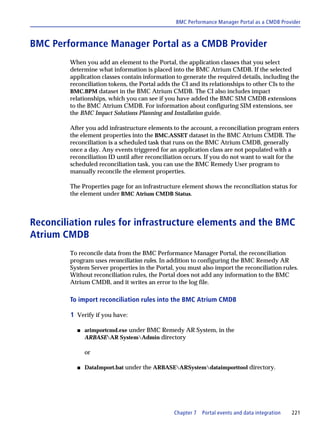
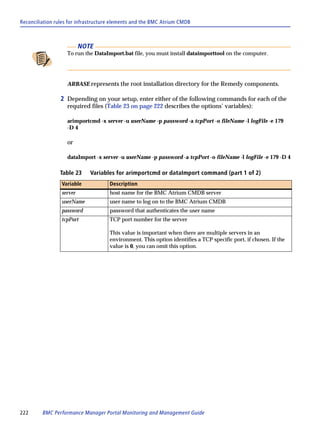
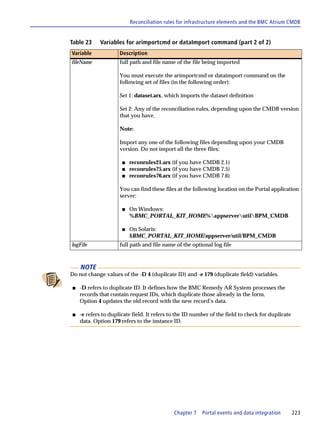
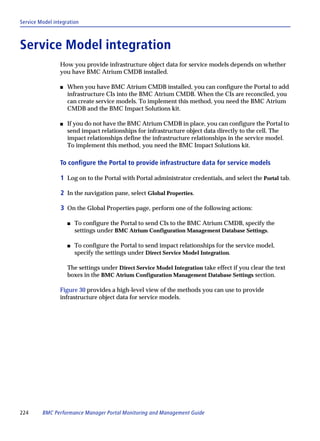
               Upgrading to Crystal Reports 2008 (Designer component). . . . . . . . . . . . . . . . . . 174
               Upgrading to BMC Reporting Foundation 3.2.00 . . . . . . . . . . . . . . . . . . . . . . . . . . 174
               Publishing and scheduling generated reports . . . . . . . . . . . . . . . . . . . . . . . . . . . . . 179
               Report types and details . . . . . . . . . . . . . . . . . . . . . . . . . . . . . . . . . . . . . . . . . . . . . . . 184
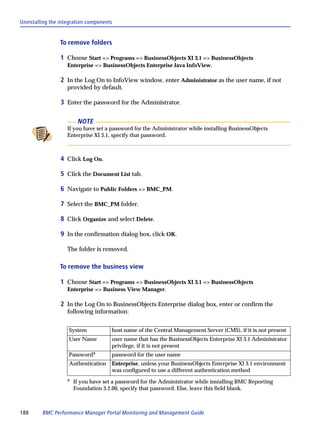
               Uninstalling the integration components . . . . . . . . . . . . . . . . . . . . . . . . . . . . . . . . . 187
            Continuous data export configuration . . . . . . . . . . . . . . . . . . . . . . . . . . . . . . . . . . . . . . 190
               Continuous data export requirements . . . . . . . . . . . . . . . . . . . . . . . . . . . . . . . . . . . 191
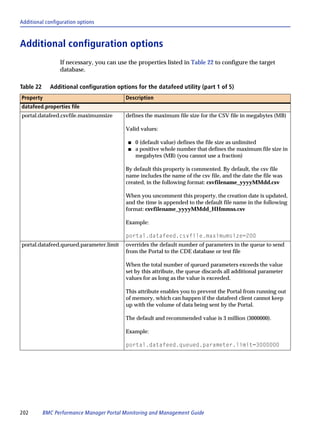
               Configuring the datafeed utility . . . . . . . . . . . . . . . . . . . . . . . . . . . . . . . . . . . . . . . . 192
               Changing the retention policy for the CDE database . . . . . . . . . . . . . . . . . . . . . . . 201
               Maintaining the continuous export to the CDE database . . . . . . . . . . . . . . . . . . . 201
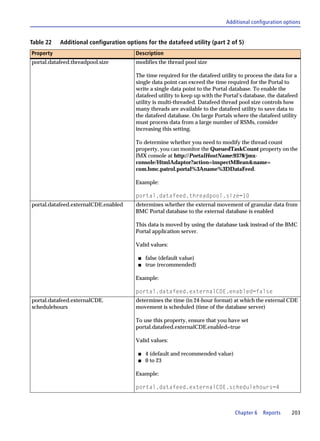
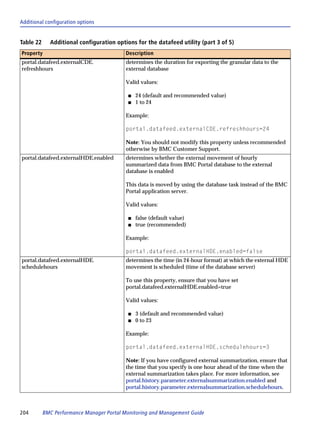
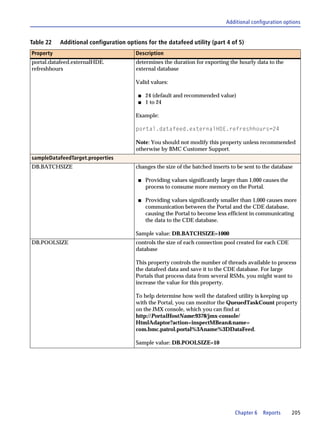
               Additional configuration options . . . . . . . . . . . . . . . . . . . . . . . . . . . . . . . . . . . . . . . 202
               External CDE movement . . . . . . . . . . . . . . . . . . . . . . . . . . . . . . . . . . . . . . . . . . . . . . 206

            Chapter 7             Portal events and data integration                                                                             217
            Levels of integration. . . . . . . . . . . . . . . . . . . . . . . . . . . . . . . . . . . . . . . . . . . . . . . . . . . . . . 218
               Portal-wide integration . . . . . . . . . . . . . . . . . . . . . . . . . . . . . . . . . . . . . . . . . . . . . . . . 218
               Provider-wide integration . . . . . . . . . . . . . . . . . . . . . . . . . . . . . . . . . . . . . . . . . . . . . 218
               Account integration . . . . . . . . . . . . . . . . . . . . . . . . . . . . . . . . . . . . . . . . . . . . . . . . . . . 219
            BMC Atrium CMDB integration . . . . . . . . . . . . . . . . . . . . . . . . . . . . . . . . . . . . . . . . . . . 219
               BMC Performance Manager Portal as a CMDB Consumer . . . . . . . . . . . . . . . . . . 220
               BMC Performance Manager Portal as a CMDB Provider . . . . . . . . . . . . . . . . . . . 221
               Reconciliation rules for infrastructure elements and the BMC Atrium CMDB . 221
            Service Model integration . . . . . . . . . . . . . . . . . . . . . . . . . . . . . . . . . . . . . . . . . . . . . . . . . 224
            Event integration . . . . . . . . . . . . . . . . . . . . . . . . . . . . . . . . . . . . . . . . . . . . . . . . . . . . . . . . 226
               Event integration using email notifications . . . . . . . . . . . . . . . . . . . . . . . . . . . . . . . 226
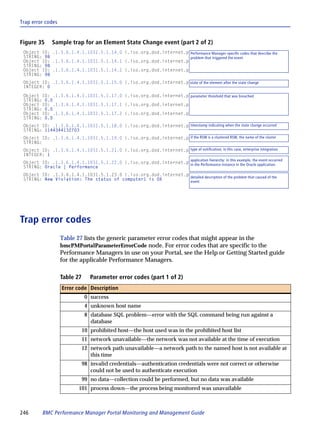
               Event integration using SNMP traps . . . . . . . . . . . . . . . . . . . . . . . . . . . . . . . . . . . . 227
               Event integration using AlarmPoint . . . . . . . . . . . . . . . . . . . . . . . . . . . . . . . . . . . . . 228
               Event integration using BMC II Web Services. . . . . . . . . . . . . . . . . . . . . . . . . . . . . 228
               Combining BMC Performance Manager and PATROL Agent events. . . . . . . . . 233
            SNMP traps . . . . . . . . . . . . . . . . . . . . . . . . . . . . . . . . . . . . . . . . . . . . . . . . . . . . . . . . . . . . . 236
               MIB files. . . . . . . . . . . . . . . . . . . . . . . . . . . . . . . . . . . . . . . . . . . . . . . . . . . . . . . . . . . . . 236
               Object identifiers (OIDs) . . . . . . . . . . . . . . . . . . . . . . . . . . . . . . . . . . . . . . . . . . . . . . . 237
               Parsing SNMP traps. . . . . . . . . . . . . . . . . . . . . . . . . . . . . . . . . . . . . . . . . . . . . . . . . . . 238
               BMC-Performance-Manager-Portal-MIB description. . . . . . . . . . . . . . . . . . . . . . . 239
               Trap properties customization . . . . . . . . . . . . . . . . . . . . . . . . . . . . . . . . . . . . . . . . . . 243
               Sample trap . . . . . . . . . . . . . . . . . . . . . . . . . . . . . . . . . . . . . . . . . . . . . . . . . . . . . . . . . . 245
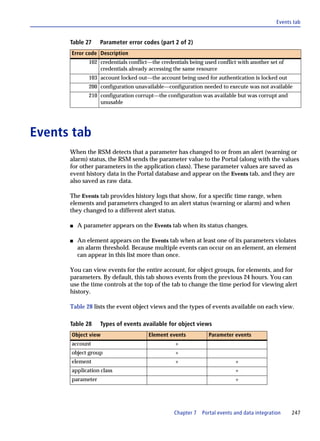
               Trap error codes . . . . . . . . . . . . . . . . . . . . . . . . . . . . . . . . . . . . . . . . . . . . . . . . . . . . . . 246
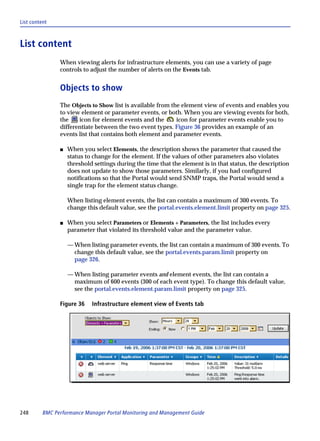
            Events tab. . . . . . . . . . . . . . . . . . . . . . . . . . . . . . . . . . . . . . . . . . . . . . . . . . . . . . . . . . . . . . . 247
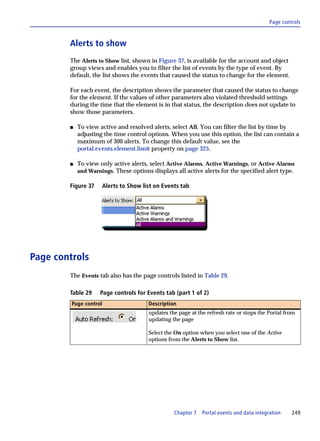
               List content . . . . . . . . . . . . . . . . . . . . . . . . . . . . . . . . . . . . . . . . . . . . . . . . . . . . . . . . . . 248
               Page controls. . . . . . . . . . . . . . . . . . . . . . . . . . . . . . . . . . . . . . . . . . . . . . . . . . . . . . . . . 249

            Chapter 8             BMC Performance Manager Portal command-line interface                                                          251
            Preparing the client computer for the bpmcli . . . . . . . . . . . . . . . . . . . . . . . . . . . . . . . . 252
            bpmcli syntax and arguments. . . . . . . . . . . . . . . . . . . . . . . . . . . . . . . . . . . . . . . . . . . . . . 253
            Data-manipulation commands . . . . . . . . . . . . . . . . . . . . . . . . . . . . . . . . . . . . . . . . . . . . . 254


8   BMC Performance Manager Portal Monitoring and Management Guide
addElements: adding a single element. . . . . . . . . . . . . . . . . . . . . . . . . . . . . . . . . . .                          255
   addElements: adding multiple elements . . . . . . . . . . . . . . . . . . . . . . . . . . . . . . . . .                            257
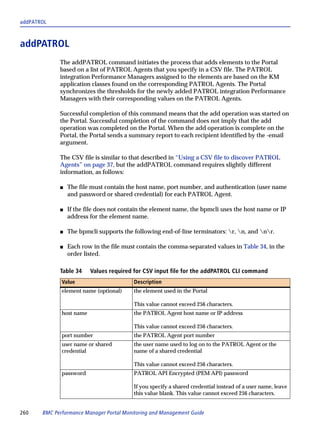
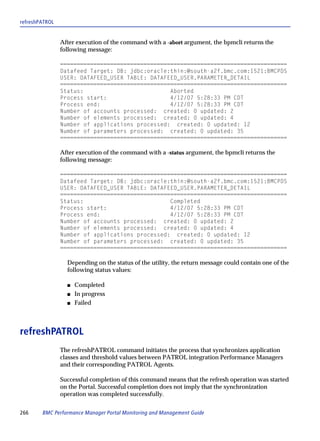
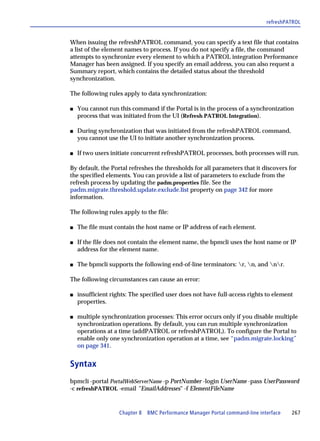
   addPATROL . . . . . . . . . . . . . . . . . . . . . . . . . . . . . . . . . . . . . . . . . . . . . . . . . . . . . . . . .        260
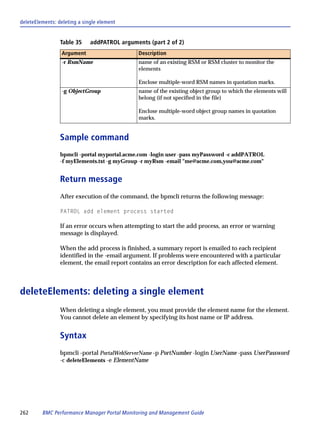
   deleteElements: deleting a single element . . . . . . . . . . . . . . . . . . . . . . . . . . . . . . . .                          262
   deleteElements: deleting multiple elements . . . . . . . . . . . . . . . . . . . . . . . . . . . . . .                             263
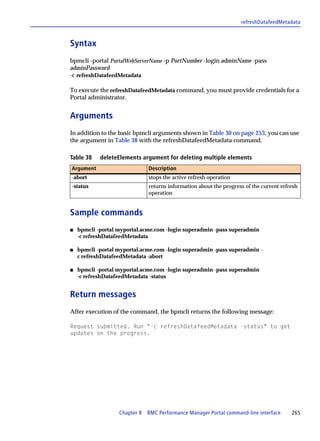
   refreshDatafeedMetadata . . . . . . . . . . . . . . . . . . . . . . . . . . . . . . . . . . . . . . . . . . . . . .                264
   refreshPATROL . . . . . . . . . . . . . . . . . . . . . . . . . . . . . . . . . . . . . . . . . . . . . . . . . . . . . .          266
   savePassword. . . . . . . . . . . . . . . . . . . . . . . . . . . . . . . . . . . . . . . . . . . . . . . . . . . . . . . .        269
Data-extraction commands. . . . . . . . . . . . . . . . . . . . . . . . . . . . . . . . . . . . . . . . . . . . . . . .               270
   exportParameterHistory . . . . . . . . . . . . . . . . . . . . . . . . . . . . . . . . . . . . . . . . . . . . . . .               272
   getApplicationsForElement . . . . . . . . . . . . . . . . . . . . . . . . . . . . . . . . . . . . . . . . . . .                    276
   getElements . . . . . . . . . . . . . . . . . . . . . . . . . . . . . . . . . . . . . . . . . . . . . . . . . . . . . . . . .      277
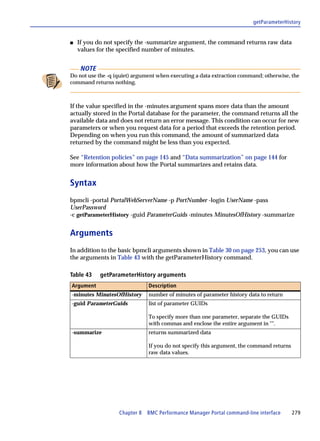
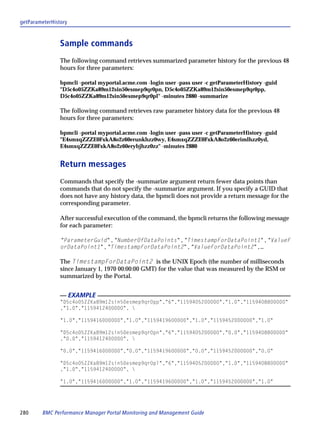
   getParameterHistory . . . . . . . . . . . . . . . . . . . . . . . . . . . . . . . . . . . . . . . . . . . . . . . . . .            278
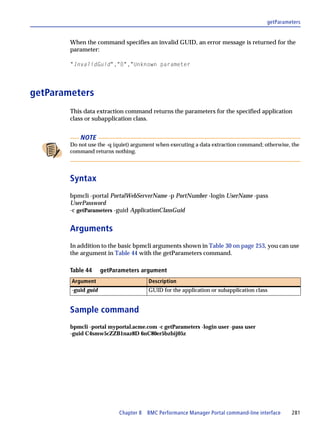
   getParameters. . . . . . . . . . . . . . . . . . . . . . . . . . . . . . . . . . . . . . . . . . . . . . . . . . . . . . . .       281
   getPortalVersion . . . . . . . . . . . . . . . . . . . . . . . . . . . . . . . . . . . . . . . . . . . . . . . . . . . . .         282
   getSubApplications . . . . . . . . . . . . . . . . . . . . . . . . . . . . . . . . . . . . . . . . . . . . . . . . . . .           283

Chapter 9              BMC Performance Manager Portal command-line interface for BMC
                       Datastore                                                     285
Configuring the BMC DatastoreCLI . . . . . . . . . . . . . . . . . . . . . . . . . . . . . . . . . . . . . . . .                      285
Disabling alarms and warnings for an application class or parameter globally . . .                                                    287
Finding application class occurrences displaying the ACS error . . . . . . . . . . . . . . . .                                        289
Exporting the configuration information from BMC Portal on to an HTML file . . .                                                      292

Appendix A              BMC Performance Manager Portal troubleshooting and FAQs                                                       295
Monitoring problems. . . . . . . . . . . . . . . . . . . . . . . . . . . . . . . . . . . . . . . . . . . . . . . . . . . . . 296
RSM computers running Windows require permission changes . . . . . . . . . . . . . . . . 296
RSM upgrade fails on Windows 2003 SP1 . . . . . . . . . . . . . . . . . . . . . . . . . . . . . . . . . . . 297
Unable to download RSM by using IE 7 or 8 on Windows 2008 . . . . . . . . . . . . . . . . 298
Unable to close popup windows on IE Minor Versions IE 7.0 and above . . . . . . . . 299
When you use Management Profiles to integrate data, Console Server list is empty . .
   299
   Reinstalling the application server component of the Portal . . . . . . . . . . . . . . . . 300
   Specifying RTservers for the BMC Performance Manager Portal . . . . . . . . . . . . 300
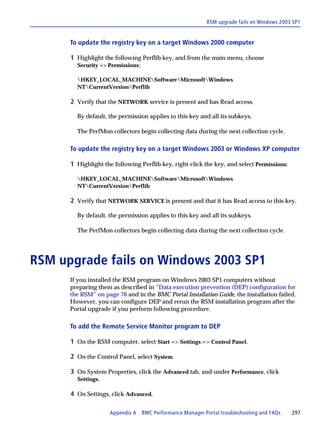
   Changing the security for the BMC Performance Manager Portal . . . . . . . . . . . 301
Buffer Cache Hit Ratio and Oracle Dictionary Cache Hit Ratio parameters go into
  alarm . . . . . . . . . . . . . . . . . . . . . . . . . . . . . . . . . . . . . . . . . . . . . . . . . . . . . . . . . . . . . . . . 301
Unable to download reports to csv or text file. . . . . . . . . . . . . . . . . . . . . . . . . . . . . . . . 302
E-mail notification in Microsoft Outlook 2007 does not display the BMC logo and
  icons. . . . . . . . . . . . . . . . . . . . . . . . . . . . . . . . . . . . . . . . . . . . . . . . . . . . . . . . . . . . . . . . . 302
Portal randomly logs out users . . . . . . . . . . . . . . . . . . . . . . . . . . . . . . . . . . . . . . . . . . . . 303
Cannot find errors when data discovery runs as a background process. . . . . . . . . . 304
PATROL integration error messages . . . . . . . . . . . . . . . . . . . . . . . . . . . . . . . . . . . . . . . 304
BMC Reporting Foundation 3.2.00 troubleshooting . . . . . . . . . . . . . . . . . . . . . . . . . . . 305
   Error message in BusinessObjects Enterprise XI 3.1. . . . . . . . . . . . . . . . . . . . . . . . 305
   Report does not contain expected data . . . . . . . . . . . . . . . . . . . . . . . . . . . . . . . . . . 306
   Checking log files . . . . . . . . . . . . . . . . . . . . . . . . . . . . . . . . . . . . . . . . . . . . . . . . . . . . 308
Frequently asked questions (FAQs) . . . . . . . . . . . . . . . . . . . . . . . . . . . . . . . . . . . . . . . . 309


                                                                                                                       Contents           9
Appendix B              Monitoring the health of the Portal                                                                            311
            Overview . . . . . . . . . . . . . . . . . . . . . . . . . . . . . . . . . . . . . . . . . . . . . . . . . . . . . . . . . . . . . . . 311
            Self-monitoring Performance Manager . . . . . . . . . . . . . . . . . . . . . . . . . . . . . . . . . . . . . . 312
                Permissions . . . . . . . . . . . . . . . . . . . . . . . . . . . . . . . . . . . . . . . . . . . . . . . . . . . . . . . . . . 312
                Remote Service Monitor setup . . . . . . . . . . . . . . . . . . . . . . . . . . . . . . . . . . . . . . . . . . 313
                Configure RSM to monitor JMX behind a firewall . . . . . . . . . . . . . . . . . . . . . . . . . 314
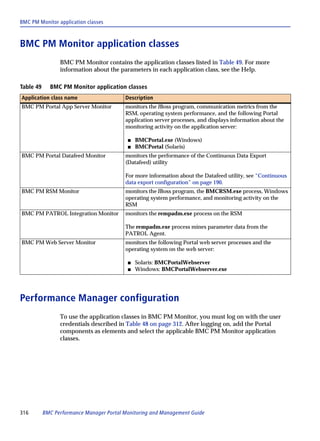
                BMC PM Monitor application classes . . . . . . . . . . . . . . . . . . . . . . . . . . . . . . . . . . . . 316
                Performance Manager configuration . . . . . . . . . . . . . . . . . . . . . . . . . . . . . . . . . . . . 316
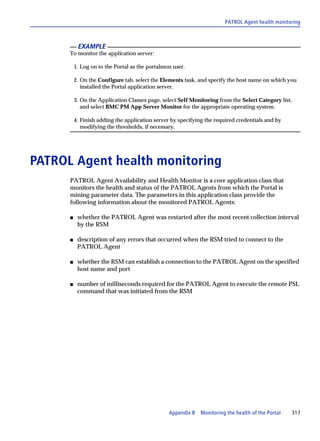
            PATROL Agent health monitoring . . . . . . . . . . . . . . . . . . . . . . . . . . . . . . . . . . . . . . . . . 317
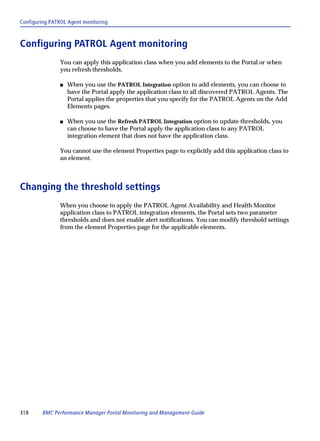
                Configuring PATROL Agent monitoring. . . . . . . . . . . . . . . . . . . . . . . . . . . . . . . . . 318
                Changing the threshold settings . . . . . . . . . . . . . . . . . . . . . . . . . . . . . . . . . . . . . . . . 318

            Appendix C              BMC Performance Manager Portal files                                                                           319
            Configuration files . . . . . . . . . . . . . . . . . . . . . . . . . . . . . . . . . . . . . . . . . . . . . . . . . . . . . . . 319
               BMC Performance Manager Portal property files. . . . . . . . . . . . . . . . . . . . . . . . . . 320
               Remote Service Monitor property files . . . . . . . . . . . . . . . . . . . . . . . . . . . . . . . . . . . 320
               Configuration file properties . . . . . . . . . . . . . . . . . . . . . . . . . . . . . . . . . . . . . . . . . . . 321
            Log files . . . . . . . . . . . . . . . . . . . . . . . . . . . . . . . . . . . . . . . . . . . . . . . . . . . . . . . . . . . . . . . . 345
               BMC Performance Manager Portal log file . . . . . . . . . . . . . . . . . . . . . . . . . . . . . . . 345
               RSM log files . . . . . . . . . . . . . . . . . . . . . . . . . . . . . . . . . . . . . . . . . . . . . . . . . . . . . . . . . 345

            Glossary                                                                                                                               347


            Index                                                                                                                                  355


10   BMC Performance Manager Portal Monitoring and Management Guide
Figures
     BMC Portal with the BMC Performance Manager Portal module installed . . . . . . . 19
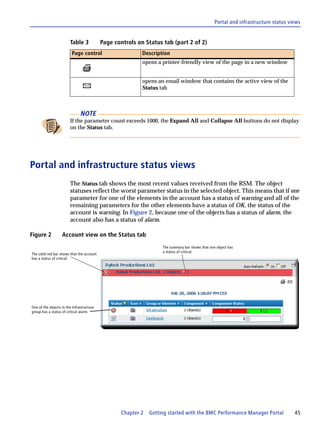
     Account view on the Status tab . . . . . . . . . . . . . . . . . . . . . . . . . . . . . . . . . . . . . . . . . . . . . 45
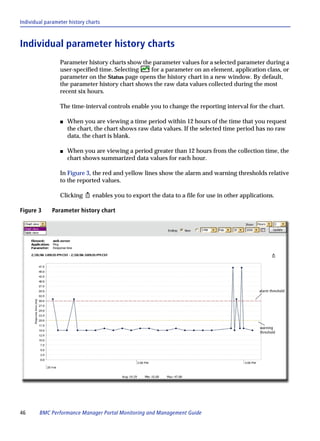
     Parameter history chart . . . . . . . . . . . . . . . . . . . . . . . . . . . . . . . . . . . . . . . . . . . . . . . . . . . 46
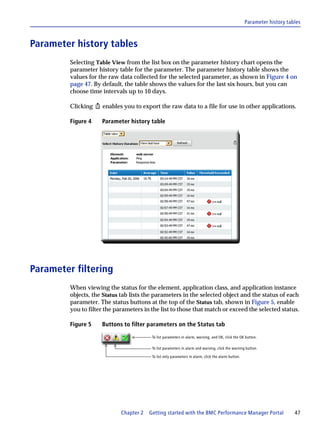
     Parameter history table . . . . . . . . . . . . . . . . . . . . . . . . . . . . . . . . . . . . . . . . . . . . . . . . . . . 47
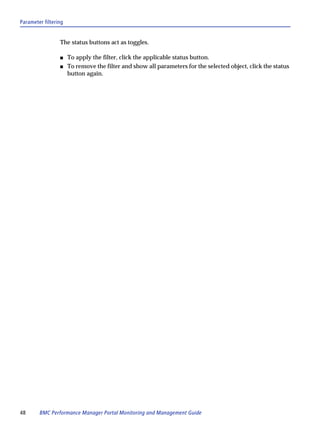
     Buttons to filter parameters on the Status tab . . . . . . . . . . . . . . . . . . . . . . . . . . . . . . . . . 47
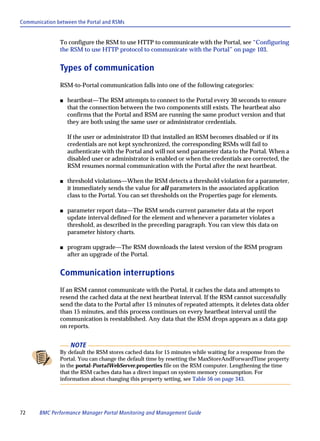
     Types of Remote Service Monitors . . . . . . . . . . . . . . . . . . . . . . . . . . . . . . . . . . . . . . . . . . 71
     Example of RSMOptions.txt file for silent installation . . . . . . . . . . . . . . . . . . . . . . . . . 91
     Clustered RSMs in the Portal . . . . . . . . . . . . . . . . . . . . . . . . . . . . . . . . . . . . . . . . . . . . . . 92
     Alert After threshold options . . . . . . . . . . . . . . . . . . . . . . . . . . . . . . . . . . . . . . . . . . . . . 115
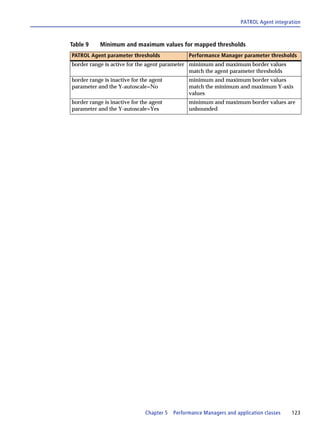
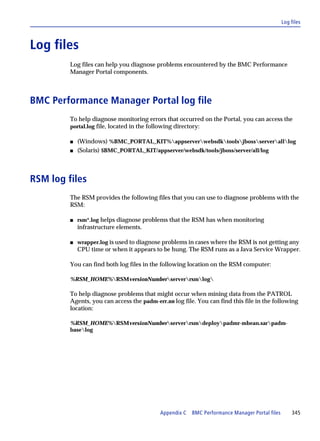
     Performance Manager parameter mapping to Knowledge Module parameters . . 122
     Affect of status changes on reported parameter values . . . . . . . . . . . . . . . . . . . . . . . 143
     Standard parameter values . . . . . . . . . . . . . . . . . . . . . . . . . . . . . . . . . . . . . . . . . . . . . . . 143
     Accumulated parameter values . . . . . . . . . . . . . . . . . . . . . . . . . . . . . . . . . . . . . . . . . . . 144
     Top N: report settings and content . . . . . . . . . . . . . . . . . . . . . . . . . . . . . . . . . . . . . . . . . 153
     Top N: time controls . . . . . . . . . . . . . . . . . . . . . . . . . . . . . . . . . . . . . . . . . . . . . . . . . . . . . 154
     Health At A Glance: time controls . . . . . . . . . . . . . . . . . . . . . . . . . . . . . . . . . . . . . . . . . 156
     Health At A Glance: Element Status Summary . . . . . . . . . . . . . . . . . . . . . . . . . . . . . . 156
     Health At A Glance: Key Parameters . . . . . . . . . . . . . . . . . . . . . . . . . . . . . . . . . . . . . . . 158
     Health At A Glance: Element Events . . . . . . . . . . . . . . . . . . . . . . . . . . . . . . . . . . . . . . . 159
     Options for multiple parameter history charts . . . . . . . . . . . . . . . . . . . . . . . . . . . . . . . 160
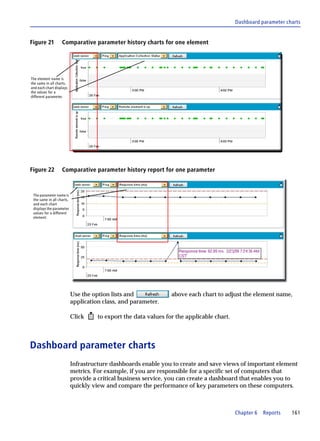
     Comparative parameter history charts for one element . . . . . . . . . . . . . . . . . . . . . . . 161
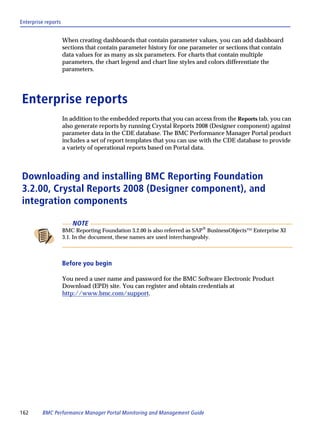
     Comparative parameter history report for one parameter . . . . . . . . . . . . . . . . . . . . . 161
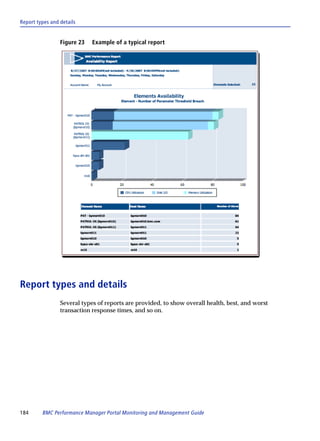
     Example of a typical report . . . . . . . . . . . . . . . . . . . . . . . . . . . . . . . . . . . . . . . . . . . . . . . 184
     Continuous data export process . . . . . . . . . . . . . . . . . . . . . . . . . . . . . . . . . . . . . . . . . . . 190
     Data target lines in the datafeed.properties file . . . . . . . . . . . . . . . . . . . . . . . . . . . . . . 193
     Datafeed cache properties in the datafeed.properties file . . . . . . . . . . . . . . . . . . . . . . 193
     Oracle properties in the datafeed.properties file . . . . . . . . . . . . . . . . . . . . . . . . . . . . . 194
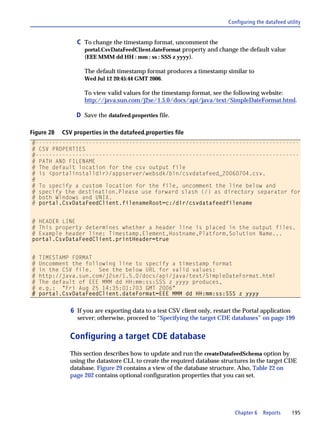
     CSV properties in the datafeed.properties file . . . . . . . . . . . . . . . . . . . . . . . . . . . . . . . 195
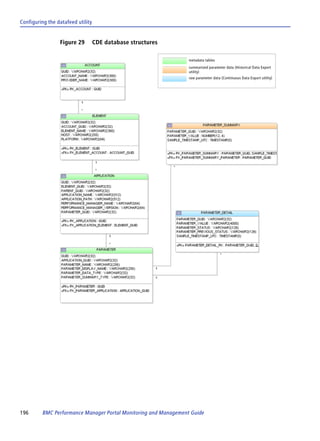
     CDE database structures . . . . . . . . . . . . . . . . . . . . . . . . . . . . . . . . . . . . . . . . . . . . . . . . . 196
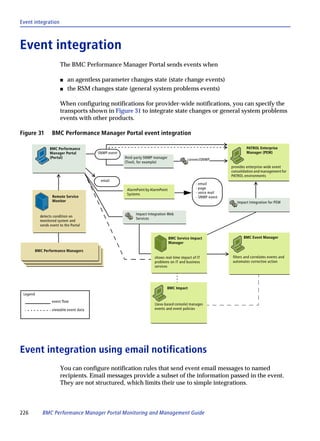
     Simplified view of service model integration methods from the Portal . . . . . . . . . . 225
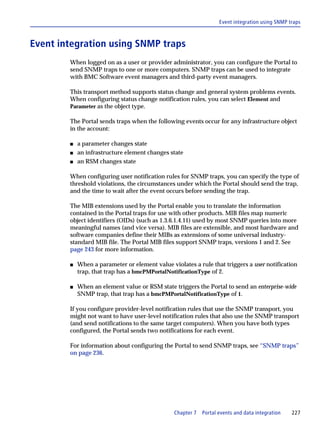
     BMC Performance Manager Portal event integration . . . . . . . . . . . . . . . . . . . . . . . . . 226
     Two comparable events from one threshold breach . . . . . . . . . . . . . . . . . . . . . . . . . . 234
     Sample agentless and agent-based events sent from the Portal . . . . . . . . . . . . . . . . . 235
     OID structure in BMC-Performance-Manager-Portal-MIB . . . . . . . . . . . . . . . . . . . . . 237
     Sample trap for an Element State Change event (part 1 of 2) . . . . . . . . . . . . . . . . . . . 245
     Infrastructure element view of Events tab . . . . . . . . . . . . . . . . . . . . . . . . . . . . . . . . . . 248
     Alerts to Show list on Events tab . . . . . . . . . . . . . . . . . . . . . . . . . . . . . . . . . . . . . . . . . . 249
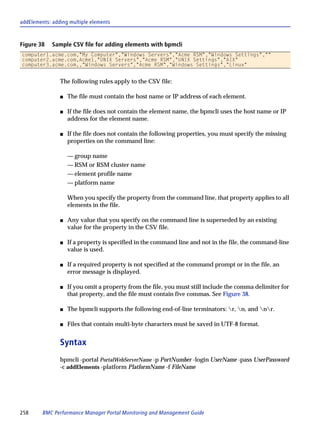
     Sample CSV file for adding elements with bpmcli . . . . . . . . . . . . . . . . . . . . . . . . . . . 258
     Sample CSV file for deleting elements with bpmcli . . . . . . . . . . . . . . . . . . . . . . . . . . 263


                                                                                                                    Figures        11
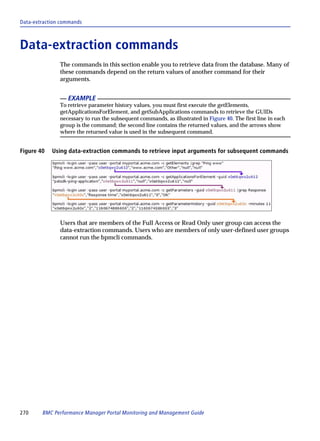
Using data-extraction commands to retrieve input arguments for subsequent
              commands . . . . . . . . . . . . . . . . . . . . . . . . . . . . . . . . . . . . . . . . . . . . . . . . . . . . . . . . . . . 270
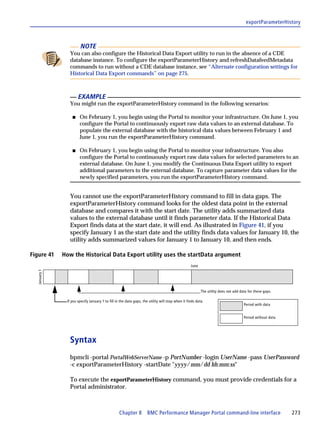
            How the Historical Data Export utility uses the startData argument . . . . . . . . . . . . 273
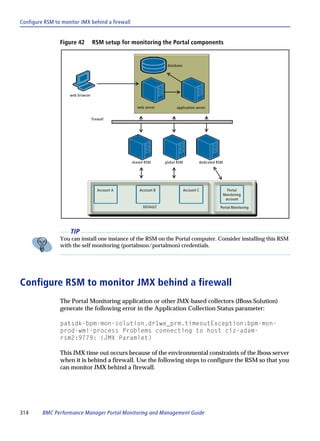
            RSM setup for monitoring the Portal components . . . . . . . . . . . . . . . . . . . . . . . . . . . . 314


12   BMC Performance Manager Portal Monitoring and Management Guide
Tables
     Highlights of security levels . . . . . . . . . . . . . . . . . . . . . . . . . . . . . . . . . . . . . . . . . . . . . . . 20
     PATROL Agent data required in CSV file . . . . . . . . . . . . . . . . . . . . . . . . . . . . . . . . . . . . 37
     Page controls on Status tab . . . . . . . . . . . . . . . . . . . . . . . . . . . . . . . . . . . . . . . . . . . . . . . . 44
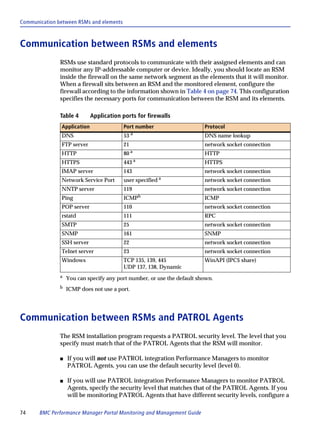
     Application ports for firewalls . . . . . . . . . . . . . . . . . . . . . . . . . . . . . . . . . . . . . . . . . . . . . 74
     Authentication information on Logon Information screen . . . . . . . . . . . . . . . . . . . . . . 87
     Options for an RSM silent installation . . . . . . . . . . . . . . . . . . . . . . . . . . . . . . . . . . . . . . . 90
     RSMs and clustered RSM counterparts . . . . . . . . . . . . . . . . . . . . . . . . . . . . . . . . . . . . . . 93
     Icons for clustered RSM operating status . . . . . . . . . . . . . . . . . . . . . . . . . . . . . . . . . . . . 94
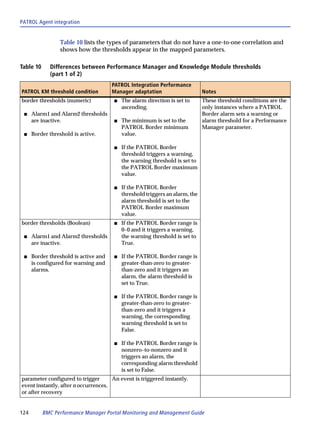
     Minimum and maximum values for mapped thresholds . . . . . . . . . . . . . . . . . . . . . . 123
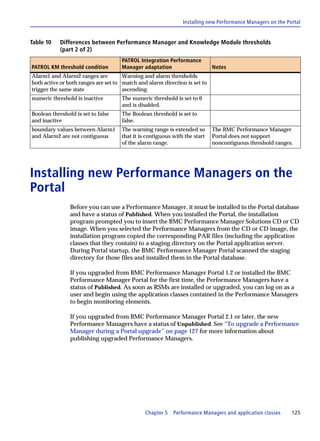
     Differences between Performance Manager and Knowledge Module thresholds . 124
     Core Performance Managers and their application classes . . . . . . . . . . . . . . . . . . . . 130
     Features of the Performance Managers page . . . . . . . . . . . . . . . . . . . . . . . . . . . . . . . . 132
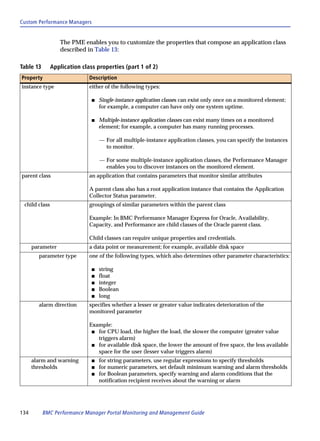
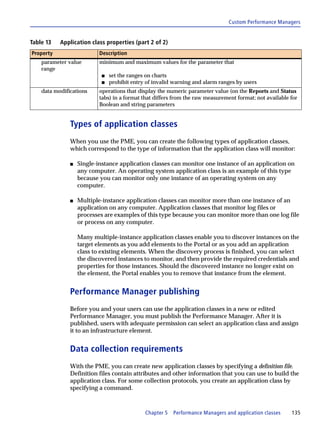
     Application class properties . . . . . . . . . . . . . . . . . . . . . . . . . . . . . . . . . . . . . . . . . . . . . . 134
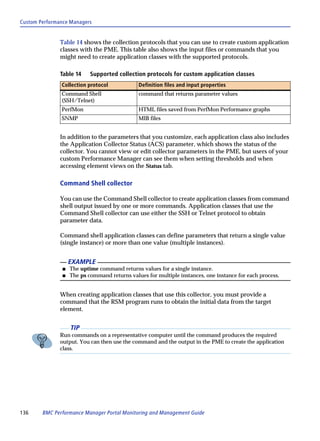
     Supported collection protocols for custom application classes . . . . . . . . . . . . . . . . . 136
     Charts available from the Reports tab . . . . . . . . . . . . . . . . . . . . . . . . . . . . . . . . . . . . . . 151
     Output controls for Reports tab . . . . . . . . . . . . . . . . . . . . . . . . . . . . . . . . . . . . . . . . . . . 155
     Element event attributes in Health At A Glance report . . . . . . . . . . . . . . . . . . . . . . . 159
     Reporting integration prerequisites . . . . . . . . . . . . . . . . . . . . . . . . . . . . . . . . . . . . . . . 165
     BMC Performance Manager components required for various reports . . . . . . . . . . 166
     Report schedule parameters . . . . . . . . . . . . . . . . . . . . . . . . . . . . . . . . . . . . . . . . . . . . . . 182
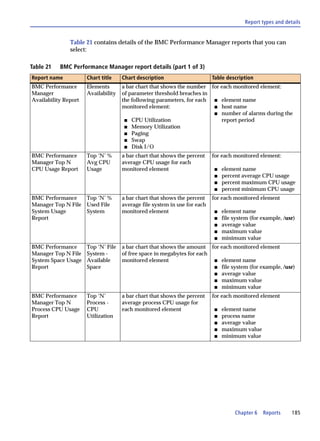
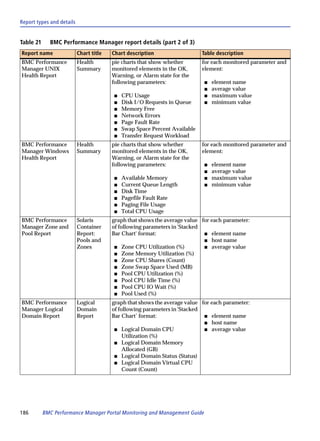
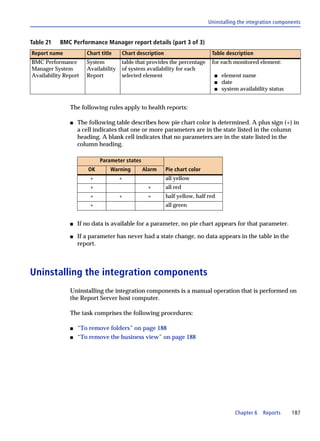
     BMC Performance Manager report details . . . . . . . . . . . . . . . . . . . . . . . . . . . . . . . . . . 185
     Additional configuration options for the datafeed utility . . . . . . . . . . . . . . . . . . . . . 202
     Variables for arimportcmd or dataImport command . . . . . . . . . . . . . . . . . . . . . . . . . 222
     Slot names in the base event class populated for the Portal . . . . . . . . . . . . . . . . . . . 231
     PATROL_Portal event class extensions . . . . . . . . . . . . . . . . . . . . . . . . . . . . . . . . . . . . 232
     BMC-Performance-Manager-Portal-MIB . . . . . . . . . . . . . . . . . . . . . . . . . . . . . . . . . . . . 239
     Parameter error codes . . . . . . . . . . . . . . . . . . . . . . . . . . . . . . . . . . . . . . . . . . . . . . . . . . . . 246
     Types of events available for object views . . . . . . . . . . . . . . . . . . . . . . . . . . . . . . . . . . 247
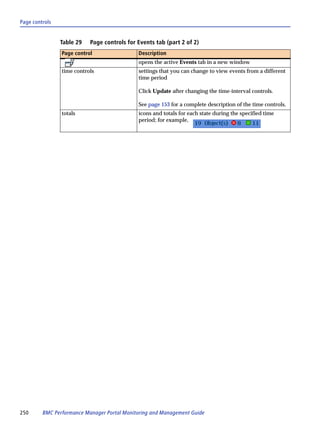
     Page controls for Events tab . . . . . . . . . . . . . . . . . . . . . . . . . . . . . . . . . . . . . . . . . . . . . . 249
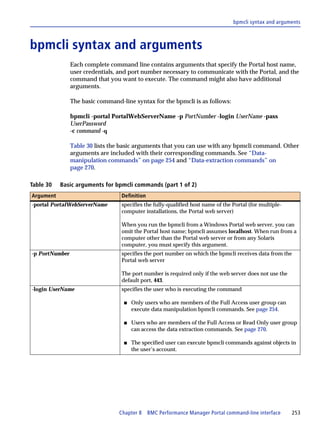
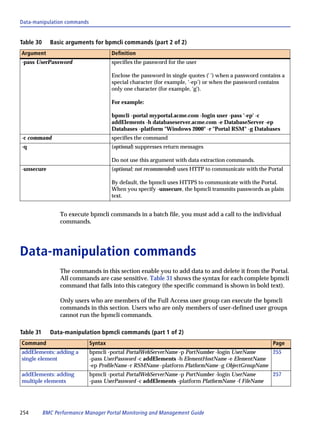
     Basic arguments for bpmcli commands . . . . . . . . . . . . . . . . . . . . . . . . . . . . . . . . . . . . . 253
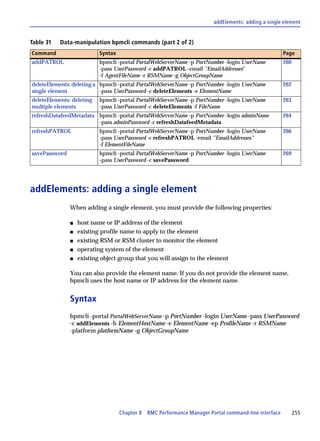
     Data-manipulation bpmcli commands . . . . . . . . . . . . . . . . . . . . . . . . . . . . . . . . . . . . . 254
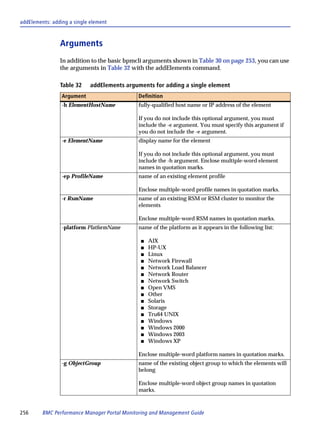
     addElements arguments for adding a single element . . . . . . . . . . . . . . . . . . . . . . . . . 256
     addElements arguments for adding multiple elements . . . . . . . . . . . . . . . . . . . . . . . 259
     Values required for CSV input file for the addPATROL CLI command . . . . . . . . . 260
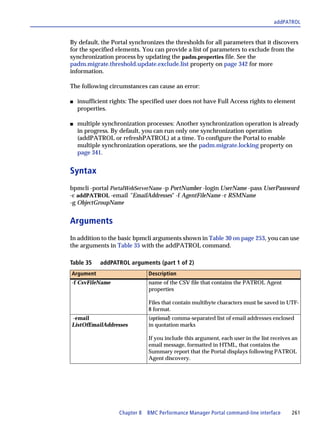
     addPATROL arguments . . . . . . . . . . . . . . . . . . . . . . . . . . . . . . . . . . . . . . . . . . . . . . . . . . 261
     deleteElements argument for deleting a single element . . . . . . . . . . . . . . . . . . . . . . . 263
     deleteElements argument for deleting multiple elements . . . . . . . . . . . . . . . . . . . . . 264
     deleteElements argument for deleting multiple elements . . . . . . . . . . . . . . . . . . . . . 265
     refreshPATROL arguments . . . . . . . . . . . . . . . . . . . . . . . . . . . . . . . . . . . . . . . . . . . . . . . 268
     Data-extraction bpmcli commands . . . . . . . . . . . . . . . . . . . . . . . . . . . . . . . . . . . . . . . . . 272


                                                                                                                    Tables        13
exportParameterHistory arguments . . . . . . . . . . . . . . . . . . . . . . . . . . . . . . . . . . . . . . . . 274
            getApplicationsForElement argument . . . . . . . . . . . . . . . . . . . . . . . . . . . . . . . . . . . . . . 276
            getParameterHistory arguments . . . . . . . . . . . . . . . . . . . . . . . . . . . . . . . . . . . . . . . . . . . 279
            getParameters argument . . . . . . . . . . . . . . . . . . . . . . . . . . . . . . . . . . . . . . . . . . . . . . . . . 281
            Parameter status values . . . . . . . . . . . . . . . . . . . . . . . . . . . . . . . . . . . . . . . . . . . . . . . . . . 282
            getSubApplications argument . . . . . . . . . . . . . . . . . . . . . . . . . . . . . . . . . . . . . . . . . . . . . 283
            Error messages for PATROL integration . . . . . . . . . . . . . . . . . . . . . . . . . . . . . . . . . . . . 304
            Predefined settings for monitoring the BMC Performance Manager Portal module . .
               312
            BMC PM Monitor application classes . . . . . . . . . . . . . . . . . . . . . . . . . . . . . . . . . . . . . . . 316
            Location of BMC Performance Manager Portal property files . . . . . . . . . . . . . . . . . . 320
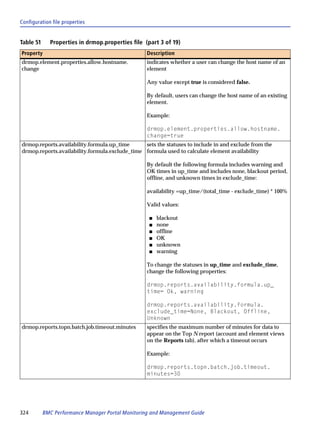
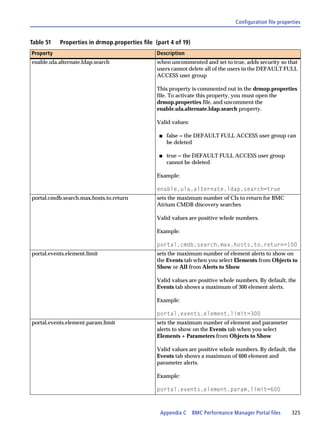
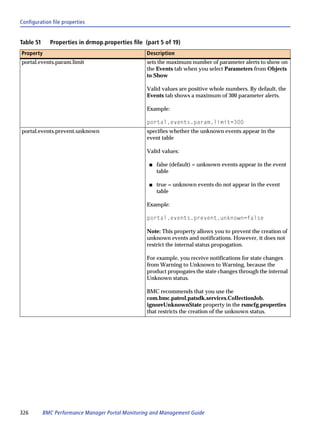
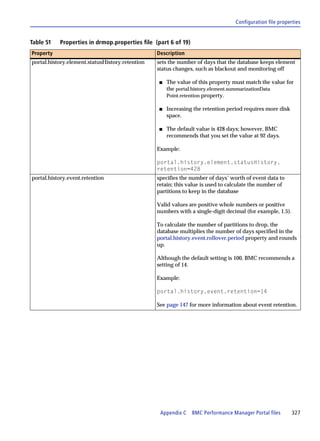
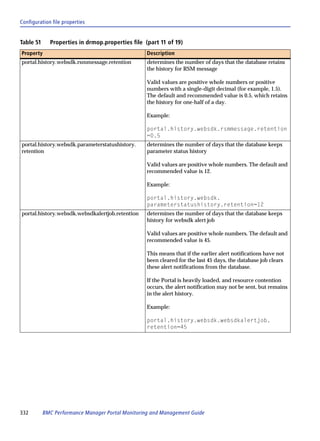
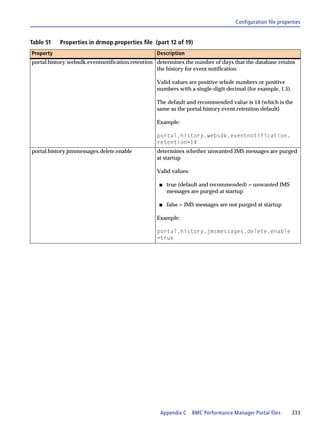
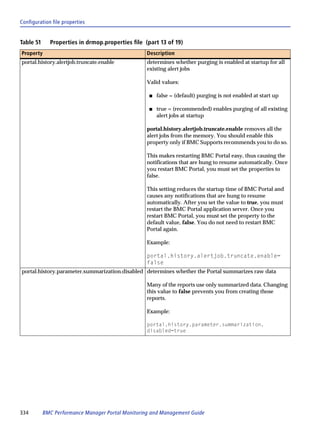
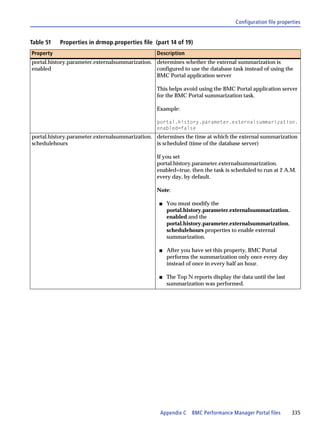
            Properties in drmop.properties file . . . . . . . . . . . . . . . . . . . . . . . . . . . . . . . . . . . . . . . . . . . 322
            Properties in rsmcfg.properties file . . . . . . . . . . . . . . . . . . . . . . . . . . . . . . . . . . . . . . . . 341
            Properties in the padm.properties file . . . . . . . . . . . . . . . . . . . . . . . . . . . . . . . . . . . . . . 341
            Properties in rsm-RsmHostName.properties file on the RSM computer . . . . . . . . . . 342
            Properties in the rsm.properties file on the RSM computer . . . . . . . . . . . . . . . . . . . . 343
            Properties in portal-PortalWebServer.properties file on the RSM computer . . . . . . 343
            JMX credentials on RSMs . . . . . . . . . . . . . . . . . . . . . . . . . . . . . . . . . . . . . . . . . . . . . . . . . 344


14   BMC Performance Manager Portal Monitoring and Management Guide
Chapter


                                                                                                                            1
Overview of the BMC Performance
1


Manager Portal
      This chapter describes how the BMC Performance Manager Portal module fits into
      the BMC Portal product and the features in BMC Performance Manager Portal.

      This chapter presents the following topics:

      How BMC Performance Manager Portal fits into BMC Portal . . . . . . . . . . . . . . . . . . .                                                15
         BMC Portal features common to all modules . . . . . . . . . . . . . . . . . . . . . . . . . . . . . .                                     16
         BMC Performance Manager Portal features . . . . . . . . . . . . . . . . . . . . . . . . . . . . . . .                                     17
         How the BMC Performance Manager Portal monitors your infrastructure. . . . .                                                              17
         Methods of data collection for Performance Managers . . . . . . . . . . . . . . . . . . . . . .                                           18
      Components . . . . . . . . . . . . . . . . . . . . . . . . . . . . . . . . . . . . . . . . . . . . . . . . . . . . . . . . . . . . .         18
         BMC Performance Manager Portal module in BMC Portal . . . . . . . . . . . . . . . . . .                                                   19
         Remote Service Monitor program. . . . . . . . . . . . . . . . . . . . . . . . . . . . . . . . . . . . . . . .                             19
      Security . . . . . . . . . . . . . . . . . . . . . . . . . . . . . . . . . . . . . . . . . . . . . . . . . . . . . . . . . . . . . . . . .   20
         Additional security for BMC Performance Manager Portal . . . . . . . . . . . . . . . . . .                                                21
         Security requirements for RSMs . . . . . . . . . . . . . . . . . . . . . . . . . . . . . . . . . . . . . . . . .                          22
         Infrastructure element credentials . . . . . . . . . . . . . . . . . . . . . . . . . . . . . . . . . . . . . . .                          22


How BMC Performance Manager Portal fits
into BMC Portal
      BMC Portal—also referred to as the Portal—is composed of a database, application
      server, and web server, and provides the access point for its utilities and modules.
      You access the BMC Portal from a browser on your client (desktop) computer.

      The BMC Performance Manager Portal extends the features in the BMC Portal,
      enabling you to leverage both agentless technologies and the PATROL Agent to
      monitor the availability and performance of your business infrastructure.


                                                 Chapter 1        Overview of the BMC Performance Manager Portal                                   15
BMC Portal features common to all modules


                Your user permissions determine the extent to which you can configure and monitor
                your Portal account. At any time, users with the applicable permissions can view:

                s   Current status of the infrastructure in the account
                s   Lists of the elements and parameters in the account that recently crossed
                    thresholds and triggered events
                s   Charts that show how well the elements in the account performed
                s   History log of the events in the account

                Each object view tab provides a high-level view of the account that enables you to
                access more detailed information. Icons, colors, and other graphical cues enable you
                to quickly determine the source of problems.


BMC Portal features common to all modules
                BMC Portal provides many common features across all of its modules, including:

                s   Account properties
                s   Object group names
                s   Blackout period scheduling (times when metrics are not collected from the
                    elements)
                s   Customization of notification criteria that BMC Portal uses to determine when to
                    notify your personnel about problems in your environment
                s   Users and user groups
                s   Object views that provide status, events, and report data
                s   Dashboard configuration
                s   System and user-defined tagging of objects that you can use to quickly retrieve
                    objects

                For details about these features, see the BMC Portal Getting Started guide and online
                Help.


                     NOTE
                For information about configuring BMC Portal, see the BMC Portal Getting Started guide. This
                guide also describes the accounts, users, and administrators, as well as authentication, rights,
                and permissions.


16     BMC Performance Manager Portal Monitoring and Management Guide
BMC Performance Manager Portal features


BMC Performance Manager Portal features
        The BMC Performance Manager Portal leverages agentless and PATROL Agent
        technologies to monitor and report on the performance of the IT infrastructure that
        supports your business. The Status, Reports, and Events tabs provide views about
        your account and the objects that compose the account.

        Following installation and configuration of the BMC Performance Manager Portal,
        you can begin adding computers and other devices to the account as infrastructure
        elements. You organize infrastructure elements into groups to which you assign rights
        and permissions for users of the Portal. Collectively, infrastructure elements and
        groups are known as infrastructure objects. The infrastructure objects in your
        account correspond to the computers and devices that compose the IT infrastructure
        for your business.


How the BMC Performance Manager Portal monitors your
infrastructure
        The BMC Performance Manager Portal uses Remote Service Monitors (RSMs) to
        collect metrics about your infrastructure. An RSM is a computer on which you have
        installed the RSM program. Depending on the size of your environment and your
        high availability (HA) requirements, you can implement one or many RSMs. For
        more information about installing and configuring the RSM program, see Chapter 4,
        “Remote Service Monitors,” on page 69.

        To know what to monitor on the specified infrastructure elements, the RSM uses
        Performance Managers. Each Performance Manager contains one or more application
        classes that you can select to monitor operating systems, programs, files, processes,
        and more. Each application class contains parameters that define the type of metric to
        obtain from the infrastructure element.

        Performance Managers, and the application classes that they contain, are installed on
        the Portal and saved in the Portal database when you select them from an installation
        CD or EPD website, or when you import them from the Portal user interface.
        Performance Managers that are installed on the Portal are available to all users on the
        Portal who have the appropriate user permissions. For more information about
        installing application classes, see Chapter 5, “Performance Managers and application
        classes,” on page 113.


                                  Chapter 1   Overview of the BMC Performance Manager Portal   17
Methods of data collection for Performance Managers


Methods of data collection for Performance Managers
                Performance Managers contain the applications that obtain performance and
                availability metrics about the monitored infrastructure objects in your account.
                Performance Managers can provide agentless monitoring or can integrate parameter
                data from a PATROL Agent. After you install the Performance Managers in the
                Portal, you can configure the elements in your account to use the application classes
                in the Performance Managers.

                The application classes in agentless Performance Managers use industry-standard
                protocols, such as PerfMon and SNMP, to retrieve metrics about the performance of
                the monitored element. As you add elements to the account, the user interface
                displays the application classes available for the new elements, based on the
                operating system of the element. During element configuration, you can accept
                default thresholds or, if permitted by your user permission, modify thresholds to
                reflect the service level agreement (SLA) for your account.

                The application classes in PATROL integration Performance Managers retrieve
                parameter data from PATROL Agents. PATROL integration Performance Managers
                correspond to the PATROL Knowledge Modules (KMs) on the selected agent, and
                contain mappings to a subset of the parameters in the KM. You can integrate
                parameter data from version 3.5 and later of PATROL Agents.

                The RSM program begins collecting metrics about your account within minutes of
                your adding and configuring the first elements. As soon as data collection begins, you
                can use the BMC Performance Manager Portal to view performance and availability
                metrics and status.


Components
                The following components compose the BMC Performance Manager Portal:

                s   BMC Performance Manager Portal module in BMC Portal
                s   Remote Service Monitor program


18      BMC Performance Manager Portal Monitoring and Management Guide
BMC Performance Manager Portal module in BMC Portal


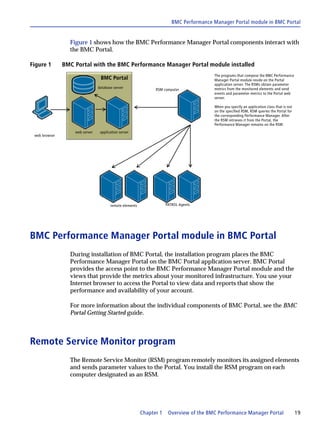
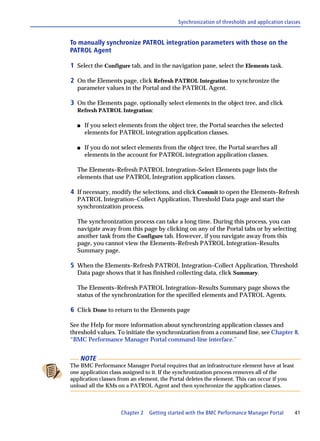
                 Figure 1 shows how the BMC Performance Manager Portal components interact with
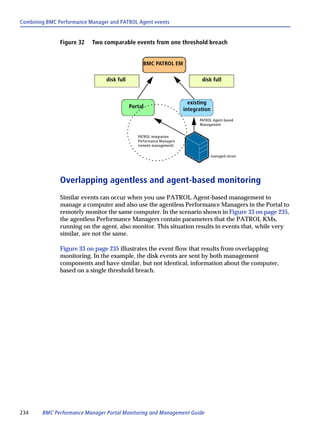
                 the BMC Portal.

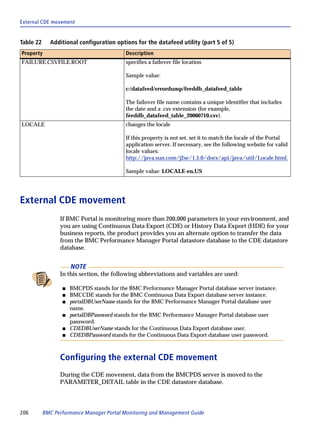
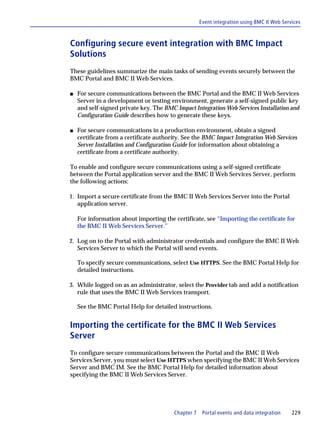
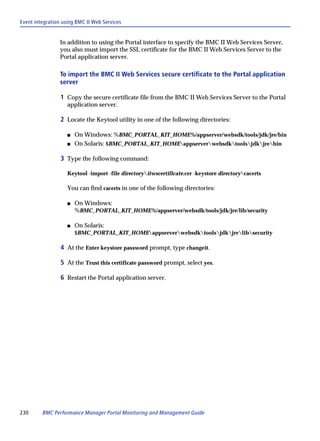
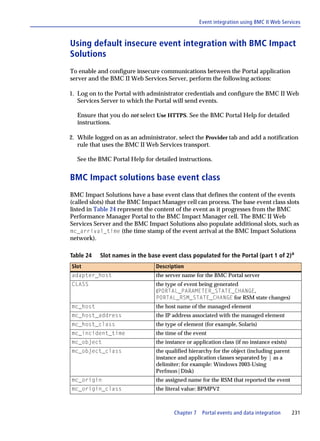
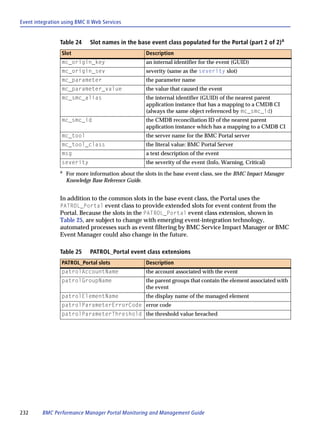
Figure 1       BMC Portal with the BMC Performance Manager Portal module installed
                                                                                        The programs that compose the BMC Performance
                                 BMC Portal                                             Manager Portal module reside on the Portal
                                                                                        application server. The RSMs obtain parameter
                                database server                                         metrics from the monitored elements and send
                                                               RSM computer
                                                                                        events and parameter metrics to the Portal web
                                                                                        server.

                                                                                        When you specify an application class that is not
                                                                                        on the specified RSM, RSM queries the Portal for
                                                                                        the corresponding Performance Manager. After
                                                                                        the RSM retrieves it from the Portal, the
                                                                                        Performance Manager remains on the RSM.
                   web server    application server
 web browser


                                       remote elements               PATROL Agents


BMC Performance Manager Portal module in BMC Portal
                 During installation of BMC Portal, the installation program places the BMC
                 Performance Manager Portal on the BMC Portal application server. BMC Portal
                 provides the access point to the BMC Performance Manager Portal module and the
                 views that provide the metrics about your monitored infrastructure. You use your
                 Internet browser to access the Portal to view data and reports that show the
                 performance and availability of your account.

                 For more information about the individual components of BMC Portal, see the BMC
                 Portal Getting Started guide.


Remote Service Monitor program
                 The Remote Service Monitor (RSM) program remotely monitors its assigned elements
                 and sends parameter values to the Portal. You install the RSM program on each
                 computer designated as an RSM.


                                                         Chapter 1    Overview of the BMC Performance Manager Portal                        19
Security


                  After you add an element to the Portal, the RSM begins collecting parameter data
                  from the element at the collection intervals specified for each application class, and
                  then sends parameter values to the Portal at the report update interval for the
                  element. The RSM also sends parameter values to the Portal as soon as it detects that
                  a parameter has changed its status (for example, when the parameter status changes
                  from warning to alarm).

                  For more information about the Remote Service Monitor program, see Chapter 4,
                  “Remote Service Monitors,” on page 69.


Security
                  During installation of BMC Portal, the installation program installs basic security on
                  the Portal. If you intend to integrate data from a PATROL Agent, you might need to
                  specify a different security level.

                  The RSM installation program also requests a security level. When integrating
                  PATROL Agent data, the security level on the RSM must match the security of the
                  monitored PATROL Agent.

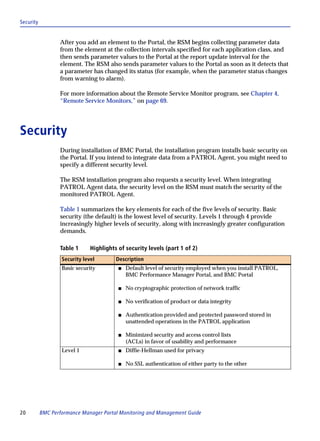
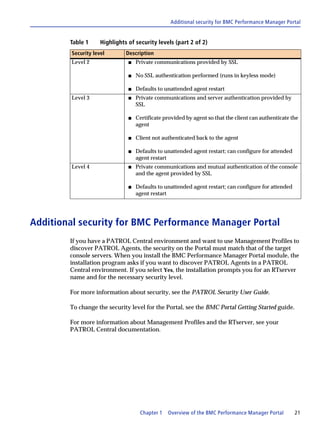
                  Table 1 summarizes the key elements for each of the five levels of security. Basic
                  security (the default) is the lowest level of security. Levels 1 through 4 provide
                  increasingly higher levels of security, along with increasingly greater configuration
                  demands.

                  Table 1      Highlights of security levels (part 1 of 2)
                   Security level        Description
                   Basic security         s   Default level of security employed when you install PATROL,
                                              BMC Performance Manager Portal, and BMC Portal

                                          s   No cryptographic protection of network traffic

                                          s   No verification of product or data integrity

                                          s   Authentication provided and protected password stored in
                                              unattended operations in the PATROL application

                                          s   Minimized security and access control lists
                                              (ACLs) in favor of usability and performance
                   Level 1                s   Diffie-Hellman used for privacy

                                          s   No SSL authentication of either party to the other


20         BMC Performance Manager Portal Monitoring and Management Guide
Additional security for BMC Performance Manager Portal


        Table 1      Highlights of security levels (part 2 of 2)
         Security level        Description
         Level 2                s   Private communications provided by SSL

                                s   No SSL authentication performed (runs in keyless mode)

                                s   Defaults to unattended agent restart
         Level 3                s   Private communications and server authentication provided by
                                    SSL

                                s   Certificate provided by agent so that the client can authenticate the
                                    agent

                                s   Client not authenticated back to the agent

                                s   Defaults to unattended agent restart; can configure for attended
                                    agent restart
         Level 4                s   Private communications and mutual authentication of the console
                                    and the agent provided by SSL

                                s   Defaults to unattended agent restart; can configure for attended
                                    agent restart


Additional security for BMC Performance Manager Portal
        If you have a PATROL Central environment and want to use Management Profiles to
        discover PATROL Agents, the security on the Portal must match that of the target
        console servers. When you install the BMC Performance Manager Portal module, the
        installation program asks if you want to discover PATROL Agents in a PATROL
        Central environment. If you select Yes, the installation prompts you for an RTserver
        name and for the necessary security level.

        For more information about security, see the PATROL Security User Guide.

        To change the security level for the Portal, see the BMC Portal Getting Started guide.

        For more information about Management Profiles and the RTserver, see your
        PATROL Central documentation.


                                     Chapter 1   Overview of the BMC Performance Manager Portal        21
Security requirements for RSMs


Security requirements for RSMs
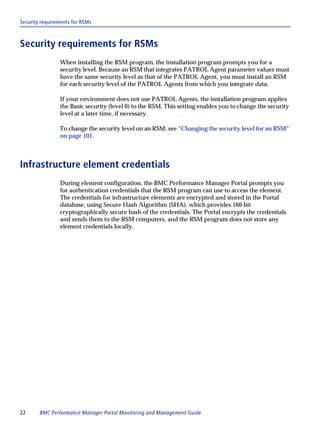
                When installing the RSM program, the installation program prompts you for a
                security level. Because an RSM that integrates PATROL Agent parameter values must
                have the same security level as that of the PATROL Agent, you must install an RSM
                for each security level of the PATROL Agents from which you integrate data.

                If your environment does not use PATROL Agents, the installation program applies
                the Basic security (level 0) to the RSM. This setting enables you to change the security
                level at a later time, if necessary.

                To change the security level on an RSM, see “Changing the security level for an RSM”
                on page 101.


Infrastructure element credentials
                During element configuration, the BMC Performance Manager Portal prompts you
                for authentication credentials that the RSM program can use to access the element.
                The credentials for infrastructure elements are encrypted and stored in the Portal
                database, using Secure Hash Algorithm (SHA), which provides 160-bit
                cryptographically secure hash of the credentials. The Portal encrypts the credentials
                and sends them to the RSM computers, and the RSM program does not store any
                element credentials locally.


22      BMC Performance Manager Portal Monitoring and Management Guide
Chapter


                                                                                                                   2
Getting started with the BMC
2


Performance Manager Portal
     This chapter describes activities that you must perform immediately after installing
     and configuring the BMC Performance Manager Portal module on the Portal or after
     upgrading to the current version of the Portal. The scenarios in this chapter acquaint
     you with the methods for configuring the BMC Performance Manager Portal to
     monitor your infrastructure.

     This chapter presents the following topics:

     Verifying the BMC Performance Manager Portal installation . . . . . . . . . . . . . . . . . . .                                     24
     Adding infrastructure elements for agentless monitoring . . . . . . . . . . . . . . . . . . . . . .                                 25
     Verifying an upgrade from an earlier version . . . . . . . . . . . . . . . . . . . . . . . . . . . . . . . . .                      27
     Integrating PATROL Agent data into the BMC Performance Manager Portal . . . . .                                                     27
         Options for identifying PATROL Agents as elements . . . . . . . . . . . . . . . . . . . . . . .                                 28
         Methods for discovering PATROL Agent data. . . . . . . . . . . . . . . . . . . . . . . . . . . . .                              29
         Synchronization of thresholds and application classes . . . . . . . . . . . . . . . . . . . . . .                               40
     Integrating infrastructure elements from the BMC Atrium CMDB . . . . . . . . . . . . . . .                                          42
     Viewing object status . . . . . . . . . . . . . . . . . . . . . . . . . . . . . . . . . . . . . . . . . . . . . . . . . . . . . .   44
         Portal and infrastructure status views . . . . . . . . . . . . . . . . . . . . . . . . . . . . . . . . . . . .                  45
         Individual parameter history charts . . . . . . . . . . . . . . . . . . . . . . . . . . . . . . . . . . . . . .                 46
         Parameter history tables . . . . . . . . . . . . . . . . . . . . . . . . . . . . . . . . . . . . . . . . . . . . . . . .        47
         Parameter filtering. . . . . . . . . . . . . . . . . . . . . . . . . . . . . . . . . . . . . . . . . . . . . . . . . . . . .    47


                                  Chapter 2       Getting started with the BMC Performance Manager Portal                                23
Verifying the BMC Performance Manager Portal installation


Verifying the BMC Performance Manager
Portal installation
                The BMC Portal Getting Started guide describes how to configure the Portal and its
                modules, including the BMC Performance Manager Portal. This section describes
                tasks that you can perform to ensure that the BMC Performance Manager Portal is
                ready to monitor infrastructure.

                To verify the BMC Performance Manager Portal installation

                 1 Use the procedure in “Using the installation wizard to install the RSM program”
                    on page 84 to install the RSM program on the Portal computer or another computer
                    designated as an RSM.

                    You can install one of the RSM instances on the Portal computer.

                 2 Use the procedure in “Adding infrastructure elements for agentless monitoring”
                    on page 25 to add one element to the account.

                    To test the installation, select a simple application class, such as Ping.

                 3 Select the Status tab.

                 4 In the navigation pane, expand the object tree to display the top-level Infrastructure
                    object group and the objects that it contains.

                    After adding the element, the status of the new infrastructure element should
                    change to OK.

                If a problem occurs

                If the status of the element is critical, you might have a problem with the Portal
                installation or with the configuration of the element.

                s   Verify that a firewall is not preventing the RSM from successfully reaching the
                    computer.

                s   Verify that a firewall is not preventing the RSM from sending data to the Portal.

                s   Determine whether a network problem is causing the ping command to fail.

                s   See the troubleshooting appendix in the BMC Portal Getting Started guide or the
                    BMC Portal Installation Guide.


24      BMC Performance Manager Portal Monitoring and Management Guide
Adding infrastructure elements for agentless monitoring


      Where to go from here

      s   Begin adding infrastructure elements. For more information, see “Adding
          infrastructure elements for agentless monitoring” on this page.

      s   Review the metrics collected about infrastructure elements. For more information,
          see Chapter 6, “Reports,” on page 141.


Adding infrastructure elements for agentless
monitoring
      You can quickly add computers and devices for agentless monitoring. The following
      scenario provides the procedure for adding an element and configuring it with the
      Ping application class, which measures network latency, and to verify that the
      element can accept network requests.

      Before you begin

      You must have at least one RSM installed and available to the Portal. For more
      information, see “Using the installation wizard to install the RSM program” on
      page 84.

      To add an infrastructure element to the BMC Performance Manager Portal

      1 Log on with user credentials

      2 Click the Configure tab.

      3 Under Tasks, select Elements to open the Elements page, and click Add.

      4 If the Elements–Add–Type of Element page is displayed, select Infrastructure
          Element, and click Next; otherwise, proceed to step 5.

      5 On the Elements–Add Infrastructure Element–Select Remote Service Monitor
          page, select an RSM, and click Next to open the Elements–Add Infrastructure
          Element–Identification page.


              NOTE
          If an instance of the RSM program has not been installed, the list of Remote Service
          Monitors is empty. If this occurs, click Cancel and install the RSM program. See “Using the
          installation wizard to install the RSM program” on page 84.


                           Chapter 2   Getting started with the BMC Performance Manager Portal      25
Adding infrastructure elements for agentless monitoring


                 6 In Element Name (label), specify an element name that appears on all charts and
                    Status pages.

                    If you do not specify a label name, the host name or IP address is used as the
                    element name.

                 7 In the text box, type the host name of the computer, select Host Name, and click
                    Next.

                    To add many elements, you can paste a list of host names in the text box or specify
                    a range of IP addresses. When adding multiple elements, separate host names with
                    commas.

                 8 On the Elements–Add Infrastructure Element–Select Group page, specify the
                    platform name and group name, and click Next:

                   A From the Element(s) Platform list, select the platform that corresponds to the host
                        name that you specified in step 7.

                    B In Group Name, type test group.

                 9 On the Elements–Add Infrastructure Element–Application Classes page, select the
                    Networking category, select the Ping application class, and click Next.

                10 On the Elements–Add Infrastructure Element–Properties and Credentials page,
                    review the properties for the Ping application class, and click Next:

                    s   When you keep the default value for Report Update Interval Minutes, the RSM
                        sends parameter values to the Portal every 5 minutes for BMC Portal versions
                        earlier than 2.7, and every 10 minutes for versions 2.7 and later, unless a
                        parameter threshold is violated.

                    s   When you keep the default value for Collection Interval, the RSM collects
                        parameter values for the Ping application class once every minute.

                11 On the Elements–Add Infrastructure Element–Thresholds page, accept the default
                    thresholds, and click Finish.

                    After you finish adding the element to the Portal, the RSM starts accessing the
                    element to collect parameter values. You might need to wait a minute or two
                    before the Portal receives the initial parameter values and updates the Status tab.

                 Where to go from here

                 Begin viewing the parameter metrics collected by the RSM by selecting the Status and
                 Reports tabs.


26      BMC Performance Manager Portal Monitoring and Management Guide
Verifying an upgrade from an earlier version


Verifying an upgrade from an earlier version
      You can view the Performance Managers that were upgraded from version 2.1 and to
      ensure that the Portal is collecting data following the upgrade.

      If you upgraded from BMC Performance Manager Portal 2.1, your application classes
      were migrated to the Performance Manager format and installed on the Portal. If you
      upgraded from BMC Performance Manager Portal 2.3, see “To upgrade a
      Performance Manager during a Portal upgrade” on page 127.

      To verify an upgrade from BMC Performance Manager Portal version 2.3 or
      later

      1 Log on using the Portal administrator credentials (superadmin/superadmin by
        default).

      2 Select the Portal tab.

      3 Under Tasks, select Performance Managers to open the Performance Managers page
        and view the list of all the Performance Managers that were upgraded from the
        earlier version.

      4 Log on as a user and select the Status tab to view the values and status for the
        infrastructure elements in your account.

        After the upgrade, the Status tab should reflect new values collected by the
        upgraded application classes and RSM for your Portal.


Integrating PATROL Agent data into the BMC
Performance Manager Portal
      BMC Software has created PATROL integration Performance Managers for many of
      the KMs, providing mappings to many of those KMs’ parameters. Using the PATROL
      Agent as a data source, the RSM mines parameter data from the agent and sends it to
      the Portal. The BMC Performance Manager Portal can integrate parameter data from
      version 3.5 and later of PATROL Agents.


                          Chapter 2   Getting started with the BMC Performance Manager Portal      27
Options for identifying PATROL Agents as elements


Options for identifying PATROL Agents as elements
                When you add PATROL Agents to the Portal as elements, you either specify the host
                names of the agents or use a discovery method to find them. When you specify the
                host names or IP addresses, you can accept the default parameter thresholds in the
                PATROL integration application class, or you can modify the default values (during
                the add process or later). The Elements–Add Infrastructure Element–Identification
                page provides the following options for identifying PATROL Agents and discovering
                thresholds from versions 3.5 and later of PATROL Agents:

                s   Select Host Name or IP Address to specify one or more PATROL Agents as
                    elements. When you select one of these options, you must know the KMs that are
                    installed on the managed system and their corresponding Performance Managers
                    in the Portal. After specifying the host names, select the PATROL integration
                    Performance Managers that correspond to the KMs on the agents. In most cases,
                    the PATROL integration Performance Manager names and version numbers match
                    the PATROL KM names and version numbers.

                    This method uses the thresholds defined in the selected PATROL integration
                    Performance Manager. By default, threshold management is handled from the
                    PATROL Agent. To change threshold management to the Portal, access the
                    Properties page for element to change the threshold management preference.

                    The threshold values that you set in the Portal for PATROL integration parameters
                    have no effect on the values set for the parameters in the BMC Performance
                    Manager consoles, PATROL Configuration Manager, PATROL Knowledge
                    Module for Event Management, or other BMC Software products.


                        NOTE
                    The BMC Performance Manager consoles include

                    s   PATROL Central Operator - Web Edition
                    s   PATROL Central Operator - Microsoft Windows Edition
                    s   PATROL Console for Microsoft Windows
                    s   PATROL Console for UNIX®


                s   Select PATROL Integration to have the BMC Performance Manager Portal discover
                    the agents and the KMs on the agents, match the KMs with the PATROL
                    integration Performance Managers on the Portal, and obtain parameter thresholds.
                    When you use this option to discover PATROL Agents, you can also choose to
                    monitor the health and availability of the selected PATROL Agents. For more
                    information, see “PATROL Agent health monitoring” on page 317.

                For more information about managing thresholds for PATROL Agent elements, see
                “PATROL Agent integration” on page 121.


28      BMC Performance Manager Portal Monitoring and Management Guide
Methods for discovering PATROL Agent data


Methods for discovering PATROL Agent data
        When you select the PATROL Integration option, you can choose from the following
        discovery options:

        s   Discover agent data from a PATROL Central environment, which requires that
            you specify credentials for a PATROL Console Server.

            This method requires that you specify an RTserver for the Portal to discover
            Management Profiles on the console server. When using this option, consider
            creating Management Profiles that contain the managed systems that you want to
            add.

        s   Discover agent data from a PATROL desktop (DT) file, which requires that you
            specify the full path and file name for the desktop file.

        s   Discover agent data from a PATROL Event Translation (PET) file, which requires
            that you specify the full path and file name for the configuration file.

        s   Discover PATROL Agent data by specifying a comma-separated value (CSV) file
            that contains the element name, agent host name, port number for the PATROL
            Agent, and user name.

            The CSV file can optionally contain the password to authenticate the user name.

        s   Use the addPATROL command in the bpmcli to add elements from a list of
            PATROL Agents. See “addPATROL” on page 260 for more information.

        The data discovery process can take a long time, but after you click Commit to initiate
        the process, you can navigate to other pages by clicking the Status, Events, Reports, or
        Configure tab.

        s   To view the status of the new elements, select the Status tab.
        s   To see whether any errors occurred during data discovery, locate and view the
            portal.log file. See “Cannot find errors when data discovery runs as a background
            process” on page 304.

        If your PATROL environment contains a mixture of PATROL architectures, you can
        use a combination of the integration options.


             NOTE
        s   The BMC Performance Manager Solutions CD contains many PATROL integration
            Performance Managers that provide integration with PATROL parameter data.

        s   To ensure that you do not stop the Portal from mining data from the agents, do not unload
            the corresponding KM from the PATROL Agent.


                            Chapter 2   Getting started with the BMC Performance Manager Portal    29
Methods for discovering PATROL Agent data


                Discovering PATROL Agents in a PATROL Central
                environment
                If your business uses the PATROL Central environment to manage infrastructure,
                you can specify Management Profiles for the Portal to use to discover PATROL
                Agents. The discovery process also matches the PATROL integration Performance
                Managers with the KMs and obtains parameter thresholds from the agent. For more
                information about the components in the PATROL Central environment, see the
                PATROL Central documentation.

                Before you begin

                s   The Portal requires an RTserver to access a Management Profile. If you did not
                    specify an RTserver and security level during installation of the Portal, you must
                    configure these Portal settings before proceeding.

                    See “Specifying RTservers for the BMC Performance Manager Portal” on page 300.

                s   The KMs must be loaded on the PATROL Agent.

                s   Consider creating or updating Management Profiles so that you can quickly select
                    the agents that you want.

                s   Ensure that at least one RSM has been installed and is available to the Portal. See
                    “Using the installation wizard to install the RSM program” on page 84.

                To discover PATROL Agents in a PATROL Central environment

                1 Click the Configure tab, and under Tasks, select Elements to open the Elements
                    page, and then click Add.

                2 If the Elements–Add–Type of Element page is displayed, select Infrastructure
                    Element, and click Next; otherwise, proceed to step 3 on page 42.

                3 On the Elements–Add Infrastructure Element–Select Remote Service Monitor
                    page, select an RSM to collect data from the discovered agents, and click Next.

                4 On the Elements–Add Infrastructure Element–Identification page, select PATROL
                    Integration, and click Next.

                5 On the Elements–Add Infrastructure Element–Select Group page, specify the
                    object groups for the new elements, and click Next.

                6 On the Elements–Add Infrastructure Element–Select PATROL Agent for
                    Configuration page, select PATROL Management Profile(s), and click Next.


30     BMC Performance Manager Portal Monitoring and Management Guide
Methods for discovering PATROL Agent data


7 On the Elements–Add Infrastructure Element–Console Server Credentials page,
  specify the credentials to access the selected console server, and click Next:

  A From the list, select the console server.

      If your Portal administrator has not specified an RTserver, the Console Server list
      is empty and you cannot continue.

  B Type the user credentials for the Portal to use to access the console server.

8 On the Elements–Add Infrastructure Element–Integrate Managed Systems page,
  select the Management Profiles to use, and click Next.

9 If necessary, on the Elements–Add Infrastructure Element–PATROL Agent
  Credentials page, specify the credentials for the selected agents, and click Commit.

  If the Management Profile had the PATROL Agent credentials saved in the console
  server’s profile impersonation table, Agent credentials might already be displayed
  on this page.

  s   To monitor the discovered agents, select Monitor discovered PATROL Agents with
      PATROL Agent Availability and Health Monitor.

  s   To change the default element name, agent name, or port from that which was
      discovered on the agent, type the new properties in the corresponding boxes for
      each applicable agent.

  s   To apply the same credentials to all agents, type the credentials in Agent User
      Name and Agent Password, and click Apply to All.

  s   To apply shared credentials to all agents, select a saved credential from the
      Shared Credentials list, and click Apply to All.

  s   To provide the credentials for individual agents, type the credentials in
      corresponding Agent User Name and Agent Password boxes, or select a saved
      credential from the list.

  The data discovery process begins. In addition to matching application classes and
  parameters between PATROL integration Performance Managers and KMs, the
  Portal obtains the parameter thresholds from the discovered agents.


       NOTE
  The data discovery process can take a long time. During discovery, you can navigate away
  from this page by clicking on the Status, Events, or Configure tab. If you navigate away
  from this page, you will not be able to view the Results Summary page.


                    Chapter 2   Getting started with the BMC Performance Manager Portal   31
Methods for discovering PATROL Agent data


               10 When the Elements–Add Infrastructure Element–Collect Application and
                    Threshold Data screen shows that it has finished collecting data, click Summary to
                    display the Elements–Add Infrastructure Element–Results Summary page.

                    This page shows the KMs on the agents that matched the available PATROL
                    integration Performance Managers for your Portal.

               11 Click Done to return to the Elements page.

                    After you finish adding the element to the Portal, the RSM accesses the PATROL
                    Agent to collect parameter values. You might need to wait a minute or two for the
                    Portal to receive the initial parameter values and update the Status tab.

                Where to go from here

                s   If you navigated to other tasks or object views during the discovery process, you
                    can

                    — access the Status tab to view the new parameters and their values
                    — access the log files to check for errors encountered during discovery

                s   Begin viewing measurements collected by the RSM program by selecting the Status
                    and Reports tabs.

                s   View or edit parameter thresholds on the new elements. To access element
                    thresholds, take the following actions:

                    1. On the Configure tab, select the element in the navigation pane to open the
                       element Properties page.

                    2. Under Application Classes, click Edit.


                Using a PATROL desktop file to discover PATROL Agents
                If your business uses PATROL 3.x consoles, you can use a desktop file to discover
                PATROL Agents. The discovery process also matches the PATROL integration
                Performance Managers with the KMs and obtains parameter thresholds from the
                agent.

                Before you begin

                s   You must have at least one RSM installed and available to the Portal. See “Using
                    the installation wizard to install the RSM program” on page 84.

                s   You must have already saved a desktop file (*.dt) from the console. For information
                    about creating a desktop file, see your console documentation.


32     BMC Performance Manager Portal Monitoring and Management Guide
Methods for discovering PATROL Agent data


To use a PATROL desktop file to discover PATROL Agents

1 Click the Configure tab, and under Tasks, select Elements to open the Elements
  page, and then click Add.

2 If the Elements–Add–Type of Element page is displayed, select Infrastructure
  Element, and click Next; otherwise, proceed to step 3.

3 On the Elements–Add Infrastructure Element–Select Remote Service Monitor
  page, select an RSM to collect data from the discovered agents, and click Next.

4 On the Elements–Add Infrastructure Element–Identification page, select PATROL
  Integration, and click Next.

5 On the Elements–Add Infrastructure Element–Select Group page, specify the
  object groups for the new elements, and click Next.

6 On the Elements–Add Infrastructure Element–Select PATROL Agent for
  Configuration page, select Console Desktop File(s), and click Next.

7 On the Elements–Add Infrastructure Element–Console Desktop File page, use one
  of the following options to specify the desktop file, and click Next:

  s   Click Browse to select a desktop file.
  s   In File Name, type the full path and file name for the desktop file.

8 On the Elements–Add Infrastructure Element–PATROL Agent Credentials page,
  specify the credentials for the selected agents, and click Commit.

  s   To monitor the discovered agents, select Monitor discovered PATROL Agents with
      PATROL Agent Availability and Health Monitor.

  s   To change the default element name, agent name, or port from that which was
      discovered on the agent, type the new properties in the corresponding boxes for
      each applicable agent.

  s   To apply the same credentials to all agents, type the credentials in Agent User
      Name and Agent Password, and click Apply to All.

  s   To apply shared credentials to all agents, select a saved credential from the
      Shared Credentials list, and click Apply to All.

  s   To provide the credentials for individual agents, type the credentials in
      corresponding Agent User Name and Agent Password boxes, or select a saved
      credential from the list.


                    Chapter 2    Getting started with the BMC Performance Manager Portal   33
Methods for discovering PATROL Agent data


                    The data discovery process begins. In addition to matching application classes and
                    parameters between PATROL integration Performance Managers and KMs, the
                    Portal obtains the parameter thresholds from the discovered agents.


                        NOTE
                    The data discovery process can take a long time. During discovery, you can navigate away
                    from this page by clicking on the Status, Events, or Configure tab. If you navigate away
                    from this page, you will not be able to view the Results Summary page.


                9 When the Elements–Add Infrastructure Element–Collect Application and
                    Threshold Data screen shows that the Portal has finished collecting data, click
                    Summary to display the Elements–Add Infrastructure Element–Results Summary
                    page.

                    This page shows the KMs on the agents that matched the available Performance
                    Managers on your Portal.

               10 Click Done to return to the Elements page.

                    After you finish adding the element to the Portal, the RSM accesses the PATROL
                    Agent to collect parameter values. You might need to wait a minute or two for the
                    Portal to receive the initial parameter values and update the Status tab.

                Where to go from here

                s   If you navigated to other tasks or object views during the discovery process, you
                    can

                    — access the Status tab to view the new parameters and their values
                    — access the log files to check for errors encountered during discovery

                s   Begin viewing measurements collected by the RSM program by selecting the Status
                    and Reports tabs.

                s   View or edit parameter thresholds on the new elements. To access element
                    thresholds, take the following actions:

                    1. On the Configure tab, select the element in the navigation pane to open the
                       element Properties page.

                    2. Under Application Classes, click Edit.


34     BMC Performance Manager Portal Monitoring and Management Guide
Methods for discovering PATROL Agent data


Using a PET file to discover PATROL Agents
If your business has a PATROL 3.x environment without a console, you can use a PET
file to discover PATROL Agents. The discovery process also matches the PATROL
integration Performance Managers with the KMs and obtains parameter thresholds
from the agent.

Before you begin

s   You must have at least one RSM installed and available to the Portal. See “Using
    the installation wizard to install the RSM program” on page 84.

s   You must have used the PATROL Event Translation Configuration utility to create
    a PET file.

To use a PET file to discover PATROL Agents

1 Click the Configure tab, and under Tasks, select Elements to open the Elements
    page, and then click Add.

2 If the Elements–Add–Type of Element page is displayed, select Infrastructure
    Element, and click Next; otherwise, proceed to step 3.

3 On the Elements–Add Infrastructure Element–Select Remote Service Monitor
    page, select an RSM to collect data from the discovered agents, and click Next.

4 On the Elements–Add Infrastructure Element–Identification page, select PATROL
    Integration, and click Next.

5 On the Elements–Add Infrastructure Element–Select Group page, specify the
    object groups for the new elements, and click Next.

6 On the Elements–Add Infrastructure Element–Select PATROL Agent for
    Configuration page, select PET Configuration File(s), and click Next.

7 On the Elements–Add Infrastructure Element–PET File page, use one of the
    following options to specify the desktop file, and click Next:

    s   Click Browse to select a PET file.
    s   In File Name, type the full path and file name for the PET file.


                      Chapter 2    Getting started with the BMC Performance Manager Portal   35
Methods for discovering PATROL Agent data


                8 On the Elements–Add Infrastructure Element–PATROL Agent Credentials page,
                   specify the credentials for the selected agents, and click Commit:

                   s   To monitor the discovered agents, select Monitor discovered PATROL Agents with
                       PATROL Agent Availability and Health Monitor.

                   s   To change the default element name, agent name, or port from that which was
                       discovered on the agent, type the new properties in the corresponding boxes for
                       each applicable agent.

                   s   To apply the same credentials to all agents, type the credentials in Agent User
                       Name and Agent Password, and click Apply to All.

                   s   To apply shared credentials to all agents, select a saved credential from the
                       Shared Credentials list, and click Apply to All.

                   s   To provide the credentials for individual agents, type the credentials in
                       corresponding Agent User Name and Agent Password boxes, or select a saved
                       credential from the list.

                   The data discovery process begins. In addition to matching application classes and
                   parameters between PATROL integration Performance Managers and KMs, the
                   Portal obtains the parameter thresholds from the discovered agents.


                        NOTE
                   The data discovery process can take a long time. During discovery, you can navigate away
                   from this page by clicking on the Status, Events, or Configure tab. If you navigate away
                   from this page, you will not be able to view the Results Summary page.


                9 When the Elements–Add Infrastructure Element–Collect Application and
                   Threshold Data screen shows that is has finished collecting data, click Summary to
                   display the Elements–Add Infrastructure Element–Results Summary page.

                   This page shows the KMs on the agents that matched the available Performance
                   Managers for your Remote Service Monitor.

               10 Click Done to return to the Elements page.

                   After you finish adding the element to the Portal, the RSM accesses the PATROL
                   Agent to collect parameter values. You might need to wait a minute or two for the
                   Portal to receive the initial parameter values and update the Status tab.


36     BMC Performance Manager Portal Monitoring and Management Guide
Methods for discovering PATROL Agent data


Where to go from here

s   If you navigated to other tasks or object views during the discovery process, you
    can

    — access the Status tab to view the new parameters and their values
    — access the log files to check for errors encountered during discovery

s   Begin viewing measurements collected by the RSM program by selecting the Status
    and Reports tabs.

s   View or edit parameter thresholds on the new elements. To access element
    thresholds, take the following actions:

    1. On the Configure tab, select the element in the navigation pane to open the
       element Properties page.

    2. Under Application Classes, click Edit.


Using a CSV file to discover PATROL Agents
If you have the PATROL Agents listed in a comma-separated value (CSV) file, you
can identify the agents by uploading the file to the Portal.

Before you begin

s   You must have at least one RSM installed and available to the Portal. See “Using
    the installation wizard to install the RSM program” on page 84.

s   You must have a CSV file that contains the following properties (in the order
    specified) for each new element:

Table 2     PATROL Agent data required in CSV file
Value                 Notes
element name           s   value cannot exceed 256 characters
                       s   if empty, the row is ignored
host name              s   cannot exceed 256 characters
                       s   if empty, the row is ignored
port number           if empty, the row is ignored
user name              s   cannot exceed 256 characters
                       s   value is not required
password               s   cannot exceed 256 characters
                       s   value is not required
                       s   if value is present, it must be PEM encrypted


                    Chapter 2    Getting started with the BMC Performance Manager Portal   37
Methods for discovering PATROL Agent data


                To use a CSV file to discover PATROL Agents

                1 Click the Configure tab, and under Tasks, select Elements to open the Elements
                   page, and then click Add.

                2 If the Elements–Add–Type of Element page is displayed, select Infrastructure
                   Element, and click Next; otherwise, proceed to step 3.

                3 On the Elements–Add Infrastructure Element–Select Remote Service Monitor
                   page, select an RSM to collect data from the discovered agents, and click Next.

                4 On the Elements–Add Infrastructure Element–Identification page, select PATROL
                   Integration, and click Next.

                5 On the Elements–Add Infrastructure Element–Select Group page, specify the
                   object groups for the new elements, and click Next.

                6 On the Elements–Add Infrastructure Element–Select PATROL Agent for
                   Configuration page, select Comma Separated Values (CSV file(s), and click Next.

                7 On the Elements–Add Infrastructure Element–CSV File page, use one of the
                   following options to specify the file, and click Next:

                   s   Click Browse to select the file.
                   s   In File Name, type the full path and file name for the file.

                8 On the Elements–Add Infrastructure Element–PATROL Agent Credentials page,
                   specify the credentials for the agents listed in the CSV file, and click Commit:

                   s   To monitor the discovered agents, select Monitor discovered PATROL Agents with
                       PATROL Agent Availability and Health Monitor.

                   s   To change the default element name, agent name, or port from that which was
                       discovered on the agent, type the new properties in the corresponding boxes for
                       each applicable agent.

                   s   To apply the same credentials to all agents, type the credentials in Agent User
                       Name and Agent Password, and click Apply to All.

                   s   To apply shared credentials to all agents, select a saved credential from the
                       Shared Credentials list, and click Apply to All.

                   s   To provide the credentials for individual agents, type the credentials in
                       corresponding Agent User Name and Agent Password boxes, or select a saved
                       credential from the list.


38     BMC Performance Manager Portal Monitoring and Management Guide
Methods for discovering PATROL Agent data


    The data discovery process begins. In addition to matching application classes and
    parameters between PATROL integration Performance Managers and KMs, the
    Portal obtains the parameter thresholds from the discovered agents.


        NOTE
    The data discovery process can take a long time. During discovery, you can navigate away
    from this page by clicking on the Status, Events, or Configure tab. If you navigate away
    from this page, you will not be able to view the Results Summary page.


 9 When the Elements–Add Infrastructure Element–Collect Application and
    Threshold Data screen shows that is has finished collecting data, click Summary to
    display the Elements–Add Infrastructure Element–Results Summary page.

    This page shows the KMs on the agents that matched the available Performance
    Managers on your Portal.

10 Click Done to return to the Elements page.

    After you finish adding the element to the Portal, the RSM accesses the PATROL
    Agent to collect parameter values. You might need to wait a minute or two for the
    Portal to receive the initial parameter values and update the Status tab.

Where to go from here

s   If you navigated to other tasks or object views during the discovery process, you
    can

    — access the Status tab to view the new parameters and their values
    — access the log files to check for errors encountered during discovery

s   Begin viewing measurements collected by the RSM program by selecting the Status
    and Reports tabs.

s   View or edit parameter thresholds on the new elements. To access element
    thresholds, take the following actions:

    1. On the Configure tab, select the element in the navigation pane to open the
       element Properties page.

    2. Under Application Classes, click Edit.


                     Chapter 2   Getting started with the BMC Performance Manager Portal   39
Synchronization of thresholds and application classes


Synchronization of thresholds and application classes
                 Not only can you manually change parameter thresholds, but you can synchronize
                 the parameter thresholds and application classes in the PATROL integration
                 Performance Managers with those on the PATROL Agent through the Portal. When
                 synchronizing thresholds, you can also choose to monitor the health and availability
                 of the selected PATROL Agents. See “PATROL Agent health monitoring” on
                 page 317 for more information.

                 The following conditions can cause discrepancies between the parameter thresholds
                 and application classes in the PATROL integration Performance Managers and the
                 PATROL Agent:

                 s   changing the parameter thresholds on the PATROL Agent
                 s   removing application classes on the PATROL Agent
                 s   adding application classes on the PATROL Agent

                 When you synchronize parameter values, the following limitations apply:

                 s   Updating PATROL integration parameters for more than 100 elements can take a
                     long time. Like with discovery, you can navigate to other tabs and options on the
                     Portal during the synchronization process, but if you do, you will not be able to
                     view or save the Results Summary report.

                 s   The Portal does not synchronize PATROL integration parameters for elements to
                     which an element profile has been applied. For more information about element
                     profiles, see “Element Profiles task” on page 51.

                 By default, the Portal synchronizes the thresholds for all parameters that it discovers
                 for the specified elements. You can provide a list of parameters to exclude from the
                 synchronization process by updating the padm.properties file. See the
                 padm.migrate.threshold.update.exclude.list property on page 342 for more
                 information.


40      BMC Performance Manager Portal Monitoring and Management Guide
Synchronization of thresholds and application classes


To manually synchronize PATROL integration parameters with those on the
PATROL Agent

1 Select the Configure tab, and in the navigation pane, select the Elements task.

2 On the Elements page, click Refresh PATROL Integration to synchronize the
  parameter values in the Portal and the PATROL Agent.

3 On the Elements page, optionally select elements in the object tree, and click
  Refresh PATROL Integration:

  s    If you select elements from the object tree, the Portal searches the selected
       elements for PATROL integration application classes.

  s    If you do not select elements from the object tree, the Portal searches all
       elements in the account for PATROL integration application classes.

  The Elements–Refresh PATROL Integration–Select Elements page lists the
  elements that use PATROL Integration application classes.

4 If necessary, modify the selections, and click Commit to open the Elements–Refresh
  PATROL Integration–Collect Application, Threshold Data page and start the
  synchronization process.

  The synchronization process can take a long time. During this process, you can
  navigate away from this page by clicking on any of the Portal tabs or by selecting
  another task from the Configure tab. However, if you navigate away from this
  page, you cannot view the Elements–Refresh PATROL Integration–Results
  Summary page.

5 When the Elements–Refresh PATROL Integration–Collect Application, Threshold
  Data page shows that it has finished collecting data, click Summary.

  The Elements–Refresh PATROL Integration–Results Summary page shows the
  status of the synchronization for the specified elements and PATROL Agents.

6 Click Done to return to the Elements page

See the Help for more information about synchronizing application classes and
threshold values. To initiate the synchronization from a command line, see Chapter 8,
“BMC Performance Manager Portal command-line interface.”


      NOTE
The BMC Performance Manager Portal requires that an infrastructure element have at least
one application class assigned to it. If the synchronization process removes all of the
application classes from an element, the Portal deletes the element. This can occur if you
unload all the KMs on a PATROL Agent and then synchronize the application classes.


                     Chapter 2   Getting started with the BMC Performance Manager Portal      41
Integrating infrastructure elements from the BMC Atrium CMDB


Integrating infrastructure elements from the
BMC Atrium CMDB
                You can add BMC Atrium Configuration Management Database (BMC Atrium
                CMDB) infrastructure objects to the Portal by using the Elements task. When you
                identify the infrastructure element, you can use the Discover from BMC Atrium CMDB
                option to access filters to restrict the objects that the Portal finds in the BMC Atrium
                CMDB. The Portal search queries the BMC.ASSET dataset in the BMC Atrium CMDB.

                The search results are only as good as the data:

                s   If you apply an IP address restriction, objects in the BMC Atrium CMDB that do
                    not have an IP address are not included in the search results.

                s   If you apply a Platform restriction, objects in the BMC Atrium CMDB that have an
                    empty platform attribute are not included in any of the search results.

                s   If you apply the Host Name restriction, objects in the BMC Atrium CMDB that do
                    not have a trusted host are not included in any of the search results.

                    The BMC Topology Discovery program is an example of a BMC Software product
                    that populates the trusted host attribute. The BMC Performance Manager Portal
                    also populates this attribute when you add an infrastructure element and assign an
                    operating system application class.

                See “BMC Atrium CMDB integration” on page 219 for more information about how
                the BMC Performance Manager Portal can provide data to and consume data from
                the BMC Atrium CMDB.

                To add infrastructure objects from the BMC Atrium CMDB

                1 Click the Configure tab, and under Tasks, select Elements to open the Elements
                    page, and then click Add.

                2 If the Elements–Add–Type of Element page is displayed, select Infrastructure
                    Element, and click Next; otherwise, proceed to step 3.

                3 On the Elements–Add Infrastructure Element–Select Remote Service Monitor
                    page, select an RSM to collect data about the discovered infrastructure objects, and
                    click Next.

                4 On the Elements–Add Infrastructure Element–Identification page, select Discover
                    from BMC Atrium CMDB, and click Next.


42      BMC Performance Manager Portal Monitoring and Management Guide
Integrating infrastructure elements from the BMC Atrium CMDB


 5 On the Elements–Add Infrastructure Element–Discover from BMC Atrium CMDB
   page, specify the search criteria for the Portal to use when retrieving objects from
   the BMC Atrium CMDB, and click Next:

   A Under Search for Configuration Items (CIs), provide the search criteria that the
       Portal uses to retrieve CIs from the BMC Atrium CMDB, and click Search:

       s   To filter CIs by host name, type a character string in Host Name. The string
           that you type has an implied wild card appended to the end.

           For example, typing acme would retrieve acme1, acme2, and acme3 from the
           BMC Atrium CMDB.

       s   To filter CIs by IP address, type the address in the IP Address text boxes.

       s   To filter CIs by operating system, select an option from Platform.

   B From the search results under CIs Found in the BMC Atrium CMDB, select the
       objects to add as infrastructure elements.

       All of your selections must have the same platform. If you select a CI that has a
       platform specified and a CI that does not have a platform specified, the Portal
       assumes that both CIs have the specified platform.

       s   Select the check boxes to select individual CIs.
       s   Click Select All to select all CIs in the list.

 6 If necessary, on the Elements–Add Infrastructure Element–Select Group page,
   specify the platform and an object group for the new elements:

   s   If at least one of the CIs that you selected from the BMC Atrium CMDB had a
       platform defined for it, then you cannot specify a platform.

   s   If none of the CIs that you selected from the BMC Atrium CMDB had a platform
       defined for it, then you can select a platform.

 7 On the Elements–Add Infrastructure Element–Application Classes page, specify
   the parameters to monitor.

 8 On the Elements–Add Infrastructure Element–Properties and Credentials page,
   specify the properties and authentication credentials that the RSM must have to
   access the specified elements.

 9 On the Elements–Add Infrastructure Element–Thresholds page, set the element
   thresholds for each parameter.

10 Click Finish.


                      Chapter 2   Getting started with the BMC Performance Manager Portal    43
Viewing object status


                    The Elements–Add Infrastructure Element–Progress Page opens. When the Portal
                    has finished adding the elements to the database, the Done button becomes
                    available.

                11 When the Portal has finished adding elements to the database, click Done to return
                    to the Elements page.


                          TIP
                    To view the reconciliation status of the new element, perform the following actions:

                        1. In the navigation pane, select the infrastructure object.

                        2. Select the Configure tab.

                        3. Under General Properties, locate BMC Atrium CMDB Status.


                    After you finish adding the element to the Portal, the RSM accesses the element to
                    collect parameter values. You might need to wait a minute or two for the Portal to
                    receive the initial parameter values and to update the Status tab.


Viewing object status
                 The Status tab provides a current snapshot of the objects in the account. You can view
                 the status of the entire account, its groups, individual elements, application classes,
                 and parameters. The status icons and color-coded status bars enable you to
                 proactively identify and resolve substandard performance problems before they
                 become severe.

                 You can use the icons at the top of the tab to print the status page or send the page to
                 email recipients.

                 The Status tab provides the tab controls shown in Table 3:

                 Table 3        Page controls on Status tab (part 1 of 2)
                 Page control                     Description
                 Auto Refresh                     enables or disables automatic update of the page

                                                  When selected, the Portal remains active and does not time
                                                  out due to inactivity.
                                                  opens the active Status page in a new window


44      BMC Performance Manager Portal Monitoring and Management Guide
Portal and infrastructure status views


                        Table 3            Page controls on Status tab (part 2 of 2)
                         Page control                      Description
                                                           opens a printer-friendly view of the page in a new window


                                                           opens an email window that contains the active view of the
                                                           Status tab


                               NOTE
                        If the parameter count exceeds 1000, the Expand All and Collapse All buttons do not display
                        on the Status tab.


Portal and infrastructure status views
                        The Status tab shows the most recent values received from the RSM. The object
                        statuses reflect the worst parameter status in the selected object. This means that if one
                        parameter for one of the elements in the account has a status of warning and all of the
                        remaining parameters for the other elements have a status of OK, the status of the
                        account is warning. In Figure 2, because one of the objects has a status of alarm, the
                        account also has a status of alarm.

Figure 2           Account view on the Status tab
                                                                    The summary bar shows that one object has
                                                                    a status of critical.
The solid red bar shows that the account
has a status of critical.


One of the objects in the Infrastructure
group has a status of critical alarm.


                                                   Chapter 2   Getting started with the BMC Performance Manager Portal               45
Individual parameter history charts


Individual parameter history charts
                 Parameter history charts show the parameter values for a selected parameter during a
                 user-specified time. Selecting   for a parameter on an element, application class, or
                 parameter on the Status page opens the history chart in a new window. By default,
                 the parameter history chart shows the raw data values collected during the most
                 recent six hours.

                 The time-interval controls enable you to change the reporting interval for the chart.

                 s   When you are viewing a time period within 12 hours of the time that you request
                     the chart, the chart shows raw data values. If the selected time period has no raw
                     data, the chart is blank.

                 s   When you are viewing a period greater than 12 hours from the collection time, the
                     chart shows summarized data values for each hour.

                 In Figure 3, the red and yellow lines show the alarm and warning thresholds relative
                 to the reported values.

                 Clicking      enables you to export the data to a file for use in other applications.

Figure 3      Parameter history chart


                                                                                                alarm threshold


                                                                                                warning
                                                                                                threshold


46      BMC Performance Manager Portal Monitoring and Management Guide
Parameter history tables


Parameter history tables
         Selecting Table View from the list box on the parameter history chart opens the
         parameter history table for the parameter. The parameter history table shows the
         values for the raw data collected for the selected parameter, as shown in Figure 4 on
         page 47. By default, the table shows the values for the last six hours, but you can
         choose time intervals up to 10 days.

         Clicking    enables you to export the raw data to a file for use in other applications.

         Figure 4    Parameter history table


Parameter filtering
         When viewing the status for the element, application class, and application instance
         objects, the Status tab lists the parameters in the selected object and the status of each
         parameter. The status buttons at the top of the Status tab, shown in Figure 5, enable
         you to filter the parameters in the list to those that match or exceed the selected status.

         Figure 5    Buttons to filter parameters on the Status tab

                                          To list parameters in alarm, warning, and OK, click the OK button.

                                          To list parameters in alarm and warning, click the warning button.

                                          To list only parameters in alarm, click the alarm button.


                             Chapter 2   Getting started with the BMC Performance Manager Portal                           47
Parameter filtering


                 The status buttons act as toggles.

                 s    To apply the filter, click the applicable status button.
                 s    To remove the filter and show all parameters for the selected object, click the status
                      button again.


48      BMC Performance Manager Portal Monitoring and Management Guide
Chapter


                                                                                                                           3
3   Users and administrators
         This chapter describes how users can configure the BMC Performance Manager
         Portal for their accounts and how administrators can configure the accounts of their
         users, their providers, and the BMC Performance Manager Portal. For general
         configuration procedures that apply to all modules, see the BMC Portal Getting Started
         guide.

         This chapter presents the following topics:

         User configuration options . . . . . . . . . . . . . . . . . . . . . . . . . . . . . . . . . . . . . . . . . . . . . . . . .             50
            About task. . . . . . . . . . . . . . . . . . . . . . . . . . . . . . . . . . . . . . . . . . . . . . . . . . . . . . . . . . . .     50
            Account Information task. . . . . . . . . . . . . . . . . . . . . . . . . . . . . . . . . . . . . . . . . . . . . . .                 50
            Blackout Periods task . . . . . . . . . . . . . . . . . . . . . . . . . . . . . . . . . . . . . . . . . . . . . . . . . .             50
            Change Password task . . . . . . . . . . . . . . . . . . . . . . . . . . . . . . . . . . . . . . . . . . . . . . . . .                51
            Dashboards task. . . . . . . . . . . . . . . . . . . . . . . . . . . . . . . . . . . . . . . . . . . . . . . . . . . . . . .          51
            Element Profiles task. . . . . . . . . . . . . . . . . . . . . . . . . . . . . . . . . . . . . . . . . . . . . . . . . . .            51
            Elements task . . . . . . . . . . . . . . . . . . . . . . . . . . . . . . . . . . . . . . . . . . . . . . . . . . . . . . . . .       55
            Monitoring On/Off task . . . . . . . . . . . . . . . . . . . . . . . . . . . . . . . . . . . . . . . . . . . . . . . .                55
            Notifications task . . . . . . . . . . . . . . . . . . . . . . . . . . . . . . . . . . . . . . . . . . . . . . . . . . . . . .        56
            Object Groups task . . . . . . . . . . . . . . . . . . . . . . . . . . . . . . . . . . . . . . . . . . . . . . . . . . . .            59
            Personal Preferences task . . . . . . . . . . . . . . . . . . . . . . . . . . . . . . . . . . . . . . . . . . . . . . .               60
            Remote Service Monitors task . . . . . . . . . . . . . . . . . . . . . . . . . . . . . . . . . . . . . . . . . . .                    60
            Shared Credentials task . . . . . . . . . . . . . . . . . . . . . . . . . . . . . . . . . . . . . . . . . . . . . . . .               60
            Tags task . . . . . . . . . . . . . . . . . . . . . . . . . . . . . . . . . . . . . . . . . . . . . . . . . . . . . . . . . . . . .   61
            User Groups task . . . . . . . . . . . . . . . . . . . . . . . . . . . . . . . . . . . . . . . . . . . . . . . . . . . . . .          62
            Users task . . . . . . . . . . . . . . . . . . . . . . . . . . . . . . . . . . . . . . . . . . . . . . . . . . . . . . . . . . . .    62
         Administrator configuration options . . . . . . . . . . . . . . . . . . . . . . . . . . . . . . . . . . . . . . . .                      63
            Tasks on the Accounts tab . . . . . . . . . . . . . . . . . . . . . . . . . . . . . . . . . . . . . . . . . . . . . .                 64
            Tasks on the Provider tab . . . . . . . . . . . . . . . . . . . . . . . . . . . . . . . . . . . . . . . . . . . . . . .               64
            Tasks on the Portal tab . . . . . . . . . . . . . . . . . . . . . . . . . . . . . . . . . . . . . . . . . . . . . . . . .             66


                                                                                      Chapter 3        Users and administrators                   49
User configuration options


User configuration options
                 Each account can have one or more users who can access the Portal to view
                 information about the account and configure the account for their use. The BMC
                 Portal enables administrators to create and configure accounts that grant users Read
                 Only, Full Access, or a combination of rights and permissions for their accounts.

                 The user rights determine the user interface options that a user can see and select.
                 User permissions determine which infrastructure objects that you can view and
                 configure. The Configure tab provides a list of tasks from which you can choose. The
                 following sections describe the tasks available on the Configure tab for users who
                 have Full Access rights for all tasks.


                     NOTE
                 This book and the Help describe options and text boxes available to users with Full Access
                 rights for all tasks. If your account does not have full access, you might not see every option.


                 See the Help and the BMC Portal Getting Started guide for information about accounts,
                 user groups, users, and rights and permissions.


About task
                 The About task opens a page that contains information about the version of the
                 installed BMC Portal and modules.


Account Information task
                 The Account Information task opens a page that lists basic information about your
                 account, including account name, language preference for the account, information
                 about the primary account contact, and email format preference for receiving email
                 messages from the Portal.


Blackout Periods task
                 If your user ID has adequate permissions, you can use the Blackout Periods task to
                 schedule one-time or recurring blackout periods for all objects in the account, for all
                 objects in selected groups, and for individual objects.


50      BMC Performance Manager Portal Monitoring and Management Guide
Change Password task


             NOTE
         When you delete objects, the blackout periods for those objects are deleted.


         You can use blackout periods to keep the Portal from notifying you about problems
         during times when you know that your system will not be operating, such as during
         scheduled routine maintenance.


Change Password task
         The Change Password task enables users to change their logon credentials. Only users
         with internal database authentication can use this task. See “Users task” on page 62
         for more information about internal database authentication.


Dashboards task
         The Dashboards task enables you to create a customizable view, or dashboard, that
         displays your most important, but possibly disparate, objects in one window (for
         example, parameters, reports, and HTML pages). Objects in a dashboard display the
         same live data that the original object displays.

         You can specify the number of objects to display in the dashboard. That number
         determines the size of the underlying layout grid in the dashboard window. Each
         section of the grid represents a place where you can position an object view. The size
         of an individual displayed object view depends on the number of sections in the grid.


Element Profiles task
         The Element Profiles task enables you to create platform-independent descriptions, or
         profiles, to manage the infrastructure elements in your account. An element profile
         acts as a template that enables you to quickly change the properties associated with
         your infrastructure elements. Element profiles are especially useful when you need to
         manage many elements that share common properties because you can apply a single
         element profile to multiple objects.

         When applying the template to elements, you can override thresholds and properties
         on specified elements.


                                                             Chapter 3   Users and administrators   51
Element Profiles task


                 Using element profiles
                 You can use the following methods to create and apply element profiles:

                 s   Create an element profile by explicitly defining profile properties.

                 s   Create an element profile from an existing element and assign the profile to the
                     element.

                 s   Apply an existing element profile to a new or existing element.

                 s   Modify the element profile that is assigned to an element

                 If you have applied an element profile to an element, you can quickly change the
                 properties for that element and all elements associated with the profile by changing
                 the properties of its element profile or by applying a different element profile.


                 Properties controlled by element profiles
                 Element profiles enable you to apply and manage the following properties to many
                 elements at one time:

                 s   application classes assigned to the elements
                 s   collection interval for the application class
                 s   threshold values for parameters
                 s   credentials and properties required for the application classes, including
                     properties for child classes (when applicable for the application class)

                 If you remove an element profile from an infrastructure element, the profile
                 properties are copied to the infrastructure element, and any future changes applied to
                 the element profile have no effect on the element.


                 How the Portal applies element profiles
                 When you assign an element profile to an element, the following rules apply:

                 s   Any application classes previously assigned to the element that are not in the
                     element profile are removed from the element.

                 s   For any application classes previously assigned to the element that are also in the
                     element profile, the Portal retains the application class history data.

                     The thresholds in the element profile supersede any differing thresholds in the
                     application class on the element.


52      BMC Performance Manager Portal Monitoring and Management Guide
Element Profiles task


s   Modifications made to an element profile by adding or removing application
    classes, or by modifying parameter thresholds, affect all assigned elements.

s   When you create an element profile that includes application classes that support
    discovered instances, the Portal applies the profile properties to each discovered
    instance.

s   When you assign an element profile, the Portal filters out any application classes in
    the profile that do not apply to the platform of the element.


Overriding element profile settings
You can override properties and threshold settings defined by a profile without
disassociating the profile from the element.

s   When you override properties, you can also change authentication credentials.
s   When you override thresholds, you can change warning and alarm threshold
    values (including the on or off flag) and Alert After properties.
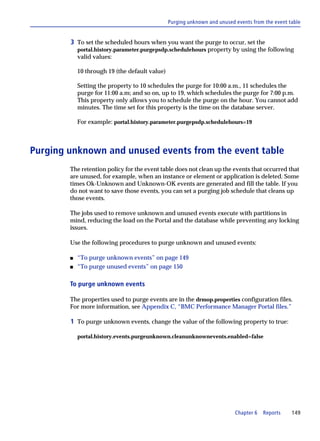
When overriding a profile, the following rules apply:

s   When you override thresholds at the parent level of discovered instances or user-
    defined instances, then the override propagates to all discovered instances or user
    defined instances (existing or newly discovered), unless they are already
    overridden at the child level.

s   When you override thresholds at the parent level of discovered instances or user-
    defined instances, then at the child level, Global appears in the row for the
    parameter in the Overridden column. At the parent level, if the same parameter
    exists, Local appears in the row for the parameter in the Overridden column.

s   When you override thresholds at the instance level, Local appears in the row for the
    parameter in the Overridden column.

s   When you make threshold changes at the Element-Profile level, and the parent and
    instance levels are not overridden, then the Overridden column is blank.

s   When you disable an override at the instance level,

    — if the parent of the instance is overridden, the parent thresholds are used and
      the label in the row for the parameter is changed to Global in the Overridden
      column.

    — if the parent of the instance is not overridden, the Element-Profile thresholds are
      used, and the Overridden column is blank


                                                  Chapter 3   Users and administrators     53
Element Profiles task


                 s   When you disable an override at the parent level, the Element-Profile thresholds
                     are used and the Overridden column is blank

                 s   In cases where Elements are bound to an Element-Profile, you cannot override the
                     active or inactive state properties of parameters; the Active column is disabled for
                     editing. For more information, see “Deactivating parameters” on page 116.

                 You can use the element Properties page to view thresholds and properties that are
                 overridden for the element.


                 Changing the report update interval for elements by using
                 element profile
                 You cannot override the report update interval at the element level. You can change
                 the report update interval by editing the general properties for the element. However,
                 editing the report update interval at the element profile level propagates that change
                 to all elements assigned to that element profile, regardless of any settings at the
                 element level.

                 For example, if the following are the settings for the report update interval:

                 s   At the element profile level, the report update interval is set to 10 minutes.
                 s   Elements that are assigned to this same element profile have report update
                     intervals set at 5 minutes and 15 minutes.

                 If you then change the report interval at the element profile level to 15 minutes, the
                 report update interval is set to 15 minutes for all of the elements assigned to this
                 element profile, regardless of the settings or changes made at the element level.

                 For more details, see the drmop.default.reporting.interval.minutes property in
                 Appendix C, “BMC Performance Manager Portal files.”


54      BMC Performance Manager Portal Monitoring and Management Guide
Elements task


Elements task
        The Elements task enables you to add infrastructure elements to the account. Each
        infrastructure element corresponds to a system or device in your IT environment.
        You can use the following methods to add infrastructure elements:

        s   Add elements by explicitly typing the element names and specifying the
            monitoring attributes for those elements. You can add many elements at a time by
            pasting a list of host names into a text box.

        s   If you use PATROL Knowledge Modules (KMs) to monitor infrastructure, you can
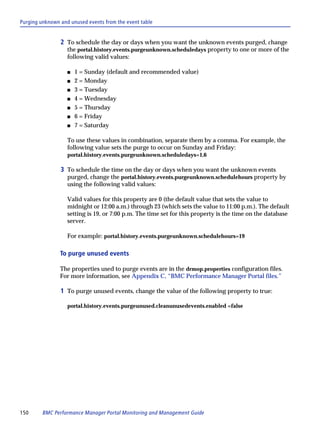
            configure the Portal to discover PATROL Agents. The discovery process matches
            the KMs in the agents with integration Performance Managers on the Portal and
            then obtains parameter thresholds from the agents and applies the thresholds to
            the parameters in the integration Performance Managers. The Elements task also
            enables you to synchronize the parameter thresholds and application classes in the
            PATROL integration Performance Managers with those on the PATROL Agent.

        s   If you use a product like BMC Topology Discovery to discover IT objects and
            populate the BMC Atrium Configuration Management Database (BMC Atrium
            CMDB), the Portal can discover the host names of those infrastructure objects.
            Following discovery, you specify the monitoring attributes for those elements.

        For more information about adding elements to an account, see “Adding
        infrastructure elements for agentless monitoring” on page 25. The task also enables
        you to change the properties associated with elements and to delete elements from
        the BMC Performance Manager Portal.


Monitoring On/Off task
        The Monitoring On/Off task enables you to temporarily stop and restart

        s   remote data collection for selected objects
        s   reporting of collected data from agents


                                                          Chapter 3   Users and administrators   55
Notifications task


Notifications task
                 When conditions cause an object to violate a threshold or change its state, the BMC
                 Portal can send a notification about the event. The Notifications task enables you to
                 create rules that specify when and how the Portal sends notifications in response to
                 system problems or state changes.

                 Users can create notification rules for the following types of conditions:

                 s   state changes, which occur when the status of an object changes to a state for which
                     you want the Portal to send a notification

                 s   general system problems, which occur when a system problem prevents the Portal
                     from receiving information about an object (for example, an RSM stops
                     communicating with the Portal)

                 Users can configure the following types of notifications:

                 s   email messages: The Portal can send long or concise email messages for state
                     change and general system problem events. Concise email messages are suitable
                     for pagers and other wireless devices.

                 s   SNMP traps: The Portal can send SNMP traps for state change and general system
                     problem events. In addition to creating an SNMP notification, you must also
                     specify the host names of the servers to receive the traps. See “SNMP traps” on
                     page 236.

                 s   AlarmPoint: If you have AlarmPoint installed, you can configure the Portal to send
                     state change and general system problem notifications to AlarmPoint. Before a
                     user or administrator can create a notification rule for AlarmPoint, a Portal
                     administrator must use the Global Properties page to configure the Portal for
                     AlarmPoint integration. For more information about configuring the Portal to send
                     notifications to an AlarmPoint server, see “Event integration using AlarmPoint” on
                     page 228 and the BMC Portal Getting Started guide.

                 s   BMC Impact Integration Web Services: You can use the BMC Impact Integration
                     Web Services (BMC II Web Services) component to send state change and general
                     system problem notifications to BMC Impact Manager. Before a user or
                     administrator can create a notification rule for this transport method, a provider
                     administrator must use the Notifications page on the Provider tab to configure a
                     target BMC II Web Services server for the Portal.

                 Notification rules specify the following properties:

                 s   type of event or system problem to trigger notification

                 s   length of time that the Portal waits after the change in event severity before
                     sending notification


56      BMC Performance Manager Portal Monitoring and Management Guide
Notifications task


s   transport method that the Portal uses to send notifications: email, SNMP, BMC II
    Web Services, or AlarmPoint

s   the affected objects (groups or objects within groups)

s   notification recipients

You can apply the same notification rules to all objects in the account, or you can set
different notification rules for each object (or object groups). Also, you can set
multiple notifications for objects, enabling you to incorporate or establish an
escalation procedure.


     TIP
To quickly configure notification rules for an escalation procedure, create one notification
rule, and then copy that rule and modify the wait time and notification recipients for the other
levels in the escalation order.


To customize the notifications, you can create notification templates that you can
apply to notification rules. The templates specify the subject and message for email
notifications and the detail message field for SNMP notifications. You can create
notification templates before you create notification rules and specify a template as
you create or edit notification rules, or you can create a template while creating or
editing a notification rule.

Unless you customize them, infrastructure email notifications provide the following
information:

s   Element email notifications contain the

    — status of the element
    — name of the infrastructure element
    — date and time at which the event was detected
    — parent objects of the element
    — account name for the element
    — ID for the account


                                                     Chapter 3   Users and administrators     57
Notifications task


                     Also, the notification contains the following information for each parameter of the
                     element that caused the element notification:

                     — name of the infrastructure element
                     — host name of the element
                     — date and time at which the event was detected
                     — application class for the parameter
                     — name of the parameter
                     — parameter status that triggered the event
                     — current parameter value
                     — warning or alarm threshold that was breached
                     — host name for the RSM that detected the event

                 s   Parameter email notifications contain the

                     — name of the element
                     — host name of the element
                     — date and time in which the event was detected
                     — application class for the parameter
                     — name of the parameter
                     — parameter status that triggered the event
                     — current parameter value
                     — warning or alarm threshold that was breached
                     — host name for the RSM that detected the event

                      NOTE
                 When the earlier state of the element or parameter is violated, depending upon the
                 notification rule that is set, BMC Portal sends the Unknown-OK notifications.

                 For example, if you have selected the When Rules are violated and object is no longer in
                 violation notification rule and the state of the object changes from Alarm to Unknown to OK,
                 BMC Portal sends OK as a Clear notification.

                 Therefore, BMC recommends that in the internal.properties file, you must not set the value of
                 the websdk.services.notification.ok.unknown.support property to true. If you must do so,
                 contact BMC customer support.


58      BMC Performance Manager Portal Monitoring and Management Guide
Object Groups task


Object Groups task
        The Object Groups task enables you to create and modify object groups—containers—
        to organize the objects in your account. You can create any number of object groups,
        and you can create nested groups (groups that contain groups). After creating an
        object group, you can manage the objects in the object group as a single entity and
        view reports, status, and events for the group.

        Each account must contain at least one object group under one of the top-level object
        groups. By default, the BMC Portal has the following top-level object groups that
        contain any object groups that you create:

        s   Dashboards—populated by any module

        s   Business—created and populated by the BMC Impact Portal module

        s   Exceptions—created and populated by the BMC Performance Exception Detector
            module

            When you use the BMC Performance Exception Detector module, you must assign
            each new detector to at least one object group.

        s   Infrastructure—created and populated by the BMC Performance Manager Portal
            module

            When you use the BMC Performance Manager Portal module, you must assign
            each new infrastructure element to at least one object group.

        You choose how to create and organize the object groups in your account. Object
        groups can assist you with the following activities:

        s   creating user permissions—Create groups of objects whose members require the
            same level of access. User groups provide permission to access specific objects.
            Instead of selecting individual objects during user group creation, you can select
            one or more object groups.

        s   scheduling blackout periods—Create groups of objects that have the same
            maintenance schedules.

        s   specifying objects to include in user notifications—Create groups of objects to
            which you assign the same notification criteria. Instead of selecting individual
            objects while you create a notification rule, you can select one or more object
            groups.


                                                         Chapter 3   Users and administrators    59
Personal Preferences task


Personal Preferences task
                 The Personal Preferences task enables you to control the language, time zone, refresh
                 rate, default view at logon, and provides the ability to view or suppress object status
                 icons in the object tree when you are logged on with your user name.


Remote Service Monitors task
                 The Remote Service Monitors task enables you to add and administer Remote Service
                 Monitors for your account. The BMC Performance Manager Portal module uses
                 Remote Service Monitors, or RSMs (computers in which you have installed the
                 Remote Service Monitor program), to provide agentless infrastructure monitoring
                 and to mine parameter data from PATROL Agents.

                 A user with the necessary permissions can add RSM computers to collect
                 measurement data about the elements in an account. The number of RSM computers
                 that you need depends on the number and types of elements in your account and
                 your high availability requirements. If you use PATROL integration Performance
                 Managers, the security level of the monitored PATROL agents can also affect the
                 number of RSMs required for your account. See “Security requirements for RSMs” on
                 page 22 for more information about how security levels can affect RSMs.

                 See “RSM program installation” on page 76 for more information about using and
                 configuring RSM computers.


Shared Credentials task
                 The Shared Credentials task enables you to define and save credentials that you can
                 apply to one or more elements. When you apply shared credential to elements, you
                 can simultaneously modify the credentials of those elements by updating the
                 properties for the shared credentials.

                 You can define shared credentials that the Portal can use across multiple application
                 classes on a single element, or across multiple elements.


                     NOTE
                 The ability to apply shared credentials to an element is enabled in application classes. If you
                 do not see an option to apply a shared credential when specifying credentials and properties
                 for an application class, then the selected application class is not enabled for shared
                 credentials. For more information, see the applicable Performance Manager documentation
                 for the application class.


60      BMC Performance Manager Portal Monitoring and Management Guide
Tags task


        Guidelines for using shared credentials

        Users with the necessary rights can create, edit, delete, and view lists of elements
        using a shared credential.

        s   You can apply a shared credential to individual elements or to an element profile.

        s   When you modify the properties in a shared credential, the Portal immediately
            updates the application class properties for the affected elements, including those
            that obtain their properties from an element profile.

        s   If you remove a shared credential from an infrastructure element, the properties in
            the shared credential are copied to the infrastructure element.

        s   You can delete a shared credential only if it is not applied to an element.

        Preventing system lockouts on the monitored infrastructure elements

        Before changing the credentials on the monitored infrastructure, use the Monitoring
        Off or Blackout Periods task to stop the Portal from monitoring the systems that use
        the credentials. If you do not temporarily stop monitoring before you change the
        system credentials, the Portal might lock out your systems before you have an
        opportunity to change the shared credential properties on the Portal.


Tags task
        Tags are keywords that you can assign to objects in the account. Tagging objects with
        keywords enables you to quickly retrieve a list of objects that have the same keyword
        associations. Because the Portal does not restrict the number of keywords, individual
        users can add keywords that are meaningful to them.

        Types of tags

        The Portal enables the following types of tagging:

        s   system: dynamically and automatically assigned as you create or add objects to the
            account

            For example, when you create a new object group, the Portal assigns the object
            group name as the system keyword for the object.

            The Portal changes the system keyword if you change the name of its object. You
            cannot explicitly change a system keyword.

        s   user-defined: represent how you want to monitor and manage your infrastructure


                                                          Chapter 3   Users and administrators    61
User Groups task


                     For example, consider using department names, operating system names, and
                     application names as keywords.

                     You might also consider creating keywords that enable you to respond to
                     temporary conditions. For example, after implementing changes on critical
                     systems, you might want to assign a keyword like to_watch to the corresponding
                     infrastructure objects, enabling you to quickly access views of these objects. After
                     the initial implementation period has expired, you would remove the tag from
                     these objects.

                   Searching for tagged objects

                   The navigation pane provides a Search box that you can use to retrieve objects tagged
                   with specific system or user-defined keywords.


User Groups task
                   A user group is a collection of users that all have the same rights and permissions.
                   Users inherit the rights and permissions from the groups to which they belong. You
                   can create user groups to organize users according to rights and permissions. Each
                   user must belong to at least one user group.

                   The default user groups are Full Access and Read Only. Users in the Full Access user
                   group have access to all the features in the Portal and can add new users and user
                   groups. Users in the Read Only user group have read-only rights to all the Portal
                   features and read-only permissions for all objects.

                   The User Groups task enables you to create new user groups. You can create user
                   groups that use the BMC Portal database to authenticate users, or create user groups
                   that use external directory servers to authenticate users.


Users task
                   A user is a unique identifier in the Portal that you specify to access the product. As
                   users are added to the Portal, they are assigned to one or more user groups. Together,
                   users and user groups provide access rights and permissions on managed systems.
                   Rights and permissions are assigned to user groups, and users inherit the rights and
                   permissions from the groups to which they belong. Each user must belong to at least
                   one user group.

                   The Users task enables full-access users to add more users to the account, modify
                   users, and delete users from the account.


62     BMC Performance Manager Portal Monitoring and Management Guide
Administrator configuration options


      User authentication

      The Portal requires that all user names exist in the Portal database, regardless of the
      authentication type configured by the Portal administrator.

      s   When you use the internal database for authentication (the default option), all user
          information is saved in the internal database.

      s   When you configure native operating-system authentication, you must create a
          user in the internal database for each native operating-system user that logs on to
          the Portal.

      s   When you configure LDAP or Active Directory server authentication, the Portal
          creates an internal user for each user specified in the directory server group.

      Predefined user

      The BMC Portal installation program creates a full-access user (with user/user
      credentials) for the predefined account (My Account). You can use the User task to
      change the predefined user credentials.

      Characters allowed for user names

      When adding users, you can use any combination of Unicode characters, but you
      cannot use only a space for the user name. A user name can contain spaces, but not
      consecutive spaces.


Administrator configuration options
      Administrators can have one, both, or neither of the following permissions:

      s   Edit—enables the administrator to edit any accessible properties
      s   See Other Providers and Their Accounts—enables the administrator to access all
          accounts on the Portal

      The combination of these permissions determines how you can access and configure
      the Portal or any of the accounts on the Portal. When adding administrators to a
      provider, assign account permissions that reflect the responsibilities of the
      administrator.

      s   An administrator with both Edit and See Other Providers and Their Accounts
          permission (a Portal administrator) can edit the provider, administrators, and
          users for every account on the Portal. An administrator with these permissions can
          also configure the Portal. Each Portal needs at least one Portal administrator.


                                                       Chapter 3   Users and administrators    63
Tasks on the Accounts tab


                    By default, each Portal has a Portal administrator that can log on by typing
                    superadmin and superadmin for the user name and password.

                s   An administrator with Edit permission (a provider administrator) can configure
                    the provider, administrators for that provider, and accounts, and can approve or
                    reject accounts for that provider.

                    By default, each Portal has a provider administrator that can log on by typing
                    admin and admin for the user name and password.

                s   An administrator with See Other Providers and Their Users permission has read-
                    only rights to the provider and Portal configuration. An administrator with this
                    permission cannot edit account properties, but can impersonate all users on the
                    Portal. See “Tasks on the Accounts tab” on this page.

                s   An administrator with neither permission has read-only rights to the provider
                    configuration for that provider and can access all accounts for that provider.


Tasks on the Accounts tab
                The Accounts tab provides tasks that administrators can use to add, configure, and
                approve accounts. Also, administrators who provide support activities can use the
                tasks on the Accounts tab to proactively support their customers. From this tab,
                administrators can help troubleshoot problems for their users by viewing activity
                logs and by using the Log On option to impersonate their users.


Tasks on the Provider tab
                Each organization that offers and supports the BMC Portal is a provider. Each
                provider has corresponding properties that affect the overall appearance of the user
                interface and the defaults that apply to the users and accounts for the provider.

                s   Each provider has at least one administrator that can access all of the
                    administration tools to maintain the provider properties and settings.

                s   Administrators with Edit or Edit and See Other Providers and Their Accounts
                    permissions can see the Provider tab and perform the tasks described in this
                    section.

                The Help provides detailed information about each of the features on the Provider tab.


64      BMC Performance Manager Portal Monitoring and Management Guide
Tasks on the Provider tab


Account Types task
The Account Types task enables administrators to configure default properties for the
following categories of accounts:

s   trial—generally assigned to those trying the product
s   paying—assigned to most users of the product
s   internal—generally reserved for those who support the product and have accounts
    that they use for testing

As accounts are added to the Portal, administrators assign an account type to the
account, and the account assumes the default properties for the account type.
Administrators can adjust account settings after assigning the account type.


Administrators task
The Administrators tasks enable administrators to add and modify administrators for
a provider. Administrators who have Edit and See Other Providers and Their Accounts
permissions can add administrators for the Portal.


Appearance task
The Appearance task enables administrators to customize the user interface for all
accounts associated with a provider. The page properties that you can change include
the

s   left and right banner images
s   product name displayed in the Portal user interface and in the Help


Licensing Information task
The Licensing Information task provides the following subtasks that administrators
can use to monitor and manage license usage:

s   The Performance Managers subtask enables administrators to generate CSV and text
    files that list the extent to which the accounts in a provider are using the
    Performance Managers to monitor their infrastructure. When generating the file,
    you can select all the accounts in the provider or a subset of the accounts.

    The Help provides detailed information about how to generate CSV files.

s   The Users subtask enables administrators to establish license thresholds for all
    accounts on the Portal, maintain licenses, and monitor license usage.


                                                  Chapter 3   Users and administrators    65
Tasks on the Portal tab


                 Notifications task
                 The Notifications task on the Provider tab enables you to establish and maintain
                 notification rules that apply to all state change and general system problems events
                 associated with a provider. Because these notification rules apply to all events in a
                 provider, they enable you to integrate events from the BMC Performance Manager
                 Portal module with other modules and event management systems. See “Provider-
                 wide integration” on page 218 for more information about the transport methods that
                 you can use.


                 Properties task
                 The Properties task enables you to add providers and modify provider characteristics.
                 Administrators that have Edit permission can change the properties for their own
                 providers. Administrators who have both Edit and See Other Providers and Their
                 Accounts permissions can change the properties for all providers on the Portal.


                 Remote Service Monitors task
                 When you enter provider administrator credentials (administrator with only Edit
                 permission) during the installation of the RSM program, you configure a shared RSM
                 that multiple accounts can use to monitor infrastructure elements. The Remote Service
                 Monitors task enables you to administer shared RSMs for the provider.


Tasks on the Portal tab
                 The tasks associated with the Portal tab affect all accounts on the Portal.
                 Administrators with Portal permission (both Edit and See Other Providers and Their
                 Accounts permissions) can see the Portal tab and perform these tasks.

                 The Help provides detailed information about each of the features on the Portal tab.


                 Global Properties task
                 The Global Properties task enables administrators to set properties that can affect all
                 providers and accounts in the Portal.


                 Licensing Information task
                 The Licensing Information task enables Portal administrators monitor license usage
                 across all accounts on the Portal.


66      BMC Performance Manager Portal Monitoring and Management Guide
Tasks on the Portal tab


Mass Email task
The Mass Email task enables Portal administrators send email to all or a subset of
users and administrators on the Portal.


Performance Managers task
RSMs use the application classes contained in Performance Managers to monitor
groups of attributes on an infrastructure element. In addition to your ability to install
solution application classes on the Portal, administrators can use the Performance
Managers task to create and maintain custom application classes.

Administrators can use the Performance Manager Editor (PME) to modify the
application classes in solution Performance Managers and to create and modify
custom application classes for the accounts on the Portal. Administrators can also use
this task to import new solution Performance Managers into the Portal.

See Chapter 5, “Performance Managers and application classes,” on page 113 for
more information about importing solution Performance Managers and creating and
maintaining custom Performance Managers.


Remote Service Monitors task
When you enter Portal administrator credentials during the installation of the RSM
program, you configure a global RSM that all accounts on the Portal can use to
monitor infrastructure. The Remote Service Monitors task enables you to administer
global computers for the provider.


                                                 Chapter 3   Users and administrators    67
Tasks on the Portal tab


68      BMC Performance Manager Portal Monitoring and Management Guide
Chapter


                                                                                                                          4
4   Remote Service Monitors
        This chapter presents the following topics that describe how to configure the
        monitoring component for the BMC Performance Manager Portal.

        Overview . . . . . . . . . . . . . . . . . . . . . . . . . . . . . . . . . . . . . . . . . . . . . . . . . . . . . . . . . . . . . . . . 70
           Types of RSMs . . . . . . . . . . . . . . . . . . . . . . . . . . . . . . . . . . . . . . . . . . . . . . . . . . . . . . . . 70
           Communication between the Portal and RSMs . . . . . . . . . . . . . . . . . . . . . . . . . . . . 71
           Communication between RSMs and elements . . . . . . . . . . . . . . . . . . . . . . . . . . . . . 74
           Communication between RSMs and PATROL Agents . . . . . . . . . . . . . . . . . . . . . . 74
           Notifications about RSM system problems . . . . . . . . . . . . . . . . . . . . . . . . . . . . . . . . 75
        RSM program installation. . . . . . . . . . . . . . . . . . . . . . . . . . . . . . . . . . . . . . . . . . . . . . . . . . 76
           RSM computer system requirements . . . . . . . . . . . . . . . . . . . . . . . . . . . . . . . . . . . . . 76
           Data execution prevention (DEP) configuration for the RSM . . . . . . . . . . . . . . . . 76
           Configure Distributed Component Object Model (DCOM) and Windows
              Management Instrumentation (WMI) . . . . . . . . . . . . . . . . . . . . . . . . . . . . . . . . . . 78
           Using the installation wizard to install the RSM program . . . . . . . . . . . . . . . . . . . 84
           Using a silent installation to install the RSM program . . . . . . . . . . . . . . . . . . . . . . 88
           Upgrading the RSM Program . . . . . . . . . . . . . . . . . . . . . . . . . . . . . . . . . . . . . . . . . . . 91
        Clustered RSMs . . . . . . . . . . . . . . . . . . . . . . . . . . . . . . . . . . . . . . . . . . . . . . . . . . . . . . . . . . 92
           Cluster types. . . . . . . . . . . . . . . . . . . . . . . . . . . . . . . . . . . . . . . . . . . . . . . . . . . . . . . . . . 93
           Clustered RSM operating status . . . . . . . . . . . . . . . . . . . . . . . . . . . . . . . . . . . . . . . . . 94
           Clustered RSM security considerations . . . . . . . . . . . . . . . . . . . . . . . . . . . . . . . . . . . 94
           RSM load-balancing . . . . . . . . . . . . . . . . . . . . . . . . . . . . . . . . . . . . . . . . . . . . . . . . . . . 94
           RSM failover. . . . . . . . . . . . . . . . . . . . . . . . . . . . . . . . . . . . . . . . . . . . . . . . . . . . . . . . . . 95
           Clustering RSMs . . . . . . . . . . . . . . . . . . . . . . . . . . . . . . . . . . . . . . . . . . . . . . . . . . . . . . 95
           Clustered RSM upgrades . . . . . . . . . . . . . . . . . . . . . . . . . . . . . . . . . . . . . . . . . . . . . . . 96
        RSM configuration and maintenance . . . . . . . . . . . . . . . . . . . . . . . . . . . . . . . . . . . . . . . . 96
           Configuration and maintenance tools . . . . . . . . . . . . . . . . . . . . . . . . . . . . . . . . . . . . 97
           Changing the security level for an RSM. . . . . . . . . . . . . . . . . . . . . . . . . . . . . . . . . . 101
           Configuring an RSM to use a proxy server . . . . . . . . . . . . . . . . . . . . . . . . . . . . . . . 102
           Configuring the RSM to use HTTP protocol to communicate with the Portal. . 103
           Changing the credentials for an RSM. . . . . . . . . . . . . . . . . . . . . . . . . . . . . . . . . . . . 104
           Changing the maximum heap memory allocated for the Java VM on the RSM 106
           Viewing the log files for the RSM . . . . . . . . . . . . . . . . . . . . . . . . . . . . . . . . . . . . . . . 106
           Collecting log files . . . . . . . . . . . . . . . . . . . . . . . . . . . . . . . . . . . . . . . . . . . . . . . . . . . . 107
           Automating basic information gathering for RSM issues . . . . . . . . . . . . . . . . . . . 108
           Stopping notifications for Unknown state events . . . . . . . . . . . . . . . . . . . . . . . . . 108


                                                                                     Chapter 4        Remote Service Monitors                  69
Overview


              RSM program uninstallation. . . . . . . . . . . . . . . . . . . . . . . . . . . . . . . . . . . . . . . . . . . . . . . 109
                Using the installation wizard to uninstall the RSM program . . . . . . . . . . . . . . . . 109
                Manually uninstalling the RSM program. . . . . . . . . . . . . . . . . . . . . . . . . . . . . . . . . 110
                Using command-line options to uninstall the RSM program . . . . . . . . . . . . . . . . 112


Overview
              The Remote Service Monitor (RSM) program runs as a Windows service (BMC
              Remote Service Monitor service). Computers on which you have installed the RSM
              program, also known as RSMs, are the components that provide the remote
              monitoring for the BMC Performance Manager Portal.

              The RSM, which acts as a single remote agent, monitors the elements in the accounts
              and sends parameter data values to the Portal web server. The RSM must be able to
              resolve network addresses to the elements that it monitors and to the BMC Portal.

              The RSM uses the parameter thresholds that are saved in the Portal database to
              monitor infrastructure. The RSM does not save thresholds to its local computers.

              Each RSM has a utility program, the RSM Manager, that you can access from the
              Windows system tray on the RSM computer. The RSM Manager utility enables you to
              view current RSM status and settings, and to configure the RSM.


Types of RSMs
              The BMC Performance Manager Portal module uses the following types of RSMs to
              monitor accounts:

              s   A dedicated RSM monitors only the elements in your account, and is installed with
                  user credentials. You configure a dedicated RSM by downloading the RSM
                  program from the Portal and installing it on a computer designated as an RSM.
                  Figure 6 on page 71 shows a Portal where account D has a single dedicated RSM to
                  monitor its elements, although an account can have more than one dedicated RSM.
                  Users in account D can also use the global RSM to monitor elements.

              s   A shared RSM can monitor the elements in multiple accounts in a provider, and is
                  installed with administrator credentials for an administrator that has only Edit
                  permission. Figure 6 on page 71 shows that the accounts in provider ABC can use
                  the same shared RSM. Users in accounts A, B, and C can also use the global RSM.
                  The accounts that use a shared RSM must belong to the same provider.


70     BMC Performance Manager Portal Monitoring and Management Guide
Communication between the Portal and RSMs


        s   A global RSM can monitor elements for all accounts on the Portal, and is installed
            with administrator credentials for an administrator that has Edit and See Other
            Providers and Their Accounts permissions.

        s   A clustered RSM consists of two or more dedicated, shared, or global RSMs
            configured to act as a single logical RSM. An RSM cluster must contain RSMs of
            the same type. See “Clustered RSMs” on page 92 for more information about
            clustered RSMs.

        Your Portal administrator determines the types of RSMs available for your account.
        Administrators and users with adequate permission can download and install the
        RSM program.

        Figure 6          Types of Remote Service Monitors


                                                           database


            web browser


                                           web server           application server

                          firewall


                                         shared RSM       global RSM           dedicated RSM


                             Account A       Account B                 Account C               Account D


                                           Provider ABC                                  Provider DEF


Communication between the Portal and RSMs
        Each RSM initiates all communication between itself and the Portal web server. When
        placed inside the firewall, the RSM communicates with the Portal using HTTPS (port
        443) and encrypts the data that it collects before sending it to the Portal web server.
        After the web server receives data from the RSM, it sends it to the application server,
        which sends the data to the Portal database.


                                                                          Chapter 4     Remote Service Monitors   71
Communication between the Portal and RSMs


               To configure the RSM to use HTTP to communicate with the Portal, see “Configuring
               the RSM to use HTTP protocol to communicate with the Portal” on page 103.


               Types of communication
               RSM-to-Portal communication falls into one of the following categories:

               s   heartbeat—The RSM attempts to connect to the Portal every 30 seconds to ensure
                   that the connection between the two components still exists. The heartbeat also
                   confirms that the Portal and RSM are running the same product version and that
                   they are both using the same user or administrator credentials.

                   If the user or administrator ID that installed an RSM becomes disabled or if its
                   credentials are not kept synchronized, the corresponding RSMs will fail to
                   authenticate with the Portal and will not send parameter data to the Portal. When a
                   disabled user or administrator is enabled or when the credentials are corrected, the
                   RSM resumes normal communication with the Portal after the next heartbeat.

               s   threshold violations—When the RSM detects a threshold violation for a parameter,
                   it immediately sends the value for all parameters in the associated application
                   class to the Portal. You can set thresholds on the Properties page for elements.

               s   parameter report data—The RSM sends current parameter data at the report
                   update interval defined for the element and whenever a parameter violates a
                   threshold, as described in the preceding paragraph. You can view this data on
                   parameter history charts.

               s   program upgrade—The RSM downloads the latest version of the RSM program
                   after an upgrade of the Portal.


               Communication interruptions
               If an RSM cannot communicate with the Portal, it caches the data and attempts to
               resend the cached data at the next heartbeat interval. If the RSM cannot successfully
               send the data to the Portal after 15 minutes of repeated attempts, it deletes data older
               than 15 minutes, and this process continues on every heartbeat interval until the
               communication is reestablished. Any data that the RSM drops appears as a data gap
               on reports.


                    NOTE
               By default the RSM stores cached data for 15 minutes while waiting for a response from the
               Portal. You can change the default time by resetting the MaxStoreAndForwardTime property
               in the portal-PortalWebServer.properties file on the RSM computer. Lengthening the time
               that the RSM caches data has a direct impact on system memory consumption. For
               information about changing this property setting, see Table 56 on page 343.


72     BMC Performance Manager Portal Monitoring and Management Guide
Communication between the Portal and RSMs


When communication with the Portal resumes, the RSM sends any cached data that it
has not deleted. The Portal saves the cached data, but if the cached data includes
threshold violations, the Portal does not send notifications.


RSMs and their assigned elements
When you add elements to the account, you specify which RSM will monitor each
element. You can assign one RSM (or clustered RSM) to monitor an infrastructure
element. See “Clustered RSMs” on page 92 for information about using clustered
RSMs in place of non-clustered RSMs.


RSM program and BMC Performance Manager Portal
upgrades
During a Portal upgrade, communication stops between the Portal and its RSMs, and
data collection stops. Following the upgrade, the RSMs determine that they have an
earlier version of the RSM program and will request the current version of the RSM
program from the Portal. Upon receipt of the program, the RSMs will begin
upgrading to the new version and will drop their stored data. Immediately after
upgrading the RSM program, RSMs resume their communication with the Portal.


BMC Performance Managers on the RSM
The RSM program collects data from its monitored elements and sends that data to
the BMC Performance Manager Portal. The types of measurements that an RSM can
collect depend on the Performance Managers installed on the Portal. After
Performance Managers are installed, the Portal deploys the Performance Managers to
an RSM, upon request from the RSM.


   EXAMPLE
You install the BMC Performance Manager Express for Databases solution Performance
Manager while installing the Portal. Following installation, a user selects the Oracle®
application class to monitor a database. When the assigned RSM computer discovers that it
does not have the specified application class, it requests the application class from the Portal
and the Portal deploys the Oracle application class to the RSM computer.


                                                      Chapter 4   Remote Service Monitors      73
Communication between RSMs and elements


Communication between RSMs and elements
               RSMs use standard protocols to communicate with their assigned elements and can
               monitor any IP-addressable computer or device. Ideally, you should locate an RSM
               inside the firewall on the same network segment as the elements that it will monitor.
               When a firewall sits between an RSM and the monitored element, configure the
               firewall according to the information shown in Table 4 on page 74. This configuration
               specifies the necessary ports for communication between the RSM and its elements.

               Table 4       Application ports for firewalls
               Application                Port number                    Protocol
                                               a
               DNS                        53                             DNS name lookup
               FTP server                 21                             network socket connection
                                               a
               HTTP                       80                             HTTP
                                                   a
               HTTPS                      443                            HTTPS
               IMAP server                143                            network socket connection
               Network Service Port       user         specified a       network socket connection
               NNTP server                119                            network socket connection
                                                        b
               Ping                       ICMP                           ICMP
               POP server                 110                            network socket connection
               rstatd                     111                            RPC
               SMTP                       25                             network socket connection
               SNMP                       161                            SNMP
               SSH server                 22                             network socket connection
               Telnet server              23                             network socket connection
               Windows                    TCP 135, 139, 445              WinAPI (IPC$ share)
                                          UDP 137, 138, Dynamic
               a   You can specify any port number, or use the default shown.
               b
                   ICMP does not use a port.


Communication between RSMs and PATROL Agents
               The RSM installation program requests a PATROL security level. The level that you
               specify must match that of the PATROL Agents that the RSM will monitor.

               s   If you will not use PATROL integration Performance Managers to monitor
                   PATROL Agents, you can use the default security level (level 0).

               s   If you will use PATROL integration Performance Managers to monitor PATROL
                   Agents, specify the security level that matches that of the PATROL Agents. If you
                   will be monitoring PATROL Agents that have different security levels, configure a

74     BMC Performance Manager Portal Monitoring and Management Guide
Notifications about RSM system problems


            separate RSM for each security level and assign to each RSM only the agents with a
            security level that matches that RSM.

            When you create RSM clusters that will integrate PATROL Agents, all member
            RSMs in the cluster must have the same security level.

            If the security level that you specify during RSM installation is not sufficient to
            monitor the PATROL Agents in your environment, you can choose from the
            following options:

            — Change the security level of the RSM. See “Changing the security level for an
              RSM” on page 101.

            — Install the RSM program on another computer and specify the necessary
              security level.


Notifications about RSM system problems
        You can configure the Portal to send notifications when RSM system problems
        interfere with the infrastructure monitoring.

        s   To configure notifications for dedicated RSMs, log on with user credentials and on
            the Configure tab, select Notifications.

        s   To configure notifications for shared and global RSMs, log on with administrator
            credentials and on the Provider tab, select Notifications.

        When configuring the notification rules for RSMs, select General System Problems as
        the rule type. The following conditions can cause general system problems:

        s   The Portal does not receive data from the RSM.
        s   The network is down.
        s   The number of users exceeds the license threshold for the Portal.

        See “Notifications task” on page 56 for more information about the different types of
        notifications.


                                                           Chapter 4   Remote Service Monitors    75
RSM program installation


RSM program installation
                This section provides the procedures necessary to install or upgrade the RSM
                program on the computers designated as RSMs.

                s   “RSM computer system requirements” on page 76
                s   “Data execution prevention (DEP) configuration for the RSM” on page 76
                s   “Configuring the access permissions for DCOM on the RSM computer and on the
                    target computer” on page 78
                s   “Configuring the WMI control” on page 81
                s   “Using the installation wizard to install the RSM program” on page 84
                s   “Using a silent installation to install the RSM program” on page 88
                s   “Upgrading the RSM Program” on page 91


RSM computer system requirements
                You can install one instance of the RSM program on the BMC Portal computer (or the
                application server computer in a multiple-computer Portal), or on computers
                designated as RSMs. Computers designated as RSMs reside in the network with the
                computers and devices that they monitor and inside the firewall, as shown in Figure 6
                on page 71.

                Ensure that the computers on which you want to install the RSM program meet the
                minimum system requirements detailed in the BMC Portal Release Notes.


Data execution prevention (DEP) configuration for the RSM
                When you install the RSM program on a Windows 2003 SP1 computer, the
                installation program fails to successfully execute the RemoteServiceMonitor.exe file.
                The installation program starts, but then does not allow you to continue with the
                installation or an error message is displayed stating that DEP is blocking the
                installation program. The problem is caused by an enhanced data execution
                prevention (DEP) feature that Microsoft included in SP1. To resolve this issue, you
                must configure DEP in your computer properties to recognize the RSM installation
                program.


76      BMC Performance Manager Portal Monitoring and Management Guide
Data execution prevention (DEP) configuration for the RSM


To configure DEP to recognize the RSM installation program

 1 On the Remote Service Monitors page in the Portal, download the RSM installation
   program, and save the program to a temporary directory.

   When installing the RSM program from the Windows DVD, CD 1, or installation
   files, copy RemoteServiceMonitor.exe from one of the following locations to a
   temporary directory:

   s   RSM folder on Windows CD 1
   s   BMCPortalKitdisk1RSM on Windows DVD
   s   folder to which you downloaded files from the EPD website

 2 From the Windows Desktop, right-click My Computer.

 3 Select Properties.

 4 Select the Advanced tab.

 5 Under the Performance heading, select Settings.

 6 Select the Data Execution Prevention tab.

 7 Select Turn on DEP for all programs except those I select.

 8 Click Add.

 9 Navigate to the folder where you saved the RSM installation program, and select
   RemoteServiceMonitor.exe.

10 Click Open.

11 Click Apply.

12 Click OK.

13 Click OK to close the System Properties window.

14 Restart the RSM computer.

15 Run the RSM installation program.


                                                   Chapter 4    Remote Service Monitors     77
Configure Distributed Component Object Model (DCOM) and Windows Management Instrumentation (WMI)


Configure Distributed Component Object Model (DCOM) and
Windows Management Instrumentation (WMI)
               When monitoring Windows computers using the WMI collector, ensure that the
               Remote Service Monitor (RSM) computer (the computer where the RSM is installed)
               has the necessary DCOM and WMI configuration properties.

               The RSM computer that monitors the event logs and services must have the following
               default access permissions enabled in the DCOM properties:

               s   Administrators
               s   Interactive
               s   Network
               s   System

               To successfully read performance data using WMI-based data collection, both the
               RSM computer and the target computer (the computer that you want to monitor)
               must have the appropriate permissions. The following are the permissions that must
               be enabled on the RSM and on the target computer:

               s   Execute Methods
               s   Provider Write
               s   Enable Account
               s   Remote Enable
               s   Read Security


               Configuring the access permissions for DCOM on the RSM
               computer and on the target computer
               To configure the access permissions for DCOM on the RSM computer and on the
               target computer, use one of the following procedures:

               s   “To configure the access permissions for DCOM on Microsoft Windows 2000”
               s   “To configure the access permissions for DCOM on Microsoft Windows XP and
                   Microsoft Windows 2003” on page 80

               Before you begin

               Stop the RSM, and do not restart it until you have configured the access permissions
               for the DCOM on both the RSM computer and the target computer.


78     BMC Performance Manager Portal Monitoring and Management Guide
Configure Distributed Component Object Model (DCOM) and Windows Management Instrumentation (WMI)


      To configure the access permissions for DCOM on Microsoft Windows 2000

      1 Using an account that has administrative permissions, log on to the RSM computer
         that is monitoring the event log.

      2 Click Start => Run.

      3 Enter dcomcnfg.exe and click OK.

      4 On the Distributed COM Configuration Properties window, click Default Security.

      5 Under Default Access Permissions, click Edit Default.

      6 In the Registry Value Permissions window, click Add.

         The Add Users and Groups window opens.

      7 From the List Names From drop-down list, select the local computer.

      8 In the Type of Access field, select Allow Access (if not already selected).

      9 In the Names field, perform the following steps:

        A Select Administrators, and click Add.

        B Select Interactive, and click Add.

        C Select Network, and click Add.

        D Select System, and click Add.

         E Click OK.

     10 In the Registry Value Permissions window, verify that the Administrators,
         Interactive, System, and Network users are added, and that they have Allow
         Access permission.

     11 Click OK, twice.

     12 Using an account that has administrative permissions, log on to the target
         computer and repeat steps 2 through 11.

     13 Start the RSM.


                                                        Chapter 4   Remote Service Monitors   79
Configure Distributed Component Object Model (DCOM) and Windows Management Instrumentation (WMI)


               To configure the access permissions for DCOM on Microsoft Windows XP and
               Microsoft Windows 2003

               Before you begin

               Stop the RSM and do not restart it until you have configured the access permissions
               for DCOM on both the RSM computer and the target computer.

               1 Using an account that has administrative permissions, log on to the RSM computer
                  that is monitoring the event log.

               2 On the Task Bar, click Start => Run.

               3 Enter dcomcnfg.exe and click OK.

               4 In the Component Services window, expand Component Services and Computers.

               5 Right-click on My Computers and select Properties.

               6 Select the COM Security or Default COM Security tab (depending upon your
                  operating system).

               7 Under Access Permissions, select Edit Default.

               8 In the Access Permissions window, click Add.

               9 In the text box under Enter the object names to select (examples), enter Administrators;
                  Interactive; System; Network and click OK.

                  If a window opens with the message that more than one object matched the name
                  Administrators, Interactive, System, or Network, select the name that contains
                  only the one word (Administrators, Interactive, System, or Network).

              10 In the Access Permissions window, verify that the Administrator, Interactive,
                  System, and Network users have been added and that Allow Access permission is
                  selected for each.

              11 Click OK to return to the Component Services window.

              12 Choose File => Exit.

              13 Using an account that has administrative permissions, log on to the target
                  computer, and repeat steps 2 through 12.

              14 Start the RSM.


80     BMC Performance Manager Portal Monitoring and Management Guide
Configure Distributed Component Object Model (DCOM) and Windows Management Instrumentation (WMI)


      Configuring the WMI control
      Use the following procedures to configure and to test the WMI collector:

      s   “To configure the WMI control” on page 81
      s   “To set the inheritance on the name space” on page 82
      s   “To test the WMI collector for CIMV2 name space.” on page 83
      s   “To test the WMI collector for DEFAULT name space” on page 83

      The permissions that are added are in addition to the permissions discussed under
      Configuring DCOM configuration properties.

      To configure the WMI control

      1 On the Task bar, click Start => Settings => Control Panel.

      2 Double-click Administrative Tools.

      3 Double-click Computer Management.

      4 Double-click Services and Applications.

      5 Right-click WMI Control and select Properties.

      6 Click Security.

      7 Double-click Root and select CIMV2.

      8 Click Security.

      9 Click Add.

     10 In Select Users, Computers or Groups, enter your user name or group name in Enter
          the objects to select and click OK.

     11 In Group or User Names, select your user name or group name.

     12 In Allow Permissions for Administrators, select the following permissions:

          s   Execute Methods
          s   Provider Write
          s   Enable Account
          s   Remote Enable
          s   Read Security

     13 Click OK.


                                                        Chapter 4    Remote Service Monitors   81
Configure Distributed Component Object Model (DCOM) and Windows Management Instrumentation (WMI)


              14 Select DEFAULT.

              15 Click Security.

              16 Click Add.

              17 In Select Users, Computers or Groups, enter your user name or group name in the
                  Enter the objects to select and click OK.

              18 In Group or User Names, select your user name or group name.

              19 In Allow Permissions for Administrators, select the following permissions:

                  s   Execute Methods
                  s   Provider Write
                  s   Enable Account
                  s   Remote Enable
                  s   Read Security

              20 Click OK.

               To set the inheritance on the name space

               1 On the WMI Collector Properties snap-in, click Security.

               2 Click Advanced.

               3 In Permission entries, select the user or group whose permissions you want to
                  modify, and then click Edit.

               4 To modify permissions for the user or group that you selected, in the Permissions
                  list, click Allow or Deny next to the permission that you want to allow or deny.

               5 In Apply onto, click This name space and sub name space, and click OK.

               6 Click OK.

               7 Quit the WMI Control snap-in.

               Determining whether the RSM can use the WMI collector to
               access the remote computer
               You can use wbemtest to determine whether the RSM computer can use WMI to
               access the remote computer.


82     BMC Performance Manager Portal Monitoring and Management Guide
Configure Distributed Component Object Model (DCOM) and Windows Management Instrumentation (WMI)


      To test the WMI collector for CIMV2 name space.

      1 Open a command prompt window, and type wbemtest.

      2 Click Connect.

      3 Change name space to RemoteComputerToBeMonitoredrootCIMV2

      4 Type user: domainuser

      5 Type the password for the user.

      6 Click Connect.

      7 Click Query.

      8 Type the following query: select * from Win32_NTEventLogFile and click Apply.

         If this query is successful, Event Log file names, for example, AppEvent.Evt,
         SecEvent.Evt and SysEvent.Evt (with paths), are generated. If these log files are not
         generated, it indicates that the 'WMI collector for CIMV2 name space' test has
         failed, and there is some problem with the WMI. See the error codes in the
         wbemtest tool for information related to the problem.

      9 Click Close and Exit.

      To test the WMI collector for DEFAULT name space

      1 Open a command prompt window, and type wbemtest.

      2 Click Connect.

      3 Change name space to RemoteComputerToBeMonitoredrootDEFAULT.

      4 Type user: domainuser

      5 Type the password for the user.

      6 Click Connect.

      7 Click Execute Method.

      8 In Object Path, enter StdRegProv, and click OK.

      9 In Method, select GetStringValue, and click Edit in Parameters.


                                                        Chapter 4   Remote Service Monitors   83
Using the installation wizard to install the RSM program


                10 In Properties, double click sSubKeyName, select Not NULL, enter
                    "SYSTEMCurrentControlSetServicesTcpipParameters", and click Save
                    Property.

                11 Double click sValueName, select Not NULL, enter "Hostname", and click Save
                    Property… .

                12 Click Save Object.

                13 Click Execute.

                14 Click Edit Out Parameter.

                15 In Properties, check the value for sValue. It should be the name of the host to which
                    we have connected from RSM.

                16 Click Close.

                17 Click Exit.

                         NOTE
                    The StdRegProv class contains methods that manipulate system registry keys and
                    values. StdRegProv is available only in rootdefault name space.


Using the installation wizard to install the RSM program
                 This procedure describes how to install the RSM program on a Windows computer.
                 When you install the RSM program, the installation program requires that you enter
                 credentials that the RSM uses to authenticate itself with the Portal. These credentials
                 also determine the RSM type and how the users on the Portal can use the RSM to
                 monitor their accounts.

                 You can install the RSM program by downloading the installation program file from
                 the Portal or by copying it from the installation media.


                      NOTE
                 Ensure that the SystemDrive where you have installed the operating system, such as the C:
                 drive has 2 GB or more of free space, even if the directory where you want to install RSM is on
                 another drive. Otherwise, on completion of the RSM installation, the RSM installation log file
                 may display an exception as follows:

                 THROWABLE EVENT {Description=[Failed to get product
                 registry],Detail=[C:WindowsProductRegistry.xml]}


84      BMC Performance Manager Portal Monitoring and Management Guide
Using the installation wizard to install the RSM program


To install the RSM program by downloading the program from the Portal

 1 Log on to the Portal.

 2 Perform one of the following actions:

   s   When logged on with user credentials, click the Configure tab.
   s   When logged on with provider administrator credentials, click the Provider tab.
   s   When logged on with Portal administrator credentials, click the Portal tab.

 3 From the Tasks list, select Remote Service Monitors.

 4 On the Remote Service Monitors page, click Add to open the Remote Service
   Monitors–Add page.

 5 Click the Download the Remote Service Monitor program Now link to download the
   RSM program installation file to a temporary directory on the computer
   designated as the RSM.

 6 When installing the RSM program on a Windows 2003 SP1 computer, perform
   step 2 on page 77 through step 13 on page 77 to configure DEP to recognize the
   RSM installation program.

 7 Run RemoteServiceMonitor.exe to extract and start the installation program.

 8 On the Introduction screen, click Next to display the software license agreement.

 9 Select I accept the terms of the License Agreement, and click Next.

10 On the Select directory screen, specify a target directory or accept the default
   location for the program files, and click Next.


                                                     Chapter 4   Remote Service Monitors     85
Using the installation wizard to install the RSM program


                11 On the Enter Logon Information screen, enter the following authentication
                    information, and click Next:


                     Item                             Description
                     User Name                        the user name that determines the type of RSM:

                                                           s   To configure an RSM for a single account, type the
                                                               user name for the account.

                                                           s   To configure an RSM that can monitor all accounts
                                                               associated with a provider, type a user name for an
                                                               administrator that has only Edit permission (provider
                                                               administrator credentials).

                                                           s   To configure an RSM computer that can monitor all
                                                               accounts on the Portal, type a user name for an
                                                               administrator that has Edit and See Other Providers
                                                               and Their Accounts permissions (Portal administrator
                                                               credentials).
                     Portal Password                  the password for the specified user name
                     Confirm Password                 re-entry of the password for confirmation
                     Fully-Qualified Portal Host      fully-qualified host name for the Portal web server
                     Name
                     Portal Secure Port               port on which the Portal receives secure requests from the
                                                      RSM; 443 by default
                     RSM Name                         host name or alias for the RSM


                12 Indicate whether you will use this RSM to integrate data from PATROL Agents,
                    and click Next.

                    s   If you select Yes, the next screen requests the security level for the RSM.
                    s   If you select No, skip to step 13 on page 87.

                    If at a later time you decide to use this RSM to integrate PATROL Agent data, you
                    must perform the steps described in “Changing the security level for an RSM” on
                    page 101 to set the correct security for the RSM.

                    If this RSM will integrate parameter data from PATROL Agents, select the security
                    level that corresponds to those agents, and click Next.

                    The security level of the RSM must match that of the PATROL Agents that it
                    monitors. If you plan to monitor PATROL Agents with different security levels,
                    configure a separate RSM for each security level and assign to each RSM only the
                    agents with a security level that matches that RSM.

                    If you select level 3 or level 4, configure the security for unattended mode. For
                    more information about security, see the PATROL Security User Guide.


86      BMC Performance Manager Portal Monitoring and Management Guide
Using the installation wizard to install the RSM program


13 On the Pre-Installation Summary screen, review the entries and selections for the
   monitor installation, and click Install.

   At the completion of the installation, the Install Complete page is displayed.

To install the RSM program by copying it from the installation files

 1 Copy RemoteServiceMonitor.exe from one of the following locations to a temporary
   directory:

   s    RSM folder on Windows DVD
   s    BMCPortalKitdisk1RSM on Windows DVD
   s    folder to which you downloaded files from the EPD website

 2 When installing the RSM program on a Windows 2003 SP1 computer, perform
   step 2 on page 77 through step 13 on page 77.

 3 Run RemoteServiceMonitor.exe to extract and start the installation program.

 4 On the Introduction screen, click Next to display the software license agreement.

 5 Select I accept the terms of the License Agreement, and click Next.

 6 On the Select directory screen, specify a target directory or accept the default
   location for the program files, and click Next.

 7 On the Enter Logon Information screen, enter the following authentication
   information, and click Next:

Table 5      Authentication information on Logon Information screen (part 1 of 2)
 Item                          Description
 User Name                     the user name that determines the type of RSM:

                                s   To configure an RSM for a single account, type the
                                    user name for the account.

                                s   To configure an RSM that can monitor all accounts
                                    associated with a provider, type a user name for an
                                    administrator that has only Edit permission (provider
                                    credentials).

                                s   To configure an RSM that can monitor all accounts on
                                    the Portal, type a user name for an administrator that
                                    has Edit and See Other Providers and Their Accounts
                                    permissions (Portal credentials).
 Portal Password               the password for the specified user name
 Confirm Password              re-entry of the password for confirmation


                                                     Chapter 4   Remote Service Monitors      87
Using a silent installation to install the RSM program


                 Table 5       Authentication information on Logon Information screen (part 2 of 2)
                  Item                               Description
                  Fully-Qualified Portal Host        fully-qualified host name for the Portal web server
                  Name
                  Portal Secure Port                 port on which the Portal receives secure requests from the
                                                     RSM; 443 by default
                  RSM Name                           host name or alias for the RSM


                  8 Indicate whether you will use this RSM to integrate data from PATROL Agents,
                     and click Next.

                     s   If you select Yes, the next screen requests the security level for the RSM.
                     s   If you select No, skip to step 9 on page 88.

                     If at a later time you decide to use this RSM to integrate PATROL Agent data, you
                     must perform the steps described in “Changing the security level for an RSM” on
                     page 101 to set the correct security for the RSM.

                 If this RSM will integrate parameter data from PATROL Agents, select the security
                 level that corresponds to those agents, and click Next.

                 The security level of the RSM must match that of the PATROL Agents that it
                 monitors. If you plan to monitor PATROL Agents with different security levels,
                 configure a separate RSM for each security level and assign to each RSM only the
                 agents with a security level that matches that RSM.

                 If you select level 3 or level 4, configure the security for unattended mode.
                 For more information about security, see the PATROL Security User Guide.

                  9 On the Pre-Installation Summary screen, review the entries and selections for the
                     monitor installation, and click Install.

                     At the completion of the installation, the Install Complete page is displayed.


Using a silent installation to install the RSM program
                 A silent installation enables you to launch the RSM installation program and specify
                 installation configuration options from a command line. Perform a silent installation
                 if any of the following scenarios exists in your environment:

                 s   You want to run the installation in the background instead of interactively.

                 s   You are installing to a remote computer that cannot display graphical user
                     interfaces.


88      BMC Performance Manager Portal Monitoring and Management Guide
Using a silent installation to install the RSM program


s   You want to maintain consistent installation configuration values across multiple
    computers.

You specify the command-line options in a text file, and then specify that file when
you launch the installation program from the command line.

Before you begin

s   Copy RemoteServiceMonitor.exe from one of the following locations to a temporary
    directory:

    — RSM folder on the Windows BMC Portal DVD
    — BMCPortalKitdisk1RSM on Windows BMC Portal DVD
    — folder to which you downloaded files from the EPD website

s   Configure DEP to recognize the RSM installation program.

s   In silent installations, passwords are displayed in plain text. If you want to encrypt
    the passwords, run the encryption utility as described in “To encrypt RSM
    passwords for use in a silent installation” on page 89.

s   Ensure that the SystemDrive where you have installed the operating system, such
    as the C: drive has 2 GB or more of free space, even if the directory where you
    want to install RSM is on another drive. Otherwise, on completion of the RSM
    installation, the RSM installation log file may display an exception as follows:

    THROWABLE EVENT {Description=[Failed to get product
    registry],Detail=[C:WindowsProductRegistry.xml]}

To encrypt RSM passwords for use in a silent installation

1 Launch the RSM maintenance tool.

    See “To launch the Remote Service Monitor Maintenance Tool” on page 98.

2 Select the Encrypt tab.

3 In Password, type the password for the RSM.

4 In Confirm password, retype the password.

5 Click Encrypt.

    The encrypted value is displayed in Encrypted password.


                                                   Chapter 4   Remote Service Monitors        89
Using a silent installation to install the RSM program


                     You will use the value in Encrypted password for the PORTAL_PASSWORD and
                     CONFIRM_PORTAL_PASSWORD values when you enter them in the options text
                     file or the command line. See “To install the RSM from a command line.”

                 To install the RSM from a command line

                  1 In a text editor, enter the options listed in Table 6 in a file called RSMOptions.txt,
                     and close and save the file.


                          NOTE
                     Include only those options for which you want to specify a value. If you want to use default
                     values, do not include the option in the options file.


Table 6       Options for an RSM silent installation
Option (case-sensitive)                                  Description
-P installLocation=installationDirectory                 the installation directory where you want to install the
                                                         RSM

                                                         The default is C:BMCSoftwareRemote Service
                                                         Monitor.
-J PORTAL_HOST_NAME=hostName                             the host name where the Portal is installed
-J PORTAL_LOGIN=userName                                 the user name required to access the Portal

                                                         The default is admin.
-J PORTAL_PASSWORD=password                              the password required to authenticate the user name

                                                         The default is admin.
-J CONFIRM_PORTAL_PASSWORD=password reentry of the password to ensure that you typed it
                                    correctly in the previous field and to complete the
                                    authentication of the user name
-J SECURITY_LEVEL=securityLevel                          if you are integrating with PATROL, the security level
                                                         that matches the security for the PATROL Console Server

                                                         The default is 0.

                                                         Note: If several RT clouds operating at different security
                                                         levels are communicating through the same Console
                                                         Server, see the BMC Portal Installation Guide for
                                                         guidance about choosing the security level.


90        BMC Performance Manager Portal Monitoring and Management Guide
Upgrading the RSM Program


          Figure 7 shows an example of the RSMOptions.txt file.

        Figure 7    Example of RSMOptions.txt file for silent installation
        -P   installLocation=C:BMCSoftwareRemote Service Monitor
        -J   PORTAL_HOST_NAME=host.bmc.com
        -J   PORTAL_LOGIN=admin
        -J   PORTAL_PASSWORD=admin
        -J   CONFIRM_PORTAL_PASSWORD=admin
        -J   SECURITY_LEVEL=0


        2 Open a command prompt.

        3 Change to the temporary directory in which you copied RemoteServiceMonitor.exe.

        4 Enter the following command:

          RemoteServiceMonitor.exe -i silent -DOPTIONS_FILE= drive:pathRSMOptions.txt

          The variable drive:path is the location in which you saved the options file, if it is
          different from the location of RemoteServiceMonitor.exe. If the path contains spaces,
          enclose the path and options file name in double quotation marks (for example
          "C:Documents and SettingsRSMOptions.txt").

        To check the status of the installation, view the RSM installation log file.

        If a problem occurs

        Check the installation log rsm_install_log.txt for error messages. The installation log is
        in the %temp% or %tmp% directory.

        Where to go from here

        After installing the RSM, log on to the Portal with the predefined administrator
        credentials provided by the installation program to begin configuring the Portal and
        the selected modules. For details about accessing and configuring the Portal, see the
        BMC Portal Getting Started guide.


Upgrading the RSM Program
        During a Portal upgrade, the RSMs cannot communicate with the Portal. Following
        completion of the Portal upgrade, the RSM resumes its communication with the
        Portal. When the RSM detects a mismatch between its program version and the
        version on the Portal, the RSM obtains the correct version from the Portal. The receipt
        of the new RSM program initiates the automatic upgrade of the program on the RSM.


                                                          Chapter 4   Remote Service Monitors   91
Clustered RSMs


                 If the RSMs fail to auto-upgrade, see “RSM upgrade fails on Windows 2003 SP1” on
                 page 297.


Clustered RSMs
                 A clustered RSM provides maximum availability and failover in the event of
                 computer downtime. A clustered RSM appears in the user interface on the Portal as a
                 single logical RSM. In Figure 8, users can choose from three RSMs when configuring
                 their elements. You can select a clustered RSM in place of a non-clustered RSM for all
                 application classes.

Figure 8    Clustered RSMs in the Portal

                                                   database
                                                   server

                                                              Portal


            browser


                                      web server       application server


                                                                               In this scenario, users can
                                                                               choose from RSMs C, D, and G.


                 RSM A        RSM B                                         RSM E       RSM F


                      RSM C                        RSM D                       RSM G


                                                   elements


92     BMC Performance Manager Portal Monitoring and Management Guide
Cluster types


              NOTE
         Selecting the SNMP Trap Listener application class requires additional setup. For all other
         application classes, the RSM establishes communication with the monitored computer. In the
         case of this application class, the monitored computer establishes communication with the
         RSM. If you specify a clustered RSM, update the configuration of the device (router, switch, or
         network) to include the IP address or host name of all RSM computers in the cluster as valid
         monitoring hosts for the element. See the Help for additional information about this
         application class.


         The Help describes how to modify the members in a cluster, view the status history of
         a cluster, and how to revert from a cluster to individual RSMs.


Cluster types
         Table 7 shows how clustered RSMs mirror the usage of their individual RSM
         counterparts.

         Table 7     RSMs and clustered RSM counterparts
         Individual RSM         Clustered RSM              Usage
         dedicated RSM          dedicated RSM cluster      any user in an account
         shared RSM             shared RSM cluster         all users in all accounts under a single
                                                           provider
         global RSM             global RSM cluster         all users on the Portal


         The RSMs that compose the cluster must meet the following requirements:

         s   dedicated RSM cluster

             — The individual RSMs are dedicated RSMs.
             — The dedicated RSMs are installed with user credentials from the same account.
             — The cluster is created from the Configure tab on the Remote Service Monitor
               page.

         s   shared RSM cluster

             — The individual RSMs are shared RSMs.

             — The shared RSMs are installed with administrator credentials from the same
               provider.

             — The cluster is created from the Provider tab on the Remote Service Monitors
               page.


                                                              Chapter 4   Remote Service Monitors     93
Clustered RSM operating status


                s   global RSM cluster

                    — The individual RSMs are global RSMs.
                    — The global RSMs are installed with Portal administrator credentials.
                    — The cluster is created from the Portal tab on the Remote Service Monitors page.

                When clustering RSMs, you can create clusters of dedicated, shared, or global RSMs,
                but you cannot mix RSM types in a cluster. For example, you cannot create a cluster
                that contains one shared and one dedicated RSM.


Clustered RSM operating status
                On pages where you select RSMs, the following icons represent the current operating
                status of the available clustered RSMs:

                Table 8      Icons for clustered RSM operating status
                 Icon            Current operating status
                                 all members in the cluster are online and have an OK operating status

                                 at least one member, but not all, in the cluster is not online

                                 all members in the cluster are not online


Clustered RSM security considerations
                When you create a cluster for integrating data from PATROL Agents, ensure that
                each RSM in the cluster has a security level that matches those of the PATROL
                Agents.


RSM load-balancing
                After you create the RSM cluster, the Portal attempts to evenly distribute the elements
                monitored by the cluster members. The Portal also distributes elements as you assign
                them to the cluster. However, irrespective of the number of RSMs in a cluster, the
                parameter capacity of the cluster is the same as that of a single RSM.


94      BMC Performance Manager Portal Monitoring and Management Guide
RSM failover


RSM failover
        When a member of the RSM cluster goes offline, the Portal distributes the elements
        assigned to that RSM among the remaining online members of the cluster. When the
        RSM becomes available again, the Portal load-balances the assigned elements among
        the cluster members.


Clustering RSMs
        You cluster RSMs to ensure maximum availability and provide a failover RSM in the
        event of computer downtime.

        When assigning elements to a cluster, ensure that you do not assign more elements to
        the cluster than any one individual RSM can handle should the other RSMs in the
        cluster fail.

        Before you begin

        Ensure that the RSM program is installed on each computer designated as an RSM for
        the cluster, and that

        s   each RSM is of the same type (dedicated, shared, or global)
        s   for clustered RSMs that will integrate PATROL Agent data, each RSM has the
            necessary security level

        To configure RSMs for a cluster

        1 Log on to the Portal:

            s   To configure a cluster of dedicated RSMs, log on with user credentials for the
                account.

            s   To configure a cluster of shared RSMs, log on with provider administrator
                credentials.

            s   To configure a cluster of global RSMs, log on with Portal administrator
                credentials.

        2 Perform one of the following actions:

            s   When logged on with user credentials, click the Configure tab.
            s   When logged on with provider administrator credentials, click the Provider tab.
            s   When logged on with Portal administrator credentials, click the Portal tab.


                                                          Chapter 4   Remote Service Monitors    95
Clustered RSM upgrades


               3 Under Tasks, click Remote Service Monitors.

               4 On the Remote Service Monitors page, click Create RSM Cluster to open the Remote
                   Service Monitors–Add page.

               5 In Cluster Name, type the name for the new cluster.

                   This name represents the cluster in RSM lists.

               6 In Description, type a character string that identifies the cluster.

                   This description appears with the cluster name in RSM lists.

               7 In the list of RSMs, select the RSM to include in the cluster.

                   This list shows RSMs that are not in a cluster.

               8 Click Save to finish creating the clustered RSM and return to the Remote Service
                   Monitors page.

                   The new clustered RSM appears in the list as a logical RSM and the RSMs that
                   compose the cluster are removed from the list.

               See the Help for more information about managing RSM clusters.


Clustered RSM upgrades
               When upgrading the Portal from version 2.1 or later, clustered RSMs retain their
               cluster properties.


RSM configuration and maintenance
               This section describes the RSM configuration and maintenance tools and how you can
               use them to perform the following tasks:

               s   Changing the security level for an RSM
               s   Configuring an RSM to use a proxy server
               s   Changing the credentials for an RSM
               s   Configuring the RSM to use HTTP protocol to communicate with the Portal
               s   Changing the maximum heap memory allocated for the Java VM on the RSM
               s   Viewing the log files for the RSM
               s   Collecting log files


96     BMC Performance Manager Portal Monitoring and Management Guide
Configuration and maintenance tools


Configuration and maintenance tools
        The BMC Performance Manager Portal provides multiple tools that you can use to
        configure and maintain the RSM.


        Remote Service Monitor Manager utility
        The Remote Service Monitor Manager is a program that enables you to configure,
        stop, and start the RSM. The Remote Service Monitor Manager utility resides on the
        RSM and is accessible from the system tray of the RSM computer.

        The RSM Manager provides the following tabs:

        s   Configure provides the Identification and Properties pages, which enable you to
            change the credentials and properties for the RSM, including Portal (application
            server) properties and proxy server setup.

        s   Status provides the following monitoring information about the RSM:

            — version number of the RSM program installed on the RSM computer
            — number of application classes across all elements connected to the RSM
            — most recent time and date that the RSM attempted to send data to the Portal
            — number of report messages in the queue waiting to be sent to the Portal
            — size of the latest report messages sent to the Portal
            — number of milliseconds required by the RSM to complete the request that
              transmitted the data to the Portal

        To access the RSM Manager utility

        In the system tray on the RSM computer, right-click         and select Launch RSM
        Manager.

        You can also access the RSM Manager by double-clicking          .


             NOTE
        You must directly access the RSM Manager on the RSM computer or you must use a
        remote access program (such as Terminal Services) to access it.


                                                        Chapter 4    Remote Service Monitors   97
Configuration and maintenance tools


                Remote Service Monitor Maintenance Tool
                The RSM installation program installs a utility that you can use to perform the
                following tasks:

                s   View installation log files.

                s   Collect log files into a zip file that you can send to a BMC Software Customer
                    Support representative for troubleshooting.

                s   Change RSM installation configuration information, such as memory size and
                    credentials for connecting to the Portal.

                s   Pre-configure log monitoring of RSM tied to knowledge articles using the RSM
                    Log Monitoring tool

                To launch the Remote Service Monitor Maintenance Tool

                1 On the RSM computer, open a command prompt, and enter the following
                    command:

                    cd %RSM_HOME%RSMversionNumber

                    If you used the default location for the RSM program, you can find the utility in the
                    following location: %RSM_HOME%RSMversionNumber

                2 Enter the following command:

                    RSMMaintenanceTool.cmd


                        NOTE
                    If you had a failed or canceled installation, you might see a message indicating that you
                    need to set RSM_HOME. If you see this message, execute the following command and
                    repeat step 2:

                    set RSM_HOME=installationDirectory


                    You can access the Remote Service Monitor Maintenance Tool from the RSM
                    computer or the installation files.


                RSM Log Monitoring Tool
                The BMC Remote Service Monitor (RSM) log monitoring feature enables you to locate
                and diagnose issues in RSM and find workarounds if the issue is already known. It
                shows the warning and severe errors encountered in the rsm.log file.


98      BMC Performance Manager Portal Monitoring and Management Guide
Configuration and maintenance tools


When you get a notification for an error that has occurred with the RSM service, you
can diagnose the issue in the rsm.log file by using this feature.

You can also search for the solution for an exception by using a specific search string
that is taken from the error notification.


    NOTE
Pre-configured Log Monitoring does not send proactive notifications. You must configure the
Log Management solution to get the proactive notification for specific error patterns such as
SEVERE, WARNING, or OutOfMemory. You can configure the Log Management solution
by using specific grep expressions to make the notification precise.


To search for errors in the rsm.log file

1 Launch the BMC Remote Service Monitor Maintenance Tool from the following
  directory on the Windows operating system:

  %RSM_HOME%RSMversionNumberRSMMaintenanceTool.cmd

2 On the Logs tab, you can perform one of the following search tasks:

  A. To use a specific exception that is mentioned in the error notification, as the
     search string:

      1. In the Logs tab, from the RSM Log Monitor pane, specify the string in the
         Enter string to search solution text box. Copy and enter the contents from the
         notification in the text box.


          NOTE
      s   Some errors do not display as SEVERE or WARNING, and therefore do not display
          on the BMC RSM log viewer window. In such cases, you must manually locate
          errors in the rsm.log file and paste the string in the Enter string to search solution
          text box.

      s   If you do not receive a notification and come across an error in the rsm.log file, you
          can paste the string in the Enter string to search solution text box.


                                                     Chapter 4   Remote Service Monitors      99
Configuration and maintenance tools


                          EXAMPLE
                       If you get the following warning exception as an e-mail notification, copy and paste all
                       the contents of the notification in the Enter string to search solution text box:

                       <R [RSMScheduler_Worker-67],04/17/09 00:05:50 UTC,STDERR> Apr 17,
                       2009 12:05:50 AM executeParamletArgs
                       com.bmc.patrol.patsdk.paramlet.container.simple.SimpleParamletCo
                       ntainer

                       WARNING: Unexpected error while executing job.

                       java.lang.OutOfMemoryError: unable to create new native thread

                          at java.lang.Thread.start0(Native Method)

                          at java.lang.Thread.start(Thread.java:574)


                       2. Click Search Solution for the tool to find the corresponding solution, if it is a
                          known issue.

                   B. To navigate to the rsm.log file that contains the error:

                       1. In the Logs tab, from the RSM Log Monitor pane, click RSM Log Monitor.

                       2. Click Browse to RSM Log and navigate to the log file such as rsm.log.

                3 The file opens in the rsmlogFileName log viewer window with two panels. The
                   upper panel displays the error messages color-coded based on the type of error
                   such as SEVERE, WARNING, and so on.

                4 The lower panel of the log viewer window displays the following information:

                   s   Time - the date and time of the recorded exception
                   s   Severity - the severity of the exception
                   s   Source - the source class of the file from which the exception is recorded
                   s   Details - the details about the exception and an existing solution for the
                       exception, if available
                   s   Exception - the exception stack trace


100      BMC Performance Manager Portal Monitoring and Management Guide
Changing the security level for an RSM


Changing the security level for an RSM
        The RSM supports security levels 0 through 4. During installation, if you do not
        specify a security level, the installation program assigns security level 0. The types of
        BMC Software products installed on the Portal computer and the order in which you
        installed them determines the method that you use to change the security.

        s   Changing the security level for an RSM that coexists with PATROL products
        s   Changing the security level for an RSM-only computer

        You can find a brief description of the security levels in Table 1 on page 20.

        To determine the security level of an RSM, run the esstool utility. For information
        about this utility, see “Policy and role information” in the PATROL Security Guide.


        Changing the security level for an RSM that coexists with
        PATROL products
        When you install the RSM on a computer where PATROL products reside, the
        installation program assigns their existing security setting to the RSM. All products
        on the computer share the same security level. If you specify a security level that
        differs from that which is already in place, the installation program overrides your
        selection and uses the existing setting.

        When an RSM coexists with any PATROL product, changing the security level for the
        PATROL product also changes it for the RSM. If you need to change the security level
        for all the BMC Software products installed on the same computer, see the PATROL
        Security User Guide or documentation for the specific PATROL product.


        Changing the security level for an RSM-only computer
        To change the security level of an RSM computer, you must reinstall the RSM
        program and specify the correct security level.

         1 If the RSM is currently monitoring elements, move those elements to a different
            RSM.

         2 Uninstall the RSM program.

            To uninstall the RSM program, use one of the procedures described under “RSM
            program uninstallation” on page 109.

         3 Reinstall the RSM program, entering the correct security when prompted.


                                                        Chapter 4 Remote Service Monitors        101
Configuring an RSM to use a proxy server


                    To install the RSM program, use one of the procedures described under “RSM
                    program installation” on page 76.

                 4 If necessary, reassign elements to the RSM.


Configuring an RSM to use a proxy server
                The RSM monitors the elements in your account and sends the monitoring
                information directly to the Portal. If you need to direct RSM communication through
                a proxy server, you can adjust the default settings for the RSM to Portal
                communication.

                To configure an RSM to use a proxy server

                 1 Access the Remote Service Monitor Manager for the RSM to configure.

                    See “To access the RSM Manager utility” on page 97.

                 2 Select the Configure tab.

                 3 In the navigation pane under Properties, select the Portal host name.

                 4 On the Portal properties page, under Proxy Server, provide the following
                    properties:

                   A In Server Name, type the host name or IP address for the proxy server (for
                       example, myproxy.acme.com).

                       If your network uses proxy autoconfiguration files to direct requests to the
                       proxy server, specify the registered host name of the proxy server and not the
                       automatic configuration script address.

                   B If the proxy server uses domain authentication, type the domain name in User
                       Domain; otherwise, skip to 4C.

                   C If the proxy server uses a local account, type the local computer name in User
                       Domain; otherwise, skip to 4D.

                   D If the proxy server requires authentication credentials for access, type them in
                       User Name and Password.

                    E In Port Number, type the port number that receives requests.


102      BMC Performance Manager Portal Monitoring and Management Guide
Configuring the RSM to use HTTP protocol to communicate with the Portal


        5 Click Save.

        6 From the system tray on the RSM computer, restart the RSM:

          A Right-click      and select Stop RSM.

          B Right-click      and select Start RSM.


Configuring the RSM to use HTTP protocol to communicate
with the Portal
        If your RSM is on a secure network and you can allow the RSM to communicate with
        the Portal web server using an unsecured protocol, you can improve the overall
        scalability of the RSM if you configure it to use HTTP instead of HTTPS. This
        procedure changes the protocol and the port number on which the communication
        occurs.

        To configure the RSM to use HTTP protocol to communicate with the Portal

        1 Launch the BMC Remote Service Monitor Maintenance Tool from the following
          directory on the Windows operating system:

          %RSM_HOME%RSMversionNumberRSMMaintenanceTool.cmd

        2 On the Configuration tab, click Next.

        3 While entering the information for the BMC RSM, under Portal Web Server Port,
          select the HTTP option and click Next.


              NOTE
          The default HTTP port number is 80. To set the port number to another value, enter the
          port number in the Portal Web Server Port text box.


        4 Review the changes you made in the review pane and click Next.

        5 Click Finish.

          The RSM starts using the HTTP protocol to communicate with BMC Portal.


                                                          Chapter 4 Remote Service Monitors       103
Changing the credentials for an RSM


Changing the credentials for an RSM
                The credentials for the RSM must match its corresponding user or administrator
                credentials on the Portal. If the credentials change for the user or administrator that
                installed the RSM program, the RSM credentials must also be changed.

                When you change the RSM credentials, ensure that you do not provide credentials
                that change the RSM type. For example, if you installed the RSM with user
                credentials, do not provide administrator credentials when you change the
                credentials. Changing the type of an RSM can disable monitoring of its assigned
                elements.

                You can use the RSM Manager or Remote Service Monitor Maintenance Tool to
                change RSM credentials.

                Before you begin

                Ensure that the RSM is connected to the Portal.

                To use the RSM Manager to change the credentials for an RSM

                1 Access the RSM Manager for the RSM.

                   See “To access the RSM Manager utility” on page 97.

                2 Select the Configure tab.

                3 In the navigation pane under Properties, select the Portal host name.

                4 On the Portal properties page, under Portal Server, type the new Portal credentials
                   in User Name and Password, as necessary.

                5 Click Save.

                6 From the system tray on the RSM computer, restart the RSM:

                   A Right-click      and select Stop RSM.

                   B Right-click      and select Start RSM.


104      BMC Performance Manager Portal Monitoring and Management Guide
Changing the credentials for an RSM


To use the Remote Service Monitor Maintenance Tool to change the
credentials on the RSM

1 Launch the RSM installation tool.

  See “To launch the Remote Service Monitor Maintenance Tool” on page 98.

2 Change any of the RSM credentials, and click Next.

          NOTE
  The RSM Maintenance Tool does not validate the fields. Ensure that you enter correct
  information.


  A In User Name, enter the user name that determines the type of RSM:

      s    To configure an RSM for a single account, enter the user name for the
           account.

      s    To configure an RSM that can monitor all accounts associated with a
           provider, enter a user name for an administrator that has only Edit
           permission (provider credentials).

      s    To configure an RSM that can monitor all accounts on the Portal, enter a user
           name for an administrator that has Edit and See Other Providers and Their
           Accounts permissions (Portal credentials).

  B In Portal Password, enter the password for the specified user name.

  C In Confirm Password, retype the password.

3 Using one of the following methods, restart the RSM:

  s   Restart the BMC Remote Service Monitor service.
  s   In the system tray of the RSM computer, right-click        and Stop RSM and then
      select Start RSM.


                                                 Chapter 4 Remote Service Monitors       105
Changing the maximum heap memory allocated for the Java VM on the RSM


Changing the maximum heap memory allocated for the
Java VM on the RSM
               If you experience performance problems with the RSM, you might be advised by
               BMC Customer Support to change the maximum heap memory allocated for the
               RSM.

               To change the maximum heap memory allocated for the Java VM on the RSM

                1 Launch the Remote Service Monitor Maintenance Tool.

                   See “To launch the Remote Service Monitor Maintenance Tool” on page 98.

                2 On the Configuration tab, specify the maximum amount of heap memory that you
                   want to allocate for the RSM, and click Next.

                3 Click Next twice, and then click Finish.

                4 Using one of the following methods, restart the RSM:

                   s   Restart the BMC Remote Service Monitor service.
                   s   In the system tray of the RSM computer, right-click   and Stop RSM and then
                       select Start RSM.


Viewing the log files for the RSM
               This procedure describes how to view the log files that the installation program
               creates when it installs the RSM program. The log files, created during the BMC
               Portal installation, are displayed in a table showing the following information:

               s   date and time that each message was recorded in the log file
               s   the message severity
               s   the message text
               s   description of any failures that occurred

               Messages highlighted in red indicate errors. Messages highlighted in yellow indicate
               warnings.


106     BMC Performance Manager Portal Monitoring and Management Guide
Collecting log files


         To view installation log files

         1 Launch the Remote Service Monitor Maintenance Tool.

           See “To launch the Remote Service Monitor Maintenance Tool” on page 98.

         2 On the Logs tab, click the button that corresponds to the log file that you want to
           view:

           s   Install Log
           s   Uninstall Log
           s   Autoupgrade Log
           s   Configuration Log
           s   Application Log

           The log viewer displays each installation in a separate tab, with the most recent
           installation displayed first. Tab titles show the date and time of the installation.

           Alternatively, in the Logs tab, click Browse to Log to locate and display the log file.


Collecting log files
         This procedure creates a zip file that contains RSM log files. If you need to contact
         BMC Customer Support, you can use this procedure to gather RSM log files.

         To collect log files for the RSM

         1 Launch the RSM Maintenance tool.

           See “To launch the Remote Service Monitor Maintenance Tool” on page 98.

         2 On the Logs tab, click Zip Logs.

           In %temp%, the program creates RSMLogs.zip, which contains the necessary log
           files.


                NOTE
           On Windows platforms, if a ZIP utility, such as Winzip or an equivalent, is not installed on
           the RSM computer, you cannot see the contents of the ZIP file. The ZIP file appears empty
           when opened, even though the log files are included in the ZIP file.


                                                            Chapter 4 Remote Service Monitors       107
Automating basic information gathering for RSM issues


Automating basic information gathering for RSM issues
                   The BMC RSM Maintenance Tool allows you to automate basic information
                   gathering for RSM issues. This collects information about the operating system
                   metrics. You can use this information to report RSM issues to BMC Customer
                   Support.

                To gather basic information of RSM cases

                 1 Launch the RSM Maintenance tool.

                   See “To launch the Remote Service Monitor Maintenance Tool” on page 98.

                 2 On the Logs tab, click Zip Logs.

                   In %temp%, the program creates RSMLogs.zip, which contains the necessary log
                   files.

                 3 The RSMLogs.zip contains the OperatingSystemData.xml file.

                   This file includes information about properties of the operating system such as the
                   patch level, version, the total physical and virtual memory, the available physical
                   and virtual memory, the environment variables of the operating system, and so on.


Stopping notifications for Unknown state events
                You can configure an RSM to stop sending notifications for Unknown state events
                when it does not collect data for a parameter and the parameter goes into an
                Unknown state.

                If RSM fails to collect the data, BMC Portal shows the earlier status of that parameter.
                It also displays data gaps in the Parameter History Chart view and No Data in the
                Parameter History Table view.


                     NOTE
                If BMC Performance Manager Portal is integrated with BMC Impact Portal, unknown events
                might be generated for the business components. In such a case, you cannot stop notifications
                from being sent.


108      BMC Performance Manager Portal Monitoring and Management Guide
RSM program uninstallation


         To configure RSM to stop sending notifications for Unknown state events

         1 Navigate to %RSM_HOME%RSMversionNumberserverrsmconfpropertiesrsm.

         2 Open the rsmcfg.properties file.

         3 Uncomment com.bmc.patrol.patsdk.services.CollectionJob.ignoreUnknownState=true.

         4 Restart the RSM service.


RSM program uninstallation
         The method that you should use to uninstall the RSM program depends on whether
         the RSM program is sharing security with other BMC Software products on the RSM
         computer:

         s   If the RSM program is not installed on a computer with other BMC Software
             products that use security, see “Using the installation wizard to uninstall the RSM
             program” on page 109

         s   If the RSM program is installed on a computer with other BMC Software products
             that use security, see “Manually uninstalling the RSM program” on page 110.

         Alternatively, you can perform a silent uninstallation of the RSM program from a
         command line. See “Using command-line options to uninstall the RSM program” on
         page 112.

         If the RSM program was upgraded from an earlier version, perform one of the
         following actions before uninstalling, regardless of the method that you choose to
         uninstall the RSM program:

         s   In the system tray on the RSM computer, right-click      and select Exit.
         s   Restart the RSM computer.


Using the installation wizard to uninstall the RSM program
         1 On the RSM computer, open the Control Panel.

         2 In the Control Panel, double-click Add/Remove Programs to open the Add/Remove
             Programs window.

         3 Select BMC Remote Service Monitor versionNumber, and click Change/Remove.


                                                         Chapter 4 Remote Service Monitors    109
Manually uninstalling the RSM program


                4 On the first page of the uninstallation wizard, click Next.

                5 Select BMC Remote Service Monitor, and click Next.

                6 On the Summary page, review the messages for any errors, and click Next.

                7 Using the credentials for the deleted RSM, log on to the Portal and delete the RSM:

                   A Perform one of the following actions:

                      s   When logged on with user credentials, click the Configure tab.

                      s   When logged on with provider administrator credentials, click the Provider
                          tab.

                      s   When logged on with Portal administrator credentials, click the Portal tab.

                   B From the Tasks list, select Remote Service Monitors.

                   C In the list of RSMs, select the RSM that corresponds to the uninstalled RSM
                      program, and click Delete.


Manually uninstalling the RSM program
                1 Stop the BMC Remote Service Monitor service:

                   A On the RSM computer, open the Control Panel, open Administrative Tools, and
                      then open Services.

                   B Select the BMC Remote Service Monitor service, and stop it.

                2 Save the following text in a file called DeleteRSM.reg, right-click on that file, and
                   select Merge to clean up the registry:

REGEDIT4
[-HKEY_LOCAL_MACHINESOFTWAREMicrosoftWindowsCurrentVersionUninstallaecf247c9581b1d626129c65a6
c804dd]
[-HKEY_LOCAL_MACHINESYSTEMControlSet001ServicesBMC Remote Service Monitor]
[-HKEY_LOCAL_MACHINESYSTEMControlSet002ServicesBMC Remote Service Monitor]
[-HKEY_LOCAL_MACHINESYSTEMControlSet003ServicesBMC Remote Service Monitor]
[-HKEY_LOCAL_MACHINESYSTEMCurrentControlSetServicesBMC Remote Service Monitor]
[HKEY_LOCAL_MACHINESYSTEMControlSet001ControlSession ManagerEnvironment]
"RSM_HOME"=-
[HKEY_LOCAL_MACHINESYSTEMControlSet002ControlSession ManagerEnvironment]
"RSM_HOME"=-
[HKEY_LOCAL_MACHINESYSTEMControlSet003ControlSession ManagerEnvironment]
"RSM_HOME"=-
[HKEY_LOCAL_MACHINESYSTEMCurrentControlSetControlSession ManagerEnvironment]
"RSM_HOME"=-


110      BMC Performance Manager Portal Monitoring and Management Guide
Manually uninstalling the RSM program


              3 If security is no longer being used by any other programs on this computer,
                perform the following actions; otherwise, skip to step 4:

                A Delete the following directory: %BMC_ROOT%...CI.

                B Save the following text in a file called DeleteRSMSecurity.reg, right-click that file,
                   and select Merge to clean up the registry:

REGEDIT4
[-HKEY_LOCAL_MACHINESOFTWAREBMC SoftwarePatrolSecurityPolicy_v3.0]
[-HKEY_LOCAL_MACHINESOFTWAREBMC SoftwarePATROL Agent]
[-HKEY_LOCAL_MACHINESOFTWAREBMC SoftwarePATROL Security]
[-HKEY_LOCAL_MACHINESOFTWAREMicrosoftWindowsCurrentVersionUninstallBMC Software]
[HKEY_LOCAL_MACHINESYSTEMControlSet001ControlSession ManagerEnvironment]
"BMC_ROOT"=-
[HKEY_LOCAL_MACHINESYSTEMControlSet002ControlSession ManagerEnvironment]
"BMC_ROOT"=-
[HKEY_LOCAL_MACHINESYSTEMControlSet003ControlSession ManagerEnvironment]
"BMC_ROOT"=-
[HKEY_LOCAL_MACHINESYSTEMCurrentControlSetControlSession ManagerEnvironment]
"BMC_ROOT"=-


              4 Perform the following actions to delete unnecessary files and directories:

                A Delete the following directories:

                   s   installationDirectoryRSMversionNumber

                   s   installationDirectoryBMCRemoteServiceMonitorInstallJVM

                   s   installationDirectoryUninstallBMCRemoteServiceMonitor

                   s   installationDirectoryInstallationTaskConfiguration.xsd

                   s   installationDirectoryRSMInstalledConfiguration.xml

                       If the installation directory is now empty, you can delete it too.

                B Delete the following file: %windir%vpd.properties.

              5 Using the process described in step 7 on page 110, delete the RSM from the Portal.


                                                                Chapter 4 Remote Service Monitors     111
Using command-line options to uninstall the RSM program


Using command-line options to uninstall the RSM program
                You can specify the command-line options for uninstallation in the following ways:

                s   Enter the options in a text file, and then specify that file when you launch the
                    uninstallation program from the command line.

                s   Enter the options directly on the command line when you launch the uninstallation
                    program.

                To uninstall the RSM from a command line

                1 Using a text editor, create a file called RSMUninstallOptions.txt, insert the
                    -U productRSM option, and save the file.

                    s   This option specifies the RSM as the product to uninstall.
                    s   Options are case-sensitive.

                    The RSMUninstallOptions.txt file should look as follows:

                    -U productRSM


                2 Open a command prompt.

                3 Change to the following directory:

                    %RSM_HOME%UninstallBMCRemoteServiceMonitor

                4 Enter the following command:

                    uninstall.exe -i silent -DOPTIONS_FILE=drive:pathRSMUninstallOptions.txt

                    The variable drive:path is the location in which you saved the options file, if it is
                    different from the location of the uninstall.exe. If the path contains spaces, enclose
                    the path and options file name in double quotation marks (for example,
                    "C:Documents and SettingsRSMUninstallOptions.txt").

                When the uninstallation is complete, the command prompt is displayed.

                To check the status of the uninstallation, view the RSM uninstallation log file.


112      BMC Performance Manager Portal Monitoring and Management Guide
Chapter


                                                                                                                        5
Performance Managers and
5


application classes
    The BMC Performance Manager Portal provides Performance Managers that contain
    application classes that you can use to monitor your infrastructure. You can also
    obtain new Performance Managers that contain the application classes that you need
    by purchasing or creating them.

    This chapter describes how the BMC Performance Manager Portal uses Performance
    Managers, and the application classes that they contain, to monitor the infrastructure
    in your account. In addition, this chapter provides an overview of creating custom
    Performance Managers.

    Overview . . . . . . . . . . . . . . . . . . . . . . . . . . . . . . . . . . . . . . . . . . . . . . . . . . . . . . . . . . . . . . .   114
    Parameters and thresholds . . . . . . . . . . . . . . . . . . . . . . . . . . . . . . . . . . . . . . . . . . . . . . . .                114
        Parameter thresholds and event severity. . . . . . . . . . . . . . . . . . . . . . . . . . . . . . . . .                             115
        Thresholds and parameter status changes. . . . . . . . . . . . . . . . . . . . . . . . . . . . . . . .                               115
    Deactivating parameters . . . . . . . . . . . . . . . . . . . . . . . . . . . . . . . . . . . . . . . . . . . . . . . . . .              116
        Points to remember while deactivating parameters. . . . . . . . . . . . . . . . . . . . . . . .                                      117
        Derived parameters. . . . . . . . . . . . . . . . . . . . . . . . . . . . . . . . . . . . . . . . . . . . . . . . . . .              118
        Deactivating a parameter . . . . . . . . . . . . . . . . . . . . . . . . . . . . . . . . . . . . . . . . . . . . . .                 118
        Deactivating a parameter in the Performance Manager Editor solution . . . . . .                                                      119
        Solution support for deactivating parameters . . . . . . . . . . . . . . . . . . . . . . . . . . . .                                 120
    Methods of remote monitoring . . . . . . . . . . . . . . . . . . . . . . . . . . . . . . . . . . . . . . . . . . . .                     121
        Agentless monitoring . . . . . . . . . . . . . . . . . . . . . . . . . . . . . . . . . . . . . . . . . . . . . . . . .               121
        PATROL Agent integration . . . . . . . . . . . . . . . . . . . . . . . . . . . . . . . . . . . . . . . . . . . .                     121
    Installing new Performance Managers on the Portal . . . . . . . . . . . . . . . . . . . . . . . . . .                                    125
    Upgrading Performance Managers on the Portal . . . . . . . . . . . . . . . . . . . . . . . . . . . . .                                   127
    Removing Performance Managers from the Portal . . . . . . . . . . . . . . . . . . . . . . . . . . .                                      129
    Types of Performance Managers . . . . . . . . . . . . . . . . . . . . . . . . . . . . . . . . . . . . . . . . . . .                      130
        Core Performance Managers . . . . . . . . . . . . . . . . . . . . . . . . . . . . . . . . . . . . . . . . . . .                      130
        Solution Performance Managers . . . . . . . . . . . . . . . . . . . . . . . . . . . . . . . . . . . . . . . .                        131
        Custom Performance Managers . . . . . . . . . . . . . . . . . . . . . . . . . . . . . . . . . . . . . . . .                          131
    Editing Performance Managers . . . . . . . . . . . . . . . . . . . . . . . . . . . . . . . . . . . . . . . . . . . .                     139
        Editing unpublished custom Performance Managers . . . . . . . . . . . . . . . . . . . . . .                                          139
        Editing published custom Performance Managers . . . . . . . . . . . . . . . . . . . . . . . .                                        139


                                                  Chapter 5        Performance Managers and application classes                              113
Overview


Overview
                 The application classes contained in Performance Managers monitor groups of
                 similar attributes on infrastructure elements. Immediately following the installation
                 and initial configuration of the Portal, you can log on with user credentials and begin
                 adding infrastructure elements and assigning application classes to gather
                 application and system metrics about the computers and devices in your account.
                 You can assign one or more application classes to any infrastructure element.


                     EXAMPLE
                 A Windows computer is running Microsoft Exchange. When adding the computer as an
                 infrastructure element, you can select an application class to monitor the operating system
                 and another to monitor Microsoft Exchange.


                 In addition to Performance Managers from BMC Software, you can create and modify
                 custom Performance Managers by using the following tools:

                 s   BMC Performance Manager Portal SDK—Included with the Portal, the SDK
                     provides developer tools necessary to create robust custom Performance
                     Managers. For detailed procedures that describe how to use the SDK, see the BMC
                     Performance Manager Development and Certification Guide on the Documentation CD.
                     The SDK enables Performance Manager developers to create Performance
                     Managers that use all protocols and collectors supported by the Portal.

                 s   Performance Manager Editor—Available when you log on with Portal
                     administrator credentials (Edit and See Other Providers and Their Accounts
                     permissions), the wizard-like series of pages enables you to create and modify
                     custom Performance Managers that use the PerfMon, SNMP, Telnet, and SSH
                     protocols and collectors to gather parameter metrics.


Parameters and thresholds
                 Each application class contains a set of related parameters. By setting performance
                 thresholds for the parameters and configuring notification rules, you can have the
                 Portal notify you when deteriorating system performance or application problems
                 become severe. You can configure parameter thresholds when adding infrastructure
                 elements to the account or at a later time.

                 If you do not set thresholds for a parameter, you can still view statistical information
                 gathered for the parameter, but you do not receive notification. To realize the greatest
                 benefit from the reports and notifications, configure thresholds that reflect realistic
                 metrics for your environment.


114        BMC Performance Manager Portal Monitoring and Management Guide
Parameter thresholds and event severity


Parameter thresholds and event severity
        You can configure thresholds for each parameter by specifying parameter threshold
        values that trigger the following event severities:

        s   Warnings represent the first indication of a problem. Set a warning threshold to
            notify you before a situation becomes severe. When the RSM measures a value on
            the monitored element that can trigger a warning and you have selected the
            Warning On option, a warning event is triggered for the parameter.

        s   Alarms indicate that a problem has escalated to a severe level. Set an alarm
            threshold to notify you when a situation first becomes severe. When the RSM
            measures a value on the monitored element that can trigger an alarm and you have
            selected the Alarm On option, an alarm event is triggered for the parameter.


Thresholds and parameter status changes
        In addition to setting warning and alarm thresholds, you also control when the RSM
        changes the parameter status by configuring the Alert After options on the Threshold
        pages, as shown in Figure 9. By default, the RSM changes the status of a parameter as
        soon as the RSM detects that a warning or alarm threshold has been breached.

        Figure 9     Alert After threshold options


        s   # Times sets the successive number of times that the RSM must measure parameter
            values outside of the normal range before changing the status. By requiring
            successive measurements outside the normal range, you eliminate status changes
            and notifications for intermittent, momentary performance spikes.

            For example, if the collection interval is 1 minute and you specify 5 for # Times, the
            RSM does not notify the Portal of a status change unless the RSM collects five
            successive measurements that breach the specified threshold value for the
            specified type.


                                      Chapter 5   Performance Managers and application classes     115
Deactivating parameters


                s   Type determines the threshold type (alarm or warning) that the parameter must
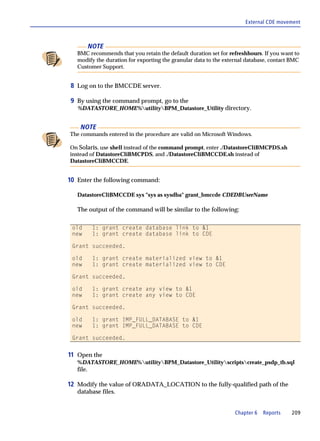
                    breach.

                    — If you select Alarm

                      s   The RSM changes the parameter status to warning when the warning
                          threshold is breached.

                      s   The RSM changes the parameter status to alarm when the alarm threshold is
                          breached the specified number of times.

                    — If you select Alarm or Warning

                      s   The RSM changes the parameter status to the last threshold type breached
                          after any combination of successive alarms or warnings.

                          For example, suppose that you specify 3 and Alarm or Warning, and the RSM
                          measures warning value, alarm value, and warning value in three successive
                          collection intervals. The RSM changes the parameter status to warning after
                          the third collection interval.

                      s   After satisfying the parameter status change, the RSM changes the status after
                          the next collection interval if the RSM measures a value that breaches a more
                          severe threshold.

                          For example, suppose that you specify 3 and Alarm or Warning and the RSM
                          measures warning value, warning value, warning value, and alarm value.
                          The RSM changes the parameter status to warning after the third collection
                          interval. Because the RSM measures a more severe status during the next
                          collection interval, the status immediately changes to alarm.


Deactivating parameters
                The deactivating parameters feature of the product provides more flexibility by
                making monitoring more granular. This feature does not deactivate data collection.
                However, when you deactivate a parameter, RSM stops sending data to BMC Portal
                for that parameter.

                By default, all the parameters are active. However, you can choose to deactivate
                parameters. BMC Portal enables you to activate or deactivate parameters at the
                element and element profile level.

                You can even deactivate parameters whose thresholds cannot be edited such as the
                text parameters.

                For steps to deactivate a parameter, see “Deactivating a parameter” on page 118.


116      BMC Performance Manager Portal Monitoring and Management Guide
Points to remember while deactivating parameters


        Upon deactivation, the following happens to a deactivated parameter:

        s   The parameter is visible in the Configure and Events tabs and displays the offline
            icon.

        s   The parameter is hidden in the Status and Reports tabs.

        s   The history of the deactivated parameter is not deleted. When you activate a
            deactivated parameter, you see data gaps in the Parameter History Chart view and
            No Data in the Parameter History Table view, for the period when the parameter
            was deactivated.

        s   When you deactivate a parameter in Alarm or Warning state, depending on the
            type of notification rule configured, a notification is sent describing that a
            parameter in violated state has undergone a state change and is now offline.

                NOTE
            In case of Alarm Point, irrespective of the notification rule configured and the earlier status
            of the element, the product does not send notifications if the parameter goes offline.

            As per Alarm Point, deactivation (offline status) is a CLEAR event and Alarm Point does
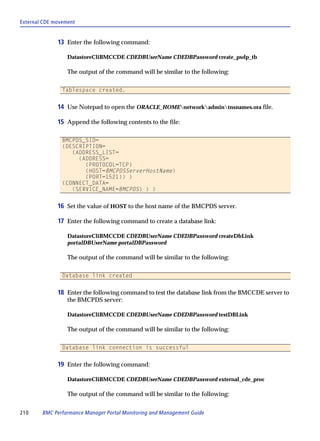
            not send notifications for CLEAR events.


        s   When a deactivated parameter is activated once again, the parameter is visible on
            all the tabs with the Unknown icon until data is collected for the activated
            parameters.


Points to remember while deactivating parameters
        You must ensure the following while deactivating parameters:

        s   You must not deactivate all the parameters in an application class, sub-application
            class, or a discovered instance. At least one parameter must be active.

        s   You cannot deactivate the Application Collection Status (ACS) parameter.

        s   In cases where Elements are bound to an Element Profile, the Elements inherit the
            active or inactive state property that you set in the Element Profile. You cannot
            override the active or inactive state properties of parameters; the Active column is
            disabled for editing.

        s   The value of derived parameters that depend on other parameters is affected by
            deactivation of those parameters. For more information, see “Derived parameters.”


                                         Chapter 5   Performance Managers and application classes      117
Derived parameters


Derived parameters
                Derived parameters do not carry the actual data collected by the RSM. These
                parameters derive their values from the values collected for other parameters.

                To illustrate, consider an application class has three parameters such as P1, P2 and P3,
                where P3 is the derived parameter.

                The values of P1 and P2 come from the collection triggered by RSM for the solution.
                The value for P3 is the arithmetic sum of P1 and P2 (P3 = P1 + P2).

                If P1 and P3 are active for collection and you deactivate P2, the value derived for P3
                might not be correct, or data might not be collected for P3, or the Application
                Collection Status (ACS) parameter might go in to a violated state.


                     EXAMPLE
                In the Solaris application class,

                Value of CPU Usage parameter = Value of CPU User parameter + Value of CPU System
                parameter

                If either the CPU User or the CPU System parameter is deactivated, the CPU Usage parameter
                displays No Data row in the Parameter History Table view.


Deactivating a parameter
                By default, all the parameters are active. However, you can deactivate a parameter
                while adding or modifying application classes, elements, element profiles, and
                modifying parameter properties.

                To deactivate a parameter

                1 Click the Configure tab.

                2 In the navigation pane,

                     A. For element profiles:

                        1. Expand the Tasks object tree and select Element Profiles.

                        2. Select an element profile and click Edit to modify the element profile
                           properties.

                        3. Click an application class and modify the respective parameters.


118      BMC Performance Manager Portal Monitoring and Management Guide
Deactivating a parameter in the Performance Manager Editor solution


          B. For application classes and parameters:

              1. Expand the Properties object tree to display the infrastructure element.

              2. Select the application class or the parameter.

              3. Click Edit to modify the properties of the respective parameters.

        3 Clear the Active check box to deactivate the parameter.

        4 Click Save.

          The parameter status changes to offline.


Deactivating a parameter in the Performance Manager Editor
solution
        This feature enables you to deactivate parameters of the application classes in the
        Performance Manager Editor (PME) solution.


            NOTE
        To use this feature, you must log in to BMC Portal as a superadmin.


        To activate or deactivate parameters in the PME solution

        1 Select the Portal tab.

        2 In the navigation pane, select Performance Managers.

        3 In the Add Performance Managers page, click Add Application Class.

        4 In the Add Application Class page, click Add Parameter.

        5 Select the Active check box to activate the parameter. Clear the Active check box to
          deactivate the parameter.


            NOTE
        If you update the parameter type, the Active check box is cleared and the parameter is
        deactivated.

        If you want to activate the parameter, you must manually select the Active check box.


                                      Chapter 5   Performance Managers and application classes     119
Solution support for deactivating parameters


Solution support for deactivating parameters
                 BMC Portal enables you to deactivate parameters by default, in a Performance
                 Manager. By default, all parameters in the Performance Manager are active.

                 To deactivate parameters by default in a Performance Manager

                 1 In the parameter definition of the Performance Manager’s application definition
                    xml file, include the <active-instruction type="false"/> tag.

                    For example, when you want to deactivate the MountedDriveFromFUN parameter
                    in the Active-instruction application class, the parameter definition is as illustrated
                    below:

                 <parameter-definition name="MountedDriveFromFUN">
                    <display-name>Mounted drive from fun</display-name>
                    <description>Mounted Drive</description>
                    <value-type base="integer"/>
                    <value-analysis-definition>
                       <alert-rule alert-on="alarm-or-warning" alert-after-count="2"/>
                       <custom-attribute name="minValue" value="0"/>
                       <custom-attribute name="maxValue" value="100"/>
                       <custom-attribute name="direction" value="ascending"/>
                       <threshold-definition enabled="true" name="warning">
                         <custom-attribute name="value" value="10"/>
                       </threshold-definition>
                       <threshold-definition enabled="true" name="alarm">
                         <custom-attribute name="value" value="20"/>
                       </threshold-definition>
                    </value-analysis-definition>
                    <paramlet-call>
                       <paramlet>patsdk-commandshell</paramlet>
                       <solution>patsdk-commandshell-solution</solution>
                       <property-mapping>
                         <map name="hostname">APPLICATION.hostname</map>
                         <map name="port">APPLICATION.port</map>
                         <map name="protocol">APPLICATION.protocol</map>
                         <map name="userName">APPLICATION.userName</map>
                         <map name="password">APPLICATION.password</map>
                         <map name="privatekey">APPLICATION.privatekey</map>
                         <map name="passphrase">APPLICATION.passphrase</map>
                         <map name="fingerprint">APPLICATION.fingerprint</map>
                       </property-mapping>
                       <parameter-value>PARAMLET.commandOutput</parameter-value>
                    </paramlet-call>
                    <active-instruction type="false"/>
                  </parameter-definition>


120      BMC Performance Manager Portal Monitoring and Management Guide
Methods of remote monitoring


              NOTE
          You must not deactivate all the parameters in an application class, sub-application class, or
          a discovered instance. At least one parameter must be active.


        2 When you add an element by using the upgraded Performance Manager, and you
          specify the <active-instruction type=''false"/> tag in the parameter definition of the
          application definition xml file, that parameter is deactivated by default.


Methods of remote monitoring
        The types of Performance Managers installed on your Portal determine the methods
        of remote monitoring that you can configure for the elements in your account.


Agentless monitoring
        The agentless Performance Managers use industry-standard protocols, such as
        PerfMon and SNMP, to obtain metrics from the target infrastructure elements. If you
        do not have PATROL Agents installed in your IT environment, this is the only type of
        Performance Manager that you need to install on your Portal.

        As you specify application classes for infrastructure elements, you can accept or
        modify parameter thresholds. In addition, you must provide authentication
        credentials and properties that the application class can use to access the element and
        obtain performance data. The type of collector used to obtain data and the type of
        application class determine the type of information that you need to provide.


PATROL Agent integration
        If your organization uses PATROL Agents to monitor and manage your IT
        infrastructure, you can use PATROL integration Performance Managers, which
        enable the RSM to mine parameter values from the PATROL Agents and integrate
        agent-based data into the Portal.

        You can explicitly add PATROL Agents as elements and specify the corresponding
        PATROL integration Performance Managers, or you can have the Portal discover the
        PATROL Agents and the parameter thresholds. If you choose the discovery method,
        the Portal obtains local thresholds for each instance from its PATROL Agent. If
        thresholds do not exist for an instance, the Portal applies the global thresholds to the
        instance.


                                      Chapter 5   Performance Managers and application classes     121
PATROL Agent integration


                After configuring the PATROL integration Performance Managers, you can use the
                Elements task or the bpmcli to synchronize the application classes and thresholds on
                Performance Manager with those on PATROL Agents. See “Integrating PATROL
                Agent data into the BMC Performance Manager Portal” on page 27 for more
                information.


                Parameter mapping between Performance Managers and
                Knowledge Modules
                To illustrate the parameter mapping between a Performance Manager and a
                Knowledge Module (KM), consider the example shown in Figure 10 on page 122. The
                PATROL Integration Performance Manager for Coffee Pots has parameters that map
                to seven out of the 10 parameters in the Coffee Pot KM.

Figure 10   Performance Manager parameter mapping to Knowledge Module parameters
             Integration Performance Manager for Coffee Pots     Coffee Pot Knowledge Module
             Pot Capacity                                        potCapacity
                                                                 potType
             Pot Location                                        potLocation
             Pot Monitor                                         potMonitor
             Pot Operating Status                                potOperStatus
             Pot Level                                           potLevel
             Pot Metric                                          potMetric
                                                                 potStartTime
                                                                 lastStartTime
             Pot Temperature                                     potTemperature


                You can use the BMC Performance Manager Portal SDK to create PATROL
                integration Performance Managers that mine data from a PATROL Agent. See the
                BMC Performance Manager Development and Certification Guide on the Documentation
                CD for detailed information about creating Performance Managers.


                Threshold mapping between Performance Managers and
                Knowledge Modules
                The parameter properties in Performance Managers differ somewhat from those in
                KMs. Generally, the conventions shown in Table 9 show how the minimum and
                maximum parameter thresholds in KMs map to the parameter threshold ranges in
                PATROL integration Performance Managers.


122      BMC Performance Manager Portal Monitoring and Management Guide
PATROL Agent integration


Table 9    Minimum and maximum values for mapped thresholds
PATROL Agent parameter thresholds               Performance Manager parameter thresholds
border range is active for the agent parameter minimum and maximum border values
                                               match the agent parameter thresholds
border range is inactive for the agent          minimum and maximum border values
parameter and the Y-autoscale=No                match the minimum and maximum Y-axis
                                                values
border range is inactive for the agent          minimum and maximum border values are
parameter and the Y-autoscale=Yes               unbounded


                              Chapter 5   Performance Managers and application classes   123
PATROL Agent integration


                  Table 10 lists the types of parameters that do not have a one-to-one correlation and
                  shows how the thresholds appear in the mapped parameters.

Table 10     Differences between Performance Manager and Knowledge Module thresholds
             (part 1 of 2)
                                       PATROL Integration Performance
PATROL KM threshold condition          Manager adaptation                     Notes
border thresholds (numeric)            s   The alarm direction is set to      These threshold conditions are the
                                           ascending.                         only instances where a PATROL
 s    Alarm1 and Alarm2 thresholds                                            Border alarm sets a warning or
      are inactive.                    s   The minimum is set to the          alarm threshold for a Performance
                                           PATROL Border minimum              Manager parameter.
 s    Border threshold is active.          value.

                                       s   If the PATROL Border
                                           threshold triggers a warning,
                                           the warning threshold is set to
                                           the PATROL Border maximum
                                           value.

                                       s   If the PATROL Border
                                           threshold triggers an alarm, the
                                           alarm threshold is set to the
                                           PATROL Border maximum
                                           value.
border thresholds (Boolean)            s   If the PATROL Border range is
                                           0–0 and it triggers a warning,
 s    Alarm1 and Alarm2 thresholds         the warning threshold is set to
      are inactive.                        True.

 s    Border threshold is active and   s   If the PATROL Border range is
      is configured for warning and        greater-than-zero to greater-
      alarms.                              than-zero and it triggers an
                                           alarm, the alarm threshold is
                                           set to True.

                                       s   If the PATROL Border range is
                                           greater-than-zero to greater-
                                           than-zero and it triggers a
                                           warning, the corresponding
                                           warning threshold is set to
                                           False.

                                       s   If the PATROL Border range is
                                           nonzero–to-nonzero and it
                                           triggers an alarm, the
                                           corresponding alarm threshold
                                           is set to False.
parameter configured to trigger       An event is triggered instantly.
event instantly, after n occurrences,
or after recovery


124        BMC Performance Manager Portal Monitoring and Management Guide
Installing new Performance Managers on the Portal


Table 10    Differences between Performance Manager and Knowledge Module thresholds
            (part 2 of 2)
                                     PATROL Integration Performance
PATROL KM threshold condition        Manager adaptation                     Notes
Alarm1 and Alarm2 ranges are          Warning and alarm thresholds
both active or both ranges are set to match and alarm direction is set to
trigger the same state                ascending.
numeric threshold is inactive        The numeric threshold is set to 0
                                     and is disabled.
Boolean threshold is set to false    The Boolean threshold is set to
and inactive                         false.
boundary values between Alarm1       The warning range is extended so       The BMC Performance Manager
and Alarm2 are not contiguous        that it is contiguous with the start   Portal does not support
                                     of the alarm range.                    noncontiguous threshold ranges.


Installing new Performance Managers on the
Portal
                Before you can use a Performance Manager, it must be installed in the Portal database
                and have a status of Published. When you installed the Portal, the installation
                program prompted you to insert the BMC Performance Manager Solutions CD or CD
                image. When you selected the Performance Managers from the CD or CD image, the
                installation program copied the corresponding PAR files (including the application
                classes that they contain) to a staging directory on the Portal application server.
                During Portal startup, the BMC Performance Manager Portal scanned the staging
                directory for those files and installed them in the Portal database.

                If you upgraded from BMC Performance Manager Portal 1.2 or installed the BMC
                Performance Manager Portal for the first time, the Performance Managers have a
                status of Published. As soon as RSMs are installed or upgraded, you can log on as a
                user and begin using the application classes contained in the Performance Managers
                to begin monitoring elements.

                If you upgraded from BMC Performance Manager Portal 2.1 or later, the new
                Performance Managers have a status of Unpublished. See “To upgrade a Performance
                Manager during a Portal upgrade” on page 127 for more information about
                publishing upgraded Performance Managers.


                                               Chapter 5   Performance Managers and application classes     125
Installing new Performance Managers on the Portal


                The following conditions require that you manually install new Performance
                Managers on the Portal:

                s   You use the BMC Performance Manager Portal SDK to create Performance
                    Managers.

                s   You download a Performance Manager from the BMC Software Electronic Product
                    Distribution (EPD) website.

                s   You install a Performance Manager from a CD or CD image that is not part of the
                    BMC Portal installation program.

                To manually install a Performance Manager

                1 Place the Performance Manager’s (PAR) file in a known location on your file
                    system or have the Performance Manager CD available.

                2 Log on to the BMC Portal with Portal administrator credentials, and select the
                    Portal tab.

                3 Under Tasks in the navigation pane, select Performance Managers to open the
                    Performance Managers page.

                4 Click Upload to open the Performance Managers–Upload page.

                5 Click Browse to open a file selection dialog box, and navigate to the PAR file from
                    one of the following sources:

                    s   the location of the PAR file that you used in step 1
                    s   PerformanceManagerName.par on the Performance Manager CD

                6 Select the PAR and click Upload.

                    The Portal installs the PAR file in the database. The Performance Manager appears
                    in the list of Performance Managers and has a status of Published.


                         NOTE
                    To have the Performance Managers page reflect status changes, you might need to click the
                    Performance Managers task in the navigation pane.


                To begin using the new application classes, log on as a user, add an infrastructure
                element and select the new application classes, or add the new application classes to
                existing elements.


126      BMC Performance Manager Portal Monitoring and Management Guide
Upgrading Performance Managers on the Portal


Upgrading Performance Managers on the
Portal
      If you install or import a PAR file that replaces an earlier version of its Performance
      Manager on your Portal, the new Performance Manager appears on the page for the
      Performance Manager, but with a status of Unpublished. The procedures in this
      section

      s   remove the earlier version of the Performance Manager
      s   change the status of the newer version to Publishing and then Published
      s   update any affected infrastructure elements with the new version of the
          application classes in the Performance Manager

      When an upgrade occurs on an existing application class, the following information is
      migrated to the new version of the application class:

      s   application class properties and user configurations
      s   parameter threshold settings
      s   parameter history data

      To upgrade a Performance Manager during a Portal upgrade

      Use this procedure to upgrade each performance manager, individually.


           WARNING
      s   After you have installed BMC Portal, check the Customer Support website at
          http://www.bmc.com/support to see the flashes, technical bulletins, and resolutions for
          the latest patches and hot fixes available for the current version of BMC Portal. Install the
          patches and hot fixes. Ensure that you perform the BMC Portal Performance Managers
          (solution) upgrades only after installing the latest patches.

      s   You must verify that all of the RSMs are updated to the latest version and that they are all
          running before you can publish the Performance Manager solutions. Then you must
          publish the Performance Manager solutions one by one, individually.

          If a solution is in the process of publishing, do not start publishing another solution until
          the first shows the upgraded version.


      1 When you use the BMC Portal installation program to upgrade the Portal, select
          any or all Performance Managers from the BMC Performance Manager Solutions
          CD or CD image on your hard drive.

      2 After the Portal installation, log on to the BMC Portal with Portal administrator
          credentials, and select the Portal tab.


                                     Chapter 5   Performance Managers and application classes       127
Upgrading Performance Managers on the Portal


                3 Under Tasks in the navigation pane, select Performance Managers to open the
                   Performance Managers page.

                   The Performance Managers that you selected from the BMC Performance Manager
                   Solutions CD appear in the list of Performance Managers and have a status of
                   Unpublished, and the earlier versions of those Performance Managers have a status
                   of Published or In Use.

                4 On the Performance Managers page, select a Performance Manager and click
                   Publish.

                   The status for the current version of the new Performance Manager changes to
                   Publishing and then Published.

                   The status for the earlier version of each new Performance Manager changes to
                   Upgrading and then is removed from the page.

                5 After the first Performance Manager has completed the publishing process, repeat
                   step 4 for each remaining Performance Manager in the list, one-by-one,
                   individually, until all of the Performance Managers show a status of Published.


                       WARNING
                Do not start publishing a Performance Manager when another Performance Manager is in the
                process of publishing. Wait until the process is complete, and the previous Performance
                Manager shows a status of Published before starting to publish another Performance
                Manager.


                To upgrade a Performance Manager by importing the new version’s PAR file

                1 Place the PAR file for the Performance Manager in a location that you can access
                   through your file system:

                   s   Download the Performance Manager file from the EPD website to your chosen
                       location.

                   s   Insert the BMC Performance Manager Solutions CD in a disk drive that you can
                       access from your file system.

                2 Log on to the BMC Portal with Portal administrator credentials, and select the
                   Portal tab.

                3 Under Tasks in the navigation pane, select Performance Managers to open the
                   Performance Managers page.


128      BMC Performance Manager Portal Monitoring and Management Guide
Removing Performance Managers from the Portal


      4 Import the PAR file:

        A Click Upload to open the Performance Managers–Upload page.

        B Click Browse to open a file selection dialog box, and select a file.

        C Click Upload.

        The new version of the Performance Manager appears in the list and has a status of
        Unpublished, and the earlier version has a status of Published or In Use.

      5 Select the Performance Manager and click Publish.

        The status for the current version of the Performance Manager changes to
        Publishing and then Published. The status for the earlier version of the Performance
        Manager changes to Upgrading and then is removed from the page.


            NOTE
        To have the Performance Managers page reflect status changes, you might need to click the
        Performance Managers task in the navigation pane to refresh the page.


        The affected infrastructure elements begin using the updated application classes.


Removing Performance Managers from the
Portal
      The following procedure permanently deletes selected custom or solution
      Performance Managers from the Portal database. You cannot delete a Performance
      Manager if any of its application classes are currently monitoring infrastructure
      elements.

      To remove a Performance Manager from the Portal

      1 Ensure that the Portal is not using the Performance Manager to monitor
        infrastructure elements, and if necessary, remove its corresponding application
        classes from any elements that use them.

      2 Log on with Portal administrator credentials and select the Portal tab.

      3 Under Tasks in the navigation pane, select Performance Managers to open the
        Performance Managers page.


                                   Chapter 5   Performance Managers and application classes   129
Types of Performance Managers


                4 In the Elements column, verify that the Performance Manager that you want to
                   delete does not have any assigned elements.

                5 Select the Performance Manager to delete, and click Delete.

                   If necessary, you can delete multiple Performance Managers.

                6 On the Performance Managers–Delete page, click Delete to confirm the deletion.


Types of Performance Managers
               The Performance Managers page lists the Performance Managers available to the
               users on the Portal. For each Performance Manager, the list includes its type. The
               Portal supports the following types of Performance Managers:

               s   core
               s   solution
               s   custom


Core Performance Managers
               Core Performance Managers are those that are included with the BMC Performance
               Manager Portal. The core Performance Managers include application collectors,
               which typically have names that begin with BMC PM Collector for, and the
               Performance Managers listed in Table 11.

               Table 11       Core Performance Managers and their application classes
                Performance Manager                              Application classes
                BMC PM for Lightweight Protocols–DNS             Domain Name Server
                BMC PM for Lightweight Protocols–Ping            Ping
                BMC PM for Lightweight Protocols–Port Monitor Network Service Port
                BMC PM for SNMP Traps                            SNMP Trap Listener
                BMC PM Monitor                                   s   BMC PM Portal App Server Monitor
                                                                 s   BMC PM Portal Datafeed Monitor
                                                                 s   BMC PM RSM Monitor
                                                                 s   BMC PM Web Server Monitor
                                                                 s   BMC PM Portal App Server Monitor
                                                                 s   BMC PM PATROL Integration
                                                                     Monitor
                PATROL Agent Availability and Health Monitor     PATROL Agent Availability and Health
                                                                 Monitor


130     BMC Performance Manager Portal Monitoring and Management Guide
Solution Performance Managers


        If you did not select any Performance Managers from the Solutions CD during
        installation of the Portal, you can still use the application classes in the core
        Performance Managers to monitor infrastructure elements.

        You cannot edit or delete a core Performance Manager.


Solution Performance Managers
        Solution Performance Managers are those that you can obtain from BMC Software or
        BMC Software partners, or those created with the BMC Performance Manager Portal
        SDK. You can install BMC Software solution Performance Managers from a Solutions
        CD, by downloading them from the BMC Software EPD website, or from developers
        who use the Performance Manager SDK.

        You cannot edit a solution Performance Manager from BMC Software. If a solution
        Performance Manager is not in use, you can use the Performance Manager Editor to
        delete it from the Portal database.


Custom Performance Managers
        If you cannot obtain a solution Performance Manager to monitor the infrastructure or
        applications in your environment, you can create custom Performance Managers.


           NOTE
        This section provides some information about custom Performance Managers. The BMC
        Portal Help provides detailed procedures for creating, editing, and administering
        Performance Managers and the application classes that they contain.


        A series of Portal pages, known collectively as the Performance Manager Editor
        (PME), enables Portal administrators to create custom application classes for the
        Portal and its users. The Performance Managers page, described in Table 12, acts as
        the main page for the PME, and provides the starting point for accessing all of the
        features required to administer Performance Managers on your Portal.

        When you edit a published custom Performance Manager, the PME creates and opens
        a copy of the selected Performance Manager in the editor. In this copy, you can edit
        any custom or solution application class that uses PerfMon, SNMP, or command shell
        protocols to collect data.


                                    Chapter 5   Performance Managers and application classes   131
Custom Performance Managers


               s   On the Performance Managers page, solution Performance Managers and those
                   created with the Performance Manager SDK have a Type of Solution.

               s   On the Performance Managers page, Performance Managers created with the PME
                   have a Type of Custom.

               You can access the Performance Managers task and PME when you log on with Portal
               administrator credentials and select the Portal tab.

               Table 12     Features of the Performance Managers page
               Item           Description
               Buttons
               Upload         opens the Performance Managers–Upload page, enabling you to add solution
                              Performance Managers or those created with the Performance Manager SDK
                              to the Portal
               Export         opens a File Save or File Download box, enabling you to save the PAR file to
                              your local file system
               Publish        publishes the selected Performance Managers
               Create         opens the Performance Managers–Create page, the first step in creating a
                              custom Performance Manager
               Edit           opens the Performance Managers–Edit page, enabling you to edit the selected
                              solution or custom Performance Manager
               Delete         opens the Performance Managers–Confirm Delete page, enabling you to
                              confirm the deletion of the selected Performance Managers
               Performance Managers list
               Select All     selects the check boxes of all Performance Managers

                              Note: You can edit only one Performance Manager at a time.
               Unselect All clears the check boxes of all Performance Managers
               Name           name of the Performance Manager
               Version        version number of the Performance Manager
               Type           identifies the type of Performance Manager: Solution, Custom, or Core
               Status         shows one or more of the following states for the Performance Manager:
                               s Publishing
                               s Published
                               s Unpublished
                               s Upgrading
                               s Publish Failed - failureReason
                               s In Use

               Elements       shows the number of elements on the Portal currently being monitored with
                              application classes in the Performance Manager
               Profiles       shows the number of element profiles that contain one or more of the
                              application classes in the Performance Manager


132     BMC Performance Manager Portal Monitoring and Management Guide
Custom Performance Managers


With the PME, you can use the following methods to create custom Performance
Managers:

s   read a definition file that contains attributes that you can use to build a custom
    application class

s   edit a custom Performance Manager and edit its application class, and add
    application classes in the copy that is automatically created by the PME

The PME cannot create Performance Managers that integrate data from PATROL
Agents. To create PATROL integration Performance Managers, you must use the
BMC Performance Manager Portal SDK. See the BMC Performance Manager
Development and Certification Guide on the Documentation CD.


Application class properties
Each Performance Manager is composed of at least one application class, and an
application class is composed of organized groups of subapplications. Each
application class can have only one collector, but a Performance Manager can contain
application classes that each use a different collector.


    EXAMPLE
You can create an operating system Performance Manager that contains the following
application classes:

s   Solaris Using SNMP
s   Windows Using PerfMon
s   Linux® Using Command Shell


                              Chapter 5   Performance Managers and application classes   133
Custom Performance Managers


                  The PME enables you to customize the properties that compose an application class
                  described in Table 13:

Table 13       Application class properties (part 1 of 2)
Property                      Description
instance type                 either of the following types:

                               s   Single-instance application classes can exist only once on a monitored element;
                                   for example, a computer can have only one system uptime.

                               s   Multiple-instance application classes can exist many times on a monitored
                                   element; for example, a computer has many running processes.

                                   — For all multiple-instance application classes, you can specify the instances
                                     to monitor.

                                   — For some multiple-instance application classes, the Performance Manager
                                     enables you to discover instances on the monitored element.
parent class                  an application that contains parameters that monitor similar attributes

                              A parent class also has a root application instance that contains the Application
                              Collector Status parameter.
 child class                  groupings of similar parameters within the parent class

                              Example: In BMC Performance Manager Express for Oracle, Availability,
                              Capacity, and Performance are child classes of the Oracle parent class.

                              Child classes can require unique properties and credentials.
      parameter               a data point or measurement; for example, available disk space
        parameter type        one of the following types, which also determines other parameter characteristics:

                               s   string
                               s   float
                               s   integer
                               s   Boolean
                               s   long
        alarm direction       specifies whether a lesser or greater value indicates deterioration of the
                              monitored parameter

                              Example:
                               s for CPU load, the higher the load, the slower the computer (greater value
                                 triggers alarm)
                               s for available disk space, the lower the amount of free space, the less available
                                 space for the user (lesser value triggers alarm)
      alarm and warning        s   for string parameters, use regular expressions to specify thresholds
      thresholds               s   for numeric parameters, set default minimum warning and alarm thresholds
                               s   for Boolean parameters, specify warning and alarm conditions that the
                                   notification recipient receives about the warning or alarm


134        BMC Performance Manager Portal Monitoring and Management Guide
Custom Performance Managers


Table 13   Application class properties (part 2 of 2)
Property                   Description
    parameter value        minimum and maximum values for the parameter that
    range
                            s   set the ranges on charts
                            s   prohibit entry of invalid warning and alarm ranges by users
    data modifications     operations that display the numeric parameter value (on the Reports and Status
                           tabs) in a format that differs from the raw measurement format; not available for
                           Boolean and string parameters


               Types of application classes
               When you use the PME, you can create the following types of application classes,
               which correspond to the type of information that the application class will monitor:

               s   Single-instance application classes can monitor one instance of an application on
                   any computer. An operating system application class is an example of this type
                   because you can monitor only one instance of an operating system on any
                   computer.

               s   Multiple-instance application classes can monitor more than one instance of an
                   application on any computer. Application classes that monitor log files or
                   processes are examples of this type because you can monitor more than one log file
                   or process on any computer.

                   Many multiple-instance application classes enable you to discover instances on the
                   target elements as you add elements to the Portal or as you add an application
                   class to existing elements. When the discovery process is finished, you can select
                   the discovered instances to monitor, and then provide the required credentials and
                   properties for those instances. Should the discovered instance no longer exist on
                   the element, the Portal enables you to remove that instance from the element.


               Performance Manager publishing
               Before you and your users can use the application classes in a new or edited
               Performance Manager, you must publish the Performance Manager. After it is
               published, users with adequate permission can select an application class and assign
               it to an infrastructure element.


               Data collection requirements
               With the PME, you can create new application classes by specifying a definition file.
               Definition files contain attributes and other information that you can use to build the
               application class. For some collection protocols, you create an application class by
               specifying a command.


                                              Chapter 5   Performance Managers and application classes   135
Custom Performance Managers


               Table 14 shows the collection protocols that you can use to create custom application
               classes with the PME. This table also shows the input files or commands that you
               might need to create application classes with the supported protocols.

               Table 14    Supported collection protocols for custom application classes
               Collection protocol            Definition files and input properties
               Command Shell                  command that returns parameter values
               (SSH/Telnet)
               PerfMon                        HTML files saved from PerfMon Performance graphs
               SNMP                           MIB files


               In addition to the parameters that you customize, each application class also includes
               the Application Collector Status (ACS) parameter, which shows the status of the
               collector. You cannot view or edit collector parameters in the PME, but users of your
               custom Performance Manager can see them when setting thresholds and when
               accessing element views on the Status tab.

               Command Shell collector

               You can use the Command Shell collector to create application classes from command
               shell output issued by one or more commands. Application classes that use the
               Command Shell collector can use either the SSH or Telnet protocol to obtain
               parameter data.

               Command shell application classes can define parameters that return a single value
               (single instance) or more than one value (multiple instances).


                   EXAMPLE
               s   The uptime command returns values for a single instance.
               s   The ps command returns values for multiple instances, one instance for each process.


               When creating application classes that use this collector, you must provide a
               command that the RSM program runs to obtain the initial data from the target
               element.


                   TIP
               Run commands on a representative computer until the command produces the required
               output. You can then use the command and the output in the PME to create the application
               class.


136     BMC Performance Manager Portal Monitoring and Management Guide
Custom Performance Managers


Also, the application class must provide the following items:

s   for each instance, a valid regular expression (regex) that identifies the instance and
    the identifier for the instance

s   for each parameter in an instance, a valid regex that identifies the parameter value

    The PME has instance and regex testers to validate your regular expressions.

Users who select custom application classes that use the Command Shell collector can
provide shared credentials to authenticate the RSM.

The BMC Portal Help provides procedures that describe how to create application
classes that use the Command Shell collector.

PerfMon collector

When creating application classes that use the PerfMon collector, you can have the
PME upload PerfMon definition files that have an HTML file type. You can create a
PerfMon definition file in the Performance Monitor (PerfMon) on the Windows 2000,
Windows XP, or Windows 2003 operating system. A definition file can specify
parameters that report on multiple instances (for example, disk space). An
application class that uses the PerfMon collector must have the following
characteristics:

s   unique application class name (specified in the PME)

s   unique parameter names that have the same PerfMon Performance Object

s   unique PerfMon Performance Object and Counter pairs for each parameter in the
    application class

s   PerfMon Performance Object and Counter pairs that do not identify a parameter
    previously deleted from the application class

Users who select custom application classes that use the PerfMon collector can
provide shared credentials to authenticate the RSM.

The BMC Portal Help provides procedures that describe how to create application
classes that use the PerfMon collector and the definition files required to create them.


                              Chapter 5   Performance Managers and application classes   137
Custom Performance Managers


               SNMP collector

               The SNMP collector is used to create application classes that use Object Identifiers
               (OIDs) to provide unique identifiers for the parameters in the application class. To
               create application classes that use the SNMP collector, you must upload SNMP MIB
               files that the PME can use as the definition files to create parameters. The PME can
               parse and use the parameter name and data type from the MIB, if that information is
               contained in the specified MIB. An application class that uses the SNMP collector
               must have the following characteristics:

               s   unique application class name (specified in the PME)
               s   unique parameter names in the application class
               s   unique Object Identifier (OID) for each parameter in the application class
               s   OIDs that do not identify a parameter previously deleted from the application
                   class

                    NOTE
               Many MIBs that you can download from the Internet have dependencies on other MIBs. By
               default, the BMC Performance Manager Portal populates an internal MIB library with many
               commonly referenced MIBs. If necessary, you can upload the primary and dependent MIBs
               when creating an SNMP application class.


               Frequently, at least one instance name in the source MIB file is cryptic and does not
               represent the parameters that it contains. If a parameter name in the instance more
               closely represents the instance content, you can choose to have the parameter name
               represent the instance name. When users select the application class to monitor
               infrastructure, the selected parameter name represents the instance name on the
               Status tab.

               When using SMNP application classes to monitor infrastructure, ensure that the MIBs
               used to create the application class are also loaded on the snmpd daemon on the
               target element.

               When creating the application class, ensure that you do not place more than 20
               application classes in the top (or root) application instance. The PME will let you
               specify more top-level parameters, but the RSM cannot obtain more than 20 top-level
               parameter values. Should you require more than 20 of the top-level parameters in the
               top-level instance, split the parameters between two application classes.

               The BMC Portal Help provides procedures that describe how to create application
               classes that use the SNMP collector.


138     BMC Performance Manager Portal Monitoring and Management Guide
Editing Performance Managers


Editing Performance Managers
        The manner in which the PME interacts with the Performance Manager depends on
        the state or type of Performance Manager being edited.

        s   Editing unpublished custom Performance Managers
        s   Editing published custom Performance Managers

        You can make minor changes to the properties of a Performance Manager by
        changing the Performance Manager display name and its internal short name. The
        PME uses the short name as the PAR file name for the Performance Manager. In
        addition, you can

        s   add application classes to a Performance Manager
        s   modify existing application classes in a Performance Manager
        s   remove application classes from a Performance Manager

        When editing an application class, you can

        s   change the properties of an application class (but you cannot change collectors)
        s   add and remove instances (subapplications)
        s   add and remove parameters
        s   modify parameter properties


Editing unpublished custom Performance Managers
        When you create a new Performance Manager, the PME assigns a version number of
        1.0.00. Until you publish the Performance Manager, the version number remains the
        same, regardless of how often you edit the application classes in the unpublished
        Performance Manager.

        The PME enables you to modify any of the properties for the Performance Manager
        and the properties in an application class.


Editing published custom Performance Managers
        The PME enables you to select and edit published custom Performance Managers.
        When you select a published Performance Manager to edit, the PME creates a copy
        that you can edit. The PME increments the last two digits of the version number only
        for a published custom Performance Manager. The new version number is displayed
        on the Performance Managers–Edit page.


                                     Chapter 5   Performance Managers and application classes   139
Editing published custom Performance Managers


                    EXAMPLE
                If you select My PM for Coffee Pots (version 2.0.00), the PME creates a new Performance
                Manager with My PM for Coffee Pots (version 2.0.01) as the display name and version, and
                opens the new Performance Manager in the editor.


                When you edit custom Performance Managers, the following restrictions apply:

                s   If you had assigned application classes from the earlier version of the Performance
                    Manager to infrastructure elements, publishing the edited copy updates the
                    elements so that they use the edited version of the application classes.

                s   If the selected Performance Manager contains application classes that use the JMX
                    collector, the JMX application classes are not copied to the editable version of the
                    Performance Manager.

                    After you publish the edited Performance Manager, the JMX application classes
                    are removed from the elements and the data associated with the deleted
                    application classes will be deleted from the database.


                        NOTE
                    This situation would occur only if you had created a JMX application class with the
                    Application Class Editor in an earlier version of the Portal or in PATROL Express.


140      BMC Performance Manager Portal Monitoring and Management Guide
Chapter


                                                                                                                         6
6   Reports
        This chapter describes the available reporting options and presents the following
        topics:

        Overview . . . . . . . . . . . . . . . . . . . . . . . . . . . . . . . . . . . . . . . . . . . . . . . . . . . . . . . . . . . . . . . 142
        Parameter update intervals . . . . . . . . . . . . . . . . . . . . . . . . . . . . . . . . . . . . . . . . . . . . . . . 142
           Standard parameter values . . . . . . . . . . . . . . . . . . . . . . . . . . . . . . . . . . . . . . . . . . . . 143
           Accumulated parameter values. . . . . . . . . . . . . . . . . . . . . . . . . . . . . . . . . . . . . . . . . 144
        Data summarization . . . . . . . . . . . . . . . . . . . . . . . . . . . . . . . . . . . . . . . . . . . . . . . . . . . . . 144
        Data retention policies that affect object view content . . . . . . . . . . . . . . . . . . . . . . . . . 145
           Retention policies . . . . . . . . . . . . . . . . . . . . . . . . . . . . . . . . . . . . . . . . . . . . . . . . . . . . 145
           Properties that control the raw data retention policies . . . . . . . . . . . . . . . . . . . . . 145
           Properties that control event history retention . . . . . . . . . . . . . . . . . . . . . . . . . . . . 147
           Purging inactive data from the Portal history tables . . . . . . . . . . . . . . . . . . . . . . . 147
           Purging unknown and unused events from the event table. . . . . . . . . . . . . . . . . 149
        Reports tab . . . . . . . . . . . . . . . . . . . . . . . . . . . . . . . . . . . . . . . . . . . . . . . . . . . . . . . . . . . . . 151
           Time interval controls . . . . . . . . . . . . . . . . . . . . . . . . . . . . . . . . . . . . . . . . . . . . . . . . . 152
           Top N report for object groups or the account . . . . . . . . . . . . . . . . . . . . . . . . . . . . 153
           Health At A Glance report for elements . . . . . . . . . . . . . . . . . . . . . . . . . . . . . . . . . 156
           Multiple parameter history charts . . . . . . . . . . . . . . . . . . . . . . . . . . . . . . . . . . . . . . 160
           Dashboard parameter charts . . . . . . . . . . . . . . . . . . . . . . . . . . . . . . . . . . . . . . . . . . . 161
        Enterprise reports. . . . . . . . . . . . . . . . . . . . . . . . . . . . . . . . . . . . . . . . . . . . . . . . . . . . . . . . 162
           Downloading and installing BMC Reporting Foundation 3.2.00, Crystal Reports
              2008 (Designer component), and integration components . . . . . . . . . . . . . . . . 162
           Installing the integration components . . . . . . . . . . . . . . . . . . . . . . . . . . . . . . . . . . . 164
           Upgrading to Crystal Reports 2008 (Designer component) . . . . . . . . . . . . . . . . . 174
           Upgrading to BMC Reporting Foundation 3.2.00. . . . . . . . . . . . . . . . . . . . . . . . . . 174
           Publishing and scheduling generated reports . . . . . . . . . . . . . . . . . . . . . . . . . . . . 179
           Report types and details . . . . . . . . . . . . . . . . . . . . . . . . . . . . . . . . . . . . . . . . . . . . . . . 184
           Uninstalling the integration components . . . . . . . . . . . . . . . . . . . . . . . . . . . . . . . . 187
        Continuous data export configuration . . . . . . . . . . . . . . . . . . . . . . . . . . . . . . . . . . . . . . 190
           Continuous data export requirements . . . . . . . . . . . . . . . . . . . . . . . . . . . . . . . . . . . 191
           Configuring the datafeed utility . . . . . . . . . . . . . . . . . . . . . . . . . . . . . . . . . . . . . . . . 192
           Changing the retention policy for the CDE database. . . . . . . . . . . . . . . . . . . . . . . 201
           Maintaining the continuous export to the CDE database . . . . . . . . . . . . . . . . . . . 201
           Additional configuration options . . . . . . . . . . . . . . . . . . . . . . . . . . . . . . . . . . . . . . . 202
           External CDE movement . . . . . . . . . . . . . . . . . . . . . . . . . . . . . . . . . . . . . . . . . . . . . . 206


                                                                                                          Chapter 6        Reports          141
Overview


Overview
                 The Portal provides embedded reports that you can access from the Reports tab. In
                 addition to these reports, you can configure the Continuous Data Export (CDE) utility
                 to send raw parameter data to an external database. You can then use Crystal
                 Reports® 2008 (Designer component) to generate on-demand reports, or schedule
                 periodic reports from the data in the CDE database.

                 In addition to these reporting options, this chapter also describes the way in which
                 the Portal receives report data from the RSM and how the Portal summarizes and
                 saves data in the Portal database instance.


Parameter update intervals
                 The frequency at which the RSM sends parameter data to the Portal is determined by
                 an element’s report update interval and the status of the parameters in the application
                 class.

                 s   The report update interval determines the minimum frequency at which the RSM
                     sends parameter values to the Portal. Regardless of parameter status, the RSM
                     sends parameter values to the Portal at this frequency, which is less often than or
                     equal to the frequency of data collection (collection interval).

                     Unlike the collection interval, which you set for each application class, you set the
                     report update interval for each element. For more information, see the
                     drmop.default.reporting.interval.minutes property in Appendix C, “BMC
                     Performance Manager Portal files.”

                 s   When any parameter in an application class changes its status, the RSM sends the
                     values for all parameters in the application class to the Portal. Therefore,
                     depending on the statuses for the parameters in an application class, a parameter
                     might have additional raw data values between report update intervals, as
                     illustrated in Figure 11 on page 143.


142        BMC Performance Manager Portal Monitoring and Management Guide
Standard parameter values


Figure 11          Affect of status changes on reported parameter values
These charts show the raw
parameter values for
parameters in the same
application class. Although the
parameters in the top two
charts never changed status,
their values were reported
each time that the other
parameter changed status.


                         You can view the values for parameter data on the Status and Reports tabs.


Standard parameter values
                         For most parameters, unless a parameter status change occurs, the RSM sends the last
                         data value that it collected during the report update interval, as shown in Figure 12.
                         The Portal saves this value in the database as raw data for the parameter.

Figure 12          Standard parameter values
1-minute collection          1    2   3   4   5   4   3   2   1   1   2   3   4   5   4   3         data values collected from
interval                                                                                            the parameter


5-minute report                                                                                     data values sent to the
                                              5                   1                   4
update interval                                                                                     Portal


                         On parameter history charts, the Portal shows raw data values (or averaged values,
                         depending on the time period of the chart) at each chart interval.


                                                                                          Chapter 6     Reports           143
Accumulated parameter values


Accumulated parameter values
                      Some application classes contain parameters that require the RSM to total the
                      collected data values and send the totaled value to the Portal. The Portal saves this
                      accumulated parameter value in the database as raw data for the parameter, as
                      shown in Figure 13.

Figure 13         Accumulated parameter values
1-minute collection     1    2   3    4   5    4   3    2   1   1    2    3    4   5   4    3        data values collected from
interval                                                                                             the parameter


5-minute report                                                                                      data values sent to the
                                          15                    11                     18
update interval                                                                                      Portal


                      On parameter history charts, the Portal shows totaled values at each chart interval.

                      See the documentation or Help for application classes for more information.


Data summarization
                      The data summarization process creates a data point that is the average of the raw
                      data from the previous half hour. For example, suppose that you set the report
                      update interval to 15 minutes. Immediately after the end of each half hour, the Portal
                      database computes the average value for the two data points and creates a single half-
                      hour data point.

                      Summarizing raw data into half-hour and daily data points reduces the data retrieval
                      effort required to generate reports that span large time intervals.


                         EXAMPLE
                      The RSM collects a data point every minute and sends report data to the Portal once every five
                      minutes. Using this scenario, the Portal receives data at least once every five minutes—more
                      often if infrastructure parameters go in and out of warning and alarm states. At 10 minutes
                      after the end of each half hour, the Portal database bundles the six data points (or more if there
                      were warnings or alarms) into a single half-hour summarized data point.


                      The Portal uses raw and summarized, half-hour data to produce the charts. Because
                      the Portal computes a daily data point after the end of the day, some charts might not
                      show data for the most recent day, depending on the end time specified for the chart.


144         BMC Performance Manager Portal Monitoring and Management Guide
Data retention policies that affect object view content


Data retention policies that affect object view
content
         The Portal stores parameter data in partitions in the database and then the database
         purges data by dropping an entire partition. The rollover period for a data type sets
         the frequency at which the Portal stops writing data to one partition and starts
         writing it to a new partition. This rollover period also determines the amount of data
         that is deleted when a partition is dropped.

         Data summarization and data retention policies of parameter data determine the data
         that is used by the Portal to generate the various object views.


Retention policies
         The amount and types of data stored in the Portal database are controlled by data
         retention policies. Because the Portal collects and stores raw data faster than it
         summarizes hourly and daily data, the raw data tables grow faster than the
         summarized tables. To control the amount of data retained in the Portal database, the
         retention policy purges data from raw data tables sooner than it does from the hourly
         or daily tables. Controlling the amount of historical data that is stored in the Portal
         database enables the Portal to quickly return the requested charts.


Properties that control the raw data retention policies
         The Portal is optimized to run with the default retention policies. Should you need to
         change them, you can access the drmop.properties file on the Portal application server
         and modify the following properties:

         s   portal.history.parameter.value.retention sets the number of days that the database
             retains raw parameter data values. Database performance is optimized for a 14-
             day retention of raw data if the report update interval is higher than 5 minutes.
             However, BMC recommends that you set history retention for 7 days.

             — Increasing the retention period can adversely impact database performance and
               requires more disk space.

             — Significantly decreasing the retention period, to 1 or 2 days, can cause the Portal
               to lose data that was not summarized (in the event of a Portal downtime caused
               by maintenance, upgrades, or hardware failure).


                                                                            Chapter 6    Reports      145
Properties that control the raw data retention policies


                 s   portal.history.element.statusHistory.retention sets the number of days that the
                     database keeps element status changes, such as blackout and monitoring off.
                     Although the default value of this property is 428 days, BMC recommends that
                     you set the value at 92 days.

                     — The value of this property must match the value for the
                       portal.history.element.summarizationDataPoint.retention property.

                     — Increasing the retention period requires more disk space.

                 s   portal.history.parameter.summarizationDataPoint.retention sets the number of
                     days that the database keeps summarized parameter values. Although this property
                     has a default value of 428 days, BMC recommends a setting of 92 days.

                     — Increasing the retention period requires more disk space.

                     — Reducing this retention period reduces the time period in which you can chart
                       data points.

                 s   portal.history.parameter.summarization.disabled enables you to disable the
                     summarization of raw data. However, some of the reports include summarized
                     data points, so disabled summarization would cause those reports to display with
                     missing data. See “Top N report for object groups or the account” on page 153.

                 s   portal.history.parameter.externalsummarization.enabled enables you to configure
                     the external summarization by using the database task instead of using the BMC
                     Portal application server. This avoids the usage of the BMC Portal application
                     server for the BMC Portal summarization task.

                 s   portal.history.parameter.externalsummarization.schedulehours enables you to
                     schedule the external summarization. If you set
                     portal.history.parameter.externalsummarization.enabled=true, then the task is
                     scheduled to run at 2 A.M. every day, by default.

                     You must modify the portal.history.parameter.externalsummarization.enabled
                     and the portal.history.parameter.externalsummarization.schedulehours properties
                     to enable external summarization.

                 For more information about the properties file and its attributes, see “Configuration
                 files” on page 319 and Table 51 on page 322.


146       BMC Performance Manager Portal Monitoring and Management Guide
Properties that control event history retention


Properties that control event history retention
         The event history partition size and the frequency at which the partition is purged are
         controlled by the following properties:

         s   portal.history.event.rollover.period sets frequency at which event data rolls over to
             a new partition. Specifying a longer rollover period means that more data is
             deleted when the Portal database drops a partition. When changing the rollover
             period, you must specify one of the valid time values in the property file. See
             page 328 for valid time values.

         s   portal.history.event.retention sets the number of days of event data to save in the
             database. The data retention policy uses the specified number of days to determine
             when the database purges event partitions. By default, the Portal saves each event
             for at least 100 days, but BMC recommends setting this at 14 days.

             Longer retention periods can affect the response time of the Events tab and the
             Health At A Glance report (which also contains event history data).

         The data retention policy uses the number of days specified in the
         portal.history.event.retention property to determine the number of partitions to
         retain. The policy takes the number of days specified, multiplies that by the number
         of days in the rollover period, and then rounds up the value.


             EXAMPLE
         s   If you use the following default values, the Portal saves seven day’s worth of data in a
             partition. To retain 100 days of data, the Portal must keep 15 weeks (105 days) worth of
             data.

              — portal.history.event.rollover.period = WEEK
              — portal.history.event.retention = 100

         s   If you use the following recommended values, the Portal saves one days worth of events
             in a partition and drops a partition when it has finished saving 14 partition’s worth of data
             (14 days). When the database drops a partition, 1 day’s worth of events are purged

              — portal.history.event.rollover.period = DAY
              — portal.history.event.retention = 14


Purging inactive data from the Portal history tables
         The Portal history tables are not deleted, even after deleting an instance or node from
         the Portal. This inactive data is not displayed in the Portal, but uses extra disk space,
         which can cause performance issues in the Portal.


                                                                               Chapter 6    Reports      147
Purging inactive data from the Portal history tables


                 If you use the Continuous Data Export (CDE) database to store BMC portal data for
                 reporting, then run the exportParameterHistory command to collect the inactive data
                 for reporting purposes. (For details, see “Data-extraction commands” on page 270).

                 You do not need to run exportParameterHistory if data has already been exported by
                 using exportParameterHistory, or if you do not need the historical data. Otherwise, you
                 must use the exportParameterHistory to collect historical data before purging inactive
                 data. Use the following procedure to purge inactive data:

                 “To purge inactive data” on page 148.


                         NOTE
                 When this feature is enabled, during the purging process, the Oracle UNDO table space usage
                 can reach 100 percent. However, the UNDO tables space usage returns to normal
                 automatically once the purge is complete. The first time the purge script runs, depending on
                 how much inactive data there is to purge, it could take from 2 to 8 hours for the UNDO table
                 space usage to return to normal. If you set the purge script to run on a weekly basis, the
                 UNDO table space usage should return to normal within 2 to 4 hours after each subsequent
                 purge, depending on the amount of inactive data accumulated between the weekly purges.


                 To purge inactive data

                 The properties used to purge inactive data are in the drmop.properties configuration
                 files. For details, see Appendix C, “BMC Performance Manager Portal files.”

                  1 To enable purging of inactive data, change the following property to true:

                     portal.history.parameter.summarizationDataPoint.cleaninactiveparameter.enabled
                     =false

                  2 To set the day or days when you want the purge to occur, set the
                     portal.history.parameter.purgepsdp.scheduledays property by using the following
                     valid values:

                     s    1 = Sunday (default and recommended value)
                     s    2 = Monday
                     s    3 = Tuesday
                     s    4 = Wednesday
                     s    5 = Thursday
                     s    6 = Friday
                     s    7 = Saturday

                     If you want the job to run the purge on more than one day, you can enter multiple
                     valid values and separate them by a comma (no spaces). For example, a value of
                     1,2,6 sets the job to run on Sunday, Monday, and Friday.


148      BMC Performance Manager Portal Monitoring and Management Guide
Purging unknown and unused events from the event table


        3 To set the scheduled hours when you want the purge to occur, set the
            portal.history.parameter.purgepsdp.schedulehours property by using the following
            valid values:

            10 through 19 (the default value)

            Setting the property to 10 schedules the purge for 10:00 a.m., 11 schedules the
            purge for 11:00 a.m; and so on, up to 19, which schedules the purge for 7:00 p.m.
            This property only allows you to schedule the purge on the hour. You cannot add
            minutes. The time set for this property is the time on the database server.

            For example: portal.history.parameter.purgepsdp.schedulehours=19


Purging unknown and unused events from the event table
        The retention policy for the event table does not clean up the events that occurred that
        are unused, for example, when an instance or element or application is deleted. Some
        times Ok-Unknown and Unknown-OK events are generated and fill the table. If you
        do not want to save those events, you can set a purging job schedule that cleans up
        those events.

        The jobs used to remove unknown and unused events execute with partitions in
        mind, reducing the load on the Portal and the database while preventing any locking
        issues.

        Use the following procedures to purge unknown and unused events:

        s   “To purge unknown events” on page 149
        s   “To purge unused events” on page 150

        To purge unknown events

        The properties used to purge events are in the drmop.properties configuration files.
        For more information, see Appendix C, “BMC Performance Manager Portal files.”

        1 To purge unknown events, change the value of the following property to true:

            portal.history.events.purgeunknown.cleanunknownevents.enabled=false


                                                                           Chapter 6   Reports    149
Purging unknown and unused events from the event table


                2 To schedule the day or days when you want the unknown events purged, change
                   the portal.history.events.purgeunknown.scheduledays property to one or more of the
                   following valid values:

                   s   1 = Sunday (default and recommended value)
                   s   2 = Monday
                   s   3 = Tuesday
                   s   4 = Wednesday
                   s   5 = Thursday
                   s   6 = Friday
                   s   7 = Saturday

                   To use these values in combination, separate them by a comma. For example, the
                   following value sets the purge to occur on Sunday and Friday:
                   portal.history.events.purgeunknown.scheduledays=1,6

                3 To schedule the time on the day or days when you want the unknown events
                   purged, change the portal.history.events.purgeunknown.schedulehours property by
                   using the following valid values:

                   Valid values for this property are 0 (the default value that sets the value to
                   midnight or 12:00 a.m.) through 23 (which sets the value to 11:00 p.m.). The default
                   setting is 19, or 7:00 p.m. The time set for this property is the time on the database
                   server.

                   For example: portal.history.events.purgeunknown.schedulehours=19

                To purge unused events

                The properties used to purge events are in the drmop.properties configuration files.
                For more information, see Appendix C, “BMC Performance Manager Portal files.”

                1 To purge unused events, change the value of the following property to true:

                   portal.history.events.purgeunused.cleanunusedevents.enabled =false


150      BMC Performance Manager Portal Monitoring and Management Guide
Reports tab


      2 To schedule the day or days when you want to purge unused events, change the
        portal.history.events.purgeunused.scheduledays property by using the following
        valid values:

        s   1 = Sunday (default and recommended value)
        s   2 = Monday
        s   3 = Tuesday
        s   4 = Wednesday
        s   5 = Thursday
        s   6 = Friday
        s   7 = Saturday

        To use these values in combination, separate them by a comma. For example, the
        following value sets the purge to occur on Sunday and Friday:
        portal.history.events.purgeunused.scheduledays=1,6

      3 To schedule the time on the day or days when you want the unused events purged,
        change the portal.history.events.purgeunused.schedulehours property by using the
        following valid values:

        Valid values for this property are 0 (the default value that sets the value to
        midnight or 12:00 a.m.) through 23 (which sets the value to 11:00 p.m.). The default
        setting is 19, or 7:00 p.m. The time set for this property is the time on the database
        server.

        Example: portal.history.events.purgeunused.schedulehours=19


Reports tab
      The Reports tab provides charts that show performance metrics for selected
      parameters. You can view data collected during a different period by adjusting the
      report time range. The charts on the Reports tab vary, depending on the active view of
      the Reports tab. Table 15 shows the charts available for each view.

      Table 15   Charts available from the Reports tab (part 1 of 2)
                                                                                Infrastructure
                                                    Account view


                                                                                element view
                                                                   Group view


                                                                                                 Application


                                                                                                                           Parameter
                                                                                                 class view

                                                                                                                Instance
                                                                   Object


                                                                                                                view


                                                                                                                           view


      Report
      Parameter history chart (single chart)                                                                                 +
      Parameter history chart (multiple charts)                                                    +             +
      Parameter history table                                                                                                +


                                                                                          Chapter 6            Reports        151
Time interval controls


                 Table 15      Charts available from the Reports tab (part 2 of 2)


                                                                                                 Infrastructure
                                                                     Account view


                                                                                                 element view
                                                                                    Group view


                                                                                                                  Application


                                                                                                                                           Parameter
                                                                                                                  class view

                                                                                                                                Instance
                                                                                    Object


                                                                                                                                view


                                                                                                                                           view
                  Report
                  Top N                                          +                    +
                  Health At A Glance                                                                +


                 On all charts, when you roll the mouse pointer over a data point, a tooltip shows the
                 value of the data point.


                         TIP
                 Where available, you can use     to export the chart data to a file.


                 See the BMC Portal Help for information about accessing and customizing the object
                 views on the Reports tab.


Time interval controls
                 For many object views, you can control page content by using the time controls to
                 adjust the time interval of interest. You can choose to view chart data in daily and
                 hourly intervals.

                 s   Hourly intervals—When selecting Hours, you can choose to show from 1 to 168
                     hours’ worth of data on the chart.

                     — When you view 1 to 10 hours of data, the data points represent raw data.

                     — When showing 12 to 168 hours of data, the data points represent summarized
                       values of hourly data.

                     — Hourly reports end with the current hour of data. For example, if at 7:30 A.M.
                       you request a report for the last 24 hours, the report ends with 8:00 A.M.

                 s   Daily intervals—When selecting Days, you can choose to show from 1 to 184 days
                     worth of data on the chart. All charts show the data summarized in data points
                     that represent one day.

                     Daily charts end with the current day of data. For example, if on January 20 you
                     select Now and a 14-day interval, the x-axis shows January 20, and the chart
                     contains data points through January 20.


152      BMC Performance Manager Portal Monitoring and Management Guide
Top N report for object groups or the account


          The ending date and time selection represents the right-most data point on the x-axis
          on a chart. If you select 12 hours ending on January 6 at 6:00 P.M., the chart shows 12
          hourly data points on the x-axis that start with January 6 at 7:00 A.M. and end with
          January 6 at 6:00 P.M.


Top N report for object groups or the account
          When you select the account or an object group from the navigation pane, the Top N
          report is displayed, as shown in Figure 14 on page 153. This report compares the
          history of a selected parameter across a specified number of elements. The parameter
          performance and the number of available elements that use the parameter determine
          which elements appear in the report. When viewing this report, you can choose to
          view as many as 50 elements at a time. For example, you can quickly view the five
          elements that have the least amount of remaining memory. You might not see the
          summarized parameter values for a new element for 30–40 minutes after adding the
          element.

          Figure 14   Top N: report settings and content


                                                                           Chapter 6   Reports      153
Top N report for object groups or the account


                  Report settings
                  The following settings determine which element charts appear in the report.

                  s   predefined times from which you can choose to view the report

                  s   Top or Bottom selection from the performance drop-down list

                  s   selection from a drop-down list for the maximum number of elements in the report

                  s   Performance Manager name selected from a drop-down list

                      When you select an object group in the navigation pane, this list contains only
                      those Performance Managers found in the selected group.

                  s   application classes from which to select a parameter

                      This list contains all application classes in the selected Performance Manager.

                  s   names of parameters that return numeric values

                      For parameters in subapplications, the list shows the subapplication name
                      followed by the parameter name (SubapplicationName|ParameterName).


                  Time settings
                  The Top N time controls provide predefined time periods for this report, as shown in
                  Figure 15.

                  Figure 15    Top N: time controls


154      BMC Performance Manager Portal Monitoring and Management Guide
Top N report for object groups or the account


Report content
After you click Show Report to adjust the report content settings, the report shows the
following information about each element:

s   name of the element

    Clicking the element name opens the Status tab for the element.

s   icon that represents the current status of the element and the most recent (raw)
    value for the parameter

s   minimum summarized value reported for the parameter during the specified
    period

s   maximum summarized value reported for the parameter during the specified
    period

s   average summarized value of the parameter reported during the specified period

    The bar represents the average value of the parameter during the selected period.
    The top bar spans the entire available space. The length of the other bars is
    determined by their average value, relative to that of the top bar.

s      , which opens the Parameter History Chart for the parameter


     TIP
If your account contains a very large number of elements, this report might time out before the
data is displayed. To change the time that you wait for the report to appear before a timeout
occurs, modify the value of the drmop.reports.topn.batch.job.timeout.minutes property. For
more information about this property, see page 324.


Output options
You can use the output controls described in Table 16 to print or export parameter
data from a Top N report.

Table 16    Output controls for Reports tab
Item             Description
                 exports parameter data points from the report to an external
                 data file

                 You can specify the column and row delimiters.
                 writes the selected report to a PDF file


                                                                    Chapter 6   Reports      155
Health At A Glance report for elements


Health At A Glance report for elements
                 When you select an infrastructure element from the navigation pane, you can view
                 the Health At A Glance report. This report contains charts that provide an overview
                 of the status of the element. You can click  to view the report in a PDF file. From
                 Adobe Acrobat, you can save the report to your file system or send it to a printer.


                 Time controls
                 The time controls set the time range for all charts and graphs in this report, and most
                 of the data in this report is not available until you select a time range. From the time
                 controls, you can select one of the predefined time ranges, as shown in Figure 16.

                 Figure 16    Health At A Glance: time controls


                 Element Status Summary
                 This section of the report, shown in Figure 17, contains the charts that show the
                 history of the element’s status and the parameters that caused events during the
                 specified time.

                 Figure 17    Health At A Glance: Element Status Summary


156      BMC Performance Manager Portal Monitoring and Management Guide
Health At A Glance report for elements


Status by Time

The pie chart in this section shows the statuses for the selected element during the
specified time. Each section represents the percentage of time during the specified
time range that the element spent in that status.


     NOTE
The Offline status represents all times when the Portal has no data for the element. For
example, suppose that you added the element to the Portal during the previous 18 hours and
you specified 24 hours for the report period. In this case, the Offline status would represent six
hours of the (24-hour) pie.


Top Parameters Causing Alerts

This section shows all of the parameters in the element that triggered an alarm or
warning notification during the specified period. The bar color represents the alert
status of the parameter. Clicking    opens the Parameter History Chart for the
corresponding parameter.

Element Attributes

This section shows the following information about the selected element:

s   fully-qualified host name of the element

s   operating system of the element

s   list of application classes monitoring the element

s   icon that represents the current status of the element and the hours and minutes
    that the element has been in its current state

s   element availability (hours and minutes and the percentage of time that the
    element was in OK) during the specified period

    The Portal uses the following formula to compute availability:

    up_time/(total_time - exclude_time) × 100%

    By default, the Portal uses the following statuses for up_time and exclude_time:

    — up_time: OK and Warning
    — exclude_time: None, Blackout, Offline, and Unknown


                                                                      Chapter 6   Reports     157
Health At A Glance report for elements


                       s   When computing availability, the Unknown status is an aggregation of the
                           Unknown, Offline, and None statuses.

                       s   If an element is in a blackout period during the reporting time and the
                           availability formula excludes blackout periods from the formula, the element
                           availability is NA.

                     To change the statuses included with these values, you can modify the availability
                     properties described on page 324.

                 s   actual time (hours and minutes) and the percentage of time that the element had a
                     status of OK during the specified period

                 s   actual time (hours and minutes) and the percentage of time that the element was in
                     Critical during the specified period

                 s   actual time (hours and minutes) and the percentage of time that the element was in
                     Warning during the specified period


                 Key Parameters
                 This section shows the top four key parameters for the selected Performance Manager
                 on the element. For each parameter, a history chart, similar to the one shown in
                 Figure 18, shows the parameter values for the time range specified in the time
                 controls at the top of the page.

                 Figure 18    Health At A Glance: Key Parameters


158      BMC Performance Manager Portal Monitoring and Management Guide
Health At A Glance report for elements


     NOTE
If key parameters are not defined for the application class, the Key Parameters list shows No
key parameters to display.


Click select key parameters to view to change the key parameters shown in the charts.

When an application class contains more than four key parameters, the sort order of
the key parameters determines the top parameters for the specified time range. The
following parameter conditions or attributes determine the sort order for the key
parameters, and which parameters appear in the report:

s   severity level
s   parameter priority
s   alphabetization


Element Events
This section lists the events that occurred on the element during the specified time.

Figure 19    Health At A Glance: Element Events


Table 17 lists the attributes shown for each event.

Table 17    Element event attributes in Health At A Glance report (part 1 of 2)
Item                      Description
Event severity icon       represents the severity of the event
Object type icon             , which represents an infrastructure element
Element                   name of the element
Group                     object groups to which the element belongs
Time                      date and time when the state change occurred


                                                                  Chapter 6   Reports      159
Multiple parameter history charts


                 Table 17     Element event attributes in Health At A Glance report (part 2 of 2)
                  Item                        Description
                  Description                 name of the parameter and the value that triggered the event
                  Details                     for events that triggered notification, the Notified link provides a
                                              list of notification recipients


Multiple parameter history charts
                 When you select an instance or an application class from the navigation pane, you can
                 view multiple parameter history charts. By default, this report shows the first two
                 parameters in the application class, or the number of parameters in the application,
                 whichever is fewer. Figure 20 shows the report options that affect all parameter charts
                 in the report. You can show up to 10 parameters on the page by selecting an option
                 from Number of Charts to Display.

                 Figure 20      Options for multiple parameter history charts


                                       Number of charts on page             time-interval options


                 You can use this report in the following ways:

                 s   to view many parameters from the same element, instance, or application class

                     Figure 21 is an example of the default view of this report, where each chart uses the
                     same element name.

                 s   to compare the same parameter on multiple infrastructure elements

                     Figure 22 on page 161 is an example of charts that display the same parameter
                     name for different elements.


160      BMC Performance Manager Portal Monitoring and Management Guide
Dashboard parameter charts


Figure 21          Comparative parameter history charts for one element


The element name is
the same in all charts,
and each chart displays
the values for a
different parameter.


Figure 22          Comparative parameter history report for one parameter


 The parameter name is
 the same in all charts,
 and each chart
 displays the parameter
 values for a different
 element.


                           Use the option lists and              above each chart to adjust the element name,
                           application class, and parameter.

                           Click     to export the data values for the applicable chart.


Dashboard parameter charts
                           Infrastructure dashboards enable you to create and save views of important element
                           metrics. For example, if you are responsible for a specific set of computers that
                           provide a critical business service, you can create a dashboard that enables you to
                           quickly view and compare the performance of key parameters on these computers.


                                                                                           Chapter 6   Reports   161
Enterprise reports


                     When creating dashboards that contain parameter values, you can add dashboard
                     sections that contain parameter history for one parameter or sections that contain
                     data values for as many as six parameters. For charts that contain multiple
                     parameters, the chart legend and chart line styles and colors differentiate the
                     parameters.


Enterprise reports
                     In addition to the embedded reports that you can access from the Reports tab, you can
                     also generate reports by running Crystal Reports 2008 (Designer component) against
                     parameter data in the CDE database. The BMC Performance Manager Portal product
                     includes a set of report templates that you can use with the CDE database to provide
                     a variety of operational reports based on Portal data.


Downloading and installing BMC Reporting Foundation
3.2.00, Crystal Reports 2008 (Designer component), and
integration components

                        NOTE
                     BMC Reporting Foundation 3.2.00 is also referred as SAP® BusinessObjects™ Enterprise XI
                     3.1. In the document, these names are used interchangeably.


                     Before you begin

                     You need a user name and password for the BMC Software Electronic Product
                     Download (EPD) site. You can register and obtain credentials at
                     http://www.bmc.com/support.


162      BMC Performance Manager Portal Monitoring and Management Guide
Downloading and installing BMC Reporting Foundation 3.2.00, Crystal Reports 2008 (Designer component), and


               NOTE
           s   Before installing BMC Reporting Foundation 3.2.00, you must have the BMC Portal
               database installed (Default instance name: BMCREPO in the installation screen). In the
               prior releases of this product, BMC Software bundled Oracle as the BMC Datastore
               product. References to the "database" in this document refer to either the BMC Datastore
               product or your own licensed version of Oracle, interchangeably. If instructions differ
               between the use of your own licensed version of Oracle and the BMC Datastore product,
               this document refers to those specifically by name. The BMC Datastore product is no
               longer available to new licensees of BMC Performance Manager Reporting.

           s   If you must have the BMC Datastore product and were active on a support contract for
               any of the products below prior to July 1, 2009, send an email message to
               ProductionControl@BMC.com to obtain a copy of this software.

               In the email message, provide the following information:
               — Company name
               — Valid support ID
               — BMC Datastore version
               — BMC Datastore platform
               — BMC Performance Manager Portal version V.r.mm

           s   Product list:

               —   BMC Application Performance and Analytics
               —   BMC Enterprise Event Manager
               —   BMC Event and Impact Management
               —   BMC Event Manager
               —   BMC Event Manager - Enterprise
               —   BMC Event Manager - Original Package
               —   BMC Impact Explorer
               —   BMC Impact Manager
               —   BMC Impact Manager Adapters
               —   BMC Impact Manager Service Components (500 pack)
               —   BMC Impact Portal
               —   BMC Impact Standalone Node
               —   BMC Impact Web Console - Business User
               —   BMC Performance Analysis for Servers
               —   BMC Performance Assurance for Virtual Servers
               —   BMC Performance Management
               —   BMC Performance Management Reporting
               —   BMC Performance Manager Console
               —   BMC Performance Manager Reporting
               —   BMC Portal - Original Version
               —   BMC Proactive Service Desk Package
               —   BMC Service Impact Manager
               —   PATROL Integration for DashBoard
               —   PATROL Reporting for Networks
               —   BMC Performance Manager Portal
               —   BMC Performance Assurance for Servers

           s   You will need to obtain your own Oracle license if you were not active on support for
               BMC Performance Manager Portal prior to July 1, 2009.


                                                                               Chapter 6   Reports     163
Installing the integration components


                 To download BMC Reporting Foundation 3.2.00, Crystal Reports 2008 (Designer
                 component), and integration components

                 1 Go to http://webapps.bmc.com/epd and log on.

                 2 Follow the instructions for completing the Export Validation & License Terms
                    page.

                    You must select I agree in the Export Compliance Disclaimer and TRIAL
                    AGREEMENT panes.

                 3 Follow the instructions to select BMC Performance Manager Portal latestVersion.

                 4 Select the following components:

                    s    BMC Reporting Foundation - Server Component
                    s    Crystal Reports 2008 - Designer component

                 5 Select BMC Performance Manager Operational Crystal Reports.

                 6 Download the BMC_PM_Reports.zip file, and extract the BMC_PM_Reports.biar and
                    BMC_PM-BusinessView.xml files.

                 7 Install the BMC Reporting Foundation 3.2.00 and Crystal Reports 2008 (Designer
                    component) product.


                          NOTE
                     s   To install BMC Reporting Foundation 3.2.00, see SLN000015109080.

                     s   To install Crystal Reports 2008 (Designer component), see SLN000015109081.

                     s   To obtain a license key for BMC Reporting Foundation 3.2.00 and Crystal Reports 2008
                         (Designer component), contact BMC Customer Support.


Installing the integration components
                 Installing the integration components is a manual operation that is performed on the
                 Report Server host computer.


164      BMC Performance Manager Portal Monitoring and Management Guide
Installing the integration components


                 Before you begin

                 The following prerequisites must be met:

Table 18   Reporting integration prerequisites
Product or component        Prerequisite
Reports Server              BMC Reporting Foundation 3.2.00 must be installed
                            In case of 64-bit operating system, you must have 32-bit database client and
                            BMC Reporting Foundation 3.2.00 on the same computer.

                            Note: The BusinessObjects Enterprise XI 3.1 compiled as the 32-bit native binary
                            is designed to use 32-bit data source middleware connectivity. Unless specified,
                            64-bit middleware connectivity is not supported. Therefore, BMC recommends
                            that you should install 32-bit database middleware connectivity client to connect
                            to CMS database from a 64-bit machine where BMC Reporting Foundation 3.2.00
                            is installed.
                            You need a Windows Administrator user name and password for the BMC
                            Reporting Foundation 3.2.00 and Crystal Reports 2008 (Designer component)
                            host computers.
                            You need a user name and password with the BusinessObjects Enterprise 3.1
                            Administrator rights to log on to Business View Manager and Java InfoView.
BMC Performance             BMC Performance Manager Portal and database must be configured for
Manager Portal and BMC      continuous data export (CDE). For information about configuring the CDE
Datastore                   database instance, see “Continuous data export configuration” on page 190.
                            For the reports that you want to generate, the appropriate Performance
                            Managers listed in Table 19 on page 166 must be installed and collecting data.
                            After Performance Managers have been collecting data for several hours, run the
                            following command on the Portal host computer:

                            bpmcli -portal portalWebServerHostName -login superadmin -pass superadmin -c
                            refreshDatafeedMetadata

                            where portalWebServerHostName is the Portal Web Server host computer, and
                            the correct superadmin user name and password are inserted.
                            You need a user name and password for the CDE database.


                                                                                  Chapter 6   Reports      165
Installing the integration components


Table 19     BMC Performance Manager components required for various reports (part 1 of 2)
Report                    Performance Managera           Application class or Knowledge Module
BMC Performance           BMC Performance Manager        appropriate application classes for the operating
Manager Availability      Express for Unix/Linux         systems in your environment:
Report
                                                          s   AIX
                                                          s   HP-UX
                                                          s   Linux
                                                          s   Red Hat Linux 3.0 ES, AS
                                                          s   Red Hat Linux 4.0 ES, AS
                                                          s   Solaris
                          BMC Performance Manager        appropriate application classes for operating
                          Express for Windows            systems in your environment:

                                                          s   Windows 2000
                                                          s   Windows 2003
                                                          s   Windows XP
                                                          s   Windows
BMC Performance           BMC Performance Manager        appropriate application classes for the operating
Manager Logical           Express for Unix/Linux         systems in your environment:
Domain Report
                                                          s   AIX
BMC Performance                                           s   HP-UX
Manager Zone and                                          s   Linux
Pool Report                                               s   Red Hat Linux 3.0 ES, AS
                                                          s   Red Hat Linux 4.0 ES, AS
                                                          s   Solaris
BMC Performance           BMC Performance Manager        appropriate application classes for operating
Manager Top N CPU         Express for Unix/Linux         systems in your environment:
Usage
                                                          s   AIX
                                                          s   HP-UX
                                                          s   Linux
                                                          s   Red Hat Linux 3.0 ES, AS
                                                          s   Red Hat Linux 4.0 ES, AS
                                                          s   Solaris
                          BMC Performance Manager        appropriate application classes for the operating
                          Express for Windows            systems in your environment:

                                                          s   Windows 2000
                                                          s   Windows 2003
                                                          s   Windows XP
                                                          s   Windows
                          BMC Performance Manager        PATROL KM for Microsoft Windows Operating
                          Integration with PATROL for    System
                          Microsoft Windows
                          Servers 3.3.01
                          BMC Performance Manager        PATROL KM for Unix
                          Integration with PATROL for
                          UNIX and Linux 9.5.01


166        BMC Performance Manager Portal Monitoring and Management Guide
Installing the integration components


Table 19    BMC Performance Manager components required for various reports (part 2 of 2)
Report                  Performance Managera         Application class or Knowledge Module
BMC Performance         BMC Performance Manager      appropriate application classes for operating
Manager Top N File      Express for Unix/Linux       systems in your environment:
System Usage Report
                                                      s   AIX
                                                      s   HP-UX
                                                      s   Linux
                                                      s   Red Hat Linux 3.0 ES, AS
                                                      s   Red Hat Linux 4.0 ES, AS
                                                      s   Solaris
BMC Performance         BMC Performance Manager      appropriate application classes for operating
Manager Top N File      Express for Unix/Linux       systems in your environment:
System Space Usage
Report                                                s   AIX
                                                      s   HP-UX
                                                      s   Linux
                                                      s   Red Hat Linux 3.0 ES, AS
                                                      s   Red Hat Linux 4.0 ES, AS
                                                      s   Solaris
BMC Performance         BMC Performance Manager      Unix Process
Manager Top N           Express for Unix/Linux
Process CPU Usage       BMC Performance Manager      Windows Process
                        Express for Windows
BMC Performance         BMC Performance Manager      appropriate application classes for the operating
Manager UNIX®           Express for Unix/Linux       systems in your environment:
Health Report
                                                      s   AIX
                                                      s   HP-UX
                                                      s   Linux
                                                      s   Red Hat Linux 3.0 ES, AS
                                                      s   Red Hat Linux 4.0 ES, AS
                                                      s   Solaris
BMC Performance         BMC Performance Manager      appropriate application classes for operating
Manager Windows         Express for Windows          systems in your environment:
Health Report
                                                      s   Windows 2000
                                                      s   Windows 2003
                                                      s   Windows XP
                                                      s   Windows
a   You can use Performance Managers or PATROL KMs with PATROL Integration, or both.


                                                                              Chapter 6   Reports        167
Installing the integration components


                 To import the BMC_PM_Reports.biar file
                          NOTE
                  s       For BMC Performance Manager for Web Application Servers, import the
                          BMC_for_Web_Application_Servers_Reports.biar file.

                  s       For BMC Performance Manager for Virtual Servers, import the
                          BMC_VS_CrystalReports.biar file.

                  s       For BMC Performance Manager for Oracle Fusion, import the
                          BMC_for_Oracle_Fusion_Reports.biar file.

                  s       For BMC Performance Manager for SAP, import the BMC_for_SAP_Reports.biar file.


                 1 Choose Start => Programs => BusinessObjects XI 3.1 => BusinessObjects
                      Enterprise => Import Wizard.

                 2 In the Import Wizard, accept the default language, and click Next to begin the
                      import process.

                 3 In the Source environment page, choose Business Intelligence Archive Resource
                      (BIAR) File in the Source list.

                 4 Click Browse next to the BIAR file field.

                 5 Browse to the BMC_PM_Reports.biar file.

                 6 Select the file, and click Next.

                 7 In the Destination environment page, enter or confirm the following information:

                      CMS Name           host name of the destination Central Management Server (CMS), if it is
                                         not present
                      User Name          user name that has the BusinessObjects Enterprise XI 3.1 Administrator
                                         privileges, if it is not present
                      Passworda          password for the user name
                      Authentication Enterprise, unless your BusinessObjects Enterprise XI 3.1 environment
                                     is configured to use a different authentication method
                      a
                           If you have set a password for the Administrator while installing BMC Reporting
                           Foundation 3.2.00, specify that password. Else, leave this field blank.


                 8 Click Next.


168      BMC Performance Manager Portal Monitoring and Management Guide
Installing the integration components


 9 In the Select objects to import page, clear the following check boxes:

   s   Import profiles
   s   Import encyclopedia objects
   s   Restore full cluster server configuration
   s   Import node(s) from a different cluster
   s   Import custom access levels
   s   Import remote connections and replication jobs

10 In the Import scenario page, click Next.

11 In the Incremental import page, click Next.

12 In the A note on importing server groups page, click Next.

13 In the User and groups page, click Next.

14 In the Categories page, click Next.

15 In the Folders and objects page, click Select All.

16 Select the Import all instances of each selected object option, and then click Next.

17 In the Select application folders and objects page, click Next.

18 In the Import options for universes and connections page, click Next.

19 In the Import options for publications page, confirm that the Import recipients used
   by selected publication option is selected, and click Next.

   The Preparing for import page displays the following selections:

   s   1 Folders selected
   s   10 Objects selected

   This page might remain open for several minutes. The title of the page then
   changes to Ready to Import.

20 Click Finish.

   The Import Progress dialog box opens.


        NOTE
   The Import Progress dialog box should not display any errors or significant warnings
   encountered during the import process.


                                                                     Chapter 6   Reports   169
Installing the integration components


                21 (optional) Click View Detail Log to view the import process log details.

                22 When importing is complete, click Done.

                23 Log on to Java InfoView as an Administrator and verify that all the reports and
                      their instances are imported.

                 To import the BMC_PM-BusinessView.xml file
                          NOTE
                  s       For BMC Performance Manager for Web Application Servers, import and refer to the
                          BMC_for_Web_Application_Servers-BusinessView.xml file.

                  s       For BMC Performance Manager for Virtual Servers, import and refer to the
                          BMC_VS-BusinessView.xml file.

                  s       For BMC Performance Manager for Oracle Fusion, import and refer to the
                          BMC_for_Oracle_Fusion-BusinessView.xml file.

                  s       For BMC Performance Manager for SAP, import and refer to the
                          BMC_for_SAP-BusinessView.xml file.


                 1 Choose Start => Programs => BusinessObjects XI 3.1 => BusinessObjects
                      Enterprise => Business View Manager.

                 2 In the Log On to BusinessObjects Enterprise dialog box, enter or confirm the
                      following information:


                      System              host name of the Central Management Server (CMS), if it is not present
                      User Name           user name that has the BusinessObjects Enterprise XI 3.1 Administrator
                                          privilege, if it is not present
                      Passworda           password for the user name
                      Authentication      Enterprise, unless your BusinessObjects Enterprise XI 3.1 environment
                                          was configured to use a different authentication method
                      a    If you have set a password for the Administrator while installing BMC Reporting
                           Foundation 3.2.00, specify that password. Else, leave this field blank.


                 3 Click OK.

                 4 In the Welcome to Business View Manager window, click Cancel.

                 5 In the Business View Manager menu, choose Tools => Import.

                 6 In the Import dialog box, click Choose XML, and then browse to
                      BMC_PM-BusinessView.xml.

                 7 Select BMC_PM-BusinessView.xml and click Open.

170      BMC Performance Manager Portal Monitoring and Management Guide
Installing the integration components


 8 Select the root level of the hierarchy.

   The root level of the hierarchy has the form CMSserverName [userName].

 9 Confirm that the Preserve CUID when importing objects option is selected.

10 Select the Overwrite if CUID exists option.

11 Click OK.

12 In the confirmation dialog box, click Yes.

   The BMC_PM-BusinessView.xml file is imported and the following message is
   displayed:

   Business views have been imported successfully

13 Click OK to close the dialog box.

   The BMC_PM folder is created in the Repository Explorer pane of the Business View
   Manager.

14 (optional) Confirm that the following components are displayed under the
   BMC_PM folder:

   s   DROCR_BPMAccountElements
   s   DROCR_BPMAccountElements - Prompt Group
   s   DROCR_BPMAccountElements - Prompt Group 2
   s   DROCR_BPMConnection
   s   DROCR_BPMElements
   s   DROCR_BPMFoundation
   s   DROCR_BPMPromptElements
   s   DROCR_BPMView


To modify the business view to point to the CDE database

 1 Choose Start => Programs => BusinessObjects XI 3.1 => BusinessObjects
   Enterprise => Business View Manager.

 2 Log on to the BusinessObjects Enterprise XI 3.1 computer where you have
   imported the .biar and .xml files.

 3 In the Business View Manager, in the Repository Explorer pane, expand the
   BMC_PM folder.

 4 Double-click DROCR_BPMConnection.


                                                              Chapter 6   Reports      171
Installing the integration components


                 5 In the Object Explorer pane, right-click DROCR_BMCConnection, and select Edit
                    Connection.

                 6 In the Choose a Data Source dialog box, expand Oracle Server.

                 7 In the Oracle Server dialog box, enter the following information:

                     Service              If the database server and BMC Reporting Foundation 3.2.00 exist
                                          on the same computer, enter a string in the form:
                                          serverName:port/cdeDatastoreInstanceName

                                          (for example, mercury:1521/bmccde)

                                          If database client and BMC Reporting Foundation 3.2.00 exist on
                                          same computer, enter a string in the form: instanceName

                                          (for example BMCCDE)

                                          The instance name must exist in the tnsnames.ora file.

                                          Note: You must install 32-bit database client on the BMC Reporting
                                          Foundation 3.2.00 computer if you have CMS database on the other
                                          computer.
                     User ID              user name for the CDE database instance
                     Password             password for the user name
                     OS authentication    leave the box unchecked


                 8 Click Finish.

                 9 In the Choose a Data Source dialog box, click OK.

                10 In the Set Data Connection Password dialog box, enter the CDE database
                    credentials, and click OK.

                    Unless you changed them, you can use the following default credentials:

                    s   user name: CDE
                    s   password: CDE

                11 In the Business View Manager, choose Tools => Test Connectivity.

                    If the connection is successful, Connection test completed successfully
                    message appears.

                12 Click OK.

                13 Choose File => Save.


172      BMC Performance Manager Portal Monitoring and Management Guide
Installing the integration components


To change the reports definition

1 Choose Start => Programs => BusinessObjects XI 3.1 => BusinessObjects
  Enterprise => Business View Manager.

2 In the Log On to BusinessObjects Enterprise dialog box, enter or confirm the
  following information, and click OK:


   System            host name of the Central Management Server (CMS), if it is not present
   User Name         user name that has the BusinessObjects Enterprise XI 3.1 Administrator
                     privilege, if it is not present
   Passworda         password for the user name
   Authentication    Enterprise, unless your BusinessObjects Enterprise XI 3.1 environment
                     was configured to use a different authentication method
  a
      If you have set a password for the Administrator while installing BMC Reporting
      Foundation 3.2.00, specify that password. Else, leave this field blank.


3 In the Welcome to Business View Manager window, click Cancel.

  The BMC_PM folder appears in the Repository Explorer pane of the Business View
  Manager.

4 Double-click DROCR_BPMFoundation.

5 In Object Explorer, expand Tables.

6 Update the value of the Qualified Table Name property of the ACCOUNT table:

  A Select the table and navigate to Property Browser under Object Explorer.

  B Edit the Qualified Table Name property.

      For example, if you are using the default BMC Datastore, change the value to
      CDE.ACCOUNT.

  C Save the change and accept all subsequent prompts.

7 Update the value of the Qualified Table Name property of the ELEMENT table:

  A Select the table and navigate to Property Browser under Object Explorer.

  B Edit the Qualified Table Name property.

      For example, if you are using the default BMC Datastore, change the value to
      CDE.ELEMENT.


                                                                  Chapter 6   Reports      173
Upgrading to Crystal Reports 2008 (Designer component)


                    C Save the change and accept all subsequent prompts.

                8 Restart the Server Intelligence Agent (hostName) service.

                To refresh the list of values for Account/Elements selection lists

                1 Choose Start => Programs => BusinessObjects XI 3.1 => BusinessObjects
                    Enterprise => Business View Manager.

                2 Log on to the BusinessObjects Enterprise XI 3.1 computer where you have installed
                    the .biar and .xml files.

                3 In the Business View Manager, in the Repository Explorer pane, expand the
                    BMC_PM folder.

                4 Double-click DROCR_BPMAccountElements.

                5 Click Refresh Status.


Upgrading to Crystal Reports 2008 (Designer component)
                Uninstall Crystal Reports XI Release 2, and then install Crystal Reports 2008
                (Designer component). For information about installing Crystal Reports 2008
                (Designer component), see SLN000015109081.


Upgrading to BMC Reporting Foundation 3.2.00
                You can upgrade to BMC Reporting Foundation 3.2.00 in the following ways:

                s   Upgrade from the existing Crystal Reports Server. For more information, see
                    “Upgrading from existing Crystal Reports Server”.

                s   Install BMC Reporting Foundation 3.2.00 on a new server and migrate the existing
                    database to the new server. For more information, see “Installing BMC Reporting
                    Foundation 3.2.00 on a new computer and migrating the existing database to the
                    new computer” on page 177.


                Upgrading from existing Crystal Reports Server
                Before upgrading to BMC Reporting Foundation 3.2.00, you must create the .biar file.


174      BMC Performance Manager Portal Monitoring and Management Guide
Upgrading to BMC Reporting Foundation 3.2.00


To create the .biar file

 1 Choose Start => Programs => BusinessObjects => Crystal Reports Server => Import
   Wizard.

 2 In the Import Wizard, click Next to begin the creation process.

 3 In the Source environment page, choose BusinessObjects Enterprise XI Release 2 in
   the Source list.

 4 Enter the following information:


    CMS Name          host name where the Crystal Reports Server component is installed
    User Name         user name that has the Crystal Reports Server Administrator privileges,
                      if it is not present
    Passworda         password for the user name
    Authentication Enterprise, unless your Crystal Reports Server environment is
                   configured to use a different authentication method
   a
       If you have set a password for the Administrator, specify that password. Else, leave this
       field blank.


 5 Click Next.

 6 In the Destination environment page, choose Business Intelligence Archive Resource
   (BIAR) File in the Destination list.

 7 Click Browse next to the BIAR file field.

 8 Browse to the location where you want to create the new .biar file.

 9 Specify a name for the file with the .biar extension, and click Next.

10 In the Select objects to import page, ensure that the following check boxes are
   selected:

   s   Import folders and objects
   s   Import discussions associated with the selected reports
   s   Import application folders and objects

11 In the A note on importing universes page, click Next.

12 In the A note on importing object rights page, click Next.

13 In the Folders and objects page, click Select All.


                                                                      Chapter 6   Reports    175
Upgrading to BMC Reporting Foundation 3.2.00


               14 Select the Import all instances of each selected report and object package option, and
                  then click Next.

               15 In the Select application folders and objects page, click Select All, and then click Next.

               16 In the A note on importing reports page, click Next.

                  The Preparing for import page displays the following selections:

                  s   2 Folders selected
                  s   N Objects selected

                  This page might remain open for several minutes. The title of the page then
                  changes to Ready to Import.

               17 Click Finish.

                  The Import Progress dialog box opens.


                       NOTE
                  The Import Progress should not display any errors or significant warnings encountered
                  during the creation process.


               18 (optional) Click View Detail Log to view the process log details.

               19 When the .biar file is created, click Done.

              20 Log on to Java InfoView as an Administrator and verify that all the reports and
                  their instances are created.

                After successfully creating the .biar file, complete the following tasks to upgrade to
                BMC Reporting Foundation 3.2.00 from Crystal Reports Server component:

               1. Uninstall the Crystal Reports Server component.

               2. Install BMC Reporting Foundation 3.2.00. For more information about installing
                  BusinessObjects Enterprise XI 3.1 (BMC Reporting Foundation 3.2.00), see
                  SLN000015109080.

               3. Import the created .biar file, as described in “To import the BMC_PM_Reports.biar
                  file” on page 168.

               4. Import the BMC_PM-BusinessView.xml file, as described in “To import the
                  BMC_PM-BusinessView.xml file” on page 170.


176      BMC Performance Manager Portal Monitoring and Management Guide
Upgrading to BMC Reporting Foundation 3.2.00


Installing BMC Reporting Foundation 3.2.00 on a new
computer and migrating the existing database to the new
computer
To install BMC Reporting Foundation 3.2.00, see SLN000015109080.

To migrate the existing database to the new computer

1 Choose Start => Programs => BusinessObjects XI 3.1 => BusinessObjects
  Enterprise => Import Wizard.

2 In the Import Wizard, accept the default language, and click Next to begin the
  import process.

3 In the Source environment page, choose BusinessObjects Enterprise XI Release 2 in
  the Source list.

4 Enter the following information:


   System            host name of the Central Management Server (CMS), if it is not present
   User Name         user name that has the Crystal Reports Server Administrator privilege,
                     if it is not present
   Passworda         password for the user name
   Authentication    Enterprise, unless your Crystal Reports Server environment was
                     configured to use a different authentication method
  a
      If you have set a password for the Administrator, specify that password. Else, leave this
      field blank.


5 Click Next.

6 In the Destination environment page, enter or confirm the following information:

   CMS Name          host name of the server where BMC Reporting Foundation 3.2.00 is
                     installed
   User Name         user name that has the BMC Reporting Foundation 3.2.00 Administrator
                     privileges, if it is not present
   Passworda         password for the user name
   Authentication Enterprise, unless your BMC Reporting Foundation 3.2.00 environment
                  is configured to use a different authentication method
  a
      If you have set a password for the Administrator while installing BMC Reporting
      Foundation 3.2.00, specify that password. Else, leave this field blank.


                                                                    Chapter 6   Reports     177
Upgrading to BMC Reporting Foundation 3.2.00


                7 Click Next.

                8 In the Select objects to import page, ensure that the following check boxes are
                  selected:

                  s   Import folders and objects
                  s   Import discussions associated with the selected reports
                  s   Import application folders and objects

                9 In the A note on importing universes page, click Next.

               10 In the Import scenario page, select the I want to update the destination system by using
                  the source system as a reference option.

               11 Select the Automatically rename objects if an object with that title exists in the
                  destination folder option.

               12 Click Next.

               13 In the Incremental import page, click Next.

               14 In the A note on importing object rights page, click Next.

               15 In the Folders and objects page, click Select All.

               16 Select the Import all instances of each selected object option, and then click Next.

               17 In the Select application folders and objects page, click Select All, then click Next.

               18 In the Import options for publications page, select Import recipients used by selected
                  publications, and click Next.

               19 In the A note on importing reports page, click Next.

                  The Preparing for import page displays the following selections:

                  s   N Folders selected
                  s   N Objects selected

                  This page might remain open for several minutes. The title of the page then
                  changes to Ready to Import.

              20 Click Finish.

                  The Import Progress dialog box opens.


178      BMC Performance Manager Portal Monitoring and Management Guide
Publishing and scheduling generated reports


                 NOTE
             The Import Progress should not display any errors or significant warnings encountered
             during the import process.


        21 (optional) Click View Detail Log to view the import process log details.

        22 When importing is complete, click Done.

        23 Import the BMC_PM-BusinessView.xml file. For more information, see “To import
             the BMC_PM-BusinessView.xml file” on page 170.

        24 Log on to Java InfoView as an Administrator and verify that all the reports and
             their instances are imported.


Publishing and scheduling generated reports
         You can generate a report by using Crystal Reports 2008 (Designer component) that
         can be scheduled to run immediately or periodically.

         After generating a report, you must save the report as the .rpt file. You can publish the
         report by using Java InfoView. After publishing the report, you can schedule it.

         Before you begin

         s   You must have the BMC Reporting Foundation 3.2.00 installed and configured.

         s   To use the BusinessObjects InfoView report portal, you must have the Java
             InfoView component of BMC Reporting Foundation 3.2.00 installed.

         s   You need a user name and password to log on to BusinessObjects Enterprise XI 3.1
             Java InfoView component.

         To publish a report by using BusinessObjects Enterprise Java InfoView

         1 Choose Start => Programs => BusinessObjects XI 3.1 => BusinessObjects
             Enterprise => BusinessObjects Enterprise Java InfoView.

         2 In the Log On to InfoView window, enter Administrator as the user name, if not
             provided by default.

         3 Enter the password for the Administrator.


                                                                           Chapter 6   Reports     179
Publishing and scheduling generated reports


                        NOTE
                   If you have set a password for the Administrator while installing BusinessObjects
                   Enterprise XI 3.1, specify that password.


                 4 Click Log On.

                 5 Click the Document List tab.

                 6 Navigate to Public Folders => BMC_PM.

                 7 Click Add, and then select Crystal Reports.

                 8 On the Crystal Reports page, click Browse next to the Filename field.

                 9 Browse to the .rpt file created by using Crystal Reports 2008 (Designer component).

               10 Select Use description from report and Keep saved data.

               11 Click General Properties.

               12 Enter title for the report that you want to display in Java InfoView.

               13 Enter description or key words for the report.

               14 Click OK.

                   Report gets added to Java InfoView.

                To schedule a report by using BusinessObjects Enterprise Java InfoView

                 1 Choose Start => Programs => BusinessObjects XI 3.1 => BusinessObjects
                   Enterprise => BusinessObjects Enterprise Java InfoView.

                 2 In the Log On to InfoView window, enter Administrator as the user name, if not
                   provided by default.

                 3 Enter the password for the Administrator.

                        NOTE
                   If you have set a password for the Administrator while installing BusinessObjects
                   Enterprise XI 3.1, specify that password.


                 4 Click Log On.


180      BMC Performance Manager Portal Monitoring and Management Guide
Publishing and scheduling generated reports


 5 Click the Document List tab.

 6 Navigate to Public Folders => BMC_PM.

 7 Select the report title that you want to schedule.

 8 Click Actions, and then select Schedule.

   For a list of reports installed with BMC Portal and their input properties, see
   Table 21 on page 185.

 9 Click Recurrence under Schedule.

10 In the Run object list, choose one of the following options to schedule the report:

   s    Now: run the report immediately, from a time in the past until the present.
   s    Once: run the report once, at a scheduled date and time.
   s    Hourly, Daily, and so on: run the report periodically at a scheduled date and
        time.

11 To run the report periodically, enter the schedule properties.

         WARNING
    s   To use a standard report template, do not change the Filters settings.

    s   Modifying these settings requires expert knowledge of Crystal Reports, the BMC Portal
        CDE database schema, and SQL.


12 (optional) Configure the following report settings:

    Destination       Specify the recipients of the report (inbox, file, and so on).
    Format            Choose the report format: default Crystal Reports format (.rpt), or other
                      formats such as Adobe Portable Document Format (.pdf).
    Print Settings    Specify settings for printing the report.
    Scheduling        Specify which Central Management Server to use.
    Server Group
    Events            Specify events to wait for and events to trigger upon completion.


   If you do not choose an option, the default will be used. For information about
   these options, see the BusinessObjects Enterprise XI 3.1 online Help.

13 (optional) Under Parameters, specify values for the parameters that are required to
   schedule the report:


                                                                       Chapter 6   Reports    181
Publishing and scheduling generated reports


                   A Click Edit or the parameter value hyperlink to change the value.

                   B After entering a selection, click OK.

                        NOTE
                   Some parameters have default values. In some cases, you can choose from database
                   information.


                   Table 20 provides information about the parameters:

                   Table 20 Report schedule parameters (part 1 of 2)
                    Parameter Name            Parameter value       Comments
                    Date Range Type           a range such as       If you choose the Custom Date Range
                                              number of days,       option, values are required for Date Range.
                                              number of weeks,      If you choose an option other than Custom
                                              and so forth          Date Range, the value for Date Range is
                                                                    ignored.
                    Time Range Type           Starting time for     The report is for a continuous period from
                                              start day, ending     the starting date and time to the ending
                                              time for end day      date and time.
                                              Starting/Ending       The report is for a defined portion of each
                                              time for everyday     day in the reporting period (for example,
                                                                    8 A.M. to 5 P.M.).
                    Date Range                the starting and      No starting date means that the report will
                                              ending dates of the   contain all available data before the end
                                              report                date.

                                                                    No ending date means that the report will
                                                                    contain all available data from the starting
                                                                    date to the present.

                                                                    The Include this value option has no effect
                                                                    on the data that is reported.
                    Time Range                the starting and      These times are interpreted in conjunction
                                              ending times of the   with the Time Range Type parameter.
                                              report


182      BMC Performance Manager Portal Monitoring and Management Guide
Publishing and scheduling generated reports


   Table 20 Report schedule parameters (part 2 of 2)
    Parameter Name           Parameter value         Comments
    Day of Week              a set of days of the    You can select any set of days, contiguous
                             week                    or non-contiguous (for example, Monday
                                                     and Friday).

                                                     Normally this parameter is used to set the
                                                     work week.
    AccountElements -        the elements that       Changing this parameter will change the
    ELEMENT_NAME,            will be included in     information that is displayed in the report.
    AccountElements -        the report
    ACCOUNT_NAME                                     Multiple accounts may be available, and
                                                     each account may have access to different
                                                     elements.


       WARNING
   This step fails if no data is in the database, or if the connection to the database fails.


14 Click Schedule.

   The page displays the scheduled instance and indicates whether the status is
   Running or Pending.

   The report instance gets generated at the specified time and date. Figure 23 on
   page 184 shows a sample PDF report, which is suitable for printing.

   The native Crystal Reports format (.rpt) allows you to navigate to details by
   clicking elements in the report.


                                                                        Chapter 6    Reports    183
Report types and details


                 Figure 23   Example of a typical report


Report types and details
                 Several types of reports are provided, to show overall health, best, and worst
                 transaction response times, and so on.


184      BMC Performance Manager Portal Monitoring and Management Guide
Report types and details


               Table 21 contains details of the BMC Performance Manager reports that you can
               select:

Table 21   BMC Performance Manager report details (part 1 of 3)
Report name           Chart title    Chart description                     Table description
BMC Performance       Elements       a bar chart that shows the number for each monitored element:
Manager               Availability   of parameter threshold breaches in
Availability Report                  the following parameters, for each s element name
                                     monitored element:                 s host name
                                                                        s number of alarms during the
                                      s CPU Utilization                    report period
                                      s Memory Utilization
                                      s Paging
                                      s Swap
                                      s Disk I/O

BMC Performance       Top ‘N’ %      a bar chart that shows the percent    for each monitored element:
Manager Top N         Avg CPU        average CPU usage for each
CPU Usage Report      Usage          monitored element                     s   element name
                                                                           s   percent average CPU usage
                                                                           s   percent maximum CPU usage
                                                                           s   percent minimum CPU usage
BMC Performance    Top ‘N’ %         a bar chart that shows the percent    for each monitored element
Manager Top N File Used File         average file system in use for each
System Usage       System            monitored element                     s   element name
Report                                                                     s   file system (for example, /usr)
                                                                           s   average value
                                                                           s   maximum value
                                                                           s   minimum value
BMC Performance       Top ‘N’ File   a bar chart that shows the amount for each monitored element
Manager Top N File    System -       of free space in megabytes for each
System Space Usage    Available      monitored element                   s element name
Report                Space                                              s file system (for example, /usr)
                                                                         s average value
                                                                         s maximum value
                                                                         s minimum value

BMC Performance       Top ‘N’        a bar chart that shows the percent    for each monitored element
Manager Top N         Process -      average process CPU usage for
Process CPU Usage     CPU            each monitored element                s   element name
Report                Utilization                                          s   process name
                                                                           s   average value
                                                                           s   maximum value
                                                                           s   minimum value


                                                                                    Chapter 6   Reports     185
Report types and details


Table 21     BMC Performance Manager report details (part 2 of 3)
Report name                Chart title   Chart description                  Table description
BMC Performance            Health        pie charts that show whether       for each monitored parameter and
Manager UNIX               Summary       monitored elements in the OK,      element:
Health Report                            Warning, or Alarm state for the
                                         following parameters:               s   element name
                                                                             s   average value
                                         s   CPU Usage                       s   maximum value
                                         s   Disk I/O Requests in Queue      s   minimum value
                                         s   Memory Free
                                         s   Network Errors
                                         s   Page Fault Rate
                                         s   Swap Space Percent Available
                                         s   Transfer Request Workload
BMC Performance            Health        pie charts that show whether       for each monitored parameter and
Manager Windows            Summary       monitored elements in the OK,      element:
Health Report                            Warning, or Alarm state for the
                                         following parameters:               s   element name
                                                                             s   average value
                                         s   Available Memory                s   maximum value
                                         s   Current Queue Length            s   minimum value
                                         s   Disk Time
                                         s   Pagefile Fault Rate
                                         s   Paging File Usage
                                         s   Total CPU Usage
BMC Performance            Solaris       graph that shows the average value for each parameter:
Manager Zone and           Container     of following parameters in 'Stacked
Pool Report                Report:       Bar Chart' format:                  s element name
                           Pools and                                         s host name
                           Zones          s Zone CPU Utilization (%)         s average value
                                          s Zone Memory Utilization (%)
                                          s Zone CPU Shares (Count)
                                          s Zone Swap Space Used (MB)
                                          s Pool CPU Utilization (%)
                                          s Pool CPU Idle Time (%)
                                          s Pool CPU IO Wait (%)
                                          s Pool Used (%)

BMC Performance            Logical       graph that shows the average value for each parameter:
Manager Logical            Domain        of following parameters in 'Stacked
Domain Report              Report        Bar Chart’ format:                  s element name
                                                                             s host name
                                          s Logical Domain CPU               s average value
                                              Utilization (%)
                                          s Logical Domain Memory
                                              Allocated (GB)
                                          s Logical Domain Status (Status)
                                          s Logical Domain Virtual CPU
                                              Count (Count)


186        BMC Performance Manager Portal Monitoring and Management Guide
Uninstalling the integration components


Table 21   BMC Performance Manager report details (part 3 of 3)
Report name           Chart title    Chart description                      Table description
BMC Performance       System         table that provides the percentage     for each monitored element:
Manager System        Availability   of system availability for each
Availability Report   Report         selected element                        s   element name
                                                                             s   date
                                                                             s   system availability status


               The following rules apply to health reports:

               s   The following table describes how pie chart color is determined. A plus sign (+) in
                   a cell indicates that one or more parameters are in the state listed in the column
                   heading. A blank cell indicates that no parameters are in the state listed in the
                   column heading.

                            Parameter states
                       OK       Warning        Alarm     Pie chart color
                       +             +                   all yellow
                       +                        +        all red
                       +             +          +        half yellow, half red
                       +                                 all green


               s   If no data is available for a parameter, no pie chart appears for that parameter.

               s   If a parameter has never had a state change, no data appears in the table in the
                   report.


Uninstalling the integration components
               Uninstalling the integration components is a manual operation that is performed on
               the Report Server host computer.

               The task comprises the following procedures:

               s   “To remove folders” on page 188
               s   “To remove the business view” on page 188


                                                                                      Chapter 6   Reports     187
Uninstalling the integration components


                To remove folders

                 1 Choose Start => Programs => BusinessObjects XI 3.1 => BusinessObjects
                   Enterprise => BusinessObjects Enterprise Java InfoView.

                 2 In the Log On to InfoView window, enter Administrator as the user name, if not
                   provided by default.

                 3 Enter the password for the Administrator.

                        NOTE
                   If you have set a password for the Administrator while installing BusinessObjects
                   Enterprise XI 3.1, specify that password.


                 4 Click Log On.

                 5 Click the Document List tab.

                 6 Navigate to Public Folders => BMC_PM.

                 7 Select the BMC_PM folder.

                 8 Click Organize and select Delete.

                 9 In the confirmation dialog box, click OK.

                   The folder is removed.

                To remove the business view

                 1 Choose Start => Programs => BusinessObjects XI 3.1 => BusinessObjects
                   Enterprise => Business View Manager.

                 2 In the Log On to BusinessObjects Enterprise dialog box, enter or confirm the
                   following information:


                    System            host name of the Central Management Server (CMS), if it is not present
                    User Name         user name that has the BusinessObjects Enterprise XI 3.1 Administrator
                                      privilege, if it is not present
                    Passworda         password for the user name
                    Authentication    Enterprise, unless your BusinessObjects Enterprise XI 3.1 environment
                                      was configured to use a different authentication method
                   a
                       If you have set a password for the Administrator while installing BMC Reporting
                       Foundation 3.2.00, specify that password. Else, leave this field blank.


188      BMC Performance Manager Portal Monitoring and Management Guide
Uninstalling the integration components


3 Click OK.

4 In the Welcome to Business View Manager window, click Cancel.

5 In the Repository Explorer, select the BMC_PM folder, and then click Delete.

6 In the confirmation dialog box, click Yes.

  The business view is removed.


                                                              Chapter 6   Reports     189
Continuous data export configuration


Continuous data export configuration
                The RSM sends parameter data to the Portal at regularly scheduled intervals, known
                as the report update interval, and whenever a parameter threshold is breached. You
                can optionally configure the Portal datafeed utility to save this raw parameter data to
                external Oracle databases (CDE databases), CSV (test) files, or a combination of test
                files and CDE databases. After you customize the configuration files, the Portal
                datafeed utility exports raw parameter data at the frequency at which it receives data
                from the RSM, as illustrated in Figure 24. You can use the exported data to create
                reports in a reporting program such as Crystal Reports 2008 (Designer component).

                You can also backfill the CDE database with historical (summarized) parameter data.
                To start a process that exports summarized data to the target database, see
                “exportParameterHistory” on page 272.


                     NOTE
                 s   The datafeed utility supports CDE databases on Oracle Database 10g Enterprise Edition
                     with the Partitioning option.

                 s   You can configure multiple targets, but each target CDE database or file impacts the
                     performance of the Portal.


                Figure 24         Continuous data export process

                     Portal database                         application server


                                                                                  external CDE database


                  browser


                                          web server
                                                                                                   RSM


                                                                   monitored elements


190      BMC Performance Manager Portal Monitoring and Management Guide
Continuous data export requirements


Continuous data export requirements
        Configuring the datafeed utility to export data to a test file or Oracle CDE database
        requires that you use the following files and datastore CLI options:

        s    datafeed.properties: This file contains settings for the test CSV file and the directory
             name that contains the property files that describe the target CDE database.

        s    createDatafeedSchema: When exporting data to a CDE database, you must first
             create the necessary database structures in the target database. To properly
             configure the target CDE database, run this option by using the datastore CLI to
             add the required data structures to the target database. The data structures include
             tables, indexes, and views to facilitate querying, and procedures used to create and
             purge partitions.

        s    sampleDatafeedTarget.properties: This template property file is used to create a
             property file for each target database. The property file contains the tablename for
             the continuous data export, the summary data tablename needed for the historical
             data export, and metadata tablenames that are used for querying the two export
             utilities. The property file also contains some configuration properties for the
             target database.

        s    datafeedJob: This datastore CLI option creates a job in the target CDE database that
             provides a data-retention policy for the continuous data export data. Parameter
             data is saved in 30-minute partitions, which are purged according to the retention
             time provided by the user when prompted by this datastore CLI option.

        To ensure that you can successfully query all of the parameter data stored in your
        CDE database, run the refreshDatafeedMetadata command. For more information
        about this bpmcli command, see page 264.


              NOTE
        When you are upgrading from an earlier version of BMC Portal, if you were using CDE, the
        old data in the CDE database might not appear in BMC Reporting Foundation 3.2.00, unless
        you perform the following actions:

         s   While running the createDatafeedSchema datastore CLI option, use the same user name
             and password for the CDE database that was used in the earlier BMC Portal version.

         s   Inside the sampleDatafeedTarget.properties file, the values for DB.TABLEOWNER,
             DB.USERNAME, and DB.PASSWORD should be the same as the values used while
             running the createDatafeedSchema option (for example, DB.TABLEOWNER=
             datafeed_user, DB.USERNAME= datafeed_user, DB.PASSWORD=
             datafeed_password.)

        You can ignore the ORA-00955 and ORA-02275 error messages if they appear while you are
        running datastore CLI with the createDatafeedSchema option.


                                                                           Chapter 6   Reports    191
Configuring the datafeed utility


Configuring the datafeed utility
                 To configure the datafeed utility and target clients, perform the following procedures
                 in the order shown. For environments with clustered application servers, repeat these
                 procedures for each application server in the cluster.

                 1. To update the attributes in the datafeed.properties file to scan a directory for export
                    property files and enable the datafeed utility, use the procedure in “Configuring
                    the target datafeed clients” on page 192.

                 2. To add the necessary tables to a CDE database, use the procedure in “Configuring
                    a target CDE database” on page 195 to configure the target database and execute
                    the createDatafeedSchema option by using the datastore CLI.

                 3. To specify the target CDE databases and to control which parameters are exported
                    by the datafeed utility, use the procedure in “Specifying the target CDE databases”
                    on page 199 to configure the property files based on the
                    sampleDatafeedTarget.properties template file.

                 4. To establish a data retention policy for the CDE database, use the procedure in
                    “Changing the retention policy for the CDE database” on page 201.


                 Configuring the target datafeed clients
                 You configure the datafeed utility to export parameter data to a CDE database, CSV
                 file, or both by modifying the properties in the datafeed.properties file, as described in
                 the following procedure. You should specify a CSV file for testing purposes only.

                 Also, Table 22 on page 202 contains optional configuration properties that you can
                 set.

                 To configure the target datafeed clients

                  1 Locate the datafeed.properties file at one of the following locations on the Portal
                     application server:

                     — On Windows:
                        %BMC_PORTAL_KIT_HOME%appserverwebsdktoolsjbossserverallconf
                        propertiesdrmop

                     — On Solaris:
                        $BMC_PORTAL_KIT_HOME/appserver/websdk/tools/jboss/server/all/conf/
                        properties/drmop


192      BMC Performance Manager Portal Monitoring and Management Guide
Configuring the datafeed utility


               2 Using Figure 25 as a guide, enable the data clients for the parameter data by
                 uncommenting the lines that correspond to your client preference:

                 s   To export data to an Oracle database only, uncomment the first highlighted line.
                 s   To export data to a test CSV file only, uncomment the second highlighted line.
                 s   To export data to a test CSV file and an Oracle database, uncomment the third
                     and fourth highlighted lines.
Figure 25   Data target lines in the datafeed.properties file
# JDBC
# Uncomment the following line to feed data to JDBC target(s) and be sure
# to set the portal.JdbcDataFeedClient.configDir property below.
#portal.datafeed.clients=com.bmc.patrol.portal.rsmcommunication.impl.datafeed.JdbcDataFeedClient

# CSV -- Client to use for testing purposes only.
# Uncomment the following line to feed data to a CSV file
#portal.datafeed.clients=com.bmc.patrol.portal.rsmcommunication.impl.datafeed.CsvDataFeedClient

#
# BOTH
# Uncomment the following two lines to feed data to both a CSV file and JDBC target(s)
# and be sure to set the portal.JdbcDataFeedClient.configDir property below.
#portal.datafeed.clients=com.bmc.patrol.portal.rsmcommunication.impl.datafeed.JdbcDataFeedClient,
#com.bmc.patrol.portal.rsmcommunication.impl.datafeed.CsvDataFeedClient


               3 To modify the cache properties for the datafeed utility, uncomment the property
                 setting that corresponds to your Portal size, as shown in Figure 26.

                 The following properties control the size of the cache and when items are removed
                 from the cache:

                 s   portal.datafeed.apppathcache.size=15000 indicates that the cache can hold the
                     ApplicationPath for 15,000 unique applications.

                 s   portal.datafeed.apppathcache.timetolive.seconds=86400 indicates that the cache
                     will hold items that are actively reused from the cache up to a day before
                     flushing them and causing the system to recalculate the ApplicationPath.

                 s   portal.datafeed.apppathcache.timetoidle.seconds=3600 indicates that the cache can
                     hold unused items for up to an hour.

Figure 26   Datafeed cache properties in the datafeed.properties file
# Datafeed cache properties
# Below values are the defaults if not set
#portal.datafeed.apppathcache.size=15000
#portal.datafeed.apppathcache.timetolive.seconds=86400
#portal.datafeed.apppathcache.timetoidle.seconds=3600


                 To determine whether you need to modify the cache properties, you can monitor
                 the MemoryStoreHitCount and MissCountNotFound properties on the JMX console
                 at http://PortalHostName/jmx-console/HtmlAdaptor?action=inspectMBean&name=
                 com.bmc.patrol.portal%3Aname%3DDataFeedAppPathCache.


                                                                              Chapter 6   Reports      193
Configuring the datafeed utility


                  4 When exporting parameter data to an Oracle database, use the
                     portal.JdbcDataFeedClient.configDir setting to specify the directory where you will
                     place the properties file for the target database, as shown in Figure 27.

                     s   To create the properties file for the target database, see “Configuring a target
                         CDE database” on page 195.
                     s   The directory that you specify must exist and contain the CDE properties file
                         before you restart the Portal application server.
                     s   The directory that you specify cannot contain any property files other than the
                         CDE properties file.


Figure 27     Oracle properties in the datafeed.properties file
#-------------------------------------------------------------------------------
#JDBC PROPERTY -- Must be set to enable JdbcDataFeedClient.
#-------------------------------------------------------------------------------
#The datafeed utility will scan the following directory for property files.
#Each property file found configures a separate JDBC target db with its own
#column mapping.
#Please note while specifying configDir use forward (/) slash as directory
#separator for both Unix and Windows.
#portal.JdbcDataFeedClient.configDir=c:/datafeed


                  5 To specify the properties for the test CSV file client, under CSV PROPERTIES,
                     specify the path and file name, new header line, and timestamp format properties,
                     as shown in Figure 28.

                    A Under PATH AND FILENAME, uncomment the
                         portal.CsvDataFeedClient.filenameRoot property and substitute
                         /directoryPath/csvDatafeedFileName for the path and prefix to use for the file
                         names for your CSV files.


                             NOTE
                         Use the forward slash (/) as the directory separator on both Windows and UNIX.


                    B To insert a header line in the CSV files, use the default setting (true) for the
                         portal.CsvDataFeedClient.printHeader property.

                         By default, all CSV files contain a header line.


194      BMC Performance Manager Portal Monitoring and Management Guide
Configuring the datafeed utility


                 C To change the timestamp format, uncomment the
                    portal.CsvDataFeedClient.dateFormat property and change the default value
                    (EEE MMM dd HH : mm : ss : SSS z yyyy).

                    The default timestamp format produces a timestamp similar to
                    Wed Jul 12 20:45:44 GMT 2006.

                    To view valid values for the timestamp format, see the following website:
                    http://java.sun.com/j2se/1.5.0/docs/api/java/text/SimpleDateFormat.html.

                 D Save the datafeed.properties file.

Figure 28   CSV properties in the datafeed.properties file
#-------------------------------------------------------------------------------
# CSV PROPERTIES
#-------------------------------------------------------------------------------
# PATH AND FILENAME
# The default location for the csv output file
# is <portalinstalldir>/appserver/websdk/bin/csvdatafeed_20060704.csv.
#
# To specify a custom location for the file, uncomment the line below and
# specify the destination.Please use forward slash (/) as directory separator for
# both Windows and UNIX.
# portal.CsvDataFeedClient.filenameRoot=c:/dir/csvdatafeedfilename


# HEADER LINE
# This property determines whether a header line is placed in the output files.
# Example header line: Timestamp,Element,Hostname,Platform,Solution Name...
portal.CsvDataFeedClient.printHeader=true


#   TIMESTAMP FORMAT
#   Uncomment the following line to specify a timestamp format
#   in the CSV file. See the below URL for valid values:
#   http://java.sun.com/j2se/1.5.0/docs/api/java/text/SimpleDateFormat.html
#   The default of EEE MMM dd HH:mm:ss:SSS z yyyy produces,
#   e.g.: "Fri Aug 25 14:35:01:703 GMT 2006"
#   portal.CsvDataFeedClient.dateFormat=EEE MMM dd HH:mm:ss:SSS z yyyy


               6 If you are exporting data to a test CSV client only, restart the Portal application
                 server; otherwise, proceed to “Specifying the target CDE databases” on page 199


               Configuring a target CDE database
               This section describes how to update and run the createDatafeedSchema option by
               using the datastore CLI, to create the required database structures in the target CDE
               database. Figure 29 contains a view of the database structure. Also, Table 22 on
               page 202 contains optional configuration properties that you can set.


                                                                              Chapter 6    Reports      195
Configuring the datafeed utility


                 Figure 29         CDE database structures

                                                                 metadata tables
                                                                 summarized parameter data (Historical Data Export
                                                                 utility)
                                                                 raw parameter data (Continuous Data Export utility)


196      BMC Performance Manager Portal Monitoring and Management Guide
Configuring the datafeed utility


Before you begin

You must have an existing target Oracle CDE instance. You can use one of the
following methods to define the target instance:

s   If you use the BMC Datastore for the Portal, you can rerun the BMC Datastore
    installation program to create an instance for the target CDE database. See the
    BMC Portal Installation Guide for information about creating the continuous
    database export (CDE) database instance.

s   If you have a licensed copy of Oracle Database 10g Enterprise Edition, use it to
    create an instance for the target database.

To configure a target database

1 Ensure that you have configured the BMC Datastore CLI.

    For configuring the BMC Datastore CLI, see the BMC Portal Installation Guide.

2 Execute the following Datastore CLI command, and correct the default tablespace
    if it is wrong:

    DatastoreCliBMCCDE.bat sys "sys as sysdba" set_default_tablespace
    DatastoreCliBMCCDE.sh sys "sys as sysdba" set_default_tablespace

    A sample output file is displayed as follows:

    List of all the available tablespaces are ...

    TABLESPACE_NAME
    ------------------------------
    ARSYSTEM
    ARTMPSP
    DATA01
    DATA02
    ...

    Default tablespace should be one of following....

    TABLESPACE_NAME
    ------------------------------
    DATAFEED

    Current CDE users and its default tablespaces are ...

    USERNAME||''||DEFAULT_TABLESPACE
    ----------------------------------------------------------
    CDE DATAFEED

    Please correct the default tablespace if it is wrong.


                                                               Chapter 6    Reports      197
Configuring the datafeed utility


                     CDE Username: cde
                     Default CDE Tablespace: datafeed
                     old 1: alter user &CDE_USER default tablespace
                     &CDE_DEFAULT_TABLESPACE
                     new 1: alter user cde default tablespace datafeed

                     User altered.

                     Even if two duplicate users are created, the CDE schema creation validates the
                     correct user and enables you to select the correct CDE user name and password
                     that you used while configuring the JDBC Datafeed properties file. This allows the
                     schema to be upgraded for the correct user name and tablespace.


                          NOTE
                     If you have your own Oracle license, you can use ORACLE_BASE as an equivalent to
                     DATASTORE_HOME if all of the following conditions exist:

                      s   You have created a utility folder under ORACLE_BASE
                      s   You have copied the BPM_Datastore_Utility folder under ORACLE_BASEutility


                  3 Navigate to the command prompt in the
                     /data1/BMCSoftware/Datastore/utility/BPM_Datastore_Utility directory:

                     DatastoreCliBMCCDE cde_username cde_password createDatafeedSchema


                          NOTE
                     Ignore the ORA-00955 and ORA-02275 messages.


                  4 At the prompt, enter the number of days for which you want to retain granular
                     data and the hourly-summarized data. This enables you to create Oracle jobs to
                     purge old partitions from the PARAMETER_DETAIL and
                     PARAMETER_SUMMARY tables and to create new partitions.

                  5 If you want to change the period for retaining granular and hourly-summarized
                     data, navigate to the command prompt in the %DATASTORE_HOME%utility
                     directory and enter:

                     DatastoreCliBMCCDE cde_username cde_password datafeedJob


198      BMC Performance Manager Portal Monitoring and Management Guide
Configuring the datafeed utility


Specifying the target CDE databases
The following procedure describes how to modify the properties in the
sampleDatafeedTarget.properties file. This template file contains the Oracle properties
for the target CDE database, including data filters and the failover file location (in the
event of a write failure to the database, you can find the file at this location). It also
lists the properties that control which parameters that the datafeed utility will export
to the CDE database. To specify multiple CDE databases, you create and configure a
copy of this file for each database.

If you create multiple properties files from the sampleDatafeedTarget.properties file,
ensure that the files do not specify the same target Oracle database.

To specify the target CDE database

1 Copy the sampleDatafeedTarget.properties file to the directory that you specified in
  step 4 on page 194.

  You can assign any name to the new file, but the file must have .properties as the
  file extension.

  This template is on the Portal application server at one of the following locations:

  s   On Windows: %BMC_PORTAL_KIT_HOME%appserverutilBPM_Datafeed
  s   On Solaris: $BMC_PORTAL_KIT_HOME/appserver/util/BPM_Datafeed

2 To specify a valid URL for the CDE database, modify the DB.URL property,
  updating the following highlighted line with the target CDE database information:

   # Provide valid JDBC URL to database data is to be written to.
   # jdbc:oracle:thin:@hostname:port:ORACLE_SID
   DB.URL=jdbc:oracle:thin:@datafeedhost:1521:FEEDDB


3 Modify the values for DB.USERNAME, DB.TABLE.OWNER, and DB.PASSWORD.

  The values of DB.TABLE.OWNER and DB.USERNAME should be the same.

   #Provide information for the credentials to be used to connect to the
   database.
   DB.USERNAME=cde
   DB.PASSWORD=cde
   DB.TABLE.OWNER=cde


  Every time the datafeed utility reads this file, it verifies whether the password is
  encrypted. If it appears as plain text, the utility encrypts the password and saves
  the file. If you need to change the password, open the file, delete the encrypted
  value, and type the new password.


                                                                Chapter 6    Reports      199
Configuring the datafeed utility


                  4 To filter the data exported by the datafeed utility to a CDE database, provide a
                     regular expression for the INCLUSIVE_REGEX.ProviderName,
                     INCLUSIVE_REGEX.AccountName, INCLUSIVE_REGEX.ParameterDefinitionName,
                     and INCLUSIVE_REGEX.ApplicationPath properties.

                     The filtering does not apply to the CSV test files. The filtering affects target CDE
                     databases and failover files, which are created when the utility cannot connect to
                     the target CDE database.

                     s   ProviderName, AccountName, ApplicationPath, and ParameterDefinitionName are
                         the only data attributes with which you can filter data.

                         The ParameterDefinitionName is the internal name for the parameter and is not
                         accessible from the user interface. To obtain internal names, configure the
                         datafeed.properties to export data to a test CSV file. Use the exported data in the
                         file to identify the internal ParameterDefinitionName values on which to filter
                         data for the target database. After you obtain the ParameterDefinitionName
                         values that you need, reconfigure the datafeed.properties to export data to the
                         target database. See “To specify the target CDE database” on page 199.

                     s   The datafeed utility interprets regular expression patterns as filters.

                     s   When you specify filters for all four attributes, a parameter record must match
                         all four filters to be exported; otherwise, the parameter record is ignored.

                     s   If any one of the data attributes is not defined, then the parameter record passes
                         that particular filter.

                     s   If you do not apply a filter to any of the parameter attributes, the datafeed utility
                         exports all parameter records.

                     The sampleDatafeedTarget.properties file contains sample regex patterns that you
                     can use to filter data.

                  5 Save this file.

                  6 Repeat step 1 on page 199 through step 5 for each target database.

                  7 Restart the BMC Portal application server.

                     The datafeed utility begins sending parameter data at the next report update
                     interval time.


200      BMC Performance Manager Portal Monitoring and Management Guide
Changing the retention policy for the CDE database


Changing the retention policy for the CDE database
        When you run the datafeedJob datastore CLI option, it prompts you for the number of
        days to retain data, which sets the retention policy for the applicable CDE database.
        The target CDE database stores the exported parameter data in 30-minute partitions
        and deletes partitions when their age exceeds the number of days specified in the
        retention policy. To change the retention period for the CDE database, perform the
        steps in the following procedure.

        To change a retention policy for the target database

        1 Ensure that you have performed the steps in “To configure a target database” on
            page 197.

        2 Navigate to the command prompt in the
            /data1/BMCSoftware/Datastore/utility/BPM_Datastore_Utility directory:

            DatastoreCliBMCCDE cde_username cde_password datafeedJob

        3 At the prompt, type the number of days of data to retain, and press Enter.


Maintaining the continuous export to the CDE database
        The metadata tables in the CDE database do not automatically update as you add
        elements to the account or change element configuration. The frequency at which you
        need to update these tables depends on how often,

        s   you add new accounts
        s   you add new elements to an account
        s   you update application definitions by upgrading solution Performance Managers
        s   you update application definitions by modifying custom Performance Managers
        s   you add application classes to or remove application classes from an element
        s   the Portal discovers new application instances on an element

        To ensure that the metadata tables accurately reflect the objects in your account, run
        the refreshDatafeedMetadata command, described on page 264.


             TIP
        To ensure that you capture all changes, run a nightly script that executes the
        refreshDatafeedMetadata command.


                                                                            Chapter 6    Reports    201
Additional configuration options


Additional configuration options
                 If necessary, you can use the properties listed in Table 22 to configure the target
                 database.

Table 22     Additional configuration options for the datafeed utility (part 1 of 5)
Property                                  Description
datafeed.properties file
portal.datafeed.csvfile.maximumsize       defines the maximum file size for the CSV file in megabytes (MB)

                                          Valid values:

                                           s   0 (default value) defines the file size as unlimited
                                           s   a positive whole number that defines the maximum file size in
                                               megabytes (MB) (you cannot use a fraction)

                                          By default this property is commented. By default, the csv file
                                          name includes the name of the csv file, and the date the file was
                                          created, in the following format: csvfilename_yyyyMMdd.csv

                                          When you uncomment this property, the creation date is updated,
                                          and the time is appended to the default file name in the following
                                          format: csvfilename_yyyyMMdd_HHmmss.csv

                                          Example:

                                          portal.datafeed.csvfile.maximumsize=200
portal.datafeed.queued.parameter.limit    overrides the default number of parameters in the queue to send
                                          from the Portal to the CDE database or test file

                                          When the total number of queued parameters exceeds the value
                                          set by this attribute, the queue discards all additional parameter
                                          values for as long as the value is exceeded.

                                          This attribute enables you to prevent the Portal from running out
                                          of memory, which can happen if the datafeed client cannot keep
                                          up with the volume of data being sent by the Portal.

                                          The default and recommended value is 3 million (3000000).

                                          Example:

                                          portal.datafeed.queued.parameter.limit=3000000


202        BMC Performance Manager Portal Monitoring and Management Guide
Additional configuration options


Table 22   Additional configuration options for the datafeed utility (part 2 of 5)
Property                                Description
portal.datafeed.threadpool.size         modifies the thread pool size

                                        The time required for the datafeed utility to process the data for a
                                        single data point can exceed the time required for the Portal to
                                        write a single data point to the Portal database. To enable the
                                        datafeed utility to keep up with the Portal’s database, the datafeed
                                        utility is multi-threaded. Datafeed thread pool size controls how
                                        many threads are available to the datafeed utility to save data to
                                        the datafeed database. On large Portals where the datafeed utility
                                        must process data from a large number of RSMs, consider
                                        increasing this setting.

                                        To determine whether you need to modify the thread count
                                        property, you can monitor the QueuedTaskCount property on the
                                        JMX console at http://PortalHostName:9378/jmx-
                                        console/HtmlAdaptor?action=inspectMBean&name=
                                        com.bmc.patrol.portal%3Aname%3DDataFeed.

                                        Example:

                                        portal.datafeed.threadpool.size=10
portal.datafeed.externalCDE.enabled     determines whether the external movement of granular data from
                                        BMC Portal database to the external database is enabled

                                        This data is moved by using the database task instead of the BMC
                                        Portal application server.

                                        Valid values:

                                         s   false (default value)
                                         s   true (recommended)

                                        Example:

                                        portal.datafeed.externalCDE.enabled=false
portal.datafeed.externalCDE.            determines the time (in 24-hour format) at which the external CDE
schedulehours                           movement is scheduled (time of the database server)

                                        To use this property, ensure that you have set
                                        portal.datafeed.externalCDE.enabled=true

                                        Valid values:

                                         s   4 (default and recommended value)
                                         s   0 to 23

                                        Example:

                                        portal.datafeed.externalCDE.schedulehours=4


                                                                                 Chapter 6   Reports     203
Additional configuration options


Table 22     Additional configuration options for the datafeed utility (part 3 of 5)
Property                                  Description
portal.datafeed.externalCDE.              determines the duration for exporting the granular data to the
refreshhours                              external database

                                          Valid values:

                                           s   24 (default and recommended value)
                                           s   1 to 24

                                          Example:

                                          portal.datafeed.externalCDE.refreshhours=24

                                          Note: You should not modify this property unless recommended
                                          otherwise by BMC Customer Support.
portal.datafeed.externalHDE.enabled       determines whether the external movement of hourly
                                          summarized data from BMC Portal database to the external
                                          database is enabled

                                          This data is moved by using the database task instead of the BMC
                                          Portal application server.

                                          Valid values:

                                           s   false (default value)
                                           s   true (recommended)

                                          Example:

                                          portal.datafeed.externalHDE.enabled=false
portal.datafeed.externalHDE.              determines the time (in 24-hour format) at which the external HDE
schedulehours                             movement is scheduled (time of the database server)

                                          To use this property, ensure that you have set
                                          portal.datafeed.externalHDE.enabled=true

                                          Valid values:

                                           s   3 (default and recommended value)
                                           s   0 to 23

                                          Example:

                                          portal.datafeed.externalHDE.schedulehours=3

                                          Note: If you have configured external summarization, ensure that
                                          the time that you specify is one hour ahead of the time when the
                                          external summarization takes place. For more information, see
                                          portal.history.parameter.externalsummarization.enabled and
                                          portal.history.parameter.externalsummarization.schedulehours.


204        BMC Performance Manager Portal Monitoring and Management Guide
Additional configuration options


Table 22   Additional configuration options for the datafeed utility (part 4 of 5)
Property                                Description
portal.datafeed.externalHDE.            determines the duration for exporting the hourly data to the
refreshhours                            external database

                                        Valid values:

                                         s   24 (default and recommended value)
                                         s   1 to 24

                                        Example:

                                        portal.datafeed.externalHDE.refreshhours=24

                                        Note: You should not modify this property unless recommended
                                        otherwise by BMC Customer Support.
sampleDatafeedTarget.properties
DB.BATCHSIZE                            changes the size of the batched inserts to be sent to the database

                                         s   Providing values significantly larger than 1,000 causes the
                                             process to consume more memory on the Portal.

                                         s   Providing values significantly smaller than 1,000 causes more
                                             communication between the Portal and the CDE database,
                                             causing the Portal to become less efficient in communicating
                                             the data to the CDE database.

                                        Sample value: DB.BATCHSIZE=1000
DB.POOLSIZE                             controls the size of each connection pool created for each CDE
                                        database

                                        This property controls the number of threads available to process
                                        the datafeed data and save it to the CDE database. For large
                                        Portals that process data from several RSMs, you might want to
                                        increase the value for this property.

                                        To help determine how well the datafeed utility is keeping up
                                        with the Portal, you can monitor the QueuedTaskCount property
                                        on the JMX console, which you can find at
                                        http://PortalHostName:9378/jmx-console/
                                        HtmlAdaptor?action=inspectMBean&name=
                                        com.bmc.patrol.portal%3Aname%3DDataFeed.

                                        Sample value: DB.POOLSIZE=10


                                                                                  Chapter 6   Reports      205
External CDE movement


Table 22     Additional configuration options for the datafeed utility (part 5 of 5)
Property                                   Description
FAILURE.CSVFILE.ROOT                       specifies a failover file location

                                           Sample value:

                                           c:/datafeed/errordump/feeddb_datafeed_table

                                           The failover file name contains a unique identifier that includes
                                           the date and a .csv extension (for example,
                                           feeddb_datafeed_table_20060710.csv).
LOCALE                                     changes the locale

                                           If this property is not set, set it to match the locale of the Portal
                                           application server. If necessary, see the following website for valid
                                           locale values:
                                           http://java.sun.com/j2se/1.5.0/docs/api/java/util/Locale.html.

                                           Sample value: LOCALE-en,US


External CDE movement
                 If BMC Portal is monitoring more than 200,000 parameters in your environment, and
                 you are using Continuous Data Export (CDE) or History Data Export (HDE) for your
                 business reports, the product provides you an alternate option to transfer the data
                 from the BMC Performance Manager Portal datastore database to the CDE datastore
                 database.


                      NOTE
                 In this section, the following abbreviations and variables are used:

                  s   BMCPDS stands for the BMC Performance Manager Portal database server instance.
                  s   BMCCDE stands for the BMC Continuous Data Export database server instance.
                  s   portalDBUserName stands for the BMC Performance Manager Portal database user
                      name.
                  s   portalDBPassword stands for the BMC Performance Manager Portal database user
                      password.
                  s   CDEDBUserName stands for the Continuous Data Export database user.
                  s   CDEDBPassword stands for the Continuous Data Export database user password.


                 Configuring the external CDE movement
                 During the CDE movement, data from the BMCPDS server is moved to the
                 PARAMETER_DETAIL table in the CDE datastore database.


206        BMC Performance Manager Portal Monitoring and Management Guide
External CDE movement


The PARAMETER_DETAIL table contains the following columns:

s   PARAMETER_GUID (VARCHAR2(32), NOT NULL)
s   SAMPLE_TIMESTAMP_UTC (TIMESTAMP(0), NOT NULL)
s   PARAMETER_VALUE (VARCHAR2(4000))
s   PARAMETER_STATUS (VARCHAR2(128))
s   PARAMETER_PREVIOUS_STATUS (VARCHAR2(128))

In the PARAMETER_DETAIL table, the feature moves data only to the
PARAMETER_GUID, SAMPLE_TIMESTAMP_UTC, PARAMETER_VALUE, and
PARAMETER_STATUS columns when the CDE movement occurs.

The CDE movement does not move data to the PARAMETER_PREVIOUS_STATUS
column. However, the HDE export populates all the columns in the
PARAMETER_SUMMARY table.

This feature moves the granular data once each day, rather than continuously moving
data at five-minute intervals. Therefore, you must schedule the CDE movement once
each day.


     NOTE
The old CDE movement mechanism is disabled for the PARAMETER_DETAIL table.
However, you can use the exportParameterHistory and refreshDatafeedMetadata commands.

For more information about the commands, see the BMC Portal Monitoring and Management
Guide.


You can also apply filters on the CDE movement, whenever required. For more
information about applying filters, see “To create filters” on page 213.

The CDE movement also provides the direct database feed approach for the
exportParameterHistory BMC Performance Manager Command Line Interface
(BPMCLI) that is used for History Data Export (HDE).

Before you begin

s   Before configuring the external CDE movement, ensure that the old CDE
    mechanism that you configured is working.

s   If two or more BMC Performance Manager Portal application servers are clustered,
    configure the external CDE movement on the primary application server and then
    on the secondary application server.


                                                              Chapter 6   Reports   207
External CDE movement


               To configure the external CDE movement

               1 Open the datafeed.properties file located at:

                  BMC_PORTAL_KIT_HOMEappserverwebsdktoolsjbossserverallconf
                  propertiesdrmop

                  or

                  $BMC_PORTAL_KIT_HOME/appserver/websdk/tools/jboss/server/all/conf/
                  properties/drmop

               2 To enable the external CDE movement, in the datafeed.properties file, modify the
                  portal.datafeed.externalCDE.enabled=false entry to
                  portal.datafeed.externalCDE.enabled=true.

               3 To transfer the data to CDE, in the datafeed.properties file, modify the time (24-hour
                  format) in the portal.datafeed.externalCDE.schedulehours=4 entry and specify a
                  suitable time at which you want to schedule the transfer.

               4 In the datafeed.properties file, retain the default duration of 24 hours in the
                  portal.datafeed.externalCDE.refreshhours=24 entry.


                        NOTE
                  BMC recommends that you retain the default duration set for refreshhours. If you want to
                  modify the duration for exporting the granular data to the external database, contact BMC
                  Customer Support.


               5 To enable the external HDE movement, in the datafeed.properties file, modify the
                  portal.datafeed.externalHDE.enabled=false entry to
                  portal.datafeed.externalHDE.enabled=true.

               6 To transfer the data to HDE, in the datafeed.properties file, modify the time (24-hour
                  format) in the portal.datafeed.externalHDE.schedulehours=3 entry and specify a
                  suitable time at which you want to schedule the transfer.


                        NOTE
                  If you have configured external summarization, ensure that the time that you specify in
                  step 6 is one hour ahead of the time when the external summarization takes place.


               7 In the datafeed.properties file, retain the default duration of 24 hours in the
                  portal.datafeed.externalHDE.refreshhours=24 entry.


208     BMC Performance Manager Portal Monitoring and Management Guide
External CDE movement


           NOTE
   BMC recommends that you retain the default duration set for refreshhours. If you want to
   modify the duration for exporting the granular data to the external database, contact BMC
   Customer Support.


8 Log on to the BMCCDE server.

9 By using the command prompt, go to the
   %DATASTORE_HOME%utilityBPM_Datastore_Utility directory.


    NOTE
The commands entered in the procedure are valid on Microsoft Windows.

On Solaris, use shell instead of the command prompt, enter ./DatastoreCliBMCPDS.sh
instead of DatastoreCliBMCPDS, and ./DatastoreCliBMCCDE.sh instead of
DatastoreCliBMCCDE.


10 Enter the following command:

   DatastoreCliBMCCDE sys "sys as sysdba" grant_bmccde CDEDBUserName

   The output of the command will be similar to the following:

 old        1: grant create database link to &1
 new        1: grant create database link to CDE

 Grant succeeded.

 old        1: grant create materialized view to &1
 new        1: grant create materialized view to CDE

 Grant succeeded.

 old        1: grant create any view to &1
 new        1: grant create any view to CDE

 Grant succeeded.

 old        1: grant IMP_FULL_DATABASE to &1
 new        1: grant IMP_FULL_DATABASE to CDE

 Grant succeeded.


11 Open the
   %DATASTORE_HOME%utilityBPM_Datastore_Utilityscriptscreate_psdp_tb.sql
   file.

12 Modify the value of ORADATA_LOCATION to the fully-qualified path of the
   database files.


                                                                  Chapter 6   Reports   209
External CDE movement


              13 Enter the following command:

                  DatastoreCliBMCCDE CDEDBUserName CDEDBPassword create_psdp_tb

                  The output of the command will be similar to the following:

                Tablespace created.


              14 Use Notepad to open the ORACLE_HOMEnetworkadmintnsnames.ora file.

              15 Append the following contents to the file:

                BMCPDS_SID=
                (DESCRIPTION=
                   (ADDRESS_LIST=
                     (ADDRESS=
                       (PROTOCOL=TCP)
                       (HOST=BMCPDSServerHostName)
                       (PORT=1521)) )
                (CONNECT_DATA=
                   (SERVICE_NAME=BMCPDS) ) )


              16 Set the value of HOST to the host name of the BMCPDS server.

              17 Enter the following command to create a database link:

                  DatastoreCliBMCCDE CDEDBUserName CDEDBPassword createDbLink
                  portalDBUserName portalDBPassword

                  The output of the command will be similar to the following:

                Database link created


              18 Enter the following command to test the database link from the BMCCDE server to
                  the BMCPDS server:

                  DatastoreCliBMCCDE CDEDBUserName CDEDBPassword testDBLink

                  The output of the command will be similar to the following:

                Database link connection is successful


              19 Enter the following command:

                  DatastoreCliBMCCDE CDEDBUserName CDEDBPassword external_cde_proc

                  The output of the command will be similar to the following:


210     BMC Performance Manager Portal Monitoring and Management Guide
External CDE movement


 Package created.
 Package body created.
 Disabling the foreign key
 Table altered.
 Disabled the foreign key
 No errors.


20 Enter the following command:

   DatastoreCliBMCCDE CDEDBUserName CDEDBPassword
   schedule_import_from_pe_to_cde

   This prompts you to specify the time when you want to schedule the data
   movement from the CDE_DATAFEED_CACHE table of the BMC Portal database
   instance to the PARAMETER_DETAIL table of the BMCCDE instance.


       NOTE
   Ensure that you specify a time ahead of the time that you entered in the
   datafeed.properties file to schedule the transfer of data to CDE.


   The output of the command will be similar to the following:

 Enter the hour at which you want to schedule the CDE import (HH24): 5

 PL/SQL procedure successfully completed.
 Session altered.

 SYSTIMESTAMP
 -------------------------------------------------------------------
 12-FEB-10 07.50.10.328000 AM -06:00

 WHAT||''||JOB||''||NEXT_DATE||''||FAILURES
 ----------------------------------------------------------------

 cde_part_maint.maintain_parameter_summary(90); 23 2010-02-12
 21:00:00 0
 cde_part_maint.maintain_parameter_detail(30); 24 2010-02-12
 08:00:00 0
 external_cde_proc.import_from_pe_to_cde; 29 2010-02-13 05:00:00


21 Enter the following command:

   DatastoreCliBMCCDE CDEDBUserName CDEDBPassword
   schedule_import_from_pe_to_hde

   This prompts you to specify the time when you want to schedule the data
   movement from the HDE_DATAFEED_CACHE table of the BMC Portal database
   instance to the PARAMETER_SUMMARY table of the BMCCDE instance.


                                                                   Chapter 6   Reports   211
External CDE movement


                        NOTE
                  Ensure that you specify a time ahead of the time that you entered in the
                  datafeed.properties file to schedule the transfer of data to HDE.


                  The output of the command will be similar to the following:

                Enter the hour at which you want to schedule the HDE import (HH24): 4

                PL/SQL procedure successfully completed.
                Session altered.

                SYSTIMESTAMP
                -------------------------------------------------------------------
                12-FEB-10 07.51.35.718000 AM -06:00

                WHAT||''||JOB||''||NEXT_DATE||''||FAILURES
                -------------------------------------------------------------------

                cde_part_maint.maintain_parameter_summary(90); 23 2010-02-12
                21:00:00 0
                cde_part_maint.maintain_parameter_detail(30); 24 2010-02-12
                08:00:00 0
                external_cde_proc.import_from_pe_to_cde; 29 2010-02-13 05:00:00
                external_cde_proc.import_from_pe_to_hde; 30 2010-02-13 04:00:00


               Applying filters for CDE and HDE
               You can determine the values that can be used in the filters for CDE and HDE.

               To determine the values for filters

               1 Log on to the BMCPDS server.

               2 Go to the %DATASTORE_HOME%utilityBPM_Datastore_Utility directory.

               3 Enter the following command:

                  DatastoreCliBMCPDS portalDBUserName portalDBPassword filter_sample

                  The output of the command will be similar to the following:

                Generating filter_sample.csv ...
                filter_sample.csv generated. Please use this file to create the
                filters


212     BMC Performance Manager Portal Monitoring and Management Guide
External CDE movement


  This command generates a sample output file, filter_sample.csv, which shows the
  values for the following levels. You can use these values to determine the required
  filters.

  s   Provider
  s   Account
  s   Application name
  s   Parameter definition name

       TIP
  Use Microsoft Excel to view the filter_sample.csv file.


To create filters

1 Log on to the BMCPDS server.

2 Go to the %DATASTORE_HOME%utilityBPM_Datastore_Utilityscripts directory.

3 Use Notepad to open the create_filters.sql file.

4 Use the following information to edit the file:

  s   pi.definitionname relates to the ParameterDefinitionName in the
      filter_sample.csv file.

  s   ai.applicationname relates to the ApplicationName in the filter_sample.csv file.

  s   wa.companyname relates to the AccountName in the filter_sample.csv file.

  s   wp.name stands relates to the ProviderName in the filter_sample.csv file.

  s   When you are using the LIKE command, ‘%art%’ indicates that it will match any
      string that contains the pattern between the % characters (for example, start and
      partition).

  s   A percent sign (%) in the pattern can match zero or more characters.

  s   The pattern '%' cannot match a null character.

  s   An underscore (_) in the pattern matches exactly one character.

5 Go to the %DATASTORE_HOME%utilityBPM_Datastore_Utility directory.

6 Enter the following command:

  DatastoreCliBMCPDS portalDBUserName portalDBPassword create_filters


                                                               Chapter 6   Reports   213
External CDE movement


                  The output of this command will be similar to the following:

                PL/SQL procedure successfully completed.

                Elapsed: 00:00:00.03
                Creating the filters and MV_CDE_EXPORT_CONFIG.               This may take a
                while...

                Materialized view created.

                Elapsed: 00:00:04.87
                Created the filters and MV_CDE_EXPORT_CONFIG
                Generated create_filters.log.


               To get the latest metadata information related to application classes and
               accounts

               1 Log on to the BMCPDS server.

               2 Go to the %DATASTORE_HOME%utilityBPM_Datastore_Utility directory.

               3 Enter the following command to get the latest metadata:

                  DatastoreCliBMCPDS portalDBUserName portalDBPassword
                  manual_refresh_metadata

               4 The manual_refresh_metadata.log file is generated.

                  The output of the command will be similar to the following:

                Metadata Refresh Starting.

                PL/SQL procedure successfully completed.

                Elapsed: 00:00:02.13

                Table analyzed.

                Elapsed: 00:00:00.07
                Metadata Refresh completed.
                refresh_metadata.log generated.


               5 To verify the metadata that will be filtered for the CDE transfer, enter the following
                  command to view the validate_export_metadata.log file:

                  DatastoreCliBMCPDS portalDBUserName portalDBPassword
                  validate_export_metadata


214     BMC Performance Manager Portal Monitoring and Management Guide
External CDE movement


  The output of the command will be similar to the following:

Generating the list of the metadata which will be exported to CDE...
validate_export_metadata.log generated.
Disconnected from Oracle Database 10g Enterprise Edition Release
10.2.0.2.0 - 64bit Production
With the Partitioning and Data Mining options


To synchronize the metadata refresh with CDE

Enter the refreshDatafeedMetadata BPMCLI command as described in
“refreshDatafeedMetadata” on page 264.


Restarting the BMC Performance Manager application
server
You must log in to the computer where you have installed BMC Portal. Restart the
BMC Performance Manager Portal application server to apply the changes that you
made on BMC Portal.

To verify that the external CDE movement has been enabled, ensure that the portal.log
file contains the following message:

externalCDEEnabled=true


Checking CDE or HDE error messages
On the day following the BMC Performance Manager Portal application server
restart, run the reports on the CDE or HDE database to ensure that the data has been
successfully transfered on the database.

To check CDE or HDE error messages

1 Log on to the BMCPDS server.

2 Go to the %DATASTORE_HOME%utilityBPM_Datastore_Utility directory.

3 Enter one of the following commands:

  s   DatastoreCliBMCPDS portalDBUserName portalDBPassword progress 24
  s   DatastoreCliBMCCDE CDEDBUserName CDEDBPassword progress 24


                                                             Chapter 6   Reports   215
External CDE movement


                  In the preceding commands, 24 represents the number of hours for which you
                  want to fetch the login messages from the PORTAL_LOG table.

                  The preceding commands generate the progress.log file. Check the error messages
                  in the log file.


216     BMC Performance Manager Portal Monitoring and Management Guide
Chapter


                                                                                                                             7
7   Portal events and data integration
         When infrastructure elements exceed thresholds and trigger events, the Portal can
         send those events to other products that can use or manage events.

         This chapter presents the following topics:

         Levels of integration . . . . . . . . . . . . . . . . . . . . . . . . . . . . . . . . . . . . . . . . . . . . . . . . . . . . .          218
            Portal-wide integration. . . . . . . . . . . . . . . . . . . . . . . . . . . . . . . . . . . . . . . . . . . . . . . .                218
            Provider-wide integration . . . . . . . . . . . . . . . . . . . . . . . . . . . . . . . . . . . . . . . . . . . . .                   218
            Account integration. . . . . . . . . . . . . . . . . . . . . . . . . . . . . . . . . . . . . . . . . . . . . . . . . . .              219
         BMC Atrium CMDB integration . . . . . . . . . . . . . . . . . . . . . . . . . . . . . . . . . . . . . . . . . . .                        219
            BMC Performance Manager Portal as a CMDB Consumer. . . . . . . . . . . . . . . . . .                                                  220
            BMC Performance Manager Portal as a CMDB Provider . . . . . . . . . . . . . . . . . . .                                               221
            Reconciliation rules for infrastructure elements and the BMC Atrium CMDB .                                                            221
         Service Model integration . . . . . . . . . . . . . . . . . . . . . . . . . . . . . . . . . . . . . . . . . . . . . . . . .              224
         Event integration . . . . . . . . . . . . . . . . . . . . . . . . . . . . . . . . . . . . . . . . . . . . . . . . . . . . . . . .        226
            Event integration using email notifications. . . . . . . . . . . . . . . . . . . . . . . . . . . . . . .                              226
            Event integration using SNMP traps . . . . . . . . . . . . . . . . . . . . . . . . . . . . . . . . . . . .                            227
            Event integration using AlarmPoint. . . . . . . . . . . . . . . . . . . . . . . . . . . . . . . . . . . . .                           228
            Event integration using BMC II Web Services . . . . . . . . . . . . . . . . . . . . . . . . . . . .                                   228
            Combining BMC Performance Manager and PATROL Agent events . . . . . . . .                                                             233
         SNMP traps . . . . . . . . . . . . . . . . . . . . . . . . . . . . . . . . . . . . . . . . . . . . . . . . . . . . . . . . . . . . .     236
            MIB files . . . . . . . . . . . . . . . . . . . . . . . . . . . . . . . . . . . . . . . . . . . . . . . . . . . . . . . . . . . .     236
            Object identifiers (OIDs). . . . . . . . . . . . . . . . . . . . . . . . . . . . . . . . . . . . . . . . . . . . . . .                237
            Parsing SNMP traps . . . . . . . . . . . . . . . . . . . . . . . . . . . . . . . . . . . . . . . . . . . . . . . . . .                238
            BMC-Performance-Manager-Portal-MIB description . . . . . . . . . . . . . . . . . . . . . .                                            239
            Trap properties customization . . . . . . . . . . . . . . . . . . . . . . . . . . . . . . . . . . . . . . . . .                       243
            Sample trap. . . . . . . . . . . . . . . . . . . . . . . . . . . . . . . . . . . . . . . . . . . . . . . . . . . . . . . . . .        245
            Trap error codes. . . . . . . . . . . . . . . . . . . . . . . . . . . . . . . . . . . . . . . . . . . . . . . . . . . . . .           246
         Events tab . . . . . . . . . . . . . . . . . . . . . . . . . . . . . . . . . . . . . . . . . . . . . . . . . . . . . . . . . . . . . .   247
            List content . . . . . . . . . . . . . . . . . . . . . . . . . . . . . . . . . . . . . . . . . . . . . . . . . . . . . . . . . .      248
            Page controls . . . . . . . . . . . . . . . . . . . . . . . . . . . . . . . . . . . . . . . . . . . . . . . . . . . . . . . .         249


                                                                        Chapter 7        Portal events and data integration                       217
Levels of integration


Levels of integration
                 The Portal enables you to configure different levels of integration with other Portal
                 modules and BMC products. The extent to which you can configure the Portal
                 depends on the credentials that you use to log on to the Portal.


Portal-wide integration
                 Administrators with Edit and See Other Providers and Their Users permissions can
                 establish Portal-wide integration, which affects all users and accounts on the Portal,
                 by using the Global Properties page on the Portal tab. For more information about
                 configuring Portal-wide integration, see the following topics:

                 s      “BMC Atrium CMDB integration” on page 219
                 s      “Service Model integration” on page 224

                 To configure AlarmPoint notifications, Portal administrators also must access the
                 Global Properties page to specify an AlarmPoint server to receive notifications from
                 the Portal.


Provider-wide integration
                 Administrators with Edit permission can establish provider-wide (or enterprise level)
                 integration, which affects all accounts in a provider. After you log on, you can access
                 and modify the options in the Notifications task on the Provider tab to integrate event
                 data with other modules or products. When configured, these notification rules
                 trigger notifications for all events (of the specified type) for all accounts in a provider.

                 s      “Event integration using email notifications” on page 226

                 s      “Event integration using SNMP traps” on page 227

                        Before you can configure SNMP notifications, you must specify a SNMP server to
                        receive notifications from the Portal.

                 s      “Event integration using AlarmPoint” on page 228

                        Before you can configure AlarmPoint notifications, a Portal administrator must
                        access the Global Properties page to specify an AlarmPoint server to receive
                        notifications from the Portal.


218       BMC Performance Manager Portal Monitoring and Management Guide
Account integration


        s   “Event integration using BMC II Web Services” on page 228

            Before you can configure BMC II Web Services notifications, you must specify a
            BMC II Web Services server to receive notifications from the Portal.


Account integration
        Users with full access rights for notifications can access and modify the options in the
        Notifications task on the Configure tab to integrate event data with other modules or
        products. For more information about configuring account integration, see the
        following topics:

        s   “Event integration using email notifications” on page 226

        s   “Event integration using SNMP traps” on page 227

            Before you can configure SNMP notifications, you must specify a SNMP server to
            receive notifications from the Portal.

        s   “Event integration using AlarmPoint” on page 228

            Before users can configure AlarmPoint notifications, a Portal administrator must
            access the Global Properties page to specify an AlarmPoint server to receive
            notifications from the Portal.

        s   “Event integration using BMC II Web Services” on page 228

            Before users can configure BMC II Web Services notifications, a provider
            administrator must specify a BMC II Web Services server to receive notifications
            from the Portal.


BMC Atrium CMDB integration
        The BMC Atrium Configuration Management Database (BMC Atrium CMDB) is a
        repository of configuration items (CIs), such as software, hardware, network and
        related databases, documentation, and people. The BMC Atrium CMDB stores the
        attributes for CIs and the relationships between them.

        When you specify the BMC Remedy Action Request System (BMC Remedy AR
        System) properties and credentials, the Portal sends objects to the BMC Atrium
        CMDB whenever you add an infrastructure element to the Portal. When you add
        application classes to an infrastructure element or remove them from an element, the
        CI is updated in the BMC Atrium CMDB.


                                               Chapter 7   Portal events and data integration   219
BMC Performance Manager Portal as a CMDB Consumer


                    NOTE
               During installation of the Portal (or Portal application server), the installation program
               prompted you for a BMC Remedy AR System server name and credentials. If you did not
               have a BMC Atrium CMDB at the time of installation, you can log on with Portal
               administrator credentials and provide the server name and credentials on the Global
               Properties page.


               Programs known as CMDB Providers feed CIs to the BMC Atrium CMDB. Programs
               known as CMDB Consumers use the CIs.

               s   CMDB Providers gather information about CIs and store this information in the
                   BMC Atrium CMDB. Provider programs provide the base content used by the
                   consumer programs. BMC Topology Discovery is an example of a BMC Software
                   product that acts as a CMDB Provider.

               s   CMDB Consumers use information from the BMC Atrium CMDB, eliminating the
                   need to enter this information multiple times. Consumer programs can use this
                   information in many ways, such as to associate trouble tickets with computers or
                   programs, to create relationships among the CIs, or to build a service model in a
                   cell.

               s   Some products, like BMC Performance Manager Portal, act as a consumer and a
                   provider.


BMC Performance Manager Portal as a CMDB Consumer
               If you use a product like BMC Topology Discovery to discover IT objects and
               populate the BMC Atrium CMDB, you can use the Portal to enable infrastructure
               monitoring for those objects.


                    NOTE
               Before searching for infrastructure objects in the BMC Atrium CMDB, ensure that the
               credentials and properties for the BMC Atrium CMDB have been configured on the Global
               Properties page. You can access this page when you log on to the Portal with Portal
               administrator credentials.


               “Integrating infrastructure elements from the BMC Atrium CMDB” on page 42
               describes how to add an infrastructure element to the Portal by selecting (or
               consuming) information from the BMC Atrium CMDB.
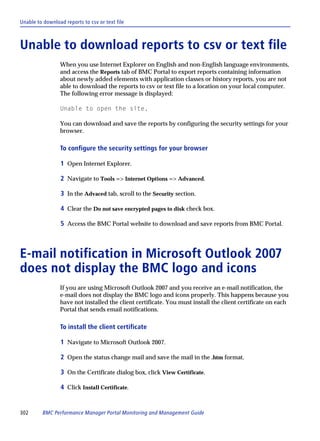


220     BMC Performance Manager Portal Monitoring and Management Guide
BMC Performance Manager Portal as a CMDB Provider


BMC Performance Manager Portal as a CMDB Provider
         When you add an element to the Portal, the application classes that you select
         determine what information is placed into the BMC Atrium CMDB. If the selected
         application classes contain information to generate the required details, including the
         reconciliation tokens, the Portal adds the CI and its relationships to other CIs to the
         BMC.BPM dataset in the BMC Atrium CMDB. The CI also includes impact
         relationships, which you can see if you have added the BMC SIM CMDB extensions
         to the BMC Atrium CMDB. For information about configuring SIM extensions, see
         the BMC Impact Solutions Planning and Installation guide.

         After you add infrastructure elements to the account, a reconciliation program enters
         the element properties into the BMC.ASSET dataset in the BMC Atrium CMDB. The
         reconciliation is a scheduled task that runs on the BMC Atrium CMDB, generally
         once a day. Any events triggered for an application class are not populated with a
         reconciliation ID until after reconciliation occurs. If you do not want to wait for the
         scheduled reconciliation task, you can use the BMC Remedy User program to
         manually reconcile the element properties.

         The Properties page for an infrastructure element shows the reconciliation status for
         the element under BMC Atrium CMDB Status.


Reconciliation rules for infrastructure elements and the BMC
Atrium CMDB
         To reconcile data from the BMC Performance Manager Portal, the reconciliation
         program uses reconciliation rules. In addition to configuring the BMC Remedy AR
         System Server properties in the Portal, you must also import the reconciliation rules.
         Without reconciliation rules, the Portal does not add any information to the BMC
         Atrium CMDB, and it writes an error to the log file.

         To import reconciliation rules into the BMC Atrium CMDB

         1 Verify if you have:

           s   arimportcmd.exe under BMC Remedy AR System, in the
               ARBASEAR SystemAdmin directory

               or

           s   DataImport.bat under the ARBASEARSystemdataimporttool directory.


                                                Chapter 7   Portal events and data integration   221
Reconciliation rules for infrastructure elements and the BMC Atrium CMDB


                          NOTE
                   To run the DataImport.bat file, you must install dataimporttool on the computer.


                   ARBASE represents the root installation directory for the Remedy components.

                 2 Depending on your setup, enter either of the following commands for each of the
                   required files (Table 23 on page 222 describes the options’ variables):

                   arimportcmd -x server -u userName -p password -a tcpPort -o fileName -l logFile -e 179
                   -D 4

                   or

                   dataImport -x server -u userName -p password -a tcpPort -o fileName -l logFile -e 179 -D 4

                Table 23     Variables for arimportcmd or dataImport command (part 1 of 2)
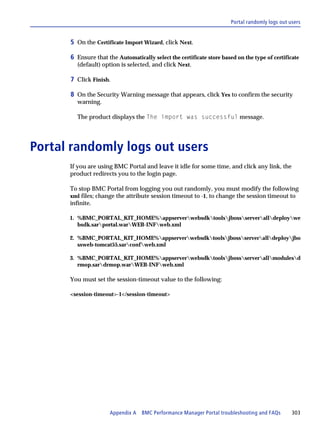
                 Variable            Description
                 server              host name for the BMC Atrium CMDB server
                 userName            user name to log on to the BMC Atrium CMDB
                 password            password that authenticates the user name
                 tcpPort             TCP port number for the server

                                     This value is important when there are multiple servers in an
                                     environment. This option identifies a TCP specific port, if chosen. If the
                                     value is 0, you can omit this option.


222      BMC Performance Manager Portal Monitoring and Management Guide
Reconciliation rules for infrastructure elements and the BMC Atrium CMDB


Table 23     Variables for arimportcmd or dataImport command (part 2 of 2)
Variable              Description
fileName              full path and file name of the file being imported

                      You must execute the arimportcmd or dataimport command on the
                      following set of files (in the following order):

                      Set 1: dataset.arx, which imports the dataset definition

                      Set 2: Any of the reconciliation rules, depending upon the CMDB version
                      that you have.

                      Note:

                      Import any one of the following files depending upon your CMDB
                      version. Do not import all the three files:

                       s   reconrules21.arx (if you have CMDB 2.1)
                       s   reconrules75.arx (if you have CMDB 7.5)
                       s   reconrules76.arx (if you have CMDB 7.6)

                      You can find these files at the following location on the Portal application
                      server:

                       s   On Windows:
                           %BMC_PORTAL_KIT_HOME%appserverutilBPM_CMDB

                       s   On Solaris:
                           $BMC_PORTAL_KIT_HOME/appserver/util/BPM_CMDB
logFile               full path and file name of the optional log file


     NOTE
Do not change values of the -D 4 (duplicate ID) and -e 179 (duplicate field) variables.

 s   -D refers to duplicate ID. It defines how the BMC Remedy AR System processes the
     records that contain request IDs, which duplicate those already in the form.
     Option 4 updates the old record with the new record’s data.

 s   -e refers to duplicate field. It refers to the ID number of the field to check for duplicate
     data. Option 179 refers to the instance ID.


                                              Chapter 7   Portal events and data integration        223
Service Model integration


Service Model integration
                 How you provide infrastructure object data for service models depends on whether
                 you have BMC Atrium CMDB installed.

                 s   When you have BMC Atrium CMDB installed, you can configure the Portal to add
                     infrastructure CIs into the BMC Atrium CMDB. When the CIs are reconciled, you
                     can create service models. To implement this method, you need the BMC Atrium
                     CMDB and the BMC Impact Solutions kit.

                 s   If you do not have the BMC Atrium CMDB in place, you can configure the Portal to
                     send impact relationships for infrastructure object data directly to the cell. The
                     impact relationships define the infrastructure relationships in the service model.
                     To implement this method, you need the BMC Impact Solutions kit.

                 To configure the Portal to provide infrastructure data for service models

                 1 Log on to the Portal with Portal administrator credentials, and select the Portal tab.

                 2 In the navigation pane, select Global Properties.

                 3 On the Global Properties page, perform one of the following actions:

                     s   To configure the Portal to send CIs to the BMC Atrium CMDB, specify the
                         settings under BMC Atrium Configuration Management Database Settings.

                     s   To configure the Portal to send impact relationships for the service model,
                         specify the settings under Direct Service Model Integration.

                     The settings under Direct Service Model Integration take effect if you clear the text
                     boxes in the BMC Atrium Configuration Management Database Settings section.

                 Figure 30 provides a high-level view of the methods you can use to provide
                 infrastructure object data for service models.


224      BMC Performance Manager Portal Monitoring and Management Guide
Service Model integration


Figure 30     Simplified view of service model integration methods from the Portal


     Portal                 CIs


                                                          CMDB


     Portal
                            object models


                                                          Impact Manager
                                                               (cell)

Following direct service model integration configuration, whenever you add an
element to the Portal and apply application classes that are enabled for BMC Atrium
CMDB integration, the Portal sends the infrastructure object data required for the
service model to the cell.

For information about adding service components to a service model or monitoring
service components, see the BMC Impact Solutions: Service Model Administrators Guide.


                                            Chapter 7   Portal events and data integration    225
Event integration


Event integration
                        The BMC Performance Manager Portal sends events when

                        s    an agentless parameter changes state (state change events)
                        s    the RSM changes state (general system problems events)

                        When configuring notifications for provider-wide notifications, you can specify the
                        transports shown in Figure 31 to integrate state changes or general system problems
                        events with other products.

Figure 31          BMC Performance Manager Portal event integration

                  BMC Performance                                                                                      PATROL Enterprise
                  Manager Portal         SNMP event                                                                    Manager (PEM)
                  (Portal)                            third-party SNMP manager              connectSNMP
                                                      (Tivoli, for example)
                                                                                                               provides enterprise-wide event
                                                                                                               consolidation and management for
                                                                                                               PATROL environments
                                          email
                                                                                                - email
                                                       AlarmPoint by AlarmPoint                 - page
                                                       Systems                                  - voice mail
                   Remote Service                                                               - SNMP event
                   Monitor                                                                                        Impact Integration for PEM


                                                            Impact Integration Web
            detects condition on
                                                            Services
            monitored system and
            sends event to the Portal


                                                                                  BMC Service Impact                  BMC Event Manager
                                                                                  Manager

          BMC Performance Managers
                                                                       shows real-time impact of IT            filters and correlates events and
                                                                       problems on IT and business             automates corrective action
                                                                       services


                                                                              BMC Impact
 Legend
                   event flow
                                                                       (Java-based console) manages
                   viewable event data                                 events and event policies


Event integration using email notifications
                        You can configure notification rules that send event email messages to named
                        recipients. Email messages provide a subset of the information passed in the event.
                        They are not structured, which limits their use to simple integrations.


226          BMC Performance Manager Portal Monitoring and Management Guide
Event integration using SNMP traps


Event integration using SNMP traps
        When logged on as a user or provider administrator, you can configure the Portal to
        send SNMP traps to one or more computers. SNMP traps can be used to integrate
        with BMC Software event managers and third-party event managers.

        This transport method supports status change and general system problems events.
        When configuring status change notification rules, you can select Element and
        Parameter as the object type.

        The Portal sends traps when the following events occur for any infrastructure object
        in the account:

        s   a parameter changes state
        s   an infrastructure element changes state
        s   an RSM changes state

        When configuring user notification rules for SNMP traps, you can specify the type of
        threshold violations, the circumstances under which the Portal should send the trap,
        and the time to wait after the event occurs before sending the trap.

        The MIB extensions used by the Portal enable you to translate the information
        contained in the Portal traps for use with other products. MIB files map numeric
        object identifiers (OIDs) (such as 1.3.6.1.4.11) used by most SNMP queries into more
        meaningful names (and vice versa). MIB files are extensible, and most hardware and
        software companies define their MIBs as extensions of some universal industry-
        standard MIB file. The Portal MIB files support SNMP traps, versions 1 and 2. See
        page 243 for more information.

        s   When a parameter or element value violates a rule that triggers a user notification
            trap, that trap has a bmcPMPortalNotificationType of 2.

        s   When an element value or RSM state triggers the Portal to send an enterprise-wide
            SNMP trap, that trap has a bmcPMPortalNotificationType of 1.

        If you configure provider-level notification rules that use the SNMP transport, you
        might not want to have user-level notification rules that also use the SNMP transport
        (and send notifications to the same target computers). When you have both types
        configured, the Portal sends two notifications for each event.

        For information about configuring the Portal to send SNMP traps, see “SNMP traps”
        on page 236.


                                                Chapter 7   Portal events and data integration   227
Event integration using AlarmPoint


Event integration using AlarmPoint
                 If you have AlarmPoint installed, you can configure the Portal to send notifications to
                 AlarmPoint. When administrators create AlarmPoint notifications from the Provider
                 tab or when users create AlarmPoint notifications from the Configure tab, the Portal
                 can send parameter, element, and general system problem events to the designated
                 AlarmPoint server.

                 Before users or provider administrators can create notification rules for AlarmPoint, a
                 Portal administrator must use the Global Properties page to configure the Portal for
                 AlarmPoint integration. By using scripts provided on the installation DVD and CD1
                 for your Portal operating system, you can use the Notifications task to configure the
                 Portal to send events to an AlarmPoint server. See the BMC Portal Getting Started
                 guide for detailed procedures about how to configure AlarmPoint integration.

                 If you configure provider-level notification rules that use the AlarmPoint transport,
                 you might not want to have user-level notification rules that also use the AlarmPoint
                 transport. When you have both types configured, the Portal sends two notifications
                 for each event.


Event integration using BMC II Web Services
                 When logged on as a user or provider administrator, you can configure notification
                 rules for the Portal to send notifications to BMC Impact Manager (BMC IM) through
                 the BMC Impact Integration Web Services server (BMC II Web Services). BMC II Web
                 Services maps parameter-level notifications from the Portal in the event format for
                 BMC Impact Manager solutions.

                 The Portal can use an insecure or secure web-based connection to send events to the
                 BMC II Web Services server.


                 Configuring the Portal to send data to a BMC II Web
                 Services server
                 When logged on as an administrator for a provider, you can configure the Portal to
                 send notifications to the primary BMC II Web Services server. If the BMC II Web
                 Services server was configured for high availability (HA), you can also specify a
                 secondary BMC II Web Services server. The Portal always tries to send events to the
                 computer identified as the primary BMC II Web Services server. When the Portal
                 cannot connect to the primary server, it tries the secondary BMC II Web Services
                 server, if one is specified. For more information about configuring a BMC II Web
                 Services server for HA, see the BMC Impact Integration Web Services Server Installation
                 and Configuration Guide.


228      BMC Performance Manager Portal Monitoring and Management Guide
Event integration using BMC II Web Services


Configuring secure event integration with BMC Impact
Solutions
These guidelines summarize the main tasks of sending events securely between the
BMC Portal and BMC II Web Services.

s   For secure communications between the BMC Portal and the BMC II Web Services
    Server in a development or testing environment, generate a self-signed public key
    and self-signed private key. The BMC Impact Integration Web Services Installation and
    Configuration Guide describes how to generate these keys.

s   For secure communications in a production environment, obtain a signed
    certificate from a certificate authority. See the BMC Impact Integration Web Services
    Server Installation and Configuration Guide for information about obtaining a
    certificate from a certificate authority.

To enable and configure secure communications using a self-signed certificate
between the Portal application server and the BMC II Web Services Server, perform
the following actions:

1. Import a secure certificate from the BMC II Web Services Server into the Portal
   application server.

    For information about importing the certificate, see “Importing the certificate for
    the BMC II Web Services Server.”

2. Log on to the Portal with administrator credentials and configure the BMC II Web
   Services Server to which the Portal will send events.

    To specify secure communications, select Use HTTPS. See the BMC Portal Help for
    detailed instructions.

3. While logged on as an administrator, select the Provider tab and add a notification
   rule that uses the BMC II Web Services transport.

    See the BMC Portal Help for detailed instructions.


Importing the certificate for the BMC II Web Services
Server
To configure secure communications between the Portal and the BMC II Web
Services Server, you must select Use HTTPS when specifying the BMC II Web Services
Server and BMC IM. See the BMC Portal Help for detailed information about
specifying the BMC II Web Services Server.


                                         Chapter 7    Portal events and data integration    229
Event integration using BMC II Web Services


                 In addition to using the Portal interface to specify the BMC II Web Services Server,
                 you also must import the SSL certificate for the BMC II Web Services Server to the
                 Portal application server.

                 To import the BMC II Web Services secure certificate to the Portal application
                 server

                 1 Copy the secure certificate file from the BMC II Web Services Server to the Portal
                    application server.

                 2 Locate the Keytool utility in one of the following directories:

                    s   On Windows: %BMC_PORTAL_KIT_HOME%/appserver/websdk/tools/jdk/jre/bin
                    s   On Solaris: $BMC_PORTAL_KIT_HOMEappserverwebsdktoolsjdkjrebin

                 3 Type the following command:

                    Keytool -import -file directoryiiwscertificate.cer -keystore directorycacerts

                    You can find cacerts in one of the following directories:

                    s   On Windows:
                        %BMC_PORTAL_KIT_HOME%/appserver/websdk/tools/jdk/jre/lib/security

                    s   On Solaris:
                        $BMC_PORTAL_KIT_HOMEappserverwebsdktoolsjdkjrelibsecurity

                 4 At the Enter keystore password prompt, type changeit.

                 5 At the Trust this certificate password prompt, select yes.

                 6 Restart the Portal application server.


230      BMC Performance Manager Portal Monitoring and Management Guide
Event integration using BMC II Web Services


Using default insecure event integration with BMC Impact
Solutions
To enable and configure insecure communications between the Portal application
server and the BMC II Web Services Server, perform the following actions:

1. Log on to the Portal with administrator credentials and configure the BMC II Web
   Services Server to which the Portal will send events.

  Ensure that you do not select Use HTTPS. See the BMC Portal Help for detailed
  instructions.

2. While logged on as an administrator, select the Provider tab and add a notification
   rule that uses the BMC II Web Services transport.

  See the BMC Portal Help for detailed instructions.


BMC Impact solutions base event class
BMC Impact Solutions have a base event class that defines the content of the events
(called slots) that the BMC Impact Manager cell can process. The base event class slots
listed in Table 24 represent the content of the event as it progresses from the BMC
Performance Manager Portal to the BMC Impact Manager cell. The BMC II Web
Services Server and the BMC Impact Solutions also populate additional slots, such as
mc_arrival_time (the time stamp of the event arrival at the BMC Impact Solutions
network).

Table 24   Slot names in the base event class populated for the Portal (part 1 of 2)a
Slot                            Description
adapter_host                    the server name for the BMC Portal server
CLASS                           the type of event being generated
                                (PORTAL_PARAMETER_STATE_CHANGE,
                                PORTAL_RSM_STATE_CHANGE for RSM state changes)
mc_host                         the host name of the managed element
mc_host_address                 the IP address associated with the managed element
mc_host_class                   the type of element (for example, Solaris)
mc_incident_time                the time of the event
mc_object                       the instance or application class (if no instance exists)
mc_object_class                 the qualified hierarchy for the object (including parent
                                instance and application classes separated by | as a
                                delimiter; for example: Windows 2003-Using
                                Perfmon|Disk)
mc_origin                       the assigned name for the RSM that reported the event
mc_origin_class                 the literal value: BPMPV2


                                       Chapter 7    Portal events and data integration      231
Event integration using BMC II Web Services


                 Table 24     Slot names in the base event class populated for the Portal (part 2 of 2)a
                 Slot                                Description
                 mc_origin_key                       an internal identifier for the event (GUID)
                 mc_origin_sev                       severity (same as the severity slot)
                 mc_parameter                        the parameter name
                 mc_parameter_value                  the value that caused the event
                 mc_smc_alias                        the internal identifier (GUID) of the nearest parent
                                                     application instance that has a mapping to a CMDB CI
                                                     (always the same object referenced by mc_smc_id)
                 mc_smc_id                           the CMDB reconciliation ID of the nearest parent
                                                     application instance which has a mapping to a CMDB CI
                 mc_tool                             the server name for the BMC Portal server
                 mc_tool_class                       the literal value: BMC Portal Server
                 msg                                 a text description of the event
                 severity                            the severity of the event (Info, Warning, Critical)
                 a
                     For more information about the slots in the base event class, see the BMC Impact Manager
                     Knowledge Base Reference Guide.


                 In addition to the common slots in the base event class, the Portal uses the
                 PATROL_Portal event class to provide extended slots for event content from the
                 Portal. Because the slots in the PATROL_Portal event class extension, shown in
                 Table 25, are subject to change with emerging event-integration technology,
                 automated processes such as event filtering by BMC Service Impact Manager or BMC
                 Event Manager could also change in the future.

                 Table 25     PATROL_Portal event class extensions
                 PATROL_Portal slots                 Description
                 patrolAccountName                   the account associated with the event
                 patrolGroupName                     the parent groups that contain the element associated with
                                                     the event
                 patrolElementName                   the display name of the managed element
                 patrolParameterErrorCode error code
                 patrolParameterThreshold the threshold value breached


232      BMC Performance Manager Portal Monitoring and Management Guide
Combining BMC Performance Manager and PATROL Agent events


Combining BMC Performance Manager and PATROL Agent
events
       This section describes situations in which duplicate events are sent to BMC PATROL
       Enterprise Manager (BMC PATROL EM) when you use multiple event management
       technologies to monitor the same systems. You can encounter this situation when you
       introduce agentless monitoring in an environment that uses PATROL Agents to
       monitor and manage infrastructure.

       s   “Using PATROL integration Performance Managers with PATROL Agent-based
           monitoring” describes how you can trigger two comparable events from a single
           threshold breach.

           Not all events that the PATROL Agent generates are available in the Portal.
           Custom events generated by PATROL KMs or PATROL integration Performance
           Managers using event triggers are available in the Portal, but to be usable by an
           event manager, they must be sent from the PATROL Agent to BMC PATROL EM.
           Also, only a subset of the parameters from PATROL KMs are available in the
           Portal because of fundamental technical differences between the product
           architectures.

       s   “Overlapping agentless and agent-based monitoring” on page 234 describes how
           you can trigger two distinct events for one threshold breach.


       Using PATROL integration Performance Managers with
       PATROL Agent-based monitoring
       Duplicate events can occur when you use PATROL Agent-based management on a
       computer and also use PATROL integration Performance Managers to remotely
       monitor the same applications on the same computer. PATROL integration
       Performance Managers contain many of the parameters found in their corresponding
       KMs and obtain their parameter values from the PATROL Agent. When one of these
       common parameters breaches one of its thresholds, an event is triggered by the Portal
       and another one is triggered by the PATROL Agent.

       Figure 32 on page 234 shows how a "disk full" event detected independently by each
       management system creates duplicate events for a single parameter.


                                              Chapter 7   Portal events and data integration   233
Combining BMC Performance Manager and PATROL Agent events


               Figure 32   Two comparable events from one threshold breach


                                                 BMC PATROL EM

                                disk full                                    disk full


                                                                        existing
                                            Portal
                                                                      integration
                                                                            PATROL Agent-based
                                                                            Management


                                               PATROL integration
                                               Performance Managers
                                               (remote management)

                                                                                    managed server


               Overlapping agentless and agent-based monitoring
               Similar events can occur when you use PATROL Agent-based management to
               manage a computer and also use the agentless Performance Managers in the Portal to
               remotely monitor the same computer. In the scenario shown in Figure 33 on page 235,
               the agentless Performance Managers contain parameters that the PATROL KMs,
               running on the agent, also monitor. This situation results in events that, while very
               similar, are not the same.

               Figure 33 on page 235 illustrates the event flow that results from overlapping
               monitoring. In the example, the disk events are sent by both management
               components and have similar, but not identical, information about the computer,
               based on a single threshold breach.


234     BMC Performance Manager Portal Monitoring and Management Guide
Combining BMC Performance Manager and PATROL Agent events


Figure 33    Sample agentless and agent-based events sent from the Portal


                                   BMC PATROL EM

                 disk event                                 disk event


                                                        existing
                          Portal                      integration
                                                             PATROL Agent-based
                                                             management


                              agentless Performance
                              Managers


                                                                    managed server


A solution Performance Manager that is monitoring the same parameters as an agent-
managed server might have a threshold exception at the same time as a PATROL KM.
As the example in Figure 33 shows, this causes duplicate events to be sent to the BMC
PATROL EM event manager for a single parameter’s threshold breach—one from the
agent side and another from the Portal side. Unlike the example in Figure 32 on
page 234, the application class, parameters, and instances are different from those in
the PATROL KM.


How to avoid duplicate events
To eliminate duplicate state change events, you can use the following options:

s   Use the Notifications task to exclude notifications sent from systems in which you
    have configured PATROL integration Performance Managers.

s   Correlate the duplicate events in an event manager such as BMC PATROL EM,
    BMC EM, or a third-party product.

s   Deactivate one of the parameter thresholds in either the BMC Performance
    Manager Portal or the PATROL Agent. This action results in losing the ability to
    monitor the deactivated threshold.


                                             Chapter 7   Portal events and data integration   235
SNMP traps


SNMP traps
              The BMC-Performance-Manager-Portal-MIB provides the following traps:

              s   Parameter State Change
              s   RSM State Change
              s   Element State Change

              Although related, these traps have different meanings. The Portal triggers Parameter
              State Change traps when the status of a parameter changes. Not all Parameter State
              Changes result in a state change for the element. When a Parameter State Change also
              affects the state of the element, the Portal also triggers an Element State Change trap.

              If you choose to receive notification when a general system problem occurs, the Portal
              will trigger an RSM State Change event if it fails to receive a heartbeat message from
              the RSM.

              When configuring enterprise integration and user notification integration, you can
              choose to use SNMP version 1 or SNMP version 2 traps.


                   TIP
              To change the maximum number of parameters that the Portal can send in a trap, modify the
              value of the snmp.max.parameter.events.to.process property. For more information about
              this property, see page 339.


MIB files
              The BMC Performance Manager Portal module provides MIBs that you can use to
              translate SNMP traps sent from the product.

              s   WEBSDKV10-MIB— For more information about this MIB, see the BMC Portal
                  Getting Started guide.

              s   BMC-Performance-Manager-Portal-MIB—If you install the BMC Performance
                  Manager Portal module, this MIB defines all SNMP events from this module.

              On the BMC Portal installation DVD, you can find the MIB files under the
              utilBPM_MIB (Windows) or util/BPM_MIB (Solaris) directory.


236     BMC Performance Manager Portal Monitoring and Management Guide
Object identifiers (OIDs)


         Following installation, you can find the MIB files at the following locations on the
         Portal application server:

         s   On Windows: %BMC_PORTAL_KIT_HOME%appserverutilBPM_MIB
         s   On Solaris: $BMC_PORTAL_KIT_HOME/appserver/util/BPM_MIB


Object identifiers (OIDs)
         OIDs are used by SNMP queries to identify individual pieces of data and are
         identified in the MIB file. Figure 34 provides an overview of the general structure of a
         BMC Performance Manager Portal OID.

         Figure 34          OID structure in BMC-Performance-Manager-Portal-MIB
         . 1 . 3 . 6 . 1 . 4 . 1 . 1031 . 5 . { 0 | 1 } . { 1–3 | 1–n } . [0...n]

                 indicates that the trap originated
                 from a BMC Software product
                                                                             If the previous digit is 0, the possible
                                                                             values for this digit are 1, 2, or 3.
         A value of 5 in this position indicates that the OID is from
         the BMC-Performance-Manager-Portal-MIB.
                                                                             If the previous digit is 1, the possible
                                                                             values for this digit are 1–n.
         A value of 7 indicates that the OID is from the
         WEBSDK10-MIB. See BMC Portal Getting Started.

                                    indicates the type of value that this OID represents:       This number increments for
                                    0 represents notification                                   nodes that contain multiple
                                    1 represents object                                         instances for an OID.


                                                                           Chapter 7          Portal events and data integration             237
Parsing SNMP traps


Parsing SNMP traps
                Although the property OIDs in SNMP version 1 and version 2 are the same, the
                version of SNMP version that you use has an effect on the following OIDs:

                s    .1.3.6.1.2.1.1.3.0: This OID is identified as time ticks, and represents the Portal up
                     time.

                s    .1.3.6.1.6.3.1.1.4.1.0: The value of this OID is another OID that identifies the type of
                     trap. This trap identifier OID looks like .1.3.6.1.4.1.1031.X.0.Y.0, where

                     — X identifies the source of the trap. The valid value for the BMC Performance
                       Manager Portal is 5.

                     — Y identifies the type of notification. Valid values are 1, 2, and 3.

                       s   1: Parameter State Change
                       s   2: RSM State Change
                       s   3: Element State Change

                Version 1 traps include some additional header information that is not included in
                version 2 traps. The version 1 header information includes a generic type, a sender
                OID, and a specific type field. For traps generated from the BMC Performance
                Manager Portal, the generic type is always 6 (enterprise-specific event). The specific
                type identifies the type of notification. Valid values are 1, 2, and 3:

                s    1: Parameter State Change
                s    2: RSM State Change
                s    3: Element State Change

                The specific type field in the header of version 1 traps and the value corresponding to
                OID .1.3.6.1.6.3.1.1.4.1.0 in version 2 traps enable you to determine the trap type, and
                then filter or process the trap content as needed.


238     BMC Performance Manager Portal Monitoring and Management Guide
BMC-Performance-Manager-Portal-MIB description


BMC-Performance-Manager-Portal-MIB description
                     This MIB defines the event traps sent from the BMC Performance Manager Portal.
                     Table 26 describes each OID in an event trap.

Table 26     BMC-Performance-Manager-Portal-MIB (part 1 of 5)
OID                           Type         Index   Node name and description
.1.3.6.1.2.1.1.3.0            time ticks           represents the up time for the Portal
bmcPMPortalNotifications (.1.3.6.1.4.1.1031.5.0)
.1.3.6.1.4.1.1031.5.0.1                            bmcPMPortalParameterStateChange

                                                   parameter state change notification

                                                   Each state change contains the following nodes:
                                                    s bmcPMPortalAccountName
                                                    s bmcPMPortalGroupName
                                                    s bmcPMPortalHostName
                                                    s bmcPMPortalApplicationName
                                                    s bmcPMPortalApplicationInstanceName
                                                    s bmcPMPortalParameterName
                                                    s bmcPMPortalParameterValue
                                                    s bmcPMPortalParameterState
                                                    s bmcPMPortalDetectedTimeUtcStr
                                                    s bmcPMPortalRsmName
                                                    s bmcPMPortalElementName
                                                    s bmcPMPortalParameterErrorCode
                                                    s bmcPMPortalParameterThresholdValue
                                                    s bmcPMPortalDetectedTime
                                                    s bmcPMPortalRsmClusterName
                                                    s bmcPMPortalNotificationType
                                                    s bmcPMPortalApplicationHierarchy

.1.3.6.1.4.1.1031.5.0.2                            bmcPMPortalRsmStateChange

                                                   RSM state change notification (from up to down or from down
                                                   to up)

                                                   Each state change contains the following nodes:
                                                    s bmcPMPortalAccountName
                                                    s bmcPMPortalHostName
                                                    s bmcPMPortalDetectedTimeUtcStr
                                                    s bmcPMPortalRsmName
                                                    s bmcPMPortalRsmState
                                                    s bmcPMPortalDetectedTime
                                                    s bmcPMPortalRsmClusterName
                                                    s bmcPMPortalRsmClusterState
                                                    s bmcPMPortalNotificationType


                                                              Chapter 7   Portal events and data integration   239
BMC-Performance-Manager-Portal-MIB description


Table 26     BMC-Performance-Manager-Portal-MIB (part 2 of 5)
OID                         Type          Index   Node name and description
.1.3.6.1.4.1.1031.5.0.3                           bmcPMPortalElementStateChange

                                                  element state change notification

                                                  Each state change trap contains the following nodes:
                                                   s bmcPMPortalAccountName
                                                   s bmcPMPortalGroupName
                                                   s bmcPMPortalHostName
                                                   s bmcPMPortalApplicationName
                                                   s bmcPMPortalApplicationInstanceName
                                                   s bmcPMPortalParameterName
                                                   s bmcPMPortalParameterValue
                                                   s bmcPMPortalParameterState
                                                   s bmcPMPortalDetectedTimeUtcStr
                                                   s bmcPMPortalRsmName
                                                   s bmcPMPortalElementName
                                                   s bmcPMPortalElementState
                                                   s bmcPMPortalParameterErrorCode
                                                   s bmcPMPortalParameterThresholdValue
                                                   s bmcPMPortalDetectedTime
                                                   s bmcPMPortalRsmClusterName
                                                   s bmcPMPortalNotificationType
                                                   s bmcPMPortalApplicationHierarchy

bmcPMPortalObjects (.1.3.6.1.4.1.1031.5.1)
.1.3.6.1.4.1.1031.5.1.1     string (300           bmcPMPortalAccountName
                            characters)
                                                  name of the account that contains the element that triggered
                                                  the notification

                                                  A trap can contain only one account name, and the account
                                                  name is unique in the provider.

                                                  For general system problems traps, this string contains

                                                  s   Shared when a problem occurs on a shared RSM
                                                  s   Global when a problem occurs on a global RSM
                                                  s   the account name when a problem occurs on a dedicated
                                                      RSM
.1.3.6.1.4.1.1031.5.1.2.x   string (300 yes       bmcPMPortalGroupName
                            characters)
                                                  name of the group or groups that contains the element that
                                                  triggered the notification

                                                  Elements can be members of more than one group, and all
                                                  affected groups are included in the notification.


240        BMC Performance Manager Portal Monitoring and Management Guide
BMC-Performance-Manager-Portal-MIB description


Table 26     BMC-Performance-Manager-Portal-MIB (part 3 of 5)
OID                         Type          Index   Node name and description
.1.3.6.1.4.1.1031.5.1.3     string (255           bmcPMPortalHostName
                            characters)
                                                  host name or IP address of the object that triggered the
                                                  notification

                                                  This value might be the host name or IP address of the element
                                                  or of the RSM.
.1.3.6.1.4.1.1031.5.1.4.x   string (64 yes        bmcPMPortalApplicationName
                            characters)
                                                  application class responsible for triggering the notification

                                                  The application name is not necessarily unique on an element,
                                                  and the trap can contain multiple application names.
.1.3.6.1.4.1.1031.5.1.5.x   string (810 yes       bmcPMPortalApplicationInstanceName
                            characters)
                                                  instance in the application class that is responsible for
                                                  triggering the notification

                                                  Application instances are unique in an application class but
                                                  are not required to be unique among application classes.

                                                  This OID is populated for instances in multiple-instance
                                                  application classes and discovered instances.
.1.3.6.1.4.1.1031.5.1.6.x   string (255 yes       bmcPMPortalParameterName
                            characters)
                                                  parameter that triggered the notification

                                                  Parameter names are unique in an application instance but
                                                  might not be unique among application classes. The trap can
                                                  contain multiple parameter names.
.1.3.6.1.4.1.1031.5.1.7.x   string (128 yes       bmcPMPortalParameterValue
                            characters)
                                                  parameter value that triggered the notification

                                                  The trap contains a parameter value for each parameter that
                                                  triggered a notification.
.1.3.6.1.4.1.1031.5.1.8.x   integer       yes     bmcPMPortalParameterState

                                                  parameter state that triggered the notification:
                                                   s 0: OK
                                                   s 1: warning
                                                   s 2: noncriticalalarm
                                                   s 3 criticalalarm


                                                  Multiple parameter states are possible.


                                                              Chapter 7   Portal events and data integration      241
BMC-Performance-Manager-Portal-MIB description


Table 26     BMC-Performance-Manager-Portal-MIB (part 4 of 5)
OID                          Type          Index   Node name and description
.1.3.6.1.4.1.1031.5.1.9      string (255           bmcPMPortalDetectedTimeUtcStr
                             characters)
                                                   time (formatted) at which the event that triggered the
                                                   notification occurred
.1.3.6.1.4.1.1031.5.1.10     string (255           bmcPMPortalRsmName
                             characters)
                                                   name of the RSM that detected the state change
.1.3.6.1.4.1.1031.5.1.11     integer               bmcPMPortalRsmState

                                                   current state of the RSM:
                                                    s 0: up
                                                    s 3: down

.1.3.6.1.4.1.1031.5.1.13     string (300           bmcPMPortalElementName
                             characters)
                                                   name of the monitored element that triggered the notification
.1.3.6.1.4.1.1031.5.1.14.x   string (255 yes       bmcPMPortalParameterErrorCode
                             characters)
                                                   Performance Manager-specific code that describes the
                                                   condition that triggered the notification

                                                   See “Trap error codes” on page 246.

                                                   This OID is not populated if the error does not have an error
                                                   code.
.1.3.6.1.4.1.1031.5.1.15     integer               bmcPMPortalElementState

                                                   state of the element after the State Change Event:
                                                    s 0: OK
                                                    s 1: warning
                                                    s 2: noncriticalalarm
                                                    s 3: criticalalarm
                                                    s 4: nodata

.1.3.6.1.4.1.1031.5.1.17.x   string (256 yes       bmcPMPortalParameterThresholdValue
                             characters)
                                                   parameter threshold value that was breached
.1.3.6.1.4.1.1031.5.1.18     number of             bmcPMPortalDetectedTime
                             milli-
                             seconds               number of milliseconds since January 1, 1970, that the
                             (64                   Parameter or Element State Change occurred
                             characters)
.1.3.6.1.4.1.1031.5.1.19     string (225           bmcPMPortalRsmClusterName
                             characters)
                                                   name of the clustered RSM

                                                   If the RSM is not clustered, this value is blank.


242        BMC Performance Manager Portal Monitoring and Management Guide
Trap properties customization


Table 26    BMC-Performance-Manager-Portal-MIB (part 5 of 5)
OID                        Type          Index   Node name and description
.1.3.6.1.4.1.1031.5.1.20   integer               bmcPMPortalRsmClusterState

                                                 current state of the clustered RSM:

                                                  s   0: up
                                                  s   1: warn
                                                  s   3: down

                                                 If the RSM is not clustered, this value is blank.
.1.3.6.1.4.1.1031.5.1.21   integer               bmcPMPortalNotificationType

                                                 feature origin of the event:
                                                  s 1: enterpriseIntegration
                                                  s 2: userNotification


                                                 If you configure both enterprise integration and user
                                                 notification, in many instances the Portal will send duplicate
                                                 traps for a single event. Use the
                                                 bmcPMPortalNotificationType object to parse the origin of
                                                 the event.
.1.3.6.1.4.1.1031.5.1.22   string                bmcPMPortalApplicationHierarchy
                           (8192
                           characters)           specifies the full hierarchy of the application instance
                                                 responsible for the parameter that caused the state change

                                                 Application instances are separated by delimiters so that you
                                                 can easily determine multiple levels of application instances
                                                 and the exact parameter that caused the state change.
.1.3.6.1.4.1.1031.5.1.23   string (255           bmcPMPortalEventReason
                           characters)
                                                 provides a detailed description about the problem that caused
                                                 the event


Trap properties customization
                 This section describes some of the properties that you can change to affect the trap
                 header or trap content. You customize trap properties by modifying the
                 internal.properties file, which is located in the following directories:

                 s   On Windows: %BMC_PORTAL_KIT_HOME%
                     appserverwebsdktoolsjbossserverallconfproperties

                 s   On Solaris:
                     $BMC_PORTAL_KIT_HOME/appserver/websdk/tools/jboss/server/all/conf/properties/


                                                             Chapter 7   Portal events and data integration     243
Trap properties customization


                 #################################################
                 # SNMP Trap Version, possible values are 1 or 2 #
                 #################################################
                 # default is snmp v1.
                 snmp.trap.version=1
                 snmp.trap.max.recv.size=13000


                For changes to take effect, you must restart the Portal after modifying the
                internal.properties file.


                Changing the SNMP trap version sent by the Portal
                By default, the Portal sends SNMP traps in SNMP version 1 format. To change to
                version 2, modify the value of the snmp.trap.version property.


                Changing the SNMP trap size for the Portal
                By default, the Portal can transmit traps as large as 1,300 bytes. To increase the trap
                size that the Portal can send, modify the value of the snmp.trap.max.recv.size property.


244      BMC Performance Manager Portal Monitoring and Management Guide
Sample trap


Sample trap
                  Figure 35 provides an example of an enterprise integration trap (identified by the
                  bmcPMPortalNotificationType node) for an Element State Change event. The
                  highlighted regions show the OIDs and their corresponding values. The annotations
                  describe the OIDs.

Figure 35     Sample trap for an Element State Change event (part 1 of 2)
 Trap(v1) received from host snmp_server.acme.com(172.18.52.17) at Apr 6, 2006 12:21 PM.
 Enterprise Oid : .1.3.6.1.4.1.1031.5 (.iso.org.dod.internet.private.enterprises.1031.5) , Specific
 Type : 3,
                                                               account name: The trap can contain only one account.
 Object ID: .1.3.6.1.4.1.1031.5.1.1.0 (.iso.org.dod.internet.private.enterprises.1031.5.1.1.0)
 STRING: Acme
 Object ID: .1.3.6.1.4.1.1031.5.1.2.0 (.iso.org.dod.internet.private.enterprises.1031.5.1.2.0) event
                                                                object group name: The element that triggered the
 STRING: mygroup1                                               was a member of two object groups.
 Object ID: .1.3.6.1.4.1.1031.5.1.2.1 (.iso.org.dod.internet.private.enterprises.1031.5.1.2.1)
 STRING: mygroup2
                                                               host name: An Element State Change event can contain
 Object ID: .1.3.6.1.4.1.1031.5.1.3.0 (.iso.org.dod.internet.private.enterprises.1031.5.1.3.0)
 STRING: computer1.acme.com                                    only host names, not IP addresses.

 Object ID: .1.3.6.1.4.1.1031.5.1.4.0 (.iso.org.dod.internet.private.enterprises.1031.5.1.4.0)
                                                               application name: The applications in the trap correspond to
 STRING: SSHD                                                  the parameters that triggered the notification.
 Object ID: .1.3.6.1.4.1.1031.5.1.4.1 (.iso.org.dod.internet.private.enterprises.1031.5.1.4.1)
 STRING: SSHD
 Object ID: .1.3.6.1.4.1.1031.5.1.4.2 (.iso.org.dod.internet.private.enterprises.1031.5.1.4.2)
 STRING: SSHD
 Object ID: .1.3.6.1.4.1.1031.5.1.5.0 (.iso.org.dod.internet.private.enterprises.1031.5.1.5.0)
                                                               application instance name: The instances in the trap
 STRING: com_acme-DRPM3-performance                            correspond to the parameters that triggered notification.
 Object ID: .1.3.6.1.4.1.1031.5.1.5.1 (.iso.org.dod.internet.private.enterprises.1031.5.1.5.0)
 STRING: com_acme-DRPM3-performance
 Object ID: .1.3.6.1.4.1.1031.5.1.5.2 (.iso.org.dod.internet.private.enterprises.1031.5.1.5.0)
 STRING: com_acme-DRPM3-performance
                                                                              names of parameters whose values triggered notification:
 Object ID: .1.3.6.1.4.1.1031.5.1.6.0 (.iso.org.dod.internet.private.enterprises.1031.5.1.6.0)
                                                               In this example, three parameters in the element breached
 STRING: Application Collection Status                         parameter thresholds.
 Object ID: .1.3.6.1.4.1.1031.5.1.6.1 (.iso.org.dod.internet.private.enterprises.1031.5.1.6.1)
 STRING: Banner display
 Object ID: .1.3.6.1.4.1.1031.5.1.6.2 (.iso.org.dod.internet.private.enterprises.1031.5.1.6.2)
 STRING: Port Responding
 Object ID: .1.3.6.1.4.1.1031.5.1.7.0 (.iso.org.dod.internet.private.enterprises.1031.5.1.7.0)
                                                               parameter values that triggered notification
 STRING: true
 Object ID: .1.3.6.1.4.1.1031.5.1.7.1 (.iso.org.dod.internet.private.enterprises.1031.5.1.7.1)
 STRING: SSH-1.99-OpenSSH_4.1
 Object ID: .1.3.6.1.4.1.1031.5.1.7.2 (.iso.org.dod.internet.private.enterprises.1031.5.1.7.2)
 STRING: true
 Object ID: .1.3.6.1.4.1.1031.5.1.8.0 (.iso.org.dod.internet.private.enterprises.1031.5.1.8.0) the
                                                               parameter state that triggered notification: In this trap,
 INTEGER: 0                                                    parameter states changed to 0 (OK).
 Object ID: .1.3.6.1.4.1.1031.5.1.8.1 (.iso.org.dod.internet.private.enterprises.1031.5.1.8.1)
 INTEGER: 0
 Object ID: .1.3.6.1.4.1.1031.5.1.8.2 (.iso.org.dod.internet.private.enterprises.1031.5.1.8.2)
 INTEGER: 0
                                                               time indicating when the state change occurred
 Object ID: .1.3.6.1.4.1.1031.5.1.9.0 (.iso.org.dod.internet.private.enterprises.1031.5.1.9.0)
 STRING: Thu, 6 Apr 2006 17:22:12 +0000
 Object ID: .1.3.6.1.4.1.1031.5.1.10.0 (.iso.org.dod.internet.private.enterprises.1031.5.1.10.0)
                                                                name of the RSM that detected the state change
 STRING: Main Office RSM
 Object ID: .1.3.6.1.4.1.1031.5.1.13.0 (.iso.org.dod.internet.private.enterprises.1031.5.1.13.0)
                                                                name of the element in the Portal
 STRING: computer1


                                                                  Chapter 7    Portal events and data integration                    245
Trap error codes


Figure 35     Sample trap for an Element State Change event (part 2 of 2)
 Object ID: .1.3.6.1.4.1.1031.5.1.14.0 (.iso.org.dod.internet.private.enterprises.1031.5.1.14.0)
                                                                Performance Manager-specific codes that describe the
 STRING: 98                                                     problem that triggered the event
 Object ID: .1.3.6.1.4.1.1031.5.1.14.1 (.iso.org.dod.internet.private.enterprises.1031.5.1.14.1)
 STRING: 98
 Object ID: .1.3.6.1.4.1.1031.5.1.14.2 (.iso.org.dod.internet.private.enterprises.1031.5.1.14.2)
 STRING: 98
 Object ID: .1.3.6.1.4.1.1031.5.1.15.0 (.iso.org.dod.internet.private.enterprises.1031.5.1.15.0)
                                                                state of the element after the state change
 INTEGER: 0

 Object ID: .1.3.6.1.4.1.1031.5.1.17.0 (.iso.org.dod.internet.private.enterprises.1031.5.1.17.0)
                                                                parameter threshold that was breached
 STRING: 0.0
 Object ID: .1.3.6.1.4.1.1031.5.1.17.1 (.iso.org.dod.internet.private.enterprises.1031.5.1.17.1)
 STRING: 0.0
 Object ID: .1.3.6.1.4.1.1031.5.1.17.2 (.iso.org.dod.internet.private.enterprises.1031.5.1.17.2)
 STRING: 0.0
                                                                timestamp indicating when the state change occurred
 Object ID: .1.3.6.1.4.1.1031.5.1.18.0 (.iso.org.dod.internet.private.enterprises.1031.5.1.18.0)
 STRING: 1144344132703
                                                                if the RSM is a clustered RSM, the name of the cluster
 Object ID: .1.3.6.1.4.1.1031.5.1.19.0 (.iso.org.dod.internet.private.enterprises.1031.5.1.19.0)
 STRING:
                                                                type of notification; in this case, enterprise integration
 Object ID: .1.3.6.1.4.1.1031.5.1.21.0 (.iso.org.dod.internet.private.enterprises.1031.5.1.21.0)
 INTEGER: 1
                                                                                application hierarchy: In this example, the event occurred
 Object ID: .1.3.6.1.4.1.1031.5.1.22.0 (.iso.org.dod.internet.private.enterprises.1031.5.1.22.0)
                                                                in the Performance instance in the Oracle application.
 STRING: Oracle | Performance
 Object ID: .1.3.6.1.4.1.1031.5.1.23.0 (.iso.org.dod.internet.private.enterprises.1031.5.1.23.0)
                                                                detailed description of the problem that caused of the
 STRING: New Violation: The status of computer1 is OK           event


Trap error codes
                   Table 27 lists the generic parameter error codes that might appear in the
                   bmcPMPortalParameterErrorCode node. For error codes that are specific to the
                   Performance Managers in use on your Portal, see the Help or Getting Started guide
                   for the applicable Performance Managers.

                   Table 27      Parameter error codes (part 1 of 2)
                   Error code Description
                               0 success
                               4 unknown host name
                               8 database SQL problem—error with the SQL command being run against a
                                 database
                              10 prohibited host—the host used was in the prohibited host list
                              11 network unavailable—the network was not available at the time of execution
                              12 network path unavailable—a network path to the named host is not available at
                                 this time
                              98 invalid credentials—authentication credentials were not correct or otherwise
                                 could not be used to authenticate execution
                              99 no data—collection could be performed, but no data was available
                           101 process down—the process being monitored was unavailable


246       BMC Performance Manager Portal Monitoring and Management Guide
Events tab


      Table 27    Parameter error codes (part 2 of 2)
      Error code Description
              102 credentials conflict—the credentials being used conflict with another set of
                  credentials already accessing the same resource
              103 account locked out—the account being used for authentication is locked out
              200 configuration unavailable—configuration needed to execute was not available
              210 configuration corrupt—the configuration was available but was corrupt and
                  unusable


Events tab
      When the RSM detects that a parameter has changed to or from an alert (warning or
      alarm) status, the RSM sends the parameter value to the Portal (along with the values
      for other parameters in the application class). These parameter values are saved as
      event history data in the Portal database and appear on the Events tab, and they are
      also saved as raw data.

      The Events tab provides history logs that show, for a specific time range, when
      elements and parameters changed to an alert status (warning or alarm) and when
      they changed to a different alert status.

      s   A parameter appears on the Events tab when its status changes.

      s   An element appears on the Events tab when at least one of its parameters violates
          an alarm threshold. Because multiple events can occur on an element, an element
          can appear in this list more than once.

      You can view events for the entire account, for object groups, for elements, and for
      parameters. By default, this tab shows events from the previous 24 hours. You can
      use the time controls at the top of the tab to change the time period for viewing alert
      history.

      Table 28 lists the event object views and the types of events available on each view.

      Table 28    Types of events available for object views
      Object view                     Element events           Parameter events
      account                                    +
      object group                               +
      element                                    +                         +
      application class                                                    +
      parameter                                                            +


                                                 Chapter 7   Portal events and data integration    247
List content


List content
                When viewing alerts for infrastructure elements, you can use a variety of page
                controls to adjust the number of alerts on the Events tab.


                Objects to show
                The Objects to Show list is available from the element view of events and enables you
                to view element or parameter events, or both. When you are viewing events for both,
                the    icon for element events and the       icon for parameter events enable you to
                differentiate between the two event types. Figure 36 provides an example of an
                events list that contains both element and parameter events.

                s   When you select Elements, the description shows the parameter that caused the
                    status to change for the element. If the values of other parameters also violates
                    threshold settings during the time that the element is in that status, the description
                    does not update to show those parameters. Similarly, if you had configured
                    notifications so that the Portal would send SNMP traps, the Portal would send a
                    single trap for the element status change.

                    When listing element events, the list can contain a maximum of 300 events. To
                    change this default value, see the portal.events.element.limit property on page 325.

                s   When you select Parameters or Elements + Parameters, the list includes every
                    parameter that violated its threshold value and the parameter value.

                    — When listing parameter events, the list can contain a maximum of 300 events. To
                      change this default value, see the portal.events.param.limit property on
                      page 326.

                    — When listing parameter events and element events, the list can contain a
                      maximum of 600 events (300 of each event type). To change this default value,
                      see the portal.events.element.param.limit property on page 325.

                Figure 36    Infrastructure element view of Events tab


248       BMC Performance Manager Portal Monitoring and Management Guide
Page controls


        Alerts to show
        The Alerts to Show list, shown in Figure 37, is available for the account and object
        group views and enables you to filter the list of events by the type of event. By
        default, the list shows the events that caused the status to change for the element.

        For each event, the description shows the parameter that caused the status to change
        for the element. If the values of other parameters also violated threshold settings
        during the time that the element is in that status, the description does not update to
        show those parameters.

        s   To view active and resolved alerts, select All. You can filter the list by time by
            adjusting the time control options. When you use this option, the list can contain a
            maximum of 300 alerts. To change this default value, see the
            portal.events.element.limit property on page 325.

        s   To view only active alerts, select Active Alarms, Active Warnings, or Active Alarms
            and Warnings. These options displays all active alerts for the specified alert type.

        Figure 37    Alerts to Show list on Events tab


Page controls
        The Events tab also has the page controls listed in Table 29.

        Table 29    Page controls for Events tab (part 1 of 2)
         Page control                  Description
                                       updates the page at the refresh rate or stops the Portal from
                                       updating the page

                                       Select the On option when you select one of the Active
                                       options from the Alerts to Show list.


                                                 Chapter 7   Portal events and data integration    249
Page controls


                Table 29   Page controls for Events tab (part 2 of 2)
                Page control                 Description
                                             opens the active Events tab in a new window
                time controls                settings that you can change to view events from a different
                                             time period

                                             Click Update after changing the time-interval controls.

                                             See page 153 for a complete description of the time controls.
                totals                       icons and totals for each state during the specified time
                                             period; for example,


250      BMC Performance Manager Portal Monitoring and Management Guide
Chapter


                                                                                                                   8
BMC Performance Manager Portal
8


command-line interface
    The BMC Performance Manager Portal command-line interface (bpmcli) enables
    Portal users and administrators to add and delete infrastructure elements without
    interacting with the user interface. The bpmcli can also query the Portal database for
    infrastructure objects, enabling you to integrate the Portal data with other systems.

    This chapter presents the following topics:

    Preparing the client computer for the bpmcli . . . . . . . . . . . . . . . . . . . . . . . . . . . . . . . .                       252
    bpmcli syntax and arguments . . . . . . . . . . . . . . . . . . . . . . . . . . . . . . . . . . . . . . . . . . . . .              253
    Data-manipulation commands . . . . . . . . . . . . . . . . . . . . . . . . . . . . . . . . . . . . . . . . . . . .                 254
       addElements: adding a single element. . . . . . . . . . . . . . . . . . . . . . . . . . . . . . . . . . .                       255
       addElements: adding multiple elements . . . . . . . . . . . . . . . . . . . . . . . . . . . . . . . . .                         257
       addPATROL . . . . . . . . . . . . . . . . . . . . . . . . . . . . . . . . . . . . . . . . . . . . . . . . . . . . . . . . .     260
       deleteElements: deleting a single element . . . . . . . . . . . . . . . . . . . . . . . . . . . . . . . .                       262
       deleteElements: deleting multiple elements . . . . . . . . . . . . . . . . . . . . . . . . . . . . . .                          263
       refreshDatafeedMetadata . . . . . . . . . . . . . . . . . . . . . . . . . . . . . . . . . . . . . . . . . . . . . .             264
       refreshPATROL . . . . . . . . . . . . . . . . . . . . . . . . . . . . . . . . . . . . . . . . . . . . . . . . . . . . . .       266
       savePassword. . . . . . . . . . . . . . . . . . . . . . . . . . . . . . . . . . . . . . . . . . . . . . . . . . . . . . . .     269
    Data-extraction commands. . . . . . . . . . . . . . . . . . . . . . . . . . . . . . . . . . . . . . . . . . . . . . . .            270
       exportParameterHistory . . . . . . . . . . . . . . . . . . . . . . . . . . . . . . . . . . . . . . . . . . . . . . .            272
       getApplicationsForElement . . . . . . . . . . . . . . . . . . . . . . . . . . . . . . . . . . . . . . . . . . . .               276
       getElements . . . . . . . . . . . . . . . . . . . . . . . . . . . . . . . . . . . . . . . . . . . . . . . . . . . . . . . . .   277
       getParameterHistory . . . . . . . . . . . . . . . . . . . . . . . . . . . . . . . . . . . . . . . . . . . . . . . . . .         278
       getParameters. . . . . . . . . . . . . . . . . . . . . . . . . . . . . . . . . . . . . . . . . . . . . . . . . . . . . . . .    281
       getPortalVersion . . . . . . . . . . . . . . . . . . . . . . . . . . . . . . . . . . . . . . . . . . . . . . . . . . . . .      282
       getSubApplications . . . . . . . . . . . . . . . . . . . . . . . . . . . . . . . . . . . . . . . . . . . . . . . . . . .        283


                                Chapter 8 BMC Performance Manager Portal command-line interface                                        251
Preparing the client computer for the bpmcli


Preparing the client computer for the bpmcli
                 Before you can use the bpmcli to manage infrastructure objects, you must prepare the
                 client computer so that it meets the necessary requirements for the utility. You can
                 install the bpmcli on any Microsoft Windows or Sun® Solaris computer that has
                 network access to the Portal. You do not need to use the Portal or RSM computer.


                         NOTE
                 If you try running the bpmcli against earlier versions of BMC Performance Manager Portal,
                 the commands return the following message: (404) Not Found.


                 Before you begin

                 s   If necessary, install JRE 1.5.0_06 or later on the client computer and verify that Java
                     is in the path.

                 s   Locate the necessary files for the bpmcli. You can find the files in the following
                     locations:

                     — product media for your operating system:
                          s   Windows DVD: utilBPM_CLI
                          s   Solaris DVD: util/BPM_CLI

                     — Portal application server:
                          s   On Windows: %BMC_PORTAL_KIT_HOME%appserverutilBPM_CLI
                          s   On Solaris: $BMC_PORTAL_KIT_HOME/appserver/util/BPM_CLI

                     — RSM computer (Windows only):

                          c:Program FilesBMC SoftwareRemote Service MonitorRSMversionNumber
                          utilBPM_CLI


                 To prepare the client computer to run the bpmcli

                 1 Navigate to the bpmcli files on the application server, RSM computer, or
                     installation media.

                 2 Copy the following files to the client computer:

                     s    bpmcli.jar
                     s    bpmcli.bat (Windows) or bpmcli.sh (Solaris)

                     You can copy the files to any location, but you must run bpmcli from that location.


252      BMC Performance Manager Portal Monitoring and Management Guide
bpmcli syntax and arguments


bpmcli syntax and arguments
                Each complete command line contains arguments that specify the Portal host name,
                user credentials, and port number necessary to communicate with the Portal, and the
                command that you want to execute. The command might also have additional
                arguments.

                The basic command-line syntax for the bpmcli is as follows:

                bpmcli -portal PortalWebServerName -p PortNumber -login UserName -pass
                UserPassword
                -c command -q

                Table 30 lists the basic arguments that you can use with any bpmcli command. Other
                arguments are included with their corresponding commands. See “Data-
                manipulation commands” on page 254 and “Data-extraction commands” on
                page 270.

Table 30   Basic arguments for bpmcli commands (part 1 of 2)
Argument                          Definition
-portal PortalWebServerName       specifies the fully-qualified host name of the Portal (for multiple-
                                  computer installations, the Portal web server)

                                  When you run the bpmcli from a Windows Portal web server, you can
                                  omit the Portal host name; bpmcli assumes localhost. When run from a
                                  computer other than the Portal web server or from any Solaris
                                  computer, you must specify this argument.
-p PortNumber                     specifies the port number on which the bpmcli receives data from the
                                  Portal web server

                                  The port number is required only if the web server does not use the
                                  default port, 443.
-login UserName                   specifies the user who is executing the command

                                   s   Only users who are members of the Full Access user group can
                                       execute data manipulation bpmcli commands. See page 254.

                                   s   Users who are members of the Full Access or Read Only user group
                                       can access the data extraction commands. See page 270.

                                   s   The specified user can execute bpmcli commands against objects in
                                       the user’s account.


                                  Chapter 8 BMC Performance Manager Portal command-line interface        253
Data-manipulation commands


Table 30     Basic arguments for bpmcli commands (part 2 of 2)
Argument                              Definition
-pass UserPassword                    specifies the password for the user

                                      Enclose the password in single quotes (' ') when a password contains a
                                      special character (for example, ‘-ep’) or when the password contains
                                      only one character (for example, 'g').

                                      For example:

                                      bpmcli -portal myportal.acme.com -login user -pass '-ep' -c
                                      addElements -h databaseserver.acme.com -e DatabaseServer -ep
                                      Databases -platform "Windows 2000" -r "Portal RSM" -g Databases
-c command                            specifies the command
-q                                    (optional) suppresses return messages

                                      Do not use this argument with data extraction commands.
-unsecure                             (optional; not recommended) uses HTTP to communicate with the Portal

                                      By default, the bpmcli uses HTTPS to communicate with the Portal.
                                      When you specify -unsecure, the bpmcli transmits passwords as plain
                                      text.


                 To execute bpmcli commands in a batch file, you must add a call to the individual
                 commands.


Data-manipulation commands
                 The commands in this section enable you to add data to and delete it from the Portal.
                 All commands are case sensitive. Table 31 shows the syntax for each complete bpmcli
                 command that falls into this category (the specific command is shown in bold text).

                 Only users who are members of the Full Access user group can execute the bpmcli
                 commands in this section. Users who are only members of user-defined user groups
                 cannot run the bpmcli commands.

Table 31     Data-manipulation bpmcli commands (part 1 of 2)
Command                      Syntax                                                                    Page
addElements: adding a        bpmcli -portal PortalWebServerName -p PortNumber -login UserName     255
single element               -pass UserPassword -c addElements -h ElementHostName -e ElementName
                             -ep ProfileName -r RSMName -platform PlatformName -g ObjectGroupName
addElements: adding          bpmcli -portal PortalWebServerName -p PortNumber -login UserName          257
multiple elements            -pass UserPassword -c addElements -platform PlatformName -f FileName


254        BMC Performance Manager Portal Monitoring and Management Guide
addElements: adding a single element


Table 31   Data-manipulation bpmcli commands (part 2 of 2)
Command                    Syntax                                                                     Page
addPATROL                  bpmcli -portal PortalWebServerName -p PortNumber -login UserName           260
                           -pass UserPassword -c addPATROL -email "EmailAddresses"
                           -f AgentFileName -r RSMName -g ObjectGroupName
deleteElements: deleting a bpmcli -portal PortalWebServerName -p PortNumber -login UserName           262
single element             -pass UserPassword -c deleteElements -e ElementName
deleteElements: deleting   bpmcli -portal PortalWebServerName -p PortNumber -login UserName           263
multiple elements          -pass UserPassword -c deleteElements -f FileName
refreshDatafeedMetadata bpmcli -portal PortalWebServerName -p PortNumber -login adminName             264
                        -pass adminPassword -c refreshDatafeedMetadata
refreshPATROL              bpmcli -portal PortalWebServerName -p PortNumber -login UserName           266
                           -pass UserPassword -c refreshPATROL -email "EmailAddresses"
                           -f ElementFileName
savePassword               bpmcli -portal PortalWebServerName -p PortNumber -login UserName           269
                           -pass UserPassword -c savePassword


addElements: adding a single element
               When adding a single element, you must provide the following properties:

               s   host name or IP address of the element
               s   existing profile name to apply to the element
               s   existing RSM or RSM cluster to monitor the element
               s   operating system of the element
               s   existing object group that you will assign to the element

               You can also provide the element name. If you do not provide the element name,
               bpmcli uses the host name or IP address for the element name.


               Syntax
               bpmcli -portal PortalWebServerName -p PortNumber -login UserName -pass UserPassword
               -c addElements -h ElementHostName -e ElementName -ep ProfileName -r RSMName
               -platform platformName -g ObjectGroupName


                                    Chapter 8 BMC Performance Manager Portal command-line interface         255
addElements: adding a single element


                Arguments
                In addition to the basic bpmcli arguments shown in Table 30 on page 253, you can use
                the arguments in Table 32 with the addElements command.

                Table 32     addElements arguments for adding a single element
                 Argument                    Definition
                 -h ElementHostName          fully-qualified host name or IP address of the element

                                             If you do not include this optional argument, you must
                                             include the -e argument. You must specify this argument if
                                             you do not include the -e argument.
                 -e ElementName              display name for the element

                                             If you do not include this optional argument, you must
                                             include the -h argument. Enclose multiple-word element
                                             names in quotation marks.
                 -ep ProfileName             name of an existing element profile

                                             Enclose multiple-word profile names in quotation marks.
                 -r RsmName                  name of an existing RSM or RSM cluster to monitor the
                                             elements

                                             Enclose multiple-word RSM names in quotation marks.
                 -platform PlatformName      name of the platform as it appears in the following list:

                                              s   AIX
                                              s   HP-UX
                                              s   Linux
                                              s   Network Firewall
                                              s   Network Load Balancer
                                              s   Network Router
                                              s   Network Switch
                                              s   Open VMS
                                              s   Other
                                              s   Solaris
                                              s   Storage
                                              s   Tru64 UNIX
                                              s   Windows
                                              s   Windows 2000
                                              s   Windows 2003
                                              s   Windows XP

                                             Enclose multiple-word platform names in quotation marks.
                 -g ObjectGroup              name of the existing object group to which the elements will
                                             belong

                                             Enclose multiple-word object group names in quotation
                                             marks.


256      BMC Performance Manager Portal Monitoring and Management Guide
addElements: adding multiple elements


        Sample command
        The following command adds a single element that has the following properties:

        s   web server name of the Portal: myportal.acme.com
        s   user name: user
        s   password for user: user
        s   host name of the element: databaseserver.acme.com
        s   element name: DatabaseServer
        s   element profile name: Databases
        s   RSM: Portal RSM
        s   platform: Windows 2000
        s   object group name: Databases

        bpmcli -portal myportal.acme.com -login user -pass user -c addElements
        -h databaseserver.acme.com -e DatabaseServer -ep Databases -platform "Windows 2000"
        -r "Portal RSM" -g Databases

        The port is not specified, so the bpmcli assumes that the port is the default, 443.


        Return messages
        After execution of the command, one of the following messages is displayed,
        depending on whether the addition was successful:

        s   SUCCESS, msg [added element], user [UserName], element
            [ElementName], group [GroupName], platform [PlatformName],
            rsm [RsmName], host [HostName], profile [ProfileName]

        s   FAILURE, msg [ReasonForFailure], user [UserName], element
            [ElementName], group [GroupName], platform [PlatformName],
            rsm [RsmName], host [HostName], profile [ProfileName]


addElements: adding multiple elements
        To add multiple elements, you must first list each element’s properties in a comma-
        separated value (CSV) file, using the following format, and then specify that file name
        in the command:

        HostName or IPAddress, [ElementDisplayName], ObjectGroupName, RsmName,
        ElementProfileName, PlatformName

        Figure 38 on page 258 contains an example of valid content for the CSV file.


                           Chapter 8 BMC Performance Manager Portal command-line interface     257
addElements: adding multiple elements


Figure 38    Sample CSV file for adding elements with bpmcli
computer1.acme.com,"My Computer","Windows Servers","Acme RSM","Windows Settings",""
computer2.acme.com,Acme1,"UNIX Servers","Acme RSM","UNIX Settings","AIX"
computer3.acme.com,,"Windows Servers","Acme RSM","Windows Settings","Linux"


                The following rules apply to the CSV file:

                s   The file must contain the host name or IP address of each element.

                s   If the file does not contain the element name, the bpmcli uses the host name or IP
                    address for the element name.

                s   If the file does not contain the following properties, you must specify the missing
                    properties on the command line:

                    — group name
                    — RSM or RSM cluster name
                    — element profile name
                    — platform name

                    When you specify the property from the command line, that property applies to all
                    elements in the file.

                s   Any value that you specify on the command line is superseded by an existing
                    value for the property in the CSV file.

                s   If a property is specified in the command line and not in the file, the command-line
                    value is used.

                s   If a required property is not specified at the command prompt or in the file, an
                    error message is displayed.

                s   If you omit a property from the file, you must still include the comma delimiter for
                    that property, and the file must contain five commas. See Figure 38.

                s   The bpmcli supports the following end-of-line terminators: r, n, and nr.

                s   Files that contain multi-byte characters must be saved in UTF-8 format.


                Syntax
                bpmcli -portal PortalWebServerName -p PortNumber -login UserName -pass UserPassword
                -c addElements -platform PlatformName -f FileName


258      BMC Performance Manager Portal Monitoring and Management Guide
addElements: adding multiple elements


Arguments
In addition to the basic bpmcli arguments shown in Table 30 on page 253, you can use
the arguments in Table 33 with the addElements command.

Table 33   addElements arguments for adding multiple elements


-f CsvFileName                name of the CSV file that contains the element properties

                              Files that contain multi-byte characters must be saved in
                              UTF-8 format.
-h ElementHostName            fully-qualified host name or IP address of the element
-ep ProfileName               name of an existing element profile

                              Enclose multiple-word profile names in quotation marks.
-r RsmName                    name of an existing RSM or RSM cluster to monitor the
                              elements (if not specified in the file)

                              Enclose multiple-word RSM names in quotation marks.
-platform PlatformName        name of the platform as it appears in Table 32 on page 256

                              Enclose multiple-word platform names in quotation marks.
-g ObjectGroup                name of the existing object group to which the elements will
                              belong (if not specified in the file)

                              Enclose multiple-word object group names in quotation
                              marks.


Sample command
bpmcli -portal myportal.acme.com -login user -pass user -c addElements -platform AIX
-f NewElements.txt


Return messages
After execution of the command, the bpmcli returns one of the following messages
for each element specified in the CSV file, depending on whether the addition was
successful:

s   SUCCESS, msg [added element], user [UserName], element
    [ElementName], group [GroupName], platform [PlatformName],
    rsm [RsmName], host [HostName], profile [ProfileName]

s   FAILURE, msg [ReasonForFailure], user [UserName], element
    [ElementName], group [GroupName], platform [PlatformName],
    rsm [RsmName], host [HostName], profile [ProfileName]


                  Chapter 8 BMC Performance Manager Portal command-line interface          259
addPATROL


addPATROL
             The addPATROL command initiates the process that adds elements to the Portal
             based on a list of PATROL Agents that you specify in a CSV file. The PATROL
             integration Performance Managers assigned to the elements are based on the KM
             application classes found on the corresponding PATROL Agents. The Portal
             synchronizes the thresholds for the newly added PATROL integration Performance
             Managers with their corresponding values on the PATROL Agents.

             Successful completion of this command means that the add operation was started on
             the Portal. Successful completion of the command does not imply that the add
             operation was completed on the Portal. When the add operation is complete on the
             Portal, the Portal sends a summary report to each recipient identified by the -email
             argument.

             The CSV file is similar to that described in “Using a CSV file to discover PATROL
             Agents” on page 37, but the addPATROL command requires slightly different
             information, as follows:

             s   The file must contain the host name, port number, and authentication (user name
                 and password or shared credential) for each PATROL Agent.

             s   If the file does not contain the element name, the bpmcli uses the host name or IP
                 address for the element name.

             s   The bpmcli supports the following end-of-line terminators: r, n, and nr.

             s   Each row in the file must contain the comma-separated values in Table 34, in the
                 order listed.

             Table 34     Values required for CSV input file for the addPATROL CLI command
              Value                       Description
              element name (optional)     the element used in the Portal

                                          This value cannot exceed 256 characters.
              host name                   the PATROL Agent host name or IP address

                                          This value cannot exceed 256 characters.
              port number                 the PATROL Agent port number
              user name or shared         the user name used to log on to the PATROL Agent or the
              credential                  name of a shared credential

                                          This value cannot exceed 256 characters.
              password                    PATROL API Encrypted (PEM API) password

                                          If you specify a shared credential instead of a user name, leave
                                          this value blank. This value cannot exceed 256 characters.


260    BMC Performance Manager Portal Monitoring and Management Guide
addPATROL


By default, the Portal synchronizes the thresholds for all parameters that it discovers
for the specified elements. You can provide a list of parameters to exclude from the
synchronization process by updating the padm.properties file. See the
padm.migrate.threshold.update.exclude.list property on page 342 for more
information.

The following circumstances can cause an error:

s   insufficient rights: The specified user does not have Full Access rights to element
    properties.

s   multiple synchronization processes: Another synchronization operation is already
    in progress. By default, you can run only one synchronization operation
    (addPATROL or refreshPATROL) at a time. To configure the Portal to enable
    multiple synchronization operations, see the padm.migrate.locking property on
    page 341.


Syntax
bpmcli -portal PortalWebServerName -p PortNumber -login UserName -pass UserPassword
-c addPATROL -email "EmailAddresses" -f AgentFileName -r RSMName
-g ObjectGroupName


Arguments
In addition to the basic bpmcli arguments shown in Table 30 on page 253, you can use
the arguments in Table 35 with the addPATROL command.

Table 35    addPATROL arguments (part 1 of 2)
Argument                       Description
-f CsvFileName                 name of the CSV file that contains the PATROL Agent
                               properties

                               Files that contain multibyte characters must be saved in UTF-
                               8 format.
-email                         (optional) comma-separated list of email addresses enclosed
ListOfEmailAddresses           in quotation marks

                               If you include this argument, each user in the list receives an
                               email message, formatted in HTML, that contains the
                               Summary report that the Portal displays following PATROL
                               Agent discovery.


                   Chapter 8 BMC Performance Manager Portal command-line interface         261
deleteElements: deleting a single element


                 Table 35     addPATROL arguments (part 2 of 2)
                 Argument                     Description
                 -r RsmName                   name of an existing RSM or RSM cluster to monitor the
                                              elements

                                              Enclose multiple-word RSM names in quotation marks.
                 -g ObjectGroup               name of the existing object group to which the elements will
                                              belong (if not specified in the file)

                                              Enclose multiple-word object group names in quotation
                                              marks.


                 Sample command
                 bpmcli -portal myportal.acme.com -login user -pass myPassword -c addPATROL
                 -f myElements.txt -g myGroup -r myRsm -email "me@acme.com,you@acme.com"


                 Return message
                 After execution of the command, the bpmcli returns the following message:

                 PATROL add element process started

                 If an error occurs when attempting to start the add process, an error or warning
                 message is displayed.

                 When the add process is finished, a summary report is emailed to each recipient
                 identified in the -email argument. If problems were encountered with a particular
                 element, the email report contains an error description for each affected element.


deleteElements: deleting a single element
                 When deleting a single element, you must provide the element name for the element.
                 You cannot delete an element by specifying its host name or IP address.


                 Syntax
                 bpmcli -portal PortalWebServerName -p PortNumber -login UserName -pass UserPassword
                 -c deleteElements -e ElementName


262      BMC Performance Manager Portal Monitoring and Management Guide
deleteElements: deleting multiple elements


        Argument
        In addition to the basic bpmcli arguments shown in Table 30 on page 253, you can use
        the argument in Table 35 on page 261 with the deleteElements command.

        Table 36    deleteElements argument for deleting a single element
         Argument                    Description
         -e ElementName              element to delete

                                     Enclose multiple-word element names in quotation marks.


        Sample command
        bpmcli -portal myportal.acme.com -login user -pass user -c deleteElements -e MyElement


        Return messages
        After execution of the command, one of the following messages is displayed,
        depending on whether the addition was successful:

        s   SUCCESS, msg [deleted element], user [UserName], element
            [ElementName]

        s   FAILURE, msg [ReasonForFailure], user [UserName], element
            [ElementName]


deleteElements: deleting multiple elements
        To delete multiple elements, you must provide a CSV file that contains the element
        name for each element to delete. The CSV file cannot contain host names or IP
        addresses.

        Figure 39   Sample CSV file for deleting elements with bpmcli
         "My Computer"
         Acme1
         computer3.acme.com


        The bpmcli supports the following end-of-line terminators: r, n, nr.


                          Chapter 8 BMC Performance Manager Portal command-line interface       263
refreshDatafeedMetadata


               Syntax
               bpmcli -portal PortalWebServerName -p PortNumber -login UserName -pass UserPassword
               -c deleteElements -f FileName


               Arguments
               In addition to the basic bpmcli arguments shown in Table 30 on page 253, you can use
               the argument in Table 37 with the deleteElements command.

               Table 37    deleteElements argument for deleting multiple elements
                Argument                      Description
                -f FileName                   file that contains names of element to delete


               Sample command
               bpmcli -portal myportal.acme.com -login user -pass user -c deleteElements -f Elements.txt


               Return messages
               After execution of the command, the bpmcli returns one of the following messages
               for each element in the CSV file, depending on whether the deletion was successful:

               s   SUCCESS, msg [deleted element], user [UserName], element
                   [ElementName]

               s   FAILURE, msg [ReasonForFailure], user [UserName], element
                   [ElementName]


refreshDatafeedMetadata
               This command initiates the process that updates the Continuous Data Export (CDE)
               metadata tables with new element and parameter data. The metadata tables include
               the account name, element names, application classes, and parameters that
               correspond to the data exported by the Continuous Data Export utility, described on
               page 190. Run this command as often as necessary to keep the metadata tables current
               with the Portal.


                   TIP
               To ensure that you capture all changes, run a nightly script that executes this command.


264     BMC Performance Manager Portal Monitoring and Management Guide
refreshDatafeedMetadata


Syntax
bpmcli -portal PortalWebServerName -p PortNumber -login adminName -pass
adminPassword
-c refreshDatafeedMetadata

To execute the refreshDatafeedMetadata command, you must provide credentials for a
Portal administrator.


Arguments
In addition to the basic bpmcli arguments shown in Table 30 on page 253, you can use
the argument in Table 38 with the refreshDatafeedMetadata command.

Table 38    deleteElements argument for deleting multiple elements
Argument                      Description
-abort                        stops the active refresh operation
-status                       returns information about the progress of the current refresh
                              operation


Sample commands
s   bpmcli -portal myportal.acme.com -login superadmin -pass superadmin
    -c refreshDatafeedMetadata

s   bpmcli -portal myportal.acme.com -login superadmin -pass superadmin -
    c refreshDatafeedMetadata -abort

s   bpmcli -portal myportal.acme.com -login superadmin -pass superadmin
    -c refreshDatafeedMetadata -status


Return messages
After execution of the command, the bpmcli returns the following message:

Request submitted. Run "-c refreshDatafeedMetadata -status" to get
updates on the progress.


                   Chapter 8 BMC Performance Manager Portal command-line interface      265
refreshPATROL


                After execution of the command with a -abort argument, the bpmcli returns the
                following message:

                ====================================================================
                Datafeed Target: DB: jdbc:oracle:thin:@south-a2f.bmc.com:1521:BMCPDS
                USER: DATAFEED_USER TABLE: DATAFEED_USER.PARAMETER_DETAIL
                ====================================================================
                Status:                          Aborted
                Process start:                   4/12/07 5:28:33 PM CDT
                Process end:                     4/12/07 5:28:33 PM CDT
                Number of accounts processed: created: 0 updated: 2
                Number of elements processed: created: 0 updated: 4
                Number of applications processed: created: 0 updated: 12
                Number of parameters processed: created: 0 updated: 35
                ====================================================================

                After execution of the command with a -status argument, the bpmcli returns the
                following message:

                ====================================================================
                Datafeed Target: DB: jdbc:oracle:thin:@south-a2f.bmc.com:1521:BMCPDS
                USER: DATAFEED_USER TABLE: DATAFEED_USER.PARAMETER_DETAIL
                ====================================================================
                Status:                          Completed
                Process start:                   4/12/07 5:28:33 PM CDT
                Process end:                     4/12/07 5:28:33 PM CDT
                Number of accounts processed: created: 0 updated: 2
                Number of elements processed: created: 0 updated: 4
                Number of applications processed: created: 0 updated: 12
                Number of parameters processed: created: 0 updated: 35
                ====================================================================

                  Depending on the status of the utility, the return message could contain one of the
                  following status values:

                  s   Completed
                  s   In progress
                  s   Failed


refreshPATROL
                The refreshPATROL command initiates the process that synchronizes application
                classes and threshold values between PATROL integration Performance Managers
                and their corresponding PATROL Agents.

                Successful completion of this command means that the refresh operation was started
                on the Portal. Successful completion does not imply that the synchronization
                operation was completed successfully.


266     BMC Performance Manager Portal Monitoring and Management Guide
refreshPATROL


When issuing the refreshPATROL command, you can specify a text file that contains
a list of the element names to process. If you do not specify a file, the command
attempts to synchronize every element to which a PATROL integration Performance
Manager has been assigned. If you specify an email address, you can also request a
Summary report, which contains the detailed status about the threshold
synchronization.

The following rules apply to data synchronization:

s   You cannot run this command if the Portal is in the process of a synchronization
    process that was initiated from the UI (Refresh PATROL Integration).

s   During synchronization that was initiated from the refreshPATROL command,
    you cannot use the UI to initiate another synchronization process.

s   If two users initiate concurrent refreshPATROL processes, both processes will run.

By default, the Portal refreshes the thresholds for all parameters that it discovers for
the specified elements. You can provide a list of parameters to exclude from the
refresh process by updating the padm.properties file. See the
padm.migrate.threshold.update.exclude.list property on page 342 for more
information.

The following rules apply to the file:

s   The file must contain the host name or IP address of each element.

s   If the file does not contain the element name, the bpmcli uses the host name or IP
    address for the element name.

s   The bpmcli supports the following end-of-line terminators: r, n, and nr.

The following circumstances can cause an error:

s   insufficient rights: The specified user does not have full-access rights to element
    properties.

s   multiple synchronization processes: This error occurs only if you disable multiple
    synchronization operations. By default, you can run multiple synchronization
    operations at a time (addPATROL or refreshPATROL). To configure the Portal to
    enable only one synchronization operation at a time, see “padm.migrate.locking”
    on page 341.


Syntax
bpmcli -portal PortalWebServerName -p PortNumber -login UserName -pass UserPassword
-c refreshPATROL -email "EmailAddresses" -f ElementFileName


                    Chapter 8 BMC Performance Manager Portal command-line interface   267
refreshPATROL


                Arguments
                In addition to the basic bpmcli arguments shown in Table 30 on page 253, you can use
                the arguments in Table 39 with the refreshPATROL command.

                Table 39   refreshPATROL arguments
                Argument                       Description
                 -email ListOfEmailAddresses (optional) comma-separated list of email addresses, enclosed
                                             in quotation marks

                                               If you include this argument, each user in the list receives an
                                               email message, formatted in HTML, that contains the
                                               Summary report that the Portal displays following threshold
                                               synchronization.
                -f FileName                    (optional) UTF-8 file that contains a list of the element names
                                               to synchronize, one element per line

                                               Use this option to limit the elements synchronized to those
                                               listed in the file. Otherwise, the command synchronizes all
                                               elements on which PATROL integration Performance
                                               Managers are collecting parameter values.

                                               For any invalid element names, an error is included in the
                                               Summary report.


                Sample command
                bpmcli -portal myportal.acme.com -login user -pass user -c refreshPATROL -email
                "myemail@acme.com,youremail.acme.com" -f elements.txt


                Return message
                After execution of the command, the bpmcli returns the following message:

                PATROL threshold refresh started

                If an error occurs when the command attempts to start the refresh process, an error or
                warning message is displayed.

                When the synchronization process is finished, a summary report is emailed to each
                recipient identified in the -email argument. If problems were encountered with a
                particular element, the email report contains an error description for each affected
                element.


268     BMC Performance Manager Portal Monitoring and Management Guide
savePassword


savePassword
       The savePassword command saves the user password in an encrypted file
       (bpmcli.pw) on the client computer, in the directory where you placed the bpmcli.jar
       file. The bpmcli.pw file can store a single password for different users, and subsequent
       use of the savePassword command for the same user overwrites the existing saved
       password.

       After using this command to save the bpmcli.pw file, you can omit the -pass password
       argument when you use the corresponding user name to execute other bpmcli
       commands. The savePassword command has no additional arguments.

       Observe the following rules for using the bpmcli.pw file:

       s   You can use a saved bpmcli.pw file on the computer on which it was created.
       s   You can move the bpmcli.pw file to a different directory on the same computer.
       s   If you copy the bpmcli.pw file to another computer, you cannot use the passwords
           that you saved from the original computer.


       Syntax
       bpmcli -portal PortalWebServerName -p PortNumber -login UserName -pass UserPassword
       -c savePassword


       Arguments
       This command uses only the basic bpmcli arguments shown in Table 30 on page 253.


       Sample command
       bpmcli -portal myportal.acme.com -login user -pass user -c savePassword


       Return messages
       After execution of the command, the bpmcli returns one of the following messages,
       depending on whether the command was successful:

       s   saved password for userName
       s   ERROR: failed to save password for userName
           command: -c savePassword -login UserName -pass password


                          Chapter 8 BMC Performance Manager Portal command-line interface   269
Data-extraction commands


Data-extraction commands
               The commands in this section enable you to retrieve data from the database. Many of
               these commands depend on the return values of another command for their
               arguments.


                  EXAMPLE
               To retrieve parameter history values, you must first execute the getElements,
               getApplicationsForElement, and getSubApplications commands to retrieve the GUIDs
               necessary to run the subsequent commands, as illustrated in Figure 40. The first line in each
               group is the command; the second line contains the returned values, and the arrows show
               where the returned value is used in the subsequent command.


Figure 40   Using data-extraction commands to retrieve input arguments for subsequent commands


               Users that are members of the Full Access or Read Only user group can access the
               data-extraction commands. Users who are members of only user-defined user groups
               cannot run the bpmcli commands.


270     BMC Performance Manager Portal Monitoring and Management Guide
Data-extraction commands


   EXAMPLE
To retrieve the value for the CPU Usage parameter, issue commands similar to the following
scenario:

 1. Type the following command to retrieve the GUID for the elements on the Portal:

   bpmcli -login user -pass user -portal myportal.acme.com -c getElements

   The following result is returned:

   "mickey","x0et6qwx2u612","mickey.acme.com","Solaris","null","null"

 2. Using a GUID that was returned from the previous command, type the following
    command to retrieve the GUIDs for the top-level applications on the element:

   bpmcli -login user -pass user -portal myportal.acme.com -c getApplicationsForElement
   -guid x0et6qwx2u612

   The following result is returned:

   "dr2al_solaris_cmdshell_base","1aaaaZZZZml4","null","1aaaaZZZZml4","null"

 3. Using a GUID that was returned from the previous command, type the following
    command to retrieve the GUIDs for the child applications in the application class:

   bpmcli -login user -pass user -portal myportal.acme.com
   -c getSubApplications -guid 1aaaaZZZZml4

   The following result is returned:

   "1aa9wr8228bq","Processors","1aa9wr8228ax","1aa9wr8228ax","null"
   "1aa9wr8228b0","CPU","1aa9wr8228ax","1aa9wr8228ax","null"
   "1aa9wr8228c2","Data Storage","1aa9wr8228ax","1aa9wr8228ax","null"
   "1aa9wr8228bi","Memory","1aa9wr8228ax","1aa9wr8228ax","null"
   "1aa9wr8228c1","Paging","1aa9wr8228ax","1aa9wr8228ax","null"
   "1aa9wr8228cv","Swap","1aa9wr8228ax","1aa9wr8228ax","null"
   "1aa9wr8228bn","Network","1aa9wr8228ax","1aa9wr8228ax","null"
   "1aa9wr8228dc","System Performance","1aa9wr8228ax","1aa9wr8228ax","null"

 4. Using a GUID that was returned from the previous command, type the following
    command to retrieve the parameters for the application class:

   bpmcli -login user -pass user -portal myportal.acme.com -c getParameters -guid
   1aa9wr8228b0

   The following result is returned:

   "1aaaaZZZZml41Og8On640f49wr8228ay","CPU usage",
   "1aaaaZZZZml41Og8On640f49wr8228b0","0.0","OK"


                   Chapter 8 BMC Performance Manager Portal command-line interface       271
exportParameterHistory


                 In addition to the syntax for each bpmcli command, Table 40 lists the data-extraction
                 commands and the order in which they must be executed. Some of the commands
                 have no dependencies on other commands and no other commands have any
                 dependencies on them for extracting data from the database.

Table 40     Data-extraction bpmcli commands
                              Order of
Command                       Execution Syntax                                                    Page
exportParameterHistory           NA     bpmcli -portal PortalWebServerName -p PortNumber -login   272
                                        UserName
                                        -pass UserPassword -c exportParameterHistory -startDate
                                        "yyyy/mm/dd hh:mm:ss"
getApplicationsForElement         2     bpmcli -portal PortalWebServerName -p PortNumber -login   276
                                        UserName
                                        -pass UserPassword -c getApplicationsForElement -guid
                                        ElementGuid
getElements                       1     bpmcli -portal PortalWebServerName -p PortNumber -login   277
                                        UserName
                                        -pass UserPassword -c getElements
getParameterHistory               5     bpmcli -portal PortalWebServerName -p PortNumber          278
                                        -login adminName -pass adminPassword
                                        -c getParameterHistory -guid ParameterGuids -minutes
                                        MinutesOfHistory -summarize
getParameters                     4     bpmcli -portal PortalWebServerName -p PortNumber -login   281
                                        UserName
                                        -pass UserPassword -c getParameters -guid
                                        ApplicationClassGuid
getPortalVersion                 NA     bpmcli -portal PortalWebServerName -p PortNumber -login   282
                                        UserName
                                        -pass UserPassword -c getPortalVersion
getSubApplications                3     bpmcli -portal PortalWebServerName -p PortNumber -login   283
                                        UserName
                                        -pass UserPassword -c getSubapplications -guid
                                        ApplicationClassGuid


exportParameterHistory
                 This data extraction command runs the Historical Data Export utility, which
                 complements the Continuous Data Export utility (CDE, which is described on
                 page 190). The Continuous Data Export utility continuously writes specified raw
                 parameter values to an external database. For each parameter in the external
                 database, the exportParameterHistory command exports historical summarized data
                 to the same external database.


272        BMC Performance Manager Portal Monitoring and Management Guide
exportParameterHistory


                        NOTE
                 You can also configure the Historical Data Export utility to run in the absence of a CDE
                 database instance. To configure the exportParameterHistory and refreshDatafeedMetadata
                 commands to run without a CDE database instance, see “Alternate configuration settings for
                 Historical Data Export commands” on page 275.


                       EXAMPLE
                 You might run the exportParameterHistory command in the following scenarios:

                   s    On February 1, you begin using the Portal to monitor your infrastructure. On June 1, you
                        configure the Portal to continuously export raw data values to an external database. To
                        populate the external database with the historical data values between February 1 and
                        June 1, you run the exportParameterHistory command.

                   s    On February 1, you begin using the Portal to monitor your infrastructure. You also
                        configure the Portal to continuously export raw data values for selected parameters to an
                        external database. On June 1, you modify the Continuous Data Export utility to export
                        additional parameters to the external database. To capture parameter data values for the
                        newly specified parameters, you run the exportParameterHistory command.


                 You cannot use the exportParameterHistory command to fill in data gaps. The
                 exportParameterHistory command looks for the oldest data point in the external
                 database and compares it with the start date. The utility adds summarized data
                 values to the external database until it finds parameter data. If the Historical Data
                 Export finds data at the start date, it will end. As illustrated in Figure 41, if you
                 specify January 1 as the start date and the utility finds data values for January 10, the
                 utility adds summarized values for January 1 to January 10, and then ends.

Figure 41      How the Historical Data Export utility uses the startData argument
                                                                                                   June
   January 1


                                                                                                          The utility does not add data for these gaps.

                If you specify January 1 to fill in the data gaps, the utility will stop when it finds data.
                                                                                                                                     Period with data


                                                                                                                                     Period without data


                 Syntax
                 bpmcli -portal PortalWebServerName -p PortNumber -login UserName -pass UserPassword
                 -c exportParameterHistory -startDate "yyyy/mm/dd hh:mm:ss"

                 To execute the exportParameterHistory command, you must provide credentials for a
                 Portal administrator.


                                                   Chapter 8 BMC Performance Manager Portal command-line interface                                         273
exportParameterHistory


                Arguments
                In addition to the basic bpmcli arguments shown in Table 30 on page 253, you can use
                the arguments in Table 41 with the exportParameterHistory command.

                Table 41    exportParameterHistory arguments
                Arguments                     Description
                -startDate dataStartDate      start date on which to synchronize historical data for all
                                              parameters in the external database

                                              Use the following format to specify the date and enclose the
                                              date in quotation marks:

                                              "yyyy/mm/dd hh:mm:ss"

                                              The argument uses the time zone of the Portal administrator
                                              who is executing the command.
                -abort                        stops the active export operation
                -status                       returns information about the progress of the current export
                                              operation


                Sample commands
                s   The following command exports historical data, beginning at February 1, 2007:

                    bpmcli -portal myportal.acme.com -login superadmin -pass superadmin
                    -c exportParameterHistory -startDate "2007/02/01 00:00:00"

                s   The following command aborts the current export operation:

                    bpmcli -portal myportal.acme.com -login superadmin -pass superadmin
                    -c exportParameterHistory -abort

                s   The following command returns information about the current data export
                    operation:

                    bpmcli -portal myportal.acme.com -login superadmin -pass superadmin
                    -c exportParameterHistory -status


                Return messages
                If you did not configure the datafeed.properties file, the following message is returned:

                No external datasource configuration files found!


274      BMC Performance Manager Portal Monitoring and Management Guide
exportParameterHistory


After execution of the command with a -status argument, the bpmcli returns a
message similar to the following example:

===============================================================
Status:                                In progress
Process start:                         2/20/07 5:02:12 PM CST
Process end:                           2/20/07 5:02:27 PM CST
Number of parameters processed:        1 of 3
Number of data points processed:       0 of 43
===============================================================

Depending on the status of the utility, the return message could contain one of the
following status values:

s   Aborted
s   Completed
s   In progress
s   Failed


Alternate configuration settings for Historical Data Export
commands
The exportParameterHistory and refreshDatafeedMetadata commands update the
CDE database instance with historical parameter data. These commands process the
parameters that are defined by the ParameterDefinitionName property. For more
information about this property, see “To configure a target database” on page 197.

Use the following procedure to configure the utility scripts to run these commands to
run in the absence of a CDE database instance.

To configure the utility scripts to run Historical Data Export commands without
a CDE database instance

1 In your JDBC target property file, comment out the
    DB.TABLE.NAME=PARAMETER_DETAIL property, as shown in the following
    example:

    # Table used for Continuous Data Extract
    #DB.TABLE.NAME=PARAMETER_DETAIL


2 Ensure that the SUMMARYTABLE property is configured with default values, as
    shown in the following example:

    # Table used for Historical Data Extract
    DB.SUMMARYTABLE.NAME=PARAMETER_SUMMARY


                  Chapter 8 BMC Performance Manager Portal command-line interface    275
getApplicationsForElement


                3 If you changed the values for the thread and connection pool sizes, change them to
                   the following default values:

                   s    portal.datafeed.threadpool.size=10
                   s    DB.BATCHSIZE=1000

                4 Restart the Portal application server.


getApplicationsForElement
                This data extraction command returns the application classes and corresponding
                GUIDs for each top-level application class on an element. The command does not
                return the entire hierarchy for the application classes.


                       NOTE
                Do not use the -q (quiet) argument when executing a data extraction command; otherwise, the
                command returns nothing.


                Syntax
                bpmcli -portal PortalWebServerName -p PortNumber -login UserName
                -pass UserPassword -c getApplicationsForElement -guid ElementGuid


                Arguments
                In addition to the basic bpmcli arguments shown in Table 30 on page 253, you can use
                the argument in Table 42 with the getApplicationsForElement command.

                Table 42      getApplicationsForElement argument
                Argument                       Description
                -guid guid                     GUID for the infrastructure element


                Sample command
                bpmcli-portal myportal.acme.com -login user -pass user -c getApplicationsForElement
                -guid E4smxqZZZE0FxkA8o2z60erunkhzz0wy


276      BMC Performance Manager Portal Monitoring and Management Guide
getElements


        Return messages
        After successful execution of the command, the bpmcli returns the following message
        for each top-level application class on the element:

        "InternalApplicationClassName","ApplicationClassGuid",
        "ParentApplicationClassGuid","RootApplicationClassGuid",
        "ReconciliationId"

        s   The value RootApplicationClassGuid will equal that of ApplicationClassGuid.

        s   Because this command returns the top-level application class, the value for
            ParentApplicationClassGuid will be null.

        s   Ping, Microsoft SQL Server, and Unix Process–Using Command Shell are
            examples of InternalApplicationClassName.

        If an error occurs, one of the following messages is returned:

        ========================================================
        ERROR:
        Element: 'Guid' does not exist or does not belong to this account.
        ==============================================================

        ========================================================
        ERROR:
        BMC-MOP10001E:Authentication failed for user <user name>.
        ==============================================================


getElements
        This data extraction command returns the names for all elements in the account of the
        user executing the command.

        You can limit the results of the command by using standard operating system
        commands to filter the results. For example, in Figure 40 on page 270, grep is piped
        through the getElement command to limit the results to a specific element.


             NOTE
        Do not use the -q (quiet) argument when executing a data extraction command; otherwise, the
        command returns nothing.


                           Chapter 8 BMC Performance Manager Portal command-line interface      277
getParameterHistory


                Syntax
                bpmcli -portal PortalWebServerName -p PortNumber -login UserName -pass UserPassword
                -c getElements


                Arguments
                This command uses only the basic bpmcli arguments shown in Table 30 on page 253.


                Sample command
                bpmcli -c getElements -portal myportal.acme.com -login user -pass user


                Return messages
                After successful execution of the command, the bpmcli returns the following message
                for each element in the account:

                "ElementName","ElementGuid","ElementHostName",
                "ElementOperatingSystem","ElementProfileName","ReconciliationId"

                If an error occurs, the following message is returned:

                ===================================================================
                ERROR:
                BMC-MOP10001E:Authentication failed for user <user name>.
                ===================================================================


getParameterHistory
                This data extraction command returns parameter history for the specified parameters.

                s     If you specify the -summarize argument, the command returns available
                      summarized data values for the specified number of minutes.

                      — Raw data is summarized at 30-minute intervals on the hour and half hour.
                        Should you request summarized data at 11:42 A.M., the return message contains
                        data points for the summarized points and a point that summarizes the last 12
                        minutes of raw data.

                      — If you want to compare the summarized return data with the parameter history
                        table, specify at least 24 hours in the parameter history table.


278      BMC Performance Manager Portal Monitoring and Management Guide
getParameterHistory


s   If you do not specify the -summarize argument, the command returns raw data
    values for the specified number of minutes.


     NOTE
Do not use the -q (quiet) argument when executing a data extraction command; otherwise, the
command returns nothing.


If the value specified in the -minutes argument spans more data than the amount
actually stored in the Portal database for the parameter, the command returns all the
available data and does not return an error message. This condition can occur for new
parameters or when you request data for a period that exceeds the retention period.
Depending on when you run this command, the amount of summarized data
returned by the command might be less than you expected.

See “Retention policies” on page 145 and “Data summarization” on page 144 for
more information about how the Portal summarizes and retains data.


Syntax
bpmcli -portal PortalWebServerName -p PortNumber -login UserName -pass
UserPassword
-c getParameterHistory -guid ParameterGuids -minutes MinutesOfHistory -summarize


Arguments
In addition to the basic bpmcli arguments shown in Table 30 on page 253, you can use
the arguments in Table 43 with the getParameterHistory command.

Table 43    getParameterHistory arguments
Argument                       Description
-minutes MinutesOfHistory      number of minutes of parameter history data to return
-guid ParameterGuids           list of parameter GUIDs

                               To specify more than one parameter, separate the GUIDs
                               with commas and enclose the entire argument in "".
-summarize                     returns summarized data

                               If you do not specify this argument, the command returns
                               raw data values.


                   Chapter 8 BMC Performance Manager Portal command-line interface        279
getParameterHistory


                Sample commands
                The following command retrieves summarized parameter history for the previous 48
                hours for three parameters:

                bpmcli -portal myportal.acme.com -login user -pass user -c getParameterHistory -guid
                "D5c4o05ZZKa89m12sin50esmep9qr0pn, D5c4o05ZZKa89m12sin50esmep9qr0pp,
                D5c4o05ZZKa89m12sin50esmep9qr0pl" -minutes 2880 -summarize

                The following command retrieves raw parameter history data for the previous 48
                hours for three parameters:

                bpmcli -portal myportal.acme.com -login user -pass user -c getParameterHistory -guid
                "E4smxqZZZE0FxkA8o2z60erunkhzz0wy, E4smxqZZZE0FxkA8o2z60erimlhzz0yd,
                E4smxqZZZE0FxkA8o2z60erybjhzz0zz" -minutes 2880


                Return messages
                Commands that specify the -summarize argument return fewer data points than
                commands that do not specify the -summarize argument. If you specify a GUID that
                does not have any history data, the bpmcli does not provide a return message for the
                corresponding parameter.

                After successful execution of the command, the bpmcli returns the following message
                for each parameter:

                "ParameterGuid","NumberOfDataPoints","TimestampForDataPoint1","ValueF
                orDataPoint1","TimestampForDataPoint2","ValueForDataPoint2",…

                The TimestampForDataPoint2 is the UNIX Epoch (the number of milliseconds
                since January 1, 1970 00:00:00 GMT) for the value that was measured by the RSM or
                summarized by the Portal.


                      EXAMPLE
                "D5c4o05ZZKa89m12sin50esmep9qr0pp","6","1159405200000","1.0","1159408800000"
                ,"1.0","1159412400000", 

                "1.0","1159416000000","1.0","1159419600000","1.0","1159452000000","1.0"

                "D5c4o05ZZKa89m12sin50esmep9qr0pn","6","1159405200000","0.0","1159408800000"
                ,"0.0","1159412400000", 

                "0.0","1159416000000","0.0","1159419600000","0.0","1159452000000","0.0"

                "D5c4o05ZZKa89m12sin50esmep9qr0pl","6","1159405200000","1.0","1159408800000"
                ,"1.0","1159412400000", 

                "1.0","1159416000000","1.0","1159419600000","1.0","1159452000000","1.0"


280      BMC Performance Manager Portal Monitoring and Management Guide
getParameters


        When the command specifies an invalid GUID, an error message is returned for the
        parameter:

        "InvalidGuid","0","Unknown parameter


getParameters
        This data extraction command returns the parameters for the specified application
        class or subapplication class.


            NOTE
        Do not use the -q (quiet) argument when executing a data extraction command; otherwise, the
        command returns nothing.


        Syntax
        bpmcli -portal PortalWebServerName -p PortNumber -login UserName -pass
        UserPassword
        -c getParameters -guid ApplicationClassGuid


        Arguments
        In addition to the basic bpmcli arguments shown in Table 30 on page 253, you can use
        the argument in Table 44 with the getParameters command.

        Table 44     getParameters argument
        Argument                       Description
        -guid guid                     GUID for the application or subapplication class


        Sample command
        bpmcli -portal myportal.acme.com -c getParameters -login user -pass user
        -guid C4smw5cZZB1naz8D 6nC80er5bzbij05z


                           Chapter 8 BMC Performance Manager Portal command-line interface      281
getPortalVersion


                   Return messages
                   After successful execution of the command, the bpmcli returns the following message
                   for each parameter in the specified application class:

                   "ParameterGuid","ParameterDisplayName","ParentAppGuid",
                   "ParameterValue","ParameterStatus"

                   Table 45 shows the returned value for the ParameterStatus and its corresponding
                   status.

                   Table 45   Parameter status values
                   Returned value                                           Status
                   websdk.status.ok                                         OK
                   websdk.status.off                                        Monitoring Off
                   websdk.status.blackout                                   Blackout
                   websdk.status.unknown                                    Unknown
                   websdk.status.warning                                    Warning
                   websdk.status.critical                                   Critical (alarm)


                   If an error occurs, the following message is returned:

                   ====================================================================
                   ERROR:
                   Application: 'Guid' does not exist or does not belong to this account.
                   ====================================================================


getPortalVersion
                   The getPortalVersion command returns the version number of the BMC Performance
                   Manager Portal module on the specified BMC Portal.


                   Syntax
                   bpmcli -portal PortalWebServerName -p PortNumber -login UserName -pass
                   UserPassword
                   -c getPortalVersion


282      BMC Performance Manager Portal Monitoring and Management Guide
getSubApplications


        Arguments
        This command uses only the basic bpmcli arguments shown in Table 30 on page 253.


        Sample command
        bpmcli -portal myportal.acme.com -login user -pass user -c getPortalVersion


getSubApplications
        This data extraction command returns the child classes (subapplications) in the
        specified application class or subapplication.


        Syntax
        bpmcli -portal PortalWebServerName -p PortNumber -login UserName -pass
        UserPassword
        -c getSubApplications -guid ApplicationClassGuid


        Arguments
        In addition to the basic bpmcli arguments shown in Table 30 on page 253, you can use
        the arguments in Table 46 with the getSubApplications command.

        Table 46     getSubApplications argument
        Argument                      Description
        -guid guid                    GUID for the application or subapplication class


        Sample command
        bpmcli -portal myportal.acme.com -c getSubApplications -login user -pass user -guid
        C4smw5cZZB1naz8D 6nC80er5bzbij05z


        Return messages
        After successful execution of the command, the bpmcli returns the following message
        for each subapplication in the specified application class or subapplication:

        "SubApplicationGuid","SubApplicationDisplayName",
        "ParentApplicationClassGuid","RootApplicationClassGuid",
        "ReconciliationId"


                           Chapter 8 BMC Performance Manager Portal command-line interface     283
getSubApplications


                     NOTE
                If the parent application class on the element has not been reconciled in the BMC Atrium
                CMDB at the time that the command is executed, the value for ReconciliationId is null.


                If an error occurs, the following message is returned:

                ====================================================================
                ERROR:
                Application: 'Guid' does not exist or does not belong to this account.
                ====================================================================


284      BMC Performance Manager Portal Monitoring and Management Guide
Chapter


                                                                                                       9
BMC Performance Manager Portal
9


command-line interface for BMC
Datastore
      The BMC Performance Manager Portal command-line interface for BMC Datastore
      enables Portal users and administrators to execute database queries by using the
      BMC DatastoreCLI, on the Windows and Solaris operating systems.

      This chapter presents the following topics:

      Configuring the BMC DatastoreCLI . . . . . . . . . . . . . . . . . . . . . . . . . . . . . . . . . . . . . . . .   285
      Disabling alarms and warnings for an application class or parameter globally . . .                                 287
      Finding application class occurrences displaying the ACS error . . . . . . . . . . . . . . . .                     289
      Exporting the configuration information from BMC Portal on to an HTML file . . .                                   292


Configuring the BMC DatastoreCLI
      You can execute database queries by using the BMC DatastoreCLI, on the Windows
      and Solaris operating systems.

      Before you begin

      You must ensure that BMC DatastoreCLI has been configured and tested correctly
      before executing the commands.

      If you are using version 2.7.10 of BMC Datastore, see the BMC Datastore Installation
      Guide.

      If you are using your own Oracle license, see the BMC Portal Installation Guide.


        Chapter 9      BMC Performance Manager Portal command-line interface for BMC Datastore                           285
Configuring the BMC DatastoreCLI


                      NOTE
                 s   If you have your own Oracle license, use the ORACLE_BASE environment variable
                     instead of the DATASTORE_HOME environment variable, wherever applicable.

                 s   In this section, the following abbreviations and variables are used:

                     s   BMCPDS stands for the BMC Performance Manager Portal database server instance.

                     s   BMCCDE stands for the BMC Continuous Data Export database server instance.

                     s   portalDBUserName stands for the BMC Performance Manager Portal database user
                         name.

                     s   portalDBPassword stands for the BMC Performance Manager Portal database user
                         password.

                     s   CDEDBUserName stands for the Continuous Data Export database user.

                     s   CDEDBPassword stands for the Continuous Data Export database user password.


                To execute the commands

                1 Navigate to the BMC Datastore computer where BMCPDS is installed.

                2 At the command prompt, navigate to
                     %DATASTORE_HOME%utilityBPM_Datastore_Utility and use the following
                     syntax to execute the commands:

                     DatastoreCliBMCPDS.bat portalDBUserName portalDBPassword Command


                         NOTE
                     s   The commands entered in the procedure are valid on Windows. On Solaris, enter the
                         following:

                         s   $DATASTORE_HOME instead of %DATASTORE_HOME%

                         s   ./DatastoreCliBMCPDS.sh instead of DatastoreCliBMCPDS.bat.

                     s   To execute the .sh scripts, you should have the execute permission on the scripts.

                     s   Any operating system user can execute these commands if they have the write
                         permission on the utility folder.

                     s   While running the DatastoreCLI commands by using the sysdba option, ensure that as
                         an operating system user, you are a member of the ora_dba group (Windows) and the
                         dba group (Solaris).


286      BMC Performance Manager Portal Monitoring and Management Guide
Disabling alarms and warnings for an application class or parameter globally


               EXAMPLE
          DatastoreCliBMCPDS.bat cde cde progress 24


      3 Navigate to the BMC Datastore computer where BMCCDE is installed.

      4 At the command prompt, navigate to
          %DATASTORE_HOME%utilityBPM_Datastore_Utility and execute the following
          command:

          DatastoreCliBMCCDE.bat cdeDBUserName cdeDBPassword Command


               EXAMPLE
          DatastoreCliBMCCDE.bat cde cde progress 24


               NOTE
           s   The commands entered in the procedure are valid on Windows. On Solaris, enter
               ./DatastoreCliBMCCDE.sh instead of DatastoreCliBMCCDE.bat.

           s   To execute the .sh scripts, you should have the execute permission on the scripts.


Disabling alarms and warnings for an
application class or parameter globally
      Using the Portal, you can disable the alarm or warning for an application class or a
      parameter globally. This functionality enables you to:

      s   disable the alarm threshold for a parameter
      s   disable the warning threshold for a parameter
      s   set the value of the Alert After N Times attribute to a user-specified value for the
          parameter passed as the argument

          You can assign a value ranging from 1 to 999 to this attribute.

      To disable the alarms and warnings for an application class or parameter
      globally
            NOTE
      The DatastoreCliBMCPDS command is valid on Windows. On Solaris, enter
      ./DatastoreCliBMCPDS.sh instead.


          Chapter 9   BMC Performance Manager Portal command-line interface for BMC Datastore         287
Disabling alarms and warnings for an application class or parameter globally


                 1 Log on to the BMC Performance Manager Portal database server (BMCPDS).

                 2 Go to the DatastoreutilityBPM_Datastore_Utility directory.

                 3 To get the current value for the Alert After N Times attribute for a parameter, and
                    to check whether warning or alarm is enabled for the parameter, enter the
                    following command:

                    DatastoreCliBMCPDS portalDBUserName portalDBpassword checkAlertFlag
                    applicationClassPattern parameterNamePattern elementNamePattern accountPattern


                         EXAMPLE
                    The following command searches the application instances that contain the string C:, the
                    parameters that contain the string Space, the elements that contain the string Windows, and
                    the account named My Account:

                    DatastoreCliBMCPDS pe pe checkAlertFlag "%C:%" "%Space%" "%Windows%" "My
                    Account"


                         NOTE
                     s   Confirm the output of the checkAlertFlag command in the checkAlertFlag.html file to
                         check the current value of the Alert After N Times attribute for a parameter, and to see
                         whether warning or alarm is enabled for the parameter. This file is generated in the
                         utility directory.

                     s   Use the pattern provided in the checkAlertFlag command for the disableAlarmFlag,
                         disableWarningFlag, and setAlarmAfterNTimes commands.


                 4 To disable the alarm threshold for a parameter, enter the following command:

                    DatastoreCliBMCPDS portalDBUserName portalDBPassword disableAlarmFlag
                    applicationClassPattern parameterNamePattern elementNamePattern accountPattern


                         EXAMPLE
                    The following command disables the alarm threshold for the Available Space parameter,
                    for all application instances, for all the elements that contain the string Solaris, and for all
                    accounts:

                    DatastoreCliBMCPDS pe pe disableAlarmFlag "%%" "Available Space" "%Solaris%"
                    "%%"


                 5 To disable the warning threshold for a parameter, enter the following command:

                    DatastoreCliBMCPDS portalDBUserName portalDBPassword disableWarningFlag
                    applicationClassPattern parameterNamePattern elementNamePattern accountPattern


288      BMC Performance Manager Portal Monitoring and Management Guide
Finding application class occurrences displaying the ACS error


            EXAMPLE
        The following command disables the warning threshold for the application instances that
        contain the string C:, the parameters that contain the string Space, the elements that contain
        the string Windows, and the My Account account:

        DatastoreCliBMCPDS pe pe disableWarningFlag "%C:%" "%Space%" "%Windows%"
        "My Account"


      6 To set the value of the Alert After N Times attribute for a parameter, enter the
        following command:

        DatastoreCliBMCPDS portalDBUserName portalDBPassword setAlarmAfterNTimes
        applicationClassPattern parameterNamePattern elementNamePattern accountPattern
        attributeValue


            EXAMPLE
        The following command sets the value of the Alert After N Times attribute to 999 for the
        application instances that exactly match the string C:, the Available Space parameter, and
        all the elements in the Super account:

        DatastoreCliBMCPDS pe pe setAlarmAfterNTimes "C:" "Available Space" "%%"
        "Super" 999


      7 Restart the BMC Performance Manager Portal application server.

          NOTE
      To search or set the alarm or warning threshold for the Application Collection Status
      parameter, use the root_application_collection_status as the parameterNamePattern.


Finding application class occurrences
displaying the ACS error
      Using the BMC Datastore CLI, you can search and find the application classes and
      errors thrown by the application classses that display in the Application Collection
      Status (ACS) parameter.

      To find occurrences of the ACS error

      1 Log on to the BMC Performance Manager Portal database server (BMCPDS).

      2 Go to the %DATASTORE_HOME%utilityBPM_Datastore_Utility directory.


        Chapter 9   BMC Performance Manager Portal command-line interface for BMC Datastore         289
Finding application class occurrences displaying the ACS error


                 3 Enter the following command by using the BMC Datastore CLI:

                    DatastoreCliBMCPDS pe pe find_acs_errors "%internalApplicationNamePattern%"
                    "%ACSErrorTextPattern%"


                         NOTE
                    The commands entered in the following procedure are valid on Windows. On Solaris, enter
                    ./DatastoreCliBMCPDS.sh instead of DatastoreCliBMCPDS.


                 4 This command generates an find_acs_errors.html file in the BPM_Datastore_Utility
                    directory, which contains the output of the ACS error for the specifed application
                    class.


290      BMC Performance Manager Portal Monitoring and Management Guide
Finding application class occurrences displaying the ACS error


     EXAMPLE
In the following command,

DatastoreCliBMCPDS pe pe find_acs_errors "%internalApplicationNamePattern%"
"%ACSErrorTextPattern%"

 s   If you enter windows in internalApplicationNamePattern and credentials in
     ACSErrorTextPattern, as shown below:

     DatastoreCliBMCPDS pe pe find_acs_errors "%windows%" "%credentials%"

     The find_acs_errors.html file output lists all the occurrences of the windows
     application class displaying the credentials ACS error.

 s   If you enter the solaris in internalApplicationNamePattern and leave the
     ACSErrorTextPattern blank, as shown below:

     DatastoreCliBMCPDS pe pe find_acs_errors "%solaris%" "%%"

     The find_acs_errors.html file output lists all the occurrences of the solaris application
     class displaying all of the different ACS errors for that application class.

     This format enables you to find out the number of occurrences of an application class
     displaying the ACS errors. It also enables you to find out different ACS error messages
     for the same application class.

 s   If you leave internalApplicationNamePattern blank and enter unknown in
     ACSErrorTextPattern blank, as shown below:

     DatastoreCliBMCPDS pe pe find_acs_errors "%%" "%unknown%"

     The find_acs_errors.html file output lists all occurrences of all the application classes
     that display the unknown ACS error.

 s   If you leave internalApplicationNamePattern and ACSErrorTextPattern blank, as shown
     below:

     DatastoreCliBMCPDS pe pe find_acs_errors "%%" "%%"

     The find_acs_errors.html file output lists all occurrences of all the application classes
     that display all types of ACS errors.


Chapter 9   BMC Performance Manager Portal command-line interface for BMC Datastore          291
Exporting the configuration information from BMC Portal on to an HTML file


Exporting the configuration information from
BMC Portal on to an HTML file
                 You can export a list of elements and element configuration details by executing the
                 export_configuration_info command by using the BMC Datastore CLI.

                 This is useful for documentation and for audit purposes and generates an HTML file
                 containing the details about the elements in BMC Portal and their corresponding
                 details.

                 To export the configuration details

                 1 Log on to the BMC Performance Manager Portal database server (BMCPDS).

                 2 Go to the DatastoreutilityBPM_Datastore_Utility directory.

                 3 Enter the following command by using the BMC Datastore CLI:

                    DatastoreCliBMCPDS pe pe export_configuration_info "%nameOfTheObjectgroup%"
                    "%nameOfTheAccount%"


                            NOTE
                    The commands entered in the following procedure are valid on Windows. On Solaris, enter
                    ./DatastoreCliBMCPDS.sh instead of DatastoreCliBMCPDS.


                    s   In the preceding command, you must enter the nameOfTheObjectgroup and
                        nameOfTheAccount arguments as filters:

                        s    nameOfTheObjectgroup – the object group name within your BMC Portal user
                             account

                        s    nameOfTheAccount - the end user account name in BMC Portal; this is a larger
                             export because it contains more information than the object group filtering
                             parameter.


                            NOTE
                    If you export all the data without using the group or account filters, the size of the export
                    file is large.

                    For example, a file containing 500,000 parameters could reach a size of 146 MB. Therefore,
                    for better readability, BMC recommends that you create a separate export file for each
                    group or account.


292      BMC Performance Manager Portal Monitoring and Management Guide
Exporting the configuration information from BMC Portal on to an HTML file


  s   Both arguments are case-sensitive. Because both these arguments are also
      optional you can run the command without entering any arguments by passing
      nameOfTheObjectgroup and nameOfTheAccount as empty arguments.

  s   This command creates a list of the configuration information in an HTML
      format which belongs to either the group or the account.

4 This generates the export_configuration_info.html file that contains lists describing
  the following details:

  s   Elements and thresholds that have inherited the element profile values and
      elements that have not over-ridden the element profile values.

  s   Elements and thresholds that have inherited element profile values and
      elements that have over-ridden the element profile values.

  s   Elements and thresholds that do not use element profile values

  Each listing has a table containing the following columns:

  s   ACCOUNT
  s   PROFILENAME (If this exists)
  s   GROUP_NAME
  s   ELEMENT_NAME
  s   APPLICATIONNAME
  s   INSTANCENAME
  s   PARAMETER_NAME
  s   WARNINGMINVALUE
  s   WARNINGENABLE
  s   ALARMMINVALUE
  s   ALARMENABLE
  s   ALERTAFTERNTIMES
  s   ALERTQUALIFIER
  s   GROUPHIERARCHY (Complete hierarchy for the groups separated by '/')
  s   APPCLASSHIERARCHY (Complete hierarchy for the instances separated
      by '/')


 Chapter 9   BMC Performance Manager Portal command-line interface for BMC Datastore        293
Exporting the configuration information from BMC Portal on to an HTML file


                         EXAMPLE
                     s   DatastoreCliBMCPDS pe pe export_configuration_info 'Group1' 'Account1'

                         This creates the export_configuration_info.html file containing details of
                         nameOfTheObjectgroup=Group1 in nameOfTheAccount=Account1.

                     s   DatastoreCliBMCPDS pe pe export_configuration_info '' 'Account1'

                         This creates the export_configuration_info.html file containing details of all groups in
                         nameOfTheAccount=Account1.

                     s   DatastoreCliBMCPDS pe pe export_configuration_info 'Group1' ''

                         This creates the export_configuration_info.html file containing details of
                         nameOfTheObjectgroup=Group1 in all accounts.

                     s   DatastoreCliBMCPDS pe pe export_configuration_info '' ''

                         This creates the export_configuration_info.html file containing details of all groups in
                         all accounts.


294      BMC Performance Manager Portal Monitoring and Management Guide
Appendix


                                                                                                                        A
BMC Performance Manager Portal
A


troubleshooting and FAQs
    This appendix describes how to diagnose and fix monitoring problems, presenting
    the following topics:

    Monitoring problems. . . . . . . . . . . . . . . . . . . . . . . . . . . . . . . . . . . . . . . . . . . . . . . . . . . . .               296
    RSM computers running Windows require permission changes . . . . . . . . . . . . . . . .                                                   296
    RSM upgrade fails on Windows 2003 SP1 . . . . . . . . . . . . . . . . . . . . . . . . . . . . . . . . . . .                                297
    Unable to download RSM by using IE 7 or 8 on Windows 2008 . . . . . . . . . . . . . . . .                                                  298
    Unable to close popup windows on IE Minor Versions IE 7.0 and above . . . . . . . .                                                        299
    When you use Management Profiles to integrate data, Console Server list is
      empty. . . . . . . . . . . . . . . . . . . . . . . . . . . . . . . . . . . . . . . . . . . . . . . . . . . . . . . . . . . . . . . .     299
       Reinstalling the application server component of the Portal . . . . . . . . . . . . . . . .                                             300
       Specifying RTservers for the BMC Performance Manager Portal . . . . . . . . . . . .                                                     300
       Changing the security for the BMC Performance Manager Portal . . . . . . . . . . .                                                      301
    Buffer Cache Hit Ratio and Oracle Dictionary Cache Hit Ratio parameters go into
      alarm . . . . . . . . . . . . . . . . . . . . . . . . . . . . . . . . . . . . . . . . . . . . . . . . . . . . . . . . . . . . . . . .    301
    Unable to download reports to csv or text file. . . . . . . . . . . . . . . . . . . . . . . . . . . . . . . .                              302
    E-mail notification in Microsoft Outlook 2007 does not display the BMC logo and
      icons. . . . . . . . . . . . . . . . . . . . . . . . . . . . . . . . . . . . . . . . . . . . . . . . . . . . . . . . . . . . . . . . .   302
    Portal randomly logs out users . . . . . . . . . . . . . . . . . . . . . . . . . . . . . . . . . . . . . . . . . . . .                     303
    Cannot find errors when data discovery runs as a background process. . . . . . . . . .                                                     304
    PATROL integration error messages . . . . . . . . . . . . . . . . . . . . . . . . . . . . . . . . . . . . . . .                            304
    BMC Reporting Foundation 3.2.00 troubleshooting . . . . . . . . . . . . . . . . . . . . . . . . . . .                                      305
       Error message in BusinessObjects Enterprise XI 3.1. . . . . . . . . . . . . . . . . . . . . . . .                                       305
       Report does not contain expected data . . . . . . . . . . . . . . . . . . . . . . . . . . . . . . . . . .                               306
       Checking log files . . . . . . . . . . . . . . . . . . . . . . . . . . . . . . . . . . . . . . . . . . . . . . . . . . . .              308
    Frequently asked questions (FAQs) . . . . . . . . . . . . . . . . . . . . . . . . . . . . . . . . . . . . . . . .                          309


                            Appendix A BMC Performance Manager Portal troubleshooting and FAQs                                                 295
Monitoring problems


Monitoring problems
               Monitoring problems can occur because

               s   configuration prerequisites on the monitored elements have not been met for a
                   particular application class

               s   configuration prerequisites have not been met on the RSM for a particular
                   application class

               s   the RSM cannot communicate with the Portal

               s   the RSM has stopped monitoring its assigned elements

               The Help provides information about the prerequisites for the target elements and
               the RSM computers. Also, the Help provides troubleshooting assistance for all
               collectors. For information about monitoring the health and availability of the Portal,
               see Appendix B, “Monitoring the health of the Portal” on page 295.

               The Portal Monitoring application or other JMX based collectors (that is, JBoss)
               Solution, displays the following error message in the Application Collection Status
               parameter:

               patsdk-bpm-mon-solution.dr1we_prm.timeoutException:bpm-mon-
               prod-wmi-process Problems connecting to host ciz-adam-
               rsm2:9779: (JMX Paramlet)


RSM computers running Windows require
permission changes
               If you installed the RSM program on a computer running Windows 2003 SP1 and that
               RSM will use the PerfMon collector to monitor its elements, use regedit32 to add a
               permission to those target computers, as described in the following procedures.


296     BMC Performance Manager Portal Monitoring and Management Guide
RSM upgrade fails on Windows 2003 SP1


      To update the registry key on a target Windows 2000 computer

      1 Highlight the following Perflib key, and from the main menu, choose
        Security => Permissions:

        HKEY_LOCAL_MACHINESoftwareMicrosoftWindows
        NTCurrentVersionPerflib

      2 Verify that the NETWORK service is present and has Read access.

        By default, the permission applies to this key and all its subkeys.

        The PerfMon collectors begin collecting data during the next collection cycle.

      To update the registry key on a target Windows 2003 or Windows XP computer

      1 Highlight the following Perflib key, right-click the key, and select Permissions:

        HKEY_LOCAL_MACHINESoftwareMicrosoftWindows
        NTCurrentVersionPerflib

      2 Verify that NETWORK SERVICE is present and that it has Read access to this key.

        By default, the permission applies to this key and all its subkeys.

        The PerfMon collectors begin collecting data during the next collection cycle.


RSM upgrade fails on Windows 2003 SP1
      If you installed the RSM program on Windows 2003 SP1 computers without
      preparing them as described in “Data execution prevention (DEP) configuration for
      the RSM” on page 76 and in the BMC Portal Installation Guide, the installation failed.
      However, you can configure DEP and rerun the RSM installation program after the
      Portal upgrade if you perform following procedure.

      To add the Remote Service Monitor program to DEP

      1 On the RSM computer, select Start => Settings => Control Panel.

      2 On the Control Panel, select System.

      3 On System Properties, click the Advanced tab, and under Performance, click
        Settings.

      4 On Settings, click Advanced.

                     Appendix A BMC Performance Manager Portal troubleshooting and FAQs     297
Unable to download RSM by using IE 7 or 8 on Windows 2008


                5 On the Data Execute Prevention tab, click Add, and select
                   C:Windowstemprsminstall.exe, and click Open.

                6 Click OK until you exit the Control Panel.

                7 Restart the RSM computer.

                After the computer restarts, the auto upgrade begins for the RSM program.


Unable to download RSM by using IE 7 or 8 on
Windows 2008
                If you were running Windows 2008 and tried to download RSM by using Internet
                Explorer (IE) 7 or 8, the download failed with the error, protectedmodeoff. Even if
                you added the site as a trusted site and allowed it from the IE Options - Privacy
                settings, the download failed displaying the same error.

                To download RSM by using IE 7 or 8 on Windows 2008

                1 In Internet Explorer (IE), select Tools => Internet Options.

                2 Click Security, click Trusted sites, and then click Sites.

                3 Clear Require server verification (https:) for all sites in this zone.

                4 In Add this website to the zone where the current website is displayed
                   (https://hostname.com), click Add.

                5 Click Close, and close IE.

                6 Log on to BMC Portal by using the same user name and password that you were
                   using to add the RSM, and repeat the procedure for adding an RSM.

                   RSM is downloaded successfully.


298      BMC Performance Manager Portal Monitoring and Management Guide
Unable to close popup windows on IE Minor Versions IE 7.0 and above


Unable to close popup windows on IE Minor
Versions IE 7.0 and above
      You are not able to close popup windows on IE Minor Versions IE 7.0 and above.

      To work around this problem

       1 Open Internet Explorer.

       2 Select Tools => Internet Options => Security tab.

       3 Select Trusted Sites, and click Sites.

       4 On the Trusted Sites dialog box, clear the Require server verification (https:) for all
         sites in this zone check box.

       5 In Add this website to the zone, enter about:blank, and click Add.

       6 Click Close, and close the Internet Explorer window.

       7 Re-open Internet Explorer and log in to BMC Portal.

       8 Select the Status tab.

       9 Select Element Click Expand All if More Sub Applications Exists.

      10 Click Blue Dotted Icon. The Bubble Popup Window opens.

      11 On the Bubble Popup Window, click Close.

      You will now be able to close the Bubble Popup Window.


When you use Management Profiles to
integrate data, Console Server list is empty
      If you are integrating PATROL data by specifying a Management Profile, the Portal
      must be configured to access an RTserver. If you did not configure RTserver access
      during installation, the Console Server list is empty. Use one of the following
      methods to configure RTservers and PATROL security.


                      Appendix A BMC Performance Manager Portal troubleshooting and FAQs         299
Reinstalling the application server component of the Portal


Reinstalling the application server component of the Portal
                 You can configure the RTserver for the Portal by reinstalling the application server
                 component of the Portal.

                 To reinstall the application server component of the Portal

                 1 Using the upgrade procedures described in the BMC Portal Installation Guide,
                    run the installation program on the Portal computer (or Portal application server),
                    and select the BMC Performance Manager Portal.

                    The installation program displays the values that it saved in the installation log
                    file.

                 2 When prompted for whether you want the Portal to discover PATROL Agents,
                    change the selection to Yes, and select Next.

                 3 Follow the remaining instructions, and provide the name of the RTserver and the
                    security level for the PATROL Agents.

                 4 Unless you need to make any other changes, click Next until you reach the end of
                    the installation program, and then click Finish to start upgrading the changes for
                    the RTserver.


Specifying RTservers for the BMC Performance Manager
Portal
                 If you want to discover PATROL Agents and parameter thresholds from a PATROL
                 Central environment but you did not specify an RTserver during Portal installation,
                 use one of the following procedures to configure an RTserver for the BMC
                 Performance Manager Portal.

                 To specify RTservers in Windows

                 1 Locate the system environment variables.

                 2 Add the RTSERVERS variable and set it to the locator string (for example,
                    tcp:MyHost:2059,tcp:YourHost:2059).

                    The Portal can access only one RTserver at a time, but the order in which you list
                    RTservers establishes a failover priority.

                 3 Restart the BMC Portal Windows service.


300      BMC Performance Manager Portal Monitoring and Management Guide
Changing the security for the BMC Performance Manager Portal


        To specify RTservers in Solaris

        1 In the following directory, open run.sh:

          InstallationDirectory/appserver/websdk/bin/

        2 On any line after the first line in the file, add the following lines:

          RTSERVERS=tcp:RtServer.domain.com:2059
          export RTSERVERS

        3 Save the file and restart the BMCPortalAppserver process.


Changing the security for the BMC Performance Manager
Portal
        If you did not specify a security level during installation, the installation program
        assigned security level 0 (the default level) to the BMC Portal (and BMC Performance
        Manager Portal). If you want the Portal to discover agents of a different security level,
        you must change the default security assigned for the Portal. In the BMC Portal
        Getting Started guide, see the information about changing the security level after
        installation.


Buffer Cache Hit Ratio and Oracle Dictionary
Cache Hit Ratio parameters go into alarm
        When Oracle GATHER_STATS_JOB runs between 10 P.M. and 6 A.M., the Buffer
        Cache Hit Ratio and Oracle Dictionary Cache Hit Ratio parameters go into an alarm
        state.

        To work around this problem, increase the SGA memory for the BMC Portal
        Database instance (Default name: BMCPDS). If you do not have sufficient hardware
        to increase the memory, ignore the alert notification for the Buffer Cache Hit Ratio
        and Oracle Dictionary Cache Hit Ratio parameters when Oracle
        GATHER_STATS_JOB runs between 10 P.M. and 6 A.M.

        If you are using BMC Datastore, see the BMC Datastore Installation Guide for
        information about the SGA memory.

        If you are using your own Oracle license, you can take help of your Oracle DBA to
        increase the SGA memory to the maximum possible value on your computer.


                       Appendix A BMC Performance Manager Portal troubleshooting and FAQs        301
Unable to download reports to csv or text file


Unable to download reports to csv or text file
                 When you use Internet Explorer on English and non-English language environments,
                 and access the Reports tab of BMC Portal to export reports containing information
                 about newly added elements with application classes or history reports, you are not
                 able to download the reports to csv or text file to a location on your local computer.
                 The following error message is displayed:

                 Unable to open the site.

                 You can download and save the reports by configuring the security settings for your
                 browser.

                 To configure the security settings for your browser

                 1 Open Internet Explorer.

                 2 Navigate to Tools => Internet Options => Advanced.

                 3 In the Advaced tab, scroll to the Security section.

                 4 Clear the Do not save encrypted pages to disk check box.

                 5 Access the BMC Portal website to download and save reports from BMC Portal.


E-mail notification in Microsoft Outlook 2007
does not display the BMC logo and icons
                 If you are using Microsoft Outlook 2007 and you receive an e-mail notification, the
                 e-mail does not display the BMC logo and icons properly. This happens because you
                 have not installed the client certificate. You must install the client certificate on each
                 Portal that sends email notifications.

                 To install the client certificate

                 1 Navigate to Microsoft Outlook 2007.

                 2 Open the status change mail and save the mail in the .htm format.

                 3 On the Certificate dialog box, click View Certificate.

                 4 Click Install Certificate.


302      BMC Performance Manager Portal Monitoring and Management Guide
Portal randomly logs out users


      5 On the Certificate Import Wizard, click Next.

      6 Ensure that the Automatically select the certificate store based on the type of certificate
        (default) option is selected, and click Next.

      7 Click Finish.

      8 On the Security Warning message that appears, click Yes to confirm the security
        warning.

        The product displays the The import was successful message.


Portal randomly logs out users
      If you are using BMC Portal and leave it idle for some time, and click any link, the
      product redirects you to the login page.

      To stop BMC Portal from logging you out randomly, you must modify the following
      xml files; change the attribute session timeout to -1, to change the session timeout to
      infinite.

      1. %BMC_PORTAL_KIT_HOME%appserverwebsdktoolsjbossserveralldeploywe
         bsdk.sarportal.warWEB-INFweb.xml

      2. %BMC_PORTAL_KIT_HOME%appserverwebsdktoolsjbossserveralldeployjbo
         ssweb-tomcat55.sarconfweb.xml

      3. %BMC_PORTAL_KIT_HOME%appserverwebsdktoolsjbossserverallmodulesd
         rmop.sardrmop.warWEB-INFweb.xml

      You must set the session-timeout value to the following:

      <session-timeout>-1</session-timeout>


                     Appendix A BMC Performance Manager Portal troubleshooting and FAQs          303
Cannot find errors when data discovery runs as a background process


Cannot find errors when data discovery runs
as a background process
                When you are using the PATROL Integration option to discover PATROL Agents and
                their thresholds, the Summary page lists any errors that occurred during discovery.
                Because of the lengthy discovery process, you can access other tabs in the Portal while
                the Portal continues discovering the data in a background process; however, when
                you navigate to other pages in the Portal, you cannot access the Summary page to see
                if the Portal encountered any errors, but you can access the portal.log file, located in
                the following directory:

                s   (Windows) %BMC_PORTAL_KIT%appserverwebsdktoolsjbossserveralllog
                s   (Solaris) $BMC_PORTAL_KIT/appserver/websdk/tools/jboss/server/all/log


PATROL integration error messages
                You might encounter problems when using the PATROL Integration option to
                discover PATROL Agents and their thresholds. Table 47 lists the error messages that
                you might see on the user interface or in the log files and provides some instructions
                for handling the error or problem.

                Table 47     Error messages for PATROL integration
                 Message                                    Action to take
                 Cannot connect to agent name,              Verify that you provided the correct credentials
                 invalid user name or password,             and that the agent ACL allows the specified user to
                 or denied by agent ACL                     connect with PEM authorization.
                 Cannot connect to agent name,              Verify that you provided the correct credentials
                 check the hostname and port                and that the agent ACL allows the specified user to
                 number is right and agent is               connect with PEM authorization.
                 running. And the security
                 level of agent is the same as
                 RSM.
                 Cannot connect to agent name,              Contact BMC Software Customer Support.
                 cannot encrypt password
                 Cannot connect to agent name,              The Portal cannot find the specified host. Ensure
                 invalid host name                          that the host is listed in the hosts file or in DNS.
                                                            Ping the host and the PATROL Agent and port.
                 The rempadm process is down                Verify that the padmr-mbean.par file is included in
                                                            the RSM deployment.
                 Timeout when trying to talk                Using the JMX console, increase the timeout or
                 with remote padm                           reduce the workload on the PATROL Agent. If
                                                            these actions do not resolve the problem, contact
                                                            BMC Software Customer Support.


304      BMC Performance Manager Portal Monitoring and Management Guide
BMC Reporting Foundation 3.2.00 troubleshooting


BMC Reporting Foundation 3.2.00
troubleshooting
         This section provides troubleshooting information for enterprise reporting.


Error message in BusinessObjects Enterprise XI 3.1
         When you try to view a report, you may receive the following error message:

         Maximum processing time or maximum records limit reached.

         This problem occurs when the Report Application Server (RAS) returns the default
         maximum of 20,000 records.

         Use the following procedures to increase the maximum number of records:

         To configure the Report Application Server

         1 Choose Start =>Programs => BusinessObjects XI 3.1=> BusinessObjects Enterprise =>
           BusinessObjects Enterprise Central Management Console.

         2 Log on to the Central Management Console as an Administrator.

         3 Click Servers.

         4 Right-click Report Application Server and select Properties.

         5 Change the Number of database records to read when previewing or refreshing a report
           (-1 for unlimited) option to -1 to set the number of database records to be read to
           unlimited.

         6 Change the Maximum Concurrent Report Jobs (0 for unlimited) option to 0 to set the
           number of maximum concurrent report jobs to unlimited.

         7 Click Save & Close.

         8 Restart the Report Application Server.


                       Appendix A BMC Performance Manager Portal troubleshooting and FAQs        305
Report does not contain expected data


Report does not contain expected data
                If the report contains no data or does not contain data from the latest reporting
                period, perform the following troubleshooting steps:

                s   Confirm that BMC Performance Manager components listed in Table 21 on
                    page 185 are collecting data in the Portal.

                s   Confirm that the report date and time that you selected are within the CDE
                    database retention period. For more information, see Chapter 7 of the BMC
                    Performance Manager Portal Monitoring and Management Guide.

                s   If the elements that you selected for the report were added to the Portal recently,
                    confirm that the RefreshDatafeedMetadata command is successfully executed. For
                    more information, see Chapter 7 of the BMC Performance Manager Portal Monitoring
                    and Management Guide.

                s   Perform the procedure in “To refresh the list of values for Account/Elements
                    selection lists” on page 174.

                s   Confirm that the Server Intelligence Agent (hostName) service is running
                    (Start => Programs => Administrative Tools => Services).

                s   Use the Central Configuration Manager to confirm that other BMC Reporting
                    Foundation 3.2.00 services are running (Start => Programs => BusinessObjects XI
                    3.1=> BusinessObjects Enterprise => Central Configuration Manager).

                s   Check the connectivity between BusinessObjects Enterprise XI 3.1 and the CDE
                    database, as described in “To confirm connectivity between BusinessObjects
                    Enterprise XI 3.1 and the CDE database.”

                s   Check the DROCR_BPMAccountElements list of values, as described in “To check
                    the DROCR_BPMAccountElements list of values” on page 307.

                To confirm connectivity between BusinessObjects Enterprise XI 3.1 and the
                CDE database

                1 Choose Start => Programs => BusinessObjects XI 3.1 => BusinessObjects
                    Enterprise => Business View Manager.

                2 In the Log On to BusinessObjects Enterprise dialog box, enter or confirm the
                    following information:


306      BMC Performance Manager Portal Monitoring and Management Guide
Report does not contain expected data


   System            host name of the Central Management Server (CMS), if it is not present
   User Name         user name that has the BusinessObjects Enterprise XI 3.1 Administrator
                     privilege, if it is not present
   Passworda         password for the user name
   Authentication    Enterprise, unless your BusinessObjects Enterprise XI 3.1 environment
                     was configured to use a different authentication method
  a
      If you have set a password for the Administrator while installing BMC Reporting
      Foundation 3.2.00, specify that password. Else, leave this field blank.


3 Click OK.

4 In the Welcome to Business View Manager window, click Cancel.

5 Expand the BMC_PM folder, and then double-click DROCR_BPMConnection.

6 Confirm that the following information is correct:

  s   connection string, as described in step 9 on page 172
  s   user name
  s   password

          NOTE
      The password is not visible. You must re-enter the password to confirm that it is correct.


7 Choose Tools => Test Connectivity button.

  If the connection is successful, the Connection test completed
  successfully message appears.

8 Click OK.

To check the DROCR_BPMAccountElements list of values

1 Choose Start => Programs => BusinessObjects XI 3.1 => BusinessObjects
  Enterprise => Business View Manager.

2 In the Log On to BusinessObjects Enterprise dialog box, enter or confirm the
  following information:


                Appendix A BMC Performance Manager Portal troubleshooting and FAQs          307
Checking log files


                        System            host name of the Central Management Server (CMS), if it is not present
                        User Name         user name that has the BusinessObjects Enterprise XI 3.1 Administrator
                                          privilege, if it is not present
                        Passworda         password for the user name
                        Authentication    Enterprise, unless your BusinessObjects Enterprise XI 3.1 environment
                                          was configured to use a different authentication method
                       a
                           If you have set a password for the Administrator while installing BMC Reporting
                           Foundation 3.2.00, specify that password. Else, leave this field blank.


                     3 Click OK.

                     4 In the Welcome to Business View Manager window, click Cancel.

                     5 Expand the BMC_PM folder, and then double-click DROCR_BPMAccountElements.

                     6 Click Clear Instance.

                       The Clear Instance button becomes unavailable.

                     7 Confirm that the Schedule Status field contains the following message:

                       There is no scheduled List of Values instance. This list of values
                       executes on demand

                       If this message does not appear, contact BMC Software Customer Support.


Checking log files
                 You can diagnose some problems by checking log files.

                 s     Check the Windows Event Logs for events with a source that begins with
                       “BusinessObjects_” (for example, BusinessObjects_CMS).

                 s     Check the log files in the BMC Reporting Foundation 3.2.00 Logging directory:
                       BMCReportingFoundationInstallationDirectoryBusiness ObjectsBusinessObjects
                       Enterprise vv.rLogging.

                       The directory path might have changed during installation.


308       BMC Performance Manager Portal Monitoring and Management Guide
Frequently asked questions (FAQs)


Frequently asked questions (FAQs)
      The following are questions frequently posed by customers with regard to
      performance and scaling, and how the estimates provided by the BMC Performance
      Manager Portal Performance and Scalability Guidelines Installation Notes.


      What is the impact on the scale estimates if Continuous
      Data Export (CDE) is used?
      CDE is designed to put minimum impact on the Portal. The CDE database should
      have a configuration equivalent to the Portal database.


      Can I deploy fewer RSM computers than recommended?
      The actual number of RSMs necessary for your environment might vary based on the
      actual hardware configuration, number of elements and parameters, and activity in
      your environment.

      For a new installation, as you add managed servers, compare the actual parameter
      counts observed in your environment to the original estimates to adjust the RSM
      counts as necessary.


      Does having remote offices affect the number of RSM
      computers required?
      Yes. Remote monitoring across a WAN is generally not recommended (though it is
      possible in limited situations). Therefore, you will likely need at least one RSM for
      each remote location. Keep the RSM estimating guidelines in mind so that the RSMs
      in each remote location can accommodate the Performance Managers you plan to run
      at those sites.

      We do not recommend clustering of RSMs (in a single cluster) located at different
      WAN locations as it might put extra network load, as we distribute the elements to
      available RSMs of a cluster in round robin fashion.


      Is the minimum RSM configuration required even if I am
      managing only a few systems in these locations?
      No. If only a few systems are being monitored, the size of the system required is
      reduced.


                    Appendix A BMC Performance Manager Portal troubleshooting and FAQs      309
Frequently asked questions (FAQs)


                How will clustering of the web server, application server,
                or RSM impact performance and scale estimates?
                Clustering addresses continued operation in the event of a failure, and not
                performance. The scale estimates represent the minimum number of computers
                required to support a given workload. If you implement clustering, you will need
                additional computers. The estimates should be used to ensure that, in the case of a
                failure, the remaining components continue to operate.


310      BMC Performance Manager Portal Monitoring and Management Guide
Appendix


                                                                                                                            B
B   Monitoring the health of the Portal
         This appendix presents the following topics:

         Overview . . . . . . . . . . . . . . . . . . . . . . . . . . . . . . . . . . . . . . . . . . . . . . . . . . . . . . . . . . . . . . .   311
         Self-monitoring Performance Manager . . . . . . . . . . . . . . . . . . . . . . . . . . . . . . . . . . . . .                            312
             Permissions. . . . . . . . . . . . . . . . . . . . . . . . . . . . . . . . . . . . . . . . . . . . . . . . . . . . . . . . . .       312
             Remote Service Monitor setup. . . . . . . . . . . . . . . . . . . . . . . . . . . . . . . . . . . . . . . . . .                      313
             Configure RSM to monitor JMX behind a firewall . . . . . . . . . . . . . . . . . . . . . . . . .                                     314
             BMC PM Monitor application classes . . . . . . . . . . . . . . . . . . . . . . . . . . . . . . . . . . .                             316
             Performance Manager configuration . . . . . . . . . . . . . . . . . . . . . . . . . . . . . . . . . . . .                            316
         PATROL Agent health monitoring . . . . . . . . . . . . . . . . . . . . . . . . . . . . . . . . . . . . . . . . .                         317
             Configuring PATROL Agent monitoring . . . . . . . . . . . . . . . . . . . . . . . . . . . . . . . .                                  318
             Changing the threshold settings . . . . . . . . . . . . . . . . . . . . . . . . . . . . . . . . . . . . . . . .                      318


Overview
         The BMC Performance Manager Portal module provides the following tools that you
         can use to monitor the health and performance of the Portal:

         s   a self-monitoring Performance Manager that monitors the status of the Portal
             components

         s   an application class that monitors the status of a PATROL Agent


                                                                     Appendix B          Monitoring the health of the Portal                      311
Self-monitoring Performance Manager


Self-monitoring Performance Manager
                 The BMC Performance Manager Portal module includes BMC PM Monitor, a core
                 Performance Manager that enables you to monitor the health and performance of the
                 following Portal components:

                 s   Portal application server
                 s   Portal web server
                 s   RSM
                 s   Continuous Data Export (Datafeed) utility
                 s   PATROL integration

                 This Performance Manager is installed by default during installation of the BMC
                 Performance Manager Portal module. Immediately following installation, you can log
                 on as a Portal administrator and see this Performance Manager on the Performance
                 Managers page.

                 You cannot use the Performance Manager Editor (PME) to modify this Performance
                 Manager, and you should not use the SDK to change its properties.


Permissions
                 When you install the BMC Portal, the installation program creates predefined settings
                 for the predefined provider and account. In addition to these settings, when you
                 install the BMC Performance Manager Portal module, the installation program
                 creates the predefined settings described in Table 48. To access the self-monitoring
                 application classes in BMC PM Monitor, you must log on with these credentials.

Table 48     Predefined settings for monitoring the BMC Performance Manager Portal module
Portal hierarchy level   Description                                                Predefined credentials
provider                 default provider, named Portal Monitoring, that you can    superadmin /
                         use for self-monitoring accounts                           superadmin

                         To manage this provider, log on with Portal credentials.
account                  default account named Portal Monitoring, that you can      portalmon/portalmon
                         use to monitor the Portal


312        BMC Performance Manager Portal Monitoring and Management Guide
Remote Service Monitor setup


Remote Service Monitor setup
        When setting up an RSM to monitor the Portal components, consider the following
        issues:

        s   When configured as a shared or dedicated RSM, an RSM cannot monitor itself. If
            you do not use global RSMs in your environment, you must set up at least one
            RSM to monitor your production RSMs.

        s   The portalmon user belongs to a different account and provider than other users
            on your Portal. The RSM that you specify to monitor the Portal component must
            belong to the portalmon user, the Portal Monitoring provider, or the Portal.

            — Dedicated RSMs can monitor elements for all users in an account. To specify a
              dedicated RSM to monitor the Portal components, set up a separate RSM and
              enter the credentials for the Portal Monitoring user account
              (portalmon/portalmon).

            — Shared RSMs can monitor elements for all users in a provider. To specify a
              shared RSM with the BMC PM Monitor application classes, set up a separate
              RSM and enter the credentials for the Portal Monitoring administrator.

              By default, the Portal Monitoring provider does not have an administrator. You
              must create an administrator for this provider before you can install a shared
              RSM.

            — Global RSMs can monitor elements for all users on the Portal, including users
              under the Portal Monitoring provider.

        Based on these issues, you might consider the scenario illustrated in Figure 42 on
        page 314. This figure shows typical user accounts under the DEFAULT provider and
        the Portal Monitoring account under the Portal Monitoring provider. By installing the
        RSM using the credentials for the portalmon user, you can configure a dedicated RSM
        that monitors the Portal components.


                                             Appendix B   Monitoring the health of the Portal   313
Configure RSM to monitor JMX behind a firewall


                Figure 42         RSM setup for monitoring the Portal components


                                                                  database


                    web browser


                                                   web server          application server

                                  firewall


                                                 shared RSM      global RSM           dedicated RSM


                                     Account A       Account B                Account C                 Portal
                                                                                                      Monitoring
                                                                                                       account

                                                      DEFAULT                                    Portal Monitoring


                    TIP
                You can install one instance of the RSM on the Portal computer. Consider installing this RSM
                with the self monitoring (portalmon/portalmon) credentials.


Configure RSM to monitor JMX behind a firewall
                The Portal Monitoring application or other JMX-based collectors (JBoss Solution)
                generate the following error in the Application Collection Status parameter:

                patsdk-bpm-mon-solution.dr1we_prm.timeoutException:bpm-mon-
                prod-wmi-process Problems connecting to host ciz-adam-
                rsm2:9779: (JMX Paramlet)

                This JMX time out occurs because of the environmental constraints of the Jboss server
                when it is behind a firewall. Use the following steps to configure the RSM so that you
                can monitor JMX behind a firewall.


314      BMC Performance Manager Portal Monitoring and Management Guide
Configure RSM to monitor JMX behind a firewall


To monitor JMX behind a firewall

1 Open following ports in the firewall:

  s   RmiPort–9785
  s   RMIObjectPort–9786
  s   Naming Service–9779

2 Add the following two entries in the
  %RSM_HOME%RSMversionNumberconfrsmwrapper.conf file on each RSM that
  you want to monitor for JMX metrics:

  s   wrapper.java.additional.10=-Djava.rmi.server.hostname=<NAT'ed IP
      address or External IP address of this RSM>

  s   wrapper.java.additional.11=Djava.rmi.server.useLocalHostname=true


      EXAMPLE
  wrapper.java.additional.10=-Djava.rmi.server.hostname=123.45.67.89

  wrapper.java.additional.11=-Djava.rmi.server.useLocalHostname=true


          NOTE
  Use the next available number for additional parameters in the rsmwrapper.conf file. For
  example:, if wrapper.java.additional.9 is the last java additional parameter in the
  file, add the other two parameters as wrapper.java.additional.10 and
  wrapper.java.additional.11.


3 Save the file and restart the RSM.

4 Verify that JBoss JMX metrics collection starts. If the problem is still unresolved,

  A Capture screens that show the details of the grayed out JMX parameters.

  B Turn on debugging for the JMX collector in the RSM.

  C On the RSM machine, please add the following two lines to
      %RSM_HOME%RSMversionNumbertoolsjdkjreliblogging.properties:

      s    com.bmc.patrol.patsdk.solutions.jmx.JmxParamlet.level=FINEST
      s    com.bmc.patrol.patsdk.solutions.jmx.JmxDiscoveryParamlet.level=
           FINEST

  D After modifying the logging.properties file, restart the RSM.


                                       Appendix B   Monitoring the health of the Portal   315
BMC PM Monitor application classes


BMC PM Monitor application classes
                 BMC PM Monitor contains the application classes listed in Table 49. For more
                 information about the parameters in each application class, see the Help.

Table 49     BMC PM Monitor application classes
Application class name                    Description
BMC PM Portal App Server Monitor          monitors the JBoss program, communication metrics from the
                                          RSM, operating system performance, and the following Portal
                                          application server processes, and displays information about the
                                          monitoring activity on the application server:

                                           s   BMCPortal.exe (Windows)
                                           s   BMCPortal (Solaris)
BMC PM Portal Datafeed Monitor            monitors the performance of the Continuous Data Export
                                          (Datafeed) utility

                                          For more information about the Datafeed utility, see “Continuous
                                          data export configuration” on page 190.
BMC PM RSM Monitor                        monitors the JBoss program, the BMCRSM.exe process, Windows
                                          operating system performance, and monitoring activity on the
                                          RSM
BMC PM PATROL Integration Monitor         monitors the rempadm.exe process on the RSM

                                          The rempadm.exe process mines parameter data from the
                                          PATROL Agent.
BMC PM Web Server Monitor                 monitors the following Portal web server processes and the
                                          operating system on the web server:

                                           s   Solaris: BMCPortalWebserver
                                           s   Windows: BMCPortalWebserver.exe


Performance Manager configuration
                 To use the application classes in BMC PM Monitor, you must log on with the user
                 credentials described in Table 48 on page 312. After logging on, add the Portal
                 components as elements and select the applicable BMC PM Monitor application
                 classes.


316        BMC Performance Manager Portal Monitoring and Management Guide
PATROL Agent health monitoring


           EXAMPLE
      To monitor the application server:

          1. Log on to the Portal as the portalmon user.

          2. On the Configure tab, select the Elements task, and specify the host name on which you
             installed the Portal application server.

          3. On the Application Classes page, select Self Monitoring from the Select Category list,
             and select BMC PM App Server Monitor for the appropriate operating system.

          4. Finish adding the application server by specifying the required credentials and by
             modifying the thresholds, if necessary.


PATROL Agent health monitoring
      PATROL Agent Availability and Health Monitor is a core application class that
      monitors the health and status of the PATROL Agents from which the Portal is
      mining parameter data. The parameters in this application class provide the
      following information about the monitored PATROL Agents:

      s    whether the PATROL Agent was restarted after the most recent collection interval
           by the RSM

      s    description of any errors that occurred when the RSM tried to connect to the
           PATROL Agent

      s    whether the RSM can establish a connection to the PATROL Agent on the specified
           host name and port

      s    number of milliseconds required for the PATROL Agent to execute the remote PSL
           command that was initiated from the RSM


                                                 Appendix B   Monitoring the health of the Portal   317
Configuring PATROL Agent monitoring


Configuring PATROL Agent monitoring
               You can apply this application class when you add elements to the Portal or when
               you refresh thresholds.

               s   When you use the PATROL Integration option to add elements, you can choose to
                   have the Portal apply the application class to all discovered PATROL Agents. The
                   Portal applies the properties that you specify for the PATROL Agents on the Add
                   Elements pages.

               s   When you use the Refresh PATROL Integration option to update thresholds, you
                   can choose to have the Portal apply the application class to any PATROL
                   integration element that does not have the application class.

               You cannot use the element Properties page to explicitly add this application class to
               an element.


Changing the threshold settings
               When you choose to apply the PATROL Agent Availability and Health Monitor
               application class to PATROL integration elements, the Portal sets two parameter
               thresholds and does not enable alert notifications. You can modify threshold settings
               from the element Properties page for the applicable elements.


318     BMC Performance Manager Portal Monitoring and Management Guide
Appendix


                                                                                                                            C
BMC Performance Manager Portal
C


files
      This appendix describes the configuration files used by the BMC Performance
      Manager Portal and log files that you can use to diagnose problems. Generally, you
      should use the configuration options on the BMC Performance Manager Portal user
      interface to change the properties for this module, instead of editing the configuration
      files.

      This appendix presents the following topics:

      Configuration files . . . . . . . . . . . . . . . . . . . . . . . . . . . . . . . . . . . . . . . . . . . . . . . . . . . . . . .           319
         BMC Performance Manager Portal property files . . . . . . . . . . . . . . . . . . . . . . . . .                                          320
         Remote Service Monitor property files . . . . . . . . . . . . . . . . . . . . . . . . . . . . . . . . . .                                320
         Configuration file properties . . . . . . . . . . . . . . . . . . . . . . . . . . . . . . . . . . . . . . . . . . .                      321
      Log files . . . . . . . . . . . . . . . . . . . . . . . . . . . . . . . . . . . . . . . . . . . . . . . . . . . . . . . . . . . . . . . .   345
         BMC Performance Manager Portal log file . . . . . . . . . . . . . . . . . . . . . . . . . . . . . . .                                    345
         RSM log files. . . . . . . . . . . . . . . . . . . . . . . . . . . . . . . . . . . . . . . . . . . . . . . . . . . . . . . . .           345


Configuration files
      The BMC Performance Manager Portal saves most of its configuration settings in
      property files. Generally, the user interface provides screens that you can use to
      change properties for the BMC Performance Manager module. However, you might
      encounter a situation that requires you to locate and edit one of these files.


                                                              Appendix C          BMC Performance Manager Portal files                            319
BMC Performance Manager Portal property files


BMC Performance Manager Portal property files
                Table 50 shows the location for the BMC Performance Manager Portal module’s
                property files on the Portal application server. This module saves properties in the
                following files:

                s   drmop.properties—defines many default and customizable properties for the BMC
                    Performance Manager Portal

                s   padm.properties—contains timeout and scheduling information for integrating data
                    from PATROL Agents

                s   datafeed.properties—contains the path to the directory that contains the properties
                    files that configure target files and databases for continuous data export parameter
                    data

                You must restart the Portal after modifying any of the properties in these files.

                Table 50     Location of BMC Performance Manager Portal property files
                 Operating
                 system      Location
                 Windows     %BMC_PORTAL_KIT_HOME%appserverwebsdktoolsjbossserverall
                             confpropertiesdrmop
                 UNIX        $BMC_PORTAL_KIT_HOME/appserver/websdk/tools/jboss/server/all/
                             conf/properties/drmop


Remote Service Monitor property files
                The Remote Service Monitor program saves properties in the following files on the
                RSM computer:

                s   rsm-RsmHostName.properties—available in the following location, contains the
                    display name and description attributes for the RSM
                    (for example, rsm-server1.acme.com.properties). You can find this file in the
                    following location:

                    %RSM_HOME%RSMversionNumberserverrsmconfpropertiesrsm

                s   rsm.properties—contains timeout values that you can customize for application
                    classes that use the SNMP or command shell collectors. You can find this file in the
                    following location:

                    %RSM_HOME%RSMversionNumberserverrsmconfpropertiesrsm


320      BMC Performance Manager Portal Monitoring and Management Guide
Configuration file properties


         s   portal-PortalWebServer.properties—defines how the RSM communicates to the
             Portal (for example, portal-server1.acme.com.properties). You can find this file in the
             following location:

             %RSM_HOME%RSMversionNumberserverrsmconfpropertiesrsm

         s   jboss-service.xml—contains default settings for creating the RSM log files. You can
             find this file in the following location:

             %RSM_HOME%RSMversionNumberserverrsmdeploypatsdk.sarMETA-INF

             Do not edit this file unless instructed by BMC Software Customer Support.


Configuration file properties
         Table 51 on page 322 through Table 57 on page 344 list properties that configure the
         BMC Performance Manager Portal. You must restart the Portal after modifying any of
         the properties in these files.


                                              Appendix C   BMC Performance Manager Portal files      321
Configuration file properties


Table 51     Properties in drmop.properties file (part 1 of 19)
Property                                          Description
drmop.default.reporting.interval.minutes          determines the default value for Report Update Interval

                                                  Valid values (in minutes):

                                                   s   5 (default for versions earlier than 2.7)
                                                   s   10 (default for version 2.7 and later)
                                                   s   15
                                                   s   30
                                                   s   60

                                                  For the change to take effect, you must restart the Portal
                                                  after applying the new value.

                                                  Setting drmop.default.reporting.interval.minutes=5
                                                  causes all elements and element profiles created after this
                                                  value is set to have 5 minutes as their default report
                                                  update interval. However, element and element profile
                                                  settings that existed prior to the change continue to use
                                                  the settings they used prior to the change.

                                                  The report update interval default is 10 minutes for fresh
                                                  installations of BMC Portal version 2.7.00 or later.
                                                  Previous versions and previous installations that are
                                                  updated to version 2.7.00 or later retain the 5-minute
                                                  default.

                                                  Example:

                                                  drmop.default.reporting.interval.minutes=5
drmop.applicationinstance.                        enables and disables the inactive application instance
enabledeleteinactiveinstance property             deletion feature

                                                  Valid values:

                                                   s   true (default) = inactive application instance deletion
                                                       is enabled

                                                   s   false = inactive application instance deletion is
                                                       disabled

                                                  Example:

                                                  drmop.applicationinstance.
                                                  enabledeleteinactiveinstance=true


322        BMC Performance Manager Portal Monitoring and Management Guide
Configuration file properties


Table 51   Properties in drmop.properties file (part 2 of 19)
Property                                        Description
drmop.applicationinstance.maxinactiveminutes    sets the discovered inactive instance retention time in
                                                minutes

                                                Valid values are positive whole numbers. The default
                                                value is 4320 minutes (or 3 days).

                                                Example:

                                                drmop.applicationinstance.
                                                maxinactiveminutes=4320

                                                Warnings:
                                                s When an element is in monitor off mode, or when an
                                                   element comes out of blackout, if the monitor off
                                                   mode or blackout duration exceeds the value of the
                                                   this property, the instances underneath the element
                                                   are considered inactive. If the
                                                   drmop.applicationinstance.enabledeleteinactiveinst
                                                   ance property is enabled, these instances will be
                                                   deleted.

                                                 s   Whenever you restart the Portal service, the
                                                     drmop.applicationinstance. maxinactiveminutes
                                                     time is reset, and the tallying of time to determine
                                                     when an instance is considered inactive begins from
                                                     that point forward.

                                                     For example, by default drmop.applicationinstance.
                                                     maxinactiveminutes is set to 4320 minutes (or 3
                                                     days). If you restart the Portal after 3 days, all inactive
                                                     instances are not deleted, even those that were
                                                     inactive for 3 days. However, the inactive instances
                                                     are deleted 3 days after the Portal is restarted (if they
                                                     remain inactive).

                                                     If you restart the Portal on a schedule or at a rate that
                                                     occurs more frequently than the value of the
                                                     drmop.applicationinstance. maxinactiveminutes
                                                     property, the inactive instances will never be deleted.
                                                     For example, if you regularly restart the Portal every
                                                     night, and you set the max inactive minutes to 1440
                                                     minutes (one day) or more, the inactive instances will
                                                     never be deleted.


                                                 Appendix C     BMC Performance Manager Portal files         323
Configuration file properties


Table 51     Properties in drmop.properties file (part 3 of 19)
Property                                          Description
drmop.element.properties.allow.hostname.          indicates whether a user can change the host name of an
change                                            element

                                                  Any value except true is considered false.

                                                  By default, users can change the host name of an existing
                                                  element.

                                                  Example:

                                                  drmop.element.properties.allow.hostname.
                                                  change=true
drmop.reports.availability.formula.up_time      sets the statuses to include in and exclude from the
drmop.reports.availability.formula.exclude_time formula used to calculate element availability

                                                  By default the following formula includes warning and
                                                  OK times in up_time and includes none, blackout period,
                                                  offline, and unknown times in exclude_time:

                                                  availability =up_time/(total_time - exclude_time) * 100%

                                                  Valid values:

                                                   s   blackout
                                                   s   none
                                                   s   offline
                                                   s   OK
                                                   s   unknown
                                                   s   warning

                                                  To change the statuses in up_time and exclude_time,
                                                  change the following properties:

                                                  drmop.reports.availability.formula.up_
                                                  time= Ok, warning

                                                  drmop.reports.availability.formula.
                                                  exclude_time=None, Blackout, Offline,
                                                  Unknown
drmop.reports.topn.batch.job.timeout.minutes      specifies the maximum number of minutes for data to
                                                  appear on the Top N report (account and element views
                                                  on the Reports tab), after which a timeout occurs

                                                  Example:

                                                  drmop.reports.topn.batch.job.timeout.
                                                  minutes=30


324        BMC Performance Manager Portal Monitoring and Management Guide
Configuration file properties


Table 51   Properties in drmop.properties file (part 4 of 19)
Property                                        Description
enable.ula.alternate.ldap.search                when uncommented and set to true, adds security so that
                                                users cannot delete all of the users in the DEFAULT FULL
                                                ACCESS user group

                                                This property is commented out in the drmop.properties
                                                file. To activate this property, you must open the
                                                drmop.properties file, and uncomment the
                                                enable.ula.alternate.ldap.search property.

                                                Valid values:

                                                 s   false = the DEFAULT FULL ACCESS user group can
                                                     be deleted

                                                 s   true = the DEFAULT FULL ACCESS user group
                                                     cannot be deleted

                                                Example:

                                                enable.ula.alternate.ldap.search=true
portal.cmdb.search.max.hosts.to.return          sets the maximum number of CIs to return for BMC
                                                Atrium CMDB discovery searches

                                                Valid values are positive whole numbers.

                                                Example:

                                                portal.cmdb.search.max.hosts.to.return=100
portal.events.element.limit                     sets the maximum number of element alerts to show on
                                                the Events tab when you select Elements from Objects to
                                                Show or All from Alerts to Show

                                                Valid values are positive whole numbers. By default, the
                                                Events tab shows a maximum of 300 element alerts.

                                                Example:

                                                portal.events.element.limit=300
portal.events.element.param.limit               sets the maximum number of element and parameter
                                                alerts to show on the Events tab when you select
                                                Elements + Parameters from Objects to Show

                                                Valid values are positive whole numbers. By default, the
                                                Events tab shows a maximum of 600 element and
                                                parameter alerts.

                                                Example:

                                                portal.events.element.param.limit=600


                                                 Appendix C     BMC Performance Manager Portal files      325
Configuration file properties


Table 51     Properties in drmop.properties file (part 5 of 19)
Property                                          Description
portal.events.param.limit                         sets the maximum number of parameter alerts to show on
                                                  the Events tab when you select Parameters from Objects
                                                  to Show

                                                  Valid values are positive whole numbers. By default, the
                                                  Events tab shows a maximum of 300 parameter alerts.

                                                  Example:

                                                  portal.events.param.limit=300
portal.events.prevent.unknown                     specifies whether the unknown events appear in the
                                                  event table

                                                  Valid values:

                                                   s   false (default) = unknown events appear in the event
                                                       table

                                                   s   true = unknown events do not appear in the event
                                                       table

                                                  Example:

                                                  portal.events.prevent.unknown=false

                                                  Note: This property allows you to prevent the creation of
                                                  unknown events and notifications. However, it does not
                                                  restrict the internal status propogation.

                                                  For example, you receive notifications for state changes
                                                  from Warning to Unknown to Warning, because the
                                                  product propogates the state changes through the internal
                                                  Unknown status.

                                                  BMC recommends that you use the
                                                  com.bmc.patrol.patsdk.services.CollectionJob.
                                                  ignoreUnknownState property in the rsmcfg.properties
                                                  that restricts the creation of the unknown status.


326        BMC Performance Manager Portal Monitoring and Management Guide
Configuration file properties


Table 51   Properties in drmop.properties file (part 6 of 19)
Property                                         Description
portal.history.element.statusHistory.retention   sets the number of days that the database keeps element
                                                 status changes, such as blackout and monitoring off

                                                 s   The value of this property must match the value for
                                                     the portal.history.element.summarizationData
                                                     Point.retention property.

                                                 s   Increasing the retention period requires more disk
                                                     space.

                                                 s   The default value is 428 days; however, BMC
                                                     recommends that you set the value at 92 days.

                                                 Example:

                                                 portal.history.element.statusHistory.
                                                 retention=428
portal.history.event.retention                   specifies the number of days’ worth of event data to
                                                 retain; this value is used to calculate the number of
                                                 partitions to keep in the database

                                                 Valid values are positive whole numbers or positive
                                                 numbers with a single-digit decimal (for example, 1.5).

                                                 To calculate the number of partitions to drop, the
                                                 database multiplies the number of days specified in the
                                                 portal.history.event.rollover.period property and rounds
                                                 up.

                                                 Although the default setting is 100, BMC recommends a
                                                 setting of 14.

                                                 Example:

                                                 portal.history.event.retention=14

                                                 See page 147 for more information about event retention.


                                                  Appendix C    BMC Performance Manager Portal files       327
Configuration file properties


Table 51     Properties in drmop.properties file (part 7 of 19)
Property                                          Description
portal.history.event.rollover.period              sets the period for saving data in an event partition in the
                                                  database; works with the portal.history.event.retention
                                                  property to determine when to purge a partition from the
                                                  database

                                                  Valid values:

                                                   s   HALF_HOUR
                                                   s   HOUR
                                                   s   HALF_DAY
                                                   s   DAY (default)
                                                   s   WEEK
                                                   s   MONTH
                                                   s   YEAR

                                                  BMC recommends that you set this property value to
                                                  DAY, which saves one day’s worth of data in event
                                                  partitions.

                                                  Example:

                                                  portal.history.event.rollover.period=DAY

                                                  See page 147 for more information about event retention.
portal.history.events.purgeunknown.               determines whether purging is enabled or disabled for all
cleanunknownevents.enabled                        unknown events that were generated when an element,
                                                  application class, or parameter went into unknown states

                                                  Valid values:

                                                   s   false (default, recommended value) = purging of
                                                       unknown events is disabled

                                                   s   true = purging of unknown events is enabled

                                                  Example:

                                                  portal.history.events.purgeunknown.
                                                  cleanunknownevents.enabled=false

                                                  For details, see “Purging unknown and unused events
                                                  from the event table” on page 149.


328        BMC Performance Manager Portal Monitoring and Management Guide
Configuration file properties


Table 51   Properties in drmop.properties file (part 8 of 19)
Property                                        Description
portal.history.events.purgeunknown.             sets the days on which the retention job to purge
scheduledays                                    unknown events runs

                                                Valid values:

                                                 s   1 = Sunday (default and recommended value)
                                                 s   2 = Monday
                                                 s   3 = Tuesday
                                                 s   4 = Wednesday
                                                 s   5 = Thursday
                                                 s   6 = Friday
                                                 s   7 = Saturday

                                                If you want the job to run on more than one day, you can
                                                enter multiple values and separate them by a comma (no
                                                spaces). For example, a value of 1,2,6 sets the job to run on
                                                Sunday, Monday, and Friday.

                                                Example:

                                                portal.history.events.purgeunknown.
                                                scheduledays=1

                                                For details, see “Purging unknown and unused events
                                                from the event table” on page 149.
portal.history.events.purgeunknown.             determines the hour when the Retention Job to purge
schedulehours                                   unknown events begins to run

                                                Valid values are 0 (12:00 a.m. or midnight) through 23
                                                (11:00 p.m.). No minutes are recognized. The value must
                                                represent an hour between 12:00 a.m. and 11:00 p.m. The
                                                default and recommended value is 19 (7:00 p.m.).

                                                The time set for this property is the time on the database
                                                server.

                                                Example:

                                                portal.history.events.purgeunknown.
                                                schedulehours=19

                                                For details, see “Purging unknown and unused events
                                                from the event table” on page 149.


                                                 Appendix C     BMC Performance Manager Portal files       329
Configuration file properties


Table 51     Properties in drmop.properties file (part 9 of 19)
Property                                          Description
portal.history.events.purgeunused.                determines whether purging is enabled or disabled for all
cleanunusedevents.enabled                         unused events that were generated by elements, appclass,
                                                  or parameters that were deleted or that do not exist

                                                  Valid values:

                                                   s   false (default) = purging is disabled
                                                   s   true = purging is enabled

                                                  Example:

                                                  portal.history.events.purgeunused.cleanunusedevents.
                                                  enabled=false

                                                  For details, see “Purging unknown and unused events
                                                  from the event table” on page 149.
portal.history.events.purgeunused.scheduledays determines the days on which the retention job to purge
                                               unused events runs

                                                  Valid values:

                                                   s   1 = Sunday (default and recommended value)
                                                   s   2 = Monday
                                                   s   3 = Tuesday
                                                   s   4 = Wednesday
                                                   s   5 = Thursday
                                                   s   6 = Friday
                                                   s   7 = Saturday

                                                  If you want the job to run on more than one day, you can
                                                  enter multiple values and separate them by a comma (no
                                                  spaces). For example, a value of 1,2, 6 sets the job to run
                                                  on Sunday, Monday, and Friday.

                                                  Example:

                                                  portal.history.events.purgeunused.
                                                  scheduledays=1

                                                  For details, see “Purging unknown and unused events
                                                  from the event table” on page 149.


330        BMC Performance Manager Portal Monitoring and Management Guide
Configuration file properties


Table 51   Properties in drmop.properties file (part 10 of 19)
Property                                        Description
portal.history.events.purgeunused.              determines the time (the hour on the hour) when the
schedulehours                                   retention job to purge unused Events runs

                                                Valid values are 0 (12:00 a.m. or midnight) through 23
                                                (11:00 p.m.). No minutes are recognized. The value must
                                                represent an hour between 12:00 a.m. and 11:00 p.m. The
                                                default and recommended value is 19 (7:00 p.m.).

                                                The time set for this property is the time on the database
                                                server.

                                                Example:

                                                portal.history.events.purgeunused.schedule
                                                hours=19

                                                For details, see “Purging unknown and unused events
                                                from the event table” on page 149.
portal.history.websdk.activitylog.retention     determines the number of days that the database retains
                                                the websdk activity log

                                                Valid values are positive whole numbers. The default and
                                                recommended value is 100, which retains the websdk
                                                activity log for 100 days.

                                                Example:

                                                portal.history.websdk.activitylog.
                                                retention=100
portal.history.websdk.agentstatushistory.       determines the number of days that the database retains
retention                                       the history for remote server monitor (RSM) status

                                                Valid values are positive whole numbers. The default and
                                                recommended value is 30, which retains the RSM status
                                                history for 30 days.

                                                Example:

                                                portal.history.websdk.agentstatushistory.
                                                retention=30


                                                 Appendix C   BMC Performance Manager Portal files       331
Configuration file properties


Table 51     Properties in drmop.properties file (part 11 of 19)
Property                                          Description
portal.history.websdk.rsmmessage.retention        determines the number of days that the database retains
                                                  the history for RSM message

                                                  Valid values are positive whole numbers or positive
                                                  numbers with a single-digit decimal (for example, 1.5).
                                                  The default and recommended value is 0.5, which retains
                                                  the history for one-half of a day.

                                                  Example:

                                                  portal.history.websdk.rsmmessage.retention
                                                  =0.5
portal.history.websdk.parameterstatushistory.     determines the number of days that the database keeps
retention                                         parameter status history

                                                  Valid values are positive whole numbers. The default and
                                                  recommended value is 12.

                                                  Example:

                                                  portal.history.websdk.
                                                  parameterstatushistory.retention=12
portal.history.websdk.websdkalertjob.retention    determines the number of days that the database keeps
                                                  history for websdk alert job

                                                  Valid values are positive whole numbers. The default and
                                                  recommended value is 45.

                                                  This means that if the earlier alert notifications have not
                                                  been cleared for the last 45 days, the database job clears
                                                  these alert notifications from the database.

                                                  If the Portal is heavily loaded, and resource contention
                                                  occurs, the alert notification may not be sent, but remains
                                                  in the alert history.

                                                  Example:

                                                  portal.history.websdk.websdkalertjob.
                                                  retention=45


332        BMC Performance Manager Portal Monitoring and Management Guide
Configuration file properties


Table 51   Properties in drmop.properties file (part 12 of 19)
Property                                         Description
portal.history.websdk.eventnotification.retention determines the number of days that the database retains
                                                  the history for event notification

                                                 Valid values are positive whole numbers or positive
                                                 numbers with a single-digit decimal (for example, 1.5).

                                                 The default and recommended value is 14 (which is the
                                                 same as the portal.history.event.retention default)

                                                 Example:

                                                 portal.history.websdk.eventnotification.
                                                 retention=14
portal.history.jmsmessages.delete.enable         determines whether unwanted JMS messages are purged
                                                 at startup

                                                 Valid values:

                                                  s   true (default and recommended) = unwanted JMS
                                                      messages are purged at startup

                                                  s   false = JMS messages are not purged at startup

                                                 Example:

                                                 portal.history.jmsmessages.delete.enable
                                                 =true


                                                   Appendix C    BMC Performance Manager Portal files      333
Configuration file properties


Table 51     Properties in drmop.properties file (part 13 of 19)
Property                                          Description
portal.history.alertjob.truncate.enable           determines whether purging is enabled at startup for all
                                                  existing alert jobs

                                                  Valid values:

                                                   s   false = (default) purging is not enabled at start up

                                                   s   true = (recommended) enables purging of all existing
                                                       alert jobs at startup

                                                  portal.history.alertjob.truncate.enable removes all the
                                                  alert jobs from the memory. You should enable this
                                                  property only if BMC Supports recommends you to do so.

                                                  This makes restarting BMC Portal easy, thus causing the
                                                  notifications that are hung to resume automatically. Once
                                                  you restart BMC Portal, you must set the properties to
                                                  false.

                                                  This setting reduces the startup time of BMC Portal and
                                                  causes any notifications that are hung to resume
                                                  automatically. After you set the value to true, you must
                                                  restart the BMC Portal application server. Once you
                                                  restart BMC Portal, you must set the property to the
                                                  default value, false. You do not need to restart BMC
                                                  Portal again.

                                                  Example:

                                                  portal.history.alertjob.truncate.enable=
                                                  false
portal.history.parameter.summarization.disabled determines whether the Portal summarizes raw data

                                                  Many of the reports use only summarized data. Changing
                                                  this value to false prevents you from creating those
                                                  reports.

                                                  Example:

                                                  portal.history.parameter.summarization.
                                                  disabled=true


334        BMC Performance Manager Portal Monitoring and Management Guide
Configuration file properties


Table 51   Properties in drmop.properties file (part 14 of 19)
Property                                         Description
portal.history.parameter.externalsummarization. determines whether the external summarization is
enabled                                         configured to use the database task instead of using the
                                                BMC Portal application server

                                                 This helps avoid using the BMC Portal application server
                                                 for the BMC Portal summarization task.

                                                 Example:

                                                 portal.history.parameter.externalsummarization.
                                                 enabled=false
portal.history.parameter.externalsummarization. determines the time at which the external summarization
schedulehours                                   is scheduled (time of the database server)

                                                 If you set
                                                 portal.history.parameter.externalsummarization.
                                                 enabled=true, then the task is scheduled to run at 2 A.M.
                                                 every day, by default.

                                                 Note:

                                                  s   You must modify the
                                                      portal.history.parameter.externalsummarization.
                                                      enabled and the
                                                      portal.history.parameter.externalsummarization.
                                                      schedulehours properties to enable external
                                                      summarization.

                                                  s   After you have set this property, BMC Portal
                                                      performs the summarization only once every day
                                                      instead of once in every half an hour.

                                                  s   The Top N reports display the data until the last
                                                      summarization was performed.


                                                   Appendix C   BMC Performance Manager Portal files       335
Configuration file properties


Table 51     Properties in drmop.properties file (part 15 of 19)
Property                                          Description
portal.history.parameter.summarization            determines whether purging is enabled or disabled for
DataPoint.cleaninactiveparameter.enabled          inactive data that was generated for elements, application
                                                  classes, or parameters that were deleted or that do not
                                                  exist

                                                  Valid values:

                                                   s   false (default) = purging is disabled
                                                   s   true = purging is enabled

                                                  Example:

                                                  portal.history.parameter.summarizationDataPoint.
                                                  cleaninactiveparameter.enabled=false

                                                  For more details, see “Purging inactive data from the
                                                  Portal history tables” on page 147.
portal.history.parameter.purgepsdp.               determines the days on which the retention job to purge
scheduledays                                      inactive data runs

                                                  Valid values:

                                                   s   1 = Sunday (default and recommended value)
                                                   s   2 = Monday
                                                   s   3 = Tuesday
                                                   s   4 = Wednesday
                                                   s   5 = Thursday
                                                   s   6 = Friday
                                                   s   7 = Saturday

                                                  If you want the job to run on more than one day, you can
                                                  enter multiple values and separate them by a comma (no
                                                  spaces). For example, a value of 1,2, 6 sets the job to run
                                                  on Sunday, Monday, and Friday.

                                                  Example:

                                                  portal.history.parameter.purgepsdp.
                                                  scheduledays=1

                                                  For more details, see “Purging unknown and unused
                                                  events from the event table” on page 149.


336        BMC Performance Manager Portal Monitoring and Management Guide
Configuration file properties


Table 51   Properties in drmop.properties file (part 16 of 19)
Property                                        Description
portal.history.parameter.purgepsdp.             determines the time (the hour on the hour) when the
schedulehours                                   retention job to purge inactive data runs

                                                Valid values are 10 (10:00 a.m.) through 19 (7:00 p.m.). No
                                                minutes are recognized. The value must represent an
                                                hour between 10:00 a.m. and 7:00 p.m. The default and
                                                recommended value is 19 (7:00 p.m.).

                                                The time set for this property is the time on the database
                                                server.

                                                Example:

                                                portal.history.parameter.purgepsdp.
                                                schedulehours=19

                                                For more details, see “Purging unknown and unused
                                                events from the event table” on page 149.
portal.history.parameter.summarizationDataPoi   determines the number of days that the database keeps
nt.retention                                    summarized parameter values

                                                 s   Increasing the retention period requires more disk
                                                     space.

                                                 s   Reducing this retention period reduces the time
                                                     period in which you can chart data points.

                                                 s   BMC recommends a setting of 92 days; however, the
                                                     default value is 428 days.

                                                Example:

                                                portal.history.element.summarizationData
                                                Point.retention=92


                                                 Appendix C    BMC Performance Manager Portal files       337
Configuration file properties


Table 51     Properties in drmop.properties file (part 17 of 19)
Property                                          Description
portal.history.parameter.value.retention          sets the number of days that the database retains raw
                                                  parameter data values

                                                  Database performance is optimized for a 14-day retention
                                                  of raw data if the report update interval is higher than 5
                                                  minutes. However, BMC recommends that you set
                                                  history retention at 7 days.

                                                   s   Increasing the retention period can adversely impact
                                                       database performance and requires more disk space.

                                                   s   Significantly decreasing the retention period, to 1 or 2
                                                       days, can cause the Portal to lose data that was not
                                                       summarized (in the event of a Portal downtime
                                                       caused by maintenance, upgrades, or hardware
                                                       failure).

                                                  Default value:

                                                  portal.history.parameter.value.
                                                  retention=14
portal.rsmcommunication.queueWatcher.             sets the number of worker threads created to watch
workerThreads                                     queues and process incoming data

                                                  Do not modify this property unless instructed to do so by
                                                  Customer Support.

                                                  Example:

                                                  portal.rsmcommunication.queueWatcher.
                                                  workerThreads=10
portal.ssh.private.key.file.max.size              sets the number of bytes for the maximum size of the SSH
                                                  private key file

                                                  Most private key files are small. Setting a maximum size
                                                  value keeps users from accidentally specifying a file of an
                                                  incorrect type.

                                                  Example:

                                                  portal.ssh.private.key.file.max.size=
                                                  2097152


338        BMC Performance Manager Portal Monitoring and Management Guide
Configuration file properties


Table 51   Properties in drmop.properties file (part 18 of 19)
Property                                        Description
portal.upgrade.transaction.timeout              specifies the time out in seconds for the process of
                                                solution upgrade.

                                                The default time out is 108000 seconds (30 hours). Please
                                                do not decrease the timeout below the default values. It
                                                can cause the solution upgrade to fail on large size portal.

                                                Example:

                                                portal.upgrade.transaction.timeout=108000
portal.utd.timeout.sec                          specifies the number of seconds that the Portal waits for
                                                the RSM to return the instance discovery results, after
                                                which a timeout occurs

                                                Valid values are positive whole numbers. The default
                                                discovery time is 300 seconds, or 5 minutes.

                                                Example:

                                                portal.utd.timeout.sec=300
rsm.download.protocol                           protocol used to download RSM from the Portal

                                                Valid values:

                                                 s   http (default)
                                                 s   https

                                                Example:

                                                rsm.download.protocol=http
snmp.max.parameter.events.to.process            specifies the maximum number of parameters included in
                                                an SMNP trap

                                                Valid values are positive whole numbers. The default
                                                maximum number of parameters in a trap is 5.

                                                Example:

                                                snmp.max.parameter.events.to.process=5


                                                 Appendix C     BMC Performance Manager Portal files      339
Configuration file properties


Table 51     Properties in drmop.properties file (part 19 of 19)
Property                                          Description
snmp.trap.showappinstsingleton                    determines whether the application instance name is sent
                                                  in the SNMP trap for singleton application instances

                                                  Valid values:

                                                   s   false (default)-- application instance name is not sent
                                                   s   true-- application instance name is sent

                                                  For change to take effect, you must restart the Portal after
                                                  applying the new properties.

                                                  Example:

                                                  snmp.trap.showappinstsingleton=false
snmp.trap.showlastapp                             determines whether the last application in the application
                                                  hierarchy is displayed in the SNMP trap

                                                  Valid values:

                                                   s   false (default)-- last application in the hierarchy is not
                                                       displayed

                                                   s   true-- last application in the hierarchy is displayed

                                                  For example, if Windows Event Log Monitor | Portal
                                                  Log | Log Count is the hierarchy sent in the SNMP trap,
                                                  you see the following results:

                                                   s   false (default)--Windows Event Log Monitor | Portal
                                                       Log

                                                   s   true--Windows Event Log Monitor | Portal Log |
                                                       Log Count

                                                  This applies for both Element- and Parameter-level
                                                  notifications. For change to take effect, you must restart
                                                  the Portal after applying the new properties.

                                                  Example:

                                                  snmp.trap.showlastapp=false


340        BMC Performance Manager Portal Monitoring and Management Guide
Configuration file properties


Table 52   Properties in rsmcfg.properties file
Property                                   Description
com.bmc.patrol.patsdk.services.            stops unknown events from filling up the EVENT table.
CollectionJob.ignoreUnknownState
                                           When there is no data collected for parameters, the parameters
                                           go into an unknown state and generate unknown events. These
                                           unknown events fill up the EVENT table and hamper the
                                           product’s performance and notifications.

                                           To stop this from happening, set the value of the
                                           com.bmc.patrol.patsdk.services.CollectionJob.ignoreUnknown
                                           State property to true.

                                           The product also does not generate any unknown events for
                                           the infrastructure elements and therefore does not send
                                           notifications for unknown events. If RSM fails to collect data,
                                           BMC Performance Manager Portal shows the previous status of
                                           that parameter and displays No Data in the Chart or Table
                                           view. If BMC Performance Manager Portal is integrated with
                                           Impact Portal, there is a possibility that unknown events are
                                           generated for the Business components. Using this property
                                           improves the notification feature because the unknown events
                                           are not generated.

                                           Example:

                                           com.bmc.patrol.patsdk.services.CollectionJob.i
                                           gnoreUnknownState=true


Table 53   Properties in the padm.properties file (part 1 of 2)
Property                                   Description
padm.migrate.locking                       restricts the PATROL Agent refresh (synchronization) process
                                           to one user when set to true

                                           If a user attempts to synchronize the thresholds of integration
                                           Performance Managers while another user is running this
                                           operation, the second user gets an error message.

                                           Example:

                                           padm.migrate.locking=true
padm.migrate.schedule.limit                sets a limit on the number of migration jobs that can be
                                           scheduled without pause

                                           Example:

                                           padm.migrate.schedule.limit=25


                                                  Appendix C   BMC Performance Manager Portal files       341
Configuration file properties


Table 53     Properties in the padm.properties file (part 2 of 2)
Property                                      Description
padm.migrate.schedule.max                     sets the maximum number of PATROL Agents that can be
                                              migrated at one time

                                              Example:

                                              padm.migrate.schedule.max=100
padm.migrate.schedule.wait                    sets the number of seconds that the migration collector pauses
                                              when the schedule limit is reached

                                              Example:

                                              padm.migrate.schedule.wait=10
padm.migrate.threshold.update.exclude.list provides a list of comma separated application
                                           class/parameter name pairs to exclude during threshold
                                           synchronization

                                              For each parameter, use the following format and specify the
                                              PATROL names for the application class and parameter:

                                              /InternalApplicationClassName/InternalParameterName

                                              Example:

                                              padm.migrate.threshold.update.exclude.list=/LOGMON/
                                              LOGStatus,/DB2_DIAGLOG/DiagLogOK,/DB2EEE_DIAGLOG/
                                              DiagLogO
padm.migrate.wait.timeout                     sets the number of seconds that the migration collector waits
                                              for a response from the PATROL Agent before a timeout occurs

                                              Example:

                                              padm.migrate.wait.timeout=1000


Table 54     Properties in rsm-RsmHostName.propertiesa file on the RSM computer
Property                                      Description
DisplayName                                   name of the RSM that displays in the user interface
Description                                   description for the RSM computer
Version                                       version number of the RSM program

                                              Do not edit this value.
a
    This file is reinitialized from the rsm-RsmHostName-xmbean.xml file, which you should never edit. To
    update the properties in rsm-RsmHostName-xmbean.xml, edit rsm-RsmHostName.properties.


342        BMC Performance Manager Portal Monitoring and Management Guide
Configuration file properties


Table 55   Properties in the rsm.properties file on the RSM computer
Property                                    Description
patsdk-commandshell-solution.patsdk-        number of seconds that the Command Shell collector waits
commandshell.timeout                        for a value before timing out
patsdk-snmp-solution.patsdk-snmp.timeout    number of seconds that the SNMP collector waits for a value
                                            before timing out
patsdk-snmp-solution.patsdk-snmp-trap       determines whether the Portal displays the whole value of the
.MatchedTrapContents.showWholeTrap          the trapped process parameter

                                            Valid values:

                                             s   true=Portal displays the whole trap
                                             s   false (default)=Portal displays part of trap

                                            Example:

                                            patsdk-snmp-solution.patsdk-snmp-trap.
                                            MatchedTrapContents.showWholeTrap
                                            =false


Table 56   Properties in portal-PortalWebServer.propertiesa file on the RSM computer (part 1 of 2)b
Property                      Description
AuthenticationHostUrl         URL that the RSM uses to authenticate itself with the Portal whenever it
                              initiates communication with the Portal
AuthenticationInfo            defines the authentication credentials used to connect to the Portal

                              Credentials are encrypted by the installation program.
HeartbeatInterval             frequency with which the RSM contacts the Portal once it has authenticated
                              and established a session

                              On each heartbeat, the RSM requests jobs to perform and uploads data if
                              necessary; the Portal will respond with new or updated configuration for
                              jobs if any remain to be assigned.
Master                        flags this Portal as the master Portal to which this RSM communicates (out
                              of possibly many Portals)

                              This information is used primarily for determining when the RSM needs to
                              upgrade itself; the RSM follows a command to upgrade when the command
                              comes from the master Portal.
MaxStoreAndForwardTime        sets the time in milliseconds that the RSM holds unsent messages in memory
                              before discarding them

                              The default time is 900000 milliseconds (15 minutes).

                              Specify a value of 60000 or higher. If you specify less than 60000, the RSM
                              ignores the value and uses 60000 milliseconds.
Name                          name of the Portal


                                                   Appendix C   BMC Performance Manager Portal files       343
Configuration file properties


Table 56      Properties in portal-PortalWebServer.propertiesa file on the RSM computer (part 2 of 2)b
Property                           Description
UseSsl                             determines whether the RSM uses SSL to communicate with the Portal
UseCompression                     not supported in this release
Timeout                            number of milliseconds the RSM waits to receive a response to a connection
                                   to the Portal
ConnectionTimeout                  number of milliseconds that the RSM waits to connect to the Portal

                                   After the connection is established, the Timeout attribute defines how long
                                   the connection remains open waiting for a response.
a
    This file is initialized from the portal-PortalWebServer-xmbean.xml file, which you should never edit. To
    update the properties in portal-PortalWebServer-xmbean.xml, modify portal-PortalWebServer.properties.
b   You must restart the RSM after changing any of the properties in this file.


Table 57      JMX credentials on RSMs
File name                                                          Property
rsm/server/rsm/conf/props/jmx-console-roles.properties             userName=JBossAdmin,HttpInvoker

                                                                   By default, the user name is set to admin:
                                                                   admin=JBossAdmin,HttpInvoker
rsm/server/rsm/conf/props/jmx-console-users.properties             userName=password

                                                                   By default, the password is set to admin:
                                                                   admin=admin

                                                                   If you change the user name in jmx-console-
                                                                   roles.properties, you must also change the
                                                                   user name value in this file.


344        BMC Performance Manager Portal Monitoring and Management Guide
Log files


Log files
         Log files can help you diagnose problems encountered by the BMC Performance
         Manager Portal components.


BMC Performance Manager Portal log file
         To help diagnose monitoring errors that occurred on the Portal, you can access the
         portal.log file, located in the following directory:

         s   (Windows) %BMC_PORTAL_KIT%appserverwebsdktoolsjbossserveralllog
         s   (Solaris) $BMC_PORTAL_KIT/appserver/websdk/tools/jboss/server/all/log


RSM log files
         The RSM provides the following files that you can use to diagnose problems with the
         RSM:

         s   rsm*.log helps diagnose problems that the RSM has when monitoring
             infrastructure elements.

         s   wrapper.log is used to diagnose problems in cases where the RSM is not getting any
             CPU time or when it appears to be hung. The RSM runs as a Java Service Wrapper.

         You can find both log files in the following location on the RSM computer:

         %RSM_HOME%RSMversionNumberserverrsmlog

         To help diagnose problems that might occur when mining data from the PATROL
         Agents, you can access the padm-err.nn log file. You can find this file in the following
         location:

         %RSM_HOME%RSMversionNumberserverrsmdeploypadmr-mbean.sarpadm-
         baselog


                                           Appendix C   BMC Performance Manager Portal files       345
RSM log files


346      BMC Performance Manager Portal Monitoring and Management Guide
A B C D E F G H I J K L M N O P Q R S T U V W X Y Z


Glossary
A
application class
    The object class to which an application instance belongs; also, the representation of the class as
    a container (UNIX) or folder (Windows) on the PATROL console.

application severity
    The condition of an application class or an application instance. The most common application
    severities are OK, warning, and alarm. An application class or instance icon can also show
    additional conditions.


B
backbone
    On the Internet or other wide area network, a set of paths that local or regional networks
    connect to for long-distance interconnection. In BMC Performance Manager Portal, the
    backbone represents the physical location (company name) of the computer in the network.


C
clustered RSM
    Two or more physical Remote Service Monitors (RSMs) clustered to run as a single entity. Users
    can view and select a clustered RSM to collect parameter data from an element as if it was a
    dedicated, shared, or global RSM. See also dedicated RSM, global RSM, and shared RSM.

collection interval
     The interval at which the RSM collects parameter values for the parameters in an application
     class. You can set the collection interval for an application class when you add an element to the
     account or at a later time. The collection interval is sometimes referred to as the monitoring
     interval. Compare with report update interval.

collector
     A module of the RSM program that measures and gathers parameter values on the monitored
     elements. For example, the collector modules can gather SNMP, PerfMon, and PATROL data
     from the monitored elements.


                                                                                        Glossary    347
A B C D E F G H I J K L M N O P Q R S T U V W X Y Z


core Performance Manager
    A Performance Manager provided with BMC Performance Manager Portal and available for use
    whether or not you install Performance Managers from a Solutions CD or another source.
    Compare with custom Performance Manager and solution Performance Manager.

custom application class
    An application class created from the Portal pages that compose the Performance Manager
    Editor (PME). Custom application classes are contained in custom Performance Managers. You
    can access the PME when you log on to the Portal with Portal administrator credentials.

custom Performance Manager
    A Performance Manager created with the PME. A custom Performance Manager is composed of
    custom application classes.

cryptographic hash
    An algorithm that takes an entire message and, through a process of shuffling, manipulating,
    and processing the bytes using logical operations, generates a small fingerprint or message
    digest of the data.


D
dedicated RSM
    An RSM that is located with your monitored systems, measures only the elements in an account,
    and is installed by a user in the account. Compare with global RSM and shared RSM.

desktop file
    See PATROL desktop file.


E
element profile
    An element profile acts as a template that you can apply to multiple elements and enables you
    to quickly change the properties associated with your infrastructure elements. Element profiles
    are especially useful when you need to manage many elements that share common properties.

encoding system
    A method of assigning binary codes to represent characters of data. The Portal enables you to
    specify an encoding system when you save data to a file.

escalation procedure
    The process of referring a problem up the chain of command. For example, operations
    personnel might be notified within five minutes of a problem occurrence, a manager would
    learn of it after 15 minutes, and a director after one hour (if the problem still exists).


348     BMC Performance Manager Portal Monitoring and Management Guide
A B C D E F G H I J K L M N O P Q R S T U V W X Y Z


F
Full Access
     A permission or right that enables you to fully configure the account, within the limits specified
     by the administrator, by adding and deleting elements and groups, and by setting up the goals
     and thresholds that correspond to the service level agreement.


G
global RSM
    An RSM that is located in a centralized data center (possibly outside your company). It can
    monitor the elements for many accounts, and is installed and maintained by a Portal
    administrator. Compare with dedicated RSM and shared RSM.


H
HTTP response code
   A three-digit integer that indicates the result of the attempt to understand and satisfy an HTTP
   request. The first digit of the status code defines the class of response. The last two digits do not
   have any categorization role.


I
impersonation
   Posing as another user to gain access to an account. Administrators can impersonate a user to
   assist with account configuration and troubleshooting. During user impersonation, the Portal
   attributes the user activity to the administrator.

infrastructure element
     An addressable object that can be monitored, such as a managed system in PATROL.

instance
     A monitored device, process, log, or application on an infrastructure element. Instances can be
     specified (processes and logs) or automatically discovered by the RSM (disk drives and network
     interfaces) or PATROL Agent.


K
Knowledge Module (KM)
   A set of files that define how a PATROL Agent gathers, processes, and presents data about
   resources running on a monitored computer. A KM file can contain the actual instructions for
   monitoring objects or simply contain a list of KMs to load. KMs are loaded by a PATROL Agent
   and a PATROL console. The BMC Performance Manager Portal can mine parameter data from
   PATROL Agents when you install PATROL integration Performance Managers on the Portal.


                                                                                         Glossary    349
A B C D E F G H I J K L M N O P Q R S T U V W X Y Z


L
latency
    The time between the initial request for data and the beginning of the actual data transfer.

logical RSM
    See clustered RSM.


M
Management Information Base (MIB)
   Management Information Base (MIB). A formal description of a set of network objects that can
   be managed using the Simple Network Management Protocol (SNMP). The format of the MIB is
   defined as part of the SNMP. SNMP uses standardized MIB formats that allow any SNMP tool
   to monitor any device defined by a MIB.

Management Profile
   A user profile for PATROL Central Operator – Windows Edition and PATROL Central
   Operator – Web Edition that is stored by the console server. A Management Profile is similar to
   a session file and contains information about custom views, your current view of the PATROL
   environment, information about systems that you are currently managing, Knowledge Module
   information, and console layout information for PATROL Central. Management Profiles replace
   the desktop files and session files that were used in PATROL 3.x and earlier.

monitoring interval
   See collection interval.


P
PAR file
   An archive file that contains the components for a Performance Manager. PAR files can contain
   one or more application classes. See also Performance Manager.

parameter
    The monitoring element of the BMC Performance Manager Portal. Parameters are run by a
    PATROL Agent or an RSM computer. Parameters can display data in various formats, such as
    numeric, text, and Boolean. Parameters have thresholds and can trigger warnings and alarms. If
    the value returned by the parameter triggers a warning or an alarm, the RSM sends an event to
    the Portal web server.

parameter severity
    The condition of a parameter. The most common parameter severities are OK, warning, and
    alarm.


350     BMC Performance Manager Portal Monitoring and Management Guide
A B C D E F G H I J K L M N O P Q R S T U V W X Y Z


PATROL Agent
   The core component of PATROL architecture. The agent is used to monitor and manage host
   computers and can communicate with the PATROL console, a stand-alone event manager
   (PEM), PATROL Integration products, and SNMP consoles.

PATROL desktop file
   A file created by PATROL Console for Microsoft Windows and PATROL Console for UNIX.
   Desktop files usually have a .dt extension.

Performance Manager
    A collection of one or more logically-related application classes that have been packaged
    together to provide infrastructure monitoring for business-critical computers or applications.
    Performance Managers are contained in PAR files that you can install from Solution CDs or by
    loading from the Portal tab in the BMC Performance Manager Portal. See also PAR file.

Portal administrator
    An administrator that has both Edit and See Other Providers and Their Accounts permissions.
    Portal administrators can view the Accounts, Provider, and Portal tabs and configure global
    defaults that affect the Portal and all providers on the Portal. Additionally, Portal
    administrators can add new providers and can send email to all administrators and users on the
    Portal. Unless changed by the administrator, Portal administrators use superadmin/superadmin
    to log on as a Portal administrator.

provider administrator
    An administrator with only Edit permission can view the Accounts and Provider tabs and can
    configure provider properties, administrators, and accounts, and approve or reject account
    requests for that provider.


R
Reconciliation Identity
    An attribute that uniquely identifies a BMC Atrium CMDB object for a given dataset. The
    combination of the dataset and the Reconciliation Identity is unique.

regular expression
    Sometimes referred to as regex, regular expressions are used in pattern matching and
    substitution operators. A simple regular expression is a sequence or a pattern of characters that
    is matched against a string of text during searches and replace operations. Regular expressions
    are used for configuring text thresholds.

Remote Service Monitor (RSM)
   The BMC Performance Manager Portal component that provides remote monitoring of the
   elements in your account. The RSM polls the elements in your account at regular collection
   intervals and sends parameter data to the Portal upon detection of parameter status changes.


                                                                                      Glossary    351
A B C D E F G H I J K L M N O P Q R S T U V W X Y Z


      Regardless of parameter status, the RSM also sends parameter data to the Portal at the report
      update interval for each element.

      Depending on the setup of your account, your administrator might control the location and
      maintenance of the RSMs that monitor your account. See also dedicated RSM, global RSM, and
      shared RSM.

Remote Service Monitor Manager
   A utility for the RSM program that you access from the system tray of the RSM computer. This
   utility enables you to configure, start and stop the RSM. It also provides monitoring statistics
   about your account. See also Remote Service Monitor (RSM).

report update interval
    Regardless of parameter status, the frequency at which the RSM sends the most recently-
    collected parameter data to the Portal. You can view these parameter values on the Status and
    Reports tabs. The RSM also sends parameter values when it detects that a parameter has
    changed to or from an alert status. You can view parameter values that triggered an alert status
    on the Events tab. Compare with collection interval.

RSA algorithm
   A public-key encryption system based on the factoring problem. RSA stands for Rivest, Shamir,
   and Adleman, the developers of the RSA public-key encryption system and the founders of RSA
   Data Security (now RSA Security).

RTserver
   Real Time server. The PATROL Central component that delivers application data among the
   PATROL Central components.


S
shared credential
    Authentication credentials that you can save and apply to many elements in the account. When
    you apply shared credentials to an element, you can quickly change the credentials for the
    element when the credentials change on the monitored elements by updating the properties for
    a set of shared credentials.

shared RSM
    An RSM that is located in a centralized data center, can monitor the systems and devices of
    more than one account, and is installed and maintained by a provider administrator who has
    Edit permission. Compare with dedicated RSM and global RSM.

Simple Network Management Protocol (SNMP)
   Simple Network Management Protocol. The protocol governing network management and the
   monitoring of network devices and their functions.


352      BMC Performance Manager Portal Monitoring and Management Guide
A B C D E F G H I J K L M N O P Q R S T U V W X Y Z


SNMP community string
   A user name or password that allows access to the statistics of a router or other device when
   sending SNMP traps. If the community string is correct, the device responds with the requested
   information. If the community string is incorrect, the device simply ignores the request.

SNMP trap
   A condition which, when satisfied, results in an SNMP agent issuing a trap message to other
   SNMP agents and clients. Within the PATROL Agent, all events can be translated to SNMP
   traps and forwarded to SNMP managers.

solution Performance Manager
    A Performance Manager installed from a Solutions CD, downloaded from the BMC Software
    EPD website, or created using the BMC Performance Manager SDK. Compare with core
    Performance Manager and custom Performance Manager.

SSH
   Secure Shell. Sometimes known as Secure Socket Shell, SSH is a UNIX-based command interface
   and protocol for securely accessing a remote computer. Network administrators use SSH to
   remotely control web and other kinds of servers. SSH commands are encrypted.

SSH fingerprint
   Each SSH server has a unique host fingerprint. When an SSH client connects to an SSH server, it
   gets the server’s fingerprint. The client can then optionally verify the server’s fingerprint in an
   internal database, or prompt the user for the fingerprint.

store and forward
     A mechanism that ensures that if an event cannot reach its destination, it is saved in a file and
     sent when a viable connection to the destination becomes available.


                                                                                         Glossary   353
A B C D E F G H I J K L M N O P Q R S T U V W X Y Z


354   BMC Performance Manager Portal Monitoring and Management Guide
A B C D E F G H I J K L M N O P Q R S T U V W X Y Z


Index
A
About task, described 50                                    threshold mappings between KMs and Performance
Account Information task, described 50                        Managers 122
account reports 153                                    agentless monitoring
account types settings for providers 65                     adding infrastructure elements to account 25
Account Types task, described 65                            described 18, 121
accounts                                                    security requirements 74
     predefined name for new Portal 63                 alarm and warning thresholds in a parameter, described
     predefined name for self monitoring 312              134
Accounts tab tasks for administrators 64               alarm direction in a parameter, described 134
ACE. See PME                                           AlarmPoint, event integration with the Portal
ACS. See Application Collector Status parameter             account level integration 56
activity logs to view user activity                         enterprise level integration 228
     viewing user activity logs 64                     Alerts to Show list on Events tab 249
adapter_host slot name 231                             allocating Java heap memory for the RSM Java VM 106
addElements command in bpmcli 255, 257                 allowed characters
adding a clustered RSM for the account 95                   user names 63
adding infrastructure elements to account              Appearance task, described 65
     adding objects in the BMC Atrium CMDB 42          application class
     agent-based monitoring 30–36                           disabling alarm or warning 287
     agentless monitoring 25                           application class editor. See PME
     using the command-line interface (bpmcli) 255     application class reports 160
adding Performance Managers to the Portal. See         application classes
  importing Performance Managers or creating                characteristics 133
  Performance Managers                                      collection interval 20, 142
addPATROL command in bpmcli 260                             collectors 136, 137, 138
administrator for Portal-wide configuration 63              custom 135–138
administrator for provider-wide configuration 64            definition files 135
administrator permissions 63                                described 114
administrator tabs                                          instance types, described 134
     Accounts tab 64                                        multiple instances 135
     Portal tab 66                                          parameters and thresholds 114
     Provider tab 64                                        publishing 135
Administrators task, described 65                           requirements 135
agent integration Performance Managers. See PATROL          single instance 135
  integration Performance Managers                          types 135
agent-based monitoring                                 application classes, custom
     adding infrastructure elements to account 30–36        command shell collector 136
     described 18                                           data collection requirements 135
     minimum and maximum values for mapped                  PerfMon collector 137
       thresholds 122                                       publishing application classes 135
     monitoring the PATROL Agent 317                        SNMP collector 138
     parameter mappings between KMs and Performance    Application Collector Status parameter 136
       Managers 122                                    application server component on the Portal 19
     security requirements 75                          Applying filters for CDE and HDE 212
                                                       arimportcmd command for importing reconciliation rules
                                                          222


                                                                                                Index     355
A B C D E F G H I J K L M N O P Q R S T U V W X Y Z


authentication credentials for monitoring 22             BMC Performance Manager Zone and Pool Report 166,
AuthenticationHostUrl property in portal-                  186
  PortalWebServer.properties 343                         BMC PM for Lightweight Protocols–DNS (core
AuthenticationInfo property in portal-                     Performance Manager) 130
  PortalWebServer.properties 343                         BMC PM for Lightweight Protocols–Ping (core
auto refresh for object views 44                           Performance Manager) 130
availability report                                      BMC PM for Lightweight Protocols–Port Monitor (core
    formula 157, 324                                       Performance Manager) 130
avoiding duplicate events 233                            BMC PM for SNMP Traps (core Performance Manager) 93,
                                                           130
                                                         BMC PM Monitor (core Performance Manager) 130, 312
B                                                        BMC Remote Service Monitor service 70
                                                         BMC Reporting Foundation 3.2.00
base event class for event integration 231                   downloading and installing 162
base event class slot names 231                          BMC Software, contacting 2
Blackout Periods task, described 50                      BMC.ASSET dataset in the BMC Atrium CMDB 42
BMC Atrium CMDB                                          BMC_PM-BusinessView.xml file, importing 170
    as a source for infrastructure elements 55           BMC-Performance-Manager-Portal-MIB
    BMC Performance Manager Portal as a consumer 220         described 239
    BMC Performance Manager Portal as a provider             location after installation 237
       program 221                                           location on CD 236
    changing the number of hosts to return when adding       OID described 237
       elements 325                                      bmcPMPortalAccountName OID 240
    configuring for the Portal 221                       bmcPMPortalApplicationHierarchy OID 243
    filtering infrastructure objects 43                  bmcPMPortalApplicationInstanceName OID 241
    importing reconciliation rules 221                   bmcPMPortalApplicationName OID 241
    integration with Portal, described 42                bmcPMPortalDetectedTime OID 242
    searching the BMC.ASSET dataset 42                   bmcPMPortalDetectedTimeUtcStr OID 242
BMC Atrium CMDB Consumers 220                            bmcPMPortalElementName OID 242
BMC Atrium CMDB Status for an element 44                 bmcPMPortalElementState OID 242
BMC Atrium CMDB, receiving data from Portal 219          bmcPMPortalElementStateChange OID 240
BMC DatastoreCLI                                         bmcPMPortalEventReason OID 243
    executing database queries 285                       bmcPMPortalGroupName OID 240
    exporting element configuration details 292          bmcPMPortalHostName OID 241
    finding ACS errors 289                               bmcPMPortalParameterErrorCode OID 242
BMC II Web Services                                      bmcPMPortalParameterName OID 241
    configuring event integration, overview 228          bmcPMPortalParameterState OID 241
    configuring non-secure event integration 231         bmcPMPortalParameterStateChange OID 239
    configuring secure event integration 229             bmcPMPortalParameterThresholdValue OID 242
    high availability configuration 228                  bmcPMPortalParameterValue OID 241
    importing SSL certificate 229                        bmcPMPortalRsmClusterName OID 242
    user account notifications 56                        bmcPMPortalRsmClusterState OID 243
BMC Impact Integration Web Services. See BMC II Web      bmcPMPortalRsmName OID 242
  Services                                               bmcPMPortalRsmState OID 242
BMC Impact Manager solutions, event integration with     bmcPMPortalRsmStateChange OID 239
  Portal 231                                             bpmcli commands
BMC Performance Manager Availability Report 166              See also CLI for BMC Performance Manager Portal
BMC Performance Manager Logical Domain Report 166,           addElements 255
  186                                                        addPATROL 260
BMC Performance Manager Portal                               deleteElements 262, 263
    rsm-RsmHostName.properties configuration file 342        exportParameterHistory 272
BMC Performance Manager Portal CLI. See CLI for BMC          getApplicationsForElement 276
  Performance Manager Portal                                 getElements 277
BMC Performance Manager Portal SDK 114                       getParameterHistory 278
BMC Performance Manager Portal, described 17                 getParameters 281
BMC Performance Manager System Availability Report           getPortalVersion 269, 282
  187                                                        getSubApplications 283


356     BMC Performance Manager Portal Monitoring and Management Guide
A B C D E F G H I J K L M N O P Q R S T U V W X Y Z


    refreshDatafeedMetadata 264                                       configuring 95
    refreshPATROL 266                                                 described 71
    savePassword 269                                                  security considerations 94
    user restrictions 253                                             upgrades 96
Business, top-level object group 59                              CMDB. See BMC Atrium CMDB
                                                                 collection interval for application classes 20, 142
                                                                 collection methods. See data collection methods for
C                                                                  Performance Managers
                                                                 collectors for custom application classes
calculating element availability 157                                  Command Shell 136
CDE                                                                   PerfMon 137
      Configuring the external CDE movement 206                       SNMP 138
      configuring the external CDE movement 208                  com.bmc.patrol.patsdk.services.CollectionJob.ignoreUnkn
cell, receiving data from Portal 224                               ownState property in rsmcfg.properties 341
Change Password task, described 51                               Command Shell collector
changing RSM credentials 104, 105                                     guidelines for custom application classes 136
changing SNMP trap version 244                                        timeout value for application classes 343
changing the maximum number of hosts to return from              command-line interface for Performance Manager
  the BMC Atrium CMDB 325                                          data. See CLI for BMC Performance Manager Portal
characters allowed                                               common slots in the base event class 231
      user names 63                                              communication between Portal and RSM 71, 73
charts                                                           communication interruptions between RSM and Portal 72
      dashboard 161                                              components of BMC Performance Manager Portal 18
      list of all charts available on Reports tab 151            configuration files
      parameter history, multiple parameters 160                      datafeed.properties 191, 320
      parameter history, single parameter 46                          drmop.properties 320, 322
checking                                                              jboss-service.xml 321
      CDE or HDE error messages 215                                   jmx-console-roles.properties 344
child classes                                                         jmx-console-users.properties 344
      described 134                                                   padm.properties 320
      element profiles 52                                             portal-PortalHostName.properties 343
CI. See configuration items in BMC Atrium CMDB                        portal-PortalHostName-xmbean.xml 321, 344
CLASS slot name 231                                                   rsm.properties 320
CLI for BMC Performance Manager Portal                                rsmcfg.properties 341
      See also bpmcli commands                                        rsm-RsmHostName.properties 320, 342
      adding a single element to the Portal 255                  configuration items in BMC Atrium CMDB 219
      adding multiple elements to the Portal 257                 configuration tasks
      deleting a single element from the Portal 262                   About 50
      deleting multiple elements from the Portal 263                  Account Information 50
      exporting parameter history data to external database           Administrators 65
         272                                                          Appearance 65
      getting all the elements in an account 277                      Blackout Periods 50
      getting child classes from specified application classes        Change Password 51
         283                                                          Dashboards 51
      getting parameter history for specified parameters 278          Element Profiles 51
      getting parameters from specified elements 281                  Elements 55
      getting the Portal version number 282                           Global Properties 66
      getting top-level applications in an element 276                Licensing Information 65, 66
      hiding the user password 269                                    Mass Email 67
      preparing client computer 252                                   Monitoring On/Off 55
      refreshing metadata for CDE database 264                        Notifications 56, 66
      refreshing PATROL integration parameters 266                    Object Groups 59
      saving the user password in an encrypted file 269               Performance Managers 67
      synchronizing PATROL parameter thresholds in the                Personal Preferences 60
         Portal 266                                                   Properties 66
      user restrictions 253                                           Remote Service Monitors 60, 66, 67
clustered RSMs                                                        Shared Credentials 60


                                                                                                          Index     357
A B C D E F G H I J K L M N O P Q R S T U V W X Y Z


     Tags 61
     User Groups 62                                       D
     Users 62                                             Dashboards task, described 51
Configure tab 50–63                                       dashboards with parameter history charts 161
Configuring the external CDE movement 206                 Dashboards, top-level object group 59
ConnectionTimeout property in portal-                     data collection methods for Performance Managers
  PortalHostName.properties 344                               agentless 18, 121
Console Server                                                PATROL Agent integration 18, 121
     list is empty when integrating PATROL data 299       data collection requirements for application classes 135
     methods for PATROL integration 29                    Data Execution Prevention. See DEP configuration for
     security considerations 21                             RSM program
consumer program for the BMC Atrium CMDB 220              data extraction commands in bpmcli 270
contacting Support, gathering RSM log files 107, 108      data gaps 73
continuously exporting data from the Portal 190–206       data modifications in custom application classes 135
core Performance Managers                                 data retention properties for object views
     BMC PM Monitor 312                                       drmop.history.events.lag.periods 147
     delivered with the Portal 130                            drmop.history.events.rollover.period 147
     described 130                                            overview 145
createDatafeedSchema file 191, 192                            portal.history.element.statusHistory.retention 146, 327
credentials for monitoring                                    portal.history.parameter.externalsummarization.enab
     avoiding system lockouts on the monitored computer          led 146
        61                                                    portal.history.parameter.externalsummarization.sche
     changing for an RSM 104, 105                                dulehours 146
     changing for the JMX console on the RSM 344              portal.history.parameter.summarization.disabled 146,
     for monitoring infrastructure 22                            334
     for RSM program 86, 87                                   portal.history.parameter.summarizationDataPoint.ret
     overriding in an element profile 53                         ention 146, 337
Crystal Reports 2008 (Designer component)                     portal.history.parameter.value.retention 145, 338
     importing BMC_PM_Reports.biar file 168               data summarization for report data 144, 334
     importing BMC_PM-BusinessView.xml file 170           datafeed utility 190–206
     installing reporting components 164                  datafeed.properties file 191, 192, 202, 320
     integration prerequisites 165                        datafeedJob 191
     modifying business view to point to CDE database     dataImport command for importing reconciliation rules
        171                                                 222
     publishing and scheduling enterprise reports 179     dataset.arx file 223
CSV file                                                  DB.BATCHSIZE property in
     defining maximum size 202                              sampleDatafeedTarget.properties file 205, 276
CSV input files                                           DB.PASSWORD property in
     using to add elements with bpmcli 257, 259, 261        sampleDatafeedTarget.properties file 199
     using to delete elements with bpmcli 263, 264        DB.POOLSIZE property in
     using to integrate PATROL parameter data 29, 37        sampleDatafeedTarget.properties file 205
     using to refresh PATROL and Portal parameters 266    DB.TABLE.OWNER property in
CSV output files                                            sampleDatafeedTarget.properties file 199
     datafeed output file 193, 194–200                    DB.USERNAME property in
     Performance Manager license information 65             sampleDatafeedTarget.properties file 199
custom application classes                                deactivating
     collectors 136–138                                       parameters 116
     described 135–138                                        parameters in application classes 119
custom Performance Managers                                   parameters in element profile 118
     described 131                                            parameters in Performance Manager Editor solution
     editing 139                                                 119
customer support 3                                        deactivating parameters 116
customizing instance names for SNMP application classes       solution support 120
  138                                                     dedicated RSMs, described 70
                                                          default (predefined) user account for the Portal 63, 312
                                                          default user for the predefined account 63, 312
                                                          definition files for custom application classes 135


358     BMC Performance Manager Portal Monitoring and Management Guide
A B C D E F G H I J K L M N O P Q R S T U V W X Y Z


Delete option in PME 132                                   Element Profiles task
deleteElements command for bpmcli 262, 263                     described 51
deleting                                                       effect on PATROL Agent integration 40
     discovered instances 135                                  overriding properties and thresholds 53
     elements from the Portal 55, 262, 263                 element report data, sending from RSM to Portal 72
     Performance Managers from Portal 129, 131             element reports 156
     RSMs from the Portal 109                              element status by time in Health At A Glance report 157
DEP configuration for RSM program 76                       element status summary in Health At A Glance report 156
Derived parameters 118                                     elements
Description property in rsm-RsmHostName.properties             adding to the account 25, 29, 255, 257
  342                                                          described 55
desktop files, using to integrate PATROL parameter data        multiple element management 51, 60
  32                                                           prohibiting users from changing host names 324
direct service model integration 224                           report update interval 142
discovering instances on elements 135                      elements and their RSMs 73
discovering PATROL Agents                                  Elements task, described 55
     using CSV files 37                                    email messages as notifications
     using Management Profiles 30                              account level 56
     using PATROL desktop files 32                             enterprise level 226
     using PET files 35                                    enable.ula.alternate.ldap.search 325
DisplayName property in rsm-RsmHostName.properties         encrypting the user password (bpmcli) 269
  342                                                      enterprise integration
DNS port configuration for firewall 74                         AlarmPoint 228
drmop.applicationinstance.enabledeleteinactiveinstance         BMC Impact Solutions 228
  property 322                                                 described 66, 218
drmop.applicationinstance.maxinactiveminutes 323               email messages 226
drmop.default.reporting.interval.minutes 142                   events from PATROL Agents 233
drmop.default.reporting.interval.minutes property 322          SNMP traps 227
drmop.element.properties.allow.hostname.change             enterprise reports
  property 324                                                 importing BMC_PM-BusinessView.xml file 170
drmop.history.events.lag.periods property 147                  installing reporting components 164
drmop.history.events.rollover.period property 147              integration prerequisites 165
drmop.properties configuration file 320, 322                   publishing and scheduling enterprise reports 179
drmop.reports.availability.formula.exclude_time property   error codes in SNMP traps 246
  324                                                      error messages for PATROL integration 304
drmop.reports.availability.formula.up_time property 324    event class extensions for PATROL_Portal 232
drmop.reports.topn.batch.job.timeout.minutes property      event history data retention 147
  155, 324                                                 event integration
                                                               BMC Impact Solutions 228–232
                                                               email messages 226
E                                                              SNMP traps 227
                                                           event severity for parameters, configuring thresholds 115
Edit option in PME 132                                     event table
Edit permission for administrators 63                          purging 149
editing Performance Managers                                   retention policy 149
     core Performance Managers 131, 312                    events
     overview 139                                              purge unused 150
     published custom Performance Managers 139             Events tab
     solution Performance Managers 131                         Alerts to Show list 249
     unpublished Performance Managers 139                      described 247
element attributes in Health At A Glance report 157            Objects to Show list 248
element availability 157                                       page controls 249
element events                                                 time interval controls 152
     in Events tab 248, 249                                Exceptions, top-level object group 59
     in Health At A Glance report 159                      exclude_time property for availability 324
element host name, prohibiting users from changing 324     excluding PATROL integration parameters to refresh 267
element profile, report update interval 54                 Export option in PME 132


                                                                                                      Index     359
A B C D E F G H I J K L M N O P Q R S T U V W X Y Z


exporting parameter data values                        HDE. See Historical Data Export utility
    comparative parameter history reports 161          Health At A Glance report
    from a parameter history chart 46                       adjusting availability formula 157, 324
    from a parameter history table 47                       described 156
    Top N report 155                                        printing 156
exportParameterHistory 148                             health monitoring for Portal 312
exportParameterHistory command for bpmcli 272          heap memory, changing on the RSM 106
                                                       heartbeat, communication from RSM to Portal 72
                                                       HeartbeatInterval property in portal-
F                                                        PortalHostName.properties 343
                                                       hierarchy of an application class 133
failover for RSMs 95                                   high availability
FAILURE.CSVFILE.ROOT property in                            BMC II Web Services server 228
   sampleDatafeedTarget.properties file 206                 clustered RSMs 92
file locations                                         Historical Data Export utility
      BMC Performance Manager Portal module                 configuring for use with no CDE database instance
        configuration files 320                               275
      portal.log 345                                        exportParameterHistory command 272
      RSM installation log file 91                          refreshDatafeedMetadata 264
      rsm*.log 345                                     host names, ability to change for an element 324
      wrapper.log 345                                  hourly charts, data points on 152
filtering                                              HTTP port, firewall configuration 74
      infrastructure objects in BMC Atrium CMDB 43     HTTPS port, firewall configuration 74
      parameter data on the Status tab 47
filters
      applying for CDE and HDE 212
      creating 213
                                                       I
      determining the values for filters 212           IIWS. See BMC II Web Services
firewall configuration for application ports 74        IMAP server port, firewall configuration 74
formula for availability report 324                    impact relationships in the BMC Atrium CMDB 221
FTP port, firewall configuration 74                    impersonating users 64
full access rights and permissions 50                  importing
                                                            BMC_PM-BusinessView.xml file 170
                                                            certificate for BMC II Web Services Server 229
G                                                           PAR files 125
                                                            Performance Managers 125
gaps in parameter data 73                                   reconciliation rules for the BMC Atrium CMDB 221
general system problems                                inactive data, purge from history tables 148
     described 75, 236                                 INCLUSIVE_REGEX.AccountName property in
     notifications for all accounts in a provider 66     sampleDatafeedTarget.properties file 200
     notifications for user accounts 56                INCLUSIVE_REGEX.ApplicationPath property in
     RSMs 75                                             sampleDatafeedTarget.properties file 200
     traps 240                                         INCLUSIVE_REGEX.ProviderName property in
getApplicationsForElement command for bpmcli 276         sampleDatafeedTarget.properties file 200
getElements command for bpmcli 277                     infrastructure status view for status 45
getParameterHistory command for bpmcli 278             Infrastructure, top-level object group 59
getParameters command for bpmcli 281                   installation
getPortalVersion command 269, 282                           Crystal Reports 2008 (Designer component) 164
getPortalVersion command for bpmcli 282                     Performance Managers on Portal 125
getSubApplications command for bpmcli 283                   RSM program 76
getting the latest metadata information 214                 verifying, BMC Performance Manager Portal 24
Global Properties task, described 66                   installation directory for RSM program 111
global RSMs, described 67, 71                          installing the RSM program
                                                            copying from installation media 87
                                                            downloading program from the Portal 85
H                                                           executing from a command line 90
                                                            locating installation log 91
HA. See high availability


360     BMC Performance Manager Portal Monitoring and Management Guide
A B C D E F G H I J K L M N O P Q R S T U V W X Y Z


instance name in SNMP application class 138
instance type in an application class, described 134        M
instances, discovering on elements 135                      Management Profiles, using to integrate PATROL
integrating Portal with other products                       parameter data
     account integration 219                                    configuring 30
     AlarmPoint 218, 219                                        described 29
     BMC Atrium CMDB 219                                        specifying RTserver for discovering agent thresholds
     BMC Impact Solutions, enterprise integration 228             300
     enterprise management systems 237                      manually uninstalling the RSM program 110
     Portal-wide integration 218                            Mass Email task, described 67
     provider-wide integration 218                          Master property in portal-PortalHostName.properties 343
     Service Impact Manager 224                             maximum number of hosts to return from BMC Atrium
     SNMP traps, enterprise integration 227                  CMDB, changing 325
interaction among BMC Performance Manager Portal            MaxStoreAndForwardTime property in portal-
  components 19                                              PortalHostName.properties 343
internal account types 65                                   MaxStoreAndForwardTime property in the portal-
interval at which RSM sends report data to Portal 142        PortalHostName.properties 72
interval at which the RSM collects data 20, 142             mc_host slot name 231
                                                            mc_host_address slot name 231
                                                            mc_host_class slot name 231
J                                                           mc_incident_time slot name 231
                                                            mc_object slot name 231
jboss-service.xml configuration file 321                    mc_object_class slot name 231
jmx-console-roles.properties file on RSM 344                mc_origin slot name 231
jmx-console-users.properties file on RSM 344                mc_origin_class slot name 231
                                                            mc_origin_key slot name 232
                                                            mc_origin_sev slot name 232
K                                                           mc_parameter slot name 232
                                                            mc_parameter_value slot name 232
key parameters in Health At A Glance report 158
                                                            mc_smc_alias slot name 232
KMs, synchronizing thresholds and application classes 266
                                                            mc_smc_id slot name 232
                                                            mc_tool slot name 232

L                                                           mc_tool_class slot name 232
                                                            memory for the RSM, allocating heap memory for Java
Licensing Information tasks, described 65, 66                VM 106
Licensing tasks, described 65                               metadata
load balancing RSMs 94                                          getting the latest information 214
loading PAR files 125, 126                                      synchronizing metadata refresh with CDE 215
LOCALE property in sampleDatafeedTarget.properties          metadata, refreshing for CDE database 264
  file 206                                                  methods of data collection
lockouts on systems, preventing 61                              agentless 121
log files                                                       PATROL Agent integration 121
     collecting Portal log files for Support 107            MIB for Performance Manager Portal 237
     collecting RSM log files for Support 107, 108          module configuration files
     padm-err.nn 345                                            BMC Performance Manager Portal 319
     portal.log 304, 345                                        jboss-service.xml 321
     RSM installation 91                                    module properties
     rsm.log file 345                                           datafeed.properties 320
     viewing RSM log files 107                                  drmop.properties 320, 322
     wrapper.log file 345                                       jmx-console-roles.properties 344
logical RSMs. See clustered RSMs                                jmx-console-users.properties 344
logs that show user activity 64                                 padm.properties 320, 341
                                                                portal-PortalHostName-xmbean.xml 321
                                                                rsm.properties 320
                                                                rsm-RsmHostName.properties 320
                                                            monitoring interval. See collection interval
                                                            Monitoring On/Off task, described 55


                                                                                                      Index      361
A B C D E F G H I J K L M N O P Q R S T U V W X Y Z


monitoring the Portal components 312                          Reports tab 152, 154, 160
monitors. See RSMs                                            Status tab 44
msg slot name 232                                         page description for Performance Managers page 132
multiple parameter history charts 160                     PAR files
multiple-instance application classes 135                     deleting 129
                                                              described 125
                                                              importing 126
N                                                             installing 125, 126
                                                              uninstalling 129
Name property in portal-PortalHostName.properties 343         upgrading by importing individual PAR files 128
Network Service Port firewall configuration 74                upgrading during a Portal upgrade 127
NNTP Server port, firewall configuration 74               parameter
notification rules, described 56                              disabling alarm or warning 287
notification templates for notification rules 57          parameter collection interval 20, 142
notification transports                                   parameter data
     BMC II Web Services 228–232                              filtering by status 47
     described 56                                             gaps 73
     email messages 57                                        RSM communication type 72
     SNMP traps 227                                       parameter events in Events tab 248, 249
notifications for RSM general system problems 75          parameter history charts
Notifications task                                            dashboard views 161
     described 56, 66                                         Health At A Glance report 157
     using to avoid duplicate events 233                      multiple parameters 160
                                                              single parameter 46
                                                              Top N report 155
O                                                         parameter history tables 47
                                                          parameter mapping for PATROL integration Performance
object group reports 153                                    Managers 122
Object Groups task, described 59                          parameter sets. See application classes
object identifier. See OID                                parameter thresholds
object views                                                  configuring event severity 115
    data policies 145                                         configuring for PATROL integration application
    Events tab 247                                               classes 28
    Reports tab 151–161                                       configuring status changes 115
    Status tab 44                                             overview 114
    time interval controls 152, 154                       parameter type in an application class, described 134
Objects to Show list on Events tab 248                    parameter value range in custom application classes 135
OID                                                       parameters
    individual descriptions 239                               deactivating 116
    structure description for MIB 237                         deactivating from application classes and parameters
Ok-Unknown events                                                119
    purging 149                                               deactivating from element profile 118
overriding element profile settings 53                        deactivating in Performance Manager Editor solution
overview of Portal 15                                            119
                                                              derived 118
                                                          parsing SNMP traps for product integration 238
P                                                         password administration. See Shared Credentials task
                                                          PATROL Agent Availability and Health Monitor (core
padm.migrate.locking property 341
                                                            Performance Manager) 130
padm.migrate.schedule.limit property 341
                                                          PATROL Agent Availability and Health Monitor
padm.migrate.schedule.max property 342
                                                            application class 317
padm.migrate.schedule.wait property 342
                                                          PATROL Agent integration
padm.migrate.threshold.update.exclude.list property 342
                                                              additional security requirements 21
padm.migrate.wait.timeout property 342
                                                              avoiding duplicate events 233
padm.properties file 320, 341
                                                              communication between RSM and PATROL Agents
padm-err.nn log file 345
                                                                 74
page controls
                                                              effect of element profiles 40
    Events tab 248, 249


362     BMC Performance Manager Portal Monitoring and Management Guide
A B C D E F G H I J K L M N O P Q R S T U V W X Y Z


    error messages 304                                      Personal Preferences task, described 60
    parameter mapping 122                                   PET files, using to integrate PATROL parameter data 35
    Performance Managers described 121                      Ping application, firewall configuration 74
    properties file 341                                     PME, described 131
    RSM security requirements 75                            POP server port, firewall configuration 74
    setting the maximum number of Agents to refresh at a    Portal administrator 63
      time 342                                              Portal administrator credentials 86
    synchronizing more than 100 elements 40                 Portal and RSM communication 71
    synchronizing thresholds and application classes 266,   Portal application server component of the Portal 19
      342                                                   Portal components, monitoring 312
PATROL desktop files, using to integrate PATROL             Portal credentials 63
  parameter data 32                                         Portal history tables
PATROL Event Translation. See PET files                          purging inactive data 147
PATROL Integration option for adding elements 29            Portal integration
PATROL integration Performance Managers                          AlarmPoint 228
    See also PATROL Agent integration                            service model 219, 224
    described 18, 27                                             SNMP traps 227
    threshold configuration 28                              Portal overview 15
    threshold discovery 28                                  Portal status view 45
    threshold mapping 122                                   Portal tab tasks for administrators 66
PATROL_Portal event class extensions 232                    portal.cmdb.search.max.hosts.to.return property 325
patsdk-commandshell-solution.patsdk-                        portal.CsvDataFeedClient.dateFormat property 195
  commandshell.timeout property 343                         portal.CsvDataFeedClient.filenameRoot property 194
patsdk-snmp-solution.patsdk-snmp.timeout property 343       portal.CsvDataFeedClient.printHeader property 194
patsdk-snmp-solution.patsdk-snmp-trap                       portal.datafeed.apppathcache.size property in
  .MatchedTrapContents.showWholeTrap property 343             datafeed.properties file 193
paying account types 65                                     portal.datafeed.apppathcache.timetoidle.seconds property
PerfMon collector 137                                         in datafeed.properties file 193
Performance Manager Editor. See PME, described              portal.datafeed.apppathcache.timetolive.seconds property
Performance Managers                                          in datafeed.properties file 193
    agentless 18, 121                                       portal.datafeed.csvfile.maximumsize 202
    automatic installation 125                              portal.datafeed.externalCDE. schedulehours property in
    core 130                                                  datafeed.properties file 203
    custom 131                                              portal.datafeed.externalCDE.enabled property in
    deleting 129                                              datafeed.properties file 203
    deployed to RSMs 73                                     portal.datafeed.externalCDE.refreshhours property in
    described 17                                              datafeed.properties file 204
    editing custom published Performance Managers 139       portal.datafeed.externalHDE.enabled property in
    editing unpublished Performance Managers 139              datafeed.properties file 204
    importing 126                                           portal.datafeed.externalHDE.refreshhours property in
    installed on the Portal 73                                datafeed.properties file 205
    installing manually 126                                 portal.datafeed.externalHDE.schedulehours property in
    location in the Portal 17                                 datafeed.properties file 204
    methods of data collection 18                           portal.datafeed.queued.parameter.limit property in
    overview 73                                               datafeed.properties file 202
    PATROL integration 18, 121                              portal.datafeed.threadpool.size property 276
    publishing 135                                          portal.datafeed.threadpool.size property in
    removing from the Portal 129                              datafeed.properties file 203
    solution 131                                            portal.events.element.limit property 325
    upgrading 127                                           portal.events.element.param.limit property 248, 325
    verifying upgrades 27                                   portal.events.param.limit property 248, 326
Performance Managers license reports for accounts in a      portal.events.prevent.unknown property 326
  provider 65                                               portal.history.alertjob.truncate.enable 334
Performance Managers page, described 132                    portal.history.element.statusHistory.retention property
Performance Managers task, described 67                       327
permissions and rights for users 17, 50                     portal.history.event.retention property 327
permissions for monitoring Portal components 312            portal.history.event.rollover.period property 328


                                                                                                      Index     363
A B C D E F G H I J K L M N O P Q R S T U V W X Y Z


portal.history.events.purgeunknown.cleanunknownevents            user 63, 312
  .enabled 149                                               prerequisites for monitoring, RSM computer 76
portal.history.events.purgeunknown.cleanunknownevents        primary user, described 50
  .enabled property 328                                      printing object views
portal.history.events.purgeunknown.scheduledays 150              Health At A Glance report 156
portal.history.events.purgeunknown.scheduledays                  Status tab 45
  property 329                                                   Top N report 155
portal.history.events.purgeunknown.schedulehours 150         product support 3
portal.history.events.purgeunknown.schedulehours             profiles for elements See element profiles.
  property 329                                               program upgrade for RSMs 72
portal.history.events.purgeunused.cleanunusedevents.ena      prohibited characters
  bled property 330                                              user names 63
portal.history.events.purgeunused.scheduledays property      Properties task, described 66
  330                                                        provider administrator 64
portal.history.events.purgeunused.schedulehours              provider administrator credentials 86
  property 331                                               provider credentials 64
portal.history.jmsmessages.delete.enable property 333        provider program for the BMC Atrium CMDB 220, 221
portal.history.parameter.purgepsdp.scheduledays 148          provider reports 65
portal.history.parameter.purgepsdp.scheduledays              Provider tab tasks for administrators 64
  property 336                                               proxy server configuration for an RSM 102
portal.history.parameter.purgepsdp.schedulehours 149         Publish option in PME 132
portal.history.parameter.purgepsdp.schedulehours             publishing Performance Managers 135
  property 337                                               purge event table 149
portal.history.parameter.summarization.disabled property     purge events
  334                                                            unused 150
portal.history.parameter.summarizationDataPoint.cleanin
  activeparameter.enabled 148
portal.history.parameter.summarizationDataPoint.cleanin
  activeparameter.enabled property 336
                                                             R
portal.history.parameter.summarizationDataPoint.retentio     read-only permission for administrators 64
  n property 337                                             read-only rights and permissions for users 50
portal.history.parameter.value.retention property 338        refreshDatafeedMetadata command for bpmcli 264, 275
portal.history.websdk.activitylog.retention property 331     refreshing object views 44
portal.history.websdk.agentstatushistory.retention           refreshPATROL command for bpmcli 266
  property 331                                               remote monitoring
portal.history.websdk.eventnotification.retention property        agent-based 18, 121
  333                                                             agentless 18, 42, 121
portal.history.websdk.parameterstatushistory.retention       Remote Service Monitors task, described 60, 66, 67
  property 332                                               Remote Service Monitors. See RSMs
portal.history.websdk.rsmmessage.retention property 332      RemoteServiceMonitor.exe file for a command line
portal.history.websdk.websdkalertjob.retention property        installation 89
  332                                                        removing Performance Managers 129
portal.JdbcDataFeedClient.configDir property in              report data
  datafeed.properties file 194                                    account view 153
portal.log file 304, 345                                          application class view 160
portal.rsmcommunication.queueWatcher.workerThreads                infrastructure element view 156
  property 338                                                    object group view 153
portal.ssh.private.key.file.max.size property 338                 printing 155, 156
portal.upgrade.transaction.timeout property 339                   retention policies for data 145
portal.utd.timeout.sec property 339                               standard parameter values 143
portal-PortalHostName.properties configuration file 343           summarization of data 144
portal-PortalHostName-xmbean.xml configuration file 344           time interval controls 152, 154
ports, firewall configuration 74                             report for provider 65
predefined settings                                          report update interval
    account 63, 312                                               affect of state change on interval 142
    Portal administrator 64                                       described 20, 72
    provider administrator 64                                report update interval, element profile change 54


364     BMC Performance Manager Portal Monitoring and Management Guide
A B C D E F G H I J K L M N O P Q R S T U V W X Y Z


reports                                                  RSM security
     availability 166, 187                                    changing the security level 101
     logical domain 166, 186                                  requirements 22
     zone and pool 166, 186                              rsm*.log file 107, 345
Reports tab 151–161                                      rsm.download.protocol property 339
restrictions for editing Performance Managers            rsm.properties file 343
     core 131, 312                                       rsm_install_log.txt file 91
     custom 140                                          rsmcfg.properties configuration file 341
     solution 131                                        RSMOptions.txt file for a silent installation from a
retention policies                                          command line 91
     CDE data 201                                        rsm-RsmHostName.properties configuration file 342
     changing retention time 327, 334, 338               RSMs
     report data, described 145                               See also RSM program
retention policies for report data 337                        assigned to elements 73
rights and permissions for users 17, 50                       automating gathering of basic information 108
RSM configuration files                                       changing credentials 104, 105
     jboss-service.xml 321                                    changing maximum heap memory 106
     portal-PortalHostName-xmbean.xml 321                     changing the credentials for the JMX console 344
     rsm.properties 320                                       changing the security level 101
     rsm-RsmHostName.properties 320                           clustering 95
RSM log file 345                                              communication interruptions with Portal, cached data
RSM log monitoring 98                                            on the RSM 72
     RSM Monitor Maintenance Tool 99                          communication with elements 74
     searching for errors 99                                  communication with PATROL Agents 74
RSM Maintenance Tool                                          communication with Portal 71, 72
     changing heap memory allocated for Java VM 106           configuring to stop sending notifications for
     changing RSM credentials 105                                Unknown state events 109
     collecting RSM log files 107                             data gaps 73
     gather basic information 108                             dedicated 70
     launching the utility 98                                 deleting from Portal 109
     silent installation 90                                   described 19, 60
     silent uninstallation 112                                failover 95
     viewing RSM log files 107                                global 67, 71
RSM Manager utility                                           HTTP communication to Portal, setting 103
     changing RSM credentials 104                             installation log file, locating 91
     configuring HTTP communication with Portal 103           load balancing 94
     configuring RSM to use a proxy server 102                log files 345
     described 97                                             log monitoring 99
     launching 97                                             notifications about system problems 75
RSM program                                                   overview 17
     See also RSMs                                            problems with Windows 2003 296
     allocating heap memory for the Java VM on RSM 106        program upgrade 72
     collecting log files for Support 107, 108                proxy server, configuring 102
     configuring for Portal monitoring 313                    searching for errors 99
     installation credentials 86, 87                          security level, determining 101
     installation directory, default 111                      security requirements 22
     installing from a command line 90                        shared 66, 70
     installing from installation media 87                    stopping notifications for Unknown state events 108
     installing from Portal 85                                store and forward, overview 73
     log file location 345                                    types 70
     preparing to install the program 76                 rstatd firewall configuration 74
     RSM Manager utility 97                              RTservers
     rsm*.log file, location 345                              specifying for Solaris Portal 301
     service name 70                                          specifying for Windows Portal 300
     system requirements 76
     uninstalling 109, 110, 112
     wrapper.log file, location 345


                                                                                                    Index     365
A B C D E F G H I J K L M N O P Q R S T U V W X Y Z


S                                                                  account-level notifications 56
                                                                   BMC-Performance-Manager-Portal-MIB 236
sample SNMP trap 245                                               changing maximum trap size 244
sampleDatafeedTarget.properties file 191, 192, 199                 changing SNMP trap version 244
SDK for creating Performance Managers 114                          changing the maximum number of parameters in a
Secure Hash Algorithm (SHA) 22                                        trap 236
security                                                           customizing trap properties 243
      additional security for Portal 21                            error codes 246
      changing for an RSM that co-exists with PATROL               MIB description 239
        products 101                                               OID description 237
      changing for an RSM that does not coexist with               parsing SNMP traps 238
        PATROL products 101                                        provider level notifications 227
      changing for the BMC Performance Manager Portal              sample trap 245
        301                                                        user notifications 219
      clustered RSMs 94                                       snmp.max.parameter.events.to.process property 236, 339
      how the installation program assigns security to an     snmp.trap.max.recv.size property 244
        RSM 101                                               snmp.trap.showappinstsingleton property 340
      requirements for RSM 21                                 snmp.trap.showlastapp property 340
      RSM security for agentless monitoring 74                snmp.trap.version property 244
      RSM security for PATROL Agent integration               solution Performance Managers, described 131
        monitoring 75                                         solution support
security level                                                     deactivating parameters 120
      changing 101                                            solutions. See Performance Managers
      described 20                                            SSH collection protocol 136
      determining for the RSM 101                             SSH Server port, firewall configuration 74
See Other Providers and Their Accounts permission for         state changes
   administrators 63                                               notification for the enterprise 66, 218
self monitoring for the Portal components 312                      notifications for user accounts 56
service model integration                                     status
      BMC Atrium CMDB 219                                          filtered by parameter status 47
      direct to cell 224                                           infrastructure status view 45
service name for Remote Service Monitor 70                         portal status view 45
severity slot name 232                                             return values from bpmcli 282
SHA. See Secure Hash Algorithm (SHA)                          Status tab 44
shared credentials                                            store and forward for RSM, overview 73
      custom PerfMon application classes 137                  summarization of report data 144
      custom Telnet and SSH application classes 137           support, customer 3
      described 60                                            synchronizing thresholds and KM application classes 266,
Shared Credentials task, described 60                            342
shared RSMs, described 66, 70                                 system lockouts, preventing 61
silent mode                                                   system requirements for RSM program 76
      installing RSM program 88
      uninstalling RSM program 112
single-instance application classes 135
size of SNMP traps sent by Portal 244
                                                              T
slot names in the base event class populated for the Portal   table, parameter history 47
   231                                                        tabs
SMTP server, firewall configuration 74                             Accounts 64
SNMP collector                                                     configure 50
      described 138                                                Events 247
      MIB dependencies 138                                         Portal 66
      problems with more than 20 top-level parameters 138          Provider 64
SNMP collector timeout value 343                                   Reports 151–161
SNMP firewall configuration 74                                     Status 44
SNMP Trap Listener application class and clustered RSMs       Tags task, described 61
   93                                                         tasks for configuration
SNMP traps                                                         About 50


366      BMC Performance Manager Portal Monitoring and Management Guide
A B C D E F G H I J K L M N O P Q R S T U V W X Y Z


     Account Information 50                                 trial account types 65
     Administrators 65                                      troubleshooting
     Appearance 65                                                being logged out of BMC Portal 303
     Blackout Periods 50                                          cannot find errors when data discovery runs in the
     Change Password 51                                             background 304
     Dashboards 51                                                closing popup windows 299
     Element Profiles 51                                          Console Server list is empty 299
     Elements 55                                                  downloading reports to csv or text file 302
     Global Properties 66                                         downloading RSM fails 298
     Licensing Information 66                                     monitoring problems 296
     Mass Email 67                                                parameters go into alarm 301
     Monitoring On/Off 55                                         PATROL integration requires security change on
     Notifications 56, 66                                           Portal 301
     Object Groups 59                                             RSM requires permission changes for PerfMon 296
     Performance Managers 67                                      RSM upgrade fails on Windows 2003 SP1 297
     Personal Preferences 60
     Properties 66
     Remote Service Monitors 60, 66, 67
     Shared Credentials 60
                                                            U
     Tags 61                                                uninstalling Performance Managers 129
     User Groups 62                                         uninstalling the RSM program 109, 110, 112
     Users 62                                               Unknown-OK events
technical support 3                                              purging 149
Telnet collection protocol 136                              up_time property for availability 324
Telnet server port, firewall configuration 74               updating registry key on Windows operating system 297
templates for configuring elements See element profiles.    upgrades
templates for notification rules 57                              clustered RSMs 96
thresholds                                                       effect on communication between Portal and RSMs 73
     configuring for parameters 26, 115                          Performance Managers 127
     mapping for PATROL integration 122                          RSM 91
     overriding in an element profile 53                         verifying, Performance Manager 27
     PATROL integration, discovering in background          upgrading
        process 304                                              Crystal Reports 2008 (Designer component) 174
     refreshing PATROL integration 41, 266                       to BMC Reporting Foundation 3.2.00 174
     synchronizing with KM application classes 266          UseCompression property in portal-
     violations, communication from RSM to Portal 72          PortalHostName.properties 344
time interval controls for object views 152, 154            user
Timeout property in portal-PortalHostName.properties             configuration options 50
   344                                                           impersonating 64
timeout values for application classes 343                       predefined in Portal 63, 312
Top N report                                                     restrictions for using bpmcli 253
     changing the timeout wait period for the report 155,   user credentials 86
        324                                                 User Groups task, described 62
     described 153                                          user name
     exporting parameter data 155                                allowed characters 63
     printing 155                                           user notification. See notifications
top parameters causing alerts in Health At A Glance         Users task, described 62
   report 157                                               UseSsl property in portal-PortalHostName.properties on
top-level object groups 59                                    RSM 344
traps, SNMP
     changing maximum trap size 244
     changing SNMP version 244
     changing the maximum number of parameters in a
                                                            V
        trap 236                                            verifying BMC Performance Manager Portal installation 24
     error codes 246                                        verifying Performance Manager upgrades 27
     parsing 238                                            version of SNMP trap, changing 244
     sample trap 245                                        Version property in rsm-RsmHostName.properties 342


                                                                                                        Index      367
A B C D E F G H I J K L M N O P Q R S T U V W X Y Z


W
warning and alarm thresholds in a parameter, described
 134
WEBSDKV10-MIB, described 236
Windows operating systems application classes, firewall
 configuration 74
Windows operating systems, problems for RSM
 computers 296
wrapper.log file 345


368     BMC Performance Manager Portal Monitoring and Management Guide
Notes
*106629*
*926601*
*926601*
*926601*
*926601*

51822208 bpm-portal-agentless-monitoring-v2-8

  • 1.
    BMC Performance ManagerPortal Monitoring and Management Guide Supporting BMC Performance Manager Portal version 2.8 Remote Service Monitor version 2.8 February 2010 www.bmc.com
  • 2.
    Contacting BMC Software You can access the BMC Software website at http://www.bmc.com. From this website, you can obtain information about the company, its products, corporate offices, special events, and career opportunities. United States and Canada Address BMC SOFTWARE INC Telephone 713 918 8800 or Fax 713 918 8000 2101 CITYWEST BLVD 800 841 2031 HOUSTON TX 77042-2827 USA Outside United States and Canada Telephone (01) 713 918 8800 Fax (01) 713 918 8000 © Copyright 2009–2010 BMC Software, Inc. BMC, BMC Software, and the BMC Software logo are the exclusive properties of BMC Software, Inc., are registered with the U.S. Patent and Trademark Office, and may be registered or pending registration in other countries. All other BMC trademarks, service marks, and logos may be registered or pending registration in the U.S. or in other countries. All other trademarks or registered trademarks are the property of their respective owners. Linux is the registered trademark of Linus Torvalds. Oracle is a registered trademark of Oracle Corporation. SAP, SAP BusinessObjects, and Crystal Reports are the trademarks or registered trademarks of SAP AG in Germany and in several other countries. Solaris, Java, JMX, JRE, and Sun are trademarks or registered trademarks of Sun Microsystems, Inc., in the U.S. and other countries. UNIX is the registered trademark of The Open Group in the US and other countries. The information included in this documentation is the proprietary and confidential information of BMC Software, Inc., its affiliates, or licensors. Your use of this information is subject to the terms and conditions of the applicable End User License agreement for the product and to the proprietary and restricted rights notices included in the product documentation. Restricted rights legend U.S. Government Restricted Rights to Computer Software. UNPUBLISHED -- RIGHTS RESERVED UNDER THE COPYRIGHT LAWS OF THE UNITED STATES. Use, duplication, or disclosure of any data and computer software by the U.S. Government is subject to restrictions, as applicable, set forth in FAR Section 52.227-14, DFARS 252.227-7013, DFARS 252.227-7014, DFARS 252.227-7015, and DFARS 252.227-7025, as amended from time to time. Contractor/Manufacturer is BMC SOFTWARE INC, 2101 CITYWEST BLVD, HOUSTON TX 77042-2827, USA. Any contract notices should be sent to this address.
  • 3.
    Customer support You canobtain technical support by using the BMC Software Customer Support website or by contacting Customer Support by telephone or e-mail. To expedite your inquiry, see “Before contacting BMC.” Support website You can obtain technical support from BMC 24 hours a day, 7 days a week at http://www.bmc.com/support. From this website, you can s read overviews about support services and programs that BMC offers s find the most current information about BMC products s search a database for issues similar to yours and possible solutions s order or download product documentation s download products and maintenance s report an issue or ask a question s subscribe to receive proactive e-mail alerts when new product notices are released s find worldwide BMC support center locations and contact information, including e-mail addresses, fax numbers, and telephone numbers Support by telephone or e-mail In the United States and Canada, if you need technical support and do not have access to the web, call 800 537 1813 or send an e-mail message to customer_support@bmc.com. (In the subject line, enter SupID:<yourSupportContractID>, such as SupID:12345). Outside the United States and Canada, contact your local support center for assistance. Before contacting BMC Have the following information available so that Customer Support can begin working on your issue immediately: s product information — product name — product version (release number) — license number and password (trial or permanent) s operating system and environment information — machine type — operating system type, version, and service pack or other maintenance level such as PUT or PTF — system hardware configuration — serial numbers — related software (database, application, and communication) including type, version, and service pack or maintenance level s sequence of events leading to the issue s commands and options that you used s messages received (and the time and date that you received them) — product error messages — messages from the operating system, such as file system full — messages from related software 3
  • 4.
    License key andpassword information If you have questions about your license key or password, contact BMC as follows: s (USA or Canada) Contact the Order Services Password Team at 800 841 2031, or send an e-mail message to ContractsPasswordAdministration@bmc.com. s (Europe, the Middle East, and Africa) Fax your questions to EMEA Contracts Administration at +31 20 354 8702, or send an e-mail message to password@bmc.com. s (Asia-Pacific) Contact your BMC sales representative or your local BMC office. 4 BMC Performance Manager Portal Monitoring and Management Guide
  • 5.
    Contents Chapter 1 Overview of the BMC Performance Manager Portal 15 How BMC Performance Manager Portal fits into BMC Portal . . . . . . . . . . . . . . . . . . . 15 BMC Portal features common to all modules . . . . . . . . . . . . . . . . . . . . . . . . . . . . . . 16 BMC Performance Manager Portal features . . . . . . . . . . . . . . . . . . . . . . . . . . . . . . . 17 How the BMC Performance Manager Portal monitors your infrastructure. . . . . 17 Methods of data collection for Performance Managers . . . . . . . . . . . . . . . . . . . . . . 18 Components . . . . . . . . . . . . . . . . . . . . . . . . . . . . . . . . . . . . . . . . . . . . . . . . . . . . . . . . . . . . . 18 BMC Performance Manager Portal module in BMC Portal . . . . . . . . . . . . . . . . . . 19 Remote Service Monitor program. . . . . . . . . . . . . . . . . . . . . . . . . . . . . . . . . . . . . . . . 19 Security . . . . . . . . . . . . . . . . . . . . . . . . . . . . . . . . . . . . . . . . . . . . . . . . . . . . . . . . . . . . . . . . . 20 Additional security for BMC Performance Manager Portal . . . . . . . . . . . . . . . . . . 21 Security requirements for RSMs . . . . . . . . . . . . . . . . . . . . . . . . . . . . . . . . . . . . . . . . . 22 Infrastructure element credentials . . . . . . . . . . . . . . . . . . . . . . . . . . . . . . . . . . . . . . . 22 Chapter 2 Getting started with the BMC Performance Manager Portal 23 Verifying the BMC Performance Manager Portal installation . . . . . . . . . . . . . . . . . . . 24 Adding infrastructure elements for agentless monitoring . . . . . . . . . . . . . . . . . . . . . . 25 Verifying an upgrade from an earlier version . . . . . . . . . . . . . . . . . . . . . . . . . . . . . . . . . 27 Integrating PATROL Agent data into the BMC Performance Manager Portal . . . . . 27 Options for identifying PATROL Agents as elements . . . . . . . . . . . . . . . . . . . . . . . 28 Methods for discovering PATROL Agent data. . . . . . . . . . . . . . . . . . . . . . . . . . . . . 29 Synchronization of thresholds and application classes . . . . . . . . . . . . . . . . . . . . . . 40 Integrating infrastructure elements from the BMC Atrium CMDB . . . . . . . . . . . . . . . 42 Viewing object status . . . . . . . . . . . . . . . . . . . . . . . . . . . . . . . . . . . . . . . . . . . . . . . . . . . . . . 44 Portal and infrastructure status views . . . . . . . . . . . . . . . . . . . . . . . . . . . . . . . . . . . . 45 Individual parameter history charts . . . . . . . . . . . . . . . . . . . . . . . . . . . . . . . . . . . . . . 46 Parameter history tables . . . . . . . . . . . . . . . . . . . . . . . . . . . . . . . . . . . . . . . . . . . . . . . . 47 Parameter filtering. . . . . . . . . . . . . . . . . . . . . . . . . . . . . . . . . . . . . . . . . . . . . . . . . . . . . 47 Chapter 3 Users and administrators 49 User configuration options . . . . . . . . . . . . . . . . . . . . . . . . . . . . . . . . . . . . . . . . . . . . . . . . . 50 About task. . . . . . . . . . . . . . . . . . . . . . . . . . . . . . . . . . . . . . . . . . . . . . . . . . . . . . . . . . . . 50 Account Information task. . . . . . . . . . . . . . . . . . . . . . . . . . . . . . . . . . . . . . . . . . . . . . . 50 Blackout Periods task . . . . . . . . . . . . . . . . . . . . . . . . . . . . . . . . . . . . . . . . . . . . . . . . . . 50 Change Password task . . . . . . . . . . . . . . . . . . . . . . . . . . . . . . . . . . . . . . . . . . . . . . . . . 51 Dashboards task. . . . . . . . . . . . . . . . . . . . . . . . . . . . . . . . . . . . . . . . . . . . . . . . . . . . . . . 51 Element Profiles task. . . . . . . . . . . . . . . . . . . . . . . . . . . . . . . . . . . . . . . . . . . . . . . . . . . 51 Elements task . . . . . . . . . . . . . . . . . . . . . . . . . . . . . . . . . . . . . . . . . . . . . . . . . . . . . . . . . 55 Contents 5
  • 6.
    Monitoring On/Off task. . . . . . . . . . . . . . . . . . . . . . . . . . . . . . . . . . . . . . . . . . . . . . . . 55 Notifications task . . . . . . . . . . . . . . . . . . . . . . . . . . . . . . . . . . . . . . . . . . . . . . . . . . . . . . 56 Object Groups task. . . . . . . . . . . . . . . . . . . . . . . . . . . . . . . . . . . . . . . . . . . . . . . . . . . . . 59 Personal Preferences task . . . . . . . . . . . . . . . . . . . . . . . . . . . . . . . . . . . . . . . . . . . . . . . 60 Remote Service Monitors task . . . . . . . . . . . . . . . . . . . . . . . . . . . . . . . . . . . . . . . . . . . 60 Shared Credentials task. . . . . . . . . . . . . . . . . . . . . . . . . . . . . . . . . . . . . . . . . . . . . . . . . 60 Tags task . . . . . . . . . . . . . . . . . . . . . . . . . . . . . . . . . . . . . . . . . . . . . . . . . . . . . . . . . . . . . 61 User Groups task . . . . . . . . . . . . . . . . . . . . . . . . . . . . . . . . . . . . . . . . . . . . . . . . . . . . . . 62 Users task . . . . . . . . . . . . . . . . . . . . . . . . . . . . . . . . . . . . . . . . . . . . . . . . . . . . . . . . . . . . 62 Administrator configuration options. . . . . . . . . . . . . . . . . . . . . . . . . . . . . . . . . . . . . . . . . 63 Tasks on the Accounts tab . . . . . . . . . . . . . . . . . . . . . . . . . . . . . . . . . . . . . . . . . . . . . . 64 Tasks on the Provider tab . . . . . . . . . . . . . . . . . . . . . . . . . . . . . . . . . . . . . . . . . . . . . . . 64 Tasks on the Portal tab . . . . . . . . . . . . . . . . . . . . . . . . . . . . . . . . . . . . . . . . . . . . . . . . . 66 Chapter 4 Remote Service Monitors 69 Overview . . . . . . . . . . . . . . . . . . . . . . . . . . . . . . . . . . . . . . . . . . . . . . . . . . . . . . . . . . . . . . . . 70 Types of RSMs . . . . . . . . . . . . . . . . . . . . . . . . . . . . . . . . . . . . . . . . . . . . . . . . . . . . . . . . 70 Communication between the Portal and RSMs. . . . . . . . . . . . . . . . . . . . . . . . . . . . . 71 Communication between RSMs and elements . . . . . . . . . . . . . . . . . . . . . . . . . . . . . 74 Communication between RSMs and PATROL Agents . . . . . . . . . . . . . . . . . . . . . . 74 Notifications about RSM system problems . . . . . . . . . . . . . . . . . . . . . . . . . . . . . . . . 75 RSM program installation . . . . . . . . . . . . . . . . . . . . . . . . . . . . . . . . . . . . . . . . . . . . . . . . . . 76 RSM computer system requirements . . . . . . . . . . . . . . . . . . . . . . . . . . . . . . . . . . . . . 76 Data execution prevention (DEP) configuration for the RSM . . . . . . . . . . . . . . . . . 76 Configure Distributed Component Object Model (DCOM) and Windows Management Instrumentation (WMI) . . . . . . . . . . . . . . . . . . . . . . . . . . . . . . . . . . 78 Using the installation wizard to install the RSM program . . . . . . . . . . . . . . . . . . . 84 Using a silent installation to install the RSM program. . . . . . . . . . . . . . . . . . . . . . . 88 Upgrading the RSM Program. . . . . . . . . . . . . . . . . . . . . . . . . . . . . . . . . . . . . . . . . . . . 91 Clustered RSMs. . . . . . . . . . . . . . . . . . . . . . . . . . . . . . . . . . . . . . . . . . . . . . . . . . . . . . . . . . . 92 Cluster types . . . . . . . . . . . . . . . . . . . . . . . . . . . . . . . . . . . . . . . . . . . . . . . . . . . . . . . . . . 93 Clustered RSM operating status . . . . . . . . . . . . . . . . . . . . . . . . . . . . . . . . . . . . . . . . . 94 Clustered RSM security considerations . . . . . . . . . . . . . . . . . . . . . . . . . . . . . . . . . . . 94 RSM load-balancing. . . . . . . . . . . . . . . . . . . . . . . . . . . . . . . . . . . . . . . . . . . . . . . . . . . . 94 RSM failover . . . . . . . . . . . . . . . . . . . . . . . . . . . . . . . . . . . . . . . . . . . . . . . . . . . . . . . . . . 95 Clustering RSMs. . . . . . . . . . . . . . . . . . . . . . . . . . . . . . . . . . . . . . . . . . . . . . . . . . . . . . . 95 Clustered RSM upgrades . . . . . . . . . . . . . . . . . . . . . . . . . . . . . . . . . . . . . . . . . . . . . . . 96 RSM configuration and maintenance . . . . . . . . . . . . . . . . . . . . . . . . . . . . . . . . . . . . . . . . 96 Configuration and maintenance tools. . . . . . . . . . . . . . . . . . . . . . . . . . . . . . . . . . . . . 97 Changing the security level for an RSM . . . . . . . . . . . . . . . . . . . . . . . . . . . . . . . . . . 101 Configuring an RSM to use a proxy server . . . . . . . . . . . . . . . . . . . . . . . . . . . . . . . 102 Configuring the RSM to use HTTP protocol to communicate with the Portal . . 103 Changing the credentials for an RSM . . . . . . . . . . . . . . . . . . . . . . . . . . . . . . . . . . . . 104 Changing the maximum heap memory allocated for the Java VM on the RSM 106 Viewing the log files for the RSM . . . . . . . . . . . . . . . . . . . . . . . . . . . . . . . . . . . . . . . 106 Collecting log files . . . . . . . . . . . . . . . . . . . . . . . . . . . . . . . . . . . . . . . . . . . . . . . . . . . . 107 Automating basic information gathering for RSM issues . . . . . . . . . . . . . . . . . . . 108 Stopping notifications for Unknown state events . . . . . . . . . . . . . . . . . . . . . . . . . . 108 RSM program uninstallation. . . . . . . . . . . . . . . . . . . . . . . . . . . . . . . . . . . . . . . . . . . . . . . 109 6 BMC Performance Manager Portal Monitoring and Management Guide
  • 7.
    Using the installationwizard to uninstall the RSM program . . . . . . . . . . . . . . . . 109 Manually uninstalling the RSM program . . . . . . . . . . . . . . . . . . . . . . . . . . . . . . . . 110 Using command-line options to uninstall the RSM program . . . . . . . . . . . . . . . . 112 Chapter 5 Performance Managers and application classes 113 Overview . . . . . . . . . . . . . . . . . . . . . . . . . . . . . . . . . . . . . . . . . . . . . . . . . . . . . . . . . . . . . . . 114 Parameters and thresholds . . . . . . . . . . . . . . . . . . . . . . . . . . . . . . . . . . . . . . . . . . . . . . . . 114 Parameter thresholds and event severity. . . . . . . . . . . . . . . . . . . . . . . . . . . . . . . . . 115 Thresholds and parameter status changes. . . . . . . . . . . . . . . . . . . . . . . . . . . . . . . . 115 Deactivating parameters . . . . . . . . . . . . . . . . . . . . . . . . . . . . . . . . . . . . . . . . . . . . . . . . . . 116 Points to remember while deactivating parameters. . . . . . . . . . . . . . . . . . . . . . . . 117 Derived parameters. . . . . . . . . . . . . . . . . . . . . . . . . . . . . . . . . . . . . . . . . . . . . . . . . . . 118 Deactivating a parameter . . . . . . . . . . . . . . . . . . . . . . . . . . . . . . . . . . . . . . . . . . . . . . 118 Deactivating a parameter in the Performance Manager Editor solution . . . . . . 119 Solution support for deactivating parameters . . . . . . . . . . . . . . . . . . . . . . . . . . . . 120 Methods of remote monitoring . . . . . . . . . . . . . . . . . . . . . . . . . . . . . . . . . . . . . . . . . . . . 121 Agentless monitoring . . . . . . . . . . . . . . . . . . . . . . . . . . . . . . . . . . . . . . . . . . . . . . . . . 121 PATROL Agent integration . . . . . . . . . . . . . . . . . . . . . . . . . . . . . . . . . . . . . . . . . . . . 121 Installing new Performance Managers on the Portal . . . . . . . . . . . . . . . . . . . . . . . . . . 125 Upgrading Performance Managers on the Portal . . . . . . . . . . . . . . . . . . . . . . . . . . . . . 127 Removing Performance Managers from the Portal . . . . . . . . . . . . . . . . . . . . . . . . . . . 129 Types of Performance Managers . . . . . . . . . . . . . . . . . . . . . . . . . . . . . . . . . . . . . . . . . . . 130 Core Performance Managers . . . . . . . . . . . . . . . . . . . . . . . . . . . . . . . . . . . . . . . . . . . 130 Solution Performance Managers . . . . . . . . . . . . . . . . . . . . . . . . . . . . . . . . . . . . . . . 131 Custom Performance Managers . . . . . . . . . . . . . . . . . . . . . . . . . . . . . . . . . . . . . . . . 131 Editing Performance Managers . . . . . . . . . . . . . . . . . . . . . . . . . . . . . . . . . . . . . . . . . . . . 139 Editing unpublished custom Performance Managers . . . . . . . . . . . . . . . . . . . . . . 139 Editing published custom Performance Managers . . . . . . . . . . . . . . . . . . . . . . . . 139 Chapter 6 Reports 141 Overview . . . . . . . . . . . . . . . . . . . . . . . . . . . . . . . . . . . . . . . . . . . . . . . . . . . . . . . . . . . . . . . 142 Parameter update intervals . . . . . . . . . . . . . . . . . . . . . . . . . . . . . . . . . . . . . . . . . . . . . . . 142 Standard parameter values . . . . . . . . . . . . . . . . . . . . . . . . . . . . . . . . . . . . . . . . . . . . 143 Accumulated parameter values. . . . . . . . . . . . . . . . . . . . . . . . . . . . . . . . . . . . . . . . . 144 Data summarization . . . . . . . . . . . . . . . . . . . . . . . . . . . . . . . . . . . . . . . . . . . . . . . . . . . . . 144 Data retention policies that affect object view content . . . . . . . . . . . . . . . . . . . . . . . . . 145 Retention policies . . . . . . . . . . . . . . . . . . . . . . . . . . . . . . . . . . . . . . . . . . . . . . . . . . . . 145 Properties that control the raw data retention policies . . . . . . . . . . . . . . . . . . . . . 145 Properties that control event history retention . . . . . . . . . . . . . . . . . . . . . . . . . . . . 147 Purging inactive data from the Portal history tables . . . . . . . . . . . . . . . . . . . . . . . 147 Purging unknown and unused events from the event table. . . . . . . . . . . . . . . . . 149 Reports tab . . . . . . . . . . . . . . . . . . . . . . . . . . . . . . . . . . . . . . . . . . . . . . . . . . . . . . . . . . . . . 151 Time interval controls . . . . . . . . . . . . . . . . . . . . . . . . . . . . . . . . . . . . . . . . . . . . . . . . . 152 Top N report for object groups or the account . . . . . . . . . . . . . . . . . . . . . . . . . . . . 153 Health At A Glance report for elements . . . . . . . . . . . . . . . . . . . . . . . . . . . . . . . . . 156 Multiple parameter history charts . . . . . . . . . . . . . . . . . . . . . . . . . . . . . . . . . . . . . . 160 Dashboard parameter charts . . . . . . . . . . . . . . . . . . . . . . . . . . . . . . . . . . . . . . . . . . . 161 Enterprise reports. . . . . . . . . . . . . . . . . . . . . . . . . . . . . . . . . . . . . . . . . . . . . . . . . . . . . . . . 162 Contents 7
  • 8.
    Downloading and installingBMC Reporting Foundation 3.2.00, Crystal Reports 2008 (Designer component), and integration components . . . . . . . . . . . . . . . . 162 Installing the integration components . . . . . . . . . . . . . . . . . . . . . . . . . . . . . . . . . . . 164 Upgrading to Crystal Reports 2008 (Designer component). . . . . . . . . . . . . . . . . . 174 Upgrading to BMC Reporting Foundation 3.2.00 . . . . . . . . . . . . . . . . . . . . . . . . . . 174 Publishing and scheduling generated reports . . . . . . . . . . . . . . . . . . . . . . . . . . . . . 179 Report types and details . . . . . . . . . . . . . . . . . . . . . . . . . . . . . . . . . . . . . . . . . . . . . . . 184 Uninstalling the integration components . . . . . . . . . . . . . . . . . . . . . . . . . . . . . . . . . 187 Continuous data export configuration . . . . . . . . . . . . . . . . . . . . . . . . . . . . . . . . . . . . . . 190 Continuous data export requirements . . . . . . . . . . . . . . . . . . . . . . . . . . . . . . . . . . . 191 Configuring the datafeed utility . . . . . . . . . . . . . . . . . . . . . . . . . . . . . . . . . . . . . . . . 192 Changing the retention policy for the CDE database . . . . . . . . . . . . . . . . . . . . . . . 201 Maintaining the continuous export to the CDE database . . . . . . . . . . . . . . . . . . . 201 Additional configuration options . . . . . . . . . . . . . . . . . . . . . . . . . . . . . . . . . . . . . . . 202 External CDE movement . . . . . . . . . . . . . . . . . . . . . . . . . . . . . . . . . . . . . . . . . . . . . . 206 Chapter 7 Portal events and data integration 217 Levels of integration. . . . . . . . . . . . . . . . . . . . . . . . . . . . . . . . . . . . . . . . . . . . . . . . . . . . . . 218 Portal-wide integration . . . . . . . . . . . . . . . . . . . . . . . . . . . . . . . . . . . . . . . . . . . . . . . . 218 Provider-wide integration . . . . . . . . . . . . . . . . . . . . . . . . . . . . . . . . . . . . . . . . . . . . . 218 Account integration . . . . . . . . . . . . . . . . . . . . . . . . . . . . . . . . . . . . . . . . . . . . . . . . . . . 219 BMC Atrium CMDB integration . . . . . . . . . . . . . . . . . . . . . . . . . . . . . . . . . . . . . . . . . . . 219 BMC Performance Manager Portal as a CMDB Consumer . . . . . . . . . . . . . . . . . . 220 BMC Performance Manager Portal as a CMDB Provider . . . . . . . . . . . . . . . . . . . 221 Reconciliation rules for infrastructure elements and the BMC Atrium CMDB . 221 Service Model integration . . . . . . . . . . . . . . . . . . . . . . . . . . . . . . . . . . . . . . . . . . . . . . . . . 224 Event integration . . . . . . . . . . . . . . . . . . . . . . . . . . . . . . . . . . . . . . . . . . . . . . . . . . . . . . . . 226 Event integration using email notifications . . . . . . . . . . . . . . . . . . . . . . . . . . . . . . . 226 Event integration using SNMP traps . . . . . . . . . . . . . . . . . . . . . . . . . . . . . . . . . . . . 227 Event integration using AlarmPoint . . . . . . . . . . . . . . . . . . . . . . . . . . . . . . . . . . . . . 228 Event integration using BMC II Web Services. . . . . . . . . . . . . . . . . . . . . . . . . . . . . 228 Combining BMC Performance Manager and PATROL Agent events. . . . . . . . . 233 SNMP traps . . . . . . . . . . . . . . . . . . . . . . . . . . . . . . . . . . . . . . . . . . . . . . . . . . . . . . . . . . . . . 236 MIB files. . . . . . . . . . . . . . . . . . . . . . . . . . . . . . . . . . . . . . . . . . . . . . . . . . . . . . . . . . . . . 236 Object identifiers (OIDs) . . . . . . . . . . . . . . . . . . . . . . . . . . . . . . . . . . . . . . . . . . . . . . . 237 Parsing SNMP traps. . . . . . . . . . . . . . . . . . . . . . . . . . . . . . . . . . . . . . . . . . . . . . . . . . . 238 BMC-Performance-Manager-Portal-MIB description. . . . . . . . . . . . . . . . . . . . . . . 239 Trap properties customization . . . . . . . . . . . . . . . . . . . . . . . . . . . . . . . . . . . . . . . . . . 243 Sample trap . . . . . . . . . . . . . . . . . . . . . . . . . . . . . . . . . . . . . . . . . . . . . . . . . . . . . . . . . . 245 Trap error codes . . . . . . . . . . . . . . . . . . . . . . . . . . . . . . . . . . . . . . . . . . . . . . . . . . . . . . 246 Events tab. . . . . . . . . . . . . . . . . . . . . . . . . . . . . . . . . . . . . . . . . . . . . . . . . . . . . . . . . . . . . . . 247 List content . . . . . . . . . . . . . . . . . . . . . . . . . . . . . . . . . . . . . . . . . . . . . . . . . . . . . . . . . . 248 Page controls. . . . . . . . . . . . . . . . . . . . . . . . . . . . . . . . . . . . . . . . . . . . . . . . . . . . . . . . . 249 Chapter 8 BMC Performance Manager Portal command-line interface 251 Preparing the client computer for the bpmcli . . . . . . . . . . . . . . . . . . . . . . . . . . . . . . . . 252 bpmcli syntax and arguments. . . . . . . . . . . . . . . . . . . . . . . . . . . . . . . . . . . . . . . . . . . . . . 253 Data-manipulation commands . . . . . . . . . . . . . . . . . . . . . . . . . . . . . . . . . . . . . . . . . . . . . 254 8 BMC Performance Manager Portal Monitoring and Management Guide
  • 9.
    addElements: adding asingle element. . . . . . . . . . . . . . . . . . . . . . . . . . . . . . . . . . . 255 addElements: adding multiple elements . . . . . . . . . . . . . . . . . . . . . . . . . . . . . . . . . 257 addPATROL . . . . . . . . . . . . . . . . . . . . . . . . . . . . . . . . . . . . . . . . . . . . . . . . . . . . . . . . . 260 deleteElements: deleting a single element . . . . . . . . . . . . . . . . . . . . . . . . . . . . . . . . 262 deleteElements: deleting multiple elements . . . . . . . . . . . . . . . . . . . . . . . . . . . . . . 263 refreshDatafeedMetadata . . . . . . . . . . . . . . . . . . . . . . . . . . . . . . . . . . . . . . . . . . . . . . 264 refreshPATROL . . . . . . . . . . . . . . . . . . . . . . . . . . . . . . . . . . . . . . . . . . . . . . . . . . . . . . 266 savePassword. . . . . . . . . . . . . . . . . . . . . . . . . . . . . . . . . . . . . . . . . . . . . . . . . . . . . . . . 269 Data-extraction commands. . . . . . . . . . . . . . . . . . . . . . . . . . . . . . . . . . . . . . . . . . . . . . . . 270 exportParameterHistory . . . . . . . . . . . . . . . . . . . . . . . . . . . . . . . . . . . . . . . . . . . . . . . 272 getApplicationsForElement . . . . . . . . . . . . . . . . . . . . . . . . . . . . . . . . . . . . . . . . . . . 276 getElements . . . . . . . . . . . . . . . . . . . . . . . . . . . . . . . . . . . . . . . . . . . . . . . . . . . . . . . . . 277 getParameterHistory . . . . . . . . . . . . . . . . . . . . . . . . . . . . . . . . . . . . . . . . . . . . . . . . . . 278 getParameters. . . . . . . . . . . . . . . . . . . . . . . . . . . . . . . . . . . . . . . . . . . . . . . . . . . . . . . . 281 getPortalVersion . . . . . . . . . . . . . . . . . . . . . . . . . . . . . . . . . . . . . . . . . . . . . . . . . . . . . 282 getSubApplications . . . . . . . . . . . . . . . . . . . . . . . . . . . . . . . . . . . . . . . . . . . . . . . . . . . 283 Chapter 9 BMC Performance Manager Portal command-line interface for BMC Datastore 285 Configuring the BMC DatastoreCLI . . . . . . . . . . . . . . . . . . . . . . . . . . . . . . . . . . . . . . . . 285 Disabling alarms and warnings for an application class or parameter globally . . . 287 Finding application class occurrences displaying the ACS error . . . . . . . . . . . . . . . . 289 Exporting the configuration information from BMC Portal on to an HTML file . . . 292 Appendix A BMC Performance Manager Portal troubleshooting and FAQs 295 Monitoring problems. . . . . . . . . . . . . . . . . . . . . . . . . . . . . . . . . . . . . . . . . . . . . . . . . . . . . 296 RSM computers running Windows require permission changes . . . . . . . . . . . . . . . . 296 RSM upgrade fails on Windows 2003 SP1 . . . . . . . . . . . . . . . . . . . . . . . . . . . . . . . . . . . 297 Unable to download RSM by using IE 7 or 8 on Windows 2008 . . . . . . . . . . . . . . . . 298 Unable to close popup windows on IE Minor Versions IE 7.0 and above . . . . . . . . 299 When you use Management Profiles to integrate data, Console Server list is empty . . 299 Reinstalling the application server component of the Portal . . . . . . . . . . . . . . . . 300 Specifying RTservers for the BMC Performance Manager Portal . . . . . . . . . . . . 300 Changing the security for the BMC Performance Manager Portal . . . . . . . . . . . 301 Buffer Cache Hit Ratio and Oracle Dictionary Cache Hit Ratio parameters go into alarm . . . . . . . . . . . . . . . . . . . . . . . . . . . . . . . . . . . . . . . . . . . . . . . . . . . . . . . . . . . . . . . . 301 Unable to download reports to csv or text file. . . . . . . . . . . . . . . . . . . . . . . . . . . . . . . . 302 E-mail notification in Microsoft Outlook 2007 does not display the BMC logo and icons. . . . . . . . . . . . . . . . . . . . . . . . . . . . . . . . . . . . . . . . . . . . . . . . . . . . . . . . . . . . . . . . . 302 Portal randomly logs out users . . . . . . . . . . . . . . . . . . . . . . . . . . . . . . . . . . . . . . . . . . . . 303 Cannot find errors when data discovery runs as a background process. . . . . . . . . . 304 PATROL integration error messages . . . . . . . . . . . . . . . . . . . . . . . . . . . . . . . . . . . . . . . 304 BMC Reporting Foundation 3.2.00 troubleshooting . . . . . . . . . . . . . . . . . . . . . . . . . . . 305 Error message in BusinessObjects Enterprise XI 3.1. . . . . . . . . . . . . . . . . . . . . . . . 305 Report does not contain expected data . . . . . . . . . . . . . . . . . . . . . . . . . . . . . . . . . . 306 Checking log files . . . . . . . . . . . . . . . . . . . . . . . . . . . . . . . . . . . . . . . . . . . . . . . . . . . . 308 Frequently asked questions (FAQs) . . . . . . . . . . . . . . . . . . . . . . . . . . . . . . . . . . . . . . . . 309 Contents 9
  • 10.
    Appendix B Monitoring the health of the Portal 311 Overview . . . . . . . . . . . . . . . . . . . . . . . . . . . . . . . . . . . . . . . . . . . . . . . . . . . . . . . . . . . . . . . 311 Self-monitoring Performance Manager . . . . . . . . . . . . . . . . . . . . . . . . . . . . . . . . . . . . . . 312 Permissions . . . . . . . . . . . . . . . . . . . . . . . . . . . . . . . . . . . . . . . . . . . . . . . . . . . . . . . . . . 312 Remote Service Monitor setup . . . . . . . . . . . . . . . . . . . . . . . . . . . . . . . . . . . . . . . . . . 313 Configure RSM to monitor JMX behind a firewall . . . . . . . . . . . . . . . . . . . . . . . . . 314 BMC PM Monitor application classes . . . . . . . . . . . . . . . . . . . . . . . . . . . . . . . . . . . . 316 Performance Manager configuration . . . . . . . . . . . . . . . . . . . . . . . . . . . . . . . . . . . . 316 PATROL Agent health monitoring . . . . . . . . . . . . . . . . . . . . . . . . . . . . . . . . . . . . . . . . . 317 Configuring PATROL Agent monitoring. . . . . . . . . . . . . . . . . . . . . . . . . . . . . . . . . 318 Changing the threshold settings . . . . . . . . . . . . . . . . . . . . . . . . . . . . . . . . . . . . . . . . 318 Appendix C BMC Performance Manager Portal files 319 Configuration files . . . . . . . . . . . . . . . . . . . . . . . . . . . . . . . . . . . . . . . . . . . . . . . . . . . . . . . 319 BMC Performance Manager Portal property files. . . . . . . . . . . . . . . . . . . . . . . . . . 320 Remote Service Monitor property files . . . . . . . . . . . . . . . . . . . . . . . . . . . . . . . . . . . 320 Configuration file properties . . . . . . . . . . . . . . . . . . . . . . . . . . . . . . . . . . . . . . . . . . . 321 Log files . . . . . . . . . . . . . . . . . . . . . . . . . . . . . . . . . . . . . . . . . . . . . . . . . . . . . . . . . . . . . . . . 345 BMC Performance Manager Portal log file . . . . . . . . . . . . . . . . . . . . . . . . . . . . . . . 345 RSM log files . . . . . . . . . . . . . . . . . . . . . . . . . . . . . . . . . . . . . . . . . . . . . . . . . . . . . . . . . 345 Glossary 347 Index 355 10 BMC Performance Manager Portal Monitoring and Management Guide
  • 11.
    Figures BMC Portal with the BMC Performance Manager Portal module installed . . . . . . . 19 Account view on the Status tab . . . . . . . . . . . . . . . . . . . . . . . . . . . . . . . . . . . . . . . . . . . . . 45 Parameter history chart . . . . . . . . . . . . . . . . . . . . . . . . . . . . . . . . . . . . . . . . . . . . . . . . . . . 46 Parameter history table . . . . . . . . . . . . . . . . . . . . . . . . . . . . . . . . . . . . . . . . . . . . . . . . . . . 47 Buttons to filter parameters on the Status tab . . . . . . . . . . . . . . . . . . . . . . . . . . . . . . . . . 47 Types of Remote Service Monitors . . . . . . . . . . . . . . . . . . . . . . . . . . . . . . . . . . . . . . . . . . 71 Example of RSMOptions.txt file for silent installation . . . . . . . . . . . . . . . . . . . . . . . . . 91 Clustered RSMs in the Portal . . . . . . . . . . . . . . . . . . . . . . . . . . . . . . . . . . . . . . . . . . . . . . 92 Alert After threshold options . . . . . . . . . . . . . . . . . . . . . . . . . . . . . . . . . . . . . . . . . . . . . 115 Performance Manager parameter mapping to Knowledge Module parameters . . 122 Affect of status changes on reported parameter values . . . . . . . . . . . . . . . . . . . . . . . 143 Standard parameter values . . . . . . . . . . . . . . . . . . . . . . . . . . . . . . . . . . . . . . . . . . . . . . . 143 Accumulated parameter values . . . . . . . . . . . . . . . . . . . . . . . . . . . . . . . . . . . . . . . . . . . 144 Top N: report settings and content . . . . . . . . . . . . . . . . . . . . . . . . . . . . . . . . . . . . . . . . . 153 Top N: time controls . . . . . . . . . . . . . . . . . . . . . . . . . . . . . . . . . . . . . . . . . . . . . . . . . . . . . 154 Health At A Glance: time controls . . . . . . . . . . . . . . . . . . . . . . . . . . . . . . . . . . . . . . . . . 156 Health At A Glance: Element Status Summary . . . . . . . . . . . . . . . . . . . . . . . . . . . . . . 156 Health At A Glance: Key Parameters . . . . . . . . . . . . . . . . . . . . . . . . . . . . . . . . . . . . . . . 158 Health At A Glance: Element Events . . . . . . . . . . . . . . . . . . . . . . . . . . . . . . . . . . . . . . . 159 Options for multiple parameter history charts . . . . . . . . . . . . . . . . . . . . . . . . . . . . . . . 160 Comparative parameter history charts for one element . . . . . . . . . . . . . . . . . . . . . . . 161 Comparative parameter history report for one parameter . . . . . . . . . . . . . . . . . . . . . 161 Example of a typical report . . . . . . . . . . . . . . . . . . . . . . . . . . . . . . . . . . . . . . . . . . . . . . . 184 Continuous data export process . . . . . . . . . . . . . . . . . . . . . . . . . . . . . . . . . . . . . . . . . . . 190 Data target lines in the datafeed.properties file . . . . . . . . . . . . . . . . . . . . . . . . . . . . . . 193 Datafeed cache properties in the datafeed.properties file . . . . . . . . . . . . . . . . . . . . . . 193 Oracle properties in the datafeed.properties file . . . . . . . . . . . . . . . . . . . . . . . . . . . . . 194 CSV properties in the datafeed.properties file . . . . . . . . . . . . . . . . . . . . . . . . . . . . . . . 195 CDE database structures . . . . . . . . . . . . . . . . . . . . . . . . . . . . . . . . . . . . . . . . . . . . . . . . . 196 Simplified view of service model integration methods from the Portal . . . . . . . . . . 225 BMC Performance Manager Portal event integration . . . . . . . . . . . . . . . . . . . . . . . . . 226 Two comparable events from one threshold breach . . . . . . . . . . . . . . . . . . . . . . . . . . 234 Sample agentless and agent-based events sent from the Portal . . . . . . . . . . . . . . . . . 235 OID structure in BMC-Performance-Manager-Portal-MIB . . . . . . . . . . . . . . . . . . . . . 237 Sample trap for an Element State Change event (part 1 of 2) . . . . . . . . . . . . . . . . . . . 245 Infrastructure element view of Events tab . . . . . . . . . . . . . . . . . . . . . . . . . . . . . . . . . . 248 Alerts to Show list on Events tab . . . . . . . . . . . . . . . . . . . . . . . . . . . . . . . . . . . . . . . . . . 249 Sample CSV file for adding elements with bpmcli . . . . . . . . . . . . . . . . . . . . . . . . . . . 258 Sample CSV file for deleting elements with bpmcli . . . . . . . . . . . . . . . . . . . . . . . . . . 263 Figures 11
  • 12.
    Using data-extraction commandsto retrieve input arguments for subsequent commands . . . . . . . . . . . . . . . . . . . . . . . . . . . . . . . . . . . . . . . . . . . . . . . . . . . . . . . . . . . 270 How the Historical Data Export utility uses the startData argument . . . . . . . . . . . . 273 RSM setup for monitoring the Portal components . . . . . . . . . . . . . . . . . . . . . . . . . . . . 314 12 BMC Performance Manager Portal Monitoring and Management Guide
  • 13.
    Tables Highlights of security levels . . . . . . . . . . . . . . . . . . . . . . . . . . . . . . . . . . . . . . . . . . . . . . . 20 PATROL Agent data required in CSV file . . . . . . . . . . . . . . . . . . . . . . . . . . . . . . . . . . . . 37 Page controls on Status tab . . . . . . . . . . . . . . . . . . . . . . . . . . . . . . . . . . . . . . . . . . . . . . . . 44 Application ports for firewalls . . . . . . . . . . . . . . . . . . . . . . . . . . . . . . . . . . . . . . . . . . . . . 74 Authentication information on Logon Information screen . . . . . . . . . . . . . . . . . . . . . . 87 Options for an RSM silent installation . . . . . . . . . . . . . . . . . . . . . . . . . . . . . . . . . . . . . . . 90 RSMs and clustered RSM counterparts . . . . . . . . . . . . . . . . . . . . . . . . . . . . . . . . . . . . . . 93 Icons for clustered RSM operating status . . . . . . . . . . . . . . . . . . . . . . . . . . . . . . . . . . . . 94 Minimum and maximum values for mapped thresholds . . . . . . . . . . . . . . . . . . . . . . 123 Differences between Performance Manager and Knowledge Module thresholds . 124 Core Performance Managers and their application classes . . . . . . . . . . . . . . . . . . . . 130 Features of the Performance Managers page . . . . . . . . . . . . . . . . . . . . . . . . . . . . . . . . 132 Application class properties . . . . . . . . . . . . . . . . . . . . . . . . . . . . . . . . . . . . . . . . . . . . . . 134 Supported collection protocols for custom application classes . . . . . . . . . . . . . . . . . 136 Charts available from the Reports tab . . . . . . . . . . . . . . . . . . . . . . . . . . . . . . . . . . . . . . 151 Output controls for Reports tab . . . . . . . . . . . . . . . . . . . . . . . . . . . . . . . . . . . . . . . . . . . 155 Element event attributes in Health At A Glance report . . . . . . . . . . . . . . . . . . . . . . . 159 Reporting integration prerequisites . . . . . . . . . . . . . . . . . . . . . . . . . . . . . . . . . . . . . . . 165 BMC Performance Manager components required for various reports . . . . . . . . . . 166 Report schedule parameters . . . . . . . . . . . . . . . . . . . . . . . . . . . . . . . . . . . . . . . . . . . . . . 182 BMC Performance Manager report details . . . . . . . . . . . . . . . . . . . . . . . . . . . . . . . . . . 185 Additional configuration options for the datafeed utility . . . . . . . . . . . . . . . . . . . . . 202 Variables for arimportcmd or dataImport command . . . . . . . . . . . . . . . . . . . . . . . . . 222 Slot names in the base event class populated for the Portal . . . . . . . . . . . . . . . . . . . 231 PATROL_Portal event class extensions . . . . . . . . . . . . . . . . . . . . . . . . . . . . . . . . . . . . 232 BMC-Performance-Manager-Portal-MIB . . . . . . . . . . . . . . . . . . . . . . . . . . . . . . . . . . . . 239 Parameter error codes . . . . . . . . . . . . . . . . . . . . . . . . . . . . . . . . . . . . . . . . . . . . . . . . . . . . 246 Types of events available for object views . . . . . . . . . . . . . . . . . . . . . . . . . . . . . . . . . . 247 Page controls for Events tab . . . . . . . . . . . . . . . . . . . . . . . . . . . . . . . . . . . . . . . . . . . . . . 249 Basic arguments for bpmcli commands . . . . . . . . . . . . . . . . . . . . . . . . . . . . . . . . . . . . . 253 Data-manipulation bpmcli commands . . . . . . . . . . . . . . . . . . . . . . . . . . . . . . . . . . . . . 254 addElements arguments for adding a single element . . . . . . . . . . . . . . . . . . . . . . . . . 256 addElements arguments for adding multiple elements . . . . . . . . . . . . . . . . . . . . . . . 259 Values required for CSV input file for the addPATROL CLI command . . . . . . . . . 260 addPATROL arguments . . . . . . . . . . . . . . . . . . . . . . . . . . . . . . . . . . . . . . . . . . . . . . . . . . 261 deleteElements argument for deleting a single element . . . . . . . . . . . . . . . . . . . . . . . 263 deleteElements argument for deleting multiple elements . . . . . . . . . . . . . . . . . . . . . 264 deleteElements argument for deleting multiple elements . . . . . . . . . . . . . . . . . . . . . 265 refreshPATROL arguments . . . . . . . . . . . . . . . . . . . . . . . . . . . . . . . . . . . . . . . . . . . . . . . 268 Data-extraction bpmcli commands . . . . . . . . . . . . . . . . . . . . . . . . . . . . . . . . . . . . . . . . . 272 Tables 13
  • 14.
    exportParameterHistory arguments .. . . . . . . . . . . . . . . . . . . . . . . . . . . . . . . . . . . . . . . 274 getApplicationsForElement argument . . . . . . . . . . . . . . . . . . . . . . . . . . . . . . . . . . . . . . 276 getParameterHistory arguments . . . . . . . . . . . . . . . . . . . . . . . . . . . . . . . . . . . . . . . . . . . 279 getParameters argument . . . . . . . . . . . . . . . . . . . . . . . . . . . . . . . . . . . . . . . . . . . . . . . . . 281 Parameter status values . . . . . . . . . . . . . . . . . . . . . . . . . . . . . . . . . . . . . . . . . . . . . . . . . . 282 getSubApplications argument . . . . . . . . . . . . . . . . . . . . . . . . . . . . . . . . . . . . . . . . . . . . . 283 Error messages for PATROL integration . . . . . . . . . . . . . . . . . . . . . . . . . . . . . . . . . . . . 304 Predefined settings for monitoring the BMC Performance Manager Portal module . . 312 BMC PM Monitor application classes . . . . . . . . . . . . . . . . . . . . . . . . . . . . . . . . . . . . . . . 316 Location of BMC Performance Manager Portal property files . . . . . . . . . . . . . . . . . . 320 Properties in drmop.properties file . . . . . . . . . . . . . . . . . . . . . . . . . . . . . . . . . . . . . . . . . . . 322 Properties in rsmcfg.properties file . . . . . . . . . . . . . . . . . . . . . . . . . . . . . . . . . . . . . . . . 341 Properties in the padm.properties file . . . . . . . . . . . . . . . . . . . . . . . . . . . . . . . . . . . . . . 341 Properties in rsm-RsmHostName.properties file on the RSM computer . . . . . . . . . . 342 Properties in the rsm.properties file on the RSM computer . . . . . . . . . . . . . . . . . . . . 343 Properties in portal-PortalWebServer.properties file on the RSM computer . . . . . . 343 JMX credentials on RSMs . . . . . . . . . . . . . . . . . . . . . . . . . . . . . . . . . . . . . . . . . . . . . . . . . 344 14 BMC Performance Manager Portal Monitoring and Management Guide
  • 15.
    Chapter 1 Overview of the BMC Performance 1 Manager Portal This chapter describes how the BMC Performance Manager Portal module fits into the BMC Portal product and the features in BMC Performance Manager Portal. This chapter presents the following topics: How BMC Performance Manager Portal fits into BMC Portal . . . . . . . . . . . . . . . . . . . 15 BMC Portal features common to all modules . . . . . . . . . . . . . . . . . . . . . . . . . . . . . . 16 BMC Performance Manager Portal features . . . . . . . . . . . . . . . . . . . . . . . . . . . . . . . 17 How the BMC Performance Manager Portal monitors your infrastructure. . . . . 17 Methods of data collection for Performance Managers . . . . . . . . . . . . . . . . . . . . . . 18 Components . . . . . . . . . . . . . . . . . . . . . . . . . . . . . . . . . . . . . . . . . . . . . . . . . . . . . . . . . . . . . 18 BMC Performance Manager Portal module in BMC Portal . . . . . . . . . . . . . . . . . . 19 Remote Service Monitor program. . . . . . . . . . . . . . . . . . . . . . . . . . . . . . . . . . . . . . . . 19 Security . . . . . . . . . . . . . . . . . . . . . . . . . . . . . . . . . . . . . . . . . . . . . . . . . . . . . . . . . . . . . . . . . 20 Additional security for BMC Performance Manager Portal . . . . . . . . . . . . . . . . . . 21 Security requirements for RSMs . . . . . . . . . . . . . . . . . . . . . . . . . . . . . . . . . . . . . . . . . 22 Infrastructure element credentials . . . . . . . . . . . . . . . . . . . . . . . . . . . . . . . . . . . . . . . 22 How BMC Performance Manager Portal fits into BMC Portal BMC Portal—also referred to as the Portal—is composed of a database, application server, and web server, and provides the access point for its utilities and modules. You access the BMC Portal from a browser on your client (desktop) computer. The BMC Performance Manager Portal extends the features in the BMC Portal, enabling you to leverage both agentless technologies and the PATROL Agent to monitor the availability and performance of your business infrastructure. Chapter 1 Overview of the BMC Performance Manager Portal 15
  • 16.
    BMC Portal featurescommon to all modules Your user permissions determine the extent to which you can configure and monitor your Portal account. At any time, users with the applicable permissions can view: s Current status of the infrastructure in the account s Lists of the elements and parameters in the account that recently crossed thresholds and triggered events s Charts that show how well the elements in the account performed s History log of the events in the account Each object view tab provides a high-level view of the account that enables you to access more detailed information. Icons, colors, and other graphical cues enable you to quickly determine the source of problems. BMC Portal features common to all modules BMC Portal provides many common features across all of its modules, including: s Account properties s Object group names s Blackout period scheduling (times when metrics are not collected from the elements) s Customization of notification criteria that BMC Portal uses to determine when to notify your personnel about problems in your environment s Users and user groups s Object views that provide status, events, and report data s Dashboard configuration s System and user-defined tagging of objects that you can use to quickly retrieve objects For details about these features, see the BMC Portal Getting Started guide and online Help. NOTE For information about configuring BMC Portal, see the BMC Portal Getting Started guide. This guide also describes the accounts, users, and administrators, as well as authentication, rights, and permissions. 16 BMC Performance Manager Portal Monitoring and Management Guide
  • 17.
    BMC Performance ManagerPortal features BMC Performance Manager Portal features The BMC Performance Manager Portal leverages agentless and PATROL Agent technologies to monitor and report on the performance of the IT infrastructure that supports your business. The Status, Reports, and Events tabs provide views about your account and the objects that compose the account. Following installation and configuration of the BMC Performance Manager Portal, you can begin adding computers and other devices to the account as infrastructure elements. You organize infrastructure elements into groups to which you assign rights and permissions for users of the Portal. Collectively, infrastructure elements and groups are known as infrastructure objects. The infrastructure objects in your account correspond to the computers and devices that compose the IT infrastructure for your business. How the BMC Performance Manager Portal monitors your infrastructure The BMC Performance Manager Portal uses Remote Service Monitors (RSMs) to collect metrics about your infrastructure. An RSM is a computer on which you have installed the RSM program. Depending on the size of your environment and your high availability (HA) requirements, you can implement one or many RSMs. For more information about installing and configuring the RSM program, see Chapter 4, “Remote Service Monitors,” on page 69. To know what to monitor on the specified infrastructure elements, the RSM uses Performance Managers. Each Performance Manager contains one or more application classes that you can select to monitor operating systems, programs, files, processes, and more. Each application class contains parameters that define the type of metric to obtain from the infrastructure element. Performance Managers, and the application classes that they contain, are installed on the Portal and saved in the Portal database when you select them from an installation CD or EPD website, or when you import them from the Portal user interface. Performance Managers that are installed on the Portal are available to all users on the Portal who have the appropriate user permissions. For more information about installing application classes, see Chapter 5, “Performance Managers and application classes,” on page 113. Chapter 1 Overview of the BMC Performance Manager Portal 17
  • 18.
    Methods of datacollection for Performance Managers Methods of data collection for Performance Managers Performance Managers contain the applications that obtain performance and availability metrics about the monitored infrastructure objects in your account. Performance Managers can provide agentless monitoring or can integrate parameter data from a PATROL Agent. After you install the Performance Managers in the Portal, you can configure the elements in your account to use the application classes in the Performance Managers. The application classes in agentless Performance Managers use industry-standard protocols, such as PerfMon and SNMP, to retrieve metrics about the performance of the monitored element. As you add elements to the account, the user interface displays the application classes available for the new elements, based on the operating system of the element. During element configuration, you can accept default thresholds or, if permitted by your user permission, modify thresholds to reflect the service level agreement (SLA) for your account. The application classes in PATROL integration Performance Managers retrieve parameter data from PATROL Agents. PATROL integration Performance Managers correspond to the PATROL Knowledge Modules (KMs) on the selected agent, and contain mappings to a subset of the parameters in the KM. You can integrate parameter data from version 3.5 and later of PATROL Agents. The RSM program begins collecting metrics about your account within minutes of your adding and configuring the first elements. As soon as data collection begins, you can use the BMC Performance Manager Portal to view performance and availability metrics and status. Components The following components compose the BMC Performance Manager Portal: s BMC Performance Manager Portal module in BMC Portal s Remote Service Monitor program 18 BMC Performance Manager Portal Monitoring and Management Guide
  • 19.
    BMC Performance ManagerPortal module in BMC Portal Figure 1 shows how the BMC Performance Manager Portal components interact with the BMC Portal. Figure 1 BMC Portal with the BMC Performance Manager Portal module installed The programs that compose the BMC Performance BMC Portal Manager Portal module reside on the Portal application server. The RSMs obtain parameter database server metrics from the monitored elements and send RSM computer events and parameter metrics to the Portal web server. When you specify an application class that is not on the specified RSM, RSM queries the Portal for the corresponding Performance Manager. After the RSM retrieves it from the Portal, the Performance Manager remains on the RSM. web server application server web browser remote elements PATROL Agents BMC Performance Manager Portal module in BMC Portal During installation of BMC Portal, the installation program places the BMC Performance Manager Portal on the BMC Portal application server. BMC Portal provides the access point to the BMC Performance Manager Portal module and the views that provide the metrics about your monitored infrastructure. You use your Internet browser to access the Portal to view data and reports that show the performance and availability of your account. For more information about the individual components of BMC Portal, see the BMC Portal Getting Started guide. Remote Service Monitor program The Remote Service Monitor (RSM) program remotely monitors its assigned elements and sends parameter values to the Portal. You install the RSM program on each computer designated as an RSM. Chapter 1 Overview of the BMC Performance Manager Portal 19
  • 20.
    Security After you add an element to the Portal, the RSM begins collecting parameter data from the element at the collection intervals specified for each application class, and then sends parameter values to the Portal at the report update interval for the element. The RSM also sends parameter values to the Portal as soon as it detects that a parameter has changed its status (for example, when the parameter status changes from warning to alarm). For more information about the Remote Service Monitor program, see Chapter 4, “Remote Service Monitors,” on page 69. Security During installation of BMC Portal, the installation program installs basic security on the Portal. If you intend to integrate data from a PATROL Agent, you might need to specify a different security level. The RSM installation program also requests a security level. When integrating PATROL Agent data, the security level on the RSM must match the security of the monitored PATROL Agent. Table 1 summarizes the key elements for each of the five levels of security. Basic security (the default) is the lowest level of security. Levels 1 through 4 provide increasingly higher levels of security, along with increasingly greater configuration demands. Table 1 Highlights of security levels (part 1 of 2) Security level Description Basic security s Default level of security employed when you install PATROL, BMC Performance Manager Portal, and BMC Portal s No cryptographic protection of network traffic s No verification of product or data integrity s Authentication provided and protected password stored in unattended operations in the PATROL application s Minimized security and access control lists (ACLs) in favor of usability and performance Level 1 s Diffie-Hellman used for privacy s No SSL authentication of either party to the other 20 BMC Performance Manager Portal Monitoring and Management Guide
  • 21.
    Additional security forBMC Performance Manager Portal Table 1 Highlights of security levels (part 2 of 2) Security level Description Level 2 s Private communications provided by SSL s No SSL authentication performed (runs in keyless mode) s Defaults to unattended agent restart Level 3 s Private communications and server authentication provided by SSL s Certificate provided by agent so that the client can authenticate the agent s Client not authenticated back to the agent s Defaults to unattended agent restart; can configure for attended agent restart Level 4 s Private communications and mutual authentication of the console and the agent provided by SSL s Defaults to unattended agent restart; can configure for attended agent restart Additional security for BMC Performance Manager Portal If you have a PATROL Central environment and want to use Management Profiles to discover PATROL Agents, the security on the Portal must match that of the target console servers. When you install the BMC Performance Manager Portal module, the installation program asks if you want to discover PATROL Agents in a PATROL Central environment. If you select Yes, the installation prompts you for an RTserver name and for the necessary security level. For more information about security, see the PATROL Security User Guide. To change the security level for the Portal, see the BMC Portal Getting Started guide. For more information about Management Profiles and the RTserver, see your PATROL Central documentation. Chapter 1 Overview of the BMC Performance Manager Portal 21
  • 22.
    Security requirements forRSMs Security requirements for RSMs When installing the RSM program, the installation program prompts you for a security level. Because an RSM that integrates PATROL Agent parameter values must have the same security level as that of the PATROL Agent, you must install an RSM for each security level of the PATROL Agents from which you integrate data. If your environment does not use PATROL Agents, the installation program applies the Basic security (level 0) to the RSM. This setting enables you to change the security level at a later time, if necessary. To change the security level on an RSM, see “Changing the security level for an RSM” on page 101. Infrastructure element credentials During element configuration, the BMC Performance Manager Portal prompts you for authentication credentials that the RSM program can use to access the element. The credentials for infrastructure elements are encrypted and stored in the Portal database, using Secure Hash Algorithm (SHA), which provides 160-bit cryptographically secure hash of the credentials. The Portal encrypts the credentials and sends them to the RSM computers, and the RSM program does not store any element credentials locally. 22 BMC Performance Manager Portal Monitoring and Management Guide
  • 23.
    Chapter 2 Getting started with the BMC 2 Performance Manager Portal This chapter describes activities that you must perform immediately after installing and configuring the BMC Performance Manager Portal module on the Portal or after upgrading to the current version of the Portal. The scenarios in this chapter acquaint you with the methods for configuring the BMC Performance Manager Portal to monitor your infrastructure. This chapter presents the following topics: Verifying the BMC Performance Manager Portal installation . . . . . . . . . . . . . . . . . . . 24 Adding infrastructure elements for agentless monitoring . . . . . . . . . . . . . . . . . . . . . . 25 Verifying an upgrade from an earlier version . . . . . . . . . . . . . . . . . . . . . . . . . . . . . . . . . 27 Integrating PATROL Agent data into the BMC Performance Manager Portal . . . . . 27 Options for identifying PATROL Agents as elements . . . . . . . . . . . . . . . . . . . . . . . 28 Methods for discovering PATROL Agent data. . . . . . . . . . . . . . . . . . . . . . . . . . . . . 29 Synchronization of thresholds and application classes . . . . . . . . . . . . . . . . . . . . . . 40 Integrating infrastructure elements from the BMC Atrium CMDB . . . . . . . . . . . . . . . 42 Viewing object status . . . . . . . . . . . . . . . . . . . . . . . . . . . . . . . . . . . . . . . . . . . . . . . . . . . . . . 44 Portal and infrastructure status views . . . . . . . . . . . . . . . . . . . . . . . . . . . . . . . . . . . . 45 Individual parameter history charts . . . . . . . . . . . . . . . . . . . . . . . . . . . . . . . . . . . . . . 46 Parameter history tables . . . . . . . . . . . . . . . . . . . . . . . . . . . . . . . . . . . . . . . . . . . . . . . . 47 Parameter filtering. . . . . . . . . . . . . . . . . . . . . . . . . . . . . . . . . . . . . . . . . . . . . . . . . . . . . 47 Chapter 2 Getting started with the BMC Performance Manager Portal 23
  • 24.
    Verifying the BMCPerformance Manager Portal installation Verifying the BMC Performance Manager Portal installation The BMC Portal Getting Started guide describes how to configure the Portal and its modules, including the BMC Performance Manager Portal. This section describes tasks that you can perform to ensure that the BMC Performance Manager Portal is ready to monitor infrastructure. To verify the BMC Performance Manager Portal installation 1 Use the procedure in “Using the installation wizard to install the RSM program” on page 84 to install the RSM program on the Portal computer or another computer designated as an RSM. You can install one of the RSM instances on the Portal computer. 2 Use the procedure in “Adding infrastructure elements for agentless monitoring” on page 25 to add one element to the account. To test the installation, select a simple application class, such as Ping. 3 Select the Status tab. 4 In the navigation pane, expand the object tree to display the top-level Infrastructure object group and the objects that it contains. After adding the element, the status of the new infrastructure element should change to OK. If a problem occurs If the status of the element is critical, you might have a problem with the Portal installation or with the configuration of the element. s Verify that a firewall is not preventing the RSM from successfully reaching the computer. s Verify that a firewall is not preventing the RSM from sending data to the Portal. s Determine whether a network problem is causing the ping command to fail. s See the troubleshooting appendix in the BMC Portal Getting Started guide or the BMC Portal Installation Guide. 24 BMC Performance Manager Portal Monitoring and Management Guide
  • 25.
    Adding infrastructure elementsfor agentless monitoring Where to go from here s Begin adding infrastructure elements. For more information, see “Adding infrastructure elements for agentless monitoring” on this page. s Review the metrics collected about infrastructure elements. For more information, see Chapter 6, “Reports,” on page 141. Adding infrastructure elements for agentless monitoring You can quickly add computers and devices for agentless monitoring. The following scenario provides the procedure for adding an element and configuring it with the Ping application class, which measures network latency, and to verify that the element can accept network requests. Before you begin You must have at least one RSM installed and available to the Portal. For more information, see “Using the installation wizard to install the RSM program” on page 84. To add an infrastructure element to the BMC Performance Manager Portal 1 Log on with user credentials 2 Click the Configure tab. 3 Under Tasks, select Elements to open the Elements page, and click Add. 4 If the Elements–Add–Type of Element page is displayed, select Infrastructure Element, and click Next; otherwise, proceed to step 5. 5 On the Elements–Add Infrastructure Element–Select Remote Service Monitor page, select an RSM, and click Next to open the Elements–Add Infrastructure Element–Identification page. NOTE If an instance of the RSM program has not been installed, the list of Remote Service Monitors is empty. If this occurs, click Cancel and install the RSM program. See “Using the installation wizard to install the RSM program” on page 84. Chapter 2 Getting started with the BMC Performance Manager Portal 25
  • 26.
    Adding infrastructure elementsfor agentless monitoring 6 In Element Name (label), specify an element name that appears on all charts and Status pages. If you do not specify a label name, the host name or IP address is used as the element name. 7 In the text box, type the host name of the computer, select Host Name, and click Next. To add many elements, you can paste a list of host names in the text box or specify a range of IP addresses. When adding multiple elements, separate host names with commas. 8 On the Elements–Add Infrastructure Element–Select Group page, specify the platform name and group name, and click Next: A From the Element(s) Platform list, select the platform that corresponds to the host name that you specified in step 7. B In Group Name, type test group. 9 On the Elements–Add Infrastructure Element–Application Classes page, select the Networking category, select the Ping application class, and click Next. 10 On the Elements–Add Infrastructure Element–Properties and Credentials page, review the properties for the Ping application class, and click Next: s When you keep the default value for Report Update Interval Minutes, the RSM sends parameter values to the Portal every 5 minutes for BMC Portal versions earlier than 2.7, and every 10 minutes for versions 2.7 and later, unless a parameter threshold is violated. s When you keep the default value for Collection Interval, the RSM collects parameter values for the Ping application class once every minute. 11 On the Elements–Add Infrastructure Element–Thresholds page, accept the default thresholds, and click Finish. After you finish adding the element to the Portal, the RSM starts accessing the element to collect parameter values. You might need to wait a minute or two before the Portal receives the initial parameter values and updates the Status tab. Where to go from here Begin viewing the parameter metrics collected by the RSM by selecting the Status and Reports tabs. 26 BMC Performance Manager Portal Monitoring and Management Guide
  • 27.
    Verifying an upgradefrom an earlier version Verifying an upgrade from an earlier version You can view the Performance Managers that were upgraded from version 2.1 and to ensure that the Portal is collecting data following the upgrade. If you upgraded from BMC Performance Manager Portal 2.1, your application classes were migrated to the Performance Manager format and installed on the Portal. If you upgraded from BMC Performance Manager Portal 2.3, see “To upgrade a Performance Manager during a Portal upgrade” on page 127. To verify an upgrade from BMC Performance Manager Portal version 2.3 or later 1 Log on using the Portal administrator credentials (superadmin/superadmin by default). 2 Select the Portal tab. 3 Under Tasks, select Performance Managers to open the Performance Managers page and view the list of all the Performance Managers that were upgraded from the earlier version. 4 Log on as a user and select the Status tab to view the values and status for the infrastructure elements in your account. After the upgrade, the Status tab should reflect new values collected by the upgraded application classes and RSM for your Portal. Integrating PATROL Agent data into the BMC Performance Manager Portal BMC Software has created PATROL integration Performance Managers for many of the KMs, providing mappings to many of those KMs’ parameters. Using the PATROL Agent as a data source, the RSM mines parameter data from the agent and sends it to the Portal. The BMC Performance Manager Portal can integrate parameter data from version 3.5 and later of PATROL Agents. Chapter 2 Getting started with the BMC Performance Manager Portal 27
  • 28.
    Options for identifyingPATROL Agents as elements Options for identifying PATROL Agents as elements When you add PATROL Agents to the Portal as elements, you either specify the host names of the agents or use a discovery method to find them. When you specify the host names or IP addresses, you can accept the default parameter thresholds in the PATROL integration application class, or you can modify the default values (during the add process or later). The Elements–Add Infrastructure Element–Identification page provides the following options for identifying PATROL Agents and discovering thresholds from versions 3.5 and later of PATROL Agents: s Select Host Name or IP Address to specify one or more PATROL Agents as elements. When you select one of these options, you must know the KMs that are installed on the managed system and their corresponding Performance Managers in the Portal. After specifying the host names, select the PATROL integration Performance Managers that correspond to the KMs on the agents. In most cases, the PATROL integration Performance Manager names and version numbers match the PATROL KM names and version numbers. This method uses the thresholds defined in the selected PATROL integration Performance Manager. By default, threshold management is handled from the PATROL Agent. To change threshold management to the Portal, access the Properties page for element to change the threshold management preference. The threshold values that you set in the Portal for PATROL integration parameters have no effect on the values set for the parameters in the BMC Performance Manager consoles, PATROL Configuration Manager, PATROL Knowledge Module for Event Management, or other BMC Software products. NOTE The BMC Performance Manager consoles include s PATROL Central Operator - Web Edition s PATROL Central Operator - Microsoft Windows Edition s PATROL Console for Microsoft Windows s PATROL Console for UNIX® s Select PATROL Integration to have the BMC Performance Manager Portal discover the agents and the KMs on the agents, match the KMs with the PATROL integration Performance Managers on the Portal, and obtain parameter thresholds. When you use this option to discover PATROL Agents, you can also choose to monitor the health and availability of the selected PATROL Agents. For more information, see “PATROL Agent health monitoring” on page 317. For more information about managing thresholds for PATROL Agent elements, see “PATROL Agent integration” on page 121. 28 BMC Performance Manager Portal Monitoring and Management Guide
  • 29.
    Methods for discoveringPATROL Agent data Methods for discovering PATROL Agent data When you select the PATROL Integration option, you can choose from the following discovery options: s Discover agent data from a PATROL Central environment, which requires that you specify credentials for a PATROL Console Server. This method requires that you specify an RTserver for the Portal to discover Management Profiles on the console server. When using this option, consider creating Management Profiles that contain the managed systems that you want to add. s Discover agent data from a PATROL desktop (DT) file, which requires that you specify the full path and file name for the desktop file. s Discover agent data from a PATROL Event Translation (PET) file, which requires that you specify the full path and file name for the configuration file. s Discover PATROL Agent data by specifying a comma-separated value (CSV) file that contains the element name, agent host name, port number for the PATROL Agent, and user name. The CSV file can optionally contain the password to authenticate the user name. s Use the addPATROL command in the bpmcli to add elements from a list of PATROL Agents. See “addPATROL” on page 260 for more information. The data discovery process can take a long time, but after you click Commit to initiate the process, you can navigate to other pages by clicking the Status, Events, Reports, or Configure tab. s To view the status of the new elements, select the Status tab. s To see whether any errors occurred during data discovery, locate and view the portal.log file. See “Cannot find errors when data discovery runs as a background process” on page 304. If your PATROL environment contains a mixture of PATROL architectures, you can use a combination of the integration options. NOTE s The BMC Performance Manager Solutions CD contains many PATROL integration Performance Managers that provide integration with PATROL parameter data. s To ensure that you do not stop the Portal from mining data from the agents, do not unload the corresponding KM from the PATROL Agent. Chapter 2 Getting started with the BMC Performance Manager Portal 29
  • 30.
    Methods for discoveringPATROL Agent data Discovering PATROL Agents in a PATROL Central environment If your business uses the PATROL Central environment to manage infrastructure, you can specify Management Profiles for the Portal to use to discover PATROL Agents. The discovery process also matches the PATROL integration Performance Managers with the KMs and obtains parameter thresholds from the agent. For more information about the components in the PATROL Central environment, see the PATROL Central documentation. Before you begin s The Portal requires an RTserver to access a Management Profile. If you did not specify an RTserver and security level during installation of the Portal, you must configure these Portal settings before proceeding. See “Specifying RTservers for the BMC Performance Manager Portal” on page 300. s The KMs must be loaded on the PATROL Agent. s Consider creating or updating Management Profiles so that you can quickly select the agents that you want. s Ensure that at least one RSM has been installed and is available to the Portal. See “Using the installation wizard to install the RSM program” on page 84. To discover PATROL Agents in a PATROL Central environment 1 Click the Configure tab, and under Tasks, select Elements to open the Elements page, and then click Add. 2 If the Elements–Add–Type of Element page is displayed, select Infrastructure Element, and click Next; otherwise, proceed to step 3 on page 42. 3 On the Elements–Add Infrastructure Element–Select Remote Service Monitor page, select an RSM to collect data from the discovered agents, and click Next. 4 On the Elements–Add Infrastructure Element–Identification page, select PATROL Integration, and click Next. 5 On the Elements–Add Infrastructure Element–Select Group page, specify the object groups for the new elements, and click Next. 6 On the Elements–Add Infrastructure Element–Select PATROL Agent for Configuration page, select PATROL Management Profile(s), and click Next. 30 BMC Performance Manager Portal Monitoring and Management Guide
  • 31.
    Methods for discoveringPATROL Agent data 7 On the Elements–Add Infrastructure Element–Console Server Credentials page, specify the credentials to access the selected console server, and click Next: A From the list, select the console server. If your Portal administrator has not specified an RTserver, the Console Server list is empty and you cannot continue. B Type the user credentials for the Portal to use to access the console server. 8 On the Elements–Add Infrastructure Element–Integrate Managed Systems page, select the Management Profiles to use, and click Next. 9 If necessary, on the Elements–Add Infrastructure Element–PATROL Agent Credentials page, specify the credentials for the selected agents, and click Commit. If the Management Profile had the PATROL Agent credentials saved in the console server’s profile impersonation table, Agent credentials might already be displayed on this page. s To monitor the discovered agents, select Monitor discovered PATROL Agents with PATROL Agent Availability and Health Monitor. s To change the default element name, agent name, or port from that which was discovered on the agent, type the new properties in the corresponding boxes for each applicable agent. s To apply the same credentials to all agents, type the credentials in Agent User Name and Agent Password, and click Apply to All. s To apply shared credentials to all agents, select a saved credential from the Shared Credentials list, and click Apply to All. s To provide the credentials for individual agents, type the credentials in corresponding Agent User Name and Agent Password boxes, or select a saved credential from the list. The data discovery process begins. In addition to matching application classes and parameters between PATROL integration Performance Managers and KMs, the Portal obtains the parameter thresholds from the discovered agents. NOTE The data discovery process can take a long time. During discovery, you can navigate away from this page by clicking on the Status, Events, or Configure tab. If you navigate away from this page, you will not be able to view the Results Summary page. Chapter 2 Getting started with the BMC Performance Manager Portal 31
  • 32.
    Methods for discoveringPATROL Agent data 10 When the Elements–Add Infrastructure Element–Collect Application and Threshold Data screen shows that it has finished collecting data, click Summary to display the Elements–Add Infrastructure Element–Results Summary page. This page shows the KMs on the agents that matched the available PATROL integration Performance Managers for your Portal. 11 Click Done to return to the Elements page. After you finish adding the element to the Portal, the RSM accesses the PATROL Agent to collect parameter values. You might need to wait a minute or two for the Portal to receive the initial parameter values and update the Status tab. Where to go from here s If you navigated to other tasks or object views during the discovery process, you can — access the Status tab to view the new parameters and their values — access the log files to check for errors encountered during discovery s Begin viewing measurements collected by the RSM program by selecting the Status and Reports tabs. s View or edit parameter thresholds on the new elements. To access element thresholds, take the following actions: 1. On the Configure tab, select the element in the navigation pane to open the element Properties page. 2. Under Application Classes, click Edit. Using a PATROL desktop file to discover PATROL Agents If your business uses PATROL 3.x consoles, you can use a desktop file to discover PATROL Agents. The discovery process also matches the PATROL integration Performance Managers with the KMs and obtains parameter thresholds from the agent. Before you begin s You must have at least one RSM installed and available to the Portal. See “Using the installation wizard to install the RSM program” on page 84. s You must have already saved a desktop file (*.dt) from the console. For information about creating a desktop file, see your console documentation. 32 BMC Performance Manager Portal Monitoring and Management Guide
  • 33.
    Methods for discoveringPATROL Agent data To use a PATROL desktop file to discover PATROL Agents 1 Click the Configure tab, and under Tasks, select Elements to open the Elements page, and then click Add. 2 If the Elements–Add–Type of Element page is displayed, select Infrastructure Element, and click Next; otherwise, proceed to step 3. 3 On the Elements–Add Infrastructure Element–Select Remote Service Monitor page, select an RSM to collect data from the discovered agents, and click Next. 4 On the Elements–Add Infrastructure Element–Identification page, select PATROL Integration, and click Next. 5 On the Elements–Add Infrastructure Element–Select Group page, specify the object groups for the new elements, and click Next. 6 On the Elements–Add Infrastructure Element–Select PATROL Agent for Configuration page, select Console Desktop File(s), and click Next. 7 On the Elements–Add Infrastructure Element–Console Desktop File page, use one of the following options to specify the desktop file, and click Next: s Click Browse to select a desktop file. s In File Name, type the full path and file name for the desktop file. 8 On the Elements–Add Infrastructure Element–PATROL Agent Credentials page, specify the credentials for the selected agents, and click Commit. s To monitor the discovered agents, select Monitor discovered PATROL Agents with PATROL Agent Availability and Health Monitor. s To change the default element name, agent name, or port from that which was discovered on the agent, type the new properties in the corresponding boxes for each applicable agent. s To apply the same credentials to all agents, type the credentials in Agent User Name and Agent Password, and click Apply to All. s To apply shared credentials to all agents, select a saved credential from the Shared Credentials list, and click Apply to All. s To provide the credentials for individual agents, type the credentials in corresponding Agent User Name and Agent Password boxes, or select a saved credential from the list. Chapter 2 Getting started with the BMC Performance Manager Portal 33
  • 34.
    Methods for discoveringPATROL Agent data The data discovery process begins. In addition to matching application classes and parameters between PATROL integration Performance Managers and KMs, the Portal obtains the parameter thresholds from the discovered agents. NOTE The data discovery process can take a long time. During discovery, you can navigate away from this page by clicking on the Status, Events, or Configure tab. If you navigate away from this page, you will not be able to view the Results Summary page. 9 When the Elements–Add Infrastructure Element–Collect Application and Threshold Data screen shows that the Portal has finished collecting data, click Summary to display the Elements–Add Infrastructure Element–Results Summary page. This page shows the KMs on the agents that matched the available Performance Managers on your Portal. 10 Click Done to return to the Elements page. After you finish adding the element to the Portal, the RSM accesses the PATROL Agent to collect parameter values. You might need to wait a minute or two for the Portal to receive the initial parameter values and update the Status tab. Where to go from here s If you navigated to other tasks or object views during the discovery process, you can — access the Status tab to view the new parameters and their values — access the log files to check for errors encountered during discovery s Begin viewing measurements collected by the RSM program by selecting the Status and Reports tabs. s View or edit parameter thresholds on the new elements. To access element thresholds, take the following actions: 1. On the Configure tab, select the element in the navigation pane to open the element Properties page. 2. Under Application Classes, click Edit. 34 BMC Performance Manager Portal Monitoring and Management Guide
  • 35.
    Methods for discoveringPATROL Agent data Using a PET file to discover PATROL Agents If your business has a PATROL 3.x environment without a console, you can use a PET file to discover PATROL Agents. The discovery process also matches the PATROL integration Performance Managers with the KMs and obtains parameter thresholds from the agent. Before you begin s You must have at least one RSM installed and available to the Portal. See “Using the installation wizard to install the RSM program” on page 84. s You must have used the PATROL Event Translation Configuration utility to create a PET file. To use a PET file to discover PATROL Agents 1 Click the Configure tab, and under Tasks, select Elements to open the Elements page, and then click Add. 2 If the Elements–Add–Type of Element page is displayed, select Infrastructure Element, and click Next; otherwise, proceed to step 3. 3 On the Elements–Add Infrastructure Element–Select Remote Service Monitor page, select an RSM to collect data from the discovered agents, and click Next. 4 On the Elements–Add Infrastructure Element–Identification page, select PATROL Integration, and click Next. 5 On the Elements–Add Infrastructure Element–Select Group page, specify the object groups for the new elements, and click Next. 6 On the Elements–Add Infrastructure Element–Select PATROL Agent for Configuration page, select PET Configuration File(s), and click Next. 7 On the Elements–Add Infrastructure Element–PET File page, use one of the following options to specify the desktop file, and click Next: s Click Browse to select a PET file. s In File Name, type the full path and file name for the PET file. Chapter 2 Getting started with the BMC Performance Manager Portal 35
  • 36.
    Methods for discoveringPATROL Agent data 8 On the Elements–Add Infrastructure Element–PATROL Agent Credentials page, specify the credentials for the selected agents, and click Commit: s To monitor the discovered agents, select Monitor discovered PATROL Agents with PATROL Agent Availability and Health Monitor. s To change the default element name, agent name, or port from that which was discovered on the agent, type the new properties in the corresponding boxes for each applicable agent. s To apply the same credentials to all agents, type the credentials in Agent User Name and Agent Password, and click Apply to All. s To apply shared credentials to all agents, select a saved credential from the Shared Credentials list, and click Apply to All. s To provide the credentials for individual agents, type the credentials in corresponding Agent User Name and Agent Password boxes, or select a saved credential from the list. The data discovery process begins. In addition to matching application classes and parameters between PATROL integration Performance Managers and KMs, the Portal obtains the parameter thresholds from the discovered agents. NOTE The data discovery process can take a long time. During discovery, you can navigate away from this page by clicking on the Status, Events, or Configure tab. If you navigate away from this page, you will not be able to view the Results Summary page. 9 When the Elements–Add Infrastructure Element–Collect Application and Threshold Data screen shows that is has finished collecting data, click Summary to display the Elements–Add Infrastructure Element–Results Summary page. This page shows the KMs on the agents that matched the available Performance Managers for your Remote Service Monitor. 10 Click Done to return to the Elements page. After you finish adding the element to the Portal, the RSM accesses the PATROL Agent to collect parameter values. You might need to wait a minute or two for the Portal to receive the initial parameter values and update the Status tab. 36 BMC Performance Manager Portal Monitoring and Management Guide
  • 37.
    Methods for discoveringPATROL Agent data Where to go from here s If you navigated to other tasks or object views during the discovery process, you can — access the Status tab to view the new parameters and their values — access the log files to check for errors encountered during discovery s Begin viewing measurements collected by the RSM program by selecting the Status and Reports tabs. s View or edit parameter thresholds on the new elements. To access element thresholds, take the following actions: 1. On the Configure tab, select the element in the navigation pane to open the element Properties page. 2. Under Application Classes, click Edit. Using a CSV file to discover PATROL Agents If you have the PATROL Agents listed in a comma-separated value (CSV) file, you can identify the agents by uploading the file to the Portal. Before you begin s You must have at least one RSM installed and available to the Portal. See “Using the installation wizard to install the RSM program” on page 84. s You must have a CSV file that contains the following properties (in the order specified) for each new element: Table 2 PATROL Agent data required in CSV file Value Notes element name s value cannot exceed 256 characters s if empty, the row is ignored host name s cannot exceed 256 characters s if empty, the row is ignored port number if empty, the row is ignored user name s cannot exceed 256 characters s value is not required password s cannot exceed 256 characters s value is not required s if value is present, it must be PEM encrypted Chapter 2 Getting started with the BMC Performance Manager Portal 37
  • 38.
    Methods for discoveringPATROL Agent data To use a CSV file to discover PATROL Agents 1 Click the Configure tab, and under Tasks, select Elements to open the Elements page, and then click Add. 2 If the Elements–Add–Type of Element page is displayed, select Infrastructure Element, and click Next; otherwise, proceed to step 3. 3 On the Elements–Add Infrastructure Element–Select Remote Service Monitor page, select an RSM to collect data from the discovered agents, and click Next. 4 On the Elements–Add Infrastructure Element–Identification page, select PATROL Integration, and click Next. 5 On the Elements–Add Infrastructure Element–Select Group page, specify the object groups for the new elements, and click Next. 6 On the Elements–Add Infrastructure Element–Select PATROL Agent for Configuration page, select Comma Separated Values (CSV file(s), and click Next. 7 On the Elements–Add Infrastructure Element–CSV File page, use one of the following options to specify the file, and click Next: s Click Browse to select the file. s In File Name, type the full path and file name for the file. 8 On the Elements–Add Infrastructure Element–PATROL Agent Credentials page, specify the credentials for the agents listed in the CSV file, and click Commit: s To monitor the discovered agents, select Monitor discovered PATROL Agents with PATROL Agent Availability and Health Monitor. s To change the default element name, agent name, or port from that which was discovered on the agent, type the new properties in the corresponding boxes for each applicable agent. s To apply the same credentials to all agents, type the credentials in Agent User Name and Agent Password, and click Apply to All. s To apply shared credentials to all agents, select a saved credential from the Shared Credentials list, and click Apply to All. s To provide the credentials for individual agents, type the credentials in corresponding Agent User Name and Agent Password boxes, or select a saved credential from the list. 38 BMC Performance Manager Portal Monitoring and Management Guide
  • 39.
    Methods for discoveringPATROL Agent data The data discovery process begins. In addition to matching application classes and parameters between PATROL integration Performance Managers and KMs, the Portal obtains the parameter thresholds from the discovered agents. NOTE The data discovery process can take a long time. During discovery, you can navigate away from this page by clicking on the Status, Events, or Configure tab. If you navigate away from this page, you will not be able to view the Results Summary page. 9 When the Elements–Add Infrastructure Element–Collect Application and Threshold Data screen shows that is has finished collecting data, click Summary to display the Elements–Add Infrastructure Element–Results Summary page. This page shows the KMs on the agents that matched the available Performance Managers on your Portal. 10 Click Done to return to the Elements page. After you finish adding the element to the Portal, the RSM accesses the PATROL Agent to collect parameter values. You might need to wait a minute or two for the Portal to receive the initial parameter values and update the Status tab. Where to go from here s If you navigated to other tasks or object views during the discovery process, you can — access the Status tab to view the new parameters and their values — access the log files to check for errors encountered during discovery s Begin viewing measurements collected by the RSM program by selecting the Status and Reports tabs. s View or edit parameter thresholds on the new elements. To access element thresholds, take the following actions: 1. On the Configure tab, select the element in the navigation pane to open the element Properties page. 2. Under Application Classes, click Edit. Chapter 2 Getting started with the BMC Performance Manager Portal 39
  • 40.
    Synchronization of thresholdsand application classes Synchronization of thresholds and application classes Not only can you manually change parameter thresholds, but you can synchronize the parameter thresholds and application classes in the PATROL integration Performance Managers with those on the PATROL Agent through the Portal. When synchronizing thresholds, you can also choose to monitor the health and availability of the selected PATROL Agents. See “PATROL Agent health monitoring” on page 317 for more information. The following conditions can cause discrepancies between the parameter thresholds and application classes in the PATROL integration Performance Managers and the PATROL Agent: s changing the parameter thresholds on the PATROL Agent s removing application classes on the PATROL Agent s adding application classes on the PATROL Agent When you synchronize parameter values, the following limitations apply: s Updating PATROL integration parameters for more than 100 elements can take a long time. Like with discovery, you can navigate to other tabs and options on the Portal during the synchronization process, but if you do, you will not be able to view or save the Results Summary report. s The Portal does not synchronize PATROL integration parameters for elements to which an element profile has been applied. For more information about element profiles, see “Element Profiles task” on page 51. By default, the Portal synchronizes the thresholds for all parameters that it discovers for the specified elements. You can provide a list of parameters to exclude from the synchronization process by updating the padm.properties file. See the padm.migrate.threshold.update.exclude.list property on page 342 for more information. 40 BMC Performance Manager Portal Monitoring and Management Guide
  • 41.
    Synchronization of thresholdsand application classes To manually synchronize PATROL integration parameters with those on the PATROL Agent 1 Select the Configure tab, and in the navigation pane, select the Elements task. 2 On the Elements page, click Refresh PATROL Integration to synchronize the parameter values in the Portal and the PATROL Agent. 3 On the Elements page, optionally select elements in the object tree, and click Refresh PATROL Integration: s If you select elements from the object tree, the Portal searches the selected elements for PATROL integration application classes. s If you do not select elements from the object tree, the Portal searches all elements in the account for PATROL integration application classes. The Elements–Refresh PATROL Integration–Select Elements page lists the elements that use PATROL Integration application classes. 4 If necessary, modify the selections, and click Commit to open the Elements–Refresh PATROL Integration–Collect Application, Threshold Data page and start the synchronization process. The synchronization process can take a long time. During this process, you can navigate away from this page by clicking on any of the Portal tabs or by selecting another task from the Configure tab. However, if you navigate away from this page, you cannot view the Elements–Refresh PATROL Integration–Results Summary page. 5 When the Elements–Refresh PATROL Integration–Collect Application, Threshold Data page shows that it has finished collecting data, click Summary. The Elements–Refresh PATROL Integration–Results Summary page shows the status of the synchronization for the specified elements and PATROL Agents. 6 Click Done to return to the Elements page See the Help for more information about synchronizing application classes and threshold values. To initiate the synchronization from a command line, see Chapter 8, “BMC Performance Manager Portal command-line interface.” NOTE The BMC Performance Manager Portal requires that an infrastructure element have at least one application class assigned to it. If the synchronization process removes all of the application classes from an element, the Portal deletes the element. This can occur if you unload all the KMs on a PATROL Agent and then synchronize the application classes. Chapter 2 Getting started with the BMC Performance Manager Portal 41
  • 42.
    Integrating infrastructure elementsfrom the BMC Atrium CMDB Integrating infrastructure elements from the BMC Atrium CMDB You can add BMC Atrium Configuration Management Database (BMC Atrium CMDB) infrastructure objects to the Portal by using the Elements task. When you identify the infrastructure element, you can use the Discover from BMC Atrium CMDB option to access filters to restrict the objects that the Portal finds in the BMC Atrium CMDB. The Portal search queries the BMC.ASSET dataset in the BMC Atrium CMDB. The search results are only as good as the data: s If you apply an IP address restriction, objects in the BMC Atrium CMDB that do not have an IP address are not included in the search results. s If you apply a Platform restriction, objects in the BMC Atrium CMDB that have an empty platform attribute are not included in any of the search results. s If you apply the Host Name restriction, objects in the BMC Atrium CMDB that do not have a trusted host are not included in any of the search results. The BMC Topology Discovery program is an example of a BMC Software product that populates the trusted host attribute. The BMC Performance Manager Portal also populates this attribute when you add an infrastructure element and assign an operating system application class. See “BMC Atrium CMDB integration” on page 219 for more information about how the BMC Performance Manager Portal can provide data to and consume data from the BMC Atrium CMDB. To add infrastructure objects from the BMC Atrium CMDB 1 Click the Configure tab, and under Tasks, select Elements to open the Elements page, and then click Add. 2 If the Elements–Add–Type of Element page is displayed, select Infrastructure Element, and click Next; otherwise, proceed to step 3. 3 On the Elements–Add Infrastructure Element–Select Remote Service Monitor page, select an RSM to collect data about the discovered infrastructure objects, and click Next. 4 On the Elements–Add Infrastructure Element–Identification page, select Discover from BMC Atrium CMDB, and click Next. 42 BMC Performance Manager Portal Monitoring and Management Guide
  • 43.
    Integrating infrastructure elementsfrom the BMC Atrium CMDB 5 On the Elements–Add Infrastructure Element–Discover from BMC Atrium CMDB page, specify the search criteria for the Portal to use when retrieving objects from the BMC Atrium CMDB, and click Next: A Under Search for Configuration Items (CIs), provide the search criteria that the Portal uses to retrieve CIs from the BMC Atrium CMDB, and click Search: s To filter CIs by host name, type a character string in Host Name. The string that you type has an implied wild card appended to the end. For example, typing acme would retrieve acme1, acme2, and acme3 from the BMC Atrium CMDB. s To filter CIs by IP address, type the address in the IP Address text boxes. s To filter CIs by operating system, select an option from Platform. B From the search results under CIs Found in the BMC Atrium CMDB, select the objects to add as infrastructure elements. All of your selections must have the same platform. If you select a CI that has a platform specified and a CI that does not have a platform specified, the Portal assumes that both CIs have the specified platform. s Select the check boxes to select individual CIs. s Click Select All to select all CIs in the list. 6 If necessary, on the Elements–Add Infrastructure Element–Select Group page, specify the platform and an object group for the new elements: s If at least one of the CIs that you selected from the BMC Atrium CMDB had a platform defined for it, then you cannot specify a platform. s If none of the CIs that you selected from the BMC Atrium CMDB had a platform defined for it, then you can select a platform. 7 On the Elements–Add Infrastructure Element–Application Classes page, specify the parameters to monitor. 8 On the Elements–Add Infrastructure Element–Properties and Credentials page, specify the properties and authentication credentials that the RSM must have to access the specified elements. 9 On the Elements–Add Infrastructure Element–Thresholds page, set the element thresholds for each parameter. 10 Click Finish. Chapter 2 Getting started with the BMC Performance Manager Portal 43
  • 44.
    Viewing object status The Elements–Add Infrastructure Element–Progress Page opens. When the Portal has finished adding the elements to the database, the Done button becomes available. 11 When the Portal has finished adding elements to the database, click Done to return to the Elements page. TIP To view the reconciliation status of the new element, perform the following actions: 1. In the navigation pane, select the infrastructure object. 2. Select the Configure tab. 3. Under General Properties, locate BMC Atrium CMDB Status. After you finish adding the element to the Portal, the RSM accesses the element to collect parameter values. You might need to wait a minute or two for the Portal to receive the initial parameter values and to update the Status tab. Viewing object status The Status tab provides a current snapshot of the objects in the account. You can view the status of the entire account, its groups, individual elements, application classes, and parameters. The status icons and color-coded status bars enable you to proactively identify and resolve substandard performance problems before they become severe. You can use the icons at the top of the tab to print the status page or send the page to email recipients. The Status tab provides the tab controls shown in Table 3: Table 3 Page controls on Status tab (part 1 of 2) Page control Description Auto Refresh enables or disables automatic update of the page When selected, the Portal remains active and does not time out due to inactivity. opens the active Status page in a new window 44 BMC Performance Manager Portal Monitoring and Management Guide
  • 45.
    Portal and infrastructurestatus views Table 3 Page controls on Status tab (part 2 of 2) Page control Description opens a printer-friendly view of the page in a new window opens an email window that contains the active view of the Status tab NOTE If the parameter count exceeds 1000, the Expand All and Collapse All buttons do not display on the Status tab. Portal and infrastructure status views The Status tab shows the most recent values received from the RSM. The object statuses reflect the worst parameter status in the selected object. This means that if one parameter for one of the elements in the account has a status of warning and all of the remaining parameters for the other elements have a status of OK, the status of the account is warning. In Figure 2, because one of the objects has a status of alarm, the account also has a status of alarm. Figure 2 Account view on the Status tab The summary bar shows that one object has a status of critical. The solid red bar shows that the account has a status of critical. One of the objects in the Infrastructure group has a status of critical alarm. Chapter 2 Getting started with the BMC Performance Manager Portal 45
  • 46.
    Individual parameter historycharts Individual parameter history charts Parameter history charts show the parameter values for a selected parameter during a user-specified time. Selecting for a parameter on an element, application class, or parameter on the Status page opens the history chart in a new window. By default, the parameter history chart shows the raw data values collected during the most recent six hours. The time-interval controls enable you to change the reporting interval for the chart. s When you are viewing a time period within 12 hours of the time that you request the chart, the chart shows raw data values. If the selected time period has no raw data, the chart is blank. s When you are viewing a period greater than 12 hours from the collection time, the chart shows summarized data values for each hour. In Figure 3, the red and yellow lines show the alarm and warning thresholds relative to the reported values. Clicking enables you to export the data to a file for use in other applications. Figure 3 Parameter history chart alarm threshold warning threshold 46 BMC Performance Manager Portal Monitoring and Management Guide
  • 47.
    Parameter history tables Parameterhistory tables Selecting Table View from the list box on the parameter history chart opens the parameter history table for the parameter. The parameter history table shows the values for the raw data collected for the selected parameter, as shown in Figure 4 on page 47. By default, the table shows the values for the last six hours, but you can choose time intervals up to 10 days. Clicking enables you to export the raw data to a file for use in other applications. Figure 4 Parameter history table Parameter filtering When viewing the status for the element, application class, and application instance objects, the Status tab lists the parameters in the selected object and the status of each parameter. The status buttons at the top of the Status tab, shown in Figure 5, enable you to filter the parameters in the list to those that match or exceed the selected status. Figure 5 Buttons to filter parameters on the Status tab To list parameters in alarm, warning, and OK, click the OK button. To list parameters in alarm and warning, click the warning button. To list only parameters in alarm, click the alarm button. Chapter 2 Getting started with the BMC Performance Manager Portal 47
  • 48.
    Parameter filtering The status buttons act as toggles. s To apply the filter, click the applicable status button. s To remove the filter and show all parameters for the selected object, click the status button again. 48 BMC Performance Manager Portal Monitoring and Management Guide
  • 49.
    Chapter 3 3 Users and administrators This chapter describes how users can configure the BMC Performance Manager Portal for their accounts and how administrators can configure the accounts of their users, their providers, and the BMC Performance Manager Portal. For general configuration procedures that apply to all modules, see the BMC Portal Getting Started guide. This chapter presents the following topics: User configuration options . . . . . . . . . . . . . . . . . . . . . . . . . . . . . . . . . . . . . . . . . . . . . . . . . 50 About task. . . . . . . . . . . . . . . . . . . . . . . . . . . . . . . . . . . . . . . . . . . . . . . . . . . . . . . . . . . . 50 Account Information task. . . . . . . . . . . . . . . . . . . . . . . . . . . . . . . . . . . . . . . . . . . . . . . 50 Blackout Periods task . . . . . . . . . . . . . . . . . . . . . . . . . . . . . . . . . . . . . . . . . . . . . . . . . . 50 Change Password task . . . . . . . . . . . . . . . . . . . . . . . . . . . . . . . . . . . . . . . . . . . . . . . . . 51 Dashboards task. . . . . . . . . . . . . . . . . . . . . . . . . . . . . . . . . . . . . . . . . . . . . . . . . . . . . . . 51 Element Profiles task. . . . . . . . . . . . . . . . . . . . . . . . . . . . . . . . . . . . . . . . . . . . . . . . . . . 51 Elements task . . . . . . . . . . . . . . . . . . . . . . . . . . . . . . . . . . . . . . . . . . . . . . . . . . . . . . . . . 55 Monitoring On/Off task . . . . . . . . . . . . . . . . . . . . . . . . . . . . . . . . . . . . . . . . . . . . . . . . 55 Notifications task . . . . . . . . . . . . . . . . . . . . . . . . . . . . . . . . . . . . . . . . . . . . . . . . . . . . . . 56 Object Groups task . . . . . . . . . . . . . . . . . . . . . . . . . . . . . . . . . . . . . . . . . . . . . . . . . . . . 59 Personal Preferences task . . . . . . . . . . . . . . . . . . . . . . . . . . . . . . . . . . . . . . . . . . . . . . . 60 Remote Service Monitors task . . . . . . . . . . . . . . . . . . . . . . . . . . . . . . . . . . . . . . . . . . . 60 Shared Credentials task . . . . . . . . . . . . . . . . . . . . . . . . . . . . . . . . . . . . . . . . . . . . . . . . 60 Tags task . . . . . . . . . . . . . . . . . . . . . . . . . . . . . . . . . . . . . . . . . . . . . . . . . . . . . . . . . . . . . 61 User Groups task . . . . . . . . . . . . . . . . . . . . . . . . . . . . . . . . . . . . . . . . . . . . . . . . . . . . . . 62 Users task . . . . . . . . . . . . . . . . . . . . . . . . . . . . . . . . . . . . . . . . . . . . . . . . . . . . . . . . . . . . 62 Administrator configuration options . . . . . . . . . . . . . . . . . . . . . . . . . . . . . . . . . . . . . . . . 63 Tasks on the Accounts tab . . . . . . . . . . . . . . . . . . . . . . . . . . . . . . . . . . . . . . . . . . . . . . 64 Tasks on the Provider tab . . . . . . . . . . . . . . . . . . . . . . . . . . . . . . . . . . . . . . . . . . . . . . . 64 Tasks on the Portal tab . . . . . . . . . . . . . . . . . . . . . . . . . . . . . . . . . . . . . . . . . . . . . . . . . 66 Chapter 3 Users and administrators 49
  • 50.
    User configuration options Userconfiguration options Each account can have one or more users who can access the Portal to view information about the account and configure the account for their use. The BMC Portal enables administrators to create and configure accounts that grant users Read Only, Full Access, or a combination of rights and permissions for their accounts. The user rights determine the user interface options that a user can see and select. User permissions determine which infrastructure objects that you can view and configure. The Configure tab provides a list of tasks from which you can choose. The following sections describe the tasks available on the Configure tab for users who have Full Access rights for all tasks. NOTE This book and the Help describe options and text boxes available to users with Full Access rights for all tasks. If your account does not have full access, you might not see every option. See the Help and the BMC Portal Getting Started guide for information about accounts, user groups, users, and rights and permissions. About task The About task opens a page that contains information about the version of the installed BMC Portal and modules. Account Information task The Account Information task opens a page that lists basic information about your account, including account name, language preference for the account, information about the primary account contact, and email format preference for receiving email messages from the Portal. Blackout Periods task If your user ID has adequate permissions, you can use the Blackout Periods task to schedule one-time or recurring blackout periods for all objects in the account, for all objects in selected groups, and for individual objects. 50 BMC Performance Manager Portal Monitoring and Management Guide
  • 51.
    Change Password task NOTE When you delete objects, the blackout periods for those objects are deleted. You can use blackout periods to keep the Portal from notifying you about problems during times when you know that your system will not be operating, such as during scheduled routine maintenance. Change Password task The Change Password task enables users to change their logon credentials. Only users with internal database authentication can use this task. See “Users task” on page 62 for more information about internal database authentication. Dashboards task The Dashboards task enables you to create a customizable view, or dashboard, that displays your most important, but possibly disparate, objects in one window (for example, parameters, reports, and HTML pages). Objects in a dashboard display the same live data that the original object displays. You can specify the number of objects to display in the dashboard. That number determines the size of the underlying layout grid in the dashboard window. Each section of the grid represents a place where you can position an object view. The size of an individual displayed object view depends on the number of sections in the grid. Element Profiles task The Element Profiles task enables you to create platform-independent descriptions, or profiles, to manage the infrastructure elements in your account. An element profile acts as a template that enables you to quickly change the properties associated with your infrastructure elements. Element profiles are especially useful when you need to manage many elements that share common properties because you can apply a single element profile to multiple objects. When applying the template to elements, you can override thresholds and properties on specified elements. Chapter 3 Users and administrators 51
  • 52.
    Element Profiles task Using element profiles You can use the following methods to create and apply element profiles: s Create an element profile by explicitly defining profile properties. s Create an element profile from an existing element and assign the profile to the element. s Apply an existing element profile to a new or existing element. s Modify the element profile that is assigned to an element If you have applied an element profile to an element, you can quickly change the properties for that element and all elements associated with the profile by changing the properties of its element profile or by applying a different element profile. Properties controlled by element profiles Element profiles enable you to apply and manage the following properties to many elements at one time: s application classes assigned to the elements s collection interval for the application class s threshold values for parameters s credentials and properties required for the application classes, including properties for child classes (when applicable for the application class) If you remove an element profile from an infrastructure element, the profile properties are copied to the infrastructure element, and any future changes applied to the element profile have no effect on the element. How the Portal applies element profiles When you assign an element profile to an element, the following rules apply: s Any application classes previously assigned to the element that are not in the element profile are removed from the element. s For any application classes previously assigned to the element that are also in the element profile, the Portal retains the application class history data. The thresholds in the element profile supersede any differing thresholds in the application class on the element. 52 BMC Performance Manager Portal Monitoring and Management Guide
  • 53.
    Element Profiles task s Modifications made to an element profile by adding or removing application classes, or by modifying parameter thresholds, affect all assigned elements. s When you create an element profile that includes application classes that support discovered instances, the Portal applies the profile properties to each discovered instance. s When you assign an element profile, the Portal filters out any application classes in the profile that do not apply to the platform of the element. Overriding element profile settings You can override properties and threshold settings defined by a profile without disassociating the profile from the element. s When you override properties, you can also change authentication credentials. s When you override thresholds, you can change warning and alarm threshold values (including the on or off flag) and Alert After properties. When overriding a profile, the following rules apply: s When you override thresholds at the parent level of discovered instances or user- defined instances, then the override propagates to all discovered instances or user defined instances (existing or newly discovered), unless they are already overridden at the child level. s When you override thresholds at the parent level of discovered instances or user- defined instances, then at the child level, Global appears in the row for the parameter in the Overridden column. At the parent level, if the same parameter exists, Local appears in the row for the parameter in the Overridden column. s When you override thresholds at the instance level, Local appears in the row for the parameter in the Overridden column. s When you make threshold changes at the Element-Profile level, and the parent and instance levels are not overridden, then the Overridden column is blank. s When you disable an override at the instance level, — if the parent of the instance is overridden, the parent thresholds are used and the label in the row for the parameter is changed to Global in the Overridden column. — if the parent of the instance is not overridden, the Element-Profile thresholds are used, and the Overridden column is blank Chapter 3 Users and administrators 53
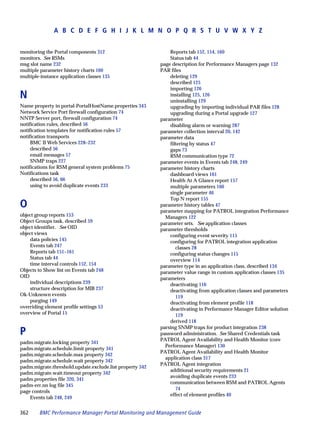
  • 54.
    Element Profiles task s When you disable an override at the parent level, the Element-Profile thresholds are used and the Overridden column is blank s In cases where Elements are bound to an Element-Profile, you cannot override the active or inactive state properties of parameters; the Active column is disabled for editing. For more information, see “Deactivating parameters” on page 116. You can use the element Properties page to view thresholds and properties that are overridden for the element. Changing the report update interval for elements by using element profile You cannot override the report update interval at the element level. You can change the report update interval by editing the general properties for the element. However, editing the report update interval at the element profile level propagates that change to all elements assigned to that element profile, regardless of any settings at the element level. For example, if the following are the settings for the report update interval: s At the element profile level, the report update interval is set to 10 minutes. s Elements that are assigned to this same element profile have report update intervals set at 5 minutes and 15 minutes. If you then change the report interval at the element profile level to 15 minutes, the report update interval is set to 15 minutes for all of the elements assigned to this element profile, regardless of the settings or changes made at the element level. For more details, see the drmop.default.reporting.interval.minutes property in Appendix C, “BMC Performance Manager Portal files.” 54 BMC Performance Manager Portal Monitoring and Management Guide
  • 55.
    Elements task Elements task The Elements task enables you to add infrastructure elements to the account. Each infrastructure element corresponds to a system or device in your IT environment. You can use the following methods to add infrastructure elements: s Add elements by explicitly typing the element names and specifying the monitoring attributes for those elements. You can add many elements at a time by pasting a list of host names into a text box. s If you use PATROL Knowledge Modules (KMs) to monitor infrastructure, you can configure the Portal to discover PATROL Agents. The discovery process matches the KMs in the agents with integration Performance Managers on the Portal and then obtains parameter thresholds from the agents and applies the thresholds to the parameters in the integration Performance Managers. The Elements task also enables you to synchronize the parameter thresholds and application classes in the PATROL integration Performance Managers with those on the PATROL Agent. s If you use a product like BMC Topology Discovery to discover IT objects and populate the BMC Atrium Configuration Management Database (BMC Atrium CMDB), the Portal can discover the host names of those infrastructure objects. Following discovery, you specify the monitoring attributes for those elements. For more information about adding elements to an account, see “Adding infrastructure elements for agentless monitoring” on page 25. The task also enables you to change the properties associated with elements and to delete elements from the BMC Performance Manager Portal. Monitoring On/Off task The Monitoring On/Off task enables you to temporarily stop and restart s remote data collection for selected objects s reporting of collected data from agents Chapter 3 Users and administrators 55
  • 56.
    Notifications task Notifications task When conditions cause an object to violate a threshold or change its state, the BMC Portal can send a notification about the event. The Notifications task enables you to create rules that specify when and how the Portal sends notifications in response to system problems or state changes. Users can create notification rules for the following types of conditions: s state changes, which occur when the status of an object changes to a state for which you want the Portal to send a notification s general system problems, which occur when a system problem prevents the Portal from receiving information about an object (for example, an RSM stops communicating with the Portal) Users can configure the following types of notifications: s email messages: The Portal can send long or concise email messages for state change and general system problem events. Concise email messages are suitable for pagers and other wireless devices. s SNMP traps: The Portal can send SNMP traps for state change and general system problem events. In addition to creating an SNMP notification, you must also specify the host names of the servers to receive the traps. See “SNMP traps” on page 236. s AlarmPoint: If you have AlarmPoint installed, you can configure the Portal to send state change and general system problem notifications to AlarmPoint. Before a user or administrator can create a notification rule for AlarmPoint, a Portal administrator must use the Global Properties page to configure the Portal for AlarmPoint integration. For more information about configuring the Portal to send notifications to an AlarmPoint server, see “Event integration using AlarmPoint” on page 228 and the BMC Portal Getting Started guide. s BMC Impact Integration Web Services: You can use the BMC Impact Integration Web Services (BMC II Web Services) component to send state change and general system problem notifications to BMC Impact Manager. Before a user or administrator can create a notification rule for this transport method, a provider administrator must use the Notifications page on the Provider tab to configure a target BMC II Web Services server for the Portal. Notification rules specify the following properties: s type of event or system problem to trigger notification s length of time that the Portal waits after the change in event severity before sending notification 56 BMC Performance Manager Portal Monitoring and Management Guide
  • 57.
    Notifications task s transport method that the Portal uses to send notifications: email, SNMP, BMC II Web Services, or AlarmPoint s the affected objects (groups or objects within groups) s notification recipients You can apply the same notification rules to all objects in the account, or you can set different notification rules for each object (or object groups). Also, you can set multiple notifications for objects, enabling you to incorporate or establish an escalation procedure. TIP To quickly configure notification rules for an escalation procedure, create one notification rule, and then copy that rule and modify the wait time and notification recipients for the other levels in the escalation order. To customize the notifications, you can create notification templates that you can apply to notification rules. The templates specify the subject and message for email notifications and the detail message field for SNMP notifications. You can create notification templates before you create notification rules and specify a template as you create or edit notification rules, or you can create a template while creating or editing a notification rule. Unless you customize them, infrastructure email notifications provide the following information: s Element email notifications contain the — status of the element — name of the infrastructure element — date and time at which the event was detected — parent objects of the element — account name for the element — ID for the account Chapter 3 Users and administrators 57
  • 58.
    Notifications task Also, the notification contains the following information for each parameter of the element that caused the element notification: — name of the infrastructure element — host name of the element — date and time at which the event was detected — application class for the parameter — name of the parameter — parameter status that triggered the event — current parameter value — warning or alarm threshold that was breached — host name for the RSM that detected the event s Parameter email notifications contain the — name of the element — host name of the element — date and time in which the event was detected — application class for the parameter — name of the parameter — parameter status that triggered the event — current parameter value — warning or alarm threshold that was breached — host name for the RSM that detected the event NOTE When the earlier state of the element or parameter is violated, depending upon the notification rule that is set, BMC Portal sends the Unknown-OK notifications. For example, if you have selected the When Rules are violated and object is no longer in violation notification rule and the state of the object changes from Alarm to Unknown to OK, BMC Portal sends OK as a Clear notification. Therefore, BMC recommends that in the internal.properties file, you must not set the value of the websdk.services.notification.ok.unknown.support property to true. If you must do so, contact BMC customer support. 58 BMC Performance Manager Portal Monitoring and Management Guide
  • 59.
    Object Groups task ObjectGroups task The Object Groups task enables you to create and modify object groups—containers— to organize the objects in your account. You can create any number of object groups, and you can create nested groups (groups that contain groups). After creating an object group, you can manage the objects in the object group as a single entity and view reports, status, and events for the group. Each account must contain at least one object group under one of the top-level object groups. By default, the BMC Portal has the following top-level object groups that contain any object groups that you create: s Dashboards—populated by any module s Business—created and populated by the BMC Impact Portal module s Exceptions—created and populated by the BMC Performance Exception Detector module When you use the BMC Performance Exception Detector module, you must assign each new detector to at least one object group. s Infrastructure—created and populated by the BMC Performance Manager Portal module When you use the BMC Performance Manager Portal module, you must assign each new infrastructure element to at least one object group. You choose how to create and organize the object groups in your account. Object groups can assist you with the following activities: s creating user permissions—Create groups of objects whose members require the same level of access. User groups provide permission to access specific objects. Instead of selecting individual objects during user group creation, you can select one or more object groups. s scheduling blackout periods—Create groups of objects that have the same maintenance schedules. s specifying objects to include in user notifications—Create groups of objects to which you assign the same notification criteria. Instead of selecting individual objects while you create a notification rule, you can select one or more object groups. Chapter 3 Users and administrators 59
  • 60.
    Personal Preferences task PersonalPreferences task The Personal Preferences task enables you to control the language, time zone, refresh rate, default view at logon, and provides the ability to view or suppress object status icons in the object tree when you are logged on with your user name. Remote Service Monitors task The Remote Service Monitors task enables you to add and administer Remote Service Monitors for your account. The BMC Performance Manager Portal module uses Remote Service Monitors, or RSMs (computers in which you have installed the Remote Service Monitor program), to provide agentless infrastructure monitoring and to mine parameter data from PATROL Agents. A user with the necessary permissions can add RSM computers to collect measurement data about the elements in an account. The number of RSM computers that you need depends on the number and types of elements in your account and your high availability requirements. If you use PATROL integration Performance Managers, the security level of the monitored PATROL agents can also affect the number of RSMs required for your account. See “Security requirements for RSMs” on page 22 for more information about how security levels can affect RSMs. See “RSM program installation” on page 76 for more information about using and configuring RSM computers. Shared Credentials task The Shared Credentials task enables you to define and save credentials that you can apply to one or more elements. When you apply shared credential to elements, you can simultaneously modify the credentials of those elements by updating the properties for the shared credentials. You can define shared credentials that the Portal can use across multiple application classes on a single element, or across multiple elements. NOTE The ability to apply shared credentials to an element is enabled in application classes. If you do not see an option to apply a shared credential when specifying credentials and properties for an application class, then the selected application class is not enabled for shared credentials. For more information, see the applicable Performance Manager documentation for the application class. 60 BMC Performance Manager Portal Monitoring and Management Guide
  • 61.
    Tags task Guidelines for using shared credentials Users with the necessary rights can create, edit, delete, and view lists of elements using a shared credential. s You can apply a shared credential to individual elements or to an element profile. s When you modify the properties in a shared credential, the Portal immediately updates the application class properties for the affected elements, including those that obtain their properties from an element profile. s If you remove a shared credential from an infrastructure element, the properties in the shared credential are copied to the infrastructure element. s You can delete a shared credential only if it is not applied to an element. Preventing system lockouts on the monitored infrastructure elements Before changing the credentials on the monitored infrastructure, use the Monitoring Off or Blackout Periods task to stop the Portal from monitoring the systems that use the credentials. If you do not temporarily stop monitoring before you change the system credentials, the Portal might lock out your systems before you have an opportunity to change the shared credential properties on the Portal. Tags task Tags are keywords that you can assign to objects in the account. Tagging objects with keywords enables you to quickly retrieve a list of objects that have the same keyword associations. Because the Portal does not restrict the number of keywords, individual users can add keywords that are meaningful to them. Types of tags The Portal enables the following types of tagging: s system: dynamically and automatically assigned as you create or add objects to the account For example, when you create a new object group, the Portal assigns the object group name as the system keyword for the object. The Portal changes the system keyword if you change the name of its object. You cannot explicitly change a system keyword. s user-defined: represent how you want to monitor and manage your infrastructure Chapter 3 Users and administrators 61
  • 62.
    User Groups task For example, consider using department names, operating system names, and application names as keywords. You might also consider creating keywords that enable you to respond to temporary conditions. For example, after implementing changes on critical systems, you might want to assign a keyword like to_watch to the corresponding infrastructure objects, enabling you to quickly access views of these objects. After the initial implementation period has expired, you would remove the tag from these objects. Searching for tagged objects The navigation pane provides a Search box that you can use to retrieve objects tagged with specific system or user-defined keywords. User Groups task A user group is a collection of users that all have the same rights and permissions. Users inherit the rights and permissions from the groups to which they belong. You can create user groups to organize users according to rights and permissions. Each user must belong to at least one user group. The default user groups are Full Access and Read Only. Users in the Full Access user group have access to all the features in the Portal and can add new users and user groups. Users in the Read Only user group have read-only rights to all the Portal features and read-only permissions for all objects. The User Groups task enables you to create new user groups. You can create user groups that use the BMC Portal database to authenticate users, or create user groups that use external directory servers to authenticate users. Users task A user is a unique identifier in the Portal that you specify to access the product. As users are added to the Portal, they are assigned to one or more user groups. Together, users and user groups provide access rights and permissions on managed systems. Rights and permissions are assigned to user groups, and users inherit the rights and permissions from the groups to which they belong. Each user must belong to at least one user group. The Users task enables full-access users to add more users to the account, modify users, and delete users from the account. 62 BMC Performance Manager Portal Monitoring and Management Guide
  • 63.
    Administrator configuration options User authentication The Portal requires that all user names exist in the Portal database, regardless of the authentication type configured by the Portal administrator. s When you use the internal database for authentication (the default option), all user information is saved in the internal database. s When you configure native operating-system authentication, you must create a user in the internal database for each native operating-system user that logs on to the Portal. s When you configure LDAP or Active Directory server authentication, the Portal creates an internal user for each user specified in the directory server group. Predefined user The BMC Portal installation program creates a full-access user (with user/user credentials) for the predefined account (My Account). You can use the User task to change the predefined user credentials. Characters allowed for user names When adding users, you can use any combination of Unicode characters, but you cannot use only a space for the user name. A user name can contain spaces, but not consecutive spaces. Administrator configuration options Administrators can have one, both, or neither of the following permissions: s Edit—enables the administrator to edit any accessible properties s See Other Providers and Their Accounts—enables the administrator to access all accounts on the Portal The combination of these permissions determines how you can access and configure the Portal or any of the accounts on the Portal. When adding administrators to a provider, assign account permissions that reflect the responsibilities of the administrator. s An administrator with both Edit and See Other Providers and Their Accounts permission (a Portal administrator) can edit the provider, administrators, and users for every account on the Portal. An administrator with these permissions can also configure the Portal. Each Portal needs at least one Portal administrator. Chapter 3 Users and administrators 63
  • 64.
    Tasks on theAccounts tab By default, each Portal has a Portal administrator that can log on by typing superadmin and superadmin for the user name and password. s An administrator with Edit permission (a provider administrator) can configure the provider, administrators for that provider, and accounts, and can approve or reject accounts for that provider. By default, each Portal has a provider administrator that can log on by typing admin and admin for the user name and password. s An administrator with See Other Providers and Their Users permission has read- only rights to the provider and Portal configuration. An administrator with this permission cannot edit account properties, but can impersonate all users on the Portal. See “Tasks on the Accounts tab” on this page. s An administrator with neither permission has read-only rights to the provider configuration for that provider and can access all accounts for that provider. Tasks on the Accounts tab The Accounts tab provides tasks that administrators can use to add, configure, and approve accounts. Also, administrators who provide support activities can use the tasks on the Accounts tab to proactively support their customers. From this tab, administrators can help troubleshoot problems for their users by viewing activity logs and by using the Log On option to impersonate their users. Tasks on the Provider tab Each organization that offers and supports the BMC Portal is a provider. Each provider has corresponding properties that affect the overall appearance of the user interface and the defaults that apply to the users and accounts for the provider. s Each provider has at least one administrator that can access all of the administration tools to maintain the provider properties and settings. s Administrators with Edit or Edit and See Other Providers and Their Accounts permissions can see the Provider tab and perform the tasks described in this section. The Help provides detailed information about each of the features on the Provider tab. 64 BMC Performance Manager Portal Monitoring and Management Guide
  • 65.
    Tasks on theProvider tab Account Types task The Account Types task enables administrators to configure default properties for the following categories of accounts: s trial—generally assigned to those trying the product s paying—assigned to most users of the product s internal—generally reserved for those who support the product and have accounts that they use for testing As accounts are added to the Portal, administrators assign an account type to the account, and the account assumes the default properties for the account type. Administrators can adjust account settings after assigning the account type. Administrators task The Administrators tasks enable administrators to add and modify administrators for a provider. Administrators who have Edit and See Other Providers and Their Accounts permissions can add administrators for the Portal. Appearance task The Appearance task enables administrators to customize the user interface for all accounts associated with a provider. The page properties that you can change include the s left and right banner images s product name displayed in the Portal user interface and in the Help Licensing Information task The Licensing Information task provides the following subtasks that administrators can use to monitor and manage license usage: s The Performance Managers subtask enables administrators to generate CSV and text files that list the extent to which the accounts in a provider are using the Performance Managers to monitor their infrastructure. When generating the file, you can select all the accounts in the provider or a subset of the accounts. The Help provides detailed information about how to generate CSV files. s The Users subtask enables administrators to establish license thresholds for all accounts on the Portal, maintain licenses, and monitor license usage. Chapter 3 Users and administrators 65
  • 66.
    Tasks on thePortal tab Notifications task The Notifications task on the Provider tab enables you to establish and maintain notification rules that apply to all state change and general system problems events associated with a provider. Because these notification rules apply to all events in a provider, they enable you to integrate events from the BMC Performance Manager Portal module with other modules and event management systems. See “Provider- wide integration” on page 218 for more information about the transport methods that you can use. Properties task The Properties task enables you to add providers and modify provider characteristics. Administrators that have Edit permission can change the properties for their own providers. Administrators who have both Edit and See Other Providers and Their Accounts permissions can change the properties for all providers on the Portal. Remote Service Monitors task When you enter provider administrator credentials (administrator with only Edit permission) during the installation of the RSM program, you configure a shared RSM that multiple accounts can use to monitor infrastructure elements. The Remote Service Monitors task enables you to administer shared RSMs for the provider. Tasks on the Portal tab The tasks associated with the Portal tab affect all accounts on the Portal. Administrators with Portal permission (both Edit and See Other Providers and Their Accounts permissions) can see the Portal tab and perform these tasks. The Help provides detailed information about each of the features on the Portal tab. Global Properties task The Global Properties task enables administrators to set properties that can affect all providers and accounts in the Portal. Licensing Information task The Licensing Information task enables Portal administrators monitor license usage across all accounts on the Portal. 66 BMC Performance Manager Portal Monitoring and Management Guide
  • 67.
    Tasks on thePortal tab Mass Email task The Mass Email task enables Portal administrators send email to all or a subset of users and administrators on the Portal. Performance Managers task RSMs use the application classes contained in Performance Managers to monitor groups of attributes on an infrastructure element. In addition to your ability to install solution application classes on the Portal, administrators can use the Performance Managers task to create and maintain custom application classes. Administrators can use the Performance Manager Editor (PME) to modify the application classes in solution Performance Managers and to create and modify custom application classes for the accounts on the Portal. Administrators can also use this task to import new solution Performance Managers into the Portal. See Chapter 5, “Performance Managers and application classes,” on page 113 for more information about importing solution Performance Managers and creating and maintaining custom Performance Managers. Remote Service Monitors task When you enter Portal administrator credentials during the installation of the RSM program, you configure a global RSM that all accounts on the Portal can use to monitor infrastructure. The Remote Service Monitors task enables you to administer global computers for the provider. Chapter 3 Users and administrators 67
  • 68.
    Tasks on thePortal tab 68 BMC Performance Manager Portal Monitoring and Management Guide
  • 69.
    Chapter 4 4 Remote Service Monitors This chapter presents the following topics that describe how to configure the monitoring component for the BMC Performance Manager Portal. Overview . . . . . . . . . . . . . . . . . . . . . . . . . . . . . . . . . . . . . . . . . . . . . . . . . . . . . . . . . . . . . . . . 70 Types of RSMs . . . . . . . . . . . . . . . . . . . . . . . . . . . . . . . . . . . . . . . . . . . . . . . . . . . . . . . . 70 Communication between the Portal and RSMs . . . . . . . . . . . . . . . . . . . . . . . . . . . . 71 Communication between RSMs and elements . . . . . . . . . . . . . . . . . . . . . . . . . . . . . 74 Communication between RSMs and PATROL Agents . . . . . . . . . . . . . . . . . . . . . . 74 Notifications about RSM system problems . . . . . . . . . . . . . . . . . . . . . . . . . . . . . . . . 75 RSM program installation. . . . . . . . . . . . . . . . . . . . . . . . . . . . . . . . . . . . . . . . . . . . . . . . . . 76 RSM computer system requirements . . . . . . . . . . . . . . . . . . . . . . . . . . . . . . . . . . . . . 76 Data execution prevention (DEP) configuration for the RSM . . . . . . . . . . . . . . . . 76 Configure Distributed Component Object Model (DCOM) and Windows Management Instrumentation (WMI) . . . . . . . . . . . . . . . . . . . . . . . . . . . . . . . . . . 78 Using the installation wizard to install the RSM program . . . . . . . . . . . . . . . . . . . 84 Using a silent installation to install the RSM program . . . . . . . . . . . . . . . . . . . . . . 88 Upgrading the RSM Program . . . . . . . . . . . . . . . . . . . . . . . . . . . . . . . . . . . . . . . . . . . 91 Clustered RSMs . . . . . . . . . . . . . . . . . . . . . . . . . . . . . . . . . . . . . . . . . . . . . . . . . . . . . . . . . . 92 Cluster types. . . . . . . . . . . . . . . . . . . . . . . . . . . . . . . . . . . . . . . . . . . . . . . . . . . . . . . . . . 93 Clustered RSM operating status . . . . . . . . . . . . . . . . . . . . . . . . . . . . . . . . . . . . . . . . . 94 Clustered RSM security considerations . . . . . . . . . . . . . . . . . . . . . . . . . . . . . . . . . . . 94 RSM load-balancing . . . . . . . . . . . . . . . . . . . . . . . . . . . . . . . . . . . . . . . . . . . . . . . . . . . 94 RSM failover. . . . . . . . . . . . . . . . . . . . . . . . . . . . . . . . . . . . . . . . . . . . . . . . . . . . . . . . . . 95 Clustering RSMs . . . . . . . . . . . . . . . . . . . . . . . . . . . . . . . . . . . . . . . . . . . . . . . . . . . . . . 95 Clustered RSM upgrades . . . . . . . . . . . . . . . . . . . . . . . . . . . . . . . . . . . . . . . . . . . . . . . 96 RSM configuration and maintenance . . . . . . . . . . . . . . . . . . . . . . . . . . . . . . . . . . . . . . . . 96 Configuration and maintenance tools . . . . . . . . . . . . . . . . . . . . . . . . . . . . . . . . . . . . 97 Changing the security level for an RSM. . . . . . . . . . . . . . . . . . . . . . . . . . . . . . . . . . 101 Configuring an RSM to use a proxy server . . . . . . . . . . . . . . . . . . . . . . . . . . . . . . . 102 Configuring the RSM to use HTTP protocol to communicate with the Portal. . 103 Changing the credentials for an RSM. . . . . . . . . . . . . . . . . . . . . . . . . . . . . . . . . . . . 104 Changing the maximum heap memory allocated for the Java VM on the RSM 106 Viewing the log files for the RSM . . . . . . . . . . . . . . . . . . . . . . . . . . . . . . . . . . . . . . . 106 Collecting log files . . . . . . . . . . . . . . . . . . . . . . . . . . . . . . . . . . . . . . . . . . . . . . . . . . . . 107 Automating basic information gathering for RSM issues . . . . . . . . . . . . . . . . . . . 108 Stopping notifications for Unknown state events . . . . . . . . . . . . . . . . . . . . . . . . . 108 Chapter 4 Remote Service Monitors 69
  • 70.
    Overview RSM program uninstallation. . . . . . . . . . . . . . . . . . . . . . . . . . . . . . . . . . . . . . . . . . . . . . . 109 Using the installation wizard to uninstall the RSM program . . . . . . . . . . . . . . . . 109 Manually uninstalling the RSM program. . . . . . . . . . . . . . . . . . . . . . . . . . . . . . . . . 110 Using command-line options to uninstall the RSM program . . . . . . . . . . . . . . . . 112 Overview The Remote Service Monitor (RSM) program runs as a Windows service (BMC Remote Service Monitor service). Computers on which you have installed the RSM program, also known as RSMs, are the components that provide the remote monitoring for the BMC Performance Manager Portal. The RSM, which acts as a single remote agent, monitors the elements in the accounts and sends parameter data values to the Portal web server. The RSM must be able to resolve network addresses to the elements that it monitors and to the BMC Portal. The RSM uses the parameter thresholds that are saved in the Portal database to monitor infrastructure. The RSM does not save thresholds to its local computers. Each RSM has a utility program, the RSM Manager, that you can access from the Windows system tray on the RSM computer. The RSM Manager utility enables you to view current RSM status and settings, and to configure the RSM. Types of RSMs The BMC Performance Manager Portal module uses the following types of RSMs to monitor accounts: s A dedicated RSM monitors only the elements in your account, and is installed with user credentials. You configure a dedicated RSM by downloading the RSM program from the Portal and installing it on a computer designated as an RSM. Figure 6 on page 71 shows a Portal where account D has a single dedicated RSM to monitor its elements, although an account can have more than one dedicated RSM. Users in account D can also use the global RSM to monitor elements. s A shared RSM can monitor the elements in multiple accounts in a provider, and is installed with administrator credentials for an administrator that has only Edit permission. Figure 6 on page 71 shows that the accounts in provider ABC can use the same shared RSM. Users in accounts A, B, and C can also use the global RSM. The accounts that use a shared RSM must belong to the same provider. 70 BMC Performance Manager Portal Monitoring and Management Guide
  • 71.
    Communication between thePortal and RSMs s A global RSM can monitor elements for all accounts on the Portal, and is installed with administrator credentials for an administrator that has Edit and See Other Providers and Their Accounts permissions. s A clustered RSM consists of two or more dedicated, shared, or global RSMs configured to act as a single logical RSM. An RSM cluster must contain RSMs of the same type. See “Clustered RSMs” on page 92 for more information about clustered RSMs. Your Portal administrator determines the types of RSMs available for your account. Administrators and users with adequate permission can download and install the RSM program. Figure 6 Types of Remote Service Monitors database web browser web server application server firewall shared RSM global RSM dedicated RSM Account A Account B Account C Account D Provider ABC Provider DEF Communication between the Portal and RSMs Each RSM initiates all communication between itself and the Portal web server. When placed inside the firewall, the RSM communicates with the Portal using HTTPS (port 443) and encrypts the data that it collects before sending it to the Portal web server. After the web server receives data from the RSM, it sends it to the application server, which sends the data to the Portal database. Chapter 4 Remote Service Monitors 71
  • 72.
    Communication between thePortal and RSMs To configure the RSM to use HTTP to communicate with the Portal, see “Configuring the RSM to use HTTP protocol to communicate with the Portal” on page 103. Types of communication RSM-to-Portal communication falls into one of the following categories: s heartbeat—The RSM attempts to connect to the Portal every 30 seconds to ensure that the connection between the two components still exists. The heartbeat also confirms that the Portal and RSM are running the same product version and that they are both using the same user or administrator credentials. If the user or administrator ID that installed an RSM becomes disabled or if its credentials are not kept synchronized, the corresponding RSMs will fail to authenticate with the Portal and will not send parameter data to the Portal. When a disabled user or administrator is enabled or when the credentials are corrected, the RSM resumes normal communication with the Portal after the next heartbeat. s threshold violations—When the RSM detects a threshold violation for a parameter, it immediately sends the value for all parameters in the associated application class to the Portal. You can set thresholds on the Properties page for elements. s parameter report data—The RSM sends current parameter data at the report update interval defined for the element and whenever a parameter violates a threshold, as described in the preceding paragraph. You can view this data on parameter history charts. s program upgrade—The RSM downloads the latest version of the RSM program after an upgrade of the Portal. Communication interruptions If an RSM cannot communicate with the Portal, it caches the data and attempts to resend the cached data at the next heartbeat interval. If the RSM cannot successfully send the data to the Portal after 15 minutes of repeated attempts, it deletes data older than 15 minutes, and this process continues on every heartbeat interval until the communication is reestablished. Any data that the RSM drops appears as a data gap on reports. NOTE By default the RSM stores cached data for 15 minutes while waiting for a response from the Portal. You can change the default time by resetting the MaxStoreAndForwardTime property in the portal-PortalWebServer.properties file on the RSM computer. Lengthening the time that the RSM caches data has a direct impact on system memory consumption. For information about changing this property setting, see Table 56 on page 343. 72 BMC Performance Manager Portal Monitoring and Management Guide
  • 73.
    Communication between thePortal and RSMs When communication with the Portal resumes, the RSM sends any cached data that it has not deleted. The Portal saves the cached data, but if the cached data includes threshold violations, the Portal does not send notifications. RSMs and their assigned elements When you add elements to the account, you specify which RSM will monitor each element. You can assign one RSM (or clustered RSM) to monitor an infrastructure element. See “Clustered RSMs” on page 92 for information about using clustered RSMs in place of non-clustered RSMs. RSM program and BMC Performance Manager Portal upgrades During a Portal upgrade, communication stops between the Portal and its RSMs, and data collection stops. Following the upgrade, the RSMs determine that they have an earlier version of the RSM program and will request the current version of the RSM program from the Portal. Upon receipt of the program, the RSMs will begin upgrading to the new version and will drop their stored data. Immediately after upgrading the RSM program, RSMs resume their communication with the Portal. BMC Performance Managers on the RSM The RSM program collects data from its monitored elements and sends that data to the BMC Performance Manager Portal. The types of measurements that an RSM can collect depend on the Performance Managers installed on the Portal. After Performance Managers are installed, the Portal deploys the Performance Managers to an RSM, upon request from the RSM. EXAMPLE You install the BMC Performance Manager Express for Databases solution Performance Manager while installing the Portal. Following installation, a user selects the Oracle® application class to monitor a database. When the assigned RSM computer discovers that it does not have the specified application class, it requests the application class from the Portal and the Portal deploys the Oracle application class to the RSM computer. Chapter 4 Remote Service Monitors 73
  • 74.
    Communication between RSMsand elements Communication between RSMs and elements RSMs use standard protocols to communicate with their assigned elements and can monitor any IP-addressable computer or device. Ideally, you should locate an RSM inside the firewall on the same network segment as the elements that it will monitor. When a firewall sits between an RSM and the monitored element, configure the firewall according to the information shown in Table 4 on page 74. This configuration specifies the necessary ports for communication between the RSM and its elements. Table 4 Application ports for firewalls Application Port number Protocol a DNS 53 DNS name lookup FTP server 21 network socket connection a HTTP 80 HTTP a HTTPS 443 HTTPS IMAP server 143 network socket connection Network Service Port user specified a network socket connection NNTP server 119 network socket connection b Ping ICMP ICMP POP server 110 network socket connection rstatd 111 RPC SMTP 25 network socket connection SNMP 161 SNMP SSH server 22 network socket connection Telnet server 23 network socket connection Windows TCP 135, 139, 445 WinAPI (IPC$ share) UDP 137, 138, Dynamic a You can specify any port number, or use the default shown. b ICMP does not use a port. Communication between RSMs and PATROL Agents The RSM installation program requests a PATROL security level. The level that you specify must match that of the PATROL Agents that the RSM will monitor. s If you will not use PATROL integration Performance Managers to monitor PATROL Agents, you can use the default security level (level 0). s If you will use PATROL integration Performance Managers to monitor PATROL Agents, specify the security level that matches that of the PATROL Agents. If you will be monitoring PATROL Agents that have different security levels, configure a 74 BMC Performance Manager Portal Monitoring and Management Guide
  • 75.
    Notifications about RSMsystem problems separate RSM for each security level and assign to each RSM only the agents with a security level that matches that RSM. When you create RSM clusters that will integrate PATROL Agents, all member RSMs in the cluster must have the same security level. If the security level that you specify during RSM installation is not sufficient to monitor the PATROL Agents in your environment, you can choose from the following options: — Change the security level of the RSM. See “Changing the security level for an RSM” on page 101. — Install the RSM program on another computer and specify the necessary security level. Notifications about RSM system problems You can configure the Portal to send notifications when RSM system problems interfere with the infrastructure monitoring. s To configure notifications for dedicated RSMs, log on with user credentials and on the Configure tab, select Notifications. s To configure notifications for shared and global RSMs, log on with administrator credentials and on the Provider tab, select Notifications. When configuring the notification rules for RSMs, select General System Problems as the rule type. The following conditions can cause general system problems: s The Portal does not receive data from the RSM. s The network is down. s The number of users exceeds the license threshold for the Portal. See “Notifications task” on page 56 for more information about the different types of notifications. Chapter 4 Remote Service Monitors 75
  • 76.
    RSM program installation RSMprogram installation This section provides the procedures necessary to install or upgrade the RSM program on the computers designated as RSMs. s “RSM computer system requirements” on page 76 s “Data execution prevention (DEP) configuration for the RSM” on page 76 s “Configuring the access permissions for DCOM on the RSM computer and on the target computer” on page 78 s “Configuring the WMI control” on page 81 s “Using the installation wizard to install the RSM program” on page 84 s “Using a silent installation to install the RSM program” on page 88 s “Upgrading the RSM Program” on page 91 RSM computer system requirements You can install one instance of the RSM program on the BMC Portal computer (or the application server computer in a multiple-computer Portal), or on computers designated as RSMs. Computers designated as RSMs reside in the network with the computers and devices that they monitor and inside the firewall, as shown in Figure 6 on page 71. Ensure that the computers on which you want to install the RSM program meet the minimum system requirements detailed in the BMC Portal Release Notes. Data execution prevention (DEP) configuration for the RSM When you install the RSM program on a Windows 2003 SP1 computer, the installation program fails to successfully execute the RemoteServiceMonitor.exe file. The installation program starts, but then does not allow you to continue with the installation or an error message is displayed stating that DEP is blocking the installation program. The problem is caused by an enhanced data execution prevention (DEP) feature that Microsoft included in SP1. To resolve this issue, you must configure DEP in your computer properties to recognize the RSM installation program. 76 BMC Performance Manager Portal Monitoring and Management Guide
  • 77.
    Data execution prevention(DEP) configuration for the RSM To configure DEP to recognize the RSM installation program 1 On the Remote Service Monitors page in the Portal, download the RSM installation program, and save the program to a temporary directory. When installing the RSM program from the Windows DVD, CD 1, or installation files, copy RemoteServiceMonitor.exe from one of the following locations to a temporary directory: s RSM folder on Windows CD 1 s BMCPortalKitdisk1RSM on Windows DVD s folder to which you downloaded files from the EPD website 2 From the Windows Desktop, right-click My Computer. 3 Select Properties. 4 Select the Advanced tab. 5 Under the Performance heading, select Settings. 6 Select the Data Execution Prevention tab. 7 Select Turn on DEP for all programs except those I select. 8 Click Add. 9 Navigate to the folder where you saved the RSM installation program, and select RemoteServiceMonitor.exe. 10 Click Open. 11 Click Apply. 12 Click OK. 13 Click OK to close the System Properties window. 14 Restart the RSM computer. 15 Run the RSM installation program. Chapter 4 Remote Service Monitors 77
  • 78.
    Configure Distributed ComponentObject Model (DCOM) and Windows Management Instrumentation (WMI) Configure Distributed Component Object Model (DCOM) and Windows Management Instrumentation (WMI) When monitoring Windows computers using the WMI collector, ensure that the Remote Service Monitor (RSM) computer (the computer where the RSM is installed) has the necessary DCOM and WMI configuration properties. The RSM computer that monitors the event logs and services must have the following default access permissions enabled in the DCOM properties: s Administrators s Interactive s Network s System To successfully read performance data using WMI-based data collection, both the RSM computer and the target computer (the computer that you want to monitor) must have the appropriate permissions. The following are the permissions that must be enabled on the RSM and on the target computer: s Execute Methods s Provider Write s Enable Account s Remote Enable s Read Security Configuring the access permissions for DCOM on the RSM computer and on the target computer To configure the access permissions for DCOM on the RSM computer and on the target computer, use one of the following procedures: s “To configure the access permissions for DCOM on Microsoft Windows 2000” s “To configure the access permissions for DCOM on Microsoft Windows XP and Microsoft Windows 2003” on page 80 Before you begin Stop the RSM, and do not restart it until you have configured the access permissions for the DCOM on both the RSM computer and the target computer. 78 BMC Performance Manager Portal Monitoring and Management Guide
  • 79.
    Configure Distributed ComponentObject Model (DCOM) and Windows Management Instrumentation (WMI) To configure the access permissions for DCOM on Microsoft Windows 2000 1 Using an account that has administrative permissions, log on to the RSM computer that is monitoring the event log. 2 Click Start => Run. 3 Enter dcomcnfg.exe and click OK. 4 On the Distributed COM Configuration Properties window, click Default Security. 5 Under Default Access Permissions, click Edit Default. 6 In the Registry Value Permissions window, click Add. The Add Users and Groups window opens. 7 From the List Names From drop-down list, select the local computer. 8 In the Type of Access field, select Allow Access (if not already selected). 9 In the Names field, perform the following steps: A Select Administrators, and click Add. B Select Interactive, and click Add. C Select Network, and click Add. D Select System, and click Add. E Click OK. 10 In the Registry Value Permissions window, verify that the Administrators, Interactive, System, and Network users are added, and that they have Allow Access permission. 11 Click OK, twice. 12 Using an account that has administrative permissions, log on to the target computer and repeat steps 2 through 11. 13 Start the RSM. Chapter 4 Remote Service Monitors 79
  • 80.
    Configure Distributed ComponentObject Model (DCOM) and Windows Management Instrumentation (WMI) To configure the access permissions for DCOM on Microsoft Windows XP and Microsoft Windows 2003 Before you begin Stop the RSM and do not restart it until you have configured the access permissions for DCOM on both the RSM computer and the target computer. 1 Using an account that has administrative permissions, log on to the RSM computer that is monitoring the event log. 2 On the Task Bar, click Start => Run. 3 Enter dcomcnfg.exe and click OK. 4 In the Component Services window, expand Component Services and Computers. 5 Right-click on My Computers and select Properties. 6 Select the COM Security or Default COM Security tab (depending upon your operating system). 7 Under Access Permissions, select Edit Default. 8 In the Access Permissions window, click Add. 9 In the text box under Enter the object names to select (examples), enter Administrators; Interactive; System; Network and click OK. If a window opens with the message that more than one object matched the name Administrators, Interactive, System, or Network, select the name that contains only the one word (Administrators, Interactive, System, or Network). 10 In the Access Permissions window, verify that the Administrator, Interactive, System, and Network users have been added and that Allow Access permission is selected for each. 11 Click OK to return to the Component Services window. 12 Choose File => Exit. 13 Using an account that has administrative permissions, log on to the target computer, and repeat steps 2 through 12. 14 Start the RSM. 80 BMC Performance Manager Portal Monitoring and Management Guide
  • 81.
    Configure Distributed ComponentObject Model (DCOM) and Windows Management Instrumentation (WMI) Configuring the WMI control Use the following procedures to configure and to test the WMI collector: s “To configure the WMI control” on page 81 s “To set the inheritance on the name space” on page 82 s “To test the WMI collector for CIMV2 name space.” on page 83 s “To test the WMI collector for DEFAULT name space” on page 83 The permissions that are added are in addition to the permissions discussed under Configuring DCOM configuration properties. To configure the WMI control 1 On the Task bar, click Start => Settings => Control Panel. 2 Double-click Administrative Tools. 3 Double-click Computer Management. 4 Double-click Services and Applications. 5 Right-click WMI Control and select Properties. 6 Click Security. 7 Double-click Root and select CIMV2. 8 Click Security. 9 Click Add. 10 In Select Users, Computers or Groups, enter your user name or group name in Enter the objects to select and click OK. 11 In Group or User Names, select your user name or group name. 12 In Allow Permissions for Administrators, select the following permissions: s Execute Methods s Provider Write s Enable Account s Remote Enable s Read Security 13 Click OK. Chapter 4 Remote Service Monitors 81
  • 82.
    Configure Distributed ComponentObject Model (DCOM) and Windows Management Instrumentation (WMI) 14 Select DEFAULT. 15 Click Security. 16 Click Add. 17 In Select Users, Computers or Groups, enter your user name or group name in the Enter the objects to select and click OK. 18 In Group or User Names, select your user name or group name. 19 In Allow Permissions for Administrators, select the following permissions: s Execute Methods s Provider Write s Enable Account s Remote Enable s Read Security 20 Click OK. To set the inheritance on the name space 1 On the WMI Collector Properties snap-in, click Security. 2 Click Advanced. 3 In Permission entries, select the user or group whose permissions you want to modify, and then click Edit. 4 To modify permissions for the user or group that you selected, in the Permissions list, click Allow or Deny next to the permission that you want to allow or deny. 5 In Apply onto, click This name space and sub name space, and click OK. 6 Click OK. 7 Quit the WMI Control snap-in. Determining whether the RSM can use the WMI collector to access the remote computer You can use wbemtest to determine whether the RSM computer can use WMI to access the remote computer. 82 BMC Performance Manager Portal Monitoring and Management Guide
  • 83.
    Configure Distributed ComponentObject Model (DCOM) and Windows Management Instrumentation (WMI) To test the WMI collector for CIMV2 name space. 1 Open a command prompt window, and type wbemtest. 2 Click Connect. 3 Change name space to RemoteComputerToBeMonitoredrootCIMV2 4 Type user: domainuser 5 Type the password for the user. 6 Click Connect. 7 Click Query. 8 Type the following query: select * from Win32_NTEventLogFile and click Apply. If this query is successful, Event Log file names, for example, AppEvent.Evt, SecEvent.Evt and SysEvent.Evt (with paths), are generated. If these log files are not generated, it indicates that the 'WMI collector for CIMV2 name space' test has failed, and there is some problem with the WMI. See the error codes in the wbemtest tool for information related to the problem. 9 Click Close and Exit. To test the WMI collector for DEFAULT name space 1 Open a command prompt window, and type wbemtest. 2 Click Connect. 3 Change name space to RemoteComputerToBeMonitoredrootDEFAULT. 4 Type user: domainuser 5 Type the password for the user. 6 Click Connect. 7 Click Execute Method. 8 In Object Path, enter StdRegProv, and click OK. 9 In Method, select GetStringValue, and click Edit in Parameters. Chapter 4 Remote Service Monitors 83
  • 84.
    Using the installationwizard to install the RSM program 10 In Properties, double click sSubKeyName, select Not NULL, enter "SYSTEMCurrentControlSetServicesTcpipParameters", and click Save Property. 11 Double click sValueName, select Not NULL, enter "Hostname", and click Save Property… . 12 Click Save Object. 13 Click Execute. 14 Click Edit Out Parameter. 15 In Properties, check the value for sValue. It should be the name of the host to which we have connected from RSM. 16 Click Close. 17 Click Exit. NOTE The StdRegProv class contains methods that manipulate system registry keys and values. StdRegProv is available only in rootdefault name space. Using the installation wizard to install the RSM program This procedure describes how to install the RSM program on a Windows computer. When you install the RSM program, the installation program requires that you enter credentials that the RSM uses to authenticate itself with the Portal. These credentials also determine the RSM type and how the users on the Portal can use the RSM to monitor their accounts. You can install the RSM program by downloading the installation program file from the Portal or by copying it from the installation media. NOTE Ensure that the SystemDrive where you have installed the operating system, such as the C: drive has 2 GB or more of free space, even if the directory where you want to install RSM is on another drive. Otherwise, on completion of the RSM installation, the RSM installation log file may display an exception as follows: THROWABLE EVENT {Description=[Failed to get product registry],Detail=[C:WindowsProductRegistry.xml]} 84 BMC Performance Manager Portal Monitoring and Management Guide
  • 85.
    Using the installationwizard to install the RSM program To install the RSM program by downloading the program from the Portal 1 Log on to the Portal. 2 Perform one of the following actions: s When logged on with user credentials, click the Configure tab. s When logged on with provider administrator credentials, click the Provider tab. s When logged on with Portal administrator credentials, click the Portal tab. 3 From the Tasks list, select Remote Service Monitors. 4 On the Remote Service Monitors page, click Add to open the Remote Service Monitors–Add page. 5 Click the Download the Remote Service Monitor program Now link to download the RSM program installation file to a temporary directory on the computer designated as the RSM. 6 When installing the RSM program on a Windows 2003 SP1 computer, perform step 2 on page 77 through step 13 on page 77 to configure DEP to recognize the RSM installation program. 7 Run RemoteServiceMonitor.exe to extract and start the installation program. 8 On the Introduction screen, click Next to display the software license agreement. 9 Select I accept the terms of the License Agreement, and click Next. 10 On the Select directory screen, specify a target directory or accept the default location for the program files, and click Next. Chapter 4 Remote Service Monitors 85
  • 86.
    Using the installationwizard to install the RSM program 11 On the Enter Logon Information screen, enter the following authentication information, and click Next: Item Description User Name the user name that determines the type of RSM: s To configure an RSM for a single account, type the user name for the account. s To configure an RSM that can monitor all accounts associated with a provider, type a user name for an administrator that has only Edit permission (provider administrator credentials). s To configure an RSM computer that can monitor all accounts on the Portal, type a user name for an administrator that has Edit and See Other Providers and Their Accounts permissions (Portal administrator credentials). Portal Password the password for the specified user name Confirm Password re-entry of the password for confirmation Fully-Qualified Portal Host fully-qualified host name for the Portal web server Name Portal Secure Port port on which the Portal receives secure requests from the RSM; 443 by default RSM Name host name or alias for the RSM 12 Indicate whether you will use this RSM to integrate data from PATROL Agents, and click Next. s If you select Yes, the next screen requests the security level for the RSM. s If you select No, skip to step 13 on page 87. If at a later time you decide to use this RSM to integrate PATROL Agent data, you must perform the steps described in “Changing the security level for an RSM” on page 101 to set the correct security for the RSM. If this RSM will integrate parameter data from PATROL Agents, select the security level that corresponds to those agents, and click Next. The security level of the RSM must match that of the PATROL Agents that it monitors. If you plan to monitor PATROL Agents with different security levels, configure a separate RSM for each security level and assign to each RSM only the agents with a security level that matches that RSM. If you select level 3 or level 4, configure the security for unattended mode. For more information about security, see the PATROL Security User Guide. 86 BMC Performance Manager Portal Monitoring and Management Guide
  • 87.
    Using the installationwizard to install the RSM program 13 On the Pre-Installation Summary screen, review the entries and selections for the monitor installation, and click Install. At the completion of the installation, the Install Complete page is displayed. To install the RSM program by copying it from the installation files 1 Copy RemoteServiceMonitor.exe from one of the following locations to a temporary directory: s RSM folder on Windows DVD s BMCPortalKitdisk1RSM on Windows DVD s folder to which you downloaded files from the EPD website 2 When installing the RSM program on a Windows 2003 SP1 computer, perform step 2 on page 77 through step 13 on page 77. 3 Run RemoteServiceMonitor.exe to extract and start the installation program. 4 On the Introduction screen, click Next to display the software license agreement. 5 Select I accept the terms of the License Agreement, and click Next. 6 On the Select directory screen, specify a target directory or accept the default location for the program files, and click Next. 7 On the Enter Logon Information screen, enter the following authentication information, and click Next: Table 5 Authentication information on Logon Information screen (part 1 of 2) Item Description User Name the user name that determines the type of RSM: s To configure an RSM for a single account, type the user name for the account. s To configure an RSM that can monitor all accounts associated with a provider, type a user name for an administrator that has only Edit permission (provider credentials). s To configure an RSM that can monitor all accounts on the Portal, type a user name for an administrator that has Edit and See Other Providers and Their Accounts permissions (Portal credentials). Portal Password the password for the specified user name Confirm Password re-entry of the password for confirmation Chapter 4 Remote Service Monitors 87
  • 88.
    Using a silentinstallation to install the RSM program Table 5 Authentication information on Logon Information screen (part 2 of 2) Item Description Fully-Qualified Portal Host fully-qualified host name for the Portal web server Name Portal Secure Port port on which the Portal receives secure requests from the RSM; 443 by default RSM Name host name or alias for the RSM 8 Indicate whether you will use this RSM to integrate data from PATROL Agents, and click Next. s If you select Yes, the next screen requests the security level for the RSM. s If you select No, skip to step 9 on page 88. If at a later time you decide to use this RSM to integrate PATROL Agent data, you must perform the steps described in “Changing the security level for an RSM” on page 101 to set the correct security for the RSM. If this RSM will integrate parameter data from PATROL Agents, select the security level that corresponds to those agents, and click Next. The security level of the RSM must match that of the PATROL Agents that it monitors. If you plan to monitor PATROL Agents with different security levels, configure a separate RSM for each security level and assign to each RSM only the agents with a security level that matches that RSM. If you select level 3 or level 4, configure the security for unattended mode. For more information about security, see the PATROL Security User Guide. 9 On the Pre-Installation Summary screen, review the entries and selections for the monitor installation, and click Install. At the completion of the installation, the Install Complete page is displayed. Using a silent installation to install the RSM program A silent installation enables you to launch the RSM installation program and specify installation configuration options from a command line. Perform a silent installation if any of the following scenarios exists in your environment: s You want to run the installation in the background instead of interactively. s You are installing to a remote computer that cannot display graphical user interfaces. 88 BMC Performance Manager Portal Monitoring and Management Guide
  • 89.
    Using a silentinstallation to install the RSM program s You want to maintain consistent installation configuration values across multiple computers. You specify the command-line options in a text file, and then specify that file when you launch the installation program from the command line. Before you begin s Copy RemoteServiceMonitor.exe from one of the following locations to a temporary directory: — RSM folder on the Windows BMC Portal DVD — BMCPortalKitdisk1RSM on Windows BMC Portal DVD — folder to which you downloaded files from the EPD website s Configure DEP to recognize the RSM installation program. s In silent installations, passwords are displayed in plain text. If you want to encrypt the passwords, run the encryption utility as described in “To encrypt RSM passwords for use in a silent installation” on page 89. s Ensure that the SystemDrive where you have installed the operating system, such as the C: drive has 2 GB or more of free space, even if the directory where you want to install RSM is on another drive. Otherwise, on completion of the RSM installation, the RSM installation log file may display an exception as follows: THROWABLE EVENT {Description=[Failed to get product registry],Detail=[C:WindowsProductRegistry.xml]} To encrypt RSM passwords for use in a silent installation 1 Launch the RSM maintenance tool. See “To launch the Remote Service Monitor Maintenance Tool” on page 98. 2 Select the Encrypt tab. 3 In Password, type the password for the RSM. 4 In Confirm password, retype the password. 5 Click Encrypt. The encrypted value is displayed in Encrypted password. Chapter 4 Remote Service Monitors 89
  • 90.
    Using a silentinstallation to install the RSM program You will use the value in Encrypted password for the PORTAL_PASSWORD and CONFIRM_PORTAL_PASSWORD values when you enter them in the options text file or the command line. See “To install the RSM from a command line.” To install the RSM from a command line 1 In a text editor, enter the options listed in Table 6 in a file called RSMOptions.txt, and close and save the file. NOTE Include only those options for which you want to specify a value. If you want to use default values, do not include the option in the options file. Table 6 Options for an RSM silent installation Option (case-sensitive) Description -P installLocation=installationDirectory the installation directory where you want to install the RSM The default is C:BMCSoftwareRemote Service Monitor. -J PORTAL_HOST_NAME=hostName the host name where the Portal is installed -J PORTAL_LOGIN=userName the user name required to access the Portal The default is admin. -J PORTAL_PASSWORD=password the password required to authenticate the user name The default is admin. -J CONFIRM_PORTAL_PASSWORD=password reentry of the password to ensure that you typed it correctly in the previous field and to complete the authentication of the user name -J SECURITY_LEVEL=securityLevel if you are integrating with PATROL, the security level that matches the security for the PATROL Console Server The default is 0. Note: If several RT clouds operating at different security levels are communicating through the same Console Server, see the BMC Portal Installation Guide for guidance about choosing the security level. 90 BMC Performance Manager Portal Monitoring and Management Guide
  • 91.
    Upgrading the RSMProgram Figure 7 shows an example of the RSMOptions.txt file. Figure 7 Example of RSMOptions.txt file for silent installation -P installLocation=C:BMCSoftwareRemote Service Monitor -J PORTAL_HOST_NAME=host.bmc.com -J PORTAL_LOGIN=admin -J PORTAL_PASSWORD=admin -J CONFIRM_PORTAL_PASSWORD=admin -J SECURITY_LEVEL=0 2 Open a command prompt. 3 Change to the temporary directory in which you copied RemoteServiceMonitor.exe. 4 Enter the following command: RemoteServiceMonitor.exe -i silent -DOPTIONS_FILE= drive:pathRSMOptions.txt The variable drive:path is the location in which you saved the options file, if it is different from the location of RemoteServiceMonitor.exe. If the path contains spaces, enclose the path and options file name in double quotation marks (for example "C:Documents and SettingsRSMOptions.txt"). To check the status of the installation, view the RSM installation log file. If a problem occurs Check the installation log rsm_install_log.txt for error messages. The installation log is in the %temp% or %tmp% directory. Where to go from here After installing the RSM, log on to the Portal with the predefined administrator credentials provided by the installation program to begin configuring the Portal and the selected modules. For details about accessing and configuring the Portal, see the BMC Portal Getting Started guide. Upgrading the RSM Program During a Portal upgrade, the RSMs cannot communicate with the Portal. Following completion of the Portal upgrade, the RSM resumes its communication with the Portal. When the RSM detects a mismatch between its program version and the version on the Portal, the RSM obtains the correct version from the Portal. The receipt of the new RSM program initiates the automatic upgrade of the program on the RSM. Chapter 4 Remote Service Monitors 91
  • 92.
    Clustered RSMs If the RSMs fail to auto-upgrade, see “RSM upgrade fails on Windows 2003 SP1” on page 297. Clustered RSMs A clustered RSM provides maximum availability and failover in the event of computer downtime. A clustered RSM appears in the user interface on the Portal as a single logical RSM. In Figure 8, users can choose from three RSMs when configuring their elements. You can select a clustered RSM in place of a non-clustered RSM for all application classes. Figure 8 Clustered RSMs in the Portal database server Portal browser web server application server In this scenario, users can choose from RSMs C, D, and G. RSM A RSM B RSM E RSM F RSM C RSM D RSM G elements 92 BMC Performance Manager Portal Monitoring and Management Guide
  • 93.
    Cluster types NOTE Selecting the SNMP Trap Listener application class requires additional setup. For all other application classes, the RSM establishes communication with the monitored computer. In the case of this application class, the monitored computer establishes communication with the RSM. If you specify a clustered RSM, update the configuration of the device (router, switch, or network) to include the IP address or host name of all RSM computers in the cluster as valid monitoring hosts for the element. See the Help for additional information about this application class. The Help describes how to modify the members in a cluster, view the status history of a cluster, and how to revert from a cluster to individual RSMs. Cluster types Table 7 shows how clustered RSMs mirror the usage of their individual RSM counterparts. Table 7 RSMs and clustered RSM counterparts Individual RSM Clustered RSM Usage dedicated RSM dedicated RSM cluster any user in an account shared RSM shared RSM cluster all users in all accounts under a single provider global RSM global RSM cluster all users on the Portal The RSMs that compose the cluster must meet the following requirements: s dedicated RSM cluster — The individual RSMs are dedicated RSMs. — The dedicated RSMs are installed with user credentials from the same account. — The cluster is created from the Configure tab on the Remote Service Monitor page. s shared RSM cluster — The individual RSMs are shared RSMs. — The shared RSMs are installed with administrator credentials from the same provider. — The cluster is created from the Provider tab on the Remote Service Monitors page. Chapter 4 Remote Service Monitors 93
  • 94.
    Clustered RSM operatingstatus s global RSM cluster — The individual RSMs are global RSMs. — The global RSMs are installed with Portal administrator credentials. — The cluster is created from the Portal tab on the Remote Service Monitors page. When clustering RSMs, you can create clusters of dedicated, shared, or global RSMs, but you cannot mix RSM types in a cluster. For example, you cannot create a cluster that contains one shared and one dedicated RSM. Clustered RSM operating status On pages where you select RSMs, the following icons represent the current operating status of the available clustered RSMs: Table 8 Icons for clustered RSM operating status Icon Current operating status all members in the cluster are online and have an OK operating status at least one member, but not all, in the cluster is not online all members in the cluster are not online Clustered RSM security considerations When you create a cluster for integrating data from PATROL Agents, ensure that each RSM in the cluster has a security level that matches those of the PATROL Agents. RSM load-balancing After you create the RSM cluster, the Portal attempts to evenly distribute the elements monitored by the cluster members. The Portal also distributes elements as you assign them to the cluster. However, irrespective of the number of RSMs in a cluster, the parameter capacity of the cluster is the same as that of a single RSM. 94 BMC Performance Manager Portal Monitoring and Management Guide
  • 95.
    RSM failover RSM failover When a member of the RSM cluster goes offline, the Portal distributes the elements assigned to that RSM among the remaining online members of the cluster. When the RSM becomes available again, the Portal load-balances the assigned elements among the cluster members. Clustering RSMs You cluster RSMs to ensure maximum availability and provide a failover RSM in the event of computer downtime. When assigning elements to a cluster, ensure that you do not assign more elements to the cluster than any one individual RSM can handle should the other RSMs in the cluster fail. Before you begin Ensure that the RSM program is installed on each computer designated as an RSM for the cluster, and that s each RSM is of the same type (dedicated, shared, or global) s for clustered RSMs that will integrate PATROL Agent data, each RSM has the necessary security level To configure RSMs for a cluster 1 Log on to the Portal: s To configure a cluster of dedicated RSMs, log on with user credentials for the account. s To configure a cluster of shared RSMs, log on with provider administrator credentials. s To configure a cluster of global RSMs, log on with Portal administrator credentials. 2 Perform one of the following actions: s When logged on with user credentials, click the Configure tab. s When logged on with provider administrator credentials, click the Provider tab. s When logged on with Portal administrator credentials, click the Portal tab. Chapter 4 Remote Service Monitors 95
  • 96.
    Clustered RSM upgrades 3 Under Tasks, click Remote Service Monitors. 4 On the Remote Service Monitors page, click Create RSM Cluster to open the Remote Service Monitors–Add page. 5 In Cluster Name, type the name for the new cluster. This name represents the cluster in RSM lists. 6 In Description, type a character string that identifies the cluster. This description appears with the cluster name in RSM lists. 7 In the list of RSMs, select the RSM to include in the cluster. This list shows RSMs that are not in a cluster. 8 Click Save to finish creating the clustered RSM and return to the Remote Service Monitors page. The new clustered RSM appears in the list as a logical RSM and the RSMs that compose the cluster are removed from the list. See the Help for more information about managing RSM clusters. Clustered RSM upgrades When upgrading the Portal from version 2.1 or later, clustered RSMs retain their cluster properties. RSM configuration and maintenance This section describes the RSM configuration and maintenance tools and how you can use them to perform the following tasks: s Changing the security level for an RSM s Configuring an RSM to use a proxy server s Changing the credentials for an RSM s Configuring the RSM to use HTTP protocol to communicate with the Portal s Changing the maximum heap memory allocated for the Java VM on the RSM s Viewing the log files for the RSM s Collecting log files 96 BMC Performance Manager Portal Monitoring and Management Guide
  • 97.
    Configuration and maintenancetools Configuration and maintenance tools The BMC Performance Manager Portal provides multiple tools that you can use to configure and maintain the RSM. Remote Service Monitor Manager utility The Remote Service Monitor Manager is a program that enables you to configure, stop, and start the RSM. The Remote Service Monitor Manager utility resides on the RSM and is accessible from the system tray of the RSM computer. The RSM Manager provides the following tabs: s Configure provides the Identification and Properties pages, which enable you to change the credentials and properties for the RSM, including Portal (application server) properties and proxy server setup. s Status provides the following monitoring information about the RSM: — version number of the RSM program installed on the RSM computer — number of application classes across all elements connected to the RSM — most recent time and date that the RSM attempted to send data to the Portal — number of report messages in the queue waiting to be sent to the Portal — size of the latest report messages sent to the Portal — number of milliseconds required by the RSM to complete the request that transmitted the data to the Portal To access the RSM Manager utility In the system tray on the RSM computer, right-click and select Launch RSM Manager. You can also access the RSM Manager by double-clicking . NOTE You must directly access the RSM Manager on the RSM computer or you must use a remote access program (such as Terminal Services) to access it. Chapter 4 Remote Service Monitors 97
  • 98.
    Configuration and maintenancetools Remote Service Monitor Maintenance Tool The RSM installation program installs a utility that you can use to perform the following tasks: s View installation log files. s Collect log files into a zip file that you can send to a BMC Software Customer Support representative for troubleshooting. s Change RSM installation configuration information, such as memory size and credentials for connecting to the Portal. s Pre-configure log monitoring of RSM tied to knowledge articles using the RSM Log Monitoring tool To launch the Remote Service Monitor Maintenance Tool 1 On the RSM computer, open a command prompt, and enter the following command: cd %RSM_HOME%RSMversionNumber If you used the default location for the RSM program, you can find the utility in the following location: %RSM_HOME%RSMversionNumber 2 Enter the following command: RSMMaintenanceTool.cmd NOTE If you had a failed or canceled installation, you might see a message indicating that you need to set RSM_HOME. If you see this message, execute the following command and repeat step 2: set RSM_HOME=installationDirectory You can access the Remote Service Monitor Maintenance Tool from the RSM computer or the installation files. RSM Log Monitoring Tool The BMC Remote Service Monitor (RSM) log monitoring feature enables you to locate and diagnose issues in RSM and find workarounds if the issue is already known. It shows the warning and severe errors encountered in the rsm.log file. 98 BMC Performance Manager Portal Monitoring and Management Guide
  • 99.
    Configuration and maintenancetools When you get a notification for an error that has occurred with the RSM service, you can diagnose the issue in the rsm.log file by using this feature. You can also search for the solution for an exception by using a specific search string that is taken from the error notification. NOTE Pre-configured Log Monitoring does not send proactive notifications. You must configure the Log Management solution to get the proactive notification for specific error patterns such as SEVERE, WARNING, or OutOfMemory. You can configure the Log Management solution by using specific grep expressions to make the notification precise. To search for errors in the rsm.log file 1 Launch the BMC Remote Service Monitor Maintenance Tool from the following directory on the Windows operating system: %RSM_HOME%RSMversionNumberRSMMaintenanceTool.cmd 2 On the Logs tab, you can perform one of the following search tasks: A. To use a specific exception that is mentioned in the error notification, as the search string: 1. In the Logs tab, from the RSM Log Monitor pane, specify the string in the Enter string to search solution text box. Copy and enter the contents from the notification in the text box. NOTE s Some errors do not display as SEVERE or WARNING, and therefore do not display on the BMC RSM log viewer window. In such cases, you must manually locate errors in the rsm.log file and paste the string in the Enter string to search solution text box. s If you do not receive a notification and come across an error in the rsm.log file, you can paste the string in the Enter string to search solution text box. Chapter 4 Remote Service Monitors 99
  • 100.
    Configuration and maintenancetools EXAMPLE If you get the following warning exception as an e-mail notification, copy and paste all the contents of the notification in the Enter string to search solution text box: <R [RSMScheduler_Worker-67],04/17/09 00:05:50 UTC,STDERR> Apr 17, 2009 12:05:50 AM executeParamletArgs com.bmc.patrol.patsdk.paramlet.container.simple.SimpleParamletCo ntainer WARNING: Unexpected error while executing job. java.lang.OutOfMemoryError: unable to create new native thread at java.lang.Thread.start0(Native Method) at java.lang.Thread.start(Thread.java:574) 2. Click Search Solution for the tool to find the corresponding solution, if it is a known issue. B. To navigate to the rsm.log file that contains the error: 1. In the Logs tab, from the RSM Log Monitor pane, click RSM Log Monitor. 2. Click Browse to RSM Log and navigate to the log file such as rsm.log. 3 The file opens in the rsmlogFileName log viewer window with two panels. The upper panel displays the error messages color-coded based on the type of error such as SEVERE, WARNING, and so on. 4 The lower panel of the log viewer window displays the following information: s Time - the date and time of the recorded exception s Severity - the severity of the exception s Source - the source class of the file from which the exception is recorded s Details - the details about the exception and an existing solution for the exception, if available s Exception - the exception stack trace 100 BMC Performance Manager Portal Monitoring and Management Guide
  • 101.
    Changing the securitylevel for an RSM Changing the security level for an RSM The RSM supports security levels 0 through 4. During installation, if you do not specify a security level, the installation program assigns security level 0. The types of BMC Software products installed on the Portal computer and the order in which you installed them determines the method that you use to change the security. s Changing the security level for an RSM that coexists with PATROL products s Changing the security level for an RSM-only computer You can find a brief description of the security levels in Table 1 on page 20. To determine the security level of an RSM, run the esstool utility. For information about this utility, see “Policy and role information” in the PATROL Security Guide. Changing the security level for an RSM that coexists with PATROL products When you install the RSM on a computer where PATROL products reside, the installation program assigns their existing security setting to the RSM. All products on the computer share the same security level. If you specify a security level that differs from that which is already in place, the installation program overrides your selection and uses the existing setting. When an RSM coexists with any PATROL product, changing the security level for the PATROL product also changes it for the RSM. If you need to change the security level for all the BMC Software products installed on the same computer, see the PATROL Security User Guide or documentation for the specific PATROL product. Changing the security level for an RSM-only computer To change the security level of an RSM computer, you must reinstall the RSM program and specify the correct security level. 1 If the RSM is currently monitoring elements, move those elements to a different RSM. 2 Uninstall the RSM program. To uninstall the RSM program, use one of the procedures described under “RSM program uninstallation” on page 109. 3 Reinstall the RSM program, entering the correct security when prompted. Chapter 4 Remote Service Monitors 101
  • 102.
    Configuring an RSMto use a proxy server To install the RSM program, use one of the procedures described under “RSM program installation” on page 76. 4 If necessary, reassign elements to the RSM. Configuring an RSM to use a proxy server The RSM monitors the elements in your account and sends the monitoring information directly to the Portal. If you need to direct RSM communication through a proxy server, you can adjust the default settings for the RSM to Portal communication. To configure an RSM to use a proxy server 1 Access the Remote Service Monitor Manager for the RSM to configure. See “To access the RSM Manager utility” on page 97. 2 Select the Configure tab. 3 In the navigation pane under Properties, select the Portal host name. 4 On the Portal properties page, under Proxy Server, provide the following properties: A In Server Name, type the host name or IP address for the proxy server (for example, myproxy.acme.com). If your network uses proxy autoconfiguration files to direct requests to the proxy server, specify the registered host name of the proxy server and not the automatic configuration script address. B If the proxy server uses domain authentication, type the domain name in User Domain; otherwise, skip to 4C. C If the proxy server uses a local account, type the local computer name in User Domain; otherwise, skip to 4D. D If the proxy server requires authentication credentials for access, type them in User Name and Password. E In Port Number, type the port number that receives requests. 102 BMC Performance Manager Portal Monitoring and Management Guide
  • 103.
    Configuring the RSMto use HTTP protocol to communicate with the Portal 5 Click Save. 6 From the system tray on the RSM computer, restart the RSM: A Right-click and select Stop RSM. B Right-click and select Start RSM. Configuring the RSM to use HTTP protocol to communicate with the Portal If your RSM is on a secure network and you can allow the RSM to communicate with the Portal web server using an unsecured protocol, you can improve the overall scalability of the RSM if you configure it to use HTTP instead of HTTPS. This procedure changes the protocol and the port number on which the communication occurs. To configure the RSM to use HTTP protocol to communicate with the Portal 1 Launch the BMC Remote Service Monitor Maintenance Tool from the following directory on the Windows operating system: %RSM_HOME%RSMversionNumberRSMMaintenanceTool.cmd 2 On the Configuration tab, click Next. 3 While entering the information for the BMC RSM, under Portal Web Server Port, select the HTTP option and click Next. NOTE The default HTTP port number is 80. To set the port number to another value, enter the port number in the Portal Web Server Port text box. 4 Review the changes you made in the review pane and click Next. 5 Click Finish. The RSM starts using the HTTP protocol to communicate with BMC Portal. Chapter 4 Remote Service Monitors 103
  • 104.
    Changing the credentialsfor an RSM Changing the credentials for an RSM The credentials for the RSM must match its corresponding user or administrator credentials on the Portal. If the credentials change for the user or administrator that installed the RSM program, the RSM credentials must also be changed. When you change the RSM credentials, ensure that you do not provide credentials that change the RSM type. For example, if you installed the RSM with user credentials, do not provide administrator credentials when you change the credentials. Changing the type of an RSM can disable monitoring of its assigned elements. You can use the RSM Manager or Remote Service Monitor Maintenance Tool to change RSM credentials. Before you begin Ensure that the RSM is connected to the Portal. To use the RSM Manager to change the credentials for an RSM 1 Access the RSM Manager for the RSM. See “To access the RSM Manager utility” on page 97. 2 Select the Configure tab. 3 In the navigation pane under Properties, select the Portal host name. 4 On the Portal properties page, under Portal Server, type the new Portal credentials in User Name and Password, as necessary. 5 Click Save. 6 From the system tray on the RSM computer, restart the RSM: A Right-click and select Stop RSM. B Right-click and select Start RSM. 104 BMC Performance Manager Portal Monitoring and Management Guide
  • 105.
    Changing the credentialsfor an RSM To use the Remote Service Monitor Maintenance Tool to change the credentials on the RSM 1 Launch the RSM installation tool. See “To launch the Remote Service Monitor Maintenance Tool” on page 98. 2 Change any of the RSM credentials, and click Next. NOTE The RSM Maintenance Tool does not validate the fields. Ensure that you enter correct information. A In User Name, enter the user name that determines the type of RSM: s To configure an RSM for a single account, enter the user name for the account. s To configure an RSM that can monitor all accounts associated with a provider, enter a user name for an administrator that has only Edit permission (provider credentials). s To configure an RSM that can monitor all accounts on the Portal, enter a user name for an administrator that has Edit and See Other Providers and Their Accounts permissions (Portal credentials). B In Portal Password, enter the password for the specified user name. C In Confirm Password, retype the password. 3 Using one of the following methods, restart the RSM: s Restart the BMC Remote Service Monitor service. s In the system tray of the RSM computer, right-click and Stop RSM and then select Start RSM. Chapter 4 Remote Service Monitors 105
  • 106.
    Changing the maximumheap memory allocated for the Java VM on the RSM Changing the maximum heap memory allocated for the Java VM on the RSM If you experience performance problems with the RSM, you might be advised by BMC Customer Support to change the maximum heap memory allocated for the RSM. To change the maximum heap memory allocated for the Java VM on the RSM 1 Launch the Remote Service Monitor Maintenance Tool. See “To launch the Remote Service Monitor Maintenance Tool” on page 98. 2 On the Configuration tab, specify the maximum amount of heap memory that you want to allocate for the RSM, and click Next. 3 Click Next twice, and then click Finish. 4 Using one of the following methods, restart the RSM: s Restart the BMC Remote Service Monitor service. s In the system tray of the RSM computer, right-click and Stop RSM and then select Start RSM. Viewing the log files for the RSM This procedure describes how to view the log files that the installation program creates when it installs the RSM program. The log files, created during the BMC Portal installation, are displayed in a table showing the following information: s date and time that each message was recorded in the log file s the message severity s the message text s description of any failures that occurred Messages highlighted in red indicate errors. Messages highlighted in yellow indicate warnings. 106 BMC Performance Manager Portal Monitoring and Management Guide
  • 107.
    Collecting log files To view installation log files 1 Launch the Remote Service Monitor Maintenance Tool. See “To launch the Remote Service Monitor Maintenance Tool” on page 98. 2 On the Logs tab, click the button that corresponds to the log file that you want to view: s Install Log s Uninstall Log s Autoupgrade Log s Configuration Log s Application Log The log viewer displays each installation in a separate tab, with the most recent installation displayed first. Tab titles show the date and time of the installation. Alternatively, in the Logs tab, click Browse to Log to locate and display the log file. Collecting log files This procedure creates a zip file that contains RSM log files. If you need to contact BMC Customer Support, you can use this procedure to gather RSM log files. To collect log files for the RSM 1 Launch the RSM Maintenance tool. See “To launch the Remote Service Monitor Maintenance Tool” on page 98. 2 On the Logs tab, click Zip Logs. In %temp%, the program creates RSMLogs.zip, which contains the necessary log files. NOTE On Windows platforms, if a ZIP utility, such as Winzip or an equivalent, is not installed on the RSM computer, you cannot see the contents of the ZIP file. The ZIP file appears empty when opened, even though the log files are included in the ZIP file. Chapter 4 Remote Service Monitors 107
  • 108.
    Automating basic informationgathering for RSM issues Automating basic information gathering for RSM issues The BMC RSM Maintenance Tool allows you to automate basic information gathering for RSM issues. This collects information about the operating system metrics. You can use this information to report RSM issues to BMC Customer Support. To gather basic information of RSM cases 1 Launch the RSM Maintenance tool. See “To launch the Remote Service Monitor Maintenance Tool” on page 98. 2 On the Logs tab, click Zip Logs. In %temp%, the program creates RSMLogs.zip, which contains the necessary log files. 3 The RSMLogs.zip contains the OperatingSystemData.xml file. This file includes information about properties of the operating system such as the patch level, version, the total physical and virtual memory, the available physical and virtual memory, the environment variables of the operating system, and so on. Stopping notifications for Unknown state events You can configure an RSM to stop sending notifications for Unknown state events when it does not collect data for a parameter and the parameter goes into an Unknown state. If RSM fails to collect the data, BMC Portal shows the earlier status of that parameter. It also displays data gaps in the Parameter History Chart view and No Data in the Parameter History Table view. NOTE If BMC Performance Manager Portal is integrated with BMC Impact Portal, unknown events might be generated for the business components. In such a case, you cannot stop notifications from being sent. 108 BMC Performance Manager Portal Monitoring and Management Guide
  • 109.
    RSM program uninstallation To configure RSM to stop sending notifications for Unknown state events 1 Navigate to %RSM_HOME%RSMversionNumberserverrsmconfpropertiesrsm. 2 Open the rsmcfg.properties file. 3 Uncomment com.bmc.patrol.patsdk.services.CollectionJob.ignoreUnknownState=true. 4 Restart the RSM service. RSM program uninstallation The method that you should use to uninstall the RSM program depends on whether the RSM program is sharing security with other BMC Software products on the RSM computer: s If the RSM program is not installed on a computer with other BMC Software products that use security, see “Using the installation wizard to uninstall the RSM program” on page 109 s If the RSM program is installed on a computer with other BMC Software products that use security, see “Manually uninstalling the RSM program” on page 110. Alternatively, you can perform a silent uninstallation of the RSM program from a command line. See “Using command-line options to uninstall the RSM program” on page 112. If the RSM program was upgraded from an earlier version, perform one of the following actions before uninstalling, regardless of the method that you choose to uninstall the RSM program: s In the system tray on the RSM computer, right-click and select Exit. s Restart the RSM computer. Using the installation wizard to uninstall the RSM program 1 On the RSM computer, open the Control Panel. 2 In the Control Panel, double-click Add/Remove Programs to open the Add/Remove Programs window. 3 Select BMC Remote Service Monitor versionNumber, and click Change/Remove. Chapter 4 Remote Service Monitors 109
  • 110.
    Manually uninstalling theRSM program 4 On the first page of the uninstallation wizard, click Next. 5 Select BMC Remote Service Monitor, and click Next. 6 On the Summary page, review the messages for any errors, and click Next. 7 Using the credentials for the deleted RSM, log on to the Portal and delete the RSM: A Perform one of the following actions: s When logged on with user credentials, click the Configure tab. s When logged on with provider administrator credentials, click the Provider tab. s When logged on with Portal administrator credentials, click the Portal tab. B From the Tasks list, select Remote Service Monitors. C In the list of RSMs, select the RSM that corresponds to the uninstalled RSM program, and click Delete. Manually uninstalling the RSM program 1 Stop the BMC Remote Service Monitor service: A On the RSM computer, open the Control Panel, open Administrative Tools, and then open Services. B Select the BMC Remote Service Monitor service, and stop it. 2 Save the following text in a file called DeleteRSM.reg, right-click on that file, and select Merge to clean up the registry: REGEDIT4 [-HKEY_LOCAL_MACHINESOFTWAREMicrosoftWindowsCurrentVersionUninstallaecf247c9581b1d626129c65a6 c804dd] [-HKEY_LOCAL_MACHINESYSTEMControlSet001ServicesBMC Remote Service Monitor] [-HKEY_LOCAL_MACHINESYSTEMControlSet002ServicesBMC Remote Service Monitor] [-HKEY_LOCAL_MACHINESYSTEMControlSet003ServicesBMC Remote Service Monitor] [-HKEY_LOCAL_MACHINESYSTEMCurrentControlSetServicesBMC Remote Service Monitor] [HKEY_LOCAL_MACHINESYSTEMControlSet001ControlSession ManagerEnvironment] "RSM_HOME"=- [HKEY_LOCAL_MACHINESYSTEMControlSet002ControlSession ManagerEnvironment] "RSM_HOME"=- [HKEY_LOCAL_MACHINESYSTEMControlSet003ControlSession ManagerEnvironment] "RSM_HOME"=- [HKEY_LOCAL_MACHINESYSTEMCurrentControlSetControlSession ManagerEnvironment] "RSM_HOME"=- 110 BMC Performance Manager Portal Monitoring and Management Guide
  • 111.
    Manually uninstalling theRSM program 3 If security is no longer being used by any other programs on this computer, perform the following actions; otherwise, skip to step 4: A Delete the following directory: %BMC_ROOT%...CI. B Save the following text in a file called DeleteRSMSecurity.reg, right-click that file, and select Merge to clean up the registry: REGEDIT4 [-HKEY_LOCAL_MACHINESOFTWAREBMC SoftwarePatrolSecurityPolicy_v3.0] [-HKEY_LOCAL_MACHINESOFTWAREBMC SoftwarePATROL Agent] [-HKEY_LOCAL_MACHINESOFTWAREBMC SoftwarePATROL Security] [-HKEY_LOCAL_MACHINESOFTWAREMicrosoftWindowsCurrentVersionUninstallBMC Software] [HKEY_LOCAL_MACHINESYSTEMControlSet001ControlSession ManagerEnvironment] "BMC_ROOT"=- [HKEY_LOCAL_MACHINESYSTEMControlSet002ControlSession ManagerEnvironment] "BMC_ROOT"=- [HKEY_LOCAL_MACHINESYSTEMControlSet003ControlSession ManagerEnvironment] "BMC_ROOT"=- [HKEY_LOCAL_MACHINESYSTEMCurrentControlSetControlSession ManagerEnvironment] "BMC_ROOT"=- 4 Perform the following actions to delete unnecessary files and directories: A Delete the following directories: s installationDirectoryRSMversionNumber s installationDirectoryBMCRemoteServiceMonitorInstallJVM s installationDirectoryUninstallBMCRemoteServiceMonitor s installationDirectoryInstallationTaskConfiguration.xsd s installationDirectoryRSMInstalledConfiguration.xml If the installation directory is now empty, you can delete it too. B Delete the following file: %windir%vpd.properties. 5 Using the process described in step 7 on page 110, delete the RSM from the Portal. Chapter 4 Remote Service Monitors 111
  • 112.
    Using command-line optionsto uninstall the RSM program Using command-line options to uninstall the RSM program You can specify the command-line options for uninstallation in the following ways: s Enter the options in a text file, and then specify that file when you launch the uninstallation program from the command line. s Enter the options directly on the command line when you launch the uninstallation program. To uninstall the RSM from a command line 1 Using a text editor, create a file called RSMUninstallOptions.txt, insert the -U productRSM option, and save the file. s This option specifies the RSM as the product to uninstall. s Options are case-sensitive. The RSMUninstallOptions.txt file should look as follows: -U productRSM 2 Open a command prompt. 3 Change to the following directory: %RSM_HOME%UninstallBMCRemoteServiceMonitor 4 Enter the following command: uninstall.exe -i silent -DOPTIONS_FILE=drive:pathRSMUninstallOptions.txt The variable drive:path is the location in which you saved the options file, if it is different from the location of the uninstall.exe. If the path contains spaces, enclose the path and options file name in double quotation marks (for example, "C:Documents and SettingsRSMUninstallOptions.txt"). When the uninstallation is complete, the command prompt is displayed. To check the status of the uninstallation, view the RSM uninstallation log file. 112 BMC Performance Manager Portal Monitoring and Management Guide
  • 113.
    Chapter 5 Performance Managers and 5 application classes The BMC Performance Manager Portal provides Performance Managers that contain application classes that you can use to monitor your infrastructure. You can also obtain new Performance Managers that contain the application classes that you need by purchasing or creating them. This chapter describes how the BMC Performance Manager Portal uses Performance Managers, and the application classes that they contain, to monitor the infrastructure in your account. In addition, this chapter provides an overview of creating custom Performance Managers. Overview . . . . . . . . . . . . . . . . . . . . . . . . . . . . . . . . . . . . . . . . . . . . . . . . . . . . . . . . . . . . . . . 114 Parameters and thresholds . . . . . . . . . . . . . . . . . . . . . . . . . . . . . . . . . . . . . . . . . . . . . . . . 114 Parameter thresholds and event severity. . . . . . . . . . . . . . . . . . . . . . . . . . . . . . . . . 115 Thresholds and parameter status changes. . . . . . . . . . . . . . . . . . . . . . . . . . . . . . . . 115 Deactivating parameters . . . . . . . . . . . . . . . . . . . . . . . . . . . . . . . . . . . . . . . . . . . . . . . . . . 116 Points to remember while deactivating parameters. . . . . . . . . . . . . . . . . . . . . . . . 117 Derived parameters. . . . . . . . . . . . . . . . . . . . . . . . . . . . . . . . . . . . . . . . . . . . . . . . . . . 118 Deactivating a parameter . . . . . . . . . . . . . . . . . . . . . . . . . . . . . . . . . . . . . . . . . . . . . . 118 Deactivating a parameter in the Performance Manager Editor solution . . . . . . 119 Solution support for deactivating parameters . . . . . . . . . . . . . . . . . . . . . . . . . . . . 120 Methods of remote monitoring . . . . . . . . . . . . . . . . . . . . . . . . . . . . . . . . . . . . . . . . . . . . 121 Agentless monitoring . . . . . . . . . . . . . . . . . . . . . . . . . . . . . . . . . . . . . . . . . . . . . . . . . 121 PATROL Agent integration . . . . . . . . . . . . . . . . . . . . . . . . . . . . . . . . . . . . . . . . . . . . 121 Installing new Performance Managers on the Portal . . . . . . . . . . . . . . . . . . . . . . . . . . 125 Upgrading Performance Managers on the Portal . . . . . . . . . . . . . . . . . . . . . . . . . . . . . 127 Removing Performance Managers from the Portal . . . . . . . . . . . . . . . . . . . . . . . . . . . 129 Types of Performance Managers . . . . . . . . . . . . . . . . . . . . . . . . . . . . . . . . . . . . . . . . . . . 130 Core Performance Managers . . . . . . . . . . . . . . . . . . . . . . . . . . . . . . . . . . . . . . . . . . . 130 Solution Performance Managers . . . . . . . . . . . . . . . . . . . . . . . . . . . . . . . . . . . . . . . . 131 Custom Performance Managers . . . . . . . . . . . . . . . . . . . . . . . . . . . . . . . . . . . . . . . . 131 Editing Performance Managers . . . . . . . . . . . . . . . . . . . . . . . . . . . . . . . . . . . . . . . . . . . . 139 Editing unpublished custom Performance Managers . . . . . . . . . . . . . . . . . . . . . . 139 Editing published custom Performance Managers . . . . . . . . . . . . . . . . . . . . . . . . 139 Chapter 5 Performance Managers and application classes 113
  • 114.
    Overview Overview The application classes contained in Performance Managers monitor groups of similar attributes on infrastructure elements. Immediately following the installation and initial configuration of the Portal, you can log on with user credentials and begin adding infrastructure elements and assigning application classes to gather application and system metrics about the computers and devices in your account. You can assign one or more application classes to any infrastructure element. EXAMPLE A Windows computer is running Microsoft Exchange. When adding the computer as an infrastructure element, you can select an application class to monitor the operating system and another to monitor Microsoft Exchange. In addition to Performance Managers from BMC Software, you can create and modify custom Performance Managers by using the following tools: s BMC Performance Manager Portal SDK—Included with the Portal, the SDK provides developer tools necessary to create robust custom Performance Managers. For detailed procedures that describe how to use the SDK, see the BMC Performance Manager Development and Certification Guide on the Documentation CD. The SDK enables Performance Manager developers to create Performance Managers that use all protocols and collectors supported by the Portal. s Performance Manager Editor—Available when you log on with Portal administrator credentials (Edit and See Other Providers and Their Accounts permissions), the wizard-like series of pages enables you to create and modify custom Performance Managers that use the PerfMon, SNMP, Telnet, and SSH protocols and collectors to gather parameter metrics. Parameters and thresholds Each application class contains a set of related parameters. By setting performance thresholds for the parameters and configuring notification rules, you can have the Portal notify you when deteriorating system performance or application problems become severe. You can configure parameter thresholds when adding infrastructure elements to the account or at a later time. If you do not set thresholds for a parameter, you can still view statistical information gathered for the parameter, but you do not receive notification. To realize the greatest benefit from the reports and notifications, configure thresholds that reflect realistic metrics for your environment. 114 BMC Performance Manager Portal Monitoring and Management Guide
  • 115.
    Parameter thresholds andevent severity Parameter thresholds and event severity You can configure thresholds for each parameter by specifying parameter threshold values that trigger the following event severities: s Warnings represent the first indication of a problem. Set a warning threshold to notify you before a situation becomes severe. When the RSM measures a value on the monitored element that can trigger a warning and you have selected the Warning On option, a warning event is triggered for the parameter. s Alarms indicate that a problem has escalated to a severe level. Set an alarm threshold to notify you when a situation first becomes severe. When the RSM measures a value on the monitored element that can trigger an alarm and you have selected the Alarm On option, an alarm event is triggered for the parameter. Thresholds and parameter status changes In addition to setting warning and alarm thresholds, you also control when the RSM changes the parameter status by configuring the Alert After options on the Threshold pages, as shown in Figure 9. By default, the RSM changes the status of a parameter as soon as the RSM detects that a warning or alarm threshold has been breached. Figure 9 Alert After threshold options s # Times sets the successive number of times that the RSM must measure parameter values outside of the normal range before changing the status. By requiring successive measurements outside the normal range, you eliminate status changes and notifications for intermittent, momentary performance spikes. For example, if the collection interval is 1 minute and you specify 5 for # Times, the RSM does not notify the Portal of a status change unless the RSM collects five successive measurements that breach the specified threshold value for the specified type. Chapter 5 Performance Managers and application classes 115
  • 116.
    Deactivating parameters s Type determines the threshold type (alarm or warning) that the parameter must breach. — If you select Alarm s The RSM changes the parameter status to warning when the warning threshold is breached. s The RSM changes the parameter status to alarm when the alarm threshold is breached the specified number of times. — If you select Alarm or Warning s The RSM changes the parameter status to the last threshold type breached after any combination of successive alarms or warnings. For example, suppose that you specify 3 and Alarm or Warning, and the RSM measures warning value, alarm value, and warning value in three successive collection intervals. The RSM changes the parameter status to warning after the third collection interval. s After satisfying the parameter status change, the RSM changes the status after the next collection interval if the RSM measures a value that breaches a more severe threshold. For example, suppose that you specify 3 and Alarm or Warning and the RSM measures warning value, warning value, warning value, and alarm value. The RSM changes the parameter status to warning after the third collection interval. Because the RSM measures a more severe status during the next collection interval, the status immediately changes to alarm. Deactivating parameters The deactivating parameters feature of the product provides more flexibility by making monitoring more granular. This feature does not deactivate data collection. However, when you deactivate a parameter, RSM stops sending data to BMC Portal for that parameter. By default, all the parameters are active. However, you can choose to deactivate parameters. BMC Portal enables you to activate or deactivate parameters at the element and element profile level. You can even deactivate parameters whose thresholds cannot be edited such as the text parameters. For steps to deactivate a parameter, see “Deactivating a parameter” on page 118. 116 BMC Performance Manager Portal Monitoring and Management Guide
  • 117.
    Points to rememberwhile deactivating parameters Upon deactivation, the following happens to a deactivated parameter: s The parameter is visible in the Configure and Events tabs and displays the offline icon. s The parameter is hidden in the Status and Reports tabs. s The history of the deactivated parameter is not deleted. When you activate a deactivated parameter, you see data gaps in the Parameter History Chart view and No Data in the Parameter History Table view, for the period when the parameter was deactivated. s When you deactivate a parameter in Alarm or Warning state, depending on the type of notification rule configured, a notification is sent describing that a parameter in violated state has undergone a state change and is now offline. NOTE In case of Alarm Point, irrespective of the notification rule configured and the earlier status of the element, the product does not send notifications if the parameter goes offline. As per Alarm Point, deactivation (offline status) is a CLEAR event and Alarm Point does not send notifications for CLEAR events. s When a deactivated parameter is activated once again, the parameter is visible on all the tabs with the Unknown icon until data is collected for the activated parameters. Points to remember while deactivating parameters You must ensure the following while deactivating parameters: s You must not deactivate all the parameters in an application class, sub-application class, or a discovered instance. At least one parameter must be active. s You cannot deactivate the Application Collection Status (ACS) parameter. s In cases where Elements are bound to an Element Profile, the Elements inherit the active or inactive state property that you set in the Element Profile. You cannot override the active or inactive state properties of parameters; the Active column is disabled for editing. s The value of derived parameters that depend on other parameters is affected by deactivation of those parameters. For more information, see “Derived parameters.” Chapter 5 Performance Managers and application classes 117
  • 118.
    Derived parameters Derived parameters Derived parameters do not carry the actual data collected by the RSM. These parameters derive their values from the values collected for other parameters. To illustrate, consider an application class has three parameters such as P1, P2 and P3, where P3 is the derived parameter. The values of P1 and P2 come from the collection triggered by RSM for the solution. The value for P3 is the arithmetic sum of P1 and P2 (P3 = P1 + P2). If P1 and P3 are active for collection and you deactivate P2, the value derived for P3 might not be correct, or data might not be collected for P3, or the Application Collection Status (ACS) parameter might go in to a violated state. EXAMPLE In the Solaris application class, Value of CPU Usage parameter = Value of CPU User parameter + Value of CPU System parameter If either the CPU User or the CPU System parameter is deactivated, the CPU Usage parameter displays No Data row in the Parameter History Table view. Deactivating a parameter By default, all the parameters are active. However, you can deactivate a parameter while adding or modifying application classes, elements, element profiles, and modifying parameter properties. To deactivate a parameter 1 Click the Configure tab. 2 In the navigation pane, A. For element profiles: 1. Expand the Tasks object tree and select Element Profiles. 2. Select an element profile and click Edit to modify the element profile properties. 3. Click an application class and modify the respective parameters. 118 BMC Performance Manager Portal Monitoring and Management Guide
  • 119.
    Deactivating a parameterin the Performance Manager Editor solution B. For application classes and parameters: 1. Expand the Properties object tree to display the infrastructure element. 2. Select the application class or the parameter. 3. Click Edit to modify the properties of the respective parameters. 3 Clear the Active check box to deactivate the parameter. 4 Click Save. The parameter status changes to offline. Deactivating a parameter in the Performance Manager Editor solution This feature enables you to deactivate parameters of the application classes in the Performance Manager Editor (PME) solution. NOTE To use this feature, you must log in to BMC Portal as a superadmin. To activate or deactivate parameters in the PME solution 1 Select the Portal tab. 2 In the navigation pane, select Performance Managers. 3 In the Add Performance Managers page, click Add Application Class. 4 In the Add Application Class page, click Add Parameter. 5 Select the Active check box to activate the parameter. Clear the Active check box to deactivate the parameter. NOTE If you update the parameter type, the Active check box is cleared and the parameter is deactivated. If you want to activate the parameter, you must manually select the Active check box. Chapter 5 Performance Managers and application classes 119
  • 120.
    Solution support fordeactivating parameters Solution support for deactivating parameters BMC Portal enables you to deactivate parameters by default, in a Performance Manager. By default, all parameters in the Performance Manager are active. To deactivate parameters by default in a Performance Manager 1 In the parameter definition of the Performance Manager’s application definition xml file, include the <active-instruction type="false"/> tag. For example, when you want to deactivate the MountedDriveFromFUN parameter in the Active-instruction application class, the parameter definition is as illustrated below: <parameter-definition name="MountedDriveFromFUN"> <display-name>Mounted drive from fun</display-name> <description>Mounted Drive</description> <value-type base="integer"/> <value-analysis-definition> <alert-rule alert-on="alarm-or-warning" alert-after-count="2"/> <custom-attribute name="minValue" value="0"/> <custom-attribute name="maxValue" value="100"/> <custom-attribute name="direction" value="ascending"/> <threshold-definition enabled="true" name="warning"> <custom-attribute name="value" value="10"/> </threshold-definition> <threshold-definition enabled="true" name="alarm"> <custom-attribute name="value" value="20"/> </threshold-definition> </value-analysis-definition> <paramlet-call> <paramlet>patsdk-commandshell</paramlet> <solution>patsdk-commandshell-solution</solution> <property-mapping> <map name="hostname">APPLICATION.hostname</map> <map name="port">APPLICATION.port</map> <map name="protocol">APPLICATION.protocol</map> <map name="userName">APPLICATION.userName</map> <map name="password">APPLICATION.password</map> <map name="privatekey">APPLICATION.privatekey</map> <map name="passphrase">APPLICATION.passphrase</map> <map name="fingerprint">APPLICATION.fingerprint</map> </property-mapping> <parameter-value>PARAMLET.commandOutput</parameter-value> </paramlet-call> <active-instruction type="false"/> </parameter-definition> 120 BMC Performance Manager Portal Monitoring and Management Guide
  • 121.
    Methods of remotemonitoring NOTE You must not deactivate all the parameters in an application class, sub-application class, or a discovered instance. At least one parameter must be active. 2 When you add an element by using the upgraded Performance Manager, and you specify the <active-instruction type=''false"/> tag in the parameter definition of the application definition xml file, that parameter is deactivated by default. Methods of remote monitoring The types of Performance Managers installed on your Portal determine the methods of remote monitoring that you can configure for the elements in your account. Agentless monitoring The agentless Performance Managers use industry-standard protocols, such as PerfMon and SNMP, to obtain metrics from the target infrastructure elements. If you do not have PATROL Agents installed in your IT environment, this is the only type of Performance Manager that you need to install on your Portal. As you specify application classes for infrastructure elements, you can accept or modify parameter thresholds. In addition, you must provide authentication credentials and properties that the application class can use to access the element and obtain performance data. The type of collector used to obtain data and the type of application class determine the type of information that you need to provide. PATROL Agent integration If your organization uses PATROL Agents to monitor and manage your IT infrastructure, you can use PATROL integration Performance Managers, which enable the RSM to mine parameter values from the PATROL Agents and integrate agent-based data into the Portal. You can explicitly add PATROL Agents as elements and specify the corresponding PATROL integration Performance Managers, or you can have the Portal discover the PATROL Agents and the parameter thresholds. If you choose the discovery method, the Portal obtains local thresholds for each instance from its PATROL Agent. If thresholds do not exist for an instance, the Portal applies the global thresholds to the instance. Chapter 5 Performance Managers and application classes 121
  • 122.
    PATROL Agent integration After configuring the PATROL integration Performance Managers, you can use the Elements task or the bpmcli to synchronize the application classes and thresholds on Performance Manager with those on PATROL Agents. See “Integrating PATROL Agent data into the BMC Performance Manager Portal” on page 27 for more information. Parameter mapping between Performance Managers and Knowledge Modules To illustrate the parameter mapping between a Performance Manager and a Knowledge Module (KM), consider the example shown in Figure 10 on page 122. The PATROL Integration Performance Manager for Coffee Pots has parameters that map to seven out of the 10 parameters in the Coffee Pot KM. Figure 10 Performance Manager parameter mapping to Knowledge Module parameters Integration Performance Manager for Coffee Pots Coffee Pot Knowledge Module Pot Capacity potCapacity potType Pot Location potLocation Pot Monitor potMonitor Pot Operating Status potOperStatus Pot Level potLevel Pot Metric potMetric potStartTime lastStartTime Pot Temperature potTemperature You can use the BMC Performance Manager Portal SDK to create PATROL integration Performance Managers that mine data from a PATROL Agent. See the BMC Performance Manager Development and Certification Guide on the Documentation CD for detailed information about creating Performance Managers. Threshold mapping between Performance Managers and Knowledge Modules The parameter properties in Performance Managers differ somewhat from those in KMs. Generally, the conventions shown in Table 9 show how the minimum and maximum parameter thresholds in KMs map to the parameter threshold ranges in PATROL integration Performance Managers. 122 BMC Performance Manager Portal Monitoring and Management Guide
  • 123.
    PATROL Agent integration Table9 Minimum and maximum values for mapped thresholds PATROL Agent parameter thresholds Performance Manager parameter thresholds border range is active for the agent parameter minimum and maximum border values match the agent parameter thresholds border range is inactive for the agent minimum and maximum border values parameter and the Y-autoscale=No match the minimum and maximum Y-axis values border range is inactive for the agent minimum and maximum border values are parameter and the Y-autoscale=Yes unbounded Chapter 5 Performance Managers and application classes 123
  • 124.
    PATROL Agent integration Table 10 lists the types of parameters that do not have a one-to-one correlation and shows how the thresholds appear in the mapped parameters. Table 10 Differences between Performance Manager and Knowledge Module thresholds (part 1 of 2) PATROL Integration Performance PATROL KM threshold condition Manager adaptation Notes border thresholds (numeric) s The alarm direction is set to These threshold conditions are the ascending. only instances where a PATROL s Alarm1 and Alarm2 thresholds Border alarm sets a warning or are inactive. s The minimum is set to the alarm threshold for a Performance PATROL Border minimum Manager parameter. s Border threshold is active. value. s If the PATROL Border threshold triggers a warning, the warning threshold is set to the PATROL Border maximum value. s If the PATROL Border threshold triggers an alarm, the alarm threshold is set to the PATROL Border maximum value. border thresholds (Boolean) s If the PATROL Border range is 0–0 and it triggers a warning, s Alarm1 and Alarm2 thresholds the warning threshold is set to are inactive. True. s Border threshold is active and s If the PATROL Border range is is configured for warning and greater-than-zero to greater- alarms. than-zero and it triggers an alarm, the alarm threshold is set to True. s If the PATROL Border range is greater-than-zero to greater- than-zero and it triggers a warning, the corresponding warning threshold is set to False. s If the PATROL Border range is nonzero–to-nonzero and it triggers an alarm, the corresponding alarm threshold is set to False. parameter configured to trigger An event is triggered instantly. event instantly, after n occurrences, or after recovery 124 BMC Performance Manager Portal Monitoring and Management Guide
  • 125.
    Installing new PerformanceManagers on the Portal Table 10 Differences between Performance Manager and Knowledge Module thresholds (part 2 of 2) PATROL Integration Performance PATROL KM threshold condition Manager adaptation Notes Alarm1 and Alarm2 ranges are Warning and alarm thresholds both active or both ranges are set to match and alarm direction is set to trigger the same state ascending. numeric threshold is inactive The numeric threshold is set to 0 and is disabled. Boolean threshold is set to false The Boolean threshold is set to and inactive false. boundary values between Alarm1 The warning range is extended so The BMC Performance Manager and Alarm2 are not contiguous that it is contiguous with the start Portal does not support of the alarm range. noncontiguous threshold ranges. Installing new Performance Managers on the Portal Before you can use a Performance Manager, it must be installed in the Portal database and have a status of Published. When you installed the Portal, the installation program prompted you to insert the BMC Performance Manager Solutions CD or CD image. When you selected the Performance Managers from the CD or CD image, the installation program copied the corresponding PAR files (including the application classes that they contain) to a staging directory on the Portal application server. During Portal startup, the BMC Performance Manager Portal scanned the staging directory for those files and installed them in the Portal database. If you upgraded from BMC Performance Manager Portal 1.2 or installed the BMC Performance Manager Portal for the first time, the Performance Managers have a status of Published. As soon as RSMs are installed or upgraded, you can log on as a user and begin using the application classes contained in the Performance Managers to begin monitoring elements. If you upgraded from BMC Performance Manager Portal 2.1 or later, the new Performance Managers have a status of Unpublished. See “To upgrade a Performance Manager during a Portal upgrade” on page 127 for more information about publishing upgraded Performance Managers. Chapter 5 Performance Managers and application classes 125
  • 126.
    Installing new PerformanceManagers on the Portal The following conditions require that you manually install new Performance Managers on the Portal: s You use the BMC Performance Manager Portal SDK to create Performance Managers. s You download a Performance Manager from the BMC Software Electronic Product Distribution (EPD) website. s You install a Performance Manager from a CD or CD image that is not part of the BMC Portal installation program. To manually install a Performance Manager 1 Place the Performance Manager’s (PAR) file in a known location on your file system or have the Performance Manager CD available. 2 Log on to the BMC Portal with Portal administrator credentials, and select the Portal tab. 3 Under Tasks in the navigation pane, select Performance Managers to open the Performance Managers page. 4 Click Upload to open the Performance Managers–Upload page. 5 Click Browse to open a file selection dialog box, and navigate to the PAR file from one of the following sources: s the location of the PAR file that you used in step 1 s PerformanceManagerName.par on the Performance Manager CD 6 Select the PAR and click Upload. The Portal installs the PAR file in the database. The Performance Manager appears in the list of Performance Managers and has a status of Published. NOTE To have the Performance Managers page reflect status changes, you might need to click the Performance Managers task in the navigation pane. To begin using the new application classes, log on as a user, add an infrastructure element and select the new application classes, or add the new application classes to existing elements. 126 BMC Performance Manager Portal Monitoring and Management Guide
  • 127.
    Upgrading Performance Managerson the Portal Upgrading Performance Managers on the Portal If you install or import a PAR file that replaces an earlier version of its Performance Manager on your Portal, the new Performance Manager appears on the page for the Performance Manager, but with a status of Unpublished. The procedures in this section s remove the earlier version of the Performance Manager s change the status of the newer version to Publishing and then Published s update any affected infrastructure elements with the new version of the application classes in the Performance Manager When an upgrade occurs on an existing application class, the following information is migrated to the new version of the application class: s application class properties and user configurations s parameter threshold settings s parameter history data To upgrade a Performance Manager during a Portal upgrade Use this procedure to upgrade each performance manager, individually. WARNING s After you have installed BMC Portal, check the Customer Support website at http://www.bmc.com/support to see the flashes, technical bulletins, and resolutions for the latest patches and hot fixes available for the current version of BMC Portal. Install the patches and hot fixes. Ensure that you perform the BMC Portal Performance Managers (solution) upgrades only after installing the latest patches. s You must verify that all of the RSMs are updated to the latest version and that they are all running before you can publish the Performance Manager solutions. Then you must publish the Performance Manager solutions one by one, individually. If a solution is in the process of publishing, do not start publishing another solution until the first shows the upgraded version. 1 When you use the BMC Portal installation program to upgrade the Portal, select any or all Performance Managers from the BMC Performance Manager Solutions CD or CD image on your hard drive. 2 After the Portal installation, log on to the BMC Portal with Portal administrator credentials, and select the Portal tab. Chapter 5 Performance Managers and application classes 127
  • 128.
    Upgrading Performance Managerson the Portal 3 Under Tasks in the navigation pane, select Performance Managers to open the Performance Managers page. The Performance Managers that you selected from the BMC Performance Manager Solutions CD appear in the list of Performance Managers and have a status of Unpublished, and the earlier versions of those Performance Managers have a status of Published or In Use. 4 On the Performance Managers page, select a Performance Manager and click Publish. The status for the current version of the new Performance Manager changes to Publishing and then Published. The status for the earlier version of each new Performance Manager changes to Upgrading and then is removed from the page. 5 After the first Performance Manager has completed the publishing process, repeat step 4 for each remaining Performance Manager in the list, one-by-one, individually, until all of the Performance Managers show a status of Published. WARNING Do not start publishing a Performance Manager when another Performance Manager is in the process of publishing. Wait until the process is complete, and the previous Performance Manager shows a status of Published before starting to publish another Performance Manager. To upgrade a Performance Manager by importing the new version’s PAR file 1 Place the PAR file for the Performance Manager in a location that you can access through your file system: s Download the Performance Manager file from the EPD website to your chosen location. s Insert the BMC Performance Manager Solutions CD in a disk drive that you can access from your file system. 2 Log on to the BMC Portal with Portal administrator credentials, and select the Portal tab. 3 Under Tasks in the navigation pane, select Performance Managers to open the Performance Managers page. 128 BMC Performance Manager Portal Monitoring and Management Guide
  • 129.
    Removing Performance Managersfrom the Portal 4 Import the PAR file: A Click Upload to open the Performance Managers–Upload page. B Click Browse to open a file selection dialog box, and select a file. C Click Upload. The new version of the Performance Manager appears in the list and has a status of Unpublished, and the earlier version has a status of Published or In Use. 5 Select the Performance Manager and click Publish. The status for the current version of the Performance Manager changes to Publishing and then Published. The status for the earlier version of the Performance Manager changes to Upgrading and then is removed from the page. NOTE To have the Performance Managers page reflect status changes, you might need to click the Performance Managers task in the navigation pane to refresh the page. The affected infrastructure elements begin using the updated application classes. Removing Performance Managers from the Portal The following procedure permanently deletes selected custom or solution Performance Managers from the Portal database. You cannot delete a Performance Manager if any of its application classes are currently monitoring infrastructure elements. To remove a Performance Manager from the Portal 1 Ensure that the Portal is not using the Performance Manager to monitor infrastructure elements, and if necessary, remove its corresponding application classes from any elements that use them. 2 Log on with Portal administrator credentials and select the Portal tab. 3 Under Tasks in the navigation pane, select Performance Managers to open the Performance Managers page. Chapter 5 Performance Managers and application classes 129
  • 130.
    Types of PerformanceManagers 4 In the Elements column, verify that the Performance Manager that you want to delete does not have any assigned elements. 5 Select the Performance Manager to delete, and click Delete. If necessary, you can delete multiple Performance Managers. 6 On the Performance Managers–Delete page, click Delete to confirm the deletion. Types of Performance Managers The Performance Managers page lists the Performance Managers available to the users on the Portal. For each Performance Manager, the list includes its type. The Portal supports the following types of Performance Managers: s core s solution s custom Core Performance Managers Core Performance Managers are those that are included with the BMC Performance Manager Portal. The core Performance Managers include application collectors, which typically have names that begin with BMC PM Collector for, and the Performance Managers listed in Table 11. Table 11 Core Performance Managers and their application classes Performance Manager Application classes BMC PM for Lightweight Protocols–DNS Domain Name Server BMC PM for Lightweight Protocols–Ping Ping BMC PM for Lightweight Protocols–Port Monitor Network Service Port BMC PM for SNMP Traps SNMP Trap Listener BMC PM Monitor s BMC PM Portal App Server Monitor s BMC PM Portal Datafeed Monitor s BMC PM RSM Monitor s BMC PM Web Server Monitor s BMC PM Portal App Server Monitor s BMC PM PATROL Integration Monitor PATROL Agent Availability and Health Monitor PATROL Agent Availability and Health Monitor 130 BMC Performance Manager Portal Monitoring and Management Guide
  • 131.
    Solution Performance Managers If you did not select any Performance Managers from the Solutions CD during installation of the Portal, you can still use the application classes in the core Performance Managers to monitor infrastructure elements. You cannot edit or delete a core Performance Manager. Solution Performance Managers Solution Performance Managers are those that you can obtain from BMC Software or BMC Software partners, or those created with the BMC Performance Manager Portal SDK. You can install BMC Software solution Performance Managers from a Solutions CD, by downloading them from the BMC Software EPD website, or from developers who use the Performance Manager SDK. You cannot edit a solution Performance Manager from BMC Software. If a solution Performance Manager is not in use, you can use the Performance Manager Editor to delete it from the Portal database. Custom Performance Managers If you cannot obtain a solution Performance Manager to monitor the infrastructure or applications in your environment, you can create custom Performance Managers. NOTE This section provides some information about custom Performance Managers. The BMC Portal Help provides detailed procedures for creating, editing, and administering Performance Managers and the application classes that they contain. A series of Portal pages, known collectively as the Performance Manager Editor (PME), enables Portal administrators to create custom application classes for the Portal and its users. The Performance Managers page, described in Table 12, acts as the main page for the PME, and provides the starting point for accessing all of the features required to administer Performance Managers on your Portal. When you edit a published custom Performance Manager, the PME creates and opens a copy of the selected Performance Manager in the editor. In this copy, you can edit any custom or solution application class that uses PerfMon, SNMP, or command shell protocols to collect data. Chapter 5 Performance Managers and application classes 131
  • 132.
    Custom Performance Managers s On the Performance Managers page, solution Performance Managers and those created with the Performance Manager SDK have a Type of Solution. s On the Performance Managers page, Performance Managers created with the PME have a Type of Custom. You can access the Performance Managers task and PME when you log on with Portal administrator credentials and select the Portal tab. Table 12 Features of the Performance Managers page Item Description Buttons Upload opens the Performance Managers–Upload page, enabling you to add solution Performance Managers or those created with the Performance Manager SDK to the Portal Export opens a File Save or File Download box, enabling you to save the PAR file to your local file system Publish publishes the selected Performance Managers Create opens the Performance Managers–Create page, the first step in creating a custom Performance Manager Edit opens the Performance Managers–Edit page, enabling you to edit the selected solution or custom Performance Manager Delete opens the Performance Managers–Confirm Delete page, enabling you to confirm the deletion of the selected Performance Managers Performance Managers list Select All selects the check boxes of all Performance Managers Note: You can edit only one Performance Manager at a time. Unselect All clears the check boxes of all Performance Managers Name name of the Performance Manager Version version number of the Performance Manager Type identifies the type of Performance Manager: Solution, Custom, or Core Status shows one or more of the following states for the Performance Manager: s Publishing s Published s Unpublished s Upgrading s Publish Failed - failureReason s In Use Elements shows the number of elements on the Portal currently being monitored with application classes in the Performance Manager Profiles shows the number of element profiles that contain one or more of the application classes in the Performance Manager 132 BMC Performance Manager Portal Monitoring and Management Guide
  • 133.
    Custom Performance Managers Withthe PME, you can use the following methods to create custom Performance Managers: s read a definition file that contains attributes that you can use to build a custom application class s edit a custom Performance Manager and edit its application class, and add application classes in the copy that is automatically created by the PME The PME cannot create Performance Managers that integrate data from PATROL Agents. To create PATROL integration Performance Managers, you must use the BMC Performance Manager Portal SDK. See the BMC Performance Manager Development and Certification Guide on the Documentation CD. Application class properties Each Performance Manager is composed of at least one application class, and an application class is composed of organized groups of subapplications. Each application class can have only one collector, but a Performance Manager can contain application classes that each use a different collector. EXAMPLE You can create an operating system Performance Manager that contains the following application classes: s Solaris Using SNMP s Windows Using PerfMon s Linux® Using Command Shell Chapter 5 Performance Managers and application classes 133
  • 134.
    Custom Performance Managers The PME enables you to customize the properties that compose an application class described in Table 13: Table 13 Application class properties (part 1 of 2) Property Description instance type either of the following types: s Single-instance application classes can exist only once on a monitored element; for example, a computer can have only one system uptime. s Multiple-instance application classes can exist many times on a monitored element; for example, a computer has many running processes. — For all multiple-instance application classes, you can specify the instances to monitor. — For some multiple-instance application classes, the Performance Manager enables you to discover instances on the monitored element. parent class an application that contains parameters that monitor similar attributes A parent class also has a root application instance that contains the Application Collector Status parameter. child class groupings of similar parameters within the parent class Example: In BMC Performance Manager Express for Oracle, Availability, Capacity, and Performance are child classes of the Oracle parent class. Child classes can require unique properties and credentials. parameter a data point or measurement; for example, available disk space parameter type one of the following types, which also determines other parameter characteristics: s string s float s integer s Boolean s long alarm direction specifies whether a lesser or greater value indicates deterioration of the monitored parameter Example: s for CPU load, the higher the load, the slower the computer (greater value triggers alarm) s for available disk space, the lower the amount of free space, the less available space for the user (lesser value triggers alarm) alarm and warning s for string parameters, use regular expressions to specify thresholds thresholds s for numeric parameters, set default minimum warning and alarm thresholds s for Boolean parameters, specify warning and alarm conditions that the notification recipient receives about the warning or alarm 134 BMC Performance Manager Portal Monitoring and Management Guide
  • 135.
    Custom Performance Managers Table13 Application class properties (part 2 of 2) Property Description parameter value minimum and maximum values for the parameter that range s set the ranges on charts s prohibit entry of invalid warning and alarm ranges by users data modifications operations that display the numeric parameter value (on the Reports and Status tabs) in a format that differs from the raw measurement format; not available for Boolean and string parameters Types of application classes When you use the PME, you can create the following types of application classes, which correspond to the type of information that the application class will monitor: s Single-instance application classes can monitor one instance of an application on any computer. An operating system application class is an example of this type because you can monitor only one instance of an operating system on any computer. s Multiple-instance application classes can monitor more than one instance of an application on any computer. Application classes that monitor log files or processes are examples of this type because you can monitor more than one log file or process on any computer. Many multiple-instance application classes enable you to discover instances on the target elements as you add elements to the Portal or as you add an application class to existing elements. When the discovery process is finished, you can select the discovered instances to monitor, and then provide the required credentials and properties for those instances. Should the discovered instance no longer exist on the element, the Portal enables you to remove that instance from the element. Performance Manager publishing Before you and your users can use the application classes in a new or edited Performance Manager, you must publish the Performance Manager. After it is published, users with adequate permission can select an application class and assign it to an infrastructure element. Data collection requirements With the PME, you can create new application classes by specifying a definition file. Definition files contain attributes and other information that you can use to build the application class. For some collection protocols, you create an application class by specifying a command. Chapter 5 Performance Managers and application classes 135
  • 136.
    Custom Performance Managers Table 14 shows the collection protocols that you can use to create custom application classes with the PME. This table also shows the input files or commands that you might need to create application classes with the supported protocols. Table 14 Supported collection protocols for custom application classes Collection protocol Definition files and input properties Command Shell command that returns parameter values (SSH/Telnet) PerfMon HTML files saved from PerfMon Performance graphs SNMP MIB files In addition to the parameters that you customize, each application class also includes the Application Collector Status (ACS) parameter, which shows the status of the collector. You cannot view or edit collector parameters in the PME, but users of your custom Performance Manager can see them when setting thresholds and when accessing element views on the Status tab. Command Shell collector You can use the Command Shell collector to create application classes from command shell output issued by one or more commands. Application classes that use the Command Shell collector can use either the SSH or Telnet protocol to obtain parameter data. Command shell application classes can define parameters that return a single value (single instance) or more than one value (multiple instances). EXAMPLE s The uptime command returns values for a single instance. s The ps command returns values for multiple instances, one instance for each process. When creating application classes that use this collector, you must provide a command that the RSM program runs to obtain the initial data from the target element. TIP Run commands on a representative computer until the command produces the required output. You can then use the command and the output in the PME to create the application class. 136 BMC Performance Manager Portal Monitoring and Management Guide
  • 137.
    Custom Performance Managers Also,the application class must provide the following items: s for each instance, a valid regular expression (regex) that identifies the instance and the identifier for the instance s for each parameter in an instance, a valid regex that identifies the parameter value The PME has instance and regex testers to validate your regular expressions. Users who select custom application classes that use the Command Shell collector can provide shared credentials to authenticate the RSM. The BMC Portal Help provides procedures that describe how to create application classes that use the Command Shell collector. PerfMon collector When creating application classes that use the PerfMon collector, you can have the PME upload PerfMon definition files that have an HTML file type. You can create a PerfMon definition file in the Performance Monitor (PerfMon) on the Windows 2000, Windows XP, or Windows 2003 operating system. A definition file can specify parameters that report on multiple instances (for example, disk space). An application class that uses the PerfMon collector must have the following characteristics: s unique application class name (specified in the PME) s unique parameter names that have the same PerfMon Performance Object s unique PerfMon Performance Object and Counter pairs for each parameter in the application class s PerfMon Performance Object and Counter pairs that do not identify a parameter previously deleted from the application class Users who select custom application classes that use the PerfMon collector can provide shared credentials to authenticate the RSM. The BMC Portal Help provides procedures that describe how to create application classes that use the PerfMon collector and the definition files required to create them. Chapter 5 Performance Managers and application classes 137
  • 138.
    Custom Performance Managers SNMP collector The SNMP collector is used to create application classes that use Object Identifiers (OIDs) to provide unique identifiers for the parameters in the application class. To create application classes that use the SNMP collector, you must upload SNMP MIB files that the PME can use as the definition files to create parameters. The PME can parse and use the parameter name and data type from the MIB, if that information is contained in the specified MIB. An application class that uses the SNMP collector must have the following characteristics: s unique application class name (specified in the PME) s unique parameter names in the application class s unique Object Identifier (OID) for each parameter in the application class s OIDs that do not identify a parameter previously deleted from the application class NOTE Many MIBs that you can download from the Internet have dependencies on other MIBs. By default, the BMC Performance Manager Portal populates an internal MIB library with many commonly referenced MIBs. If necessary, you can upload the primary and dependent MIBs when creating an SNMP application class. Frequently, at least one instance name in the source MIB file is cryptic and does not represent the parameters that it contains. If a parameter name in the instance more closely represents the instance content, you can choose to have the parameter name represent the instance name. When users select the application class to monitor infrastructure, the selected parameter name represents the instance name on the Status tab. When using SMNP application classes to monitor infrastructure, ensure that the MIBs used to create the application class are also loaded on the snmpd daemon on the target element. When creating the application class, ensure that you do not place more than 20 application classes in the top (or root) application instance. The PME will let you specify more top-level parameters, but the RSM cannot obtain more than 20 top-level parameter values. Should you require more than 20 of the top-level parameters in the top-level instance, split the parameters between two application classes. The BMC Portal Help provides procedures that describe how to create application classes that use the SNMP collector. 138 BMC Performance Manager Portal Monitoring and Management Guide
  • 139.
    Editing Performance Managers EditingPerformance Managers The manner in which the PME interacts with the Performance Manager depends on the state or type of Performance Manager being edited. s Editing unpublished custom Performance Managers s Editing published custom Performance Managers You can make minor changes to the properties of a Performance Manager by changing the Performance Manager display name and its internal short name. The PME uses the short name as the PAR file name for the Performance Manager. In addition, you can s add application classes to a Performance Manager s modify existing application classes in a Performance Manager s remove application classes from a Performance Manager When editing an application class, you can s change the properties of an application class (but you cannot change collectors) s add and remove instances (subapplications) s add and remove parameters s modify parameter properties Editing unpublished custom Performance Managers When you create a new Performance Manager, the PME assigns a version number of 1.0.00. Until you publish the Performance Manager, the version number remains the same, regardless of how often you edit the application classes in the unpublished Performance Manager. The PME enables you to modify any of the properties for the Performance Manager and the properties in an application class. Editing published custom Performance Managers The PME enables you to select and edit published custom Performance Managers. When you select a published Performance Manager to edit, the PME creates a copy that you can edit. The PME increments the last two digits of the version number only for a published custom Performance Manager. The new version number is displayed on the Performance Managers–Edit page. Chapter 5 Performance Managers and application classes 139
  • 140.
    Editing published customPerformance Managers EXAMPLE If you select My PM for Coffee Pots (version 2.0.00), the PME creates a new Performance Manager with My PM for Coffee Pots (version 2.0.01) as the display name and version, and opens the new Performance Manager in the editor. When you edit custom Performance Managers, the following restrictions apply: s If you had assigned application classes from the earlier version of the Performance Manager to infrastructure elements, publishing the edited copy updates the elements so that they use the edited version of the application classes. s If the selected Performance Manager contains application classes that use the JMX collector, the JMX application classes are not copied to the editable version of the Performance Manager. After you publish the edited Performance Manager, the JMX application classes are removed from the elements and the data associated with the deleted application classes will be deleted from the database. NOTE This situation would occur only if you had created a JMX application class with the Application Class Editor in an earlier version of the Portal or in PATROL Express. 140 BMC Performance Manager Portal Monitoring and Management Guide
  • 141.
    Chapter 6 6 Reports This chapter describes the available reporting options and presents the following topics: Overview . . . . . . . . . . . . . . . . . . . . . . . . . . . . . . . . . . . . . . . . . . . . . . . . . . . . . . . . . . . . . . . 142 Parameter update intervals . . . . . . . . . . . . . . . . . . . . . . . . . . . . . . . . . . . . . . . . . . . . . . . 142 Standard parameter values . . . . . . . . . . . . . . . . . . . . . . . . . . . . . . . . . . . . . . . . . . . . 143 Accumulated parameter values. . . . . . . . . . . . . . . . . . . . . . . . . . . . . . . . . . . . . . . . . 144 Data summarization . . . . . . . . . . . . . . . . . . . . . . . . . . . . . . . . . . . . . . . . . . . . . . . . . . . . . 144 Data retention policies that affect object view content . . . . . . . . . . . . . . . . . . . . . . . . . 145 Retention policies . . . . . . . . . . . . . . . . . . . . . . . . . . . . . . . . . . . . . . . . . . . . . . . . . . . . 145 Properties that control the raw data retention policies . . . . . . . . . . . . . . . . . . . . . 145 Properties that control event history retention . . . . . . . . . . . . . . . . . . . . . . . . . . . . 147 Purging inactive data from the Portal history tables . . . . . . . . . . . . . . . . . . . . . . . 147 Purging unknown and unused events from the event table. . . . . . . . . . . . . . . . . 149 Reports tab . . . . . . . . . . . . . . . . . . . . . . . . . . . . . . . . . . . . . . . . . . . . . . . . . . . . . . . . . . . . . 151 Time interval controls . . . . . . . . . . . . . . . . . . . . . . . . . . . . . . . . . . . . . . . . . . . . . . . . . 152 Top N report for object groups or the account . . . . . . . . . . . . . . . . . . . . . . . . . . . . 153 Health At A Glance report for elements . . . . . . . . . . . . . . . . . . . . . . . . . . . . . . . . . 156 Multiple parameter history charts . . . . . . . . . . . . . . . . . . . . . . . . . . . . . . . . . . . . . . 160 Dashboard parameter charts . . . . . . . . . . . . . . . . . . . . . . . . . . . . . . . . . . . . . . . . . . . 161 Enterprise reports. . . . . . . . . . . . . . . . . . . . . . . . . . . . . . . . . . . . . . . . . . . . . . . . . . . . . . . . 162 Downloading and installing BMC Reporting Foundation 3.2.00, Crystal Reports 2008 (Designer component), and integration components . . . . . . . . . . . . . . . . 162 Installing the integration components . . . . . . . . . . . . . . . . . . . . . . . . . . . . . . . . . . . 164 Upgrading to Crystal Reports 2008 (Designer component) . . . . . . . . . . . . . . . . . 174 Upgrading to BMC Reporting Foundation 3.2.00. . . . . . . . . . . . . . . . . . . . . . . . . . 174 Publishing and scheduling generated reports . . . . . . . . . . . . . . . . . . . . . . . . . . . . 179 Report types and details . . . . . . . . . . . . . . . . . . . . . . . . . . . . . . . . . . . . . . . . . . . . . . . 184 Uninstalling the integration components . . . . . . . . . . . . . . . . . . . . . . . . . . . . . . . . 187 Continuous data export configuration . . . . . . . . . . . . . . . . . . . . . . . . . . . . . . . . . . . . . . 190 Continuous data export requirements . . . . . . . . . . . . . . . . . . . . . . . . . . . . . . . . . . . 191 Configuring the datafeed utility . . . . . . . . . . . . . . . . . . . . . . . . . . . . . . . . . . . . . . . . 192 Changing the retention policy for the CDE database. . . . . . . . . . . . . . . . . . . . . . . 201 Maintaining the continuous export to the CDE database . . . . . . . . . . . . . . . . . . . 201 Additional configuration options . . . . . . . . . . . . . . . . . . . . . . . . . . . . . . . . . . . . . . . 202 External CDE movement . . . . . . . . . . . . . . . . . . . . . . . . . . . . . . . . . . . . . . . . . . . . . . 206 Chapter 6 Reports 141
  • 142.
    Overview Overview The Portal provides embedded reports that you can access from the Reports tab. In addition to these reports, you can configure the Continuous Data Export (CDE) utility to send raw parameter data to an external database. You can then use Crystal Reports® 2008 (Designer component) to generate on-demand reports, or schedule periodic reports from the data in the CDE database. In addition to these reporting options, this chapter also describes the way in which the Portal receives report data from the RSM and how the Portal summarizes and saves data in the Portal database instance. Parameter update intervals The frequency at which the RSM sends parameter data to the Portal is determined by an element’s report update interval and the status of the parameters in the application class. s The report update interval determines the minimum frequency at which the RSM sends parameter values to the Portal. Regardless of parameter status, the RSM sends parameter values to the Portal at this frequency, which is less often than or equal to the frequency of data collection (collection interval). Unlike the collection interval, which you set for each application class, you set the report update interval for each element. For more information, see the drmop.default.reporting.interval.minutes property in Appendix C, “BMC Performance Manager Portal files.” s When any parameter in an application class changes its status, the RSM sends the values for all parameters in the application class to the Portal. Therefore, depending on the statuses for the parameters in an application class, a parameter might have additional raw data values between report update intervals, as illustrated in Figure 11 on page 143. 142 BMC Performance Manager Portal Monitoring and Management Guide
  • 143.
    Standard parameter values Figure11 Affect of status changes on reported parameter values These charts show the raw parameter values for parameters in the same application class. Although the parameters in the top two charts never changed status, their values were reported each time that the other parameter changed status. You can view the values for parameter data on the Status and Reports tabs. Standard parameter values For most parameters, unless a parameter status change occurs, the RSM sends the last data value that it collected during the report update interval, as shown in Figure 12. The Portal saves this value in the database as raw data for the parameter. Figure 12 Standard parameter values 1-minute collection 1 2 3 4 5 4 3 2 1 1 2 3 4 5 4 3 data values collected from interval the parameter 5-minute report data values sent to the 5 1 4 update interval Portal On parameter history charts, the Portal shows raw data values (or averaged values, depending on the time period of the chart) at each chart interval. Chapter 6 Reports 143
  • 144.
    Accumulated parameter values Accumulatedparameter values Some application classes contain parameters that require the RSM to total the collected data values and send the totaled value to the Portal. The Portal saves this accumulated parameter value in the database as raw data for the parameter, as shown in Figure 13. Figure 13 Accumulated parameter values 1-minute collection 1 2 3 4 5 4 3 2 1 1 2 3 4 5 4 3 data values collected from interval the parameter 5-minute report data values sent to the 15 11 18 update interval Portal On parameter history charts, the Portal shows totaled values at each chart interval. See the documentation or Help for application classes for more information. Data summarization The data summarization process creates a data point that is the average of the raw data from the previous half hour. For example, suppose that you set the report update interval to 15 minutes. Immediately after the end of each half hour, the Portal database computes the average value for the two data points and creates a single half- hour data point. Summarizing raw data into half-hour and daily data points reduces the data retrieval effort required to generate reports that span large time intervals. EXAMPLE The RSM collects a data point every minute and sends report data to the Portal once every five minutes. Using this scenario, the Portal receives data at least once every five minutes—more often if infrastructure parameters go in and out of warning and alarm states. At 10 minutes after the end of each half hour, the Portal database bundles the six data points (or more if there were warnings or alarms) into a single half-hour summarized data point. The Portal uses raw and summarized, half-hour data to produce the charts. Because the Portal computes a daily data point after the end of the day, some charts might not show data for the most recent day, depending on the end time specified for the chart. 144 BMC Performance Manager Portal Monitoring and Management Guide
  • 145.
    Data retention policiesthat affect object view content Data retention policies that affect object view content The Portal stores parameter data in partitions in the database and then the database purges data by dropping an entire partition. The rollover period for a data type sets the frequency at which the Portal stops writing data to one partition and starts writing it to a new partition. This rollover period also determines the amount of data that is deleted when a partition is dropped. Data summarization and data retention policies of parameter data determine the data that is used by the Portal to generate the various object views. Retention policies The amount and types of data stored in the Portal database are controlled by data retention policies. Because the Portal collects and stores raw data faster than it summarizes hourly and daily data, the raw data tables grow faster than the summarized tables. To control the amount of data retained in the Portal database, the retention policy purges data from raw data tables sooner than it does from the hourly or daily tables. Controlling the amount of historical data that is stored in the Portal database enables the Portal to quickly return the requested charts. Properties that control the raw data retention policies The Portal is optimized to run with the default retention policies. Should you need to change them, you can access the drmop.properties file on the Portal application server and modify the following properties: s portal.history.parameter.value.retention sets the number of days that the database retains raw parameter data values. Database performance is optimized for a 14- day retention of raw data if the report update interval is higher than 5 minutes. However, BMC recommends that you set history retention for 7 days. — Increasing the retention period can adversely impact database performance and requires more disk space. — Significantly decreasing the retention period, to 1 or 2 days, can cause the Portal to lose data that was not summarized (in the event of a Portal downtime caused by maintenance, upgrades, or hardware failure). Chapter 6 Reports 145
  • 146.
    Properties that controlthe raw data retention policies s portal.history.element.statusHistory.retention sets the number of days that the database keeps element status changes, such as blackout and monitoring off. Although the default value of this property is 428 days, BMC recommends that you set the value at 92 days. — The value of this property must match the value for the portal.history.element.summarizationDataPoint.retention property. — Increasing the retention period requires more disk space. s portal.history.parameter.summarizationDataPoint.retention sets the number of days that the database keeps summarized parameter values. Although this property has a default value of 428 days, BMC recommends a setting of 92 days. — Increasing the retention period requires more disk space. — Reducing this retention period reduces the time period in which you can chart data points. s portal.history.parameter.summarization.disabled enables you to disable the summarization of raw data. However, some of the reports include summarized data points, so disabled summarization would cause those reports to display with missing data. See “Top N report for object groups or the account” on page 153. s portal.history.parameter.externalsummarization.enabled enables you to configure the external summarization by using the database task instead of using the BMC Portal application server. This avoids the usage of the BMC Portal application server for the BMC Portal summarization task. s portal.history.parameter.externalsummarization.schedulehours enables you to schedule the external summarization. If you set portal.history.parameter.externalsummarization.enabled=true, then the task is scheduled to run at 2 A.M. every day, by default. You must modify the portal.history.parameter.externalsummarization.enabled and the portal.history.parameter.externalsummarization.schedulehours properties to enable external summarization. For more information about the properties file and its attributes, see “Configuration files” on page 319 and Table 51 on page 322. 146 BMC Performance Manager Portal Monitoring and Management Guide
  • 147.
    Properties that controlevent history retention Properties that control event history retention The event history partition size and the frequency at which the partition is purged are controlled by the following properties: s portal.history.event.rollover.period sets frequency at which event data rolls over to a new partition. Specifying a longer rollover period means that more data is deleted when the Portal database drops a partition. When changing the rollover period, you must specify one of the valid time values in the property file. See page 328 for valid time values. s portal.history.event.retention sets the number of days of event data to save in the database. The data retention policy uses the specified number of days to determine when the database purges event partitions. By default, the Portal saves each event for at least 100 days, but BMC recommends setting this at 14 days. Longer retention periods can affect the response time of the Events tab and the Health At A Glance report (which also contains event history data). The data retention policy uses the number of days specified in the portal.history.event.retention property to determine the number of partitions to retain. The policy takes the number of days specified, multiplies that by the number of days in the rollover period, and then rounds up the value. EXAMPLE s If you use the following default values, the Portal saves seven day’s worth of data in a partition. To retain 100 days of data, the Portal must keep 15 weeks (105 days) worth of data. — portal.history.event.rollover.period = WEEK — portal.history.event.retention = 100 s If you use the following recommended values, the Portal saves one days worth of events in a partition and drops a partition when it has finished saving 14 partition’s worth of data (14 days). When the database drops a partition, 1 day’s worth of events are purged — portal.history.event.rollover.period = DAY — portal.history.event.retention = 14 Purging inactive data from the Portal history tables The Portal history tables are not deleted, even after deleting an instance or node from the Portal. This inactive data is not displayed in the Portal, but uses extra disk space, which can cause performance issues in the Portal. Chapter 6 Reports 147
  • 148.
    Purging inactive datafrom the Portal history tables If you use the Continuous Data Export (CDE) database to store BMC portal data for reporting, then run the exportParameterHistory command to collect the inactive data for reporting purposes. (For details, see “Data-extraction commands” on page 270). You do not need to run exportParameterHistory if data has already been exported by using exportParameterHistory, or if you do not need the historical data. Otherwise, you must use the exportParameterHistory to collect historical data before purging inactive data. Use the following procedure to purge inactive data: “To purge inactive data” on page 148. NOTE When this feature is enabled, during the purging process, the Oracle UNDO table space usage can reach 100 percent. However, the UNDO tables space usage returns to normal automatically once the purge is complete. The first time the purge script runs, depending on how much inactive data there is to purge, it could take from 2 to 8 hours for the UNDO table space usage to return to normal. If you set the purge script to run on a weekly basis, the UNDO table space usage should return to normal within 2 to 4 hours after each subsequent purge, depending on the amount of inactive data accumulated between the weekly purges. To purge inactive data The properties used to purge inactive data are in the drmop.properties configuration files. For details, see Appendix C, “BMC Performance Manager Portal files.” 1 To enable purging of inactive data, change the following property to true: portal.history.parameter.summarizationDataPoint.cleaninactiveparameter.enabled =false 2 To set the day or days when you want the purge to occur, set the portal.history.parameter.purgepsdp.scheduledays property by using the following valid values: s 1 = Sunday (default and recommended value) s 2 = Monday s 3 = Tuesday s 4 = Wednesday s 5 = Thursday s 6 = Friday s 7 = Saturday If you want the job to run the purge on more than one day, you can enter multiple valid values and separate them by a comma (no spaces). For example, a value of 1,2,6 sets the job to run on Sunday, Monday, and Friday. 148 BMC Performance Manager Portal Monitoring and Management Guide
  • 149.
    Purging unknown andunused events from the event table 3 To set the scheduled hours when you want the purge to occur, set the portal.history.parameter.purgepsdp.schedulehours property by using the following valid values: 10 through 19 (the default value) Setting the property to 10 schedules the purge for 10:00 a.m., 11 schedules the purge for 11:00 a.m; and so on, up to 19, which schedules the purge for 7:00 p.m. This property only allows you to schedule the purge on the hour. You cannot add minutes. The time set for this property is the time on the database server. For example: portal.history.parameter.purgepsdp.schedulehours=19 Purging unknown and unused events from the event table The retention policy for the event table does not clean up the events that occurred that are unused, for example, when an instance or element or application is deleted. Some times Ok-Unknown and Unknown-OK events are generated and fill the table. If you do not want to save those events, you can set a purging job schedule that cleans up those events. The jobs used to remove unknown and unused events execute with partitions in mind, reducing the load on the Portal and the database while preventing any locking issues. Use the following procedures to purge unknown and unused events: s “To purge unknown events” on page 149 s “To purge unused events” on page 150 To purge unknown events The properties used to purge events are in the drmop.properties configuration files. For more information, see Appendix C, “BMC Performance Manager Portal files.” 1 To purge unknown events, change the value of the following property to true: portal.history.events.purgeunknown.cleanunknownevents.enabled=false Chapter 6 Reports 149
  • 150.
    Purging unknown andunused events from the event table 2 To schedule the day or days when you want the unknown events purged, change the portal.history.events.purgeunknown.scheduledays property to one or more of the following valid values: s 1 = Sunday (default and recommended value) s 2 = Monday s 3 = Tuesday s 4 = Wednesday s 5 = Thursday s 6 = Friday s 7 = Saturday To use these values in combination, separate them by a comma. For example, the following value sets the purge to occur on Sunday and Friday: portal.history.events.purgeunknown.scheduledays=1,6 3 To schedule the time on the day or days when you want the unknown events purged, change the portal.history.events.purgeunknown.schedulehours property by using the following valid values: Valid values for this property are 0 (the default value that sets the value to midnight or 12:00 a.m.) through 23 (which sets the value to 11:00 p.m.). The default setting is 19, or 7:00 p.m. The time set for this property is the time on the database server. For example: portal.history.events.purgeunknown.schedulehours=19 To purge unused events The properties used to purge events are in the drmop.properties configuration files. For more information, see Appendix C, “BMC Performance Manager Portal files.” 1 To purge unused events, change the value of the following property to true: portal.history.events.purgeunused.cleanunusedevents.enabled =false 150 BMC Performance Manager Portal Monitoring and Management Guide
  • 151.
    Reports tab 2 To schedule the day or days when you want to purge unused events, change the portal.history.events.purgeunused.scheduledays property by using the following valid values: s 1 = Sunday (default and recommended value) s 2 = Monday s 3 = Tuesday s 4 = Wednesday s 5 = Thursday s 6 = Friday s 7 = Saturday To use these values in combination, separate them by a comma. For example, the following value sets the purge to occur on Sunday and Friday: portal.history.events.purgeunused.scheduledays=1,6 3 To schedule the time on the day or days when you want the unused events purged, change the portal.history.events.purgeunused.schedulehours property by using the following valid values: Valid values for this property are 0 (the default value that sets the value to midnight or 12:00 a.m.) through 23 (which sets the value to 11:00 p.m.). The default setting is 19, or 7:00 p.m. The time set for this property is the time on the database server. Example: portal.history.events.purgeunused.schedulehours=19 Reports tab The Reports tab provides charts that show performance metrics for selected parameters. You can view data collected during a different period by adjusting the report time range. The charts on the Reports tab vary, depending on the active view of the Reports tab. Table 15 shows the charts available for each view. Table 15 Charts available from the Reports tab (part 1 of 2) Infrastructure Account view element view Group view Application Parameter class view Instance Object view view Report Parameter history chart (single chart) + Parameter history chart (multiple charts) + + Parameter history table + Chapter 6 Reports 151
  • 152.
    Time interval controls Table 15 Charts available from the Reports tab (part 2 of 2) Infrastructure Account view element view Group view Application Parameter class view Instance Object view view Report Top N + + Health At A Glance + On all charts, when you roll the mouse pointer over a data point, a tooltip shows the value of the data point. TIP Where available, you can use to export the chart data to a file. See the BMC Portal Help for information about accessing and customizing the object views on the Reports tab. Time interval controls For many object views, you can control page content by using the time controls to adjust the time interval of interest. You can choose to view chart data in daily and hourly intervals. s Hourly intervals—When selecting Hours, you can choose to show from 1 to 168 hours’ worth of data on the chart. — When you view 1 to 10 hours of data, the data points represent raw data. — When showing 12 to 168 hours of data, the data points represent summarized values of hourly data. — Hourly reports end with the current hour of data. For example, if at 7:30 A.M. you request a report for the last 24 hours, the report ends with 8:00 A.M. s Daily intervals—When selecting Days, you can choose to show from 1 to 184 days worth of data on the chart. All charts show the data summarized in data points that represent one day. Daily charts end with the current day of data. For example, if on January 20 you select Now and a 14-day interval, the x-axis shows January 20, and the chart contains data points through January 20. 152 BMC Performance Manager Portal Monitoring and Management Guide
  • 153.
    Top N reportfor object groups or the account The ending date and time selection represents the right-most data point on the x-axis on a chart. If you select 12 hours ending on January 6 at 6:00 P.M., the chart shows 12 hourly data points on the x-axis that start with January 6 at 7:00 A.M. and end with January 6 at 6:00 P.M. Top N report for object groups or the account When you select the account or an object group from the navigation pane, the Top N report is displayed, as shown in Figure 14 on page 153. This report compares the history of a selected parameter across a specified number of elements. The parameter performance and the number of available elements that use the parameter determine which elements appear in the report. When viewing this report, you can choose to view as many as 50 elements at a time. For example, you can quickly view the five elements that have the least amount of remaining memory. You might not see the summarized parameter values for a new element for 30–40 minutes after adding the element. Figure 14 Top N: report settings and content Chapter 6 Reports 153
  • 154.
    Top N reportfor object groups or the account Report settings The following settings determine which element charts appear in the report. s predefined times from which you can choose to view the report s Top or Bottom selection from the performance drop-down list s selection from a drop-down list for the maximum number of elements in the report s Performance Manager name selected from a drop-down list When you select an object group in the navigation pane, this list contains only those Performance Managers found in the selected group. s application classes from which to select a parameter This list contains all application classes in the selected Performance Manager. s names of parameters that return numeric values For parameters in subapplications, the list shows the subapplication name followed by the parameter name (SubapplicationName|ParameterName). Time settings The Top N time controls provide predefined time periods for this report, as shown in Figure 15. Figure 15 Top N: time controls 154 BMC Performance Manager Portal Monitoring and Management Guide
  • 155.
    Top N reportfor object groups or the account Report content After you click Show Report to adjust the report content settings, the report shows the following information about each element: s name of the element Clicking the element name opens the Status tab for the element. s icon that represents the current status of the element and the most recent (raw) value for the parameter s minimum summarized value reported for the parameter during the specified period s maximum summarized value reported for the parameter during the specified period s average summarized value of the parameter reported during the specified period The bar represents the average value of the parameter during the selected period. The top bar spans the entire available space. The length of the other bars is determined by their average value, relative to that of the top bar. s , which opens the Parameter History Chart for the parameter TIP If your account contains a very large number of elements, this report might time out before the data is displayed. To change the time that you wait for the report to appear before a timeout occurs, modify the value of the drmop.reports.topn.batch.job.timeout.minutes property. For more information about this property, see page 324. Output options You can use the output controls described in Table 16 to print or export parameter data from a Top N report. Table 16 Output controls for Reports tab Item Description exports parameter data points from the report to an external data file You can specify the column and row delimiters. writes the selected report to a PDF file Chapter 6 Reports 155
  • 156.
    Health At AGlance report for elements Health At A Glance report for elements When you select an infrastructure element from the navigation pane, you can view the Health At A Glance report. This report contains charts that provide an overview of the status of the element. You can click to view the report in a PDF file. From Adobe Acrobat, you can save the report to your file system or send it to a printer. Time controls The time controls set the time range for all charts and graphs in this report, and most of the data in this report is not available until you select a time range. From the time controls, you can select one of the predefined time ranges, as shown in Figure 16. Figure 16 Health At A Glance: time controls Element Status Summary This section of the report, shown in Figure 17, contains the charts that show the history of the element’s status and the parameters that caused events during the specified time. Figure 17 Health At A Glance: Element Status Summary 156 BMC Performance Manager Portal Monitoring and Management Guide
  • 157.
    Health At AGlance report for elements Status by Time The pie chart in this section shows the statuses for the selected element during the specified time. Each section represents the percentage of time during the specified time range that the element spent in that status. NOTE The Offline status represents all times when the Portal has no data for the element. For example, suppose that you added the element to the Portal during the previous 18 hours and you specified 24 hours for the report period. In this case, the Offline status would represent six hours of the (24-hour) pie. Top Parameters Causing Alerts This section shows all of the parameters in the element that triggered an alarm or warning notification during the specified period. The bar color represents the alert status of the parameter. Clicking opens the Parameter History Chart for the corresponding parameter. Element Attributes This section shows the following information about the selected element: s fully-qualified host name of the element s operating system of the element s list of application classes monitoring the element s icon that represents the current status of the element and the hours and minutes that the element has been in its current state s element availability (hours and minutes and the percentage of time that the element was in OK) during the specified period The Portal uses the following formula to compute availability: up_time/(total_time - exclude_time) × 100% By default, the Portal uses the following statuses for up_time and exclude_time: — up_time: OK and Warning — exclude_time: None, Blackout, Offline, and Unknown Chapter 6 Reports 157
  • 158.
    Health At AGlance report for elements s When computing availability, the Unknown status is an aggregation of the Unknown, Offline, and None statuses. s If an element is in a blackout period during the reporting time and the availability formula excludes blackout periods from the formula, the element availability is NA. To change the statuses included with these values, you can modify the availability properties described on page 324. s actual time (hours and minutes) and the percentage of time that the element had a status of OK during the specified period s actual time (hours and minutes) and the percentage of time that the element was in Critical during the specified period s actual time (hours and minutes) and the percentage of time that the element was in Warning during the specified period Key Parameters This section shows the top four key parameters for the selected Performance Manager on the element. For each parameter, a history chart, similar to the one shown in Figure 18, shows the parameter values for the time range specified in the time controls at the top of the page. Figure 18 Health At A Glance: Key Parameters 158 BMC Performance Manager Portal Monitoring and Management Guide
  • 159.
    Health At AGlance report for elements NOTE If key parameters are not defined for the application class, the Key Parameters list shows No key parameters to display. Click select key parameters to view to change the key parameters shown in the charts. When an application class contains more than four key parameters, the sort order of the key parameters determines the top parameters for the specified time range. The following parameter conditions or attributes determine the sort order for the key parameters, and which parameters appear in the report: s severity level s parameter priority s alphabetization Element Events This section lists the events that occurred on the element during the specified time. Figure 19 Health At A Glance: Element Events Table 17 lists the attributes shown for each event. Table 17 Element event attributes in Health At A Glance report (part 1 of 2) Item Description Event severity icon represents the severity of the event Object type icon , which represents an infrastructure element Element name of the element Group object groups to which the element belongs Time date and time when the state change occurred Chapter 6 Reports 159
  • 160.
    Multiple parameter historycharts Table 17 Element event attributes in Health At A Glance report (part 2 of 2) Item Description Description name of the parameter and the value that triggered the event Details for events that triggered notification, the Notified link provides a list of notification recipients Multiple parameter history charts When you select an instance or an application class from the navigation pane, you can view multiple parameter history charts. By default, this report shows the first two parameters in the application class, or the number of parameters in the application, whichever is fewer. Figure 20 shows the report options that affect all parameter charts in the report. You can show up to 10 parameters on the page by selecting an option from Number of Charts to Display. Figure 20 Options for multiple parameter history charts Number of charts on page time-interval options You can use this report in the following ways: s to view many parameters from the same element, instance, or application class Figure 21 is an example of the default view of this report, where each chart uses the same element name. s to compare the same parameter on multiple infrastructure elements Figure 22 on page 161 is an example of charts that display the same parameter name for different elements. 160 BMC Performance Manager Portal Monitoring and Management Guide
  • 161.
    Dashboard parameter charts Figure21 Comparative parameter history charts for one element The element name is the same in all charts, and each chart displays the values for a different parameter. Figure 22 Comparative parameter history report for one parameter The parameter name is the same in all charts, and each chart displays the parameter values for a different element. Use the option lists and above each chart to adjust the element name, application class, and parameter. Click to export the data values for the applicable chart. Dashboard parameter charts Infrastructure dashboards enable you to create and save views of important element metrics. For example, if you are responsible for a specific set of computers that provide a critical business service, you can create a dashboard that enables you to quickly view and compare the performance of key parameters on these computers. Chapter 6 Reports 161
  • 162.
    Enterprise reports When creating dashboards that contain parameter values, you can add dashboard sections that contain parameter history for one parameter or sections that contain data values for as many as six parameters. For charts that contain multiple parameters, the chart legend and chart line styles and colors differentiate the parameters. Enterprise reports In addition to the embedded reports that you can access from the Reports tab, you can also generate reports by running Crystal Reports 2008 (Designer component) against parameter data in the CDE database. The BMC Performance Manager Portal product includes a set of report templates that you can use with the CDE database to provide a variety of operational reports based on Portal data. Downloading and installing BMC Reporting Foundation 3.2.00, Crystal Reports 2008 (Designer component), and integration components NOTE BMC Reporting Foundation 3.2.00 is also referred as SAP® BusinessObjects™ Enterprise XI 3.1. In the document, these names are used interchangeably. Before you begin You need a user name and password for the BMC Software Electronic Product Download (EPD) site. You can register and obtain credentials at http://www.bmc.com/support. 162 BMC Performance Manager Portal Monitoring and Management Guide
  • 163.
    Downloading and installingBMC Reporting Foundation 3.2.00, Crystal Reports 2008 (Designer component), and NOTE s Before installing BMC Reporting Foundation 3.2.00, you must have the BMC Portal database installed (Default instance name: BMCREPO in the installation screen). In the prior releases of this product, BMC Software bundled Oracle as the BMC Datastore product. References to the "database" in this document refer to either the BMC Datastore product or your own licensed version of Oracle, interchangeably. If instructions differ between the use of your own licensed version of Oracle and the BMC Datastore product, this document refers to those specifically by name. The BMC Datastore product is no longer available to new licensees of BMC Performance Manager Reporting. s If you must have the BMC Datastore product and were active on a support contract for any of the products below prior to July 1, 2009, send an email message to ProductionControl@BMC.com to obtain a copy of this software. In the email message, provide the following information: — Company name — Valid support ID — BMC Datastore version — BMC Datastore platform — BMC Performance Manager Portal version V.r.mm s Product list: — BMC Application Performance and Analytics — BMC Enterprise Event Manager — BMC Event and Impact Management — BMC Event Manager — BMC Event Manager - Enterprise — BMC Event Manager - Original Package — BMC Impact Explorer — BMC Impact Manager — BMC Impact Manager Adapters — BMC Impact Manager Service Components (500 pack) — BMC Impact Portal — BMC Impact Standalone Node — BMC Impact Web Console - Business User — BMC Performance Analysis for Servers — BMC Performance Assurance for Virtual Servers — BMC Performance Management — BMC Performance Management Reporting — BMC Performance Manager Console — BMC Performance Manager Reporting — BMC Portal - Original Version — BMC Proactive Service Desk Package — BMC Service Impact Manager — PATROL Integration for DashBoard — PATROL Reporting for Networks — BMC Performance Manager Portal — BMC Performance Assurance for Servers s You will need to obtain your own Oracle license if you were not active on support for BMC Performance Manager Portal prior to July 1, 2009. Chapter 6 Reports 163
  • 164.
    Installing the integrationcomponents To download BMC Reporting Foundation 3.2.00, Crystal Reports 2008 (Designer component), and integration components 1 Go to http://webapps.bmc.com/epd and log on. 2 Follow the instructions for completing the Export Validation & License Terms page. You must select I agree in the Export Compliance Disclaimer and TRIAL AGREEMENT panes. 3 Follow the instructions to select BMC Performance Manager Portal latestVersion. 4 Select the following components: s BMC Reporting Foundation - Server Component s Crystal Reports 2008 - Designer component 5 Select BMC Performance Manager Operational Crystal Reports. 6 Download the BMC_PM_Reports.zip file, and extract the BMC_PM_Reports.biar and BMC_PM-BusinessView.xml files. 7 Install the BMC Reporting Foundation 3.2.00 and Crystal Reports 2008 (Designer component) product. NOTE s To install BMC Reporting Foundation 3.2.00, see SLN000015109080. s To install Crystal Reports 2008 (Designer component), see SLN000015109081. s To obtain a license key for BMC Reporting Foundation 3.2.00 and Crystal Reports 2008 (Designer component), contact BMC Customer Support. Installing the integration components Installing the integration components is a manual operation that is performed on the Report Server host computer. 164 BMC Performance Manager Portal Monitoring and Management Guide
  • 165.
    Installing the integrationcomponents Before you begin The following prerequisites must be met: Table 18 Reporting integration prerequisites Product or component Prerequisite Reports Server BMC Reporting Foundation 3.2.00 must be installed In case of 64-bit operating system, you must have 32-bit database client and BMC Reporting Foundation 3.2.00 on the same computer. Note: The BusinessObjects Enterprise XI 3.1 compiled as the 32-bit native binary is designed to use 32-bit data source middleware connectivity. Unless specified, 64-bit middleware connectivity is not supported. Therefore, BMC recommends that you should install 32-bit database middleware connectivity client to connect to CMS database from a 64-bit machine where BMC Reporting Foundation 3.2.00 is installed. You need a Windows Administrator user name and password for the BMC Reporting Foundation 3.2.00 and Crystal Reports 2008 (Designer component) host computers. You need a user name and password with the BusinessObjects Enterprise 3.1 Administrator rights to log on to Business View Manager and Java InfoView. BMC Performance BMC Performance Manager Portal and database must be configured for Manager Portal and BMC continuous data export (CDE). For information about configuring the CDE Datastore database instance, see “Continuous data export configuration” on page 190. For the reports that you want to generate, the appropriate Performance Managers listed in Table 19 on page 166 must be installed and collecting data. After Performance Managers have been collecting data for several hours, run the following command on the Portal host computer: bpmcli -portal portalWebServerHostName -login superadmin -pass superadmin -c refreshDatafeedMetadata where portalWebServerHostName is the Portal Web Server host computer, and the correct superadmin user name and password are inserted. You need a user name and password for the CDE database. Chapter 6 Reports 165
  • 166.
    Installing the integrationcomponents Table 19 BMC Performance Manager components required for various reports (part 1 of 2) Report Performance Managera Application class or Knowledge Module BMC Performance BMC Performance Manager appropriate application classes for the operating Manager Availability Express for Unix/Linux systems in your environment: Report s AIX s HP-UX s Linux s Red Hat Linux 3.0 ES, AS s Red Hat Linux 4.0 ES, AS s Solaris BMC Performance Manager appropriate application classes for operating Express for Windows systems in your environment: s Windows 2000 s Windows 2003 s Windows XP s Windows BMC Performance BMC Performance Manager appropriate application classes for the operating Manager Logical Express for Unix/Linux systems in your environment: Domain Report s AIX BMC Performance s HP-UX Manager Zone and s Linux Pool Report s Red Hat Linux 3.0 ES, AS s Red Hat Linux 4.0 ES, AS s Solaris BMC Performance BMC Performance Manager appropriate application classes for operating Manager Top N CPU Express for Unix/Linux systems in your environment: Usage s AIX s HP-UX s Linux s Red Hat Linux 3.0 ES, AS s Red Hat Linux 4.0 ES, AS s Solaris BMC Performance Manager appropriate application classes for the operating Express for Windows systems in your environment: s Windows 2000 s Windows 2003 s Windows XP s Windows BMC Performance Manager PATROL KM for Microsoft Windows Operating Integration with PATROL for System Microsoft Windows Servers 3.3.01 BMC Performance Manager PATROL KM for Unix Integration with PATROL for UNIX and Linux 9.5.01 166 BMC Performance Manager Portal Monitoring and Management Guide
  • 167.
    Installing the integrationcomponents Table 19 BMC Performance Manager components required for various reports (part 2 of 2) Report Performance Managera Application class or Knowledge Module BMC Performance BMC Performance Manager appropriate application classes for operating Manager Top N File Express for Unix/Linux systems in your environment: System Usage Report s AIX s HP-UX s Linux s Red Hat Linux 3.0 ES, AS s Red Hat Linux 4.0 ES, AS s Solaris BMC Performance BMC Performance Manager appropriate application classes for operating Manager Top N File Express for Unix/Linux systems in your environment: System Space Usage Report s AIX s HP-UX s Linux s Red Hat Linux 3.0 ES, AS s Red Hat Linux 4.0 ES, AS s Solaris BMC Performance BMC Performance Manager Unix Process Manager Top N Express for Unix/Linux Process CPU Usage BMC Performance Manager Windows Process Express for Windows BMC Performance BMC Performance Manager appropriate application classes for the operating Manager UNIX® Express for Unix/Linux systems in your environment: Health Report s AIX s HP-UX s Linux s Red Hat Linux 3.0 ES, AS s Red Hat Linux 4.0 ES, AS s Solaris BMC Performance BMC Performance Manager appropriate application classes for operating Manager Windows Express for Windows systems in your environment: Health Report s Windows 2000 s Windows 2003 s Windows XP s Windows a You can use Performance Managers or PATROL KMs with PATROL Integration, or both. Chapter 6 Reports 167
  • 168.
    Installing the integrationcomponents To import the BMC_PM_Reports.biar file NOTE s For BMC Performance Manager for Web Application Servers, import the BMC_for_Web_Application_Servers_Reports.biar file. s For BMC Performance Manager for Virtual Servers, import the BMC_VS_CrystalReports.biar file. s For BMC Performance Manager for Oracle Fusion, import the BMC_for_Oracle_Fusion_Reports.biar file. s For BMC Performance Manager for SAP, import the BMC_for_SAP_Reports.biar file. 1 Choose Start => Programs => BusinessObjects XI 3.1 => BusinessObjects Enterprise => Import Wizard. 2 In the Import Wizard, accept the default language, and click Next to begin the import process. 3 In the Source environment page, choose Business Intelligence Archive Resource (BIAR) File in the Source list. 4 Click Browse next to the BIAR file field. 5 Browse to the BMC_PM_Reports.biar file. 6 Select the file, and click Next. 7 In the Destination environment page, enter or confirm the following information: CMS Name host name of the destination Central Management Server (CMS), if it is not present User Name user name that has the BusinessObjects Enterprise XI 3.1 Administrator privileges, if it is not present Passworda password for the user name Authentication Enterprise, unless your BusinessObjects Enterprise XI 3.1 environment is configured to use a different authentication method a If you have set a password for the Administrator while installing BMC Reporting Foundation 3.2.00, specify that password. Else, leave this field blank. 8 Click Next. 168 BMC Performance Manager Portal Monitoring and Management Guide
  • 169.
    Installing the integrationcomponents 9 In the Select objects to import page, clear the following check boxes: s Import profiles s Import encyclopedia objects s Restore full cluster server configuration s Import node(s) from a different cluster s Import custom access levels s Import remote connections and replication jobs 10 In the Import scenario page, click Next. 11 In the Incremental import page, click Next. 12 In the A note on importing server groups page, click Next. 13 In the User and groups page, click Next. 14 In the Categories page, click Next. 15 In the Folders and objects page, click Select All. 16 Select the Import all instances of each selected object option, and then click Next. 17 In the Select application folders and objects page, click Next. 18 In the Import options for universes and connections page, click Next. 19 In the Import options for publications page, confirm that the Import recipients used by selected publication option is selected, and click Next. The Preparing for import page displays the following selections: s 1 Folders selected s 10 Objects selected This page might remain open for several minutes. The title of the page then changes to Ready to Import. 20 Click Finish. The Import Progress dialog box opens. NOTE The Import Progress dialog box should not display any errors or significant warnings encountered during the import process. Chapter 6 Reports 169
  • 170.
    Installing the integrationcomponents 21 (optional) Click View Detail Log to view the import process log details. 22 When importing is complete, click Done. 23 Log on to Java InfoView as an Administrator and verify that all the reports and their instances are imported. To import the BMC_PM-BusinessView.xml file NOTE s For BMC Performance Manager for Web Application Servers, import and refer to the BMC_for_Web_Application_Servers-BusinessView.xml file. s For BMC Performance Manager for Virtual Servers, import and refer to the BMC_VS-BusinessView.xml file. s For BMC Performance Manager for Oracle Fusion, import and refer to the BMC_for_Oracle_Fusion-BusinessView.xml file. s For BMC Performance Manager for SAP, import and refer to the BMC_for_SAP-BusinessView.xml file. 1 Choose Start => Programs => BusinessObjects XI 3.1 => BusinessObjects Enterprise => Business View Manager. 2 In the Log On to BusinessObjects Enterprise dialog box, enter or confirm the following information: System host name of the Central Management Server (CMS), if it is not present User Name user name that has the BusinessObjects Enterprise XI 3.1 Administrator privilege, if it is not present Passworda password for the user name Authentication Enterprise, unless your BusinessObjects Enterprise XI 3.1 environment was configured to use a different authentication method a If you have set a password for the Administrator while installing BMC Reporting Foundation 3.2.00, specify that password. Else, leave this field blank. 3 Click OK. 4 In the Welcome to Business View Manager window, click Cancel. 5 In the Business View Manager menu, choose Tools => Import. 6 In the Import dialog box, click Choose XML, and then browse to BMC_PM-BusinessView.xml. 7 Select BMC_PM-BusinessView.xml and click Open. 170 BMC Performance Manager Portal Monitoring and Management Guide
  • 171.
    Installing the integrationcomponents 8 Select the root level of the hierarchy. The root level of the hierarchy has the form CMSserverName [userName]. 9 Confirm that the Preserve CUID when importing objects option is selected. 10 Select the Overwrite if CUID exists option. 11 Click OK. 12 In the confirmation dialog box, click Yes. The BMC_PM-BusinessView.xml file is imported and the following message is displayed: Business views have been imported successfully 13 Click OK to close the dialog box. The BMC_PM folder is created in the Repository Explorer pane of the Business View Manager. 14 (optional) Confirm that the following components are displayed under the BMC_PM folder: s DROCR_BPMAccountElements s DROCR_BPMAccountElements - Prompt Group s DROCR_BPMAccountElements - Prompt Group 2 s DROCR_BPMConnection s DROCR_BPMElements s DROCR_BPMFoundation s DROCR_BPMPromptElements s DROCR_BPMView To modify the business view to point to the CDE database 1 Choose Start => Programs => BusinessObjects XI 3.1 => BusinessObjects Enterprise => Business View Manager. 2 Log on to the BusinessObjects Enterprise XI 3.1 computer where you have imported the .biar and .xml files. 3 In the Business View Manager, in the Repository Explorer pane, expand the BMC_PM folder. 4 Double-click DROCR_BPMConnection. Chapter 6 Reports 171
  • 172.
    Installing the integrationcomponents 5 In the Object Explorer pane, right-click DROCR_BMCConnection, and select Edit Connection. 6 In the Choose a Data Source dialog box, expand Oracle Server. 7 In the Oracle Server dialog box, enter the following information: Service If the database server and BMC Reporting Foundation 3.2.00 exist on the same computer, enter a string in the form: serverName:port/cdeDatastoreInstanceName (for example, mercury:1521/bmccde) If database client and BMC Reporting Foundation 3.2.00 exist on same computer, enter a string in the form: instanceName (for example BMCCDE) The instance name must exist in the tnsnames.ora file. Note: You must install 32-bit database client on the BMC Reporting Foundation 3.2.00 computer if you have CMS database on the other computer. User ID user name for the CDE database instance Password password for the user name OS authentication leave the box unchecked 8 Click Finish. 9 In the Choose a Data Source dialog box, click OK. 10 In the Set Data Connection Password dialog box, enter the CDE database credentials, and click OK. Unless you changed them, you can use the following default credentials: s user name: CDE s password: CDE 11 In the Business View Manager, choose Tools => Test Connectivity. If the connection is successful, Connection test completed successfully message appears. 12 Click OK. 13 Choose File => Save. 172 BMC Performance Manager Portal Monitoring and Management Guide
  • 173.
    Installing the integrationcomponents To change the reports definition 1 Choose Start => Programs => BusinessObjects XI 3.1 => BusinessObjects Enterprise => Business View Manager. 2 In the Log On to BusinessObjects Enterprise dialog box, enter or confirm the following information, and click OK: System host name of the Central Management Server (CMS), if it is not present User Name user name that has the BusinessObjects Enterprise XI 3.1 Administrator privilege, if it is not present Passworda password for the user name Authentication Enterprise, unless your BusinessObjects Enterprise XI 3.1 environment was configured to use a different authentication method a If you have set a password for the Administrator while installing BMC Reporting Foundation 3.2.00, specify that password. Else, leave this field blank. 3 In the Welcome to Business View Manager window, click Cancel. The BMC_PM folder appears in the Repository Explorer pane of the Business View Manager. 4 Double-click DROCR_BPMFoundation. 5 In Object Explorer, expand Tables. 6 Update the value of the Qualified Table Name property of the ACCOUNT table: A Select the table and navigate to Property Browser under Object Explorer. B Edit the Qualified Table Name property. For example, if you are using the default BMC Datastore, change the value to CDE.ACCOUNT. C Save the change and accept all subsequent prompts. 7 Update the value of the Qualified Table Name property of the ELEMENT table: A Select the table and navigate to Property Browser under Object Explorer. B Edit the Qualified Table Name property. For example, if you are using the default BMC Datastore, change the value to CDE.ELEMENT. Chapter 6 Reports 173
  • 174.
    Upgrading to CrystalReports 2008 (Designer component) C Save the change and accept all subsequent prompts. 8 Restart the Server Intelligence Agent (hostName) service. To refresh the list of values for Account/Elements selection lists 1 Choose Start => Programs => BusinessObjects XI 3.1 => BusinessObjects Enterprise => Business View Manager. 2 Log on to the BusinessObjects Enterprise XI 3.1 computer where you have installed the .biar and .xml files. 3 In the Business View Manager, in the Repository Explorer pane, expand the BMC_PM folder. 4 Double-click DROCR_BPMAccountElements. 5 Click Refresh Status. Upgrading to Crystal Reports 2008 (Designer component) Uninstall Crystal Reports XI Release 2, and then install Crystal Reports 2008 (Designer component). For information about installing Crystal Reports 2008 (Designer component), see SLN000015109081. Upgrading to BMC Reporting Foundation 3.2.00 You can upgrade to BMC Reporting Foundation 3.2.00 in the following ways: s Upgrade from the existing Crystal Reports Server. For more information, see “Upgrading from existing Crystal Reports Server”. s Install BMC Reporting Foundation 3.2.00 on a new server and migrate the existing database to the new server. For more information, see “Installing BMC Reporting Foundation 3.2.00 on a new computer and migrating the existing database to the new computer” on page 177. Upgrading from existing Crystal Reports Server Before upgrading to BMC Reporting Foundation 3.2.00, you must create the .biar file. 174 BMC Performance Manager Portal Monitoring and Management Guide
  • 175.
    Upgrading to BMCReporting Foundation 3.2.00 To create the .biar file 1 Choose Start => Programs => BusinessObjects => Crystal Reports Server => Import Wizard. 2 In the Import Wizard, click Next to begin the creation process. 3 In the Source environment page, choose BusinessObjects Enterprise XI Release 2 in the Source list. 4 Enter the following information: CMS Name host name where the Crystal Reports Server component is installed User Name user name that has the Crystal Reports Server Administrator privileges, if it is not present Passworda password for the user name Authentication Enterprise, unless your Crystal Reports Server environment is configured to use a different authentication method a If you have set a password for the Administrator, specify that password. Else, leave this field blank. 5 Click Next. 6 In the Destination environment page, choose Business Intelligence Archive Resource (BIAR) File in the Destination list. 7 Click Browse next to the BIAR file field. 8 Browse to the location where you want to create the new .biar file. 9 Specify a name for the file with the .biar extension, and click Next. 10 In the Select objects to import page, ensure that the following check boxes are selected: s Import folders and objects s Import discussions associated with the selected reports s Import application folders and objects 11 In the A note on importing universes page, click Next. 12 In the A note on importing object rights page, click Next. 13 In the Folders and objects page, click Select All. Chapter 6 Reports 175
  • 176.
    Upgrading to BMCReporting Foundation 3.2.00 14 Select the Import all instances of each selected report and object package option, and then click Next. 15 In the Select application folders and objects page, click Select All, and then click Next. 16 In the A note on importing reports page, click Next. The Preparing for import page displays the following selections: s 2 Folders selected s N Objects selected This page might remain open for several minutes. The title of the page then changes to Ready to Import. 17 Click Finish. The Import Progress dialog box opens. NOTE The Import Progress should not display any errors or significant warnings encountered during the creation process. 18 (optional) Click View Detail Log to view the process log details. 19 When the .biar file is created, click Done. 20 Log on to Java InfoView as an Administrator and verify that all the reports and their instances are created. After successfully creating the .biar file, complete the following tasks to upgrade to BMC Reporting Foundation 3.2.00 from Crystal Reports Server component: 1. Uninstall the Crystal Reports Server component. 2. Install BMC Reporting Foundation 3.2.00. For more information about installing BusinessObjects Enterprise XI 3.1 (BMC Reporting Foundation 3.2.00), see SLN000015109080. 3. Import the created .biar file, as described in “To import the BMC_PM_Reports.biar file” on page 168. 4. Import the BMC_PM-BusinessView.xml file, as described in “To import the BMC_PM-BusinessView.xml file” on page 170. 176 BMC Performance Manager Portal Monitoring and Management Guide
  • 177.
    Upgrading to BMCReporting Foundation 3.2.00 Installing BMC Reporting Foundation 3.2.00 on a new computer and migrating the existing database to the new computer To install BMC Reporting Foundation 3.2.00, see SLN000015109080. To migrate the existing database to the new computer 1 Choose Start => Programs => BusinessObjects XI 3.1 => BusinessObjects Enterprise => Import Wizard. 2 In the Import Wizard, accept the default language, and click Next to begin the import process. 3 In the Source environment page, choose BusinessObjects Enterprise XI Release 2 in the Source list. 4 Enter the following information: System host name of the Central Management Server (CMS), if it is not present User Name user name that has the Crystal Reports Server Administrator privilege, if it is not present Passworda password for the user name Authentication Enterprise, unless your Crystal Reports Server environment was configured to use a different authentication method a If you have set a password for the Administrator, specify that password. Else, leave this field blank. 5 Click Next. 6 In the Destination environment page, enter or confirm the following information: CMS Name host name of the server where BMC Reporting Foundation 3.2.00 is installed User Name user name that has the BMC Reporting Foundation 3.2.00 Administrator privileges, if it is not present Passworda password for the user name Authentication Enterprise, unless your BMC Reporting Foundation 3.2.00 environment is configured to use a different authentication method a If you have set a password for the Administrator while installing BMC Reporting Foundation 3.2.00, specify that password. Else, leave this field blank. Chapter 6 Reports 177
  • 178.
    Upgrading to BMCReporting Foundation 3.2.00 7 Click Next. 8 In the Select objects to import page, ensure that the following check boxes are selected: s Import folders and objects s Import discussions associated with the selected reports s Import application folders and objects 9 In the A note on importing universes page, click Next. 10 In the Import scenario page, select the I want to update the destination system by using the source system as a reference option. 11 Select the Automatically rename objects if an object with that title exists in the destination folder option. 12 Click Next. 13 In the Incremental import page, click Next. 14 In the A note on importing object rights page, click Next. 15 In the Folders and objects page, click Select All. 16 Select the Import all instances of each selected object option, and then click Next. 17 In the Select application folders and objects page, click Select All, then click Next. 18 In the Import options for publications page, select Import recipients used by selected publications, and click Next. 19 In the A note on importing reports page, click Next. The Preparing for import page displays the following selections: s N Folders selected s N Objects selected This page might remain open for several minutes. The title of the page then changes to Ready to Import. 20 Click Finish. The Import Progress dialog box opens. 178 BMC Performance Manager Portal Monitoring and Management Guide
  • 179.
    Publishing and schedulinggenerated reports NOTE The Import Progress should not display any errors or significant warnings encountered during the import process. 21 (optional) Click View Detail Log to view the import process log details. 22 When importing is complete, click Done. 23 Import the BMC_PM-BusinessView.xml file. For more information, see “To import the BMC_PM-BusinessView.xml file” on page 170. 24 Log on to Java InfoView as an Administrator and verify that all the reports and their instances are imported. Publishing and scheduling generated reports You can generate a report by using Crystal Reports 2008 (Designer component) that can be scheduled to run immediately or periodically. After generating a report, you must save the report as the .rpt file. You can publish the report by using Java InfoView. After publishing the report, you can schedule it. Before you begin s You must have the BMC Reporting Foundation 3.2.00 installed and configured. s To use the BusinessObjects InfoView report portal, you must have the Java InfoView component of BMC Reporting Foundation 3.2.00 installed. s You need a user name and password to log on to BusinessObjects Enterprise XI 3.1 Java InfoView component. To publish a report by using BusinessObjects Enterprise Java InfoView 1 Choose Start => Programs => BusinessObjects XI 3.1 => BusinessObjects Enterprise => BusinessObjects Enterprise Java InfoView. 2 In the Log On to InfoView window, enter Administrator as the user name, if not provided by default. 3 Enter the password for the Administrator. Chapter 6 Reports 179
  • 180.
    Publishing and schedulinggenerated reports NOTE If you have set a password for the Administrator while installing BusinessObjects Enterprise XI 3.1, specify that password. 4 Click Log On. 5 Click the Document List tab. 6 Navigate to Public Folders => BMC_PM. 7 Click Add, and then select Crystal Reports. 8 On the Crystal Reports page, click Browse next to the Filename field. 9 Browse to the .rpt file created by using Crystal Reports 2008 (Designer component). 10 Select Use description from report and Keep saved data. 11 Click General Properties. 12 Enter title for the report that you want to display in Java InfoView. 13 Enter description or key words for the report. 14 Click OK. Report gets added to Java InfoView. To schedule a report by using BusinessObjects Enterprise Java InfoView 1 Choose Start => Programs => BusinessObjects XI 3.1 => BusinessObjects Enterprise => BusinessObjects Enterprise Java InfoView. 2 In the Log On to InfoView window, enter Administrator as the user name, if not provided by default. 3 Enter the password for the Administrator. NOTE If you have set a password for the Administrator while installing BusinessObjects Enterprise XI 3.1, specify that password. 4 Click Log On. 180 BMC Performance Manager Portal Monitoring and Management Guide
  • 181.
    Publishing and schedulinggenerated reports 5 Click the Document List tab. 6 Navigate to Public Folders => BMC_PM. 7 Select the report title that you want to schedule. 8 Click Actions, and then select Schedule. For a list of reports installed with BMC Portal and their input properties, see Table 21 on page 185. 9 Click Recurrence under Schedule. 10 In the Run object list, choose one of the following options to schedule the report: s Now: run the report immediately, from a time in the past until the present. s Once: run the report once, at a scheduled date and time. s Hourly, Daily, and so on: run the report periodically at a scheduled date and time. 11 To run the report periodically, enter the schedule properties. WARNING s To use a standard report template, do not change the Filters settings. s Modifying these settings requires expert knowledge of Crystal Reports, the BMC Portal CDE database schema, and SQL. 12 (optional) Configure the following report settings: Destination Specify the recipients of the report (inbox, file, and so on). Format Choose the report format: default Crystal Reports format (.rpt), or other formats such as Adobe Portable Document Format (.pdf). Print Settings Specify settings for printing the report. Scheduling Specify which Central Management Server to use. Server Group Events Specify events to wait for and events to trigger upon completion. If you do not choose an option, the default will be used. For information about these options, see the BusinessObjects Enterprise XI 3.1 online Help. 13 (optional) Under Parameters, specify values for the parameters that are required to schedule the report: Chapter 6 Reports 181
  • 182.
    Publishing and schedulinggenerated reports A Click Edit or the parameter value hyperlink to change the value. B After entering a selection, click OK. NOTE Some parameters have default values. In some cases, you can choose from database information. Table 20 provides information about the parameters: Table 20 Report schedule parameters (part 1 of 2) Parameter Name Parameter value Comments Date Range Type a range such as If you choose the Custom Date Range number of days, option, values are required for Date Range. number of weeks, If you choose an option other than Custom and so forth Date Range, the value for Date Range is ignored. Time Range Type Starting time for The report is for a continuous period from start day, ending the starting date and time to the ending time for end day date and time. Starting/Ending The report is for a defined portion of each time for everyday day in the reporting period (for example, 8 A.M. to 5 P.M.). Date Range the starting and No starting date means that the report will ending dates of the contain all available data before the end report date. No ending date means that the report will contain all available data from the starting date to the present. The Include this value option has no effect on the data that is reported. Time Range the starting and These times are interpreted in conjunction ending times of the with the Time Range Type parameter. report 182 BMC Performance Manager Portal Monitoring and Management Guide
  • 183.
    Publishing and schedulinggenerated reports Table 20 Report schedule parameters (part 2 of 2) Parameter Name Parameter value Comments Day of Week a set of days of the You can select any set of days, contiguous week or non-contiguous (for example, Monday and Friday). Normally this parameter is used to set the work week. AccountElements - the elements that Changing this parameter will change the ELEMENT_NAME, will be included in information that is displayed in the report. AccountElements - the report ACCOUNT_NAME Multiple accounts may be available, and each account may have access to different elements. WARNING This step fails if no data is in the database, or if the connection to the database fails. 14 Click Schedule. The page displays the scheduled instance and indicates whether the status is Running or Pending. The report instance gets generated at the specified time and date. Figure 23 on page 184 shows a sample PDF report, which is suitable for printing. The native Crystal Reports format (.rpt) allows you to navigate to details by clicking elements in the report. Chapter 6 Reports 183
  • 184.
    Report types anddetails Figure 23 Example of a typical report Report types and details Several types of reports are provided, to show overall health, best, and worst transaction response times, and so on. 184 BMC Performance Manager Portal Monitoring and Management Guide
  • 185.
    Report types anddetails Table 21 contains details of the BMC Performance Manager reports that you can select: Table 21 BMC Performance Manager report details (part 1 of 3) Report name Chart title Chart description Table description BMC Performance Elements a bar chart that shows the number for each monitored element: Manager Availability of parameter threshold breaches in Availability Report the following parameters, for each s element name monitored element: s host name s number of alarms during the s CPU Utilization report period s Memory Utilization s Paging s Swap s Disk I/O BMC Performance Top ‘N’ % a bar chart that shows the percent for each monitored element: Manager Top N Avg CPU average CPU usage for each CPU Usage Report Usage monitored element s element name s percent average CPU usage s percent maximum CPU usage s percent minimum CPU usage BMC Performance Top ‘N’ % a bar chart that shows the percent for each monitored element Manager Top N File Used File average file system in use for each System Usage System monitored element s element name Report s file system (for example, /usr) s average value s maximum value s minimum value BMC Performance Top ‘N’ File a bar chart that shows the amount for each monitored element Manager Top N File System - of free space in megabytes for each System Space Usage Available monitored element s element name Report Space s file system (for example, /usr) s average value s maximum value s minimum value BMC Performance Top ‘N’ a bar chart that shows the percent for each monitored element Manager Top N Process - average process CPU usage for Process CPU Usage CPU each monitored element s element name Report Utilization s process name s average value s maximum value s minimum value Chapter 6 Reports 185
  • 186.
    Report types anddetails Table 21 BMC Performance Manager report details (part 2 of 3) Report name Chart title Chart description Table description BMC Performance Health pie charts that show whether for each monitored parameter and Manager UNIX Summary monitored elements in the OK, element: Health Report Warning, or Alarm state for the following parameters: s element name s average value s CPU Usage s maximum value s Disk I/O Requests in Queue s minimum value s Memory Free s Network Errors s Page Fault Rate s Swap Space Percent Available s Transfer Request Workload BMC Performance Health pie charts that show whether for each monitored parameter and Manager Windows Summary monitored elements in the OK, element: Health Report Warning, or Alarm state for the following parameters: s element name s average value s Available Memory s maximum value s Current Queue Length s minimum value s Disk Time s Pagefile Fault Rate s Paging File Usage s Total CPU Usage BMC Performance Solaris graph that shows the average value for each parameter: Manager Zone and Container of following parameters in 'Stacked Pool Report Report: Bar Chart' format: s element name Pools and s host name Zones s Zone CPU Utilization (%) s average value s Zone Memory Utilization (%) s Zone CPU Shares (Count) s Zone Swap Space Used (MB) s Pool CPU Utilization (%) s Pool CPU Idle Time (%) s Pool CPU IO Wait (%) s Pool Used (%) BMC Performance Logical graph that shows the average value for each parameter: Manager Logical Domain of following parameters in 'Stacked Domain Report Report Bar Chart’ format: s element name s host name s Logical Domain CPU s average value Utilization (%) s Logical Domain Memory Allocated (GB) s Logical Domain Status (Status) s Logical Domain Virtual CPU Count (Count) 186 BMC Performance Manager Portal Monitoring and Management Guide
  • 187.
    Uninstalling the integrationcomponents Table 21 BMC Performance Manager report details (part 3 of 3) Report name Chart title Chart description Table description BMC Performance System table that provides the percentage for each monitored element: Manager System Availability of system availability for each Availability Report Report selected element s element name s date s system availability status The following rules apply to health reports: s The following table describes how pie chart color is determined. A plus sign (+) in a cell indicates that one or more parameters are in the state listed in the column heading. A blank cell indicates that no parameters are in the state listed in the column heading. Parameter states OK Warning Alarm Pie chart color + + all yellow + + all red + + + half yellow, half red + all green s If no data is available for a parameter, no pie chart appears for that parameter. s If a parameter has never had a state change, no data appears in the table in the report. Uninstalling the integration components Uninstalling the integration components is a manual operation that is performed on the Report Server host computer. The task comprises the following procedures: s “To remove folders” on page 188 s “To remove the business view” on page 188 Chapter 6 Reports 187
  • 188.
    Uninstalling the integrationcomponents To remove folders 1 Choose Start => Programs => BusinessObjects XI 3.1 => BusinessObjects Enterprise => BusinessObjects Enterprise Java InfoView. 2 In the Log On to InfoView window, enter Administrator as the user name, if not provided by default. 3 Enter the password for the Administrator. NOTE If you have set a password for the Administrator while installing BusinessObjects Enterprise XI 3.1, specify that password. 4 Click Log On. 5 Click the Document List tab. 6 Navigate to Public Folders => BMC_PM. 7 Select the BMC_PM folder. 8 Click Organize and select Delete. 9 In the confirmation dialog box, click OK. The folder is removed. To remove the business view 1 Choose Start => Programs => BusinessObjects XI 3.1 => BusinessObjects Enterprise => Business View Manager. 2 In the Log On to BusinessObjects Enterprise dialog box, enter or confirm the following information: System host name of the Central Management Server (CMS), if it is not present User Name user name that has the BusinessObjects Enterprise XI 3.1 Administrator privilege, if it is not present Passworda password for the user name Authentication Enterprise, unless your BusinessObjects Enterprise XI 3.1 environment was configured to use a different authentication method a If you have set a password for the Administrator while installing BMC Reporting Foundation 3.2.00, specify that password. Else, leave this field blank. 188 BMC Performance Manager Portal Monitoring and Management Guide
  • 189.
    Uninstalling the integrationcomponents 3 Click OK. 4 In the Welcome to Business View Manager window, click Cancel. 5 In the Repository Explorer, select the BMC_PM folder, and then click Delete. 6 In the confirmation dialog box, click Yes. The business view is removed. Chapter 6 Reports 189
  • 190.
    Continuous data exportconfiguration Continuous data export configuration The RSM sends parameter data to the Portal at regularly scheduled intervals, known as the report update interval, and whenever a parameter threshold is breached. You can optionally configure the Portal datafeed utility to save this raw parameter data to external Oracle databases (CDE databases), CSV (test) files, or a combination of test files and CDE databases. After you customize the configuration files, the Portal datafeed utility exports raw parameter data at the frequency at which it receives data from the RSM, as illustrated in Figure 24. You can use the exported data to create reports in a reporting program such as Crystal Reports 2008 (Designer component). You can also backfill the CDE database with historical (summarized) parameter data. To start a process that exports summarized data to the target database, see “exportParameterHistory” on page 272. NOTE s The datafeed utility supports CDE databases on Oracle Database 10g Enterprise Edition with the Partitioning option. s You can configure multiple targets, but each target CDE database or file impacts the performance of the Portal. Figure 24 Continuous data export process Portal database application server external CDE database browser web server RSM monitored elements 190 BMC Performance Manager Portal Monitoring and Management Guide
  • 191.
    Continuous data exportrequirements Continuous data export requirements Configuring the datafeed utility to export data to a test file or Oracle CDE database requires that you use the following files and datastore CLI options: s datafeed.properties: This file contains settings for the test CSV file and the directory name that contains the property files that describe the target CDE database. s createDatafeedSchema: When exporting data to a CDE database, you must first create the necessary database structures in the target database. To properly configure the target CDE database, run this option by using the datastore CLI to add the required data structures to the target database. The data structures include tables, indexes, and views to facilitate querying, and procedures used to create and purge partitions. s sampleDatafeedTarget.properties: This template property file is used to create a property file for each target database. The property file contains the tablename for the continuous data export, the summary data tablename needed for the historical data export, and metadata tablenames that are used for querying the two export utilities. The property file also contains some configuration properties for the target database. s datafeedJob: This datastore CLI option creates a job in the target CDE database that provides a data-retention policy for the continuous data export data. Parameter data is saved in 30-minute partitions, which are purged according to the retention time provided by the user when prompted by this datastore CLI option. To ensure that you can successfully query all of the parameter data stored in your CDE database, run the refreshDatafeedMetadata command. For more information about this bpmcli command, see page 264. NOTE When you are upgrading from an earlier version of BMC Portal, if you were using CDE, the old data in the CDE database might not appear in BMC Reporting Foundation 3.2.00, unless you perform the following actions: s While running the createDatafeedSchema datastore CLI option, use the same user name and password for the CDE database that was used in the earlier BMC Portal version. s Inside the sampleDatafeedTarget.properties file, the values for DB.TABLEOWNER, DB.USERNAME, and DB.PASSWORD should be the same as the values used while running the createDatafeedSchema option (for example, DB.TABLEOWNER= datafeed_user, DB.USERNAME= datafeed_user, DB.PASSWORD= datafeed_password.) You can ignore the ORA-00955 and ORA-02275 error messages if they appear while you are running datastore CLI with the createDatafeedSchema option. Chapter 6 Reports 191
  • 192.
    Configuring the datafeedutility Configuring the datafeed utility To configure the datafeed utility and target clients, perform the following procedures in the order shown. For environments with clustered application servers, repeat these procedures for each application server in the cluster. 1. To update the attributes in the datafeed.properties file to scan a directory for export property files and enable the datafeed utility, use the procedure in “Configuring the target datafeed clients” on page 192. 2. To add the necessary tables to a CDE database, use the procedure in “Configuring a target CDE database” on page 195 to configure the target database and execute the createDatafeedSchema option by using the datastore CLI. 3. To specify the target CDE databases and to control which parameters are exported by the datafeed utility, use the procedure in “Specifying the target CDE databases” on page 199 to configure the property files based on the sampleDatafeedTarget.properties template file. 4. To establish a data retention policy for the CDE database, use the procedure in “Changing the retention policy for the CDE database” on page 201. Configuring the target datafeed clients You configure the datafeed utility to export parameter data to a CDE database, CSV file, or both by modifying the properties in the datafeed.properties file, as described in the following procedure. You should specify a CSV file for testing purposes only. Also, Table 22 on page 202 contains optional configuration properties that you can set. To configure the target datafeed clients 1 Locate the datafeed.properties file at one of the following locations on the Portal application server: — On Windows: %BMC_PORTAL_KIT_HOME%appserverwebsdktoolsjbossserverallconf propertiesdrmop — On Solaris: $BMC_PORTAL_KIT_HOME/appserver/websdk/tools/jboss/server/all/conf/ properties/drmop 192 BMC Performance Manager Portal Monitoring and Management Guide
  • 193.
    Configuring the datafeedutility 2 Using Figure 25 as a guide, enable the data clients for the parameter data by uncommenting the lines that correspond to your client preference: s To export data to an Oracle database only, uncomment the first highlighted line. s To export data to a test CSV file only, uncomment the second highlighted line. s To export data to a test CSV file and an Oracle database, uncomment the third and fourth highlighted lines. Figure 25 Data target lines in the datafeed.properties file # JDBC # Uncomment the following line to feed data to JDBC target(s) and be sure # to set the portal.JdbcDataFeedClient.configDir property below. #portal.datafeed.clients=com.bmc.patrol.portal.rsmcommunication.impl.datafeed.JdbcDataFeedClient # CSV -- Client to use for testing purposes only. # Uncomment the following line to feed data to a CSV file #portal.datafeed.clients=com.bmc.patrol.portal.rsmcommunication.impl.datafeed.CsvDataFeedClient # # BOTH # Uncomment the following two lines to feed data to both a CSV file and JDBC target(s) # and be sure to set the portal.JdbcDataFeedClient.configDir property below. #portal.datafeed.clients=com.bmc.patrol.portal.rsmcommunication.impl.datafeed.JdbcDataFeedClient, #com.bmc.patrol.portal.rsmcommunication.impl.datafeed.CsvDataFeedClient 3 To modify the cache properties for the datafeed utility, uncomment the property setting that corresponds to your Portal size, as shown in Figure 26. The following properties control the size of the cache and when items are removed from the cache: s portal.datafeed.apppathcache.size=15000 indicates that the cache can hold the ApplicationPath for 15,000 unique applications. s portal.datafeed.apppathcache.timetolive.seconds=86400 indicates that the cache will hold items that are actively reused from the cache up to a day before flushing them and causing the system to recalculate the ApplicationPath. s portal.datafeed.apppathcache.timetoidle.seconds=3600 indicates that the cache can hold unused items for up to an hour. Figure 26 Datafeed cache properties in the datafeed.properties file # Datafeed cache properties # Below values are the defaults if not set #portal.datafeed.apppathcache.size=15000 #portal.datafeed.apppathcache.timetolive.seconds=86400 #portal.datafeed.apppathcache.timetoidle.seconds=3600 To determine whether you need to modify the cache properties, you can monitor the MemoryStoreHitCount and MissCountNotFound properties on the JMX console at http://PortalHostName/jmx-console/HtmlAdaptor?action=inspectMBean&name= com.bmc.patrol.portal%3Aname%3DDataFeedAppPathCache. Chapter 6 Reports 193
  • 194.
    Configuring the datafeedutility 4 When exporting parameter data to an Oracle database, use the portal.JdbcDataFeedClient.configDir setting to specify the directory where you will place the properties file for the target database, as shown in Figure 27. s To create the properties file for the target database, see “Configuring a target CDE database” on page 195. s The directory that you specify must exist and contain the CDE properties file before you restart the Portal application server. s The directory that you specify cannot contain any property files other than the CDE properties file. Figure 27 Oracle properties in the datafeed.properties file #------------------------------------------------------------------------------- #JDBC PROPERTY -- Must be set to enable JdbcDataFeedClient. #------------------------------------------------------------------------------- #The datafeed utility will scan the following directory for property files. #Each property file found configures a separate JDBC target db with its own #column mapping. #Please note while specifying configDir use forward (/) slash as directory #separator for both Unix and Windows. #portal.JdbcDataFeedClient.configDir=c:/datafeed 5 To specify the properties for the test CSV file client, under CSV PROPERTIES, specify the path and file name, new header line, and timestamp format properties, as shown in Figure 28. A Under PATH AND FILENAME, uncomment the portal.CsvDataFeedClient.filenameRoot property and substitute /directoryPath/csvDatafeedFileName for the path and prefix to use for the file names for your CSV files. NOTE Use the forward slash (/) as the directory separator on both Windows and UNIX. B To insert a header line in the CSV files, use the default setting (true) for the portal.CsvDataFeedClient.printHeader property. By default, all CSV files contain a header line. 194 BMC Performance Manager Portal Monitoring and Management Guide
  • 195.
    Configuring the datafeedutility C To change the timestamp format, uncomment the portal.CsvDataFeedClient.dateFormat property and change the default value (EEE MMM dd HH : mm : ss : SSS z yyyy). The default timestamp format produces a timestamp similar to Wed Jul 12 20:45:44 GMT 2006. To view valid values for the timestamp format, see the following website: http://java.sun.com/j2se/1.5.0/docs/api/java/text/SimpleDateFormat.html. D Save the datafeed.properties file. Figure 28 CSV properties in the datafeed.properties file #------------------------------------------------------------------------------- # CSV PROPERTIES #------------------------------------------------------------------------------- # PATH AND FILENAME # The default location for the csv output file # is <portalinstalldir>/appserver/websdk/bin/csvdatafeed_20060704.csv. # # To specify a custom location for the file, uncomment the line below and # specify the destination.Please use forward slash (/) as directory separator for # both Windows and UNIX. # portal.CsvDataFeedClient.filenameRoot=c:/dir/csvdatafeedfilename # HEADER LINE # This property determines whether a header line is placed in the output files. # Example header line: Timestamp,Element,Hostname,Platform,Solution Name... portal.CsvDataFeedClient.printHeader=true # TIMESTAMP FORMAT # Uncomment the following line to specify a timestamp format # in the CSV file. See the below URL for valid values: # http://java.sun.com/j2se/1.5.0/docs/api/java/text/SimpleDateFormat.html # The default of EEE MMM dd HH:mm:ss:SSS z yyyy produces, # e.g.: "Fri Aug 25 14:35:01:703 GMT 2006" # portal.CsvDataFeedClient.dateFormat=EEE MMM dd HH:mm:ss:SSS z yyyy 6 If you are exporting data to a test CSV client only, restart the Portal application server; otherwise, proceed to “Specifying the target CDE databases” on page 199 Configuring a target CDE database This section describes how to update and run the createDatafeedSchema option by using the datastore CLI, to create the required database structures in the target CDE database. Figure 29 contains a view of the database structure. Also, Table 22 on page 202 contains optional configuration properties that you can set. Chapter 6 Reports 195
  • 196.
    Configuring the datafeedutility Figure 29 CDE database structures metadata tables summarized parameter data (Historical Data Export utility) raw parameter data (Continuous Data Export utility) 196 BMC Performance Manager Portal Monitoring and Management Guide
  • 197.
    Configuring the datafeedutility Before you begin You must have an existing target Oracle CDE instance. You can use one of the following methods to define the target instance: s If you use the BMC Datastore for the Portal, you can rerun the BMC Datastore installation program to create an instance for the target CDE database. See the BMC Portal Installation Guide for information about creating the continuous database export (CDE) database instance. s If you have a licensed copy of Oracle Database 10g Enterprise Edition, use it to create an instance for the target database. To configure a target database 1 Ensure that you have configured the BMC Datastore CLI. For configuring the BMC Datastore CLI, see the BMC Portal Installation Guide. 2 Execute the following Datastore CLI command, and correct the default tablespace if it is wrong: DatastoreCliBMCCDE.bat sys "sys as sysdba" set_default_tablespace DatastoreCliBMCCDE.sh sys "sys as sysdba" set_default_tablespace A sample output file is displayed as follows: List of all the available tablespaces are ... TABLESPACE_NAME ------------------------------ ARSYSTEM ARTMPSP DATA01 DATA02 ... Default tablespace should be one of following.... TABLESPACE_NAME ------------------------------ DATAFEED Current CDE users and its default tablespaces are ... USERNAME||''||DEFAULT_TABLESPACE ---------------------------------------------------------- CDE DATAFEED Please correct the default tablespace if it is wrong. Chapter 6 Reports 197
  • 198.
    Configuring the datafeedutility CDE Username: cde Default CDE Tablespace: datafeed old 1: alter user &CDE_USER default tablespace &CDE_DEFAULT_TABLESPACE new 1: alter user cde default tablespace datafeed User altered. Even if two duplicate users are created, the CDE schema creation validates the correct user and enables you to select the correct CDE user name and password that you used while configuring the JDBC Datafeed properties file. This allows the schema to be upgraded for the correct user name and tablespace. NOTE If you have your own Oracle license, you can use ORACLE_BASE as an equivalent to DATASTORE_HOME if all of the following conditions exist: s You have created a utility folder under ORACLE_BASE s You have copied the BPM_Datastore_Utility folder under ORACLE_BASEutility 3 Navigate to the command prompt in the /data1/BMCSoftware/Datastore/utility/BPM_Datastore_Utility directory: DatastoreCliBMCCDE cde_username cde_password createDatafeedSchema NOTE Ignore the ORA-00955 and ORA-02275 messages. 4 At the prompt, enter the number of days for which you want to retain granular data and the hourly-summarized data. This enables you to create Oracle jobs to purge old partitions from the PARAMETER_DETAIL and PARAMETER_SUMMARY tables and to create new partitions. 5 If you want to change the period for retaining granular and hourly-summarized data, navigate to the command prompt in the %DATASTORE_HOME%utility directory and enter: DatastoreCliBMCCDE cde_username cde_password datafeedJob 198 BMC Performance Manager Portal Monitoring and Management Guide
  • 199.
    Configuring the datafeedutility Specifying the target CDE databases The following procedure describes how to modify the properties in the sampleDatafeedTarget.properties file. This template file contains the Oracle properties for the target CDE database, including data filters and the failover file location (in the event of a write failure to the database, you can find the file at this location). It also lists the properties that control which parameters that the datafeed utility will export to the CDE database. To specify multiple CDE databases, you create and configure a copy of this file for each database. If you create multiple properties files from the sampleDatafeedTarget.properties file, ensure that the files do not specify the same target Oracle database. To specify the target CDE database 1 Copy the sampleDatafeedTarget.properties file to the directory that you specified in step 4 on page 194. You can assign any name to the new file, but the file must have .properties as the file extension. This template is on the Portal application server at one of the following locations: s On Windows: %BMC_PORTAL_KIT_HOME%appserverutilBPM_Datafeed s On Solaris: $BMC_PORTAL_KIT_HOME/appserver/util/BPM_Datafeed 2 To specify a valid URL for the CDE database, modify the DB.URL property, updating the following highlighted line with the target CDE database information: # Provide valid JDBC URL to database data is to be written to. # jdbc:oracle:thin:@hostname:port:ORACLE_SID DB.URL=jdbc:oracle:thin:@datafeedhost:1521:FEEDDB 3 Modify the values for DB.USERNAME, DB.TABLE.OWNER, and DB.PASSWORD. The values of DB.TABLE.OWNER and DB.USERNAME should be the same. #Provide information for the credentials to be used to connect to the database. DB.USERNAME=cde DB.PASSWORD=cde DB.TABLE.OWNER=cde Every time the datafeed utility reads this file, it verifies whether the password is encrypted. If it appears as plain text, the utility encrypts the password and saves the file. If you need to change the password, open the file, delete the encrypted value, and type the new password. Chapter 6 Reports 199
  • 200.
    Configuring the datafeedutility 4 To filter the data exported by the datafeed utility to a CDE database, provide a regular expression for the INCLUSIVE_REGEX.ProviderName, INCLUSIVE_REGEX.AccountName, INCLUSIVE_REGEX.ParameterDefinitionName, and INCLUSIVE_REGEX.ApplicationPath properties. The filtering does not apply to the CSV test files. The filtering affects target CDE databases and failover files, which are created when the utility cannot connect to the target CDE database. s ProviderName, AccountName, ApplicationPath, and ParameterDefinitionName are the only data attributes with which you can filter data. The ParameterDefinitionName is the internal name for the parameter and is not accessible from the user interface. To obtain internal names, configure the datafeed.properties to export data to a test CSV file. Use the exported data in the file to identify the internal ParameterDefinitionName values on which to filter data for the target database. After you obtain the ParameterDefinitionName values that you need, reconfigure the datafeed.properties to export data to the target database. See “To specify the target CDE database” on page 199. s The datafeed utility interprets regular expression patterns as filters. s When you specify filters for all four attributes, a parameter record must match all four filters to be exported; otherwise, the parameter record is ignored. s If any one of the data attributes is not defined, then the parameter record passes that particular filter. s If you do not apply a filter to any of the parameter attributes, the datafeed utility exports all parameter records. The sampleDatafeedTarget.properties file contains sample regex patterns that you can use to filter data. 5 Save this file. 6 Repeat step 1 on page 199 through step 5 for each target database. 7 Restart the BMC Portal application server. The datafeed utility begins sending parameter data at the next report update interval time. 200 BMC Performance Manager Portal Monitoring and Management Guide
  • 201.
    Changing the retentionpolicy for the CDE database Changing the retention policy for the CDE database When you run the datafeedJob datastore CLI option, it prompts you for the number of days to retain data, which sets the retention policy for the applicable CDE database. The target CDE database stores the exported parameter data in 30-minute partitions and deletes partitions when their age exceeds the number of days specified in the retention policy. To change the retention period for the CDE database, perform the steps in the following procedure. To change a retention policy for the target database 1 Ensure that you have performed the steps in “To configure a target database” on page 197. 2 Navigate to the command prompt in the /data1/BMCSoftware/Datastore/utility/BPM_Datastore_Utility directory: DatastoreCliBMCCDE cde_username cde_password datafeedJob 3 At the prompt, type the number of days of data to retain, and press Enter. Maintaining the continuous export to the CDE database The metadata tables in the CDE database do not automatically update as you add elements to the account or change element configuration. The frequency at which you need to update these tables depends on how often, s you add new accounts s you add new elements to an account s you update application definitions by upgrading solution Performance Managers s you update application definitions by modifying custom Performance Managers s you add application classes to or remove application classes from an element s the Portal discovers new application instances on an element To ensure that the metadata tables accurately reflect the objects in your account, run the refreshDatafeedMetadata command, described on page 264. TIP To ensure that you capture all changes, run a nightly script that executes the refreshDatafeedMetadata command. Chapter 6 Reports 201
  • 202.
    Additional configuration options Additionalconfiguration options If necessary, you can use the properties listed in Table 22 to configure the target database. Table 22 Additional configuration options for the datafeed utility (part 1 of 5) Property Description datafeed.properties file portal.datafeed.csvfile.maximumsize defines the maximum file size for the CSV file in megabytes (MB) Valid values: s 0 (default value) defines the file size as unlimited s a positive whole number that defines the maximum file size in megabytes (MB) (you cannot use a fraction) By default this property is commented. By default, the csv file name includes the name of the csv file, and the date the file was created, in the following format: csvfilename_yyyyMMdd.csv When you uncomment this property, the creation date is updated, and the time is appended to the default file name in the following format: csvfilename_yyyyMMdd_HHmmss.csv Example: portal.datafeed.csvfile.maximumsize=200 portal.datafeed.queued.parameter.limit overrides the default number of parameters in the queue to send from the Portal to the CDE database or test file When the total number of queued parameters exceeds the value set by this attribute, the queue discards all additional parameter values for as long as the value is exceeded. This attribute enables you to prevent the Portal from running out of memory, which can happen if the datafeed client cannot keep up with the volume of data being sent by the Portal. The default and recommended value is 3 million (3000000). Example: portal.datafeed.queued.parameter.limit=3000000 202 BMC Performance Manager Portal Monitoring and Management Guide
  • 203.
    Additional configuration options Table22 Additional configuration options for the datafeed utility (part 2 of 5) Property Description portal.datafeed.threadpool.size modifies the thread pool size The time required for the datafeed utility to process the data for a single data point can exceed the time required for the Portal to write a single data point to the Portal database. To enable the datafeed utility to keep up with the Portal’s database, the datafeed utility is multi-threaded. Datafeed thread pool size controls how many threads are available to the datafeed utility to save data to the datafeed database. On large Portals where the datafeed utility must process data from a large number of RSMs, consider increasing this setting. To determine whether you need to modify the thread count property, you can monitor the QueuedTaskCount property on the JMX console at http://PortalHostName:9378/jmx- console/HtmlAdaptor?action=inspectMBean&name= com.bmc.patrol.portal%3Aname%3DDataFeed. Example: portal.datafeed.threadpool.size=10 portal.datafeed.externalCDE.enabled determines whether the external movement of granular data from BMC Portal database to the external database is enabled This data is moved by using the database task instead of the BMC Portal application server. Valid values: s false (default value) s true (recommended) Example: portal.datafeed.externalCDE.enabled=false portal.datafeed.externalCDE. determines the time (in 24-hour format) at which the external CDE schedulehours movement is scheduled (time of the database server) To use this property, ensure that you have set portal.datafeed.externalCDE.enabled=true Valid values: s 4 (default and recommended value) s 0 to 23 Example: portal.datafeed.externalCDE.schedulehours=4 Chapter 6 Reports 203
  • 204.
    Additional configuration options Table22 Additional configuration options for the datafeed utility (part 3 of 5) Property Description portal.datafeed.externalCDE. determines the duration for exporting the granular data to the refreshhours external database Valid values: s 24 (default and recommended value) s 1 to 24 Example: portal.datafeed.externalCDE.refreshhours=24 Note: You should not modify this property unless recommended otherwise by BMC Customer Support. portal.datafeed.externalHDE.enabled determines whether the external movement of hourly summarized data from BMC Portal database to the external database is enabled This data is moved by using the database task instead of the BMC Portal application server. Valid values: s false (default value) s true (recommended) Example: portal.datafeed.externalHDE.enabled=false portal.datafeed.externalHDE. determines the time (in 24-hour format) at which the external HDE schedulehours movement is scheduled (time of the database server) To use this property, ensure that you have set portal.datafeed.externalHDE.enabled=true Valid values: s 3 (default and recommended value) s 0 to 23 Example: portal.datafeed.externalHDE.schedulehours=3 Note: If you have configured external summarization, ensure that the time that you specify is one hour ahead of the time when the external summarization takes place. For more information, see portal.history.parameter.externalsummarization.enabled and portal.history.parameter.externalsummarization.schedulehours. 204 BMC Performance Manager Portal Monitoring and Management Guide
  • 205.
    Additional configuration options Table22 Additional configuration options for the datafeed utility (part 4 of 5) Property Description portal.datafeed.externalHDE. determines the duration for exporting the hourly data to the refreshhours external database Valid values: s 24 (default and recommended value) s 1 to 24 Example: portal.datafeed.externalHDE.refreshhours=24 Note: You should not modify this property unless recommended otherwise by BMC Customer Support. sampleDatafeedTarget.properties DB.BATCHSIZE changes the size of the batched inserts to be sent to the database s Providing values significantly larger than 1,000 causes the process to consume more memory on the Portal. s Providing values significantly smaller than 1,000 causes more communication between the Portal and the CDE database, causing the Portal to become less efficient in communicating the data to the CDE database. Sample value: DB.BATCHSIZE=1000 DB.POOLSIZE controls the size of each connection pool created for each CDE database This property controls the number of threads available to process the datafeed data and save it to the CDE database. For large Portals that process data from several RSMs, you might want to increase the value for this property. To help determine how well the datafeed utility is keeping up with the Portal, you can monitor the QueuedTaskCount property on the JMX console, which you can find at http://PortalHostName:9378/jmx-console/ HtmlAdaptor?action=inspectMBean&name= com.bmc.patrol.portal%3Aname%3DDataFeed. Sample value: DB.POOLSIZE=10 Chapter 6 Reports 205
  • 206.
    External CDE movement Table22 Additional configuration options for the datafeed utility (part 5 of 5) Property Description FAILURE.CSVFILE.ROOT specifies a failover file location Sample value: c:/datafeed/errordump/feeddb_datafeed_table The failover file name contains a unique identifier that includes the date and a .csv extension (for example, feeddb_datafeed_table_20060710.csv). LOCALE changes the locale If this property is not set, set it to match the locale of the Portal application server. If necessary, see the following website for valid locale values: http://java.sun.com/j2se/1.5.0/docs/api/java/util/Locale.html. Sample value: LOCALE-en,US External CDE movement If BMC Portal is monitoring more than 200,000 parameters in your environment, and you are using Continuous Data Export (CDE) or History Data Export (HDE) for your business reports, the product provides you an alternate option to transfer the data from the BMC Performance Manager Portal datastore database to the CDE datastore database. NOTE In this section, the following abbreviations and variables are used: s BMCPDS stands for the BMC Performance Manager Portal database server instance. s BMCCDE stands for the BMC Continuous Data Export database server instance. s portalDBUserName stands for the BMC Performance Manager Portal database user name. s portalDBPassword stands for the BMC Performance Manager Portal database user password. s CDEDBUserName stands for the Continuous Data Export database user. s CDEDBPassword stands for the Continuous Data Export database user password. Configuring the external CDE movement During the CDE movement, data from the BMCPDS server is moved to the PARAMETER_DETAIL table in the CDE datastore database. 206 BMC Performance Manager Portal Monitoring and Management Guide
  • 207.
    External CDE movement ThePARAMETER_DETAIL table contains the following columns: s PARAMETER_GUID (VARCHAR2(32), NOT NULL) s SAMPLE_TIMESTAMP_UTC (TIMESTAMP(0), NOT NULL) s PARAMETER_VALUE (VARCHAR2(4000)) s PARAMETER_STATUS (VARCHAR2(128)) s PARAMETER_PREVIOUS_STATUS (VARCHAR2(128)) In the PARAMETER_DETAIL table, the feature moves data only to the PARAMETER_GUID, SAMPLE_TIMESTAMP_UTC, PARAMETER_VALUE, and PARAMETER_STATUS columns when the CDE movement occurs. The CDE movement does not move data to the PARAMETER_PREVIOUS_STATUS column. However, the HDE export populates all the columns in the PARAMETER_SUMMARY table. This feature moves the granular data once each day, rather than continuously moving data at five-minute intervals. Therefore, you must schedule the CDE movement once each day. NOTE The old CDE movement mechanism is disabled for the PARAMETER_DETAIL table. However, you can use the exportParameterHistory and refreshDatafeedMetadata commands. For more information about the commands, see the BMC Portal Monitoring and Management Guide. You can also apply filters on the CDE movement, whenever required. For more information about applying filters, see “To create filters” on page 213. The CDE movement also provides the direct database feed approach for the exportParameterHistory BMC Performance Manager Command Line Interface (BPMCLI) that is used for History Data Export (HDE). Before you begin s Before configuring the external CDE movement, ensure that the old CDE mechanism that you configured is working. s If two or more BMC Performance Manager Portal application servers are clustered, configure the external CDE movement on the primary application server and then on the secondary application server. Chapter 6 Reports 207
  • 208.
    External CDE movement To configure the external CDE movement 1 Open the datafeed.properties file located at: BMC_PORTAL_KIT_HOMEappserverwebsdktoolsjbossserverallconf propertiesdrmop or $BMC_PORTAL_KIT_HOME/appserver/websdk/tools/jboss/server/all/conf/ properties/drmop 2 To enable the external CDE movement, in the datafeed.properties file, modify the portal.datafeed.externalCDE.enabled=false entry to portal.datafeed.externalCDE.enabled=true. 3 To transfer the data to CDE, in the datafeed.properties file, modify the time (24-hour format) in the portal.datafeed.externalCDE.schedulehours=4 entry and specify a suitable time at which you want to schedule the transfer. 4 In the datafeed.properties file, retain the default duration of 24 hours in the portal.datafeed.externalCDE.refreshhours=24 entry. NOTE BMC recommends that you retain the default duration set for refreshhours. If you want to modify the duration for exporting the granular data to the external database, contact BMC Customer Support. 5 To enable the external HDE movement, in the datafeed.properties file, modify the portal.datafeed.externalHDE.enabled=false entry to portal.datafeed.externalHDE.enabled=true. 6 To transfer the data to HDE, in the datafeed.properties file, modify the time (24-hour format) in the portal.datafeed.externalHDE.schedulehours=3 entry and specify a suitable time at which you want to schedule the transfer. NOTE If you have configured external summarization, ensure that the time that you specify in step 6 is one hour ahead of the time when the external summarization takes place. 7 In the datafeed.properties file, retain the default duration of 24 hours in the portal.datafeed.externalHDE.refreshhours=24 entry. 208 BMC Performance Manager Portal Monitoring and Management Guide
  • 209.
    External CDE movement NOTE BMC recommends that you retain the default duration set for refreshhours. If you want to modify the duration for exporting the granular data to the external database, contact BMC Customer Support. 8 Log on to the BMCCDE server. 9 By using the command prompt, go to the %DATASTORE_HOME%utilityBPM_Datastore_Utility directory. NOTE The commands entered in the procedure are valid on Microsoft Windows. On Solaris, use shell instead of the command prompt, enter ./DatastoreCliBMCPDS.sh instead of DatastoreCliBMCPDS, and ./DatastoreCliBMCCDE.sh instead of DatastoreCliBMCCDE. 10 Enter the following command: DatastoreCliBMCCDE sys "sys as sysdba" grant_bmccde CDEDBUserName The output of the command will be similar to the following: old 1: grant create database link to &1 new 1: grant create database link to CDE Grant succeeded. old 1: grant create materialized view to &1 new 1: grant create materialized view to CDE Grant succeeded. old 1: grant create any view to &1 new 1: grant create any view to CDE Grant succeeded. old 1: grant IMP_FULL_DATABASE to &1 new 1: grant IMP_FULL_DATABASE to CDE Grant succeeded. 11 Open the %DATASTORE_HOME%utilityBPM_Datastore_Utilityscriptscreate_psdp_tb.sql file. 12 Modify the value of ORADATA_LOCATION to the fully-qualified path of the database files. Chapter 6 Reports 209
  • 210.
    External CDE movement 13 Enter the following command: DatastoreCliBMCCDE CDEDBUserName CDEDBPassword create_psdp_tb The output of the command will be similar to the following: Tablespace created. 14 Use Notepad to open the ORACLE_HOMEnetworkadmintnsnames.ora file. 15 Append the following contents to the file: BMCPDS_SID= (DESCRIPTION= (ADDRESS_LIST= (ADDRESS= (PROTOCOL=TCP) (HOST=BMCPDSServerHostName) (PORT=1521)) ) (CONNECT_DATA= (SERVICE_NAME=BMCPDS) ) ) 16 Set the value of HOST to the host name of the BMCPDS server. 17 Enter the following command to create a database link: DatastoreCliBMCCDE CDEDBUserName CDEDBPassword createDbLink portalDBUserName portalDBPassword The output of the command will be similar to the following: Database link created 18 Enter the following command to test the database link from the BMCCDE server to the BMCPDS server: DatastoreCliBMCCDE CDEDBUserName CDEDBPassword testDBLink The output of the command will be similar to the following: Database link connection is successful 19 Enter the following command: DatastoreCliBMCCDE CDEDBUserName CDEDBPassword external_cde_proc The output of the command will be similar to the following: 210 BMC Performance Manager Portal Monitoring and Management Guide
  • 211.
    External CDE movement Package created. Package body created. Disabling the foreign key Table altered. Disabled the foreign key No errors. 20 Enter the following command: DatastoreCliBMCCDE CDEDBUserName CDEDBPassword schedule_import_from_pe_to_cde This prompts you to specify the time when you want to schedule the data movement from the CDE_DATAFEED_CACHE table of the BMC Portal database instance to the PARAMETER_DETAIL table of the BMCCDE instance. NOTE Ensure that you specify a time ahead of the time that you entered in the datafeed.properties file to schedule the transfer of data to CDE. The output of the command will be similar to the following: Enter the hour at which you want to schedule the CDE import (HH24): 5 PL/SQL procedure successfully completed. Session altered. SYSTIMESTAMP ------------------------------------------------------------------- 12-FEB-10 07.50.10.328000 AM -06:00 WHAT||''||JOB||''||NEXT_DATE||''||FAILURES ---------------------------------------------------------------- cde_part_maint.maintain_parameter_summary(90); 23 2010-02-12 21:00:00 0 cde_part_maint.maintain_parameter_detail(30); 24 2010-02-12 08:00:00 0 external_cde_proc.import_from_pe_to_cde; 29 2010-02-13 05:00:00 21 Enter the following command: DatastoreCliBMCCDE CDEDBUserName CDEDBPassword schedule_import_from_pe_to_hde This prompts you to specify the time when you want to schedule the data movement from the HDE_DATAFEED_CACHE table of the BMC Portal database instance to the PARAMETER_SUMMARY table of the BMCCDE instance. Chapter 6 Reports 211
  • 212.
    External CDE movement NOTE Ensure that you specify a time ahead of the time that you entered in the datafeed.properties file to schedule the transfer of data to HDE. The output of the command will be similar to the following: Enter the hour at which you want to schedule the HDE import (HH24): 4 PL/SQL procedure successfully completed. Session altered. SYSTIMESTAMP ------------------------------------------------------------------- 12-FEB-10 07.51.35.718000 AM -06:00 WHAT||''||JOB||''||NEXT_DATE||''||FAILURES ------------------------------------------------------------------- cde_part_maint.maintain_parameter_summary(90); 23 2010-02-12 21:00:00 0 cde_part_maint.maintain_parameter_detail(30); 24 2010-02-12 08:00:00 0 external_cde_proc.import_from_pe_to_cde; 29 2010-02-13 05:00:00 external_cde_proc.import_from_pe_to_hde; 30 2010-02-13 04:00:00 Applying filters for CDE and HDE You can determine the values that can be used in the filters for CDE and HDE. To determine the values for filters 1 Log on to the BMCPDS server. 2 Go to the %DATASTORE_HOME%utilityBPM_Datastore_Utility directory. 3 Enter the following command: DatastoreCliBMCPDS portalDBUserName portalDBPassword filter_sample The output of the command will be similar to the following: Generating filter_sample.csv ... filter_sample.csv generated. Please use this file to create the filters 212 BMC Performance Manager Portal Monitoring and Management Guide
  • 213.
    External CDE movement This command generates a sample output file, filter_sample.csv, which shows the values for the following levels. You can use these values to determine the required filters. s Provider s Account s Application name s Parameter definition name TIP Use Microsoft Excel to view the filter_sample.csv file. To create filters 1 Log on to the BMCPDS server. 2 Go to the %DATASTORE_HOME%utilityBPM_Datastore_Utilityscripts directory. 3 Use Notepad to open the create_filters.sql file. 4 Use the following information to edit the file: s pi.definitionname relates to the ParameterDefinitionName in the filter_sample.csv file. s ai.applicationname relates to the ApplicationName in the filter_sample.csv file. s wa.companyname relates to the AccountName in the filter_sample.csv file. s wp.name stands relates to the ProviderName in the filter_sample.csv file. s When you are using the LIKE command, ‘%art%’ indicates that it will match any string that contains the pattern between the % characters (for example, start and partition). s A percent sign (%) in the pattern can match zero or more characters. s The pattern '%' cannot match a null character. s An underscore (_) in the pattern matches exactly one character. 5 Go to the %DATASTORE_HOME%utilityBPM_Datastore_Utility directory. 6 Enter the following command: DatastoreCliBMCPDS portalDBUserName portalDBPassword create_filters Chapter 6 Reports 213
  • 214.
    External CDE movement The output of this command will be similar to the following: PL/SQL procedure successfully completed. Elapsed: 00:00:00.03 Creating the filters and MV_CDE_EXPORT_CONFIG. This may take a while... Materialized view created. Elapsed: 00:00:04.87 Created the filters and MV_CDE_EXPORT_CONFIG Generated create_filters.log. To get the latest metadata information related to application classes and accounts 1 Log on to the BMCPDS server. 2 Go to the %DATASTORE_HOME%utilityBPM_Datastore_Utility directory. 3 Enter the following command to get the latest metadata: DatastoreCliBMCPDS portalDBUserName portalDBPassword manual_refresh_metadata 4 The manual_refresh_metadata.log file is generated. The output of the command will be similar to the following: Metadata Refresh Starting. PL/SQL procedure successfully completed. Elapsed: 00:00:02.13 Table analyzed. Elapsed: 00:00:00.07 Metadata Refresh completed. refresh_metadata.log generated. 5 To verify the metadata that will be filtered for the CDE transfer, enter the following command to view the validate_export_metadata.log file: DatastoreCliBMCPDS portalDBUserName portalDBPassword validate_export_metadata 214 BMC Performance Manager Portal Monitoring and Management Guide
  • 215.
    External CDE movement The output of the command will be similar to the following: Generating the list of the metadata which will be exported to CDE... validate_export_metadata.log generated. Disconnected from Oracle Database 10g Enterprise Edition Release 10.2.0.2.0 - 64bit Production With the Partitioning and Data Mining options To synchronize the metadata refresh with CDE Enter the refreshDatafeedMetadata BPMCLI command as described in “refreshDatafeedMetadata” on page 264. Restarting the BMC Performance Manager application server You must log in to the computer where you have installed BMC Portal. Restart the BMC Performance Manager Portal application server to apply the changes that you made on BMC Portal. To verify that the external CDE movement has been enabled, ensure that the portal.log file contains the following message: externalCDEEnabled=true Checking CDE or HDE error messages On the day following the BMC Performance Manager Portal application server restart, run the reports on the CDE or HDE database to ensure that the data has been successfully transfered on the database. To check CDE or HDE error messages 1 Log on to the BMCPDS server. 2 Go to the %DATASTORE_HOME%utilityBPM_Datastore_Utility directory. 3 Enter one of the following commands: s DatastoreCliBMCPDS portalDBUserName portalDBPassword progress 24 s DatastoreCliBMCCDE CDEDBUserName CDEDBPassword progress 24 Chapter 6 Reports 215
  • 216.
    External CDE movement In the preceding commands, 24 represents the number of hours for which you want to fetch the login messages from the PORTAL_LOG table. The preceding commands generate the progress.log file. Check the error messages in the log file. 216 BMC Performance Manager Portal Monitoring and Management Guide
  • 217.
    Chapter 7 7 Portal events and data integration When infrastructure elements exceed thresholds and trigger events, the Portal can send those events to other products that can use or manage events. This chapter presents the following topics: Levels of integration . . . . . . . . . . . . . . . . . . . . . . . . . . . . . . . . . . . . . . . . . . . . . . . . . . . . . 218 Portal-wide integration. . . . . . . . . . . . . . . . . . . . . . . . . . . . . . . . . . . . . . . . . . . . . . . . 218 Provider-wide integration . . . . . . . . . . . . . . . . . . . . . . . . . . . . . . . . . . . . . . . . . . . . . 218 Account integration. . . . . . . . . . . . . . . . . . . . . . . . . . . . . . . . . . . . . . . . . . . . . . . . . . . 219 BMC Atrium CMDB integration . . . . . . . . . . . . . . . . . . . . . . . . . . . . . . . . . . . . . . . . . . . 219 BMC Performance Manager Portal as a CMDB Consumer. . . . . . . . . . . . . . . . . . 220 BMC Performance Manager Portal as a CMDB Provider . . . . . . . . . . . . . . . . . . . 221 Reconciliation rules for infrastructure elements and the BMC Atrium CMDB . 221 Service Model integration . . . . . . . . . . . . . . . . . . . . . . . . . . . . . . . . . . . . . . . . . . . . . . . . . 224 Event integration . . . . . . . . . . . . . . . . . . . . . . . . . . . . . . . . . . . . . . . . . . . . . . . . . . . . . . . . 226 Event integration using email notifications. . . . . . . . . . . . . . . . . . . . . . . . . . . . . . . 226 Event integration using SNMP traps . . . . . . . . . . . . . . . . . . . . . . . . . . . . . . . . . . . . 227 Event integration using AlarmPoint. . . . . . . . . . . . . . . . . . . . . . . . . . . . . . . . . . . . . 228 Event integration using BMC II Web Services . . . . . . . . . . . . . . . . . . . . . . . . . . . . 228 Combining BMC Performance Manager and PATROL Agent events . . . . . . . . 233 SNMP traps . . . . . . . . . . . . . . . . . . . . . . . . . . . . . . . . . . . . . . . . . . . . . . . . . . . . . . . . . . . . . 236 MIB files . . . . . . . . . . . . . . . . . . . . . . . . . . . . . . . . . . . . . . . . . . . . . . . . . . . . . . . . . . . . 236 Object identifiers (OIDs). . . . . . . . . . . . . . . . . . . . . . . . . . . . . . . . . . . . . . . . . . . . . . . 237 Parsing SNMP traps . . . . . . . . . . . . . . . . . . . . . . . . . . . . . . . . . . . . . . . . . . . . . . . . . . 238 BMC-Performance-Manager-Portal-MIB description . . . . . . . . . . . . . . . . . . . . . . 239 Trap properties customization . . . . . . . . . . . . . . . . . . . . . . . . . . . . . . . . . . . . . . . . . 243 Sample trap. . . . . . . . . . . . . . . . . . . . . . . . . . . . . . . . . . . . . . . . . . . . . . . . . . . . . . . . . . 245 Trap error codes. . . . . . . . . . . . . . . . . . . . . . . . . . . . . . . . . . . . . . . . . . . . . . . . . . . . . . 246 Events tab . . . . . . . . . . . . . . . . . . . . . . . . . . . . . . . . . . . . . . . . . . . . . . . . . . . . . . . . . . . . . . 247 List content . . . . . . . . . . . . . . . . . . . . . . . . . . . . . . . . . . . . . . . . . . . . . . . . . . . . . . . . . . 248 Page controls . . . . . . . . . . . . . . . . . . . . . . . . . . . . . . . . . . . . . . . . . . . . . . . . . . . . . . . . 249 Chapter 7 Portal events and data integration 217
  • 218.
    Levels of integration Levelsof integration The Portal enables you to configure different levels of integration with other Portal modules and BMC products. The extent to which you can configure the Portal depends on the credentials that you use to log on to the Portal. Portal-wide integration Administrators with Edit and See Other Providers and Their Users permissions can establish Portal-wide integration, which affects all users and accounts on the Portal, by using the Global Properties page on the Portal tab. For more information about configuring Portal-wide integration, see the following topics: s “BMC Atrium CMDB integration” on page 219 s “Service Model integration” on page 224 To configure AlarmPoint notifications, Portal administrators also must access the Global Properties page to specify an AlarmPoint server to receive notifications from the Portal. Provider-wide integration Administrators with Edit permission can establish provider-wide (or enterprise level) integration, which affects all accounts in a provider. After you log on, you can access and modify the options in the Notifications task on the Provider tab to integrate event data with other modules or products. When configured, these notification rules trigger notifications for all events (of the specified type) for all accounts in a provider. s “Event integration using email notifications” on page 226 s “Event integration using SNMP traps” on page 227 Before you can configure SNMP notifications, you must specify a SNMP server to receive notifications from the Portal. s “Event integration using AlarmPoint” on page 228 Before you can configure AlarmPoint notifications, a Portal administrator must access the Global Properties page to specify an AlarmPoint server to receive notifications from the Portal. 218 BMC Performance Manager Portal Monitoring and Management Guide
  • 219.
    Account integration s “Event integration using BMC II Web Services” on page 228 Before you can configure BMC II Web Services notifications, you must specify a BMC II Web Services server to receive notifications from the Portal. Account integration Users with full access rights for notifications can access and modify the options in the Notifications task on the Configure tab to integrate event data with other modules or products. For more information about configuring account integration, see the following topics: s “Event integration using email notifications” on page 226 s “Event integration using SNMP traps” on page 227 Before you can configure SNMP notifications, you must specify a SNMP server to receive notifications from the Portal. s “Event integration using AlarmPoint” on page 228 Before users can configure AlarmPoint notifications, a Portal administrator must access the Global Properties page to specify an AlarmPoint server to receive notifications from the Portal. s “Event integration using BMC II Web Services” on page 228 Before users can configure BMC II Web Services notifications, a provider administrator must specify a BMC II Web Services server to receive notifications from the Portal. BMC Atrium CMDB integration The BMC Atrium Configuration Management Database (BMC Atrium CMDB) is a repository of configuration items (CIs), such as software, hardware, network and related databases, documentation, and people. The BMC Atrium CMDB stores the attributes for CIs and the relationships between them. When you specify the BMC Remedy Action Request System (BMC Remedy AR System) properties and credentials, the Portal sends objects to the BMC Atrium CMDB whenever you add an infrastructure element to the Portal. When you add application classes to an infrastructure element or remove them from an element, the CI is updated in the BMC Atrium CMDB. Chapter 7 Portal events and data integration 219
  • 220.
    BMC Performance ManagerPortal as a CMDB Consumer NOTE During installation of the Portal (or Portal application server), the installation program prompted you for a BMC Remedy AR System server name and credentials. If you did not have a BMC Atrium CMDB at the time of installation, you can log on with Portal administrator credentials and provide the server name and credentials on the Global Properties page. Programs known as CMDB Providers feed CIs to the BMC Atrium CMDB. Programs known as CMDB Consumers use the CIs. s CMDB Providers gather information about CIs and store this information in the BMC Atrium CMDB. Provider programs provide the base content used by the consumer programs. BMC Topology Discovery is an example of a BMC Software product that acts as a CMDB Provider. s CMDB Consumers use information from the BMC Atrium CMDB, eliminating the need to enter this information multiple times. Consumer programs can use this information in many ways, such as to associate trouble tickets with computers or programs, to create relationships among the CIs, or to build a service model in a cell. s Some products, like BMC Performance Manager Portal, act as a consumer and a provider. BMC Performance Manager Portal as a CMDB Consumer If you use a product like BMC Topology Discovery to discover IT objects and populate the BMC Atrium CMDB, you can use the Portal to enable infrastructure monitoring for those objects. NOTE Before searching for infrastructure objects in the BMC Atrium CMDB, ensure that the credentials and properties for the BMC Atrium CMDB have been configured on the Global Properties page. You can access this page when you log on to the Portal with Portal administrator credentials. “Integrating infrastructure elements from the BMC Atrium CMDB” on page 42 describes how to add an infrastructure element to the Portal by selecting (or consuming) information from the BMC Atrium CMDB. 220 BMC Performance Manager Portal Monitoring and Management Guide
  • 221.
    BMC Performance ManagerPortal as a CMDB Provider BMC Performance Manager Portal as a CMDB Provider When you add an element to the Portal, the application classes that you select determine what information is placed into the BMC Atrium CMDB. If the selected application classes contain information to generate the required details, including the reconciliation tokens, the Portal adds the CI and its relationships to other CIs to the BMC.BPM dataset in the BMC Atrium CMDB. The CI also includes impact relationships, which you can see if you have added the BMC SIM CMDB extensions to the BMC Atrium CMDB. For information about configuring SIM extensions, see the BMC Impact Solutions Planning and Installation guide. After you add infrastructure elements to the account, a reconciliation program enters the element properties into the BMC.ASSET dataset in the BMC Atrium CMDB. The reconciliation is a scheduled task that runs on the BMC Atrium CMDB, generally once a day. Any events triggered for an application class are not populated with a reconciliation ID until after reconciliation occurs. If you do not want to wait for the scheduled reconciliation task, you can use the BMC Remedy User program to manually reconcile the element properties. The Properties page for an infrastructure element shows the reconciliation status for the element under BMC Atrium CMDB Status. Reconciliation rules for infrastructure elements and the BMC Atrium CMDB To reconcile data from the BMC Performance Manager Portal, the reconciliation program uses reconciliation rules. In addition to configuring the BMC Remedy AR System Server properties in the Portal, you must also import the reconciliation rules. Without reconciliation rules, the Portal does not add any information to the BMC Atrium CMDB, and it writes an error to the log file. To import reconciliation rules into the BMC Atrium CMDB 1 Verify if you have: s arimportcmd.exe under BMC Remedy AR System, in the ARBASEAR SystemAdmin directory or s DataImport.bat under the ARBASEARSystemdataimporttool directory. Chapter 7 Portal events and data integration 221
  • 222.
    Reconciliation rules forinfrastructure elements and the BMC Atrium CMDB NOTE To run the DataImport.bat file, you must install dataimporttool on the computer. ARBASE represents the root installation directory for the Remedy components. 2 Depending on your setup, enter either of the following commands for each of the required files (Table 23 on page 222 describes the options’ variables): arimportcmd -x server -u userName -p password -a tcpPort -o fileName -l logFile -e 179 -D 4 or dataImport -x server -u userName -p password -a tcpPort -o fileName -l logFile -e 179 -D 4 Table 23 Variables for arimportcmd or dataImport command (part 1 of 2) Variable Description server host name for the BMC Atrium CMDB server userName user name to log on to the BMC Atrium CMDB password password that authenticates the user name tcpPort TCP port number for the server This value is important when there are multiple servers in an environment. This option identifies a TCP specific port, if chosen. If the value is 0, you can omit this option. 222 BMC Performance Manager Portal Monitoring and Management Guide
  • 223.
    Reconciliation rules forinfrastructure elements and the BMC Atrium CMDB Table 23 Variables for arimportcmd or dataImport command (part 2 of 2) Variable Description fileName full path and file name of the file being imported You must execute the arimportcmd or dataimport command on the following set of files (in the following order): Set 1: dataset.arx, which imports the dataset definition Set 2: Any of the reconciliation rules, depending upon the CMDB version that you have. Note: Import any one of the following files depending upon your CMDB version. Do not import all the three files: s reconrules21.arx (if you have CMDB 2.1) s reconrules75.arx (if you have CMDB 7.5) s reconrules76.arx (if you have CMDB 7.6) You can find these files at the following location on the Portal application server: s On Windows: %BMC_PORTAL_KIT_HOME%appserverutilBPM_CMDB s On Solaris: $BMC_PORTAL_KIT_HOME/appserver/util/BPM_CMDB logFile full path and file name of the optional log file NOTE Do not change values of the -D 4 (duplicate ID) and -e 179 (duplicate field) variables. s -D refers to duplicate ID. It defines how the BMC Remedy AR System processes the records that contain request IDs, which duplicate those already in the form. Option 4 updates the old record with the new record’s data. s -e refers to duplicate field. It refers to the ID number of the field to check for duplicate data. Option 179 refers to the instance ID. Chapter 7 Portal events and data integration 223
  • 224.
    Service Model integration ServiceModel integration How you provide infrastructure object data for service models depends on whether you have BMC Atrium CMDB installed. s When you have BMC Atrium CMDB installed, you can configure the Portal to add infrastructure CIs into the BMC Atrium CMDB. When the CIs are reconciled, you can create service models. To implement this method, you need the BMC Atrium CMDB and the BMC Impact Solutions kit. s If you do not have the BMC Atrium CMDB in place, you can configure the Portal to send impact relationships for infrastructure object data directly to the cell. The impact relationships define the infrastructure relationships in the service model. To implement this method, you need the BMC Impact Solutions kit. To configure the Portal to provide infrastructure data for service models 1 Log on to the Portal with Portal administrator credentials, and select the Portal tab. 2 In the navigation pane, select Global Properties. 3 On the Global Properties page, perform one of the following actions: s To configure the Portal to send CIs to the BMC Atrium CMDB, specify the settings under BMC Atrium Configuration Management Database Settings. s To configure the Portal to send impact relationships for the service model, specify the settings under Direct Service Model Integration. The settings under Direct Service Model Integration take effect if you clear the text boxes in the BMC Atrium Configuration Management Database Settings section. Figure 30 provides a high-level view of the methods you can use to provide infrastructure object data for service models. 224 BMC Performance Manager Portal Monitoring and Management Guide
  • 225.
    Service Model integration Figure30 Simplified view of service model integration methods from the Portal Portal CIs CMDB Portal object models Impact Manager (cell) Following direct service model integration configuration, whenever you add an element to the Portal and apply application classes that are enabled for BMC Atrium CMDB integration, the Portal sends the infrastructure object data required for the service model to the cell. For information about adding service components to a service model or monitoring service components, see the BMC Impact Solutions: Service Model Administrators Guide. Chapter 7 Portal events and data integration 225
  • 226.
    Event integration Event integration The BMC Performance Manager Portal sends events when s an agentless parameter changes state (state change events) s the RSM changes state (general system problems events) When configuring notifications for provider-wide notifications, you can specify the transports shown in Figure 31 to integrate state changes or general system problems events with other products. Figure 31 BMC Performance Manager Portal event integration BMC Performance PATROL Enterprise Manager Portal SNMP event Manager (PEM) (Portal) third-party SNMP manager connectSNMP (Tivoli, for example) provides enterprise-wide event consolidation and management for PATROL environments email - email AlarmPoint by AlarmPoint - page Systems - voice mail Remote Service - SNMP event Monitor Impact Integration for PEM Impact Integration Web detects condition on Services monitored system and sends event to the Portal BMC Service Impact BMC Event Manager Manager BMC Performance Managers shows real-time impact of IT filters and correlates events and problems on IT and business automates corrective action services BMC Impact Legend event flow (Java-based console) manages viewable event data events and event policies Event integration using email notifications You can configure notification rules that send event email messages to named recipients. Email messages provide a subset of the information passed in the event. They are not structured, which limits their use to simple integrations. 226 BMC Performance Manager Portal Monitoring and Management Guide
  • 227.
    Event integration usingSNMP traps Event integration using SNMP traps When logged on as a user or provider administrator, you can configure the Portal to send SNMP traps to one or more computers. SNMP traps can be used to integrate with BMC Software event managers and third-party event managers. This transport method supports status change and general system problems events. When configuring status change notification rules, you can select Element and Parameter as the object type. The Portal sends traps when the following events occur for any infrastructure object in the account: s a parameter changes state s an infrastructure element changes state s an RSM changes state When configuring user notification rules for SNMP traps, you can specify the type of threshold violations, the circumstances under which the Portal should send the trap, and the time to wait after the event occurs before sending the trap. The MIB extensions used by the Portal enable you to translate the information contained in the Portal traps for use with other products. MIB files map numeric object identifiers (OIDs) (such as 1.3.6.1.4.11) used by most SNMP queries into more meaningful names (and vice versa). MIB files are extensible, and most hardware and software companies define their MIBs as extensions of some universal industry- standard MIB file. The Portal MIB files support SNMP traps, versions 1 and 2. See page 243 for more information. s When a parameter or element value violates a rule that triggers a user notification trap, that trap has a bmcPMPortalNotificationType of 2. s When an element value or RSM state triggers the Portal to send an enterprise-wide SNMP trap, that trap has a bmcPMPortalNotificationType of 1. If you configure provider-level notification rules that use the SNMP transport, you might not want to have user-level notification rules that also use the SNMP transport (and send notifications to the same target computers). When you have both types configured, the Portal sends two notifications for each event. For information about configuring the Portal to send SNMP traps, see “SNMP traps” on page 236. Chapter 7 Portal events and data integration 227
  • 228.
    Event integration usingAlarmPoint Event integration using AlarmPoint If you have AlarmPoint installed, you can configure the Portal to send notifications to AlarmPoint. When administrators create AlarmPoint notifications from the Provider tab or when users create AlarmPoint notifications from the Configure tab, the Portal can send parameter, element, and general system problem events to the designated AlarmPoint server. Before users or provider administrators can create notification rules for AlarmPoint, a Portal administrator must use the Global Properties page to configure the Portal for AlarmPoint integration. By using scripts provided on the installation DVD and CD1 for your Portal operating system, you can use the Notifications task to configure the Portal to send events to an AlarmPoint server. See the BMC Portal Getting Started guide for detailed procedures about how to configure AlarmPoint integration. If you configure provider-level notification rules that use the AlarmPoint transport, you might not want to have user-level notification rules that also use the AlarmPoint transport. When you have both types configured, the Portal sends two notifications for each event. Event integration using BMC II Web Services When logged on as a user or provider administrator, you can configure notification rules for the Portal to send notifications to BMC Impact Manager (BMC IM) through the BMC Impact Integration Web Services server (BMC II Web Services). BMC II Web Services maps parameter-level notifications from the Portal in the event format for BMC Impact Manager solutions. The Portal can use an insecure or secure web-based connection to send events to the BMC II Web Services server. Configuring the Portal to send data to a BMC II Web Services server When logged on as an administrator for a provider, you can configure the Portal to send notifications to the primary BMC II Web Services server. If the BMC II Web Services server was configured for high availability (HA), you can also specify a secondary BMC II Web Services server. The Portal always tries to send events to the computer identified as the primary BMC II Web Services server. When the Portal cannot connect to the primary server, it tries the secondary BMC II Web Services server, if one is specified. For more information about configuring a BMC II Web Services server for HA, see the BMC Impact Integration Web Services Server Installation and Configuration Guide. 228 BMC Performance Manager Portal Monitoring and Management Guide
  • 229.
    Event integration usingBMC II Web Services Configuring secure event integration with BMC Impact Solutions These guidelines summarize the main tasks of sending events securely between the BMC Portal and BMC II Web Services. s For secure communications between the BMC Portal and the BMC II Web Services Server in a development or testing environment, generate a self-signed public key and self-signed private key. The BMC Impact Integration Web Services Installation and Configuration Guide describes how to generate these keys. s For secure communications in a production environment, obtain a signed certificate from a certificate authority. See the BMC Impact Integration Web Services Server Installation and Configuration Guide for information about obtaining a certificate from a certificate authority. To enable and configure secure communications using a self-signed certificate between the Portal application server and the BMC II Web Services Server, perform the following actions: 1. Import a secure certificate from the BMC II Web Services Server into the Portal application server. For information about importing the certificate, see “Importing the certificate for the BMC II Web Services Server.” 2. Log on to the Portal with administrator credentials and configure the BMC II Web Services Server to which the Portal will send events. To specify secure communications, select Use HTTPS. See the BMC Portal Help for detailed instructions. 3. While logged on as an administrator, select the Provider tab and add a notification rule that uses the BMC II Web Services transport. See the BMC Portal Help for detailed instructions. Importing the certificate for the BMC II Web Services Server To configure secure communications between the Portal and the BMC II Web Services Server, you must select Use HTTPS when specifying the BMC II Web Services Server and BMC IM. See the BMC Portal Help for detailed information about specifying the BMC II Web Services Server. Chapter 7 Portal events and data integration 229
  • 230.
    Event integration usingBMC II Web Services In addition to using the Portal interface to specify the BMC II Web Services Server, you also must import the SSL certificate for the BMC II Web Services Server to the Portal application server. To import the BMC II Web Services secure certificate to the Portal application server 1 Copy the secure certificate file from the BMC II Web Services Server to the Portal application server. 2 Locate the Keytool utility in one of the following directories: s On Windows: %BMC_PORTAL_KIT_HOME%/appserver/websdk/tools/jdk/jre/bin s On Solaris: $BMC_PORTAL_KIT_HOMEappserverwebsdktoolsjdkjrebin 3 Type the following command: Keytool -import -file directoryiiwscertificate.cer -keystore directorycacerts You can find cacerts in one of the following directories: s On Windows: %BMC_PORTAL_KIT_HOME%/appserver/websdk/tools/jdk/jre/lib/security s On Solaris: $BMC_PORTAL_KIT_HOMEappserverwebsdktoolsjdkjrelibsecurity 4 At the Enter keystore password prompt, type changeit. 5 At the Trust this certificate password prompt, select yes. 6 Restart the Portal application server. 230 BMC Performance Manager Portal Monitoring and Management Guide
  • 231.
    Event integration usingBMC II Web Services Using default insecure event integration with BMC Impact Solutions To enable and configure insecure communications between the Portal application server and the BMC II Web Services Server, perform the following actions: 1. Log on to the Portal with administrator credentials and configure the BMC II Web Services Server to which the Portal will send events. Ensure that you do not select Use HTTPS. See the BMC Portal Help for detailed instructions. 2. While logged on as an administrator, select the Provider tab and add a notification rule that uses the BMC II Web Services transport. See the BMC Portal Help for detailed instructions. BMC Impact solutions base event class BMC Impact Solutions have a base event class that defines the content of the events (called slots) that the BMC Impact Manager cell can process. The base event class slots listed in Table 24 represent the content of the event as it progresses from the BMC Performance Manager Portal to the BMC Impact Manager cell. The BMC II Web Services Server and the BMC Impact Solutions also populate additional slots, such as mc_arrival_time (the time stamp of the event arrival at the BMC Impact Solutions network). Table 24 Slot names in the base event class populated for the Portal (part 1 of 2)a Slot Description adapter_host the server name for the BMC Portal server CLASS the type of event being generated (PORTAL_PARAMETER_STATE_CHANGE, PORTAL_RSM_STATE_CHANGE for RSM state changes) mc_host the host name of the managed element mc_host_address the IP address associated with the managed element mc_host_class the type of element (for example, Solaris) mc_incident_time the time of the event mc_object the instance or application class (if no instance exists) mc_object_class the qualified hierarchy for the object (including parent instance and application classes separated by | as a delimiter; for example: Windows 2003-Using Perfmon|Disk) mc_origin the assigned name for the RSM that reported the event mc_origin_class the literal value: BPMPV2 Chapter 7 Portal events and data integration 231
  • 232.
    Event integration usingBMC II Web Services Table 24 Slot names in the base event class populated for the Portal (part 2 of 2)a Slot Description mc_origin_key an internal identifier for the event (GUID) mc_origin_sev severity (same as the severity slot) mc_parameter the parameter name mc_parameter_value the value that caused the event mc_smc_alias the internal identifier (GUID) of the nearest parent application instance that has a mapping to a CMDB CI (always the same object referenced by mc_smc_id) mc_smc_id the CMDB reconciliation ID of the nearest parent application instance which has a mapping to a CMDB CI mc_tool the server name for the BMC Portal server mc_tool_class the literal value: BMC Portal Server msg a text description of the event severity the severity of the event (Info, Warning, Critical) a For more information about the slots in the base event class, see the BMC Impact Manager Knowledge Base Reference Guide. In addition to the common slots in the base event class, the Portal uses the PATROL_Portal event class to provide extended slots for event content from the Portal. Because the slots in the PATROL_Portal event class extension, shown in Table 25, are subject to change with emerging event-integration technology, automated processes such as event filtering by BMC Service Impact Manager or BMC Event Manager could also change in the future. Table 25 PATROL_Portal event class extensions PATROL_Portal slots Description patrolAccountName the account associated with the event patrolGroupName the parent groups that contain the element associated with the event patrolElementName the display name of the managed element patrolParameterErrorCode error code patrolParameterThreshold the threshold value breached 232 BMC Performance Manager Portal Monitoring and Management Guide
  • 233.
    Combining BMC PerformanceManager and PATROL Agent events Combining BMC Performance Manager and PATROL Agent events This section describes situations in which duplicate events are sent to BMC PATROL Enterprise Manager (BMC PATROL EM) when you use multiple event management technologies to monitor the same systems. You can encounter this situation when you introduce agentless monitoring in an environment that uses PATROL Agents to monitor and manage infrastructure. s “Using PATROL integration Performance Managers with PATROL Agent-based monitoring” describes how you can trigger two comparable events from a single threshold breach. Not all events that the PATROL Agent generates are available in the Portal. Custom events generated by PATROL KMs or PATROL integration Performance Managers using event triggers are available in the Portal, but to be usable by an event manager, they must be sent from the PATROL Agent to BMC PATROL EM. Also, only a subset of the parameters from PATROL KMs are available in the Portal because of fundamental technical differences between the product architectures. s “Overlapping agentless and agent-based monitoring” on page 234 describes how you can trigger two distinct events for one threshold breach. Using PATROL integration Performance Managers with PATROL Agent-based monitoring Duplicate events can occur when you use PATROL Agent-based management on a computer and also use PATROL integration Performance Managers to remotely monitor the same applications on the same computer. PATROL integration Performance Managers contain many of the parameters found in their corresponding KMs and obtain their parameter values from the PATROL Agent. When one of these common parameters breaches one of its thresholds, an event is triggered by the Portal and another one is triggered by the PATROL Agent. Figure 32 on page 234 shows how a "disk full" event detected independently by each management system creates duplicate events for a single parameter. Chapter 7 Portal events and data integration 233
  • 234.
    Combining BMC PerformanceManager and PATROL Agent events Figure 32 Two comparable events from one threshold breach BMC PATROL EM disk full disk full existing Portal integration PATROL Agent-based Management PATROL integration Performance Managers (remote management) managed server Overlapping agentless and agent-based monitoring Similar events can occur when you use PATROL Agent-based management to manage a computer and also use the agentless Performance Managers in the Portal to remotely monitor the same computer. In the scenario shown in Figure 33 on page 235, the agentless Performance Managers contain parameters that the PATROL KMs, running on the agent, also monitor. This situation results in events that, while very similar, are not the same. Figure 33 on page 235 illustrates the event flow that results from overlapping monitoring. In the example, the disk events are sent by both management components and have similar, but not identical, information about the computer, based on a single threshold breach. 234 BMC Performance Manager Portal Monitoring and Management Guide
  • 235.
    Combining BMC PerformanceManager and PATROL Agent events Figure 33 Sample agentless and agent-based events sent from the Portal BMC PATROL EM disk event disk event existing Portal integration PATROL Agent-based management agentless Performance Managers managed server A solution Performance Manager that is monitoring the same parameters as an agent- managed server might have a threshold exception at the same time as a PATROL KM. As the example in Figure 33 shows, this causes duplicate events to be sent to the BMC PATROL EM event manager for a single parameter’s threshold breach—one from the agent side and another from the Portal side. Unlike the example in Figure 32 on page 234, the application class, parameters, and instances are different from those in the PATROL KM. How to avoid duplicate events To eliminate duplicate state change events, you can use the following options: s Use the Notifications task to exclude notifications sent from systems in which you have configured PATROL integration Performance Managers. s Correlate the duplicate events in an event manager such as BMC PATROL EM, BMC EM, or a third-party product. s Deactivate one of the parameter thresholds in either the BMC Performance Manager Portal or the PATROL Agent. This action results in losing the ability to monitor the deactivated threshold. Chapter 7 Portal events and data integration 235
  • 236.
    SNMP traps SNMP traps The BMC-Performance-Manager-Portal-MIB provides the following traps: s Parameter State Change s RSM State Change s Element State Change Although related, these traps have different meanings. The Portal triggers Parameter State Change traps when the status of a parameter changes. Not all Parameter State Changes result in a state change for the element. When a Parameter State Change also affects the state of the element, the Portal also triggers an Element State Change trap. If you choose to receive notification when a general system problem occurs, the Portal will trigger an RSM State Change event if it fails to receive a heartbeat message from the RSM. When configuring enterprise integration and user notification integration, you can choose to use SNMP version 1 or SNMP version 2 traps. TIP To change the maximum number of parameters that the Portal can send in a trap, modify the value of the snmp.max.parameter.events.to.process property. For more information about this property, see page 339. MIB files The BMC Performance Manager Portal module provides MIBs that you can use to translate SNMP traps sent from the product. s WEBSDKV10-MIB— For more information about this MIB, see the BMC Portal Getting Started guide. s BMC-Performance-Manager-Portal-MIB—If you install the BMC Performance Manager Portal module, this MIB defines all SNMP events from this module. On the BMC Portal installation DVD, you can find the MIB files under the utilBPM_MIB (Windows) or util/BPM_MIB (Solaris) directory. 236 BMC Performance Manager Portal Monitoring and Management Guide
  • 237.
    Object identifiers (OIDs) Following installation, you can find the MIB files at the following locations on the Portal application server: s On Windows: %BMC_PORTAL_KIT_HOME%appserverutilBPM_MIB s On Solaris: $BMC_PORTAL_KIT_HOME/appserver/util/BPM_MIB Object identifiers (OIDs) OIDs are used by SNMP queries to identify individual pieces of data and are identified in the MIB file. Figure 34 provides an overview of the general structure of a BMC Performance Manager Portal OID. Figure 34 OID structure in BMC-Performance-Manager-Portal-MIB . 1 . 3 . 6 . 1 . 4 . 1 . 1031 . 5 . { 0 | 1 } . { 1–3 | 1–n } . [0...n] indicates that the trap originated from a BMC Software product If the previous digit is 0, the possible values for this digit are 1, 2, or 3. A value of 5 in this position indicates that the OID is from the BMC-Performance-Manager-Portal-MIB. If the previous digit is 1, the possible values for this digit are 1–n. A value of 7 indicates that the OID is from the WEBSDK10-MIB. See BMC Portal Getting Started. indicates the type of value that this OID represents: This number increments for 0 represents notification nodes that contain multiple 1 represents object instances for an OID. Chapter 7 Portal events and data integration 237
  • 238.
    Parsing SNMP traps ParsingSNMP traps Although the property OIDs in SNMP version 1 and version 2 are the same, the version of SNMP version that you use has an effect on the following OIDs: s .1.3.6.1.2.1.1.3.0: This OID is identified as time ticks, and represents the Portal up time. s .1.3.6.1.6.3.1.1.4.1.0: The value of this OID is another OID that identifies the type of trap. This trap identifier OID looks like .1.3.6.1.4.1.1031.X.0.Y.0, where — X identifies the source of the trap. The valid value for the BMC Performance Manager Portal is 5. — Y identifies the type of notification. Valid values are 1, 2, and 3. s 1: Parameter State Change s 2: RSM State Change s 3: Element State Change Version 1 traps include some additional header information that is not included in version 2 traps. The version 1 header information includes a generic type, a sender OID, and a specific type field. For traps generated from the BMC Performance Manager Portal, the generic type is always 6 (enterprise-specific event). The specific type identifies the type of notification. Valid values are 1, 2, and 3: s 1: Parameter State Change s 2: RSM State Change s 3: Element State Change The specific type field in the header of version 1 traps and the value corresponding to OID .1.3.6.1.6.3.1.1.4.1.0 in version 2 traps enable you to determine the trap type, and then filter or process the trap content as needed. 238 BMC Performance Manager Portal Monitoring and Management Guide
  • 239.
    BMC-Performance-Manager-Portal-MIB description BMC-Performance-Manager-Portal-MIB description This MIB defines the event traps sent from the BMC Performance Manager Portal. Table 26 describes each OID in an event trap. Table 26 BMC-Performance-Manager-Portal-MIB (part 1 of 5) OID Type Index Node name and description .1.3.6.1.2.1.1.3.0 time ticks represents the up time for the Portal bmcPMPortalNotifications (.1.3.6.1.4.1.1031.5.0) .1.3.6.1.4.1.1031.5.0.1 bmcPMPortalParameterStateChange parameter state change notification Each state change contains the following nodes: s bmcPMPortalAccountName s bmcPMPortalGroupName s bmcPMPortalHostName s bmcPMPortalApplicationName s bmcPMPortalApplicationInstanceName s bmcPMPortalParameterName s bmcPMPortalParameterValue s bmcPMPortalParameterState s bmcPMPortalDetectedTimeUtcStr s bmcPMPortalRsmName s bmcPMPortalElementName s bmcPMPortalParameterErrorCode s bmcPMPortalParameterThresholdValue s bmcPMPortalDetectedTime s bmcPMPortalRsmClusterName s bmcPMPortalNotificationType s bmcPMPortalApplicationHierarchy .1.3.6.1.4.1.1031.5.0.2 bmcPMPortalRsmStateChange RSM state change notification (from up to down or from down to up) Each state change contains the following nodes: s bmcPMPortalAccountName s bmcPMPortalHostName s bmcPMPortalDetectedTimeUtcStr s bmcPMPortalRsmName s bmcPMPortalRsmState s bmcPMPortalDetectedTime s bmcPMPortalRsmClusterName s bmcPMPortalRsmClusterState s bmcPMPortalNotificationType Chapter 7 Portal events and data integration 239
  • 240.
    BMC-Performance-Manager-Portal-MIB description Table 26 BMC-Performance-Manager-Portal-MIB (part 2 of 5) OID Type Index Node name and description .1.3.6.1.4.1.1031.5.0.3 bmcPMPortalElementStateChange element state change notification Each state change trap contains the following nodes: s bmcPMPortalAccountName s bmcPMPortalGroupName s bmcPMPortalHostName s bmcPMPortalApplicationName s bmcPMPortalApplicationInstanceName s bmcPMPortalParameterName s bmcPMPortalParameterValue s bmcPMPortalParameterState s bmcPMPortalDetectedTimeUtcStr s bmcPMPortalRsmName s bmcPMPortalElementName s bmcPMPortalElementState s bmcPMPortalParameterErrorCode s bmcPMPortalParameterThresholdValue s bmcPMPortalDetectedTime s bmcPMPortalRsmClusterName s bmcPMPortalNotificationType s bmcPMPortalApplicationHierarchy bmcPMPortalObjects (.1.3.6.1.4.1.1031.5.1) .1.3.6.1.4.1.1031.5.1.1 string (300 bmcPMPortalAccountName characters) name of the account that contains the element that triggered the notification A trap can contain only one account name, and the account name is unique in the provider. For general system problems traps, this string contains s Shared when a problem occurs on a shared RSM s Global when a problem occurs on a global RSM s the account name when a problem occurs on a dedicated RSM .1.3.6.1.4.1.1031.5.1.2.x string (300 yes bmcPMPortalGroupName characters) name of the group or groups that contains the element that triggered the notification Elements can be members of more than one group, and all affected groups are included in the notification. 240 BMC Performance Manager Portal Monitoring and Management Guide
  • 241.
    BMC-Performance-Manager-Portal-MIB description Table 26 BMC-Performance-Manager-Portal-MIB (part 3 of 5) OID Type Index Node name and description .1.3.6.1.4.1.1031.5.1.3 string (255 bmcPMPortalHostName characters) host name or IP address of the object that triggered the notification This value might be the host name or IP address of the element or of the RSM. .1.3.6.1.4.1.1031.5.1.4.x string (64 yes bmcPMPortalApplicationName characters) application class responsible for triggering the notification The application name is not necessarily unique on an element, and the trap can contain multiple application names. .1.3.6.1.4.1.1031.5.1.5.x string (810 yes bmcPMPortalApplicationInstanceName characters) instance in the application class that is responsible for triggering the notification Application instances are unique in an application class but are not required to be unique among application classes. This OID is populated for instances in multiple-instance application classes and discovered instances. .1.3.6.1.4.1.1031.5.1.6.x string (255 yes bmcPMPortalParameterName characters) parameter that triggered the notification Parameter names are unique in an application instance but might not be unique among application classes. The trap can contain multiple parameter names. .1.3.6.1.4.1.1031.5.1.7.x string (128 yes bmcPMPortalParameterValue characters) parameter value that triggered the notification The trap contains a parameter value for each parameter that triggered a notification. .1.3.6.1.4.1.1031.5.1.8.x integer yes bmcPMPortalParameterState parameter state that triggered the notification: s 0: OK s 1: warning s 2: noncriticalalarm s 3 criticalalarm Multiple parameter states are possible. Chapter 7 Portal events and data integration 241
  • 242.
    BMC-Performance-Manager-Portal-MIB description Table 26 BMC-Performance-Manager-Portal-MIB (part 4 of 5) OID Type Index Node name and description .1.3.6.1.4.1.1031.5.1.9 string (255 bmcPMPortalDetectedTimeUtcStr characters) time (formatted) at which the event that triggered the notification occurred .1.3.6.1.4.1.1031.5.1.10 string (255 bmcPMPortalRsmName characters) name of the RSM that detected the state change .1.3.6.1.4.1.1031.5.1.11 integer bmcPMPortalRsmState current state of the RSM: s 0: up s 3: down .1.3.6.1.4.1.1031.5.1.13 string (300 bmcPMPortalElementName characters) name of the monitored element that triggered the notification .1.3.6.1.4.1.1031.5.1.14.x string (255 yes bmcPMPortalParameterErrorCode characters) Performance Manager-specific code that describes the condition that triggered the notification See “Trap error codes” on page 246. This OID is not populated if the error does not have an error code. .1.3.6.1.4.1.1031.5.1.15 integer bmcPMPortalElementState state of the element after the State Change Event: s 0: OK s 1: warning s 2: noncriticalalarm s 3: criticalalarm s 4: nodata .1.3.6.1.4.1.1031.5.1.17.x string (256 yes bmcPMPortalParameterThresholdValue characters) parameter threshold value that was breached .1.3.6.1.4.1.1031.5.1.18 number of bmcPMPortalDetectedTime milli- seconds number of milliseconds since January 1, 1970, that the (64 Parameter or Element State Change occurred characters) .1.3.6.1.4.1.1031.5.1.19 string (225 bmcPMPortalRsmClusterName characters) name of the clustered RSM If the RSM is not clustered, this value is blank. 242 BMC Performance Manager Portal Monitoring and Management Guide
  • 243.
    Trap properties customization Table26 BMC-Performance-Manager-Portal-MIB (part 5 of 5) OID Type Index Node name and description .1.3.6.1.4.1.1031.5.1.20 integer bmcPMPortalRsmClusterState current state of the clustered RSM: s 0: up s 1: warn s 3: down If the RSM is not clustered, this value is blank. .1.3.6.1.4.1.1031.5.1.21 integer bmcPMPortalNotificationType feature origin of the event: s 1: enterpriseIntegration s 2: userNotification If you configure both enterprise integration and user notification, in many instances the Portal will send duplicate traps for a single event. Use the bmcPMPortalNotificationType object to parse the origin of the event. .1.3.6.1.4.1.1031.5.1.22 string bmcPMPortalApplicationHierarchy (8192 characters) specifies the full hierarchy of the application instance responsible for the parameter that caused the state change Application instances are separated by delimiters so that you can easily determine multiple levels of application instances and the exact parameter that caused the state change. .1.3.6.1.4.1.1031.5.1.23 string (255 bmcPMPortalEventReason characters) provides a detailed description about the problem that caused the event Trap properties customization This section describes some of the properties that you can change to affect the trap header or trap content. You customize trap properties by modifying the internal.properties file, which is located in the following directories: s On Windows: %BMC_PORTAL_KIT_HOME% appserverwebsdktoolsjbossserverallconfproperties s On Solaris: $BMC_PORTAL_KIT_HOME/appserver/websdk/tools/jboss/server/all/conf/properties/ Chapter 7 Portal events and data integration 243
  • 244.
    Trap properties customization ################################################# # SNMP Trap Version, possible values are 1 or 2 # ################################################# # default is snmp v1. snmp.trap.version=1 snmp.trap.max.recv.size=13000 For changes to take effect, you must restart the Portal after modifying the internal.properties file. Changing the SNMP trap version sent by the Portal By default, the Portal sends SNMP traps in SNMP version 1 format. To change to version 2, modify the value of the snmp.trap.version property. Changing the SNMP trap size for the Portal By default, the Portal can transmit traps as large as 1,300 bytes. To increase the trap size that the Portal can send, modify the value of the snmp.trap.max.recv.size property. 244 BMC Performance Manager Portal Monitoring and Management Guide
  • 245.
    Sample trap Sample trap Figure 35 provides an example of an enterprise integration trap (identified by the bmcPMPortalNotificationType node) for an Element State Change event. The highlighted regions show the OIDs and their corresponding values. The annotations describe the OIDs. Figure 35 Sample trap for an Element State Change event (part 1 of 2) Trap(v1) received from host snmp_server.acme.com(172.18.52.17) at Apr 6, 2006 12:21 PM. Enterprise Oid : .1.3.6.1.4.1.1031.5 (.iso.org.dod.internet.private.enterprises.1031.5) , Specific Type : 3, account name: The trap can contain only one account. Object ID: .1.3.6.1.4.1.1031.5.1.1.0 (.iso.org.dod.internet.private.enterprises.1031.5.1.1.0) STRING: Acme Object ID: .1.3.6.1.4.1.1031.5.1.2.0 (.iso.org.dod.internet.private.enterprises.1031.5.1.2.0) event object group name: The element that triggered the STRING: mygroup1 was a member of two object groups. Object ID: .1.3.6.1.4.1.1031.5.1.2.1 (.iso.org.dod.internet.private.enterprises.1031.5.1.2.1) STRING: mygroup2 host name: An Element State Change event can contain Object ID: .1.3.6.1.4.1.1031.5.1.3.0 (.iso.org.dod.internet.private.enterprises.1031.5.1.3.0) STRING: computer1.acme.com only host names, not IP addresses. Object ID: .1.3.6.1.4.1.1031.5.1.4.0 (.iso.org.dod.internet.private.enterprises.1031.5.1.4.0) application name: The applications in the trap correspond to STRING: SSHD the parameters that triggered the notification. Object ID: .1.3.6.1.4.1.1031.5.1.4.1 (.iso.org.dod.internet.private.enterprises.1031.5.1.4.1) STRING: SSHD Object ID: .1.3.6.1.4.1.1031.5.1.4.2 (.iso.org.dod.internet.private.enterprises.1031.5.1.4.2) STRING: SSHD Object ID: .1.3.6.1.4.1.1031.5.1.5.0 (.iso.org.dod.internet.private.enterprises.1031.5.1.5.0) application instance name: The instances in the trap STRING: com_acme-DRPM3-performance correspond to the parameters that triggered notification. Object ID: .1.3.6.1.4.1.1031.5.1.5.1 (.iso.org.dod.internet.private.enterprises.1031.5.1.5.0) STRING: com_acme-DRPM3-performance Object ID: .1.3.6.1.4.1.1031.5.1.5.2 (.iso.org.dod.internet.private.enterprises.1031.5.1.5.0) STRING: com_acme-DRPM3-performance names of parameters whose values triggered notification: Object ID: .1.3.6.1.4.1.1031.5.1.6.0 (.iso.org.dod.internet.private.enterprises.1031.5.1.6.0) In this example, three parameters in the element breached STRING: Application Collection Status parameter thresholds. Object ID: .1.3.6.1.4.1.1031.5.1.6.1 (.iso.org.dod.internet.private.enterprises.1031.5.1.6.1) STRING: Banner display Object ID: .1.3.6.1.4.1.1031.5.1.6.2 (.iso.org.dod.internet.private.enterprises.1031.5.1.6.2) STRING: Port Responding Object ID: .1.3.6.1.4.1.1031.5.1.7.0 (.iso.org.dod.internet.private.enterprises.1031.5.1.7.0) parameter values that triggered notification STRING: true Object ID: .1.3.6.1.4.1.1031.5.1.7.1 (.iso.org.dod.internet.private.enterprises.1031.5.1.7.1) STRING: SSH-1.99-OpenSSH_4.1 Object ID: .1.3.6.1.4.1.1031.5.1.7.2 (.iso.org.dod.internet.private.enterprises.1031.5.1.7.2) STRING: true Object ID: .1.3.6.1.4.1.1031.5.1.8.0 (.iso.org.dod.internet.private.enterprises.1031.5.1.8.0) the parameter state that triggered notification: In this trap, INTEGER: 0 parameter states changed to 0 (OK). Object ID: .1.3.6.1.4.1.1031.5.1.8.1 (.iso.org.dod.internet.private.enterprises.1031.5.1.8.1) INTEGER: 0 Object ID: .1.3.6.1.4.1.1031.5.1.8.2 (.iso.org.dod.internet.private.enterprises.1031.5.1.8.2) INTEGER: 0 time indicating when the state change occurred Object ID: .1.3.6.1.4.1.1031.5.1.9.0 (.iso.org.dod.internet.private.enterprises.1031.5.1.9.0) STRING: Thu, 6 Apr 2006 17:22:12 +0000 Object ID: .1.3.6.1.4.1.1031.5.1.10.0 (.iso.org.dod.internet.private.enterprises.1031.5.1.10.0) name of the RSM that detected the state change STRING: Main Office RSM Object ID: .1.3.6.1.4.1.1031.5.1.13.0 (.iso.org.dod.internet.private.enterprises.1031.5.1.13.0) name of the element in the Portal STRING: computer1 Chapter 7 Portal events and data integration 245
  • 246.
    Trap error codes Figure35 Sample trap for an Element State Change event (part 2 of 2) Object ID: .1.3.6.1.4.1.1031.5.1.14.0 (.iso.org.dod.internet.private.enterprises.1031.5.1.14.0) Performance Manager-specific codes that describe the STRING: 98 problem that triggered the event Object ID: .1.3.6.1.4.1.1031.5.1.14.1 (.iso.org.dod.internet.private.enterprises.1031.5.1.14.1) STRING: 98 Object ID: .1.3.6.1.4.1.1031.5.1.14.2 (.iso.org.dod.internet.private.enterprises.1031.5.1.14.2) STRING: 98 Object ID: .1.3.6.1.4.1.1031.5.1.15.0 (.iso.org.dod.internet.private.enterprises.1031.5.1.15.0) state of the element after the state change INTEGER: 0 Object ID: .1.3.6.1.4.1.1031.5.1.17.0 (.iso.org.dod.internet.private.enterprises.1031.5.1.17.0) parameter threshold that was breached STRING: 0.0 Object ID: .1.3.6.1.4.1.1031.5.1.17.1 (.iso.org.dod.internet.private.enterprises.1031.5.1.17.1) STRING: 0.0 Object ID: .1.3.6.1.4.1.1031.5.1.17.2 (.iso.org.dod.internet.private.enterprises.1031.5.1.17.2) STRING: 0.0 timestamp indicating when the state change occurred Object ID: .1.3.6.1.4.1.1031.5.1.18.0 (.iso.org.dod.internet.private.enterprises.1031.5.1.18.0) STRING: 1144344132703 if the RSM is a clustered RSM, the name of the cluster Object ID: .1.3.6.1.4.1.1031.5.1.19.0 (.iso.org.dod.internet.private.enterprises.1031.5.1.19.0) STRING: type of notification; in this case, enterprise integration Object ID: .1.3.6.1.4.1.1031.5.1.21.0 (.iso.org.dod.internet.private.enterprises.1031.5.1.21.0) INTEGER: 1 application hierarchy: In this example, the event occurred Object ID: .1.3.6.1.4.1.1031.5.1.22.0 (.iso.org.dod.internet.private.enterprises.1031.5.1.22.0) in the Performance instance in the Oracle application. STRING: Oracle | Performance Object ID: .1.3.6.1.4.1.1031.5.1.23.0 (.iso.org.dod.internet.private.enterprises.1031.5.1.23.0) detailed description of the problem that caused of the STRING: New Violation: The status of computer1 is OK event Trap error codes Table 27 lists the generic parameter error codes that might appear in the bmcPMPortalParameterErrorCode node. For error codes that are specific to the Performance Managers in use on your Portal, see the Help or Getting Started guide for the applicable Performance Managers. Table 27 Parameter error codes (part 1 of 2) Error code Description 0 success 4 unknown host name 8 database SQL problem—error with the SQL command being run against a database 10 prohibited host—the host used was in the prohibited host list 11 network unavailable—the network was not available at the time of execution 12 network path unavailable—a network path to the named host is not available at this time 98 invalid credentials—authentication credentials were not correct or otherwise could not be used to authenticate execution 99 no data—collection could be performed, but no data was available 101 process down—the process being monitored was unavailable 246 BMC Performance Manager Portal Monitoring and Management Guide
  • 247.
    Events tab Table 27 Parameter error codes (part 2 of 2) Error code Description 102 credentials conflict—the credentials being used conflict with another set of credentials already accessing the same resource 103 account locked out—the account being used for authentication is locked out 200 configuration unavailable—configuration needed to execute was not available 210 configuration corrupt—the configuration was available but was corrupt and unusable Events tab When the RSM detects that a parameter has changed to or from an alert (warning or alarm) status, the RSM sends the parameter value to the Portal (along with the values for other parameters in the application class). These parameter values are saved as event history data in the Portal database and appear on the Events tab, and they are also saved as raw data. The Events tab provides history logs that show, for a specific time range, when elements and parameters changed to an alert status (warning or alarm) and when they changed to a different alert status. s A parameter appears on the Events tab when its status changes. s An element appears on the Events tab when at least one of its parameters violates an alarm threshold. Because multiple events can occur on an element, an element can appear in this list more than once. You can view events for the entire account, for object groups, for elements, and for parameters. By default, this tab shows events from the previous 24 hours. You can use the time controls at the top of the tab to change the time period for viewing alert history. Table 28 lists the event object views and the types of events available on each view. Table 28 Types of events available for object views Object view Element events Parameter events account + object group + element + + application class + parameter + Chapter 7 Portal events and data integration 247
  • 248.
    List content List content When viewing alerts for infrastructure elements, you can use a variety of page controls to adjust the number of alerts on the Events tab. Objects to show The Objects to Show list is available from the element view of events and enables you to view element or parameter events, or both. When you are viewing events for both, the icon for element events and the icon for parameter events enable you to differentiate between the two event types. Figure 36 provides an example of an events list that contains both element and parameter events. s When you select Elements, the description shows the parameter that caused the status to change for the element. If the values of other parameters also violates threshold settings during the time that the element is in that status, the description does not update to show those parameters. Similarly, if you had configured notifications so that the Portal would send SNMP traps, the Portal would send a single trap for the element status change. When listing element events, the list can contain a maximum of 300 events. To change this default value, see the portal.events.element.limit property on page 325. s When you select Parameters or Elements + Parameters, the list includes every parameter that violated its threshold value and the parameter value. — When listing parameter events, the list can contain a maximum of 300 events. To change this default value, see the portal.events.param.limit property on page 326. — When listing parameter events and element events, the list can contain a maximum of 600 events (300 of each event type). To change this default value, see the portal.events.element.param.limit property on page 325. Figure 36 Infrastructure element view of Events tab 248 BMC Performance Manager Portal Monitoring and Management Guide
  • 249.
    Page controls Alerts to show The Alerts to Show list, shown in Figure 37, is available for the account and object group views and enables you to filter the list of events by the type of event. By default, the list shows the events that caused the status to change for the element. For each event, the description shows the parameter that caused the status to change for the element. If the values of other parameters also violated threshold settings during the time that the element is in that status, the description does not update to show those parameters. s To view active and resolved alerts, select All. You can filter the list by time by adjusting the time control options. When you use this option, the list can contain a maximum of 300 alerts. To change this default value, see the portal.events.element.limit property on page 325. s To view only active alerts, select Active Alarms, Active Warnings, or Active Alarms and Warnings. These options displays all active alerts for the specified alert type. Figure 37 Alerts to Show list on Events tab Page controls The Events tab also has the page controls listed in Table 29. Table 29 Page controls for Events tab (part 1 of 2) Page control Description updates the page at the refresh rate or stops the Portal from updating the page Select the On option when you select one of the Active options from the Alerts to Show list. Chapter 7 Portal events and data integration 249
  • 250.
    Page controls Table 29 Page controls for Events tab (part 2 of 2) Page control Description opens the active Events tab in a new window time controls settings that you can change to view events from a different time period Click Update after changing the time-interval controls. See page 153 for a complete description of the time controls. totals icons and totals for each state during the specified time period; for example, 250 BMC Performance Manager Portal Monitoring and Management Guide
  • 251.
    Chapter 8 BMC Performance Manager Portal 8 command-line interface The BMC Performance Manager Portal command-line interface (bpmcli) enables Portal users and administrators to add and delete infrastructure elements without interacting with the user interface. The bpmcli can also query the Portal database for infrastructure objects, enabling you to integrate the Portal data with other systems. This chapter presents the following topics: Preparing the client computer for the bpmcli . . . . . . . . . . . . . . . . . . . . . . . . . . . . . . . . 252 bpmcli syntax and arguments . . . . . . . . . . . . . . . . . . . . . . . . . . . . . . . . . . . . . . . . . . . . . 253 Data-manipulation commands . . . . . . . . . . . . . . . . . . . . . . . . . . . . . . . . . . . . . . . . . . . . 254 addElements: adding a single element. . . . . . . . . . . . . . . . . . . . . . . . . . . . . . . . . . . 255 addElements: adding multiple elements . . . . . . . . . . . . . . . . . . . . . . . . . . . . . . . . . 257 addPATROL . . . . . . . . . . . . . . . . . . . . . . . . . . . . . . . . . . . . . . . . . . . . . . . . . . . . . . . . . 260 deleteElements: deleting a single element . . . . . . . . . . . . . . . . . . . . . . . . . . . . . . . . 262 deleteElements: deleting multiple elements . . . . . . . . . . . . . . . . . . . . . . . . . . . . . . 263 refreshDatafeedMetadata . . . . . . . . . . . . . . . . . . . . . . . . . . . . . . . . . . . . . . . . . . . . . . 264 refreshPATROL . . . . . . . . . . . . . . . . . . . . . . . . . . . . . . . . . . . . . . . . . . . . . . . . . . . . . . 266 savePassword. . . . . . . . . . . . . . . . . . . . . . . . . . . . . . . . . . . . . . . . . . . . . . . . . . . . . . . . 269 Data-extraction commands. . . . . . . . . . . . . . . . . . . . . . . . . . . . . . . . . . . . . . . . . . . . . . . . 270 exportParameterHistory . . . . . . . . . . . . . . . . . . . . . . . . . . . . . . . . . . . . . . . . . . . . . . . 272 getApplicationsForElement . . . . . . . . . . . . . . . . . . . . . . . . . . . . . . . . . . . . . . . . . . . . 276 getElements . . . . . . . . . . . . . . . . . . . . . . . . . . . . . . . . . . . . . . . . . . . . . . . . . . . . . . . . . 277 getParameterHistory . . . . . . . . . . . . . . . . . . . . . . . . . . . . . . . . . . . . . . . . . . . . . . . . . . 278 getParameters. . . . . . . . . . . . . . . . . . . . . . . . . . . . . . . . . . . . . . . . . . . . . . . . . . . . . . . . 281 getPortalVersion . . . . . . . . . . . . . . . . . . . . . . . . . . . . . . . . . . . . . . . . . . . . . . . . . . . . . 282 getSubApplications . . . . . . . . . . . . . . . . . . . . . . . . . . . . . . . . . . . . . . . . . . . . . . . . . . . 283 Chapter 8 BMC Performance Manager Portal command-line interface 251
  • 252.
    Preparing the clientcomputer for the bpmcli Preparing the client computer for the bpmcli Before you can use the bpmcli to manage infrastructure objects, you must prepare the client computer so that it meets the necessary requirements for the utility. You can install the bpmcli on any Microsoft Windows or Sun® Solaris computer that has network access to the Portal. You do not need to use the Portal or RSM computer. NOTE If you try running the bpmcli against earlier versions of BMC Performance Manager Portal, the commands return the following message: (404) Not Found. Before you begin s If necessary, install JRE 1.5.0_06 or later on the client computer and verify that Java is in the path. s Locate the necessary files for the bpmcli. You can find the files in the following locations: — product media for your operating system: s Windows DVD: utilBPM_CLI s Solaris DVD: util/BPM_CLI — Portal application server: s On Windows: %BMC_PORTAL_KIT_HOME%appserverutilBPM_CLI s On Solaris: $BMC_PORTAL_KIT_HOME/appserver/util/BPM_CLI — RSM computer (Windows only): c:Program FilesBMC SoftwareRemote Service MonitorRSMversionNumber utilBPM_CLI To prepare the client computer to run the bpmcli 1 Navigate to the bpmcli files on the application server, RSM computer, or installation media. 2 Copy the following files to the client computer: s bpmcli.jar s bpmcli.bat (Windows) or bpmcli.sh (Solaris) You can copy the files to any location, but you must run bpmcli from that location. 252 BMC Performance Manager Portal Monitoring and Management Guide
  • 253.
    bpmcli syntax andarguments bpmcli syntax and arguments Each complete command line contains arguments that specify the Portal host name, user credentials, and port number necessary to communicate with the Portal, and the command that you want to execute. The command might also have additional arguments. The basic command-line syntax for the bpmcli is as follows: bpmcli -portal PortalWebServerName -p PortNumber -login UserName -pass UserPassword -c command -q Table 30 lists the basic arguments that you can use with any bpmcli command. Other arguments are included with their corresponding commands. See “Data- manipulation commands” on page 254 and “Data-extraction commands” on page 270. Table 30 Basic arguments for bpmcli commands (part 1 of 2) Argument Definition -portal PortalWebServerName specifies the fully-qualified host name of the Portal (for multiple- computer installations, the Portal web server) When you run the bpmcli from a Windows Portal web server, you can omit the Portal host name; bpmcli assumes localhost. When run from a computer other than the Portal web server or from any Solaris computer, you must specify this argument. -p PortNumber specifies the port number on which the bpmcli receives data from the Portal web server The port number is required only if the web server does not use the default port, 443. -login UserName specifies the user who is executing the command s Only users who are members of the Full Access user group can execute data manipulation bpmcli commands. See page 254. s Users who are members of the Full Access or Read Only user group can access the data extraction commands. See page 270. s The specified user can execute bpmcli commands against objects in the user’s account. Chapter 8 BMC Performance Manager Portal command-line interface 253
  • 254.
    Data-manipulation commands Table 30 Basic arguments for bpmcli commands (part 2 of 2) Argument Definition -pass UserPassword specifies the password for the user Enclose the password in single quotes (' ') when a password contains a special character (for example, ‘-ep’) or when the password contains only one character (for example, 'g'). For example: bpmcli -portal myportal.acme.com -login user -pass '-ep' -c addElements -h databaseserver.acme.com -e DatabaseServer -ep Databases -platform "Windows 2000" -r "Portal RSM" -g Databases -c command specifies the command -q (optional) suppresses return messages Do not use this argument with data extraction commands. -unsecure (optional; not recommended) uses HTTP to communicate with the Portal By default, the bpmcli uses HTTPS to communicate with the Portal. When you specify -unsecure, the bpmcli transmits passwords as plain text. To execute bpmcli commands in a batch file, you must add a call to the individual commands. Data-manipulation commands The commands in this section enable you to add data to and delete it from the Portal. All commands are case sensitive. Table 31 shows the syntax for each complete bpmcli command that falls into this category (the specific command is shown in bold text). Only users who are members of the Full Access user group can execute the bpmcli commands in this section. Users who are only members of user-defined user groups cannot run the bpmcli commands. Table 31 Data-manipulation bpmcli commands (part 1 of 2) Command Syntax Page addElements: adding a bpmcli -portal PortalWebServerName -p PortNumber -login UserName 255 single element -pass UserPassword -c addElements -h ElementHostName -e ElementName -ep ProfileName -r RSMName -platform PlatformName -g ObjectGroupName addElements: adding bpmcli -portal PortalWebServerName -p PortNumber -login UserName 257 multiple elements -pass UserPassword -c addElements -platform PlatformName -f FileName 254 BMC Performance Manager Portal Monitoring and Management Guide
  • 255.
    addElements: adding asingle element Table 31 Data-manipulation bpmcli commands (part 2 of 2) Command Syntax Page addPATROL bpmcli -portal PortalWebServerName -p PortNumber -login UserName 260 -pass UserPassword -c addPATROL -email "EmailAddresses" -f AgentFileName -r RSMName -g ObjectGroupName deleteElements: deleting a bpmcli -portal PortalWebServerName -p PortNumber -login UserName 262 single element -pass UserPassword -c deleteElements -e ElementName deleteElements: deleting bpmcli -portal PortalWebServerName -p PortNumber -login UserName 263 multiple elements -pass UserPassword -c deleteElements -f FileName refreshDatafeedMetadata bpmcli -portal PortalWebServerName -p PortNumber -login adminName 264 -pass adminPassword -c refreshDatafeedMetadata refreshPATROL bpmcli -portal PortalWebServerName -p PortNumber -login UserName 266 -pass UserPassword -c refreshPATROL -email "EmailAddresses" -f ElementFileName savePassword bpmcli -portal PortalWebServerName -p PortNumber -login UserName 269 -pass UserPassword -c savePassword addElements: adding a single element When adding a single element, you must provide the following properties: s host name or IP address of the element s existing profile name to apply to the element s existing RSM or RSM cluster to monitor the element s operating system of the element s existing object group that you will assign to the element You can also provide the element name. If you do not provide the element name, bpmcli uses the host name or IP address for the element name. Syntax bpmcli -portal PortalWebServerName -p PortNumber -login UserName -pass UserPassword -c addElements -h ElementHostName -e ElementName -ep ProfileName -r RSMName -platform platformName -g ObjectGroupName Chapter 8 BMC Performance Manager Portal command-line interface 255
  • 256.
    addElements: adding asingle element Arguments In addition to the basic bpmcli arguments shown in Table 30 on page 253, you can use the arguments in Table 32 with the addElements command. Table 32 addElements arguments for adding a single element Argument Definition -h ElementHostName fully-qualified host name or IP address of the element If you do not include this optional argument, you must include the -e argument. You must specify this argument if you do not include the -e argument. -e ElementName display name for the element If you do not include this optional argument, you must include the -h argument. Enclose multiple-word element names in quotation marks. -ep ProfileName name of an existing element profile Enclose multiple-word profile names in quotation marks. -r RsmName name of an existing RSM or RSM cluster to monitor the elements Enclose multiple-word RSM names in quotation marks. -platform PlatformName name of the platform as it appears in the following list: s AIX s HP-UX s Linux s Network Firewall s Network Load Balancer s Network Router s Network Switch s Open VMS s Other s Solaris s Storage s Tru64 UNIX s Windows s Windows 2000 s Windows 2003 s Windows XP Enclose multiple-word platform names in quotation marks. -g ObjectGroup name of the existing object group to which the elements will belong Enclose multiple-word object group names in quotation marks. 256 BMC Performance Manager Portal Monitoring and Management Guide
  • 257.
    addElements: adding multipleelements Sample command The following command adds a single element that has the following properties: s web server name of the Portal: myportal.acme.com s user name: user s password for user: user s host name of the element: databaseserver.acme.com s element name: DatabaseServer s element profile name: Databases s RSM: Portal RSM s platform: Windows 2000 s object group name: Databases bpmcli -portal myportal.acme.com -login user -pass user -c addElements -h databaseserver.acme.com -e DatabaseServer -ep Databases -platform "Windows 2000" -r "Portal RSM" -g Databases The port is not specified, so the bpmcli assumes that the port is the default, 443. Return messages After execution of the command, one of the following messages is displayed, depending on whether the addition was successful: s SUCCESS, msg [added element], user [UserName], element [ElementName], group [GroupName], platform [PlatformName], rsm [RsmName], host [HostName], profile [ProfileName] s FAILURE, msg [ReasonForFailure], user [UserName], element [ElementName], group [GroupName], platform [PlatformName], rsm [RsmName], host [HostName], profile [ProfileName] addElements: adding multiple elements To add multiple elements, you must first list each element’s properties in a comma- separated value (CSV) file, using the following format, and then specify that file name in the command: HostName or IPAddress, [ElementDisplayName], ObjectGroupName, RsmName, ElementProfileName, PlatformName Figure 38 on page 258 contains an example of valid content for the CSV file. Chapter 8 BMC Performance Manager Portal command-line interface 257
  • 258.
    addElements: adding multipleelements Figure 38 Sample CSV file for adding elements with bpmcli computer1.acme.com,"My Computer","Windows Servers","Acme RSM","Windows Settings","" computer2.acme.com,Acme1,"UNIX Servers","Acme RSM","UNIX Settings","AIX" computer3.acme.com,,"Windows Servers","Acme RSM","Windows Settings","Linux" The following rules apply to the CSV file: s The file must contain the host name or IP address of each element. s If the file does not contain the element name, the bpmcli uses the host name or IP address for the element name. s If the file does not contain the following properties, you must specify the missing properties on the command line: — group name — RSM or RSM cluster name — element profile name — platform name When you specify the property from the command line, that property applies to all elements in the file. s Any value that you specify on the command line is superseded by an existing value for the property in the CSV file. s If a property is specified in the command line and not in the file, the command-line value is used. s If a required property is not specified at the command prompt or in the file, an error message is displayed. s If you omit a property from the file, you must still include the comma delimiter for that property, and the file must contain five commas. See Figure 38. s The bpmcli supports the following end-of-line terminators: r, n, and nr. s Files that contain multi-byte characters must be saved in UTF-8 format. Syntax bpmcli -portal PortalWebServerName -p PortNumber -login UserName -pass UserPassword -c addElements -platform PlatformName -f FileName 258 BMC Performance Manager Portal Monitoring and Management Guide
  • 259.
    addElements: adding multipleelements Arguments In addition to the basic bpmcli arguments shown in Table 30 on page 253, you can use the arguments in Table 33 with the addElements command. Table 33 addElements arguments for adding multiple elements -f CsvFileName name of the CSV file that contains the element properties Files that contain multi-byte characters must be saved in UTF-8 format. -h ElementHostName fully-qualified host name or IP address of the element -ep ProfileName name of an existing element profile Enclose multiple-word profile names in quotation marks. -r RsmName name of an existing RSM or RSM cluster to monitor the elements (if not specified in the file) Enclose multiple-word RSM names in quotation marks. -platform PlatformName name of the platform as it appears in Table 32 on page 256 Enclose multiple-word platform names in quotation marks. -g ObjectGroup name of the existing object group to which the elements will belong (if not specified in the file) Enclose multiple-word object group names in quotation marks. Sample command bpmcli -portal myportal.acme.com -login user -pass user -c addElements -platform AIX -f NewElements.txt Return messages After execution of the command, the bpmcli returns one of the following messages for each element specified in the CSV file, depending on whether the addition was successful: s SUCCESS, msg [added element], user [UserName], element [ElementName], group [GroupName], platform [PlatformName], rsm [RsmName], host [HostName], profile [ProfileName] s FAILURE, msg [ReasonForFailure], user [UserName], element [ElementName], group [GroupName], platform [PlatformName], rsm [RsmName], host [HostName], profile [ProfileName] Chapter 8 BMC Performance Manager Portal command-line interface 259
  • 260.
    addPATROL addPATROL The addPATROL command initiates the process that adds elements to the Portal based on a list of PATROL Agents that you specify in a CSV file. The PATROL integration Performance Managers assigned to the elements are based on the KM application classes found on the corresponding PATROL Agents. The Portal synchronizes the thresholds for the newly added PATROL integration Performance Managers with their corresponding values on the PATROL Agents. Successful completion of this command means that the add operation was started on the Portal. Successful completion of the command does not imply that the add operation was completed on the Portal. When the add operation is complete on the Portal, the Portal sends a summary report to each recipient identified by the -email argument. The CSV file is similar to that described in “Using a CSV file to discover PATROL Agents” on page 37, but the addPATROL command requires slightly different information, as follows: s The file must contain the host name, port number, and authentication (user name and password or shared credential) for each PATROL Agent. s If the file does not contain the element name, the bpmcli uses the host name or IP address for the element name. s The bpmcli supports the following end-of-line terminators: r, n, and nr. s Each row in the file must contain the comma-separated values in Table 34, in the order listed. Table 34 Values required for CSV input file for the addPATROL CLI command Value Description element name (optional) the element used in the Portal This value cannot exceed 256 characters. host name the PATROL Agent host name or IP address This value cannot exceed 256 characters. port number the PATROL Agent port number user name or shared the user name used to log on to the PATROL Agent or the credential name of a shared credential This value cannot exceed 256 characters. password PATROL API Encrypted (PEM API) password If you specify a shared credential instead of a user name, leave this value blank. This value cannot exceed 256 characters. 260 BMC Performance Manager Portal Monitoring and Management Guide
  • 261.
    addPATROL By default, thePortal synchronizes the thresholds for all parameters that it discovers for the specified elements. You can provide a list of parameters to exclude from the synchronization process by updating the padm.properties file. See the padm.migrate.threshold.update.exclude.list property on page 342 for more information. The following circumstances can cause an error: s insufficient rights: The specified user does not have Full Access rights to element properties. s multiple synchronization processes: Another synchronization operation is already in progress. By default, you can run only one synchronization operation (addPATROL or refreshPATROL) at a time. To configure the Portal to enable multiple synchronization operations, see the padm.migrate.locking property on page 341. Syntax bpmcli -portal PortalWebServerName -p PortNumber -login UserName -pass UserPassword -c addPATROL -email "EmailAddresses" -f AgentFileName -r RSMName -g ObjectGroupName Arguments In addition to the basic bpmcli arguments shown in Table 30 on page 253, you can use the arguments in Table 35 with the addPATROL command. Table 35 addPATROL arguments (part 1 of 2) Argument Description -f CsvFileName name of the CSV file that contains the PATROL Agent properties Files that contain multibyte characters must be saved in UTF- 8 format. -email (optional) comma-separated list of email addresses enclosed ListOfEmailAddresses in quotation marks If you include this argument, each user in the list receives an email message, formatted in HTML, that contains the Summary report that the Portal displays following PATROL Agent discovery. Chapter 8 BMC Performance Manager Portal command-line interface 261
  • 262.
    deleteElements: deleting asingle element Table 35 addPATROL arguments (part 2 of 2) Argument Description -r RsmName name of an existing RSM or RSM cluster to monitor the elements Enclose multiple-word RSM names in quotation marks. -g ObjectGroup name of the existing object group to which the elements will belong (if not specified in the file) Enclose multiple-word object group names in quotation marks. Sample command bpmcli -portal myportal.acme.com -login user -pass myPassword -c addPATROL -f myElements.txt -g myGroup -r myRsm -email "me@acme.com,you@acme.com" Return message After execution of the command, the bpmcli returns the following message: PATROL add element process started If an error occurs when attempting to start the add process, an error or warning message is displayed. When the add process is finished, a summary report is emailed to each recipient identified in the -email argument. If problems were encountered with a particular element, the email report contains an error description for each affected element. deleteElements: deleting a single element When deleting a single element, you must provide the element name for the element. You cannot delete an element by specifying its host name or IP address. Syntax bpmcli -portal PortalWebServerName -p PortNumber -login UserName -pass UserPassword -c deleteElements -e ElementName 262 BMC Performance Manager Portal Monitoring and Management Guide
  • 263.
    deleteElements: deleting multipleelements Argument In addition to the basic bpmcli arguments shown in Table 30 on page 253, you can use the argument in Table 35 on page 261 with the deleteElements command. Table 36 deleteElements argument for deleting a single element Argument Description -e ElementName element to delete Enclose multiple-word element names in quotation marks. Sample command bpmcli -portal myportal.acme.com -login user -pass user -c deleteElements -e MyElement Return messages After execution of the command, one of the following messages is displayed, depending on whether the addition was successful: s SUCCESS, msg [deleted element], user [UserName], element [ElementName] s FAILURE, msg [ReasonForFailure], user [UserName], element [ElementName] deleteElements: deleting multiple elements To delete multiple elements, you must provide a CSV file that contains the element name for each element to delete. The CSV file cannot contain host names or IP addresses. Figure 39 Sample CSV file for deleting elements with bpmcli "My Computer" Acme1 computer3.acme.com The bpmcli supports the following end-of-line terminators: r, n, nr. Chapter 8 BMC Performance Manager Portal command-line interface 263
  • 264.
    refreshDatafeedMetadata Syntax bpmcli -portal PortalWebServerName -p PortNumber -login UserName -pass UserPassword -c deleteElements -f FileName Arguments In addition to the basic bpmcli arguments shown in Table 30 on page 253, you can use the argument in Table 37 with the deleteElements command. Table 37 deleteElements argument for deleting multiple elements Argument Description -f FileName file that contains names of element to delete Sample command bpmcli -portal myportal.acme.com -login user -pass user -c deleteElements -f Elements.txt Return messages After execution of the command, the bpmcli returns one of the following messages for each element in the CSV file, depending on whether the deletion was successful: s SUCCESS, msg [deleted element], user [UserName], element [ElementName] s FAILURE, msg [ReasonForFailure], user [UserName], element [ElementName] refreshDatafeedMetadata This command initiates the process that updates the Continuous Data Export (CDE) metadata tables with new element and parameter data. The metadata tables include the account name, element names, application classes, and parameters that correspond to the data exported by the Continuous Data Export utility, described on page 190. Run this command as often as necessary to keep the metadata tables current with the Portal. TIP To ensure that you capture all changes, run a nightly script that executes this command. 264 BMC Performance Manager Portal Monitoring and Management Guide
  • 265.
    refreshDatafeedMetadata Syntax bpmcli -portal PortalWebServerName-p PortNumber -login adminName -pass adminPassword -c refreshDatafeedMetadata To execute the refreshDatafeedMetadata command, you must provide credentials for a Portal administrator. Arguments In addition to the basic bpmcli arguments shown in Table 30 on page 253, you can use the argument in Table 38 with the refreshDatafeedMetadata command. Table 38 deleteElements argument for deleting multiple elements Argument Description -abort stops the active refresh operation -status returns information about the progress of the current refresh operation Sample commands s bpmcli -portal myportal.acme.com -login superadmin -pass superadmin -c refreshDatafeedMetadata s bpmcli -portal myportal.acme.com -login superadmin -pass superadmin - c refreshDatafeedMetadata -abort s bpmcli -portal myportal.acme.com -login superadmin -pass superadmin -c refreshDatafeedMetadata -status Return messages After execution of the command, the bpmcli returns the following message: Request submitted. Run "-c refreshDatafeedMetadata -status" to get updates on the progress. Chapter 8 BMC Performance Manager Portal command-line interface 265
  • 266.
    refreshPATROL After execution of the command with a -abort argument, the bpmcli returns the following message: ==================================================================== Datafeed Target: DB: jdbc:oracle:thin:@south-a2f.bmc.com:1521:BMCPDS USER: DATAFEED_USER TABLE: DATAFEED_USER.PARAMETER_DETAIL ==================================================================== Status: Aborted Process start: 4/12/07 5:28:33 PM CDT Process end: 4/12/07 5:28:33 PM CDT Number of accounts processed: created: 0 updated: 2 Number of elements processed: created: 0 updated: 4 Number of applications processed: created: 0 updated: 12 Number of parameters processed: created: 0 updated: 35 ==================================================================== After execution of the command with a -status argument, the bpmcli returns the following message: ==================================================================== Datafeed Target: DB: jdbc:oracle:thin:@south-a2f.bmc.com:1521:BMCPDS USER: DATAFEED_USER TABLE: DATAFEED_USER.PARAMETER_DETAIL ==================================================================== Status: Completed Process start: 4/12/07 5:28:33 PM CDT Process end: 4/12/07 5:28:33 PM CDT Number of accounts processed: created: 0 updated: 2 Number of elements processed: created: 0 updated: 4 Number of applications processed: created: 0 updated: 12 Number of parameters processed: created: 0 updated: 35 ==================================================================== Depending on the status of the utility, the return message could contain one of the following status values: s Completed s In progress s Failed refreshPATROL The refreshPATROL command initiates the process that synchronizes application classes and threshold values between PATROL integration Performance Managers and their corresponding PATROL Agents. Successful completion of this command means that the refresh operation was started on the Portal. Successful completion does not imply that the synchronization operation was completed successfully. 266 BMC Performance Manager Portal Monitoring and Management Guide
  • 267.
    refreshPATROL When issuing therefreshPATROL command, you can specify a text file that contains a list of the element names to process. If you do not specify a file, the command attempts to synchronize every element to which a PATROL integration Performance Manager has been assigned. If you specify an email address, you can also request a Summary report, which contains the detailed status about the threshold synchronization. The following rules apply to data synchronization: s You cannot run this command if the Portal is in the process of a synchronization process that was initiated from the UI (Refresh PATROL Integration). s During synchronization that was initiated from the refreshPATROL command, you cannot use the UI to initiate another synchronization process. s If two users initiate concurrent refreshPATROL processes, both processes will run. By default, the Portal refreshes the thresholds for all parameters that it discovers for the specified elements. You can provide a list of parameters to exclude from the refresh process by updating the padm.properties file. See the padm.migrate.threshold.update.exclude.list property on page 342 for more information. The following rules apply to the file: s The file must contain the host name or IP address of each element. s If the file does not contain the element name, the bpmcli uses the host name or IP address for the element name. s The bpmcli supports the following end-of-line terminators: r, n, and nr. The following circumstances can cause an error: s insufficient rights: The specified user does not have full-access rights to element properties. s multiple synchronization processes: This error occurs only if you disable multiple synchronization operations. By default, you can run multiple synchronization operations at a time (addPATROL or refreshPATROL). To configure the Portal to enable only one synchronization operation at a time, see “padm.migrate.locking” on page 341. Syntax bpmcli -portal PortalWebServerName -p PortNumber -login UserName -pass UserPassword -c refreshPATROL -email "EmailAddresses" -f ElementFileName Chapter 8 BMC Performance Manager Portal command-line interface 267
  • 268.
    refreshPATROL Arguments In addition to the basic bpmcli arguments shown in Table 30 on page 253, you can use the arguments in Table 39 with the refreshPATROL command. Table 39 refreshPATROL arguments Argument Description -email ListOfEmailAddresses (optional) comma-separated list of email addresses, enclosed in quotation marks If you include this argument, each user in the list receives an email message, formatted in HTML, that contains the Summary report that the Portal displays following threshold synchronization. -f FileName (optional) UTF-8 file that contains a list of the element names to synchronize, one element per line Use this option to limit the elements synchronized to those listed in the file. Otherwise, the command synchronizes all elements on which PATROL integration Performance Managers are collecting parameter values. For any invalid element names, an error is included in the Summary report. Sample command bpmcli -portal myportal.acme.com -login user -pass user -c refreshPATROL -email "myemail@acme.com,youremail.acme.com" -f elements.txt Return message After execution of the command, the bpmcli returns the following message: PATROL threshold refresh started If an error occurs when the command attempts to start the refresh process, an error or warning message is displayed. When the synchronization process is finished, a summary report is emailed to each recipient identified in the -email argument. If problems were encountered with a particular element, the email report contains an error description for each affected element. 268 BMC Performance Manager Portal Monitoring and Management Guide
  • 269.
    savePassword savePassword The savePassword command saves the user password in an encrypted file (bpmcli.pw) on the client computer, in the directory where you placed the bpmcli.jar file. The bpmcli.pw file can store a single password for different users, and subsequent use of the savePassword command for the same user overwrites the existing saved password. After using this command to save the bpmcli.pw file, you can omit the -pass password argument when you use the corresponding user name to execute other bpmcli commands. The savePassword command has no additional arguments. Observe the following rules for using the bpmcli.pw file: s You can use a saved bpmcli.pw file on the computer on which it was created. s You can move the bpmcli.pw file to a different directory on the same computer. s If you copy the bpmcli.pw file to another computer, you cannot use the passwords that you saved from the original computer. Syntax bpmcli -portal PortalWebServerName -p PortNumber -login UserName -pass UserPassword -c savePassword Arguments This command uses only the basic bpmcli arguments shown in Table 30 on page 253. Sample command bpmcli -portal myportal.acme.com -login user -pass user -c savePassword Return messages After execution of the command, the bpmcli returns one of the following messages, depending on whether the command was successful: s saved password for userName s ERROR: failed to save password for userName command: -c savePassword -login UserName -pass password Chapter 8 BMC Performance Manager Portal command-line interface 269
  • 270.
    Data-extraction commands Data-extraction commands The commands in this section enable you to retrieve data from the database. Many of these commands depend on the return values of another command for their arguments. EXAMPLE To retrieve parameter history values, you must first execute the getElements, getApplicationsForElement, and getSubApplications commands to retrieve the GUIDs necessary to run the subsequent commands, as illustrated in Figure 40. The first line in each group is the command; the second line contains the returned values, and the arrows show where the returned value is used in the subsequent command. Figure 40 Using data-extraction commands to retrieve input arguments for subsequent commands Users that are members of the Full Access or Read Only user group can access the data-extraction commands. Users who are members of only user-defined user groups cannot run the bpmcli commands. 270 BMC Performance Manager Portal Monitoring and Management Guide
  • 271.
    Data-extraction commands EXAMPLE To retrieve the value for the CPU Usage parameter, issue commands similar to the following scenario: 1. Type the following command to retrieve the GUID for the elements on the Portal: bpmcli -login user -pass user -portal myportal.acme.com -c getElements The following result is returned: "mickey","x0et6qwx2u612","mickey.acme.com","Solaris","null","null" 2. Using a GUID that was returned from the previous command, type the following command to retrieve the GUIDs for the top-level applications on the element: bpmcli -login user -pass user -portal myportal.acme.com -c getApplicationsForElement -guid x0et6qwx2u612 The following result is returned: "dr2al_solaris_cmdshell_base","1aaaaZZZZml4","null","1aaaaZZZZml4","null" 3. Using a GUID that was returned from the previous command, type the following command to retrieve the GUIDs for the child applications in the application class: bpmcli -login user -pass user -portal myportal.acme.com -c getSubApplications -guid 1aaaaZZZZml4 The following result is returned: "1aa9wr8228bq","Processors","1aa9wr8228ax","1aa9wr8228ax","null" "1aa9wr8228b0","CPU","1aa9wr8228ax","1aa9wr8228ax","null" "1aa9wr8228c2","Data Storage","1aa9wr8228ax","1aa9wr8228ax","null" "1aa9wr8228bi","Memory","1aa9wr8228ax","1aa9wr8228ax","null" "1aa9wr8228c1","Paging","1aa9wr8228ax","1aa9wr8228ax","null" "1aa9wr8228cv","Swap","1aa9wr8228ax","1aa9wr8228ax","null" "1aa9wr8228bn","Network","1aa9wr8228ax","1aa9wr8228ax","null" "1aa9wr8228dc","System Performance","1aa9wr8228ax","1aa9wr8228ax","null" 4. Using a GUID that was returned from the previous command, type the following command to retrieve the parameters for the application class: bpmcli -login user -pass user -portal myportal.acme.com -c getParameters -guid 1aa9wr8228b0 The following result is returned: "1aaaaZZZZml41Og8On640f49wr8228ay","CPU usage", "1aaaaZZZZml41Og8On640f49wr8228b0","0.0","OK" Chapter 8 BMC Performance Manager Portal command-line interface 271
  • 272.
    exportParameterHistory In addition to the syntax for each bpmcli command, Table 40 lists the data-extraction commands and the order in which they must be executed. Some of the commands have no dependencies on other commands and no other commands have any dependencies on them for extracting data from the database. Table 40 Data-extraction bpmcli commands Order of Command Execution Syntax Page exportParameterHistory NA bpmcli -portal PortalWebServerName -p PortNumber -login 272 UserName -pass UserPassword -c exportParameterHistory -startDate "yyyy/mm/dd hh:mm:ss" getApplicationsForElement 2 bpmcli -portal PortalWebServerName -p PortNumber -login 276 UserName -pass UserPassword -c getApplicationsForElement -guid ElementGuid getElements 1 bpmcli -portal PortalWebServerName -p PortNumber -login 277 UserName -pass UserPassword -c getElements getParameterHistory 5 bpmcli -portal PortalWebServerName -p PortNumber 278 -login adminName -pass adminPassword -c getParameterHistory -guid ParameterGuids -minutes MinutesOfHistory -summarize getParameters 4 bpmcli -portal PortalWebServerName -p PortNumber -login 281 UserName -pass UserPassword -c getParameters -guid ApplicationClassGuid getPortalVersion NA bpmcli -portal PortalWebServerName -p PortNumber -login 282 UserName -pass UserPassword -c getPortalVersion getSubApplications 3 bpmcli -portal PortalWebServerName -p PortNumber -login 283 UserName -pass UserPassword -c getSubapplications -guid ApplicationClassGuid exportParameterHistory This data extraction command runs the Historical Data Export utility, which complements the Continuous Data Export utility (CDE, which is described on page 190). The Continuous Data Export utility continuously writes specified raw parameter values to an external database. For each parameter in the external database, the exportParameterHistory command exports historical summarized data to the same external database. 272 BMC Performance Manager Portal Monitoring and Management Guide
  • 273.
    exportParameterHistory NOTE You can also configure the Historical Data Export utility to run in the absence of a CDE database instance. To configure the exportParameterHistory and refreshDatafeedMetadata commands to run without a CDE database instance, see “Alternate configuration settings for Historical Data Export commands” on page 275. EXAMPLE You might run the exportParameterHistory command in the following scenarios: s On February 1, you begin using the Portal to monitor your infrastructure. On June 1, you configure the Portal to continuously export raw data values to an external database. To populate the external database with the historical data values between February 1 and June 1, you run the exportParameterHistory command. s On February 1, you begin using the Portal to monitor your infrastructure. You also configure the Portal to continuously export raw data values for selected parameters to an external database. On June 1, you modify the Continuous Data Export utility to export additional parameters to the external database. To capture parameter data values for the newly specified parameters, you run the exportParameterHistory command. You cannot use the exportParameterHistory command to fill in data gaps. The exportParameterHistory command looks for the oldest data point in the external database and compares it with the start date. The utility adds summarized data values to the external database until it finds parameter data. If the Historical Data Export finds data at the start date, it will end. As illustrated in Figure 41, if you specify January 1 as the start date and the utility finds data values for January 10, the utility adds summarized values for January 1 to January 10, and then ends. Figure 41 How the Historical Data Export utility uses the startData argument June January 1 The utility does not add data for these gaps. If you specify January 1 to fill in the data gaps, the utility will stop when it finds data. Period with data Period without data Syntax bpmcli -portal PortalWebServerName -p PortNumber -login UserName -pass UserPassword -c exportParameterHistory -startDate "yyyy/mm/dd hh:mm:ss" To execute the exportParameterHistory command, you must provide credentials for a Portal administrator. Chapter 8 BMC Performance Manager Portal command-line interface 273
  • 274.
    exportParameterHistory Arguments In addition to the basic bpmcli arguments shown in Table 30 on page 253, you can use the arguments in Table 41 with the exportParameterHistory command. Table 41 exportParameterHistory arguments Arguments Description -startDate dataStartDate start date on which to synchronize historical data for all parameters in the external database Use the following format to specify the date and enclose the date in quotation marks: "yyyy/mm/dd hh:mm:ss" The argument uses the time zone of the Portal administrator who is executing the command. -abort stops the active export operation -status returns information about the progress of the current export operation Sample commands s The following command exports historical data, beginning at February 1, 2007: bpmcli -portal myportal.acme.com -login superadmin -pass superadmin -c exportParameterHistory -startDate "2007/02/01 00:00:00" s The following command aborts the current export operation: bpmcli -portal myportal.acme.com -login superadmin -pass superadmin -c exportParameterHistory -abort s The following command returns information about the current data export operation: bpmcli -portal myportal.acme.com -login superadmin -pass superadmin -c exportParameterHistory -status Return messages If you did not configure the datafeed.properties file, the following message is returned: No external datasource configuration files found! 274 BMC Performance Manager Portal Monitoring and Management Guide
  • 275.
    exportParameterHistory After execution ofthe command with a -status argument, the bpmcli returns a message similar to the following example: =============================================================== Status: In progress Process start: 2/20/07 5:02:12 PM CST Process end: 2/20/07 5:02:27 PM CST Number of parameters processed: 1 of 3 Number of data points processed: 0 of 43 =============================================================== Depending on the status of the utility, the return message could contain one of the following status values: s Aborted s Completed s In progress s Failed Alternate configuration settings for Historical Data Export commands The exportParameterHistory and refreshDatafeedMetadata commands update the CDE database instance with historical parameter data. These commands process the parameters that are defined by the ParameterDefinitionName property. For more information about this property, see “To configure a target database” on page 197. Use the following procedure to configure the utility scripts to run these commands to run in the absence of a CDE database instance. To configure the utility scripts to run Historical Data Export commands without a CDE database instance 1 In your JDBC target property file, comment out the DB.TABLE.NAME=PARAMETER_DETAIL property, as shown in the following example: # Table used for Continuous Data Extract #DB.TABLE.NAME=PARAMETER_DETAIL 2 Ensure that the SUMMARYTABLE property is configured with default values, as shown in the following example: # Table used for Historical Data Extract DB.SUMMARYTABLE.NAME=PARAMETER_SUMMARY Chapter 8 BMC Performance Manager Portal command-line interface 275
  • 276.
    getApplicationsForElement 3 If you changed the values for the thread and connection pool sizes, change them to the following default values: s portal.datafeed.threadpool.size=10 s DB.BATCHSIZE=1000 4 Restart the Portal application server. getApplicationsForElement This data extraction command returns the application classes and corresponding GUIDs for each top-level application class on an element. The command does not return the entire hierarchy for the application classes. NOTE Do not use the -q (quiet) argument when executing a data extraction command; otherwise, the command returns nothing. Syntax bpmcli -portal PortalWebServerName -p PortNumber -login UserName -pass UserPassword -c getApplicationsForElement -guid ElementGuid Arguments In addition to the basic bpmcli arguments shown in Table 30 on page 253, you can use the argument in Table 42 with the getApplicationsForElement command. Table 42 getApplicationsForElement argument Argument Description -guid guid GUID for the infrastructure element Sample command bpmcli-portal myportal.acme.com -login user -pass user -c getApplicationsForElement -guid E4smxqZZZE0FxkA8o2z60erunkhzz0wy 276 BMC Performance Manager Portal Monitoring and Management Guide
  • 277.
    getElements Return messages After successful execution of the command, the bpmcli returns the following message for each top-level application class on the element: "InternalApplicationClassName","ApplicationClassGuid", "ParentApplicationClassGuid","RootApplicationClassGuid", "ReconciliationId" s The value RootApplicationClassGuid will equal that of ApplicationClassGuid. s Because this command returns the top-level application class, the value for ParentApplicationClassGuid will be null. s Ping, Microsoft SQL Server, and Unix Process–Using Command Shell are examples of InternalApplicationClassName. If an error occurs, one of the following messages is returned: ======================================================== ERROR: Element: 'Guid' does not exist or does not belong to this account. ============================================================== ======================================================== ERROR: BMC-MOP10001E:Authentication failed for user <user name>. ============================================================== getElements This data extraction command returns the names for all elements in the account of the user executing the command. You can limit the results of the command by using standard operating system commands to filter the results. For example, in Figure 40 on page 270, grep is piped through the getElement command to limit the results to a specific element. NOTE Do not use the -q (quiet) argument when executing a data extraction command; otherwise, the command returns nothing. Chapter 8 BMC Performance Manager Portal command-line interface 277
  • 278.
    getParameterHistory Syntax bpmcli -portal PortalWebServerName -p PortNumber -login UserName -pass UserPassword -c getElements Arguments This command uses only the basic bpmcli arguments shown in Table 30 on page 253. Sample command bpmcli -c getElements -portal myportal.acme.com -login user -pass user Return messages After successful execution of the command, the bpmcli returns the following message for each element in the account: "ElementName","ElementGuid","ElementHostName", "ElementOperatingSystem","ElementProfileName","ReconciliationId" If an error occurs, the following message is returned: =================================================================== ERROR: BMC-MOP10001E:Authentication failed for user <user name>. =================================================================== getParameterHistory This data extraction command returns parameter history for the specified parameters. s If you specify the -summarize argument, the command returns available summarized data values for the specified number of minutes. — Raw data is summarized at 30-minute intervals on the hour and half hour. Should you request summarized data at 11:42 A.M., the return message contains data points for the summarized points and a point that summarizes the last 12 minutes of raw data. — If you want to compare the summarized return data with the parameter history table, specify at least 24 hours in the parameter history table. 278 BMC Performance Manager Portal Monitoring and Management Guide
  • 279.
    getParameterHistory s If you do not specify the -summarize argument, the command returns raw data values for the specified number of minutes. NOTE Do not use the -q (quiet) argument when executing a data extraction command; otherwise, the command returns nothing. If the value specified in the -minutes argument spans more data than the amount actually stored in the Portal database for the parameter, the command returns all the available data and does not return an error message. This condition can occur for new parameters or when you request data for a period that exceeds the retention period. Depending on when you run this command, the amount of summarized data returned by the command might be less than you expected. See “Retention policies” on page 145 and “Data summarization” on page 144 for more information about how the Portal summarizes and retains data. Syntax bpmcli -portal PortalWebServerName -p PortNumber -login UserName -pass UserPassword -c getParameterHistory -guid ParameterGuids -minutes MinutesOfHistory -summarize Arguments In addition to the basic bpmcli arguments shown in Table 30 on page 253, you can use the arguments in Table 43 with the getParameterHistory command. Table 43 getParameterHistory arguments Argument Description -minutes MinutesOfHistory number of minutes of parameter history data to return -guid ParameterGuids list of parameter GUIDs To specify more than one parameter, separate the GUIDs with commas and enclose the entire argument in "". -summarize returns summarized data If you do not specify this argument, the command returns raw data values. Chapter 8 BMC Performance Manager Portal command-line interface 279
  • 280.
    getParameterHistory Sample commands The following command retrieves summarized parameter history for the previous 48 hours for three parameters: bpmcli -portal myportal.acme.com -login user -pass user -c getParameterHistory -guid "D5c4o05ZZKa89m12sin50esmep9qr0pn, D5c4o05ZZKa89m12sin50esmep9qr0pp, D5c4o05ZZKa89m12sin50esmep9qr0pl" -minutes 2880 -summarize The following command retrieves raw parameter history data for the previous 48 hours for three parameters: bpmcli -portal myportal.acme.com -login user -pass user -c getParameterHistory -guid "E4smxqZZZE0FxkA8o2z60erunkhzz0wy, E4smxqZZZE0FxkA8o2z60erimlhzz0yd, E4smxqZZZE0FxkA8o2z60erybjhzz0zz" -minutes 2880 Return messages Commands that specify the -summarize argument return fewer data points than commands that do not specify the -summarize argument. If you specify a GUID that does not have any history data, the bpmcli does not provide a return message for the corresponding parameter. After successful execution of the command, the bpmcli returns the following message for each parameter: "ParameterGuid","NumberOfDataPoints","TimestampForDataPoint1","ValueF orDataPoint1","TimestampForDataPoint2","ValueForDataPoint2",… The TimestampForDataPoint2 is the UNIX Epoch (the number of milliseconds since January 1, 1970 00:00:00 GMT) for the value that was measured by the RSM or summarized by the Portal. EXAMPLE "D5c4o05ZZKa89m12sin50esmep9qr0pp","6","1159405200000","1.0","1159408800000" ,"1.0","1159412400000", "1.0","1159416000000","1.0","1159419600000","1.0","1159452000000","1.0" "D5c4o05ZZKa89m12sin50esmep9qr0pn","6","1159405200000","0.0","1159408800000" ,"0.0","1159412400000", "0.0","1159416000000","0.0","1159419600000","0.0","1159452000000","0.0" "D5c4o05ZZKa89m12sin50esmep9qr0pl","6","1159405200000","1.0","1159408800000" ,"1.0","1159412400000", "1.0","1159416000000","1.0","1159419600000","1.0","1159452000000","1.0" 280 BMC Performance Manager Portal Monitoring and Management Guide
  • 281.
    getParameters When the command specifies an invalid GUID, an error message is returned for the parameter: "InvalidGuid","0","Unknown parameter getParameters This data extraction command returns the parameters for the specified application class or subapplication class. NOTE Do not use the -q (quiet) argument when executing a data extraction command; otherwise, the command returns nothing. Syntax bpmcli -portal PortalWebServerName -p PortNumber -login UserName -pass UserPassword -c getParameters -guid ApplicationClassGuid Arguments In addition to the basic bpmcli arguments shown in Table 30 on page 253, you can use the argument in Table 44 with the getParameters command. Table 44 getParameters argument Argument Description -guid guid GUID for the application or subapplication class Sample command bpmcli -portal myportal.acme.com -c getParameters -login user -pass user -guid C4smw5cZZB1naz8D 6nC80er5bzbij05z Chapter 8 BMC Performance Manager Portal command-line interface 281
  • 282.
    getPortalVersion Return messages After successful execution of the command, the bpmcli returns the following message for each parameter in the specified application class: "ParameterGuid","ParameterDisplayName","ParentAppGuid", "ParameterValue","ParameterStatus" Table 45 shows the returned value for the ParameterStatus and its corresponding status. Table 45 Parameter status values Returned value Status websdk.status.ok OK websdk.status.off Monitoring Off websdk.status.blackout Blackout websdk.status.unknown Unknown websdk.status.warning Warning websdk.status.critical Critical (alarm) If an error occurs, the following message is returned: ==================================================================== ERROR: Application: 'Guid' does not exist or does not belong to this account. ==================================================================== getPortalVersion The getPortalVersion command returns the version number of the BMC Performance Manager Portal module on the specified BMC Portal. Syntax bpmcli -portal PortalWebServerName -p PortNumber -login UserName -pass UserPassword -c getPortalVersion 282 BMC Performance Manager Portal Monitoring and Management Guide
  • 283.
    getSubApplications Arguments This command uses only the basic bpmcli arguments shown in Table 30 on page 253. Sample command bpmcli -portal myportal.acme.com -login user -pass user -c getPortalVersion getSubApplications This data extraction command returns the child classes (subapplications) in the specified application class or subapplication. Syntax bpmcli -portal PortalWebServerName -p PortNumber -login UserName -pass UserPassword -c getSubApplications -guid ApplicationClassGuid Arguments In addition to the basic bpmcli arguments shown in Table 30 on page 253, you can use the arguments in Table 46 with the getSubApplications command. Table 46 getSubApplications argument Argument Description -guid guid GUID for the application or subapplication class Sample command bpmcli -portal myportal.acme.com -c getSubApplications -login user -pass user -guid C4smw5cZZB1naz8D 6nC80er5bzbij05z Return messages After successful execution of the command, the bpmcli returns the following message for each subapplication in the specified application class or subapplication: "SubApplicationGuid","SubApplicationDisplayName", "ParentApplicationClassGuid","RootApplicationClassGuid", "ReconciliationId" Chapter 8 BMC Performance Manager Portal command-line interface 283
  • 284.
    getSubApplications NOTE If the parent application class on the element has not been reconciled in the BMC Atrium CMDB at the time that the command is executed, the value for ReconciliationId is null. If an error occurs, the following message is returned: ==================================================================== ERROR: Application: 'Guid' does not exist or does not belong to this account. ==================================================================== 284 BMC Performance Manager Portal Monitoring and Management Guide
  • 285.
    Chapter 9 BMC Performance Manager Portal 9 command-line interface for BMC Datastore The BMC Performance Manager Portal command-line interface for BMC Datastore enables Portal users and administrators to execute database queries by using the BMC DatastoreCLI, on the Windows and Solaris operating systems. This chapter presents the following topics: Configuring the BMC DatastoreCLI . . . . . . . . . . . . . . . . . . . . . . . . . . . . . . . . . . . . . . . . 285 Disabling alarms and warnings for an application class or parameter globally . . . 287 Finding application class occurrences displaying the ACS error . . . . . . . . . . . . . . . . 289 Exporting the configuration information from BMC Portal on to an HTML file . . . 292 Configuring the BMC DatastoreCLI You can execute database queries by using the BMC DatastoreCLI, on the Windows and Solaris operating systems. Before you begin You must ensure that BMC DatastoreCLI has been configured and tested correctly before executing the commands. If you are using version 2.7.10 of BMC Datastore, see the BMC Datastore Installation Guide. If you are using your own Oracle license, see the BMC Portal Installation Guide. Chapter 9 BMC Performance Manager Portal command-line interface for BMC Datastore 285
  • 286.
    Configuring the BMCDatastoreCLI NOTE s If you have your own Oracle license, use the ORACLE_BASE environment variable instead of the DATASTORE_HOME environment variable, wherever applicable. s In this section, the following abbreviations and variables are used: s BMCPDS stands for the BMC Performance Manager Portal database server instance. s BMCCDE stands for the BMC Continuous Data Export database server instance. s portalDBUserName stands for the BMC Performance Manager Portal database user name. s portalDBPassword stands for the BMC Performance Manager Portal database user password. s CDEDBUserName stands for the Continuous Data Export database user. s CDEDBPassword stands for the Continuous Data Export database user password. To execute the commands 1 Navigate to the BMC Datastore computer where BMCPDS is installed. 2 At the command prompt, navigate to %DATASTORE_HOME%utilityBPM_Datastore_Utility and use the following syntax to execute the commands: DatastoreCliBMCPDS.bat portalDBUserName portalDBPassword Command NOTE s The commands entered in the procedure are valid on Windows. On Solaris, enter the following: s $DATASTORE_HOME instead of %DATASTORE_HOME% s ./DatastoreCliBMCPDS.sh instead of DatastoreCliBMCPDS.bat. s To execute the .sh scripts, you should have the execute permission on the scripts. s Any operating system user can execute these commands if they have the write permission on the utility folder. s While running the DatastoreCLI commands by using the sysdba option, ensure that as an operating system user, you are a member of the ora_dba group (Windows) and the dba group (Solaris). 286 BMC Performance Manager Portal Monitoring and Management Guide
  • 287.
    Disabling alarms andwarnings for an application class or parameter globally EXAMPLE DatastoreCliBMCPDS.bat cde cde progress 24 3 Navigate to the BMC Datastore computer where BMCCDE is installed. 4 At the command prompt, navigate to %DATASTORE_HOME%utilityBPM_Datastore_Utility and execute the following command: DatastoreCliBMCCDE.bat cdeDBUserName cdeDBPassword Command EXAMPLE DatastoreCliBMCCDE.bat cde cde progress 24 NOTE s The commands entered in the procedure are valid on Windows. On Solaris, enter ./DatastoreCliBMCCDE.sh instead of DatastoreCliBMCCDE.bat. s To execute the .sh scripts, you should have the execute permission on the scripts. Disabling alarms and warnings for an application class or parameter globally Using the Portal, you can disable the alarm or warning for an application class or a parameter globally. This functionality enables you to: s disable the alarm threshold for a parameter s disable the warning threshold for a parameter s set the value of the Alert After N Times attribute to a user-specified value for the parameter passed as the argument You can assign a value ranging from 1 to 999 to this attribute. To disable the alarms and warnings for an application class or parameter globally NOTE The DatastoreCliBMCPDS command is valid on Windows. On Solaris, enter ./DatastoreCliBMCPDS.sh instead. Chapter 9 BMC Performance Manager Portal command-line interface for BMC Datastore 287
  • 288.
    Disabling alarms andwarnings for an application class or parameter globally 1 Log on to the BMC Performance Manager Portal database server (BMCPDS). 2 Go to the DatastoreutilityBPM_Datastore_Utility directory. 3 To get the current value for the Alert After N Times attribute for a parameter, and to check whether warning or alarm is enabled for the parameter, enter the following command: DatastoreCliBMCPDS portalDBUserName portalDBpassword checkAlertFlag applicationClassPattern parameterNamePattern elementNamePattern accountPattern EXAMPLE The following command searches the application instances that contain the string C:, the parameters that contain the string Space, the elements that contain the string Windows, and the account named My Account: DatastoreCliBMCPDS pe pe checkAlertFlag "%C:%" "%Space%" "%Windows%" "My Account" NOTE s Confirm the output of the checkAlertFlag command in the checkAlertFlag.html file to check the current value of the Alert After N Times attribute for a parameter, and to see whether warning or alarm is enabled for the parameter. This file is generated in the utility directory. s Use the pattern provided in the checkAlertFlag command for the disableAlarmFlag, disableWarningFlag, and setAlarmAfterNTimes commands. 4 To disable the alarm threshold for a parameter, enter the following command: DatastoreCliBMCPDS portalDBUserName portalDBPassword disableAlarmFlag applicationClassPattern parameterNamePattern elementNamePattern accountPattern EXAMPLE The following command disables the alarm threshold for the Available Space parameter, for all application instances, for all the elements that contain the string Solaris, and for all accounts: DatastoreCliBMCPDS pe pe disableAlarmFlag "%%" "Available Space" "%Solaris%" "%%" 5 To disable the warning threshold for a parameter, enter the following command: DatastoreCliBMCPDS portalDBUserName portalDBPassword disableWarningFlag applicationClassPattern parameterNamePattern elementNamePattern accountPattern 288 BMC Performance Manager Portal Monitoring and Management Guide
  • 289.
    Finding application classoccurrences displaying the ACS error EXAMPLE The following command disables the warning threshold for the application instances that contain the string C:, the parameters that contain the string Space, the elements that contain the string Windows, and the My Account account: DatastoreCliBMCPDS pe pe disableWarningFlag "%C:%" "%Space%" "%Windows%" "My Account" 6 To set the value of the Alert After N Times attribute for a parameter, enter the following command: DatastoreCliBMCPDS portalDBUserName portalDBPassword setAlarmAfterNTimes applicationClassPattern parameterNamePattern elementNamePattern accountPattern attributeValue EXAMPLE The following command sets the value of the Alert After N Times attribute to 999 for the application instances that exactly match the string C:, the Available Space parameter, and all the elements in the Super account: DatastoreCliBMCPDS pe pe setAlarmAfterNTimes "C:" "Available Space" "%%" "Super" 999 7 Restart the BMC Performance Manager Portal application server. NOTE To search or set the alarm or warning threshold for the Application Collection Status parameter, use the root_application_collection_status as the parameterNamePattern. Finding application class occurrences displaying the ACS error Using the BMC Datastore CLI, you can search and find the application classes and errors thrown by the application classses that display in the Application Collection Status (ACS) parameter. To find occurrences of the ACS error 1 Log on to the BMC Performance Manager Portal database server (BMCPDS). 2 Go to the %DATASTORE_HOME%utilityBPM_Datastore_Utility directory. Chapter 9 BMC Performance Manager Portal command-line interface for BMC Datastore 289
  • 290.
    Finding application classoccurrences displaying the ACS error 3 Enter the following command by using the BMC Datastore CLI: DatastoreCliBMCPDS pe pe find_acs_errors "%internalApplicationNamePattern%" "%ACSErrorTextPattern%" NOTE The commands entered in the following procedure are valid on Windows. On Solaris, enter ./DatastoreCliBMCPDS.sh instead of DatastoreCliBMCPDS. 4 This command generates an find_acs_errors.html file in the BPM_Datastore_Utility directory, which contains the output of the ACS error for the specifed application class. 290 BMC Performance Manager Portal Monitoring and Management Guide
  • 291.
    Finding application classoccurrences displaying the ACS error EXAMPLE In the following command, DatastoreCliBMCPDS pe pe find_acs_errors "%internalApplicationNamePattern%" "%ACSErrorTextPattern%" s If you enter windows in internalApplicationNamePattern and credentials in ACSErrorTextPattern, as shown below: DatastoreCliBMCPDS pe pe find_acs_errors "%windows%" "%credentials%" The find_acs_errors.html file output lists all the occurrences of the windows application class displaying the credentials ACS error. s If you enter the solaris in internalApplicationNamePattern and leave the ACSErrorTextPattern blank, as shown below: DatastoreCliBMCPDS pe pe find_acs_errors "%solaris%" "%%" The find_acs_errors.html file output lists all the occurrences of the solaris application class displaying all of the different ACS errors for that application class. This format enables you to find out the number of occurrences of an application class displaying the ACS errors. It also enables you to find out different ACS error messages for the same application class. s If you leave internalApplicationNamePattern blank and enter unknown in ACSErrorTextPattern blank, as shown below: DatastoreCliBMCPDS pe pe find_acs_errors "%%" "%unknown%" The find_acs_errors.html file output lists all occurrences of all the application classes that display the unknown ACS error. s If you leave internalApplicationNamePattern and ACSErrorTextPattern blank, as shown below: DatastoreCliBMCPDS pe pe find_acs_errors "%%" "%%" The find_acs_errors.html file output lists all occurrences of all the application classes that display all types of ACS errors. Chapter 9 BMC Performance Manager Portal command-line interface for BMC Datastore 291
  • 292.
    Exporting the configurationinformation from BMC Portal on to an HTML file Exporting the configuration information from BMC Portal on to an HTML file You can export a list of elements and element configuration details by executing the export_configuration_info command by using the BMC Datastore CLI. This is useful for documentation and for audit purposes and generates an HTML file containing the details about the elements in BMC Portal and their corresponding details. To export the configuration details 1 Log on to the BMC Performance Manager Portal database server (BMCPDS). 2 Go to the DatastoreutilityBPM_Datastore_Utility directory. 3 Enter the following command by using the BMC Datastore CLI: DatastoreCliBMCPDS pe pe export_configuration_info "%nameOfTheObjectgroup%" "%nameOfTheAccount%" NOTE The commands entered in the following procedure are valid on Windows. On Solaris, enter ./DatastoreCliBMCPDS.sh instead of DatastoreCliBMCPDS. s In the preceding command, you must enter the nameOfTheObjectgroup and nameOfTheAccount arguments as filters: s nameOfTheObjectgroup – the object group name within your BMC Portal user account s nameOfTheAccount - the end user account name in BMC Portal; this is a larger export because it contains more information than the object group filtering parameter. NOTE If you export all the data without using the group or account filters, the size of the export file is large. For example, a file containing 500,000 parameters could reach a size of 146 MB. Therefore, for better readability, BMC recommends that you create a separate export file for each group or account. 292 BMC Performance Manager Portal Monitoring and Management Guide
  • 293.
    Exporting the configurationinformation from BMC Portal on to an HTML file s Both arguments are case-sensitive. Because both these arguments are also optional you can run the command without entering any arguments by passing nameOfTheObjectgroup and nameOfTheAccount as empty arguments. s This command creates a list of the configuration information in an HTML format which belongs to either the group or the account. 4 This generates the export_configuration_info.html file that contains lists describing the following details: s Elements and thresholds that have inherited the element profile values and elements that have not over-ridden the element profile values. s Elements and thresholds that have inherited element profile values and elements that have over-ridden the element profile values. s Elements and thresholds that do not use element profile values Each listing has a table containing the following columns: s ACCOUNT s PROFILENAME (If this exists) s GROUP_NAME s ELEMENT_NAME s APPLICATIONNAME s INSTANCENAME s PARAMETER_NAME s WARNINGMINVALUE s WARNINGENABLE s ALARMMINVALUE s ALARMENABLE s ALERTAFTERNTIMES s ALERTQUALIFIER s GROUPHIERARCHY (Complete hierarchy for the groups separated by '/') s APPCLASSHIERARCHY (Complete hierarchy for the instances separated by '/') Chapter 9 BMC Performance Manager Portal command-line interface for BMC Datastore 293
  • 294.
    Exporting the configurationinformation from BMC Portal on to an HTML file EXAMPLE s DatastoreCliBMCPDS pe pe export_configuration_info 'Group1' 'Account1' This creates the export_configuration_info.html file containing details of nameOfTheObjectgroup=Group1 in nameOfTheAccount=Account1. s DatastoreCliBMCPDS pe pe export_configuration_info '' 'Account1' This creates the export_configuration_info.html file containing details of all groups in nameOfTheAccount=Account1. s DatastoreCliBMCPDS pe pe export_configuration_info 'Group1' '' This creates the export_configuration_info.html file containing details of nameOfTheObjectgroup=Group1 in all accounts. s DatastoreCliBMCPDS pe pe export_configuration_info '' '' This creates the export_configuration_info.html file containing details of all groups in all accounts. 294 BMC Performance Manager Portal Monitoring and Management Guide
  • 295.
    Appendix A BMC Performance Manager Portal A troubleshooting and FAQs This appendix describes how to diagnose and fix monitoring problems, presenting the following topics: Monitoring problems. . . . . . . . . . . . . . . . . . . . . . . . . . . . . . . . . . . . . . . . . . . . . . . . . . . . . 296 RSM computers running Windows require permission changes . . . . . . . . . . . . . . . . 296 RSM upgrade fails on Windows 2003 SP1 . . . . . . . . . . . . . . . . . . . . . . . . . . . . . . . . . . . 297 Unable to download RSM by using IE 7 or 8 on Windows 2008 . . . . . . . . . . . . . . . . 298 Unable to close popup windows on IE Minor Versions IE 7.0 and above . . . . . . . . 299 When you use Management Profiles to integrate data, Console Server list is empty. . . . . . . . . . . . . . . . . . . . . . . . . . . . . . . . . . . . . . . . . . . . . . . . . . . . . . . . . . . . . . . . 299 Reinstalling the application server component of the Portal . . . . . . . . . . . . . . . . 300 Specifying RTservers for the BMC Performance Manager Portal . . . . . . . . . . . . 300 Changing the security for the BMC Performance Manager Portal . . . . . . . . . . . 301 Buffer Cache Hit Ratio and Oracle Dictionary Cache Hit Ratio parameters go into alarm . . . . . . . . . . . . . . . . . . . . . . . . . . . . . . . . . . . . . . . . . . . . . . . . . . . . . . . . . . . . . . . . 301 Unable to download reports to csv or text file. . . . . . . . . . . . . . . . . . . . . . . . . . . . . . . . 302 E-mail notification in Microsoft Outlook 2007 does not display the BMC logo and icons. . . . . . . . . . . . . . . . . . . . . . . . . . . . . . . . . . . . . . . . . . . . . . . . . . . . . . . . . . . . . . . . . 302 Portal randomly logs out users . . . . . . . . . . . . . . . . . . . . . . . . . . . . . . . . . . . . . . . . . . . . 303 Cannot find errors when data discovery runs as a background process. . . . . . . . . . 304 PATROL integration error messages . . . . . . . . . . . . . . . . . . . . . . . . . . . . . . . . . . . . . . . 304 BMC Reporting Foundation 3.2.00 troubleshooting . . . . . . . . . . . . . . . . . . . . . . . . . . . 305 Error message in BusinessObjects Enterprise XI 3.1. . . . . . . . . . . . . . . . . . . . . . . . 305 Report does not contain expected data . . . . . . . . . . . . . . . . . . . . . . . . . . . . . . . . . . 306 Checking log files . . . . . . . . . . . . . . . . . . . . . . . . . . . . . . . . . . . . . . . . . . . . . . . . . . . . 308 Frequently asked questions (FAQs) . . . . . . . . . . . . . . . . . . . . . . . . . . . . . . . . . . . . . . . . 309 Appendix A BMC Performance Manager Portal troubleshooting and FAQs 295
  • 296.
    Monitoring problems Monitoring problems Monitoring problems can occur because s configuration prerequisites on the monitored elements have not been met for a particular application class s configuration prerequisites have not been met on the RSM for a particular application class s the RSM cannot communicate with the Portal s the RSM has stopped monitoring its assigned elements The Help provides information about the prerequisites for the target elements and the RSM computers. Also, the Help provides troubleshooting assistance for all collectors. For information about monitoring the health and availability of the Portal, see Appendix B, “Monitoring the health of the Portal” on page 295. The Portal Monitoring application or other JMX based collectors (that is, JBoss) Solution, displays the following error message in the Application Collection Status parameter: patsdk-bpm-mon-solution.dr1we_prm.timeoutException:bpm-mon- prod-wmi-process Problems connecting to host ciz-adam- rsm2:9779: (JMX Paramlet) RSM computers running Windows require permission changes If you installed the RSM program on a computer running Windows 2003 SP1 and that RSM will use the PerfMon collector to monitor its elements, use regedit32 to add a permission to those target computers, as described in the following procedures. 296 BMC Performance Manager Portal Monitoring and Management Guide
  • 297.
    RSM upgrade failson Windows 2003 SP1 To update the registry key on a target Windows 2000 computer 1 Highlight the following Perflib key, and from the main menu, choose Security => Permissions: HKEY_LOCAL_MACHINESoftwareMicrosoftWindows NTCurrentVersionPerflib 2 Verify that the NETWORK service is present and has Read access. By default, the permission applies to this key and all its subkeys. The PerfMon collectors begin collecting data during the next collection cycle. To update the registry key on a target Windows 2003 or Windows XP computer 1 Highlight the following Perflib key, right-click the key, and select Permissions: HKEY_LOCAL_MACHINESoftwareMicrosoftWindows NTCurrentVersionPerflib 2 Verify that NETWORK SERVICE is present and that it has Read access to this key. By default, the permission applies to this key and all its subkeys. The PerfMon collectors begin collecting data during the next collection cycle. RSM upgrade fails on Windows 2003 SP1 If you installed the RSM program on Windows 2003 SP1 computers without preparing them as described in “Data execution prevention (DEP) configuration for the RSM” on page 76 and in the BMC Portal Installation Guide, the installation failed. However, you can configure DEP and rerun the RSM installation program after the Portal upgrade if you perform following procedure. To add the Remote Service Monitor program to DEP 1 On the RSM computer, select Start => Settings => Control Panel. 2 On the Control Panel, select System. 3 On System Properties, click the Advanced tab, and under Performance, click Settings. 4 On Settings, click Advanced. Appendix A BMC Performance Manager Portal troubleshooting and FAQs 297
  • 298.
    Unable to downloadRSM by using IE 7 or 8 on Windows 2008 5 On the Data Execute Prevention tab, click Add, and select C:Windowstemprsminstall.exe, and click Open. 6 Click OK until you exit the Control Panel. 7 Restart the RSM computer. After the computer restarts, the auto upgrade begins for the RSM program. Unable to download RSM by using IE 7 or 8 on Windows 2008 If you were running Windows 2008 and tried to download RSM by using Internet Explorer (IE) 7 or 8, the download failed with the error, protectedmodeoff. Even if you added the site as a trusted site and allowed it from the IE Options - Privacy settings, the download failed displaying the same error. To download RSM by using IE 7 or 8 on Windows 2008 1 In Internet Explorer (IE), select Tools => Internet Options. 2 Click Security, click Trusted sites, and then click Sites. 3 Clear Require server verification (https:) for all sites in this zone. 4 In Add this website to the zone where the current website is displayed (https://hostname.com), click Add. 5 Click Close, and close IE. 6 Log on to BMC Portal by using the same user name and password that you were using to add the RSM, and repeat the procedure for adding an RSM. RSM is downloaded successfully. 298 BMC Performance Manager Portal Monitoring and Management Guide
  • 299.
    Unable to closepopup windows on IE Minor Versions IE 7.0 and above Unable to close popup windows on IE Minor Versions IE 7.0 and above You are not able to close popup windows on IE Minor Versions IE 7.0 and above. To work around this problem 1 Open Internet Explorer. 2 Select Tools => Internet Options => Security tab. 3 Select Trusted Sites, and click Sites. 4 On the Trusted Sites dialog box, clear the Require server verification (https:) for all sites in this zone check box. 5 In Add this website to the zone, enter about:blank, and click Add. 6 Click Close, and close the Internet Explorer window. 7 Re-open Internet Explorer and log in to BMC Portal. 8 Select the Status tab. 9 Select Element Click Expand All if More Sub Applications Exists. 10 Click Blue Dotted Icon. The Bubble Popup Window opens. 11 On the Bubble Popup Window, click Close. You will now be able to close the Bubble Popup Window. When you use Management Profiles to integrate data, Console Server list is empty If you are integrating PATROL data by specifying a Management Profile, the Portal must be configured to access an RTserver. If you did not configure RTserver access during installation, the Console Server list is empty. Use one of the following methods to configure RTservers and PATROL security. Appendix A BMC Performance Manager Portal troubleshooting and FAQs 299
  • 300.
    Reinstalling the applicationserver component of the Portal Reinstalling the application server component of the Portal You can configure the RTserver for the Portal by reinstalling the application server component of the Portal. To reinstall the application server component of the Portal 1 Using the upgrade procedures described in the BMC Portal Installation Guide, run the installation program on the Portal computer (or Portal application server), and select the BMC Performance Manager Portal. The installation program displays the values that it saved in the installation log file. 2 When prompted for whether you want the Portal to discover PATROL Agents, change the selection to Yes, and select Next. 3 Follow the remaining instructions, and provide the name of the RTserver and the security level for the PATROL Agents. 4 Unless you need to make any other changes, click Next until you reach the end of the installation program, and then click Finish to start upgrading the changes for the RTserver. Specifying RTservers for the BMC Performance Manager Portal If you want to discover PATROL Agents and parameter thresholds from a PATROL Central environment but you did not specify an RTserver during Portal installation, use one of the following procedures to configure an RTserver for the BMC Performance Manager Portal. To specify RTservers in Windows 1 Locate the system environment variables. 2 Add the RTSERVERS variable and set it to the locator string (for example, tcp:MyHost:2059,tcp:YourHost:2059). The Portal can access only one RTserver at a time, but the order in which you list RTservers establishes a failover priority. 3 Restart the BMC Portal Windows service. 300 BMC Performance Manager Portal Monitoring and Management Guide
  • 301.
    Changing the securityfor the BMC Performance Manager Portal To specify RTservers in Solaris 1 In the following directory, open run.sh: InstallationDirectory/appserver/websdk/bin/ 2 On any line after the first line in the file, add the following lines: RTSERVERS=tcp:RtServer.domain.com:2059 export RTSERVERS 3 Save the file and restart the BMCPortalAppserver process. Changing the security for the BMC Performance Manager Portal If you did not specify a security level during installation, the installation program assigned security level 0 (the default level) to the BMC Portal (and BMC Performance Manager Portal). If you want the Portal to discover agents of a different security level, you must change the default security assigned for the Portal. In the BMC Portal Getting Started guide, see the information about changing the security level after installation. Buffer Cache Hit Ratio and Oracle Dictionary Cache Hit Ratio parameters go into alarm When Oracle GATHER_STATS_JOB runs between 10 P.M. and 6 A.M., the Buffer Cache Hit Ratio and Oracle Dictionary Cache Hit Ratio parameters go into an alarm state. To work around this problem, increase the SGA memory for the BMC Portal Database instance (Default name: BMCPDS). If you do not have sufficient hardware to increase the memory, ignore the alert notification for the Buffer Cache Hit Ratio and Oracle Dictionary Cache Hit Ratio parameters when Oracle GATHER_STATS_JOB runs between 10 P.M. and 6 A.M. If you are using BMC Datastore, see the BMC Datastore Installation Guide for information about the SGA memory. If you are using your own Oracle license, you can take help of your Oracle DBA to increase the SGA memory to the maximum possible value on your computer. Appendix A BMC Performance Manager Portal troubleshooting and FAQs 301
  • 302.
    Unable to downloadreports to csv or text file Unable to download reports to csv or text file When you use Internet Explorer on English and non-English language environments, and access the Reports tab of BMC Portal to export reports containing information about newly added elements with application classes or history reports, you are not able to download the reports to csv or text file to a location on your local computer. The following error message is displayed: Unable to open the site. You can download and save the reports by configuring the security settings for your browser. To configure the security settings for your browser 1 Open Internet Explorer. 2 Navigate to Tools => Internet Options => Advanced. 3 In the Advaced tab, scroll to the Security section. 4 Clear the Do not save encrypted pages to disk check box. 5 Access the BMC Portal website to download and save reports from BMC Portal. E-mail notification in Microsoft Outlook 2007 does not display the BMC logo and icons If you are using Microsoft Outlook 2007 and you receive an e-mail notification, the e-mail does not display the BMC logo and icons properly. This happens because you have not installed the client certificate. You must install the client certificate on each Portal that sends email notifications. To install the client certificate 1 Navigate to Microsoft Outlook 2007. 2 Open the status change mail and save the mail in the .htm format. 3 On the Certificate dialog box, click View Certificate. 4 Click Install Certificate. 302 BMC Performance Manager Portal Monitoring and Management Guide
  • 303.
    Portal randomly logsout users 5 On the Certificate Import Wizard, click Next. 6 Ensure that the Automatically select the certificate store based on the type of certificate (default) option is selected, and click Next. 7 Click Finish. 8 On the Security Warning message that appears, click Yes to confirm the security warning. The product displays the The import was successful message. Portal randomly logs out users If you are using BMC Portal and leave it idle for some time, and click any link, the product redirects you to the login page. To stop BMC Portal from logging you out randomly, you must modify the following xml files; change the attribute session timeout to -1, to change the session timeout to infinite. 1. %BMC_PORTAL_KIT_HOME%appserverwebsdktoolsjbossserveralldeploywe bsdk.sarportal.warWEB-INFweb.xml 2. %BMC_PORTAL_KIT_HOME%appserverwebsdktoolsjbossserveralldeployjbo ssweb-tomcat55.sarconfweb.xml 3. %BMC_PORTAL_KIT_HOME%appserverwebsdktoolsjbossserverallmodulesd rmop.sardrmop.warWEB-INFweb.xml You must set the session-timeout value to the following: <session-timeout>-1</session-timeout> Appendix A BMC Performance Manager Portal troubleshooting and FAQs 303
  • 304.
    Cannot find errorswhen data discovery runs as a background process Cannot find errors when data discovery runs as a background process When you are using the PATROL Integration option to discover PATROL Agents and their thresholds, the Summary page lists any errors that occurred during discovery. Because of the lengthy discovery process, you can access other tabs in the Portal while the Portal continues discovering the data in a background process; however, when you navigate to other pages in the Portal, you cannot access the Summary page to see if the Portal encountered any errors, but you can access the portal.log file, located in the following directory: s (Windows) %BMC_PORTAL_KIT%appserverwebsdktoolsjbossserveralllog s (Solaris) $BMC_PORTAL_KIT/appserver/websdk/tools/jboss/server/all/log PATROL integration error messages You might encounter problems when using the PATROL Integration option to discover PATROL Agents and their thresholds. Table 47 lists the error messages that you might see on the user interface or in the log files and provides some instructions for handling the error or problem. Table 47 Error messages for PATROL integration Message Action to take Cannot connect to agent name, Verify that you provided the correct credentials invalid user name or password, and that the agent ACL allows the specified user to or denied by agent ACL connect with PEM authorization. Cannot connect to agent name, Verify that you provided the correct credentials check the hostname and port and that the agent ACL allows the specified user to number is right and agent is connect with PEM authorization. running. And the security level of agent is the same as RSM. Cannot connect to agent name, Contact BMC Software Customer Support. cannot encrypt password Cannot connect to agent name, The Portal cannot find the specified host. Ensure invalid host name that the host is listed in the hosts file or in DNS. Ping the host and the PATROL Agent and port. The rempadm process is down Verify that the padmr-mbean.par file is included in the RSM deployment. Timeout when trying to talk Using the JMX console, increase the timeout or with remote padm reduce the workload on the PATROL Agent. If these actions do not resolve the problem, contact BMC Software Customer Support. 304 BMC Performance Manager Portal Monitoring and Management Guide
  • 305.
    BMC Reporting Foundation3.2.00 troubleshooting BMC Reporting Foundation 3.2.00 troubleshooting This section provides troubleshooting information for enterprise reporting. Error message in BusinessObjects Enterprise XI 3.1 When you try to view a report, you may receive the following error message: Maximum processing time or maximum records limit reached. This problem occurs when the Report Application Server (RAS) returns the default maximum of 20,000 records. Use the following procedures to increase the maximum number of records: To configure the Report Application Server 1 Choose Start =>Programs => BusinessObjects XI 3.1=> BusinessObjects Enterprise => BusinessObjects Enterprise Central Management Console. 2 Log on to the Central Management Console as an Administrator. 3 Click Servers. 4 Right-click Report Application Server and select Properties. 5 Change the Number of database records to read when previewing or refreshing a report (-1 for unlimited) option to -1 to set the number of database records to be read to unlimited. 6 Change the Maximum Concurrent Report Jobs (0 for unlimited) option to 0 to set the number of maximum concurrent report jobs to unlimited. 7 Click Save & Close. 8 Restart the Report Application Server. Appendix A BMC Performance Manager Portal troubleshooting and FAQs 305
  • 306.
    Report does notcontain expected data Report does not contain expected data If the report contains no data or does not contain data from the latest reporting period, perform the following troubleshooting steps: s Confirm that BMC Performance Manager components listed in Table 21 on page 185 are collecting data in the Portal. s Confirm that the report date and time that you selected are within the CDE database retention period. For more information, see Chapter 7 of the BMC Performance Manager Portal Monitoring and Management Guide. s If the elements that you selected for the report were added to the Portal recently, confirm that the RefreshDatafeedMetadata command is successfully executed. For more information, see Chapter 7 of the BMC Performance Manager Portal Monitoring and Management Guide. s Perform the procedure in “To refresh the list of values for Account/Elements selection lists” on page 174. s Confirm that the Server Intelligence Agent (hostName) service is running (Start => Programs => Administrative Tools => Services). s Use the Central Configuration Manager to confirm that other BMC Reporting Foundation 3.2.00 services are running (Start => Programs => BusinessObjects XI 3.1=> BusinessObjects Enterprise => Central Configuration Manager). s Check the connectivity between BusinessObjects Enterprise XI 3.1 and the CDE database, as described in “To confirm connectivity between BusinessObjects Enterprise XI 3.1 and the CDE database.” s Check the DROCR_BPMAccountElements list of values, as described in “To check the DROCR_BPMAccountElements list of values” on page 307. To confirm connectivity between BusinessObjects Enterprise XI 3.1 and the CDE database 1 Choose Start => Programs => BusinessObjects XI 3.1 => BusinessObjects Enterprise => Business View Manager. 2 In the Log On to BusinessObjects Enterprise dialog box, enter or confirm the following information: 306 BMC Performance Manager Portal Monitoring and Management Guide
  • 307.
    Report does notcontain expected data System host name of the Central Management Server (CMS), if it is not present User Name user name that has the BusinessObjects Enterprise XI 3.1 Administrator privilege, if it is not present Passworda password for the user name Authentication Enterprise, unless your BusinessObjects Enterprise XI 3.1 environment was configured to use a different authentication method a If you have set a password for the Administrator while installing BMC Reporting Foundation 3.2.00, specify that password. Else, leave this field blank. 3 Click OK. 4 In the Welcome to Business View Manager window, click Cancel. 5 Expand the BMC_PM folder, and then double-click DROCR_BPMConnection. 6 Confirm that the following information is correct: s connection string, as described in step 9 on page 172 s user name s password NOTE The password is not visible. You must re-enter the password to confirm that it is correct. 7 Choose Tools => Test Connectivity button. If the connection is successful, the Connection test completed successfully message appears. 8 Click OK. To check the DROCR_BPMAccountElements list of values 1 Choose Start => Programs => BusinessObjects XI 3.1 => BusinessObjects Enterprise => Business View Manager. 2 In the Log On to BusinessObjects Enterprise dialog box, enter or confirm the following information: Appendix A BMC Performance Manager Portal troubleshooting and FAQs 307
  • 308.
    Checking log files System host name of the Central Management Server (CMS), if it is not present User Name user name that has the BusinessObjects Enterprise XI 3.1 Administrator privilege, if it is not present Passworda password for the user name Authentication Enterprise, unless your BusinessObjects Enterprise XI 3.1 environment was configured to use a different authentication method a If you have set a password for the Administrator while installing BMC Reporting Foundation 3.2.00, specify that password. Else, leave this field blank. 3 Click OK. 4 In the Welcome to Business View Manager window, click Cancel. 5 Expand the BMC_PM folder, and then double-click DROCR_BPMAccountElements. 6 Click Clear Instance. The Clear Instance button becomes unavailable. 7 Confirm that the Schedule Status field contains the following message: There is no scheduled List of Values instance. This list of values executes on demand If this message does not appear, contact BMC Software Customer Support. Checking log files You can diagnose some problems by checking log files. s Check the Windows Event Logs for events with a source that begins with “BusinessObjects_” (for example, BusinessObjects_CMS). s Check the log files in the BMC Reporting Foundation 3.2.00 Logging directory: BMCReportingFoundationInstallationDirectoryBusiness ObjectsBusinessObjects Enterprise vv.rLogging. The directory path might have changed during installation. 308 BMC Performance Manager Portal Monitoring and Management Guide
  • 309.
    Frequently asked questions(FAQs) Frequently asked questions (FAQs) The following are questions frequently posed by customers with regard to performance and scaling, and how the estimates provided by the BMC Performance Manager Portal Performance and Scalability Guidelines Installation Notes. What is the impact on the scale estimates if Continuous Data Export (CDE) is used? CDE is designed to put minimum impact on the Portal. The CDE database should have a configuration equivalent to the Portal database. Can I deploy fewer RSM computers than recommended? The actual number of RSMs necessary for your environment might vary based on the actual hardware configuration, number of elements and parameters, and activity in your environment. For a new installation, as you add managed servers, compare the actual parameter counts observed in your environment to the original estimates to adjust the RSM counts as necessary. Does having remote offices affect the number of RSM computers required? Yes. Remote monitoring across a WAN is generally not recommended (though it is possible in limited situations). Therefore, you will likely need at least one RSM for each remote location. Keep the RSM estimating guidelines in mind so that the RSMs in each remote location can accommodate the Performance Managers you plan to run at those sites. We do not recommend clustering of RSMs (in a single cluster) located at different WAN locations as it might put extra network load, as we distribute the elements to available RSMs of a cluster in round robin fashion. Is the minimum RSM configuration required even if I am managing only a few systems in these locations? No. If only a few systems are being monitored, the size of the system required is reduced. Appendix A BMC Performance Manager Portal troubleshooting and FAQs 309
  • 310.
    Frequently asked questions(FAQs) How will clustering of the web server, application server, or RSM impact performance and scale estimates? Clustering addresses continued operation in the event of a failure, and not performance. The scale estimates represent the minimum number of computers required to support a given workload. If you implement clustering, you will need additional computers. The estimates should be used to ensure that, in the case of a failure, the remaining components continue to operate. 310 BMC Performance Manager Portal Monitoring and Management Guide
  • 311.
    Appendix B B Monitoring the health of the Portal This appendix presents the following topics: Overview . . . . . . . . . . . . . . . . . . . . . . . . . . . . . . . . . . . . . . . . . . . . . . . . . . . . . . . . . . . . . . . 311 Self-monitoring Performance Manager . . . . . . . . . . . . . . . . . . . . . . . . . . . . . . . . . . . . . 312 Permissions. . . . . . . . . . . . . . . . . . . . . . . . . . . . . . . . . . . . . . . . . . . . . . . . . . . . . . . . . . 312 Remote Service Monitor setup. . . . . . . . . . . . . . . . . . . . . . . . . . . . . . . . . . . . . . . . . . 313 Configure RSM to monitor JMX behind a firewall . . . . . . . . . . . . . . . . . . . . . . . . . 314 BMC PM Monitor application classes . . . . . . . . . . . . . . . . . . . . . . . . . . . . . . . . . . . 316 Performance Manager configuration . . . . . . . . . . . . . . . . . . . . . . . . . . . . . . . . . . . . 316 PATROL Agent health monitoring . . . . . . . . . . . . . . . . . . . . . . . . . . . . . . . . . . . . . . . . . 317 Configuring PATROL Agent monitoring . . . . . . . . . . . . . . . . . . . . . . . . . . . . . . . . 318 Changing the threshold settings . . . . . . . . . . . . . . . . . . . . . . . . . . . . . . . . . . . . . . . . 318 Overview The BMC Performance Manager Portal module provides the following tools that you can use to monitor the health and performance of the Portal: s a self-monitoring Performance Manager that monitors the status of the Portal components s an application class that monitors the status of a PATROL Agent Appendix B Monitoring the health of the Portal 311
  • 312.
    Self-monitoring Performance Manager Self-monitoringPerformance Manager The BMC Performance Manager Portal module includes BMC PM Monitor, a core Performance Manager that enables you to monitor the health and performance of the following Portal components: s Portal application server s Portal web server s RSM s Continuous Data Export (Datafeed) utility s PATROL integration This Performance Manager is installed by default during installation of the BMC Performance Manager Portal module. Immediately following installation, you can log on as a Portal administrator and see this Performance Manager on the Performance Managers page. You cannot use the Performance Manager Editor (PME) to modify this Performance Manager, and you should not use the SDK to change its properties. Permissions When you install the BMC Portal, the installation program creates predefined settings for the predefined provider and account. In addition to these settings, when you install the BMC Performance Manager Portal module, the installation program creates the predefined settings described in Table 48. To access the self-monitoring application classes in BMC PM Monitor, you must log on with these credentials. Table 48 Predefined settings for monitoring the BMC Performance Manager Portal module Portal hierarchy level Description Predefined credentials provider default provider, named Portal Monitoring, that you can superadmin / use for self-monitoring accounts superadmin To manage this provider, log on with Portal credentials. account default account named Portal Monitoring, that you can portalmon/portalmon use to monitor the Portal 312 BMC Performance Manager Portal Monitoring and Management Guide
  • 313.
    Remote Service Monitorsetup Remote Service Monitor setup When setting up an RSM to monitor the Portal components, consider the following issues: s When configured as a shared or dedicated RSM, an RSM cannot monitor itself. If you do not use global RSMs in your environment, you must set up at least one RSM to monitor your production RSMs. s The portalmon user belongs to a different account and provider than other users on your Portal. The RSM that you specify to monitor the Portal component must belong to the portalmon user, the Portal Monitoring provider, or the Portal. — Dedicated RSMs can monitor elements for all users in an account. To specify a dedicated RSM to monitor the Portal components, set up a separate RSM and enter the credentials for the Portal Monitoring user account (portalmon/portalmon). — Shared RSMs can monitor elements for all users in a provider. To specify a shared RSM with the BMC PM Monitor application classes, set up a separate RSM and enter the credentials for the Portal Monitoring administrator. By default, the Portal Monitoring provider does not have an administrator. You must create an administrator for this provider before you can install a shared RSM. — Global RSMs can monitor elements for all users on the Portal, including users under the Portal Monitoring provider. Based on these issues, you might consider the scenario illustrated in Figure 42 on page 314. This figure shows typical user accounts under the DEFAULT provider and the Portal Monitoring account under the Portal Monitoring provider. By installing the RSM using the credentials for the portalmon user, you can configure a dedicated RSM that monitors the Portal components. Appendix B Monitoring the health of the Portal 313
  • 314.
    Configure RSM tomonitor JMX behind a firewall Figure 42 RSM setup for monitoring the Portal components database web browser web server application server firewall shared RSM global RSM dedicated RSM Account A Account B Account C Portal Monitoring account DEFAULT Portal Monitoring TIP You can install one instance of the RSM on the Portal computer. Consider installing this RSM with the self monitoring (portalmon/portalmon) credentials. Configure RSM to monitor JMX behind a firewall The Portal Monitoring application or other JMX-based collectors (JBoss Solution) generate the following error in the Application Collection Status parameter: patsdk-bpm-mon-solution.dr1we_prm.timeoutException:bpm-mon- prod-wmi-process Problems connecting to host ciz-adam- rsm2:9779: (JMX Paramlet) This JMX time out occurs because of the environmental constraints of the Jboss server when it is behind a firewall. Use the following steps to configure the RSM so that you can monitor JMX behind a firewall. 314 BMC Performance Manager Portal Monitoring and Management Guide
  • 315.
    Configure RSM tomonitor JMX behind a firewall To monitor JMX behind a firewall 1 Open following ports in the firewall: s RmiPort–9785 s RMIObjectPort–9786 s Naming Service–9779 2 Add the following two entries in the %RSM_HOME%RSMversionNumberconfrsmwrapper.conf file on each RSM that you want to monitor for JMX metrics: s wrapper.java.additional.10=-Djava.rmi.server.hostname=<NAT'ed IP address or External IP address of this RSM> s wrapper.java.additional.11=Djava.rmi.server.useLocalHostname=true EXAMPLE wrapper.java.additional.10=-Djava.rmi.server.hostname=123.45.67.89 wrapper.java.additional.11=-Djava.rmi.server.useLocalHostname=true NOTE Use the next available number for additional parameters in the rsmwrapper.conf file. For example:, if wrapper.java.additional.9 is the last java additional parameter in the file, add the other two parameters as wrapper.java.additional.10 and wrapper.java.additional.11. 3 Save the file and restart the RSM. 4 Verify that JBoss JMX metrics collection starts. If the problem is still unresolved, A Capture screens that show the details of the grayed out JMX parameters. B Turn on debugging for the JMX collector in the RSM. C On the RSM machine, please add the following two lines to %RSM_HOME%RSMversionNumbertoolsjdkjreliblogging.properties: s com.bmc.patrol.patsdk.solutions.jmx.JmxParamlet.level=FINEST s com.bmc.patrol.patsdk.solutions.jmx.JmxDiscoveryParamlet.level= FINEST D After modifying the logging.properties file, restart the RSM. Appendix B Monitoring the health of the Portal 315
  • 316.
    BMC PM Monitorapplication classes BMC PM Monitor application classes BMC PM Monitor contains the application classes listed in Table 49. For more information about the parameters in each application class, see the Help. Table 49 BMC PM Monitor application classes Application class name Description BMC PM Portal App Server Monitor monitors the JBoss program, communication metrics from the RSM, operating system performance, and the following Portal application server processes, and displays information about the monitoring activity on the application server: s BMCPortal.exe (Windows) s BMCPortal (Solaris) BMC PM Portal Datafeed Monitor monitors the performance of the Continuous Data Export (Datafeed) utility For more information about the Datafeed utility, see “Continuous data export configuration” on page 190. BMC PM RSM Monitor monitors the JBoss program, the BMCRSM.exe process, Windows operating system performance, and monitoring activity on the RSM BMC PM PATROL Integration Monitor monitors the rempadm.exe process on the RSM The rempadm.exe process mines parameter data from the PATROL Agent. BMC PM Web Server Monitor monitors the following Portal web server processes and the operating system on the web server: s Solaris: BMCPortalWebserver s Windows: BMCPortalWebserver.exe Performance Manager configuration To use the application classes in BMC PM Monitor, you must log on with the user credentials described in Table 48 on page 312. After logging on, add the Portal components as elements and select the applicable BMC PM Monitor application classes. 316 BMC Performance Manager Portal Monitoring and Management Guide
  • 317.
    PATROL Agent healthmonitoring EXAMPLE To monitor the application server: 1. Log on to the Portal as the portalmon user. 2. On the Configure tab, select the Elements task, and specify the host name on which you installed the Portal application server. 3. On the Application Classes page, select Self Monitoring from the Select Category list, and select BMC PM App Server Monitor for the appropriate operating system. 4. Finish adding the application server by specifying the required credentials and by modifying the thresholds, if necessary. PATROL Agent health monitoring PATROL Agent Availability and Health Monitor is a core application class that monitors the health and status of the PATROL Agents from which the Portal is mining parameter data. The parameters in this application class provide the following information about the monitored PATROL Agents: s whether the PATROL Agent was restarted after the most recent collection interval by the RSM s description of any errors that occurred when the RSM tried to connect to the PATROL Agent s whether the RSM can establish a connection to the PATROL Agent on the specified host name and port s number of milliseconds required for the PATROL Agent to execute the remote PSL command that was initiated from the RSM Appendix B Monitoring the health of the Portal 317
  • 318.
    Configuring PATROL Agentmonitoring Configuring PATROL Agent monitoring You can apply this application class when you add elements to the Portal or when you refresh thresholds. s When you use the PATROL Integration option to add elements, you can choose to have the Portal apply the application class to all discovered PATROL Agents. The Portal applies the properties that you specify for the PATROL Agents on the Add Elements pages. s When you use the Refresh PATROL Integration option to update thresholds, you can choose to have the Portal apply the application class to any PATROL integration element that does not have the application class. You cannot use the element Properties page to explicitly add this application class to an element. Changing the threshold settings When you choose to apply the PATROL Agent Availability and Health Monitor application class to PATROL integration elements, the Portal sets two parameter thresholds and does not enable alert notifications. You can modify threshold settings from the element Properties page for the applicable elements. 318 BMC Performance Manager Portal Monitoring and Management Guide
  • 319.
    Appendix C BMC Performance Manager Portal C files This appendix describes the configuration files used by the BMC Performance Manager Portal and log files that you can use to diagnose problems. Generally, you should use the configuration options on the BMC Performance Manager Portal user interface to change the properties for this module, instead of editing the configuration files. This appendix presents the following topics: Configuration files . . . . . . . . . . . . . . . . . . . . . . . . . . . . . . . . . . . . . . . . . . . . . . . . . . . . . . . 319 BMC Performance Manager Portal property files . . . . . . . . . . . . . . . . . . . . . . . . . 320 Remote Service Monitor property files . . . . . . . . . . . . . . . . . . . . . . . . . . . . . . . . . . 320 Configuration file properties . . . . . . . . . . . . . . . . . . . . . . . . . . . . . . . . . . . . . . . . . . . 321 Log files . . . . . . . . . . . . . . . . . . . . . . . . . . . . . . . . . . . . . . . . . . . . . . . . . . . . . . . . . . . . . . . . 345 BMC Performance Manager Portal log file . . . . . . . . . . . . . . . . . . . . . . . . . . . . . . . 345 RSM log files. . . . . . . . . . . . . . . . . . . . . . . . . . . . . . . . . . . . . . . . . . . . . . . . . . . . . . . . . 345 Configuration files The BMC Performance Manager Portal saves most of its configuration settings in property files. Generally, the user interface provides screens that you can use to change properties for the BMC Performance Manager module. However, you might encounter a situation that requires you to locate and edit one of these files. Appendix C BMC Performance Manager Portal files 319
  • 320.
    BMC Performance ManagerPortal property files BMC Performance Manager Portal property files Table 50 shows the location for the BMC Performance Manager Portal module’s property files on the Portal application server. This module saves properties in the following files: s drmop.properties—defines many default and customizable properties for the BMC Performance Manager Portal s padm.properties—contains timeout and scheduling information for integrating data from PATROL Agents s datafeed.properties—contains the path to the directory that contains the properties files that configure target files and databases for continuous data export parameter data You must restart the Portal after modifying any of the properties in these files. Table 50 Location of BMC Performance Manager Portal property files Operating system Location Windows %BMC_PORTAL_KIT_HOME%appserverwebsdktoolsjbossserverall confpropertiesdrmop UNIX $BMC_PORTAL_KIT_HOME/appserver/websdk/tools/jboss/server/all/ conf/properties/drmop Remote Service Monitor property files The Remote Service Monitor program saves properties in the following files on the RSM computer: s rsm-RsmHostName.properties—available in the following location, contains the display name and description attributes for the RSM (for example, rsm-server1.acme.com.properties). You can find this file in the following location: %RSM_HOME%RSMversionNumberserverrsmconfpropertiesrsm s rsm.properties—contains timeout values that you can customize for application classes that use the SNMP or command shell collectors. You can find this file in the following location: %RSM_HOME%RSMversionNumberserverrsmconfpropertiesrsm 320 BMC Performance Manager Portal Monitoring and Management Guide
  • 321.
    Configuration file properties s portal-PortalWebServer.properties—defines how the RSM communicates to the Portal (for example, portal-server1.acme.com.properties). You can find this file in the following location: %RSM_HOME%RSMversionNumberserverrsmconfpropertiesrsm s jboss-service.xml—contains default settings for creating the RSM log files. You can find this file in the following location: %RSM_HOME%RSMversionNumberserverrsmdeploypatsdk.sarMETA-INF Do not edit this file unless instructed by BMC Software Customer Support. Configuration file properties Table 51 on page 322 through Table 57 on page 344 list properties that configure the BMC Performance Manager Portal. You must restart the Portal after modifying any of the properties in these files. Appendix C BMC Performance Manager Portal files 321
  • 322.
    Configuration file properties Table51 Properties in drmop.properties file (part 1 of 19) Property Description drmop.default.reporting.interval.minutes determines the default value for Report Update Interval Valid values (in minutes): s 5 (default for versions earlier than 2.7) s 10 (default for version 2.7 and later) s 15 s 30 s 60 For the change to take effect, you must restart the Portal after applying the new value. Setting drmop.default.reporting.interval.minutes=5 causes all elements and element profiles created after this value is set to have 5 minutes as their default report update interval. However, element and element profile settings that existed prior to the change continue to use the settings they used prior to the change. The report update interval default is 10 minutes for fresh installations of BMC Portal version 2.7.00 or later. Previous versions and previous installations that are updated to version 2.7.00 or later retain the 5-minute default. Example: drmop.default.reporting.interval.minutes=5 drmop.applicationinstance. enables and disables the inactive application instance enabledeleteinactiveinstance property deletion feature Valid values: s true (default) = inactive application instance deletion is enabled s false = inactive application instance deletion is disabled Example: drmop.applicationinstance. enabledeleteinactiveinstance=true 322 BMC Performance Manager Portal Monitoring and Management Guide
  • 323.
    Configuration file properties Table51 Properties in drmop.properties file (part 2 of 19) Property Description drmop.applicationinstance.maxinactiveminutes sets the discovered inactive instance retention time in minutes Valid values are positive whole numbers. The default value is 4320 minutes (or 3 days). Example: drmop.applicationinstance. maxinactiveminutes=4320 Warnings: s When an element is in monitor off mode, or when an element comes out of blackout, if the monitor off mode or blackout duration exceeds the value of the this property, the instances underneath the element are considered inactive. If the drmop.applicationinstance.enabledeleteinactiveinst ance property is enabled, these instances will be deleted. s Whenever you restart the Portal service, the drmop.applicationinstance. maxinactiveminutes time is reset, and the tallying of time to determine when an instance is considered inactive begins from that point forward. For example, by default drmop.applicationinstance. maxinactiveminutes is set to 4320 minutes (or 3 days). If you restart the Portal after 3 days, all inactive instances are not deleted, even those that were inactive for 3 days. However, the inactive instances are deleted 3 days after the Portal is restarted (if they remain inactive). If you restart the Portal on a schedule or at a rate that occurs more frequently than the value of the drmop.applicationinstance. maxinactiveminutes property, the inactive instances will never be deleted. For example, if you regularly restart the Portal every night, and you set the max inactive minutes to 1440 minutes (one day) or more, the inactive instances will never be deleted. Appendix C BMC Performance Manager Portal files 323
  • 324.
    Configuration file properties Table51 Properties in drmop.properties file (part 3 of 19) Property Description drmop.element.properties.allow.hostname. indicates whether a user can change the host name of an change element Any value except true is considered false. By default, users can change the host name of an existing element. Example: drmop.element.properties.allow.hostname. change=true drmop.reports.availability.formula.up_time sets the statuses to include in and exclude from the drmop.reports.availability.formula.exclude_time formula used to calculate element availability By default the following formula includes warning and OK times in up_time and includes none, blackout period, offline, and unknown times in exclude_time: availability =up_time/(total_time - exclude_time) * 100% Valid values: s blackout s none s offline s OK s unknown s warning To change the statuses in up_time and exclude_time, change the following properties: drmop.reports.availability.formula.up_ time= Ok, warning drmop.reports.availability.formula. exclude_time=None, Blackout, Offline, Unknown drmop.reports.topn.batch.job.timeout.minutes specifies the maximum number of minutes for data to appear on the Top N report (account and element views on the Reports tab), after which a timeout occurs Example: drmop.reports.topn.batch.job.timeout. minutes=30 324 BMC Performance Manager Portal Monitoring and Management Guide
  • 325.
    Configuration file properties Table51 Properties in drmop.properties file (part 4 of 19) Property Description enable.ula.alternate.ldap.search when uncommented and set to true, adds security so that users cannot delete all of the users in the DEFAULT FULL ACCESS user group This property is commented out in the drmop.properties file. To activate this property, you must open the drmop.properties file, and uncomment the enable.ula.alternate.ldap.search property. Valid values: s false = the DEFAULT FULL ACCESS user group can be deleted s true = the DEFAULT FULL ACCESS user group cannot be deleted Example: enable.ula.alternate.ldap.search=true portal.cmdb.search.max.hosts.to.return sets the maximum number of CIs to return for BMC Atrium CMDB discovery searches Valid values are positive whole numbers. Example: portal.cmdb.search.max.hosts.to.return=100 portal.events.element.limit sets the maximum number of element alerts to show on the Events tab when you select Elements from Objects to Show or All from Alerts to Show Valid values are positive whole numbers. By default, the Events tab shows a maximum of 300 element alerts. Example: portal.events.element.limit=300 portal.events.element.param.limit sets the maximum number of element and parameter alerts to show on the Events tab when you select Elements + Parameters from Objects to Show Valid values are positive whole numbers. By default, the Events tab shows a maximum of 600 element and parameter alerts. Example: portal.events.element.param.limit=600 Appendix C BMC Performance Manager Portal files 325
  • 326.
    Configuration file properties Table51 Properties in drmop.properties file (part 5 of 19) Property Description portal.events.param.limit sets the maximum number of parameter alerts to show on the Events tab when you select Parameters from Objects to Show Valid values are positive whole numbers. By default, the Events tab shows a maximum of 300 parameter alerts. Example: portal.events.param.limit=300 portal.events.prevent.unknown specifies whether the unknown events appear in the event table Valid values: s false (default) = unknown events appear in the event table s true = unknown events do not appear in the event table Example: portal.events.prevent.unknown=false Note: This property allows you to prevent the creation of unknown events and notifications. However, it does not restrict the internal status propogation. For example, you receive notifications for state changes from Warning to Unknown to Warning, because the product propogates the state changes through the internal Unknown status. BMC recommends that you use the com.bmc.patrol.patsdk.services.CollectionJob. ignoreUnknownState property in the rsmcfg.properties that restricts the creation of the unknown status. 326 BMC Performance Manager Portal Monitoring and Management Guide
  • 327.
    Configuration file properties Table51 Properties in drmop.properties file (part 6 of 19) Property Description portal.history.element.statusHistory.retention sets the number of days that the database keeps element status changes, such as blackout and monitoring off s The value of this property must match the value for the portal.history.element.summarizationData Point.retention property. s Increasing the retention period requires more disk space. s The default value is 428 days; however, BMC recommends that you set the value at 92 days. Example: portal.history.element.statusHistory. retention=428 portal.history.event.retention specifies the number of days’ worth of event data to retain; this value is used to calculate the number of partitions to keep in the database Valid values are positive whole numbers or positive numbers with a single-digit decimal (for example, 1.5). To calculate the number of partitions to drop, the database multiplies the number of days specified in the portal.history.event.rollover.period property and rounds up. Although the default setting is 100, BMC recommends a setting of 14. Example: portal.history.event.retention=14 See page 147 for more information about event retention. Appendix C BMC Performance Manager Portal files 327
  • 328.
    Configuration file properties Table51 Properties in drmop.properties file (part 7 of 19) Property Description portal.history.event.rollover.period sets the period for saving data in an event partition in the database; works with the portal.history.event.retention property to determine when to purge a partition from the database Valid values: s HALF_HOUR s HOUR s HALF_DAY s DAY (default) s WEEK s MONTH s YEAR BMC recommends that you set this property value to DAY, which saves one day’s worth of data in event partitions. Example: portal.history.event.rollover.period=DAY See page 147 for more information about event retention. portal.history.events.purgeunknown. determines whether purging is enabled or disabled for all cleanunknownevents.enabled unknown events that were generated when an element, application class, or parameter went into unknown states Valid values: s false (default, recommended value) = purging of unknown events is disabled s true = purging of unknown events is enabled Example: portal.history.events.purgeunknown. cleanunknownevents.enabled=false For details, see “Purging unknown and unused events from the event table” on page 149. 328 BMC Performance Manager Portal Monitoring and Management Guide
  • 329.
    Configuration file properties Table51 Properties in drmop.properties file (part 8 of 19) Property Description portal.history.events.purgeunknown. sets the days on which the retention job to purge scheduledays unknown events runs Valid values: s 1 = Sunday (default and recommended value) s 2 = Monday s 3 = Tuesday s 4 = Wednesday s 5 = Thursday s 6 = Friday s 7 = Saturday If you want the job to run on more than one day, you can enter multiple values and separate them by a comma (no spaces). For example, a value of 1,2,6 sets the job to run on Sunday, Monday, and Friday. Example: portal.history.events.purgeunknown. scheduledays=1 For details, see “Purging unknown and unused events from the event table” on page 149. portal.history.events.purgeunknown. determines the hour when the Retention Job to purge schedulehours unknown events begins to run Valid values are 0 (12:00 a.m. or midnight) through 23 (11:00 p.m.). No minutes are recognized. The value must represent an hour between 12:00 a.m. and 11:00 p.m. The default and recommended value is 19 (7:00 p.m.). The time set for this property is the time on the database server. Example: portal.history.events.purgeunknown. schedulehours=19 For details, see “Purging unknown and unused events from the event table” on page 149. Appendix C BMC Performance Manager Portal files 329
  • 330.
    Configuration file properties Table51 Properties in drmop.properties file (part 9 of 19) Property Description portal.history.events.purgeunused. determines whether purging is enabled or disabled for all cleanunusedevents.enabled unused events that were generated by elements, appclass, or parameters that were deleted or that do not exist Valid values: s false (default) = purging is disabled s true = purging is enabled Example: portal.history.events.purgeunused.cleanunusedevents. enabled=false For details, see “Purging unknown and unused events from the event table” on page 149. portal.history.events.purgeunused.scheduledays determines the days on which the retention job to purge unused events runs Valid values: s 1 = Sunday (default and recommended value) s 2 = Monday s 3 = Tuesday s 4 = Wednesday s 5 = Thursday s 6 = Friday s 7 = Saturday If you want the job to run on more than one day, you can enter multiple values and separate them by a comma (no spaces). For example, a value of 1,2, 6 sets the job to run on Sunday, Monday, and Friday. Example: portal.history.events.purgeunused. scheduledays=1 For details, see “Purging unknown and unused events from the event table” on page 149. 330 BMC Performance Manager Portal Monitoring and Management Guide
  • 331.
    Configuration file properties Table51 Properties in drmop.properties file (part 10 of 19) Property Description portal.history.events.purgeunused. determines the time (the hour on the hour) when the schedulehours retention job to purge unused Events runs Valid values are 0 (12:00 a.m. or midnight) through 23 (11:00 p.m.). No minutes are recognized. The value must represent an hour between 12:00 a.m. and 11:00 p.m. The default and recommended value is 19 (7:00 p.m.). The time set for this property is the time on the database server. Example: portal.history.events.purgeunused.schedule hours=19 For details, see “Purging unknown and unused events from the event table” on page 149. portal.history.websdk.activitylog.retention determines the number of days that the database retains the websdk activity log Valid values are positive whole numbers. The default and recommended value is 100, which retains the websdk activity log for 100 days. Example: portal.history.websdk.activitylog. retention=100 portal.history.websdk.agentstatushistory. determines the number of days that the database retains retention the history for remote server monitor (RSM) status Valid values are positive whole numbers. The default and recommended value is 30, which retains the RSM status history for 30 days. Example: portal.history.websdk.agentstatushistory. retention=30 Appendix C BMC Performance Manager Portal files 331
  • 332.
    Configuration file properties Table51 Properties in drmop.properties file (part 11 of 19) Property Description portal.history.websdk.rsmmessage.retention determines the number of days that the database retains the history for RSM message Valid values are positive whole numbers or positive numbers with a single-digit decimal (for example, 1.5). The default and recommended value is 0.5, which retains the history for one-half of a day. Example: portal.history.websdk.rsmmessage.retention =0.5 portal.history.websdk.parameterstatushistory. determines the number of days that the database keeps retention parameter status history Valid values are positive whole numbers. The default and recommended value is 12. Example: portal.history.websdk. parameterstatushistory.retention=12 portal.history.websdk.websdkalertjob.retention determines the number of days that the database keeps history for websdk alert job Valid values are positive whole numbers. The default and recommended value is 45. This means that if the earlier alert notifications have not been cleared for the last 45 days, the database job clears these alert notifications from the database. If the Portal is heavily loaded, and resource contention occurs, the alert notification may not be sent, but remains in the alert history. Example: portal.history.websdk.websdkalertjob. retention=45 332 BMC Performance Manager Portal Monitoring and Management Guide
  • 333.
    Configuration file properties Table51 Properties in drmop.properties file (part 12 of 19) Property Description portal.history.websdk.eventnotification.retention determines the number of days that the database retains the history for event notification Valid values are positive whole numbers or positive numbers with a single-digit decimal (for example, 1.5). The default and recommended value is 14 (which is the same as the portal.history.event.retention default) Example: portal.history.websdk.eventnotification. retention=14 portal.history.jmsmessages.delete.enable determines whether unwanted JMS messages are purged at startup Valid values: s true (default and recommended) = unwanted JMS messages are purged at startup s false = JMS messages are not purged at startup Example: portal.history.jmsmessages.delete.enable =true Appendix C BMC Performance Manager Portal files 333
  • 334.
    Configuration file properties Table51 Properties in drmop.properties file (part 13 of 19) Property Description portal.history.alertjob.truncate.enable determines whether purging is enabled at startup for all existing alert jobs Valid values: s false = (default) purging is not enabled at start up s true = (recommended) enables purging of all existing alert jobs at startup portal.history.alertjob.truncate.enable removes all the alert jobs from the memory. You should enable this property only if BMC Supports recommends you to do so. This makes restarting BMC Portal easy, thus causing the notifications that are hung to resume automatically. Once you restart BMC Portal, you must set the properties to false. This setting reduces the startup time of BMC Portal and causes any notifications that are hung to resume automatically. After you set the value to true, you must restart the BMC Portal application server. Once you restart BMC Portal, you must set the property to the default value, false. You do not need to restart BMC Portal again. Example: portal.history.alertjob.truncate.enable= false portal.history.parameter.summarization.disabled determines whether the Portal summarizes raw data Many of the reports use only summarized data. Changing this value to false prevents you from creating those reports. Example: portal.history.parameter.summarization. disabled=true 334 BMC Performance Manager Portal Monitoring and Management Guide
  • 335.
    Configuration file properties Table51 Properties in drmop.properties file (part 14 of 19) Property Description portal.history.parameter.externalsummarization. determines whether the external summarization is enabled configured to use the database task instead of using the BMC Portal application server This helps avoid using the BMC Portal application server for the BMC Portal summarization task. Example: portal.history.parameter.externalsummarization. enabled=false portal.history.parameter.externalsummarization. determines the time at which the external summarization schedulehours is scheduled (time of the database server) If you set portal.history.parameter.externalsummarization. enabled=true, then the task is scheduled to run at 2 A.M. every day, by default. Note: s You must modify the portal.history.parameter.externalsummarization. enabled and the portal.history.parameter.externalsummarization. schedulehours properties to enable external summarization. s After you have set this property, BMC Portal performs the summarization only once every day instead of once in every half an hour. s The Top N reports display the data until the last summarization was performed. Appendix C BMC Performance Manager Portal files 335
  • 336.
    Configuration file properties Table51 Properties in drmop.properties file (part 15 of 19) Property Description portal.history.parameter.summarization determines whether purging is enabled or disabled for DataPoint.cleaninactiveparameter.enabled inactive data that was generated for elements, application classes, or parameters that were deleted or that do not exist Valid values: s false (default) = purging is disabled s true = purging is enabled Example: portal.history.parameter.summarizationDataPoint. cleaninactiveparameter.enabled=false For more details, see “Purging inactive data from the Portal history tables” on page 147. portal.history.parameter.purgepsdp. determines the days on which the retention job to purge scheduledays inactive data runs Valid values: s 1 = Sunday (default and recommended value) s 2 = Monday s 3 = Tuesday s 4 = Wednesday s 5 = Thursday s 6 = Friday s 7 = Saturday If you want the job to run on more than one day, you can enter multiple values and separate them by a comma (no spaces). For example, a value of 1,2, 6 sets the job to run on Sunday, Monday, and Friday. Example: portal.history.parameter.purgepsdp. scheduledays=1 For more details, see “Purging unknown and unused events from the event table” on page 149. 336 BMC Performance Manager Portal Monitoring and Management Guide
  • 337.
    Configuration file properties Table51 Properties in drmop.properties file (part 16 of 19) Property Description portal.history.parameter.purgepsdp. determines the time (the hour on the hour) when the schedulehours retention job to purge inactive data runs Valid values are 10 (10:00 a.m.) through 19 (7:00 p.m.). No minutes are recognized. The value must represent an hour between 10:00 a.m. and 7:00 p.m. The default and recommended value is 19 (7:00 p.m.). The time set for this property is the time on the database server. Example: portal.history.parameter.purgepsdp. schedulehours=19 For more details, see “Purging unknown and unused events from the event table” on page 149. portal.history.parameter.summarizationDataPoi determines the number of days that the database keeps nt.retention summarized parameter values s Increasing the retention period requires more disk space. s Reducing this retention period reduces the time period in which you can chart data points. s BMC recommends a setting of 92 days; however, the default value is 428 days. Example: portal.history.element.summarizationData Point.retention=92 Appendix C BMC Performance Manager Portal files 337
  • 338.
    Configuration file properties Table51 Properties in drmop.properties file (part 17 of 19) Property Description portal.history.parameter.value.retention sets the number of days that the database retains raw parameter data values Database performance is optimized for a 14-day retention of raw data if the report update interval is higher than 5 minutes. However, BMC recommends that you set history retention at 7 days. s Increasing the retention period can adversely impact database performance and requires more disk space. s Significantly decreasing the retention period, to 1 or 2 days, can cause the Portal to lose data that was not summarized (in the event of a Portal downtime caused by maintenance, upgrades, or hardware failure). Default value: portal.history.parameter.value. retention=14 portal.rsmcommunication.queueWatcher. sets the number of worker threads created to watch workerThreads queues and process incoming data Do not modify this property unless instructed to do so by Customer Support. Example: portal.rsmcommunication.queueWatcher. workerThreads=10 portal.ssh.private.key.file.max.size sets the number of bytes for the maximum size of the SSH private key file Most private key files are small. Setting a maximum size value keeps users from accidentally specifying a file of an incorrect type. Example: portal.ssh.private.key.file.max.size= 2097152 338 BMC Performance Manager Portal Monitoring and Management Guide
  • 339.
    Configuration file properties Table51 Properties in drmop.properties file (part 18 of 19) Property Description portal.upgrade.transaction.timeout specifies the time out in seconds for the process of solution upgrade. The default time out is 108000 seconds (30 hours). Please do not decrease the timeout below the default values. It can cause the solution upgrade to fail on large size portal. Example: portal.upgrade.transaction.timeout=108000 portal.utd.timeout.sec specifies the number of seconds that the Portal waits for the RSM to return the instance discovery results, after which a timeout occurs Valid values are positive whole numbers. The default discovery time is 300 seconds, or 5 minutes. Example: portal.utd.timeout.sec=300 rsm.download.protocol protocol used to download RSM from the Portal Valid values: s http (default) s https Example: rsm.download.protocol=http snmp.max.parameter.events.to.process specifies the maximum number of parameters included in an SMNP trap Valid values are positive whole numbers. The default maximum number of parameters in a trap is 5. Example: snmp.max.parameter.events.to.process=5 Appendix C BMC Performance Manager Portal files 339
  • 340.
    Configuration file properties Table51 Properties in drmop.properties file (part 19 of 19) Property Description snmp.trap.showappinstsingleton determines whether the application instance name is sent in the SNMP trap for singleton application instances Valid values: s false (default)-- application instance name is not sent s true-- application instance name is sent For change to take effect, you must restart the Portal after applying the new properties. Example: snmp.trap.showappinstsingleton=false snmp.trap.showlastapp determines whether the last application in the application hierarchy is displayed in the SNMP trap Valid values: s false (default)-- last application in the hierarchy is not displayed s true-- last application in the hierarchy is displayed For example, if Windows Event Log Monitor | Portal Log | Log Count is the hierarchy sent in the SNMP trap, you see the following results: s false (default)--Windows Event Log Monitor | Portal Log s true--Windows Event Log Monitor | Portal Log | Log Count This applies for both Element- and Parameter-level notifications. For change to take effect, you must restart the Portal after applying the new properties. Example: snmp.trap.showlastapp=false 340 BMC Performance Manager Portal Monitoring and Management Guide
  • 341.
    Configuration file properties Table52 Properties in rsmcfg.properties file Property Description com.bmc.patrol.patsdk.services. stops unknown events from filling up the EVENT table. CollectionJob.ignoreUnknownState When there is no data collected for parameters, the parameters go into an unknown state and generate unknown events. These unknown events fill up the EVENT table and hamper the product’s performance and notifications. To stop this from happening, set the value of the com.bmc.patrol.patsdk.services.CollectionJob.ignoreUnknown State property to true. The product also does not generate any unknown events for the infrastructure elements and therefore does not send notifications for unknown events. If RSM fails to collect data, BMC Performance Manager Portal shows the previous status of that parameter and displays No Data in the Chart or Table view. If BMC Performance Manager Portal is integrated with Impact Portal, there is a possibility that unknown events are generated for the Business components. Using this property improves the notification feature because the unknown events are not generated. Example: com.bmc.patrol.patsdk.services.CollectionJob.i gnoreUnknownState=true Table 53 Properties in the padm.properties file (part 1 of 2) Property Description padm.migrate.locking restricts the PATROL Agent refresh (synchronization) process to one user when set to true If a user attempts to synchronize the thresholds of integration Performance Managers while another user is running this operation, the second user gets an error message. Example: padm.migrate.locking=true padm.migrate.schedule.limit sets a limit on the number of migration jobs that can be scheduled without pause Example: padm.migrate.schedule.limit=25 Appendix C BMC Performance Manager Portal files 341
  • 342.
    Configuration file properties Table53 Properties in the padm.properties file (part 2 of 2) Property Description padm.migrate.schedule.max sets the maximum number of PATROL Agents that can be migrated at one time Example: padm.migrate.schedule.max=100 padm.migrate.schedule.wait sets the number of seconds that the migration collector pauses when the schedule limit is reached Example: padm.migrate.schedule.wait=10 padm.migrate.threshold.update.exclude.list provides a list of comma separated application class/parameter name pairs to exclude during threshold synchronization For each parameter, use the following format and specify the PATROL names for the application class and parameter: /InternalApplicationClassName/InternalParameterName Example: padm.migrate.threshold.update.exclude.list=/LOGMON/ LOGStatus,/DB2_DIAGLOG/DiagLogOK,/DB2EEE_DIAGLOG/ DiagLogO padm.migrate.wait.timeout sets the number of seconds that the migration collector waits for a response from the PATROL Agent before a timeout occurs Example: padm.migrate.wait.timeout=1000 Table 54 Properties in rsm-RsmHostName.propertiesa file on the RSM computer Property Description DisplayName name of the RSM that displays in the user interface Description description for the RSM computer Version version number of the RSM program Do not edit this value. a This file is reinitialized from the rsm-RsmHostName-xmbean.xml file, which you should never edit. To update the properties in rsm-RsmHostName-xmbean.xml, edit rsm-RsmHostName.properties. 342 BMC Performance Manager Portal Monitoring and Management Guide
  • 343.
    Configuration file properties Table55 Properties in the rsm.properties file on the RSM computer Property Description patsdk-commandshell-solution.patsdk- number of seconds that the Command Shell collector waits commandshell.timeout for a value before timing out patsdk-snmp-solution.patsdk-snmp.timeout number of seconds that the SNMP collector waits for a value before timing out patsdk-snmp-solution.patsdk-snmp-trap determines whether the Portal displays the whole value of the .MatchedTrapContents.showWholeTrap the trapped process parameter Valid values: s true=Portal displays the whole trap s false (default)=Portal displays part of trap Example: patsdk-snmp-solution.patsdk-snmp-trap. MatchedTrapContents.showWholeTrap =false Table 56 Properties in portal-PortalWebServer.propertiesa file on the RSM computer (part 1 of 2)b Property Description AuthenticationHostUrl URL that the RSM uses to authenticate itself with the Portal whenever it initiates communication with the Portal AuthenticationInfo defines the authentication credentials used to connect to the Portal Credentials are encrypted by the installation program. HeartbeatInterval frequency with which the RSM contacts the Portal once it has authenticated and established a session On each heartbeat, the RSM requests jobs to perform and uploads data if necessary; the Portal will respond with new or updated configuration for jobs if any remain to be assigned. Master flags this Portal as the master Portal to which this RSM communicates (out of possibly many Portals) This information is used primarily for determining when the RSM needs to upgrade itself; the RSM follows a command to upgrade when the command comes from the master Portal. MaxStoreAndForwardTime sets the time in milliseconds that the RSM holds unsent messages in memory before discarding them The default time is 900000 milliseconds (15 minutes). Specify a value of 60000 or higher. If you specify less than 60000, the RSM ignores the value and uses 60000 milliseconds. Name name of the Portal Appendix C BMC Performance Manager Portal files 343
  • 344.
    Configuration file properties Table56 Properties in portal-PortalWebServer.propertiesa file on the RSM computer (part 2 of 2)b Property Description UseSsl determines whether the RSM uses SSL to communicate with the Portal UseCompression not supported in this release Timeout number of milliseconds the RSM waits to receive a response to a connection to the Portal ConnectionTimeout number of milliseconds that the RSM waits to connect to the Portal After the connection is established, the Timeout attribute defines how long the connection remains open waiting for a response. a This file is initialized from the portal-PortalWebServer-xmbean.xml file, which you should never edit. To update the properties in portal-PortalWebServer-xmbean.xml, modify portal-PortalWebServer.properties. b You must restart the RSM after changing any of the properties in this file. Table 57 JMX credentials on RSMs File name Property rsm/server/rsm/conf/props/jmx-console-roles.properties userName=JBossAdmin,HttpInvoker By default, the user name is set to admin: admin=JBossAdmin,HttpInvoker rsm/server/rsm/conf/props/jmx-console-users.properties userName=password By default, the password is set to admin: admin=admin If you change the user name in jmx-console- roles.properties, you must also change the user name value in this file. 344 BMC Performance Manager Portal Monitoring and Management Guide
  • 345.
    Log files Log files Log files can help you diagnose problems encountered by the BMC Performance Manager Portal components. BMC Performance Manager Portal log file To help diagnose monitoring errors that occurred on the Portal, you can access the portal.log file, located in the following directory: s (Windows) %BMC_PORTAL_KIT%appserverwebsdktoolsjbossserveralllog s (Solaris) $BMC_PORTAL_KIT/appserver/websdk/tools/jboss/server/all/log RSM log files The RSM provides the following files that you can use to diagnose problems with the RSM: s rsm*.log helps diagnose problems that the RSM has when monitoring infrastructure elements. s wrapper.log is used to diagnose problems in cases where the RSM is not getting any CPU time or when it appears to be hung. The RSM runs as a Java Service Wrapper. You can find both log files in the following location on the RSM computer: %RSM_HOME%RSMversionNumberserverrsmlog To help diagnose problems that might occur when mining data from the PATROL Agents, you can access the padm-err.nn log file. You can find this file in the following location: %RSM_HOME%RSMversionNumberserverrsmdeploypadmr-mbean.sarpadm- baselog Appendix C BMC Performance Manager Portal files 345
  • 346.
    RSM log files 346 BMC Performance Manager Portal Monitoring and Management Guide
  • 347.
    A B CD E F G H I J K L M N O P Q R S T U V W X Y Z Glossary A application class The object class to which an application instance belongs; also, the representation of the class as a container (UNIX) or folder (Windows) on the PATROL console. application severity The condition of an application class or an application instance. The most common application severities are OK, warning, and alarm. An application class or instance icon can also show additional conditions. B backbone On the Internet or other wide area network, a set of paths that local or regional networks connect to for long-distance interconnection. In BMC Performance Manager Portal, the backbone represents the physical location (company name) of the computer in the network. C clustered RSM Two or more physical Remote Service Monitors (RSMs) clustered to run as a single entity. Users can view and select a clustered RSM to collect parameter data from an element as if it was a dedicated, shared, or global RSM. See also dedicated RSM, global RSM, and shared RSM. collection interval The interval at which the RSM collects parameter values for the parameters in an application class. You can set the collection interval for an application class when you add an element to the account or at a later time. The collection interval is sometimes referred to as the monitoring interval. Compare with report update interval. collector A module of the RSM program that measures and gathers parameter values on the monitored elements. For example, the collector modules can gather SNMP, PerfMon, and PATROL data from the monitored elements. Glossary 347
  • 348.
    A B CD E F G H I J K L M N O P Q R S T U V W X Y Z core Performance Manager A Performance Manager provided with BMC Performance Manager Portal and available for use whether or not you install Performance Managers from a Solutions CD or another source. Compare with custom Performance Manager and solution Performance Manager. custom application class An application class created from the Portal pages that compose the Performance Manager Editor (PME). Custom application classes are contained in custom Performance Managers. You can access the PME when you log on to the Portal with Portal administrator credentials. custom Performance Manager A Performance Manager created with the PME. A custom Performance Manager is composed of custom application classes. cryptographic hash An algorithm that takes an entire message and, through a process of shuffling, manipulating, and processing the bytes using logical operations, generates a small fingerprint or message digest of the data. D dedicated RSM An RSM that is located with your monitored systems, measures only the elements in an account, and is installed by a user in the account. Compare with global RSM and shared RSM. desktop file See PATROL desktop file. E element profile An element profile acts as a template that you can apply to multiple elements and enables you to quickly change the properties associated with your infrastructure elements. Element profiles are especially useful when you need to manage many elements that share common properties. encoding system A method of assigning binary codes to represent characters of data. The Portal enables you to specify an encoding system when you save data to a file. escalation procedure The process of referring a problem up the chain of command. For example, operations personnel might be notified within five minutes of a problem occurrence, a manager would learn of it after 15 minutes, and a director after one hour (if the problem still exists). 348 BMC Performance Manager Portal Monitoring and Management Guide
  • 349.
    A B CD E F G H I J K L M N O P Q R S T U V W X Y Z F Full Access A permission or right that enables you to fully configure the account, within the limits specified by the administrator, by adding and deleting elements and groups, and by setting up the goals and thresholds that correspond to the service level agreement. G global RSM An RSM that is located in a centralized data center (possibly outside your company). It can monitor the elements for many accounts, and is installed and maintained by a Portal administrator. Compare with dedicated RSM and shared RSM. H HTTP response code A three-digit integer that indicates the result of the attempt to understand and satisfy an HTTP request. The first digit of the status code defines the class of response. The last two digits do not have any categorization role. I impersonation Posing as another user to gain access to an account. Administrators can impersonate a user to assist with account configuration and troubleshooting. During user impersonation, the Portal attributes the user activity to the administrator. infrastructure element An addressable object that can be monitored, such as a managed system in PATROL. instance A monitored device, process, log, or application on an infrastructure element. Instances can be specified (processes and logs) or automatically discovered by the RSM (disk drives and network interfaces) or PATROL Agent. K Knowledge Module (KM) A set of files that define how a PATROL Agent gathers, processes, and presents data about resources running on a monitored computer. A KM file can contain the actual instructions for monitoring objects or simply contain a list of KMs to load. KMs are loaded by a PATROL Agent and a PATROL console. The BMC Performance Manager Portal can mine parameter data from PATROL Agents when you install PATROL integration Performance Managers on the Portal. Glossary 349
  • 350.
    A B CD E F G H I J K L M N O P Q R S T U V W X Y Z L latency The time between the initial request for data and the beginning of the actual data transfer. logical RSM See clustered RSM. M Management Information Base (MIB) Management Information Base (MIB). A formal description of a set of network objects that can be managed using the Simple Network Management Protocol (SNMP). The format of the MIB is defined as part of the SNMP. SNMP uses standardized MIB formats that allow any SNMP tool to monitor any device defined by a MIB. Management Profile A user profile for PATROL Central Operator – Windows Edition and PATROL Central Operator – Web Edition that is stored by the console server. A Management Profile is similar to a session file and contains information about custom views, your current view of the PATROL environment, information about systems that you are currently managing, Knowledge Module information, and console layout information for PATROL Central. Management Profiles replace the desktop files and session files that were used in PATROL 3.x and earlier. monitoring interval See collection interval. P PAR file An archive file that contains the components for a Performance Manager. PAR files can contain one or more application classes. See also Performance Manager. parameter The monitoring element of the BMC Performance Manager Portal. Parameters are run by a PATROL Agent or an RSM computer. Parameters can display data in various formats, such as numeric, text, and Boolean. Parameters have thresholds and can trigger warnings and alarms. If the value returned by the parameter triggers a warning or an alarm, the RSM sends an event to the Portal web server. parameter severity The condition of a parameter. The most common parameter severities are OK, warning, and alarm. 350 BMC Performance Manager Portal Monitoring and Management Guide
  • 351.
    A B CD E F G H I J K L M N O P Q R S T U V W X Y Z PATROL Agent The core component of PATROL architecture. The agent is used to monitor and manage host computers and can communicate with the PATROL console, a stand-alone event manager (PEM), PATROL Integration products, and SNMP consoles. PATROL desktop file A file created by PATROL Console for Microsoft Windows and PATROL Console for UNIX. Desktop files usually have a .dt extension. Performance Manager A collection of one or more logically-related application classes that have been packaged together to provide infrastructure monitoring for business-critical computers or applications. Performance Managers are contained in PAR files that you can install from Solution CDs or by loading from the Portal tab in the BMC Performance Manager Portal. See also PAR file. Portal administrator An administrator that has both Edit and See Other Providers and Their Accounts permissions. Portal administrators can view the Accounts, Provider, and Portal tabs and configure global defaults that affect the Portal and all providers on the Portal. Additionally, Portal administrators can add new providers and can send email to all administrators and users on the Portal. Unless changed by the administrator, Portal administrators use superadmin/superadmin to log on as a Portal administrator. provider administrator An administrator with only Edit permission can view the Accounts and Provider tabs and can configure provider properties, administrators, and accounts, and approve or reject account requests for that provider. R Reconciliation Identity An attribute that uniquely identifies a BMC Atrium CMDB object for a given dataset. The combination of the dataset and the Reconciliation Identity is unique. regular expression Sometimes referred to as regex, regular expressions are used in pattern matching and substitution operators. A simple regular expression is a sequence or a pattern of characters that is matched against a string of text during searches and replace operations. Regular expressions are used for configuring text thresholds. Remote Service Monitor (RSM) The BMC Performance Manager Portal component that provides remote monitoring of the elements in your account. The RSM polls the elements in your account at regular collection intervals and sends parameter data to the Portal upon detection of parameter status changes. Glossary 351
  • 352.
    A B CD E F G H I J K L M N O P Q R S T U V W X Y Z Regardless of parameter status, the RSM also sends parameter data to the Portal at the report update interval for each element. Depending on the setup of your account, your administrator might control the location and maintenance of the RSMs that monitor your account. See also dedicated RSM, global RSM, and shared RSM. Remote Service Monitor Manager A utility for the RSM program that you access from the system tray of the RSM computer. This utility enables you to configure, start and stop the RSM. It also provides monitoring statistics about your account. See also Remote Service Monitor (RSM). report update interval Regardless of parameter status, the frequency at which the RSM sends the most recently- collected parameter data to the Portal. You can view these parameter values on the Status and Reports tabs. The RSM also sends parameter values when it detects that a parameter has changed to or from an alert status. You can view parameter values that triggered an alert status on the Events tab. Compare with collection interval. RSA algorithm A public-key encryption system based on the factoring problem. RSA stands for Rivest, Shamir, and Adleman, the developers of the RSA public-key encryption system and the founders of RSA Data Security (now RSA Security). RTserver Real Time server. The PATROL Central component that delivers application data among the PATROL Central components. S shared credential Authentication credentials that you can save and apply to many elements in the account. When you apply shared credentials to an element, you can quickly change the credentials for the element when the credentials change on the monitored elements by updating the properties for a set of shared credentials. shared RSM An RSM that is located in a centralized data center, can monitor the systems and devices of more than one account, and is installed and maintained by a provider administrator who has Edit permission. Compare with dedicated RSM and global RSM. Simple Network Management Protocol (SNMP) Simple Network Management Protocol. The protocol governing network management and the monitoring of network devices and their functions. 352 BMC Performance Manager Portal Monitoring and Management Guide
  • 353.
    A B CD E F G H I J K L M N O P Q R S T U V W X Y Z SNMP community string A user name or password that allows access to the statistics of a router or other device when sending SNMP traps. If the community string is correct, the device responds with the requested information. If the community string is incorrect, the device simply ignores the request. SNMP trap A condition which, when satisfied, results in an SNMP agent issuing a trap message to other SNMP agents and clients. Within the PATROL Agent, all events can be translated to SNMP traps and forwarded to SNMP managers. solution Performance Manager A Performance Manager installed from a Solutions CD, downloaded from the BMC Software EPD website, or created using the BMC Performance Manager SDK. Compare with core Performance Manager and custom Performance Manager. SSH Secure Shell. Sometimes known as Secure Socket Shell, SSH is a UNIX-based command interface and protocol for securely accessing a remote computer. Network administrators use SSH to remotely control web and other kinds of servers. SSH commands are encrypted. SSH fingerprint Each SSH server has a unique host fingerprint. When an SSH client connects to an SSH server, it gets the server’s fingerprint. The client can then optionally verify the server’s fingerprint in an internal database, or prompt the user for the fingerprint. store and forward A mechanism that ensures that if an event cannot reach its destination, it is saved in a file and sent when a viable connection to the destination becomes available. Glossary 353
  • 354.
    A B CD E F G H I J K L M N O P Q R S T U V W X Y Z 354 BMC Performance Manager Portal Monitoring and Management Guide
  • 355.
    A B CD E F G H I J K L M N O P Q R S T U V W X Y Z Index A About task, described 50 threshold mappings between KMs and Performance Account Information task, described 50 Managers 122 account reports 153 agentless monitoring account types settings for providers 65 adding infrastructure elements to account 25 Account Types task, described 65 described 18, 121 accounts security requirements 74 predefined name for new Portal 63 alarm and warning thresholds in a parameter, described predefined name for self monitoring 312 134 Accounts tab tasks for administrators 64 alarm direction in a parameter, described 134 ACE. See PME AlarmPoint, event integration with the Portal ACS. See Application Collector Status parameter account level integration 56 activity logs to view user activity enterprise level integration 228 viewing user activity logs 64 Alerts to Show list on Events tab 249 adapter_host slot name 231 allocating Java heap memory for the RSM Java VM 106 addElements command in bpmcli 255, 257 allowed characters adding a clustered RSM for the account 95 user names 63 adding infrastructure elements to account Appearance task, described 65 adding objects in the BMC Atrium CMDB 42 application class agent-based monitoring 30–36 disabling alarm or warning 287 agentless monitoring 25 application class editor. See PME using the command-line interface (bpmcli) 255 application class reports 160 adding Performance Managers to the Portal. See application classes importing Performance Managers or creating characteristics 133 Performance Managers collection interval 20, 142 addPATROL command in bpmcli 260 collectors 136, 137, 138 administrator for Portal-wide configuration 63 custom 135–138 administrator for provider-wide configuration 64 definition files 135 administrator permissions 63 described 114 administrator tabs instance types, described 134 Accounts tab 64 multiple instances 135 Portal tab 66 parameters and thresholds 114 Provider tab 64 publishing 135 Administrators task, described 65 requirements 135 agent integration Performance Managers. See PATROL single instance 135 integration Performance Managers types 135 agent-based monitoring application classes, custom adding infrastructure elements to account 30–36 command shell collector 136 described 18 data collection requirements 135 minimum and maximum values for mapped PerfMon collector 137 thresholds 122 publishing application classes 135 monitoring the PATROL Agent 317 SNMP collector 138 parameter mappings between KMs and Performance Application Collector Status parameter 136 Managers 122 application server component on the Portal 19 security requirements 75 Applying filters for CDE and HDE 212 arimportcmd command for importing reconciliation rules 222 Index 355
  • 356.
    A B CD E F G H I J K L M N O P Q R S T U V W X Y Z authentication credentials for monitoring 22 BMC Performance Manager Zone and Pool Report 166, AuthenticationHostUrl property in portal- 186 PortalWebServer.properties 343 BMC PM for Lightweight Protocols–DNS (core AuthenticationInfo property in portal- Performance Manager) 130 PortalWebServer.properties 343 BMC PM for Lightweight Protocols–Ping (core auto refresh for object views 44 Performance Manager) 130 availability report BMC PM for Lightweight Protocols–Port Monitor (core formula 157, 324 Performance Manager) 130 avoiding duplicate events 233 BMC PM for SNMP Traps (core Performance Manager) 93, 130 BMC PM Monitor (core Performance Manager) 130, 312 B BMC Remote Service Monitor service 70 BMC Reporting Foundation 3.2.00 base event class for event integration 231 downloading and installing 162 base event class slot names 231 BMC Software, contacting 2 Blackout Periods task, described 50 BMC.ASSET dataset in the BMC Atrium CMDB 42 BMC Atrium CMDB BMC_PM-BusinessView.xml file, importing 170 as a source for infrastructure elements 55 BMC-Performance-Manager-Portal-MIB BMC Performance Manager Portal as a consumer 220 described 239 BMC Performance Manager Portal as a provider location after installation 237 program 221 location on CD 236 changing the number of hosts to return when adding OID described 237 elements 325 bmcPMPortalAccountName OID 240 configuring for the Portal 221 bmcPMPortalApplicationHierarchy OID 243 filtering infrastructure objects 43 bmcPMPortalApplicationInstanceName OID 241 importing reconciliation rules 221 bmcPMPortalApplicationName OID 241 integration with Portal, described 42 bmcPMPortalDetectedTime OID 242 searching the BMC.ASSET dataset 42 bmcPMPortalDetectedTimeUtcStr OID 242 BMC Atrium CMDB Consumers 220 bmcPMPortalElementName OID 242 BMC Atrium CMDB Status for an element 44 bmcPMPortalElementState OID 242 BMC Atrium CMDB, receiving data from Portal 219 bmcPMPortalElementStateChange OID 240 BMC DatastoreCLI bmcPMPortalEventReason OID 243 executing database queries 285 bmcPMPortalGroupName OID 240 exporting element configuration details 292 bmcPMPortalHostName OID 241 finding ACS errors 289 bmcPMPortalParameterErrorCode OID 242 BMC II Web Services bmcPMPortalParameterName OID 241 configuring event integration, overview 228 bmcPMPortalParameterState OID 241 configuring non-secure event integration 231 bmcPMPortalParameterStateChange OID 239 configuring secure event integration 229 bmcPMPortalParameterThresholdValue OID 242 high availability configuration 228 bmcPMPortalParameterValue OID 241 importing SSL certificate 229 bmcPMPortalRsmClusterName OID 242 user account notifications 56 bmcPMPortalRsmClusterState OID 243 BMC Impact Integration Web Services. See BMC II Web bmcPMPortalRsmName OID 242 Services bmcPMPortalRsmState OID 242 BMC Impact Manager solutions, event integration with bmcPMPortalRsmStateChange OID 239 Portal 231 bpmcli commands BMC Performance Manager Availability Report 166 See also CLI for BMC Performance Manager Portal BMC Performance Manager Logical Domain Report 166, addElements 255 186 addPATROL 260 BMC Performance Manager Portal deleteElements 262, 263 rsm-RsmHostName.properties configuration file 342 exportParameterHistory 272 BMC Performance Manager Portal CLI. See CLI for BMC getApplicationsForElement 276 Performance Manager Portal getElements 277 BMC Performance Manager Portal SDK 114 getParameterHistory 278 BMC Performance Manager Portal, described 17 getParameters 281 BMC Performance Manager System Availability Report getPortalVersion 269, 282 187 getSubApplications 283 356 BMC Performance Manager Portal Monitoring and Management Guide
  • 357.
    A B CD E F G H I J K L M N O P Q R S T U V W X Y Z refreshDatafeedMetadata 264 configuring 95 refreshPATROL 266 described 71 savePassword 269 security considerations 94 user restrictions 253 upgrades 96 Business, top-level object group 59 CMDB. See BMC Atrium CMDB collection interval for application classes 20, 142 collection methods. See data collection methods for C Performance Managers collectors for custom application classes calculating element availability 157 Command Shell 136 CDE PerfMon 137 Configuring the external CDE movement 206 SNMP 138 configuring the external CDE movement 208 com.bmc.patrol.patsdk.services.CollectionJob.ignoreUnkn cell, receiving data from Portal 224 ownState property in rsmcfg.properties 341 Change Password task, described 51 Command Shell collector changing RSM credentials 104, 105 guidelines for custom application classes 136 changing SNMP trap version 244 timeout value for application classes 343 changing the maximum number of hosts to return from command-line interface for Performance Manager the BMC Atrium CMDB 325 data. See CLI for BMC Performance Manager Portal characters allowed common slots in the base event class 231 user names 63 communication between Portal and RSM 71, 73 charts communication interruptions between RSM and Portal 72 dashboard 161 components of BMC Performance Manager Portal 18 list of all charts available on Reports tab 151 configuration files parameter history, multiple parameters 160 datafeed.properties 191, 320 parameter history, single parameter 46 drmop.properties 320, 322 checking jboss-service.xml 321 CDE or HDE error messages 215 jmx-console-roles.properties 344 child classes jmx-console-users.properties 344 described 134 padm.properties 320 element profiles 52 portal-PortalHostName.properties 343 CI. See configuration items in BMC Atrium CMDB portal-PortalHostName-xmbean.xml 321, 344 CLASS slot name 231 rsm.properties 320 CLI for BMC Performance Manager Portal rsmcfg.properties 341 See also bpmcli commands rsm-RsmHostName.properties 320, 342 adding a single element to the Portal 255 configuration items in BMC Atrium CMDB 219 adding multiple elements to the Portal 257 configuration tasks deleting a single element from the Portal 262 About 50 deleting multiple elements from the Portal 263 Account Information 50 exporting parameter history data to external database Administrators 65 272 Appearance 65 getting all the elements in an account 277 Blackout Periods 50 getting child classes from specified application classes Change Password 51 283 Dashboards 51 getting parameter history for specified parameters 278 Element Profiles 51 getting parameters from specified elements 281 Elements 55 getting the Portal version number 282 Global Properties 66 getting top-level applications in an element 276 Licensing Information 65, 66 hiding the user password 269 Mass Email 67 preparing client computer 252 Monitoring On/Off 55 refreshing metadata for CDE database 264 Notifications 56, 66 refreshing PATROL integration parameters 266 Object Groups 59 saving the user password in an encrypted file 269 Performance Managers 67 synchronizing PATROL parameter thresholds in the Personal Preferences 60 Portal 266 Properties 66 user restrictions 253 Remote Service Monitors 60, 66, 67 clustered RSMs Shared Credentials 60 Index 357
  • 358.
    A B CD E F G H I J K L M N O P Q R S T U V W X Y Z Tags 61 User Groups 62 D Users 62 Dashboards task, described 51 Configure tab 50–63 dashboards with parameter history charts 161 Configuring the external CDE movement 206 Dashboards, top-level object group 59 ConnectionTimeout property in portal- data collection methods for Performance Managers PortalHostName.properties 344 agentless 18, 121 Console Server PATROL Agent integration 18, 121 list is empty when integrating PATROL data 299 data collection requirements for application classes 135 methods for PATROL integration 29 Data Execution Prevention. See DEP configuration for security considerations 21 RSM program consumer program for the BMC Atrium CMDB 220 data extraction commands in bpmcli 270 contacting Support, gathering RSM log files 107, 108 data gaps 73 continuously exporting data from the Portal 190–206 data modifications in custom application classes 135 core Performance Managers data retention properties for object views BMC PM Monitor 312 drmop.history.events.lag.periods 147 delivered with the Portal 130 drmop.history.events.rollover.period 147 described 130 overview 145 createDatafeedSchema file 191, 192 portal.history.element.statusHistory.retention 146, 327 credentials for monitoring portal.history.parameter.externalsummarization.enab avoiding system lockouts on the monitored computer led 146 61 portal.history.parameter.externalsummarization.sche changing for an RSM 104, 105 dulehours 146 changing for the JMX console on the RSM 344 portal.history.parameter.summarization.disabled 146, for monitoring infrastructure 22 334 for RSM program 86, 87 portal.history.parameter.summarizationDataPoint.ret overriding in an element profile 53 ention 146, 337 Crystal Reports 2008 (Designer component) portal.history.parameter.value.retention 145, 338 importing BMC_PM_Reports.biar file 168 data summarization for report data 144, 334 importing BMC_PM-BusinessView.xml file 170 datafeed utility 190–206 installing reporting components 164 datafeed.properties file 191, 192, 202, 320 integration prerequisites 165 datafeedJob 191 modifying business view to point to CDE database dataImport command for importing reconciliation rules 171 222 publishing and scheduling enterprise reports 179 dataset.arx file 223 CSV file DB.BATCHSIZE property in defining maximum size 202 sampleDatafeedTarget.properties file 205, 276 CSV input files DB.PASSWORD property in using to add elements with bpmcli 257, 259, 261 sampleDatafeedTarget.properties file 199 using to delete elements with bpmcli 263, 264 DB.POOLSIZE property in using to integrate PATROL parameter data 29, 37 sampleDatafeedTarget.properties file 205 using to refresh PATROL and Portal parameters 266 DB.TABLE.OWNER property in CSV output files sampleDatafeedTarget.properties file 199 datafeed output file 193, 194–200 DB.USERNAME property in Performance Manager license information 65 sampleDatafeedTarget.properties file 199 custom application classes deactivating collectors 136–138 parameters 116 described 135–138 parameters in application classes 119 custom Performance Managers parameters in element profile 118 described 131 parameters in Performance Manager Editor solution editing 139 119 customer support 3 deactivating parameters 116 customizing instance names for SNMP application classes solution support 120 138 dedicated RSMs, described 70 default (predefined) user account for the Portal 63, 312 default user for the predefined account 63, 312 definition files for custom application classes 135 358 BMC Performance Manager Portal Monitoring and Management Guide
  • 359.
    A B CD E F G H I J K L M N O P Q R S T U V W X Y Z Delete option in PME 132 Element Profiles task deleteElements command for bpmcli 262, 263 described 51 deleting effect on PATROL Agent integration 40 discovered instances 135 overriding properties and thresholds 53 elements from the Portal 55, 262, 263 element report data, sending from RSM to Portal 72 Performance Managers from Portal 129, 131 element reports 156 RSMs from the Portal 109 element status by time in Health At A Glance report 157 DEP configuration for RSM program 76 element status summary in Health At A Glance report 156 Derived parameters 118 elements Description property in rsm-RsmHostName.properties adding to the account 25, 29, 255, 257 342 described 55 desktop files, using to integrate PATROL parameter data multiple element management 51, 60 32 prohibiting users from changing host names 324 direct service model integration 224 report update interval 142 discovering instances on elements 135 elements and their RSMs 73 discovering PATROL Agents Elements task, described 55 using CSV files 37 email messages as notifications using Management Profiles 30 account level 56 using PATROL desktop files 32 enterprise level 226 using PET files 35 enable.ula.alternate.ldap.search 325 DisplayName property in rsm-RsmHostName.properties encrypting the user password (bpmcli) 269 342 enterprise integration DNS port configuration for firewall 74 AlarmPoint 228 drmop.applicationinstance.enabledeleteinactiveinstance BMC Impact Solutions 228 property 322 described 66, 218 drmop.applicationinstance.maxinactiveminutes 323 email messages 226 drmop.default.reporting.interval.minutes 142 events from PATROL Agents 233 drmop.default.reporting.interval.minutes property 322 SNMP traps 227 drmop.element.properties.allow.hostname.change enterprise reports property 324 importing BMC_PM-BusinessView.xml file 170 drmop.history.events.lag.periods property 147 installing reporting components 164 drmop.history.events.rollover.period property 147 integration prerequisites 165 drmop.properties configuration file 320, 322 publishing and scheduling enterprise reports 179 drmop.reports.availability.formula.exclude_time property error codes in SNMP traps 246 324 error messages for PATROL integration 304 drmop.reports.availability.formula.up_time property 324 event class extensions for PATROL_Portal 232 drmop.reports.topn.batch.job.timeout.minutes property event history data retention 147 155, 324 event integration BMC Impact Solutions 228–232 email messages 226 E SNMP traps 227 event severity for parameters, configuring thresholds 115 Edit option in PME 132 event table Edit permission for administrators 63 purging 149 editing Performance Managers retention policy 149 core Performance Managers 131, 312 events overview 139 purge unused 150 published custom Performance Managers 139 Events tab solution Performance Managers 131 Alerts to Show list 249 unpublished Performance Managers 139 described 247 element attributes in Health At A Glance report 157 Objects to Show list 248 element availability 157 page controls 249 element events time interval controls 152 in Events tab 248, 249 Exceptions, top-level object group 59 in Health At A Glance report 159 exclude_time property for availability 324 element host name, prohibiting users from changing 324 excluding PATROL integration parameters to refresh 267 element profile, report update interval 54 Export option in PME 132 Index 359
  • 360.
    A B CD E F G H I J K L M N O P Q R S T U V W X Y Z exporting parameter data values HDE. See Historical Data Export utility comparative parameter history reports 161 Health At A Glance report from a parameter history chart 46 adjusting availability formula 157, 324 from a parameter history table 47 described 156 Top N report 155 printing 156 exportParameterHistory 148 health monitoring for Portal 312 exportParameterHistory command for bpmcli 272 heap memory, changing on the RSM 106 heartbeat, communication from RSM to Portal 72 HeartbeatInterval property in portal- F PortalHostName.properties 343 hierarchy of an application class 133 failover for RSMs 95 high availability FAILURE.CSVFILE.ROOT property in BMC II Web Services server 228 sampleDatafeedTarget.properties file 206 clustered RSMs 92 file locations Historical Data Export utility BMC Performance Manager Portal module configuring for use with no CDE database instance configuration files 320 275 portal.log 345 exportParameterHistory command 272 RSM installation log file 91 refreshDatafeedMetadata 264 rsm*.log 345 host names, ability to change for an element 324 wrapper.log 345 hourly charts, data points on 152 filtering HTTP port, firewall configuration 74 infrastructure objects in BMC Atrium CMDB 43 HTTPS port, firewall configuration 74 parameter data on the Status tab 47 filters applying for CDE and HDE 212 creating 213 I determining the values for filters 212 IIWS. See BMC II Web Services firewall configuration for application ports 74 IMAP server port, firewall configuration 74 formula for availability report 324 impact relationships in the BMC Atrium CMDB 221 FTP port, firewall configuration 74 impersonating users 64 full access rights and permissions 50 importing BMC_PM-BusinessView.xml file 170 certificate for BMC II Web Services Server 229 G PAR files 125 Performance Managers 125 gaps in parameter data 73 reconciliation rules for the BMC Atrium CMDB 221 general system problems inactive data, purge from history tables 148 described 75, 236 INCLUSIVE_REGEX.AccountName property in notifications for all accounts in a provider 66 sampleDatafeedTarget.properties file 200 notifications for user accounts 56 INCLUSIVE_REGEX.ApplicationPath property in RSMs 75 sampleDatafeedTarget.properties file 200 traps 240 INCLUSIVE_REGEX.ProviderName property in getApplicationsForElement command for bpmcli 276 sampleDatafeedTarget.properties file 200 getElements command for bpmcli 277 infrastructure status view for status 45 getParameterHistory command for bpmcli 278 Infrastructure, top-level object group 59 getParameters command for bpmcli 281 installation getPortalVersion command 269, 282 Crystal Reports 2008 (Designer component) 164 getPortalVersion command for bpmcli 282 Performance Managers on Portal 125 getSubApplications command for bpmcli 283 RSM program 76 getting the latest metadata information 214 verifying, BMC Performance Manager Portal 24 Global Properties task, described 66 installation directory for RSM program 111 global RSMs, described 67, 71 installing the RSM program copying from installation media 87 downloading program from the Portal 85 H executing from a command line 90 locating installation log 91 HA. See high availability 360 BMC Performance Manager Portal Monitoring and Management Guide
  • 361.
    A B CD E F G H I J K L M N O P Q R S T U V W X Y Z instance name in SNMP application class 138 instance type in an application class, described 134 M instances, discovering on elements 135 Management Profiles, using to integrate PATROL integrating Portal with other products parameter data account integration 219 configuring 30 AlarmPoint 218, 219 described 29 BMC Atrium CMDB 219 specifying RTserver for discovering agent thresholds BMC Impact Solutions, enterprise integration 228 300 enterprise management systems 237 manually uninstalling the RSM program 110 Portal-wide integration 218 Mass Email task, described 67 provider-wide integration 218 Master property in portal-PortalHostName.properties 343 Service Impact Manager 224 maximum number of hosts to return from BMC Atrium SNMP traps, enterprise integration 227 CMDB, changing 325 interaction among BMC Performance Manager Portal MaxStoreAndForwardTime property in portal- components 19 PortalHostName.properties 343 internal account types 65 MaxStoreAndForwardTime property in the portal- interval at which RSM sends report data to Portal 142 PortalHostName.properties 72 interval at which the RSM collects data 20, 142 mc_host slot name 231 mc_host_address slot name 231 mc_host_class slot name 231 J mc_incident_time slot name 231 mc_object slot name 231 jboss-service.xml configuration file 321 mc_object_class slot name 231 jmx-console-roles.properties file on RSM 344 mc_origin slot name 231 jmx-console-users.properties file on RSM 344 mc_origin_class slot name 231 mc_origin_key slot name 232 mc_origin_sev slot name 232 K mc_parameter slot name 232 mc_parameter_value slot name 232 key parameters in Health At A Glance report 158 mc_smc_alias slot name 232 KMs, synchronizing thresholds and application classes 266 mc_smc_id slot name 232 mc_tool slot name 232 L mc_tool_class slot name 232 memory for the RSM, allocating heap memory for Java Licensing Information tasks, described 65, 66 VM 106 Licensing tasks, described 65 metadata load balancing RSMs 94 getting the latest information 214 loading PAR files 125, 126 synchronizing metadata refresh with CDE 215 LOCALE property in sampleDatafeedTarget.properties metadata, refreshing for CDE database 264 file 206 methods of data collection lockouts on systems, preventing 61 agentless 121 log files PATROL Agent integration 121 collecting Portal log files for Support 107 MIB for Performance Manager Portal 237 collecting RSM log files for Support 107, 108 module configuration files padm-err.nn 345 BMC Performance Manager Portal 319 portal.log 304, 345 jboss-service.xml 321 RSM installation 91 module properties rsm.log file 345 datafeed.properties 320 viewing RSM log files 107 drmop.properties 320, 322 wrapper.log file 345 jmx-console-roles.properties 344 logical RSMs. See clustered RSMs jmx-console-users.properties 344 logs that show user activity 64 padm.properties 320, 341 portal-PortalHostName-xmbean.xml 321 rsm.properties 320 rsm-RsmHostName.properties 320 monitoring interval. See collection interval Monitoring On/Off task, described 55 Index 361
  • 362.
    A B CD E F G H I J K L M N O P Q R S T U V W X Y Z monitoring the Portal components 312 Reports tab 152, 154, 160 monitors. See RSMs Status tab 44 msg slot name 232 page description for Performance Managers page 132 multiple parameter history charts 160 PAR files multiple-instance application classes 135 deleting 129 described 125 importing 126 N installing 125, 126 uninstalling 129 Name property in portal-PortalHostName.properties 343 upgrading by importing individual PAR files 128 Network Service Port firewall configuration 74 upgrading during a Portal upgrade 127 NNTP Server port, firewall configuration 74 parameter notification rules, described 56 disabling alarm or warning 287 notification templates for notification rules 57 parameter collection interval 20, 142 notification transports parameter data BMC II Web Services 228–232 filtering by status 47 described 56 gaps 73 email messages 57 RSM communication type 72 SNMP traps 227 parameter events in Events tab 248, 249 notifications for RSM general system problems 75 parameter history charts Notifications task dashboard views 161 described 56, 66 Health At A Glance report 157 using to avoid duplicate events 233 multiple parameters 160 single parameter 46 Top N report 155 O parameter history tables 47 parameter mapping for PATROL integration Performance object group reports 153 Managers 122 Object Groups task, described 59 parameter sets. See application classes object identifier. See OID parameter thresholds object views configuring event severity 115 data policies 145 configuring for PATROL integration application Events tab 247 classes 28 Reports tab 151–161 configuring status changes 115 Status tab 44 overview 114 time interval controls 152, 154 parameter type in an application class, described 134 Objects to Show list on Events tab 248 parameter value range in custom application classes 135 OID parameters individual descriptions 239 deactivating 116 structure description for MIB 237 deactivating from application classes and parameters Ok-Unknown events 119 purging 149 deactivating from element profile 118 overriding element profile settings 53 deactivating in Performance Manager Editor solution overview of Portal 15 119 derived 118 parsing SNMP traps for product integration 238 P password administration. See Shared Credentials task PATROL Agent Availability and Health Monitor (core padm.migrate.locking property 341 Performance Manager) 130 padm.migrate.schedule.limit property 341 PATROL Agent Availability and Health Monitor padm.migrate.schedule.max property 342 application class 317 padm.migrate.schedule.wait property 342 PATROL Agent integration padm.migrate.threshold.update.exclude.list property 342 additional security requirements 21 padm.migrate.wait.timeout property 342 avoiding duplicate events 233 padm.properties file 320, 341 communication between RSM and PATROL Agents padm-err.nn log file 345 74 page controls effect of element profiles 40 Events tab 248, 249 362 BMC Performance Manager Portal Monitoring and Management Guide
  • 363.
    A B CD E F G H I J K L M N O P Q R S T U V W X Y Z error messages 304 Personal Preferences task, described 60 parameter mapping 122 PET files, using to integrate PATROL parameter data 35 Performance Managers described 121 Ping application, firewall configuration 74 properties file 341 PME, described 131 RSM security requirements 75 POP server port, firewall configuration 74 setting the maximum number of Agents to refresh at a Portal administrator 63 time 342 Portal administrator credentials 86 synchronizing more than 100 elements 40 Portal and RSM communication 71 synchronizing thresholds and application classes 266, Portal application server component of the Portal 19 342 Portal components, monitoring 312 PATROL desktop files, using to integrate PATROL Portal credentials 63 parameter data 32 Portal history tables PATROL Event Translation. See PET files purging inactive data 147 PATROL Integration option for adding elements 29 Portal integration PATROL integration Performance Managers AlarmPoint 228 See also PATROL Agent integration service model 219, 224 described 18, 27 SNMP traps 227 threshold configuration 28 Portal overview 15 threshold discovery 28 Portal status view 45 threshold mapping 122 Portal tab tasks for administrators 66 PATROL_Portal event class extensions 232 portal.cmdb.search.max.hosts.to.return property 325 patsdk-commandshell-solution.patsdk- portal.CsvDataFeedClient.dateFormat property 195 commandshell.timeout property 343 portal.CsvDataFeedClient.filenameRoot property 194 patsdk-snmp-solution.patsdk-snmp.timeout property 343 portal.CsvDataFeedClient.printHeader property 194 patsdk-snmp-solution.patsdk-snmp-trap portal.datafeed.apppathcache.size property in .MatchedTrapContents.showWholeTrap property 343 datafeed.properties file 193 paying account types 65 portal.datafeed.apppathcache.timetoidle.seconds property PerfMon collector 137 in datafeed.properties file 193 Performance Manager Editor. See PME, described portal.datafeed.apppathcache.timetolive.seconds property Performance Managers in datafeed.properties file 193 agentless 18, 121 portal.datafeed.csvfile.maximumsize 202 automatic installation 125 portal.datafeed.externalCDE. schedulehours property in core 130 datafeed.properties file 203 custom 131 portal.datafeed.externalCDE.enabled property in deleting 129 datafeed.properties file 203 deployed to RSMs 73 portal.datafeed.externalCDE.refreshhours property in described 17 datafeed.properties file 204 editing custom published Performance Managers 139 portal.datafeed.externalHDE.enabled property in editing unpublished Performance Managers 139 datafeed.properties file 204 importing 126 portal.datafeed.externalHDE.refreshhours property in installed on the Portal 73 datafeed.properties file 205 installing manually 126 portal.datafeed.externalHDE.schedulehours property in location in the Portal 17 datafeed.properties file 204 methods of data collection 18 portal.datafeed.queued.parameter.limit property in overview 73 datafeed.properties file 202 PATROL integration 18, 121 portal.datafeed.threadpool.size property 276 publishing 135 portal.datafeed.threadpool.size property in removing from the Portal 129 datafeed.properties file 203 solution 131 portal.events.element.limit property 325 upgrading 127 portal.events.element.param.limit property 248, 325 verifying upgrades 27 portal.events.param.limit property 248, 326 Performance Managers license reports for accounts in a portal.events.prevent.unknown property 326 provider 65 portal.history.alertjob.truncate.enable 334 Performance Managers page, described 132 portal.history.element.statusHistory.retention property Performance Managers task, described 67 327 permissions and rights for users 17, 50 portal.history.event.retention property 327 permissions for monitoring Portal components 312 portal.history.event.rollover.period property 328 Index 363
  • 364.
    A B CD E F G H I J K L M N O P Q R S T U V W X Y Z portal.history.events.purgeunknown.cleanunknownevents user 63, 312 .enabled 149 prerequisites for monitoring, RSM computer 76 portal.history.events.purgeunknown.cleanunknownevents primary user, described 50 .enabled property 328 printing object views portal.history.events.purgeunknown.scheduledays 150 Health At A Glance report 156 portal.history.events.purgeunknown.scheduledays Status tab 45 property 329 Top N report 155 portal.history.events.purgeunknown.schedulehours 150 product support 3 portal.history.events.purgeunknown.schedulehours profiles for elements See element profiles. property 329 program upgrade for RSMs 72 portal.history.events.purgeunused.cleanunusedevents.ena prohibited characters bled property 330 user names 63 portal.history.events.purgeunused.scheduledays property Properties task, described 66 330 provider administrator 64 portal.history.events.purgeunused.schedulehours provider administrator credentials 86 property 331 provider credentials 64 portal.history.jmsmessages.delete.enable property 333 provider program for the BMC Atrium CMDB 220, 221 portal.history.parameter.purgepsdp.scheduledays 148 provider reports 65 portal.history.parameter.purgepsdp.scheduledays Provider tab tasks for administrators 64 property 336 proxy server configuration for an RSM 102 portal.history.parameter.purgepsdp.schedulehours 149 Publish option in PME 132 portal.history.parameter.purgepsdp.schedulehours publishing Performance Managers 135 property 337 purge event table 149 portal.history.parameter.summarization.disabled property purge events 334 unused 150 portal.history.parameter.summarizationDataPoint.cleanin activeparameter.enabled 148 portal.history.parameter.summarizationDataPoint.cleanin activeparameter.enabled property 336 R portal.history.parameter.summarizationDataPoint.retentio read-only permission for administrators 64 n property 337 read-only rights and permissions for users 50 portal.history.parameter.value.retention property 338 refreshDatafeedMetadata command for bpmcli 264, 275 portal.history.websdk.activitylog.retention property 331 refreshing object views 44 portal.history.websdk.agentstatushistory.retention refreshPATROL command for bpmcli 266 property 331 remote monitoring portal.history.websdk.eventnotification.retention property agent-based 18, 121 333 agentless 18, 42, 121 portal.history.websdk.parameterstatushistory.retention Remote Service Monitors task, described 60, 66, 67 property 332 Remote Service Monitors. See RSMs portal.history.websdk.rsmmessage.retention property 332 RemoteServiceMonitor.exe file for a command line portal.history.websdk.websdkalertjob.retention property installation 89 332 removing Performance Managers 129 portal.JdbcDataFeedClient.configDir property in report data datafeed.properties file 194 account view 153 portal.log file 304, 345 application class view 160 portal.rsmcommunication.queueWatcher.workerThreads infrastructure element view 156 property 338 object group view 153 portal.ssh.private.key.file.max.size property 338 printing 155, 156 portal.upgrade.transaction.timeout property 339 retention policies for data 145 portal.utd.timeout.sec property 339 standard parameter values 143 portal-PortalHostName.properties configuration file 343 summarization of data 144 portal-PortalHostName-xmbean.xml configuration file 344 time interval controls 152, 154 ports, firewall configuration 74 report for provider 65 predefined settings report update interval account 63, 312 affect of state change on interval 142 Portal administrator 64 described 20, 72 provider administrator 64 report update interval, element profile change 54 364 BMC Performance Manager Portal Monitoring and Management Guide
  • 365.
    A B CD E F G H I J K L M N O P Q R S T U V W X Y Z reports RSM security availability 166, 187 changing the security level 101 logical domain 166, 186 requirements 22 zone and pool 166, 186 rsm*.log file 107, 345 Reports tab 151–161 rsm.download.protocol property 339 restrictions for editing Performance Managers rsm.properties file 343 core 131, 312 rsm_install_log.txt file 91 custom 140 rsmcfg.properties configuration file 341 solution 131 RSMOptions.txt file for a silent installation from a retention policies command line 91 CDE data 201 rsm-RsmHostName.properties configuration file 342 changing retention time 327, 334, 338 RSMs report data, described 145 See also RSM program retention policies for report data 337 assigned to elements 73 rights and permissions for users 17, 50 automating gathering of basic information 108 RSM configuration files changing credentials 104, 105 jboss-service.xml 321 changing maximum heap memory 106 portal-PortalHostName-xmbean.xml 321 changing the credentials for the JMX console 344 rsm.properties 320 changing the security level 101 rsm-RsmHostName.properties 320 clustering 95 RSM log file 345 communication interruptions with Portal, cached data RSM log monitoring 98 on the RSM 72 RSM Monitor Maintenance Tool 99 communication with elements 74 searching for errors 99 communication with PATROL Agents 74 RSM Maintenance Tool communication with Portal 71, 72 changing heap memory allocated for Java VM 106 configuring to stop sending notifications for changing RSM credentials 105 Unknown state events 109 collecting RSM log files 107 data gaps 73 gather basic information 108 dedicated 70 launching the utility 98 deleting from Portal 109 silent installation 90 described 19, 60 silent uninstallation 112 failover 95 viewing RSM log files 107 global 67, 71 RSM Manager utility HTTP communication to Portal, setting 103 changing RSM credentials 104 installation log file, locating 91 configuring HTTP communication with Portal 103 load balancing 94 configuring RSM to use a proxy server 102 log files 345 described 97 log monitoring 99 launching 97 notifications about system problems 75 RSM program overview 17 See also RSMs problems with Windows 2003 296 allocating heap memory for the Java VM on RSM 106 program upgrade 72 collecting log files for Support 107, 108 proxy server, configuring 102 configuring for Portal monitoring 313 searching for errors 99 installation credentials 86, 87 security level, determining 101 installation directory, default 111 security requirements 22 installing from a command line 90 shared 66, 70 installing from installation media 87 stopping notifications for Unknown state events 108 installing from Portal 85 store and forward, overview 73 log file location 345 types 70 preparing to install the program 76 rstatd firewall configuration 74 RSM Manager utility 97 RTservers rsm*.log file, location 345 specifying for Solaris Portal 301 service name 70 specifying for Windows Portal 300 system requirements 76 uninstalling 109, 110, 112 wrapper.log file, location 345 Index 365
  • 366.
    A B CD E F G H I J K L M N O P Q R S T U V W X Y Z S account-level notifications 56 BMC-Performance-Manager-Portal-MIB 236 sample SNMP trap 245 changing maximum trap size 244 sampleDatafeedTarget.properties file 191, 192, 199 changing SNMP trap version 244 SDK for creating Performance Managers 114 changing the maximum number of parameters in a Secure Hash Algorithm (SHA) 22 trap 236 security customizing trap properties 243 additional security for Portal 21 error codes 246 changing for an RSM that co-exists with PATROL MIB description 239 products 101 OID description 237 changing for an RSM that does not coexist with parsing SNMP traps 238 PATROL products 101 provider level notifications 227 changing for the BMC Performance Manager Portal sample trap 245 301 user notifications 219 clustered RSMs 94 snmp.max.parameter.events.to.process property 236, 339 how the installation program assigns security to an snmp.trap.max.recv.size property 244 RSM 101 snmp.trap.showappinstsingleton property 340 requirements for RSM 21 snmp.trap.showlastapp property 340 RSM security for agentless monitoring 74 snmp.trap.version property 244 RSM security for PATROL Agent integration solution Performance Managers, described 131 monitoring 75 solution support security level deactivating parameters 120 changing 101 solutions. See Performance Managers described 20 SSH collection protocol 136 determining for the RSM 101 SSH Server port, firewall configuration 74 See Other Providers and Their Accounts permission for state changes administrators 63 notification for the enterprise 66, 218 self monitoring for the Portal components 312 notifications for user accounts 56 service model integration status BMC Atrium CMDB 219 filtered by parameter status 47 direct to cell 224 infrastructure status view 45 service name for Remote Service Monitor 70 portal status view 45 severity slot name 232 return values from bpmcli 282 SHA. See Secure Hash Algorithm (SHA) Status tab 44 shared credentials store and forward for RSM, overview 73 custom PerfMon application classes 137 summarization of report data 144 custom Telnet and SSH application classes 137 support, customer 3 described 60 synchronizing thresholds and KM application classes 266, Shared Credentials task, described 60 342 shared RSMs, described 66, 70 system lockouts, preventing 61 silent mode system requirements for RSM program 76 installing RSM program 88 uninstalling RSM program 112 single-instance application classes 135 size of SNMP traps sent by Portal 244 T slot names in the base event class populated for the Portal table, parameter history 47 231 tabs SMTP server, firewall configuration 74 Accounts 64 SNMP collector configure 50 described 138 Events 247 MIB dependencies 138 Portal 66 problems with more than 20 top-level parameters 138 Provider 64 SNMP collector timeout value 343 Reports 151–161 SNMP firewall configuration 74 Status 44 SNMP Trap Listener application class and clustered RSMs Tags task, described 61 93 tasks for configuration SNMP traps About 50 366 BMC Performance Manager Portal Monitoring and Management Guide
  • 367.
    A B CD E F G H I J K L M N O P Q R S T U V W X Y Z Account Information 50 trial account types 65 Administrators 65 troubleshooting Appearance 65 being logged out of BMC Portal 303 Blackout Periods 50 cannot find errors when data discovery runs in the Change Password 51 background 304 Dashboards 51 closing popup windows 299 Element Profiles 51 Console Server list is empty 299 Elements 55 downloading reports to csv or text file 302 Global Properties 66 downloading RSM fails 298 Licensing Information 66 monitoring problems 296 Mass Email 67 parameters go into alarm 301 Monitoring On/Off 55 PATROL integration requires security change on Notifications 56, 66 Portal 301 Object Groups 59 RSM requires permission changes for PerfMon 296 Performance Managers 67 RSM upgrade fails on Windows 2003 SP1 297 Personal Preferences 60 Properties 66 Remote Service Monitors 60, 66, 67 Shared Credentials 60 U Tags 61 uninstalling Performance Managers 129 User Groups 62 uninstalling the RSM program 109, 110, 112 Users 62 Unknown-OK events technical support 3 purging 149 Telnet collection protocol 136 up_time property for availability 324 Telnet server port, firewall configuration 74 updating registry key on Windows operating system 297 templates for configuring elements See element profiles. upgrades templates for notification rules 57 clustered RSMs 96 thresholds effect on communication between Portal and RSMs 73 configuring for parameters 26, 115 Performance Managers 127 mapping for PATROL integration 122 RSM 91 overriding in an element profile 53 verifying, Performance Manager 27 PATROL integration, discovering in background upgrading process 304 Crystal Reports 2008 (Designer component) 174 refreshing PATROL integration 41, 266 to BMC Reporting Foundation 3.2.00 174 synchronizing with KM application classes 266 UseCompression property in portal- violations, communication from RSM to Portal 72 PortalHostName.properties 344 time interval controls for object views 152, 154 user Timeout property in portal-PortalHostName.properties configuration options 50 344 impersonating 64 timeout values for application classes 343 predefined in Portal 63, 312 Top N report restrictions for using bpmcli 253 changing the timeout wait period for the report 155, user credentials 86 324 User Groups task, described 62 described 153 user name exporting parameter data 155 allowed characters 63 printing 155 user notification. See notifications top parameters causing alerts in Health At A Glance Users task, described 62 report 157 UseSsl property in portal-PortalHostName.properties on top-level object groups 59 RSM 344 traps, SNMP changing maximum trap size 244 changing SNMP version 244 changing the maximum number of parameters in a V trap 236 verifying BMC Performance Manager Portal installation 24 error codes 246 verifying Performance Manager upgrades 27 parsing 238 version of SNMP trap, changing 244 sample trap 245 Version property in rsm-RsmHostName.properties 342 Index 367
  • 368.
    A B CD E F G H I J K L M N O P Q R S T U V W X Y Z W warning and alarm thresholds in a parameter, described 134 WEBSDKV10-MIB, described 236 Windows operating systems application classes, firewall configuration 74 Windows operating systems, problems for RSM computers 296 wrapper.log file 345 368 BMC Performance Manager Portal Monitoring and Management Guide
  • 369.
  • 370.