BLOGGING 101
#CITYLIS #BLOGGING101
THOMAS ASH
@TASHTOM
THOMASASH.WORDPRESS.COM
WHAT IS A BLOG
• BLOG – short for weblog -
a form of online diary in which a persons thoughts, ideas and opinions are published online
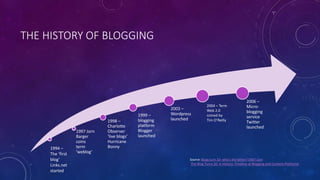
THE HISTORY OF BLOGGING
1997 Jorn
Barger
coins
term
‘weblog’
1998 –
Charlotte
Observer
‘live blogs’
Hurricane
Bonny
1999 –
blogging
platform
Blogger
launched
2003 –
Wordpress
launched
2006 –
Micro-
blogging
service
Twitter
launched
2004 – Term
Web 2.0
coined by
Tim O’Reilly
1994 –
The ‘first
blog’
Links.net
started
Source: Blogs turn 10--who's the father? CNET.com
The Blog Turns 20: A Historic Timeline of Blogging and Content Platforms
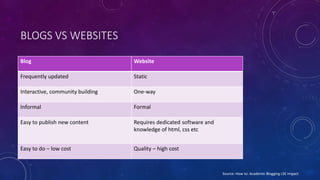
BLOGS VS WEBSITES
Blog Website
Frequently updated Static
Interactive, community building One-way
Informal Formal
Easy to publish new content Requires dedicated software and
knowledge of html, css etc
Easy to do – low cost Quality – high cost
Source: How to: Academic Blogging LSE Impact
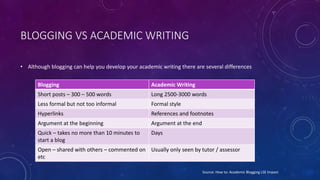
BLOGGING VS ACADEMIC WRITING
• Although blogging can help you develop your academic writing there are several differences
Blogging Academic Writing
Short posts – 300 – 500 words Long 2500-3000 words
Less formal but not too informal Formal style
Hyperlinks References and footnotes
Argument at the beginning Argument at the end
Quick – takes no more than 10 minutes to
start a blog
Days
Open – shared with others – commented on
etc
Usually only seen by tutor / assessor
Source: How to: Academic Blogging LSE Impact
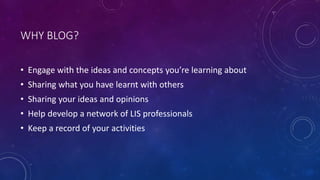
WHY BLOG?
• Engage with the ideas and concepts you’re learning about
• Sharing what you have learnt with others
• Sharing your ideas and opinions
• Help develop a network of LIS professionals
• Keep a record of your activities
CONTENT
• Hello World! – A brief piece about you, where you’re from, what
you hope to learn at #citylis
• DITA Topics – technologies of the world wide web
• Conferences and visits
• Areas of LIS research you’re interested in
• Experience of #citylis
DO’S AND DON'TS FOR WRITING YOUR BLOG
DO
• Keep it simple
• Keep paragraphs and sentences short
• Include hyperlinks where appropriate
• Be entertaining in your writing
• Engage your readers
• Acknowledge your sources
DON’T
• Use excessive quotes
• Let perfection get in the way of your writing – your message is more
important than the grammar
• Plagiarize or reproduce others work without acknowledgement / permission
including images
• Engage in personal abuse
• Post personal about yourself or anyone else that you wouldn’t want to be
public or without consent
SOME GOOD BLOGS TO FOLLOW
• Dr David Bawden - https://theoccasionalinformationist.com/blog/
• Dr Lyn Robinson - https://thelynxiblog.com/
• Scholarly Kitchen (The Society for Scholarly Publishing)- https://scholarlykitchen.sspnet.org
• LSE Impact - http://blogs.lse.ac.uk/impactofsocialsciences/
• Ludi Price https://blogs.city.ac.uk/ludiprice/
• BL Digital Scholarship Blog - http://blogs.bl.uk/digital-scholarship/
• UK Web Archive Blog - http://britishlibrary.typepad.co.uk/webarchive/
GETTING STARTED
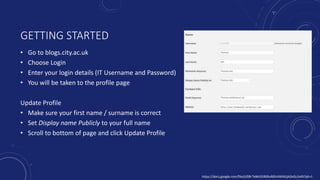
• Go to blogs.city.ac.uk
• Choose Login
• Enter your login details (IT Username and Password)
• You will be taken to the profile page
Update Profile
• Make sure your first name / surname is correct
• Set Display name Publicly to your full name
• Scroll to bottom of page and click Update Profile
https://docs.google.com/file/d/0B-TeMc91BSRuR0lzVWJXUjA2eGc/edit?pli=1
WRITE YOUR FIRST POST
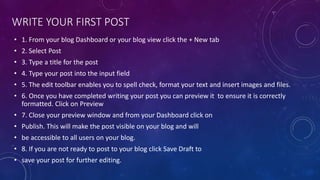
• 1. From your blog Dashboard or your blog view click the + New tab
• 2. Select Post
• 3. Type a title for the post
• 4. Type your post into the input field
• 5. The edit toolbar enables you to spell check, format your text and insert images and files.
• 6. Once you have completed writing your post you can preview it to ensure it is correctly
formatted. Click on Preview
• 7. Close your preview window and from your Dashboard click on
• Publish. This will make the post visible on your blog and will
• be accessible to all users on your blog.
• 8. If you are not ready to post to your blog click Save Draft to
• save your post for further editing.
WRITE YOUR FIRST POST
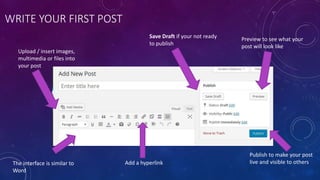
Upload / insert images,
multimedia or files into
your post
Preview to see what your
post will look like
Save Draft if your not ready
to publish
The interface is similar to
Word
Publish to make your post
live and visible to othersAdd a hyperlink
EDIT A POST
My blog
http://www.thomasash.wordpress.com
Twitter
@tashtom

Blogging

  • 1.
    BLOGGING 101 #CITYLIS #BLOGGING101 THOMASASH @TASHTOM THOMASASH.WORDPRESS.COM
  • 2.
    WHAT IS ABLOG • BLOG – short for weblog - a form of online diary in which a persons thoughts, ideas and opinions are published online
  • 3.
    THE HISTORY OFBLOGGING 1997 Jorn Barger coins term ‘weblog’ 1998 – Charlotte Observer ‘live blogs’ Hurricane Bonny 1999 – blogging platform Blogger launched 2003 – Wordpress launched 2006 – Micro- blogging service Twitter launched 2004 – Term Web 2.0 coined by Tim O’Reilly 1994 – The ‘first blog’ Links.net started Source: Blogs turn 10--who's the father? CNET.com The Blog Turns 20: A Historic Timeline of Blogging and Content Platforms
  • 4.
    BLOGS VS WEBSITES BlogWebsite Frequently updated Static Interactive, community building One-way Informal Formal Easy to publish new content Requires dedicated software and knowledge of html, css etc Easy to do – low cost Quality – high cost Source: How to: Academic Blogging LSE Impact
  • 5.
    BLOGGING VS ACADEMICWRITING • Although blogging can help you develop your academic writing there are several differences Blogging Academic Writing Short posts – 300 – 500 words Long 2500-3000 words Less formal but not too informal Formal style Hyperlinks References and footnotes Argument at the beginning Argument at the end Quick – takes no more than 10 minutes to start a blog Days Open – shared with others – commented on etc Usually only seen by tutor / assessor Source: How to: Academic Blogging LSE Impact
  • 6.
    WHY BLOG? • Engagewith the ideas and concepts you’re learning about • Sharing what you have learnt with others • Sharing your ideas and opinions • Help develop a network of LIS professionals • Keep a record of your activities
  • 7.
    CONTENT • Hello World!– A brief piece about you, where you’re from, what you hope to learn at #citylis • DITA Topics – technologies of the world wide web • Conferences and visits • Areas of LIS research you’re interested in • Experience of #citylis
  • 8.
    DO’S AND DON'TSFOR WRITING YOUR BLOG DO • Keep it simple • Keep paragraphs and sentences short • Include hyperlinks where appropriate • Be entertaining in your writing • Engage your readers • Acknowledge your sources
  • 9.
    DON’T • Use excessivequotes • Let perfection get in the way of your writing – your message is more important than the grammar • Plagiarize or reproduce others work without acknowledgement / permission including images • Engage in personal abuse • Post personal about yourself or anyone else that you wouldn’t want to be public or without consent
  • 10.
    SOME GOOD BLOGSTO FOLLOW • Dr David Bawden - https://theoccasionalinformationist.com/blog/ • Dr Lyn Robinson - https://thelynxiblog.com/ • Scholarly Kitchen (The Society for Scholarly Publishing)- https://scholarlykitchen.sspnet.org • LSE Impact - http://blogs.lse.ac.uk/impactofsocialsciences/ • Ludi Price https://blogs.city.ac.uk/ludiprice/ • BL Digital Scholarship Blog - http://blogs.bl.uk/digital-scholarship/ • UK Web Archive Blog - http://britishlibrary.typepad.co.uk/webarchive/
  • 11.
    GETTING STARTED • Goto blogs.city.ac.uk • Choose Login • Enter your login details (IT Username and Password) • You will be taken to the profile page Update Profile • Make sure your first name / surname is correct • Set Display name Publicly to your full name • Scroll to bottom of page and click Update Profile https://docs.google.com/file/d/0B-TeMc91BSRuR0lzVWJXUjA2eGc/edit?pli=1
  • 12.
    WRITE YOUR FIRSTPOST • 1. From your blog Dashboard or your blog view click the + New tab • 2. Select Post • 3. Type a title for the post • 4. Type your post into the input field • 5. The edit toolbar enables you to spell check, format your text and insert images and files. • 6. Once you have completed writing your post you can preview it to ensure it is correctly formatted. Click on Preview • 7. Close your preview window and from your Dashboard click on • Publish. This will make the post visible on your blog and will • be accessible to all users on your blog. • 8. If you are not ready to post to your blog click Save Draft to • save your post for further editing.
  • 13.
    WRITE YOUR FIRSTPOST Upload / insert images, multimedia or files into your post Preview to see what your post will look like Save Draft if your not ready to publish The interface is similar to Word Publish to make your post live and visible to othersAdd a hyperlink
  • 14.
  • 15.