www.reasonablyclever.com

Avatar maker

What is it?
With this tool you will be able to create your own avatar. It can reflect yourself or you
can create a different character such as a monster, a robot or a super hero. You will be
able to choose among different options such as clothes, types of eyes, noses,
eyebrows, mouths, legs, arms, body, weapons, and you can change the colour of all of
them. Have fun creating your own avatar!

How to use it?

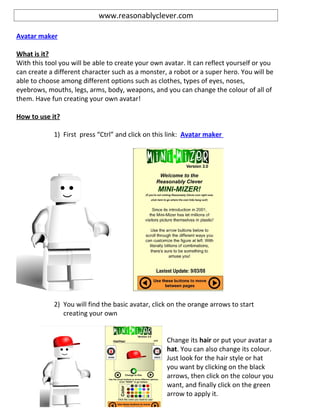
             1) First press “Ctrl” and click on this link: Avatar maker


             2) You will find the basic avatar, click on the orange arrows to start
                creating your own


                                                    Change its hair or put your avatar a
                                                    hat. You can also change its colour.
                                                    Just look for the hair style or hat
                                                    you want by clicking on the black
                                                    arrows, then click on the colour you
                                                    want, and finally click on the green
                                                    arrow to apply it.
Change your avatar’s head colour
just by clicking on it.


 Select the type and colour of
 eyes you want. Then, click on the
 green arrow.


 Select the eyebrows you like
 most.


   You can also add glasses.
Your avatar can wear a beard as well.


Choose a mouth.


Choose among the different options for
the torso. Remember to click on the
black arrows to see all the options, and
when you find it, to click on the green
arrow.


Choose the arms and hands style and
colour.
You can also add an object for the
right and left hand.


Choose the hip style.


Choose legs and shoes.


Choose neckwear.
Finally, choose one from all the
                                                   possible backgrounds for your avatar.


         Congratulations! You’ve created your own character.

            3) Now, to save it do the following:

            a) Look for the “ImprPant” bottom in your keyboard to create a
               screenshot of your avatar.
            b) Open the program “Paint”.
            c) Click the right button of your mouse and select the option “paste”.
            d) Select the whole avatar, click on the right bottom of your mouse,
               option “copy”. Then open a new “paint” document and paste it.
            e) Then save the whole document.

Why use it?
Reasonablyclever.com is a great webpage to create your characters. It’s user friendly
and it has many options from which your can choose. You can create totally different
characters with the very same page. They go from a normal person to a superhero.
Besides, it gives you options to set the background and set your character inside a
place. It’s simply fantastic!


                             www.onetruemedia.com

Video maker

What is it?
On this webpage you can create videos with photos of your own. You just select them
and the video creates itself! Besides, you can add music, text slides, video styles and
effects or an already created video you may have. So, start selecting your pictures and
let “onetruemedia” to create an amazing video!
How to use it?

1) First press “Ctrl” and click on the following link: Video maker


         2) To use this webpage you have to create an account. So, press “register”
            and complete the blanks with your information.
3) Now that you’ve created your account, go to the “create” option and press “Get started”


            4) Select “Create new video” and look for the folder with your photos in
               you computer. Choose the photos you want to include in the video.
               Then, click “upload”.
5) Now that you’ve selected the photos, the next step is to organize
               them, add effects, text and music.

“Edit and sequence” section

Organize your photos and change the order of the pictures


“Apply a video style” section

Choose from the several different video styles.
“Choose music” section

You can also choose music to make your video nicer!
“Cr                                                                                    e
ate                                                                                    a
text


slide” section

In this section you can add text slides to the picture you want, and you can create new
slides that contain only text. You can choose the font, its size, colour, and the amount
of time that the text will be on the screen.


6) Give your video a title.
7) Share your video

Now that you finished creating your video, you can share it on facebook, youtube,
twitter or you can get the embed code and share it on your blog.


Why
use
it?
Onetruemedia.com is a fantastic video maker. It’s very easy to use and it provides the
user with many options. Not only can you create a video just by selecting
photos/videos, but also you can add music, effects and text slides. You can create
videos for birthdays, celebrations, Christmas, New Year, and more. Have fun creating
your own videos and adding great a fun effects to your photos!


                         http://www.wittycomics.com/

Comic maker

What is it?
This web page allows you to create comics. You choose two characters you like. You
have a great variety of options that range from people to animals and ghosts. You have
also a great variety of options for the setting of the scene. There are beautiful
landscapes and important countries and cities from which you can choose. Then you
add the text you want your characters to say. You can choose the nature of the text,
that’s to say, if it is normal, a thought, if the character is shouting or whispering.

How to use it?

            1) First press “Ctrl” and click on the following link: Comic maker
2) To use this webpage you have to create an account. So, press “join”
   and complete the blanks with your information. An e-mail will be sent
   to your account giving you the password you will use.


3) Once you’ve created your account you can start making your comic.
   Select the characters you like most, add the text you want them to say
   and select the type of text.
First select the scene.           Then select the characters.              Write the text they’ll say.
                                                                           Select type of text.


             4) Now, to save it do the following:

             f) Look for the “ImprPant” bottom in your keyboard to create a
                screenshot of your comic.
             g) Open the program “Paint”.
             h) Click the right button of your mouse and select the option “paste”.
             i) Select the whole comic strip, click on the right bottom of your mouse,
                option “copy”. Then open a new “paint” document and paste it.
             j) Then save the whole document.


Why use it?
www.wittycomics.com is a very simple webpage to use. You can create short and
simple comics right away. It allows you to choose two characters and settings for the
scene from a great variety of options. You can add the text you want and the nature of
it. You can clearly show if the character is thinking, shouting, whispering or just stating
something. This tool is a simple, fun and fast way of creating comics. Enjoy using it!


                           www.pimpampum.net/phrasr

Phrase maker
What is it?
On this webpage you can create phrases and find images that match each or some of
the words in your phrases to give them life. The tool already provides you with loads of
images that relate to the words. You just have to choose from them. The final product
is a combination of words and images that form an illustrated phrase.

How to use it?

            1) First press “Ctrl” and click on the following link: Phrase maker


2) Enter the phrase you’d like to illustrate and press the START button:


            3) Choose the word you want to attach an image to:
Do the same process with all the words in your phrase. You can also choose not to add
images to certain words.

            4) Write a title and a name to identify your creation and press PUBLISH.


            5)                                            Once you watch it, click on
                                                          the option “view archive.”
                                                          Click on your creation and
                                                          get the link to post it
                                                          wherever you want!
Why use it?
www.pimpampum.net/phras is a great tool that helps you combine words and images
to give life to your phrases. You can create really funny as well as emotive stuff. It’s
incredibly simply and it takes little time to create them! There’s a great variety of
images too. Try it! You’ll have fun!

Blog - Samples / tutorials

  • 1.
    www.reasonablyclever.com Avatar maker What isit? With this tool you will be able to create your own avatar. It can reflect yourself or you can create a different character such as a monster, a robot or a super hero. You will be able to choose among different options such as clothes, types of eyes, noses, eyebrows, mouths, legs, arms, body, weapons, and you can change the colour of all of them. Have fun creating your own avatar! How to use it? 1) First press “Ctrl” and click on this link: Avatar maker 2) You will find the basic avatar, click on the orange arrows to start creating your own Change its hair or put your avatar a hat. You can also change its colour. Just look for the hair style or hat you want by clicking on the black arrows, then click on the colour you want, and finally click on the green arrow to apply it.
  • 2.
    Change your avatar’shead colour just by clicking on it. Select the type and colour of eyes you want. Then, click on the green arrow. Select the eyebrows you like most. You can also add glasses.
  • 3.
    Your avatar canwear a beard as well. Choose a mouth. Choose among the different options for the torso. Remember to click on the black arrows to see all the options, and when you find it, to click on the green arrow. Choose the arms and hands style and colour.
  • 4.
    You can alsoadd an object for the right and left hand. Choose the hip style. Choose legs and shoes. Choose neckwear.
  • 5.
    Finally, choose onefrom all the possible backgrounds for your avatar. Congratulations! You’ve created your own character. 3) Now, to save it do the following: a) Look for the “ImprPant” bottom in your keyboard to create a screenshot of your avatar. b) Open the program “Paint”. c) Click the right button of your mouse and select the option “paste”. d) Select the whole avatar, click on the right bottom of your mouse, option “copy”. Then open a new “paint” document and paste it. e) Then save the whole document. Why use it? Reasonablyclever.com is a great webpage to create your characters. It’s user friendly and it has many options from which your can choose. You can create totally different characters with the very same page. They go from a normal person to a superhero. Besides, it gives you options to set the background and set your character inside a place. It’s simply fantastic! www.onetruemedia.com Video maker What is it? On this webpage you can create videos with photos of your own. You just select them and the video creates itself! Besides, you can add music, text slides, video styles and effects or an already created video you may have. So, start selecting your pictures and let “onetruemedia” to create an amazing video!
  • 6.
    How to useit? 1) First press “Ctrl” and click on the following link: Video maker 2) To use this webpage you have to create an account. So, press “register” and complete the blanks with your information.
  • 7.
    3) Now thatyou’ve created your account, go to the “create” option and press “Get started” 4) Select “Create new video” and look for the folder with your photos in you computer. Choose the photos you want to include in the video. Then, click “upload”.
  • 8.
    5) Now thatyou’ve selected the photos, the next step is to organize them, add effects, text and music. “Edit and sequence” section Organize your photos and change the order of the pictures “Apply a video style” section Choose from the several different video styles.
  • 9.
    “Choose music” section Youcan also choose music to make your video nicer!
  • 10.
    “Cr e ate a text slide” section In this section you can add text slides to the picture you want, and you can create new slides that contain only text. You can choose the font, its size, colour, and the amount of time that the text will be on the screen. 6) Give your video a title.
  • 11.
    7) Share yourvideo Now that you finished creating your video, you can share it on facebook, youtube, twitter or you can get the embed code and share it on your blog. Why use it? Onetruemedia.com is a fantastic video maker. It’s very easy to use and it provides the user with many options. Not only can you create a video just by selecting photos/videos, but also you can add music, effects and text slides. You can create videos for birthdays, celebrations, Christmas, New Year, and more. Have fun creating your own videos and adding great a fun effects to your photos! http://www.wittycomics.com/ Comic maker What is it? This web page allows you to create comics. You choose two characters you like. You have a great variety of options that range from people to animals and ghosts. You have also a great variety of options for the setting of the scene. There are beautiful landscapes and important countries and cities from which you can choose. Then you add the text you want your characters to say. You can choose the nature of the text, that’s to say, if it is normal, a thought, if the character is shouting or whispering. How to use it? 1) First press “Ctrl” and click on the following link: Comic maker
  • 12.
    2) To usethis webpage you have to create an account. So, press “join” and complete the blanks with your information. An e-mail will be sent to your account giving you the password you will use. 3) Once you’ve created your account you can start making your comic. Select the characters you like most, add the text you want them to say and select the type of text.
  • 13.
    First select thescene. Then select the characters. Write the text they’ll say. Select type of text. 4) Now, to save it do the following: f) Look for the “ImprPant” bottom in your keyboard to create a screenshot of your comic. g) Open the program “Paint”. h) Click the right button of your mouse and select the option “paste”. i) Select the whole comic strip, click on the right bottom of your mouse, option “copy”. Then open a new “paint” document and paste it. j) Then save the whole document. Why use it? www.wittycomics.com is a very simple webpage to use. You can create short and simple comics right away. It allows you to choose two characters and settings for the scene from a great variety of options. You can add the text you want and the nature of it. You can clearly show if the character is thinking, shouting, whispering or just stating something. This tool is a simple, fun and fast way of creating comics. Enjoy using it! www.pimpampum.net/phrasr Phrase maker
  • 14.
    What is it? Onthis webpage you can create phrases and find images that match each or some of the words in your phrases to give them life. The tool already provides you with loads of images that relate to the words. You just have to choose from them. The final product is a combination of words and images that form an illustrated phrase. How to use it? 1) First press “Ctrl” and click on the following link: Phrase maker 2) Enter the phrase you’d like to illustrate and press the START button: 3) Choose the word you want to attach an image to:
  • 15.
    Do the sameprocess with all the words in your phrase. You can also choose not to add images to certain words. 4) Write a title and a name to identify your creation and press PUBLISH. 5) Once you watch it, click on the option “view archive.” Click on your creation and get the link to post it wherever you want!
  • 17.
    Why use it? www.pimpampum.net/phrasis a great tool that helps you combine words and images to give life to your phrases. You can create really funny as well as emotive stuff. It’s incredibly simply and it takes little time to create them! There’s a great variety of images too. Try it! You’ll have fun!