The document outlines the process of creating a Voki avatar to express one's favorite song. Users learn to customize characters, add voice recordings, and select backgrounds. Final creations can be published, saved, and shared on various platforms.
Voki about yourfavourite song
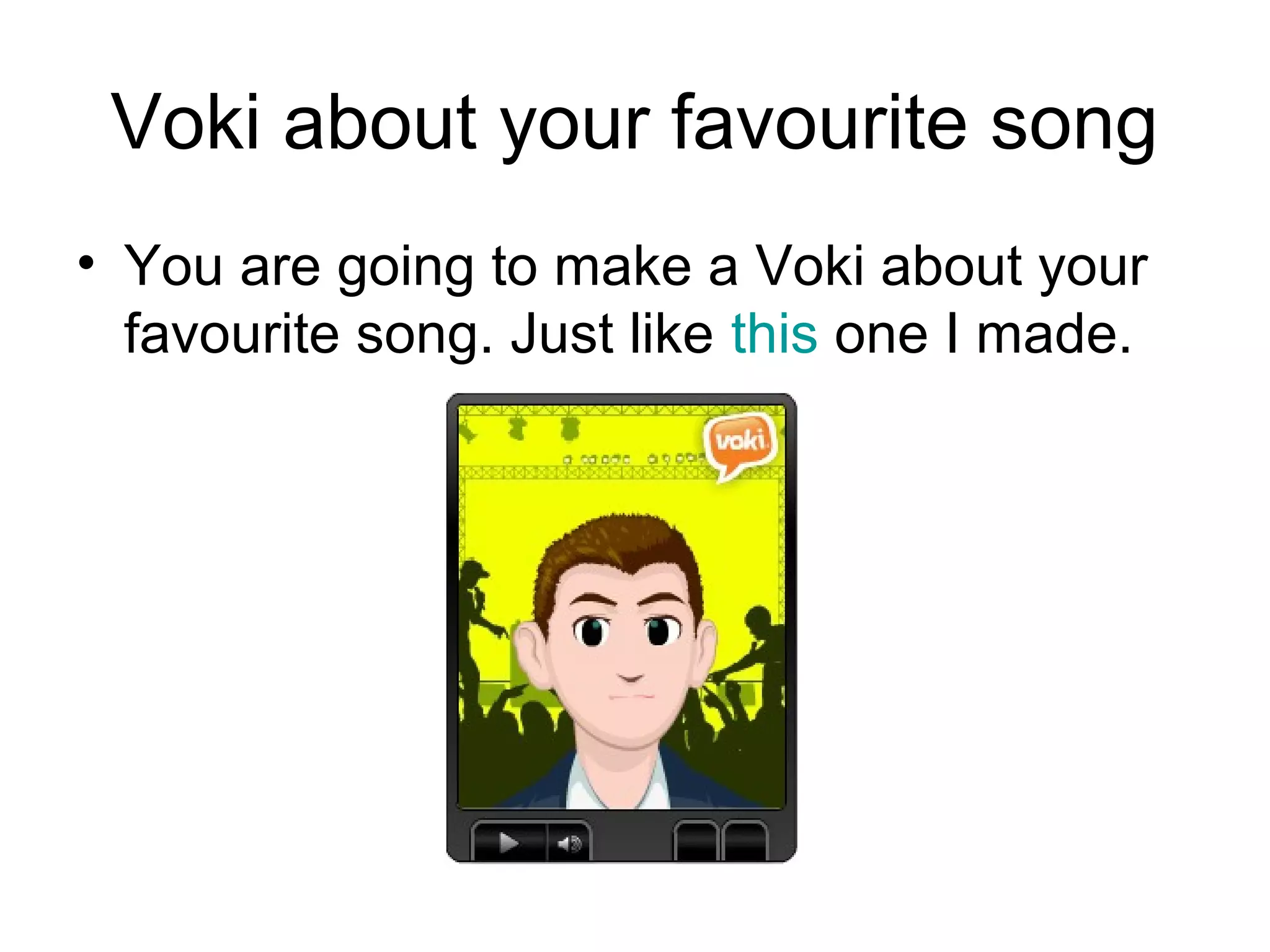
• You are going to make a Voki about your
favourite song. Just like this one I made.
2.
What is aVoki?
• A voki is an avatar that lets you record a
voice.
• Today you will:
– Learn how to make one
– Talk about your favourite song
– Guess other people’s favourite song from
their Voki.
… But first: How to make a Voki
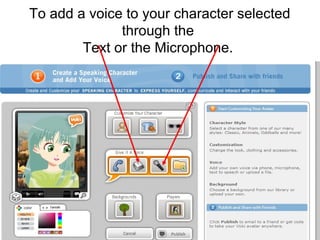
To add avoice to your character selected
through the
Text or the Microphone.
10.
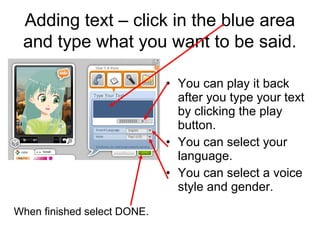
Adding text –click in the blue area
and type what you want to be said.
• You can play it back
after you type your text
by clicking the play
button.
• You can select your
language.
• You can select a voice
style and gender.
When finished select DONE.
11.
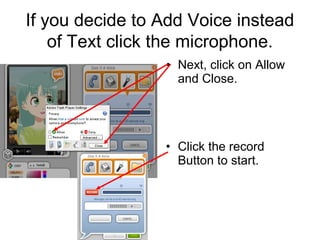
If you decideto Add Voice instead
of Text click the microphone.
• Next, click on Allow
and Close.
• Click the record
Button to start.
12.
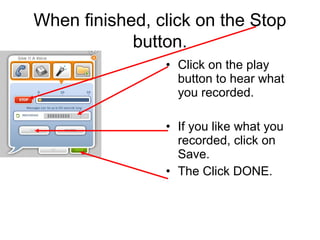
When finished, clickon the Stop
button.
• Click on the play
button to hear what
you recorded.
• If you like what you
recorded, click on
Save.
• The Click DONE.
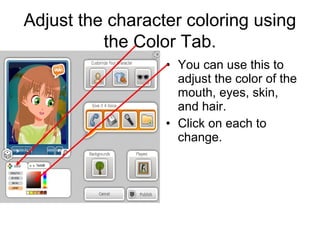
Adjust the charactercoloring using
the Color Tab.
• You can use this to
adjust the color of the
mouth, eyes, skin,
and hair.
• Click on each to
change.
18.
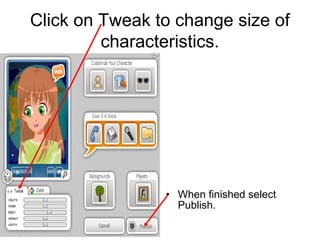
Click on Tweakto change size of
characteristics.
• When finished select
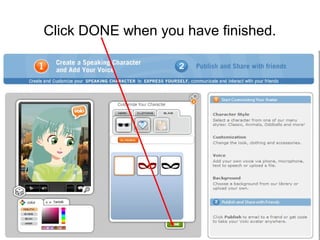
Publish.
19.
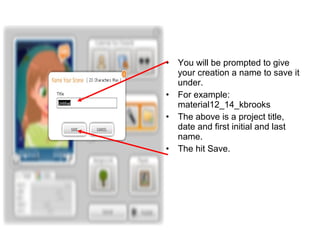
• You will be prompted to give
your creation a name to save it
under.
• For example:
material12_14_kbrooks
• The above is a project title,
date and first initial and last
name.
• The hit Save.
20.
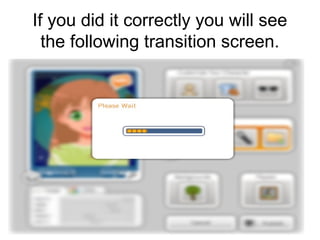
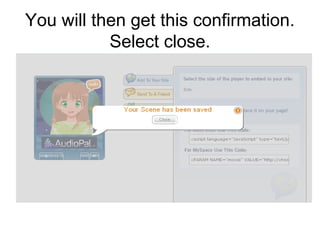
If you didit correctly you will see
the following transition screen.
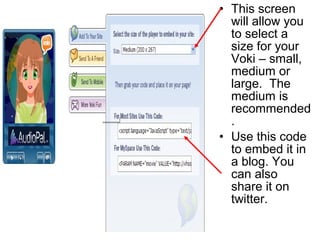
• This screen
will allow you
to select a
size for your
Voki – small,
medium or
large. The
medium is
recommended
.
• Use this code
to embed it in
a blog. You
can also
share it on
twitter.