Le Zhang, Rinker School zhangle@ufl.edu
http://lezhang.net/Documents/101100-navi4d.zip
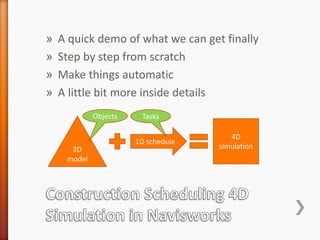
» A quick demo of what we can get finally
» Step by step from scratch
» Make things automatic
» A little bit more inside details
3D
model
1D schedule
4D
simulation
Objects Tasks
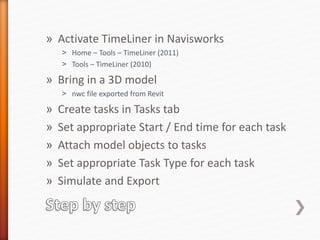
» Activate TimeLiner in Navisworks
˃ Home – Tools – TimeLiner (2011)
˃ Tools – TimeLiner (2010)
» Bring in a 3D model
˃ nwc file exported from Revit
» Create tasks in Tasks tab
» Set appropriate Start / End time for each task
» Attach model objects to tasks
» Set appropriate Task Type for each task
» Simulate and Export
» Use shortcuts to create tasks
˃ Tasks – Tools – Add named task for each xxx
˃ Objects automatically attached to tasks
» Use an external schedule to create tasks
˃ Import an external schedule in Links tab
˃ Recommendation: MPX exported from P3; MS Project
˃ Rebuild Task Hierarchy from Link
˃ Synchronize Tasks from Link
» Use Search Sets / Selection Sets
˃ Create a Search Set / Selection Set
˃ Tasks – Attach Selection Set
˃ Use Rules to map tasks to Search Sets
» Application Button – Options – Tools -
TimeLiner
˃ Tasks Tab
+ Validate schedule: Tasks – Check
˃ Links Tab
+ Field Selector
˃ Gantt View Tab
+ Read only
˃ Configure Tab
+ Task Types
+ Appearance Definitions
˃ Rules Tab
+ Edit the rules
˃ Simulate Tab
+ Settings & Overlay Text
» Sample Project:
˃ C:Program FilesAutodeskNavisworks Manage
2010ExamplesGetting Started
» Documentation:
˃ C:Program FilesAutodeskNavisworks Manage 2011Setupen-
USSetupResDocs
˃ http://usa.autodesk.com/adsk/servlet/index?siteID=123112&id=1162
1516
˃ Getting Started Guide; User Guide (Manual)
» Web Resources:
˃ http://forums.augi.com/forumdisplay.php?f=924
˃ http://forum.bimforum.org/forumdisplay.php?f=6
˃ http://resources.autodesk.com/Architecture/Navisworks
˃ http://resources.autodesk.com/construction/Navisworks

BIM Construction Scheduling 4D Simulation in Navisworks

  • 1.
    Le Zhang, RinkerSchool zhangle@ufl.edu http://lezhang.net/Documents/101100-navi4d.zip
  • 2.
    » A quickdemo of what we can get finally » Step by step from scratch » Make things automatic » A little bit more inside details 3D model 1D schedule 4D simulation Objects Tasks
  • 3.
    » Activate TimeLinerin Navisworks ˃ Home – Tools – TimeLiner (2011) ˃ Tools – TimeLiner (2010) » Bring in a 3D model ˃ nwc file exported from Revit » Create tasks in Tasks tab » Set appropriate Start / End time for each task » Attach model objects to tasks » Set appropriate Task Type for each task » Simulate and Export
  • 4.
    » Use shortcutsto create tasks ˃ Tasks – Tools – Add named task for each xxx ˃ Objects automatically attached to tasks » Use an external schedule to create tasks ˃ Import an external schedule in Links tab ˃ Recommendation: MPX exported from P3; MS Project ˃ Rebuild Task Hierarchy from Link ˃ Synchronize Tasks from Link » Use Search Sets / Selection Sets ˃ Create a Search Set / Selection Set ˃ Tasks – Attach Selection Set ˃ Use Rules to map tasks to Search Sets
  • 5.
    » Application Button– Options – Tools - TimeLiner ˃ Tasks Tab + Validate schedule: Tasks – Check ˃ Links Tab + Field Selector ˃ Gantt View Tab + Read only ˃ Configure Tab + Task Types + Appearance Definitions ˃ Rules Tab + Edit the rules ˃ Simulate Tab + Settings & Overlay Text
  • 6.
    » Sample Project: ˃C:Program FilesAutodeskNavisworks Manage 2010ExamplesGetting Started » Documentation: ˃ C:Program FilesAutodeskNavisworks Manage 2011Setupen- USSetupResDocs ˃ http://usa.autodesk.com/adsk/servlet/index?siteID=123112&id=1162 1516 ˃ Getting Started Guide; User Guide (Manual) » Web Resources: ˃ http://forums.augi.com/forumdisplay.php?f=924 ˃ http://forum.bimforum.org/forumdisplay.php?f=6 ˃ http://resources.autodesk.com/Architecture/Navisworks ˃ http://resources.autodesk.com/construction/Navisworks