Git: Be Social 
Geronimo Orozco 
gorozco @ gmail.com 
Sept 2011
● General introduction: 
– Who I am 
– Brief intro to VCS 
● What is VCS 
Scope 
● Why do we need it 
● Types of VCS 
– Git 
● History 
● What is Git 
● General features 
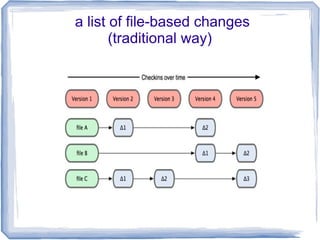
● Traditional Way 
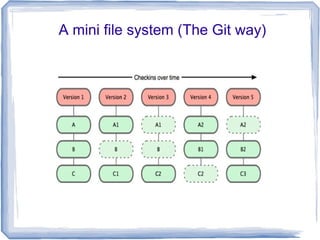
● The Git way 
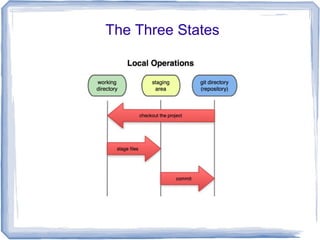
● The Three states 
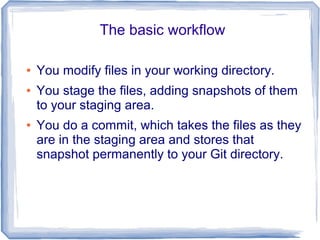
● The basic workflow 
● Tutorial 
● Talk highly based on Pro Git (Seriously 
this is just a extract and you should read the 
book)
Who am I ? 
(or why you should listen to me) 
● Open Source Advocate User & Developer 
– 4 years in QA 
– 6 years as SysAdmin 
– 6 years as Software Developer 
– YaCOMAS (2004 released as GPL)
Who am I ? 
(or why you should listen to me) 
● Open Source Advocate User & Developer 
– 4 years in QA 
– 6 years as SysAdmin 
– 6 years as Software Developer 
– YaCOMAS (2004 released as GPL) 
● I messed up too many times.
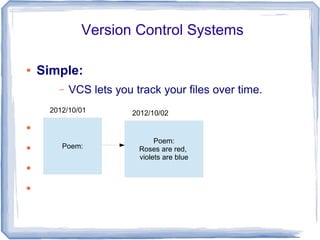
Version Control Systems 
● Simple: 
– VCS lets you track your files over time. 
● 
● 
● 
● 
2012/10/01 
Poem: 
2012/10/02 
Poem: 
Roses are red, 
violets are blue
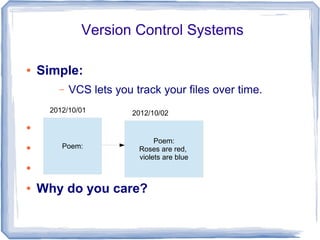
Version Control Systems 
● Simple: 
– VCS lets you track your files over time. 
● 
● 
● 
2012/10/01 
Poem: 
2012/10/02 
● Why do you care? 
Poem: 
Roses are red, 
violets are blue
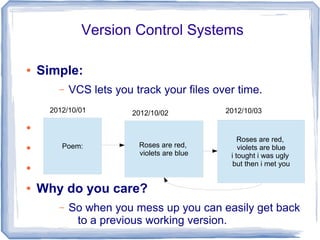
Version Control Systems 
● Simple: 
– VCS lets you track your files over time. 
● 
● 
● 
2012/10/01 
Poem: 
2012/10/02 
Roses are red, 
violets are blue 
● Why do you care? 
2012/10/03 
– So when you mess up you can easily get back 
to a previous working version. 
Roses are red, 
violets are blue 
i tought i was ugly 
but then i met you
Version Control Systems 
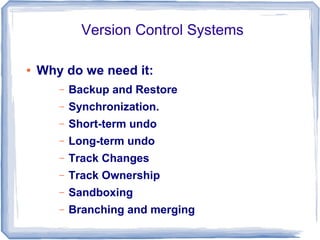
● Why do we need it: 
– Backup and Restore 
– Synchronization. 
– Short-term undo 
– Long-term undo 
– Track Changes 
– Track Ownership 
– Sandboxing 
– Branching and merging
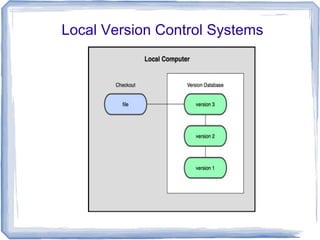
Local Version Control Systems
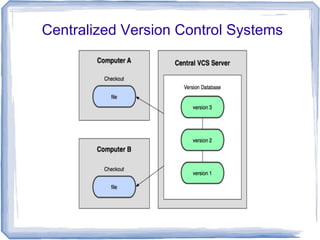
Centralized Version Control Systems
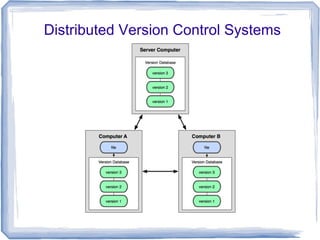
Distributed Version Control Systems
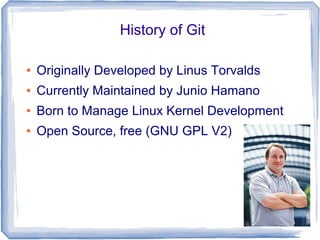
History of Git 
● Originally Developed by Linus Torvalds 
● Currently Maintained by Junio Hamano 
● Born to Manage Linux Kernel Development 
● Open Source, free (GNU GPL V2)
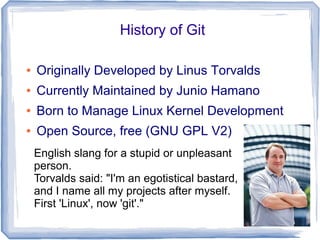
History of Git 
● Originally Developed by Linus Torvalds 
● Currently Maintained by Junio Hamano 
● Born to Manage Linux Kernel Development 
● Open Source, free (GNU GPL V2) 
English slang for a stupid or unpleasant 
person. 
Torvalds said: "I'm an egotistical bastard, 
and I name all my projects after myself. 
First 'Linux', now 'git'."
What is Git? 
● Distributed Source Control Management tool 
● Born to Manage Linux Kernel Development 
● Open Source, free (GNU GPL V2)
General features 
● Speed 
● Simple design 
● Strong support for non-linear development 
(thousands of parallel branches) 
● Fully distributed 
● Able to handle large projects like the Linux 
kernel efficiently (speed and data size)
a list of file-based changes 
(traditional way)
A mini file system (The Git way)
The Git way 
● Nearly Every Operation Is Local 
– Most operations in Git only need local files and 
resources to operate 
● Git Has Integrity 
– Everything in Git is check-summed before it is 
stored and is then referred to by that 
checksum. 
● Git Generally Only Adds Data
The Three States
The basic workflow 
● You modify files in your working directory. 
● You stage the files, adding snapshots of them 
to your staging area. 
● You do a commit, which takes the files as they 
are in the staging area and stores that 
snapshot permanently to your Git directory.
Tutorial
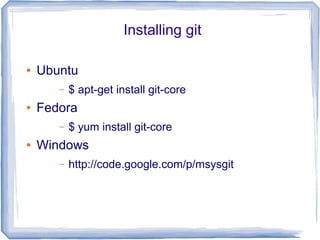
Installing git 
● Ubuntu 
– $ apt-get install git-core 
● Fedora 
– $ yum install git-core 
● Windows 
– http://code.google.com/p/msysgit
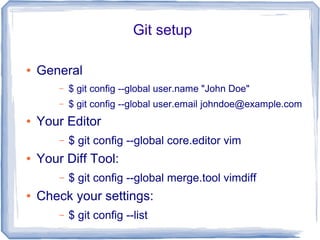
Git setup 
● General 
– $ git config --global user.name "John Doe" 
– $ git config --global user.email johndoe@example.com 
● Your Editor 
– $ git config --global core.editor vim 
● Your Diff Tool: 
– $ git config --global merge.tool vimdiff 
● Check your settings: 
– $ git config --list
Getting help 
● $ git help <verb> 
● $ git <verb> --help 
● $ man git-<verb> 
● Ex: 
– $ git help config
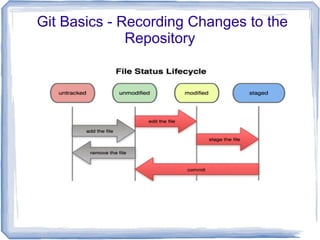
Git Basics - Recording Changes to the 
Repository
Git Basics - Getting a Git Repository 
Initializing a Repository in an Existing Directory 
$ git init 
– This creates a new subdirectory named .git 
(The git directory)
Git Basics - Getting a Git Repository 
Cloning an Existing Repository 
$ git clone https://github.com/patux/YaCOMAS 
$ git clone repo1 repo2
Git Basics - Recording Changes to the 
Repository 
(Checking the Status of Your Files) 
$ git status
Git Basics - Getting a Git Repository 
Tracking New Files 
$ git add README
Git Basics - Recording Changes to the 
Repository 
Viewing Your Staged and Unstaged Changes 
$ git diff
Git Basics - Recording Changes to the 
Repository 
Committing Your Changes 
$ git add 
$ git commit
Git Basics - Recording Changes to the 
Repository 
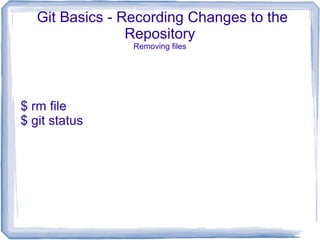
Removing files 
$ rm file 
$ git status
Git Basics - Recording Changes to the 
Repository 
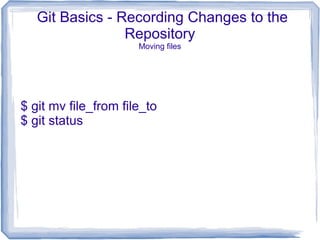
Moving files 
$ git mv file_from file_to 
$ git status
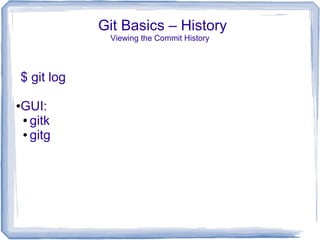
Git Basics – History 
Viewing the Commit History 
$ git log 
●GUI: 
● gitk 
● gitg
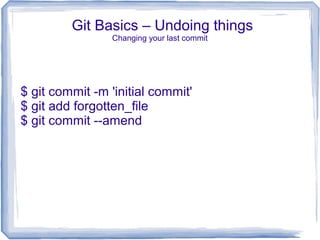
Git Basics – Undoing things 
Changing your last commit 
$ git commit -m 'initial commit' 
$ git add forgotten_file 
$ git commit --amend
Git Basics – Working with remotes 
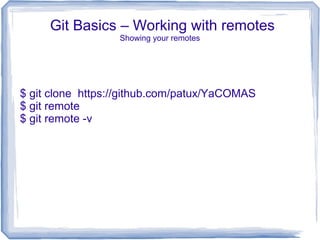
Showing your remotes 
$ git clone https://github.com/patux/YaCOMAS 
$ git remote 
$ git remote -v
Git Basics – Working with remotes 
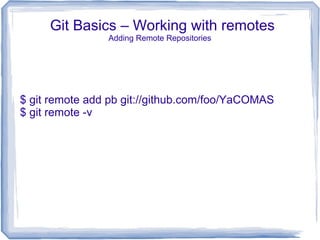
Adding Remote Repositories 
$ git remote add pb git://github.com/foo/YaCOMAS 
$ git remote -v
Git Basics – Working with remotes 
Fetching and Pulling from Your Remotes 
$ git fetch [remote-name] 
$ git pull [remote-name]
Git Basics – Working with remotes 
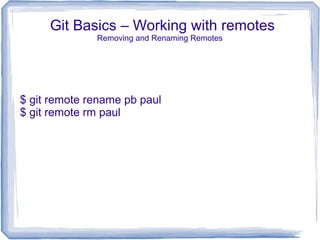
Removing and Renaming Remotes 
$ git remote rename pb paul 
$ git remote rm paul
Git Basics – Working with remotes 
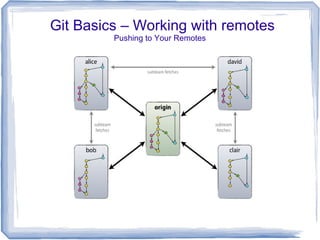
Pushing to Your Remotes 
$ git push [remote-name]
Git Basics – Working with remotes 
Pushing to Your Remotes
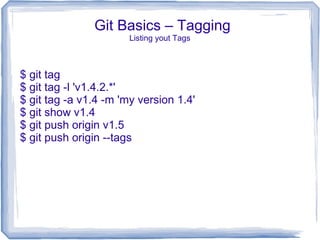
Git Basics – Tagging 
Listing yout Tags 
$ git tag 
$ git tag -l 'v1.4.2.*' 
$ git tag -a v1.4 -m 'my version 1.4' 
$ git show v1.4 
$ git push origin v1.5 
$ git push origin --tags
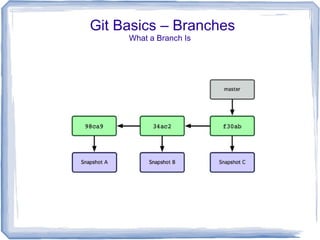
Git Basics – Branches 
What a Branch Is
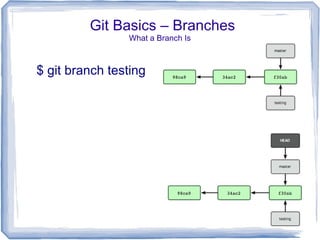
Git Basics – Branches 
What a Branch Is 
$ git branch testing
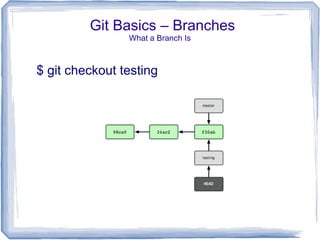
Git Basics – Branches 
What a Branch Is 
$ git checkout testing
Git Basics – Branches 
What a Branch Is 
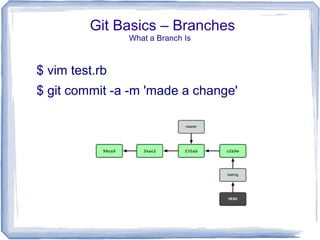
$ vim test.rb 
$ git commit -a -m 'made a change'
Git Basics – Branches 
What a Branch Is 
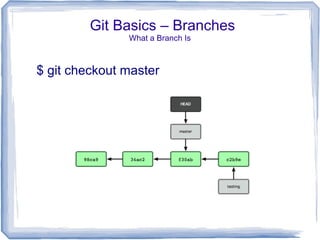
$ git checkout master
Git Basics – Branches 
What a Branch Is 
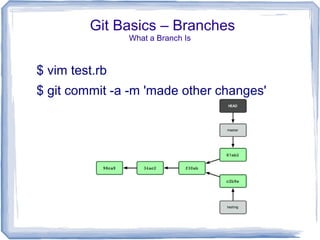
$ vim test.rb 
$ git commit -a -m 'made other changes'
References 
● http://git-scm.com/book/ 
● http://www.slideshare.net/anildigital/git-introduction 
● http://nvie.com/posts/a-successful-git-branching-model/
Questions ? 
geronimo.orozco@intel.com 
Twitter: @patux 
Github: https://github.com/patux

Git: be social

  • 1.
    Git: Be Social Geronimo Orozco gorozco @ gmail.com Sept 2011
  • 2.
    ● General introduction: – Who I am – Brief intro to VCS ● What is VCS Scope ● Why do we need it ● Types of VCS – Git ● History ● What is Git ● General features ● Traditional Way ● The Git way ● The Three states ● The basic workflow ● Tutorial ● Talk highly based on Pro Git (Seriously this is just a extract and you should read the book)
  • 3.
    Who am I? (or why you should listen to me) ● Open Source Advocate User & Developer – 4 years in QA – 6 years as SysAdmin – 6 years as Software Developer – YaCOMAS (2004 released as GPL)
  • 4.
    Who am I? (or why you should listen to me) ● Open Source Advocate User & Developer – 4 years in QA – 6 years as SysAdmin – 6 years as Software Developer – YaCOMAS (2004 released as GPL) ● I messed up too many times.
  • 5.
    Version Control Systems ● Simple: – VCS lets you track your files over time. ● ● ● ● 2012/10/01 Poem: 2012/10/02 Poem: Roses are red, violets are blue
  • 6.
    Version Control Systems ● Simple: – VCS lets you track your files over time. ● ● ● 2012/10/01 Poem: 2012/10/02 ● Why do you care? Poem: Roses are red, violets are blue
  • 7.
    Version Control Systems ● Simple: – VCS lets you track your files over time. ● ● ● 2012/10/01 Poem: 2012/10/02 Roses are red, violets are blue ● Why do you care? 2012/10/03 – So when you mess up you can easily get back to a previous working version. Roses are red, violets are blue i tought i was ugly but then i met you
  • 8.
    Version Control Systems ● Why do we need it: – Backup and Restore – Synchronization. – Short-term undo – Long-term undo – Track Changes – Track Ownership – Sandboxing – Branching and merging
  • 9.
  • 10.
  • 11.
  • 12.
    History of Git ● Originally Developed by Linus Torvalds ● Currently Maintained by Junio Hamano ● Born to Manage Linux Kernel Development ● Open Source, free (GNU GPL V2)
  • 13.
    History of Git ● Originally Developed by Linus Torvalds ● Currently Maintained by Junio Hamano ● Born to Manage Linux Kernel Development ● Open Source, free (GNU GPL V2) English slang for a stupid or unpleasant person. Torvalds said: "I'm an egotistical bastard, and I name all my projects after myself. First 'Linux', now 'git'."
  • 14.
    What is Git? ● Distributed Source Control Management tool ● Born to Manage Linux Kernel Development ● Open Source, free (GNU GPL V2)
  • 15.
    General features ●Speed ● Simple design ● Strong support for non-linear development (thousands of parallel branches) ● Fully distributed ● Able to handle large projects like the Linux kernel efficiently (speed and data size)
  • 16.
    a list offile-based changes (traditional way)
  • 17.
    A mini filesystem (The Git way)
  • 18.
    The Git way ● Nearly Every Operation Is Local – Most operations in Git only need local files and resources to operate ● Git Has Integrity – Everything in Git is check-summed before it is stored and is then referred to by that checksum. ● Git Generally Only Adds Data
  • 19.
  • 20.
    The basic workflow ● You modify files in your working directory. ● You stage the files, adding snapshots of them to your staging area. ● You do a commit, which takes the files as they are in the staging area and stores that snapshot permanently to your Git directory.
  • 21.
  • 22.
    Installing git ●Ubuntu – $ apt-get install git-core ● Fedora – $ yum install git-core ● Windows – http://code.google.com/p/msysgit
  • 23.
    Git setup ●General – $ git config --global user.name "John Doe" – $ git config --global user.email johndoe@example.com ● Your Editor – $ git config --global core.editor vim ● Your Diff Tool: – $ git config --global merge.tool vimdiff ● Check your settings: – $ git config --list
  • 24.
    Getting help ●$ git help <verb> ● $ git <verb> --help ● $ man git-<verb> ● Ex: – $ git help config
  • 25.
    Git Basics -Recording Changes to the Repository
  • 26.
    Git Basics -Getting a Git Repository Initializing a Repository in an Existing Directory $ git init – This creates a new subdirectory named .git (The git directory)
  • 27.
    Git Basics -Getting a Git Repository Cloning an Existing Repository $ git clone https://github.com/patux/YaCOMAS $ git clone repo1 repo2
  • 28.
    Git Basics -Recording Changes to the Repository (Checking the Status of Your Files) $ git status
  • 29.
    Git Basics -Getting a Git Repository Tracking New Files $ git add README
  • 30.
    Git Basics -Recording Changes to the Repository Viewing Your Staged and Unstaged Changes $ git diff
  • 31.
    Git Basics -Recording Changes to the Repository Committing Your Changes $ git add $ git commit
  • 32.
    Git Basics -Recording Changes to the Repository Removing files $ rm file $ git status
  • 33.
    Git Basics -Recording Changes to the Repository Moving files $ git mv file_from file_to $ git status
  • 34.
    Git Basics –History Viewing the Commit History $ git log ●GUI: ● gitk ● gitg
  • 35.
    Git Basics –Undoing things Changing your last commit $ git commit -m 'initial commit' $ git add forgotten_file $ git commit --amend
  • 36.
    Git Basics –Working with remotes Showing your remotes $ git clone https://github.com/patux/YaCOMAS $ git remote $ git remote -v
  • 37.
    Git Basics –Working with remotes Adding Remote Repositories $ git remote add pb git://github.com/foo/YaCOMAS $ git remote -v
  • 38.
    Git Basics –Working with remotes Fetching and Pulling from Your Remotes $ git fetch [remote-name] $ git pull [remote-name]
  • 39.
    Git Basics –Working with remotes Removing and Renaming Remotes $ git remote rename pb paul $ git remote rm paul
  • 40.
    Git Basics –Working with remotes Pushing to Your Remotes $ git push [remote-name]
  • 41.
    Git Basics –Working with remotes Pushing to Your Remotes
  • 42.
    Git Basics –Tagging Listing yout Tags $ git tag $ git tag -l 'v1.4.2.*' $ git tag -a v1.4 -m 'my version 1.4' $ git show v1.4 $ git push origin v1.5 $ git push origin --tags
  • 43.
    Git Basics –Branches What a Branch Is
  • 44.
    Git Basics –Branches What a Branch Is $ git branch testing
  • 45.
    Git Basics –Branches What a Branch Is $ git checkout testing
  • 46.
    Git Basics –Branches What a Branch Is $ vim test.rb $ git commit -a -m 'made a change'
  • 47.
    Git Basics –Branches What a Branch Is $ git checkout master
  • 48.
    Git Basics –Branches What a Branch Is $ vim test.rb $ git commit -a -m 'made other changes'
  • 49.
    References ● http://git-scm.com/book/ ● http://www.slideshare.net/anildigital/git-introduction ● http://nvie.com/posts/a-successful-git-branching-model/
  • 50.
    Questions ? geronimo.orozco@intel.com Twitter: @patux Github: https://github.com/patux