VBA Programming for Excel
 Review Excel Objects
 Excel Methods
 Identifying Specific Cells
 Review Functions for Excel
 Custom Menus
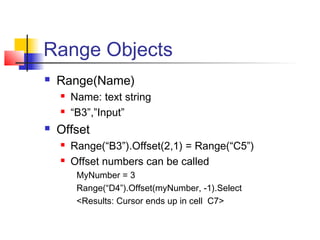
Range Objects
 Range(Name)
 Name: text string
 “B3”,”Input”
 Offset
 Range(“B3”).Offset(2,1) = Range(“C5”)
 Offset numbers can be called
MyNumber = 3
Range(“D4”).Offset(myNumber, -1).Select
<Results: Cursor ends up in cell C7>
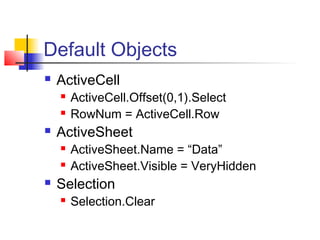
Default Objects
 ActiveCell
 ActiveCell.Offset(0,1).Select
 RowNum = ActiveCell.Row
 ActiveSheet
 ActiveSheet.Name = “Data”
 ActiveSheet.Visible = VeryHidden
 Selection
 Selection.Clear
What does this code do?
ActiveCell.Offset(Range(“B2”),-2) = [b4]/4
4
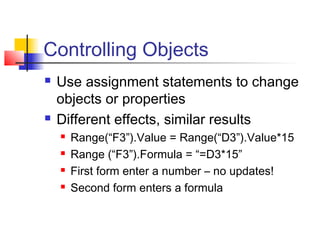
Controlling Objects
 Use assignment statements to change
objects or properties
 Different effects, similar results
 Range(“F3”).Value = Range(“D3”).Value*15
 Range (“F3”).Formula = “=D3*15”
 First form enter a number – no updates!
 Second form enters a formula
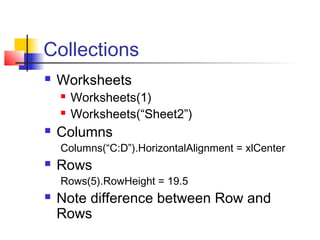
Collections
 Worksheets
 Worksheets(1)
 Worksheets(“Sheet2”)
 Columns
Columns(“C:D”).HorizontalAlignment = xlCenter
 Rows
Rows(5).RowHeight = 19.5
 Note difference between Row and
Rows
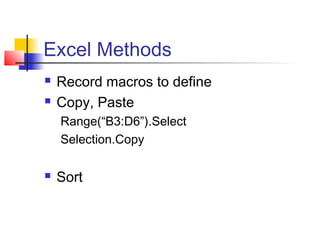
Excel Methods
 Record macros to define
 Copy, Paste
Range(“B3:D6”).Select
Selection.Copy
 Sort
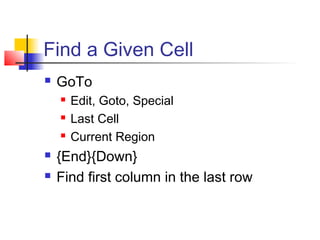
Find a Given Cell
 GoTo
 Edit, Goto, Special
 Last Cell
 Current Region
 {End}{Down}
 Find first column in the last row
Look-ups
 VLookUp(value, table, col_num, close)
 Value: item to find
 Table: range of data to search

Must be sorted by 1st column
 Col_num: which column has data?
 Close: true or false

True: select nearest match – always finds

False: find exact, or return #N/A
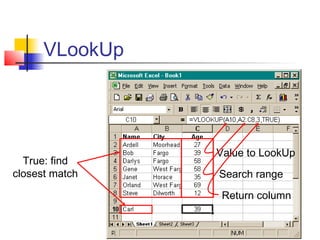
VLookUp
Value to LookUp
Search range
Return column
True: find
closest match
Spreadsheet Functions in VBA
 Application.WorkSheetFunction.Name(Arguments)
Application.WorksheetFunction.Today()
 Cell addresses must appear as ranges
Application.WorkSheetFunction.IsNumber(Range(“B3”))
 Most worksheet functions have a VBA equivalent
 Functions must be used in assignment statements
vAns = Application.WorkSheetFunction. _
vLookup(Range(“A10”), Range(“A2:C8”), 3, True)
vOut = Range(“A10”).formula & “ lives in “ vAns
MsgBox vOut
Find()
 VBA Function – not available on sheet
 Expression.Find(What)
 Expression must define a range on the
spreadsheet
 Returns Range location of first match
 Expression range need not be sorted
 If no match is found, it returns Nothing
Find( ) Function
Range(“C10”).Value = _
Range(“A2:A8”).Find(“Gene”).Offset(0,2).Value
Looks in cells A2:A8 for
“Gene”,
returns [A5]
Offsets 2 cells right from [A5]
returns [C5]
Finds the value in [C5] = 58
Puts the value 58 in [C10]
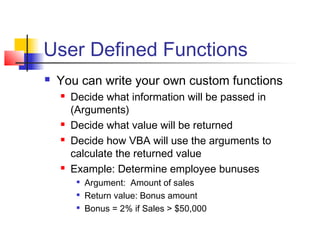
User Defined Functions
 You can write your own custom functions
 Decide what information will be passed in
(Arguments)
 Decide what value will be returned
 Decide how VBA will use the arguments to
calculate the returned value
 Example: Determine employee bunuses

Argument: Amount of sales

Return value: Bonus amount

Bonus = 2% if Sales > $50,000
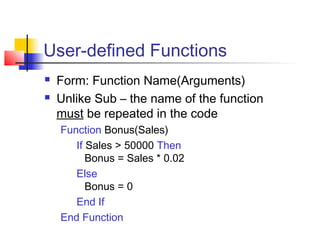
User-defined Functions
 Form: Function Name(Arguments)
 Unlike Sub – the name of the function
must be repeated in the code
Function Bonus(Sales)
If Sales > 50000 Then
Bonus = Sales * 0.02
Else
Bonus = 0
End If
End Function
Using Custom Functions
 Functions can be called from another sub
vSales = Range(“B3”).Value
vBonus = Bonus(vSales)
Range(“C3”).Value = vBonus
 Functions can be used in the spreadsheet
 Use Function Generator [fx]
 Look under “User-defined”
 Place cursor in [C3], write:
=Bonus(B3)
 Note how the results differ!
 See VBAFunctions.xls in the handouts
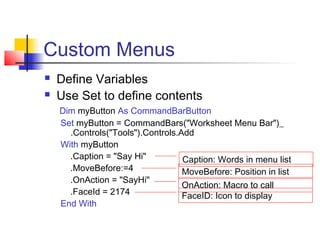
Custom Menus
 Define Variables
 Use Set to define contents
Dim myButton As CommandBarButton
Set myButton = CommandBars("Worksheet Menu Bar")_
.Controls("Tools").Controls.Add
With myButton
.Caption = "Say Hi"
.MoveBefore:=4
.OnAction = "SayHi"
.FaceId = 2174
End With
Caption: Words in menu list
MoveBefore: Position in list
OnAction: Macro to call
FaceID: Icon to display
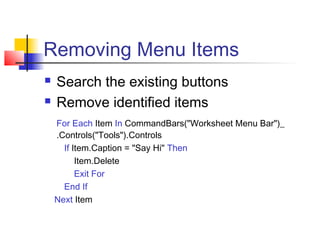
Removing Menu Items
 Search the existing buttons
 Remove identified items
For Each Item In CommandBars("Worksheet Menu Bar")_
.Controls("Tools").Controls
If Item.Caption = "Say Hi" Then
Item.Delete
Exit For
End If
Next Item
Activating Custom Menus
 Menu code goes in a macro
 Macro must be run to make menu
appear or disappear
 Use WorkBook_Open to add menues
 Use WorkBook_BeforeClose to remove
 See SayHi.xls in the handouts

belajar VBA

  • 1.
    VBA Programming forExcel  Review Excel Objects  Excel Methods  Identifying Specific Cells  Review Functions for Excel  Custom Menus
  • 2.
    Range Objects  Range(Name) Name: text string  “B3”,”Input”  Offset  Range(“B3”).Offset(2,1) = Range(“C5”)  Offset numbers can be called MyNumber = 3 Range(“D4”).Offset(myNumber, -1).Select <Results: Cursor ends up in cell C7>
  • 3.
    Default Objects  ActiveCell ActiveCell.Offset(0,1).Select  RowNum = ActiveCell.Row  ActiveSheet  ActiveSheet.Name = “Data”  ActiveSheet.Visible = VeryHidden  Selection  Selection.Clear
  • 4.
    What does thiscode do? ActiveCell.Offset(Range(“B2”),-2) = [b4]/4 4
  • 5.
    Controlling Objects  Useassignment statements to change objects or properties  Different effects, similar results  Range(“F3”).Value = Range(“D3”).Value*15  Range (“F3”).Formula = “=D3*15”  First form enter a number – no updates!  Second form enters a formula
  • 6.
    Collections  Worksheets  Worksheets(1) Worksheets(“Sheet2”)  Columns Columns(“C:D”).HorizontalAlignment = xlCenter  Rows Rows(5).RowHeight = 19.5  Note difference between Row and Rows
  • 7.
    Excel Methods  Recordmacros to define  Copy, Paste Range(“B3:D6”).Select Selection.Copy  Sort
  • 8.
    Find a GivenCell  GoTo  Edit, Goto, Special  Last Cell  Current Region  {End}{Down}  Find first column in the last row
  • 9.
    Look-ups  VLookUp(value, table,col_num, close)  Value: item to find  Table: range of data to search  Must be sorted by 1st column  Col_num: which column has data?  Close: true or false  True: select nearest match – always finds  False: find exact, or return #N/A
  • 10.
    VLookUp Value to LookUp Searchrange Return column True: find closest match
  • 11.
    Spreadsheet Functions inVBA  Application.WorkSheetFunction.Name(Arguments) Application.WorksheetFunction.Today()  Cell addresses must appear as ranges Application.WorkSheetFunction.IsNumber(Range(“B3”))  Most worksheet functions have a VBA equivalent  Functions must be used in assignment statements vAns = Application.WorkSheetFunction. _ vLookup(Range(“A10”), Range(“A2:C8”), 3, True) vOut = Range(“A10”).formula & “ lives in “ vAns MsgBox vOut
  • 12.
    Find()  VBA Function– not available on sheet  Expression.Find(What)  Expression must define a range on the spreadsheet  Returns Range location of first match  Expression range need not be sorted  If no match is found, it returns Nothing
  • 13.
    Find( ) Function Range(“C10”).Value= _ Range(“A2:A8”).Find(“Gene”).Offset(0,2).Value Looks in cells A2:A8 for “Gene”, returns [A5] Offsets 2 cells right from [A5] returns [C5] Finds the value in [C5] = 58 Puts the value 58 in [C10]
  • 14.
    User Defined Functions You can write your own custom functions  Decide what information will be passed in (Arguments)  Decide what value will be returned  Decide how VBA will use the arguments to calculate the returned value  Example: Determine employee bunuses  Argument: Amount of sales  Return value: Bonus amount  Bonus = 2% if Sales > $50,000
  • 15.
    User-defined Functions  Form:Function Name(Arguments)  Unlike Sub – the name of the function must be repeated in the code Function Bonus(Sales) If Sales > 50000 Then Bonus = Sales * 0.02 Else Bonus = 0 End If End Function
  • 16.
    Using Custom Functions Functions can be called from another sub vSales = Range(“B3”).Value vBonus = Bonus(vSales) Range(“C3”).Value = vBonus  Functions can be used in the spreadsheet  Use Function Generator [fx]  Look under “User-defined”  Place cursor in [C3], write: =Bonus(B3)  Note how the results differ!  See VBAFunctions.xls in the handouts
  • 17.
    Custom Menus  DefineVariables  Use Set to define contents Dim myButton As CommandBarButton Set myButton = CommandBars("Worksheet Menu Bar")_ .Controls("Tools").Controls.Add With myButton .Caption = "Say Hi" .MoveBefore:=4 .OnAction = "SayHi" .FaceId = 2174 End With Caption: Words in menu list MoveBefore: Position in list OnAction: Macro to call FaceID: Icon to display
  • 18.
    Removing Menu Items Search the existing buttons  Remove identified items For Each Item In CommandBars("Worksheet Menu Bar")_ .Controls("Tools").Controls If Item.Caption = "Say Hi" Then Item.Delete Exit For End If Next Item
  • 19.
    Activating Custom Menus Menu code goes in a macro  Macro must be run to make menu appear or disappear  Use WorkBook_Open to add menues  Use WorkBook_BeforeClose to remove  See SayHi.xls in the handouts