The Big Book of Excel VBA Macros
Ryan Wells
wellsr.com
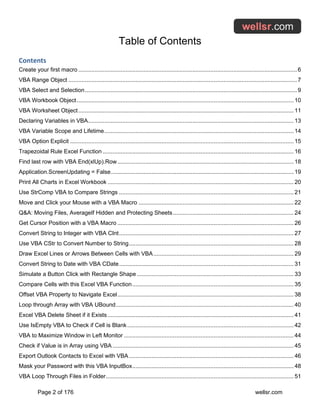
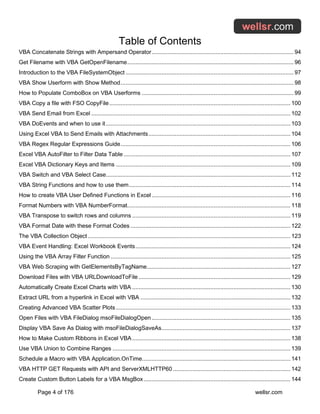
Table of Contents
Page 2 of 176 wellsr.com
Contents
Create your first macro ......................................................................................................................................6
VBA Range Object ............................................................................................................................................7
VBA Select and Selection..................................................................................................................................9
VBA Workbook Object..................................................................................................................................... 10
VBA Worksheet Object.................................................................................................................................... 11
Declaring Variables in VBA.............................................................................................................................. 13
VBA Variable Scope and Lifetime.................................................................................................................... 14
VBA Option Explicit ......................................................................................................................................... 15
Trapezoidal Rule Excel Function ..................................................................................................................... 16
Find last row with VBA End(xlUp).Row............................................................................................................ 18
Application.ScreenUpdating = False................................................................................................................ 19
Print All Charts in Excel Workbook .................................................................................................................. 20
Use StrComp VBA to Compare Strings ........................................................................................................... 21
Move and Click your Mouse with a VBA Macro ............................................................................................... 22
Q&A: Moving Files, AverageIf Hidden and Protecting Sheets.......................................................................... 24
Get Cursor Position with a VBA Macro ............................................................................................................ 26
Convert String to Integer with VBA CInt........................................................................................................... 27
Use VBA CStr to Convert Number to String..................................................................................................... 28
Draw Excel Lines or Arrows Between Cells with VBA...................................................................................... 29
Convert String to Date with VBA CDate........................................................................................................... 31
Simulate a Button Click with Rectangle Shape ................................................................................................ 33
Compare Cells with this Excel VBA Function................................................................................................... 35
Offset VBA Property to Navigate Excel............................................................................................................ 38
Loop through Array with VBA UBound............................................................................................................. 40
Excel VBA Delete Sheet if it Exists .................................................................................................................. 41
Use IsEmpty VBA to Check if Cell is Blank...................................................................................................... 42
VBA to Maximize Window in Left Monitor ........................................................................................................ 44
Check if Value is in Array using VBA ............................................................................................................... 45
Export Outlook Contacts to Excel with VBA..................................................................................................... 46
Mask your Password with this VBA InputBox................................................................................................... 48
VBA Loop Through Files in Folder................................................................................................................... 51
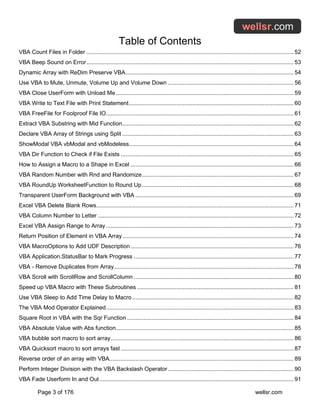
Table of Contents
Page 3 of 176 wellsr.com
VBA Count Files in Folder ............................................................................................................................... 52
VBA Beep Sound on Error............................................................................................................................... 53
Dynamic Array with ReDim Preserve VBA....................................................................................................... 54
Use VBA to Mute, Unmute, Volume Up and Volume Down ............................................................................. 56
VBA Close UserForm with Unload Me............................................................................................................. 59
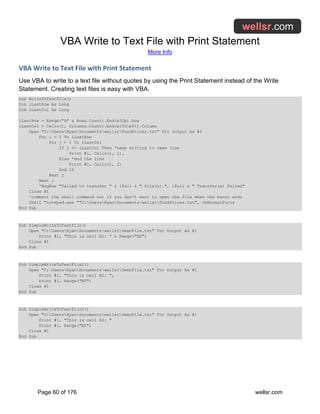
VBA Write to Text File with Print Statement..................................................................................................... 60
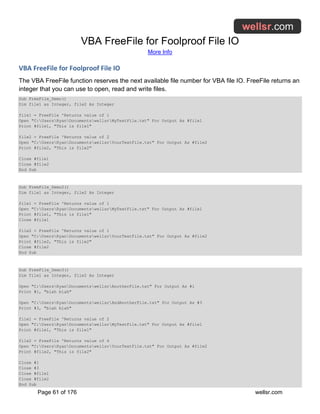
VBA FreeFile for Foolproof File IO................................................................................................................... 61
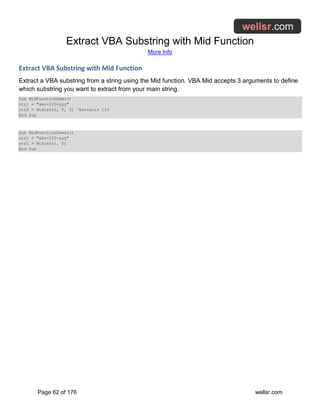
Extract VBA Substring with Mid Function......................................................................................................... 62
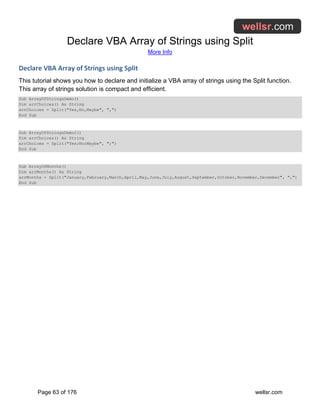
Declare VBA Array of Strings using Split ......................................................................................................... 63
ShowModal VBA vbModal and vbModeless..................................................................................................... 64
VBA Dir Function to Check if File Exists .......................................................................................................... 65
How to Assign a Macro to a Shape in Excel .................................................................................................... 66
VBA Random Number with Rnd and Randomize............................................................................................. 67
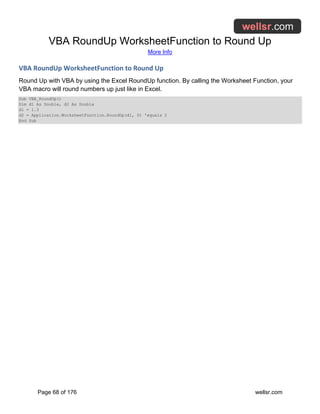
VBA RoundUp WorksheetFunction to Round Up............................................................................................. 68
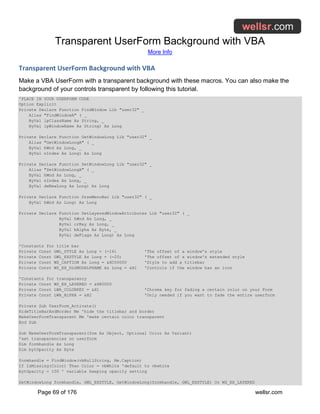
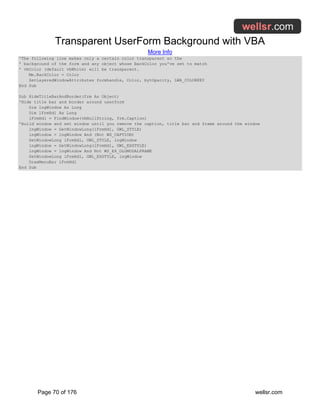
Transparent UserForm Background with VBA ................................................................................................. 69
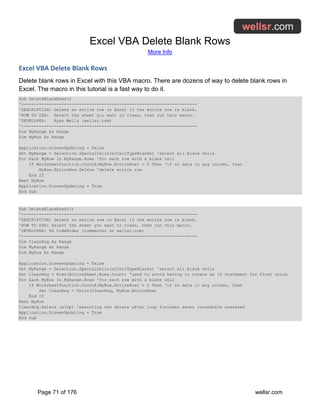
Excel VBA Delete Blank Rows......................................................................................................................... 71
VBA Column Number to Letter ........................................................................................................................ 72
Excel VBA Assign Range to Array ................................................................................................................... 73
Return Position of Element in VBA Array......................................................................................................... 74
VBA MacroOptions to Add UDF Description.................................................................................................... 76
VBA Application.StatusBar to Mark Progress .................................................................................................. 77
VBA - Remove Duplicates from Array.............................................................................................................. 78
VBA Scroll with ScrollRow and ScrollColumn .................................................................................................. 80
Speed up VBA Macro with These Subroutines ................................................................................................ 81
Use VBA Sleep to Add Time Delay to Macro................................................................................................... 82
The VBA Mod Operator Explained................................................................................................................... 83
Square Root in VBA with the Sqr Function ...................................................................................................... 84
VBA Absolute Value with Abs function............................................................................................................. 85
VBA bubble sort macro to sort array................................................................................................................ 86
VBA Quicksort macro to sort arrays fast .......................................................................................................... 87
Reverse order of an array with VBA................................................................................................................. 89
Perform Integer Division with the VBA Backslash Operator ............................................................................. 90
VBA Fade Userform In and Out....................................................................................................................... 91
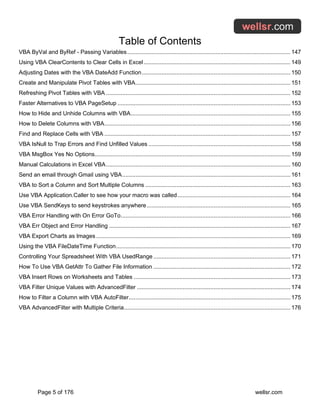
Table of Contents
Page 4 of 176 wellsr.com
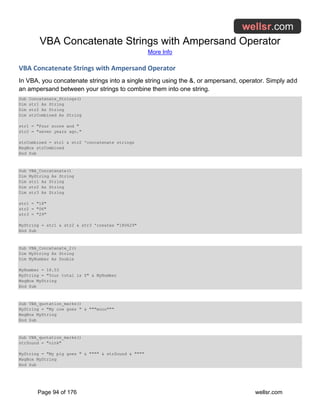
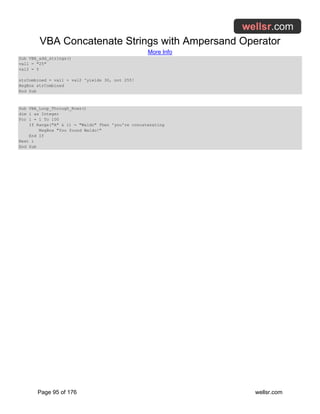
VBA Concatenate Strings with Ampersand Operator....................................................................................... 94
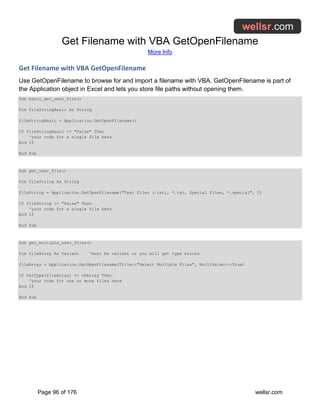
Get Filename with VBA GetOpenFilename...................................................................................................... 96
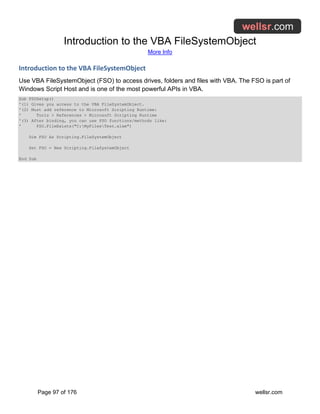
Introduction to the VBA FileSystemObject ....................................................................................................... 97
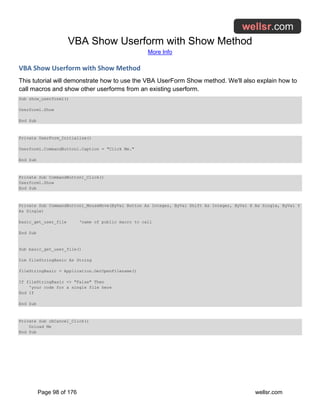
VBA Show Userform with Show Method.......................................................................................................... 98
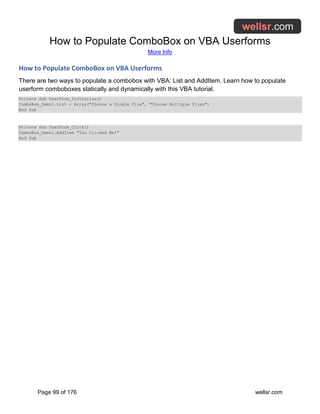
How to Populate ComboBox on VBA Userforms ............................................................................................. 99
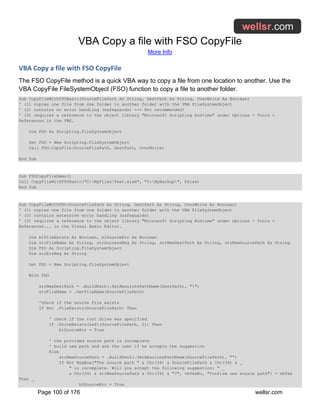
VBA Copy a file with FSO CopyFile............................................................................................................... 100
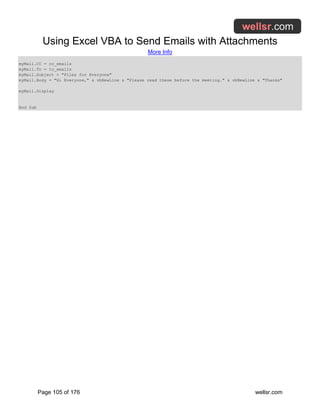
VBA Send Email from Excel .......................................................................................................................... 102
VBA DoEvents and when to use it ................................................................................................................. 103
Using Excel VBA to Send Emails with Attachments....................................................................................... 104
VBA Regex Regular Expressions Guide........................................................................................................ 106
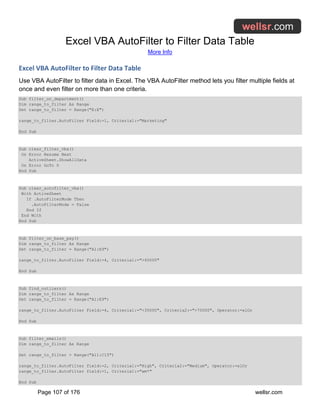
Excel VBA AutoFilter to Filter Data Table ...................................................................................................... 107
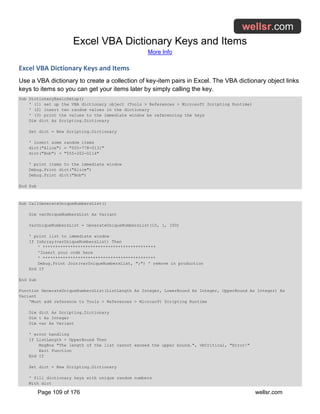
Excel VBA Dictionary Keys and Items ........................................................................................................... 109
VBA Switch and VBA Select Case................................................................................................................. 112
VBA String Functions and how to use them................................................................................................... 114
How to create VBA User Defined Functions in Excel ..................................................................................... 116
Format Numbers with VBA NumberFormat.................................................................................................... 118
VBA Transpose to switch rows and columns ................................................................................................. 119
VBA Format Date with these Format Codes .................................................................................................. 122
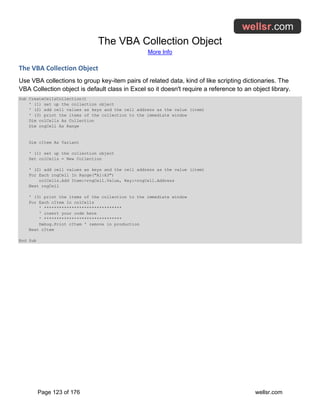
The VBA Collection Object ............................................................................................................................ 123
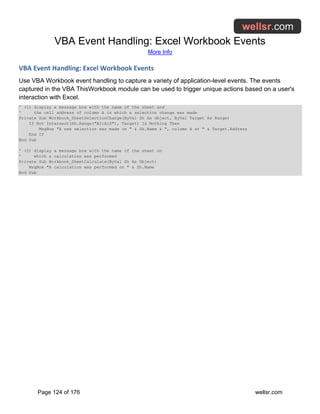
VBA Event Handling: Excel Workbook Events............................................................................................... 124
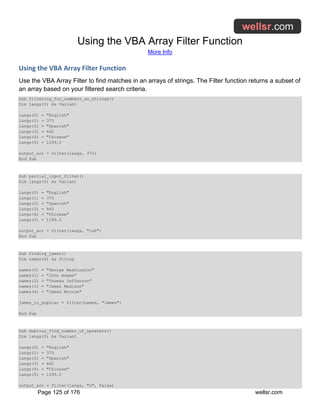
Using the VBA Array Filter Function .............................................................................................................. 125
VBA Web Scraping with GetElementsByTagName........................................................................................ 127
Download Files with VBA URLDownloadToFile ............................................................................................. 129
Automatically Create Excel Charts with VBA ................................................................................................. 130
Extract URL from a hyperlink in Excel with VBA ............................................................................................ 132
Creating Advanced VBA Scatter Plots........................................................................................................... 133
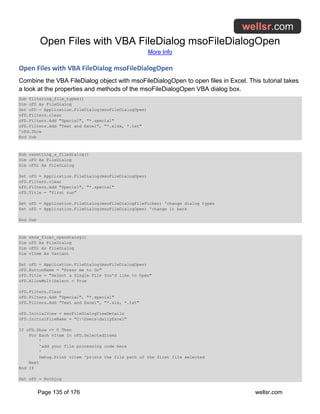
Open Files with VBA FileDialog msoFileDialogOpen ..................................................................................... 135
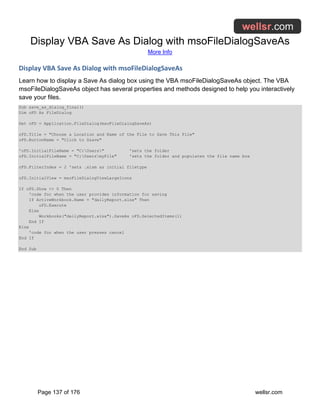
Display VBA Save As Dialog with msoFileDialogSaveAs............................................................................... 137
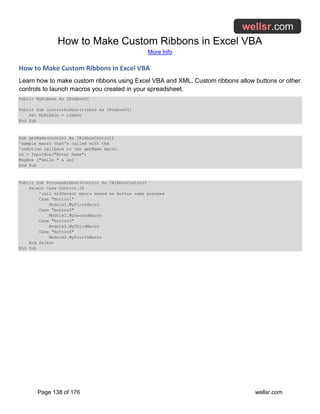
How to Make Custom Ribbons in Excel VBA................................................................................................. 138
Use VBA Union to Combine Ranges ............................................................................................................. 139
Schedule a Macro with VBA Application.OnTime........................................................................................... 141
VBA HTTP GET Requests with API and ServerXMLHTTP60 ........................................................................ 142
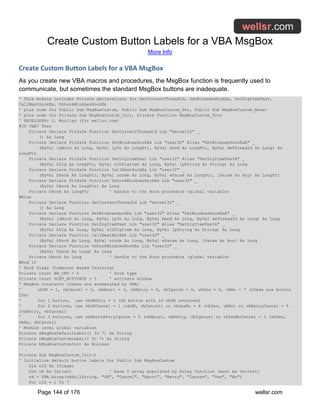
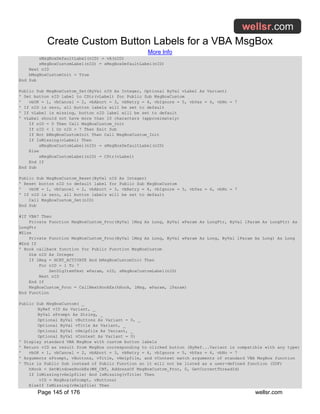
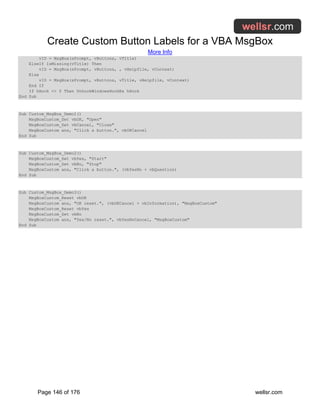
Create Custom Button Labels for a VBA MsgBox.......................................................................................... 144
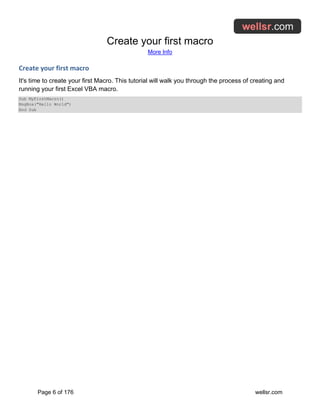
Table of Contents
Page 5 of 176 wellsr.com
VBA ByVal and ByRef - Passing Variables.................................................................................................... 147
Using VBA ClearContents to Clear Cells in Excel.......................................................................................... 149
Adjusting Dates with the VBA DateAdd Function........................................................................................... 150
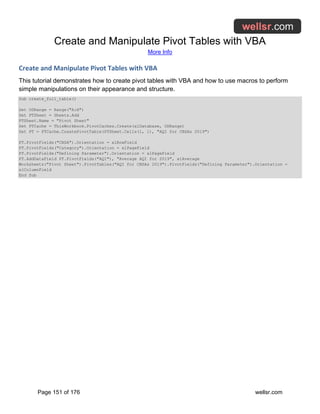
Create and Manipulate Pivot Tables with VBA............................................................................................... 151
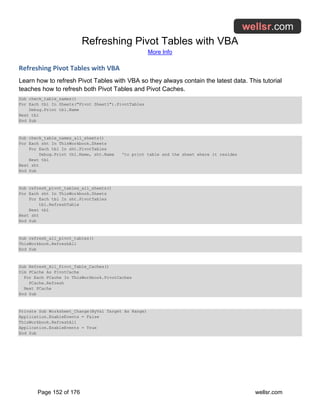
Refreshing Pivot Tables with VBA ................................................................................................................. 152
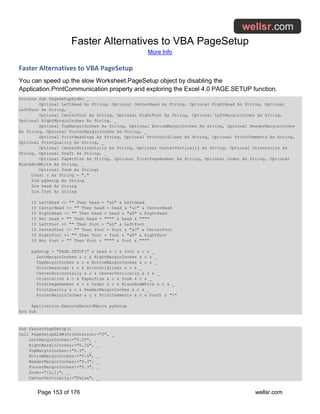
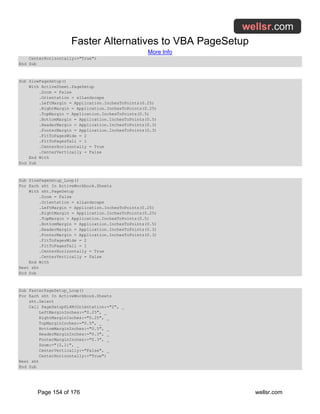
Faster Alternatives to VBA PageSetup .......................................................................................................... 153
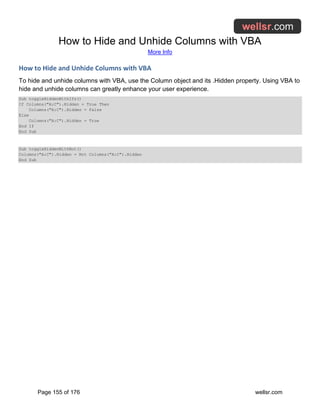
How to Hide and Unhide Columns with VBA.................................................................................................. 155
How to Delete Columns with VBA.................................................................................................................. 156
Find and Replace Cells with VBA .................................................................................................................. 157
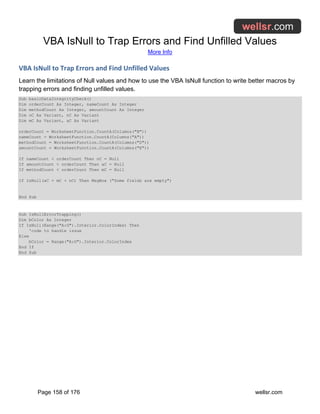
VBA IsNull to Trap Errors and Find Unfilled Values ....................................................................................... 158
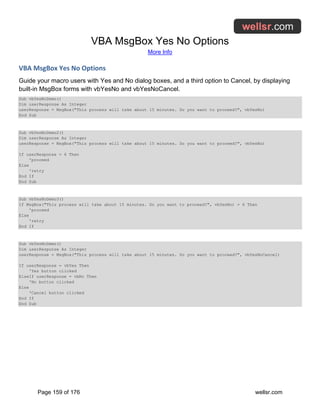
VBA MsgBox Yes No Options........................................................................................................................ 159
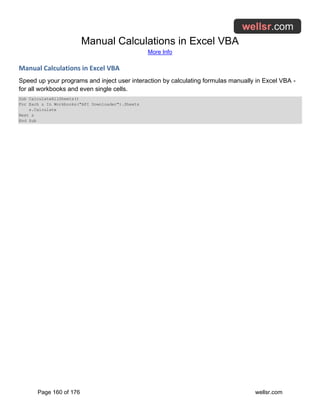
Manual Calculations in Excel VBA................................................................................................................. 160
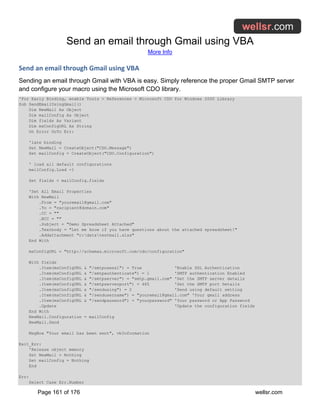
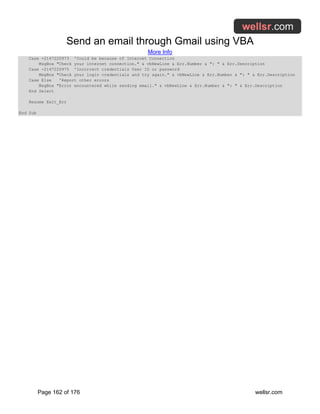
Send an email through Gmail using VBA....................................................................................................... 161
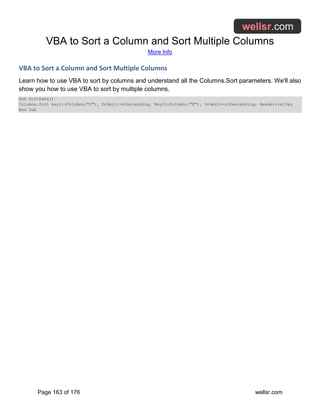
VBA to Sort a Column and Sort Multiple Columns ......................................................................................... 163
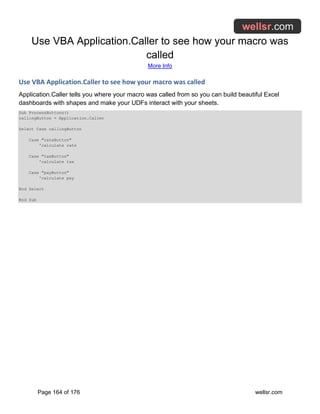
Use VBA Application.Caller to see how your macro was called ..................................................................... 164
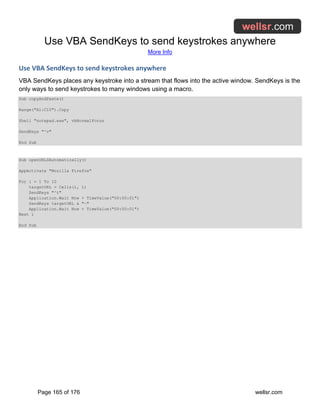
Use VBA SendKeys to send keystrokes anywhere........................................................................................ 165
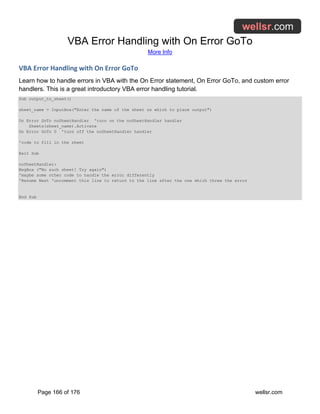
VBA Error Handling with On Error GoTo........................................................................................................ 166
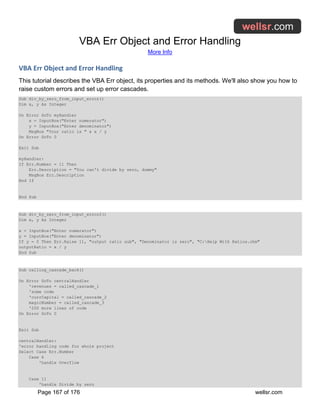
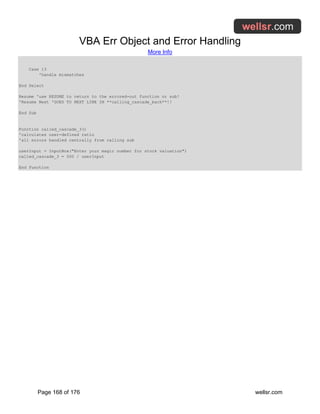
VBA Err Object and Error Handling ............................................................................................................... 167
VBA Export Charts as Images ....................................................................................................................... 169
Using the VBA FileDateTime Function........................................................................................................... 170
Controlling Your Spreadsheet With VBA UsedRange .................................................................................... 171
How To Use VBA GetAttr To Gather File Information .................................................................................... 172
VBA Insert Rows on Worksheets and Tables ................................................................................................ 173
VBA Filter Unique Values with AdvancedFilter .............................................................................................. 174
How to Filter a Column with VBA AutoFilter................................................................................................... 175
VBA AdvancedFilter with Multiple Criteria...................................................................................................... 176
Create your first macro
More Info
Page 6 of 176 wellsr.com
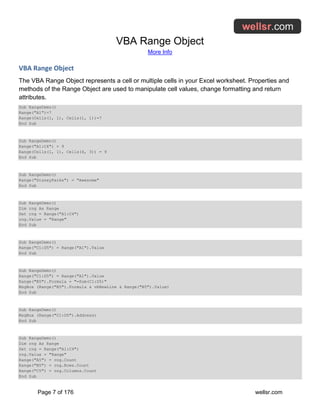
Create your first macro
It's time to create your first Macro. This tutorial will walk you through the process of creating and
running your first Excel VBA macro.
Sub MyFirstMacro()
MsgBox("Hello World")
End Sub
VBA Range Object
More Info
Page 7 of 176 wellsr.com
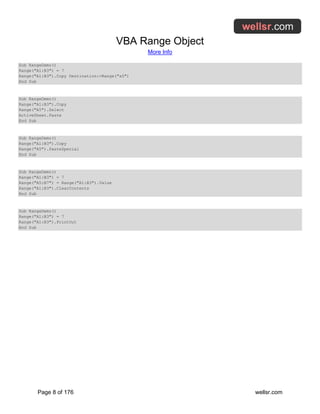
VBA Range Object
The VBA Range Object represents a cell or multiple cells in your Excel worksheet. Properties and
methods of the Range Object are used to manipulate cell values, change formatting and return
attributes.
Sub RangeDemo()
Range("A1")=7
Range(Cells(1, 1), Cells(1, 1))=7
End Sub
Sub RangeDemo()
Range("A1:C4") = 9
Range(Cells(1, 1), Cells(4, 3)) = 9
End Sub
Sub RangeDemo()
Range("DisneyParks") = "Awesome"
End Sub
Sub RangeDemo()
Dim rng As Range
Set rng = Range("A1:C4")
rng.Value = "Range"
End Sub
Sub RangeDemo()
Range("C1:D5") = Range("A1").Value
End Sub
Sub RangeDemo()
Range("C1:D5") = Range("A1").Value
Range("B5").Formula = "=Sum(C1:D5)"
MsgBox (Range("B5").Formula & vbNewLine & Range("B5").Value)
End Sub
Sub RangeDemo()
MsgBox (Range("C1:D5").Address)
End Sub
Sub RangeDemo()
Dim rng As Range
Set rng = Range("A1:C4")
rng.Value = "Range"
Range("A5") = rng.Count
Range("B5") = rng.Rows.Count
Range("C5") = rng.Columns.Count
End Sub
VBA Range Object
More Info
Page 8 of 176 wellsr.com
Sub RangeDemo()
Range("A1:B3") = 7
Range("A1:B3").Copy Destination:=Range("a5")
End Sub
Sub RangeDemo()
Range("A1:B3").Copy
Range("A5").Select
ActiveSheet.Paste
End Sub
Sub RangeDemo()
Range("A1:B3").Copy
Range("A5").PasteSpecial
End Sub
Sub RangeDemo()
Range("A1:B3") = 7
Range("A5:B7") = Range("A1:B3").Value
Range("A1:B3").ClearContents
End Sub
Sub RangeDemo()
Range("A1:B3") = 7
Range("A1:B3").PrintOut
End Sub
VBA Select and Selection
More Info
Page 9 of 176 wellsr.com
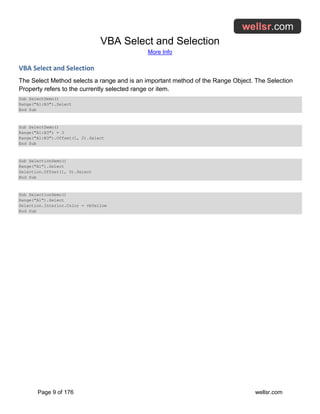
VBA Select and Selection
The Select Method selects a range and is an important method of the Range Object. The Selection
Property refers to the currently selected range or item.
Sub SelectDemo()
Range("A1:B3").Select
End Sub
Sub SelectDemo()
Range("A1:B3") = 3
Range("A1:B3").Offset(1, 2).Select
End Sub
Sub SelectionDemo()
Range("A1").Select
Selection.Offset(1, 0).Select
End Sub
Sub SelectionDemo()
Range("A1").Select
Selection.Interior.Color = vbYellow
End Sub
VBA Workbook Object
More Info
Page 10 of 176 wellsr.com
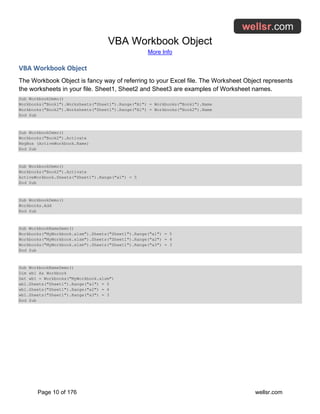
VBA Workbook Object
The Workbook Object is fancy way of referring to your Excel file. The Worksheet Object represents
the worksheets in your file. Sheet1, Sheet2 and Sheet3 are examples of Worksheet names.
Sub WorkbookDemo()
Workbooks("Book1").Worksheets("Sheet1").Range("A1") = Workbooks("Book1").Name
Workbooks("Book2").Worksheets("Sheet1").Range("A1") = Workbooks("Book2").Name
End Sub
Sub WorkbookDemo()
Workbooks("Book2").Activate
MsgBox (ActiveWorkbook.Name)
End Sub
Sub WorkbookDemo()
Workbooks("Book2").Activate
ActiveWorkbook.Sheets("Sheet1").Range("a1") = 5
End Sub
Sub WorkbookDemo()
Workbooks.Add
End Sub
Sub WorkbookNameDemo()
Workbooks("MyWorkbook.xlsm").Sheets("Sheet1").Range("a1") = 5
Workbooks("MyWorkbook.xlsm").Sheets("Sheet1").Range("a2") = 4
Workbooks("MyWorkbook.xlsm").Sheets("Sheet1").Range("a3") = 3
End Sub
Sub WorkbookNameDemo()
Dim wb1 As Workbook
Set wb1 = Workbooks("MyWorkbook.xlsm")
wb1.Sheets("Sheet1").Range("a1") = 5
wb1.Sheets("Sheet1").Range("a2") = 4
wb1.Sheets("Sheet1").Range("a3") = 3
End Sub
VBA Worksheet Object
More Info
Page 11 of 176 wellsr.com
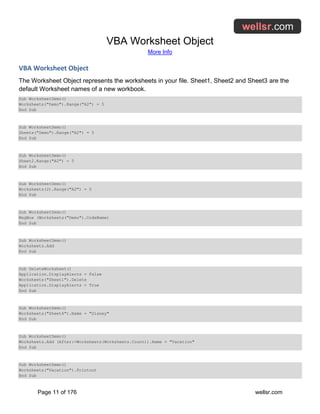
VBA Worksheet Object
The Worksheet Object represents the worksheets in your file. Sheet1, Sheet2 and Sheet3 are the
default Worksheet names of a new workbook.
Sub WorksheetDemo()
Worksheets("Demo").Range("A2") = 5
End Sub
Sub WorksheetDemo()
Sheets("Demo").Range("A2") = 5
End Sub
Sub WorksheetDemo()
Sheet2.Range("A2") = 5
End Sub
Sub WorksheetDemo()
Worksheets(2).Range("A2") = 5
End Sub
Sub WorksheetDemo()
MsgBox (Worksheets("Demo").CodeName)
End Sub
Sub WorksheetDemo()
Worksheets.Add
End Sub
Sub DeleteWorksheet()
Application.DisplayAlerts = False
Worksheets("Sheet1").Delete
Application.DisplayAlerts = True
End Sub
Sub WorksheetDemo()
Worksheets("Sheet4").Name = "Disney"
End Sub
Sub WorksheetDemo()
Worksheets.Add (After:=Worksheets(Worksheets.Count)).Name = "Vacation"
End Sub
Sub WorksheetDemo()
Worksheets("Vacation").Printout
End Sub
VBA Worksheet Object
More Info
Page 12 of 176 wellsr.com
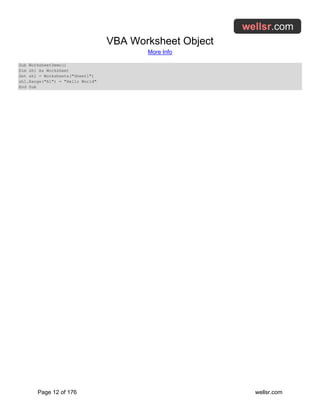
Sub WorksheetDemo()
Dim sh1 As Worksheet
Set sh1 = Worksheets("Sheet1")
sh1.Range("A1") = "Hello World"
End Sub
Declaring Variables in VBA
More Info
Page 13 of 176 wellsr.com
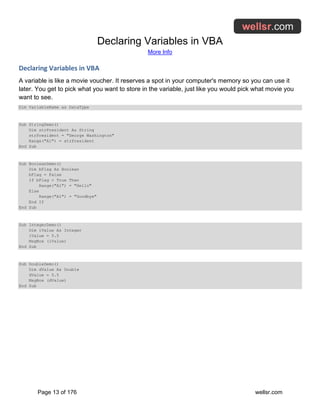
Declaring Variables in VBA
A variable is like a movie voucher. It reserves a spot in your computer's memory so you can use it
later. You get to pick what you want to store in the variable, just like you would pick what movie you
want to see.
Dim VariableName as DataType
Sub StringDemo()
Dim strPresident As String
strPresident = "George Washington"
Range("A1") = strPresident
End Sub
Sub BooleanDemo()
Dim bFlag As Boolean
bFlag = False
If bFlag = True Then
Range("A1") = "Hello"
Else
Range("A1") = "Goodbye"
End If
End Sub
Sub IntegerDemo()
Dim iValue As Integer
iValue = 5.5
MsgBox (iValue)
End Sub
Sub DoubleDemo()
Dim dValue As Double
dValue = 5.5
MsgBox (dValue)
End Sub
VBA Variable Scope and Lifetime
More Info
Page 14 of 176 wellsr.com
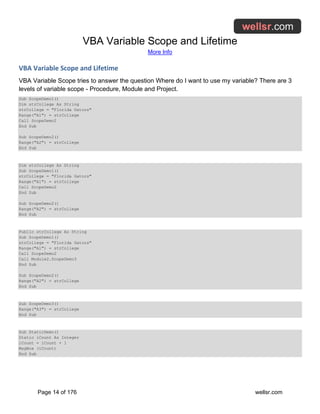
VBA Variable Scope and Lifetime
VBA Variable Scope tries to answer the question Where do I want to use my variable? There are 3
levels of variable scope - Procedure, Module and Project.
Sub ScopeDemo1()
Dim strCollege As String
strCollege = "Florida Gators"
Range("A1") = strCollege
Call ScopeDemo2
End Sub
Sub ScopeDemo2()
Range("A2") = strCollege
End Sub
Dim strCollege As String
Sub ScopeDemo1()
strCollege = "Florida Gators"
Range("A1") = strCollege
Call ScopeDemo2
End Sub
Sub ScopeDemo2()
Range("A2") = strCollege
End Sub
Public strCollege As String
Sub ScopeDemo1()
strCollege = "Florida Gators"
Range("A1") = strCollege
Call ScopeDemo2
Call Module2.ScopeDemo3
End Sub
Sub ScopeDemo2()
Range("A2") = strCollege
End Sub
Sub ScopeDemo3()
Range("A3") = strCollege
End Sub
Sub StaticDemo()
Static iCount As Integer
iCount = iCount + 1
MsgBox (iCount)
End Sub
VBA Option Explicit
More Info
Page 15 of 176 wellsr.com
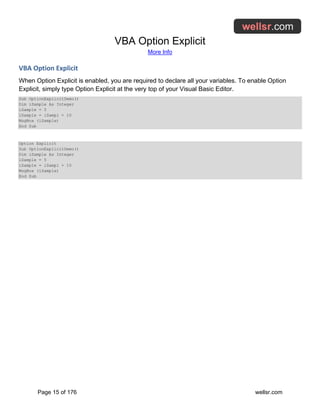
VBA Option Explicit
When Option Explicit is enabled, you are required to declare all your variables. To enable Option
Explicit, simply type Option Explicit at the very top of your Visual Basic Editor.
Sub OptionExplicitDemo()
Dim iSample As Integer
iSample = 5
iSample = iSampl + 10
MsgBox (iSample)
End Sub
Option Explicit
Sub OptionExplicitDemo()
Dim iSample As Integer
iSample = 5
iSample = iSampl + 10
MsgBox (iSample)
End Sub
Trapezoidal Rule Excel Function
More Info
Page 16 of 176 wellsr.com
Trapezoidal Rule Excel Function
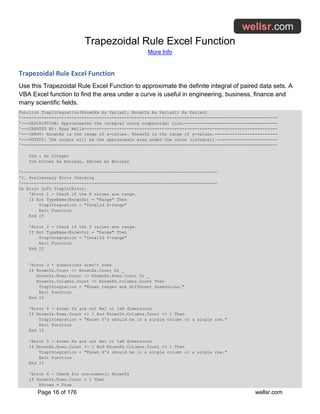
Use this Trapezoidal Rule Excel Function to approximate the definite integral of paired data sets. A
VBA Excel function to find the area under a curve is useful in engineering, business, finance and
many scientific fields.
Function TrapIntegration(KnownXs As Variant, KnownYs As Variant) As Variant
'------------------------------------------------------------------------------------------------------
'---DESCRIPTION: Approximates the integral using trapezoidal rule.-------------------------------------
'---CREATED BY: Ryan Wells-----------------------------------------------------------------------------
'---INPUT: KnownXs is the range of x-values. KnownYs is the range of y-values.-------------------------
'---OUTPUT: The output will be the approximate area under the curve (integral).------------------------
'------------------------------------------------------------------------------------------------------
Dim i As Integer
Dim bYrows As Boolean, bXrows As Boolean
'------------------------------------------------------------------------------
'I. Preliminary Error Checking
'------------------------------------------------------------------------------
On Error GoTo TrapIntError:
'Error 1 - Check if the X values are range.
If Not TypeName(KnownXs) = "Range" Then
TrapIntegration = "Invalid X-range"
Exit Function
End If
'Error 2 - Check if the Y values are range.
If Not TypeName(KnownYs) = "Range" Then
TrapIntegration = "Invalid Y-range"
Exit Function
End If
'Error 3 - dimensions aren't even
If KnownYs.Count <> KnownXs.Count Or _
KnownYs.Rows.Count <> KnownXs.Rows.Count Or _
KnownYs.Columns.Count <> KnownXs.Columns.Count Then
TrapIntegration = "Known ranges are different dimensions."
Exit Function
End If
'Error 4 - known Ys are not Nx1 or 1xN dimensions
If KnownYs.Rows.Count <> 1 And KnownYs.Columns.Count <> 1 Then
TrapIntegration = "Known Y's should be in a single column or a single row."
Exit Function
End If
'Error 5 - known Xs are not Nx1 or 1xN dimensions
If KnownXs.Rows.Count <> 1 And KnownXs.Columns.Count <> 1 Then
TrapIntegration = "Known X's should be in a single column or a single row."
Exit Function
End If
'Error 6 - Check for non-numeric KnownYs
If KnownYs.Rows.Count > 1 Then
bYrows = True
Trapezoidal Rule Excel Function
More Info
Page 17 of 176 wellsr.com
For i = 1 To KnownYs.Rows.Count
If IsNumeric(KnownYs.Cells(i, 1)) = False Then
TrapIntegration = "One or all Known Y's are non-numeric."
Exit Function
End If
Next i
ElseIf KnownYs.Columns.Count > 1 Then
bYrows = False
For i = 1 To KnownYs.Columns.Count
If IsNumeric(KnownYs.Cells(1, i)) = False Then
TrapIntegration = "One or all KnownYs are non-numeric."
Exit Function
End If
Next i
End If
'Error 7 - Check for non-numeric KnownXs
If KnownXs.Rows.Count > 1 Then
bXrows = True
For i = 1 To KnownXs.Rows.Count
If IsNumeric(KnownXs.Cells(i, 1)) = False Then
TrapIntegration = "One or all Known X's are non-numeric."
Exit Function
End If
Next i
ElseIf KnownXs.Columns.Count > 1 Then
bXrows = False
For i = 1 To KnownXs.Columns.Count
If IsNumeric(KnownXs.Cells(1, i)) = False Then
TrapIntegration = "One or all Known X's are non-numeric."
Exit Function
End If
Next i
End If
'------------------------------------------------------------------------------
'II. Perform Trapezoidal Integration
'------------------------------------------------------------------------------
TrapIntegration = 0
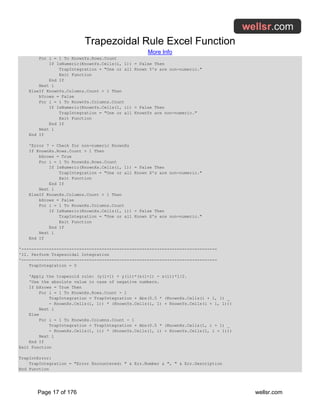
'Apply the trapezoid rule: (y(i+1) + y(i))*(x(i+1) - x(i))*1/2.
'Use the absolute value in case of negative numbers.
If bXrows = True Then
For i = 1 To KnownXs.Rows.Count - 1
TrapIntegration = TrapIntegration + Abs(0.5 * (KnownXs.Cells(i + 1, 1) _
- KnownXs.Cells(i, 1)) * (KnownYs.Cells(i, 1) + KnownYs.Cells(i + 1, 1)))
Next i
Else
For i = 1 To KnownXs.Columns.Count - 1
TrapIntegration = TrapIntegration + Abs(0.5 * (KnownXs.Cells(1, i + 1) _
- KnownXs.Cells(1, i)) * (KnownYs.Cells(1, i) + KnownYs.Cells(1, i + 1)))
Next i
End If
Exit Function
TrapIntError:
TrapIntegration = "Error Encountered: " & Err.Number & ", " & Err.Description
End Function
Find last row with VBA End(xlUp).Row
More Info
Page 18 of 176 wellsr.com
Find last row with VBA End(xlUp).Row
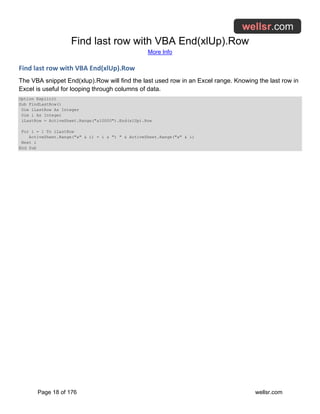
The VBA snippet End(xlup).Row will find the last used row in an Excel range. Knowing the last row in
Excel is useful for looping through columns of data.
Option Explicit
Sub FindLastRow()
Dim iLastRow As Integer
Dim i As Integer
iLastRow = ActiveSheet.Range("a10000").End(xlUp).Row
For i = 1 To iLastRow
ActiveSheet.Range("a" & i) = i & ") " & ActiveSheet.Range("a" & i)
Next i
End Sub
Application.ScreenUpdating = False
More Info
Page 19 of 176 wellsr.com
Application.ScreenUpdating = False
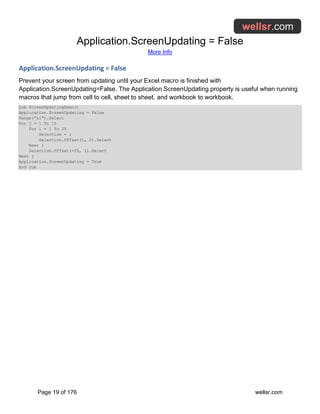
Prevent your screen from updating until your Excel macro is finished with
Application.ScreenUpdating=False. The Application.ScreenUpdating property is useful when running
macros that jump from cell to cell, sheet to sheet, and workbook to workbook.
Sub ScreenUpdatingDemo()
Application.ScreenUpdating = False
Range("a1").Select
For j = 1 To 10
For i = 1 To 25
Selection = i
Selection.Offset(1, 0).Select
Next i
Selection.Offset(-25, 1).Select
Next j
Application.ScreenUpdating = True
End Sub
Print All Charts in Excel Workbook
More Info
Page 20 of 176 wellsr.com
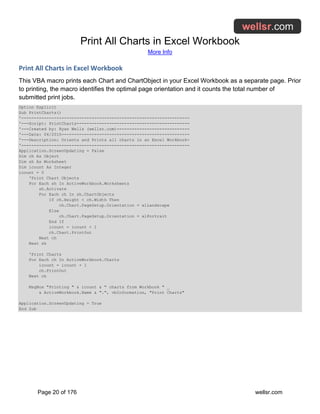
Print All Charts in Excel Workbook
This VBA macro prints each Chart and ChartObject in your Excel Workbook as a separate page. Prior
to printing, the macro identifies the optimal page orientation and it counts the total number of
submitted print jobs.
Option Explicit
Sub PrintCharts()
'-------------------------------------------------------------------
'---Script: PrintCharts---------------------------------------------
'---Created by: Ryan Wells (wellsr.com)-----------------------------
'---Date: 04/2015---------------------------------------------------
'---Description: Orients and Prints all charts in an Excel Workbook-
'-------------------------------------------------------------------
Application.ScreenUpdating = False
Dim ch As Object
Dim sh As Worksheet
Dim icount As Integer
icount = 0
'Print Chart Objects
For Each sh In ActiveWorkbook.Worksheets
sh.Activate
For Each ch In sh.ChartObjects
If ch.Height < ch.Width Then
ch.Chart.PageSetup.Orientation = xlLandscape
Else
ch.Chart.PageSetup.Orientation = xlPortrait
End If
icount = icount + 1
ch.Chart.PrintOut
Next ch
Next sh
'Print Charts
For Each ch In ActiveWorkbook.Charts
icount = icount + 1
ch.PrintOut
Next ch
MsgBox "Printing " & icount & " charts from Workbook " _
& ActiveWorkbook.Name & ".", vbInformation, "Print Charts"
Application.ScreenUpdating = True
End Sub
Use StrComp VBA to Compare Strings
More Info
Page 21 of 176 wellsr.com
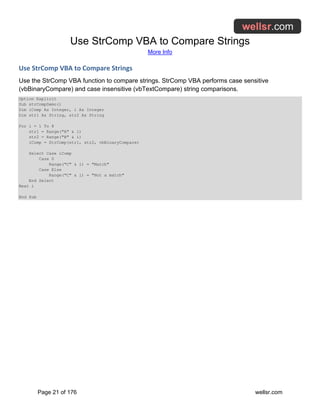
Use StrComp VBA to Compare Strings
Use the StrComp VBA function to compare strings. StrComp VBA performs case sensitive
(vbBinaryCompare) and case insensitive (vbTextCompare) string comparisons.
Option Explicit
Sub strCompDemo()
Dim iComp As Integer, i As Integer
Dim str1 As String, str2 As String
For i = 1 To 8
str1 = Range("A" & i)
str2 = Range("B" & i)
iComp = StrComp(str1, str2, vbBinaryCompare)
Select Case iComp
Case 0
Range("C" & i) = "Match"
Case Else
Range("C" & i) = "Not a match"
End Select
Next i
End Sub
Move and Click your Mouse with a VBA Macro
More Info
Page 22 of 176 wellsr.com
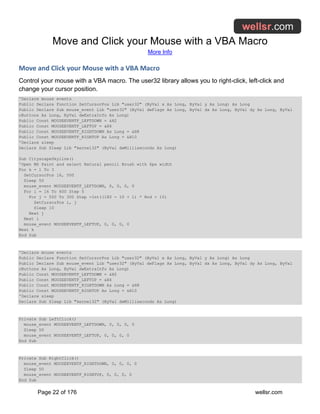
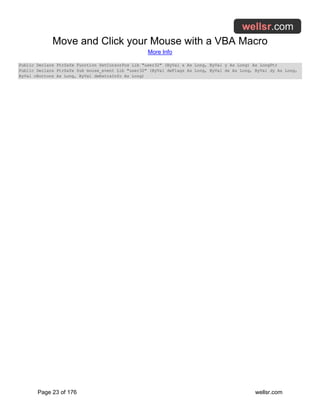
Move and Click your Mouse with a VBA Macro
Control your mouse with a VBA macro. The user32 library allows you to right-click, left-click and
change your cursor position.
'Declare mouse events
Public Declare Function SetCursorPos Lib "user32" (ByVal x As Long, ByVal y As Long) As Long
Public Declare Sub mouse_event Lib "user32" (ByVal dwFlags As Long, ByVal dx As Long, ByVal dy As Long, ByVal
cButtons As Long, ByVal dwExtraInfo As Long)
Public Const MOUSEEVENTF_LEFTDOWN = &H2
Public Const MOUSEEVENTF_LEFTUP = &H4
Public Const MOUSEEVENTF_RIGHTDOWN As Long = &H8
Public Const MOUSEEVENTF_RIGHTUP As Long = &H10
'Declare sleep
Declare Sub Sleep Lib "kernel32" (ByVal dwMilliseconds As Long)
Sub CityscapeSkyline()
'Open MS Paint and select Natural pencil Brush with 6px width
For k = 1 To 3
SetCursorPos 16, 500
Sleep 50
mouse_event MOUSEEVENTF_LEFTDOWN, 0, 0, 0, 0
For i = 16 To 600 Step 5
For j = 500 To 300 Step -Int((180 - 10 + 1) * Rnd + 10)
SetCursorPos i, j
Sleep 10
Next j
Next i
mouse_event MOUSEEVENTF_LEFTUP, 0, 0, 0, 0
Next k
End Sub
'Declare mouse events
Public Declare Function SetCursorPos Lib "user32" (ByVal x As Long, ByVal y As Long) As Long
Public Declare Sub mouse_event Lib "user32" (ByVal dwFlags As Long, ByVal dx As Long, ByVal dy As Long, ByVal
cButtons As Long, ByVal dwExtraInfo As Long)
Public Const MOUSEEVENTF_LEFTDOWN = &H2
Public Const MOUSEEVENTF_LEFTUP = &H4
Public Const MOUSEEVENTF_RIGHTDOWN As Long = &H8
Public Const MOUSEEVENTF_RIGHTUP As Long = &H10
'Declare sleep
Declare Sub Sleep Lib "kernel32" (ByVal dwMilliseconds As Long)
Private Sub LeftClick()
mouse_event MOUSEEVENTF_LEFTDOWN, 0, 0, 0, 0
Sleep 50
mouse_event MOUSEEVENTF_LEFTUP, 0, 0, 0, 0
End Sub
Private Sub RightClick()
mouse_event MOUSEEVENTF_RIGHTDOWN, 0, 0, 0, 0
Sleep 50
mouse_event MOUSEEVENTF_RIGHTUP, 0, 0, 0, 0
End Sub
Move and Click your Mouse with a VBA Macro
More Info
Page 23 of 176 wellsr.com
Public Declare PtrSafe Function SetCursorPos Lib "user32" (ByVal x As Long, ByVal y As Long) As LongPtr
Public Declare PtrSafe Sub mouse_event Lib "user32" (ByVal dwFlags As Long, ByVal dx As Long, ByVal dy As Long,
ByVal cButtons As Long, ByVal dwExtraInfo As Long)
Q&A: Moving Files, AverageIf Hidden and Protecting Sheets
More Info
Page 24 of 176 wellsr.com
Q&A: Moving Files, AverageIf Hidden and Protecting Sheets
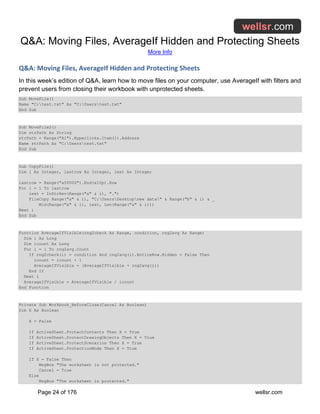
In this week’s edition of Q&A, learn how to move files on your computer, use AverageIf with filters and
prevent users from closing their workbook with unprotected sheets.
Sub MoveFile()
Name "C:test.txt" As "C:Userstest.txt"
End Sub
Sub MoveFile2()
Dim strPath As String
strPath = Range("A1").Hyperlinks.Item(1).Address
Name strPath As "C:Userstest.txt"
End Sub
Sub CopyFile()
Dim i As Integer, lastrow As Integer, iext As Integer
lastrow = Range("a50000").End(xlUp).Row
For i = 1 To lastrow
iext = InStrRev(Range("a" & i), ".")
FileCopy Range("a" & i), "C:UsersDesktopnew data" & Range("b" & i) & _
Mid(Range("a" & i), iext, Len(Range("a" & i)))
Next i
End Sub
Function AverageIfVisible(rng2check As Range, condition, rng2avg As Range)
Dim i As Long
Dim icount As Long
For i = 1 To rng2avg.Count
If rng2check(i) = condition And rng2avg(i).EntireRow.Hidden = False Then
icount = icount + 1
AverageIfVisible = (AverageIfVisible + rng2avg(i))
End If
Next i
AverageIfVisible = AverageIfVisible / icount
End Function
Private Sub Workbook_BeforeClose(Cancel As Boolean)
Dim X As Boolean
X = False
If ActiveSheet.ProtectContents Then X = True
If ActiveSheet.ProtectDrawingObjects Then X = True
If ActiveSheet.ProtectScenarios Then X = True
If ActiveSheet.ProtectionMode Then X = True
If X = False Then
MsgBox "The worksheet is not protected."
Cancel = True
Else
MsgBox "The worksheet is protected."
Q&A: Moving Files, AverageIf Hidden and Protecting Sheets
More Info
Page 25 of 176 wellsr.com
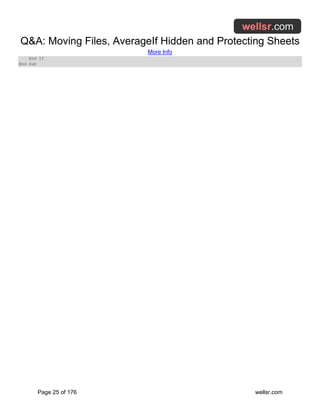
End If
End Sub
Get Cursor Position with a VBA Macro
More Info
Page 26 of 176 wellsr.com
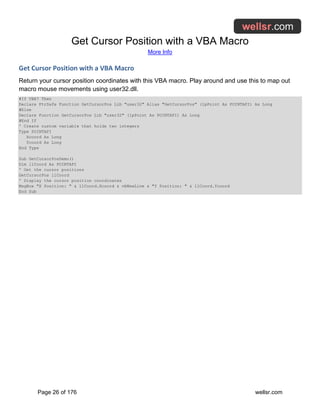
Get Cursor Position with a VBA Macro
Return your cursor position coordinates with this VBA macro. Play around and use this to map out
macro mouse movements using user32.dll.
#If VBA7 Then
Declare PtrSafe Function GetCursorPos Lib "user32" Alias "GetCursorPos" (lpPoint As POINTAPI) As Long
#Else
Declare Function GetCursorPos Lib "user32" (lpPoint As POINTAPI) As Long
#End If
' Create custom variable that holds two integers
Type POINTAPI
Xcoord As Long
Ycoord As Long
End Type
Sub GetCursorPosDemo()
Dim llCoord As POINTAPI
' Get the cursor positions
GetCursorPos llCoord
' Display the cursor position coordinates
MsgBox "X Position: " & llCoord.Xcoord & vbNewLine & "Y Position: " & llCoord.Ycoord
End Sub
Convert String to Integer with VBA CInt
More Info
Page 27 of 176 wellsr.com
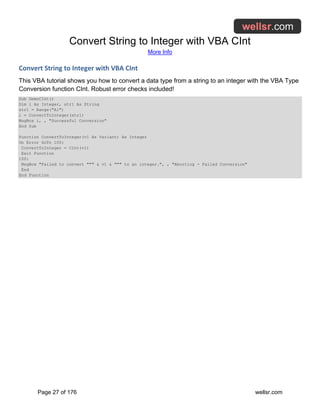
Convert String to Integer with VBA CInt
This VBA tutorial shows you how to convert a data type from a string to an integer with the VBA Type
Conversion function CInt. Robust error checks included!
Sub DemoCInt()
Dim i As Integer, str1 As String
str1 = Range("A1")
i = ConvertToInteger(str1)
MsgBox i, , "Successful Conversion"
End Sub
Function ConvertToInteger(v1 As Variant) As Integer
On Error GoTo 100:
ConvertToInteger = CInt(v1)
Exit Function
100:
MsgBox "Failed to convert """ & v1 & """ to an integer.", , "Aborting - Failed Conversion"
End
End Function
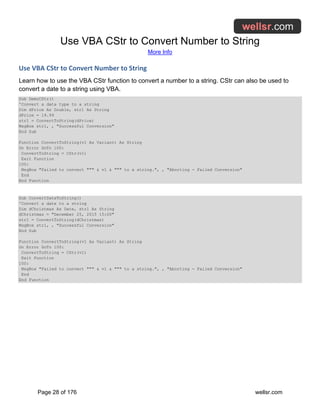
Use VBA CStr to Convert Number to String
More Info
Page 28 of 176 wellsr.com
Use VBA CStr to Convert Number to String
Learn how to use the VBA CStr function to convert a number to a string. CStr can also be used to
convert a date to a string using VBA.
Sub DemoCStr()
'Convert a data type to a string
Dim dPrice As Double, str1 As String
dPrice = 19.99
str1 = ConvertToString(dPrice)
MsgBox str1, , "Successful Conversion"
End Sub
Function ConvertToString(v1 As Variant) As String
On Error GoTo 100:
ConvertToString = CStr(v1)
Exit Function
100:
MsgBox "Failed to convert """ & v1 & """ to a string.", , "Aborting - Failed Conversion"
End
End Function
Sub ConvertDateToString()
'Convert a date to a string
Dim dChristmas As Date, str1 As String
dChristmas = "December 25, 2015 15:00"
str1 = ConvertToString(dChristmas)
MsgBox str1, , "Successful Conversion"
End Sub
Function ConvertToString(v1 As Variant) As String
On Error GoTo 100:
ConvertToString = CStr(v1)
Exit Function
100:
MsgBox "Failed to convert """ & v1 & """ to a string.", , "Aborting - Failed Conversion"
End
End Function
Draw Excel Lines or Arrows Between Cells with VBA
More Info
Page 29 of 176 wellsr.com
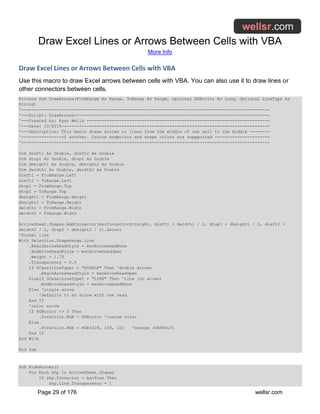
Draw Excel Lines or Arrows Between Cells with VBA
Use this macro to draw Excel arrows between cells with VBA. You can also use it to draw lines or
other connectors between cells.
Private Sub DrawArrows(FromRange As Range, ToRange As Range, Optional RGBcolor As Long, Optional LineType As
String)
'---------------------------------------------------------------------------------------------------
'---Script: DrawArrows------------------------------------------------------------------------------
'---Created by: Ryan Wells -------------------------------------------------------------------------
'---Date: 10/2015-----------------------------------------------------------------------------------
'---Description: This macro draws arrows or lines from the middle of one cell to the middle --------
'----------------of another. Custom endpoints and shape colors are suppported ----------------------
'---------------------------------------------------------------------------------------------------
Dim dleft1 As Double, dleft2 As Double
Dim dtop1 As Double, dtop2 As Double
Dim dheight1 As Double, dheight2 As Double
Dim dwidth1 As Double, dwidth2 As Double
dleft1 = FromRange.Left
dleft2 = ToRange.Left
dtop1 = FromRange.Top
dtop2 = ToRange.Top
dheight1 = FromRange.Height
dheight2 = ToRange.Height
dwidth1 = FromRange.Width
dwidth2 = ToRange.Width
ActiveSheet.Shapes.AddConnector(msoConnectorStraight, dleft1 + dwidth1 / 2, dtop1 + dheight1 / 2, dleft2 +
dwidth2 / 2, dtop2 + dheight2 / 2).Select
'format line
With Selection.ShapeRange.Line
.BeginArrowheadStyle = msoArrowheadNone
.EndArrowheadStyle = msoArrowheadOpen
.Weight = 1.75
.Transparency = 0.5
If UCase(LineType) = "DOUBLE" Then 'double arrows
.BeginArrowheadStyle = msoArrowheadOpen
ElseIf UCase(LineType) = "LINE" Then 'Line (no arows)
.EndArrowheadStyle = msoArrowheadNone
Else 'single arrow
'defaults to an arrow with one head
End If
'color arrow
If RGBcolor <> 0 Then
.ForeColor.RGB = RGBcolor 'custom color
Else
.ForeColor.RGB = RGB(228, 108, 10) 'orange (DEFAULT)
End If
End With
End Sub
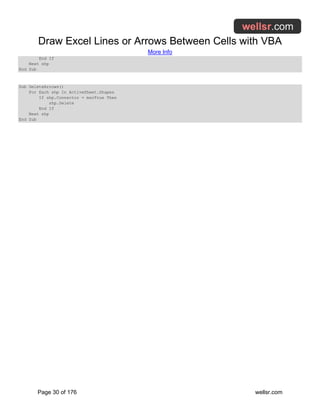
Sub HideArrows()
For Each shp In ActiveSheet.Shapes
If shp.Connector = msoTrue Then
shp.Line.Transparency = 1
Draw Excel Lines or Arrows Between Cells with VBA
More Info
Page 30 of 176 wellsr.com
End If
Next shp
End Sub
Sub DeleteArrows()
For Each shp In ActiveSheet.Shapes
If shp.Connector = msoTrue Then
shp.Delete
End If
Next shp
End Sub
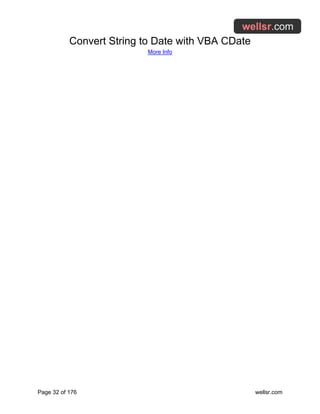
Convert String to Date with VBA CDate
More Info
Page 31 of 176 wellsr.com
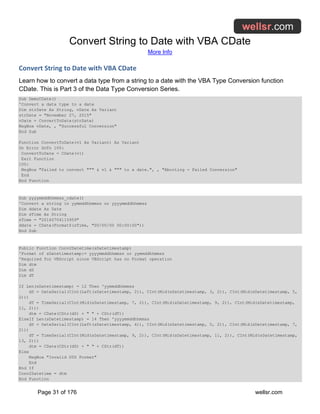
Convert String to Date with VBA CDate
Learn how to convert a data type from a string to a date with the VBA Type Conversion function
CDate. This is Part 3 of the Data Type Conversion Series.
Sub DemoCDate()
'Convert a data type to a date
Dim strDate As String, vDate As Variant
strDate = "November 27, 2015"
vDate = ConvertToDate(strDate)
MsgBox vDate, , "Successful Conversion"
End Sub
Function ConvertToDate(v1 As Variant) As Variant
On Error GoTo 100:
ConvertToDate = CDate(v1)
Exit Function
100:
MsgBox "Failed to convert """ & v1 & """ to a date.", , "Aborting - Failed Conversion"
End
End Function
Sub yyyymmddhhmmss_cdate()
'Convert a string in yymmddhhmmss or yyyymmddhhmmss
Dim ddate As Date
Dim sTime As String
sTime = "20160704115959"
ddate = CDate(Format$(sTime, "00/00/00 00:00:00"))
End Sub
Public Function Conv2Datetime(sDatetimestamp)
'Format of sDatetimestamp:= yyyymmddhhmmss or yymmddhhmmss
'Required for VBScript since VBScript has no Format operation
Dim dtm
Dim dS
Dim dT
If Len(sDatetimestamp) = 12 Then 'yymmddhhmmss
dS = DateSerial(CInt(Left(sDatetimestamp, 2)), CInt(Mid(sDatetimestamp, 3, 2)), CInt(Mid(sDatetimestamp, 5,
2)))
dT = TimeSerial(CInt(Mid(sDatetimestamp, 7, 2)), CInt(Mid(sDatetimestamp, 9, 2)), CInt(Mid(sDatetimestamp,
11, 2)))
dtm = CDate(CStr(dS) + " " + CStr(dT))
ElseIf Len(sDatetimestamp) = 14 Then 'yyyymmddhhmmss
dS = DateSerial(CInt(Left(sDatetimestamp, 4)), CInt(Mid(sDatetimestamp, 5, 2)), CInt(Mid(sDatetimestamp, 7,
2)))
dT = TimeSerial(CInt(Mid(sDatetimestamp, 9, 2)), CInt(Mid(sDatetimestamp, 11, 2)), CInt(Mid(sDatetimestamp,
13, 2)))
dtm = CDate(CStr(dS) + " " + CStr(dT))
Else
MsgBox "Invalid DTS Format"
End
End If
Conv2Datetime = dtm
End Function
Convert String to Date with VBA CDate
More Info
Page 32 of 176 wellsr.com
Simulate a Button Click with Rectangle Shape
More Info
Page 33 of 176 wellsr.com
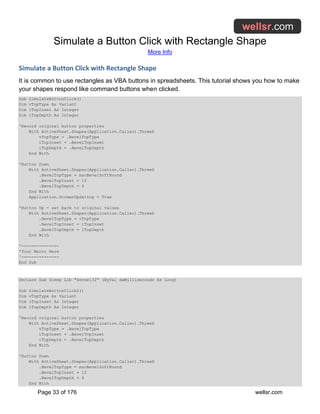
Simulate a Button Click with Rectangle Shape
It is common to use rectangles as VBA buttons in spreadsheets. This tutorial shows you how to make
your shapes respond like command buttons when clicked.
Sub SimulateButtonClick()
Dim vTopType As Variant
Dim iTopInset As Integer
Dim iTopDepth As Integer
'Record original button properties
With ActiveSheet.Shapes(Application.Caller).ThreeD
vTopType = .BevelTopType
iTopInset = .BevelTopInset
iTopDepth = .BevelTopDepth
End With
'Button Down
With ActiveSheet.Shapes(Application.Caller).ThreeD
.BevelTopType = msoBevelSoftRound
.BevelTopInset = 12
.BevelTopDepth = 4
End With
Application.ScreenUpdating = True
'Button Up - set back to original values
With ActiveSheet.Shapes(Application.Caller).ThreeD
.BevelTopType = vTopType
.BevelTopInset = iTopInset
.BevelTopDepth = iTopDepth
End With
'---------------
'Your Macro Here
'---------------
End Sub
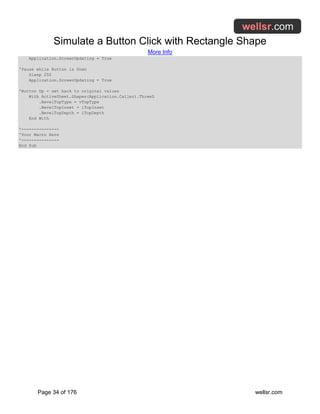
Declare Sub Sleep Lib "kernel32" (ByVal dwMilliseconds As Long)
Sub SimulateButtonClick2()
Dim vTopType As Variant
Dim iTopInset As Integer
Dim iTopDepth As Integer
'Record original button properties
With ActiveSheet.Shapes(Application.Caller).ThreeD
vTopType = .BevelTopType
iTopInset = .BevelTopInset
iTopDepth = .BevelTopDepth
End With
'Button Down
With ActiveSheet.Shapes(Application.Caller).ThreeD
.BevelTopType = msoBevelSoftRound
.BevelTopInset = 12
.BevelTopDepth = 4
End With
Simulate a Button Click with Rectangle Shape
More Info
Page 34 of 176 wellsr.com
Application.ScreenUpdating = True
'Pause while Button is Down
Sleep 250
Application.ScreenUpdating = True
'Button Up - set back to original values
With ActiveSheet.Shapes(Application.Caller).ThreeD
.BevelTopType = vTopType
.BevelTopInset = iTopInset
.BevelTopDepth = iTopDepth
End With
'---------------
'Your Macro Here
'---------------
End Sub
Compare Cells with this Excel VBA Function
More Info
Page 35 of 176 wellsr.com
Compare Cells with this Excel VBA Function
This Excel VBA Function will compare two cells and return whether or not the cells are identical. Use
it to compare data from two different sources.
Function compare(ByVal Cell1 As Range, ByVal Cell2 As Range, Optional CaseSensitive As Variant, Optional delta
As Variant, Optional MatchString As Variant)
'******************************************************************************
'***DEVELOPER: Ryan Wells (wellsr.com) *
'***DATE: 04/2016 *
'***DESCRIPTION: Compares Cell1 to Cell2 and if identical, returns "-" by *
'*** default but a different optional match string can be given. *
'*** If cells are different, the output will either be "FALSE" *
'*** or will optionally show the delta between the values if *
'*** numeric. *
'***INPUT: Cell1 - First cell to compare. *
'*** Cell2 - Cell to compare against Cell1. *
'*** CaseSensitive - Optional boolean that if set to TRUE, will *
'*** perform a case-sensitive comparison of the *
'*** two entered cells. Default is TRUE. *
'*** delta - Optional boolean that if set to TRUE, will display *
'*** the delta between Cell1 and Cell2. *
'*** MatchString - Optional string the user can choose to display *
'*** when Cell1 and Cell2 match. Default is "-" *
'***OUTPUT: The output will be "-", a custom string or a delta if the *
'*** cells match and will be "FALSE" if the cells do not match. *
'***EXAMPLES: =compare(A1,B1,FALSE,TRUE,"match") *
'*** =compare(A1,B1) *
'******************************************************************************
'------------------------------------------------------------------------------
'I. Declare variables
'------------------------------------------------------------------------------
Dim strMatch As String 'string to display if Cell1 and Cell2 match
'------------------------------------------------------------------------------
'II. Error checking
'------------------------------------------------------------------------------
'Error 0 - catch all error
On Error GoTo CompareError:
'Error 1 - MatchString is invalid
If IsMissing(MatchString) = False Then
If IsError(CStr(MatchString)) Then
compare = "Invalid Match String"
Exit Function
End If
End If
'Error 2 - Cell1 contains more than 1 cell
If IsArray(Cell1) = True Then
If Cell1.Count <> 1 Then
compare = "Too many cells in variable Cell1."
Exit Function
End If
End If
'Error 3 - Cell2 contains more than 1 cell
Compare Cells with this Excel VBA Function
More Info
Page 36 of 176 wellsr.com
If IsArray(Cell2) = True Then
If Cell2.Count <> 1 Then
compare = "Too many cells in variable Cell2."
Exit Function
End If
End If
'Error 4 - delta is not a boolean
If IsMissing(delta) = False Then
If delta <> CBool(True) And delta <> CBool(False) Then
compare = "Delta flag must be a boolean (TRUE or FALSE)."
Exit Function
End If
End If
'Error 5 - CaseSensitive is not a boolean
If IsMissing(CaseSensitive) = False Then
If CaseSensitive <> CBool(True) And CaseSensitive <> CBool(False) Then
compare = "CaseSensitive flag must be a boolean (TRUE or FALSE)."
Exit Function
End If
End If
'------------------------------------------------------------------------------
'III. Initialize Variables
'------------------------------------------------------------------------------
If IsMissing(CaseSensitive) Then
CaseSensitive = CBool(True)
ElseIf CaseSensitive = False Then
CaseSensitive = CBool(False)
Else
CaseSensitive = CBool(True)
End If
If IsMissing(MatchString) Then
strMatch = "-"
Else
strMatch = CStr(MatchString)
End If
If IsMissing(delta) Then
delta = CBool(False)
ElseIf delta = False Then
delta = CBool(False)
Else
delta = CBool(True)
End If
'------------------------------------------------------------------------------
'IV. Check for matches
'------------------------------------------------------------------------------
If Cell1 = Cell2 Then
compare = strMatch
ElseIf CaseSensitive = False Then
If UCase(Cell1) = UCase(Cell2) Then
compare = strMatch
ElseIf delta = True And IsNumeric(Cell1) And IsNumeric(Cell2) Then
compare = Cell1 - Cell2
Else
compare = CBool(False)
End If
Compare Cells with this Excel VBA Function
More Info
Page 37 of 176 wellsr.com
ElseIf Cell1 <> Cell2 And delta = True Then
If IsNumeric(Cell1) And IsNumeric(Cell2) Then
'No case sensitive check because if not numeric, doesn't matter.
compare = Cell1 - Cell2
Else
compare = CBool(False)
End If
Else
compare = CBool(False)
End If
Exit Function
'------------------------------------------------------------------------------
'V. Final Error Handling
'------------------------------------------------------------------------------
CompareError:
compare = "Error Encountered: " & Err.Number & ", " & Err.Description
End Function
Offset VBA Property to Navigate Excel
More Info
Page 38 of 176 wellsr.com
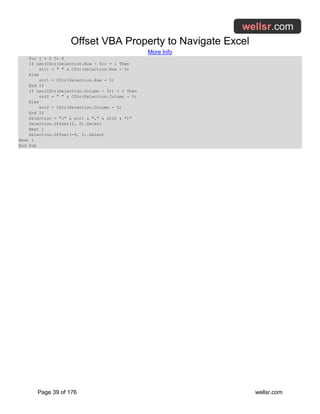
Offset VBA Property to Navigate Excel
This tutorial shows you how the offset VBA property is used to navigate Excel. In VBA, offset allows
you to access cells relative to your target cell.
Sub OffsetDemo()
Range("A1").Select
Selection = "This is cell " & Selection.Address
Selection.Offset(1, 0).Select
Selection = "This is cell " & Selection.Address
End Sub
Sub OffsetDemoLoop()
Application.ScreenUpdating = False
Range("A1").Select
For i = 0 To 5
Selection = "Row " & Selection.Row
Selection.Offset(2, 1).Select
Next i
Application.ScreenUpdating = True
End Sub
Sub OffsetDemoLoop2()
Application.ScreenUpdating = False
Range("A1").Activate
For i = 0 To 5
ActiveCell = "Row " & ActiveCell.Row
ActiveCell.Offset(2, 1).Activate
Next i
Application.ScreenUpdating = True
End Sub
Sub OffsetRange()
Range("A1:B2").Select
Selection.Offset(2, 2).Select
End Sub
Sub OffsetRangeValue()
Range("A1").Select
str1 = Selection.Offset(0, 1)
MsgBox str1
End Sub
Sub OffsetVBAmap()
Range("A1").Select
Selection.Offset(2, 1) = "Hey!"
End Sub
Sub OffsetVBAmapBonus()
Range("A1").Select
For i = 0 To 8
Offset VBA Property to Navigate Excel
More Info
Page 39 of 176 wellsr.com
For j = 0 To 8
If Len(CStr(Selection.Row - 5)) = 1 Then
str1 = " " & CStr(Selection.Row - 5)
Else
str1 = CStr(Selection.Row - 5)
End If
If Len(CStr(Selection.Column - 5)) = 1 Then
str2 = " " & CStr(Selection.Column - 5)
Else
str2 = CStr(Selection.Column - 5)
End If
Selection = "(" & str1 & "," & str2 & ")"
Selection.Offset(1, 0).Select
Next j
Selection.Offset(-9, 1).Select
Next i
End Sub
Loop through Array with VBA UBound
More Info
Page 40 of 176 wellsr.com
Loop through Array with VBA UBound
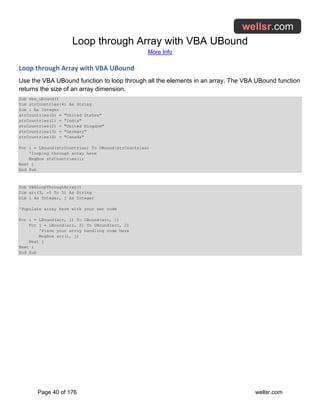
Use the VBA UBound function to loop through all the elements in an array. The VBA UBound function
returns the size of an array dimension.
Sub vba_ubound()
Dim strCountries(4) As String
Dim i As Integer
strCountries(0) = "United States"
strCountries(1) = "India"
strCountries(2) = "United Kingdom"
strCountries(3) = "Germany"
strCountries(4) = "Canada"
For i = LBound(strCountries) To UBound(strCountries)
'looping through array here
MsgBox strCountries(i)
Next i
End Sub
Sub VBALoopThroughArray()
Dim arr(3, -5 To 5) As String
Dim i As Integer, j As Integer
'Populate array here with your own code
For i = LBound(arr, 1) To UBound(arr, 1)
For j = LBound(arr, 2) To UBound(arr, 2)
'Place your array handling code here
MsgBox arr(i, j)
Next j
Next i
End Sub
Excel VBA Delete Sheet if it Exists
More Info
Page 41 of 176 wellsr.com
Excel VBA Delete Sheet if it Exists
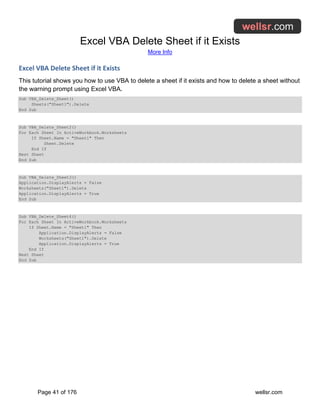
This tutorial shows you how to use VBA to delete a sheet if it exists and how to delete a sheet without
the warning prompt using Excel VBA.
Sub VBA_Delete_Sheet()
Sheets("Sheet1").Delete
End Sub
Sub VBA_Delete_Sheet2()
For Each Sheet In ActiveWorkbook.Worksheets
If Sheet.Name = "Sheet1" Then
Sheet.Delete
End If
Next Sheet
End Sub
Sub VBA_Delete_Sheet3()
Application.DisplayAlerts = False
Worksheets("Sheet1").Delete
Application.DisplayAlerts = True
End Sub
Sub VBA_Delete_Sheet4()
For Each Sheet In ActiveWorkbook.Worksheets
If Sheet.Name = "Sheet1" Then
Application.DisplayAlerts = False
Worksheets("Sheet1").Delete
Application.DisplayAlerts = True
End If
Next Sheet
End Sub
Use IsEmpty VBA to Check if Cell is Blank
More Info
Page 42 of 176 wellsr.com
Use IsEmpty VBA to Check if Cell is Blank
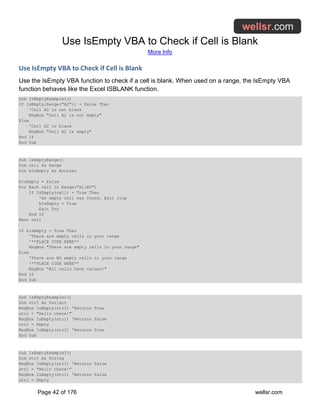
Use the IsEmpty VBA function to check if a cell is blank. When used on a range, the IsEmpty VBA
function behaves like the Excel ISBLANK function.
Sub IsEmptyExample1()
If IsEmpty(Range("A2")) = False Then
'Cell A2 is not blank
MsgBox "Cell A2 is not empty"
Else
'Cell A2 is blank
MsgBox "Cell A2 is empty"
End If
End Sub
Sub IsEmptyRange()
Dim cell As Range
Dim bIsEmpty As Boolean
bIsEmpty = False
For Each cell In Range("A1:B5")
If IsEmpty(cell) = True Then
'An empty cell was found. Exit loop
bIsEmpty = True
Exit For
End If
Next cell
If bIsEmpty = True Then
'There are empty cells in your range
'**PLACE CODE HERE**
MsgBox "There are empty cells in your range"
Else
'There are NO empty cells in your range
'**PLACE CODE HERE**
MsgBox "All cells have values!"
End If
End Sub
Sub IsEmptyExample2()
Dim str1 As Variant
MsgBox IsEmpty(str1) 'Returns True
str1 = "Hello there!"
MsgBox IsEmpty(str1) 'Returns False
str1 = Empty
MsgBox IsEmpty(str1) 'Returns True
End Sub
Sub IsEmptyExample3()
Dim str1 As String
MsgBox IsEmpty(str1) 'Returns False
str1 = "Hello there!"
MsgBox IsEmpty(str1) 'Returns False
str1 = Empty
Use IsEmpty VBA to Check if Cell is Blank
More Info
Page 43 of 176 wellsr.com
MsgBox IsEmpty(str1) 'Returns False
End Sub
VBA to Maximize Window in Left Monitor
More Info
Page 44 of 176 wellsr.com
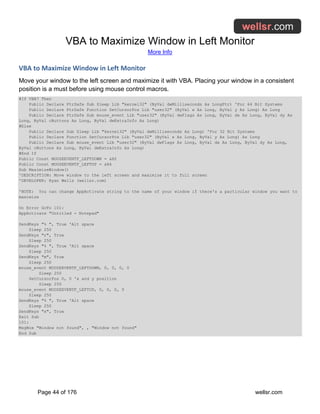
VBA to Maximize Window in Left Monitor
Move your window to the left screen and maximize it with VBA. Placing your window in a consistent
position is a must before using mouse control macros.
#If VBA7 Then
Public Declare PtrSafe Sub Sleep Lib "kernel32" (ByVal dwMilliseconds As LongPtr) 'For 64 Bit Systems
Public Declare PtrSafe Function SetCursorPos Lib "user32" (ByVal x As Long, ByVal y As Long) As Long
Public Declare PtrSafe Sub mouse_event Lib "user32" (ByVal dwFlags As Long, ByVal dx As Long, ByVal dy As
Long, ByVal cButtons As Long, ByVal dwExtraInfo As Long)
#Else
Public Declare Sub Sleep Lib "kernel32" (ByVal dwMilliseconds As Long) 'For 32 Bit Systems
Public Declare Function SetCursorPos Lib "user32" (ByVal x As Long, ByVal y As Long) As Long
Public Declare Sub mouse_event Lib "user32" (ByVal dwFlags As Long, ByVal dx As Long, ByVal dy As Long,
ByVal cButtons As Long, ByVal dwExtraInfo As Long)
#End If
Public Const MOUSEEVENTF_LEFTDOWN = &H2
Public Const MOUSEEVENTF_LEFTUP = &H4
Sub MaximizeWindow()
'DESCRIPTION: Move window to the left screen and maximize it to full screen
'DEVELOPER: Ryan Wells (wellsr.com)
'NOTE: You can change AppActivate string to the name of your window if there's a particular window you want to
maximize
On Error GoTo 101:
AppActivate "Untitled - Notepad"
SendKeys "% ", True 'Alt space
Sleep 250
SendKeys "r", True
Sleep 250
SendKeys "% ", True 'Alt space
Sleep 250
SendKeys "m", True
Sleep 250
mouse_event MOUSEEVENTF_LEFTDOWN, 0, 0, 0, 0
Sleep 250
SetCursorPos 0, 0 'x and y position
Sleep 250
mouse_event MOUSEEVENTF_LEFTUP, 0, 0, 0, 0
Sleep 250
SendKeys "% ", True 'Alt space
Sleep 250
SendKeys "x", True
Exit Sub
101:
MsgBox "Window not found", , "Window not found"
End Sub
Check if Value is in Array using VBA
More Info
Page 45 of 176 wellsr.com
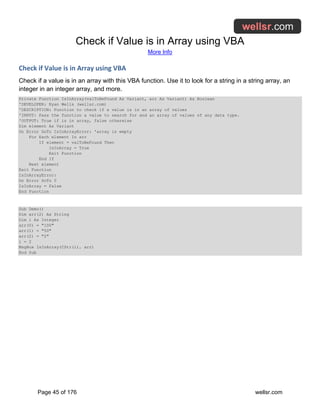
Check if Value is in Array using VBA
Check if a value is in an array with this VBA function. Use it to look for a string in a string array, an
integer in an integer array, and more.
Private Function IsInArray(valToBeFound As Variant, arr As Variant) As Boolean
'DEVELOPER: Ryan Wells (wellsr.com)
'DESCRIPTION: Function to check if a value is in an array of values
'INPUT: Pass the function a value to search for and an array of values of any data type.
'OUTPUT: True if is in array, false otherwise
Dim element As Variant
On Error GoTo IsInArrayError: 'array is empty
For Each element In arr
If element = valToBeFound Then
IsInArray = True
Exit Function
End If
Next element
Exit Function
IsInArrayError:
On Error GoTo 0
IsInArray = False
End Function
Sub Demo()
Dim arr(2) As String
Dim i As Integer
arr(0) = "100"
arr(1) = "50"
arr(2) = "2"
i = 2
MsgBox IsInArray(CStr(i), arr)
End Sub
Export Outlook Contacts to Excel with VBA
More Info
Page 46 of 176 wellsr.com
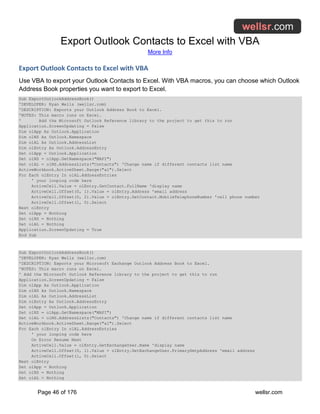
Export Outlook Contacts to Excel with VBA
Use VBA to export your Outlook Contacts to Excel. With VBA macros, you can choose which Outlook
Address Book properties you want to export to Excel.
Sub ExportOutlookAddressBook()
'DEVELOPER: Ryan Wells (wellsr.com)
'DESCRIPTION: Exports your Outlook Address Book to Excel.
'NOTES: This macro runs on Excel.
' Add the Microsoft Outlook Reference library to the project to get this to run
Application.ScreenUpdating = False
Dim olApp As Outlook.Application
Dim olNS As Outlook.Namespace
Dim olAL As Outlook.AddressList
Dim olEntry As Outlook.AddressEntry
Set olApp = Outlook.Application
Set olNS = olApp.GetNamespace("MAPI")
Set olAL = olNS.AddressLists("Contacts") 'Change name if different contacts list name
ActiveWorkbook.ActiveSheet.Range("a1").Select
For Each olEntry In olAL.AddressEntries
' your looping code here
ActiveCell.Value = olEntry.GetContact.FullName 'display name
ActiveCell.Offset(0, 1).Value = olEntry.Address 'email address
ActiveCell.Offset(0, 2).Value = olEntry.GetContact.MobileTelephoneNumber 'cell phone number
ActiveCell.Offset(1, 0).Select
Next olEntry
Set olApp = Nothing
Set olNS = Nothing
Set olAL = Nothing
Application.ScreenUpdating = True
End Sub
Sub ExportOutlookAddressBook()
'DEVELOPER: Ryan Wells (wellsr.com)
'DESCRIPTION: Exports your Microsoft Exchange Outlook Address Book to Excel.
'NOTES: This macro runs on Excel.
' Add the Microsoft Outlook Reference library to the project to get this to run
Application.ScreenUpdating = False
Dim olApp As Outlook.Application
Dim olNS As Outlook.Namespace
Dim olAL As Outlook.AddressList
Dim olEntry As Outlook.AddressEntry
Set olApp = Outlook.Application
Set olNS = olApp.GetNamespace("MAPI")
Set olAL = olNS.AddressLists("Contacts") 'Change name if different contacts list name
ActiveWorkbook.ActiveSheet.Range("a1").Select
For Each olEntry In olAL.AddressEntries
' your looping code here
On Error Resume Next
ActiveCell.Value = olEntry.GetExchangeUser.Name 'display name
ActiveCell.Offset(0, 1).Value = olEntry.GetExchangeUser.PrimarySmtpAddress 'email address
ActiveCell.Offset(1, 0).Select
Next olEntry
Set olApp = Nothing
Set olNS = Nothing
Set olAL = Nothing
Export Outlook Contacts to Excel with VBA
More Info
Page 47 of 176 wellsr.com
Application.ScreenUpdating = True
End Sub
Mask your Password with this VBA InputBox
More Info
Page 48 of 176 wellsr.com
Mask your Password with this VBA InputBox
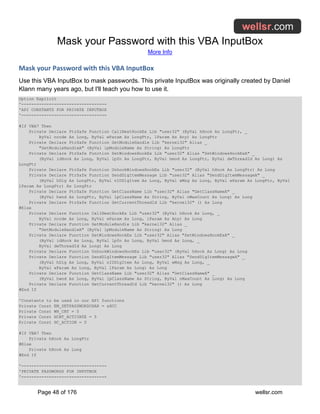
Use this VBA InputBox to mask passwords. This private InputBox was originally created by Daniel
Klann many years ago, but I'll teach you how to use it.
Option Explicit
'----------------------------------
'API CONSTANTS FOR PRIVATE INPUTBOX
'----------------------------------
#If VBA7 Then
Private Declare PtrSafe Function CallNextHookEx Lib "user32" (ByVal hHook As LongPtr, _
ByVal ncode As Long, ByVal wParam As LongPtr, lParam As Any) As LongPtr
Private Declare PtrSafe Function GetModuleHandle Lib "kernel32" Alias _
"GetModuleHandleA" (ByVal lpModuleName As String) As LongPtr
Private Declare PtrSafe Function SetWindowsHookEx Lib "user32" Alias "SetWindowsHookExA" _
(ByVal idHook As Long, ByVal lpfn As LongPtr, ByVal hmod As LongPtr, ByVal dwThreadId As Long) As
LongPtr
Private Declare PtrSafe Function UnhookWindowsHookEx Lib "user32" (ByVal hHook As LongPtr) As Long
Private Declare PtrSafe Function SendDlgItemMessage Lib "user32" Alias "SendDlgItemMessageA" _
(ByVal hDlg As LongPtr, ByVal nIDDlgItem As Long, ByVal wMsg As Long, ByVal wParam As LongPtr, ByVal
lParam As LongPtr) As LongPtr
Private Declare PtrSafe Function GetClassName Lib "user32" Alias "GetClassNameA" _
(ByVal hwnd As LongPtr, ByVal lpClassName As String, ByVal nMaxCount As Long) As Long
Private Declare PtrSafe Function GetCurrentThreadId Lib "kernel32" () As Long
#Else
Private Declare Function CallNextHookEx Lib "user32" (ByVal hHook As Long, _
ByVal ncode As Long, ByVal wParam As Long, lParam As Any) As Long
Private Declare Function GetModuleHandle Lib "kernel32" Alias _
"GetModuleHandleA" (ByVal lpModuleName As String) As Long
Private Declare Function SetWindowsHookEx Lib "user32" Alias "SetWindowsHookExA" _
(ByVal idHook As Long, ByVal lpfn As Long, ByVal hmod As Long, _
ByVal dwThreadId As Long) As Long
Private Declare Function UnhookWindowsHookEx Lib "user32" (ByVal hHook As Long) As Long
Private Declare Function SendDlgItemMessage Lib "user32" Alias "SendDlgItemMessageA" _
(ByVal hDlg As Long, ByVal nIDDlgItem As Long, ByVal wMsg As Long, _
ByVal wParam As Long, ByVal lParam As Long) As Long
Private Declare Function GetClassName Lib "user32" Alias "GetClassNameA" _
(ByVal hwnd As Long, ByVal lpClassName As String, ByVal nMaxCount As Long) As Long
Private Declare Function GetCurrentThreadId Lib "kernel32" () As Long
#End If
'Constants to be used in our API functions
Private Const EM_SETPASSWORDCHAR = &HCC
Private Const WH_CBT = 5
Private Const HCBT_ACTIVATE = 5
Private Const HC_ACTION = 0
#If VBA7 Then
Private hHook As LongPtr
#Else
Private hHook As Long
#End If
'----------------------------------
'PRIVATE PASSWORDS FOR INPUTBOX
'----------------------------------
Mask your Password with this VBA InputBox
More Info
Page 49 of 176 wellsr.com
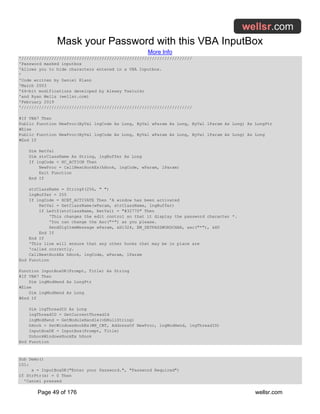
'////////////////////////////////////////////////////////////////////
'Password masked inputbox
'Allows you to hide characters entered in a VBA Inputbox.
'
'Code written by Daniel Klann
'March 2003
'64-bit modifications developed by Alexey Tseluiko
'and Ryan Wells (wellsr.com)
'February 2019
'////////////////////////////////////////////////////////////////////
#If VBA7 Then
Public Function NewProc(ByVal lngCode As Long, ByVal wParam As Long, ByVal lParam As Long) As LongPtr
#Else
Public Function NewProc(ByVal lngCode As Long, ByVal wParam As Long, ByVal lParam As Long) As Long
#End If
Dim RetVal
Dim strClassName As String, lngBuffer As Long
If lngCode < HC_ACTION Then
NewProc = CallNextHookEx(hHook, lngCode, wParam, lParam)
Exit Function
End If
strClassName = String$(256, " ")
lngBuffer = 255
If lngCode = HCBT_ACTIVATE Then 'A window has been activated
RetVal = GetClassName(wParam, strClassName, lngBuffer)
If Left$(strClassName, RetVal) = "#32770" Then
'This changes the edit control so that it display the password character *.
'You can change the Asc("*") as you please.
SendDlgItemMessage wParam, &H1324, EM_SETPASSWORDCHAR, asc("*"), &H0
End If
End If
'This line will ensure that any other hooks that may be in place are
'called correctly.
CallNextHookEx hHook, lngCode, wParam, lParam
End Function
Function InputBoxDK(Prompt, Title) As String
#If VBA7 Then
Dim lngModHwnd As LongPtr
#Else
Dim lngModHwnd As Long
#End If
Dim lngThreadID As Long
lngThreadID = GetCurrentThreadId
lngModHwnd = GetModuleHandle(vbNullString)
hHook = SetWindowsHookEx(WH_CBT, AddressOf NewProc, lngModHwnd, lngThreadID)
InputBoxDK = InputBox(Prompt, Title)
UnhookWindowsHookEx hHook
End Function
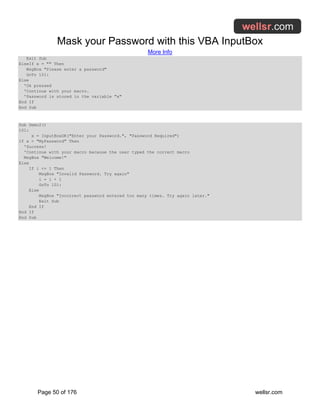
Sub Demo()
101:
x = InputBoxDK("Enter your Password.", "Password Required")
If StrPtr(x) = 0 Then
'Cancel pressed
Mask your Password with this VBA InputBox
More Info
Page 50 of 176 wellsr.com
Exit Sub
ElseIf x = "" Then
MsgBox "Please enter a password"
GoTo 101:
Else
'Ok pressed
'Continue with your macro.
'Password is stored in the variable "x"
End If
End Sub
Sub Demo2()
101:
x = InputBoxDK("Enter your Password.", "Password Required")
If x = "MyPassword" Then
'Success!
'Continue with your macro because the user typed the correct macro
MsgBox "Welcome!"
Else
If i <= 1 Then
MsgBox "Invalid Password. Try again"
i = i + 1
GoTo 101:
Else
MsgBox "Incorrect password entered too many times. Try again later."
Exit Sub
End If
End If
End Sub
VBA Loop Through Files in Folder
More Info
Page 51 of 176 wellsr.com
VBA Loop Through Files in Folder
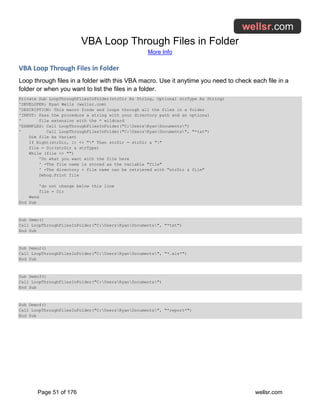
Loop through files in a folder with this VBA macro. Use it anytime you need to check each file in a
folder or when you want to list the files in a folder.
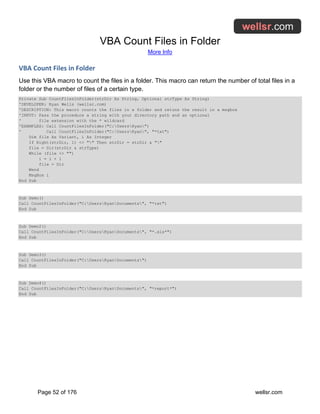
Private Sub LoopThroughFilesInFolder(strDir As String, Optional strType As String)
'DEVELOPER: Ryan Wells (wellsr.com)
'DESCRIPTION: This macro finds and loops through all the files in a folder
'INPUT: Pass the procedure a string with your directory path and an optional
' file extension with the * wildcard
'EXAMPLES: Call LoopThroughFilesInFolder("C:UsersRyanDocuments")
' Call LoopThroughFilesInFolder("C:UsersRyanDocuments", "*txt")
Dim file As Variant
If Right(strDir, 1) <> "" Then strDir = strDir & ""
file = Dir(strDir & strType)
While (file <> "")
'Do what you want with the file here
' -The file name is stored as the variable "file"
' -The directory + file name can be retrieved with "strDir & file"
Debug.Print file
'do not change below this line
file = Dir
Wend
End Sub
Sub Demo()
Call LoopThroughFilesInFolder("C:UsersRyanDocuments", "*txt")
End Sub
Sub Demo2()
Call LoopThroughFilesInFolder("C:UsersRyanDocuments", "*.xls*")
End Sub
Sub Demo3()
Call LoopThroughFilesInFolder("C:UsersRyanDocuments")
End Sub
Sub Demo4()
Call LoopThroughFilesInFolder("C:UsersRyanDocuments", "*report*")
End Sub
VBA Count Files in Folder
More Info
Page 52 of 176 wellsr.com
VBA Count Files in Folder
Use this VBA macro to count the files in a folder. This macro can return the number of total files in a
folder or the number of files of a certain type.
Private Sub CountFilesInFolder(strDir As String, Optional strType As String)
'DEVELOPER: Ryan Wells (wellsr.com)
'DESCRIPTION: This macro counts the files in a folder and retuns the result in a msgbox
'INPUT: Pass the procedure a string with your directory path and an optional
' file extension with the * wildcard
'EXAMPLES: Call CountFilesInFolder("C:UsersRyan")
' Call CountFilesInFolder("C:UsersRyan", "*txt")
Dim file As Variant, i As Integer
If Right(strDir, 1) <> "" Then strDir = strDir & ""
file = Dir(strDir & strType)
While (file <> "")
i = i + 1
file = Dir
Wend
MsgBox i
End Sub
Sub Demo()
Call CountFilesInFolder("C:UsersRyanDocuments", "*txt")
End Sub
Sub Demo2()
Call CountFilesInFolder("C:UsersRyanDocuments", "*.xls*")
End Sub
Sub Demo3()
Call CountFilesInFolder("C:UsersRyanDocuments")
End Sub
Sub Demo4()
Call CountFilesInFolder("C:UsersRyanDocuments", "*report*")
End Sub
VBA Beep Sound on Error
More Info
Page 53 of 176 wellsr.com
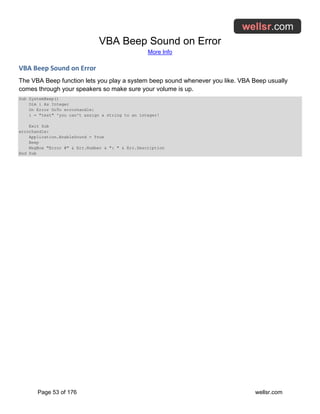
VBA Beep Sound on Error
The VBA Beep function lets you play a system beep sound whenever you like. VBA Beep usually
comes through your speakers so make sure your volume is up.
Sub SystemBeep()
Dim i As Integer
On Error GoTo errorhandle:
i = "test" 'you can't assign a string to an integer!
Exit Sub
errorhandle:
Application.EnableSound = True
Beep
MsgBox "Error #" & Err.Number & ": " & Err.Description
End Sub
Dynamic Array with ReDim Preserve VBA
More Info
Page 54 of 176 wellsr.com
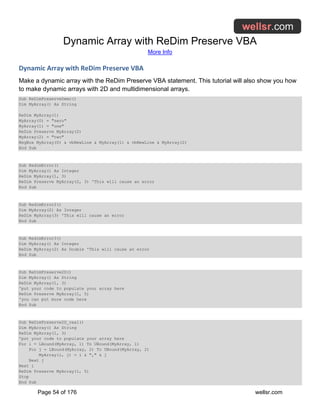
Dynamic Array with ReDim Preserve VBA
Make a dynamic array with the ReDim Preserve VBA statement. This tutorial will also show you how
to make dynamic arrays with 2D and multidimensional arrays.
Sub ReDimPreserveDemo()
Dim MyArray() As String
ReDim MyArray(1)
MyArray(0) = "zero"
MyArray(1) = "one"
ReDim Preserve MyArray(2)
MyArray(2) = "two"
MsgBox MyArray(0) & vbNewLine & MyArray(1) & vbNewLine & MyArray(2)
End Sub
Sub RedimError()
Dim MyArray() As Integer
ReDim MyArray(1, 3)
ReDim Preserve MyArray(2, 3) 'This will cause an error
End Sub
Sub RedimError2()
Dim MyArray(2) As Integer
ReDim MyArray(3) 'This will cause an error
End Sub
Sub RedimError3()
Dim MyArray() As Integer
ReDim MyArray(2) As Double 'This will cause an error
End Sub
Sub ReDimPreserve2D()
Dim MyArray() As String
ReDim MyArray(1, 3)
'put your code to populate your array here
ReDim Preserve MyArray(1, 5)
'you can put more code here
End Sub
Sub ReDimPreserve2D_real()
Dim MyArray() As String
ReDim MyArray(1, 3)
'put your code to populate your array here
For i = LBound(MyArray, 1) To UBound(MyArray, 1)
For j = LBound(MyArray, 2) To UBound(MyArray, 2)
MyArray(i, j) = i & "," & j
Next j
Next i
ReDim Preserve MyArray(1, 5)
Stop
End Sub
Dynamic Array with ReDim Preserve VBA
More Info
Page 55 of 176 wellsr.com
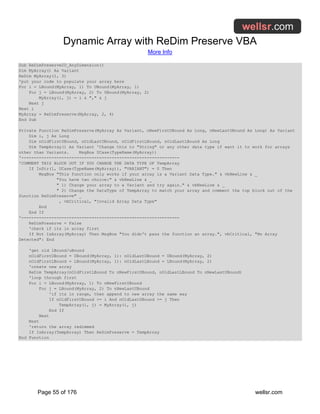
Sub ReDimPreserve2D_AnyDimension()
Dim MyArray() As Variant
ReDim MyArray(1, 3)
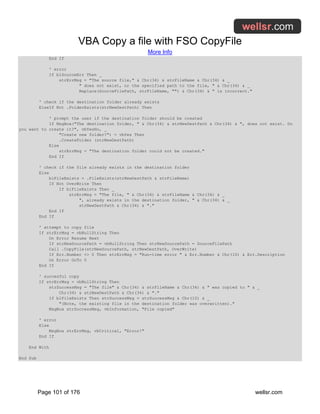
'put your code to populate your array here
For i = LBound(MyArray, 1) To UBound(MyArray, 1)
For j = LBound(MyArray, 2) To UBound(MyArray, 2)
MyArray(i, j) = i & "," & j
Next j
Next i
MyArray = ReDimPreserve(MyArray, 2, 4)
End Sub
Private Function ReDimPreserve(MyArray As Variant, nNewFirstUBound As Long, nNewLastUBound As Long) As Variant
Dim i, j As Long
Dim nOldFirstUBound, nOldLastUBound, nOldFirstLBound, nOldLastLBound As Long
Dim TempArray() As Variant 'Change this to "String" or any other data type if want it to work for arrays
other than Variants. MsgBox UCase(TypeName(MyArray))
'---------------------------------------------------------------
'COMMENT THIS BLOCK OUT IF YOU CHANGE THE DATA TYPE OF TempArray
If InStr(1, UCase(TypeName(MyArray)), "VARIANT") = 0 Then
MsgBox "This function only works if your array is a Variant Data Type." & vbNewLine & _
"You have two choice:" & vbNewLine & _
" 1) Change your array to a Variant and try again." & vbNewLine & _
" 2) Change the DataType of TempArray to match your array and comment the top block out of the
function ReDimPreserve" _
, vbCritical, "Invalid Array Data Type"
End
End If
'---------------------------------------------------------------
ReDimPreserve = False
'check if its in array first
If Not IsArray(MyArray) Then MsgBox "You didn't pass the function an array.", vbCritical, "No Array
Detected": End
'get old lBound/uBound
nOldFirstUBound = UBound(MyArray, 1): nOldLastUBound = UBound(MyArray, 2)
nOldFirstLBound = LBound(MyArray, 1): nOldLastLBound = LBound(MyArray, 2)
'create new array
ReDim TempArray(nOldFirstLBound To nNewFirstUBound, nOldLastLBound To nNewLastUBound)
'loop through first
For i = LBound(MyArray, 1) To nNewFirstUBound
For j = LBound(MyArray, 2) To nNewLastUBound
'if its in range, then append to new array the same way
If nOldFirstUBound >= i And nOldLastUBound >= j Then
TempArray(i, j) = MyArray(i, j)
End If
Next
Next
'return the array redimmed
If IsArray(TempArray) Then ReDimPreserve = TempArray
End Function
Use VBA to Mute, Unmute, Volume Up and Volume Down
More Info
Page 56 of 176 wellsr.com
Use VBA to Mute, Unmute, Volume Up and Volume Down
Did you know you can use VBA to control your computers speakers? This tutorial shows you how to
mute and unmute your volume and turn your volume up and down.
Option Explicit
Const VK_VOLUME_MUTE = &HAD
Const VK_VOLUME_DOWN = &HAE
Const VK_VOLUME_UP = &HAF
#If VBA7 Then
Private Declare PtrSafe Sub keybd_event Lib "user32" (ByVal bVk As Byte, ByVal bScan As Byte, ByVal dwFlags
As Long, ByVal dwExtraInfo As Long)
#Else
Private Declare Sub keybd_event Lib "user32" (ByVal bVk As Byte, ByVal bScan As Byte, ByVal dwFlags As Long,
ByVal dwExtraInfo As Long)
#End If
Sub VolUp()
keybd_event VK_VOLUME_UP, 0, 1, 0
keybd_event VK_VOLUME_UP, 0, 3, 0
End Sub
Sub VolDown()
keybd_event VK_VOLUME_DOWN, 0, 1, 0
keybd_event VK_VOLUME_DOWN, 0, 3, 0
End Sub
Sub VolToggle()
keybd_event VK_VOLUME_MUTE, 0, 1, 0
End Sub
Sub ControlMyVolume()
'turn your volume up (Call keyword is optional)
Call VolUp
End Sub
Sub MaximumVolume()
Dim i As Integer
For i = 1 To 100
Call VolUp
Next i
End Sub
Sub MinimumVolume()
Dim i As Integer
For i = 1 To 100
Call VolDown
Next i
End Sub
Option Explicit
Const VK_VOLUME_MUTE = &HAD
Use VBA to Mute, Unmute, Volume Up and Volume Down
More Info
Page 57 of 176 wellsr.com
Const VK_VOLUME_DOWN = &HAE
Const VK_VOLUME_UP = &HAF
#If VBA7 Then
Private Declare PtrSafe Sub keybd_event Lib "user32" (ByVal bVk As Byte, ByVal bScan As Byte, ByVal dwFlags
As Long, ByVal dwExtraInfo As Long)
Private Declare PtrSafe Function GetTickCount Lib "kernel32" () As Long
#Else
Private Declare Sub keybd_event Lib "user32" (ByVal bVk As Byte, ByVal bScan As Byte, ByVal dwFlags As Long,
ByVal dwExtraInfo As Long)
Private Declare Function GetTickCount Lib "kernel32" () As Long
#End If
Sub SongThatNeverEnds()
Dim i As Integer
Call PumpUpTheVolume
Application.Speech.Speak "This is the song that never ends, yes it goes on and on my friend. Some people
started singing it, not knowing what it was, and they'll continue singing it forever just because..." & _
"This is the song that never ends, yes it goes on and on my friend. Some people started singing it, not
knowing what it was, and they'll continue singing it forever just because..." & _
"This is the song that never ends, yes it goes on and on my friend. Some people started singing it, not
knowing what it was, and they'll continue singing it forever just because..." & _
"This is the song that never ends, yes it goes on and on my friend. Some people started singing it, not
knowing what it was, and they'll continue singing it forever just because..." & _
"This is the song that never ends, yes it goes on and on my friend. Some people started singing it, not
knowing what it was, and they'll continue singing it forever just because..." & _
"This is the song that never ends, yes it goes on and on my friend. Some people started singing it, not
knowing what it was, and they'll continue singing it forever just because..." _
, SpeakAsync:=True
For i = 1 To 6
Call DoNothing(10)
Call PumpUpTheVolume
Next i
End Sub
Sub PumpUpTheVolume()
DoEvents
Call MinimumVolume
Call MaximumVolume
End Sub
Sub DoNothing(Finish As Long)
Dim NowTick As Long
Dim EndTick As Long
EndTick = GetTickCount + (Finish * 1000)
Do
NowTick = GetTickCount
DoEvents
Loop Until NowTick >= EndTick
End Sub
Sub MaximumVolume()
Dim i As Integer
For i = 1 To 100
Call VolUp
Next i
End Sub
Sub MinimumVolume()
Dim i As Integer
For i = 1 To 100
Use VBA to Mute, Unmute, Volume Up and Volume Down
More Info
Page 58 of 176 wellsr.com
Call VolDown
Next i
End Sub
Sub VolUp()
keybd_event VK_VOLUME_UP, 0, 1, 0
keybd_event VK_VOLUME_UP, 0, 3, 0
End Sub
Sub VolDown()
keybd_event VK_VOLUME_DOWN, 0, 1, 0
keybd_event VK_VOLUME_DOWN, 0, 3, 0
End Sub
Sub VolToggle()
keybd_event VK_VOLUME_MUTE, 0, 1, 0
End Sub
VBA Close UserForm with Unload Me
More Info
Page 59 of 176 wellsr.com
VBA Close UserForm with Unload Me
Close a UserForm with VBA by using the Unload Me VBA statement. You can also unload userforms
with different names by replacing Me with the name of your form.
Private Sub cbCancel_Click()
Unload Me
End Sub
Sub UnloadFormModule()
Unload UserForm1
End Sub
Sub UnloadAllForms()
Dim tempForm As UserForm
For Each tempForm In UserForms
Unload tempForm
Next
End Sub
VBA Write to Text File with Print Statement
More Info
Page 60 of 176 wellsr.com
VBA Write to Text File with Print Statement
Use VBA to write to a text file without quotes by using the Print Statement instead of the Write
Statement. Creating text files is easy with VBA.
Sub WriteToTextFile()
Dim iLastRow As Long
Dim iLastCol As Long
iLastRow = Range("A" & Rows.Count).End(xlUp).Row
iLastCol = Cells(1, Columns.Count).End(xlToLeft).Column
Open "C:UsersRyanDocumentswellsrFundPrices.txt" For Output As #1
For i = 1 To iLastRow
For j = 1 To iLastCol
If j <> iLastCol Then 'keep writing to same line
Print #1, Cells(i, j),
Else 'end the line
Print #1, Cells(i, j)
End If
Next j
Next i
'MsgBox "Failed to transfer " & iFail & " file(s).", iFail & " Transfer(s) Failed"
Close #1
'comment the shell command out if you don't want to open the file when the macro ends
Shell "notepad.exe ""C:UsersRyanDocumentswellsrFundPrices.txt", vbNormalFocus
End Sub
Sub SimpleWriteToTextFile()
Open "C:UsersRyanDocumentswellsrDemoFile.txt" For Output As #1
Print #1, "This is cell B2: " & Range("B2")
Close #1
End Sub
Sub SimpleWriteToTextFile2()
Open "C:UsersRyanDocumentswellsrDemoFile.txt" For Output As #1
Print #1, "This is cell B2: ",
Print #1, Range("B2")
Close #1
End Sub
Sub SimpleWriteToTextFile3()
Open "C:UsersRyanDocumentswellsrDemoFile.txt" For Output As #1
Print #1, "This is cell B2: "
Print #1, Range("B2")
Close #1
End Sub
VBA FreeFile for Foolproof File IO
More Info
Page 61 of 176 wellsr.com
VBA FreeFile for Foolproof File IO
The VBA FreeFile function reserves the next available file number for VBA file IO. FreeFile returns an
integer that you can use to open, read and write files.
Sub FreeFile_Demo()
Dim file1 as Integer, file2 As Integer
file1 = FreeFile 'Returns value of 1
Open "C:UsersRyanDocumentswellsrMyTextFile.txt" For Output As #file1
Print #file1, "This is file1"
file2 = FreeFile 'Returns value of 2
Open "C:UsersRyanDocumentswellsrYourTextFile.txt" For Output As #file2
Print #file2, "This is file2"
Close #file1
Close #file2
End Sub
Sub FreeFile_Demo2()
Dim file1 as Integer, file2 As Integer
file1 = FreeFile 'Returns value of 1
Open "C:UsersRyanDocumentswellsrMyTextFile.txt" For Output As #file1
Print #file1, "This is file1"
Close #file1
file2 = FreeFile 'Returns value of 1
Open "C:UsersRyanDocumentswellsrYourTextFile.txt" For Output As #file2
Print #file2, "This is file2"
Close #file2
End Sub
Sub FreeFile_Demo3()
Dim file1 as Integer, file2 As Integer
Open "C:UsersRyanDocumentswellsrAnotherFile.txt" For Output As #1
Print #1, "blah blah"
Open "C:UsersRyanDocumentswellsrAndAnotherFile.txt" For Output As #3
Print #3, "blah blah"
file1 = FreeFile 'Returns value of 2
Open "C:UsersRyanDocumentswellsrMyTextFile.txt" For Output As #file1
Print #file1, "This is file1"
file2 = FreeFile 'Returns value of 4
Open "C:UsersRyanDocumentswellsrYourTextFile.txt" For Output As #file2
Print #file2, "This is file2"
Close #1
Close #3
Close #file1
Close #file2
End Sub
Extract VBA Substring with Mid Function
More Info
Page 62 of 176 wellsr.com
Extract VBA Substring with Mid Function
Extract a VBA substring from a string using the Mid function. VBA Mid accepts 3 arguments to define
which substring you want to extract from your main string.
Sub MidFunctionDemo()
str1 = "abc-123-yyy"
str2 = Mid(str1, 5, 3) 'Extracts 123
End Sub
Sub MidFunctionDemo2()
str1 = "abc-123-yyy"
str2 = Mid(str1, 5)
End Sub
Declare VBA Array of Strings using Split
More Info
Page 63 of 176 wellsr.com
Declare VBA Array of Strings using Split
This tutorial shows you how to declare and initialize a VBA array of strings using the Split function.
This array of strings solution is compact and efficient.
Sub ArrayOfStringsDemo()
Dim arrChoices() As String
arrChoices = Split("Yes,No,Maybe", ",")
End Sub
Sub ArrayOfStringsDemo2()
Dim arrChoices() As String
arrChoices = Split("Yes;No;Maybe", ";")
End Sub
Sub ArrayOfMonths()
Dim arrMonths() As String
arrMonths = Split("January,February,March,April,May,June,July,August,September,October,November,December", ",")
End Sub
ShowModal VBA vbModal and vbModeless
More Info
Page 64 of 176 wellsr.com
ShowModal VBA vbModal and vbModeless
The ShowModal VBA property controls how a UserForm behaves when displayed. UserForms can be
shown as vbModal or vbModeless by setting the ShowModal property.
Sub ShowModalDemo()
UserForm1.Show vbModeless
End Sub
Sub ShowModalDemo2()
UserForm1.Show vbModal
MsgBox "Another Window"
End Sub
Sub ShowModalDemo3()
UserForm1.Show vbModeless
MsgBox "Another Window"
End Sub
VBA Dir Function to Check if File Exists
More Info
Page 65 of 176 wellsr.com
VBA Dir Function to Check if File Exists
Use the VBA Dir function to check if a file exists. The VBA Dir function returns the name of a valid file,
so you can use it to test whether a file exists.
Function FileExists(FilePath As String) As Boolean
Dim TestStr As String
TestStr = ""
On Error Resume Next
TestStr = Dir(FilePath)
On Error GoTo 0
If TestStr = "" Then
FileExists = False
Else
FileExists = True
End If
End Function
Sub FileExistsDemo()
'VBA Check if File Exists
Dim strFile As String
strFile = "C:UsersRyanDocumentsDataFile.txt"
If FileExists(strFile) Then
'File Exists
Else
'File Does Not Exist
End If
End Sub
Sub FileExistsWildCardDemo()
'VBA Check if File Exists
Dim strFile As String
strFile = "C:UsersRyanDocumentsA*.txt"
If FileExists(strFile) Then
'File beginning with A and ending with .txt exists
Else
'File beginning with A and ending with .txt exists does not Exist
End If
End Sub
How to Assign a Macro to a Shape in Excel
More Info
Page 66 of 176 wellsr.com
How to Assign a Macro to a Shape in Excel
Find out how to assign a macro to a shape in Excel so you can quickly run your macro by simply
clicking the shape in your spreadsheet.
Sub ColorCell()
ActiveCell.Interior.Color = vbYellow
End Sub
VBA Random Number with Rnd and Randomize
More Info
Page 67 of 176 wellsr.com
VBA Random Number with Rnd and Randomize
Generate random numbers in VBA by using the Rnd function. Make the numbers even more random
by adding the VBA Randomize statement.
Sub RandomNumberGenerator()
r = Rnd
End Sub
Sub RandomNumberGenerator2()
Debug.Print Rnd
End Sub
Sub RandomNumberGenerator3()
Randomize
r = Rnd
End Sub
Sub RandomNumberGenerator4()
Randomize
Debug.Print Rnd
End Sub
Function Random() As Single
Randomize
Random = Rnd
End Function
Function RndBetween(Low, High) As Integer
Randomize
RndBetween = Int((High - Low + 1) * Rnd + Low)
End Function
VBA RoundUp WorksheetFunction to Round Up
More Info
Page 68 of 176 wellsr.com
VBA RoundUp WorksheetFunction to Round Up
Round Up with VBA by using the Excel RoundUp function. By calling the Worksheet Function, your
VBA macro will round numbers up just like in Excel.
Sub VBA_RoundUp()
Dim d1 As Double, d2 As Double
d1 = 1.3
d2 = Application.WorksheetFunction.RoundUp(d1, 0) 'equals 2
End Sub
Transparent UserForm Background with VBA
More Info
Page 69 of 176 wellsr.com
Transparent UserForm Background with VBA
Make a VBA UserForm with a transparent background with these macros. You can also make the
background of your controls transparent by following this tutorial.
'PLACE IN YOUR USERFORM CODE
Option Explicit
Private Declare Function FindWindow Lib "user32" _
Alias "FindWindowA" ( _
ByVal lpClassName As String, _
ByVal lpWindowName As String) As Long
Private Declare Function GetWindowLong Lib "user32" _
Alias "GetWindowLongA" ( _
ByVal hWnd As Long, _
ByVal nIndex As Long) As Long
Private Declare Function SetWindowLong Lib "user32" _
Alias "SetWindowLongA" ( _
ByVal hWnd As Long, _
ByVal nIndex As Long, _
ByVal dwNewLong As Long) As Long
Private Declare Function DrawMenuBar Lib "user32" ( _
ByVal hWnd As Long) As Long
Private Declare Function SetLayeredWindowAttributes Lib "user32" ( _
ByVal hWnd As Long, _
ByVal crKey As Long, _
ByVal bAlpha As Byte, _
ByVal dwFlags As Long) As Long
'Constants for title bar
Private Const GWL_STYLE As Long = (-16) 'The offset of a window's style
Private Const GWL_EXSTYLE As Long = (-20) 'The offset of a window's extended style
Private Const WS_CAPTION As Long = &HC00000 'Style to add a titlebar
Private Const WS_EX_DLGMODALFRAME As Long = &H1 'Controls if the window has an icon
'Constants for transparency
Private Const WS_EX_LAYERED = &H80000
Private Const LWA_COLORKEY = &H1 'Chroma key for fading a certain color on your Form
Private Const LWA_ALPHA = &H2 'Only needed if you want to fade the entire userform
Private Sub UserForm_Activate()
HideTitleBarAndBorder Me 'hide the titlebar and border
MakeUserFormTransparent Me 'make certain color transparent
End Sub
Sub MakeUserFormTransparent(frm As Object, Optional Color As Variant)
'set transparencies on userform
Dim formhandle As Long
Dim bytOpacity As Byte
formhandle = FindWindow(vbNullString, Me.Caption)
If IsMissing(Color) Then Color = vbWhite 'default to vbwhite
bytOpacity = 100 ' variable keeping opacity setting
SetWindowLong formhandle, GWL_EXSTYLE, GetWindowLong(formhandle, GWL_EXSTYLE) Or WS_EX_LAYERED
Transparent UserForm Background with VBA
More Info
Page 70 of 176 wellsr.com
'The following line makes only a certain color transparent so the
' background of the form and any object whose BackColor you've set to match
' vbColor (default vbWhite) will be transparent.
Me.BackColor = Color
SetLayeredWindowAttributes formhandle, Color, bytOpacity, LWA_COLORKEY
End Sub
Sub HideTitleBarAndBorder(frm As Object)
'Hide title bar and border around userform
Dim lngWindow As Long
Dim lFrmHdl As Long
lFrmHdl = FindWindow(vbNullString, frm.Caption)
'Build window and set window until you remove the caption, title bar and frame around the window
lngWindow = GetWindowLong(lFrmHdl, GWL_STYLE)
lngWindow = lngWindow And (Not WS_CAPTION)
SetWindowLong lFrmHdl, GWL_STYLE, lngWindow
lngWindow = GetWindowLong(lFrmHdl, GWL_EXSTYLE)
lngWindow = lngWindow And Not WS_EX_DLGMODALFRAME
SetWindowLong lFrmHdl, GWL_EXSTYLE, lngWindow
DrawMenuBar lFrmHdl
End Sub
Excel VBA Delete Blank Rows
More Info
Page 71 of 176 wellsr.com
Excel VBA Delete Blank Rows
Delete blank rows in Excel with this VBA macro. There are dozens of way to delete blank rows in
Excel. The macro in this tutorial is a fast way to do it.
Sub DeleteBlankRows()
'----------------------------------------------------------------------
'DESCRIPTION: Delete an entire row in Excel if the entire row is blank.
'HOW TO USE: Select the sheet you want to clean, then run this macro.
'DEVELOPER: Ryan Wells (wellsr.com)
'----------------------------------------------------------------------
Dim MyRange As Range
Dim MyRow As Range
Application.ScreenUpdating = False
Set MyRange = Selection.SpecialCells(xlCellTypeBlanks) 'select all blank cells
For Each MyRow In MyRange.Rows 'for each row with a blank cell
If WorksheetFunction.CountA(MyRow.EntireRow) = 0 Then 'if no data in any column, then
MyRow.EntireRow.Delete 'delete entire row
End If
Next MyRow
Application.ScreenUpdating = True
End Sub
Sub DeleteBlankRows2()
'----------------------------------------------------------------------
'DESCRIPTION: Delete an entire row in Excel if the entire row is blank.
'HOW TO USE: Select the sheet you want to clean, then run this macro.
'DEVELOPER: PG CodeRider (commenter on wellsr.com)
'----------------------------------------------------------------------
Dim ClearRng As Range
Dim MyRange As Range
Dim MyRow As Range
Application.ScreenUpdating = False
Set MyRange = Selection.SpecialCells(xlCellTypeBlanks) 'select all blank cells
Set ClearRng = Rows(ActiveSheet.Rows.Count) 'used to avoid having to create an if statement for first union
For Each MyRow In MyRange.Rows 'for each row with a blank cell
If WorksheetFunction.CountA(MyRow.EntireRow) = 0 Then 'if no data in any column, then
Set ClearRng = Union(ClearRng, MyRow.EntireRow)
End If
Next MyRow
ClearRng.Delete (xlUp) 'executing the delete after loop finishes saves incredible overhead
Application.ScreenUpdating = True
End Sub
VBA Column Number to Letter
More Info
Page 72 of 176 wellsr.com
VBA Column Number to Letter
Use this VBA function to convert a column number to a letter. This is useful if you need to build a
range and you want to do so with the A1 notation.
Public Function ColumnLetter(ColumnNumber As Long) As String
ColumnLetter = Split(Cells(1, ColumnNumber).Address(True, False), "$")(0)
End Function
Sub TestFunction()
Dim str1 As String
str1 = ColumnLetter(10) 'Returns J
str1 = ColumnLetter(3) 'Returns C
str1 = ColumnLetter(50) 'Returns AX
End Sub
Sub LastColumnExample()
Dim lastrow As Long
Dim lastcol As Long
Dim lastcolA As String
'Find last row and last column
lastrow = Range("A" & Rows.Count).End(xlUp).Row
lastcol = Range("A1").End(xlToRight).Column 'returns column number
lastcolA = ColumnLetter(lastcol) 'Convert column number to letter
'Copy contents from Sheet1 to Sheet 2
Sheets("Sheet2").Range("A1:" & lastcolA & lastrow) = Sheets("Sheet1").Range("A1:" & lastcolA & lastrow).Value
End Sub
Excel VBA Assign Range to Array
More Info
Page 73 of 176 wellsr.com
Excel VBA Assign Range to Array
Discover how easy it is to assign a range to an array using Excel VBA. You will also learn how to
avoid common errors, like run-time error 13 type mismatch.
Sub AssignRangeToArrayDemo()
'Demonstrates how to assign a range to an array
Dim MyArray() As Variant 'unallocated array
MyArray = Range("A1:G311").Value2
End Sub
Sub AssignRangeToArrayDemoBad1()
'THIS MACRO WILL GENERATE AN ERROR
Dim MyArray() As Variant 'unallocated array
MyArray = ActiveSheet.Range("A1:G311") 'Creates a Type mismatch error
End Sub
Sub AssignRangeToArrayDemoOkay()
'THIS MACRO WILL NOT GENERATE AN ERROR, but it's not ideal
Dim MyArray() As Variant 'unallocated array
MyArray = Range("A1:G311") 'No Type mismatch error
End Sub
Sub AssignRangeToArrayDemo2()
'Demonstrates how to assign a range to an array
Dim MyArray() As Variant 'unallocated array
MyArray = Sheets("sheet1").Range("A1:G311").Value2
End Sub
Return Position of Element in VBA Array
More Info
Page 74 of 176 wellsr.com
Return Position of Element in VBA Array
Return the position of an element in an array with this function from the VBA code library. This UDF is
a great tool to have when working with arrays.
Private Function WhereInArray(arr1 As Variant, vFind As Variant) As Variant
'DEVELOPER: Ryan Wells (wellsr.com)
'DESCRIPTION: Function to check where a value is in an array
Dim i As Long
For i = LBound(arr1) To UBound(arr1)
If arr1(i) = vFind Then
WhereInArray = i
Exit Function
End If
Next i
'if you get here, vFind was not in the array. Set to null
WhereInArray = Null
End Function
Sub Demo_Good()
Dim a(0 To 2) As String
Dim i As Variant
a(0) = "test"
a(1) = "cat"
a(2) = "dog"
i = WhereInArray(a, "cat") 'Will generate a 1
End Sub
Sub Demo_Good2()
Dim a(0 To 2) As String
Dim i As Variant
a(0) = "test"
a(1) = "cat"
a(2) = "dog"
i = WhereInArray(a, "meow") 'Returns a value of Null.
End Sub
Sub Demo_Bad()
'Will generate error
Dim a(0 To 2) As String
Dim i As Integer
a(0) = "test"
a(1) = "cat"
a(2) = "dog"
i = WhereInArray(a, "meow") 'Will generate "Invalid use of Null" (Error 94)
End Sub
Sub Demo_IsNullCheck()
Dim a(0 To 2) As String
a(0) = "test"
a(1) = "cat"
a(2) = "dog"
If IsNull(WhereInArray(a, "meow")) Then
Return Position of Element in VBA Array
More Info
Page 75 of 176 wellsr.com
'Value is not in array
MsgBox "Element Not Found!"
Else
'value is in array
MsgBox "Element Was Found!"
End If
End Sub
VBA MacroOptions to Add UDF Description
More Info
Page 76 of 176 wellsr.com
VBA MacroOptions to Add UDF Description
Use VBA MacroOptions to add a description for your user-defined functions. These descriptions will
appear with your UDF in the Excel Function Wizard dialog box.
Sub RegisterUDF()
Dim strFunc As String 'name of the function you want to register
Dim strDesc As String 'description of the function itself
Dim strArgs() As String 'description of function arguments
'Register Linterp linear interpolation function
ReDim strArgs(1 To 3) 'The upper bound is the number of arguments in your function
strFunc = "Linterp"
strDesc = "2D Linear Interpolation function that automatically picks which range " & _
"to interpolate between based on the closest KnownX value to the NewX " & _
"value you want to interpolate for."
strArgs(1) = "1-dimensional range containing your known Y values."
strArgs(2) = "1-dimensional range containing your known X values."
strArgs(3) = "The value you want to linearly interpolate on."
Application.MacroOptions Macro:=strFunc, _
Description:=strDesc, _
ArgumentDescriptions:=strArgs, _
Category:="My Custom Category"
End Sub
VBA Application.StatusBar to Mark Progress
More Info
Page 77 of 176 wellsr.com
VBA Application.StatusBar to Mark Progress
Use the VBA Application.StatusBar Property to display progress updates when your macro is running.
The StatusBar progress updater is easy to implement.
Sub StatusBar_Updater()
Dim CurrentStatus As Integer
Dim NumberOfBars As Integer
Dim pctDone As Integer
Dim lastrow As Long, i As Long
lastrow = Range("a" & Rows.Count).End(xlUp).Row
'(Step 1) Display your Status Bar
NumberOfBars = 40
Application.StatusBar = "[" & Space(NumberOfBars) & "]"
For i = 1 To lastrow
'(Step 2) Periodically update your Status Bar
CurrentStatus = Int((i / lastrow) * NumberOfBars)
pctDone = Round(CurrentStatus / NumberOfBars * 100, 0)
Application.StatusBar = "[" & String(CurrentStatus, "|") & _
Space(NumberOfBars - CurrentStatus) & "]" & _
" " & pctDone & "% Complete"
DoEvents
'--------------------------------------
'the rest of your macro goes below here
'
'
'--------------------------------------
'(Step 3) Clear the Status Bar when you're done
If i = lastrow Then Application.StatusBar = ""
Next i
End Sub
VBA - Remove Duplicates from Array
More Info
Page 78 of 176 wellsr.com
VBA - Remove Duplicates from Array
In this VBA tutorial, I show you two ways to remove duplicates from an array. The first method uses
the scripting dictionary and the second uses collections.
Function RemoveDupesDict(MyArray As Variant) As Variant
'DESCRIPTION: Removes duplicates from your array using the dictionary method.
'NOTES: (1.a) You must add a reference to the Microsoft Scripting Runtime library via
' the Tools > References menu.
' (1.b) This is necessary because I use Early Binding in this function.
' Early Binding greatly enhances the speed of the function.
' (2) The scripting dictionary will not work on the Mac OS.
'SOURCE: https://wellsr.com
'-----------------------------------------------------------------------
Dim i As Long
Dim d As Scripting.Dictionary
Set d = New Scripting.Dictionary
With d
For i = LBound(MyArray) To UBound(MyArray)
If IsMissing(MyArray(i)) = False Then
.item(MyArray(i)) = 1
End If
Next
RemoveDupesDict = .Keys
End With
End Function
Function RemoveDupesColl(MyArray As Variant) As Variant
'DESCRIPTION: Removes duplicates from your array using the collection method.
'NOTES: (1) This function returns unique elements in your array, but
' it converts your array elements to strings.
'SOURCE: https://wellsr.com
'-----------------------------------------------------------------------
Dim i As Long
Dim arrColl As New Collection
Dim arrDummy() As Variant
Dim arrDummy1() As Variant
Dim item As Variant
ReDim arrDummy1(LBound(MyArray) To UBound(MyArray))
For i = LBound(MyArray) To UBound(MyArray) 'convert to string
arrDummy1(i) = CStr(MyArray(i))
Next i
On Error Resume Next
For Each item In arrDummy1
arrColl.Add item, item
Next item
Err.Clear
ReDim arrDummy(LBound(MyArray) To arrColl.Count + LBound(MyArray) - 1)
i = LBound(MyArray)
For Each item In arrColl
arrDummy(i) = item
i = i + 1
Next item
RemoveDupesColl = arrDummy
End Function
VBA - Remove Duplicates from Array
More Info
Page 79 of 176 wellsr.com
Sub RemoveDuplicatesDemo_Dictionary()
Dim arr1() As Variant
Dim arr2() As Variant
arr1 = Array("Cow", "Cat", "Cow", "Frog", "Pig", "Cat")
arr2 = RemoveDupesDict(arr1) 'Dictionary Method
End Sub
Sub RemoveDuplicatesDemo_Collection()
Dim arr1() As Variant
Dim arr2() As Variant
arr1 = Array("Cow", "Cat", "Cow", "Frog", "Pig", "Cat")
arr2 = RemoveDupesColl(arr1) 'Collection Method
End Sub
VBA Scroll with ScrollRow and ScrollColumn
More Info
Page 80 of 176 wellsr.com
VBA Scroll with ScrollRow and ScrollColumn
You can scroll down, scroll to the top and scroll to a cell with the VBA ScrollRow, ScrollColumn, and
SmallScroll properties. Follow this tutorial to learn how.
Sub ScrollToTop()
'This macro scrolls to the top of your spreadsheet
ActiveWindow.ScrollRow = 1 'the row you want to scroll to
End Sub
Sub ScrollToTopLeft()
'This macro scrolls to the top left of your spreadsheet (cell A1)
ActiveWindow.ScrollRow = 1 'the row you want to scroll to
ActiveWindow.ScrollColumn = 1 'the column you want to scroll to
End Sub
Sub ScrollToCell()
'This macro scrolls until cell B5 is in the upper left
ActiveWindow.ScrollRow = 5 'the row you want to scroll to
ActiveWindow.ScrollColumn = 2 'the column you want to scroll to
End Sub
Sub ScrollDown()
'this macro scrolls down 1 cell.
ActiveWindow.SmallScroll Down:=1
End Sub
Sub ScrollRight()
'this macro scrolls right 2 cells.
ActiveWindow.SmallScroll ToRight:=-2
End Sub
Sub ScrollAllSheets()
'This macro scrolls each sheet in your workbook to cell E1.
'NOTE: It does not select cell E1. It just positions the sheet
' so cell E1 is in the top left.
Dim ws As Worksheet
For Each ws In ActiveWorkbook.Worksheets
ws.Activate
ActiveWindow.ScrollColumn = 5
ActiveWindow.ScrollRow = 1
Next ws
End Sub
Speed up VBA Macro with These Subroutines
More Info
Page 81 of 176 wellsr.com
Speed up VBA Macro with These Subroutines
Speed up your VBA code with this pair of macros from the wellsrPRO community. These subroutines
can dramatically increase the speed of your VBA macros.
Sub SpeedOn()
'Turns off the time wasters
With Application
.Calculation = xlCalculationManual
.ScreenUpdating = False
.EnableEvents = False
.DisplayAlerts = False
.Cursor = xlWait
.EnableCancelKey = xlErrorHandler
End With
End Sub
Sub SpeedOff()
'Turns on the time wasters
With Application
.Calculation = xlCalculationAutomatic
.ScreenUpdating = True
.EnableEvents = True
.DisplayAlerts = True
.Cursor = xlDefault
.StatusBar = False
.EnableCancelKey = xlInterrupt
End With
End Sub
Sub ReallySlowMacro()
Call SpeedOn
'
'
'
' Your really slow macro goes here
'
'
'
Call SpeedOff
End Sub
Use VBA Sleep to Add Time Delay to Macro
More Info
Page 82 of 176 wellsr.com
Use VBA Sleep to Add Time Delay to Macro
Use the VBA Sleep function to add a macro time delay. The Sleep function is better than
Application.Wait because it lets you pause macros for milliseconds.
#If VBA7 Then
Public Declare PtrSafe Sub Sleep Lib "kernel32" (ByVal dwMilliseconds As LongPtr) 'For 64-Bit versions of
Excel
#Else
Public Declare Sub Sleep Lib "kernel32" (ByVal dwMilliseconds As Long) 'For 32-Bit versions of Excel
#End If
Sub SleepDemo()
Sleep 500 'milliseconds (pause for 0.5 second)
'resume macro
End Sub
The VBA Mod Operator Explained
More Info
Page 83 of 176 wellsr.com
The VBA Mod Operator Explained
The VBA Mod operator is the VBA equivalent of the Excel MOD function. You use the VBA modulo
operator to return the remainder after dividing two numbers.
Sub ModDemo()
x = 10 Mod 3 'x equals 1
End Sub
Sub ModDemo2()
Debug.Print 5.9 Mod 4 'returns a value of 2
End Sub
Sub ModDemo3()
Debug.Print 5.2 Mod 4 'returns a value of 1
End Sub
Sub ModDemo4()
Debug.Print 10.2 Mod 3.5 'returns a value of 2
End Sub
Sub ModDemo5()
Debug.Print 10.2 Mod 4.5 'Also returns a value of 2
End Sub
Function XLMod(a, b)
' This attempts to mimic the Excel MOD function
XLMod = a - b * Int(a / b)
End Function
Sub ModDemo6()
Debug.Print XLMod(5.2, 4) 'returns a value of 1.2
End Sub
Sub VBA_Mod_Example()
Dim i As Long, lastrow As Long
lastrow = Range("A" & Rows.Count).End(xlUp).Row
For i = 1 To lastrow
If i Mod 5 <> 0 Then 'ignores every 5th row
Range("A" & i) = Range("A" & i) * 100
End If
Next i
End Sub
Square Root in VBA with the Sqr Function
More Info
Page 84 of 176 wellsr.com
Square Root in VBA with the Sqr Function
This VBA tutorial shows you how to take the square root of a number in VBA using the Sqr function.
The VBA Sqr function will return the square root of a number.
Sub VBA_Square_Root()
Dim d1 As Double
Dim d2 As Double
d1 = 144
d2 = Sqr(d1) 'Returns 12
Debug.Print d2
End Sub
Sub VBA_Square_Root_String()
Dim val1 As String
Dim val2 As String
val1 = "16"
val2 = Sqr(val1) 'Returns "4"
Debug.Print val2
End Sub
VBA Absolute Value with Abs function
More Info
Page 85 of 176 wellsr.com
VBA Absolute Value with Abs function
Take the absolute value of a number with the VBA Abs function. The VBA Abs function will return the
absolute value of a number or variable in your macro.
Sub VBA_Absolute_Value()
Dim d1 As Double
Dim d2 As Double
Dim d3 As Double
d1 = 1.5
d2 = -0.8
d3 = Abs(d1 * d2)
Debug.Print d3 'Yields +1.2
End Sub
Sub VBA_Abs_String()
Debug.Print Abs("-5.4") 'Yields +5.4
End Sub
VBA bubble sort macro to sort array
More Info
Page 86 of 176 wellsr.com
VBA bubble sort macro to sort array
Use this VBA bubble sort macro to sort small VBA arrays. The VBA bubble sort is good for sorting
small arrays, but it's a slow algorithm for large arrays.
Sub BubbleSort(MyArray() As Variant)
'Sorts a one-dimensional VBA array from smallest to largest
'using the bubble sort algorithm.
Dim i As Long, j As Long
Dim Temp As Variant
For i = LBound(MyArray) To UBound(MyArray) - 1
For j = i + 1 To UBound(MyArray)
If MyArray(i) > MyArray(j) Then
Temp = MyArray(j)
MyArray(j) = MyArray(i)
MyArray(i) = Temp
End If
Next j
Next i
End Sub
Sub ProcessData()
'Example macro to show you how to add a column of data to an array
'and sort the data from smallest to largest using VBA Bubble Sort.
Dim MyData() As Variant
Dim i As Long, LastRow As Long
'Store column of data into array
LastRow = Range("A" & Rows.Count).End(xlUp).Row
ReDim MyData(1 To LastRow)
For i = 1 To LastRow
MyData(i) = Range("A" & i)
Next i
'Now sort your array using the VBA Bubble Sort macro
Call BubbleSort(MyData())
'
'From here on, your "MyData" array is sorted from smallest to largest
'
End Sub
VBA Quicksort macro to sort arrays fast
More Info
Page 87 of 176 wellsr.com
VBA Quicksort macro to sort arrays fast
The VBA quicksort macro is a fast way to sort VBA arrays. VBA quicksort is more efficient than
bubble sort, so it can be used to sort arrays of all sizes.
Sub Quicksort(vArray As Variant, arrLbound As Long, arrUbound As Long)
'Sorts a one-dimensional VBA array from smallest to largest
'using a very fast quicksort algorithm variant.
Dim pivotVal As Variant
Dim vSwap As Variant
Dim tmpLow As Long
Dim tmpHi As Long
tmpLow = arrLbound
tmpHi = arrUbound
pivotVal = vArray((arrLbound + arrUbound)  2)
While (tmpLow <= tmpHi) 'divide
While (vArray(tmpLow) < pivotVal And tmpLow < arrUbound)
tmpLow = tmpLow + 1
Wend
While (pivotVal < vArray(tmpHi) And tmpHi > arrLbound)
tmpHi = tmpHi - 1
Wend
If (tmpLow <= tmpHi) Then
vSwap = vArray(tmpLow)
vArray(tmpLow) = vArray(tmpHi)
vArray(tmpHi) = vSwap
tmpLow = tmpLow + 1
tmpHi = tmpHi - 1
End If
Wend
If (arrLbound < tmpHi) Then Quicksort vArray, arrLbound, tmpHi 'conquer
If (tmpLow < arrUbound) Then Quicksort vArray, tmpLow, arrUbound 'conquer
End Sub
Sub ProcessData_Quicksort()
'Example macro to show you how to add a column of data to an array
'and sort the data from smallest to largest using VBA Quicksort.
Dim MyData() As Variant
Dim i As Long, LastRow As Long
'Store column of data into array
LastRow = Range("A" & Rows.Count).End(xlUp).Row
ReDim MyData(1 To LastRow)
For i = 1 To LastRow
MyData(i) = Range("A" & i)
Next i
'Now sort your array using the VBA Quicksort macro
Call Quicksort(MyData(), LBound(MyData), UBound(MyData))
'
'From here on, your "MyData" array is sorted from smallest to largest
VBA Quicksort macro to sort arrays fast
More Info
Page 88 of 176 wellsr.com
'
End Sub
Reverse order of an array with VBA
More Info
Page 89 of 176 wellsr.com
Reverse order of an array with VBA
This macro will reverse the order of an array using Excel VBA. Use it if you have an array sorted
smallest to largest and you want it largest to smallest.
Sub ReverseArray(vArray As Variant)
'Reverse the order of an array, so if it's already sorted
'from smallest to largest, it will now be sorted from
'largest to smallest.
Dim vTemp As Variant
Dim i As Long
Dim iUpper As Long
Dim iMidPt As Long
iUpper = UBound(vArray)
iMidPt = (UBound(vArray) - LBound(vArray))  2 + LBound(vArray)
For i = LBound(vArray) To iMidPt
vTemp = vArray(iUpper)
vArray(iUpper) = vArray(i)
vArray(i) = vTemp
iUpper = iUpper - 1
Next i
End Sub
Sub Reverse_Example()
Dim v() As Variant
v() = Array(1, 2, 3, 4, 5, 6)
Call ReverseArray(v)
'From here on, the array "v" is in reverse order (6,5,4,3,2,1)
End Sub
Sub Reverse_Example2()
Dim v(-5 To 5) As Variant
For i = LBound(v) To UBound(v)
v(i) = i
Next i
Call ReverseArray(v)
'From here on, the array "v" is in reverse order (5,4,3...-4,-5)
End Sub
Perform Integer Division with the VBA Backslash Operator
More Info
Page 90 of 176 wellsr.com
Perform Integer Division with the VBA Backslash Operator
Using a backslash instead of a forward slash to divide two numbers in VBA will divide the numbers
but will always return an integer solution.
Sub IntegerDivide()
Debug.Print 10.5  4.5 'Integer Division = 2
Debug.Print 10.5 / 4.5 'Regular Division = 2.33
Debug.Print 10.5  3.5 'Integer Division = 2
Debug.Print 10.5 / 3.5 'Regular Division = 3
End Sub
Sub IntegerDivide2()
Debug.Print 11 / 4 'Regular Division = 2.75
Debug.Print 11  4 'Integer Division = 2
End Sub
VBA Fade Userform In and Out
More Info
Page 91 of 176 wellsr.com
VBA Fade Userform In and Out
Fade your VBA UserForm in and out with the macros in this tutorial. You will also learn how to force
your userform to appear partially transparent.
'PLACE IN YOUR USERFORM CODE
Option Explicit
#If VBA7 Then
Private Declare PtrSafe Function FindWindow Lib "user32" Alias "FindWindowA" (ByVal lpClassName As String, ByVal
lpWindowName As String) As LongPtr
Private Declare PtrSafe Function GetWindowLong Lib "user32" Alias "GetWindowLongA" (ByVal hwnd As LongPtr, ByVal
nIndex As Long) As Long
Private Declare PtrSafe Function SetWindowLong Lib "user32" Alias "SetWindowLongA" (ByVal hwnd As LongPtr, ByVal
nIndex As Long, ByVal dwNewLong As Long) As Long
Private Declare PtrSafe Function DrawMenuBar Lib "user32" (ByVal hwnd As LongPtr) As Long
Private Declare PtrSafe Function SetLayeredWindowAttributes Lib "user32" (ByVal hwnd As LongPtr, ByVal crKey As
Long, ByVal bAlpha As Byte, ByVal dwFlags As Long) As Long
#Else
Private Declare Function FindWindow Lib "user32" _
Alias "FindWindowA" ( _
ByVal lpClassName As String, _
ByVal lpWindowName As String) As Long
Private Declare Function GetWindowLong Lib "user32" _
Alias "GetWindowLongA" ( _
ByVal hwnd As Long, _
ByVal nIndex As Long) As Long
Private Declare Function SetWindowLong Lib "user32" _
Alias "SetWindowLongA" ( _
ByVal hwnd As Long, _
ByVal nIndex As Long, _
ByVal dwNewLong As Long) As Long
Private Declare Function DrawMenuBar Lib "user32" ( _
ByVal hwnd As Long) As Long
Private Declare Function SetLayeredWindowAttributes Lib "user32" ( _
ByVal hwnd As Long, _
ByVal crKey As Long, _
ByVal bAlpha As Byte, _
ByVal dwFlags As Long) As Long
#End If
'Constants for title bar
Private Const GWL_STYLE As Long = (-16) 'The offset of a window's style
Private Const GWL_EXSTYLE As Long = (-20) 'The offset of a window's extended style
Private Const WS_CAPTION As Long = &HC00000
'Style to add a titlebar
Private Const WS_EX_DLGMODALFRAME As Long = &H1 'Controls if the window has an icon
'Constants for transparency
Private Const WS_EX_LAYERED = &H80000
Private Const LWA_COLORKEY = &H1 'Chroma key for fading a certain color on your Form
Private Const LWA_ALPHA = &H2 'Only needed if you want to fade the entire userform
'sleep
VBA Fade Userform In and Out
More Info
Page 92 of 176 wellsr.com
#If VBA7 Then
Private Declare PtrSafe Sub Sleep Lib "kernel32" (ByVal dwMilliseconds As LongPtr) 'For 64-Bit versions of
Excel
Dim formhandle As LongPtr
#Else
Private Declare Sub Sleep Lib "kernel32" (ByVal dwMilliseconds As Long) 'For 32-Bit versions of Excel
Dim formhandle As Long
#End If
Private Sub UserForm_Initialize()
'force the form to fully transparent before it even loads
formhandle = FindWindow(vbNullString, Me.Caption)
SetWindowLong formhandle, GWL_EXSTYLE, GetWindowLong(formhandle, GWL_EXSTYLE) Or WS_EX_LAYERED
SetOpacity (0)
End Sub
Private Sub UserForm_Activate()
'HideTitleBarAndBorder Me 'hide the titlebar and border
FadeUserform Me, True 'Fade your userform in
End Sub
Private Sub UserForm_QueryClose(Cancel As Integer, CloseMode As Integer)
FadeUserform Me, False 'Fade your userform in
End Sub
Sub FadeUserform(frm As Object, Optional FadeIn As Boolean = True)
'Defaults to fade your userform in.
'Set the 2nd argument to False to Fade Out.
Dim iOpacity As Integer
formhandle = FindWindow(vbNullString, Me.Caption)
SetWindowLong formhandle, GWL_EXSTYLE, GetWindowLong(formhandle, GWL_EXSTYLE) Or WS_EX_LAYERED
'The following line sets the userform opacity equal to whatever value you have in iOpacity (0 to 255).
If FadeIn = True Then 'fade in
For iOpacity = 0 To 255 Step 15
Call SetOpacity(iOpacity)
Next
Else 'fade out
For iOpacity = 255 To 0 Step -15
Call SetOpacity(iOpacity)
Next
Unload Me 'unload form once faded out
End If
End Sub
Sub SetOpacity(Opacity As Integer)
SetLayeredWindowAttributes formhandle, Me.BackColor, Opacity, LWA_ALPHA
Me.Repaint
Sleep 50
End Sub
Sub HideTitleBarAndBorder(frm As Object)
'Hide title bar and border around userform
'Source: https://wellsr.com/vba/2017/excel/remove-window-border-title-bar-around-userform-vba/
#If VBA7 Then
Dim lFrmHdl As LongPtr
#Else
Dim lFrmHdl As Long
#End If
Dim lngWindow As Long
VBA Fade Userform In and Out
More Info
Page 93 of 176 wellsr.com
lFrmHdl = FindWindow(vbNullString, frm.Caption)
'Build window and set window until you remove the caption, title bar and frame around the window
lngWindow = GetWindowLong(lFrmHdl, GWL_STYLE)
lngWindow = lngWindow And (Not WS_CAPTION)
SetWindowLong lFrmHdl, GWL_STYLE, lngWindow
lngWindow = GetWindowLong(lFrmHdl, GWL_EXSTYLE)
lngWindow = lngWindow And Not WS_EX_DLGMODALFRAME
SetWindowLong lFrmHdl, GWL_EXSTYLE, lngWindow
DrawMenuBar lFrmHdl
End Sub
VBA Concatenate Strings with Ampersand Operator
More Info
Page 94 of 176 wellsr.com
VBA Concatenate Strings with Ampersand Operator
In VBA, you concatenate strings into a single string using the &, or ampersand, operator. Simply add
an ampersand between your strings to combine them into one string.
Sub Concatenate_Strings()
Dim str1 As String
Dim str2 As String
Dim strCombined As String
str1 = "Four score and "
str2 = "seven years ago."
strCombined = str1 & str2 'concatenate strings
MsgBox strCombined
End Sub
Sub VBA_Concatenate()
Dim MyString As String
Dim str1 As String
Dim str2 As String
Dim str3 As String
str1 = "18"
str2 = "06"
str3 = "29"
MyString = str1 & str2 & str3 'creates "180629"
End Sub
Sub VBA_Concatenate_2()
Dim MyString As String
Dim MyNumber As Double
MyNumber = 18.53
MyString = "Your total is $" & MyNumber
MsgBox MyString
End Sub
Sub VBA_quotation_marks()
MyString = "My cow goes " & """mooo"""
MsgBox MyString
End Sub
Sub VBA_quotation_marks()
strSound = "oink"
MyString = "My pig goes " & """" & strSound & """"
MsgBox MyString
End Sub
VBA Concatenate Strings with Ampersand Operator
More Info
Page 95 of 176 wellsr.com
Sub VBA_add_strings()
val1 = "25"
val2 = 5
strCombined = val1 + val2 'yields 30, not 255!
MsgBox strCombined
End Sub
Sub VBA_Loop_Through_Rows()
dim i as Integer
For i = 1 To 100
If Range("A" & i) = "Waldo" Then 'you're concatenating
MsgBox "You found Waldo!"
End If
Next i
End Sub
Get Filename with VBA GetOpenFilename
More Info
Page 96 of 176 wellsr.com
Get Filename with VBA GetOpenFilename
Use GetOpenFilename to browse for and import a filename with VBA. GetOpenFilename is part of
the Application object in Excel and lets you store file paths without opening them.
Sub basic_get_user_file()
Dim fileStringBasic As String
fileStringBasic = Application.GetOpenFilename()
If fileStringBasic <> "False" Then
'your code for a single file here
End If
End Sub
Sub get_user_file()
Dim fileString As String
fileString = Application.GetOpenFilename("Text Files (.txt), *.txt, Special Files, *.special", 2)
If fileString <> "False" Then
'your code for a single file here
End If
End Sub
Sub get_multiple_user_files()
Dim fileArray As Variant 'must be variant or you will get type errors
fileArray = Application.GetOpenFilename(Title:="Select Multiple Files", MultiSelect:=True)
If VarType(fileArray) >= vbArray Then
'your code for one or more files here
End If
End Sub
Introduction to the VBA FileSystemObject
More Info
Page 97 of 176 wellsr.com
Introduction to the VBA FileSystemObject
Use VBA FileSystemObject (FSO) to access drives, folders and files with VBA. The FSO is part of
Windows Script Host and is one of the most powerful APIs in VBA.
Sub FSOSetup()
'(1) Gives you access to the VBA FileSystemObject.
'(2) Must add reference to Microsoft Scripting Runtime:
' Tools > References > Microsoft Scripting Runtime
'(3) After binding, you can use FSO functions/methods like:
' FSO.FileExists("C:MyFilesTest.xlsm")
Dim FSO As Scripting.FileSystemObject
Set FSO = New Scripting.FileSystemObject
End Sub
VBA Show Userform with Show Method
More Info
Page 98 of 176 wellsr.com
VBA Show Userform with Show Method
This tutorial will demonstrate how to use the VBA UserForm Show method. We'll also explain how to
call macros and show other userforms from an existing userform.
Sub show_userform1()
Userform1.Show
End Sub
Private UserForm_Initialize()
Userform1.CommandButton1.Caption = "Click Me."
End Sub
Private Sub CommandButton1_Click()
Userform1.Show
End Sub
Private Sub CommandButton1_MouseMove(ByVal Button As Integer, ByVal Shift As Integer, ByVal X As Single, ByVal Y
As Single)
basic_get_user_file 'name of public macro to call
End Sub
Sub basic_get_user_file()
Dim fileStringBasic As String
fileStringBasic = Application.GetOpenFilename()
If fileStringBasic <> "False" Then
'your code for a single file here
End If
End Sub
Private Sub cbCancel_Click()
Unload Me
End Sub
How to Populate ComboBox on VBA Userforms
More Info
Page 99 of 176 wellsr.com
How to Populate ComboBox on VBA Userforms
There are two ways to populate a combobox with VBA: List and AddItem. Learn how to populate
userform comboboxes statically and dynamically with this VBA tutorial.
Private Sub UserForm_Initialize()
ComboBox_Demo1.List = Array("Choose a Single File", "Choose Multiple Files")
End Sub
Private Sub UserForm_Click()
ComboBox_Demo1.AddItem "You Clicked Me!"
End Sub
VBA Copy a file with FSO CopyFile
More Info
Page 100 of 176 wellsr.com
VBA Copy a file with FSO CopyFile
The FSO CopyFile method is a quick VBA way to copy a file from one location to another. Use the
VBA CopyFile FileSystemObject (FSO) function to copy a file to another folder.
Sub CopyFileWithFSOBasic(SourceFilePath As String, DestPath As String, OverWrite As Boolean)
' (1) copies one file from one folder to another folder with the VBA FileSystemObject
' (2) contains no error handling (safeguards) --> Not recommended!
' (3) requires a reference to the object library "Microsoft Scripting Runtime" under Options > Tools >
References in the VBE.
Dim FSO As Scripting.FileSystemObject
Set FSO = New Scripting.FileSystemObject
Call FSO.CopyFile(SourceFilePath, DestPath, OverWrite)
End Sub
Sub FSOCopyFileDemo()
Call CopyFileWithFSOBasic("C:MyFilesTest.xlsm", "C:MyBackup", False)
End Sub
Sub CopyFileWithFSO(SourceFilePath As String, DestPath As String, OverWrite As Boolean)
' (1) copies one file from one folder to another folder with the VBA FileSystemObject
' (2) contains extensive error handling (safeguards)
' (3) requires a reference to the object library "Microsoft Scripting Runtime" under Options > Tools >
References... in the Visual Basic Editor.
Dim blFileExists As Boolean, blSourceErr As Boolean
Dim strFileName As String, strSuccessMsg As String, strNewDestPath As String, strNewSourcePath As String
Dim FSO As Scripting.FileSystemObject
Dim strErrMsg As String
Set FSO = New Scripting.FileSystemObject
With FSO
strNewDestPath = .BuildPath(.GetAbsolutePathName(DestPath), "")
strFileName = .GetFileName(SourceFilePath)
'check if the source file exists
If Not .FileExists(SourceFilePath) Then
' check if the root drive was specified
If .DriveExists(Left(SourceFilePath, 2)) Then
blSourceErr = True
' the provided source path is incomplete
' build new path and ask the user if he accepts the suggestion
Else
strNewSourcePath = .BuildPath(.GetAbsolutePathName(SourceFilePath), "")
If Not MsgBox("The source path " & Chr(34) & SourceFilePath & Chr(34) & _
" is incomplete. Will you accept the following suggestion: " _
& Chr(34) & strNewSourcePath & Chr(34) & "?", vbYesNo, "Confirm new source path") = vbYes
Then _
blSourceErr = True
VBA Copy a file with FSO CopyFile
More Info
Page 101 of 176 wellsr.com
End If
' error
If blSourceErr Then _
strErrMsg = "The source file," & Chr(34) & strFileName & Chr(34) & _
" does not exist, or the specified path to the file, " & Chr(34) & _
Replace(SourceFilePath, strFileName, "") & Chr(34) & " is incorrect."
' check if the destination folder already exists
ElseIf Not .FolderExists(strNewDestPath) Then
' prompt the user if the destination folder should be created
If MsgBox("The destination folder, " & Chr(34) & strNewDestPath & Chr(34) & ", does not exist. Do
you want to create it?", vbYesNo, _
"Create new folder?") = vbYes Then
.CreateFolder (strNewDestPath)
Else
strErrMsg = "The destination folder could not be created."
End If
' check if the file already exists in the destination folder
Else
blFileExists = .FileExists(strNewDestPath & strFileName)
If Not OverWrite Then
If blFileExists Then _
strErrMsg = "The file, " & Chr(34) & strFileName & Chr(34) & _
", already exists in the destination folder, " & Chr(34) & _
strNewDestPath & Chr(34) & "."
End If
End If
' attempt to copy file
If strErrMsg = vbNullString Then
On Error Resume Next
If strNewSourcePath = vbNullString Then strNewSourcePath = SourceFilePath
Call .CopyFile(strNewSourcePath, strNewDestPath, OverWrite)
If Err.Number <> 0 Then strErrMsg = "Run-time error " & Err.Number & Chr(10) & Err.Description
On Error GoTo 0
End If
' succesful copy
If strErrMsg = vbNullString Then
strSuccessMsg = "The file" & Chr(34) & strFileName & Chr(34) & " was copied to " & _
Chr(34) & strNewDestPath & Chr(34) & "."
If blFileExists Then strSuccessMsg = strSuccessMsg & Chr(10) & _
"(Note, the existing file in the destination folder was overwritten)."
MsgBox strSuccessMsg, vbInformation, "File copied"
' error
Else
MsgBox strErrMsg, vbCritical, "Error!"
End If
End With
End Sub
VBA Send Email from Excel
More Info
Page 102 of 176 wellsr.com
VBA Send Email from Excel
Use VBA to send emails from Excel with Outlook. This tutorial provides a macro for sending emails
from Excel, tells you how to use Excel VBA to send emails with attachments and add a body to your
emails.
Sub send_single_email_with_chosen_attachment()
'Must add references (Tools > References) to
' 1) OLE Automation
' 2) Microsoft Outlook xx.0 Object Library
Dim outlookApp As Outlook.Application
Dim myMail As Outlook.MailItem
Dim Source_File As String
Set outlookApp = New Outlook.Application
Set myMail = outlookApp.CreateItem(olMailItem)
myMail.To = "ryan.wellsr@gmail.com"
myMail.Subject = "Check Out my File!"
'myMail.HTMLBody = "<b>This is bold</b><br> and this isn't" 'uncomment this if you want a formatted body
Source_File = Application.GetOpenFilename
myMail.Attachments.Add Source_File
myMail.Display True 'comment this out if you don't want to display email
myMail.send 'comment this out if you don't want to send yet
End Sub
VBA DoEvents and when to use it
More Info
Page 103 of 176 wellsr.com
VBA DoEvents and when to use it
VBA DoEvents yields execution of your macro, so your computer processor will be able to
simultaneously run other tasks. The VBA DoEvents function also enables interruption of code
execution so it's easier to stop a running macro.
Sub ShowStatusWithDoEvents()
'(1) Stores the current value of the Application.Statusbar
'(2) Updates the value of the Application.Statusbar through a loop
'(3) Enables code interruption with the DoEvents function in the loop
'(4) Restores the value of the Application.Statusbar
Dim i As Long
Dim appStatus As Variant
With Application
.ScreenUpdating = False
If .StatusBar = False Then appStatus = False Else appStatus = .StatusBar
End With
For i = 1 To 5000
Application.StatusBar = "Processing row " & i
DoEvents
Next i
With Application
.ScreenUpdating = True
.StatusBar = appStatus
End With
End Sub
Using Excel VBA to Send Emails with Attachments
More Info
Page 104 of 176 wellsr.com
Using Excel VBA to Send Emails with Attachments
This tutorial will demonstrate how to use Excel VBA to send emails with attachments, and we will take
a detailed look at the Attachments object, which is actually a collection. It's quite easy to attach files to
an email using Excel VBA.
Sub AttachMultipleFilesToEmail()
Dim outlookApp As Outlook.Application
Dim myMail As Outlook.MailItem
Set outlookApp = New Outlook.Application
Set myMail = outlookApp.CreateItem(olMailItem)
For i = 2 To 5
source_file = "C:Work Files" & Cells(i, 3)
myMail.Attachments.Add source_file
Next i
End Sub
Sub send_this_workbook_in_an_email()
Dim outlookApp As Outlook.Application
Dim myMail As Outlook.MailItem
Dim source_file As String
Set outlookApp = New Outlook.Application
Set myMail = outlookApp.CreateItem(olMailItem)
ThisWorkbook.Save
source_file = ThisWorkbook.FullName
myMail.Attachments.Add source_file
End Sub
Sub send_email_complete()
Dim outlookApp As Outlook.Application
Dim myMail As Outlook.MailItem
Dim source_file, to_emails, cc_emails As String
Dim i, j As Integer
Set outlookApp = New Outlook.Application
Set myMail = outlookApp.CreateItem(olMailItem)
For i = 2 To 4
to_emails = to_emails & Cells(i, 1) & ";"
cc_emails = cc_emails & Cells(i, 2) & ";"
Next i
For j = 2 To 5
source_file = "C:Work Files" & Cells(j, 3)
myMail.Attachments.Add source_file
Next
ThisWorkbook.Save
source_file = ThisWorkbook.FullName
myMail.Attachments.Add source_file
Using Excel VBA to Send Emails with Attachments
More Info
Page 105 of 176 wellsr.com
myMail.CC = cc_emails
myMail.To = to_emails
myMail.Subject = "Files for Everyone"
myMail.Body = "Hi Everyone," & vbNewLine & "Please read these before the meeting." & vbNewLine & "Thanks"
myMail.Display
End Sub
VBA Regex Regular Expressions Guide
More Info
Page 106 of 176 wellsr.com
VBA Regex Regular Expressions Guide
VBA RegEx, or Regular Expressions, are special character sequences that define search patterns
and are used to identify specific patterns of characters in a string. This tutorial will explain VBA RegEx
pattern examples so you can create your own regular expressions.
Sub CallRegEx()
'Must add reference (Tools > References) to the
' "Microsoft VBScript Regular Expressions 5.5" Object Library
Dim r As Match
Dim mcolResults As MatchCollection
Dim strInput As String, strPattern As String
strInput = "The email address,'Mary-Jo.T.Williamson_01+test@test-site.com', is contained within this string"
strPattern = "[a-z0-9-.+_]+@[a-z-]+.[a-z]+"
Set mcolResults = RegEx(strInput, strPattern, , , True)
'print the returned results to the immediate window
If Not mcolResults Is Nothing Then
For Each r In mcolResults
'***********************************
'Insert your code here
'***********************************
Debug.Print r ' remove in production
Next r
End If
End Sub
Function RegEx(strInput As String, strPattern As String, _
Optional GlobalSearch As Boolean, Optional MultiLine As Boolean, _
Optional IgnoreCase As Boolean) As MatchCollection
Dim mcolResults As MatchCollection
Dim objRegEx As New RegExp
If strPattern <> vbNullString Then
With objRegEx
.Global = GlobalSearch
.MultiLine = MultiLine
.IgnoreCase = IgnoreCase
.Pattern = strPattern
End With
If objRegEx.Test(strInput) Then
Set mcolResults = objRegEx.Execute(strInput)
Set RegEx = mcolResults
End If
End If
End Function
Excel VBA AutoFilter to Filter Data Table
More Info
Page 107 of 176 wellsr.com
Excel VBA AutoFilter to Filter Data Table
Use VBA AutoFilter to filter data in Excel. The VBA AutoFilter method lets you filter multiple fields at
once and even filter on more than one criteria.
Sub filter_on_department()
Dim range_to_filter As Range
Set range_to_filter = Range("E:E")
range_to_filter.AutoFilter Field:=1, Criteria1:="Marketing"
End Sub
Sub clear_filter_vba()
On Error Resume Next
ActiveSheet.ShowAllData
On Error GoTo 0
End Sub
Sub clear_autofilter_vba()
With ActiveSheet
If .AutoFilterMode Then
.AutoFilterMode = False
End If
End With
End Sub
Sub filter_on_base_pay()
Dim range_to_filter As Range
Set range_to_filter = Range("A1:E9")
range_to_filter.AutoFilter Field:=4, Criteria1:=">45000"
End Sub
Sub find_outliers()
Dim range_to_filter As Range
Set range_to_filter = Range("A1:E9")
range_to_filter.AutoFilter Field:=4, Criteria1:="<35000", Criteria2:=">70000", Operator:=xlOr
End Sub
Sub filter_emails()
Dim range_to_filter As Range
Set range_to_filter = Range("A11:C15")
range_to_filter.AutoFilter field:=2, Criteria1:="High", Criteria2:="Medium", Operator:=xlOr
range_to_filter.AutoFilter field:=1, Criteria1:="wm*"
End Sub
Excel VBA AutoFilter to Filter Data Table
More Info
Page 108 of 176 wellsr.com
Excel VBA Dictionary Keys and Items
More Info
Page 109 of 176 wellsr.com
Excel VBA Dictionary Keys and Items
Use a VBA dictionary to create a collection of key-item pairs in Excel. The VBA dictionary object links
keys to items so you can get your items later by simply calling the key.
Sub DictionaryBasicSetup()
' (1) set up the VBA dictionary object (Tools > References > Microsoft Scripting Runtime)
' (2) insert two random values in the dictionary
' (3) print the values to the immediate window be referencing the keys
Dim dict As Scripting.Dictionary
Set dict = New Scripting.Dictionary
' insert some random items
dict("Alice") = "555-778-0131"
dict("Bob") = "555-202-0114"
' print items to the immediate window
Debug.Print dict("Alice")
Debug.Print dict("Bob")
End Sub
Sub CallGenerateUniqueNumbersList()
Dim varUniqueNumbersList As Variant
varUniqueNumbersList = GenerateUniqueNumbersList(10, 1, 100)
' print list to immediate window
If IsArray(varUniqueNumbersList) Then
' *********************************************
'Insert your code here
' *********************************************
Debug.Print Join(varUniqueNumbersList, ";") ' remove in production
End If
End Sub
Function GenerateUniqueNumbersList(ListLength As Integer, LowerBound As Integer, UpperBound As Integer) As
Variant
'Must add reference to Tools > References > Microsoft Scripting Runtime
Dim dict As Scripting.Dictionary
Dim i As Integer
Dim var As Variant
' error handling
If ListLength > UpperBound Then
MsgBox "The length of the list cannot exceed the upper bound.", vbCritical, "Error!"
Exit Function
End If
Set dict = New Scripting.Dictionary
' fill dictionary keys with unique random numbers
With dict
Excel VBA Dictionary Keys and Items
More Info
Page 110 of 176 wellsr.com
Do While .Count < ListLength
i = Int((UpperBound - LowerBound + 1) * Rnd + LowerBound)
If Not .Exists(i) Then .Add i, ""
Loop
GenerateUniqueNumbersList = .Keys
End With
End Function
Sub DictionaryGroupData(rngInput As Range, keyColIndex As Long, blHeaders As Boolean)
'Must add reference to Tools > References > Microsoft Scripting Runtime
Dim i As Long
Dim rngCell As Range, rng As Range, rngTemp As Range
Dim dict As Scripting.Dictionary
Dim strVal As String
Dim varOrigItems As Variant, varUniqueItems As Variant, varKey As Variant, _
varItem As Variant
Application.ScreenUpdating = False
Set rng = rngInput.Columns(keyColIndex)
Set dict = New Scripting.Dictionary
' set compare mode to text
dict.CompareMode = TextCompare
' offset by one row if range has headers
If blHeaders Then
With rngInput
Set rngInput = .Offset(1, 0).Resize(.Rows.Count - 1, .Columns.Count)
End With
End If
' add keys and values to dictionary
With rngInput
For Each rngCell In rngInput.Columns(keyColIndex).Cells
i = i + 1
strVal = rngCell.Text
' add new key and item range
If Not dict.Exists(strVal) Then
dict.Add strVal, .Rows(i)
' merge item ranges of existing key
Else
Set rngTemp = Union(.Rows(i), dict(strVal))
dict.Remove strVal ' simply updating the item in a loop will cause a run-time error!
dict.Add strVal, rngTemp
End If
Next rngCell
End With
For Each varKey In dict.Keys
' *********************************************
'Insert your code here
' *********************************************
Debug.Print varKey & ": " & dict.Item(varKey).Address ' remove in production
Next varKey
' *********************************************
Excel VBA Dictionary Keys and Items
More Info
Page 111 of 176 wellsr.com
' or add code here for specific key actions
' dict("A").Select
' *********************************************
Application.ScreenUpdating = True
End Sub
Sub CallDataGrouper()
Call DictionaryGroupData(Range("A1:G12"), 6, True)
End Sub
VBA Switch and VBA Select Case
More Info
Page 112 of 176 wellsr.com
VBA Switch and VBA Select Case
This tutorial explains the difference between the VBA Switch function and the VBA Select Case
statement. The VBA Select Case statement is sometimes called Switch Case, which can make
distinguishing it from the Switch function rather confusing!
Sub select_case_example()
'Greater 1000 case will not trigger since cases are done in order.
'Must change order if you want to check both conditions
'Include else statement at bottom to capture other conditions
Dim our_input As Integer
our_input = InputBox("Enter an integer")
Select Case our_input
Case Is < 500
MsgBox ("Your input is less than 500")
Case Is > 500
MsgBox ("Your input is greater than 500")
Case Is > 1000
MsgBox ("Your input is greater than 1000")
End Select
End Sub
Sub using_switch_to_mimic_select_case()
'Greater 1000 case will not trigger since function resolves in order.
'Must change order if you want to check both conditions.
Dim our_input As Integer
our_input = InputBox("Enter an integer")
MsgBox (Switch(our_input < 500, "Your input is less than 500", our_input > 500, "Your input is greater than
500", our_input > 1000, "Your input is greater than 1000"))
End Sub
Sub using_switch_function_result()
'Greater 1000 case will not trigger since function resolves in order.
'Must change order if you want to check both conditions.
Dim our_input As Integer
Dim our_output As String
our_input = InputBox("Enter an integer")
our_output = Switch(our_input < 500, "Your input is less than 500", our_input > 500, "Your input is greater than
500", our_input > 1000, "Your input is greater than 1000")
MsgBox (our_output)
End Sub
VBA Switch and VBA Select Case
More Info
Page 113 of 176 wellsr.com
Sub switch_for_value()
Dim vID As Integer
Dim our_output As String
vID = InputBox("Enter the country ID (1-4)")
our_output = Switch(vID = 1, "France", vID = 2, "Croatia", vID = 3, "Belgium", vID = 4, "England")
MsgBox (our_output)
End Sub
Sub sc_is_worse()
Dim vID As Integer
Dim our_output As String
vID = InputBox("Enter the country ID (1-4)")
Select Case vID
Case 1
our_output = "France"
Case 2
our_output = "Croatia"
Case 3
our_output = "Belgium"
Case 4
our_output = "England"
End Select
MsgBox (our_output)
End Sub
Sub functional_prog_switch()
s0 = Int(InputBox("Enter one number"))
s1 = Int(InputBox("Enter another number"))
our_output = Switch(s0 > s1, adder(s0), s0 < s1, adder(s1), s0 = s1, s1)
MsgBox (our_output)
End Sub
Function adder(t0)
For i = 0 To t0
num = num + i
Next i
adder = num
End Function
VBA String Functions and how to use them
More Info
Page 114 of 176 wellsr.com
VBA String Functions and how to use them
This tutorial describes VBA string functions, explains how to use basic VBA string functions, and
guides you to detailed tutorials covering advanced VBA string functions.
Sub concat_with_amps()
first_string = "Hello World."
second_string = "Hello Friend."
third_string = first_string & second_string
MsgBox (third_string)
End Sub
Sub concat_with_join()
string_arr = Array("Hello World.", "Hello Friend.")
third_string = Join(string_arr, " ")
MsgBox (third_string)
End Sub
Sub concat_with_join_and_smiley()
string_arr = Array("Hello World.", "Hello Friend.", "Hello All.")
third_string = Join(string_arr, " :) ")
MsgBox (third_string)
End Sub
Sub separate_strings()
full_string = ("Hello World. Hello Friend.")
string_arr = Split(full_string, ".")
End Sub
Sub concat_with_join_and_space()
string_arr = Array("Hello World.", "Hello Friend.")
third_string = Join(string_arr, Space(1))
MsgBox (third_string)
End Sub
Sub convert_strings_to_numbers_broken()
my_num = "10.5"
my_num2 = "20.34"
VBA String Functions and how to use them
More Info
Page 115 of 176 wellsr.com
my_num3 = my_num + my_num2
End Sub
Sub convert_strings_to_numbers_fixed()
my_num = "10.5"
my_num2 = "20.34"
my_num3 = Val(my_num) + Val(my_num2)
End Sub
Sub str_compare()
my_string = "Hello World."
my_string2 = "HELLO WORLD."
If my_string = my_string2 Then MsgBox ("Hello Friend.")
End Sub
Sub str_compare_ucase_consistency()
my_string = "Hello World."
my_string2 = "HELLO WORLD."
If UCase(my_string) = UCase(my_string2) Then MsgBox ("Hello Friend.")
End Sub
Sub left_extraction()
my_string = "2018-05-20-082315 1BTC 5235USD 100BTCVOL"
the_date = Left(my_string, 17)
End Sub
Sub convoluted_extraction()
trade_string = "2018-05-20-082315 1BTC 5235USD 100BTCVOL"
trade_ex_date = Right(trade_string, Len(trade_string) - 17) 'remove date
btc_tag_pos = InStr(trade_ex_date, "BTC") 'find start of BTC
btc_amount = Left(trade_ex_date, btc_tag_pos - 1) 'take the string before the BTC marker
End Sub
Sub create_name_job_string()
user_name = InputBox("Enter your name")
user_job = InputBox("Enter your job")
name_and_job = "Name: " & user_name & " Job: " & user_job
End Sub
Function get_job(name_job_string)
get_job = Mid(name_job_string, 50)
End Function
How to create VBA User Defined Functions in Excel
More Info
Page 116 of 176 wellsr.com
How to create VBA User Defined Functions in Excel
Create your own functions in Excel with VBA user defined functions. VBA user defined functions allow
you to perform complex calculations using lines of code rather than confusing nested Excel formulas.
Function get_area(base As Double, height As Double, Optional type_of_shape As String = "rectangle") As Double
Select Case type_of_shape
Case "rectangle"
get_area = base * height
Case "triangle"
get_area = base * height * 0.5
End Select
End Function
Function get_area2(type_of_shape As String, ParamArray dimensions())
type_of_shape = LCase(type_of_shape)
Select Case type_of_shape
Case "rectangle"
get_area2 = dimensions(0) * dimensions(1)
Case "triangle"
get_area2 = dimensions(0) * dimensions(1) * 0.5
Case "circle"
get_area2 = dimensions(0) * dimensions(0) * 3.14
End Select
End Function
Function return_sum_of_positives(inputs As Range) As Variant
'check the number of rows and columns
num_rows = inputs.Rows.Count
num_cols = inputs.Columns.Count
input_arr = inputs 'make the inputs a local variable
ReDim output_arr(1 To num_rows) 'create a temporary array to hold the outputs
For curr_row = 1 To num_rows 'proceed by looking at each row
row_sum = 0
For curr_col = 1 To num_cols 'sum every column in that row
curr_number = input_arr(curr_row, curr_col)
If curr_number > 0 Then
row_sum = row_sum + curr_number
End If
Next curr_col
output_arr(curr_row) = row_sum
Next curr_row
How to create VBA User Defined Functions in Excel
More Info
Page 117 of 176 wellsr.com
'since VBA stores things in rows, you need to transpose it for a vertical output
return_sum_of_positives = Application.Transpose(output_arr)
End Function
Format Numbers with VBA NumberFormat
More Info
Page 118 of 176 wellsr.com
Format Numbers with VBA NumberFormat
This tutorial teaches you how to format numbers in Excel using the VBA NumberFormat property. The
VBA NumberFormat property can control the appearance of decimals, commas and can even format
text.
Sub assigning_numberformats()
Dim cell_to_format As Range
Dim vector_to_format As Range
Dim matrix_to_format As Range
Set cell_to_format = Range("A1")
Set vector_to_format = Range("B1:B100")
Set matrix_to_format = Range("C1:D50")
range_to_format.NumberFormat = "YOUR FORMAT CODE HERE" 'replace range and format code
End Sub
Sub text_formatter()
Range("A1:A4").NumberFormat = "[Magenta] ""[TEXT:]"" @"
End Sub
Sub conditional_number_formats()
Range("A1:A4").NumberFormat = "[>=10][Green]$0.00;[<10][Red]$0.00"
End Sub
Sub fraction_non_base_ten()
Range("A1:A4").NumberFormat = "00 "" and "" 0/8 ""inches"""
End Sub
VBA Transpose to switch rows and columns
More Info
Page 119 of 176 wellsr.com
VBA Transpose to switch rows and columns
Use VBA transpose to switch rows and columns in Excel. The VBA transpose function is helpful for
converting rows to columns and columns to rows. In this tutorial, a macro that transposes both data
and formatting is presented.
Sub InvokeTransposeMatrixCellByCellClearFormatting()
Call TransposeTableCellByCellClearFormatting (Range("A1").CurrentRegion)
End Sub
Sub TransposeMatrixCellByCellClearFormatting(rng As Range)
' (1) copy values in table
' (2) clear table and formatting
' (3) transpose table cell by cell
Dim lngCol As Long, lngRow As Long
Dim varArray As Variant
Application.ScreenUpdating = False
With rng
' (1) copy values in table
varArray = .Value
' (2) clear table
.Clear
' (3) transpose table cell by cell
For lngCol = 1 To UBound(varArray)
For lngRow = 1 To UBound(varArray, 2)
.Cells(lngRow, lngCol) = varArray(lngCol, lngRow)
Next lngRow
Next lngCol
End With
Application.ScreenUpdating = True
End Sub
Sub InvokeTransposeMatrixAndKeepFormatting()
Call TransposeMatrixAndKeepFormatting(Range("A1").CurrentRegion)
End Sub
' Note, this procedure is only suitable for (formatted) quadratic matrices,
' i.e. matrices with an equal number of rows and columns
Sub TransposeMatrixAndKeepFormatting(rng As Range)
With rng
.Cells(1, 1).Resize(.Columns.Count, .Rows.Count) = _
WorksheetFunction.Transpose(.Value)
End With
End Sub
VBA Transpose to switch rows and columns
More Info
Page 120 of 176 wellsr.com
Sub InvokeTransposeMatrixAndFormatting()
Call TransposeMatrixAndFormatting(Range("A1").CurrentRegion)
End Sub
Sub TransposeMatrixAndFormatting(rng As Range)
' (1) exit sub if passed range is a table
' (2) add new sheet to workbook
' (3) disable autofilters, if any
' (4) create transposed table in temp sheet
' (5) clear current table, copy table from temp sheet and
' insert in original sheet
' (6) reapply autofilters, if any
' (7) clean up: delete new sheet without prompt
Dim blAutoFilter As Boolean
Dim rngNew As Range
Dim strRngAddress As String, strTableName As String
Dim shtNew As Worksheet
Application.ScreenUpdating = False
With rng
.Select
' (1) exit sub if passed range is a table
On Error Resume Next
strTableName = .ListObject.Name
If strTableName <> vbNullString Then
MsgBox "The passed range is a table (list object) and cannot be transposed!", _
vbExclamation, "Error!"
Exit Sub
End If
On Error GoTo 0
strRngAddress = .Address
' (2) add new sheet to workbook
Set shtNew = ThisWorkbook.Sheets.Add
' (3) disable autofilters, if any
If .Worksheet.AutoFilterMode Then
blAutoFilter = True
.Worksheet.AutoFilter.ShowAllData
End If
.Copy
' (4) create transposed table in temp sheet
With shtNew
Set rngNew = .Range(strRngAddress)
rngNew.PasteSpecial Paste:=xlPasteAll, Transpose:=True
End With
' (5) clear current table, copy table from temp sheet and
' insert in original sheet
.Clear
rngNew.CurrentRegion.Copy Destination:=rng
VBA Transpose to switch rows and columns
More Info
Page 121 of 176 wellsr.com
' (6) reapply autofilters, if any
If blAutoFilter Then .AutoFilter
End With
' (7) clean up: delete new sheet without prompt
With Application
.DisplayAlerts = False
shtNew.Delete
.DisplayAlerts = True
.ScreenUpdating = True
End With
End Sub
VBA Format Date with these Format Codes
More Info
Page 122 of 176 wellsr.com
VBA Format Date with these Format Codes
Learn how to format dates in VBA using both the Format function and the NumberFormat property.
Much of the focus of this date formatting VBA tutorial is on writing custom format codes for your
macros.
Sub format_via_property()
Dim cell_to_format As Range
Dim vector_to_format As Range
Dim matrix_to_format As Range
Set cell_to_format = Range("A1")
Set vector_to_format = Range("B1:B100")
Set matrix_to_format = Range("C1:D50")
range_to_format.NumberFormat = "YOUR FORMAT CODE HERE"
End Sub
Sub format_with_week_day_quarter()
Dim source_cell As Range
Dim mon_dest_cell As Range
Dim sun_dest_cell As Range
Set source_cell = Range("B1")
Set mon_dest_cell = Range("B2")
Set sun_dest_cell = Range("B3")
mon_dest_cell = Format(source_cell, "Qq Www Dw ddd mm yyyy", vbMonday, vbFirstJan1)
sun_dest_cell = Format(source_cell, "Qq Www Dw ddd mm yyyy", vbSunday, vbFirstJan1)
End Sub
The VBA Collection Object
More Info
Page 123 of 176 wellsr.com
The VBA Collection Object
Use VBA collections to group key-item pairs of related data, kind of like scripting dictionaries. The
VBA Collection object is default class in Excel so it doesn't require a reference to an object library.
Sub CreateCellsCollection()
' (1) set up the collection object
' (2) add cell values as keys and the cell address as the value (item)
' (3) print the items of the collection to the immediate window
Dim colCells As Collection
Dim rngCell As Range
Dim cItem As Variant
' (1) set up the collection object
Set colCells = New Collection
' (2) add cell values as keys and the cell address as the value (item)
For Each rngCell In Range("A1:A3")
colCells.Add Item:=rngCell.Value, Key:=rngCell.Address
Next rngCell
' (3) print the items of the collection to the immediate window
For Each cItem In colCells
' *******************************
' insert your code here
' *******************************
Debug.Print cItem ' remove in production
Next cItem
End Sub
VBA Event Handling: Excel Workbook Events
More Info
Page 124 of 176 wellsr.com
VBA Event Handling: Excel Workbook Events
Use VBA Workbook event handling to capture a variety of application-level events. The events
captured in the VBA ThisWorkbook module can be used to trigger unique actions based on a user's
interaction with Excel.
' (1) display a message box with the name of the sheet and
' the cell address of column A in which a selection change was made
Private Sub Workbook_SheetSelectionChange(ByVal Sh As Object, ByVal Target As Range)
If Not Intersect(Sh.Range("A1:A10"), Target) Is Nothing Then
MsgBox "A new selection was made on " & Sh.Name & ", column A at " & Target.Address
End If
End Sub
' (2) display a message box with the name of the sheet on
' which a calculation was performed
Private Sub Workbook_SheetCalculate(ByVal Sh As Object)
MsgBox "A calculation was performed on " & Sh.Name
End Sub
Using the VBA Array Filter Function
More Info
Page 125 of 176 wellsr.com
Using the VBA Array Filter Function
Use the VBA Array Filter to find matches in an arrays of strings. The Filter function returns a subset of
an array based on your filtered search criteria.
Sub filtering_for_numbers_as_strings()
Dim langs(5) As Variant
langs(0) = "English"
langs(1) = 375
langs(2) = "Spanish"
langs(3) = 442
langs(4) = "Chinese"
langs(5) = 1299.5
output_arr = filter(langs, 375)
End Sub
Sub partial_input_filter()
Dim langs(5) As Variant
langs(0) = "English"
langs(1) = 375
langs(2) = "Spanish"
langs(3) = 442
langs(4) = "Chinese"
langs(5) = 1299.5
output_arr = filter(langs, "ish")
End Sub
Sub finding_james()
Dim names(4) As String
names(0) = "George Washington"
names(1) = "John Adams"
names(2) = "Thomas Jefferson"
names(3) = "James Madison"
names(4) = "James Monroe"
james_is_popular = filter(names, "James")
End Sub
Sub dubious_find_number_of_speakers()
Dim langs(5) As Variant
langs(0) = "English"
langs(1) = 375
langs(2) = "Spanish"
langs(3) = 442
langs(4) = "Chinese"
langs(5) = 1299.5
output_arr = filter(langs, "n", False)
Using the VBA Array Filter Function
More Info
Page 126 of 176 wellsr.com
End Sub
VBA Web Scraping with GetElementsByTagName
More Info
Page 127 of 176 wellsr.com
VBA Web Scraping with GetElementsByTagName
This article will introduce VBA Web Scraping using the GetElementsByTagname method to pull data
from a website and populate an Excel sheet.
Sub scrape_wikipedia_pop_data()
'Add Reference (Tools > References) to the following libraries:
' 1) Microsoft Internet Controls
' 2) Microsoft HTML Object Library
Dim ie As InternetExplorer
Dim pagePiece As Object
Dim webpage As HTMLDocument
Set ie = New InternetExplorer
'ie.Visible = True 'Optional if you want to make the window visible
ie.navigate ("https://en.wikipedia.org/wiki/List_of_countries_and_dependencies_by_population")
Do While ie.readyState = 4: DoEvents: Loop
Do Until ie.readyState = 4: DoEvents: Loop
While ie.Busy
DoEvents
Wend
Set webpage = ie.document
Set mtbl = webpage.getElementsByTagName("Table")(1)
Set table_data = mtbl.getElementsByTagName("tr")
For itemNum = 1 To 240
For childNum = 0 To 5
Cells(itemNum, childNum + 1) = table_data.Item(itemNum).Children(childNum).innerText
Next childNum
Next itemNum
ie.Quit
Set ie = Nothing
End Sub
Sub scrape_website_with_delay()
'Add Reference (Tools > References) to the following libraries:
' 1) Microsoft Internet Controls
' 2) Microsoft HTML Object Library
Dim ie As InternetExplorer
Dim pagePiece As Object
Dim webpage As HTMLDocument
Set ie = New InternetExplorer
'ie.Visible = True 'Optional if you want to make the window visible
ie.navigate ("https://en.wikipedia.org/wiki/List_of_countries_and_dependencies_by_population")
Do While ie.readyState = 4: DoEvents: Loop
Do Until ie.readyState = 4: DoEvents: Loop
While ie.Busy
DoEvents
Wend
Set webpage = ie.document
VBA Web Scraping with GetElementsByTagName
More Info
Page 128 of 176 wellsr.com
Set mtbl = webpage.getElementsByTagName("Table")(1)
Set table_data = mtbl.getElementsByTagName("tr")
On Error GoTo tryagain:
For itemNum = 1 To 240
For childNum = 0 To 5
Cells(itemNum, childNum + 1) = table_data.Item(itemNum).Children(childNum).innerText
Next childNum
Next itemNum
ie.Quit
Set ie = Nothing
Exit Sub
tryagain:
Application.Wait Now + TimeValue("00:00:02")
errcount = errcount + 1
Debug.Print Err.Number & Err.Description
If errcount = 5 Then
MsgBox "We've detected " & errcount & " errors and we're going to pause the program" & _
" so you can investigate.", , "Multiple errors detected"
Stop
errcount = 0
End If
Err.Clear
Resume
End Sub
Download Files with VBA URLDownloadToFile
More Info
Page 129 of 176 wellsr.com
Download Files with VBA URLDownloadToFile
Learn how to download files from a website using the VBA URLDownloadToFile function. This tutorial
also explains how to use webscraping to find files to download.
Private Declare PtrSafe Function URLDownloadToFile Lib "urlmon" _
Alias "URLDownloadToFileA" (ByVal pCaller As Long, ByVal szURL As String, _
ByVal szFileName As String, ByVal dwReserved As Long, ByVal lpfnCB As Long) As Long
Sub download_HK_picture()
imgsrc = "https://upload.wikimedia.org/wikipedia/commons/thumb/7/75/Hong_Kong_at_night.jpg/2400px-
Hong_Kong_at_night.jpg"
dlpath = "C:DownloadedPics"
URLDownloadToFile 0, imgsrc, dlpath & "HK Skyline.jpg", 0, 0
End Sub
Private Declare PtrSafe Function URLDownloadToFile Lib "urlmon" _
Alias "URLDownloadToFileA" (ByVal pCaller As Long, ByVal szURL As String, _
ByVal szFileName As String, ByVal dwReserved As Long, ByVal lpfnCB As Long) As Long
Sub download_multiple_photos()
dlpath = "C:DownloadedPics"
For i = 2 To 7
imgsrc = Cells(i, 2)
imgname = Cells(i, 1)
URLDownloadToFile 0, imgsrc, dlpath & imgname & ".jpg", 0, 0
Next i
End Sub
Private Declare PtrSafe Function URLDownloadToFile Lib "urlmon" _
Alias "URLDownloadToFileA" (ByVal pCaller As Long, ByVal szURL As String, _
ByVal szFileName As String, ByVal dwReserved As Long, ByVal lpfnCB As Long) As Long
Sub timeout_for_bad_starts()
dlpath = "C:DownloadedPics"
For i = 2 To 7
imgsrc = Cells(i, 2)
imgname = Cells(i, 1)
result = URLDownloadToFile(0, imgsrc, dlpath & imgname & ".jpg", 0, 0)
If result <> 0 Then
Application.Wait (Now + TimeValue("00:00:03"))
result = URLDownloadToFile(0, imgsrc, dlpath & imgname & ".jpg", 0, 0)
End If
'if the result is still zero, mark the failure somehow and move on
Next i
End Sub
Automatically Create Excel Charts with VBA
More Info
Page 130 of 176 wellsr.com
Automatically Create Excel Charts with VBA
This tutorial will teach you everything you need to know to get started automatically creating and
editing embedded Excel charts and chart sheets using VBA.
Sub create_embedded_chart()
Dim oChartObj As ChartObject
Set oChartObj = ActiveSheet.ChartObjects.Add(top:= 0, left:= 0, width:= 50, height:= 50)
End Sub
Sub create_chart_sheet()
Dim oChartSheet As Chart
Set oChartSheet = Charts.Add
End Sub
Sub create_embedded_ScatterPlot()
Dim oChartObj As ChartObject
Set oChartObj = ActiveSheet.ChartObjects.Add(Top:=10, Left:=100, Width:=250, Height:=250)
With oChartObj.Chart
.ChartType = xlXYScatter
.SeriesCollection.NewSeries
.SeriesCollection(1).Name = "My Data Name"
.SeriesCollection(1).XValues = ActiveSheet.Range("B1:B10")
.SeriesCollection(1).Values = ActiveSheet.Range("A1:A10")
End With
End Sub
Sub change_chart_title()
Dim oChart As Chart
Set oChart = Charts("GDP Chart Sheet")
oChart.HasTitle = True
oChart.ChartTitle.Text = "GDP Data for 2017"
End Sub
Sub add_axes_titles()
Dim oChart As Chart
Set oChart = Charts("GDP Chart Sheet") 'if you don't have a chart with this name,
' you'll need to add one and name it first.
oChart.ChartType = xlColumnStacked
oChart.Axes(xlCategory).HasTitle = True
oChart.Axes(xlCategory).AxisTitle.Caption = Sheets("GDP Data").Range("A1")
oChart.Axes(xlValue).HasTitle = True
oChart.Axes(xlValue).AxisTitle.Caption = Sheets("GDP Data").Range("B1")
End Sub
Automatically Create Excel Charts with VBA
More Info
Page 131 of 176 wellsr.com
Extract URL from a hyperlink in Excel with VBA
More Info
Page 132 of 176 wellsr.com
Extract URL from a hyperlink in Excel with VBA
Use this VBA function to extract the URL from a cell in Excel. This VBA function works whether the
hyperlink is entered using the =HYPERLINK() function or the Insert > Hyperlink menu.
Function LinkLocation(rng As Range)
'DESCRIPTION: Get the formula url from hyperlink/formula or the insert/hyperlink method
'DEVELOPER: Mitch (wellsrPRO member)
' vars
Dim sFormula As String, sAddress As String
Dim L As Long
Dim sHyperlink As Hyperlink, rngHyperlink As Hyperlinks
' cell formula
sFormula = rng.Formula
' gets starting position of the file path. Also acts as a test if
' there is a formula
L = InStr(1, sFormula, "HYPERLINK(""", vbBinaryCompare)
' tests for hyperlink formula and returns the address. If a link
' then returns the link location.
If L > 0 Then
sAddress = Mid(sFormula, L + 11)
sAddress = Left(sAddress, InStr(sAddress, """") - 1)
Else
Set rngHyperlink = rng.Worksheet.Hyperlinks
For Each sHyperlink In rngHyperlink
If sHyperlink.Range = rng Then
sAddress = sHyperlink.Address
End If
Next sHyperlink
End If
' boom, got the hyperlink address
LinkLocation = sAddress
End Function
Sub ExtractURL()
Dim strURL As String
strURL = LinkLocation(Range("C3"))
Debug.Print strURL
End Sub
Creating Advanced VBA Scatter Plots
More Info
Page 133 of 176 wellsr.com
Creating Advanced VBA Scatter Plots
This is an in-depth look at scatter plots in Excel and how to create them using VBA. Chart algorithms
written in VBA help you represent extra dimensions in your scatter plots.
Sub generate_scatterplot()
Dim ochartObj As ChartObject
Dim oChart As Chart
Set ochartObj = ActiveSheet.ChartObjects.Add(Top:=10, Left:=325, Width:=600, Height:=300)
Set oChart = ochartObj.Chart
oChart.ChartType = xlXYScatter
End Sub
Option Explicit
Sub create_advanced_vba_scatter_plot()
Dim ochart As Object, ochartObj As Object
Dim countryRow As Integer, lastrow As Integer
Set ochartObj = ActiveSheet.ChartObjects.Add(Top:=10, Left:=325, Width:=600, Height:=300)
Set ochart = ochartObj.Chart
ochart.ChartType = xlXYScatter
'Set ochart = ActiveSheet.ChartObjects(1).Chart 'uncomment this and comment the 3 lines above
'if chart already created
ochart.SeriesCollection.Add Source:=Range("B2:B21")
ochart.SeriesCollection(1).XValues = Range("B2:B21")
ochart.SeriesCollection(1).Values = Range("C2:C21")
ochart.Axes(xlCategory).HasTitle = True
ochart.Axes(xlCategory).AxisTitle.Caption = "GDP in Millions of USD"
ochart.Axes(xlValue).HasTitle = True
ochart.Axes(xlValue).AxisTitle.Caption = "Population"
ochart.SeriesCollection(1).HasDataLabels = True
lastrow = Range("D" & Rows.Count).End(xlUp).Row
For countryRow = 2 To lastrow
ochart.SeriesCollection(1).Points(countryRow - 1).DataLabel.Text = Cells(countryRow, 1).Value
Next countryRow
ochart.SeriesCollection(1).Name = Range("B1") & " vs. " & Range("C1")
ochart.Legend.Delete
For countryRow = 2 To lastrow
If Cells(countryRow, 4) - Cells(countryRow, 3) < 0 Then
ochart.SeriesCollection(1).Points(countryRow - 1).MarkerStyle = xlCircle
ochart.SeriesCollection(1).Points(countryRow - 1).MarkerBackgroundColor = vbRed
ochart.SeriesCollection(1).Points(countryRow - 1).MarkerForegroundColor = vbRed
If Cells(countryRow, 3) / Cells(countryRow, 4) > 1.15 Then
ochart.SeriesCollection(1).Points(countryRow - 1).MarkerBackgroundColor = vbWhite
End If
End If
Next countryRow
End Sub
Creating Advanced VBA Scatter Plots
More Info
Page 134 of 176 wellsr.com
Open Files with VBA FileDialog msoFileDialogOpen
More Info
Page 135 of 176 wellsr.com
Open Files with VBA FileDialog msoFileDialogOpen
Combine the VBA FileDialog object with msoFileDialogOpen to open files in Excel. This tutorial takes
a look at the properties and methods of the msoFileDialogOpen VBA dialog box.
Sub filtering_file_types()
Dim oFD As FileDialog
Set oFD = Application.FileDialog(msoFileDialogOpen)
oFD.Filters.clear
oFD.Filters.Add "Special", "*.special"
oFD.Filters.Add "Text and Excel", "*.xlsx, *.txt"
'oFd.Show
End Sub
Sub resetting_a_filedialog()
Dim oFD As FileDialog
Dim oFD1 As FileDialog
Set oFD = Application.FileDialog(msoFileDialogOpen)
oFD.Filters.clear
oFD.Filters.Add "Special", "*.special"
oFD.Title = "first run"
Set oFD = Application.FileDialog(msoFileDialogFilePicker) 'change dialog types
Set oFD = Application.FileDialog(msoFileDialogOpen) 'change it back
End Sub
Sub show_final_opendialog()
Dim oFD As FileDialog
Dim oFD1 As FileDialog
Dim vItem As Variant
Set oFD = Application.FileDialog(msoFileDialogOpen)
oFD.ButtonName = "Press me to Go"
oFD.Title = "Select a Single File You'd like to Open"
oFD.AllowMultiSelect = True
oFD.Filters.Clear
oFD.Filters.Add "Special", "*.special"
oFD.Filters.Add "Text and Excel", "*.xls, *.txt"
oFD.InitialView = msoFileDialogViewDetails
oFD.InitialFileName = "C:UsersdailyExcel"
If oFD.Show <> 0 Then
For Each vItem In oFD.SelectedItems
'
'add your file processing code here
'
Debug.Print vItem 'prints the file path of the first file selected
Next
End If
Set oFD = Nothing
Open Files with VBA FileDialog msoFileDialogOpen
More Info
Page 136 of 176 wellsr.com
End Sub
Display VBA Save As Dialog with msoFileDialogSaveAs
More Info
Page 137 of 176 wellsr.com
Display VBA Save As Dialog with msoFileDialogSaveAs
Learn how to display a Save As dialog box using the VBA msoFileDialogSaveAs object. The VBA
msoFileDialogSaveAs object has several properties and methods designed to help you interactively
save your files.
Sub save_as_dialog_final()
Dim oFD As FileDialog
Set oFD = Application.FileDialog(msoFileDialogSaveAs)
oFD.Title = "Choose a Location and Name of the File to Save This File"
oFD.ButtonName = "Click to S&ave"
'oFD.InitialFileName = "C:Users" 'sets the folder
oFD.InitialFileName = "C:UsersmyFile" 'sets the folder and populates the file name box
oFD.FilterIndex = 2 'sets .xlsm as initial filetype
oFD.InitialView = msoFileDialogViewLargeIcons
If oFD.Show <> 0 Then
'code for when the user provides information for saving
If ActiveWorkbook.Name = "dailyReport.xlsx" Then
oFD.Execute
Else
Workbooks("dailyReport.xlsx").SaveAs oFD.SelectedItems(1)
End If
Else
'code for when the user presses cancel
End If
End Sub
How to Make Custom Ribbons in Excel VBA
More Info
Page 138 of 176 wellsr.com
How to Make Custom Ribbons in Excel VBA
Learn how to make custom ribbons using Excel VBA and XML. Custom ribbons allow buttons or other
controls to launch macros you created in your spreadsheet.
Public MyRibbon As IRibbonUI
Public Sub ControlRibbon(ribbon As IRibbonUI)
Set MyRibbon = ribbon
End Sub
Sub getName(control As IRibbonControl)
'sample macro that's called with the
'onAction callback to the getName macro.
un = InputBox("Enter Name")
MsgBox ("Hello " & un)
End Sub
Public Sub ProcessRibbon(Control As IRibbonControl)
Select Case Control.ID
'call different macro based on button name pressed
Case "button1"
Module1.MyFirstMacro
Case "button2"
Module1.MySecondMacro
Case "button3"
Module2.MyThirdMacro
Case "button4"
Module2.MyFourthMacro
End Select
End Sub
Use VBA Union to Combine Ranges
More Info
Page 139 of 176 wellsr.com
Use VBA Union to Combine Ranges
The VBA Union method in Excel is designed to combine ranges into a single range. You can use VBA
Union to combine multiple ranges or even grab a subset of a larger range.
Sub BasicUnionDemo()
Dim rng1 As Range
Set rng1 = Union(Range("A1:C4"), Range("E1:F4"))
rng1.Select
End Sub
Sub BasicUnionDemo2()
Dim rng1 As Range
Dim item As Range
Set rng1 = Union(Range("A1:C4"), Range("E1:F4"))
For Each item In rng1
Debug.Print item.Address
Next item
End Sub
Sub VBAUnionDemo()
Dim rngPOSITIVE As Range
Dim rngNEGATIVE As Range
Dim rngZERO As Range
Dim LastRow As Long
Dim i As Long
LastRow = Range("A" & Rows.Count).End(xlUp).Row
'categorize our ranges
For i = 1 To LastRow
If IsNumeric(Range("A" & i)) Then
If Range("A" & i) > 0 Then
If rngPOSITIVE Is Nothing Then
Set rngPOSITIVE = Range("A" & i)
Else
Set rngPOSITIVE = Union(Range("A" & i), rngPOSITIVE)
End If
ElseIf Range("A" & i) < 0 Then
If rngNEGATIVE Is Nothing Then
Set rngNEGATIVE = Range("A" & i)
Else
Set rngNEGATIVE = Union(Range("A" & i), rngNEGATIVE)
End If
Else 'equals zero
If rngZERO Is Nothing Then
Set rngZERO = Range("A" & i)
Else
Set rngZERO = Union(Range("A" & i), rngZERO)
End If
End If
End If
Next i
'post-process our ranges
rngPOSITIVE.Select
Use VBA Union to Combine Ranges
More Info
Page 140 of 176 wellsr.com
rngNEGATIVE.Font.Color = vbRed
rngZERO.Font.Italic = True
End Sub
Schedule a Macro with VBA Application.OnTime
More Info
Page 141 of 176 wellsr.com
Schedule a Macro with VBA Application.OnTime
The VBA Application.OnTime method lets you schedule the execution of an Excel macro at a certain
time. Scheduling a macro to run at a specified time is useful.
Sub scheduler()
Application.OnTime "05:00:00", "task_sub"
End Sub
Sub task_sub()
a = 5
b = 6
c = 7
MsgBox (a + b + c)
scheduler
End Sub
Sub task_sub_second_method()
a = 5
b = 6
c = 7
MsgBox (a + b + c)
Application.OnTime "05:00:00", "task_sub_second_method"
End Sub
Sub schedule_macro()
Application.OnTime "05:00:00", "task_sub"
End Sub
Sub cancel_macro()
Application.OnTime "05:00:00", "task_sub", , False
End Sub
Sub cancel_macro2()
Application.OnTime EarliestTime:="05:00:00", Procedure:="task_sub", Schedule:=False
End Sub
VBA HTTP GET Requests with API and ServerXMLHTTP60
More Info
Page 142 of 176 wellsr.com
VBA HTTP GET Requests with API and ServerXMLHTTP60
Learn how to make API HTTP GET requests in VBA using MSXML2.ServerXMLHTTP60. HTTP GET
requests allow more efficient data collection and processing with VBA.
Sub unauth_get_request_skeleton()
'Add a reference to Microsoft XML v6.0 via Tools > References
Dim apiURL, requestString, ticker, endpoint, reqType, params As String
Dim request As MSXML2.ServerXMLHTTP60
apiURL = "https://api.iextrading.com/1.0/"
End Sub
Sub full_auth_with_parsing()
'Add a reference to Microsoft XML v6.0 via Tools > References
Dim apiURL As String, requestString As String, ticker As String, endpoint As String, reqType As String, params
As String
Dim id_header_name As String, id_key As String, secret_header_name As String, secret_key As String
Dim request As MSXML2.ServerXMLHTTP60
Dim prices As Variant
Dim i As Integer
id_header_name = "logon-id-key"
secret_header_name = "secret-pass-key"
id_key = "john.smith55"
secret_key = "SKjdfli23nmvfklj23lkjasklj3KLJDflk2j3r3"
apiURL = "https://api.iextrading.com/1.0/"
endpoint = "tops/last"
params = "symbols="
tickers = "MSFT,AAPL,AMZN"
requestString = apiURL & endpoint & "?" & params & tickers
Set request = New ServerXMLHTTP60
request.Open "GET", requestString, False
request.setRequestHeader id_header_name, id_key
request.setRequestHeader secret_header_name, secret_key
request.send
'-----
'do stuff with data. Here's an example to extract prices (remove in production):
prices = Split(request.responseText, "price")
For i = 1 To UBound(prices)
prices(i) = Mid(prices(i), InStr(prices(i), ":") + 1, InStr(prices(i), ",") - InStr(prices(i), ":") - 1)
Debug.Print prices(i)
Next i
'-----
request.abort
End Sub
VBA HTTP GET Requests with API and ServerXMLHTTP60
More Info
Page 143 of 176 wellsr.com
Create Custom Button Labels for a VBA MsgBox
More Info
Page 144 of 176 wellsr.com
Create Custom Button Labels for a VBA MsgBox
As you create new VBA macros and procedures, the MsgBox function is frequently used to
communicate, but sometimes the standard MsgBox buttons are inadequate.
' This module includes Private declarations for GetCurrentThreadId, SetWindowsHookEx, SetDlgItemText,
CallNextHookEx, UnhookWindowsHookEx
' plus code for Public Sub MsgBoxCustom, Public Sub MsgBoxCustom_Set, Public Sub MsgBoxCustom_Reset
' plus code for Private Sub MsgBoxCustom_Init, Private Function MsgBoxCustom_Proc
' DEVELOPER: J. Woolley (for wellsr.com)
#If VBA7 Then
Private Declare PtrSafe Function GetCurrentThreadId Lib "kernel32" _
() As Long
Private Declare PtrSafe Function SetWindowsHookEx Lib "user32" Alias "SetWindowsHookExA" _
(ByVal idHook As Long, ByVal lpfn As LongPtr, ByVal hmod As LongPtr, ByVal dwThreadId As Long) As
LongPtr
Private Declare PtrSafe Function SetDlgItemText Lib "user32" Alias "SetDlgItemTextA" _
(ByVal hDlg As LongPtr, ByVal nIDDlgItem As Long, ByVal lpString As String) As Long
Private Declare PtrSafe Function CallNextHookEx Lib "user32" _
(ByVal hHook As LongPtr, ByVal ncode As Long, ByVal wParam As LongPtr, lParam As Any) As LongPtr
Private Declare PtrSafe Function UnhookWindowsHookEx Lib "user32" _
(ByVal hHook As LongPtr) As Long
Private hHook As LongPtr ' handle to the Hook procedure (global variable)
#Else
Private Declare Function GetCurrentThreadId Lib "kernel32" _
() As Long
Private Declare Function SetWindowsHookEx Lib "user32" Alias "SetWindowsHookExA" _
(ByVal idHook As Long, ByVal lpfn As Long, ByVal hmod As Long, ByVal dwThreadId As Long) As Long
Private Declare Function SetDlgItemText Lib "user32" Alias "SetDlgItemTextA" _
(ByVal hDlg As Long, ByVal nIDDlgItem As Long, ByVal lpString As String) As Long
Private Declare Function CallNextHookEx Lib "user32" _
(ByVal hHook As Long, ByVal ncode As Long, ByVal wParam As Long, lParam As Any) As Long
Private Declare Function UnhookWindowsHookEx Lib "user32" _
(ByVal hHook As Long) As Long
Private hHook As Long ' handle to the Hook procedure (global variable)
#End If
' Hook flags (Computer Based Training)
Private Const WH_CBT = 5 ' hook type
Private Const HCBT_ACTIVATE = 5 ' activate window
' MsgBox constants (these are enumerated by VBA)
' vbOK = 1, vbCancel = 2, vbAbort = 3, vbRetry = 4, vbIgnore = 5, vbYes = 6, vbNo = 7 (these are button
IDs)
' for 1 button, use vbOKOnly = 0 (OK button with ID vbOK returned)
' for 2 buttons, use vbOKCancel = 1 (vbOK, vbCancel) or vbYesNo = 4 (vbYes, vbNo) or vbRetryCancel = 5
(vbRetry, vbCancel)
' for 3 buttons, use vbAbortRetryIgnore = 2 (vbAbort, vbRetry, vbIgnore) or vbYesNoCancel = 3 (vbYes,
vbNo, vbCancel)
' Module level global variables
Private sMsgBoxDefaultLabel(1 To 7) As String
Private sMsgBoxCustomLabel(1 To 7) As String
Private bMsgBoxCustomInit As Boolean
Private Sub MsgBoxCustom_Init()
' Initialize default button labels for Public Sub MsgBoxCustom
Dim nID As Integer
Dim vA As Variant ' base 0 array populated by Array function (must be Variant)
vA = VBA.Array(vbNullString, "OK", "Cancel", "Abort", "Retry", "Ignore", "Yes", "No")
For nID = 1 To 7
Create Custom Button Labels for a VBA MsgBox
More Info
Page 145 of 176 wellsr.com
sMsgBoxDefaultLabel(nID) = vA(nID)
sMsgBoxCustomLabel(nID) = sMsgBoxDefaultLabel(nID)
Next nID
bMsgBoxCustomInit = True
End Sub
Public Sub MsgBoxCustom_Set(ByVal nID As Integer, Optional ByVal vLabel As Variant)
' Set button nID label to CStr(vLabel) for Public Sub MsgBoxCustom
' vbOK = 1, vbCancel = 2, vbAbort = 3, vbRetry = 4, vbIgnore = 5, vbYes = 6, vbNo = 7
' If nID is zero, all button labels will be set to default
' If vLabel is missing, button nID label will be set to default
' vLabel should not have more than 10 characters (approximately)
If nID = 0 Then Call MsgBoxCustom_Init
If nID < 1 Or nID > 7 Then Exit Sub
If Not bMsgBoxCustomInit Then Call MsgBoxCustom_Init
If IsMissing(vLabel) Then
sMsgBoxCustomLabel(nID) = sMsgBoxDefaultLabel(nID)
Else
sMsgBoxCustomLabel(nID) = CStr(vLabel)
End If
End Sub
Public Sub MsgBoxCustom_Reset(ByVal nID As Integer)
' Reset button nID to default label for Public Sub MsgBoxCustom
' vbOK = 1, vbCancel = 2, vbAbort = 3, vbRetry = 4, vbIgnore = 5, vbYes = 6, vbNo = 7
' If nID is zero, all button labels will be set to default
Call MsgBoxCustom_Set(nID)
End Sub
#If VBA7 Then
Private Function MsgBoxCustom_Proc(ByVal lMsg As Long, ByVal wParam As LongPtr, ByVal lParam As LongPtr) As
LongPtr
#Else
Private Function MsgBoxCustom_Proc(ByVal lMsg As Long, ByVal wParam As Long, ByVal lParam As Long) As Long
#End If
' Hook callback function for Public Function MsgBoxCustom
Dim nID As Integer
If lMsg = HCBT_ACTIVATE And bMsgBoxCustomInit Then
For nID = 1 To 7
SetDlgItemText wParam, nID, sMsgBoxCustomLabel(nID)
Next nID
End If
MsgBoxCustom_Proc = CallNextHookEx(hHook, lMsg, wParam, lParam)
End Function
Public Sub MsgBoxCustom( _
ByRef vID As Variant, _
ByVal sPrompt As String, _
Optional ByVal vButtons As Variant = 0, _
Optional ByVal vTitle As Variant, _
Optional ByVal vHelpfile As Variant, _
Optional ByVal vContext As Variant = 0)
' Display standard VBA MsgBox with custom button labels
' Return vID as result from MsgBox corresponding to clicked button (ByRef...Variant is compatible with any type)
' vbOK = 1, vbCancel = 2, vbAbort = 3, vbRetry = 4, vbIgnore = 5, vbYes = 6, vbNo = 7
' Arguments sPrompt, vButtons, vTitle, vHelpfile, and vContext match arguments of standard VBA MsgBox function
' This is Public Sub instead of Public Function so it will not be listed as a user-defined function (UDF)
hHook = SetWindowsHookEx(WH_CBT, AddressOf MsgBoxCustom_Proc, 0, GetCurrentThreadId)
If IsMissing(vHelpfile) And IsMissing(vTitle) Then
vID = MsgBox(sPrompt, vButtons)
ElseIf IsMissing(vHelpfile) Then
Create Custom Button Labels for a VBA MsgBox
More Info
Page 146 of 176 wellsr.com
vID = MsgBox(sPrompt, vButtons, vTitle)
ElseIf IsMissing(vTitle) Then
vID = MsgBox(sPrompt, vButtons, , vHelpfile, vContext)
Else
vID = MsgBox(sPrompt, vButtons, vTitle, vHelpfile, vContext)
End If
If hHook <> 0 Then UnhookWindowsHookEx hHook
End Sub
Sub Custom_MsgBox_Demo1()
MsgBoxCustom_Set vbOK, "Open"
MsgBoxCustom_Set vbCancel, "Close"
MsgBoxCustom ans, "Click a button.", vbOKCancel
End Sub
Sub Custom_MsgBox_Demo2()
MsgBoxCustom_Set vbYes, "Start"
MsgBoxCustom_Set vbNo, "Stop"
MsgBoxCustom ans, "Click a button.", (vbYesNo + vbQuestion)
End Sub
Sub Custom_MsgBox_Demo3()
MsgBoxCustom_Reset vbOK
MsgBoxCustom ans, "OK reset.", (vbOKCancel + vbInformation), "MsgBoxCustom"
MsgBoxCustom_Reset vbYes
MsgBoxCustom_Set vbNo
MsgBoxCustom ans, "Yes/No reset.", vbYesNoCancel, "MsgBoxCustom"
End Sub
VBA ByVal and ByRef - Passing Variables
More Info
Page 147 of 176 wellsr.com
VBA ByVal and ByRef - Passing Variables
This tutorial will help you understand the difference between passing variables with ByRef and ByVal
in VBA (plus a little on variable scope and RAM).
Sub pass_variables_with_defaults()
Dim myString As String
myString = "hello"
sub_sub myString
Debug.Print myString
End Sub
Sub sub_sub(myString)
myString = "goodbye"
End Sub
Sub pass_variables_byval()
Dim myString As String
myString = "hello"
sub_sub2 myString
Debug.Print myString
End Sub
Sub sub_sub2(ByVal myString)
myString = "goodbye"
End Sub
Sub show_user_ticker()
Dim jResponse As String
'do stuff to get the JSON string from the API
'the string is hardcoded here for illustration
jResponse = "market: nasdaq, order_type: gtc, sym: lmno, price: 40.93, volume(000s): 1039"
get_ticker jResponse
'do other things with the original, long jResponse string
End Sub
Sub get_ticker(ByVal jString)
If InStr(jString, "sym: ") > 0 Then
jString = Right(jString, Len(jString) - InStr(jString, "sym: ") + 1)
jString = Left(jString, 9)
MsgBox (jString)
End If
End Sub
Dim global_x As Integer
Sub module_scope0()
global_x = 5
Call module_scope1
Debug.Print global_x
VBA ByVal and ByRef - Passing Variables
More Info
Page 148 of 176 wellsr.com
End Sub
Sub module_scope1()
global_x = global_x + 1
End Sub
Dim global_x As Integer
Sub module_scope02()
global_x = 5
Call module_scope12
Debug.Print global_x
End Sub
Sub module_scope12()
Dim global_x as Integer 'this line initializes global_x at another memory location, and within this sub,
global_x starts out at zero and ends at 1
global_x = global_x + 1
End Sub
Using VBA ClearContents to Clear Cells in Excel
More Info
Page 149 of 176 wellsr.com
Using VBA ClearContents to Clear Cells in Excel
This tutorial describes the difference between the VBA ClearContents and the VBA Clear Methods
and explains how to use them to clear cells in your own macros.
Sub clear_customer_table()
Range(Cells(4, 1), Cells(10000, 4)).Clear
Range(Cells(4, 6), Cells(10000, 7)).Clear
End Sub
Sub clear_customer_table_contents()
Range(Cells(4, 1), Cells(Rows.Count, 4)).ClearContents
Range(Cells(4, 6), Cells(Rows.Count, 7)).ClearContents
End Sub
Sub clear_all_contents_but_formulas()
Range(Cells(4, 1), Cells(Rows.Count, 7)).SpecialCells(xlCellTypeConstants).ClearContents
End Sub
Sub clear_by_overwriting()
Range(Cells(4, 1), Cells(Rows.Count, 4)).Value = ""
Range(Cells(4, 6), Cells(Rows.Count, 7)).Value = ""
End Sub
Sub ovewrite_all_but_formulas()
Range(Cells(4, 1), Cells(Rows.Count, 7)).SpecialCells(xlCellTypeConstants).Value = ""
End Sub
Adjusting Dates with the VBA DateAdd Function
More Info
Page 150 of 176 wellsr.com
Adjusting Dates with the VBA DateAdd Function
This tutorial shows you how to properly use the VBA DateAdd function to add and subtract dates
based on certain time intervals like hours, days, and months.
Sub partial_interval_added_iteratively()
'VBA DateAdd cannot add fractional time!
y = "10/23/2019 14:35:31"
For i = 0 To 100
y = DateAdd("yyyy", 0.5, y)
Next i
Debug.Print y
End Sub
Sub delayed_loop_name_guessing_game()
Do Until user_input = "stop" Or user_input = "John" Or user_input = "Sarah"
user_input = InputBox("Enter a name to play or 'stop' to stop the game", "Guess a Name Game")
Application.Wait (DateAdd("s", 3, Now()))
Loop
If user_input = "John" Or user_inut = "Sarah" Then MsgBox ("You win!")
End Sub
Create and Manipulate Pivot Tables with VBA
More Info
Page 151 of 176 wellsr.com
Create and Manipulate Pivot Tables with VBA
This tutorial demonstrates how to create pivot tables with VBA and how to use macros to perform
simple manipulations on their appearance and structure.
Sub create_full_table()
Set ODRange = Range("A:H")
Set PTSheet = Sheets.Add
PTSheet.Name = "Pivot Sheet"
Set PTCache = ThisWorkbook.PivotCaches.Create(xlDatabase, ODRange)
Set PT = PTCache.CreatePivotTable(PTSheet.Cells(1, 1), "AQI for CBSAs 2019")
PT.PivotFields("CBSA").Orientation = xlRowField
PT.PivotFields("Category").Orientation = xlPageField
PT.PivotFields("Defining Parameter").Orientation = xlPageField
PT.AddDataField PT.PivotFields("AQI"), "Average AQI for 2019", xlAverage
Worksheets("Pivot Sheet").PivotTables("AQI for CBSAs 2019").PivotFields("Defining Parameter").Orientation =
xlColumnField
End Sub
Refreshing Pivot Tables with VBA
More Info
Page 152 of 176 wellsr.com
Refreshing Pivot Tables with VBA
Learn how to refresh Pivot Tables with VBA so they always contain the latest data. This tutorial
teaches how to refresh both Pivot Tables and Pivot Caches.
Sub check_table_names()
For Each tbl In Sheets("Pivot Sheet1").PivotTables
Debug.Print tbl.Name
Next tbl
End Sub
Sub check_table_names_all_sheets()
For Each sht In ThisWorkbook.Sheets
For Each tbl In sht.PivotTables
Debug.Print tbl.Name, sht.Name 'to print table and the sheet where it resides
Next tbl
Next sht
End Sub
Sub refresh_pivot_tables_all_sheets()
For Each sht In ThisWorkbook.Sheets
For Each tbl In sht.PivotTables
tbl.RefreshTable
Next tbl
Next sht
End Sub
Sub refresh_all_pivot_tables()
ThisWorkbook.RefreshAll
End Sub
Sub Refresh_All_Pivot_Table_Caches()
Dim PCache As PivotCache
For Each PCache In ThisWorkbook.PivotCaches
PCache.Refresh
Next PCache
End Sub
Private Sub Worksheet_Change(ByVal Target As Range)
Application.EnableEvents = False
ThisWorkbook.RefreshAll
Application.EnableEvents = True
End Sub
Faster Alternatives to VBA PageSetup
More Info
Page 153 of 176 wellsr.com
Faster Alternatives to VBA PageSetup
You can speed up the slow Worksheet.PageSetup object by disabling the
Application.PrintCommunication property and exploring the Excel 4.0 PAGE.SETUP function.
Private Sub PageSetupXL4M( _
Optional LeftHead As String, Optional CenterHead As String, Optional RightHead As String, Optional
LeftFoot As String, _
Optional CenterFoot As String, Optional RightFoot As String, Optional LeftMarginInches As String,
Optional RightMarginInches As String, _
Optional TopMarginInches As String, Optional BottomMarginInches As String, Optional HeaderMarginInches
As String, Optional FooterMarginInches As String, _
Optional PrintHeadings As String, Optional PrintGridlines As String, Optional PrintComments As String,
Optional PrintQuality As String, _
Optional CenterHorizontally As String, Optional CenterVertically As String, Optional Orientation As
String, Optional Draft As String, _
Optional PaperSize As String, Optional FirstPageNumber As String, Optional Order As String, Optional
BlackAndWhite As String, _
Optional Zoom As String)
Const c As String = ","
Dim pgSetup As String
Dim head As String
Dim foot As String
If LeftHead <> "" Then head = "&L" & LeftHead
If CenterHead <> "" Then head = head & "&C" & CenterHead
If RightHead <> "" Then head = head & "&R" & RightHead
If Not head = "" Then head = """" & head & """"
If LeftFoot <> "" Then foot = "&L" & LeftFoot
If CenterFoot <> "" Then foot = foot & "&C" & CenterFoot
If RightFoot <> "" Then foot = foot & "&R" & RightFoot
If Not foot = "" Then foot = """" & foot & """"
pgSetup = "PAGE.SETUP(" & head & c & foot & c & _
LeftMarginInches & c & RightMarginInches & c & _
TopMarginInches & c & BottomMarginInches & c & _
PrintHeadings & c & PrintGridlines & c & _
CenterHorizontally & c & CenterVertically & c & _
Orientation & c & PaperSize & c & Zoom & c & _
FirstPageNumber & c & Order & c & BlackAndWhite & c & _
PrintQuality & c & HeaderMarginInches & c & _
FooterMarginInches & c & PrintComments & c & Draft & ")"
Application.ExecuteExcel4Macro pgSetup
End Sub
Sub FasterPageSetup()
Call PageSetupXL4M(Orientation:="2", _
LeftMarginInches:="0.25", _
RightMarginInches:="0.25", _
TopMarginInches:="0.5", _
BottomMarginInches:="0.5", _
HeaderMarginInches:="0.3", _
FooterMarginInches:="0.3", _
Zoom:="{2,1}", _
CenterVertically:="False", _
Faster Alternatives to VBA PageSetup
More Info
Page 154 of 176 wellsr.com
CenterHorizontally:="True")
End Sub
Sub SlowPageSetup()
With ActiveSheet.PageSetup
.Zoom = False
.Orientation = xlLandscape
.LeftMargin = Application.InchesToPoints(0.25)
.RightMargin = Application.InchesToPoints(0.25)
.TopMargin = Application.InchesToPoints(0.5)
.BottomMargin = Application.InchesToPoints(0.5)
.HeaderMargin = Application.InchesToPoints(0.3)
.FooterMargin = Application.InchesToPoints(0.3)
.FitToPagesWide = 2
.FitToPagesTall = 1
.CenterHorizontally = True
.CenterVertically = False
End With
End Sub
Sub SlowPageSetup_Loop()
For Each sht In ActiveWorkbook.Sheets
With sht.PageSetup
.Zoom = False
.Orientation = xlLandscape
.LeftMargin = Application.InchesToPoints(0.25)
.RightMargin = Application.InchesToPoints(0.25)
.TopMargin = Application.InchesToPoints(0.5)
.BottomMargin = Application.InchesToPoints(0.5)
.HeaderMargin = Application.InchesToPoints(0.3)
.FooterMargin = Application.InchesToPoints(0.3)
.FitToPagesWide = 2
.FitToPagesTall = 1
.CenterHorizontally = True
.CenterVertically = False
End With
Next sht
End Sub
Sub FasterPageSetup_Loop()
For Each sht In ActiveWorkbook.Sheets
sht.Select
Call PageSetupXL4M(Orientation:="2", _
LeftMarginInches:="0.25", _
RightMarginInches:="0.25", _
TopMarginInches:="0.5", _
BottomMarginInches:="0.5", _
HeaderMarginInches:="0.3", _
FooterMarginInches:="0.3", _
Zoom:="{2,1}", _
CenterVertically:="False", _
CenterHorizontally:="True")
Next sht
End Sub
How to Hide and Unhide Columns with VBA
More Info
Page 155 of 176 wellsr.com
How to Hide and Unhide Columns with VBA
To hide and unhide columns with VBA, use the Column object and its .Hidden property. Using VBA to
hide and unhide columns can greatly enhance your user experience.
Sub toggleHiddenWithIfs()
If Columns("A:C").Hidden = True Then
Columns("A:C").Hidden = False
Else
Columns("A:C").Hidden = True
End If
End Sub
Sub toggleHiddenWithNot()
Columns("A:C").Hidden = Not Columns("A:C").Hidden
End Sub
How to Delete Columns with VBA
More Info
Page 156 of 176 wellsr.com
How to Delete Columns with VBA
Learn how to delete columns in Excel using the VBA Delete method, including how to delete non-
adjacent columns and avoid common VBA column deletion errors.
Sub DeleteNonAdjacentColumns()
Union(Range("2:4"), Range("6:7")).Delete
End Sub
Sub DeleteNonAdjacentColumns2()
Union(Range("B:D"), Range("F:G")).Delete
End Sub
Find and Replace Cells with VBA
More Info
Page 157 of 176 wellsr.com
Find and Replace Cells with VBA
Find and replace cells with VBA using the Range.Replace Method. This macro method lets you clean
your data, fix mistakes, and improve workbook data quality.
Sub naiveApproach()
For i = 2 To 5000
If Cells(i, 6).Value = "AUD" Then Cells(i, 6).Value = "CAD"
Next i
End Sub
Sub VBA_Replace()
Range("A1:ZZ200000").Replace What:="AUD", Replacement:="CAD", LookAt:=xlWhole
End Sub
VBA IsNull to Trap Errors and Find Unfilled Values
More Info
Page 158 of 176 wellsr.com
VBA IsNull to Trap Errors and Find Unfilled Values
Learn the limitations of Null values and how to use the VBA IsNull function to write better macros by
trapping errors and finding unfilled values.
Sub basicDataIntegrityCheck()
Dim orderCount As Integer, nameCount As Integer
Dim methodCount As Integer, amountCount As Integer
Dim oC As Variant, nC As Variant
Dim mC As Variant, aC As Variant
orderCount = WorksheetFunction.CountA(Columns("B"))
nameCount = WorksheetFunction.CountA(Columns("A"))
methodCount = WorksheetFunction.CountA(Columns("D"))
amountCount = WorksheetFunction.CountA(Columns("E"))
If nameCount < orderCount Then nC = Null
If amountCount < orderCount Then aC = Null
If methodCount < orderCount Then mC = Null
If IsNull(aC + mC + nC) Then MsgBox ("Some fields are empty")
End Sub
Sub IsNullErrorTrapping()
Dim bColor As Integer
If IsNull(Range("A:G").Interior.ColorIndex) Then
'code to handle issue
Else
bColor = Range("A:G").Interior.ColorIndex
End If
End Sub
VBA MsgBox Yes No Options
More Info
Page 159 of 176 wellsr.com
VBA MsgBox Yes No Options
Guide your macro users with Yes and No dialog boxes, and a third option to Cancel, by displaying
built-in MsgBox forms with vbYesNo and vbYesNoCancel.
Sub vbYesNoDemo()
Dim userResponse As Integer
userResponse = MsgBox("This process will take about 15 minutes. Do you want to proceed?", vbYesNo)
End Sub
Sub vbYesNoDemo2()
Dim userResponse As Integer
userResponse = MsgBox("This process will take about 15 minutes. Do you want to proceed?", vbYesNo)
If userResponse = 6 Then
'proceed
Else
'retry
End If
End Sub
Sub vbYesNoDemo3()
If MsgBox("This process will take about 15 minutes. Do you want to proceed?", vbYesNo) = 6 Then
'proceed
Else
'retry
End If
Sub vbYesNoDemo()
Dim userResponse As Integer
userResponse = MsgBox("This process will take about 15 minutes. Do you want to proceed?", vbYesNoCancel)
If userResponse = vbYes Then
'Yes button clicked
ElseIf userResponse = vbNo Then
'No button clicked
Else
'Cancel button clicked
End If
End Sub
Manual Calculations in Excel VBA
More Info
Page 160 of 176 wellsr.com
Manual Calculations in Excel VBA
Speed up your programs and inject user interaction by calculating formulas manually in Excel VBA -
for all workbooks and even single cells.
Sub CalculateAllSheets()
For Each s In Workbooks("API Downloader").Sheets
s.Calculate
Next s
End Sub
Send an email through Gmail using VBA
More Info
Page 161 of 176 wellsr.com
Send an email through Gmail using VBA
Sending an email through Gmail with VBA is easy. Simply reference the proper Gmail SMTP server
and configure your macro using the Microsoft CDO library.
'For Early Binding, enable Tools > References > Microsoft CDO for Windows 2000 Library
Sub SendEmailUsingGmail()
Dim NewMail As Object
Dim mailConfig As Object
Dim fields As Variant
Dim msConfigURL As String
On Error GoTo Err:
'late binding
Set NewMail = CreateObject("CDO.Message")
Set mailConfig = CreateObject("CDO.Configuration")
' load all default configurations
mailConfig.Load -1
Set fields = mailConfig.fields
'Set All Email Properties
With NewMail
.From = "youremail@gmail.com"
.To = "recipient@domain.com"
.CC = ""
.BCC = ""
.Subject = "Demo Spreadsheet Attached"
.Textbody = "Let me know if you have questions about the attached spreadsheet!"
.Addattachment "c:datatestmail.xlsx"
End With
msConfigURL = "http://schemas.microsoft.com/cdo/configuration"
With fields
.Item(msConfigURL & "/smtpusessl") = True 'Enable SSL Authentication
.Item(msConfigURL & "/smtpauthenticate") = 1 'SMTP authentication Enabled
.Item(msConfigURL & "/smtpserver") = "smtp.gmail.com" 'Set the SMTP server details
.Item(msConfigURL & "/smtpserverport") = 465 'Set the SMTP port Details
.Item(msConfigURL & "/sendusing") = 2 'Send using default setting
.Item(msConfigURL & "/sendusername") = "youremail@gmail.com" 'Your gmail address
.Item(msConfigURL & "/sendpassword") = "yourpassword" 'Your password or App Password
.Update 'Update the configuration fields
End With
NewMail.Configuration = mailConfig
NewMail.Send
MsgBox "Your email has been sent", vbInformation
Exit_Err:
'Release object memory
Set NewMail = Nothing
Set mailConfig = Nothing
End
Err:
Select Case Err.Number
Send an email through Gmail using VBA
More Info
Page 162 of 176 wellsr.com
Case -2147220973 'Could be because of Internet Connection
MsgBox "Check your internet connection." & vbNewLine & Err.Number & ": " & Err.Description
Case -2147220975 'Incorrect credentials User ID or password
MsgBox "Check your login credentials and try again." & vbNewLine & Err.Number & ": " & Err.Description
Case Else 'Report other errors
MsgBox "Error encountered while sending email." & vbNewLine & Err.Number & ": " & Err.Description
End Select
Resume Exit_Err
End Sub
VBA to Sort a Column and Sort Multiple Columns
More Info
Page 163 of 176 wellsr.com
VBA to Sort a Column and Sort Multiple Columns
Learn how to use VBA to sort by columns and understand all the Columns.Sort parameters. We'll also
show you how to use VBA to sort by multiple columns.
Sub SortData()
Columns.Sort key1:=Columns("C"), Order1:=xlAscending, Key2:=Columns("E"), Order2:=xlDescending, Header:=xlYes
End Sub
Use VBA Application.Caller to see how your macro was
called
More Info
Page 164 of 176 wellsr.com
Use VBA Application.Caller to see how your macro was called
Application.Caller tells you where your macro was called from so you can build beautiful Excel
dashboards with shapes and make your UDFs interact with your sheets.
Sub ProcessButtons()
callingButton = Application.Caller
Select Case callingButton
Case "rateButton"
'calculate rate
Case "taxButton"
'calculate tax
Case "payButton"
'calculate pay
End Select
End Sub
Use VBA SendKeys to send keystrokes anywhere
More Info
Page 165 of 176 wellsr.com
Use VBA SendKeys to send keystrokes anywhere
VBA SendKeys places any keystroke into a stream that flows into the active window. SendKeys is the
only ways to send keystrokes to many windows using a macro.
Sub copyAndPaste()
Range("A1:C10").Copy
Shell "notepad.exe", vbNormalFocus
SendKeys "^v"
End Sub
Sub openURLSAutomatically()
AppActivate "Mozilla Firefox"
For i = 1 To 10
targetURL = Cells(i, 1)
SendKeys "^t"
Application.Wait Now + TimeValue("00:00:01")
SendKeys targetURL & "~"
Application.Wait Now + TimeValue("00:00:01")
Next i
End Sub
VBA Error Handling with On Error GoTo
More Info
Page 166 of 176 wellsr.com
VBA Error Handling with On Error GoTo
Learn how to handle errors in VBA with the On Error statement, On Error GoTo, and custom error
handlers. This is a great introductory VBA error handling tutorial.
Sub output_to_sheet()
sheet_name = InputBox("Enter the name of the sheet on which to place output")
On Error GoTo noSheetHandler 'turn on the noSheetHandler handler
Sheets(sheet_name).Activate
On Error GoTo 0 'turn off the noSheetHandler handler
'code to fill in the sheet
Exit Sub
noSheetHandler:
MsgBox ("No such sheet! Try again")
'maybe some other code to handle the error differently
'Resume Next 'uncomment this line to return to the line after the one which threw the error
End Sub
VBA Err Object and Error Handling
More Info
Page 167 of 176 wellsr.com
VBA Err Object and Error Handling
This tutorial describes the VBA Err object, its properties and its methods. We'll also show you how to
raise custom errors and set up error cascades.
Sub div_by_zero_from_input_error()
Dim x, y As Integer
On Error GoTo myHandler
x = InputBox("Enter numerator")
y = InputBox("Enter denominator")
MsgBox "Your ratio is " & x / y
On Error GoTo 0
Exit Sub
myHandler:
If Err.Number = 11 Then
Err.Description = "You can't divide by zero, dummy"
MsgBox Err.Description
End If
End Sub
Sub div_by_zero_from_input_error2()
Dim x, y As Integer
x = InputBox("Enter numerator")
y = InputBox("Enter denominator")
If y = 0 Then Err.Raise 11, "output ratio sub", "Denominator is zero", "C:Help With Ratios.chm"
outputRatio = x / y
End Sub
Sub calling_cascade_back()
On Error GoTo centralHandler
'revenues = called_cascade_1
'some code
'currCapital = called_cascade_2
magicNumber = called_cascade_3
'200 more lines of code
On Error GoTo 0
Exit Sub
centralHandler:
'error handling code for whole project
Select Case Err.Number
Case 6
'handle Overflow
Case 11
'handle Divide by zero
VBA Err Object and Error Handling
More Info
Page 168 of 176 wellsr.com
Case 13
'handle mismatches
End Select
Resume 'use RESUME to return to the errored-out function or sub!
'Resume Next 'GOES TO NEXT LINE IN **calling_cascade_back**!!
End Sub
Function called_cascade_3()
'calculates user-defined ratio
'all errors handled centrally from calling sub
userInput = InputBox("Enter your magic number for stock valuation")
called_cascade_3 = 500 / userInput
End Function
VBA Export Charts as Images
More Info
Page 169 of 176 wellsr.com
VBA Export Charts as Images
Learn to identify Excel chart objects then export them as images using VBA. Saving a chart as an
image is the best way to ensure no one changes your chart data.
Sub exportCharts()
'dimension and set objects
Dim endFileName As String
Dim salesChart As ChartObject
Dim origHeight As Integer, origWidth As Integer
Set salesChart = Sheets("Quarterly Sales per Branch").ChartObjects("Sales NCW")
'capture original dimensions
origHeight = salesChart.Height
origWidth = salesChart.Width
'resize chart
salesChart.Height = 500
salesChart.Width = 500
'build file path and name
'make sure to concatenate the backslash or you will land in the
'parent folder with the target folder in the filename
endFileName = ThisWorkbook.Path & "" & salesChart.Name & ".jpg"
salesChart.Chart.Export endFileName
'restore original dimensions
salesChart.Height = origHeight
salesChart.Width = origWidth
End Sub
Using the VBA FileDateTime Function
More Info
Page 170 of 176 wellsr.com
Using the VBA FileDateTime Function
This is an in-depth tutorial on the built-in VBA FileDateTime function, which can be used to schedule
scripts, handle overwrites, and check if a file exists.
Sub FileDateTimeDemo()
Dim lastModTime As Date 'initializes as 00:00:00
On Error GoTo handler 'when file not found, handle the error
lastModTime = FileDateTime(targetFile) 'resets initial 00:00:00 to found time
On Error GoTo 0
If lastModTime <> 0 Then
'code for when targetFile already exists
Else
'code for when targetFile did not exist (may exist now, depending on error handler code)
End If
End Sub
Controlling Your Spreadsheet With VBA UsedRange
More Info
Page 171 of 176 wellsr.com
Controlling Your Spreadsheet With VBA UsedRange
The VBA UsedRange property stores a sheet's used cells to help you find the first and last used rows
and columns on your sheet and navigate through your range.
Sub RunningTotal()
Dim FirstRow As Integer, LastRow As Integer, iRow As Integer
Dim rng As Range
Set rng = ActiveSheet.UsedRange
FirstRow = rng.Row
LastRow = rng.Rows(rng.Rows.Count).Row
For iRow = FirstRow To LastRow
If iRow = FirstRow Then
Cells(iRow, 2) = Cells(iRow, 1) 'start off the running total
Else
Cells(iRow, 2) = Cells(iRow, 1) + Cells(iRow - 1, 2) 'add previous running total to new entry
End If
Next iRow
End Sub
Sub LoopThroughUsedRange()
Dim FirstRow As Integer, LastRow As Integer
Dim FirstCol As Integer, LastCol As Integer
Dim iRow As Integer, iCol As Integer
Dim rng As Range
Set rng = ActiveSheet.UsedRange 'store the used range to a variable
FirstRow = rng.Row
FirstCol = rng.Column
LastRow = rng.Rows(rng.Rows.Count).Row
LastCol = rng.Columns(rng.Columns.Count).Column
For iCol = FirstCol To LastCol
For iRow = FirstRow To LastRow
Debug.Print Cells(iRow, iCol).Address & " = " & Cells(iRow, iCol)
Next iRow
Next iCol
End Sub
How To Use VBA GetAttr To Gather File Information
More Info
Page 172 of 176 wellsr.com
How To Use VBA GetAttr To Gather File Information
Get file info like read-only and hidden status, plus understand how VBA GetAttr leverages bitwise
operations to losslessly compress this info into a single number.
Sub VBA_GetAttr_Demo()
Dim myFile As String
Dim iReadOnly As Integer
myFile = "C:UsersPublicMySpreadsheet.xlsm"
iReadOnly = GetAttr(myFile) And vbReadOnly
If iReadOnly <> 0 Then
'File is read-only
Else
'File is not read-only
End If
End Sub
VBA Insert Rows on Worksheets and Tables
More Info
Page 173 of 176 wellsr.com
VBA Insert Rows on Worksheets and Tables
This tutorial uses VBA to insert rows on worksheets and selectively into ranges or tables. We'll also
show you how to shift rows and copy formats for new cells.
Sub InsertRow()
Range("A2:E2").Rows.Insert 'target the row directly
End Sub
Sub InsertRow2()
Range("A1:E2").Rows(2).Insert 'target the second row in the range A1:E2
End Sub
VBA Filter Unique Values with AdvancedFilter
More Info
Page 174 of 176 wellsr.com
VBA Filter Unique Values with AdvancedFilter
Use the VBA AdvancedFilter method to find unique records, clean data, separate the original and
cleaned datasets and determine whether data contains duplicates.
Sub wasOriginalUnique()
Dim beforeCount, afterCount As Integer
Range("A:A").AdvancedFilter xlFilterCopy, , Range("B:B"), True
beforeCount = WorksheetFunction.CountA(Range("A:A"))
afterCount = WorksheetFunction.CountA(Range("B:B"))
If beforeCount = afterCount Then MsgBox ("The original was unique")
If beforeCount <> afterCount Then MsgBox ("The original had repeated records")
End Sub
How to Filter a Column with VBA AutoFilter
More Info
Page 175 of 176 wellsr.com
How to Filter a Column with VBA AutoFilter
Here's how to use the VBA AutoFilter method to filter data in a column based on different criteria. This
will help improve your data munging capabilities.
Sub filterOnRegion()
Dim regionName As String
regionName = InputBox("Enter the Region name")
Range("E:E").AutoFilter Field:=1, Criteria1:=regionName
End Sub
VBA AdvancedFilter with Multiple Criteria
More Info
Page 176 of 176 wellsr.com
VBA AdvancedFilter with Multiple Criteria
Here's how to use VBA AdvancedFilter with multiple criteria defined in a customizable Excel table.
This AdvancedFilter macro supports both AND and OR criteria.
Sub AdvancedFilterDemo()
Range("A:G").AdvancedFilter Action:=xlFilterInPlace, CriteriaRange:=Range("I1:K3")
End Sub
Sub AdvancedFilterCopyDemo()
Range("A:G").AdvancedFilter Action:=xlFilterCopy, _
CriteriaRange:=Range("I1:K4"), _
CopyToRange:=Range("I6:K6")
End Sub

big_book_of_excel_vba_macros.pdf

  • 1.
    The Big Bookof Excel VBA Macros Ryan Wells wellsr.com
  • 2.
    Table of Contents Page2 of 176 wellsr.com Contents Create your first macro ......................................................................................................................................6 VBA Range Object ............................................................................................................................................7 VBA Select and Selection..................................................................................................................................9 VBA Workbook Object..................................................................................................................................... 10 VBA Worksheet Object.................................................................................................................................... 11 Declaring Variables in VBA.............................................................................................................................. 13 VBA Variable Scope and Lifetime.................................................................................................................... 14 VBA Option Explicit ......................................................................................................................................... 15 Trapezoidal Rule Excel Function ..................................................................................................................... 16 Find last row with VBA End(xlUp).Row............................................................................................................ 18 Application.ScreenUpdating = False................................................................................................................ 19 Print All Charts in Excel Workbook .................................................................................................................. 20 Use StrComp VBA to Compare Strings ........................................................................................................... 21 Move and Click your Mouse with a VBA Macro ............................................................................................... 22 Q&A: Moving Files, AverageIf Hidden and Protecting Sheets.......................................................................... 24 Get Cursor Position with a VBA Macro ............................................................................................................ 26 Convert String to Integer with VBA CInt........................................................................................................... 27 Use VBA CStr to Convert Number to String..................................................................................................... 28 Draw Excel Lines or Arrows Between Cells with VBA...................................................................................... 29 Convert String to Date with VBA CDate........................................................................................................... 31 Simulate a Button Click with Rectangle Shape ................................................................................................ 33 Compare Cells with this Excel VBA Function................................................................................................... 35 Offset VBA Property to Navigate Excel............................................................................................................ 38 Loop through Array with VBA UBound............................................................................................................. 40 Excel VBA Delete Sheet if it Exists .................................................................................................................. 41 Use IsEmpty VBA to Check if Cell is Blank...................................................................................................... 42 VBA to Maximize Window in Left Monitor ........................................................................................................ 44 Check if Value is in Array using VBA ............................................................................................................... 45 Export Outlook Contacts to Excel with VBA..................................................................................................... 46 Mask your Password with this VBA InputBox................................................................................................... 48 VBA Loop Through Files in Folder................................................................................................................... 51
  • 3.
    Table of Contents Page3 of 176 wellsr.com VBA Count Files in Folder ............................................................................................................................... 52 VBA Beep Sound on Error............................................................................................................................... 53 Dynamic Array with ReDim Preserve VBA....................................................................................................... 54 Use VBA to Mute, Unmute, Volume Up and Volume Down ............................................................................. 56 VBA Close UserForm with Unload Me............................................................................................................. 59 VBA Write to Text File with Print Statement..................................................................................................... 60 VBA FreeFile for Foolproof File IO................................................................................................................... 61 Extract VBA Substring with Mid Function......................................................................................................... 62 Declare VBA Array of Strings using Split ......................................................................................................... 63 ShowModal VBA vbModal and vbModeless..................................................................................................... 64 VBA Dir Function to Check if File Exists .......................................................................................................... 65 How to Assign a Macro to a Shape in Excel .................................................................................................... 66 VBA Random Number with Rnd and Randomize............................................................................................. 67 VBA RoundUp WorksheetFunction to Round Up............................................................................................. 68 Transparent UserForm Background with VBA ................................................................................................. 69 Excel VBA Delete Blank Rows......................................................................................................................... 71 VBA Column Number to Letter ........................................................................................................................ 72 Excel VBA Assign Range to Array ................................................................................................................... 73 Return Position of Element in VBA Array......................................................................................................... 74 VBA MacroOptions to Add UDF Description.................................................................................................... 76 VBA Application.StatusBar to Mark Progress .................................................................................................. 77 VBA - Remove Duplicates from Array.............................................................................................................. 78 VBA Scroll with ScrollRow and ScrollColumn .................................................................................................. 80 Speed up VBA Macro with These Subroutines ................................................................................................ 81 Use VBA Sleep to Add Time Delay to Macro................................................................................................... 82 The VBA Mod Operator Explained................................................................................................................... 83 Square Root in VBA with the Sqr Function ...................................................................................................... 84 VBA Absolute Value with Abs function............................................................................................................. 85 VBA bubble sort macro to sort array................................................................................................................ 86 VBA Quicksort macro to sort arrays fast .......................................................................................................... 87 Reverse order of an array with VBA................................................................................................................. 89 Perform Integer Division with the VBA Backslash Operator ............................................................................. 90 VBA Fade Userform In and Out....................................................................................................................... 91
  • 4.
    Table of Contents Page4 of 176 wellsr.com VBA Concatenate Strings with Ampersand Operator....................................................................................... 94 Get Filename with VBA GetOpenFilename...................................................................................................... 96 Introduction to the VBA FileSystemObject ....................................................................................................... 97 VBA Show Userform with Show Method.......................................................................................................... 98 How to Populate ComboBox on VBA Userforms ............................................................................................. 99 VBA Copy a file with FSO CopyFile............................................................................................................... 100 VBA Send Email from Excel .......................................................................................................................... 102 VBA DoEvents and when to use it ................................................................................................................. 103 Using Excel VBA to Send Emails with Attachments....................................................................................... 104 VBA Regex Regular Expressions Guide........................................................................................................ 106 Excel VBA AutoFilter to Filter Data Table ...................................................................................................... 107 Excel VBA Dictionary Keys and Items ........................................................................................................... 109 VBA Switch and VBA Select Case................................................................................................................. 112 VBA String Functions and how to use them................................................................................................... 114 How to create VBA User Defined Functions in Excel ..................................................................................... 116 Format Numbers with VBA NumberFormat.................................................................................................... 118 VBA Transpose to switch rows and columns ................................................................................................. 119 VBA Format Date with these Format Codes .................................................................................................. 122 The VBA Collection Object ............................................................................................................................ 123 VBA Event Handling: Excel Workbook Events............................................................................................... 124 Using the VBA Array Filter Function .............................................................................................................. 125 VBA Web Scraping with GetElementsByTagName........................................................................................ 127 Download Files with VBA URLDownloadToFile ............................................................................................. 129 Automatically Create Excel Charts with VBA ................................................................................................. 130 Extract URL from a hyperlink in Excel with VBA ............................................................................................ 132 Creating Advanced VBA Scatter Plots........................................................................................................... 133 Open Files with VBA FileDialog msoFileDialogOpen ..................................................................................... 135 Display VBA Save As Dialog with msoFileDialogSaveAs............................................................................... 137 How to Make Custom Ribbons in Excel VBA................................................................................................. 138 Use VBA Union to Combine Ranges ............................................................................................................. 139 Schedule a Macro with VBA Application.OnTime........................................................................................... 141 VBA HTTP GET Requests with API and ServerXMLHTTP60 ........................................................................ 142 Create Custom Button Labels for a VBA MsgBox.......................................................................................... 144
  • 5.
    Table of Contents Page5 of 176 wellsr.com VBA ByVal and ByRef - Passing Variables.................................................................................................... 147 Using VBA ClearContents to Clear Cells in Excel.......................................................................................... 149 Adjusting Dates with the VBA DateAdd Function........................................................................................... 150 Create and Manipulate Pivot Tables with VBA............................................................................................... 151 Refreshing Pivot Tables with VBA ................................................................................................................. 152 Faster Alternatives to VBA PageSetup .......................................................................................................... 153 How to Hide and Unhide Columns with VBA.................................................................................................. 155 How to Delete Columns with VBA.................................................................................................................. 156 Find and Replace Cells with VBA .................................................................................................................. 157 VBA IsNull to Trap Errors and Find Unfilled Values ....................................................................................... 158 VBA MsgBox Yes No Options........................................................................................................................ 159 Manual Calculations in Excel VBA................................................................................................................. 160 Send an email through Gmail using VBA....................................................................................................... 161 VBA to Sort a Column and Sort Multiple Columns ......................................................................................... 163 Use VBA Application.Caller to see how your macro was called ..................................................................... 164 Use VBA SendKeys to send keystrokes anywhere........................................................................................ 165 VBA Error Handling with On Error GoTo........................................................................................................ 166 VBA Err Object and Error Handling ............................................................................................................... 167 VBA Export Charts as Images ....................................................................................................................... 169 Using the VBA FileDateTime Function........................................................................................................... 170 Controlling Your Spreadsheet With VBA UsedRange .................................................................................... 171 How To Use VBA GetAttr To Gather File Information .................................................................................... 172 VBA Insert Rows on Worksheets and Tables ................................................................................................ 173 VBA Filter Unique Values with AdvancedFilter .............................................................................................. 174 How to Filter a Column with VBA AutoFilter................................................................................................... 175 VBA AdvancedFilter with Multiple Criteria...................................................................................................... 176
  • 6.
    Create your firstmacro More Info Page 6 of 176 wellsr.com Create your first macro It's time to create your first Macro. This tutorial will walk you through the process of creating and running your first Excel VBA macro. Sub MyFirstMacro() MsgBox("Hello World") End Sub
  • 7.
    VBA Range Object MoreInfo Page 7 of 176 wellsr.com VBA Range Object The VBA Range Object represents a cell or multiple cells in your Excel worksheet. Properties and methods of the Range Object are used to manipulate cell values, change formatting and return attributes. Sub RangeDemo() Range("A1")=7 Range(Cells(1, 1), Cells(1, 1))=7 End Sub Sub RangeDemo() Range("A1:C4") = 9 Range(Cells(1, 1), Cells(4, 3)) = 9 End Sub Sub RangeDemo() Range("DisneyParks") = "Awesome" End Sub Sub RangeDemo() Dim rng As Range Set rng = Range("A1:C4") rng.Value = "Range" End Sub Sub RangeDemo() Range("C1:D5") = Range("A1").Value End Sub Sub RangeDemo() Range("C1:D5") = Range("A1").Value Range("B5").Formula = "=Sum(C1:D5)" MsgBox (Range("B5").Formula & vbNewLine & Range("B5").Value) End Sub Sub RangeDemo() MsgBox (Range("C1:D5").Address) End Sub Sub RangeDemo() Dim rng As Range Set rng = Range("A1:C4") rng.Value = "Range" Range("A5") = rng.Count Range("B5") = rng.Rows.Count Range("C5") = rng.Columns.Count End Sub
  • 8.
    VBA Range Object MoreInfo Page 8 of 176 wellsr.com Sub RangeDemo() Range("A1:B3") = 7 Range("A1:B3").Copy Destination:=Range("a5") End Sub Sub RangeDemo() Range("A1:B3").Copy Range("A5").Select ActiveSheet.Paste End Sub Sub RangeDemo() Range("A1:B3").Copy Range("A5").PasteSpecial End Sub Sub RangeDemo() Range("A1:B3") = 7 Range("A5:B7") = Range("A1:B3").Value Range("A1:B3").ClearContents End Sub Sub RangeDemo() Range("A1:B3") = 7 Range("A1:B3").PrintOut End Sub
  • 9.
    VBA Select andSelection More Info Page 9 of 176 wellsr.com VBA Select and Selection The Select Method selects a range and is an important method of the Range Object. The Selection Property refers to the currently selected range or item. Sub SelectDemo() Range("A1:B3").Select End Sub Sub SelectDemo() Range("A1:B3") = 3 Range("A1:B3").Offset(1, 2).Select End Sub Sub SelectionDemo() Range("A1").Select Selection.Offset(1, 0).Select End Sub Sub SelectionDemo() Range("A1").Select Selection.Interior.Color = vbYellow End Sub
  • 10.
    VBA Workbook Object MoreInfo Page 10 of 176 wellsr.com VBA Workbook Object The Workbook Object is fancy way of referring to your Excel file. The Worksheet Object represents the worksheets in your file. Sheet1, Sheet2 and Sheet3 are examples of Worksheet names. Sub WorkbookDemo() Workbooks("Book1").Worksheets("Sheet1").Range("A1") = Workbooks("Book1").Name Workbooks("Book2").Worksheets("Sheet1").Range("A1") = Workbooks("Book2").Name End Sub Sub WorkbookDemo() Workbooks("Book2").Activate MsgBox (ActiveWorkbook.Name) End Sub Sub WorkbookDemo() Workbooks("Book2").Activate ActiveWorkbook.Sheets("Sheet1").Range("a1") = 5 End Sub Sub WorkbookDemo() Workbooks.Add End Sub Sub WorkbookNameDemo() Workbooks("MyWorkbook.xlsm").Sheets("Sheet1").Range("a1") = 5 Workbooks("MyWorkbook.xlsm").Sheets("Sheet1").Range("a2") = 4 Workbooks("MyWorkbook.xlsm").Sheets("Sheet1").Range("a3") = 3 End Sub Sub WorkbookNameDemo() Dim wb1 As Workbook Set wb1 = Workbooks("MyWorkbook.xlsm") wb1.Sheets("Sheet1").Range("a1") = 5 wb1.Sheets("Sheet1").Range("a2") = 4 wb1.Sheets("Sheet1").Range("a3") = 3 End Sub
  • 11.
    VBA Worksheet Object MoreInfo Page 11 of 176 wellsr.com VBA Worksheet Object The Worksheet Object represents the worksheets in your file. Sheet1, Sheet2 and Sheet3 are the default Worksheet names of a new workbook. Sub WorksheetDemo() Worksheets("Demo").Range("A2") = 5 End Sub Sub WorksheetDemo() Sheets("Demo").Range("A2") = 5 End Sub Sub WorksheetDemo() Sheet2.Range("A2") = 5 End Sub Sub WorksheetDemo() Worksheets(2).Range("A2") = 5 End Sub Sub WorksheetDemo() MsgBox (Worksheets("Demo").CodeName) End Sub Sub WorksheetDemo() Worksheets.Add End Sub Sub DeleteWorksheet() Application.DisplayAlerts = False Worksheets("Sheet1").Delete Application.DisplayAlerts = True End Sub Sub WorksheetDemo() Worksheets("Sheet4").Name = "Disney" End Sub Sub WorksheetDemo() Worksheets.Add (After:=Worksheets(Worksheets.Count)).Name = "Vacation" End Sub Sub WorksheetDemo() Worksheets("Vacation").Printout End Sub
  • 12.
    VBA Worksheet Object MoreInfo Page 12 of 176 wellsr.com Sub WorksheetDemo() Dim sh1 As Worksheet Set sh1 = Worksheets("Sheet1") sh1.Range("A1") = "Hello World" End Sub
  • 13.
    Declaring Variables inVBA More Info Page 13 of 176 wellsr.com Declaring Variables in VBA A variable is like a movie voucher. It reserves a spot in your computer's memory so you can use it later. You get to pick what you want to store in the variable, just like you would pick what movie you want to see. Dim VariableName as DataType Sub StringDemo() Dim strPresident As String strPresident = "George Washington" Range("A1") = strPresident End Sub Sub BooleanDemo() Dim bFlag As Boolean bFlag = False If bFlag = True Then Range("A1") = "Hello" Else Range("A1") = "Goodbye" End If End Sub Sub IntegerDemo() Dim iValue As Integer iValue = 5.5 MsgBox (iValue) End Sub Sub DoubleDemo() Dim dValue As Double dValue = 5.5 MsgBox (dValue) End Sub
  • 14.
    VBA Variable Scopeand Lifetime More Info Page 14 of 176 wellsr.com VBA Variable Scope and Lifetime VBA Variable Scope tries to answer the question Where do I want to use my variable? There are 3 levels of variable scope - Procedure, Module and Project. Sub ScopeDemo1() Dim strCollege As String strCollege = "Florida Gators" Range("A1") = strCollege Call ScopeDemo2 End Sub Sub ScopeDemo2() Range("A2") = strCollege End Sub Dim strCollege As String Sub ScopeDemo1() strCollege = "Florida Gators" Range("A1") = strCollege Call ScopeDemo2 End Sub Sub ScopeDemo2() Range("A2") = strCollege End Sub Public strCollege As String Sub ScopeDemo1() strCollege = "Florida Gators" Range("A1") = strCollege Call ScopeDemo2 Call Module2.ScopeDemo3 End Sub Sub ScopeDemo2() Range("A2") = strCollege End Sub Sub ScopeDemo3() Range("A3") = strCollege End Sub Sub StaticDemo() Static iCount As Integer iCount = iCount + 1 MsgBox (iCount) End Sub
  • 15.
    VBA Option Explicit MoreInfo Page 15 of 176 wellsr.com VBA Option Explicit When Option Explicit is enabled, you are required to declare all your variables. To enable Option Explicit, simply type Option Explicit at the very top of your Visual Basic Editor. Sub OptionExplicitDemo() Dim iSample As Integer iSample = 5 iSample = iSampl + 10 MsgBox (iSample) End Sub Option Explicit Sub OptionExplicitDemo() Dim iSample As Integer iSample = 5 iSample = iSampl + 10 MsgBox (iSample) End Sub
  • 16.
    Trapezoidal Rule ExcelFunction More Info Page 16 of 176 wellsr.com Trapezoidal Rule Excel Function Use this Trapezoidal Rule Excel Function to approximate the definite integral of paired data sets. A VBA Excel function to find the area under a curve is useful in engineering, business, finance and many scientific fields. Function TrapIntegration(KnownXs As Variant, KnownYs As Variant) As Variant '------------------------------------------------------------------------------------------------------ '---DESCRIPTION: Approximates the integral using trapezoidal rule.------------------------------------- '---CREATED BY: Ryan Wells----------------------------------------------------------------------------- '---INPUT: KnownXs is the range of x-values. KnownYs is the range of y-values.------------------------- '---OUTPUT: The output will be the approximate area under the curve (integral).------------------------ '------------------------------------------------------------------------------------------------------ Dim i As Integer Dim bYrows As Boolean, bXrows As Boolean '------------------------------------------------------------------------------ 'I. Preliminary Error Checking '------------------------------------------------------------------------------ On Error GoTo TrapIntError: 'Error 1 - Check if the X values are range. If Not TypeName(KnownXs) = "Range" Then TrapIntegration = "Invalid X-range" Exit Function End If 'Error 2 - Check if the Y values are range. If Not TypeName(KnownYs) = "Range" Then TrapIntegration = "Invalid Y-range" Exit Function End If 'Error 3 - dimensions aren't even If KnownYs.Count <> KnownXs.Count Or _ KnownYs.Rows.Count <> KnownXs.Rows.Count Or _ KnownYs.Columns.Count <> KnownXs.Columns.Count Then TrapIntegration = "Known ranges are different dimensions." Exit Function End If 'Error 4 - known Ys are not Nx1 or 1xN dimensions If KnownYs.Rows.Count <> 1 And KnownYs.Columns.Count <> 1 Then TrapIntegration = "Known Y's should be in a single column or a single row." Exit Function End If 'Error 5 - known Xs are not Nx1 or 1xN dimensions If KnownXs.Rows.Count <> 1 And KnownXs.Columns.Count <> 1 Then TrapIntegration = "Known X's should be in a single column or a single row." Exit Function End If 'Error 6 - Check for non-numeric KnownYs If KnownYs.Rows.Count > 1 Then bYrows = True
  • 17.
    Trapezoidal Rule ExcelFunction More Info Page 17 of 176 wellsr.com For i = 1 To KnownYs.Rows.Count If IsNumeric(KnownYs.Cells(i, 1)) = False Then TrapIntegration = "One or all Known Y's are non-numeric." Exit Function End If Next i ElseIf KnownYs.Columns.Count > 1 Then bYrows = False For i = 1 To KnownYs.Columns.Count If IsNumeric(KnownYs.Cells(1, i)) = False Then TrapIntegration = "One or all KnownYs are non-numeric." Exit Function End If Next i End If 'Error 7 - Check for non-numeric KnownXs If KnownXs.Rows.Count > 1 Then bXrows = True For i = 1 To KnownXs.Rows.Count If IsNumeric(KnownXs.Cells(i, 1)) = False Then TrapIntegration = "One or all Known X's are non-numeric." Exit Function End If Next i ElseIf KnownXs.Columns.Count > 1 Then bXrows = False For i = 1 To KnownXs.Columns.Count If IsNumeric(KnownXs.Cells(1, i)) = False Then TrapIntegration = "One or all Known X's are non-numeric." Exit Function End If Next i End If '------------------------------------------------------------------------------ 'II. Perform Trapezoidal Integration '------------------------------------------------------------------------------ TrapIntegration = 0 'Apply the trapezoid rule: (y(i+1) + y(i))*(x(i+1) - x(i))*1/2. 'Use the absolute value in case of negative numbers. If bXrows = True Then For i = 1 To KnownXs.Rows.Count - 1 TrapIntegration = TrapIntegration + Abs(0.5 * (KnownXs.Cells(i + 1, 1) _ - KnownXs.Cells(i, 1)) * (KnownYs.Cells(i, 1) + KnownYs.Cells(i + 1, 1))) Next i Else For i = 1 To KnownXs.Columns.Count - 1 TrapIntegration = TrapIntegration + Abs(0.5 * (KnownXs.Cells(1, i + 1) _ - KnownXs.Cells(1, i)) * (KnownYs.Cells(1, i) + KnownYs.Cells(1, i + 1))) Next i End If Exit Function TrapIntError: TrapIntegration = "Error Encountered: " & Err.Number & ", " & Err.Description End Function
  • 18.
    Find last rowwith VBA End(xlUp).Row More Info Page 18 of 176 wellsr.com Find last row with VBA End(xlUp).Row The VBA snippet End(xlup).Row will find the last used row in an Excel range. Knowing the last row in Excel is useful for looping through columns of data. Option Explicit Sub FindLastRow() Dim iLastRow As Integer Dim i As Integer iLastRow = ActiveSheet.Range("a10000").End(xlUp).Row For i = 1 To iLastRow ActiveSheet.Range("a" & i) = i & ") " & ActiveSheet.Range("a" & i) Next i End Sub
  • 19.
    Application.ScreenUpdating = False MoreInfo Page 19 of 176 wellsr.com Application.ScreenUpdating = False Prevent your screen from updating until your Excel macro is finished with Application.ScreenUpdating=False. The Application.ScreenUpdating property is useful when running macros that jump from cell to cell, sheet to sheet, and workbook to workbook. Sub ScreenUpdatingDemo() Application.ScreenUpdating = False Range("a1").Select For j = 1 To 10 For i = 1 To 25 Selection = i Selection.Offset(1, 0).Select Next i Selection.Offset(-25, 1).Select Next j Application.ScreenUpdating = True End Sub
  • 20.
    Print All Chartsin Excel Workbook More Info Page 20 of 176 wellsr.com Print All Charts in Excel Workbook This VBA macro prints each Chart and ChartObject in your Excel Workbook as a separate page. Prior to printing, the macro identifies the optimal page orientation and it counts the total number of submitted print jobs. Option Explicit Sub PrintCharts() '------------------------------------------------------------------- '---Script: PrintCharts--------------------------------------------- '---Created by: Ryan Wells (wellsr.com)----------------------------- '---Date: 04/2015--------------------------------------------------- '---Description: Orients and Prints all charts in an Excel Workbook- '------------------------------------------------------------------- Application.ScreenUpdating = False Dim ch As Object Dim sh As Worksheet Dim icount As Integer icount = 0 'Print Chart Objects For Each sh In ActiveWorkbook.Worksheets sh.Activate For Each ch In sh.ChartObjects If ch.Height < ch.Width Then ch.Chart.PageSetup.Orientation = xlLandscape Else ch.Chart.PageSetup.Orientation = xlPortrait End If icount = icount + 1 ch.Chart.PrintOut Next ch Next sh 'Print Charts For Each ch In ActiveWorkbook.Charts icount = icount + 1 ch.PrintOut Next ch MsgBox "Printing " & icount & " charts from Workbook " _ & ActiveWorkbook.Name & ".", vbInformation, "Print Charts" Application.ScreenUpdating = True End Sub
  • 21.
    Use StrComp VBAto Compare Strings More Info Page 21 of 176 wellsr.com Use StrComp VBA to Compare Strings Use the StrComp VBA function to compare strings. StrComp VBA performs case sensitive (vbBinaryCompare) and case insensitive (vbTextCompare) string comparisons. Option Explicit Sub strCompDemo() Dim iComp As Integer, i As Integer Dim str1 As String, str2 As String For i = 1 To 8 str1 = Range("A" & i) str2 = Range("B" & i) iComp = StrComp(str1, str2, vbBinaryCompare) Select Case iComp Case 0 Range("C" & i) = "Match" Case Else Range("C" & i) = "Not a match" End Select Next i End Sub
  • 22.
    Move and Clickyour Mouse with a VBA Macro More Info Page 22 of 176 wellsr.com Move and Click your Mouse with a VBA Macro Control your mouse with a VBA macro. The user32 library allows you to right-click, left-click and change your cursor position. 'Declare mouse events Public Declare Function SetCursorPos Lib "user32" (ByVal x As Long, ByVal y As Long) As Long Public Declare Sub mouse_event Lib "user32" (ByVal dwFlags As Long, ByVal dx As Long, ByVal dy As Long, ByVal cButtons As Long, ByVal dwExtraInfo As Long) Public Const MOUSEEVENTF_LEFTDOWN = &H2 Public Const MOUSEEVENTF_LEFTUP = &H4 Public Const MOUSEEVENTF_RIGHTDOWN As Long = &H8 Public Const MOUSEEVENTF_RIGHTUP As Long = &H10 'Declare sleep Declare Sub Sleep Lib "kernel32" (ByVal dwMilliseconds As Long) Sub CityscapeSkyline() 'Open MS Paint and select Natural pencil Brush with 6px width For k = 1 To 3 SetCursorPos 16, 500 Sleep 50 mouse_event MOUSEEVENTF_LEFTDOWN, 0, 0, 0, 0 For i = 16 To 600 Step 5 For j = 500 To 300 Step -Int((180 - 10 + 1) * Rnd + 10) SetCursorPos i, j Sleep 10 Next j Next i mouse_event MOUSEEVENTF_LEFTUP, 0, 0, 0, 0 Next k End Sub 'Declare mouse events Public Declare Function SetCursorPos Lib "user32" (ByVal x As Long, ByVal y As Long) As Long Public Declare Sub mouse_event Lib "user32" (ByVal dwFlags As Long, ByVal dx As Long, ByVal dy As Long, ByVal cButtons As Long, ByVal dwExtraInfo As Long) Public Const MOUSEEVENTF_LEFTDOWN = &H2 Public Const MOUSEEVENTF_LEFTUP = &H4 Public Const MOUSEEVENTF_RIGHTDOWN As Long = &H8 Public Const MOUSEEVENTF_RIGHTUP As Long = &H10 'Declare sleep Declare Sub Sleep Lib "kernel32" (ByVal dwMilliseconds As Long) Private Sub LeftClick() mouse_event MOUSEEVENTF_LEFTDOWN, 0, 0, 0, 0 Sleep 50 mouse_event MOUSEEVENTF_LEFTUP, 0, 0, 0, 0 End Sub Private Sub RightClick() mouse_event MOUSEEVENTF_RIGHTDOWN, 0, 0, 0, 0 Sleep 50 mouse_event MOUSEEVENTF_RIGHTUP, 0, 0, 0, 0 End Sub
  • 23.
    Move and Clickyour Mouse with a VBA Macro More Info Page 23 of 176 wellsr.com Public Declare PtrSafe Function SetCursorPos Lib "user32" (ByVal x As Long, ByVal y As Long) As LongPtr Public Declare PtrSafe Sub mouse_event Lib "user32" (ByVal dwFlags As Long, ByVal dx As Long, ByVal dy As Long, ByVal cButtons As Long, ByVal dwExtraInfo As Long)
  • 24.
    Q&A: Moving Files,AverageIf Hidden and Protecting Sheets More Info Page 24 of 176 wellsr.com Q&A: Moving Files, AverageIf Hidden and Protecting Sheets In this week’s edition of Q&A, learn how to move files on your computer, use AverageIf with filters and prevent users from closing their workbook with unprotected sheets. Sub MoveFile() Name "C:test.txt" As "C:Userstest.txt" End Sub Sub MoveFile2() Dim strPath As String strPath = Range("A1").Hyperlinks.Item(1).Address Name strPath As "C:Userstest.txt" End Sub Sub CopyFile() Dim i As Integer, lastrow As Integer, iext As Integer lastrow = Range("a50000").End(xlUp).Row For i = 1 To lastrow iext = InStrRev(Range("a" & i), ".") FileCopy Range("a" & i), "C:UsersDesktopnew data" & Range("b" & i) & _ Mid(Range("a" & i), iext, Len(Range("a" & i))) Next i End Sub Function AverageIfVisible(rng2check As Range, condition, rng2avg As Range) Dim i As Long Dim icount As Long For i = 1 To rng2avg.Count If rng2check(i) = condition And rng2avg(i).EntireRow.Hidden = False Then icount = icount + 1 AverageIfVisible = (AverageIfVisible + rng2avg(i)) End If Next i AverageIfVisible = AverageIfVisible / icount End Function Private Sub Workbook_BeforeClose(Cancel As Boolean) Dim X As Boolean X = False If ActiveSheet.ProtectContents Then X = True If ActiveSheet.ProtectDrawingObjects Then X = True If ActiveSheet.ProtectScenarios Then X = True If ActiveSheet.ProtectionMode Then X = True If X = False Then MsgBox "The worksheet is not protected." Cancel = True Else MsgBox "The worksheet is protected."
  • 25.
    Q&A: Moving Files,AverageIf Hidden and Protecting Sheets More Info Page 25 of 176 wellsr.com End If End Sub
  • 26.
    Get Cursor Positionwith a VBA Macro More Info Page 26 of 176 wellsr.com Get Cursor Position with a VBA Macro Return your cursor position coordinates with this VBA macro. Play around and use this to map out macro mouse movements using user32.dll. #If VBA7 Then Declare PtrSafe Function GetCursorPos Lib "user32" Alias "GetCursorPos" (lpPoint As POINTAPI) As Long #Else Declare Function GetCursorPos Lib "user32" (lpPoint As POINTAPI) As Long #End If ' Create custom variable that holds two integers Type POINTAPI Xcoord As Long Ycoord As Long End Type Sub GetCursorPosDemo() Dim llCoord As POINTAPI ' Get the cursor positions GetCursorPos llCoord ' Display the cursor position coordinates MsgBox "X Position: " & llCoord.Xcoord & vbNewLine & "Y Position: " & llCoord.Ycoord End Sub
  • 27.
    Convert String toInteger with VBA CInt More Info Page 27 of 176 wellsr.com Convert String to Integer with VBA CInt This VBA tutorial shows you how to convert a data type from a string to an integer with the VBA Type Conversion function CInt. Robust error checks included! Sub DemoCInt() Dim i As Integer, str1 As String str1 = Range("A1") i = ConvertToInteger(str1) MsgBox i, , "Successful Conversion" End Sub Function ConvertToInteger(v1 As Variant) As Integer On Error GoTo 100: ConvertToInteger = CInt(v1) Exit Function 100: MsgBox "Failed to convert """ & v1 & """ to an integer.", , "Aborting - Failed Conversion" End End Function
  • 28.
    Use VBA CStrto Convert Number to String More Info Page 28 of 176 wellsr.com Use VBA CStr to Convert Number to String Learn how to use the VBA CStr function to convert a number to a string. CStr can also be used to convert a date to a string using VBA. Sub DemoCStr() 'Convert a data type to a string Dim dPrice As Double, str1 As String dPrice = 19.99 str1 = ConvertToString(dPrice) MsgBox str1, , "Successful Conversion" End Sub Function ConvertToString(v1 As Variant) As String On Error GoTo 100: ConvertToString = CStr(v1) Exit Function 100: MsgBox "Failed to convert """ & v1 & """ to a string.", , "Aborting - Failed Conversion" End End Function Sub ConvertDateToString() 'Convert a date to a string Dim dChristmas As Date, str1 As String dChristmas = "December 25, 2015 15:00" str1 = ConvertToString(dChristmas) MsgBox str1, , "Successful Conversion" End Sub Function ConvertToString(v1 As Variant) As String On Error GoTo 100: ConvertToString = CStr(v1) Exit Function 100: MsgBox "Failed to convert """ & v1 & """ to a string.", , "Aborting - Failed Conversion" End End Function
  • 29.
    Draw Excel Linesor Arrows Between Cells with VBA More Info Page 29 of 176 wellsr.com Draw Excel Lines or Arrows Between Cells with VBA Use this macro to draw Excel arrows between cells with VBA. You can also use it to draw lines or other connectors between cells. Private Sub DrawArrows(FromRange As Range, ToRange As Range, Optional RGBcolor As Long, Optional LineType As String) '--------------------------------------------------------------------------------------------------- '---Script: DrawArrows------------------------------------------------------------------------------ '---Created by: Ryan Wells ------------------------------------------------------------------------- '---Date: 10/2015----------------------------------------------------------------------------------- '---Description: This macro draws arrows or lines from the middle of one cell to the middle -------- '----------------of another. Custom endpoints and shape colors are suppported ---------------------- '--------------------------------------------------------------------------------------------------- Dim dleft1 As Double, dleft2 As Double Dim dtop1 As Double, dtop2 As Double Dim dheight1 As Double, dheight2 As Double Dim dwidth1 As Double, dwidth2 As Double dleft1 = FromRange.Left dleft2 = ToRange.Left dtop1 = FromRange.Top dtop2 = ToRange.Top dheight1 = FromRange.Height dheight2 = ToRange.Height dwidth1 = FromRange.Width dwidth2 = ToRange.Width ActiveSheet.Shapes.AddConnector(msoConnectorStraight, dleft1 + dwidth1 / 2, dtop1 + dheight1 / 2, dleft2 + dwidth2 / 2, dtop2 + dheight2 / 2).Select 'format line With Selection.ShapeRange.Line .BeginArrowheadStyle = msoArrowheadNone .EndArrowheadStyle = msoArrowheadOpen .Weight = 1.75 .Transparency = 0.5 If UCase(LineType) = "DOUBLE" Then 'double arrows .BeginArrowheadStyle = msoArrowheadOpen ElseIf UCase(LineType) = "LINE" Then 'Line (no arows) .EndArrowheadStyle = msoArrowheadNone Else 'single arrow 'defaults to an arrow with one head End If 'color arrow If RGBcolor <> 0 Then .ForeColor.RGB = RGBcolor 'custom color Else .ForeColor.RGB = RGB(228, 108, 10) 'orange (DEFAULT) End If End With End Sub Sub HideArrows() For Each shp In ActiveSheet.Shapes If shp.Connector = msoTrue Then shp.Line.Transparency = 1
  • 30.
    Draw Excel Linesor Arrows Between Cells with VBA More Info Page 30 of 176 wellsr.com End If Next shp End Sub Sub DeleteArrows() For Each shp In ActiveSheet.Shapes If shp.Connector = msoTrue Then shp.Delete End If Next shp End Sub
  • 31.
    Convert String toDate with VBA CDate More Info Page 31 of 176 wellsr.com Convert String to Date with VBA CDate Learn how to convert a data type from a string to a date with the VBA Type Conversion function CDate. This is Part 3 of the Data Type Conversion Series. Sub DemoCDate() 'Convert a data type to a date Dim strDate As String, vDate As Variant strDate = "November 27, 2015" vDate = ConvertToDate(strDate) MsgBox vDate, , "Successful Conversion" End Sub Function ConvertToDate(v1 As Variant) As Variant On Error GoTo 100: ConvertToDate = CDate(v1) Exit Function 100: MsgBox "Failed to convert """ & v1 & """ to a date.", , "Aborting - Failed Conversion" End End Function Sub yyyymmddhhmmss_cdate() 'Convert a string in yymmddhhmmss or yyyymmddhhmmss Dim ddate As Date Dim sTime As String sTime = "20160704115959" ddate = CDate(Format$(sTime, "00/00/00 00:00:00")) End Sub Public Function Conv2Datetime(sDatetimestamp) 'Format of sDatetimestamp:= yyyymmddhhmmss or yymmddhhmmss 'Required for VBScript since VBScript has no Format operation Dim dtm Dim dS Dim dT If Len(sDatetimestamp) = 12 Then 'yymmddhhmmss dS = DateSerial(CInt(Left(sDatetimestamp, 2)), CInt(Mid(sDatetimestamp, 3, 2)), CInt(Mid(sDatetimestamp, 5, 2))) dT = TimeSerial(CInt(Mid(sDatetimestamp, 7, 2)), CInt(Mid(sDatetimestamp, 9, 2)), CInt(Mid(sDatetimestamp, 11, 2))) dtm = CDate(CStr(dS) + " " + CStr(dT)) ElseIf Len(sDatetimestamp) = 14 Then 'yyyymmddhhmmss dS = DateSerial(CInt(Left(sDatetimestamp, 4)), CInt(Mid(sDatetimestamp, 5, 2)), CInt(Mid(sDatetimestamp, 7, 2))) dT = TimeSerial(CInt(Mid(sDatetimestamp, 9, 2)), CInt(Mid(sDatetimestamp, 11, 2)), CInt(Mid(sDatetimestamp, 13, 2))) dtm = CDate(CStr(dS) + " " + CStr(dT)) Else MsgBox "Invalid DTS Format" End End If Conv2Datetime = dtm End Function
  • 32.
    Convert String toDate with VBA CDate More Info Page 32 of 176 wellsr.com
  • 33.
    Simulate a ButtonClick with Rectangle Shape More Info Page 33 of 176 wellsr.com Simulate a Button Click with Rectangle Shape It is common to use rectangles as VBA buttons in spreadsheets. This tutorial shows you how to make your shapes respond like command buttons when clicked. Sub SimulateButtonClick() Dim vTopType As Variant Dim iTopInset As Integer Dim iTopDepth As Integer 'Record original button properties With ActiveSheet.Shapes(Application.Caller).ThreeD vTopType = .BevelTopType iTopInset = .BevelTopInset iTopDepth = .BevelTopDepth End With 'Button Down With ActiveSheet.Shapes(Application.Caller).ThreeD .BevelTopType = msoBevelSoftRound .BevelTopInset = 12 .BevelTopDepth = 4 End With Application.ScreenUpdating = True 'Button Up - set back to original values With ActiveSheet.Shapes(Application.Caller).ThreeD .BevelTopType = vTopType .BevelTopInset = iTopInset .BevelTopDepth = iTopDepth End With '--------------- 'Your Macro Here '--------------- End Sub Declare Sub Sleep Lib "kernel32" (ByVal dwMilliseconds As Long) Sub SimulateButtonClick2() Dim vTopType As Variant Dim iTopInset As Integer Dim iTopDepth As Integer 'Record original button properties With ActiveSheet.Shapes(Application.Caller).ThreeD vTopType = .BevelTopType iTopInset = .BevelTopInset iTopDepth = .BevelTopDepth End With 'Button Down With ActiveSheet.Shapes(Application.Caller).ThreeD .BevelTopType = msoBevelSoftRound .BevelTopInset = 12 .BevelTopDepth = 4 End With
  • 34.
    Simulate a ButtonClick with Rectangle Shape More Info Page 34 of 176 wellsr.com Application.ScreenUpdating = True 'Pause while Button is Down Sleep 250 Application.ScreenUpdating = True 'Button Up - set back to original values With ActiveSheet.Shapes(Application.Caller).ThreeD .BevelTopType = vTopType .BevelTopInset = iTopInset .BevelTopDepth = iTopDepth End With '--------------- 'Your Macro Here '--------------- End Sub
  • 35.
    Compare Cells withthis Excel VBA Function More Info Page 35 of 176 wellsr.com Compare Cells with this Excel VBA Function This Excel VBA Function will compare two cells and return whether or not the cells are identical. Use it to compare data from two different sources. Function compare(ByVal Cell1 As Range, ByVal Cell2 As Range, Optional CaseSensitive As Variant, Optional delta As Variant, Optional MatchString As Variant) '****************************************************************************** '***DEVELOPER: Ryan Wells (wellsr.com) * '***DATE: 04/2016 * '***DESCRIPTION: Compares Cell1 to Cell2 and if identical, returns "-" by * '*** default but a different optional match string can be given. * '*** If cells are different, the output will either be "FALSE" * '*** or will optionally show the delta between the values if * '*** numeric. * '***INPUT: Cell1 - First cell to compare. * '*** Cell2 - Cell to compare against Cell1. * '*** CaseSensitive - Optional boolean that if set to TRUE, will * '*** perform a case-sensitive comparison of the * '*** two entered cells. Default is TRUE. * '*** delta - Optional boolean that if set to TRUE, will display * '*** the delta between Cell1 and Cell2. * '*** MatchString - Optional string the user can choose to display * '*** when Cell1 and Cell2 match. Default is "-" * '***OUTPUT: The output will be "-", a custom string or a delta if the * '*** cells match and will be "FALSE" if the cells do not match. * '***EXAMPLES: =compare(A1,B1,FALSE,TRUE,"match") * '*** =compare(A1,B1) * '****************************************************************************** '------------------------------------------------------------------------------ 'I. Declare variables '------------------------------------------------------------------------------ Dim strMatch As String 'string to display if Cell1 and Cell2 match '------------------------------------------------------------------------------ 'II. Error checking '------------------------------------------------------------------------------ 'Error 0 - catch all error On Error GoTo CompareError: 'Error 1 - MatchString is invalid If IsMissing(MatchString) = False Then If IsError(CStr(MatchString)) Then compare = "Invalid Match String" Exit Function End If End If 'Error 2 - Cell1 contains more than 1 cell If IsArray(Cell1) = True Then If Cell1.Count <> 1 Then compare = "Too many cells in variable Cell1." Exit Function End If End If 'Error 3 - Cell2 contains more than 1 cell
  • 36.
    Compare Cells withthis Excel VBA Function More Info Page 36 of 176 wellsr.com If IsArray(Cell2) = True Then If Cell2.Count <> 1 Then compare = "Too many cells in variable Cell2." Exit Function End If End If 'Error 4 - delta is not a boolean If IsMissing(delta) = False Then If delta <> CBool(True) And delta <> CBool(False) Then compare = "Delta flag must be a boolean (TRUE or FALSE)." Exit Function End If End If 'Error 5 - CaseSensitive is not a boolean If IsMissing(CaseSensitive) = False Then If CaseSensitive <> CBool(True) And CaseSensitive <> CBool(False) Then compare = "CaseSensitive flag must be a boolean (TRUE or FALSE)." Exit Function End If End If '------------------------------------------------------------------------------ 'III. Initialize Variables '------------------------------------------------------------------------------ If IsMissing(CaseSensitive) Then CaseSensitive = CBool(True) ElseIf CaseSensitive = False Then CaseSensitive = CBool(False) Else CaseSensitive = CBool(True) End If If IsMissing(MatchString) Then strMatch = "-" Else strMatch = CStr(MatchString) End If If IsMissing(delta) Then delta = CBool(False) ElseIf delta = False Then delta = CBool(False) Else delta = CBool(True) End If '------------------------------------------------------------------------------ 'IV. Check for matches '------------------------------------------------------------------------------ If Cell1 = Cell2 Then compare = strMatch ElseIf CaseSensitive = False Then If UCase(Cell1) = UCase(Cell2) Then compare = strMatch ElseIf delta = True And IsNumeric(Cell1) And IsNumeric(Cell2) Then compare = Cell1 - Cell2 Else compare = CBool(False) End If
  • 37.
    Compare Cells withthis Excel VBA Function More Info Page 37 of 176 wellsr.com ElseIf Cell1 <> Cell2 And delta = True Then If IsNumeric(Cell1) And IsNumeric(Cell2) Then 'No case sensitive check because if not numeric, doesn't matter. compare = Cell1 - Cell2 Else compare = CBool(False) End If Else compare = CBool(False) End If Exit Function '------------------------------------------------------------------------------ 'V. Final Error Handling '------------------------------------------------------------------------------ CompareError: compare = "Error Encountered: " & Err.Number & ", " & Err.Description End Function
  • 38.
    Offset VBA Propertyto Navigate Excel More Info Page 38 of 176 wellsr.com Offset VBA Property to Navigate Excel This tutorial shows you how the offset VBA property is used to navigate Excel. In VBA, offset allows you to access cells relative to your target cell. Sub OffsetDemo() Range("A1").Select Selection = "This is cell " & Selection.Address Selection.Offset(1, 0).Select Selection = "This is cell " & Selection.Address End Sub Sub OffsetDemoLoop() Application.ScreenUpdating = False Range("A1").Select For i = 0 To 5 Selection = "Row " & Selection.Row Selection.Offset(2, 1).Select Next i Application.ScreenUpdating = True End Sub Sub OffsetDemoLoop2() Application.ScreenUpdating = False Range("A1").Activate For i = 0 To 5 ActiveCell = "Row " & ActiveCell.Row ActiveCell.Offset(2, 1).Activate Next i Application.ScreenUpdating = True End Sub Sub OffsetRange() Range("A1:B2").Select Selection.Offset(2, 2).Select End Sub Sub OffsetRangeValue() Range("A1").Select str1 = Selection.Offset(0, 1) MsgBox str1 End Sub Sub OffsetVBAmap() Range("A1").Select Selection.Offset(2, 1) = "Hey!" End Sub Sub OffsetVBAmapBonus() Range("A1").Select For i = 0 To 8
  • 39.
    Offset VBA Propertyto Navigate Excel More Info Page 39 of 176 wellsr.com For j = 0 To 8 If Len(CStr(Selection.Row - 5)) = 1 Then str1 = " " & CStr(Selection.Row - 5) Else str1 = CStr(Selection.Row - 5) End If If Len(CStr(Selection.Column - 5)) = 1 Then str2 = " " & CStr(Selection.Column - 5) Else str2 = CStr(Selection.Column - 5) End If Selection = "(" & str1 & "," & str2 & ")" Selection.Offset(1, 0).Select Next j Selection.Offset(-9, 1).Select Next i End Sub
  • 40.
    Loop through Arraywith VBA UBound More Info Page 40 of 176 wellsr.com Loop through Array with VBA UBound Use the VBA UBound function to loop through all the elements in an array. The VBA UBound function returns the size of an array dimension. Sub vba_ubound() Dim strCountries(4) As String Dim i As Integer strCountries(0) = "United States" strCountries(1) = "India" strCountries(2) = "United Kingdom" strCountries(3) = "Germany" strCountries(4) = "Canada" For i = LBound(strCountries) To UBound(strCountries) 'looping through array here MsgBox strCountries(i) Next i End Sub Sub VBALoopThroughArray() Dim arr(3, -5 To 5) As String Dim i As Integer, j As Integer 'Populate array here with your own code For i = LBound(arr, 1) To UBound(arr, 1) For j = LBound(arr, 2) To UBound(arr, 2) 'Place your array handling code here MsgBox arr(i, j) Next j Next i End Sub
  • 41.
    Excel VBA DeleteSheet if it Exists More Info Page 41 of 176 wellsr.com Excel VBA Delete Sheet if it Exists This tutorial shows you how to use VBA to delete a sheet if it exists and how to delete a sheet without the warning prompt using Excel VBA. Sub VBA_Delete_Sheet() Sheets("Sheet1").Delete End Sub Sub VBA_Delete_Sheet2() For Each Sheet In ActiveWorkbook.Worksheets If Sheet.Name = "Sheet1" Then Sheet.Delete End If Next Sheet End Sub Sub VBA_Delete_Sheet3() Application.DisplayAlerts = False Worksheets("Sheet1").Delete Application.DisplayAlerts = True End Sub Sub VBA_Delete_Sheet4() For Each Sheet In ActiveWorkbook.Worksheets If Sheet.Name = "Sheet1" Then Application.DisplayAlerts = False Worksheets("Sheet1").Delete Application.DisplayAlerts = True End If Next Sheet End Sub
  • 42.
    Use IsEmpty VBAto Check if Cell is Blank More Info Page 42 of 176 wellsr.com Use IsEmpty VBA to Check if Cell is Blank Use the IsEmpty VBA function to check if a cell is blank. When used on a range, the IsEmpty VBA function behaves like the Excel ISBLANK function. Sub IsEmptyExample1() If IsEmpty(Range("A2")) = False Then 'Cell A2 is not blank MsgBox "Cell A2 is not empty" Else 'Cell A2 is blank MsgBox "Cell A2 is empty" End If End Sub Sub IsEmptyRange() Dim cell As Range Dim bIsEmpty As Boolean bIsEmpty = False For Each cell In Range("A1:B5") If IsEmpty(cell) = True Then 'An empty cell was found. Exit loop bIsEmpty = True Exit For End If Next cell If bIsEmpty = True Then 'There are empty cells in your range '**PLACE CODE HERE** MsgBox "There are empty cells in your range" Else 'There are NO empty cells in your range '**PLACE CODE HERE** MsgBox "All cells have values!" End If End Sub Sub IsEmptyExample2() Dim str1 As Variant MsgBox IsEmpty(str1) 'Returns True str1 = "Hello there!" MsgBox IsEmpty(str1) 'Returns False str1 = Empty MsgBox IsEmpty(str1) 'Returns True End Sub Sub IsEmptyExample3() Dim str1 As String MsgBox IsEmpty(str1) 'Returns False str1 = "Hello there!" MsgBox IsEmpty(str1) 'Returns False str1 = Empty
  • 43.
    Use IsEmpty VBAto Check if Cell is Blank More Info Page 43 of 176 wellsr.com MsgBox IsEmpty(str1) 'Returns False End Sub
  • 44.
    VBA to MaximizeWindow in Left Monitor More Info Page 44 of 176 wellsr.com VBA to Maximize Window in Left Monitor Move your window to the left screen and maximize it with VBA. Placing your window in a consistent position is a must before using mouse control macros. #If VBA7 Then Public Declare PtrSafe Sub Sleep Lib "kernel32" (ByVal dwMilliseconds As LongPtr) 'For 64 Bit Systems Public Declare PtrSafe Function SetCursorPos Lib "user32" (ByVal x As Long, ByVal y As Long) As Long Public Declare PtrSafe Sub mouse_event Lib "user32" (ByVal dwFlags As Long, ByVal dx As Long, ByVal dy As Long, ByVal cButtons As Long, ByVal dwExtraInfo As Long) #Else Public Declare Sub Sleep Lib "kernel32" (ByVal dwMilliseconds As Long) 'For 32 Bit Systems Public Declare Function SetCursorPos Lib "user32" (ByVal x As Long, ByVal y As Long) As Long Public Declare Sub mouse_event Lib "user32" (ByVal dwFlags As Long, ByVal dx As Long, ByVal dy As Long, ByVal cButtons As Long, ByVal dwExtraInfo As Long) #End If Public Const MOUSEEVENTF_LEFTDOWN = &H2 Public Const MOUSEEVENTF_LEFTUP = &H4 Sub MaximizeWindow() 'DESCRIPTION: Move window to the left screen and maximize it to full screen 'DEVELOPER: Ryan Wells (wellsr.com) 'NOTE: You can change AppActivate string to the name of your window if there's a particular window you want to maximize On Error GoTo 101: AppActivate "Untitled - Notepad" SendKeys "% ", True 'Alt space Sleep 250 SendKeys "r", True Sleep 250 SendKeys "% ", True 'Alt space Sleep 250 SendKeys "m", True Sleep 250 mouse_event MOUSEEVENTF_LEFTDOWN, 0, 0, 0, 0 Sleep 250 SetCursorPos 0, 0 'x and y position Sleep 250 mouse_event MOUSEEVENTF_LEFTUP, 0, 0, 0, 0 Sleep 250 SendKeys "% ", True 'Alt space Sleep 250 SendKeys "x", True Exit Sub 101: MsgBox "Window not found", , "Window not found" End Sub
  • 45.
    Check if Valueis in Array using VBA More Info Page 45 of 176 wellsr.com Check if Value is in Array using VBA Check if a value is in an array with this VBA function. Use it to look for a string in a string array, an integer in an integer array, and more. Private Function IsInArray(valToBeFound As Variant, arr As Variant) As Boolean 'DEVELOPER: Ryan Wells (wellsr.com) 'DESCRIPTION: Function to check if a value is in an array of values 'INPUT: Pass the function a value to search for and an array of values of any data type. 'OUTPUT: True if is in array, false otherwise Dim element As Variant On Error GoTo IsInArrayError: 'array is empty For Each element In arr If element = valToBeFound Then IsInArray = True Exit Function End If Next element Exit Function IsInArrayError: On Error GoTo 0 IsInArray = False End Function Sub Demo() Dim arr(2) As String Dim i As Integer arr(0) = "100" arr(1) = "50" arr(2) = "2" i = 2 MsgBox IsInArray(CStr(i), arr) End Sub
  • 46.
    Export Outlook Contactsto Excel with VBA More Info Page 46 of 176 wellsr.com Export Outlook Contacts to Excel with VBA Use VBA to export your Outlook Contacts to Excel. With VBA macros, you can choose which Outlook Address Book properties you want to export to Excel. Sub ExportOutlookAddressBook() 'DEVELOPER: Ryan Wells (wellsr.com) 'DESCRIPTION: Exports your Outlook Address Book to Excel. 'NOTES: This macro runs on Excel. ' Add the Microsoft Outlook Reference library to the project to get this to run Application.ScreenUpdating = False Dim olApp As Outlook.Application Dim olNS As Outlook.Namespace Dim olAL As Outlook.AddressList Dim olEntry As Outlook.AddressEntry Set olApp = Outlook.Application Set olNS = olApp.GetNamespace("MAPI") Set olAL = olNS.AddressLists("Contacts") 'Change name if different contacts list name ActiveWorkbook.ActiveSheet.Range("a1").Select For Each olEntry In olAL.AddressEntries ' your looping code here ActiveCell.Value = olEntry.GetContact.FullName 'display name ActiveCell.Offset(0, 1).Value = olEntry.Address 'email address ActiveCell.Offset(0, 2).Value = olEntry.GetContact.MobileTelephoneNumber 'cell phone number ActiveCell.Offset(1, 0).Select Next olEntry Set olApp = Nothing Set olNS = Nothing Set olAL = Nothing Application.ScreenUpdating = True End Sub Sub ExportOutlookAddressBook() 'DEVELOPER: Ryan Wells (wellsr.com) 'DESCRIPTION: Exports your Microsoft Exchange Outlook Address Book to Excel. 'NOTES: This macro runs on Excel. ' Add the Microsoft Outlook Reference library to the project to get this to run Application.ScreenUpdating = False Dim olApp As Outlook.Application Dim olNS As Outlook.Namespace Dim olAL As Outlook.AddressList Dim olEntry As Outlook.AddressEntry Set olApp = Outlook.Application Set olNS = olApp.GetNamespace("MAPI") Set olAL = olNS.AddressLists("Contacts") 'Change name if different contacts list name ActiveWorkbook.ActiveSheet.Range("a1").Select For Each olEntry In olAL.AddressEntries ' your looping code here On Error Resume Next ActiveCell.Value = olEntry.GetExchangeUser.Name 'display name ActiveCell.Offset(0, 1).Value = olEntry.GetExchangeUser.PrimarySmtpAddress 'email address ActiveCell.Offset(1, 0).Select Next olEntry Set olApp = Nothing Set olNS = Nothing Set olAL = Nothing
  • 47.
    Export Outlook Contactsto Excel with VBA More Info Page 47 of 176 wellsr.com Application.ScreenUpdating = True End Sub
  • 48.
    Mask your Passwordwith this VBA InputBox More Info Page 48 of 176 wellsr.com Mask your Password with this VBA InputBox Use this VBA InputBox to mask passwords. This private InputBox was originally created by Daniel Klann many years ago, but I'll teach you how to use it. Option Explicit '---------------------------------- 'API CONSTANTS FOR PRIVATE INPUTBOX '---------------------------------- #If VBA7 Then Private Declare PtrSafe Function CallNextHookEx Lib "user32" (ByVal hHook As LongPtr, _ ByVal ncode As Long, ByVal wParam As LongPtr, lParam As Any) As LongPtr Private Declare PtrSafe Function GetModuleHandle Lib "kernel32" Alias _ "GetModuleHandleA" (ByVal lpModuleName As String) As LongPtr Private Declare PtrSafe Function SetWindowsHookEx Lib "user32" Alias "SetWindowsHookExA" _ (ByVal idHook As Long, ByVal lpfn As LongPtr, ByVal hmod As LongPtr, ByVal dwThreadId As Long) As LongPtr Private Declare PtrSafe Function UnhookWindowsHookEx Lib "user32" (ByVal hHook As LongPtr) As Long Private Declare PtrSafe Function SendDlgItemMessage Lib "user32" Alias "SendDlgItemMessageA" _ (ByVal hDlg As LongPtr, ByVal nIDDlgItem As Long, ByVal wMsg As Long, ByVal wParam As LongPtr, ByVal lParam As LongPtr) As LongPtr Private Declare PtrSafe Function GetClassName Lib "user32" Alias "GetClassNameA" _ (ByVal hwnd As LongPtr, ByVal lpClassName As String, ByVal nMaxCount As Long) As Long Private Declare PtrSafe Function GetCurrentThreadId Lib "kernel32" () As Long #Else Private Declare Function CallNextHookEx Lib "user32" (ByVal hHook As Long, _ ByVal ncode As Long, ByVal wParam As Long, lParam As Any) As Long Private Declare Function GetModuleHandle Lib "kernel32" Alias _ "GetModuleHandleA" (ByVal lpModuleName As String) As Long Private Declare Function SetWindowsHookEx Lib "user32" Alias "SetWindowsHookExA" _ (ByVal idHook As Long, ByVal lpfn As Long, ByVal hmod As Long, _ ByVal dwThreadId As Long) As Long Private Declare Function UnhookWindowsHookEx Lib "user32" (ByVal hHook As Long) As Long Private Declare Function SendDlgItemMessage Lib "user32" Alias "SendDlgItemMessageA" _ (ByVal hDlg As Long, ByVal nIDDlgItem As Long, ByVal wMsg As Long, _ ByVal wParam As Long, ByVal lParam As Long) As Long Private Declare Function GetClassName Lib "user32" Alias "GetClassNameA" _ (ByVal hwnd As Long, ByVal lpClassName As String, ByVal nMaxCount As Long) As Long Private Declare Function GetCurrentThreadId Lib "kernel32" () As Long #End If 'Constants to be used in our API functions Private Const EM_SETPASSWORDCHAR = &HCC Private Const WH_CBT = 5 Private Const HCBT_ACTIVATE = 5 Private Const HC_ACTION = 0 #If VBA7 Then Private hHook As LongPtr #Else Private hHook As Long #End If '---------------------------------- 'PRIVATE PASSWORDS FOR INPUTBOX '----------------------------------
  • 49.
    Mask your Passwordwith this VBA InputBox More Info Page 49 of 176 wellsr.com '//////////////////////////////////////////////////////////////////// 'Password masked inputbox 'Allows you to hide characters entered in a VBA Inputbox. ' 'Code written by Daniel Klann 'March 2003 '64-bit modifications developed by Alexey Tseluiko 'and Ryan Wells (wellsr.com) 'February 2019 '//////////////////////////////////////////////////////////////////// #If VBA7 Then Public Function NewProc(ByVal lngCode As Long, ByVal wParam As Long, ByVal lParam As Long) As LongPtr #Else Public Function NewProc(ByVal lngCode As Long, ByVal wParam As Long, ByVal lParam As Long) As Long #End If Dim RetVal Dim strClassName As String, lngBuffer As Long If lngCode < HC_ACTION Then NewProc = CallNextHookEx(hHook, lngCode, wParam, lParam) Exit Function End If strClassName = String$(256, " ") lngBuffer = 255 If lngCode = HCBT_ACTIVATE Then 'A window has been activated RetVal = GetClassName(wParam, strClassName, lngBuffer) If Left$(strClassName, RetVal) = "#32770" Then 'This changes the edit control so that it display the password character *. 'You can change the Asc("*") as you please. SendDlgItemMessage wParam, &H1324, EM_SETPASSWORDCHAR, asc("*"), &H0 End If End If 'This line will ensure that any other hooks that may be in place are 'called correctly. CallNextHookEx hHook, lngCode, wParam, lParam End Function Function InputBoxDK(Prompt, Title) As String #If VBA7 Then Dim lngModHwnd As LongPtr #Else Dim lngModHwnd As Long #End If Dim lngThreadID As Long lngThreadID = GetCurrentThreadId lngModHwnd = GetModuleHandle(vbNullString) hHook = SetWindowsHookEx(WH_CBT, AddressOf NewProc, lngModHwnd, lngThreadID) InputBoxDK = InputBox(Prompt, Title) UnhookWindowsHookEx hHook End Function Sub Demo() 101: x = InputBoxDK("Enter your Password.", "Password Required") If StrPtr(x) = 0 Then 'Cancel pressed
  • 50.
    Mask your Passwordwith this VBA InputBox More Info Page 50 of 176 wellsr.com Exit Sub ElseIf x = "" Then MsgBox "Please enter a password" GoTo 101: Else 'Ok pressed 'Continue with your macro. 'Password is stored in the variable "x" End If End Sub Sub Demo2() 101: x = InputBoxDK("Enter your Password.", "Password Required") If x = "MyPassword" Then 'Success! 'Continue with your macro because the user typed the correct macro MsgBox "Welcome!" Else If i <= 1 Then MsgBox "Invalid Password. Try again" i = i + 1 GoTo 101: Else MsgBox "Incorrect password entered too many times. Try again later." Exit Sub End If End If End Sub
  • 51.
    VBA Loop ThroughFiles in Folder More Info Page 51 of 176 wellsr.com VBA Loop Through Files in Folder Loop through files in a folder with this VBA macro. Use it anytime you need to check each file in a folder or when you want to list the files in a folder. Private Sub LoopThroughFilesInFolder(strDir As String, Optional strType As String) 'DEVELOPER: Ryan Wells (wellsr.com) 'DESCRIPTION: This macro finds and loops through all the files in a folder 'INPUT: Pass the procedure a string with your directory path and an optional ' file extension with the * wildcard 'EXAMPLES: Call LoopThroughFilesInFolder("C:UsersRyanDocuments") ' Call LoopThroughFilesInFolder("C:UsersRyanDocuments", "*txt") Dim file As Variant If Right(strDir, 1) <> "" Then strDir = strDir & "" file = Dir(strDir & strType) While (file <> "") 'Do what you want with the file here ' -The file name is stored as the variable "file" ' -The directory + file name can be retrieved with "strDir & file" Debug.Print file 'do not change below this line file = Dir Wend End Sub Sub Demo() Call LoopThroughFilesInFolder("C:UsersRyanDocuments", "*txt") End Sub Sub Demo2() Call LoopThroughFilesInFolder("C:UsersRyanDocuments", "*.xls*") End Sub Sub Demo3() Call LoopThroughFilesInFolder("C:UsersRyanDocuments") End Sub Sub Demo4() Call LoopThroughFilesInFolder("C:UsersRyanDocuments", "*report*") End Sub
  • 52.
    VBA Count Filesin Folder More Info Page 52 of 176 wellsr.com VBA Count Files in Folder Use this VBA macro to count the files in a folder. This macro can return the number of total files in a folder or the number of files of a certain type. Private Sub CountFilesInFolder(strDir As String, Optional strType As String) 'DEVELOPER: Ryan Wells (wellsr.com) 'DESCRIPTION: This macro counts the files in a folder and retuns the result in a msgbox 'INPUT: Pass the procedure a string with your directory path and an optional ' file extension with the * wildcard 'EXAMPLES: Call CountFilesInFolder("C:UsersRyan") ' Call CountFilesInFolder("C:UsersRyan", "*txt") Dim file As Variant, i As Integer If Right(strDir, 1) <> "" Then strDir = strDir & "" file = Dir(strDir & strType) While (file <> "") i = i + 1 file = Dir Wend MsgBox i End Sub Sub Demo() Call CountFilesInFolder("C:UsersRyanDocuments", "*txt") End Sub Sub Demo2() Call CountFilesInFolder("C:UsersRyanDocuments", "*.xls*") End Sub Sub Demo3() Call CountFilesInFolder("C:UsersRyanDocuments") End Sub Sub Demo4() Call CountFilesInFolder("C:UsersRyanDocuments", "*report*") End Sub
  • 53.
    VBA Beep Soundon Error More Info Page 53 of 176 wellsr.com VBA Beep Sound on Error The VBA Beep function lets you play a system beep sound whenever you like. VBA Beep usually comes through your speakers so make sure your volume is up. Sub SystemBeep() Dim i As Integer On Error GoTo errorhandle: i = "test" 'you can't assign a string to an integer! Exit Sub errorhandle: Application.EnableSound = True Beep MsgBox "Error #" & Err.Number & ": " & Err.Description End Sub
  • 54.
    Dynamic Array withReDim Preserve VBA More Info Page 54 of 176 wellsr.com Dynamic Array with ReDim Preserve VBA Make a dynamic array with the ReDim Preserve VBA statement. This tutorial will also show you how to make dynamic arrays with 2D and multidimensional arrays. Sub ReDimPreserveDemo() Dim MyArray() As String ReDim MyArray(1) MyArray(0) = "zero" MyArray(1) = "one" ReDim Preserve MyArray(2) MyArray(2) = "two" MsgBox MyArray(0) & vbNewLine & MyArray(1) & vbNewLine & MyArray(2) End Sub Sub RedimError() Dim MyArray() As Integer ReDim MyArray(1, 3) ReDim Preserve MyArray(2, 3) 'This will cause an error End Sub Sub RedimError2() Dim MyArray(2) As Integer ReDim MyArray(3) 'This will cause an error End Sub Sub RedimError3() Dim MyArray() As Integer ReDim MyArray(2) As Double 'This will cause an error End Sub Sub ReDimPreserve2D() Dim MyArray() As String ReDim MyArray(1, 3) 'put your code to populate your array here ReDim Preserve MyArray(1, 5) 'you can put more code here End Sub Sub ReDimPreserve2D_real() Dim MyArray() As String ReDim MyArray(1, 3) 'put your code to populate your array here For i = LBound(MyArray, 1) To UBound(MyArray, 1) For j = LBound(MyArray, 2) To UBound(MyArray, 2) MyArray(i, j) = i & "," & j Next j Next i ReDim Preserve MyArray(1, 5) Stop End Sub
  • 55.
    Dynamic Array withReDim Preserve VBA More Info Page 55 of 176 wellsr.com Sub ReDimPreserve2D_AnyDimension() Dim MyArray() As Variant ReDim MyArray(1, 3) 'put your code to populate your array here For i = LBound(MyArray, 1) To UBound(MyArray, 1) For j = LBound(MyArray, 2) To UBound(MyArray, 2) MyArray(i, j) = i & "," & j Next j Next i MyArray = ReDimPreserve(MyArray, 2, 4) End Sub Private Function ReDimPreserve(MyArray As Variant, nNewFirstUBound As Long, nNewLastUBound As Long) As Variant Dim i, j As Long Dim nOldFirstUBound, nOldLastUBound, nOldFirstLBound, nOldLastLBound As Long Dim TempArray() As Variant 'Change this to "String" or any other data type if want it to work for arrays other than Variants. MsgBox UCase(TypeName(MyArray)) '--------------------------------------------------------------- 'COMMENT THIS BLOCK OUT IF YOU CHANGE THE DATA TYPE OF TempArray If InStr(1, UCase(TypeName(MyArray)), "VARIANT") = 0 Then MsgBox "This function only works if your array is a Variant Data Type." & vbNewLine & _ "You have two choice:" & vbNewLine & _ " 1) Change your array to a Variant and try again." & vbNewLine & _ " 2) Change the DataType of TempArray to match your array and comment the top block out of the function ReDimPreserve" _ , vbCritical, "Invalid Array Data Type" End End If '--------------------------------------------------------------- ReDimPreserve = False 'check if its in array first If Not IsArray(MyArray) Then MsgBox "You didn't pass the function an array.", vbCritical, "No Array Detected": End 'get old lBound/uBound nOldFirstUBound = UBound(MyArray, 1): nOldLastUBound = UBound(MyArray, 2) nOldFirstLBound = LBound(MyArray, 1): nOldLastLBound = LBound(MyArray, 2) 'create new array ReDim TempArray(nOldFirstLBound To nNewFirstUBound, nOldLastLBound To nNewLastUBound) 'loop through first For i = LBound(MyArray, 1) To nNewFirstUBound For j = LBound(MyArray, 2) To nNewLastUBound 'if its in range, then append to new array the same way If nOldFirstUBound >= i And nOldLastUBound >= j Then TempArray(i, j) = MyArray(i, j) End If Next Next 'return the array redimmed If IsArray(TempArray) Then ReDimPreserve = TempArray End Function
  • 56.
    Use VBA toMute, Unmute, Volume Up and Volume Down More Info Page 56 of 176 wellsr.com Use VBA to Mute, Unmute, Volume Up and Volume Down Did you know you can use VBA to control your computers speakers? This tutorial shows you how to mute and unmute your volume and turn your volume up and down. Option Explicit Const VK_VOLUME_MUTE = &HAD Const VK_VOLUME_DOWN = &HAE Const VK_VOLUME_UP = &HAF #If VBA7 Then Private Declare PtrSafe Sub keybd_event Lib "user32" (ByVal bVk As Byte, ByVal bScan As Byte, ByVal dwFlags As Long, ByVal dwExtraInfo As Long) #Else Private Declare Sub keybd_event Lib "user32" (ByVal bVk As Byte, ByVal bScan As Byte, ByVal dwFlags As Long, ByVal dwExtraInfo As Long) #End If Sub VolUp() keybd_event VK_VOLUME_UP, 0, 1, 0 keybd_event VK_VOLUME_UP, 0, 3, 0 End Sub Sub VolDown() keybd_event VK_VOLUME_DOWN, 0, 1, 0 keybd_event VK_VOLUME_DOWN, 0, 3, 0 End Sub Sub VolToggle() keybd_event VK_VOLUME_MUTE, 0, 1, 0 End Sub Sub ControlMyVolume() 'turn your volume up (Call keyword is optional) Call VolUp End Sub Sub MaximumVolume() Dim i As Integer For i = 1 To 100 Call VolUp Next i End Sub Sub MinimumVolume() Dim i As Integer For i = 1 To 100 Call VolDown Next i End Sub Option Explicit Const VK_VOLUME_MUTE = &HAD
  • 57.
    Use VBA toMute, Unmute, Volume Up and Volume Down More Info Page 57 of 176 wellsr.com Const VK_VOLUME_DOWN = &HAE Const VK_VOLUME_UP = &HAF #If VBA7 Then Private Declare PtrSafe Sub keybd_event Lib "user32" (ByVal bVk As Byte, ByVal bScan As Byte, ByVal dwFlags As Long, ByVal dwExtraInfo As Long) Private Declare PtrSafe Function GetTickCount Lib "kernel32" () As Long #Else Private Declare Sub keybd_event Lib "user32" (ByVal bVk As Byte, ByVal bScan As Byte, ByVal dwFlags As Long, ByVal dwExtraInfo As Long) Private Declare Function GetTickCount Lib "kernel32" () As Long #End If Sub SongThatNeverEnds() Dim i As Integer Call PumpUpTheVolume Application.Speech.Speak "This is the song that never ends, yes it goes on and on my friend. Some people started singing it, not knowing what it was, and they'll continue singing it forever just because..." & _ "This is the song that never ends, yes it goes on and on my friend. Some people started singing it, not knowing what it was, and they'll continue singing it forever just because..." & _ "This is the song that never ends, yes it goes on and on my friend. Some people started singing it, not knowing what it was, and they'll continue singing it forever just because..." & _ "This is the song that never ends, yes it goes on and on my friend. Some people started singing it, not knowing what it was, and they'll continue singing it forever just because..." & _ "This is the song that never ends, yes it goes on and on my friend. Some people started singing it, not knowing what it was, and they'll continue singing it forever just because..." & _ "This is the song that never ends, yes it goes on and on my friend. Some people started singing it, not knowing what it was, and they'll continue singing it forever just because..." _ , SpeakAsync:=True For i = 1 To 6 Call DoNothing(10) Call PumpUpTheVolume Next i End Sub Sub PumpUpTheVolume() DoEvents Call MinimumVolume Call MaximumVolume End Sub Sub DoNothing(Finish As Long) Dim NowTick As Long Dim EndTick As Long EndTick = GetTickCount + (Finish * 1000) Do NowTick = GetTickCount DoEvents Loop Until NowTick >= EndTick End Sub Sub MaximumVolume() Dim i As Integer For i = 1 To 100 Call VolUp Next i End Sub Sub MinimumVolume() Dim i As Integer For i = 1 To 100
  • 58.
    Use VBA toMute, Unmute, Volume Up and Volume Down More Info Page 58 of 176 wellsr.com Call VolDown Next i End Sub Sub VolUp() keybd_event VK_VOLUME_UP, 0, 1, 0 keybd_event VK_VOLUME_UP, 0, 3, 0 End Sub Sub VolDown() keybd_event VK_VOLUME_DOWN, 0, 1, 0 keybd_event VK_VOLUME_DOWN, 0, 3, 0 End Sub Sub VolToggle() keybd_event VK_VOLUME_MUTE, 0, 1, 0 End Sub
  • 59.
    VBA Close UserFormwith Unload Me More Info Page 59 of 176 wellsr.com VBA Close UserForm with Unload Me Close a UserForm with VBA by using the Unload Me VBA statement. You can also unload userforms with different names by replacing Me with the name of your form. Private Sub cbCancel_Click() Unload Me End Sub Sub UnloadFormModule() Unload UserForm1 End Sub Sub UnloadAllForms() Dim tempForm As UserForm For Each tempForm In UserForms Unload tempForm Next End Sub
  • 60.
    VBA Write toText File with Print Statement More Info Page 60 of 176 wellsr.com VBA Write to Text File with Print Statement Use VBA to write to a text file without quotes by using the Print Statement instead of the Write Statement. Creating text files is easy with VBA. Sub WriteToTextFile() Dim iLastRow As Long Dim iLastCol As Long iLastRow = Range("A" & Rows.Count).End(xlUp).Row iLastCol = Cells(1, Columns.Count).End(xlToLeft).Column Open "C:UsersRyanDocumentswellsrFundPrices.txt" For Output As #1 For i = 1 To iLastRow For j = 1 To iLastCol If j <> iLastCol Then 'keep writing to same line Print #1, Cells(i, j), Else 'end the line Print #1, Cells(i, j) End If Next j Next i 'MsgBox "Failed to transfer " & iFail & " file(s).", iFail & " Transfer(s) Failed" Close #1 'comment the shell command out if you don't want to open the file when the macro ends Shell "notepad.exe ""C:UsersRyanDocumentswellsrFundPrices.txt", vbNormalFocus End Sub Sub SimpleWriteToTextFile() Open "C:UsersRyanDocumentswellsrDemoFile.txt" For Output As #1 Print #1, "This is cell B2: " & Range("B2") Close #1 End Sub Sub SimpleWriteToTextFile2() Open "C:UsersRyanDocumentswellsrDemoFile.txt" For Output As #1 Print #1, "This is cell B2: ", Print #1, Range("B2") Close #1 End Sub Sub SimpleWriteToTextFile3() Open "C:UsersRyanDocumentswellsrDemoFile.txt" For Output As #1 Print #1, "This is cell B2: " Print #1, Range("B2") Close #1 End Sub
  • 61.
    VBA FreeFile forFoolproof File IO More Info Page 61 of 176 wellsr.com VBA FreeFile for Foolproof File IO The VBA FreeFile function reserves the next available file number for VBA file IO. FreeFile returns an integer that you can use to open, read and write files. Sub FreeFile_Demo() Dim file1 as Integer, file2 As Integer file1 = FreeFile 'Returns value of 1 Open "C:UsersRyanDocumentswellsrMyTextFile.txt" For Output As #file1 Print #file1, "This is file1" file2 = FreeFile 'Returns value of 2 Open "C:UsersRyanDocumentswellsrYourTextFile.txt" For Output As #file2 Print #file2, "This is file2" Close #file1 Close #file2 End Sub Sub FreeFile_Demo2() Dim file1 as Integer, file2 As Integer file1 = FreeFile 'Returns value of 1 Open "C:UsersRyanDocumentswellsrMyTextFile.txt" For Output As #file1 Print #file1, "This is file1" Close #file1 file2 = FreeFile 'Returns value of 1 Open "C:UsersRyanDocumentswellsrYourTextFile.txt" For Output As #file2 Print #file2, "This is file2" Close #file2 End Sub Sub FreeFile_Demo3() Dim file1 as Integer, file2 As Integer Open "C:UsersRyanDocumentswellsrAnotherFile.txt" For Output As #1 Print #1, "blah blah" Open "C:UsersRyanDocumentswellsrAndAnotherFile.txt" For Output As #3 Print #3, "blah blah" file1 = FreeFile 'Returns value of 2 Open "C:UsersRyanDocumentswellsrMyTextFile.txt" For Output As #file1 Print #file1, "This is file1" file2 = FreeFile 'Returns value of 4 Open "C:UsersRyanDocumentswellsrYourTextFile.txt" For Output As #file2 Print #file2, "This is file2" Close #1 Close #3 Close #file1 Close #file2 End Sub
  • 62.
    Extract VBA Substringwith Mid Function More Info Page 62 of 176 wellsr.com Extract VBA Substring with Mid Function Extract a VBA substring from a string using the Mid function. VBA Mid accepts 3 arguments to define which substring you want to extract from your main string. Sub MidFunctionDemo() str1 = "abc-123-yyy" str2 = Mid(str1, 5, 3) 'Extracts 123 End Sub Sub MidFunctionDemo2() str1 = "abc-123-yyy" str2 = Mid(str1, 5) End Sub
  • 63.
    Declare VBA Arrayof Strings using Split More Info Page 63 of 176 wellsr.com Declare VBA Array of Strings using Split This tutorial shows you how to declare and initialize a VBA array of strings using the Split function. This array of strings solution is compact and efficient. Sub ArrayOfStringsDemo() Dim arrChoices() As String arrChoices = Split("Yes,No,Maybe", ",") End Sub Sub ArrayOfStringsDemo2() Dim arrChoices() As String arrChoices = Split("Yes;No;Maybe", ";") End Sub Sub ArrayOfMonths() Dim arrMonths() As String arrMonths = Split("January,February,March,April,May,June,July,August,September,October,November,December", ",") End Sub
  • 64.
    ShowModal VBA vbModaland vbModeless More Info Page 64 of 176 wellsr.com ShowModal VBA vbModal and vbModeless The ShowModal VBA property controls how a UserForm behaves when displayed. UserForms can be shown as vbModal or vbModeless by setting the ShowModal property. Sub ShowModalDemo() UserForm1.Show vbModeless End Sub Sub ShowModalDemo2() UserForm1.Show vbModal MsgBox "Another Window" End Sub Sub ShowModalDemo3() UserForm1.Show vbModeless MsgBox "Another Window" End Sub
  • 65.
    VBA Dir Functionto Check if File Exists More Info Page 65 of 176 wellsr.com VBA Dir Function to Check if File Exists Use the VBA Dir function to check if a file exists. The VBA Dir function returns the name of a valid file, so you can use it to test whether a file exists. Function FileExists(FilePath As String) As Boolean Dim TestStr As String TestStr = "" On Error Resume Next TestStr = Dir(FilePath) On Error GoTo 0 If TestStr = "" Then FileExists = False Else FileExists = True End If End Function Sub FileExistsDemo() 'VBA Check if File Exists Dim strFile As String strFile = "C:UsersRyanDocumentsDataFile.txt" If FileExists(strFile) Then 'File Exists Else 'File Does Not Exist End If End Sub Sub FileExistsWildCardDemo() 'VBA Check if File Exists Dim strFile As String strFile = "C:UsersRyanDocumentsA*.txt" If FileExists(strFile) Then 'File beginning with A and ending with .txt exists Else 'File beginning with A and ending with .txt exists does not Exist End If End Sub
  • 66.
    How to Assigna Macro to a Shape in Excel More Info Page 66 of 176 wellsr.com How to Assign a Macro to a Shape in Excel Find out how to assign a macro to a shape in Excel so you can quickly run your macro by simply clicking the shape in your spreadsheet. Sub ColorCell() ActiveCell.Interior.Color = vbYellow End Sub
  • 67.
    VBA Random Numberwith Rnd and Randomize More Info Page 67 of 176 wellsr.com VBA Random Number with Rnd and Randomize Generate random numbers in VBA by using the Rnd function. Make the numbers even more random by adding the VBA Randomize statement. Sub RandomNumberGenerator() r = Rnd End Sub Sub RandomNumberGenerator2() Debug.Print Rnd End Sub Sub RandomNumberGenerator3() Randomize r = Rnd End Sub Sub RandomNumberGenerator4() Randomize Debug.Print Rnd End Sub Function Random() As Single Randomize Random = Rnd End Function Function RndBetween(Low, High) As Integer Randomize RndBetween = Int((High - Low + 1) * Rnd + Low) End Function
  • 68.
    VBA RoundUp WorksheetFunctionto Round Up More Info Page 68 of 176 wellsr.com VBA RoundUp WorksheetFunction to Round Up Round Up with VBA by using the Excel RoundUp function. By calling the Worksheet Function, your VBA macro will round numbers up just like in Excel. Sub VBA_RoundUp() Dim d1 As Double, d2 As Double d1 = 1.3 d2 = Application.WorksheetFunction.RoundUp(d1, 0) 'equals 2 End Sub
  • 69.
    Transparent UserForm Backgroundwith VBA More Info Page 69 of 176 wellsr.com Transparent UserForm Background with VBA Make a VBA UserForm with a transparent background with these macros. You can also make the background of your controls transparent by following this tutorial. 'PLACE IN YOUR USERFORM CODE Option Explicit Private Declare Function FindWindow Lib "user32" _ Alias "FindWindowA" ( _ ByVal lpClassName As String, _ ByVal lpWindowName As String) As Long Private Declare Function GetWindowLong Lib "user32" _ Alias "GetWindowLongA" ( _ ByVal hWnd As Long, _ ByVal nIndex As Long) As Long Private Declare Function SetWindowLong Lib "user32" _ Alias "SetWindowLongA" ( _ ByVal hWnd As Long, _ ByVal nIndex As Long, _ ByVal dwNewLong As Long) As Long Private Declare Function DrawMenuBar Lib "user32" ( _ ByVal hWnd As Long) As Long Private Declare Function SetLayeredWindowAttributes Lib "user32" ( _ ByVal hWnd As Long, _ ByVal crKey As Long, _ ByVal bAlpha As Byte, _ ByVal dwFlags As Long) As Long 'Constants for title bar Private Const GWL_STYLE As Long = (-16) 'The offset of a window's style Private Const GWL_EXSTYLE As Long = (-20) 'The offset of a window's extended style Private Const WS_CAPTION As Long = &HC00000 'Style to add a titlebar Private Const WS_EX_DLGMODALFRAME As Long = &H1 'Controls if the window has an icon 'Constants for transparency Private Const WS_EX_LAYERED = &H80000 Private Const LWA_COLORKEY = &H1 'Chroma key for fading a certain color on your Form Private Const LWA_ALPHA = &H2 'Only needed if you want to fade the entire userform Private Sub UserForm_Activate() HideTitleBarAndBorder Me 'hide the titlebar and border MakeUserFormTransparent Me 'make certain color transparent End Sub Sub MakeUserFormTransparent(frm As Object, Optional Color As Variant) 'set transparencies on userform Dim formhandle As Long Dim bytOpacity As Byte formhandle = FindWindow(vbNullString, Me.Caption) If IsMissing(Color) Then Color = vbWhite 'default to vbwhite bytOpacity = 100 ' variable keeping opacity setting SetWindowLong formhandle, GWL_EXSTYLE, GetWindowLong(formhandle, GWL_EXSTYLE) Or WS_EX_LAYERED
  • 70.
    Transparent UserForm Backgroundwith VBA More Info Page 70 of 176 wellsr.com 'The following line makes only a certain color transparent so the ' background of the form and any object whose BackColor you've set to match ' vbColor (default vbWhite) will be transparent. Me.BackColor = Color SetLayeredWindowAttributes formhandle, Color, bytOpacity, LWA_COLORKEY End Sub Sub HideTitleBarAndBorder(frm As Object) 'Hide title bar and border around userform Dim lngWindow As Long Dim lFrmHdl As Long lFrmHdl = FindWindow(vbNullString, frm.Caption) 'Build window and set window until you remove the caption, title bar and frame around the window lngWindow = GetWindowLong(lFrmHdl, GWL_STYLE) lngWindow = lngWindow And (Not WS_CAPTION) SetWindowLong lFrmHdl, GWL_STYLE, lngWindow lngWindow = GetWindowLong(lFrmHdl, GWL_EXSTYLE) lngWindow = lngWindow And Not WS_EX_DLGMODALFRAME SetWindowLong lFrmHdl, GWL_EXSTYLE, lngWindow DrawMenuBar lFrmHdl End Sub
  • 71.
    Excel VBA DeleteBlank Rows More Info Page 71 of 176 wellsr.com Excel VBA Delete Blank Rows Delete blank rows in Excel with this VBA macro. There are dozens of way to delete blank rows in Excel. The macro in this tutorial is a fast way to do it. Sub DeleteBlankRows() '---------------------------------------------------------------------- 'DESCRIPTION: Delete an entire row in Excel if the entire row is blank. 'HOW TO USE: Select the sheet you want to clean, then run this macro. 'DEVELOPER: Ryan Wells (wellsr.com) '---------------------------------------------------------------------- Dim MyRange As Range Dim MyRow As Range Application.ScreenUpdating = False Set MyRange = Selection.SpecialCells(xlCellTypeBlanks) 'select all blank cells For Each MyRow In MyRange.Rows 'for each row with a blank cell If WorksheetFunction.CountA(MyRow.EntireRow) = 0 Then 'if no data in any column, then MyRow.EntireRow.Delete 'delete entire row End If Next MyRow Application.ScreenUpdating = True End Sub Sub DeleteBlankRows2() '---------------------------------------------------------------------- 'DESCRIPTION: Delete an entire row in Excel if the entire row is blank. 'HOW TO USE: Select the sheet you want to clean, then run this macro. 'DEVELOPER: PG CodeRider (commenter on wellsr.com) '---------------------------------------------------------------------- Dim ClearRng As Range Dim MyRange As Range Dim MyRow As Range Application.ScreenUpdating = False Set MyRange = Selection.SpecialCells(xlCellTypeBlanks) 'select all blank cells Set ClearRng = Rows(ActiveSheet.Rows.Count) 'used to avoid having to create an if statement for first union For Each MyRow In MyRange.Rows 'for each row with a blank cell If WorksheetFunction.CountA(MyRow.EntireRow) = 0 Then 'if no data in any column, then Set ClearRng = Union(ClearRng, MyRow.EntireRow) End If Next MyRow ClearRng.Delete (xlUp) 'executing the delete after loop finishes saves incredible overhead Application.ScreenUpdating = True End Sub
  • 72.
    VBA Column Numberto Letter More Info Page 72 of 176 wellsr.com VBA Column Number to Letter Use this VBA function to convert a column number to a letter. This is useful if you need to build a range and you want to do so with the A1 notation. Public Function ColumnLetter(ColumnNumber As Long) As String ColumnLetter = Split(Cells(1, ColumnNumber).Address(True, False), "$")(0) End Function Sub TestFunction() Dim str1 As String str1 = ColumnLetter(10) 'Returns J str1 = ColumnLetter(3) 'Returns C str1 = ColumnLetter(50) 'Returns AX End Sub Sub LastColumnExample() Dim lastrow As Long Dim lastcol As Long Dim lastcolA As String 'Find last row and last column lastrow = Range("A" & Rows.Count).End(xlUp).Row lastcol = Range("A1").End(xlToRight).Column 'returns column number lastcolA = ColumnLetter(lastcol) 'Convert column number to letter 'Copy contents from Sheet1 to Sheet 2 Sheets("Sheet2").Range("A1:" & lastcolA & lastrow) = Sheets("Sheet1").Range("A1:" & lastcolA & lastrow).Value End Sub
  • 73.
    Excel VBA AssignRange to Array More Info Page 73 of 176 wellsr.com Excel VBA Assign Range to Array Discover how easy it is to assign a range to an array using Excel VBA. You will also learn how to avoid common errors, like run-time error 13 type mismatch. Sub AssignRangeToArrayDemo() 'Demonstrates how to assign a range to an array Dim MyArray() As Variant 'unallocated array MyArray = Range("A1:G311").Value2 End Sub Sub AssignRangeToArrayDemoBad1() 'THIS MACRO WILL GENERATE AN ERROR Dim MyArray() As Variant 'unallocated array MyArray = ActiveSheet.Range("A1:G311") 'Creates a Type mismatch error End Sub Sub AssignRangeToArrayDemoOkay() 'THIS MACRO WILL NOT GENERATE AN ERROR, but it's not ideal Dim MyArray() As Variant 'unallocated array MyArray = Range("A1:G311") 'No Type mismatch error End Sub Sub AssignRangeToArrayDemo2() 'Demonstrates how to assign a range to an array Dim MyArray() As Variant 'unallocated array MyArray = Sheets("sheet1").Range("A1:G311").Value2 End Sub
  • 74.
    Return Position ofElement in VBA Array More Info Page 74 of 176 wellsr.com Return Position of Element in VBA Array Return the position of an element in an array with this function from the VBA code library. This UDF is a great tool to have when working with arrays. Private Function WhereInArray(arr1 As Variant, vFind As Variant) As Variant 'DEVELOPER: Ryan Wells (wellsr.com) 'DESCRIPTION: Function to check where a value is in an array Dim i As Long For i = LBound(arr1) To UBound(arr1) If arr1(i) = vFind Then WhereInArray = i Exit Function End If Next i 'if you get here, vFind was not in the array. Set to null WhereInArray = Null End Function Sub Demo_Good() Dim a(0 To 2) As String Dim i As Variant a(0) = "test" a(1) = "cat" a(2) = "dog" i = WhereInArray(a, "cat") 'Will generate a 1 End Sub Sub Demo_Good2() Dim a(0 To 2) As String Dim i As Variant a(0) = "test" a(1) = "cat" a(2) = "dog" i = WhereInArray(a, "meow") 'Returns a value of Null. End Sub Sub Demo_Bad() 'Will generate error Dim a(0 To 2) As String Dim i As Integer a(0) = "test" a(1) = "cat" a(2) = "dog" i = WhereInArray(a, "meow") 'Will generate "Invalid use of Null" (Error 94) End Sub Sub Demo_IsNullCheck() Dim a(0 To 2) As String a(0) = "test" a(1) = "cat" a(2) = "dog" If IsNull(WhereInArray(a, "meow")) Then
  • 75.
    Return Position ofElement in VBA Array More Info Page 75 of 176 wellsr.com 'Value is not in array MsgBox "Element Not Found!" Else 'value is in array MsgBox "Element Was Found!" End If End Sub
  • 76.
    VBA MacroOptions toAdd UDF Description More Info Page 76 of 176 wellsr.com VBA MacroOptions to Add UDF Description Use VBA MacroOptions to add a description for your user-defined functions. These descriptions will appear with your UDF in the Excel Function Wizard dialog box. Sub RegisterUDF() Dim strFunc As String 'name of the function you want to register Dim strDesc As String 'description of the function itself Dim strArgs() As String 'description of function arguments 'Register Linterp linear interpolation function ReDim strArgs(1 To 3) 'The upper bound is the number of arguments in your function strFunc = "Linterp" strDesc = "2D Linear Interpolation function that automatically picks which range " & _ "to interpolate between based on the closest KnownX value to the NewX " & _ "value you want to interpolate for." strArgs(1) = "1-dimensional range containing your known Y values." strArgs(2) = "1-dimensional range containing your known X values." strArgs(3) = "The value you want to linearly interpolate on." Application.MacroOptions Macro:=strFunc, _ Description:=strDesc, _ ArgumentDescriptions:=strArgs, _ Category:="My Custom Category" End Sub
  • 77.
    VBA Application.StatusBar toMark Progress More Info Page 77 of 176 wellsr.com VBA Application.StatusBar to Mark Progress Use the VBA Application.StatusBar Property to display progress updates when your macro is running. The StatusBar progress updater is easy to implement. Sub StatusBar_Updater() Dim CurrentStatus As Integer Dim NumberOfBars As Integer Dim pctDone As Integer Dim lastrow As Long, i As Long lastrow = Range("a" & Rows.Count).End(xlUp).Row '(Step 1) Display your Status Bar NumberOfBars = 40 Application.StatusBar = "[" & Space(NumberOfBars) & "]" For i = 1 To lastrow '(Step 2) Periodically update your Status Bar CurrentStatus = Int((i / lastrow) * NumberOfBars) pctDone = Round(CurrentStatus / NumberOfBars * 100, 0) Application.StatusBar = "[" & String(CurrentStatus, "|") & _ Space(NumberOfBars - CurrentStatus) & "]" & _ " " & pctDone & "% Complete" DoEvents '-------------------------------------- 'the rest of your macro goes below here ' ' '-------------------------------------- '(Step 3) Clear the Status Bar when you're done If i = lastrow Then Application.StatusBar = "" Next i End Sub
  • 78.
    VBA - RemoveDuplicates from Array More Info Page 78 of 176 wellsr.com VBA - Remove Duplicates from Array In this VBA tutorial, I show you two ways to remove duplicates from an array. The first method uses the scripting dictionary and the second uses collections. Function RemoveDupesDict(MyArray As Variant) As Variant 'DESCRIPTION: Removes duplicates from your array using the dictionary method. 'NOTES: (1.a) You must add a reference to the Microsoft Scripting Runtime library via ' the Tools > References menu. ' (1.b) This is necessary because I use Early Binding in this function. ' Early Binding greatly enhances the speed of the function. ' (2) The scripting dictionary will not work on the Mac OS. 'SOURCE: https://wellsr.com '----------------------------------------------------------------------- Dim i As Long Dim d As Scripting.Dictionary Set d = New Scripting.Dictionary With d For i = LBound(MyArray) To UBound(MyArray) If IsMissing(MyArray(i)) = False Then .item(MyArray(i)) = 1 End If Next RemoveDupesDict = .Keys End With End Function Function RemoveDupesColl(MyArray As Variant) As Variant 'DESCRIPTION: Removes duplicates from your array using the collection method. 'NOTES: (1) This function returns unique elements in your array, but ' it converts your array elements to strings. 'SOURCE: https://wellsr.com '----------------------------------------------------------------------- Dim i As Long Dim arrColl As New Collection Dim arrDummy() As Variant Dim arrDummy1() As Variant Dim item As Variant ReDim arrDummy1(LBound(MyArray) To UBound(MyArray)) For i = LBound(MyArray) To UBound(MyArray) 'convert to string arrDummy1(i) = CStr(MyArray(i)) Next i On Error Resume Next For Each item In arrDummy1 arrColl.Add item, item Next item Err.Clear ReDim arrDummy(LBound(MyArray) To arrColl.Count + LBound(MyArray) - 1) i = LBound(MyArray) For Each item In arrColl arrDummy(i) = item i = i + 1 Next item RemoveDupesColl = arrDummy End Function
  • 79.
    VBA - RemoveDuplicates from Array More Info Page 79 of 176 wellsr.com Sub RemoveDuplicatesDemo_Dictionary() Dim arr1() As Variant Dim arr2() As Variant arr1 = Array("Cow", "Cat", "Cow", "Frog", "Pig", "Cat") arr2 = RemoveDupesDict(arr1) 'Dictionary Method End Sub Sub RemoveDuplicatesDemo_Collection() Dim arr1() As Variant Dim arr2() As Variant arr1 = Array("Cow", "Cat", "Cow", "Frog", "Pig", "Cat") arr2 = RemoveDupesColl(arr1) 'Collection Method End Sub
  • 80.
    VBA Scroll withScrollRow and ScrollColumn More Info Page 80 of 176 wellsr.com VBA Scroll with ScrollRow and ScrollColumn You can scroll down, scroll to the top and scroll to a cell with the VBA ScrollRow, ScrollColumn, and SmallScroll properties. Follow this tutorial to learn how. Sub ScrollToTop() 'This macro scrolls to the top of your spreadsheet ActiveWindow.ScrollRow = 1 'the row you want to scroll to End Sub Sub ScrollToTopLeft() 'This macro scrolls to the top left of your spreadsheet (cell A1) ActiveWindow.ScrollRow = 1 'the row you want to scroll to ActiveWindow.ScrollColumn = 1 'the column you want to scroll to End Sub Sub ScrollToCell() 'This macro scrolls until cell B5 is in the upper left ActiveWindow.ScrollRow = 5 'the row you want to scroll to ActiveWindow.ScrollColumn = 2 'the column you want to scroll to End Sub Sub ScrollDown() 'this macro scrolls down 1 cell. ActiveWindow.SmallScroll Down:=1 End Sub Sub ScrollRight() 'this macro scrolls right 2 cells. ActiveWindow.SmallScroll ToRight:=-2 End Sub Sub ScrollAllSheets() 'This macro scrolls each sheet in your workbook to cell E1. 'NOTE: It does not select cell E1. It just positions the sheet ' so cell E1 is in the top left. Dim ws As Worksheet For Each ws In ActiveWorkbook.Worksheets ws.Activate ActiveWindow.ScrollColumn = 5 ActiveWindow.ScrollRow = 1 Next ws End Sub
  • 81.
    Speed up VBAMacro with These Subroutines More Info Page 81 of 176 wellsr.com Speed up VBA Macro with These Subroutines Speed up your VBA code with this pair of macros from the wellsrPRO community. These subroutines can dramatically increase the speed of your VBA macros. Sub SpeedOn() 'Turns off the time wasters With Application .Calculation = xlCalculationManual .ScreenUpdating = False .EnableEvents = False .DisplayAlerts = False .Cursor = xlWait .EnableCancelKey = xlErrorHandler End With End Sub Sub SpeedOff() 'Turns on the time wasters With Application .Calculation = xlCalculationAutomatic .ScreenUpdating = True .EnableEvents = True .DisplayAlerts = True .Cursor = xlDefault .StatusBar = False .EnableCancelKey = xlInterrupt End With End Sub Sub ReallySlowMacro() Call SpeedOn ' ' ' ' Your really slow macro goes here ' ' ' Call SpeedOff End Sub
  • 82.
    Use VBA Sleepto Add Time Delay to Macro More Info Page 82 of 176 wellsr.com Use VBA Sleep to Add Time Delay to Macro Use the VBA Sleep function to add a macro time delay. The Sleep function is better than Application.Wait because it lets you pause macros for milliseconds. #If VBA7 Then Public Declare PtrSafe Sub Sleep Lib "kernel32" (ByVal dwMilliseconds As LongPtr) 'For 64-Bit versions of Excel #Else Public Declare Sub Sleep Lib "kernel32" (ByVal dwMilliseconds As Long) 'For 32-Bit versions of Excel #End If Sub SleepDemo() Sleep 500 'milliseconds (pause for 0.5 second) 'resume macro End Sub
  • 83.
    The VBA ModOperator Explained More Info Page 83 of 176 wellsr.com The VBA Mod Operator Explained The VBA Mod operator is the VBA equivalent of the Excel MOD function. You use the VBA modulo operator to return the remainder after dividing two numbers. Sub ModDemo() x = 10 Mod 3 'x equals 1 End Sub Sub ModDemo2() Debug.Print 5.9 Mod 4 'returns a value of 2 End Sub Sub ModDemo3() Debug.Print 5.2 Mod 4 'returns a value of 1 End Sub Sub ModDemo4() Debug.Print 10.2 Mod 3.5 'returns a value of 2 End Sub Sub ModDemo5() Debug.Print 10.2 Mod 4.5 'Also returns a value of 2 End Sub Function XLMod(a, b) ' This attempts to mimic the Excel MOD function XLMod = a - b * Int(a / b) End Function Sub ModDemo6() Debug.Print XLMod(5.2, 4) 'returns a value of 1.2 End Sub Sub VBA_Mod_Example() Dim i As Long, lastrow As Long lastrow = Range("A" & Rows.Count).End(xlUp).Row For i = 1 To lastrow If i Mod 5 <> 0 Then 'ignores every 5th row Range("A" & i) = Range("A" & i) * 100 End If Next i End Sub
  • 84.
    Square Root inVBA with the Sqr Function More Info Page 84 of 176 wellsr.com Square Root in VBA with the Sqr Function This VBA tutorial shows you how to take the square root of a number in VBA using the Sqr function. The VBA Sqr function will return the square root of a number. Sub VBA_Square_Root() Dim d1 As Double Dim d2 As Double d1 = 144 d2 = Sqr(d1) 'Returns 12 Debug.Print d2 End Sub Sub VBA_Square_Root_String() Dim val1 As String Dim val2 As String val1 = "16" val2 = Sqr(val1) 'Returns "4" Debug.Print val2 End Sub
  • 85.
    VBA Absolute Valuewith Abs function More Info Page 85 of 176 wellsr.com VBA Absolute Value with Abs function Take the absolute value of a number with the VBA Abs function. The VBA Abs function will return the absolute value of a number or variable in your macro. Sub VBA_Absolute_Value() Dim d1 As Double Dim d2 As Double Dim d3 As Double d1 = 1.5 d2 = -0.8 d3 = Abs(d1 * d2) Debug.Print d3 'Yields +1.2 End Sub Sub VBA_Abs_String() Debug.Print Abs("-5.4") 'Yields +5.4 End Sub
  • 86.
    VBA bubble sortmacro to sort array More Info Page 86 of 176 wellsr.com VBA bubble sort macro to sort array Use this VBA bubble sort macro to sort small VBA arrays. The VBA bubble sort is good for sorting small arrays, but it's a slow algorithm for large arrays. Sub BubbleSort(MyArray() As Variant) 'Sorts a one-dimensional VBA array from smallest to largest 'using the bubble sort algorithm. Dim i As Long, j As Long Dim Temp As Variant For i = LBound(MyArray) To UBound(MyArray) - 1 For j = i + 1 To UBound(MyArray) If MyArray(i) > MyArray(j) Then Temp = MyArray(j) MyArray(j) = MyArray(i) MyArray(i) = Temp End If Next j Next i End Sub Sub ProcessData() 'Example macro to show you how to add a column of data to an array 'and sort the data from smallest to largest using VBA Bubble Sort. Dim MyData() As Variant Dim i As Long, LastRow As Long 'Store column of data into array LastRow = Range("A" & Rows.Count).End(xlUp).Row ReDim MyData(1 To LastRow) For i = 1 To LastRow MyData(i) = Range("A" & i) Next i 'Now sort your array using the VBA Bubble Sort macro Call BubbleSort(MyData()) ' 'From here on, your "MyData" array is sorted from smallest to largest ' End Sub
  • 87.
    VBA Quicksort macroto sort arrays fast More Info Page 87 of 176 wellsr.com VBA Quicksort macro to sort arrays fast The VBA quicksort macro is a fast way to sort VBA arrays. VBA quicksort is more efficient than bubble sort, so it can be used to sort arrays of all sizes. Sub Quicksort(vArray As Variant, arrLbound As Long, arrUbound As Long) 'Sorts a one-dimensional VBA array from smallest to largest 'using a very fast quicksort algorithm variant. Dim pivotVal As Variant Dim vSwap As Variant Dim tmpLow As Long Dim tmpHi As Long tmpLow = arrLbound tmpHi = arrUbound pivotVal = vArray((arrLbound + arrUbound) 2) While (tmpLow <= tmpHi) 'divide While (vArray(tmpLow) < pivotVal And tmpLow < arrUbound) tmpLow = tmpLow + 1 Wend While (pivotVal < vArray(tmpHi) And tmpHi > arrLbound) tmpHi = tmpHi - 1 Wend If (tmpLow <= tmpHi) Then vSwap = vArray(tmpLow) vArray(tmpLow) = vArray(tmpHi) vArray(tmpHi) = vSwap tmpLow = tmpLow + 1 tmpHi = tmpHi - 1 End If Wend If (arrLbound < tmpHi) Then Quicksort vArray, arrLbound, tmpHi 'conquer If (tmpLow < arrUbound) Then Quicksort vArray, tmpLow, arrUbound 'conquer End Sub Sub ProcessData_Quicksort() 'Example macro to show you how to add a column of data to an array 'and sort the data from smallest to largest using VBA Quicksort. Dim MyData() As Variant Dim i As Long, LastRow As Long 'Store column of data into array LastRow = Range("A" & Rows.Count).End(xlUp).Row ReDim MyData(1 To LastRow) For i = 1 To LastRow MyData(i) = Range("A" & i) Next i 'Now sort your array using the VBA Quicksort macro Call Quicksort(MyData(), LBound(MyData), UBound(MyData)) ' 'From here on, your "MyData" array is sorted from smallest to largest
  • 88.
    VBA Quicksort macroto sort arrays fast More Info Page 88 of 176 wellsr.com ' End Sub
  • 89.
    Reverse order ofan array with VBA More Info Page 89 of 176 wellsr.com Reverse order of an array with VBA This macro will reverse the order of an array using Excel VBA. Use it if you have an array sorted smallest to largest and you want it largest to smallest. Sub ReverseArray(vArray As Variant) 'Reverse the order of an array, so if it's already sorted 'from smallest to largest, it will now be sorted from 'largest to smallest. Dim vTemp As Variant Dim i As Long Dim iUpper As Long Dim iMidPt As Long iUpper = UBound(vArray) iMidPt = (UBound(vArray) - LBound(vArray)) 2 + LBound(vArray) For i = LBound(vArray) To iMidPt vTemp = vArray(iUpper) vArray(iUpper) = vArray(i) vArray(i) = vTemp iUpper = iUpper - 1 Next i End Sub Sub Reverse_Example() Dim v() As Variant v() = Array(1, 2, 3, 4, 5, 6) Call ReverseArray(v) 'From here on, the array "v" is in reverse order (6,5,4,3,2,1) End Sub Sub Reverse_Example2() Dim v(-5 To 5) As Variant For i = LBound(v) To UBound(v) v(i) = i Next i Call ReverseArray(v) 'From here on, the array "v" is in reverse order (5,4,3...-4,-5) End Sub
  • 90.
    Perform Integer Divisionwith the VBA Backslash Operator More Info Page 90 of 176 wellsr.com Perform Integer Division with the VBA Backslash Operator Using a backslash instead of a forward slash to divide two numbers in VBA will divide the numbers but will always return an integer solution. Sub IntegerDivide() Debug.Print 10.5 4.5 'Integer Division = 2 Debug.Print 10.5 / 4.5 'Regular Division = 2.33 Debug.Print 10.5 3.5 'Integer Division = 2 Debug.Print 10.5 / 3.5 'Regular Division = 3 End Sub Sub IntegerDivide2() Debug.Print 11 / 4 'Regular Division = 2.75 Debug.Print 11 4 'Integer Division = 2 End Sub
  • 91.
    VBA Fade UserformIn and Out More Info Page 91 of 176 wellsr.com VBA Fade Userform In and Out Fade your VBA UserForm in and out with the macros in this tutorial. You will also learn how to force your userform to appear partially transparent. 'PLACE IN YOUR USERFORM CODE Option Explicit #If VBA7 Then Private Declare PtrSafe Function FindWindow Lib "user32" Alias "FindWindowA" (ByVal lpClassName As String, ByVal lpWindowName As String) As LongPtr Private Declare PtrSafe Function GetWindowLong Lib "user32" Alias "GetWindowLongA" (ByVal hwnd As LongPtr, ByVal nIndex As Long) As Long Private Declare PtrSafe Function SetWindowLong Lib "user32" Alias "SetWindowLongA" (ByVal hwnd As LongPtr, ByVal nIndex As Long, ByVal dwNewLong As Long) As Long Private Declare PtrSafe Function DrawMenuBar Lib "user32" (ByVal hwnd As LongPtr) As Long Private Declare PtrSafe Function SetLayeredWindowAttributes Lib "user32" (ByVal hwnd As LongPtr, ByVal crKey As Long, ByVal bAlpha As Byte, ByVal dwFlags As Long) As Long #Else Private Declare Function FindWindow Lib "user32" _ Alias "FindWindowA" ( _ ByVal lpClassName As String, _ ByVal lpWindowName As String) As Long Private Declare Function GetWindowLong Lib "user32" _ Alias "GetWindowLongA" ( _ ByVal hwnd As Long, _ ByVal nIndex As Long) As Long Private Declare Function SetWindowLong Lib "user32" _ Alias "SetWindowLongA" ( _ ByVal hwnd As Long, _ ByVal nIndex As Long, _ ByVal dwNewLong As Long) As Long Private Declare Function DrawMenuBar Lib "user32" ( _ ByVal hwnd As Long) As Long Private Declare Function SetLayeredWindowAttributes Lib "user32" ( _ ByVal hwnd As Long, _ ByVal crKey As Long, _ ByVal bAlpha As Byte, _ ByVal dwFlags As Long) As Long #End If 'Constants for title bar Private Const GWL_STYLE As Long = (-16) 'The offset of a window's style Private Const GWL_EXSTYLE As Long = (-20) 'The offset of a window's extended style Private Const WS_CAPTION As Long = &HC00000 'Style to add a titlebar Private Const WS_EX_DLGMODALFRAME As Long = &H1 'Controls if the window has an icon 'Constants for transparency Private Const WS_EX_LAYERED = &H80000 Private Const LWA_COLORKEY = &H1 'Chroma key for fading a certain color on your Form Private Const LWA_ALPHA = &H2 'Only needed if you want to fade the entire userform 'sleep
  • 92.
    VBA Fade UserformIn and Out More Info Page 92 of 176 wellsr.com #If VBA7 Then Private Declare PtrSafe Sub Sleep Lib "kernel32" (ByVal dwMilliseconds As LongPtr) 'For 64-Bit versions of Excel Dim formhandle As LongPtr #Else Private Declare Sub Sleep Lib "kernel32" (ByVal dwMilliseconds As Long) 'For 32-Bit versions of Excel Dim formhandle As Long #End If Private Sub UserForm_Initialize() 'force the form to fully transparent before it even loads formhandle = FindWindow(vbNullString, Me.Caption) SetWindowLong formhandle, GWL_EXSTYLE, GetWindowLong(formhandle, GWL_EXSTYLE) Or WS_EX_LAYERED SetOpacity (0) End Sub Private Sub UserForm_Activate() 'HideTitleBarAndBorder Me 'hide the titlebar and border FadeUserform Me, True 'Fade your userform in End Sub Private Sub UserForm_QueryClose(Cancel As Integer, CloseMode As Integer) FadeUserform Me, False 'Fade your userform in End Sub Sub FadeUserform(frm As Object, Optional FadeIn As Boolean = True) 'Defaults to fade your userform in. 'Set the 2nd argument to False to Fade Out. Dim iOpacity As Integer formhandle = FindWindow(vbNullString, Me.Caption) SetWindowLong formhandle, GWL_EXSTYLE, GetWindowLong(formhandle, GWL_EXSTYLE) Or WS_EX_LAYERED 'The following line sets the userform opacity equal to whatever value you have in iOpacity (0 to 255). If FadeIn = True Then 'fade in For iOpacity = 0 To 255 Step 15 Call SetOpacity(iOpacity) Next Else 'fade out For iOpacity = 255 To 0 Step -15 Call SetOpacity(iOpacity) Next Unload Me 'unload form once faded out End If End Sub Sub SetOpacity(Opacity As Integer) SetLayeredWindowAttributes formhandle, Me.BackColor, Opacity, LWA_ALPHA Me.Repaint Sleep 50 End Sub Sub HideTitleBarAndBorder(frm As Object) 'Hide title bar and border around userform 'Source: https://wellsr.com/vba/2017/excel/remove-window-border-title-bar-around-userform-vba/ #If VBA7 Then Dim lFrmHdl As LongPtr #Else Dim lFrmHdl As Long #End If Dim lngWindow As Long
  • 93.
    VBA Fade UserformIn and Out More Info Page 93 of 176 wellsr.com lFrmHdl = FindWindow(vbNullString, frm.Caption) 'Build window and set window until you remove the caption, title bar and frame around the window lngWindow = GetWindowLong(lFrmHdl, GWL_STYLE) lngWindow = lngWindow And (Not WS_CAPTION) SetWindowLong lFrmHdl, GWL_STYLE, lngWindow lngWindow = GetWindowLong(lFrmHdl, GWL_EXSTYLE) lngWindow = lngWindow And Not WS_EX_DLGMODALFRAME SetWindowLong lFrmHdl, GWL_EXSTYLE, lngWindow DrawMenuBar lFrmHdl End Sub
  • 94.
    VBA Concatenate Stringswith Ampersand Operator More Info Page 94 of 176 wellsr.com VBA Concatenate Strings with Ampersand Operator In VBA, you concatenate strings into a single string using the &, or ampersand, operator. Simply add an ampersand between your strings to combine them into one string. Sub Concatenate_Strings() Dim str1 As String Dim str2 As String Dim strCombined As String str1 = "Four score and " str2 = "seven years ago." strCombined = str1 & str2 'concatenate strings MsgBox strCombined End Sub Sub VBA_Concatenate() Dim MyString As String Dim str1 As String Dim str2 As String Dim str3 As String str1 = "18" str2 = "06" str3 = "29" MyString = str1 & str2 & str3 'creates "180629" End Sub Sub VBA_Concatenate_2() Dim MyString As String Dim MyNumber As Double MyNumber = 18.53 MyString = "Your total is $" & MyNumber MsgBox MyString End Sub Sub VBA_quotation_marks() MyString = "My cow goes " & """mooo""" MsgBox MyString End Sub Sub VBA_quotation_marks() strSound = "oink" MyString = "My pig goes " & """" & strSound & """" MsgBox MyString End Sub
  • 95.
    VBA Concatenate Stringswith Ampersand Operator More Info Page 95 of 176 wellsr.com Sub VBA_add_strings() val1 = "25" val2 = 5 strCombined = val1 + val2 'yields 30, not 255! MsgBox strCombined End Sub Sub VBA_Loop_Through_Rows() dim i as Integer For i = 1 To 100 If Range("A" & i) = "Waldo" Then 'you're concatenating MsgBox "You found Waldo!" End If Next i End Sub
  • 96.
    Get Filename withVBA GetOpenFilename More Info Page 96 of 176 wellsr.com Get Filename with VBA GetOpenFilename Use GetOpenFilename to browse for and import a filename with VBA. GetOpenFilename is part of the Application object in Excel and lets you store file paths without opening them. Sub basic_get_user_file() Dim fileStringBasic As String fileStringBasic = Application.GetOpenFilename() If fileStringBasic <> "False" Then 'your code for a single file here End If End Sub Sub get_user_file() Dim fileString As String fileString = Application.GetOpenFilename("Text Files (.txt), *.txt, Special Files, *.special", 2) If fileString <> "False" Then 'your code for a single file here End If End Sub Sub get_multiple_user_files() Dim fileArray As Variant 'must be variant or you will get type errors fileArray = Application.GetOpenFilename(Title:="Select Multiple Files", MultiSelect:=True) If VarType(fileArray) >= vbArray Then 'your code for one or more files here End If End Sub
  • 97.
    Introduction to theVBA FileSystemObject More Info Page 97 of 176 wellsr.com Introduction to the VBA FileSystemObject Use VBA FileSystemObject (FSO) to access drives, folders and files with VBA. The FSO is part of Windows Script Host and is one of the most powerful APIs in VBA. Sub FSOSetup() '(1) Gives you access to the VBA FileSystemObject. '(2) Must add reference to Microsoft Scripting Runtime: ' Tools > References > Microsoft Scripting Runtime '(3) After binding, you can use FSO functions/methods like: ' FSO.FileExists("C:MyFilesTest.xlsm") Dim FSO As Scripting.FileSystemObject Set FSO = New Scripting.FileSystemObject End Sub
  • 98.
    VBA Show Userformwith Show Method More Info Page 98 of 176 wellsr.com VBA Show Userform with Show Method This tutorial will demonstrate how to use the VBA UserForm Show method. We'll also explain how to call macros and show other userforms from an existing userform. Sub show_userform1() Userform1.Show End Sub Private UserForm_Initialize() Userform1.CommandButton1.Caption = "Click Me." End Sub Private Sub CommandButton1_Click() Userform1.Show End Sub Private Sub CommandButton1_MouseMove(ByVal Button As Integer, ByVal Shift As Integer, ByVal X As Single, ByVal Y As Single) basic_get_user_file 'name of public macro to call End Sub Sub basic_get_user_file() Dim fileStringBasic As String fileStringBasic = Application.GetOpenFilename() If fileStringBasic <> "False" Then 'your code for a single file here End If End Sub Private Sub cbCancel_Click() Unload Me End Sub
  • 99.
    How to PopulateComboBox on VBA Userforms More Info Page 99 of 176 wellsr.com How to Populate ComboBox on VBA Userforms There are two ways to populate a combobox with VBA: List and AddItem. Learn how to populate userform comboboxes statically and dynamically with this VBA tutorial. Private Sub UserForm_Initialize() ComboBox_Demo1.List = Array("Choose a Single File", "Choose Multiple Files") End Sub Private Sub UserForm_Click() ComboBox_Demo1.AddItem "You Clicked Me!" End Sub
  • 100.
    VBA Copy afile with FSO CopyFile More Info Page 100 of 176 wellsr.com VBA Copy a file with FSO CopyFile The FSO CopyFile method is a quick VBA way to copy a file from one location to another. Use the VBA CopyFile FileSystemObject (FSO) function to copy a file to another folder. Sub CopyFileWithFSOBasic(SourceFilePath As String, DestPath As String, OverWrite As Boolean) ' (1) copies one file from one folder to another folder with the VBA FileSystemObject ' (2) contains no error handling (safeguards) --> Not recommended! ' (3) requires a reference to the object library "Microsoft Scripting Runtime" under Options > Tools > References in the VBE. Dim FSO As Scripting.FileSystemObject Set FSO = New Scripting.FileSystemObject Call FSO.CopyFile(SourceFilePath, DestPath, OverWrite) End Sub Sub FSOCopyFileDemo() Call CopyFileWithFSOBasic("C:MyFilesTest.xlsm", "C:MyBackup", False) End Sub Sub CopyFileWithFSO(SourceFilePath As String, DestPath As String, OverWrite As Boolean) ' (1) copies one file from one folder to another folder with the VBA FileSystemObject ' (2) contains extensive error handling (safeguards) ' (3) requires a reference to the object library "Microsoft Scripting Runtime" under Options > Tools > References... in the Visual Basic Editor. Dim blFileExists As Boolean, blSourceErr As Boolean Dim strFileName As String, strSuccessMsg As String, strNewDestPath As String, strNewSourcePath As String Dim FSO As Scripting.FileSystemObject Dim strErrMsg As String Set FSO = New Scripting.FileSystemObject With FSO strNewDestPath = .BuildPath(.GetAbsolutePathName(DestPath), "") strFileName = .GetFileName(SourceFilePath) 'check if the source file exists If Not .FileExists(SourceFilePath) Then ' check if the root drive was specified If .DriveExists(Left(SourceFilePath, 2)) Then blSourceErr = True ' the provided source path is incomplete ' build new path and ask the user if he accepts the suggestion Else strNewSourcePath = .BuildPath(.GetAbsolutePathName(SourceFilePath), "") If Not MsgBox("The source path " & Chr(34) & SourceFilePath & Chr(34) & _ " is incomplete. Will you accept the following suggestion: " _ & Chr(34) & strNewSourcePath & Chr(34) & "?", vbYesNo, "Confirm new source path") = vbYes Then _ blSourceErr = True
  • 101.
    VBA Copy afile with FSO CopyFile More Info Page 101 of 176 wellsr.com End If ' error If blSourceErr Then _ strErrMsg = "The source file," & Chr(34) & strFileName & Chr(34) & _ " does not exist, or the specified path to the file, " & Chr(34) & _ Replace(SourceFilePath, strFileName, "") & Chr(34) & " is incorrect." ' check if the destination folder already exists ElseIf Not .FolderExists(strNewDestPath) Then ' prompt the user if the destination folder should be created If MsgBox("The destination folder, " & Chr(34) & strNewDestPath & Chr(34) & ", does not exist. Do you want to create it?", vbYesNo, _ "Create new folder?") = vbYes Then .CreateFolder (strNewDestPath) Else strErrMsg = "The destination folder could not be created." End If ' check if the file already exists in the destination folder Else blFileExists = .FileExists(strNewDestPath & strFileName) If Not OverWrite Then If blFileExists Then _ strErrMsg = "The file, " & Chr(34) & strFileName & Chr(34) & _ ", already exists in the destination folder, " & Chr(34) & _ strNewDestPath & Chr(34) & "." End If End If ' attempt to copy file If strErrMsg = vbNullString Then On Error Resume Next If strNewSourcePath = vbNullString Then strNewSourcePath = SourceFilePath Call .CopyFile(strNewSourcePath, strNewDestPath, OverWrite) If Err.Number <> 0 Then strErrMsg = "Run-time error " & Err.Number & Chr(10) & Err.Description On Error GoTo 0 End If ' succesful copy If strErrMsg = vbNullString Then strSuccessMsg = "The file" & Chr(34) & strFileName & Chr(34) & " was copied to " & _ Chr(34) & strNewDestPath & Chr(34) & "." If blFileExists Then strSuccessMsg = strSuccessMsg & Chr(10) & _ "(Note, the existing file in the destination folder was overwritten)." MsgBox strSuccessMsg, vbInformation, "File copied" ' error Else MsgBox strErrMsg, vbCritical, "Error!" End If End With End Sub
  • 102.
    VBA Send Emailfrom Excel More Info Page 102 of 176 wellsr.com VBA Send Email from Excel Use VBA to send emails from Excel with Outlook. This tutorial provides a macro for sending emails from Excel, tells you how to use Excel VBA to send emails with attachments and add a body to your emails. Sub send_single_email_with_chosen_attachment() 'Must add references (Tools > References) to ' 1) OLE Automation ' 2) Microsoft Outlook xx.0 Object Library Dim outlookApp As Outlook.Application Dim myMail As Outlook.MailItem Dim Source_File As String Set outlookApp = New Outlook.Application Set myMail = outlookApp.CreateItem(olMailItem) myMail.To = "ryan.wellsr@gmail.com" myMail.Subject = "Check Out my File!" 'myMail.HTMLBody = "<b>This is bold</b><br> and this isn't" 'uncomment this if you want a formatted body Source_File = Application.GetOpenFilename myMail.Attachments.Add Source_File myMail.Display True 'comment this out if you don't want to display email myMail.send 'comment this out if you don't want to send yet End Sub
  • 103.
    VBA DoEvents andwhen to use it More Info Page 103 of 176 wellsr.com VBA DoEvents and when to use it VBA DoEvents yields execution of your macro, so your computer processor will be able to simultaneously run other tasks. The VBA DoEvents function also enables interruption of code execution so it's easier to stop a running macro. Sub ShowStatusWithDoEvents() '(1) Stores the current value of the Application.Statusbar '(2) Updates the value of the Application.Statusbar through a loop '(3) Enables code interruption with the DoEvents function in the loop '(4) Restores the value of the Application.Statusbar Dim i As Long Dim appStatus As Variant With Application .ScreenUpdating = False If .StatusBar = False Then appStatus = False Else appStatus = .StatusBar End With For i = 1 To 5000 Application.StatusBar = "Processing row " & i DoEvents Next i With Application .ScreenUpdating = True .StatusBar = appStatus End With End Sub
  • 104.
    Using Excel VBAto Send Emails with Attachments More Info Page 104 of 176 wellsr.com Using Excel VBA to Send Emails with Attachments This tutorial will demonstrate how to use Excel VBA to send emails with attachments, and we will take a detailed look at the Attachments object, which is actually a collection. It's quite easy to attach files to an email using Excel VBA. Sub AttachMultipleFilesToEmail() Dim outlookApp As Outlook.Application Dim myMail As Outlook.MailItem Set outlookApp = New Outlook.Application Set myMail = outlookApp.CreateItem(olMailItem) For i = 2 To 5 source_file = "C:Work Files" & Cells(i, 3) myMail.Attachments.Add source_file Next i End Sub Sub send_this_workbook_in_an_email() Dim outlookApp As Outlook.Application Dim myMail As Outlook.MailItem Dim source_file As String Set outlookApp = New Outlook.Application Set myMail = outlookApp.CreateItem(olMailItem) ThisWorkbook.Save source_file = ThisWorkbook.FullName myMail.Attachments.Add source_file End Sub Sub send_email_complete() Dim outlookApp As Outlook.Application Dim myMail As Outlook.MailItem Dim source_file, to_emails, cc_emails As String Dim i, j As Integer Set outlookApp = New Outlook.Application Set myMail = outlookApp.CreateItem(olMailItem) For i = 2 To 4 to_emails = to_emails & Cells(i, 1) & ";" cc_emails = cc_emails & Cells(i, 2) & ";" Next i For j = 2 To 5 source_file = "C:Work Files" & Cells(j, 3) myMail.Attachments.Add source_file Next ThisWorkbook.Save source_file = ThisWorkbook.FullName myMail.Attachments.Add source_file
  • 105.
    Using Excel VBAto Send Emails with Attachments More Info Page 105 of 176 wellsr.com myMail.CC = cc_emails myMail.To = to_emails myMail.Subject = "Files for Everyone" myMail.Body = "Hi Everyone," & vbNewLine & "Please read these before the meeting." & vbNewLine & "Thanks" myMail.Display End Sub
  • 106.
    VBA Regex RegularExpressions Guide More Info Page 106 of 176 wellsr.com VBA Regex Regular Expressions Guide VBA RegEx, or Regular Expressions, are special character sequences that define search patterns and are used to identify specific patterns of characters in a string. This tutorial will explain VBA RegEx pattern examples so you can create your own regular expressions. Sub CallRegEx() 'Must add reference (Tools > References) to the ' "Microsoft VBScript Regular Expressions 5.5" Object Library Dim r As Match Dim mcolResults As MatchCollection Dim strInput As String, strPattern As String strInput = "The email address,'Mary-Jo.T.Williamson_01+test@test-site.com', is contained within this string" strPattern = "[a-z0-9-.+_]+@[a-z-]+.[a-z]+" Set mcolResults = RegEx(strInput, strPattern, , , True) 'print the returned results to the immediate window If Not mcolResults Is Nothing Then For Each r In mcolResults '*********************************** 'Insert your code here '*********************************** Debug.Print r ' remove in production Next r End If End Sub Function RegEx(strInput As String, strPattern As String, _ Optional GlobalSearch As Boolean, Optional MultiLine As Boolean, _ Optional IgnoreCase As Boolean) As MatchCollection Dim mcolResults As MatchCollection Dim objRegEx As New RegExp If strPattern <> vbNullString Then With objRegEx .Global = GlobalSearch .MultiLine = MultiLine .IgnoreCase = IgnoreCase .Pattern = strPattern End With If objRegEx.Test(strInput) Then Set mcolResults = objRegEx.Execute(strInput) Set RegEx = mcolResults End If End If End Function
  • 107.
    Excel VBA AutoFilterto Filter Data Table More Info Page 107 of 176 wellsr.com Excel VBA AutoFilter to Filter Data Table Use VBA AutoFilter to filter data in Excel. The VBA AutoFilter method lets you filter multiple fields at once and even filter on more than one criteria. Sub filter_on_department() Dim range_to_filter As Range Set range_to_filter = Range("E:E") range_to_filter.AutoFilter Field:=1, Criteria1:="Marketing" End Sub Sub clear_filter_vba() On Error Resume Next ActiveSheet.ShowAllData On Error GoTo 0 End Sub Sub clear_autofilter_vba() With ActiveSheet If .AutoFilterMode Then .AutoFilterMode = False End If End With End Sub Sub filter_on_base_pay() Dim range_to_filter As Range Set range_to_filter = Range("A1:E9") range_to_filter.AutoFilter Field:=4, Criteria1:=">45000" End Sub Sub find_outliers() Dim range_to_filter As Range Set range_to_filter = Range("A1:E9") range_to_filter.AutoFilter Field:=4, Criteria1:="<35000", Criteria2:=">70000", Operator:=xlOr End Sub Sub filter_emails() Dim range_to_filter As Range Set range_to_filter = Range("A11:C15") range_to_filter.AutoFilter field:=2, Criteria1:="High", Criteria2:="Medium", Operator:=xlOr range_to_filter.AutoFilter field:=1, Criteria1:="wm*" End Sub
  • 108.
    Excel VBA AutoFilterto Filter Data Table More Info Page 108 of 176 wellsr.com
  • 109.
    Excel VBA DictionaryKeys and Items More Info Page 109 of 176 wellsr.com Excel VBA Dictionary Keys and Items Use a VBA dictionary to create a collection of key-item pairs in Excel. The VBA dictionary object links keys to items so you can get your items later by simply calling the key. Sub DictionaryBasicSetup() ' (1) set up the VBA dictionary object (Tools > References > Microsoft Scripting Runtime) ' (2) insert two random values in the dictionary ' (3) print the values to the immediate window be referencing the keys Dim dict As Scripting.Dictionary Set dict = New Scripting.Dictionary ' insert some random items dict("Alice") = "555-778-0131" dict("Bob") = "555-202-0114" ' print items to the immediate window Debug.Print dict("Alice") Debug.Print dict("Bob") End Sub Sub CallGenerateUniqueNumbersList() Dim varUniqueNumbersList As Variant varUniqueNumbersList = GenerateUniqueNumbersList(10, 1, 100) ' print list to immediate window If IsArray(varUniqueNumbersList) Then ' ********************************************* 'Insert your code here ' ********************************************* Debug.Print Join(varUniqueNumbersList, ";") ' remove in production End If End Sub Function GenerateUniqueNumbersList(ListLength As Integer, LowerBound As Integer, UpperBound As Integer) As Variant 'Must add reference to Tools > References > Microsoft Scripting Runtime Dim dict As Scripting.Dictionary Dim i As Integer Dim var As Variant ' error handling If ListLength > UpperBound Then MsgBox "The length of the list cannot exceed the upper bound.", vbCritical, "Error!" Exit Function End If Set dict = New Scripting.Dictionary ' fill dictionary keys with unique random numbers With dict
  • 110.
    Excel VBA DictionaryKeys and Items More Info Page 110 of 176 wellsr.com Do While .Count < ListLength i = Int((UpperBound - LowerBound + 1) * Rnd + LowerBound) If Not .Exists(i) Then .Add i, "" Loop GenerateUniqueNumbersList = .Keys End With End Function Sub DictionaryGroupData(rngInput As Range, keyColIndex As Long, blHeaders As Boolean) 'Must add reference to Tools > References > Microsoft Scripting Runtime Dim i As Long Dim rngCell As Range, rng As Range, rngTemp As Range Dim dict As Scripting.Dictionary Dim strVal As String Dim varOrigItems As Variant, varUniqueItems As Variant, varKey As Variant, _ varItem As Variant Application.ScreenUpdating = False Set rng = rngInput.Columns(keyColIndex) Set dict = New Scripting.Dictionary ' set compare mode to text dict.CompareMode = TextCompare ' offset by one row if range has headers If blHeaders Then With rngInput Set rngInput = .Offset(1, 0).Resize(.Rows.Count - 1, .Columns.Count) End With End If ' add keys and values to dictionary With rngInput For Each rngCell In rngInput.Columns(keyColIndex).Cells i = i + 1 strVal = rngCell.Text ' add new key and item range If Not dict.Exists(strVal) Then dict.Add strVal, .Rows(i) ' merge item ranges of existing key Else Set rngTemp = Union(.Rows(i), dict(strVal)) dict.Remove strVal ' simply updating the item in a loop will cause a run-time error! dict.Add strVal, rngTemp End If Next rngCell End With For Each varKey In dict.Keys ' ********************************************* 'Insert your code here ' ********************************************* Debug.Print varKey & ": " & dict.Item(varKey).Address ' remove in production Next varKey ' *********************************************
  • 111.
    Excel VBA DictionaryKeys and Items More Info Page 111 of 176 wellsr.com ' or add code here for specific key actions ' dict("A").Select ' ********************************************* Application.ScreenUpdating = True End Sub Sub CallDataGrouper() Call DictionaryGroupData(Range("A1:G12"), 6, True) End Sub
  • 112.
    VBA Switch andVBA Select Case More Info Page 112 of 176 wellsr.com VBA Switch and VBA Select Case This tutorial explains the difference between the VBA Switch function and the VBA Select Case statement. The VBA Select Case statement is sometimes called Switch Case, which can make distinguishing it from the Switch function rather confusing! Sub select_case_example() 'Greater 1000 case will not trigger since cases are done in order. 'Must change order if you want to check both conditions 'Include else statement at bottom to capture other conditions Dim our_input As Integer our_input = InputBox("Enter an integer") Select Case our_input Case Is < 500 MsgBox ("Your input is less than 500") Case Is > 500 MsgBox ("Your input is greater than 500") Case Is > 1000 MsgBox ("Your input is greater than 1000") End Select End Sub Sub using_switch_to_mimic_select_case() 'Greater 1000 case will not trigger since function resolves in order. 'Must change order if you want to check both conditions. Dim our_input As Integer our_input = InputBox("Enter an integer") MsgBox (Switch(our_input < 500, "Your input is less than 500", our_input > 500, "Your input is greater than 500", our_input > 1000, "Your input is greater than 1000")) End Sub Sub using_switch_function_result() 'Greater 1000 case will not trigger since function resolves in order. 'Must change order if you want to check both conditions. Dim our_input As Integer Dim our_output As String our_input = InputBox("Enter an integer") our_output = Switch(our_input < 500, "Your input is less than 500", our_input > 500, "Your input is greater than 500", our_input > 1000, "Your input is greater than 1000") MsgBox (our_output) End Sub
  • 113.
    VBA Switch andVBA Select Case More Info Page 113 of 176 wellsr.com Sub switch_for_value() Dim vID As Integer Dim our_output As String vID = InputBox("Enter the country ID (1-4)") our_output = Switch(vID = 1, "France", vID = 2, "Croatia", vID = 3, "Belgium", vID = 4, "England") MsgBox (our_output) End Sub Sub sc_is_worse() Dim vID As Integer Dim our_output As String vID = InputBox("Enter the country ID (1-4)") Select Case vID Case 1 our_output = "France" Case 2 our_output = "Croatia" Case 3 our_output = "Belgium" Case 4 our_output = "England" End Select MsgBox (our_output) End Sub Sub functional_prog_switch() s0 = Int(InputBox("Enter one number")) s1 = Int(InputBox("Enter another number")) our_output = Switch(s0 > s1, adder(s0), s0 < s1, adder(s1), s0 = s1, s1) MsgBox (our_output) End Sub Function adder(t0) For i = 0 To t0 num = num + i Next i adder = num End Function
  • 114.
    VBA String Functionsand how to use them More Info Page 114 of 176 wellsr.com VBA String Functions and how to use them This tutorial describes VBA string functions, explains how to use basic VBA string functions, and guides you to detailed tutorials covering advanced VBA string functions. Sub concat_with_amps() first_string = "Hello World." second_string = "Hello Friend." third_string = first_string & second_string MsgBox (third_string) End Sub Sub concat_with_join() string_arr = Array("Hello World.", "Hello Friend.") third_string = Join(string_arr, " ") MsgBox (third_string) End Sub Sub concat_with_join_and_smiley() string_arr = Array("Hello World.", "Hello Friend.", "Hello All.") third_string = Join(string_arr, " :) ") MsgBox (third_string) End Sub Sub separate_strings() full_string = ("Hello World. Hello Friend.") string_arr = Split(full_string, ".") End Sub Sub concat_with_join_and_space() string_arr = Array("Hello World.", "Hello Friend.") third_string = Join(string_arr, Space(1)) MsgBox (third_string) End Sub Sub convert_strings_to_numbers_broken() my_num = "10.5" my_num2 = "20.34"
  • 115.
    VBA String Functionsand how to use them More Info Page 115 of 176 wellsr.com my_num3 = my_num + my_num2 End Sub Sub convert_strings_to_numbers_fixed() my_num = "10.5" my_num2 = "20.34" my_num3 = Val(my_num) + Val(my_num2) End Sub Sub str_compare() my_string = "Hello World." my_string2 = "HELLO WORLD." If my_string = my_string2 Then MsgBox ("Hello Friend.") End Sub Sub str_compare_ucase_consistency() my_string = "Hello World." my_string2 = "HELLO WORLD." If UCase(my_string) = UCase(my_string2) Then MsgBox ("Hello Friend.") End Sub Sub left_extraction() my_string = "2018-05-20-082315 1BTC 5235USD 100BTCVOL" the_date = Left(my_string, 17) End Sub Sub convoluted_extraction() trade_string = "2018-05-20-082315 1BTC 5235USD 100BTCVOL" trade_ex_date = Right(trade_string, Len(trade_string) - 17) 'remove date btc_tag_pos = InStr(trade_ex_date, "BTC") 'find start of BTC btc_amount = Left(trade_ex_date, btc_tag_pos - 1) 'take the string before the BTC marker End Sub Sub create_name_job_string() user_name = InputBox("Enter your name") user_job = InputBox("Enter your job") name_and_job = "Name: " & user_name & " Job: " & user_job End Sub Function get_job(name_job_string) get_job = Mid(name_job_string, 50) End Function
  • 116.
    How to createVBA User Defined Functions in Excel More Info Page 116 of 176 wellsr.com How to create VBA User Defined Functions in Excel Create your own functions in Excel with VBA user defined functions. VBA user defined functions allow you to perform complex calculations using lines of code rather than confusing nested Excel formulas. Function get_area(base As Double, height As Double, Optional type_of_shape As String = "rectangle") As Double Select Case type_of_shape Case "rectangle" get_area = base * height Case "triangle" get_area = base * height * 0.5 End Select End Function Function get_area2(type_of_shape As String, ParamArray dimensions()) type_of_shape = LCase(type_of_shape) Select Case type_of_shape Case "rectangle" get_area2 = dimensions(0) * dimensions(1) Case "triangle" get_area2 = dimensions(0) * dimensions(1) * 0.5 Case "circle" get_area2 = dimensions(0) * dimensions(0) * 3.14 End Select End Function Function return_sum_of_positives(inputs As Range) As Variant 'check the number of rows and columns num_rows = inputs.Rows.Count num_cols = inputs.Columns.Count input_arr = inputs 'make the inputs a local variable ReDim output_arr(1 To num_rows) 'create a temporary array to hold the outputs For curr_row = 1 To num_rows 'proceed by looking at each row row_sum = 0 For curr_col = 1 To num_cols 'sum every column in that row curr_number = input_arr(curr_row, curr_col) If curr_number > 0 Then row_sum = row_sum + curr_number End If Next curr_col output_arr(curr_row) = row_sum Next curr_row
  • 117.
    How to createVBA User Defined Functions in Excel More Info Page 117 of 176 wellsr.com 'since VBA stores things in rows, you need to transpose it for a vertical output return_sum_of_positives = Application.Transpose(output_arr) End Function
  • 118.
    Format Numbers withVBA NumberFormat More Info Page 118 of 176 wellsr.com Format Numbers with VBA NumberFormat This tutorial teaches you how to format numbers in Excel using the VBA NumberFormat property. The VBA NumberFormat property can control the appearance of decimals, commas and can even format text. Sub assigning_numberformats() Dim cell_to_format As Range Dim vector_to_format As Range Dim matrix_to_format As Range Set cell_to_format = Range("A1") Set vector_to_format = Range("B1:B100") Set matrix_to_format = Range("C1:D50") range_to_format.NumberFormat = "YOUR FORMAT CODE HERE" 'replace range and format code End Sub Sub text_formatter() Range("A1:A4").NumberFormat = "[Magenta] ""[TEXT:]"" @" End Sub Sub conditional_number_formats() Range("A1:A4").NumberFormat = "[>=10][Green]$0.00;[<10][Red]$0.00" End Sub Sub fraction_non_base_ten() Range("A1:A4").NumberFormat = "00 "" and "" 0/8 ""inches""" End Sub
  • 119.
    VBA Transpose toswitch rows and columns More Info Page 119 of 176 wellsr.com VBA Transpose to switch rows and columns Use VBA transpose to switch rows and columns in Excel. The VBA transpose function is helpful for converting rows to columns and columns to rows. In this tutorial, a macro that transposes both data and formatting is presented. Sub InvokeTransposeMatrixCellByCellClearFormatting() Call TransposeTableCellByCellClearFormatting (Range("A1").CurrentRegion) End Sub Sub TransposeMatrixCellByCellClearFormatting(rng As Range) ' (1) copy values in table ' (2) clear table and formatting ' (3) transpose table cell by cell Dim lngCol As Long, lngRow As Long Dim varArray As Variant Application.ScreenUpdating = False With rng ' (1) copy values in table varArray = .Value ' (2) clear table .Clear ' (3) transpose table cell by cell For lngCol = 1 To UBound(varArray) For lngRow = 1 To UBound(varArray, 2) .Cells(lngRow, lngCol) = varArray(lngCol, lngRow) Next lngRow Next lngCol End With Application.ScreenUpdating = True End Sub Sub InvokeTransposeMatrixAndKeepFormatting() Call TransposeMatrixAndKeepFormatting(Range("A1").CurrentRegion) End Sub ' Note, this procedure is only suitable for (formatted) quadratic matrices, ' i.e. matrices with an equal number of rows and columns Sub TransposeMatrixAndKeepFormatting(rng As Range) With rng .Cells(1, 1).Resize(.Columns.Count, .Rows.Count) = _ WorksheetFunction.Transpose(.Value) End With End Sub
  • 120.
    VBA Transpose toswitch rows and columns More Info Page 120 of 176 wellsr.com Sub InvokeTransposeMatrixAndFormatting() Call TransposeMatrixAndFormatting(Range("A1").CurrentRegion) End Sub Sub TransposeMatrixAndFormatting(rng As Range) ' (1) exit sub if passed range is a table ' (2) add new sheet to workbook ' (3) disable autofilters, if any ' (4) create transposed table in temp sheet ' (5) clear current table, copy table from temp sheet and ' insert in original sheet ' (6) reapply autofilters, if any ' (7) clean up: delete new sheet without prompt Dim blAutoFilter As Boolean Dim rngNew As Range Dim strRngAddress As String, strTableName As String Dim shtNew As Worksheet Application.ScreenUpdating = False With rng .Select ' (1) exit sub if passed range is a table On Error Resume Next strTableName = .ListObject.Name If strTableName <> vbNullString Then MsgBox "The passed range is a table (list object) and cannot be transposed!", _ vbExclamation, "Error!" Exit Sub End If On Error GoTo 0 strRngAddress = .Address ' (2) add new sheet to workbook Set shtNew = ThisWorkbook.Sheets.Add ' (3) disable autofilters, if any If .Worksheet.AutoFilterMode Then blAutoFilter = True .Worksheet.AutoFilter.ShowAllData End If .Copy ' (4) create transposed table in temp sheet With shtNew Set rngNew = .Range(strRngAddress) rngNew.PasteSpecial Paste:=xlPasteAll, Transpose:=True End With ' (5) clear current table, copy table from temp sheet and ' insert in original sheet .Clear rngNew.CurrentRegion.Copy Destination:=rng
  • 121.
    VBA Transpose toswitch rows and columns More Info Page 121 of 176 wellsr.com ' (6) reapply autofilters, if any If blAutoFilter Then .AutoFilter End With ' (7) clean up: delete new sheet without prompt With Application .DisplayAlerts = False shtNew.Delete .DisplayAlerts = True .ScreenUpdating = True End With End Sub
  • 122.
    VBA Format Datewith these Format Codes More Info Page 122 of 176 wellsr.com VBA Format Date with these Format Codes Learn how to format dates in VBA using both the Format function and the NumberFormat property. Much of the focus of this date formatting VBA tutorial is on writing custom format codes for your macros. Sub format_via_property() Dim cell_to_format As Range Dim vector_to_format As Range Dim matrix_to_format As Range Set cell_to_format = Range("A1") Set vector_to_format = Range("B1:B100") Set matrix_to_format = Range("C1:D50") range_to_format.NumberFormat = "YOUR FORMAT CODE HERE" End Sub Sub format_with_week_day_quarter() Dim source_cell As Range Dim mon_dest_cell As Range Dim sun_dest_cell As Range Set source_cell = Range("B1") Set mon_dest_cell = Range("B2") Set sun_dest_cell = Range("B3") mon_dest_cell = Format(source_cell, "Qq Www Dw ddd mm yyyy", vbMonday, vbFirstJan1) sun_dest_cell = Format(source_cell, "Qq Www Dw ddd mm yyyy", vbSunday, vbFirstJan1) End Sub
  • 123.
    The VBA CollectionObject More Info Page 123 of 176 wellsr.com The VBA Collection Object Use VBA collections to group key-item pairs of related data, kind of like scripting dictionaries. The VBA Collection object is default class in Excel so it doesn't require a reference to an object library. Sub CreateCellsCollection() ' (1) set up the collection object ' (2) add cell values as keys and the cell address as the value (item) ' (3) print the items of the collection to the immediate window Dim colCells As Collection Dim rngCell As Range Dim cItem As Variant ' (1) set up the collection object Set colCells = New Collection ' (2) add cell values as keys and the cell address as the value (item) For Each rngCell In Range("A1:A3") colCells.Add Item:=rngCell.Value, Key:=rngCell.Address Next rngCell ' (3) print the items of the collection to the immediate window For Each cItem In colCells ' ******************************* ' insert your code here ' ******************************* Debug.Print cItem ' remove in production Next cItem End Sub
  • 124.
    VBA Event Handling:Excel Workbook Events More Info Page 124 of 176 wellsr.com VBA Event Handling: Excel Workbook Events Use VBA Workbook event handling to capture a variety of application-level events. The events captured in the VBA ThisWorkbook module can be used to trigger unique actions based on a user's interaction with Excel. ' (1) display a message box with the name of the sheet and ' the cell address of column A in which a selection change was made Private Sub Workbook_SheetSelectionChange(ByVal Sh As Object, ByVal Target As Range) If Not Intersect(Sh.Range("A1:A10"), Target) Is Nothing Then MsgBox "A new selection was made on " & Sh.Name & ", column A at " & Target.Address End If End Sub ' (2) display a message box with the name of the sheet on ' which a calculation was performed Private Sub Workbook_SheetCalculate(ByVal Sh As Object) MsgBox "A calculation was performed on " & Sh.Name End Sub
  • 125.
    Using the VBAArray Filter Function More Info Page 125 of 176 wellsr.com Using the VBA Array Filter Function Use the VBA Array Filter to find matches in an arrays of strings. The Filter function returns a subset of an array based on your filtered search criteria. Sub filtering_for_numbers_as_strings() Dim langs(5) As Variant langs(0) = "English" langs(1) = 375 langs(2) = "Spanish" langs(3) = 442 langs(4) = "Chinese" langs(5) = 1299.5 output_arr = filter(langs, 375) End Sub Sub partial_input_filter() Dim langs(5) As Variant langs(0) = "English" langs(1) = 375 langs(2) = "Spanish" langs(3) = 442 langs(4) = "Chinese" langs(5) = 1299.5 output_arr = filter(langs, "ish") End Sub Sub finding_james() Dim names(4) As String names(0) = "George Washington" names(1) = "John Adams" names(2) = "Thomas Jefferson" names(3) = "James Madison" names(4) = "James Monroe" james_is_popular = filter(names, "James") End Sub Sub dubious_find_number_of_speakers() Dim langs(5) As Variant langs(0) = "English" langs(1) = 375 langs(2) = "Spanish" langs(3) = 442 langs(4) = "Chinese" langs(5) = 1299.5 output_arr = filter(langs, "n", False)
  • 126.
    Using the VBAArray Filter Function More Info Page 126 of 176 wellsr.com End Sub
  • 127.
    VBA Web Scrapingwith GetElementsByTagName More Info Page 127 of 176 wellsr.com VBA Web Scraping with GetElementsByTagName This article will introduce VBA Web Scraping using the GetElementsByTagname method to pull data from a website and populate an Excel sheet. Sub scrape_wikipedia_pop_data() 'Add Reference (Tools > References) to the following libraries: ' 1) Microsoft Internet Controls ' 2) Microsoft HTML Object Library Dim ie As InternetExplorer Dim pagePiece As Object Dim webpage As HTMLDocument Set ie = New InternetExplorer 'ie.Visible = True 'Optional if you want to make the window visible ie.navigate ("https://en.wikipedia.org/wiki/List_of_countries_and_dependencies_by_population") Do While ie.readyState = 4: DoEvents: Loop Do Until ie.readyState = 4: DoEvents: Loop While ie.Busy DoEvents Wend Set webpage = ie.document Set mtbl = webpage.getElementsByTagName("Table")(1) Set table_data = mtbl.getElementsByTagName("tr") For itemNum = 1 To 240 For childNum = 0 To 5 Cells(itemNum, childNum + 1) = table_data.Item(itemNum).Children(childNum).innerText Next childNum Next itemNum ie.Quit Set ie = Nothing End Sub Sub scrape_website_with_delay() 'Add Reference (Tools > References) to the following libraries: ' 1) Microsoft Internet Controls ' 2) Microsoft HTML Object Library Dim ie As InternetExplorer Dim pagePiece As Object Dim webpage As HTMLDocument Set ie = New InternetExplorer 'ie.Visible = True 'Optional if you want to make the window visible ie.navigate ("https://en.wikipedia.org/wiki/List_of_countries_and_dependencies_by_population") Do While ie.readyState = 4: DoEvents: Loop Do Until ie.readyState = 4: DoEvents: Loop While ie.Busy DoEvents Wend Set webpage = ie.document
  • 128.
    VBA Web Scrapingwith GetElementsByTagName More Info Page 128 of 176 wellsr.com Set mtbl = webpage.getElementsByTagName("Table")(1) Set table_data = mtbl.getElementsByTagName("tr") On Error GoTo tryagain: For itemNum = 1 To 240 For childNum = 0 To 5 Cells(itemNum, childNum + 1) = table_data.Item(itemNum).Children(childNum).innerText Next childNum Next itemNum ie.Quit Set ie = Nothing Exit Sub tryagain: Application.Wait Now + TimeValue("00:00:02") errcount = errcount + 1 Debug.Print Err.Number & Err.Description If errcount = 5 Then MsgBox "We've detected " & errcount & " errors and we're going to pause the program" & _ " so you can investigate.", , "Multiple errors detected" Stop errcount = 0 End If Err.Clear Resume End Sub
  • 129.
    Download Files withVBA URLDownloadToFile More Info Page 129 of 176 wellsr.com Download Files with VBA URLDownloadToFile Learn how to download files from a website using the VBA URLDownloadToFile function. This tutorial also explains how to use webscraping to find files to download. Private Declare PtrSafe Function URLDownloadToFile Lib "urlmon" _ Alias "URLDownloadToFileA" (ByVal pCaller As Long, ByVal szURL As String, _ ByVal szFileName As String, ByVal dwReserved As Long, ByVal lpfnCB As Long) As Long Sub download_HK_picture() imgsrc = "https://upload.wikimedia.org/wikipedia/commons/thumb/7/75/Hong_Kong_at_night.jpg/2400px- Hong_Kong_at_night.jpg" dlpath = "C:DownloadedPics" URLDownloadToFile 0, imgsrc, dlpath & "HK Skyline.jpg", 0, 0 End Sub Private Declare PtrSafe Function URLDownloadToFile Lib "urlmon" _ Alias "URLDownloadToFileA" (ByVal pCaller As Long, ByVal szURL As String, _ ByVal szFileName As String, ByVal dwReserved As Long, ByVal lpfnCB As Long) As Long Sub download_multiple_photos() dlpath = "C:DownloadedPics" For i = 2 To 7 imgsrc = Cells(i, 2) imgname = Cells(i, 1) URLDownloadToFile 0, imgsrc, dlpath & imgname & ".jpg", 0, 0 Next i End Sub Private Declare PtrSafe Function URLDownloadToFile Lib "urlmon" _ Alias "URLDownloadToFileA" (ByVal pCaller As Long, ByVal szURL As String, _ ByVal szFileName As String, ByVal dwReserved As Long, ByVal lpfnCB As Long) As Long Sub timeout_for_bad_starts() dlpath = "C:DownloadedPics" For i = 2 To 7 imgsrc = Cells(i, 2) imgname = Cells(i, 1) result = URLDownloadToFile(0, imgsrc, dlpath & imgname & ".jpg", 0, 0) If result <> 0 Then Application.Wait (Now + TimeValue("00:00:03")) result = URLDownloadToFile(0, imgsrc, dlpath & imgname & ".jpg", 0, 0) End If 'if the result is still zero, mark the failure somehow and move on Next i End Sub
  • 130.
    Automatically Create ExcelCharts with VBA More Info Page 130 of 176 wellsr.com Automatically Create Excel Charts with VBA This tutorial will teach you everything you need to know to get started automatically creating and editing embedded Excel charts and chart sheets using VBA. Sub create_embedded_chart() Dim oChartObj As ChartObject Set oChartObj = ActiveSheet.ChartObjects.Add(top:= 0, left:= 0, width:= 50, height:= 50) End Sub Sub create_chart_sheet() Dim oChartSheet As Chart Set oChartSheet = Charts.Add End Sub Sub create_embedded_ScatterPlot() Dim oChartObj As ChartObject Set oChartObj = ActiveSheet.ChartObjects.Add(Top:=10, Left:=100, Width:=250, Height:=250) With oChartObj.Chart .ChartType = xlXYScatter .SeriesCollection.NewSeries .SeriesCollection(1).Name = "My Data Name" .SeriesCollection(1).XValues = ActiveSheet.Range("B1:B10") .SeriesCollection(1).Values = ActiveSheet.Range("A1:A10") End With End Sub Sub change_chart_title() Dim oChart As Chart Set oChart = Charts("GDP Chart Sheet") oChart.HasTitle = True oChart.ChartTitle.Text = "GDP Data for 2017" End Sub Sub add_axes_titles() Dim oChart As Chart Set oChart = Charts("GDP Chart Sheet") 'if you don't have a chart with this name, ' you'll need to add one and name it first. oChart.ChartType = xlColumnStacked oChart.Axes(xlCategory).HasTitle = True oChart.Axes(xlCategory).AxisTitle.Caption = Sheets("GDP Data").Range("A1") oChart.Axes(xlValue).HasTitle = True oChart.Axes(xlValue).AxisTitle.Caption = Sheets("GDP Data").Range("B1") End Sub
  • 131.
    Automatically Create ExcelCharts with VBA More Info Page 131 of 176 wellsr.com
  • 132.
    Extract URL froma hyperlink in Excel with VBA More Info Page 132 of 176 wellsr.com Extract URL from a hyperlink in Excel with VBA Use this VBA function to extract the URL from a cell in Excel. This VBA function works whether the hyperlink is entered using the =HYPERLINK() function or the Insert > Hyperlink menu. Function LinkLocation(rng As Range) 'DESCRIPTION: Get the formula url from hyperlink/formula or the insert/hyperlink method 'DEVELOPER: Mitch (wellsrPRO member) ' vars Dim sFormula As String, sAddress As String Dim L As Long Dim sHyperlink As Hyperlink, rngHyperlink As Hyperlinks ' cell formula sFormula = rng.Formula ' gets starting position of the file path. Also acts as a test if ' there is a formula L = InStr(1, sFormula, "HYPERLINK(""", vbBinaryCompare) ' tests for hyperlink formula and returns the address. If a link ' then returns the link location. If L > 0 Then sAddress = Mid(sFormula, L + 11) sAddress = Left(sAddress, InStr(sAddress, """") - 1) Else Set rngHyperlink = rng.Worksheet.Hyperlinks For Each sHyperlink In rngHyperlink If sHyperlink.Range = rng Then sAddress = sHyperlink.Address End If Next sHyperlink End If ' boom, got the hyperlink address LinkLocation = sAddress End Function Sub ExtractURL() Dim strURL As String strURL = LinkLocation(Range("C3")) Debug.Print strURL End Sub
  • 133.
    Creating Advanced VBAScatter Plots More Info Page 133 of 176 wellsr.com Creating Advanced VBA Scatter Plots This is an in-depth look at scatter plots in Excel and how to create them using VBA. Chart algorithms written in VBA help you represent extra dimensions in your scatter plots. Sub generate_scatterplot() Dim ochartObj As ChartObject Dim oChart As Chart Set ochartObj = ActiveSheet.ChartObjects.Add(Top:=10, Left:=325, Width:=600, Height:=300) Set oChart = ochartObj.Chart oChart.ChartType = xlXYScatter End Sub Option Explicit Sub create_advanced_vba_scatter_plot() Dim ochart As Object, ochartObj As Object Dim countryRow As Integer, lastrow As Integer Set ochartObj = ActiveSheet.ChartObjects.Add(Top:=10, Left:=325, Width:=600, Height:=300) Set ochart = ochartObj.Chart ochart.ChartType = xlXYScatter 'Set ochart = ActiveSheet.ChartObjects(1).Chart 'uncomment this and comment the 3 lines above 'if chart already created ochart.SeriesCollection.Add Source:=Range("B2:B21") ochart.SeriesCollection(1).XValues = Range("B2:B21") ochart.SeriesCollection(1).Values = Range("C2:C21") ochart.Axes(xlCategory).HasTitle = True ochart.Axes(xlCategory).AxisTitle.Caption = "GDP in Millions of USD" ochart.Axes(xlValue).HasTitle = True ochart.Axes(xlValue).AxisTitle.Caption = "Population" ochart.SeriesCollection(1).HasDataLabels = True lastrow = Range("D" & Rows.Count).End(xlUp).Row For countryRow = 2 To lastrow ochart.SeriesCollection(1).Points(countryRow - 1).DataLabel.Text = Cells(countryRow, 1).Value Next countryRow ochart.SeriesCollection(1).Name = Range("B1") & " vs. " & Range("C1") ochart.Legend.Delete For countryRow = 2 To lastrow If Cells(countryRow, 4) - Cells(countryRow, 3) < 0 Then ochart.SeriesCollection(1).Points(countryRow - 1).MarkerStyle = xlCircle ochart.SeriesCollection(1).Points(countryRow - 1).MarkerBackgroundColor = vbRed ochart.SeriesCollection(1).Points(countryRow - 1).MarkerForegroundColor = vbRed If Cells(countryRow, 3) / Cells(countryRow, 4) > 1.15 Then ochart.SeriesCollection(1).Points(countryRow - 1).MarkerBackgroundColor = vbWhite End If End If Next countryRow End Sub
  • 134.
    Creating Advanced VBAScatter Plots More Info Page 134 of 176 wellsr.com
  • 135.
    Open Files withVBA FileDialog msoFileDialogOpen More Info Page 135 of 176 wellsr.com Open Files with VBA FileDialog msoFileDialogOpen Combine the VBA FileDialog object with msoFileDialogOpen to open files in Excel. This tutorial takes a look at the properties and methods of the msoFileDialogOpen VBA dialog box. Sub filtering_file_types() Dim oFD As FileDialog Set oFD = Application.FileDialog(msoFileDialogOpen) oFD.Filters.clear oFD.Filters.Add "Special", "*.special" oFD.Filters.Add "Text and Excel", "*.xlsx, *.txt" 'oFd.Show End Sub Sub resetting_a_filedialog() Dim oFD As FileDialog Dim oFD1 As FileDialog Set oFD = Application.FileDialog(msoFileDialogOpen) oFD.Filters.clear oFD.Filters.Add "Special", "*.special" oFD.Title = "first run" Set oFD = Application.FileDialog(msoFileDialogFilePicker) 'change dialog types Set oFD = Application.FileDialog(msoFileDialogOpen) 'change it back End Sub Sub show_final_opendialog() Dim oFD As FileDialog Dim oFD1 As FileDialog Dim vItem As Variant Set oFD = Application.FileDialog(msoFileDialogOpen) oFD.ButtonName = "Press me to Go" oFD.Title = "Select a Single File You'd like to Open" oFD.AllowMultiSelect = True oFD.Filters.Clear oFD.Filters.Add "Special", "*.special" oFD.Filters.Add "Text and Excel", "*.xls, *.txt" oFD.InitialView = msoFileDialogViewDetails oFD.InitialFileName = "C:UsersdailyExcel" If oFD.Show <> 0 Then For Each vItem In oFD.SelectedItems ' 'add your file processing code here ' Debug.Print vItem 'prints the file path of the first file selected Next End If Set oFD = Nothing
  • 136.
    Open Files withVBA FileDialog msoFileDialogOpen More Info Page 136 of 176 wellsr.com End Sub
  • 137.
    Display VBA SaveAs Dialog with msoFileDialogSaveAs More Info Page 137 of 176 wellsr.com Display VBA Save As Dialog with msoFileDialogSaveAs Learn how to display a Save As dialog box using the VBA msoFileDialogSaveAs object. The VBA msoFileDialogSaveAs object has several properties and methods designed to help you interactively save your files. Sub save_as_dialog_final() Dim oFD As FileDialog Set oFD = Application.FileDialog(msoFileDialogSaveAs) oFD.Title = "Choose a Location and Name of the File to Save This File" oFD.ButtonName = "Click to S&ave" 'oFD.InitialFileName = "C:Users" 'sets the folder oFD.InitialFileName = "C:UsersmyFile" 'sets the folder and populates the file name box oFD.FilterIndex = 2 'sets .xlsm as initial filetype oFD.InitialView = msoFileDialogViewLargeIcons If oFD.Show <> 0 Then 'code for when the user provides information for saving If ActiveWorkbook.Name = "dailyReport.xlsx" Then oFD.Execute Else Workbooks("dailyReport.xlsx").SaveAs oFD.SelectedItems(1) End If Else 'code for when the user presses cancel End If End Sub
  • 138.
    How to MakeCustom Ribbons in Excel VBA More Info Page 138 of 176 wellsr.com How to Make Custom Ribbons in Excel VBA Learn how to make custom ribbons using Excel VBA and XML. Custom ribbons allow buttons or other controls to launch macros you created in your spreadsheet. Public MyRibbon As IRibbonUI Public Sub ControlRibbon(ribbon As IRibbonUI) Set MyRibbon = ribbon End Sub Sub getName(control As IRibbonControl) 'sample macro that's called with the 'onAction callback to the getName macro. un = InputBox("Enter Name") MsgBox ("Hello " & un) End Sub Public Sub ProcessRibbon(Control As IRibbonControl) Select Case Control.ID 'call different macro based on button name pressed Case "button1" Module1.MyFirstMacro Case "button2" Module1.MySecondMacro Case "button3" Module2.MyThirdMacro Case "button4" Module2.MyFourthMacro End Select End Sub
  • 139.
    Use VBA Unionto Combine Ranges More Info Page 139 of 176 wellsr.com Use VBA Union to Combine Ranges The VBA Union method in Excel is designed to combine ranges into a single range. You can use VBA Union to combine multiple ranges or even grab a subset of a larger range. Sub BasicUnionDemo() Dim rng1 As Range Set rng1 = Union(Range("A1:C4"), Range("E1:F4")) rng1.Select End Sub Sub BasicUnionDemo2() Dim rng1 As Range Dim item As Range Set rng1 = Union(Range("A1:C4"), Range("E1:F4")) For Each item In rng1 Debug.Print item.Address Next item End Sub Sub VBAUnionDemo() Dim rngPOSITIVE As Range Dim rngNEGATIVE As Range Dim rngZERO As Range Dim LastRow As Long Dim i As Long LastRow = Range("A" & Rows.Count).End(xlUp).Row 'categorize our ranges For i = 1 To LastRow If IsNumeric(Range("A" & i)) Then If Range("A" & i) > 0 Then If rngPOSITIVE Is Nothing Then Set rngPOSITIVE = Range("A" & i) Else Set rngPOSITIVE = Union(Range("A" & i), rngPOSITIVE) End If ElseIf Range("A" & i) < 0 Then If rngNEGATIVE Is Nothing Then Set rngNEGATIVE = Range("A" & i) Else Set rngNEGATIVE = Union(Range("A" & i), rngNEGATIVE) End If Else 'equals zero If rngZERO Is Nothing Then Set rngZERO = Range("A" & i) Else Set rngZERO = Union(Range("A" & i), rngZERO) End If End If End If Next i 'post-process our ranges rngPOSITIVE.Select
  • 140.
    Use VBA Unionto Combine Ranges More Info Page 140 of 176 wellsr.com rngNEGATIVE.Font.Color = vbRed rngZERO.Font.Italic = True End Sub
  • 141.
    Schedule a Macrowith VBA Application.OnTime More Info Page 141 of 176 wellsr.com Schedule a Macro with VBA Application.OnTime The VBA Application.OnTime method lets you schedule the execution of an Excel macro at a certain time. Scheduling a macro to run at a specified time is useful. Sub scheduler() Application.OnTime "05:00:00", "task_sub" End Sub Sub task_sub() a = 5 b = 6 c = 7 MsgBox (a + b + c) scheduler End Sub Sub task_sub_second_method() a = 5 b = 6 c = 7 MsgBox (a + b + c) Application.OnTime "05:00:00", "task_sub_second_method" End Sub Sub schedule_macro() Application.OnTime "05:00:00", "task_sub" End Sub Sub cancel_macro() Application.OnTime "05:00:00", "task_sub", , False End Sub Sub cancel_macro2() Application.OnTime EarliestTime:="05:00:00", Procedure:="task_sub", Schedule:=False End Sub
  • 142.
    VBA HTTP GETRequests with API and ServerXMLHTTP60 More Info Page 142 of 176 wellsr.com VBA HTTP GET Requests with API and ServerXMLHTTP60 Learn how to make API HTTP GET requests in VBA using MSXML2.ServerXMLHTTP60. HTTP GET requests allow more efficient data collection and processing with VBA. Sub unauth_get_request_skeleton() 'Add a reference to Microsoft XML v6.0 via Tools > References Dim apiURL, requestString, ticker, endpoint, reqType, params As String Dim request As MSXML2.ServerXMLHTTP60 apiURL = "https://api.iextrading.com/1.0/" End Sub Sub full_auth_with_parsing() 'Add a reference to Microsoft XML v6.0 via Tools > References Dim apiURL As String, requestString As String, ticker As String, endpoint As String, reqType As String, params As String Dim id_header_name As String, id_key As String, secret_header_name As String, secret_key As String Dim request As MSXML2.ServerXMLHTTP60 Dim prices As Variant Dim i As Integer id_header_name = "logon-id-key" secret_header_name = "secret-pass-key" id_key = "john.smith55" secret_key = "SKjdfli23nmvfklj23lkjasklj3KLJDflk2j3r3" apiURL = "https://api.iextrading.com/1.0/" endpoint = "tops/last" params = "symbols=" tickers = "MSFT,AAPL,AMZN" requestString = apiURL & endpoint & "?" & params & tickers Set request = New ServerXMLHTTP60 request.Open "GET", requestString, False request.setRequestHeader id_header_name, id_key request.setRequestHeader secret_header_name, secret_key request.send '----- 'do stuff with data. Here's an example to extract prices (remove in production): prices = Split(request.responseText, "price") For i = 1 To UBound(prices) prices(i) = Mid(prices(i), InStr(prices(i), ":") + 1, InStr(prices(i), ",") - InStr(prices(i), ":") - 1) Debug.Print prices(i) Next i '----- request.abort End Sub
  • 143.
    VBA HTTP GETRequests with API and ServerXMLHTTP60 More Info Page 143 of 176 wellsr.com
  • 144.
    Create Custom ButtonLabels for a VBA MsgBox More Info Page 144 of 176 wellsr.com Create Custom Button Labels for a VBA MsgBox As you create new VBA macros and procedures, the MsgBox function is frequently used to communicate, but sometimes the standard MsgBox buttons are inadequate. ' This module includes Private declarations for GetCurrentThreadId, SetWindowsHookEx, SetDlgItemText, CallNextHookEx, UnhookWindowsHookEx ' plus code for Public Sub MsgBoxCustom, Public Sub MsgBoxCustom_Set, Public Sub MsgBoxCustom_Reset ' plus code for Private Sub MsgBoxCustom_Init, Private Function MsgBoxCustom_Proc ' DEVELOPER: J. Woolley (for wellsr.com) #If VBA7 Then Private Declare PtrSafe Function GetCurrentThreadId Lib "kernel32" _ () As Long Private Declare PtrSafe Function SetWindowsHookEx Lib "user32" Alias "SetWindowsHookExA" _ (ByVal idHook As Long, ByVal lpfn As LongPtr, ByVal hmod As LongPtr, ByVal dwThreadId As Long) As LongPtr Private Declare PtrSafe Function SetDlgItemText Lib "user32" Alias "SetDlgItemTextA" _ (ByVal hDlg As LongPtr, ByVal nIDDlgItem As Long, ByVal lpString As String) As Long Private Declare PtrSafe Function CallNextHookEx Lib "user32" _ (ByVal hHook As LongPtr, ByVal ncode As Long, ByVal wParam As LongPtr, lParam As Any) As LongPtr Private Declare PtrSafe Function UnhookWindowsHookEx Lib "user32" _ (ByVal hHook As LongPtr) As Long Private hHook As LongPtr ' handle to the Hook procedure (global variable) #Else Private Declare Function GetCurrentThreadId Lib "kernel32" _ () As Long Private Declare Function SetWindowsHookEx Lib "user32" Alias "SetWindowsHookExA" _ (ByVal idHook As Long, ByVal lpfn As Long, ByVal hmod As Long, ByVal dwThreadId As Long) As Long Private Declare Function SetDlgItemText Lib "user32" Alias "SetDlgItemTextA" _ (ByVal hDlg As Long, ByVal nIDDlgItem As Long, ByVal lpString As String) As Long Private Declare Function CallNextHookEx Lib "user32" _ (ByVal hHook As Long, ByVal ncode As Long, ByVal wParam As Long, lParam As Any) As Long Private Declare Function UnhookWindowsHookEx Lib "user32" _ (ByVal hHook As Long) As Long Private hHook As Long ' handle to the Hook procedure (global variable) #End If ' Hook flags (Computer Based Training) Private Const WH_CBT = 5 ' hook type Private Const HCBT_ACTIVATE = 5 ' activate window ' MsgBox constants (these are enumerated by VBA) ' vbOK = 1, vbCancel = 2, vbAbort = 3, vbRetry = 4, vbIgnore = 5, vbYes = 6, vbNo = 7 (these are button IDs) ' for 1 button, use vbOKOnly = 0 (OK button with ID vbOK returned) ' for 2 buttons, use vbOKCancel = 1 (vbOK, vbCancel) or vbYesNo = 4 (vbYes, vbNo) or vbRetryCancel = 5 (vbRetry, vbCancel) ' for 3 buttons, use vbAbortRetryIgnore = 2 (vbAbort, vbRetry, vbIgnore) or vbYesNoCancel = 3 (vbYes, vbNo, vbCancel) ' Module level global variables Private sMsgBoxDefaultLabel(1 To 7) As String Private sMsgBoxCustomLabel(1 To 7) As String Private bMsgBoxCustomInit As Boolean Private Sub MsgBoxCustom_Init() ' Initialize default button labels for Public Sub MsgBoxCustom Dim nID As Integer Dim vA As Variant ' base 0 array populated by Array function (must be Variant) vA = VBA.Array(vbNullString, "OK", "Cancel", "Abort", "Retry", "Ignore", "Yes", "No") For nID = 1 To 7
  • 145.
    Create Custom ButtonLabels for a VBA MsgBox More Info Page 145 of 176 wellsr.com sMsgBoxDefaultLabel(nID) = vA(nID) sMsgBoxCustomLabel(nID) = sMsgBoxDefaultLabel(nID) Next nID bMsgBoxCustomInit = True End Sub Public Sub MsgBoxCustom_Set(ByVal nID As Integer, Optional ByVal vLabel As Variant) ' Set button nID label to CStr(vLabel) for Public Sub MsgBoxCustom ' vbOK = 1, vbCancel = 2, vbAbort = 3, vbRetry = 4, vbIgnore = 5, vbYes = 6, vbNo = 7 ' If nID is zero, all button labels will be set to default ' If vLabel is missing, button nID label will be set to default ' vLabel should not have more than 10 characters (approximately) If nID = 0 Then Call MsgBoxCustom_Init If nID < 1 Or nID > 7 Then Exit Sub If Not bMsgBoxCustomInit Then Call MsgBoxCustom_Init If IsMissing(vLabel) Then sMsgBoxCustomLabel(nID) = sMsgBoxDefaultLabel(nID) Else sMsgBoxCustomLabel(nID) = CStr(vLabel) End If End Sub Public Sub MsgBoxCustom_Reset(ByVal nID As Integer) ' Reset button nID to default label for Public Sub MsgBoxCustom ' vbOK = 1, vbCancel = 2, vbAbort = 3, vbRetry = 4, vbIgnore = 5, vbYes = 6, vbNo = 7 ' If nID is zero, all button labels will be set to default Call MsgBoxCustom_Set(nID) End Sub #If VBA7 Then Private Function MsgBoxCustom_Proc(ByVal lMsg As Long, ByVal wParam As LongPtr, ByVal lParam As LongPtr) As LongPtr #Else Private Function MsgBoxCustom_Proc(ByVal lMsg As Long, ByVal wParam As Long, ByVal lParam As Long) As Long #End If ' Hook callback function for Public Function MsgBoxCustom Dim nID As Integer If lMsg = HCBT_ACTIVATE And bMsgBoxCustomInit Then For nID = 1 To 7 SetDlgItemText wParam, nID, sMsgBoxCustomLabel(nID) Next nID End If MsgBoxCustom_Proc = CallNextHookEx(hHook, lMsg, wParam, lParam) End Function Public Sub MsgBoxCustom( _ ByRef vID As Variant, _ ByVal sPrompt As String, _ Optional ByVal vButtons As Variant = 0, _ Optional ByVal vTitle As Variant, _ Optional ByVal vHelpfile As Variant, _ Optional ByVal vContext As Variant = 0) ' Display standard VBA MsgBox with custom button labels ' Return vID as result from MsgBox corresponding to clicked button (ByRef...Variant is compatible with any type) ' vbOK = 1, vbCancel = 2, vbAbort = 3, vbRetry = 4, vbIgnore = 5, vbYes = 6, vbNo = 7 ' Arguments sPrompt, vButtons, vTitle, vHelpfile, and vContext match arguments of standard VBA MsgBox function ' This is Public Sub instead of Public Function so it will not be listed as a user-defined function (UDF) hHook = SetWindowsHookEx(WH_CBT, AddressOf MsgBoxCustom_Proc, 0, GetCurrentThreadId) If IsMissing(vHelpfile) And IsMissing(vTitle) Then vID = MsgBox(sPrompt, vButtons) ElseIf IsMissing(vHelpfile) Then
  • 146.
    Create Custom ButtonLabels for a VBA MsgBox More Info Page 146 of 176 wellsr.com vID = MsgBox(sPrompt, vButtons, vTitle) ElseIf IsMissing(vTitle) Then vID = MsgBox(sPrompt, vButtons, , vHelpfile, vContext) Else vID = MsgBox(sPrompt, vButtons, vTitle, vHelpfile, vContext) End If If hHook <> 0 Then UnhookWindowsHookEx hHook End Sub Sub Custom_MsgBox_Demo1() MsgBoxCustom_Set vbOK, "Open" MsgBoxCustom_Set vbCancel, "Close" MsgBoxCustom ans, "Click a button.", vbOKCancel End Sub Sub Custom_MsgBox_Demo2() MsgBoxCustom_Set vbYes, "Start" MsgBoxCustom_Set vbNo, "Stop" MsgBoxCustom ans, "Click a button.", (vbYesNo + vbQuestion) End Sub Sub Custom_MsgBox_Demo3() MsgBoxCustom_Reset vbOK MsgBoxCustom ans, "OK reset.", (vbOKCancel + vbInformation), "MsgBoxCustom" MsgBoxCustom_Reset vbYes MsgBoxCustom_Set vbNo MsgBoxCustom ans, "Yes/No reset.", vbYesNoCancel, "MsgBoxCustom" End Sub
  • 147.
    VBA ByVal andByRef - Passing Variables More Info Page 147 of 176 wellsr.com VBA ByVal and ByRef - Passing Variables This tutorial will help you understand the difference between passing variables with ByRef and ByVal in VBA (plus a little on variable scope and RAM). Sub pass_variables_with_defaults() Dim myString As String myString = "hello" sub_sub myString Debug.Print myString End Sub Sub sub_sub(myString) myString = "goodbye" End Sub Sub pass_variables_byval() Dim myString As String myString = "hello" sub_sub2 myString Debug.Print myString End Sub Sub sub_sub2(ByVal myString) myString = "goodbye" End Sub Sub show_user_ticker() Dim jResponse As String 'do stuff to get the JSON string from the API 'the string is hardcoded here for illustration jResponse = "market: nasdaq, order_type: gtc, sym: lmno, price: 40.93, volume(000s): 1039" get_ticker jResponse 'do other things with the original, long jResponse string End Sub Sub get_ticker(ByVal jString) If InStr(jString, "sym: ") > 0 Then jString = Right(jString, Len(jString) - InStr(jString, "sym: ") + 1) jString = Left(jString, 9) MsgBox (jString) End If End Sub Dim global_x As Integer Sub module_scope0() global_x = 5 Call module_scope1 Debug.Print global_x
  • 148.
    VBA ByVal andByRef - Passing Variables More Info Page 148 of 176 wellsr.com End Sub Sub module_scope1() global_x = global_x + 1 End Sub Dim global_x As Integer Sub module_scope02() global_x = 5 Call module_scope12 Debug.Print global_x End Sub Sub module_scope12() Dim global_x as Integer 'this line initializes global_x at another memory location, and within this sub, global_x starts out at zero and ends at 1 global_x = global_x + 1 End Sub
  • 149.
    Using VBA ClearContentsto Clear Cells in Excel More Info Page 149 of 176 wellsr.com Using VBA ClearContents to Clear Cells in Excel This tutorial describes the difference between the VBA ClearContents and the VBA Clear Methods and explains how to use them to clear cells in your own macros. Sub clear_customer_table() Range(Cells(4, 1), Cells(10000, 4)).Clear Range(Cells(4, 6), Cells(10000, 7)).Clear End Sub Sub clear_customer_table_contents() Range(Cells(4, 1), Cells(Rows.Count, 4)).ClearContents Range(Cells(4, 6), Cells(Rows.Count, 7)).ClearContents End Sub Sub clear_all_contents_but_formulas() Range(Cells(4, 1), Cells(Rows.Count, 7)).SpecialCells(xlCellTypeConstants).ClearContents End Sub Sub clear_by_overwriting() Range(Cells(4, 1), Cells(Rows.Count, 4)).Value = "" Range(Cells(4, 6), Cells(Rows.Count, 7)).Value = "" End Sub Sub ovewrite_all_but_formulas() Range(Cells(4, 1), Cells(Rows.Count, 7)).SpecialCells(xlCellTypeConstants).Value = "" End Sub
  • 150.
    Adjusting Dates withthe VBA DateAdd Function More Info Page 150 of 176 wellsr.com Adjusting Dates with the VBA DateAdd Function This tutorial shows you how to properly use the VBA DateAdd function to add and subtract dates based on certain time intervals like hours, days, and months. Sub partial_interval_added_iteratively() 'VBA DateAdd cannot add fractional time! y = "10/23/2019 14:35:31" For i = 0 To 100 y = DateAdd("yyyy", 0.5, y) Next i Debug.Print y End Sub Sub delayed_loop_name_guessing_game() Do Until user_input = "stop" Or user_input = "John" Or user_input = "Sarah" user_input = InputBox("Enter a name to play or 'stop' to stop the game", "Guess a Name Game") Application.Wait (DateAdd("s", 3, Now())) Loop If user_input = "John" Or user_inut = "Sarah" Then MsgBox ("You win!") End Sub
  • 151.
    Create and ManipulatePivot Tables with VBA More Info Page 151 of 176 wellsr.com Create and Manipulate Pivot Tables with VBA This tutorial demonstrates how to create pivot tables with VBA and how to use macros to perform simple manipulations on their appearance and structure. Sub create_full_table() Set ODRange = Range("A:H") Set PTSheet = Sheets.Add PTSheet.Name = "Pivot Sheet" Set PTCache = ThisWorkbook.PivotCaches.Create(xlDatabase, ODRange) Set PT = PTCache.CreatePivotTable(PTSheet.Cells(1, 1), "AQI for CBSAs 2019") PT.PivotFields("CBSA").Orientation = xlRowField PT.PivotFields("Category").Orientation = xlPageField PT.PivotFields("Defining Parameter").Orientation = xlPageField PT.AddDataField PT.PivotFields("AQI"), "Average AQI for 2019", xlAverage Worksheets("Pivot Sheet").PivotTables("AQI for CBSAs 2019").PivotFields("Defining Parameter").Orientation = xlColumnField End Sub
  • 152.
    Refreshing Pivot Tableswith VBA More Info Page 152 of 176 wellsr.com Refreshing Pivot Tables with VBA Learn how to refresh Pivot Tables with VBA so they always contain the latest data. This tutorial teaches how to refresh both Pivot Tables and Pivot Caches. Sub check_table_names() For Each tbl In Sheets("Pivot Sheet1").PivotTables Debug.Print tbl.Name Next tbl End Sub Sub check_table_names_all_sheets() For Each sht In ThisWorkbook.Sheets For Each tbl In sht.PivotTables Debug.Print tbl.Name, sht.Name 'to print table and the sheet where it resides Next tbl Next sht End Sub Sub refresh_pivot_tables_all_sheets() For Each sht In ThisWorkbook.Sheets For Each tbl In sht.PivotTables tbl.RefreshTable Next tbl Next sht End Sub Sub refresh_all_pivot_tables() ThisWorkbook.RefreshAll End Sub Sub Refresh_All_Pivot_Table_Caches() Dim PCache As PivotCache For Each PCache In ThisWorkbook.PivotCaches PCache.Refresh Next PCache End Sub Private Sub Worksheet_Change(ByVal Target As Range) Application.EnableEvents = False ThisWorkbook.RefreshAll Application.EnableEvents = True End Sub
  • 153.
    Faster Alternatives toVBA PageSetup More Info Page 153 of 176 wellsr.com Faster Alternatives to VBA PageSetup You can speed up the slow Worksheet.PageSetup object by disabling the Application.PrintCommunication property and exploring the Excel 4.0 PAGE.SETUP function. Private Sub PageSetupXL4M( _ Optional LeftHead As String, Optional CenterHead As String, Optional RightHead As String, Optional LeftFoot As String, _ Optional CenterFoot As String, Optional RightFoot As String, Optional LeftMarginInches As String, Optional RightMarginInches As String, _ Optional TopMarginInches As String, Optional BottomMarginInches As String, Optional HeaderMarginInches As String, Optional FooterMarginInches As String, _ Optional PrintHeadings As String, Optional PrintGridlines As String, Optional PrintComments As String, Optional PrintQuality As String, _ Optional CenterHorizontally As String, Optional CenterVertically As String, Optional Orientation As String, Optional Draft As String, _ Optional PaperSize As String, Optional FirstPageNumber As String, Optional Order As String, Optional BlackAndWhite As String, _ Optional Zoom As String) Const c As String = "," Dim pgSetup As String Dim head As String Dim foot As String If LeftHead <> "" Then head = "&L" & LeftHead If CenterHead <> "" Then head = head & "&C" & CenterHead If RightHead <> "" Then head = head & "&R" & RightHead If Not head = "" Then head = """" & head & """" If LeftFoot <> "" Then foot = "&L" & LeftFoot If CenterFoot <> "" Then foot = foot & "&C" & CenterFoot If RightFoot <> "" Then foot = foot & "&R" & RightFoot If Not foot = "" Then foot = """" & foot & """" pgSetup = "PAGE.SETUP(" & head & c & foot & c & _ LeftMarginInches & c & RightMarginInches & c & _ TopMarginInches & c & BottomMarginInches & c & _ PrintHeadings & c & PrintGridlines & c & _ CenterHorizontally & c & CenterVertically & c & _ Orientation & c & PaperSize & c & Zoom & c & _ FirstPageNumber & c & Order & c & BlackAndWhite & c & _ PrintQuality & c & HeaderMarginInches & c & _ FooterMarginInches & c & PrintComments & c & Draft & ")" Application.ExecuteExcel4Macro pgSetup End Sub Sub FasterPageSetup() Call PageSetupXL4M(Orientation:="2", _ LeftMarginInches:="0.25", _ RightMarginInches:="0.25", _ TopMarginInches:="0.5", _ BottomMarginInches:="0.5", _ HeaderMarginInches:="0.3", _ FooterMarginInches:="0.3", _ Zoom:="{2,1}", _ CenterVertically:="False", _
  • 154.
    Faster Alternatives toVBA PageSetup More Info Page 154 of 176 wellsr.com CenterHorizontally:="True") End Sub Sub SlowPageSetup() With ActiveSheet.PageSetup .Zoom = False .Orientation = xlLandscape .LeftMargin = Application.InchesToPoints(0.25) .RightMargin = Application.InchesToPoints(0.25) .TopMargin = Application.InchesToPoints(0.5) .BottomMargin = Application.InchesToPoints(0.5) .HeaderMargin = Application.InchesToPoints(0.3) .FooterMargin = Application.InchesToPoints(0.3) .FitToPagesWide = 2 .FitToPagesTall = 1 .CenterHorizontally = True .CenterVertically = False End With End Sub Sub SlowPageSetup_Loop() For Each sht In ActiveWorkbook.Sheets With sht.PageSetup .Zoom = False .Orientation = xlLandscape .LeftMargin = Application.InchesToPoints(0.25) .RightMargin = Application.InchesToPoints(0.25) .TopMargin = Application.InchesToPoints(0.5) .BottomMargin = Application.InchesToPoints(0.5) .HeaderMargin = Application.InchesToPoints(0.3) .FooterMargin = Application.InchesToPoints(0.3) .FitToPagesWide = 2 .FitToPagesTall = 1 .CenterHorizontally = True .CenterVertically = False End With Next sht End Sub Sub FasterPageSetup_Loop() For Each sht In ActiveWorkbook.Sheets sht.Select Call PageSetupXL4M(Orientation:="2", _ LeftMarginInches:="0.25", _ RightMarginInches:="0.25", _ TopMarginInches:="0.5", _ BottomMarginInches:="0.5", _ HeaderMarginInches:="0.3", _ FooterMarginInches:="0.3", _ Zoom:="{2,1}", _ CenterVertically:="False", _ CenterHorizontally:="True") Next sht End Sub
  • 155.
    How to Hideand Unhide Columns with VBA More Info Page 155 of 176 wellsr.com How to Hide and Unhide Columns with VBA To hide and unhide columns with VBA, use the Column object and its .Hidden property. Using VBA to hide and unhide columns can greatly enhance your user experience. Sub toggleHiddenWithIfs() If Columns("A:C").Hidden = True Then Columns("A:C").Hidden = False Else Columns("A:C").Hidden = True End If End Sub Sub toggleHiddenWithNot() Columns("A:C").Hidden = Not Columns("A:C").Hidden End Sub
  • 156.
    How to DeleteColumns with VBA More Info Page 156 of 176 wellsr.com How to Delete Columns with VBA Learn how to delete columns in Excel using the VBA Delete method, including how to delete non- adjacent columns and avoid common VBA column deletion errors. Sub DeleteNonAdjacentColumns() Union(Range("2:4"), Range("6:7")).Delete End Sub Sub DeleteNonAdjacentColumns2() Union(Range("B:D"), Range("F:G")).Delete End Sub
  • 157.
    Find and ReplaceCells with VBA More Info Page 157 of 176 wellsr.com Find and Replace Cells with VBA Find and replace cells with VBA using the Range.Replace Method. This macro method lets you clean your data, fix mistakes, and improve workbook data quality. Sub naiveApproach() For i = 2 To 5000 If Cells(i, 6).Value = "AUD" Then Cells(i, 6).Value = "CAD" Next i End Sub Sub VBA_Replace() Range("A1:ZZ200000").Replace What:="AUD", Replacement:="CAD", LookAt:=xlWhole End Sub
  • 158.
    VBA IsNull toTrap Errors and Find Unfilled Values More Info Page 158 of 176 wellsr.com VBA IsNull to Trap Errors and Find Unfilled Values Learn the limitations of Null values and how to use the VBA IsNull function to write better macros by trapping errors and finding unfilled values. Sub basicDataIntegrityCheck() Dim orderCount As Integer, nameCount As Integer Dim methodCount As Integer, amountCount As Integer Dim oC As Variant, nC As Variant Dim mC As Variant, aC As Variant orderCount = WorksheetFunction.CountA(Columns("B")) nameCount = WorksheetFunction.CountA(Columns("A")) methodCount = WorksheetFunction.CountA(Columns("D")) amountCount = WorksheetFunction.CountA(Columns("E")) If nameCount < orderCount Then nC = Null If amountCount < orderCount Then aC = Null If methodCount < orderCount Then mC = Null If IsNull(aC + mC + nC) Then MsgBox ("Some fields are empty") End Sub Sub IsNullErrorTrapping() Dim bColor As Integer If IsNull(Range("A:G").Interior.ColorIndex) Then 'code to handle issue Else bColor = Range("A:G").Interior.ColorIndex End If End Sub
  • 159.
    VBA MsgBox YesNo Options More Info Page 159 of 176 wellsr.com VBA MsgBox Yes No Options Guide your macro users with Yes and No dialog boxes, and a third option to Cancel, by displaying built-in MsgBox forms with vbYesNo and vbYesNoCancel. Sub vbYesNoDemo() Dim userResponse As Integer userResponse = MsgBox("This process will take about 15 minutes. Do you want to proceed?", vbYesNo) End Sub Sub vbYesNoDemo2() Dim userResponse As Integer userResponse = MsgBox("This process will take about 15 minutes. Do you want to proceed?", vbYesNo) If userResponse = 6 Then 'proceed Else 'retry End If End Sub Sub vbYesNoDemo3() If MsgBox("This process will take about 15 minutes. Do you want to proceed?", vbYesNo) = 6 Then 'proceed Else 'retry End If Sub vbYesNoDemo() Dim userResponse As Integer userResponse = MsgBox("This process will take about 15 minutes. Do you want to proceed?", vbYesNoCancel) If userResponse = vbYes Then 'Yes button clicked ElseIf userResponse = vbNo Then 'No button clicked Else 'Cancel button clicked End If End Sub
  • 160.
    Manual Calculations inExcel VBA More Info Page 160 of 176 wellsr.com Manual Calculations in Excel VBA Speed up your programs and inject user interaction by calculating formulas manually in Excel VBA - for all workbooks and even single cells. Sub CalculateAllSheets() For Each s In Workbooks("API Downloader").Sheets s.Calculate Next s End Sub
  • 161.
    Send an emailthrough Gmail using VBA More Info Page 161 of 176 wellsr.com Send an email through Gmail using VBA Sending an email through Gmail with VBA is easy. Simply reference the proper Gmail SMTP server and configure your macro using the Microsoft CDO library. 'For Early Binding, enable Tools > References > Microsoft CDO for Windows 2000 Library Sub SendEmailUsingGmail() Dim NewMail As Object Dim mailConfig As Object Dim fields As Variant Dim msConfigURL As String On Error GoTo Err: 'late binding Set NewMail = CreateObject("CDO.Message") Set mailConfig = CreateObject("CDO.Configuration") ' load all default configurations mailConfig.Load -1 Set fields = mailConfig.fields 'Set All Email Properties With NewMail .From = "youremail@gmail.com" .To = "recipient@domain.com" .CC = "" .BCC = "" .Subject = "Demo Spreadsheet Attached" .Textbody = "Let me know if you have questions about the attached spreadsheet!" .Addattachment "c:datatestmail.xlsx" End With msConfigURL = "http://schemas.microsoft.com/cdo/configuration" With fields .Item(msConfigURL & "/smtpusessl") = True 'Enable SSL Authentication .Item(msConfigURL & "/smtpauthenticate") = 1 'SMTP authentication Enabled .Item(msConfigURL & "/smtpserver") = "smtp.gmail.com" 'Set the SMTP server details .Item(msConfigURL & "/smtpserverport") = 465 'Set the SMTP port Details .Item(msConfigURL & "/sendusing") = 2 'Send using default setting .Item(msConfigURL & "/sendusername") = "youremail@gmail.com" 'Your gmail address .Item(msConfigURL & "/sendpassword") = "yourpassword" 'Your password or App Password .Update 'Update the configuration fields End With NewMail.Configuration = mailConfig NewMail.Send MsgBox "Your email has been sent", vbInformation Exit_Err: 'Release object memory Set NewMail = Nothing Set mailConfig = Nothing End Err: Select Case Err.Number
  • 162.
    Send an emailthrough Gmail using VBA More Info Page 162 of 176 wellsr.com Case -2147220973 'Could be because of Internet Connection MsgBox "Check your internet connection." & vbNewLine & Err.Number & ": " & Err.Description Case -2147220975 'Incorrect credentials User ID or password MsgBox "Check your login credentials and try again." & vbNewLine & Err.Number & ": " & Err.Description Case Else 'Report other errors MsgBox "Error encountered while sending email." & vbNewLine & Err.Number & ": " & Err.Description End Select Resume Exit_Err End Sub
  • 163.
    VBA to Sorta Column and Sort Multiple Columns More Info Page 163 of 176 wellsr.com VBA to Sort a Column and Sort Multiple Columns Learn how to use VBA to sort by columns and understand all the Columns.Sort parameters. We'll also show you how to use VBA to sort by multiple columns. Sub SortData() Columns.Sort key1:=Columns("C"), Order1:=xlAscending, Key2:=Columns("E"), Order2:=xlDescending, Header:=xlYes End Sub
  • 164.
    Use VBA Application.Callerto see how your macro was called More Info Page 164 of 176 wellsr.com Use VBA Application.Caller to see how your macro was called Application.Caller tells you where your macro was called from so you can build beautiful Excel dashboards with shapes and make your UDFs interact with your sheets. Sub ProcessButtons() callingButton = Application.Caller Select Case callingButton Case "rateButton" 'calculate rate Case "taxButton" 'calculate tax Case "payButton" 'calculate pay End Select End Sub
  • 165.
    Use VBA SendKeysto send keystrokes anywhere More Info Page 165 of 176 wellsr.com Use VBA SendKeys to send keystrokes anywhere VBA SendKeys places any keystroke into a stream that flows into the active window. SendKeys is the only ways to send keystrokes to many windows using a macro. Sub copyAndPaste() Range("A1:C10").Copy Shell "notepad.exe", vbNormalFocus SendKeys "^v" End Sub Sub openURLSAutomatically() AppActivate "Mozilla Firefox" For i = 1 To 10 targetURL = Cells(i, 1) SendKeys "^t" Application.Wait Now + TimeValue("00:00:01") SendKeys targetURL & "~" Application.Wait Now + TimeValue("00:00:01") Next i End Sub
  • 166.
    VBA Error Handlingwith On Error GoTo More Info Page 166 of 176 wellsr.com VBA Error Handling with On Error GoTo Learn how to handle errors in VBA with the On Error statement, On Error GoTo, and custom error handlers. This is a great introductory VBA error handling tutorial. Sub output_to_sheet() sheet_name = InputBox("Enter the name of the sheet on which to place output") On Error GoTo noSheetHandler 'turn on the noSheetHandler handler Sheets(sheet_name).Activate On Error GoTo 0 'turn off the noSheetHandler handler 'code to fill in the sheet Exit Sub noSheetHandler: MsgBox ("No such sheet! Try again") 'maybe some other code to handle the error differently 'Resume Next 'uncomment this line to return to the line after the one which threw the error End Sub
  • 167.
    VBA Err Objectand Error Handling More Info Page 167 of 176 wellsr.com VBA Err Object and Error Handling This tutorial describes the VBA Err object, its properties and its methods. We'll also show you how to raise custom errors and set up error cascades. Sub div_by_zero_from_input_error() Dim x, y As Integer On Error GoTo myHandler x = InputBox("Enter numerator") y = InputBox("Enter denominator") MsgBox "Your ratio is " & x / y On Error GoTo 0 Exit Sub myHandler: If Err.Number = 11 Then Err.Description = "You can't divide by zero, dummy" MsgBox Err.Description End If End Sub Sub div_by_zero_from_input_error2() Dim x, y As Integer x = InputBox("Enter numerator") y = InputBox("Enter denominator") If y = 0 Then Err.Raise 11, "output ratio sub", "Denominator is zero", "C:Help With Ratios.chm" outputRatio = x / y End Sub Sub calling_cascade_back() On Error GoTo centralHandler 'revenues = called_cascade_1 'some code 'currCapital = called_cascade_2 magicNumber = called_cascade_3 '200 more lines of code On Error GoTo 0 Exit Sub centralHandler: 'error handling code for whole project Select Case Err.Number Case 6 'handle Overflow Case 11 'handle Divide by zero
  • 168.
    VBA Err Objectand Error Handling More Info Page 168 of 176 wellsr.com Case 13 'handle mismatches End Select Resume 'use RESUME to return to the errored-out function or sub! 'Resume Next 'GOES TO NEXT LINE IN **calling_cascade_back**!! End Sub Function called_cascade_3() 'calculates user-defined ratio 'all errors handled centrally from calling sub userInput = InputBox("Enter your magic number for stock valuation") called_cascade_3 = 500 / userInput End Function
  • 169.
    VBA Export Chartsas Images More Info Page 169 of 176 wellsr.com VBA Export Charts as Images Learn to identify Excel chart objects then export them as images using VBA. Saving a chart as an image is the best way to ensure no one changes your chart data. Sub exportCharts() 'dimension and set objects Dim endFileName As String Dim salesChart As ChartObject Dim origHeight As Integer, origWidth As Integer Set salesChart = Sheets("Quarterly Sales per Branch").ChartObjects("Sales NCW") 'capture original dimensions origHeight = salesChart.Height origWidth = salesChart.Width 'resize chart salesChart.Height = 500 salesChart.Width = 500 'build file path and name 'make sure to concatenate the backslash or you will land in the 'parent folder with the target folder in the filename endFileName = ThisWorkbook.Path & "" & salesChart.Name & ".jpg" salesChart.Chart.Export endFileName 'restore original dimensions salesChart.Height = origHeight salesChart.Width = origWidth End Sub
  • 170.
    Using the VBAFileDateTime Function More Info Page 170 of 176 wellsr.com Using the VBA FileDateTime Function This is an in-depth tutorial on the built-in VBA FileDateTime function, which can be used to schedule scripts, handle overwrites, and check if a file exists. Sub FileDateTimeDemo() Dim lastModTime As Date 'initializes as 00:00:00 On Error GoTo handler 'when file not found, handle the error lastModTime = FileDateTime(targetFile) 'resets initial 00:00:00 to found time On Error GoTo 0 If lastModTime <> 0 Then 'code for when targetFile already exists Else 'code for when targetFile did not exist (may exist now, depending on error handler code) End If End Sub
  • 171.
    Controlling Your SpreadsheetWith VBA UsedRange More Info Page 171 of 176 wellsr.com Controlling Your Spreadsheet With VBA UsedRange The VBA UsedRange property stores a sheet's used cells to help you find the first and last used rows and columns on your sheet and navigate through your range. Sub RunningTotal() Dim FirstRow As Integer, LastRow As Integer, iRow As Integer Dim rng As Range Set rng = ActiveSheet.UsedRange FirstRow = rng.Row LastRow = rng.Rows(rng.Rows.Count).Row For iRow = FirstRow To LastRow If iRow = FirstRow Then Cells(iRow, 2) = Cells(iRow, 1) 'start off the running total Else Cells(iRow, 2) = Cells(iRow, 1) + Cells(iRow - 1, 2) 'add previous running total to new entry End If Next iRow End Sub Sub LoopThroughUsedRange() Dim FirstRow As Integer, LastRow As Integer Dim FirstCol As Integer, LastCol As Integer Dim iRow As Integer, iCol As Integer Dim rng As Range Set rng = ActiveSheet.UsedRange 'store the used range to a variable FirstRow = rng.Row FirstCol = rng.Column LastRow = rng.Rows(rng.Rows.Count).Row LastCol = rng.Columns(rng.Columns.Count).Column For iCol = FirstCol To LastCol For iRow = FirstRow To LastRow Debug.Print Cells(iRow, iCol).Address & " = " & Cells(iRow, iCol) Next iRow Next iCol End Sub
  • 172.
    How To UseVBA GetAttr To Gather File Information More Info Page 172 of 176 wellsr.com How To Use VBA GetAttr To Gather File Information Get file info like read-only and hidden status, plus understand how VBA GetAttr leverages bitwise operations to losslessly compress this info into a single number. Sub VBA_GetAttr_Demo() Dim myFile As String Dim iReadOnly As Integer myFile = "C:UsersPublicMySpreadsheet.xlsm" iReadOnly = GetAttr(myFile) And vbReadOnly If iReadOnly <> 0 Then 'File is read-only Else 'File is not read-only End If End Sub
  • 173.
    VBA Insert Rowson Worksheets and Tables More Info Page 173 of 176 wellsr.com VBA Insert Rows on Worksheets and Tables This tutorial uses VBA to insert rows on worksheets and selectively into ranges or tables. We'll also show you how to shift rows and copy formats for new cells. Sub InsertRow() Range("A2:E2").Rows.Insert 'target the row directly End Sub Sub InsertRow2() Range("A1:E2").Rows(2).Insert 'target the second row in the range A1:E2 End Sub
  • 174.
    VBA Filter UniqueValues with AdvancedFilter More Info Page 174 of 176 wellsr.com VBA Filter Unique Values with AdvancedFilter Use the VBA AdvancedFilter method to find unique records, clean data, separate the original and cleaned datasets and determine whether data contains duplicates. Sub wasOriginalUnique() Dim beforeCount, afterCount As Integer Range("A:A").AdvancedFilter xlFilterCopy, , Range("B:B"), True beforeCount = WorksheetFunction.CountA(Range("A:A")) afterCount = WorksheetFunction.CountA(Range("B:B")) If beforeCount = afterCount Then MsgBox ("The original was unique") If beforeCount <> afterCount Then MsgBox ("The original had repeated records") End Sub
  • 175.
    How to Filtera Column with VBA AutoFilter More Info Page 175 of 176 wellsr.com How to Filter a Column with VBA AutoFilter Here's how to use the VBA AutoFilter method to filter data in a column based on different criteria. This will help improve your data munging capabilities. Sub filterOnRegion() Dim regionName As String regionName = InputBox("Enter the Region name") Range("E:E").AutoFilter Field:=1, Criteria1:=regionName End Sub
  • 176.
    VBA AdvancedFilter withMultiple Criteria More Info Page 176 of 176 wellsr.com VBA AdvancedFilter with Multiple Criteria Here's how to use VBA AdvancedFilter with multiple criteria defined in a customizable Excel table. This AdvancedFilter macro supports both AND and OR criteria. Sub AdvancedFilterDemo() Range("A:G").AdvancedFilter Action:=xlFilterInPlace, CriteriaRange:=Range("I1:K3") End Sub Sub AdvancedFilterCopyDemo() Range("A:G").AdvancedFilter Action:=xlFilterCopy, _ CriteriaRange:=Range("I1:K4"), _ CopyToRange:=Range("I6:K6") End Sub