SAP BDC (BATCH DATA COMMUNICATION) PROJECT

Overview

This project will provide a general overview of a data conversion scenario with SAP.
Specifically, you will use a text file (.csv format) and import Vender Master Data into the
appropriate tables in SAP. Vendor data can use either internal or external numbering
(this concept will be discussed in the lecture). Your application will include logic that
takes both scenarios into consideration. You will write this ABAP application as BDC
program. Good luck!

Part 1- Introduction

During a typical conversion, a functional consultant will work with you (technical ABAP
programmer) to define the fields that need to be populated. The functional consultant
will step through the transaction with you and identify the appropriate fields for the
conversion. In this scenario, I will serve as the Functional Consultant and inform you of
the fields needed for the conversion.

(For the following example, you will be using the Vendor Master screen  MK01 or
Logistics  Materials Management  Purchasing, Master Data  Vendor 
Purchasing Create)

   •   Proceed to create a fictitious vendor in the system (no special characters). Specify
       ‘LIEF’ as the account group.

   •   Once the functional consultant identifies the various fields for the conversion, you
       will need to capture the program name, screen number, transaction, and field/table
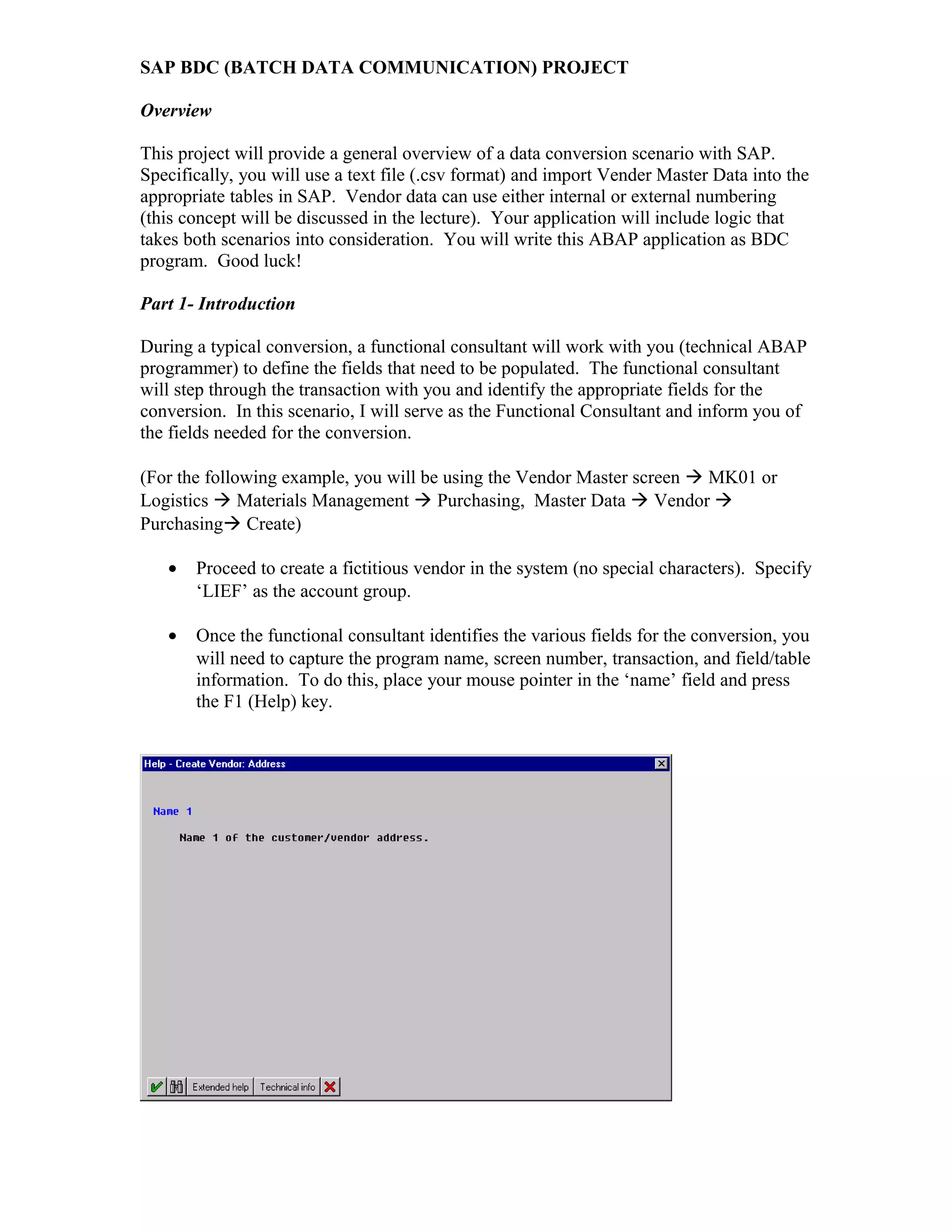
       information. To do this, place your mouse pointer in the ‘name’ field and press
       the F1 (Help) key.
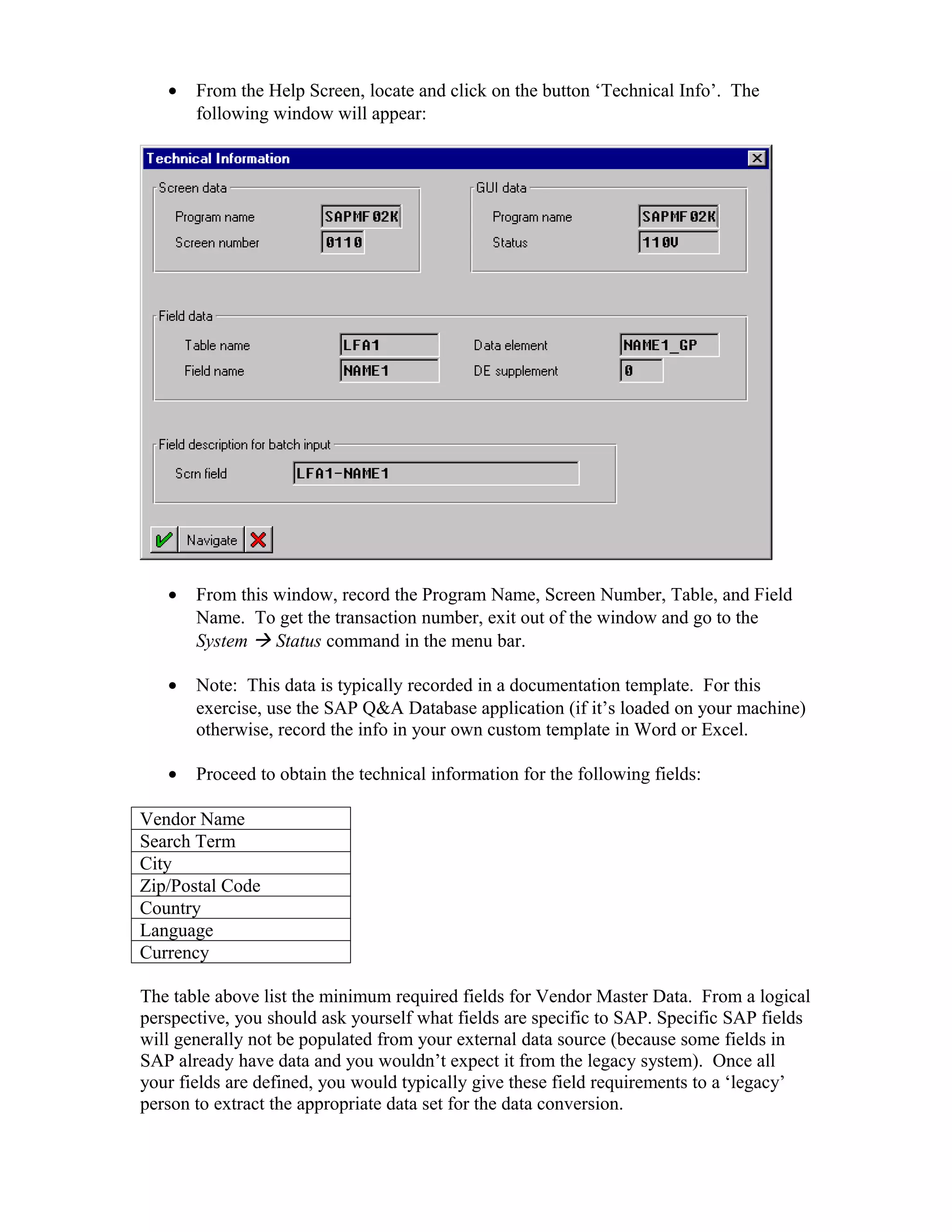
•   From the Help Screen, locate and click on the button ‘Technical Info’. The
       following window will appear:


   •   From this window, record the Program Name, Screen Number, Table, and Field
       Name. To get the transaction number, exit out of the window and go to the
       System  Status command in the menu bar.

   •   Note: This data is typically recorded in a documentation template. For this
       exercise, use the SAP Q&A Database application (if it’s loaded on your machine)
       otherwise, record the info in your own custom template in Word or Excel.

   •   Proceed to obtain the technical information for the following fields:

Vendor Name
Search Term
City
Zip/Postal Code
Country
Language
Currency

The table above list the minimum required fields for Vendor Master Data. From a logical
perspective, you should ask yourself what fields are specific to SAP. Specific SAP fields
will generally not be populated from your external data source (because some fields in
SAP already have data and you wouldn’t expect it from the legacy system). Once all
your fields are defined, you would typically give these field requirements to a ‘legacy’
person to extract the appropriate data set for the data conversion.
•   Note: any SAP defined field will contain logic behind it (e.g. drop down arrows
       indicate multiple values…this info will not be found in legacy system).
   •   A good question to ask the functional consultant would be if there is any ‘default’
       values for a field.

   •   In reference to internal & external numbering (this topic will be discussed in
       class) the account group drives the vendor number. This is imperative to know in
       advance. If you have experience from the functional side or have used the IMG
       tool, you can find out the different account groups and numbering schemes based
       upon the following menu path in the IMG: Financial Accounting  AR/AP 
       Vendor Accounts  Master Records  Preparation for Creating Vendor Master
        Create Number Allocate # Ranges (specify internal/external numbers).

If the client doesn’t have a preference, use Internal.

   •   Important Account Groups:

KRED – internal SAP numbering
LIEF – external vendor numbering

Here is a scenario for you to consider when performing a data conversion:

The company you are consulting for has a legacy system containing 1000 vendors. The
company has recently performed an analysis of open PO’s (Purchase Orders). The
analysis results indicate there are open PO’s for 200 vendors. For the data conversion,
these 200 vendors will use external vendor numbering (so there’s no conflict with invoice
matching). The remaining vendors without open PO’s will be assigned internal vendor
numbering. The legacy programmer has provided you with 2 separate files. One file
contains a list of vendors with open PO’s, while the other file contains a list of vendors
without outstanding PO’s.

Your task is to write an ABAP BDC program that imports the data in the text files to the
appropriate ABAP tables. Don’t forget, your program needs to contain logic to
determine if the text file is for internal/external vendor numbering.

Part 2 – Process

In part two, you will use batch functions within SAP. The table below lists the different
transaction codes to get started with setting up your batch recording.

Transactions:

Transaction     Description
SHDB            Batch Input Recording (records a batch session)
SM35            Batch Input Initial Screen (to review recorded batch sessions)
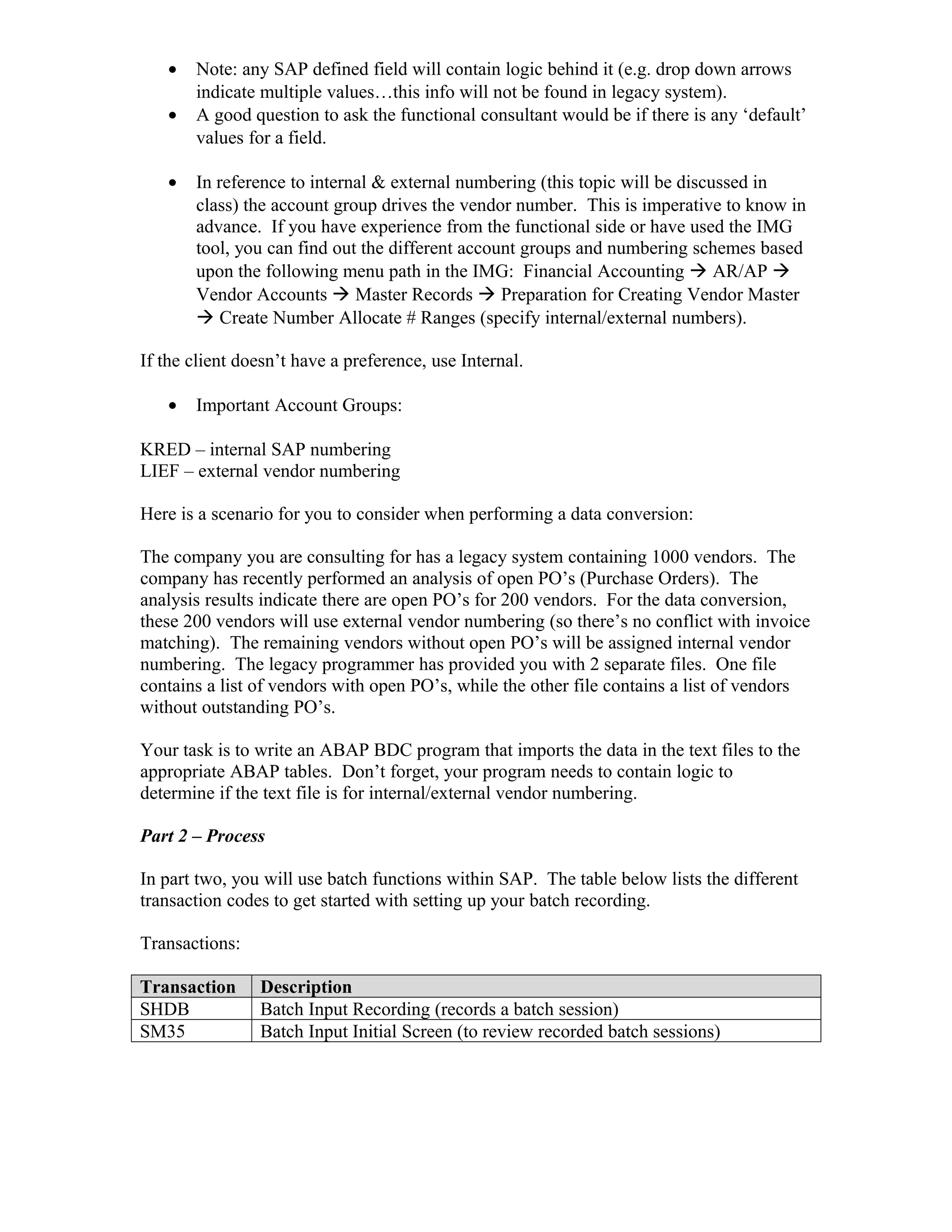
•   To begin, go to transaction SHDB.


•   Name the recording session z_BDC_XX (where XX is the last two numbers of
    your assigned logon id). From the menu bar, select Recording  Create.

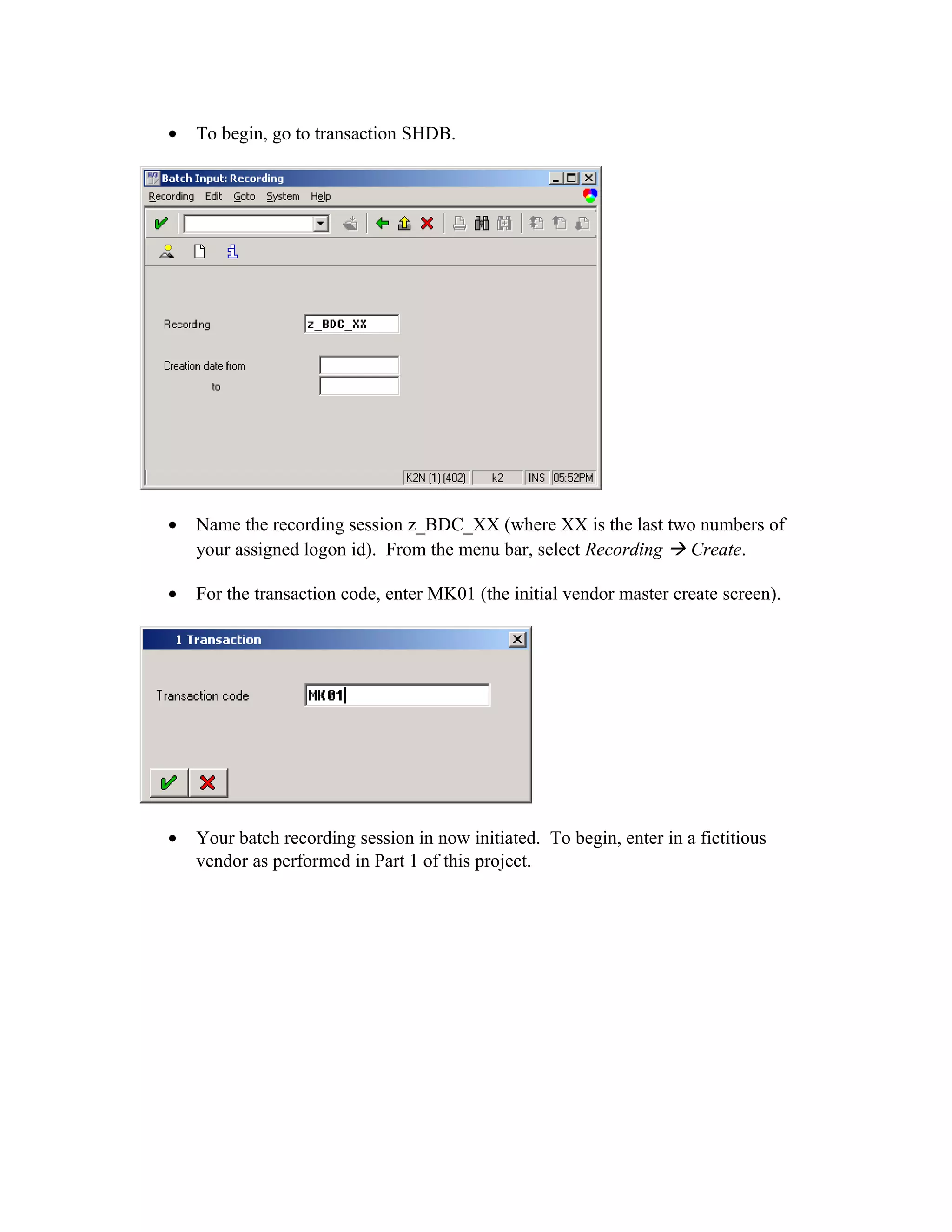
•   For the transaction code, enter MK01 (the initial vendor master create screen).


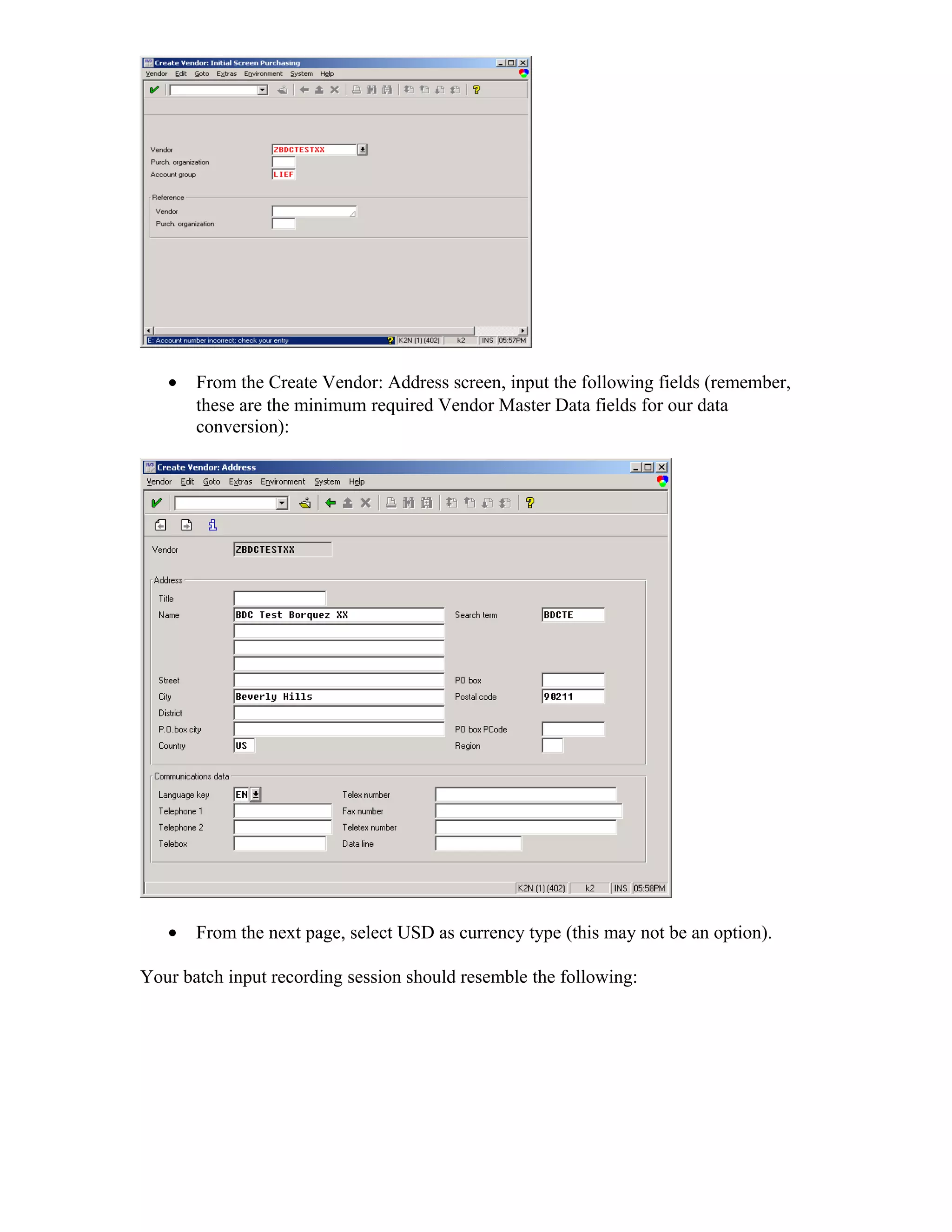
•   Your batch recording session in now initiated. To begin, enter in a fictitious
    vendor as performed in Part 1 of this project.
•   From the Create Vendor: Address screen, input the following fields (remember,
       these are the minimum required Vendor Master Data fields for our data
       conversion):


   •   From the next page, select USD as currency type (this may not be an option).

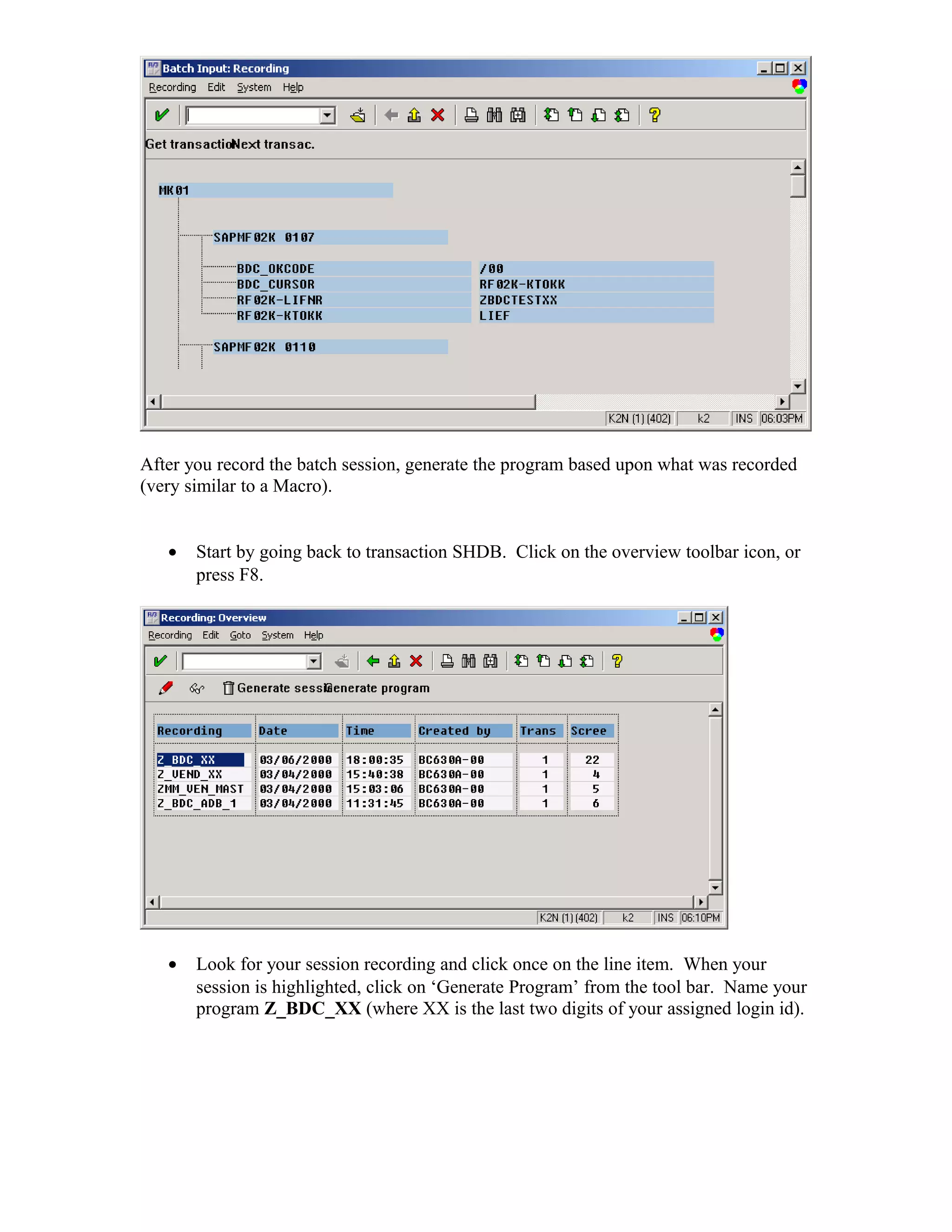
Your batch input recording session should resemble the following:
After you record the batch session, generate the program based upon what was recorded
(very similar to a Macro).


   •   Start by going back to transaction SHDB. Click on the overview toolbar icon, or
       press F8.


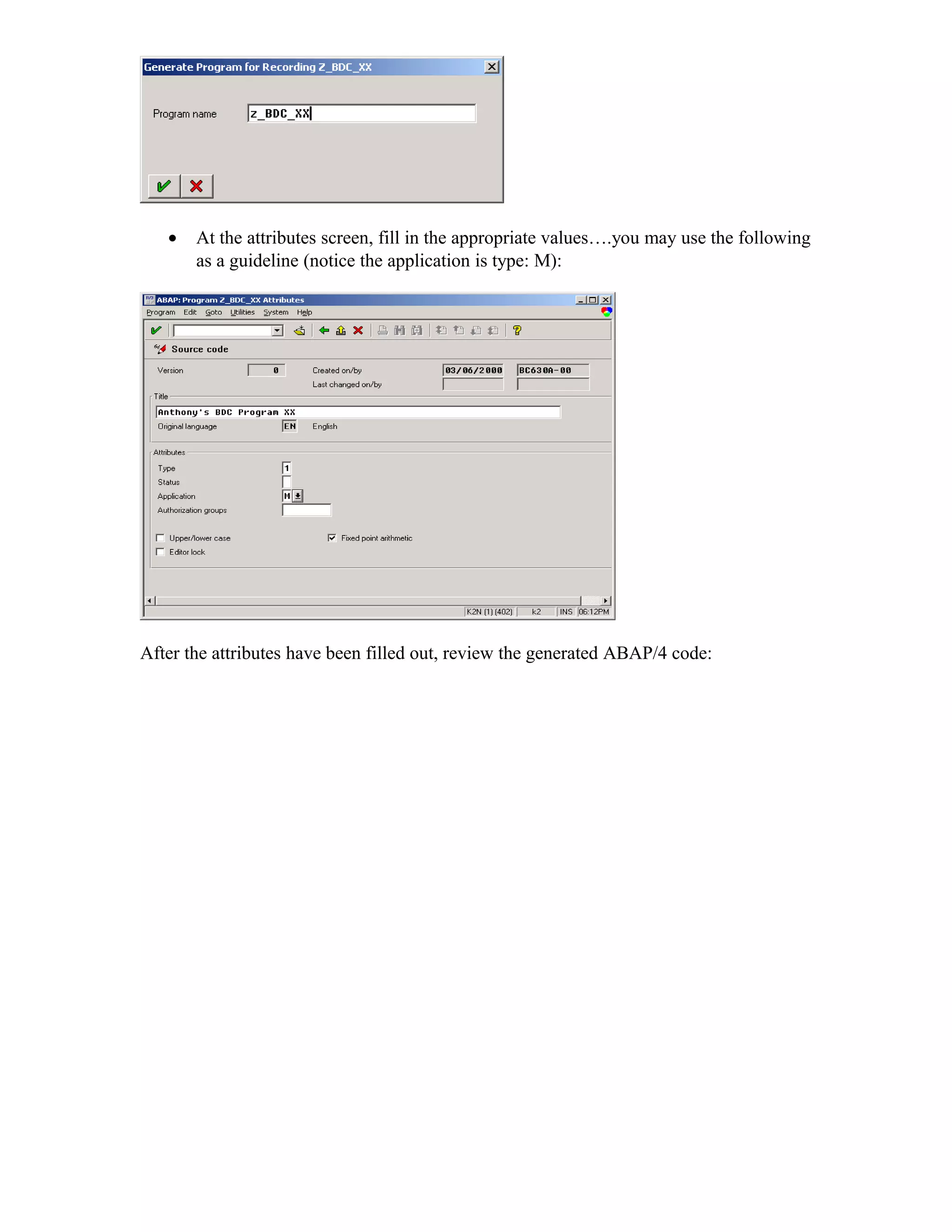
   •   Look for your session recording and click once on the line item. When your
       session is highlighted, click on ‘Generate Program’ from the tool bar. Name your
       program Z_BDC_XX (where XX is the last two digits of your assigned login id).
•   At the attributes screen, fill in the appropriate values….you may use the following
       as a guideline (notice the application is type: M):


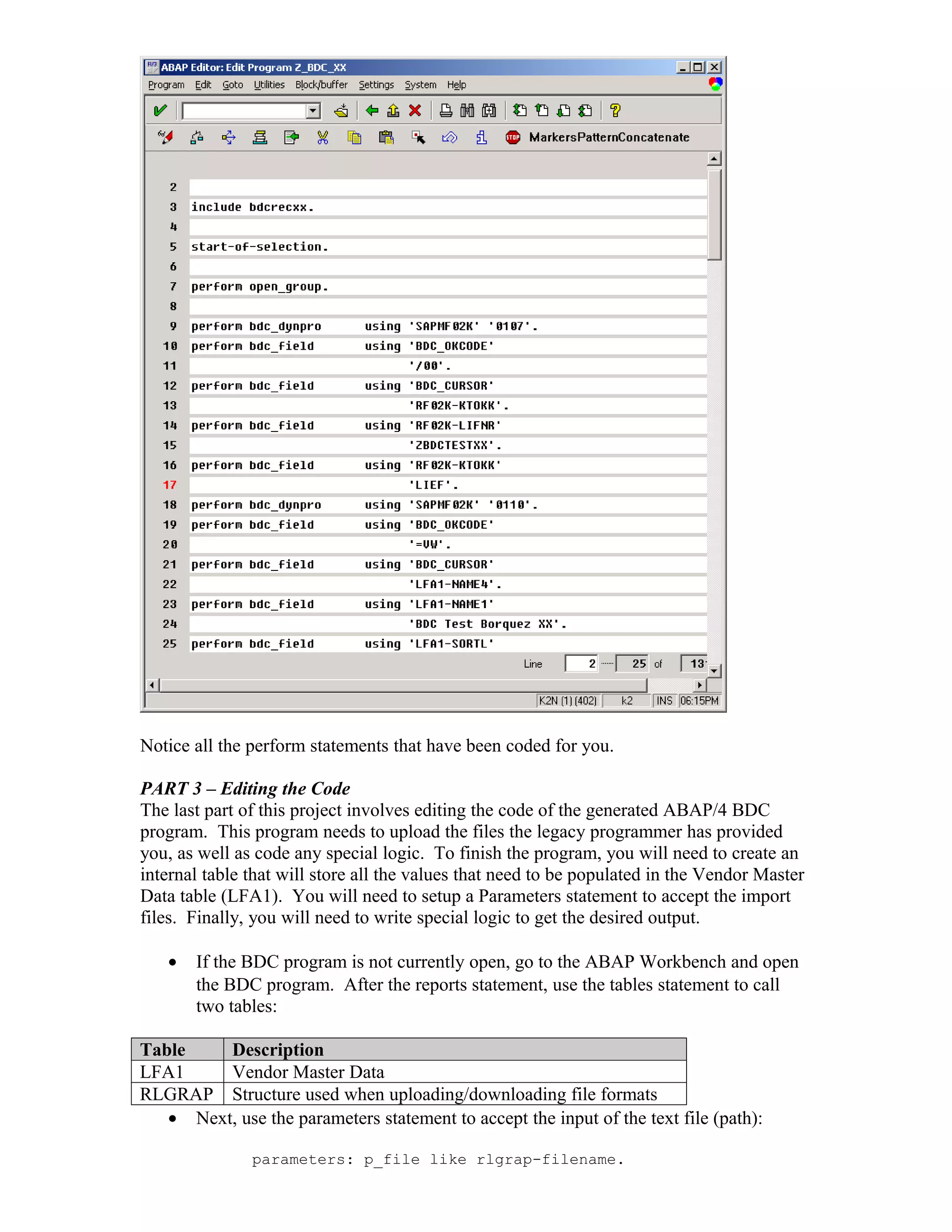
After the attributes have been filled out, review the generated ABAP/4 code:
Notice all the perform statements that have been coded for you.

PART 3 – Editing the Code
The last part of this project involves editing the code of the generated ABAP/4 BDC
program. This program needs to upload the files the legacy programmer has provided
you, as well as code any special logic. To finish the program, you will need to create an
internal table that will store all the values that need to be populated in the Vendor Master
Data table (LFA1). You will need to setup a Parameters statement to accept the import
files. Finally, you will need to write special logic to get the desired output.

   •   If the BDC program is not currently open, go to the ABAP Workbench and open
       the BDC program. After the reports statement, use the tables statement to call
       two tables:

Table    Description
LFA1     Vendor Master Data
RLGRAP Structure used when uploading/downloading file formats
   • Next, use the parameters statement to accept the input of the text file (path):

               parameters: p_file like rlgrap-filename.
•   Create an internal table that contains the structure of the import file.

       data: begin of itab occurs 10,
             vendor like lfa1-lifnr,
             name like lfa1-name1,
             city like lfa1-ort01,
             zip like lfa1-pstlz,
       end of itab.

   •   Note: make sure you use the data dictionary to become familiar with the LFA1
       table and its fields.

   •   Review the text files that will be used for the upload. Notice the space that is
       separating each value. To account for the space in the import file, use the
       following variables (data object):

data: wf_record(80),
      wf_split type x value '09'.             "this represents a tab in a file


   •   Question: what do you think ‘bdcrecxx’ is referring to from your code?

   •   After the ‘Start-of-Selection’ statement, place a new subroutine that gets the data
       from the input file:

              perform get_data.

   •   Tip: you can double-click on the get_data name and ABAP/4 will automatically
       generate the required entries in your code to initialize the subroutine.

   •   After the form ‘get_data’ statement, use the open dataset command to get the text
       file:

              open dataset p_file in text mode.

   •   Review the following Do Statement (we will go over this command in lecture).

do.
       read dataset p_file into wf_record.

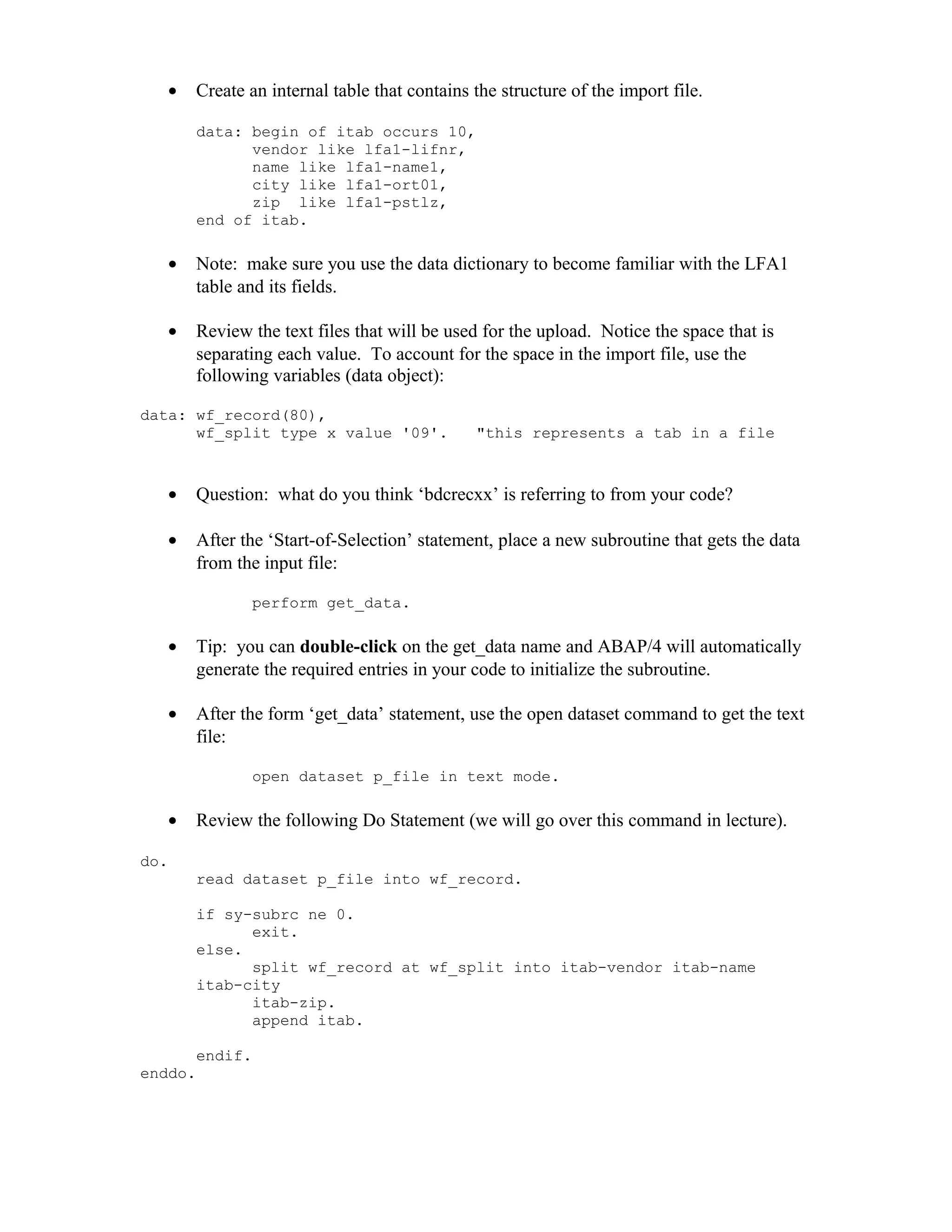
       if sy-subrc ne 0.
             exit.
       else.
             split wf_record at wf_split into itab-vendor itab-name
       itab-city
             itab-zip.
             append itab.

       endif.
enddo.
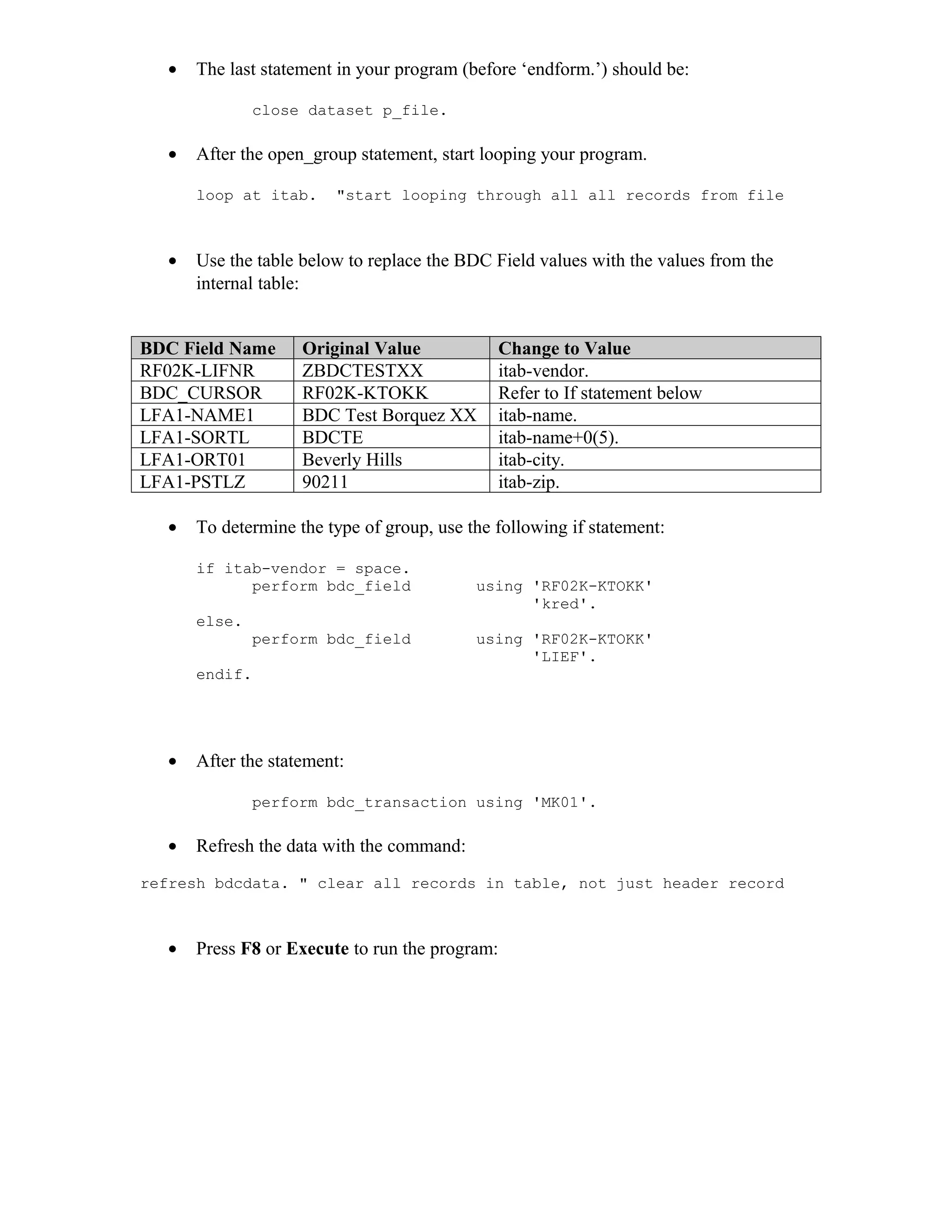
•   The last statement in your program (before ‘endform.’) should be:

              close dataset p_file.

  •   After the open_group statement, start looping your program.

      loop at itab.     "start looping through all all records from file


  •   Use the table below to replace the BDC Field values with the values from the
      internal table:


BDC Field Name      Original Value            Change to Value
RF02K-LIFNR         ZBDCTESTXX                itab-vendor.
BDC_CURSOR          RF02K-KTOKK               Refer to If statement below
LFA1-NAME1          BDC Test Borquez XX       itab-name.
LFA1-SORTL          BDCTE                     itab-name+0(5).
LFA1-ORT01          Beverly Hills             itab-city.
LFA1-PSTLZ          90211                     itab-zip.

  •   To determine the type of group, use the following if statement:

      if itab-vendor = space.
            perform bdc_field              using 'RF02K-KTOKK'
                                                 'kred'.
      else.
              perform bdc_field            using 'RF02K-KTOKK'
                                                 'LIEF'.
      endif.


  •   After the statement:

              perform bdc_transaction using 'MK01'.

  •   Refresh the data with the command:
refresh bdcdata. " clear all records in table, not just header record


  •   Press F8 or Execute to run the program:
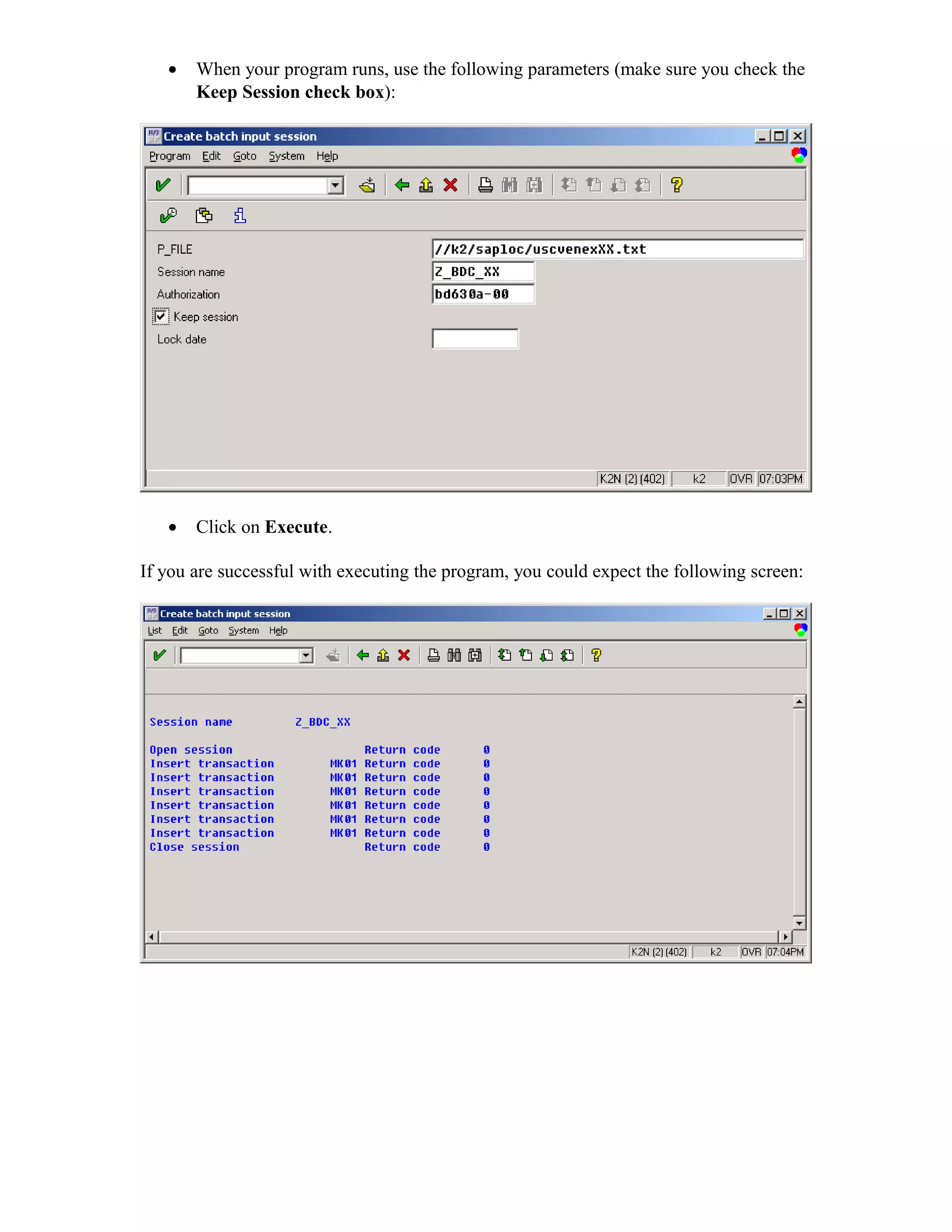
•   When your program runs, use the following parameters (make sure you check the
       Keep Session check box):


   •   Click on Execute.

If you are successful with executing the program, you could expect the following screen:
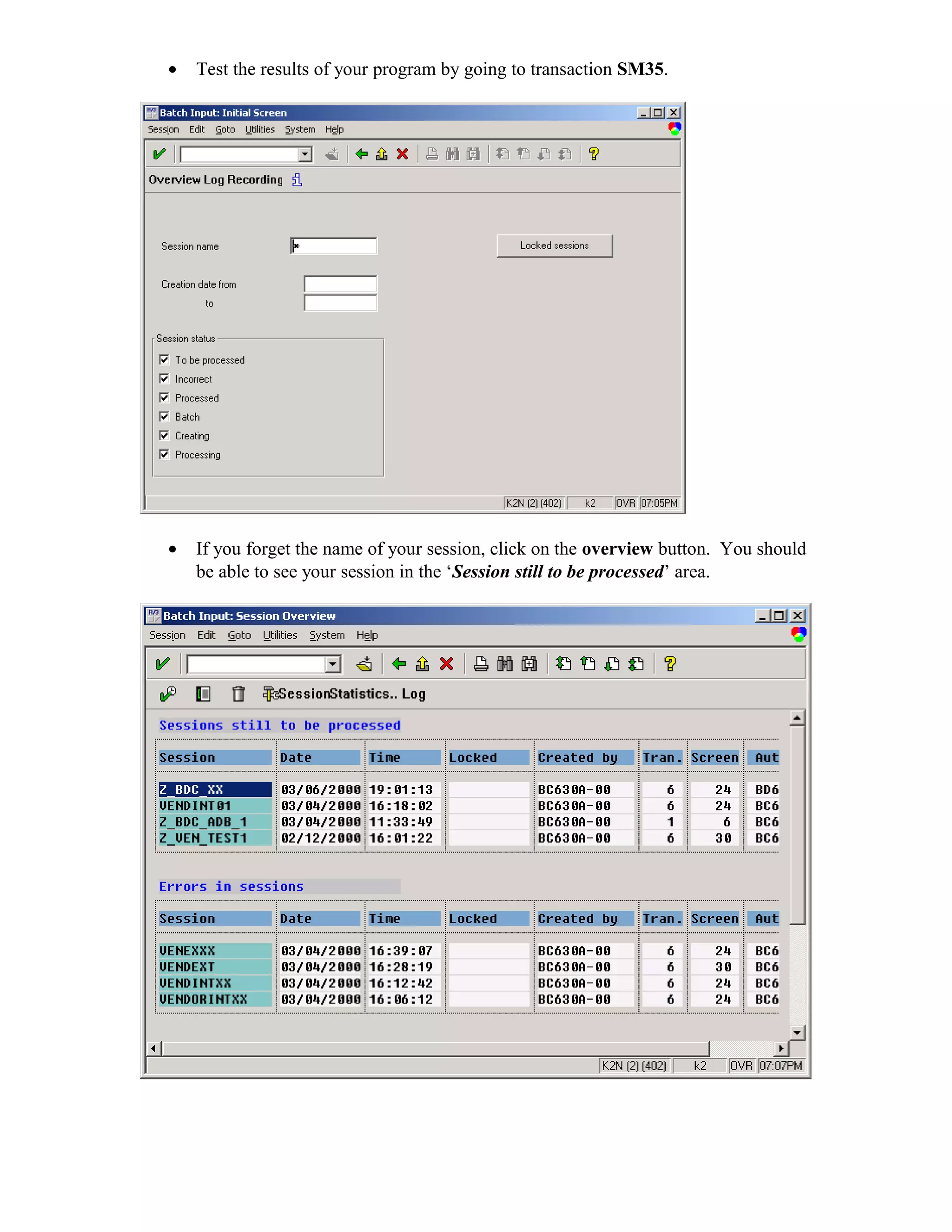
•   Test the results of your program by going to transaction SM35.


•   If you forget the name of your session, click on the overview button. You should
    be able to see your session in the ‘Session still to be processed’ area.
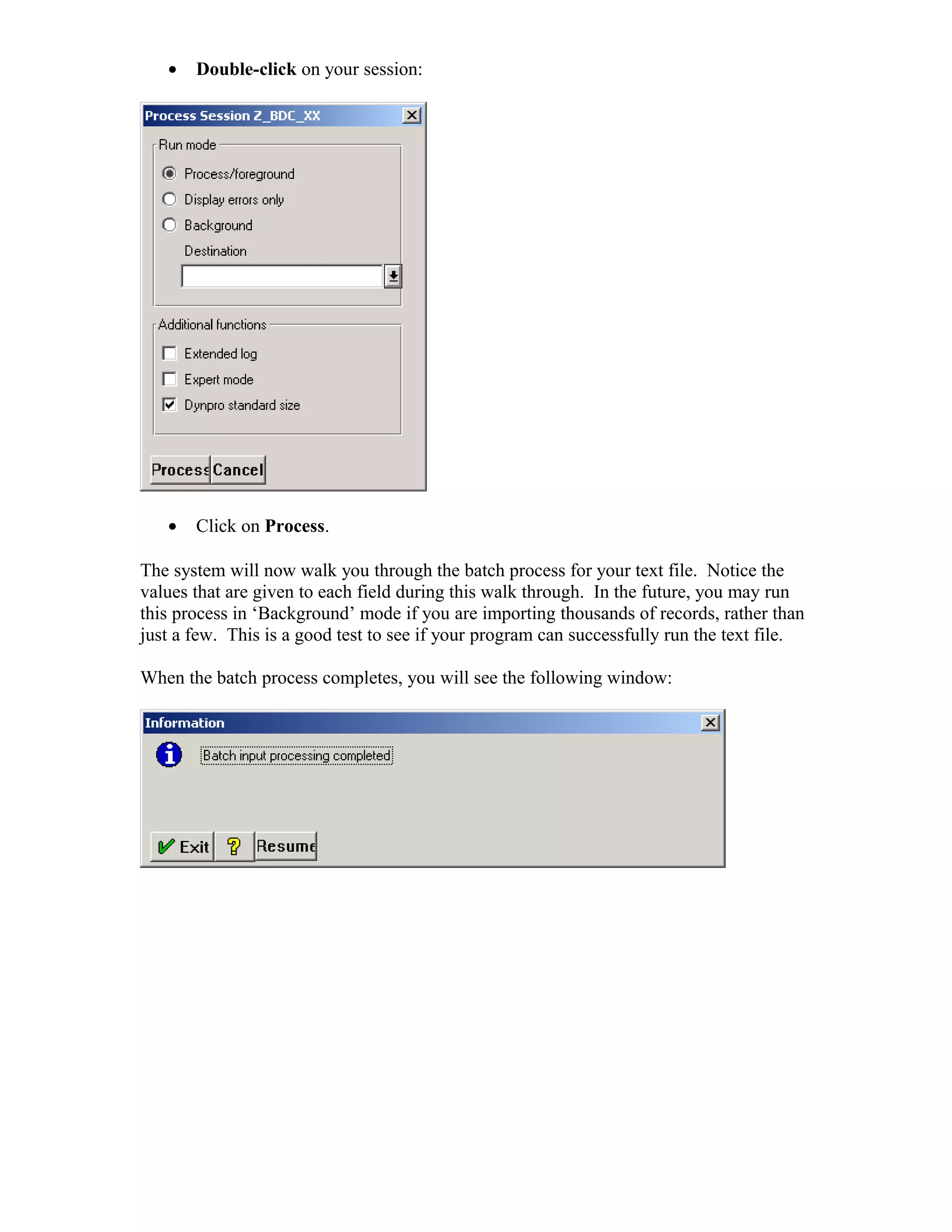
•   Double-click on your session:


   •   Click on Process.

The system will now walk you through the batch process for your text file. Notice the
values that are given to each field during this walk through. In the future, you may run
this process in ‘Background’ mode if you are importing thousands of records, rather than
just a few. This is a good test to see if your program can successfully run the text file.

When the batch process completes, you will see the following window:
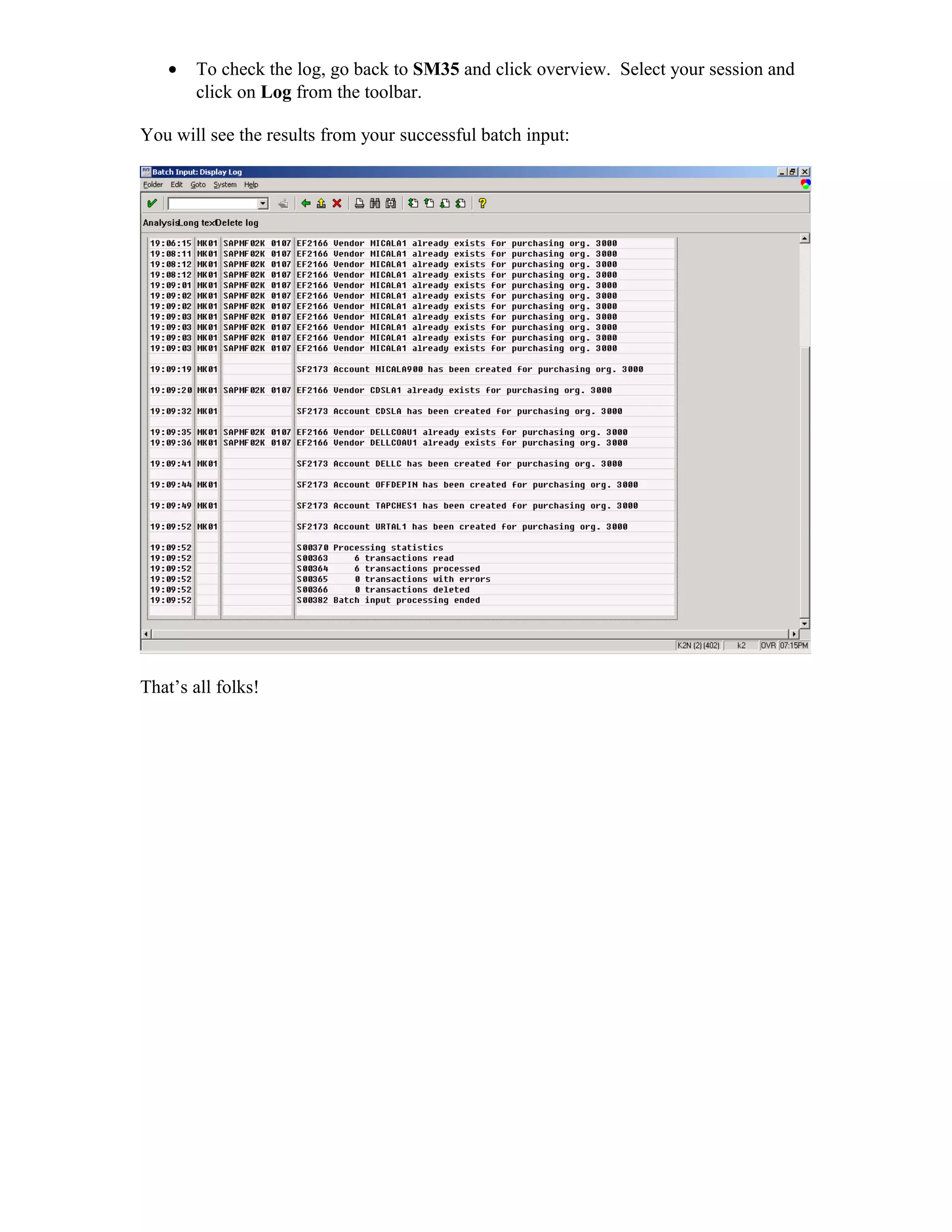
•   To check the log, go back to SM35 and click overview. Select your session and
       click on Log from the toolbar.

You will see the results from your successful batch input:


That’s all folks!

Bdc

  • 1.
    SAP BDC (BATCHDATA COMMUNICATION) PROJECT Overview This project will provide a general overview of a data conversion scenario with SAP. Specifically, you will use a text file (.csv format) and import Vender Master Data into the appropriate tables in SAP. Vendor data can use either internal or external numbering (this concept will be discussed in the lecture). Your application will include logic that takes both scenarios into consideration. You will write this ABAP application as BDC program. Good luck! Part 1- Introduction During a typical conversion, a functional consultant will work with you (technical ABAP programmer) to define the fields that need to be populated. The functional consultant will step through the transaction with you and identify the appropriate fields for the conversion. In this scenario, I will serve as the Functional Consultant and inform you of the fields needed for the conversion. (For the following example, you will be using the Vendor Master screen  MK01 or Logistics  Materials Management  Purchasing, Master Data  Vendor  Purchasing Create) • Proceed to create a fictitious vendor in the system (no special characters). Specify ‘LIEF’ as the account group. • Once the functional consultant identifies the various fields for the conversion, you will need to capture the program name, screen number, transaction, and field/table information. To do this, place your mouse pointer in the ‘name’ field and press the F1 (Help) key.
  • 2.
    From the Help Screen, locate and click on the button ‘Technical Info’. The following window will appear: • From this window, record the Program Name, Screen Number, Table, and Field Name. To get the transaction number, exit out of the window and go to the System  Status command in the menu bar. • Note: This data is typically recorded in a documentation template. For this exercise, use the SAP Q&A Database application (if it’s loaded on your machine) otherwise, record the info in your own custom template in Word or Excel. • Proceed to obtain the technical information for the following fields: Vendor Name Search Term City Zip/Postal Code Country Language Currency The table above list the minimum required fields for Vendor Master Data. From a logical perspective, you should ask yourself what fields are specific to SAP. Specific SAP fields will generally not be populated from your external data source (because some fields in SAP already have data and you wouldn’t expect it from the legacy system). Once all your fields are defined, you would typically give these field requirements to a ‘legacy’ person to extract the appropriate data set for the data conversion.
  • 3.
    Note: any SAP defined field will contain logic behind it (e.g. drop down arrows indicate multiple values…this info will not be found in legacy system). • A good question to ask the functional consultant would be if there is any ‘default’ values for a field. • In reference to internal & external numbering (this topic will be discussed in class) the account group drives the vendor number. This is imperative to know in advance. If you have experience from the functional side or have used the IMG tool, you can find out the different account groups and numbering schemes based upon the following menu path in the IMG: Financial Accounting  AR/AP  Vendor Accounts  Master Records  Preparation for Creating Vendor Master  Create Number Allocate # Ranges (specify internal/external numbers). If the client doesn’t have a preference, use Internal. • Important Account Groups: KRED – internal SAP numbering LIEF – external vendor numbering Here is a scenario for you to consider when performing a data conversion: The company you are consulting for has a legacy system containing 1000 vendors. The company has recently performed an analysis of open PO’s (Purchase Orders). The analysis results indicate there are open PO’s for 200 vendors. For the data conversion, these 200 vendors will use external vendor numbering (so there’s no conflict with invoice matching). The remaining vendors without open PO’s will be assigned internal vendor numbering. The legacy programmer has provided you with 2 separate files. One file contains a list of vendors with open PO’s, while the other file contains a list of vendors without outstanding PO’s. Your task is to write an ABAP BDC program that imports the data in the text files to the appropriate ABAP tables. Don’t forget, your program needs to contain logic to determine if the text file is for internal/external vendor numbering. Part 2 – Process In part two, you will use batch functions within SAP. The table below lists the different transaction codes to get started with setting up your batch recording. Transactions: Transaction Description SHDB Batch Input Recording (records a batch session) SM35 Batch Input Initial Screen (to review recorded batch sessions)
  • 4.
    To begin, go to transaction SHDB. • Name the recording session z_BDC_XX (where XX is the last two numbers of your assigned logon id). From the menu bar, select Recording  Create. • For the transaction code, enter MK01 (the initial vendor master create screen). • Your batch recording session in now initiated. To begin, enter in a fictitious vendor as performed in Part 1 of this project.
  • 5.
    From the Create Vendor: Address screen, input the following fields (remember, these are the minimum required Vendor Master Data fields for our data conversion): • From the next page, select USD as currency type (this may not be an option). Your batch input recording session should resemble the following:
  • 6.
    After you recordthe batch session, generate the program based upon what was recorded (very similar to a Macro). • Start by going back to transaction SHDB. Click on the overview toolbar icon, or press F8. • Look for your session recording and click once on the line item. When your session is highlighted, click on ‘Generate Program’ from the tool bar. Name your program Z_BDC_XX (where XX is the last two digits of your assigned login id).
  • 7.
    At the attributes screen, fill in the appropriate values….you may use the following as a guideline (notice the application is type: M): After the attributes have been filled out, review the generated ABAP/4 code:
  • 8.
    Notice all theperform statements that have been coded for you. PART 3 – Editing the Code The last part of this project involves editing the code of the generated ABAP/4 BDC program. This program needs to upload the files the legacy programmer has provided you, as well as code any special logic. To finish the program, you will need to create an internal table that will store all the values that need to be populated in the Vendor Master Data table (LFA1). You will need to setup a Parameters statement to accept the import files. Finally, you will need to write special logic to get the desired output. • If the BDC program is not currently open, go to the ABAP Workbench and open the BDC program. After the reports statement, use the tables statement to call two tables: Table Description LFA1 Vendor Master Data RLGRAP Structure used when uploading/downloading file formats • Next, use the parameters statement to accept the input of the text file (path): parameters: p_file like rlgrap-filename.
  • 9.
    Create an internal table that contains the structure of the import file. data: begin of itab occurs 10, vendor like lfa1-lifnr, name like lfa1-name1, city like lfa1-ort01, zip like lfa1-pstlz, end of itab. • Note: make sure you use the data dictionary to become familiar with the LFA1 table and its fields. • Review the text files that will be used for the upload. Notice the space that is separating each value. To account for the space in the import file, use the following variables (data object): data: wf_record(80), wf_split type x value '09'. "this represents a tab in a file • Question: what do you think ‘bdcrecxx’ is referring to from your code? • After the ‘Start-of-Selection’ statement, place a new subroutine that gets the data from the input file: perform get_data. • Tip: you can double-click on the get_data name and ABAP/4 will automatically generate the required entries in your code to initialize the subroutine. • After the form ‘get_data’ statement, use the open dataset command to get the text file: open dataset p_file in text mode. • Review the following Do Statement (we will go over this command in lecture). do. read dataset p_file into wf_record. if sy-subrc ne 0. exit. else. split wf_record at wf_split into itab-vendor itab-name itab-city itab-zip. append itab. endif. enddo.
  • 10.
    The last statement in your program (before ‘endform.’) should be: close dataset p_file. • After the open_group statement, start looping your program. loop at itab. "start looping through all all records from file • Use the table below to replace the BDC Field values with the values from the internal table: BDC Field Name Original Value Change to Value RF02K-LIFNR ZBDCTESTXX itab-vendor. BDC_CURSOR RF02K-KTOKK Refer to If statement below LFA1-NAME1 BDC Test Borquez XX itab-name. LFA1-SORTL BDCTE itab-name+0(5). LFA1-ORT01 Beverly Hills itab-city. LFA1-PSTLZ 90211 itab-zip. • To determine the type of group, use the following if statement: if itab-vendor = space. perform bdc_field using 'RF02K-KTOKK' 'kred'. else. perform bdc_field using 'RF02K-KTOKK' 'LIEF'. endif. • After the statement: perform bdc_transaction using 'MK01'. • Refresh the data with the command: refresh bdcdata. " clear all records in table, not just header record • Press F8 or Execute to run the program:
  • 11.
    When your program runs, use the following parameters (make sure you check the Keep Session check box): • Click on Execute. If you are successful with executing the program, you could expect the following screen:
  • 12.
    Test the results of your program by going to transaction SM35. • If you forget the name of your session, click on the overview button. You should be able to see your session in the ‘Session still to be processed’ area.
  • 13.
    Double-click on your session: • Click on Process. The system will now walk you through the batch process for your text file. Notice the values that are given to each field during this walk through. In the future, you may run this process in ‘Background’ mode if you are importing thousands of records, rather than just a few. This is a good test to see if your program can successfully run the text file. When the batch process completes, you will see the following window:
  • 14.
    To check the log, go back to SM35 and click overview. Select your session and click on Log from the toolbar. You will see the results from your successful batch input: That’s all folks!