BDC
BY: Hitesh
Gulani
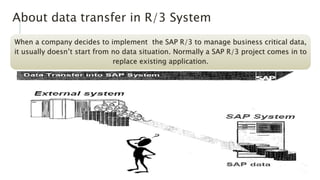
About data transfer in R/3 System
When a company decides to implement the SAP R/3 to manage business critical data,
it usually doesn’t start from no data situation. Normally a SAP R/3 project comes in to
replace existing application.
BDC
BDC stands for Batch Data Communication and mainly
used for transferring data from Non SAP system to SAP
Steps in data transfer
1. Analysis and cleanup of data in the non-SAP system
2. Extraction of data from the non-SAP system
3. Mapping the data in SAP format
4. Transferring the data to the SAP System
5. Checking the data
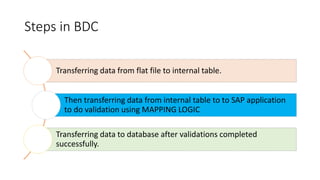
Steps in BDC
Transferring data from flat file to internal table.
Then transferring data from internal table to to SAP application
to do validation using MAPPING LOGIC
Transferring data to database after validations completed
successfully.
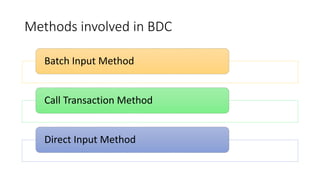
Methods involved in BDC
Batch Input Method
Call Transaction Method
Direct Input Method
Batch Input Method
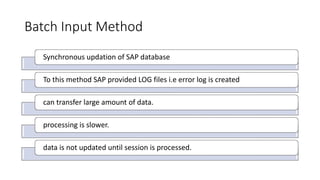
Synchronous updation of SAP database
To this method SAP provided LOG files i.e error log is created
can transfer large amount of data.
processing is slower.
data is not updated until session is processed.
Call Transaction Method
Asynchronous updation of SAP database
To this method Log files need to be maintained explicitly using structure
BDCMSGCOLL.
can transfer small amount of data.
Transfer of data for individual transaction
You can update the database both synchronously and asynchrounously.
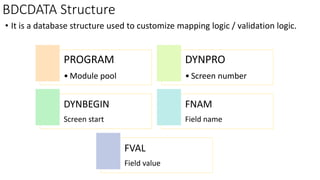
BDCDATA Structure
• It is a database structure used to customize mapping logic / validation logic.
PROGRAM
• Module pool
DYNPRO
• Screen number
DYNBEGIN
Screen start
FNAM
Field name
FVAL
Field value
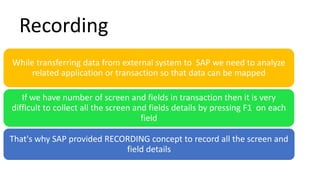
While transferring data from external system to SAP we need to analyze
related application or transaction so that data can be mapped
If we have number of screen and fields in transaction then it is very
difficult to collect all the screen and fields details by pressing F1 on each
field
That's why SAP provided RECORDING concept to record all the screen and
field details
Recording
Recording
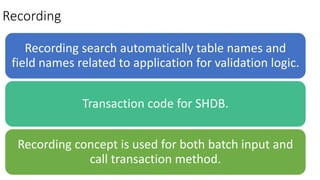
Recording search automatically table names and
field names related to application for validation logic.
Transaction code for SHDB.
Recording concept is used for both batch input and
call transaction method.
Steps to working with Batch Input / Session
method
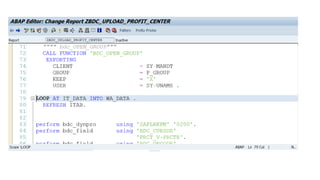
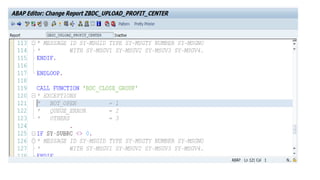
• Generate the batch input session using function module
BDC_OPEN_GROUP.
• In the BDCDATA structure fill the screen and field details that need to
be processed via transaction.
• Use BDC_INSERT function module to pass data as a transaction to
batch input.
• Close the batch input session with BDC_CLOSE_GROUP.
• Process the session through SM35 or for background through report
RSBDCSUB.
Run modes in Session method
• There are 3 ways to run a session.
1. Process/foreground:
We can interact with the transaction and will run in foreground mode.
2. Display errors only:
If an error occurs, processing stops and the screen upon which the error
occurred is displayed.
3. Background
This mode is used to schedule a session for immediate processing in
background mode.
Requirement: Upload all the list of Profit Center details
into SAP using Batch Input method.
• Recording with KE51.
1. Execute Tcode SHDB and click on new recording
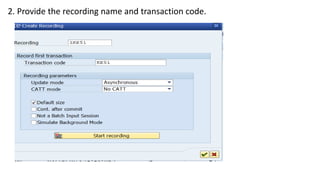
2. Provide the recording name and transaction code.
3. START EXECUTE THE TRANSACTION SO THAT STEPS WILL BE RECORDED. PROVIDE ALL
THE MANDATORY FIELDS I.E. PROFIT CENTER, ANALYSIS PERIOD, NAME, PERSON
RESPONSIBLE AND PROFIT CENTER GROUP.
4. Click on activate then observe the recording steps
•Save the Recording.
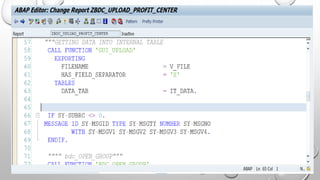
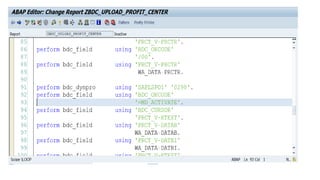
•Now we can write our own program and can
generate the same with the help of recording, here
in this example we are creating this program from
scratch (will take fields and screen details from
recording).
Now execute the program
• Now take the input file via search help
 Now process the session via SM35
 Execute the transaction SM35 and select the session and process the session.
Steps to working with Call Transaction
method
• In this method we make use of ABAP statement CALL TRANSACTION
USING to run SAP transaction.
• Syntax is
• CALL TRANSACTION <tcode>
USING <bdcdata structure> “”internal table
MODE <mode>
UPDATE <update>
MESSAGES INTO <bdcmsgcoll structure> “”internal table
• Details of call transaction method syntax
1) <tcode> SAP Transaction Code
2) <bdcdata structure> This is internal table with reference of structure
BDCDATA
3) <mode> This is display mode.
A for DISPLAY ALL
E for DISPLAY ERRORS ONLY
N for NO DISPLAY
4) <update> Updating mode can be
S for SYNCHRONOUS slower but recommended as error analysis is convenient.
A for ASYNCHRONOUS faster but not recommended
L for LOCAL UPDATE it is obsoleted
5) <bdcmsgcoll structure> Error handled in call transaction is managed by this
internal table.
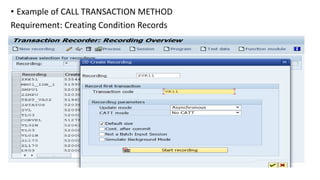
• Example of CALL TRANSACTION METHOD
Requirement: Creating Condition Records
Select radio button
Enter the details in the next screen
Sales Organization, distribution channel, plant, customer, and material.
Here in this example we have to fill details in table control
• For Programming part I have created one report in DEV client named
ZBDC
3. Direct Input method
This method is for transferring large amount of data
This method does not create any session but stores the data directly.
It does not process screen but calls function module for necessary checks
In case of errors this method provide restart mechanism.
To activate restart mechanism this method must be executed in background only.
We can’t write our own direct input ABAP programs.
Tcode BMV0 is used to start restart mechanism
Example for Direct Input Program are
1. RMDATIND to upload Material Master data.
2. RFBIKR00 to upload Vendor Master data.
3. RFBIDE001 to upload Customer Master data.
These program are provided by SAP and are not customizable.
This method is much faster than batch input and call transaction as screen are
not processed.
in DI method very important thing is structure of
flat file so to know the structure first of all you
have to download the data for one record into the
internal table with the use of the same program
then with the use of that structure u have to
design the flat file and upload the data
Example : Using direct input method downloading
material master data from SAP to flat files
• Here we are downloading material to know flat file structure, then
for uploading material using program RMDATIND we have to
customize material according to flat file structure.
• Step1: Select ABAP editor and provide program name as RMDATGEN
• Step2: Execute the program.
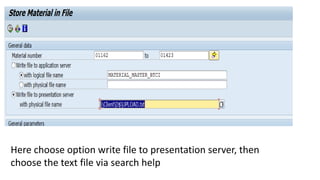
Here choose option write file to presentation server, then
choose the text file via search help
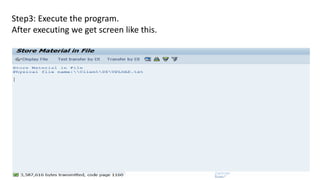
Step3: Execute the program.
After executing we get screen like this.
• Now we can check the file, our data get downloaded.
Working with files on application server
 While working with BDC file source can be available at presentation
server or can be at application server.
 Application server file can be accessed by any SAP system.
 Application server files are also called as DATASET / Logical files.
Three steps are involved in logical file handling.
OPEN PROCESS CLOSE
Process
Reading from file
/ Uploading
Writing on to file /
Downloading
1. OPEN:
Syntax:
OPEN DATASET <filename>
FOR OUTPUT/INPUT/APPENDING
IN TEXT MODE ENCODING DEFAULT.
FOR OUTPUT is used for open a file for writing or simply for downloading data from SAP to file.
FOR INPUT is used to read a file for reading or we can say for uploading data from FILE to SAP.
FOR APPENDING is used for writing into file and places the cursor at the end of file.
2. Process:
Writing on to file
Syntax:
TRANSFER <wa> TO <dataset name>
Reading from file
Syntax:
READ DATASET <dataset name> INTO <wa>.
3. CLOSE
Syntax: CLOSE DATASET <dataset name>
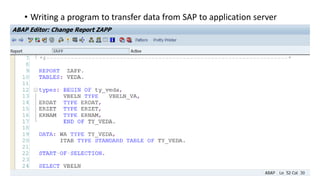
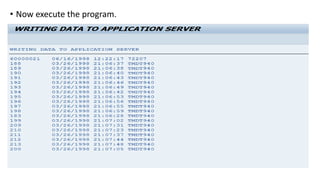
• Writing a program to transfer data from SAP to application server
• Now execute the program.
• Now execute transaction AL11 to check application server file.
• Double click on default directory ‘.’ and check for application server file
• Double click on ‘APP_FILE’ to check the content of the file.

Bdc BATCH DATA COMMUNICATION

  • 1.
  • 2.
    About data transferin R/3 System When a company decides to implement the SAP R/3 to manage business critical data, it usually doesn’t start from no data situation. Normally a SAP R/3 project comes in to replace existing application.
  • 3.
    BDC BDC stands forBatch Data Communication and mainly used for transferring data from Non SAP system to SAP Steps in data transfer 1. Analysis and cleanup of data in the non-SAP system 2. Extraction of data from the non-SAP system 3. Mapping the data in SAP format 4. Transferring the data to the SAP System 5. Checking the data
  • 4.
    Steps in BDC Transferringdata from flat file to internal table. Then transferring data from internal table to to SAP application to do validation using MAPPING LOGIC Transferring data to database after validations completed successfully.
  • 5.
    Methods involved inBDC Batch Input Method Call Transaction Method Direct Input Method
  • 6.
    Batch Input Method Synchronousupdation of SAP database To this method SAP provided LOG files i.e error log is created can transfer large amount of data. processing is slower. data is not updated until session is processed.
  • 7.
    Call Transaction Method Asynchronousupdation of SAP database To this method Log files need to be maintained explicitly using structure BDCMSGCOLL. can transfer small amount of data. Transfer of data for individual transaction You can update the database both synchronously and asynchrounously.
  • 8.
    BDCDATA Structure • Itis a database structure used to customize mapping logic / validation logic. PROGRAM • Module pool DYNPRO • Screen number DYNBEGIN Screen start FNAM Field name FVAL Field value
  • 9.
    While transferring datafrom external system to SAP we need to analyze related application or transaction so that data can be mapped If we have number of screen and fields in transaction then it is very difficult to collect all the screen and fields details by pressing F1 on each field That's why SAP provided RECORDING concept to record all the screen and field details Recording
  • 10.
    Recording Recording search automaticallytable names and field names related to application for validation logic. Transaction code for SHDB. Recording concept is used for both batch input and call transaction method.
  • 11.
    Steps to workingwith Batch Input / Session method • Generate the batch input session using function module BDC_OPEN_GROUP. • In the BDCDATA structure fill the screen and field details that need to be processed via transaction. • Use BDC_INSERT function module to pass data as a transaction to batch input. • Close the batch input session with BDC_CLOSE_GROUP. • Process the session through SM35 or for background through report RSBDCSUB.
  • 12.
    Run modes inSession method • There are 3 ways to run a session. 1. Process/foreground: We can interact with the transaction and will run in foreground mode. 2. Display errors only: If an error occurs, processing stops and the screen upon which the error occurred is displayed. 3. Background This mode is used to schedule a session for immediate processing in background mode.
  • 13.
    Requirement: Upload allthe list of Profit Center details into SAP using Batch Input method. • Recording with KE51. 1. Execute Tcode SHDB and click on new recording
  • 14.
    2. Provide therecording name and transaction code.
  • 15.
    3. START EXECUTETHE TRANSACTION SO THAT STEPS WILL BE RECORDED. PROVIDE ALL THE MANDATORY FIELDS I.E. PROFIT CENTER, ANALYSIS PERIOD, NAME, PERSON RESPONSIBLE AND PROFIT CENTER GROUP.
  • 16.
    4. Click onactivate then observe the recording steps
  • 17.
    •Save the Recording. •Nowwe can write our own program and can generate the same with the help of recording, here in this example we are creating this program from scratch (will take fields and screen details from recording).
  • 28.
  • 29.
    • Now takethe input file via search help  Now process the session via SM35  Execute the transaction SM35 and select the session and process the session.
  • 30.
    Steps to workingwith Call Transaction method • In this method we make use of ABAP statement CALL TRANSACTION USING to run SAP transaction. • Syntax is • CALL TRANSACTION <tcode> USING <bdcdata structure> “”internal table MODE <mode> UPDATE <update> MESSAGES INTO <bdcmsgcoll structure> “”internal table
  • 31.
    • Details ofcall transaction method syntax 1) <tcode> SAP Transaction Code 2) <bdcdata structure> This is internal table with reference of structure BDCDATA 3) <mode> This is display mode. A for DISPLAY ALL E for DISPLAY ERRORS ONLY N for NO DISPLAY 4) <update> Updating mode can be S for SYNCHRONOUS slower but recommended as error analysis is convenient. A for ASYNCHRONOUS faster but not recommended L for LOCAL UPDATE it is obsoleted 5) <bdcmsgcoll structure> Error handled in call transaction is managed by this internal table.
  • 32.
    • Example ofCALL TRANSACTION METHOD Requirement: Creating Condition Records
  • 34.
    Select radio button Enterthe details in the next screen Sales Organization, distribution channel, plant, customer, and material. Here in this example we have to fill details in table control
  • 36.
    • For Programmingpart I have created one report in DEV client named ZBDC
  • 37.
    3. Direct Inputmethod This method is for transferring large amount of data This method does not create any session but stores the data directly. It does not process screen but calls function module for necessary checks In case of errors this method provide restart mechanism. To activate restart mechanism this method must be executed in background only. We can’t write our own direct input ABAP programs.
  • 38.
    Tcode BMV0 isused to start restart mechanism Example for Direct Input Program are 1. RMDATIND to upload Material Master data. 2. RFBIKR00 to upload Vendor Master data. 3. RFBIDE001 to upload Customer Master data. These program are provided by SAP and are not customizable. This method is much faster than batch input and call transaction as screen are not processed.
  • 39.
    in DI methodvery important thing is structure of flat file so to know the structure first of all you have to download the data for one record into the internal table with the use of the same program then with the use of that structure u have to design the flat file and upload the data
  • 40.
    Example : Usingdirect input method downloading material master data from SAP to flat files • Here we are downloading material to know flat file structure, then for uploading material using program RMDATIND we have to customize material according to flat file structure. • Step1: Select ABAP editor and provide program name as RMDATGEN • Step2: Execute the program.
  • 41.
    Here choose optionwrite file to presentation server, then choose the text file via search help
  • 42.
    Step3: Execute theprogram. After executing we get screen like this.
  • 43.
    • Now wecan check the file, our data get downloaded.
  • 44.
    Working with fileson application server  While working with BDC file source can be available at presentation server or can be at application server.  Application server file can be accessed by any SAP system.  Application server files are also called as DATASET / Logical files. Three steps are involved in logical file handling. OPEN PROCESS CLOSE
  • 45.
    Process Reading from file /Uploading Writing on to file / Downloading 1. OPEN: Syntax: OPEN DATASET <filename> FOR OUTPUT/INPUT/APPENDING IN TEXT MODE ENCODING DEFAULT. FOR OUTPUT is used for open a file for writing or simply for downloading data from SAP to file. FOR INPUT is used to read a file for reading or we can say for uploading data from FILE to SAP. FOR APPENDING is used for writing into file and places the cursor at the end of file.
  • 46.
    2. Process: Writing onto file Syntax: TRANSFER <wa> TO <dataset name> Reading from file Syntax: READ DATASET <dataset name> INTO <wa>. 3. CLOSE Syntax: CLOSE DATASET <dataset name>
  • 47.
    • Writing aprogram to transfer data from SAP to application server
  • 50.
    • Now executethe program.
  • 51.
    • Now executetransaction AL11 to check application server file.
  • 52.
    • Double clickon default directory ‘.’ and check for application server file
  • 53.
    • Double clickon ‘APP_FILE’ to check the content of the file.

Editor's Notes