2/27/2015cherrylinramos@gmail.com
1
2/27/2015cherrylinramos@gmail.com
2
2/27/2015cherrylinramos@gmail.com
3
LinkedIn is a social
networking site used for
professional purposes.
2/27/2015cherrylinramos@gmail.com
4
You can use it to connect to
your existing professional
2/27/2015cherrylinramos@gmail.com
5
network as well as expand
your network to your
secondary
2/27/2015cherrylinramos@gmail.com
6
and tertiary connections
through those you already
know.
2/27/2015cherrylinramos@gmail.com
7
It doesn't have all the bells
and whistles that other
2/27/2015cherrylinramos@gmail.com
8
social networking sites
have, but it really works to
serve
2/27/2015cherrylinramos@gmail.com
9
its core purpose.
2/27/2015cherrylinramos@gmail.com
10
Once you create your own
LinkedIn account,
2/27/2015cherrylinramos@gmail.com
11
you can begin to expand
your professional horizons.
2/27/2015cherrylinramos@gmail.com
12
2/27/2015cherrylinramos@gmail.com
13
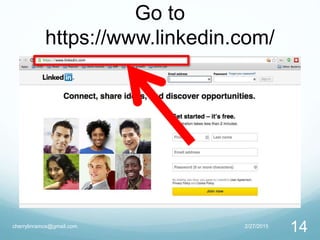
Go to
https://www.linkedin.com/
2/27/2015cherrylinramos@gmail.com
14
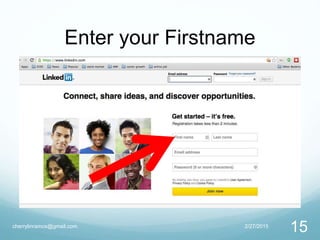
Enter your Firstname
2/27/2015cherrylinramos@gmail.com
15
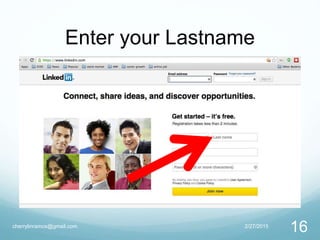
Enter your Lastname
2/27/2015cherrylinramos@gmail.com
16
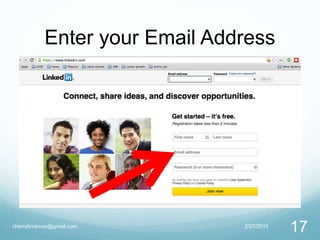
Enter your Email Address
2/27/2015cherrylinramos@gmail.com
17
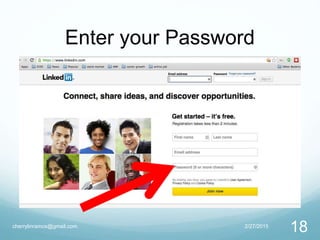
Enter your Password
2/27/2015cherrylinramos@gmail.com
18
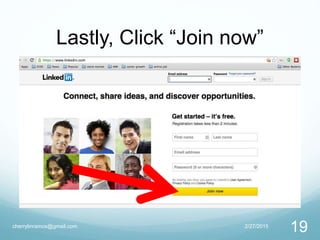
Lastly, Click “Join now”
2/27/2015cherrylinramos@gmail.com
19
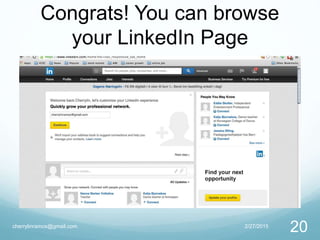
Congrats! You can browse
your LinkedIn Page
2/27/2015cherrylinramos@gmail.com
20
2/27/2015cherrylinramos@gmail.com
21
2/27/2015cherrylinramos@gmail.com
22
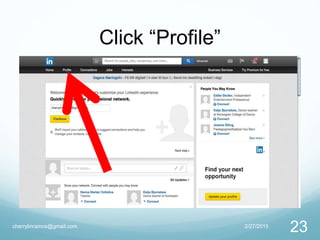
Click “Profile”
2/27/2015cherrylinramos@gmail.com
23
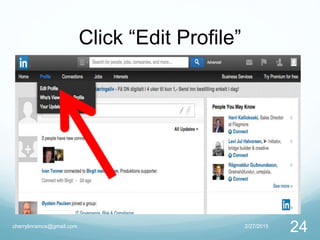
Click “Edit Profile”
2/27/2015cherrylinramos@gmail.com
24
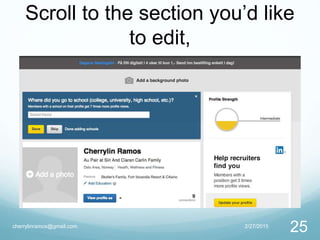
Scroll to the section you’d like
to edit,
2/27/2015cherrylinramos@gmail.com
25
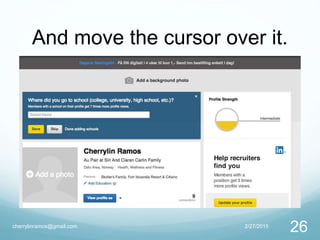
And move the cursor over it.
2/27/2015cherrylinramos@gmail.com
26
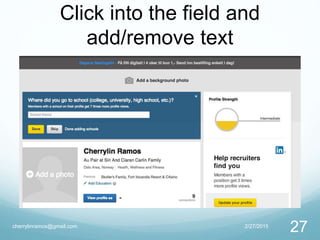
Click into the field and
add/remove text
2/27/2015cherrylinramos@gmail.com
27
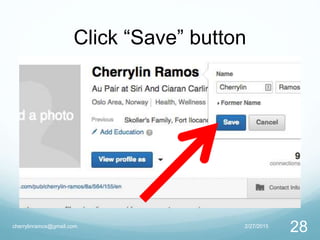
Click “Save” button
2/27/2015cherrylinramos@gmail.com
28
2/27/2015cherrylinramos@gmail.com
29
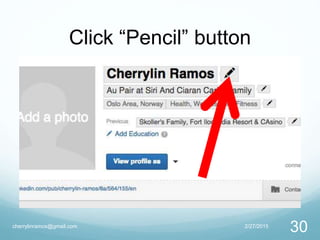
Click “Pencil” button
2/27/2015cherrylinramos@gmail.com
30
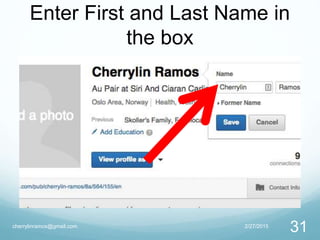
Enter First and Last Name in
the box
2/27/2015cherrylinramos@gmail.com
31
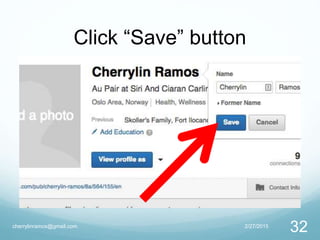
Click “Save” button
2/27/2015cherrylinramos@gmail.com
32
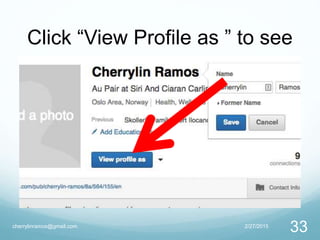
Click “View Profile as ” to see
2/27/2015cherrylinramos@gmail.com
33
2/27/2015cherrylinramos@gmail.com
34
how your profile looks to your
connections and the public.
2/27/2015cherrylinramos@gmail.com
35
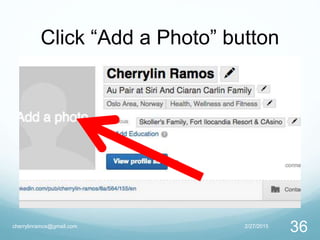
Click “Add a Photo” button
2/27/2015cherrylinramos@gmail.com
36
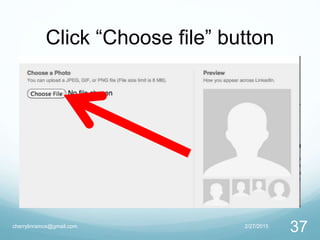
Click “Choose file” button
2/27/2015cherrylinramos@gmail.com
37
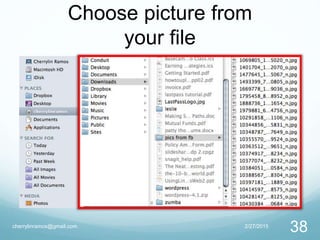
Choose picture from
your file
2/27/2015cherrylinramos@gmail.com
38
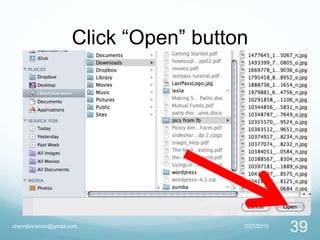
Click “Open” button
2/27/2015cherrylinramos@gmail.com
39
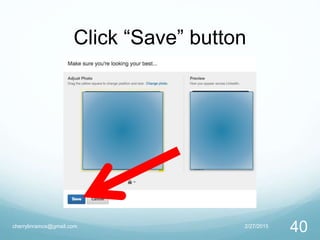
Click “Save” button
2/27/2015cherrylinramos@gmail.com
40
2/27/2015cherrylinramos@gmail.com
41
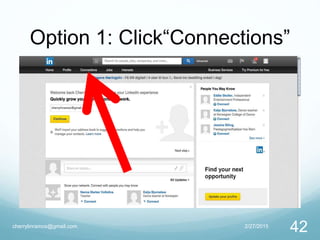
Option 1: Click“Connections”
2/27/2015cherrylinramos@gmail.com
42
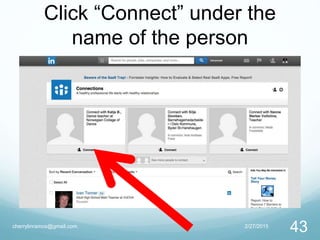
Click “Connect” under the
name of the person
2/27/2015cherrylinramos@gmail.com
43
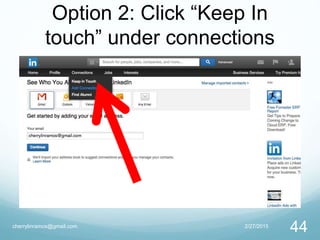
Option 2: Click “Keep In
touch” under connections
2/27/2015cherrylinramos@gmail.com
44
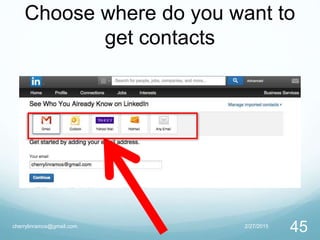
Choose where do you want to
get contacts
2/27/2015cherrylinramos@gmail.com
45
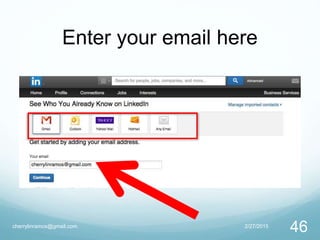
Enter your email here
2/27/2015cherrylinramos@gmail.com
46
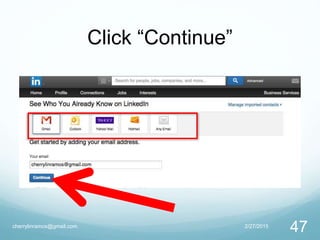
Click “Continue”
2/27/2015cherrylinramos@gmail.com
47
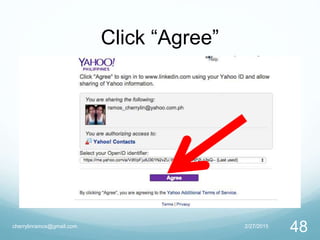
Click “Agree”
2/27/2015cherrylinramos@gmail.com
48
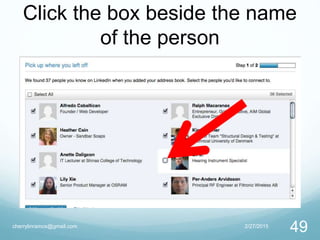
Click the box beside the name
of the person
2/27/2015cherrylinramos@gmail.com
49
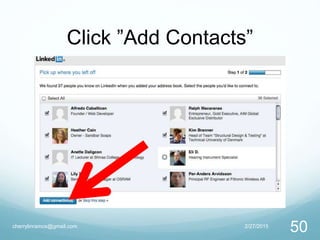
Click ”Add Contacts”
2/27/2015cherrylinramos@gmail.com
50
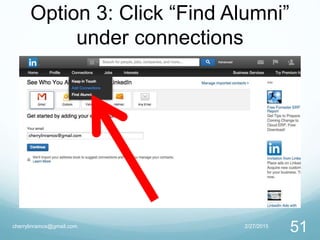
Option 3: Click “Find Alumni”
under connections
2/27/2015cherrylinramos@gmail.com
51
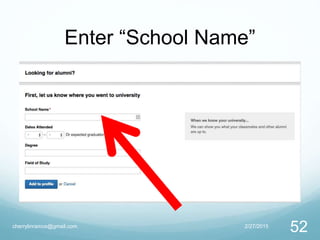
Enter “School Name”
2/27/2015cherrylinramos@gmail.com
52
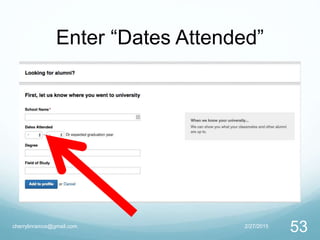
Enter “Dates Attended”
2/27/2015cherrylinramos@gmail.com
53
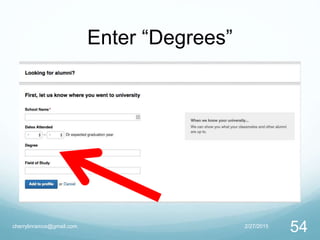
Enter “Degrees”
2/27/2015cherrylinramos@gmail.com
54
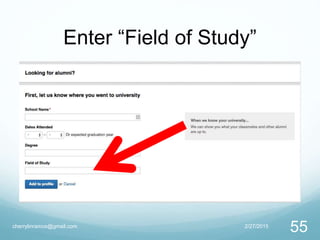
Enter “Field of Study”
2/27/2015cherrylinramos@gmail.com
55
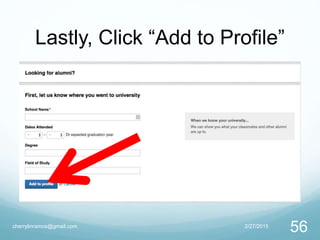
Lastly, Click “Add to Profile”
2/27/2015cherrylinramos@gmail.com
56
2/27/2015cherrylinramos@gmail.com
57
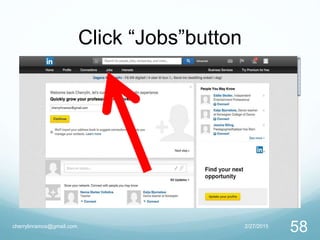
Click “Jobs”button
2/27/2015cherrylinramos@gmail.com
58
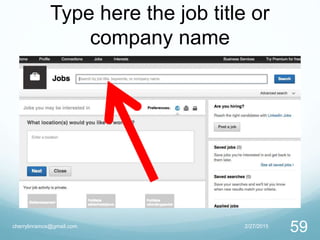
Type here the job title or
company name
2/27/2015cherrylinramos@gmail.com
59
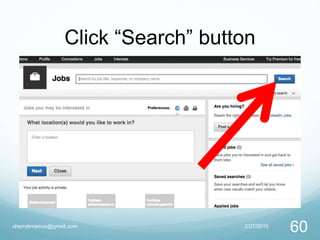
Click “Search” button
2/27/2015cherrylinramos@gmail.com
60
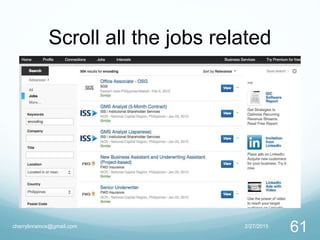
Scroll all the jobs related
2/27/2015cherrylinramos@gmail.com
61
Click “View” to see details of
the job
2/27/2015cherrylinramos@gmail.com
62
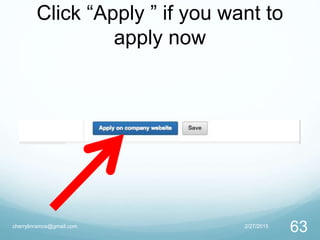
Click “Apply ” if you want to
apply now
2/27/2015cherrylinramos@gmail.com
63
2/27/2015cherrylinramos@gmail.com
64
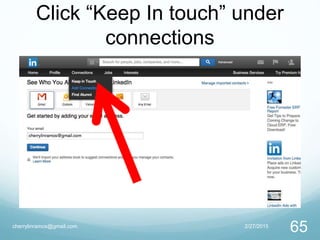
Click “Keep In touch” under
connections
2/27/2015cherrylinramos@gmail.com
65
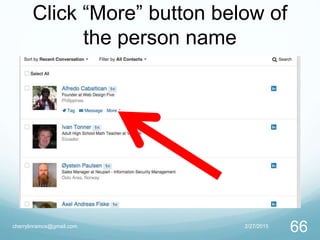
Click “More” button below of
the person name
2/27/2015cherrylinramos@gmail.com
66
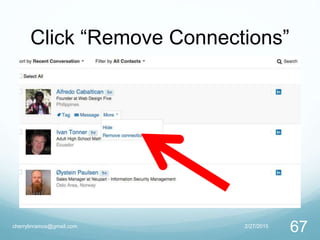
Click “Remove Connections”
2/27/2015cherrylinramos@gmail.com
67
2/27/2015cherrylinramos@gmail.com
68
2/27/2015cherrylinramos@gmail.com
69
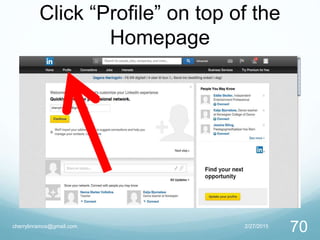
Click “Profile” on top of the
Homepage
2/27/2015cherrylinramos@gmail.com
70
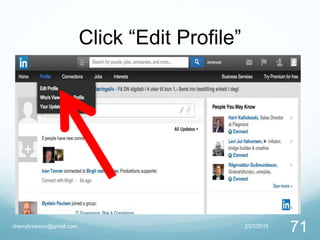
Click “Edit Profile”
2/27/2015cherrylinramos@gmail.com
71
Scroll down where you
want to add file/s in your
profile
2/27/2015cherrylinramos@gmail.com
72
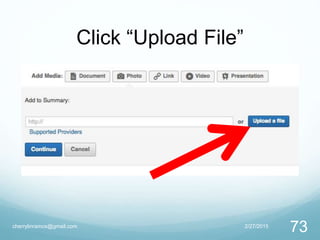
Click “Upload File”
2/27/2015cherrylinramos@gmail.com
73
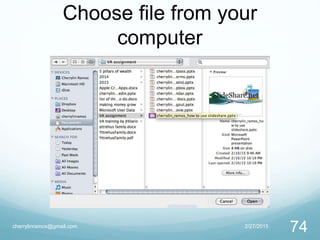
Choose file from your
computer
2/27/2015cherrylinramos@gmail.com
74
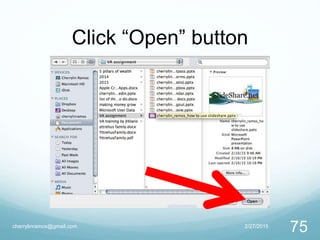
Click “Open” button
2/27/2015cherrylinramos@gmail.com
75
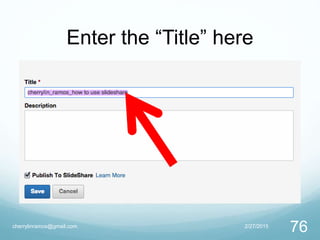
Enter the “Title” here
2/27/2015cherrylinramos@gmail.com
76
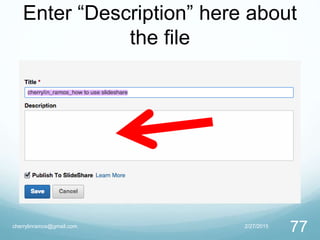
Enter “Description” here about
the file
2/27/2015cherrylinramos@gmail.com
77
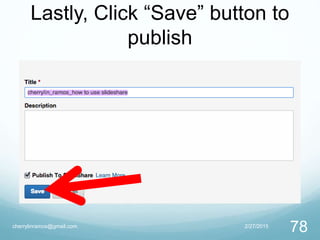
Lastly, Click “Save” button to
publish
2/27/2015cherrylinramos@gmail.com
78
2/27/2015cherrylinramos@gmail.com
79
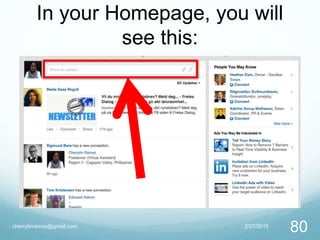
In your Homepage, you will
see this:
2/27/2015cherrylinramos@gmail.com
80
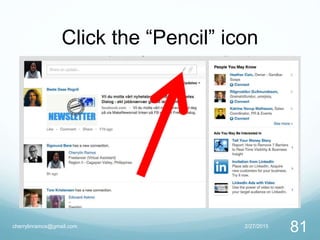
Click the “Pencil” icon
2/27/2015cherrylinramos@gmail.com
81
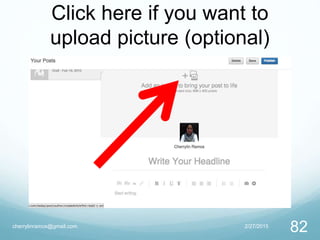
Click here if you want to
upload picture (optional)
2/27/2015cherrylinramos@gmail.com
82
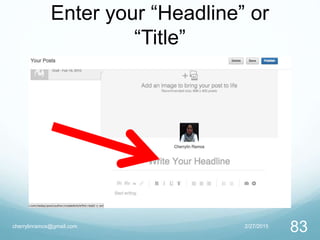
Enter your “Headline” or
“Title”
2/27/2015cherrylinramos@gmail.com
83
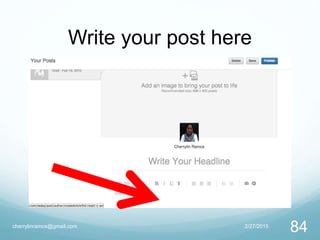
Write your post here
2/27/2015cherrylinramos@gmail.com
84
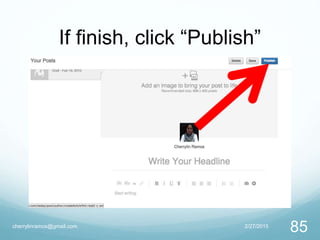
If finish, click “Publish”
2/27/2015cherrylinramos@gmail.com
85
2/27/2015cherrylinramos@gmail.com
86
2/27/2015cherrylinramos@gmail.com
87
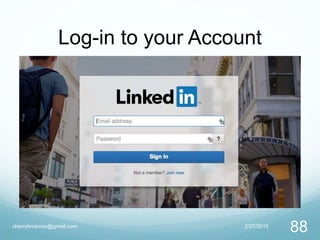
Log-in to your Account
2/27/2015cherrylinramos@gmail.com
88
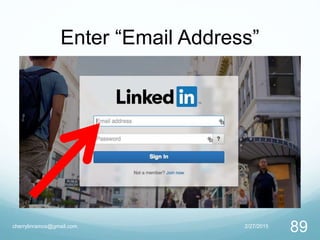
Enter “Email Address”
2/27/2015cherrylinramos@gmail.com
89
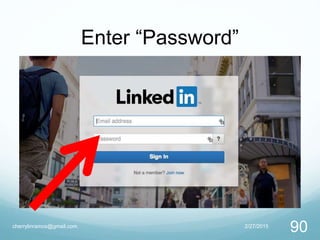
Enter “Password”
2/27/2015cherrylinramos@gmail.com
90
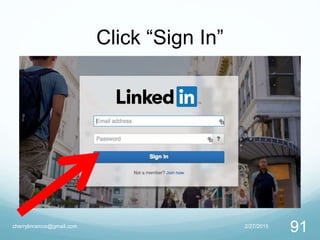
Click “Sign In”
2/27/2015cherrylinramos@gmail.com
91
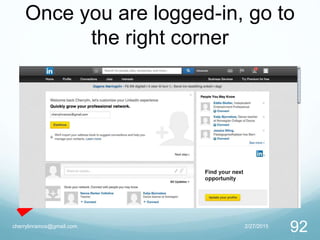
Once you are logged-in, go to
the right corner
2/27/2015cherrylinramos@gmail.com
92
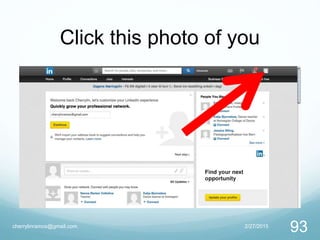
Click this photo of you
2/27/2015cherrylinramos@gmail.com
93
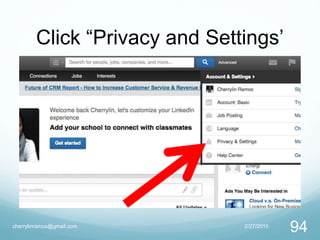
Click “Privacy and Settings’
2/27/2015cherrylinramos@gmail.com
94
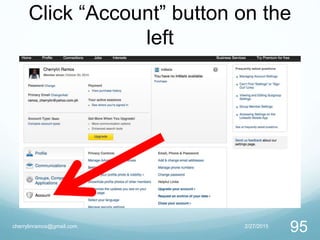
Click “Account” button on the
left
2/27/2015cherrylinramos@gmail.com
95
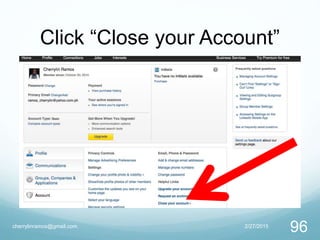
Click “Close your Account”
2/27/2015cherrylinramos@gmail.com
96
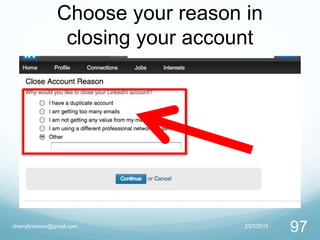
Choose your reason in
closing your account
2/27/2015cherrylinramos@gmail.com
97
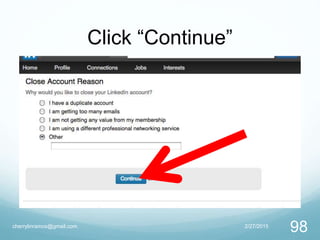
Click “Continue”
2/27/2015cherrylinramos@gmail.com
98
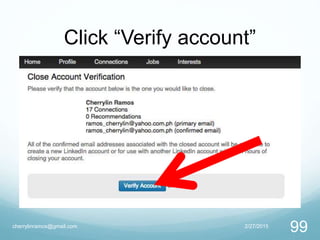
Click “Verify account”
2/27/2015cherrylinramos@gmail.com
99
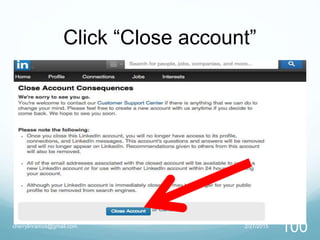
Click “Close account”
2/27/2015cherrylinramos@gmail.com
100
= End of my Presentation=
but
2/27/2015cherrylinramos@gmail.com
101
Try to discover more things
how to use LinkedIn
2/27/2015cherrylinramos@gmail.com
102
in your profession and
business connections.
2/27/2015cherrylinramos@gmail.com
103
2/27/2015cherrylinramos@gmail.com
104

Basic tutorial how to use linkedin