User’s Guide
How to create a
Learning Map
Version March 2018
1
support@badgecraft.eu
How to create a Learning Map
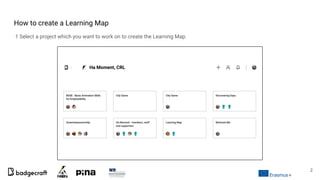
1 Select a project which you want to work on to create the Learning Map.
2
2 Click on the pencil on the right upper corner which will allow to modify the project
3
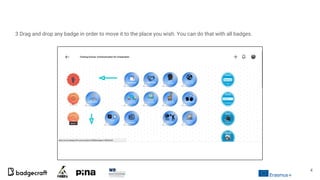
3 Drag and drop any badge in order to move it to the place you wish. You can do that with all badges.
4
5
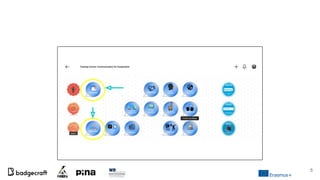
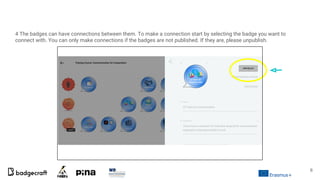
4 The badges can have connections between them. To make a connection start by selecting the badge you want to
connect with. You can only make connections if the badges are not published. If they are, please unpublish.
6
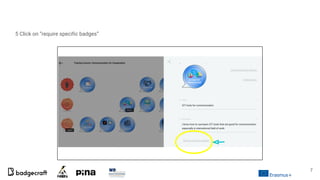
5 Click on “require specific badges”
7
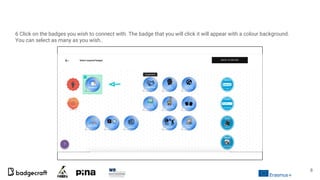
6 Click on the badges you wish to connect with. The badge that you will click it will appear with a colour background.
You can select as many as you wish..
8
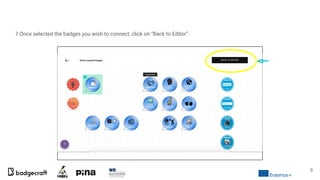
7 Once selected the badges you wish to connect, click on “Back to Editor”.
9
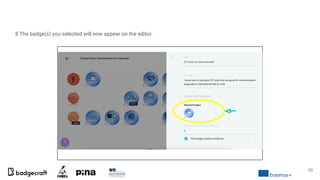
8 The badge(s) you selected will now appear on the editor.
10
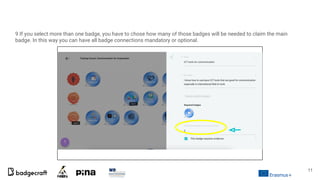
9 If you select more than one badge, you have to chose how many of those badges will be needed to claim the main
badge. In this way you can have all badge connections mandatory or optional.
11
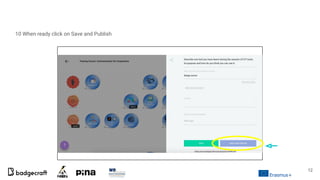
10 When ready click on Save and Publish
12
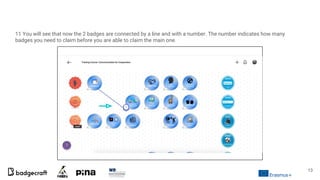
11 You will see that now the 2 badges are connected by a line and with a number. The number indicates how many
badges you need to claim before you are able to claim the main one.
13
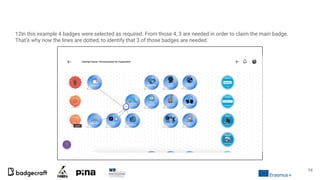
12In this example 4 badges were selected as required. From those 4, 3 are needed in order to claim the main badge.
That’s why now the lines are dotted, to identify that 3 of those badges are needed.
14
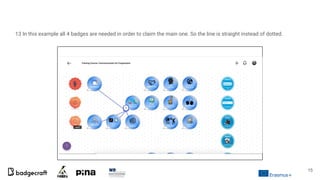
13 In this example all 4 badges are needed in order to claim the main one. So the line is straight instead of dotted.
15
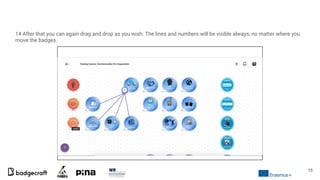
14 After that you can again drag and drop as you wish. The lines and numbers will be visible always, no matter where you
move the badges.
16

Badgecraft User Guide - How to create Badge Map

  • 1.
    User’s Guide How tocreate a Learning Map Version March 2018 1 support@badgecraft.eu
  • 2.
    How to createa Learning Map 1 Select a project which you want to work on to create the Learning Map. 2
  • 3.
    2 Click onthe pencil on the right upper corner which will allow to modify the project 3
  • 4.
    3 Drag anddrop any badge in order to move it to the place you wish. You can do that with all badges. 4
  • 5.
  • 6.
    4 The badgescan have connections between them. To make a connection start by selecting the badge you want to connect with. You can only make connections if the badges are not published. If they are, please unpublish. 6
  • 7.
    5 Click on“require specific badges” 7
  • 8.
    6 Click onthe badges you wish to connect with. The badge that you will click it will appear with a colour background. You can select as many as you wish.. 8
  • 9.
    7 Once selectedthe badges you wish to connect, click on “Back to Editor”. 9
  • 10.
    8 The badge(s)you selected will now appear on the editor. 10
  • 11.
    9 If youselect more than one badge, you have to chose how many of those badges will be needed to claim the main badge. In this way you can have all badge connections mandatory or optional. 11
  • 12.
    10 When readyclick on Save and Publish 12
  • 13.
    11 You willsee that now the 2 badges are connected by a line and with a number. The number indicates how many badges you need to claim before you are able to claim the main one. 13
  • 14.
    12In this example4 badges were selected as required. From those 4, 3 are needed in order to claim the main badge. That’s why now the lines are dotted, to identify that 3 of those badges are needed. 14
  • 15.
    13 In thisexample all 4 badges are needed in order to claim the main one. So the line is straight instead of dotted. 15
  • 16.
    14 After thatyou can again drag and drop as you wish. The lines and numbers will be visible always, no matter where you move the badges. 16