AWT - Abstract Windowing Toolkit
1
Objectives
 Describe Abstract Windowing Toolkit (AWT)
 Discuss Containers and Components
 Frame
 Panel
 Label
 TextFields and TextAreas
 Checkboxes and RadioButtons
 Choice
 Identify events generated by components
 Create a standalone AWT application
2
1. Introduction
 As on date, software applications have become user-friendlier
because of introducing graphics in user interfaces.
 These make the language richer in terms of creating graphical
objects that can be controlled by the developer as well as the
user.
 One of the most important outcomes of this is that languages
have happened to be GUI based.
3
2. Abstract Windowing Toolkit
 Graphical User Interface (GUI) is used to accept input
through a keyboard or a mouse.
 Abstract Windowing Toolkit (AWT) is a set of Java
classes that allow us to create a GUI.
 AWT provides items which enable creation of an
attractive and efficient GUI.
4
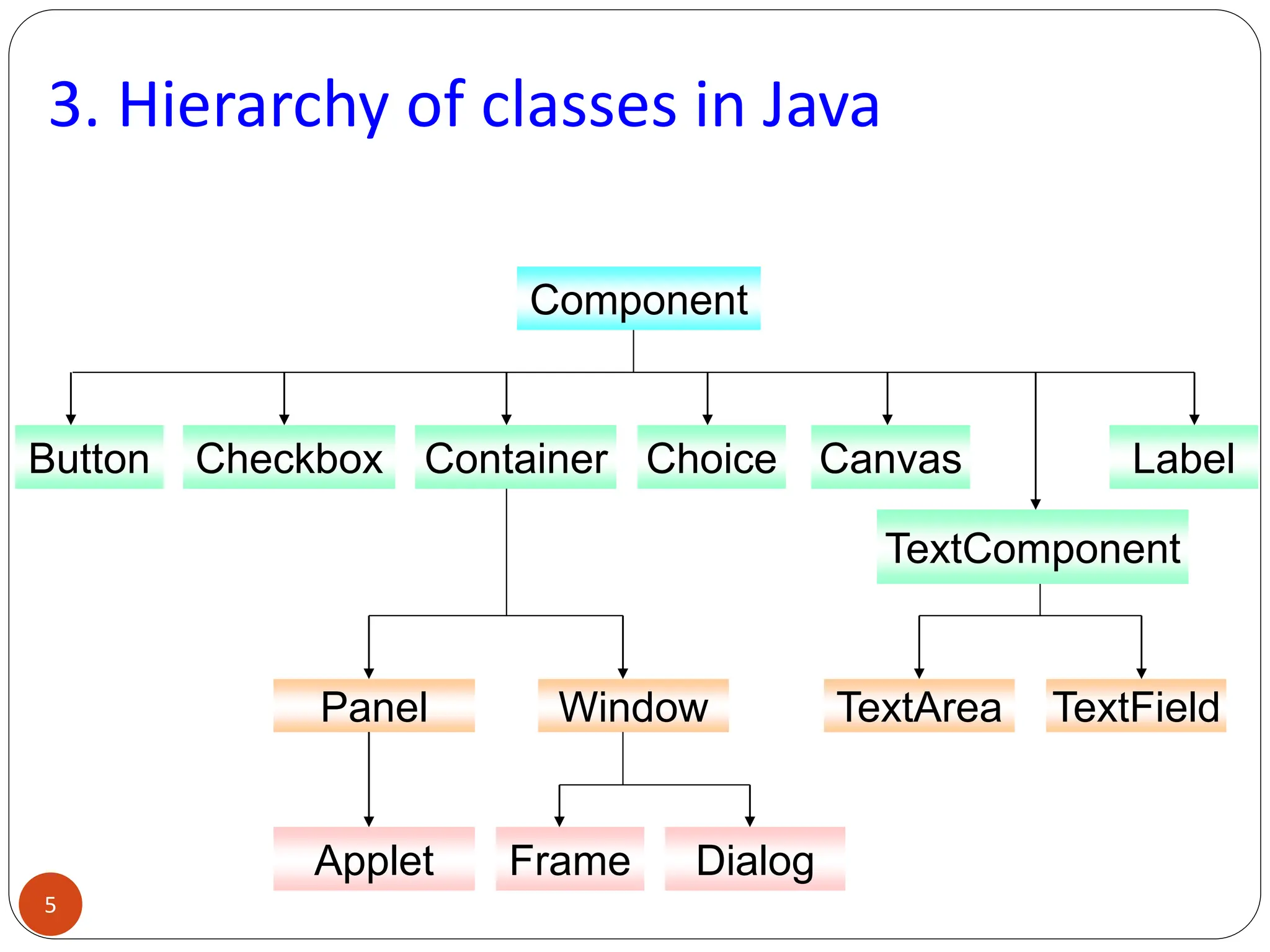
3. Hierarchy of classes in Java
Component
Button Checkbox Container Choice Canvas
TextComponent
Label
Panel Window
Applet Frame Dialog
TextArea TextField
5
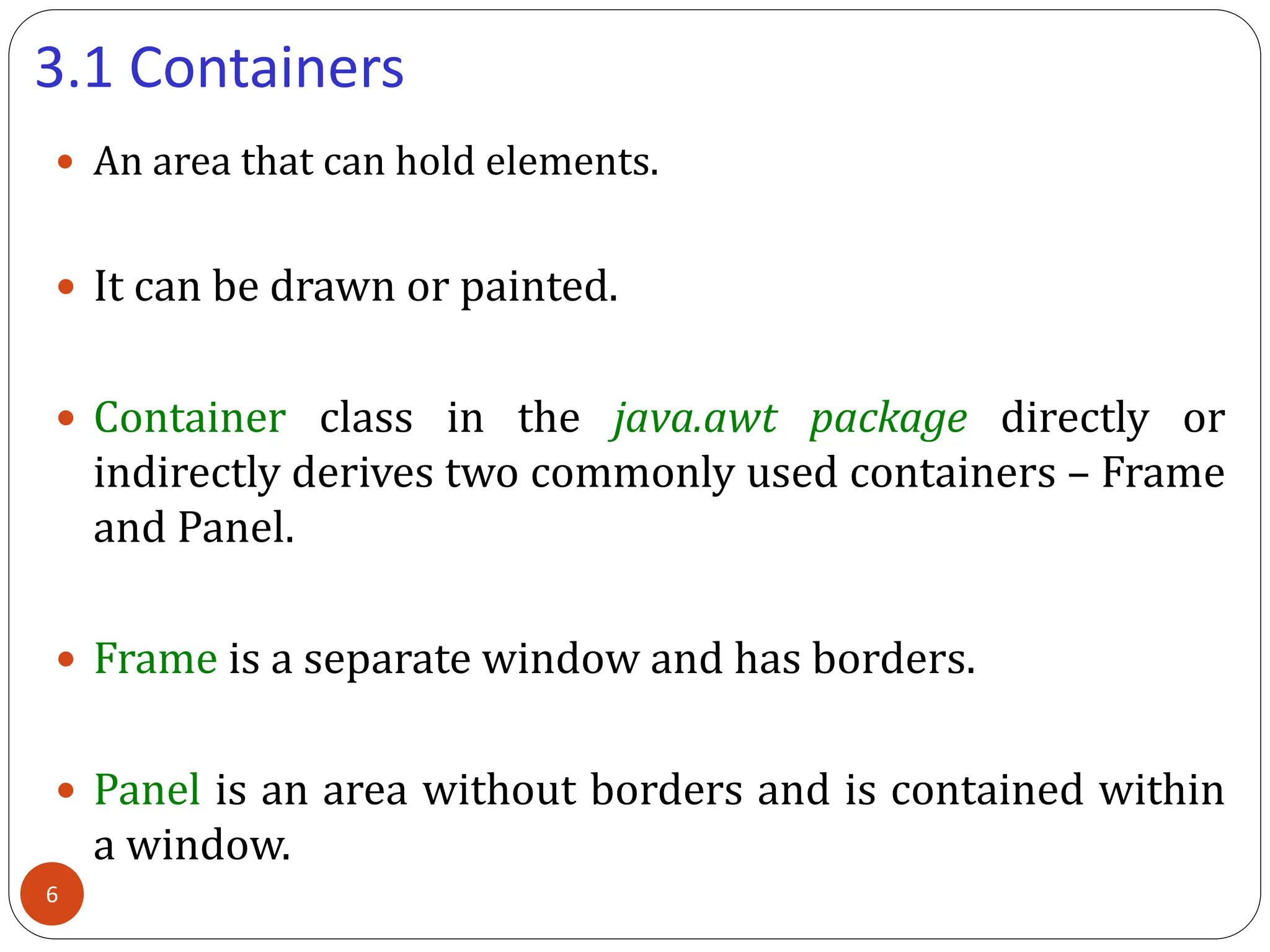
3.1 Containers
 An area that can hold elements.
 It can be drawn or painted.
 Container class in the java.awt package directly or
indirectly derives two commonly used containers – Frame
and Panel.
 Frame is a separate window and has borders.
 Panel is an area without borders and is contained within
a window.
6
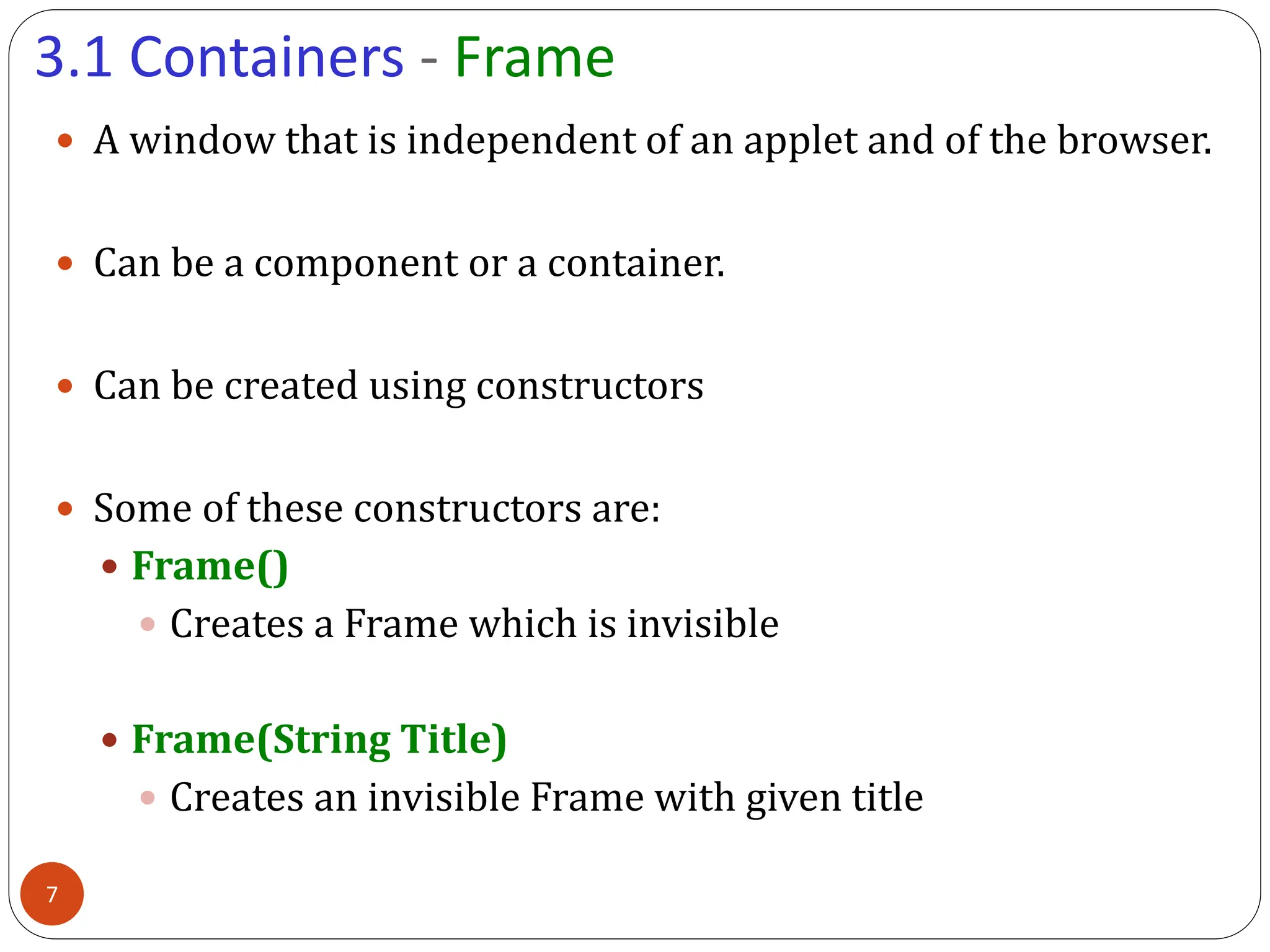
3.1 Containers - Frame
 A window that is independent of an applet and of the browser.
 Can be a component or a container.
 Can be created using constructors
 Some of these constructors are:
 Frame()
 Creates a Frame which is invisible
 Frame(String Title)
 Creates an invisible Frame with given title
7
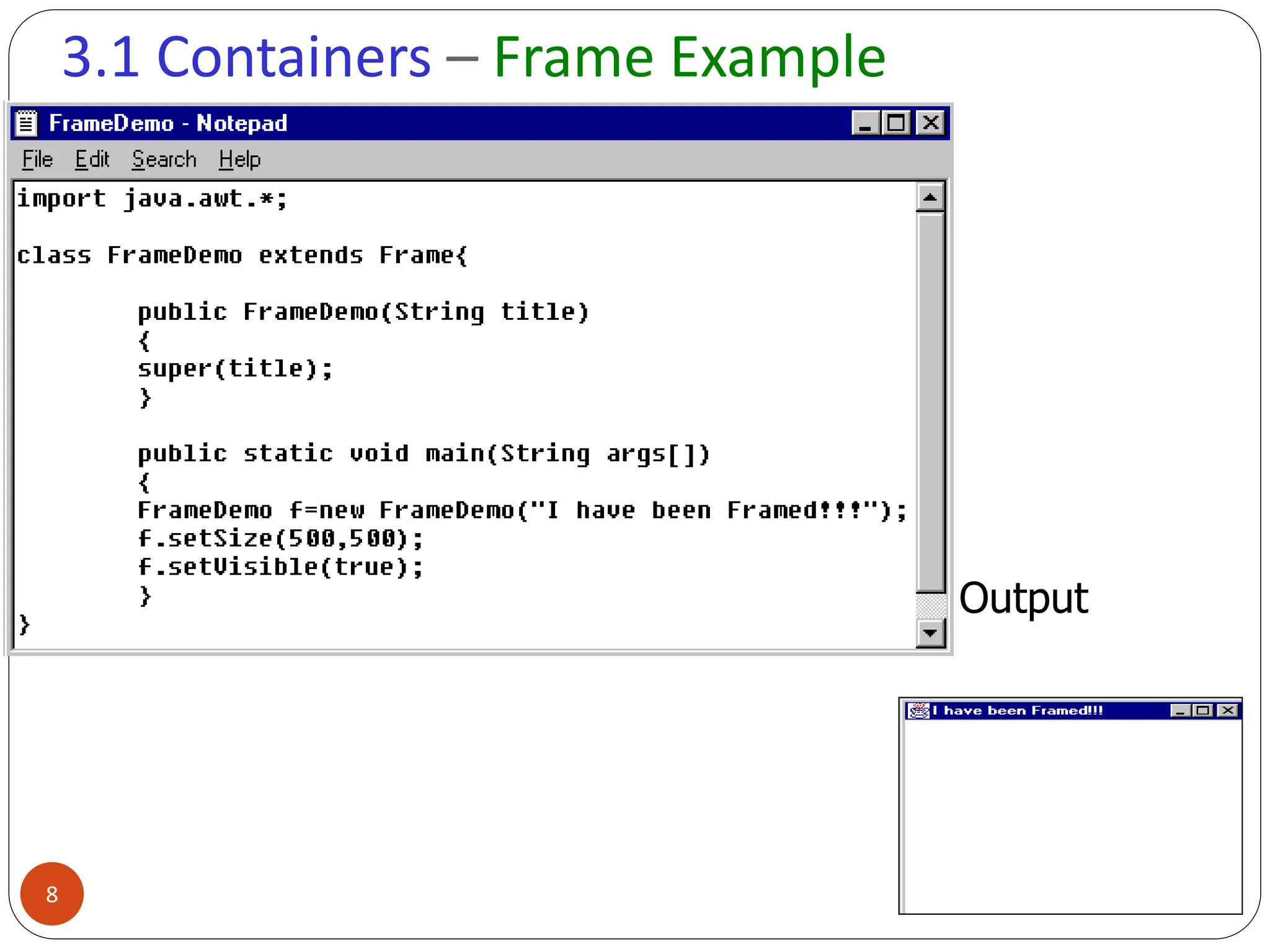
3.1 Containers – Frame Example
Output
8
3.2 Panel
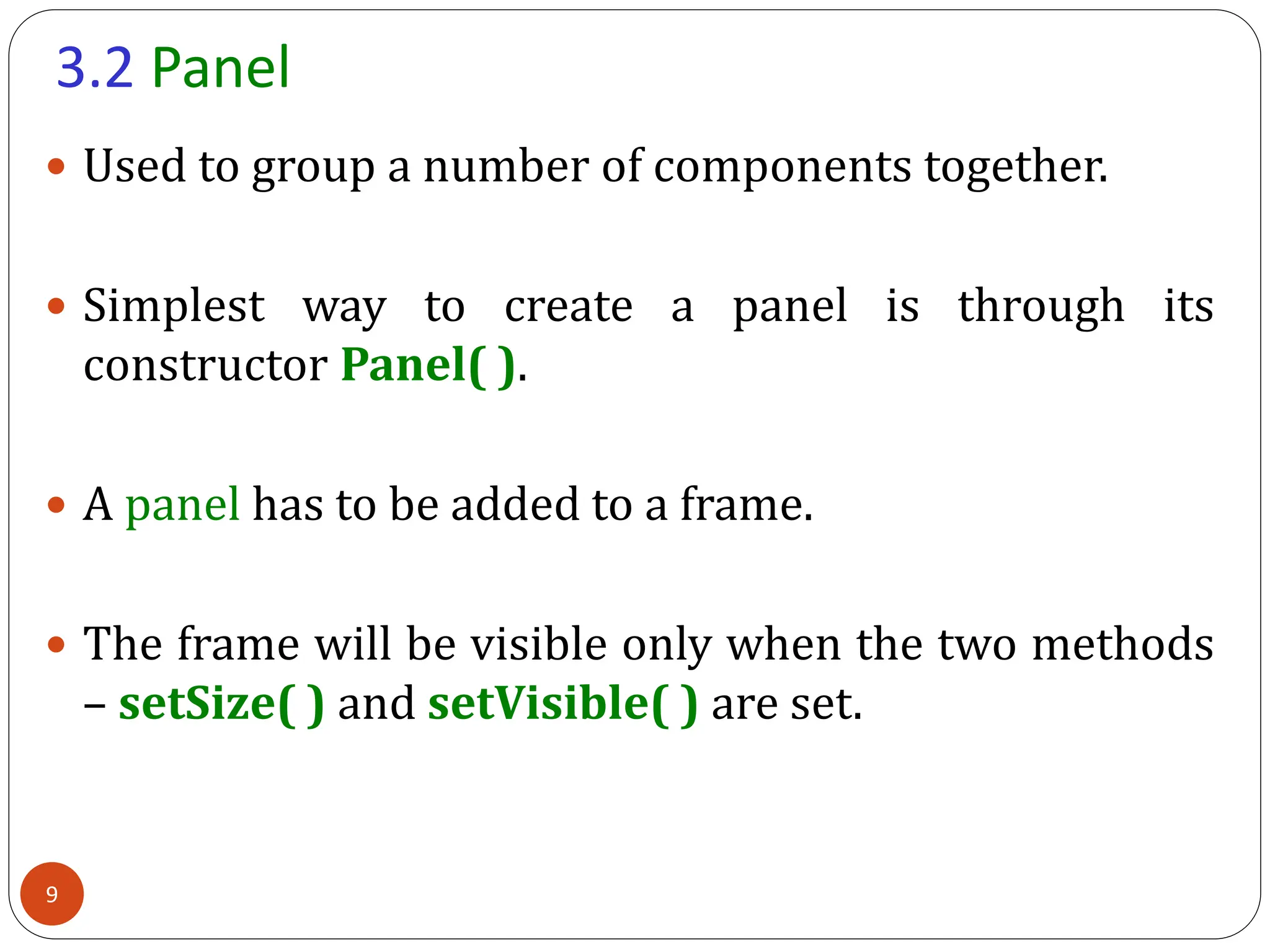
 Used to group a number of components together.
 Simplest way to create a panel is through its
constructor Panel( ).
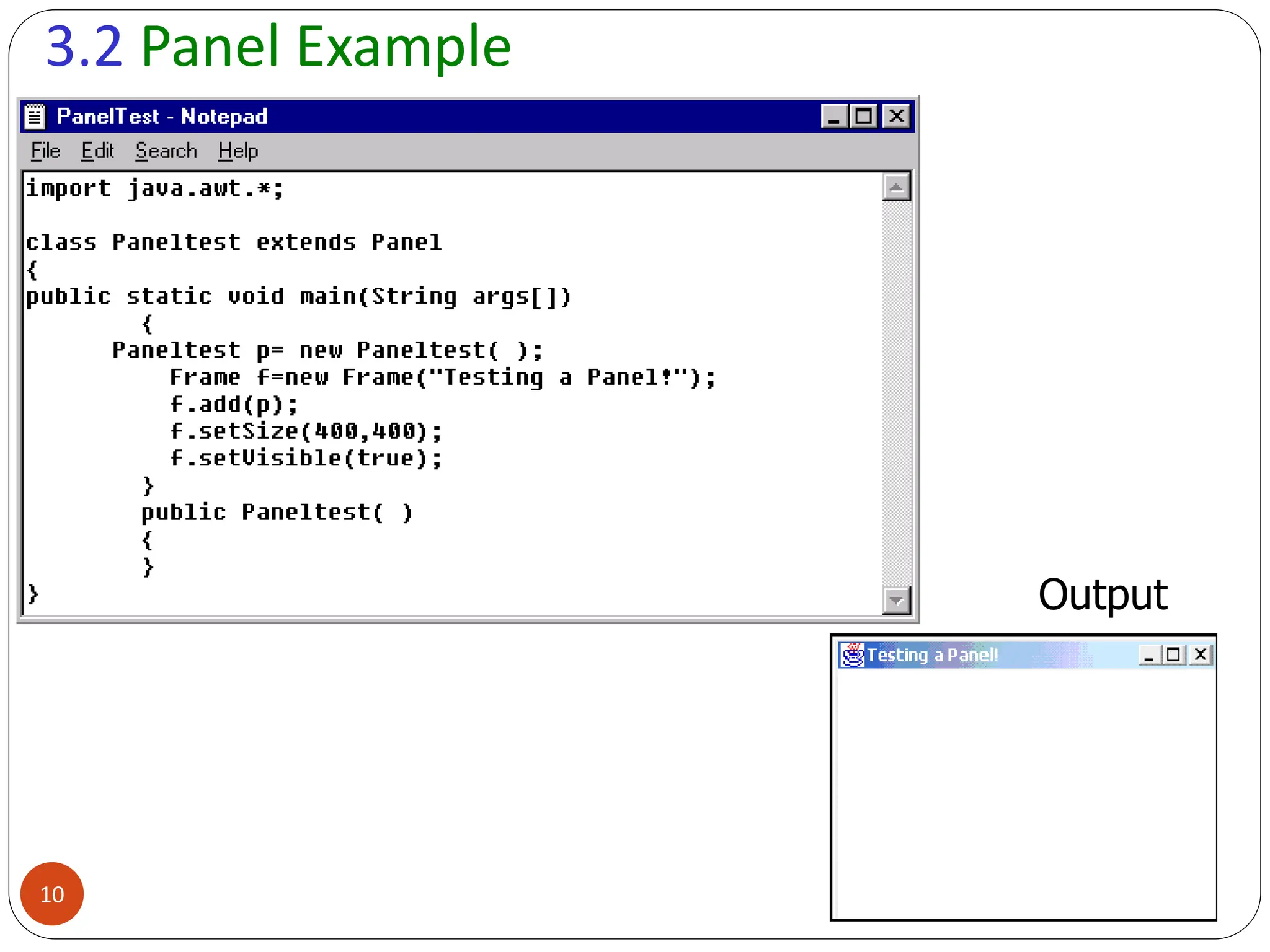
 A panel has to be added to a frame.
 The frame will be visible only when the two methods
– setSize( ) and setVisible( ) are set.
9
3.2 Panel Example
Output
10
3.3 Component
 Anything that can be placed on a user interface and can
be made visible or resized.
 Examples include textfields, labels, checkboxes, textareas
etc.
 Some advanced components include scrollbars,
scrollpanes and dialogs.
11
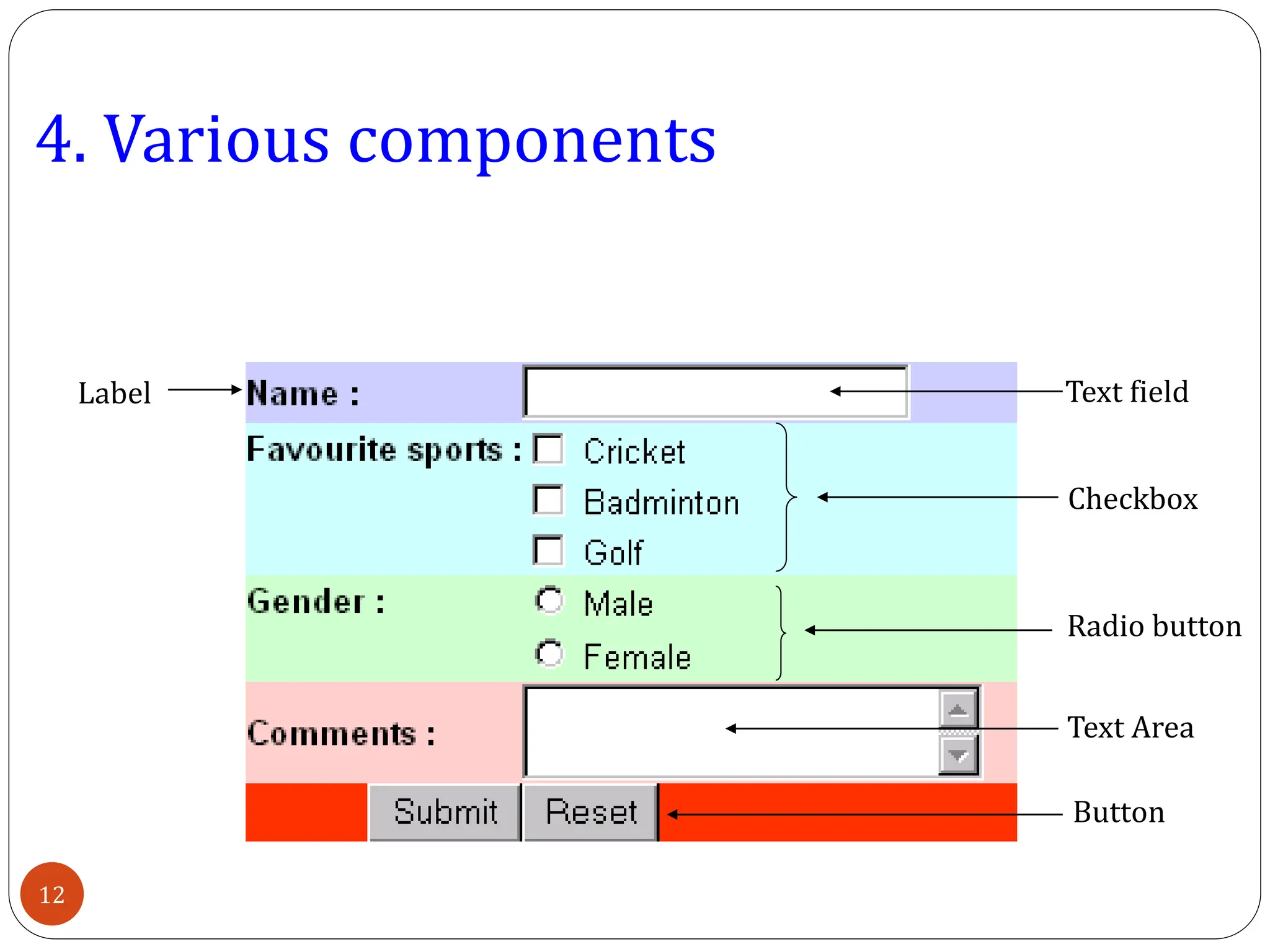
4. Various components
Label Text field
Checkbox
Radio button
Button
Text Area
12
4.1 Label
 Generally used to indicate the purpose of an item.
 Not user-editable .
 Can be created using one of the following constructors:
 Label( )
Creates an empty label
 Label(String labeltext)
Creates a label with a given text
 Label(String labeltext, int alignment)
Creates a label with given alignment where alignment
can be Label.LEFT, Label.RIGHT or Label.CENTER
13
4.2 Textfield
 GUI element used to input text.
 Generally accepts one line of input.
 Can be created using one of the following constructors:
 Textfield()
Creates a new textfield
 Textfield(int columns)
Creates a new textfield with given number of columns
 Textfield(String s)
Creates a new textfield with the given string
 Textfield(String s, int columns)
Creates a new textfield with given string and given
number of columns
14
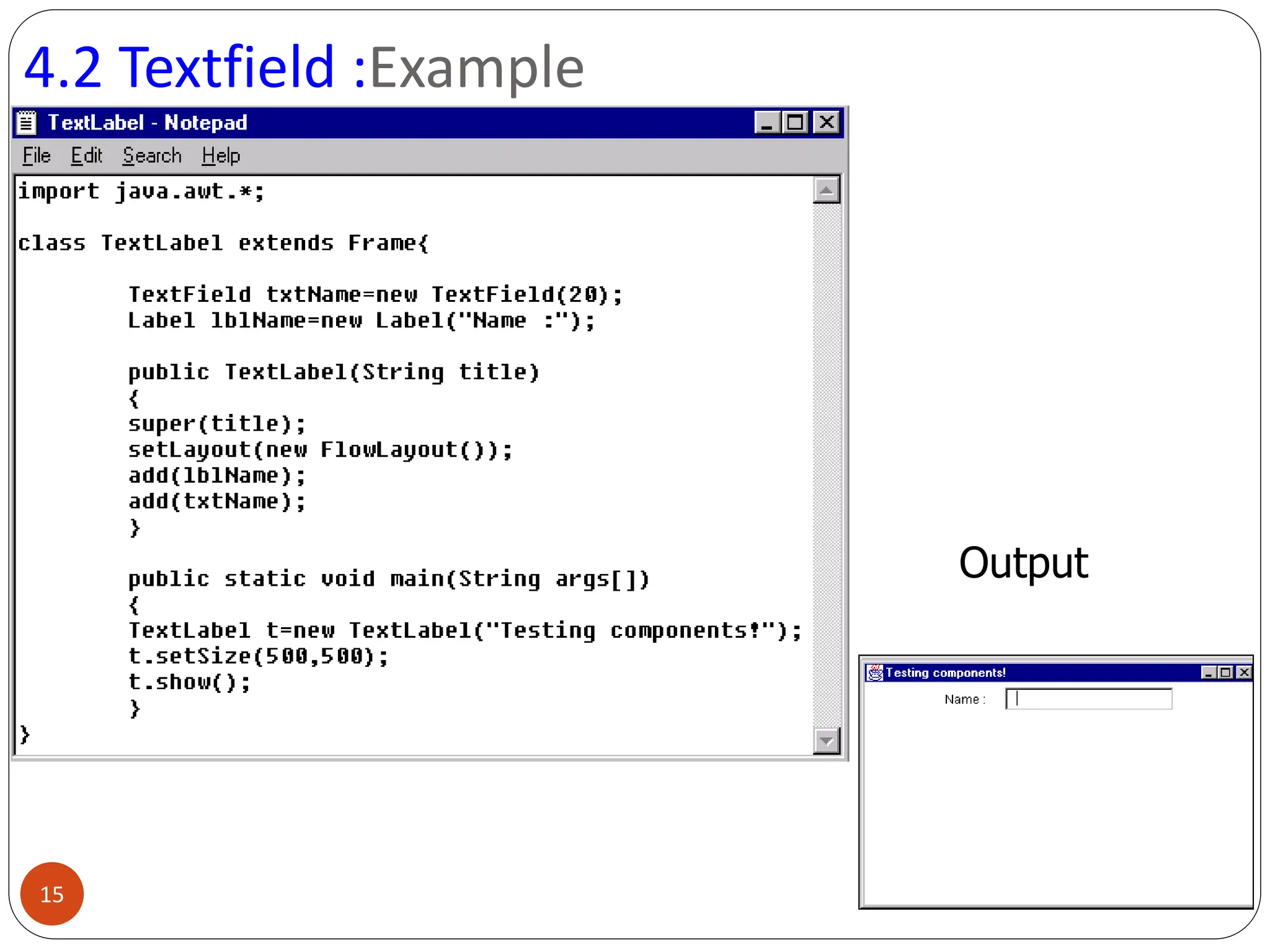
4.2 Textfield :Example
Output
15
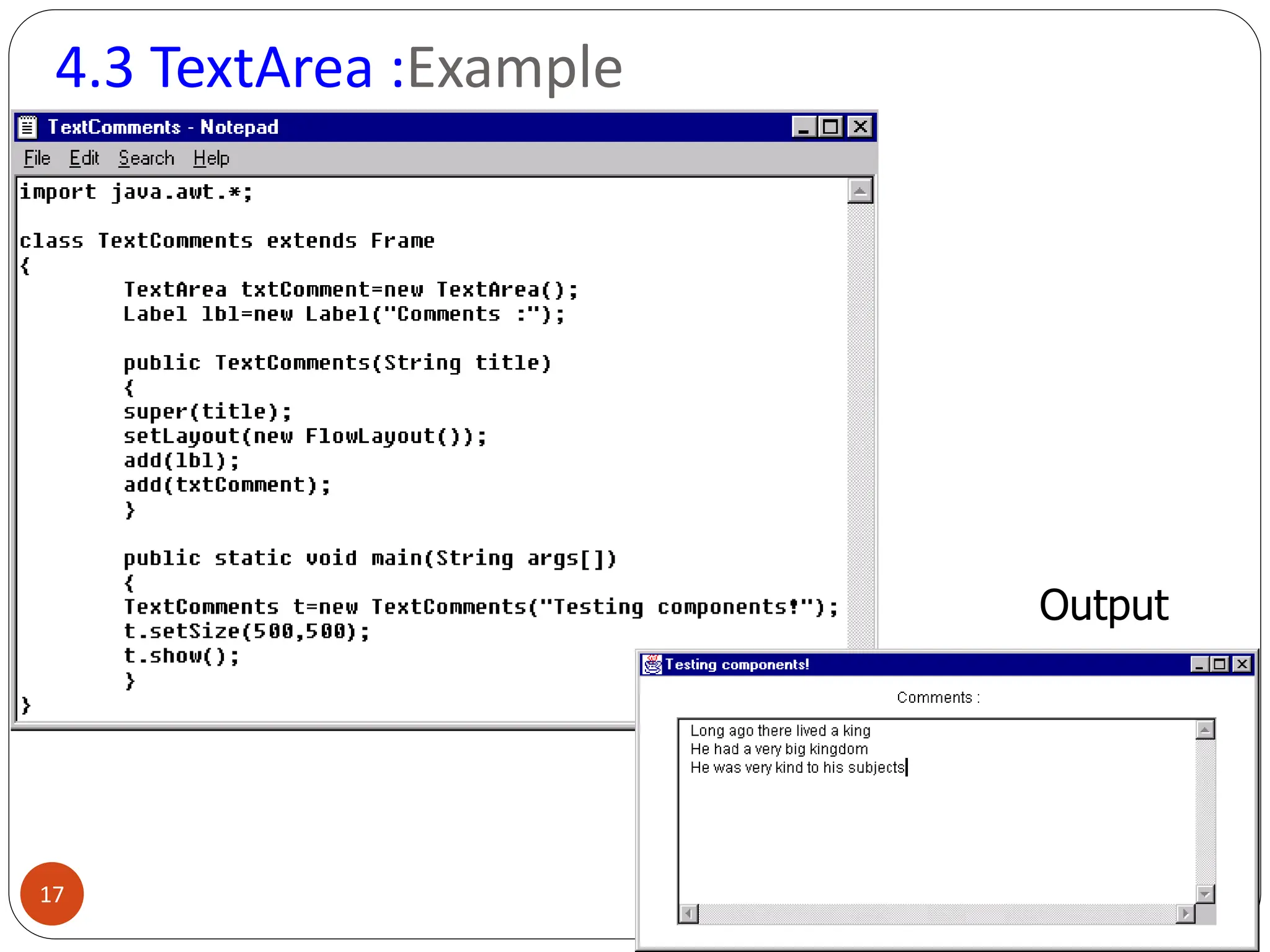
4.3 TextArea
 Used when text is to be accepted has two or more lines.
 Includes a scrollbar.
 TextArea can be created using some of the following
constructors given below:
 TextArea( )
Creates a new TextArea
 TextArea(int rows, int cols)
Creates a new TextArea with given number of rows and
columns
 TextArea(String text, int rows, int cols)
Creates a new TextArea with given string, given number
of rows and columns
16
4.3 TextArea :Example
Output
17
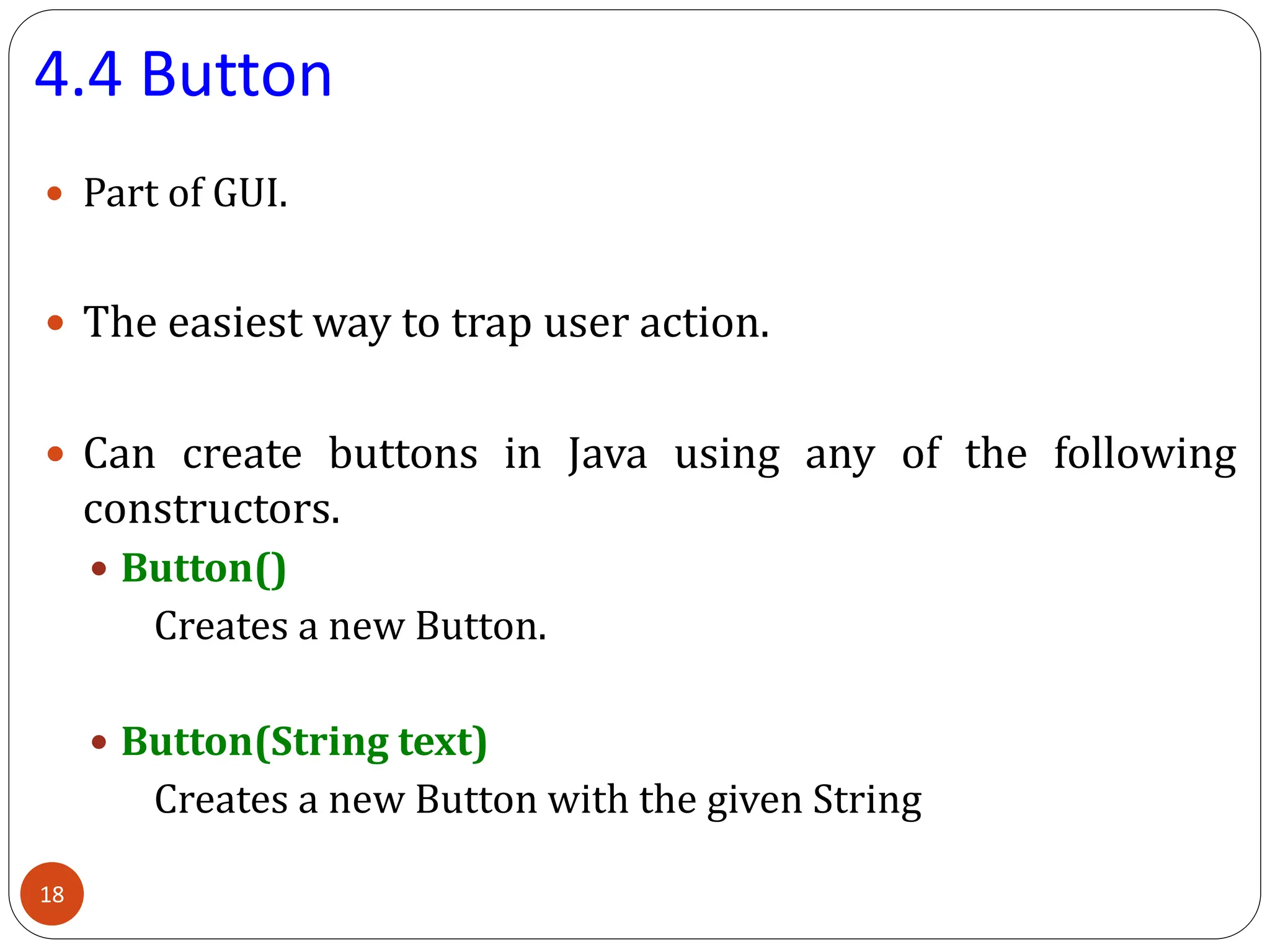
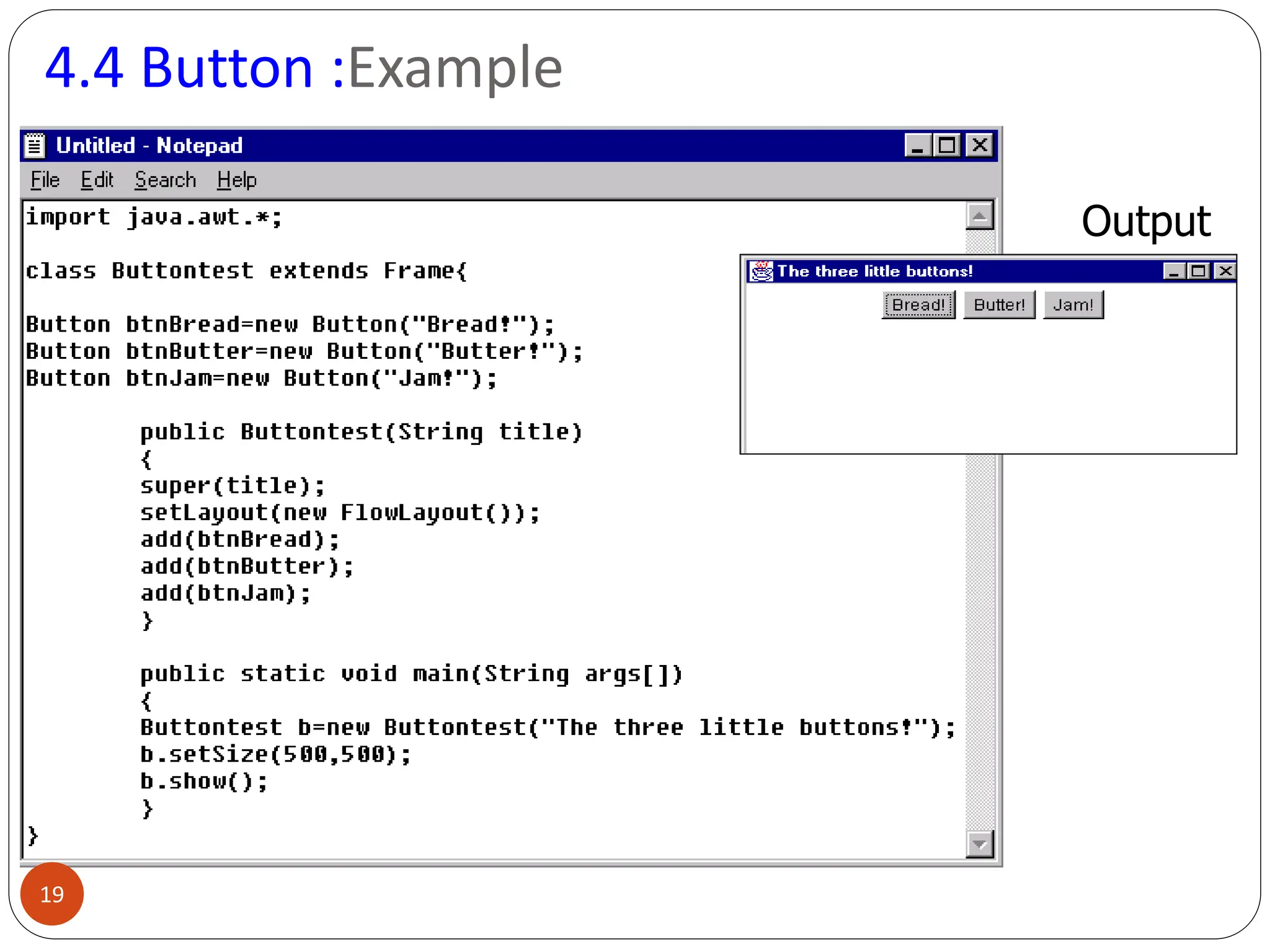
4.4 Button
 Part of GUI.
 The easiest way to trap user action.
 Can create buttons in Java using any of the following
constructors.
 Button()
Creates a new Button.
 Button(String text)
Creates a new Button with the given String
18
4.4 Button :Example
Output
19
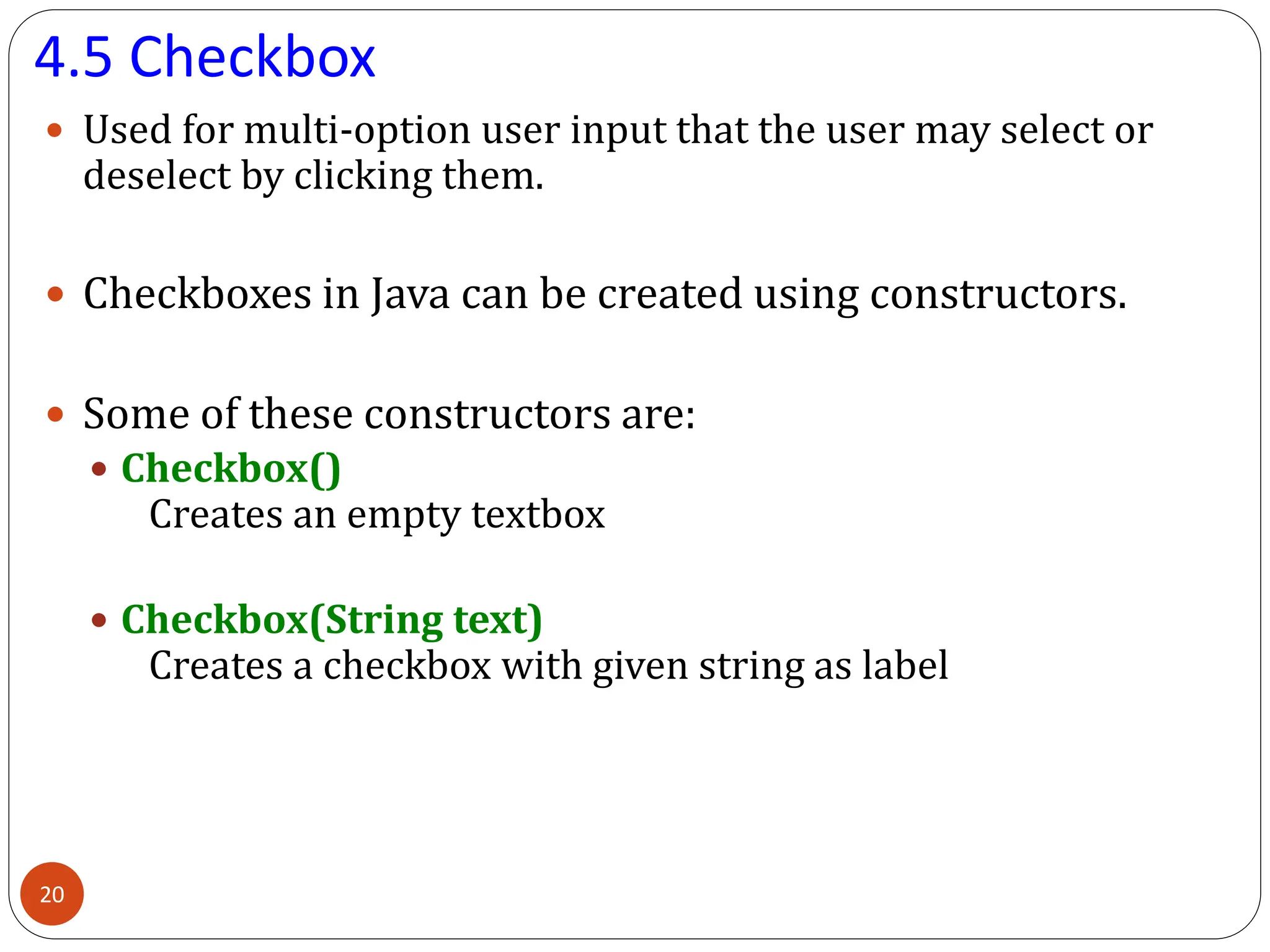
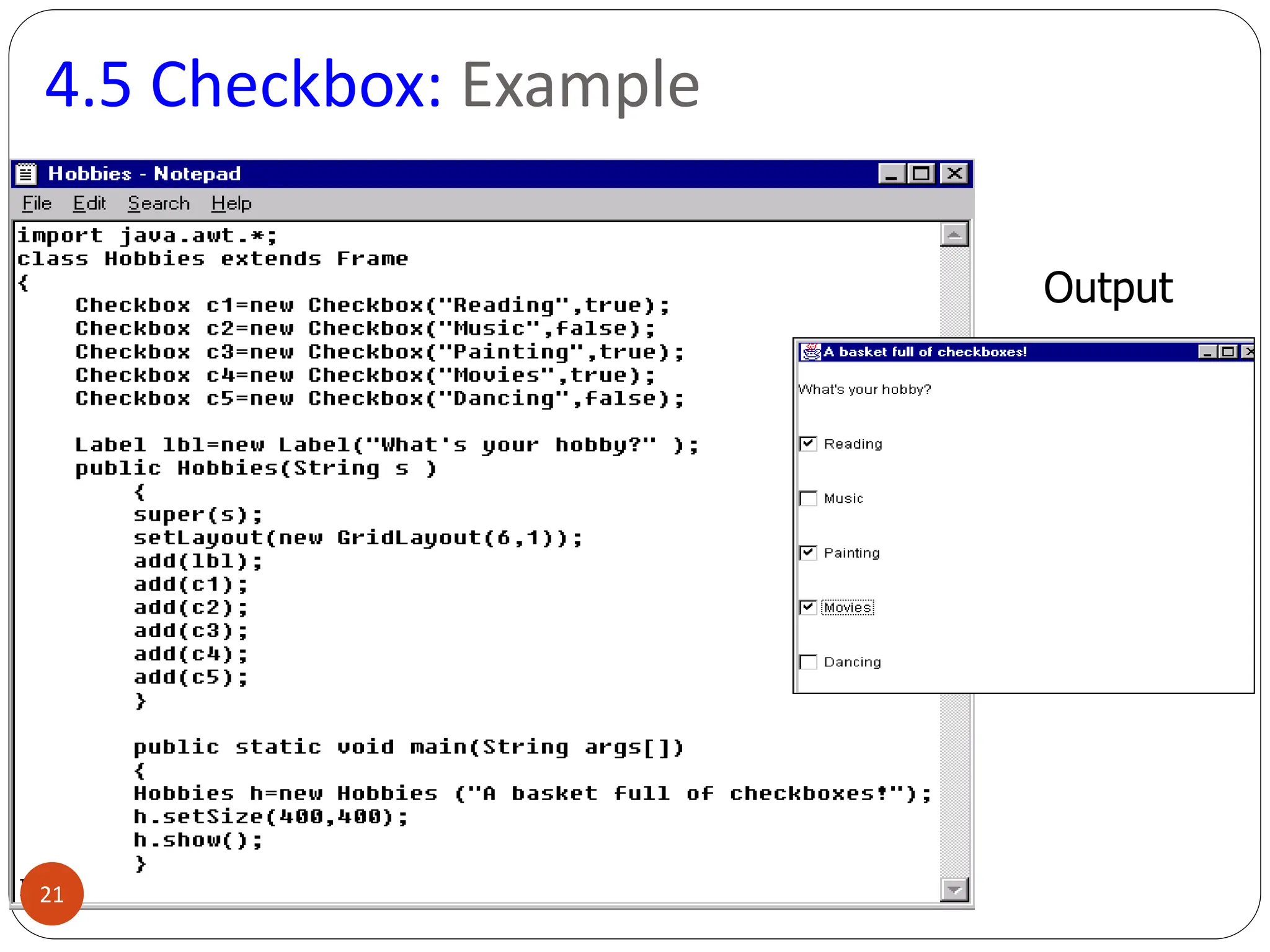
4.5 Checkbox
 Used for multi-option user input that the user may select or
deselect by clicking them.
 Checkboxes in Java can be created using constructors.
 Some of these constructors are:
 Checkbox()
Creates an empty textbox
 Checkbox(String text)
Creates a checkbox with given string as label
20
4.5 Checkbox: Example
Output
21
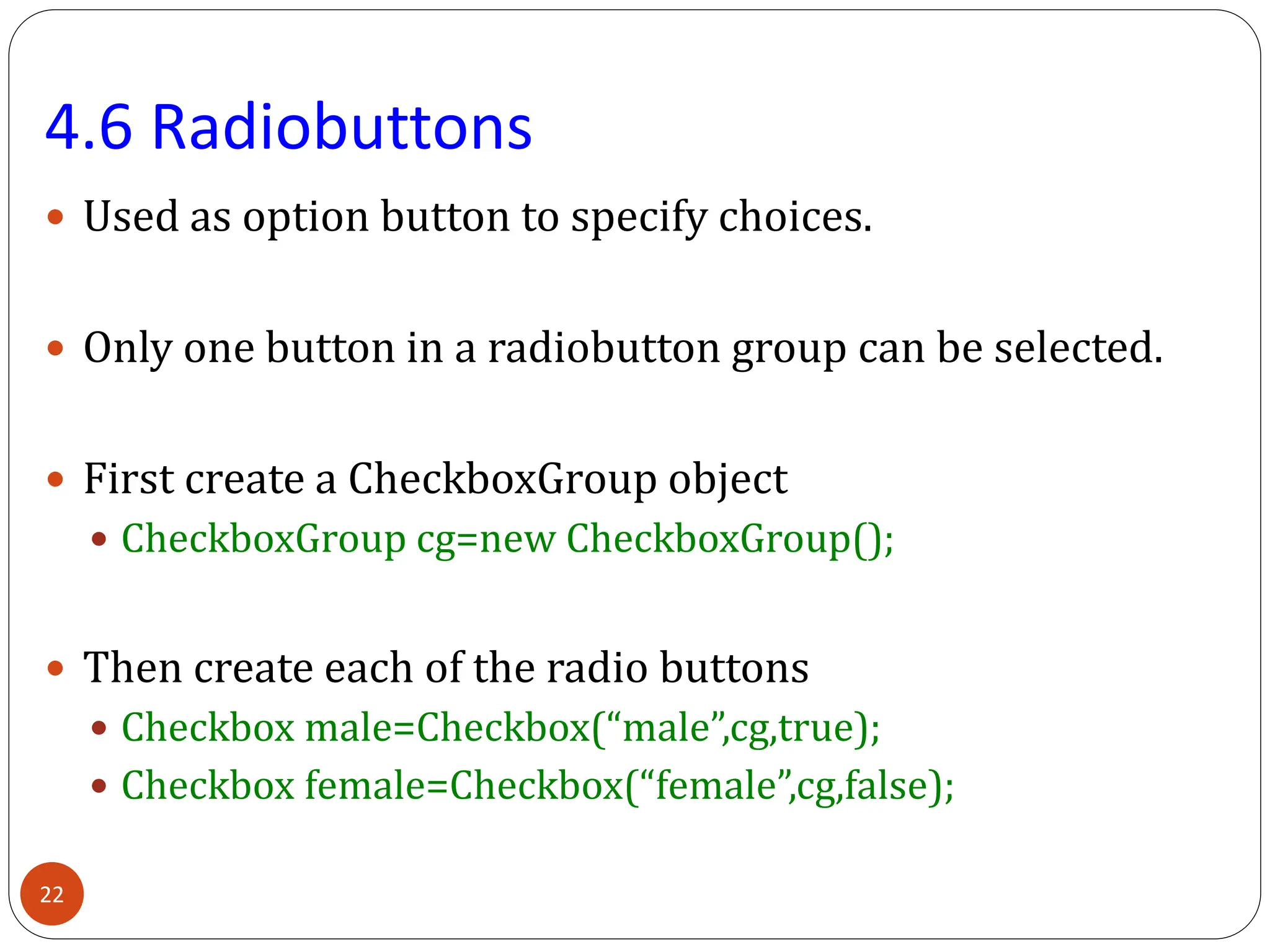
4.6 Radiobuttons
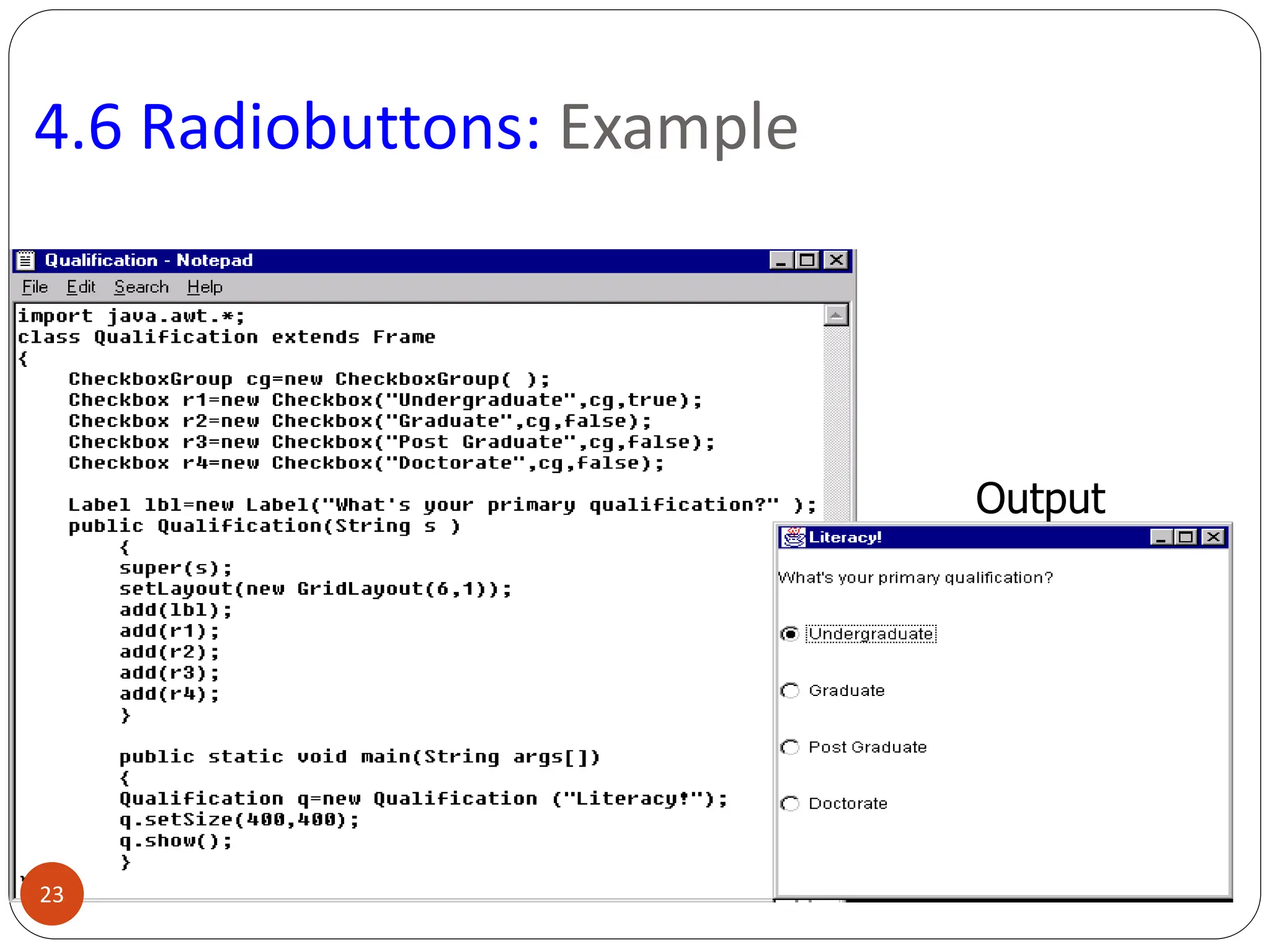
 Used as option button to specify choices.
 Only one button in a radiobutton group can be selected.
 First create a CheckboxGroup object
 CheckboxGroup cg=new CheckboxGroup();
 Then create each of the radio buttons
 Checkbox male=Checkbox(“male”,cg,true);
 Checkbox female=Checkbox(“female”,cg,false);
22
4.6 Radiobuttons: Example
Output
23
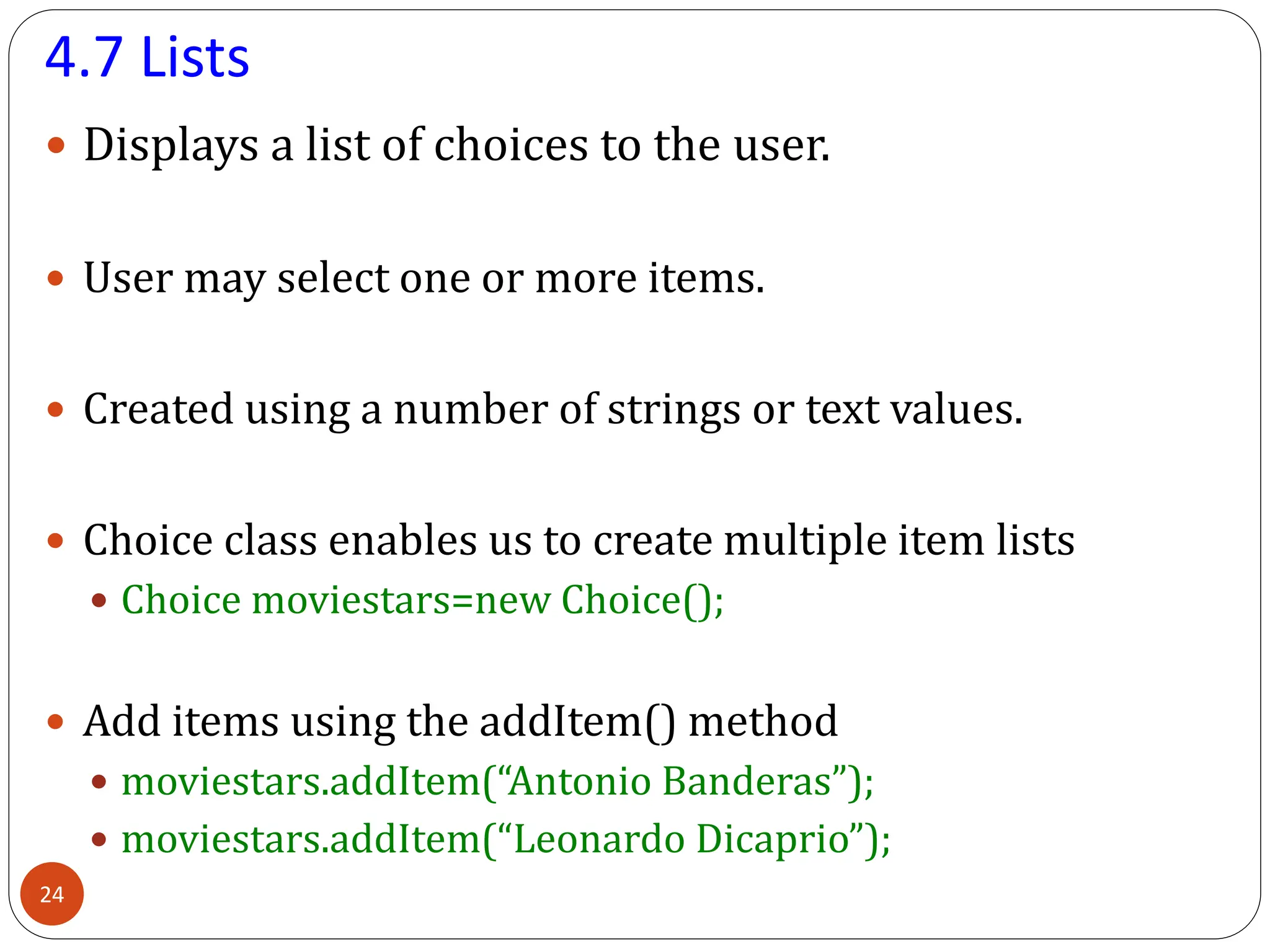
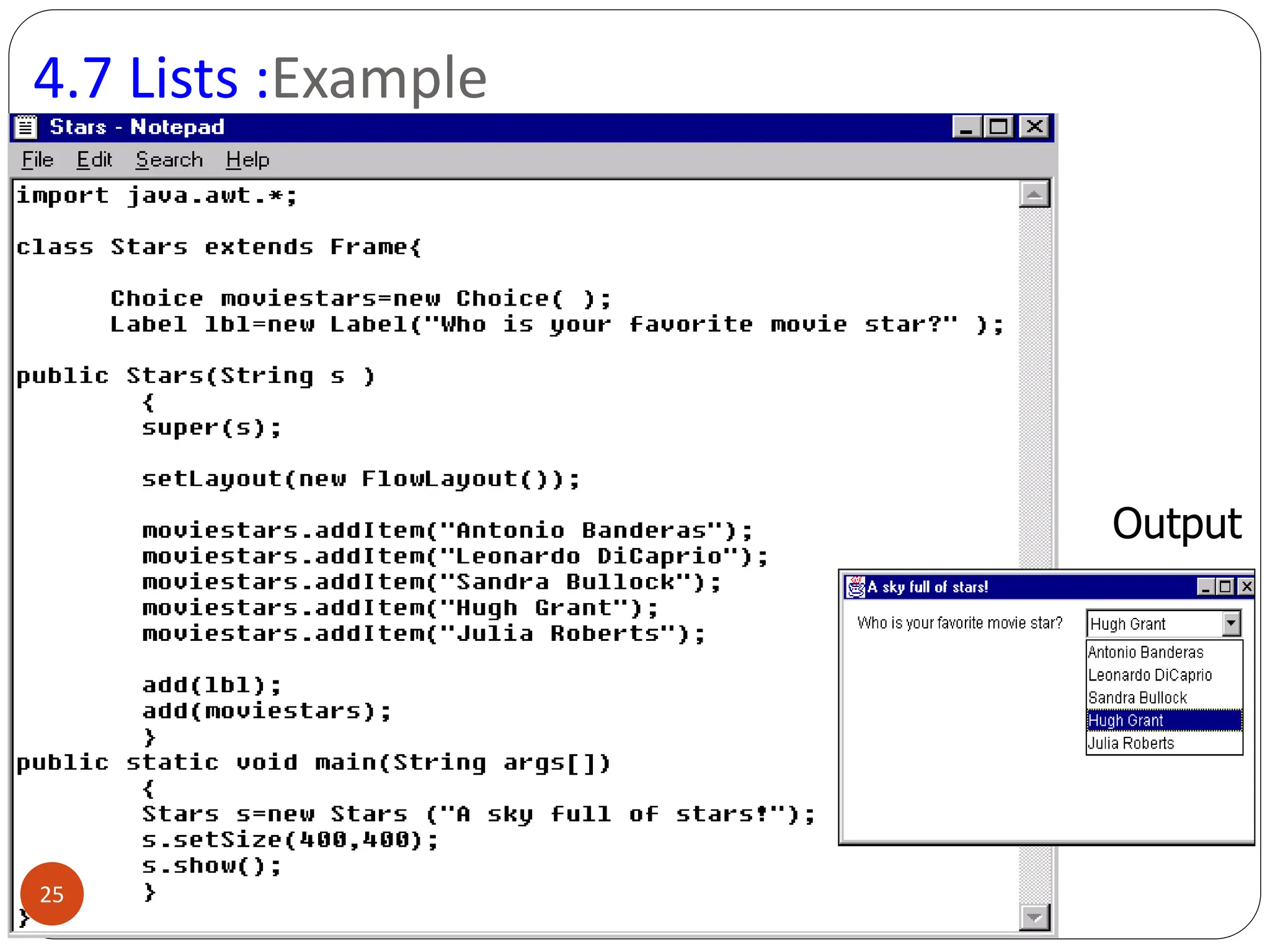
4.7 Lists
 Displays a list of choices to the user.
 User may select one or more items.
 Created using a number of strings or text values.
 Choice class enables us to create multiple item lists
 Choice moviestars=new Choice();
 Add items using the addItem() method
 moviestars.addItem(“Antonio Banderas”);
 moviestars.addItem(“Leonardo Dicaprio”);
24
4.7 Lists :Example
Output
25
Event handling with components
 An event is generated whenever a user clicks a mouse,
presses or releases a key.
 Event Delegation Model is used to handle events.
 This process allows the program to register handlers
called ‘listeners’ with objects whose events need to be
captured.
 Handlers are automatically called when an event takes
place.
26
Event handling with components ...
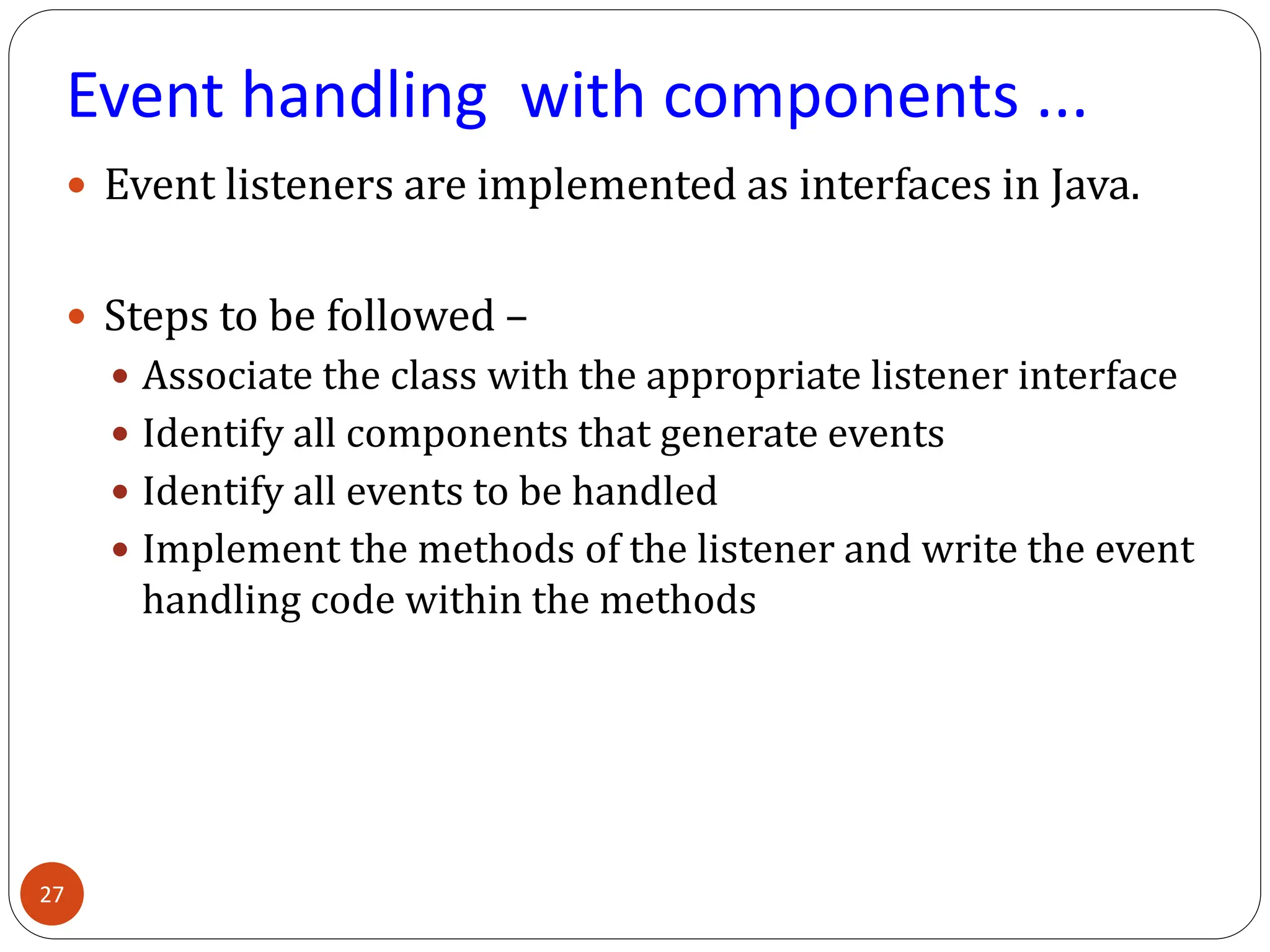
 Event listeners are implemented as interfaces in Java.
 Steps to be followed –
 Associate the class with the appropriate listener interface
 Identify all components that generate events
 Identify all events to be handled
 Implement the methods of the listener and write the event
handling code within the methods
27
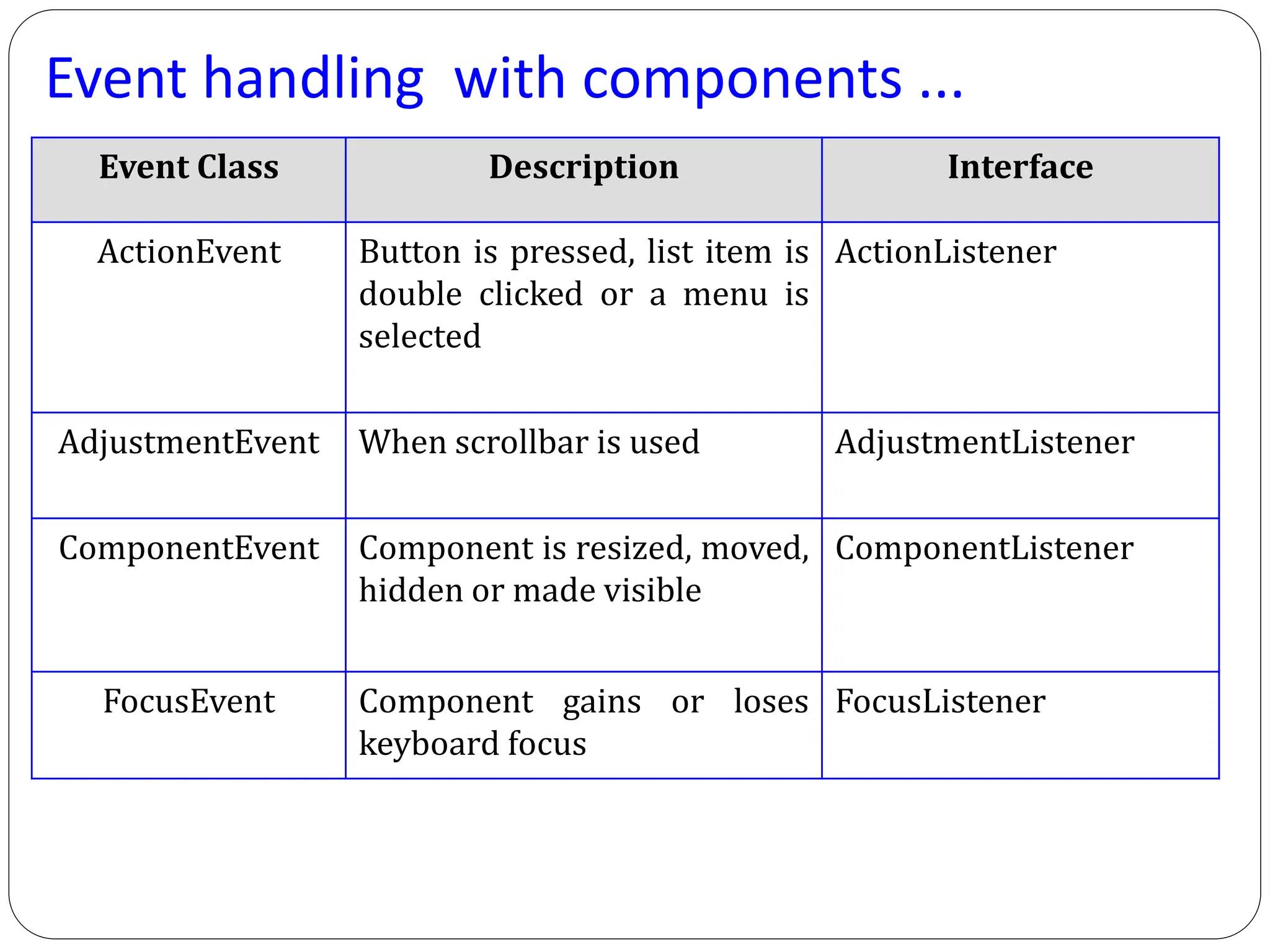
Event handling with components ...
Event Class Description Interface
ActionEvent Button is pressed, list item is
double clicked or a menu is
selected
ActionListener
AdjustmentEvent When scrollbar is used AdjustmentListener
ComponentEvent Component is resized, moved,
hidden or made visible
ComponentListener
FocusEvent Component gains or loses
keyboard focus
FocusListener
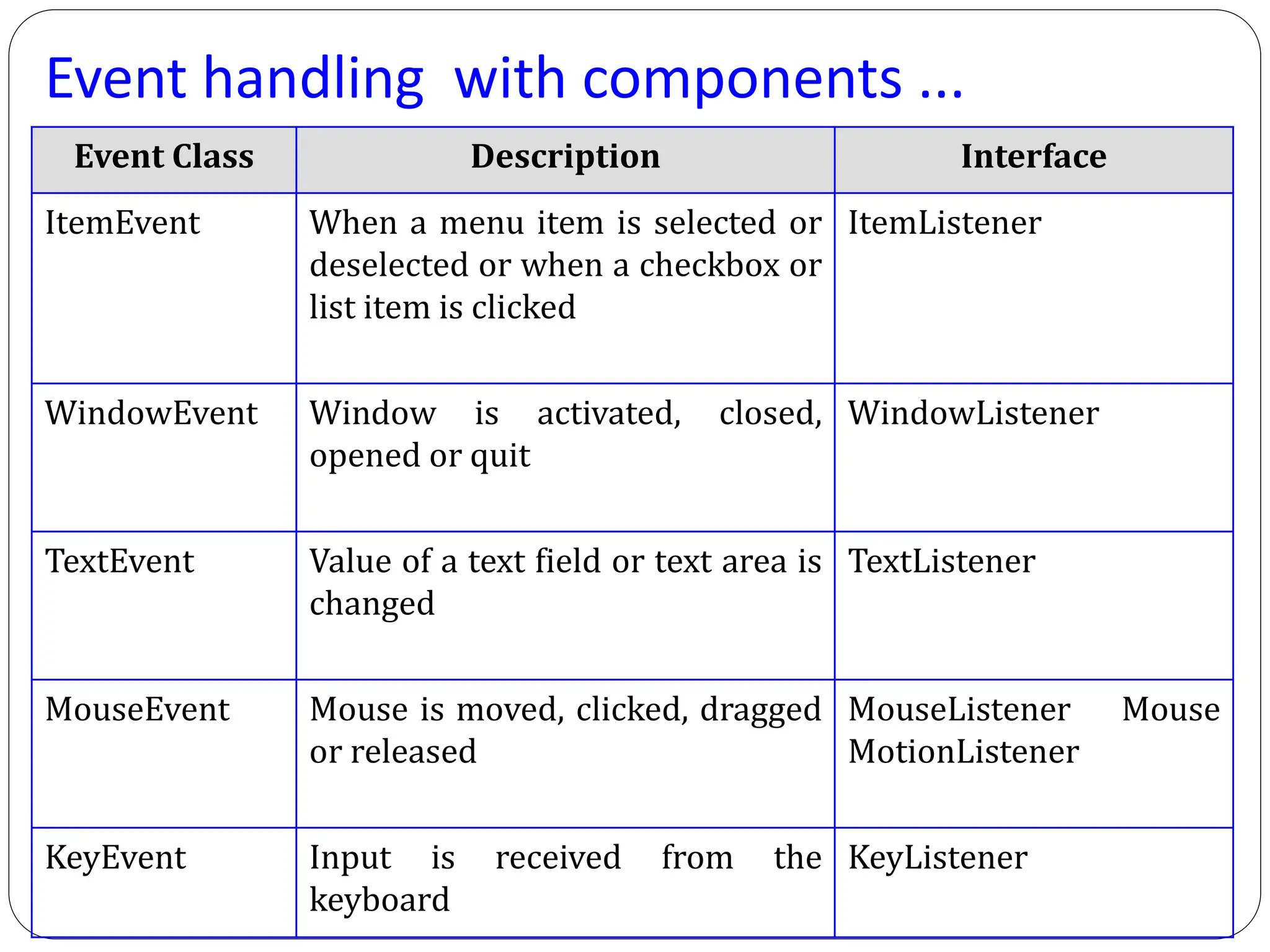
Event handling with components ...
Event Class Description Interface
ItemEvent When a menu item is selected or
deselected or when a checkbox or
list item is clicked
ItemListener
WindowEvent Window is activated, closed,
opened or quit
WindowListener
TextEvent Value of a text field or text area is
changed
TextListener
MouseEvent Mouse is moved, clicked, dragged
or released
MouseListener Mouse
MotionListener
KeyEvent Input is received from the
keyboard
KeyListener

AWT (Abstract Window Toolkit) Controls.pdf

  • 1.
    AWT - AbstractWindowing Toolkit 1
  • 2.
    Objectives  Describe AbstractWindowing Toolkit (AWT)  Discuss Containers and Components  Frame  Panel  Label  TextFields and TextAreas  Checkboxes and RadioButtons  Choice  Identify events generated by components  Create a standalone AWT application 2
  • 3.
    1. Introduction  Ason date, software applications have become user-friendlier because of introducing graphics in user interfaces.  These make the language richer in terms of creating graphical objects that can be controlled by the developer as well as the user.  One of the most important outcomes of this is that languages have happened to be GUI based. 3
  • 4.
    2. Abstract WindowingToolkit  Graphical User Interface (GUI) is used to accept input through a keyboard or a mouse.  Abstract Windowing Toolkit (AWT) is a set of Java classes that allow us to create a GUI.  AWT provides items which enable creation of an attractive and efficient GUI. 4
  • 5.
    3. Hierarchy ofclasses in Java Component Button Checkbox Container Choice Canvas TextComponent Label Panel Window Applet Frame Dialog TextArea TextField 5
  • 6.
    3.1 Containers  Anarea that can hold elements.  It can be drawn or painted.  Container class in the java.awt package directly or indirectly derives two commonly used containers – Frame and Panel.  Frame is a separate window and has borders.  Panel is an area without borders and is contained within a window. 6
  • 7.
    3.1 Containers -Frame  A window that is independent of an applet and of the browser.  Can be a component or a container.  Can be created using constructors  Some of these constructors are:  Frame()  Creates a Frame which is invisible  Frame(String Title)  Creates an invisible Frame with given title 7
  • 8.
    3.1 Containers –Frame Example Output 8
  • 9.
    3.2 Panel  Usedto group a number of components together.  Simplest way to create a panel is through its constructor Panel( ).  A panel has to be added to a frame.  The frame will be visible only when the two methods – setSize( ) and setVisible( ) are set. 9
  • 10.
  • 11.
    3.3 Component  Anythingthat can be placed on a user interface and can be made visible or resized.  Examples include textfields, labels, checkboxes, textareas etc.  Some advanced components include scrollbars, scrollpanes and dialogs. 11
  • 12.
    4. Various components LabelText field Checkbox Radio button Button Text Area 12
  • 13.
    4.1 Label  Generallyused to indicate the purpose of an item.  Not user-editable .  Can be created using one of the following constructors:  Label( ) Creates an empty label  Label(String labeltext) Creates a label with a given text  Label(String labeltext, int alignment) Creates a label with given alignment where alignment can be Label.LEFT, Label.RIGHT or Label.CENTER 13
  • 14.
    4.2 Textfield  GUIelement used to input text.  Generally accepts one line of input.  Can be created using one of the following constructors:  Textfield() Creates a new textfield  Textfield(int columns) Creates a new textfield with given number of columns  Textfield(String s) Creates a new textfield with the given string  Textfield(String s, int columns) Creates a new textfield with given string and given number of columns 14
  • 15.
  • 16.
    4.3 TextArea  Usedwhen text is to be accepted has two or more lines.  Includes a scrollbar.  TextArea can be created using some of the following constructors given below:  TextArea( ) Creates a new TextArea  TextArea(int rows, int cols) Creates a new TextArea with given number of rows and columns  TextArea(String text, int rows, int cols) Creates a new TextArea with given string, given number of rows and columns 16
  • 17.
  • 18.
    4.4 Button  Partof GUI.  The easiest way to trap user action.  Can create buttons in Java using any of the following constructors.  Button() Creates a new Button.  Button(String text) Creates a new Button with the given String 18
  • 19.
  • 20.
    4.5 Checkbox  Usedfor multi-option user input that the user may select or deselect by clicking them.  Checkboxes in Java can be created using constructors.  Some of these constructors are:  Checkbox() Creates an empty textbox  Checkbox(String text) Creates a checkbox with given string as label 20
  • 21.
  • 22.
    4.6 Radiobuttons  Usedas option button to specify choices.  Only one button in a radiobutton group can be selected.  First create a CheckboxGroup object  CheckboxGroup cg=new CheckboxGroup();  Then create each of the radio buttons  Checkbox male=Checkbox(“male”,cg,true);  Checkbox female=Checkbox(“female”,cg,false); 22
  • 23.
  • 24.
    4.7 Lists  Displaysa list of choices to the user.  User may select one or more items.  Created using a number of strings or text values.  Choice class enables us to create multiple item lists  Choice moviestars=new Choice();  Add items using the addItem() method  moviestars.addItem(“Antonio Banderas”);  moviestars.addItem(“Leonardo Dicaprio”); 24
  • 25.
  • 26.
    Event handling withcomponents  An event is generated whenever a user clicks a mouse, presses or releases a key.  Event Delegation Model is used to handle events.  This process allows the program to register handlers called ‘listeners’ with objects whose events need to be captured.  Handlers are automatically called when an event takes place. 26
  • 27.
    Event handling withcomponents ...  Event listeners are implemented as interfaces in Java.  Steps to be followed –  Associate the class with the appropriate listener interface  Identify all components that generate events  Identify all events to be handled  Implement the methods of the listener and write the event handling code within the methods 27
  • 28.
    Event handling withcomponents ... Event Class Description Interface ActionEvent Button is pressed, list item is double clicked or a menu is selected ActionListener AdjustmentEvent When scrollbar is used AdjustmentListener ComponentEvent Component is resized, moved, hidden or made visible ComponentListener FocusEvent Component gains or loses keyboard focus FocusListener
  • 29.
    Event handling withcomponents ... Event Class Description Interface ItemEvent When a menu item is selected or deselected or when a checkbox or list item is clicked ItemListener WindowEvent Window is activated, closed, opened or quit WindowListener TextEvent Value of a text field or text area is changed TextListener MouseEvent Mouse is moved, clicked, dragged or released MouseListener Mouse MotionListener KeyEvent Input is received from the keyboard KeyListener