AWS SSM
Simple System Management
Managing Windows instances in the Cloud
Sponsors
Presented by Adam Book
from
Find me on LinkedIn
News Recap 2014
Automatically join the server back to a domain so that
users can long in with usernames and passwords?
Have you ever wanted to:
{Easily}
Enable monitoring of logs and metrics on Windows
instances so that logs can be saved to CloudWatch Logs
Install an Application automatically at instance startup
without writing a Chef recipe or Puppet Manifest
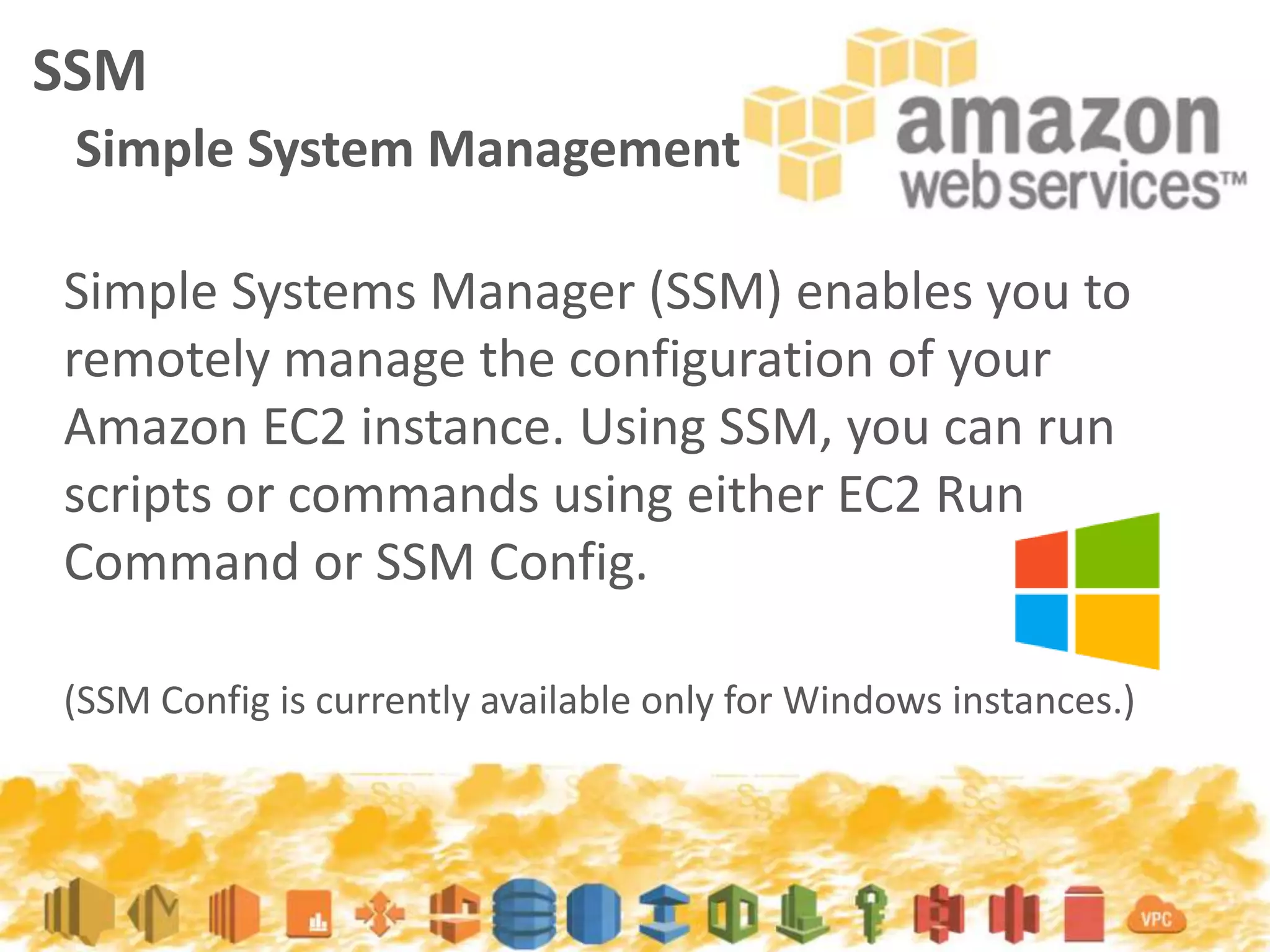
Simple Systems Manager (SSM) enables you to
remotely manage the configuration of your
Amazon EC2 instance. Using SSM, you can run
scripts or commands using either EC2 Run
Command or SSM Config.
(SSM Config is currently available only for Windows instances.)
SSM
Simple System Management
Is SSM really Simple?
Image by http://www.gratisography.com/
Yes
No
and
SSM – Commands
Command Description
AWS-JoinDirectoryServiceDomain Joins an AWS Directory
AWS-RunPowershellScript Runs PowerShell commands or scripts
AWS-UpdateEC2Config Updates the EC2Config service
AWS-InstallApplication Installs, repairs, or uninstalls software using
a MSI package
AWS-InstallPowershellModule Installs Powershell Modules
AWS-ConfigureCloudWatch Configures CloudWatch logs and can be
used to monitor applications and systems.
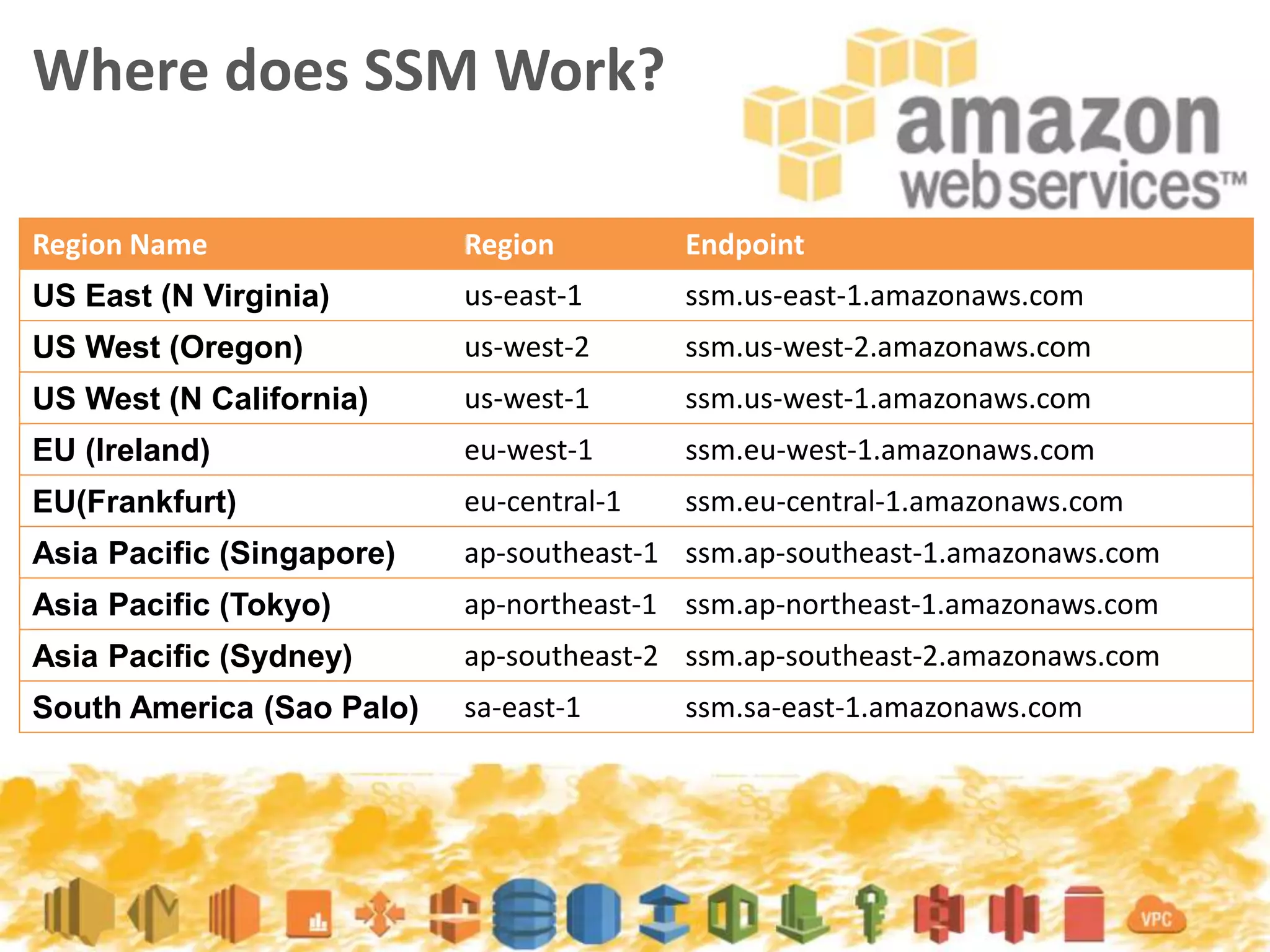
Where does SSM Work?
Region Name Region Endpoint
US East (N Virginia) us-east-1 ssm.us-east-1.amazonaws.com
US West (Oregon) us-west-2 ssm.us-west-2.amazonaws.com
US West (N California) us-west-1 ssm.us-west-1.amazonaws.com
EU (Ireland) eu-west-1 ssm.eu-west-1.amazonaws.com
EU(Frankfurt) eu-central-1 ssm.eu-central-1.amazonaws.com
Asia Pacific (Singapore) ap-southeast-1 ssm.ap-southeast-1.amazonaws.com
Asia Pacific (Tokyo) ap-northeast-1 ssm.ap-northeast-1.amazonaws.com
Asia Pacific (Sydney) ap-southeast-2 ssm.ap-southeast-2.amazonaws.com
South America (Sao Palo) sa-east-1 ssm.sa-east-1.amazonaws.com
IAM and SSM
For more info
http://docs.aws.amazon.com/AWSEC2/latest/UserGuide/ssm-iam.html
In order for SSM to have the permissions that it needs you will
need to attach an IAM Role to your instances with either one of
the managed policies below or a policy that has the correct SSM
permissions.
IAM and SSM
For more info
http://docs.aws.amazon.com/AWSEC2/latest/UserGuide/ssm-iam.html
In order for SSM to have the permissions that it needs you will
need to attach an IAM Role to your instances with either one of
the managed policies below or a policy that has the correct SSM
permissions.
IAM and SSM
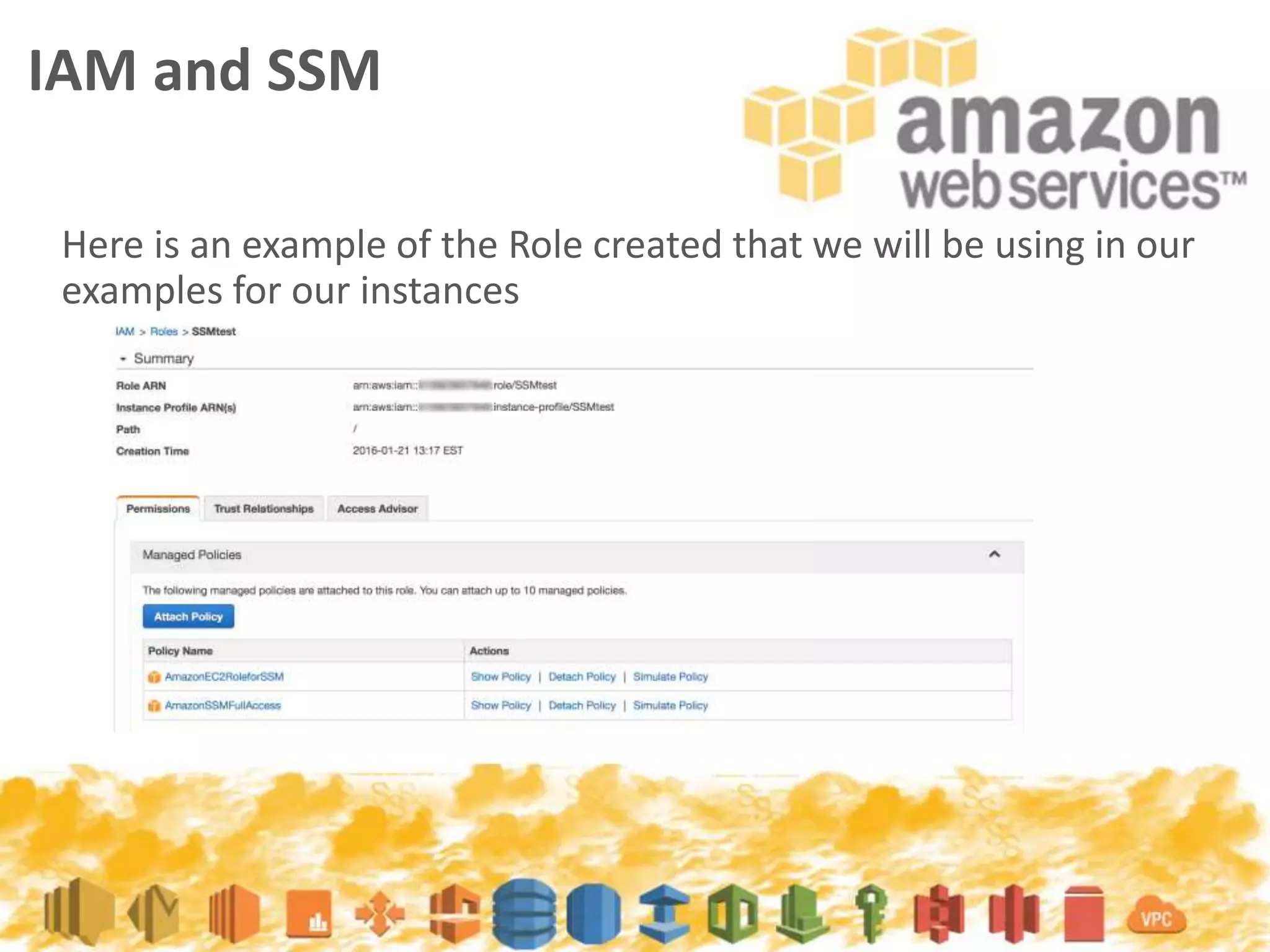
Here is an example of the Role created that we will be using in our
examples for our instances
When joining a domain using
SSM we will need to find out
some information about our
Directory so that we can create
the JSON document.
Joining a Domain
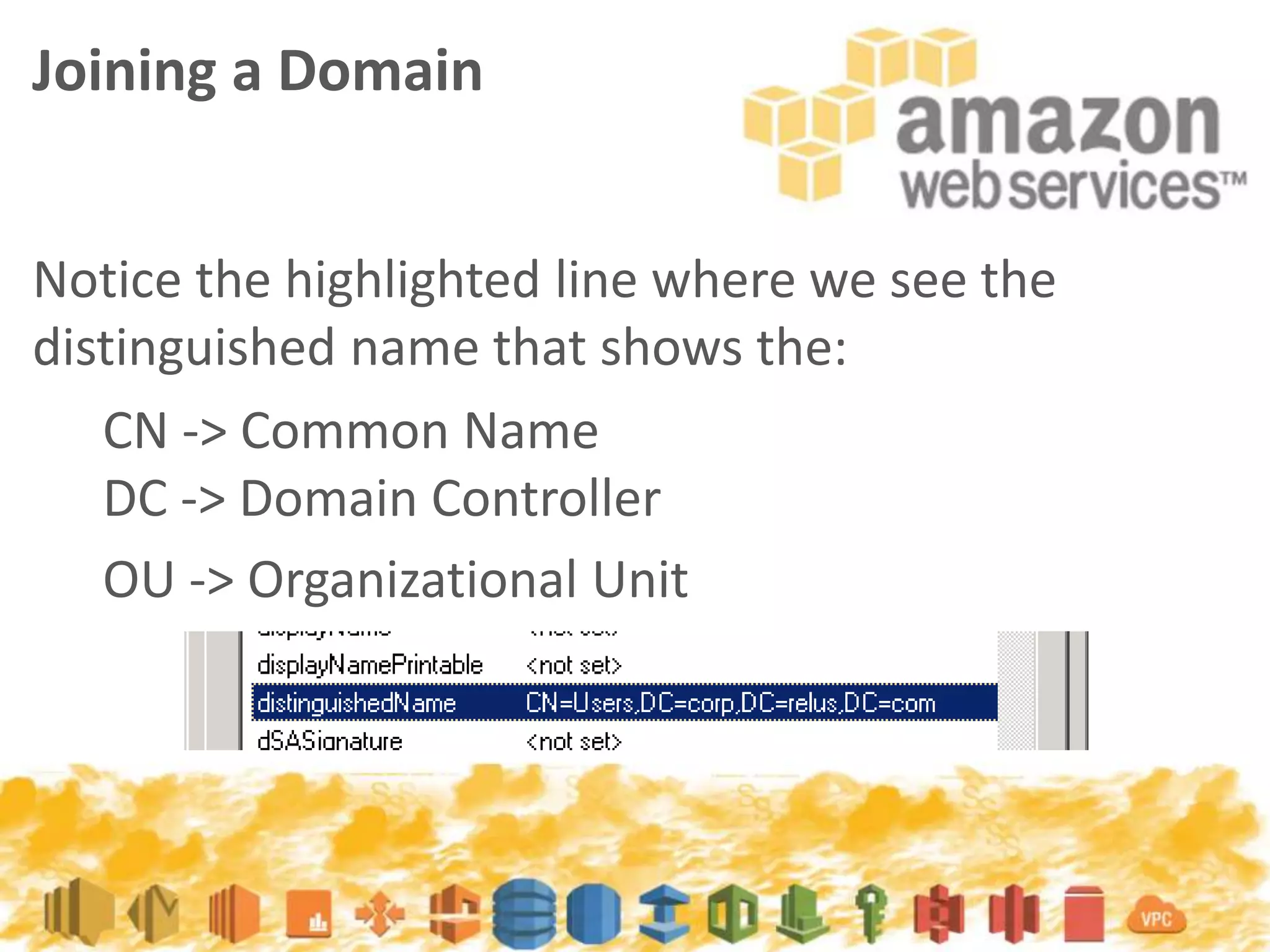
Notice the highlighted line where we see the
distinguished name that shows the:
Joining a Domain
CN -> Common Name
DC -> Domain Controller
OU -> Organizational Unit
{
"schemaVersion": "1.0",
"description": "Sample configuration to join an instance to a
domain",
"runtimeConfig": {
"aws:domainJoin": {
"properties": {
"directoryId": "d-1234567890",
"directoryName": "test.example.com",
"directoryOU": "OU=test,DC=example,DC=com",
"dnsIpAddresses": [
"198.51.100.1",
"198.51.100.2"
]
}
}
}
}
Joining a Domain
Creating the Document
Using the AWS CLI you can create the document
once for reuse in your SSM endeavors
(we’ll save our json from before as test-domain.json )
SSM
Creating the Document
Using the AWS CLI you can create the document
once for reuse in your SSM endeavors
(we’ll save our json from before as test-domain.json )
SSM
Creating the Document
$ aws ssm create-document –content file://test_domain.json --name
“Test_Domain” --region eu-west-1
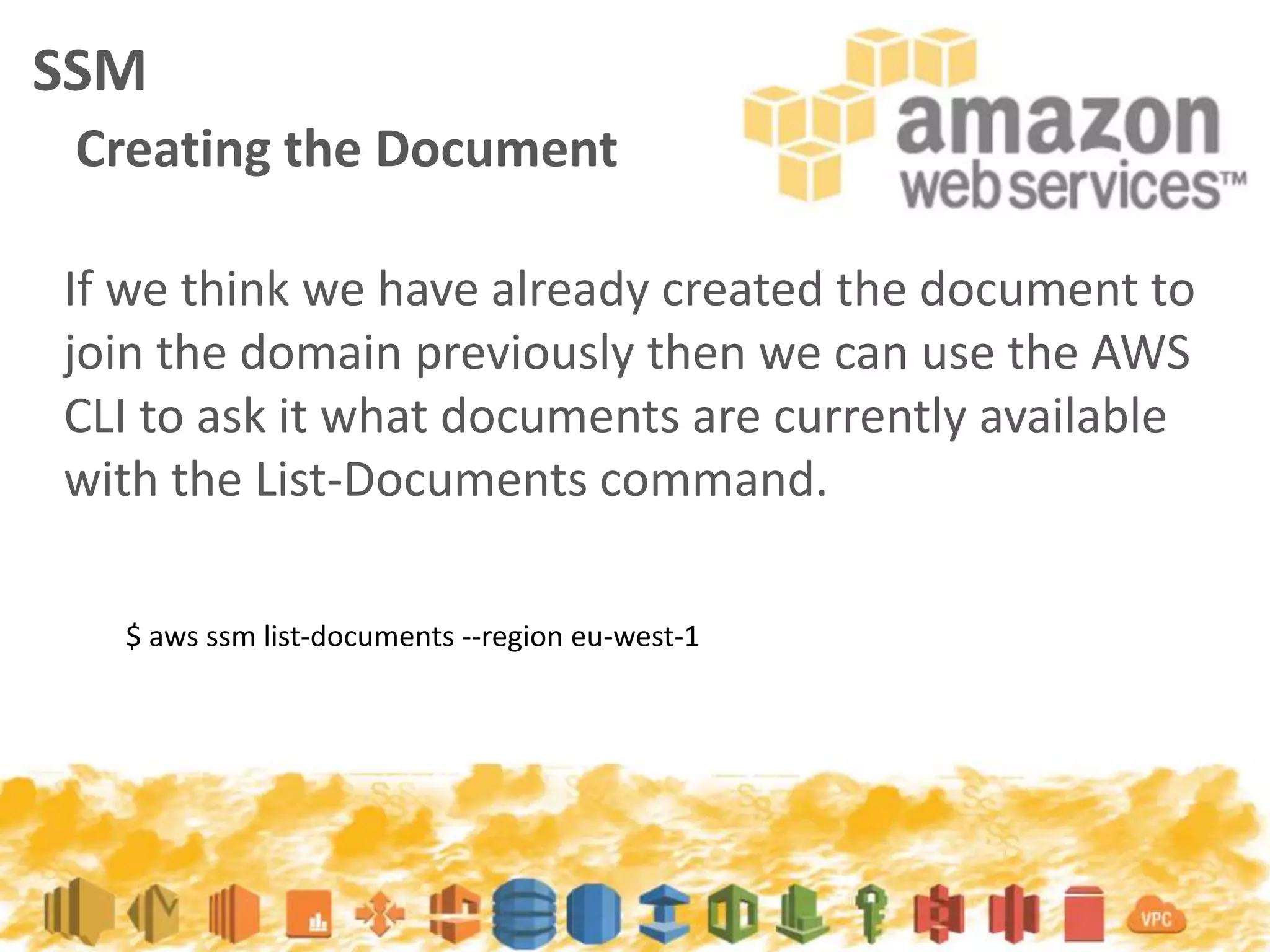
If we think we have already created the document to
join the domain previously then we can use the AWS
CLI to ask it what documents are currently available
with the List-Documents command.
SSM
Creating the Document
$ aws ssm list-documents --region eu-west-1
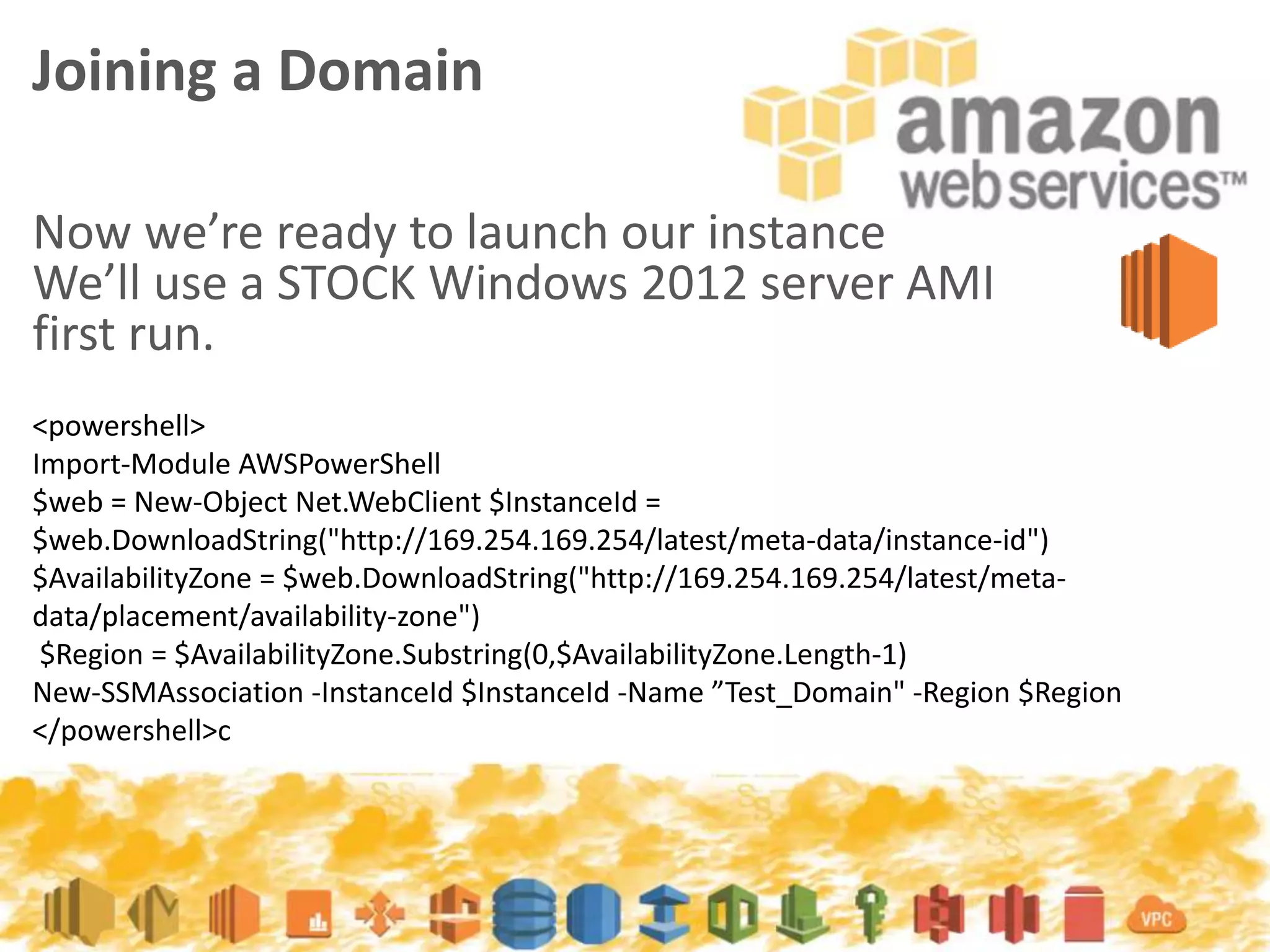
Now we’re ready to launch our instance
We’ll use a STOCK Windows 2012 server AMI
first run.
Joining a Domain
<powershell>
Import-Module AWSPowerShell
$web = New-Object Net.WebClient $InstanceId =
$web.DownloadString("http://169.254.169.254/latest/meta-data/instance-id")
$AvailabilityZone = $web.DownloadString("http://169.254.169.254/latest/meta-
data/placement/availability-zone")
$Region = $AvailabilityZone.Substring(0,$AvailabilityZone.Length-1)
New-SSMAssociation -InstanceId $InstanceId -Name ”Test_Domain" -Region $Region
</powershell>c
Joining a Domain
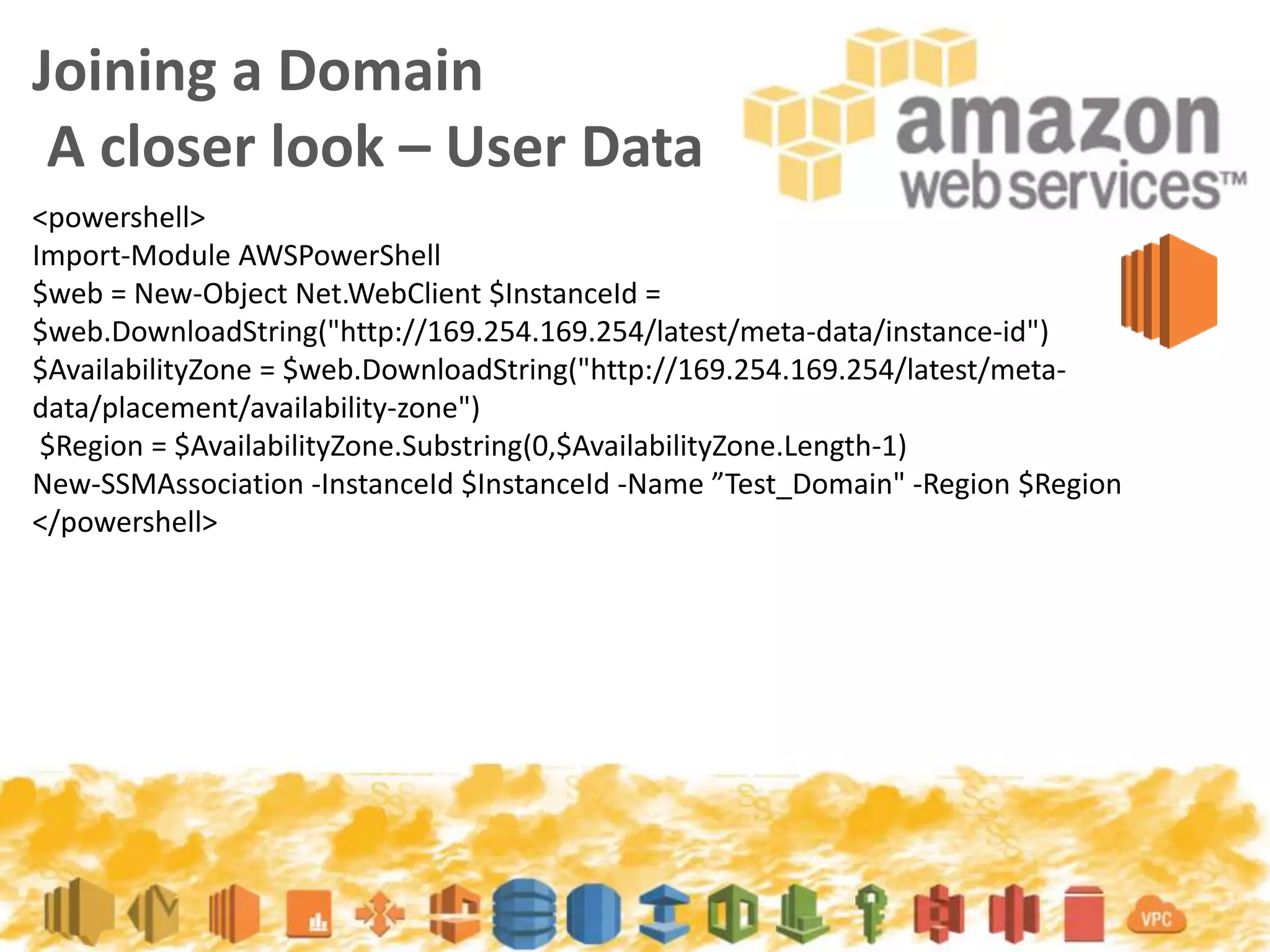
A closer look – User Data
<powershell>
Import-Module AWSPowerShell
$web = New-Object Net.WebClient $InstanceId =
$web.DownloadString("http://169.254.169.254/latest/meta-data/instance-id")
$AvailabilityZone = $web.DownloadString("http://169.254.169.254/latest/meta-
data/placement/availability-zone")
$Region = $AvailabilityZone.Substring(0,$AvailabilityZone.Length-1)
New-SSMAssociation -InstanceId $InstanceId -Name ”Test_Domain" -Region $Region
</powershell>
By using the
EC2 system log
we can see the
progress of the
SSM and the
Domain Join
Joining a Domain
How can we tell it joined?
Joining a Domain
How can we tell it joined?
SSM
Demo Time
Photo curtesy
of Stephen Radford via
http://snap.io
What happens when you don’t
have a domain
One of the easiest solutions is to use the Simple
AD service from AWS and create a *.local domain
to add your users
Joining a Domain
What happens when you don’t
have a domain
One of the easiest solutions is to use the Simple
AD service from AWS and create a *.local domain
to add your users
Joining a Domain
mycorp.local
From the Simple AD service:
Click on your directory id -> And you should see a
details screen like the one below
Finding your DNS on
AWS Simple AD
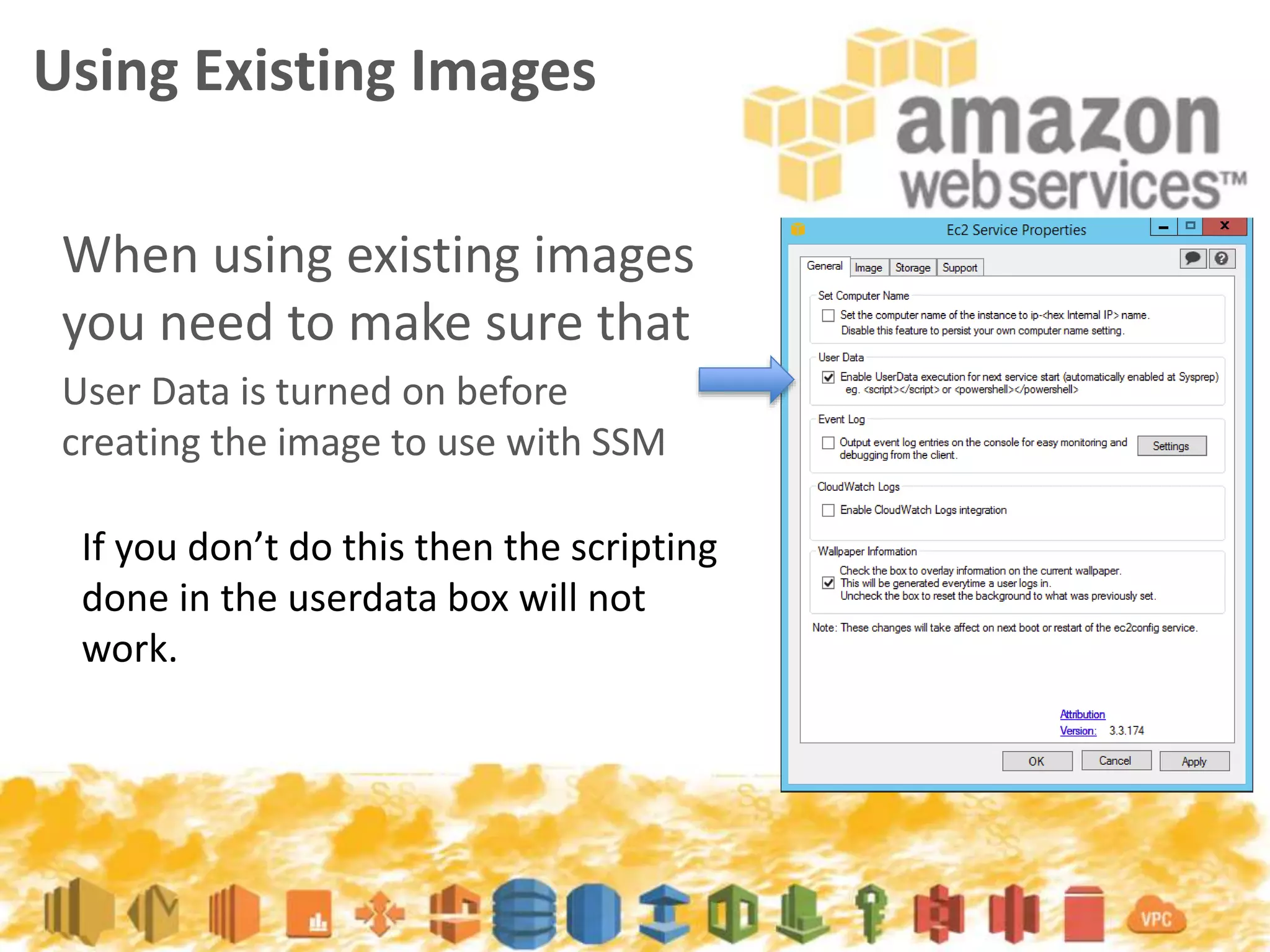
When using existing images
you need to make sure that
User Data is turned on before
creating the image to use with SSM
Using Existing Images
If you don’t do this then the scripting
done in the userdata box will not
work.
The Role of sysprep
For more info
http://docs.aws.amazon.com/AWSEC2/latest/WindowsGuide/ami-create-standard.html
1) Generalize
2) Specialize
3) Creates an Out-of-Box Experience
The Role of sysprep
Generalize
For more info
http://docs.aws.amazon.com/AWSEC2/latest/WindowsGuide/ami-create-standard.html
Generalize: The tool removes image-specific
information and configurations. For example,
Sysprep removes the security identifier (SID), the
computer name, the event logs, and specific drivers,
to name a few. After this phase is completed, the
operating system (OS) is ready to create an AMI.
The Role of sysprep
Specialize
For more info
http://docs.aws.amazon.com/AWSEC2/latest/WindowsGuide/ami-create-standard.html
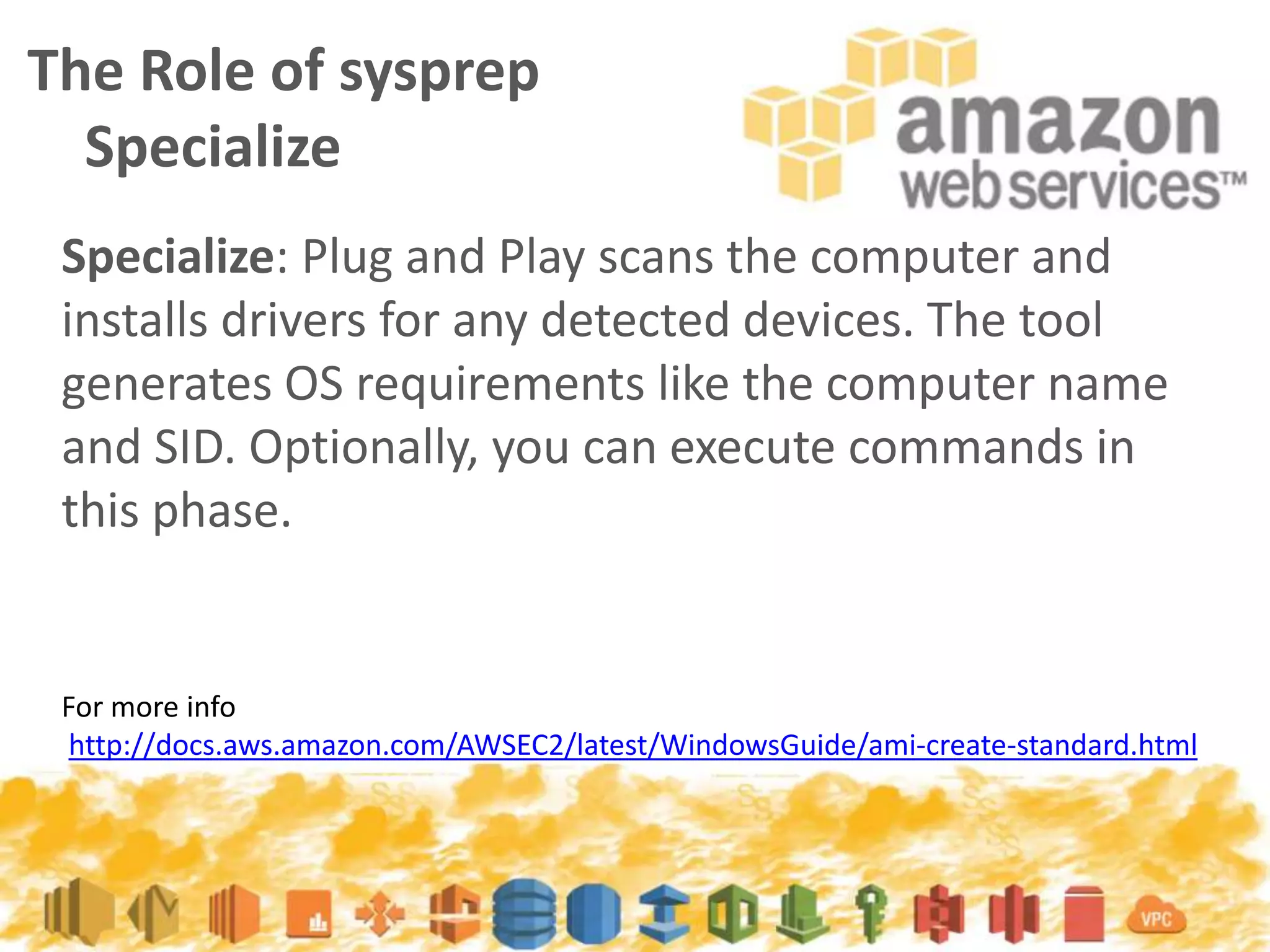
Specialize: Plug and Play scans the computer and
installs drivers for any detected devices. The tool
generates OS requirements like the computer name
and SID. Optionally, you can execute commands in
this phase.
The Role of sysprep
Create an OOB Experience
For more info
http://docs.aws.amazon.com/AWSEC2/latest/WindowsGuide/ami-create-standard.html
Out-of-Box Experience (OOBE): The system runs an
abbreviated version of Windows Setup and asks the
user to enter information such as a system language,
the time zone, and a registered organization. When
you run Sysprep with EC2Config, the answer file
automates this phase.
Questions?
Image by http://www.gratisography.com/

Aws meetup ssm

  • 1.
    AWS SSM Simple SystemManagement Managing Windows instances in the Cloud
  • 2.
  • 3.
    Presented by AdamBook from Find me on LinkedIn News Recap 2014
  • 4.
    Automatically join theserver back to a domain so that users can long in with usernames and passwords? Have you ever wanted to: {Easily} Enable monitoring of logs and metrics on Windows instances so that logs can be saved to CloudWatch Logs Install an Application automatically at instance startup without writing a Chef recipe or Puppet Manifest
  • 5.
    Simple Systems Manager(SSM) enables you to remotely manage the configuration of your Amazon EC2 instance. Using SSM, you can run scripts or commands using either EC2 Run Command or SSM Config. (SSM Config is currently available only for Windows instances.) SSM Simple System Management
  • 6.
    Is SSM reallySimple? Image by http://www.gratisography.com/ Yes No and
  • 7.
    SSM – Commands CommandDescription AWS-JoinDirectoryServiceDomain Joins an AWS Directory AWS-RunPowershellScript Runs PowerShell commands or scripts AWS-UpdateEC2Config Updates the EC2Config service AWS-InstallApplication Installs, repairs, or uninstalls software using a MSI package AWS-InstallPowershellModule Installs Powershell Modules AWS-ConfigureCloudWatch Configures CloudWatch logs and can be used to monitor applications and systems.
  • 8.
    Where does SSMWork? Region Name Region Endpoint US East (N Virginia) us-east-1 ssm.us-east-1.amazonaws.com US West (Oregon) us-west-2 ssm.us-west-2.amazonaws.com US West (N California) us-west-1 ssm.us-west-1.amazonaws.com EU (Ireland) eu-west-1 ssm.eu-west-1.amazonaws.com EU(Frankfurt) eu-central-1 ssm.eu-central-1.amazonaws.com Asia Pacific (Singapore) ap-southeast-1 ssm.ap-southeast-1.amazonaws.com Asia Pacific (Tokyo) ap-northeast-1 ssm.ap-northeast-1.amazonaws.com Asia Pacific (Sydney) ap-southeast-2 ssm.ap-southeast-2.amazonaws.com South America (Sao Palo) sa-east-1 ssm.sa-east-1.amazonaws.com
  • 9.
    IAM and SSM Formore info http://docs.aws.amazon.com/AWSEC2/latest/UserGuide/ssm-iam.html In order for SSM to have the permissions that it needs you will need to attach an IAM Role to your instances with either one of the managed policies below or a policy that has the correct SSM permissions.
  • 10.
    IAM and SSM Formore info http://docs.aws.amazon.com/AWSEC2/latest/UserGuide/ssm-iam.html In order for SSM to have the permissions that it needs you will need to attach an IAM Role to your instances with either one of the managed policies below or a policy that has the correct SSM permissions.
  • 11.
    IAM and SSM Hereis an example of the Role created that we will be using in our examples for our instances
  • 12.
    When joining adomain using SSM we will need to find out some information about our Directory so that we can create the JSON document. Joining a Domain
  • 13.
    Notice the highlightedline where we see the distinguished name that shows the: Joining a Domain CN -> Common Name DC -> Domain Controller OU -> Organizational Unit
  • 14.
    { "schemaVersion": "1.0", "description": "Sampleconfiguration to join an instance to a domain", "runtimeConfig": { "aws:domainJoin": { "properties": { "directoryId": "d-1234567890", "directoryName": "test.example.com", "directoryOU": "OU=test,DC=example,DC=com", "dnsIpAddresses": [ "198.51.100.1", "198.51.100.2" ] } } } } Joining a Domain Creating the Document
  • 15.
    Using the AWSCLI you can create the document once for reuse in your SSM endeavors (we’ll save our json from before as test-domain.json ) SSM Creating the Document
  • 16.
    Using the AWSCLI you can create the document once for reuse in your SSM endeavors (we’ll save our json from before as test-domain.json ) SSM Creating the Document $ aws ssm create-document –content file://test_domain.json --name “Test_Domain” --region eu-west-1
  • 17.
    If we thinkwe have already created the document to join the domain previously then we can use the AWS CLI to ask it what documents are currently available with the List-Documents command. SSM Creating the Document $ aws ssm list-documents --region eu-west-1
  • 18.
    Now we’re readyto launch our instance We’ll use a STOCK Windows 2012 server AMI first run. Joining a Domain <powershell> Import-Module AWSPowerShell $web = New-Object Net.WebClient $InstanceId = $web.DownloadString("http://169.254.169.254/latest/meta-data/instance-id") $AvailabilityZone = $web.DownloadString("http://169.254.169.254/latest/meta- data/placement/availability-zone") $Region = $AvailabilityZone.Substring(0,$AvailabilityZone.Length-1) New-SSMAssociation -InstanceId $InstanceId -Name ”Test_Domain" -Region $Region </powershell>c
  • 19.
    Joining a Domain Acloser look – User Data <powershell> Import-Module AWSPowerShell $web = New-Object Net.WebClient $InstanceId = $web.DownloadString("http://169.254.169.254/latest/meta-data/instance-id") $AvailabilityZone = $web.DownloadString("http://169.254.169.254/latest/meta- data/placement/availability-zone") $Region = $AvailabilityZone.Substring(0,$AvailabilityZone.Length-1) New-SSMAssociation -InstanceId $InstanceId -Name ”Test_Domain" -Region $Region </powershell>
  • 20.
    By using the EC2system log we can see the progress of the SSM and the Domain Join Joining a Domain How can we tell it joined?
  • 21.
    Joining a Domain Howcan we tell it joined?
  • 22.
    SSM Demo Time Photo curtesy ofStephen Radford via http://snap.io
  • 23.
    What happens whenyou don’t have a domain One of the easiest solutions is to use the Simple AD service from AWS and create a *.local domain to add your users Joining a Domain
  • 24.
    What happens whenyou don’t have a domain One of the easiest solutions is to use the Simple AD service from AWS and create a *.local domain to add your users Joining a Domain mycorp.local
  • 25.
    From the SimpleAD service: Click on your directory id -> And you should see a details screen like the one below Finding your DNS on AWS Simple AD
  • 26.
    When using existingimages you need to make sure that User Data is turned on before creating the image to use with SSM Using Existing Images If you don’t do this then the scripting done in the userdata box will not work.
  • 27.
    The Role ofsysprep For more info http://docs.aws.amazon.com/AWSEC2/latest/WindowsGuide/ami-create-standard.html 1) Generalize 2) Specialize 3) Creates an Out-of-Box Experience
  • 28.
    The Role ofsysprep Generalize For more info http://docs.aws.amazon.com/AWSEC2/latest/WindowsGuide/ami-create-standard.html Generalize: The tool removes image-specific information and configurations. For example, Sysprep removes the security identifier (SID), the computer name, the event logs, and specific drivers, to name a few. After this phase is completed, the operating system (OS) is ready to create an AMI.
  • 29.
    The Role ofsysprep Specialize For more info http://docs.aws.amazon.com/AWSEC2/latest/WindowsGuide/ami-create-standard.html Specialize: Plug and Play scans the computer and installs drivers for any detected devices. The tool generates OS requirements like the computer name and SID. Optionally, you can execute commands in this phase.
  • 30.
    The Role ofsysprep Create an OOB Experience For more info http://docs.aws.amazon.com/AWSEC2/latest/WindowsGuide/ami-create-standard.html Out-of-Box Experience (OOBE): The system runs an abbreviated version of Windows Setup and asks the user to enter information such as a system language, the time zone, and a registered organization. When you run Sysprep with EC2Config, the answer file automates this phase.
  • 31.

Editor's Notes

  • #7 Let’s take a look at some of the commands that we can perform
  • #10 AWS already has managed policies for SSM to attached either to your users or Roles. These can be easily found by going to to policy section of IAM and then searching for SSM
  • #12 We’ve already created a Role for our instances to use called SSMTest This can be done by going into IAM and choose Roles -> Create Role for EC2 instances -> and then choose the SSM policies to attach to the new role. If you need help understanding Role creation come see me afterwards.
  • #15 The DNS server settings are important as well. These HAVE to be your AD / DNS servers. We’ll see in a moment where to find this on SimpleAD
  • #19 The first run is important, since in the first run of an instance the user data is configured to run. Subsequent runs after creating an AMI will be discussed later on. The powershell snippit goes in the ”Advanced” or User Data when launching the data
  • #20 The first run is important, since in the first run of an instance the user data is configured to run. Subsequent runs after creating an AMI will be discussed later on. The powershell snippit goes in the ”Advanced” or User Data when launching the data
  • #28 When creating an Image from a pre-existing image to join a domain, an important step is to shut down the system with Sysprep. This can be done either graphically from the EC2config screen or by using the CLI
  • #29 When creating an Image from a pre-existing image to join a domain, an important step is to shut down the system with Sysprep. This can be done either graphically from the EC2config screen or by using the CLI
  • #30 When creating an Image from a pre-existing image to join a domain, an important step is to shut down the system with Sysprep. This can be done either graphically from the EC2config screen or by using the CLI
  • #31 When creating an Image from a pre-existing image to join a domain, an important step is to shut down the system with Sysprep. This can be done either graphically from the EC2config screen or by using the CLI