Post Graduate Program
in Cloud
AWS Solution Architect: Associate
Level
Amazon Elastic Compute Cloud
Learning Objectives
Explain Amazon EC2 and its uses
Describe Amazon Machine Image (AMI)
Explain the difference between EBS and EFS
Describe the use of EBS snapshots
Describe the different instance pricing options
Illustrate Auto Scaling, FSx, and HPC
Evaluate the AWS recommended best practices for EC2
By the end of the lesson, you will be able to:
Introduction to Amazon EC2
Elastic Compute Cloud (EC2)
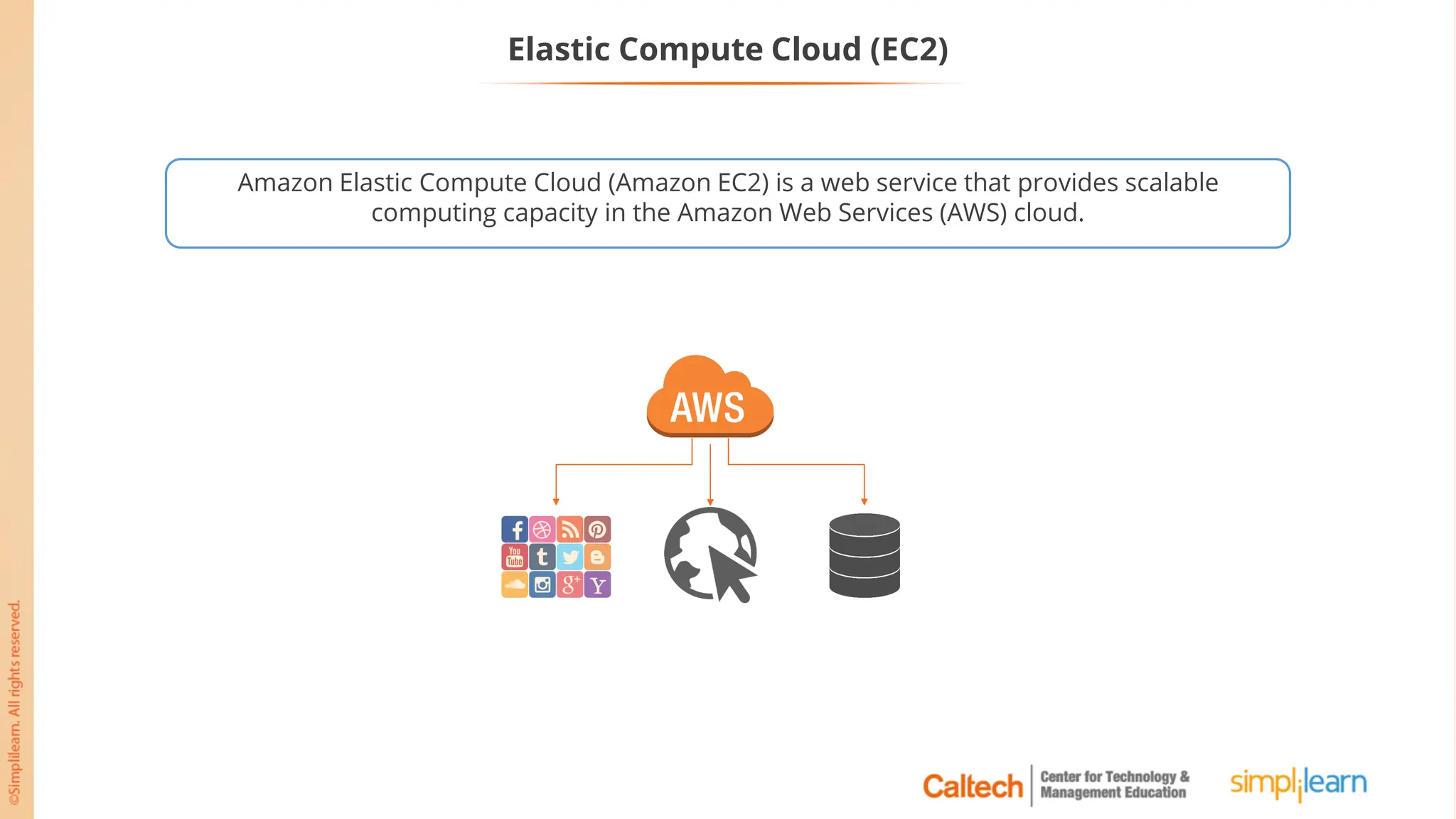
Amazon Elastic Compute Cloud (Amazon EC2) is a web service that provides scalable
computing capacity in the Amazon Web Services (AWS) cloud.
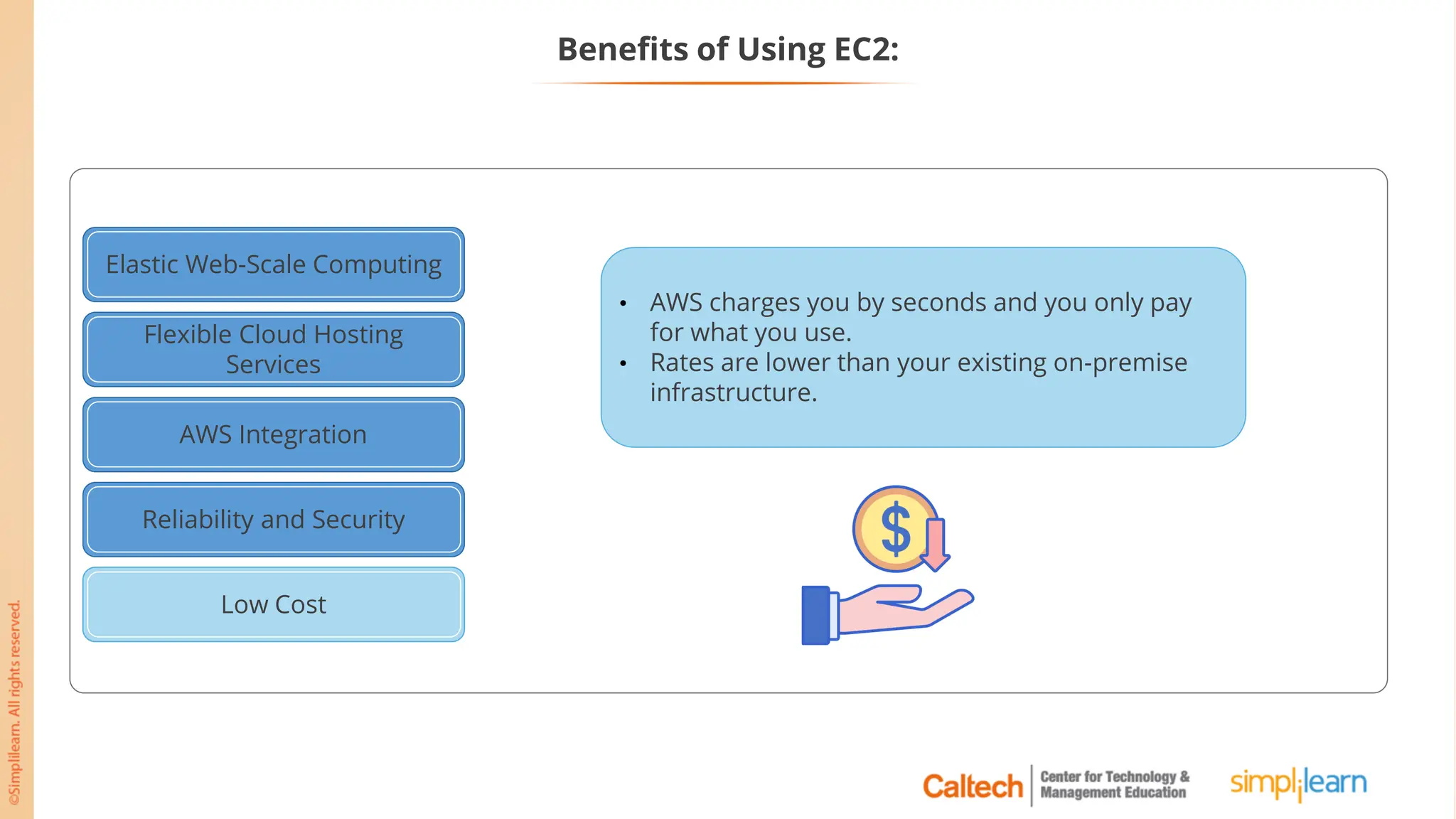
Benefits of Using EC2:
• EC2 increases or decreases your storage capacity
in minutes.
• It launches thousands of server instances
simultaneously.
Elastic Web-Scale Computing
Flexible Cloud Hosting
Services
AWS Integration
Reliability and Security
Low Cost
Flexible Cloud Hosting
Services
Elastic Web-Scale Computing
Flexible Cloud Hosting
Services
AWS Integration
Reliability and Security
Low Cost
Flexible Cloud Hosting
Services
EC2 launches numerous operating systems, instance
types, and software in just minutes.
Benefits of Using EC2:
Elastic Web-Scale Computing
Flexible Cloud Hosting
Services
AWS Integration
Reliability and Security
Low Cost
AWS Integration
EC2 is integrated with other AWS products such as
Amazon S3, Amazon RDS, and Amazon SQS, to
provide a complete IT architecture solution.
Benefits of Using EC2:
Elastic Web-Scale Computing
Flexible Cloud Hosting
Services
AWS Integration
Reliable and Secure
Low Cost
Reliability and Security
• AWS operates a Service Level Agreement (SLA)
commitment of 99.95% availability.
• With Amazon VPC, you can easily create secure
and robust networks to run your Amazon EC2
instances.
Benefits of Using EC2:
Elastic Web-Scale Computing
Flexible Cloud Hosting
Services
AWS Integration
Reliability and Security
Low Cost
Low Cost
• AWS charges you by seconds and you only pay
for what you use.
• Rates are lower than your existing on-premise
infrastructure.
Benefits of Using EC2:
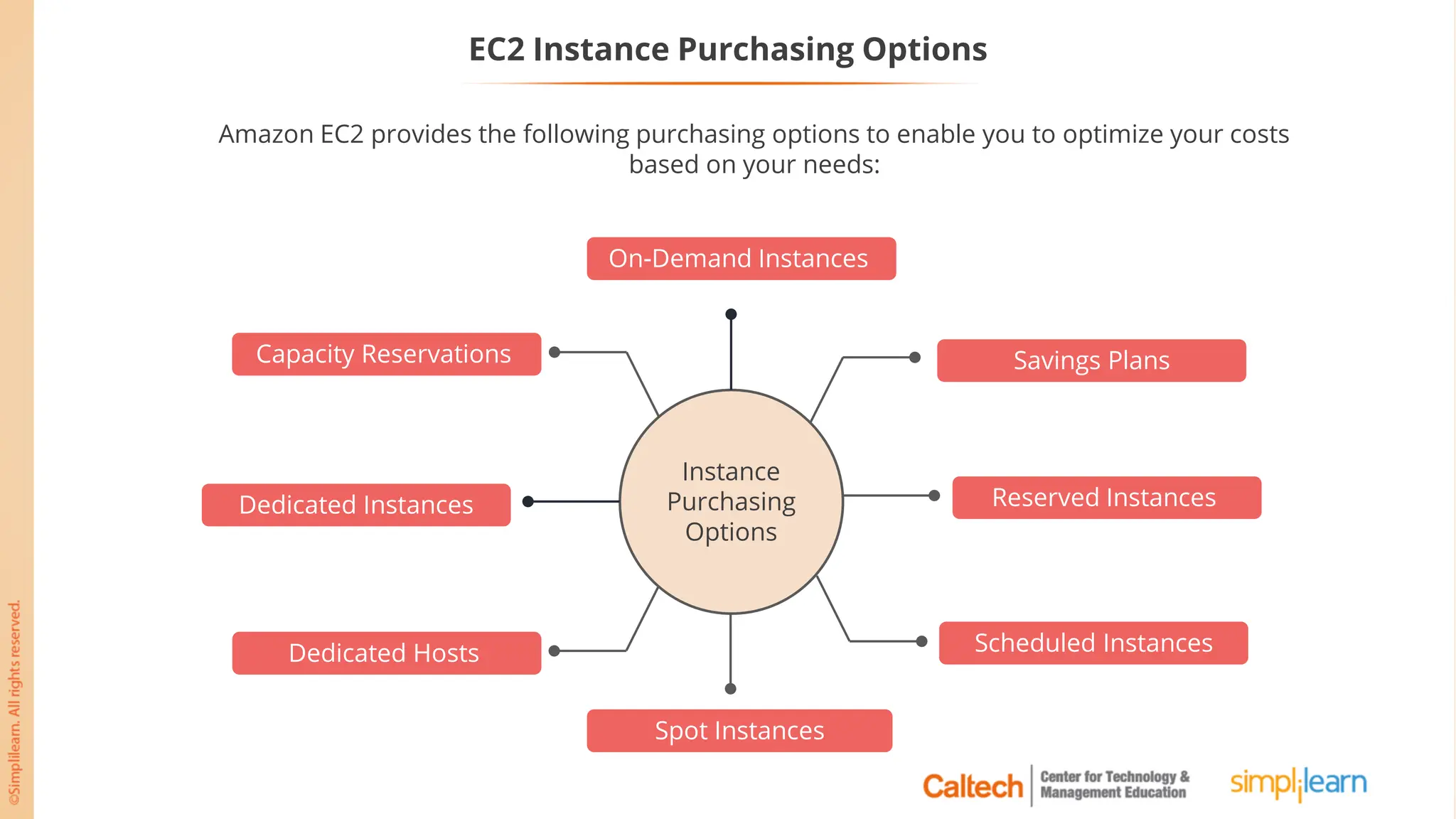
EC2 Instance Purchasing Options
Instance
Purchasing
Options
Capacity Reservations
Dedicated Instances
Dedicated Hosts
On-Demand Instances
Savings Plans
Reserved Instances
Scheduled Instances
Spot Instances
Amazon EC2 provides the following purchasing options to enable you to optimize your costs
based on your needs:
Amazon Machine Images (AMI)
Amazon Machine Image (AMI)
Amazon’s definition of an AMI:
“An Amazon Machine Image (AMI) provides the information
required to launch an instance. You specify an AMI when you
launch an instance, and you can launch as many instances
from as many different AMIs as you need.”
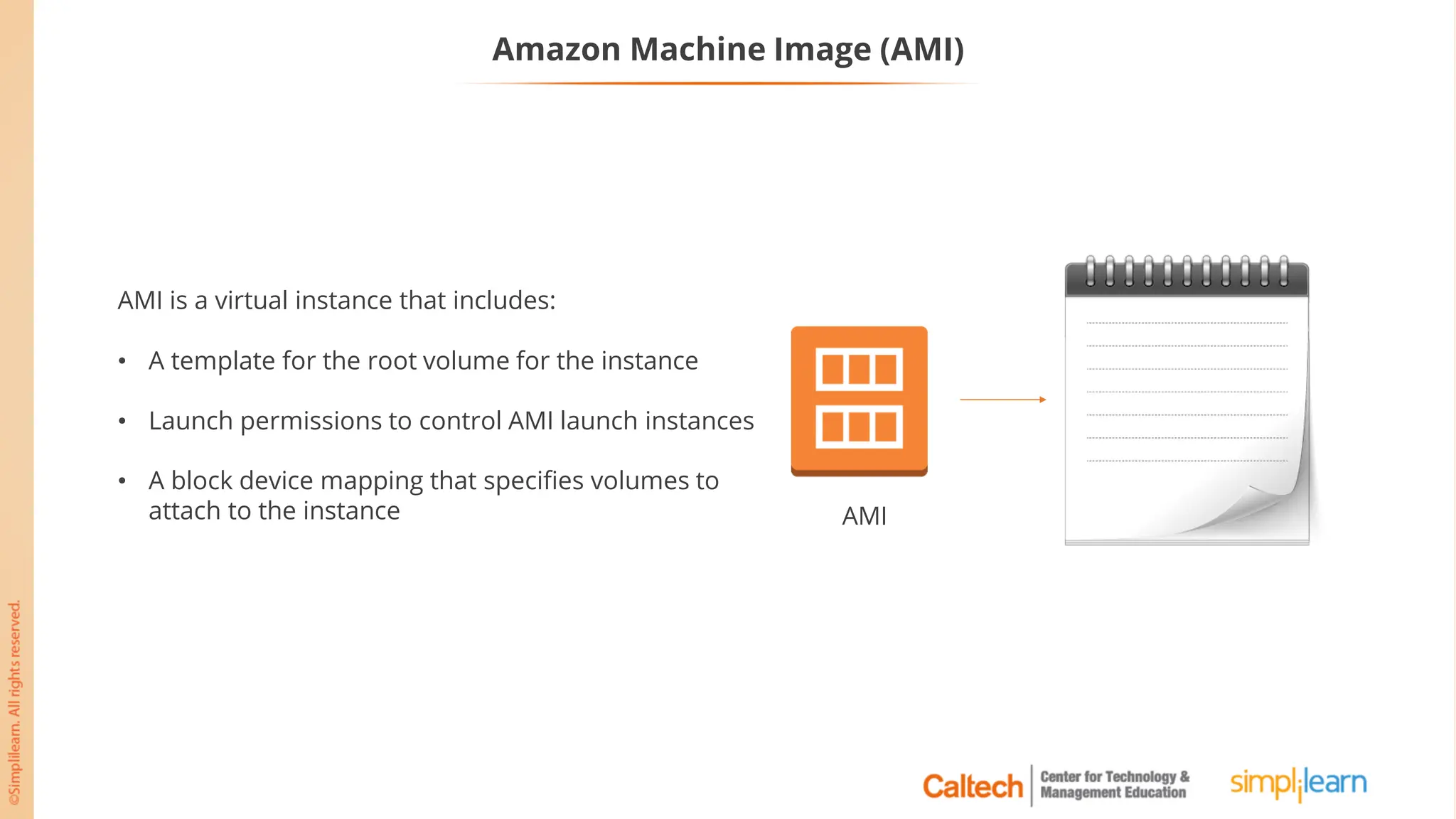
Amazon Machine Image (AMI)
AMI
AMI is a virtual instance that includes:
• A template for the root volume for the instance
• Launch permissions to control AMI launch instances
• A block device mapping that specifies volumes to
attach to the instance
Amazon Linux AMI
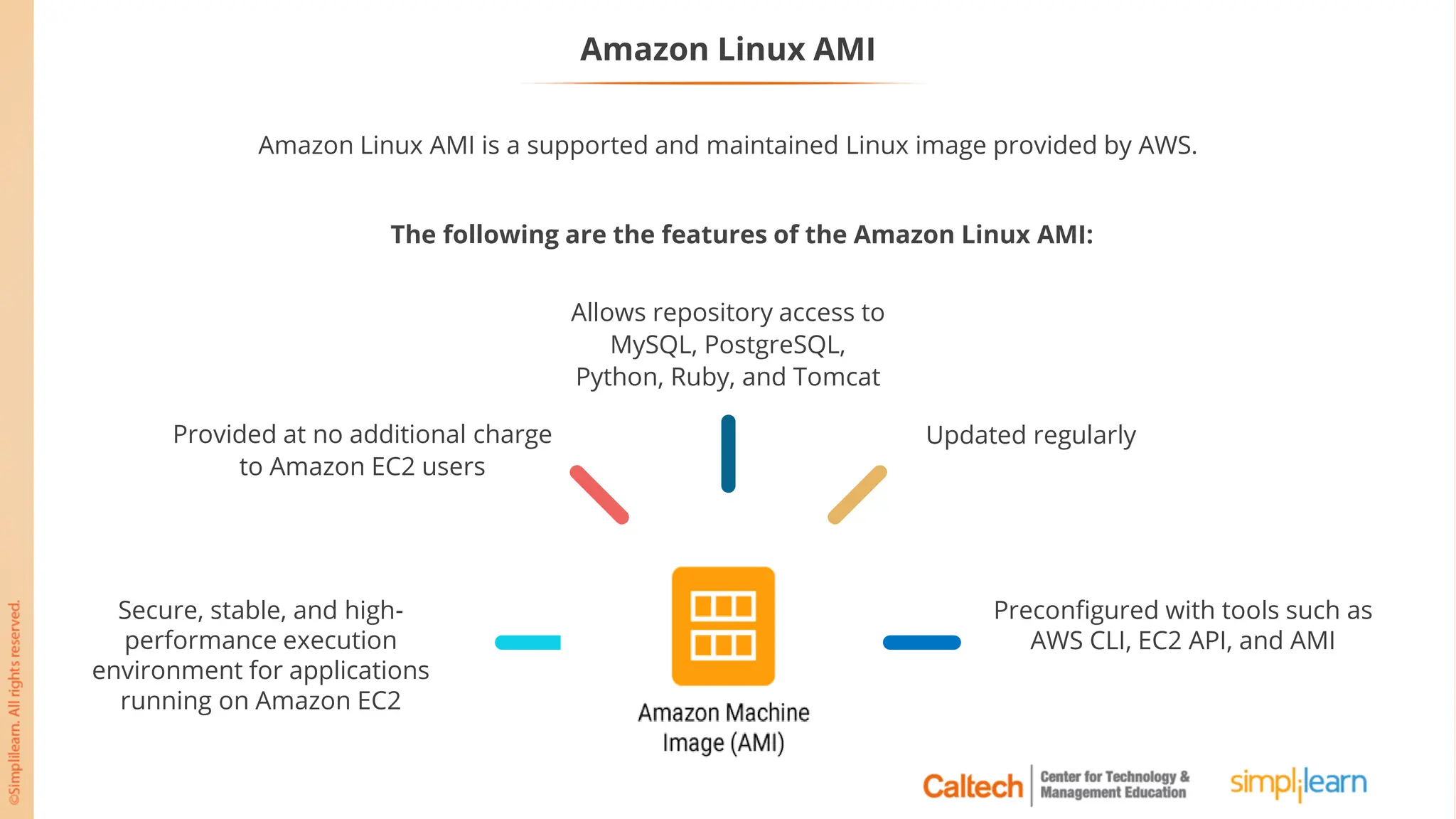
Amazon Linux AMI is a supported and maintained Linux image provided by AWS.
Preconfigured with tools such as
AWS CLI, EC2 API, and AMI
Updated regularly
Allows repository access to
MySQL, PostgreSQL,
Python, Ruby, and Tomcat
Provided at no additional charge
to Amazon EC2 users
Secure, stable, and high-
performance execution
environment for applications
running on Amazon EC2
The following are the features of the Amazon Linux AMI:
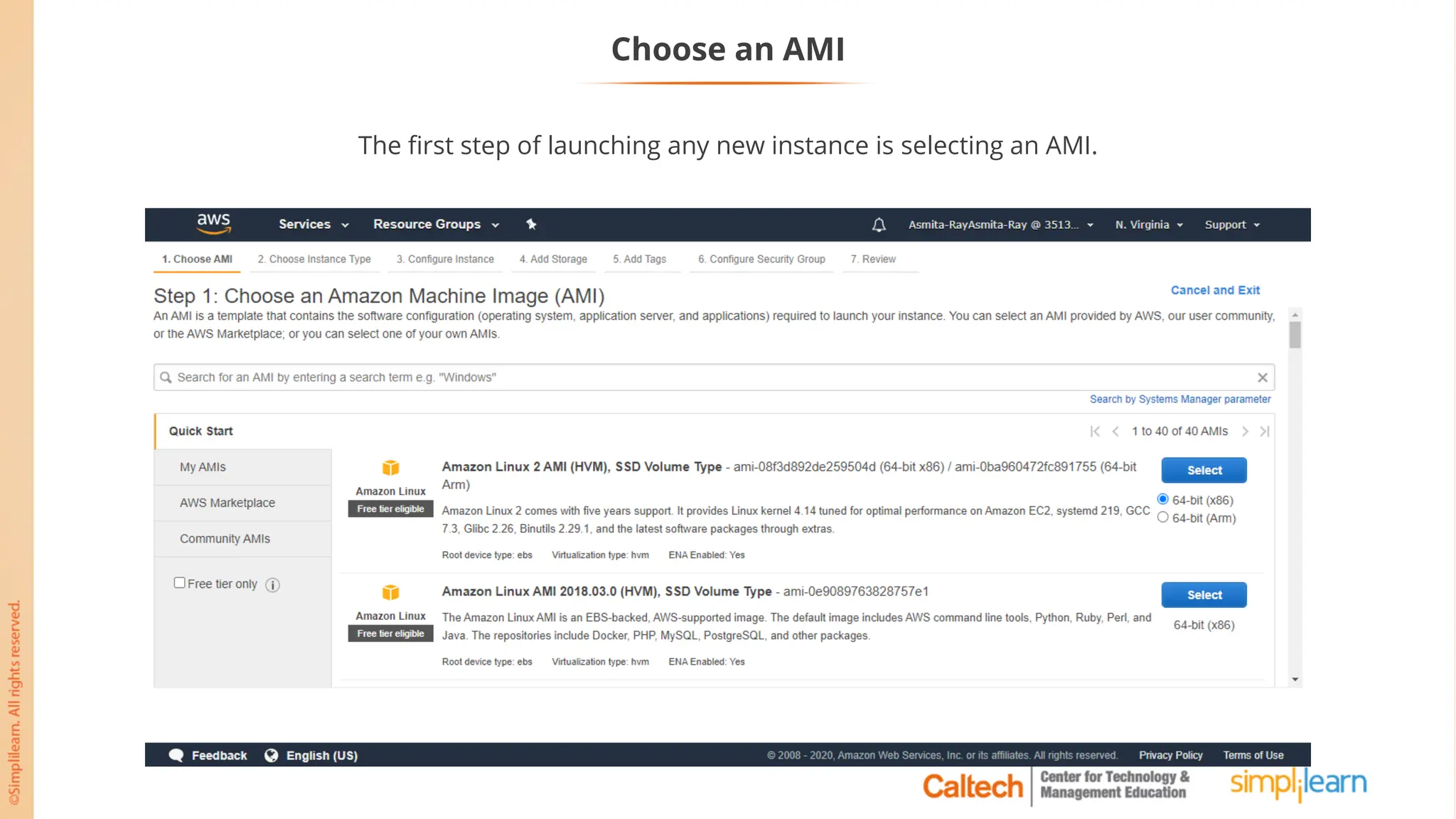
Choose an AMI
The first step of launching any new instance is selecting an AMI.
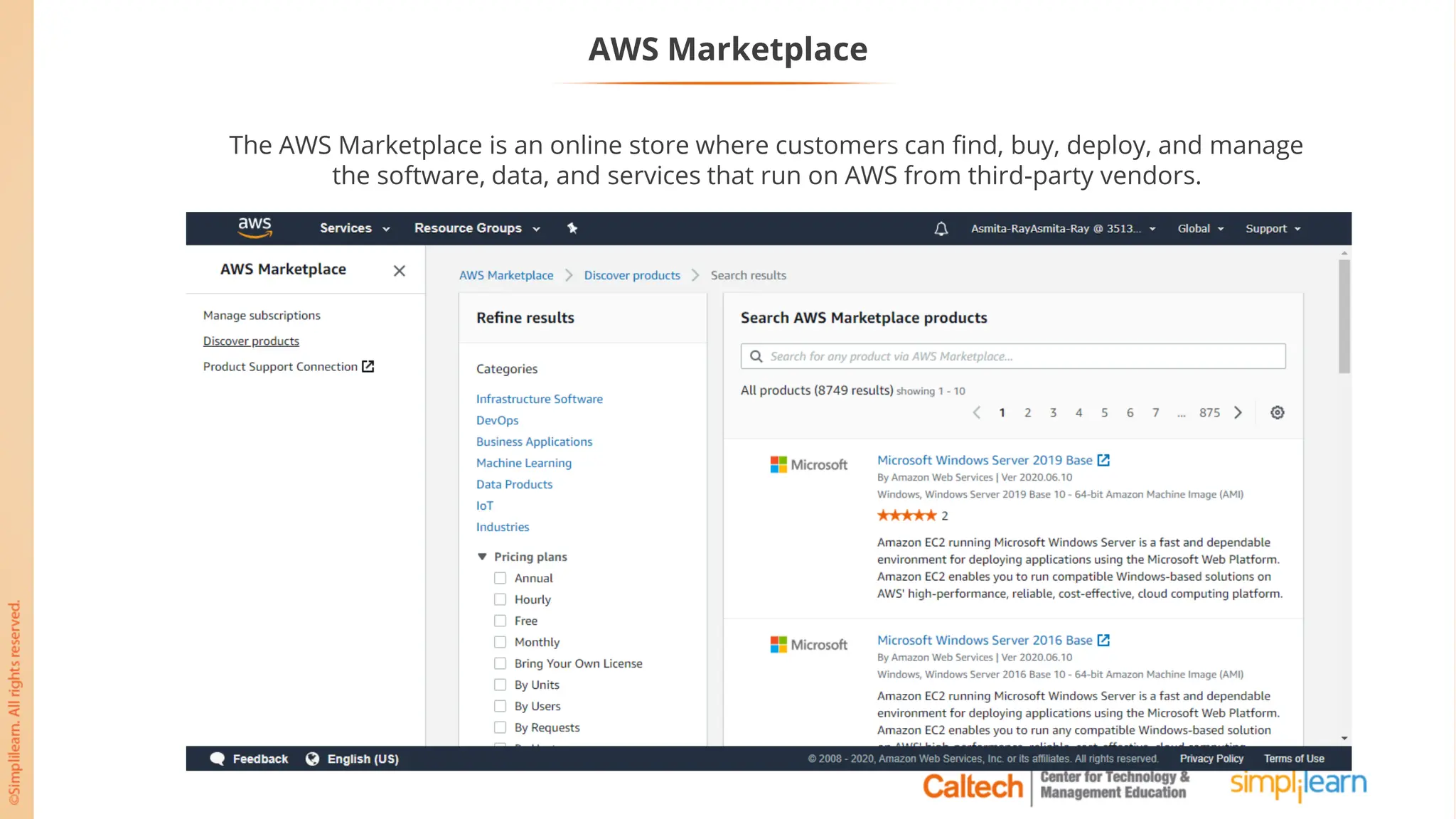
AWS Marketplace
The AWS Marketplace is an online store where customers can find, buy, deploy, and manage
the software, data, and services that run on AWS from third-party vendors.
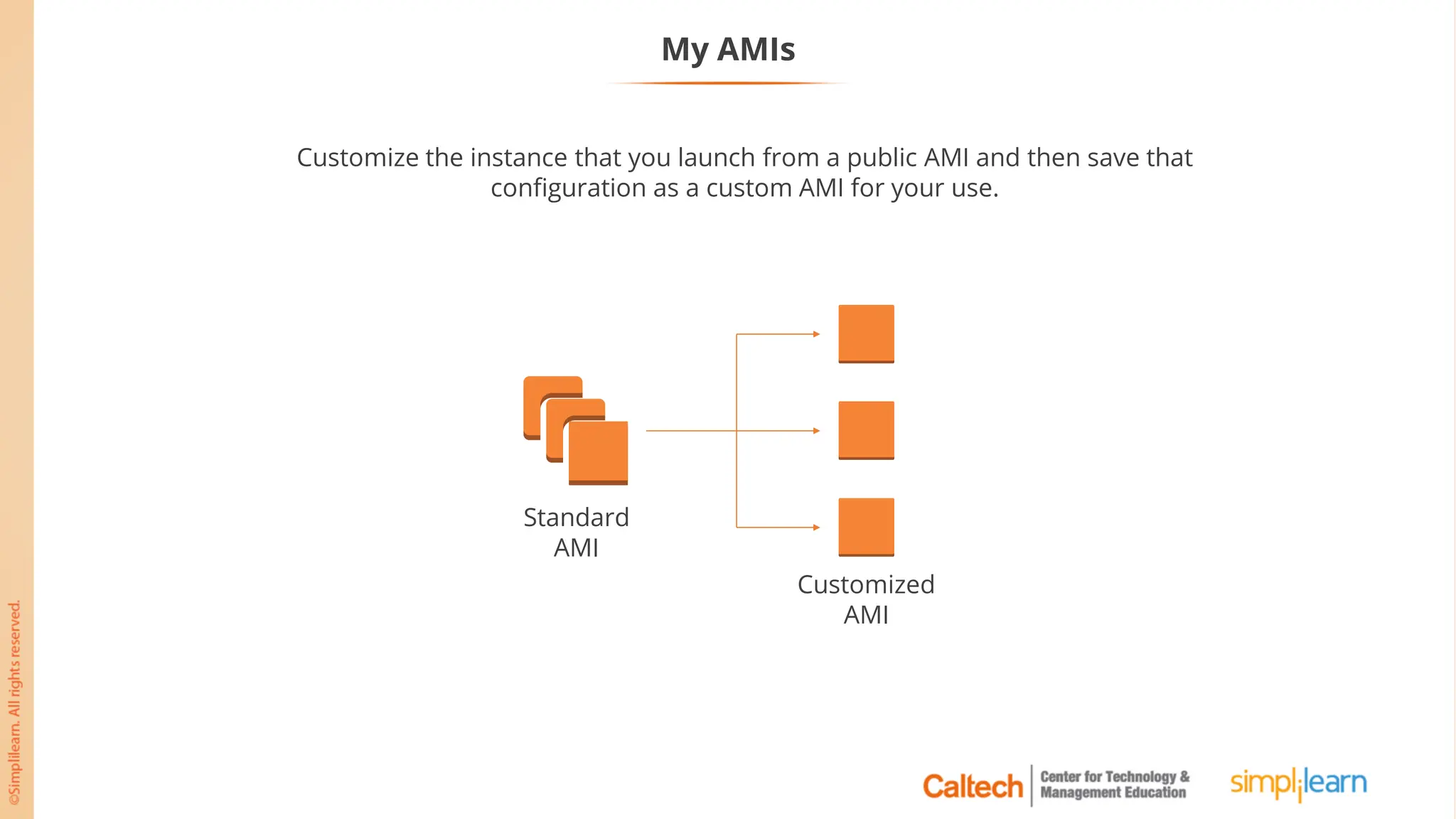
My AMIs
Standard
AMI
Customized
AMI
Customize the instance that you launch from a public AMI and then save that
configuration as a custom AMI for your use.
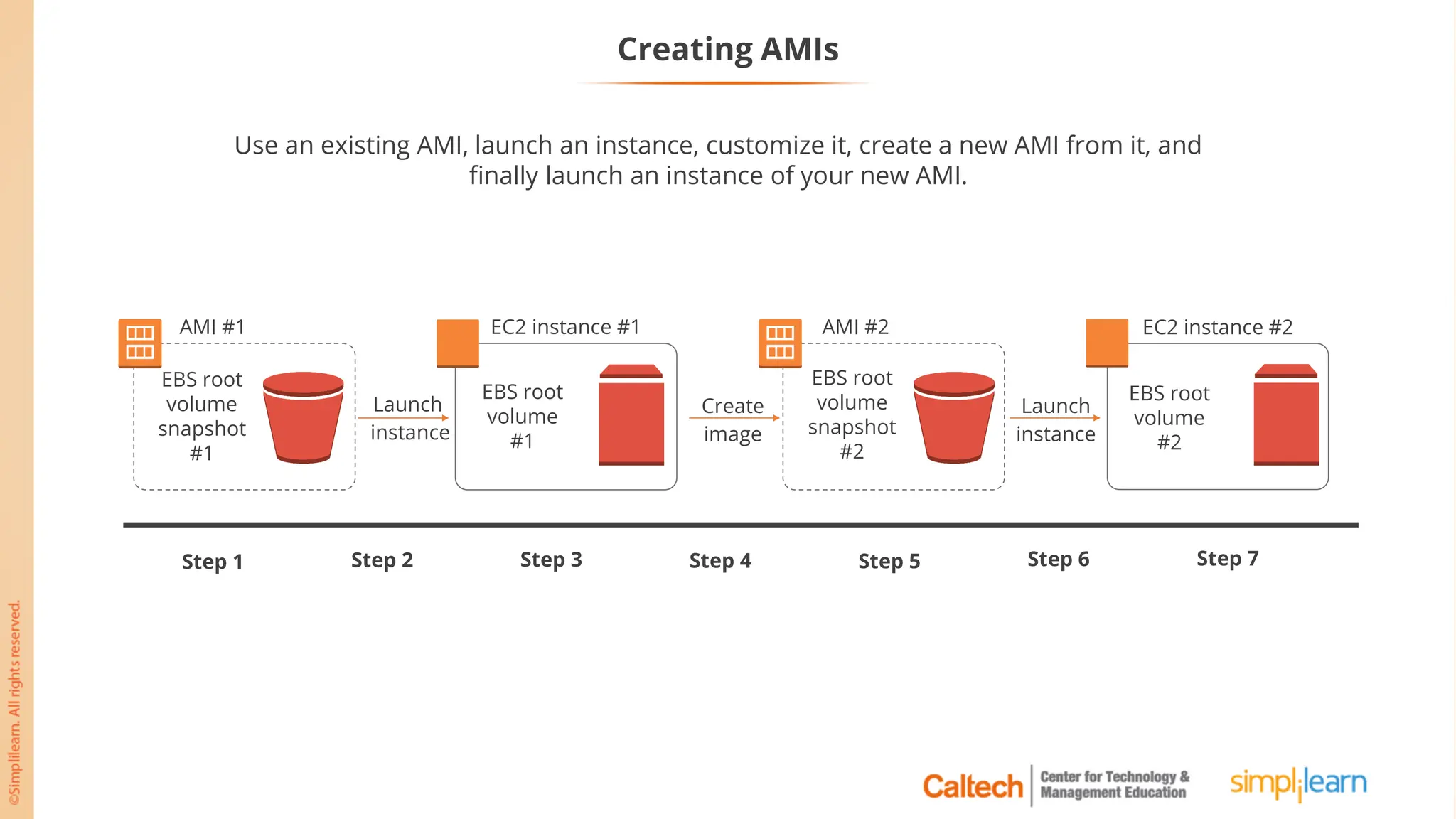
Creating AMIs
Use an existing AMI, launch an instance, customize it, create a new AMI from it, and
finally launch an instance of your new AMI.
EBS root
volume
snapshot
#1
AMI #1
EBS root
volume
snapshot
#2
AMI #2
EBS root
volume
#1
EC2 instance #1
EBS root
volume
#2
EC2 instance #2
Launch
instance
Create
image
Launch
instance
Step 1 Step 2 Step 3 Step 4 Step 5 Step 6 Step 7
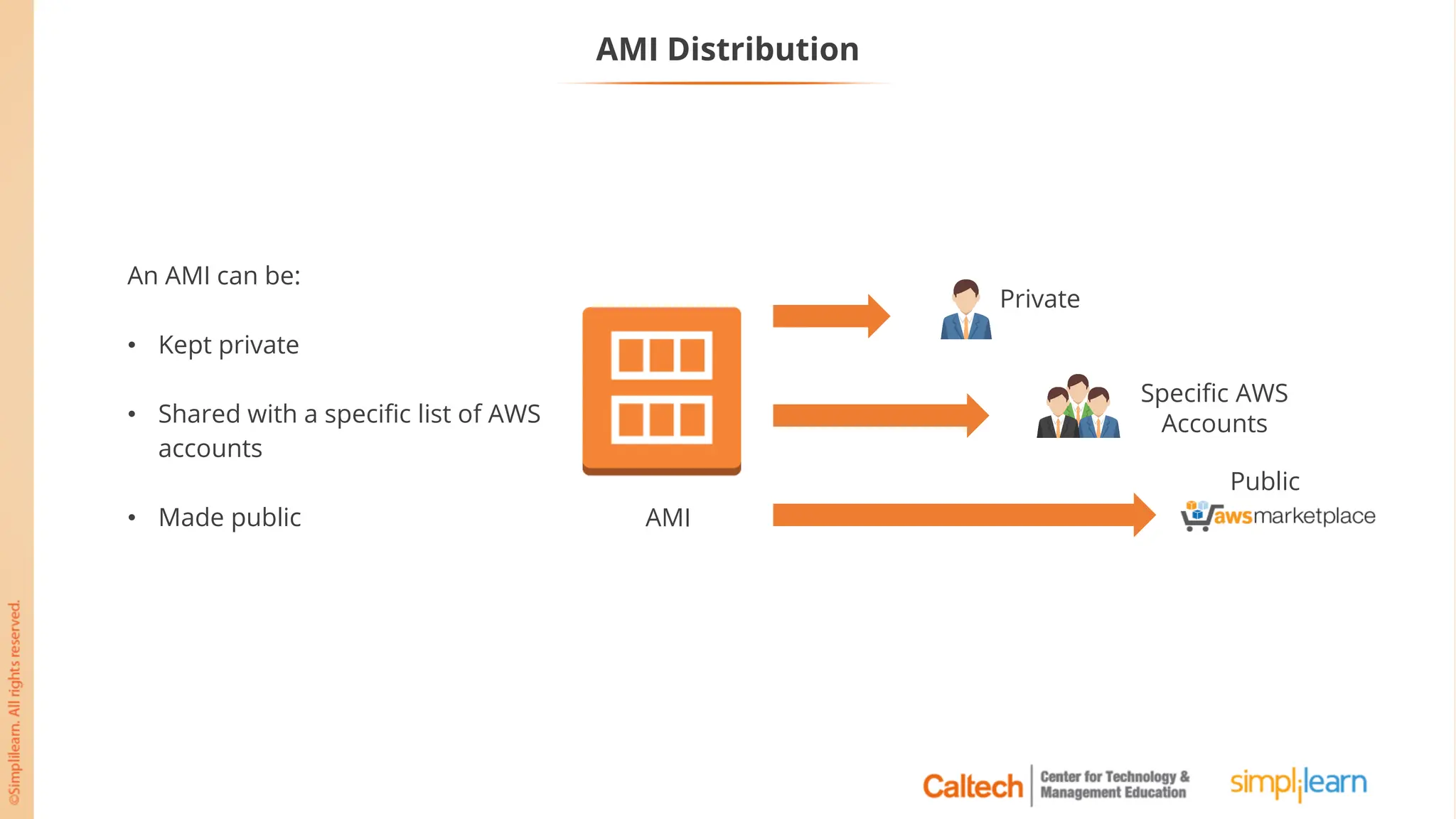
AMI Distribution
An AMI can be:
• Kept private
• Shared with a specific list of AWS
accounts
• Made public
Private
Specific AWS
Accounts
Public
AMI
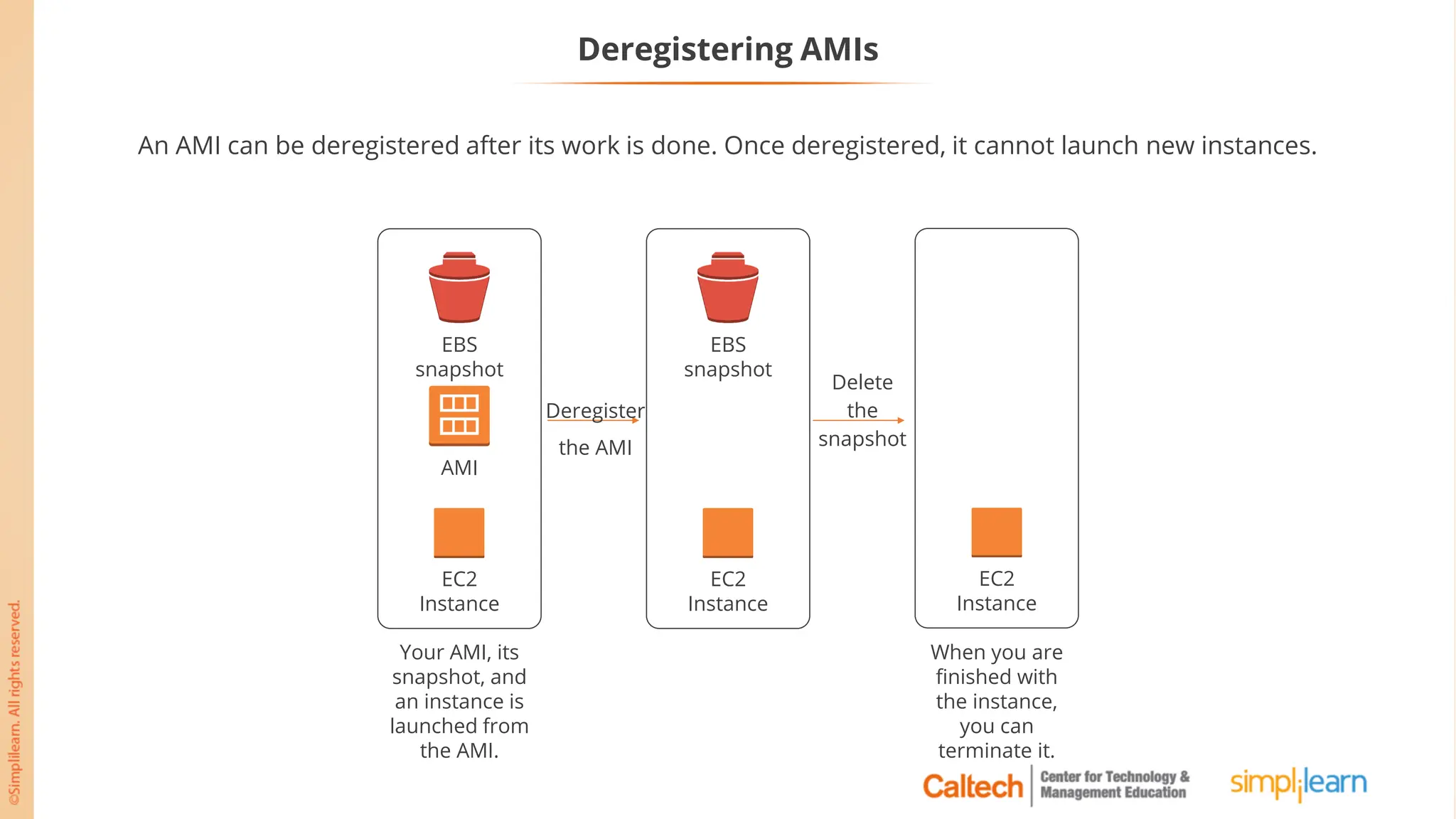
Deregistering AMIs
An AMI can be deregistered after its work is done. Once deregistered, it cannot launch new instances.
EBS
snapshot
EC2
Instance
EBS
snapshot
AMI
EC2
Instance
Your AMI, its
snapshot, and
an instance is
launched from
the AMI.
EC2
Instance
When you are
finished with
the instance,
you can
terminate it.
Deregister
the AMI
Delete
the
snapshot
Assisted Practice
Assisted Practice: Create a Linux-based EC2 Instance
Problem Statement:
You are given a project to create a Linux-based EC2 instance.
Duration: 30 min.
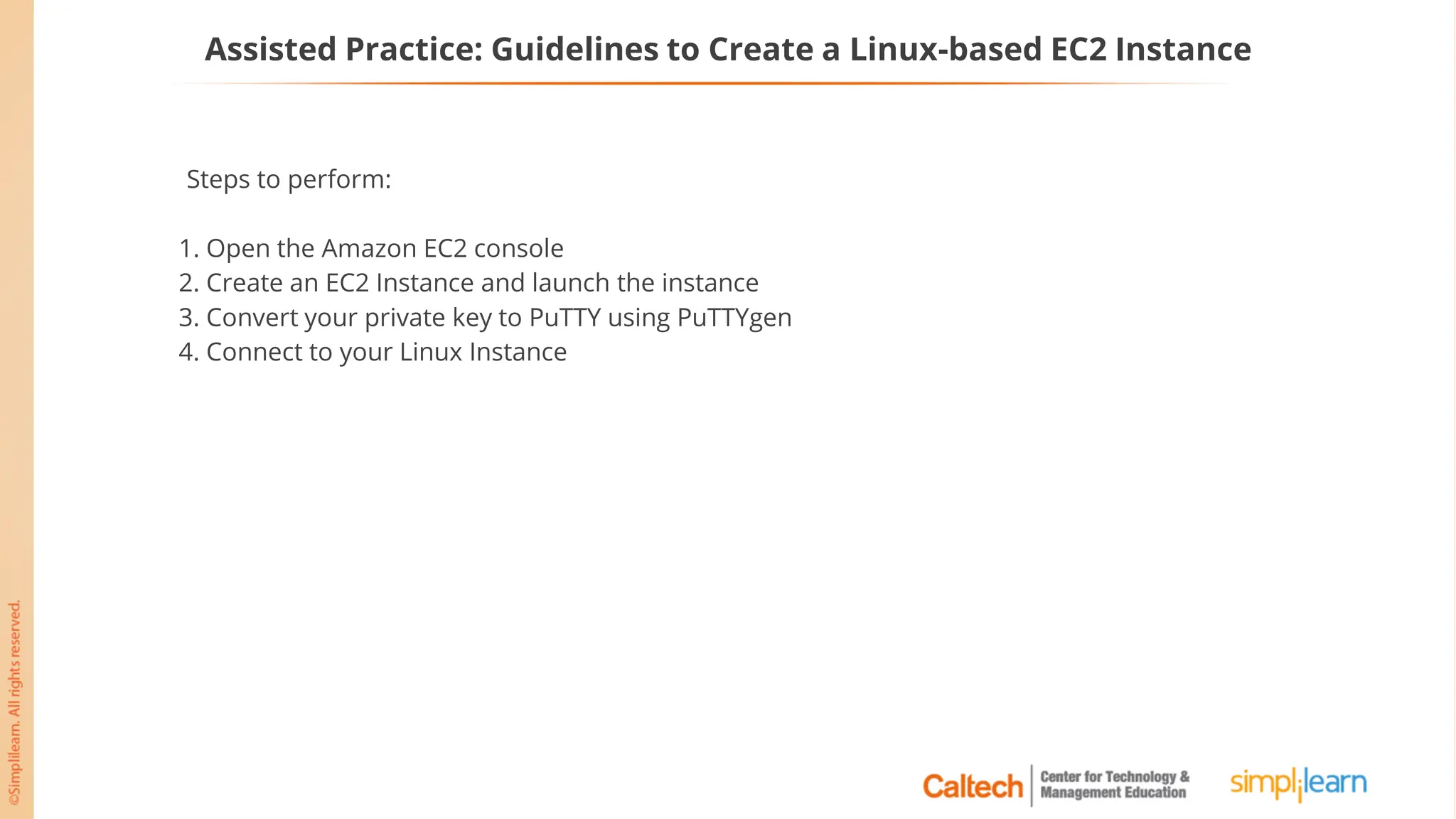
Assisted Practice: Guidelines to Create a Linux-based EC2 Instance
Steps to perform:
1. Open the Amazon EC2 console
2. Create an EC2 Instance and launch the instance
3. Convert your private key to PuTTY using PuTTYgen
4. Connect to your Linux Instance
Assisted Practice
Create a Windows-based EC2 Instance
Problem Statement:
You are given a project to create a Windows-based EC2 instance.
Duration: 20 min.
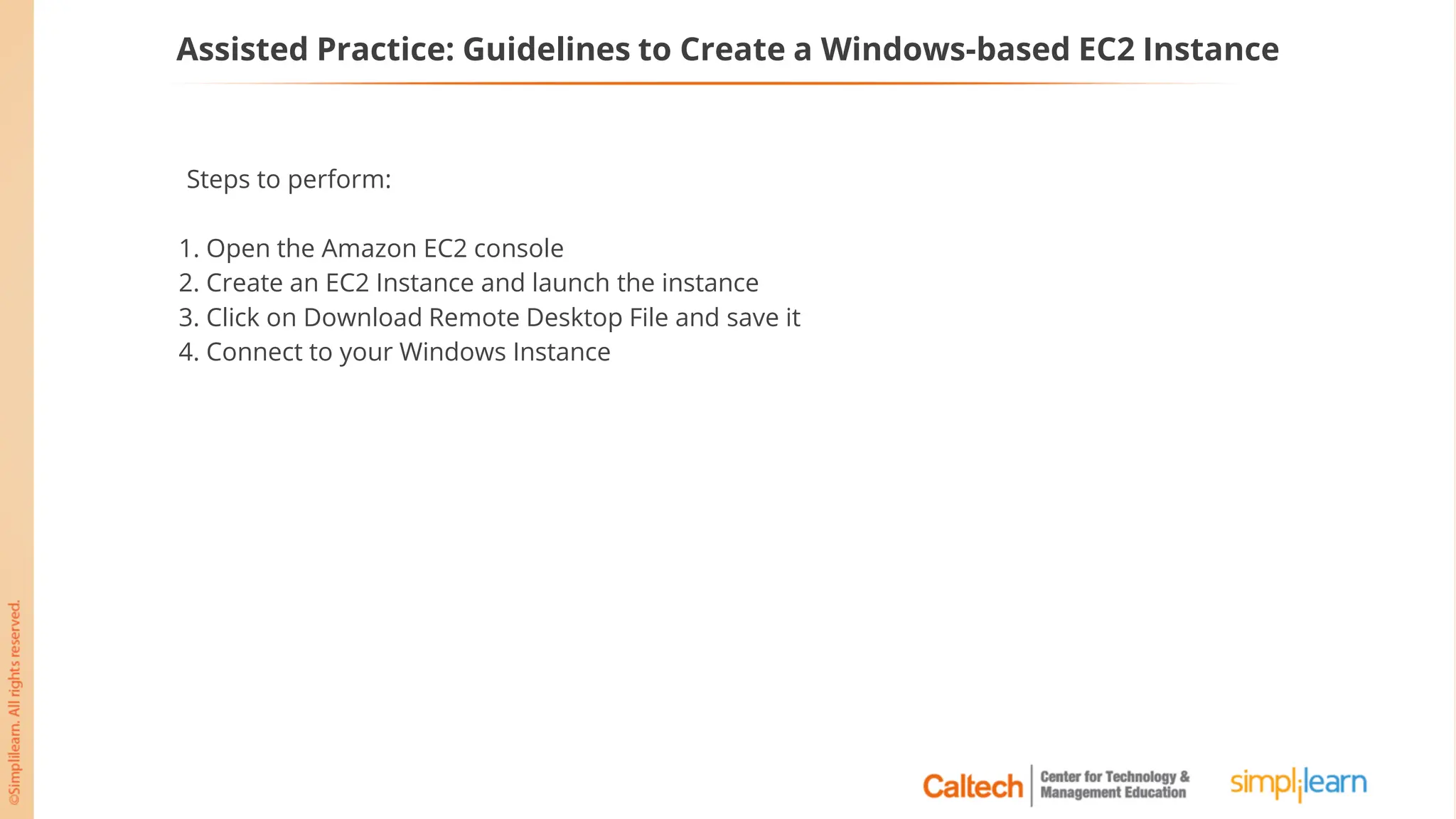
Assisted Practice: Guidelines to Create a Windows-based EC2 Instance
Steps to perform:
1. Open the Amazon EC2 console
2. Create an EC2 Instance and launch the instance
3. Click on Download Remote Desktop File and save it
4. Connect to your Windows Instance
Assisted Practice
Create a Custom AMI
Problem Statement:
You are given a project to create a custom AMI.
Duration: 10 min.
Assisted Practice: Guidelines to Create a Custom AMI
Steps to perform:
1. Create image commands from the Actions dropdown menu
2. Give the detailed information of the image and create it
3. Check the custom image that you have created
Assisted Practice
Create an Instance Using a Custom AMI
Problem Statement:
You are given a project to create an instance using a custom AMI.
Duration: 25 min.
Assisted Practice: Guidelines to Create a Custom AMI
Steps to perform:
1. Open the Amazon EC2 console
2. Choose AMIs from the navigation bar
3. Launch the instance using a custom AMI
Introduction to Amazon EBS
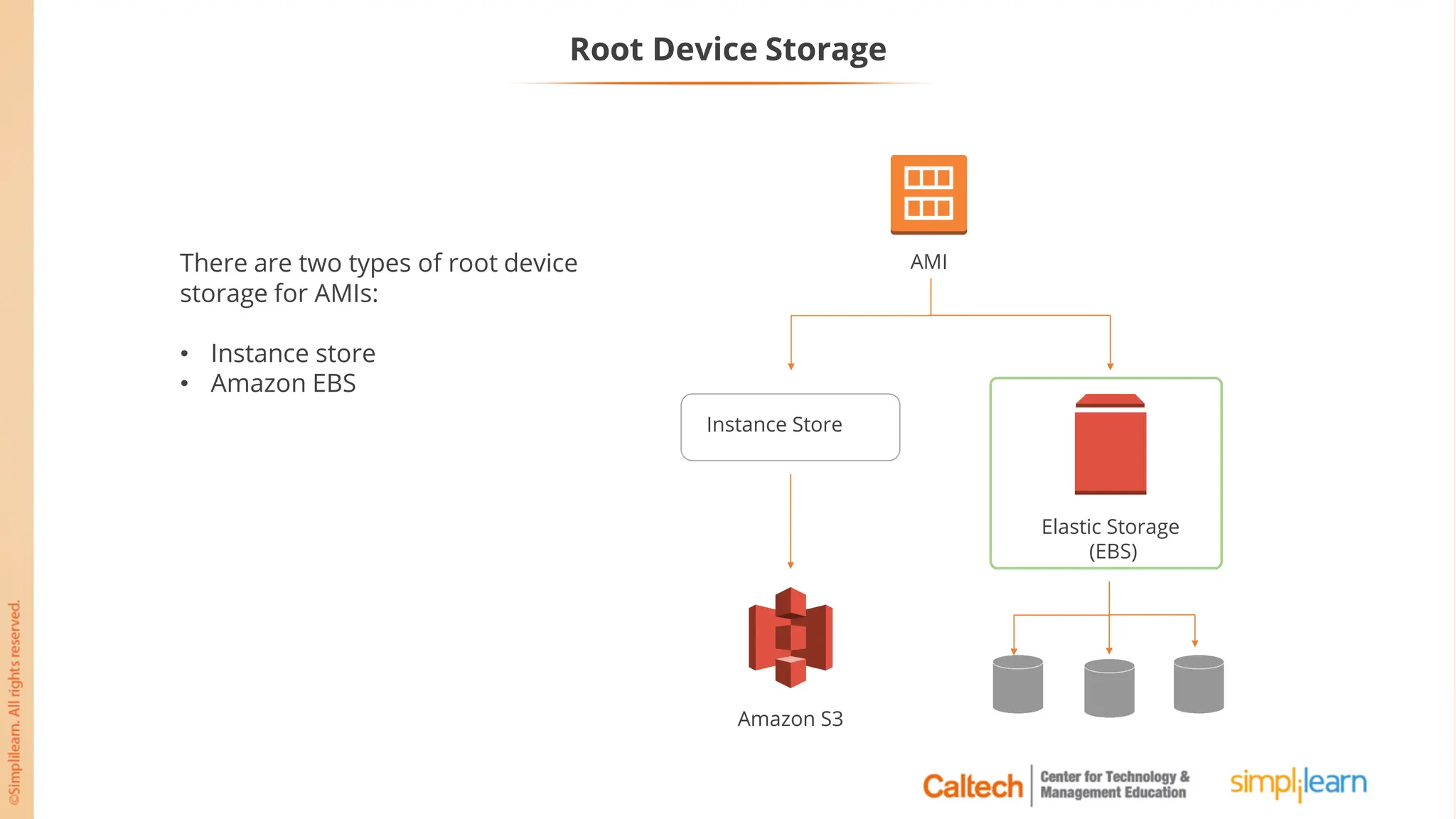
Root Device Storage
There are two types of root device
storage for AMIs:
• Instance store
• Amazon EBS
Instance Store
Elastic Storage
(EBS)
Amazon S3
AMI
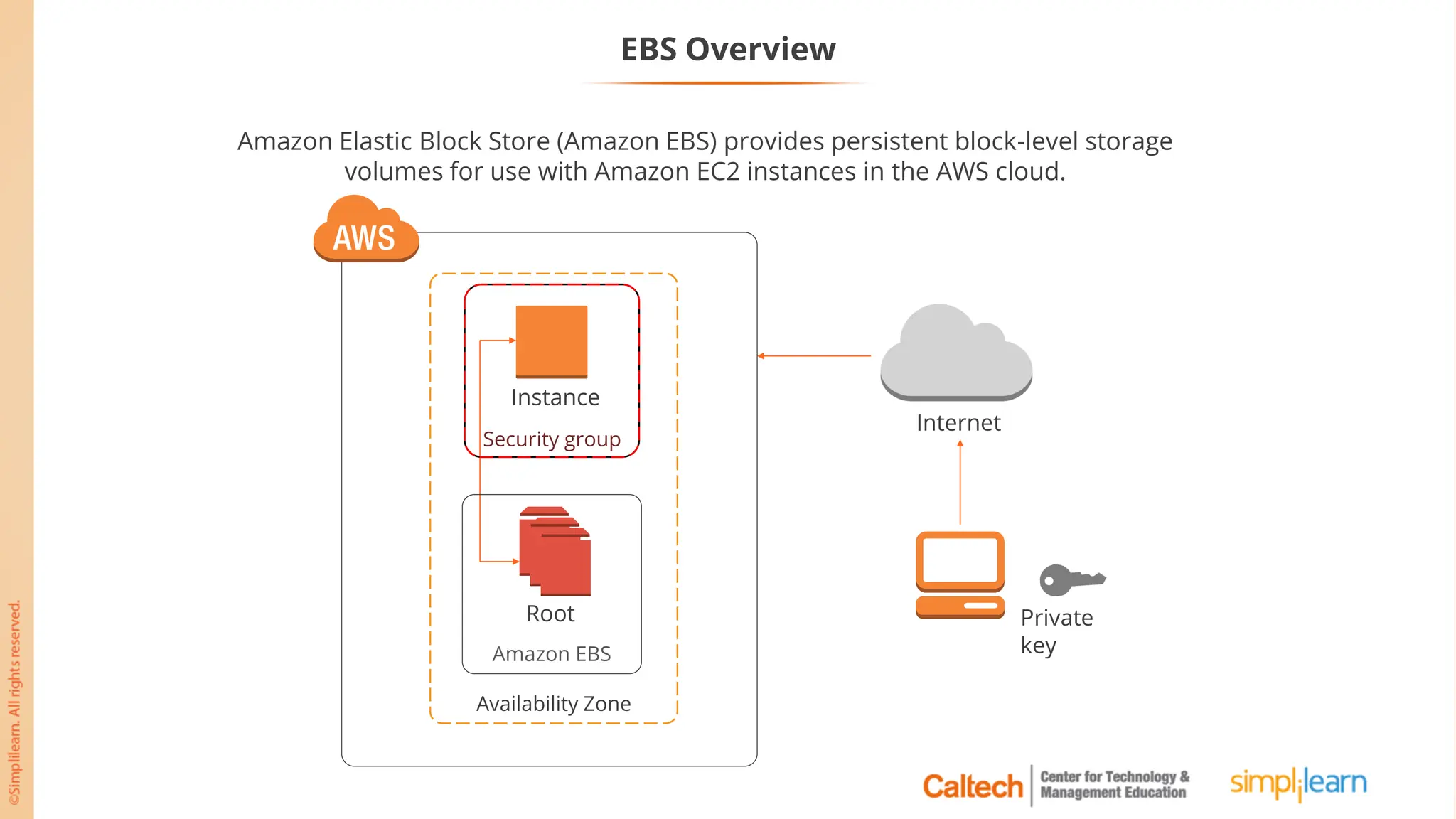
EBS Overview
Internet
Availability Zone
Amazon EBS
Security group
Root
Instance
Private
key
Amazon Elastic Block Store (Amazon EBS) provides persistent block-level storage
volumes for use with Amazon EC2 instances in the AWS cloud.
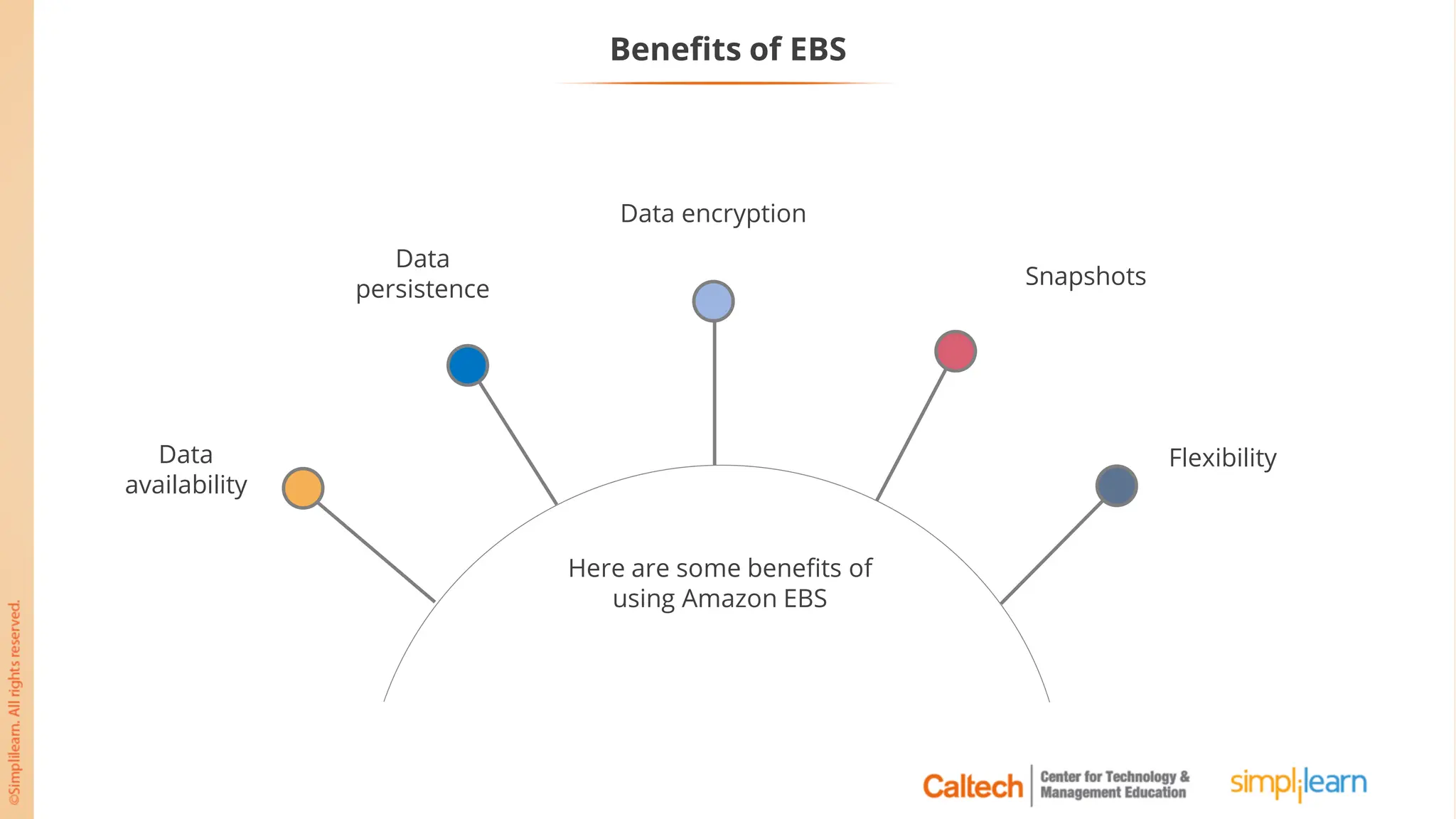
Benefits of EBS
Here are some benefits of
using Amazon EBS
Data
availability
Data
persistence
Data encryption
Snapshots
Flexibility
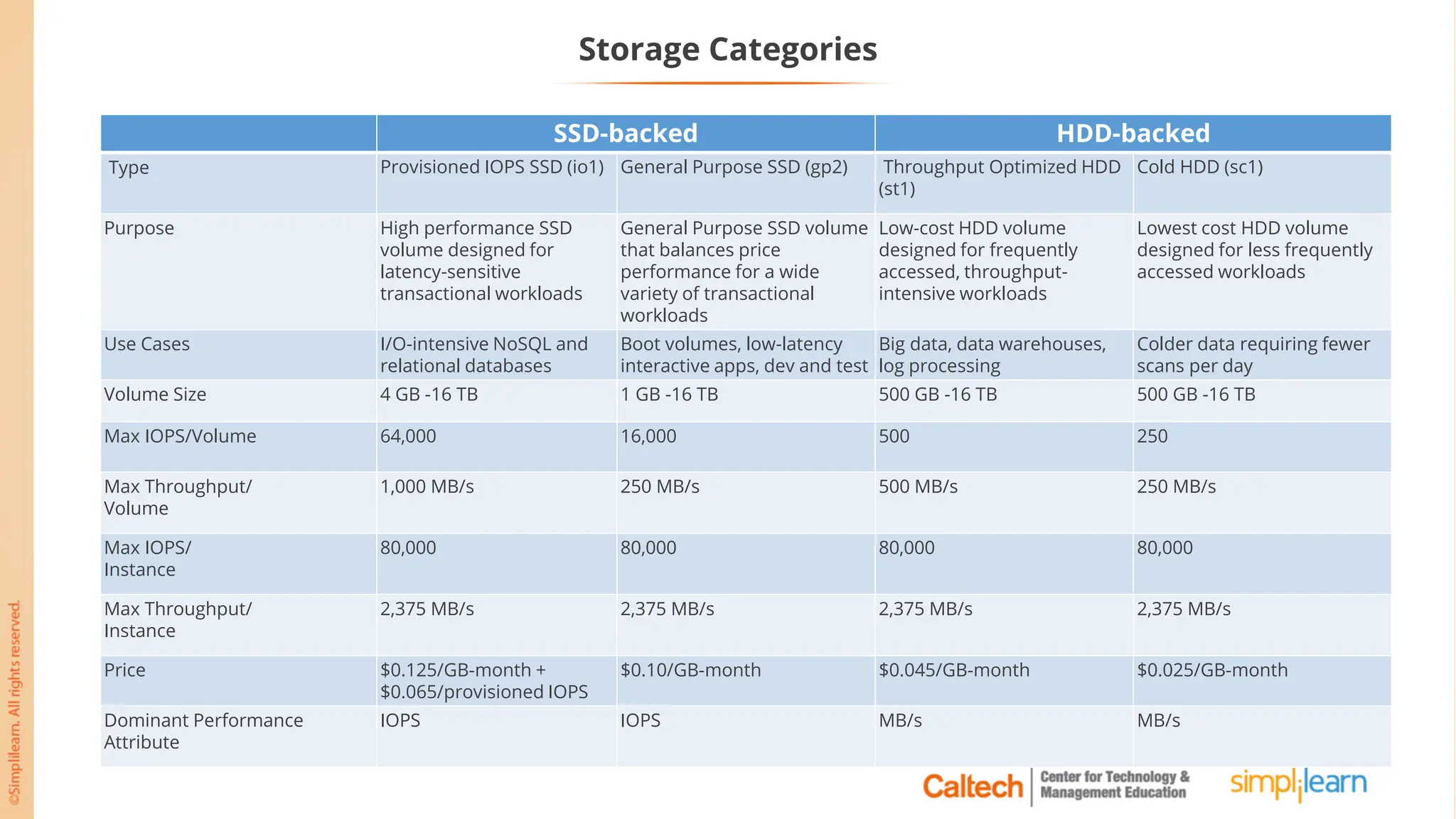
Storage Categories
SSD-backed HDD-backed
Type Provisioned IOPS SSD (io1) General Purpose SSD (gp2) Throughput Optimized HDD
(st1)
Cold HDD (sc1)
Purpose High performance SSD
volume designed for
latency-sensitive
transactional workloads
General Purpose SSD volume
that balances price
performance for a wide
variety of transactional
workloads
Low-cost HDD volume
designed for frequently
accessed, throughput-
intensive workloads
Lowest cost HDD volume
designed for less frequently
accessed workloads
Use Cases I/O-intensive NoSQL and
relational databases
Boot volumes, low-latency
interactive apps, dev and test
Big data, data warehouses,
log processing
Colder data requiring fewer
scans per day
Volume Size 4 GB -16 TB 1 GB -16 TB 500 GB -16 TB 500 GB -16 TB
Max IOPS/Volume 64,000 16,000 500 250
Max Throughput/
Volume
1,000 MB/s 250 MB/s 500 MB/s 250 MB/s
Max IOPS/
Instance
80,000 80,000 80,000 80,000
Max Throughput/
Instance
2,375 MB/s 2,375 MB/s 2,375 MB/s 2,375 MB/s
Price $0.125/GB-month +
$0.065/provisioned IOPS
$0.10/GB-month $0.045/GB-month $0.025/GB-month
Dominant Performance
Attribute
IOPS IOPS MB/s MB/s
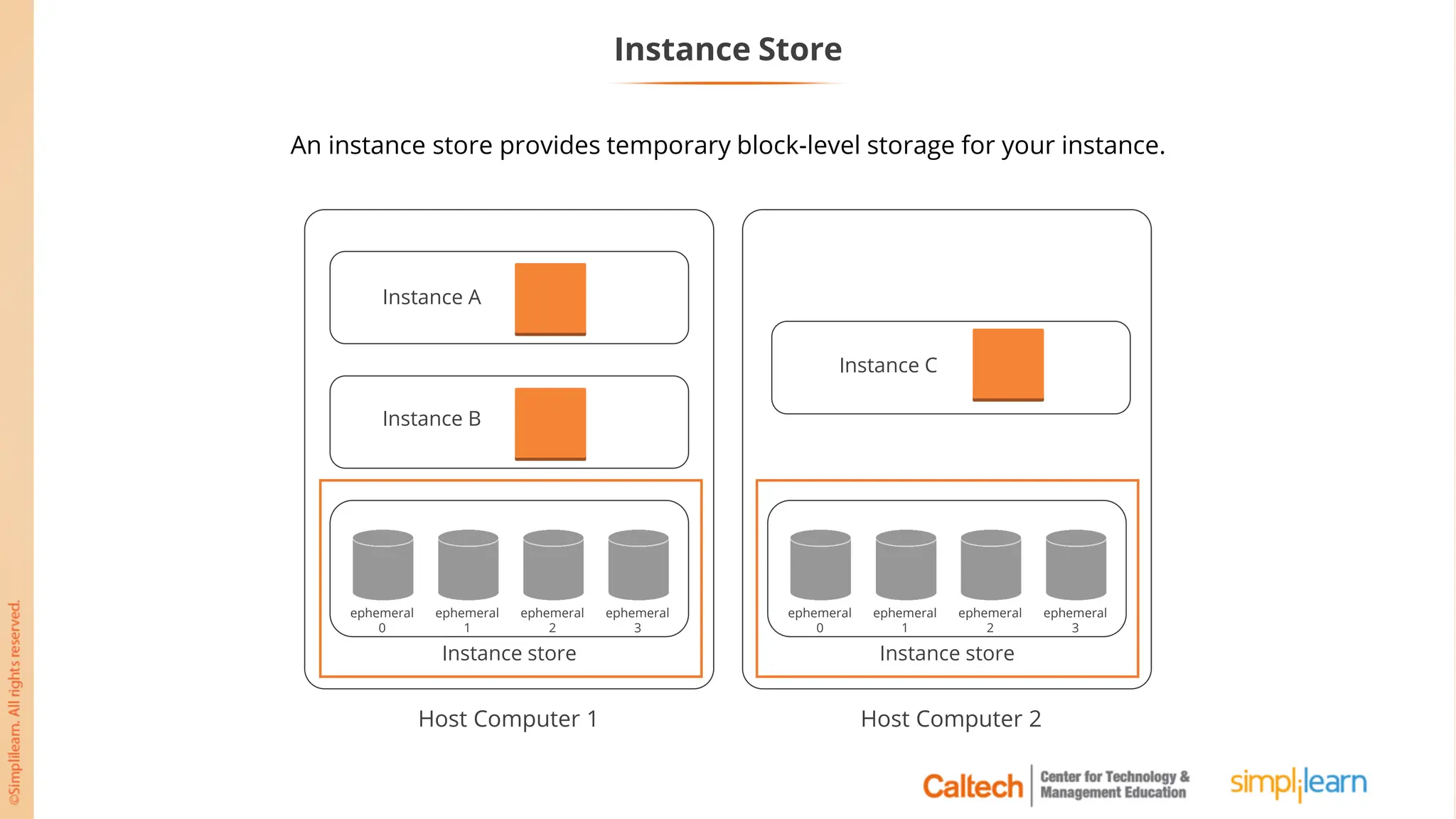
Instance Store
An instance store provides temporary block-level storage for your instance.
Instance store
ephemeral
0
ephemeral
1
ephemeral
2
ephemeral
3
Instance A
Instance B
Host Computer 1
Instance store
ephemeral
0
ephemeral
1
ephemeral
2
ephemeral
3
Instance C
Host Computer 2
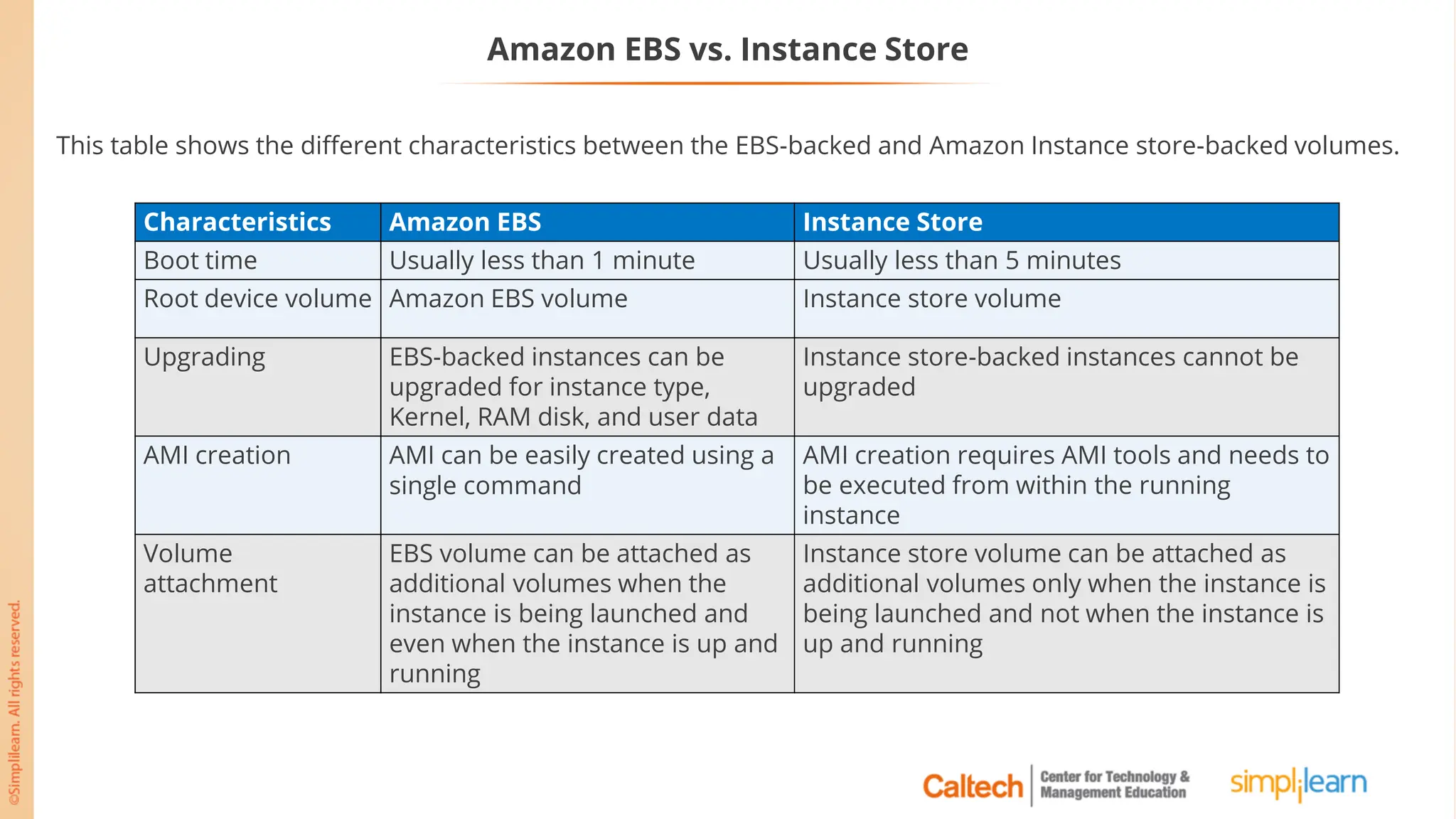
Amazon EBS vs. Instance Store
This table shows the different characteristics between the EBS-backed and Amazon Instance store-backed volumes.
Characteristics Amazon EBS Instance Store
Boot time Usually less than 1 minute Usually less than 5 minutes
Root device volume Amazon EBS volume Instance store volume
Upgrading EBS-backed instances can be
upgraded for instance type,
Kernel, RAM disk, and user data
Instance store-backed instances cannot be
upgraded
AMI creation AMI can be easily created using a
single command
AMI creation requires AMI tools and needs to
be executed from within the running
instance
Volume
attachment
EBS volume can be attached as
additional volumes when the
instance is being launched and
even when the instance is up and
running
Instance store volume can be attached as
additional volumes only when the instance is
being launched and not when the instance is
up and running
EBS Snapshot
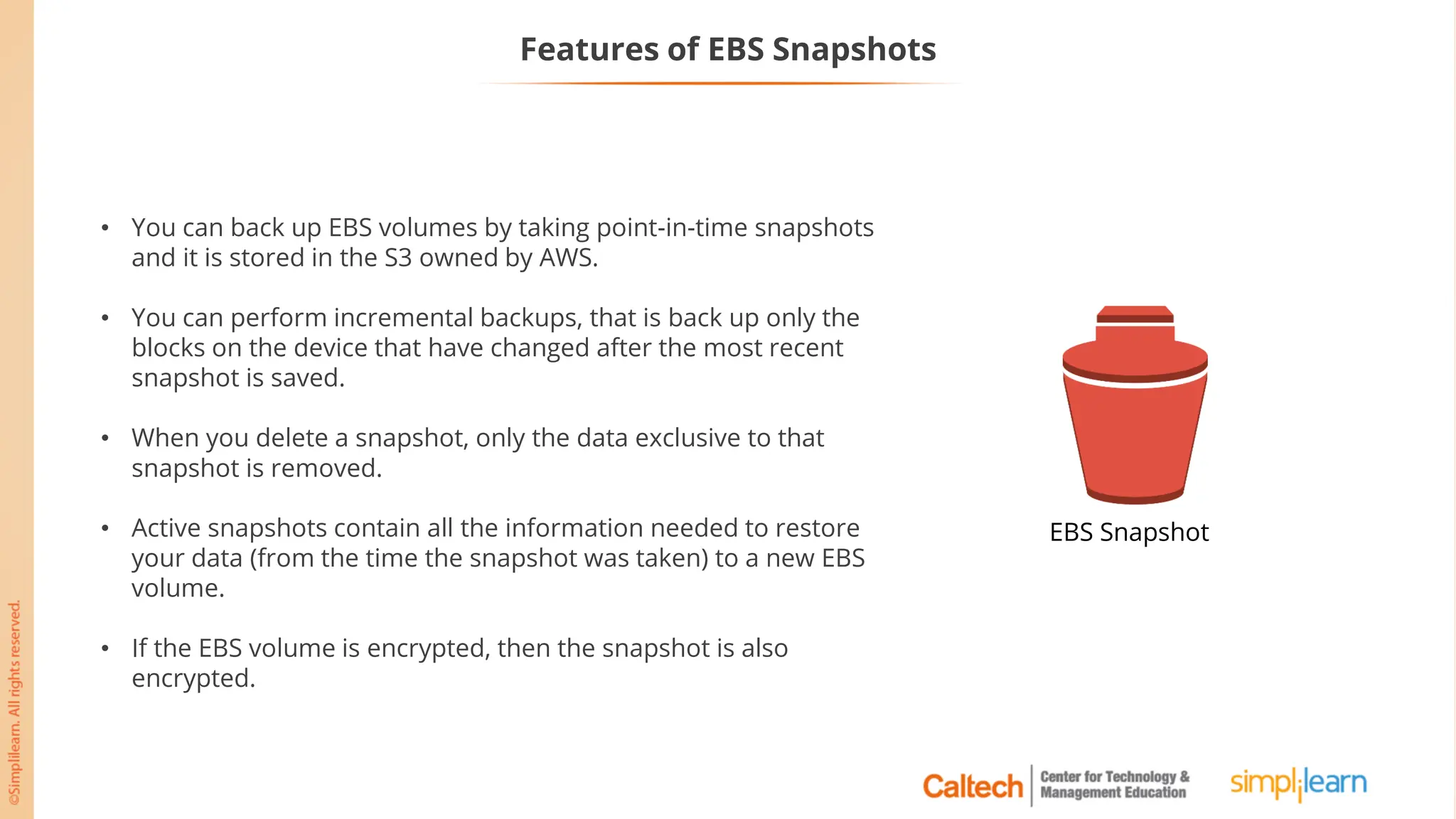
Features of EBS Snapshots
• You can back up EBS volumes by taking point-in-time snapshots
and it is stored in the S3 owned by AWS.
• You can perform incremental backups, that is back up only the
blocks on the device that have changed after the most recent
snapshot is saved.
• When you delete a snapshot, only the data exclusive to that
snapshot is removed.
• Active snapshots contain all the information needed to restore
your data (from the time the snapshot was taken) to a new EBS
volume.
• If the EBS volume is encrypted, then the snapshot is also
encrypted.
EBS Snapshot
EBS Snapshot Storage
With Amazon EBS, you can:
• Create a point-in-time snapshot of volumes that are stored for you in Amazon
Simple Storage Service (Amazon S3)
• Copy a snapshot from one AWS region to another or within the same region
• Encrypt your data with Amazon S3 server-side encryption (256-bit Advanced
Encryption Standard)
Assisted Practice
Create and Attach an EBS Volume to a Linux Instance
Problem Statement:
You are given a project to create and attach an EBS volume to a Linux Instance.
Duration: 25 min.
Assisted Practice: Guidelines to Create and Attach an EBS Volume to a Linux Instance
Steps to perform:
1. Open the Amazon EC2 console
2. Choose Elastic Block Store, and then Volumes from the navigation pane
3. Create an EBS Volume
4. Attach an EBS Volume to a Linux Instance
5. Convert your private key to PuTTY using PuTTYgen
6. Connect to your Linux Instance
Assisted Practice
Create a Snapshot of an Existing EBS Instance
Problem Statement:
You are given a project to create a snapshot of an existing EBS Instance.
Duration: 10 min.
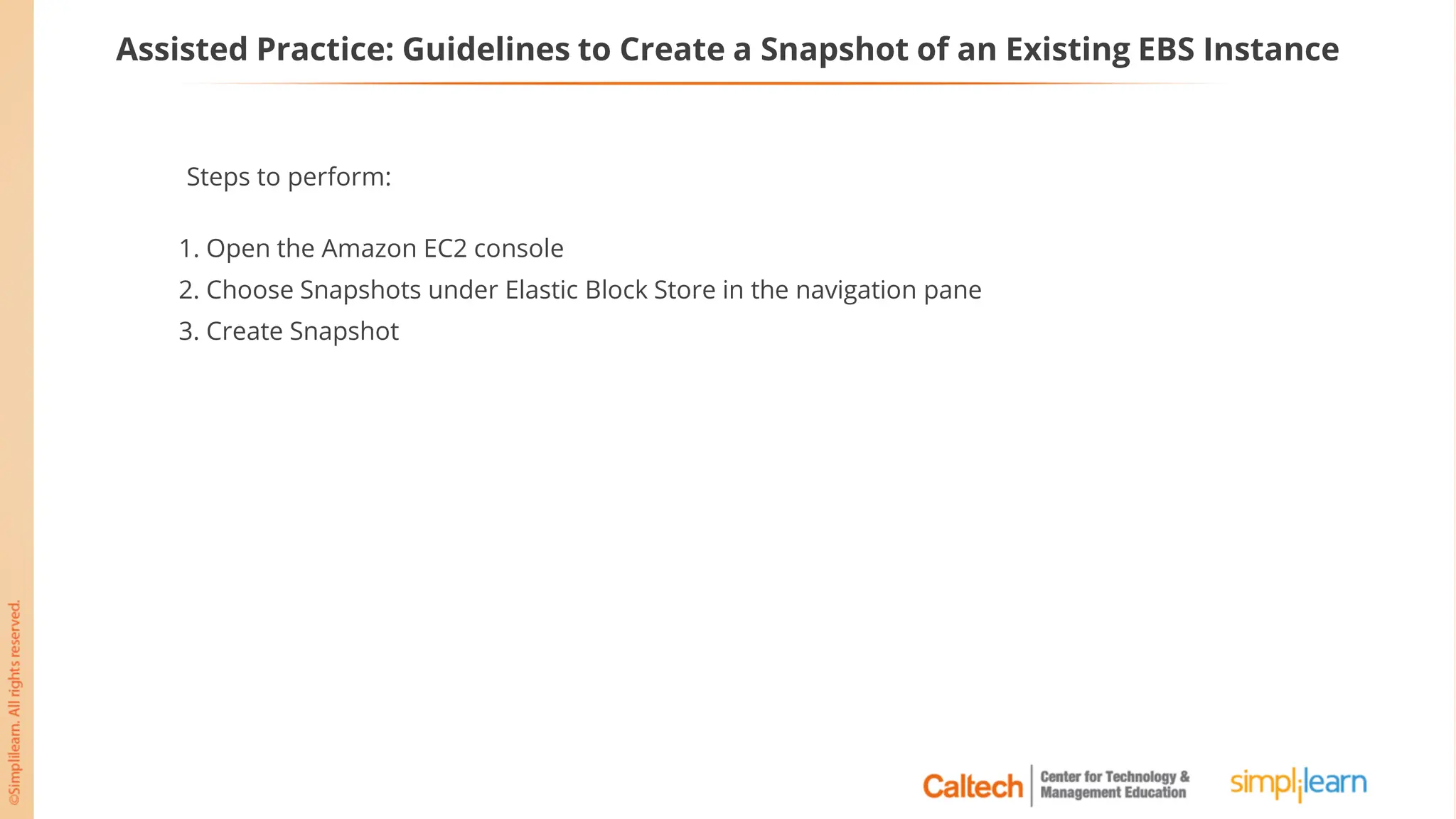
Assisted Practice: Guidelines to Create a Snapshot of an Existing EBS Instance
Steps to perform:
1. Open the Amazon EC2 console
2. Choose Snapshots under Elastic Block Store in the navigation pane
3. Create Snapshot
Elastic IP Address
Elastic IP Address
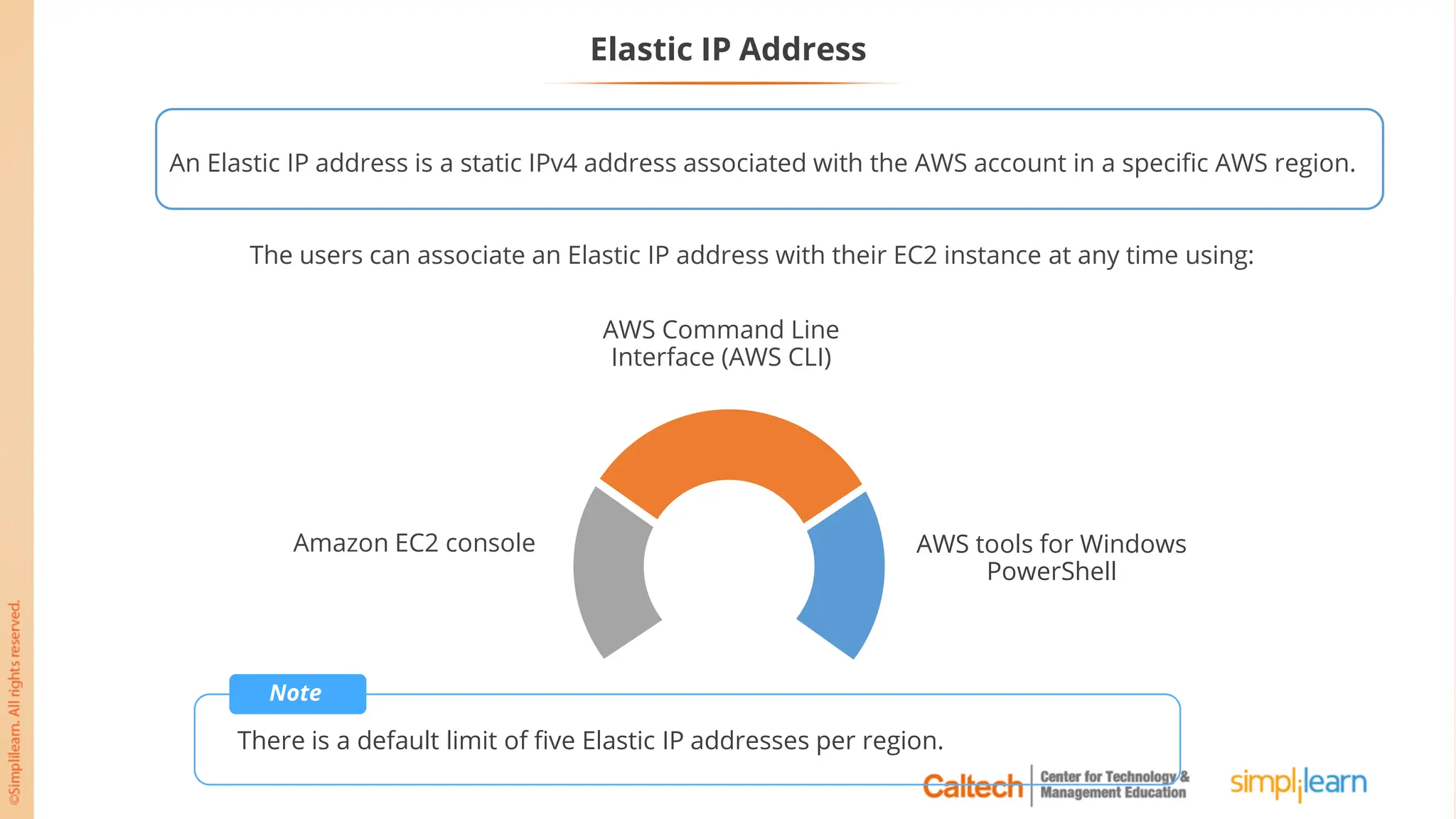
An Elastic IP address is a static IPv4 address associated with the AWS account in a specific AWS region.
The users can associate an Elastic IP address with their EC2 instance at any time using:
AWS tools for Windows
PowerShell
Amazon EC2 console
AWS Command Line
Interface (AWS CLI)
Note
There is a default limit of five Elastic IP addresses per region.
Elastic IP Address Overview
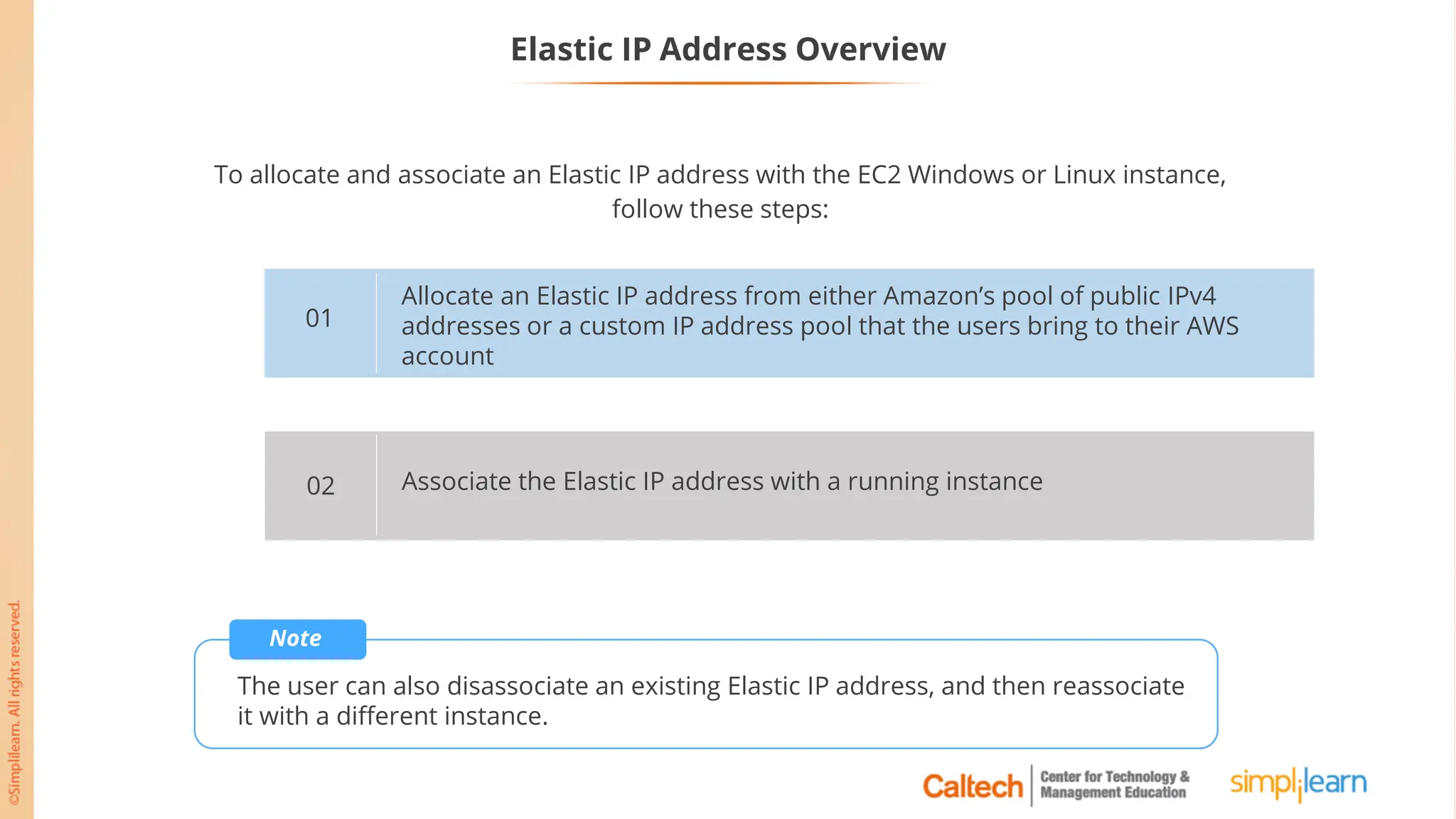
To allocate and associate an Elastic IP address with the EC2 Windows or Linux instance,
follow these steps:
Allocate an Elastic IP address from either Amazon’s pool of public IPv4
addresses or a custom IP address pool that the users bring to their AWS
account
01
Associate the Elastic IP address with a running instance
02
Note
The user can also disassociate an existing Elastic IP address, and then reassociate
it with a different instance.
Elastic IP Address Overview
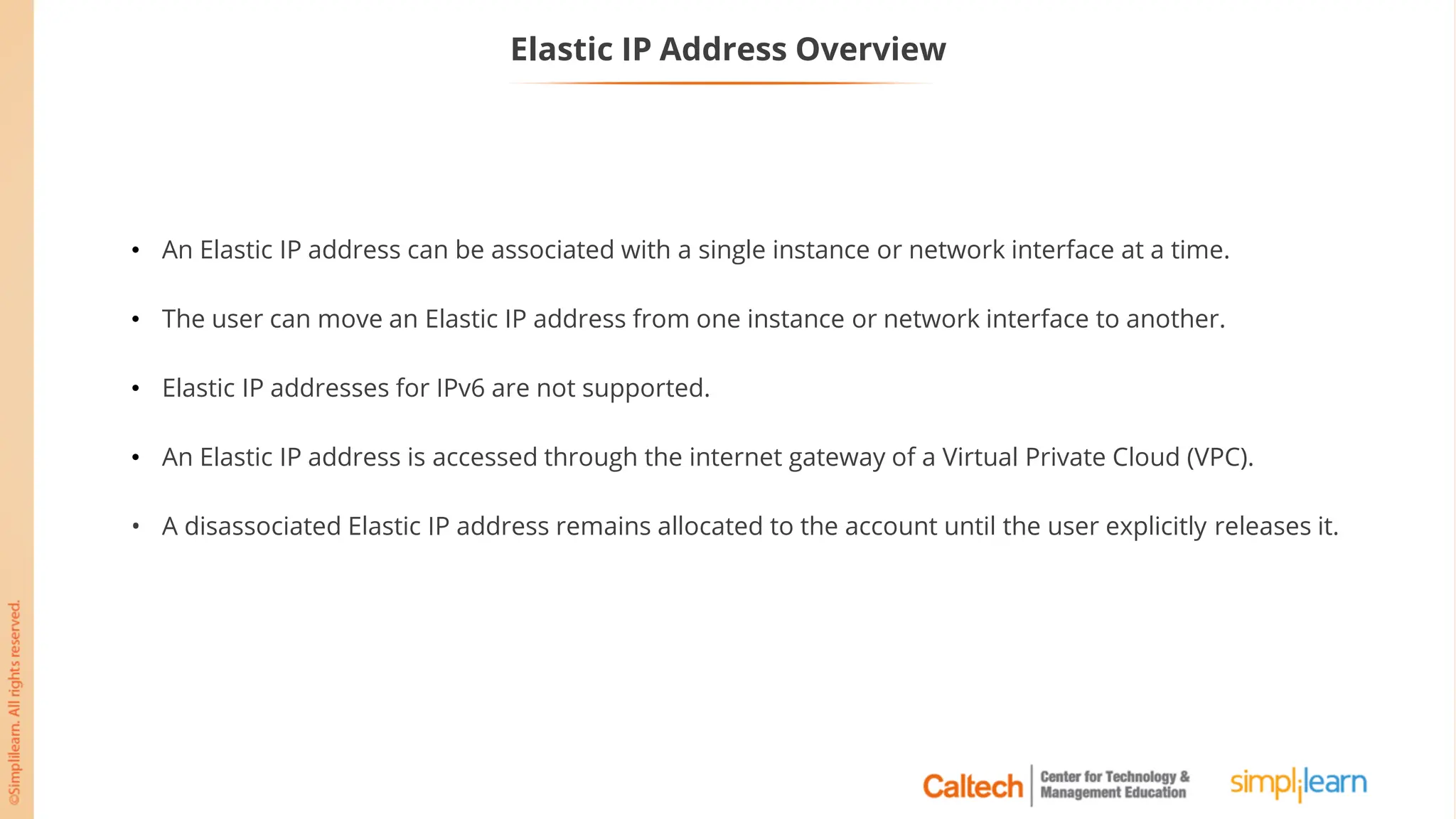
• An Elastic IP address can be associated with a single instance or network interface at a time.
• The user can move an Elastic IP address from one instance or network interface to another.
• Elastic IP addresses for IPv6 are not supported.
• An Elastic IP address is accessed through the internet gateway of a Virtual Private Cloud (VPC).
• A disassociated Elastic IP address remains allocated to the account until the user explicitly releases it.
Elastic Public IP Address Overview
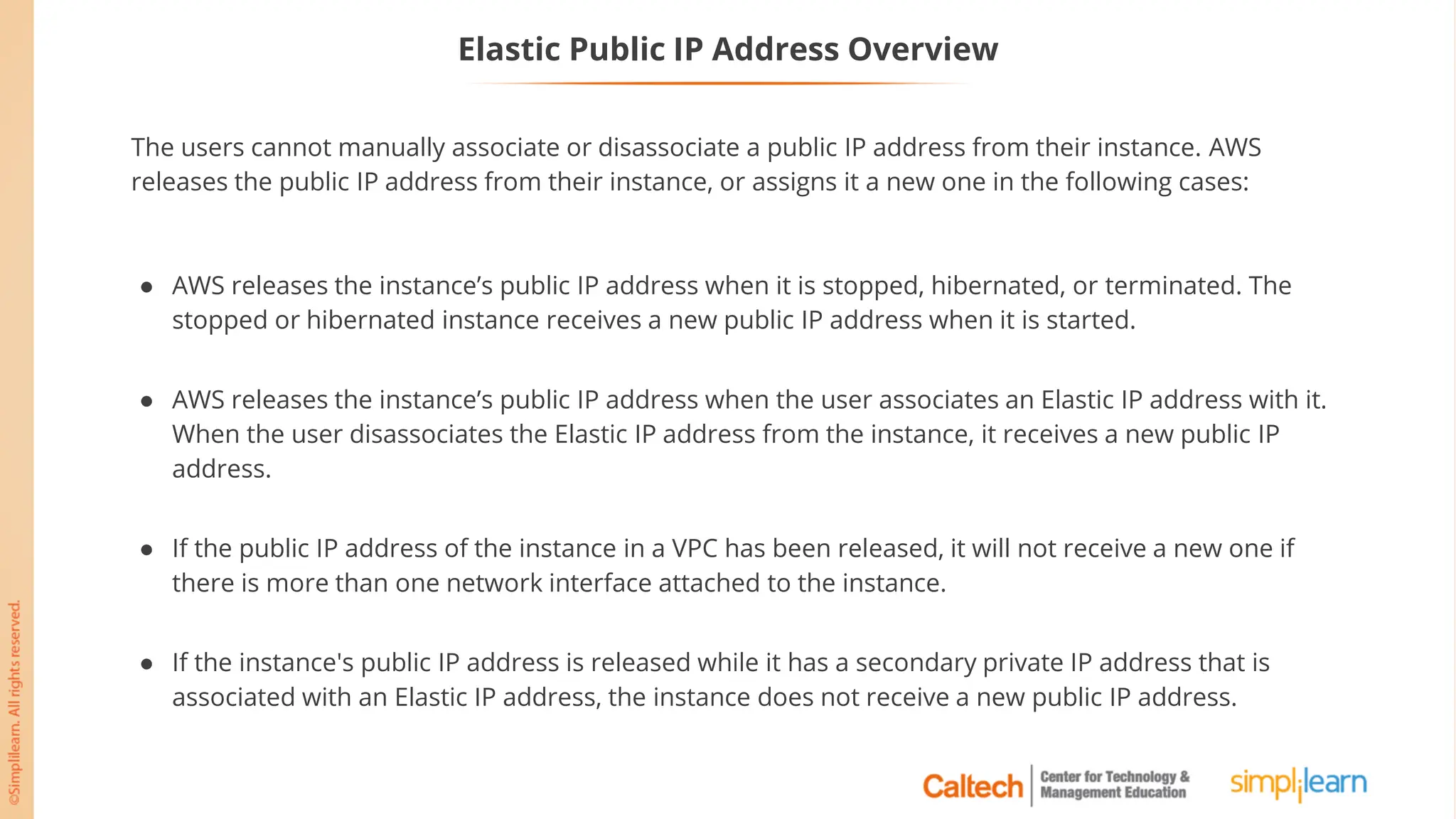
The users cannot manually associate or disassociate a public IP address from their instance. AWS
releases the public IP address from their instance, or assigns it a new one in the following cases:
● AWS releases the instance’s public IP address when it is stopped, hibernated, or terminated. The
stopped or hibernated instance receives a new public IP address when it is started.
● AWS releases the instance’s public IP address when the user associates an Elastic IP address with it.
When the user disassociates the Elastic IP address from the instance, it receives a new public IP
address.
● If the public IP address of the instance in a VPC has been released, it will not receive a new one if
there is more than one network interface attached to the instance.
● If the instance's public IP address is released while it has a secondary private IP address that is
associated with an Elastic IP address, the instance does not receive a new public IP address.
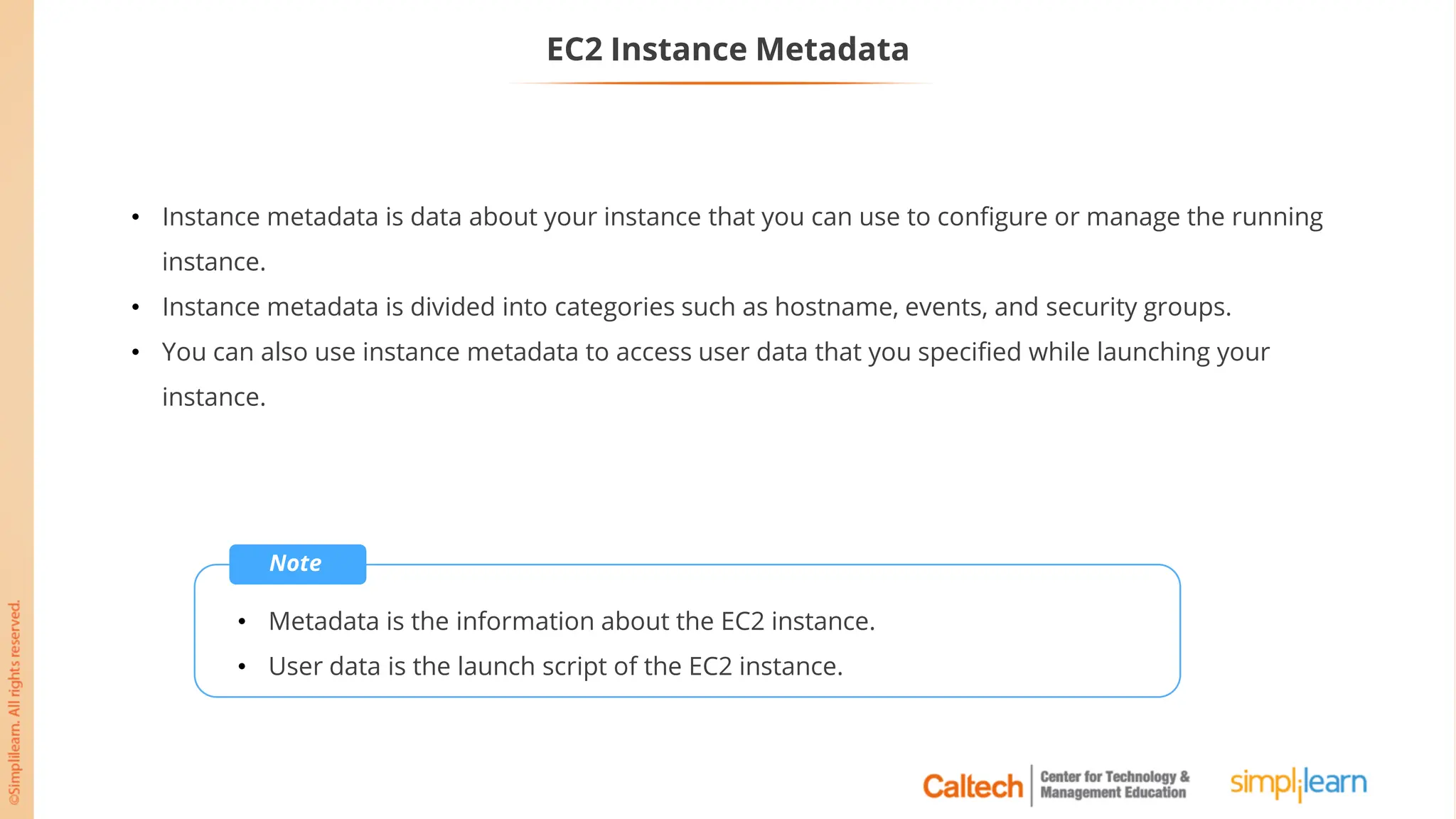
EC2 Instance Metadata
• Instance metadata is data about your instance that you can use to configure or manage the running
instance.
• Instance metadata is divided into categories such as hostname, events, and security groups.
• You can also use instance metadata to access user data that you specified while launching your
instance.
Note
• Metadata is the information about the EC2 instance.
• User data is the launch script of the EC2 instance.
EC2 Instance Metadata
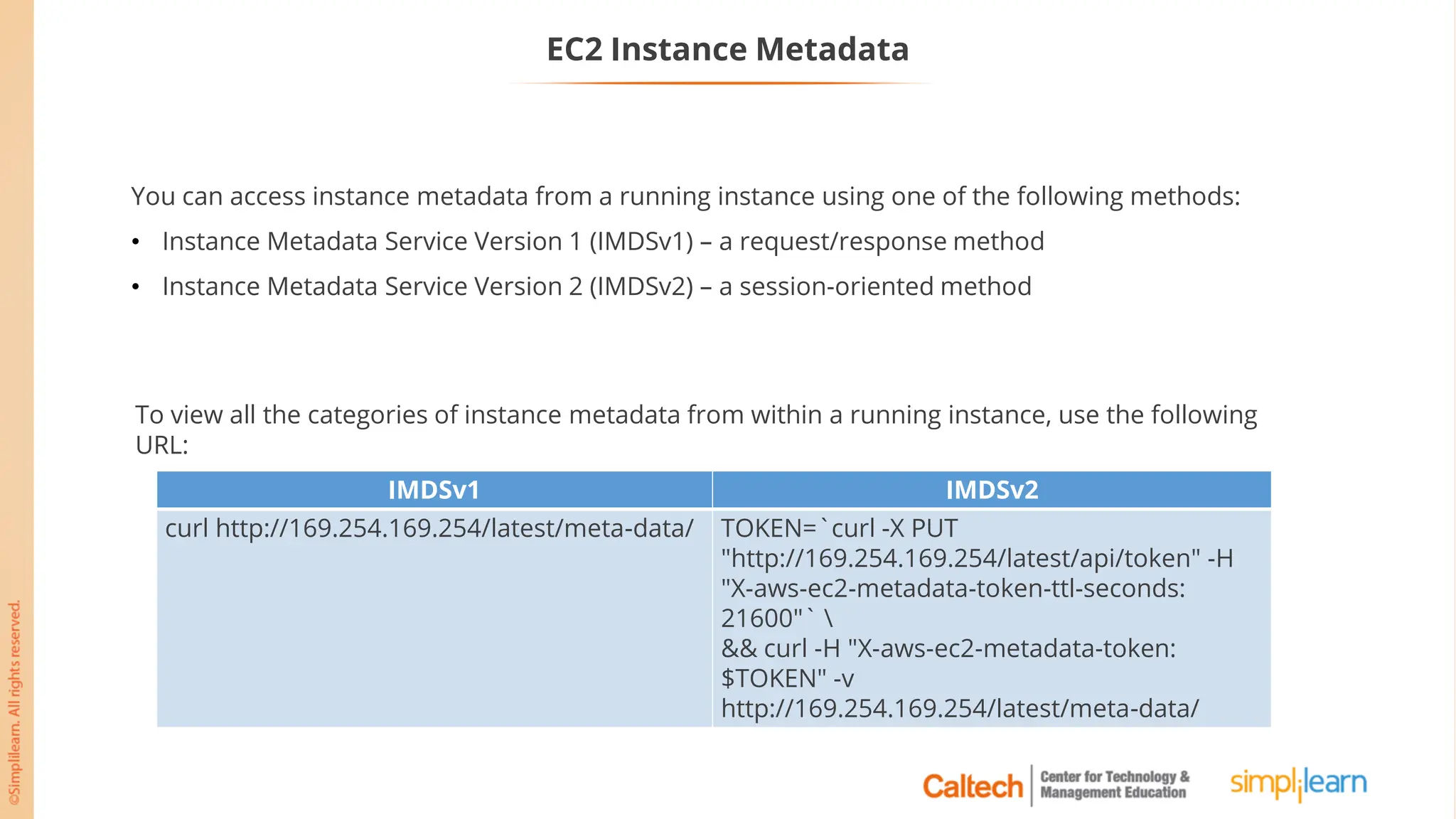
You can access instance metadata from a running instance using one of the following methods:
• Instance Metadata Service Version 1 (IMDSv1) – a request/response method
• Instance Metadata Service Version 2 (IMDSv2) – a session-oriented method
To view all the categories of instance metadata from within a running instance, use the following
URL:
IMDSv1 IMDSv2
curl http://169.254.169.254/latest/meta-data/ TOKEN=`curl -X PUT
"http://169.254.169.254/latest/api/token" -H
"X-aws-ec2-metadata-token-ttl-seconds:
21600"` 
&& curl -H "X-aws-ec2-metadata-token:
$TOKEN" -v
http://169.254.169.254/latest/meta-data/
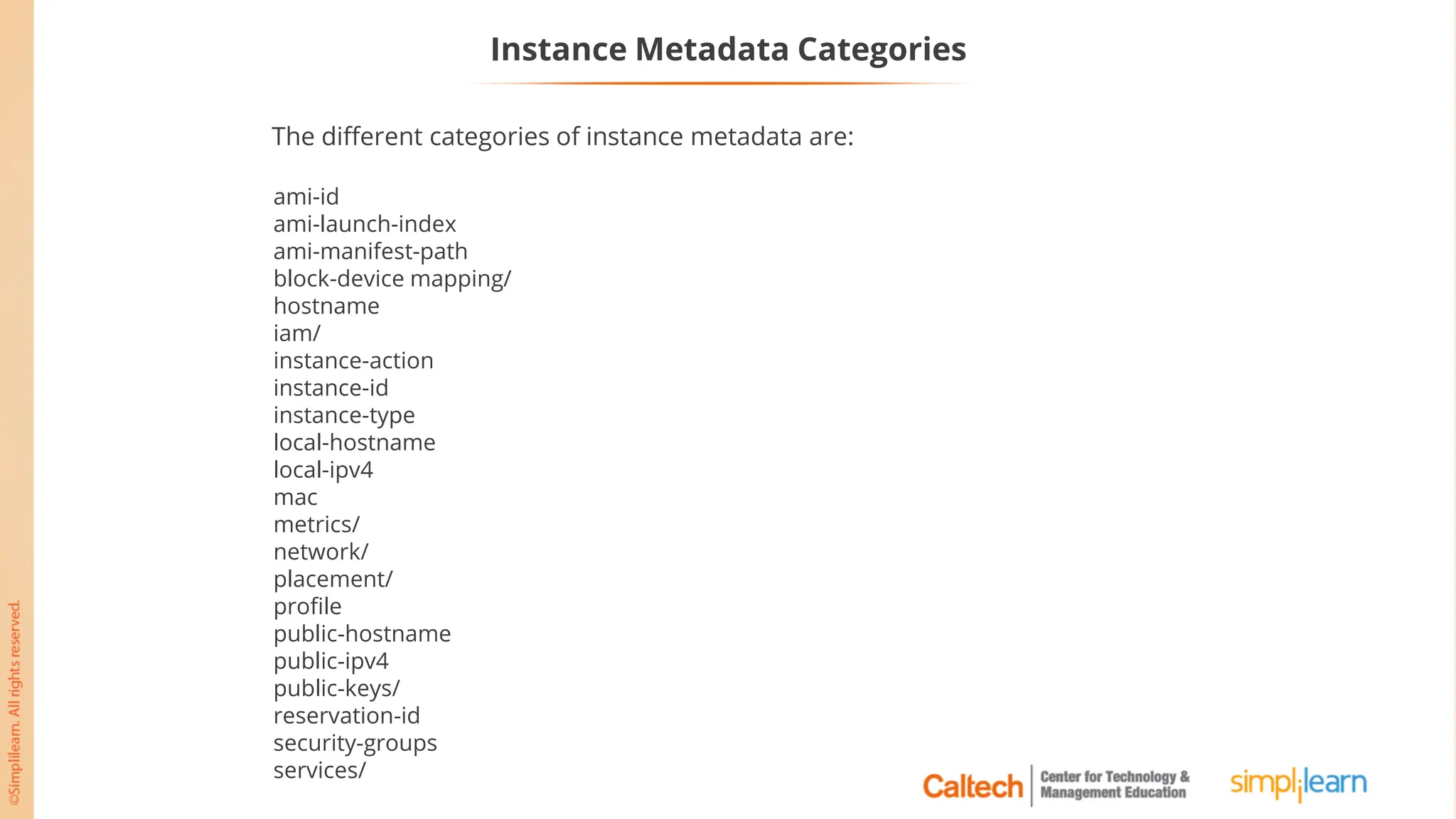
Instance Metadata Categories
ami-id
ami-launch-index
ami-manifest-path
block-device mapping/
hostname
iam/
instance-action
instance-id
instance-type
local-hostname
local-ipv4
mac
metrics/
network/
placement/
profile
public-hostname
public-ipv4
public-keys/
reservation-id
security-groups
services/
The different categories of instance metadata are:
Elastic File System
Elastic File System (EFS)
Amazon Elastic File System (Amazon EFS) provides a simple, scalable, fully manageable
elastic NFS file system for use with AWS Cloud services and on-premises resources.
Amazon EFS
Elastic File System (EFS) Overview
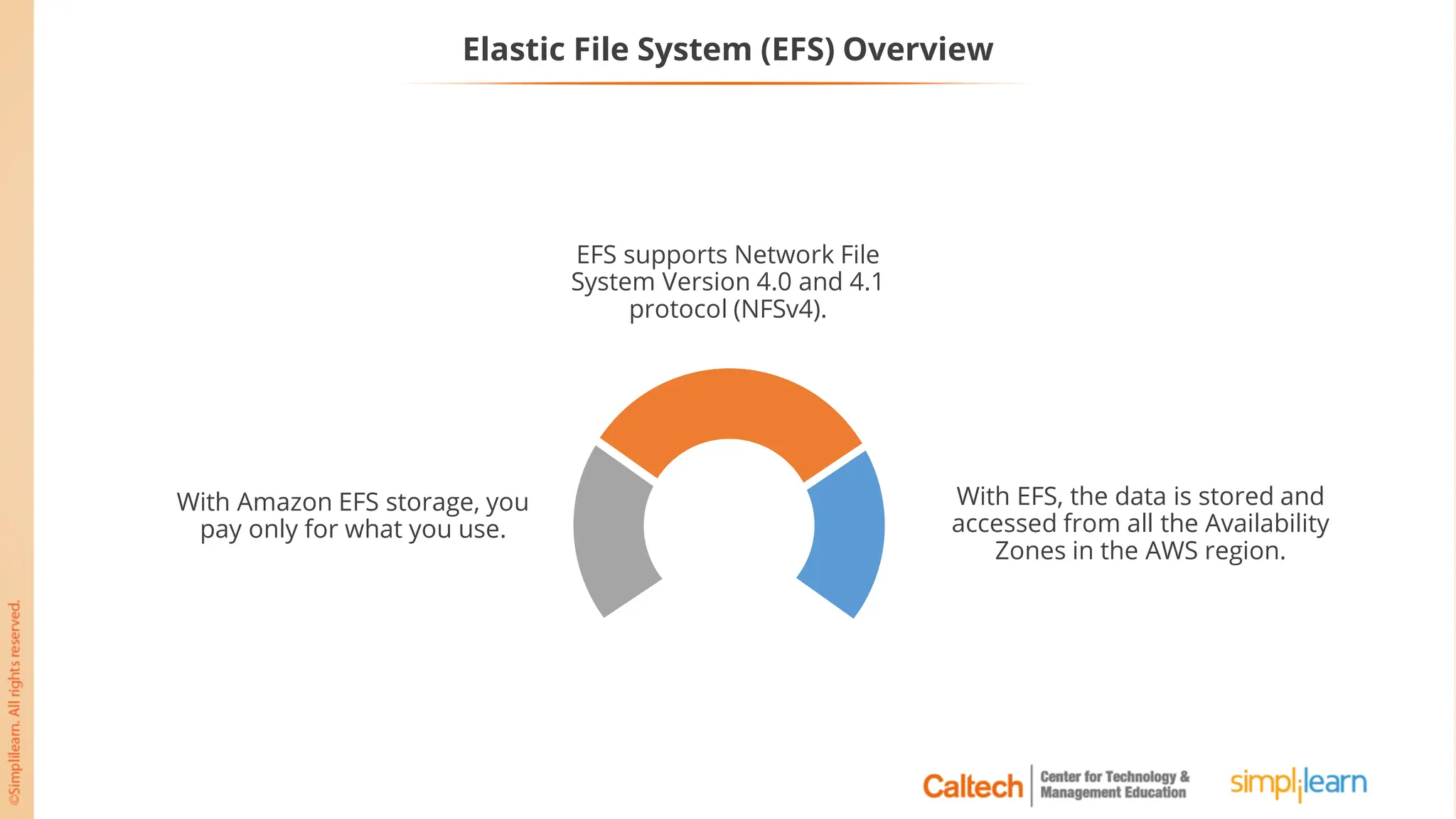
With EFS, the data is stored and
accessed from all the Availability
Zones in the AWS region.
With Amazon EFS storage, you
pay only for what you use.
EFS supports Network File
System Version 4.0 and 4.1
protocol (NFSv4).
Benefits of Elastic File System (EFS)
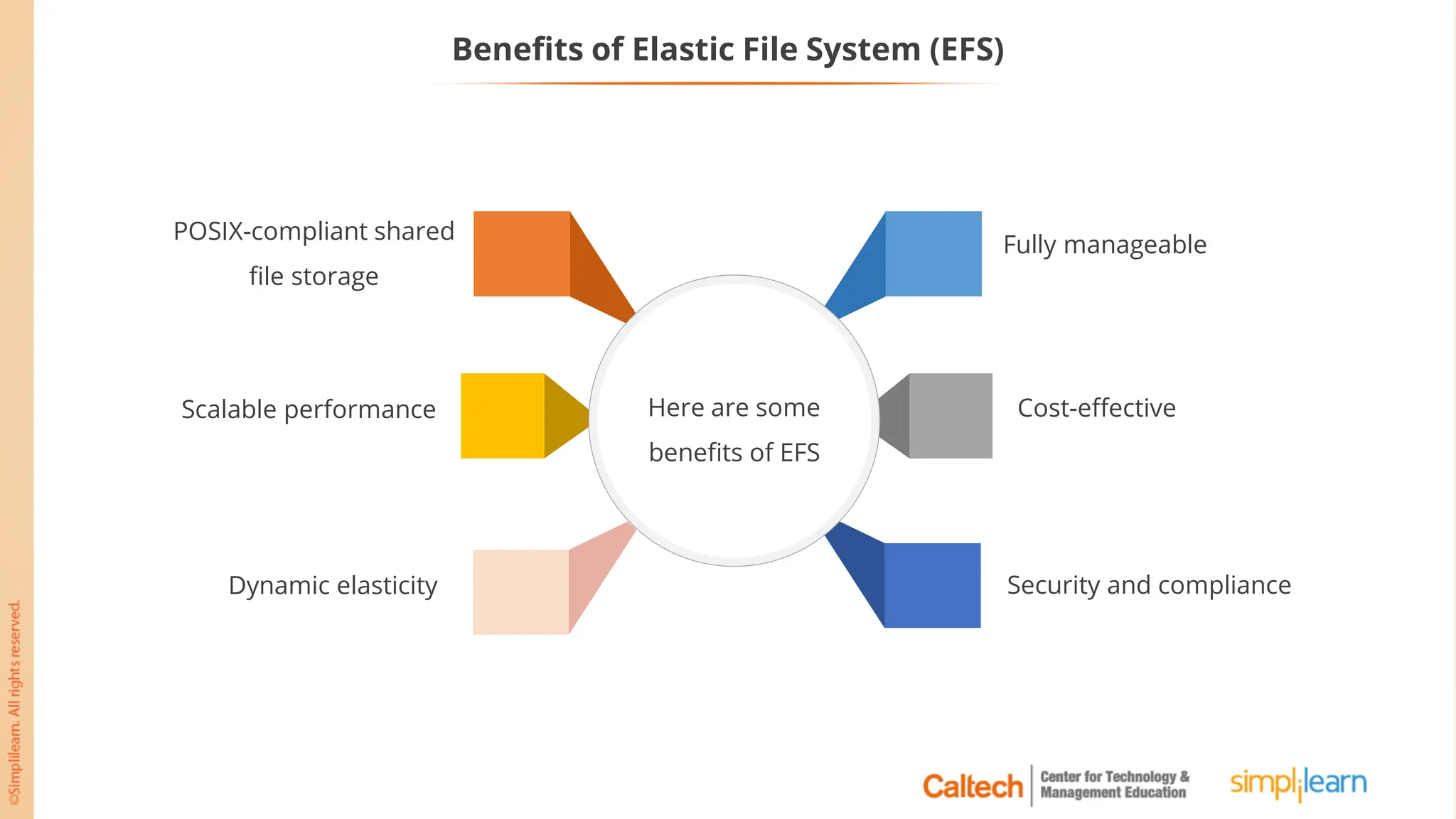
POSIX-compliant shared
file storage
Scalable performance
Security and compliance
Dynamic elasticity
Cost-effective
Fully manageable
Here are some
benefits of EFS
How Amazon EFS Works with Amazon EC2
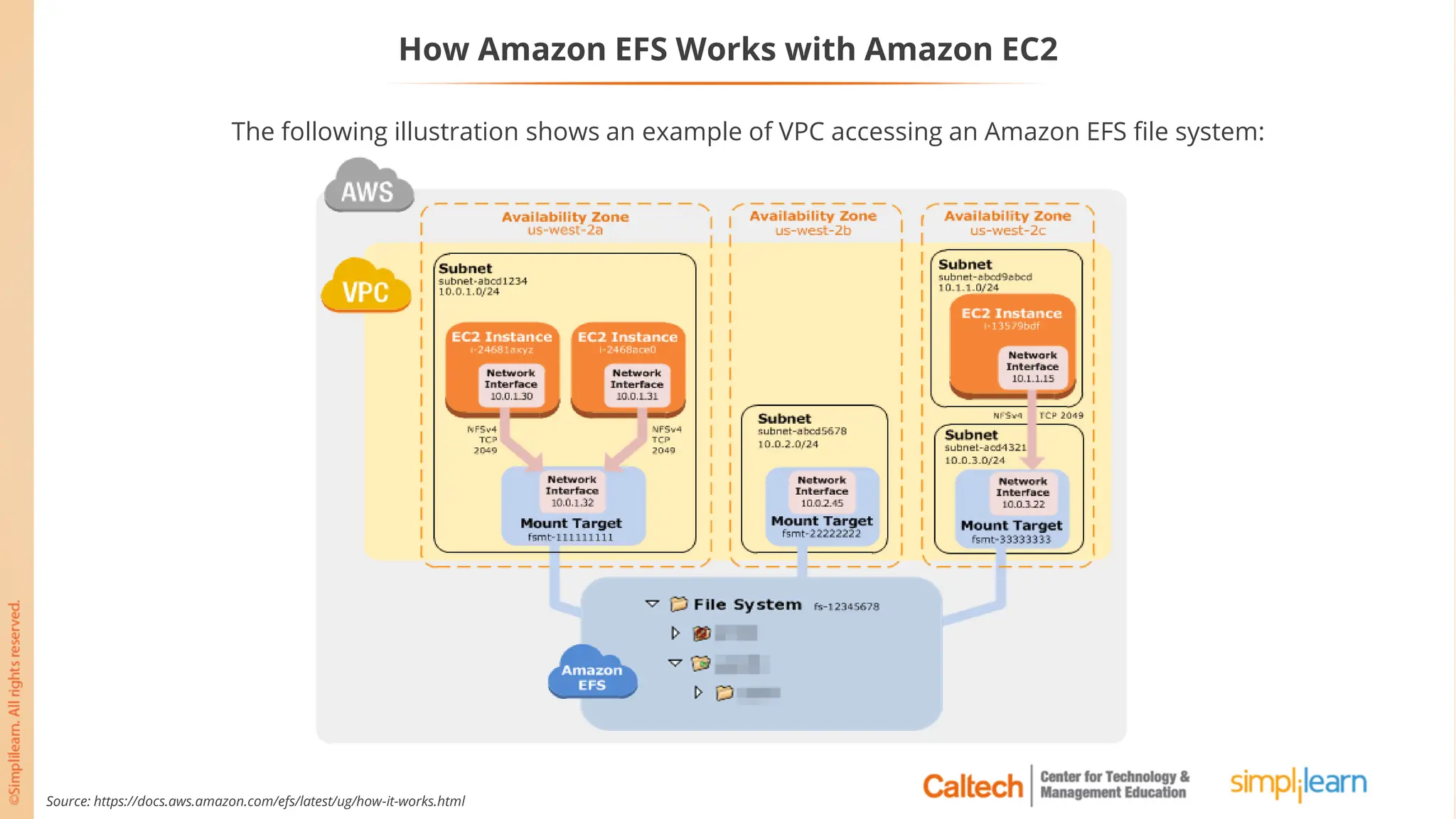
The following illustration shows an example of VPC accessing an Amazon EFS file system:
Source: https://docs.aws.amazon.com/efs/latest/ug/how-it-works.html
Difference between EFS and EBS
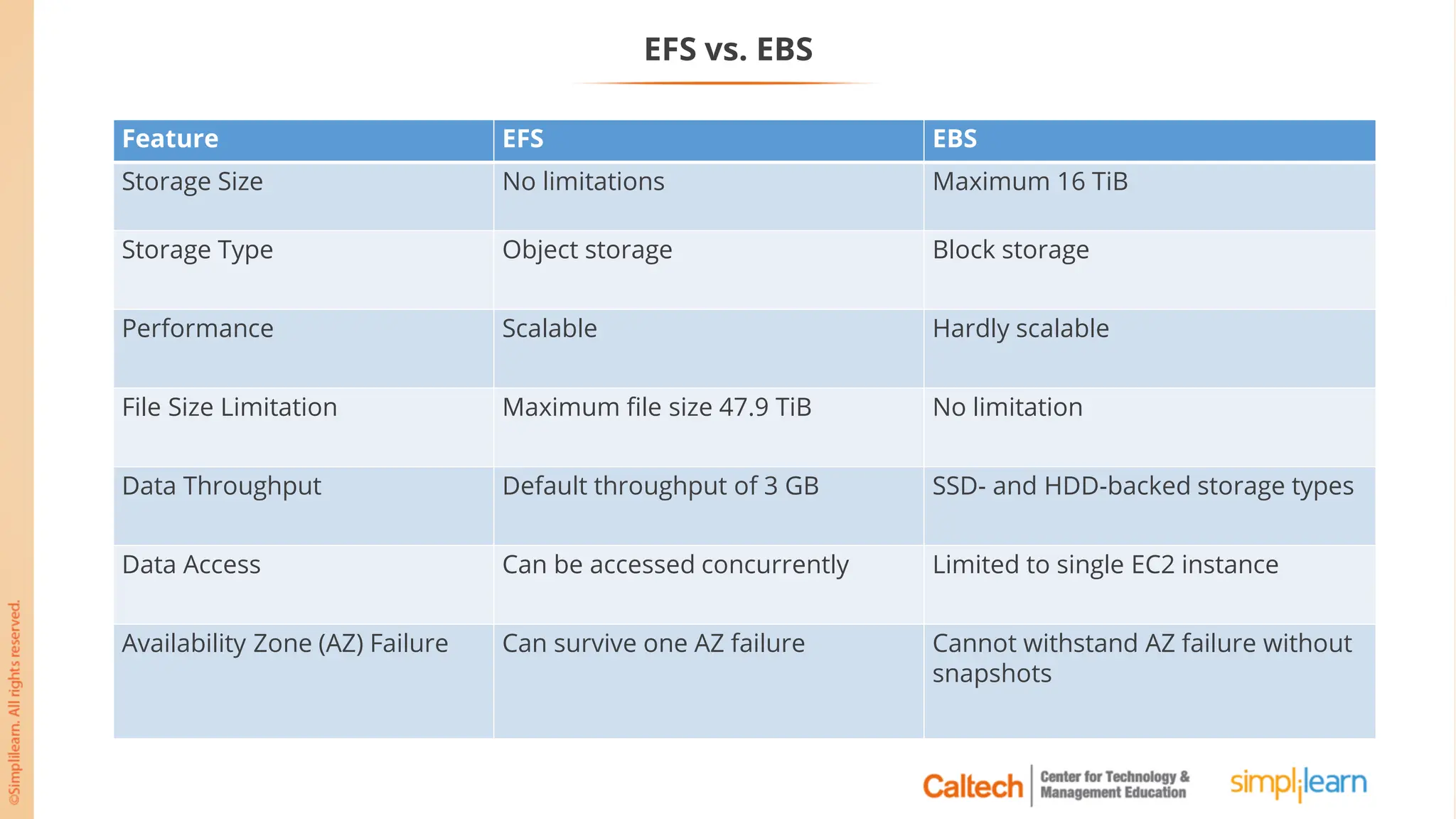
EFS vs. EBS
Feature EFS EBS
Storage Size No limitations Maximum 16 TiB
Storage Type Object storage Block storage
Performance Scalable Hardly scalable
File Size Limitation Maximum file size 47.9 TiB No limitation
Data Throughput Default throughput of 3 GB SSD- and HDD-backed storage types
Data Access Can be accessed concurrently Limited to single EC2 instance
Availability Zone (AZ) Failure Can survive one AZ failure Cannot withstand AZ failure without
snapshots
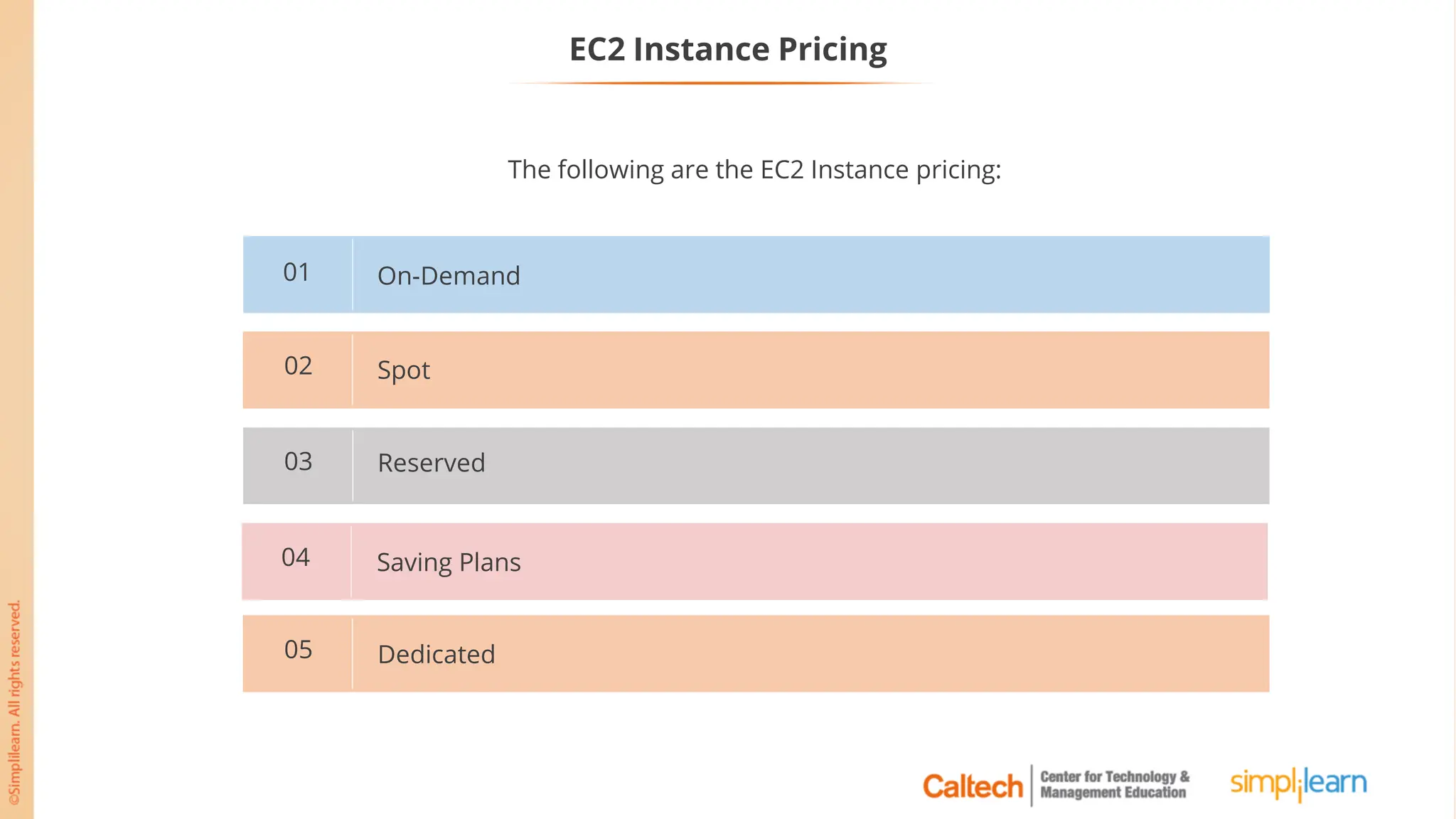
EC2 Instance Pricing
On-Demand
01
Spot
02
Reserved
03
Saving Plans
04
Dedicated
05
The following are the EC2 Instance pricing:
Purchasing Options: On-Demand
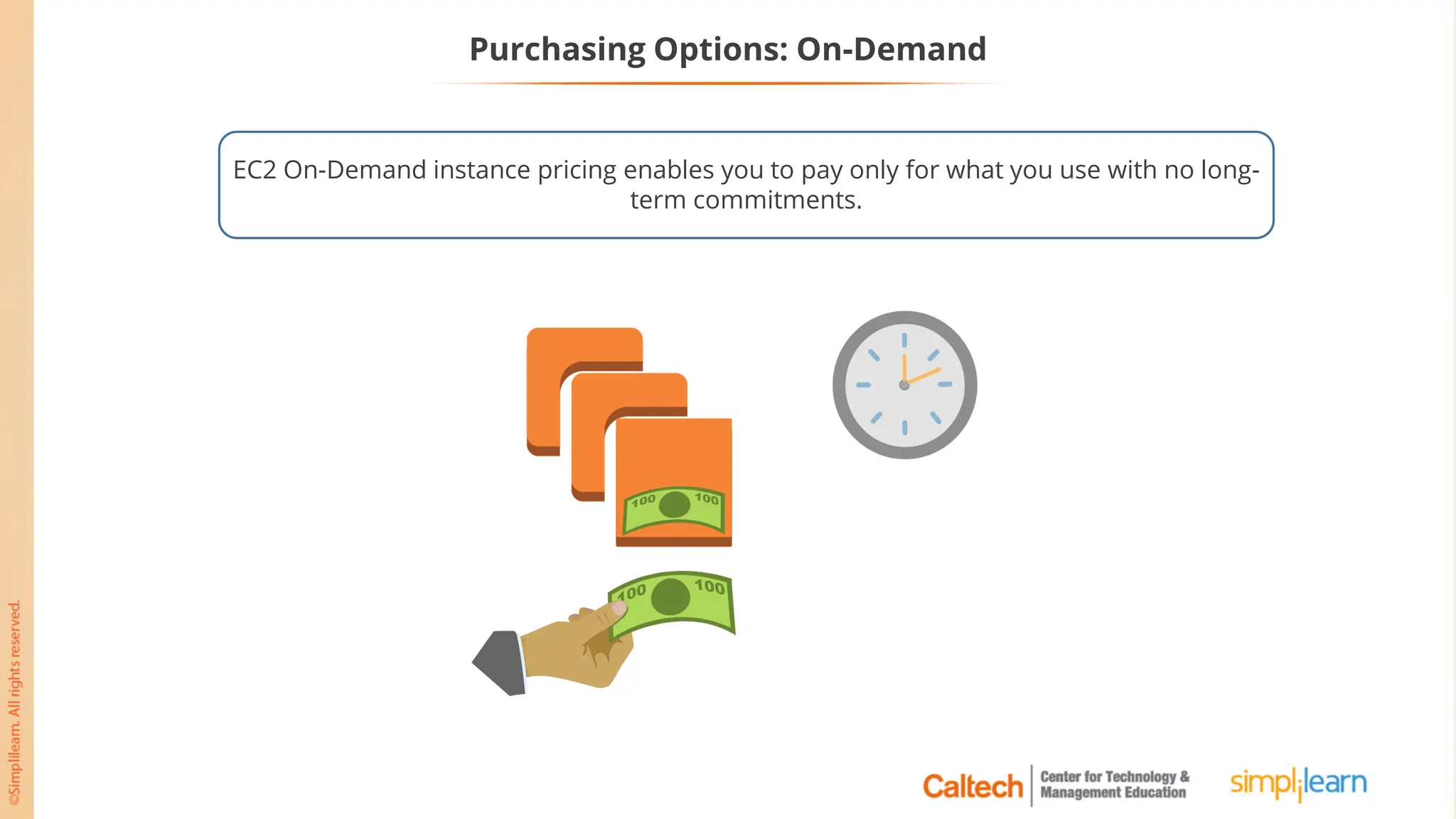
EC2 On-Demand instance pricing enables you to pay only for what you use with no long-
term commitments.
Purchasing Options: On-Demand
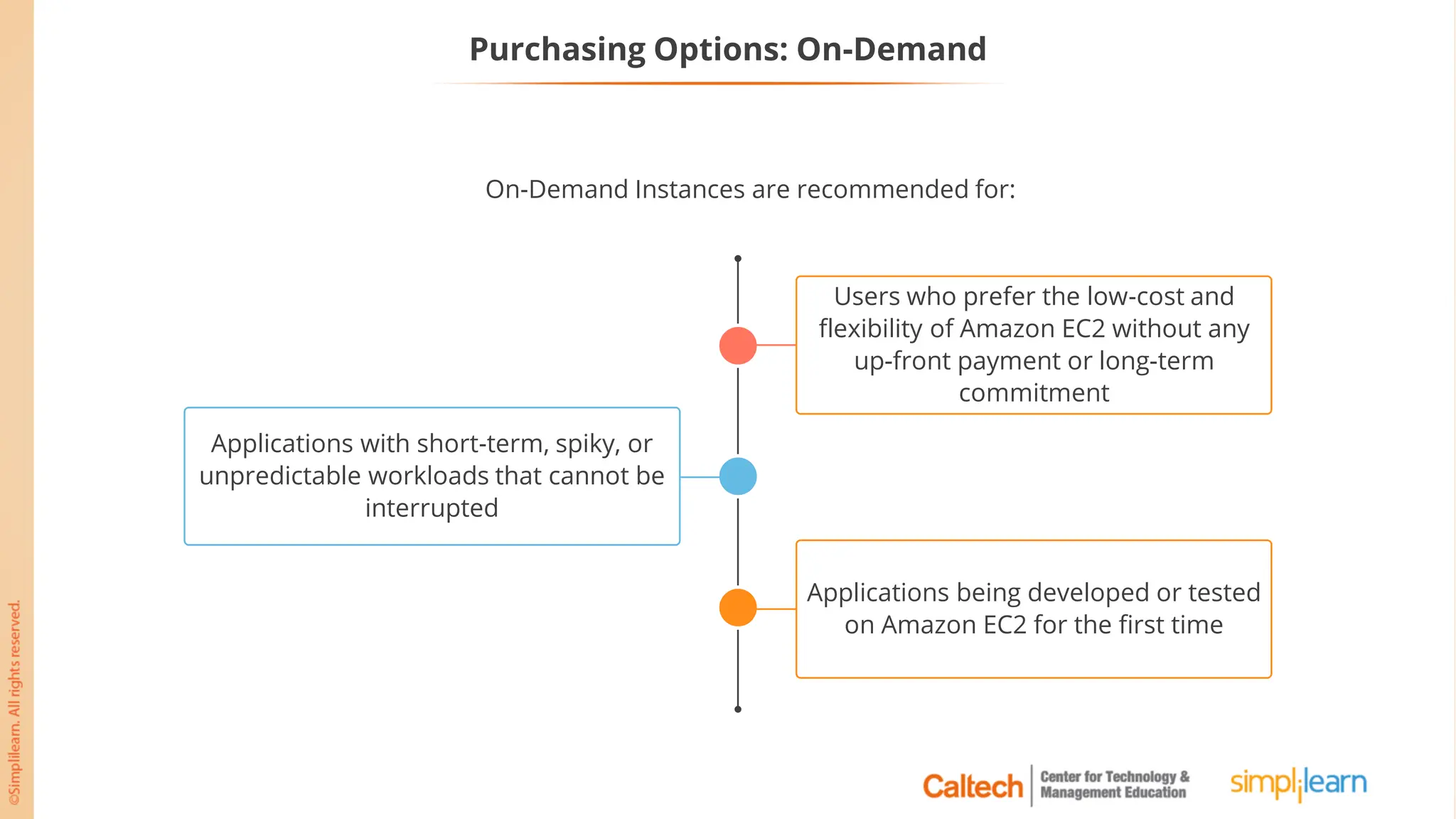
Applications with short-term, spiky, or
unpredictable workloads that cannot be
interrupted
Users who prefer the low-cost and
flexibility of Amazon EC2 without any
up-front payment or long-term
commitment
Applications being developed or tested
on Amazon EC2 for the first time
On-Demand Instances are recommended for:
Purchasing Options: Spot
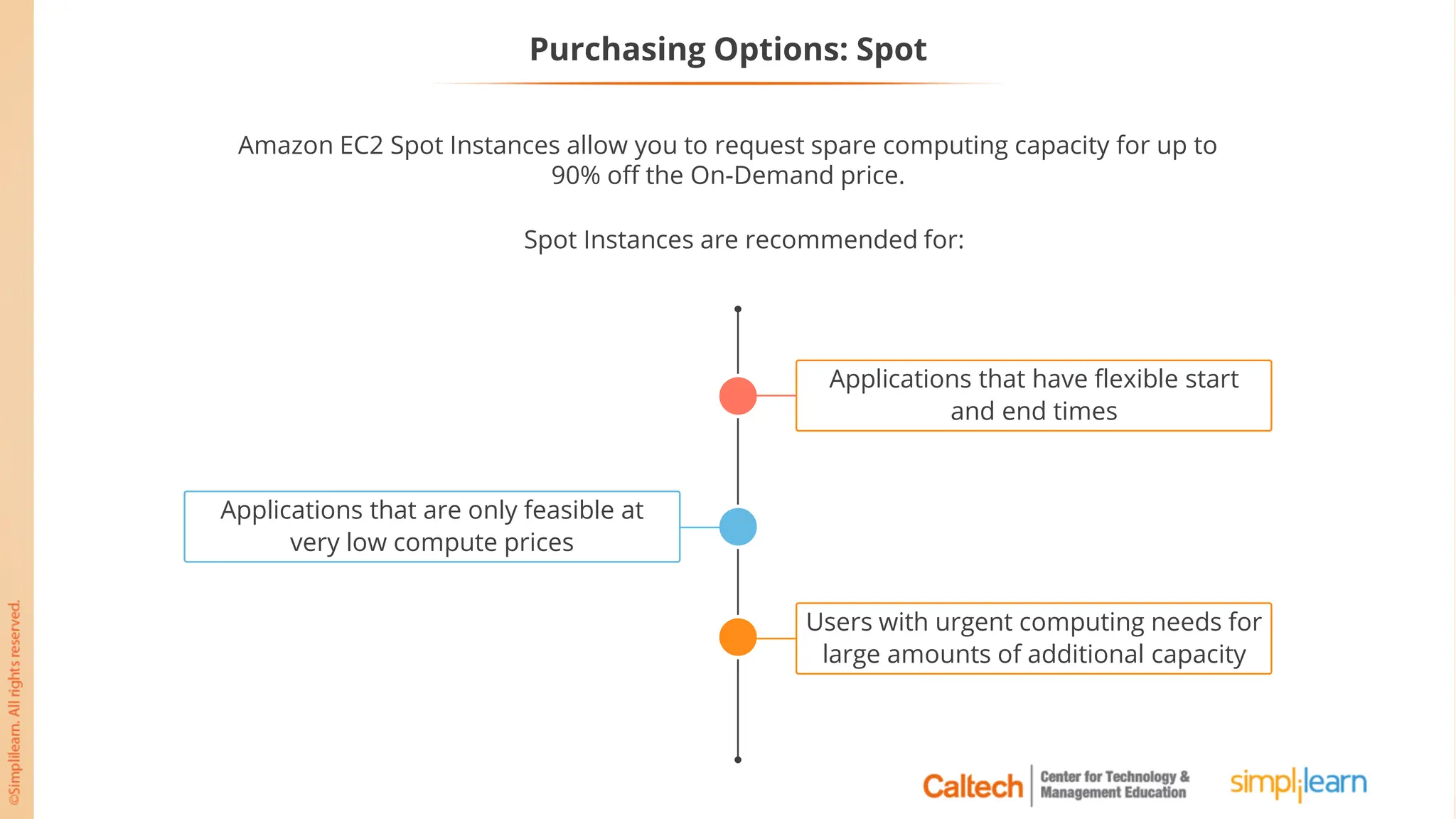
Amazon EC2 Spot Instances allow you to request spare computing capacity for up to
90% off the On-Demand price.
Applications that are only feasible at
very low compute prices
Applications that have flexible start
and end times
Users with urgent computing needs for
large amounts of additional capacity
Spot Instances are recommended for:
Purchasing Options: Reserved
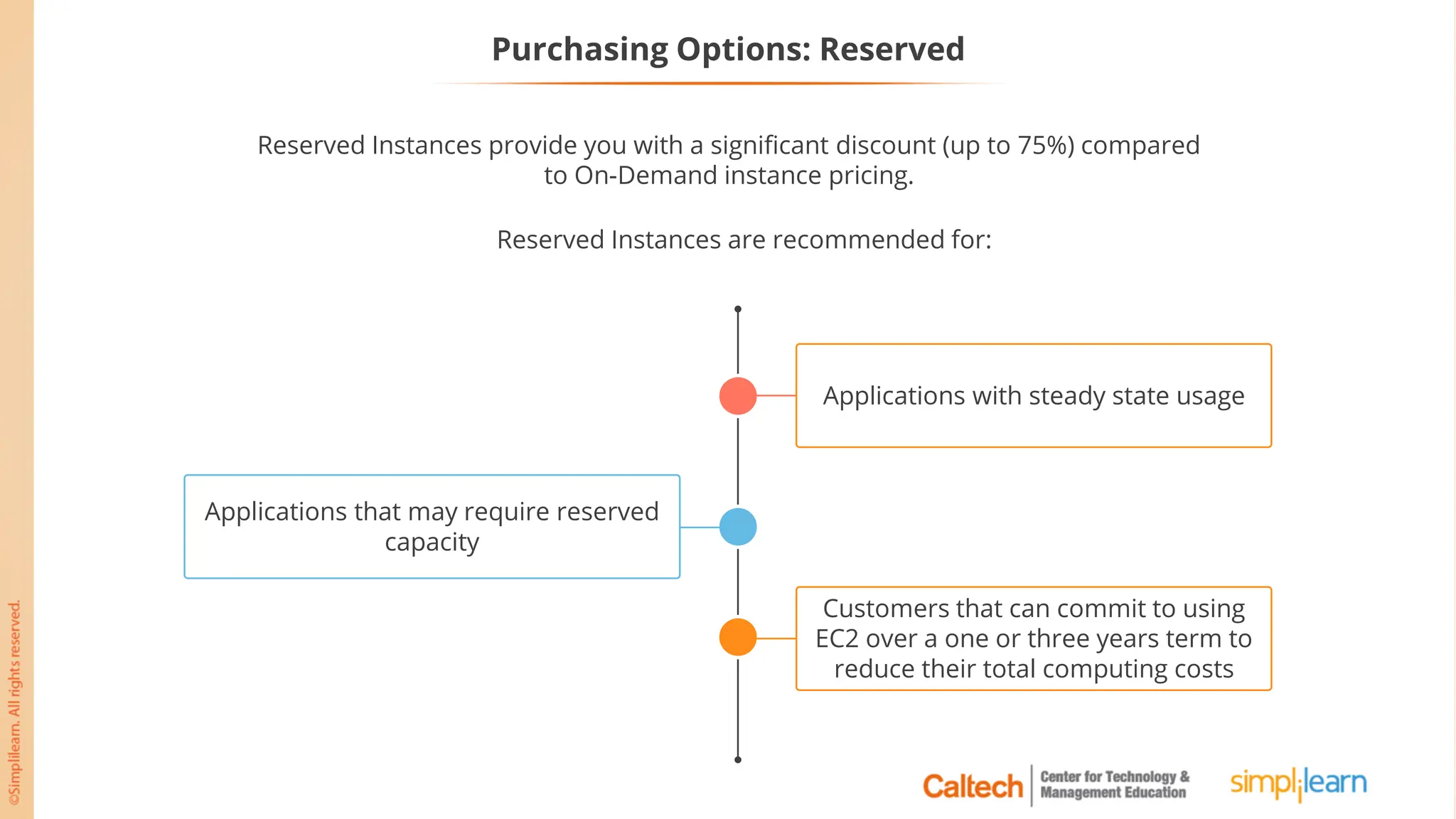
Reserved Instances provide you with a significant discount (up to 75%) compared
to On-Demand instance pricing.
Applications that may require reserved
capacity
Applications with steady state usage
Customers that can commit to using
EC2 over a one or three years term to
reduce their total computing costs
Reserved Instances are recommended for:
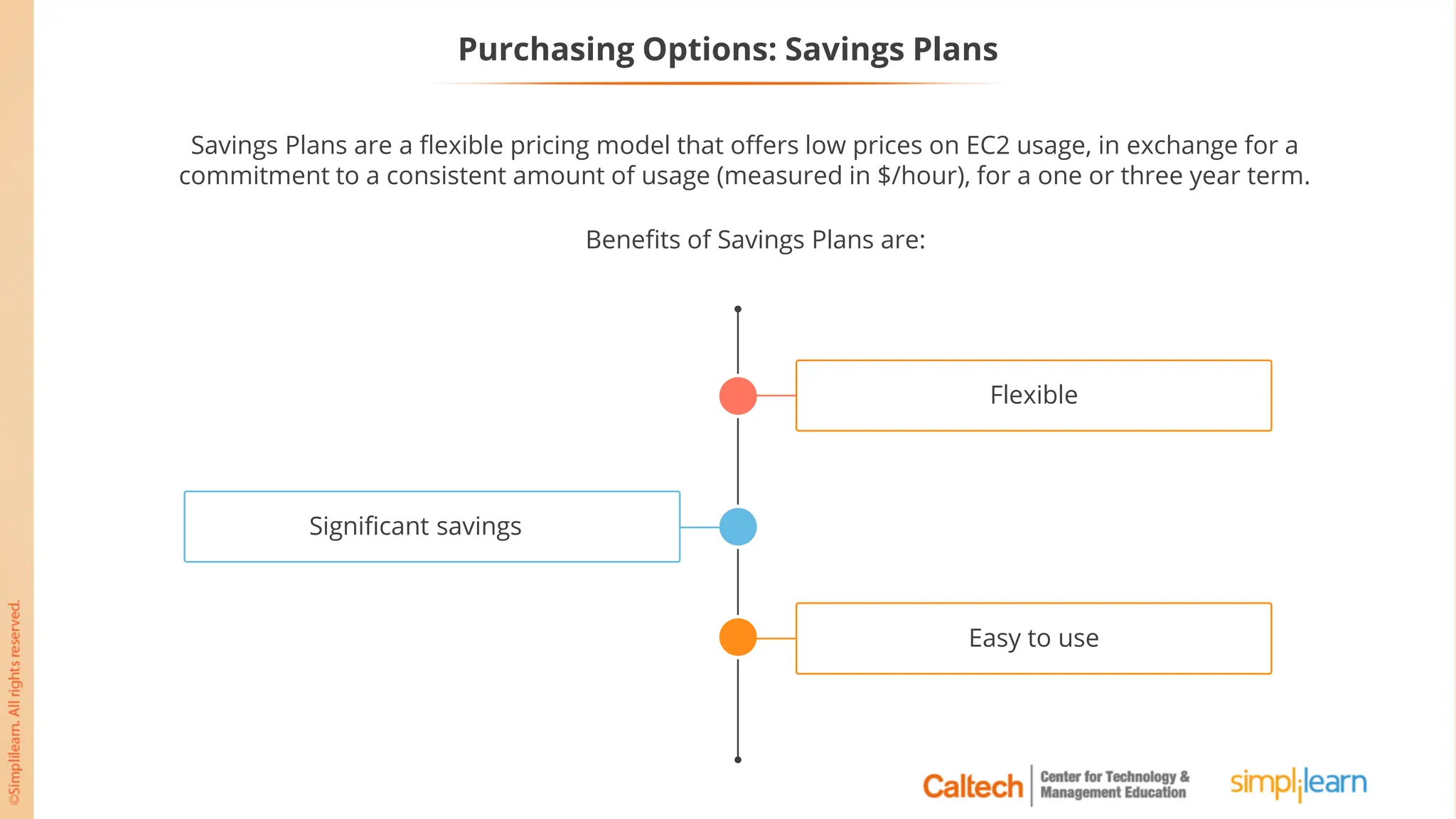
Purchasing Options: Savings Plans
Savings Plans are a flexible pricing model that offers low prices on EC2 usage, in exchange for a
commitment to a consistent amount of usage (measured in $/hour), for a one or three year term.
Benefits of Savings Plans are:
Significant savings
Flexible
Easy to use
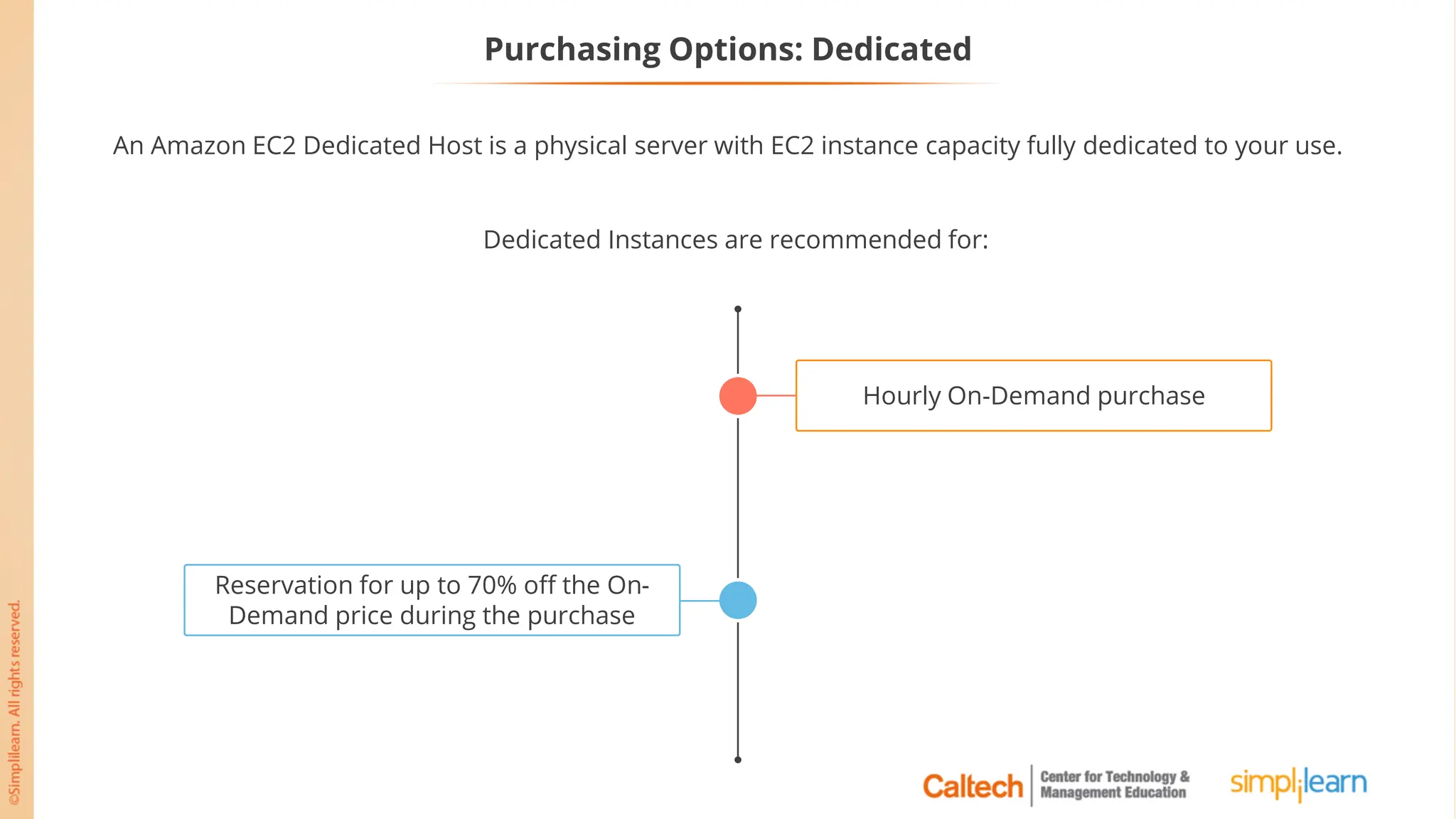
Purchasing Options: Dedicated
An Amazon EC2 Dedicated Host is a physical server with EC2 instance capacity fully dedicated to your use.
Reservation for up to 70% off the On-
Demand price during the purchase
Hourly On-Demand purchase
Dedicated Instances are recommended for:
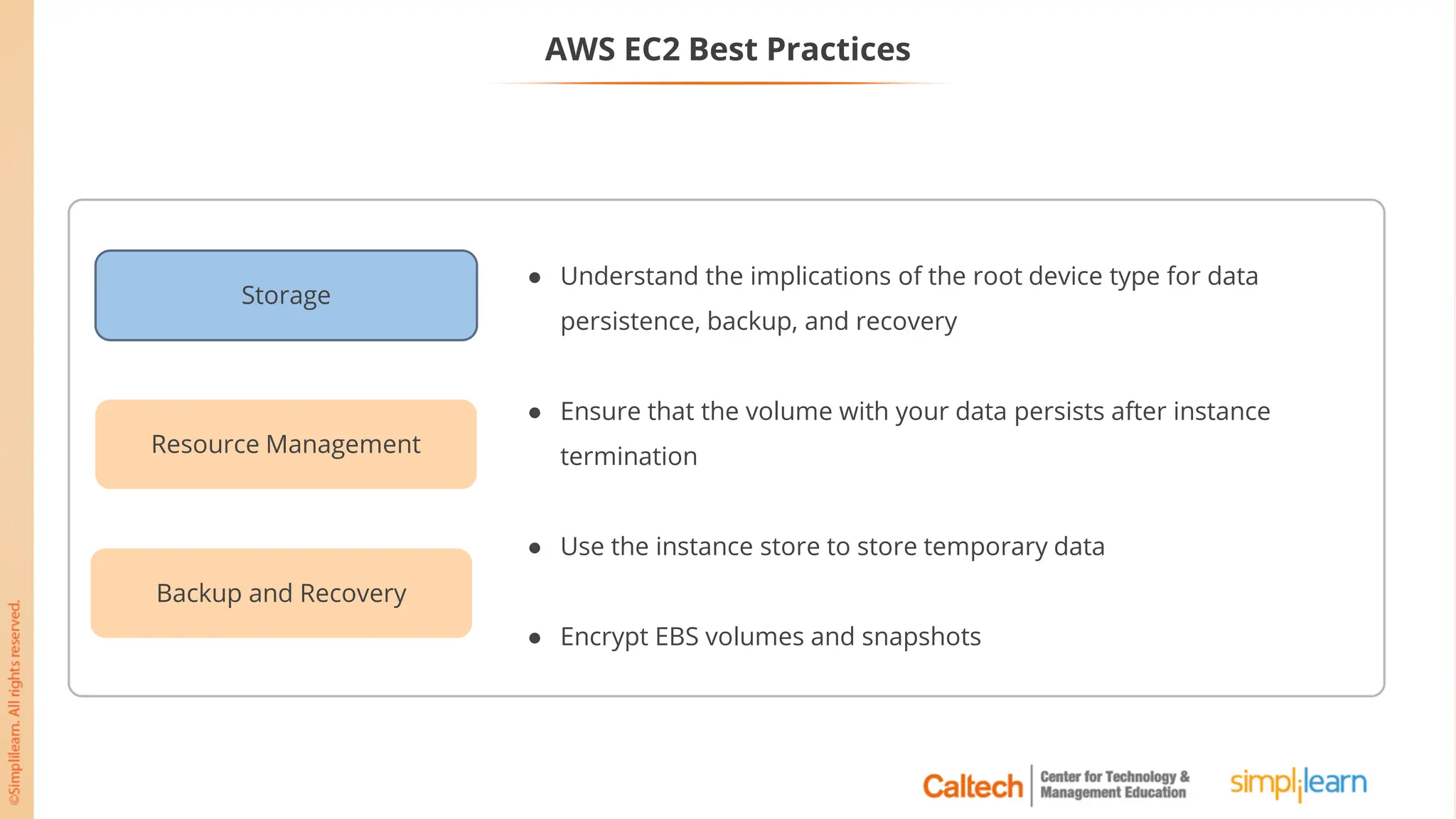
AWS EC2 Best Practices
Storage
Resource Management
Backup and Recovery
● Understand the implications of the root device type for data
persistence, backup, and recovery
● Ensure that the volume with your data persists after instance
termination
● Use the instance store to store temporary data
● Encrypt EBS volumes and snapshots
AWS EC2 Best Practices
Resource Management
Storage
Backup and Recovery
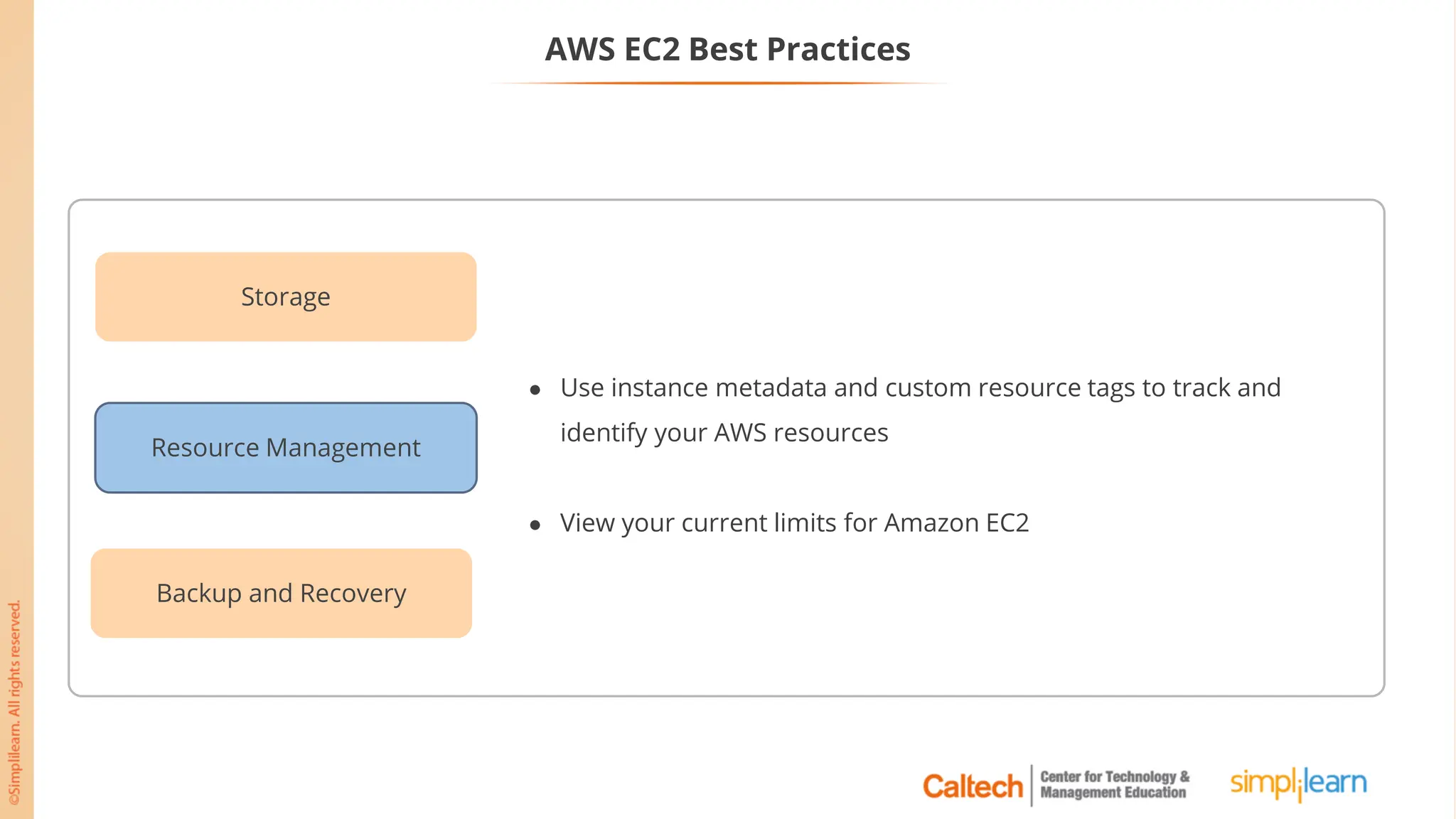
● Use instance metadata and custom resource tags to track and
identify your AWS resources
● View your current limits for Amazon EC2
AWS EC2 Best Practices
Backup and Recovery
Storage
Resource Management
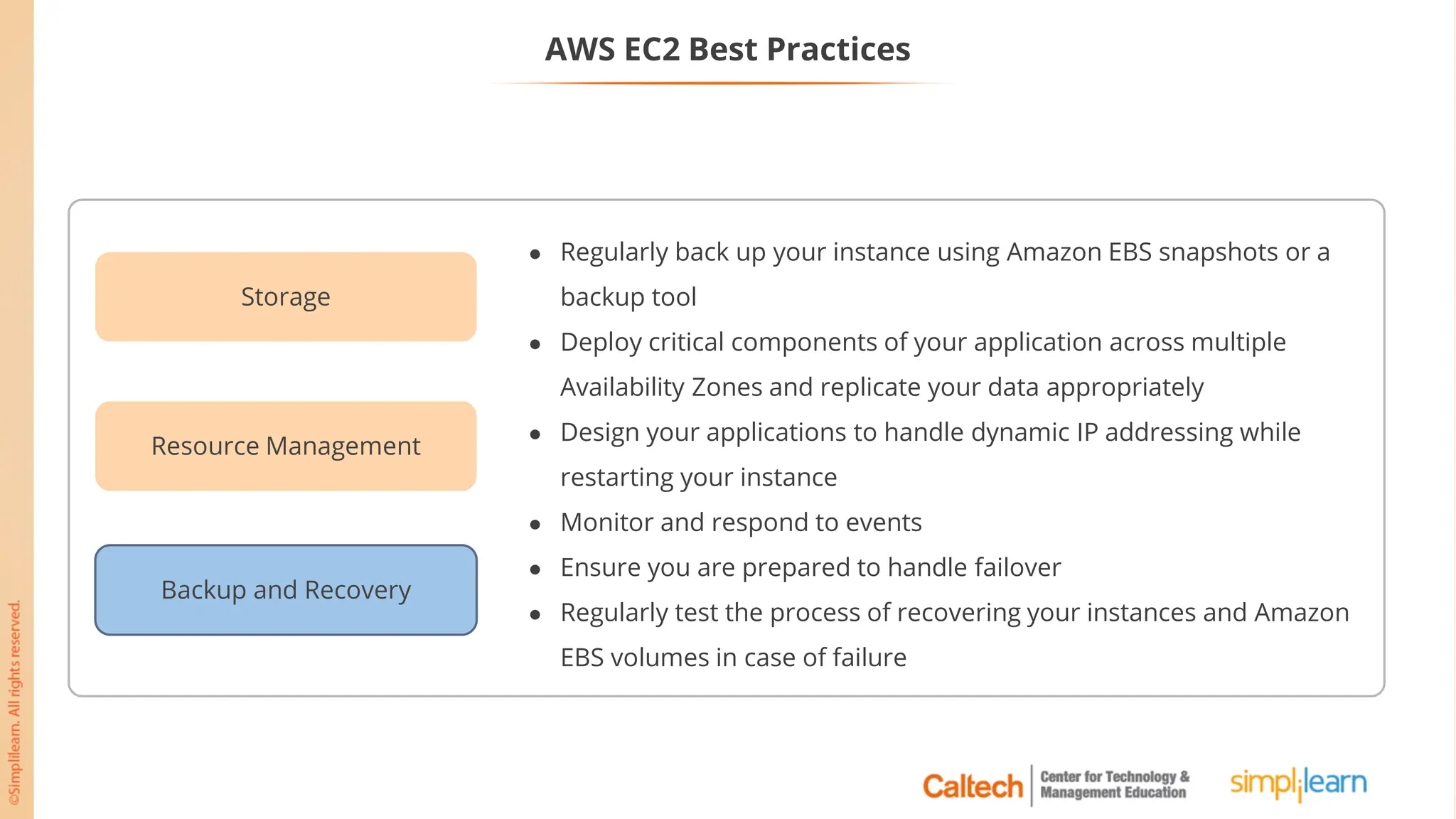
● Regularly back up your instance using Amazon EBS snapshots or a
backup tool
● Deploy critical components of your application across multiple
Availability Zones and replicate your data appropriately
● Design your applications to handle dynamic IP addressing while
restarting your instance
● Monitor and respond to events
● Ensure you are prepared to handle failover
● Regularly test the process of recovering your instances and Amazon
EBS volumes in case of failure
Amazon FSx
Amazon FSx Overview
• Amazon FSx makes it easy and cost-effective to launch and run popular file systems.
• With Amazon FSx, you can leverage the rich feature sets and fast performance of widely-used
open-source and commercially-licensed file systems.
• It provides cost-efficient capacity and high levels of reliability.
• It integrates with other AWS services so that you can manage and use the file systems in
cloud-native ways.
Amazon FSx Overview
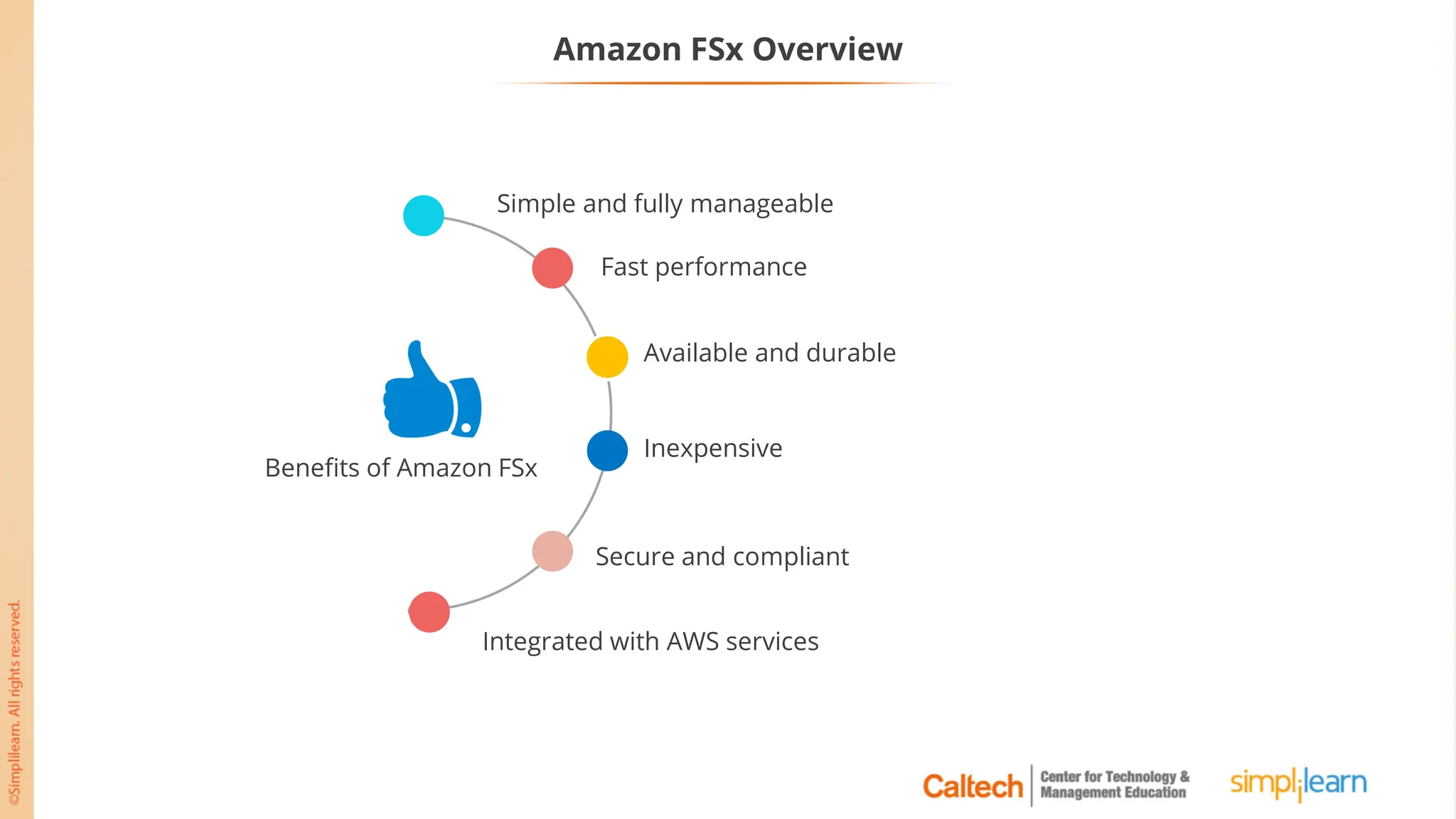
Simple and fully manageable
Available and durable
Inexpensive
Secure and compliant
Fast performance
Integrated with AWS services
Benefits of Amazon FSx
Types of Amazon FSx
Amazon FSx provides you with two file systems to choose from:
Amazon FSx for Windows File Server
for business applications
Amazon FSx for Lustre for high-
performance workloads
Amazon FSx for Windows
• Amazon FSx for Windows File Server provides fully managed,
highly reliable, and scalable file storage that is accessible over the
industry-standard Server Message Block (SMB) protocol.
• It is built on Windows Server, delivering a wide range of
administrative features such as user quotas, end-user file
restore, and Microsoft Active Directory (AD) integration.
• It offers single-AZ and multi-AZ deployment options, fully
managed backups, and encryption of data at rest and in transit.
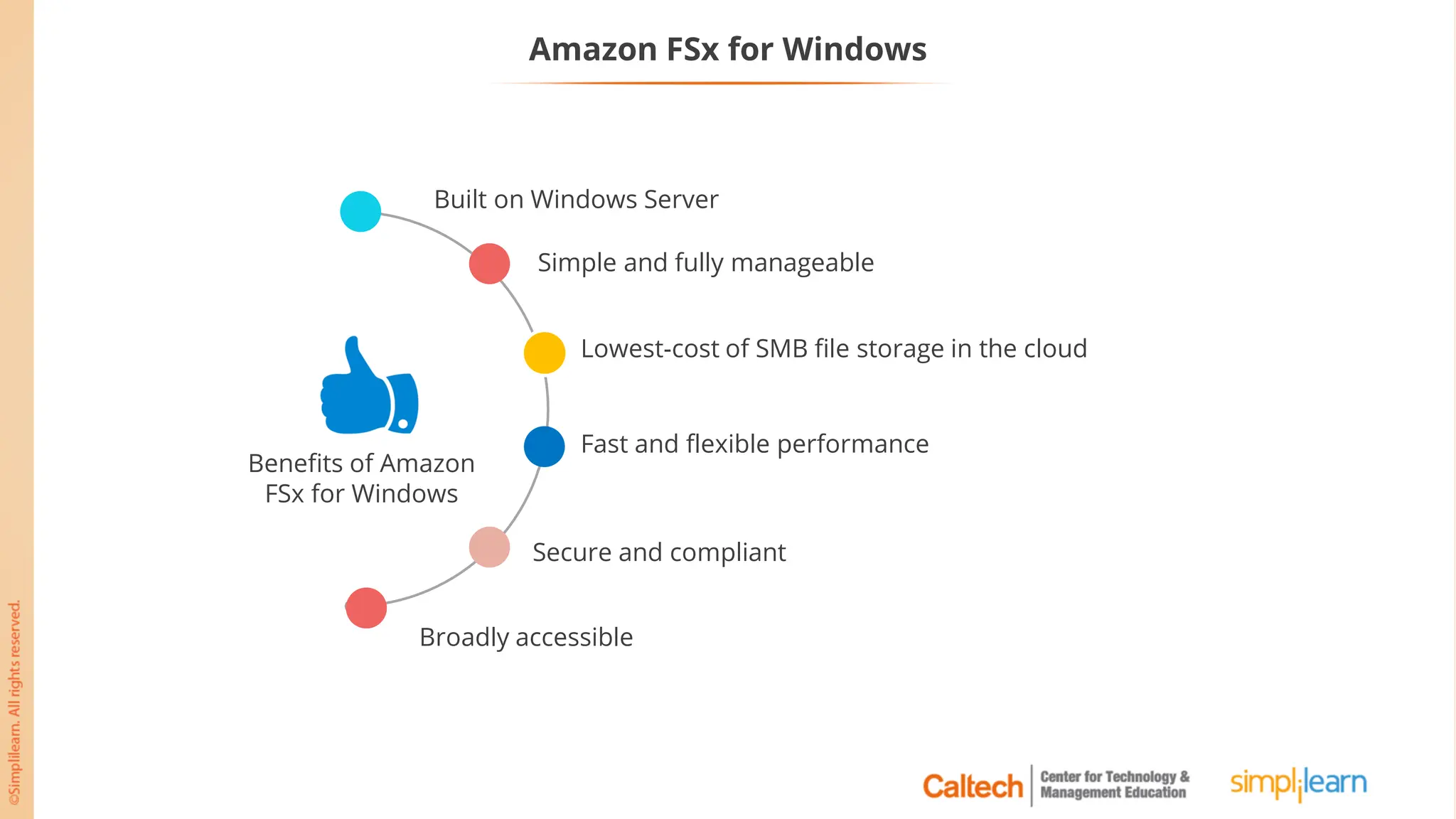
Amazon FSx for Windows
Built on Windows Server
Lowest-cost of SMB file storage in the cloud
Fast and flexible performance
Secure and compliant
Simple and fully manageable
Broadly accessible
Benefits of Amazon
FSx for Windows
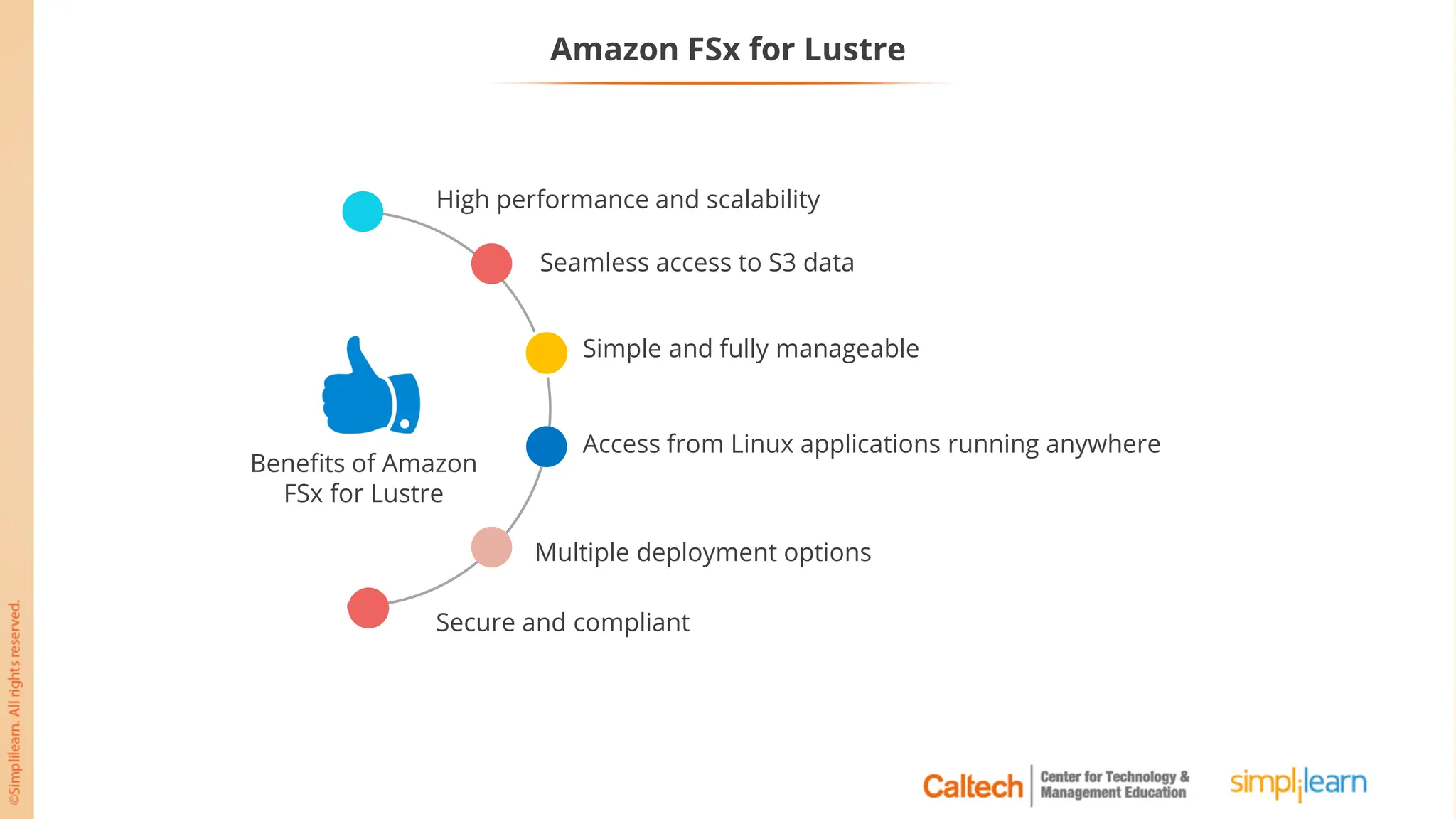
Amazon FSx for Lustre
• Amazon FSx for Lustre makes it easy and cost-effective to launch
and run the world’s most popular high-performance file system.
• The open-source Lustre file system is designed for applications
that require fast storage that can keep up with your computing
performance.
• Amazon FSx enables you to use Lustre file systems for any
workload where storage speed matters.
• Amazon FSx for Lustre integrates with Amazon S3, making it easy
to use Lustre file system to access data sets.
Amazon FSx for Lustre
High performance and scalability
Simple and fully manageable
Access from Linux applications running anywhere
Multiple deployment options
Seamless access to S3 data
Secure and compliant
Benefits of Amazon
FSx for Lustre
High Performance Computing (HPC)
• AWS provides the most elastic and scalable cloud infrastructure to run your HPC applications.
• HPC on AWS removes the long wait times and lost productivity often associated with on-
premises HPC clusters.
• The most compute-intensive workloads span the traditional HPC applications, like genomics,
computational chemistry, financial risk modeling, computer-aided engineering, weather
prediction, and seismic imaging, as well as emerging applications, like machine learning, deep
learning, and autonomous driving.
• With access to a broad portfolio of cloud-based services like Data Analytics, Artificial Intelligence
(AI), and Machine Learning (ML), you can redefine traditional HPC workflows to innovate faster.
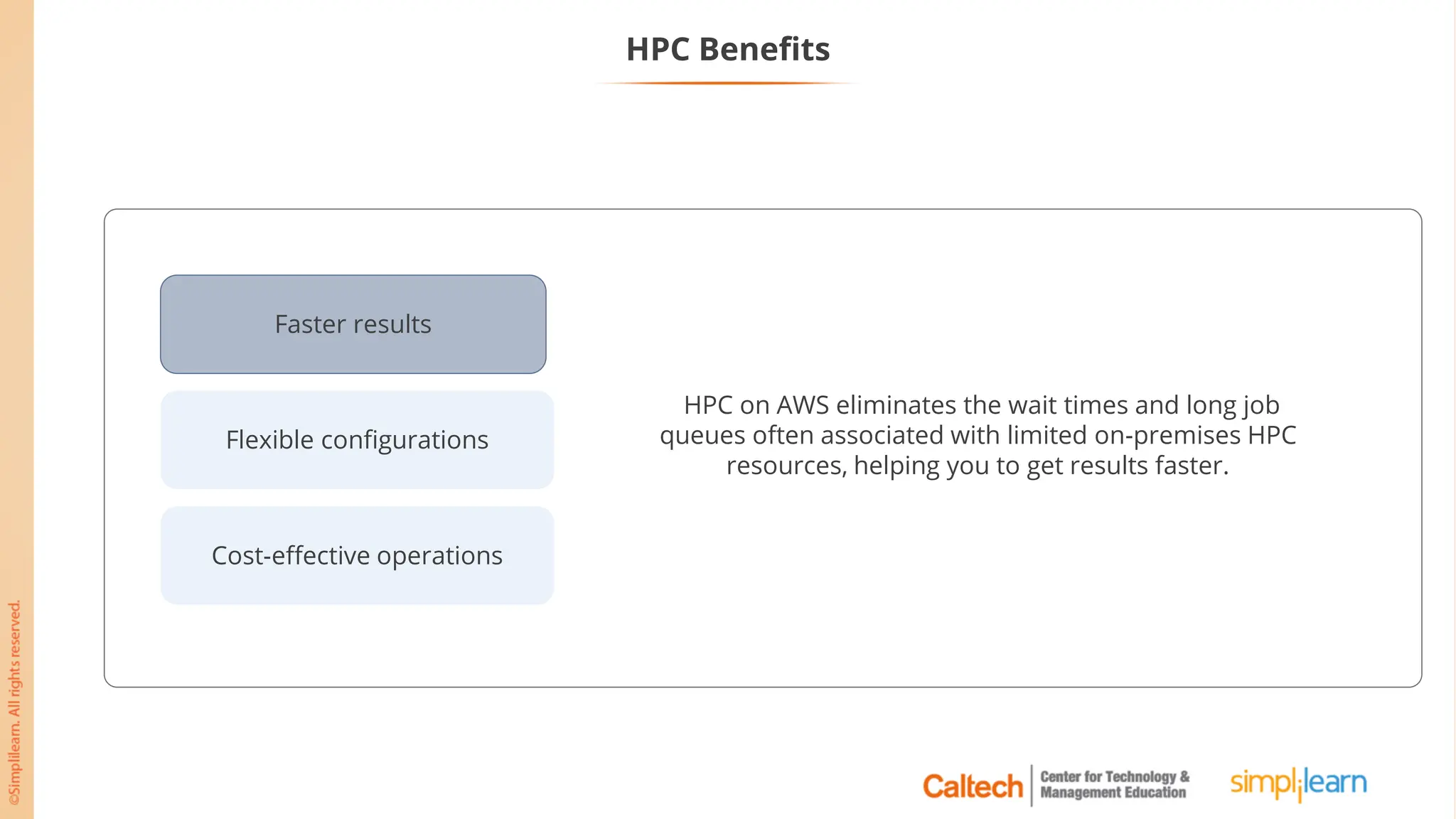
Flexible configurations
Cost-effective operations
Faster results
HPC Benefits
HPC on AWS eliminates the wait times and long job
queues often associated with limited on-premises HPC
resources, helping you to get results faster.
Flexible configurations
Cost-effective operations
Faster results
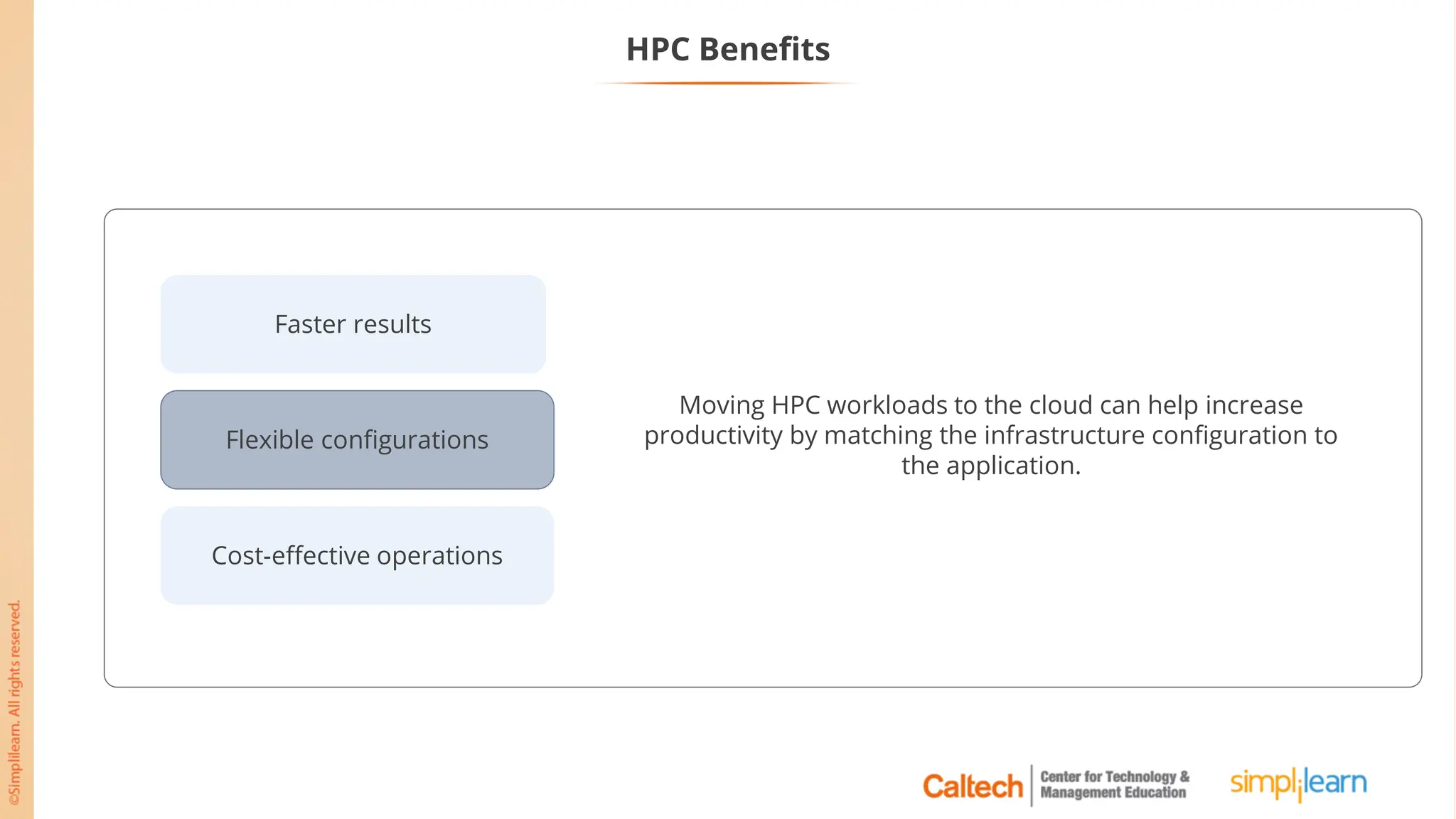
Moving HPC workloads to the cloud can help increase
productivity by matching the infrastructure configuration to
the application.
HPC Benefits
Flexible configurations
Cost-effective operations
Faster results
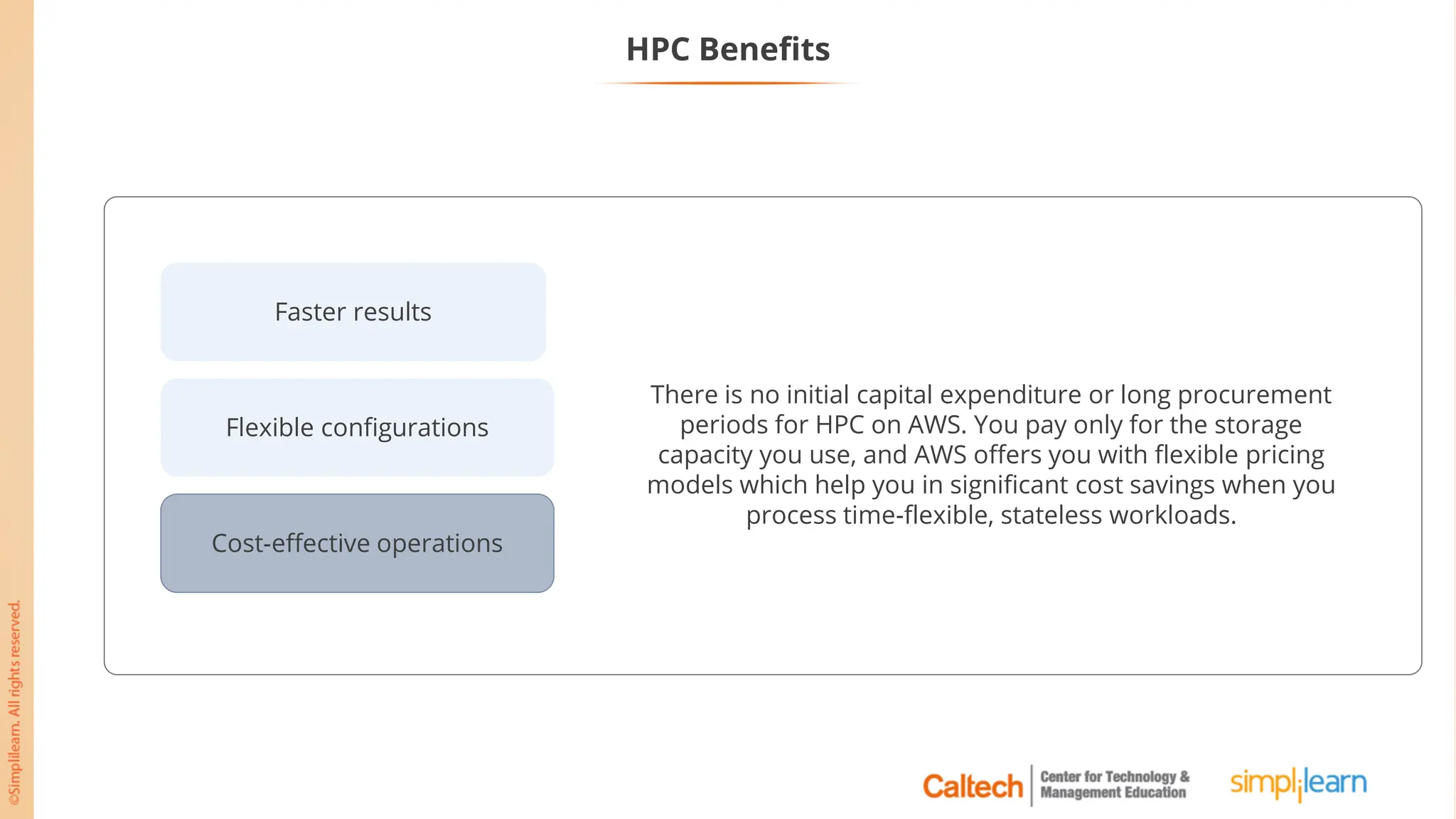
There is no initial capital expenditure or long procurement
periods for HPC on AWS. You pay only for the storage
capacity you use, and AWS offers you with flexible pricing
models which help you in significant cost savings when you
process time-flexible, stateless workloads.
HPC Benefits
Key Takeaways
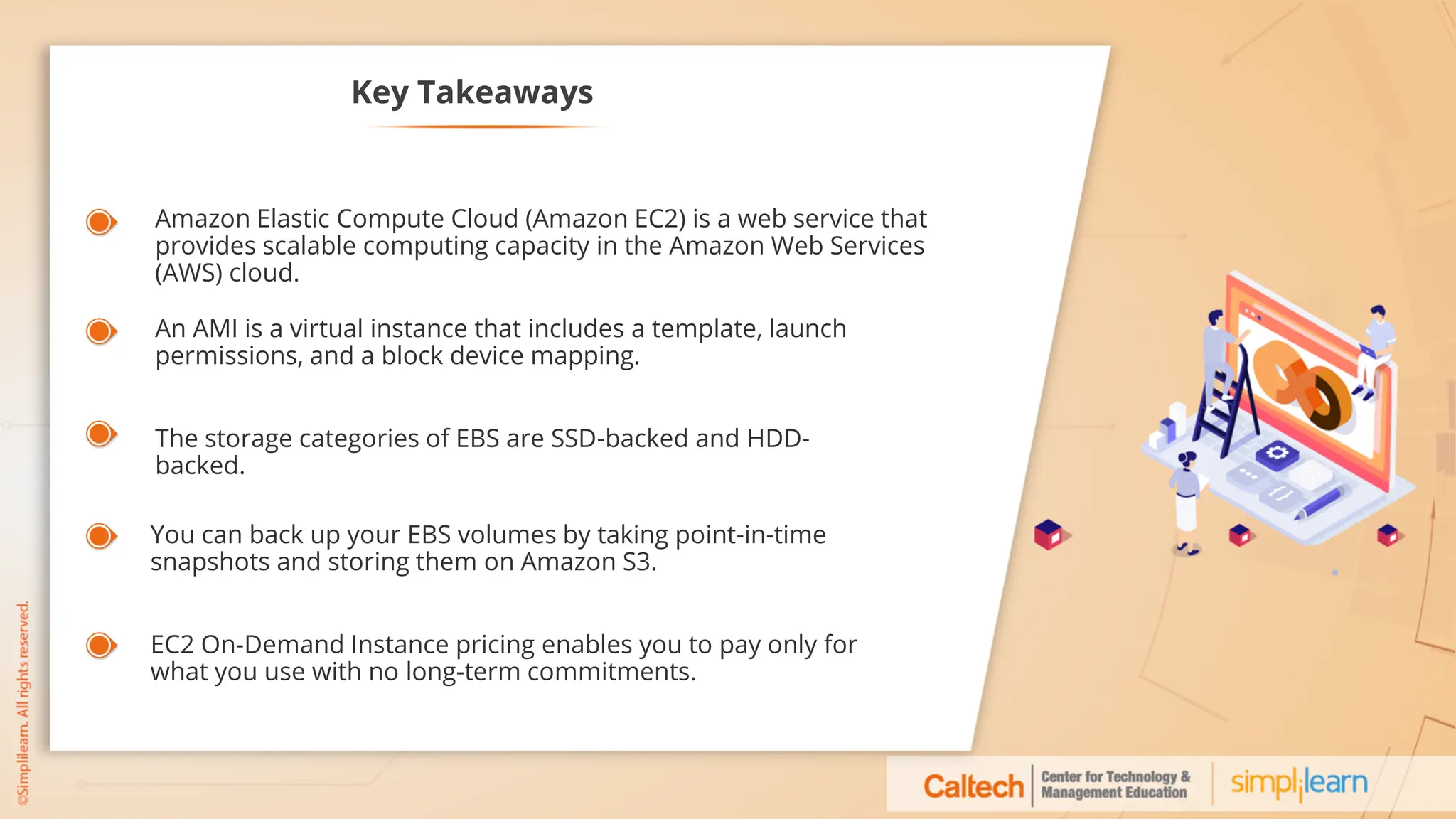
Amazon Elastic Compute Cloud (Amazon EC2) is a web service that
provides scalable computing capacity in the Amazon Web Services
(AWS) cloud.
An AMI is a virtual instance that includes a template, launch
permissions, and a block device mapping.
The storage categories of EBS are SSD-backed and HDD-
backed.
EC2 On-Demand Instance pricing enables you to pay only for
what you use with no long-term commitments.
You can back up your EBS volumes by taking point-in-time
snapshots and storing them on Amazon S3.
Setting up an Instance with EBS Volume and Snapshot
Problem Statement:
As a developer, your development team has asked you to create a small Linux-
based instance using a custom AMI for testing a new application.
Perform the following:
● Open the Amazon EC2 console
● Create a custom AMI
● Create the instance using a custom AMI
● Create an EBS Volume
● Attach an EBS Volume to a Linux Instance
● Create a Snapshot
Lesson-End Project Duration: 60 min.

Lesson_03_Amazon_Elastic_Compute_Cloud.pdf

  • 1.
  • 2.
    AWS Solution Architect:Associate Level
  • 3.
  • 4.
    Learning Objectives Explain AmazonEC2 and its uses Describe Amazon Machine Image (AMI) Explain the difference between EBS and EFS Describe the use of EBS snapshots Describe the different instance pricing options Illustrate Auto Scaling, FSx, and HPC Evaluate the AWS recommended best practices for EC2 By the end of the lesson, you will be able to:
  • 5.
  • 6.
    Elastic Compute Cloud(EC2) Amazon Elastic Compute Cloud (Amazon EC2) is a web service that provides scalable computing capacity in the Amazon Web Services (AWS) cloud.
  • 7.
    Benefits of UsingEC2: • EC2 increases or decreases your storage capacity in minutes. • It launches thousands of server instances simultaneously. Elastic Web-Scale Computing Flexible Cloud Hosting Services AWS Integration Reliability and Security Low Cost Flexible Cloud Hosting Services
  • 8.
    Elastic Web-Scale Computing FlexibleCloud Hosting Services AWS Integration Reliability and Security Low Cost Flexible Cloud Hosting Services EC2 launches numerous operating systems, instance types, and software in just minutes. Benefits of Using EC2:
  • 9.
    Elastic Web-Scale Computing FlexibleCloud Hosting Services AWS Integration Reliability and Security Low Cost AWS Integration EC2 is integrated with other AWS products such as Amazon S3, Amazon RDS, and Amazon SQS, to provide a complete IT architecture solution. Benefits of Using EC2:
  • 10.
    Elastic Web-Scale Computing FlexibleCloud Hosting Services AWS Integration Reliable and Secure Low Cost Reliability and Security • AWS operates a Service Level Agreement (SLA) commitment of 99.95% availability. • With Amazon VPC, you can easily create secure and robust networks to run your Amazon EC2 instances. Benefits of Using EC2:
  • 11.
    Elastic Web-Scale Computing FlexibleCloud Hosting Services AWS Integration Reliability and Security Low Cost Low Cost • AWS charges you by seconds and you only pay for what you use. • Rates are lower than your existing on-premise infrastructure. Benefits of Using EC2:
  • 12.
    EC2 Instance PurchasingOptions Instance Purchasing Options Capacity Reservations Dedicated Instances Dedicated Hosts On-Demand Instances Savings Plans Reserved Instances Scheduled Instances Spot Instances Amazon EC2 provides the following purchasing options to enable you to optimize your costs based on your needs:
  • 13.
  • 14.
    Amazon Machine Image(AMI) Amazon’s definition of an AMI: “An Amazon Machine Image (AMI) provides the information required to launch an instance. You specify an AMI when you launch an instance, and you can launch as many instances from as many different AMIs as you need.”
  • 15.
    Amazon Machine Image(AMI) AMI AMI is a virtual instance that includes: • A template for the root volume for the instance • Launch permissions to control AMI launch instances • A block device mapping that specifies volumes to attach to the instance
  • 16.
    Amazon Linux AMI AmazonLinux AMI is a supported and maintained Linux image provided by AWS. Preconfigured with tools such as AWS CLI, EC2 API, and AMI Updated regularly Allows repository access to MySQL, PostgreSQL, Python, Ruby, and Tomcat Provided at no additional charge to Amazon EC2 users Secure, stable, and high- performance execution environment for applications running on Amazon EC2 The following are the features of the Amazon Linux AMI:
  • 17.
    Choose an AMI Thefirst step of launching any new instance is selecting an AMI.
  • 18.
    AWS Marketplace The AWSMarketplace is an online store where customers can find, buy, deploy, and manage the software, data, and services that run on AWS from third-party vendors.
  • 19.
    My AMIs Standard AMI Customized AMI Customize theinstance that you launch from a public AMI and then save that configuration as a custom AMI for your use.
  • 20.
    Creating AMIs Use anexisting AMI, launch an instance, customize it, create a new AMI from it, and finally launch an instance of your new AMI. EBS root volume snapshot #1 AMI #1 EBS root volume snapshot #2 AMI #2 EBS root volume #1 EC2 instance #1 EBS root volume #2 EC2 instance #2 Launch instance Create image Launch instance Step 1 Step 2 Step 3 Step 4 Step 5 Step 6 Step 7
  • 21.
    AMI Distribution An AMIcan be: • Kept private • Shared with a specific list of AWS accounts • Made public Private Specific AWS Accounts Public AMI
  • 22.
    Deregistering AMIs An AMIcan be deregistered after its work is done. Once deregistered, it cannot launch new instances. EBS snapshot EC2 Instance EBS snapshot AMI EC2 Instance Your AMI, its snapshot, and an instance is launched from the AMI. EC2 Instance When you are finished with the instance, you can terminate it. Deregister the AMI Delete the snapshot
  • 23.
    Assisted Practice Assisted Practice:Create a Linux-based EC2 Instance Problem Statement: You are given a project to create a Linux-based EC2 instance. Duration: 30 min.
  • 24.
    Assisted Practice: Guidelinesto Create a Linux-based EC2 Instance Steps to perform: 1. Open the Amazon EC2 console 2. Create an EC2 Instance and launch the instance 3. Convert your private key to PuTTY using PuTTYgen 4. Connect to your Linux Instance
  • 25.
    Assisted Practice Create aWindows-based EC2 Instance Problem Statement: You are given a project to create a Windows-based EC2 instance. Duration: 20 min.
  • 26.
    Assisted Practice: Guidelinesto Create a Windows-based EC2 Instance Steps to perform: 1. Open the Amazon EC2 console 2. Create an EC2 Instance and launch the instance 3. Click on Download Remote Desktop File and save it 4. Connect to your Windows Instance
  • 27.
    Assisted Practice Create aCustom AMI Problem Statement: You are given a project to create a custom AMI. Duration: 10 min.
  • 28.
    Assisted Practice: Guidelinesto Create a Custom AMI Steps to perform: 1. Create image commands from the Actions dropdown menu 2. Give the detailed information of the image and create it 3. Check the custom image that you have created
  • 29.
    Assisted Practice Create anInstance Using a Custom AMI Problem Statement: You are given a project to create an instance using a custom AMI. Duration: 25 min.
  • 30.
    Assisted Practice: Guidelinesto Create a Custom AMI Steps to perform: 1. Open the Amazon EC2 console 2. Choose AMIs from the navigation bar 3. Launch the instance using a custom AMI
  • 31.
  • 32.
    Root Device Storage Thereare two types of root device storage for AMIs: • Instance store • Amazon EBS Instance Store Elastic Storage (EBS) Amazon S3 AMI
  • 33.
    EBS Overview Internet Availability Zone AmazonEBS Security group Root Instance Private key Amazon Elastic Block Store (Amazon EBS) provides persistent block-level storage volumes for use with Amazon EC2 instances in the AWS cloud.
  • 34.
    Benefits of EBS Hereare some benefits of using Amazon EBS Data availability Data persistence Data encryption Snapshots Flexibility
  • 35.
    Storage Categories SSD-backed HDD-backed TypeProvisioned IOPS SSD (io1) General Purpose SSD (gp2) Throughput Optimized HDD (st1) Cold HDD (sc1) Purpose High performance SSD volume designed for latency-sensitive transactional workloads General Purpose SSD volume that balances price performance for a wide variety of transactional workloads Low-cost HDD volume designed for frequently accessed, throughput- intensive workloads Lowest cost HDD volume designed for less frequently accessed workloads Use Cases I/O-intensive NoSQL and relational databases Boot volumes, low-latency interactive apps, dev and test Big data, data warehouses, log processing Colder data requiring fewer scans per day Volume Size 4 GB -16 TB 1 GB -16 TB 500 GB -16 TB 500 GB -16 TB Max IOPS/Volume 64,000 16,000 500 250 Max Throughput/ Volume 1,000 MB/s 250 MB/s 500 MB/s 250 MB/s Max IOPS/ Instance 80,000 80,000 80,000 80,000 Max Throughput/ Instance 2,375 MB/s 2,375 MB/s 2,375 MB/s 2,375 MB/s Price $0.125/GB-month + $0.065/provisioned IOPS $0.10/GB-month $0.045/GB-month $0.025/GB-month Dominant Performance Attribute IOPS IOPS MB/s MB/s
  • 36.
    Instance Store An instancestore provides temporary block-level storage for your instance. Instance store ephemeral 0 ephemeral 1 ephemeral 2 ephemeral 3 Instance A Instance B Host Computer 1 Instance store ephemeral 0 ephemeral 1 ephemeral 2 ephemeral 3 Instance C Host Computer 2
  • 37.
    Amazon EBS vs.Instance Store This table shows the different characteristics between the EBS-backed and Amazon Instance store-backed volumes. Characteristics Amazon EBS Instance Store Boot time Usually less than 1 minute Usually less than 5 minutes Root device volume Amazon EBS volume Instance store volume Upgrading EBS-backed instances can be upgraded for instance type, Kernel, RAM disk, and user data Instance store-backed instances cannot be upgraded AMI creation AMI can be easily created using a single command AMI creation requires AMI tools and needs to be executed from within the running instance Volume attachment EBS volume can be attached as additional volumes when the instance is being launched and even when the instance is up and running Instance store volume can be attached as additional volumes only when the instance is being launched and not when the instance is up and running
  • 38.
  • 39.
    Features of EBSSnapshots • You can back up EBS volumes by taking point-in-time snapshots and it is stored in the S3 owned by AWS. • You can perform incremental backups, that is back up only the blocks on the device that have changed after the most recent snapshot is saved. • When you delete a snapshot, only the data exclusive to that snapshot is removed. • Active snapshots contain all the information needed to restore your data (from the time the snapshot was taken) to a new EBS volume. • If the EBS volume is encrypted, then the snapshot is also encrypted. EBS Snapshot
  • 40.
    EBS Snapshot Storage WithAmazon EBS, you can: • Create a point-in-time snapshot of volumes that are stored for you in Amazon Simple Storage Service (Amazon S3) • Copy a snapshot from one AWS region to another or within the same region • Encrypt your data with Amazon S3 server-side encryption (256-bit Advanced Encryption Standard)
  • 41.
    Assisted Practice Create andAttach an EBS Volume to a Linux Instance Problem Statement: You are given a project to create and attach an EBS volume to a Linux Instance. Duration: 25 min.
  • 42.
    Assisted Practice: Guidelinesto Create and Attach an EBS Volume to a Linux Instance Steps to perform: 1. Open the Amazon EC2 console 2. Choose Elastic Block Store, and then Volumes from the navigation pane 3. Create an EBS Volume 4. Attach an EBS Volume to a Linux Instance 5. Convert your private key to PuTTY using PuTTYgen 6. Connect to your Linux Instance
  • 43.
    Assisted Practice Create aSnapshot of an Existing EBS Instance Problem Statement: You are given a project to create a snapshot of an existing EBS Instance. Duration: 10 min.
  • 44.
    Assisted Practice: Guidelinesto Create a Snapshot of an Existing EBS Instance Steps to perform: 1. Open the Amazon EC2 console 2. Choose Snapshots under Elastic Block Store in the navigation pane 3. Create Snapshot
  • 45.
  • 46.
    Elastic IP Address AnElastic IP address is a static IPv4 address associated with the AWS account in a specific AWS region. The users can associate an Elastic IP address with their EC2 instance at any time using: AWS tools for Windows PowerShell Amazon EC2 console AWS Command Line Interface (AWS CLI) Note There is a default limit of five Elastic IP addresses per region.
  • 47.
    Elastic IP AddressOverview To allocate and associate an Elastic IP address with the EC2 Windows or Linux instance, follow these steps: Allocate an Elastic IP address from either Amazon’s pool of public IPv4 addresses or a custom IP address pool that the users bring to their AWS account 01 Associate the Elastic IP address with a running instance 02 Note The user can also disassociate an existing Elastic IP address, and then reassociate it with a different instance.
  • 48.
    Elastic IP AddressOverview • An Elastic IP address can be associated with a single instance or network interface at a time. • The user can move an Elastic IP address from one instance or network interface to another. • Elastic IP addresses for IPv6 are not supported. • An Elastic IP address is accessed through the internet gateway of a Virtual Private Cloud (VPC). • A disassociated Elastic IP address remains allocated to the account until the user explicitly releases it.
  • 49.
    Elastic Public IPAddress Overview The users cannot manually associate or disassociate a public IP address from their instance. AWS releases the public IP address from their instance, or assigns it a new one in the following cases: ● AWS releases the instance’s public IP address when it is stopped, hibernated, or terminated. The stopped or hibernated instance receives a new public IP address when it is started. ● AWS releases the instance’s public IP address when the user associates an Elastic IP address with it. When the user disassociates the Elastic IP address from the instance, it receives a new public IP address. ● If the public IP address of the instance in a VPC has been released, it will not receive a new one if there is more than one network interface attached to the instance. ● If the instance's public IP address is released while it has a secondary private IP address that is associated with an Elastic IP address, the instance does not receive a new public IP address.
  • 50.
  • 51.
    EC2 Instance Metadata •Instance metadata is data about your instance that you can use to configure or manage the running instance. • Instance metadata is divided into categories such as hostname, events, and security groups. • You can also use instance metadata to access user data that you specified while launching your instance. Note • Metadata is the information about the EC2 instance. • User data is the launch script of the EC2 instance.
  • 52.
    EC2 Instance Metadata Youcan access instance metadata from a running instance using one of the following methods: • Instance Metadata Service Version 1 (IMDSv1) – a request/response method • Instance Metadata Service Version 2 (IMDSv2) – a session-oriented method To view all the categories of instance metadata from within a running instance, use the following URL: IMDSv1 IMDSv2 curl http://169.254.169.254/latest/meta-data/ TOKEN=`curl -X PUT "http://169.254.169.254/latest/api/token" -H "X-aws-ec2-metadata-token-ttl-seconds: 21600"` && curl -H "X-aws-ec2-metadata-token: $TOKEN" -v http://169.254.169.254/latest/meta-data/
  • 53.
    Instance Metadata Categories ami-id ami-launch-index ami-manifest-path block-devicemapping/ hostname iam/ instance-action instance-id instance-type local-hostname local-ipv4 mac metrics/ network/ placement/ profile public-hostname public-ipv4 public-keys/ reservation-id security-groups services/ The different categories of instance metadata are:
  • 54.
  • 55.
    Elastic File System(EFS) Amazon Elastic File System (Amazon EFS) provides a simple, scalable, fully manageable elastic NFS file system for use with AWS Cloud services and on-premises resources. Amazon EFS
  • 56.
    Elastic File System(EFS) Overview With EFS, the data is stored and accessed from all the Availability Zones in the AWS region. With Amazon EFS storage, you pay only for what you use. EFS supports Network File System Version 4.0 and 4.1 protocol (NFSv4).
  • 57.
    Benefits of ElasticFile System (EFS) POSIX-compliant shared file storage Scalable performance Security and compliance Dynamic elasticity Cost-effective Fully manageable Here are some benefits of EFS
  • 58.
    How Amazon EFSWorks with Amazon EC2 The following illustration shows an example of VPC accessing an Amazon EFS file system: Source: https://docs.aws.amazon.com/efs/latest/ug/how-it-works.html
  • 59.
  • 60.
    EFS vs. EBS FeatureEFS EBS Storage Size No limitations Maximum 16 TiB Storage Type Object storage Block storage Performance Scalable Hardly scalable File Size Limitation Maximum file size 47.9 TiB No limitation Data Throughput Default throughput of 3 GB SSD- and HDD-backed storage types Data Access Can be accessed concurrently Limited to single EC2 instance Availability Zone (AZ) Failure Can survive one AZ failure Cannot withstand AZ failure without snapshots
  • 61.
  • 62.
    EC2 Instance Pricing On-Demand 01 Spot 02 Reserved 03 SavingPlans 04 Dedicated 05 The following are the EC2 Instance pricing:
  • 63.
    Purchasing Options: On-Demand EC2On-Demand instance pricing enables you to pay only for what you use with no long- term commitments.
  • 64.
    Purchasing Options: On-Demand Applicationswith short-term, spiky, or unpredictable workloads that cannot be interrupted Users who prefer the low-cost and flexibility of Amazon EC2 without any up-front payment or long-term commitment Applications being developed or tested on Amazon EC2 for the first time On-Demand Instances are recommended for:
  • 65.
    Purchasing Options: Spot AmazonEC2 Spot Instances allow you to request spare computing capacity for up to 90% off the On-Demand price. Applications that are only feasible at very low compute prices Applications that have flexible start and end times Users with urgent computing needs for large amounts of additional capacity Spot Instances are recommended for:
  • 66.
    Purchasing Options: Reserved ReservedInstances provide you with a significant discount (up to 75%) compared to On-Demand instance pricing. Applications that may require reserved capacity Applications with steady state usage Customers that can commit to using EC2 over a one or three years term to reduce their total computing costs Reserved Instances are recommended for:
  • 67.
    Purchasing Options: SavingsPlans Savings Plans are a flexible pricing model that offers low prices on EC2 usage, in exchange for a commitment to a consistent amount of usage (measured in $/hour), for a one or three year term. Benefits of Savings Plans are: Significant savings Flexible Easy to use
  • 68.
    Purchasing Options: Dedicated AnAmazon EC2 Dedicated Host is a physical server with EC2 instance capacity fully dedicated to your use. Reservation for up to 70% off the On- Demand price during the purchase Hourly On-Demand purchase Dedicated Instances are recommended for:
  • 69.
    AWS EC2 BestPractices
  • 70.
    AWS EC2 BestPractices Storage Resource Management Backup and Recovery ● Understand the implications of the root device type for data persistence, backup, and recovery ● Ensure that the volume with your data persists after instance termination ● Use the instance store to store temporary data ● Encrypt EBS volumes and snapshots
  • 71.
    AWS EC2 BestPractices Resource Management Storage Backup and Recovery ● Use instance metadata and custom resource tags to track and identify your AWS resources ● View your current limits for Amazon EC2
  • 72.
    AWS EC2 BestPractices Backup and Recovery Storage Resource Management ● Regularly back up your instance using Amazon EBS snapshots or a backup tool ● Deploy critical components of your application across multiple Availability Zones and replicate your data appropriately ● Design your applications to handle dynamic IP addressing while restarting your instance ● Monitor and respond to events ● Ensure you are prepared to handle failover ● Regularly test the process of recovering your instances and Amazon EBS volumes in case of failure
  • 73.
  • 74.
    Amazon FSx Overview •Amazon FSx makes it easy and cost-effective to launch and run popular file systems. • With Amazon FSx, you can leverage the rich feature sets and fast performance of widely-used open-source and commercially-licensed file systems. • It provides cost-efficient capacity and high levels of reliability. • It integrates with other AWS services so that you can manage and use the file systems in cloud-native ways.
  • 75.
    Amazon FSx Overview Simpleand fully manageable Available and durable Inexpensive Secure and compliant Fast performance Integrated with AWS services Benefits of Amazon FSx
  • 76.
    Types of AmazonFSx Amazon FSx provides you with two file systems to choose from: Amazon FSx for Windows File Server for business applications Amazon FSx for Lustre for high- performance workloads
  • 77.
    Amazon FSx forWindows • Amazon FSx for Windows File Server provides fully managed, highly reliable, and scalable file storage that is accessible over the industry-standard Server Message Block (SMB) protocol. • It is built on Windows Server, delivering a wide range of administrative features such as user quotas, end-user file restore, and Microsoft Active Directory (AD) integration. • It offers single-AZ and multi-AZ deployment options, fully managed backups, and encryption of data at rest and in transit.
  • 78.
    Amazon FSx forWindows Built on Windows Server Lowest-cost of SMB file storage in the cloud Fast and flexible performance Secure and compliant Simple and fully manageable Broadly accessible Benefits of Amazon FSx for Windows
  • 79.
    Amazon FSx forLustre • Amazon FSx for Lustre makes it easy and cost-effective to launch and run the world’s most popular high-performance file system. • The open-source Lustre file system is designed for applications that require fast storage that can keep up with your computing performance. • Amazon FSx enables you to use Lustre file systems for any workload where storage speed matters. • Amazon FSx for Lustre integrates with Amazon S3, making it easy to use Lustre file system to access data sets.
  • 80.
    Amazon FSx forLustre High performance and scalability Simple and fully manageable Access from Linux applications running anywhere Multiple deployment options Seamless access to S3 data Secure and compliant Benefits of Amazon FSx for Lustre
  • 81.
  • 82.
    High Performance Computing(HPC) • AWS provides the most elastic and scalable cloud infrastructure to run your HPC applications. • HPC on AWS removes the long wait times and lost productivity often associated with on- premises HPC clusters. • The most compute-intensive workloads span the traditional HPC applications, like genomics, computational chemistry, financial risk modeling, computer-aided engineering, weather prediction, and seismic imaging, as well as emerging applications, like machine learning, deep learning, and autonomous driving. • With access to a broad portfolio of cloud-based services like Data Analytics, Artificial Intelligence (AI), and Machine Learning (ML), you can redefine traditional HPC workflows to innovate faster.
  • 83.
    Flexible configurations Cost-effective operations Fasterresults HPC Benefits HPC on AWS eliminates the wait times and long job queues often associated with limited on-premises HPC resources, helping you to get results faster.
  • 84.
    Flexible configurations Cost-effective operations Fasterresults Moving HPC workloads to the cloud can help increase productivity by matching the infrastructure configuration to the application. HPC Benefits
  • 85.
    Flexible configurations Cost-effective operations Fasterresults There is no initial capital expenditure or long procurement periods for HPC on AWS. You pay only for the storage capacity you use, and AWS offers you with flexible pricing models which help you in significant cost savings when you process time-flexible, stateless workloads. HPC Benefits
  • 86.
    Key Takeaways Amazon ElasticCompute Cloud (Amazon EC2) is a web service that provides scalable computing capacity in the Amazon Web Services (AWS) cloud. An AMI is a virtual instance that includes a template, launch permissions, and a block device mapping. The storage categories of EBS are SSD-backed and HDD- backed. EC2 On-Demand Instance pricing enables you to pay only for what you use with no long-term commitments. You can back up your EBS volumes by taking point-in-time snapshots and storing them on Amazon S3.
  • 87.
    Setting up anInstance with EBS Volume and Snapshot Problem Statement: As a developer, your development team has asked you to create a small Linux- based instance using a custom AMI for testing a new application. Perform the following: ● Open the Amazon EC2 console ● Create a custom AMI ● Create the instance using a custom AMI ● Create an EBS Volume ● Attach an EBS Volume to a Linux Instance ● Create a Snapshot Lesson-End Project Duration: 60 min.