

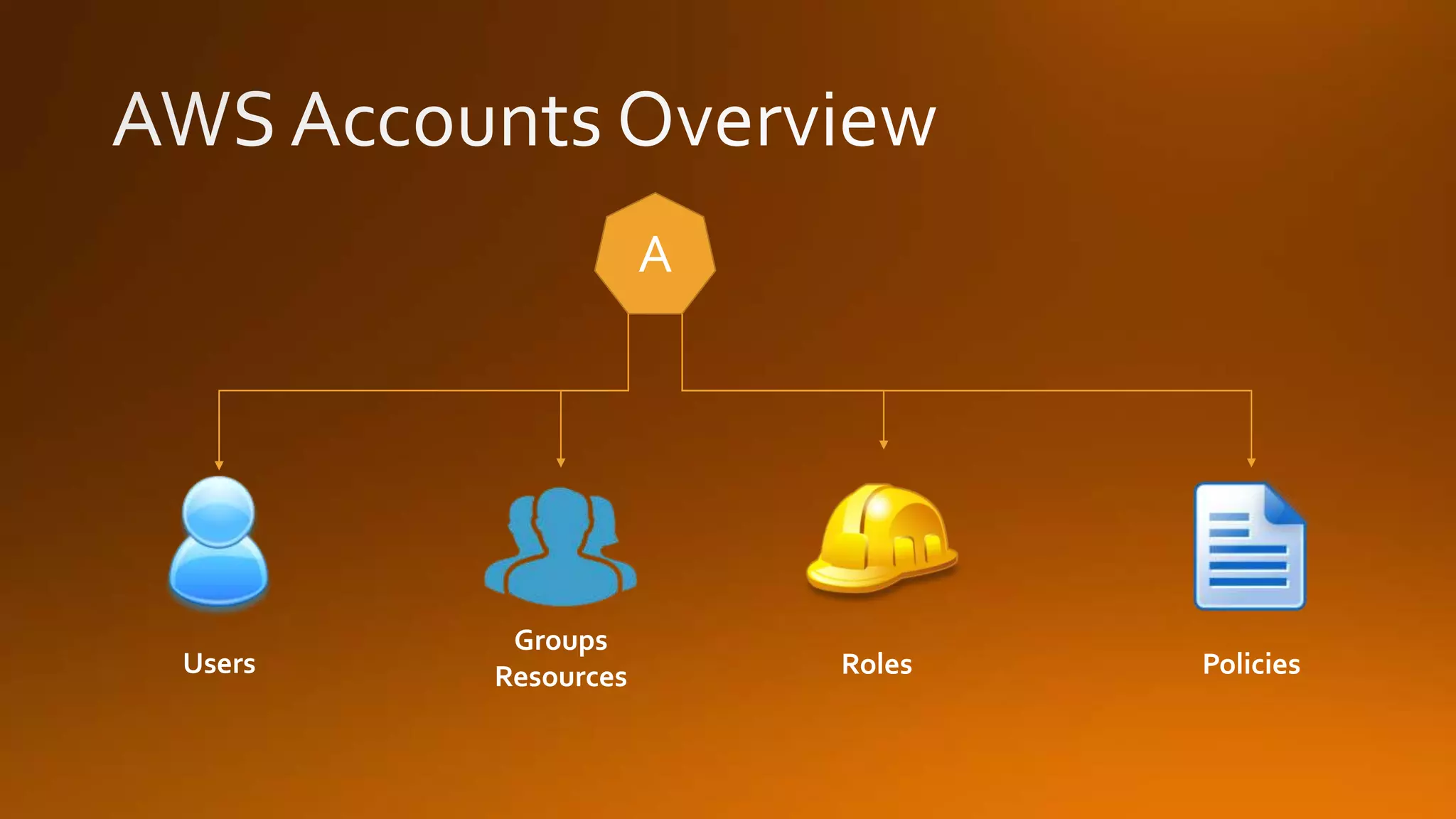
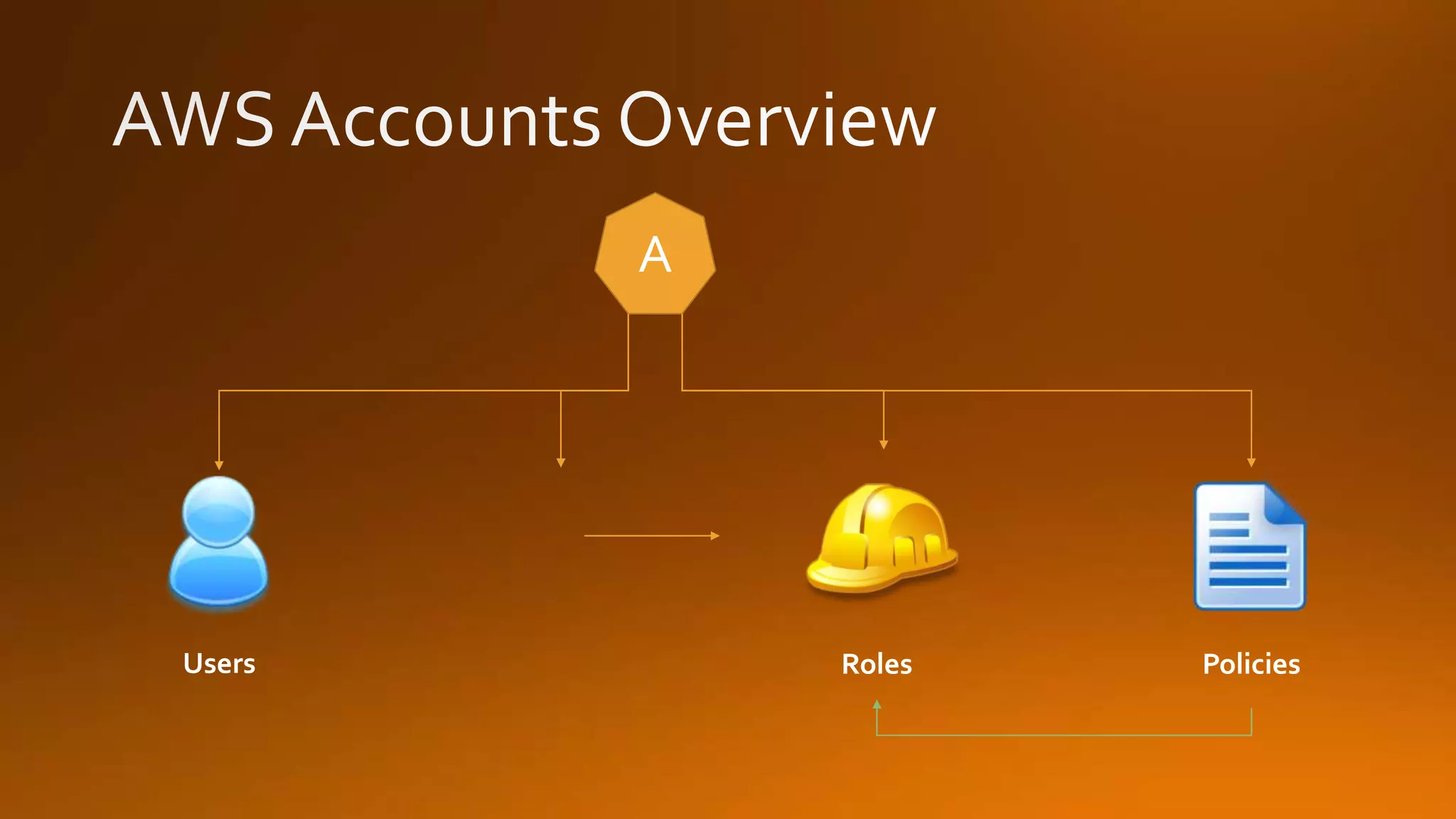
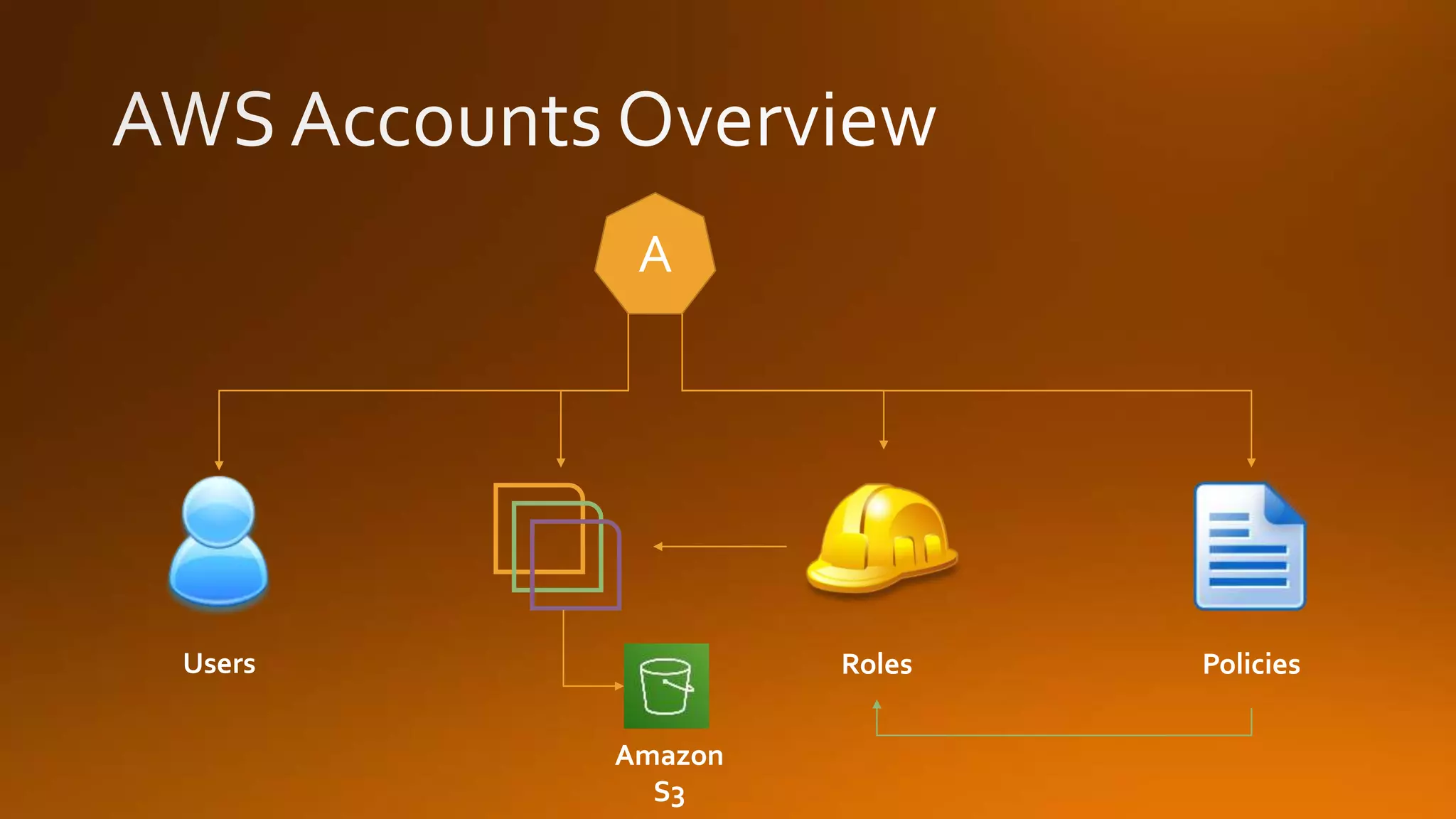
PoliciesRoles
Groups
ResourcesUsers
A
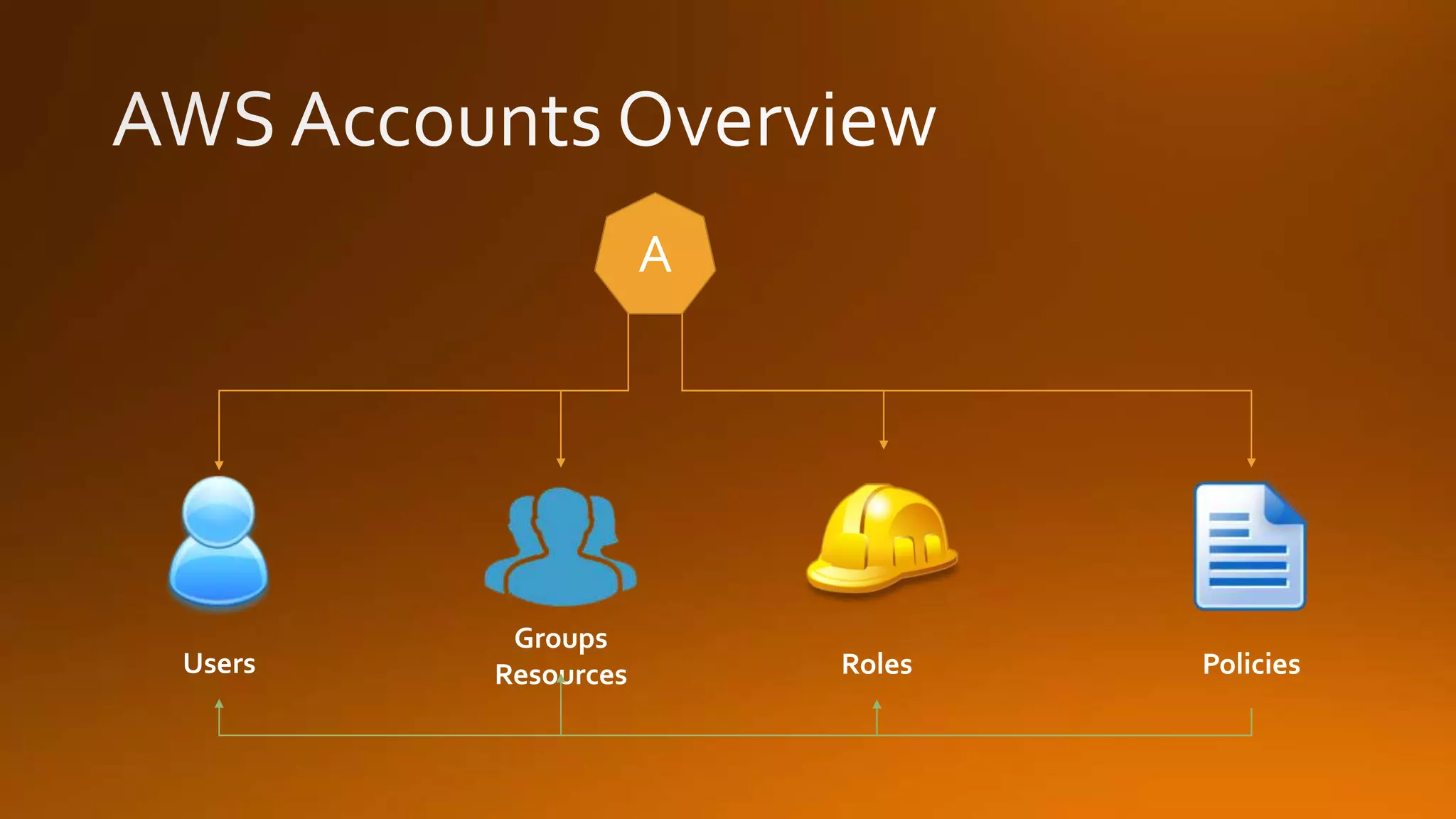
PoliciesRoles
Groups
ResourcesUsers
A
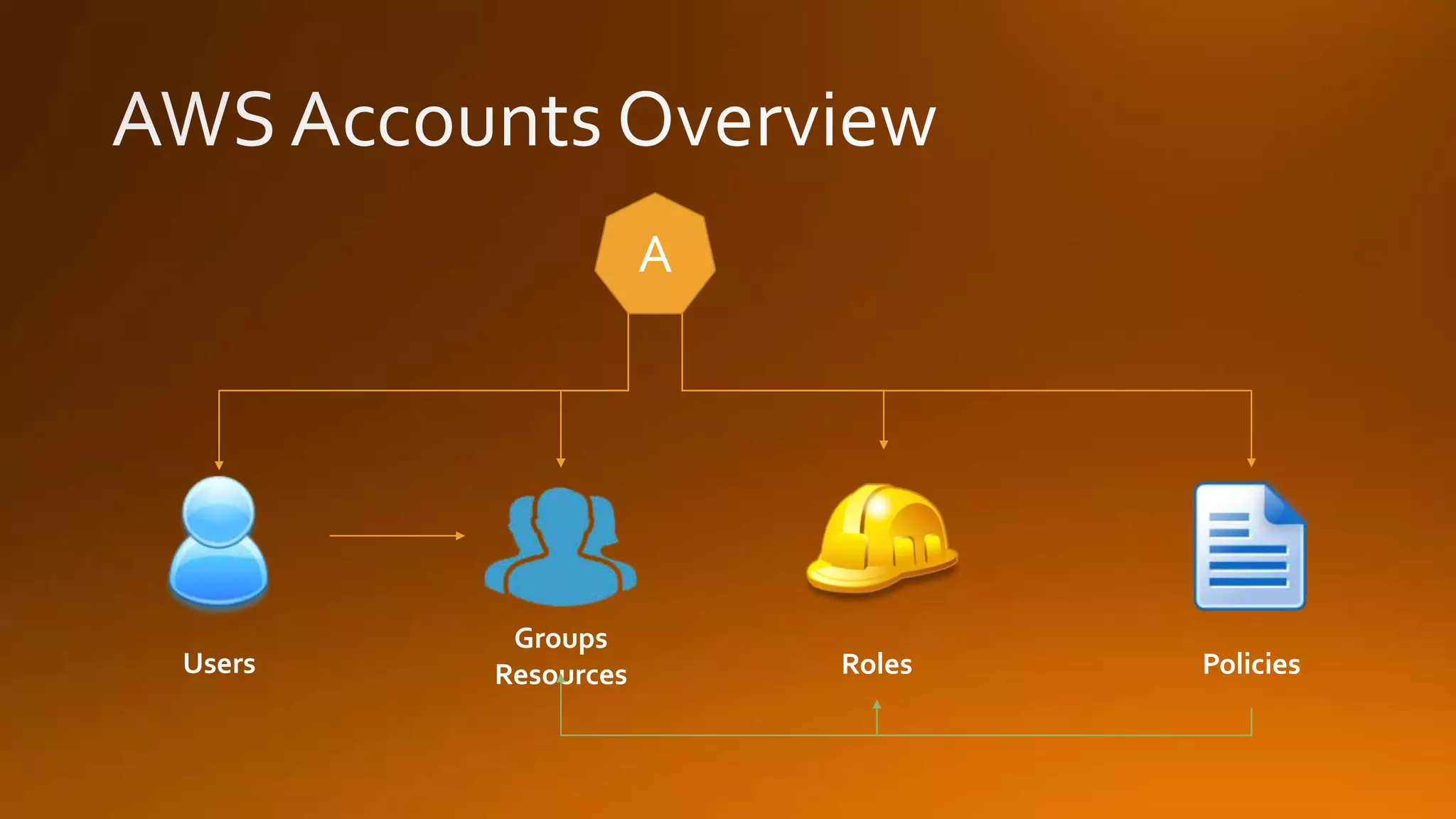
PoliciesRoles
Groups
ResourcesUsers
A
PoliciesRolesUsers
A
PoliciesRolesUsers
A
Amazon
S3
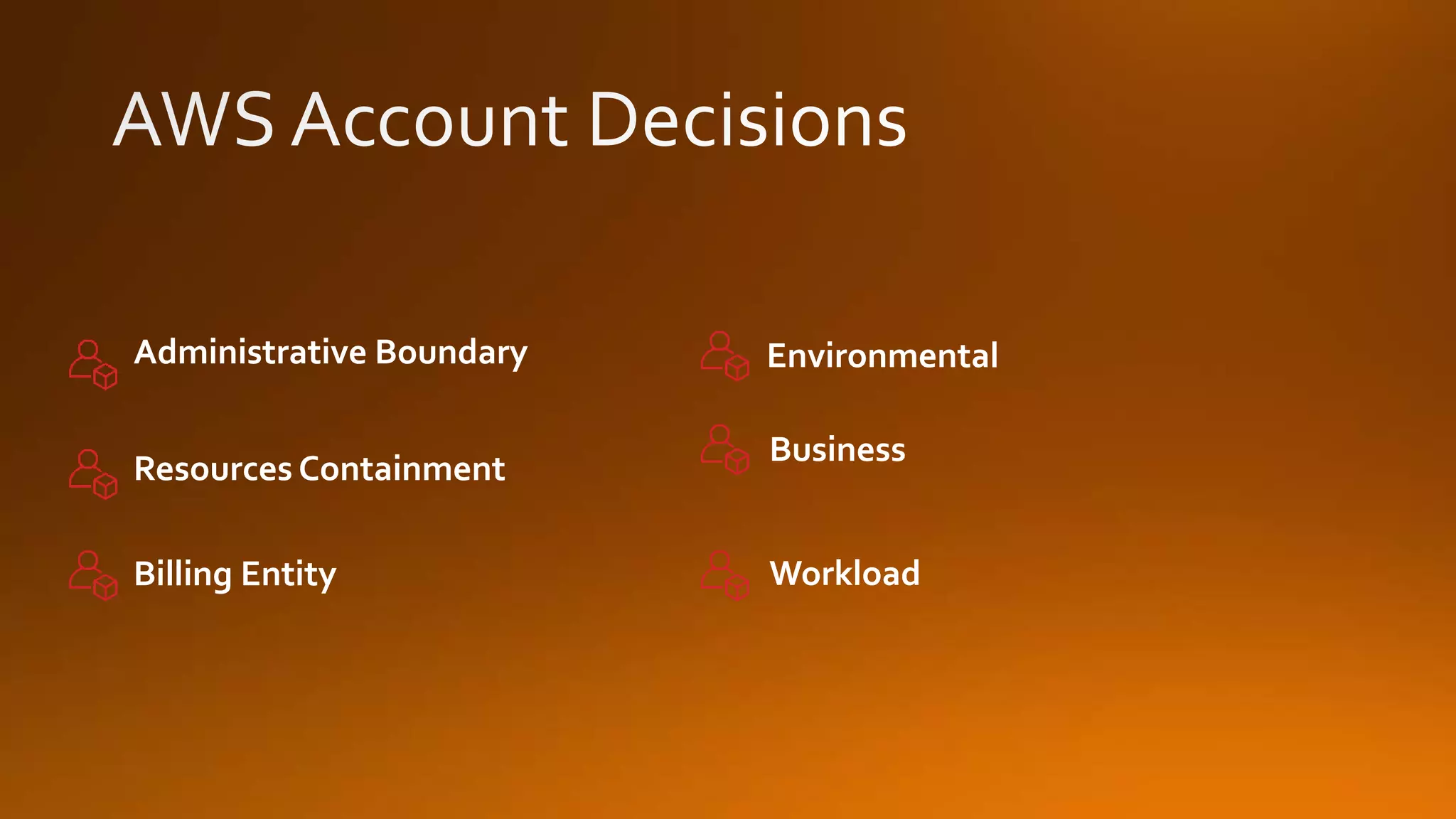
Resources Containment
Administrative Boundary Environmental
Business
Billing Entity Workload
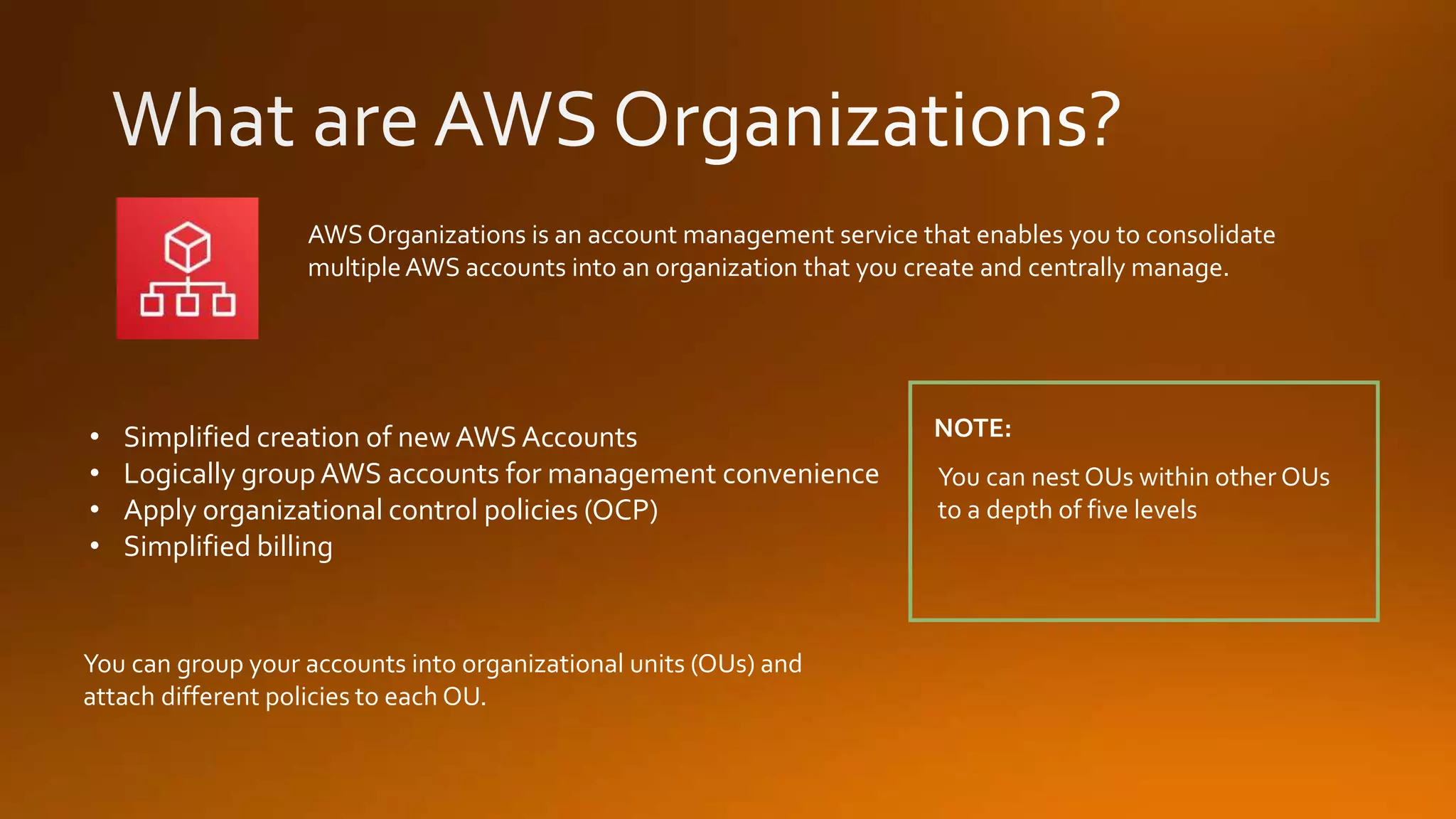
You can group your accounts into organizational units (OUs) and
attach different policies to each OU.
AWS Organizations is an account management service that enables you to consolidate
multipleAWS accounts into an organization that you create and centrally manage.
You can nest OUs within other OUs
to a depth of five levels
NOTE:• Simplified creation of new AWS Accounts
• Logically group AWS accounts for management convenience
• Apply organizational control policies (OCP)
• Simplified billing
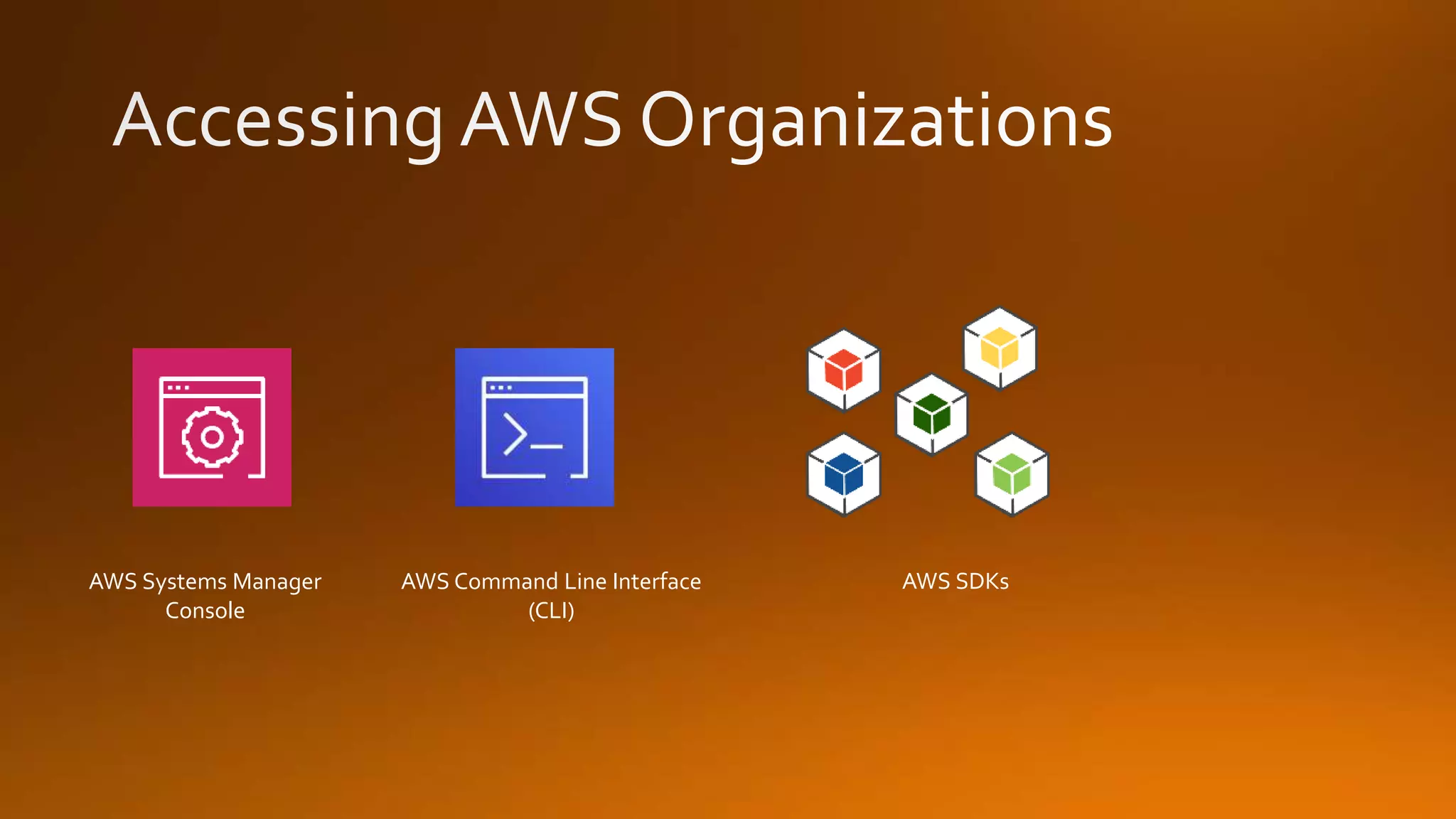
AWS Systems Manager
Console
AWS Command Line Interface
(CLI)
AWS SDKs
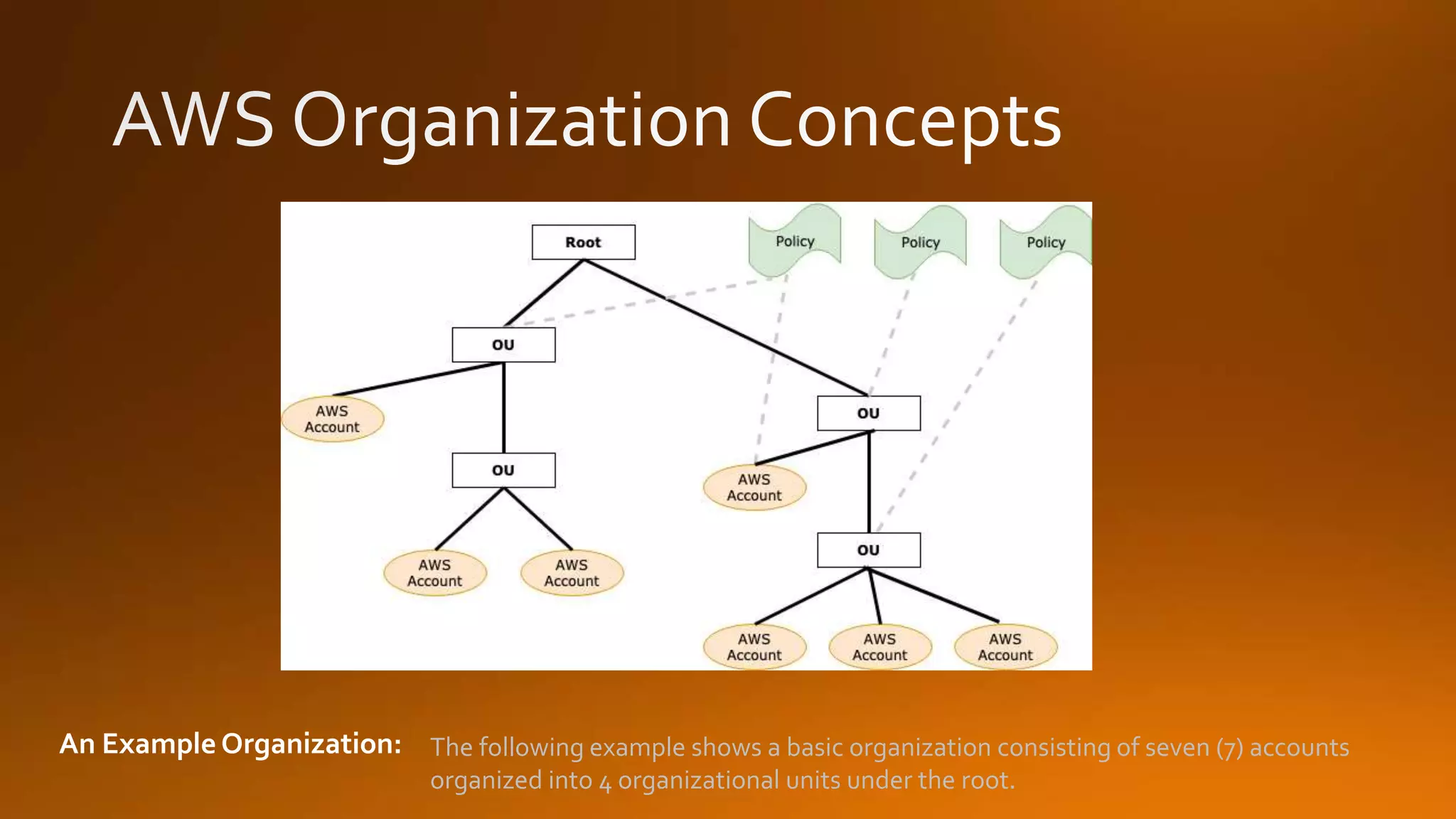
An Example Organization: The following example shows a basic organization consisting of seven (7) accounts
organized into 4 organizational units under the root.
AWS Organizations is an account management service that enables you to consolidate
multipleAWS accounts into an organization that you create and centrally manage.
If you don’t specify a role then one
will be created which gives access to
everything
NOTE:Email address (required)
Account name (required)
IAM role name (optional)
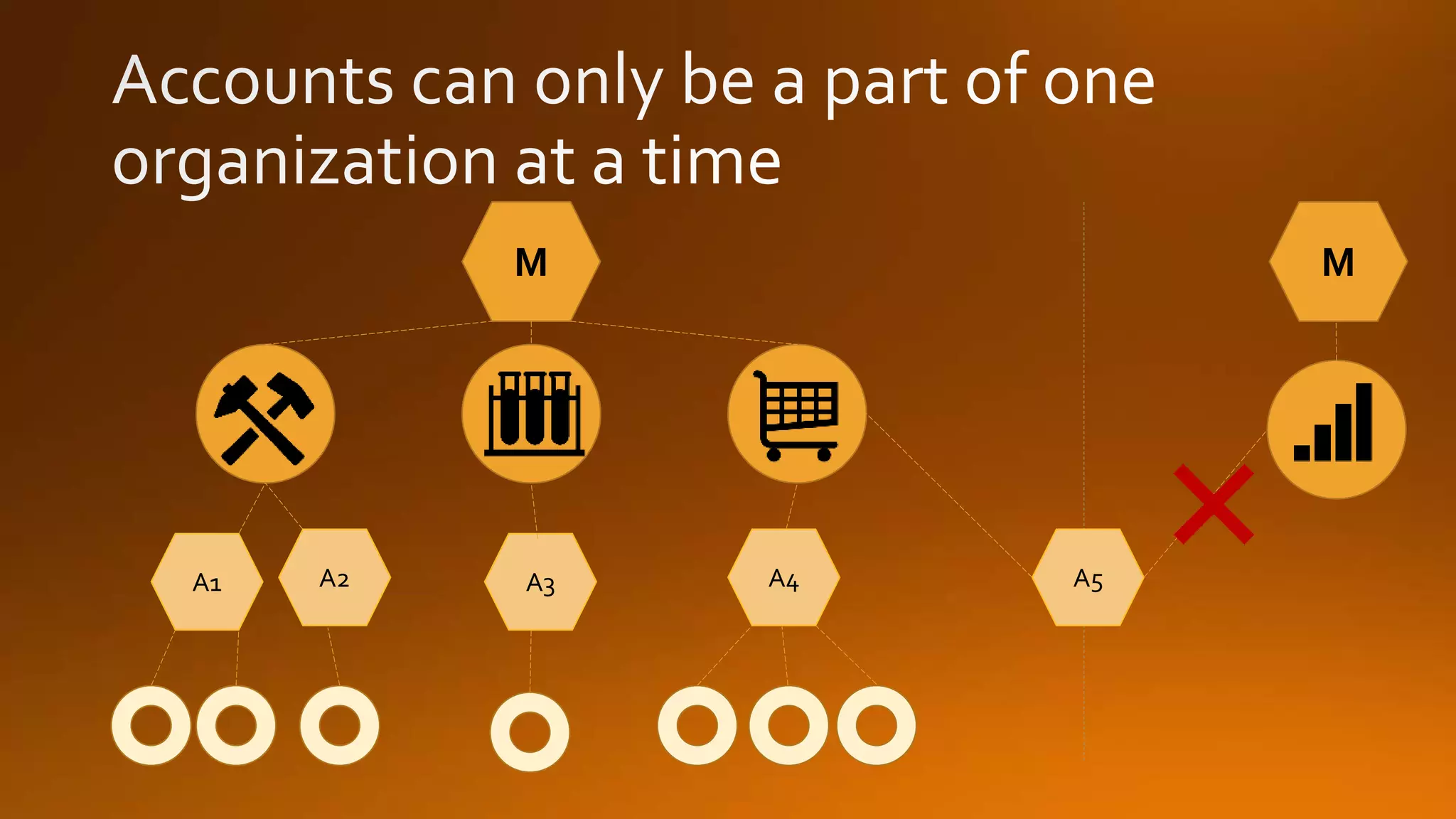
M
A1 A2 A3 A4
A5
M
A1 A2 A3 A4 A5
M
M
A1 A2 A3 A4
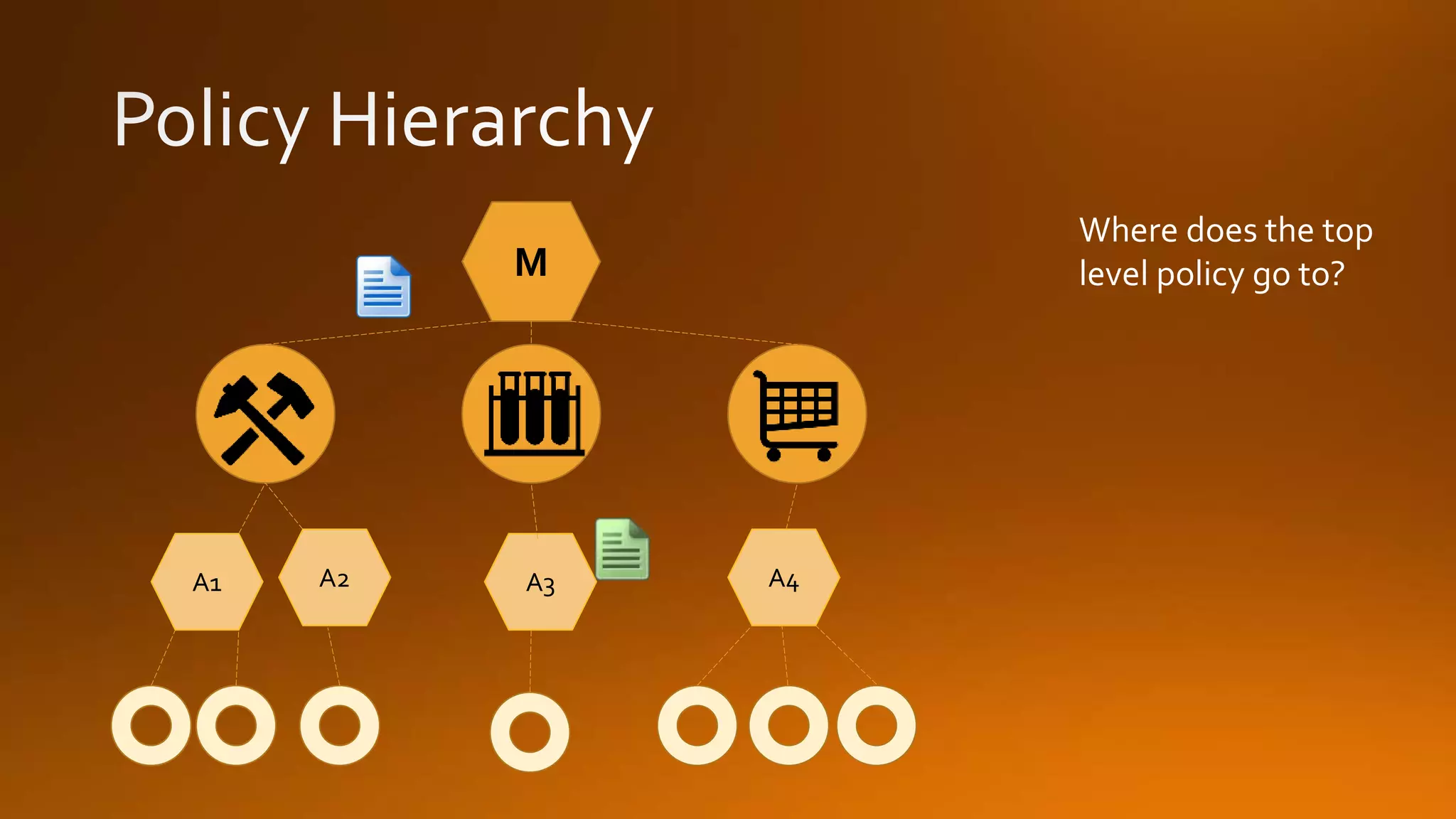
Where does the top
level policy go to?
M
A1 A2 A3 A4
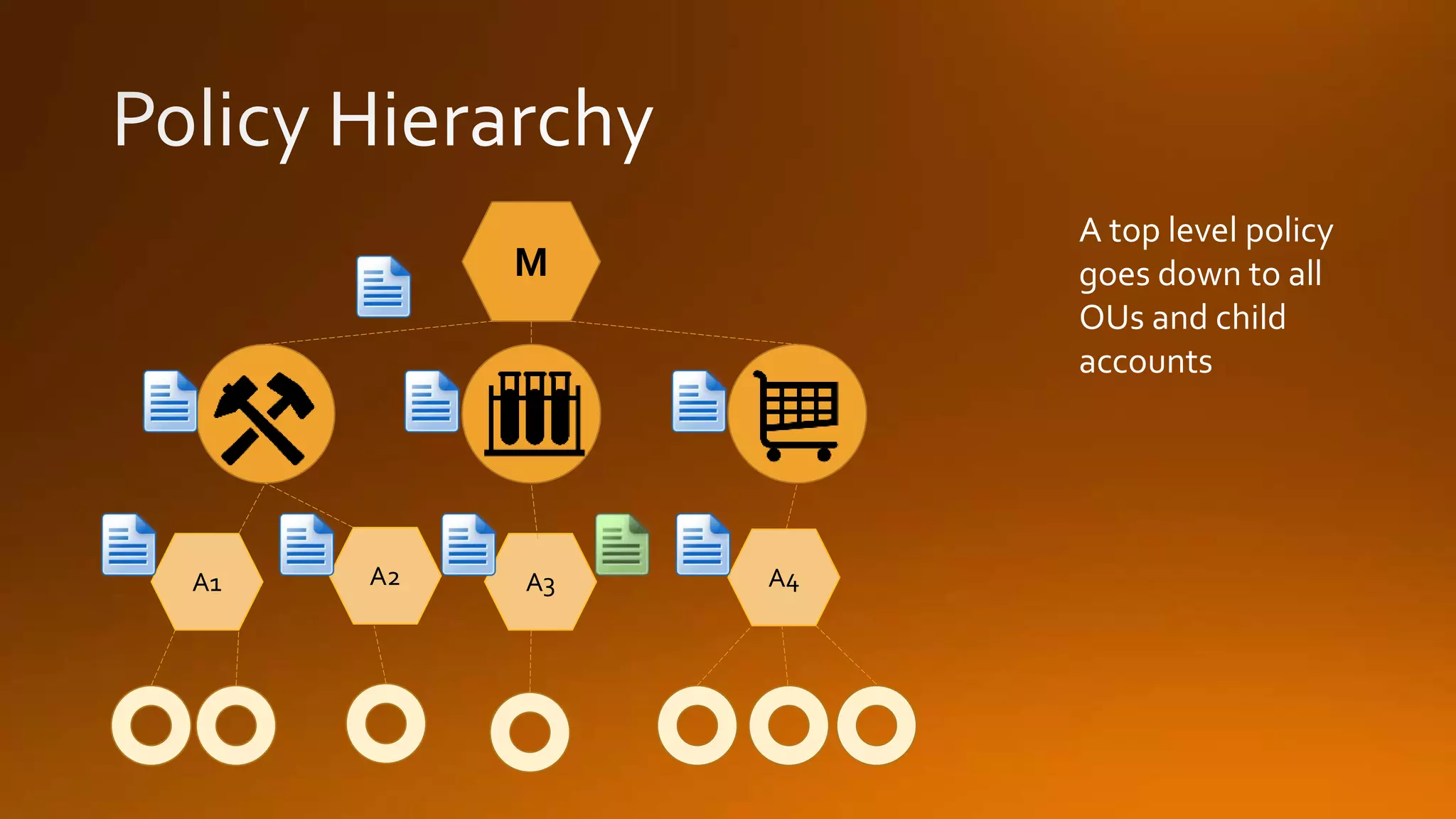
A top level policy
goes down to all
OUs and child
accounts
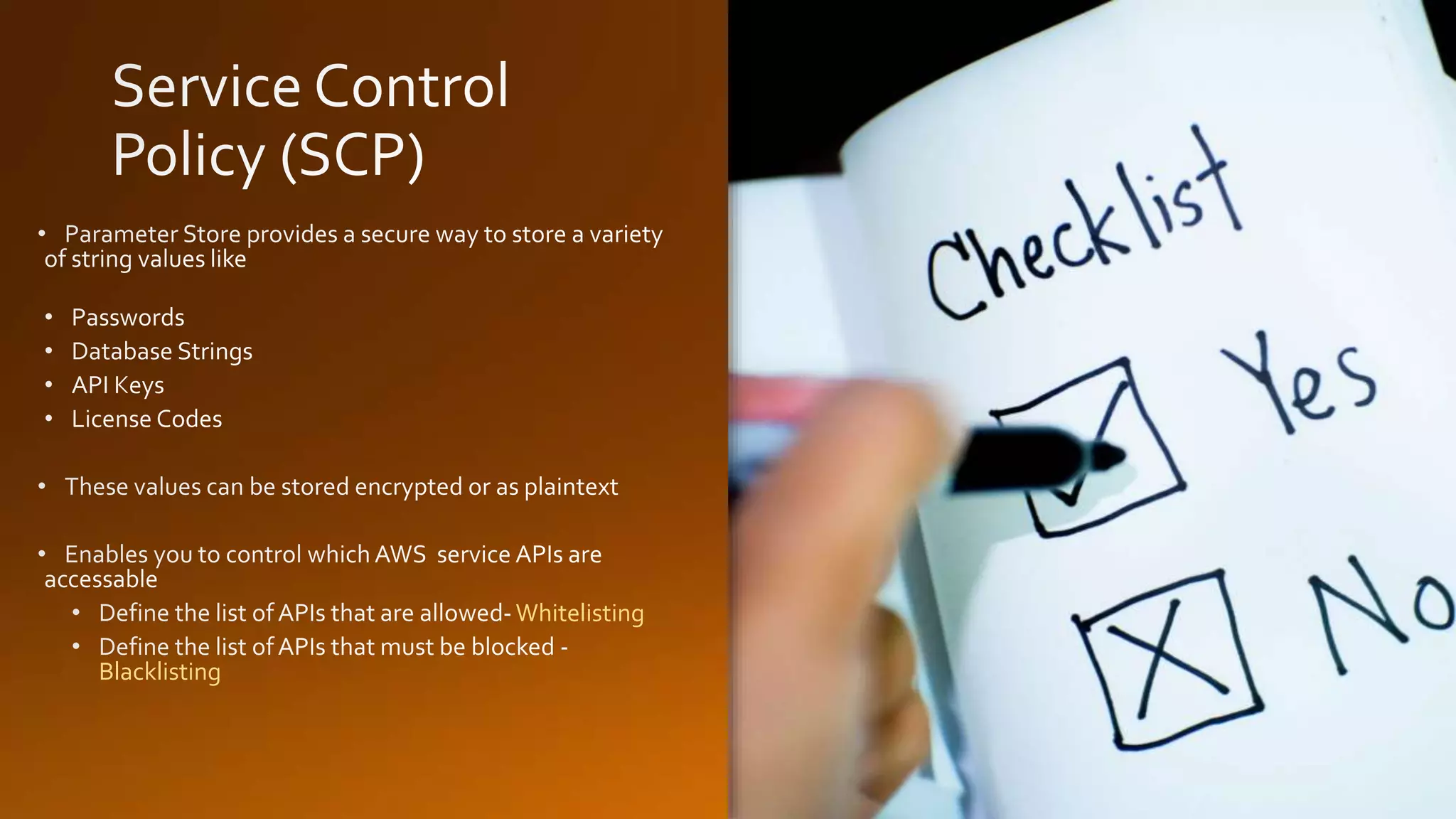
Whitelisting
Blacklisting
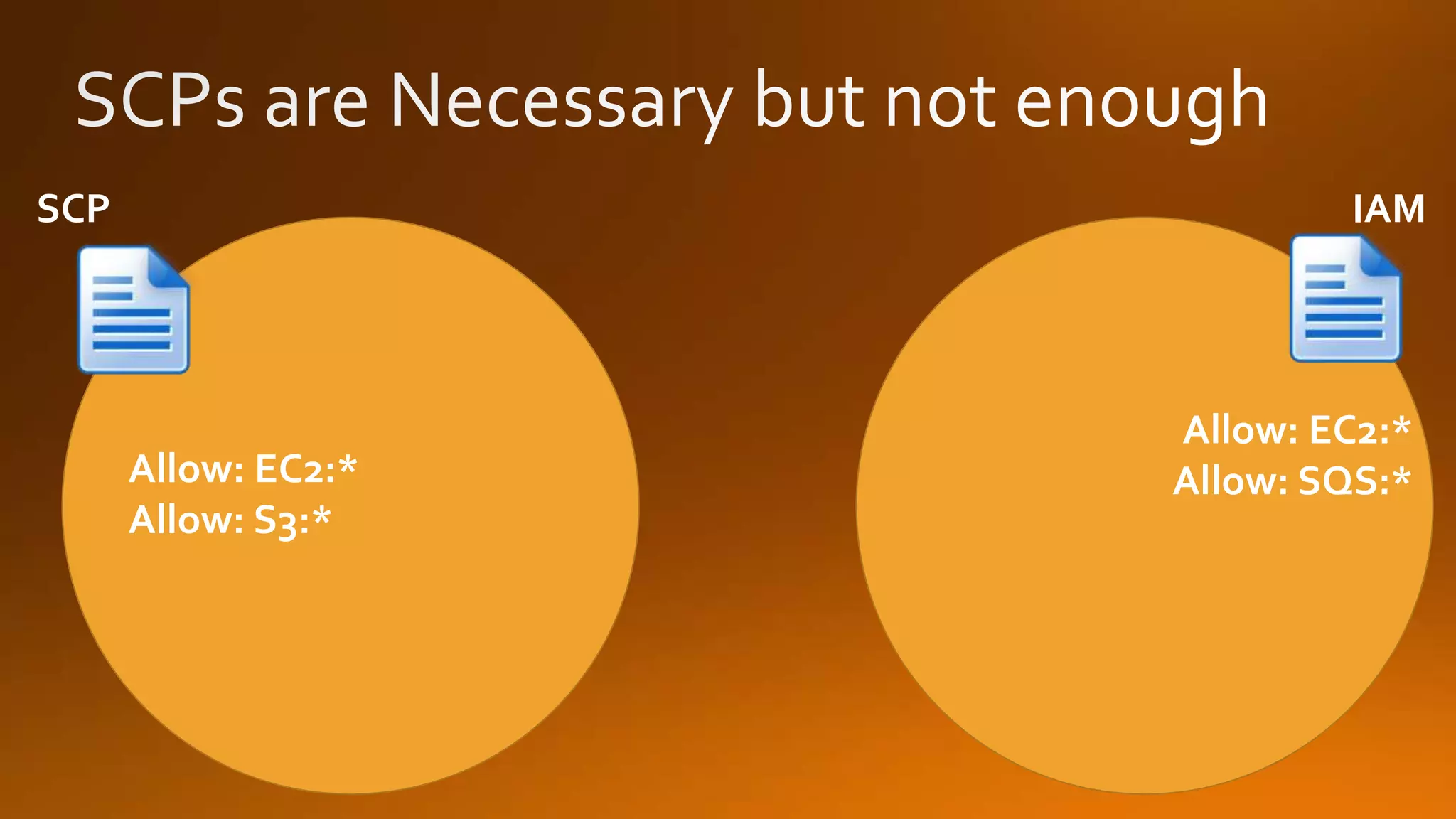
Resultant permission on IAM user/role is the
intersection between the SCP and assigned IAM
permissions
Service Control Polices (SCP) cannot be overridden
by the local administrator
Blacklisting example
{
“Version”:”2017-10-17”
“Statement”:[
{
”Effect”: ”Allow”,
”Action”: [
“EC2:*”,”S3:*”
],
“Resource”:”*”
}
]
}
Whitelisting example
{
“Version”:”2017-10-17”
“Statement”:[
{
”Effect”: ”Deny”,
”Action”: [
“EMR:*”
],
“Resource”:”*”
}
]
}
SCP IAM
Allow: EC2:*
Allow: SQS:*Allow: EC2:*
Allow: S3:*
You select the management level when creating a new organization
• Backward compatible with current consolidated billing (CB)
• Organization created from CB family automatically in billing mode
• Everything included in billing mode
• Enables management of ALL types of OCPs
• Changing from billing mode to full control mode requires consent from all
AWS accounts in your organization
Full-control mode
Billing mode
• Monitor activity of the master account using CloudTrail
• Do not manage resources in the master account
• Manage your organization using the principal of “Least Privilege”
• Use OUs to assign controls
• Test controls on a single account first
• Only assign controls to root of organization if necessary
• Avoid mixing whitelisting and blacklisting SCPs in an organization
• Create new AWS accounts for the right reasons
• Familiarize yourself with service limits
https://www.meetup.com/AWS-Atlanta/contribute/
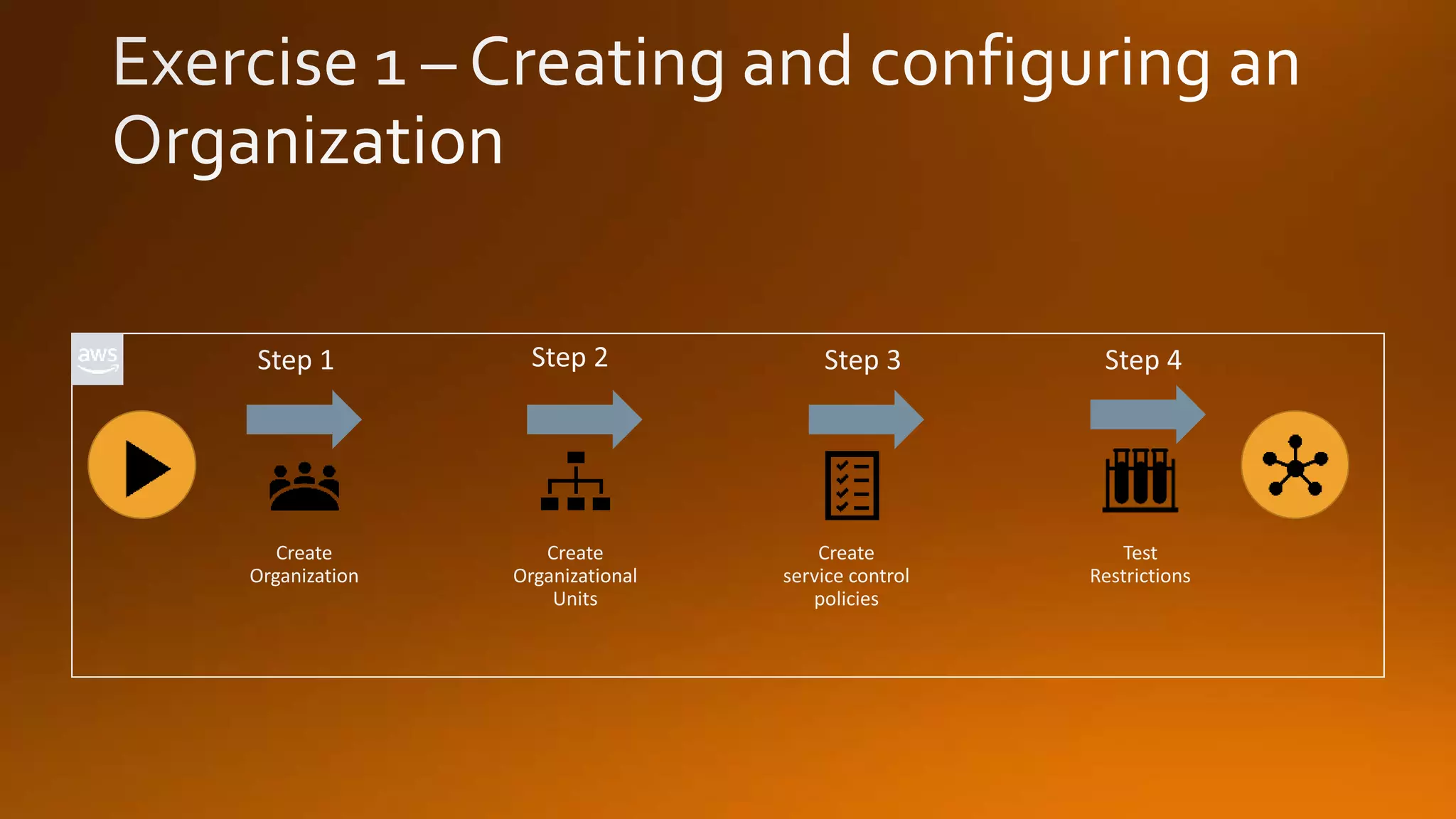
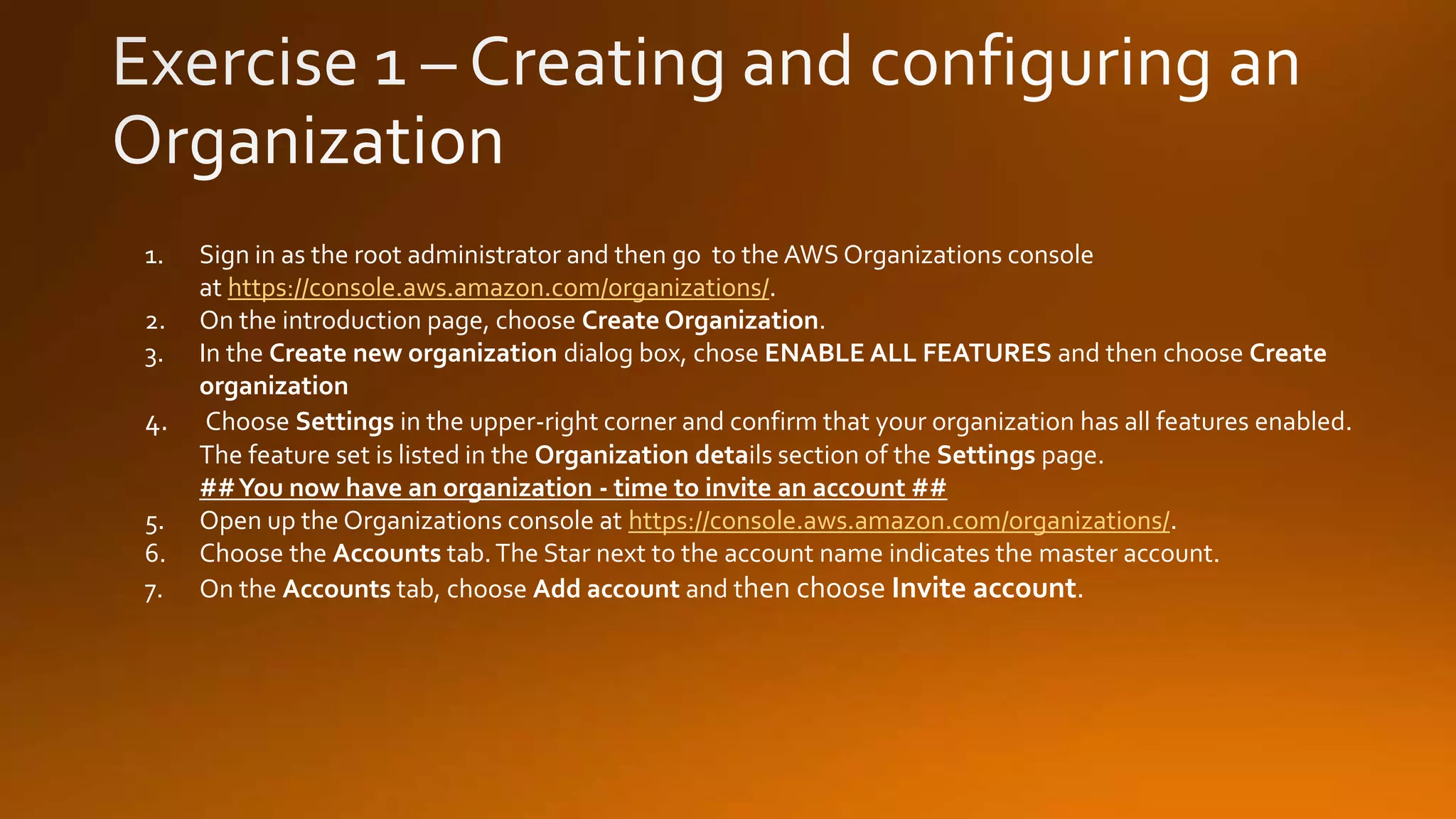
1. Sign in as the root administrator and then go to the AWS Organizations console
at https://console.aws.amazon.com/organizations/.
2. On the introduction page, choose Create Organization.
3. In the Create new organization dialog box, chose ENABLE ALL FEATURES and then choose Create
organization
4. Choose Settings in the upper-right corner and confirm that your organization has all features enabled.
The feature set is listed in the Organization details section of the Settings page.
##You now have an organization - time to invite an account ##
5. Open up the Organizations console at https://console.aws.amazon.com/organizations/.
6. Choose the Accounts tab.The Star next to the account name indicates the master account.
7. On the Accounts tab, choose Add account and then choose Invite account.
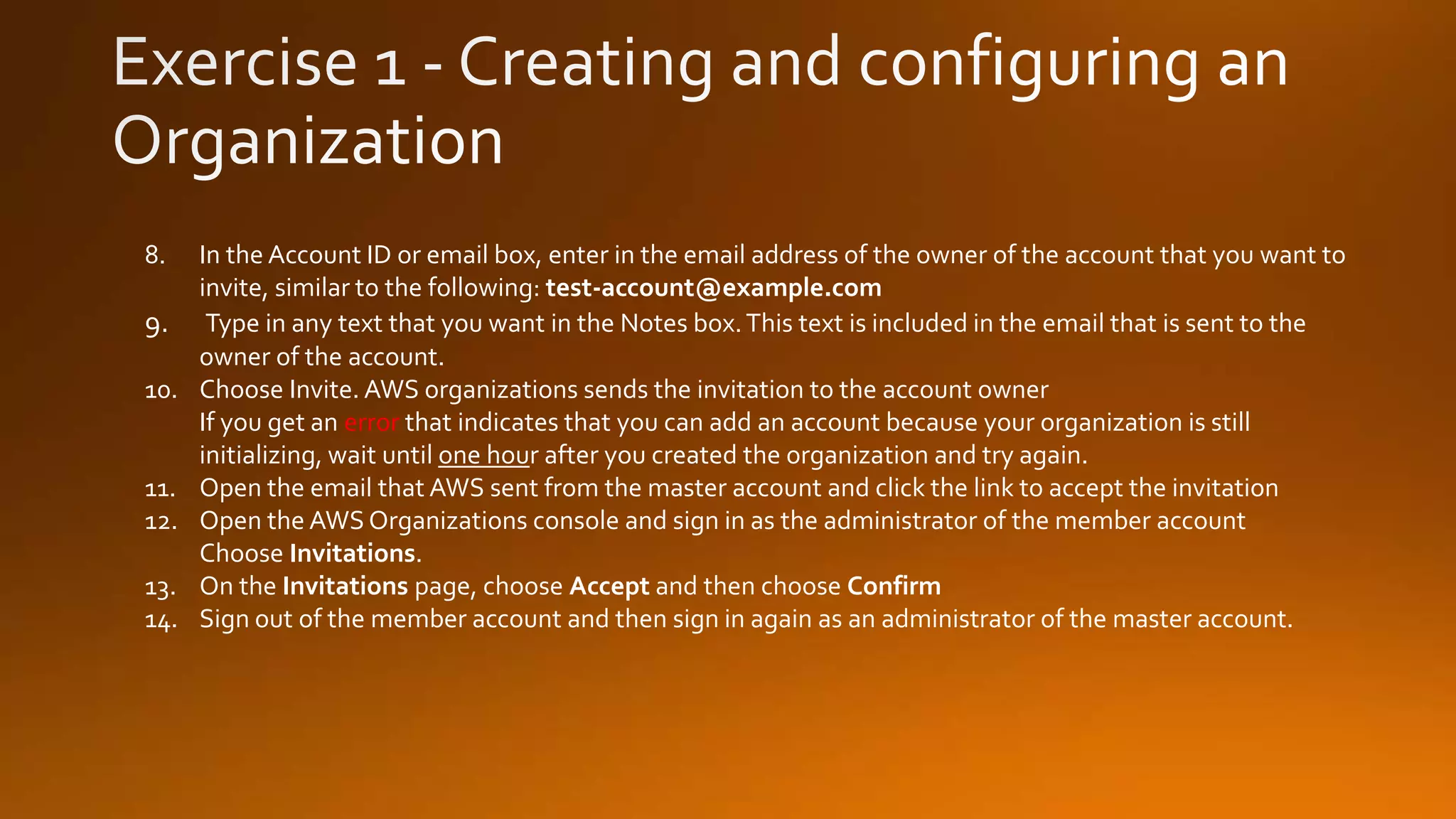
8. In the Account ID or email box, enter in the email address of the owner of the account that you want to
invite, similar to the following: test-account@example.com
9. Type in any text that you want in the Notes box.This text is included in the email that is sent to the
owner of the account.
10. Choose Invite. AWS organizations sends the invitation to the account owner
If you get an error that indicates that you can add an account because your organization is still
initializing, wait until one hour after you created the organization and try again.
11. Open the email that AWS sent from the master account and click the link to accept the invitation
12. Open the AWS Organizations console and sign in as the administrator of the member account
Choose Invitations.
13. On the Invitations page, choose Accept and then choose Confirm
14. Sign out of the member account and then sign in again as an administrator of the master account.
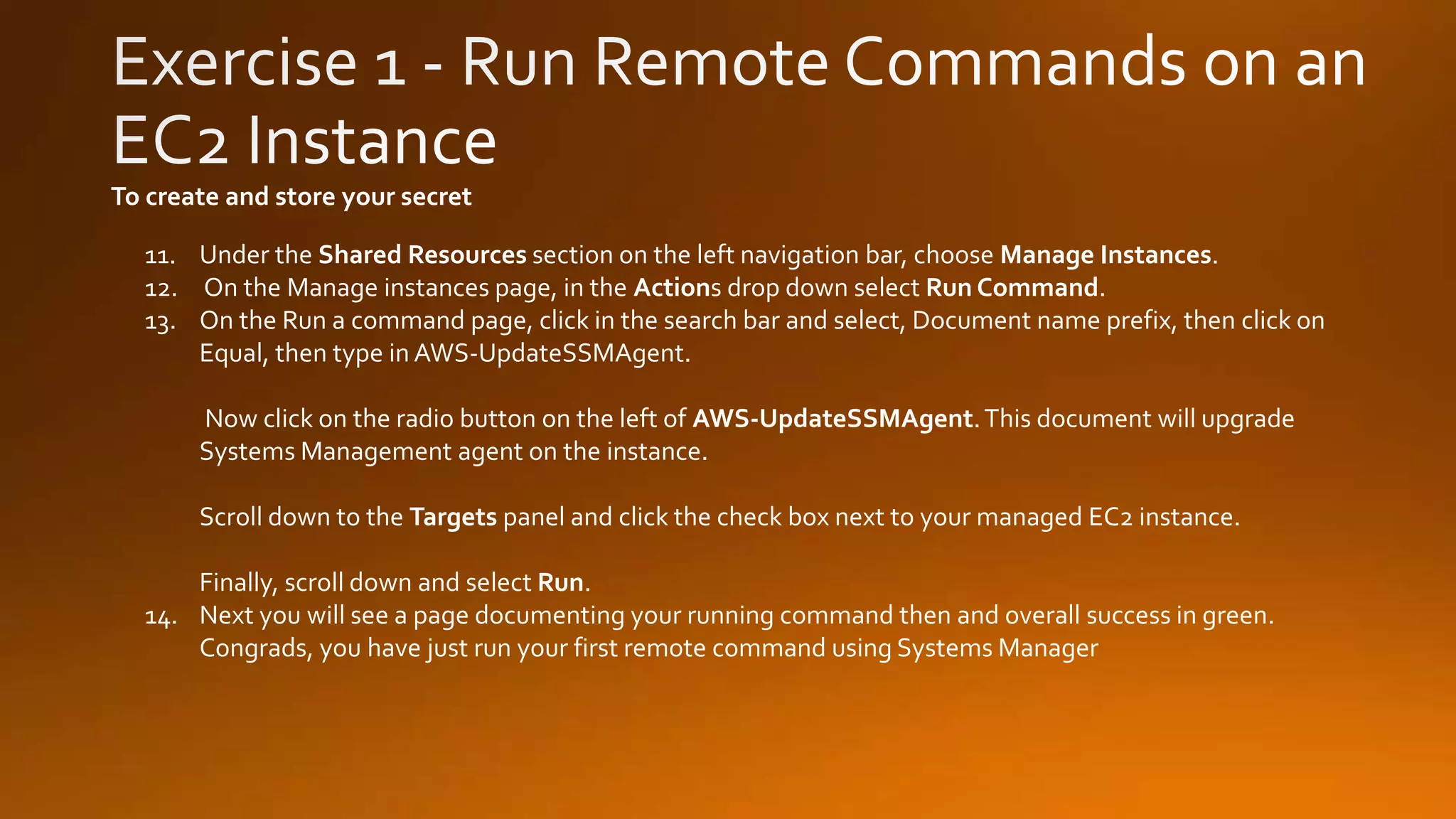
11. Under the Shared Resources section on the left navigation bar, choose Manage Instances.
12. On the Manage instances page, in the Actions drop down select Run Command.
13. On the Run a command page, click in the search bar and select, Document name prefix, then click on
Equal, then type in AWS-UpdateSSMAgent.
Now click on the radio button on the left of AWS-UpdateSSMAgent.This document will upgrade
Systems Management agent on the instance.
Scroll down to the Targets panel and click the check box next to your managed EC2 instance.
Finally, scroll down and select Run.
14. Next you will see a page documenting your running command then and overall success in green.
Congrads, you have just run your first remote command using Systems Manager
To create and store your secret
AWS Atlanta Meetup - June 19 - AWS organizations - Account Structure

AWS Atlanta Meetup - June 19 - AWS organizations - Account Structure

  • 4.
  • 5.
  • 6.
  • 7.
  • 8.
  • 9.
    Resources Containment Administrative BoundaryEnvironmental Business Billing Entity Workload
  • 10.
    You can groupyour accounts into organizational units (OUs) and attach different policies to each OU. AWS Organizations is an account management service that enables you to consolidate multipleAWS accounts into an organization that you create and centrally manage. You can nest OUs within other OUs to a depth of five levels NOTE:• Simplified creation of new AWS Accounts • Logically group AWS accounts for management convenience • Apply organizational control policies (OCP) • Simplified billing
  • 11.
    AWS Systems Manager Console AWSCommand Line Interface (CLI) AWS SDKs
  • 12.
    An Example Organization:The following example shows a basic organization consisting of seven (7) accounts organized into 4 organizational units under the root.
  • 13.
    AWS Organizations isan account management service that enables you to consolidate multipleAWS accounts into an organization that you create and centrally manage. If you don’t specify a role then one will be created which gives access to everything NOTE:Email address (required) Account name (required) IAM role name (optional)
  • 14.
  • 15.
    M A1 A2 A3A4 A5 M
  • 16.
    M A1 A2 A3A4 Where does the top level policy go to?
  • 17.
    M A1 A2 A3A4 A top level policy goes down to all OUs and child accounts
  • 18.
  • 19.
    Resultant permission onIAM user/role is the intersection between the SCP and assigned IAM permissions Service Control Polices (SCP) cannot be overridden by the local administrator
  • 20.
    Blacklisting example { “Version”:”2017-10-17” “Statement”:[ { ”Effect”: ”Allow”, ”Action”:[ “EC2:*”,”S3:*” ], “Resource”:”*” } ] } Whitelisting example { “Version”:”2017-10-17” “Statement”:[ { ”Effect”: ”Deny”, ”Action”: [ “EMR:*” ], “Resource”:”*” } ] }
  • 21.
    SCP IAM Allow: EC2:* Allow:SQS:*Allow: EC2:* Allow: S3:*
  • 23.
    You select themanagement level when creating a new organization • Backward compatible with current consolidated billing (CB) • Organization created from CB family automatically in billing mode • Everything included in billing mode • Enables management of ALL types of OCPs • Changing from billing mode to full control mode requires consent from all AWS accounts in your organization Full-control mode Billing mode
  • 24.
    • Monitor activityof the master account using CloudTrail • Do not manage resources in the master account • Manage your organization using the principal of “Least Privilege” • Use OUs to assign controls • Test controls on a single account first • Only assign controls to root of organization if necessary • Avoid mixing whitelisting and blacklisting SCPs in an organization • Create new AWS accounts for the right reasons • Familiarize yourself with service limits
  • 25.
  • 27.
    1. Sign inas the root administrator and then go to the AWS Organizations console at https://console.aws.amazon.com/organizations/. 2. On the introduction page, choose Create Organization. 3. In the Create new organization dialog box, chose ENABLE ALL FEATURES and then choose Create organization 4. Choose Settings in the upper-right corner and confirm that your organization has all features enabled. The feature set is listed in the Organization details section of the Settings page. ##You now have an organization - time to invite an account ## 5. Open up the Organizations console at https://console.aws.amazon.com/organizations/. 6. Choose the Accounts tab.The Star next to the account name indicates the master account. 7. On the Accounts tab, choose Add account and then choose Invite account.
  • 28.
    8. In theAccount ID or email box, enter in the email address of the owner of the account that you want to invite, similar to the following: test-account@example.com 9. Type in any text that you want in the Notes box.This text is included in the email that is sent to the owner of the account. 10. Choose Invite. AWS organizations sends the invitation to the account owner If you get an error that indicates that you can add an account because your organization is still initializing, wait until one hour after you created the organization and try again. 11. Open the email that AWS sent from the master account and click the link to accept the invitation 12. Open the AWS Organizations console and sign in as the administrator of the member account Choose Invitations. 13. On the Invitations page, choose Accept and then choose Confirm 14. Sign out of the member account and then sign in again as an administrator of the master account.
  • 29.
    11. Under theShared Resources section on the left navigation bar, choose Manage Instances. 12. On the Manage instances page, in the Actions drop down select Run Command. 13. On the Run a command page, click in the search bar and select, Document name prefix, then click on Equal, then type in AWS-UpdateSSMAgent. Now click on the radio button on the left of AWS-UpdateSSMAgent.This document will upgrade Systems Management agent on the instance. Scroll down to the Targets panel and click the check box next to your managed EC2 instance. Finally, scroll down and select Run. 14. Next you will see a page documenting your running command then and overall success in green. Congrads, you have just run your first remote command using Systems Manager To create and store your secret

Editor's Notes

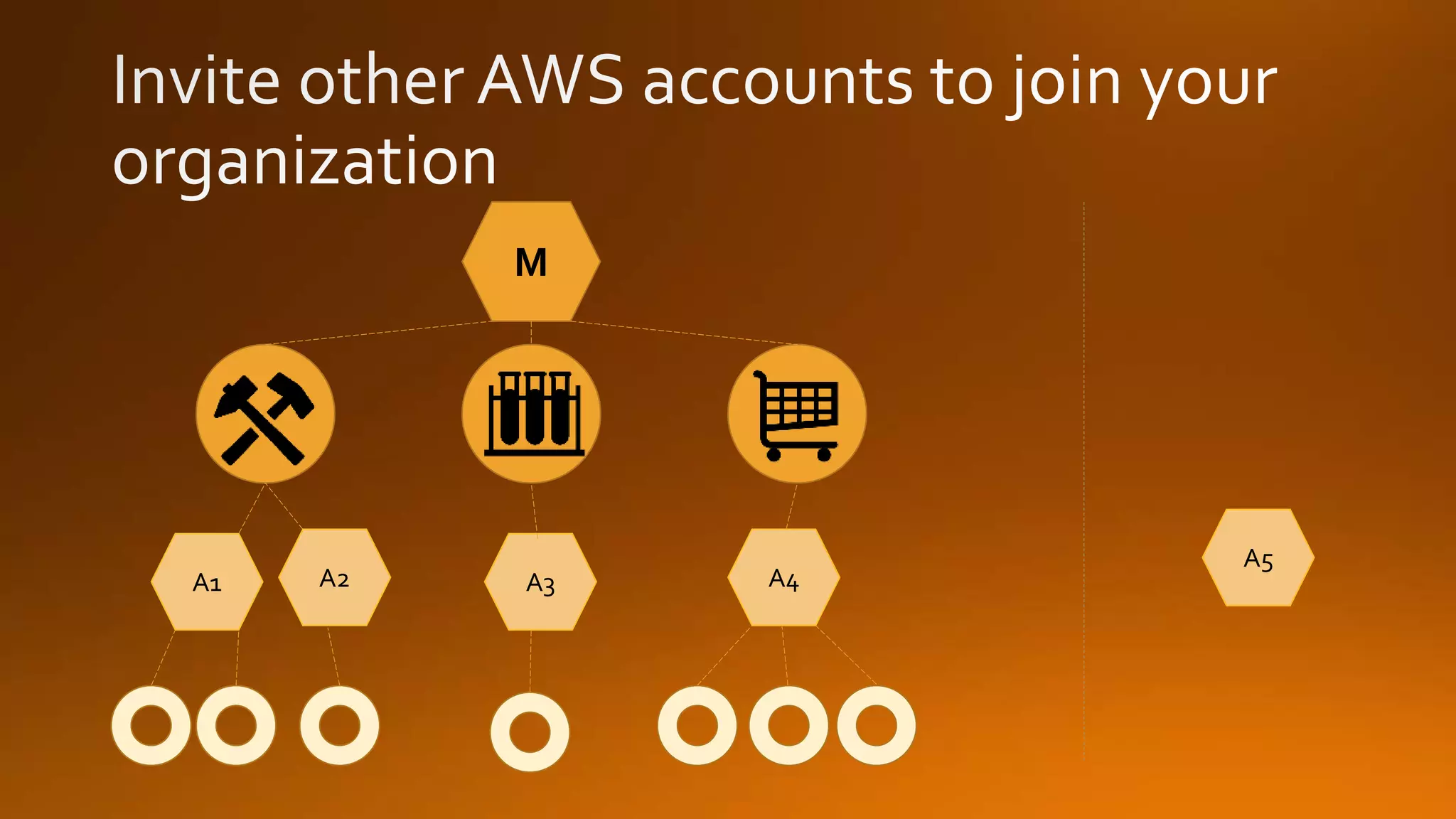
  • #15 By typing in the account number or the email associated with it you can invite outside accounts
  • #17 By typing in the account number or the email associated with it you can invite outside accounts
  • #18 By typing in the account number or the email associated with it you can invite outside accounts
  • #19 Either do Whitelisting or Blacklisting - but don’t do both
  • #23 Either do Whitelisting or Blacklisting - but don’t do both
  • #24 Either do Whitelisting or Blacklisting - but don’t do both
  • #25 Either do Whitelisting or Blacklisting - but don’t do both
  • #28 Even though you access the hub console from Oregon, you can move into any region as long as the migration tool supports it.
  • #29 Even though you access the hub console from Oregon, you can move into any region as long as the migration tool supports it.
  • #30 Even though you access the hub console from Oregon, you can move into any region as long as the migration tool supports it.