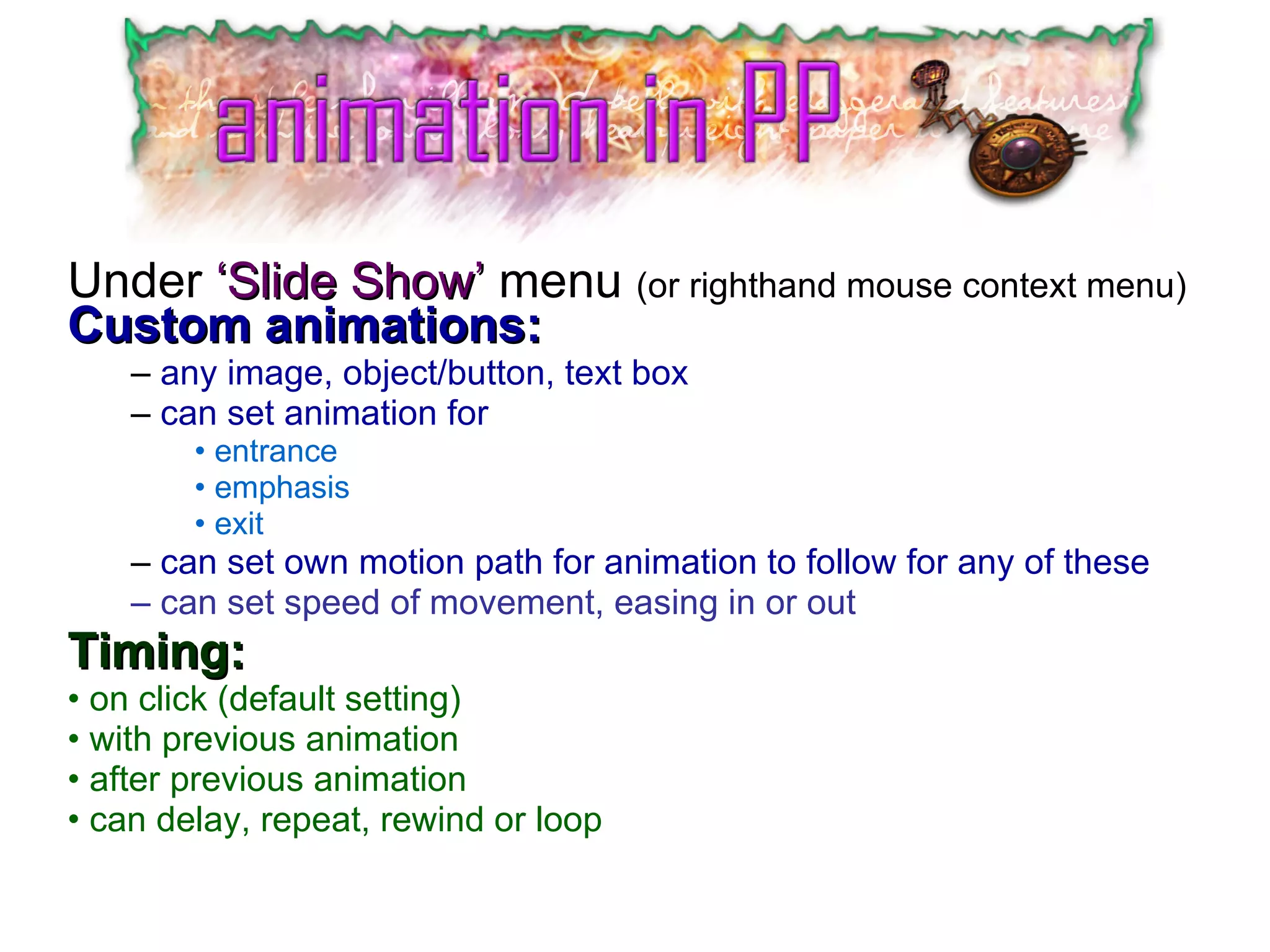
Under  ‘Slide Show’  menu  (or righthand mouse context menu) Custom animations: any image, object/button, text box can set animation for entrance emphasis exit can set own motion path for animation to follow for any of these can set speed of movement, easing in or out Timing:   on click (default setting) with previous animation after previous animation can delay, repeat, rewind or loop
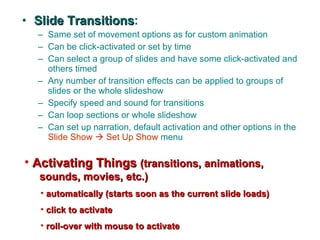
Slide Transitions : Same set of movement options as for custom animation Can be click-activated or set by time Can select a group of slides and have some click-activated and others timed Any number of transition effects can be applied to groups of slides or the whole slideshow Specify speed and sound for transitions Can loop sections or whole slideshow Can set up narration, default activation and other options in the  Slide Show    Set Up Show  menu  Activating Things   (transitions, animations,   sounds, movies, etc.) automatically (starts soon as the current slide loads) click to activate roll-over with mouse to activate
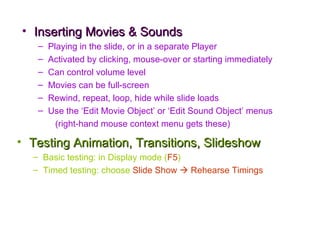
Inserting Movies & Sounds Playing in the slide, or in a separate Player Activated by clicking, mouse-over or starting immediately Can control volume level Movies can be full-screen Rewind, repeat, loop, hide while slide loads Use the ‘Edit Movie Object’ or ‘Edit Sound Object’ menus (right-hand mouse context menu gets these) Testing Animation, Transitions, Slideshow Basic testing: in Display mode ( F5 ) Timed testing: choose  Slide Show    Rehearse Timings

Animate pp1

  • 1.
    Under ‘SlideShow’ menu (or righthand mouse context menu) Custom animations: any image, object/button, text box can set animation for entrance emphasis exit can set own motion path for animation to follow for any of these can set speed of movement, easing in or out Timing: on click (default setting) with previous animation after previous animation can delay, repeat, rewind or loop
  • 2.
    Slide Transitions :Same set of movement options as for custom animation Can be click-activated or set by time Can select a group of slides and have some click-activated and others timed Any number of transition effects can be applied to groups of slides or the whole slideshow Specify speed and sound for transitions Can loop sections or whole slideshow Can set up narration, default activation and other options in the Slide Show  Set Up Show menu Activating Things (transitions, animations, sounds, movies, etc.) automatically (starts soon as the current slide loads) click to activate roll-over with mouse to activate
  • 3.
    Inserting Movies &Sounds Playing in the slide, or in a separate Player Activated by clicking, mouse-over or starting immediately Can control volume level Movies can be full-screen Rewind, repeat, loop, hide while slide loads Use the ‘Edit Movie Object’ or ‘Edit Sound Object’ menus (right-hand mouse context menu gets these) Testing Animation, Transitions, Slideshow Basic testing: in Display mode ( F5 ) Timed testing: choose Slide Show  Rehearse Timings