Android –
Message
Yong Heui Cho @ Mokwon University
Some of slides are referred to:
[1] Nitin Ramchandani, Android OS, slideshare.
2
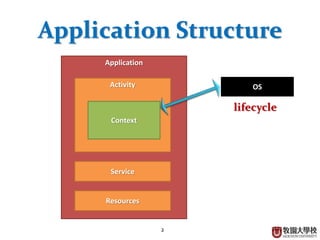
Application
Application Structure
Activity
Context
OS
Resources
Service
lifecycle
3
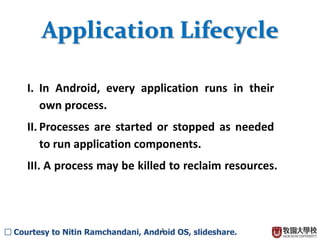
Application Lifecycle
I. In Android, every application runs in their
own process.
II. Processes are started or stopped as needed
to run application components.
III. A process may be killed to reclaim resources.
□ Courtesy to Nitin Ramchandani, Android OS, slideshare.
4
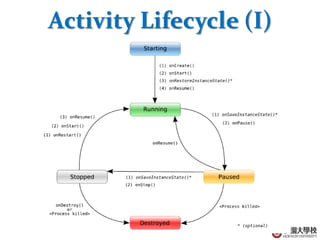
Activity Lifecycle (I)
5
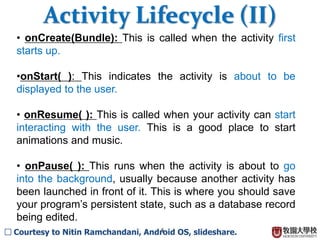
• onCreate(Bundle): This is called when the activity first
starts up.
•onStart( ): This indicates the activity is about to be
displayed to the user.
• onResume( ): This is called when your activity can start
interacting with the user. This is a good place to start
animations and music.
• onPause( ): This runs when the activity is about to go
into the background, usually because another activity has
been launched in front of it. This is where you should save
your program’s persistent state, such as a database record
being edited.
Activity Lifecycle (II)
□ Courtesy to Nitin Ramchandani, Android OS, slideshare.
6
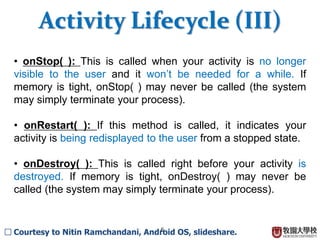
• onStop( ): This is called when your activity is no longer
visible to the user and it won’t be needed for a while. If
memory is tight, onStop( ) may never be called (the system
may simply terminate your process).
• onRestart( ): If this method is called, it indicates your
activity is being redisplayed to the user from a stopped state.
• onDestroy( ): This is called right before your activity is
destroyed. If memory is tight, onDestroy( ) may never be
called (the system may simply terminate your process).
Activity Lifecycle (III)
□ Courtesy to Nitin Ramchandani, Android OS, slideshare.
7
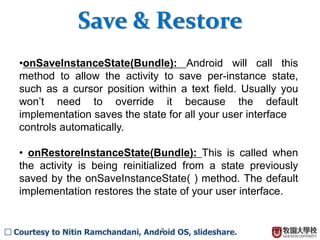
•onSaveInstanceState(Bundle): Android will call this
method to allow the activity to save per-instance state,
such as a cursor position within a text field. Usually you
won’t need to override it because the default
implementation saves the state for all your user interface
controls automatically.
• onRestoreInstanceState(Bundle): This is called when
the activity is being reinitialized from a state previously
saved by the onSaveInstanceState( ) method. The default
implementation restores the state of your user interface.
Save & Restore
□ Courtesy to Nitin Ramchandani, Android OS, slideshare.
8
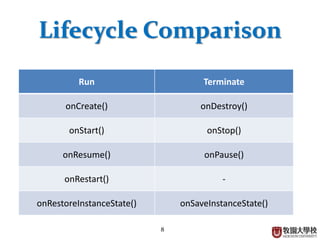
Lifecycle Comparison
Run Terminate
onCreate() onDestroy()
onStart() onStop()
onResume() onPause()
onRestart() -
onRestoreInstanceState() onSaveInstanceState()
9
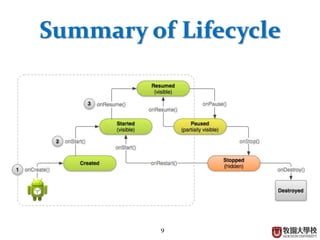
Summary of Lifecycle
10
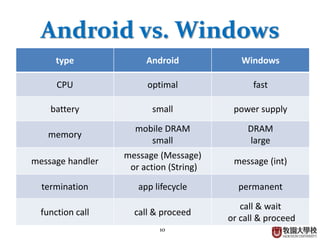
Android vs. Windows
type Android Windows
CPU optimal fast
battery small power supply
memory
mobile DRAM
small
DRAM
large
message handler
message (Message)
or action (String)
message (int)
termination app lifecycle permanent
function call call & proceed
call & wait
or call & proceed
11
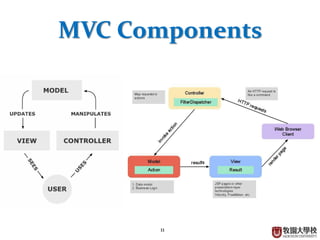
MVC Components
12
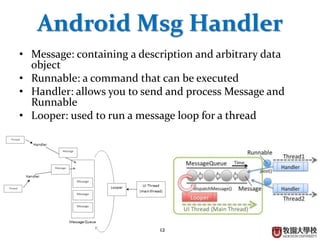
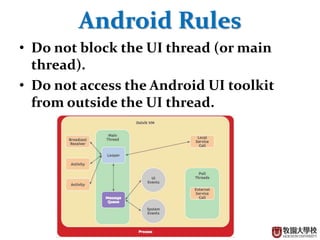
Android Msg Handler
• Message: containing a description and arbitrary data
object
• Runnable: a command that can be executed
• Handler: allows you to send and process Message and
Runnable
• Looper: used to run a message loop for a thread
13
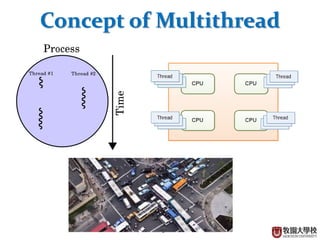
Concept of Multithread
14
Android Rules
• Do not block the UI thread (or main
thread).
• Do not access the Android UI toolkit
from outside the UI thread.
15
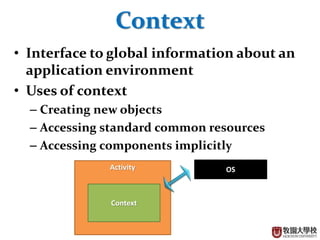
Context
• Interface to global information about an
application environment
• Uses of context
– Creating new objects
– Accessing standard common resources
– Accessing components implicitly
Activity
Context
OS
16
Access of Context
• this
– Activity extends Context
• View.getContext()
– Context for View (usually Activity Context)
• Activity.getApplicationContext()
– Permanent Application Context
• ContextWrapper.getBaseContext()
– Access to another Context

Android - Message

  • 1.
    Android – Message Yong HeuiCho @ Mokwon University Some of slides are referred to: [1] Nitin Ramchandani, Android OS, slideshare.
  • 2.
  • 3.
    3 Application Lifecycle I. InAndroid, every application runs in their own process. II. Processes are started or stopped as needed to run application components. III. A process may be killed to reclaim resources. □ Courtesy to Nitin Ramchandani, Android OS, slideshare.
  • 4.
  • 5.
    5 • onCreate(Bundle): Thisis called when the activity first starts up. •onStart( ): This indicates the activity is about to be displayed to the user. • onResume( ): This is called when your activity can start interacting with the user. This is a good place to start animations and music. • onPause( ): This runs when the activity is about to go into the background, usually because another activity has been launched in front of it. This is where you should save your program’s persistent state, such as a database record being edited. Activity Lifecycle (II) □ Courtesy to Nitin Ramchandani, Android OS, slideshare.
  • 6.
    6 • onStop( ):This is called when your activity is no longer visible to the user and it won’t be needed for a while. If memory is tight, onStop( ) may never be called (the system may simply terminate your process). • onRestart( ): If this method is called, it indicates your activity is being redisplayed to the user from a stopped state. • onDestroy( ): This is called right before your activity is destroyed. If memory is tight, onDestroy( ) may never be called (the system may simply terminate your process). Activity Lifecycle (III) □ Courtesy to Nitin Ramchandani, Android OS, slideshare.
  • 7.
    7 •onSaveInstanceState(Bundle): Android willcall this method to allow the activity to save per-instance state, such as a cursor position within a text field. Usually you won’t need to override it because the default implementation saves the state for all your user interface controls automatically. • onRestoreInstanceState(Bundle): This is called when the activity is being reinitialized from a state previously saved by the onSaveInstanceState( ) method. The default implementation restores the state of your user interface. Save & Restore □ Courtesy to Nitin Ramchandani, Android OS, slideshare.
  • 8.
    8 Lifecycle Comparison Run Terminate onCreate()onDestroy() onStart() onStop() onResume() onPause() onRestart() - onRestoreInstanceState() onSaveInstanceState()
  • 9.
  • 10.
    10 Android vs. Windows typeAndroid Windows CPU optimal fast battery small power supply memory mobile DRAM small DRAM large message handler message (Message) or action (String) message (int) termination app lifecycle permanent function call call & proceed call & wait or call & proceed
  • 11.
  • 12.
    12 Android Msg Handler •Message: containing a description and arbitrary data object • Runnable: a command that can be executed • Handler: allows you to send and process Message and Runnable • Looper: used to run a message loop for a thread
  • 13.
  • 14.
    14 Android Rules • Donot block the UI thread (or main thread). • Do not access the Android UI toolkit from outside the UI thread.
  • 15.
    15 Context • Interface toglobal information about an application environment • Uses of context – Creating new objects – Accessing standard common resources – Accessing components implicitly Activity Context OS
  • 16.
    16 Access of Context •this – Activity extends Context • View.getContext() – Context for View (usually Activity Context) • Activity.getApplicationContext() – Permanent Application Context • ContextWrapper.getBaseContext() – Access to another Context