Android Application Tutorial

  Instructed on: 17-Feb-2012 | Tutorial: #02


                                                                    2 
                                                      By : Yasmine Sherif Mahmoud
                                                                                                                           Tutorial Code: APS-02-2012


All Copy Rights Saved to the 7th Students’ Conference on Communication and Information Based in the Faculty of Computers
and Information Cairo University – Egypt 2011/2012 www.scci-cu.com
• You can install the SDK from here:
  http://developer.android.com/sdk/index.html
• You can install Eclipse from here:
  http://www.eclipse.org/downloads/
  >> Choose: Eclipse IDE for Java EE Developers

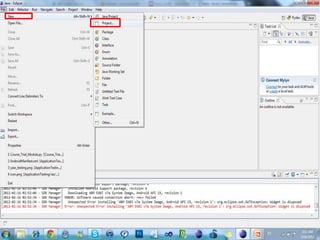
• After installing the SDK and Eclipse.

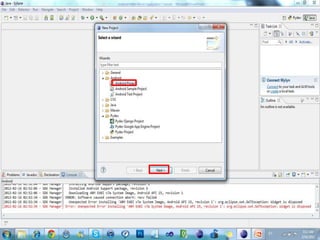
• Open Eclipse and follow the following steps.
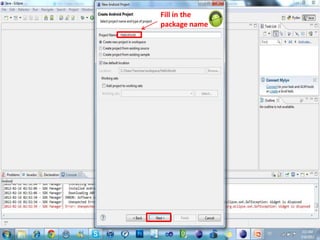
Fill in the
package name
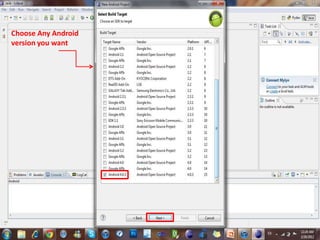
Choose Any Android
version you want
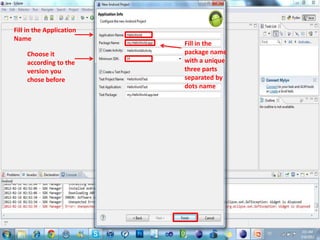
Fill in the Application
Name
                          Fill in the
    Choose it             package name
    according to the      with a unique
    version you           three parts
    chose before          separated by
                          dots name
• By now you will have created the project and
  you will have the following window:
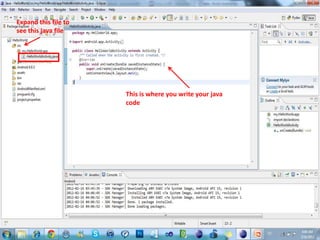
Expand this file to
see this java file


                      This is where you write your java
                      code
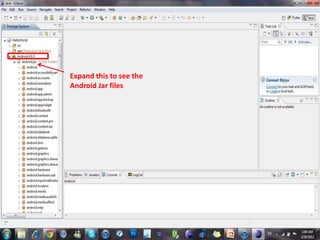
Expand this to see the
Android Jar files
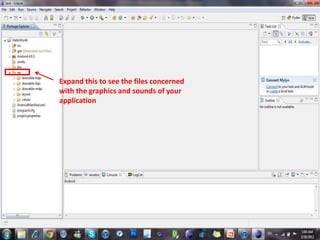
Expand this to see the files concerned
with the graphics and sounds of your
application
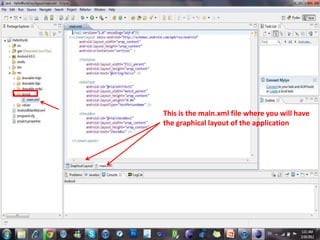
This is the main.xml file where you will have
the graphical layout of the application
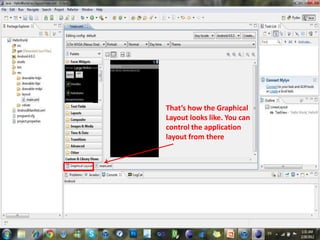
That’s how the Graphical
Layout looks like. You can
control the application
layout from there
• Now, return to the .Java file where we will
  write a Hello world code.
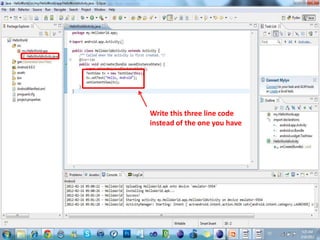
Write this three line code
instead of the one you have
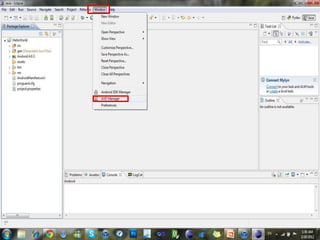
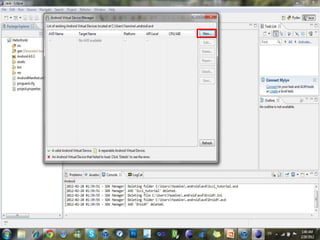
• Before going to the next step we will create
  the AVD (Android Virtual Device) or the
  emulator on which we will test the
  application.
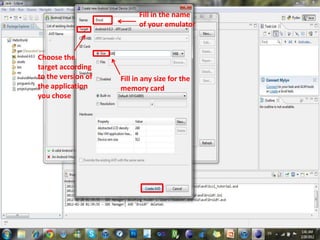
Fill in the name
                          of your emulator


Choose the
target according
to the version of   Fill in any size for the
the application     memory card
you chose
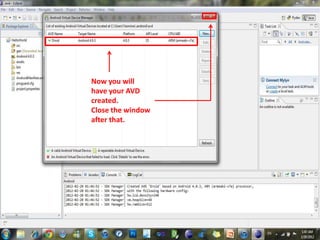
Now you will
have your AVD
created.
Close the window
after that.
• We now have to run our application.
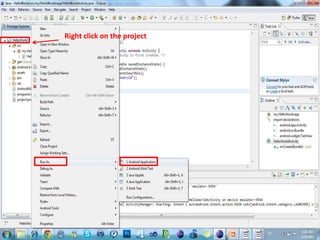
Right click on the project
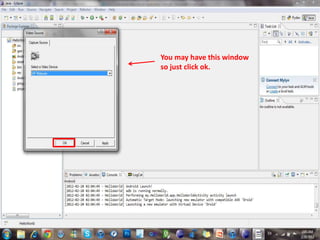
You may have this window
so just click ok.
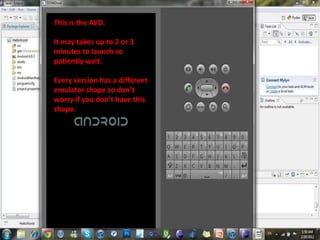
This is the AVD.

It may takes up to 2 or 3
minutes to launch so
patiently wait.

Every version has a different
emulator shape so don’t
worry if you don’t have this
shape.
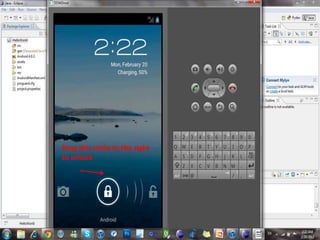
Drag this circle to the right
to unlock
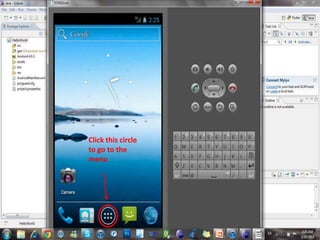
Click this circle
to go to the
menu
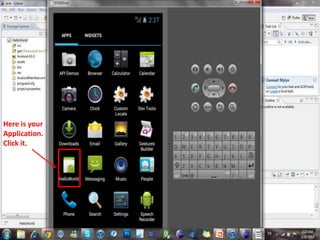
Here is your
Application.
Click it.
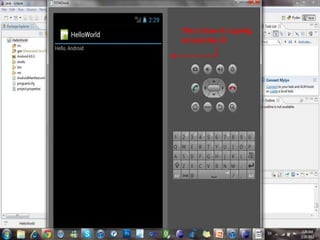
This is how it is going
to look like 
Yasmine Sherif EL-Adly


 @YasmineSherif91


+Yasmine Sherif EL-Adly

Android hello world application tutorial #1

  • 1.
    Android Application Tutorial Instructed on: 17-Feb-2012 | Tutorial: #02 2  By : Yasmine Sherif Mahmoud Tutorial Code: APS-02-2012 All Copy Rights Saved to the 7th Students’ Conference on Communication and Information Based in the Faculty of Computers and Information Cairo University – Egypt 2011/2012 www.scci-cu.com
  • 2.
    • You caninstall the SDK from here: http://developer.android.com/sdk/index.html • You can install Eclipse from here: http://www.eclipse.org/downloads/ >> Choose: Eclipse IDE for Java EE Developers • After installing the SDK and Eclipse. • Open Eclipse and follow the following steps.
  • 5.
  • 6.
  • 7.
    Fill in theApplication Name Fill in the Choose it package name according to the with a unique version you three parts chose before separated by dots name
  • 8.
    • By nowyou will have created the project and you will have the following window:
  • 9.
    Expand this fileto see this java file This is where you write your java code
  • 10.
    Expand this tosee the Android Jar files
  • 11.
    Expand this tosee the files concerned with the graphics and sounds of your application
  • 12.
    This is themain.xml file where you will have the graphical layout of the application
  • 13.
    That’s how theGraphical Layout looks like. You can control the application layout from there
  • 14.
    • Now, returnto the .Java file where we will write a Hello world code.
  • 15.
    Write this threeline code instead of the one you have
  • 16.
    • Before goingto the next step we will create the AVD (Android Virtual Device) or the emulator on which we will test the application.
  • 19.
    Fill in thename of your emulator Choose the target according to the version of Fill in any size for the the application memory card you chose
  • 20.
    Now you will haveyour AVD created. Close the window after that.
  • 21.
    • We nowhave to run our application.
  • 22.
    Right click onthe project
  • 23.
    You may havethis window so just click ok.
  • 24.
    This is theAVD. It may takes up to 2 or 3 minutes to launch so patiently wait. Every version has a different emulator shape so don’t worry if you don’t have this shape.
  • 25.
    Drag this circleto the right to unlock
  • 26.
    Click this circle togo to the menu
  • 27.
  • 28.
    This is howit is going to look like 
  • 30.
    Yasmine Sherif EL-Adly @YasmineSherif91 +Yasmine Sherif EL-Adly