ALTUS ALLIANCE 2016
WebApps for
Expenses and
Procurement
Your Presenter
Jeff Rintoul
Senior Application Consultant
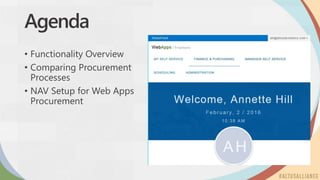
Agenda
• Functionality Overview
• Comparing Procurement
Processes
• NAV Setup for Web Apps
Procurement
WebApps Eliminates Bottlenecks
Empower users to efficiently complete their tasks
• Provide non-Nav users role-specific access to ERP
• Focused menus and ‘next step’ workflow
• Initiate purchase requests and inquire on financial results online
in real time
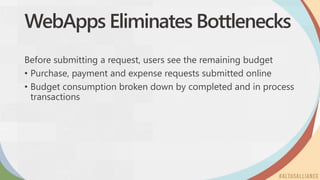
WebApps Eliminates Bottlenecks
Before submitting a request, users see the remaining budget
• Purchase, payment and expense requests submitted online
• Budget consumption broken down by completed and in process
transactions
WebApps Eliminates Bottlenecks
Requisition management workflow and inquiry
• Request status inquiry is real time
• Online manager approval that sends requests to the purchasing
system in Nav
WebApps Eliminates Bottlenecks
Reduce paperwork, data entry errors and costs
• Online request entry and approval supported by upload of
supporting documentation
• Online consolidation of purchasing to earn better vendor terms
• Configurable user security and validation reduces time to review,
and approve
Functionality Overview
• Altus Dynamics Employee Web Apps (Web Apps) vs. NAV
functionality integration
• Data resides in NAV
• Setup resides in NAV
• Web Apps Users can view NAV follow-on data
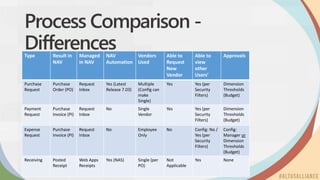
Process Comparison -
DifferencesType Result in
NAV
Managed
in NAV
NAV
Automation
Vendors
Used
Able to
Request
New
Vendor
Able to
view
other
Users’
Approvals
Purchase
Request
Purchase
Order (PO)
Request
Inbox
Yes (Latest
Release 7.03)
Multiple
(Config can
make
Single)
Yes Yes (per
Security
Filters)
Dimension
Thresholds
(Budget)
Payment
Request
Purchase
Invoice (PI)
Request
Inbox
No Single
Vendor
Yes Yes (per
Security
Filters)
Dimension
Thresholds
(Budget)
Expense
Request
Purchase
Invoice (PI)
Request
Inbox
No Employee
Only
No Config: No /
Yes (per
Security
Filters)
Config:
Manager or
Dimension
Thresholds
(Budget)
Receiving Posted
Receipt
Web Apps
Receipts
Yes (NAS) Single (per
PO)
Not
Applicable
Yes None
Process Comparison - Similarities
• The following is true for Purchase, Payment, and Expense
Requests:
• Share same number sequence (from SQL) within Web Apps Dimensions
can be made applicable / required
• Can email from Web Apps (unless turned off on Page)
• Many Web Apps Setup features e.g.
• Activate Dimension Combination Control
• Hide taxes
• Changing some captions
• Lines are managed through Expense Types
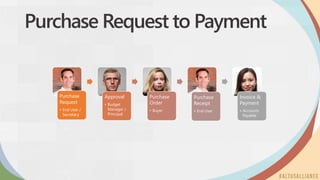
Purchase Request to Payment
Purchase
Request
• End User /
Secretary
Approval
• Budget
Manager /
Principal
Purchase
Order
• Buyer
Purchase
Receipt
• End User
Invoice &
Payment
• Accounts
Payable
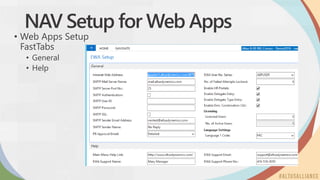
NAV Setup for Web Apps
• Web Apps Setup
FastTabs
• General
• Help
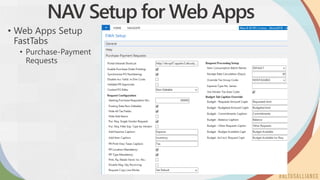
NAV Setup for Web Apps
• Web Apps Setup
FastTabs
• Purchase-Payment
Requests
NAV Setup for Web Apps
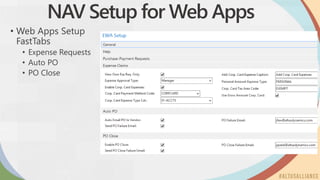
• Web Apps Setup
FastTabs
• Expense Requests
• Auto PO
• PO Close
NAV Setup for Web Apps
• Expense Types
• Main way to facilitate correct entry on lines
• Each Expense Type can control / provide
• G/L Account
• Amounts
• Taxes
• Possible Request Types
• Details / Guidelines / Links
• Vendor information
• Purchaser Code
• Create many to suit needs
• Expense Type Categories make selection easier for Web Apps
User
NAV Setup for Web Apps
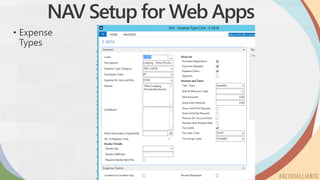
• Expense
Types
NAV Setup for Web Apps
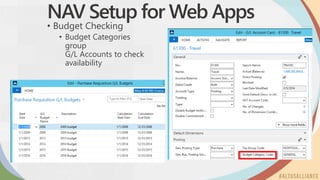
• Budget Checking
• Budget Categories
group
G/L Accounts to check
availability
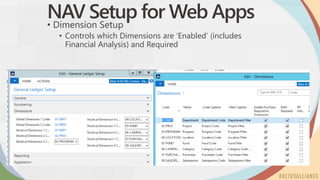
NAV Setup for Web Apps• Dimension Setup
• Controls which Dimensions are ‘Enabled’ (includes
Financial Analysis) and Required
NAV Setup for Web Apps
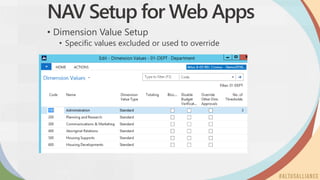
• Dimension Value Setup
• Specific values excluded or used to override
NAV Setup for Web Apps
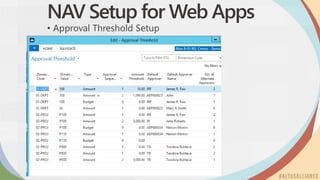
• Approval Threshold Setup
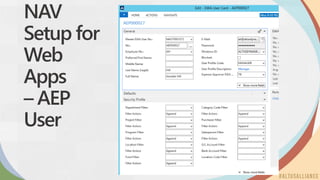
NAV
Setup for
Web
Apps
– AEP
User
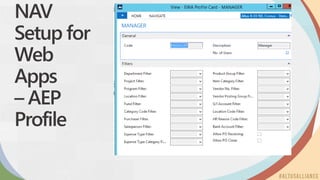
NAV
Setup for
Web
Apps
– AEP
Profile
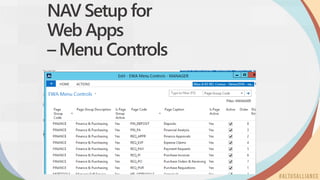
NAV Setup for
Web Apps
– Menu Controls
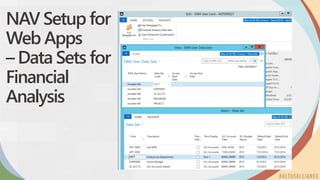
NAV Setup for
Web Apps
– Data Sets for
Financial
Analysis
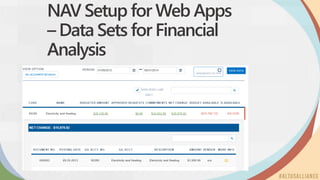
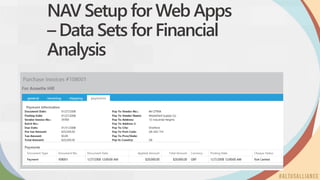
NAV Setup for Web Apps
– Data Sets for Financial
Analysis
NAV Setup for Web Apps
– Data Sets for Financial
Analysis
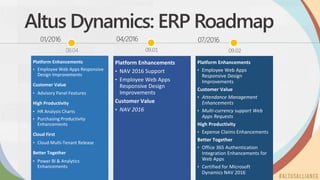
Altus Dynamics: ERP Roadmap
Better Together
08.04 09.01
Better Together
09.02
Questions & Answers
ALTUS ALLIANCE 2016
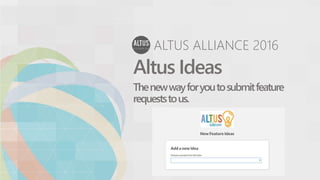
Altus Ideas
Thenewwayforyoutosubmitfeature
requeststous.
ALTUS ALLIANCE 2016
Altus Advocates
Membershiphasitrewards.
Enrolltoday.
ALTUS ALLIANCE 2016
Submit your
evaluations to win!
Thanks for coming!
@altusdynamics
altusdynamics.com
linkedin.com/company/altus-dynamics

Altus Alliance 2016 - WebApps for Expenses + Procurement

  • 1.
    ALTUS ALLIANCE 2016 WebAppsfor Expenses and Procurement
  • 2.
    Your Presenter Jeff Rintoul SeniorApplication Consultant
  • 3.
    Agenda • Functionality Overview •Comparing Procurement Processes • NAV Setup for Web Apps Procurement
  • 4.
    WebApps Eliminates Bottlenecks Empowerusers to efficiently complete their tasks • Provide non-Nav users role-specific access to ERP • Focused menus and ‘next step’ workflow • Initiate purchase requests and inquire on financial results online in real time
  • 5.
    WebApps Eliminates Bottlenecks Beforesubmitting a request, users see the remaining budget • Purchase, payment and expense requests submitted online • Budget consumption broken down by completed and in process transactions
  • 6.
    WebApps Eliminates Bottlenecks Requisitionmanagement workflow and inquiry • Request status inquiry is real time • Online manager approval that sends requests to the purchasing system in Nav
  • 7.
    WebApps Eliminates Bottlenecks Reducepaperwork, data entry errors and costs • Online request entry and approval supported by upload of supporting documentation • Online consolidation of purchasing to earn better vendor terms • Configurable user security and validation reduces time to review, and approve
  • 8.
    Functionality Overview • AltusDynamics Employee Web Apps (Web Apps) vs. NAV functionality integration • Data resides in NAV • Setup resides in NAV • Web Apps Users can view NAV follow-on data
  • 9.
    Process Comparison - DifferencesTypeResult in NAV Managed in NAV NAV Automation Vendors Used Able to Request New Vendor Able to view other Users’ Approvals Purchase Request Purchase Order (PO) Request Inbox Yes (Latest Release 7.03) Multiple (Config can make Single) Yes Yes (per Security Filters) Dimension Thresholds (Budget) Payment Request Purchase Invoice (PI) Request Inbox No Single Vendor Yes Yes (per Security Filters) Dimension Thresholds (Budget) Expense Request Purchase Invoice (PI) Request Inbox No Employee Only No Config: No / Yes (per Security Filters) Config: Manager or Dimension Thresholds (Budget) Receiving Posted Receipt Web Apps Receipts Yes (NAS) Single (per PO) Not Applicable Yes None
  • 10.
    Process Comparison -Similarities • The following is true for Purchase, Payment, and Expense Requests: • Share same number sequence (from SQL) within Web Apps Dimensions can be made applicable / required • Can email from Web Apps (unless turned off on Page) • Many Web Apps Setup features e.g. • Activate Dimension Combination Control • Hide taxes • Changing some captions • Lines are managed through Expense Types
  • 11.
    Purchase Request toPayment Purchase Request • End User / Secretary Approval • Budget Manager / Principal Purchase Order • Buyer Purchase Receipt • End User Invoice & Payment • Accounts Payable
  • 12.
    NAV Setup forWeb Apps • Web Apps Setup FastTabs • General • Help
  • 13.
    NAV Setup forWeb Apps • Web Apps Setup FastTabs • Purchase-Payment Requests
  • 14.
    NAV Setup forWeb Apps • Web Apps Setup FastTabs • Expense Requests • Auto PO • PO Close
  • 15.
    NAV Setup forWeb Apps • Expense Types • Main way to facilitate correct entry on lines • Each Expense Type can control / provide • G/L Account • Amounts • Taxes • Possible Request Types • Details / Guidelines / Links • Vendor information • Purchaser Code • Create many to suit needs • Expense Type Categories make selection easier for Web Apps User
  • 16.
    NAV Setup forWeb Apps • Expense Types
  • 17.
    NAV Setup forWeb Apps • Budget Checking • Budget Categories group G/L Accounts to check availability
  • 18.
    NAV Setup forWeb Apps• Dimension Setup • Controls which Dimensions are ‘Enabled’ (includes Financial Analysis) and Required
  • 19.
    NAV Setup forWeb Apps • Dimension Value Setup • Specific values excluded or used to override
  • 20.
    NAV Setup forWeb Apps • Approval Threshold Setup
  • 21.
  • 22.
  • 23.
    NAV Setup for WebApps – Menu Controls
  • 24.
    NAV Setup for WebApps – Data Sets for Financial Analysis
  • 25.
    NAV Setup forWeb Apps – Data Sets for Financial Analysis
  • 26.
    NAV Setup forWeb Apps – Data Sets for Financial Analysis
  • 27.
    Altus Dynamics: ERPRoadmap Better Together 08.04 09.01 Better Together 09.02
  • 28.
  • 29.
    ALTUS ALLIANCE 2016 AltusIdeas Thenewwayforyoutosubmitfeature requeststous.
  • 30.
    ALTUS ALLIANCE 2016 AltusAdvocates Membershiphasitrewards. Enrolltoday.
  • 31.
    ALTUS ALLIANCE 2016 Submityour evaluations to win!
  • 32.

Editor's Notes

  • #9 Web Apps (EWA) is a Portal built within Sharepoint with .Net, transactions are initiated in EWA and passed to Nav which then saves the transaction information in Nav tables. EWA configuration information is also saved with Nav tables. Nav pages provide a view of configuration and transaction data for modification and further processing. Besides initiating new transactions in EWA, a user is able to view PO’s created from Requests, as well as invoices, receiving and payment documents.
  • #10 Four different procurement related documents are created from EWA; PO’s, PI’s for trade vendor, PI’s for employee vendor & receiving documents. Through configuration rather than customization EWA can limit what a user is allowed to access and process. The approval process is a non-Nav workflow available to EWA users rather than limited to Nav users. A Nav only ‘approval process’ exists but has less configurability than the EWA approval process Since approx. 2013-09 EWA has allowed for the configuration of a purchase request processing automation to convert a request into a PO and email that PO to the vendor, where both PO creation & email are the designed process, rather that PO creation only.
  • #11 By learning the Purchase Request process, users will find Payment & Expense Request process very similar for request entry, submission and approval
  • #12 Tender Process can be part of this cycle but will not be part of this presentation, refer to Procurement Process v 3.6 Setup and User Guide. In brief, the EWA will be configured to enable use of a ‘misc quote vendor’ on P&P Setup for use on quotes being sent to new vendors. An EWA user will submit a purchase request for approval, which when processed in the Request Inbox is converted into a Quote. Quotes will then be cancelled or converted into a PO and sent to the vendor. Procurement transactions are initiated and approved by non-Nav users (EWA only users), thereby expanding the procurement user base to occasional operations staff. Once approved, the request is reviewed for completeness by a Nav user, the Purchaser/Buyer, which is then converted into an order or invoice as appropriate. EWA users have a view from the EWA to the processing status of their request at all stages up to and including payment to the vendor, allowing self service investigation for internal and vendor inquiries.
  • #13 AEP Setup is a combination of information only fields such as intranet web address and processing master data such as the AEP User number series. Refer to Base Portal Setup and Admin Guide v 7.01. In addition to Boolean fields to enable enable HR Portals, there are AEP Menu Controls to define specific AEP page group & page controls. Menu Controls are assigned to AEP User Profiles to limit how much of the portal functionality is made available to AEP users. Each AEP User is assigned a AEP Profile. Standard Altus User Guides can be saved in Sharepoint Document libraries providing online reference material. These guides can be modified or replaced as required to suit the organizations requirements Within the Expense Types, comment fields are populated to provide additional user help.
  • #14 This fasttab provides processing options via configuration to match the organizations workflow requirements. For details refer to the previously mentioned setup and admin guides. Fields also control EWA field caption/labels.
  • #15 For details refer to the previously mentioned setup & admin guides
  • #16 Expense types are used to default information into the request, which will become the detail lines of a PO or PI. By focusing on the processing needs of the full range of EWA users, groups of expense types can be created, grouped and then assigned to specific users to support ease of entry of transactions. Depending on the user, ease of entry may mean few but flexible/open expense types to allow the user to use their judgment to enter appropriate document information. Other users will not be required to know the ‘accounting/back office’ information to allow a request to be fully completed and approved for processing. An expense type may be made available to each of purchase, payment and expense requests, or limited to just one type. As an administrator, initial setup effort can remove a great deal of data entry effort from users and increase the accuracy of processed data, by in effect creating a vendor’s product catalogue within a group of expense types.
  • #18 For EWA purposes, you are not required to enter a budget amount for each GL Income Statement account. If for operating control purposes a manager is permitted to spend a portion of a budget in any of two or more accounts so long as the total spend is within budget, then this group of accounts is assigned a common budget category value. The ‘start date’ of a budget supports the staging of budget information in advance of the in-use date. EWA compares the request posting date to the ‘calculation start date’ to determine the appropriate ‘budget’ to apply to the budget checking function. EWA does NOT support a ‘hard stop’ on over budget transactions. For reporting purposes you may enter/upload the budget in monthly amounts or as one annual amount, but EWA uses the calculation start and end dates to determine the total budget available for the dimension-account combination. By having 12 rows for each fiscal year where each row is a monthly start-stop set, you will see over budget warnings sooner than a single full year start stop range. Further, each single month start-stop record could hold a single month budget amount or the year to date budget amount. It is possible to assign one budget code to purchase request GL budget, a second to GL Setup current budget and a third to the Data Set definition used by financial analysis. EWA has only the first 6 dimensions to use for budget verification. Users would need to be aware of the business reason for assigning different budget to each configuration area
  • #19 EWA for budget verification makes use of only the first 6 dimensions defined on GL Setup, requiring planning of the request approval workflow before finalization of GL configuration. It is unlikely that more than 2 or 3 dimensions will be used by the approval thresholds, but they must be placed among the first 6 dimensions.
  • #20 When two or more dimensions (department & project) are included on a single transaction, one dimension value can be assigned as the approval threshold value override Once thresholds have been defined, a fast link to view is via dimensions
  • #21 EWA only uses dimensions and dimension values to support an approval workflow. Only Expense Requests provides the option to use the employee’s assigned manager in place of the dimension values in the transaction. The default approver is optional, as is the option to provide one or more alternate approvers. The amount represents the minimum amount for the threshold. If a transaction amount exceeds one or more thresholds, each approver in the lower thresholds must approve the transaction prior to the request advancing further. A ‘manual’ workaround to allow a skip of the lower threshold approvers is to assign the top level approver as a first level alternate, allowing the user to override the default approver. The sequence and amount of budget approvers must be set to zero, meaning a second budget approver will ‘see’ the transaction as ready for their approval at the same time as the first budget approver Due to the nature of the soft-edit on over budget transactions, the budget approver has the option to approve or deny, then to transfer or adjust the budget amounts to offset the over budget situation after posting the transaction, or to approve and leave the account as over budget.
  • #22 Administration of user security is minimized through the use of Profiles Two or more users can share a profile where they share a set of Expense types and Vendors, but each require their own unique department codes. Security profile dimension values allow use of standard Nav filter conventions The AEP User security profile values either override or append to the profile values In addition, an AEP user can assign one or more individual dimension combinations that could be outside the dimension filters of the profile or user security values Permissible ‘delegate to’ values are defined on the user card. The ability to delegate outside this list is also configurable. Data sets are defined elsewhere, then assigned to users (but not to profiles) Where a user replaces another user as a result of staffing changes, a mass change of approval threshold assignments is managed on the user card
  • #23 Administration of user security is minimized through the use of Profiles Two or more users can share a profile where they share a set of Expense types and Vendors, but each require their own unique department codes. Security profile dimension values allow use of standard Nav filter conventions
  • #24 Administration of user security is minimized through the use of Profiles Two or more users can share a profile where they share a set of Expense types and Vendors, but each require their own unique department codes. Security profile dimension values allow use of standard Nav filter conventions
  • #25 Data sets can be shared by many users since a users view of the data is restricted to the dimension values in their security profile A data set has predefined columns of actual, commitments, budget and remaining budget, Data set rows can be defined as either accounts or a dimension Users can drill into the results to see the details making up each value (actual, budget or commitment), for actuals originating from purchase invoices, users can see whether the payment has been posted and also when the payment was cashed.
  • #26 A data set has predefined columns of actual, commitments, budget and remaining budget, Data set rows can be defined as either accounts or a dimension Users can drill into the results to see the details making up each value (actual, budget or commitment), for actuals originating from purchase invoices, users can see whether the payment has been posted and also when the payment was cashed.
  • #27 Users can drill into the results to see the details making up each value (actual, budget or commitment), for actuals originating from purchase invoices, users can see whether the payment has been posted and also when the payment was cashed.