Advertisements Using Comic Life, Photo Editor and Publisher
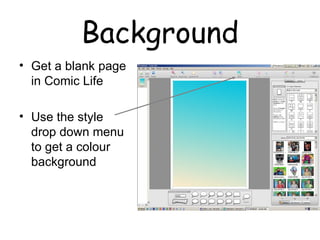
Background Get a blank page in Comic Life Use the style drop down menu to get a colour background
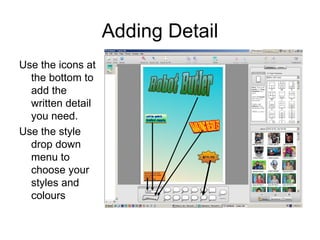
Adding Detail Use the icons at the bottom to add the written detail you need. Use the style drop down menu to choose your styles and colours
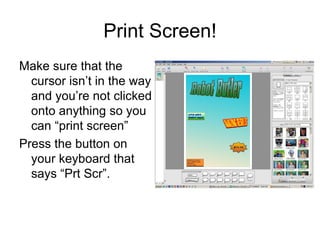
Print Screen! Make sure that the cursor isn’t in the way and you’re not clicked onto anything so you can ā€œprint screenā€ Press the button on your keyboard that says ā€œPrt Scrā€.
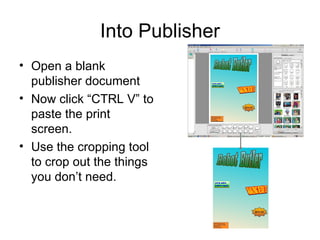
Into Publisher Open a blank publisher document Now click ā€œCTRL Vā€ to paste the print screen.  Use the cropping tool to crop out the things you don’t need.
Insert a picture from the file.  Because it is a scanned picture it will have a white background around it.  Click on the transparency tool then on the white background to make it go away.  The transparency tool is on the picture toolbar and looks like this Add a picture
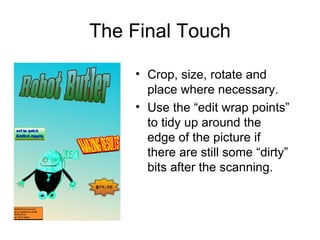
The Final Touch Crop, size, rotate and place where necessary. Use the ā€œedit wrap pointsā€ to tidy up around the edge of the picture if there are still some ā€œdirtyā€ bits after the scanning.

Advertisements Ab

  • 1.
    Advertisements Using ComicLife, Photo Editor and Publisher
  • 2.
    Background Get ablank page in Comic Life Use the style drop down menu to get a colour background
  • 3.
    Adding Detail Usethe icons at the bottom to add the written detail you need. Use the style drop down menu to choose your styles and colours
  • 4.
    Print Screen! Makesure that the cursor isn’t in the way and you’re not clicked onto anything so you can ā€œprint screenā€ Press the button on your keyboard that says ā€œPrt Scrā€.
  • 5.
    Into Publisher Opena blank publisher document Now click ā€œCTRL Vā€ to paste the print screen. Use the cropping tool to crop out the things you don’t need.
  • 6.
    Insert a picturefrom the file. Because it is a scanned picture it will have a white background around it. Click on the transparency tool then on the white background to make it go away. The transparency tool is on the picture toolbar and looks like this Add a picture
  • 7.
    The Final TouchCrop, size, rotate and place where necessary. Use the ā€œedit wrap pointsā€ to tidy up around the edge of the picture if there are still some ā€œdirtyā€ bits after the scanning.