ManageEngine ADAudit Plus

    A detailed walkthrough
Agenda

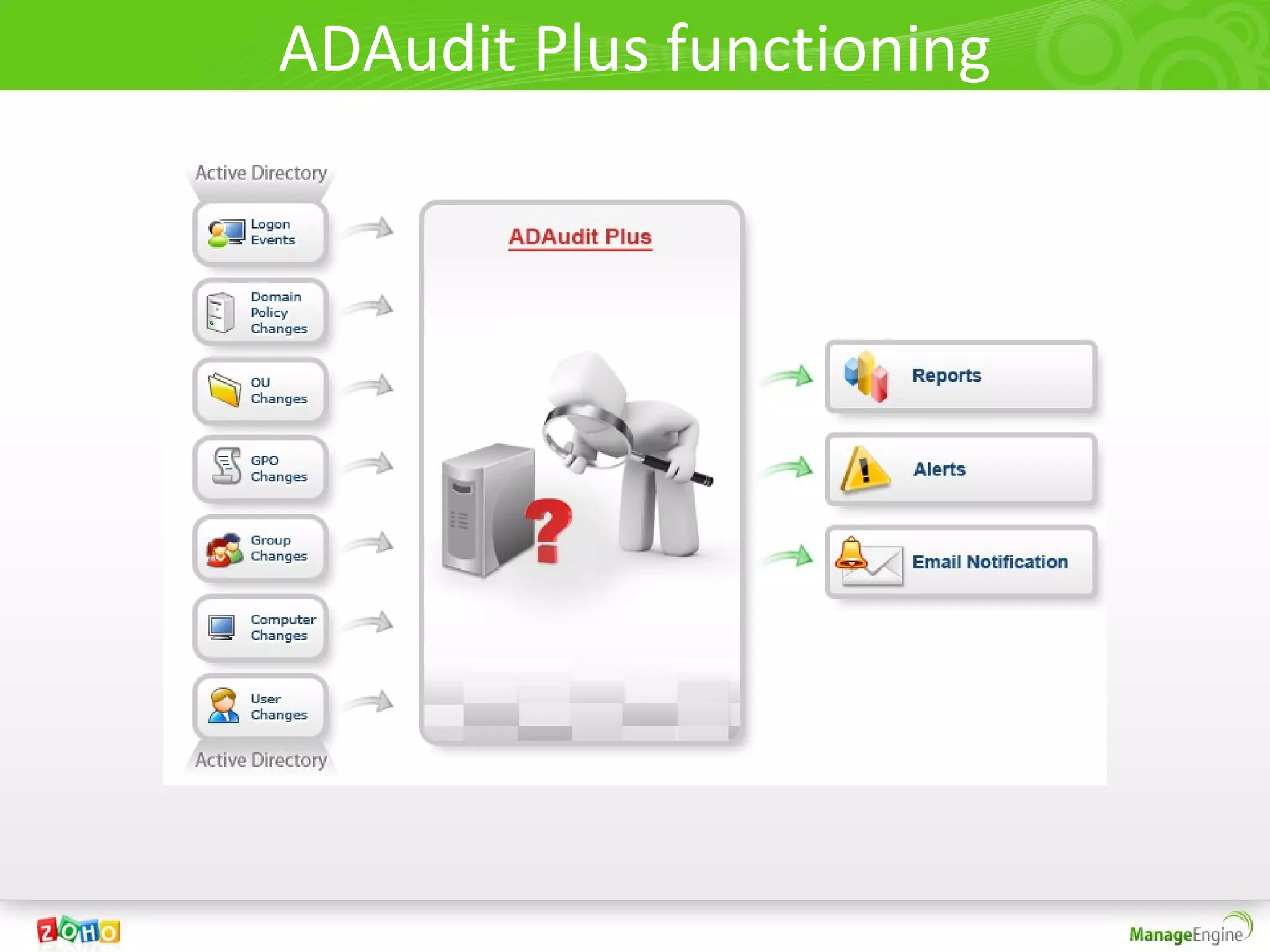
• ManageEngine ADAudit Plus is a web based Active Directory change Audit
  and Reporting software.

• It helps audit and track all changes in the Active Directory.

• Active Directory changes on Users, Computers, Groups, GPOs, Ous,
  Domain Policies and logon activities are audited and reported from a
  central web console.
ADAudit Plus functioning
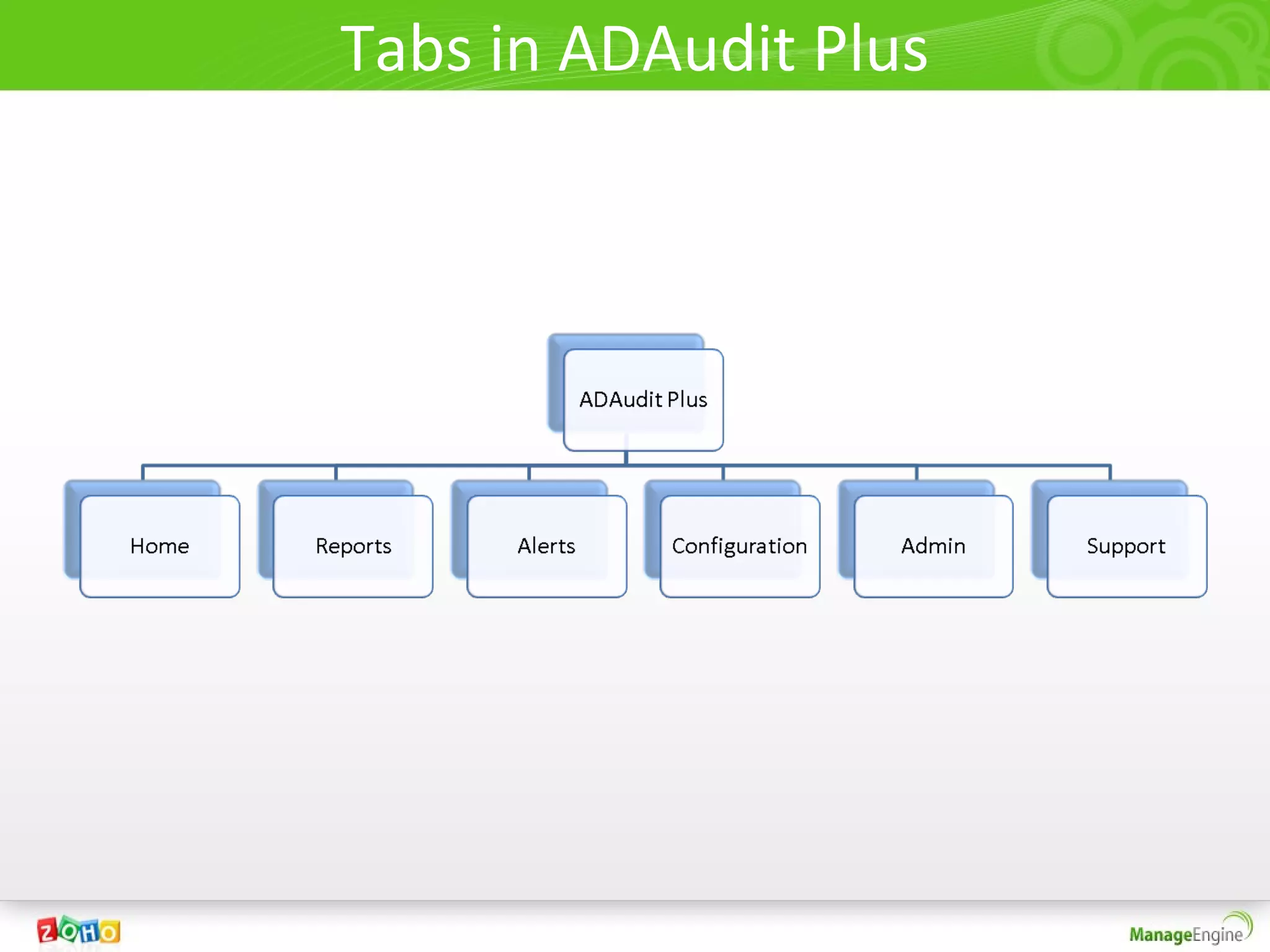
Tabs in ADAudit Plus
Home Tab of ADAudit Plus
Dashboard / Home Tab of ADAudit Plus
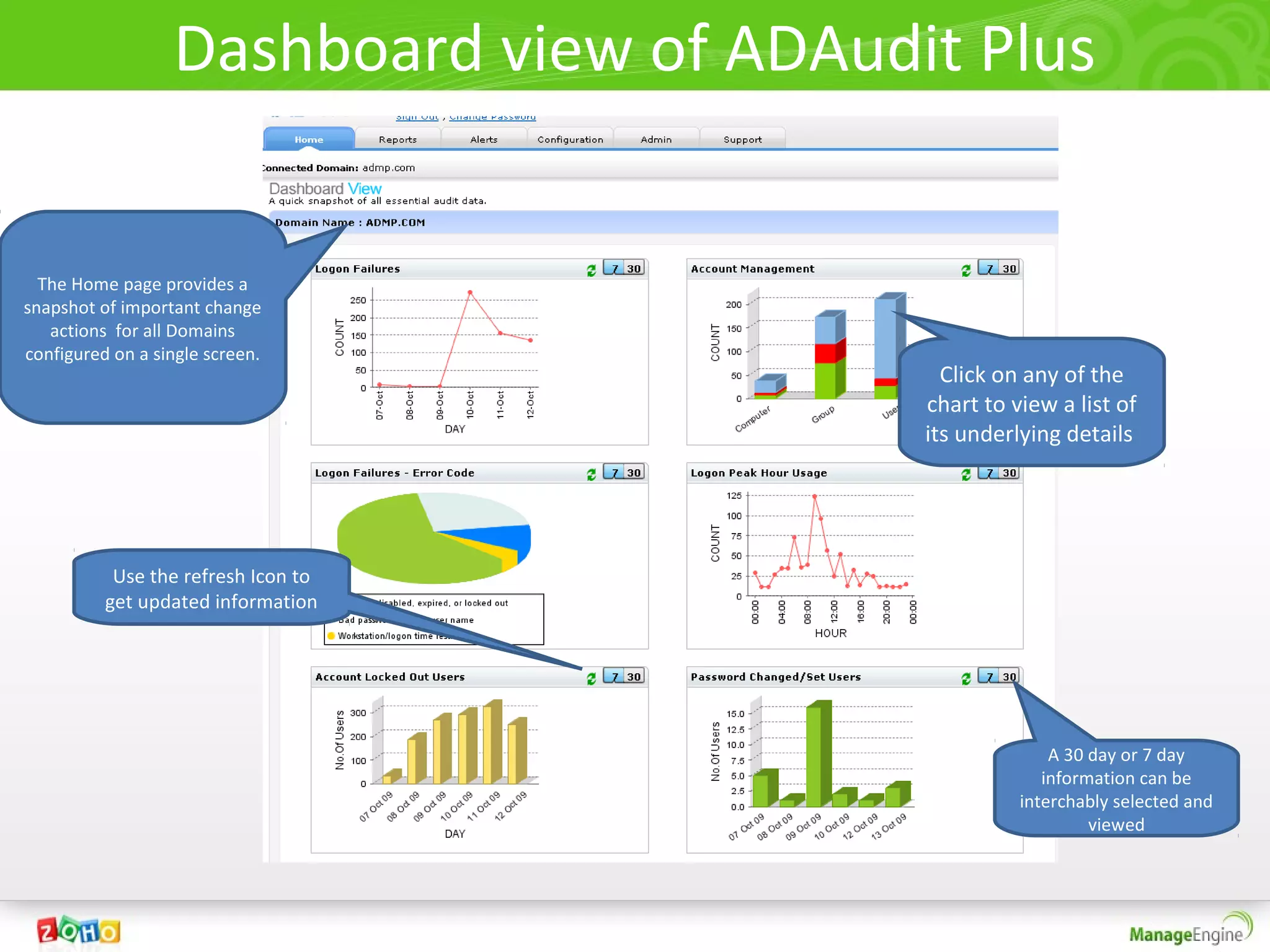
• The Home Tab of ADAudit Plus provides a high-level picture
  with snapshots highlighting important Active Directory audit
  events like.

   1.   A graph on the Logon Failure counts in the past 7 / 30 days.
   2.   A pie-chart highlighting the error-codes when users logon has failed.
   3.   The count of account locked-out users in the past week / month on
        a day to day basis.
   4.   A single bar chart highlighting password changed / set users on a
        day-to-day basis for the last 7 / 30 days. (Selectable)
Dashboard / Home Tab of ADAudit Plus
• Other Dashboard charts / graphs

   1.   Peak Logon hour of a day with the average logon count for every
        hour.
   2.   Account (user, computer and group) management actions like
        created, deleted and modified all available on a single graphical
        interface.

   The charts can be clicked to get a list view of desired change data.
   Further the graphs are selectable.
   The Dashboard provides the above highlighted info for all configured
        Domain controllers.
Dashboard view of ADAudit Plus


  The Home page provides a
snapshot of important change
   actions for all Domains
configured on a single screen.
                                            Click on any of the
                                          chart to view a list of
                                          its underlying details


           Use the refresh Icon to
          get updated information


                                                        A 30 day or 7 day
                                                       information can be
                                                    interchably selected and
                                                             viewed
ADAudit Plus Reports Tab
Also explained configuration of Reports
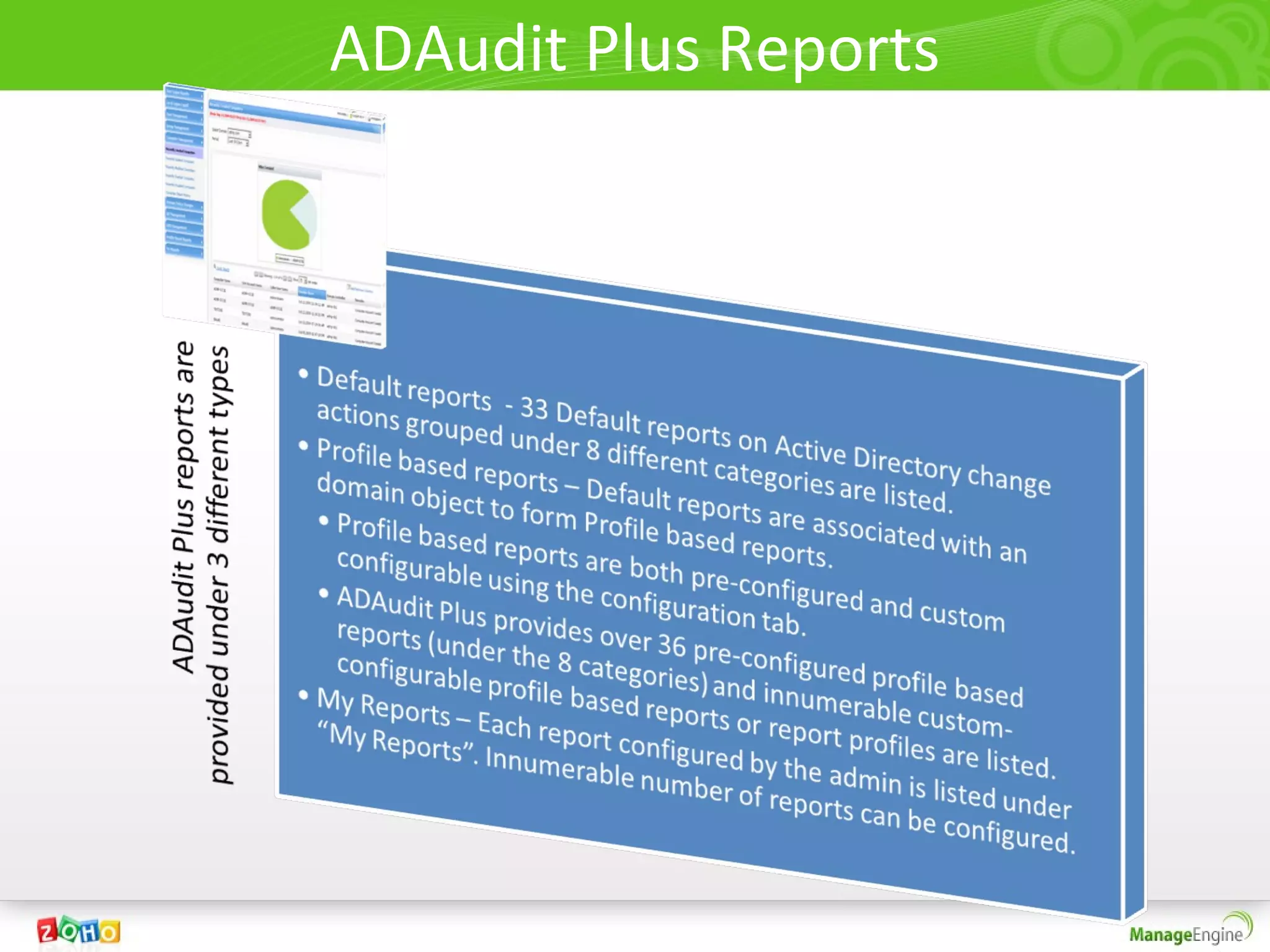
ADAudit Plus Reports
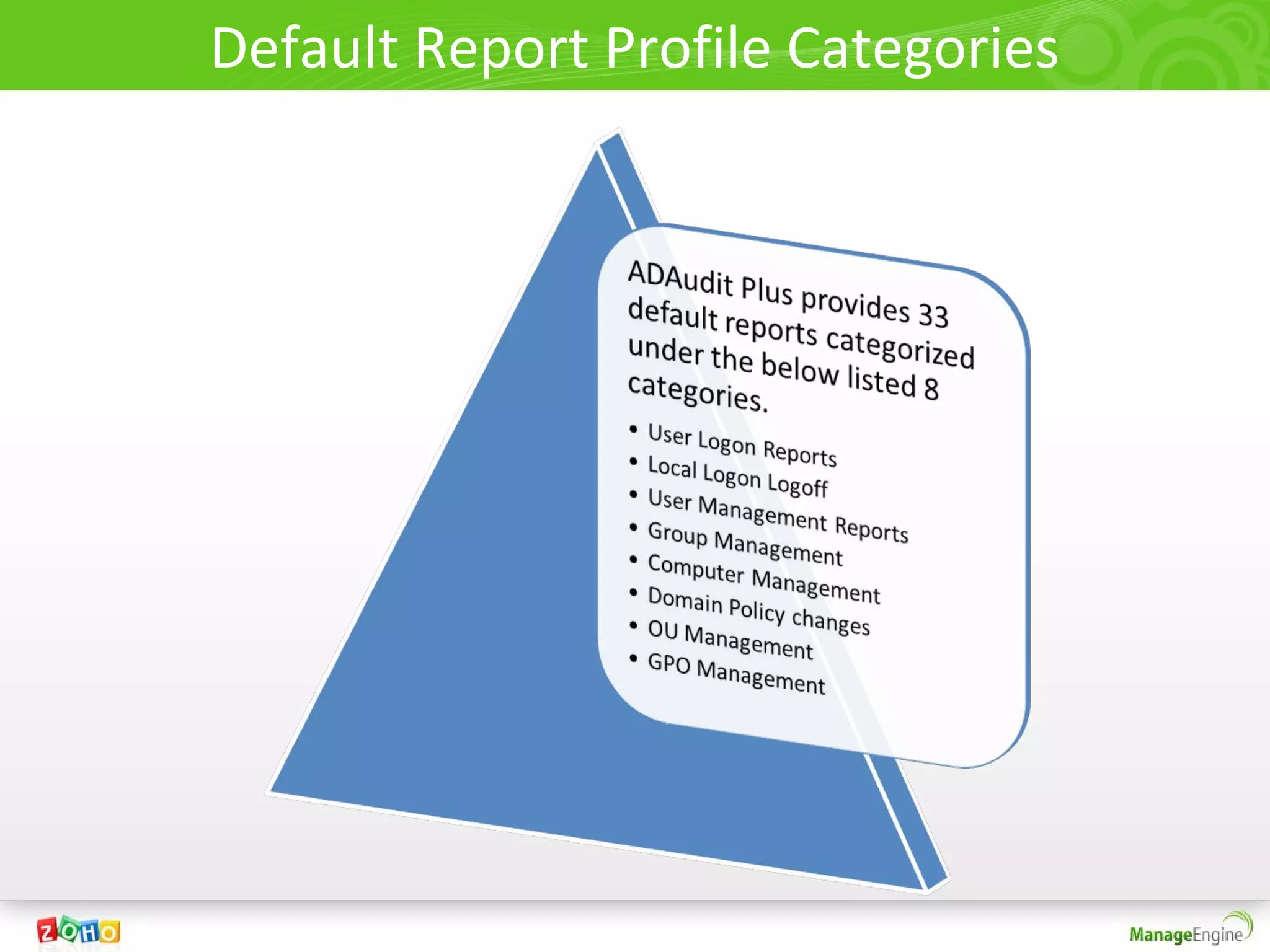
Default Report Profile Categories
User Logon Report Category
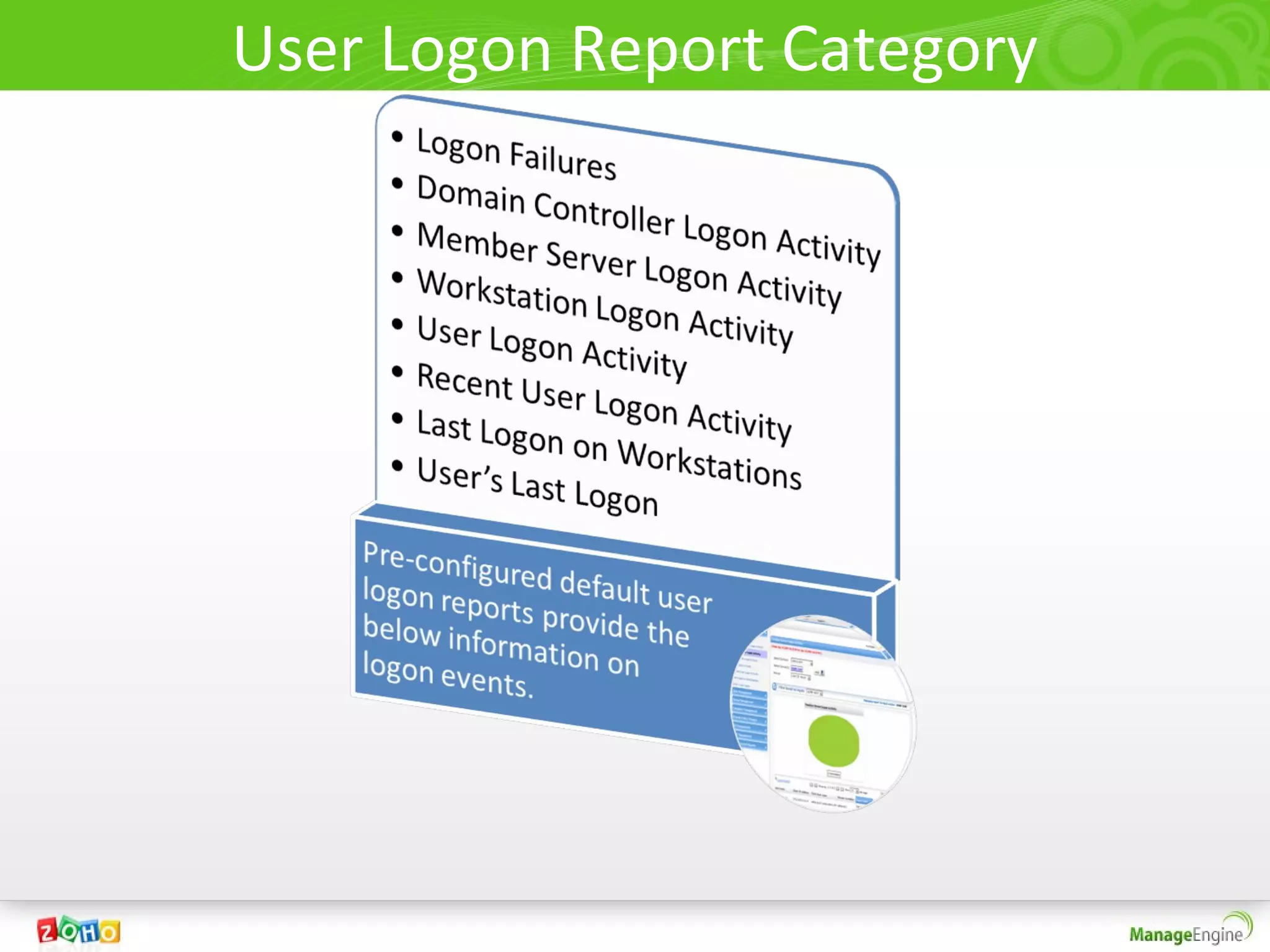
• The reports under this category provide general logon information of
  users.

• Information like logon failures, logon attempts on various resources like
  workstations, member servers are reported and also graphically
  highlighted.

• Click on the charts above the list to view filtered information.

• Use the add/ remove columns link to add/remove the column of interest.

• The reports can be exported to xls, csv, csvde, pdf and html formats.
• It can be scheduled and configured to email notified to one or more
  domain users.
User Logon Report Category
Logon Failure Report
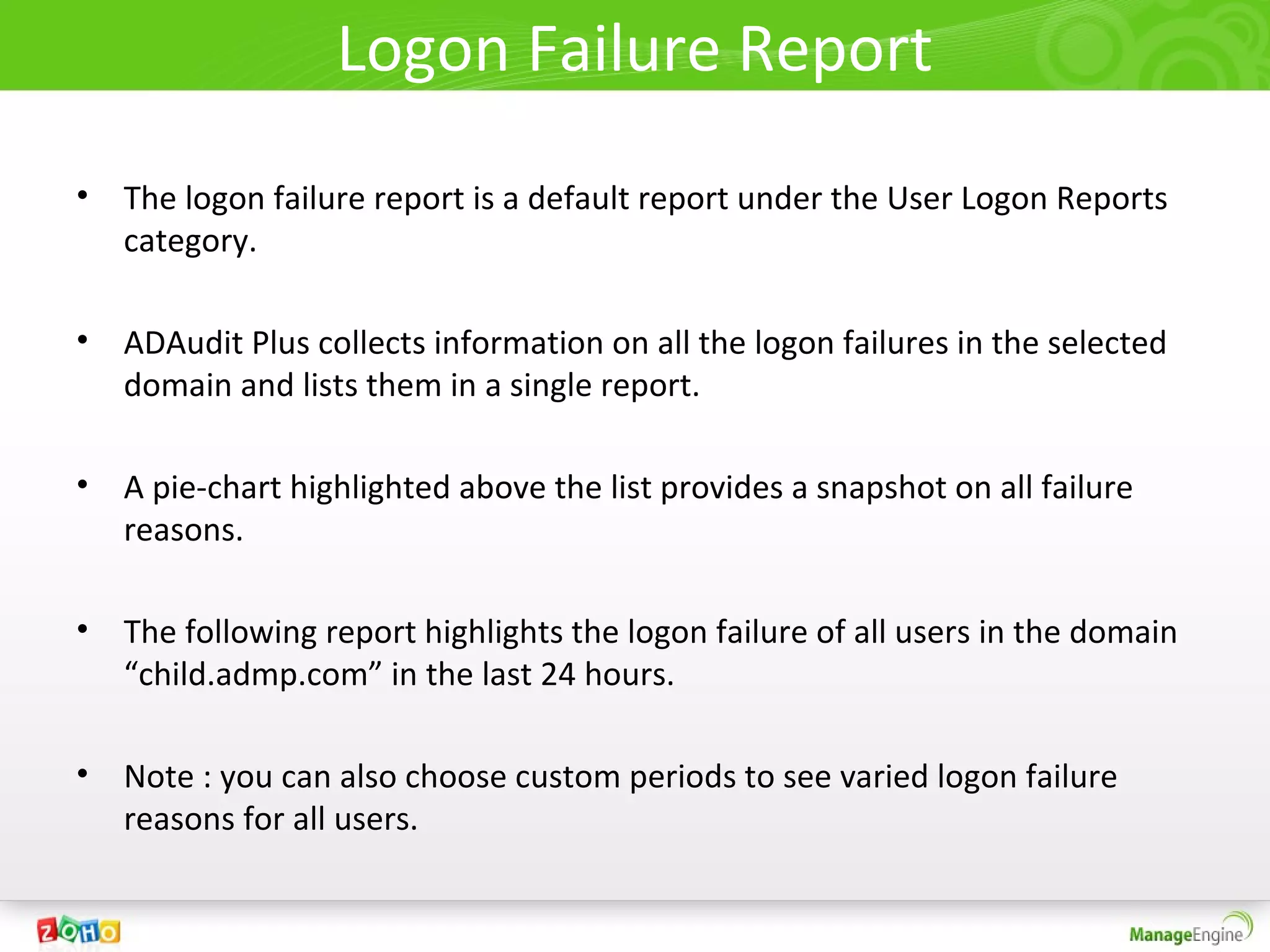
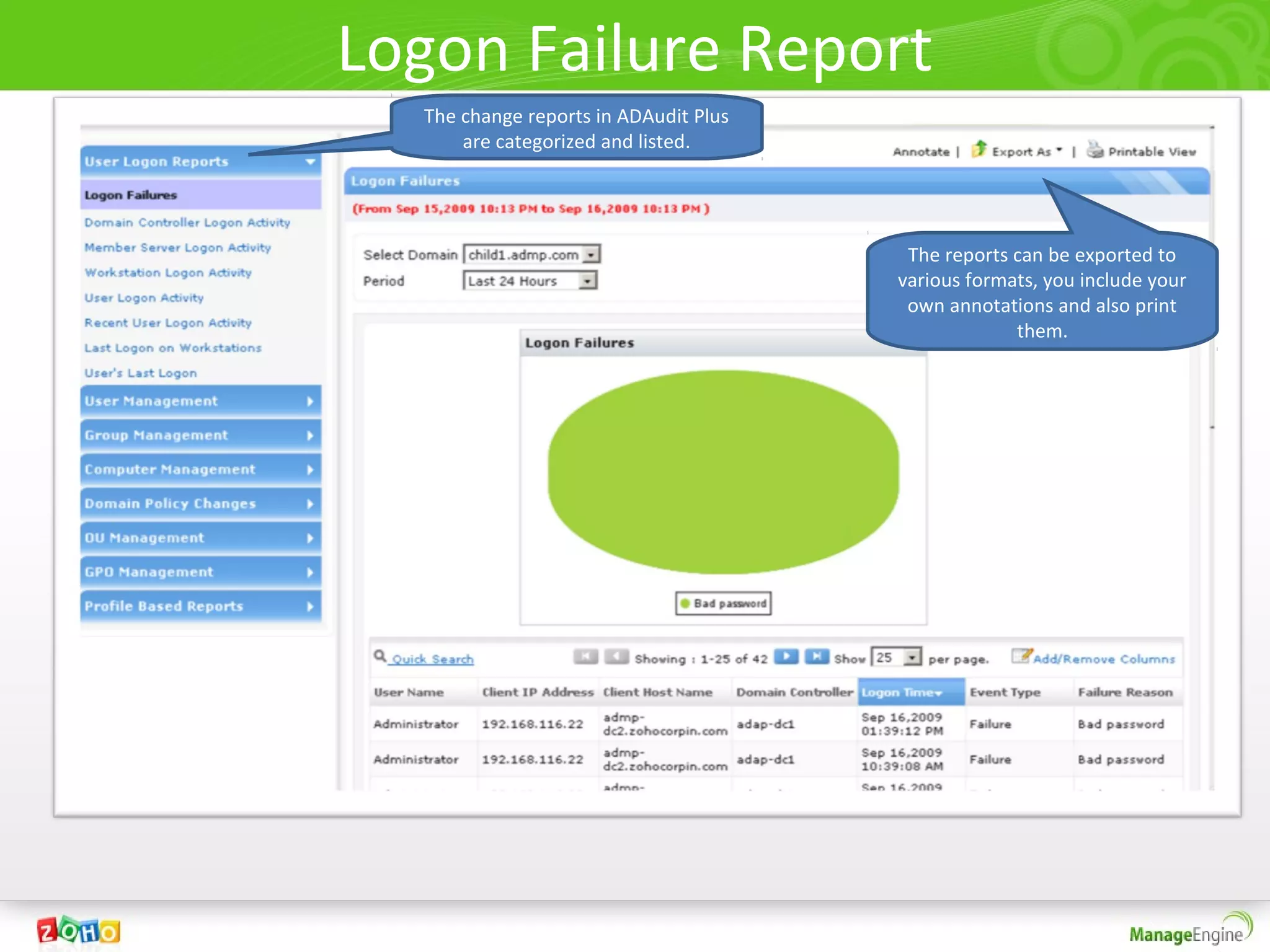
• The logon failure report is a default report under the User Logon Reports
  category.
• ADAudit Plus collects information on all the logon failures in the selected
  domain and lists them in a single report.

• A pie-chart highlighted above the list provides a snapshot on all failure
  reasons.

• The following report highlights the logon failure of all users in the domain
  “child.admp.com” in the last 24 hours.

• Note : you can also choose custom periods to see varied logon failure
  reasons for all users.
Logon Failure Report
  The change reports in ADAudit Plus
      are categorized and listed.


                                        The reports can be exported to
                                       various formats, you include your
                                        own annotations and also print
                                                    them.
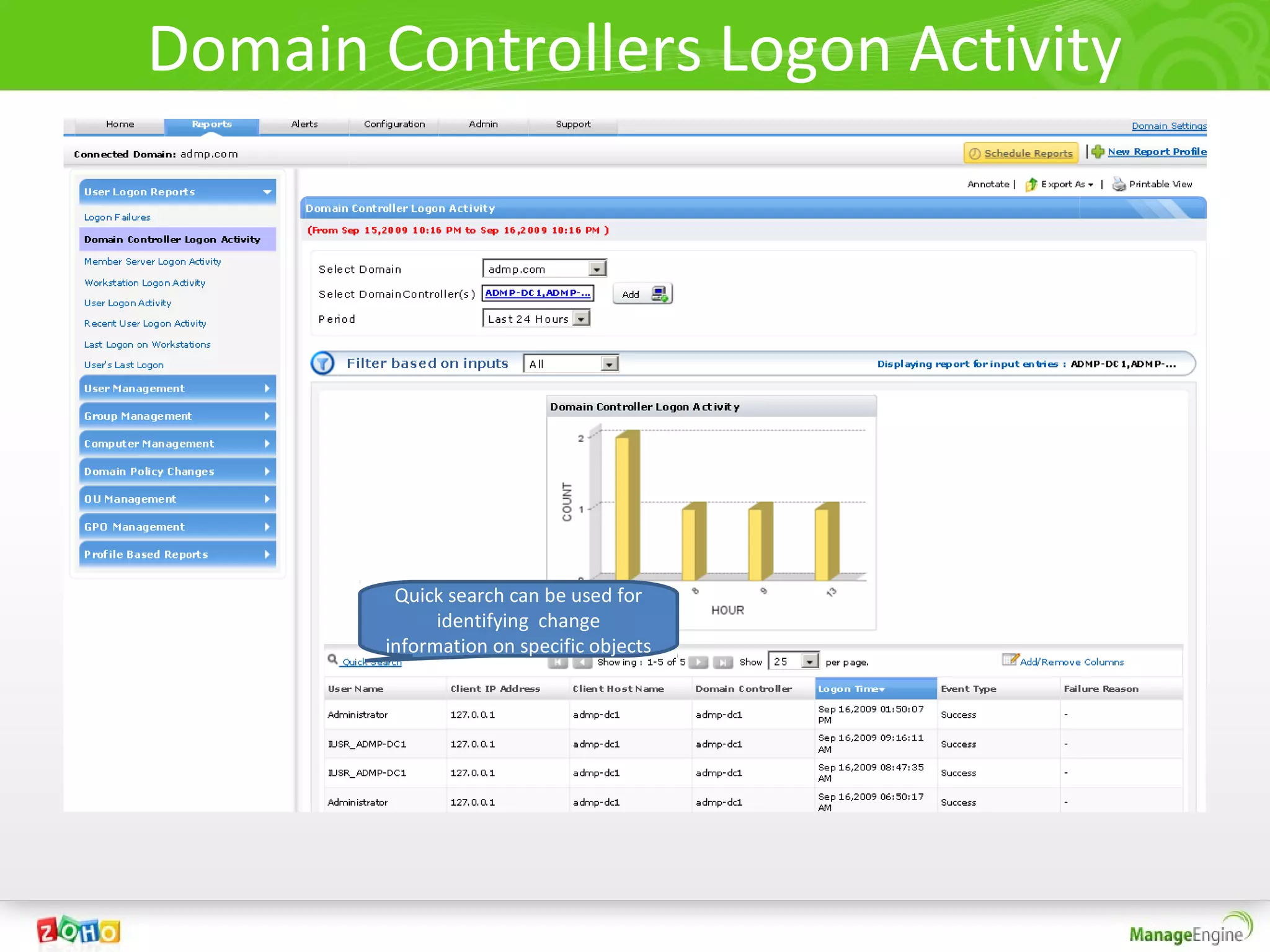
Domain Controllers Logon Activity


         Quick search can be used for
              identifying change
        information on specific objects
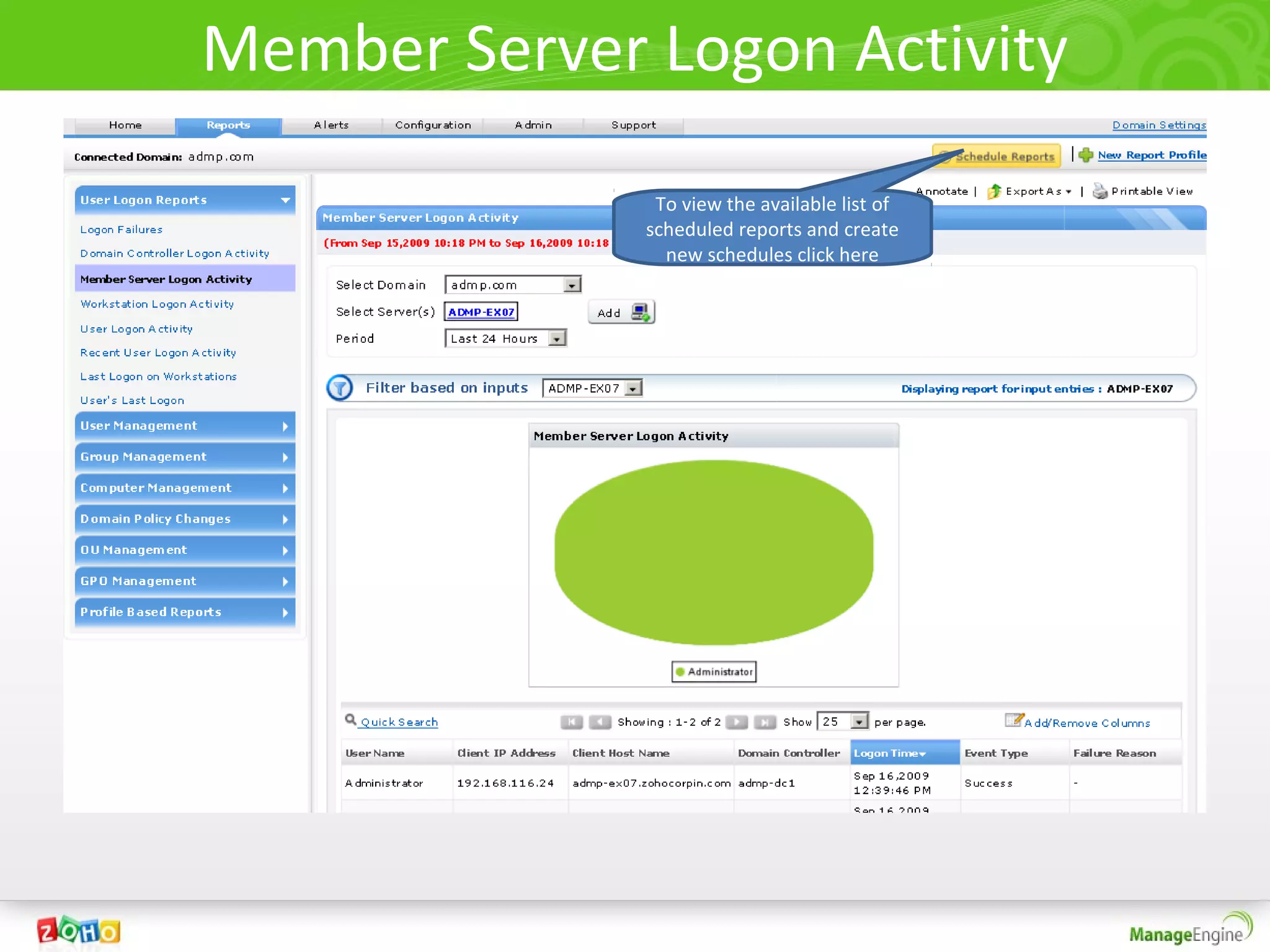
Member Server Logon Activity
               To view the available list of
              scheduled reports and create
                new schedules click here
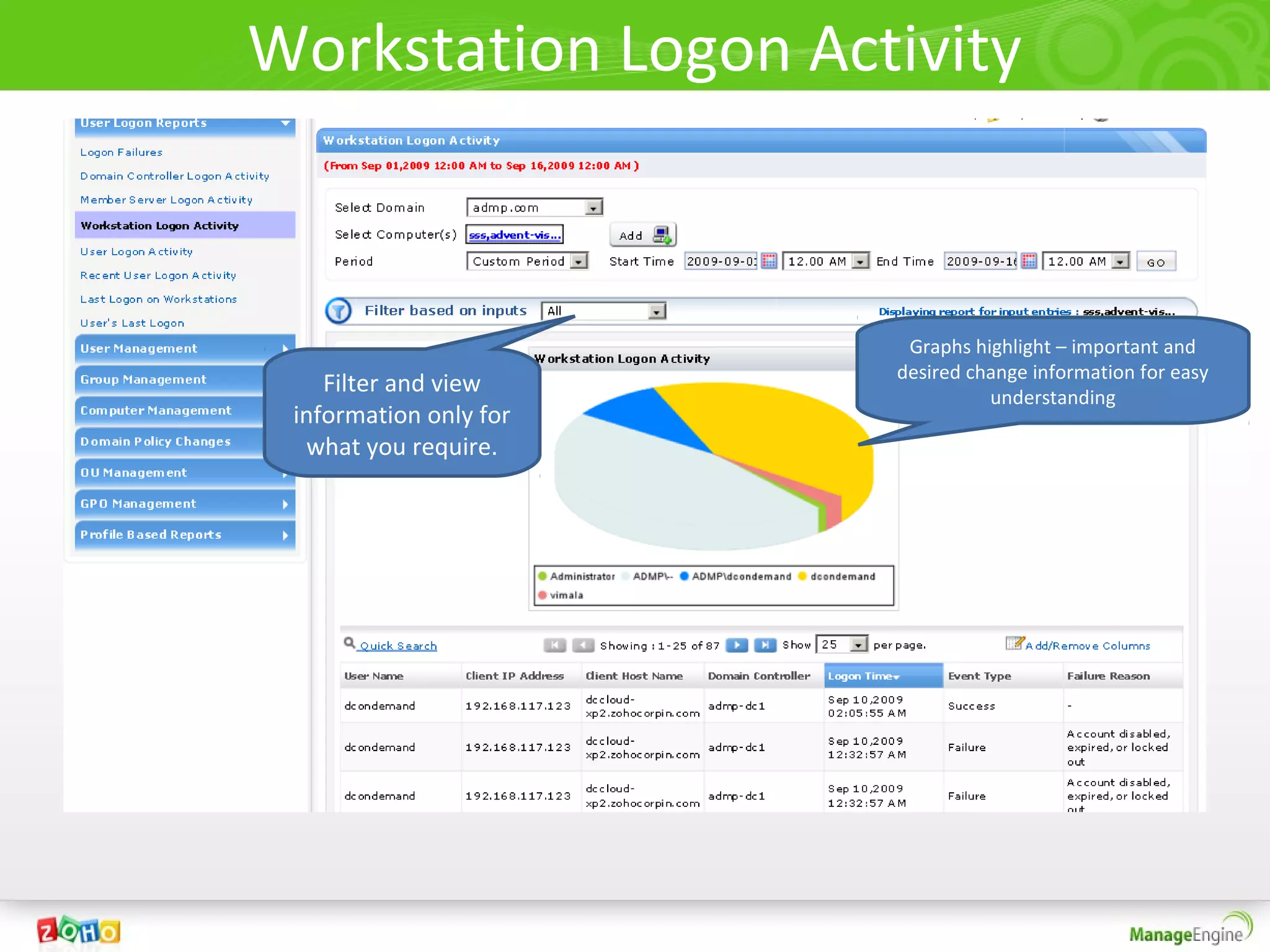
Workstation Logon Activity


                         Graphs highlight – important and
                        desired change information for easy
    Filter and view               understanding
 information only for
  what you require.
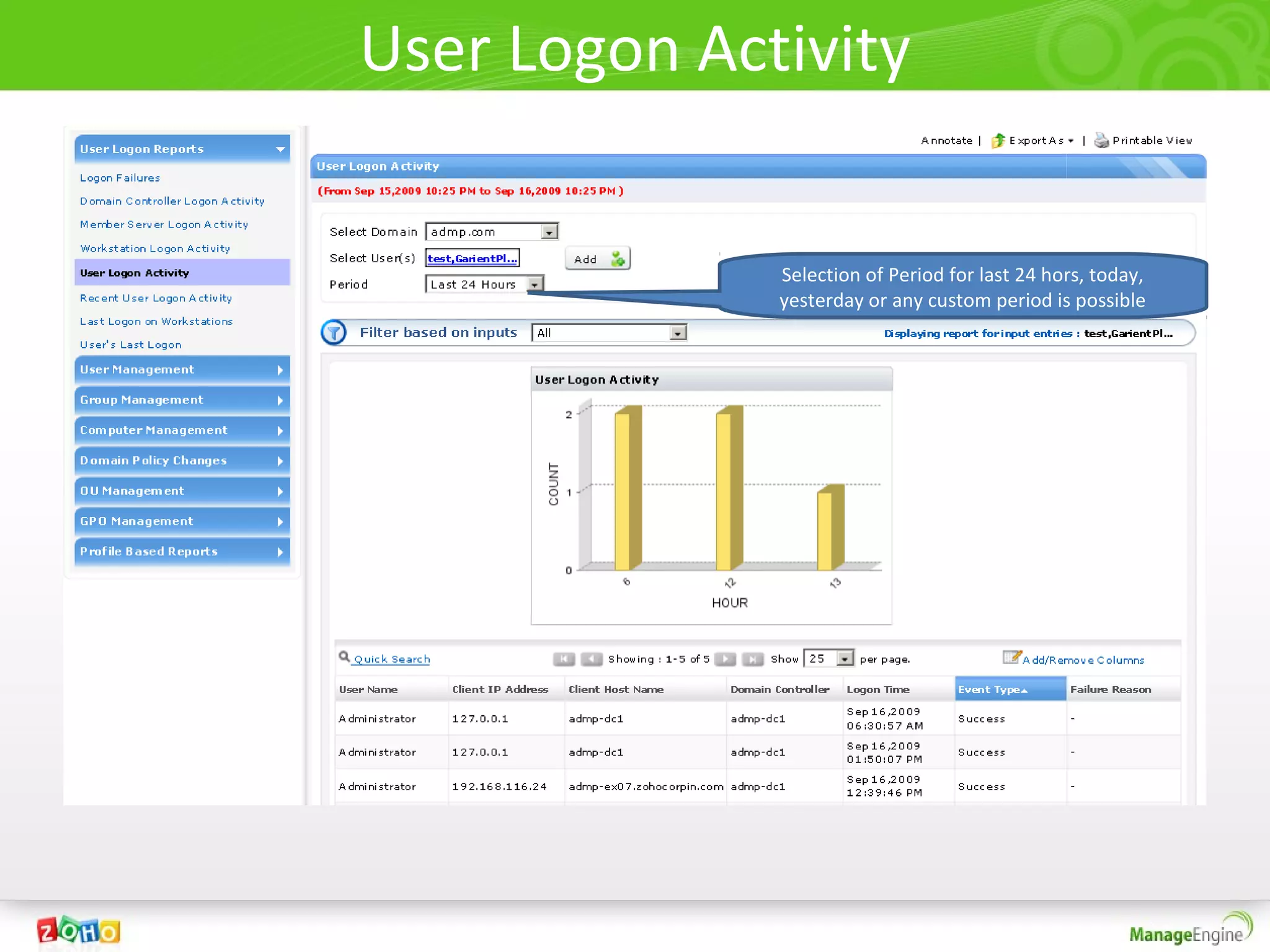
User Logon Activity

              Selection of Period for last 24 hors, today,
              yesterday or any custom period is possible
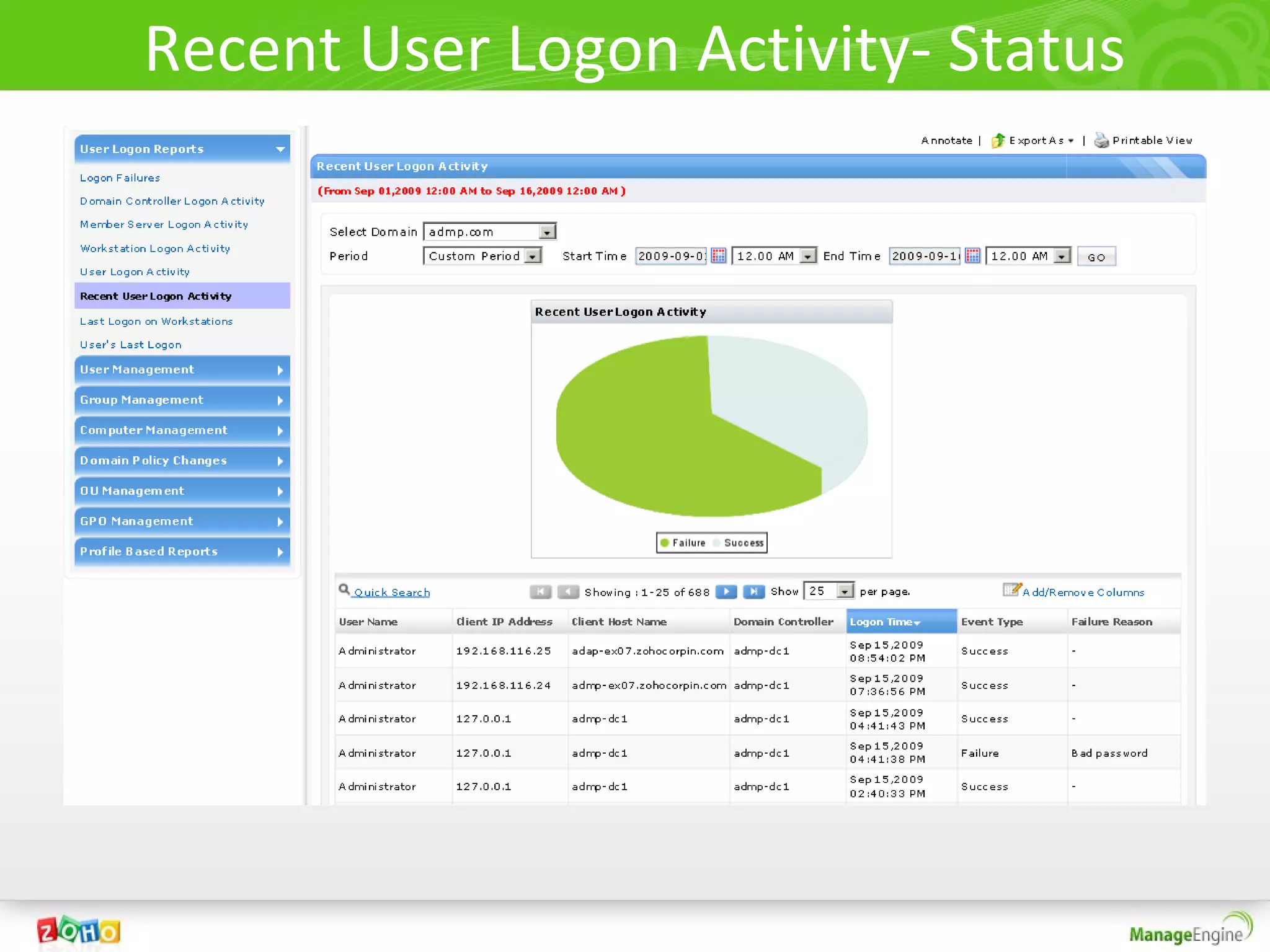
Recent User Logon Activity- Status
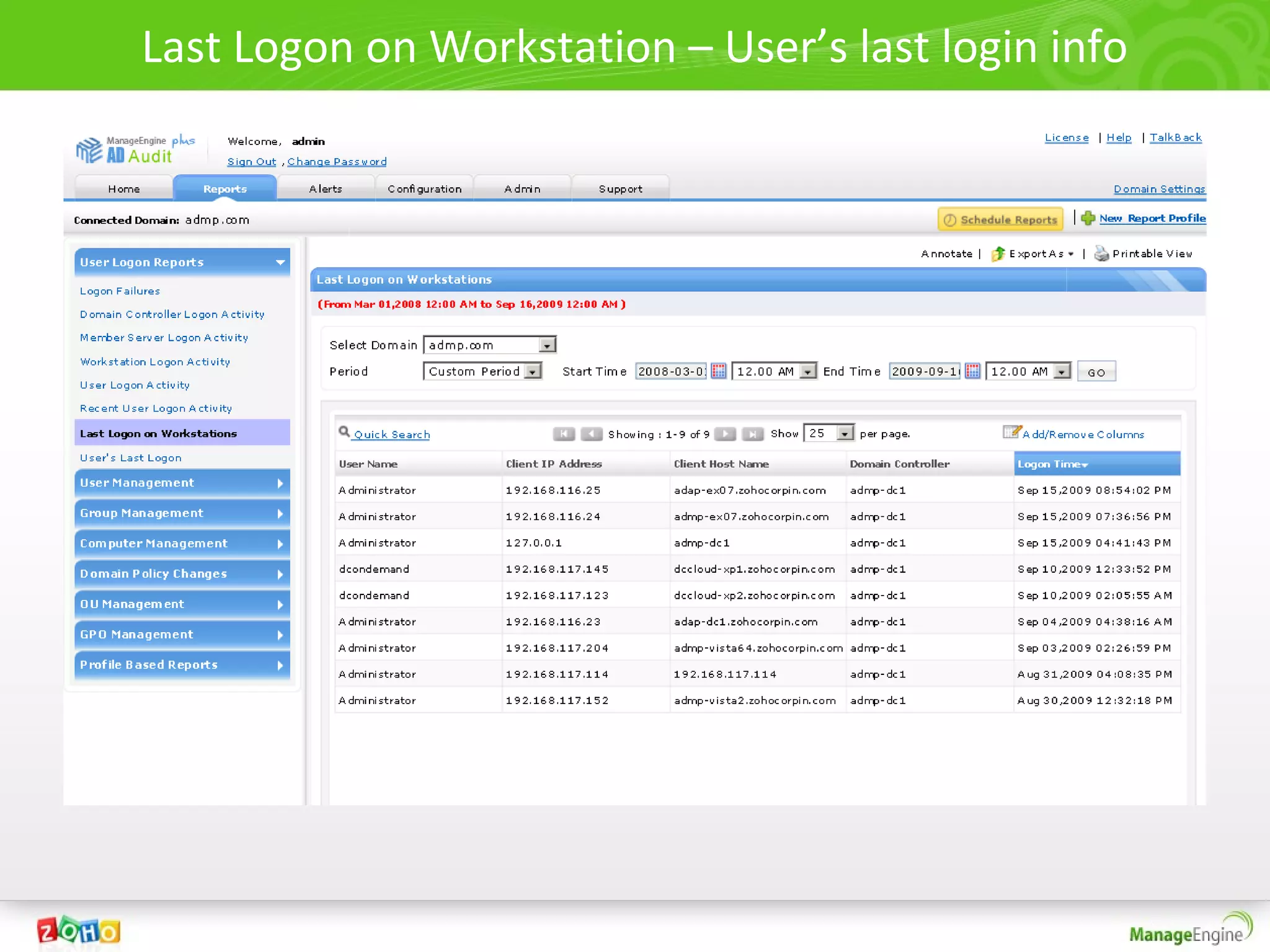
Last Logon on Workstation – User’s last login info
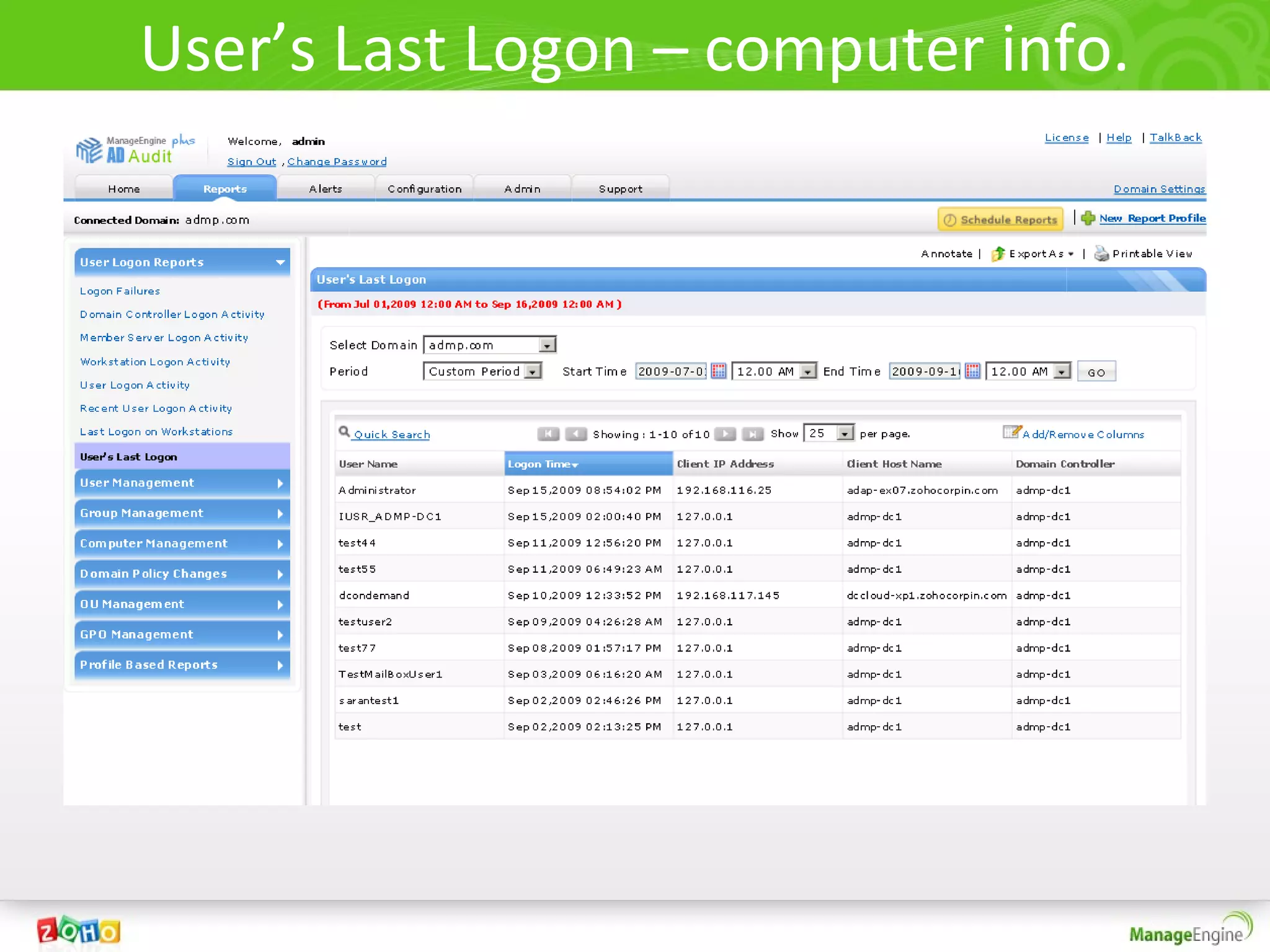
User’s Last Logon – computer info.
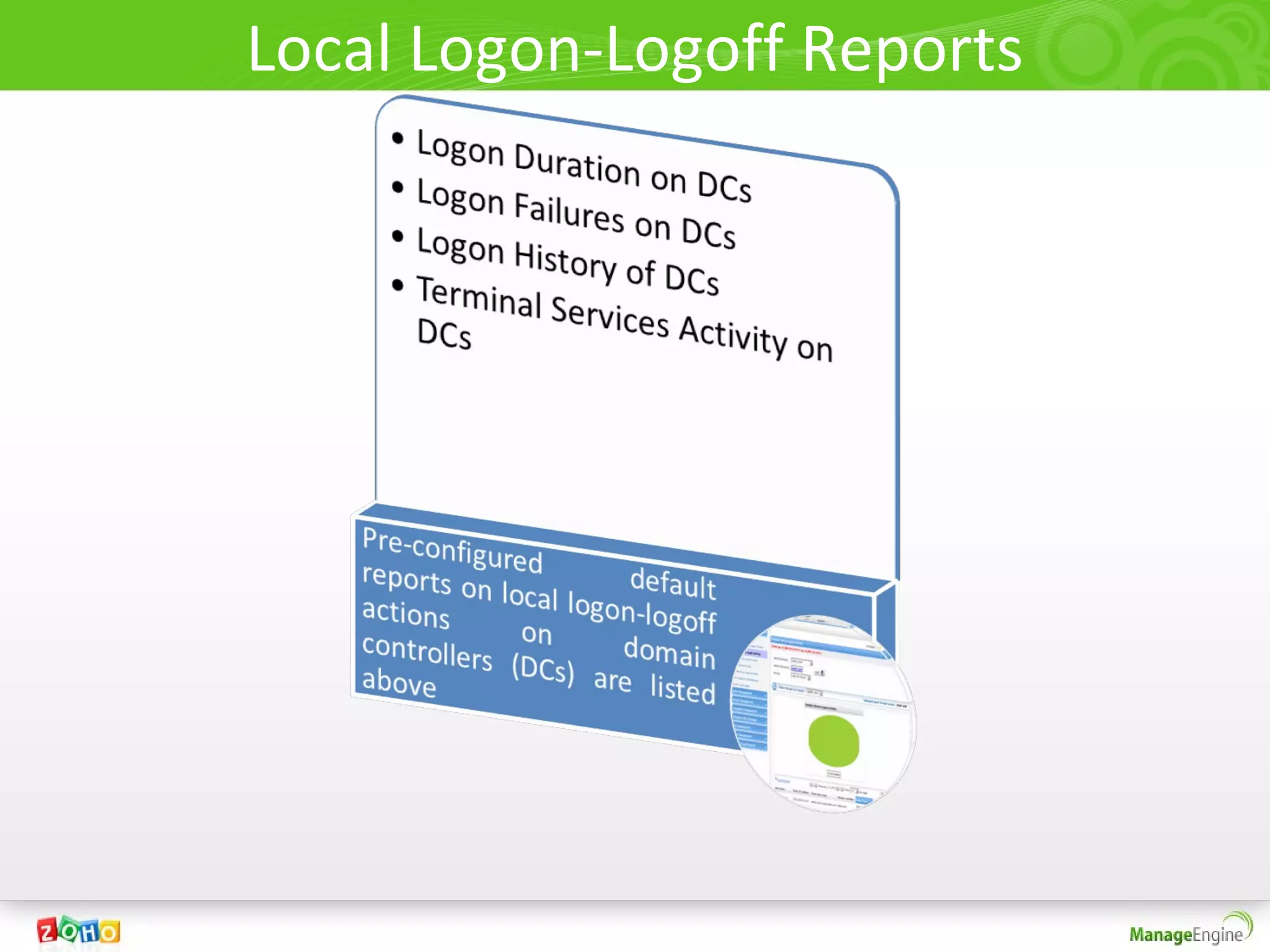
Local Logon-Logoff Reports
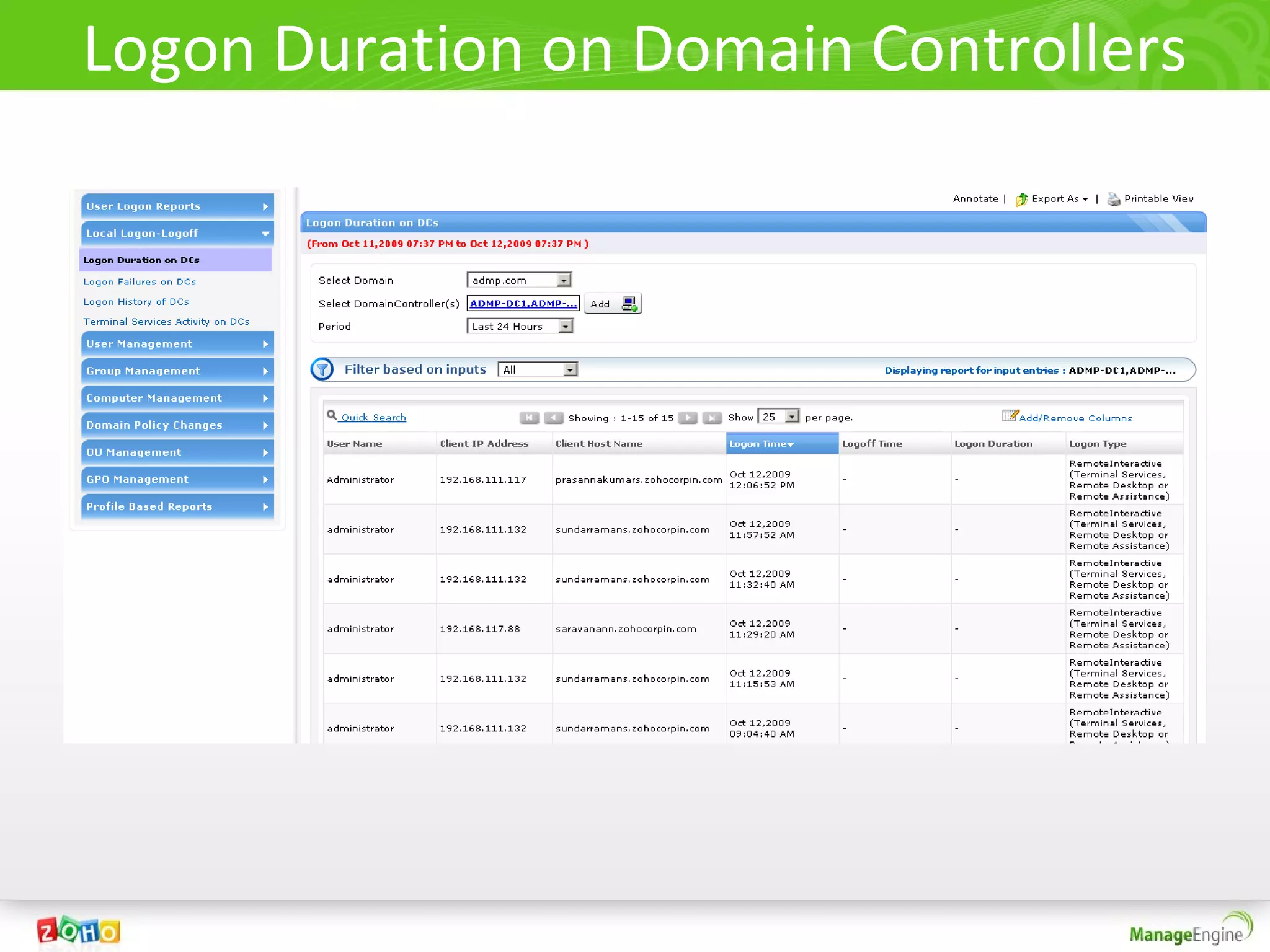
Logon Duration on Domain Controllers
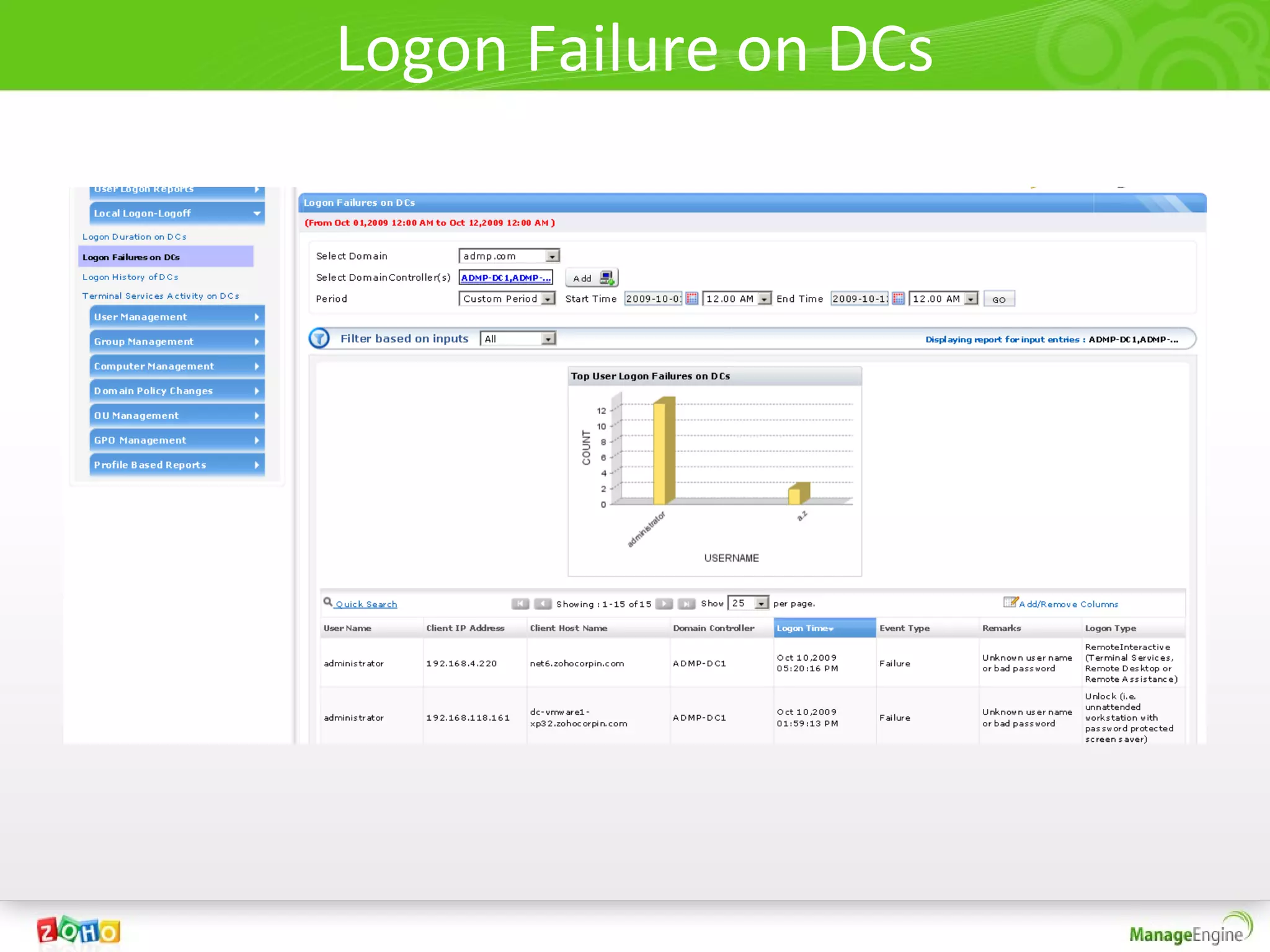
Logon Failure on DCs
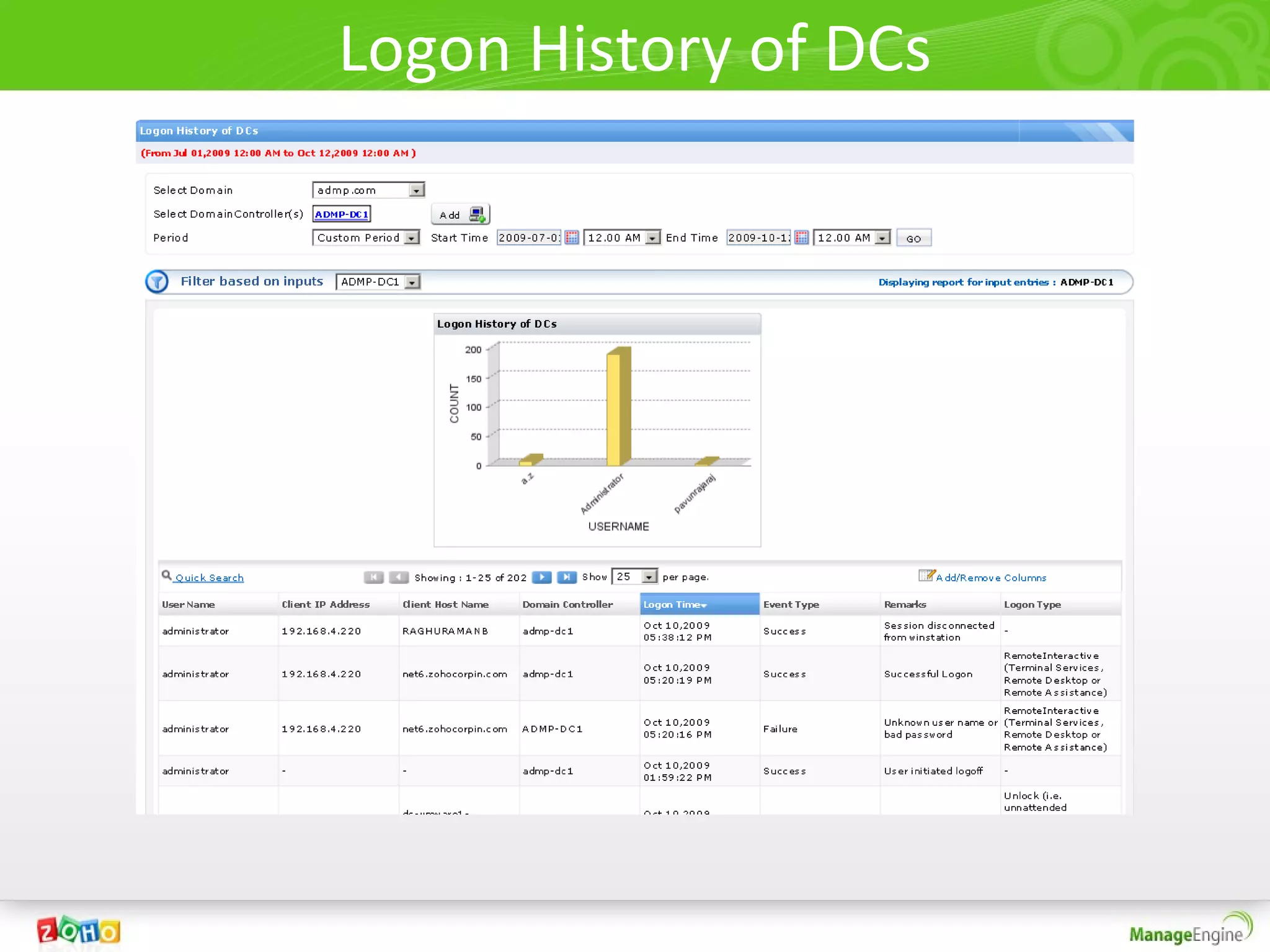
Logon History of DCs
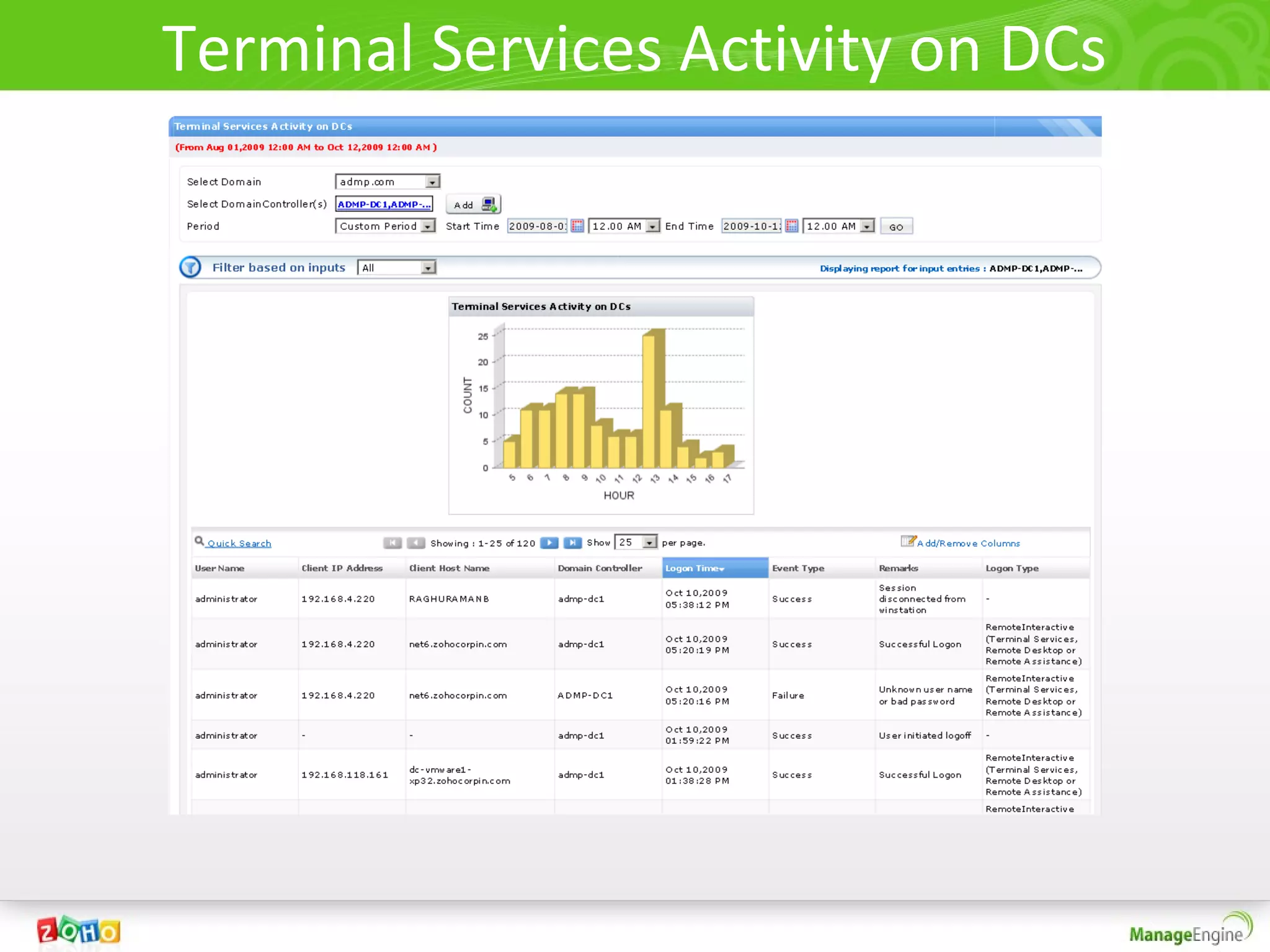
Terminal Services Activity on DCs
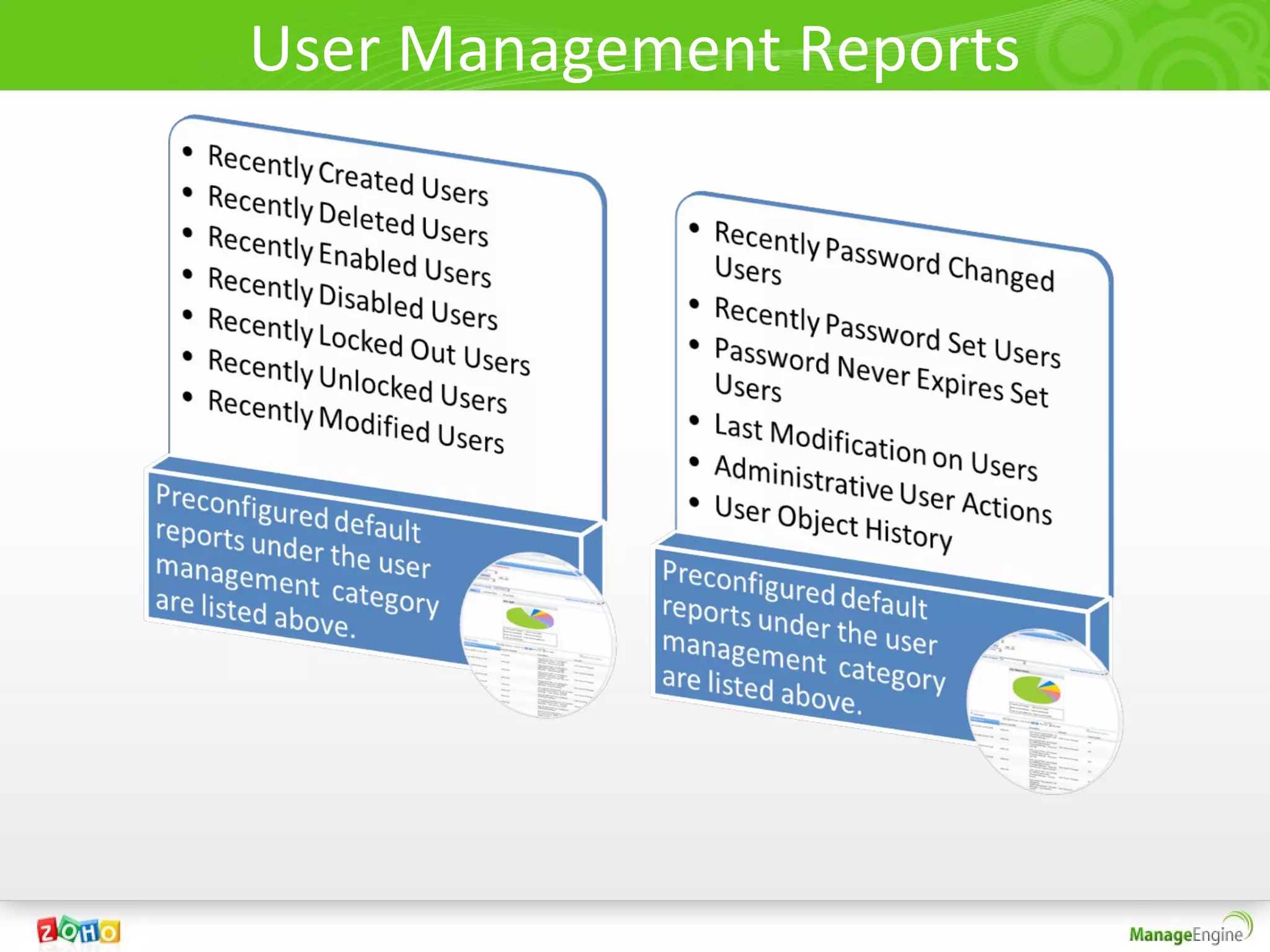
User Management Reports
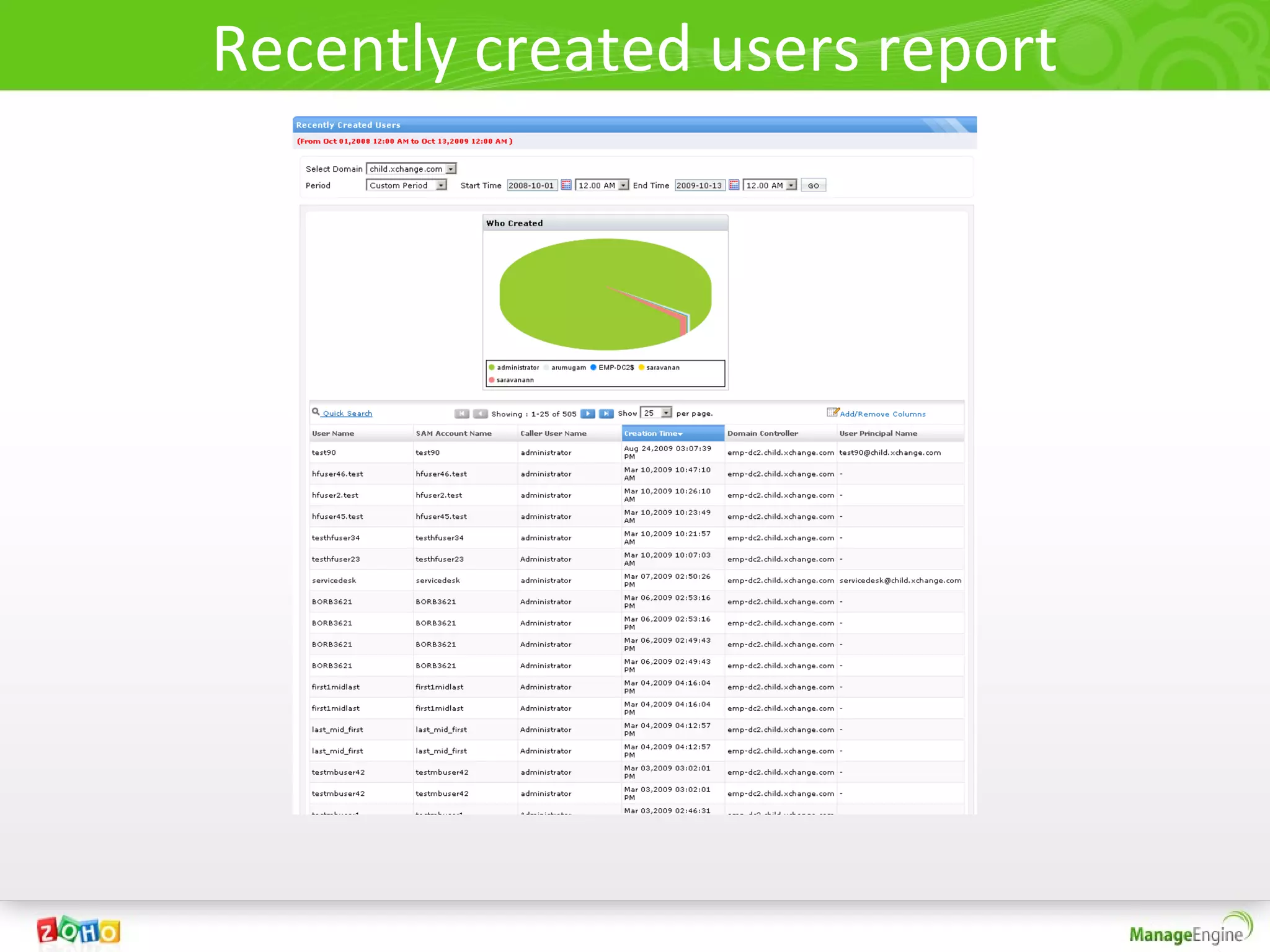
• All reports follow similar pattern and it is easy for one to understand all
  reports by just viewing one.
• Recently Created Users, Recently Deleted Users, Recently Enabled Users,
  Recently Disabled Users, Recently Locked Out Users, Recently Unlocked
  Users, Recently Modified Users, Recently Password Changed Users,
  Recently Password Set Users .
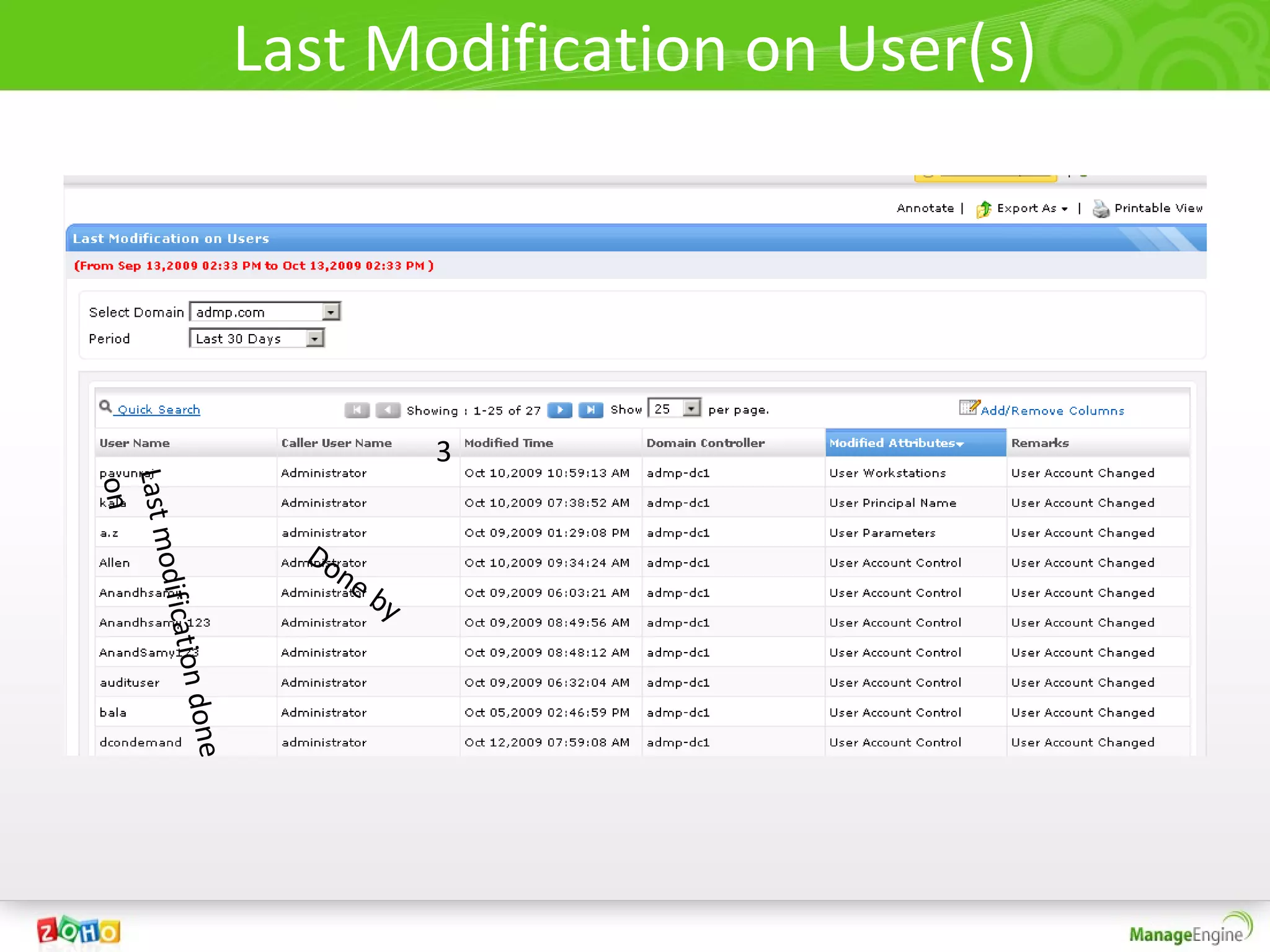
• The last modification on user report lists the last change that was done on
  every user in the domain.
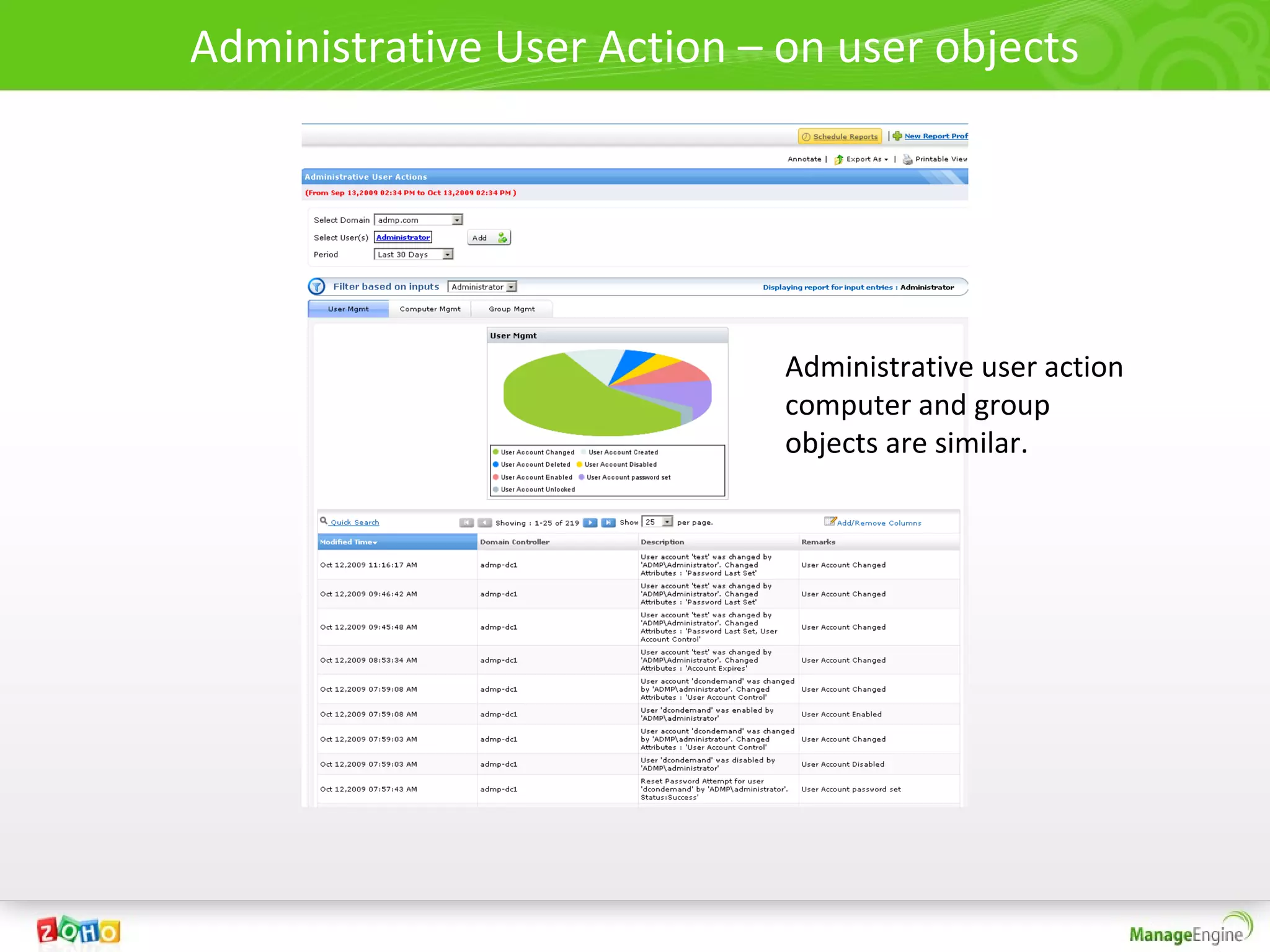
• Administrative User Actions – covers all administrative actions done by
  selected user(administrator or helpdesk) in the domain on users,
  computers and groups.
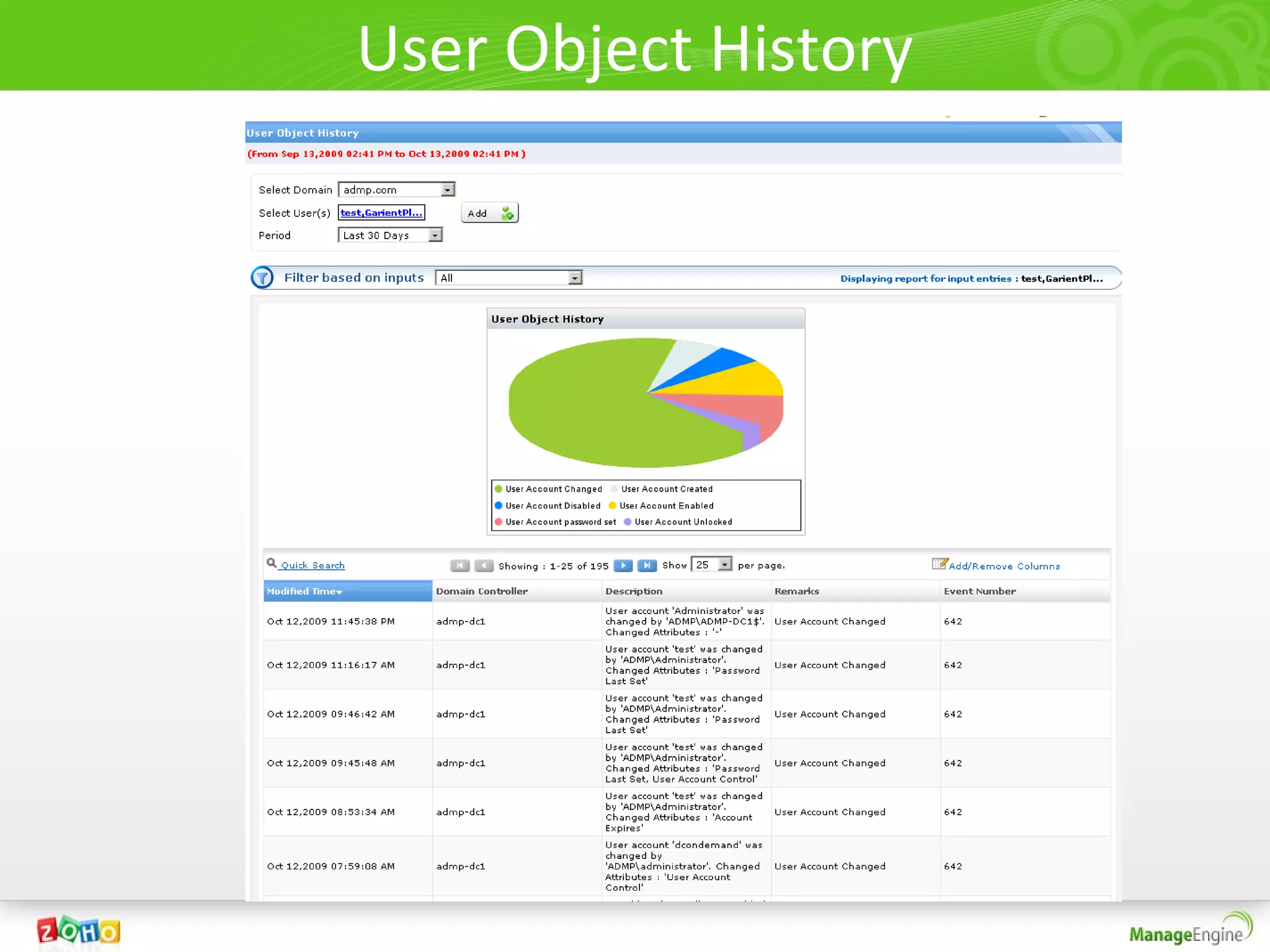
• User object history lists all the history of changes that happened on
  selected user(s).
Recently created users report
Last Modification on User(s)


                              3
Last m
 on


                  Do
                    ne
       od


                         by
     ificatio
       n done
Administrative User Action – on user objects


                             Administrative user action
                             computer and group
                             objects are similar.
User Object History
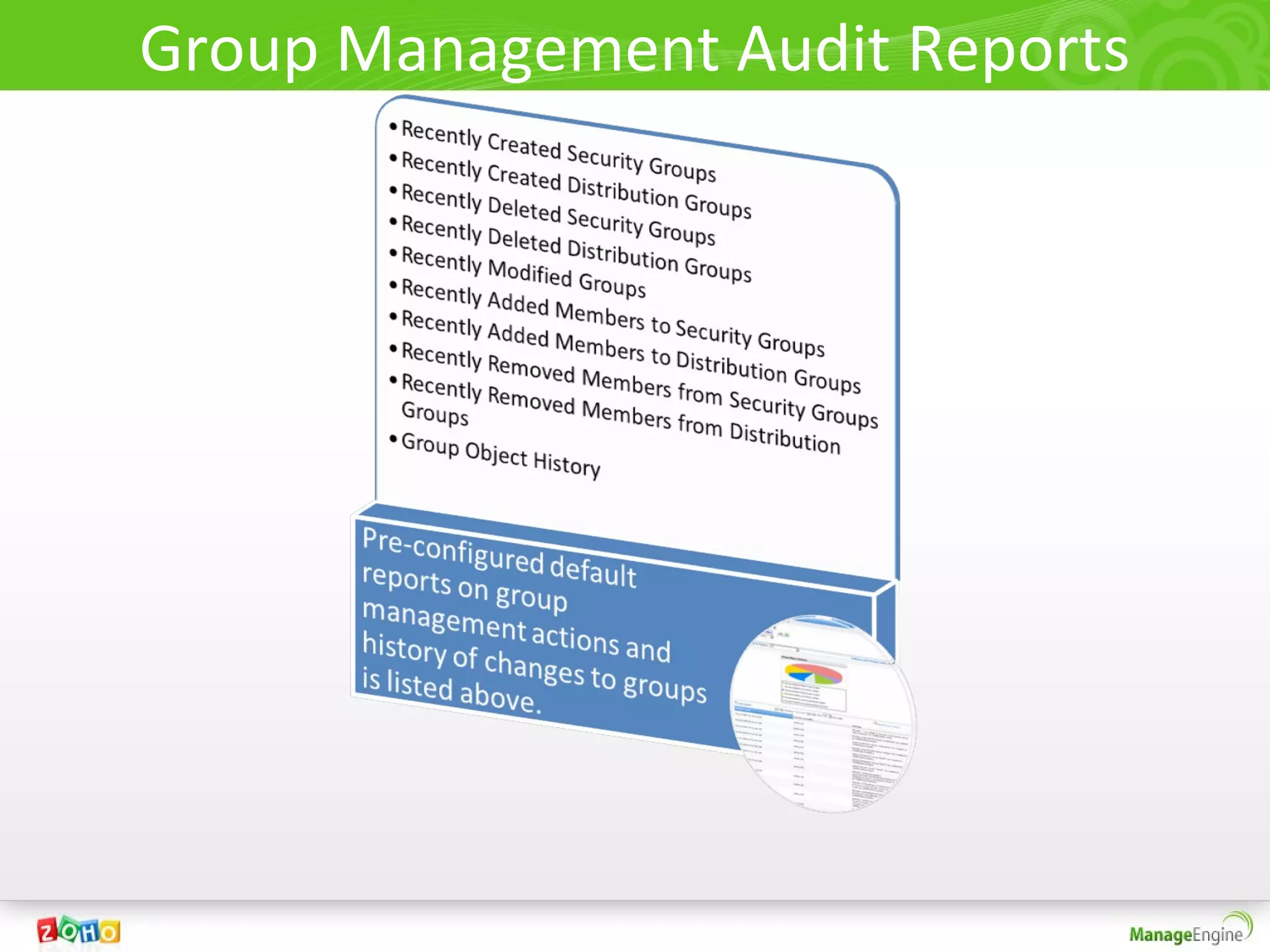
Group Management Audit Reports
• Along with creation, deletion and modification of
  security and distribution groups. ADAudit Plus
  provides additional reports on members added/
  removed to or from these Groups.

• A sample screenshot for the “Group object history”
  is also provided.
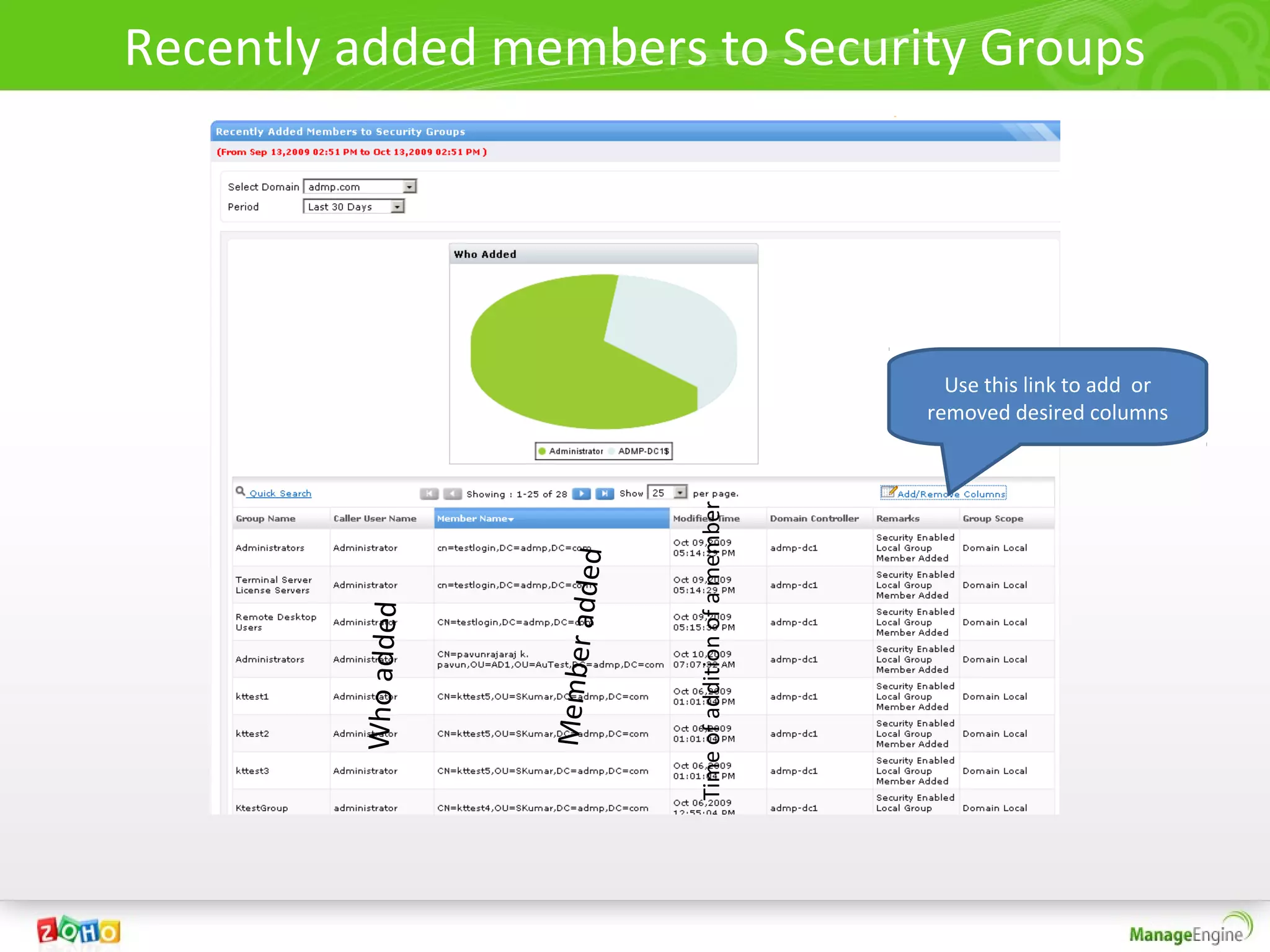
Recently added members to Security Groups


                                                                      Use this link to add or
                                                                    removed desired columns


                                     Time of addition of a member
                              dded
         Who added


                     Member a
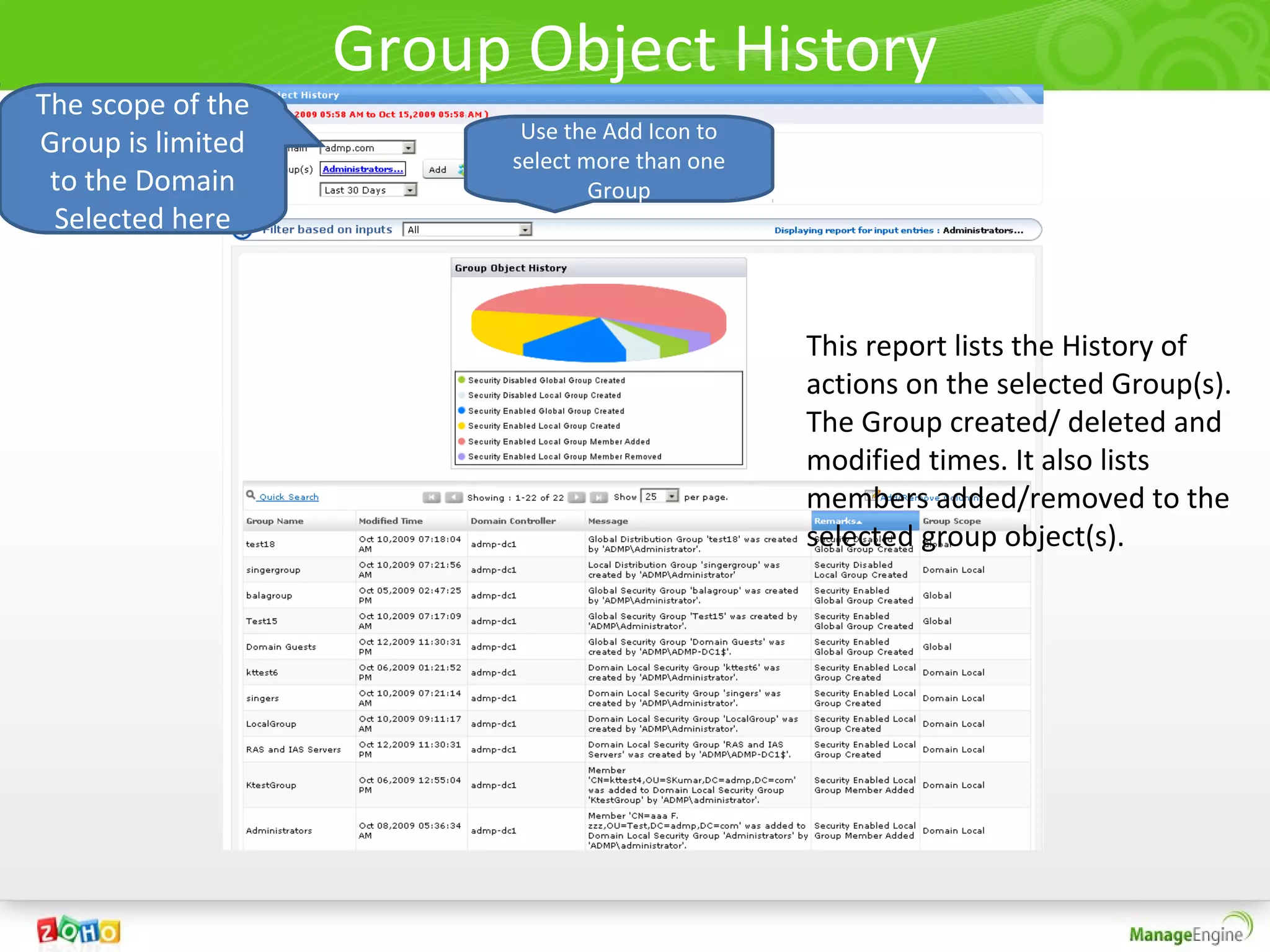
Group Object History
The scope of the
                         Use the Add Icon to
Group is limited
                        select more than one
 to the Domain                  Group
 Selected here


                                               This report lists the History of
                                               actions on the selected Group(s).
                                               The Group created/ deleted and
                                               modified times. It also lists
                                               members added/removed to the
                                               selected group object(s).
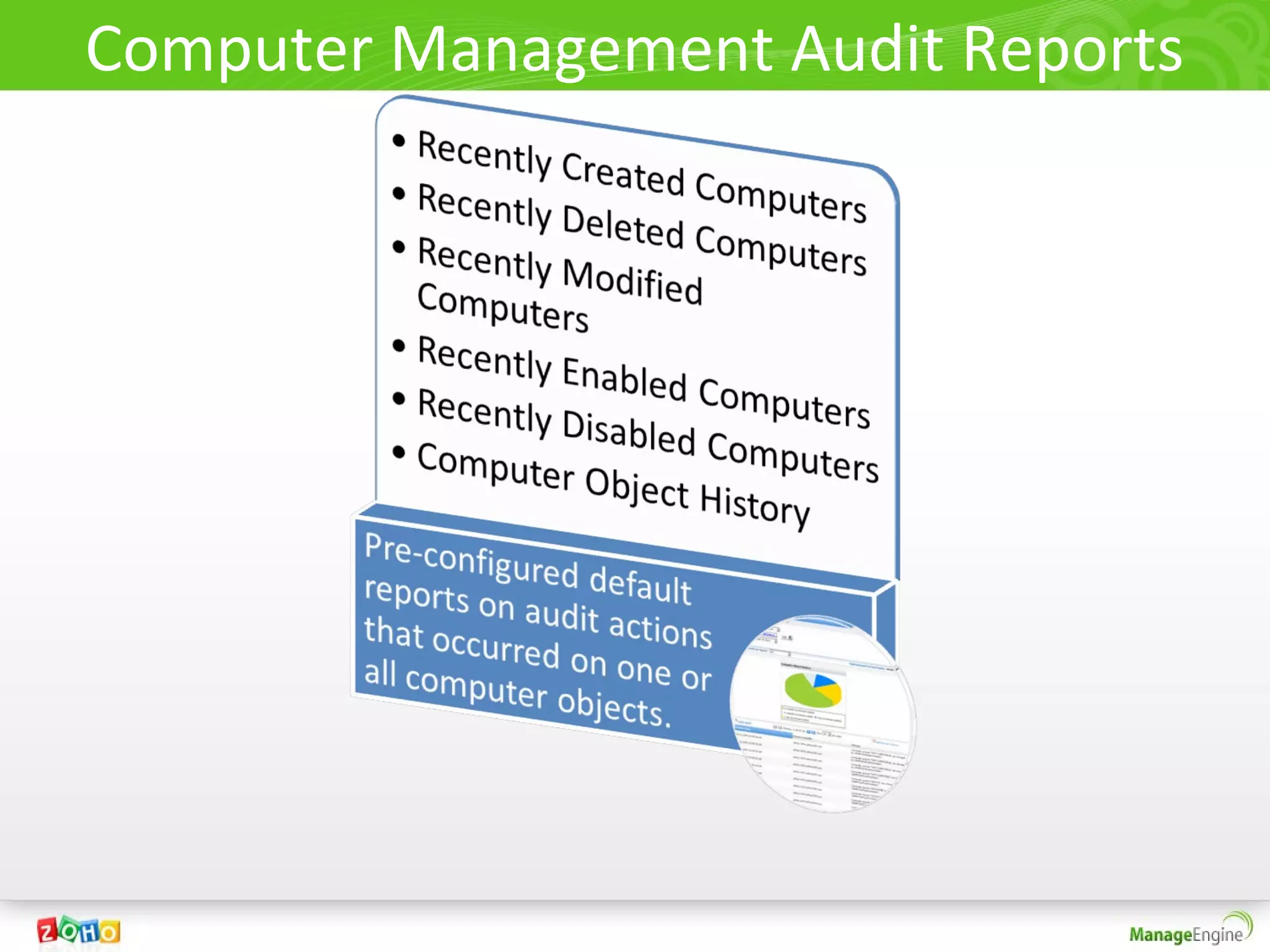
Computer Management Audit Reports
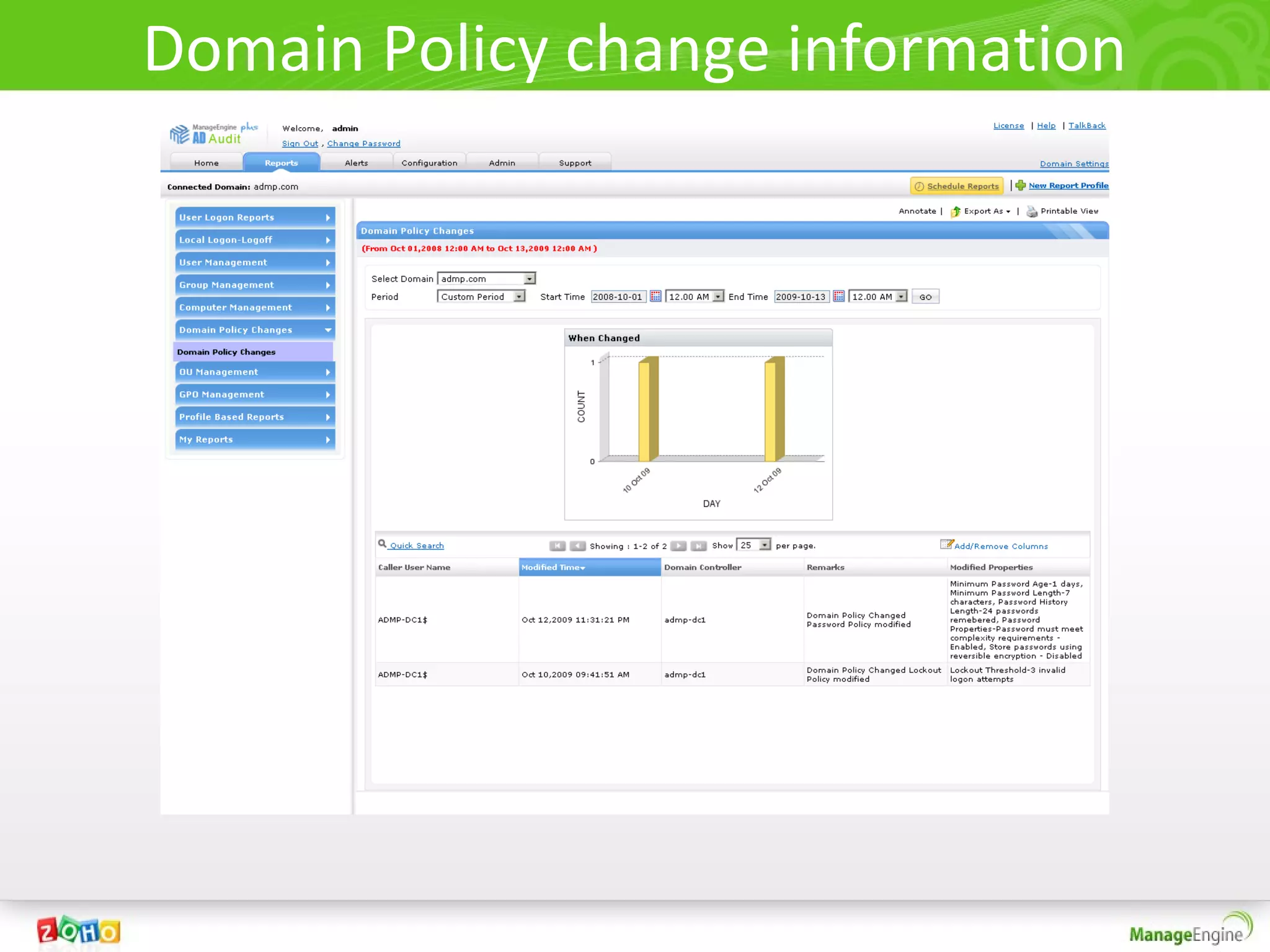
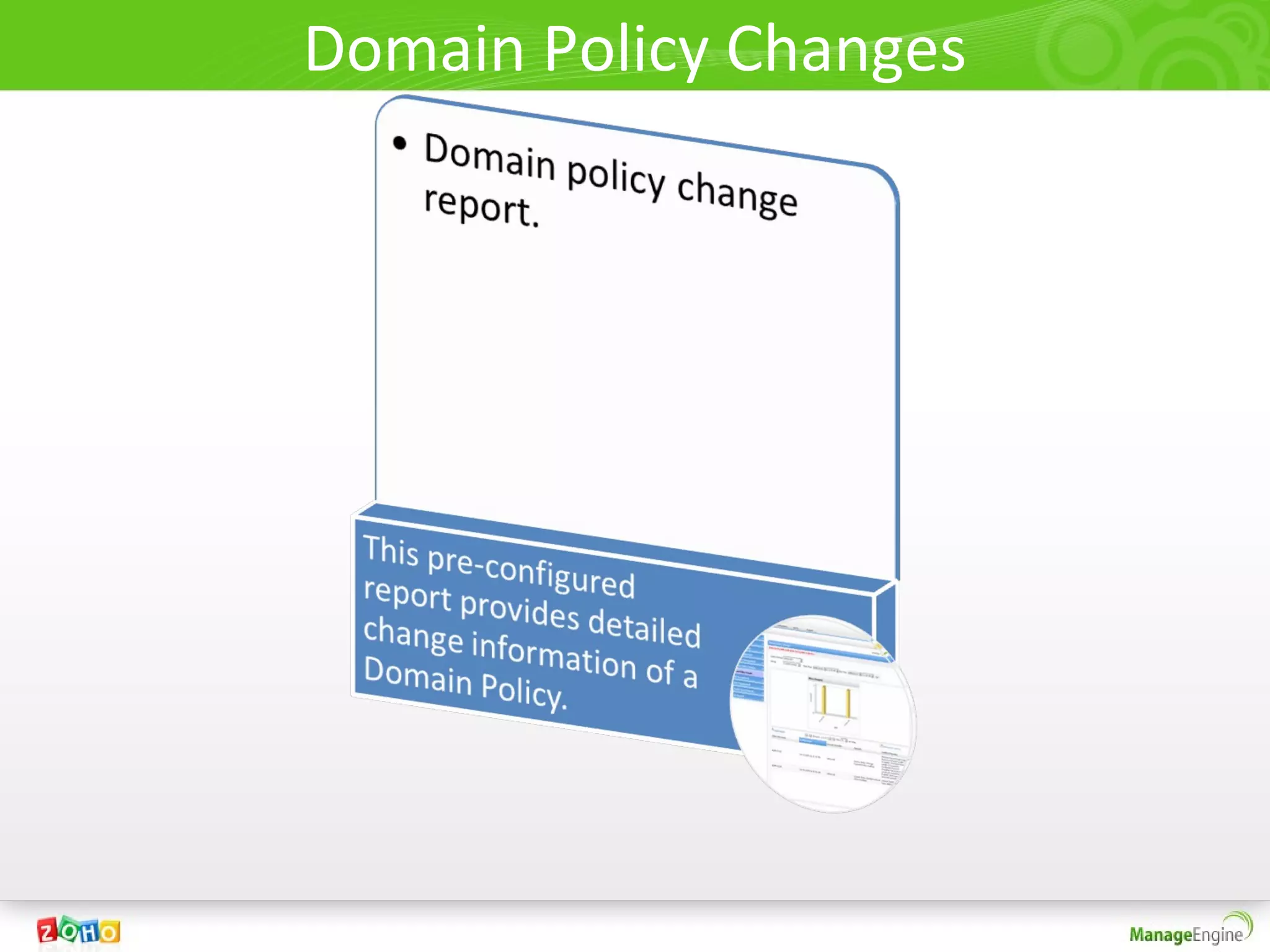
Domain Policy Changes
Domain Policy change information
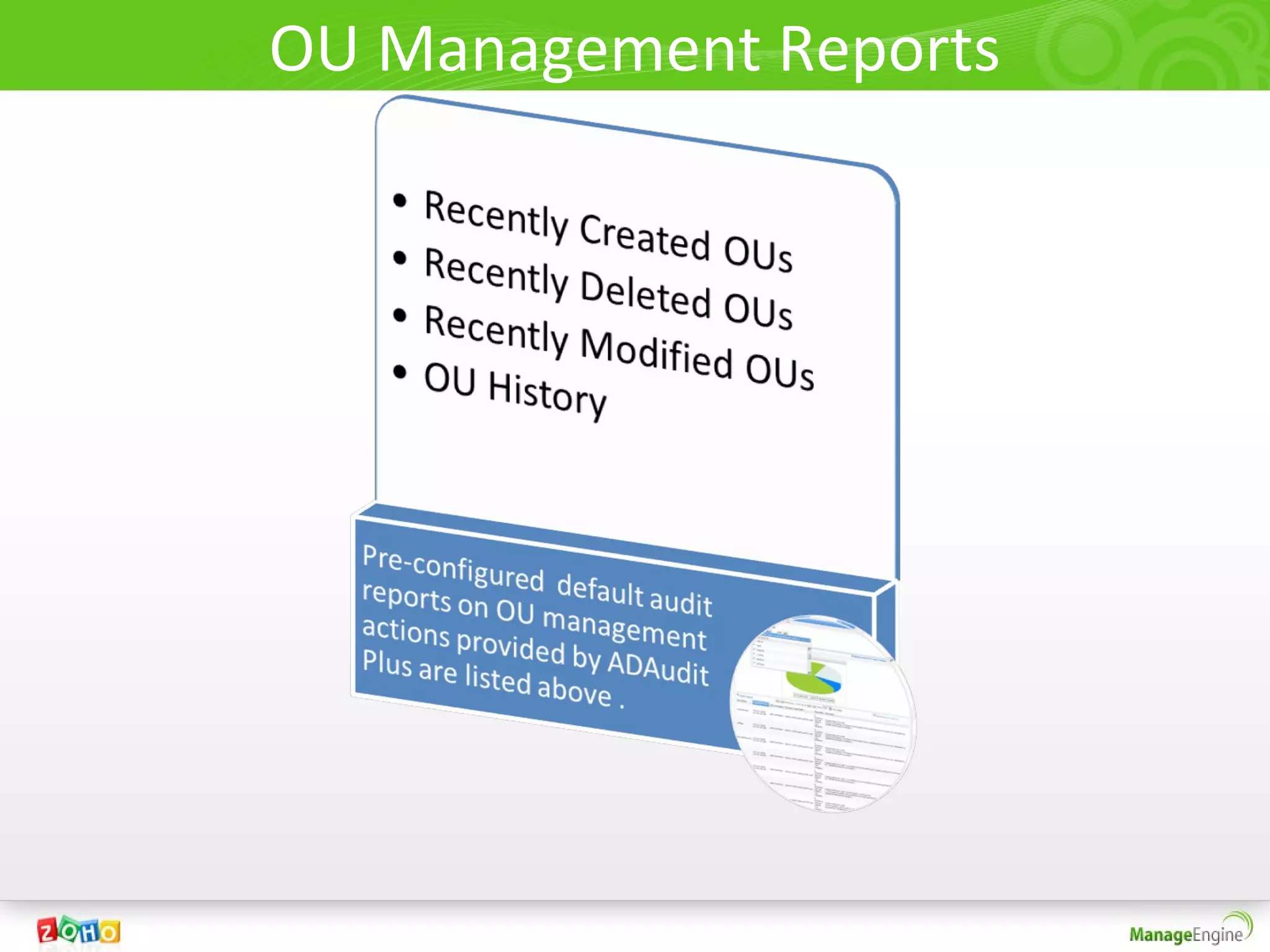
OU Management Reports
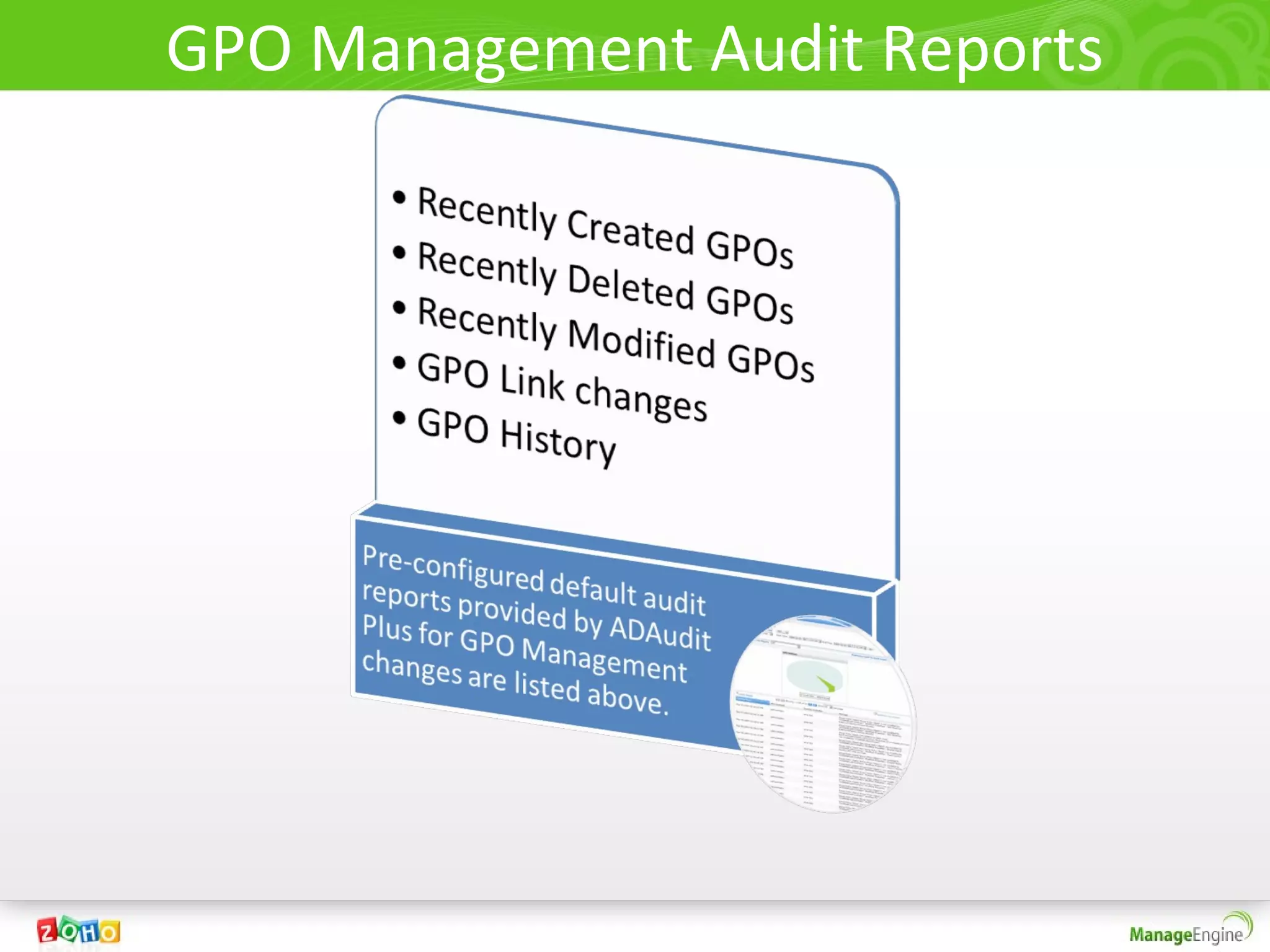
GPO Management Audit Reports
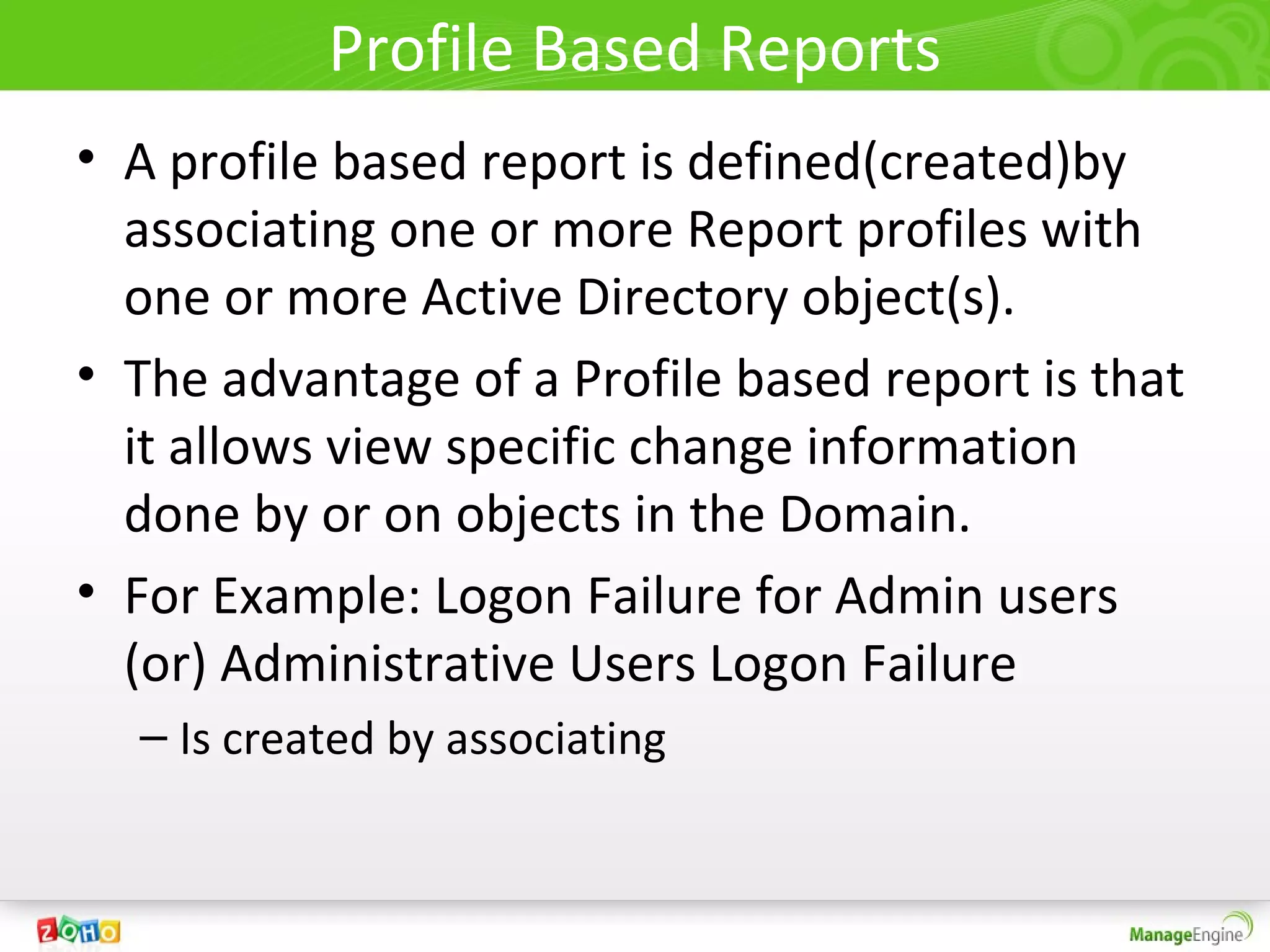
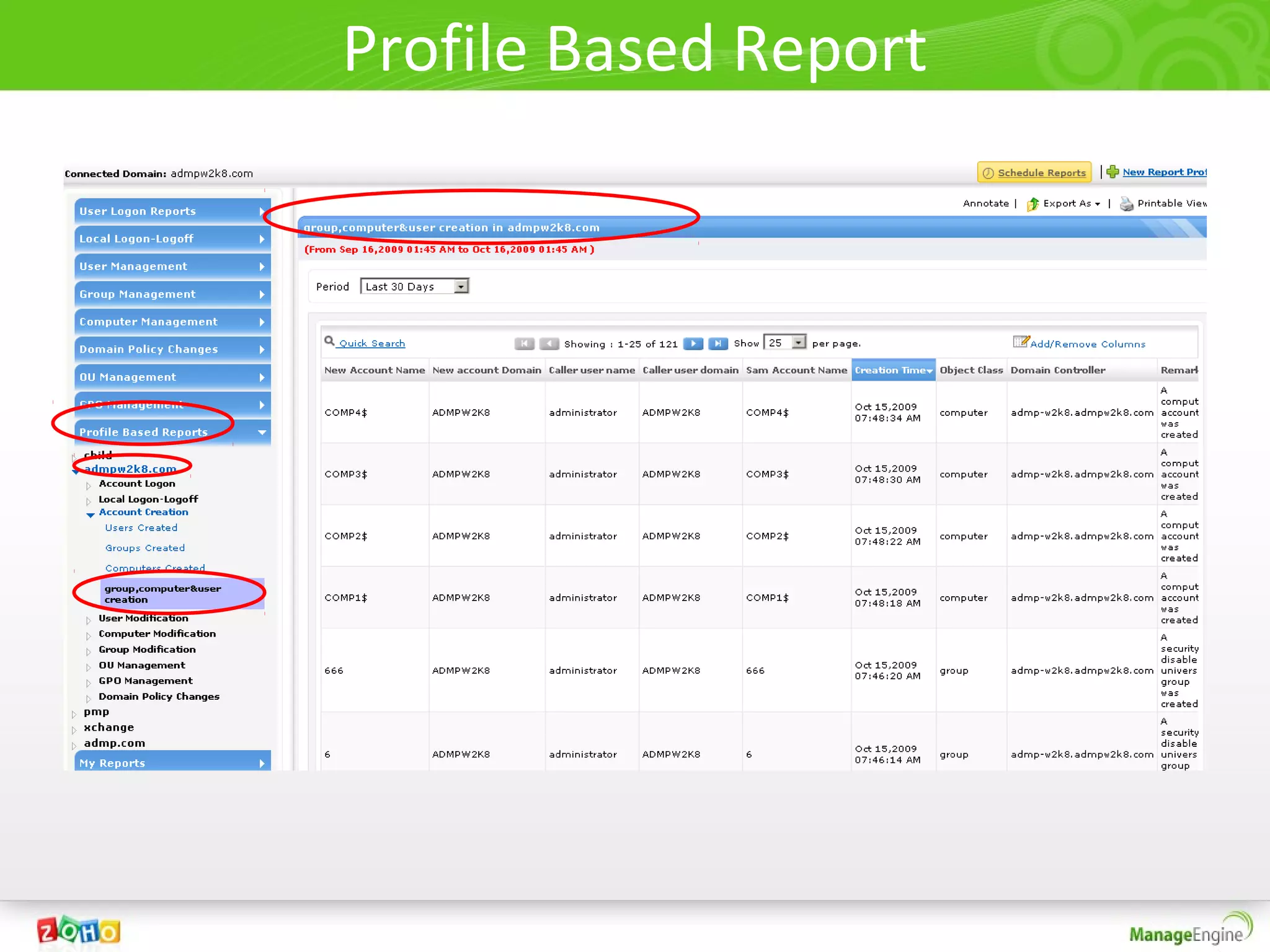
Profile Based Reports
• A profile based report is defined(created)by
  associating one or more Report profiles with
  one or more Active Directory object(s).
• The advantage of a Profile based report is that
  it allows view specific change information
  done by or on objects in the Domain.
• For Example: Logon Failure for Admin users
  (or) Administrative Users Logon Failure
  – Is created by associating
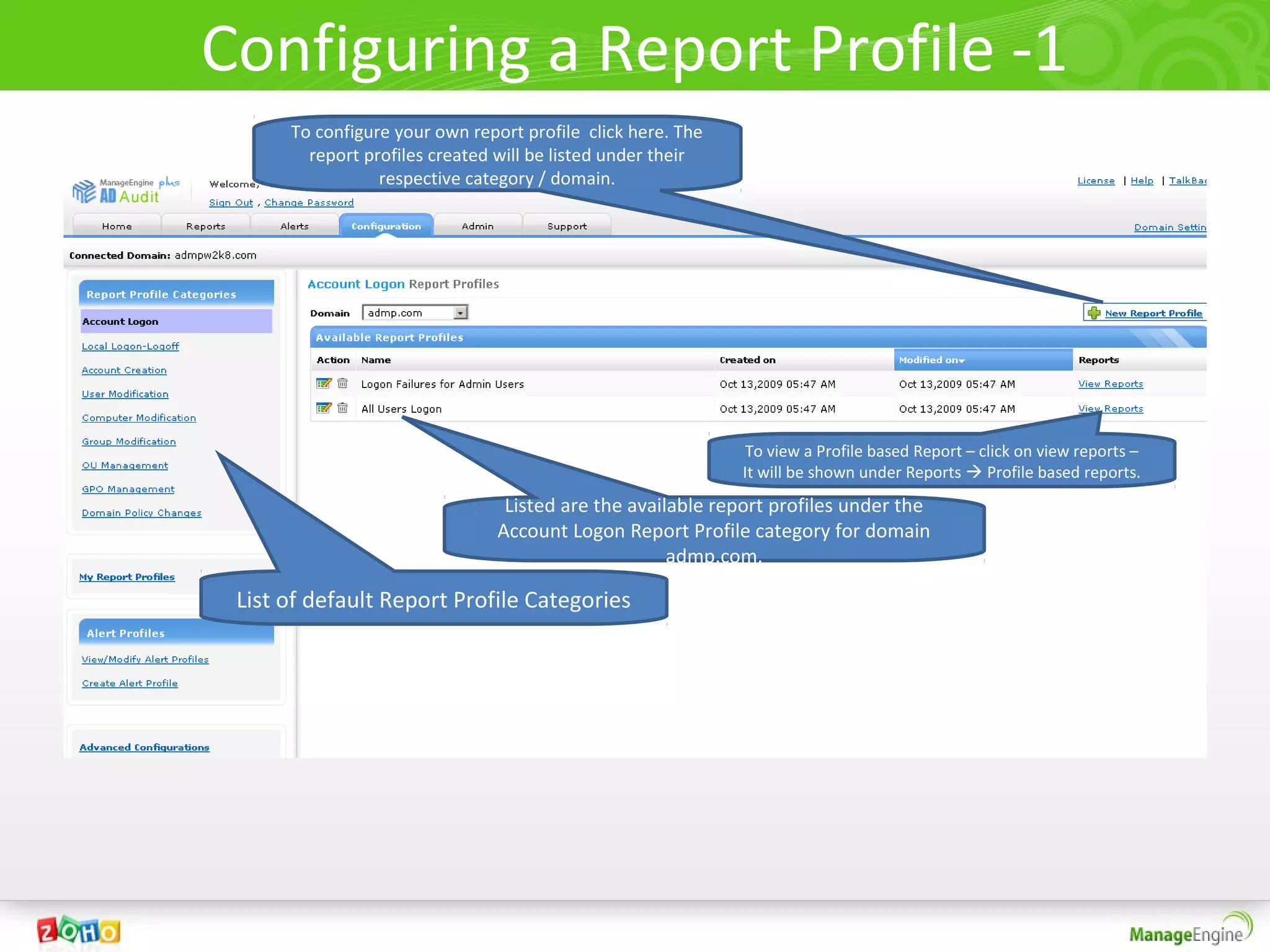
Configuring a Report Profile -1
      To configure your own report profile click here. The
        report profiles created will be listed under their
                 respective category / domain.


                                                              To view a Profile based Report – click on view reports –
                                                             It will be shown under Reports  Profile based reports.
                                 Listed are the available report profiles under the
                                Account Logon Report Profile category for domain
                                                     admp.com.

 List of default Report Profile Categories
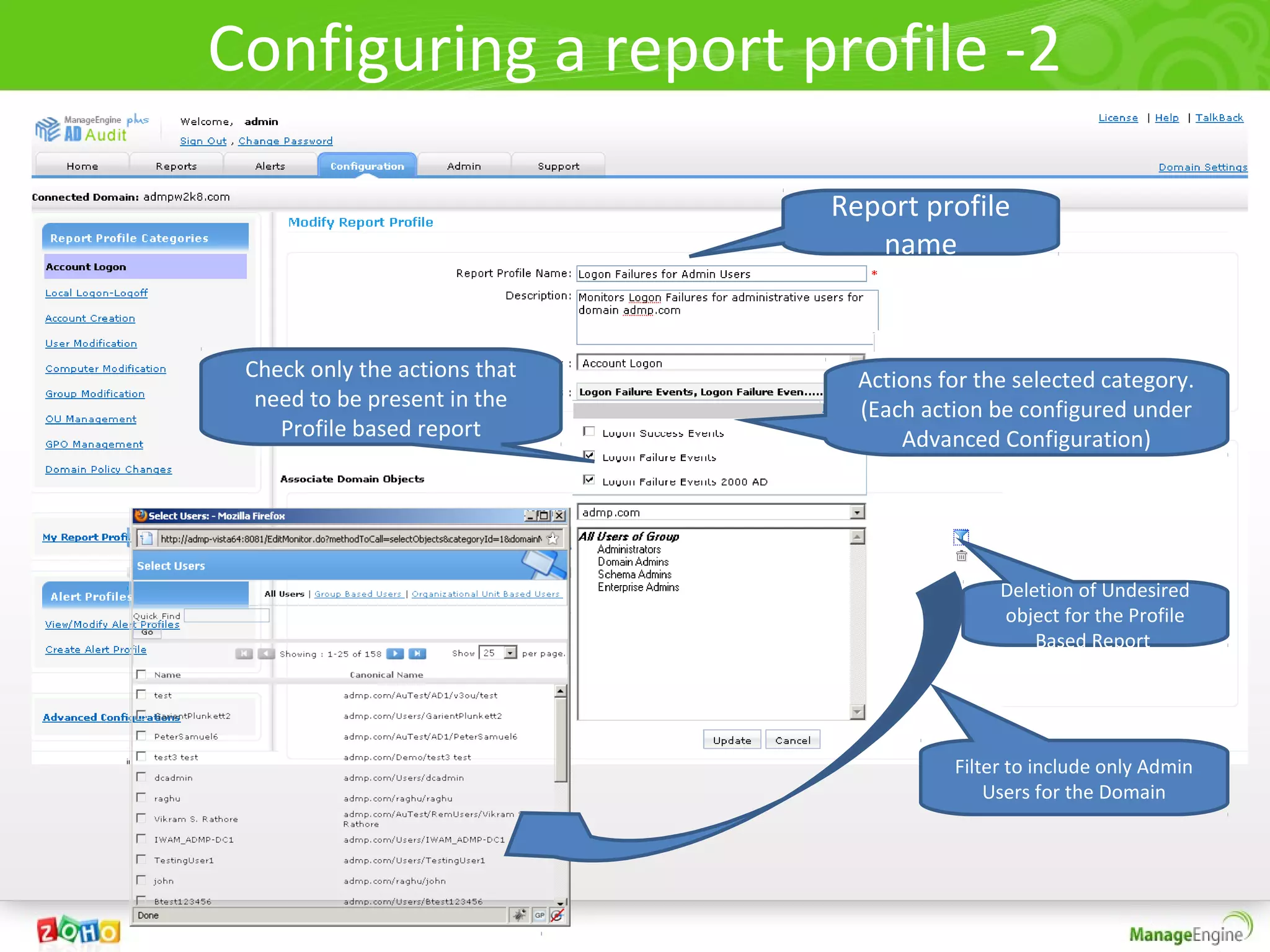
Configuring a report profile -2

                               Report profile
                                  name


 Check only the actions that     Actions for the selected category.
  need to be present in the      (Each action be configured under
    Profile based report             Advanced Configuration)


                                               Deletion of Undesired
                                               object for the Profile
                                                   Based Report


                                          Filter to include only Admin
                                              Users for the Domain
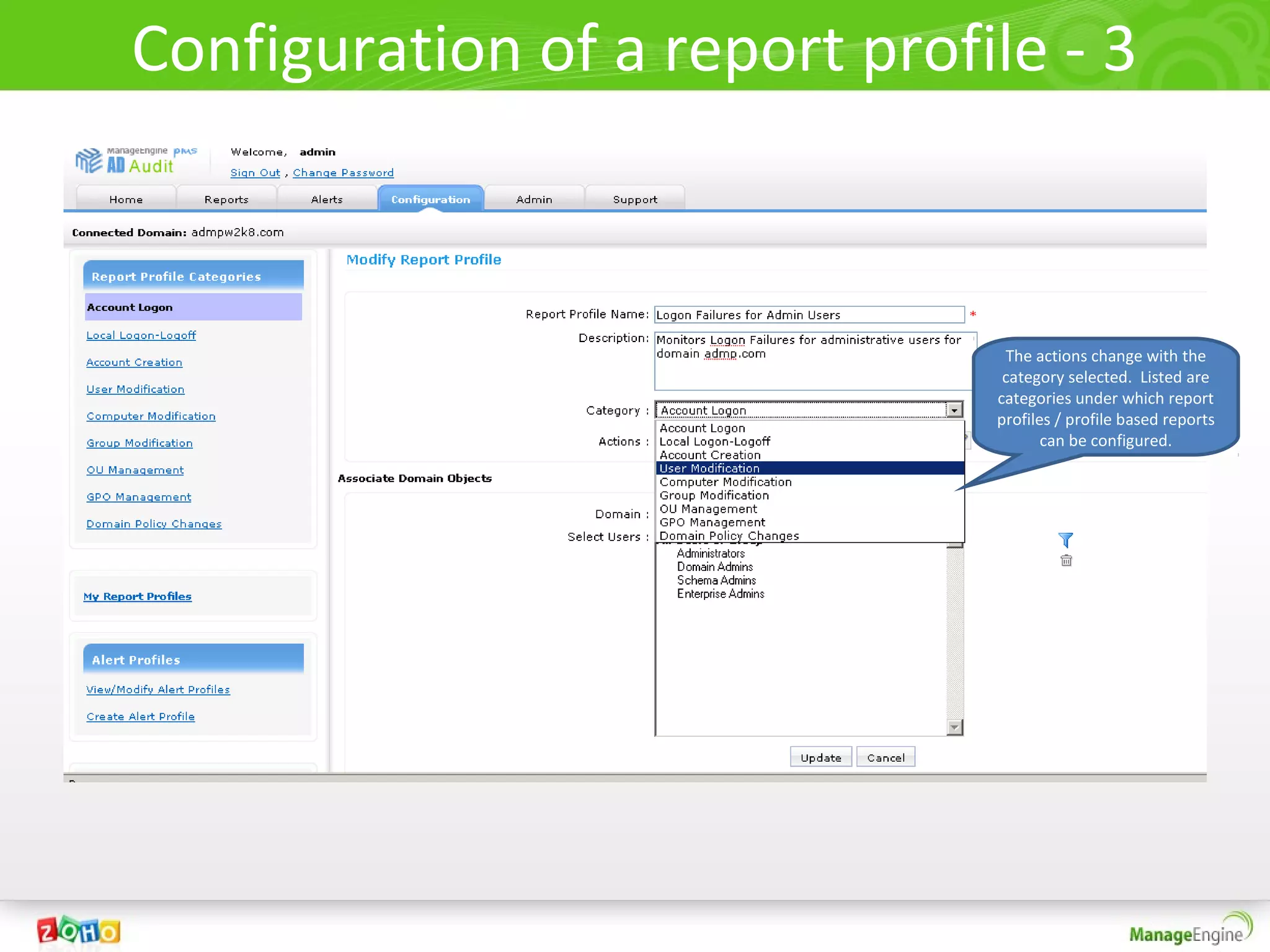
Configuration of a report profile - 3


                                The actions change with the
                                category selected. Listed are
                               categories under which report
                               profiles / profile based reports
                                      can be configured.
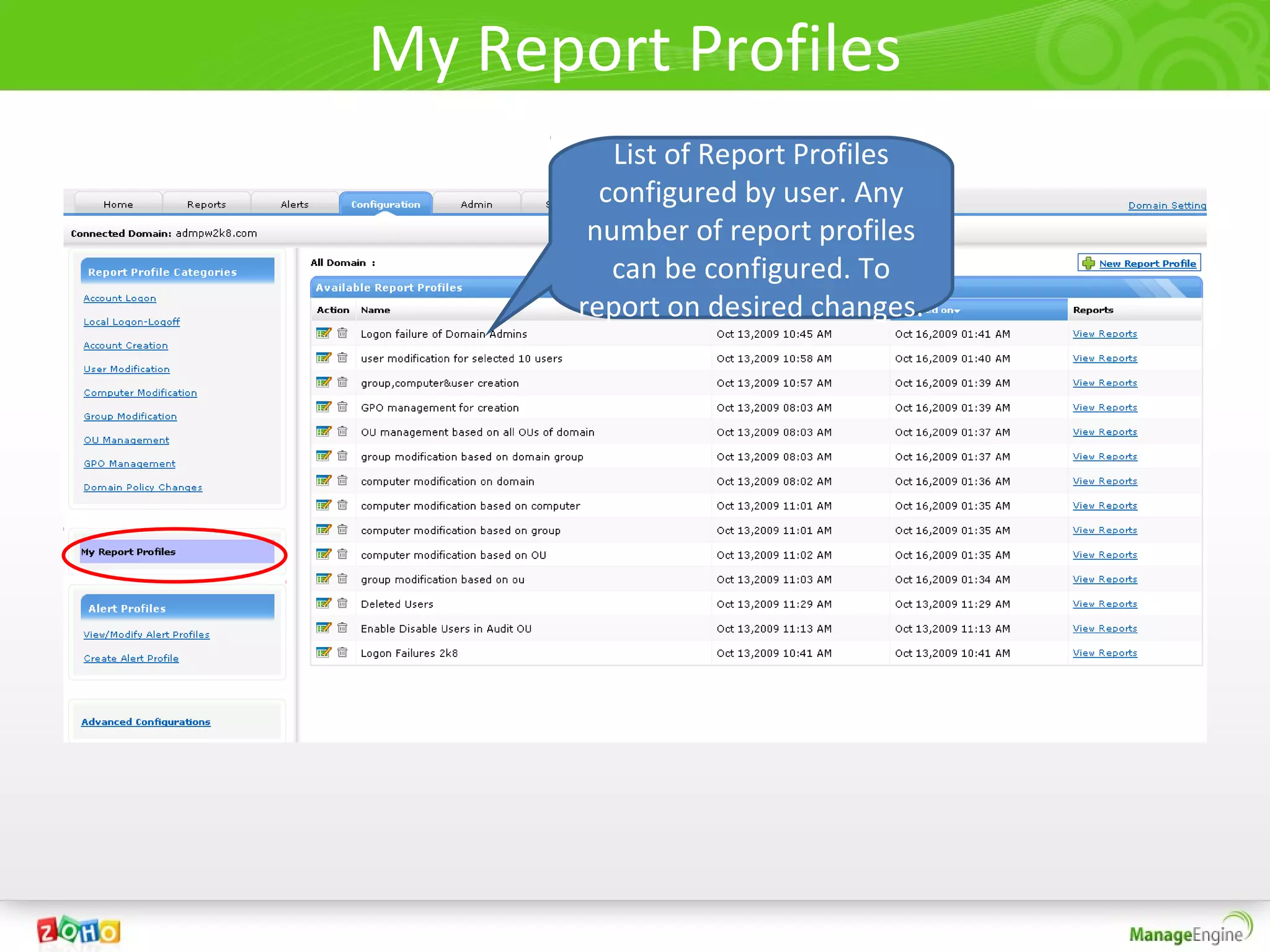
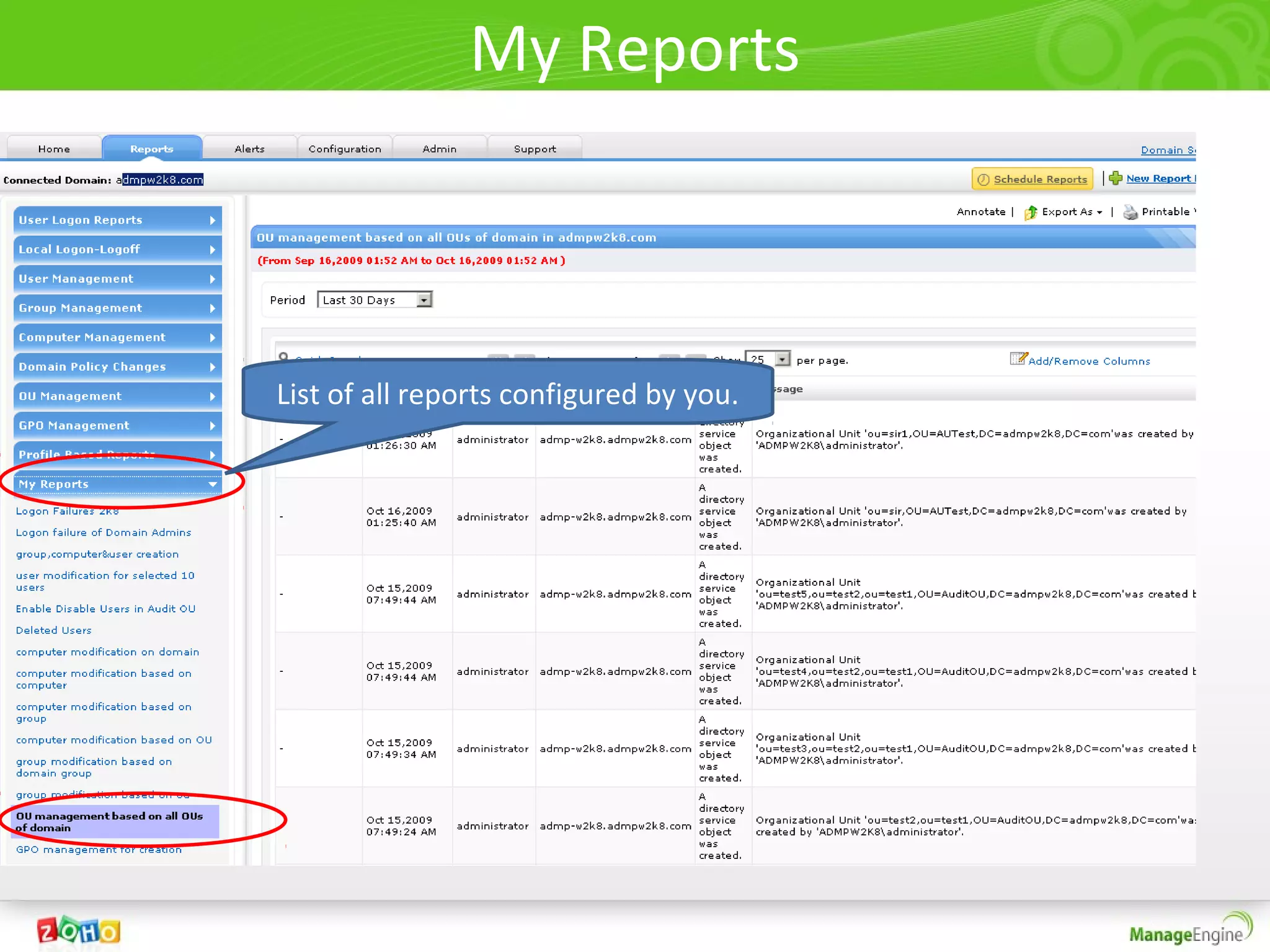
My Report Profiles
          List of Report Profiles
         configured by user. Any
        number of report profiles
          can be configured. To
       report on desired changes.
Profile Based Report
My Reports


List of all reports configured by you.
Alerts Tab of ADAudit Plus
   Also explained configuration of Alerts
Alerts
• Receive alerts on desired change events - right
  in your inbox/ the product.
• Alerts in ADAudit Plus include
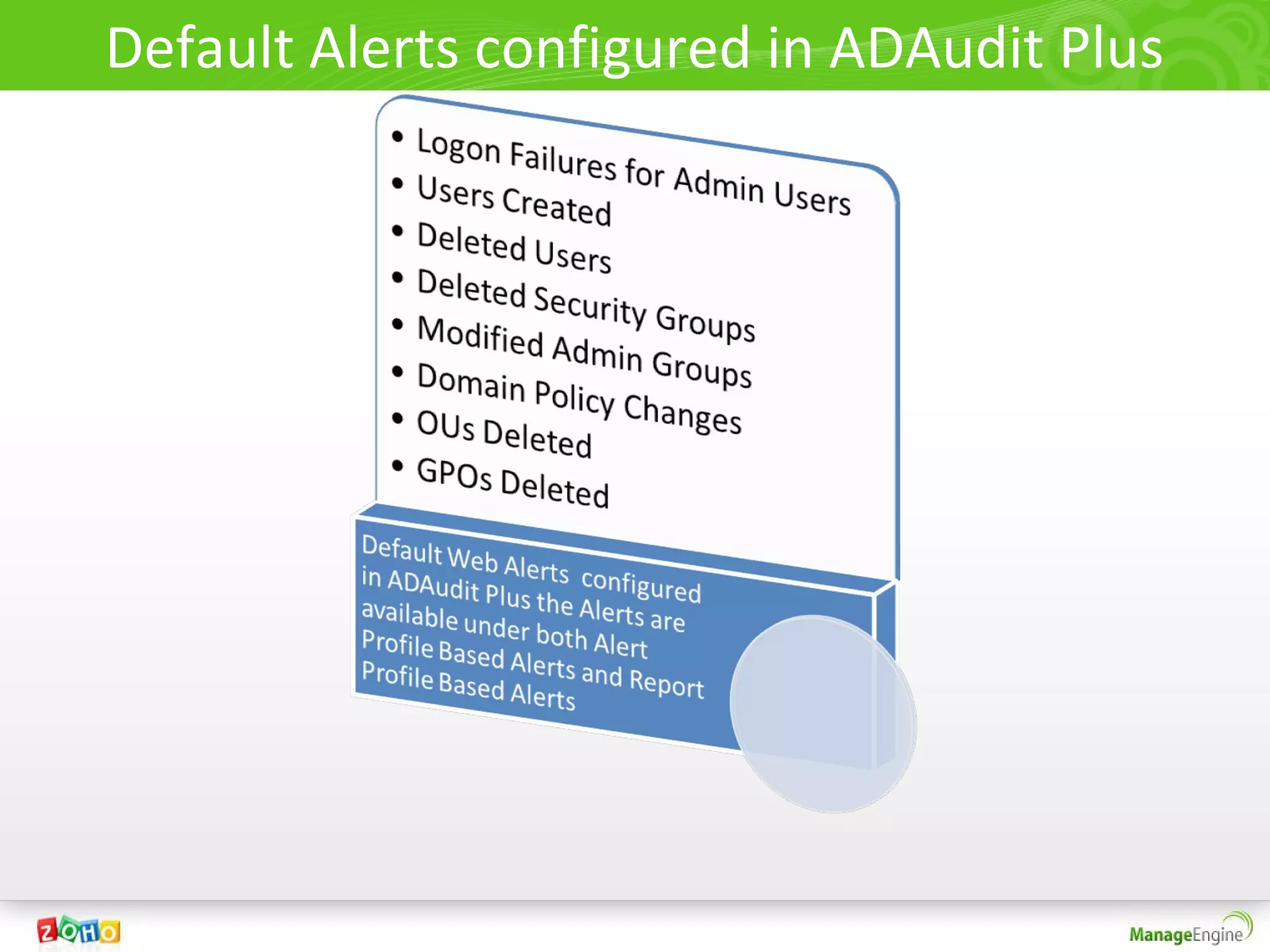
  – Default Web Alerts and configurable email
    notification of the alerts.
  – They are categorized under
     • Alert Profile Based Alerts and
     • Report Profile Based Alerts.
Default Alerts configured in ADAudit Plus
What are
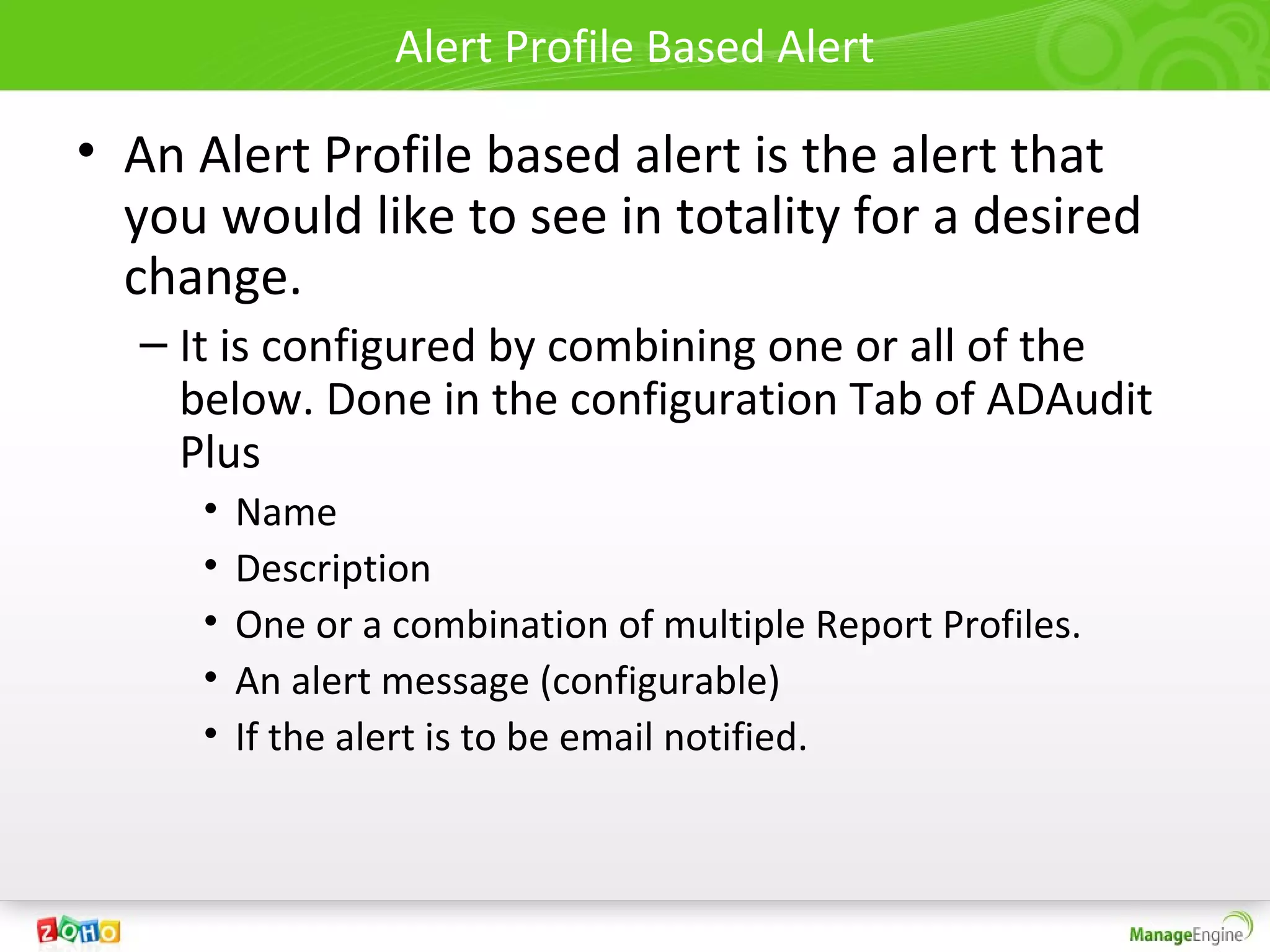
Alert Profile Based Alert

• An Alert Profile based alert is the alert that
  you would like to see in totality for a desired
  change.
  – It is configured by combining one or all of the
    below. Done in the configuration Tab of ADAudit
    Plus
     •   Name
     •   Description
     •   One or a combination of multiple Report Profiles.
     •   An alert message (configurable)
     •   If the alert is to be email notified.
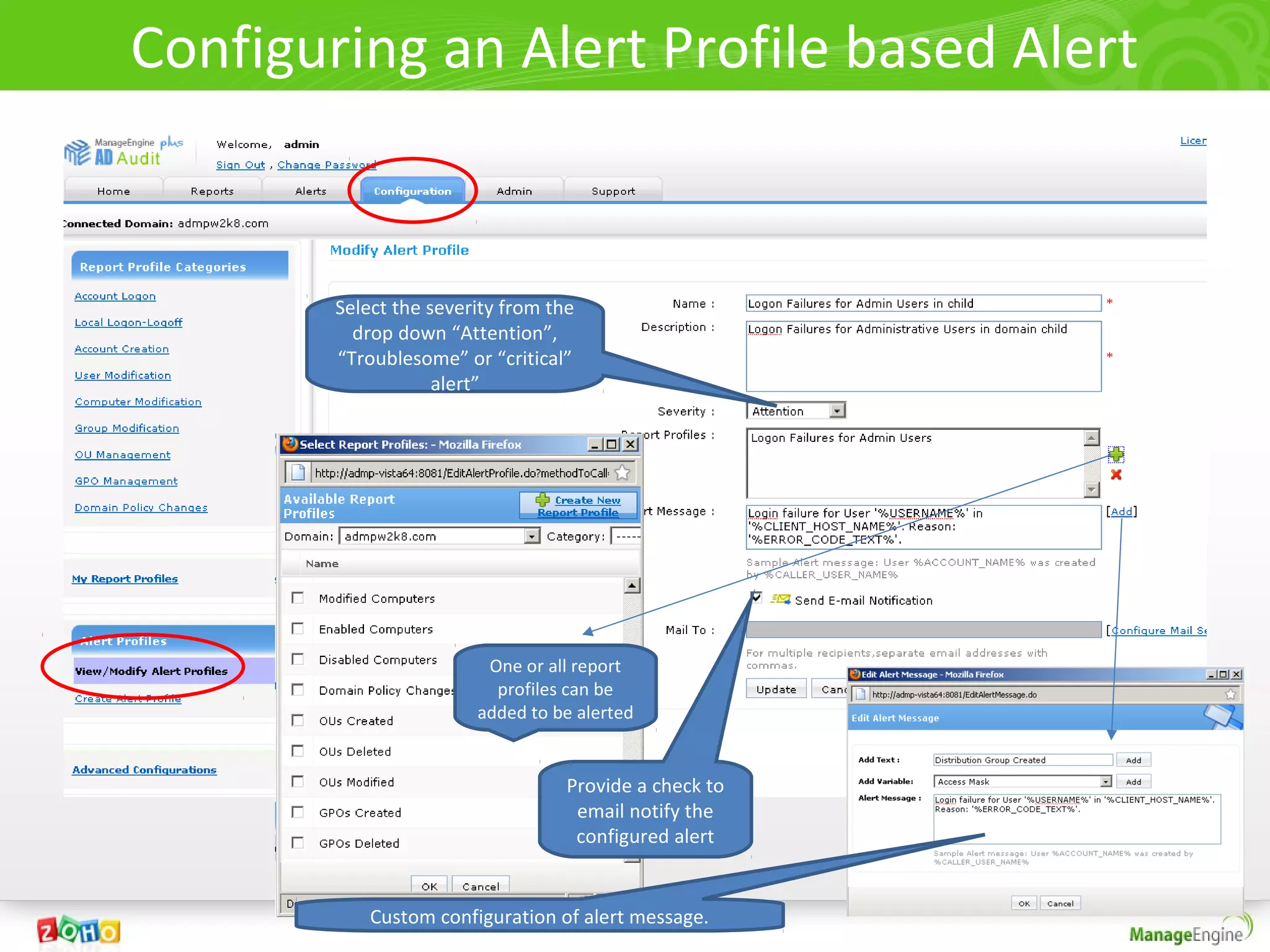
Configuring an Alert Profile based Alert


        Select the severity from the
          drop down “Attention”,
        “Troublesome” or “critical”
                    alert”


                         One or all report
                          profiles can be
                        added to be alerted


                                   Provide a check to
                                    email notify the
                                    configured alert


            Custom configuration of alert message.
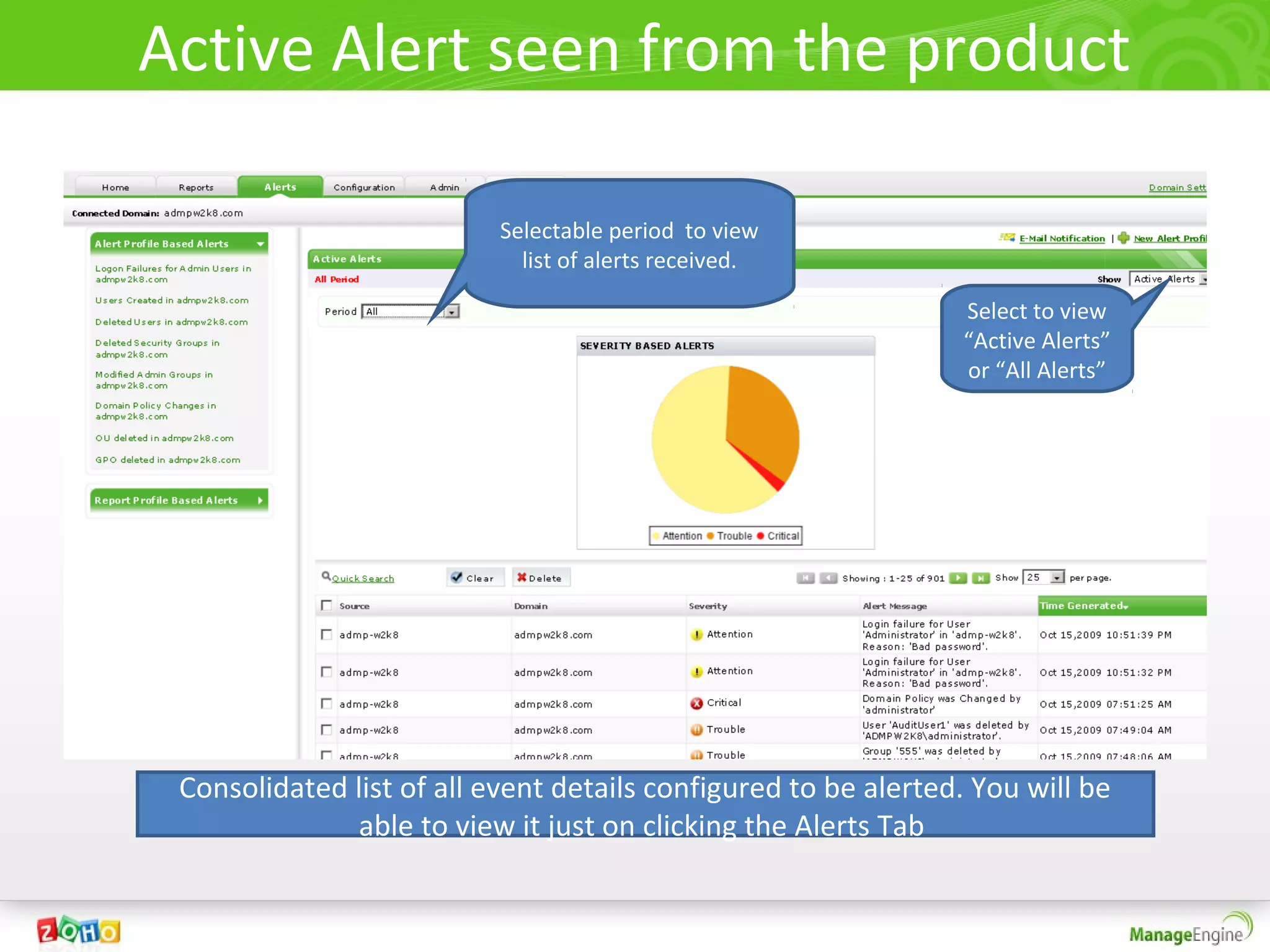
Active Alert seen from the product

                           Selectable period to view
                             list of alerts received.

                                                                Select to view
                                                                “Active Alerts”
                                                                or “All Alerts”


 Consolidated list of all event details configured to be alerted. You will be
              able to view it just on clicking the Alerts Tab
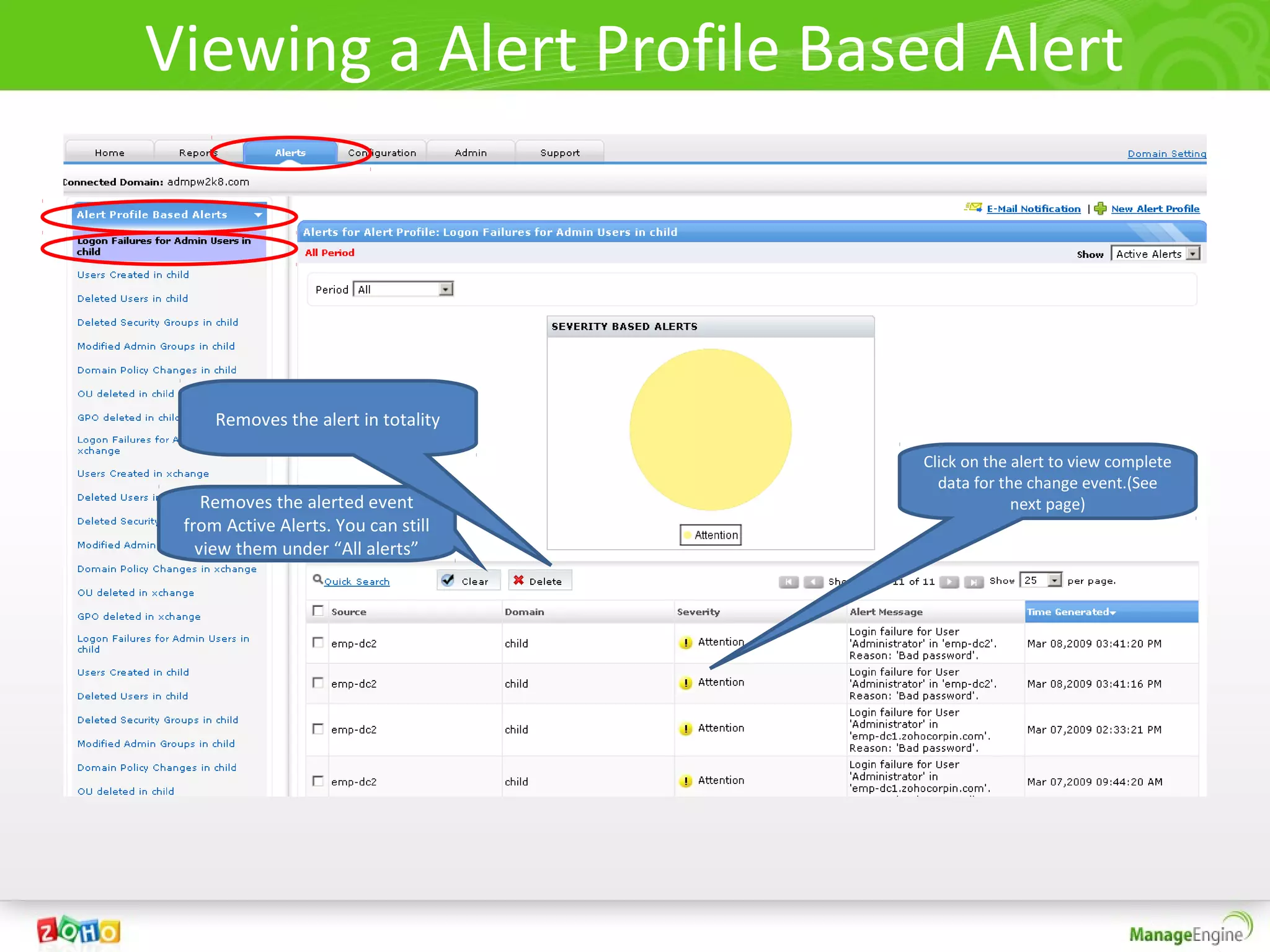
Viewing a Alert Profile Based Alert


     Removes the alert in totality

                                     Click on the alert to view complete
                                       data for the change event.(See
    Removes the alerted event                     next page)
 from Active Alerts. You can still
   view them under “All alerts”
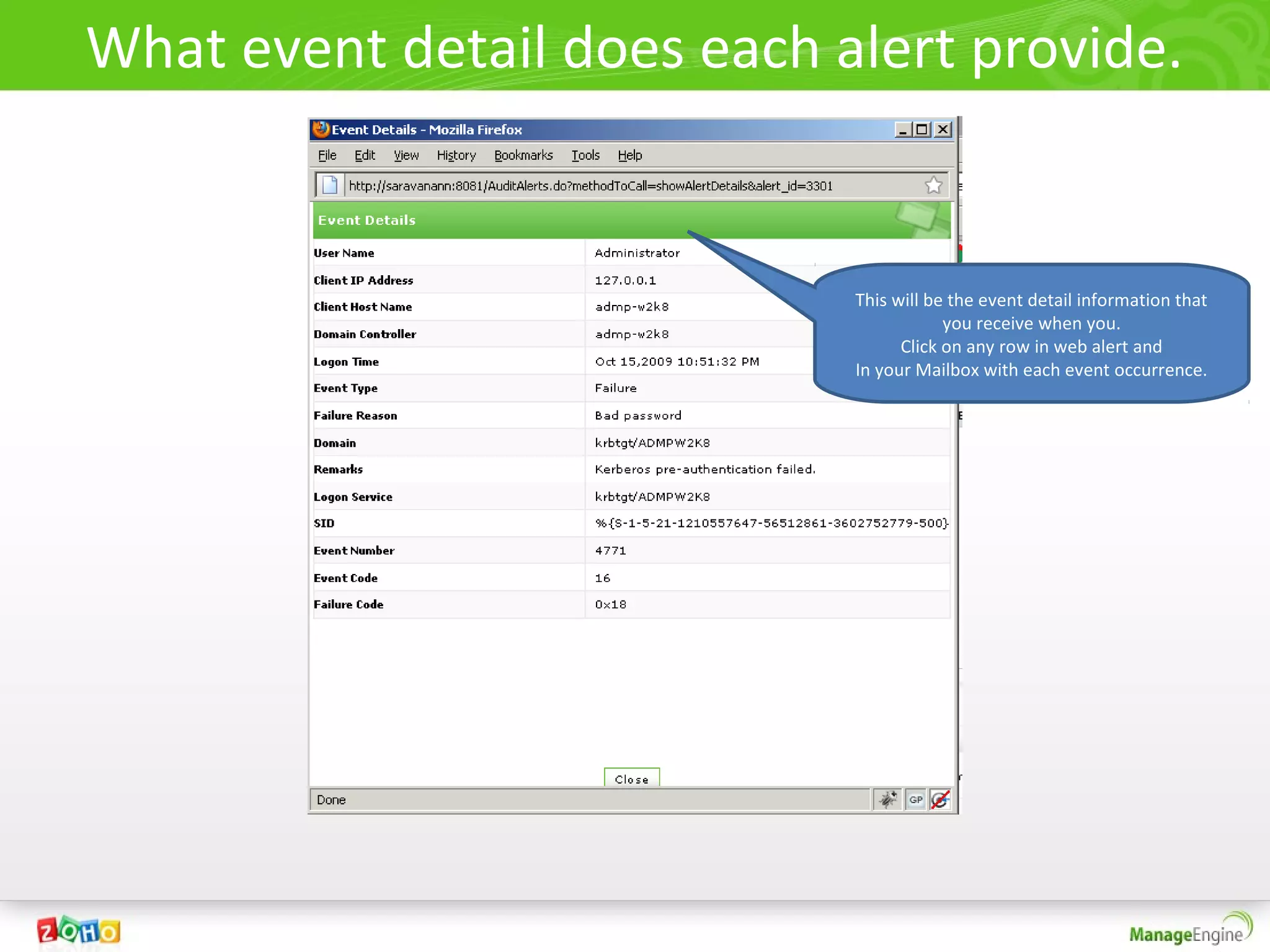
What event detail does each alert provide.


                             This will be the event detail information that
                                         you receive when you.
                                   Click on any row in web alert and
                             In your Mailbox with each event occurrence.
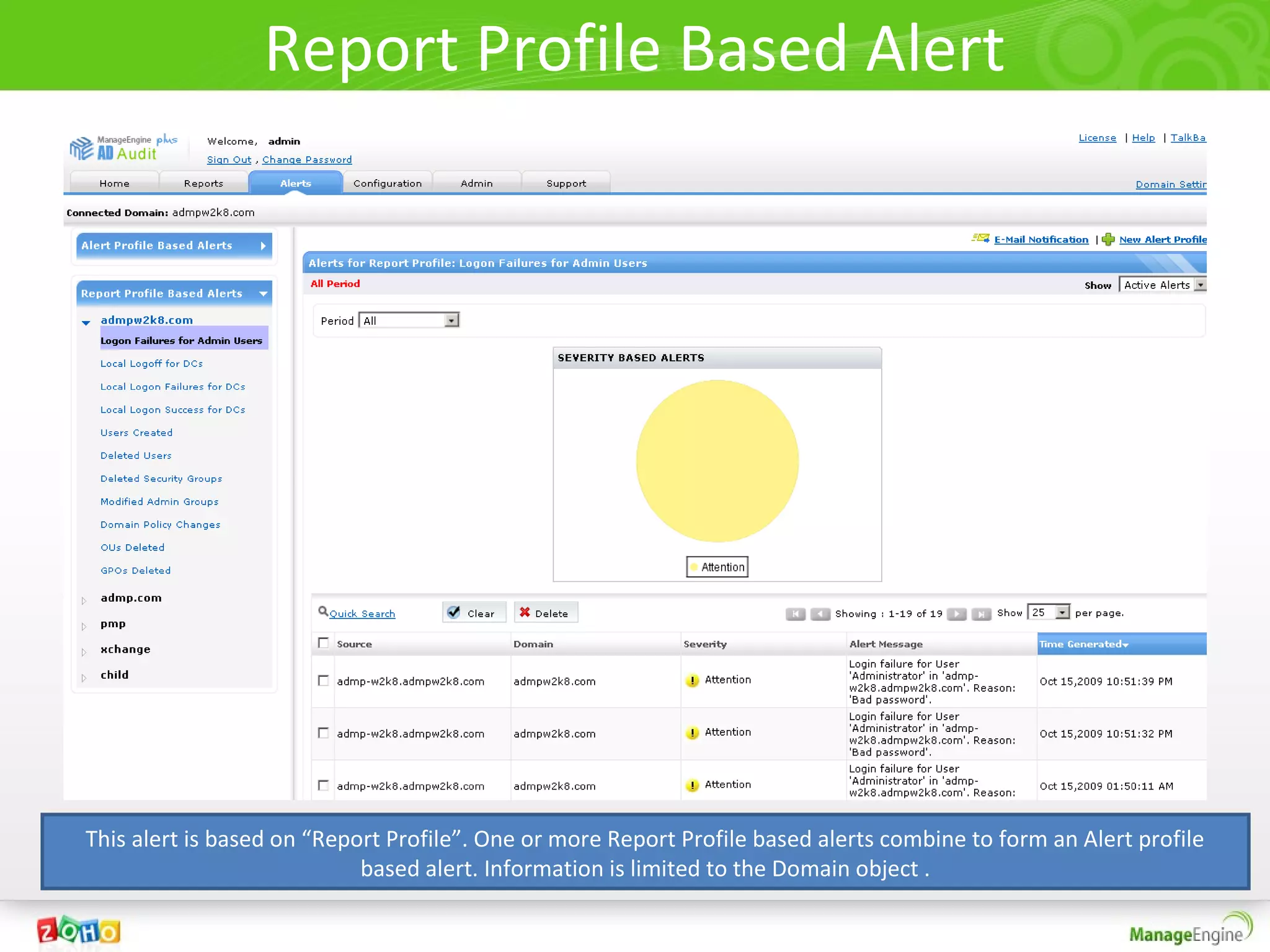
Report Profile Based Alert


This alert is based on “Report Profile”. One or more Report Profile based alerts combine to form an Alert profile
                            based alert. Information is limited to the Domain object .
Advanced Configuration
• Allows you to define actions that are added
  for a report profile.
• The Actions are based on a combination of
  one or more Rule-Groups.
• Rule Groups are formed using Rules – using
  “and” or “or” operators.
• Each Rule is based on specific attributes of
  Active Directory change .
• ADAudit Plus intelligently understands
  categories and groups them for defining rules.
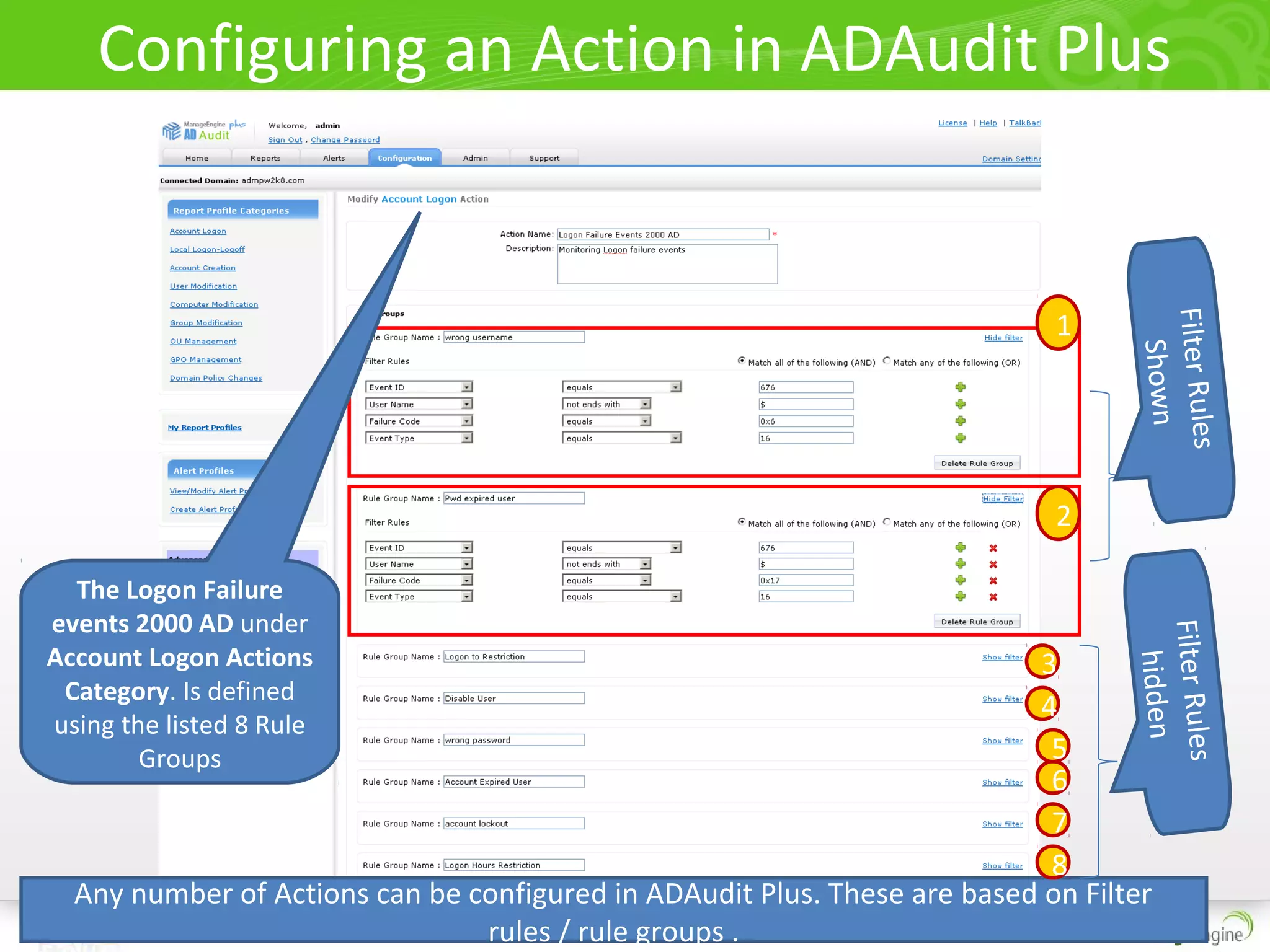
Configuring an Action in ADAudit Plus


                                                                            1


                                                                                  Filter Rules
                                                                                     Shown
                                                                            2

  The Logon Failure
events 2000 AD under


                                                                                  Filter Rules
Account Logon Actions                                                     3


                                                                                     hidden
 Category. Is defined
                                                                          4
using the listed 8 Rule
        Groups                                                             5
                                                                           6
                                                                           7
                                                                           8
  Any number of Actions can be configured in ADAudit Plus. These are based on Filter
                                rules / rule groups .
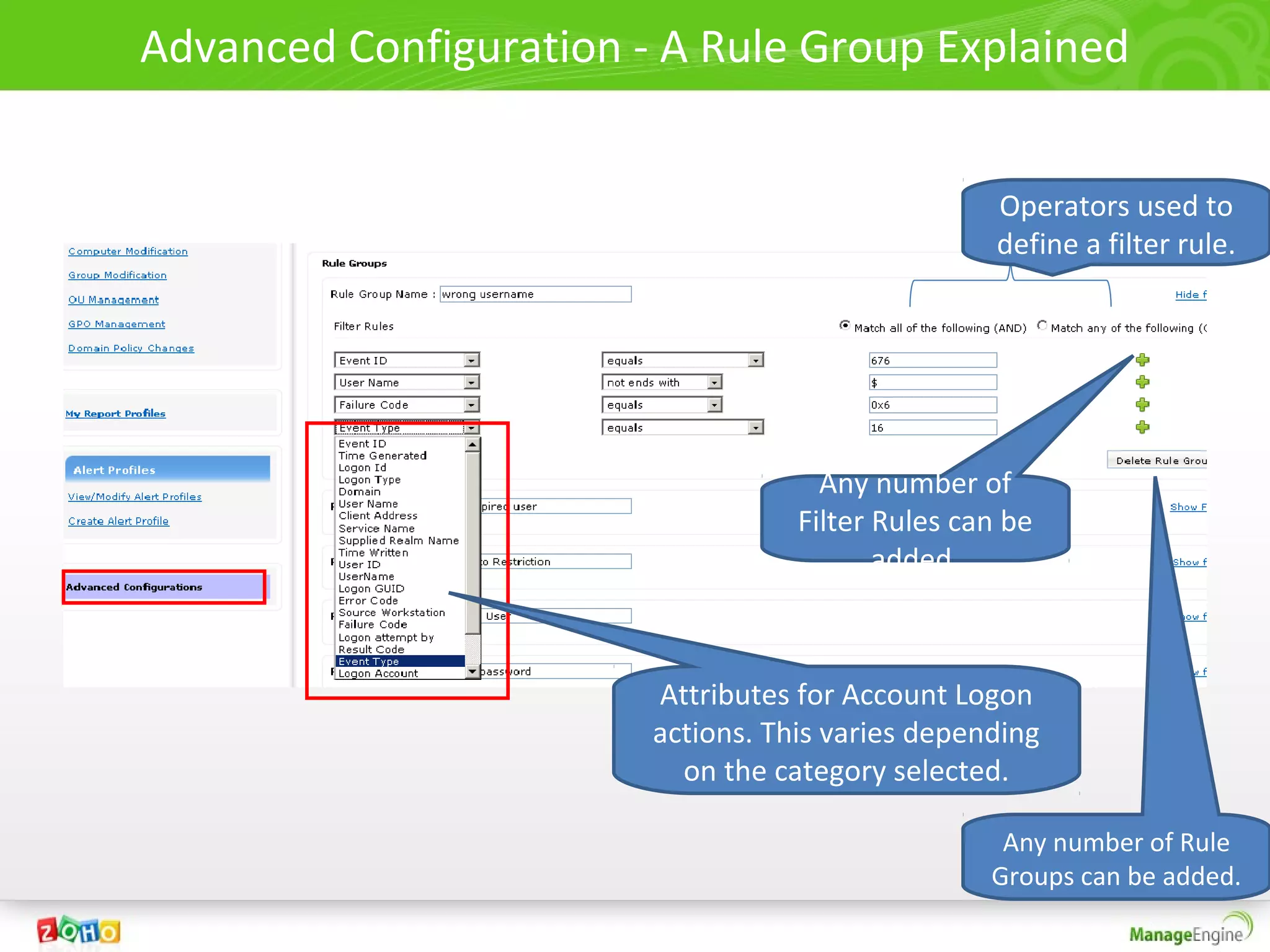
Advanced Configuration - A Rule Group Explained


                                                   Operators used to
                                                   define a filter rule.


                                     Any number of
                                   Filter Rules can be
                                          added.


                        Attributes for Account Logon
                        actions. This varies depending
                          on the category selected.

                                                   Any number of Rule
                                                  Groups can be added.
Admin Tab


Admin Tab of ADAudit Plus
Admin Tab
• The Admin tab of ADAudit Plus allows you to
  configure the various settings for working with
  the product.
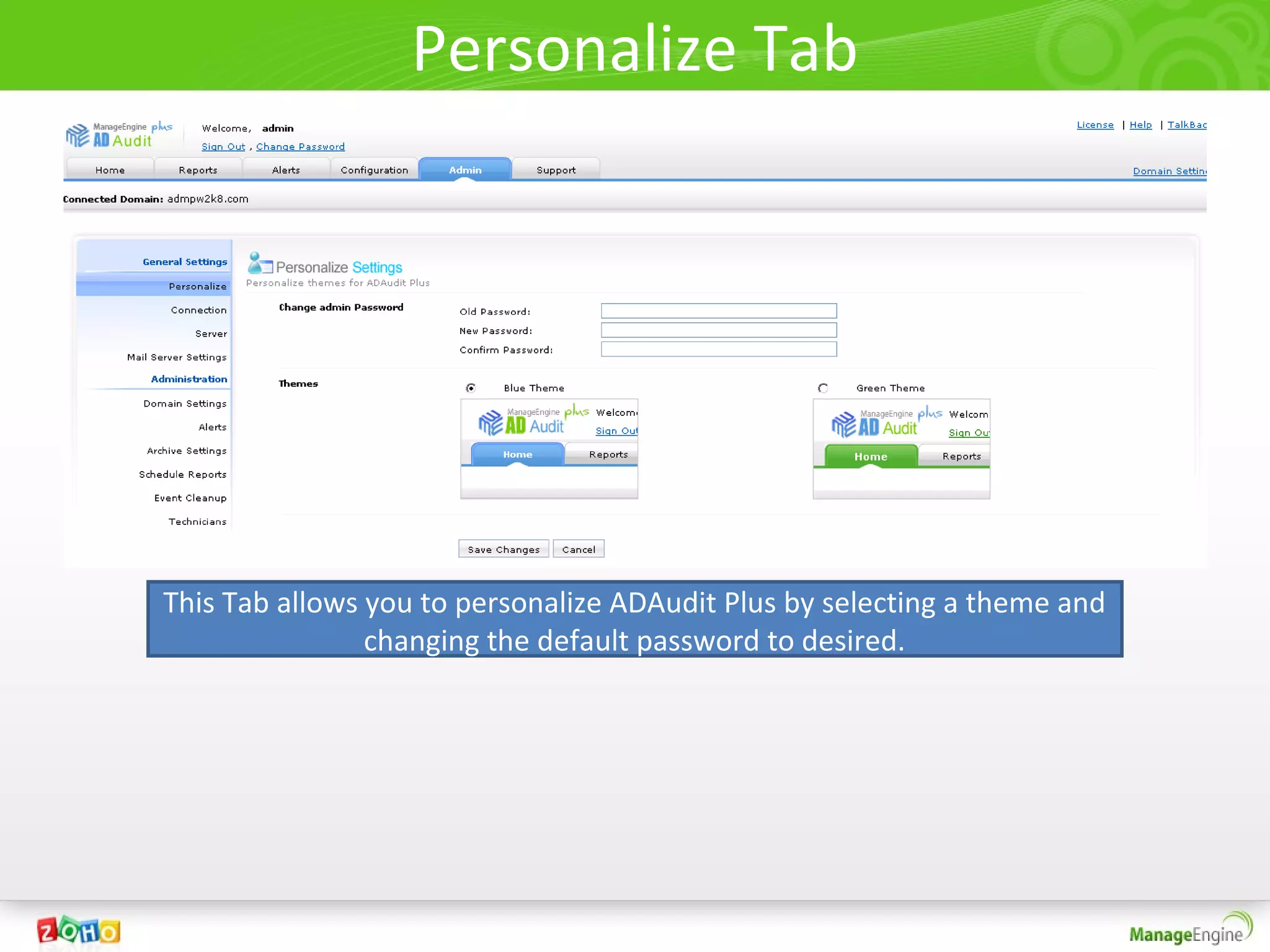
Personalize Tab


This Tab allows you to personalize ADAudit Plus by selecting a theme and
                changing the default password to desired.
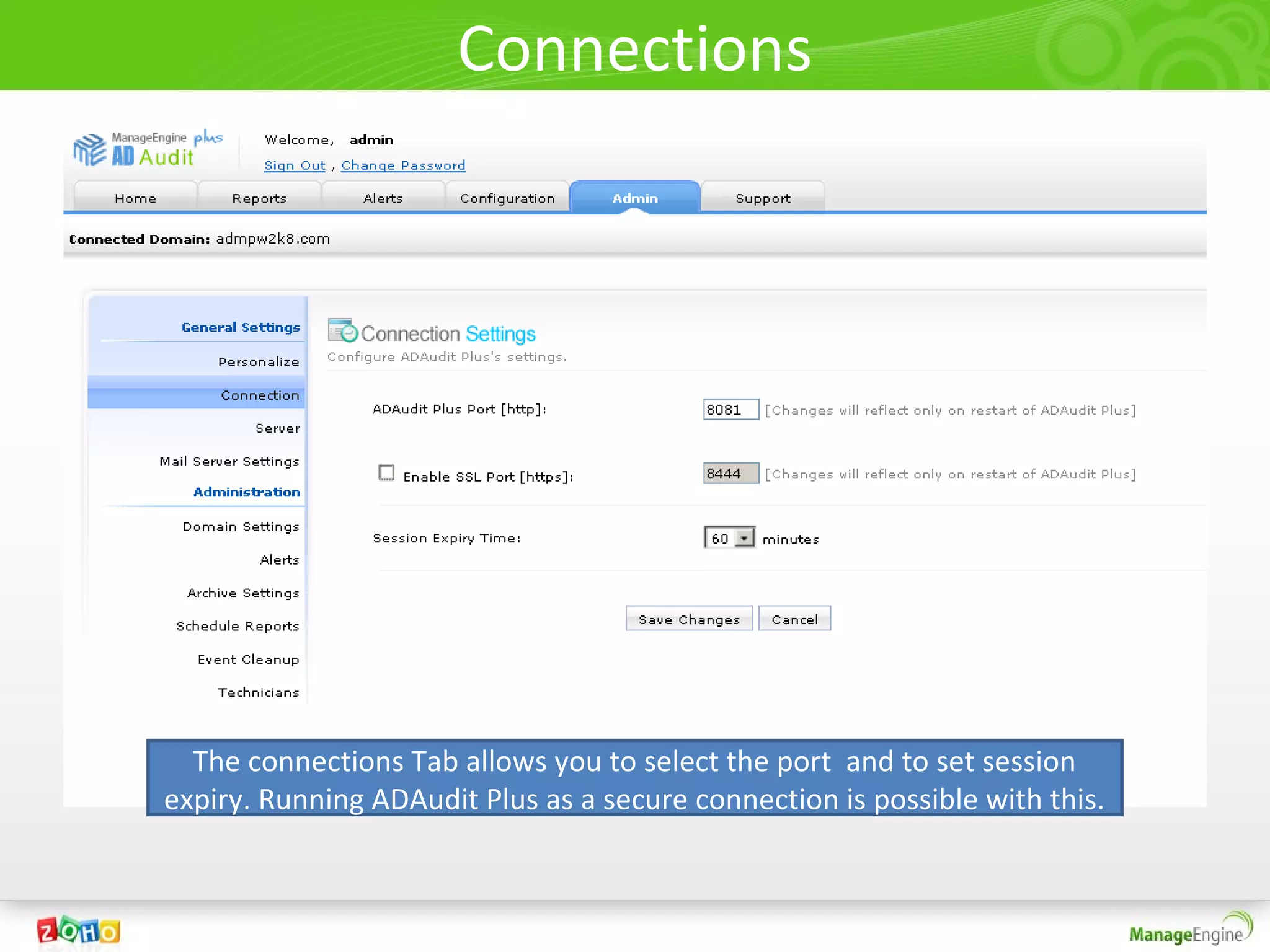
Connections


  The connections Tab allows you to select the port and to set session
expiry. Running ADAudit Plus as a secure connection is possible with this.
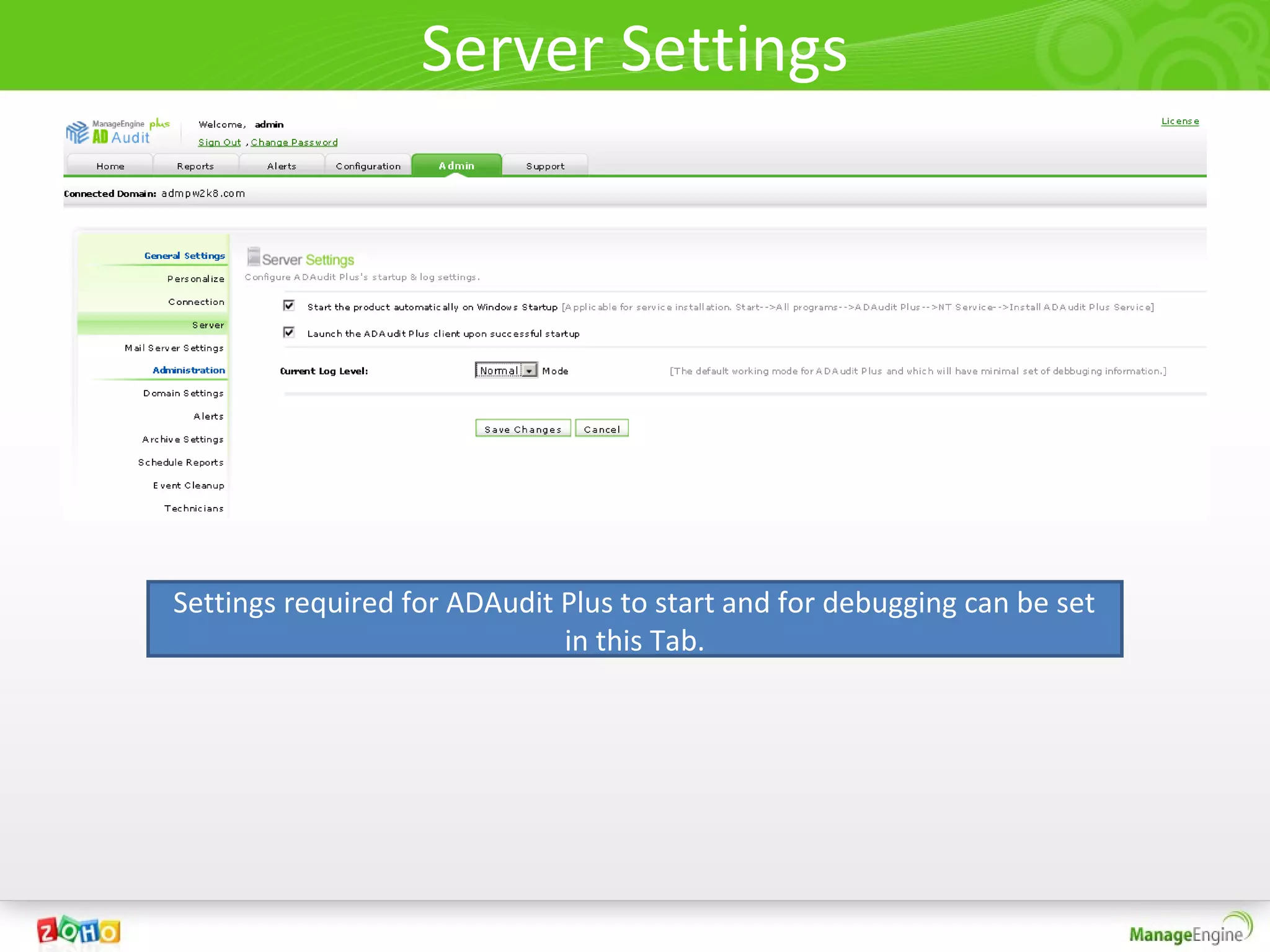
Server Settings


Settings required for ADAudit Plus to start and for debugging can be set
                              in this Tab.
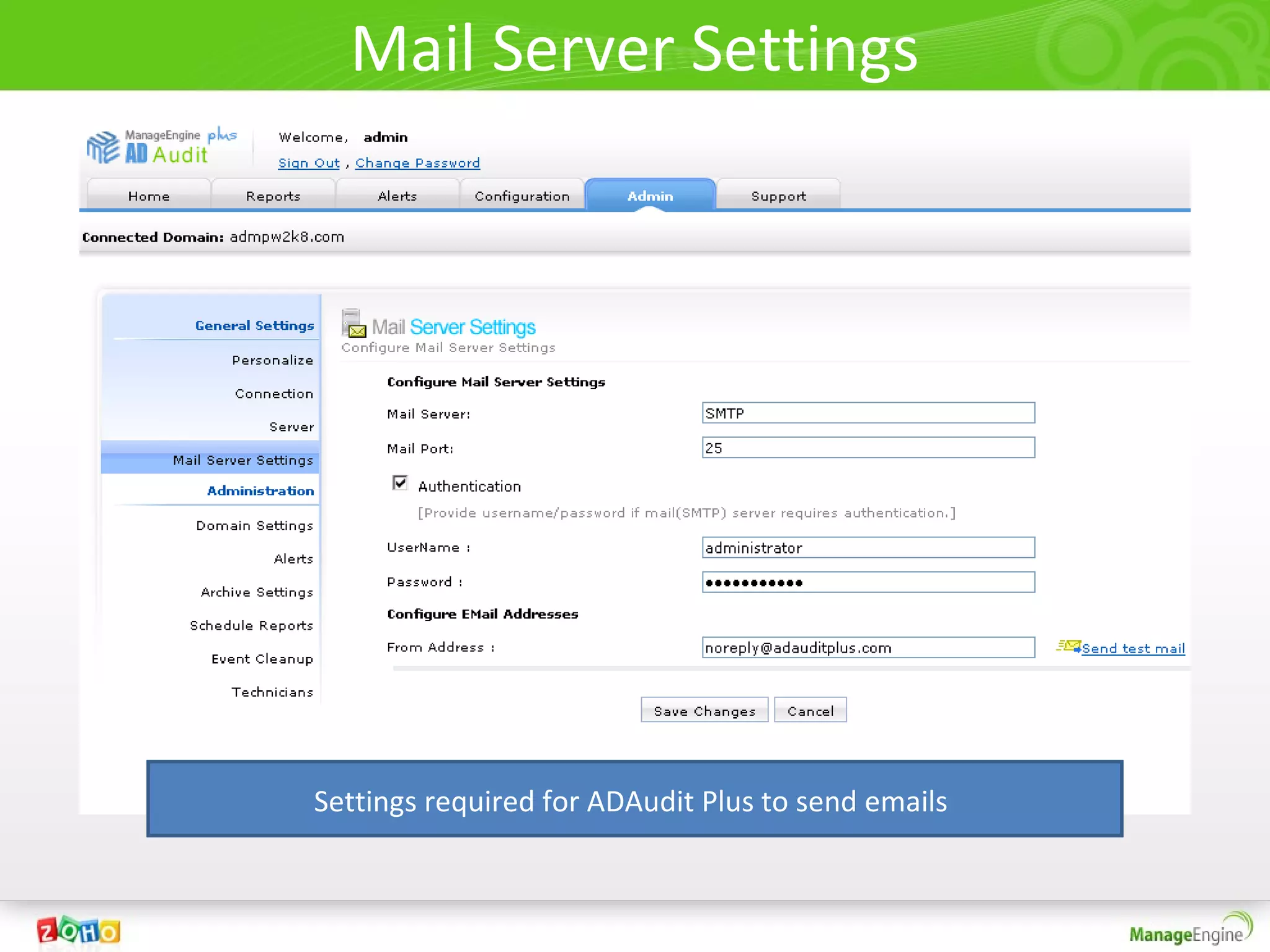
Mail Server Settings


Settings required for ADAudit Plus to send emails
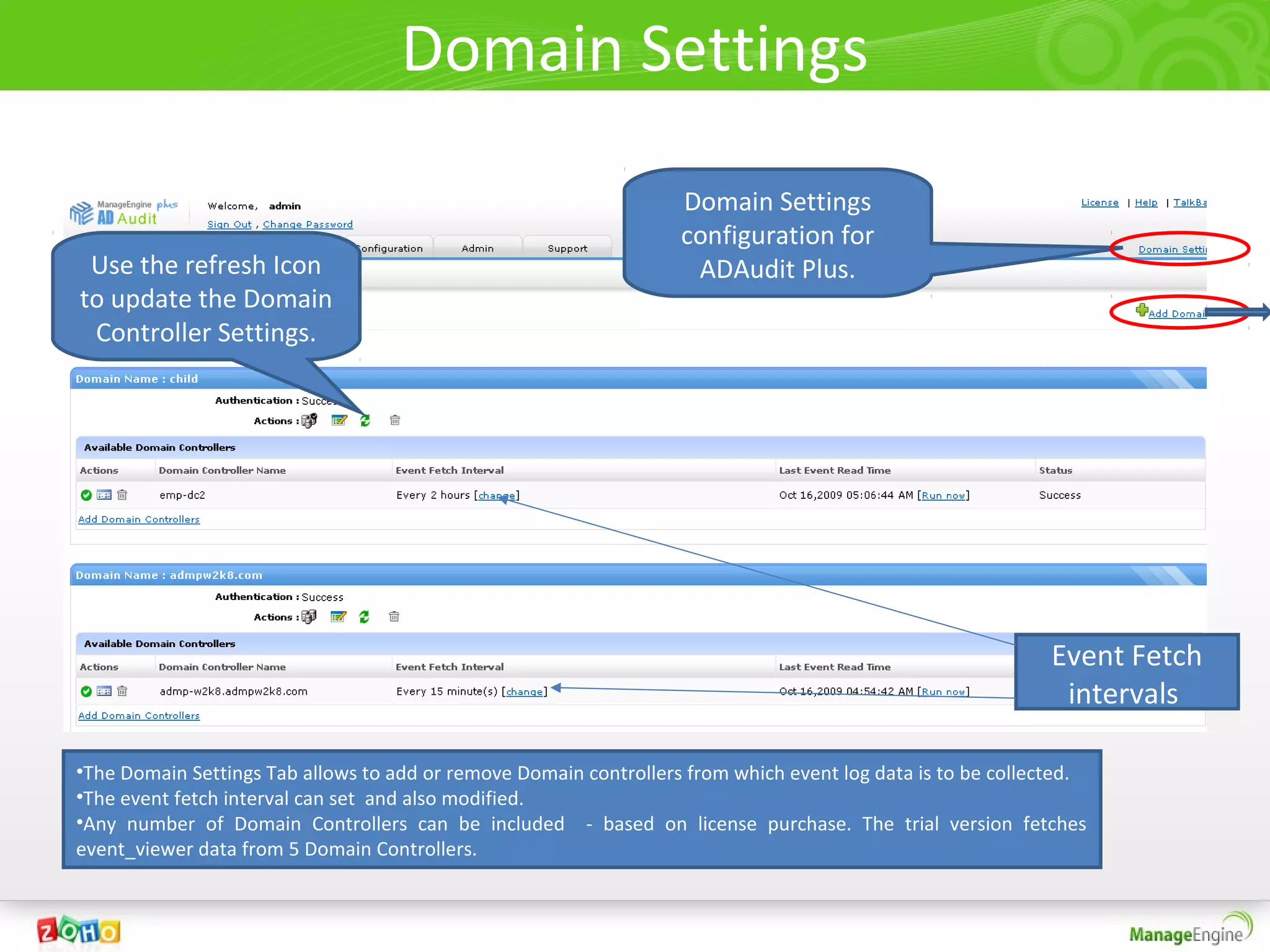
Domain Settings
                                                                   Domain Settings
                                                                   configuration for
 Use the refresh Icon                                               ADAudit Plus.
to update the Domain
 Controller Settings.


                                                                                                             Event Fetch
                                                                                                              intervals

•The Domain Settings Tab allows to add or remove Domain controllers from which event log data is to be collected.
•The event fetch interval can set and also modified.
•Any number of Domain Controllers can be included - based on license purchase. The trial version fetches
event_viewer data from 5 Domain Controllers.
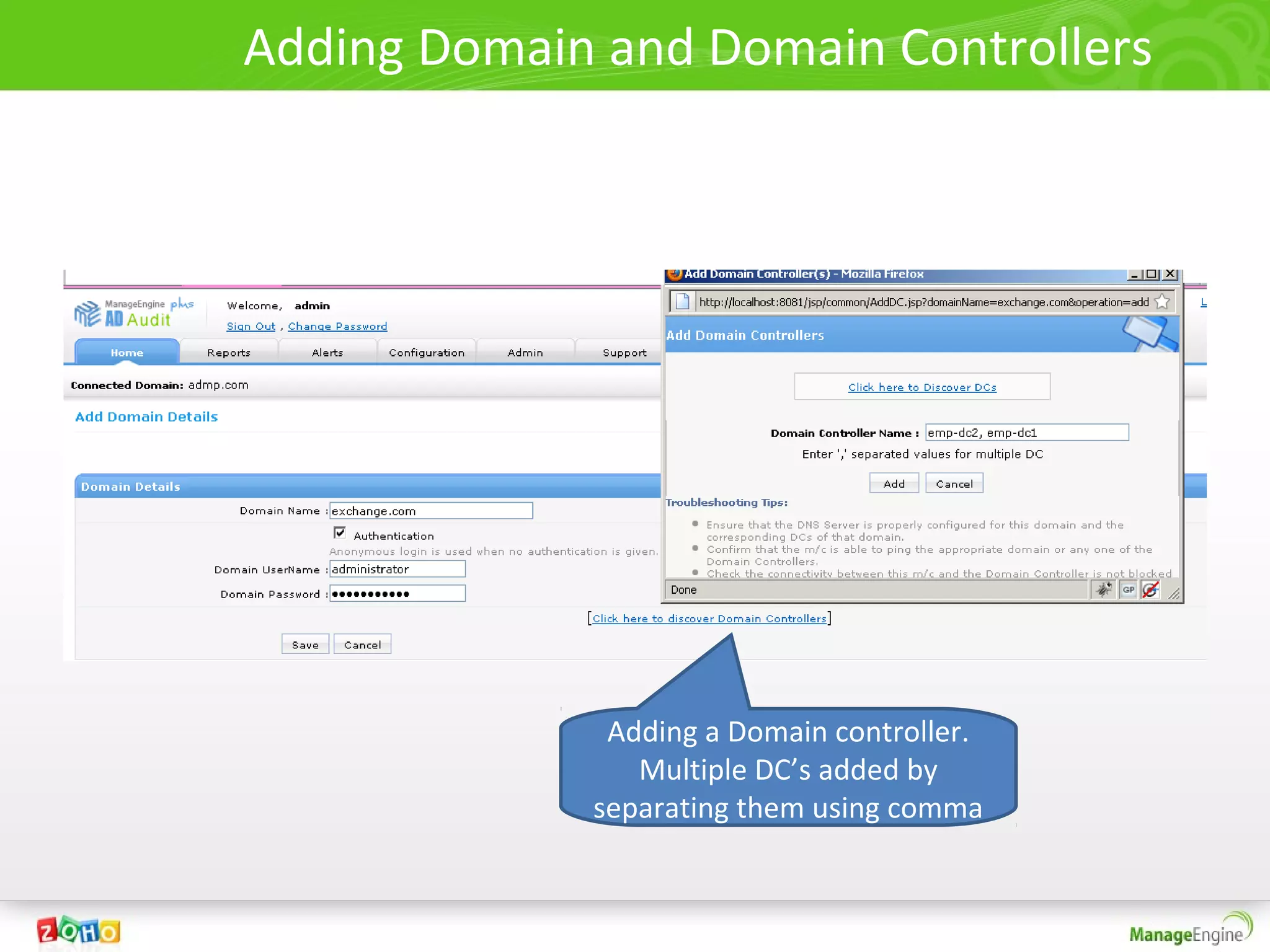
Adding Domain and Domain Controllers


              Adding a Domain controller.
                Multiple DC’s added by
             separating them using comma
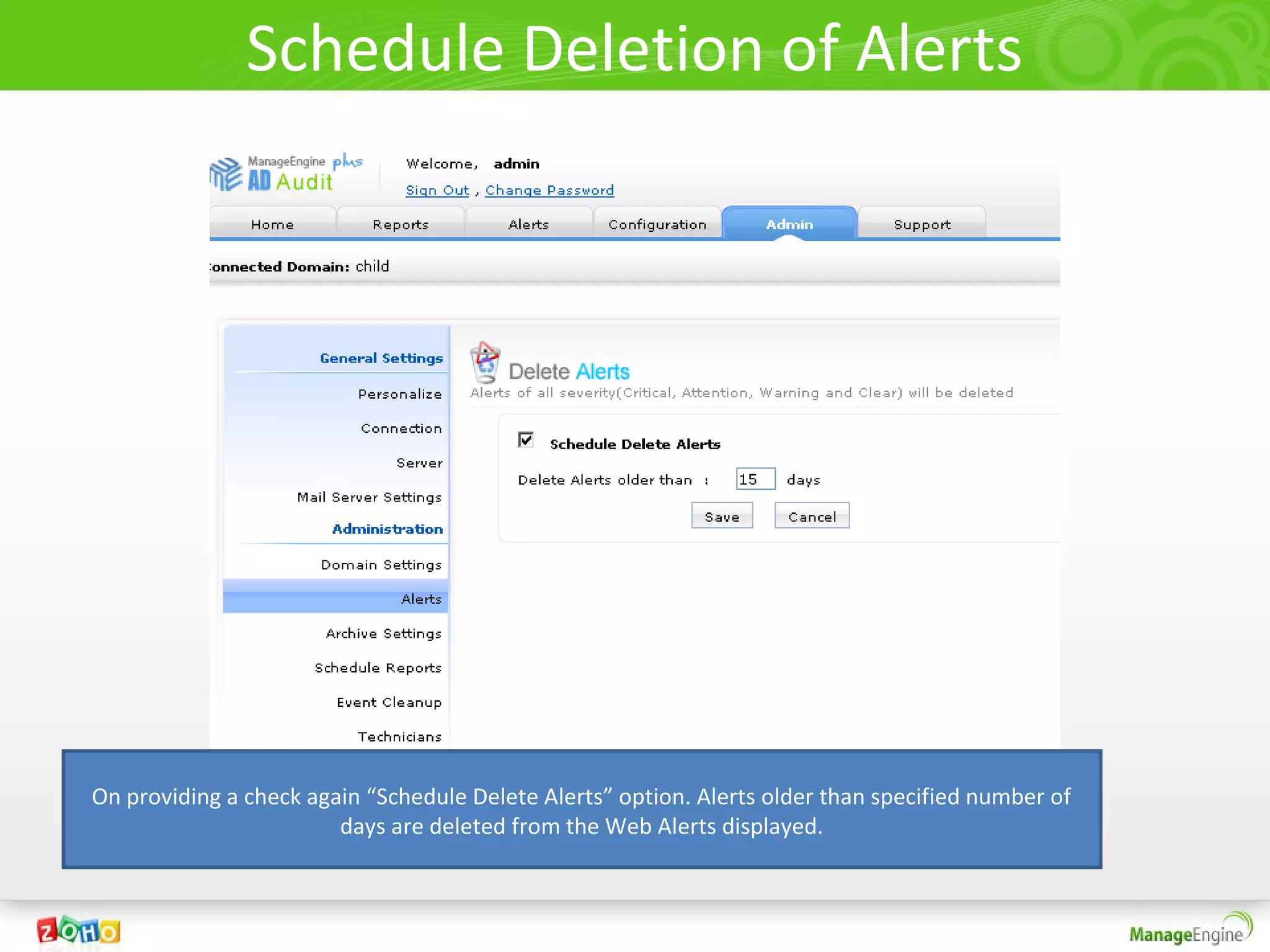
Schedule Deletion of Alerts


On providing a check again “Schedule Delete Alerts” option. Alerts older than specified number of
                        days are deleted from the Web Alerts displayed.
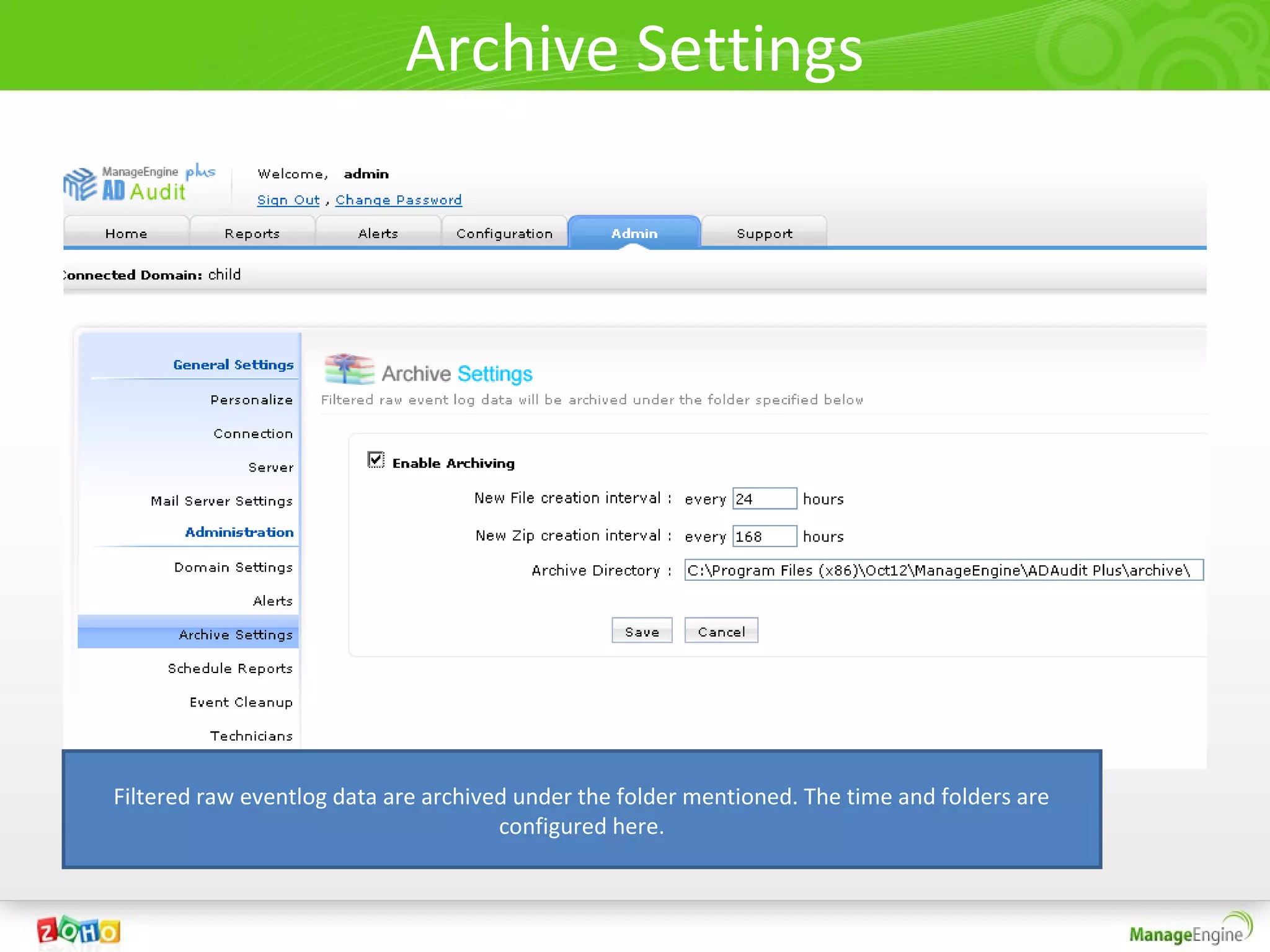
Archive Settings


Filtered raw eventlog data are archived under the folder mentioned. The time and folders are
                                      configured here.
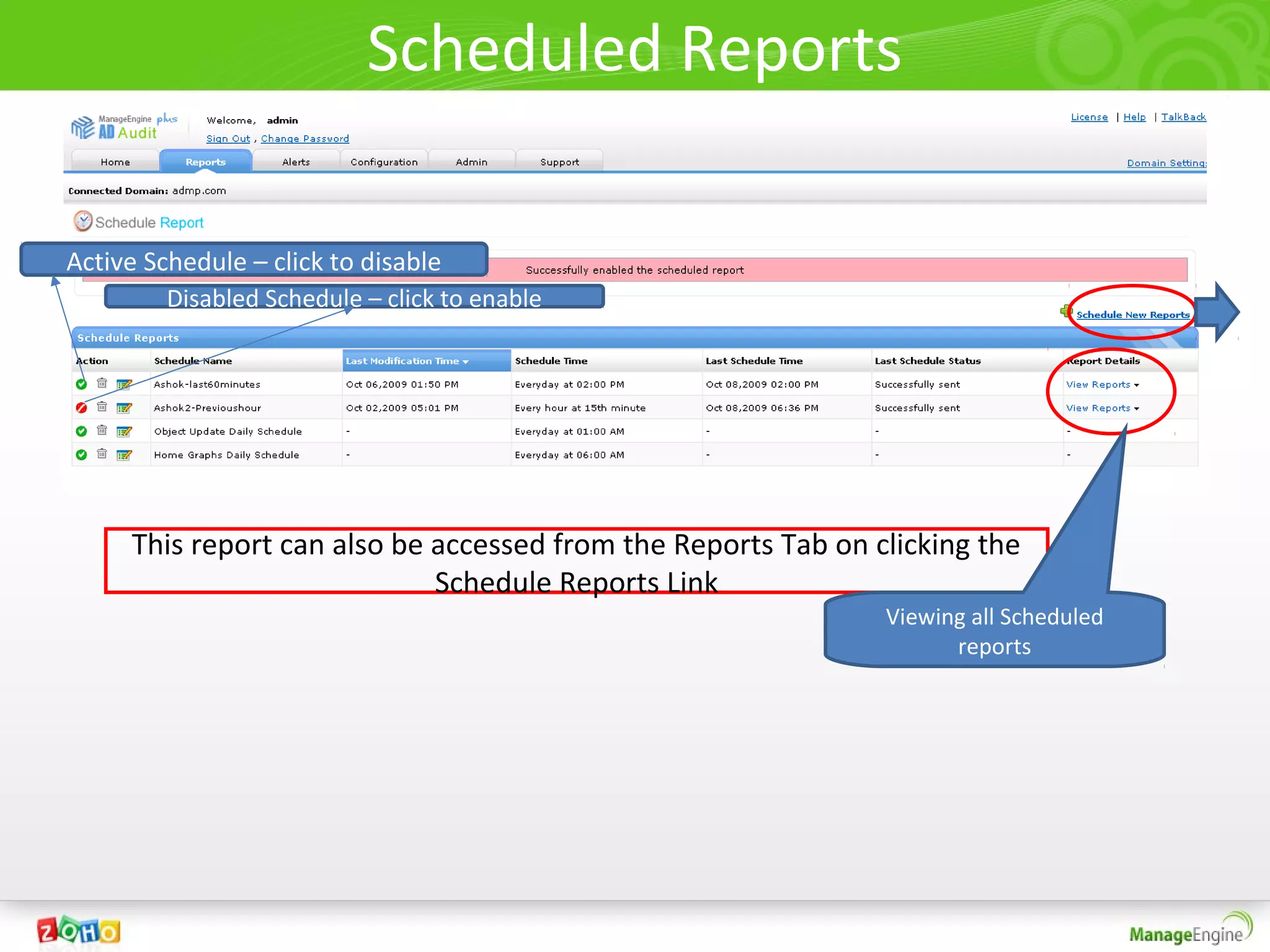
Scheduled Reports

Active Schedule – click to disable
         Disabled Schedule – click to enable


     This report can also be accessed from the Reports Tab on clicking the
                             Schedule Reports Link
                                                               Viewing all Scheduled
                                                                     reports
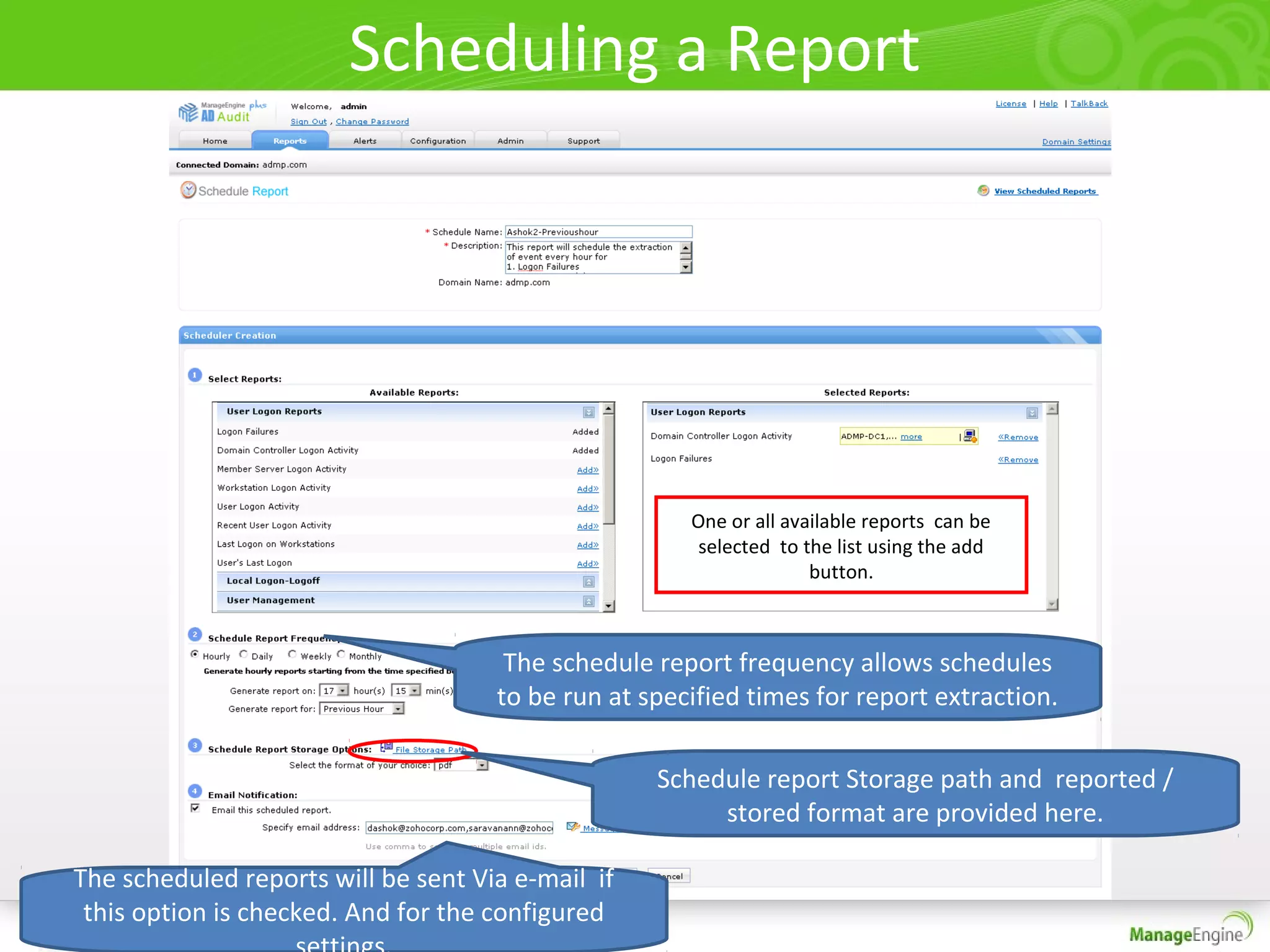
Scheduling a Report


                                                      One or all available reports can be
                                                       selected to the list using the add
                                                                    button.


                                      The schedule report frequency allows schedules
                                     to be run at specified times for report extraction.

                                                   Schedule report Storage path and reported /
                                                        stored format are provided here.

The scheduled reports will be sent Via e-mail if
 this option is checked. And for the configured
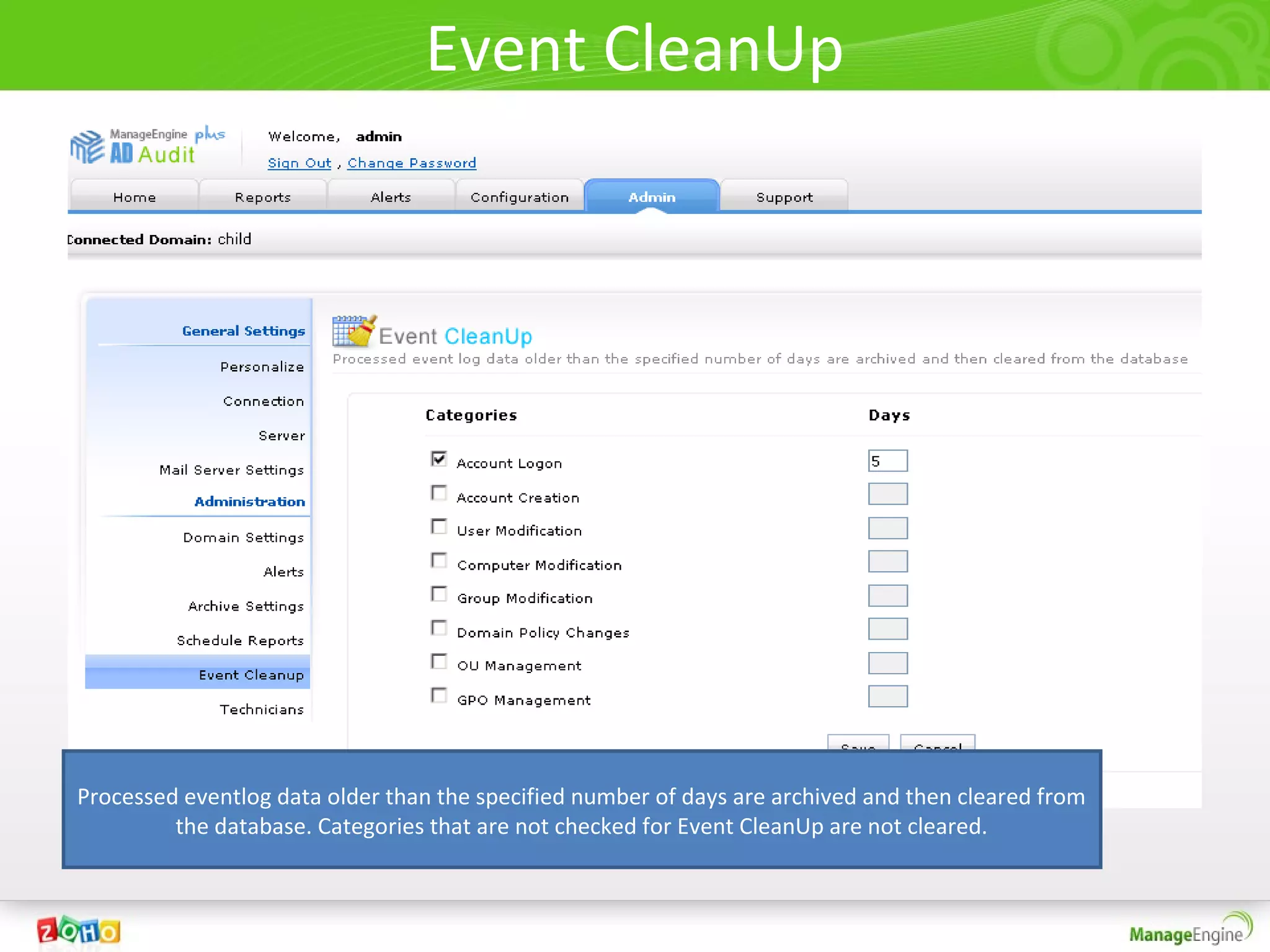
Event CleanUp


Processed eventlog data older than the specified number of days are archived and then cleared from
         the database. Categories that are not checked for Event CleanUp are not cleared.
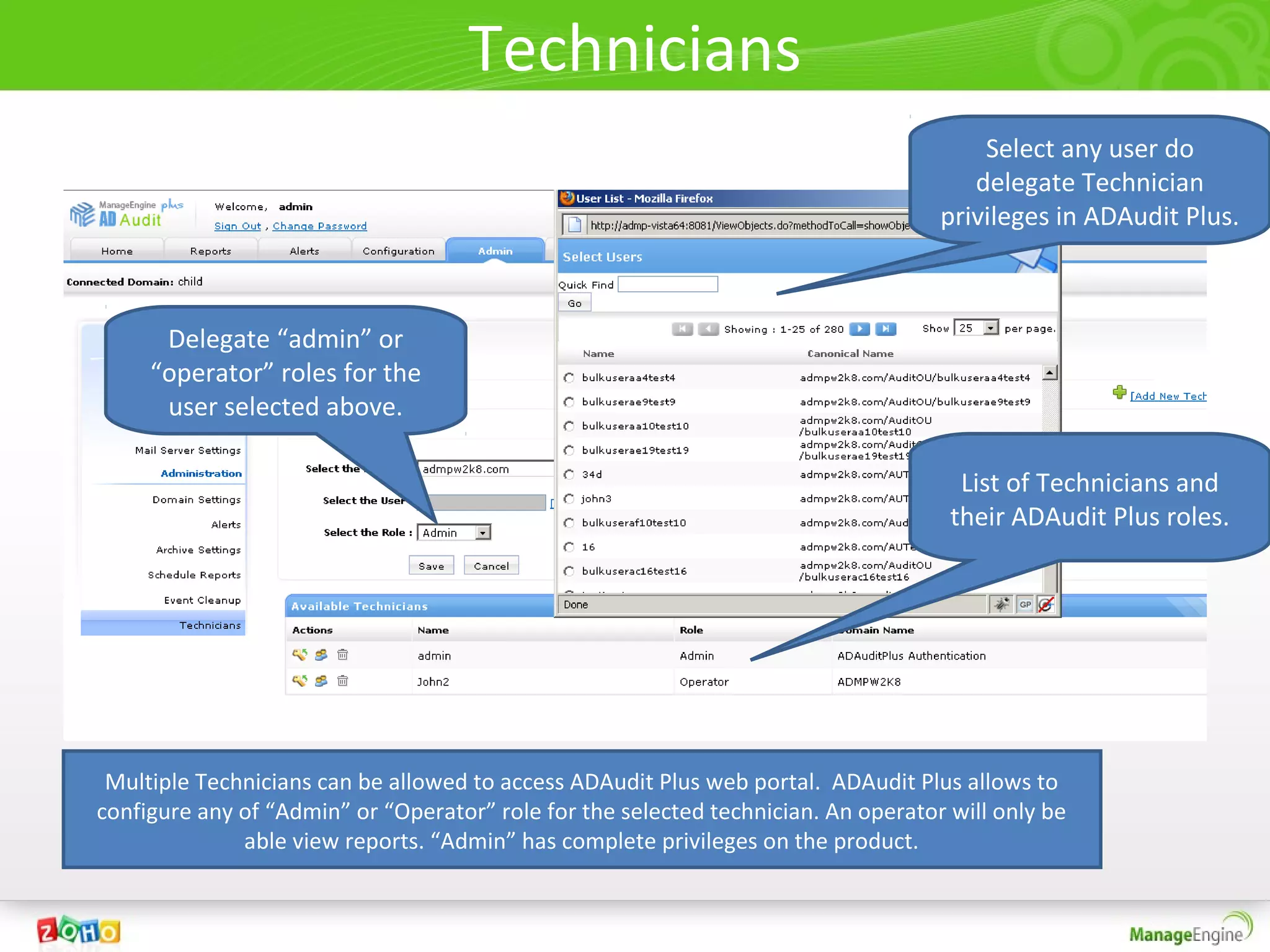
Technicians
                                                                                        Select any user do
                                                                                       delegate Technician
                                                                                    privileges in ADAudit Plus.


      Delegate “admin” or
     “operator” roles for the
      user selected above.

                                                                                      List of Technicians and
                                                                                     their ADAudit Plus roles.


 Multiple Technicians can be allowed to access ADAudit Plus web portal. ADAudit Plus allows to
configure any of “Admin” or “Operator” role for the selected technician. An operator will only be
              able view reports. “Admin” has complete privileges on the product.
Conclusion
• Kindly Visit : http://www.adauditplus.com for more
  information on product and pricing.

• Take a walk through on the User Interface at
  http://demo.adauditplus.com

• For any technical queries or assistance contact
  support@adauditplus.com

• You can contact us also via. Toll Free: 1-888-720-9500

AD Audit Plus a Detailed Walkthrough

  • 1.
    ManageEngine ADAudit Plus A detailed walkthrough
  • 2.
    Agenda • ManageEngine ADAuditPlus is a web based Active Directory change Audit and Reporting software. • It helps audit and track all changes in the Active Directory. • Active Directory changes on Users, Computers, Groups, GPOs, Ous, Domain Policies and logon activities are audited and reported from a central web console.
  • 3.
  • 4.
  • 5.
    Home Tab ofADAudit Plus
  • 6.
    Dashboard / HomeTab of ADAudit Plus • The Home Tab of ADAudit Plus provides a high-level picture with snapshots highlighting important Active Directory audit events like. 1. A graph on the Logon Failure counts in the past 7 / 30 days. 2. A pie-chart highlighting the error-codes when users logon has failed. 3. The count of account locked-out users in the past week / month on a day to day basis. 4. A single bar chart highlighting password changed / set users on a day-to-day basis for the last 7 / 30 days. (Selectable)
  • 7.
    Dashboard / HomeTab of ADAudit Plus • Other Dashboard charts / graphs 1. Peak Logon hour of a day with the average logon count for every hour. 2. Account (user, computer and group) management actions like created, deleted and modified all available on a single graphical interface. The charts can be clicked to get a list view of desired change data. Further the graphs are selectable. The Dashboard provides the above highlighted info for all configured Domain controllers.
  • 8.
    Dashboard view ofADAudit Plus The Home page provides a snapshot of important change actions for all Domains configured on a single screen. Click on any of the chart to view a list of its underlying details Use the refresh Icon to get updated information A 30 day or 7 day information can be interchably selected and viewed
  • 9.
    ADAudit Plus ReportsTab Also explained configuration of Reports
  • 10.
  • 11.
  • 12.
    User Logon ReportCategory • The reports under this category provide general logon information of users. • Information like logon failures, logon attempts on various resources like workstations, member servers are reported and also graphically highlighted. • Click on the charts above the list to view filtered information. • Use the add/ remove columns link to add/remove the column of interest. • The reports can be exported to xls, csv, csvde, pdf and html formats. • It can be scheduled and configured to email notified to one or more domain users.
  • 13.
  • 14.
    Logon Failure Report •The logon failure report is a default report under the User Logon Reports category. • ADAudit Plus collects information on all the logon failures in the selected domain and lists them in a single report. • A pie-chart highlighted above the list provides a snapshot on all failure reasons. • The following report highlights the logon failure of all users in the domain “child.admp.com” in the last 24 hours. • Note : you can also choose custom periods to see varied logon failure reasons for all users.
  • 15.
    Logon Failure Report The change reports in ADAudit Plus are categorized and listed. The reports can be exported to various formats, you include your own annotations and also print them.
  • 16.
    Domain Controllers LogonActivity Quick search can be used for identifying change information on specific objects
  • 17.
    Member Server LogonActivity To view the available list of scheduled reports and create new schedules click here
  • 18.
    Workstation Logon Activity Graphs highlight – important and desired change information for easy Filter and view understanding information only for what you require.
  • 19.
    User Logon Activity Selection of Period for last 24 hors, today, yesterday or any custom period is possible
  • 20.
    Recent User LogonActivity- Status
  • 21.
    Last Logon onWorkstation – User’s last login info
  • 22.
    User’s Last Logon– computer info.
  • 23.
  • 24.
    Logon Duration onDomain Controllers
  • 25.
  • 26.
  • 27.
  • 28.
  • 29.
    User Management Reports •All reports follow similar pattern and it is easy for one to understand all reports by just viewing one. • Recently Created Users, Recently Deleted Users, Recently Enabled Users, Recently Disabled Users, Recently Locked Out Users, Recently Unlocked Users, Recently Modified Users, Recently Password Changed Users, Recently Password Set Users . • The last modification on user report lists the last change that was done on every user in the domain. • Administrative User Actions – covers all administrative actions done by selected user(administrator or helpdesk) in the domain on users, computers and groups. • User object history lists all the history of changes that happened on selected user(s).
  • 30.
  • 31.
    Last Modification onUser(s) 3 Last m on Do ne od by ificatio n done
  • 32.
    Administrative User Action– on user objects Administrative user action computer and group objects are similar.
  • 33.
  • 34.
  • 35.
    Group Management AuditReports • Along with creation, deletion and modification of security and distribution groups. ADAudit Plus provides additional reports on members added/ removed to or from these Groups. • A sample screenshot for the “Group object history” is also provided.
  • 36.
    Recently added membersto Security Groups Use this link to add or removed desired columns Time of addition of a member dded Who added Member a
  • 37.
    Group Object History Thescope of the Use the Add Icon to Group is limited select more than one to the Domain Group Selected here This report lists the History of actions on the selected Group(s). The Group created/ deleted and modified times. It also lists members added/removed to the selected group object(s).
  • 38.
  • 39.
  • 40.
  • 41.
  • 42.
  • 43.
    Profile Based Reports •A profile based report is defined(created)by associating one or more Report profiles with one or more Active Directory object(s). • The advantage of a Profile based report is that it allows view specific change information done by or on objects in the Domain. • For Example: Logon Failure for Admin users (or) Administrative Users Logon Failure – Is created by associating
  • 44.
    Configuring a ReportProfile -1 To configure your own report profile click here. The report profiles created will be listed under their respective category / domain. To view a Profile based Report – click on view reports – It will be shown under Reports  Profile based reports. Listed are the available report profiles under the Account Logon Report Profile category for domain admp.com. List of default Report Profile Categories
  • 45.
    Configuring a reportprofile -2 Report profile name Check only the actions that Actions for the selected category. need to be present in the (Each action be configured under Profile based report Advanced Configuration) Deletion of Undesired object for the Profile Based Report Filter to include only Admin Users for the Domain
  • 46.
    Configuration of areport profile - 3 The actions change with the category selected. Listed are categories under which report profiles / profile based reports can be configured.
  • 47.
    My Report Profiles List of Report Profiles configured by user. Any number of report profiles can be configured. To report on desired changes.
  • 48.
  • 49.
    My Reports List ofall reports configured by you.
  • 50.
    Alerts Tab ofADAudit Plus Also explained configuration of Alerts
  • 51.
    Alerts • Receive alertson desired change events - right in your inbox/ the product. • Alerts in ADAudit Plus include – Default Web Alerts and configurable email notification of the alerts. – They are categorized under • Alert Profile Based Alerts and • Report Profile Based Alerts.
  • 52.
  • 53.
  • 54.
    Alert Profile BasedAlert • An Alert Profile based alert is the alert that you would like to see in totality for a desired change. – It is configured by combining one or all of the below. Done in the configuration Tab of ADAudit Plus • Name • Description • One or a combination of multiple Report Profiles. • An alert message (configurable) • If the alert is to be email notified.
  • 55.
    Configuring an AlertProfile based Alert Select the severity from the drop down “Attention”, “Troublesome” or “critical” alert” One or all report profiles can be added to be alerted Provide a check to email notify the configured alert Custom configuration of alert message.
  • 56.
    Active Alert seenfrom the product Selectable period to view list of alerts received. Select to view “Active Alerts” or “All Alerts” Consolidated list of all event details configured to be alerted. You will be able to view it just on clicking the Alerts Tab
  • 57.
    Viewing a AlertProfile Based Alert Removes the alert in totality Click on the alert to view complete data for the change event.(See Removes the alerted event next page) from Active Alerts. You can still view them under “All alerts”
  • 58.
    What event detaildoes each alert provide. This will be the event detail information that you receive when you. Click on any row in web alert and In your Mailbox with each event occurrence.
  • 59.
    Report Profile BasedAlert This alert is based on “Report Profile”. One or more Report Profile based alerts combine to form an Alert profile based alert. Information is limited to the Domain object .
  • 60.
    Advanced Configuration • Allowsyou to define actions that are added for a report profile. • The Actions are based on a combination of one or more Rule-Groups. • Rule Groups are formed using Rules – using “and” or “or” operators. • Each Rule is based on specific attributes of Active Directory change . • ADAudit Plus intelligently understands categories and groups them for defining rules.
  • 61.
    Configuring an Actionin ADAudit Plus 1 Filter Rules Shown 2 The Logon Failure events 2000 AD under Filter Rules Account Logon Actions 3 hidden Category. Is defined 4 using the listed 8 Rule Groups 5 6 7 8 Any number of Actions can be configured in ADAudit Plus. These are based on Filter rules / rule groups .
  • 62.
    Advanced Configuration -A Rule Group Explained Operators used to define a filter rule. Any number of Filter Rules can be added. Attributes for Account Logon actions. This varies depending on the category selected. Any number of Rule Groups can be added.
  • 63.
    Admin Tab Admin Tabof ADAudit Plus
  • 64.
    Admin Tab • TheAdmin tab of ADAudit Plus allows you to configure the various settings for working with the product.
  • 65.
    Personalize Tab This Taballows you to personalize ADAudit Plus by selecting a theme and changing the default password to desired.
  • 66.
    Connections Theconnections Tab allows you to select the port and to set session expiry. Running ADAudit Plus as a secure connection is possible with this.
  • 67.
    Server Settings Settings requiredfor ADAudit Plus to start and for debugging can be set in this Tab.
  • 68.
    Mail Server Settings Settingsrequired for ADAudit Plus to send emails
  • 69.
    Domain Settings Domain Settings configuration for Use the refresh Icon ADAudit Plus. to update the Domain Controller Settings. Event Fetch intervals •The Domain Settings Tab allows to add or remove Domain controllers from which event log data is to be collected. •The event fetch interval can set and also modified. •Any number of Domain Controllers can be included - based on license purchase. The trial version fetches event_viewer data from 5 Domain Controllers.
  • 70.
    Adding Domain andDomain Controllers Adding a Domain controller. Multiple DC’s added by separating them using comma
  • 71.
    Schedule Deletion ofAlerts On providing a check again “Schedule Delete Alerts” option. Alerts older than specified number of days are deleted from the Web Alerts displayed.
  • 72.
    Archive Settings Filtered raweventlog data are archived under the folder mentioned. The time and folders are configured here.
  • 73.
    Scheduled Reports Active Schedule– click to disable Disabled Schedule – click to enable This report can also be accessed from the Reports Tab on clicking the Schedule Reports Link Viewing all Scheduled reports
  • 74.
    Scheduling a Report One or all available reports can be selected to the list using the add button. The schedule report frequency allows schedules to be run at specified times for report extraction. Schedule report Storage path and reported / stored format are provided here. The scheduled reports will be sent Via e-mail if this option is checked. And for the configured
  • 75.
    Event CleanUp Processed eventlogdata older than the specified number of days are archived and then cleared from the database. Categories that are not checked for Event CleanUp are not cleared.
  • 76.
    Technicians Select any user do delegate Technician privileges in ADAudit Plus. Delegate “admin” or “operator” roles for the user selected above. List of Technicians and their ADAudit Plus roles. Multiple Technicians can be allowed to access ADAudit Plus web portal. ADAudit Plus allows to configure any of “Admin” or “Operator” role for the selected technician. An operator will only be able view reports. “Admin” has complete privileges on the product.
  • 77.
    Conclusion • Kindly Visit: http://www.adauditplus.com for more information on product and pricing. • Take a walk through on the User Interface at http://demo.adauditplus.com • For any technical queries or assistance contact support@adauditplus.com • You can contact us also via. Toll Free: 1-888-720-9500