About Moodle …
Brenda Mallinson
Bella Vista Moodle workshop
July 2015
Outline
Structural approach
Demo & Practice
Support (Proactive & contextual)
Q & A Session
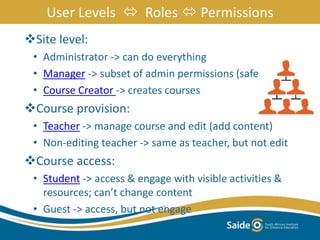
User Levels  Roles  Permissions
Site level:
• Administrator -> can do everything
• Manager -> subset of admin permissions (safer)
• Course Creator -> creates courses
Course provision:
• Teacher -> manage course and edit (add content)
• Non-editing teacher -> same as teacher, but not edit
Course access:
• Student -> access & engage with visible activities &
resources; can’t change content
• Guest -> access, but not engage
Activity 1
• Purpose: Build a conceptual framework of the
Moodle roles and their capabilities.
• Task: Explore the functions and capabilities of your
identified primary Moodle role
• Resource: https://docs.moodle.org/29/en/Standard_roles
• Guidance: Using the link provided to Moodle.org,
investigate the functionality of your role, recording
brief notes.
• Feedback: Share your understanding with the group
• Duration: 30 mins
Demonstration & Practice 1
Demo:
– Defaults for roles setup at site level
– Roles assigned at course level
– Roles can be changed at activity level
Signon & practice on the Mount Orange site:
– http://school.demo.moodle.net/
– Site reset every hour
Supporting Resource:
Enrolling users
Front-end site organisation
Site front page:
– Institutional branding and useful links and information
Categories: group your courses logically
Note: Some roles can be assigned at category level
– Manager, Course Creator
Supporting resources:
– Course and category management video (1m 55s)
Examples of branding, categories & access:
– Open University of Tanzania - eLMS
– UKZN – Learn@UKZN
– Rhodes - RUconnected
Demo:
– Course creation, backup and restore
Practice on the Mount Orange site:
– http://school.demo.moodle.net/
– Site reset every hour
Supporting resources:
– Creating and restoring a course (video 10 mins)
– Adding a new course: Moodle docs
Demonstration & Practice 2
How would you like your course to look?
– Standard settings: who, what and how
– Implications of choices; Flexibility
Examples:
– Themes: Show variety on Saide site
– Format: ‘Collapsed Topics’ at OUT
– Layout: ‘Show one section per page’ at Types of
Sport at Mount Orange School Demo site
Course Settings
Demo:
– Standard settings: who, what and how
Practice on the Mount Orange site:
– http://school.demo.moodle.net/
– Site reset every hour
Supporting resources:
– Moodle Course Settings (video 5 mins 44 secs)
– Course Settings: Moodle docs
Demonstration & Practice 3
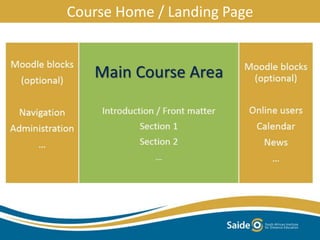
Course Home / Landing Page
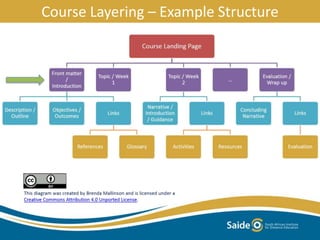
Course Layering – Example Structure
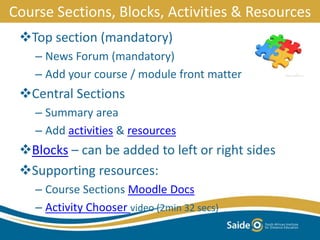
Course Sections, Blocks, Activities & Resources
Top section (mandatory)
– News Forum (mandatory)
– Add your course / module front matter
Central Sections
– Summary area
– Add activities & resources
Blocks – can be added to left or right sides
Supporting resources:
– Course Sections Moodle Docs
– Activity Chooser video (2min 32 secs)
Getting started …
Teacher - turn on editing to develop a course
– Top left hand corner of your course home screen
– Also from Administration block on LHS
– Content editor (HTML)
Teacher & Student - site level actions / facilities:
– Edit user (own) profile
• Administration block / My profile settings
• Personalised settings
– Blogs Blog menu block; Can be associated with course
– Private messaging – from profiles
Managing your users
Site registration methods
– Manual, self, LDAP
Course enrolment
– Manual, self with key, …
Groups – at course and activity levels
– No groups, separate groups, visible groups
Basic Reports and Grades
– Administration block (LHS) / Reports and Grades
Analytics
– ‘Learning Analytics in Moodle’ Doc in Google Folder
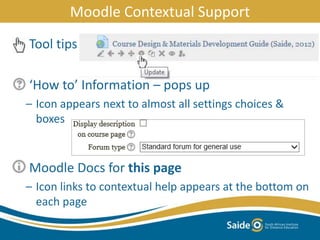
Tool tips
‘How to’ Information – pops up
– Icon appears next to almost all settings choices &
boxes
Moodle Docs for this page
– Icon links to contextual help appears at the bottom on
each page
Moodle Contextual Support
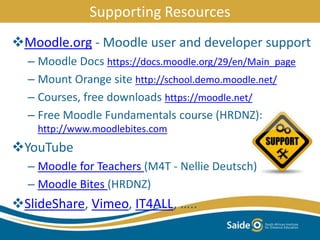
Moodle.org - Moodle user and developer support
– Moodle Docs https://docs.moodle.org/29/en/Main_page
– Mount Orange site http://school.demo.moodle.net/
– Courses, free downloads https://moodle.net/
– Free Moodle Fundamentals course (HRDNZ):
http://www.moodlebites.com
YouTube
– Moodle for Teachers (M4T - Nellie Deutsch)
– Moodle Bites (HRDNZ)
SlideShare, Vimeo, IT4ALL, …..
Supporting Resources
How to keep up?
• Signup to Moodle News
• Search for a certified Moodle Partner
• Frequent the Moodle Community Forums
Free digital books on Moodle include:
• Moodle 2.5 eBook (2013) by Mark Repp (pdf 68 pages 4.4Mb)
• Using Moodle (2008) by Jason Cole & Helen Foster 2nd Ed.
(pdf 284 pages 6.3Mb)
Question & Answer Session
• What do you need to know right now?
• What would you still like to find out later?
Thank You
Brenda Mallinson
brendam@saide.org.za
SlideShare: http://www.slideshare.net/brenda6
This work is licensed under a
Creative Commons Attribution 4.0 Unported License.

About moodle

  • 1.
    About Moodle … BrendaMallinson Bella Vista Moodle workshop July 2015
  • 2.
    Outline Structural approach Demo &Practice Support (Proactive & contextual) Q & A Session
  • 3.
    User Levels Roles  Permissions Site level: • Administrator -> can do everything • Manager -> subset of admin permissions (safer) • Course Creator -> creates courses Course provision: • Teacher -> manage course and edit (add content) • Non-editing teacher -> same as teacher, but not edit Course access: • Student -> access & engage with visible activities & resources; can’t change content • Guest -> access, but not engage
  • 4.
    Activity 1 • Purpose:Build a conceptual framework of the Moodle roles and their capabilities. • Task: Explore the functions and capabilities of your identified primary Moodle role • Resource: https://docs.moodle.org/29/en/Standard_roles • Guidance: Using the link provided to Moodle.org, investigate the functionality of your role, recording brief notes. • Feedback: Share your understanding with the group • Duration: 30 mins
  • 5.
    Demonstration & Practice1 Demo: – Defaults for roles setup at site level – Roles assigned at course level – Roles can be changed at activity level Signon & practice on the Mount Orange site: – http://school.demo.moodle.net/ – Site reset every hour Supporting Resource: Enrolling users
  • 6.
    Front-end site organisation Sitefront page: – Institutional branding and useful links and information Categories: group your courses logically Note: Some roles can be assigned at category level – Manager, Course Creator Supporting resources: – Course and category management video (1m 55s) Examples of branding, categories & access: – Open University of Tanzania - eLMS – UKZN – Learn@UKZN – Rhodes - RUconnected
  • 7.
    Demo: – Course creation,backup and restore Practice on the Mount Orange site: – http://school.demo.moodle.net/ – Site reset every hour Supporting resources: – Creating and restoring a course (video 10 mins) – Adding a new course: Moodle docs Demonstration & Practice 2
  • 8.
    How would youlike your course to look? – Standard settings: who, what and how – Implications of choices; Flexibility Examples: – Themes: Show variety on Saide site – Format: ‘Collapsed Topics’ at OUT – Layout: ‘Show one section per page’ at Types of Sport at Mount Orange School Demo site Course Settings
  • 9.
    Demo: – Standard settings:who, what and how Practice on the Mount Orange site: – http://school.demo.moodle.net/ – Site reset every hour Supporting resources: – Moodle Course Settings (video 5 mins 44 secs) – Course Settings: Moodle docs Demonstration & Practice 3
  • 10.
    Course Home /Landing Page
  • 11.
    Course Layering –Example Structure
  • 12.
    Course Sections, Blocks,Activities & Resources Top section (mandatory) – News Forum (mandatory) – Add your course / module front matter Central Sections – Summary area – Add activities & resources Blocks – can be added to left or right sides Supporting resources: – Course Sections Moodle Docs – Activity Chooser video (2min 32 secs)
  • 13.
    Getting started … Teacher- turn on editing to develop a course – Top left hand corner of your course home screen – Also from Administration block on LHS – Content editor (HTML) Teacher & Student - site level actions / facilities: – Edit user (own) profile • Administration block / My profile settings • Personalised settings – Blogs Blog menu block; Can be associated with course – Private messaging – from profiles
  • 14.
    Managing your users Siteregistration methods – Manual, self, LDAP Course enrolment – Manual, self with key, … Groups – at course and activity levels – No groups, separate groups, visible groups Basic Reports and Grades – Administration block (LHS) / Reports and Grades Analytics – ‘Learning Analytics in Moodle’ Doc in Google Folder
  • 15.
    Tool tips ‘How to’Information – pops up – Icon appears next to almost all settings choices & boxes Moodle Docs for this page – Icon links to contextual help appears at the bottom on each page Moodle Contextual Support
  • 16.
    Moodle.org - Moodleuser and developer support – Moodle Docs https://docs.moodle.org/29/en/Main_page – Mount Orange site http://school.demo.moodle.net/ – Courses, free downloads https://moodle.net/ – Free Moodle Fundamentals course (HRDNZ): http://www.moodlebites.com YouTube – Moodle for Teachers (M4T - Nellie Deutsch) – Moodle Bites (HRDNZ) SlideShare, Vimeo, IT4ALL, ….. Supporting Resources
  • 17.
    How to keepup? • Signup to Moodle News • Search for a certified Moodle Partner • Frequent the Moodle Community Forums Free digital books on Moodle include: • Moodle 2.5 eBook (2013) by Mark Repp (pdf 68 pages 4.4Mb) • Using Moodle (2008) by Jason Cole & Helen Foster 2nd Ed. (pdf 284 pages 6.3Mb)
  • 18.
    Question & AnswerSession • What do you need to know right now? • What would you still like to find out later?
  • 19.
    Thank You Brenda Mallinson brendam@saide.org.za SlideShare:http://www.slideshare.net/brenda6 This work is licensed under a Creative Commons Attribution 4.0 Unported License.

Editor's Notes

  • #4 https://docs.moodle.org/29/en/Standard_roles Standard vs customised roles; role renaming; permissions can be edited for all roles except administrator.
  • #5 Q: At what level and in which role do you see yourself primarily engaging with your Moodle server?
  • #7 Site organisation e.g. http://elms.out.ac.tz
  • #8 Demo on Saide Moodle: http://lms.saide.org.za
  • #9 Demo on Saide Moodle: http://lms.saide.org.za Defaults can be set or forced at a site level Usually some teacher autonomy at course level Can allow some student autonomy as well
  • #10 Demo on Saide Moodle: http://lms.saide.org.za
  • #11 Landing page, blocks (L&R), Summary & sections
  • #12 Landing page, blocks (L&R), Summary & sections
  • #13 Landing page, blocks, sections, activities and resources Show example on Saide server
  • #14 Not exhaustive – just an indication of some important initial features
  • #15 Again, not exhaustive – just an indication of starting to manage users Teachers can choose what reports and grades students can see in a course
  • #16 Hand - hover your cursor over an icon to find out meaning i - You will see this icon (perhaps in a different colour) and text at the bottom of EVERY screen when you are an course editor. When you click on the link, it will take you to the relevant contextual information in the Moodle.org site, and directly into the space where the information is for your local version of Moodle. ? For each setting, clicking on the question mark icon activates further pop up information about the effects of choosing that setting - be it a check box, drop down list or simply text that should be entered.
  • #17 https://www.youtube.com/watch?v=NiZ9ALpG90c Moodle administration for Teachers – Nellie 200k+ Moodle videos on YouTube 14k+ Moodle SlideShares
  • #18 66 Global partners South Africa – only Aosis: http://www.ituta.net/ USA - Moodle Rooms (1of 3): http://www.moodlerooms.com/about-us/moodlerooms-blackboard