A How-To Guide for
Setting Up A Facebook
“Page Likes” Ad
Campaign
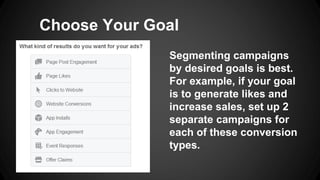
Segmenting campaigns
by desired goals is best.
For example, if your goal
is to generate likes and
increase sales, set up 2
separate campaigns for
each of these conversion
types.
Choose Your Goal
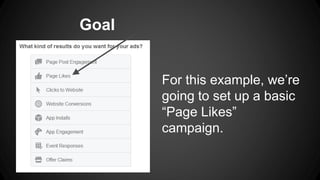
Goal
For this example, we’re
going to set up a basic
“Page Likes”
campaign.
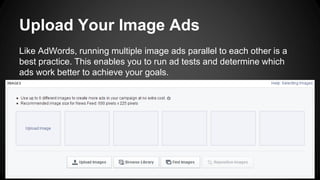
Upload Your Image Ads
Like AdWords, running multiple image ads parallel to each other is a
best practice. This enables you to run ad tests and determine which
ads work better to achieve your goals.
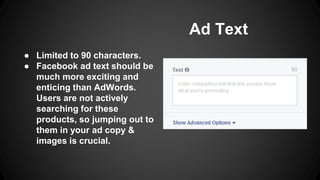
Ad Text
● Limited to 90 characters.
● Facebook ad text should be
much more exciting and
enticing than AdWords.
Users are not actively
searching for these
products, so jumping out to
them in your ad copy &
images is crucial.
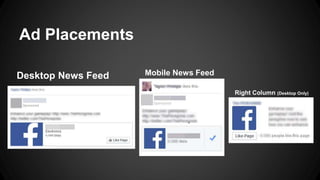
Ad Placements
Desktop News Feed Mobile News Feed
Right Column (Desktop Only)
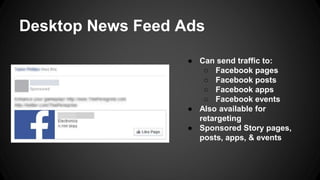
Desktop News Feed Ads
● Can send traffic to:
○ Facebook pages
○ Facebook posts
○ Facebook apps
○ Facebook events
● Also available for
retargeting
● Sponsored Story pages,
posts, apps, & events
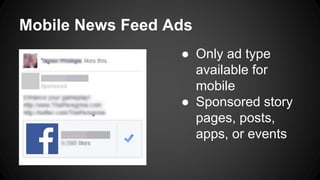
Mobile News Feed Ads
● Only ad type
available for
mobile
● Sponsored story
pages, posts,
apps, or events
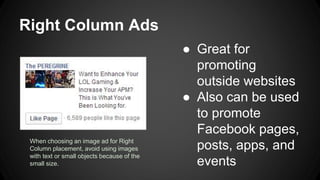
Right Column Ads
● Great for
promoting
outside websites
● Also can be used
to promote
Facebook pages,
posts, apps, and
events
When choosing an image ad for Right
Column placement, avoid using images
with text or small objects because of the
small size.
Which Placement Do I Choose?
● Generally, pricing goes as follows (from most
expensive to least expensive):
o Desktop News Feed
o Mobile News Feed
o Right Column
● Depending on the campaigns objective and what you’re
trying to sell or promote, placement location works
differently for everyone.
Where Should I Drive Traffic?
● The general rule of thumb when deciding where to send
your ad traffic:
o Branding purposes → Facebook Page
o Driving non-Facebook conversions → Outside
Landing Page
● However, if your Facebook page is not very active and
isn’t posting new content at least once every few days,
it probably isn’t worth sending traffic to. Instead, send
them to your website.
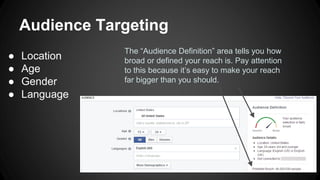
Audience Targeting
● Location
● Age
● Gender
● Language
The “Audience Definition” area tells you how
broad or defined your reach is. Pay attention
to this because it’s easy to make your reach
far bigger than you should.
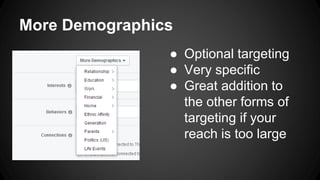
More Demographics
● Optional targeting
● Very specific
● Great addition to
the other forms of
targeting if your
reach is too large
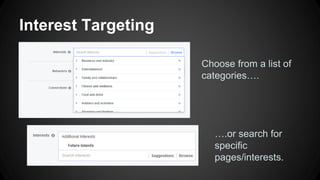
Interest Targeting
Choose from a list of
categories….
….or search for
specific
pages/interests.
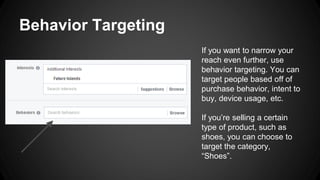
Behavior Targeting
If you want to narrow your
reach even further, use
behavior targeting. You can
target people based off of
purchase behavior, intent to
buy, device usage, etc.
If you’re selling a certain
type of product, such as
shoes, you can choose to
target the category,
“Shoes”.
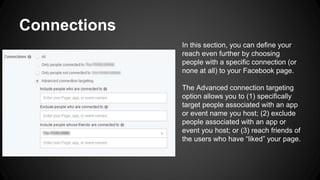
Connections
In this section, you can define your
reach even further by choosing
people with a specific connection (or
none at all) to your Facebook page.
The Advanced connection targeting
option allows you to (1) specifically
target people associated with an app
or event name you host; (2) exclude
people associated with an app or
event you host; or (3) reach friends of
the users who have “liked” your page.
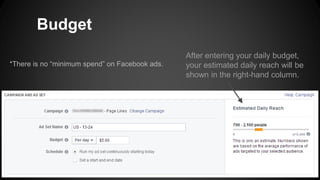
Budget
*There is no “minimum spend” on Facebook ads.
After entering your daily budget,
your estimated daily reach will be
shown in the right-hand column.
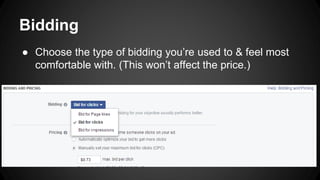
Bidding
● Choose the type of bidding you’re used to & feel most
comfortable with. (This won’t affect the price.)
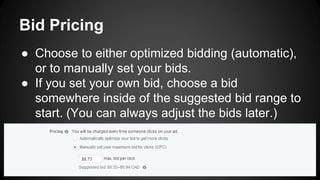
Bid Pricing
● Choose to either optimized bidding (automatic),
or to manually set your bids.
● If you set your own bid, choose a bid
somewhere inside of the suggested bid range to
start. (You can always adjust the bids later.)
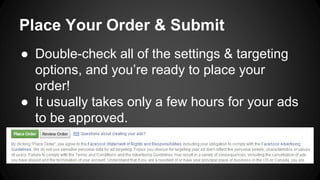
Place Your Order & Submit
● Double-check all of the settings & targeting
options, and you’re ready to place your
order!
● It usually takes only a few hours for your ads
to be approved.

A How-To Guide to Facebook "Page Likes" Ads

  • 1.
    A How-To Guidefor Setting Up A Facebook “Page Likes” Ad Campaign
  • 2.
    Segmenting campaigns by desiredgoals is best. For example, if your goal is to generate likes and increase sales, set up 2 separate campaigns for each of these conversion types. Choose Your Goal
  • 3.
    Goal For this example,we’re going to set up a basic “Page Likes” campaign.
  • 4.
    Upload Your ImageAds Like AdWords, running multiple image ads parallel to each other is a best practice. This enables you to run ad tests and determine which ads work better to achieve your goals.
  • 5.
    Ad Text ● Limitedto 90 characters. ● Facebook ad text should be much more exciting and enticing than AdWords. Users are not actively searching for these products, so jumping out to them in your ad copy & images is crucial.
  • 6.
    Ad Placements Desktop NewsFeed Mobile News Feed Right Column (Desktop Only)
  • 7.
    Desktop News FeedAds ● Can send traffic to: ○ Facebook pages ○ Facebook posts ○ Facebook apps ○ Facebook events ● Also available for retargeting ● Sponsored Story pages, posts, apps, & events
  • 8.
    Mobile News FeedAds ● Only ad type available for mobile ● Sponsored story pages, posts, apps, or events
  • 9.
    Right Column Ads ●Great for promoting outside websites ● Also can be used to promote Facebook pages, posts, apps, and events When choosing an image ad for Right Column placement, avoid using images with text or small objects because of the small size.
  • 10.
    Which Placement DoI Choose? ● Generally, pricing goes as follows (from most expensive to least expensive): o Desktop News Feed o Mobile News Feed o Right Column ● Depending on the campaigns objective and what you’re trying to sell or promote, placement location works differently for everyone.
  • 11.
    Where Should IDrive Traffic? ● The general rule of thumb when deciding where to send your ad traffic: o Branding purposes → Facebook Page o Driving non-Facebook conversions → Outside Landing Page ● However, if your Facebook page is not very active and isn’t posting new content at least once every few days, it probably isn’t worth sending traffic to. Instead, send them to your website.
  • 12.
    Audience Targeting ● Location ●Age ● Gender ● Language The “Audience Definition” area tells you how broad or defined your reach is. Pay attention to this because it’s easy to make your reach far bigger than you should.
  • 13.
    More Demographics ● Optionaltargeting ● Very specific ● Great addition to the other forms of targeting if your reach is too large
  • 14.
    Interest Targeting Choose froma list of categories…. ….or search for specific pages/interests.
  • 15.
    Behavior Targeting If youwant to narrow your reach even further, use behavior targeting. You can target people based off of purchase behavior, intent to buy, device usage, etc. If you’re selling a certain type of product, such as shoes, you can choose to target the category, “Shoes”.
  • 16.
    Connections In this section,you can define your reach even further by choosing people with a specific connection (or none at all) to your Facebook page. The Advanced connection targeting option allows you to (1) specifically target people associated with an app or event name you host; (2) exclude people associated with an app or event you host; or (3) reach friends of the users who have “liked” your page.
  • 17.
    Budget *There is no“minimum spend” on Facebook ads. After entering your daily budget, your estimated daily reach will be shown in the right-hand column.
  • 18.
    Bidding ● Choose thetype of bidding you’re used to & feel most comfortable with. (This won’t affect the price.)
  • 19.
    Bid Pricing ● Chooseto either optimized bidding (automatic), or to manually set your bids. ● If you set your own bid, choose a bid somewhere inside of the suggested bid range to start. (You can always adjust the bids later.)
  • 20.
    Place Your Order& Submit ● Double-check all of the settings & targeting options, and you’re ready to place your order! ● It usually takes only a few hours for your ads to be approved.