Production Reflection
Alice Leeman
ProcessStarting Production-Daily Reflection Day 1
On the day I started production I had been finishing my Pre-Production Research and Power point. As it says in my research, I knew
I wanted to do my magazine about the outdoors & nature and my last slide that I was finishing off with before starting my
production was the Style Sheet. On my style sheet I had ideas fresh in my mind so I felt ready to start. On my style sheet I had
covered about what colours would be used on my final product and I had added some swatches of main colours that are common
across the photos I am using.
I started to work on my front cover after my research, etc. The first thing I had to do was add my cover photo onto my page. The
picture I used as my cover was actually a picture taken previously (before starting the project) however I had taken a few pictures
for my project that I would use in my DPS.
Once I added the photo onto Photoshop I knew I wanted to change the photo up a bit my brightening it and making the colours
stand out a bit more. Positioning the photo on the front cover was important as I had to make sure that I had a clear space to add
the title of the article in the space provided. My photo had a clear sky so it was useful for the cover title. The first tool I used to edit
the photo was ‘Brightness/ Contrast’. I knew how to edit photos outside of Photoshop but I quickly noticed that editing the photo’s
with this tool was just the same as using it on other software’s. Once I had edited this part of the photo, I used the tool ‘Levels’ in
Adjustments. This tool edited the shadow’s in the photo and made certain sections of the photo stand out more. I had never used
the tool ‘levels’ before but I started to understand how it worked once I started using it.
As my cover photo had dark, earth-tone colours in it I decided that yellow text would stand out best against the cover photo. I am
fairly happy with how the text stood out against the background photo because the colour yellow also matches with the earthy
colours.
Lastly, I used the Rectangle Tool and the Ellipse Tool to create a banner at the bottom of my cover photo. The banner was used to
advertise what would be included in the magazine; Nature. In this banner I had also quickly added in a photo so the audience
would have another idea of what is included in the magazine without having to read all the information.
Process
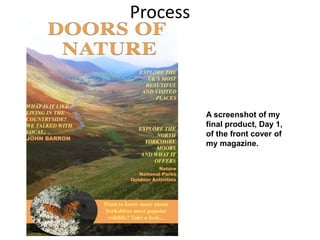
A screenshot of my
final product, Day 1,
of the front cover of
my magazine.
Process
Daily Reflection Day 2- Finishing the cover photo and starting the DPS.
I had already planned out the layout of my magazine before I started to design it in
production. From looking through my research in the past I liked the idea of adding
different images around the DPS, which I would use the Polygon Tool for. I used
the Polygon Tool to create the shapes that I wanted to add my images in and
merged each tool together to make the images in a collage type style. This way I
was able to use different images I had taken instead of only using 1 or 2.
On the left hand side the images mainly have the colour green for the main colour.
I made sure that I had enough space to add my article text. To layout the text, I had
to use the pen tool so that I could put my article text around the side of my images.
I hadn’t used the pen tool before however I quickly found out how to use this. I
chose the colour orange for the title text because this was used on the front cover
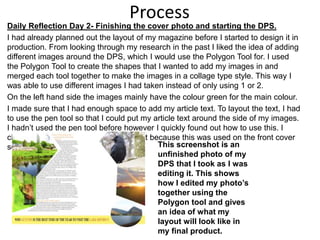
so I wanted to keep this theme. This screenshot is an
unfinished photo of my
DPS that I took as I was
editing it. This shows
how I edited my photo’s
together using the
Polygon tool and gives
an idea of what my
layout will look like in
my final product.
Process
Daily Reflection Day 3- Finishing the DPS
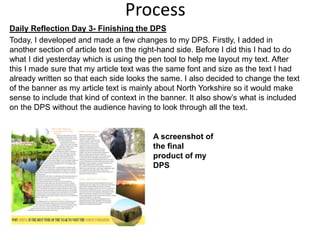
Today, I developed and made a few changes to my DPS. Firstly, I added in
another section of article text on the right-hand side. Before I did this I had to do
what I did yesterday which is using the pen tool to help me layout my text. After
this I made sure that my article text was the same font and size as the text I had
already written so that each side looks the same. I also decided to change the text
of the banner as my article text is mainly about North Yorkshire so it would make
sense to include that kind of context in the banner. It also show’s what is included
on the DPS without the audience having to look through all the text.
A screenshot of
the final
product of my
DPS
Process
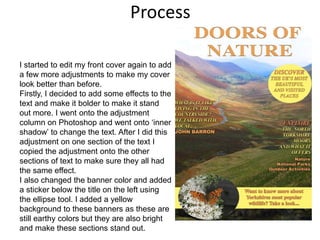
I started to edit my front cover again to add
a few more adjustments to make my cover
look better than before.
Firstly, I decided to add some effects to the
text and make it bolder to make it stand
out more. I went onto the adjustment
column on Photoshop and went onto ‘inner
shadow’ to change the text. After I did this
adjustment on one section of the text I
copied the adjustment onto the other
sections of text to make sure they all had
the same effect.
I also changed the banner color and added
a sticker below the title on the left using
the ellipse tool. I added a yellow
background to these banners as these are
still earthy colors but they are also bright
and make these sections stand out.

6. production reflection(3)

  • 1.
  • 2.
    ProcessStarting Production-Daily ReflectionDay 1 On the day I started production I had been finishing my Pre-Production Research and Power point. As it says in my research, I knew I wanted to do my magazine about the outdoors & nature and my last slide that I was finishing off with before starting my production was the Style Sheet. On my style sheet I had ideas fresh in my mind so I felt ready to start. On my style sheet I had covered about what colours would be used on my final product and I had added some swatches of main colours that are common across the photos I am using. I started to work on my front cover after my research, etc. The first thing I had to do was add my cover photo onto my page. The picture I used as my cover was actually a picture taken previously (before starting the project) however I had taken a few pictures for my project that I would use in my DPS. Once I added the photo onto Photoshop I knew I wanted to change the photo up a bit my brightening it and making the colours stand out a bit more. Positioning the photo on the front cover was important as I had to make sure that I had a clear space to add the title of the article in the space provided. My photo had a clear sky so it was useful for the cover title. The first tool I used to edit the photo was ‘Brightness/ Contrast’. I knew how to edit photos outside of Photoshop but I quickly noticed that editing the photo’s with this tool was just the same as using it on other software’s. Once I had edited this part of the photo, I used the tool ‘Levels’ in Adjustments. This tool edited the shadow’s in the photo and made certain sections of the photo stand out more. I had never used the tool ‘levels’ before but I started to understand how it worked once I started using it. As my cover photo had dark, earth-tone colours in it I decided that yellow text would stand out best against the cover photo. I am fairly happy with how the text stood out against the background photo because the colour yellow also matches with the earthy colours. Lastly, I used the Rectangle Tool and the Ellipse Tool to create a banner at the bottom of my cover photo. The banner was used to advertise what would be included in the magazine; Nature. In this banner I had also quickly added in a photo so the audience would have another idea of what is included in the magazine without having to read all the information.
  • 3.
    Process A screenshot ofmy final product, Day 1, of the front cover of my magazine.
  • 4.
    Process Daily Reflection Day2- Finishing the cover photo and starting the DPS. I had already planned out the layout of my magazine before I started to design it in production. From looking through my research in the past I liked the idea of adding different images around the DPS, which I would use the Polygon Tool for. I used the Polygon Tool to create the shapes that I wanted to add my images in and merged each tool together to make the images in a collage type style. This way I was able to use different images I had taken instead of only using 1 or 2. On the left hand side the images mainly have the colour green for the main colour. I made sure that I had enough space to add my article text. To layout the text, I had to use the pen tool so that I could put my article text around the side of my images. I hadn’t used the pen tool before however I quickly found out how to use this. I chose the colour orange for the title text because this was used on the front cover so I wanted to keep this theme. This screenshot is an unfinished photo of my DPS that I took as I was editing it. This shows how I edited my photo’s together using the Polygon tool and gives an idea of what my layout will look like in my final product.
  • 5.
    Process Daily Reflection Day3- Finishing the DPS Today, I developed and made a few changes to my DPS. Firstly, I added in another section of article text on the right-hand side. Before I did this I had to do what I did yesterday which is using the pen tool to help me layout my text. After this I made sure that my article text was the same font and size as the text I had already written so that each side looks the same. I also decided to change the text of the banner as my article text is mainly about North Yorkshire so it would make sense to include that kind of context in the banner. It also show’s what is included on the DPS without the audience having to look through all the text. A screenshot of the final product of my DPS
  • 6.
    Process I started toedit my front cover again to add a few more adjustments to make my cover look better than before. Firstly, I decided to add some effects to the text and make it bolder to make it stand out more. I went onto the adjustment column on Photoshop and went onto ‘inner shadow’ to change the text. After I did this adjustment on one section of the text I copied the adjustment onto the other sections of text to make sure they all had the same effect. I also changed the banner color and added a sticker below the title on the left using the ellipse tool. I added a yellow background to these banners as these are still earthy colors but they are also bright and make these sections stand out.

Editor's Notes

  • #3 Discuss the tools and processes used in your production. Log your thoughts and feelings about your work.
  • #4 Discuss the tools and processes used in your production. Log your thoughts and feelings about your work.
  • #5 Discuss the tools and processes used in your production. Log your thoughts and feelings about your work.
  • #6 Discuss the tools and processes used in your production. Log your thoughts and feelings about your work.
  • #7 Discuss the tools and processes used in your production. Log your thoughts and feelings about your work.