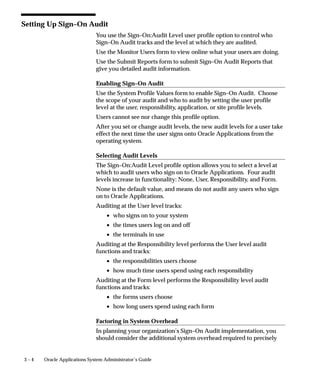
Oracle r Applications
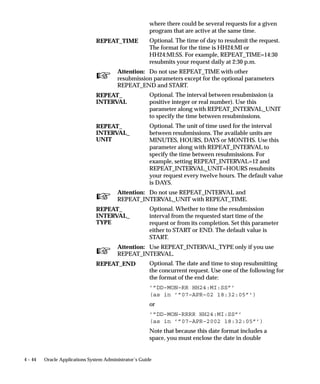
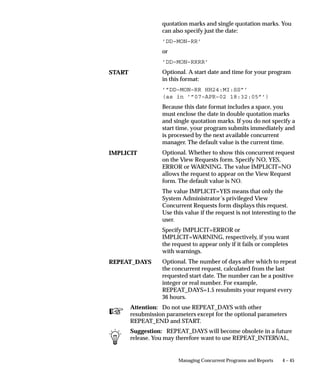
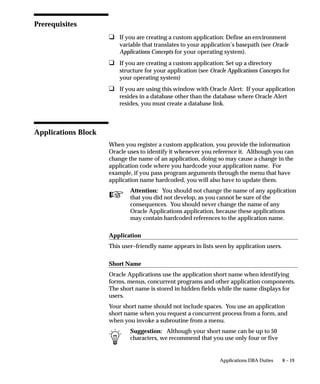
System Administrator’s
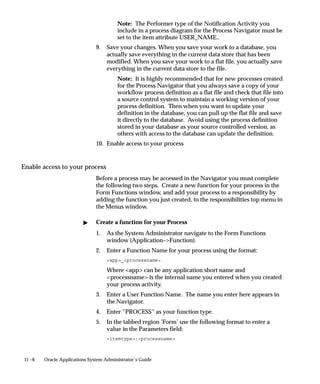
Guide
RELEASE 11i


July 2001
Oracle Applications System Administrator’s Guide Release 11i
The part number for this volume is A75396–07.
Copyright E 1994, 2001 Oracle Corporation. All rights reserved.
Primary Authors: Steve Carter, Mildred Wang
Major Contributors: Troy Anthony, Dana Spradley, Leslie Studdard
Contributors: Ahmed Alomari, Ram Bhoopalam, George Buzsaki, Anne Carlson, Siu Chang, John
Cordes, Mark Fisher, Michael Mast, Tom Morrow, Emily Nordhagen, Gursat Olgun, Richard Ou, Jan
Smith, Seth Stafford, Susan Stratton, Raymond Tse, Mark Warren, Sara Woodhull
The Programs (which include both the software and documentation) contain proprietary information
of Oracle Corporation; they are provided under a license agreement containing restrictions on use and
disclosure and are also protected by copyright, patent and other intellectual and industrial property
law. Reverse engineering, disassembly or decompilation of the Programs is prohibited. No part of this
document may be reproduced or transmitted in any form or by any means, electronic or mechanical,
for any purpose, without the express written permission of Oracle Corporation.

Program Documentation is licensed for use solely to support the deployment of the Programs and not
for any other purpose.

The information contained in this document is subject to change without notice. If you find any
problems in the documentation, please report them to us in writing. Oracle Corporation does not
warrant that this document is error free. Except as may be expressly permitted in your license
agreement for these Programs, no part of these Programs may be reproduced or transmitted in any
form or by any means, electronic or mechanical, for any purpose, without the express written
permission of Oracle Corporation.

If the Programs are delivered to the US Government or anyone licensing or using the Programs on
behalf of the US Government, the following notice is applicable:

RESTRICTED RIGHTS LEGEND
Programs delivered subject to the DOD FAR Supplement are ’commercial computer software’ and use,
duplication and disclosure of the Programs including documentation, shall be subject to the licensing
restrictions set forth in the applicable Oracle license agreement. Otherwise, Programs delivered subject
to the Federal Acquisition Regulations are ’restricted computer software’ and use, duplication and
disclosure of the Programs shall be subject to the restrictions in FAR 52.227–19, Commercial Computer
Software – Restricted Rights (June, 1987). Oracle Corporation, 500 Oracle Parkway, Redwood City, CA
94065.

The Programs are not intended for use in any nuclear, aviation, mass transit, medical, or other
inherently dangerous applications. It shall be licensee’s responsibility to take all appropriate fail–safe,
back up, redundancy and other measures to ensure the safe use of such applications if the Programs
are used for such purposes, and Oracle disclaims liability for any damages caused by such use of the
Programs.
Oracle is a registered trademark and ConText, Enabling the Information Age, Oracle7, Oracle8,
Oracle8i, Oracle Financials, Oracle Discoverer, PL/SQL, Pro*C, SQL*Net, SQL*Plus, and Tutor are
trademarks or registered trademarks of Oracle Corporation. Other names may be trademarks of their
respective owners.
Contents


            Preface . . . . . . . . . . . . . . . . . . . . . . . . . . . . . . . . . . . . . . . . . . . . . . . . . i

Chapter 1   What Is System Administration? . . . . . . . . . . . . . . . . . . . . . . . . . . 1 – 1
            What Is System Administration? . . . . . . . . . . . . . . . . . . . . . . . . . . . 1 – 2

Chapter 2   Managing Oracle Applications Security . . . . . . . . . . . . . . . . . . .                              2–1
            Overview of Oracle Applications Security . . . . . . . . . . . . . . . . . . .                           2–2
            Defining a Responsibility . . . . . . . . . . . . . . . . . . . . . . . . . . . . . . . . .              2–4
            Defining a Request Security Group . . . . . . . . . . . . . . . . . . . . . . . . .                      2–6
            Responsibilities Window . . . . . . . . . . . . . . . . . . . . . . . . . . . . . . . . . .              2–9
            Overview of Security Groups . . . . . . . . . . . . . . . . . . . . . . . . . . . . . .                  2 – 14
            Security Groups Window . . . . . . . . . . . . . . . . . . . . . . . . . . . . . . . . .                 2 – 15
            Users Window . . . . . . . . . . . . . . . . . . . . . . . . . . . . . . . . . . . . . . . . . . .       2 – 16
            Overview of Function Security . . . . . . . . . . . . . . . . . . . . . . . . . . . . .                  2 – 21
            Implementing Function Security . . . . . . . . . . . . . . . . . . . . . . . . . . .                     2 – 27
            Form Functions Window . . . . . . . . . . . . . . . . . . . . . . . . . . . . . . . . . .                2 – 32
            Menus Window . . . . . . . . . . . . . . . . . . . . . . . . . . . . . . . . . . . . . . . . . .         2 – 36
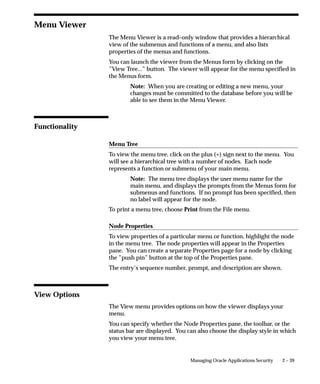
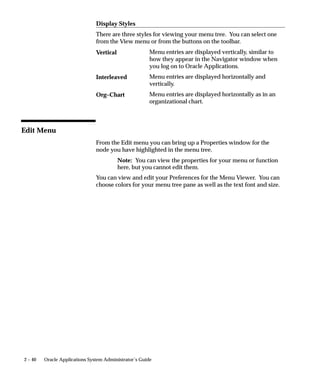
            Menu Viewer . . . . . . . . . . . . . . . . . . . . . . . . . . . . . . . . . . . . . . . . . . . .      2 – 39
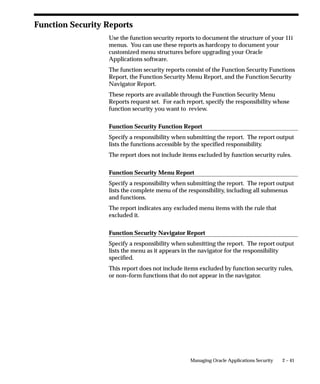
            Function Security Reports . . . . . . . . . . . . . . . . . . . . . . . . . . . . . . . . .              2 – 41
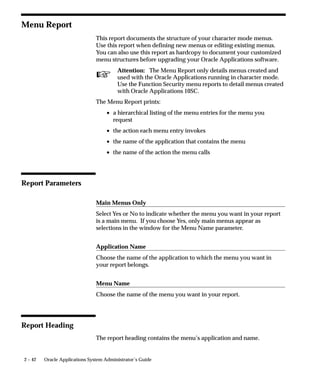
            Menu Report . . . . . . . . . . . . . . . . . . . . . . . . . . . . . . . . . . . . . . . . . . . .      2 – 42
            Users of a Responsibility Report . . . . . . . . . . . . . . . . . . . . . . . . . . .                   2 – 44
            Active Responsibilities Report . . . . . . . . . . . . . . . . . . . . . . . . . . . . .                 2 – 45
            Active Users Report . . . . . . . . . . . . . . . . . . . . . . . . . . . . . . . . . . . . . .          2 – 46
            Reports and Sets by Responsibility Report . . . . . . . . . . . . . . . . . . .                          2 – 47


                                                                                                           Contents       iii
Chapter 3                     User and Data Auditing . . . . . . . . . . . . . . . . . . . . . . . . . . . . . . . . . .        3–1
                              Overview of User and Data Auditing . . . . . . . . . . . . . . . . . . . . . . .                  3–2
                              Auditing User Activity . . . . . . . . . . . . . . . . . . . . . . . . . . . . . . . . . . .      3–3
                              Monitor Users Window . . . . . . . . . . . . . . . . . . . . . . . . . . . . . . . . . . .        3–8
                              Signon Audit Concurrent Requests Report . . . . . . . . . . . . . . . . . .                       3 – 10
                              Signon Audit Forms Report . . . . . . . . . . . . . . . . . . . . . . . . . . . . . . .           3 – 12
                              Signon Audit Responsibilities Report . . . . . . . . . . . . . . . . . . . . . . .                3 – 15
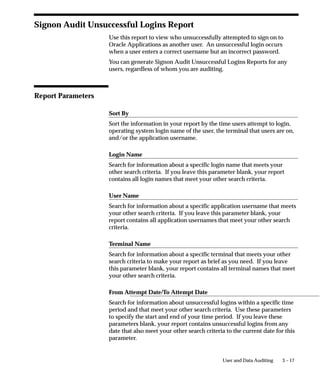
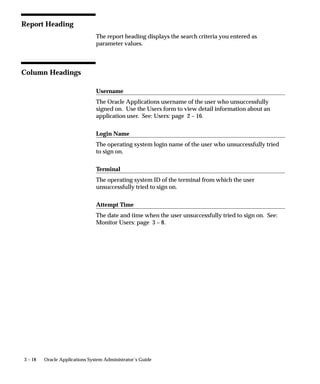
                              Signon Audit Unsuccessful Logins Report . . . . . . . . . . . . . . . . . . .                     3 – 17
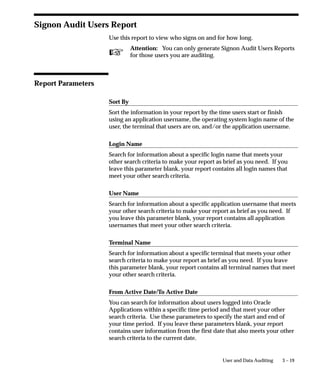
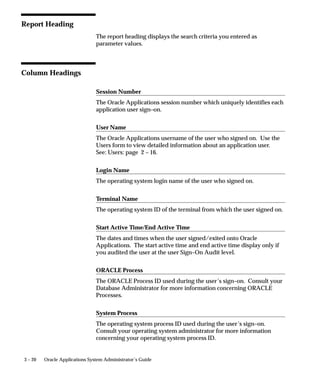
                              Signon Audit Users Report . . . . . . . . . . . . . . . . . . . . . . . . . . . . . . . .         3 – 19
                              Purge Signon Audit Data Program . . . . . . . . . . . . . . . . . . . . . . . . .                 3 – 21
                              Reporting On AuditTrail Data . . . . . . . . . . . . . . . . . . . . . . . . . . . . .            3 – 22
                              Audit Installations Window . . . . . . . . . . . . . . . . . . . . . . . . . . . . . . .          3 – 34
                              Audit Groups Window . . . . . . . . . . . . . . . . . . . . . . . . . . . . . . . . . . .         3 – 36
                              Audit Tables Window . . . . . . . . . . . . . . . . . . . . . . . . . . . . . . . . . . . .       3 – 40

Chapter 4                     Managing Concurrent Programs and Reports . . . . . . . . . . . . . . .                            4–1
                              Overview of Concurrent Programs and Requests . . . . . . . . . . . . .                            4–2
                              Multilingual Support for Concurrent Requests . . . . . . . . . . . . . . .                        4–4
                              Organizing Programs into Request Sets . . . . . . . . . . . . . . . . . . . . .                   4–6
                              Request Sets Report . . . . . . . . . . . . . . . . . . . . . . . . . . . . . . . . . . . . . .   4 – 18
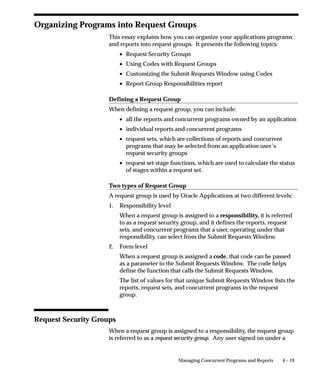
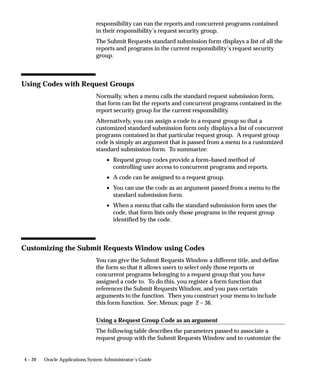
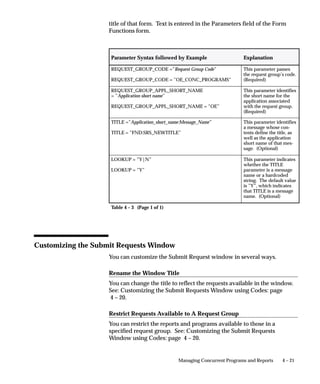
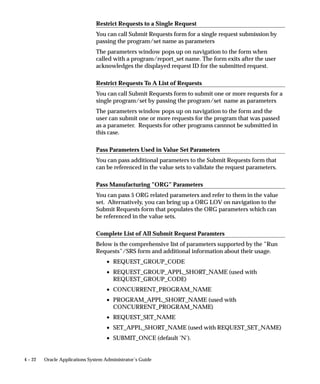
                              Organizing Programs into Request Groups . . . . . . . . . . . . . . . . . .                       4 – 19
                              Report Group Responsibilities Report . . . . . . . . . . . . . . . . . . . . . .                  4 – 24
                              Defining Program Incompatibility Rules . . . . . . . . . . . . . . . . . . . .                    4 – 25
                              Defining Data Groups . . . . . . . . . . . . . . . . . . . . . . . . . . . . . . . . . . . .      4 – 30
                              Custom Concurrent Programs . . . . . . . . . . . . . . . . . . . . . . . . . . . . .              4 – 35
                              Copying and Modifying Program Definitions . . . . . . . . . . . . . . . .                         4 – 47
                              Concurrent Program Details Report . . . . . . . . . . . . . . . . . . . . . . . .                 4 – 57
                              Concurrent Programs Report . . . . . . . . . . . . . . . . . . . . . . . . . . . . . .            4 – 58
                              Request Groups Window . . . . . . . . . . . . . . . . . . . . . . . . . . . . . . . . .           4 – 59
                              Concurrent Program Executable Window . . . . . . . . . . . . . . . . . . .                        4 – 61
                              Concurrent Programs Window . . . . . . . . . . . . . . . . . . . . . . . . . . . .                4 – 66
                              Data Groups Window . . . . . . . . . . . . . . . . . . . . . . . . . . . . . . . . . . . .        4 – 81

Chapter 5                     Managing Concurrent Processing . . . . . . . . . . . . . . . . . . . . . . . . .                  5–1
                              Overview of Concurrent Processing . . . . . . . . . . . . . . . . . . . . . . . .                 5–2
                              Integration with Oracle Enterprise Manager . . . . . . . . . . . . . . . . .                      5–5
                              Oracle Applications Manager . . . . . . . . . . . . . . . . . . . . . . . . . . . . . .           5–7
                              Oracle Management Pack for Oracle Applications . . . . . . . . . . . .                            5–8
                              Reviewing Requests, Request Log Files, and
                              Report Output Files . . . . . . . . . . . . . . . . . . . . . . . . . . . . . . . . . . . . . .   5 – 10


    iv Oracle Applications System Administrator’s Guide
Changing the Status of Concurrent Requests . . . . . . . . . . . . . . . . .                                 5 – 18
            Managing Concurrent Processing Files and Tables . . . . . . . . . . . .                                      5 – 20
            Purge Concurrent Request and/or Manager Data Program . . . .                                                 5 – 22
            Concurrent Processing User Profile Settings . . . . . . . . . . . . . . . . .                                5 – 26
            Defining Managers and their Work Shifts . . . . . . . . . . . . . . . . . . .                                5 – 28
            Completed Concurrent Requests Report . . . . . . . . . . . . . . . . . . . .                                 5 – 36
            Work Shift by Manager Report . . . . . . . . . . . . . . . . . . . . . . . . . . . . .                       5 – 37
            Work Shifts Report . . . . . . . . . . . . . . . . . . . . . . . . . . . . . . . . . . . . . . .             5 – 38
            Specializing Managers to Run Only Certain Programs . . . . . . . .                                           5 – 39
            Grouping Programs by Request Type . . . . . . . . . . . . . . . . . . . . . . .                              5 – 55
            Controlling Concurrent Managers . . . . . . . . . . . . . . . . . . . . . . . . . .                          5 – 57
            Overview of Parallel Concurrent Processing . . . . . . . . . . . . . . . . .                                 5 – 66
            Managing Parallel Concurrent Processing . . . . . . . . . . . . . . . . . . .                                5 – 70
            Concurrent Managers and Oracle Parallel Server (OPS) . . . . . . .                                           5 – 79
            Administer Concurrent Managers Window . . . . . . . . . . . . . . . . . .                                    5 – 83
            Concurrent Managers Window . . . . . . . . . . . . . . . . . . . . . . . . . . . .                           5 – 92
            Work Shifts Window . . . . . . . . . . . . . . . . . . . . . . . . . . . . . . . . . . . . .                 5 – 100
            Combined Specialization Rules Window . . . . . . . . . . . . . . . . . . . .                                 5 – 102
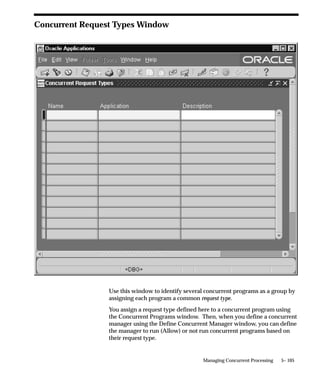
            Concurrent Request Types Window . . . . . . . . . . . . . . . . . . . . . . . .                              5 – 105
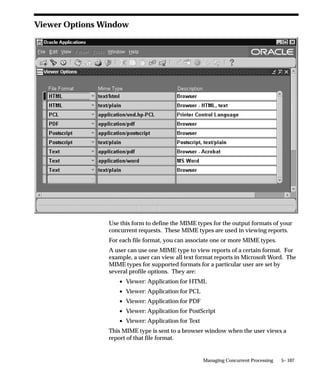
            Viewer Options Window . . . . . . . . . . . . . . . . . . . . . . . . . . . . . . . . . .                    5 – 107
            Nodes Window . . . . . . . . . . . . . . . . . . . . . . . . . . . . . . . . . . . . . . . . . .             5 – 109

Chapter 6   Printers . . . . . . . . . . . . . . . . . . . . . . . . . . . . . . . . . . . . . . . . . . . . . . . . .   6–1
            Overview of Printers and Printing . . . . . . . . . . . . . . . . . . . . . . . . . .                        6–2
            Setting Up Your Printers . . . . . . . . . . . . . . . . . . . . . . . . . . . . . . . . . .                 6 – 14
            Customizing Printing Support in Oracle Applications . . . . . . . . .                                        6 – 17
            Postscript Printing in UNIX . . . . . . . . . . . . . . . . . . . . . . . . . . . . . . .                    6 – 24
            Hierarchy of Printer and Print Style Assignments . . . . . . . . . . . .                                     6 – 26
            Printing with UTF8 . . . . . . . . . . . . . . . . . . . . . . . . . . . . . . . . . . . . . . .             6 – 32
            Printer Types Window . . . . . . . . . . . . . . . . . . . . . . . . . . . . . . . . . . . .                 6 – 41
            Printers Window . . . . . . . . . . . . . . . . . . . . . . . . . . . . . . . . . . . . . . . . .            6 – 43
            Print Styles Window . . . . . . . . . . . . . . . . . . . . . . . . . . . . . . . . . . . . . .              6 – 45
            Printer Drivers Window . . . . . . . . . . . . . . . . . . . . . . . . . . . . . . . . . .                   6 – 48

Chapter 7   Oracle Applications Help . . . . . . . . . . . . . . . . . . . . . . . . . . . . . . . . 7 – 1
            Customizing Oracle Applications Help . . . . . . . . . . . . . . . . . . . . . 7 – 2

Chapter 8   Applications DBA Duties . . . . . . . . . . . . . . . . . . . . . . . . . . . . . . . . 8 – 1
            Overview of Applications DBA Duties . . . . . . . . . . . . . . . . . . . . . . 8 – 2
            Resource Consumer Groups in Oracle Applications . . . . . . . . . . 8 – 7


                                                                                                              Contents            v
Oracle Applications Schema Password Change Utility . . . . . . . .                                      8–9
                              ORACLE Users Window . . . . . . . . . . . . . . . . . . . . . . . . . . . . . . . . . .                 8 – 12
                              Concurrent Conflicts Domains Window . . . . . . . . . . . . . . . . . . . . .                           8 – 16
                              Applications Window . . . . . . . . . . . . . . . . . . . . . . . . . . . . . . . . . . . .             8 – 18
                              Network Test Window . . . . . . . . . . . . . . . . . . . . . . . . . . . . . . . . . . . .             8 – 21
                              Administering Folders . . . . . . . . . . . . . . . . . . . . . . . . . . . . . . . . . . . .           8 – 23
                              Languages Window . . . . . . . . . . . . . . . . . . . . . . . . . . . . . . . . . . . . . .            8 – 27
                              Territories Window . . . . . . . . . . . . . . . . . . . . . . . . . . . . . . . . . . . . . . .        8 – 29

Chapter 9                     Cost–Based Optimization in Oracle Applications . . . . . . . . . . .                                    9–1
                              Oracle Applications and Cost–Based Optimization . . . . . . . . . . .                                   9–2
                              Parameters for Cost–Based Optimization . . . . . . . . . . . . . . . . . . . .                          9–3
                              Concurrent Programs for CBO . . . . . . . . . . . . . . . . . . . . . . . . . . . . .                   9–9
                              Gather Table Statistics . . . . . . . . . . . . . . . . . . . . . . . . . . . . . . . . . . . .         9 – 10
                              Backup Table Statistics . . . . . . . . . . . . . . . . . . . . . . . . . . . . . . . . . . . .         9 – 12
                              Restore Table Statistics . . . . . . . . . . . . . . . . . . . . . . . . . . . . . . . . . . . .        9 – 13
                              Gather Schema Statistics . . . . . . . . . . . . . . . . . . . . . . . . . . . . . . . . . .            9 – 14
                              Gather Column Statistics . . . . . . . . . . . . . . . . . . . . . . . . . . . . . . . . . .            9 – 15
                              Analyze All Index Column Statistics . . . . . . . . . . . . . . . . . . . . . . . .                     9 – 16
                              FND_STATS Package . . . . . . . . . . . . . . . . . . . . . . . . . . . . . . . . . . . . .             9 – 17
                              FND_CTL Package . . . . . . . . . . . . . . . . . . . . . . . . . . . . . . . . . . . . . . .           9 – 32

Chapter 10                    User Profiles . . . . . . . . . . . . . . . . . . . . . . . . . . . . . . . . . . . . . . . . . . . .   10 – 1
                              Overview of Setting User Profiles . . . . . . . . . . . . . . . . . . . . . . . . . .                   10 – 2
                              User Profile Option Values Report . . . . . . . . . . . . . . . . . . . . . . . . . .                   10 – 5
                              System Profile Values Window . . . . . . . . . . . . . . . . . . . . . . . . . . . . .                  10 – 6

Chapter 11                    Administering Process Navigation . . . . . . . . . . . . . . . . . . . . . . . .                        11 –1
                              Overview of Process Navigation . . . . . . . . . . . . . . . . . . . . . . . . . . .                    11 –2
                              Modifying Your Menu . . . . . . . . . . . . . . . . . . . . . . . . . . . . . . . . . . . .             11 –3
                              Creating Process Navigator Processes . . . . . . . . . . . . . . . . . . . . . . .                      11 –4

Chapter 12                    Document Sequences . . . . . . . . . . . . . . . . . . . . . . . . . . . . . . . . . . . .              12 – 1
                              Document Sequences Window . . . . . . . . . . . . . . . . . . . . . . . . . . . . .                     12 – 9
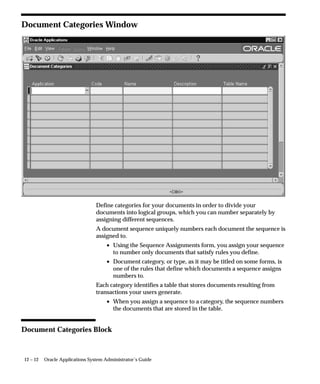
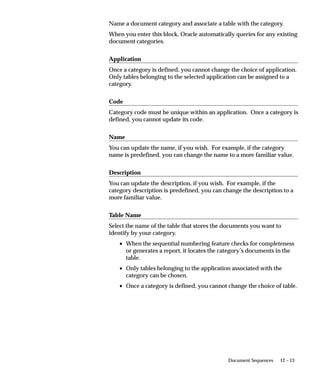
                              Document Categories Window . . . . . . . . . . . . . . . . . . . . . . . . . . . .                      12 – 12
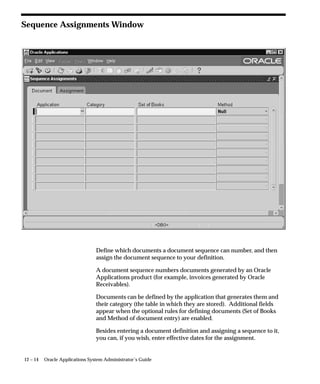
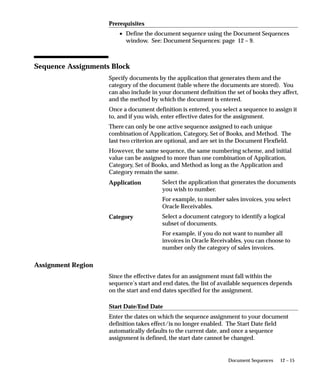
                              Sequence Assignments Window . . . . . . . . . . . . . . . . . . . . . . . . . . .                       12 – 14

Chapter 13                    Developer Tools . . . . . . . . . . . . . . . . . . . . . . . . . . . . . . . . . . . . . . . . . 13 – 1
                              Developer Tools . . . . . . . . . . . . . . . . . . . . . . . . . . . . . . . . . . . . . . . . . 13 – 2
                              Work Directory . . . . . . . . . . . . . . . . . . . . . . . . . . . . . . . . . . . . . . . . . . 13 – 3


    vi Oracle Applications System Administrator’s Guide
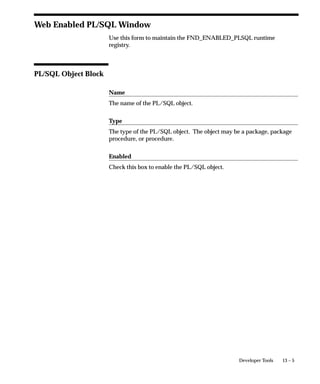
Web Enabled PL/SQL Window . . . . . . . . . . . . . . . . . . . . . . . . . . . . 13 – 5


Appendix A   User Profiles . . . . . . . . . . . . . . . . . . . . . . . . . . . . . . . . . . . . . . . . . . . . A – 1


Appendix B   Using Predefined Alerts . . . . . . . . . . . . . . . . . . . . . . . . . . . . . . . . . .                 B–1
             Overview of Oracle Alert . . . . . . . . . . . . . . . . . . . . . . . . . . . . . . . . .                  B–2
             Predefined Alerts . . . . . . . . . . . . . . . . . . . . . . . . . . . . . . . . . . . . . . . .           B–5
             Oracle Alert Precoded Alerts . . . . . . . . . . . . . . . . . . . . . . . . . . . . . .                    B – 10


Appendix C   Loaders . . . . . . . . . . . . . . . . . . . . . . . . . . . . . . . . . . . . . . . . . . . . . . . . .   C–1
             Generic Loader . . . . . . . . . . . . . . . . . . . . . . . . . . . . . . . . . . . . . . . . . .          C–2
             Application Object Library Configuration Files . . . . . . . . . . . . . .                                  C – 11
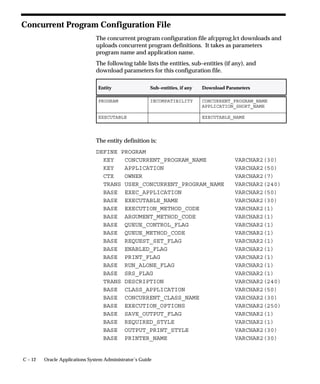
             Concurrent Program Configuration File . . . . . . . . . . . . . . . . . . . . .                             C – 12
             Request Groups Configuration File . . . . . . . . . . . . . . . . . . . . . . . . .                         C – 14
             Lookups Configuration File . . . . . . . . . . . . . . . . . . . . . . . . . . . . . . .                    C – 15
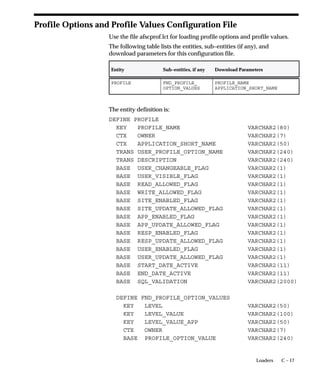
             Profile Options and Profile Values Configuration File . . . . . . . . .                                     C – 17
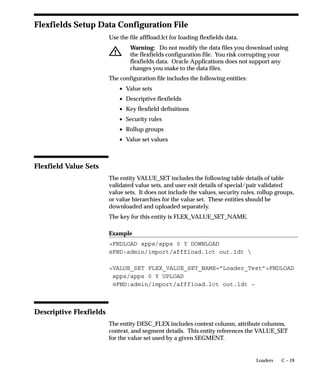
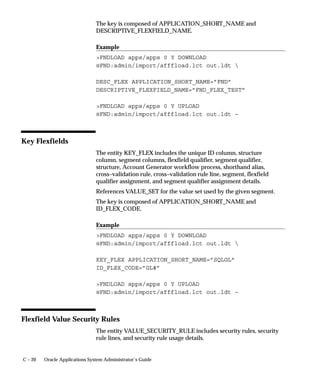
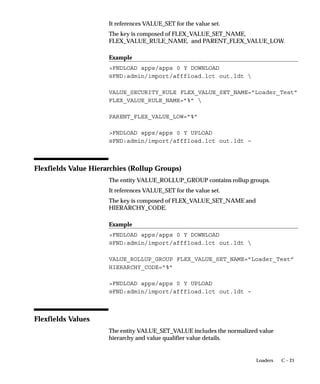
             Flexfields Setup Data Configuration File . . . . . . . . . . . . . . . . . . . .                            C – 19
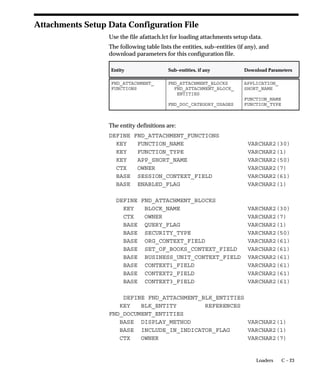
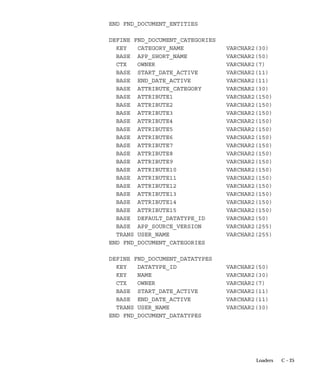
             Attachments Setup Data Configuration File . . . . . . . . . . . . . . . . .                                 C – 23
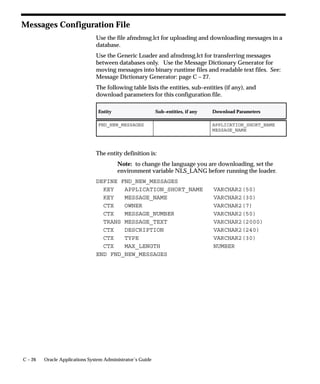
             Messages Configuration File . . . . . . . . . . . . . . . . . . . . . . . . . . . . . . .                   C – 26
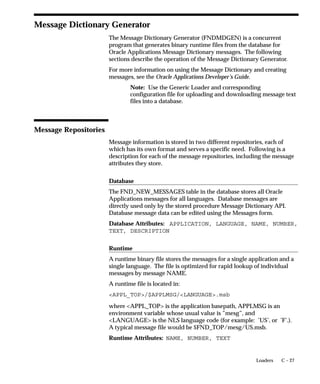
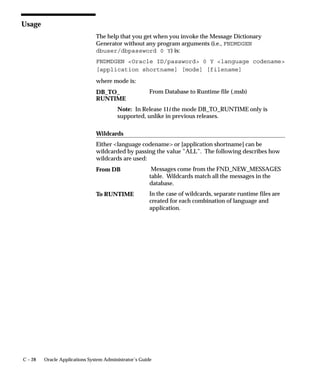
             Message Dictionary Generator . . . . . . . . . . . . . . . . . . . . . . . . . . . . .                      C – 27
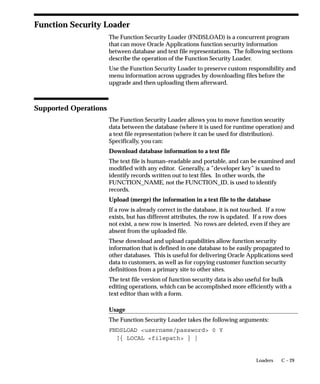
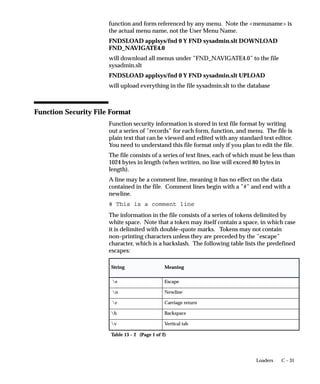
             Function Security Loader . . . . . . . . . . . . . . . . . . . . . . . . . . . . . . . . .                  C – 29
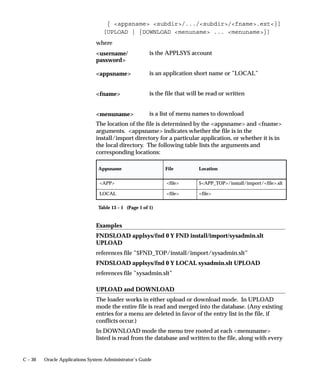
             Generic File Manager Access Utility (FNDGFU) . . . . . . . . . . . . . .                                    C – 38


Appendix D   Multilingual External Documents . . . . . . . . . . . . . . . . . . . . . . . . . D – 1
             Multilingual External Documents . . . . . . . . . . . . . . . . . . . . . . . . . . D – 2


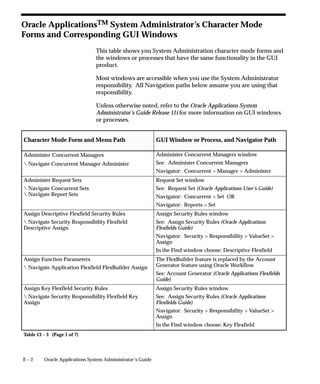
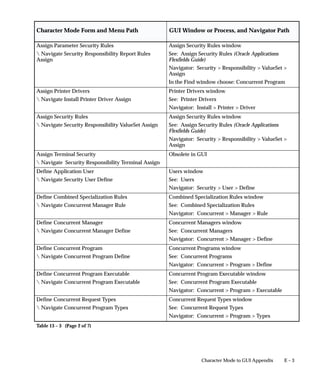
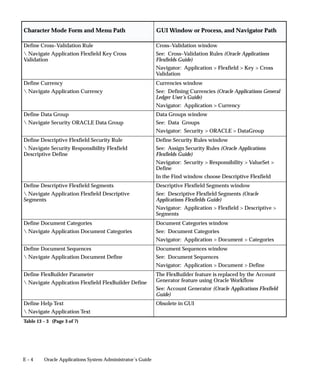
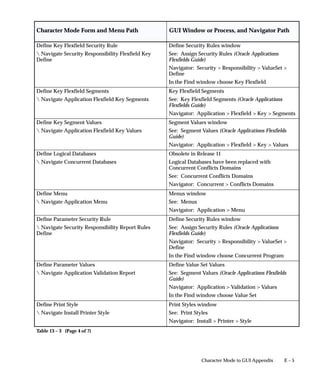
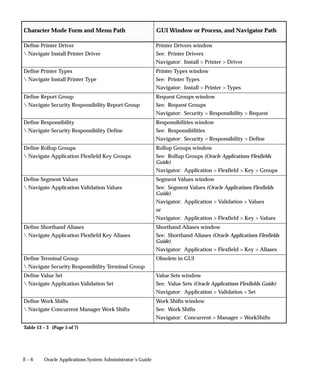
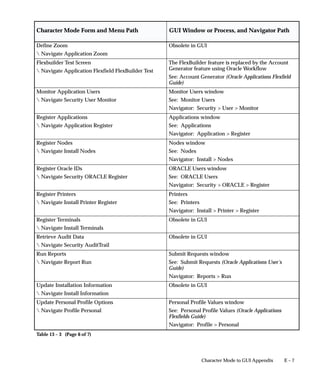
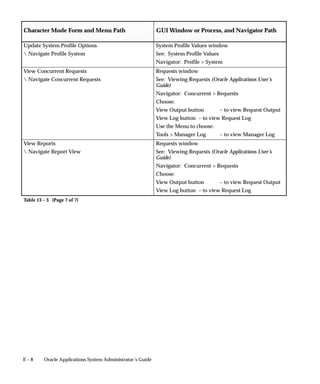
Appendix E   Character Mode to GUI Appendix . . . . . . . . . . . . . . . . . . . . . . . . . E – 1
             Oracle Applications System Administrator’s
             Character Mode Forms and Corresponding GUI Windows . . . . E – 2


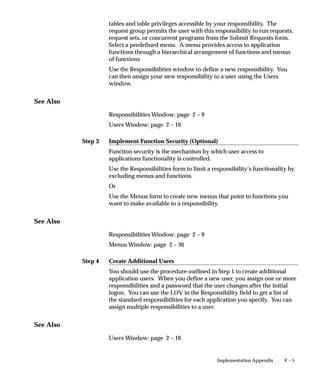
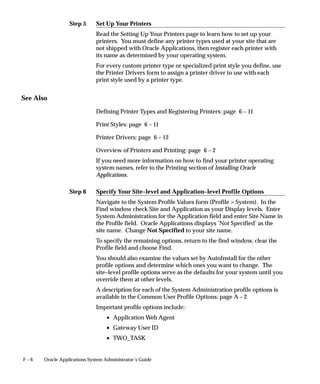
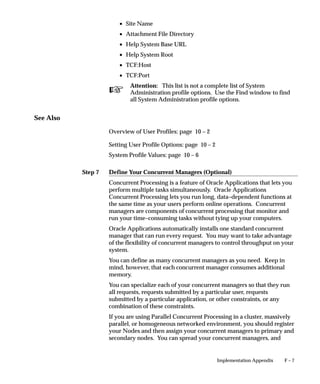
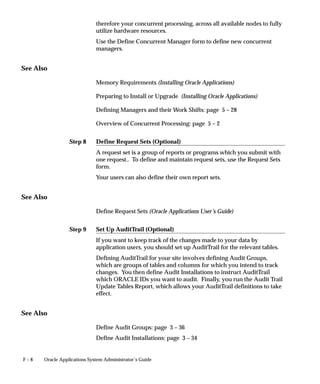
Appendix F   Implementation Appendix . . . . . . . . . . . . . . . . . . . . . . . . . . . . . . . F – 1
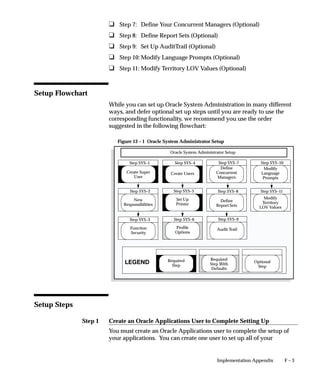
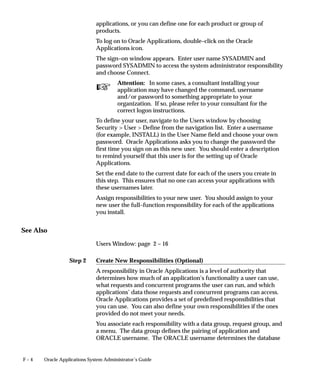
             Setting Up Oracle Applications System Administrator . . . . . . . . F – 2


Appendix G   Setting Up and Maintaining Oracle Applications . . . . . . . . . . . G – 1
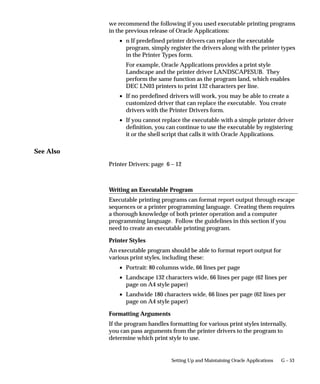
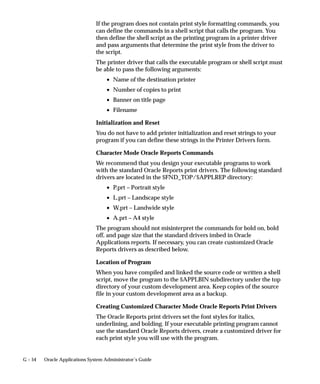
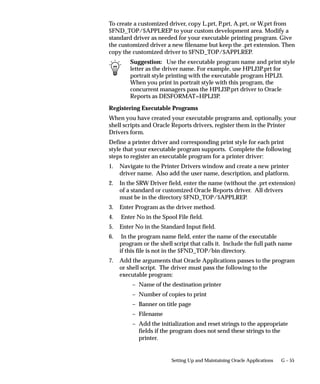
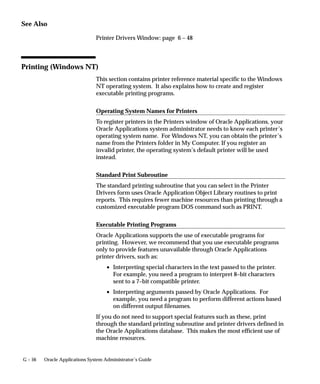
             Maintaining Your Oracle Applications Configuration . . . . . . . . . G – 2


                                                                                                              Contents        vii
Administering the TCF Server . . . . . . . . . . . . . . . . . . . . . . . . . . . . .   G – 16
                            Administering Oracle HTTP Server Powered by Apache . . . . . .                           G – 28
                            Setting Up Concurrent Managers . . . . . . . . . . . . . . . . . . . . . . . . . .       G – 42
                            Invoking Web Discoverer through ICX . . . . . . . . . . . . . . . . . . . . . .          G – 61

                            Glossary

                            Index


viii Oracle Applications System Administrator’s Guide
Preface


          Preface   ix
About This User’s Guide
                             This guide is the primary source of information about Oracle
                             Applications System Administration. It contains overviews as well as
                             task and reference information. This guide includes the following
                             chapters:
                                 • Chapter 1 describes the job of an Oracle Applications System
                                   Administrator, and contrasts it with the job of an Oracle
                                   Database Administrator.
                                 • Chapter 2 explains how to secure access to the data and
                                   functionality within your Oracle Applications.
                                 • Chapter 3 explains how to audit your application users and the
                                   changes they effect on your application’s data.
                                 • Chapter 4 describes the help architecture for HTML as well as
                                   explaining how to customize Oracle Applications help.
                                 • Chapter 5 explains the role of user profiles in Oracle
                                   Applications.
                                 • Chapters 6 and 7 explain concurrent processing in Oracle
                                   Applications, including how you can manage programs running
                                   concurrently in the background while your users continue to
                                   perform online tasks and how to manage your concurrent
                                   programs and organize those programs into groups and sets.
                                 • Chapter 8 explains using printers with Oracle Applications.
                                 • Chapter 9 explains Oracle Applications security tasks that
                                   require a database administrator to either explicitly perform, or
                                   assist by performing prerequisite tasks.
                                 • Chapter 10 explains how you can use document sequences and
                                   dynamic currency with your Oracle Applications.
                                 • Chapter 11 describes the architecture and implementation details
                                   for the CUSTOM library.
                             The Appendixes provide a reference source about the default menus,
                             user profile options, runtime Alerts, and loaders included with Oracle
                             System Administration. Also, one appendix lists the supported
                             multilingual external documents in Oracle Applications. Finally, there
                             are also appendixes for setting up Oracle Applications and
                             implementing Oracle System Administration.


x     Oracle Applications System Administrator’s Guide
This user’s guide is available online
              All Oracle Applications user’s guides are available online, in both
              HTML and Adobe Acrobat format. (Most other Oracle Applications
              documentation is available in Adobe Acrobat format.)
              The paper and online versions of this manual have identical content;
              use whichever format is most convenient.
              The HTML version of this book is optimized for on–screen reading,
              and lets you follow hypertext links for easy access to books across our
              entire library; you can also search for words and phrases if your
              national language is supported by Oracle’s Information Navigator.
              The HTML documentation is available from the Oracle Applications
              toolbar, or from a URL provided by your system administrator.
              You can order an Oracle Applications Documentation Library CD
              containing Adobe Acrobat versions of each manual in the Oracle
              Applications documentation set. Using this CD, you can search for
              information, read it on–screen, and print individual pages, sections, or
              entire books. When you print from Adobe Acrobat, the resulting
              printouts look just like pages from an Oracle Applications hardcopy
              manual.
                      There may be additional material that was not available when
                      this user’s guide was printed. To learn if there is a
                      documentation update for this product, look at the main menu
                      on this product’s HTML help.


Assumptions
              This guide assumes you have a working knowledge of the principles
              and customary practices of your business area. If you have never used
              Applications we suggest you attend one or more of the Oracle
              Applications System Administration training classes available through
              Oracle Education. (See Other Information Sources for more
              information about Oracle training.)
              This guide also assumes that you are familiar with the Oracle
              Applications graphical user interface. To learn more about the Oracle
              Applications graphical user interface, read the Oracle Applications User’s
              Guide.


                                                                         Preface      xi
Do Not Use Database Tools to Modify Oracle Applications Data
                             Oracle provides powerful tools you can use to create, store, change,
                             retrieve and maintain information in an Oracle database. But if you use
                             Oracle tools like SQL*Plus to modify Oracle Applications data, you risk
                             destroying the integrity of your data and you lose the ability to audit
                             changes to your data.
                             Because Oracle Applications tables are interrelated, any change you
                             make using an Oracle Applications form can update many tables at
                             once. But when you modify Oracle Applications data using anything
                             other than Oracle Applications forms, you may change a row in one
                             table without making corresponding changes in related tables. If your
                             tables get out of synchronization with each other, you risk retrieving
                             erroneous information and you risk unpredictable results throughout
                             Oracle Applications.
                                      Warning: Oracle Applications does not support any
                                      customization of Oracle Application Object Library tables or
                                      modules, even by Oracle consultants. Oracle Application
                                      Object Library table names begin with “FND_”.
                                      Do not write data directly into or change data in FND_ tables
                                      through any custom program or using any tool, including
                                      SQL*Plus, Oracle Data Browser, database triggers or other
                                      programming tools. You risk corrupting your database and
                                      damaging all your applications.
                             When you use Oracle Applications forms to modify your data, Oracle
                             Applications automatically checks that your changes are valid. Oracle
                             Applications also keeps track of who changes information. But, if you
                             enter information into database tables using database tools, you may
                             store invalid information. You also lose the ability to track who has
                             changed your information because SQL*Plus and other database tools
                             do not keep a record of changes.
                             Consequently, we STRONGLY RECOMMEND that you never use
                             SQL*Plus, Oracle Data Browser, database triggers, or any other tool to
                             modify Oracle Applications tables, unless we tell you to do so in our
                             manuals.


Other Information Sources
                             You can choose from many sources of information, including
                             documentation, training, and support services, to increase your


xii   Oracle Applications System Administrator’s Guide
knowledge and understanding of Oracle Applications System
                        Administration.
                        Most Oracle Applications documentation is available in Adobe Acrobat
                        format on the Oracle Applications Documentation Library CD. We supply
                        this CD with every software shipment.
                        If this manual refers you to other Oracle Applications documentation,
                        use only the Release 11i versions of those manuals unless we specify
                        otherwise.

                        Oracle Applications User’s Guide
                        This guide explains how to navigate, enter data, query, run reports, and
                        introduces other basic features of the graphical user interface (GUI).
                        This guide also includes information on setting user profiles, as well as
                        running and reviewing reports and concurrent requests.
                        You can also access this user’s guide online by choosing ”Getting
                        Started with Oracle Applications” from any Oracle Applications help
                        file.


Related User’s Guides
                        If you do not have the hardcopy versions of these manuals, you can
                        read them by choosing Library from the Help menu, or by reading
                        from the Oracle Applications Document Library CD, or by using a web
                        browser with a URL that your system administrator provides.

                        Oracle Applications Flexfields Guide
                        This manual provides flexfields planning, setup, and reference
                        information for the Oracle Applications System Administration
                        implementation team, as well as for users responsible for the ongoing
                        maintenance of Oracle Applications product data. This manual also
                        provides information on creating custom reports on flexfields data.

                        Oracle Workflow Guide
                        This manual explains how to define new workflow business processes
                        as well as customize existing Oracle Applications–embedded workflow
                        processes. You also use this guide to complete the setup steps
                        necessary for any Oracle Applications product that includes
                        workflow–enabled processes.


                                                                                  Preface    xiii
Oracle Alert User’s Guide
                             This manual explains how to define periodic and event alerts to
                             monitor the status of your Oracle Applications data.

                             Country–Specific Manuals
                             Use these manuals to meet statutory requirements and common
                             business practices in your country or region. They also describe
                             additional features added to Oracle Applications System
                             Administration to meet those requirements. Look for a User’s Guide
                             appropriate to your country; for example, see the Oracle Financials for
                             the Czech Republic User’s Guide for more information about using this
                             software in the Czech Republic.

                             Oracle Applications Character Mode to GUI Menu Path Changes
                             This is a quick reference guide for experienced Oracle Applications end
                             users migrating from character mode to a graphical user interface
                             (GUI). This guide lists each character mode form and describes which
                             GUI windows or functions replace it.

                             Oracle Financials Open Interfaces Guide
                             This guide is a compilation of all open interface discussions in all
                             Oracle Financial Applications user’s guides. You can also read about
                             the Oracle Applications System Administration open interface tables in
                             the appendix of the Oracle Applications Guide.

                             Multiple Reporting Currencies in Oracle Applications
                             If you use Multiple Reporting Currencies feature to record transactions
                             in more than one currency, use this manual before implementing Oracle
                             Applications System Administration. The manual details additional
                             steps and setup considerations for implementing Oracle Applications
                             System Administration with this feature.

                             Multiple Organizations in Oracle Applications
                             If you use the Oracle Applications Multiple Organization Support
                             feature to use multiple sets of books for one Oracle Applications
                             System Administration installation, use this guide to learn about
                             setting up and using Oracle Applications System Administration with
                             this feature.


xiv   Oracle Applications System Administrator’s Guide
Oracle Applications Implementation Wizard User’s Guide
               If you are implementing more than one Oracle product, you can use the
               Oracle Applications Implementation Wizard to coordinate your setup
               activities. This guide describes how to use the wizard.

               Oracle Applications Developer’s Guide
               This guide contains the coding standards followed by the Oracle
               Applications development staff. It describes the Oracle Application
               Object Library components needed to implement the Oracle
               Applications user interface described in the Oracle Applications User
               Interface Standards for Forms–Based Products. It also provides
               information to help you build your custom Developer/2000 forms so
               that they integrate with Oracle Applications.

               Oracle Applications User Interface Standards for Forms–Based
               Products
               This manual contains the user interface (UI) standards followed by the
               Oracle Applications development staff. It describes the UI for the
               Oracle Applications products and how to apply this UI to the design of
               an application built by using Oracle Forms 6.0.


Installation

               Oracle Applications Concepts
               This guide provides an introduction to the concepts, features,
               technology stack, architecture, and terminology for Oracle Applications
               Release 11i. It provides a useful first book to read before an installation
               of Oracle Applications. This guide also introduces the concepts behind,
               and major issues, for Applications–wide features such as Business
               Intelligence (BIS), languages and character sets, and self–service
               applications.

               Installing Oracle Applications
               This guide provides instructions for managing the installation of Oracle
               Applications products. In Release 11i, much of the installation process
               is handled using Oracle Rapid Install, which minimizes the time it
               takes to install Oracle Applications and the Oracle 8 Server technology
               stack by automating many of the required steps. This guide contains
               instructions for using Oracle Rapid Install and lists the tasks you need
               to perform to finish your installation. You should use this guide in


                                                                          Preface      xv
conjunction with individual product user guides and implementation
                              guides.

                              Upgrading Oracle Applications
                              Refer to this guide if you are upgrading your Oracle Applications
                              Release 10.7 or Release 11.0 products to Release 11i. This guide
                              describes the upgrade process in general and lists database upgrade
                              and product–specific upgrade tasks. You must be at either Release 10.7
                              (NCA, SmartClient, or character mode) or Release 11.0 to upgrade to
                              Release 11i. You cannot upgrade to Release 11i directly from releases
                              prior to 10.7.

                              Maintaining Oracle Applications
                              This guide provides instructions for maintaining the Applications file
                              system and database, and directions on using the Applications DBA
                              (AD) utilities, the main tools for these tasks. In addition to maintaining
                              Applications, the AD utilities are also used for installing, patching, and
                              upgrading Oracle Applications products.

                              Oracle Application Object Library Technical Reference Manual
                              The Oracle Applications Object Library Technical Reference Manual contains
                              database diagrams and a detailed description of Oracle Applications
                              System Administration and related applications database tables, forms,
                              reports, and programs. This information helps you convert data from
                              your existing applications, integrate Oracle Applications System
                              Administration with non–Oracle applications, and write custom
                              reports for Application Object Library.
                              You can order a technical reference manual for any product you have
                              licensed. Technical reference manuals are available in paper format
                              only.


Other Information

                              Training
                              Oracle Education offers a complete set of training courses to help you
                              and your staff master Oracle Applications. We can help you develop a
                              training plan that provides thorough training for both your project
                              team and your end users. We will work with you to organize courses
                              appropriate to your job or area of responsibility.


xvi    Oracle Applications System Administrator’s Guide
Training professionals can show you how to plan your training
               throughout the implementation process so that the right amount of
               information is delivered to key people when they need it the most. You
               can attend courses at any one of our many Educational Centers, or you
               can arrange for our trainers to teach at your facility. In addition, we
               can tailor standard courses or develop custom courses to meet your
               needs.

               Support
               From on–site support to central support, our team of experienced
               professionals provides the help and information you need to keep
               Applications working for you. This team includes your Technical
               Representative, Account Manager, and Oracle’s large staff of
               consultants and support specialists with expertise in your business
               area, managing an Oracle server, and your hardware and software
               environment.


About Oracle
               Oracle develops and markets an integrated line of software products
               for database management, applications development, decision support,
               and office automation, as well as a complete family of financial,
               manufacturing, and human resource applications.
               Oracle products are available for mainframes, minicomputers, personal
               computers, network computers, and personal digital assistants,
               allowing organizations to integrate different computers, different
               operating systems, different networks, and even different database
               management systems, into a single, unified computing and information
               resource.
               Oracle offers its products, along with related consulting, education, and
               support services, in over 140 countries around the world. Oracle
               Corporation is the world’s leading supplier of software for information
               management, and is the world’s second largest software company.


Thank You
               Thank you for using Oracle Applications and this user’s guide.


                                                                         Preface     xvii
We value your comments and feedback. At the end of this manual is a
                               Reader’s Comment Form you can use to explain what you like or
                               dislike about this user’s guide. Mail your comments to the following
                               address or call us directly at (650) 506–7000.
                                        Oracle Applications Documentation Manager
                                        Oracle Corporation
                                        500 Oracle Parkway
                                        Redwood Shores, CA 94065
                                        U.S.A.
                               Or, send electronic mail to appsdoc@us.oracle.com.


xviii   Oracle Applications System Administrator’s Guide
CHAPTER


  1       What Is System
          Administration?

          T    his chapter briefly describes the job of an Oracle Applications
          System Administrator, and contrasts it with the job of an Oracle
          Database Administrator.


                                               What Is System Administration?    1–1
What Is System Administration?
                             A System Administrator is a person responsible for controlling access to
                             Oracle Applications and assuring smooth ongoing operation. Each site
                             where Oracle Applications is installed needs a system administrator to
                             perform tasks such as:
                                 • Managing and controlling security. Decide which users have
                                   access to each application, and within an application, which
                                   forms, functions, and reports a user can access.
                                 • Setting up new users. Register new Oracle Applications users,
                                   and give them access to only those forms, functions, and reports
                                   they need to do their jobs.
                                 • Auditing user activity. Monitor what users are doing and when
                                   they do it. Choose who to audit and what type of data to audit.
                                 • Setting user profiles. A user profile is a set of changeable options
                                   that affects the way Oracle Applications look and behave. A
                                   System Administrator can set user profile values at the site,
                                   application, responsibility, and user levels.
                                 • Managing concurrent processing. Concurrent Processing is an
                                   Oracle Applications facility that lets long–running, data–intensive
                                   tasks run simultaneously with online operations, taking full
                                   advantage of multitasking and parallel processing. A System
                                   Administrator can monitor and control concurrent processing
                                   using a few simple forms.


System vs. Database Administrator
                             You can think of Oracle Applications as having two sides: a front end
                             that users see and work with, and a back end where data manipulation
                             is performed.
                             The natural division between user applications and the underlying
                             database structures results in two separate job functions: system
                             administrator, and database administrator.
                             An Oracle Applications System Administrator administers the user
                             interface or applications side of Oracle Applications.
                             An Oracle Database Administrator (DBA) administers the data that
                             users enter, update, and delete while using Oracle Applications.


1–2   Oracle Applications System Administrator’s Guide
CHAPTER


  2       Managing Oracle
          Applications Security

          T    his chapter explains how to secure access to the data and
          functionality within your Oracle Applications. The key element in
          Oracle Applications security is the definition of a responsibility. A
          responsibility defines:
              • Application database privileges
              • An application’s functionality that is accessible
              • The concurrent programs and reports that are available
          As System Administrator you define application users, and assign one
          or more responsibilities to each user.
          This chapter begins with an essay explaining security in Oracle
          Applications. Afterwards, major topics are explained in greater detail,
          along with descriptions of the forms you use to implement security in
          Oracle Applications. Some topics will refer you to other chapters which
          contain more detailed information, as well as relevant form descriptions.


                                          Managing Oracle Applications Security   2–1
Overview of Oracle Applications Security
                             As System Administrator, you define Oracle Applications users, and
                             assign one or more responsibilities to each user.

                             Defining Application Users
                             You allow a new user to sign–on to Oracle Applications by defining an
                             application user. An application user has a username and a password.
                             You define an initial password, then the first time the application user
                             signs on, they must enter a new (secret) password.
                             When you define an application user, you assign to the user one or more
                             responsibilities. If you assign only one responsibility, the user, after
                             signing on, immediately enters an application.
                             If you assign two or more responsibilities, the user, after signing on, sees
                             a window listing available responsibilities.

                             Responsibilities define Application Privileges
                             A responsibility is a level of authority in Oracle Applications that lets
                             users access only those Oracle Applications functions and data
                             appropriate to their roles in an organization. Each responsibility allows
                             access to:
                                 • A specific application or applications, such as Oracle General
                                   Ledger or Oracle Planning.
                                 • A set of books, such as U.S. Operations or German Sales or an
                                   organization, such as New York Manufacturing or New York
                                   Distribution.
                                 • A restricted list of windows that a user can navigate to; for
                                   example, a responsibility may allow certain Oracle Planning users
                                   to enter forecast items, but not enter master demand schedule
                                   items.
                                 • A restricted list of functions a user can perform. For example,
                                   two responsibilities may have access to the same window, but one
                                   responsibility’s window may have additional function buttons
                                   that the other responsibility’s window does not have.
                                 • Reports in a specific application; as system administrator, you can
                                   assign groups of reports to one or more responsibilities, so the
                                   responsibility a user choose determines the reports that can be
                                   submitted.
                             Each user has at least one or more responsibilities and several users can
                             share the same responsibility. A system administrator can assign users


2–2   Oracle Applications System Administrator’s Guide
any of the standard responsibilities provided with Oracle Applications,
                or create new custom responsibilities.


HRMS Security
                The Human Resources Management Systems (HRMS) products have an
                additional feature using Security Groups. For more information, see
                Setting up Security for Applications Using Some HRMS Windows.
                The Human Resources Management Systems (HRMS) products have an
                additional feature using Security Groups. For more information, see
                Customizing, Reporting, and System Administration in Oracle HRMS.


                                               Managing Oracle Applications Security   2–3
Defining a Responsibility
                              When you define a responsibility, you assign to it some or all of the
                              components described below:

Data Group                    A Data Group defines the mapping between Oracle Applications
(required)                    products and ORACLE IDs. A Data Group determines which Oracle
                              database accounts a responsibility’s forms, concurrent programs, and
                              reports connect to. See: Defining Data Groups: page 4 – 30.

Request Security              A request security group defines the concurrent programs, including
Group (optional)              requests and request sets, that may be run by an application user under
                              a particular responsibility. See: Defining a Request Security Group: page
                               2 – 6. See: Organizing Programs into Request Groups: page 4 – 19.

Menu                          A menu is a hierarchical arrangement of application functions (forms)
(required)                    that displays in the Navigate window. Menus can also point to
                              non–form functions (subfunctions) that do not display in the Navigate
                              window, but that define the range of application functionality available
                              for a responsibility. Each responsibility is associated with a menu. See:
                              Overview of Function Security: page 2 – 21.

Function and Menu             A responsibility may optionally have function and menu exclusion rules
Exclusions (optional)         associated with it to restrict the application functionality enabled for
                              that responsibility. See: Overview of Function Security: page 2 – 21.


Additional Notes About Responsibilities

                              Predefined Responsibilities
                              All Oracle Applications products are installed with predefined
                              responsibilities. Consult the reference guide for your Oracle
                              Applications product for the names of those predefined responsibilities.
                              Additionally, instances of the major components that help define a
                              responsibility (data groups, request security groups, menus, and
                              functions) are predefined for Oracle Applications.

                              Responsibilities and Request Security Groups
                              When a request group is assigned to a responsibility, it becomes a request
                              security group.
                              From a standard submission form, such as the Submit Requests form,
                              users can run only the reports, concurrent programs, and request sets
                              that are in their responsibility’s request security group.


2–4    Oracle Applications System Administrator’s Guide
• If you do not include the Submit Requests form on the menu for a
      responsibility, then you do not need to assign a request security
      group to the responsibility.
    • If a request security group is not assigned to a responsibility, then
      users working under that responsibility cannot run any reports,
      request sets, or other concurrent programs from a standard
      submission form.

Responsibilities and Function Security
Oracle Applications GUI–based architecture aggregates several related
business functions into a single form. Parts of an application’s
functionality may be identified as individual Oracle Applications
functions, which can then be secured (i.e., included or excluded from a
responsibility).
See: Overview of Function Security: page 2 – 21


                                Managing Oracle Applications Security   2–5
Defining a Request Security Group
                             Beyond this short introduction, request groups and request security
                             groups are discussed in greater detail, as part of a broader range of
                             topics not necessarily limited to application security, in Chapter 7 –
                             Managing Concurrent Programs and Reports.
                             See:
                             Organizing Programs into Request Groups: page 4 – 19
                             Request Groups: page 4 – 59

                             Using Request Security
                             You use request security to specify the reports, request sets, and
                             concurrent programs that your users can run from a standard
                             submission form, such as the Submit Requests form.
                             To set up request security, you define a request group using the Request
                             Groups form. Using the Responsibilities form, you assign the request
                             group to a responsibility. The request group is then referred to as a
                             request security group. See: Request Security Groups: page 4 – 19.
                             You can define a request group to contain single requests, request sets,
                             or all the requests and request sets in an application.
                             If you choose to include all the requests and requests sets in an
                             application, the user has automatic access to any new requests and
                             request sets (without owners) in the future.
                             A request security group can contain requests and request sets from
                             different applications. If you want to define request security groups that
                             own requests from different applications, please refer to the discussion
                             on Data Groups. See: Defining Data Groups: page 4 – 30.
                                        Note: A request security group or request group is not the same as
                                        a security group.

                             Individual Requests and Request Sets
                             Reports or concurrent programs that are not included in a request
                             security group on an individual basis, but that do belong to a request set
                             included in a request security group, have the following privileges:
                                    • Users cannot use the Submit Requests form to run single requests
                                      and request sets that are not in their responsibility’s request
                                      security group.
                                    • Users can, however, run request sets that contain requests that are
                                      not in their request security group, if the request set is in their
                                      request security group.


2–6   Oracle Applications System Administrator’s Guide
If you assign a request set, but not the requests in the set, to a request
security group, the user:
    • cannot edit request information in the request set definition
    • cannot stop specific requests in the set from running
    • can edit the request set by deleting requests from it or adding
      other requests to it, only if the user is the assigned owner of the
      request set
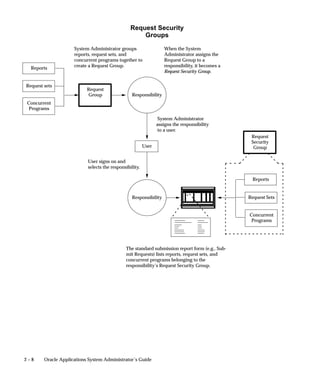
The Request Security Groups figure illustrates the relationship between
a request security group, application user, and a responsibility.


                                 Managing Oracle Applications Security   2–7
Request Security
                                                     Groups
                     System Administrator groups                   When the System
                     reports, request sets, and                    Administrator assigns the
                     concurrent programs together to               Request Group to a
  Reports            create a Request Group.                       responsibility, it becomes a
                                                                   Request Security Group.


Request sets
                           Request
                           Group                 Responsibility
Concurrent
 Programs

                                                                 System Administrator
                                                                assigns the responsibility
                                                                 to a user.
                                                                                                   Request
                                                                                                   Security
                                                         User                                       Group

                           User signs on and
                           selects the responsibility.

                                                                                                   Reports


                                                 Responsibility                                   Request Sets


                                                                                                  Concurrent
                                                                                                   Programs


                                              The standard submission report form (e.g., Sub-
                                              mit Requests) lists reports, request sets, and
                                              concurrent programs belonging to the
                                              responsibility’s Request Security Group.


2–8     Oracle Applications System Administrator’s Guide
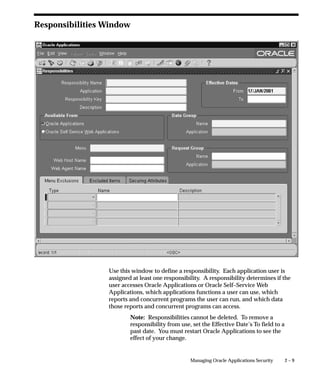
Responsibilities Window


                 Use this window to define a responsibility. Each application user is
                 assigned at least one responsibility. A responsibility determines if the
                 user accesses Oracle Applications or Oracle Self–Service Web
                 Applications, which applications functions a user can use, which
                 reports and concurrent programs the user can run, and which data
                 those reports and concurrent programs can access.
                         Note: Responsibilities cannot be deleted. To remove a
                         responsibility from use, set the Effective Date’s To field to a
                         past date. You must restart Oracle Applications to see the
                         effect of your change.


                                                 Managing Oracle Applications Security     2–9
See: Overview of Function Security: page 2 – 21

                                Prerequisites
                                    • Use the Data Groups window to list the ORACLE username
                                      your responsibility’s concurrent programs reference on an
                                      application–by–application basis.
                                    • Use the Request Groups window to define the Request Group
                                      you wish to make available with this responsibility.
                                    • Use the Menus window to view the predefined Menu you could
                                      choose to assign to this responsibility.


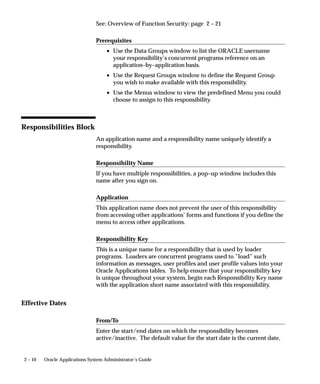
Responsibilities Block
                                An application name and a responsibility name uniquely identify a
                                responsibility.

                                Responsibility Name
                                If you have multiple responsibilities, a pop–up window includes this
                                name after you sign on.

                                Application
                                This application name does not prevent the user of this responsibility
                                from accessing other applications’ forms and functions if you define the
                                menu to access other applications.

                                Responsibility Key
                                This is a unique name for a responsibility that is used by loader
                                programs. Loaders are concurrent programs used to ”load” such
                                information as messages, user profiles and user profile values into your
                                Oracle Applications tables. To help ensure that your responsibility key
                                is unique throughout your system, begin each Responsibility Key name
                                with the application short name associated with this responsibility.


Effective Dates

                                From/To
                                Enter the start/end dates on which the responsibility becomes
                                active/inactive. The default value for the start date is the current date,


2 – 10   Oracle Applications System Administrator’s Guide
and if you do not enter an end date, the responsibility is valid
                 indefinitely.
                 You cannot delete a responsibility because its information helps to
                 provide an audit trail. You can deactivate a responsibility at any time
                 by setting the end date to the current date. If you wish to reactivate the
                 responsibility, change the end date to a date after the current date, or
                 clear the end date.


Available From
                 A responsibility may be associated with only one applications system.
                 Select between Oracle Self–Service Web Applications or Oracle
                 Applications.


Data Group

                 Name/Application
                 The data group defines the pairing of application and ORACLE
                 username.
                 Select the application whose ORACLE username forms connect to
                 when you choose this responsibility. The ORACLE username
                 determines the database tables and table privileges accessible by your
                 responsibility. Transaction managers can only process requests from
                 responsibilities assigned the same data group as the transaction
                 manager.


                 Menu
                 The menu whose name you enter must already be defined with Oracle
                 Applications. See: Menus: page 2 – 36.


                 Web Host Name
                 If your Web Server resides on a different machine from your database,
                 you must designate the host name (URL) here. Otherwise, the Web
                 Host Name defaults to the current database host server.


                 Web Agent Name
                 Enter the PL/SQL Agent Name for the database used by this
                 responsibility. If you do not specify an Agent Name, the responsibility
                 defaults to the agent name current at log–on.


                                                 Managing Oracle Applications Security   2 – 11
Request Group

                                Name/Application
                                If you do not assign a request security group to this responsibility, a
                                user with this responsibility cannot run requests, request sets, or
                                concurrent programs from the Submit Requests window, except for
                                request sets owned by the user. The user can access requests from a
                                Submit Requests window you customize with a request group code
                                through menu parameters.
                                See:
                                Overview of Oracle Applications Security: page 2 – 2
                                Customizing the Submit Requests Window Using Codes: page 4 – 20
                                Request Groups: page 4 – 59


Menu Exclusions Block
                                Define function and menu exclusion rules to restrict the application
                                functionality accessible to a responsibility.

                                Type
                                Select either Function or Menu as the type of exclusion rule to apply
                                against this responsibility.
                                       • When you exclude a function from a responsibility, all
                                         occurrences of that function throughout the responsibility’s
                                         menu structure are excluded.
                                       • When you exclude a menu, all of its menu entries, that is, all the
                                         functions and menus of functions that it selects, are excluded.

                                Name
                                Select the name of the function or menu you wish to exclude from this
                                responsibility. The function or menu you specify must already be
                                defined in Oracle Applications.


2 – 12   Oracle Applications System Administrator’s Guide
Self–Service Applications Security
                      Oracle Self–Service Web Applications uses columns, rows and values in
                      database tables to define what information users can access. Table
                      columns represent ”attributes” that can be assigned to a responsibility
                      as Securing Attributes or Excluded Attributes. These attributes are
                      defined in the Web Application Dictionary.


See Also

                      Data Security: (Oracle Self–Service Applications for the Web User’s Guide)
                      Defining Attributes: (Oracle Self–Service Applications for the Web User’s
                      Guide)

                      Excluded Items
                      Use the List of Values to select valid attributes. You can assign any
                      number of Excluded Attributes to a responsibility.

                      Securing Attributes
                      Use the List of Values to select valid attributes. You may assign any
                      number of securing attributes to the responsibility.


                                                       Managing Oracle Applications Security   2 – 13
Overview of Security Groups
                                Security Groups are used by Oracle HRMS only.
                                Security groups allows for data to be partitioned in a single installation.
                                A single installation can use a particular set of configuration data, but
                                store data for multiple clients, where the data is partitioned by security
                                groups. A user with an assignment of one security group can only
                                access data within that security group.
                                A security group represents a distinct client or business entity. Data that
                                must be distinct for each client in an installation is partitioned by
                                security group. All other data is shared across all security groups.
                                Security is maintained at the level of responsibility/security group pairs.
                                That is, users are assigned specific responsibilities within each security
                                group. A user may be assigned a global responsibility that is valid in all
                                security groups. When signing on to Oracle Applications, a user, if
                                assigned more than one responsibility, will be asked to choose a
                                responsibility and security group pair. Partitioned data accessed
                                through security group sensitive views will show only data assigned to
                                the current security group.


Defining Security Groups
                                Every installation will have a single ”Standard” security group seeded
                                in. If no other security groups are created, this single group will be
                                hidden from users when they sign on.
                                In the Users form, you assign a security group when you assign a
                                responsibility.


See Also

                                Customizing, Reporting, and System Administration in Oracle HRMS


2 – 14   Oracle Applications System Administrator’s Guide
Security Groups Window


                 This form is for HRMS security only.
                 For more information on setting up system administration for the
                 HRMS products, see Customizing, Reporting, and System Administration
                 in Oracle HRMS.


                                               Managing Oracle Applications Security   2 – 15
Users Window


                                Use this window to define an application user. An application user is
                                an authorized user of Oracle Applications and/or Oracle Self–Service
                                Applications who is uniquely identified by an application username.
                                Once defined, a new application user can sign on to Oracle
                                Applications and access data through Oracle Applications windows.
                                See: Overview of Oracle Applications Security: page 2 – 2.


2 – 16   Oracle Applications System Administrator’s Guide
Users Block

              User Name
              Enter the name of an application user. An application user enters this
              username to sign on to Oracle Applications.
                  • The username must not contain more than one word.
                  • You should use only alphanumeric characters (’A’ through ’Z’,
                    and ’0’ through ’9’) in the username.
              Please note that you must limit your username to the set of characters
              that your operating system supports for filenames.
                      Suggestion: We recommend that you define meaningful
                      usernames, such as the employee’s first initial followed by their
                      last name. Or, for a group account, you can define the
                      application username so as to indicate the purpose or nature of
                      the group account.

              Password
              Enter the initial password of an application user. An application user
              enters this password along with her or his username to sign on to
              Oracle Applications.
                  • A password must be at least five characters and can extend up to
                    100 characters.
                  • You should use alphanumeric characters (’A’ through ’Z’, and ’0’
                    through ’9’) in a password. All other characters are invalid.
              This window does not display the password you enter. After you enter
              a password, you must re–enter it to ensure you did not make a typing
              error.
              If the application user already exists and the two entries do not match,
              the original password is NOT changed, and you navigate automatically
              to the next field.
              If you are defining a new application user and the two entries do not
              match, you are required to enter the password again. For a new user,
              you cannot navigate to the next field until the two entries match.
              The first time an application user signs on, they must change his or her
              password. If a user forgets their password, you can reassign a new
              password in this field.
              As System Administrator, you can set an initial password or change an
              existing password, but you cannot access the user’s chosen password.


                                             Managing Oracle Applications Security   2 – 17
You can set the minimum length of Oracle Applications user passwords
                                using the profile option Signon Password Length. If this profile option
                                is left unset, the minimum length defaults to 5.
                                You can use the profile option Signon Password Hard to Guess to set
                                rules for choosing passwords to ensure that they will be ”hard to
                                guess.” A password is considered hard-to-guess if it follows these
                                rules:
                                    • The password contains at least one letter and at least one
                                      number.
                                    • The password does not contain the username.
                                    • The password does not contain repeating characters.
                                For more information on these profile options, see: Profile Options in
                                Oracle Application Object Library page: A – 2.

                                Person, Customer, and Supplier
                                Use these fields to enter the name of an employee (person), customer,
                                or supplier contact. Enter the last name and first name, separated by a
                                comma, of the employee, customer, or supplier who is using this
                                application username and password. Use the List of Values to select a
                                valid name.

                                E–Mail/Fax
                                Enter the E–mail address and/or fax number for this user.

Password Expiration

                                Days
                                Enter the maximum number of days between password changes. A
                                pop–up window prompts an application user to change her or his
                                password after the maximum number of days you specify has elapsed.

                                Accesses
                                Enter the maximum allowed number of sign–ons to Oracle
                                Applications allowed between password changes. A pop–up window
                                prompts an application user to change her or his password after the
                                maximum number of accesses you specify has elapsed.
                                         Suggestion: We recommend that you require application
                                         users to make frequent password changes. This reduces the
                                         likelihood of unauthorized access to Oracle Applications.


2 – 18   Oracle Applications System Administrator’s Guide
Effective Dates

                         From/To
                         The user cannot sign onto Oracle Applications before the start date and
                         after the end date. The default for the start date is the current date. If
                         you do not enter an end date, the username is valid indefinitely.
                         You cannot delete an application user from Oracle Applications
                         because this information helps to provide an audit trail. You can
                         deactivate an Oracle Applications user at any time by setting the End
                         Date to the current date.
                         If you wish to reactivate a user, change the End Date to a date after the
                         current date, or clear the End Date field.


Responsibilities Block

                         Responsibility
                         Select the name of a responsibility you wish to assign to this application
                         user. A responsibility is uniquely identified by application name and
                         responsibility name.

                         Security Group
                         This field is for HRMS security only. See: Customizing, Reporting, and
                         System Administration in Oracle HRMS.

                         From/To
                         You cannot delete a responsibility because this information helps to
                         provide an audit trail. You can deactivate a user’s responsibility at any
                         time by setting the End Date to the current date.
                         If you wish to reactivate the responsibility for the user, change the End
                         Date to a date after the current date, or clear the End Date.


Securing Attributes
                         Securing attributes are used by Oracle Self–Service Web Applications to
                         allow rows (records) of data to be visible to specified users or
                         responsibilities based on the specific data (attribute values) contained
                         in the row.


                                                         Managing Oracle Applications Security   2 – 19
You may assign one or more values for any of the securing attributes
                                assigned to the user. If a securing attribute is assigned to both a
                                responsibility and to a user, but the user does not have a value for that
                                securing attribute, no information is returned for that attribute.
                                For example, to allow a user in the ADMIN responsibility to see rows
                                containing a CUSTOMER_ID value of 1000, assign the securing
                                attribute of CUSTOMER_ID to the ADMIN responsibility. Then give
                                the user a security attribute CUSTOMER_ID value of 1000.
                                When the user logs into the Admin responsibility, the only customer
                                data they have access to has a CUSTOMER_ID value of 1000.

                                Attribute
                                Select an attribute you want used to determine which records this user
                                can access. You can select from any of the attributes assigned to the
                                user’s responsibility.

                                Value
                                Enter the value for the attribute you want used to determine which
                                records this user can access.


2 – 20   Oracle Applications System Administrator’s Guide
Overview of Function Security
                  Function security is the mechanism by which user access to applications
                  functionality is controlled.
                  Oracle Applications GUI–based architecture aggregates several related
                  business functions into a single form. Because all users should not have
                  access to every business function in a form, Oracle Applications
                  provides the ability to identify pieces of applications logic as functions.
                  When part of an application’s functionality is identified as a function, it
                  can be secured (i.e., included or excluded from a responsibility).
                  Application developers register functions when they develop forms. A
                  System Administrator administers function security by creating
                  responsibilities that include or exclude particular functions.


Terms

                  Function
                  A function is a part of an application’s functionality that is registered
                  under a unique name for the purpose of assigning it to, or excluding it
                  from, a responsibility.
                  There are two types of functions: form functions, and non–form
                  functions. For clarity, we refer to a form function as a form, and a
                  non–form function as a subfunction, even though both are just instances
                  of functions in the database.

                  Form (Form Function)
                  A form function (form) invokes an Oracle Forms form. Form functions
                  have the unique property that you may navigate to them using the
                  Navigate window.

                  Subfunction (Non–Form Function)
                  A non–form function (subfunction) is a securable subset of a form’s
                  functionality: in other words, a function executed from within a form.
                  A developer can write a form to test the availability of a particular
                  subfunction, and then take some action based on whether the
                  subfunction is available in the current responsibility.
                  Subfunctions are frequently associated with buttons or other graphical
                  elements on forms. For example, when a subfunction is enabled, the
                  corresponding button is enabled.


                                                  Managing Oracle Applications Security   2 – 21
However, a subfunction may be tested and executed at any time during
                                 a form’s operation, and it need not have an explicit user interface
                                 impact. For example, if a subfunction corresponds to a form procedure
                                 not associated with a graphical element, its availability is not obvious to
                                 the form’s user.


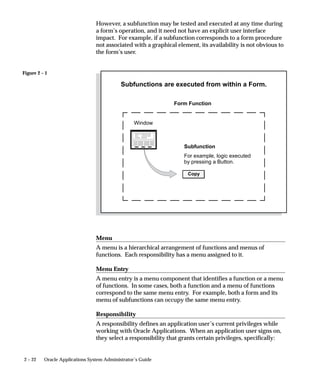
Figure 2 – 1

                                            Subfunctions are executed from within a Form.

                                                                Form Function


                                                  Window


                                                                    Subfunction
                                                                    For example, logic executed
                                                                    by pressing a Button.

                                                                     Copy


                                 Menu
                                 A menu is a hierarchical arrangement of functions and menus of
                                 functions. Each responsibility has a menu assigned to it.

                                 Menu Entry
                                 A menu entry is a menu component that identifies a function or a menu
                                 of functions. In some cases, both a function and a menu of functions
                                 correspond to the same menu entry. For example, both a form and its
                                 menu of subfunctions can occupy the same menu entry.

                                 Responsibility
                                 A responsibility defines an application user’s current privileges while
                                 working with Oracle Applications. When an application user signs on,
                                 they select a responsibility that grants certain privileges, specifically:


2 – 22    Oracle Applications System Administrator’s Guide
• The functions that the user may access. Functions are determined
                           by the menu assigned to the responsibility.
                         • The concurrent programs, such as reports, that the user may run.
                         • The application database accounts that forms, concurrent
                           programs, and reports connect to.


Forms and Subfunctions
                    A form is a special class of function that differs from a subfunction in
                    two ways:
                         • Forms appear in the Navigate window and can be navigated to.
                           Subfunctions do not appear in the Navigate window and cannot
                           be navigated to.
                         • Forms can exist on their own. Subfunctions can only be called by
                           logic embodied within a form; they cannot exist on their own.
                    A form as a whole, including all of its program logic, is always
                    designated as a function. Subsets of a form’s program logic can
                    optionally be designated as subfunctions if there is a need to secure
                    those subsets.
                    For example, suppose that a form contains three windows. The entire
                    form is designated as a function that can be secured (included or
                    excluded from a responsibility.) Each of the form’s three windows can
                    be also be designated as functions (subfunctions), which means they can
                    be individually secured. Thus, while different responsibilities may
                    include this form, certain of the form’s windows may not be accessible
                    from each of those responsibilities, depending on how function security
                    rules are applied.


Functions, Menus, and the Navigate Window
                    Form functions or forms are selected using the Navigate window. The
                    arrangement of form names in the Navigate window is defined by the
                    menu structure assigned to the current responsibility.
                    The following types of menu entries are not displayed by the Navigate
                    window:
                         • Subfunctions
                         • Menus without Entries


                                                    Managing Oracle Applications Security   2 – 23
• Menu Entries without a Prompt
                                If none of the entries on a menu are displayed by the Navigate window,
                                the menu itself is not displayed.


How Function Security Works

                                Developers Register Functions
                                    • Developers can require parts of their Oracle Forms code to look
                                      up a unique function name, and then take some action based on
                                      whether the function is available in the current responsibility.
                                    • Developers register functions. They can also register parameters
                                      that pass values to a function. For example, a form may support
                                      data entry only when a function parameter is passed to it.
                                         Warning: In general, System Administrators should not
                                         modify parameters passed to functions that are predefined as
                                         part of the Oracle Applications products. The few cases where
                                         function parameters may be modified by a System
                                         Administrator are documented in the relevant technical
                                         reference manual or product update notes.
                                    • Typically, developers define a menu including all the functions
                                      available in an application (i.e., all the forms and their securable
                                      subfunctions). For some applications, developers may define
                                      additional menus that restrict the application’s functionality by
                                      omitting specific forms and subfunctions.
                                    • When developers define menus of functions, they typically group
                                      the subfunctions of a form on a subfunction menu they associate
                                      with the form.

                                System Administrators Exclude Functions
                                    • Each Oracle Applications product is delivered with one or more
                                      predefined menu hierarchies. System Administrators can assign
                                      a predefined menu hierarchy to a responsibility. To tailor a
                                      responsibility, System Administrators exclude functions or menus
                                      of functions from that responsibility using exclusion rules.
                                    • If System Administrators cannot create the desired menu by
                                      applying exclusion rules to a predefined menu, they can define a
                                      new menu hierarchy. In this case, we recommend that they
                                      construct their menu hierarchy using forms and their associated
                                      menus of subfunctions. In other words, System Administrators


2 – 24   Oracle Applications System Administrator’s Guide
should leave the developer–defined associations between forms
      and their menus in tact.

Available Functions Depend on the Current Responsibility
   • When a user first selects or changes their responsibility, a list of
     functions obtained from the responsibility’s menu structure is
     cached in memory.
   • Functions a System Administrator has excluded from the current
     responsibility are marked as unavailable.
   • Form functions in the function hierarchy (i.e., menu hierarchy) are
     displayed in the Navigate window. Available subfunctions are
     accessed by working with the application’s forms.

Visibility of Excluded Functions
Some subfunctions are associated with a graphical element, for example,
a button, and their exclusion may result in:
   • the dimming of the button
   • the absence of the button.
Other subfunctions may not correspond to a graphical element, and
their exclusion may not be obvious to an end user.


                               Managing Oracle Applications Security   2 – 25
Figure 2 – 2


    How Function Security Works

                                                      Applications Code                 Function Security

              Developers design parts of an                                       Function Name         Parameters
              Application to look up and                                          Function Name         Parameters
              require a unique Function Name.
                                                                                  Function Name         Parameters
                                                                                  Function Name xyz     Parameters
                                                                                  Function Name         Parameters
                                                                                  Function Name         Parameters
     System Administrators assign Functions
     to Menus to build a Function Hierarchy
     (Menu Structure).
                                              Menu

                                                                                   System Administrators assign
                                                                                   the Menu Structure to a
                                                                                   Responsibility, and may exclude
                           Menu                Form                   Menu         Functions and Menus to
                                                                                   customize the Responsibility.


                    Form              Form                   Sub–              Sub–
                                                           function          function


           Sub–              Sub–
         function          function


                            Users select a Responsibility and may access all             Find
                            of its Functions. However, non–form Functions
                                                                                         Responsibilities
                            do not appear in the Navigate window.                        Buyer
                                                                                         Planner
                                                                                         Manager

                            Menu
                              Form
                              Form
                              Menu
                                 Form
                                 Form


2 – 26      Oracle Applications System Administrator’s Guide
Implementing Function Security
                  A ”full access” responsibility with a menu that includes all the functions
                  in an application is predefined for each Oracle Applications product.
                  Some applications may provide additional predefined responsibilities
                  that include a smaller set of functions (i.e., fewer forms and
                  subfunctions).
                  As a System Administrator, you can restrict the functionality a
                  responsibility provides by defining rules to exclude specific functions or
                  menus of functions. In fact, we recommend that you use exclusion rules
                  to customize a responsibility in preference to constructing a new menu
                  hierarchy for that responsibility.
                  For example, suppose you want to customize a responsibility to restrict
                  the functionality of a form included in that responsibility. First, you
                  examine the predefined menus that group the subfunctions associated
                  with that form. Then, using exclusion rules, you can restrict the form’s
                  functionality by excluding certain of the form’s subfunctions from the
                  responsibility.
                  If you cannot create the responsibility you need by applying exclusion
                  rules, you may build a custom menu for that responsibility using
                  predefined forms (i.e., form functions) and their associated menus of
                  subfunctions. However, we recommend that you do not disassociate a
                  form from its developer–defined menus of subfunctions.

                  Securing Functions Using Predefined Menus
                  Use the Responsibilities form to:
                      • Limit a predefined responsibility’s functionality by excluding
                        menus and functions from it.
                      • Define a new responsibility and assign a predefined menu to it.
                        Customize the new responsibility’s functionality by excluding
                        menus and functions.
                      • By assigning the same menu hierarchy to different responsibilities
                        and excluding different functions and menus, you can easily
                        customize an application’s functionality.

                  Securing Functions Using New Menus
                  Use the Menus form to define menus pointing to functions that you
                  want to make available to a new responsibility.
                      • Use forms and their associated menus of subfunctions to define
                        new menus.


                                                 Managing Oracle Applications Security   2 – 27
Assign the menu structure to a new responsibility using the
                                Responsibilities form.
                                    • For that responsibility, tailor a form’s functionality by excluding
                                      particular subfunctions.
                                    • By excluding a subfunction executed from within a form, the
                                      functionality of that form can be varied from one responsibility to
                                      another.
                                    • By applying exclusion rules to the predefined menus of
                                      subfunctions associated with a form, you can easily customize a
                                      form’s functionality.

                                Excluding Functions from a Responsibility
                                A system administrator may exclude functions or menus from the menu
                                structure assigned to a responsibility.
                                    • When a menu is excluded, all of its menu entries, that is, all the
                                      functions and menus of functions that it selects, are excluded.
                                    • When you exclude a function from a responsibility, all
                                      occurrences of that function throughout the responsibility’s menu
                                      structure are excluded.


Defining a New Menu Structure
                                When defining a new menu structure:
                                    • Create a logical, hierarchical listing of functions. This allows for
                                      easy exclusion of functions when customizing the menu structure
                                      for different responsibilities.
                                    • Create a logical, hierarchical menu that guides users to their
                                      application forms.

                                Tasks for Defining a Custom Menu Structure
                                    • Determine the application functionality required for different job
                                      responsibilities.
                                    • Identify predefined menus, forms, and form subfunctions to use
                                      as entries when defining a new menu. Understand predefined
                                      menus by printing Menu Reports using the Submit Requests
                                      window.
                                         Suggestion: To simplify your work, use predefined menus for
                                         your menu entries. You can exclude individual functions after a
                                         menu structure is assigned to a responsibility.


2 – 28   Oracle Applications System Administrator’s Guide
• Plan your menu structure. Sketch out your menu designs.
                      • Define the lowest–level menus first. A menu must be defined
                        before it can be selected as an entry on another menu.
                      • Assign menus and functions to higher–level menus.
                      • Assign menus and functions to a top–level menu (root menu).
                      • Document your menu structure by printing a Menu Report.
                          Warning: Start with a blank Menus form (blank screen).
                          Menus cannot be copied. A menu saved under a different name
                          overwrites the original menu (there is no “Save As” feature).


Notes About Defining Menus

                   Build Menus From Scratch
                      • Menus cannot be copied. Menu definitions cannot be saved
                        under a different name (i.e., there is no “Save As” capability).
                      • When a menu name displays in the Menus form, be sure you are
                        in Query mode before overwriting the menu’s name.

                   Define Menus for Fast and Easy Keyboard Use
                      • Design menu prompts with unique first letters, so typing the first
                        letter automatically selects the form or menu
                      • Design the sequence of menu prompts with the most frequently
                        used functions first (i.e., lower sequence numbers).
                      • Entries cannot be copied from one menu definition to another.

                   Note when Changing Menu Names or Modifying Entries
                      • When you change a menu’s name, the menu entries are not
                        affected. The menu’s definition exists under the new name.
                      • Other menus calling the menu by its old menu name
                        automatically call the same menu by its new (revised) name.
                      • When defining menus or selecting a ”root” menu to assign to a
                        responsibility, the old menu name is not in a list of values.
                      • When modifying a predefined menu, all other menus that call
                        that menu display the menu’s modifications.
                      • For example, if you modify GL_TOP by adding another prompt
                        that calls a form function, all menus that call GL_TOP will display
                        the additional prompt when GL_TOP displays.


                                                  Managing Oracle Applications Security   2 – 29
Preserving Custom Menus Across Upgrades
                                Preserve custom menus during upgrades of Oracle Applications by
                                using unique names for your custom menus. For example, you can start
                                the menu’s name with the application short name of a custom
                                application. Define a custom application named Custom General Ledger,
                                whose application short name is XXCGL. Define your custom menu
                                names to start with XXCGL, for example, XXCGL_MY_MENU.
                                Remember that the Oracle Applications standard menus may be
                                overwritten with upgrade versions. Therefore, if you attached your
                                custom menu as a submenu to one of the preseeded Oracle Applications
                                menus, recreate the attachment to it following an upgrade. An
                                alternative is to attach a standard Oracle Applications menu as a
                                submenu to your custom menu; the link from your custom menu to the
                                standard menu should survive the upgrade.


Special Function for Oracle HRMS, Oracle Sales and Marketing
                                In most Oracle Applications products, you can open multiple forms
                                from the Navigator window without closing the form you already have
                                open. However, when you define a new responsibility whose custom
                                menu accesses Oracle Sales and Marketing forms, or Oracle HRMS task
                                flows, you must include the function Disable Multiform, Multisession as
                                an entry on the responsibility’s top–level menu.
                                You can identify an Oracle Sales and Marketing form by the OSM prefix
                                contained in the form’s function name.
                                In Oracle HRMS, a task flow is a method of linking windows so that you
                                carry information from one window to the next, in sequence, to
                                complete a task. You can identify an Oracle HRMS form that may be
                                part of a task flow by the PER or PAY prefix in the form’s function name.
                                For details on administering Oracle HRMS task flows, and on
                                determining whether a form is part of a task flow, see: Linking
                                Windows in Task Flows, Oracle Human Resources User’s Guide.
Attention: You should not include the Disable Multiform,
                                         Multisession function on menus that do not include either Oracle
                                         Sales and Marketing or Oracle HRMS forms.
                                To include the Disable Multiform, Multisession function on a menu:
                                    • Add a Function menu entry to the top–level menu (i.e., the menu
                                      referenced by your new responsibility).
                                    • Select the function whose User Function Name and Function
                                      Name are:


2 – 30   Oracle Applications System Administrator’s Guide
– Disable Multiform, Multisession
                              – FND_FNDSCSGN_DISABLE_MULTIFORM
                        • Save your changes.


Summary of Function Security
                     Functions:
                        • A function is a set of code in Oracle Applications that is executed
                          only if the name of the function is present in a list maintained on a
                          responsibility–by–responsibility basis.
                        • Functions can be excluded from a responsibility by a System
                          Administrator.
                        • There are two types of function: a form function or form, and a
                          non–form function or subfunction. A subfunction represents a
                          securable subset of a form’s functionality.
                     Form Functions:
                        • A function that invokes a form.
                        • Form functions appear in the Navigate window and can be
                          navigated to.
                     Subfunctions:
                        • A function that is executed from within a form. Subfunctions can
                          only be called by logic embodied within a Form Function.
                        • Subfunctions do not appear in the Navigate window and cannot
                          be navigated to.
                     Menus:
                        • Menus contain menu entries which point to a function, another
                          menu, or a function and another menu.
                        • Menus appear in the Navigate window.
                        • Menus can be excluded from a responsibility by a System
                          Administrator.


See Also

                     Function Security Reports: page 2 – 41


                                                    Managing Oracle Applications Security   2 – 31
Form Functions Window


                                Define new functions. A function is a part of an application’s
                                functionality that is registered under a unique name for the purpose of
                                assigning it to, or excluding it from, a responsibility.
                                There are two types of functions: form functions, and non–form
                                functions.
                                For clarity, we refer to a form function as a form, and a non–form
                                function as a subfunction, even though both are just instances of
                                functions in the database.


Form Functions Block

                                Function
                                Users do not see this unique function name. However, you may use
                                this name when calling your function programmatically. You should
                                follow the naming conventions for functions.


2 – 32   Oracle Applications System Administrator’s Guide
Description

              User Function Name
              Enter a unique name that describes your function. You see this name
              when assigning functions to menus. This name appears in the Top Ten
              List of the Navigator window.

              Type
              Type is a free-form description of the function’s use (function type will
              be validated in a future version of this form). A function’s type is
              passed back when a developer tests the availability of a function. The
              developer can write code that takes an action based on the function’s
              type.
              Standard function types include the following:
              FORM                 Oracle Applications form functions are registered
                                   with a type of FORM. Even if you do not register a
                                   form function with a type of FORM, Oracle
                                   Applications treats it as a form if you specify a
                                   valid Form Name/Application.
              SUBFUNCTION          Subfunctions are added to menus (without
                                   prompts) to provide security functionality for
                                   forms or other functions.
              JSP                  Functions used for some products in the Oracle
                                   Self–Service Web Applications. These are typically
                                   JSP functions.
              WWW                  Functions used for some products in the Oracle
                                   Self–Service Web Applications. These are typically
                                   PL/SQL functions.
              WWK                  Functions used for some products in the Oracle
                                   Self–Service Web Applications. These are typically
                                   PL/SQL functions that open a new window.
              WWC                  Functions used for some products in the Oracle
                                   Self–Service Web Applications.
              WWR or WWL           Functions used for some products in the Oracle
                                   Self–Service Web Applications.

Form

              Form /Application
              If you are defining a form function, select the name and application of
              your form.


                                              Managing Oracle Applications Security   2 – 33
Parameters
                                Enter the parameters you wish to pass to your function. Separate
                                parameters with a space.
                                For a form function, if you specify the parameter QUERY_ONLY=YES,
                                the form opens in query–only mode. Oracle Application Object Library
                                removes this parameter from the list of form parameters before
                                opening the form in query–only mode.
                                You can also specify a differnt form name to use when searching for
                                help for a form in the appropriate help file. The syntax to use is:
                                HELP_TARGET = ”alternative_form_name”
                                Your form name overrides the name of the form. See: Help Targets in
                                Oracle Applications: page 7 – 10.
                                Some Oracle Applications forms are coded to accept particular form
                                parameters. For example, the Submit Requests form accepts a TITLE
                                parameter you can use to change the Submit Requests window title.
                                The syntax you should use is:
                                TITLE=”appl_short_name:message_name”
                                where appl_shortname:message_name is the name of a Message
                                Dictionary message. See: Customizing the Submit Requests Window
                                using Codes: page 4 – 20.
                                         Warning: In general, System Administrators should not
                                         modify parameters passed to functions that are predefined as
                                         part of the Oracle Applications products. The few cases where
                                         function parameters may be modified by a System
                                         Administrator are documented in the relevant technical
                                         reference manual or product update notes.


Web HTML and Web Host
                                The fields in the Web HTML and Web Host are only required if your
                                function will be accessed from Oracle Self–Service Web Applications.
                                You do not need to enter any of these fields for functions based on
                                Oracle Forms Developer forms.

                                HTML Call
                                The last section of your function URL is the HTML Call. The HTML
                                Call is used to activate your function. The function may be either a
                                static web page or a procedure.
                                For functions used with Mobile Application Server, enter the full name
                                of your your java class file, including <package name>.<class name>.


2 – 34   Oracle Applications System Administrator’s Guide
The class name and package name are case sensitive. Mobile
          Application Server will try to load this class from the classpath as it is.
          For example, ’oracle.apps.mwa.demo.hello.HelloWorld’.

          Secured
          Secured is only required when your function is accessed by Oracle
          Workflow. Checking Secured enables recipients of a workflow E–Mail
          notification to respond using E–Mail.

          Encrypt Parameters
          Checking Encrypt Parameters adds a layer of security to your function
          to ensure that a user cannot access your function by altering the URL in
          their browser window. You must define Encryption Parameters when
          you define your function to take advantage of this feature.

          Host Name
          The URL (universal resource locator) or address required for your
          function consists of three sections: the Host Name, Agent Name, and
          the HTML Call. The Host name is the IP address or alias of the
          machine where the Webserver is running.

          Agent Name
          The second section of your function URL is the Oracle Web Agent. The
          Oracle Web Agent determines which database is used when running
          your function. Defaults to the last agent used.

          Icon
          Enter the name of the icon used for this function.


Regions
          The fields on this page are for future use.


                                           Managing Oracle Applications Security   2 – 35
Menus Window


                                Define a new menu or modify an existing menu.
                                A menu is a hierarchical arrangement of functions and menus of
                                functions. Each responsibility has a menu assigned to it.
                                A ”full access” responsibility with a menu that includes all the
                                functions in an application is predefined for each Oracle Applications
                                product. As a System Administrator, you can restrict the functionality
                                a responsibility provides by defining rules to exclude specific functions
                                or menus of functions. In fact, we recommend that you use exclusion
                                rules to customize a responsibility in preference to constructing a new
                                menu hierarchy for that responsibility.
                                If you cannot create the responsibility you need by applying exclusion
                                rules, you may build a custom menu for that responsibility using
                                predefined forms (i.e., form functions) and their associated menus of


2 – 36   Oracle Applications System Administrator’s Guide
subfunctions. However, we recommend that you do not disassociate a
                     form from its developer–defined menus of subfunctions.


                     Prerequisites
                         • Register your application with Oracle Application Object Library
                           using the Applications window.
                         • Define any menus that you intend to call from your menu.
                           Define the lowest–level submenus first. A submenu must be
                           defined before it can be called by another menu.
                             Suggestion: By calling submenus from your menu, you can
                             group related windows together under a single heading on
                             your menu. You can reuse your menu on other menus.


Menus Block
                     Menu entries detail the options available from your menu.


                     Menu
                     Choose a name that describes the purpose of the menu. Users do not
                     see this menu name.


View Tree...
                     Once you have defined a menu, you can see its hierarchical structure
                     using the ”View Tree...” button. See: Menu Viewer 2 – 39


                     User Menu Name
                     You use the user menu name when a responsibility calls a menu or
                     when one menu calls another.


Menu Entries Block

                     Sequence
                     Enter a sequence number to specify where a menu entry appears
                     relative to other menu entries in a menu. The default value for this
                     field is the next whole sequence number.


                                                    Managing Oracle Applications Security   2 – 37
A menu entry with a lower sequence number appears before a menu
                                entry with a higher sequence number.
Attention: Use integers only as your sequence numbers.
Attention: If you change sequence numbers or frequently
                                         insert and delete menu entries, carefully check the default
                                         value. This value may be a duplicate sequence number or an
                                         out of sequence number.
                                         Suggestion: You cannot replace a menu entry sequence
                                         number with another sequence number that already exists. If
                                         you want to add menu entries to a menu entry sequence,
                                         carefully renumber your menu entries to a sequence range well
                                         outside the sequence range you want, ensuring that you do not
                                         use existing sequence numbers.
                                         Once you save this work, you can go back and renumber each
                                         entry to have the final sequence number you want.

                                Navigator Prompt
                                Enter a user–friendly, intuitive prompt your menu displays for this
                                menu entry. You see this menu prompt in the hierarchy list of the
                                Navigator window.
                                         Suggestion: Enter menu prompts that have unique first letters
                                         so that power users can type the first letter of the menu prompt
                                         to choose a menu entry.

                                Submenu
                                Call another menu and allow your user to select menu entries from that
                                menu.

                                Function
                                Call a function you wish to include in the menu. A form function
                                (form) appears in the Navigate window and allows access to that form.
                                Other non–form functions (subfunctions) allow access to a particular
                                subset of form functionality from this menu.

                                Description
                                Descriptions appear in a field at the top of the Navigate window when
                                a menu entry is highlighted.


2 – 38   Oracle Applications System Administrator’s Guide
Menu Viewer
                The Menu Viewer is a read–only window that provides a hierarchical
                view of the submenus and functions of a menu, and also lists
                properties of the menus and functions.
                You can launch the viewer from the Menus form by clicking on the
                ”View Tree...” button. The viewer will appear for the menu specified in
                the Menus form.
                        Note: When you are creating or editing a new menu, your
                        changes must be committed to the database before you will be
                        able to see them in the Menu Viewer.


Functionality

                Menu Tree
                To view the menu tree, click on the plus (+) sign next to the menu. You
                will see a hierarchical tree with a number of nodes. Each node
                represents a function or submenu of your main menu.
                        Note: The menu tree displays the user menu name for the
                        main menu, and displays the prompts from the Menus form for
                        submenus and functions. If no prompt has been specified, then
                        no label will appear for the node.
                To print a menu tree, choose Print from the File menu.

                Node Properties
                To view properties of a particular menu or function, highlight the node
                in the menu tree. The node properties will appear in the Properties
                pane. You can create a separate Properties page for a node by clicking
                the ”push pin” button at the top of the Properties pane.
                The entry’s sequence number, prompt, and description are shown.


View Options
                The View menu provides options on how the viewer displays your
                menu.
                You can specify whether the Node Properties pane, the toolbar, or the
                status bar are displayed. You can also choose the display style in which
                you view your menu tree.


                                               Managing Oracle Applications Security   2 – 39
Display Styles
                                There are three styles for viewing your menu tree. You can select one
                                from the View menu or from the buttons on the toolbar.
                                Vertical                Menu entries are displayed vertically, similar to
                                                        how they appear in the Navigator window when
                                                        you log on to Oracle Applications.
                                Interleaved             Menu entries are displayed horizontally and
                                                        vertically.
                                Org–Chart               Menu entries are displayed horizontally as in an
                                                        organizational chart.


Edit Menu
                                From the Edit menu you can bring up a Properties window for the
                                node you have highlighted in the menu tree.
                                           Note: You can view the properties for your menu or function
                                           here, but you cannot edit them.
                                You can view and edit your Preferences for the Menu Viewer. You can
                                choose colors for your menu tree pane as well as the text font and size.


2 – 40   Oracle Applications System Administrator’s Guide
Function Security Reports
                  Use the function security reports to document the structure of your 11i
                  menus. You can use these reports as hardcopy to document your
                  customized menu structures before upgrading your Oracle
                  Applications software.
                  The function security reports consist of the Function Security Functions
                  Report, the Function Security Menu Report, and the Function Security
                  Navigator Report.
                  These reports are available through the Function Security Menu
                  Reports request set. For each report, specify the responsibility whose
                  function security you want to review.

                  Function Security Function Report
                  Specify a responsibility when submitting the report. The report output
                  lists the functions accessible by the specified responsibility.
                  The report does not include items excluded by function security rules.

                  Function Security Menu Report
                  Specify a responsibility when submitting the report. The report output
                  lists the complete menu of the responsibility, including all submenus
                  and functions.
                  The report indicates any excluded menu items with the rule that
                  excluded it.

                  Function Security Navigator Report
                  Specify a responsibility when submitting the report. The report output
                  lists the menu as it appears in the navigator for the responsibility
                  specified.
                  This report does not include items excluded by function security rules,
                  or non–form functions that do not appear in the navigator.


                                                 Managing Oracle Applications Security   2 – 41
Menu Report
                                This report documents the structure of your character mode menus.
                                Use this report when defining new menus or editing existing menus.
                                You can also use this report as hardcopy to document your customized
                                menu structures before upgrading your Oracle Applications software.
Attention: The Menu Report only details menus created and
                                         used with the Oracle Applications running in character mode.
                                         Use the Function Security menu reports to detail menus created
                                         with Oracle Applications 10SC.
                                The Menu Report prints:
                                    • a hierarchical listing of the menu entries for the menu you
                                      request
                                    • the action each menu entry invokes
                                    • the name of the application that contains the menu
                                    • the name of the action the menu calls


Report Parameters

                                Main Menus Only
                                Select Yes or No to indicate whether the menu you want in your report
                                is a main menu. If you choose Yes, only main menus appear as
                                selections in the window for the Menu Name parameter.


                                Application Name
                                Choose the name of the application to which the menu you want in
                                your report belongs.


                                Menu Name
                                Choose the name of the menu you want in your report.


Report Heading
                                The report heading contains the menu’s application and name.


2 – 42   Oracle Applications System Administrator’s Guide
Column Headings

                  Prompt
                  The prompt your menu displays for this menu entry.

                  Description
                  The description of this menu entry.

                  Action Type
                  The type of action this menu entry invokes when selected. Valid values
                  are:
                  Menu                Navigate to a submenu.
                  Function            Navigate to a function

                  Application
                  The name of the application associated with the menu or function that
                  your menu calls.

                  Action
                  The name of the menu or function.


                                                 Managing Oracle Applications Security   2 – 43
Users of a Responsibility Report
                                This report documents who is using a given responsibility. Use this
                                report when defining or editing application users.


Report Parameters

                                Application Name
                                Choose the name of the application to which the responsibility you
                                want in your report belongs.

                                Responsibility Name
                                Choose the name of the responsibility you want in your report.


Report Heading
                                The report heading indicates the application name and responsibility
                                for which you requested a report.


Column Headings

                                User Name
                                The name of the user who is assigned to the responsibility.

                                Start Date
                                The date the responsibility became active for the user.

                                End Date
                                The date the responsibility either becomes inactive or became inactive
                                for the user. If no end date appears for a user, then this responsibility is
                                always enabled for the user.

                                Description
                                The description of the user who is assigned to the responsibility.


2 – 44   Oracle Applications System Administrator’s Guide
Active Responsibilities Report
                    This report shows all the responsibilities that are currently active, the
                    users who can currently access each responsibility, and the start and
                    end dates when they can access the responsibility.


Report Parameters
                    None.


Report Heading
                    This displays the name of the report, the date and time the report was
                    run, and the page number.


Column Headings

                    Application Name
                    The name of the application associated with the responsibility.

                    Responsibility Name
                    The name of the currently active responsibility.

                    User Name
                    The name of the user who can currently access the responsibility.

                    Start Date
                    The date when the user can begin accessing the responsibility.

                    End Date
                    The date when the user can no longer access the responsibility. See:
                    Overview of Oracle Applications Security: page 2 – 2.


                                                     Managing Oracle Applications Security   2 – 45
Active Users Report
                                This report shows all the usernames that are both currently active and
                                have at least one active responsibility. It also displays all the
                                responsibilities that users can access, and the start and end dates when
                                they can access each responsibility.


Report Parameters
                                None.


Report Heading
                                The report heading displays the name of the report, the date that the
                                report was run, and the page number.


Column Headings

                                User Name
                                The Oracle Applications name of the currently active user. The start
                                and end dates that you specify in the Users window determine whether
                                a username is currently active.

                                Application Name
                                The name of the application associated with the responsibility.

                                Responsibility Name
                                The name of the currently active responsibility.

                                Start Date
                                The date when the user can begin accessing the responsibility. You can
                                specify a start date when you assign the responsibility to the user in the
                                Responsibilities block of the Users window.

                                End Date
                                The date when the user can no longer access the responsibility. You
                                specify an end date when you assign the responsibility to the user in
                                Responsibilities block of the Users window.


2 – 46   Oracle Applications System Administrator’s Guide
Reports and Sets by Responsibility Report
                    This report identifies which reports (and other concurrent programs)
                    and report sets are included in the request security groups available to
                    any given responsibility. Use this report when defining or editing
                    responsibilities.


Report Parameters
                    If you enter no parameters, the report documents all reports and report
                    sets accessible from each responsibility.

                    Application Short Name
                    Choose the application name associated with the responsibility whose
                    available reports and report sets you wish to report on.
                    If you do not choose an application name, the report documents all
                    reports and report sets accessible from each responsibility.

                    Responsibility Name
                    Choose the name of a responsibility whose available reports and report
                    sets you wish to report on. You must enter a value for Application
                    Short Name before entering a value for Responsibility Name.


Report Headings
                    The report headings list the report parameters you specify, and provide
                    you with general information about the contents of the report.


                                                   Managing Oracle Applications Security   2 – 47
2 – 48   Oracle Applications System Administrator’s Guide
CHAPTER


  3       User and Data Auditing

          T   his chapter explains how to audit your application users and the
          changes they effect on your application’s data.


                                                    User and Data Auditing   3–1
Overview of User and Data Auditing
                             There are two types of auditing in Oracle Applications: auditing users,
                             and auditing database row changes.


Auditing User Activity
                             Auditing users is supported by:
                                    • Sign–On:Audit Level profile option setting
                                    • Audit Reports
                             See:
                             Signon Audit Concurrent Requests: page 3 – 10
                             Signon Audit Forms: page 3 – 12
                             Signon Audit Responsibilities: page 3 – 15
                             Signon Audit Unsuccessful Logins: page 3 – 17
                             Signon Audit Users: page 3 – 19
                             Sign–On Audit lets you track who signs on to your application and
                             what they do.
                             Based on the audit level you choose, Sign–On Audit records
                             usernames, dates and times of users accessing the system, as well as
                             what responsibilities, forms, and terminals users are using.


Auditing Database Row Changes
                             Auditing database row changes is supported by:
                                    • From the Help menu, About This Record ...
                                    • AuditTrail:Activate profile option setting
                                    • Audit forms – see below.
                             See:
                             Reporting on AuditTrail Data: page 3 – 22
                             Audit Installations: page 3 – 34
                             Audit Groups: page 3 – 36
                             Audit Tables: page 3 – 40


3–2   Oracle Applications System Administrator’s Guide
Auditing User Activity
                  Oracle Applications provides a Sign–On Audit feature that allows you
                  to:
                      • Track what your users are doing and when they do it.
                      • Choose who to audit and what type of information to audit.
                      • View quickly online what your users are doing.
                      • Check the security of your application.
                  With Sign–On Audit, you can record usernames, terminals, and the
                  dates and times your users access Oracle Applications. Sign–On Audit
                  can also track the responsibilities and forms your users use, as well as
                  the concurrent processes they run.


Major Features

                  Selective Auditing
                  Sign–On Audit lets you choose who to audit and what type of user
                  information to track. You can selectively determine what audit
                  information you need, to match your organization’s needs.


                  Monitor Application Users
                  The Monitor Users form gives you online, real–time information about
                  who is using Oracle Applications and what they are doing.
                  You can see what users are signed on (application username and
                  operating system login name), what responsibilities, forms, and
                  terminals they are using, how long they have been working on forms,
                  and what ORACLE processes they are using.


                  Sign–On Audit Reports
                  Sign–On Audit Reports give you historical, detailed information on
                  what your users do in your application.
                  You can give search criteria to narrow your search for information.
                  You can also sort your Sign–On Audit information to create
                  easy–to–read reports.


                                                              User and Data Auditing    3–3
Setting Up Sign–On Audit
                             You use the Sign–On:Audit Level user profile option to control who
                             Sign–On Audit tracks and the level at which they are audited.
                             Use the Monitor Users form to view online what your users are doing.
                             Use the Submit Reports form to submit Sign–On Audit Reports that
                             give you detailed audit information.

                             Enabling Sign–On Audit
                             Use the System Profile Values form to enable Sign–On Audit. Choose
                             the scope of your audit and who to audit by setting the user profile
                             level at the user, responsibility, application, or site profile levels.
                             Users cannot see nor change this profile option.
                             After you set or change audit levels, the new audit levels for a user take
                             effect the next time the user signs onto Oracle Applications from the
                             operating system.

                             Selecting Audit Levels
                             The Sign–On:Audit Level profile option allows you to select a level at
                             which to audit users who sign on to Oracle Applications. Four audit
                             levels increase in functionality: None, User, Responsibility, and Form.
                             None is the default value, and means do not audit any users who sign
                             on to Oracle Applications.
                             Auditing at the User level tracks:
                                 • who signs on to your system
                                 • the times users log on and off
                                 • the terminals in use
                             Auditing at the Responsibility level performs the User level audit
                             functions and tracks:
                                 • the responsibilities users choose
                                 • how much time users spend using each responsibility
                             Auditing at the Form level performs the Responsibility level audit
                             functions and tracks:
                                 • the forms users choose
                                 • how long users spend using each form

                             Factoring in System Overhead
                             In planning your organization’s Sign–On Audit implementation, you
                             should consider the additional system overhead required to precisely


3–4   Oracle Applications System Administrator’s Guide
monitor and audit your users as they access Oracle Applications. The
                     more users you audit and the higher the level of auditing, the greater
                     the likelihood of incurring additional system overhead.

                     Example – Audit Users, Responsibilities, & Forms
                     One example implementation of Sign–On Audit is to audit all of your
                     users’ sign–ons, the responsibilities they select, and the forms they
                     access.
                     To set up this implementation, set ”Sign–On:Audit Level” to:
                         • Form audit
                         • At the Site profile level

                     Example – Audit a specific responsibility, excepting one user
                     Another example of using Sign–On Audit is for an organization to
                     audit all users of the Personnel Manager responsibility, except for
                     MJONES.
                     In this example, you do not care to audit the forms the users access or
                     the responsibilities they select.
                     To set up this implementation, set ”Sign–On:Audit Level” to:
                         • User audit
                         • At the responsibility profile level for the Personnel Manager
                           responsibility
                     You also set ”Sign–On:Audit Level” to:
                         • None
                         • At the user profile level for the application user MJONES


Using the Application Monitor
                     Use the Monitor Users form to monitor who is using Oracle
                     Applications and what they are doing. You can monitor your users at
                     any time.
                     The Application Monitor lets you see what users are signed on, what
                     responsibilities, forms, and terminals they are using, how long they
                     have been working on forms, and what ORACLE processes they are
                     using.
Attention: You can only monitor those users that are being
                             audited by Sign–On Audit. The Application Monitor also
                             reflects the level of auditing you define for your users.


                                                                 User and Data Auditing    3–5
About This Record Window
                             You can display Sign–On Audit data by choosing from the Help menu,
                             About This Record...
                             Sign–On Audit can automatically tie in ”About This Record”
                             information for records that are inserted or updated by audited users.
                             This additional information appears in the ”About This Record”
                             window when you set the Who:Display Type profile option to
                             Extended.
                             Extended information shows the Oracle Applications session number,
                             the operating system login name, and the terminal that a user you are
                             tracking with Sign–On Audit used to insert or update a row.
                             As System Administrator, you can use the System Profile Values form
                             to set “Who:Display Type” to let any user, responsibility, application, or
                             site view Extended ”About This Record” information.


                             Who: Display Type Profile Option
                             The Who: Display Type profile option allows you to choose between
                             two different displays in the About This Record window:
                             ”Normal” displays the:
                                 • name of the user who created the row
                                 • date the user created the row
                                 • name of the table containing the row
                                 • name of the user who last updated the row
                             ”Extended” displays Normal information, plus:
                                 • the user’s operating system logon
                                 • the user’s terminal identification
                             Users cannot see nor change this profile option.
                             This profile option is visible and updatable at all four levels.


Notifying of Unsuccessful Logins
                             Sign–On Audit can track user logins and provide users with a warning
                             message if anyone has made an unsuccessful attempt to sign on with
                             their application username since their last sign–on. This warning
                             message appears after a user signs on.


3–6   Oracle Applications System Administrator’s Guide
You or your users can activate this feature using the Personal Profile
                    Values form by setting the ”Sign–On:Notification” user profile option
                    to Yes.
                    You do not have to audit the user with Sign–On Audit to use this
                    notification feature.


Sign–On Audit Reports
                    Use the Submit Requests form to print standard audit reports.
                    You can generate reports detailing what users are signing on, what
                    responsibilities they are accessing, what forms they are using, what
                    concurrent requests they are submitting, and who is attempting to log
                    on to other users’ accounts.
                    Oracle Applications provide the following Sign–On Audit reports:
                    Signon Audit Concurrent Requests: page 3 – 10 (shows who submitted
                    what requests)
                    Signon Audit Forms: page 3 – 12 (shows who accessed what forms)
                    Signon Audit Responsibilities: page 3 – 15 (shows who accessed what
                    responsibilities)
                    Signon Audit Unsuccessful Logins: page 3 – 17 (shows who
                    unsuccessfully attempted to sign on as another user)
                    Signon Audit Users: page 3 – 19 (shows who signed on to Oracle
                    Applications)
                    For each report, you can also specify search criteria that makes your
                    report as brief as you need.


                                                                User and Data Auditing   3–7
Monitor Users Window


                             Use this window to monitor what your application users are currently
                             doing. You can see which users are signed on and what
                             responsibilities, forms (windows), and terminals they are using.
                             You can also see how long they have been logged in and what
                             ORACLE processes they are using.
                             In addition, you can monitor all users at a site, all users accessing a
                             specific application or a specific responsibility, or you can monitor
                             individual users. You can only monitor those users for whom you have
                             activated Sign–On Audit. See: Overview of User and Data Auditing:
                             page 3 – 2.


3–8   Oracle Applications System Administrator’s Guide
Prerequisites
                          • Select a value for the Sign–On:Audit Level profile option, using
                            the Update System Profile Options window.


Monitor Users Block

                      Responsibility
                      The user’s responsibility only appears if you have enabled Sign–On
                      Audit at either the Responsibility or Form audit level.

                      Form
                      The user’s form only appears if you have enabled Sign–On Audit at the
                      Form audit level.

                      Login
                      The user’s login name.

                      Time
                      The length of time the user has been logged on to this application.

                      ORACLE Process
                      The ORACLE process of the user.

                      Terminal Name
                      The name of the terminal that the user is working on.


                                                                  User and Data Auditing    3–9
Signon Audit Concurrent Requests Report
                                Use this report to view information about who is requesting what
                                concurrent requests and from which responsibilities and forms.
Attention: You can only generate Signon Audit Concurrent
                                          Requests Reports for those users you are auditing.


Report Parameters

                                Sort By
                                Sort the information in your report by operating system login name, the
                                requested start date, and/or application username.

                                Login Name
                                Search for a specific login name that meets your other search criteria. If
                                you leave this parameter blank, your report contains all login names
                                that meet your other search criteria.

                                User Name
                                Search for a specific application username that meets your other search
                                criteria. If you leave this parameter blank, your report contains all
                                application usernames that meet your other search criteria.

                                From Request Start Time/To Request Start Time
                                Search for concurrent requests that meet your other search criteria and
                                have requested start times in a specific time period. Use these
                                parameters to specify the start and end of your time period. If you
                                leave these parameters blank, your report contains concurrent requests
                                from any date that also meet your other search criteria to the current
                                date for this parameter.


Report Heading
                                The report heading displays the search criteria you entered as
                                parameter values.


Column Headings

                                Login Name
                                The operating system login name of the user who submitted the
                                concurrent request.


3 – 10   Oracle Applications System Administrator’s Guide
Request ID
The concurrent request ID of the submitted concurrent request. Use
the Concurrent Requests form to view completion information for a
concurrent request ID.

Concurrent Program Name
The name of the concurrent program the user submitted. Use the
Concurrent Programs form to view detail information about a
concurrent program.

User Name
The Oracle Applications username of the user who submitted the
concurrent request. Use the Users form to view detail information
about an application user. See: Users: page 2 – 16.

Responsibility Name
The name of the responsibility from which the user submitted the
concurrent request. The responsibility displays only if you audited the
user at the responsibility or form Sign–on Audit level. Use the
Responsibilities form to view detailed information about a
responsibility. See: Responsibilities: page 2 – 9.

Form Name
The name of the form from which the user submitted the concurrent
request. The form name displays only if you audited the user at the
form Sign–On Audit level.

Requested Start Time
The date and time the concurrent request started running.


                                           User and Data Auditing   3 – 11
Signon Audit Forms Report
                                Use this report to view who is navigating to what form and when they
                                do it.
Attention: You can only generate a Signon Audit Forms
                                          Report for those users you are auditing.


Report Parameters

                                Sort By
                                Sort the information in your report by the time users entered or left a
                                form, the name of the form that users access, the operating system
                                login name of the user, the responsibility users access, the terminal that
                                users are on, and/or the application username.

                                Login Name
                                Search for information about a specific login name that meets your
                                other search criteria. If you leave this parameter blank, your report
                                contains all login names that meet your other search criteria.

                                User Name
                                Search for information about a specific application username that meets
                                your other search criteria. If you leave this parameter blank, your
                                report contains all application usernames that meet your other search
                                criteria.

                                Terminal Name
                                Search for information about a specific terminal that meets your other
                                search criteria. If you leave this parameter blank, your report contains
                                all terminal names that meet your other search criteria.

                                Responsibility Name
                                Search for information about a specific responsibility that meets your
                                other search criteria. If you leave this parameter blank, your report
                                contains all responsibilities that meet your other search criteria.

                                Form Name
                                Search for information about a specific form that meets your other
                                search criteria. If you leave this parameter blank, your report contains
                                all forms that also meet your other search criteria.


3 – 12   Oracle Applications System Administrator’s Guide
From Active Date/To Active Date
                  Search for information about forms accessed by users within a specific
                  time period and that meet your other search criteria. Use these
                  parameters to specify the start and end of your time period. If you
                  leave these parameters blank, your report contains forms accessed from
                  any date that also meet your other search criteria to the current date for
                  this parameter.


Report Heading
                  The report heading displays the search criteria you entered as
                  parameter values.


Column Headings

                  Username
                  The Oracle Applications username of the user who accessed the form.
                  Use the Users form to view detailed information about an application
                  user. See: Users: page 2 – 16.

                  Login Name
                  The operating system login name of the user who accessed the form.

                  Terminal Name
                  The operating system ID of the terminal from which the user accessed
                  the form.

                  Responsibility Name
                  The name of the responsibility from which the user accessed the form.
                  The responsibility displays only if you audited the user at the
                  responsibility or form Sign–on Audit level. Use the Responsibilities
                  form to view detailed information about a responsibility. See:
                  Responsibilities: page 2 – 9.

                  Start Active Time/End Active Time
                  The dates and times when the user accessed/exited the form. The start
                  active time and end active time display only if you audited the user at
                  the form Sign–on Audit level.


                                                               User and Data Auditing   3 – 13
Form Name
                                The name of the form that the user accessed. The form name displays
                                only if you audited the user at the form Sign–on Audit level.


3 – 14   Oracle Applications System Administrator’s Guide
Signon Audit Responsibilities Report
                    Use this report to view who is selecting what responsibility and when
                    they do it.
Attention: You can only generate Signon Audit
                              Responsibilities Reports for those users you are auditing.


Report Parameters

                    Sort By
                    Sort the information in your report by the time users entered or left a
                    responsibility, the operating system login name of the user, the
                    responsibility name, the terminal that users are on, and/or the
                    application username.

                    Login Name
                    Search for information about a specific login name that meets your
                    other search criteria. If you leave this parameter blank, your report
                    contains all login names that meet your other search criteria.

                    User Name
                    Search for information about a specific application username that meets
                    your other search criteria. If you leave this parameter blank, your
                    report contains all application usernames that meet your other search
                    criteria.

                    Terminal Name
                    Search for information about a specific terminal that meets your other
                    search criteria. If you leave this parameter blank, your report contains
                    all terminal names that meet your other search criteria.

                    Responsibility Name
                    Search for information about a specific responsibility that meets your
                    other search criteria. If you leave this parameter blank, your report
                    contains all responsibilities that meet your other search criteria.


                                                                  User and Data Auditing   3 – 15
From Active Date/To Active Date
                                Search for information about responsibilities accessed by users within a
                                specific time period and that meet your other search criteria. Use these
                                parameters to specify the start and end of your time period. If you
                                leave these parameters blank, your report contains responsibilities
                                accessed from any date that also meet your other search criteria to the
                                current date for this parameter.


Report Heading
                                The report heading displays the search criteria you entered as
                                parameter values.


Column Headings

                                Username
                                The Oracle Applications username of the user who selected the form.
                                Use the Users form to view detail information about an application
                                user. See: Users: page 2 – 16.

                                Login Name
                                The operating system login name of the user who selected the
                                responsibility.

                                Terminal Name
                                The operating system ID of the terminal from which the user selected
                                the responsibility.

                                Responsibility Name
                                The name of the responsibility the user used. The responsibility
                                displays only if you audited the user at the responsibility or form
                                Sign–on Audit level. Use the Responsibilities form to view detailed
                                information about a responsibility. See: Responsibilities: page 2 – 9.

                                Start Active Time/End Active Time
                                The dates and times when the user selected/exited the responsibility.
                                The start active time and end active time display only if you audited
                                the user at the responsibility or form Sign–On Audit level.


3 – 16   Oracle Applications System Administrator’s Guide
Signon Audit Unsuccessful Logins Report
                    Use this report to view who unsuccessfully attempted to sign on to
                    Oracle Applications as another user. An unsuccessful login occurs
                    when a user enters a correct username but an incorrect password.
                    You can generate Signon Audit Unsuccessful Logins Reports for any
                    users, regardless of whom you are auditing.


Report Parameters

                    Sort By
                    Sort the information in your report by the time users attempt to login,
                    operating system login name of the user, the terminal that users are on,
                    and/or the application username.

                    Login Name
                    Search for information about a specific login name that meets your
                    other search criteria. If you leave this parameter blank, your report
                    contains all login names that meet your other search criteria.

                    User Name
                    Search for information about a specific application username that meets
                    your other search criteria. If you leave this parameter blank, your
                    report contains all application usernames that meet your other search
                    criteria.

                    Terminal Name
                    Search for information about a specific terminal that meets your other
                    search criteria to make your report as brief as you need. If you leave
                    this parameter blank, your report contains all terminal names that meet
                    your other search criteria.

                    From Attempt Date/To Attempt Date
                    Search for information about unsuccessful logins within a specific time
                    period and that meet your other search criteria. Use these parameters
                    to specify the start and end of your time period. If you leave these
                    parameters blank, your report contains unsuccessful logins from any
                    date that also meet your other search criteria to the current date for this
                    parameter.


                                                                 User and Data Auditing   3 – 17
Report Heading
                                The report heading displays the search criteria you entered as
                                parameter values.


Column Headings

                                Username
                                The Oracle Applications username of the user who unsuccessfully
                                signed on. Use the Users form to view detail information about an
                                application user. See: Users: page 2 – 16.

                                Login Name
                                The operating system login name of the user who unsuccessfully tried
                                to sign on.

                                Terminal
                                The operating system ID of the terminal from which the user
                                unsuccessfully tried to sign on.

                                Attempt Time
                                The date and time when the user unsuccessfully tried to sign on. See:
                                Monitor Users: page 3 – 8.


3 – 18   Oracle Applications System Administrator’s Guide
Signon Audit Users Report
                    Use this report to view who signs on and for how long.
Attention: You can only generate Signon Audit Users Reports
                              for those users you are auditing.


Report Parameters

                    Sort By
                    Sort the information in your report by the time users start or finish
                    using an application username, the operating system login name of the
                    user, the terminal that users are on, and/or the application username.

                    Login Name
                    Search for information about a specific login name that meets your
                    other search criteria to make your report as brief as you need. If you
                    leave this parameter blank, your report contains all login names that
                    meet your other search criteria.

                    User Name
                    Search for information about a specific application username that meets
                    your other search criteria to make your report as brief as you need. If
                    you leave this parameter blank, your report contains all application
                    usernames that meet your other search criteria.

                    Terminal Name
                    Search for information about a specific terminal that meets your other
                    search criteria to make your report as brief as you need. If you leave
                    this parameter blank, your report contains all terminal names that meet
                    your other search criteria.

                    From Active Date/To Active Date
                    You can search for information about users logged into Oracle
                    Applications within a specific time period and that meet your other
                    search criteria. Use these parameters to specify the start and end of
                    your time period. If you leave these parameters blank, your report
                    contains user information from the first date that also meets your other
                    search criteria to the current date.


                                                                User and Data Auditing   3 – 19
Report Heading
                                The report heading displays the search criteria you entered as
                                parameter values.


Column Headings

                                Session Number
                                The Oracle Applications session number which uniquely identifies each
                                application user sign–on.


                                User Name
                                The Oracle Applications username of the user who signed on. Use the
                                Users form to view detailed information about an application user.
                                See: Users: page 2 – 16.


                                Login Name
                                The operating system login name of the user who signed on.


                                Terminal Name
                                The operating system ID of the terminal from which the user signed on.


                                Start Active Time/End Active Time
                                The dates and times when the user signed/exited onto Oracle
                                Applications. The start active time and end active time display only if
                                you audited the user at the user Sign–On Audit level.


                                ORACLE Process
                                The ORACLE Process ID used during the user’s sign–on. Consult your
                                Database Administrator for more information concerning ORACLE
                                Processes.


                                System Process
                                The operating system process ID used during the user’s sign–on.
                                Consult your operating system administrator for more information
                                concerning your operating system process ID.


3 – 20   Oracle Applications System Administrator’s Guide
Purge Signon Audit Data Program
                 Use this program to purge Sign–On Audit information created before a
                 specified date.
                 The following data is deleted:
                     • Data for who signs on and for how long
                     • Data for who is selecting what responsibility and when they do it
                     • Data for who uses which forms in an application and when


Parameters

                 Audit Date
                 The Sign–On Audit information creation date. This program will
                 delete all Sign–On Audit information created before this date.


                                                            User and Data Auditing   3 – 21
Reporting On AuditTrail Data
                                AuditTrail lets you keep a history of changes to your important data:
                                what changed, who changed it, and when. With AuditTrail, you can
                                easily determine how any data row or element obtained its current
                                value. You can track information on most types of fields, including
                                character, number and date fields.
                                When you enter or update data in your forms, you change the database
                                tables underlying those forms. AuditTrail tracks which rows in the
                                database were updated at what time, and which user was logged in
                                using the associated form(s).


AuditTrail
                                Oracle Applications Releases 10.4 and above provide a mechanism
                                based on Oracle database triggers. AuditTrail stores change
                                information in a ”shadow table” of the audited table. This mechanism
                                saves audit data in an uncompressed but ”sparse” format, and you
                                enable auditing for particular tables and groups of tables (”audit
                                groups”).


Setting Up Release 11i AuditTrail
                                You can choose to store and retrieve a history of all changes users make
                                on a given table. Auditing is accomplished using audit groups, which
                                functionally group tables to be audited. For a table to be audited, it
                                must be included in an enabled audit group.
                                The steps for setting up AuditTrail include:

                                Verify Select Privileges on SYS.DBA_TABLES
                                Have your database administrator grant SELECT privileges on
                                SYS.DBA_TABLES to the APPLSYS account. Normally, this step would
                                already have been done as part of your installation or upgrade.

                                Define Audit Groups
                                These are groups of tables and columns, where you do not necessarily
                                need to include all the columns in a given table. You enable auditing
                                for audit groups rather than for individual tables. You would typically
                                group together those tables that belong to the same business process
                                (for example, purchase order tables).


3 – 22   Oracle Applications System Administrator’s Guide
A given table can belong to more than one audit group. If so, the table
                      is audited according to the highest ”state” of enabling for any of its
                      groups, where Enabled is the highest, followed by Disable Dump Data,
                      Disable No Growth, and Disable Purge Table, in that order.
                      You can enable auditing for a maximum of 240 columns for a given
                      table, and you can enable auditing for all types of table columns except
                      LONG, RAW, or LONG RAW. Your audit group must include all
                      columns that make up the primary key for a table; these columns are
                      added to your audit group automatically. Once you have added a
                      column to an audit group, you cannot remove it. See: Audit Groups:
                      page 3 – 36.

                      Define Audit Installations
                      You choose the registered Oracle IDs at your site that you want to
                      audit. This allows you to audit across multiple application
                      installations. When a table is added to an audit group, auditing will
                      automatically be enabled for all installations of the table for which
                      audit is enabled. See: Audit Installations: page 3 – 34.

                      Run the Audit Trail Update Tables Report to Enable Auditing
                      Your AuditTrail definitions (and auditing) do not take effect until you
                      run the Audit Trail Update Tables Report. If you change any of your
                      definitions later, you must rerun this program. You run the Audit Trail
                      Update Tables Report from the standard submission (Submit Reports)
                      form.
Attention: AuditTrail requires two database connections. If
                              your operating platform does not automatically support two
                              database connections (e.g., VMS or MPE/XL), then add to your
                              environment file the environment variable
                              FDATDB=<database connect string>.


Audit Trail Update Tables Report
                      This program creates database triggers on the tables in your audit
                      groups for your installations. It also creates shadow tables, one for
                      each audited table, to contain the audit information. If you have
                      changed your audit definitions or disabled auditing for an audit group,
                      the program drops or modifies the auditing triggers and shadow tables
                      appropriately.
                      The program also builds special views you can use to retrieve your
                      audit data for reporting.


                                                                  User and Data Auditing   3 – 23
Release 11i AuditTrail Tables, Triggers and Views
                                When auditing is enabled for the first time, a shadow table to the
                                audited table is automatically created in the same Oracle ID as the
                                audited table. The shadow table contains only the columns to be
                                audited, and all columns in the shadow table are unconstrained,
                                regardless of their status in the table to be audited.
                                For example, NULLs are always permitted in the shadow table. All
                                columns in the shadow table have the same data types and sizes as
                                their counterparts in the audited table.
                                The name of the shadow table is the first 26 characters of the original
                                table name plus the suffix ”_A” (Audit).

                                Shadow Table Columns
                                All AuditTrail shadow tables contain certain special auditing columns.
                                These columns include:
                                    • AUDIT_USER_NAME (the Application User ID, except when
                                      changes are applied using SQL*Plus, in which case it is the
                                      Oracle ID)
                                    • AUDIT_TIMESTAMP (the date/time when the insertion
                                      occurred)
                                    • AUDIT_TRANSACTION_TYPE (I for Insert, U for Update, D for
                                      Delete, L for Last, and C for Current)
                                    • AUDIT_TRUE_NULLS (VARCHAR2(250) column containing a
                                      delimited list of column names that have changed from NULL)
                                    • The Primary Key for the table. This is not a special column, but
                                      rather all the columns composing the primary key of the audited
                                      table. Note that, by convention, all audited columns are stored
                                      when a row is deleted. Likewise, an insert results in a row of
                                      NULL values in the shadow table. Changes to the primary key
                                      are marked as deletes, but new primary key values are inserted
                                      also.
                                For example, suppose you have the following table:
                                SQL> DESCRIBE AUDIT_DEMO

                                 NAME                            NULL?              TYPE
                                 ––––––––––––––––––––––––––––––– ––––––––           ––––
                                 PRIMARY_KEY                                        NUMBER(5)
                                 VALUE_ONE                                          VARCHAR2(5)
                                 VALUE_TWO                                          VARCHAR2(5)


3 – 24   Oracle Applications System Administrator’s Guide
VALUE_THREE                                         VARCHAR2(5)


Its shadow table is as the following (assuming you audit all of your
table columns):
SQL> DESCRIBE AUDIT_DEMO_A

 NAME                                     NULL?      TYPE
 –––––––––––––––––––––––––––––––          ––––––––   ––––
 AUDIT_TIMESTAMP                          NOT NULL   DATE
 AUDIT_TRANSACTION_TYPE                   NOT NULL   VARCHAR2(1)
 AUDIT_USER_NAME                          NOT NULL   VARCHAR2(100)
 AUDIT_TRUE_NULLS                                    VARCHAR2(250)
 PRIMARY_KEY                                         NUMBER
 VALUE_ONE                                           VARCHAR2(5)
 VALUE_TWO                                           VARCHAR2(5)
 VALUE_THREE                                         VARCHAR2(5)


Auditing Triggers and Procedures
When auditing is enabled, the automatically–generated database
trigger in the ”After” event on the audited table performs the auditing.
This trigger calls a stored procedure to compare each column being
audited to see if its value is changing. If so, the procedure saves the
previous (old) value to the shadow table.
Auditing creates one row in the shadow table for each audited
transaction against the table; thus, a single row in the shadow table
represents all old values for all changed columns on that transaction.
The data is not compressed, since a table uses only one byte for a
NULL, and AuditTrail represents all unchanged values as NULLs in
the shadow table (”sparse” format).
The audit trigger names contain the first 26 characters of the audited
table name plus ”_AI”, ”_AU” or ”_AD”, where one of I, U or D
indicates Insert, Update or Delete, respectively. Likewise, the audit
procedure names use the first 26 characters of the table name plus
”_AIP”, ”_AUP” or ”_ADP”. Your table names must be unique within
the first 26 characters.

Views
After a shadow table is created, views onto the shadow table are
created to allow easier access to the data in the ”sparse” rows. These


                                             User and Data Auditing   3 – 25
views simplify tasks such as querying a row/column’s value on a given
                                date and tracking changes to a row/column over time.
                                The view name contains the first 26 characters of the audited table
                                name plus ”_AC#” or ”_AV#” where C or V indicates the type of view
                                and # indicates a number. Due to limitations in creation size, the
                                shadow table columns may need to be broken into multiple views,
                                which are numbered sequentially.
                                Each view allows slightly different access to the data. One allows the
                                user to reconstruct the value for a row at a given time (_AC), while the
                                other provides simple access to when a value was changed (_AV).
                                For our example table, the _AV1 and _AC1 views are created as
                                follows:
                                SQL> DESCRIBE AUDIT_DEMO_AV1
                                 NAME                            NULL?              TYPE
                                 ––––––––––––––––––––––––––––––– ––––––––           ––––
                                 AUDIT_TIMESTAMP                                    DATE
                                 AUDIT_TRANSACTION_TYPE                             VARCHAR2(1)
                                 AUDIT_USER_NAME                                    VARCHAR2(100)
                                 AUDIT_TRUE_NULLS                                   VARCHAR2(250)
                                 PRIMARY_KEY                                        NUMBER
                                 VALUE_ONE                                          VARCHAR2(5)
                                 VALUE_TWO                                          VARCHAR2(5)
                                 VALUE_THREE                                        VARCHAR2(5)

                                SQL> DESCRIBE AUDIT_DEMO_AC1
                                 NAME                            NULL?              TYPE
                                 ––––––––––––––––––––––––––––––– ––––––––           ––––
                                 AUDIT_TIMESTAMP                                    DATE
                                 AUDIT_TRANSACTION_TYPE                             VARCHAR2(1)
                                 AUDIT_USER_NAME                                    VARCHAR2(100)
                                 PRIMARY_KEY                                        NUMBER
                                 VALUE_ONE                                          VARCHAR2(5)
                                 VALUE_TWO                                          VARCHAR2(5)
                                 VALUE_THREE                                        VARCHAR2(5)


                                How Data Appears in Tables and Views
                                Here is an example of how data appears in your original table, your
                                shadow table, and your audit views after a series of changes (starting
                                with an empty AUDIT_DEMO table).
                                SQL> INSERT INTO AUDIT_DEMO VALUES (1,’A’,’A’,’A’);
                                SQL> INSERT INTO AUDIT_DEMO VALUES (2,’X’,’X’,’X’);


3 – 26   Oracle Applications System Administrator’s Guide
SQL> SELECT PRIMARY_KEY KEY, VALUE_ONE VAL_1,
     VALUE_TWO VAL_2, VALUE_THREE VAL_3 FROM AUDIT_DEMO;

 KEY   VAL_1   VAL_2   VAL_3
––––   –––––   –––––   –––––
   1   A       A       A
   2   X       X       X

SQL> UPDATE AUDIT_DEMO SET VALUE_ONE =’B’
     WHERE PRIMARY_KEY = 1;

 KEY   VAL_1   VAL_2   VAL_3
––––   –––––   –––––   –––––
   1   B       A       A
   2   X       X       X

SQL> UPDATE AUDIT_DEMO SET VALUE_TWO =’B’
          WHERE PRIMARY_KEY = 1;

 KEY   VAL_1   VAL_2   VAL_3
––––   –––––   –––––   –––––
   1   B       B       A
   2   X       X       X

SQL> UPDATE AUDIT_DEMO         SET VALUE_THREE =’B’
     WHERE PRIMARY_KEY         = 1;
SQL> UPDATE AUDIT_DEMO         SET VALUE_ONE =’Y’
     WHERE PRIMARY_KEY         = 2;
SQL> UPDATE AUDIT_DEMO         SET VALUE_ONE = NULL
     WHERE PRIMARY_KEY         = 1;
SQL> UPDATE AUDIT_DEMO         SET VALUE_ONE =’C’
     WHERE PRIMARY_KEY         = 1;


                                           User and Data Auditing   3 – 27
After our two inserts and six updates, the final values in the audited
                                table are:
                                 KEY   VAL_1   VAL_2    VAL_3
                                ––––   –––––   –––––    –––––
                                   1   C       B        B
                                   2   Y       X        X


                                The final values in the corresponding shadow table are as follows. A
                                row in the shadow table represents the state of the audited row before
                                the audited row was changed. Note that if a value in a row doesn’t
                                change during the transaction, the shadow table records a null for that
                                value in that transaction.
                                In our example, the first two rows in the shadow table represent the
                                state where there was no data for our two audited rows before they
                                were inserted. The ”prior values” are null values for the two insert
                                transaction (type I) rows. Similarly, when we update the first value of
                                row 1 to be the value B instead of A, the shadow table records the value
                                A in its third row:
                                SQL> SELECT TO_CHAR(AUDIT_TIMESTAMP, ’HH24:MI:SS’) TIME,
                                     AUDIT_TRANSACTION_TYPE TYPE, AUDIT_USER_NAME NAME,
                                     PRIMARY_KEY KEY, VALUE_ONE VAL_1, VALUE_TWO VAL_2,
                                     VALUE_THREE VAL_3, AUDIT_TRUE_NULLS FROM AUDIT_DEMO_A;

                                TIME        TYPE   NAME    KEY VAL_1 VAL_2 VAL_3 AUDIT_TRUE_NULLS
                                ––––––––    ––––   –––––– –––– ––––– ––––– ––––– ––––––––––––––––
                                11:08:16    I      FND60     1
                                11:08:40    I      FND60     2
                                11:18:40    U      FND60     1 A
                                11:20:12    U      FND60     1       A
                                11:21:54    U      FND60     1             A
                                11:22:15    U      FND60     2 X
                                14:20:50    U      FND60     1 B
                                14:21:15    U      FND60     1                   NYNN

                                8 rows selected.

                                Given the current values of the row in the audited table, you can trace
                                the changes made to the row by backing up through the corresponding
                                rows in the shadow table.
                                In our example table, we made two insert and six update transactions,
                                so we see those eight transactions in our shadow table. In the last row,
                                the NYNN indicates that the value in the second table column
                                (VALUE_ONE) has changed from an actual null value (the Y) rather


3 – 28   Oracle Applications System Administrator’s Guide
than being an unchanged value (represented by null in the shadow
table).
The following two views provide further ways of examining your
audited data.
The rows with a transaction type of C in the view indicate the current
value of the row when the data was selected (the view is a join between
the shadow table and the audited table, so the current value row
reflects the current state of the audited table).
The _AC view provides a ”filled–in” version of the data, where
unchanged values appear instead of being represented by null values.
You can order this view by the primary key (rather than by timestamp),
so all rows in the shadow table that correspond to a single audited row
appear together, with a secondary ordering by timestamp.
SQL> SELECT TO_CHAR(AUDIT_TIMESTAMP, ’HH24:MI:SS’) TIME,
     AUDIT_TRANSACTION_TYPE TYPE, AUDIT_USER_NAME NAME,
     PRIMARY_KEY KEY, VALUE_ONE VAL_1, VALUE_TWO VAL_2,
     VALUE_THREE VAL_3 FROM AUDIT_DEMO_AC1
     ORDER BY PRIMARY_KEY, AUDIT_TIMESTAMP;

TIME       TYPE   NAME        KEY VAL_1     VAL_2   VAL_3
––––––––   ––––   –––––––––– –––– –––––     –––––   –––––
11:08:16   I      FND60         1 A         A       A
11:18:40   U      FND60         1 B         A       A
11:20:12   U      FND60         1 B         B       A
11:21:54   U      FND60         1 B         B       B
14:20:50   U      FND60         1           B       B
14:21:15   U      FND60         1 C         B       B
17:53:34   C                    1 C         B       B
11:08:40   I      FND60         2 X         X       X
11:22:15   U      FND60         2 Y         X       X
17:53:34   C                    2 Y         X       X

10 rows selected.
Attention: If the changes to your audited table occur faster
        than one change per second (that is, more frequently than the
        one–second granularity provided by SYSDATE), you may see
        ”blurring” of records –– more than one record per transaction
        –– in the _AC view because of joins used in this view.
        However, the shadow table itself remains correct for your
        transactions, and you can resolve those transactions using the
        shadow table directly.
The _AV1 view provides a more sparse view of the audit data, ordered
by timestamp:


                                           User and Data Auditing   3 – 29
SQL> SELECT TO_CHAR(AUDIT_TIMESTAMP, ’HH24:MI:SS’) TIME,
                                     AUDIT_TRANSACTION_TYPE TYPE, AUDIT_USER_NAME NAME,
                                     PRIMARY_KEY KEY, VALUE_ONE VAL_1, VALUE_TWO VAL_2,
                                     VALUE_THREE VAL_3, AUDIT_TRUE_NULLS
                                     FROM AUDIT_DEMO_AV1;

                                TIME        TYPE   NAME    KEY VAL_1   VAL_2 VAL_3 AUDIT_TRUE_NULLS
                                ––––––––    ––––   –––––– –––– –––––   ––––– ––––– ––––––––––––––––
                                11:08:16    I      FND60     1
                                11:08:40    I      FND60     2
                                11:18:40    U      FND60     1 A
                                11:20:12    U      FND60     1         A
                                11:21:54    U      FND60     1               A
                                11:22:15    U      FND60     2 X
                                14:20:50    U      FND60     1 B
                                14:21:15    U      FND60     1                     NYNN
                                17:58:31    C                1 C       B     B
                                17:58:31    C                2 Y       X     X

                                10 rows selected.


                                Here is an example of how you might use a view to determine who
                                changed a particular value and when:
                                SQL> SELECT TO_CHAR(AUDIT_TIMESTAMP, ’HH24:MI:SS’) TIME,
                                     AUDIT_TRANSACTION_TYPE TYPE, AUDIT_USER_NAME NAME
                                     FROM AUDIT_DEMO_AV1
                                     WHERE PRIMARY_KEY = 1
                                     AND VALUE_ONE = ’B’;

                                TIME     TYPE NAME
                                –––––––– –––– ––––––
                                14:20:50 U    FND60


                                Similarly, you might want to determine who changed a value to null
                                and when:


3 – 30   Oracle Applications System Administrator’s Guide
SQL> SELECT TO_CHAR(AUDIT_TIMESTAMP, ’HH24:MI:SS’) TIME,
                          AUDIT_TRANSACTION_TYPE TYPE, AUDIT_USER_NAME NAME
                          FROM AUDIT_DEMO_AV1
                          WHERE PRIMARY_KEY = 1
                          AND VALUE_ONE IS NULL
                          AND SUBSTR(AUDIT_TRUE_NULLS,2,1) = ’Y’;

                     TIME     TYPE NAME
                     –––––––– –––– ––––––
                     14:21:15 U    FND60


Changing Your Audit Tables
                     You may add columns to the shadow table after auditing has begun on
                      a table. However, the shadow table does not track the column changes
                     that occurred before the column was added. If you add must rerun the
                     Audit Trail Update Tables Report to:
                        • add the necessary column to the shadow table
                        • regenerate the audit triggers and procedures for the table so that
                          they now audit the additional column


Reporting on Audit Information

                     Report on Your Audit Data
                     You should write audit reports as needed. AuditTrail provides the
                     views of your shadow tables to make audit reporting easier; you can
                     write your reports to use these views.
                     You may want to create one or more indexes to your shadow table to
                     speed up your reporting. However, such indexes decrease
                     performance during actual auditing of transactions, so you should drop
                     your indexes from the shadow table when you have finished reporting.
Attention: Because the structure of the audited table may
                             change between product versions, AuditTrail does not support
                             upgrading existing shadow tables or audited data. Before an
                             upgrade, you should archive the shadow tables and perform all
                             necessary reporting on the audited data.


                                                                User and Data Auditing   3 – 31
Disabling AuditTrail and Archiving Audit Data
                                You may report on your audits or disable auditing at any time. When
                                you disable auditing, you should do the following procedure:

                                Stop Auditing New Transactions
                                Disable auditing using either ”Disable – Prepare for Archive” or
                                ”Disable – Interrupt Audit” and running the Audit Trail Update Tables
                                report.
                                Disable –               Copies the current values of all rows in the audited
                                Prepare for             table into the shadow table, and then disables the
                                Archive                 auditing triggers. There is no longer any recording
                                                        of any changes. You should archive the shadow
                                                        table before you purge it.
                                Disable –               Modifies the triggers to store one “final” row in the
                                Interrupt Audit         shadow table for each row that is modified in the
                                                        audit table (remember that a given row in the
                                                        shadow table represents the data in the audited
                                                        row before an update). If a row in the table being
                                                        audited is changed again (a second time), that
                                                        change is not recorded. The shadow table grows
                                                        slowly, until it contains one row for each row in the
                                                        table being audited. Then there is no longer any
                                                        recording of any changes.

                                Archive Your Audit Data
                                You should archive the information in the shadow tables according to
                                your business needs.

                                Clean Out the Shadow Table
                                Before you restart auditing, you should clean out the shadow table. If
                                there were transactions during the time auditing was disabled, and you
                                did not clean out the shadow table, the data in the shadow table would
                                be invalid because it would have a gap where transactions were not
                                recorded. You purge the shadow table(s) by setting the audit group to
                                Disable – Purge Table and running the Audit Trail Update Tables
                                report.
                                Disable –               Drops the auditing triggers and views and deletes
                                Purge Table             all data from the shadow table.

                                Restart Auditing (If Desired)
                                You restart auditing by setting the audit group to Enable Requested
                                and running the Audit Trail Update Tables report again.


3 – 32   Oracle Applications System Administrator’s Guide
Attention: If you disable using Disable Purge Table and then
    reenable auditing for a table, AuditTrail flushes the contents of
    the shadow table when auditing is reenabled. You should
    archive any shadow table data that you want to keep before
    you reenable auditing.


                                        User and Data Auditing   3 – 33
Audit Installations Window


                                Use this window to enable AuditTrail for an ORACLE username at
                                your installation. An ORACLE username grants access privileges to an
                                application’s tables and database objects.

                                For auditing to take effect, you must also define one or more audit
                                groups and run the Audit Trail Update Tables report. See: Reporting
                                on AuditTrail Data: page 3 – 22.


                                Prerequisites

                                    • Register your ORACLE username. See: ORACLE Users: page
                                      8 – 12.


3 – 34   Oracle Applications System Administrator’s Guide
Audit Installations Block

                      Oracle Username
                      Select the Oracle username that owns the tables you wish to audit.

                      Audit Enabled
                      Check the Audit Enabled check box to enable AuditTrail for an Oracle
                      username. Before auditing takes effect you must define one or more
                      audit groups and run the Audit Trail Update Tables report.


                                                                 User and Data Auditing    3 – 35
Audit Groups Window


                                Use this window to select the tables that you wish to audit. You audit a
                                table by defining an audit group, which may consist of one or more
                                tables.
                                First identify the tables you want to audit, then, using the Audit Tables
                                window, select which columns in each table you wish to audit. Or,
                                select which columns in a particular table you wish to audit (using the
                                Audit Tables window), then define your audit group (using this
                                window).
                                To enable or disable auditing for the tables in your audit group, run the
                                Audit Trail Update Tables program using the Submit Requests window.
                                If you change the definition or audit state of your group later, you
                                must rerun this program.


3 – 36   Oracle Applications System Administrator’s Guide
Prerequisites
                         • Define an audit installation using the Audit Installations
                           window.
Attention: Your tables and their primary key information
                             must already be registered and defined for successful auditing.
                             If the table you want to audit is a custom table (not shipped as
                             part of Oracle Applications), you should also perform the
                             following two steps:
                         • Register your table and its primary key columns using Oracle
                           Application Object Library’s Tables window (Application
                           Developer Responsibility).
                         • Run the Register Tables concurrent program from the Submit
                           Requests window.


Audit Groups Block
                     Identify your audit group and enable or disable auditing for this group.

                     Application Name
                     Select the name of an application to associate with your audit group.
                     The combination of application name and group name uniquely
                     identifies your audit group. An audit group may be used to audit
                     tables in additional applications.

                     Audit Group
                     Enter the name of the audit group.

                     Group State
                     Choose Enable Requested if you are defining a new audit group. When
                     you run the Audit Trail Update Tables report, the concurrent program
                     creates database triggers for the tables in your audit group. Once you
                     have run the program, this field displays Enabled for audit groups
                     where AuditTrail is active.
Attention: All primary key columns in each table in an audit
                             group are automatically selected for auditing, whether or not
                             you use the Audit Tables window to select which columns you
                             wish to audit.


                                                                 User and Data Auditing   3 – 37
To disable auditing for a group, choose one of the following options
                                and then run the Audit Trail Update Tables report to have your
                                changes take effect.
                                Disable –               Copies the current values of all rows in the audited
                                Prepare for             table into the shadow table, and then disables the
                                Archive                 auditing triggers. This option requires the most
                                                        space, since there is at least one row in the shadow
                                                        table for every row in the audited table (and
                                                        another row in the shadow table for each
                                                        transaction on the original row in the audited
                                                        table). You should then archive the table before
                                                        you empty the shadow table.
                                Disable –               Modifies the triggers to store one final row in the
                                Interrupt Audit         shadow table as the audited row is modified in the
                                                        audit table (remember that a given row in the
                                                        shadow table represents the data in the audited
                                                        row before an update). Inserts or further changes
                                                        are no longer audited. The shadow table then
                                                        grows slowly, and the data may be accessed by the
                                                        existing audit views.
                                Disable –               Drops the auditing triggers and views and deletes
                                Purge Table             all data from the shadow table.


Audit Tables Block
                                Identify the application tables you want to audit in your audit group.

                                User Table
                                Select the end user table name (frequently the same name as the table
                                name) for your database table. Once you choose a table, you see its
                                table name and associated application.

                                Table Name
                                This field displays the actual name for the table you have selected to
                                include in your audit group.


                                Application
                                This field displays the application name for the table you have selected
                                to include in your audit group.


3 – 38   Oracle Applications System Administrator’s Guide
Description
This field displays the description for the table you have selected to
include in your audit group.


                                             User and Data Auditing   3 – 39
Audit Tables Window


                                Use this window to select which columns in a table you wish to audit.
                                First identify the columns in a table you want to audit. Then, using the
                                Audit Groups window, include the table as part of an audit group. Or,
                                you may define your audit group first (using the Audit Groups
                                window), and then select which columns in the table you want to audit
                                (using this window).
                                To enable or disable auditing for the tables in your audit group (i.e., the
                                columns you have selected here), you must run the Audit Trail Update
                                Tables program using the Submit Requests window. If you select
                                additional columns to audit, or change the definition or audit state of
                                your group later, you must rerun this program.


3 – 40   Oracle Applications System Administrator’s Guide
Prerequisites
                          • Define an audit installation using the Audit Installations
                            window.
Attention: Your tables and their primary key information
                              must already be registered and defined for successful auditing.
                              If the table you want to audit is a custom table (not shipped as
                              part of Oracle Applications), you should also perform the
                              following two steps:
                          • Register your table and its primary key columns using Oracle
                            Application Object Library’s Tables window (Application
                            Developer Responsibility).
                          • Run the Register Tables concurrent program from the Submit
                            Requests window.


Define Audit Tables Block
                      Identify the application table you want to audit. Successively selecting
                      Go – Next Record from the menu or toolbar displays, in alphabetical
                      order, the name of each application table registered at your installation
                      site.

                      User Table Name
                      Select the end user table name (frequently the same name as the table
                      name) for your database table. Once you choose a table, you see its
                      table name and associated application.

                      Table Name
                      This field displays the actual name for the table you have selected to
                      include in your audit group.

                      Application
                      This field displays the application name for the table you have selected
                      to include in your audit group.


Audit Columns Block
                      Select the columns you want to audit. Successively selecting Go – Next
                      Record from the menu or toolbar displays, in alphabetical order, the
                      name of each application table registered at your installation site.


                                                                  User and Data Auditing   3 – 41
• You cannot delete a column from auditing once it has been
                                      selected.
                                    • You may add additional columns to be audited.
                                    • Each time you select a column to be audited, that change affects
                                      every audit group that includes the table which owns the
                                      column.

                                Column Name
                                Enter the name of the database column you want to audit. You should
                                not explicitly enter the names of your table’s primary key columns,
                                since they are entered automatically, and you will get an error message
                                if you try to save a duplicate column name. You can query to see
                                which columns appear automatically.
                                Note that once you have chosen a column, you cannot delete it from
                                the audit set, though you may add other columns to the set later.
                                Once you choose a column, you see its column type and whether it is
                                part of the primary key for this table.

                                Column Type
                                This field describes the type of data the column stores, for example,
                                varchar2.

                                Primary Key
                                This field displays Yes or No indicating whether the column you are
                                auditing is a primary key column.
                                Any primary key columns you do not select to audit are automatically
                                included when you save your column selections. For example, if the
                                table you are auditing has two primary key columns, and you choose to
                                audit one of them, the second primary key column is automatically
                                selected when you save your column selections.


3 – 42   Oracle Applications System Administrator’s Guide
CHAPTER


  4       Managing Concurrent
          Programs and Reports

          T    his chapter explains how to manage concurrent programs and
          organize those programs into groups and sets. This chapter also
          explains how to modify concurrent program definitions, modify the
          behavior of parameters the programs refer to, and define
          incompatibility rules among different programs.
          The essays in this chapter are organized under the following topics:
              • Overview of concurrent programs and requests
              • Organizing programs into Request Sets
              • Organizing programs into Request Groups
              • Defining program incompatibility rules
              • Defining application database connections or Data Groups
              • Copying and modifying program definitions
          Form descriptions follow at the end of the chapter.


                                    Managing Concurrent Programs and Reports   4–1
Overview of Concurrent Programs and Requests
                             A concurrent program is an executable file that runs simultaneously
                             with other concurrent programs and with online operations, fully
                             utilizing your hardware capacity. Typically, a concurrent program is a
                             long–running, data–intensive task, such as posting a journal or
                             generating a report.


                             Request Groups and Request Sets
                             Reports and concurrent programs can be assembled into request
                             groups and request sets.
                                 • A request group is a collection of reports or concurrent programs.
                                   A System Administrator defines report groups in order to
                                   control user access to reports and concurrent programs. Only a
                                   System Administrator can create a request group.
                                 • Request sets define run and print options, and possibly, parameter
                                   values, for a collection of reports or concurrent program. End
                                   users and System Administrators can define request sets. A
                                   System Administrator has request set privileges beyond those of
                                   an end user.


                             Standard Request Submission and Request Groups
                             Standard Request Submission is an Oracle Applications feature that
                             allows you to select and run all your reports and other concurrent
                             programs from a single, standard form. The standard submission form
                             is called Submit Request, although it can be customized to display a
                             different title.
                                 • The reports and concurrent programs that may be selected from
                                   the Submit Requests form belong to a request security group,
                                   which is a request group assigned to a responsibility.
                                 • The reports and concurrent programs that may be selected from
                                   a customized Submit Request form belong to a request group
                                   that uses a code.
                             In summary, request groups can be used to control access to reports
                             and concurrent programs in two ways; according to a user’s
                             responsibility, or according to a customized standard submission
                             (Submit Request) form. See: Customizing the Submit Request Window
                             using Codes: page 4 – 20.
                                      Additional Information: Running Oracle Applications
                                      Reports and Programs in the Oracle Applications User’s Guide


4–2   Oracle Applications System Administrator’s Guide
Limiting Active Requests by User
As System Administrator you can limit the number of requests that
may be active (status of Running) for an individual user. This ensures
that a user cannot monopolize the request queue. For example, if a
user with an Active Request Limit of 5 submits 20 requests, only 5
requests will be run at the same time. The remaining requests will be
run when the number of active requests for the user drops below 5.
Use the Profile Options window to set the Concurrent: Active Request
Limit profile. To set a global limit for all users, set this option at the site
level. You can then modify limits for individual users by setting this
profile option at the User level.


                             Managing Concurrent Programs and Reports     4–3
Multilingual Support for Concurrent Requests
                              Beginning with Release 11i, users are able to submit a single concurrent
                              request that will cause a single concurrent program to run multiple
                              times, each time in a different language. Any output that is produced
                              can be routed to different printers based on language. Users can also
                              route completion notifications based on the language of the output.
                              For example, a user could submit a request for a Print Invoices
                              program that would cause that program to run several times, each time
                              in a different language, with each set of invoices printed on a different
                              printer.
                                       Note: Multilingual requests cannot be run within request sets.

See Also
                              Oracle Applications User’s Guide
                              Oracle Applications Concepts Guide
                              Oracle Applications Developer’s Guide


Request Submission
                              A concurrent program can have a Multilingual Support (MLS) function
                              associated with it. This function determines the set of languages over
                              which the concurrent program will run. For example, the developer
                              might associate a function with a Print Invoices program that would
                              cause any request for that program to run in the preferred languages of
                              the customers who have pending invoices. See Concurrent Programs
                              Window: page 4 – 66.
                              If the concurrent program does not have an MLS function associated
                              with it, then a user can choose when submitting the request the list of
                              languages in which the program should run. The language of the
                              current session is the default language.
                              If a concurrent program does have an MLS function associated with it,
                              users will not be able to select languages for their requests. The
                              associated MLS function determines the languages in which the request
                              will run.


Runtime Behavior
                              Multilingual requests behave similarly to request sets. A user submits
                              a single request. When that request runs, it submits a child request for


4–4    Oracle Applications System Administrator’s Guide
each language in its list of languages. The parent request remains in
                the Running/Waiting state until its child requests are completed. If any
                child request completes with error status, then the parent request
                completes with error status. If no children complete with error status,
                but one or more completes with warning status, then the parent
                completes with warning status. Finally, if all children complete with
                normal status, then the parent completes with normal status.


MLS Functions
                Developers can create an MLS function for concurrent programs. The
                MLS function determines in which of the installed languages a request
                should run. For example, an MLS function for a Print Invoices
                program could require that any request for that program to run only in
                the preferred languages of the customers who have pending invoices.
                This restriction saves system resources by assuring that the request
                does not run in languages for which no output will be produced. This
                restriction also prevents user error by automatically selecting the
                appropriate languages for a request.
                MLS functions are PL/SQL stored procedures, written to a specific
                API. When the concurrent manager processes a multilingual request
                for a concurrent program with an associated MLS function, it calls the
                MLS function to retrieve a list of languages and submits the
                appropriate child requests for each language. The concurrent program
                application short name, the concurrent program short name, and the
                concurrent request parameters are all available to the MLS function to
                determine the list of languages that the requesst should be run in.
                MLS functions are registered in the Concurrent Program Executable
                form. A registered MLS function can be assigned to one or more
                concurrent programs in the Concurrent Programs form.


See Also

                Oracle Applications Developer’s Guide


                                           Managing Concurrent Programs and Reports   4–5
Organizing Programs into Request Sets
                              Request sets are a quick and convenient way to run several reports and
                              concurrent programs with predefined print options and parameter
                              values. Request sets group requests into stages that are submitted by
                              the set. The order in which the stages are submitted is determined by
                              the status of previous stages.
                              Request sets can also be used by a System Administrator to customize
                              access to reports and concurrent programs. Using request sets, a
                              System Administrator can:
                                  • grant users of a responsibility the ability to run selected reports
                                    and concurrent programs that are outside their request security
                                    group.
                                  • grant access to requests and other concurrent programs on a
                                    user–by–user basis.
                                  • guarantee that reports in the set run with print options and
                                    parameter values that cannot be edited by end users.
                                       Note: Multilingual requests cannot be run within request sets.
                              As System Administrator, you have privileges beyond those of your
                              application users, including a privileged version of the Request Set
                              window. See: Request Set Windows, Oracle Applications User’s Guide.


Defining Request Sets
                              You can run the same set of concurrent requests regularly by defining a
                              request set, and then submitting the request set from the Submit
                              Requests form.
                              As System Administrator, you can include any Standard Request
                              Submission report or concurrent program in the request sets you
                              define. When end users define a request set, they can only select from
                              reports and programs that belong to their responsibility’s request
                              security group.
                              Use the Request Set form to create and edit request sets. See: Request
                              Set Windows, Oracle Applications User’s Guide.

Request Set Stages

                              Organizing Request Sets into Stages
                              Request sets are divided into one or more ”stages” which are linked to
                              determine the sequence in which requests are run. Each stage consists


4–6    Oracle Applications System Administrator’s Guide
of one or more requests that you want to run in parallel (at the same
time in any order). For example, in the simplest request set structure,
all requests are assigned to a single stage. This allows all of the
requests to run in parallel.


To run requests in sequence, you assign requests to different stages,
and then link the stages in the order you want the requests to run.


The concurrent manager allows only one stage in a request set to run at
a time. When one stage is complete, the following stage is submitted.
A stage is not considered to be complete until all of the requests in the
stage are complete.
One advantage of using stages is the ability to run several requests in
parallel and then move sequentially to the next stage. This allows for a
more versatile and efficient request set.


Using Stage Status
Like request sets and concurrent requests, stages can complete with
different statuses. Each stage can complete with a status of Success,


                           Managing Concurrent Programs and Reports   4–7
Warning, or Error. You can use these completion statuses to structure
                             your request set, by defining which stage will follow the current stage
                             based on its completion status. For example: a request set always
                             begins with Stage 1. If Stage 1 completes with the status Success, then
                             the Success link is followed, and Stage 2 is submitted. After Stage 2
                             completes, the set ends. If Stage 1 completes with Warning, then the
                             Warning link is followed, and Stage 3 is submitted. After Stage 3
                             completes, the set ends. If Stage 1 completes with Error, then the Error
                             link is followed, and Stage 4 is submitted. After Stage 4 completes, the
                             request set ends.


                             In this example, the stage status is determined using the Standard stage
                             function. The Standard stage function uses the statuses of the requests
                             within the stage to calculate the status for the stage. If all of the
                             requests in a stage complete with a status of Success, then the status for
                             the stage is Success. If one or more requests complete with a status of
                             Error, then the status of the stage is Error. For a stage’s status to be
                             Warning, one or more of the requests must have a status of Warning,
                             and no request may have a status of Error.


4–8   Oracle Applications System Administrator’s Guide
Linking of Stages
There are no restrictions on linking stages within a request set. Any
stage may be linked to any other stage, including itself. Two or more
links can point to the same stage. For example, Stage 1 can link to
Stage 2 if the completion status of Stage 1 is Success or Warning, and
link to Stage 3 if the status is Error.


You determine the end of a request set by not specifying a followup
stage for each completion status. You can end a request set after any
stage in the request set. When any stage completes with a status that
does not link to another stage, the request set ends.

Stage Evaluation Function
The completion status of a stage is determined by a predefined
function. The Oracle Applications Standard Stage Evaluation function
uses the completion status of the requests it contains. Use this function
to determine the status of a stage.

Request Set Completion Status
When a stage completes with a status for which there is no link
defined, the request set ends. The completion status for the request set
is determined by one of the following methods:


                           Managing Concurrent Programs and Reports   4–9
• Using the completion status of the last stage run in the request
                                      set. This method is used by default.
                                    • The user can override the default behavior by defining a specific
                                      stage within the set to be ”critical”. If the request set runs a
                                      critical stage, then the completion status of the set will be the
                                      same as the completion status of the most recently run critical
                                      stage. This can be useful if the final stage of the set is a ”clean
                                      up” stage and is not considered important to the overall status of
                                      the set.

                                Printing Request Sets
                                On a report–by–report basis, you can select a different printer for each
                                report in a request set. When you define a request set, print options,
                                such as the printer a report is sent to, are saved so you do not have to
                                specify them again when you run the request set.
Attention: If a printer is defined for a concurrent program
                                         using the Concurrent Programs form, then that value cannot be
                                         updated, either by a user profile option setting, a request set
                                         definition, or when running the program or request set.
                                         Note: Defining a printer for a request set concurrent program
                                         (e.g., Request Set Payables Aging Reports) in the Concurrent
                                         Programs form has no effect; the printer definition is not
                                         referred to.

                                Request Sets as Concurrent Programs
                                When you define a request set or a stage within a request set that
                                allows incompatibilities, a concurrent program is created to run the
                                requests in your request set according to the instructions you enter.
                                All concurrent programs that run request sets are titled Request Set
                                <name of request set>, and programs that run request set stages are titled
                                Request Set Stage <name of request set stage>. In the Concurrent Programs
                                form, to query request set or request set stage concurrent programs on
                                the basis of a program’s name, enter the following in the Name field:
                                    • ”Request Set” or ”Request Set Stage” before the name of the
                                      concurrent program
                                    • ”Request Set %” or ”Request Set Stage %” to perform a query on
                                      all request set programs
                                Request set and request set stage concurrent programs create log files
                                documenting the execution of the request set or stage. Each report or
                                concurrent program within a request set or stage also creates its own
                                log file.


4 – 10   Oracle Applications System Administrator’s Guide
When you run a request set that allows incompatibilities, you submit a
                    request to run the concurrent program that defines the request set. The
                    request set concurrent program submits a request set stage concurrent
                    program. The request set stage concurrent program submits the
                    requests for the individual programs and reports within the stage. A
                    request to run the request set concurrent program or the request set
                    stage concurrent program is a Parent request, while the requests to run
                    the programs and reports are Child requests.
                    You can review the status of a request set and the programs it contains
                    using the Concurrent Requests form. The following table displays
                    request phase and status information that pertains to request sets.


                     Phase              Status        Description

                     RUNNING            Paused        Parent request pauses for all its Child requests to
                                                      complete. For example, a request set stage pauses
                                                      for all reports in the stage to complete.

                                        Resuming      All requests submitted by the same Parent request
                                                      have completed running. The Parent request
                                                      resumes running.

                     Table 4 – 1 (Page 1 of 1)


                    Modifying Request Sets
                    A request set can only be modified by its owner or by a System
                    Administrator. To make modifications, query the request set you want
                    to modify in the Request Set window.
                              Note: If you wish to retain modifications to request sets
                              provided by your Oracle application during upgrades, you
                              must rename or recreate the request set using a different name
                              before you upgrade. If you modify a predefined request set
                              without changing the name, your modifications are overwritten
                              when you upgrade your Oracle Applications.


Request Sets and Owners
                    There are significant differences between end user and System
                    Administrator privileges when defining or editing request sets.

                    End users own the request sets they create
                    An end user can create a request set by selecting reports, other request
                    sets, or concurrent programs that are part of the report security group
                    assigned to his or her responsibility.


                                                   Managing Concurrent Programs and Reports          4 – 11
When an end user creates a request set, the user automatically becomes
                                the “owner” of the request set. Ownership is identified by the person’s
                                application username.
                                End users use the Request Set form to create a new request set, or to
                                query and update any request sets they own. End users can only edit
                                request sets they own.
                                We sometimes refer to a request set that an end user owns as a private
                                request set. Private request sets are not automatically added to a
                                request security group. That is, other users cannot access your private
                                request sets using the Submit Requests window unless the System
                                Administrator assigns that request set to a request security group.
                                Request sets owned by an end user are always available to that user,
                                regardless of what responsibility the user is operating under. However,
                                a standard submission form customized to display only reports in a
                                request group using a code does not display private request sets.
                                When a user signs on to Oracle Applications, the user can run requests,
                                request sets, and concurrent programs included in:
                                     • their responsibility’s request security group
                                     • any request sets they own.

                                End User Benefits from Private Request Sets
                                Private request sets offer two main benefits to end users:
                                1.   The request sets that users own are always available to them,
                                     regardless of which responsibility they are working under.
                                2.   Users can create as many request sets as they want without adding
                                     request set choices to the list of standard submission concurrent
                                     programs that other users must select from.


System Administrator Request Set Privileges
                                As System Administrator, you can:
                                     • create request sets that include any reports or concurrent
                                       program.
                                     • query and edit all request sets using the Request Set form.
                                     • permit and define incompatibility rules for individual request
                                       sets. See: Request Set Incompatibilities: page 4 – 14.
                                After you define a request set, you can assign a user to be its owner if
                                you want the user to be able to run or edit this request set from any


4 – 12   Oracle Applications System Administrator’s Guide
responsibility. Request sets without an owner cannot be edited or
                  updated by any end users. In this way, you can guarantee print options
                  and report parameters for a request set. You can also later edit the
                  request set to remove or change its ownership properties.
                  Other users can also run a request set if you, as System Administrator,
                  assign the request set to their responsibility’s request security group. If
                  you do not assign a request set to a request security group, then only
                  the owner can run the request set. In this way, you can grant access to
                  reports and concurrent programs on a user–by–user basis.

                  Request Security Groups, Request Sets, and Reports
                  As System Administrator you can add any request set, including
                  private request sets, to a request security group. This allows you to
                  provide members of a responsibility access to reports and programs
                  outside their request security group.
                  Request set editing and report viewing privileges are different for
                  reports that belong to a user’s request security group than they are for
                  reports that are not in the user’s request security group.

User does not     All users can submit request sets that are added to a their request
own request set   security group even if they contain requests that are not in the request
                  security group. If the user does not own the request set, they:
                       • cannot edit the request set.
                       • cannot run an individual report by itself, but can only run the
                         entire request set.

User owns         If the user owns the request set, they:
request set            • can add any other requests in their request security group to the
                         request set.
                       • can delete any request from the request set, regardless of
                         whether that report is in their request security group.
                       • can update print options or parameters for an individual report
                         in the request set, if the report is in their request security group.
                       • cannot run an individual report by itself, but can only run the
                         entire request set.

                  System Administrator Benefits from Request Sets
                  Request sets offer three main benefits to System Administrators:
                  1.   Request sets offer a means of controlling access to concurrent
                       programs on a user–by–user basis.


                                               Managing Concurrent Programs and Reports   4 – 13
By defining a request set, assigning it an owner, and then not
                                     assigning the request set to any request security group, the reports
                                     and programs in the request set are only available to the owner.
                                2.   By leaving the Owner field blank, System Administrators can
                                     create request sets whose individual programs and parameters
                                     cannot be edited or updated by end users.
                                     Only a System Administrator can edit a request set that has no
                                     owner.
                                3.   System Administrators can provide members of a responsibility
                                     access to reports and programs outside their request security
                                     group.
                                     By defining a request set that contains reports or programs not in a
                                     request security group, and assigning that request set to the request
                                     security group, users can be granted run, but not edit privileges for
                                     selected reports or programs.


Request Set Incompatibilities
                                A request set is actually a concurrent program that submits requests to
                                run each program in the request set. You can allow incompatibility
                                rules to govern your request set so that the request set does not run at
                                the same time as other reports or concurrent programs. You can also
                                apply these rules to the stages that make up the request set.
                                Use the Concurrent Programs form to query the request set concurrent
                                program and list those programs, and/or stages you want to define as
                                incompatible with your request set. See: Concurrent Programs: page
                                 4 – 66.
                                All concurrent programs that run request sets are titled Request Set
                                <name of request set>. In the Concurrent Programs form, if you query a
                                request set concurrent program on the basis of the program’s name,
                                you must enter in the Name field the words:
                                ”Request Set” before the name of a concurrent program
                                ”Request Set %” to perform a query on all request set programs
                                When you list a program as incompatible with your request set, the
                                program will not run simultaneously within the same conflict domain
                                as the request set or any of the reports within the set. See: Defining
                                Program Incompatibility Rules: page 4 – 25 .


4 – 14   Oracle Applications System Administrator’s Guide
Sharing Parameters in a Request Set
                      Parameters, also referred to as arguments, are values that define
                      aspects of a program’s execution. You can share a parameter and its
                      entered value among some or all of the requests in your request set.
                      You identify a parameter as shared by giving it a label. Then, for each
                      concurrent program in your request set, you can assign the same label
                      to a parameter for that program. Among the programs in your request
                      set, the parameters for each program share or accept a common value.
                      The first time you enter a value for any of the shared parameters, that
                      value becomes the shared parameter’s value. This is useful, because
                      you only have to enter a value once, rather than for each program in
                      the request set.

                      Behavior of Shared Parameters
                      Selecting a value for a shared parameter provides a default for
                      subsequent occurrences of the parameter. Changing a shared
                      parameter’s value provides a new default for subsequent occurrences
                      of the parameter, but does not affect prior requests in the set.
                      Once all the shared parameters contain values, changing the value for a
                      shared parameter has no effect on the other shared parameters.
Attention: Do not hide shared parameters. Do not set shared
                              parameters to Display = No (which prevents modifying the
                              value) or Modify = No. This prevents updates to shared
                              parameters, which are not propagated to other reports in the
                              set, from generating unwanted inconsistencies.


                                                 Managing Concurrent Programs and Reports   4 – 15
Figure 4 – 1
                                                  Example Settings for a Shared Parameter


                                  Report1           No         1      No                 No               No
                                  Report 2          No                Yes        2       Yes              Yes        4
                                  Report3           No                Yes                No       3       No
                                  Report 4          No                Yes                No               No


                                             Selecting “No” for the first report defaults “No” in subsequent reports.
                                    1

                                             Selecting “Yes” for the second report, after selecting “No” for the first
                                    2
                                             report, defaults “Yes” in subsequent reports, but does not change the
                                             first report (prior reports).


                                             Selecting “No” for the third report, after selecting “Yes” for the second
                                    3
                                             report, after selecting “No” for the first report, defaults “No” in subse-
                                             quent reports, but does not change the first or second reports (prior
                                             reports).


                                    4        Once all the reports parameters contain values, updating a shared
                                             parameter does not update the values in either subsequent or prior
                                             reports. For example, selecting “No” for the first report and navigat-
                                             ing through all the parameter pop–up windows provides the “No”
                                             value for all of the shared parameters. Selecting “Yes” afterwards for
                                             the second report does not update the first, third, or fourth reports.


                                 Example – Shared Parameter Value
                                 We’ve created a request set containing two reports, a Concurrent
                                 Programs Report and the Concurrent Program Details Report. The two
                                 reports and their parameters are listed in the table below:

                                  REPORT                               PARAMETERS

                                  Concurrent Programs Report           Application Name

                                  Concurrent Program Detail Report     Application Name,
                                                                       Program

                                  Table 4 – 2 (Page 1 of 1)

                                 We identify the parameter Application Name as a parameter shared
                                 between the two reports. We want to enter a value only once, that is,


4 – 16    Oracle Applications System Administrator’s Guide
when the Report Parameters window appears for the first report in the
               set, requiring us to enter Application Name.
               To identify a shared parameter, we give it a name, in this example,
               applname, and enter it as a Shared Parameter for each report.

Figure 4 – 2         Report Parameters

                Sequence
                                                           Shared             Default
                     Prompt              Display Modify    Parameter   Type   Value
                1    Main Menus Only Yes         Yes
                2    Application Name Yes        Yes       applname
                3    Menu Name        Yes        Yes


Figure 4 – 3         Report Parameters

                 Sequence
                                                           Shared              Default
                     Prompt              Display Modify    Parameter   Type    Value
                 1   Application Name Yes        Yes       applname
                 2   Responsibility   Yes        Yes
                 3


                                             Managing Concurrent Programs and Reports    4 – 17
Request Sets Report
                                This report documents request set definitions, including the set’s
                                owner, program incompatibilities, as well as printer and print style
                                information. Use this report when defining or editing request set
                                definitions.


Report Parameters
                                None.


Report Headings
                                The report headings provide you with general information about the
                                contents of the report.


4 – 18   Oracle Applications System Administrator’s Guide
Organizing Programs into Request Groups
                     This essay explains how you can organize your applications programs
                     and reports into request groups. It presents the following topics:
                          • Request Security Groups
                          • Using Codes with Request Groups
                          • Customizing the Submit Requests Window using Codes
                          • Report Group Responsibilities report

                     Defining a Request Group
                     When defining a request group, you can include:
                          • all the reports and concurrent programs owned by an application
                          • individual reports and concurrent programs
                          • request sets, which are collections of reports and concurrent
                            programs that may be selected from an application user’s
                            request security groups
                          • request set stage functions, which are used to calculate the status
                            of stages within a request set.

                     Two types of Request Group
                     A request group is used by Oracle Applications at two different levels:
                     1.   Responsibility level
                          When a request group is assigned to a responsibility, it is referred
                          to as a request security group, and it defines the reports, request
                          sets, and concurrent programs that a user, operating under that
                          responsibility, can select from the Submit Requests Window.
                     2.   Form level
                          When a request group is assigned a code, that code can be passed
                          as a parameter to the Submit Requests Window. The code helps
                          define the function that calls the Submit Requests Window.
                          The list of values for that unique Submit Requests Window lists the
                          reports, request sets, and concurrent programs in the request
                          group.


Request Security Groups
                     When a request group is assigned to a responsibility, the request group
                     is referred to as a request security group. Any user signed on under a


                                                 Managing Concurrent Programs and Reports   4 – 19
responsibility can run the reports and concurrent programs contained
                                in their responsibility’s request security group.
                                The Submit Requests standard submission form displays a list of all the
                                reports and programs in the current responsibility’s request security
                                group.


Using Codes with Request Groups
                                Normally, when a menu calls the standard request submission form,
                                that form can list the reports and concurrent programs contained in the
                                report security group for the current responsibility.
                                Alternatively, you can assign a code to a request group so that a
                                customized standard submission form only displays a list of concurrent
                                programs contained in that particular request group. A request group
                                code is simply an argument that is passed from a menu to a customized
                                standard submission form. To summarize:
                                    • Request group codes provide a form–based method of
                                      controlling user access to concurrent programs and reports.
                                    • A code can be assigned to a request group.
                                    • You can use the code as an argument passed from a menu to the
                                      standard submission form.
                                    • When a menu that calls the standard submission form uses the
                                      code, that form lists only those programs in the request group
                                      identified by the code.


Customizing the Submit Requests Window using Codes
                                You can give the Submit Requests Window a different title, and define
                                the form so that it allows users to select only those reports or
                                concurrent programs belonging to a request group that you have
                                assigned a code to. To do this, you register a form function that
                                references the Submit Requests Window, and you pass certain
                                arguments to the function. Then you construct your menu to include
                                this form function. See: Menus: page 2 – 36.

                                Using a Request Group Code as an argument
                                The following table describes the parameters passed to associate a
                                request group with the Submit Requests Window and to customize the


4 – 20   Oracle Applications System Administrator’s Guide
title of that form. Text is entered in the Parameters field of the Form
                    Functions form.


                    Parameter Syntax followed by Example                    Explanation

                    REQUEST_GROUP_CODE =”Request Group Code”                This parameter passes
                                                                            the request group’s code.
                    REQUEST_GROUP_CODE = ”OE_CONC_PROGRAMS”                 (Required)

                    REQUEST_GROUP_APPL_SHORT_NAME                           This parameter identifies
                    = ”Application short name”                              the short name for the
                                                                            application associated
                    REQUEST_GROUP_APPL_SHORT_NAME = ”OE”                    with the request group.
                                                                            (Required)

                    TITLE =”Application_short_name:Message_Name”            This parameter identifies
                                                                            a message whose con-
                    TITLE = ”FND:SRS_NEWTITLE”                              tents define the title, as
                                                                            well as the application
                                                                            short name of that mes-
                                                                            sage. (Optional)

                    LOOKUP = ”Y|N”                                          This parameter indicates
                                                                            whether the TITLE
                    LOOKUP = ”Y”                                            parameter is a message
                                                                            name or a hardcoded
                                                                            string. The default value
                                                                            is ”Y”, which indicates
                                                                            that TITLE is a message
                                                                            name. (Optional)

                    Table 4 – 3 (Page 1 of 1)


Customizing the Submit Requests Window
                    You can customize the Submit Request window in several ways.

                    Rename the Window Title
                    You can change the title to reflect the requests available in the window.
                    See: Customizing the Submit Requests Window using Codes: page
                    4 – 20.

                    Restrict Requests Available to A Request Group
                    You can restrict the reports and programs available to those in a
                    specified request group. See: Customizing the Submit Requests
                    Window using Codes: page 4 – 20.


                                                 Managing Concurrent Programs and Reports      4 – 21
Restrict Requests to a Single Request
                                You can call Submit Requests form for a single request submission by
                                passing the program/set name as parameters
                                The parameters window pops up on navigation to the form when
                                called with a program/report_set name. The form exits after the user
                                acknowledges the displayed request ID for the submitted request.

                                Restrict Requests To A List of Requests
                                You can call Submit Requests form to submit one or more requests for a
                                single program/set by passing the program/set name as parameters
                                The parameters window pops up on navigation to the form and the
                                user can submit one or more requests for the program that was passed
                                as a parameter. Requests for other programs cannnot be submitted in
                                this case.

                                Pass Parameters Used in Value Set Parameters
                                You can pass additional parameters to the Submit Requests form that
                                can be referenced in the value sets to validate the request parameters.

                                Pass Manufacturing ”ORG” Parameters
                                You can pass 5 ORG related parameters and refer to them in the value
                                set. Alternatively, you can bring up a ORG LOV on navigation to the
                                Submit Requests form that populates the ORG parameters which can
                                be referenced in the value sets.

                                Complete List of All Submit Request Paramters
                                Below is the comprehensive list of parameters supported by the ”Run
                                Requests”/SRS form and additional information about their usage.
                                    • REQUEST_GROUP_CODE
                                    • REQUEST_GROUP_APPL_SHORT_NAME (used with
                                      REQUEST_GROUP_CODE)
                                    • CONCURRENT_PROGRAM_NAME
                                    • PROGRAM_APPL_SHORT_NAME (used with
                                      CONCURRENT_PROGRAM_NAME)
                                    • REQUEST_SET_NAME
                                    • SET_APPL_SHORT_NAME (used with REQUEST_SET_NAME)
                                    • SUBMIT_ONCE (default ’N’).


4 – 22   Oracle Applications System Administrator’s Guide
SUBMIT_ONCE can be set to either Y or N ( N is the default).
    SUBMIT_ONCE is used in conjunction with
    CONCURRENT_PROGRAM_NAME or
    REQUEST_SET_NAME.
    If SUBMIT_ONCE is set to Y, then the form will exit after the
    Submit button is clicked.
  • TITLE
  • LOOKUP (default ’N’)
  • USE_ORG, ORG_ID, ORG_NAME, ORG_CODE,
    CHART_OF_ACCOUNTS_ID (five parameters)
    If USE_ORG is set to ’Y’ (default is ’N’) then the Submit Requests
    form checks to see if the other ORG parameters are set. If the
    parameters are not set, then it attempts to populate the
    parameters from the globals (GLOBAL.FND_ORG_ID, GLOBA
    L.FND_ORG_NAME, etc.). If the globals have not yet been set,
    the an ORG LOV shows, and both the parameters and the
    globals are populated from the LOV.
    Values sets should always reference the parameters, not the
    globals.
  • CHAR1, CHAR2, CHAR3, CHAR4, CHAR5
  • DATE1, DATE2, DATE3, DATE4, DATE5
  • NUMBER1, NUMBER2, NUMBER3, NUMBER4, NUMBER5
    In your value sets, refer to these parameters as:
:PARAMETER.CHAR1, :PARAMETER.DATE1,
:PARAMETER.NUMBER1 etc.


                         Managing Concurrent Programs and Reports   4 – 23
Report Group Responsibilities Report
                                This report lists those responsibilities which have access to a report or a
                                request set. Use this report when granting access privileges to reports
                                and request sets, either by assigning reports and request sets to request
                                security groups, or when assigning owners to a request set.


Report Parameters

                                Application Name
                                Choose the application name associated with the report or request set.


                                Report Name/Request Set Name
                                Either choose the name of a report or request set.


4 – 24   Oracle Applications System Administrator’s Guide
Defining Program Incompatibility Rules
                    This essay explains how you can define incompatibility rules for your
                    concurrent programs and reports.


Incompatible and Run Alone Programs
                    When a concurrent program is incompatible with another program, the
                    two programs cannot access or update the same data simultaneously.
                    When you define a concurrent program, you can list those programs
                    you want it to be incompatible with. You can also list the program as
                    incompatible with itself, which means that two instances of the
                    program cannot run simultaneously.
                    You can also make a program incompatible with all other concurrent
                    programs by defining the program to be run–alone.
                    You define a concurrent program to be run–alone or to be incompatible
                    with specific concurrent programs by editing the concurrent program’s
                    definition using the Concurrent Programs window. See: Concurrent
                    Programs: page 4 – 66.
                    Program incompatibility and run–alone program definitions are
                    enforced using Conflict Domains.

                    Request Sets – Incompatibilities Allowed
                    When you define a request set or request set stage that allows
                    incompatabilities, you create a concurrent program that runs the
                    reports in your request set or stage according to the instructions you
                    entered. Using the Concurrent Programs window, when you list
                    programs as incompatible with a request set, those programs are
                    prevented from starting until all the reports in the set or stage have
                    completed running.
                    To define incompatibility rules for a request set and request set stage:
                        • For a request set check the Allow Incompatibility check box on
                          the Request Set window.
                        • For a request set stage check the Allow Incompatibility check box
                          on the Stages window.
                        • Navigate to the Incompatible Programs block in the Concurrent
                          Programs form and list those programs that your request set or
                          stage is incompatible with.
                    All concurrent programs that run request sets are titled Request Set
                    <name of request set> while all concurrent programs that run request set


                                               Managing Concurrent Programs and Reports   4 – 25
stages are titled Request Set Stage <name of stage>–Request Set <name of
                                request set>. In the Concurrent Programs form, if you query a request
                                set or stage concurrent program on the basis of the program’s name,
                                you must enter in the Name field the words:
                                    • ”Request Set” or ”Request Set Stage” before the name of a
                                      concurrent program
                                    • ”Request Set %” to perform a query on all request set and stage
                                      programs


Concurrent Conflict Domains
                                If two programs are defined as incompatible with one another, the data
                                these programs cannot access simultaneously must also be identified.
                                In other words, to prevent two programs from concurrently accessing
                                or updating the same data, you have to know where, in terms of data,
                                they are incompatible. A Conflict Domain identifies the data where
                                two incompatible programs cannot run simultaneously.


                                Conflict Domains
                                In Oracle Applications, data is stored in database tables that belong to a
                                particular application. Each table may also contain information used to
                                determine what conditions need to be met to access the individual
                                records. These conditions may consist of one or more of the following
                                data groupings:
                                    • SOB – based on the profile option GL_SET_OF_BOOKS
                                    • Multiple installations (referred to as MSOB)
                                    • Multiple Operating units (determined by profile option
                                      MO_OPERATING_UNIT) (referred as MULTIORG).
                                    • Multiple Orgs (determined by profile option
                                      INV_ORGANIZATION_ID, Used by Manufacturing
                                      Applications)
                                    • HR may use business group as a conflict resolution domain
                                    • FA may use FA book
                                    • etc...
                                A conflict domain is an abstract representation of the groupings used to
                                partition your data. There is no limit to the number of domains that
                                can be defined, but excessive domains may hurt performance.


4 – 26   Oracle Applications System Administrator’s Guide
All programs are assigned a conflict domain when they are submitted.
                     If a domain is defined as part of a parameter the concurrent manager
                     will use it to resolve incompatibilities. If the domain is not defined by a
                     parameter the concurrent manager uses the value defined for the
                     profile option Concurrent:Conflicts Domain. Lastly, if the domain is
                     not provided by a program parameter and the Concurrent:Conflicts
                     Domain profile option has not been defined the ’Standard’ domain is
                     used. The Standard domain is the default for all requests.
                     All programs use the Standard conflict domain unless a value is
                     defined for the profile option Concurrent:Conflicts Domain or a conflict
                     domain is defined through a program parameter.
                     Each request submitted uses parameters which identify the records that
                     it will access. For programs that are defined with incompatability rules
                     an additional parameter (conflict domain parameter) is used. The
                     conflict domain may be set automatically based on such variables as a
                     login ID, set of books, or the organization the user is working in. The
                     conflict domain parameter may in some cases be selected in the
                     parameters field of the Submit Requests form. Once the parameter is
                     determined the Conflict Resolution Manager (CRM) uses the domain to
                     ensure that incompatible programs do not run simultaneously in the
                     same domain.


Enforcing Incompatibility Rules
                     Concurrent managers read requests to start concurrent programs
                     running. The Conflict Resolution Manager checks concurrent program
                     definitions for incompatibility rules.
                     If a program is identified as Run Alone, then the Conflict Resolution
                     Manager prevents the concurrent managers from starting other
                     programs in the same conflict domain.
                     When a program lists other programs as being incompatible with it, the
                     Conflict Resolution Manager prevents the program from starting until
                     any incompatible programs in the same domain have completed
                     running.
                     The figure below illustrates the role of the Conflict Resolution Manager
                     when enforcing program incompatibility rules.
                     In a simple example without incompatibilities, a user submits a request
                     to run a program. This request is then added to the request table which
                     contains a list of requests. Managers then read requests from this table
                     and start the associated concurrent programs.
                     A more complex example users may have submitted one request with
                     incompatibility rules and another request to run a program that must


                                                Managing Concurrent Programs and Reports   4 – 27
be run alone. In this case these requests are added to the request table,
                                but the Conflict Resolution Manager then checks the statuses of the
                                requests in the table and marks which requests are ready to be run.
                                The concurrent managers then read only the ”ready” requests and start
                                their concurrent programs.


4 – 28   Oracle Applications System Administrator’s Guide
Figure 4 – 4


                   Conflict Resolution Manager enforces incompatibility rules

User action requests     System maintains list                                      Concurrent Managers read
a concurrent             of requests to start                                       applicable requests and start
program to start         concurrent programs                                        concurrent programs

                   REQUEST TABLE


                                                                                  STANDARD
                                                                                 CONCURRENT
                                                                                  MANAGER
                         Request                 Managers read requests
  Request to run                                                                                        Program X
                          to run
    program                                                                                               started
                         Program
                             X                                                   SPECIALIZED
                                                                                 CONCURRENT
                                                                                  MANAGERS


                                       Conflict Resolution Manager identifies when
                                       incompatible and run–alone programs can be started

                       REQUEST TABLE


  Request to run         Request          Managers read ”ready” requests                                Program Y
  program with            to run                                                                          started
 incompatibility         Program                                                  STANDARD
      rules                  Y                                      Marks        CONCURRENT
                                                                    programs      MANAGER
                                         Checks                     ready to
                                         status      CONFLICT       run
                                                    RESOLUTION
                                                     MANAGER


                                                                                 SPECIALIZED
                                                                                 CONCURRENT
                                                                                  MANAGERS
  Request to run         Request
   Run–Alone              to run          Managers read ”ready” requests                                Program Z
    program              Program                                                                          started
                             Z


                                                                 Managing Concurrent Programs and Reports    4 – 29
Defining Data Groups
                                 This essay explains how you can define data groups, which specify
                                 your applications database connections.


Introduction to Data Groups
                                 A data group is a list of Oracle Applications and the Oracle username
                                 assigned to each application. Each application in a data group must
                                 have a Oracle username assigned to it. An application may be listed
                                 only once in a data group.
                                 An application includes concurrent programs that execute commands
                                 on the application’s tables.
                                 An Oracle username and password allow access to an application’s
                                 tables in an Oracle database. Each Oracle username in a data group
                                 determines the database tables and table privileges accessible by the
                                 corresponding application or applications.

Figure 4 – 5
                                              Applications and ORACLE Usernames
                                                                       ORACLE
                                        APPLICATION                   USERNAME             DATABASE

                                        Application owns:           Database Privileges:
                                    Concurrent Programs,             – Tables accessed
                                    which execute commands           – SELECT rows
                                    on the application’s tables.     – UPDATE rows
                                                                     – DELETE rows


                                 Data Group’s Purpose
                                 Each responsibility has a data group associated with it. A data group
                                 serves two purposes:


4 – 30    Oracle Applications System Administrator’s Guide
1.   It identifies the Oracle username that forms connect to when you
                         select the responsibility.
                    2.   Concurrent managers use a data group to match the application
                         that owns a report or concurrent program (submitted by a user of
                         the responsibility) with a Oracle username.


Using Data Groups

                    Using Data Groups with multiple Sets of Books
                    Use data groups to support multiple installations of an Oracle
                    Applications product (for example, Oracle Payables) that supports
                    multiple sets of books, where a different application is associated with
                    each set of books.
                    For example, with two installations of Oracle Payables supporting two
                    Sets of Books, use data groups to indicate which Oracle Payables
                    Oracle username to access from a certain General Ledger responsibility.
                    Define a data group for each application installation (set of books).
                    Define a responsibility for each application installation (set of books),
                    and assign the appropriate data group to each responsibility.

                    Using Data Groups to include custom applications
                    Use data groups to include custom applications you develop using
                    Oracle’s Application Object Library. To integrate a custom application
                    with Oracle Applications, you must register the application using the
                    Applications window. See: Applications Window: page 8 – 18.
                    An example of using two Data Groups to support two installations of
                    Oracle Payables, Oracle Purchasing, and Oracle Receivables is
                    illustrated below.


                                                Managing Concurrent Programs and Reports   4 – 31
Figure 4 – 6
                                    Using Data Groups with multiple product installations.


                                            Data Group                                    Responsibility
                                             ”Books 1”                     1           ”General Ledger User 1”

                                         General Ledger – GL                                General Ledger – GL


                                         Oracle Payables – AP1                                              2

                                        Oracle Purchasing – PO1                         Concurrent Manager
                                                                           2
                                     Oracle Receivables – AR1                             Oracle Receivables – AR1


                                            Data Group                                    Responsibility
                                             ”Books 2”                     3           ”General Ledger User 2”

                                         General Ledger – GL                                General Ledger – GL


                                         Oracle Payables – AP2                                              4

                                        Oracle Purchasing – PO2
                                                                           4             Concurrent Manager

                                     Oracle Receivables – AR2                             Oracle Receivables – AR2


                                    1       Data Group Books 1 is assigned to Responsibility General Ledger User 1.

                                            A user of responsibility General Ledger User 1 submits an Oracle Receivables
                                    2
                                            report, which runs accessing data with ORACLE ID AR1 privileges.

                                    3       Data Group Books 2 is assigned to Responsibility General Ledger User 2. Note:
                                            both responsibilities attach to the same set of forms (same ORACLE ID).

                                    4       A user of responsibility General Ledger User 2 submits an Oracle Receivables
                                            report, which runs accessing data with ORACLE ID AR2 privileges.


                                 In this example a data group Books 1 is assigned to a responsibility
                                 called General Ledger User 1. A user with this responsibility can
                                 submit an Oracle Receivables report, which runs accessing data with
                                 ORACLE ID AR1 privileges. Another data group Books 2 is assigned
                                 to a responsibility called General Ledger User 2. Note: both


4 – 32    Oracle Applications System Administrator’s Guide
responsibilities attach to the same set of forms, (same ORACLE ID). A
                   user of responsibility General Ledger User 2 can submit an Oracle
                   Receivables report which runs accessing data with ORACLE ID AR2
                   privileges.
                   See:
                   Defining Data Groups: page 4 – 30
                   Modifying Data Groups: page 4 – 33
                   Data Groups: page 4 – 81
                   ORACLE Users field help: page 8 – 12


Modifying Data Groups

                   Predefined Standard Data Groups
                   During installation or upgrade of Oracle Applications, a standard data
                   group is defined that pairs each installed application with an ORACLE
                   username (note: this occurs for each set of books).
                   You cannot change or delete the predefined values for Application or
                   ORACLE username in a Standard data group. However, you may
                   modify the Tool ORACLE username and description, or add new
                   Application–ORACLE username pairs to the group.

                   Defining new Data Groups
                   Since the installation process automatically defines Data Groups for
                   Oracle Applications, you only need to define any additional data
                   groups you wish to utilize.
                   You can copy a data group and give it a new name, creating a new data
                   group. Each application, its assigned Oracle username, and, if present,
                   its Tool Oracle username and description, are copied to the new data
                   group.
                           Suggestion: Make a backup copy of your standard Data
                           Group, and do not assign it to a responsibility. That way, if you
                           ever inadvertently connect the wrong Oracle username to an
                           application, or lose track of your applications’ configuration,
                           you have an initial configuration you can revert to.

                   Adding a custom application to a Data Group
                   If a custom application is developed with Oracle Application Object
                   Library, to include it in a Data Group, you:


                                              Managing Concurrent Programs and Reports   4 – 33
• Register the application with Oracle Applications using the
                                      Applications form
                                    • Assign an Oracle username to the application using the ORACLE
                                      Usernames form

                                Registering an Oracle Username
                                Registering an Oracle username with Oracle Applications sets up the
                                privileges to the Oracle Application Object Library database tables
                                (such as flexfield tables, menu tables, and so on) that are necessary to
                                successfully use Oracle Applications. See: Overview of Applications
                                DBA Duties: page 8 – 2.


4 – 34   Oracle Applications System Administrator’s Guide
Custom Concurrent Programs
                    This section provides information for system administrators on custom
                    concurrent programs. It explains certain procedures and conventions
                    for creating customized concurrent programs:
                           • Log and Output Filenames
                           • Oracle Tool Concurrent Programs
                           • Pro*C Concurrent Programs
                           • Submitting Concurrent Requests (CONCSUB)
                    For information on creating custom concurrent programs, see the
                    Oracle Applications Developer’s Guide.
                    For information on setting up the development environment , see the
                    Oracle Applications Concepts Guide.


Log and Output Filenames
                    Log and output files must have specific names and locations for users
                    to review the files online.
                    If you use the Oracle Application Object Library routine fdpwrt() to
                    write to files, the concurrent managers automatically name the files
                    according to the operating system’s naming conventions. This method
                    of writing to files is completely portable. You do not have to rewrite
                    your programs to name your log and output files differently if you port
                    your application to another platform.

                    Standard Names
                    Standard names for log and output files are listed in the following
                    table:

                     File Type       Location                    Filename

                     Log             Default:                    l<request ID>.req
                                     $<PROD>_TOP/$APPLLOG

                                     with Common Directory:
                                     $APPLCSF/$APPLLOG

                     Output          Default:                    Default:
                                     $<PROD>_TOP/$APPLOUT        <USERNAME>.<request ID>

                                     with Common Directory:      or
                                     $APPLCSF/$APPLOUT
                                                                 O<request ID>.out or
                                                                 user.out
                                                                 based on value of APPCPNAM

                     Table 4 – 4 (Page 1 of 1)


                                                  Managing Concurrent Programs and Reports    4 – 35
The variable parameters shown in this table have the following values:
                                     • <PROD>_TOP – The application’s top environment variable.
                                     • <Request ID> – The number that identifies the concurrent
                                       request.
                                     • <USERNAME> – Up to eight characters (uppercase) of the
                                       application username of the person who requested the
                                       concurrent process.


Oracle Tool Concurrent Programs
                                If you write concurrent programs in PL/SQL, SQL*Plus, or Oracle
                                Reports, name the program exactly as you identified it in the Execution
                                File field of the Concurrent Program Executable window, plus an
                                extension if necessary.
                                The following table lists the file extensions used for these programs and
                                the directories where the programs should reside. (This does not apply
                                to PL/SQL stored procedures, which are stored in the database.) The
                                directories are under your custom application’s TOP directory,
                                $<PROD>_TOP.
                                If you use shared PL/SQL libraries with your Oracle Reports
                                programs, and you want to include the libraries you write for your
                                custom application, place the libraries in the $APPLPLS directory
                                under your custom application’s TOP directory.

                                 Tool           Extension    Directory   Comments

                                 SQL*Plus       .sql         $APPLSQL    The program name is case sensitive and
                                 and PL/SQL                              must exactly match the Execution file you
                                                                         defined with Oracle Application Object
                                                                         Library.

                                 Oracle         .rdf         $APPLREP    Oracle Application Object Library looks
                                 Reports                                 for the .rdf file first. It uses the .rex file if it
                                                                         does not find the .rdf file. The program
                                                                         name is case sensitive and must exactly
                                                                         match the execution file name you defined
                                                                         with Oracle Application Object Library.

                                 SQL*Loader     .ctl         $APPLBIN

                                 Table 4 – 5 (Page 1 of 1)


Pro*C Concurrent Programs
                                When you write a concurrent program in Pro*C, copy the skeleton
                                programs EXMAIN.c and EXPROG.c from the directory


4 – 36   Oracle Applications System Administrator’s Guide
$FND_TOP/$APPLUSR. Rename the files and globally replace
SUBROUTINE_NAME with the name of your subroutine.
EXMAIN.c is the skeleton used for your spawned programs.
EXPROG.c is the skeleton used for your program’s logic. This module
can be used to create a spawned or an immediate program. For
immediate programs, you must include your copy of EXPROG.c in a
program library. See below for information on building a program
library.
You can use programs written with these skeleton programs as
spawned or immediate concurrent programs. Spawned programs run
as a separate process while immediate programs run linked in with a
concurrent manager.
Attention: Oracle Corporation provides information on
        immediate concurrent programs for backwards compatibility
        only. We strongly recommend that you do not create any new
        immediate concurrent programs. You should define your new
        Pro*C concurrent program executables as spawned.

Naming Your Executable File
Name your program’s executable file exactly as you identified it in the
Execution File field of the Concurrent Program Executable window. Put
your executable file in the $APPLBIN directory under your
application’s TOP directory.


Building Your Program Library
Register a new program library with the Register Concurrent Program
Library form and register all the programs you want to include in this
library. Then enter ”Yes” in the Rebuild field and commit. This creates a
request to build a new catalog file called <Library Name>.c under
$<PROD>_TOP/$APPLLIB$ . You should compile the <Library
Name>.c file after the request completes.
Sample program libraries such as prgcat.c and prglib.c are located
under $FND_TOP/$APPLUSR.
        Suggestion: For ease of maintenance, define your concurrent
        program executables as spawned.

Compiling C and Pro*C Programs
Your environment for compiling custom code depends on the file
$FND_TOP/usrxit/devenv. If you change this file, you should reread it
by logging in again so that the changes take effect.


                           Managing Concurrent Programs and Reports   4 – 37
You compile your C or Pro*C programs into object modules using
                                $FND_TOP/usrxit/Makefile. You then link your programs using
                                adrelink. We do not support both compiling and linking executables
                                using a single makefile or utility.
                                To compile the C program example.c, use the following syntax. In all
                                the examples, you should run the commands from the directory in
                                which your files are located.
                                $ make –f $FND_TOP/usrxit/Makefile example.o
                                To compile the Pro*C program proexamp.pc, use the following syntax:
                                $ make –f $FND_TOP/usrxit/Makefile proexamp.o
                                To compile the four C and Pro*C programs a.c, b.c, c.pc, d.pc (all of
                                which are in the current directory), use the following syntax:
                                $ make –f $FND_TOP/usrxit/Makefile a.o b.o c.o d.o

                                Linking Spawned Concurrent Programs as Stand–alone Programs
                                If you want your spawned concurrent program to run as a stand–alone
                                program, perform the following steps before compiling your
                                stand–alone executable.
                                For custom concurrent programs you define under your custom
                                application (as recommended), you should copy the sample.mk file
                                from $FND_TOP/usrxit to your $<PROD>_TOP/$APPLLIB directory.
                                Modify your copy according to the instructions contained in the file.
                                This is the file adrelink uses to link your stand–alone executables.
                                Then enter the following commands.
                                $ . $FND_TOP/fndenv
                                Move to the directory in which your source files are kept.
                                $ cd <source_directory>
                                $ make –f $FND_TOP/$APPLLIB/Makefile <source file>.o
                                Here, <source file> is the name of the file containing your program and
                                <directory> is the directory where the source file is located.
                                You can then link your stand–alone executable and place the executable
                                in the $APPLBIN directory under the TOP directory for your custom
                                application:
                                $ adrelink force=y ”<appl_short_name> <program name>”
                                In this relink command, <appl_short_name> is the application short
                                name of the application your program belongs to, and <program
                                name> is the program name.


4 – 38   Oracle Applications System Administrator’s Guide
Linking your Immediate Concurrent Program
To create a program library, you link your compiled library catalog
with your program object files using an Oracle Application Object
Library link procedure.
Attention: Oracle Corporation provides information on
        immediate concurrent programs for backwards compatibility
        only. We strongly recommend that you do not create any new
        immediate concurrent programs. You should define your new
        Pro*C concurrent program executables as spawned.
Make sure the environment variable $LUSRLIB includes the modules
that define the functions for the immediate concurrent programs and
your program library. Set the $LUSRPRG variable to include the object
modules of your library catalog. The file devenv in the directory
$FND_TOP/$APPLUSR defines the variables $LUSRLIB and
$LUSRPRG. The file fndenv executes devenv.
The files devenv and fndenv are UNIX shell scripts that set up the
necessary environment variables.
We recommend that you make a copy of the working program library
before linking your new immediate concurrent program library in case
your new program library does not function as expected. To link your
program library, execute this command from the operating system:
$ adrelink force=y ”fnd UFNDLIBR”

This creates your new program library as UFNDLIBR. You can rename
it, but the name of your new program library must be eight characters
or less.


Testing Pro*C Concurrent Programs
You can use the following method to test your program. You must pass
each argument needed by your program. To pass parameters, enter the
following at the operating system prompt:
$ <program name> <ORACLE username>/<ORACLE password> 0 Y 
[<parameter 1> <parameter 2>... ]

The program name must be uppercase and the same name that you
entered in the Execution File field of the Concurrent Program
Executable window. The 0 and Y arguments are required.
 If any of your program–specific parameters includes spaces, enclose
that parameter in double quotes. If a parameter contains a literal
double quote, precede that mark with a backslash [].


                          Managing Concurrent Programs and Reports   4 – 39
Host Language Concurrent Programs
                                Name your program <name>.prog, where <name> is the value you
                                enter in the Execution File field of the Concurrent Executable window.
                                Then make a symbolic link using your execution file name (without an
                                extension) to fndcpesr, which is located in the $FND_TOP/$APPLBIN
                                directory. Put your executable file and the linked file in the $APPLBIN
                                directory under your application’s TOP directory.
                                 For example, name your custom shell script CUSTOM.prog. Create a
                                symbolic link to fndcpesr named CUSTOM. Place both files in your
                                $APPLBIN directory. Create your concurrent program executable using
                                the execution file CUSTOM.

                                Host Program Parameters
                                 The concurrent manager running your program puts your program
                                name in $0, the four arguments orauser/pwd, userid, username, and
                                request_id in $1 to $4, and your program specific parameters in $5 and
                                beyond. Each of these arguments can be at most 50 characters.
                                For example, if you pass two parameters into your program, you use $5
                                to refer to the first parameter and $6 to refer to the second parameter.

                                Protecting Your Oracle User Password
                                In some cases, there are security concerns with passing your Oracle
                                username and password directly to your HOST program. If you do not
                                want the concurrent manager to pass your username/password to
                                your program, you can have the manager pass it as an environment
                                variable instead, or not pass it at all.
                                First, define your concurrent program executable as a HOST program
                                in the Concurrent Program Executable form.
                                To have the username/password passed as an environment variable,
                                enter the term ’ENCRYPT’ in the Execution Options field of the
                                Concurrent Programs window when defining a concurrent program
                                using this executable. ’ENCRYPT’ signals the concurrent manager to
                                pass the username/password in the environment variable fcp_login.
                                The argument $1 is left blank.
                                If you do not want the username/password passed to the program at
                                all, enter ’SECURE’ in the Execution Options field. The concurrent
                                manager will not pass the username/password to the program.

                                Success Codes
                                By default, a shell script returns success (status code 0). If your script
                                traps an error, use the UNIX exit command ”exit 1” to return failure
                                (status code 1) to the concurrent manager running the program.


4 – 40   Oracle Applications System Administrator’s Guide
Log and Out Files
                   Use names in FCP_LOG and FCP_OUT. This way log and
                   output/report files can be viewed online.

                   Testing Your Program
                   You should test using the <name>.prog file to make sure your script
                   behaves correctly.


Submitting Concurrent Requests (CONCSUB)
                   You can test your concurrent program by submitting the program using
                   the CONCSUB utility from the operating system.

                   Syntax
                   You can submit a concurrent request to run any concurrent program by
                   running the CONCSUB program with the following syntax:
                   $ CONCSUB <APPS username>/<APPS password> 
                   <responsibility application short name> 
                   <responsibility name> 
                   <username> 
                   [WAIT=N|Y|<n seconds>] 
                   CONCURRENT 
                   <program application short name> 
                   <program name> 
                   [PROGRAM_NAME=”<description>”] 
                   [REPEAT_TIME=<resubmission time>] 
                   [REPEAT_INTERVAL= <number>] 
                   [REPEAT_INTERVAL_UNIT=< resubmission unit>] 
                   [REPEAT_INTERVAL_TYPE=< resubmission type>] 
                   [REPEAT_END=<resubmission end date and time>] 
                   [START=<date>] 
                   [IMPLICIT=< type of concurrent request> 
                   [<parameter 1> ... <parameter n>]
                   For parameters that follow the CONCURRENT parameter and include
                   spaces, enclose the parameter argument in double quotes, then again in
                   single quotes. Oracle Application Object Library requires this syntax
                   because it parses the argument string twice. For example, to pass this
                   argument to a program:


                                             Managing Concurrent Programs and Reports   4 – 41
This is an example
                                pass this argument through CONCSUB:
                                ’”This is an example”’

                                Example
                                Here is an example of the command to run CONCSUB:
                                $ CONCSUB APPS/APPS 
                                SYSADMIN 
                                ”System Administrator” 
                                SYSADMIN 
                                WAIT=N 
                                CONCURRENT 
                                FND 
                                FNDFMRTC 
                                PROGRAM_NAME=’”Register Custom Tables Weekly”’ 
                                REPEAT_INTERVAL=7 
                                REPEAT_INTERVAL_UNIT=”DAYS” 
                                REPEAT_INTERVAL_TYPE=”START” 
                                START=’”08–JUN–96 23:55:00”’
                                CGL
                                APPLSYS
                                ALL
                                CGL

                                Parameters
                                The following entries explain the required and optional parameters for
                                submitting a concurrent program with CONCSUB. Default values are
                                listed to the right.
                                username/               Required. The ORACLE username and password
                                password                that provides access to the data that your program
                                                        uses.
                                responsibility          Required. The application short name of the
                                application             responsibility whose concurrent processing options
                                short name              you want to use.
                                responsibility          Required. The name of your responsibility. If the
                                name                    name of your responsibility includes spaces,
                                                        enclose that name in double quotes.
                                username                Required. The uppercase username of the
                                                        application user whose concurrent processing
                                                        options you want to use.


4 – 42   Oracle Applications System Administrator’s Guide
WAIT                Optional. A flag that indicates whether to wait for
                    the submitted request to complete. If you leave this
                    parameter out, the default value of N makes
                    CONCSUB return you to the operating system
                    prompt without waiting for your request to
                    complete.
                    Set WAIT=Y to have CONCSUB check the request
                    status every 60 seconds and return you to the
                    operating system prompt when your request is
                    completed. You can also enter an integer value for
                    a number of seconds, as in WAIT=30, for
                    CONCSUB to check for request completion every
                    <number> seconds.
Attention: Using WAIT=Y or WAIT=<number> requires that
       your request completes before CONCSUB returns you to the
       operating system. If the concurrent manager is down, your
       CONCSUB process waits indefinitely until the concurrent
       manager is started and the request completes.
CONCURRENT          Required. A flag that separates the
                    program–specific parameters from the operating
                    system parameters.
program             Required. The application short name of your
application short   concurrent program.
name
program name        Required. The uppercase name of your program. It
                    must be the short name that you enter in the
                    Concurrent Programs window when defining a
                    concurrent program.
PROGRAM_            Optional. A descriptive name for your program.
NAME                The program field on the View Requests form
                    displays this as the user–friendly program name.
                    The concurrent program short name passed to
                    CONCSUB is often hard for end users to
                    understand, so the PROGRAM_NAME parameter
                    allows you to pass a more easily remembered name
                    for your concurrent program. If you do not specify
                    a PROGRAM_NAME, the View Requests form
                    displays the user–friendly program name specified
                    in the Concurrent Programs window.
                    You may also use the PROGRAM_NAME
                    parameter to indicate the batch that your request
                    processes for programs that process a set of data,


                          Managing Concurrent Programs and Reports   4 – 43
where there could be several requests for a given
                                                        program that are active at the same time.
                                REPEAT_TIME             Optional. The time of day to resubmit the request.
                                                        The format for the time is HH24:MI or
                                                        HH24:MI:SS. For example, REPEAT_TIME=14:30
                                                        resubmits your request daily at 2:30 p.m.
Attention: Do not use REPEAT_TIME with other
                                         resubmission parameters except for the optional parameters
                                         REPEAT_END and START.
                                REPEAT_                 Optional. The interval between resubmission (a
                                INTERVAL                positive integer or real number). Use this
                                                        parameter along with REPEAT_INTERVAL_UNIT
                                                        to specify the time between resubmissions.
                                REPEAT_                 Optional. The unit of time used for the interval
                                INTERVAL_               between resubmissions. The available units are
                                UNIT                    MINUTES, HOURS, DAYS or MONTHS. Use this
                                                        parameter along with REPEAT_INTERVAL to
                                                        specify the time between resubmissions. For
                                                        example, setting REPEAT_INTERVAL=12 and
                                                        REPEAT_INTERVAL_UNIT=HOURS resubmits
                                                        your request every twelve hours. The default value
                                                        is DAYS.
Attention: Do not use REPEAT_INTERVAL and
                                         REPEAT_INTERVAL_UNIT with REPEAT_TIME.
                                REPEAT_                 Optional. Whether to time the resubmission
                                INTERVAL_               interval from the requested start time of the
                                TYPE                    request or from its completion. Set this parameter
                                                        either to START or END. The default value is
                                                        START.
Attention: Use REPEAT_INTERVAL_TYPE only if you use
                                         REPEAT_INTERVAL.
                                REPEAT_END              Optional. The date and time to stop resubmitting
                                                        the concurrent request. Use one of the following for
                                                        the format of the end date:
                                                        ’”DD–MON–RR HH24:MI:SS”’
                                                        (as in ’”07–APR–02 18:32:05”’)
                                                        or
                                                        ’”DD–MON–RRRR HH24:MI:SS”’
                                                        (as in ’”07–APR–2002 18:32:05”’)
                                                        Note that because this date format includes a
                                                        space, you must enclose the date in double


4 – 44   Oracle Applications System Administrator’s Guide
quotation marks and single quotation marks. You
                   can also specify just the date:
                   ’DD–MON–RR’
                   or
                   ’DD–MON–RRRR’
START              Optional. A start date and time for your program
                   in this format:
                   ’”DD–MON–RR HH24:MI:SS”’
                   (as in ’”07–APR–02 18:32:05”’)
                   Because this date format includes a space, you
                   must enclose the date in double quotation marks
                   and single quotation marks. If you do not specify a
                   start time, your program submits immediately and
                   is processed by the next available concurrent
                   manager. The default value is the current time.
IMPLICIT           Optional. Whether to show this concurrent request
                   on the View Requests form. Specify NO, YES,
                   ERROR or WARNING. The value IMPLICIT=NO
                   allows the request to appear on the View Request
                   form. The default value is NO.
                   The value IMPLICIT=YES means that only the
                   System Administrator’s privileged View
                   Concurrent Requests form displays this request.
                   Use this value if the request is not interesting to the
                   user.
                   Specify IMPLICIT=ERROR or
                   IMPLICIT=WARNING, respectively, if you want
                   the request to appear only if it fails or completes
                   with warnings.
REPEAT_DAYS        Optional. The number of days after which to repeat
                   the concurrent request, calculated from the last
                   requested start date. The number can be a positive
                   integer or real number. For example,
                   REPEAT_DAYS=1.5 resubmits your request every
                   36 hours.
Attention: Do not use REPEAT_DAYS with other
        resubmission parameters except for the optional parameters
        REPEAT_END and START.
        Suggestion: REPEAT_DAYS will become obsolete in a future
        release. You may therefore want to use REPEAT_INTERVAL,


                         Managing Concurrent Programs and Reports   4 – 45
REPEAT_INTERVAL_TYPE and REPEAT_INTERVAL_UNIT
                                         instead of REPEAT_DAYS.
                                parameter 1 ...         Optional. Your program–specific parameters. If a
                                parameter n             parameter includes spaces, enclose that parameter
                                                        in double quotes, then in single quotes. If a
                                                        parameter contains a double quotation mark as
                                                        part of the argument, precede that mark with a
                                                        backslash [].


4 – 46   Oracle Applications System Administrator’s Guide
Copying and Modifying Program Definitions
                    These sections explain how you can copy and modify concurrent
                    program definitions.
                            Warning: Do not overwrite program definitions for existing
                            concurrent programs. Copy the program, rename it, then make
                            any desired modifications to the new program.
                    Warnings for Modifying Program Definitions: page 4 – 54


Copying and Renaming a concurrent program
                    You can copy your concurrent programs and modify them to create
                    new programs with definitions that meet your needs. You can modify
                    how a concurrent program operates by changing the program’s
                    definition of:
                        • incompatible programs
                        • parameters (arguments)
                             – parameter value sets
                        • printer, print style, etc.
                    Rather than overwrite a concurrent program’s definition, you should
                    customize a program by copying and renaming an existing program,
                    then modifying the new program to suit your needs. The figure below
                    illustrates the basic steps in copying and modifying a new concurrent
                    program.
                    As the figure illustrates, you can copy parameters, and then modify the
                    behavior of the parameters. Or you can copy the list of incompatible
                    programs, and then modify the list. Finally , you can change the
                    associated printer and/or print style.


                                                 Managing Concurrent Programs and Reports   4 – 47
Figure 4 – 7

                                                  Modifying a Concurrent Program
                                                               COPY AN
                                                               EXISTING
                                                               PROGRAM
                                                             AND RENAME IT


                                          COPY                    COPY
                                       ARGUMENTS –           INCOMPATIBLE
                                           YES                 PROGRAMS
                                                              LISTING – YES


                                        MODIFY THE              MODIFY                CHANGE
                                        BEHAVIOR OF            THE LIST OF             PRINTER
                                        PARAMETERS           INCOMPATIBLE             AND/OR
                                                               PROGRAMS              PRINT STYLE


Alter Program Priority
                                 You may wish to control the priority of some requests on a program
                                 level rather than at the user level.
                                 Setting the priority for a program allows any request to run that
                                 concurrent program to use your selected priority rather than the
                                 priority of the user submitting the request.
                                 For example, a user can submit a variety of requests at the standard
                                 priority determined by the value of the user profile Concurrent:Priority.
                                 However, when the user submits a request for a particular concurrent
                                 program, you want that request to have a higher priority.
                                 You assign that program a priority of 10. When the user requests that
                                 program to run, it receives the higher priority defined on the
                                 Concurrent Program window rather than the user’s standard priority
                                 and is processed ahead of other requests. When the users requests
                                 other concurrent programs that do not have a specified priority, those
                                 requests use the user’s Concurrent:Priority profile value.


Modifying an Incompatible Programs list
                                 A concurrent program’s definition may include a list of incompatible
                                 programs. When a program is listed as incompatible with another


4 – 48    Oracle Applications System Administrator’s Guide
program, the two programs cannot run simultaneously in the same
                    conflict domain. See: Defining Program Incompatibility Rules: page
                     4 – 25.
                    You can view which programs are incompatible with a concurrent
                    program from the Incompatible Programs block on the Concurrent
                    Programs window. The programs listed cannot run simultaneously
                    within the same conflict domain as the concurrent program whose
                    definition you are viewing.
                    To modify the list of incompatible programs you can either:
                    Add new programs to the list.
                          The Scope field refers to whether you want the program by itself
                          to be incompatible, or whether you want the program and all
                          child requests, that is, concurrent programs started by the
                          program as part of a request set, to be incompatible.
                        • Delete programs from the list.
Attention: To immediately effect any changes you make in the
                            Incompatible Programs zone, you must navigate to the
                            Administer Concurrent Managers window and choose Verify
                            for the Internal Concurrent Manager.


Concurrent Program Parameters
                    Parameters, also referred to as arguments, are assigned to standard
                    submission concurrent programs. To define a program as standard
                    submission, set the value of the Standard Submission field in the
                    Concurrent Programs form to Yes.
Attention: All the mechanisms for parameter defaulting
                            (including references to values of other parameters, user
                            profiles, etc.) are evaluated only at submission time.
                    There are two aspects to a parameter associated with a concurrent
                    program: its value set and its behavior.
                    Parameter           The valid values the parameter can accept. The set
                    value set           of valid values is referred to as a value set.
                    Parameter           How the parameter behaves within an application.
                    behavior            For example, whether:
                                        – an entry value for the parameter is required in
                                        order for the program to work
                                        – the parameter is displayed to the end user


                                              Managing Concurrent Programs and Reports   4 – 49
– a default value is automatically provided for the
                                                        parameter
                                If you wish to define or modify a value set, you must first carefully
                                plan your value set’s purpose and implementation.
                                See: Planning and Defining Values and Value Sets
                                     (Oracle Applications Flexfields Guide.)
                                Using the Concurrent Programs form, you can see a concurrent
                                program’s parameters by choosing Parameters. Each parameter has a
                                value set that defines what values are permissible for the parameter. To
                                see the name of a parameter’s value set, look at the Value Set field in
                                the Argument Details block.


Control the Behavior of Request Parameters
                                The behavior of parameters in programs running individually may
                                differ from when those programs are run as part of a request set.
                                See:
                                Behavior of Program Parameters: page 4 – 52
                                Behavior of Parameters in Request Set: page 4 – 53
                                You define how a program’s parameters behave when you define the
                                program using the Concurrent Programs form.
                                Using the Request Set form, you can also define how a program’s
                                parameters behave when the program is run as part of a request. In
                                addition, you can define parameters in different programs in a request
                                set to all share the same value by labeling them as Shared Parameters.
                                See: Sharing Parameters in a Request Set: page 4 – 15.
                                           Warning: Modifying a concurrent program’s definition by
                                           adding new or deleting existing parameters, or changing a
                                           parameter’s value set can prevent the program from running.
                                           See: Warnings for Modifying Program Definitions: page 4 – 54.


                                Not Displaying Parameters
                                Using the Concurrent Programs form or the Request Set form, you can
                                set a parameter so it does not display to an end user. Because
                                parameters that do not display cannot be modified, setting a parameter
                                to not display:
                                       • is a good security measure, guaranteeing a desired default value
                                         is used


4 – 50   Oracle Applications System Administrator’s Guide
• means you should enter a valid default type and value at either
      the program’s definition, or if the program is part of a request
      set, at the request set’s definition.
If you define a parameter to not display, then the parameter does not
appear when the program is run using the Submit Requests form, nor
does it appear in the Request Set form.
If you define a parameter to not display, using the Request Set form,
then the parameter does not appear on the Submit Requests form when
the program is run as part of a request set.


Viewing displayed parameters after a request is submitted
After a request is submitted to run a concurrent program, the
program’s parameters may be displayed in the Details block of the
Concurrent Requests form.
When a parameter is set to not display, it does not appear in the Details
block of the Concurrent Requests form.
These displayed parameter values exactly match the values that the
concurrent manager passes to the concurrent program, and may or
may not correspond to the displayed value that the user chose.
For example, in the Submit Requests form, the user may choose
”Oracle General Ledger” as a parameter, but the corresponding
application ID displays in the Concurrent Requests form.
        Suggestion: If your users encounter errors when running a
        program, you can look at the exact values that the concurrent
        program uses to help you diagnose the problem.

Setting Default Values for Parameters


Entering erroneous default values
If the Default Type or Default Value for a parameter is incorrect, when
the program is being set to run using the Submit Requests form, a
window displays along with an error message.
If the parameter is not displayed, you receive an error message. You
cannot update a field that is not displayed.
        Warning: Be careful when entering the default type and
        default value, because these values are not validated with the
        value sets for your parameters. If you enter incorrect values,
        they do not appear as defaults when you run this request set
        using the Submit Requests form.


                           Managing Concurrent Programs and Reports   4 – 51
Preventing modification of parameter values in a Request Set
                                If a parameter is displayed in the Request Set form and there is no
                                default value provided by the program’s definition, you can define a
                                default value or have the parameter inherit a shared value, and then
                                prevent end users from modifying that value.

                                Changing responsibility to see changes take effect
                                Modifying parameter behavior, for example, changing whether a
                                parameter is displayed to the end user, takes effect immediately after
                                you commit your change. However, some changes do not appear to
                                you unless you change responsibility or select your current
                                responsibility again.
                                The following table describes how a parameter’s details affect its
                                behavior in the Concurrent Programs form and the Run Requests form.


                                                             Concurrent Programs         Run Requests
                                 Parameter Details           form                        form

                                 Required                    Yes                         Parameter requires a value
                                                                                         (entered by user or a default).

                                 Display                     Yes                         Parameter is displayed.

                                                             No                          Parameter is not displayed,
                                                                                         and cannot be modified.

                                 Default Type & Value        Yes – Default Type and      A default value displays, and
                                                             Value entered.              can be changed by the user.

                                                             No default entered.         No default value is displayed.

                                 Table 4 – 6 (Page 1 of 1)


                                The following table describes how a parameter’s details affect its
                                behavior in the Request Sets form and Run Requests form.


                                 Parameter    Concurrent                                        Run Requests
                                 Details      Programs form         Request Set form            form

                                 Required     Yes                   Parameter does not          Parameter requires a
                                                                    require a value.            value.

                                 Display      Yes                   Parameter is displayed.     Parameter is displayed.
                                                                    – Display set to Yes.

                                 Table 4 – 7 (Page 1 of 2)


4 – 52   Oracle Applications System Administrator’s Guide
Parameter     Concurrent                                       Run Requests
Details       Programs form         Request Set form           form

                                    Parameter is displayed.    Parameter is not
                                    – Display set to No.       displayed.

              No                    Parameter not displayed.   Parameter not displayed.

Modify        n/a                   Yes                        Value can be modified.

              n/a                   No                         Value cannot be
                                                               modified.

Default       Yes – Default Type    Default Type and Value     Default values can be
Type &        and Value entered.    cannot be modified.        changed by the user.
Value

              No default entered.   Yes – a Default Type and   Default values can be
                                    Value can be entered.      changed by the user.

                                    No – Default Type and      No default value is
                                    Value are not entered.     displayed.

Table 4 – 7 (Page 2 of 2)


The following table lists warnings for modifying program definitions:


Action                      Form Used               Warning

Changing the number         Concurrent Programs –   Some report programs are written to
of columns or rows in a     Report Information      produce a precise output. Changing
report program.             region.                 the output definition could prevent
                                                    the program from running, or pro-
                                                    duce poor results.

Setting print style to      Concurrent Programs –   Dynamic print style informs the pro-
Dynamic.                    Report Information      gram to generate its output based on
                            region – Style field.   output dimensions that may vary.
                                                    Special coding within a program is
                                                    required to support the Dynamic
                                                    print style.

Changing the number         Concurrent              Programs are defined to expect x
of parameters in a          Programs – Parameters   number of parameters. If you add a
program definition.         window.                 new parameter (x + 1), the program
                                                    will ignore it. Deleting a parameter
                                                    can cause a program not to run.

Table 4 – 8 (Page 1 of 2)


                                 Managing Concurrent Programs and Reports         4 – 53
Action                      Form Used                Warning

                                 Changing Value Sets.        Concurrent               Programs expect values of a certain
                                                             Programs – Argument      type and length. Programs may not
                                                             Details region – Value   operate if value set is changed.
                                                             Set field.

                                 Changing tokens.            Concurrent               Programs expect values of a certain
                                                             Programs – Argument      type and length. Program may not
                                                             Details region – Token   operate if expected token is not
                                                             field.                   received.

                                 Defining a concurrent       Concurrent Program       Concurrent programs whose execu-
                                 executable or               Executables – Execu-     tion method is Immediate must be
                                 program’s execution         tion Method field.       registered with the program library
                                 method as Immediate.                                 FNDLIBR. Application developers
                                                             Concurrent Programs –    can register programs with program
                                                             Executable Information   libraries, System Administrators
                                                             region – Method field.   cannot.

                                 Table 4 – 8 (Page 2 of 2)


Example of modifying a program’s parameters
                                Consider the following example of when and how to modify a
                                concurrent program’s parameters.
                                If one user submits a large number of concurrent requests on a daily
                                basis, for example, an Oracle Bill of Materials or Oracle Purchasing
                                supervisor, you can create a streamlined purge program that only
                                purges that user’s concurrent processing records.
                                You can run this program as System Administrator and have it
                                automatically resubmitted on a specific time interval.
                                You could also create a request set containing this one program and
                                define the user as the owner of the request set. Then, if you do not
                                assign the request set to any report security group, only the user
                                (owner) can run the program. This way, the user can be responsible for
                                purging their own records.
                                The System Administrator’s Purge Concurrent Request and/or
                                Manager Data program contains twelve parameters. You can copy,
                                rename, and modify the program so it displays only three parameters,
                                with only one parameter requiring user entry. See: Purge Concurrent
                                Request and/or Manager Data: page 5 – 22.
                                The table below summarizes the steps to follow in our example.


4 – 54   Oracle Applications System Administrator’s Guide
Form Used                   Task

Concurrent Programs         Query the Application Object Library program named
(Concurrent Programs De-    ”Purge Concurrent Request and/or Manager Data” and
fine)                       press Copy.

                            Select both Copy Arguments and Copy Incompatible Pro-
                            grams.

                            Enter a new name for the program you are going to copy,
                            for example, enter JSMITH PURGE.


Concurrent Programs         To modify the JSMITH PURGE program’s parameters,
                            select the Parameters button.

Concurrent Programs,        Modify the following seven parameters so they do not
Parameter Window            display (user JSMITH cannot see nor change the
                            program’s default values).
                                      – Oracle ID
                                      – Program Application
                                      – Program
                                      – Manager Application
                                      – Manager
                                      – Responsibility Application
                                      – Responsibility

                            Modify the following three parameters so they do not
                            display (user JSMITH cannot see nor change the
                            default values you set). Set the parameters to the
                            following (Type=Constant) defaults:
                                      – Entity = Request
                                      – Mode = Age
                                      – User Name = JSMITH

                            Leave the following two parameters unchanged so they
                            display. Mode Value will require JSMITH to enter a value,
                            and Report is set to a default value of ”Yes”.
                                      – Mode Value
                                      – Report

Table 4 – 9 (Page 1 of 2)


                             Managing Concurrent Programs and Reports         4 – 55
Form Used                    Task

                                 Request Set                  Create a request set with one program in it, the JSMITH
                                 (Reports Set)                PURGE program. Enter JSMITH in the Owner field. If
                                                              this request set is not assigned to any report security
                                                              group, only JSMITH will be able to run the JSMITH
                                                              PURGE
                                                              program.

                                 Standard Request Submis-     When first submitting the JSMITH PURGE program to
                                 sion program form. For ex-   run, navigate to the Resubmission Options region and
                                 ample, the Run Reports       enter, for example, ”5” and ”Days” in the Interval field.
                                 form
                                 (Reports Run)

                                 Table 4 – 9 (Page 2 of 2)


4 – 56   Oracle Applications System Administrator’s Guide
Concurrent Program Details Report
                    This report documents concurrent program definitions, including
                    executable file information, execution method, incompatible program
                    listings, and program parameters. If a concurrent program generates a
                    report, column and row information, as well as print output and print
                    style, are also documented.
                    Use this report when considering concurrent program modifications,
                    such as modifying program incompatibility rules.


Report Parameters
                            Caution: If you do not enter any parameters, the report
                            returns values for all concurrent programs, and may be very
                            lengthy.

                    Application Name
                    Choose the application name associated with the concurrent program
                    whose program definition details you wish to report on.
                    Choose only an application name, without a program name, if you
                    wish to run a program definition details report on all concurrent
                    programs associated with an application.

                    Program
                    Choose the name of a concurrent program whose program definition
                    details you wish to report on. You must enter a value for Application
                    Name before entering a value for Program.


Report Headings
                    The report headings display the specified report parameters and
                    provide you with general information about the contents of the report.


                                              Managing Concurrent Programs and Reports   4 – 57
Concurrent Programs Report
                                This report shows which concurrent programs are currently enabled
                                nand which programs are disabled.
                                Use this report to record the execution method, argument method, run
                                alone status, standard submission status, request type, and print style
                                information associated with your concurrent programs.


Report Parameters

                                Application Name
                                Choose the application name associated with the concurrent programs
                                whose program information you wish to report on.
                                If you do not enter an application name, the report will return values
                                for all concurrent programs.


Report Headings
                                The report headings display the specified report parameters and
                                provide you with general information about the contents of the report.


4 – 58   Oracle Applications System Administrator’s Guide
Request Groups Window


                Use this window to define a request group. A request security group is
                the collection of requests, request sets, and concurrent programs that a
                user, operating under a given responsibility, can select from the Submit
                Requests window.
                System Administrators:
                    • Assign a request security group to a responsibility when defining
                      that responsibility. A responsibility without a request security
                      group cannot run any requests using the Submit Requests
                      window.


                                           Managing Concurrent Programs and Reports   4 – 59
• Can add any request set to a request security group. Adding a
                                      private request set to a request security group allows other users
                                      to run that request set using the Submit Requests window.
                                Users:
                                    • Can create their own private request sets using the Request Sets
                                      window. In a private request set, users can include only the
                                      requests you assign to their request security group.
                                    • Cannot update another user’s private request set using the
                                      Request Sets window.
                                    • Cannot delete a private request set if it is assigned to a request
                                      security group.


Request Groups Block

                                Group
                                Use the request group’s name to assign the request group to a
                                responsibility on the Responsibilities window. An application name
                                and request group name uniquely identify a request group.

                                Application
                                Select the name of the application you wish to associate with your
                                request group. An application name and a request security group
                                name uniquely identify a request security group. This application
                                name does not prevent you from assigning requests and request sets
                                from other applications to this request group.

                                Code
                                Assign a code to this request group. Some products use the request
                                group code as a parameter that identifies the requests a customized
                                standard submission form can select. See: Customizing the Submit
                                Requests Window using Codes: page 4 – 20.


Requests Block
                                Specify the requests and request sets in the request group.

                                Type
                                Choose program or set to add one item, or choose application to
                                include all requests in an application


4 – 60   Oracle Applications System Administrator’s Guide
Concurrent Program Executable Window


                     Define a concurrent program executable for each executable source file
                     you want to use with concurrent programs. The concurrent program
                     executable links your source file logic with the concurrent requests you
                     and your users submit to the concurrent manager.
Attention: You cannot add new immediate programs to a
                             concurrent manager program library. We recommend that you
                             use spawned concurrent programs instead.


Concurrent Program Executable Block
                     The combination of application name plus program name uniquely
                     identifies your concurrent program executable.
                     See: Concurrent Programs Window: page 4 – 66

                     Executable
                     Enter a name for your concurrent program executable. In the
                     Concurrent Programs window, you assign this name to a concurrent


                                                Managing Concurrent Programs and Reports   4 – 61
program to associate your concurrent program with your executable
                                logic.

                                Short Name
                                Enter a short name for your concurrent program executable.

                                Application
                                The concurrent managers use the application to determine in which
                                directory structure to look for your execution file.

                                Execution Method
                                The execution method cannot be changed once the concurrent program
                                executable has been assigned to one or more concurrent programs in
                                the Concurrent Programs window.


4 – 62   Oracle Applications System Administrator’s Guide
The possible execution methods are:
Host                The execution file is a host script.
Oracle Reports      The execution file is an Oracle Reports file.
PL/SQL Stored       The execution file is a PL/SQL stored procedure.
Procedure
Java Stored         The execution file is a Java stored procedure.
Procedure
Java Concurrent     The execution file is a program written in Java.
Program
Multi Language      The execution file is a function (MLS function) that
Function            supports running concurrent programs in multiple
                    languages.
SQL*Loader          The execution file is a SQL script.
SQL*Plus            The execution file is a SQL*Plus script.
Spawned             The execution file is a C or Pro*C program.
Immediate           The execution file is a program written to run as a
                    subroutine of the concurrent manager. We
                    recommend against defining new immediate
                    concurrent programs, and suggest you use either a
                    PL/SQL Stored Procedure or a Spawned C
                    Program instead.
Request Set         PL/SQL Stored Function that can be uesd to
Stage Function      calculate the completion statuses of request set
                    stages.

Execution File Name
Enter the operating system name of your execution file. Some
operating systems are case sensitive, so the name entered here should
match the file name exactly.
Do not include spaces or periods (.) in the execution file name, unless
the execution method is PL/SQL stored procedure or Request Set Stage
Function.
The maximum size of an execution file name is 60 characters.

Subroutine Name
Enter the name of your C or Pro*C program subroutine here. Do not
use spaces or periods (.) in this field.


                          Managing Concurrent Programs and Reports   4 – 63
Only immediate programs or spawned programs using the Unified C
                                API use the subroutine field.
                                We recommend against defining new immediate concurrent programs,
                                and suggest you use either a PL/SQL Stored Procedure or a Spawned
                                C Program instead.

                                Stage Function Parameters
                                The Stage Function Parameters button opens a window that allows you
                                to enter parameters for the Request Set Stage Function. This button is
                                only enabled when you select Request Set Stage Function as your
                                Execution Method.


Stage Function Parameters Window


                                List the Parameters that your custom Stage Function uses.

                                Parameter
                                Enter a name for the Parameter. This name will be displayed in the
                                Stage Functions Parameter window of the Request Set form.


4 – 64   Oracle Applications System Administrator’s Guide
Short Name
Enter a short name that will be used by the function to reference the
parameter.


                           Managing Concurrent Programs and Reports   4 – 65
Concurrent Programs Window


                                Use this window to define and modify your concurrent programs.


                                Prerequisites

                                    • Build the execution file for your concurrent program.

                                    • Use the Concurrent Program Executables window to define a
                                      concurrent program executable for your operating system
                                      program.


4 – 66   Oracle Applications System Administrator’s Guide
Concurrent Programs Block
                    The combination of application name plus program name uniquely
                    identifies your concurrent program.

                    Program
                    You see this longer, more descriptive name when you view your
                    requests in the Requests window. If this concurrent program runs
                    through Standard Request Submission, you see this name in the Submit
                    Requests window when you run this program.

                    Short Name
                    Enter a brief name that Oracle Applications can use to associate your
                    concurrent program with a concurrent program executable.

                    Application
                    The program’s application determines what ORACLE username your
                    program runs in and where to place the log and output files.

                    Enabled
                    Indicate whether users should be able to submit requests to run this
                    program and the concurrent managers should be able to run your
                    program.
                    Disabled programs do not show up in users’ lists, and do not appear in
                    any concurrent manager queues. You cannot delete a concurrent
                    program because its information helps to provide an audit trail.

Executable          Executable: Name
                    Select the concurrent program executable that can run your program.
                    You define the executable using the Concurrent Program Executables
                    window. You can define multiple concurrent programs using the same
                    concurrent program executable. See: Concurrent Program Executables:
                    page 4 – 61.

                    Executable: Options
                    Some execution methods, such as Oracle Reports, support additional
                    execution options or parameters. You can enter such options in this
                    field. The syntax varies depending on the execution method.
                    If you define a concurrent program with the bitmapped version of
                    Oracle Reports, you can control the orientation of the bitmapped report


                                              Managing Concurrent Programs and Reports   4 – 67
by passing the ORIENTATION parameter or token. For example, to
                                generate a report with landscape orientation, specify the following
                                option in the Options field:
                                ORIENTATION=LANDSCAPE

                                Do not put spaces before or after the execution options values. The
                                parameters should be separated by only a single space. You can also
                                specify an orientation of PORTRAIT.
                                You can control the dimensions of the generated output with the
                                PAGESIZE parameter. A specified <width>x<height> in the Options
                                field overrides the values specified in the report definition. For
                                example:
                                ORIENTATION=LANDSCAPE PAGESIZE=8x11.5

                                The units for your width and height are determined by your Oracle
                                Reports definition. You set the units in your Oracle Reports menu
                                under Report => Global Properties => Unit of Measurement.
                                If the page size you specify with the PAGESIZE parameter is smaller
                                than what the report was designed for, your report fails with a
                                ”REP–1212” error.

                                Executable: Method
                                The execution method your concurrent program uses appears here.
                                Valid values are:
                                Spawned                 Your concurrent program is a stand–alone program
                                                        in C or Pro*C.
                                Host                    Your concurrent program is written in a script for
                                                        your operating system.
                                Immediate               Your concurrent program is a subroutine written in
                                                        C or Pro*C. Immediate programs are linked in
                                                        with your concurrent manage and must be
                                                        included in the manager’s program library.
                                Oracle Reports          Your concurrent program is an Oracle Reports
                                                        script.


4 – 68   Oracle Applications System Administrator’s Guide
PL/SQL Stored       Your concurrent program is a stored procedure
          Procedure           written in PL/SQL.
          Java Stored         Your concurrent program is a Java stored
          Procedure           procedure.

          Java Concurrent     Your concurrent program is a program written in
          Program             Java.


          Multi Language      A multi–language support function (MLS function)
          Function            is a function that supports running concurrent
                              programs in multiple languages. You should not
                              choose a multi–language function in the
                              Executable: Name field. If you have an MLS
                              function for your program (in addition to an
                              appropriate concurrent program executable), you
                              specify it in the MLS Function field.
          SQL*Loader          Your concurrent program is a SQL*Loader
                              program.
          SQL*Plus            Your concurrent program is a SQL*Plus or PL/SQL
                              script.
          Request Set         PL/SQL Stored Function that can be used to
          Stage Function      calculate the completion statuses of request set
                              stages.
          You can switch between Spawned and Immediate, overriding the
          execution method defined in the Concurrent Program Executable
          window, only if either method appears when the executable is selected
          and both an execution file name and subroutine name have already
          been specified in the Concurrent Program Executable window. See:
          Concurrent Program Executables: page 4 – 61.

          Priority
          You can assign this program its own priority. The concurrent managers
          process requests for this program at the priority you assign here.
          If you do not assign a priority, the user’s profile option
          Concurrent:Priority sets the request’s priority at submission time.

Request   Type
          If you want to associate your program with a predefined request type,
          enter the name of the request type here. The request type can limit
          which concurrent managers can run your concurrent program.


                                     Managing Concurrent Programs and Reports   4 – 69
Incrementor
                                For use by Oracle Applications internal developers only. The
                                incrementor function is shown here.

                                MLS Function
                                The MLS function, if any, used by the program.
                                The Multilingual Concurrent Request feature allows a user to submit a
                                request once to be run multiple times, each time in a different language.
                                If this program utilizes this feature the MLS function determines which
                                installed languages are needed for the request.
                                See:
                                Oracle Applications Developer’s Guide

                                Use in SRS
                                Check this box to indicate that users can submit a request to run this
                                program from a Standard Request Submission window.
                                If you check this box, you must register your program parameters, if
                                any, in the Parameters window accessed from the button at the bottom
                                of this window.

                                Allow Disabled Values
                                If you check the Use in SRS box, you can also check this box to allow a
                                user to enter disabled or outdated values as parameter values.
                                Many value sets use special table columns that indicate whether a
                                particular value is enabled (using ENABLED_FLAG,
                                START_DATE_ACTIVE, and END_DATE_ACTIVE columns). These
                                value sets normally allow you to query disabled or outdated values but
                                not enter them in new data. For Standard Request Submission, this
                                means that a user would not normally be allowed to enter disabled
                                values as report parameter values when submitting a report, even if the
                                report is a query–only type report.

                                Run Alone
                                Indicate whether your program should run alone relative to all other
                                programs in the same logical database. If the execution of your
                                program interferes with the execution of all other programs in the same
                                logical database (in other words, if your program is incompatible with
                                all programs in its logical database, including itself), it should run
                                alone.


4 – 70   Oracle Applications System Administrator’s Guide
You can enter any specific incompatible programs in the Incompatible
         Programs windows.
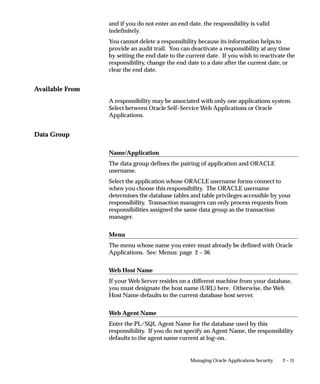
         Enable Trace
         Turns on SQL tracing when program runs.

         Restart on System Failure
         Use this option to indicate that this concurrent program should
         automatically be restarted when the concurrent manager is restored
         after a system failure.

         NLS Compliant
         This box is checked if the program allows for a user to submit a request
         of this program that will reflect a language and territory that are
         different from the language and territory that the users are operating
         in.
         For example, users can enter orders in English in the United Kingdom,
         using the date and number formats appropriate in the United
         Kingdom, then generate invoices in German using the date and number
         formats appropriate to their German customers.
         If this box is left blank then a user can associate any installed language
         with the request, but the territory will default to the territory of the
         concurrent manager environment.
         Note that this option should be set only by the developer of the
         program. The program must be written as NLS Compliant to utilize
         this feature. See: the Oracle Applications Developer’s Guide.
         Note that this option should be set only by the developer of the
         program. The program must be written as NLS Compliant to utilize
         this feature.


Output   Format
         Select the output format from the following:
             • HTML
             • PCL (HP’s Printer Control Language)
             • PDF
             • PS (Post Script)
             • Text


                                     Managing Concurrent Programs and Reports   4 – 71
Attention: If you choose HTML or PDF as the output type
                                          with Oracle Report programs, you must use an appropriate
                                          printer driver that handles HTML or PDF files.

                                Save
                                Indicate whether to automatically save the output from this program to
                                an operating system file when it is run. This value becomes the default
                                for all requests submitted for this program. The output of programs
                                with Save set to No is deleted after printing.
                                If this is a Standard Request Submission program, users can override
                                this value from the Submit Requests window.

                                Print
                                Enter Yes or No to indicate whether to allow the concurrent managers
                                to print your program’s output to a printer. If you enter No, your
                                concurrent program’s output is never sent to the printer.

                                Columns / Rows
                                Enter the minimum column and row length for this program’s report
                                output. Oracle Applications uses this information to determine which
                                print styles can accommodate your report.

                                Style
                                The print style you select depends on your system and printer setup.
                                Print styles include:
                                    • 132 columns and 66 lines (Landscape)
                                    • 180 columns and 66 lines (Landwide)
                                    • 80 columns and 66 lines (Portrait)
                                    • 132 columns and 62 lines (A4)
                                Your list is limited to those styles that meet your program’s columns
                                and row length requirements.

                                Style Required
                                If your program requires a specific print style (for example, a
                                checkwriting report), use this check box to enforce that print style.

                                Printer
                                If you want to restrict your program’s output to a single printer, enter
                                the name of the printer to which you want to send your output. If your


4 – 72   Oracle Applications System Administrator’s Guide
program has minimum or maximum columns or rows defined, your
                        list of values is limited to those printers that can support your
                        program’s requirements.
                        Users cannot override your choice of printer from the Submit Requests
                        or Requests windows.
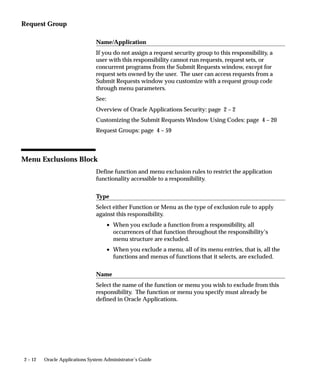
Concurrent Programs Use these buttons to open detail windows for program
Buttons             incompatibilities your program parameters.
                        Copy to...          Choose this button to create another concurrent
                                            program using the same executable, request and
                                            report information. You can elect to copy the
                                            incompatibility and parameter details as well.
                        Session Control     Choose this window to specify options for the
                                            database session of the concurrent program when
                                            it is executed.
                        Incompatibilities   Choose this button to open the Incompatible
                                            Programs window.
                        Parameters          Choose this button to open the Concurrent
                                            Program Parameters window.


Copy to Window
                        Create another concurrent program using the same executable, request
                        and report information as the current program. You can optionally
                        copy the incompatibility and parameter details information as well.
                        See: Incompatible Programs Window: page 4 – 75


Session Control Window
                        Use this window to specify options for the database session of the
                        concurrent program when it is executed.

                        Consumer Group
                        Optionally specify the resource consumer group for the concurrent
                        program.
                        See: Resource Consumer Groups in Oracle Applications: page 8 – 7

                        Rollback Segment
                        Optionally specify a rollback segment to be used with the concurrent
                        program. This rollback segment will be used instead of the default and
                        will be used up until the first commit.


                                                  Managing Concurrent Programs and Reports   4 – 73
Attention: If you specify a rollback segment here, your
                                         concurrent program must use the APIs
                                         FND_CONCURRENT.AF_COMMIT and
                                         FND_CONCURRENT.AF_ROLLBACK to use the specified
                                         rollback segment. See: the Oracle Applications Developer’s Guide.

                                Optimizer Mode
                                Optionally specify an optimizer mode. You can choose ALL_ROWS,
                                FIRST_ROWS, Rules, or Choose. You would specify an optimizer
                                mode only for a custom program that may not perform well with the
                                default cost–based optimizer (CBO) and needs tuning. You can use a
                                different optimizer mode until your program is tuned for CBO.


4 – 74   Oracle Applications System Administrator’s Guide
Incompatible Programs Window


                   Identify programs that should not run simultaneously with your
                   concurrent program because they might interfere with its execution.
                   You can specify your program as being incompatible with itself.

                   Application
                   Although the default for this field is the application of your concurrent
                   program, you can enter any valid application name.

                   Name
                   The program name and application you specify must uniquely identify
                   a concurrent program.
                   Your list displays the user–friendly name of the program, the short
                   name, and the description of the program.


                                              Managing Concurrent Programs and Reports   4 – 75
Scope
                                Enter Set or Program Only to specify whether your concurrent program
                                is incompatible with this program and all its child requests (Set) or only
                                with this program (Program Only).


Concurrent Program Parameters Window


                                Enter and update the program parameters that you wish to pass to the
                                program executable. Program parameters defined here should match
                                the variables in your execution file.


4 – 76   Oracle Applications System Administrator’s Guide
Conflicts Domain Parameter
                  Enter the parameter which will hold the value of the conflict domain of
                  the program. For information on conflict domain parameters, see
                  Concurrent Conflict Domains: page 4 – 26.

                  Security Group
                  This field is for HRMS security only. See: Customizing, Reporting, and
                  System Administration in Oracle HRMS.

                  Sequence
                  Choose the sequence numbers that specify the order in which your
                  program receives parameter values from the concurrent manager.

                  Parameter
                  Enter the parameter name. The value is case insensitive.

                  Enabled
                  Disabled parameters do not display at request submission time and are
                  not passed to your execution file.

Argument Detail   You specify information about your parameter almost exactly as you
                  define a flexfield segment.


Validation        Value Set
Information       Enter the name of the value set you want your parameter to use for
                  validation. You can only select from independent, table, and
                  non–validated value sets.
                  The maximum size of your value set is 240 characters.
Attention: If you are using a value set of dates, this value set
                          should have a format type of either Standard Date or Standard
                          DateTime if you are using the Multilingual Request feature.

                  Default Type
                  If you want to set a default value for this parameter, identify the type of
                  value you need.
                  Valid types include:
                  Constant               The default value can be any literal value.


                                               Managing Concurrent Programs and Reports   4 – 77
Profile                 The default value is the current value in the user
                                                        profile option defined in the Default Value field.
                                                        Use the profile option name, not the end–user
                                                        name. You do not need to include $PROFILE$.
                                SQL Statement           The default value is determined by the SQL
                                                        statement you defined in the Default Value field.
                                Segment                 The default value is the value entered in a prior
                                                        segment of the same parameter window.

                                Default Value
                                You can enter a default value for the parameter. This default value for
                                your parameter automatically appears when you enter your parameter
                                window. You determine whether the default value is a constant or a
                                context–dependent value by choosing the default type.
                                Your default value should be a valid value for your value set.
                                Otherwise you see an error message when you enter your parameter
                                window on the Run Request window and your default value does not
                                appear.
                                Valid values for each default type include:
                                Constant                Enter any literal value for the default value.
                                Profile                 The default value is the current value of the user
                                                        profile option you specify here. Enter the profile
                                                        option name, not the end–user name.
                                Segment                 The default value is the value entered in a prior
                                                        segment of the same flexfield window. Enter the
                                                        name of the segment whose value you want to
                                                        copy.
                                SQL Statement           The default value is determined by the SQL
                                                        statement you enter here. Your SQL statement
                                                        must return exactly one row and one column in all
                                                        cases.

                                Required
                                If the program executable file requires an argument, you should require
                                it for your concurrent program.

                                Enable Security
                                If the value set for this parameter does not allow security rules, then
                                this field is display only. Otherwise you can elect to apply any security
                                rules defined for this value set to affect your parameter list.


4 – 78   Oracle Applications System Administrator’s Guide
Range
              Choose either Low or High if you want to validate your parameter
              value against the value of another parameter in this structure.
              Parameters with a range of Low must appear before parameters with a
              range of High (the low parameter must have a lower number than the
              high parameter). For example, if you plan two parameters named
              ”Start Date” and ”End Date,” you may want to force users to enter an
              end date later than the start date. You could assign ”Start Date” a
              range of Low and ”End Date” a range of High. In this example, the
              parameter you name ”Start Date” must appear before the parameter
              you name ”End Date.”
              If you choose Low for one parameter, you must also choose High for
              another parameter in that structure (and vice versa). Otherwise you
              cannot commit your changes.
              If your value set is of the type Pair, this field is display only. The value
              defaults to Pair.


Window        Display
Information   Indicate whether to display this parameter in the Parameters window
              when a user submits a request to run the program from the Submit
              Requests window.
              You should provide a default type and value for any non–displayed
              parameter.

              Display Size
              Enter the field length in characters for this parameter. The user sees
              and fills in the field in the Parameters window of the Submit Requests
              window.
              You should ensure that the total of the value set maximum sizes (not
              the display sizes) for all of your parameters, plus the number of
              separators you need (number of parameters minus one), does not add
              up to more than 240. If your program values’ concatenated length
              exceeds 240, you may experience truncation of your data in some
              forms.

              Description Size
              Enter the display length in characters for the parameter value
              description. Your window may show fewer characters of your
              description than you specify here if there is not enough room
              (determined by the sum of your longest prompt plus your display size


                                          Managing Concurrent Programs and Reports   4 – 79
for this parameter plus seven). However, your window does not
                                display more characters of the description than you specify here.

                                Prompt
                                A user sees the prompt instead of the parameter name in the
                                Parameters window of the Submit Requests window.
                                The default is the name of the parameter.

                                Concatenated
                                Description Size
                                Enter the display length in characters for the parameter value
                                description. The user sees the parameter value in the Parameter
                                Description field of the Submit Requests and View Requests forms.
                                The Parameter Description field concatenates all the parameter values
                                for the concurrent program.
                                         Suggestion: We recommend that you set the Concatenated
                                         Description Size for each of your parameters so that the total
                                         Concatenated Description Size for your program is 80 or less,
                                         since most video screens are 80 characters wide.

                                Token
                                For a parameter in an Oracle Reports program, the keyword or
                                parameter appears here. The value is case insensitive. For other types
                                of programs, you can skip this field.
                                See: Incompatible Programs Window: page 4 – 75


4 – 80   Oracle Applications System Administrator’s Guide
Data Groups Window


                Use this window to define data groups. A data group is a list of Oracle
                Applications and the ORACLE usernames assigned to each application.
                     • If a custom application is developed with Oracle Application
                       Object Library, it may be assigned an ORACLE username,
                       registered with Oracle Applications, and included in a data
                       group.


                                           Managing Concurrent Programs and Reports   4 – 81
An ORACLE username allows access to an application’s tables in an
                                ORACLE database. All data groups automatically include an entry for
                                Application Object Library.
                                    • A concurrent manager running reports or programs under Oracle
                                      Applications refers to a data group to identify the ORACLE
                                      username it uses to access an application’s tables in the database.
                                    • Transaction managers running synchrous programs can only run
                                      programs submitted from responsibilities assigned the same data
                                      group as the transaction manager. If you create custom data
                                      groups, you should create new transaction managers for the
                                      applications that use transaction managers. Consult your product
                                      documenation to determine if your application uses transaction
                                      managers.
                                Each responsibility within Oracle Applications is assigned a data group.
                                During installation or upgrading of Oracle Applications, a standard data
                                group is defined, pairing each installed application with an ORACLE
                                username (note: a standard data group is defined for each set of books).
                                You cannot change or delete the predefined values for Application or
                                ORACLE username in a Standard data group. However, you may:
                                    • Modify the Tool ORACLE username and description associated
                                      with an Application–ORACLE username pair.
                                    • Add new Application–ORACLE username pairs to the group.


Data Groups Block
                                Create a new data group, or modify an existing data group.
                                You cannot change or delete the predefined values for Application or
                                ORACLE username in a Standard data group. However, you may modify
                                the Tool ORACLE username and description, or add new
                                Application–ORACLE username pairs to a Standard group.

                                Data Group
                                A data group is uniquely identified by its name. You cannot create a
                                data group with a name already in use.
                                Once saved, data group names cannot be edited.


Application–ORACLE ID Pairs Block
                                Pair applications with ORACLE usernames.


4 – 82   Oracle Applications System Administrator’s Guide
When you copy a data group, each application, its assigned ORACLE
                    username, and, if present, its Tool ORACLE username and description,
                    appear in this zone automatically. All data groups automatically include
                    an entry for Application Object Library.

                    Application
                    Within each data group, an application can be listed only one time.

                    Oracle ID
                    Select the ORACLE ID you want to assign to an application. An
                    application uses an ORACLE ID to access tables in the database. Each
                    ORACLE ID allows access to a predefined set of tables in the database.
                    Each responsibility within Oracle Applications is assigned to a data
                    group. When you sign on to Oracle Applications under a given
                    responsibility:
                        • Each application’s programs and reports access application tables
                          in the database using the ORACLE username assigned to it in the
                          responsibility’s data group.

Copy Applications   Use this button to copy an existing data group, then add or delete
From...             application–ORACLE username pairs to create a new data group.


                                              Managing Concurrent Programs and Reports   4 – 83
4 – 84   Oracle Applications System Administrator’s Guide
CHAPTER


5         Managing Concurrent
          Processing


          T    his chapter explains concurrent processing in Oracle Applications
          and how you can manage programs running concurrently in the
          background while your users continue to perform online tasks.
          The essays in this chapter are organized under the following topics:
              • Overview of Concurrent Processing
              • Reviewing Requests and Log Files
              • Changing the Status of Concurrent Requests
              • Managing Concurrent Processing Files and Tables
              • Concurrent Processing User Profile Settings
              • Defining Managers and their Work Shifts
              • Specializing Managers to run only certain programs
              • Grouping Programs as a Request Type
              • Controlling Concurrent Managers
              • Overview of Parallel Concurrent Processing
              • Managing Parallel Concurrent Processing
          Form descriptions follow at the end of the chapter.


                                              Managing Concurrent Processing     5– 1
Overview of Concurrent Processing
                                 This section explains how a request to run a concurrent program is
                                 handled by Oracle Applications, and what the life cycle of a concurrent
                                 request is.
                                 In Oracle Applications, concurrent processing simultaneously executes
                                 programs running in the background with online operations. As
                                 System Administrator, you can manage when programs are run and
                                 how many operating system processes Oracle Applications devotes to
                                 running programs in the background.


Concurrent Requests, Programs, and Processes
                                 When a user runs a report, a request to run the report is generated.
                                 The command to run the report is a concurrent request. The program
                                 that generates the report is a concurrent program. Concurrent programs
                                 are started by a concurrent manager.

Figure 5 – 1                     User action                 System maintains list   Concurrent Managers read
                                 requests concurrent         of requests to start    applicable requests and
                                 program to start            concurrent programs     start concurrent programs

                                                                REQUEST TABLE


                                                               Run Program ...
                                                               Run Program ...
                                     Request to                                       CONCURRENT       Program X
                                                               Run Program X
                                    run program                                        MANAGER           started
                                                               Run Program ...


                                 Concurrent Managers start concurrent programs
                                 Every time your users request a concurrent program to be run, their
                                 request is inserted into a database table, and is uniquely identified by a
                                 request ID. Concurrent managers read requests from this table.
                                 Part of a manager’s definition is how many operating system processes
                                 it can devote to running requests. This number is referred to as the
                                 manager’s number of target processes.


                                 Running concurrent programs
                                 A concurrent program actually starts running based on:


5– 2      Oracle Applications System Administrator’s Guide
• When it is scheduled to start
                            • Whether it is placed on hold,
                            • Whether it is incompatible (cannot run) with other programs
                            • Its request priority

                       Concurrent Request Priorities
                       The priority of a concurrent request is determined by application
                       username, and is set by the System Administrator using the
                       Concurrent:Priority user profile option.
                       The first available concurrent manager compares the request’s priority
                       to other requests it is eligible to process, and runs the request with the
                       highest priority.
                       When choosing between requests of equal priority, the concurrent
                       manager runs the oldest request first.

                       Parent requests and Child requests
                       Often, several programs may be grouped together, as in a request set.
                       Submitting the request set as a whole generates a request ID, and as
                       each member of the set is submitted it receives its own request ID. The
                       set’s request ID identifies the Parent request, and each of the individual
                       programs’ request ID identifies a Child request.


Life cycle of a concurrent request
                       A concurrent request proceeds through three, possibly four, life cycle
                       stages or phases:
                       Pending                  Request is waiting to be run
                       Running                  Request is running
                       Completed                Request has finished
                       Inactive                 Request cannot be run

                       Within each phase, a request’s condition or status may change. The
                       following table shows a listing of each phase and the various states that
                       a concurrent request can go through.

                        Phase              Status        Description

                        PENDING            Normal        Request is waiting for the next available manager.

                        PENDING            Standby       Program to run request is incompatible with other
                                                         program(s) currently running.

                        Table 5 – 1 (Page 1 of 2)


                                                                 Managing Concurrent Processing         5– 3
Phase              Status        Description

                               PENDING            Scheduled     Request is scheduled to start at a future time or date.

                               PENDING            Waiting       A child request is waiting for its Parent request to
                                                                mark it ready to run. For example, a report in a
                                                                report set that runs sequentially must wait for a
                                                                prior report to complete.

                               RUNNING            Normal        Request is running normally.

                               RUNNING            Paused        Parent request pauses for all its child requests to
                                                                complete. For example, a report set pauses for all
                                                                reports in the set to complete.

                               RUNNING            Resuming      All requests submitted by the same parent request
                                                                have completed running. The Parent request is wait-
                                                                ing to be restarted.

                               RUNNING            Terminating   Running request is terminated, by selecting Terminate
                                                                in the Status field of the Request Details zone.

                               COMPLETED          Normal        Request completes normally.

                               COMPLETED          Error         Request failed to complete successfully.

                               COMPLETED          Warning       Request completes with warnings. For example, a
                                                                report is generated successfully but fails to print.

                               COMPLETED          Cancelled     Pending or Inactive request is cancelled, by selecting
                                                                Cancel in the Status field of the Request Details zone.

                               COMPLETED          Terminated    Running request is terminated, by selecting Terminate
                                                                in the Status field of the Request Details zone.

                               INACTIVE           Disabled      Program to run request is not enabled. Contact your
                                                                system administrator.

                               INACTIVE           On Hold       Pending request is placed on hold, by selecting Hold
                                                                in the Status field of the Request Details zone.

                               INACTIVE           No Manager    No manager is defined to run the request. Check
                                                                with your system administrator.

                               Table 5 – 1 (Page 2 of 2)


5– 4   Oracle Applications System Administrator’s Guide
Integration with Oracle Enterprise Manager
                     Oracle Applications has integrated its concurrent manager
                     administrative interface with Oracle Enterprise Manager, thus enabling
                     administrators to better manage their systems. Oracle Enterprise
                     Manager provides a single point of administration for all available
                     Oracle Applications instances on a system.
                     Oracle Enterprise Manager is a java–based framework consisting of
                     multiple components that integrate into a powerful graphical user
                     interface (GUI). Oracle Enterprise Manager combines a central console,
                     agents, common services, and tools to provide an integrated,
                     comprehensive system management platform for managing Oracle
                     products.
                     For information on Enterprise Manager, see Oracle Enterprise Manager
                     Concepts Guide and Oracle Enterprise Manager Administrator’s Guide.


Oracle Applications Manager
                     Oracle Applications Manager is a new tool that extends the
                     Applications system administration capabilities of Enterprise Manager.
                     Oracle Applications Manager allows administrators to manage
                     Concurrent Processing and Workflow for multiple Oracle Applications
                     instances from a single console.
                     Using the Oracle Applications Manager, system administrators can
                     monitor, start, and stop concurrent managers. They can also define
                     concurrent managers and workshifts. System administrators can also
                     view and control concurrent requests and view detailed information on
                     the requests. For example, the console displays diagnostic information
                     on requests such as request incompatibilities and available managers.
                     The log files for concurrent manager and requests are also available
                     from the console. Note that this new concurrent processing
                     functionality is currently in addition to the multi–window Oracle
                     Applications forms, and administrators can choose which tools they
                     wish to use. Requests submitted within the standard Oracle
                     Applications windows can be viewed from the Oracle Applications
                     Manager console. Likewise, concurrent managers defined in the
                     console can be accessed from within the Oracle Applications windows.
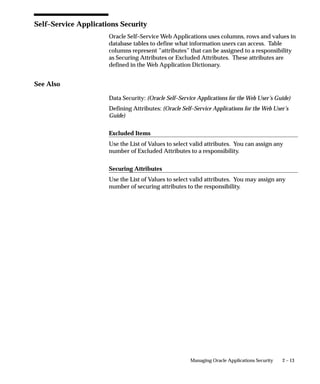
                     System administrators can also monitor Oracle Workflow processing.
                     They can view a distribution of all Workflow item activities by status,
                     and drill down to additional information on them. With the ability to
                     monitor all activities, a system administrator can identify possible


                                                         Managing Concurrent Processing   5– 5
bottlenecks easily. System administrators can also monitor notification
                              activities in particular, monitor background engines and start new ones
                              if necessary, and purge obsolete Workflow data.


Oracle Management Pack for Oracle Applications
                              The Oracle Management Pack for Oracle Applications (hereafter
                              referred to as the Management Pack for Oracle Applications) extends
                              Oracle Enterprise Manager to enable the monitoring, diagnosing, and
                              capacity planning of the multi–tiered Oracle Applications environment.


5– 6   Oracle Applications System Administrator’s Guide
Oracle Applications Manager
                  You can perform many tasks for several Oracle Applications instances
                  from a single Oracle Applications Manager console. For example, you
                  can access the statuses of all concurrent managers for a production
                  instance and a test instance. You can view this information for one
                  instance at a time.
                  The following information is available from the console:
                      • a summary of all requests and managers
                      • details on all concurrent managers
                      • details on your transaction managers
                      • details on all concurrent requests
                  You can also start and stop concurrent managers from the console.
                  You can define or edit the following:
                      • managers
                      • work shifts
                  You can view the following information for concurrent requests:
                      • details, including schedule and completion options
                      • diagnostics
                      • manager, log, and output files
                      • statistics
                      • available managers for requests that have not yet run
                  You install Oracle Applications Manager using the Universal Installer
                  when you install Enterprise Manager. Refer to the Oracle Enterprise
                  Manager and Oracle Applications Manager documentation for
                  information on installation and configuration.


                                                      Managing Concurrent Processing   5– 7
Oracle Management Pack for Oracle Applications
                              The Management Pack for Oracle Applications extends Oracle
                              Enterprise Manager to enable the monitoring, diagnosing, and capacity
                              planning of the multitiered Oracle Applications environment. The
                              Management Pack for Oracle Applications takes advantage of the
                              following Oracle Enterprise Manager system management features:
                                  • Discovery and graphical representation of services to be
                                    monitored
                                  • Starting tools from the console in the context of a specific service
                                  • Automated data collection and management services
                                  • Central monitoring and administration of remote systems using
                                    intelligent agents
                              The Management Pack for Oracle Applications extends the following
                              tools to work with Oracle Applications:
                                  • Oracle Enterprise Manager console
                                     The console is extended to discover concurrent managers and to
                                     notify you should any of the servers go down. You can also
                                     define jobs for any of the Oracle Applications subsystems,
                                     allowing central administration of a distributed Oracle
                                     Applications system.
                                  • Oracle Applications Advanced Events
                                     A library of events specific to Oracle Applications are provided
                                     for lights–out event monitoring and problem detection of the
                                     Oracle Applications system. Additional lights–out problem
                                     resolution is provided with fix–it jobs that are configured to run
                                     automatically when an event triggers. These fix–it jobs are either
                                     custom–built or chosen from a small predefined set provided
                                     with the Management Pack for Oracle Applications.
                                  • Oracle Performance Manager
                                     A new Oracle Applications data gatherer cartridge feeds data to
                                     Oracle Performance Manager, providing you with an extensive
                                     array of real–time monitoring charts on all concurrent managers
                                     and Forms sessions that are used by your Oracle Applications
                                     instance.
                                  • Oracle Capacity Planner


5– 8   Oracle Applications System Administrator’s Guide
Concurrent manager performance data is gathered over time and
      fed to Oracle Capacity Planner for analysis of resource
      consumption and detection of performance anomalies.
    • Concurrent Processing Tuning Assistant
      This utility allows you to examine historical processing
      information about Oracle Concurrent Processing requests and
      concurrent managers.
For more information on the Management Pack for Oracle
Applications, see Getting Started with the Oracle Management Pack for
Oracle Applications.


                                     Managing Concurrent Processing     5– 9
Reviewing Requests, Request Log Files, and Report Output Files
                               This essay explains how you, as System Administrator, can view and
                               change the status of concurrent requests, and how to view request log
                               and report output files.


How To View Request Status and Output
                               Use any of the following methods to view the status and output of
                               concurrent requests.


                               Use the Requests Window
                               Use the Requests window to view the status of concurrent requests,
                               and to view request log and report output files.
                               The System Administrator and Oracle Alert Manager have a privileged
                               version of the Requests window that provides you with more
                               capabilities than your end users. For example, using the Requests
                               window, you can view the status of and log files for all concurrent
                               requests (not just your own), including requests that completed
                               unsuccessfully. On some platforms, you can even view the log files of
                               running requests.
                               Using the same window, you can view your own report output online.
                               You cannot, however, view report output from other users’ requests.
                               From the Requests window, you can also:
                                   • place and remove holds from any pending or inactive request
                                   • cancel a pending request, or terminate a running request
                                   • change the priority of any pending request
                                   • view the manager log file
                                   • determine where any pending request stands in the queue for
                                     each manager defined to accept the request
                                   • determine when the concurrent manager is inactive and needs to
                                     be restarted.


                               Run the Completed Concurrent Requests Report
                               You can run a report that lists parameters and any error messages
                               associated with concurrent requests that have completed running. See:
                               Completed Concurrent Requests Report: page 5– 36.


5– 10   Oracle Applications System Administrator’s Guide
How to Modify Request Diagnostic Output
                      The Request Diagnostics window provides the user with request status
                      information. This information consists of messages that explain the
                      request’s current status.

                      Collect Runtime Data
                      Set the profile option Concurrent:Collect Request Statistics to ”Yes” to
                      collect runtime statistics.
                      A concurrent request may be comprised of one or two processes: a
                      Net8i shadow which consumes database server resources, and a
                      front–end process such as a C executable. The time used by the CPU is
                      collected for both of these types of processes.

                      Summarize and View Runtime Statistics
                      To review the statistics you must run the Purge Concurrent Request
                      and/or Manager Data program to process the raw data and have it
                      write the computed statistics to the FND_CONC_STAT_SUMMARY
                      table. You can review the statistics on a request by request basis using
                      the Diagnostics window from the Requests window.


Setting End User Report and Log File Access Privileges
                      The user profile option Concurrent:Report Access Level determines report
                      output file and log file access privileges for your end users. As System
                      Administrator, you can set this profile option to either ”User” or
                      ”Responsibility.”
                      All users can can review the log and report output files from requests
                      that they submitted.
                      If you set the Concurrent:Report Access Level option to ”Responsibility”
                      at the User level, that user can also review the log and report output
                      files from all requests submitted from the current responsibility.
                      If you set the Concurrent:Report Access Level option to ”Responsibility”
                      at the Responsibility level, any user of that responsibility can also view
                      the log and report output files from all requests submitted by any other
                      user of that responsibility.


Enabling the Report Review Agent
                      Oracle Applications uses a tool called the Report Review Agent to view
                      concurrent request log and output files online.


                                                           Managing Concurrent Processing   5– 11
Using the Report Review Agent, you can copy an entire report or log
                               file to your PC, subject to restrictions you, as the System Administrator,
                               impose on file transfer size. You can view a report one page at a time.
                               1.   To set up the Report Review Agent, a database or computer
                                    administrator must modify the Net8i configuration. See the
                                    Release 11i Installing Oracle Applications manual for details on
                                    modifying your Net8i configuration.
                               2.   Optionally, you can set each APPL_TOP to have its own Report
                                    Review Agent service using the RRA: Server Prefix profile. For
                                    example, test and production instances of Oracle Applications
                                    installed on a single machine will not have to share a report review
                                    agent service.
                                    In previous releases, Report Review Agent services were always
                                    named using the ”FNDFS_nodename” convention. The RRA:
                                    Server Prefix profile allows system administrators to override the
                                    default server name prefix ”FNDFS_”.
                                    To override the default service name prefix of ”FNDFS_”, set the
                                    site level profile ”RRA: Service Prefix” to the desired prefix. For
                                    example, if the profile ”RRA: Service Prefix” is set to ”PROD_”,
                                    then the Report Review Agent services will be named
                                    ”PROD_nodename” instead of ”FNDFS_nodename”.
                                    The value of the profile ”RRA: Service Prefix” must be nine
                                    characters or fewer. We recommend that the last character be an
                                    underscore. Use only alphanumeric characters and underscores
                                    only. If the profile is null, then the prefix ”FNDFS_” will be used.
                               3.   When using a custom editor to view a concurrent output or log file,
                                    the Report Review Agent will make a ”temporary” copy of the file
                                    on the client. Set the RRA:Delete Temporary Files profile to ”Yes”
                                    to automatically delete these files when the user exits Oracle
                                    Applications. See: Defining the Reports Editor: page 5– 13, Profile
                                    Options in Oracle Application Object Library: page A – 2.
                               4.   Set the RRA:Maximum Transfer Size profile option to specify, in
                                    bytes, the maximum allowable size of files transferred by the
                                    Report Review Agent, including those downloaded by a user with
                                    the ”Copy File...” menu option in the Oracle Applications Report
                                    File Viewer and those ”temporary” files which are automatically
                                    downloaded by custom editors.
                                    If this profile is null, there is no size limit. See: System Profile
                                    Values Window: page 10– 6.
                               5.   Set up your directory tree so that the concurrent managers place all
                                    log and out file directories in the same parent directory. See the


5– 12   Oracle Applications System Administrator’s Guide
Release 11i Installing Oracle Applications manual for your server
                            platform for details on setting the necessary environment variables.
                            Briefly, you direct the concurrent managers to place log and report
                            output files for all products in the same parent directory by setting
                            the environment variable APPLCSF on the server to the directory
                            where all log and output files should reside.
                                Note: The APPLCSF environment variable is specific to your
                                server. The APPLCSF variable is not used on the client.
                     6.     Set the profile option Applications Web Agent to the base URL of
                            the APPS schema’s Web Application Server Database Access
                            Descriptor (DAD).
                            See: Applications Web Agent: page A – 3.


Defining the Reports Viewer
                     The Oracle Applications Report File Viewer is used by default for
                     viewing your text report files. You can also display text files in a
                     browser or use another application such as Microsoft Word. You define
                     your default viewer by setting a profile option.

                     Set the Viewer:Text Profile Option
                     If the Viewer:Text profile option is set to ”Browser” then reports are
                     sent to a web browser. If this profile option is left blank, the Report File
                     Viewer is used instead.
                     If this profile option is left blank, a report or log file can still be viewed
                     in a browser by first viewing it using the Report File Viewer, and then
                     choosing ”Copy File...” from the Tools menu.
                     See:
                     Setting Your Personal User Profile
                     (Oracle Applications User’s Guide)
                     System Profile Values Window: page 10– 6
                     See: Viewing Request Output and Log Files
                          (Oracle Application’s User’s Guide)


Viewing HTML Report Output
                     You can view your reports with HTML output in a browser. Once an
                     HTML report has been sent to a browser, it can be saved to the desktop
                     by using the Save As functionality of the browser.


                                                             Managing Concurrent Processing    5– 13
Note: HTML reports are displayed by the browser in the
                                        character set of the server. This character set may or may not
                                        match the character set on the client. Therefore, it may be
                                        necessary to convert the output to the client character set when
                                        saving the report. If the browser supports character set
                                        conversion with Save As, there will be a poplist in the Save As
                                        dialog box. The user can then choose an encoding which
                                        matches the client character set.


Online Report Review using Other Applications
                               You can set up your Online Report Review implementation to enable
                               viewing output files in other applications, such as Microsoft Word or
                               Excel. To do this you associate MIME types with file output formats.
                               Users can then set their preferred MIME types for particular output
                               formats using profile options, or the users may be prompted to choose
                               the appropriate MIME type for a file at runtime.
                               You can register more than one MIME type file format with each output
                               format. In the Viewer Options window, you enter in the file format, the
                               MIME type, and a description. The description is displayed to the user
                               in the Profile Values window and the Submit Request form. See:
                               Viewer Options Window: page 5– 107.
                               When the report is viewed, it must first be sent to a browser. The
                               browser then uses the associated MIME type to display the report.
Attention: For printing, if users choose either HTML or PDF
                                        as the output type with Oracle Report programs, they must use
                                        appropriate printer drivers to handle the PDF and HTML file
                                        for printing their output. See: Overview of Printers and
                                        Printing page: 6– 2.


Types of Log Files
                               Log files contain information about a concurrent program’s execution,
                               or a concurrent manager’s activities. Log files are helpful when
                               reviewing a problem request.
                               Log files are generated for all Completed concurrent requests.
                               There are three types of log files:
                               1.   Request log files that document the execution of a concurrent
                                    program running as the result of a concurrent request. Every
                                    concurrent request generates a log file.


5– 14   Oracle Applications System Administrator’s Guide
2.   Manager Log files that document the performance of a concurrent
                         manager that is running a request. The Manager Log file lists
                         requests processed by a concurrent manager.
                    3.   The Internal Concurrent Manager Log file that documents the
                         performance of the Internal Concurrent Manager. It displays
                         parameter values that are loaded when the Internal Concurrent
                         Manager is started.
                    If a concurrent process ends in an error, you should review the log files
                    to help diagnose the problem. You may also want to review the log
                    files if a program’s performance is questionable. For example, if a
                    report runs very slowly or if it prints out data that you didn’t expect.
                    The Internal Concurrent Manager Log file also records the time that
                    each concurrent manager is started, and when each process monitor
                    session or pmon cycle is initiated. During each pmon cycle, the Internal
                    Concurrent Manager verifies the correct operation of each defined
                    concurrent manager.

                    System Administrator Log File Privileges
                    Both you and your end users can review request log files and manager
                    log files online. Only the System Administrator can display the
                    Internal Concurrent Manager log file.
                    As System Administrator, you can use the Concurrent Requests and
                    Administer Concurrent Program windows to view request and
                    manager log files.

                    Operating System Access to Log Files
                    Log files are stored as standard operating system files in directories
                    defined during the installation of Oracle Applications.
                    For example, Oracle General Ledger files are located using a path
                    variable called $GL_TOP/$APPLLOG, or $APPLCSF/$APPLLOG, if
                    the APPLCSF variable is set.
                    The complete path name to access an Oracle Applications log file
                    depends on the operating system you are using. However, there are a
                    number of file name conventions that are standard across all platforms.

Example – Request   For example, the log file naming convention in VMS and UNIX is the
Log File name       letter L (l), followed by the concurrent request ID, followed by the
                    extension .REQ (.req). In the example below, the concurrent request ID
                    is 64225.
                    VMS                  L64225.REQ


                                                         Managing Concurrent Processing   5– 15
UNIX                    l64225.req
                               See: Concurrent Manager File Conventions
                               (Installing Oracle Applications)

                               Operating System Access to Concurrent Manager Log Files
                               Concurrent manager log files are located in the log directory under
                               FND_TOP, the variable that contains the path name to Application
                               Object Library Files, or under $APPLTOP/$APPLLOG.
                               The concurrent manager log file naming convention in UNIX is
                               wn.mgr, where n is a number with up to 3 digits.
                               For most platforms, n is the Concurrent Process ID number assigned to
                               the concurrent manager by the Internal Concurrent Manager, and is
                               found in the Internal Concurrent Manager log file.
                               The log file name for the Internal Concurrent Manager is specified
                               when you use the STARTMGR command from the operating system to
                               start the concurrent managers.


See Also

                               Controlling the Internal Concurrent Manager from the Operating
                               System: page 5– 60
                               Setting Up Concurrent Managers: page G – 42


Operating System Access to Report Output Files
                               Report output files generated by concurrent programs are stored as
                               standard operating system files in directories defined during the
                               installation of Oracle Applications.

                               Path name to Output Files
                               The complete path name to access an Oracle Applications report output
                               file depends on the operating system you are using. However, there
                               are a number of file name conventions that are standard across all
                               platforms.
                                   • Each output file name includes the unique request ID assigned
                                     by the concurrent processing facility.

Example – Report               For example, the output file naming convention in VMS and UNIX is
Output File name               Application Username.Request ID. Oracle Applications uses the first 8


5– 16   Oracle Applications System Administrator’s Guide
characters of the application username in the output file name. In the
           example below, the application username is JSMITH and the concurrent
           request ID is 64225.
           For example:
           VMS and UNIX       JSMITH.64225


See Also

           Setting Up Concurrent Managers: page G – 42


                                              Managing Concurrent Processing   5– 17
Changing the Status of Concurrent Requests
                               This essay explains how to change a request’s phase and status, and
                               how to change the priority of a Pending or Inactive request.


Changing a Request’s Phase and Status
                               A request is in one of four phases: Pending (waiting to be run),
                               Running, Completed, or Inactive (unable to run). Within each phase, a
                               request’s condition is referred to as its status.
                               You can change the phase of a Pending, Running, or Inactive request by
                               changing its status.

                               Pending and Inactive Requests
                               You may cancel Pending and Inactive requests. The request’s phase
                               and status becomes Completed – Cancelled.
                               You may place on hold Pending and Inactive requests. The request’s
                               phase and status becomes Inactive – On Hold. You can reverse this
                               action by later selecting the request removing the hold.

                               Running Requests
                               You can terminate Running requests. The request’s phase and status
                               becomes Completed – Terminated.

                               Changing a Request’s Status
                               You can change the status of a request, and its resulting phase, using
                               the Requests window.


Changing the Priority of a Pending or Inactive request
                               Requests normally run according to start time, on “first–submitted,
                               first–run” basis. However, a higher priority request starts before an
                               earlier request.
                               As System Administrator, you can change the priority of any Pending
                               or Inactive request using the Requests window.

                               Request Priority is associated with an application User
                               The priority of a user’s requests defaults to the value you, as System
                               Administrator, set for their Concurrent:Priority user profile option.
                               Users cannot change the priority of their requests.


5– 18   Oracle Applications System Administrator’s Guide
If a concurrent program has a defined priority, that priority overrides
the user’s profile option.
    • Priorities range from 1 (highest) to 99 (lowest).
    • The standard default is 50.
    • Concurrent programs submitted by the Internal Concurrent
      Manager have a priority of zero (0), and override all other
      requests.
        Suggestion: If you need to change the priority of a request
        frequently, you should consider assigning that concurrent
        program its own priority.


                                     Managing Concurrent Processing   5– 19
Managing Concurrent Processing Files and Tables
                               This section explains how to maintain the number of log and output
                               files the operating system retains, and how to manage Application
                               Object Library database tables that store information about concurrent
                               requests and concurrent manager processes.
                               The database tables that are affected by running the Purge Concurrent
                               Request and/or Manager Data program are:


                               FND_CONCURRENT_REQUESTS
                               This table contains a complete history of all concurrent requests.


                               FND_RUN_REQUESTS
                               When a user submits a report set, this table stores information about
                               the reports in the report set and the parameter values for each report.


                               FND_CONC_REQUEST_ARGUMENTS
                               This table records arguments passed by the concurrent manager to each
                               program it starts running.


                               FND_DUAL
                               This table records when requests do not update database tables.


                               FND_CONCURRENT_PROCESSES
                               This table records information about Oracle Applications and operating
                               system processes.


                               FND_CONC_STAT_LIST
                               This table collects runtime performance statistics for concurrent
                               requests.


                               FND_CONC_STAT_SUMMARY
                               This table contains the concurrent program performance statistics
                               generated by the Purge Concurrent Request and/or Manager Data
                               program. The Purge Concurrent Request and/or Manager Data
                               program uses the data in FND_CONC_STAT_LIST to compute these
                               statistics.


5– 20   Oracle Applications System Administrator’s Guide
Maintenance Suggestions
                    Your MIS department and application users should agree on an
                    archiving and file retention policy that is appropriate for your
                    organization. To avoid running out of space on your disk drives, you
                    should periodically delete Oracle Applications log files and output
                    files.
                              Suggestion: You can run the program ”Purge Concurrent
                              Request and/or Manager Data” once and automatically
                              resubmit the program for you at specific time intervals.
                    There are some sample guidelines for when to run the Purge
                    Concurrent Requests and/or Manager Data program. Adopt these
                    guidelines according to your user community’s usage of Oracle
                    Applications.
                          • every 30 days for normal usage
                          • every two weeks (14 days) for heavy usage
                          • if using the AGE mode, set the Mode Value to 5 to retain the five
                            most recent days of concurrent request data, log files, and report
                            output files.

                    Purging removes Audit data
                    When you purge concurrent request information, you lose audit details.
                    The Signon Audit Concurrent Requests report uses this audit
                    information.


                                                          Managing Concurrent Processing   5– 21
Purge Concurrent Request and/or Manager Data Program
                               Use this program to delete:
                                     • request log files, concurrent manager log files, and report output
                                       files from your product directories maintained by the operating
                                       system
                                     • records (rows) from Application Object Library database tables
                                       that contain history information about concurrent requests and
                                       concurrent manager processes.
                               Use this program to compute performance statistics for each of the
                               concurrent programs, if the Concurrent: Collect Request Statistics
                               profile option is set to ”Yes”.


Report Options

                               Entity
                               All                     Purges records from database tables that record
                                                       history information for concurrent requests, history
                                                       information for concurrent managers, and purges
                                                       request log files, manager log files, and report
                                                       output files from the operating system.
                               Manager                 Purges records from database tables that record
                                                       history information for concurrent managers, and
                                                       purges manager log files from the operating
                                                       system.
                               Request                 Purges records from database tables that record
                                                       history information for concurrent requests, and
                                                       purges request log files and report output files
                                                       from the operating system.


                               Mode
                               Age                     Enter the number of days for which you want to
                                                       save concurrent request history, log files, and
                                                       report output files. The purge program deletes all
                                                       records older (in days) than the number you enter.
                                                       For example, if you enter ”5”, then all concurrent
                                                       request history, log files, and report output files
                                                       older than five days is purged.


5– 22   Oracle Applications System Administrator’s Guide
Count                Enter the number of (most recent) records for
                     which you want to save concurrent request history,
                     log file, and report output files. The purge
                     program starts from the most recent records,
                     retains the number you enter, and purges all
                     remaining records.
                     For example, if you enter ”5”, then the five most
                     recent concurrent request history records, request
                     log files, manager log files, report output files are
                     saved, and all remaining records are purged.

Mode Value
Enter a value to define the number of days for Mode=Age or the
number of records for Mode=Count. The valid values are 1 – 9999999.

Oracle ID
Enter the Oracle ID that concurrent programs connect to for which you
want to purge concurrent request records, and associated log files and
report output files. Oracle ID has relevance when the Entity is either
”Request” or ”All”.
For example, if you enter AP1, then the program purges all request
records, log files, and report output files associated with requests to
run programs that connect to the AP1 Oracle ID.

User Name
Enter the application username whose concurrent request records and
associated log files and report output files you wish to purge.
Username has relevance when the Entity is either ”Request” or ”All”.
For example, if you enter JSMITH, then the program purges all request
records, log files, and report output files associated with requests
submitted by user JSMITH.
Select the application associated with the responsibility for which you
want to purge concurrent request records, and associated log files and
report output files. Responsibility Application is used with the
Responsibility option, and has relevance when the Entity is either
”Request” or ”All”.

Responsibility
Select the responsibility for which you want to purge concurrent
request records, and associated log files and report output files.


                                     Managing Concurrent Processing   5– 23
Responsibility has relevance when the Entity is either ”Request” or
                               ”All”.
                               For example, if you select the System Administrator responsibility, then
                               the program purges all request records, log files, and report output files
                               associated with requests submitted by users operating under the
                               System Administrator responsibility.

                               Program Application
                               Select the application for which you want to purge concurrent request
                               records, and associated log files and report output files. Program
                               Application has relevance when the Entity is either ”Request” or ”All”.
                               For example, if you select Oracle Payables, then the program purges all
                               request records, log files, and report output files associated with
                               requests to run Oracle Payables programs.

                               Program
                               Select the program for which you want to purge concurrent request
                               records, and associated log files and report output files. Program has
                               relevance when the Entity is either ”Request” or ”All”.
                               For example, if you select Program X, then the purge program purges
                               all request records, log files, and report output files associated with
                               requests to run Program X.

                               Manager Application
                               Select the application associated with the concurrent manager for
                               which you want to purge concurrent request records, and associated
                               log files and report output files.
                               Manager Application is used with the Manager option, and has
                               different effects when Entity is set to ”Request, and when Entity is set
                               to ”Manager” or ”All”.
                                   • When Entity is set to ”Request”, the program purges all request
                                     records, log files, and report output files associated with requests
                                     run by the concurrent manager named in the Manager option.
                                   • When Entity is set to either ”Manager” or ”All”, in addition to
                                     the above, the program also purges all manager log files
                                     associated with the concurrent manager named in the Manager
                                     option.

                               Manager
                               Select the concurrent manager for which you want to purge concurrent
                               request records, and associated log files and report output files.


5– 24   Oracle Applications System Administrator’s Guide
Manager is used with the Manager Application option, and has different
effects when Entity is set to ”Request,” and when Entity is set to
”Manager” or ”All”.
      • When Entity is set to ”Request”, the program purges all request
        records, log files, and report output files associated with requests
        run by the concurrent manager named in the Manager option.
      • When Entity is set to either ”Manager” or ”All”, in addition to
        the above, the program also purges all manager log files
        associated with the concurrent manager named in the Manager
        option.

Report
Select whether you want a report listing the number of records purged
by the Purge Concurrent Request and/or Manager Data program.
No                    Run the program but do not generate a report.
Yes                   Run the program and generate a report.

Purge Other
Select whether you want to delete records from the FND_DUAL table.
No                    .Do not delete records from FND_DUAL.
Yes                   Delete records from FND_DUAL.


                                       Managing Concurrent Processing   5– 25
Concurrent Processing User Profile Settings
                               This essay explains the user profile option settings relevant to
                               submitting concurrent requests.

                               Setting Concurrent Processing Options
                               End users can control certain runtime options for their concurrent
                               requests. For example, you can choose a specific date on which to start
                               a request.
                               If a user does not explicitly enter these options at the time of the
                               request, concurrent processing options default to their user profile
                               values.
                               As System Administrator, you set user profile values for your end
                               users with the System Profile Values window. Both you and your end
                               users can set some of your own profile values using the Personal Profile
                               Values form.

                               Changing Concurrent Processing Options for submitted requests
                               You or your users can use the Requests window to change the
                               concurrent processing options for a submitted request up until the time
                               it starts running.
                                    • As System Administrator you can change all concurrent options
                                      for any request.
                                    • Your users can change most of their request’s concurrent options.
                                       End users cannot change (nor set) the priority of their request, or
                                       the report access level for viewing request log files and report
                                       output files online.
                               See: Overview of Setting User Profiles: page 10– 2
                               The following table lists the concurrent processing user profile options
                               and an explanation of each:


                                User Profile Option         Explanation

                                Concurrent:                 ”Yes” places concurrent requests on hold.
                                Hold Requests               ”No” starts programs according to the request’s priority
                                                            and start time.

                                Concurrent:                 ”Yes” ensures that requests are scheduled immediately
                                Multiple Time Zones         regardless of the time zone your client is running in.

                                Table 5 – 2 (Page 1 of 2)


5– 26   Oracle Applications System Administrator’s Guide
User Profile Option         Explanation

Concurrent:                 Viewing a request’s output/log files online and reprinting
Report Access Level         reports can be accessed according to:
                            ”Responsibility” – by anyone using the responsibility that
                            submitted the request
                            ”User” – by only the user who submitted the request.

Concurrent:                 The number of output copies that print for each report.
Report Copies

Concurrent:                 Requests normally run according to start time, on a ”first–
Request Priority            submitted, first–run” basis. Priority overrides request start
                            time. A higher priority request starts before an earlier re-
                            quest. Priorities range from 1 (highest) to 99 (lowest). The
                            standard default is 50.

Concurrent:                 The date and time requests are available to start running. If
Request Start Time          the start date and time is at or before the current date and
                            time, requests may be run immediately.

Concurrent:                 ”Yes” saves concurrent program outputs in a standard file
Save Output                 format. Some concurrent programs do not generate an
                            output file.

Concurrent:                 ”Yes” forces requests to run one at a time (sequentially)
Sequential Requests         according to the requests’ start dates and times.
                            ”No” means requests can run concurrently when their
                            concurrent programs are compatible.

Concurrent:                 You can specify the maximum number of seconds that the
Wait for Available TM       client will wait for a given transaction manager (TM) to
                            become available before moving on to try a different TM.

Concurrent:                 This profile option determines the length of time in minutes
URL Lifetime                a URL for a request ouput is retained before it is deleted
                            from the system.

Printer                     The printer which prints your reports.

Table 5 – 2 (Page 2 of 2)


Updating Concurrent Request Profile Options
Most concurrent user profile options may be set by the System
Administrator at all four levels: site, application, responsibility, and
user. The user profile Concurrent:Report Access Level may not be set at
the application level.
Your users can change the default values for most of the concurrent
processing profile options. However, they cannot set Concurrent:
Request Priority, or Concurrent: Report Access Level.


                                           Managing Concurrent Processing          5– 27
Defining Managers and their Work Shifts
                               This essay explains how you can define concurrent managers and
                               specify when a manager is enabled.
                               A concurrent manager is itself a concurrent program that starts other
                               concurrent programs running. When an application user submits a
                               request to run a program, the request is entered into a database table
                               that lists all of the requests. Concurrent managers read requests from
                               the table and start programs running. See: Concurrent Managers: page
                               5– 92.
                               In this essay, we explain how to specify when a manager is enabled,
                               how to use managers to balance your applications processing workload
                               across different time periods, and how to associate a library of
                               immediate concurrent programs to be called by your manager.

                               Defining new managers
                               You can define as many concurrent managers as you want. When you
                               define a manager, you:
                                   • Assign a predefined library of immediate concurrent programs to
                                     your manager.
                                      Immediate concurrent programs are subroutines associated with
                                      concurrent managers. All other concurrent programs are
                                      spawned as independent processes at run time.
                                   • Assign work shifts to your manager, which determines what
                                     days and times the manager works.
                                   • For each work shift, you define the maximum number of
                                     operating system processes the manager can run concurrently to
                                     read requests (start programs) during the work shift.
                                   • Specialize your manager to read only certain kinds of requests.
                               Figure 5 – 2 illustrates the details of defining a concurrent manager.


5– 28   Oracle Applications System Administrator’s Guide
Figure 5 – 2
                                      Defining a Concurrent Manager

                                               CONCURRENT
                                                MANAGER
                                                DEFINITION


                 SPECIALIZATION RULES                                      WORK SHIFTS


                   Run Program A

                                                 TARGET PROCESSES
                   Run Program B

                Specialization Rules define     For each Work shift,      Work shifts define
                which requests (programs)       Target Processes is the   when a manager
                a manager can read (start).     maximum number of         reads requests
                                                programs the manager      (is enabled).
                                                can run simultaneously.

                     REQUEST TABLE


                    Run Program ...
                                                                                Program X
                    Run Program X                                                 started
                                                  CONCURRENT
                    Run Program ...
                                                   MANAGER
                    Run Program ...
                                                   ”MONTH–END                   Program Y
                    Run Program Y                    REPORTS”                     started
                    Run Program ...
                    Run Program ...
                                                                                Program Z
                    Run Program Z
                                                                                  started
                    Run Program ...


               Program Libraries
               For a program that is spawned, a concurrent manager initiates or
               spawns another operating system process. A program that is
               immediate runs as part of the concurrent manager’s operating system
               process.
               A program library contains immediate concurrent programs that can be
               called by your manager.
               An immediate concurrent program must be registered with a program
               library. Application developers using Oracle Application Object
               Library can register concurrent programs with a program library.
               The Oracle Application Object Library FNDLIBR program library
               contains Oracle Applications immediate concurrent programs, and is


                                                     Managing Concurrent Processing     5– 29
assigned to the Standard concurrent manager. In most cases, you will
                               include the FNDLIBR library with your manager’s definition.

                               The Internal and the Standard concurrent managers
                               Oracle System Administration predefines two managers for you:
                                   • The Internal Concurrent Manager, which functions as the “boss”
                                     of all the other managers. The Internal Concurrent Manager
                                     starts up, verifies the status of, resets, and shuts down the
                                     individual managers.
                                      You cannot alter the definition of the Internal Concurrent
                                      Manager.
                               See: Defining Program Incompatibility Rules: page 4– 25
                                   • A manager named Standard. The Standard manager accepts any
                                     and all requests; it has no specialization. The Standard manager is
                                     active all the time; it works 365 days a year, 24 hours a day.
                                        Warning: You should not alter the definition of the Standard
                                        concurrent manager. If you do, and you have not defined
                                        additional managers to accept your requests, some programs
                                        may not run. Use the Standard manager as a safety net, a
                                        manager who is always available to run any request. Define
                                        additional managers to handle your installation site’s specific
                                        needs.

                               Transaction Managers
                               While conventional concurrent managers let you execute long–running,
                               data–intensive application programs asynchronously, transaction
                               managers support synchronous processing of particular requests from
                               client machines. A request from a client program to run a server–side
                               program synchronously causes a transaction manager to run it
                               immediately, and then to return a status to the client program.
                               Transaction managers are implemented as immediate concurrent
                               programs. At runtime, concurrent processing starts a number of these
                               managers. Rather than polling the concurrent requests table to
                               determine what to do, a transaction manager waits to be signalled by a
                               client program. The execution of the requested transaction program
                               takes place on the server, transparent to the client and with minimal
                               time delay. At the end of program execution, the client program is
                               notified of the outcome by a completion message and a set of return
                               values.
                               Communication with a transaction manager is automatic. The
                               transaction manager mechanism does not establish an ongoing


5– 30   Oracle Applications System Administrator’s Guide
connection between the client and the transaction manager processes.
                     The intent of the mechanism is for a small pool of server processes to
                     service a large number of clients with real–time response.
                     Each transaction manager can process only the programs contained in
                     its program library. Oracle Applications developers using Oracle
                     Application Object Library can register transaction programs with a
                     program library.
                     A transaction manager is associated with a particular data group, and
                     uses that data group to connect to the database. Transaction managers
                     can only process requests submitted from responsibilities associated
                     with the same data group.
                     If you create custom data groups, you should define new transaction
                     managers (using the predefined program libraries associated with the
                     seeded transaction managers) for each application in your data group
                     that uses transaction managers.


Work Shift Definitions
                     When you define a concurrent manager, you assign one or more work
                     shifts to it. Work shifts determine when the manager operates. You
                     define work shifts using the Work Shifts form.
                     See:
                     Work Shifts: page 5– 100
                     Work Shift by Manager Report: page 5– 37
                     Work Shifts Report: page 5– 38
                     For example, you can define work shifts such as:
                            • 8:00am–5:00pm, Monday–Friday.
                            • 11:00am–1:00pm, Wednesday(s).
                            • 6:00pm–11:59pm, April 15, 2000.
                     You can define a work shift to run during the night, when most or all of
                     your employees are at home asleep, and are not using their terminals.
                     For example, you can define a work shift as:
                            • 2:00am–6:00am, Monday–Friday.
                     You can define a work shift to run twenty–four hours a day on a certain
                     day or days of the week, or on a specific date. For example, you can
                     define a work shift as:
                            • Monday–Friday.


                                                          Managing Concurrent Processing   5– 31
• Wednesday(s).
                                   • April 15, 2000.
                               You can define work shifts to use only on special occasions. For
                               example, you can define a work shift named ”Inventory” to use when
                               your company is conducting an inventory.


                               Disabling a work shift
                               If you define a period of time as a work shift, but do not necessarily
                               want to use the work shift, you can:
                                   • Not assign the work shift to a concurrent manager
                                   • Assign the number of target processes for the work shift as zero
                                     (0), on the Define Manager form.
                                   • Delete a work shift assignment using the Define Manager form.


                               Work Shifts and Hours of the Day
                               Work shifts can run twenty–four hours a day, from midnight till the
                               next midnight. In military time this is defined as:
                                   • 12:00am               00:00:00
                                   • 11:59:59pm            23:59:59


                               Using work shifts to run through midnight
                               The military time clock for a twenty–four period starts and stops at
                               midnight.
                               If you do not want a work shift to run twenty–four hours a day, but
                               you do want to run programs continuously past 12:00 am, you must
                               define two work shifts:
                                   • The first work shift stops at 23:59 (11:59pm).
                                   • The second work shift starts at 00:00 (12:00 am).
                               For example, you want to run some data–intensive programs during
                               the night, when most of your employees are away from the job site.
                               You define two work shifts which you assign to this manager.
                                   • The first work shift starts at 20:00 (8:00pm) and stops at 23:59
                                     (11:59pm).
                                   • The second work shift starts at 00:00 (12:00am) and stops at 05:00
                                     (5:00am).


5– 32   Oracle Applications System Administrator’s Guide
Overlapping Work Shifts – Priority Levels
If you assign overlapping work shifts to a concurrent manager, the
work shift with the more specific time period takes effect for the
overlapping time period. For example, a work shift for July 4 overrides
a work shift from 9:00 am to 5:00 pm on Monday through Friday.
The following table presents a descending list of priority levels for
overlapping work shifts. A work shift with a specific date and range of
times has the highest priority. The ”Standard” work shift has the
lowest priority.


Priority    Work Shift Definition               Example

    1       Specific date and range of times    April 15, 2000 8:00am–5:00pm

    2       Specific date and no range of       April 15, 2000
            times

    3       Range of days and range of          Monday–Friday 8:00am–5:00pm
            times

    4       Range of days and no range of       Monday–Friday
            times

    5       Range of times and no date and      8:00am–5:00pm
            no range of days

    6       Standard work shift. No date,       Standard work shift is 365 days
            days, or time defined.              a year, 24 hours a day.

Table 5 – 3 (Page 1 of 1)


Overlapping Work Shifts with the same priority
When you have overlapping work shifts that have the same level of
priority, the work shift with the largest target processes takes effect.
For example, you have two work shifts with a range of days and a
range of times. You have a ”Weekday” work shift from 9:00 am to 5:00
pm on Monday through Friday with 4 target processes.
You also have a ”Lunch” work shift from 11:00 am to 1:00 pm on
Monday through Friday with 8 target processes.
The ”Lunch” work shift takes effect from 11:00 am to 1:00 pm
(Mon.–Fri.) because it has the larger number of target processes.


                                         Managing Concurrent Processing   5– 33
Using Work Shifts to Balance Processing Workload
                                 Part of a manager’s definition is how many operating system processes
                                 it can devote to reading requests. For each of these processes, referred
                                 to as a target process, a manager can start one concurrent program.
                                 For each work shift you assign to a manager, you define a number of
                                 target processes.
                                 By using work shifts with different numbers of target processes, you
                                 can modify your concurrent processing workload according to the day,
                                 time of day, and even specific dates.
                                 The figure below illustrates how, by using three work shifts, a manager
                                 can be defined to run three programs concurrently from
                                 6:00am–6:00pm, and six programs concurrently from 6:00pm–6:00am.

Figure 5 – 3
                                                  Modifying Process Workload over time

                                                             12am    6am     12pm     6pm       11:59pm
                                                             00:00   06:00   12:00    18:00     23:59


                                  ”DAY” WORK SHIFT
                                 TARGET PROCESSES (3)


                                  ”NIGHT” WORK SHIFT
                                  TARGET PROCESSES (6)


                                     ”GRAVEYARD”
                                      WORK SHIFT
                                  TARGET PROCESSES (6)


Using Time–Based Queues
                                 You can create several time–based queues by defining managers to run
                                 programs based on how long those programs have typically run in the


5– 34     Oracle Applications System Administrator’s Guide
past. That is, you can specialize managers to segregate requests
according to how long those requests take to run.
To do this, use the Completed Concurrent Requests Report in the
System Administrator’s report security group. This report lists the
actual start date and time and actual completion date and time for
concurrent programs that completed running. See: Completed
Concurrent Requests Report: page 5– 36.
        Suggestion: Run your concurrent programs at different times,
        perhaps, late at night and then again during the midafternoon,
        to determine processing time during different workload
        periods.
For example, based on actual time–to–completion, you can specialize
different managers to run the following types of programs:
    • inventory pick lists
    • payable check runs
    • postings
    • invoice imports
Augment this approach by defining an ”overflow” manager, for
example, a manager who can accommodate programs directed to one
(or more) of the managers above, but whose work shift is restricted to
say, 2:00am–4:00am (02:00–04:00). If some of your long–running
programs have not started running before the ”overflow” work shift
begins, then an additional manager is enabled to accommodate those
programs.
Further augment this approach with an ”exception” manager defined
for must have requests. For example, a manager that can run:
    • certain programs that must complete by a certain time. The
      ”must–have” manager can be specialized to only read requests
      for certain programs.
    • programs submitted by a particular user, for example, the
      Company Controller. You can specialize a manager to only read
      requests from a single application user. You can even define a
      second, higher–priority, username for a user to sign on with.


                                    Managing Concurrent Processing    5– 35
Completed Concurrent Requests Report
                               This report displays how long concurrent programs actually run. Use
                               this report to segregate requests, based on their typical
                               time–to–complete, by specializing concurrent managers to only read
                               requests for certain programs.
                               Use this report to record parameters and error messages associated
                               with concurrent programs that have been run.


Report Parameters
                               If you do not enter any parameters, the report returns values for all
                               completed concurrent requests.

                               Program Application Name
                               Choose the application name associated with the program whose
                               completed concurrent requests you wish to report on.
                               Choose only an application name, without a program name, if you
                               wish to run a report on all completed concurrent requests associated
                               with an application.

                               Program Name
                               Choose the name of a program whose completed concurrent requests
                               you wish to report on. You must enter a value for Program Application
                               Name before entering a value for Program Name.

                               User Name
                               Choose the name of an application user whose completed concurrent
                               requests you wish to report on.

                               Start Date/End Date
                               Enter the start date and end date for your report.


Report Headings
                               The report headings list the specified parameters and provide you with
                               general information about the contents of the report.


5– 36   Oracle Applications System Administrator’s Guide
Work Shift by Manager Report
                    This report documents the work shifts assigned to each concurrent
                    manager. Use the report when defining or editing concurrent
                    managers.


Report Parameters
                    None.


Report Headings
                    The report headings provide you with general information about the
                    contents of the report.


                                                       Managing Concurrent Processing   5– 37
Work Shifts Report
                               This report documents all of your work shift definitions. Use this
                               report when defining or editing concurrent manager work shifts.


Report Parameters
                               None.


Report Headings
                               The report headings provide you with general information about the
                               contents of the report.


5– 38   Oracle Applications System Administrator’s Guide
Specializing Managers to Run Only Certain Programs
                      This essay explains how you can specialize managers to run only
                      certain programs.


Introduction to Specialization Rules
                      Every time your users request a concurrent program to be run, their
                      request is inserted into a database table. Concurrent managers read
                      requests from this table, and start running programs if the manager is
                      defined to read the particular request.
                      Without specialization rules, a manager reads requests to start any
                      concurrent program.
                      Using specialization rules, you can specialize a manager to read only
                      certain kinds of requests to start concurrent programs, for example,
                      only requests to start Oracle General Ledger programs, or only
                      requests to start programs requested by the user ”Fred”. See:
                      Concurrent Managers: page 5– 92.
                      A special type of specialization rule is the combined specialization rule,
                      that can combine more than one action to define a single rule. See:
                      Combined Specialization Rules: page 5– 102.


Defining Specialization Rules
                      A specialization rule associates an action with a type of request. There
                      are two kinds of actions: Include and Exclude.
                          • Include defines a manager to only read requests of the type
                            specified.
                          • Exclude defines a manager to read all requests except the type
                            specified.
                      Requests to run concurrent programs may be allowed or disallowed on
                      the basis of:
                          • the ORACLE ID of the request’s Set of Books (for multiple
                            installs) or Organization if you are using multiple organizations.
                          • the program itself or the program’s application
                          • the request type of the program
                          • the user who submitted the request


                                                            Managing Concurrent Processing   5– 39
• a combined rule, which combines more than one action to
                                     generate a single rule. The combined rule applies its actions to
                                     one or more types of request.
                                      For example, a combined rule can exclude an action from an
                                      Oracle ID and exclude another action from a specific program.

                               Using more than one rule
                               Each rule performs one action. When using more than one rule, the
                               rules are evaluated as follows:
                                   • Include rules are evaluated together using ’OR’ statements as the
                                     binding logic.
                                      For example, If you use the rules:
                                         – Include X
                                         – Include Y
                                      The result of the rules allows the manager to run either X ’OR’ Y
                                      but does not require that both programs be run.
                                   • Exclude rules are evaluated together using ’AND’ statements as
                                     the binding logic.
                                      For example, If you use the rules:
                                         – Exclude 1
                                         – Exclude 2.
                                      The result of the rules prohibits the manager from running
                                      programs 1 ’AND’ 2 together or separately.
                                   • Include rules are evaluated first, then Exclude rules are
                                     evaluated. Include rule(s) and Exclude rule(s) are evaluated
                                     together as an AND statement. For example, (Include X OR Y)
                                     AND (Exclude 1 AND 2).
                                   • An Exclude rule overrides an Include rule.
                               Specialization rule actions, their binding logic, and examples are
                               presented in the following two tables. See: Specialization Rule Logic –
                               Examples: page 5– 41.


5– 40   Oracle Applications System Administrator’s Guide
Specialization Rule Logic – Examples


Include Rules               Result

Include X                   Run only program X

Include X                   Run program X
OR                          ...or
Include User Sam            Run requests by User Sam
                            Net result: Run everyone’s requests for
                            program X, and run all of Sam’s requests.
Table 5 – 4 (Page 1 of 1)


Exclude Rules               Result

Exclude 37                  Do not run program 37

Exclude 37                  Do not run program 37
AND                         ...and
Exclude User Sam            Do not run requests by User Sam
                            Net result: Do not run anyone’s requests
                            for program 37, and do not run any of
                            Sam’s requests.
Table 5 – 5 (Page 1 of 1)


                                     Managing Concurrent Processing   5– 41
Include and
                                Exclude Rules                   Result

                                Include User Sam                Run only requests by User Sam
                                AND                             ...and
                                Exclude 37                      Do not run program 37
                                                                Net result: Run all of Sam’s requests ex-
                                                                cept requests to run program 37.

                                Include X                       ( Run program X
                                OR                              ...or
                                Include User Sam                Run requests by User Sam )


                                ––––––––––       AND            ...and
                                Exclude 37                      ( Do not run program 37
                                AND                             ...and
                                Exclude User Mary               Do not run requests by User Mary )
                                                                Net result: Run program X except when
                                                                requested by Mary, and run all of Sam’s
                                                                requests except requests to run program
                                                                37.


                               The following table gives examples of the action types associated with
                               specialization rules.

                                Rule Action Type                 Example              Explanation

                                INCLUDE         Combined Rule    Oracle Project       Manager only reads requests
                                                                 Accounting – Tim’s   to start programs defined by
                                                                 Budgets              the Combined Rule ”Tim’s
                                                                                      Budgets”.

                                                ORACLE ID        APPS2                Manager only reads requests
                                                                                      to start programs that connect
                                                                                      to the APPS2 (a single install
                                                                                      in a multiple install schema)
                                                                                      Oracle ID.

                                Table 5 – 6 (Page 1 of 2)


5– 42   Oracle Applications System Administrator’s Guide
Rule Action Type                 Example               Explanation

                                      Program          Oracle Project        Manager only reads requests
                                                       Accounting – Sales    to start the concurrent pro-
                                                       Forecast              gram named ”Sales Forecast”.

                                      Request Type     Oracle Inventory –    Manager only reads requests
                                                       Overnight Reports     to start programs belonging to
                                                                             the request type ”Overnight
                                                                             Reports”.

                                      User             Tim                   Manager only reads requests
                                                                             to start programs submitted
                                                                             by the application user ”Tim”.

                      EXCLUDE         Combined Rule    Oracle General        Manager reads all requests to
                                                       Ledger – Month        start programs except those
                                                       End Reports           defined by the Combined
                                                                             Rule ”Month End Reports”.

                                      ORACLE ID        APPS2                 Manager reads all requests to
                                                                             start programs except those
                                                                             that connect to the APPS2
                                                                             Oracle ID.

                                      Program          Application Object    Manager reads all requests to
                                                       Library – Purge       start programs except requests
                                                       Audit Tables          for the program named
                                                                             ”Purge Audit Tables”.

                                      Request Type     Oracle Purchasing –   Manager reads all requests to
                                                       Weekend Programs      start programs except those
                                                                             belonging to the request type
                                                                             ”Weekend Programs”.

                                      User             Margaret              Manager reads all requests to
                                                                             start programs except those
                                                                             submitted by the application
                                                                             user ”Margaret”.

                      Table 5 – 6 (Page 2 of 2)


Examples – Using Specialization Rules
                     Following are examples of using specialization rules to define what
                     requests a concurrent manager can read. When multiple rules are used
                     to specialize a manager, the words OR and AND appear between each
                     rule to clarify the relationship among multiple specialization rules.

                     Using Include and Exclude actions
                     Include                  Program – Oracle Assets, No entry for Name field.


                                                               Managing Concurrent Processing        5– 43
Result                  The manager only reads requests to run concurrent
                                                       programs for the application ”Oracle Assets”.


                               Include                 Program – Oracle Assets, No entry for Name field.
                               OR
                               Include                 Program – Oracle Payables, No entry for Name field.
                               Net Result              The manager only reads requests to run concurrent
                                                       programs for the application ”Oracle Assets”, or
                                                       for the application ”Oracle Payables”.
                                                       The use of multiple Include actions expands the
                                                       manager’s ability to read requests beyond that of a
                                                       single Program (single Include action).
                               Exclude                 Oracle ID – APPS2
                               Result                  The manager reads requests to run concurrent
                                                       programs that connect to any Oracle ID, except
                                                       those programs that connect to Oracle ID “APPS2”.

                               Exclude                 Oracle ID – APPS2
                               AND
                               Exclude                 Program – Oracle Payables, No entry for Name field.
                               Net Result              The manager reads requests to run concurrent
                                                       programs that connect to any Oracle ID, except
                                                       programs that connect to Oracle ID “APPS2”, and
                                                       programs for the application ”Oracle Payables”.

                               Simplify your work
                               Multiple rules may not always be necessary, or the number or
                               complexity of rules can be simplified. Consider the example below.
                               Include                 Program – Oracle Sales and Marketing, No entry for
                                                       Name field.
                               OR
                               Include                 Request Type – Sales Forecasts
                               Net Result              The manager only reads requests to run concurrent
                                                       programs for the application “Oracle Sales and
                                                       Marketing”, or programs whose request type is
                                                       “Sales Forecasts”.
                                                       In this example, both rules are not necessary when
                                                       programs belonging to the request type “Sales


5– 44   Oracle Applications System Administrator’s Guide
Forecasts” all connect to the Oracle ID “OSM”.
                    There is no need for the second Type Include rule.

Exclude rules override Include rules
Include             Program – Oracle Payables, No entry for Name field.
AND
Exclude             Program – Oracle Payables Invoice Aging Report
Net Result          The manager reads all requests for concurrent
                    programs for the application “Oracle Payables”,
                    but does not read requests to run the Oracle
                    Payables program “Invoice Aging Report”.


Include             Program – Signon Audit Forms
AND
Exclude             Request Type – Signon Audit Reports
Net Result          If the System Administrator program Signon Audit
                    Forms belongs to the Request Type “Signon Audit
                    Reports”, the manager will not read requests to run
                    the program, even though it has been specifically
                    identified by an Include rule. The Exclude rule
                    overrides the Include rule.

Specializing to only run a Program against specific Oracle IDs
In the following example, a manager can be specialized to only run a
program against a specific Oracle ID. This is useful when there are
multiple installations of an Oracle Application.
Include             Program – Oracle Payables Invoice Aging Report
AND
Exclude             Oracle ID – APPS2
Net Result          The manager only reads requests to run the Oracle
                    Payables program “Invoice Aging Report” when
                    the program does not connect to the Oracle ID
                    “APPS2”. The Exclude action overrides the
                    Include action.
                    However, when the Invoice Aging Report runs
                    against another Oracle ID, for example, “APPS”,
                    then this manager will read requests to run the


                                   Managing Concurrent Processing   5– 45
program. This is useful when working with
                                                       multiple installations of an application and data
                                                       groups.

                               Distinguishing a Program from a Request Type
                               You can specialize a manager to read requests to run all the programs
                               belonging to a Request Type, except for individual programs you wish
                               to identify.
                               Include                 Request Type – Oracle General Ledger Reports
                               AND
                               Exclude                 Program – Oracle General Ledger Account
                                                       Analysis
                               Net Result              If the Account Analysis program belongs to the
                                                       request type Oracle General Ledger “Reports”,
                                                       then this manager will run every program in the
                                                       request type Oracle General Ledger Reports,
                                                       except the program Account Analysis.

                               Preventing specific programs from running
                               You can use an Exclude action more than once. For example, suppose
                               your manager reads all requests to run concurrent programs for a
                               particular application, but you want to prevent your manager from
                               running two specific programs. You can:
                               Include                 Program – Oracle General Ledger, No entry for
                                                       Name field.
                               AND
                               Exclude                 Program – Oracle General Ledger Consolidation
                                                       Audit
                               AND
                               Exclude                 Program – Oracle General Ledger Consolidation
                                                       Rules
                               Net Result              The manager reads requests for any concurrent
                                                       programs for the application “Oracle General
                                                       Ledger”, except for the programs ”Consolidation
                                                       Audit” and “Consolidation Rules”.

                               Specializing to run only specific programs at certain times
                               Using multiple Include rules, you can specialize a manager to run only
                               specific programs. Then, when you define the manager’s work shift,


5– 46   Oracle Applications System Administrator’s Guide
you can control when the manager reads requests to run the specific
programs.
Include               Program – Oracle Payables Invoice Aging Report
OR
Include               Program – Oracle Purchasing Receipt Accruals
Net Result            The manager only reads requests to run the Oracle
                      Payables Invoice Aging Report, or the Oracle
                      Purchasing Receipt Accruals program.
          Suggestion: If you only wanted these two reports run during
          the night you can define the manager’s work shift to run from
          2:00am–6:00am (02:00–06:00).
          Suggestion: When you first submit the requests to run the
          programs, you can define a resubmission interval, for example,
          1 month, to resubmit the programs to run every month.

Specializing according to application User
You can specialize managers to only read requests from specific users.
Include               User – Markus Kalkin
Net Result            The manager only reads requests submitted by the
                      application user ”Markus Kalkin”.


Include               User – Markus Kalkin
OR
Include               Program – Oracle Inventory Process Demand
                      Interface
OR
Include               Program – Oracle Inventory Summarize Demand
                      Histories
Net Result            The manager reads both requests submitted by
                      user Markus Kalkin and requests to run the Oracle
                      Inventory programs ”Process Demand Interface”
                      and ”Summarize Demand Histories”.
          Suggestion: If you want specific programs submitted by a
          specific user to ”jump ahead” of other requests waiting to be
          run, you can define and specialize a manager as in the example
          above, and set the user profile option Concurrent:Priority for
          the user to a high priority (Concurrent:Priority sets the priority
          of requests submitted by the user).


                                       Managing Concurrent Processing   5– 47
– Define a manager and give it a descriptive name.
                                         – Specialize the manager as in the example above.
                                         – Set the user profile option Concurrent:Priority for user
                                           Markus to 10.


Defining Combined Specialization Rules
                               A combined specialization rule combines more than one action to
                               generate a single rule. The actions are combined as AND statements so
                               that the rule is defined as:
                                      Action 1 AND . . .
                                      Action 2 AND . . .
                                      Action 3 AND . . . so on.
                               You can create combined rules and use them with several managers,
                               instead of duplicating a complex rule each time.
                               There are two kinds of Actions you may use to build a combined rule;
                               Exclude and Include. Each action is defined by one line within the rule.
                               Combining the specialization lines or individual actions defines the
                               overall combined rule.
                               An Exclude action overrides a Include action.
                               For example, you can define an Exclude application program x action
                               and a Include user Yvonne Jones action. Combining these two actions
                               generates the combined rule ”read all requests from user Yvonne Jones
                               except requests to run program x”. See: Combined Specialization
                               Rules: page 5– 102.
                               Combined specialization rule actions, their binding logic, and examples
                               are presented in the following table.


5– 48   Oracle Applications System Administrator’s Guide
Combination Rule
Include Lines               Result

Include Program X           Run only program X

Include Program X           Run program X
AND                         ...and
Include User Sam            Run requests by User Sam
                            Net result: Run only Sam’s requests for
                            program X.
Table 5 – 8 (Page 1 of 1)


Combination Rule
Exclude Lines               Result

Exclude Program 37          Do not run program 37

Exclude Program 37          Do not run program 37
AND                         ...and
Exclude User Sam            Do not run requests by User Sam
                            Net result: Do not run anyone’s requests
                            for program 37, and do not run Sam’s re-
                            quests.
Table 5 – 7 (Page 1 of 1)


                                     Managing Concurrent Processing   5– 49
Combination Rule
                                Include and Exclude
                                Lines                       Result

                                Include User Sam            Run requests by User Sam
                                AND                         ...and
                                Exclude Program 37          Do not run program 37
                                                            Net result: Run all of Sam’s requests
                                                            except requests to run program 37.

                                Include Program            ( Run General Ledger Programs
                                Application General Ledger
                                AND                         ...and
                                Include User Sam            Run requests by User Sam)


                                ––––––––––       AND        ...and
                                Exclude Program 37          ( Do not run program 37
                                AND                         ...and
                                Exclude Program 38          Do not run program 38)
                                                            Net result: Run Sam’s requests for
                                                            programs from the application General
                                                            Ledger, except programs 37 and 38.
                                Table 5 – 8 (Page 1 of 1)


Using Combined Rules
                               Using combined rules you can precisely specialize a manager.
                               A combined rule combines more than one action to generate a single
                               rule. Each action is defined by one line within the rule. Combining the
                               lines or individual actions defines the overall combined rule.
                                         Suggestion: You can use a combined specialization rule as one
                                         of many rules to specialize a manager.


5– 50   Oracle Applications System Administrator’s Guide
Using single Exclude and Include actions
A single Exclude action within a combined rule acts the same way as a
single Exclude action that defines a specialization rule. Both instruct a
manager to read all requests to run concurrent programs except those
identified by the action.
Exclude              Oracle ID – APPS
Result               The manager reads requests to run concurrent
                     programs that connect to any Oracle ID, except
                     those programs that connect to Oracle ID “APPS”.
A single Include action within a combined rule acts the same way as a
single Include action that defines a specialization rule. Both actions
instruct a manager to read only the requests that satisfy the action.
Include              Oracle ID – APPS2
Result               The manager only reads requests to run concurrent
                     programs that connect to Oracle ID “APPS2”.

Using multiple Exclude actions
Using multiple Exclude actions as multiple lines within a combined
rule is equivalent to using multiple Exclude actions as multiple
specialization rules.
You can exclude more kinds of requests by adding more Exclude lines
to your combined rule.
Exclude              Program – Oracle Sales & Marketing, No entry for
                     Name field.
AND
Exclude              Program – Oracle Inventory, No entry for Name field.
Net Result           The manager reads all requests to run concurrent
                     programs except requests for programs for the
                     application “Oracle Sales & Marketing”, and
                     requests for programs for the application “Oracle
                     Inventory”.

Using multiple Include actions
Using multiple Include actions adds more requirements to a combined
rule, and excludes more kinds of requests.
You cannot use two Include actions for the same action type. Each
Include action is an exclusive statement for a particular type of action.
For example, you cannot require a request to be for a program that
connects to two different Oracle IDs.


                                     Managing Concurrent Processing   5– 51
Include                 Program – Oracle Payables, No entry for Name field.
                               AND
                               Include                 Program – Oracle Payables Confirm Receipt Batch
                               Net Result              The manager only reads requests to run a single
                                                       program, Confirm Receipt Batch, and only if that
                                                       program is from the application ”Oracle Payables”.


                               Using Exclude and Include actions
                               You cannot use Exclude and Include actions for the same type of action.
                               Each Include action is an exclusive statement for a particular type of
                               action.
                               For example, it does not make sense to require a request to be for a
                               program that connects to the Oracle ID “APPS” and disallow a request
                               to connect to another Oracle ID.


                               Exclude overrides Include
                               When using multiple lines within a Combined Rule, the Exclude action
                               always overrides a Include action.
                               Include                 Program – Oracle Payables Invoice Import
                               AND
                               Exclude                 Oracle ID – APPS2
                               Net Result              The manager reads requests to run the Oracle
                                                       Payables Invoice Import program, but will not run
                                                       the program when it connects to the Oracle ID
                                                       “APPS2”. The Exclude action overrides the
                                                       Include action.


                               Specializing a manager to run one program submitted by one user
                               You can define a combined rule that instructs a manager to only read
                               requests to run a single program when submitted by a specific user.
                               Include                 User – Sheryl
                               AND
                               Include                 Program – Oracle Project Accounting Distribute
                                                       Usage Costs
                               Net Result              The manager only reads requests submitted by
                                                       Sheryl to run the Distribute Usage Costs program.


5– 52   Oracle Applications System Administrator’s Guide
Restricting the programs a manager will run for a specific user
                     You can define a combined rule that instructs a manager to ignore
                     requests to run a certain programs when submitted by a specific user.
                     Include             User – Sheryl
                     AND
                     Exclude             Program – Oracle Project Accounting Expenditure
                                         Status
                     Net Result          The manager only reads requests submitted by
                                         Sheryl, excluding requests to run the Oracle Project
                                         Accounting program Accounting Expenditure Status.

                     Specifying Oracle ID and excluding a program from a request type


                     Include             Request Type – Oracle Project Accounting
                                         Expenditure Reports
                     AND
                     Include             Oracle ID – APPS2
                     AND
                     Exclude             Program – Oracle Project Accounting Expenditure
                                         Status
                     Net Result          The manager only reads requests to run programs
                                         belonging to the Oracle Project Accounting request
                                         type “Reports”, run against the Oracle ID
                                         “APPS2”, excluding the program Expenditure
                                         Reports.


Differences Between Specialization and Combined Rules
                     The primary difference between a specialization rule and a combined
                     specialization rule is in how the use of multiple actions affects the
                     outcome of the rule, as described in the following table:


                                                         Managing Concurrent Processing   5– 53
Effect of Multiple             Relationship to
                                Rule             Action     Actions                        Other Rules

                                Specialization   INCLUDE    With each additional Include   Each rule
                                Rule                        rule, the manager can read     establishes an
                                                            MORE REQUESTS.                 OR condition.
                                                                                           OR...INCLUDE...

                                                 EXCLUDE    With each additional           Each rule
                                                            Exclude rule, the manager is   establishes an
                                                            excluded from, and reads,      AND condition.
                                                            FEWER REQUESTS.                AND...EXCLUDE...

                                Combined         EXCLUDE    With each additional           Each line within
                                Rule                        Exclude line, the manager is   a rule establishes
                                                            excluded from, and reads,      an AND condition.
                                Specialization              FEWER REQUESTS.                AND...EXCLUDE...
                                Line

                                                 INCLUDE    With each additional Include   Each line within
                                                            line or additional require-    a rule establishes
                                                            ment, the manager reads        an AND condition.
                                                            FEWER REQUESTS.                AND...INCLUDE...

                                Table 5 – 9 (Page 1 of 1)


5– 54   Oracle Applications System Administrator’s Guide
Grouping Programs by Request Type
                 As System Administrator, you may want to group similar programs
                 together. You do this by defining request types and assigning them to
                 the programs that users request in Oracle Applications. You can define
                 concurrent managers that only run programs that belong to a particular
                 request type.
                 Using request types to specialize concurrent managers can help
                 optimize the processing of Oracle Applications, by letting certain types
                 of programs run without having to wait for other types of programs to
                 finish processing. Using request types saves you time when you create
                 a concurrent manager’s specialization rules.

                 Using Request Types
                 Specializing a concurrent manage by request type involves three steps:
                 1.   Define a Request Type using the Concurrent Request Types form.
                 2.   Assign the Request Type to each concurrent program you want to
                      identify as a member of this request type using the Concurrent
                      Programs form.
                 3.   Select the Request Type when you specialize a concurrent manager
                      using the Concurrent Managers form.

                 Examples of using Request Types
                 Some example request types you may want to define are:
                 Quick               For concurrent programs that take a relatively
                                     short time to run.
                 Overnight           For concurrent programs that take a long time to
                                     run, which you typically schedule to run during
                                     the late night or early morning hours.
                 Month–End           For concurrent programs that generate reports you
                 Reports             run at the end of each month.
                                     For example, if you run ten report programs at the
                                     end of each month, you could define a request type
                                     called “Month–End Reports” and assign it to your
                                     ten report programs.
                                     Then you can use specialization rules to define a
                                     concurrent manager that only runs requests of type
                                     “Month–End Reports”. This way, you do not have
                                     to specify your ten different report programs when


                                                     Managing Concurrent Processing   5– 55
you define your concurrent manager. You can also
                                                       easily assign the ten programs to more than one
                                                       manager.


5– 56   Oracle Applications System Administrator’s Guide
Controlling Concurrent Managers
                  This essay explains how to control your concurrent managers.


Manager States
                  Individual managers read requests to start concurrent programs and
                  actually start programs running when certain conditions are satisfied,
                  such as the manager’s work shift definition, number of target
                  processes, and specialization rules.
                  You can start, shut down, or reset the concurrent managers at any time.
                  Oracle Applications provides an Internal Concurrent Manager that
                  processes these commands. You can issue commands either to
                  individual managers, or, by altering the state of the Internal Concurrent
                  Manager, you can control every manager at once.

                  Starting Individual Managers
                  You can restart or activate managers on an individual basis. Restarting
                  a concurrent manager forces the Internal Concurrent Manager to reread
                  the definition for that concurrent manager. Activating a manager
                  cancels a previous command to deactivate it, and allows the Internal
                  Concurrent Manager to start that manager when its work shift starts.
                  You should restart an individual manager when you:
                      • modify its work shift assignments
                      • modify a work shift’s target number of processes
                      • modify its specialization rules
                      • change a concurrent program’s incompatibility rules

                  Deactivating Individual Managers
                  When you shut down an individual manager, you can choose whether
                  to abort all requests and deactivate the manager immediately, or to
                  allow it to finish processing its current requests before deactivating.
                  If you choose to Deactivate the manager, requests that are currently
                  running are allowed to complete.
                  When you terminate requests and deactivate an individual manager,
                  requests that are currently running are immediately stopped and
                  marked for resubmission (when the manager is activated).
                  Oracle Applications concurrent programs are designed so that no data
                  is lost or duplicated when a terminated request is resumed after a shut


                                                      Managing Concurrent Processing   5– 57
down. This applies for shutdowns that are normal (e.g., using the
                               ”Deactivate concurrent manager” request) or abnormal (e.g., after a
                               hardware failure).
Attention: When a manager is selected and explicitly
                                        deactivated, it remains that way until you select and explicitly
                                        activate that manager. As a prerequisite, the Internal manager
                                        must be activated beforehand.

                               Controlling the Internal Concurrent Manager
                               When you activate the Internal Concurrent Manager, you activate all
                               other managers as well, except those managers that were deactivated
                               on an individual basis.
                               When you deactivate the Internal Concurrent Manager, it issues
                               commands to deactivate all active managers. Managers that were
                               deactivated on an individual basis are not affected.
                               If you terminate requests and deactivate the Internal Concurrent
                               Manager, it issues commands to all other managers to terminate their
                               requests and deactivate. Requests that are currently running are
                               immediately stopped and marked for resubmission when the managers
                               are activated.


                               Verify Concurrent Manager Status
                               The Internal Concurrent Manager continuously monitors each
                               concurrent manager’s operating system process. This process
                               monitoring is referred to as the Internal Concurrent Manager’s PMON
                               cycle. The length of the PMON cycle is one of the arguments passed by
                               the STARTMGR command, which starts up the Internal Concurrent
                               Manager.
                               You can instruct the Internal Concurrent Manager to immediately
                               verify the operating status of your individual concurrent managers, or
                               to perform a PMON check.


Controlling Managers from the Administer Managers form
                               Use the Administer Concurrent Managers form to issue commands to
                               your concurrent managers.
                               You can also have the Internal Concurrent Manager ”manually” verify
                               the status of your individual managers, and restart individual
                               managers. See: Administer Concurrent Managers: page 5– 83.


5– 58   Oracle Applications System Administrator’s Guide
Control Function             Description

Activate concurrent man-     Activates the Internal manager and all other man-
ager                         agers, except managers that were deactivated in-
                             dividually using ”Deactivate concurrent manag-
                             er”.

Verify concurrent manag-     Manually executes the process monitoring
er status                    (PMON) cycle.

Deactivate                   Deactivates the Internal manager and all other
concurrent manager           managers.

Terminate requests and       All running requests (running concurrent pro-
deactivate                   grams) are terminated, and all managers are deac-
manager                      tivated.

Table 5 – 10 (Page 1 of 1)

The following table describes control functions for any other manager.

Control Function             Description

Activate concurrent man-     If the manager is defined to work in the current
ager                         work shift, it starts immediately. Cancels ”Deacti-
                             vate concurrent manager” and ”Terminate re-
                             quests and deactivate manager”.

Restart concurrent man-      Internal manager rereads the manager’s defini-
ager                         tion, and the rules for concurrent program incom-
                             patibilities. You should
                             restart a manager when you:
                               – Change work shift assignments
                               – Modify the number of target processes
                               – Modify specialization rules
                               – Change concurrent program
                                 incompatibilities

Table 5 – 11 (Page 1 of 2)


                                        Managing Concurrent Processing    5– 59
Control Function             Description

                                Deactivate                   Deactivates the manager. All requests (concurrent
                                concurrent manager           programs) currently running are allowed to com-
                                                             plete before the manager shuts down. A manager
                                                             will not restart until you select the manager and
                                                             choose ”Activate concurrent manager”.

                                Terminate requests and       All running requests (running concurrent pro-
                                deactivate                   grams) handled by the manager are terminated.
                                manager                      Once deactivated, a manager will not restart until
                                                             you select the manager and choose ”Activate con-
                                                             current manager”.

                                Table 5 – 11 (Page 2 of 2)


Controlling the Internal Concurrent Manager from the Operating System
                               There are two commands you may use from the operating system to
                               control the Internal Concurrent Manager: STARTMGR, which starts the
                               Internal Concurrent Manager; and CONCSUB, which can be used to
                               deactivate or abort the Internal Concurrent Manager, or to instruct the
                               Internal Concurrent Manager to verify the operating system process for
                               each individual manager.

                               The following table compares the Internal manager control states
                               displayed by the Administer Concurrent Managers form with their
                               corresponding operating system command. Not all arguments are
                               shown.


                                From the
                                Administer Concurrent Managers             From the Operating System
                                Form                                       (not all arguments shown)

                                Activate concurrent manager                STARTMGR
                                                                           (syntax may vary with platform)

                                Verify concurrent manager status           CONCSUB FND VERIFY

                                Deactivate concurrent manager              CONCSUB FND DEACTIVATE

                                Terminate requests and deactivate          CONCSUB FND ABORT
                                manager

                                Table 5 – 12 (Page 1 of 1)


5– 60   Oracle Applications System Administrator’s Guide
Starting the Internal Concurrent Manager from the Operating System
To start the concurrent managers, you can invoke the STARTMGR
command from your operating system prompt. This command starts
the Internal Concurrent Manager, which in turn starts any concurrent
managers you have defined.
You must have write privileges to the ”out” and ”log” directories of
every application so that the concurrent managers can write to these
directories. You can start the concurrent managers with many different
options. An option on some operating systems is to send an electronic
mail note to a given user when the concurrent managers shut down.
See your installation guide for a discussion of this command.
See: Setting Up Concurrent Managers: page G – 42.
Use the STARTMGR command:
    • during installation of Oracle Applications
    • after you shut down the concurrent managers
    • after MIS restarts the operating system
    • after the database administrator restarts the database
The STARTMGR command takes up to ten optional parameters.
    • Each parameter except PRINTER has a default.
    • You can modify the STARTMGR command and your
      environment to set your own defaults.
Enter the following command at your system prompt to start the
Internal Concurrent Manager:
$ startmgr    <optional parameters>

You can pass the parameters in any order. For example:
$ startmgr sysmgr=”applsys/fnd” mgrname=”std”
 printer=”hqseq1” mailto=”jsmith” restart=”N”
 logfile=”mgrlog” sleep=”90” pmon=”5” quesiz=”10”


Viewing the Internal Concurrent Manager startup parameters
The Internal Concurrent Manager’s log file displays startup parameter
values executed by the STARTMGR command. An example is shown
below. You cannot change the parameter values.
   logfile=/fnddev/fnd/6.0/log/FND60.mgr             (path is
port–specific)
   PRINTER=hqunx138
   mailto=appldev


                                    Managing Concurrent Processing   5– 61
restart=N
                                   diag=N
                                   sleep=60 (default)
                                   pmon=20 (default)
                                   quesiz=1 (default)


                               Shutting down the Internal Concurrent Manager from the Operating
                               System
                               From the operating system prompt, you can use the CONCSUB utility
                               to submit a concurrent request, under the SYSADMIN username and
                               the System Administrator responsibility.
                               The CONCSUB utility submits a concurrent request and returns you to
                               the operating system prompt. You must wait until the concurrent
                               request completes.
                               To check on the status of your concurrent request, use the Concurrent
                               Requests form.
                               CONCSUB applsys/pwd ’Responsibility application shortname’
                                ’Responsibility name’ ’Username’ [WAIT={Y|N|n}] CONCURRENT
                                ’Program application shortname’ PROGRAM


                               Parameters
                               applsys/pwd             The ORACLE username and password that
                                                       connects to Oracle Application Object Library data.
                               Responsibility          The application shortname of the responsibility.
                               application             For the System Administrator responsibility, the
                               shortname               application shortname is SYSADMIN.
                               Responsibility          The name of the responsibility. For the System
                               name                    Administrator responsibility, the responsibility
                                                       name is System Administrator.
                               Username                The application username of the person who
                                                       submits the request. For example, SYSADMIN is
                                                       the username of the System Administrator.
                               WAIT={Y|N|n}            Set WAIT to Y if you want CONCSUB to wait until
                                                       the request you submitted completes before
                                                       CONCSUB returns you to the operating system
                                                       prompt.
                                                       Set WAIT to N (the default value) if you do not
                                                       want CONCSUB to wait.
                                                       You can also enter an integer value of n seconds for
                                                       CONCSUB to wait before it exits.


5– 62   Oracle Applications System Administrator’s Guide
When used, WAIT must be entered before
                   CONCURRENT.
Program            The application shortname of the program. For the
application        DEACTIVATE, ABORT, and VERIFY programs, the
shortname          application shortname is FND.
PROGRAM            To submit the Shutdown All Managers concurrent
                   request, use the program DEACTIVATE.
                   To submit the Shutdown Abort Managers
                   concurrent request, use the program ABORT.
                   To submit the Verify All Managers Status
                   concurrent request, use the program VERIFY.


Example Syntax using CONCSUB
CONCSUB <Username/Password> SYSADMIN ’System Administrator’
 SYSADMIN CONCURRENT FND DEACTIVATE

CONCSUB <Username/Password> SYSADMIN ’System Administrator’
 SYSADMIN CONCURRENT FND ABORT

CONCSUB <Username/Password> SYSADMIN ’System Administrator’
 SYSADMIN CONCURRENT FND VERIFY


Using CONCSUB to shut down your managers
Use CONCSUB to shut down the concurrent managers:
    • before MIS shuts down the operating system
    • before the database administrator shuts down the database
    • when you want concurrent manager and concurrent program
      definitions to take effect
Then, use the STARTMGR command to restart the Internal Concurrent
Manager, which starts the concurrent managers.

Example – nightly shutdown using CONCSUB
You can use the token WAIT with value Y ( WAIT=Y ) if you want to
use CONCSUB to issue a concurrent request from within a shell script
containing a sequence of steps. Using the token WAIT insures the
managers deactivate, abort, or verify status before the shell script
proceeds to the next step.


                                   Managing Concurrent Processing   5– 63
Example Sequence               For example, you can write a shell script for your particular operating
                               system that deactivates the Internal manager (and all the other
                               managers) before shutting down, backing up, and restarting the
                               database. You can also incorporate the STARTMGR command into the
                               shell script to start up the Internal manager.
                               See: Controlling the Internal Concurrent Manager from the Operating
                               System: page 5– 60
                               1.   Shell script customized for specific operating system starts.
                               2.   CONCSUB applsys/pwd SYSADMIN ’System Administrator’
                                    SYSADMIN WAIT=Y CONCURRENT FND DEACTIVATE
                                    When the shell script passes control to CONCSUB, CONCSUB
                                    waits until the program DEACTIVATE is complete before it returns
                                    control to the shell script.
                               3.   Script issues the command to shut down the database.
                               4.   Script issues the command to backup the database.
                               5.   Script issues the command to startup the database.
                               6.   $ startmgr sysmgr=”applsys/fnd” mgrname=”std”
                                    printer=”hqseq1” mailto=”jsmith” restart=”N”
                                    logfile=”mgrlog” sleep=”90” pmon=”5” quesiz=”10”
                                    The shell script passes control to STARTMGR, which starts up the
                                    Internal manager (and all the other managers).
                               7.   Shell script completes.


                               Hiding the password using CONCSUB
                               If username/password are still supplied, the CONCSUB utility will
                               work as usual.
                               If username only is supplied (no ’/pwd’ in the first argument), it will
                               prompt you for the password:
                               ORACLE Password:

                               The echo is turned off. For example, the command below does not
                               include the ORACLE Password.
                               CONCSUB applsys SYSADMIN ’System Administrator’ SYSADMIN
                                CONCURRENT FND
                               FNDMNRMT Y 0 20221
                               ORACLE Password:
                               Submitted request 32157 for CONCURRENT FND FNDMNRMT Y 0
                               20221


5– 64   Oracle Applications System Administrator’s Guide
Now, the first argument has to be the application username as usual
(for example, SYSADMIN).
The user can put the password in a file, and then redirect it to standard
input (stdin). In UNIX the command would be executed as follows:
CONCSUB applsys SYSADMIN ’System Administrator’ SYSADMIN
 CONCURRENT FND
FNDMNRMT Y 0 20221 < password.file

where password.file is an ASCII file that contains the password. This
method is recommended for use in shell scripts or batch processes.


                                     Managing Concurrent Processing   5– 65
Overview of Parallel Concurrent Processing
                               This essay explains what parallel concurrent processing is, describes
                               the environments it runs in, and explains how it works.


What is Parallel Concurrent Processing?
                               Parallel concurrent processing allows you to distribute concurrent
                               managers across multiple nodes in a cluster, massively parallel, or
                               homogeneous networked environment. Instead of operating
                               concurrent processing on a single node while other nodes are idle, you
                               can spread concurrent processing across all available nodes, fully
                               utilizing hardware resources.

                               Benefits of Parallel Concurrent Processing
                               Parallel concurrent processing provides Oracle Applications users with
                               the following benefits:
                                   • High performancethe ability to run concurrent processes on
                                     multiple nodes to improve concurrent processing throughput.
                                   • Fault Tolerancethe ability to continue running concurrent
                                     processes on available nodes even when one or more nodes fails.
                                   • Adaptabilitythe ability to integrate with platform–specific
                                     batch queue and load–balancing systems to maximize concurrent
                                     processing performance on a particular platform.
                                   • Single Point of Controlthe ability to administer concurrent
                                     managers running on multiple nodes from any node in a cluster,
                                     massively parallel, or homogeneous networked environment.


Parallel Concurrent Processing Environments
                               Parallel concurrent processing runs in multi–node environments, such
                               as cluster, massively parallel, and homogeneous networked
                               environments. In these environments, each node consists of one or
                               more processors (CPUs) and their associated memory. Each node has
                               its own memory that is not shared with other nodes And each node
                               operates independently of other nodes, except when sharing a resource
                               such as a disk.
                               With parallel concurrent processing, one or more concurrent managers
                               run on one or more nodes in a multi–node environment. You decide
                               where concurrent managers run when configuring your system.


5– 66   Oracle Applications System Administrator’s Guide
You can define any set of concurrent manager specialization rules, and
apply them across nodes in any way desired. For example, three
“Oracle General Ledger” concurrent managers could be spread across
three nodes. Or an “Oracle Payables” concurrent manager and an
“Oracle General Ledger” concurrent manager could run
simultaneously on the same node.
The following are examples of environments in which parallel
concurrent processing can run:

Cluster Environments
In a cluster environment, multiple computers, each representing a
single node, share a common pool of disks.
With parallel concurrent processing in a cluster environment, a single
ORACLE database resides in the common disk pool, while multiple
instances of Oracle Parallel Server run simultaneously on multiple
nodes in the cluster. Multiple concurrent managers are also distributed
across the nodes in the cluster.

Massively Parallel Environments
In a massively parallel environment, multiple nodes are housed in a
single computer. All nodes share access to a common pool of disks.
The IBM SP/2, for example, is a massively parallel computer.
With parallel concurrent processing in a massively parallel
environment, separate Oracle Parallel Server instances run
simultaneously on multiple nodes, with multiple concurrent managers
also distributed across nodes.

Homogeneous Networked Environments
In homogeneous networked environments, multiple computers of the
same type are connected via a local area network (LAN) to a single
database server, or alternatively, to a cluster of database servers.
For example, a simple networked environment could consist of
multiple Sun SPARCstations connected via a LAN to a single Sequent
server. In a more complex networked environment, multiple Sun
SPARCstations could connect to a cluster of Sequent servers.
With parallel concurrent processing in a homogeneous networked
environment, concurrent managers run on multiple workstations. A
single database server runs a single instance of ORACLE; or, a cluster
of database servers runs multiple ORACLE instances using Oracle
Parallel Server.


                                    Managing Concurrent Processing   5– 67
How Parallel Concurrent Processing Works

                               Concurrent Managers
                               With parallel concurrent processing, each node with concurrent
                               managers may or may not be running an ORACLE instance. On a node
                               that is not running ORACLE, the concurrent manager(s) connect via
                               Net8 to a node that is running ORACLE.
                               To each concurrent manager, you assign a primary and a secondary
                               node. Initially, a concurrent manager is started on its primary node. In
                               case of node or ORACLE instance failure, all concurrent managers on
                               that node migrate to their respective secondary nodes.
                               A concurrent manager on its secondary node migrates back to its
                               primary node once that node becomes available. During migration, the
                               processes of a single concurrent manager may be spread across its
                               primary and secondary nodes.


                               Internal Concurrent Manager
                               The Internal Concurrent Manager can run on any node, and can
                               activate and deactivate concurrent managers on all nodes. Since the
                               Internal Concurrent Manager must be active at all times, it needs high
                               fault tolerance. To provide this fault tolerance, parallel concurrent
                               processing uses Internal Monitor Processes.


                               Internal Monitor Processes
                               The sole job of an Internal Monitor Process is to monitor the Internal
                               Concurrent Manager and to restart that manager should it fail. The
                               first Internal Monitor Process to detect that the Internal Concurrent
                               Manager has failed restarts that manager on its own node.
                               Only one Internal Monitor Process can be active on a single node. You
                               decide which nodes have an Internal Monitor Process when you
                               configure your system. You can also assign each Internal Monitor
                               Process a primary and a secondary node to ensure fail over protection.
                               Internal Monitor Processes, like concurrent managers, can have
                               assigned work shifts, and are activated and deactivated by the Internal
                               Concurrent Manager.


                               Log and Output File Access
                               The concurrent log and output files from requests that run on any node
                               are accessible on–line from any other node. Users need not log onto a


5– 68   Oracle Applications System Administrator’s Guide
node to view the log and output files from requests run on that node.
See: Database Instances, Manager Location, and File Distribution: page
5– 72.
This capability relies on setup steps taken at install time. For more
information, refer to the installation documentation for your platform.

Integration with
Platform–Specific Queuing and Load–Balancing Systems
Some cluster or massively parallel systems have their own mechanisms
for queuing batch processes or distributing process loadsfor
example, IBM LoadLeveler. Because users may wish to manage all
processing, not just Oracle Applications processing, using these
mechanisms, parallel concurrent processing is designed to integrate
with them. Thus, you can match your concurrent process management
to the specific capabilities of your operating platform.
For more information on integrating with platform–specific queuing
and load–balancing systems, refer to the installation documentation for
your platform.


                                    Managing Concurrent Processing   5– 69
Managing Parallel Concurrent Processing
                               This essay describes how to manage parallel concurrent processing
                               from System Administration forms. It presents the following topics,
                               each in the context of parallel concurrent processing:


Defining Concurrent Managers
                               You define concurrent managers using the Concurrent Managers
                               window. When you define a manager, you specify the manager type,
                               which may be either Concurrent Manager, Internal Monitor, or
                               Transaction Manager.
                               There are three other types of managers that Oracle Applications
                               predefines for you: the Internal Concurrent Manager, which describes
                               the Internal Concurrent Manager process, the Conflict Resolution
                               Manager, and the Scheduler. For the CRM and Scheduler you can
                               assign the primary and secondary nodes. For the Internal Concurrent
                               Manager you assign the primary node only.
Attention: When using parallel concurrent processing,
                                        manager names cannot have embedded spaces in them. Name
                                        your managers using one word, or connect two words using a
                                        hyphen (manager–name) or underline (manager_name).
                               To each concurrent manager and each Internal Monitor Process, you
                               may assign a primary and a secondary node. You may also assign
                               primary and secondary system queue names, if a platform–specific
                               queue management system is available on your platform. See:
                               Concurrent Managers: page 5– 92.


Administering Concurrent Managers

                               Target Nodes
                               Using the Administer Concurrent Managers form, you can view the
                               target node for each concurrent manager in a parallel concurrent
                               processing environment. The target node is the node on which the
                               processes associated with a concurrent manager should run.
                               When a manager’s primary node and ORACLE instance are available,
                               the target node is set to the primary node. Otherwise, the target node
                               is set to the manager’s secondary node (if that node and its ORACLE
                               instance are available.) During process migration, processes migrate
                               from their current node to the target node.


5– 70   Oracle Applications System Administrator’s Guide
Control Across Nodes
Using the Administer Concurrent Managers form, you can start up,
shut down, restart, and monitor concurrent managers and Internal
Monitor Processes running on multiple nodes from any node in your
parallel concurrent processing environment. You do not need to log
onto a node to control concurrent processing on it. You can also
terminate the Internal Concurrent Manger or any other concurrent
manager from any node in your parallel concurrent processing
environment.

Starting Up Managers
You start up parallel concurrent processing by invoking the
STARTMGR command from the operating system prompt. Regardless
of the node from which you activate the Internal Concurrent Manager,
it starts up on its assigned node (assuming that you operate from a
node whose platform supports remote process startup.)
After the Internal Concurrent Manager starts up, it starts all the
Internal Monitor Processes and all the concurrent managers. It
attempts to start Internal Monitor Processes and concurrent managers
on their primary nodes, and resorts to a secondary node only if a
primary node is unavailable.

Shutting Down Managers
You shut down parallel concurrent processing by issuing a
”Deactivate” command against the Internal Concurrent Manager from
the Administer Concurrent Managers form. All concurrent managers
and Internal Monitor processes are shut down before the Internal
Concurrent Manager shuts down.

Terminating a Concurrent Process
You can terminate a running concurrent process on the local node or on
remote nodes by issuing a ”Terminate” command from the Administer
Concurrent Managers form.
Administer Concurrent Managers: page 5– 83
Controlling the Internal Manager from the Operating System: page
5– 60
Concurrent Managers: page 5– 92

Migrating Managers
Most process migration occurs automatically in response to the failure
or subsequent availability of a primary node. However, you may


                                    Managing Concurrent Processing   5– 71
migrate processes manually by changing the node assignments for a
                               concurrent manager or Internal Monitor Process using the Concurrent
                               Managers form. To effect your changes, you issue a ”Verify” command
                               against the Internal Concurrent Manager from the Administer
                               Concurrent Managers form.


Database Instances, Manager Location, and File Distribution
                               The following pages illustrate some example configurations for parallel
                               concurrent processing.
                               With parallel concurrent processing, each node with concurrent
                               managers may or may not be running an ORACLE instance. On a node
                               that is not running ORACLE, the concurrent manager(s) connect via
                               Net8 to a node that is running ORACLE.
                               The APPLTOP can be stored on a node’s local disk. Alternatively, these
                               files can be stored in one central location, and read remotely from other
                               nodes.


Examples of Parallel Concurrent Processing
                               Parallel Concurrent Processing – Single Database Instance with
                               Centralized and Shared Log/Output/Executable File System: page
                               5– 73
                               Parallel Concurrent Processing – Oracle Parallel Server with
                               Centralized and Shared Log/Output/Executable File System: page
                               5– 74
                               Parallel Concurrent Processing – Single Database Instance with
                               Distributed Log/Output/Executable Files: page 5– 75
                               Parallel Concurrent Processing – Node 1 acts as Database Server,
                               Nodes 2–5 act as Concurrent Manager Servers: page 5– 76


5– 72   Oracle Applications System Administrator’s Guide
Parallel Concurrent Processing – Single Database Instance with
Centralized and Shared Log/Output/Executable File System

Figure 5 – 4

                   NODE 1


         Internal                                    APPLTOP
                         Concurrent
        Concurrent
                         Managers
         Manager


                                             LOCAL
                                              DISK

                                      Net8

                   NODE 2


          Internal       Concurrent
          Monitor        Managers                    Database
                                                      Files

                   ORACLE
               Database Instance


                                             LOCAL
                                              DISK


                                      Net8
                   NODE 3


                         Concurrent
                         Managers


                                                                         NFS Mounts
                                             LOCAL
                                                                         Read/Write
                                              DISK


                                                      Managing Concurrent Processing   5– 73
Parallel Concurrent Processing – Oracle Parallel Server with
Centralized and Shared Log/Output/Executable File System

Figure 5 – 5


 NFS Mounts                                               NODE 1
 Read/Write
                                                Internal                            APPLTOP
                                                               Concurrent
                                               Concurrent
                                                               Managers
                                                Manager
    Database
     Files
                                                        ORACLE
                                                       OPS Instance


                                                                            LOCAL
                                                                             DISK


                                                          NODE 2


                                                 Internal      Concurrent
                                                 Monitor       Managers


        Communications
                 Link                                   ORACLE
                                                       OPS Instance


                                                                            LOCAL
                                                                             DISK


                                        Net8
                                                          NODE 3


                                                               Concurrent
                                                               Managers


                                                                            LOCAL
                                                                             DISK


5– 74      Oracle Applications System Administrator’s Guide
Parallel Concurrent Processing – Single Database Instance
with Distributed Log/Output/Executable Files

Figure 5 – 6

                          NODE 1


                  Internal
                               Concurrent
                 Concurrent
                               Managers
                  Manager


                                                                  APPLTOP


                                                    LOCAL
                                 Net8                DISK


Database                  NODE 2
 Files

                   Internal    Concurrent
                   Monitor     Managers
                                                                  APPLTOP


                         ORACLE
                     Database Instance
                                                      LOCAL
 LOCAL                                                 DISK
  DISK

                                 Net8


                          NODE 3


                               Concurrent
                               Managers

                                                                   APPLTOP


                                                      LOCAL
                                                       DISK


                                                  Managing Concurrent Processing   5– 75
Parallel Concurrent Processing – Node 1 acts as Database Server,
Nodes 2–5 act as Concurrent Manager Servers

Figure 5 – 7


NFS Mounts
Read/Write


                                                                     NODE 2


                                                              Internal
                                                                          Concurrent
                                                             Concurrent
                                                                          Managers
                                                              Manager

                               NODE 1                                                  LOCAL
                                                                                        DISK
 APPLTOP
                               ORACLE
                               Database                              NODE 3
                               Instance
               LOCAL
                DISK                                                      Concurrent
                                                                          Managers
                          Database
                           Files
                                                                                       LOCAL
                                                                                        DISK

                                     LOCAL
                                      DISK                           NODE 4


                                                              Internal    Concurrent
                                                              Monitor     Managers
                                                                                       LOCAL
                                                                                        DISK


                                            Net8                     NODE 5


                                                              Internal    Concurrent
                                                              Monitor     Managers
                                                                                       LOCAL
                                                                                        DISK


5– 76     Oracle Applications System Administrator’s Guide
Implementing Parallel Concurrent Processing
                     The following checklist summarizes the steps for implementing parallel
                     concurrent processing.
                     ❑ Set up applmgr logins on each node.
                     ❑ Run Rapid Install to create additional concurrent processing
                        servers as necessary.
                     ❑ Create a new Oracle Applications environment file on each
                        concurrent processing server.
                     See: Creating an Environment File
                     (Maintaining Oracle Applications)
                     ❑ Edit dcpstart on each node.
                        If you are setting up parallel concurrent processing, you need to
                        edit the file dcpstart in the $FND_TOP/bin directory of each
                        concurrent processing server to set environment variable values for
                        the servers. Copy dcpstart to each server’s applmgr home
                        directory.
                        To edit a dcpstart file, open the file with an editor and find the
                        following lines:
                        ORACLE_HOME=”<pathname>”; export ORACLE_HOME
                        ORACLE_SID=”<database>”; export ORACLE_SID
                        #TWO_TASK=”<database connect string>”; export TWO_TASK

                        Comment out the ORACLE_SID line by placing a number or
                        pound sign (#) at the beginning of the line.
                        Uncomment the TWO_TASK line by removing the number or
                        pound sign (#).
                        Change the variable values to the correct values on the server.
                        TWO_TASK should be set. Following is an example of how
                        TWO_TASK should be set:
                        ORACLE_HOME=/d01/oracle/8.0.6; export ORACLE_HOME
                        ORACLE_SID=”<database>”; export ORACLE_SID
                        TWO_TASK=aprod1; export TWO_TASK

                        Below these lines, find the line that runs the environment file. The
                        environment filename is typically <dbname>.env, where <dbname>
                        is the name of the database in which the current product group is
                        installed.
                        Specify here the full path and filename of the concurrent processing
                        server’s environment file. If you installed product files on a local


                                                          Managing Concurrent Processing     5– 77
disk, the environment file is in the server’s top applications
                                   directory. Otherwise it is in the applmgr home directory. Here is
                                   an example:
                                   . /d01/appl/115/apptest.env
                                   If you edited dcpstart in the server’s local $FND_TOP/bin
                                   directory, copy the file to the server’s applmgr home directory.
                                   Each server needs a copy of the edited dcpstart file in its applmgr
                                   home directory and, if the server has the Oracle Applications
                                   product files on a local disk, in the disk’s $FND_TOP/bin directory.
                                        Note: The dcpstart file sets the server variables when the
                                        applmgr login is accessed remotely from another server. The
                                        applmgr .profile file is not run in this case. You also need to set
                                        each applmgr .profile file to run its server’s environment file.
                                        This sets the correct variables when a user logs in as applmgr.
                               ❑ Define the concurrent managers.
Attention: When using parallel concurrent processing,
                                        manager names cannot have embedded spaces in them. Name
                                        your managers using one word, or connect two words using a
                                        hyphen (manager–name) or underline (manager_name ).
                               See: Managing Parallel Concurrent Processing: page 5– 70


5– 78   Oracle Applications System Administrator’s Guide
Concurrent Managers and Oracle Parallel Server (OPS)
                  This section describes the implementation of concurrent managers with
                  Oracle Parallel Server (OPS). Refer to MetaLink for information on
                  implementing Oracle Parallel Server with Oracle Applications Release
                  11i.
                  The implementation of concurrent managers in Release 11i changed to
                  utilize Oracle8i Parallel Server. These changes include:
                     • Data model changes that partition several of the more heavily
                       used concurrent manager tables:
                          – FND_CONCURRENT_REQUESTS
                          – FND_RUN_REQUESTS
                          – FND_CONC_PP_ACTIONS
                          – FND_RUN_REQ_PP_ACTIONS
                        Additionally, several indexes were changed to be local prefixed
                        indexes. This partitioning (with one partition per OPS instance)
                        allows requests to be segregated according to which OPS
                        instance on which they are to run. The new non–nullible column
                        OPS_INSTANCE determines on which instance the request
                        should run.
                     • Changes in the code to make managers selective as to which
                       requests they will run. For example, a manager whose primary
                       instance is number 1 will not pick up a request assigned to
                       instance 2., even if the manager has migrated to instance 2
                       because the primary instance is down.
                     • Code changes to populate the OPS_INSTANCE column.
                     • The FND_CP_OPS_MAINT package provides maintenance.
                          – FND_CP_OPS_MAINT.Expand provides the ability to add
                            partitions as new instances are installed.
                          – FND_CP_OPS_MAINT.Migrate is used to move a request
                            from one OPS instance/partition to another. This move
                            should only be done with pending requests. While the API
                            does allow the migration of completed requests, there is no
                            performance related reason to do so. Oracle discourages
                            performing this operation while requests are running,
                            especially when trying to move request sets.
                          – FND_CP_OPS_MAINT.Validate should only be used when
                            prescribed by Oracle Support or development.
                          – FND_CP_OPS_MAINT.Register_Instance is used to register
                            an instance with the concurrent manager.


                                                     Managing Concurrent Processing   5– 79
– FND_CP_OPS_MAINT.Expand should normally be called
                                           after adding an instance, so that various partitioning can be
                                           performed. If several instances are being registered at one
                                           time, you may register all of them and then run
                                           FND_CP_OPS_MAINT.Expand once.


How to Install Concurrent Manager OPS Support
                               The following steps are involved in preparing your installation for the
                               concurrent manager OPS support.
                               1.   First, specify the instance number for each of your instances in their
                                    respective configuration files (init.ora). If you fail to do this Oracle
                                    will dynamically assign instance numbers as the various instances
                                    are started up, which will lead to unpredictable results. It is also
                                    important that you begin the numbering at 1 and do not leave gaps
                                    as this would result in extra partition creation that will degrade
                                    performance.
                                    Here is an example from an init.ora file:
                                    INSTANCE_NUMBER=1
                               2.   Next, populate the table FND_OPS_INSTANCES using
                                    FND_CP_OPS_MAINT.Register_Instance:
                                    PROCEDURE Register_Instance (INSTANCE_NUMBER IN NUMBER,
                                                              SERVICE_NAME IN VARCHAR2,
                                                              DESCRIPTION in VARCHAR2)

                                    where:
                                         – INSTANCE_NUMBER is the OPS instance ID hardcoded in
                                           that instance’s configuration file.
                                         – SERVICE_NAME is the SQL*Net service name.
                                         – DESCRIPTION is a description of the instance for your
                                           reference.
                               3.   If the patch containing the OPS infrastructure has not been applied,
                                    apply it now.
                                        Warning: It is extremely important that the concurrent
                                        managers be shutdown during this process.
                                    The operations performed in this patch are the renaming of the
                                    tables to be partitioned, the recreation of the tables as partitioned,
                                    the copying of the data from the original tables to the rebuilt tables,
                                    and finally the dropping of the indexes from the old tables and


5– 80   Oracle Applications System Administrator’s Guide
their recreation on the new tables. In the unlikely event of a
                            problem occurring during this process the original tables can be
                            found under the following new names:
                                 – FND_CONCURRENT_REQUESTS is renamed as
                                   FND_CP_OPSTMP_FCR
                                 – FND_CONC_PP_ACTIONS is renamed as
                                   FND_CP_OPSTMP_FCPA
                                 – FND_RUN_REQUESTS is renamed as
                                   FND_CP_OPSTMP_FRR
                                 – FND_RUN_REQ_PP_ACTIONS is renamed as
                                   FND_CP_OPSTMP_FRRPA
                            The patching process leaves these renamed tables in the database.
                            Oracle recommends that a sufficient amount of time elapse before
                            dropping these tables in order to ensure that no data loss has
                            occurred. It would not be unreasonable to wait months before
                            dropping these tables.
                       4.   Recompile invalid objects using ”Compile APPS Schema(s)” from
                            the ”Maintain Applications Database Objects” menu in AD
                            Administration.
                       5.   The patching scripts will assign all requests in the database to the
                            OPS instance that the patch is being run on. Individual requests
                            may then be migrated using
                            FND_CP_OPS_MAINT.Migrate(Req_ID, OPS_ID) where
                                 – Req_ID is the Request to be moved
                                 – OPS_ID is the Destination OPS Instance ID
                            Alternatively, you may cancel the pending requests and resubmit
                            them from the desired instance (which is the preferred method).
                            At this point the OPS support should be fully functional.


Adding OPS Instances
                       This section describes adding OPS instances at a later time.
                       Assuming the concurrent manager OPS support has already been
                       installed, you will need to do the following:
                       1.   Set the INSTANCE_NUMBER initialization parameter in the new
                            instance’s configuration file (init.ora).
                       2.   Populate the TABLE FND_OPS_INSTANCES using
                            FND_CP_OPS_MAINT.Register_Instance:


                                                             Managing Concurrent Processing   5– 81
PROCEDURE Register_Instance (INSTANCE_NUMBER IN NUMBER,
                                                              SERVICE_NAME IN VARCHAR2,
                                                              DESCRIPTION in VARCHAR2)

                               where:
                                         – INSTANCE_NUMBER is the OPS instance ID specified in that
                                           instance’s configuration file.
                                         – SERVICE_NAME is the SQL*Net service name.
                                         – DESCRIPTION is a description of the instance for your
                                           reference.
                               3.   Execute the PLSQL function FND_CP_OPS_MAINT.EXPAND. It
                                    should return TRUE.
                               4.   Use FND_CP_OPS_MAINT.Migrate(Req_ID, OPS_ID) to migrate
                                    pending requests to the new instance as desired. Note: Running
                                    requests will not be moved, so you may wish to shut down the
                                    managers for this operation, or alternatively cancel the pending
                                    requests and resubmit them from the desired instance.


Maintenance of Managers
                               Because managers only pick up requests for their own instance, you
                               should create new managers to support requests on additional
                               instances. For example, if you have the standard manager running on
                               Instance 1, but there will be requests submitted from Instance 2 that
                               would normally run under the standard manager, you should create
                               another manager similar to the standard manager, but with a primary
                               node of Instance 2.
                               This requirement can be managed to a certain extent via the profile
                               option ”Database Instance”. This profile specifies which instance is
                               used to log into the database at the time a user selects a responsibility.
                               Since requests are assigned to the instance from which they are
                               submitted, this can limit which instances will have certain programs
                               running.
                               For example, suppose you have a manager to run requests for
                               application XYZ and these requests are only submitted from
                               responsibilities XYZ and XYZ–Super–User. If the profile Database
                               Instance is set to 1, the requests will only be submitted against instance
                               1, and there will be no need to duplicate this manager on the other
                               instances. Obviously, there are other performance implications
                               involved in using this profile.


5– 82   Oracle Applications System Administrator’s Guide
Administer Concurrent Managers Window


                    View the status of your concurrent managers (including any transaction
                    managers) and, if you wish, change the status of any manager by
                    issuing a control command. For example, you can deactivate a manager
                    that is currently active, then view its new status after the change takes
                    effect.


Administer Concurrent Managers Block

                    Node
                    In a parallel concurrent processing environment, a manager’s processes
                    are targeted to run on this node.
                    If a concurrent manager is defined to use a platform–specific system
                    queue, this field displays the name of the queue which the manager
                    submits its processes to.


                                                        Managing Concurrent Processing   5– 83
Processes
                               Actual
                               Each manager process can run one concurrent request (start one
                               concurrent program). Typically, the number of actual processes equals
                               the number of target processes (the maximum number of requests a
                               manager can run).
                               However, the number of actual processes may be less than the number
                               of target processes due to lack of requests, manager deactivation, or
                               manager migration.

                               Processes
                               Target
                               This field displays the maximum number of manager processes that can
                               be active for this manager.

                               Requests Running/Requests Pending
                               Typically, when there are requests pending, this number should be the
                               same as the number of actual processes. However, if there are no
                               pending requests, or requests were just submitted, the number of
                               requests running may be less than the number of actual processes.
                               Moreover, if a concurrent program is incompatible with another
                               program currently running, it does not start until the incompatible
                               program has completed. In this case, the number of requests running
                               may be less than number of actual processes even when there are
                               requests pending.

                               Status
                               This field displays the status of a manager after you have chosen a
                               specific action for it using the top row of buttons near the bottom of the
                               window.
                               You can control concurrent managers individually or collectively by
                               controlling the Internal Concurrent Manager. This field is blank when
                               managers have been activated by the Internal Concurrent Manager.
                               In a parallel processing environment, this field displays Target node/queue
                               unavailable when the primary and secondary nodes (or system queues)
                               are not available.

Controlling a Specific         The actions you can choose for controlling a manager are:
Manager
                               Terminate               When you terminate requests and deactivate the
                                                       Internal Concurrent Manager, all running requests


5– 84   Oracle Applications System Administrator’s Guide
(running concurrent programs) are terminated, and
             all managers are deactivated.
             Managers previously deactivated on an individual
             basis are not affected.
             You can terminate requests and deactivate
             individual managers. All running requests
             (running concurrent programs) handled by the
             manager are terminated.
             Once deactivated, a manager does not restart until
             you select the manager and choose the Activate
             button.
Deactivate   When you deactivate the Internal Concurrent
             Manager, all other managers are deactivated as
             well. Managers previously deactivated on an
             individual basis are not affected.
             You can deactivate individual managers. Once
             deactivated, a manager does not restart until you
             select the manager and choose the Activate button.
             When you deactivate a manager, including the
             Internal Concurrent Manager, all requests
             (concurrent programs) currently running are
             allowed to complete before the manager(s) shut
             down.
Verify       This choice appears only when you select the
             Internal Concurrent Manager.
             The Internal Concurrent Manager periodically
             monitors the processes of each concurrent manager.
             You can force this process monitoring or PMON
             activity to occur by choosing the Verify button.
             Another result of selecting this choice is that the
             Internal Concurrent Manager rereads concurrent
             program incompatibility rules.
Restart      This choice appears only when you select an
             individual manager.
             When you restart a concurrent manager, the
             manager rereads its definition.
             You should restart a manager when you have made
             the following changes using the Define Concurrent
             Manager form, and you wish those changes to take
             effect:


                             Managing Concurrent Processing   5– 85
– Change work shift assignments
                                                       – Modify the number of Target Processes
                                                       – In a parallel concurrent processing environment,
                                                       change node or system queue information
                               Activate                When you activate the Internal Concurrent
                                                       Manager, you activate all other managers as well,
                                                       except those managers that were deactivated on an
                                                       individual basis.
                                                       You cannot activate the Internal Concurrent
                                                       Manager from the PC client. The Internal
                                                       Concurrent Manager is only activated from the
                                                       server.
                                                       You can also activate an individual concurrent
                                                       manager that is currently deactivated, so long as the
                                                       Internal manager is active. If the manager is
                                                       defined to work in the current work shift, then the
                                                       Internal manager starts it immediately.

Reviewing a Specific           View details of a concurrent manager’s operation.
Manager                        Processes               You can view the details of the processes of a given
                                                       concurrent manager. Processes that are currently
                                                       active, migrating, or terminating, as well as
                                                       processes that have been terminated or deactivated,
                                                       are displayed.
                               Requests                For a selected manager you can view all running
                                                       and pending requests handled by the manager.


5– 86   Oracle Applications System Administrator’s Guide
Concurrent Processes Window


                    View status information about the processes of a specific concurrent
                    manager, whose name and node are identified near the top of the
                    window.
                    Displaying this window automatically queries all processes that are
                    currently active, migrating, or terminating, as well as processes that
                    have been terminated or deactivated.
                    Display order is by status value (Active, Migrating, Terminating,
                    Terminated, Deactivated) and within status, by the order in which
                    processes were started.
                    If you wish to reduce the number of displayed processes, you can delete
                    records by submitting the ”Purge Concurrent Request and Managers”


                                                         Managing Concurrent Processing   5– 87
report from the Run Requests form. You can delete records according to
                               the number of days since the processes were started. However, you
                               cannot delete the records of currently active managers.

                               Status
                               This field cannot be updated. The following are valid status values:
                               Active                  Currently running manager processes display as
                                                       ”Active”.
                               Deactivated             Manager processes that are no longer running
                                                       display as ”Deactivated”.
                                                       These processes were deactivated by you choosing
                                                       the Deactivate button in the Administer Concurrent
                                                       Managers block, or by the Internal Concurrent
                                                       Manager deactivating a concurrent manager at the
                                                       end of that manager’s work shift.
                               Migrating               Managers that are migrating between primary and
                                                       secondary nodes display as ”Migrating”.
                                                       In a parallel concurrent processing environment,
                                                       concurrent managers run on either the primary or
                                                       secondary node assigned to them. Managers
                                                       migrate to the secondary node if the primary node
                                                       or the database instance on the primary node is
                                                       unavailable. Managers migrate back to the primary
                                                       node once it becomes available.
                               Terminating             Manager processes that are being terminated
                                                       display as ”Terminating”.
                                                       These processes were terminated by you choosing
                                                       the Terminate button in the Administer Concurrent
                                                       Managers block, or by a user selecting ”Terminate”
                                                       in the Concurrent Requests form.
                               Terminated              Manager processes that have been terminated
                                                       display as ”Terminated”.
                                                       These processes were terminated by you choosing
                                                       the Terminate button in the Administer Concurrent
                                                       Managers block, or by a user selecting ”Terminate”
                                                       in the Concurrent Requests form.

                               Manager Identifiers
                               Concurrent
                               This field displays a number generated by the individual concurrent
                               manager that identifies the process. This field cannot be updated.


5– 88   Oracle Applications System Administrator’s Guide
This number may be referenced if an operating system process ID is not
                    available.
                    You can use this number to view the log file associated with the process.
                    (This is the same log file you view when you select Manager Log from
                    the View field of the Concurrent Requests form):
                        • At the operating system level, locate yourself in the log directory
                          $FND_TOP/APPLLOG.
                        • For concurrent managers, use W<number>.mgr.
                        • For Internal Monitor processes, use I<number>.mgr.

                    Manager Identifiers
                    Oracle
                    This field displays the ORACLE process ID associated with the manager
                    process. This field cannot be updated.

                    Manager Identifiers
                    System
                    This field displays the operating system process ID associated with the
                    manager process. This field cannot be updated.

                    Request Identifiers
                    Running
                    Please note the following about this field:
                        • Normally this field is blank, as the run–time of a request is
                          typically very short.
                        • For a terminated manager, the ID of the request being processed
                          at the time of termination is displayed.

                    Request Identifiers
                    System
                    This field displays the operating system process ID for a spawned
                    concurrent process.

Viewing Log Files   Use the three buttons near the bottom of the window to view log files.
                    Log files record information that may be helpful when diagnosing
                    problems.
                    Request Log           Choose this button to view the log file of the
                                          process associated with the running request.


                                                          Managing Concurrent Processing   5– 89
Internal Manager        Choose this button to view the Internal Concurrent
                               Log                     Manager’s log file.
                               Manager Log             Choose this button to view the log file of the
                                                       concurrent manager who started running the
                                                       request.


Concurrent Requests Window


                               View all running and pending requests for a selected manager, whose
                               name and node are identified near the top of the window.


5– 90   Oracle Applications System Administrator’s Guide
Request Diagnostics Window


                    This window informs you when the request completed or if it did not
                    complete, shows you a diagnostic message indicating why.


                                                      Managing Concurrent Processing   5– 91
Concurrent Managers Window


                               Use this window to define your concurrent managers. You can
                               determine when a manager runs and how many programs a manager
                               can start simultaneously when you assign workshifts to the manager.
                               Determine which programs a manager can start by defining
                               specialization rules.


Concurrent Managers Block
                               The combination of an application and the name you define for your
                               manager uniquely identifies the manager.

                               Application
                               The application name does not prevent a manager from starting
                               programs associated with other applications. To restrict a manager to


5– 92   Oracle Applications System Administrator’s Guide
only running programs associated with certain applications, go to the
Specialization Rules window.

Type
Once you define a concurrent manager, you cannot update this field.
There are several types of managers:
Concurrent           Concurrent Managers start concurrent programs
Manager              running.
Internal Monitor     Internal Monitors monitor the Internal concurrent
                     manager in a parallel concurrent processing
                     environment. If the Internal Concurrent Manager
                     exits abnormally (for example, because its node or
                     its database instance goes down), an Internal
                     Monitor restarts it on another node.
Transaction          Transaction managers handle synchronous requests
Manager              from client machines.

Cache Size (Concurrent Manager only)
Enter the number of requests your manager remembers each time it
reads which requests to run. For example, if a manager’s workshift has
1 target process and a cache value of 3, it will read three requests,, and
will wait until these three requests have been run before reading new
requests.
In reading requests, the manager will only put requests it is allowed to
run into its cache. For example, if you have defined your manager to
run only Order Entry reports then the manager will put only Order
Entry requests into its cache.
If you enter 1, the concurrent manager must look at its requests list each
time it is ready to process another request.
By setting the cache size at a higher number, the concurrent manager
does not have to read its requests list each time it runs a request.
However, the manager does not recognizea nay priority changes you
make for a particular request if it has already read that request into its
cache. Further, even if you give a higher priority to a new request, that
new request must wait until the buffer isempty and the manager returns
to look at the requests list. That request may have to wait a long time if
you set the buffer size to a high number.
You should use cache size to tune your concurrent managers to work
most efficiently for you site’s needs. If your organization tends to
reprioritize jobs going to a certain manager, that manager should have
its buffer size set fairly low.


                                     Managing Concurrent Processing   5– 93
Suggestion: Enter a value of 1 when defining a manager that
                                        runs long, time–consuming jobs, and a value of 3 or 4 for
                                        managers that run small, quick jobs.

                               Data Group (Transaction Manager only)
                               The data group the transaction manager uses to connect to the database.
                               Transaction managers only run programs submitted from
                               responsibilities that use the same data group as the transaction manager.

                               Resource Consumer Group
                               The resource consumer group for the manager. For more information on
                               resource consumer groups, see: Resource Consumer Groups in Oracle
                               Applications page: 8– 7.


Parallel Concurrent Processing Details

                               Node
                               If you are operating in a parallel concurrent processing environment and
                               you want your manager to operate on a specific node, select the name of
                               the node.
                               The primary node, if available, is the node your concurrent manager
                               operates on. If the primary node or the database instance on it goes
                               down, your concurrent manager migrates to its secondary node. Your
                               concurrent manager migrates back to its primary node when that node
                               becomes available.
                               Nodes must be previously registered with Oracle Applications, using
                               the Nodes form. See: Nodes: page 5– 109.

                               System Queue
                               If you are operating in a parallel concurrent processing environment and
                               you want your manager to use a platform–specific queue management
                               system instead of generic concurrent processing queue management,
                               specify the queue or class name of that system. For example, you may
                               choose a system queue name from a platform–specific queue
                               management system like NQS or IBM Load Leveler.
                               The primary system queue is the queue you associate with the primary
                               node. The secondary system queue is the queue you associate with the
                               secondary node.
Attention: To ensure that your manager uses your
                                        platform–specific queue management system, you should start


5– 94   Oracle Applications System Administrator’s Guide
the concurrent managers in the proper mode (set APPLDCP =
                           OSQ). Refer to platform–specific documentation to determine if
                           your platform supports interfacing with system queues. For
                           Unix platforms, refer to the appropriate Oracle Applications
                           Installation Update. For all other platforms, refer to the
                           appropriate Oracle Applications Installation Guide.

Program Library    Select a library of immediate concurrent programs to make available to
                   your manager. Your manager can only run immediate concurrent
                   programs that are registered in the selected program library.
                   Immediate concurrent programs must be registered in a program library
                   by an applications developer using Oracle Application Object Library.

                   Program Library
                   Concurrent managers can run only those immediate concurrent
                   programs listed in their program library. They can also run concurrent
                   programs that use any other type of concurrent program executable as
                   long as the specialization rules include them.
                   Transaction Managers can only run programs listed in their program
                   library.

Defining Manager   The two buttons near the bottom of the window display additional
Operations         windows for defining when your manager operates, and, if you wish,
                   specializing your manager to run only certain kinds of programs.


                                                      Managing Concurrent Processing   5– 95
Work Shifts Window


                               Assign work shifts to a concurrent manager. A work shift defines the
                               dates and times the manager is enabled. For each work shift you define
                               the number of processes the manager starts running.
                               Work shifts are defined using the Work Shifts form. See: Work Shifts:
                               page 5– 100.

                               Work Shift
                               Select the work shift(s) you want to assign to your manager.

                               Processes
                               Enter the number of operating system processes you want your work
                               shift to run simultaneously. Each process can run a concurrent request.
                               For example, if a work shift is defined with three (3) target processes, the
                               manager can run up to three requests simultaneously.

                               Sleep Seconds
                               Enter the sleep time for your manager during this work shift. Sleep time
                               is the number of seconds your manager waits between checking the list


5– 96   Oracle Applications System Administrator’s Guide
of pending concurrent requests (concurrent requests waiting to be
                    started).
                    The default value is 60 (seconds).
                            Suggestion: Set the sleep time to be very brief during periods
                            when the number of requests submitted is expected to be high.
                    Describe your application–ORACLE username pair, if you wish.


Specialization Rules Window


                    Specialize your manager to run only certain kinds of requests. Without
                    specialization rules, a manager accepts requests to start any concurrent
                    program.


                                                         Managing Concurrent Processing   5– 97
Include/Exclude
                               Select from the poplist whether or not to include or exclude those
                               requests that are based on the rule to run.

                               Type
                               Select the type of specialization rule you want to assign to your
                               manager. Based on the rule’s action you selected, allow or disallow,
                               requests can be run by your manager according to a:
                                   • Combined Rule
                                      For example, only requests that satisfy the combined rule you
                                      select are allowed to be run by your manager. Or conversely,
                                      requests that satisfy a certain combined rule are excluded from
                                      running.
                                      Combined specialization rules, which combine more than one
                                      logical statement, are defined using the Combined Specialization
                                      Rules form. See: Combined Specialization Rules: page 5– 102.
                                   • ORACLE ID
                                      For example, programs with a certain ORACLE ID are excluded
                                      from running. Or conversely, a concurrent manager only includes
                                      programs with a specific ORACLE ID.
                                   • Program
                                      For example, only the program you select is excluded from
                                      running. Or conversely, a concurrent manager only includes the
                                      programs you select. You can also include or exclude all
                                      programs belonging to a specific application using the Program
                                      type by entering the application in the Application field and
                                      leaving the Name field empty.
                                   • Request Type (of the program)
                                      For example, programs of a certain request type are excluded
                                      from running. Or conversely, a concurrent manager only includes
                                      programs with the request type you select.
                                   • User (application username at sign on)
                                      For example, all programs submitted by a certain user are
                                      excluded from running. Or conversely, a concurrent manager
                                      includes only programs submitted by the user you select.

                               Application
                               Select the application associated with your:
                                   • Combined Rule


5– 98   Oracle Applications System Administrator’s Guide
• Program
    • Request Type

Name
Select the name of your:
    • Combined Rule
    • ORACLE ID
    • Program
    • Request Type
    • User


                           Managing Concurrent Processing   5– 99
Work Shifts Window


                                Use this window to name and define your concurrent manager work
                                shifts. Define work shifts to specify when your concurrent managers
                                can work.
                                For each work shift, specify a time period covering a range of days or a
                                particular date. See: Work Shifts Definitions: page 5– 31.

                                Name
                                The name of your concurrent work shift should be intuitive, for instance
                                ”Week Days”, ”Weeknights” or ”Weekends”.

                                From/To
                                Enter the times of day at which your concurrent shift begins/ends. The
                                time format is HH24:MM. For example, if your work shift name is


5– 100   Oracle Applications System Administrator’s Guide
”Week Days”, you could enter ”09:00” (9:00 am) as the start time and
”17:00” (5:00 pm) as the end time. Note that Oracle Applications uses a
24–hour clock.

Days of Week From/Days of Week To
Enter the first and last days of this shift. For instance, if your shift name
is ”Week Days”, you could enter ”Monday” in the ”Days of Week From”
field and ”Friday” in the ”Days of Week To” field. If you enter a value
in the ”Days of Week From” field, you must enter a value in the ”Days
of Week To field”. You may not use the Date field for this row.

Date
Enter a date here to create a date–specific workshift. For instance, you
can name a workshift ”Memorial Day”, and enter the date in this field to
enable this workshift only on the Memorial Day holiday.
Date–specific workshifts override workshifts that do not specify a
specific date. If you want to enter a value in this field (specify a date),
you may not enter values for the Days of Week fields for this row. See:
Overlapping Work Shifts – Priority Levels: page 5– 33.


                                      Managing Concurrent Processing   5– 101
Combined Specialization Rules Window


                                Define rules identifying which requests a concurrent manager can read.
                                With the rules you define here, you may specialize the function of a
                                concurrent manager.
                                Using this window, you can define several Include and Exclude
                                statements, each referred to as a specialization line, and combine the
                                lines into a single specialization rule referred to as a Combined Rule.
                                Unlike the individual rules you define using the Specialization Rules
                                window from within the Concurrent Managers window, the combined
                                rules you define here differ in two ways:
                                    • You can combine Include and Exclude statements. This enables
                                      you to identify very specific requests for running concurrent
                                      programs.


5– 102   Oracle Applications System Administrator’s Guide
• Within a combined rule, using multiple Include statements
                            restricts a concurrent manager more.
                             With individual rules you define using the Specialization Rules
                             window (within the Concurrent Managers window), the more
                             ”Include” rules you define, the less restricted a manager becomes.

                      See: Concurrent Managers: page 5– 92


Combined Specialization Rules Block
                      Together, the application name and the name you define for your
                      combined specialization rule uniquely identifies the rule.

                      Application
                      The application name does not prevent a concurrent manager from
                      starting programs associated with other applications.


Specialization Rules Block
                      Define the individual rules (statements) that make up your combined
                      specialization rule.
                          • Each rule in this block defines one statement.
                          • The sum of all the specialization rules defines your combined
                            specialization rule.

                      Include/Exclude
                      Select from the poplist whether to include or exclude those requests that
                      are based on the rule to run.

                      Type
                      Select the type of specialization rule you want to enforce on a concurrent
                      manager.
                      You cannot combine two Include rules of the same type.
                          • For example, you cannot include programs to be associated with
                            an ORACLE ID, then, on another line, include programs to be
                            associated with a second, different ORACLE ID.


                                                          Managing Concurrent Processing   5– 103
Based on a rule’s action, exclude or include, programs can be run by
                                your manager according to a:
                                    • ORACLE ID
                                       For example, programs with a certain ORACLE ID are excluded
                                       from running. Or conversely, a concurrent manager only includes
                                       programs with a specific ORACLE ID.
                                    • Program
                                       For example, only the program you select is excluded from
                                       running. Or conversely, a concurrent manager only includes the
                                       programs you select. You can also include or exclude all
                                       programs belonging to a specific application using the Program
                                       type by entering the application in the Application field and
                                       leaving the Name field empty.
                                    • Request Type (of the program)
                                       For example, programs of a certain request type are excluded
                                       from running. Or conversely, a concurrent manager only includes
                                       programs with the request type you select.
                                    • User (application username at sign on)
                                       For example, all programs submitted by a certain user are
                                       excluded from running. Or conversely, a concurrent manager
                                       includes only programs submitted by the user you select.

                                Application
                                Select the application associated with your:
                                    • Program
                                    • Request Type

                                Name
                                Select the name of your:
                                    • ORACLE ID
                                    • Program
                                    • Request Type
                                    • User


5– 104   Oracle Applications System Administrator’s Guide
Concurrent Request Types Window


                 Use this window to identify several concurrent programs as a group by
                 assigning each program a common request type.
                 You assign a request type defined here to a concurrent program using
                 the Concurrent Programs window. Then, when you define a concurrent
                 manager using the Define Concurrent Manager window, you can define
                 the manager to run (Allow) or not run concurrent programs based on
                 their request type.


                                                   Managing Concurrent Processing   5– 105
For example, you could define a request type as “end–of–month
                                reports”, assign that request type to several concurrent programs, then
                                define a concurrent manager to only run ”end–of–month” requests.


Concurrent Request Types Block
                                Name and describe each type of concurrent request you want to define.
                                The combination of application name plus request type uniquely
                                identifies your concurrent request type.
                                This application name does not prevent you from assigning this request
                                type to concurrent programs associated with other application names.


5– 106   Oracle Applications System Administrator’s Guide
Viewer Options Window


                Use this form to define the MIME types for the output formats of your
                concurrent requests. These MIME types are used in viewing reports.
                For each file format, you can associate one or more MIME types.
                A user can use one MIME type to view reports of a certain format. For
                example, a user can view all text format reports in Microsoft Word. The
                MIME types for supported formats for a particular user are set by
                several profile options. They are:
                    • Viewer: Application for HTML
                    • Viewer: Application for PCL
                    • Viewer: Application for PDF
                    • Viewer: Application for PostScript
                    • Viewer: Application for Text
                This MIME type is sent to a browser window when the user views a
                report of that file format.


                                                     Managing Concurrent Processing   5– 107
Viewer Options Block
                                Associate one or more MIME types with each supported file format. By
                                defining viewer options, you can specify the application or applications
                                that are available for displaying files of each format.

                                File Format
                                The file format.

                                MIME Type
                                The MIME type to use for the file output.


See Also

                                Defining the Reports Viewer: page 5– 13
                                Profile Options in Oracle Application Object Library page: A – 2
                                Oracle Applications User’s Guide


5– 108   Oracle Applications System Administrator’s Guide
Nodes Window


               A node consists of one or more processors and their associated memory.
               In parallel concurrent processing environments (such as cluster,
               massively parallel, and homogeneous networked environments) each
               node operates independently of other nodes except when sharing
               resources, such as a disk.
               You can assign concurrent managers to different nodes to spread your
               concurrent processing workload and increase throughput. A concurrent
               manager runs its processes on the nodes to which it is assigned.


Nodes Block

               Node
               Enter the operating system name of a node.


                                                  Managing Concurrent Processing   5– 109
Platform
                                Select the operating system platform that your node resides on.

                                Base Path Var.
                                Consult your installation manual to determine the correct base path
                                variable for your platform to determine the location of the concurrent
                                managers’ log and out files for this node.


5– 110   Oracle Applications System Administrator’s Guide
CHAPTER


  6       Printers

          T    his chapter tells you everything you need to know about using
          printers with Oracle Applications. The essays in this chapter are
          organized under the following topics:
              • Overview of Printers and Printing
              • Setting Up Your Printers
              • Customizing Printing Support in Oracle Applications
              • Postscript Printing in UNIX
              • Hierarchy of Printer and Print Style Assignments
              • Upgrading Printer Files
          Form descriptions follow at the end of the chapter.


                                                                   Printers   6–1
Overview of Printers and Printing
                             This essay explains how Oracle Applications handles printing
                             instructions. The executive summary presents the major relationships
                             between printing functions, related forms, and Oracle Applications.
                             More detailed explanations are provided in subsequent sections.


Executive Summary
                             Oracle Applications reports are generated by Oracle Reports. A
                             completed report is sent to the operating system by the concurrent
                             manager, which issues an operating system print command, or calls a
                             custom print program that issues an operating system print command.

                             Oracle Reports and report generation
                             Page break, carriage return, line feed, text bold on/off, and text
                             underline on/off instructions within the output file are defined by values
                             in an SRW driver file.
                             Page break, carriage return, and line feed instructions that are issued
                             before the output file is to be printed or after the output file is printed
                             must be entered in an Oracle Applications printer driver’s initialization
                             or reset strings, which are defined by the Printer Drivers form.

                             SRW Drivers and Oracle Applications Printer Drivers
                             When the report is not to be printed (number of copies = 0 and the
                             target printer field is blank), Oracle Reports uses the SRW driver
                             named by the print style in the Print Styles form.
                             When the report is to be printed (number of copies > 0) Oracle Reports
                             uses the SRW driver named by the Oracle Applications printer driver
                             in the Printer Drivers form.
                             The dimensions of a report are determined by the columns and rows
                             values in the print style, defined using the Print Styles form. These
                             values override the width and height values in an SRW driver file.

                             Concurrent Manager Issues or Calls a Print Command
                             When a report is completed, the concurrent manager prepends an
                             initialization string to the output file. The initialization string is
                             defined using the Printer Drivers form.
                             The concurrent manager appends an reset string to the output file. The
                             reset string is defined using the Printer Drivers form.


6–2   Oracle Applications System Administrator’s Guide
An Oracle Applications printer driver is typically executed in one of
two methods, by issuing a print command or calling or print program.
When the printer driver method is Command, the concurrent manager
can issue an operating system print command and arguments, entered
in the Arguments field of the Printer Drivers form.
When the printer driver method is Program, the concurrent manager
can call a custom print program, named (along with its path) in the
Name field of the Printer Drivers form. Arguments to the program
may be entered in the form’s Arguments field.

Concurrent Manager can provide values for arguments
The concurrent manager may provide values for four arguments to an
operating system print command or custom print program:
    • the name of the file to be printed
    • the operating system name of the target printer
    • the title of the file, which appears on a header page if it is printed
    • the number of copies to be printed


                                                           Printers    6–3
Figure 6 – 1


                              Summary of Oracle Applications Printing

  Print Styles                                                                     Oracle Reports refers to
                                                                                 SRW driver when generating
                             SRW driver used when                                    report output file
                             not printing report


Printer Drivers

                             SRW driver used when
                             printing report                                        Concurrent Manager
                                                                                  adds Initialization & Reset
                                                                                    strings to output file
                                    Initialization string                                  ÉÉÉÉ
                                    Reset string                                           ÉÉÉÉ
                                                                                           ÉÉÉÉ
                Driver method Command – enter print
                command & arguments in Arguments field
                                                                                      Concurrent Manager
                Driver method Program – enter name                                   issues print command
                of program & path in Name field, and                                 or calls print program
                arguments in Arguments field

                                                                                      Operating System


                                                                          Assign Printer Drivers
        For each printer type,
        you assign a printer driver
        to print a specific style

                                   Printer Type    _    Print Style   _   Printer Driver
                                   LaserwriterA _       Portrait      _   LW_A_Portrait
                                   LaserwriterA _       Landscape     _   LW_A_Landscape
                                   LaserwriterB _       Portrait      _   LW_B_Portrait


6–4       Oracle Applications System Administrator’s Guide
Oracle Reports and Applications Printing
                       When you run an Oracle Applications report, Oracle Reports generates
                       and formats the output.
                       Each report has a print style that defines its dimensions, that is, the
                       number of columns and rows it contains.
                       Once a report is completed, an Oracle Applications printer driver
                       attaches formatting instructions for the destination printer.
                       Text, document, and printer formatting instructions for printing a file
                       generated by Oracle Reports are summarized in the table below.


                        Instruction      Explanation         Mechanism            Form

                        Format Text      Bold, underline,    SRW driver           Print Styles
                                         page breaks.        control              (printer not associated with
                                                             characters           concurrent request; i.e., copies
                                                                                  = 0, printer field blank)

                                                                                  Printer Drivers
                                                                                  (printer associated with
                                                                                  concurrent request)

                        Format           Width and height    Print Style          Print Styles
                        Document         of report           number of
                                                             columns and rows

                        Format           Tell printer to     Printer Driver       Printer Drivers
                        Printer          print portrait or   initialization and
                                         landscape, reset    reset strings
                                         itself, etc.

                        Table 6 – 1 (Page 1 of 1)


Printer Types, Print Styles, and Printer Drivers
                       The commands that a printer can understand vary from one type of
                       printer to another. A printer type identifies a printer by manufacturer
                       and model.
                       A print style tells the printer how a printed output should look. A
                       printer driver delivers commands that tell the printer how to output the
                       specified print style.


                                                                                             Printers        6–5
The ability to print a report in a particular print style depends on the
                                 type of printer the report file is sent to.
                                 For each print style that a particular type of printer can print, a printer
                                 driver specific to the printer type and the operating system is required.
Attention: You must assign both a print style, and a printer
                                          driver to print that style, to each printer type you wish to print
                                          reports from in that style.

Figure 6 – 2

                                 PRINTER TYPE                                       PRINT STYLE
                                 Manufacturer                                       Output format
                                 Model


                                     PRINTER DRIVER
                                     Commands specific to printer type and operating platform, to
                                     achieve print style.


                                 Printer Type            What kind of printer you have. This is the
                                                         manufacturer and model. Two examples are a
                                                         DEC LN03 printer and an HP Laserjet III printer.
                                 Print Style             A description of how your report should be
                                                         printed. Print style determines the:
                                                         – Number of lines per page.
                                                         – Width of each line.
                                                         – Whether a header page should be printed.
                                                         • Number of lines per page.
                                                         • Width of each line.
                                                         • Whether a header page should be printed.
                                 Printer Driver          The set of commands that tell a printer how to
                                                         print in the Print Style chosen.
                                                         • Initialization sets printing orientation.


6–6       Oracle Applications System Administrator’s Guide
• Reset clears printer’s instructions for next print
                                            job.


Sequence of Printing Events
                     The concurrent manager associates a print style and a printer driver
                     with the destination printer’s printer type. This combination of print
                     style and printer driver is defined in the Printer Drivers form.

                     A printer driver formats the destination printer. An SRW Driver
                     formats text and sets page breaks within an Oracle Reports file.


                     Sequence of Printing Events – Example

                     The following is an example of the sequence of printing events.

                     1.   A user submits a request to run a report from the Run Reports
                          form.

                     2.   A request to run the report is added to the requests table.

                     3.   A concurrent manager reads the request.

                     4.   The concurrent manager calls Oracle Reports to run the report, and
                          passes the SRW Driver name. If Report Copies = 0 and the Printer
                          field is blank, the Print Style’s SRW Driver is used. If Report
                          Copies > 0 and Printer is required, then the Printer Driver’s SRW
                          Driver is used.

                          The concurrent manager passes Print Style information (Columns
                          and Rows) to Oracle Reports (overrides SRW Driver width and
                          height).

                     5.   A report is created using Oracle Reports. The concurrent manager
                          attaches Printer Driver information to the file. It prepends the
                          initialization string and appends the reset string.

                          The concurrent manager also passes Print Style – Suppress Header
                          Page Yes/No information.

                     6.   The concurrent manager issues an operating system print
                          command with the arguments Destination Printer, Filename
                          (including path), Number of Copies to print, and Filename for Title
                          on banner page.


                                                                                Printers   6–7
Figure 6 – 3

                         Sequence of Printing Events – Simplified Summary

                                        REQUEST TABLE


                                        Run Report ...
                                        Run Report ...
                                                                                        CONCURRENT
                                        Run Report X                                     MANAGER
                                        Run Report ...

   Run Reports        Request to                               Concurrent Manager
      form            run report.                              reads request.


       Concurrent Manager passes Print                       Concurrent Manager calls Oracle Reports to
       Style information (Columns &                          run report, and passes SRW Driver name.
       Rows) to Oracle Reports (overrides
       SRW Driver width & height).                              Report Copies = 0 and Printer field blank,
                                                                default to Print Style’s SRW Driver.
                                                                Report Copies > 0, Printer required,
                                                                use Printer Driver’s SRW Driver.


                                Report Completed.

               ORACLE
               REPORTS

                            Concurrent Manager attaches
                            Printer Driver information to                Concurrent Manager issues
                            file. Prepends Initialization                operating system print
                            String. Appends Reset String.                command with arguments.
                                                                         – Destination Printer
                            Concurrent Manager passes                    – Filename (including path)
                            Print Style – Suppress Header                – Number of Copies to print
                            Page Yes/No.                                 – Filename for Title on banner page


Setting Character–Mode vs. Bitmap Printing

                                 Running Character mode Oracle Reports Concurrent Programs
                                 After you create an Oracle Reports program, you create a
                                 corresponding concurrent program executable with the Oracle Reports
                                 execution method.


6–8       Oracle Applications System Administrator’s Guide
You then define a concurrent program for that executable, registering
               any parameters and incompatible programs. You also enter the
               minimum column and row length, orientation, and print style.

Figure 6 – 4
                     Running Character Mode Oracle Reports Programs


                Oracle Reports              System Administration
                 application                     application


                Oracle Reports        Define                 Define
                  program            Executable         Concurrent Program

                 Define report      Enter name of       Register parameters
                 program            execution file      and incompatible
                                                        programs
                                    Set execution
                                    method to           Enter values for
                                    Oracle Reports      minimum and
                                                        maximum columns
                                                        and rows


                                                                                Request to
                                                                               Run Program


                 Define report                               Define
                 orientation                                Print Style

                 Define units                           Enter number of
                 of measure                             columns and rows,
                 and page size                          and orientation


               Running Bitmap Oracle Reports Concurrent Programs
               Bitmap Oracle Reports programs are defined similarly in Oracle
               Reports and in the Concurrent Program Executable form.
               To run an Oracle Reports program in bitmap mode, query the
               concurrent program’s definition in the Concurrent Programs form, and
               choose PS in the Format field.
               Bitmap Oracle Reports programs take their page dimensions and
               orientation from the program’s definition (note: when printing a
               bitmap report, a print style is still required).


                                                                          Printers   6–9
If you wish to override the program’s definitions, you can enter values
                                 in the Execution Options field for ORIENTATION and PAGESIZE.
                                 When entering more than one execution option, each option should be
                                 separated by a single space. There should be no spaces before or after
                                 the options. For example:
                                     ORIENTATION=LANDSCAPE PAGESIZE=7.5x9

Figure 6 – 5
                                              Running Bitmap Oracle Reports Programs


                                  Oracle Reports                              System Administration
                                   application                                     application


                                   Oracle Reports              Define                          Define
                                     program                  Executable                  Concurrent Program

                                    Define report            Enter name of               Register parameters and
                                    program                  execution file              incompatible programs


                                                             Execution                      Output Options
                                                             Method =
                                                             Oracle Reports             Format field = PS


                                                                                           Execution Options

                                   Define report                                       ORIENTATION=LANDSCAPE
                                   orientation                                           overrides report definition

                                    Define units                                       PAGESIZE=7.5x9
                                    of measure
                                                                                         overrides report definition
                                    and page size


                                 Notes about PAGESIZE in the Execution Options field
                                 In Oracle Reports, when defining a report the units and size of the
                                 report are specified in the menu under Report–>Global
                                 Properties–>Unit of Measurement.
                                 For bitmapped reports, <width>x<height> for PAGESIZE is usually in
                                 inches; however, this depends on the particular report definition.
                                 You can enter the PAGESIZE parameter in the Execution Options field
                                 of the Concurrent Programs form (for bitmapped reports only) when


6 – 10    Oracle Applications System Administrator’s Guide
you want to override the values specified in the report definition. For
                      example:
                          PAGESIZE=7.5x9

                      If the dimensions specified with the PAGESIZE parameter are smaller
                      than what the report was designed for, you will generate a “REP–1212”
                      error.


Defining Printer Types and Registering Printers
                      You register a printer so Oracle Applications recognizes the printer and
                      can forward to it the output from a report program.
                      To register a printer with Oracle Applications, you must first specify
                      what kind of printer it is by selecting a printer type. Because many
                      printers can be registered as the same type of printer, you need only
                      define each printer type once.
                      You register individual printers with Oracle Applications by specifying
                      the printer’s operating system name, which uniquely identifies the
                      printer, and selecting the type of printer it is.
                      For example, if you want users of Oracle Applications to be able to
                      print to a newly purchased printer, you:
                          • Register the operating system name of the new printer (e.g.,
                            printer39), and select the printer type (e.g. LN03).
                          • If the correct printer type is not defined, you must define the
                            new printer type (e.g., LN03) before you can register the printer.


Print Styles
                      A Print style defines the page format for a printer; the number of
                      columns (page width), and the number of rows (page length).
                      Each printer type (i.e., each printer) can have one or more associated
                      print styles.
                      Print styles allow you to setup report dimensions on a variety of
                      printers. You can tailor your page setups while providing
                      consistent–looking reports from printer–to–printer.
                          • For example, users may wish to print a menu report with a
                            wider left margin to allow for hole punching the paper.
                          • As System Administrator you register this new style, which
                            users can then access if the printer (type) supports it.


                                                                                Printers   6 – 11
At report submission time, users select the style in which to output the
                                report.
                                    • Only styles available on the destination printer are displayed.
                                    • Some concurrent programs predefine either the printer or the
                                      print style, and these values may not be changed.


Printer Drivers
                                To print in a particular style from a specific type of printer, you define a
                                printer driver. A printer driver is the mechanism that delivers a
                                report’s output along with its commands to the target printer.
                                Concurrent managers determine what drivers to use depending on
                                what the print style is and what printer (type) the report is to be sent
                                to.
                                Defining a printer driver allows you to enter information specific to a
                                printer type which makes it print in the style you want.
                                You need to define a printer driver for each print style that you want to
                                use with a specific printer type on a specific platform.


                                Printer Driver Definition
                                A printer driver definition consists of the following information:
                                Name                    The name you give to your printer driver
                                Platform                The platform (if any) that this driver is specific to
                                SRW Driver              The name of the SQL*ReportWriter (SRW) driver
                                                        (if any) that should be used for generating an SRW
                                                        report.
                                Printer driver          How your printer driver is invoked. Drivers can
                                method                  be invoked as operating system commands,
                                                        programs, or subroutines.
                                Description             A description of your driver.
                                Program Name            The name of the program that invokes printing.
                                Arguments               Any standard arguments for your program (if
                                                        method is Program) or the print command along
                                                        with its arguments (if method is Command).
                                Initialization          Escape sequences to initialize your printer for your
                                                        print style. The initialization string tells the printer


6 – 12   Oracle Applications System Administrator’s Guide
how to orient the characters on the page, for
        example, whether to print portrait or landscape.
Reset   Escape sequences to reset your printer once
        printing completes. To use an analogy, the reset
        string is similar to erasing a blackboard full of
        instructions, so the next set of commands will not
        be misinterpreted.


                                            Printers   6 – 13
Setting Up Your Printers
                                Oracle Applications provides you with predefined printer types, print
                                styles, and printer drivers. Use the Printer Types form to query the
                                combinations of print style and printer driver that support each type of
                                printer you may have. Customize the predefined components as
                                desired or if necessary. See: Customizing Printing Support in Oracle
                                Applications: page 6 – 17.
Attention: Predefined printing components may have to be
                                         modified for different printer types and/or operating
                                         platforms.

                                Forms for Defining Printer Support
                                You use four forms to define printer support.

Printer Types                   You must define any printer types (i.e., manufacturer and model) used
                                at your site that are not shipped with Oracle Applications. Also, for
                                each print style you wish to output from a particular printer type, you
                                need to assign to the printer type a combination of a print style and a
                                printer driver.

Printers                        When you register a printer with Oracle Applications, you identify the
                                printer by its operating system name, and assign it a printer type.
                                You can only register a printer as a previously defined printer type.

Print Styles                    To generate a report, the print style values for columns and rows are
                                passed by the concurrent manager to Oracle Reports (i.e., values for the
                                PAGESIZE token). A print style determines the dimensions of your
                                report, or the:
                                    • Number of lines per page (number of rows or page height).
                                    • Width of each line (number of columns or page width).

Printer Drivers                 A printer driver includes the initialization and reset strings that format
                                and restart a printer. You need a defined printer driver for each print
                                style that you plan to use with a specific printer type, on a specific
                                platform.


Printing Setup Interrelationships
                                In the diagram below, a single line indicates “one” and three lines
                                branching out indicate “many”. For example, a printer can only be one
                                printer type, and a printer type can be assigned to many printers.


6 – 14   Oracle Applications System Administrator’s Guide
• Many printers can be registered as a particular printer type.
                                       • A printer type can support multiple print styles.
                                       • A printer driver must be assigned to a printer type for each print
                                         style you wish your output to be in.
                                       • Many printer drivers can support a print style.
                                       • Many printer drivers can support a printer type.
                                See: Overview of Printers and Printing: page 6 – 2


Figure 6 – 6

                    Printers, Printer Types, Print Styles, and Printer Drivers


               Page Size/Orientation                          Operating System Name to identify
                 e.g. – Landscape                              a specific printer, e.g. – hqunx138


                     Print
                                                                          Printers
                     Styles
                                                                                          Many Printers
                                                                                          can be the same
                                                                                          Type (of printer).
                                         Assign a Printer Driver
                                         to support a unique Print
 There can be many                       Style for each Type of
 Printer Drivers                         Printer you wish to use.
                                                                                          Each Printer can
 that support a
                                                                                          only be one Type
 Print Style.
                                                                                          (of printer).
                    Printer                                               Printer
                    Drivers                                               Types

 Printer Commands             There can be many
     e.g. – Reset             Printer Drivers that
                              support a Printer Type.

                                                                         Make/Model
                                                                         e.g. – LN03


                                                                                              Printers   6 – 15
Printer Setup Information Is Cached On Demand
                                Printer setup information; Printer Type definitions, Print Style
                                definitions, and Printer Driver definitions, are read into memory
                                (cached) the first time the information is required to print a program’s
                                output.
                                The cache area that holds printer setup information is private to the
                                concurrent managers. Printer setup information remains cached in
                                memory until the concurrent managers are restarted, when the values
                                are erased and new values are cached (read into memory).
Attention: You should issue a Restart concurrent manager
                                         command for all currently active managers whenever you edit
                                         an existing Printer Type, Print Style, or Printer Driver (unless
                                         the type, style or driver has not been referred to or cached yet).
                                See: Controlling Concurrent Managers: page 5 – 57


6 – 16   Oracle Applications System Administrator’s Guide
Customizing Printing Support in Oracle Applications
                  Oracle Applications provides numerous predefined printer types with
                  which you can identify your printers, as well as print styles that define
                  the dimensions of Oracle Reports output files, and printer drivers that
                  instruct the various printer types how to output the selected print style.
                  Use the Print Styles form to query the combinations of print style and
                  printer driver that support each type of printer you have.
Attention: Predefined printing components may have to be
                          modified for different printer types and/or operating
                          platforms.
                  For example, if a blank or extra page is being printed after each printed
                  page, the number of rows defined for the print style may need to be
                  reduced, or an escape sequence that is being interpreted differently,
                  creating a page eject command, may have to be rewritten.

                  Verify and, if necessary, Customize Printer Driver Definitions
                  Upon installation, for any printer type you are using, verify your
                  printer driver definitions, particularly the driver’s:
                      • Initialization string
                        Print a short report to verify the page’s printing orientation. If
                        you want to change the printer’s default font for the report, you
                        would include that information in the Initialization string.
                      • Reset string
                        Print two short reports with different printing orientations, for
                        example, one that is landscape and another that is portrait, to
                        verify the printer is resetting itself properly.
                      • Arguments
                        Print a short report to verify the arguments to the operating
                        system’s print command or a custom print program are being
                        interpreted correctly.
                  If you need to define a new print style, verify the printer driver you
                  assign to the new print style, for any printer type you use.

                  Verify and, if necessary, Customize Oracle Reports SRW Drivers
                  If you have a printer type that does not properly interpret the control
                  characters in the SRW driver files that set page breaks, bold on/off and
                  underline on/off attributes in your Oracle Reports files, you can copy
                  the SRW driver file and modify it.


                                                                            Printers   6 – 17
Creating Custom Printer Drivers
                                If necessary, edit the Initialization string and the Reset string for the
                                printer type you are using. Refer to your printer’s user guide for
                                instructions. The Initialization and Reset fields appear on the Printer
                                Drivers form.
                                Edit your Initialization string or Reset string if:
                                    • Your printer type requires different control characters.
                                    • The control characters have a different meaning due to your
                                      operating system and platform.
                                    • Language translation changes the meaning of the control
                                      characters. The printer needs special control characters to select
                                      different character sets.
                                    • You want to change the printer’s default font for the report
                                      (Initialization string only).

                                Printer Driver Methods
                                There are three methods to invoke a printer driver:
                                Command                 The concurrent manager can issue an operating
                                                        system print command and its arguments.
                                                        An operating system print command, along with
                                                        all its arguments, is entered in the Arguments field
                                                        of the Printer Drivers form.
                                Program                 The concurrent manager can call a custom print
                                                        program and pass arguments to the program.
                                                        The name of a custom print program is entered in
                                                        the Name field, and any arguments to be passed to
                                                        the program are entered in the Arguments field, of
                                                        the Printer Drivers form.
                                Subroutine              The concurrent manager can call a predefined
                                                        Oracle Applications subroutine that passes a print
                                                        command and arguments to the printer via the
                                                        operating system.
                                                        A subroutine is predefined by Oracle Applications,
                                                        and the name is entered in the Name field of the
                                                        Printer Drivers form.
                                                        The arguments field is disregarded when the driver
                                                        method is Subroutine. However, the concurrent
                                                        manager reads the Initialization and Reset escape
                                                        sequences.


6 – 18   Oracle Applications System Administrator’s Guide
On UNIX systems, the subroutine method, unlike
                    the command method, does not start an operating
                    system shell along with the print command.


Example – Using the Program Driver Method
The Program driver method allows customers to define their own
custom print programs. For example, your company might want to
write a custom program that opens a file, allows the file to be edited
and saved under a second filename, then sends the second (edited) file
on to the printer by issuing the print command. This method of issuing
print commands is called a filter.


Location for Custom Print Programs
To call a custom print program using the Printer Drivers form, the
program name, including the full path to the program, should be
entered in the Program Name field.
The path to the program name is not necessary if the program’s
location can be identified by the operating system’s PATH environment
variable (i.e., is in the $PATH variable name).
For platforms where the equivalent of a $PATH variable doesn’t exist,
then use the full path name. A path can be up to 255 characters.
Custom print programs are not registered as concurrent programs with
Oracle Application Object Library, but are called after the concurrent
process has completed.


Using Operating System Shell Scripts
For operating system shell scripts, the printer driver method can be
either command or program, as long as you populate the argument
field correctly.
The script for a command shell procedure, for example, a UNIX shell or
a VMS dcl, should reside in:
    • $FND_TOP/$APPLBIN.


Arguments That a Concurrent Manager Can Supply Values For
The concurrent manager can supply four different values as arguments
to the operating system print command it issues, or a custom print
program that it calls. An example of using these values as arguments
follows.


                                                         Printers    6 – 19
Example – Entering a Print Command and Arguments
                                In this example, the UNIX print command lp is entered along with the
                                arguments that a concurrent manager can supply values for. While
                                print commands vary, the tokens for which values are retrieved are
                                always the same.
                                Since print commands are operating system dependent, please refer to
                                Installing Oracle Applications.
                                lp –d$PROFILES$.PRINTER –n$PROFILES$.CONC_COPIES –t”$PROFILES$.TITLE”
                                $PROFILES$.FILENAME

                                The following table lists arguments and their actions for the UNIX lp
                                print command:

                                 Argument Syntax                          Token and Value Retrieved

                                 –d$PROFILES$.PRINTER                     $PROFILES$.PRINTER retrieves the operating
                                                                          system name of the printer associated with the
                                 –d calls out the destination printer.    request.

                                 –n$PROFILES$.CONC_COPIES                 $PROFILES$.CONC_COPIES retrieves the value
                                                                          of the profile option Concurrent:Report Copies,
                                 –n calls out the number of copies        unless this value is updated at runtime.
                                 to print.

                                 –t”$PROFILES$.TITLE”                     ”$PROFILES$.TITLE” retrieves the title of the
                                                                          output file, typically titled as Application user-
                                 –t calls out the report title to print   name.Request ID.
                                 on a banner or header page.
                                                                          For example, if user John Smith ran a report whose
                                                                          concurrent request ID was 64225, the title would be
                                                                          JSMITH.64225. This is operating system depen-
                                                                          dent.

                                 $PROFILES$.FILENAME                      $PROFILES$.FILENAME calls out the filename of
                                                                          the report to be printed. The value retrieved is the
                                                                          output file name, including the path to the file.

                                 Table 6 – 2 (Page 1 of 1)


                                Using Standard Input
                                When Standard Input is set to Yes, the printer driver accepts standard
                                input, so you can feed a report’s output directly to the printer from
                                standard input. Two examples of using standard input are:
                                     • when you run a pipe in UNIX such as “cat myfile | lpr” rather
                                       than “lpr myfile”; the output file is sent to the stdin (standard
                                       input).
                                     • the UNIX command lpr, which accepts standard input when a
                                       filename is not specified.


6 – 20   Oracle Applications System Administrator’s Guide
The Standard Input field should be set to No when the Driver Method
                       is set to Program, or Subroutine. Unless the program accepts standard
                       input, the Standard Input field should always be set to No.
Attention: When Standard Input is set to No, the print
                               command issued by the concurrent manager runs
                               asynchronously. That is, the concurrent manager issues the
                               command, and does not wait for an operating system response.


Using Initialization and Reset Strings
                       Use the initialization and reset strings to set and reset the orientation,
                       character set and line density for your printer.
                       Initialization and reset strings consist of control characters and escape
                       sequences.
                           • A control character can be represented by “ ^ ” followed by
                             another character.
                           • An escape sequence can be identified by either “ /e ” or “ e ”.
Attention: You see “/e” for escape sequences defined using
                               the Printer Drivers form (because you cannot enter the
                               backslash (  ) character into a form when your terminal
                               definition uses backslash as the [Menu] key). You see “e” for
                               escape sequences originally defined in .pdf files that were
                               upgraded to release 11 printer drivers.
                       For non–printable characters, you may represent their value in octal
                       mode. For example, 0x26 is represented as “ /046 ”. As an example, if
                       you need to represent the escape sequence:
                             ^ [ ^ L ^ [ l 6 D ( 0 x 26 )
                       you can represent it as:
                             /e^L/el6D/046


Using a Spool File
                       When Spool File is set to No, then a temporary file is created where the
                       initialization and reset strings are inserted, and the file is sent to the
                       print command or program.
                       Set the Spool File to Yes only if the print program creates its own temp
                       file. This option is recommended when using the Program driver
                       method and the print program creates its own temp file.


                                                                                   Printers   6 – 21
This option helps to reduce the creation of temp files, since the
                                concurrent manager will not create a temp file when Spool File is set to
                                Yes.
                                When Spool File is set to Yes, it is recommended that the:
                                    • Standard Input be set to No
                                    • Initialization and reset fields are null (i.e., fields are blank).
                                This option does not apply to the Subroutine driver method.


Creating Custom SRW Drivers
                                SRW drivers are read by Oracle Reports when a report is generated,
                                and insert control characters that tell the destination printer where to
                                set page breaks, and which characters to format as bold or underlined.
                                SRW drivers only pertain to Oracle Reports output files. An SRW
                                driver is used during the generation of a report. A printer driver is
                                used when the completed output file is sent to the printer.
                                SRW drivers are designed for the DEC LN03 printer, and all printers
                                that understand the same control characters as the LN03.


                                Location and Content of SRW Driver Files
                                SRW driver files reside in $FND_TOP/$APPLREP, and have the file
                                extension “.prt”. The predefined SRW file names are:
                                    • A.prt
                                    • P.prt
                                    • L.prt
                                    • PD.prt
                                    • W.prt


                                Creating a Custom SRW Driver
                                You can customize any of the SRW driver files to support a printer type
                                that is not correctly interpreting the control characters used to set page
                                breaks and format text as bold or underlined in Oracle Reports files.
                                For example, you may need to change the control characters that
                                instruct the printer to set a page break.
                                    on an LN03          on an XYZ LaserInk


6 – 22   Oracle Applications System Administrator’s Guide
new page ...             ^L      ^[E
If you need to change formatting control characters for page breaks,
underlined text, or bold text in Oracle Reports:
    • Copy the .prt file (SRW driver) and rename the copy.
    • Modify the new file with new control characters.
    • Place the modified copy of the SRW driver file in
      $FND_TOP/$APPLREP.
    • Oracle Reports will use the new driver if it is associated with a
      print style and/or printer driver definition.
Attention: Copy the SRW driver (.prt file) and rename it
        before starting any text editing.

SRW Drivers – Print Styles and Printer Drivers
When the concurrent manager calls Oracle Reports to run a report, the
SRW driver name is passed as a parameter to Oracle Reports.
The SRW driver is not required since some customers might be using
styles or printer drivers for non–Oracle Reports programs.
The SRW driver name you enter in the Print Styles and Printer Drivers
forms are used for slightly different reasons.
If you run an Oracle Reports program without printing the output file,
that is, when the number of copies is zero (0) and the printer field is
blank, the SRW driver associated with the report’s print style is used.
If you run an Oracle Reports program and print the output file, that is,
when the number of copies is greater than zero (0), the SRW driver that
is correct for the type of printer the report is being printed from is
chosen by selecting the SRW driver associated with the printer type.


                                                          Printers   6 – 23
Postscript Printing in UNIX
                                You can convert your report output files into postscript format when
                                printing in some UNIX environments by using the enscript UNIX utility.
Attention: Refer to your UNIX documentation before using
                                            enscript. Usage and the arguments employed by enscript may
                                            be specific to your platform.


                                Concurrent Manager Arguments
                                The concurrent manager can supply four different values as arguments
                                to an operating system print command or custom print program. See
                                the example of using all four values provided by the concurrent
                                manager. See: Passing Arguments to UNIX lp Print Command: page
                                 6 – 20.
                                See the example of using the enscript UNIX utility and two of the
                                values the concurrent manager supplies as arguments. See: Example –
                                Using the UNIX Enscript Command: page 6 – 25.


                                Enscript Arguments and Print Styles
                                The following table lists some sample enscript arguments, using the
                                Courier font, for converting a report’s output into postscript for the
                                portrait, landscape, landwide, and A4 print styles.


                                 Print         Enscript
                                 Style         Arguments       Explanation                  Result

                                 Portrait      –fCourier10     Font is Courier 10 point.    80 characters portrait

                                 Landscape     –r –fCourier8   –r rotates the printer’s     132 characters landscape
                                                               output 90 degrees to print
                                                               in landscape mode. Font
                                                               is Courier 8 point.

                                 Landwide      –r –fCourier6   –r rotates the printer’s     180 characters landscape
                                                               output 90 degrees to print
                                                               in landscape mode. Font
                                                               is Courier 6 point.

                                 A4            –fCourier10     Font is Courier 10 point.    132 characters landscape
                                                                                            (A4 paper)

                                 Table 6 – 3 (Page 1 of 1)


6 – 24   Oracle Applications System Administrator’s Guide
Example – Using Enscript to Print Postscript
                      In this example, the enscript command, followed by its arguments, is
                      entered in the Arguments field of the Printer Drivers window, and the
                      Driver Method would be set to Command.

                      Printer Drivers window Arguments field:

                      enscript –r –fCourier8 –B –P$PROFILES$.PRINTER $PROFILES$.FILENAME


                      The following table explains the syntax for the enscript command.

                       Syntax                      Explanation

                       –r                          Enscript argument. Rotates the printer’s output 90
                                                   degrees to print in landscape mode.

                       –fCourier8                  Enscript argument. –f selects the font, in this example
                                                   the font is Courier with a point size of 8.

                       –B                          Enscript argument. Omits page headings.

                       –P$PROFILES$.PRINTER        Enscript argument. –P precedes the name of the printer
                                                   which the output is sent to.

                                                   Concurrent manager token. $PROFILES$.PRINTER
                                                   retrieves the operating system name of the printer
                                                   associated with the request.

                       $PROFILES$.FILENAME         Concurrent manager token. $PROFILES$.FILENAME
                                                   calls out the filename of the report to be printed.
                                                   The value retrieved is the output file name, including the
                                                   path to the file.

                       Table 6 – 4 (Page 1 of 1)

                      In this example, the UNIX enscript command is entered along with two
                      of the four arguments that a concurrent manager can supply values for.
                            • Since the argument “$PROFILE$.CONC_COPIES” is not used,
                              the number of copies to be printed is set by the enscript default
                              (which is usually one).
                            • Since the argument “$PROFILE$.TITLE” is not used, the
                              concurrent manager does not provide a value for printing the
                              report title on a banner or header page.


                                                                                          Printers      6 – 25
Hierarchy of Printer and Print Style Assignments
                                A printer and a print style can be chosen and their identities can be
                                included in a concurrent program’s definition. When a concurrent
                                program is defined to send its output to a specific printer, or is required
                                to generate its output in a specific print style, those values cannot be
                                overridden by users, or by report set default settings, or by user profile
                                default settings.
                                Often, a default value can be set in more than one way. This leads to a
                                hierarchical relationship among the various default settings, where one
                                default takes precedence over another. The diagram below illustrates
                                the order of how printer or print style values are read by the concurrent
                                manager when submitting a report program to run.
Attention: Defining a concurrent program with a default print
                                         style, or requiring a concurrent program to output a specific
                                         print style, does not make that style available at a printer. You
                                         must assign the print style, and its corresponding printer
                                         driver, to each printer type you wish to print from.
                                The concurrent manager reads the printer value using the following
                                hierarchy: concurrent program definition, report set definition, printer
                                user profile option value, and value specified by user during report
                                submission.
                                The concurrent manager reads the print style value using the following
                                hierarchy: concurrent program definition, report set definition, and
                                value specified by user during report submission.


6 – 26   Oracle Applications System Administrator’s Guide
Figure 6 – 7
                               Order of Reading Printer or Print Style Settings

                              PRINTER                                         PRINT STYLE


                             CONCURRENT                                       CONCURRENT
                               PROGRAM                                          PROGRAM
                              DEFINITION                                       DEFINITION


                              REPORT SET                                       REPORT SET
                              DEFINITION                                       DEFINITION


                              PRINTER
                        USER PROFILE OPTION
                               VALUE


                             USER SUBMITS                                     USER SUBMITS
                            REPORT TO RUN                                    REPORT TO RUN


Hierarchy of Printer Assignments
                     As System Administrator, you can restrict concurrent programs and
                     reports to direct their output to a specific printer. Restricting a
                     program or report’s output to a specific printer overrides user profile
                     option settings and prevents report set or user runtime printer choices.
                     If a printer is not included as part of a concurrent program’s definition,
                     then default printer settings may be entered, as indicated in the table
                     below. Users can override any default setting at runtime.
                     The following table describes the printer assignment hierarchy:

                      Form                           Explanation


                      Concurrent Programs            As System Administrator, you can define a
                      System Administrator           concurrent program to always direct its out-
                                                     put to only one specific printer.

                                                     This setting cannot be overridden at runtime
                                                     or when defining a report in a report set.

                      Table 6 – 5 (Page 1 of 2)


                                                                                 Printers    6 – 27
Form                            Explanation


                                 Request Set                     As System Administrator, you can assign a
                                 System Administrator            default printer to a report within a report set.

                                 Request Set                     Users can assign a default printer to a report
                                 Application Users               within a report set, when they own the report
                                                                 set.

                                                                 This default setting can be changed by the
                                                                 System Administrator.

                                 Personal Profile Values         Users can assign a default printer for all their
                                 Application Users               reports using their Personal Profile Values
                                                                 form.

                                                                 This assignment overrides the default Printer
                                                                 profile option set by the System Administra-
                                                                 tor.

                                 System Profile Values           As System Administrator, you can assign a
                                 System Administrator            default printer to an installation site, Oracle
                                                                 application, responsibility, or user.

                                                                 Users can override this setting at runtime.

                                 Table 6 – 5 (Page 2 of 2)


Hierarchy of Print Style Assignments
                                As System Administrator, you can require concurrent programs and
                                reports to generate their output in a specific print style. Requiring a
                                program’s or a report’s output to be in a specific print style prevents
                                report set or user runtime print style choices.

Requirements for                All concurrent programs whose execution method is “Oracle Reports”
alternate print styles          require a print style to be selected when the program is defined. When
                                the print style is not designated as a required print style, then other print
                                styles may be selected, either as a default for a report in a report set, or
                                at runtime when submitting the report, if two conditions are satisfied:
                                     • The print style complies with the concurrent program’s
                                       minimum values for columns and rows (entered on the
                                       Concurrent Programs form).
                                     • The print style has been assigned to the destination printer’s
                                       printer type (entered on the Printer Types form).


6 – 28   Oracle Applications System Administrator’s Guide
The following table describes the print style assignment hierarchy:


                       Form                           Explanation


                       Concurrent Programs            As System Administrator, you can require a
                       System Administrator           concurrent program to generate its output in
                                                      a specific print style.

                                                      This setting cannot be overridden at runtime
                                                      or when defining a report in a report set.

                                                      If a Print Style is entered in a program
                                                      definition, but is not required, it serves as the
                                                      first default setting to be read.

                       Request Set                    As System Administrator, you can assign a
                       System Administrator           default print style to a report within a report
                                                      set.

                       Request Set                    Users can assign a default print style to a
                       Application Users              report within a report set, when they own the
                                                      report set.

                                                      This default setting can be changed by the
                                                      System Administrator.

                       Table 6 – 6 (Page 1 of 1)


System Administrator Printer and Print Style Settings

                      Program Definitions, Printers and Print Styles
                      As System Administrator you can restrict programs to send their
                      output files only to a specified printer, for example, a printer in a secure
                      office, using the Concurrent Programs form. You can also require a
                      report to generate its output in a specific print style.

                      Assigning Default Printers and Print Styles to Reports in a Set
                      As System Administrator you can identify a default printer for each
                      report within a report set, and assign a default print style for each
                      report, using the Request Set form.

                      Assigning Default Printers Using Profile Options
                      As System Administrator you can identify a printer as a default printer
                      for your installation site, a specific Oracle Application, a specific


                                                                                    Printers    6 – 29
responsibility, or any of your end users, by setting the “Printer” user
                                profile option in the System Profile Values window.
                                Users can override a default profile option value by:
                                    • Setting their own personal “Printer” profile option using their
                                      Personal Profile Values form.
                                    • Selecting another (available) printer at runtime when submitting
                                      a report.


6 – 30   Oracle Applications System Administrator’s Guide
End User Printer and Print Style Settings
                       End users may:
                          • Set default print styles for reports in their report sets, using their
                            Request Set form.
                          • Identify a default printer of their own by using the Personal
                            Profile Values form.
                            Users may override the default profile option setting their
                            System Administrator defines.
                          • Choose any available printer and print style when running
                            reports, when using the Run Reports form.
                            If a default printer or print style displays, users may override the
                            default if other printers or print styles are available.


                                                                                  Printers   6 – 31
Printing with UTF8
                                         Note: For updates and details on printing reports when your
                                         character set is UTF8, please refer to Oracle MetaLink.
                                In order to print reports with the UTF8 character set, you must
                                configure PASTA. PASTA enables printing of any language on
                                English–only PostScript printers. Note that PASTA allows printing of
                                text files, but not of PostScript or PDF reports.


Font Files
                                To obtain the appropriate font files, please refer to Oracle MetaLink.


Installing PASTA
                                To install PASTA you need to install the executable file, the
                                configuration file and the font files. Installation must be done by
                                applmgr account.

                                UNIX
                                The PASTA utility is installed with Rapid Install.
                                The following .o files are placed in $FND_TOP/lib/libfnd.a: afcharrp.o,
                                afcs2uni.o, affntgen.o, affntrep.o, affntlst.o, afshape.o, afttf2t3.o,
                                afttflib.o, afunicd2.o.
                                The executable FNDPSTAX is placed in $FND_TOP/bin.
                                The font files must be placed in $FND_TOP/$APPLRSC.
                                The configuration file pasta.cfg is placed in $FND_TOP/$APPLRSC.

                                Win32
                                PASTA is installed when FND (Application Object Library) is installed.
                                See the above description for UNIX for details.


Defining Printer Drivers for Printing International Reports
                                Typically you define three drivers for the most commonly used styles
                                (Portrait, Landscape & Landwide) in Oracle Applications. You may


6 – 32   Oracle Applications System Administrator’s Guide
want to define additional printer drivers depending on your
requirements.
Use the Printer Drivers Window to define your drivers. Enter only the
specified fields below, and use defaults for others. All parameters are
case sensitive.
Printer Drivers Window: page 6 – 48

Portrait Driver
Use the following parameters.
Driver Name         PASTA_PORTRAIT
User Driver         PASTA Portrait Driver
SRW Driver           P
Driver Method       Program
    • – Driver Method Parameters
         – Win32:
           Program Name = {FND_TOP}binFNDPSTAX
         – UNIX:
           Program Name = $FND_TOP/bin/FNDPSTAX
        Note: FND_TOP is your system’s value of %FND_TOP% and
        $FND_TOP. Do not place %FND_TOP% or $FND_TOP
        directly in this field.
For Win32, specify the following arguments:
–Pd:$PROFILES$.PRINTER –c$PROFILES$.CONC_COPIES
–f$PROFILES$.FILENAME –C80

For UNIX, specify the following arguments:
–P–d$PROFILES$.PRINTER –c$PROFILES$.CONC_COPIES
–f$PROFILES$.FILENAME


Landscape Driver
Use the following parameters.
Driver Name         PASTA_LANDSCAPE
User Driver         PASTA Landscape Driver
SRW Driver           L
Driver Method       Program


                                                        Printers   6 – 33
• – Driver Method Parameters
                                          – Win32:
                                             Program Name = {FND_TOP}binFNDPSTAX
                                          – UNIX:
                                             Program Name = $FND_TOP/bin/FNDPSTAX
                                         Note: FND_TOP is your system’s value of %FND_TOP% and
                                         $FND_TOP. Do not place %FND_TOP% or $FND_TOP
                                         directly in this field.
                                For Win32, specify the following arguments:
                                –Pd:$PROFILES$.PRINTER –c$PROFILES$CONC_COPIES –1
                                –f$PROFILES$.FILENAME –C120

                                For UNIX, specify the following arguments:
                                –P–d$PROFILES$.PRINTER –c$PROFILES$.CONC_COPIES –l
                                –f$PROFILES$.FILENAME –C120


                                Landwide Driver
                                Use the following parameters.
                                Driver Name             PASTA_LANDWIDE
                                User Driver             PASTA Landwide Driver
                                SRW Driver              W
                                Driver Method           Program
                                    • – Driver Method Parameters
                                          – Win32:
                                             Program Name = {FND_TOP}binFNDPSTAX
                                          – UNIX:
                                             Program Name = $FND_TOP/bin/FNDPSTAX
                                         Note: FND_TOP is your system’s value of %FND_TOP% and
                                         $FND_TOP. Do not place %FND_TOP% or $FND_TOP
                                         directly in this field.
                                For Win32, specify the following arguments:
                                –Pd:$PROFILES$.PRINTER –c$PROFILES$CONC_COPIES –1
                                –f$PROFILES$.FILENAME –C180

                                For UNIX, specify the following arguments:
                                –P–d$PROFILES$.PRINTER –c$PROFILES$.CONC_COPIES –l
                                –f$PROFILES$.FILENAME –C180


6 – 34   Oracle Applications System Administrator’s Guide
Defining a Printer Type
                      Use the Printer Types Window to define your printer types in your
                      PASTA setup. Specify the following:
                      Type                 PASTA PostScript
                      Description          PASTA Driver for PostScript printers
                      The following table lists the printer drivers:

                      Style                           Driver Name


                      PORTRAIT                        PASTA_PORTRAIT

                      LANDSCAPE                       PASTA_LANDSCAPE

                      LANDWIDE                        PASTA_LANDWIDE


                      Printer Types Window: page 6 – 41


Defining a Printer
                      Define a printer to use the PASTA utility.
                      At least one printer must be registered prior to this step. Use the
                      Printers Window to register a printer.
                      Printer              Your operating system printer name
                      Type                 PASTA Postscript


                      Printers Window: page 6 – 43


PRT Files Setup
                      Make sure to have the following lines in the P.prt, L.prt & W.prt files
                      under $FND_TOPreports :
                      code    ”bold on” esc ”[1m”
                      code    ”bold off” esc ”[0m”
                      code    ”underline on” esc ”[3m”
                      code    ”underline off” esc ”[2m”


                                                                                Printers    6 – 35
For the Arabic language you need to add the following lines to those
                                  files:
                                  nls   locale ”arabic”
                                  nls   datastorageorder ”logical”
                                  nls   contextuallayout ”no”
                                  nls   contextualshaping ”no”


Restart the Concurrent Manager after Defining the Printer
                                  Note that the concurrent manager caches the above information, so
                                  after you make any changes you need to restart the concurrent
                                  manager.
                                  When you restart the concurrent manager, set NLS_LANG to
                                  <lang>_<terr>.<characterset>
                                  where <lang> and <terr> are your desired language and territory,
                                  while <characterset> is the character set, for example, UTF8.


Configuration File Options
                                  The configuration file pasta.cfg provides the PASTA program with
                                  some options. The file is a normal ASCII text file that has a simple
                                  format described below.
                                  The options are indicated in the form key=value, where the available
                                  keys as listed in the following table:


Type        Key Name              Default       Description                                       Example Value
                                  Value
Required    fontpath              NA            Path to the normal Unicode font file.             F:pastafontsamu642.ttf
                                                Typically you put the fonts in the
                                                $FND_top?$APPLRSC directory.
Required    boldfontpath          NA            Path to the bold Unicode font file.               F:pastafonts
                                                Typically, you put the fonts in the               bold_amu642.ttf
                                                $FND_TOP/$APPLRSC directory.
Optional    fontsize              10            Font size. If this is not set, the font size is   12
                                                calculated automatically.
Optional    encoding              NLS_LANG      Report character encoding. This option is         JAPANESE.UTF8
                                                for advanced users only.


6 – 36     Oracle Applications System Administrator’s Guide
Type       Key Name           Default     Description                                          Example Value
                              Value
Optional   direction          ltr         For BiDi data only. The two possible values rtl
                                          are Left–To–Right (ltr) and Right–To–Left
                                          (rtl).
Optional   dolayout           yes         For BiDi data only. If you need to lay out           no
                                          the text, set this option to ’yes’. If not, set it
                                          to ’no’.
Optional   doshapping (sic)   yes         For BiDi data only. If the text needs to be          no
                                          shaped, set this option to ’yes’. If not, set it
                                          to ’no’.
Optional   numerals           arabic      This option has two possible values:                 hindi
                                          ’arabic’ for Arabic digits and ’hindi’ for
                                          Hindi digits. Needed only with Arabic
                                          data.
Optional   prologue           NA          Path to a file to be included as a prologue to F:pastaprologueprlg.ps
                                          the generated PostScript file.
Optional   tabsize            8           Tab size.                                            8
Optional   printCommand       NA          The OS specific print command.                       lp
Optional   printCommandOp-    NA          Extra options needed for the print                   –c
           tions                          command.
Optional   lines              NA          Number of lines per page. It is recom-               32
                                          mended that this option is not set.
Optional   pagewidth          8.27        The page width in inches. Use this option            8
                                          to adjust to print on A4 or different paper
                                          sizes.
Optional   pageheight         11.64       The page height in inches. Use this option           12.5
                                          to adjust to print on A4 or different paper
                                          sizes.
Optional   leftMargin         1.0         This option adjusts the left margin.                 1.5
Optional   rightMargin        1.0         This option adjusts the right margin.                1.5
Optional   topMargin          2.25        This option adjusts the top margin.                  3
Optional   bottomMargin       .5          This option adjusts the bottom margin.               1


Sample pasta.cfg File
                              Below is a sample pasta.cfg file.
                              Any character after the % character is ignored.

                              % ================ Required Values =============================

                              % fontpath is either the relative or absolute path to the Unicode


                                                                                                       Printers   6 – 37
% font to use

                                fontpath=F:pastafontsamu64.ttf

                                boldfontpath=F:pastafontsboldamu64.ttf


                                % ================ Optional Values =============================

                                %Font size, num is a float number

                                %fontSize=10

                                %character encoding

                                %encoding=JAPANESE.UTF8

                                %Path to a prologue file to be included before the output

                                prologue=

                                %Set tab size to n, where n is number

                                tabsize=8
                                %Lines per page

                                lines=


                                % ***** Printing options **********

                                %Print OS specific command

                                printCommand=lp

                                %Needed Print command options

                                printCommandOptions=–c


                                % ************ Paper Dimension in Inches *************

                                % Letter paper dimension

                                % width


6 – 38   Oracle Applications System Administrator’s Guide
pagewidth=8.27

%height
pageheight=11.64

%   Margins

% left margin

leftMargin=1.0

%right margin

rightMargin=1.0

%top margin

topMargin=2.25

% bottom margin

bottomMargin=0.5


% ************ Bi–Directional languages flags *******************

%layout direction of report.Left–To–Right (ltr) or
%Right–To–Left(rtl)

diretions=ltr

%Do layout or no Use(y) or don’t use (n) bold font

dolayout=y

%Do shapping or no Use(y) or don’t use (n) bold font

doshapping=y

%Use Arabic digits (arabic), Hindi digits (hindi) or context
%digits (context)

numerals=context


                                                     Printers   6 – 39
Command Line Parameters
                                When using the PASTA utility from the command line, you can use the
                                options below.
                                FNDPSTX [options]
                                Options:
                                –f<filename>            <filename> is the name of the file to be printed.
                                –o<filename>            <filename> is the name of the output file.
                                –cx                     ’x’ is the number of copies required.
                                –l                      Print in LANDSCAPE mode. (The default is
                                                        PORTRAIT).
                                –P<printer>             <printer> is an OS–specific directive and printer
                                                        name. The printer name should not include a
                                                        space.
                                –Cx                     ’x’ is the maximum number of columns that a page
                                                        will have.
                                PASTA creates a log file that includes all the error messages that are
                                generated during its run. The file is called ”pasta.log” and is located in
                                the current directory.
                                PASTA generates all the temporary files under $APPLTMP in UNIX and
                                %APPLTMP% on NT. You may need to delete these files manually.
                                These files have the extension .ps and .tmp.


6 – 40   Oracle Applications System Administrator’s Guide
Printer Types Window


                 Use this window to define a printer type and to assign print styles and
                 their corresponding printer drivers to the printer type.
                 Defining printer types allows you to assign print style and printer
                 driver definitions to any number of printers by registering the printers
                 as a specific “type”.
                 When users choose a printer to send a report to, the available print
                 styles are normally determined by the printer type.


                                                                          Printers   6 – 41
Concurrent programs, however, can be defined to require their report
                                output in a specific print style. For example, some Oracle Reports
                                programs may require a specific print style in order to print correctly.
Attention: You should issue a Restart concurrent manager
                                         command for all currently active managers whenever you edit
                                         an existing Printer Type, Print Style, or Printer Driver.
                                See: Controlling Concurrent Managers: page 5 – 57


Printer Types Block

                                Type
                                Enter a name for a printer type. Example printer types might be
                                “LINE” for a line printer or “LN03” for an LN03 model printer.
                                You select this printer type when you register a printer using the
                                Printers window.


Printer Drivers Block
                                Use this block to assign print styles and printer drivers to your printer
                                types.
                                The Style button opens the Printer Styles window.
                                The Driver button opens the Printer Drivers window.


6 – 42   Oracle Applications System Administrator’s Guide
Printers Window


                  Register printers with Oracle Applications by entering the operating
                  system’s name for the printer and assigning it a printer type (e.g.,
                  manufacturer and model).
                  You:
                      • Must register a printer before you can print reports from it, using
                        Oracle Applications.
                      • Can only register a printer with a previously defined printer
                        type. Use the Printer Types window to define printer types.
                  You can specify the default printer to which a user submits reports by
                  setting the “Printer” user profile option.


                                                                           Printers   6 – 43
Printers Block

                                Printer
                                Enter the name your operating system specifies for the printer.

                                Type
                                Select your printer type (i.e., manufacturer and model). Some reports
                                require a printer of a specific type in order to print correctly.
                                You can only select a previously defined printer type. Use the Printer
                                Types button to open a window to define a printer type.


6 – 44   Oracle Applications System Administrator’s Guide
Print Styles Window


                  Use this window to define print styles. A print style describes how your
                  report should be printed. For example, print style determines the:
                      • Number of lines per page
                      • Width of each line
                      • Page orientation (e.g., portrait or landscape)
                  Oracle Applications reports are designed to work with standard,
                  shipped print styles. The following print styles are predefined:
                      • Portrait
                      • Landscape
                      • Landwide
                      • A4
                      • Dynamic Portrait
                  Not all reports work with all print styles. You may define additional
                  print styles to customize your reports.


                                                                          Printers   6 – 45
Once defined, a print style cannot be deleted.


Print Styles Block
                                Define a print style. The combination of Name and User Name
                                uniquely identifies a print style.
Attention: You should issue a Restart concurrent manager
                                         command for all currently active managers whenever you edit
                                         an existing Printer Type, Print Style, or Printer Driver.
                                See: Controlling Concurrent Managers: page 5 – 57.

                                Sequence
                                Enter a number that determines the display sequence for your print
                                style when performing a query in this window. A negative sequence
                                number appears before zero, and zero appears before a positive
                                sequence number.

                                Name
                                Multiple print styles display alphabetically in a list window according to
                                their Name (not User Name).
                                You cannot update a print style’s name.

                                User Name
                                This user name does not appear anywhere except this window.

                                Columns
                                Enter the number of columns your print style defines.

                                Rows
                                Enter the number of rows your print style defines.

                                Suppress Header Flag
                                Reports may print with a header page that indicates who requested the
                                report and when. Check the Supress Header Flag check box to define a
                                print style that suppresses printing of this header page.
                                For example, suppressing the header page when printing checks
                                prevents a check from being overwritten and maintains the orderly
                                sequence of check numbers.


6 – 46   Oracle Applications System Administrator’s Guide
Orientation
Enter the orientation of your printed page, for example, portrait or
landscape.

Driver
Enter the name of the Oracle Reports (SRW) driver to be called when
printing an applications report generated by Oracle Reports. This field
is used only by applications reports generated by Oracle Reports.


                                                         Printers   6 – 47
Printer Drivers Window


                                Use this window to define your printer driver and printer commands.
Attention: You should issue a Restart concurrent manager
                                         command for all currently active managers whenever you edit
                                         an existing Printer Type, Print Style, or Printer Driver.
                                Oracle Applications ships printer drivers for the following print styles:
                                    • Portrait
                                    • Landscape
                                    • Landwide
                                    • A4
                                    • Dynamic Portrait
                                Printer drivers are supplied for the following printers:


6 – 48   Oracle Applications System Administrator’s Guide
• Apple
                            • DEC LN03
                            • HP Laserjet II, HP Laserjet III, HP Laserjet 4
                            • HP line printer, HP 256X line printer
                            • EPOCH
                            • EPSON FX1050 and DMTX1
                            • QMS PS 825/925
                        Define additional printer drivers if you have different types of printers,
                        or define additional print styles.


Printer Drivers Block
                        See: Controlling Concurrent Managers: page 5 – 57.


                        Name
                        The printer driver name must be unique for a given platform.


                        User Name
                        This user name is referenced by Oracle Applications and must be unique
                        for a given platform.


                        SRW Driver
                        Enter the name of the Oracle Reports (SRW) printer driver, if any, that
                        will be invoked by your printer driver. Only Oracle Reports programs
                        require this information.
                        Enter the entire path to the file, or just the file name. If you enter only
                        the file name, Oracle Applications assumes the file is located in the
                        $FND_TOP/$APPLREP directory.


                        Platform
                        Select the platform for which the printer driver is defined. Do not
                        assign platform codes to printer drivers unless you have multiple
                        drivers of the same name. If it cannot find a specific platform code
                        associated with a driver, the concurrent manager will default to the
                        driver with a null platform code.


                                                                                    Printers   6 – 49
Driver Method Region Select one of three methods by which your printer driver is invoked.
                                Command                 The printer driver executes within an operating
                                                        system shell. An example is the lpr command in
                                                        UNIX.
                                Program                 The printer driver executes directly as a program,
                                                        not through an operating system shell.
                                                        • An example is a C standalone program for
                                                          printing.
                                                        • This method executes faster than the Command
                                                          method, but cannot access shell commands like
                                                          PRINT on MS–DOS.
                                Subroutine              The printer driver executes a predefined Oracle
                                                        Applications routine.
                                                        • An example is the SYS$PRINT routine called on
                                                          the VMS platform.
                                                        • Subroutines are specific to operating platforms
                                                          and are invoked directly by a system call from
                                                          the concurrent manager.

Driver Method
Parameters Region
                                Spool File
                                Select whether the printer driver creates its own copy of a file for
                                printing. If this check box is checked when the Driver Method is set to
                                Program, the print program creates its own spool file.
                                    • An example of spool files is the UNIX lpr command, which
                                      creates its own copy of a file if you do not specify the –s option.

                                Standard Input
                                Select whether the printer driver accepts standard input. Uncheck this
                                check box when the Driver Method is set to Program. Unless the
                                program accepts standard input, this check box should always be
                                unchecked.
                                    • An example is the UNIX command lpr, which accepts standard
                                      input when a filename is not specified.


                                Program Name
                                Select the name of a:


6 – 50   Oracle Applications System Administrator’s Guide
• Program the driver invokes if the driver method is Program.
                         • Subroutine the driver invokes if the driver method is Subroutine.

Arguments Region

                   Arguments
                   When the Driver Method is set to Program, enter any generic arguments
                   that must be supplied to the print program.
                   When the Driver Method is set to Command, enter the full command
                   and its arguments.

                   Initialization
                   Enter the initialization string that must be sent to the printer before the
                   printer driver can begin printing.

                   Reset
                   Enter the reset string that returns the printer to its ready state when
                   printing is complete

                   [ ]
                   The double brackets ([ ]) identify a descriptive flexfield that you can use
                   to add data fields to this form without programming.
                   This descriptive flexfield allows you to define special commands
                   specific to your printer driver and/or the platform it runs on.


                                                                               Printers   6 – 51
6 – 52   Oracle Applications System Administrator’s Guide
CHAPTER


  7       Oracle Applications
          Help

          T his chapter explains how to customize Oracle Applications help.


                                                 Oracle Applications Help   7–1
Customizing Oracle Applications Help
                              Oracle Applications help files are formatted as HTML allowing easy
                              modification using commercial HTML text editors. You can also add
                              customized files of your own to the help system.
                              If you have licensed Oracle Tutor 11i, you can use it to edit your Oracle
                              Applications help files. Oracle Tutor 11i additionally provides model
                              business procedures, process documents, and courseware that you can
                              customize to fit your company’s specific needs and link to the Oracle
                              Applications help system. For more information, see Tutor Author User
                              Manual and Tutor Publisher User Manual.
                                       Caution: With each new release of Oracle Applications and
                                       each patch you accept, you will need to reapply your changes
                                       to any updated help files you have modified, if you want
                                       access to the latest information. In addition, Oracle does not
                                       provide any mechanism for identifying changes between
                                       releases of Oracle Applications help files.
                              Customizing Oracle Applications Help includes the following topics:
                                  • Downloading and Uploading Help Files (Help System Utility):
                                    page 7 – 2
                                  • Linking Help Files: page 7 – 7
                                  • Updating the Search Index: page 7 – 11
                                  • Customizing Help Navigation Trees: page 7 – 12
                                  • Customizing Help in a Global Environment: page 7 – 16


See Also

                              Profile Options in Oracle Application Object Library: page A – 2


Downloading and Uploading Help Files
                              Oracle Applications help files are stored in the database. The Oracle
                              Applications Help System Utility is provided for retrieving and
                              replacing them in the course of customization.

Setting Help System Utility Profile Options
                              Before using the Help System Utility you must define the upload and
                              download directory paths. Oracle Applications provides profile
                              options for you to set these paths.


7–2    Oracle Applications System Administrator’s Guide
Use the profile option Help Utility Download Path to define the
                        directory location to which the Help System Utility will download files.
                        Use Help Utility Upload Path to define the directory location from
                        which your customized files will be transferred back into the Oracle
                        Applications Help System.


Identifying Help Files for Customization
                        Help files are downloaded by file name. To identify the specific file
                        that you want to customize, open the document in the Oracle
                        Applications Help System. Use the view source function of your
                        browser to view the HTML source code. The source information will
                        include the file name.
                        For example, if you view the source for this help document you will see
                        the file name identified as SYS00032663.htm.
                        To identify the language and product of the help file, use the source
                        document URL. The final three nodes of the source document URL are
                        the language, the product name, and the anchor or target name.
                        Using this document again as an example, you will see the final three
                        nodes of the URL are /US/FND/@ht_updown#ht_updown. This
                        identifies the language as US, the product group as FND (Applications
                        Object Library), and the target name as ht_updown.
                                Note: The syntax in the URL, @ht_updown#ht_updown, is an
                                example of the Oracle Applications special syntax used to link
                                documents by anchorname. For more information about this
                                syntax see Linking Help Files: page 7 – 7.
                        The Oracle Applications Help System Utility also provides reports to
                        cross–reference target names and help file names. See Creating
                        Reports: page 7 – 6.


                                                                  Oracle Applications Help   7–3
Downloading Help Files for Editing


                              You download help files by language and by product. That is, you
                              select the language (for example, US for U.S. English) and you select
                              the product (for example, AR Oracle Receivables). It is important to
                              note the two–letter code for the product (in this example, the two–letter
                              code is AR) because the product code determines the download
                              directory.
                              Follow these steps to download help files:
                              1.   Open the Oracle Applications Help System Utility.
                                         The Help System Utility is available from Oracle Self–Service
                                         Web Applications. Click on System Administration. Under
                                         Help Administration, click on Help Utility.


7–4    Oracle Applications System Administrator’s Guide
2.   Select ”Download Files from Help System” from the Choose Action
                            option group.
                       3.   Select the language from the Choose Language pop list.
                       4.   Select the product from the Choose Product pop list. You can only
                            select one product at a time.
                       5.   Click Finish.
                       The Help System Utility downloads the help files for the product you
                       selected. All files will be downloaded, including graphics. The files
                       are downloaded, following the path defined in the profile option Help
                       Utility Download Path, to a directory for the chosen language and
                       product.
                       For example, if you selected the language to be US and the product to
                       be AR Accounts Receivable, the files will be downloaded to <server
                       location><Help Utility Download Path>USAR.


Uploading Help Files
                       Once you have customized the help files, use the Help System Utility to
                       upload the documents into the help system. Your files are uploaded
                       from the upload directory specified in the profile option Help Utility
                       Upload Path.
                                Note: If you have created a new application with new help
                                files that you are uploading for the first time, you must use the
                                Generic File Manager Access Utility (FNDGFU) to upload these
                                files. See Generic File Manager Access Utility: page C – 38.
                       There are four types of files that can be uploaded to the help system.
                       These are:
                            • HTML files (all HTML files must have a .htm extension)
                            • GIF graphics files (must have a .gif extension)
                            • Adober Acrobat files (must have a .pdf extension)
                            • Cascading Style Sheets (must have a .css extension)
                       Follow these steps to upload your customized help files:
                       1.   Copy the customized files to the appropriate product folder in the
                            upload directory.
                                 For example, if you customized six help files for Accounts
                                 Receivable, copy the six files to the <server
                                 location><Help Utility Upload Path>USAR
                                 directory. It is critical that you copy the files to the correct
                                 product folder in order for the Oracle Applications Help


                                                                     Oracle Applications Help   7–5
System Utility to place the files in the correct location within
                                         the Oracle Applications Help System.
                              2.   Open the Oracle Applications Help System Utility.
                                         The Help System Utility is available from Oracle Self–Service
                                         Web Applications. Click on System Administration. Under
                                         Help Administration, click on Help Utility.
                              3.   Select ”Upload Files from Help System” from the Choose Action
                                   option group.
                              4.   Select the language from the Choose Language pop list.
                              5.   Select the product from the Choose Product pop list. You can only
                                   select one product at a time.
                              6.   Click Finish.
                              The Help Utility uploads the help files for the product you selected.
                              All files located in the directory for the selected language and product
                              will be uploaded.


Creating Reports
                              The Help System Utility provides two reports for you to
                              cross–reference help targets and file names.
                              Help Target to File Name Report This report lists by target, each file
                              that contains the target, the document title of the file, and the product.
                              File Name to Help Target Report This report lists every file name and
                              document title by language and product and all the targets found
                              within each file.
                              Follow these steps to run these reports:
                              1.   Open the Oracle Applications Help System Utility.
                                         The Help System Utility is available from Oracle Self–Service
                                         Web Applications. Click on System Administration. Under
                                         Help Administration, click on Help Utility.
                              2.   Select ”Create Reports” from the Choose Action option group.
                              3.   Select the appropriate report from the Create Reports pop list.
                              4.   Select the language from the Choose Language pop list.
                              5.   Select the product from the Choose Product pop list. You can build
                                   reports for all products by selecting ”All Products” from the list.
                              6.   Click Finish.


7–6    Oracle Applications System Administrator’s Guide
Linking Help Files
                      The Oracle Applications help system supports a special syntax for
                      hypertext links that keeps them working even when files are renamed
                      or split into parts. The special syntax, which is explained in detail
                      below, looks like this:
                            For more about widgets, see
                            <A HREF=”@widgets#widgets”>All About
                            Widgets</A>.
                      Oracle Applications help files use this syntax, and you can use it too in
                      your custom help files. Or if you prefer, you can always use
                      conventional hypertext links based on filename.
                      Linking Help Files includes the following topics:
                          • Special Link Syntax: page 7 – 7
                          • Cross–Application Links: page 7 – 8
                          • Related–Topics Links: page 7 – 9
                          • Context–Sensitive Help: page 7 – 10

Special Link Syntax
                      Links in Oracle Applications help files point, not at a particular
                      filename, but rather at one of the named anchors contained in the file.
                      The Oracle Applications help system resolves anchorname to file
                      dynamically, every time a link is negotiated.
                      Information on which files contain which anchornames is put into the
                      help system automatically on upload. Authors must ensure that
                      anchornames are unique across an application’s help files to prevent
                      duplicate links. In return, they need never worry about a change in
                      filename breaking their links.

                      Named Anchors in Conventional HTML
                      By named anchor is meant the following kind of HTML tag:
                            <A NAME=”anchorname”></A>
                      Named anchors can be placed anywhere in the body of an HTML file,
                      and are typically used for links internal to the file in question. A pound
                      sign (#) is placed before the anchorname in the link that points at it.
                      For example, you would use HTML like the following to allow users to
                      jump forward to a section with the anchorname of ”widgets”:
                            For more about widgets, see
                            <A HREF=”#widgets”>All About Widgets</A>
                            below.


                                                                  Oracle Applications Help   7–7
·        ·      ·
                                     <A NAME=”widgets”></A>
                                     <H2>All About Widgets</H2>


                              Extended to Support Interdocument Links
                              Oracle Applications help files extend this conventional HTML syntax
                              to create links not only within, but also between help files. To link to a
                              file that contains a particular named anchor, you simply place an at
                              sign (@) before the anchorname. To link to the precise spot within the
                              file where this anchor appears, you append a pound sign followed by
                              the anchorname, just as you would in conventional HTML. This results
                              in the following special syntax:
                                     <A HREF=”@anchorname#anchorname”>link text</A>.
                              For example, to link to the file that contains the ”widgets” anchor
                              illustrated above, at the point in the file that this anchor occurs, you
                              would use HTML like the following:
                                     For more about widgets, see
                                     <A HREF=”@widgets#widgets”>All About
                                     Widgets</A>.
                              If you simply want to link to the top of the file that contains this anchor,
                              you can omit the pound–sign segment ”#widgets.”
                              Links in Oracle Applications help files rarely omit the pound–sign
                              segment. This means that however topics are rearranged within or
                              among files, links to these topics from other files always go to the
                              proper file, and to the precise spot within the file where the topic
                              occurs.
                                       Caution: Do not use case to make distinctions between
                                       anchornames. Unlike most web browsers, the Oracle
                                       Applications help system treats anchornames in a
                                       case–insensitive fashion.


Cross–Application Links
                              In the Oracle Applications help system, all help files associated with a
                              particular application exist in the same directory, as far as their URL is
                              concerned. Help files associated with other applications exist in
                              directories named after the application’s short name. All these
                              application directories are at the same level in the help system.
                              To create a link that goes to a help file associated with a different
                              application, you create a relative link that goes up a level to the parent


7–8    Oracle Applications System Administrator’s Guide
of all help application directories, and then back down through the
                       other application’s directory, before concluding with Oracle
                       Applications’ special link syntax. This results in the following
                       cross–application link syntax:
                             <A HREF=”../shortname/@anchorname#anchorname”>
                             link text</A>
                       For example, if the ”All About Widgets” topic illustrated above were
                       an Oracle Payables help topic, and you wanted to link to it from an
                       Oracle General Ledger help file, you would use a link like the
                       following, where AP is Oracle Payables’ short name:
                             For more about widgets in Oracle Payables, see
                             <A HREF=”../AP/@widgets#widgets”>All About
                             Widgets</A>.
                       When used in this fashion, application short names are case insensitive.
                               Note: These application help directories are merely ”virtual”
                               directories recognized by the Oracle Applications help system
                               when used in URLs. All files are actually stored in the
                               database, with application short name being one attribute
                               among many associated with them.
                               Note: Oracle Payables’ official short name is SQLAP. This has
                               been shortened to AP for the virtual directory used in the
                               Oracle Applications help system. Similarly, Oracle General
                               Ledger’s official short name of SQLGL has been shortened to
                               GL, and Oracle Assets short name of OFA has been shortened
                               to FA. These are the only exceptions.

Related Topics Links
                       Links are not limited to a single target in the Oracle Applications help
                       system. You can point your links at multiple topics and files by using
                       the following syntax:
                             <A HREF =
                             ”@anchorname1,anchorname2,anchorname3”>
                             Related Topics</A>
                       When a user negotiates the link, a page headed ”Related Topics”
                       appears, containing a list of the page titles corresponding to these
                       anchornames, with each title linked to the file in question.
                       To include cross–application links, simply prefix the application short
                       name and a colon to the anchorname:
                             <A HREF =
                             ”@anchorname1,shortname:anchorname2,anchorname3”>
                             Related Topics</A>


                                                                   Oracle Applications Help   7–9
Context–Sensitive Help
                                When you ask for help in Oracle Applications, the topic for your
                                current window opens. If you ask for help from a report parameters
                                window, your help file opens to a discussion of that report.
                                Oracle Applications help files contain special anchornames to enable
                                these context–sensitive links. When calling help from a window, Oracle
                                Applications looks for an anchorname based on the form name and the
                                window name combined as follows:
                                       <A NAME=”form_name_window_name”></A>
                                You can override the form_name portion of the anchorname by
                                specifying a HELP_TARGET parameter in the parameter field of the
                                Form Functions window. Use the syntax HELP_TARGET =
                                ”alternative_form_name”. See: Form Functions: page 2 – 32.
                                When calling help from a report parameter window, Oracle
                                Applications looks for an anchorname constructed as follows:
                                       <A NAME=”SRS_concurrent_program_shortname”></A>


7 – 10   Oracle Applications System Administrator’s Guide
Updating the Search Index
                     Oracle interMedia Text enables the search feature provided by the
                     Oracle Applications help system. You run a script called aflobbld.sql to
                     rebuild the search index after uploading customized documents. This
                     ensures that they will be included in any searches your users perform.
                     To rebuild the interMedia index, use the following command line:
                             sqlplus <apps/pwd> @$FND_TOP/sql/aflobbld.sql
                     where
                     <apps/pwd>          is the APPS schema username/password. To
                                         specify a particular database, append an @ sign
                                         and the database SID (@database).

           Example   sqlplus apps/apps@devdb @$FND_TOP/sql/aflobbld.sql
                         • connects to apps/apps@devdb using Oracle SQL*PLUS
                         • rebuilds the search index for Oracle Applications help


                                                                Oracle Applications Help   7 – 11
Customizing Help Navigation Trees
                                You use the Help Builder applet to customize the help navigation trees
                                that appear in your browser window’s navigation frame when help is
                                invoked.
                                Trees are composed of root, branch, and leaf nodes. The root of a help
                                navigation tree is the top–most level. When expanded, it reveals a
                                collection of first–level branches and leaves under it. A branch expands
                                further, to reveal branches and leaves the next level down. In the
                                Oracle Applications help system, some branches also link to overview
                                documents. A leaf expands no further, but simply links to a document,
                                terminating the hierarchy at this point.
                                         Caution: With each new release of Oracle Applications and
                                         each patch you accept, you will need to reapply your changes
                                         to any updated help navigation trees you have modified, if you
                                         want access to the latest information. In addition, Oracle does
                                         not provide any mechanism for identifying changes between
                                         releases of Oracle Applications help navigation trees.
                                You can use the Help Builder to perform the following tasks:
                                     • open a tree for editing: page 7 – 12
                                     • add new help files to a tree: page 7 – 13
                                     • add new nodes to a tree: page 7 – 13
                                     • add nodes from another tree to a tree: page 7 – 13
                                     • change the organization of a tree: page 7 – 13
                                     • create a new navigation tree: page 7 – 14
                                For help understanding the information associated with each of the
                                Help Builder’s fields, see Help Builder Window Reference: page 7 – 14.

Accessing the Help Builder
                                To access the Help Builder, navigate from Oracle Self–Service Web
                                Applications as follows: System Administration – Help Builder.

Help Builder Tasks

                          "     To open a tree for editing:
                                1.   Enter information on the tree in the Find Trees window, and click
                                     Find.
                                     For example, enter %Payables% in the Prompt field to find the
                                     Oracle Payables tree.


7 – 12   Oracle Applications System Administrator’s Guide
2.   Double–click the line in the Trees tab of the main Help Builder
         window that most closely corresponds to the tree in question.
         The tree’s top–level node appears in the left pane. Expand and
         contract nodes to display the part of the tree you want to edit.

"   To add new help files to a tree:
    1.   Upload the help files to the database: page 7 – 2.
    2.   Open the tree for editing: page 7 – 12.
    3.   Click Find Documents on the toolbar.
         The Find Documents window appears.
    4.   Enter information on the files you want to add, select Exclude
         documents already on a tree, and click Find.
         Files corresponding to the information you enter appear on the
         Documents tab of the main Help Builder window.
    5.   Drag files from the Documents tab and drop them on the tree.
         Note: Files containing named anchors appear multiple times: once
         with the filename, and once with each anchorname listed as the
         Target. Be sure to choose the anchorname that corresponds to the
         topic you want to add.

"   To add new nodes to a tree:
    1.   Open the tree for editing: page 7 – 12.
    2.   Select the node above the place where you want to add a new
         node, and click New Node on the toolbar.
    3.   Enter information for the new node, and click Apply.

"   To add nodes from another tree to a tree:
    1.   Open the tree for editing: page 7 – 12.
    2.   Enter information on the nodes you want to add in the Find Trees
         or Find Documents window, and click Find.
         Nodes corresponding to the information you enter appear on the
         Documents or Trees tab of the main Help Builder window.
    3.   Drag nodes from the Documents or Trees tab and drop them on
         the tree.

"   To change the organization of a tree:
             Caution: Changes made to nodes added from another tree are
             reflected in the original tree and all other trees that include
             them.


                                                   Oracle Applications Help   7 – 13
1.   Open the tree for editing: page 7 – 12.
                                2.   To move a node, drag the node from its current location and drop it
                                     at its new location in the tree.
                                3.   To delete a node, select it and click Delete on the toolbar.
                                4.   To change a prompt, select the node, enter the new prompt in the
                                     Prompt field of the Properties pane, and click Apply.
                                     Other node properties can be changed in a similar fashion.
                                     Note: If the same node appears elsewhere in the tree, your changes
                                     will not appear there until you click the Reload button on the
                                     toolbar. For one node to be the same as another, the Node Key and
                                     Node Application of their parent nodes must be the same, as well
                                     as all their own properties. Their grandparent nodes and above can
                                     be different.

                          "     To create a new navigation tree:
                                1.   Choose File –> New.
                                     The Root Node Properties window appears.
                                2.   Enter information for the tree’s root node, and click Apply.
                                3.   Add new nodes to the tree: page 7 – 13.
                                4.   Add new help files to the tree: page 7 – 13.
                                5.   Add nodes from other trees to the tree: page 7 – 13.
                                6.   To view the new tree with context–sensitive help, enter its root as
                                     the Help Tree Root for some application, responsibility, or user:
                                     page A – 26.
                                     To view it stand alone, substitute its root in the root= parameter
                                     at the end of your site’s Oracle Applications Help URL. Include
                                     the application short name. For example, for a root named
                                     ROOT_INV belonging to the Oracle Inventory product, you would
                                     use root=INV:ROOT_INV in the URL.

Help Builder Window Reference
                                Field names and descriptions for the Help Builder window are given
                                below.
                                Application             Application shortname of application that owns the
                                                        help file.
                                Custom Level            Customization level of the node. 100 is the default
                                                        for customer use. Levels under 100 are reserved for
                                                        system use.


7 – 14   Oracle Applications System Administrator’s Guide
Data          If the node links to a help file, the relative URL of
              the help file.
Description   Longer description of the node, if the Prompt is
              terse. Otherwise may simply repeat the Prompt.
Filename      Pre–upload filename of the help file.
Icon          Not used.
Language      Language code of help files covered by the node.
Node          Application shortname of the application that owns
Application   this node.
              If different from the value given for the ROOT, this
              node and all the nodes it branches into have been
              grafted into the tree from another application.
Node Key      String that uniquely identifies the node in this
              Node Application. The node key can be generated
              automatically or typed into the field (for a new
              node). However, once references to the node exist,
              the node key cannot be changed.
Prompt        The text that appears on the tree for this node.
Target        Anchorname contained in the help file. Do not
              precede with an @ sign in the Find Documents
              window.
Title         Title of the help file.
Type          ROOT: Top–most node of a navigation tree.
              NODE: Node that branches into other nodes, but is
              not the ROOT; a garden variety node. If Data is not
              null, it links to a help file as well.
              DOCUMENT: Node that does not branch into
              other nodes, but simply links to a help file.
Version       Version identifier of the help file.


                                        Oracle Applications Help   7 – 15
Customizing Help in a Global Environment
                                The Oracle Applications help system contains files translated into
                                many different languages, and localized for diverse countries and
                                regions. If your enterprise crosses linguistic and cultural boundaries, or
                                if you use Oracle Human Resources, the following information may
                                apply when customizing your help files.
                                Customizing Help in a Global Environment includes the following
                                topics:
                                    • Linking Between Different Languages: page 7 – 16
                                    • Linking Localized Help Files: page 7 – 16
                                    • Localizing Context–Sensitive Help: page 7 – 18


Linking Between Different Languages
                                One level up the virtual directory hierarchy used in Oracle
                                Applications help URLs are the application directories used to
                                construct cross–application links. Two levels up are the language
                                directories, which you can use to construct cross–language links.
                                To create a link that goes to a help file in a different language, use the
                                following link syntax:
                                       <A HREF =
                                       ”../../language_code/shortname/@anchorname#anchorname”>
                                       link text</A>
                                For example, to link to ”All About Widgets” in the French version of
                                Oracle Payables help, you would use the following link, where AP is
                                Oracle Payables’ short name and F is the French language code:
                                       For more about French widgets, see
                                       <A HREF=”../../F/AP/@widgets#widgets”>Qu’est–ce
                                       qu’un widget?</A>.
                                When used in this fashion, language codes are case insensitive.
                                         Note: After following a link to a different language, users stay
                                         in that language until they follow a link back out to their
                                         original language. This can be either a link they encounter
                                         within a help file, or a link from the navigation tree, which
                                         remains in their original language throughout.


Linking Localized Help Files
                                You can add an optional localization code at the end of your
                                anchornames to distinguish files that cover the same topic, but in terms


7 – 16   Oracle Applications System Administrator’s Guide
appropriate to different countries or regions. Localization codes are not
          validated, and can be any string under 100 characters in length.
          Localized anchors use the following syntax:
                <A NAME=”anchorname@localization_code”></A>


          Links to localized anchors, on the other hand, are constructed just like
          regular Oracle Applications help links, provided you want users to stay
          within their current localization:
                <A HREF = ”@anchorname#anchorname”>link within
                current localization</A>
          To take them to a different localization, use the following syntax:
                <A HREF =
                ”../../language_code@localization_code/shortname/@anchorname
                #anchorname”>link to a specified localization</A>

          Note that for links, the localization code modifies the language portion
          of the file’s relative URL, instead of its anchorname, which remains
          unchanged.
          If no file with the localized anchor exists in the help system, the file
          containing the non–localized anchor is displayed when localized links
          are traversed. This allows localized files to coexist with generic files in
          a multi–local help environment.
                  Caution: If a file with the localized anchor exists in another
                  language, then that file is displayed if the localized anchor can’t
                  be found in the current language. To prevent this from
                  occurring, use distinct localization codes for each language.

Example   If widgets in the UK region are different from widgets in the rest of the
          world, you can use the following anchor to identify the UK–specific file
          in the help system:
                <A NAME=”widgets@UK”></A>
          To link to this file from outside the UK localization, you use the
          following syntax:
                For more about widgets in the UK, see
                <A HREF=”../../US@UK/AP/@widgets#widgets”>Sticky
                Widgets</A>.
          If at some point widgets in the UK stop being different from widgets
          abroad, and the file containing the UK–localized anchor is eliminated
          from the help system, this link simply starts going to the generic
          widgets help file, without breaking.


                                                       Oracle Applications Help   7 – 17
Localizing Context–Sensitive Help
                                Set the HELP_LOCALIZATION_CODE profile option at the
                                appropriate level to enable context–sensitive calls to localized help files.
                                For more information, see Help Localization Code: page A – 26.
                                Localized anchornames for context–sensitive help are of the following
                                form:
                                       <A NAME =
                                       ”form_name_window_name@localization_code”></A>


7 – 18   Oracle Applications System Administrator’s Guide
CHAPTER


8         Applications DBA
          Duties

          T    his chapter explains Oracle Applications security tasks that
          require a database administrator to either explicitly perform, or assist
          by performing prerequisite tasks.
          Depending on the nature of the company and the installation site, these
          duties may sometimes belong to the System Administrator. As such,
          this “borderline” area of tasks, which encompasses forms from various
          locations on the System Administrator menu tree, is referred to as
          Applications DBA duties.


                                                      Applications DBA Duties   8–1
Overview of Applications DBA Duties
                             Applications database administration (DBA) combines the efforts of an
                             Oracle Applications System Administrator and an ORACLE database
                             administrator.


ORACLE Usernames
                             The database privileges of Oracle Applications products depend on
                             their ORACLE usernames. ORACLE usernames are created by an
                             ORACLE database administrator, and then are registered as ORACLE
                             usernames by a System Administrator.
                             An ORACLE username identifies you as an authorized ORACLE
                             database user.
                                 • Each ORACLE username consists of a database username and
                                   password assigned by your database administrator.
                                 • Each ORACLE username accesses a set of data within the
                                   ORACLE database.
                                 • Usually each Oracle application has its own ORACLE username,
                                   in which application–specific data resides. That is, the tables and
                                   other database objects owned by the application are accessed by
                                   the ORACLE username.
                             Note that database usernames and passwords connect to the ORACLE
                             database, while application usernames and passwords access Oracle
                             Applications.
                             You access the ORACLE database through an Oracle Applications
                             product, and the application’s ORACLE username is what grants
                             access privileges.


Registering an ORACLE username
                             The installation process automatically registers Oracle Applications
                             ORACLE usernames, so you only need to register any additional
                             ORACLE usernames that you need using the ORACLE Users window.
                             You must register an ORACLE username with Oracle Applications if:
                                 • you create a custom application using Oracle Application Object
                                   Library
                                 • you want to associate an additional ORACLE username with an
                                   Oracle Applications product


8–2   Oracle Applications System Administrator’s Guide
Attention: Before you can register an ORACLE username,
        your database administrator must first create an ORACLE
        username that connects to the ORACLE database. You then
        use the ORACLE Users window to register your ORACLE
        username.
Registering a new ORACLE username using the ORACLE Users
window submits a concurrent request that sets up the necessary
privileges to the Oracle Application Object Library database tables you
need to run your application. These database tables contain
information to allow your users access to Oracle Application Object
Library features, such as menus and flexfields.

Reregistering ORACLE usernames
You should also reregister ORACLE usernames associated with custom
applications built using Oracle Application Object Library each time
you upgrade Oracle Application Object Library
When you change the privileges that an already registered ORACLE
username has to the Oracle Application Object Library database tables:
    • Oracle Applications then submits a concurrent request to create
      or recreate privileges to the Oracle Application Object Library
      database tables.
    • The concurrent request must complete successfully in order for
      your changes to take effect.

Registering an ORACLE username as “Restricted”
Oracle Applications let you register ORACLE usernames as Restricted
ORACLE usernames. A restricted ORACLE username prevents users
from modifying data in Oracle Application Object Library tables.
Your database administrator can set up the ORACLE username to
prevent users from modifying data in other Oracle Applications tables.
You can register an ORACLE username as restricted using the
ORACLE Users window.
    • When you register an ORACLE username as restricted, you
      submit a concurrent request that sets up read–only privileges to
      the Oracle Application Object Library database tables.
    • Users with responsibilities that access restricted ORACLE
      usernames have read–only privileges to the Oracle Application
      Object Library database tables, which prevents them from
      inserting, updating, or deleting data related to such Oracle
      Application Object Library features as menus, flexfields, and so
      on.


                                          Applications DBA Duties   8–3
Defining Data Groups
                             A data group assigns an ORACLE username to an Oracle Applications
                             product, and includes a list of the valid Application–ORACLE
                             username pairs.
                             The installation process automatically defines Data Groups for Oracle
                             Applications, so you only need to define any additional data groups
                             that you wish to utilize. See: Defining Data Groups: page 4 – 30. See:
                             Data Groups: page 4 – 81.


Conflict Domains
                             A conflict domain is a set of related data stored in one or more
                             ORACLE usernames and linked by grants and synonyms. Do not
                             confuse logical databases with your ORACLE database. The ORACLE
                             database contains all your Oracle Applications data, with each
                             application’s data usually residing in one ORACLE username. You can
                             think of a logical database as a line drawn around a set of related data
                             for which you wish to define concurrent program incompatibilities. In
                             other words, logical databases determine which concurrent programs
                             cannot run at the same time.


                             Logical Databases and Program Incompatibilities
                             When an ORACLE username is identified as belonging to a logical
                             database, concurrent program incompatibility rules are enforced when
                             concurrent programs connect to the ORACLE username.
                             By checking for incompatibilities between programs running
                             concurrently, accessing the same data, Oracle Applications ensures that
                             data retrieved by one program is not incorrect or adversely affected
                             when retrieved by another program.


                             Example – Program Incompatibilities
                             An example of a concurrent program that is incompatible with other
                             concurrent programs is Oracle General Ledger’s Posting program, used
                             to post journal entries.
                             If the Posting program’s incompatibility with other Oracle Applications
                             concurrent programs were not enforced, other financial reports running
                             simultaneously with the Posting program could contain incorrect
                             account balance information. Logical databases ensure that this does
                             not happen.


8–4   Oracle Applications System Administrator’s Guide
Defining Logical Databases
                      The installation process automatically defines logical databases and
                      assigns ORACLE usernames to them.
                      A Standard logical database can be assigned to every Oracle
                      Applications product so that every concurrent program, if incompatible
                      with any other program, does not run concurrently with that program,
                      regardless of which ORACLE username those two programs connect
                      to. Assigning every ORACLE username to the same (e.g., Standard)
                      logical database is a fail–safe method of enforcing program
                      incompatibility rules.
                      You must define new logical databases only if you build a custom
                      application whose data do not interact with data found in existing
                      logical databases.
                      As a general rule, you should define a logical database for each custom
                      application, and assign that application’s ORACLE username(s) to the
                      corresponding logical database.
                      However, if a custom application’s data interacts with another
                      application’s data, you should assign the two applications’ ORACLE
                      usernames to the same logical database.


Initialization Code
                      You can now add in custom initialization SQL code to be executed at
                      database session startup. You specify this code using a profile option.
                      Oracle Applications products may also have application–specific
                      initialization code specified.
                      The code is executed by FND_GLOBAL.INITIALIZE and
                      APPS_INITIALIZE immediately after initializing global variables,
                      profiles, and the contents of client_info on session startup.
                      The order of execution is:
                          • FND_GLOBAL values initialized
                          • Profiles initialized
                          • CLIENT_INFO contents initialized
                          • FND_APPS_INIT_SQL initialization code called (if a value is
                            defined)
                          • FND_INIT_SQL initialization code called (if a value is defined)


                                                                 Applications DBA Duties   8–5
Profile Option Initialization SQL Statement – Custom
                             Using the profile option Initialization SQL Statement – Custom, you
                             can add site–specific initialization code, such as optimizer settings.
                             This profile value must be a valid SQL statement, or a PL/SQL block
                             for more than one statement, that is to be executed once at the startup
                             of every database session.
                             This profile option can be set at any level by the System Administrator,
                             and is reserved for use by customers.

                             Profile Option Initialization SQL Statement – Oracle
                             This profile option is used by Oracle Applications to add
                             application–specific initialization code. This profile option is set at the
                             application level only, and will only be executed for responsibilities
                             owned by that application. This profile option and its value settings
                             are delivered as seed data, and must not be modified.


8–6   Oracle Applications System Administrator’s Guide
Resource Consumer Groups in Oracle Applications
                    The Database Resource Manager in Oracle8i is used to allocate and
                    manage resources among database users and applications.
                    Resource consumer groups and resource plans provide a method for
                    specifying how to partition processing resources among different users.
                    A resource consumer group defines a set of users who have similar
                    resource usage requirements. An overall resource plan specifies how
                    resources are distributed among the different resource consumer
                    groups.
                    Oracle Applications allows the system administrator to assign
                    individual Oracle Applications users to resource consumer groups. In
                    addition, concurrent programs and concurrent managers can be
                    assigned to resource consumer groups.
                            Note: These resource consumer groups apply to CPU
                            resources only.
                    For additional information, see Oracle8i Concepts and Oracle8i
                    Administrator’s Guide.


Assigning Resource Consumer Groups
                    The system administrator can assign a user to a resource consumer
                    group by setting the value of the user profile option FND:Resource
                    Consumer Group for that particular user. The user can see this profile
                    option but cannot update it. See: User Profiles: page A – 24 .
                    The system administrator can assign a concurrent program to a
                    resource consumer group in the Parameters window of the Define
                    Concurrent Program form. See: Concurrent Programs Parameters
                    Window: page 4 – 76 .
                    The system administrator can assign a concurrent manager to a
                    resource consumer group in the Define Concurrent Manager form. See:
                    Concurrent Managers Window: page 5 – 92.


Hierarchy of Resource Consumer Group Assignments
                    Conflicts can arise between the resource consumer groups associated
                    with a single session. For example, a concurrent manager assigned to
                    one resource consumer group may run a concurrent program assigned
                    to another. A similar situation arises when a user performs a


                                                               Applications DBA Duties   8–7
transaction managed by a transaction manager that has a different
                             resource consumer group than the user. To resolve such conflicts,
                             Oracle Applications uses a hierarchy.
                             In the case of a concurrent program, the system first checks to see if the
                             program has an assigned resource consumer group and if so, uses that.
                             If not, the system checks the concurrent manager running the program
                             and uses its resource consumer group. If the concurrent manager is not
                             assigned to a resource consumer group the system uses the default
                             group ”Default_Consumer_Group”.
                             In the case of a transaction manager running a transaction program, the
                             system once again checks the resource consumer group assigned to the
                             program, if any, and if there is none, checks the transaction manager. If
                             the transaction manager has no assigned resource consumer group the
                             system then checks the profile option value for the user whose session
                             began the transaction. If there is no resource consumer group defined
                             the system uses the default resource consumer group.
                             For a user running a form, the system first checks the profile option
                             value for that user and uses that if it is defined. Otherwise the system
                             uses the default resource consumer group.


8–8   Oracle Applications System Administrator’s Guide
Oracle Applications Schema Password Change Utility
                  Changing passwords frequently helps ensure database security. Oracle
                  Applications provides a command line utility, FNDCPASS, to set
                  Oracle Applications schema passwords. This utility re–encrypts
                  passwords in FND_ORACLE_USERID and FND_USER with the new
                  schema password, then actually changes the password in the database.
                  For more information on changing passwords, see Maintaining Oracle
                  Applications.
Attention: Before changing any passwords, you should make
                           a backup of the applicable tables that will be modified.
Attention: Ensure that all concurrent managers have been
                           shut down before changing the APPS password.


Usage

                  To change the applsys password:
                  FNDCPASS <logon> 0 Y <system/password> SYSTEM
                  <username> <new_password>
                  Use the above command with the following arguments. When
                  specifying the SYSTEM token, FNDCPASS expects the next arguments
                  to be the applsys username and the new password.
                  logon                The ORACLE username/password.
                  system/password      The username and password for the SYSTEM DBA
                                       account.
                  username             The applsys username. For example, ’applsys’.
                  new_password         The new password.
                  This command does the following:
                  1.   Validates applsys.
                  2.   Re–encrypts all passwords in the FND_USER table.
                  3.   Re–encrypts all passwords in the FND_ORACLE_USERID table.
                  4.   Updates applsys’s password in the FND_ORACLE_USERID table.
                       Because everything with a read_only_flag in the
                       FND_ORACLE_USERID table must always have the same
                       password, FNDCPASS updates these passwords as well as


                                                            Applications DBA Duties    8–9
applsys’s password. For example, the apps’s password will be
                                     updated when the applsys password is changed.
                                5.   ALTER USER is executed to change the oracle password for the
                                     above Oracle users.
                                For example, the following command changes the applsys password to
                                ’WELCOME’.
                                FNDCPASS apps/apps 0 Y system/manager SYSTEM APPLSYS
                                WELCOME

                                To change an Oracle user’s password:
                                FNDCPASS <logon> 0 Y <system/password> ORACLE
                                <username> <new_password>
                                Use the above command with the following arguments. When
                                specifying the ORACLE token, FNDCPASS expects the next arguments
                                to be an ORACLE username and the new password.
                                logon                   The ORACLE username/password.
                                system/password         The username and password for the SYSTEM DBA
                                                        account.
                                username                The ORACLE username. For example, ’GL’.
                                new_password            The new password.
                                For example, using FNDCPASS to change the GL password would
                                result in the following:
                                1.   FNDCPASS updates GL’s password in FND_ORACLE_USERID
                                     table. The new password is re–encrypted with the current applsys
                                     password. If the user GL does not exist, step (2) below does not
                                     occur, and a message for invalid oracle user is written in a log file.
                                2.   ALTER USER to change GL’s password is executed.
                                For example, the following command changes the GL user password to
                                ’GL1’.
                                FNDCPASS apps/apps 0 Y system/manager ORACLE GL GL1

                                To change an Oracle Applications user’s password:
                                FNDCPASS <logon> 0 Y <system/password> USER
                                <username> <new_password>
                                Use the above command with the following arguments. When
                                specifying the USER token, FNDCPASS expects the next arguments to
                                be an Oracle Applications username and the new password.


8 – 10   Oracle Applications System Administrator’s Guide
logon              The ORACLE username/password.
system/password    The username and password for the SYSTEM DBA
                   account.
username           The Oracle Applications username. For example,
                   ’VISION’.
new_password       The new password.
For example, if you were changing the password for the user VISION
to ’WELCOME’, you would use the following command:
FNDCPASS apps/apps 0 Y system/manager USER VISION
WELCOME
FNDCPASS would update VISION’s password in the FND_USER table.
The new password is re–encrypted with the current applsys password.
If the user VISION does not exist, a message for invalid application
user is written in the log file.


                                        Applications DBA Duties   8 – 11
ORACLE Users Window


                                Register an ORACLE username with Oracle Applications. An
                                ORACLE username grants access privileges to the ORACLE database.
                                The installation process always registers your ORACLE username, so
                                you need not register it unless you create a custom application using
                                Oracle Application Object Library, or if you wish to associate an
                                additional ORACLE username with Oracle Applications.
                                If you register an ORACLE username as a “restricted” ORACLE
                                username, you submit a concurrent request to set up read–only
                                privileges to the Oracle Application Object Library tables. An
                                “enabled” ORACLE username has all privileges to those tables. A
                                “disabled” ORACLE username has no privileges to those tables.
                                If you do not register and enable your ORACLE username or if you
                                disable a registered ORACLE username, your user cannot use Oracle
                                Application Object Library features such as menus and flexfields.
                                You should not change the registration of any ORACLE usernames that
                                the installation process registers, other than changing the passwords.


8 – 12   Oracle Applications System Administrator’s Guide
If you are registering a change to an existing ORACLE password, make
                the password change in the database immediately AFTER you register
                the password change in Oracle Applications. Until you register the
                password changes in Oracle Applications and implement them in the
                database, responsibilities using this ORACLE username cannot connect
                to the database.
                Your password must follow the guidelines for creating passwords
                discussed in the Oracle 8i documentation. Remember that if you use
                non–character values in your password, you may need to use quotation
                marks around your password when changing it in the database.
                       Warning: If you are changing the password to the applsys
                       ORACLE username, which contains the Oracle Application
                       Object Library tables, you must not change the passwords to
                       any other ORACLE usernames at the same time.
                       As soon as you change and save the password, you should
                       immediately log out of the Oracle Applications, make the
                       applsys password change in the database, and then sign on
                       again before you do anything else. You should also ensure that
                       no other users are logged on to the Oracle Applications while
                       you are changing the applsys password.


                Passwords for the APPS Accounts
                The applsys password must be identical to the password for the APPS
                accounts (APPS, APPS2, APPS3). The uniform passwords enable the
                different sets of books to operate correctly.


Prerequisites
                   • Create an ORACLE username that matches your application
                     needs (this function is usually performed by a database
                     administrator). The ORACLE username must include the create
                     session privilege.
                   • Or, coordinate any change you intend to make to an existing
                     ORACLE username password. You should register the
                     password change in Oracle Applications and change the
                     password in the database immediately afterwards.
Attention: Until you have both registered the changes in
                       Oracle Applications and then implemented them in the
                       database, responsibilities using your ORACLE username
                       cannot connect to the database.


                                                         Applications DBA Duties   8 – 13
ORACLE Users Block

                                Password
                                Enter the password of your ORACLE username. Your password is not
                                displayed. If you are registering a change to an existing ORACLE
                                password, make the password change in the database immediately
                                AFTER you register the password change in Oracle Applications.
                                Until you register the password changes in Oracle Applications and
                                implement them in the database, responsibilities using this ORACLE
                                username cannot connect to the database.
                                         Warning: If you are changing the password to the applsys
                                         ORACLE username, which contains the Oracle Application
                                         Object Library tables), you must not change the passwords to
                                         any other ORACLE usernames at the same time.
                                         As soon as you change and save the password, you should
                                         immediately log out of the Oracle Applications, make the
                                         applsys password change in the database, and then sign on
                                         again before you do anything else. You should also ensure that
                                         no other users are logged on to the Oracle Applications while
                                         you are changing the applsys password.

                                Privilege
                                Enter the type of privilege to the Oracle Application Object Library
                                database tables that you want this ORACLE username to have. The
                                Oracle Application Object Library tables contain information for Oracle
                                Application Object Library features such as menus, help text, and
                                flexfields. If you do not have access to these tables, you cannot use
                                these features.
                                The default value for this field is Enabled.
                                Enabled                 An enabled ORACLE username has full privileges
                                                        (insert, query, update, and delete) to the Oracle
                                                        Application Object Library database tables.
                                Restricted              A restricted ORACLE username has only query
                                                        privileges to the Oracle Application Object Library
                                                        database tables. This ORACLE username can view
                                                        Oracle Application Object Library data, but cannot
                                                        insert, update, or delete information.
                                Disabled                A disabled ORACLE username has no privileges to
                                                        the Oracle Application Object Library database
                                                        tables. This ORACLE username cannot insert,


8 – 14   Oracle Applications System Administrator’s Guide
query, update, or delete Oracle Application Object
                      Library information and cannot use Oracle
                      Application Object Library features.
Two additional privilege types appear, associated with ORACLE
usernames configured at installation. However, these privilege types
cannot be selected from your list of values.
Public                The installation process registered an ORACLE
                      username with the Public privilege, allowing all
                      users to access the Application Sign–On Security
                      form where they must enter a valid Oracle
                      Applications username and password.
Applsys               The installation process registered the Oracle
                      Application Object Library ORACLE username
                      with the Applsys privilege.
See:
Overview of Oracle Applications Security: page 2 – 2
Installing Oracle Applications

Install Group
Enter the value of the installation group associated with your ORACLE
username. Install group numbers should be consecutive whole
numbers, where 1 represents the first set of books (or first set of
product installations), 2 is the second set of books, 3 is the third set of
books, and so on. Install group number 0 represents products that
need only single installations.
Attention: Since the installation process does not affect
         ORACLE usernames (also known as ”schemas”) for custom
         applications, this value is for your reference only and is
         currently not used.
See: Installing Oracle Applications


                                            Applications DBA Duties   8 – 15
Concurrent Conflicts Domains Window


                                Concurrent conflicts domains ensure that incompatible concurrent
                                programs are not allowed to run simultaneously using related
                                information.
                                For example, a conflict domain could be a range of numbers. Two
                                concurrent programs could be incompatible if they used the same range
                                of numbers, but compatible if they used different ranges of numbers.
                                Concurrent managers use concurrent conflicts domains to determine
                                which concurrent programs cannot run at the same time. For example:
                                    • When concurrent program A is defined as incompatible with
                                      concurrent program B, then A and B cannot run at the same time
                                      using the same concurrent conflict domain.
                                    • If, for example, the programs A and B are assigned to the
                                      concurrent conflicts domains Standard when they are submitted,
                                      then programs A and B will not run together at the same time.


8 – 16   Oracle Applications System Administrator’s Guide
"   Defining a Conflict Domain
    1.   Enter a unique Domain name. The name you enter here may be
         used as a value for a parameter in the Submit Requests window.
    2.   Enter a unique Short Name for your domain. Limit the Short Name
         to 8 characters.
    3.   Optionally, you can provide a description for your domain.


                                              Applications DBA Duties   8 – 17
Applications Window


                                When you define a custom application, you supply several pieces of
                                information to Oracle Applications. You must register your application
                                name, application short name, application basepath, and application
                                description with Oracle Application Object Library. Oracle Application
                                Object Library uses this information to identify application objects such
                                as responsibilities and forms as belonging to your application. This
                                identification with your custom application allows Oracle Applications
                                to preserve your application objects and customizations during
                                upgrades. The application basepath tells Oracle Application Object
                                Library where to find the files associated with your custom application.
                                You can use your custom application to name your custom menus,
                                concurrent programs, custom responsibilities, and many other custom
                                components. For some objects, the application part of the name only
                                ensures uniqueness across Oracle Applications. For other components,
                                the application you choose has an effect on the functionality of your
                                custom object.


8 – 18   Oracle Applications System Administrator’s Guide
Prerequisites
                     ❑ If you are creating a custom application: Define an environment
                         variable that translates to your application’s basepath (see Oracle
                         Applications Concepts for your operating system).
                     ❑ If you are creating a custom application: Set up a directory
                         structure for your application (see Oracle Applications Concepts for
                         your operating system)
                     ❑ If you are using this window with Oracle Alert: If your application
                         resides in a database other than the database where Oracle Alert
                         resides, you must create a database link.


Applications Block
                     When you register a custom application, you provide the information
                     Oracle uses to identify it whenever you reference it. Although you can
                     change the name of an application, doing so may cause a change in the
                     application code where you hardcode your application name. For
                     example, if you pass program arguments through the menu that have
                     application name hardcoded, you will also have to update them.
Attention: You should not change the name of any application
                             that you did not develop, as you cannot be sure of the
                             consequences. You should never change the name of any
                             Oracle Applications application, because these applications
                             may contain hardcoded references to the application name.

                     Application
                     This user–friendly name appears in lists seen by application users.

                     Short Name
                     Oracle Applications use the application short name when identifying
                     forms, menus, concurrent programs and other application components.
                     The short name is stored in hidden fields while the name displays for
                     users.
                     Your short name should not include spaces. You use an application
                     short name when you request a concurrent process from a form, and
                     when you invoke a subroutine from a menu.
                             Suggestion: Although your short name can be up to 50
                             characters, we recommend that you use only four or five


                                                                 Applications DBA Duties   8 – 19
characters for ease in maintaining your application and in
                                         calling routines that use your short name. To reduce the risk
                                         that your custom application short name could conflict with a
                                         future Oracle Applications short name, we recommend that
                                         your custom application short name begins with ”XX”.

                                Basepath
                                Enter the name of an environment variable that represents the top
                                directory of your application’s directory tree. Oracle Applications
                                search specific directories beneath the basepath for your application’s
                                executable files and scripts when defining actions that reside in
                                external files.
                                In general, your application’s basepath should be unique so that
                                separate applications do not write to the same directories.
                                However, you may define custom applications that will be used only
                                for naming your custom responsibilities, menus and other data
                                components. In this case, you can use the basepath of the Oracle
                                application that uses the same forms as your application. For example,
                                if you are defining a Custom_GL application, you could use the
                                GL_TOP basepath for your custom application. In this case, however,
                                you should not create custom components in the directory structure,
                                such as custom forms and reports, because they will be difficult to
                                isolate for maintenance and upgrading.
                                See: Oracle Applications Concepts


8 – 20   Oracle Applications System Administrator’s Guide
Network Test Window


                Use the Network Test window to evaluate the performance of your
                network with Oracle Applications. Knowing the latency and
                bandwidth available lets you plan and modify your machine setup for
                the best performance.
                The Network Test consists of a latency test and a bandwidth test.
                Latency is the time it takes for a single packet to make a round trip
                from your client side application to the server. The bandwidth test
                examines the data rate to see how many bytes per second your network
                can transfer from the server to the client.
                You can provide notes to indicate the conditions for each test you run.


                                                           Applications DBA Duties   8 – 21
"     To Test Latency On a Network

                                Specify the number of Trials and the Iterations for each trial.
                                For each iteration, a single packet is sent from the client application to
                                the server and back. A trial consists of the specified number of
                                iterations. The total time for all round trips in a trial is divided by the
                                number of iterations to obtain the average latency that is that trial’s
                                result.
                                The default settings are 5 trials of 100 iterations each.
                                Select the Run Test button to preform the test.

                          "     To Test Bandwidth On a Network

                                Specify the number of Trials and the Iterations for each trial. For each
                                iteration, several kilobytes of data are sent from the client to the server
                                and back. The form measures the average rate at which the data
                                travels.
                                The default settings are 5 trials of 10 iterations each.
                                Select the Run Test button to perform the test.


                                Evaluating the Test Results
                                The results of both the latency and bandwidth tests display in the
                                Results block.
                                Latency Results indicate the average round trip time for a single round
                                trip from a PC client to the server.
                                Bandwidth results display the average data rate in kilobytes per second
                                over each trial.
                                For comparison, the sample data fields show the results of tests
                                completed at the development headquarters in Redwood Shores.
                                These tests were conducted under ideal conditions; it is unlikely that
                                your results can match them.
                                If one test result varies significantly from the other trials, discard that
                                information.


                                Purging Your Data
                                Use the Clear Old Test Data button to purge previous test results from
                                your database.


8 – 22   Oracle Applications System Administrator’s Guide
Administering Folders


                  Administer folders by assigning default folder definitions either to a
                  specific user or to a responsibility. Manage folder definitions by
                  assigning them to new owners, determining which folder definitions
                  should be public (accessible by anyone), and setting the AutoQuery
                  behavior of the folders.
                  You can do different tasks depending on how you search for folders or
                  folder assignments in the Find Default Folders window.

                  Prerequisites
                  ❑ Create default folders. See: Customizing the Presentation of Data
                      in a Folder (Oracle Applications User’s Guide).


                                                              Applications DBA Duties   8 – 23
"     To Assign a Folder to a Responsibility:
                                1.   Navigate to the Find Default Folders window. Use ”Default folder
                                     assignments by responsibility” to view the responsibilities for
                                     which to assign default folders.
                                2.   You can assign default folders for each responsibility. When users
                                     of this responsibility navigate to this folder block, they see the
                                     default folder you specify, unless it is overridden by a user–level
                                     default.
                                     From the Folder field, enter the name of the default folder. The
                                     name of the folder set to which the folder belongs is filled in
                                     automatically.
                                     If you do not know the name of the folder, enter the folder set first,
                                     then view the folders that belong to that set.
                                     After you save a default folder definition for a folder set, that
                                     folder set no longer appears in the list of values.
                                Folder Set: Every folder set is associated with a particular folder block,
                                and a user or responsibility can have one default folder within each
                                folder set. The folder set name generally describes the records shown in
                                the block; some blocks may have multiple sets of folders associated
                                with them.

                          "     To Assign a Folder to a User:
                                1.   Navigate to the Find Default Folders window. Use ”Default folder
                                     assignments by user” to view a list of eligible users.
                                2.   You can assign default folders for each responsibility. When users
                                     navigate to this folder block, they see the default folder you specify.
                                     From the Folder field, enter the name of the default folder. The
                                     name of the folder set to which the folder belongs is filled in
                                     automatically.
                                     If you do not know the name of the folder, enter the folder set first,
                                     then view the folders that belong to that set.
                                     After you save a default folder definition for a folder set, that
                                     folder set no longer appears in the list of values.
                                Folder Set: Every folder set is associated with a particular folder block,
                                and a user or responsibility can have one default folder within each
                                folder set. The folder set name generally describes the records shown in
                                the block; some blocks may have multiple sets of folders associated
                                with them.
                                Source Type: Either User or Responsibility. Records entered in this
                                window use the source type of User. If one of the current user’s


8 – 24   Oracle Applications System Administrator’s Guide
responsibilities has default folders defined, the default folders are listed
               with a source type of Responsibility.
               User defaults override Responsibility defaults. You cannot delete
               Responsibility default folders in this window.
               Responsibility: The responsibility which uses this default folder
               definition.

           "   To Assign Ownership of a Folder:
               1.   Navigate to the Find Default Folders window. Use ”Folders” to
                    view general information about folders.
               2.   Select the folder(s) that requires a change of ownership.
               3.   Choose ”Change Owner” and enter the new owner for the selected
                    folders, or change the value in the Owner field to change the owner
                    of a single folder.
               Folder Set: Every folder set is associated with a particular folder block,
               and a user or responsibility can have one default folder within each
               folder set. The folder set name generally describes the records shown in
               the block; some blocks may have multiple sets of folders associated
               with them.
               Public: Whether this folder definition is public; whether users besides
               the owner can use it. Use this field to determine whether to make
               folder definitions generally available.
               Anyone’s Default: Whether this folder definition is used as a default
               by a user or a responsibility. If it is a default definition, use Default
               Assignments to view the users and responsibilities for which it is the
               default folder definition.
               Default Assignments: The users and responsibilities that use this
               folder definition as a default.

           "   To Delete a Folder Definition
               1.   Navigate to the Find Default Folders window. Use ”Folders” to
                    view general information about folders.
               2.   If you queried up multiple folders, select the folder(s) to delete.
               3.   Delete the folder. Deleting folders deletes the folder definition
                    along with any user and responsibility default assignments for the
                    folder.

See Also
               Customizing the Presentation of Data in a Folder (Oracle Applications
               User’s Guide)


                                                            Applications DBA Duties   8 – 25
Querying Records in a Folder (Oracle Applications User’s Guide)
                                Managing Folder Definitions (Oracle Applications User’s Guide)


8 – 26   Oracle Applications System Administrator’s Guide
Languages Window


                  Use the Languages window to review and modify information about
                  the languages available for use in Oracle Applications.


Languages Block
                  Each record includes the primary language, such as ’en’ for English, the
                  territory code where the dialect is spoken, such as ’US’ for U.S.A., the
                  short name for the dialect, such as ’usaeng’, and the full name of the
                  dialect, such as ’American English’. Each record also includes the
                  internal language code and territory code, the ISO (International
                  Standards Organization) language code and territory code, the code set
                  for the dialect, and a status indicator for the dialect.
                  Normally you would not want to update the seeded data that comes
                  with your products, but you may wish to modify the way the Language
                  Description is represented in the Translations window.


                                                            Applications DBA Duties   8 – 27
Description
                                You can update the description of the Language to change the field
                                name displayed in the Translations window.


8 – 28   Oracle Applications System Administrator’s Guide
Territories Window
                     Use the Territories window to review and modify information for the
                     country values used in Oracle Applications.


Territories Block
                     Each record includes the two–letter upper case territory Code such as
                     ”US”, the Short Name for the territory such as ”United States”, the
                     NLS Code, the ISO numeric entity code, an Alternate territory code, the
                     EU Country Code, and a longer description (Description), such as
                     ”United States of America”.
                     Normally you would not want to update the seeded data that comes
                     with your products, but you may wish to modify the way the country
                     is represented in List of Values through out your applications.

                     Description
                     You can update the description of the Territory to change the territory
                     value displayed in List of Values used in Oracle Application products.


                                                                Applications DBA Duties   8 – 29
8 – 30   Oracle Applications System Administrator’s Guide
CHAPTER


9         Cost–Based
          Optimization in Oracle
          Applications

          T    his chapter explains how you implement cost–based optimization
          in Oracle Applications.


                                Cost–Based Optimization in Oracle Applications   9–1
Oracle Applications and Cost–Based Optimization
                             Oracle Applications Release 11i uses the cost–based optimization
                             (CBO) approach in choosing the most efficient way to execute SQL
                             statements. Using this approach, the optimizer determines which
                             execution plan is most efficient by considering available access paths
                             and factoring information based on statistics for the schema objects
                             accessed by the SQL statement.
                             To use cost–based optimization effectively, you must keep your
                             database statistics current. Oracle Applications provides a set of
                             procedures in the FND_STATS package to help you collect these
                             statistics. FND_STATS uses the DBMS_STATS package to gather
                             statistics.
                             Also, you can manipulate some of your session level parameters for
                             testing optimization. These parameters can be controlled by the system
                             profile option ”Initialization SQL Statement – Custom.” Use the
                             FND_CTL procedures in this profile option’s value for an applications
                             user’s session.
                             For information on cost–based optimization, refer to Oracle 8i Concepts
                             and Oracle 8i Tuning.


9–2   Oracle Applications System Administrator’s Guide
Parameters for Cost–Based Optimization
                       This section describes the mandatory parameters in the init.ora file
                       related to cost–based optimization.
                       Most of these parameters are dynamic and can be set at the session
                       level. For online users, there are profile options to change the
                       parameter values. For concurrent programs, the Define Concurrent
                       Programs form allows the system administrator or application
                       developer to specify an optimizer mode. Other parameters are set by
                       profile options.


optimizer_features_enable
                       This parameter allows you to change the init.ora parameters which
                       control the optimizer’s behavior. Set this parameter to the current
                       release.
                       For more information on this parameter, see Oracle 8i Reference.
                       Example:
                       optimizer_features_enable = 8.1.6


optimizer_mode
                       This parameter specifies the behavior of the optimizer. Prior to Release
                       11i, optimizer_mode was always set to rule. For Release 11i, you
                       must set optimizer_mode to choose. Although Oracle Applications
                       modules will set the optimizer mode to either first_rows or
                       all_rows, depending on whether the session is online or batch, an
                       Oracle Applications database must be started with the optimizer mode
                       set to choose. Many of the system dictionary views, in particular
                       Export, still require rule–based optimization. In general, the profile
                       options will ensure that online users use first_rows, and that batch
                       jobs use all_rows.
                       For more information on this parameter, see Oracle 8i Reference.
                       Example:
                       optimizer_mode = choose


_optimizer_undo_changes
                       This parameter is not dynamic and for rule–based optimization (RBO)
                       compatibility must remain as TRUE. For Release 11i, it is recommended
                       that this parameter be set to FALSE; but if custom code continues to


                                               Cost–Based Optimization in Oracle Applications   9–3
use RBO, and experiences performance problems, then setting this
                              parameter to TRUE should not affect CBO queries. This parameter will
                              be removed in a future release.
                              Example:
                              _optimizer_undo_changes = FALSE


_optimizer_mode_force
                              This parameter forces recursive SQL ( packaged SQL ) to use the
                              optimizer_mode from the current environment. This paramater
                              must be set to TRUE.
                              Example:
                              _optimizer_mode_force = TRUE


db_file_multiblock_read_count
                              This parameter is used for multi–block I/O and specifies the minimum
                              number of blocks read in one I/O operation during a sequential scan.
                              In previous releases, many Oracle Applications customers had
                              multiblock read count set at 16 or 32 depending on block size. For
                              Release 11i, the recommended value is now 8 because this provides the
                              best value for CBO.
                              This parameter can be set at the session level, so specific batch jobs,
                              index rebuilds, and the analyze command can take full advantage of
                              the maximum available multiblock I/O.
                              For more information on this parameter, see Oracle 8i Reference.
                              Example:
                              db_file_multiblock_read_count = 8


optimizer_max_permutations
                              This parameter lets the user limit the amount of work the optimizer
                              expends on optimizing queries with large joins. The default (80000)
                              can cause excessive parse times in some circumstances. If necessary,
                              and if recommended to do so by Oracle Support, this value can be
                              reduced to just under 80000 (79000). The parameter must be set to
                              79,000 or less in order to allow the optimizer to consider more than the
                              starting table. The default of 80,000 limits the number of starting tables
                              that the optimizer considers.
                              For more information on this parameter, see Oracle 8i Reference.


9–4    Oracle Applications System Administrator’s Guide
Example:
                        optimizer_max_permutations = 79000


_complex_view_merging
                        This parameter enables the complex view merging feature which
                        allows certain types of complex views to be merged such as the Apps
                        KFV views. This parameter is disabled by default, so it must be
                        explicitly set.
                        Example:
                        _complex_view_merging = TRUE


_push_join_predicate
                        This parameter enables the push join predicate feature that allows the
                        optimizer to push join predicates inside nonmergeable views. This
                        helps eliminate full table scans against the adjoining table of a
                        nonmergeable view. Pushing the join predicate allows the optimizer to
                        promote an index on the table inside the view and utilize a nested loop
                        join to the outer referencing table. Push join predicate is disabled by
                        default, so it must be explicitly enabled.
                        Example:
                        _push_join_predicate = TRUE


_sort_elimination_cost_ratio
                        Setting this parameter to 5 forces the optimizer to only eliminate the
                        sort when it is 1/5th the cost of the index probe (or conversely the
                        index probe is 5 times as costly as the sort).
                        Example:
                        _sort_elimination_cost_ratio = 5


_use_column_stats_for_function
                        This parameter allows the optimizer to utilize dictionary statistics for
                        columns that are involved in no–op expressions such as [col + 0] and
                        [col || ’’]. If this parameter is disabled (FALSE), the optimizer will
                        employ internal default statistics for these complex expressions that
                        can result in higher parse times and more expensive execution plans.
                        Example:


                                                Cost–Based Optimization in Oracle Applications   9–5
_use_column_stats_for_function = TRUE


_like_with_bind_as_equality
                              This parameter forces the optimizer to treat expressions of the form
                              [indexed–column like :b1] similarly to [index–column =
                              :b1]. Oracle Applications have many queries which use the LIKE
                              operator on indexed columns with binds. Since binds are involved,
                              CBO assigns internal default selectivity estimates for the LIKE operator
                              (5%), and hence does not consider the index selective.
                              Example:
                              _like_with_bind_as_equality = TRUE


_or_expand_nvl_predicate
                              This parameter allows the optimizer to probe an index for a column
                              involved in an nvl() function as an r–value.
                              If enabled, the optimizer transforms expressions of the form
                              [p.project_id = nvl(:b1,p.project_id)]
                              into an OR expanded UNION where one side of the UNION contains the
                              predicate
                              ((:b1 is not null) and (p.project_id =:b1))
                              and the second branch of the UNION contains the predicate
                              (:b1 is null)
                              Therefore, if a value for the project_id bind is supplied, the
                              optimizer executes the first branch of the UNION and probes the
                              project_id index.
                              This improves performance for the Oracle Applications legacy code
                              which employs the nvl() construct on indexed columns.
                              Example:
                              _or_expand_nvl_predicate = TRUE


_push_join_union_view
                              This parameter allows the optimizer to push join predicates inside
                              nonmergeable views which contain UNION ALL set operators. This
                              improves query execution performance for queries joining to views
                              which contain UNION ALL operators.


9–6    Oracle Applications System Administrator’s Guide
Example:
                          _push_join_union_view = TRUE


_table_scan_cost_plus_one
                          This parameter increases the cost of a full table scan by one in order to
                          eliminate ties between a full table scan on a small lookup table and the
                          cost of a unique or range index scan on the lookup table.
                          Example:
                          _table_scan_cost_plus_one = TRUE


_fast_full_scan_enabled
                          This parameter is used to disable fast full scans.
                          Example:
                          _fast_full_scan_enabled = FALSE


_ordered_nested_loop
                          When set to TRUE, this parameter reduces the cost of a nested loop
                          join/index probe when the left side of the join input is being satisfied
                          via an index or sort row source.
                          Example:
                          _ordered_nested_loop = TRUE


optimizer_percent_parallel
                          This parameter specifies the amount of parallelism to include in the
                          CBO cost function. The default is zero, and normally should not be
                          changed. It is necessary to ensure that parallel query is not included in
                          costing.
                          For more information on this parameter, see Oracle 8i Reference.
                          Example:
                          optimizer_percent_parallel=0


query_rewrite_enabled
                          This parameter allows you to enable or disable query rewriting. This
                          parameter must be set to TRUE for materialized views and function


                                                   Cost–Based Optimization in Oracle Applications   9–7
based indexes, which are used in some applications in Release 11i. The
                             recommended value is TRUE.
                             For more information on this parameter, see Oracle 8i Reference.
                             Example:
                             query_rewrite_enabled = TRUE


compatible
                             The Oracle 8i release for your Oracle Applications instance.
                             Example:
                             compatible = 8.1.6


9–8   Oracle Applications System Administrator’s Guide
Concurrent Programs for CBO
                 Oracle Applications provides concurrent programs that use the
                 package FND_STATS to gather statistics for your applications database
                 objects. See: FND_STATS Package: page 9 – 17
                 For information on DBMS_STATS see Oracle 8i Tuning.
                 The following concurrent programs are available for collecting and
                 maintaining statistics:
                     • Gather Table Statistics
                     • Backup Table Statistics
                     • Restore Table Statistics
                     • Gather Schema Statistics
                     • Gather Column Statistics
                     • Analyze All Index Columns


                                         Cost–Based Optimization in Oracle Applications   9–9
Gather Table Statistics
                                The Gather Table Statistics program gathers the table statistics for the
                                specified table. This program keeps a backup of existing statistics in
                                the FND_STATTAB table before gathering new statistics. This program
                                also gathers the related index statistics by default.
                                This concurrent program attempts to parallelize as much of the work as
                                possible. This operation does not parallelize if the user does not have
                                select privilege on the table being analyzed. If the value of
                                backup_flag is BACKUP then it exports the old statistics using
                                export_table_stats before gathering the new statistics. The
                                exported data is stored in FND_STATTAB. If the value of
                                backup_flag is anything other than BACKUP then the table statistics
                                are not exported.
                                For a detailed description of the procedure used by this concurrent
                                program, see: GATHER_TABLE_STATS Procedure: page 9 – 24.


Parameters

                                Owner Name
                                The owner of the table.

                                Table Name
                                The name of the table.

                                Percent
                                The percentage of the rows to use for the statistics using the estimation
                                technique. NULL means to use exact computation. The valid range is
                                from 0 to 99.

                                Degree
                                The degree of parallelism. NULL means to use the table default value.

                                Partition Name
                                The name of the partition.

                                Backup Flag
                                The backup flag indicates whether to backup statistics. Set this flag to
                                BACKUP to back up your statistics.


9 – 10   Oracle Applications System Administrator’s Guide
Granularity
The granularity of statistics to collect (only relevant for tables that are
partitioned). Valid values are:
DEFAULT – Gather global and partition–level statistics.
SUBPARTITION – Gather subpartition–level statistics.
PARTITION – Gather partition–level statistics.
GLOBAL – Gather global statistics.
ALL – Gather all (subpartition, partition, and global) statistics.


                         Cost–Based Optimization in Oracle Applications   9 – 11
Backup Table Statistics
                                This concurrent program stores the statistics of the given table into the
                                FND_STATTAB table. This program also backs up the related index
                                and column statistics by default.
                                You can assign the statistics an identifier that can be used with the
                                Restore Table Statistics program. Statistics can be backed up with
                                different statistics identifiers. The default identifier is BACKUP. You can
                                keep different versions of the backup with different identifiers.
                                For a detailed description of the procedure used by this concurrent
                                program, see: BACKUP_TABLE_STATS Procedure: page 9 – 17.


Parameters

                                Schema Name
                                The name of the schema. The value ALL means all Oracle Applications
                                schemas.

                                Table Name
                                The name of the table.

                                Statistics ID
                                An optional identifier to associate with these statistics within
                                FND_STATTAB.

                                Partition Name
                                Name of the table partition. If the table is partitioned and if the
                                partition name is NULL, then global and partition table statistics are
                                exported.


9 – 12   Oracle Applications System Administrator’s Guide
Restore Table Statistics
                    This concurrent program restores the previously backed up table
                    statistics from a given statistics identifier. The default statistics
                    identifier is BACKUP.
                    All index and column statistics associated with the specified table are
                    imported as well.
                    For a detailed description of the procedure used by this concurrent
                    program, see: RESTORE_TABLE_STATS Procedure: page 9 – 19.


Parameters

                    Owner Name
                    The name of the schema. The value ALL means all Oracle Applications
                    schemas.

                    Table Name
                    The name of the table.

                    Statistics ID
                    An optional identifier to associate with these statistics within
                    FND_STATTAB.

                    Partition Name
                    Name of the table partition. If the table is partitioned and if the
                    partition name is NULL, then global and partition table statistics are
                    imported.


                                             Cost–Based Optimization in Oracle Applications   9 – 13
Gather Schema Statistics
                                This concurrent program gathers the specified schema level statistics.
                                Before gathering the statistics, this program also creates a backup of the
                                existing statistics so that if the database slows down after gathering
                                new statistics, you can restore the system to its previous status. The
                                statistics ID used for this backup is NULL.
                                After gathering the schema level statistics this program creates the
                                histogram for the specified columns in the FND_HISTOGRAM_COLS
                                tables.
                                Also, this program populates default statistics for all the INTERFACE
                                tables as specified in the FND_EXCLUDE_TABLE_STATS table.
                                You should run this concurrent program periodically.
                                For a detailed description of the procedure used by this concurrent
                                program, see: GATHER_SCHEMA_STATS Procedure: page 9 – 21.


Parameters

                                Schema Name
                                The name of the schema to analyze. Specify ALL for all Oracle
                                Applications schemas (all schemas that have an entry in the
                                FND_PRODUCT_INSTALLATIONS table).


                                Percent
                                The percentage of the rows to estimate. NULL means to use exact
                                computation. The valid range is from 0 to 99.


                                Degree
                                The degree of parallelism. NULL means to use the table default value.


                                Backup Flag
                                If the value is NOBACKUP then the GATHER_SCHEMA_STATS
                                procedure will not take a backup of the current statistics. This way the
                                GATHER_SCHEMA_STATS procedure will run faster. If the Internal
                                Flag is set to INTERNAL, the ANALYZE command will be used instead
                                of DBMS_STATS.


9 – 14   Oracle Applications System Administrator’s Guide
Gather Column Statistics
                  This concurrent program is actually two procedures which gather
                  column statistics. One procedure gathers the column statistics for all
                  the columns specified in the SEED data table
                  FND_HISTOGRAM_COLS. The second procedure gathers the column
                  statistics for a specified column_name in a given table.
                  The procedure takes a backup into the FND_STATTAB table before
                  gathering the statistics.
                  For a detailed description of the procedure used by this concurrent
                  program, see: GATHER_COLUMN_STATS Procedure: page 9 – 26.


Parameters

                  Table Owner
                  The owner of the table.

                  Table Name
                  The name of the table.

                  Column Name
                  The name of the column.

                  Estimate Percent
                  The percentage of the rows to use for the statistics using the estimation
                  technique. NULL means to use exact computation. The valid range is
                  from 0 to 99.

                  Parallel Degree
                  The degree of parallelism. NULL means to use the table default value.

                  Bucket Size
                  The number of buckets in the histogram.

                  Backup Flag
                  The backup flag indicates whether to backup statistics. Set this flag to
                  BACKUP to back up your statistics. NULL means no backup will be
                  taken.


                                            Cost–Based Optimization in Oracle Applications   9 – 15
Analyze All Index Column Statistics
                                This concurrent program is obsolete in Release 11i.


9 – 16   Oracle Applications System Administrator’s Guide
FND_STATS Package
                  The FND_STATS package provides procedures for gathering statistics
                  for Oracle Applications database objects. It also provides procedures
                  for storing the current statistics in a table (FND_STATTAB) and
                  restoring them back. This package also facilitates the gathering of some
                  statistics in parallel. This package calls the DBMS_STATS package.
                  The FND_STATS package also has procedures to populate the
                  FND_STATS_HIST table to record the time taken for gathering the
                  statistics for the different types of objects.
                  For more information on DBMS_STATS, see Oracle 8i Tuning and Oracle
                  8i Supplied Packages Reference.


CREATE_STAT_TABLE Procedure
                  This procedure creates a table with the name FND_STATTAB in the
                  APPLSYS schema to hold statistics. This table should be accessed only
                  through the procedures in this package.
                  The first procedure below creates the default table FND_STATTAB in
                  the FND specific schema. The other procedure uses parameters for
                  schema name, table name and tablespace name.

                  Syntax
                  FND_STATS.CREATE_STAT_TABLE ;

                  FND_STATS.CREATE_STAT_TABLE (
                     schemaname IN VARCHAR2,
                     tabname     IN VARCHAR2,
                     tblspcname IN VARCHAR2);

                  Parameters
                  schemaname          Name of the schema.
                  tabname             Name of the table.
                  tblspcname          Tablespace in which to create the statistics tables.
                                      If none is specified, then the tables are created in
                                      the user’s default tablespace.


BACKUP_TABLE_STATS
                  This procedure stores the statistics for a particular table in the
                  FND_STATTAB table. Setting cascade to TRUE results in all index and


                                          Cost–Based Optimization in Oracle Applications   9 – 17
column statistics associated with the specified table being stored as
                                well. A different version can be stored by specifying a different
                                statistics identifier (statid).

                                Syntax
                                FND_STATS.BACKUP_TABLE_STATS (
                                   errbuf      OUT VARCHAR2,
                                   retcode     OUT VARCHAR2,
                                   schemaname VARCHAR2,
                                   tabname     VARCHAR2,
                                   statid      VARCHAR2 DEFAULT ’BACKUP’,
                                   partname    VARCHAR2 DEFAULT NULL,
                                   cascade     BOOLEAN DEFAULT TRUE);

                                FND_STATS.BACKUP_TABLE_STATS (
                                   schemaname VARCHAR2,
                                   tabname     VARCHAR2,
                                   statid      VARCHAR2 DEFAULT ’BACKUP’,
                                   partname    VARCHAR2 DEFAULT NULL,
                                   cascade     BOOLEAN DEFAULT TRUE);

                                Parameters
                                errbuf                  Required for running as a concurrent process.
                                retcode                 Required for running as a concurrent process.
                                schemaname              Name of the schema.
                                tabname                 Name of the table.
                                statid                  Optional identifier to associate with these statistics
                                                        within FND_STATTAB.
                                partname                Name of the table partition. If the table is
                                                        partitioned and if partname is NULL, then global
                                                        and partition table statistics are exported.
                                cascade                 If TRUE, then column and index statistics for this
                                                        table are also exported.


BACKUP_SCHEMA_STATS Procedure
                                This procedure stores the statistics for a schema in the FND_STATTAB
                                table. A different version can be stored by specifying a different
                                statid.


9 – 18   Oracle Applications System Administrator’s Guide
Syntax
                 FND_STATS.BACKUP_TABLE_STATS (
                    schemaname VARCHAR2,
                    statid      VARCHAR2 DEFAULT NULL
                    );


                 Parameters
                 schemaname         Name of the schema. ALL means all Oracle
                                    Applications schemas.
                 statid             Optional identifier to associate with these statistics
                                    within FND_STATTAB.


RESTORE_SCHEMA_STATS Procedure
                 This procedure retrieves statistics for all objects in the schema
                 identified by schemaname from the FND_STATTAB table for the given
                 statid and stores them in the dictionary.

                 Syntax
                 FND_STATS.RESTORE_SCHEMA_STATS (
                    schemaname VARCHAR2,
                    statid      VARCHAR2 DEFAULT NULL
                    );


                 Parameters
                 schemaname         Name of the schema. ALL means all Oracle
                                    Applications schemas.
                 statid             Optional identifier to associate with these statistics
                                    within FND_STATTAB.


RESTORE_TABLE_STATS Procedure
                 This procedure retrieves statistics for a particular table from the
                 FND_STATTAB table for the given statid (optional) and stores them
                 in the dictionary. Setting cascade to TRUE results in all index and
                 column statistics associated with the specified table being imported
                 also.


                                       Cost–Based Optimization in Oracle Applications   9 – 19
Syntax
                                FND_STATS.RESTORE_TABLE_STATS (
                                   errbuf   VARCHAR2,
                                   retcode VARCHAR2,
                                   ownname VARCHAR2,
                                   tabname VARCHAR2,
                                   statid   VARCHAR2 DEFAULT NULL,
                                   partname VARCHAR2 DEFAULT NULL,
                                   cascade BOOLEAN DEFAULT TRUE,
                                   );

                                FND_STATS.RESTORE_TABLE_STATS (
                                   ownname VARCHAR2,
                                   tabname VARCHAR2,
                                   statid   VARCHAR2 DEFAULT NULL,
                                   partname VARCHAR2 DEFAULT NULL,
                                   cascade BOOLEAN DEFAULT TRUE,
                                   );


                                Parameters
                                errbuf                  Required for running as a concurrent process.
                                retcode                 Required for running as a concurrent process.
                                ownname                 Name of the schema.
                                tabname                 Name of the table.
                                statid                  Optional identifier to associate with these statistics
                                                        within FND_STATTAB.
                                partname                Name of the table partition. If the table is
                                                        partitioned and if partname is NULL, then global
                                                        and partition table statistics are exported.
                                cascade                 If TRUE, then column and index statistics for this
                                                        table are also exported.


RESTORE_COLUMN_STATS Procedure
                                This procedure retrieves statistics for a particular column from the
                                FND_STATTAB table for the given statid (optional) and stores them
                                in the dictionary. There are two versions of this procedure. One uses


9 – 20   Oracle Applications System Administrator’s Guide
specific input values for the owner/table and columns . The other
                version restores the statistics for all the columns as specified in the
                FND_HISTOGRAM_COLS table.


                Syntax
                FND_STATS.RESTORE_COLUMN_STATS (
                   ownname VARCHAR2,
                   tabname VARCHAR2,
                   colname VARCHAR2,
                   partname VARCHAR2 DEFAULT NULL,
                   statid   VARCHAR2 DEFAULT NULL
                   );

                FND_STATS.RESTORE_COLUMN_STATS (
                   statid   VARCHAR2 DEFAULT NULL
                   );


                Parameters
                ownname              Name of the schema.
                tabname              Name of the table.
                colname              Name of the column. Optional identifier to
                                     associate with these statistics within
                                     FND_STATTAB.
                partname             Name of the table partition. If the table is
                                     partitioned and if partname is NULL, then global
                                     and partition table statistics are exported.
                statid               Optional identifier to associate with these statistics
                                     within FND_STATTAB.


GATHER_SCHEMA_STATS Procedure
                This procedure gathers statistics for all objects in a schema.
                This procedure is also available through the concurrent program
                ”Gather Schema Statistics.”
                If this procedure fails at any time during operation, it can be restarted
                by supplying the request ID for the request that failed. The request ID
                can be captured when the program is started from concurrent manager.


                                         Cost–Based Optimization in Oracle Applications   9 – 21
Syntax
                                FND_STATS.GATHER_SCHEMA_STATS (
                                   schemaname       VARCHAR2,
                                   estimate_percent NUMBER    DEFAULT NULL,
                                   degree           NUMBER    DEFAULT NULL,
                                   internal_flag    NUMBER    DEFAULT NULL,
                                   Errors      OUT Error_Out
                                   );

                                FND_STATS.GATHER_SCHEMA_STATS (
                                   errbuf            OUT VARCHAR2 ,
                                   retcode           OUT VARCHAR2 ,
                                   schemaname        VARCHAR2,
                                   estimate_percent NUMBER   DEFAULT NULL,
                                   degree            NUMBER    DEFAULT NULL,
                                   );

                                This procedure has output parameters and cannot be used directly
                                from the SQL*Plus prompt. An example SQL wrapper is shown below.


                                Example
                                set      serveroutput on

                                BEGIN
                                   DECLARE
                                   Error FND_STATS.Error_Out;
                                BEGIN

                                FND_STATS.GATHER_SCHEMA_STATS(’&schema’,&percent,
                                         &degree,’&flag’,Error);
                                   FOR i in 0..FND_STATS.MAX_ERRORS_PRINTED LOOP

                                       exit when Error(i) is null;
                                       dbms_output.put_line(’Error
                                           #’||i||’ ’||Error(i));

                                   END LOOP;
                                END;
                                END;


9 – 22   Oracle Applications System Administrator’s Guide
Parameters
                 errbuf               Required for running as a concurrent process.
                 retcode              Required for running as a concurrent process.
                 schemaname           Schema to analyze. ALL means all Oracle
                                      Applications schemas.
                 estimate_percent     Percentage of rows to use for the statistics using
                                      the estimation. If you enter NULL, the procedure
                                      will default to 10%. The valid range is [00,99].
                 degree               Degree of parallelism. NULL will default to
                                      min(cpu_count, parallel_max_servers).
                 internal_flag        If the value is NOBACKUP then
                                      GATHER_SCHEMA_STATS will not create a
                                      backup of the current statistics. This way the
                                      GATHER_SCHEMA_STATS procedure will be
                                      completed faster. INTERNAL means that the
                                      ANALYZE command will be used instead of
                                      DBMS_STATS.
                 errors               Output errors.

                 Exceptions
                 ORA–20000: Schema does not exist or insufficient
                 privileges.

                 ORA–20001: Bad input value.


GATHER_INDEX_STATS Procedure
                 This procedure gathers index statistics. It is equivalent to running
                 ANALYZE INDEX [ownname.]indname [PARTITION partname]
                 COMPUTE STATISTICS | ESTIMATE STATISTICS SAMPLE
                 estimate_percent PERCENT .
                 It does not execute in parallel.
                 If the value of backup_flag is BACKUP, then it executes the procedure
                 EXPORT_TABLE_STATS before gathering the statistics. The exported
                 data is stored in FND_STATTAB. If the value of backup_flag is not
                 BACKUP then EXPORT_TABLE_STATS is not performed.

                 Syntax
                 FND_STATS.GATHER_INDEX_STATS (
                    ownname          VARCHAR2,


                                          Cost–Based Optimization in Oracle Applications   9 – 23
indname                   VARCHAR2,
                                     percent                   NUMBER DEFAULT NULL,
                                     partname                  VARCHAR2 DEFAULT NULL,
                                     backup_flag               VARCHAR2 DEFAULT NULL
                                );


                                Parameters
                                ownname                 Schema of index to analyze.
                                indname                 Name of index.
                                percent                 Percentage of rows to use for the statistics using
                                                        the estimation. NULL means to use exact
                                                        computation. The valid range is [00,99].
                                partname                Partition name.
                                backup_flag             The value BACKUP indicates that the procedure
                                                        EXPORT_TABLE_STATS is executed before
                                                        gathering statistics. The default value is NULL.


GATHER_TABLE_STATS Procedure
                                This procedure gathers table and column (and index) statistics. It
                                attempts to parallelize as much of the work as possible. This operation
                                does not parallelize if the user does not have select privilege on the
                                table being analyzed.
                                If the value of backup_flag is BACKUP, then it executes the procedure
                                EXPORT_TABLE_STATS before gathering the statistics. The exported
                                data is stored in FND_STATTAB. If the value of backup_flag is not
                                BACKUP then EXPORT_TABLE_STATS is not performed.

                                Syntax
                                FND_STATS.GATHER_TABLE_STATS (
                                   errbuf            OUT VARCHAR2,
                                   retcode           OUT VARCHAR2,
                                   ownname           VARCHAR2,
                                   tabname           VARCHAR2,
                                   percent           NUMBER    DEFAULT                  NULL,
                                   degree            NUMBER    DEFAULT                  NULL,
                                   partname          VARCHAR2 DEFAULT                   NULL,
                                   backup_flag       VARCHAR2 DEFAULT                   NULL,


9 – 24   Oracle Applications System Administrator’s Guide
cascade               BOOLEAN DEFAULT TRUE,
   tmode                 VARCHAR2 DEFAULT ’NORMAL’,
   granularity           VARCHAR2 DEFAULT ’DEFAULT’
   );

FND_STATS.GATHER_TABLE_STATS (
   ownname          VARCHAR2,
   tabname          VARCHAR2,
   percent          NUMBER    DEFAULT              NULL,
   degree           NUMBER    DEFAULT              NULL,
   partname         VARCHAR2 DEFAULT               NULL,
   backup_flag      VARCHAR2 DEFAULT               NULL,
   cascade          BOOLEAN DEFAULT                TRUE,
   tmode            VARCHAR2 DEFAULT               ’NORMAL’
   );

Parameters
errbuf           Required for running as a concurrent process.
retcode          Required for running as a concurrent process.
ownname          Owner of the table.
tabname          Name of the table.
percent          Percentage of rows to use for the statistics using
                 the estimation. NULL means to use exact
                 computation. The valid range is [00,99].
degree           Degree of parallelism. NULL means to use the table
                 default value.
partname         Name of the partition.
backup_flag      The value BACKUP indicates that the procedure
                 EXPORT_TABLE_STATS is executed before
                 gathering statistics. The default value is NULL.
cascade          Gather statistics on the indexes for this table.
                 Index statistics gathering is not parallelized. Using
                 this option is equivalent to running the
                 GATHER_INDEX_STATS procedure on each of the
                 table’s indexes.
tmode            Table mode. Valid values are INTERFACE,
                 NORMAL, and TEMPORARY.
                 INTERFACE – GATHER_TABLE_STATS assumes
                 that the statistics for this table are available in


                    Cost–Based Optimization in Oracle Applications   9 – 25
FND_EXCLUDE_TABLE_STATS and populates the
                                                        statistics from there.
                                                        NORMAL – GATHER_TABLE_STATS gathers
                                                        statistics for the table.
                                                        TEMPORARY – should be used for interface tables
                                                        that have transient data; that is, the table is
                                                        populated but never commited within a
                                                        transaction. In this case, because the data is not
                                                        committed, calling ANALYZE does an implicit
                                                        commit which is not desirable. Using the
                                                        tmode=TEMPORARY option,
                                                        GATHER_TABLE_STATS will gather the
                                                        table_statistics (without the indexes) and set
                                                        some artificial statistics for all the indexes based on
                                                        the actual uncommitted data.
                                granularity             The granularity of statistics to collect (only relevant
                                                        for tables that are partitioned). Valid values are
                                                        DEFAULT, SUBPARTITION, GLOBAL, and ALL.
                                                        DEFAULT – Gather global and partition–level
                                                        statistics.
                                                        SUBPARTITION – Gather subpartition–level
                                                        statistics.
                                                        PARTITION – Gather partition–level statistics.
                                                        GLOBAL – Gather global statistics.
                                                        ALL – Gather all (subpartition, partition, and
                                                        global) statistics.


GATHER_COLUMN_STATS Procedure
                                This procedure gathers column statistics. One version of the procedure
                                gathers the column statistics for those columns specified in the SEED
                                data table FND_HISTOGRAM_COLS. The other procedure gathers the
                                column statistics for the specified column.

                                Syntax
                                FND_STATS.GATHER_COLUMN_STATS (
                                   appl_id          NUMBER DEFAULT NULL,
                                   percent          NUMBER DEFAULT NULL,
                                   degree           NUMBER DEFAULT NULL,


9 – 26   Oracle Applications System Administrator’s Guide
backup_flag        VARCHAR2 DEFAULT NULL,
   Errors   OUT       Error_Out
   );

FND_STATS.GATHER_COLUMN_STATS (
   ownname          VARCHAR2,
   tabname          VARCHAR2,
   colname          VARCHAR2,
   percent          NUMBER    DEFAULT            NULL,
   degree           NUMBER    DEFAULT            NULL,
   hsize            NUMBER    DEFAULT            254,
   backup_flag      VARCHAR2 DEFAULT             NULL,
   partname         VARCHAR2 DEFAULT             NULL
   );

FND_STATS.GATHER_COLUMN_STATS (
   errbuf           OUT VARCHAR2,
   retcode          OUT VARCHAR2,
   ownname          VARCHAR2,
   tabname          VARCHAR2,
   colname          VARCHAR2,
   percent          NUMBER    DEFAULT            NULL,
   degree           NUMBER    DEFAULT            NULL,
   hsize            NUMBER    DEFAULT            254,
   backup_flag      VARCHAR2 DEFAULT             NULL,
   partname         VARCHAR2 DEFAULT             NULL
   );


Parameters
errbuf         Required for running as a concurrent process.
retcode        Required for running as a concurrent process.
appl_id        Application ID.
ownname        Owner of the table.
colname        Column name.
tabname        Table name.
percent        Percentage of rows to use for the statistics using
               the estimation. NULL means to use exact
               computation. The valid range is [00,99].


                  Cost–Based Optimization in Oracle Applications   9 – 27
degree                  Degree of parallelism. NULL means to use the table
                                                        default value.
                                hsize                   Number of buckets in the histogram.
                                backup_flag             The value BACKUP indicates that the procedure
                                                        EXPORT_TABLE_STATS is executed before
                                                        gathering statistics. The default value is NULL.
                                partname                Name of the partition.
                                errors                  Error output.


GATHER_ALL_COLUMN_STATS Procedure
                                This procedure gathers column statistics for the given schema as listed
                                in the FND_HISTOGRAM_COLS table.

                                Syntax
                                FND_STATS.GATHER_ALL_COLUMN_STATS (
                                   ownname          VARCHAR2 ,
                                   percent          NUMBER DEFAULT NULL,
                                   degree           NUMBER DEFAULT NULL
                                   );

                                FND_STATS.GATHER_ALL_COLUMN_STATS (
                                   errbuf     OUT   VARCHAR2,
                                   retcode    OUT   VARCHAR2,
                                   ownname          VARCHAR2,
                                   percent          NUMBER DEFAULT NULL,
                                   degree           NUMBER DEFAULT NULL
                                   );


                                Parameters
                                errbuf                  Required for running as a concurrent process.
                                retcode                 Required for running as a concurrent process.
                                ownname                 Owner of the table. ALL means all Applications
                                                        schemas.
                                percent                 Percentage of rows to use for the statistics using
                                                        the estimation. NULL means to use exact
                                                        computation. The valid range is [00,99].


9 – 28   Oracle Applications System Administrator’s Guide
degree               Degree of parallelism. NULL means to use the table
                                      default value.


ANALYZE_ALL_COLUMNS Procedure
                 This procedure is obsolete in Release 11i.


LOAD_XCLUD_STATS Procedure
                 This procedure loads the default statistics as specified in the SEED data
                 table FND_EXCLUDE_TABLE_STATS. There are two versions of this
                 procedure. One version loads statistics for all the tables for a particular
                 schema and the other version loads statistics for a given table in a given
                 schema.

                 Syntax
                 FND_STATS.LOAD_XCLUD_STATS (
                    schemaname       VARCHAR2
                    );

                 FND_STATS.LOAD_XCLUD_STATS (
                    schemaname       VARCHAR2,
                    tablename        VARCHAR2
                    );


                 Parameters
                 schemaname           Name of the schema.
                 tablename            Name of the table.


CHECK_HISTOGRAM_COLS Procedure
                 For a given list of comma–separated tables, this procedure checks the
                 data in all the leading columns of all the non–unique indexes of those
                 tables and determines if histograms need to be created for those
                 columns. The algorithm for this procedure is:
                 select
                 decode(floor(sum(tot)/(max(cnt)*FACTOR)),0,’YES’,’NO’) HIST


                                         Cost–Based Optimization in Oracle Applications   9 – 29
from (select count(col) cnt , count(*) tot
                                from tab sample (PERCENT)
                                where col is not null
                                group by col);

                                The decode statement determines whether a single value occupies
                                1/FACTOR or more of the sample PERCENT.
                                If sum(cnt) is very small (a small non–null sample), the results may
                                be inaccurate. A count(*) of at least 3000 is recommended. The
                                procedure is run from a SQL prompt after setting the server output on.

                                Syntax
                                FND_STATS.CHECK_HISTOGRAM_COLS (
                                   tablelist         VARCHAR2,
                                   factor            NUMBER DEFAULT 75,
                                   percent           NUMBER DEFAULT 10,
                                   degree            NUMBER DEFAULT NULL
                                   );


                                Parameters
                                tablelist               A comma separated list of tables. It should be of
                                                        the form schema.tablename. A wildcard in the
                                                        tablename is also allowed. For example,
                                                        tablelist=>’oe.so%head% , pa.pa_exp% ,
                                                        ar.ra_customers’. The owner part is
                                                        mandatory.
                                factor                  The factor for calculating the histograms.
                                percent                 Sample percent.
                                degree                  Degree of parallelization.


VERIFY_STATS Procedure
                                For a given list of comma–separated tables, or for a given schema
                                name, this procedure reports the statistics in the data dictionary tables
                                for the tables, indexes, and histograms.

                                Syntax
                                FND_STATS.VERIFY_STATS (
                                   schemaname        VARCHAR2 DEFAULT NULL,


9 – 30   Oracle Applications System Administrator’s Guide
tablelist             VARCHAR2 DEFAULT NULL,
    days_old              NUMBER DEFAULT NULL,
    column_stat           BOOLEAN DEFAULT FALSE
    );


Parameters
schemaname        The name of a schema. If schemaname is NULL
                  (which is the default), then the procedure reports
                  on the given list of tables.
tablelist         A comma–separated list of tables. If the tablename
                  is not of the form <schema>.<tablename> then the
                  schema is the value of the schemaname parameter.
                  If the tablelist is NULL (the default), then the
                  procedure reports on all the tables for the specified
                  schemaname.
days_old          Only reports those tables whose statistics are older
                  than the days_old number of days. The default is
                  NULL, which means the procedure will report on all
                  the tables.
column_stat       If TRUE, the procedure reports column statistics for
                  the export_table_stats table. The default is
                  FALSE.


                     Cost–Based Optimization in Oracle Applications   9 – 31
FND_CTL Package
                                FND_CTL contains a single procedure FND_SESS_CTL which provides
                                an easy way of manipulating some session level parameters. This is a
                                database procedure that is invoked from the system profile option
                                ”Initialization SQL Statement – Custom” to control the session level
                                parameters for an application user’s session. See: ”Initialization SQL
                                Statement – Custom” profile option in the Profiles appendix, page
                                A – 29.


Parameters for FND_SESS_CTL
                                olpt_opt_mode           Optimizer mode for all OLTP sessions
                                                        (non–concurrent manager sessions).
                                                        Valid values are ALL_ROWS, FIRST_ROWS,
                                                        CHOOSE, and RULE.
                                conc_opt_mode           Optimizer mode for all concurrent sessions.
                                                        Valid values are ALL_ROWS, FIRST_ROWS,
                                                        CHOOSE, and RULE.
                                trace_opt               The SQL_TRACE option.
                                                        Valid values are TRUE and FALSE.
                                timestat                The TIMED_STATISTICS option. Set to TRUE or
                                                        FALSE.
                                logmode                 Determines whether to log the session in the table
                                                        FND_TRACE_LOG.
                                                        Valid values are LOG or NULL.
                                event_stmt              Any other event settings or alter session
                                                        commands. The value must be a valid SQL
                                                        statement.
                                                        For example, to get the bind values, set the event
                                                        10047 as follows:
                                                        ’ALTER SESSION SET EVENTS =’||’’’’||’
                                                        10046 TRACE NAME CONTEXT FOREVER,
                                                        LEVEL 4 ’||’’’’


Examples
                                The following examples illustrate controlling the session parameters
                                using FND_SESS_CTL in conjunction with the system profile option
                                ”Initialization SQL Statement– Custom.”


9 – 32   Oracle Applications System Administrator’s Guide
The following statement uses FIRST_ROWS for OLTP sessions,
ALL_ROWS for concurrent sessions, and turns the trace option on:
BEGIN FND_CTL.FND_SESS_CTL(’FIRST_ROWS’,
   ’ALL_ROWS’,’TRUE’,’TRUE’,’’,’’); END;
The following statement does the same as the above statement and
includes an event statement:
BEGIN FND_CTL.FND_SESS_CTL(’FIRST_ROWS’,’ALL_ROWS’,
   ’TRUE’,’TRUE’,’’,’ALTER SESSION SET EVENTS
   =’||’’’’||’ 10046 TRACE NAME CONTEXT FOREVER,
   LEVEL 4 ’||’’’’); END;
The following statement sets the parameter complex_view_merging:
BEGIN FND_CTL.FND_SESS_CTL(’’,’’,’’,’’,’’,
   ’ALTER SESSION SET ”_complex_view_merging” =
   true’); END;
The following statement turns logging on: For this option the log table
is FND_TRACE_LOG .
BEGIN FND_CTL.FND_SESS_CTL(’’,’’,’’,’’,’LOG’,’’);
   END;
FND_TRACE_LOG is a transaction table that contains the LOG
information when the LOG mode is turned on. This table should be
purged periodically.


                       Cost–Based Optimization in Oracle Applications   9 – 33
9 – 34   Oracle Applications System Administrator’s Guide
CHAPTER


 10       User Profiles

          T    his chapter tells you about the role of user profiles in Oracle
          Applications, including an overview of user profiles and a detailed
          description of the form you use to set user profile values for your user
          community.
          The Overview of User Profiles includes definitions of key concepts, and
          an explanation of how to set site, application, responsibility, and user
          profile options in Oracle Applications.


                                                                User Profiles   10 – 1
Overview of Setting User Profiles
                                A user profile is a set of changeable options that affect the way your
                                application looks and behaves. As System Administrator, you control
                                how Oracle Applications operate by setting user profile options to the
                                values you want. You can set user profile options at four different
                                levels: site, application, responsibility, and user.


Major Features

                                Set of Books
                                You can further control security by assigning a set of books to a
                                responsibility, application or site. A set of books is a company or group
                                of companies within Oracle Applications that share a common account
                                code, calendar, and functional currency.


Setting User Profile Options
                                As System Administrator, you use the System Profile Values window to
                                set profile options for your user community. If you change a user
                                profile option value, your change takes effect as soon as your users log
                                on again or change responsibilities. See: System Profile Values
                                Window: page 10 – 6.
                                When you set a user profile, you provide Oracle Applications with
                                standard information (such as printer) that describes a user,
                                responsibility, application, or site. You can set values for user profile
                                options at each profile level.
                                Site                    Option settings pertain to all users at an
                                                        installation site.
                                Application             Option settings pertain to all users of any
                                                        responsibility associated with the application.
                                Responsibility          Option settings pertain to all users currently signed
                                                        on under the responsibility.
                                User                    Option settings pertain to an individual user,
                                                        identified by their application username.
                                The values you set at each level provide run–time values for each
                                user’s profile options. An option’s run–time value becomes the
                                highest–level setting for that option.


10 – 2   Oracle Applications System Administrator’s Guide
When a profile option may be set at more than one level, site has the
                      lowest priority, superseded by application, then responsibility, with
                      user having the highest priority. For example, a value entered at the
                      site level may be overridden by values entered at any other level. A
                      value entered at the user level has the highest priority, and overrides
                      values entered at any other level.
                      For example, for a given user, assume the printer option is set only at
                      the site and responsibility levels. When the user logs on, the printer
                      option assumes the value set at the responsibility level, since it is the
                      highest–level setting for the option.
                              Suggestion: As System Administrator, you should set
                              site–level option values before specifying profile options at the
                              other three levels after the installation of Oracle Applications.
                              The options specified at the site–level work as defaults until the
                              same options are specified at the other levels.
                      Application users may use the Personal Profile Values window to set
                      their own personal profile options at the user level. Not all profile
                      options are visible to users, and some profile options, while visible,
                      may not be updated by end users.


See Also

                      Setting Your Personal User Profile, Oracle Applications User’s Guide


Using Profile Options as a Parameter or Segment Default Value
                      Profile option settings may be used as a default value for a concurrent
                      program’s parameter or flexfield’s segment. The following table lists
                      the forms you may use to enter a profile option whose setting serves as
                      a default value.
                      To use a profile option’s setting as a default value, navigate to the
                      form’s Default Type field and select Profile. Then, enter the profile
                      option’s internal name in the Default Value field.


                                                                             User Profiles    10 – 3
Form                         Window        Field
                                 Concurrent                   Parame-       Parameter Detail region –
                                 Programs                     ters          Default Type/Default Value
                                 Request Set                  Report        Default Type/Default Value
                                                              Parame-
                                                              ters
                                 Key Flexfield                Segment       Validation Information region
                                 Segments                                   – Default Type/Default Value
                                 Descriptive                  Segment       Validation Information region
                                 Flexfield Segments                         – Default Type/Default Value
                                 Table 10 – 1 (Page 1 of 1)


Examples of User Profile Options

                                Example #1
                                Your Accounts Payable department recently purchased a printer, and
                                you want all the reports from that department to print on that new
                                printer. You simply change the ”Printer” profile option for Oracle
                                Payables to reflect the purchase of the new printer.
                                          Suggestion: Example #2 highlights the importance of default
                                          profile options. If an application user of Oracle Payables or a
                                          responsibility associated with Oracle Payables already has a
                                          value specified for the printer profile option, that value will
                                          override the value you set at the application level. We suggest
                                          you first set user profile options at the site level, and then work
                                          your way up the hierarchy to other levels when appropriate.
                                          User profile options not set at one level default to the user
                                          profile options set at the next lower level.


                                Example #2
                                You can further control security within Oracle Applications by
                                assigning a set of books to a responsibility, application or site using the
                                GL Set of Books ID profile option. By assigning a set of books to a
                                responsibility, you control not only the forms and functions that the
                                responsibility can access, but the specific set of books as well.
                                See your Oracle Applications product reference guide for information
                                on how to define a set of books.


10 – 4   Oracle Applications System Administrator’s Guide
User Profile Option Values Report
                    This report documents user profile option settings. Use this report
                    when defining different profile option values for several
                    responsibilities, or users, or for different applications.


Report Parameters

                    Profile Option Name
                    Choose the profile option name whose values you wish to report on. If
                    you do not select a profile option name, then this report will document
                    all profile options.

                    User Name
                    Choose the name of a user whose profile option values you wish to
                    report on.

                    Application Short Name
                    Choose the name of an application whose profile option values you
                    wish to report on.

                    Responsibility Name
                    Choose the name of a responsibility whose profile option values you
                    wish to report on.


Report Headings
                    The report headings display the specified report parameters and
                    provide you with general information about the contents of the report.


                                                                        User Profiles   10 – 5
System Profile Values Window


                                Use this window to view and set profile option values.
                                You can view and set profile options at the site, application,
                                responsibility, and user levels. Your settings affect users as soon as they
                                sign on or change responsibility. See: Overview of Setting User Profiles:
                                page 10 – 2.


Profile Values Block
                                Set values for profile options at one or more levels. Each value
                                overrides those set to its left. For example, a User Value setting
                                overrides a Responsibility Value setting, which overrides an Application
                                Value setting, which overrides a Site Value setting.
                                If you have a profile option value that is no longer valid, you will see an
                                LOV for the field instead of the value.


10 – 6   Oracle Applications System Administrator’s Guide
Profile
This field displays the name of a profile option.

Site
This field displays the current value, if set, for all users at the installation
site.

Application
This field displays the current value, if set, for all users working under
responsibilities owned by the application identified in the Find Profile
Values block.

Responsibility
This field displays the current value, if set, for all users working under
the responsibility identified in the Find Profile Values block.

User
This field displays the current value, if set, for the application user
identified in the Find Profile Values block.
          Suggestion: You should set site–level default values for any
          required options after installation of an application. If you do
          not assign a particular profile option at any of the four levels,
          that option does not have a default value and may cause errors
          when you use forms, run reports, or run concurrent requests.


                                                         User Profiles    10 – 7
Find System Profile Values Block


                                Specify the level or levels at which you wish to view and set profile
                                option values.

Display                         You can view the values set for your installed profile options at each of
                                four levels:
                                    • Site, which affects all users at an installation site.
                                    • Application, which affects all users working under
                                      responsibilities owned by a particular application.
                                    • Responsibility, which affects all users working under a specific
                                      responsibility.


10 – 8   Oracle Applications System Administrator’s Guide
• User, which affects a unique application user.
You can find the values for all profile options that include a specific
character string, such as “OE:” for Oracle Order Entry. You can also
display only profile options whose values are currently set.


Site
Check the Site check box if you wish to display the values for profile
options at an installation site.


Application
Select an application if you wish to display profile option values for
responsibilities owned by that application.


Responsibility
Select a responsibility if you wish to display profile option values for a
specific responsibility.


User
Select an application user if you wish to display profile option values for
a specific user.


Profile
Enter the name of the profile option whose values you wish to display.
You may search for profile options using character strings and the
wildcard symbol (%). For example, to find all the profile options
prefixed by “Concurrent:”, you could enter “Conc%” and press the Find
button.


Profiles with No Values
Select whether to display all profiles, including those without currently
set values. If this check box is unselected, only profiles with current
values are retrieved.


Find
Choose the Find button to display all profile options, or the profile
options you are searching for, at the level or levels you specified.


                                                          User Profiles   10 – 9
10 – 10   Oracle Applications System Administrator’s Guide
CHAPTER


 11       Administering Process
          Navigation

          T     his chapter describes the Process Navigator, a feature which
          provides you with diagrams of each of your business processes as a
          whole and of the individual steps in each process. The Process
          Navigator also provides direct access to the form asssociated with each
          step in a process.
          The major topics include:
              • Modifying your Menu
              • Creating Process Navigator Processes


                                             Administering Process Navigation   11 –1
Overview of Process Navigation
                               A ”process” is a series of actions taken to achieve a specific result. The
                               Process Navigator utilizes Oracle Workflow to depict each of your
                               business processes with a workflow diagram. A process diagram
                               contains an icon for each step in the process; each icon acts as a visual
                               cue and as an access point for the actual form associated with each
                               step. You can navigate to any form involved in the process simply by
                               clicking on the appropriate icon.


What is Oracle Workflow?
                               Oracle Workflow allows you to define business processes using a
                               drag–and–drop designer. You can route relevant information to
                               decision makers, automate processes, deliver electronic notifications to
                               users in a given workflow, and monitor your processes as they are
                               implemented. You can display any workflow diagram as a process in
                               the Process Navigator. See: Oracle Workflow Guide.


What are Seeded Processes?
                               A seeded process is one that is delivered to you ready to use. Oracle
                               Applications Release 11i includes several seeded business processes
                               which you can use as they are.


11 –2   Oracle Applications System Administrator’s Guide
Modifying Your Menu
                Before you begin, you should be aware that simply referencing a form
                from a process does not provide the required permissions for the
                responsibility to access the forms in the process. Form Functions for
                each form referenced from a process must be added to the Function
                Security Menu for the responsibility. If the Form Function is not
                accessible, the user will receive an error when attempting to access the
                form from the process in the Process Navigator.
                See: Form Functions Window
                See: Menus Window


                                                    Administering Process Navigation   11 –3
Creating Process Navigator Processes
                               You must use Oracle Workflow Builder to create or customize any of
                               the processes that are displayed in the Process Navigator. These
                               instructions describe how to create new processes for the Process
                               Navigator.
                               The following table lists the terms/components of a Process Navigator
                               process and the corresponding components in Oracle Workflow Builder
                               that define them.

                                Process Navigator      Description                                   Controlling Oracle
                                Component                                                            Workflow Builder
                                                                                                     Component(s)


                                Process                The diagram that appears in the Process       Process activity and
                                                       Navigator.                                    process diagram

                                Process description    A description of the displayed process.       Process activity

                                Step                   An icon in the process, which takes you       Notification activity
                                                       directly to an Oracle Applications form
                                                       when you double–click on it.

                                Step description       A description of the selected process step.   Message

                                Form associated        The Oracle Applications form that appears     Form–type Message
                                with a step.           when you double click on a step in a Pro-     attribute
                                                       cess Navigator process.

                                Table 11 – 1 (Page 1 of 1)

                                          Note: The following procedures do not address most of the
                                          functionality of Oracle Workflow Builder, but are tailored to
                                          creating processes for the Process Navigator. The Oracle
                                          Workflow Builder is a tool used to design workflow processes.
                                          Workflow processes can range from routing documents
                                          through an approval process to setting up your Oracle
                                          Applications. See: the Oracle Workflow Guide.


Creating Process Navigator Processes
                               To create a new process for the Process Navigator, you must first create
                               the necessary components in Oracle Workflow Builder. The
                               components you create make up the process definition, which is then
                               saved to the database or to a flat file. The Process Navigator then reads
                               the process definition from the database to display the process and its
                               information and provide you access to the related Oracle Applications
                               forms.


11 –4   Oracle Applications System Administrator’s Guide
"   Creating a New Process Navigator Process
    1.   Open Oracle Workflow Builder.
    2.   Create an item type.—an item type is a repository that will contain
         all the components associated with the process you wish to build.
         See: To Create an Item Type: Oracle Workflow Guide.
    3.   Create an Item Attribute of type role, whose internal name is
         USER_NAME. See: To Define and Item Type or Activity Attribute:
         Oracle Workflow Guide.
             Note: Enter a new display name for the message using the
             format <Verb><Form Title>. If the form title already contains a
             verb, then simply use the form title as the display name. If the
             form title does not contain a verb, then consider using one of
             the following verbs:
         Define / Assign / Run / Load / Convert / Open / Set /
         Generate / Review
    4.   Create a message to describe the task that is to be accomplished by
         a Process Navigator process step. See: To Create a Message: Oracle
         Workflow Guide.
    5.   Create a form–type for the message. The seeded processes
         generally assign these message attributes an internal name of Open
         Form, but this is not required. See also: To Define a Message
         Attribute: Oracle Workflow Guide.
    6.   Create a notification activity to represent a Process Navigator
         process step. See: To Create a Notification Activity: Oracle Workflow
         Guide.
    7.   Create a process activity to represent a Process Navigator Process.
         See: To Create a Process Activity: Oracle Workflow Guide.
             Note: Enter a display name for your process. This name
             appears in the Process Navigator’s process list. The naming
             convention for the process should be a functional name
             followed by the word ”Process.”

             Enter a description for your process. The description appears
             when a user selects a process in the Process Navigator, For
             Oracle Workflow Builder Release 2.5, the description is limited
             to 240 characters.
    8.   Draw the Process Diagram. Once you create a process activity, you
         can draw the process diagram that is associated with it. The
         process diagram is what appears when you display a process in the
         Process Navigator. See: Diagramming a Process: Oracle Workflow
         Guide


                                         Administering Process Navigation   11 –5
Note: The Performer type of the Notification Activity you
                                        include in a process diagram for the Process Navigator must be
                                        set to the item attribute USER_NAME..
                               9.   Save your changes. When you save your work to a database, you
                                    actually save everything in the current data store that has been
                                    modified. When you save your work to a flat file, you actually save
                                    everything in the current data store to the file.
                                        Note: It is highly recommended that for new processes created
                                        for the Process Navigator that you always save a copy of your
                                        workflow process definition as a flat file and check that file into
                                        a source control system to maintain a working version of your
                                        process definition. Then when you want to update your
                                        definition in the database, you can pull up the flat file and save
                                        it directly to the database. Avoid using the process definition
                                        stored in your database as your source controlled version, as
                                        others with access to the database can update the definition.
                               10. Enable access to your process


Enable access to your process
                               Before a process may be accessed in the Navigator you must complete
                               the following two steps. Create a new function for your process in the
                               Form Functions window, and add your process to a responsibility by
                               adding the function you just created, to the responsibilities top menu in
                               the Menus window.

                         "     Create a function for your Process
                               1.   As the System Administrator navigate to the Form Functions
                                    window (Application–>Function).
                               2.   Enter a Function Name for your process using the format:
                                    <app>_<processname>

                                    Where <app> can be any application short name and
                                    <processname> is the internal name you entered when you created
                                    your process activity.
                               3.   Enter a User Function Name. The name you enter here appears in
                                    the Navigator.
                               4.   Enter ”PROCESS” as your function type.
                               5.   In the tabbed region ’Form’ use the following format to enter a
                                    value in the Parameters field:
                                    <itemtype>:<processname>


11 –6   Oracle Applications System Administrator’s Guide
6.   Save your work. No other fields are required to create your
                             process function.
                        See: Form Functions Window

                    "   Add your function to a menu
                        In order for a user to access a process in the Navigator, the process
                        must be added to a menu referenced by the user’s responsibility. To
                        determine the menu referenced by a particular responsibility use the
                        Responsibilities window (Security–>Responsibility–>Define).
                        1.   As the System Administrator navigate to the Menus window
                             (Application–>Menu).
                        2.   Use the Find window to access the desired menu.
                        3.   In a new row use the LOV to select the function you created for
                             your process in the Functions field. You may optionally enter a
                             description for the function. DO NOT enter any other fields. The
                             Sequence field is automatically populated and the Navigator
                             Prompt and Submenu fields must remain empty.
                        4.   Save your work.
                        See: Menus Window

Access the Seeded Processes from the Database
                        To access the seed processes from the database, you need to first install
                        Oracle Applications production Release 11i and you need to install
                        Oracle Workflow Builder Release 2.5 or greater on your client PC.

                    "   To access the seed processes
                        1.   Run the Oracle Workflow Builder from you client.
                        2.   Select Open from the File menu.
                        3.   Choose Database.
                             • For User, enter the FNDNAM of your database
                             • For Password, enter the FNDNAM password of your database
                             • For Connect, enter the alias for your database which should be
                               entered in your tnsnames.ora file under the following directory
                               on your client:
                                     Local drive (i.e. “C”):orantnetworkadmin

                                 Note: If you are using Windows 95, then the “orant” should be
                                 replaced with “orawin” in the directory structure above.


                                                            Administering Process Navigation   11 –7
4.   In the Show Item Types window, select the item type(s) associated
                                    with the seeded processes you wish to view. To select more than
                                    one item type, hold down your control key as you select the item
                                    types. Choose Show, and then choose OK.

                         "     Finding the Form Function Name
                               1.   Log into Oracle Applications and navigate to the form of interest.
                               2.   Choose About Oracle Applications... from the Help menu. Scroll
                                    down to Form Information and make note of the form name.
                               3.   Now log into Oracle Applications using the Implementation
                                    System Administration responsibility and navigate to
                                    /Application/Form. Within the Form window, query for the form
                                    name you just made a note of in the Form field.
                               4.   Make note of the value in the User Form Name field once your
                                    query completes.
                               5.   Close the Form window and navigate to /Application/Function.
                                    Within the Function window, query for the User Form Name value
                                    that you just made a note of in the Form field.
                               6.   The value that is returned in the Function field is the form function
                                    name that you need to associate a Process Navigator process step
                                    to a form.


11 –8   Oracle Applications System Administrator’s Guide
CHAPTER


12        Document Sequences

          T    his chapter explains how to assign unique numbers to documents
          you create using Oracle Applications. Each time you enter a
          transaction, you create a document.
              • For example, when you enter a payment, you create a payment
                document. Or when you enter an invoice, you create an invoice
                document.
          By assigning unique numbers to documents, you can account for each
          transaction you enter and the document that accompanies it.
          This chapter begins with an essay explaining what document sequences
          are and how they work in Oracle Applications.
          Following the essay are descriptions of the forms you use to:
              • Define sequences to number your documents.
              • Define document categories to group documents together.
              • Assign sequences to documents, defining which documents you
                will number using a particular sequence.


                                                        Document Sequences   12 – 1
What is a Document Sequence?
                                A document sequence uniquely numbers documents generated by an
                                Oracle Applications product. Using Oracle Applications, you initiate a
                                transaction by entering data through a form and generating a
                                document, for example, an invoice. A document sequence generates an
                                audit trail that identifies the application that created the transaction, for
                                example, Oracle Receivables, and the original document that was
                                generated, for example, invoice number 1234.
                                Document sequences can provide proof of completeness. For example,
                                document sequences can be used to account for every transaction, even
                                transactions that fail.
                                Document sequences can also provide an audit trail. For example, a
                                document sequence can provide an audit trail from the general ledger
                                into the subsidiary ledger, and to the document that originally affected
                                the account balance.
                                Document sequences generate audit data, so even if documents are
                                deleted, their audit records remain.


12 – 2   Oracle Applications System Administrator’s Guide
Figure 12 – 1
                         Transactions generate documents. For example,
                        recording payments generates payment documents.


                                                                             DATA
                       FORM                                                  Transaction inserts or
                       Enter data to effect a                                updates records in
                       transaction.                                          database tables.


                                                                             DOCUMENT
                                                                             Document records a
                                                                             transaction.


                          A sequence defines how documents are numbered; what the
                          first number in the sequence is, and whether numbers are
                          generated automatically or entered manually.


                                                                      Document 1

                       Sequence        names                                 Document 2
                       ”Payments”
                                                                                     Document 3


Defining a Document Sequence
                    To define a sequence, you select a sequence name and an application to
                    “own” the sequence.
                        • A sequence can number documents stored in database tables
                          belonging to its owning application.
                        • Audit records for a sequence are stored in the application’s audit
                          table, titled Application Short Name_DOC_SEQUENCE_AUDIT.
                          For example, the audit table for a sequence owned by Oracle
                          Payables is AP_DOC_SEQUENCE_AUDIT.


                                                                       Document Sequences        12 – 3
Attention: Your database administrator must grant access to
                                         an application’s audit table for all ORACLE usernames
                                         associated with responsibilities that will use the sequence
                                         (responsibilities that access forms using the sequence).

                                You can set start and end dates for when the sequence is available. The
                                start date defaults to the current date. By default, there is no end date,
                                so the sequence definition does not expire.

                                You can choose whether a sequence numbers documents automatically,
                                or accepts numbers manually entered by a user.


                                Automatic, Gapless, and Manual Numbering

                                Automatic numbering assigns a unique number to each document as it
                                is generated. Automatic numbering is sequential by date and time of
                                creation.

                                Gapless numbering also automatically generates a unique number for
                                each document, but ensures that the document was successfully
                                generated before assigning the number. With Gapless numbering, no
                                sequence numbers are lost due to incomplete or failed document
                                creation.
Attention: We recommend that you choose this type only
                                         when gapless numbering is essential, as it may affect the
                                         performance of your system.

                                Manual numbering requires a user to assign a unique number to each
                                document before it is generated. With manual numbering, numerical
                                ordering and completeness is not enforced. Users can skip or omit
                                numbers when entering the sequence value.


                                Automatic Numbering – Initial Value and Message Display

                                If you define a sequence to automatically number documents, you can:

                                    • Enter an initial value for your sequence. The default is ”1”.

                                    • Choose whether you want to display a message when a
                                      document is generated, telling the user the name of the sequence,
                                      and the sequence value (document number).

                                Two examples of sequence definitions, one with automatic numbering
                                and the other with manual numbering, are represented in the table
                                below..


12 – 4   Oracle Applications System Administrator’s Guide
EXAMPLE 1                       EXAMPLE 2
Field in Document               Sequence with                   Sequence with
 Sequences form              Automatic Numbering               Manual Numbering

(Sequence) NAME       AUTOPAY                             ADJUSTMENTS

(Owning)              ORACLE PAYABLES –                   ORACLE RECEIVABLES –
APPLICATION           Sequence can number                 Sequence can number
                      documents stored in an Oracle       documents stored in an Oracle
                      Payables database table.            Receivables database table.


EFFECTIVE DATE        CURRENT DATE & TIME                 OCT–01–94
– START               (Default value)                      User defines sequence
                                                          “Adjustments” not to be
                                                          available until Oct 1, 1994.


EFFECTIVE DATE        Field left blank.                   DEC–31–94
– END                 Sequence does not expire.            User defines sequence
                                                          “Adjustments” to no longer be
                                                          available after Dec 31, 1994.


(Numbering) TYPE      AUTOMATIC –                         MANUAL –
                      Unique numbers are                  User must enter a unique
                      automatically generated in          number before transaction can
                      sequence.                           be completed, and document is
                                                          generated.
                      GAPLESS
                      No omissions or gaps in             User may skip or omit
                      numbers are possible, due to a      numbers.
                      rollback if the document
                      creation is unsuccessful.

INITIAL VALUE         1 (Default value)                          Not Available
                      User could enter their own             when numbering type is
                      initial value, for example, 5700.            Manual.


MESSAGE               YES –                                      Not Available
                      When a document that is                when numbering type is
                      automatically numbered is                     Manual.
                      created, a message displays
                      the sequence name and the
                      sequence value (document
                      number).

Table 12 – 1 (Page 1 of 1)


                                                          Document Sequences        12 – 5
Defining Document Categories
                                Document categories organize documents into logical groups.
                                    • A document category (also called a document type) is one of the
                                      rules you use to define which documents a sequence assigns
                                      numbers to.
                                    • You can separately number each document category by assigning
                                      a different sequence to each category.
                                A document category identifies the database table that stores
                                documents resulting from transactions your users enter.
                                    • When you assign a sequence to a category, the sequence numbers
                                      the documents that are stored in a particular table.
                                Use categories to more precisely classify your documents. For
                                example, you can categorize accounts receivable invoices into several
                                different categories, such as:
                                    • Chargebacks
                                    • Deposits
                                    • Guarantees
                                    • Debit Memos
                                    • Credit Memos
                                    • Sales Invoices
                                    • Customer Service Invoices
                                Similarly, you can categorize accounts payable or purchase invoices
                                into several different categories, such as:
                                    • Standard
                                    • Expense Report
                                    • Prepayment
                                    • Interest
                                    • Credit Memo
                                    • Debit Memo


Assigning a Document Sequence
                                Before you can assign a sequence to number documents, you must
                                define which documents are to be numbered.


12 – 6   Oracle Applications System Administrator’s Guide
Sequences versus Assignments
Defining a sequence is different from assigning a sequence to a series of
documents.
    • A sequence’s definition determines whether a document’s
      number is automatically generated or manually entered by the
      user.
    • A sequence’s assignment, that is, the documents a sequence is
      assigned to, is defined in the Sequence Assignments form.

Defining Documents for numbering by Assigned Sequences
You specify a combination of four rules that define any given document
for assignment to a specific sequence name.
You can then assign a different (numbering) sequence to each
document definition.
The four rules, that when combined, define what documents a selected
sequence assigns numbers to are:
Application         You select the application that generates the
                    documents you wish to number.
                    For example, to number sales invoices, you select
                    Oracle Receivables.
Category            You select a document category to identify a logical
                    subset of documents.
                    For example, if you do not want to number all
                    invoices in Oracle Receivables, you can choose to
                    number only the category of sales invoices.
                    A category identifies a table that stores transactions
                    entered (documents generated) using an Oracle
                    Application.
                    The Category values you can choose from to define
                    a document are dependent upon the application
                    you select.
Set of Books        You select the chart of accounts for your business
                    that is affected by the documents you wish to
                    number. You may optionally enable this rule
                    through the Document Flexfield.
Method              You select the method that your documents are
                    entered, automatic or manual. You may optionally
                    enable this rule through the Document Flexfield.


                                              Document Sequences    12 – 7
Automatic is when a concurrent process, such as
                                                        an external program, is set up to enter transaction
                                                        data into an Oracle Application.
                                                        Manual is when a document is manually entered
                                                        using a form in an application.

                                Assignment of Sequences to Document Definitions
                                For each unique document definition there can only be one active
                                sequence assignment. A document definition consists of the
                                Application, Category, and the optional Document Flexfield segments
                                Set of Books and Method
Attention: When assigning sequences to a document
                                         definition, each active sequence can be assigned to only one
                                         unique combination of application and category (i.e.,
                                         application table).

                                Active Assignments and Active Sequences
                                An active sequence assignment does not have a post dated end date.
                                That is, the assignment’s end date is not before the current date.
                                    • An active sequence assignment either has no end date, or an end
                                      date that is not before the current date.
                                    • A sequence assignment and its dates of effectivity are defined on
                                      the Sequence Assignments form.
                                A sequence definition must be active as well. That is, the sequence
                                definition’s end date (as opposed to its assignment’s end date) must
                                not be before the current date.
                                    • A sequence definition and its dates of effectivity are defined on
                                      the Document Sequences form.
                                When you define a document sequence, you give the sequence a name,
                                and define how the sequence numbers each document by:
                                    • Choosing whether numbers are automatically generated in
                                      sequence, or entered manually by the user.
                                    • Entering the initial value or first number in the sequence.


Document Numbering vs. Document Entry
                                Do not confuse the type of document numbering a sequence employs,
                                which can be automatic or manual, with the method of entering
                                documents, which is also defined as either automatic or manual.


12 – 8   Oracle Applications System Administrator’s Guide
Document Sequences Window


                   Name a new document sequence and define how the sequence numbers
                   each document.
                   A document sequence uniquely numbers documents generated by an
                   Oracle Applications product (for example, invoices generated by Oracle
                   Receivables). Using the Sequence Assignments window, you assign
                   your sequence to number only those documents that satisfy rules you
                   define.
                   Document sequences ensure that every document your users create can
                   be accounted for. See: Sequences Assignments: page 12 – 14.


Document Sequences Block
                   Define the name, type of numbering scheme, effective dates, and initial
                   value for your document sequence.

                   Name
                   Once entered, sequence names cannot be changed.


                                                                Document Sequences   12 – 9
Application
                                 Once selected, the application associated with your sequence cannot be
                                 changed.
                                 Audit records for your sequence are stored in the application’s audit
                                 table, titled Application Short Name_DOC_SEQUENCE_AUDIT. For
                                 example, the audit table for a sequence owned by Oracle Payables is
                                 AP_DOC_SEQUENCE_AUDIT.

                                 Effective
                                 From/To
                                 Enter the dates on which your document sequence takes effect/is no
                                 longer enabled. The Start on field automatically defaults to the current
                                 date, and once a sequence is defined, the start date cannot be changed.
                                 If you leave the End on field blank, your document sequence does not
                                 expire; and if you enter an end date and define your sequence, the end
                                 date cannot be modified later. If there is no end date defined and there
                                 are no active assignments for a sequence, you can disable the sequence
                                 by entering the current date as the end date. Once disabled, a sequence
                                 cannot be reactivated.

                                 Type
                                 Once defined, you cannot change the type of document numbering
                                 sequence.
                                 Automatic               Sequentially assigns, by date and time of creation, a
                                                         unique number to each document as it is generated.
                                 Manual                  Manual numbering requires a user to assign a
                                                         number to each document before it is generated.
                                                         You must enter unique values. However, please
                                                         note that numerical ordering and completeness is
                                                         not enforced.
Attention: The Automatic–By–User type is currently not
                                          supported, and is reserved for a future version of Oracle
                                          Applications.
                                          Warning: The Gapless Numbering type is valid only in the
                                          context of certain localizations. We recommend that you choose
                                          this type only after consulting with Worldwide Support, as it
                                          may affect the performance of your system.

                                 Message
                                 Check the Message check box if you want each document to display a
                                 message (in the message line near the bottom of the screen) informing
                                 the user of the sequence name and value (number).


12 – 10   Oracle Applications System Administrator’s Guide
This check box only applies to sequences with the automatic type of
numbering. Messages appear only on form displays, and are not
written to a request’s log file.
Once a sequence is defined, the message choice cannot be changed.

Initial Value
Enter a value for the first document in your sequence. This field only
applies to sequences with automatic or gapless numbering type. The
maximun sequence value is 1.0e+27.
If you leave this field blank, the first document is automatically assigned
a value of ”1”.
Once a sequence is defined, this initial value cannot be changed.


                                               Document Sequences   12 – 11
Document Categories Window


                                 Define categories for your documents in order to divide your
                                 documents into logical groups, which you can number separately by
                                 assigning different sequences.
                                 A document sequence uniquely numbers each document the sequence is
                                 assigned to.
                                     • Using the Sequence Assignments form, you assign your sequence
                                       to number only documents that satisfy rules you define.
                                     • Document category, or type, as it may be titled on some forms, is
                                       one of the rules that define which documents a sequence assigns
                                       numbers to.
                                 Each category identifies a table that stores documents resulting from
                                 transactions your users generate.
                                     • When you assign a sequence to a category, the sequence numbers
                                       the documents that are stored in the table.


Document Categories Block


12 – 12   Oracle Applications System Administrator’s Guide
Name a document category and associate a table with the category.
When you enter this block, Oracle automatically queries for any existing
document categories.

Application
Once a category is defined, you cannot change the choice of application.
Only tables belonging to the selected application can be assigned to a
category.

Code
Category code must be unique within an application. Once a category is
defined, you cannot update its code.

Name
You can update the name, if you wish. For example, if the category
name is predefined, you can change the name to a more familiar value.

Description
You can update the description, if you wish. For example, if the
category description is predefined, you can change the description to a
more familiar value.

Table Name
Select the name of the table that stores the documents you want to
identify by your category.
    • When the sequential numbering feature checks for completeness
      or generates a report, it locates the category’s documents in the
      table.
    • Only tables belonging to the application associated with the
      category can be chosen.
    • Once a category is defined, you cannot change the choice of table.


                                             Document Sequences   12 – 13
Sequence Assignments Window


                                 Define which documents a document sequence can number, and then
                                 assign the document sequence to your definition.

                                 A document sequence numbers documents generated by an Oracle
                                 Applications product (for example, invoices generated by Oracle
                                 Receivables).

                                 Documents can be defined by the application that generates them and
                                 their category (the table in which they are stored). Additional fields
                                 appear when the optional rules for defining documents (Set of Books
                                 and Method of document entry) are enabled.

                                 Besides entering a document definition and assigning a sequence to it,
                                 you can, if you wish, enter effective dates for the assignment.


12 – 14   Oracle Applications System Administrator’s Guide
Prerequisites
                        • Define the document sequence using the Document Sequences
                          window. See: Document Sequences: page 12 – 9.


Sequence Assignments Block
                    Specify documents by the application that generates them and the
                    category of the document (table where the documents are stored). You
                    can also include in your document definition the set of books they affect,
                    and the method by which the document is entered.
                    Once a document definition is entered, you select a sequence to assign it
                    to, and if you wish, enter effective dates for the assignment.
                    There can only be one active sequence assigned to each unique
                    combination of Application, Category, Set of Books, and Method. The
                    last two criterion are optional, and are set in the Document Flexfield.
                    However, the same sequence, the same numbering scheme, and initial
                    value can be assigned to more than one combination of Application,
                    Category, Set of Books, and Method as long as the Application and
                    Category remain the same.
                    Application         Select the application that generates the documents
                                        you wish to number.
                                        For example, to number sales invoices, you select
                                        Oracle Receivables.
                    Category            Select a document category to identify a logical
                                        subset of documents.
                                        For example, if you do not want to number all
                                        invoices in Oracle Receivables, you can choose to
                                        number only the category of sales invoices.

Assignment Region
                    Since the effective dates for an assignment must fall within the
                    sequence’s start and end dates, the list of available sequences depends
                    on the start and end dates specified for the assignment.

                    Start Date/End Date
                    Enter the dates on which the sequence assignment to your document
                    definition takes effect/is no longer enabled. The Start Date field
                    automatically defaults to the current date, and once a sequence
                    assignment is defined, the start date cannot be changed.


                                                                  Document Sequences   12 – 15
If you leave the End Date field blank, your sequence assignment does
                                 not expire; and if you enter an end date and define your sequence
                                 assignment, the end date cannot be modified later.
                                 If there is no end date defined and there are no active assignments for a
                                 sequence, you can disable the sequence assignment by entering the
                                 current date as the end date. Once disabled, a sequence assignment
                                 cannot be reactivated.

                                 Sequence
                                 Select a sequence to assign to your document definition. The sequence’s
                                 application and the document’s application must be the same.
                                 Once you define a sequence assignment, the sequence name cannot be
                                 updated later.
                                 If you want to disable the sequence assignment and assign a new
                                 sequence to the document definition (Document Flexfield combination),
                                 you must first, enter an End Date to disable the current sequence
                                 assignment, then, second, create a new record (row) for the new
                                 assignment.

Document Flexfield
                                 The Document Flexfield may consist of none, one or two segments.
                                 Set of Books            Select the chart of accounts for your business that is
                                                         affected by the documents you wish to number.
                                 Method                  Select the method that your documents are entered,
                                                         automatic or manual.
                                                         Automatic is when a concurrent process (e.g., an
                                                         external program) enters transaction data into an
                                                         Oracle Application, which generates documents.
                                                         Manual is when a document is manually entered
                                                         using a form in an application.
                                 Once defined, a Document Flexfield definition cannot be updated. You
                                 may not define additional segments for the Document Flexfield.
Attention: To enable this descriptive flexfield, use the
                                          Descriptive Flexfield Segments window. Select the application
                                          Application Object Library, and the title ”Document Flexfield”. Be
                                          sure to unfreeze the flexfield; then, navigate to the Segments
                                          window and enable the segments. Freeze your flexfield after
                                          you set it up, and save and compile the new definition.
                                 See: Defining Descriptive Flexfields Structures
                                 (Oracle Applications Flexfields Guide)


12 – 16   Oracle Applications System Administrator’s Guide
CHAPTER


13        Developer Tools

          T     his chapter provides information for a system administrator about
          tools applications developers can use in Oracle Applications.


                                                           Developer Tools   13 – 1
Developer Tools
                                There are several tools to help developers create and debug custom
                                forms and programs. These include the Custom Library, Work
                                Directory and the Log/Trace Service. This section provides an
                                overview of these tools for the system administrator.
                                The CUSTOM library allows extension of Oracle Applications without
                                modification of Oracle Applications code. For information on the
                                CUSTOM library, see the Oracle Applications Developer’s Guide.
                                The Work Directory allows a developer to use a custom form from
                                within Oracle Applications, while other users use the standard form.


13 – 2   Oracle Applications System Administrator’s Guide
Work Directory
                     The Work Directory feature enables a developer, support consultant, or
                     other technical specialist to test modifications to forms in Oracle
                     Applications without affecting users of the same code tree.
                     Using the Work Directory, a user can be logged into an Oracle
                     Applications system but access a version of a form that is not within
                     the standard $PROD_TOP/forms/LANG directory. For example, an
                     on–site developer can test out a new version of a custom form without
                     affecting other testing on the system.
                     You can use the Work Directory feature for alternate files of forms only.


Implementation
                     To implement this feature, set up a directory to hold the alternate files
                     for your forms.
                     To use an alternate file, set the profile option FND:Override Directory
                     with the path for the directory containing the alternate file.
Attention: This profile option should usually be set at the
                             User level only. If you set FND:Override Directory at the Site
                             level, for example, you will affect all users at that site using the
                             particular forms.


Using the Work Directory
                     After you have created the alternate directory and set the profile option
                     FND: Override Directory with the appropriate value, you can use files
                     in that alternate directory.
                     In searching for the appropriate file path for a form, Oracle
                     Applications will first check to see if the profile option FND: Override
                     Directory is set and if a given file exists in the specified directory. If the
                     above two conditions are true then the alternate file is used. If the
                     profile option is not set or if the necessary file does not exist in that
                     directory, then the default (usual) file path is used.
                             Note: The Oracle Applications Navigator caches the paths to
                             forms that have been successfully opened. If the standard form
                             has been opened, then that form will be used for the remainder
                             of the session. To switch to a different file path, you must exit
                             and restart Oracle Applications.


                                                                           Developer Tools   13 – 3
To provide a visual indication that an alternate form is in use, the
                                developer of the form should specify a different version number for the
                                form in the PRE–FORM trigger. This version number appears during
                                runtime using Help > About Oracle Applications. For more
                                information, see: Oracle Applications Developer’s Guide.


13 – 4   Oracle Applications System Administrator’s Guide
Web Enabled PL/SQL Window
                      Use this form to maintain the FND_ENABLED_PLSQL runtime
                      registry.


PL/SQL Object Block

                      Name
                      The name of the PL/SQL object.

                      Type
                      The type of the PL/SQL object. The object may be a package, package
                      procedure, or procedure.

                      Enabled
                      Check this box to enable the PL/SQL object.


                                                                     Developer Tools   13 – 5
13 – 6   Oracle Applications System Administrator’s Guide
APPENDIX


A          User Profiles

           T    his appendix lists the profile options that the system administrator
           can set for the site, application, responsibility, or user. The profile
           descriptions include the internal name of the profile option used when
           defaulting values from a profile option.


                                                                User Profiles   A–1
Profile Options in Oracle Application Object Library
                             This section lists each profile option in Oracle Application Object
                             Library. These profile options are available to every product in Oracle
                             Applications. For each profile option, we give a brief overview of how
                             Oracle Application Object Library uses the profile’s setting.
                             A table is provided for most profile options that lists the access levels for
                             the profile option. There are four possible levels at which system
                             administrators can view and update a profile option value: site,
                             application, responsibility, and user. This table lists whether the profile
                             option’s value is visible at each of these levels, and whether it is
                             updatable at each level.


                             Account Generator:Debug Mode
                             This profile option controls Oracle Workflow process modes for the
                             Account Generator feature. This profile option should normally be set
                             to ”No” to improve performance. If you are testing your Account
                             Generator implementation and using the Oracle Workflow Monitor to
                             see your results, set this profile option to ”Yes”.

                              Level                      Visible              Allow Update
                              Site                       Yes                  Yes
                              Application                Yes                  Yes
                              Responsibility             Yes                  Yes
                              User                       Yes                  Yes
                             The internal name for this profile option is
                             ACCOUNT_GENERATOR:DEBUG_MODE.


                             Applications Help Web Agent
                             Applications Help Web Agent is optional. Use this profile if you want to
                             launch online help on a web server different from the one specified by
                             the Applications Servlet Agent. Specify the entire online help URL for
                             the value:
                             http://<host name of servlet agent>:<port number of servlet
                                 agent>/OA_HTML/jsp/fnd/fndhelp.jsp?dbc=<DBC file name>

                             This new usage of HELP_WEB_AGENT provides one with the flexibility
                             of reverting back to the previous Release 11i applet version of the tree
                             navigator if desired. To do this, set this profile option to
                             http://<host name of PL/SQL agent>[:<portnumber of PL/SQL
                             agent>]/<PL/SQL agent name>/fnd_help.launch?par_root=


A–2   Oracle Applications System Administrator’s Guide
Thisis usually identical to the Applications Web Agent profile option but
with the string ”/fnd_help.launch?par_root=” appended at the end.
If this profile option is not set, the online help tree navigator will default
to starting up at the host name and port number that is specified by the
Applications Servlet Agent profile option, The DBC file used will be
that of the database where online help was invoked.
Users can see this profile option, but they cannot update it.
This profile option is visible and updatable at the all levels.

Level                        Visible              Allow Update
Site                         Yes                  Yes
Application                  Yes                  Yes
Responsibility               Yes                  Yes
User                         Yes                  Yes
The internal name for this profile option is HELP_WEB_AGENT.

Applications Servlet Agent
This profile option is used in launching online help. It is set to the URL
which identifies the servlet agent (Apache listener) for your
Applications instance. The value of this profile option is used to
construct URLs for ’SERVLET’ and ’JSP’ type functions. An example is
http://ap577sun.us.oracle.com:8000/
If you want to launch online help from a different web server, you can
set the Applications Help Web Agent.
Users can see this profile option, but they cannot update it.
This profile option is visible and updatable at the all levels.

Level                        Visible              Allow Update
Site                         Yes                  Yes
Application                  Yes                  Yes
Responsibility               Yes                  Yes
User                         Yes                  Yes
The internal name for this profile option is APPS_SERVLET_AGENT.

Applications Web Agent
Provides the base URL for the Apps Schema’s WebServer DAD. Your
System Administrator sets this profile option during the install process.


                                                        User Profiles   A–3
This profile option must be set to the URL which identifies the
                             mod_plsql PL/SQL Gateway Database Access Descriptor base URL for
                             your Applications instance. Oracle Applications use the value of this
                             profile option to construct URLs for ’WWW’ type functions,
                             Attachments, Export, and other features.
                             Use the following syntax to enter your URL:
                                 http:<hostname>:<port>/pls/<dad_name>
                             Users can see but not update this profile option.
                             This profile option is visible and updatable at all levels.

                              Level                      Visible              Allow Update
                              Site                       Yes                  Yes
                              Application                Yes                  Yes
                              Responsibility             Yes                  Yes
                              User                       Yes                  Yes
                             The internal name for this profile option is APPS_WEB_AGENT.


                             Applications Web Authentication Server
                             The web server used for authentication for Oracle Self–Service Web
                             Applications.
                             Users can see but not update this profile option.
                             This profile option is visible and updatable at the site level.

                              Level                      Visible              Allow Update
                              Site                       Yes                  Yes
                              Application                No                   No
                              Responsibility             No                   No
                              User                       No                   No
                             The internal name for this profile option is
                             WEB_AUTHENTICATION_SERVER.


                             Attachment File Directory
                             The directory in which file type attachments data is stored. The system
                             administrator sets this profile option during the install process.
                             Users can see but not update this profile option.
                             This profile option is visible and updatable at all levels.


A–4   Oracle Applications System Administrator’s Guide
Level                       Visible             Allow Update
Site                        Yes                 Yes
Application                 Yes                 Yes
Responsibility              Yes                 Yes
User                        Yes                 Yes
The internal name for this profile option is
ATTACHMENT_FILE_DIRECTORY.

AuditTrail:Activate
You can turn AuditTrail on or off (Yes or No). The default setting is No
(Off).
When you enter or update data in your forms, you change the database
tables underlying the forms you see and use.
AuditTrail tracks which rows in a database table(s) were updated at
what time and which user was logged in using the form(s).
    • Several updates can be tracked, establishing a trail of audit data
      that documents the database table changes.
    • AuditTrail is a feature enabled on a form–by–form basis by a
      developer using Oracle’s Application Object Library.
    • All the forms that support AuditTrail are referred to as an audit
      set.
    • Not all forms may be enabled to support AuditTrail.
    • To enable or disable AuditTrail for a particular form, you need
      access to Oracle Application Object Library’s Application Developer
      responsibility.
Users cannot see nor change this profile option.
This profile option is visible and updatable at the site and application
levels.
Level                       Visible             Allow Update
Site                        Yes                 Yes
Application                 Yes                 Yes
Responsibility              No                  No
User                        No                  No
The internal name for this profile option is AUDITTRAIL:ACTIVATE.

BIS/AOL:Debug Log Directory
The directory for BIS debugging log files.


                                                      User Profiles   A–5
Users can see and change this profile option.
                             System administrators can see and update this profile option at the site
                             level.

                              Level                      Visible               Allow Update
                              Site                       Yes                   Yes
                              Application                No                    No
                              Responsibility             No                    No
                              User                       No                    No
                             The internal name for this profile option is
                             BIS_DEBUG_LOG_DIRECTORY.


                             Concurrent:Active Request Limit
                             You can limit the number of requests that may be run simultaneously by
                             each user. or for every user at a site. If you do not specify a limit, no
                             limit is imposed.
                             Users cannot see or update this profile option.
                             This profile option is visible and updatable at all four levels.

                              Level                      Visible               Allow Update
                              Site                       Yes                   Yes
                              Application                Yes                   No
                              Responsibility             Yes                   No
                              User                       Yes                   Yes
                             The internal name for this profile option is CONC_REQUEST_LIMIT.


                             Concurrent:Attach URL
                             Setting this option to ”Yes” causes a URL to be attached to request
                             completion notifications. When a user submits a request, and specifies
                             people to be notified in the Defining Completion Options region,
                             everyone specified is sent a notification when the request completes. If
                             this profile option is set to Yes, a URL is appended to the notification
                             that enables them to view the request results on–line.
                             Only the System Administrator can update this profile option.
                             Users can see but not update this profile option.
                             This profile options is visible at all levels but can only updated at the
                             Site level.


A–6   Oracle Applications System Administrator’s Guide
Level                       Visible              Allow Update
Site                        Yes                  Yes
Application                 Yes                  No
Responsibility              Yes                  No
User                        Yes                  No
The internal name for this profile option is CONC_ATTACH_URL.

Concurrent:Conflicts Domain
Specify a conflict domain for your data. A conflict domain identifies the
data where two incompatible programs cannot run simultaneously.
Users can see but not update this profile option.
This profile option is visible and updatable at all four levels.
Level                       Visible              Allow Update
Site                        Yes                  Yes
Application                 Yes                  Yes
Responsibility              Yes                  Yes
User                        Yes                  Yes
The internal name for this profile option is CONC_CD_ID.

Concurrent:Collect Request Statistics
Set this profile option to ”Yes” to have statistics for your runtime
concurrent processes collected.
To review the statistics you must run the Purge Concurrent Request
and/or Manager Data program to process the raw data and have it
write the computed statistics to the FND_CONC_STAT_SUMMARY
table. You can then retrieve your data from this table using SQL*PLUS
or on a report by report basis using the Diagnostics window from the
Requests window.
Users cannot see nor change this profile option.
This profile option is visible at all levels bu can only be updated at the
Site level.
Level                       Visible              Allow Update
Site                        Yes                  Yes
Application                 Yes                  No
Responsibility              Yes                  No
User                        Yes                  No


                                                        User Profiles   A–7
The internal name for this profile option is CONC_REQUEST_STAT.

                             Concurrent:Debug Flags
                             Your Oracle support representative may access this profile option to
                             debug Transaction Managers. Otherwise, it should be set to null.
                             Users cannot see nor change this profile option.
                             This profile option is visible and updatable at all four levels.
                              Level                      Visible              Allow Update
                              Site                       Yes                  Yes
                              Application                Yes                  Yes
                              Responsibility             Yes                  Yes
                              User                       Yes                  Yes
                             The internal name for this profile option is CONC_DEBUG.

                             Concurrent: GSM Enabled
                             This profile option is reserved for a future release. For now, the value
                             should be set to ”No”.

                             Concurrent:Hold Requests
                             You can automatically place your concurrent requests on hold when you
                             submit them.
                             The default is “No”. The concurrent managers run your requests
                             according to the priority and start time specified for each.
                             Changing this value does not affect requests you have already
                             submitted.
                             “Yes” means your concurrent requests and reports are automatically
                             placed on hold. To take requests off hold, you:
                                 • Navigate to the Requests window to select a request
                                 • Select the Request Control tabbed region
                                 • Uncheck the Hold check box
                             Users can see and update this profile option.
                             This profile option is visible and updatable at all four levels.
                              Level                      Visible              Allow Update
                              Site                       Yes                  Yes
                              Application                Yes                  Yes
                              Responsibility             Yes                  Yes
                              User                       Yes                  Yes


A–8   Oracle Applications System Administrator’s Guide
The internal name for this profile option is CONC_HOLD.

Concurrent:Multiple Time Zones
”Yes” sets the default value to ’Sysdate–1’ for the ’Schedules Start Date’
used by request submissions. Sysdate–1 ensures that you request is
scheduled immediately regardless of which time zone your client
session is running in. You should use this profile option when the
client’s session is running in a different time zone than the concurrent
manager’s session.
Users cannot see nor change this profile option.
This profile option is visible at all four levels and updatable at the Site
level.

Level                        Visible              Allow Update
Site                         Yes                  Yes
Application                  Yes                  No
Responsibility               Yes                  No
User                         Yes                  No
The internal name for this profile option is CONC_MULTI_TZ.

Concurrent:PMON method
PMON refers to process monitor. The Internal Concurrent Manager
monitors the individual concurrent managers’ processes to verify the
managers are running. The Internal Concurrent Manager uses one of
two methods to monitor the individual managers’s processes:
RDBMS                RDBMS refers to relational database management
(default)            system. The Internal Concurrent Manager reads a
                     database table holding values submitted by the
                     individual managers. When a manager is no longer
                     running, the table value for that manager changes.
OS                   OS refers to operating system. The Internal
                     Concurrent Manager sends a signal to the operating
                     system for each manager’s system process ID to
                     verify the process is intact.
Attention: The OS method should only be used when a
        hardware platform or operating system requires it.
To change this profile option setting, you must execute a SQL script
from the applsys account. The script is titled afimpmon.sql and is
located in the sql directory of the Application Object Library product


                                                        User Profiles   A–9
directory. For example, in UNIX, the path may be
                                $FND_TOP/sql/afimpmon.sql.
                                         Additional Information: Oracle Applications Installation
                                         Manual for your operating system
Attention: Contact Oracle Worldwide Support before changing
                                         your Concurrent:PMON method profile option setting.
                                Users cannot see nor change this profile option.
                                This profile option is neither visible nor updatable from the System
                                Profile Options form.

                                 Level                      Visible             Allow Update
                                 Site                       No                  No
                                 Application                No                  No
                                 Responsibility             No                  No
                                 User                       No                  No
                                The internal name for this profile option is CONC_PMON_METHOD.

                                Concurrent:Report Access Level
                                Determines access privileges to report output files and log files
                                generated by a concurrent program. This profile option can be set by a
                                System Administrator to User or Responsibility.
                                If your Concurrent:Report Access Level profile option is set to ”User”
                                you may:
                                    • View the completed report output for your requests online
                                    • View the diagnostic log file for those requests online. (system
                                      administrator also has this privilege)
                                    • Reprint your completed reports, if the Concurrent:Save Output
                                      profile option is set to ”Yes”.
                                    • If you change responsibilities, then the reports and log files
                                      available for online review do not change.
                                If your Concurrent:Report Access Level profile option is set to
                                ”Responsibility”, access to reports and diagnostic log files is based on
                                the your current responsibility.
                                    • If you change responsibilities, then the reports and log files
                                      available for online review change to match your new
                                      responsibility. You can always see the output and log files from
                                      reports you personally submit, but you also see reports and log
                                      files submitted by any user from the current responsibility.


A – 10   Oracle Applications System Administrator’s Guide
Users can see this profile option, but they cannot update it.
This profile option is visible and updatable at the site, responsibility, and
user levels.

Level                       Visible              Allow Update
Site                        Yes                  Yes
Application                 No                   No
Responsibility              Yes                  Yes
User                        Yes                  Yes
The internal name for this profile option is
CONC_REPORT_ACCESS_LEVEL.

Concurrent:Report Copies
You can set the number of output copies that print for each concurrent
request. The default is set to 1.
    • Changing this value does not affect requests that you have
      already submitted.
Users can see and update this profile option.
This profile option is visible and updatable at all four levels.

Level                       Visible              Allow Update
Site                        Yes                  Yes
Application                 Yes                  Yes
Responsibility              Yes                  Yes
User                        Yes                  Yes
The internal name for this profile option is CONC_COPIES.

Concurrent:Request Priority
This displays the default priority number for your concurrent requests.
Only a system administrator can change your request priority.
Requests normally run according to start time, on a “first–submitted,
first–run” basis. Priority overrides request start time. A higher priority
request starts before an earlier request.
Priorities range from 1 (highest) to 99 (lowest). The standard default is
50.
Users can see this profile option, but they cannot update it.
This profile option is visible and updatable at all four levels.


                                                        User Profiles   A – 11
Level                      Visible              Allow Update
                                 Site                       Yes                  Yes
                                 Application                Yes                  Yes
                                 Responsibility             Yes                  Yes
                                 User                       Yes                  Yes
                                The internal name for this profile option is CONC_PRIORITY.

                                Concurrent:Request Start Time
                                You can set the date and time that your requests are available to start
                                running.
                                    • If the start date and time is at or before the current date and time,
                                      requests are available to run immediately.
                                    • If you want to start a request in the future, for example, at 3:45
                                      pm on June 12, 2002, you enter 2002/06/12 15:45:00 as the profile
                                      option value.
Attention: You must ensure that this value is in canonical
                                         format (YYYY/MM/DD HH24:MI:SS) to use the Multilingual
                                         Concurrent Request feature.
                                    • You must include both a date and a time.
                                    • Changing this value does not affect requests that you have
                                      already submitted.
                                    • Users can override the start time when they submit requests. Or,
                                      this profile option can be left blank and users will be prompted
                                      for a start time when they submit requests.
                                Users can see and update this profile option.
                                This profile option is visible and updatable at all four levels.

                                 Level                      Visible              Allow Update
                                 Site                       Yes                  Yes
                                 Application                Yes                  Yes
                                 Responsibility             Yes                  Yes
                                 User                       Yes                  Yes
                                The internal name for this profile option is CONC_REQ_START.

                                Concurrent:Save Output
                                The Concurrent: Save Output profile is used to determine whether the
                                default behavior of certain concurrent programs should be to save or


A – 12   Oracle Applications System Administrator’s Guide
delete their output files. This only affects concurrent programs that
were created in the character mode versions of Oracle Applications and
that have a null value for ”Save Output”.
    • ”Yes” saves request outputs.
    • Some concurrent requests do not generate an output file.
    • If your request output is saved, you can reprint a request. This is
      useful when requests complete with an Error status, for example,
      the request runs successfully but a printer malfunctions.
    • Changing this value does not affect requests you have already
      submitted.
Users can see and update this profile option.
This profile option is visible and updatable at all four levels.

Level                       Visible              Allow Update
Site                        Yes                  Yes
Application                 Yes                  Yes
Responsibility              Yes                  Yes
User                        Yes                  Yes
The internal name for this profile option is CONC_SAVE_OUTPUT.

Concurrent:Sequential Requests
You can force your requests to run one at a time (sequentially) according
to the requests’ start dates and times, or allow them to run concurrently,
when their programs are compatible.
    • Concurrent programs are incompatible if simultaneously
      accessing the same database tables incorrectly affects the values
      each program retrieves.
    • When concurrent programs are defined as incompatible with one
      another, they cannot run at the same time.
“Yes” prevents your requests from running concurrently. Requests run
sequentially in the order they are submitted.
“No” means your requests can run concurrently when their concurrent
programs are compatible.
Changing this value does not affect requests you have already
submitted.
Users can see and update this profile option.
This profile option is visible and updatable at all four levels.


                                                        User Profiles   A – 13
Level                      Visible              Allow Update
                                 Site                       Yes                  Yes
                                 Application                Yes                  Yes
                                 Responsibility             Yes                  Yes
                                 User                       Yes                  Yes
                                The internal name for this profile option is CONC_SINGLE_THREAD.


                                Concurrent: Show Requests Summary After Each Request
                                Submission
                                Using this new profile option, you can choose to either have the
                                Requests Summary displayed each time you submit a request, or retain
                                the request submission screen.
                                The default is “Yes”. “Yes” means the Requests Summary screen is
                                displayed each time you submit a request.
                                If you choose ”No”, a decision window is opened asking you if you
                                wish to submit another request. When you choose to submit another
                                request you are returned to the submission window and the window is
                                not cleared, allowing you to easily submit copies of the same request
                                with minor changes.
                                Users can see and update this profile option.
                                This profile option is visible and updatable at all four levels.

                                 Level                      Visible              Allow Update
                                 Site                       Yes                  Yes
                                 Application                Yes                  Yes
                                 Responsibility             Yes                  Yes
                                 User                       Yes                  Yes
                                The internal name for this profile option is CONC_REQ_SUMMARY.


                                Concurrent:Wait for Available TM
                                You can specify the maximum number of seconds that the client will
                                wait for a given transaction manager (TM) to become available before
                                moving on to try a different TM.
                                Users can see and update this profile option.
                                This profile option is visible and updatable at the site and application
                                levels.


A – 14   Oracle Applications System Administrator’s Guide
Level                       Visible              Allow Update
Site                        Yes                  Yes
Application                 Yes                  Yes
Responsibility              No                   No
User                        No                   No
The internal name for this profile option is CONC_TOKEN_TIMEOUT.

Concurrent:URL Lifetime
The numeric value you enter for this profile option determines the
length of time in minutes a URL for a request ouput is maintained.
After this time period the URL will be deleted from the system. This
profile option only affects URLs created for requests where the user has
entered values in the notify field of the Submit Request or Submit
Request Set windows.
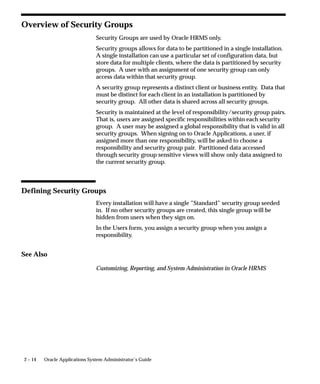
Attention: All request ouput URLs are deleted when the Pruge
        Concurrent Requests and Manager... program is run even if the
        URL liftime has not expired.
Users can see and update this profile option.
This profile option is visible and updatable at the all levels.

Level                       Visible              Allow Update
Site                        Yes                  Yes
Application                 Yes                  Yes
Responsibility              Yes                  Yes
User                        Yes                  Yes
The internal name for this profile option is CONC_URL_LIFETIME.

Currency:Mixed Precision
Use Mixed Currency Precision to specify how many spaces are available
to the right of the decimal point when displaying numbers representing
different currencies.
    • Normally, currency numbers are right–justified.
    • Each currency has its own precision value that is the number of
      digits displayed to the right of a decimal point. For U.S. dollars
      the precision default is 2, so an example display is 345.70.
    • Set Mixed Currency Precision to be equal to or greater than the
      maximum precision value of the currencies you are displaying.


                                                        User Profiles   A – 15
For example, if you are reporting on rows displaying U.S. dollars
                                        (precision=2), Japanese yen (precision=0), and Bahraini dinar
                                        (precision=3), set Mixed Currency Precision=3.
                                Users can see and update this profile option.
                                This profile option is visible and updatable at all four levels.

                                 Level                           Visible             Allow Update
                                 Site                            Yes                 Yes
                                 Application                     Yes                 Yes
                                 Responsibility                  Yes                 Yes
                                 User                            Yes                 Yes
                                The internal name for this profile option is
                                CURRENCY:MIXED_PRECISION.

                                Currency:Negative Format
                                You can use different formats to identify negative currency. The default
                                identifier is a hyphen ( – ) preceding the currency amount, as in ”–xxx”.
                                You can also select:
                                        Angle brackets < >                 < xxx >
                                        Trailing hyphen –                  xxx –
                                        Parentheses         ()             ( xxx )
                                        Square Brackets [ ]                [ xxx ]
                                If you use the negative number formats of “(xxx)” or “[xxx],” in Oracle
                                Applications Release 11, your negative numbers appear as “<xxx>”.
                                Users can see and update this profile option.
                                This profile option is visible and updatable at all four levels.

                                 Level                           Visible             Allow Update
                                 Site                            Yes                 Yes
                                 Application                     Yes                 Yes
                                 Responsibility                  Yes                 Yes
                                 User                            Yes                 Yes
                                The internal name for this profile option is
                                CURRENCY:NEGATIVE_FORMAT.
                                         Note: Currency:Negative Format only affects the display
                                         currency. Non–currency negative numbers appear with a
                                         preceding hyphen regardless of the option selected here.


A – 16   Oracle Applications System Administrator’s Guide
Currency:Positive Format
You can use different formats to identify positive currency values. The
default condition is no special identifier.
Users can see and update this profile option.
This profile option is visible and updatable at all four levels.

Level                       Visible              Allow Update
Site                        Yes                  Yes
Application                 Yes                  Yes
Responsibility              Yes                  Yes
User                        Yes                  Yes

The internal name for this profile option is
CURRENCY:POSITIVE_FORMAT.


Currency:Thousands Separator
You can separate your currency amounts in thousands by placing a
thousands separator. For example, one million appears as 1,000,000.
Users can see and update this profile option.
This profile option is visible and updatable at all four levels.

Level                       Visible              Allow Update
Site                        Yes                  Yes
Application                 Yes                  Yes
Responsibility              Yes                  Yes
User                        Yes                  Yes

The internal name for this profile option is
CURRENCY:THOUSANDS_SEPARATOR.


Database Instance
Entering a valid two_task connect string allows you to override the
default two_task. This profile is specifically designed for use with
Oracle Parallel Server, to allow different responsibilities and users to
connect to different nodes of the server.
Users can see this profile option, but they cannot update it.
This profile option is visible and updatable at all four levels.


                                                        User Profiles   A – 17
Level                      Visible              Allow Update
                                 Site                       Yes                  Yes
                                 Application                Yes                  Yes
                                 Responsibility             Yes                  Yes
                                 User                       Yes                  Yes
                                The internal name for this profile option is INSTANCE_PATH.

                                Default Country
                                This is the default source for the Country field for all address zones and
                                is used by the Flexible Address Formats feature, the Flexible Bank
                                Structures feature and the Tax Registration Number and Taxpayer ID
                                validation routines.
                                The profile can be set to any valid country listed in the Maintain
                                Countries and Territories form and can be set to a different value for
                                each user.
                                Users can see and update this profile option.
                                This profile option is visible and updatable at all four levels.

                                 Level                      Visible              Allow Update
                                 Site                       Yes                  Yes
                                 Application                Yes                  Yes
                                 Responsibility             Yes                  Yes
                                 User                       Yes                  Yes
                                The internal name for this profile option is DEFAULT_COUNTRY.

                                Flexfields:AutoSkip
                                You can save keystrokes when entering data in your flexfields by
                                automatically skipping to the next segment as soon as you enter a
                                complete valid value into a segment.
                                    • “Yes” means after entering a valid value in a segment, you
                                      automatically move to the next segment.
                                    • “No” means after entering a valid value in a segment, you must
                                      press [Tab] to go to the next segment.
                                         Note: You may still be required to use tab to leave some
                                         segments if the valid value for the segment does not have the
                                         same number of characters as the segment. For example, if a
                                         segment in the flexfield holds values up to 5 characters and a


A – 18   Oracle Applications System Administrator’s Guide
valid value for the segment is 4 characters, AutoSkip will not
        move you to the next segment.
Users can see and update this profile option.
This profile option is visible and updatable at all four levels.

Level                       Visible              Allow Update
Site                        Yes                  Yes
Application                 Yes                  Yes
Responsibility              Yes                  Yes
User                        Yes                  Yes
The internal name for this profile option is FLEXFIELDS:AUTOSKIP.

Flexfields:BiDi Direction
This profile option controls the appearance of the flexfields window in
Applications running in Semitic languages. Possible values are ”Left To
Right” and ”Right To Left”. If the profile option is not defined on a
particular installation, the default value is ”Right To Left”, where the
window appears in a normal, left to right fashion, and the text and
layout are reversed to accommodate the right–to–left nature of the
Semitic language environment.
Users can see and update this profile option.
This profile option is visible and updatable at all four levels.

Level                       Visible              Allow Update
Site                        Yes                  Yes
Application                 Yes                  Yes
Responsibility              Yes                  Yes
User                        Yes                  Yes
The internal name for this profile option is
FLEXFIELDS:BIDI_DIRECTION.

Flexfields:LOV Warning Limit
Use Flexfields:LOV Warning Limit to improve efficiency when
retrieving a list of values.
Sometimes, particularly when no reduction criteria has been specified,
an LOV can take a very long time to run if there is a very significant
amount of data in it. Set this profile option to the number of rows to be
returned before the user is asked whether to continue retrieving the
entire list.


                                                        User Profiles   A – 19
Users can see and update this profile option.
                                This profile option is visible and updatable at all four levels.

                                 Level                      Visible              Allow Update
                                 Site                       Yes                  Yes
                                 Application                Yes                  Yes
                                 Responsibility             Yes                  Yes
                                 User                       Yes                  Yes
                                The internal name for this profile option is
                                QUICKPICK_ROWS_BEFORE_WARN.

                                Flexfields:Open Descr Window
                                You can control whether a descriptive flexfield window automatically
                                opens when you navigate to a customized descriptive flexfield.
                                    • “Yes” means that the descriptive flexfield window automatically
                                      opens when you navigate to a customized descriptive flexfield.
                                    • “No” means that when you navigate to a customized descriptive
                                      flexfield, you must choose Edit Field from the Edit menu or use
                                      the List of Values to open the descriptive flexfield window.
                                Users can see and update this profile option.
                                This profile option is visible and updatable at all four levels.

                                 Level                      Visible              Allow Update
                                 Site                       Yes                  Yes
                                 Application                Yes                  Yes
                                 Responsibility             Yes                  Yes
                                 User                       Yes                  Yes
                                The internal name for this profile option is
                                FLEXFIELDS:OPEN_DESCR_WINDOW.
                                         Note: This profile option does not apply to descriptive
                                         flexfields in folders.

                                Flexfields:Open Key Window
                                You can control whether a key flexfield window automatically opens
                                when you navigate to a key flexfield.
                                    • “Yes” means that the key flexfield window automatically opens
                                      when you navigate to a key flexfield.


A – 20   Oracle Applications System Administrator’s Guide
• “No” means that when you navigate to a key flexfield, you must
      choose Edit Field from the Edit menu or use the List of Values to
      open the key flexfield window.
Users can see and update this profile option.
This profile option is visible and updatable at all four levels.

Level                       Visible              Allow Update
Site                        Yes                  Yes
Application                 Yes                  Yes
Responsibility              Yes                  Yes
User                        Yes                  Yes
The internal name for this profile option is
FLEXFIELDS:OPEN_KEY_WINDOW.


Flexfields:Shared Table Lock
This profile option is used by the Oracle Applications flexfields internal
code only. You should not alter the value of this profile option unless
instructed to do so by an Oracle representative.
The internal name for this profile option is
FLEXFIELDS:SHARED_TABLE_LOCK.


Flexfields:Shorthand Entry
If shorthand flexfield entry is defined for your flexfield, you can use a
shorthand alias to automatically fill in values for some or all of the
segments in a flexfield.
Not Enabled          Shorthand Entry is not available for any flexfields
                     for this user, regardless of whether shorthand
                     aliases are defined.
New Entries Only Shorthand Entry is available for entering new
                 records in most foreign key forms. It is not
                 available for combinations forms, updating existing
                 records, or entering queries.
Query and New        Shorthand Entry is available for entering new
Entry                records or for entering queries. It is not available
                     for updating existing records.
All Entries          Shorthand Entry is available for entering new
                     records or updating old records. It is not available
                     for entering queries.


                                                        User Profiles   A – 21
Always                  Shorthand Entry is available for inserting, updating,
                                                        or querying flexfields for which shorthand aliases
                                                        are defined.
                                Users can see and update this profile option.
                                This profile option is visible and updatable at all four levels.
                                 Level                        Visible             Allow Update
                                 Site                         Yes                 Yes
                                 Application                  Yes                 Yes
                                 Responsibility               Yes                 Yes
                                 User                         Yes                 Yes
                                The internal name for this profile option is
                                FLEXFIELDS:SHORTHAND_ENTRY.

                                Flexfields:Show Full Value
                                If an alias defines valid values for all of the segments in a flexfield, and
                                Flexfields: Shorthand Entry is enabled, when you enter the alias the
                                flexfield window does not appear.
                                ”Yes” displays the full flexfield window with the cursor resting on the
                                last segment.
                                Users can see and update this profile option.
                                This profile option is visible and updatable at all four levels.
                                 Level                        Visible             Allow Update
                                 Site                         Yes                 Yes
                                 Application                  Yes                 Yes
                                 Responsibility               Yes                 Yes
                                 User                         Yes                 Yes
                                The internal name for this profile option is
                                FLEXFIELDS:SHOW_FULL_VALUE.

                                Flexfields:Validate On Server
                                This profile option is set to ”Yes” to enable server side, PL/SQL
                                flexfields validation for Key Flexfields. This improves performance
                                when using Key Flexfields over a wide area network by reducing the
                                number of network round trips needed to validate the entered segment
                                combinations.
                                You may find, however, that your validation’s performance is better
                                with client side validation. In this case, set this profile option to ”No”.


A – 22   Oracle Applications System Administrator’s Guide
Users can see and update this profile option.
This profile option is visible and updatable at all four levels.
Level                       Visible              Allow Update
Site                        Yes                  Yes
Application                 Yes                  Yes
Responsibility              Yes                  Yes
User                        Yes                  Yes
The internal name for this profile option is
FLEXFIELDS:VALIDATE_ON_SERVER.

FND: Debug Log Filename
The file name for the file to hold debugging messages used in the
Log/Trace Service. If the value of this profile option is null, then the
Log/Trace Service is turned off.
Users can see and update this profile option.
Level                       Visible              Allow Update
Site                        Yes                  Yes
Application                 Yes                  Yes
Responsibility              Yes                  Yes
User                        Yes                  Yes
The internal name for this profile option is AFLOG_FILENAME.

FND: Debug Log Level
The Log/Trace Service can filter out debugging messages depending on
their priority level.. There are five levels of the Debug/Trace Service:.
In order from highest priority to lowest priority, they are: Errors,
Exceptions, Events, Procedures, and Statements. The Debug Log Level
is the lowest level that the user wants to see messages for.. The possible
profile option values are Null (which means off), and the five priority
levels above. For instance, if the ”FND: Debug Log Level” profile is set
to ”EVENT”, then the file will get the messages that the programmer
had marked as ”EVENT”, ”EXCEPTION”, or ”ERROR”.
Users can see and update this profile option.
Level                       Visible              Allow Update
Site                        Yes                  Yes
Application                 Yes                  Yes
Responsibility              Yes                  Yes
User                        Yes                  Yes


                                                        User Profiles   A – 23
The internal name for this profile option is AFLOG_LEVEL.

                                FND: Debug Log Module
                                The Log/Trace Service can filter out debugging messages depending on
                                their module. Module names are unique across applications and coding
                                languages. If a module is specified for this profile option, then only
                                messages for that module will be written to the log file. If this profile
                                option is left blank then messages for all modules will be written to the
                                log file.
                                Users can see and update this profile option.

                                 Level                      Visible             Allow Update
                                 Site                       Yes                 Yes
                                 Application                Yes                 Yes
                                 Responsibility             Yes                 Yes
                                 User                       Yes                 Yes
                                The internal name for this profile option is AFLOG_MODULE.

                                FND: Resource Consumer Group
                                Resource consumer groups are used by the Oracle8i Database Resource
                                Manager, which allocates CPU resources among database users and
                                applications. Each form session is assigned to a resource consumer
                                group. The system administrator can assign users to a resource
                                consumer group for all of their forms sessions and transactions. If no
                                resource consumer group is found for a process, the system uses the
                                default group ”Default_Consumer_Group”.
                                Users can see this profile option, but they cannot update it.

                                 Level                      Visible             Allow Update
                                 Site                       Yes                 Yes
                                 Application                Yes                 Yes
                                 Responsibility             Yes                 Yes
                                 User                       Yes                 Yes
                                The internal name for this profile option is
                                FND_RESOURCE_CONSUMER_GROUP.

                                FND: Override Directory
                                The FND:Override Directory profile option is used by the Work
                                Directory feature. The value of FND: Override Directory should be the


A – 24   Oracle Applications System Administrator’s Guide
directory containing your alternate files. Typically, this profile option
should be set at the User level only.
Users can see and update this profile option.

Level                       Visible              Allow Update
Site                        Yes                  Yes
Application                 Yes                  Yes
Responsibility              Yes                  Yes
User                        Yes                  Yes

The internal name for this profile option is APPLWRK.


Folders:Allow Customization
Your system administrator controls whether you can create or customize
a folder definition layout in folder block.
    • “Yes” means that you can create or customize a folder definition,
      that is, the entire Folder menu is enabled in the folder block.
    • “No” means that you can only open an existing folder definition
      in a folder block, that is, only the Open option is enabled in the
      Folder menu.
Users can see this profile option, but they cannot update it.

Level                       Visible              Allow Update
Site                        No                   No
Application                 No                   No
Responsibility              No                   No
User                        Yes                  Yes

The internal name for this profile option is
FLEXVIEW:CUSTOMIZATION.


Gateway User ID
Oracle login for gateway account. This should be the same as the
environment variable GWYUID. For example, applsyspub/pub.
Users can see and but not update this profile option.
This profile option is visible at all levels but may only be updated at the
site level.


                                                        User Profiles   A – 25
Level                      Visible              Allow Update
                                 Site                       Yes                  Yes
                                 Application                Yes                  No
                                 Responsibility             Yes                  No
                                 User                       Yes                  No
                                The internal name for this profile option is GWYUID.

                                Help Localization Code
                                Localized context–sensitive help files are preferred when your System
                                Administrator sets this profile option.
                                Users can see this profile option, but they cannot update it.
                                This profile option is visible and updatable at the responsibility and user
                                levels.
                                 Level                      Visible              Allow Update
                                 Site                       Yes                  Yes
                                 Application                Yes                  Yes
                                 Responsibility             Yes                  Yes
                                 User                       Yes                  Yes
                                The internal name for this profile option is
                                HELP_LOCALIZATION_CODE.

                                Help Tree Root
                                This profile option determines which tree is shown in the navigation
                                frame when context–sensitive help is launched.
                                Users can see this profile option, but they cannot update it.
                                This profile option is visible and updatable at all levels.
                                 Level                      Visible              Allow Update
                                 Site                       Yes                  Yes
                                 Application                Yes                  Yes
                                 Responsibility             Yes                  Yes
                                 User                       Yes                  Yes
                                The internal name for this profile option is HELP_TREE_ROOT.

                                Help Utility Download Path
                                Use this profile option to define the directory into which the Help Utility
                                downloads help files from the Oracle Applications Help System.


A – 26   Oracle Applications System Administrator’s Guide
Users can see this profile option, but they cannot update it.
This profile option is visible and updatable at all levels.

Level                       Visible              Allow Update
Site                        Yes                  Yes
Application                 Yes                  Yes
Responsibility              Yes                  Yes
User                        Yes                  Yes
The internal name for this profile option is HELP_UTIL_DL_PATH.


Help Utility Upload Path
Use this profile option to define the directory from which the Help
Utility uploads help files to the Oracle Applications Help System.
Users can see this profile option, but they cannot update it.
This profile option is visible and updatable at all levels.

Level                       Visible              Allow Update
Site                        Yes                  Yes
Application                 Yes                  Yes
Responsibility              Yes                  Yes
User                        Yes                  Yes
The internal name for this profile option is HELP_UTIL_UL_PATH.


Hide Diagnostics Menu Entry
This profile option determines whether users can access the Diagnostics
menu entry from the Help menu. If it is set to Yes, the Diagnostics menu
entry is hidden. If it is set to No, the Diagnostics menu entry is visible.
Users cannot see nor change this profile option.
This profile option is visible and updatable at the all levels.

Level                       Visible              Allow Update
Site                        Yes                  Yes
Application                 Yes                  Yes
Responsibility              Yes                  Yes
User                        Yes                  Yes
The internal name for this profile option is FND_HIDE_DIAGNOSTICS.


                                                        User Profiles   A – 27
ICX: Client IANA Encoding
                                This profile option is used to determine the character set of the text
                                displayed by Java Server pages.
                                This profile option must be set to the correct character set (that is, the
                                character set of the Apache server on the Web tier) for the online help
                                system to support character sets other than American English.
                                The default setting is the US character set (ISO–8859–1).
                                Users can see this profile option, but they cannot update it.
                                This profile option is visible and updatable at the all levels.

                                 Level                      Visible              Allow Update
                                 Site                       Yes                  Yes
                                 Application                Yes                  Yes
                                 Responsibility             Yes                  Yes
                                 User                       Yes                  Yes
                                The internal name for this profile option is
                                ICX_CLIENT_IANA_ENCODING.


                                ICX: Discoverer Launcher, Forms Launcher, and Report Launcher
                                These profile options are used by the Oracle Applications Personal
                                Homepage.
                                Set the site level value of each of these profile options to the base URL
                                for launching each application. The profile option value should be
                                sufficient to launch the application, but should not include any
                                additional parameters which may be supplied by the Personal
                                Homepage.
                                Users can see these profile options, but they cannot update them.
                                These profile options are visible and updatable at all levels.

                                 Level                      Visible              Allow Update
                                 Site                       Yes                  Yes
                                 Application                Yes                  Yes
                                 Responsibility             Yes                  Yes
                                 User                       Yes                  Yes
                                The internal name for these profile options are
                                ICX_DISCOVERER_LAUNCHER, ICX_FORMS_LAUNCHER, and
                                ICX_REPORT_LAUNCHER.


A – 28   Oracle Applications System Administrator’s Guide
Indicate Attachments
This profile option allows you to turn off indication of attachments
when querying records (for performance reasons).
Users can see and update this profile option.
This profile option is visible and updatable at all four levels.

Level                       Visible              Allow Update
Site                        Yes                  Yes
Application                 Yes                  Yes
Responsibility              Yes                  Yes
User                        Yes                  Yes
The internal name for this profile option is
ATCHMT_SET_INDICATOR.

Initialization SQL Statement – Custom
This profile option allows you to add site–specific initialization code
(such as optimizer settings) that will be executed at database session
startup. The value of this profile option must be a valid SQL statement.


The system administrator may set this profile option at any level.

Level
Oracle apps-system-admin

Oracle apps-system-admin

  • 1.
    Oracle r Applications SystemAdministrator’s Guide RELEASE 11i July 2001
  • 2.
    Oracle Applications SystemAdministrator’s Guide Release 11i The part number for this volume is A75396–07. Copyright E 1994, 2001 Oracle Corporation. All rights reserved. Primary Authors: Steve Carter, Mildred Wang Major Contributors: Troy Anthony, Dana Spradley, Leslie Studdard Contributors: Ahmed Alomari, Ram Bhoopalam, George Buzsaki, Anne Carlson, Siu Chang, John Cordes, Mark Fisher, Michael Mast, Tom Morrow, Emily Nordhagen, Gursat Olgun, Richard Ou, Jan Smith, Seth Stafford, Susan Stratton, Raymond Tse, Mark Warren, Sara Woodhull The Programs (which include both the software and documentation) contain proprietary information of Oracle Corporation; they are provided under a license agreement containing restrictions on use and disclosure and are also protected by copyright, patent and other intellectual and industrial property law. Reverse engineering, disassembly or decompilation of the Programs is prohibited. No part of this document may be reproduced or transmitted in any form or by any means, electronic or mechanical, for any purpose, without the express written permission of Oracle Corporation. Program Documentation is licensed for use solely to support the deployment of the Programs and not for any other purpose. The information contained in this document is subject to change without notice. If you find any problems in the documentation, please report them to us in writing. Oracle Corporation does not warrant that this document is error free. Except as may be expressly permitted in your license agreement for these Programs, no part of these Programs may be reproduced or transmitted in any form or by any means, electronic or mechanical, for any purpose, without the express written permission of Oracle Corporation. If the Programs are delivered to the US Government or anyone licensing or using the Programs on behalf of the US Government, the following notice is applicable: RESTRICTED RIGHTS LEGEND Programs delivered subject to the DOD FAR Supplement are ’commercial computer software’ and use, duplication and disclosure of the Programs including documentation, shall be subject to the licensing restrictions set forth in the applicable Oracle license agreement. Otherwise, Programs delivered subject to the Federal Acquisition Regulations are ’restricted computer software’ and use, duplication and disclosure of the Programs shall be subject to the restrictions in FAR 52.227–19, Commercial Computer Software – Restricted Rights (June, 1987). Oracle Corporation, 500 Oracle Parkway, Redwood City, CA 94065. The Programs are not intended for use in any nuclear, aviation, mass transit, medical, or other inherently dangerous applications. It shall be licensee’s responsibility to take all appropriate fail–safe, back up, redundancy and other measures to ensure the safe use of such applications if the Programs are used for such purposes, and Oracle disclaims liability for any damages caused by such use of the Programs. Oracle is a registered trademark and ConText, Enabling the Information Age, Oracle7, Oracle8, Oracle8i, Oracle Financials, Oracle Discoverer, PL/SQL, Pro*C, SQL*Net, SQL*Plus, and Tutor are trademarks or registered trademarks of Oracle Corporation. Other names may be trademarks of their respective owners.
  • 3.
    Contents Preface . . . . . . . . . . . . . . . . . . . . . . . . . . . . . . . . . . . . . . . . . . . . . . . . . i Chapter 1 What Is System Administration? . . . . . . . . . . . . . . . . . . . . . . . . . . 1 – 1 What Is System Administration? . . . . . . . . . . . . . . . . . . . . . . . . . . . 1 – 2 Chapter 2 Managing Oracle Applications Security . . . . . . . . . . . . . . . . . . . 2–1 Overview of Oracle Applications Security . . . . . . . . . . . . . . . . . . . 2–2 Defining a Responsibility . . . . . . . . . . . . . . . . . . . . . . . . . . . . . . . . . 2–4 Defining a Request Security Group . . . . . . . . . . . . . . . . . . . . . . . . . 2–6 Responsibilities Window . . . . . . . . . . . . . . . . . . . . . . . . . . . . . . . . . . 2–9 Overview of Security Groups . . . . . . . . . . . . . . . . . . . . . . . . . . . . . . 2 – 14 Security Groups Window . . . . . . . . . . . . . . . . . . . . . . . . . . . . . . . . . 2 – 15 Users Window . . . . . . . . . . . . . . . . . . . . . . . . . . . . . . . . . . . . . . . . . . . 2 – 16 Overview of Function Security . . . . . . . . . . . . . . . . . . . . . . . . . . . . . 2 – 21 Implementing Function Security . . . . . . . . . . . . . . . . . . . . . . . . . . . 2 – 27 Form Functions Window . . . . . . . . . . . . . . . . . . . . . . . . . . . . . . . . . . 2 – 32 Menus Window . . . . . . . . . . . . . . . . . . . . . . . . . . . . . . . . . . . . . . . . . . 2 – 36 Menu Viewer . . . . . . . . . . . . . . . . . . . . . . . . . . . . . . . . . . . . . . . . . . . . 2 – 39 Function Security Reports . . . . . . . . . . . . . . . . . . . . . . . . . . . . . . . . . 2 – 41 Menu Report . . . . . . . . . . . . . . . . . . . . . . . . . . . . . . . . . . . . . . . . . . . . 2 – 42 Users of a Responsibility Report . . . . . . . . . . . . . . . . . . . . . . . . . . . 2 – 44 Active Responsibilities Report . . . . . . . . . . . . . . . . . . . . . . . . . . . . . 2 – 45 Active Users Report . . . . . . . . . . . . . . . . . . . . . . . . . . . . . . . . . . . . . . 2 – 46 Reports and Sets by Responsibility Report . . . . . . . . . . . . . . . . . . . 2 – 47 Contents iii
  • 4.
    Chapter 3 User and Data Auditing . . . . . . . . . . . . . . . . . . . . . . . . . . . . . . . . . . 3–1 Overview of User and Data Auditing . . . . . . . . . . . . . . . . . . . . . . . 3–2 Auditing User Activity . . . . . . . . . . . . . . . . . . . . . . . . . . . . . . . . . . . 3–3 Monitor Users Window . . . . . . . . . . . . . . . . . . . . . . . . . . . . . . . . . . . 3–8 Signon Audit Concurrent Requests Report . . . . . . . . . . . . . . . . . . 3 – 10 Signon Audit Forms Report . . . . . . . . . . . . . . . . . . . . . . . . . . . . . . . 3 – 12 Signon Audit Responsibilities Report . . . . . . . . . . . . . . . . . . . . . . . 3 – 15 Signon Audit Unsuccessful Logins Report . . . . . . . . . . . . . . . . . . . 3 – 17 Signon Audit Users Report . . . . . . . . . . . . . . . . . . . . . . . . . . . . . . . . 3 – 19 Purge Signon Audit Data Program . . . . . . . . . . . . . . . . . . . . . . . . . 3 – 21 Reporting On AuditTrail Data . . . . . . . . . . . . . . . . . . . . . . . . . . . . . 3 – 22 Audit Installations Window . . . . . . . . . . . . . . . . . . . . . . . . . . . . . . . 3 – 34 Audit Groups Window . . . . . . . . . . . . . . . . . . . . . . . . . . . . . . . . . . . 3 – 36 Audit Tables Window . . . . . . . . . . . . . . . . . . . . . . . . . . . . . . . . . . . . 3 – 40 Chapter 4 Managing Concurrent Programs and Reports . . . . . . . . . . . . . . . 4–1 Overview of Concurrent Programs and Requests . . . . . . . . . . . . . 4–2 Multilingual Support for Concurrent Requests . . . . . . . . . . . . . . . 4–4 Organizing Programs into Request Sets . . . . . . . . . . . . . . . . . . . . . 4–6 Request Sets Report . . . . . . . . . . . . . . . . . . . . . . . . . . . . . . . . . . . . . . 4 – 18 Organizing Programs into Request Groups . . . . . . . . . . . . . . . . . . 4 – 19 Report Group Responsibilities Report . . . . . . . . . . . . . . . . . . . . . . 4 – 24 Defining Program Incompatibility Rules . . . . . . . . . . . . . . . . . . . . 4 – 25 Defining Data Groups . . . . . . . . . . . . . . . . . . . . . . . . . . . . . . . . . . . . 4 – 30 Custom Concurrent Programs . . . . . . . . . . . . . . . . . . . . . . . . . . . . . 4 – 35 Copying and Modifying Program Definitions . . . . . . . . . . . . . . . . 4 – 47 Concurrent Program Details Report . . . . . . . . . . . . . . . . . . . . . . . . 4 – 57 Concurrent Programs Report . . . . . . . . . . . . . . . . . . . . . . . . . . . . . . 4 – 58 Request Groups Window . . . . . . . . . . . . . . . . . . . . . . . . . . . . . . . . . 4 – 59 Concurrent Program Executable Window . . . . . . . . . . . . . . . . . . . 4 – 61 Concurrent Programs Window . . . . . . . . . . . . . . . . . . . . . . . . . . . . 4 – 66 Data Groups Window . . . . . . . . . . . . . . . . . . . . . . . . . . . . . . . . . . . . 4 – 81 Chapter 5 Managing Concurrent Processing . . . . . . . . . . . . . . . . . . . . . . . . . 5–1 Overview of Concurrent Processing . . . . . . . . . . . . . . . . . . . . . . . . 5–2 Integration with Oracle Enterprise Manager . . . . . . . . . . . . . . . . . 5–5 Oracle Applications Manager . . . . . . . . . . . . . . . . . . . . . . . . . . . . . . 5–7 Oracle Management Pack for Oracle Applications . . . . . . . . . . . . 5–8 Reviewing Requests, Request Log Files, and Report Output Files . . . . . . . . . . . . . . . . . . . . . . . . . . . . . . . . . . . . . . 5 – 10 iv Oracle Applications System Administrator’s Guide
  • 5.
    Changing the Statusof Concurrent Requests . . . . . . . . . . . . . . . . . 5 – 18 Managing Concurrent Processing Files and Tables . . . . . . . . . . . . 5 – 20 Purge Concurrent Request and/or Manager Data Program . . . . 5 – 22 Concurrent Processing User Profile Settings . . . . . . . . . . . . . . . . . 5 – 26 Defining Managers and their Work Shifts . . . . . . . . . . . . . . . . . . . 5 – 28 Completed Concurrent Requests Report . . . . . . . . . . . . . . . . . . . . 5 – 36 Work Shift by Manager Report . . . . . . . . . . . . . . . . . . . . . . . . . . . . . 5 – 37 Work Shifts Report . . . . . . . . . . . . . . . . . . . . . . . . . . . . . . . . . . . . . . . 5 – 38 Specializing Managers to Run Only Certain Programs . . . . . . . . 5 – 39 Grouping Programs by Request Type . . . . . . . . . . . . . . . . . . . . . . . 5 – 55 Controlling Concurrent Managers . . . . . . . . . . . . . . . . . . . . . . . . . . 5 – 57 Overview of Parallel Concurrent Processing . . . . . . . . . . . . . . . . . 5 – 66 Managing Parallel Concurrent Processing . . . . . . . . . . . . . . . . . . . 5 – 70 Concurrent Managers and Oracle Parallel Server (OPS) . . . . . . . 5 – 79 Administer Concurrent Managers Window . . . . . . . . . . . . . . . . . . 5 – 83 Concurrent Managers Window . . . . . . . . . . . . . . . . . . . . . . . . . . . . 5 – 92 Work Shifts Window . . . . . . . . . . . . . . . . . . . . . . . . . . . . . . . . . . . . . 5 – 100 Combined Specialization Rules Window . . . . . . . . . . . . . . . . . . . . 5 – 102 Concurrent Request Types Window . . . . . . . . . . . . . . . . . . . . . . . . 5 – 105 Viewer Options Window . . . . . . . . . . . . . . . . . . . . . . . . . . . . . . . . . . 5 – 107 Nodes Window . . . . . . . . . . . . . . . . . . . . . . . . . . . . . . . . . . . . . . . . . . 5 – 109 Chapter 6 Printers . . . . . . . . . . . . . . . . . . . . . . . . . . . . . . . . . . . . . . . . . . . . . . . . . 6–1 Overview of Printers and Printing . . . . . . . . . . . . . . . . . . . . . . . . . . 6–2 Setting Up Your Printers . . . . . . . . . . . . . . . . . . . . . . . . . . . . . . . . . . 6 – 14 Customizing Printing Support in Oracle Applications . . . . . . . . . 6 – 17 Postscript Printing in UNIX . . . . . . . . . . . . . . . . . . . . . . . . . . . . . . . 6 – 24 Hierarchy of Printer and Print Style Assignments . . . . . . . . . . . . 6 – 26 Printing with UTF8 . . . . . . . . . . . . . . . . . . . . . . . . . . . . . . . . . . . . . . . 6 – 32 Printer Types Window . . . . . . . . . . . . . . . . . . . . . . . . . . . . . . . . . . . . 6 – 41 Printers Window . . . . . . . . . . . . . . . . . . . . . . . . . . . . . . . . . . . . . . . . . 6 – 43 Print Styles Window . . . . . . . . . . . . . . . . . . . . . . . . . . . . . . . . . . . . . . 6 – 45 Printer Drivers Window . . . . . . . . . . . . . . . . . . . . . . . . . . . . . . . . . . 6 – 48 Chapter 7 Oracle Applications Help . . . . . . . . . . . . . . . . . . . . . . . . . . . . . . . . 7 – 1 Customizing Oracle Applications Help . . . . . . . . . . . . . . . . . . . . . 7 – 2 Chapter 8 Applications DBA Duties . . . . . . . . . . . . . . . . . . . . . . . . . . . . . . . . 8 – 1 Overview of Applications DBA Duties . . . . . . . . . . . . . . . . . . . . . . 8 – 2 Resource Consumer Groups in Oracle Applications . . . . . . . . . . 8 – 7 Contents v
  • 6.
    Oracle Applications SchemaPassword Change Utility . . . . . . . . 8–9 ORACLE Users Window . . . . . . . . . . . . . . . . . . . . . . . . . . . . . . . . . . 8 – 12 Concurrent Conflicts Domains Window . . . . . . . . . . . . . . . . . . . . . 8 – 16 Applications Window . . . . . . . . . . . . . . . . . . . . . . . . . . . . . . . . . . . . 8 – 18 Network Test Window . . . . . . . . . . . . . . . . . . . . . . . . . . . . . . . . . . . . 8 – 21 Administering Folders . . . . . . . . . . . . . . . . . . . . . . . . . . . . . . . . . . . . 8 – 23 Languages Window . . . . . . . . . . . . . . . . . . . . . . . . . . . . . . . . . . . . . . 8 – 27 Territories Window . . . . . . . . . . . . . . . . . . . . . . . . . . . . . . . . . . . . . . . 8 – 29 Chapter 9 Cost–Based Optimization in Oracle Applications . . . . . . . . . . . 9–1 Oracle Applications and Cost–Based Optimization . . . . . . . . . . . 9–2 Parameters for Cost–Based Optimization . . . . . . . . . . . . . . . . . . . . 9–3 Concurrent Programs for CBO . . . . . . . . . . . . . . . . . . . . . . . . . . . . . 9–9 Gather Table Statistics . . . . . . . . . . . . . . . . . . . . . . . . . . . . . . . . . . . . 9 – 10 Backup Table Statistics . . . . . . . . . . . . . . . . . . . . . . . . . . . . . . . . . . . . 9 – 12 Restore Table Statistics . . . . . . . . . . . . . . . . . . . . . . . . . . . . . . . . . . . . 9 – 13 Gather Schema Statistics . . . . . . . . . . . . . . . . . . . . . . . . . . . . . . . . . . 9 – 14 Gather Column Statistics . . . . . . . . . . . . . . . . . . . . . . . . . . . . . . . . . . 9 – 15 Analyze All Index Column Statistics . . . . . . . . . . . . . . . . . . . . . . . . 9 – 16 FND_STATS Package . . . . . . . . . . . . . . . . . . . . . . . . . . . . . . . . . . . . . 9 – 17 FND_CTL Package . . . . . . . . . . . . . . . . . . . . . . . . . . . . . . . . . . . . . . . 9 – 32 Chapter 10 User Profiles . . . . . . . . . . . . . . . . . . . . . . . . . . . . . . . . . . . . . . . . . . . . 10 – 1 Overview of Setting User Profiles . . . . . . . . . . . . . . . . . . . . . . . . . . 10 – 2 User Profile Option Values Report . . . . . . . . . . . . . . . . . . . . . . . . . . 10 – 5 System Profile Values Window . . . . . . . . . . . . . . . . . . . . . . . . . . . . . 10 – 6 Chapter 11 Administering Process Navigation . . . . . . . . . . . . . . . . . . . . . . . . 11 –1 Overview of Process Navigation . . . . . . . . . . . . . . . . . . . . . . . . . . . 11 –2 Modifying Your Menu . . . . . . . . . . . . . . . . . . . . . . . . . . . . . . . . . . . . 11 –3 Creating Process Navigator Processes . . . . . . . . . . . . . . . . . . . . . . . 11 –4 Chapter 12 Document Sequences . . . . . . . . . . . . . . . . . . . . . . . . . . . . . . . . . . . . 12 – 1 Document Sequences Window . . . . . . . . . . . . . . . . . . . . . . . . . . . . . 12 – 9 Document Categories Window . . . . . . . . . . . . . . . . . . . . . . . . . . . . 12 – 12 Sequence Assignments Window . . . . . . . . . . . . . . . . . . . . . . . . . . . 12 – 14 Chapter 13 Developer Tools . . . . . . . . . . . . . . . . . . . . . . . . . . . . . . . . . . . . . . . . . 13 – 1 Developer Tools . . . . . . . . . . . . . . . . . . . . . . . . . . . . . . . . . . . . . . . . . 13 – 2 Work Directory . . . . . . . . . . . . . . . . . . . . . . . . . . . . . . . . . . . . . . . . . . 13 – 3 vi Oracle Applications System Administrator’s Guide
  • 7.
    Web Enabled PL/SQLWindow . . . . . . . . . . . . . . . . . . . . . . . . . . . . 13 – 5 Appendix A User Profiles . . . . . . . . . . . . . . . . . . . . . . . . . . . . . . . . . . . . . . . . . . . . A – 1 Appendix B Using Predefined Alerts . . . . . . . . . . . . . . . . . . . . . . . . . . . . . . . . . . B–1 Overview of Oracle Alert . . . . . . . . . . . . . . . . . . . . . . . . . . . . . . . . . B–2 Predefined Alerts . . . . . . . . . . . . . . . . . . . . . . . . . . . . . . . . . . . . . . . . B–5 Oracle Alert Precoded Alerts . . . . . . . . . . . . . . . . . . . . . . . . . . . . . . B – 10 Appendix C Loaders . . . . . . . . . . . . . . . . . . . . . . . . . . . . . . . . . . . . . . . . . . . . . . . . . C–1 Generic Loader . . . . . . . . . . . . . . . . . . . . . . . . . . . . . . . . . . . . . . . . . . C–2 Application Object Library Configuration Files . . . . . . . . . . . . . . C – 11 Concurrent Program Configuration File . . . . . . . . . . . . . . . . . . . . . C – 12 Request Groups Configuration File . . . . . . . . . . . . . . . . . . . . . . . . . C – 14 Lookups Configuration File . . . . . . . . . . . . . . . . . . . . . . . . . . . . . . . C – 15 Profile Options and Profile Values Configuration File . . . . . . . . . C – 17 Flexfields Setup Data Configuration File . . . . . . . . . . . . . . . . . . . . C – 19 Attachments Setup Data Configuration File . . . . . . . . . . . . . . . . . C – 23 Messages Configuration File . . . . . . . . . . . . . . . . . . . . . . . . . . . . . . . C – 26 Message Dictionary Generator . . . . . . . . . . . . . . . . . . . . . . . . . . . . . C – 27 Function Security Loader . . . . . . . . . . . . . . . . . . . . . . . . . . . . . . . . . C – 29 Generic File Manager Access Utility (FNDGFU) . . . . . . . . . . . . . . C – 38 Appendix D Multilingual External Documents . . . . . . . . . . . . . . . . . . . . . . . . . D – 1 Multilingual External Documents . . . . . . . . . . . . . . . . . . . . . . . . . . D – 2 Appendix E Character Mode to GUI Appendix . . . . . . . . . . . . . . . . . . . . . . . . . E – 1 Oracle Applications System Administrator’s Character Mode Forms and Corresponding GUI Windows . . . . E – 2 Appendix F Implementation Appendix . . . . . . . . . . . . . . . . . . . . . . . . . . . . . . . F – 1 Setting Up Oracle Applications System Administrator . . . . . . . . F – 2 Appendix G Setting Up and Maintaining Oracle Applications . . . . . . . . . . . G – 1 Maintaining Your Oracle Applications Configuration . . . . . . . . . G – 2 Contents vii
  • 8.
    Administering the TCFServer . . . . . . . . . . . . . . . . . . . . . . . . . . . . . G – 16 Administering Oracle HTTP Server Powered by Apache . . . . . . G – 28 Setting Up Concurrent Managers . . . . . . . . . . . . . . . . . . . . . . . . . . G – 42 Invoking Web Discoverer through ICX . . . . . . . . . . . . . . . . . . . . . . G – 61 Glossary Index viii Oracle Applications System Administrator’s Guide
  • 9.
    Preface Preface ix
  • 10.
    About This User’sGuide This guide is the primary source of information about Oracle Applications System Administration. It contains overviews as well as task and reference information. This guide includes the following chapters: • Chapter 1 describes the job of an Oracle Applications System Administrator, and contrasts it with the job of an Oracle Database Administrator. • Chapter 2 explains how to secure access to the data and functionality within your Oracle Applications. • Chapter 3 explains how to audit your application users and the changes they effect on your application’s data. • Chapter 4 describes the help architecture for HTML as well as explaining how to customize Oracle Applications help. • Chapter 5 explains the role of user profiles in Oracle Applications. • Chapters 6 and 7 explain concurrent processing in Oracle Applications, including how you can manage programs running concurrently in the background while your users continue to perform online tasks and how to manage your concurrent programs and organize those programs into groups and sets. • Chapter 8 explains using printers with Oracle Applications. • Chapter 9 explains Oracle Applications security tasks that require a database administrator to either explicitly perform, or assist by performing prerequisite tasks. • Chapter 10 explains how you can use document sequences and dynamic currency with your Oracle Applications. • Chapter 11 describes the architecture and implementation details for the CUSTOM library. The Appendixes provide a reference source about the default menus, user profile options, runtime Alerts, and loaders included with Oracle System Administration. Also, one appendix lists the supported multilingual external documents in Oracle Applications. Finally, there are also appendixes for setting up Oracle Applications and implementing Oracle System Administration. x Oracle Applications System Administrator’s Guide
  • 11.
    This user’s guideis available online All Oracle Applications user’s guides are available online, in both HTML and Adobe Acrobat format. (Most other Oracle Applications documentation is available in Adobe Acrobat format.) The paper and online versions of this manual have identical content; use whichever format is most convenient. The HTML version of this book is optimized for on–screen reading, and lets you follow hypertext links for easy access to books across our entire library; you can also search for words and phrases if your national language is supported by Oracle’s Information Navigator. The HTML documentation is available from the Oracle Applications toolbar, or from a URL provided by your system administrator. You can order an Oracle Applications Documentation Library CD containing Adobe Acrobat versions of each manual in the Oracle Applications documentation set. Using this CD, you can search for information, read it on–screen, and print individual pages, sections, or entire books. When you print from Adobe Acrobat, the resulting printouts look just like pages from an Oracle Applications hardcopy manual. There may be additional material that was not available when this user’s guide was printed. To learn if there is a documentation update for this product, look at the main menu on this product’s HTML help. Assumptions This guide assumes you have a working knowledge of the principles and customary practices of your business area. If you have never used Applications we suggest you attend one or more of the Oracle Applications System Administration training classes available through Oracle Education. (See Other Information Sources for more information about Oracle training.) This guide also assumes that you are familiar with the Oracle Applications graphical user interface. To learn more about the Oracle Applications graphical user interface, read the Oracle Applications User’s Guide. Preface xi
  • 12.
    Do Not UseDatabase Tools to Modify Oracle Applications Data Oracle provides powerful tools you can use to create, store, change, retrieve and maintain information in an Oracle database. But if you use Oracle tools like SQL*Plus to modify Oracle Applications data, you risk destroying the integrity of your data and you lose the ability to audit changes to your data. Because Oracle Applications tables are interrelated, any change you make using an Oracle Applications form can update many tables at once. But when you modify Oracle Applications data using anything other than Oracle Applications forms, you may change a row in one table without making corresponding changes in related tables. If your tables get out of synchronization with each other, you risk retrieving erroneous information and you risk unpredictable results throughout Oracle Applications. Warning: Oracle Applications does not support any customization of Oracle Application Object Library tables or modules, even by Oracle consultants. Oracle Application Object Library table names begin with “FND_”. Do not write data directly into or change data in FND_ tables through any custom program or using any tool, including SQL*Plus, Oracle Data Browser, database triggers or other programming tools. You risk corrupting your database and damaging all your applications. When you use Oracle Applications forms to modify your data, Oracle Applications automatically checks that your changes are valid. Oracle Applications also keeps track of who changes information. But, if you enter information into database tables using database tools, you may store invalid information. You also lose the ability to track who has changed your information because SQL*Plus and other database tools do not keep a record of changes. Consequently, we STRONGLY RECOMMEND that you never use SQL*Plus, Oracle Data Browser, database triggers, or any other tool to modify Oracle Applications tables, unless we tell you to do so in our manuals. Other Information Sources You can choose from many sources of information, including documentation, training, and support services, to increase your xii Oracle Applications System Administrator’s Guide
  • 13.
    knowledge and understandingof Oracle Applications System Administration. Most Oracle Applications documentation is available in Adobe Acrobat format on the Oracle Applications Documentation Library CD. We supply this CD with every software shipment. If this manual refers you to other Oracle Applications documentation, use only the Release 11i versions of those manuals unless we specify otherwise. Oracle Applications User’s Guide This guide explains how to navigate, enter data, query, run reports, and introduces other basic features of the graphical user interface (GUI). This guide also includes information on setting user profiles, as well as running and reviewing reports and concurrent requests. You can also access this user’s guide online by choosing ”Getting Started with Oracle Applications” from any Oracle Applications help file. Related User’s Guides If you do not have the hardcopy versions of these manuals, you can read them by choosing Library from the Help menu, or by reading from the Oracle Applications Document Library CD, or by using a web browser with a URL that your system administrator provides. Oracle Applications Flexfields Guide This manual provides flexfields planning, setup, and reference information for the Oracle Applications System Administration implementation team, as well as for users responsible for the ongoing maintenance of Oracle Applications product data. This manual also provides information on creating custom reports on flexfields data. Oracle Workflow Guide This manual explains how to define new workflow business processes as well as customize existing Oracle Applications–embedded workflow processes. You also use this guide to complete the setup steps necessary for any Oracle Applications product that includes workflow–enabled processes. Preface xiii
  • 14.
    Oracle Alert User’sGuide This manual explains how to define periodic and event alerts to monitor the status of your Oracle Applications data. Country–Specific Manuals Use these manuals to meet statutory requirements and common business practices in your country or region. They also describe additional features added to Oracle Applications System Administration to meet those requirements. Look for a User’s Guide appropriate to your country; for example, see the Oracle Financials for the Czech Republic User’s Guide for more information about using this software in the Czech Republic. Oracle Applications Character Mode to GUI Menu Path Changes This is a quick reference guide for experienced Oracle Applications end users migrating from character mode to a graphical user interface (GUI). This guide lists each character mode form and describes which GUI windows or functions replace it. Oracle Financials Open Interfaces Guide This guide is a compilation of all open interface discussions in all Oracle Financial Applications user’s guides. You can also read about the Oracle Applications System Administration open interface tables in the appendix of the Oracle Applications Guide. Multiple Reporting Currencies in Oracle Applications If you use Multiple Reporting Currencies feature to record transactions in more than one currency, use this manual before implementing Oracle Applications System Administration. The manual details additional steps and setup considerations for implementing Oracle Applications System Administration with this feature. Multiple Organizations in Oracle Applications If you use the Oracle Applications Multiple Organization Support feature to use multiple sets of books for one Oracle Applications System Administration installation, use this guide to learn about setting up and using Oracle Applications System Administration with this feature. xiv Oracle Applications System Administrator’s Guide
  • 15.
    Oracle Applications ImplementationWizard User’s Guide If you are implementing more than one Oracle product, you can use the Oracle Applications Implementation Wizard to coordinate your setup activities. This guide describes how to use the wizard. Oracle Applications Developer’s Guide This guide contains the coding standards followed by the Oracle Applications development staff. It describes the Oracle Application Object Library components needed to implement the Oracle Applications user interface described in the Oracle Applications User Interface Standards for Forms–Based Products. It also provides information to help you build your custom Developer/2000 forms so that they integrate with Oracle Applications. Oracle Applications User Interface Standards for Forms–Based Products This manual contains the user interface (UI) standards followed by the Oracle Applications development staff. It describes the UI for the Oracle Applications products and how to apply this UI to the design of an application built by using Oracle Forms 6.0. Installation Oracle Applications Concepts This guide provides an introduction to the concepts, features, technology stack, architecture, and terminology for Oracle Applications Release 11i. It provides a useful first book to read before an installation of Oracle Applications. This guide also introduces the concepts behind, and major issues, for Applications–wide features such as Business Intelligence (BIS), languages and character sets, and self–service applications. Installing Oracle Applications This guide provides instructions for managing the installation of Oracle Applications products. In Release 11i, much of the installation process is handled using Oracle Rapid Install, which minimizes the time it takes to install Oracle Applications and the Oracle 8 Server technology stack by automating many of the required steps. This guide contains instructions for using Oracle Rapid Install and lists the tasks you need to perform to finish your installation. You should use this guide in Preface xv
  • 16.
    conjunction with individualproduct user guides and implementation guides. Upgrading Oracle Applications Refer to this guide if you are upgrading your Oracle Applications Release 10.7 or Release 11.0 products to Release 11i. This guide describes the upgrade process in general and lists database upgrade and product–specific upgrade tasks. You must be at either Release 10.7 (NCA, SmartClient, or character mode) or Release 11.0 to upgrade to Release 11i. You cannot upgrade to Release 11i directly from releases prior to 10.7. Maintaining Oracle Applications This guide provides instructions for maintaining the Applications file system and database, and directions on using the Applications DBA (AD) utilities, the main tools for these tasks. In addition to maintaining Applications, the AD utilities are also used for installing, patching, and upgrading Oracle Applications products. Oracle Application Object Library Technical Reference Manual The Oracle Applications Object Library Technical Reference Manual contains database diagrams and a detailed description of Oracle Applications System Administration and related applications database tables, forms, reports, and programs. This information helps you convert data from your existing applications, integrate Oracle Applications System Administration with non–Oracle applications, and write custom reports for Application Object Library. You can order a technical reference manual for any product you have licensed. Technical reference manuals are available in paper format only. Other Information Training Oracle Education offers a complete set of training courses to help you and your staff master Oracle Applications. We can help you develop a training plan that provides thorough training for both your project team and your end users. We will work with you to organize courses appropriate to your job or area of responsibility. xvi Oracle Applications System Administrator’s Guide
  • 17.
    Training professionals canshow you how to plan your training throughout the implementation process so that the right amount of information is delivered to key people when they need it the most. You can attend courses at any one of our many Educational Centers, or you can arrange for our trainers to teach at your facility. In addition, we can tailor standard courses or develop custom courses to meet your needs. Support From on–site support to central support, our team of experienced professionals provides the help and information you need to keep Applications working for you. This team includes your Technical Representative, Account Manager, and Oracle’s large staff of consultants and support specialists with expertise in your business area, managing an Oracle server, and your hardware and software environment. About Oracle Oracle develops and markets an integrated line of software products for database management, applications development, decision support, and office automation, as well as a complete family of financial, manufacturing, and human resource applications. Oracle products are available for mainframes, minicomputers, personal computers, network computers, and personal digital assistants, allowing organizations to integrate different computers, different operating systems, different networks, and even different database management systems, into a single, unified computing and information resource. Oracle offers its products, along with related consulting, education, and support services, in over 140 countries around the world. Oracle Corporation is the world’s leading supplier of software for information management, and is the world’s second largest software company. Thank You Thank you for using Oracle Applications and this user’s guide. Preface xvii
  • 18.
    We value yourcomments and feedback. At the end of this manual is a Reader’s Comment Form you can use to explain what you like or dislike about this user’s guide. Mail your comments to the following address or call us directly at (650) 506–7000. Oracle Applications Documentation Manager Oracle Corporation 500 Oracle Parkway Redwood Shores, CA 94065 U.S.A. Or, send electronic mail to appsdoc@us.oracle.com. xviii Oracle Applications System Administrator’s Guide
  • 19.
    CHAPTER 1 What Is System Administration? T his chapter briefly describes the job of an Oracle Applications System Administrator, and contrasts it with the job of an Oracle Database Administrator. What Is System Administration? 1–1
  • 20.
    What Is SystemAdministration? A System Administrator is a person responsible for controlling access to Oracle Applications and assuring smooth ongoing operation. Each site where Oracle Applications is installed needs a system administrator to perform tasks such as: • Managing and controlling security. Decide which users have access to each application, and within an application, which forms, functions, and reports a user can access. • Setting up new users. Register new Oracle Applications users, and give them access to only those forms, functions, and reports they need to do their jobs. • Auditing user activity. Monitor what users are doing and when they do it. Choose who to audit and what type of data to audit. • Setting user profiles. A user profile is a set of changeable options that affects the way Oracle Applications look and behave. A System Administrator can set user profile values at the site, application, responsibility, and user levels. • Managing concurrent processing. Concurrent Processing is an Oracle Applications facility that lets long–running, data–intensive tasks run simultaneously with online operations, taking full advantage of multitasking and parallel processing. A System Administrator can monitor and control concurrent processing using a few simple forms. System vs. Database Administrator You can think of Oracle Applications as having two sides: a front end that users see and work with, and a back end where data manipulation is performed. The natural division between user applications and the underlying database structures results in two separate job functions: system administrator, and database administrator. An Oracle Applications System Administrator administers the user interface or applications side of Oracle Applications. An Oracle Database Administrator (DBA) administers the data that users enter, update, and delete while using Oracle Applications. 1–2 Oracle Applications System Administrator’s Guide
  • 21.
    CHAPTER 2 Managing Oracle Applications Security T his chapter explains how to secure access to the data and functionality within your Oracle Applications. The key element in Oracle Applications security is the definition of a responsibility. A responsibility defines: • Application database privileges • An application’s functionality that is accessible • The concurrent programs and reports that are available As System Administrator you define application users, and assign one or more responsibilities to each user. This chapter begins with an essay explaining security in Oracle Applications. Afterwards, major topics are explained in greater detail, along with descriptions of the forms you use to implement security in Oracle Applications. Some topics will refer you to other chapters which contain more detailed information, as well as relevant form descriptions. Managing Oracle Applications Security 2–1
  • 22.
    Overview of OracleApplications Security As System Administrator, you define Oracle Applications users, and assign one or more responsibilities to each user. Defining Application Users You allow a new user to sign–on to Oracle Applications by defining an application user. An application user has a username and a password. You define an initial password, then the first time the application user signs on, they must enter a new (secret) password. When you define an application user, you assign to the user one or more responsibilities. If you assign only one responsibility, the user, after signing on, immediately enters an application. If you assign two or more responsibilities, the user, after signing on, sees a window listing available responsibilities. Responsibilities define Application Privileges A responsibility is a level of authority in Oracle Applications that lets users access only those Oracle Applications functions and data appropriate to their roles in an organization. Each responsibility allows access to: • A specific application or applications, such as Oracle General Ledger or Oracle Planning. • A set of books, such as U.S. Operations or German Sales or an organization, such as New York Manufacturing or New York Distribution. • A restricted list of windows that a user can navigate to; for example, a responsibility may allow certain Oracle Planning users to enter forecast items, but not enter master demand schedule items. • A restricted list of functions a user can perform. For example, two responsibilities may have access to the same window, but one responsibility’s window may have additional function buttons that the other responsibility’s window does not have. • Reports in a specific application; as system administrator, you can assign groups of reports to one or more responsibilities, so the responsibility a user choose determines the reports that can be submitted. Each user has at least one or more responsibilities and several users can share the same responsibility. A system administrator can assign users 2–2 Oracle Applications System Administrator’s Guide
  • 23.
    any of thestandard responsibilities provided with Oracle Applications, or create new custom responsibilities. HRMS Security The Human Resources Management Systems (HRMS) products have an additional feature using Security Groups. For more information, see Setting up Security for Applications Using Some HRMS Windows. The Human Resources Management Systems (HRMS) products have an additional feature using Security Groups. For more information, see Customizing, Reporting, and System Administration in Oracle HRMS. Managing Oracle Applications Security 2–3
  • 24.
    Defining a Responsibility When you define a responsibility, you assign to it some or all of the components described below: Data Group A Data Group defines the mapping between Oracle Applications (required) products and ORACLE IDs. A Data Group determines which Oracle database accounts a responsibility’s forms, concurrent programs, and reports connect to. See: Defining Data Groups: page 4 – 30. Request Security A request security group defines the concurrent programs, including Group (optional) requests and request sets, that may be run by an application user under a particular responsibility. See: Defining a Request Security Group: page 2 – 6. See: Organizing Programs into Request Groups: page 4 – 19. Menu A menu is a hierarchical arrangement of application functions (forms) (required) that displays in the Navigate window. Menus can also point to non–form functions (subfunctions) that do not display in the Navigate window, but that define the range of application functionality available for a responsibility. Each responsibility is associated with a menu. See: Overview of Function Security: page 2 – 21. Function and Menu A responsibility may optionally have function and menu exclusion rules Exclusions (optional) associated with it to restrict the application functionality enabled for that responsibility. See: Overview of Function Security: page 2 – 21. Additional Notes About Responsibilities Predefined Responsibilities All Oracle Applications products are installed with predefined responsibilities. Consult the reference guide for your Oracle Applications product for the names of those predefined responsibilities. Additionally, instances of the major components that help define a responsibility (data groups, request security groups, menus, and functions) are predefined for Oracle Applications. Responsibilities and Request Security Groups When a request group is assigned to a responsibility, it becomes a request security group. From a standard submission form, such as the Submit Requests form, users can run only the reports, concurrent programs, and request sets that are in their responsibility’s request security group. 2–4 Oracle Applications System Administrator’s Guide
  • 25.
    • If youdo not include the Submit Requests form on the menu for a responsibility, then you do not need to assign a request security group to the responsibility. • If a request security group is not assigned to a responsibility, then users working under that responsibility cannot run any reports, request sets, or other concurrent programs from a standard submission form. Responsibilities and Function Security Oracle Applications GUI–based architecture aggregates several related business functions into a single form. Parts of an application’s functionality may be identified as individual Oracle Applications functions, which can then be secured (i.e., included or excluded from a responsibility). See: Overview of Function Security: page 2 – 21 Managing Oracle Applications Security 2–5
  • 26.
    Defining a RequestSecurity Group Beyond this short introduction, request groups and request security groups are discussed in greater detail, as part of a broader range of topics not necessarily limited to application security, in Chapter 7 – Managing Concurrent Programs and Reports. See: Organizing Programs into Request Groups: page 4 – 19 Request Groups: page 4 – 59 Using Request Security You use request security to specify the reports, request sets, and concurrent programs that your users can run from a standard submission form, such as the Submit Requests form. To set up request security, you define a request group using the Request Groups form. Using the Responsibilities form, you assign the request group to a responsibility. The request group is then referred to as a request security group. See: Request Security Groups: page 4 – 19. You can define a request group to contain single requests, request sets, or all the requests and request sets in an application. If you choose to include all the requests and requests sets in an application, the user has automatic access to any new requests and request sets (without owners) in the future. A request security group can contain requests and request sets from different applications. If you want to define request security groups that own requests from different applications, please refer to the discussion on Data Groups. See: Defining Data Groups: page 4 – 30. Note: A request security group or request group is not the same as a security group. Individual Requests and Request Sets Reports or concurrent programs that are not included in a request security group on an individual basis, but that do belong to a request set included in a request security group, have the following privileges: • Users cannot use the Submit Requests form to run single requests and request sets that are not in their responsibility’s request security group. • Users can, however, run request sets that contain requests that are not in their request security group, if the request set is in their request security group. 2–6 Oracle Applications System Administrator’s Guide
  • 27.
    If you assigna request set, but not the requests in the set, to a request security group, the user: • cannot edit request information in the request set definition • cannot stop specific requests in the set from running • can edit the request set by deleting requests from it or adding other requests to it, only if the user is the assigned owner of the request set The Request Security Groups figure illustrates the relationship between a request security group, application user, and a responsibility. Managing Oracle Applications Security 2–7
  • 28.
    Request Security Groups System Administrator groups When the System reports, request sets, and Administrator assigns the concurrent programs together to Request Group to a Reports create a Request Group. responsibility, it becomes a Request Security Group. Request sets Request Group Responsibility Concurrent Programs System Administrator assigns the responsibility to a user. Request Security User Group User signs on and selects the responsibility. Reports Responsibility Request Sets Concurrent Programs The standard submission report form (e.g., Sub- mit Requests) lists reports, request sets, and concurrent programs belonging to the responsibility’s Request Security Group. 2–8 Oracle Applications System Administrator’s Guide
  • 29.
    Responsibilities Window Use this window to define a responsibility. Each application user is assigned at least one responsibility. A responsibility determines if the user accesses Oracle Applications or Oracle Self–Service Web Applications, which applications functions a user can use, which reports and concurrent programs the user can run, and which data those reports and concurrent programs can access. Note: Responsibilities cannot be deleted. To remove a responsibility from use, set the Effective Date’s To field to a past date. You must restart Oracle Applications to see the effect of your change. Managing Oracle Applications Security 2–9
  • 30.
    See: Overview ofFunction Security: page 2 – 21 Prerequisites • Use the Data Groups window to list the ORACLE username your responsibility’s concurrent programs reference on an application–by–application basis. • Use the Request Groups window to define the Request Group you wish to make available with this responsibility. • Use the Menus window to view the predefined Menu you could choose to assign to this responsibility. Responsibilities Block An application name and a responsibility name uniquely identify a responsibility. Responsibility Name If you have multiple responsibilities, a pop–up window includes this name after you sign on. Application This application name does not prevent the user of this responsibility from accessing other applications’ forms and functions if you define the menu to access other applications. Responsibility Key This is a unique name for a responsibility that is used by loader programs. Loaders are concurrent programs used to ”load” such information as messages, user profiles and user profile values into your Oracle Applications tables. To help ensure that your responsibility key is unique throughout your system, begin each Responsibility Key name with the application short name associated with this responsibility. Effective Dates From/To Enter the start/end dates on which the responsibility becomes active/inactive. The default value for the start date is the current date, 2 – 10 Oracle Applications System Administrator’s Guide
  • 31.
    and if youdo not enter an end date, the responsibility is valid indefinitely. You cannot delete a responsibility because its information helps to provide an audit trail. You can deactivate a responsibility at any time by setting the end date to the current date. If you wish to reactivate the responsibility, change the end date to a date after the current date, or clear the end date. Available From A responsibility may be associated with only one applications system. Select between Oracle Self–Service Web Applications or Oracle Applications. Data Group Name/Application The data group defines the pairing of application and ORACLE username. Select the application whose ORACLE username forms connect to when you choose this responsibility. The ORACLE username determines the database tables and table privileges accessible by your responsibility. Transaction managers can only process requests from responsibilities assigned the same data group as the transaction manager. Menu The menu whose name you enter must already be defined with Oracle Applications. See: Menus: page 2 – 36. Web Host Name If your Web Server resides on a different machine from your database, you must designate the host name (URL) here. Otherwise, the Web Host Name defaults to the current database host server. Web Agent Name Enter the PL/SQL Agent Name for the database used by this responsibility. If you do not specify an Agent Name, the responsibility defaults to the agent name current at log–on. Managing Oracle Applications Security 2 – 11
  • 32.
    Request Group Name/Application If you do not assign a request security group to this responsibility, a user with this responsibility cannot run requests, request sets, or concurrent programs from the Submit Requests window, except for request sets owned by the user. The user can access requests from a Submit Requests window you customize with a request group code through menu parameters. See: Overview of Oracle Applications Security: page 2 – 2 Customizing the Submit Requests Window Using Codes: page 4 – 20 Request Groups: page 4 – 59 Menu Exclusions Block Define function and menu exclusion rules to restrict the application functionality accessible to a responsibility. Type Select either Function or Menu as the type of exclusion rule to apply against this responsibility. • When you exclude a function from a responsibility, all occurrences of that function throughout the responsibility’s menu structure are excluded. • When you exclude a menu, all of its menu entries, that is, all the functions and menus of functions that it selects, are excluded. Name Select the name of the function or menu you wish to exclude from this responsibility. The function or menu you specify must already be defined in Oracle Applications. 2 – 12 Oracle Applications System Administrator’s Guide
  • 33.
    Self–Service Applications Security Oracle Self–Service Web Applications uses columns, rows and values in database tables to define what information users can access. Table columns represent ”attributes” that can be assigned to a responsibility as Securing Attributes or Excluded Attributes. These attributes are defined in the Web Application Dictionary. See Also Data Security: (Oracle Self–Service Applications for the Web User’s Guide) Defining Attributes: (Oracle Self–Service Applications for the Web User’s Guide) Excluded Items Use the List of Values to select valid attributes. You can assign any number of Excluded Attributes to a responsibility. Securing Attributes Use the List of Values to select valid attributes. You may assign any number of securing attributes to the responsibility. Managing Oracle Applications Security 2 – 13
  • 34.
    Overview of SecurityGroups Security Groups are used by Oracle HRMS only. Security groups allows for data to be partitioned in a single installation. A single installation can use a particular set of configuration data, but store data for multiple clients, where the data is partitioned by security groups. A user with an assignment of one security group can only access data within that security group. A security group represents a distinct client or business entity. Data that must be distinct for each client in an installation is partitioned by security group. All other data is shared across all security groups. Security is maintained at the level of responsibility/security group pairs. That is, users are assigned specific responsibilities within each security group. A user may be assigned a global responsibility that is valid in all security groups. When signing on to Oracle Applications, a user, if assigned more than one responsibility, will be asked to choose a responsibility and security group pair. Partitioned data accessed through security group sensitive views will show only data assigned to the current security group. Defining Security Groups Every installation will have a single ”Standard” security group seeded in. If no other security groups are created, this single group will be hidden from users when they sign on. In the Users form, you assign a security group when you assign a responsibility. See Also Customizing, Reporting, and System Administration in Oracle HRMS 2 – 14 Oracle Applications System Administrator’s Guide
  • 35.
    Security Groups Window This form is for HRMS security only. For more information on setting up system administration for the HRMS products, see Customizing, Reporting, and System Administration in Oracle HRMS. Managing Oracle Applications Security 2 – 15
  • 36.
    Users Window Use this window to define an application user. An application user is an authorized user of Oracle Applications and/or Oracle Self–Service Applications who is uniquely identified by an application username. Once defined, a new application user can sign on to Oracle Applications and access data through Oracle Applications windows. See: Overview of Oracle Applications Security: page 2 – 2. 2 – 16 Oracle Applications System Administrator’s Guide
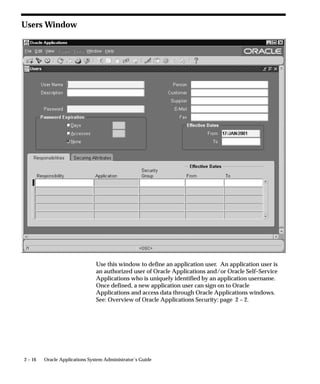
  • 37.
    Users Block User Name Enter the name of an application user. An application user enters this username to sign on to Oracle Applications. • The username must not contain more than one word. • You should use only alphanumeric characters (’A’ through ’Z’, and ’0’ through ’9’) in the username. Please note that you must limit your username to the set of characters that your operating system supports for filenames. Suggestion: We recommend that you define meaningful usernames, such as the employee’s first initial followed by their last name. Or, for a group account, you can define the application username so as to indicate the purpose or nature of the group account. Password Enter the initial password of an application user. An application user enters this password along with her or his username to sign on to Oracle Applications. • A password must be at least five characters and can extend up to 100 characters. • You should use alphanumeric characters (’A’ through ’Z’, and ’0’ through ’9’) in a password. All other characters are invalid. This window does not display the password you enter. After you enter a password, you must re–enter it to ensure you did not make a typing error. If the application user already exists and the two entries do not match, the original password is NOT changed, and you navigate automatically to the next field. If you are defining a new application user and the two entries do not match, you are required to enter the password again. For a new user, you cannot navigate to the next field until the two entries match. The first time an application user signs on, they must change his or her password. If a user forgets their password, you can reassign a new password in this field. As System Administrator, you can set an initial password or change an existing password, but you cannot access the user’s chosen password. Managing Oracle Applications Security 2 – 17
  • 38.
    You can setthe minimum length of Oracle Applications user passwords using the profile option Signon Password Length. If this profile option is left unset, the minimum length defaults to 5. You can use the profile option Signon Password Hard to Guess to set rules for choosing passwords to ensure that they will be ”hard to guess.” A password is considered hard-to-guess if it follows these rules: • The password contains at least one letter and at least one number. • The password does not contain the username. • The password does not contain repeating characters. For more information on these profile options, see: Profile Options in Oracle Application Object Library page: A – 2. Person, Customer, and Supplier Use these fields to enter the name of an employee (person), customer, or supplier contact. Enter the last name and first name, separated by a comma, of the employee, customer, or supplier who is using this application username and password. Use the List of Values to select a valid name. E–Mail/Fax Enter the E–mail address and/or fax number for this user. Password Expiration Days Enter the maximum number of days between password changes. A pop–up window prompts an application user to change her or his password after the maximum number of days you specify has elapsed. Accesses Enter the maximum allowed number of sign–ons to Oracle Applications allowed between password changes. A pop–up window prompts an application user to change her or his password after the maximum number of accesses you specify has elapsed. Suggestion: We recommend that you require application users to make frequent password changes. This reduces the likelihood of unauthorized access to Oracle Applications. 2 – 18 Oracle Applications System Administrator’s Guide
  • 39.
    Effective Dates From/To The user cannot sign onto Oracle Applications before the start date and after the end date. The default for the start date is the current date. If you do not enter an end date, the username is valid indefinitely. You cannot delete an application user from Oracle Applications because this information helps to provide an audit trail. You can deactivate an Oracle Applications user at any time by setting the End Date to the current date. If you wish to reactivate a user, change the End Date to a date after the current date, or clear the End Date field. Responsibilities Block Responsibility Select the name of a responsibility you wish to assign to this application user. A responsibility is uniquely identified by application name and responsibility name. Security Group This field is for HRMS security only. See: Customizing, Reporting, and System Administration in Oracle HRMS. From/To You cannot delete a responsibility because this information helps to provide an audit trail. You can deactivate a user’s responsibility at any time by setting the End Date to the current date. If you wish to reactivate the responsibility for the user, change the End Date to a date after the current date, or clear the End Date. Securing Attributes Securing attributes are used by Oracle Self–Service Web Applications to allow rows (records) of data to be visible to specified users or responsibilities based on the specific data (attribute values) contained in the row. Managing Oracle Applications Security 2 – 19
  • 40.
    You may assignone or more values for any of the securing attributes assigned to the user. If a securing attribute is assigned to both a responsibility and to a user, but the user does not have a value for that securing attribute, no information is returned for that attribute. For example, to allow a user in the ADMIN responsibility to see rows containing a CUSTOMER_ID value of 1000, assign the securing attribute of CUSTOMER_ID to the ADMIN responsibility. Then give the user a security attribute CUSTOMER_ID value of 1000. When the user logs into the Admin responsibility, the only customer data they have access to has a CUSTOMER_ID value of 1000. Attribute Select an attribute you want used to determine which records this user can access. You can select from any of the attributes assigned to the user’s responsibility. Value Enter the value for the attribute you want used to determine which records this user can access. 2 – 20 Oracle Applications System Administrator’s Guide
  • 41.
    Overview of FunctionSecurity Function security is the mechanism by which user access to applications functionality is controlled. Oracle Applications GUI–based architecture aggregates several related business functions into a single form. Because all users should not have access to every business function in a form, Oracle Applications provides the ability to identify pieces of applications logic as functions. When part of an application’s functionality is identified as a function, it can be secured (i.e., included or excluded from a responsibility). Application developers register functions when they develop forms. A System Administrator administers function security by creating responsibilities that include or exclude particular functions. Terms Function A function is a part of an application’s functionality that is registered under a unique name for the purpose of assigning it to, or excluding it from, a responsibility. There are two types of functions: form functions, and non–form functions. For clarity, we refer to a form function as a form, and a non–form function as a subfunction, even though both are just instances of functions in the database. Form (Form Function) A form function (form) invokes an Oracle Forms form. Form functions have the unique property that you may navigate to them using the Navigate window. Subfunction (Non–Form Function) A non–form function (subfunction) is a securable subset of a form’s functionality: in other words, a function executed from within a form. A developer can write a form to test the availability of a particular subfunction, and then take some action based on whether the subfunction is available in the current responsibility. Subfunctions are frequently associated with buttons or other graphical elements on forms. For example, when a subfunction is enabled, the corresponding button is enabled. Managing Oracle Applications Security 2 – 21
  • 42.
    However, a subfunctionmay be tested and executed at any time during a form’s operation, and it need not have an explicit user interface impact. For example, if a subfunction corresponds to a form procedure not associated with a graphical element, its availability is not obvious to the form’s user. Figure 2 – 1 Subfunctions are executed from within a Form. Form Function Window Subfunction For example, logic executed by pressing a Button. Copy Menu A menu is a hierarchical arrangement of functions and menus of functions. Each responsibility has a menu assigned to it. Menu Entry A menu entry is a menu component that identifies a function or a menu of functions. In some cases, both a function and a menu of functions correspond to the same menu entry. For example, both a form and its menu of subfunctions can occupy the same menu entry. Responsibility A responsibility defines an application user’s current privileges while working with Oracle Applications. When an application user signs on, they select a responsibility that grants certain privileges, specifically: 2 – 22 Oracle Applications System Administrator’s Guide
  • 43.
    • The functionsthat the user may access. Functions are determined by the menu assigned to the responsibility. • The concurrent programs, such as reports, that the user may run. • The application database accounts that forms, concurrent programs, and reports connect to. Forms and Subfunctions A form is a special class of function that differs from a subfunction in two ways: • Forms appear in the Navigate window and can be navigated to. Subfunctions do not appear in the Navigate window and cannot be navigated to. • Forms can exist on their own. Subfunctions can only be called by logic embodied within a form; they cannot exist on their own. A form as a whole, including all of its program logic, is always designated as a function. Subsets of a form’s program logic can optionally be designated as subfunctions if there is a need to secure those subsets. For example, suppose that a form contains three windows. The entire form is designated as a function that can be secured (included or excluded from a responsibility.) Each of the form’s three windows can be also be designated as functions (subfunctions), which means they can be individually secured. Thus, while different responsibilities may include this form, certain of the form’s windows may not be accessible from each of those responsibilities, depending on how function security rules are applied. Functions, Menus, and the Navigate Window Form functions or forms are selected using the Navigate window. The arrangement of form names in the Navigate window is defined by the menu structure assigned to the current responsibility. The following types of menu entries are not displayed by the Navigate window: • Subfunctions • Menus without Entries Managing Oracle Applications Security 2 – 23
  • 44.
    • Menu Entrieswithout a Prompt If none of the entries on a menu are displayed by the Navigate window, the menu itself is not displayed. How Function Security Works Developers Register Functions • Developers can require parts of their Oracle Forms code to look up a unique function name, and then take some action based on whether the function is available in the current responsibility. • Developers register functions. They can also register parameters that pass values to a function. For example, a form may support data entry only when a function parameter is passed to it. Warning: In general, System Administrators should not modify parameters passed to functions that are predefined as part of the Oracle Applications products. The few cases where function parameters may be modified by a System Administrator are documented in the relevant technical reference manual or product update notes. • Typically, developers define a menu including all the functions available in an application (i.e., all the forms and their securable subfunctions). For some applications, developers may define additional menus that restrict the application’s functionality by omitting specific forms and subfunctions. • When developers define menus of functions, they typically group the subfunctions of a form on a subfunction menu they associate with the form. System Administrators Exclude Functions • Each Oracle Applications product is delivered with one or more predefined menu hierarchies. System Administrators can assign a predefined menu hierarchy to a responsibility. To tailor a responsibility, System Administrators exclude functions or menus of functions from that responsibility using exclusion rules. • If System Administrators cannot create the desired menu by applying exclusion rules to a predefined menu, they can define a new menu hierarchy. In this case, we recommend that they construct their menu hierarchy using forms and their associated menus of subfunctions. In other words, System Administrators 2 – 24 Oracle Applications System Administrator’s Guide
  • 45.
    should leave thedeveloper–defined associations between forms and their menus in tact. Available Functions Depend on the Current Responsibility • When a user first selects or changes their responsibility, a list of functions obtained from the responsibility’s menu structure is cached in memory. • Functions a System Administrator has excluded from the current responsibility are marked as unavailable. • Form functions in the function hierarchy (i.e., menu hierarchy) are displayed in the Navigate window. Available subfunctions are accessed by working with the application’s forms. Visibility of Excluded Functions Some subfunctions are associated with a graphical element, for example, a button, and their exclusion may result in: • the dimming of the button • the absence of the button. Other subfunctions may not correspond to a graphical element, and their exclusion may not be obvious to an end user. Managing Oracle Applications Security 2 – 25
  • 46.
    Figure 2 –2 How Function Security Works Applications Code Function Security Developers design parts of an Function Name Parameters Application to look up and Function Name Parameters require a unique Function Name. Function Name Parameters Function Name xyz Parameters Function Name Parameters Function Name Parameters System Administrators assign Functions to Menus to build a Function Hierarchy (Menu Structure). Menu System Administrators assign the Menu Structure to a Responsibility, and may exclude Menu Form Menu Functions and Menus to customize the Responsibility. Form Form Sub– Sub– function function Sub– Sub– function function Users select a Responsibility and may access all Find of its Functions. However, non–form Functions Responsibilities do not appear in the Navigate window. Buyer Planner Manager Menu Form Form Menu Form Form 2 – 26 Oracle Applications System Administrator’s Guide
  • 47.
    Implementing Function Security A ”full access” responsibility with a menu that includes all the functions in an application is predefined for each Oracle Applications product. Some applications may provide additional predefined responsibilities that include a smaller set of functions (i.e., fewer forms and subfunctions). As a System Administrator, you can restrict the functionality a responsibility provides by defining rules to exclude specific functions or menus of functions. In fact, we recommend that you use exclusion rules to customize a responsibility in preference to constructing a new menu hierarchy for that responsibility. For example, suppose you want to customize a responsibility to restrict the functionality of a form included in that responsibility. First, you examine the predefined menus that group the subfunctions associated with that form. Then, using exclusion rules, you can restrict the form’s functionality by excluding certain of the form’s subfunctions from the responsibility. If you cannot create the responsibility you need by applying exclusion rules, you may build a custom menu for that responsibility using predefined forms (i.e., form functions) and their associated menus of subfunctions. However, we recommend that you do not disassociate a form from its developer–defined menus of subfunctions. Securing Functions Using Predefined Menus Use the Responsibilities form to: • Limit a predefined responsibility’s functionality by excluding menus and functions from it. • Define a new responsibility and assign a predefined menu to it. Customize the new responsibility’s functionality by excluding menus and functions. • By assigning the same menu hierarchy to different responsibilities and excluding different functions and menus, you can easily customize an application’s functionality. Securing Functions Using New Menus Use the Menus form to define menus pointing to functions that you want to make available to a new responsibility. • Use forms and their associated menus of subfunctions to define new menus. Managing Oracle Applications Security 2 – 27
  • 48.
    Assign the menustructure to a new responsibility using the Responsibilities form. • For that responsibility, tailor a form’s functionality by excluding particular subfunctions. • By excluding a subfunction executed from within a form, the functionality of that form can be varied from one responsibility to another. • By applying exclusion rules to the predefined menus of subfunctions associated with a form, you can easily customize a form’s functionality. Excluding Functions from a Responsibility A system administrator may exclude functions or menus from the menu structure assigned to a responsibility. • When a menu is excluded, all of its menu entries, that is, all the functions and menus of functions that it selects, are excluded. • When you exclude a function from a responsibility, all occurrences of that function throughout the responsibility’s menu structure are excluded. Defining a New Menu Structure When defining a new menu structure: • Create a logical, hierarchical listing of functions. This allows for easy exclusion of functions when customizing the menu structure for different responsibilities. • Create a logical, hierarchical menu that guides users to their application forms. Tasks for Defining a Custom Menu Structure • Determine the application functionality required for different job responsibilities. • Identify predefined menus, forms, and form subfunctions to use as entries when defining a new menu. Understand predefined menus by printing Menu Reports using the Submit Requests window. Suggestion: To simplify your work, use predefined menus for your menu entries. You can exclude individual functions after a menu structure is assigned to a responsibility. 2 – 28 Oracle Applications System Administrator’s Guide
  • 49.
    • Plan yourmenu structure. Sketch out your menu designs. • Define the lowest–level menus first. A menu must be defined before it can be selected as an entry on another menu. • Assign menus and functions to higher–level menus. • Assign menus and functions to a top–level menu (root menu). • Document your menu structure by printing a Menu Report. Warning: Start with a blank Menus form (blank screen). Menus cannot be copied. A menu saved under a different name overwrites the original menu (there is no “Save As” feature). Notes About Defining Menus Build Menus From Scratch • Menus cannot be copied. Menu definitions cannot be saved under a different name (i.e., there is no “Save As” capability). • When a menu name displays in the Menus form, be sure you are in Query mode before overwriting the menu’s name. Define Menus for Fast and Easy Keyboard Use • Design menu prompts with unique first letters, so typing the first letter automatically selects the form or menu • Design the sequence of menu prompts with the most frequently used functions first (i.e., lower sequence numbers). • Entries cannot be copied from one menu definition to another. Note when Changing Menu Names or Modifying Entries • When you change a menu’s name, the menu entries are not affected. The menu’s definition exists under the new name. • Other menus calling the menu by its old menu name automatically call the same menu by its new (revised) name. • When defining menus or selecting a ”root” menu to assign to a responsibility, the old menu name is not in a list of values. • When modifying a predefined menu, all other menus that call that menu display the menu’s modifications. • For example, if you modify GL_TOP by adding another prompt that calls a form function, all menus that call GL_TOP will display the additional prompt when GL_TOP displays. Managing Oracle Applications Security 2 – 29
  • 50.
    Preserving Custom MenusAcross Upgrades Preserve custom menus during upgrades of Oracle Applications by using unique names for your custom menus. For example, you can start the menu’s name with the application short name of a custom application. Define a custom application named Custom General Ledger, whose application short name is XXCGL. Define your custom menu names to start with XXCGL, for example, XXCGL_MY_MENU. Remember that the Oracle Applications standard menus may be overwritten with upgrade versions. Therefore, if you attached your custom menu as a submenu to one of the preseeded Oracle Applications menus, recreate the attachment to it following an upgrade. An alternative is to attach a standard Oracle Applications menu as a submenu to your custom menu; the link from your custom menu to the standard menu should survive the upgrade. Special Function for Oracle HRMS, Oracle Sales and Marketing In most Oracle Applications products, you can open multiple forms from the Navigator window without closing the form you already have open. However, when you define a new responsibility whose custom menu accesses Oracle Sales and Marketing forms, or Oracle HRMS task flows, you must include the function Disable Multiform, Multisession as an entry on the responsibility’s top–level menu. You can identify an Oracle Sales and Marketing form by the OSM prefix contained in the form’s function name. In Oracle HRMS, a task flow is a method of linking windows so that you carry information from one window to the next, in sequence, to complete a task. You can identify an Oracle HRMS form that may be part of a task flow by the PER or PAY prefix in the form’s function name. For details on administering Oracle HRMS task flows, and on determining whether a form is part of a task flow, see: Linking Windows in Task Flows, Oracle Human Resources User’s Guide.
  • 51.
    Attention: You shouldnot include the Disable Multiform, Multisession function on menus that do not include either Oracle Sales and Marketing or Oracle HRMS forms. To include the Disable Multiform, Multisession function on a menu: • Add a Function menu entry to the top–level menu (i.e., the menu referenced by your new responsibility). • Select the function whose User Function Name and Function Name are: 2 – 30 Oracle Applications System Administrator’s Guide
  • 52.
    – Disable Multiform,Multisession – FND_FNDSCSGN_DISABLE_MULTIFORM • Save your changes. Summary of Function Security Functions: • A function is a set of code in Oracle Applications that is executed only if the name of the function is present in a list maintained on a responsibility–by–responsibility basis. • Functions can be excluded from a responsibility by a System Administrator. • There are two types of function: a form function or form, and a non–form function or subfunction. A subfunction represents a securable subset of a form’s functionality. Form Functions: • A function that invokes a form. • Form functions appear in the Navigate window and can be navigated to. Subfunctions: • A function that is executed from within a form. Subfunctions can only be called by logic embodied within a Form Function. • Subfunctions do not appear in the Navigate window and cannot be navigated to. Menus: • Menus contain menu entries which point to a function, another menu, or a function and another menu. • Menus appear in the Navigate window. • Menus can be excluded from a responsibility by a System Administrator. See Also Function Security Reports: page 2 – 41 Managing Oracle Applications Security 2 – 31
  • 53.
    Form Functions Window Define new functions. A function is a part of an application’s functionality that is registered under a unique name for the purpose of assigning it to, or excluding it from, a responsibility. There are two types of functions: form functions, and non–form functions. For clarity, we refer to a form function as a form, and a non–form function as a subfunction, even though both are just instances of functions in the database. Form Functions Block Function Users do not see this unique function name. However, you may use this name when calling your function programmatically. You should follow the naming conventions for functions. 2 – 32 Oracle Applications System Administrator’s Guide
  • 54.
    Description User Function Name Enter a unique name that describes your function. You see this name when assigning functions to menus. This name appears in the Top Ten List of the Navigator window. Type Type is a free-form description of the function’s use (function type will be validated in a future version of this form). A function’s type is passed back when a developer tests the availability of a function. The developer can write code that takes an action based on the function’s type. Standard function types include the following: FORM Oracle Applications form functions are registered with a type of FORM. Even if you do not register a form function with a type of FORM, Oracle Applications treats it as a form if you specify a valid Form Name/Application. SUBFUNCTION Subfunctions are added to menus (without prompts) to provide security functionality for forms or other functions. JSP Functions used for some products in the Oracle Self–Service Web Applications. These are typically JSP functions. WWW Functions used for some products in the Oracle Self–Service Web Applications. These are typically PL/SQL functions. WWK Functions used for some products in the Oracle Self–Service Web Applications. These are typically PL/SQL functions that open a new window. WWC Functions used for some products in the Oracle Self–Service Web Applications. WWR or WWL Functions used for some products in the Oracle Self–Service Web Applications. Form Form /Application If you are defining a form function, select the name and application of your form. Managing Oracle Applications Security 2 – 33
  • 55.
    Parameters Enter the parameters you wish to pass to your function. Separate parameters with a space. For a form function, if you specify the parameter QUERY_ONLY=YES, the form opens in query–only mode. Oracle Application Object Library removes this parameter from the list of form parameters before opening the form in query–only mode. You can also specify a differnt form name to use when searching for help for a form in the appropriate help file. The syntax to use is: HELP_TARGET = ”alternative_form_name” Your form name overrides the name of the form. See: Help Targets in Oracle Applications: page 7 – 10. Some Oracle Applications forms are coded to accept particular form parameters. For example, the Submit Requests form accepts a TITLE parameter you can use to change the Submit Requests window title. The syntax you should use is: TITLE=”appl_short_name:message_name” where appl_shortname:message_name is the name of a Message Dictionary message. See: Customizing the Submit Requests Window using Codes: page 4 – 20. Warning: In general, System Administrators should not modify parameters passed to functions that are predefined as part of the Oracle Applications products. The few cases where function parameters may be modified by a System Administrator are documented in the relevant technical reference manual or product update notes. Web HTML and Web Host The fields in the Web HTML and Web Host are only required if your function will be accessed from Oracle Self–Service Web Applications. You do not need to enter any of these fields for functions based on Oracle Forms Developer forms. HTML Call The last section of your function URL is the HTML Call. The HTML Call is used to activate your function. The function may be either a static web page or a procedure. For functions used with Mobile Application Server, enter the full name of your your java class file, including <package name>.<class name>. 2 – 34 Oracle Applications System Administrator’s Guide
  • 56.
    The class nameand package name are case sensitive. Mobile Application Server will try to load this class from the classpath as it is. For example, ’oracle.apps.mwa.demo.hello.HelloWorld’. Secured Secured is only required when your function is accessed by Oracle Workflow. Checking Secured enables recipients of a workflow E–Mail notification to respond using E–Mail. Encrypt Parameters Checking Encrypt Parameters adds a layer of security to your function to ensure that a user cannot access your function by altering the URL in their browser window. You must define Encryption Parameters when you define your function to take advantage of this feature. Host Name The URL (universal resource locator) or address required for your function consists of three sections: the Host Name, Agent Name, and the HTML Call. The Host name is the IP address or alias of the machine where the Webserver is running. Agent Name The second section of your function URL is the Oracle Web Agent. The Oracle Web Agent determines which database is used when running your function. Defaults to the last agent used. Icon Enter the name of the icon used for this function. Regions The fields on this page are for future use. Managing Oracle Applications Security 2 – 35
  • 57.
    Menus Window Define a new menu or modify an existing menu. A menu is a hierarchical arrangement of functions and menus of functions. Each responsibility has a menu assigned to it. A ”full access” responsibility with a menu that includes all the functions in an application is predefined for each Oracle Applications product. As a System Administrator, you can restrict the functionality a responsibility provides by defining rules to exclude specific functions or menus of functions. In fact, we recommend that you use exclusion rules to customize a responsibility in preference to constructing a new menu hierarchy for that responsibility. If you cannot create the responsibility you need by applying exclusion rules, you may build a custom menu for that responsibility using predefined forms (i.e., form functions) and their associated menus of 2 – 36 Oracle Applications System Administrator’s Guide
  • 58.
    subfunctions. However, werecommend that you do not disassociate a form from its developer–defined menus of subfunctions. Prerequisites • Register your application with Oracle Application Object Library using the Applications window. • Define any menus that you intend to call from your menu. Define the lowest–level submenus first. A submenu must be defined before it can be called by another menu. Suggestion: By calling submenus from your menu, you can group related windows together under a single heading on your menu. You can reuse your menu on other menus. Menus Block Menu entries detail the options available from your menu. Menu Choose a name that describes the purpose of the menu. Users do not see this menu name. View Tree... Once you have defined a menu, you can see its hierarchical structure using the ”View Tree...” button. See: Menu Viewer 2 – 39 User Menu Name You use the user menu name when a responsibility calls a menu or when one menu calls another. Menu Entries Block Sequence Enter a sequence number to specify where a menu entry appears relative to other menu entries in a menu. The default value for this field is the next whole sequence number. Managing Oracle Applications Security 2 – 37
  • 59.
    A menu entrywith a lower sequence number appears before a menu entry with a higher sequence number.
  • 60.
    Attention: Use integersonly as your sequence numbers.
  • 61.
    Attention: If youchange sequence numbers or frequently insert and delete menu entries, carefully check the default value. This value may be a duplicate sequence number or an out of sequence number. Suggestion: You cannot replace a menu entry sequence number with another sequence number that already exists. If you want to add menu entries to a menu entry sequence, carefully renumber your menu entries to a sequence range well outside the sequence range you want, ensuring that you do not use existing sequence numbers. Once you save this work, you can go back and renumber each entry to have the final sequence number you want. Navigator Prompt Enter a user–friendly, intuitive prompt your menu displays for this menu entry. You see this menu prompt in the hierarchy list of the Navigator window. Suggestion: Enter menu prompts that have unique first letters so that power users can type the first letter of the menu prompt to choose a menu entry. Submenu Call another menu and allow your user to select menu entries from that menu. Function Call a function you wish to include in the menu. A form function (form) appears in the Navigate window and allows access to that form. Other non–form functions (subfunctions) allow access to a particular subset of form functionality from this menu. Description Descriptions appear in a field at the top of the Navigate window when a menu entry is highlighted. 2 – 38 Oracle Applications System Administrator’s Guide
  • 62.
    Menu Viewer The Menu Viewer is a read–only window that provides a hierarchical view of the submenus and functions of a menu, and also lists properties of the menus and functions. You can launch the viewer from the Menus form by clicking on the ”View Tree...” button. The viewer will appear for the menu specified in the Menus form. Note: When you are creating or editing a new menu, your changes must be committed to the database before you will be able to see them in the Menu Viewer. Functionality Menu Tree To view the menu tree, click on the plus (+) sign next to the menu. You will see a hierarchical tree with a number of nodes. Each node represents a function or submenu of your main menu. Note: The menu tree displays the user menu name for the main menu, and displays the prompts from the Menus form for submenus and functions. If no prompt has been specified, then no label will appear for the node. To print a menu tree, choose Print from the File menu. Node Properties To view properties of a particular menu or function, highlight the node in the menu tree. The node properties will appear in the Properties pane. You can create a separate Properties page for a node by clicking the ”push pin” button at the top of the Properties pane. The entry’s sequence number, prompt, and description are shown. View Options The View menu provides options on how the viewer displays your menu. You can specify whether the Node Properties pane, the toolbar, or the status bar are displayed. You can also choose the display style in which you view your menu tree. Managing Oracle Applications Security 2 – 39
  • 63.
    Display Styles There are three styles for viewing your menu tree. You can select one from the View menu or from the buttons on the toolbar. Vertical Menu entries are displayed vertically, similar to how they appear in the Navigator window when you log on to Oracle Applications. Interleaved Menu entries are displayed horizontally and vertically. Org–Chart Menu entries are displayed horizontally as in an organizational chart. Edit Menu From the Edit menu you can bring up a Properties window for the node you have highlighted in the menu tree. Note: You can view the properties for your menu or function here, but you cannot edit them. You can view and edit your Preferences for the Menu Viewer. You can choose colors for your menu tree pane as well as the text font and size. 2 – 40 Oracle Applications System Administrator’s Guide
  • 64.
    Function Security Reports Use the function security reports to document the structure of your 11i menus. You can use these reports as hardcopy to document your customized menu structures before upgrading your Oracle Applications software. The function security reports consist of the Function Security Functions Report, the Function Security Menu Report, and the Function Security Navigator Report. These reports are available through the Function Security Menu Reports request set. For each report, specify the responsibility whose function security you want to review. Function Security Function Report Specify a responsibility when submitting the report. The report output lists the functions accessible by the specified responsibility. The report does not include items excluded by function security rules. Function Security Menu Report Specify a responsibility when submitting the report. The report output lists the complete menu of the responsibility, including all submenus and functions. The report indicates any excluded menu items with the rule that excluded it. Function Security Navigator Report Specify a responsibility when submitting the report. The report output lists the menu as it appears in the navigator for the responsibility specified. This report does not include items excluded by function security rules, or non–form functions that do not appear in the navigator. Managing Oracle Applications Security 2 – 41
  • 65.
    Menu Report This report documents the structure of your character mode menus. Use this report when defining new menus or editing existing menus. You can also use this report as hardcopy to document your customized menu structures before upgrading your Oracle Applications software.
  • 66.
    Attention: The MenuReport only details menus created and used with the Oracle Applications running in character mode. Use the Function Security menu reports to detail menus created with Oracle Applications 10SC. The Menu Report prints: • a hierarchical listing of the menu entries for the menu you request • the action each menu entry invokes • the name of the application that contains the menu • the name of the action the menu calls Report Parameters Main Menus Only Select Yes or No to indicate whether the menu you want in your report is a main menu. If you choose Yes, only main menus appear as selections in the window for the Menu Name parameter. Application Name Choose the name of the application to which the menu you want in your report belongs. Menu Name Choose the name of the menu you want in your report. Report Heading The report heading contains the menu’s application and name. 2 – 42 Oracle Applications System Administrator’s Guide
  • 67.
    Column Headings Prompt The prompt your menu displays for this menu entry. Description The description of this menu entry. Action Type The type of action this menu entry invokes when selected. Valid values are: Menu Navigate to a submenu. Function Navigate to a function Application The name of the application associated with the menu or function that your menu calls. Action The name of the menu or function. Managing Oracle Applications Security 2 – 43
  • 68.
    Users of aResponsibility Report This report documents who is using a given responsibility. Use this report when defining or editing application users. Report Parameters Application Name Choose the name of the application to which the responsibility you want in your report belongs. Responsibility Name Choose the name of the responsibility you want in your report. Report Heading The report heading indicates the application name and responsibility for which you requested a report. Column Headings User Name The name of the user who is assigned to the responsibility. Start Date The date the responsibility became active for the user. End Date The date the responsibility either becomes inactive or became inactive for the user. If no end date appears for a user, then this responsibility is always enabled for the user. Description The description of the user who is assigned to the responsibility. 2 – 44 Oracle Applications System Administrator’s Guide
  • 69.
    Active Responsibilities Report This report shows all the responsibilities that are currently active, the users who can currently access each responsibility, and the start and end dates when they can access the responsibility. Report Parameters None. Report Heading This displays the name of the report, the date and time the report was run, and the page number. Column Headings Application Name The name of the application associated with the responsibility. Responsibility Name The name of the currently active responsibility. User Name The name of the user who can currently access the responsibility. Start Date The date when the user can begin accessing the responsibility. End Date The date when the user can no longer access the responsibility. See: Overview of Oracle Applications Security: page 2 – 2. Managing Oracle Applications Security 2 – 45
  • 70.
    Active Users Report This report shows all the usernames that are both currently active and have at least one active responsibility. It also displays all the responsibilities that users can access, and the start and end dates when they can access each responsibility. Report Parameters None. Report Heading The report heading displays the name of the report, the date that the report was run, and the page number. Column Headings User Name The Oracle Applications name of the currently active user. The start and end dates that you specify in the Users window determine whether a username is currently active. Application Name The name of the application associated with the responsibility. Responsibility Name The name of the currently active responsibility. Start Date The date when the user can begin accessing the responsibility. You can specify a start date when you assign the responsibility to the user in the Responsibilities block of the Users window. End Date The date when the user can no longer access the responsibility. You specify an end date when you assign the responsibility to the user in Responsibilities block of the Users window. 2 – 46 Oracle Applications System Administrator’s Guide
  • 71.
    Reports and Setsby Responsibility Report This report identifies which reports (and other concurrent programs) and report sets are included in the request security groups available to any given responsibility. Use this report when defining or editing responsibilities. Report Parameters If you enter no parameters, the report documents all reports and report sets accessible from each responsibility. Application Short Name Choose the application name associated with the responsibility whose available reports and report sets you wish to report on. If you do not choose an application name, the report documents all reports and report sets accessible from each responsibility. Responsibility Name Choose the name of a responsibility whose available reports and report sets you wish to report on. You must enter a value for Application Short Name before entering a value for Responsibility Name. Report Headings The report headings list the report parameters you specify, and provide you with general information about the contents of the report. Managing Oracle Applications Security 2 – 47
  • 72.
    2 – 48 Oracle Applications System Administrator’s Guide
  • 73.
    CHAPTER 3 User and Data Auditing T his chapter explains how to audit your application users and the changes they effect on your application’s data. User and Data Auditing 3–1
  • 74.
    Overview of Userand Data Auditing There are two types of auditing in Oracle Applications: auditing users, and auditing database row changes. Auditing User Activity Auditing users is supported by: • Sign–On:Audit Level profile option setting • Audit Reports See: Signon Audit Concurrent Requests: page 3 – 10 Signon Audit Forms: page 3 – 12 Signon Audit Responsibilities: page 3 – 15 Signon Audit Unsuccessful Logins: page 3 – 17 Signon Audit Users: page 3 – 19 Sign–On Audit lets you track who signs on to your application and what they do. Based on the audit level you choose, Sign–On Audit records usernames, dates and times of users accessing the system, as well as what responsibilities, forms, and terminals users are using. Auditing Database Row Changes Auditing database row changes is supported by: • From the Help menu, About This Record ... • AuditTrail:Activate profile option setting • Audit forms – see below. See: Reporting on AuditTrail Data: page 3 – 22 Audit Installations: page 3 – 34 Audit Groups: page 3 – 36 Audit Tables: page 3 – 40 3–2 Oracle Applications System Administrator’s Guide
  • 75.
    Auditing User Activity Oracle Applications provides a Sign–On Audit feature that allows you to: • Track what your users are doing and when they do it. • Choose who to audit and what type of information to audit. • View quickly online what your users are doing. • Check the security of your application. With Sign–On Audit, you can record usernames, terminals, and the dates and times your users access Oracle Applications. Sign–On Audit can also track the responsibilities and forms your users use, as well as the concurrent processes they run. Major Features Selective Auditing Sign–On Audit lets you choose who to audit and what type of user information to track. You can selectively determine what audit information you need, to match your organization’s needs. Monitor Application Users The Monitor Users form gives you online, real–time information about who is using Oracle Applications and what they are doing. You can see what users are signed on (application username and operating system login name), what responsibilities, forms, and terminals they are using, how long they have been working on forms, and what ORACLE processes they are using. Sign–On Audit Reports Sign–On Audit Reports give you historical, detailed information on what your users do in your application. You can give search criteria to narrow your search for information. You can also sort your Sign–On Audit information to create easy–to–read reports. User and Data Auditing 3–3
  • 76.
    Setting Up Sign–OnAudit You use the Sign–On:Audit Level user profile option to control who Sign–On Audit tracks and the level at which they are audited. Use the Monitor Users form to view online what your users are doing. Use the Submit Reports form to submit Sign–On Audit Reports that give you detailed audit information. Enabling Sign–On Audit Use the System Profile Values form to enable Sign–On Audit. Choose the scope of your audit and who to audit by setting the user profile level at the user, responsibility, application, or site profile levels. Users cannot see nor change this profile option. After you set or change audit levels, the new audit levels for a user take effect the next time the user signs onto Oracle Applications from the operating system. Selecting Audit Levels The Sign–On:Audit Level profile option allows you to select a level at which to audit users who sign on to Oracle Applications. Four audit levels increase in functionality: None, User, Responsibility, and Form. None is the default value, and means do not audit any users who sign on to Oracle Applications. Auditing at the User level tracks: • who signs on to your system • the times users log on and off • the terminals in use Auditing at the Responsibility level performs the User level audit functions and tracks: • the responsibilities users choose • how much time users spend using each responsibility Auditing at the Form level performs the Responsibility level audit functions and tracks: • the forms users choose • how long users spend using each form Factoring in System Overhead In planning your organization’s Sign–On Audit implementation, you should consider the additional system overhead required to precisely 3–4 Oracle Applications System Administrator’s Guide
  • 77.
    monitor and audityour users as they access Oracle Applications. The more users you audit and the higher the level of auditing, the greater the likelihood of incurring additional system overhead. Example – Audit Users, Responsibilities, & Forms One example implementation of Sign–On Audit is to audit all of your users’ sign–ons, the responsibilities they select, and the forms they access. To set up this implementation, set ”Sign–On:Audit Level” to: • Form audit • At the Site profile level Example – Audit a specific responsibility, excepting one user Another example of using Sign–On Audit is for an organization to audit all users of the Personnel Manager responsibility, except for MJONES. In this example, you do not care to audit the forms the users access or the responsibilities they select. To set up this implementation, set ”Sign–On:Audit Level” to: • User audit • At the responsibility profile level for the Personnel Manager responsibility You also set ”Sign–On:Audit Level” to: • None • At the user profile level for the application user MJONES Using the Application Monitor Use the Monitor Users form to monitor who is using Oracle Applications and what they are doing. You can monitor your users at any time. The Application Monitor lets you see what users are signed on, what responsibilities, forms, and terminals they are using, how long they have been working on forms, and what ORACLE processes they are using.
  • 78.
    Attention: You canonly monitor those users that are being audited by Sign–On Audit. The Application Monitor also reflects the level of auditing you define for your users. User and Data Auditing 3–5
  • 79.
    About This RecordWindow You can display Sign–On Audit data by choosing from the Help menu, About This Record... Sign–On Audit can automatically tie in ”About This Record” information for records that are inserted or updated by audited users. This additional information appears in the ”About This Record” window when you set the Who:Display Type profile option to Extended. Extended information shows the Oracle Applications session number, the operating system login name, and the terminal that a user you are tracking with Sign–On Audit used to insert or update a row. As System Administrator, you can use the System Profile Values form to set “Who:Display Type” to let any user, responsibility, application, or site view Extended ”About This Record” information. Who: Display Type Profile Option The Who: Display Type profile option allows you to choose between two different displays in the About This Record window: ”Normal” displays the: • name of the user who created the row • date the user created the row • name of the table containing the row • name of the user who last updated the row ”Extended” displays Normal information, plus: • the user’s operating system logon • the user’s terminal identification Users cannot see nor change this profile option. This profile option is visible and updatable at all four levels. Notifying of Unsuccessful Logins Sign–On Audit can track user logins and provide users with a warning message if anyone has made an unsuccessful attempt to sign on with their application username since their last sign–on. This warning message appears after a user signs on. 3–6 Oracle Applications System Administrator’s Guide
  • 80.
    You or yourusers can activate this feature using the Personal Profile Values form by setting the ”Sign–On:Notification” user profile option to Yes. You do not have to audit the user with Sign–On Audit to use this notification feature. Sign–On Audit Reports Use the Submit Requests form to print standard audit reports. You can generate reports detailing what users are signing on, what responsibilities they are accessing, what forms they are using, what concurrent requests they are submitting, and who is attempting to log on to other users’ accounts. Oracle Applications provide the following Sign–On Audit reports: Signon Audit Concurrent Requests: page 3 – 10 (shows who submitted what requests) Signon Audit Forms: page 3 – 12 (shows who accessed what forms) Signon Audit Responsibilities: page 3 – 15 (shows who accessed what responsibilities) Signon Audit Unsuccessful Logins: page 3 – 17 (shows who unsuccessfully attempted to sign on as another user) Signon Audit Users: page 3 – 19 (shows who signed on to Oracle Applications) For each report, you can also specify search criteria that makes your report as brief as you need. User and Data Auditing 3–7
  • 81.
    Monitor Users Window Use this window to monitor what your application users are currently doing. You can see which users are signed on and what responsibilities, forms (windows), and terminals they are using. You can also see how long they have been logged in and what ORACLE processes they are using. In addition, you can monitor all users at a site, all users accessing a specific application or a specific responsibility, or you can monitor individual users. You can only monitor those users for whom you have activated Sign–On Audit. See: Overview of User and Data Auditing: page 3 – 2. 3–8 Oracle Applications System Administrator’s Guide
  • 82.
    Prerequisites • Select a value for the Sign–On:Audit Level profile option, using the Update System Profile Options window. Monitor Users Block Responsibility The user’s responsibility only appears if you have enabled Sign–On Audit at either the Responsibility or Form audit level. Form The user’s form only appears if you have enabled Sign–On Audit at the Form audit level. Login The user’s login name. Time The length of time the user has been logged on to this application. ORACLE Process The ORACLE process of the user. Terminal Name The name of the terminal that the user is working on. User and Data Auditing 3–9
  • 83.
    Signon Audit ConcurrentRequests Report Use this report to view information about who is requesting what concurrent requests and from which responsibilities and forms.
  • 84.
    Attention: You canonly generate Signon Audit Concurrent Requests Reports for those users you are auditing. Report Parameters Sort By Sort the information in your report by operating system login name, the requested start date, and/or application username. Login Name Search for a specific login name that meets your other search criteria. If you leave this parameter blank, your report contains all login names that meet your other search criteria. User Name Search for a specific application username that meets your other search criteria. If you leave this parameter blank, your report contains all application usernames that meet your other search criteria. From Request Start Time/To Request Start Time Search for concurrent requests that meet your other search criteria and have requested start times in a specific time period. Use these parameters to specify the start and end of your time period. If you leave these parameters blank, your report contains concurrent requests from any date that also meet your other search criteria to the current date for this parameter. Report Heading The report heading displays the search criteria you entered as parameter values. Column Headings Login Name The operating system login name of the user who submitted the concurrent request. 3 – 10 Oracle Applications System Administrator’s Guide
  • 85.
    Request ID The concurrentrequest ID of the submitted concurrent request. Use the Concurrent Requests form to view completion information for a concurrent request ID. Concurrent Program Name The name of the concurrent program the user submitted. Use the Concurrent Programs form to view detail information about a concurrent program. User Name The Oracle Applications username of the user who submitted the concurrent request. Use the Users form to view detail information about an application user. See: Users: page 2 – 16. Responsibility Name The name of the responsibility from which the user submitted the concurrent request. The responsibility displays only if you audited the user at the responsibility or form Sign–on Audit level. Use the Responsibilities form to view detailed information about a responsibility. See: Responsibilities: page 2 – 9. Form Name The name of the form from which the user submitted the concurrent request. The form name displays only if you audited the user at the form Sign–On Audit level. Requested Start Time The date and time the concurrent request started running. User and Data Auditing 3 – 11
  • 86.
    Signon Audit FormsReport Use this report to view who is navigating to what form and when they do it.
  • 87.
    Attention: You canonly generate a Signon Audit Forms Report for those users you are auditing. Report Parameters Sort By Sort the information in your report by the time users entered or left a form, the name of the form that users access, the operating system login name of the user, the responsibility users access, the terminal that users are on, and/or the application username. Login Name Search for information about a specific login name that meets your other search criteria. If you leave this parameter blank, your report contains all login names that meet your other search criteria. User Name Search for information about a specific application username that meets your other search criteria. If you leave this parameter blank, your report contains all application usernames that meet your other search criteria. Terminal Name Search for information about a specific terminal that meets your other search criteria. If you leave this parameter blank, your report contains all terminal names that meet your other search criteria. Responsibility Name Search for information about a specific responsibility that meets your other search criteria. If you leave this parameter blank, your report contains all responsibilities that meet your other search criteria. Form Name Search for information about a specific form that meets your other search criteria. If you leave this parameter blank, your report contains all forms that also meet your other search criteria. 3 – 12 Oracle Applications System Administrator’s Guide
  • 88.
    From Active Date/ToActive Date Search for information about forms accessed by users within a specific time period and that meet your other search criteria. Use these parameters to specify the start and end of your time period. If you leave these parameters blank, your report contains forms accessed from any date that also meet your other search criteria to the current date for this parameter. Report Heading The report heading displays the search criteria you entered as parameter values. Column Headings Username The Oracle Applications username of the user who accessed the form. Use the Users form to view detailed information about an application user. See: Users: page 2 – 16. Login Name The operating system login name of the user who accessed the form. Terminal Name The operating system ID of the terminal from which the user accessed the form. Responsibility Name The name of the responsibility from which the user accessed the form. The responsibility displays only if you audited the user at the responsibility or form Sign–on Audit level. Use the Responsibilities form to view detailed information about a responsibility. See: Responsibilities: page 2 – 9. Start Active Time/End Active Time The dates and times when the user accessed/exited the form. The start active time and end active time display only if you audited the user at the form Sign–on Audit level. User and Data Auditing 3 – 13
  • 89.
    Form Name The name of the form that the user accessed. The form name displays only if you audited the user at the form Sign–on Audit level. 3 – 14 Oracle Applications System Administrator’s Guide
  • 90.
    Signon Audit ResponsibilitiesReport Use this report to view who is selecting what responsibility and when they do it.
  • 91.
    Attention: You canonly generate Signon Audit Responsibilities Reports for those users you are auditing. Report Parameters Sort By Sort the information in your report by the time users entered or left a responsibility, the operating system login name of the user, the responsibility name, the terminal that users are on, and/or the application username. Login Name Search for information about a specific login name that meets your other search criteria. If you leave this parameter blank, your report contains all login names that meet your other search criteria. User Name Search for information about a specific application username that meets your other search criteria. If you leave this parameter blank, your report contains all application usernames that meet your other search criteria. Terminal Name Search for information about a specific terminal that meets your other search criteria. If you leave this parameter blank, your report contains all terminal names that meet your other search criteria. Responsibility Name Search for information about a specific responsibility that meets your other search criteria. If you leave this parameter blank, your report contains all responsibilities that meet your other search criteria. User and Data Auditing 3 – 15
  • 92.
    From Active Date/ToActive Date Search for information about responsibilities accessed by users within a specific time period and that meet your other search criteria. Use these parameters to specify the start and end of your time period. If you leave these parameters blank, your report contains responsibilities accessed from any date that also meet your other search criteria to the current date for this parameter. Report Heading The report heading displays the search criteria you entered as parameter values. Column Headings Username The Oracle Applications username of the user who selected the form. Use the Users form to view detail information about an application user. See: Users: page 2 – 16. Login Name The operating system login name of the user who selected the responsibility. Terminal Name The operating system ID of the terminal from which the user selected the responsibility. Responsibility Name The name of the responsibility the user used. The responsibility displays only if you audited the user at the responsibility or form Sign–on Audit level. Use the Responsibilities form to view detailed information about a responsibility. See: Responsibilities: page 2 – 9. Start Active Time/End Active Time The dates and times when the user selected/exited the responsibility. The start active time and end active time display only if you audited the user at the responsibility or form Sign–On Audit level. 3 – 16 Oracle Applications System Administrator’s Guide
  • 93.
    Signon Audit UnsuccessfulLogins Report Use this report to view who unsuccessfully attempted to sign on to Oracle Applications as another user. An unsuccessful login occurs when a user enters a correct username but an incorrect password. You can generate Signon Audit Unsuccessful Logins Reports for any users, regardless of whom you are auditing. Report Parameters Sort By Sort the information in your report by the time users attempt to login, operating system login name of the user, the terminal that users are on, and/or the application username. Login Name Search for information about a specific login name that meets your other search criteria. If you leave this parameter blank, your report contains all login names that meet your other search criteria. User Name Search for information about a specific application username that meets your other search criteria. If you leave this parameter blank, your report contains all application usernames that meet your other search criteria. Terminal Name Search for information about a specific terminal that meets your other search criteria to make your report as brief as you need. If you leave this parameter blank, your report contains all terminal names that meet your other search criteria. From Attempt Date/To Attempt Date Search for information about unsuccessful logins within a specific time period and that meet your other search criteria. Use these parameters to specify the start and end of your time period. If you leave these parameters blank, your report contains unsuccessful logins from any date that also meet your other search criteria to the current date for this parameter. User and Data Auditing 3 – 17
  • 94.
    Report Heading The report heading displays the search criteria you entered as parameter values. Column Headings Username The Oracle Applications username of the user who unsuccessfully signed on. Use the Users form to view detail information about an application user. See: Users: page 2 – 16. Login Name The operating system login name of the user who unsuccessfully tried to sign on. Terminal The operating system ID of the terminal from which the user unsuccessfully tried to sign on. Attempt Time The date and time when the user unsuccessfully tried to sign on. See: Monitor Users: page 3 – 8. 3 – 18 Oracle Applications System Administrator’s Guide
  • 95.
    Signon Audit UsersReport Use this report to view who signs on and for how long.
  • 96.
    Attention: You canonly generate Signon Audit Users Reports for those users you are auditing. Report Parameters Sort By Sort the information in your report by the time users start or finish using an application username, the operating system login name of the user, the terminal that users are on, and/or the application username. Login Name Search for information about a specific login name that meets your other search criteria to make your report as brief as you need. If you leave this parameter blank, your report contains all login names that meet your other search criteria. User Name Search for information about a specific application username that meets your other search criteria to make your report as brief as you need. If you leave this parameter blank, your report contains all application usernames that meet your other search criteria. Terminal Name Search for information about a specific terminal that meets your other search criteria to make your report as brief as you need. If you leave this parameter blank, your report contains all terminal names that meet your other search criteria. From Active Date/To Active Date You can search for information about users logged into Oracle Applications within a specific time period and that meet your other search criteria. Use these parameters to specify the start and end of your time period. If you leave these parameters blank, your report contains user information from the first date that also meets your other search criteria to the current date. User and Data Auditing 3 – 19
  • 97.
    Report Heading The report heading displays the search criteria you entered as parameter values. Column Headings Session Number The Oracle Applications session number which uniquely identifies each application user sign–on. User Name The Oracle Applications username of the user who signed on. Use the Users form to view detailed information about an application user. See: Users: page 2 – 16. Login Name The operating system login name of the user who signed on. Terminal Name The operating system ID of the terminal from which the user signed on. Start Active Time/End Active Time The dates and times when the user signed/exited onto Oracle Applications. The start active time and end active time display only if you audited the user at the user Sign–On Audit level. ORACLE Process The ORACLE Process ID used during the user’s sign–on. Consult your Database Administrator for more information concerning ORACLE Processes. System Process The operating system process ID used during the user’s sign–on. Consult your operating system administrator for more information concerning your operating system process ID. 3 – 20 Oracle Applications System Administrator’s Guide
  • 98.
    Purge Signon AuditData Program Use this program to purge Sign–On Audit information created before a specified date. The following data is deleted: • Data for who signs on and for how long • Data for who is selecting what responsibility and when they do it • Data for who uses which forms in an application and when Parameters Audit Date The Sign–On Audit information creation date. This program will delete all Sign–On Audit information created before this date. User and Data Auditing 3 – 21
  • 99.
    Reporting On AuditTrailData AuditTrail lets you keep a history of changes to your important data: what changed, who changed it, and when. With AuditTrail, you can easily determine how any data row or element obtained its current value. You can track information on most types of fields, including character, number and date fields. When you enter or update data in your forms, you change the database tables underlying those forms. AuditTrail tracks which rows in the database were updated at what time, and which user was logged in using the associated form(s). AuditTrail Oracle Applications Releases 10.4 and above provide a mechanism based on Oracle database triggers. AuditTrail stores change information in a ”shadow table” of the audited table. This mechanism saves audit data in an uncompressed but ”sparse” format, and you enable auditing for particular tables and groups of tables (”audit groups”). Setting Up Release 11i AuditTrail You can choose to store and retrieve a history of all changes users make on a given table. Auditing is accomplished using audit groups, which functionally group tables to be audited. For a table to be audited, it must be included in an enabled audit group. The steps for setting up AuditTrail include: Verify Select Privileges on SYS.DBA_TABLES Have your database administrator grant SELECT privileges on SYS.DBA_TABLES to the APPLSYS account. Normally, this step would already have been done as part of your installation or upgrade. Define Audit Groups These are groups of tables and columns, where you do not necessarily need to include all the columns in a given table. You enable auditing for audit groups rather than for individual tables. You would typically group together those tables that belong to the same business process (for example, purchase order tables). 3 – 22 Oracle Applications System Administrator’s Guide
  • 100.
    A given tablecan belong to more than one audit group. If so, the table is audited according to the highest ”state” of enabling for any of its groups, where Enabled is the highest, followed by Disable Dump Data, Disable No Growth, and Disable Purge Table, in that order. You can enable auditing for a maximum of 240 columns for a given table, and you can enable auditing for all types of table columns except LONG, RAW, or LONG RAW. Your audit group must include all columns that make up the primary key for a table; these columns are added to your audit group automatically. Once you have added a column to an audit group, you cannot remove it. See: Audit Groups: page 3 – 36. Define Audit Installations You choose the registered Oracle IDs at your site that you want to audit. This allows you to audit across multiple application installations. When a table is added to an audit group, auditing will automatically be enabled for all installations of the table for which audit is enabled. See: Audit Installations: page 3 – 34. Run the Audit Trail Update Tables Report to Enable Auditing Your AuditTrail definitions (and auditing) do not take effect until you run the Audit Trail Update Tables Report. If you change any of your definitions later, you must rerun this program. You run the Audit Trail Update Tables Report from the standard submission (Submit Reports) form.
  • 101.
    Attention: AuditTrail requirestwo database connections. If your operating platform does not automatically support two database connections (e.g., VMS or MPE/XL), then add to your environment file the environment variable FDATDB=<database connect string>. Audit Trail Update Tables Report This program creates database triggers on the tables in your audit groups for your installations. It also creates shadow tables, one for each audited table, to contain the audit information. If you have changed your audit definitions or disabled auditing for an audit group, the program drops or modifies the auditing triggers and shadow tables appropriately. The program also builds special views you can use to retrieve your audit data for reporting. User and Data Auditing 3 – 23
  • 102.
    Release 11i AuditTrailTables, Triggers and Views When auditing is enabled for the first time, a shadow table to the audited table is automatically created in the same Oracle ID as the audited table. The shadow table contains only the columns to be audited, and all columns in the shadow table are unconstrained, regardless of their status in the table to be audited. For example, NULLs are always permitted in the shadow table. All columns in the shadow table have the same data types and sizes as their counterparts in the audited table. The name of the shadow table is the first 26 characters of the original table name plus the suffix ”_A” (Audit). Shadow Table Columns All AuditTrail shadow tables contain certain special auditing columns. These columns include: • AUDIT_USER_NAME (the Application User ID, except when changes are applied using SQL*Plus, in which case it is the Oracle ID) • AUDIT_TIMESTAMP (the date/time when the insertion occurred) • AUDIT_TRANSACTION_TYPE (I for Insert, U for Update, D for Delete, L for Last, and C for Current) • AUDIT_TRUE_NULLS (VARCHAR2(250) column containing a delimited list of column names that have changed from NULL) • The Primary Key for the table. This is not a special column, but rather all the columns composing the primary key of the audited table. Note that, by convention, all audited columns are stored when a row is deleted. Likewise, an insert results in a row of NULL values in the shadow table. Changes to the primary key are marked as deletes, but new primary key values are inserted also. For example, suppose you have the following table: SQL> DESCRIBE AUDIT_DEMO NAME NULL? TYPE ––––––––––––––––––––––––––––––– –––––––– –––– PRIMARY_KEY NUMBER(5) VALUE_ONE VARCHAR2(5) VALUE_TWO VARCHAR2(5) 3 – 24 Oracle Applications System Administrator’s Guide
  • 103.
    VALUE_THREE VARCHAR2(5) Its shadow table is as the following (assuming you audit all of your table columns): SQL> DESCRIBE AUDIT_DEMO_A NAME NULL? TYPE ––––––––––––––––––––––––––––––– –––––––– –––– AUDIT_TIMESTAMP NOT NULL DATE AUDIT_TRANSACTION_TYPE NOT NULL VARCHAR2(1) AUDIT_USER_NAME NOT NULL VARCHAR2(100) AUDIT_TRUE_NULLS VARCHAR2(250) PRIMARY_KEY NUMBER VALUE_ONE VARCHAR2(5) VALUE_TWO VARCHAR2(5) VALUE_THREE VARCHAR2(5) Auditing Triggers and Procedures When auditing is enabled, the automatically–generated database trigger in the ”After” event on the audited table performs the auditing. This trigger calls a stored procedure to compare each column being audited to see if its value is changing. If so, the procedure saves the previous (old) value to the shadow table. Auditing creates one row in the shadow table for each audited transaction against the table; thus, a single row in the shadow table represents all old values for all changed columns on that transaction. The data is not compressed, since a table uses only one byte for a NULL, and AuditTrail represents all unchanged values as NULLs in the shadow table (”sparse” format). The audit trigger names contain the first 26 characters of the audited table name plus ”_AI”, ”_AU” or ”_AD”, where one of I, U or D indicates Insert, Update or Delete, respectively. Likewise, the audit procedure names use the first 26 characters of the table name plus ”_AIP”, ”_AUP” or ”_ADP”. Your table names must be unique within the first 26 characters. Views After a shadow table is created, views onto the shadow table are created to allow easier access to the data in the ”sparse” rows. These User and Data Auditing 3 – 25
  • 104.
    views simplify taskssuch as querying a row/column’s value on a given date and tracking changes to a row/column over time. The view name contains the first 26 characters of the audited table name plus ”_AC#” or ”_AV#” where C or V indicates the type of view and # indicates a number. Due to limitations in creation size, the shadow table columns may need to be broken into multiple views, which are numbered sequentially. Each view allows slightly different access to the data. One allows the user to reconstruct the value for a row at a given time (_AC), while the other provides simple access to when a value was changed (_AV). For our example table, the _AV1 and _AC1 views are created as follows: SQL> DESCRIBE AUDIT_DEMO_AV1 NAME NULL? TYPE ––––––––––––––––––––––––––––––– –––––––– –––– AUDIT_TIMESTAMP DATE AUDIT_TRANSACTION_TYPE VARCHAR2(1) AUDIT_USER_NAME VARCHAR2(100) AUDIT_TRUE_NULLS VARCHAR2(250) PRIMARY_KEY NUMBER VALUE_ONE VARCHAR2(5) VALUE_TWO VARCHAR2(5) VALUE_THREE VARCHAR2(5) SQL> DESCRIBE AUDIT_DEMO_AC1 NAME NULL? TYPE ––––––––––––––––––––––––––––––– –––––––– –––– AUDIT_TIMESTAMP DATE AUDIT_TRANSACTION_TYPE VARCHAR2(1) AUDIT_USER_NAME VARCHAR2(100) PRIMARY_KEY NUMBER VALUE_ONE VARCHAR2(5) VALUE_TWO VARCHAR2(5) VALUE_THREE VARCHAR2(5) How Data Appears in Tables and Views Here is an example of how data appears in your original table, your shadow table, and your audit views after a series of changes (starting with an empty AUDIT_DEMO table). SQL> INSERT INTO AUDIT_DEMO VALUES (1,’A’,’A’,’A’); SQL> INSERT INTO AUDIT_DEMO VALUES (2,’X’,’X’,’X’); 3 – 26 Oracle Applications System Administrator’s Guide
  • 105.
    SQL> SELECT PRIMARY_KEYKEY, VALUE_ONE VAL_1, VALUE_TWO VAL_2, VALUE_THREE VAL_3 FROM AUDIT_DEMO; KEY VAL_1 VAL_2 VAL_3 –––– ––––– ––––– ––––– 1 A A A 2 X X X SQL> UPDATE AUDIT_DEMO SET VALUE_ONE =’B’ WHERE PRIMARY_KEY = 1; KEY VAL_1 VAL_2 VAL_3 –––– ––––– ––––– ––––– 1 B A A 2 X X X SQL> UPDATE AUDIT_DEMO SET VALUE_TWO =’B’ WHERE PRIMARY_KEY = 1; KEY VAL_1 VAL_2 VAL_3 –––– ––––– ––––– ––––– 1 B B A 2 X X X SQL> UPDATE AUDIT_DEMO SET VALUE_THREE =’B’ WHERE PRIMARY_KEY = 1; SQL> UPDATE AUDIT_DEMO SET VALUE_ONE =’Y’ WHERE PRIMARY_KEY = 2; SQL> UPDATE AUDIT_DEMO SET VALUE_ONE = NULL WHERE PRIMARY_KEY = 1; SQL> UPDATE AUDIT_DEMO SET VALUE_ONE =’C’ WHERE PRIMARY_KEY = 1; User and Data Auditing 3 – 27
  • 106.
    After our twoinserts and six updates, the final values in the audited table are: KEY VAL_1 VAL_2 VAL_3 –––– ––––– ––––– ––––– 1 C B B 2 Y X X The final values in the corresponding shadow table are as follows. A row in the shadow table represents the state of the audited row before the audited row was changed. Note that if a value in a row doesn’t change during the transaction, the shadow table records a null for that value in that transaction. In our example, the first two rows in the shadow table represent the state where there was no data for our two audited rows before they were inserted. The ”prior values” are null values for the two insert transaction (type I) rows. Similarly, when we update the first value of row 1 to be the value B instead of A, the shadow table records the value A in its third row: SQL> SELECT TO_CHAR(AUDIT_TIMESTAMP, ’HH24:MI:SS’) TIME, AUDIT_TRANSACTION_TYPE TYPE, AUDIT_USER_NAME NAME, PRIMARY_KEY KEY, VALUE_ONE VAL_1, VALUE_TWO VAL_2, VALUE_THREE VAL_3, AUDIT_TRUE_NULLS FROM AUDIT_DEMO_A; TIME TYPE NAME KEY VAL_1 VAL_2 VAL_3 AUDIT_TRUE_NULLS –––––––– –––– –––––– –––– ––––– ––––– ––––– –––––––––––––––– 11:08:16 I FND60 1 11:08:40 I FND60 2 11:18:40 U FND60 1 A 11:20:12 U FND60 1 A 11:21:54 U FND60 1 A 11:22:15 U FND60 2 X 14:20:50 U FND60 1 B 14:21:15 U FND60 1 NYNN 8 rows selected. Given the current values of the row in the audited table, you can trace the changes made to the row by backing up through the corresponding rows in the shadow table. In our example table, we made two insert and six update transactions, so we see those eight transactions in our shadow table. In the last row, the NYNN indicates that the value in the second table column (VALUE_ONE) has changed from an actual null value (the Y) rather 3 – 28 Oracle Applications System Administrator’s Guide
  • 107.
    than being anunchanged value (represented by null in the shadow table). The following two views provide further ways of examining your audited data. The rows with a transaction type of C in the view indicate the current value of the row when the data was selected (the view is a join between the shadow table and the audited table, so the current value row reflects the current state of the audited table). The _AC view provides a ”filled–in” version of the data, where unchanged values appear instead of being represented by null values. You can order this view by the primary key (rather than by timestamp), so all rows in the shadow table that correspond to a single audited row appear together, with a secondary ordering by timestamp. SQL> SELECT TO_CHAR(AUDIT_TIMESTAMP, ’HH24:MI:SS’) TIME, AUDIT_TRANSACTION_TYPE TYPE, AUDIT_USER_NAME NAME, PRIMARY_KEY KEY, VALUE_ONE VAL_1, VALUE_TWO VAL_2, VALUE_THREE VAL_3 FROM AUDIT_DEMO_AC1 ORDER BY PRIMARY_KEY, AUDIT_TIMESTAMP; TIME TYPE NAME KEY VAL_1 VAL_2 VAL_3 –––––––– –––– –––––––––– –––– ––––– ––––– ––––– 11:08:16 I FND60 1 A A A 11:18:40 U FND60 1 B A A 11:20:12 U FND60 1 B B A 11:21:54 U FND60 1 B B B 14:20:50 U FND60 1 B B 14:21:15 U FND60 1 C B B 17:53:34 C 1 C B B 11:08:40 I FND60 2 X X X 11:22:15 U FND60 2 Y X X 17:53:34 C 2 Y X X 10 rows selected.
  • 108.
    Attention: If thechanges to your audited table occur faster than one change per second (that is, more frequently than the one–second granularity provided by SYSDATE), you may see ”blurring” of records –– more than one record per transaction –– in the _AC view because of joins used in this view. However, the shadow table itself remains correct for your transactions, and you can resolve those transactions using the shadow table directly. The _AV1 view provides a more sparse view of the audit data, ordered by timestamp: User and Data Auditing 3 – 29
  • 109.
    SQL> SELECT TO_CHAR(AUDIT_TIMESTAMP,’HH24:MI:SS’) TIME, AUDIT_TRANSACTION_TYPE TYPE, AUDIT_USER_NAME NAME, PRIMARY_KEY KEY, VALUE_ONE VAL_1, VALUE_TWO VAL_2, VALUE_THREE VAL_3, AUDIT_TRUE_NULLS FROM AUDIT_DEMO_AV1; TIME TYPE NAME KEY VAL_1 VAL_2 VAL_3 AUDIT_TRUE_NULLS –––––––– –––– –––––– –––– ––––– ––––– ––––– –––––––––––––––– 11:08:16 I FND60 1 11:08:40 I FND60 2 11:18:40 U FND60 1 A 11:20:12 U FND60 1 A 11:21:54 U FND60 1 A 11:22:15 U FND60 2 X 14:20:50 U FND60 1 B 14:21:15 U FND60 1 NYNN 17:58:31 C 1 C B B 17:58:31 C 2 Y X X 10 rows selected. Here is an example of how you might use a view to determine who changed a particular value and when: SQL> SELECT TO_CHAR(AUDIT_TIMESTAMP, ’HH24:MI:SS’) TIME, AUDIT_TRANSACTION_TYPE TYPE, AUDIT_USER_NAME NAME FROM AUDIT_DEMO_AV1 WHERE PRIMARY_KEY = 1 AND VALUE_ONE = ’B’; TIME TYPE NAME –––––––– –––– –––––– 14:20:50 U FND60 Similarly, you might want to determine who changed a value to null and when: 3 – 30 Oracle Applications System Administrator’s Guide
  • 110.
    SQL> SELECT TO_CHAR(AUDIT_TIMESTAMP,’HH24:MI:SS’) TIME, AUDIT_TRANSACTION_TYPE TYPE, AUDIT_USER_NAME NAME FROM AUDIT_DEMO_AV1 WHERE PRIMARY_KEY = 1 AND VALUE_ONE IS NULL AND SUBSTR(AUDIT_TRUE_NULLS,2,1) = ’Y’; TIME TYPE NAME –––––––– –––– –––––– 14:21:15 U FND60 Changing Your Audit Tables You may add columns to the shadow table after auditing has begun on a table. However, the shadow table does not track the column changes that occurred before the column was added. If you add must rerun the Audit Trail Update Tables Report to: • add the necessary column to the shadow table • regenerate the audit triggers and procedures for the table so that they now audit the additional column Reporting on Audit Information Report on Your Audit Data You should write audit reports as needed. AuditTrail provides the views of your shadow tables to make audit reporting easier; you can write your reports to use these views. You may want to create one or more indexes to your shadow table to speed up your reporting. However, such indexes decrease performance during actual auditing of transactions, so you should drop your indexes from the shadow table when you have finished reporting.
  • 111.
    Attention: Because thestructure of the audited table may change between product versions, AuditTrail does not support upgrading existing shadow tables or audited data. Before an upgrade, you should archive the shadow tables and perform all necessary reporting on the audited data. User and Data Auditing 3 – 31
  • 112.
    Disabling AuditTrail andArchiving Audit Data You may report on your audits or disable auditing at any time. When you disable auditing, you should do the following procedure: Stop Auditing New Transactions Disable auditing using either ”Disable – Prepare for Archive” or ”Disable – Interrupt Audit” and running the Audit Trail Update Tables report. Disable – Copies the current values of all rows in the audited Prepare for table into the shadow table, and then disables the Archive auditing triggers. There is no longer any recording of any changes. You should archive the shadow table before you purge it. Disable – Modifies the triggers to store one “final” row in the Interrupt Audit shadow table for each row that is modified in the audit table (remember that a given row in the shadow table represents the data in the audited row before an update). If a row in the table being audited is changed again (a second time), that change is not recorded. The shadow table grows slowly, until it contains one row for each row in the table being audited. Then there is no longer any recording of any changes. Archive Your Audit Data You should archive the information in the shadow tables according to your business needs. Clean Out the Shadow Table Before you restart auditing, you should clean out the shadow table. If there were transactions during the time auditing was disabled, and you did not clean out the shadow table, the data in the shadow table would be invalid because it would have a gap where transactions were not recorded. You purge the shadow table(s) by setting the audit group to Disable – Purge Table and running the Audit Trail Update Tables report. Disable – Drops the auditing triggers and views and deletes Purge Table all data from the shadow table. Restart Auditing (If Desired) You restart auditing by setting the audit group to Enable Requested and running the Audit Trail Update Tables report again. 3 – 32 Oracle Applications System Administrator’s Guide
  • 114.
    Attention: If youdisable using Disable Purge Table and then reenable auditing for a table, AuditTrail flushes the contents of the shadow table when auditing is reenabled. You should archive any shadow table data that you want to keep before you reenable auditing. User and Data Auditing 3 – 33
  • 115.
    Audit Installations Window Use this window to enable AuditTrail for an ORACLE username at your installation. An ORACLE username grants access privileges to an application’s tables and database objects. For auditing to take effect, you must also define one or more audit groups and run the Audit Trail Update Tables report. See: Reporting on AuditTrail Data: page 3 – 22. Prerequisites • Register your ORACLE username. See: ORACLE Users: page 8 – 12. 3 – 34 Oracle Applications System Administrator’s Guide
  • 116.
    Audit Installations Block Oracle Username Select the Oracle username that owns the tables you wish to audit. Audit Enabled Check the Audit Enabled check box to enable AuditTrail for an Oracle username. Before auditing takes effect you must define one or more audit groups and run the Audit Trail Update Tables report. User and Data Auditing 3 – 35
  • 117.
    Audit Groups Window Use this window to select the tables that you wish to audit. You audit a table by defining an audit group, which may consist of one or more tables. First identify the tables you want to audit, then, using the Audit Tables window, select which columns in each table you wish to audit. Or, select which columns in a particular table you wish to audit (using the Audit Tables window), then define your audit group (using this window). To enable or disable auditing for the tables in your audit group, run the Audit Trail Update Tables program using the Submit Requests window. If you change the definition or audit state of your group later, you must rerun this program. 3 – 36 Oracle Applications System Administrator’s Guide
  • 118.
    Prerequisites • Define an audit installation using the Audit Installations window.
  • 119.
    Attention: Your tablesand their primary key information must already be registered and defined for successful auditing. If the table you want to audit is a custom table (not shipped as part of Oracle Applications), you should also perform the following two steps: • Register your table and its primary key columns using Oracle Application Object Library’s Tables window (Application Developer Responsibility). • Run the Register Tables concurrent program from the Submit Requests window. Audit Groups Block Identify your audit group and enable or disable auditing for this group. Application Name Select the name of an application to associate with your audit group. The combination of application name and group name uniquely identifies your audit group. An audit group may be used to audit tables in additional applications. Audit Group Enter the name of the audit group. Group State Choose Enable Requested if you are defining a new audit group. When you run the Audit Trail Update Tables report, the concurrent program creates database triggers for the tables in your audit group. Once you have run the program, this field displays Enabled for audit groups where AuditTrail is active.
  • 120.
    Attention: All primarykey columns in each table in an audit group are automatically selected for auditing, whether or not you use the Audit Tables window to select which columns you wish to audit. User and Data Auditing 3 – 37
  • 121.
    To disable auditingfor a group, choose one of the following options and then run the Audit Trail Update Tables report to have your changes take effect. Disable – Copies the current values of all rows in the audited Prepare for table into the shadow table, and then disables the Archive auditing triggers. This option requires the most space, since there is at least one row in the shadow table for every row in the audited table (and another row in the shadow table for each transaction on the original row in the audited table). You should then archive the table before you empty the shadow table. Disable – Modifies the triggers to store one final row in the Interrupt Audit shadow table as the audited row is modified in the audit table (remember that a given row in the shadow table represents the data in the audited row before an update). Inserts or further changes are no longer audited. The shadow table then grows slowly, and the data may be accessed by the existing audit views. Disable – Drops the auditing triggers and views and deletes Purge Table all data from the shadow table. Audit Tables Block Identify the application tables you want to audit in your audit group. User Table Select the end user table name (frequently the same name as the table name) for your database table. Once you choose a table, you see its table name and associated application. Table Name This field displays the actual name for the table you have selected to include in your audit group. Application This field displays the application name for the table you have selected to include in your audit group. 3 – 38 Oracle Applications System Administrator’s Guide
  • 122.
    Description This field displaysthe description for the table you have selected to include in your audit group. User and Data Auditing 3 – 39
  • 123.
    Audit Tables Window Use this window to select which columns in a table you wish to audit. First identify the columns in a table you want to audit. Then, using the Audit Groups window, include the table as part of an audit group. Or, you may define your audit group first (using the Audit Groups window), and then select which columns in the table you want to audit (using this window). To enable or disable auditing for the tables in your audit group (i.e., the columns you have selected here), you must run the Audit Trail Update Tables program using the Submit Requests window. If you select additional columns to audit, or change the definition or audit state of your group later, you must rerun this program. 3 – 40 Oracle Applications System Administrator’s Guide
  • 124.
    Prerequisites • Define an audit installation using the Audit Installations window.
  • 125.
    Attention: Your tablesand their primary key information must already be registered and defined for successful auditing. If the table you want to audit is a custom table (not shipped as part of Oracle Applications), you should also perform the following two steps: • Register your table and its primary key columns using Oracle Application Object Library’s Tables window (Application Developer Responsibility). • Run the Register Tables concurrent program from the Submit Requests window. Define Audit Tables Block Identify the application table you want to audit. Successively selecting Go – Next Record from the menu or toolbar displays, in alphabetical order, the name of each application table registered at your installation site. User Table Name Select the end user table name (frequently the same name as the table name) for your database table. Once you choose a table, you see its table name and associated application. Table Name This field displays the actual name for the table you have selected to include in your audit group. Application This field displays the application name for the table you have selected to include in your audit group. Audit Columns Block Select the columns you want to audit. Successively selecting Go – Next Record from the menu or toolbar displays, in alphabetical order, the name of each application table registered at your installation site. User and Data Auditing 3 – 41
  • 126.
    • You cannotdelete a column from auditing once it has been selected. • You may add additional columns to be audited. • Each time you select a column to be audited, that change affects every audit group that includes the table which owns the column. Column Name Enter the name of the database column you want to audit. You should not explicitly enter the names of your table’s primary key columns, since they are entered automatically, and you will get an error message if you try to save a duplicate column name. You can query to see which columns appear automatically. Note that once you have chosen a column, you cannot delete it from the audit set, though you may add other columns to the set later. Once you choose a column, you see its column type and whether it is part of the primary key for this table. Column Type This field describes the type of data the column stores, for example, varchar2. Primary Key This field displays Yes or No indicating whether the column you are auditing is a primary key column. Any primary key columns you do not select to audit are automatically included when you save your column selections. For example, if the table you are auditing has two primary key columns, and you choose to audit one of them, the second primary key column is automatically selected when you save your column selections. 3 – 42 Oracle Applications System Administrator’s Guide
  • 127.
    CHAPTER 4 Managing Concurrent Programs and Reports T his chapter explains how to manage concurrent programs and organize those programs into groups and sets. This chapter also explains how to modify concurrent program definitions, modify the behavior of parameters the programs refer to, and define incompatibility rules among different programs. The essays in this chapter are organized under the following topics: • Overview of concurrent programs and requests • Organizing programs into Request Sets • Organizing programs into Request Groups • Defining program incompatibility rules • Defining application database connections or Data Groups • Copying and modifying program definitions Form descriptions follow at the end of the chapter. Managing Concurrent Programs and Reports 4–1
  • 128.
    Overview of ConcurrentPrograms and Requests A concurrent program is an executable file that runs simultaneously with other concurrent programs and with online operations, fully utilizing your hardware capacity. Typically, a concurrent program is a long–running, data–intensive task, such as posting a journal or generating a report. Request Groups and Request Sets Reports and concurrent programs can be assembled into request groups and request sets. • A request group is a collection of reports or concurrent programs. A System Administrator defines report groups in order to control user access to reports and concurrent programs. Only a System Administrator can create a request group. • Request sets define run and print options, and possibly, parameter values, for a collection of reports or concurrent program. End users and System Administrators can define request sets. A System Administrator has request set privileges beyond those of an end user. Standard Request Submission and Request Groups Standard Request Submission is an Oracle Applications feature that allows you to select and run all your reports and other concurrent programs from a single, standard form. The standard submission form is called Submit Request, although it can be customized to display a different title. • The reports and concurrent programs that may be selected from the Submit Requests form belong to a request security group, which is a request group assigned to a responsibility. • The reports and concurrent programs that may be selected from a customized Submit Request form belong to a request group that uses a code. In summary, request groups can be used to control access to reports and concurrent programs in two ways; according to a user’s responsibility, or according to a customized standard submission (Submit Request) form. See: Customizing the Submit Request Window using Codes: page 4 – 20. Additional Information: Running Oracle Applications Reports and Programs in the Oracle Applications User’s Guide 4–2 Oracle Applications System Administrator’s Guide
  • 129.
    Limiting Active Requestsby User As System Administrator you can limit the number of requests that may be active (status of Running) for an individual user. This ensures that a user cannot monopolize the request queue. For example, if a user with an Active Request Limit of 5 submits 20 requests, only 5 requests will be run at the same time. The remaining requests will be run when the number of active requests for the user drops below 5. Use the Profile Options window to set the Concurrent: Active Request Limit profile. To set a global limit for all users, set this option at the site level. You can then modify limits for individual users by setting this profile option at the User level. Managing Concurrent Programs and Reports 4–3
  • 130.
    Multilingual Support forConcurrent Requests Beginning with Release 11i, users are able to submit a single concurrent request that will cause a single concurrent program to run multiple times, each time in a different language. Any output that is produced can be routed to different printers based on language. Users can also route completion notifications based on the language of the output. For example, a user could submit a request for a Print Invoices program that would cause that program to run several times, each time in a different language, with each set of invoices printed on a different printer. Note: Multilingual requests cannot be run within request sets. See Also Oracle Applications User’s Guide Oracle Applications Concepts Guide Oracle Applications Developer’s Guide Request Submission A concurrent program can have a Multilingual Support (MLS) function associated with it. This function determines the set of languages over which the concurrent program will run. For example, the developer might associate a function with a Print Invoices program that would cause any request for that program to run in the preferred languages of the customers who have pending invoices. See Concurrent Programs Window: page 4 – 66. If the concurrent program does not have an MLS function associated with it, then a user can choose when submitting the request the list of languages in which the program should run. The language of the current session is the default language. If a concurrent program does have an MLS function associated with it, users will not be able to select languages for their requests. The associated MLS function determines the languages in which the request will run. Runtime Behavior Multilingual requests behave similarly to request sets. A user submits a single request. When that request runs, it submits a child request for 4–4 Oracle Applications System Administrator’s Guide
  • 131.
    each language inits list of languages. The parent request remains in the Running/Waiting state until its child requests are completed. If any child request completes with error status, then the parent request completes with error status. If no children complete with error status, but one or more completes with warning status, then the parent completes with warning status. Finally, if all children complete with normal status, then the parent completes with normal status. MLS Functions Developers can create an MLS function for concurrent programs. The MLS function determines in which of the installed languages a request should run. For example, an MLS function for a Print Invoices program could require that any request for that program to run only in the preferred languages of the customers who have pending invoices. This restriction saves system resources by assuring that the request does not run in languages for which no output will be produced. This restriction also prevents user error by automatically selecting the appropriate languages for a request. MLS functions are PL/SQL stored procedures, written to a specific API. When the concurrent manager processes a multilingual request for a concurrent program with an associated MLS function, it calls the MLS function to retrieve a list of languages and submits the appropriate child requests for each language. The concurrent program application short name, the concurrent program short name, and the concurrent request parameters are all available to the MLS function to determine the list of languages that the requesst should be run in. MLS functions are registered in the Concurrent Program Executable form. A registered MLS function can be assigned to one or more concurrent programs in the Concurrent Programs form. See Also Oracle Applications Developer’s Guide Managing Concurrent Programs and Reports 4–5
  • 132.
    Organizing Programs intoRequest Sets Request sets are a quick and convenient way to run several reports and concurrent programs with predefined print options and parameter values. Request sets group requests into stages that are submitted by the set. The order in which the stages are submitted is determined by the status of previous stages. Request sets can also be used by a System Administrator to customize access to reports and concurrent programs. Using request sets, a System Administrator can: • grant users of a responsibility the ability to run selected reports and concurrent programs that are outside their request security group. • grant access to requests and other concurrent programs on a user–by–user basis. • guarantee that reports in the set run with print options and parameter values that cannot be edited by end users. Note: Multilingual requests cannot be run within request sets. As System Administrator, you have privileges beyond those of your application users, including a privileged version of the Request Set window. See: Request Set Windows, Oracle Applications User’s Guide. Defining Request Sets You can run the same set of concurrent requests regularly by defining a request set, and then submitting the request set from the Submit Requests form. As System Administrator, you can include any Standard Request Submission report or concurrent program in the request sets you define. When end users define a request set, they can only select from reports and programs that belong to their responsibility’s request security group. Use the Request Set form to create and edit request sets. See: Request Set Windows, Oracle Applications User’s Guide. Request Set Stages Organizing Request Sets into Stages Request sets are divided into one or more ”stages” which are linked to determine the sequence in which requests are run. Each stage consists 4–6 Oracle Applications System Administrator’s Guide
  • 133.
    of one ormore requests that you want to run in parallel (at the same time in any order). For example, in the simplest request set structure, all requests are assigned to a single stage. This allows all of the requests to run in parallel. To run requests in sequence, you assign requests to different stages, and then link the stages in the order you want the requests to run. The concurrent manager allows only one stage in a request set to run at a time. When one stage is complete, the following stage is submitted. A stage is not considered to be complete until all of the requests in the stage are complete. One advantage of using stages is the ability to run several requests in parallel and then move sequentially to the next stage. This allows for a more versatile and efficient request set. Using Stage Status Like request sets and concurrent requests, stages can complete with different statuses. Each stage can complete with a status of Success, Managing Concurrent Programs and Reports 4–7
  • 134.
    Warning, or Error.You can use these completion statuses to structure your request set, by defining which stage will follow the current stage based on its completion status. For example: a request set always begins with Stage 1. If Stage 1 completes with the status Success, then the Success link is followed, and Stage 2 is submitted. After Stage 2 completes, the set ends. If Stage 1 completes with Warning, then the Warning link is followed, and Stage 3 is submitted. After Stage 3 completes, the set ends. If Stage 1 completes with Error, then the Error link is followed, and Stage 4 is submitted. After Stage 4 completes, the request set ends. In this example, the stage status is determined using the Standard stage function. The Standard stage function uses the statuses of the requests within the stage to calculate the status for the stage. If all of the requests in a stage complete with a status of Success, then the status for the stage is Success. If one or more requests complete with a status of Error, then the status of the stage is Error. For a stage’s status to be Warning, one or more of the requests must have a status of Warning, and no request may have a status of Error. 4–8 Oracle Applications System Administrator’s Guide
  • 135.
    Linking of Stages Thereare no restrictions on linking stages within a request set. Any stage may be linked to any other stage, including itself. Two or more links can point to the same stage. For example, Stage 1 can link to Stage 2 if the completion status of Stage 1 is Success or Warning, and link to Stage 3 if the status is Error. You determine the end of a request set by not specifying a followup stage for each completion status. You can end a request set after any stage in the request set. When any stage completes with a status that does not link to another stage, the request set ends. Stage Evaluation Function The completion status of a stage is determined by a predefined function. The Oracle Applications Standard Stage Evaluation function uses the completion status of the requests it contains. Use this function to determine the status of a stage. Request Set Completion Status When a stage completes with a status for which there is no link defined, the request set ends. The completion status for the request set is determined by one of the following methods: Managing Concurrent Programs and Reports 4–9
  • 136.
    • Using thecompletion status of the last stage run in the request set. This method is used by default. • The user can override the default behavior by defining a specific stage within the set to be ”critical”. If the request set runs a critical stage, then the completion status of the set will be the same as the completion status of the most recently run critical stage. This can be useful if the final stage of the set is a ”clean up” stage and is not considered important to the overall status of the set. Printing Request Sets On a report–by–report basis, you can select a different printer for each report in a request set. When you define a request set, print options, such as the printer a report is sent to, are saved so you do not have to specify them again when you run the request set.
  • 137.
    Attention: If aprinter is defined for a concurrent program using the Concurrent Programs form, then that value cannot be updated, either by a user profile option setting, a request set definition, or when running the program or request set. Note: Defining a printer for a request set concurrent program (e.g., Request Set Payables Aging Reports) in the Concurrent Programs form has no effect; the printer definition is not referred to. Request Sets as Concurrent Programs When you define a request set or a stage within a request set that allows incompatibilities, a concurrent program is created to run the requests in your request set according to the instructions you enter. All concurrent programs that run request sets are titled Request Set <name of request set>, and programs that run request set stages are titled Request Set Stage <name of request set stage>. In the Concurrent Programs form, to query request set or request set stage concurrent programs on the basis of a program’s name, enter the following in the Name field: • ”Request Set” or ”Request Set Stage” before the name of the concurrent program • ”Request Set %” or ”Request Set Stage %” to perform a query on all request set programs Request set and request set stage concurrent programs create log files documenting the execution of the request set or stage. Each report or concurrent program within a request set or stage also creates its own log file. 4 – 10 Oracle Applications System Administrator’s Guide
  • 138.
    When you runa request set that allows incompatibilities, you submit a request to run the concurrent program that defines the request set. The request set concurrent program submits a request set stage concurrent program. The request set stage concurrent program submits the requests for the individual programs and reports within the stage. A request to run the request set concurrent program or the request set stage concurrent program is a Parent request, while the requests to run the programs and reports are Child requests. You can review the status of a request set and the programs it contains using the Concurrent Requests form. The following table displays request phase and status information that pertains to request sets. Phase Status Description RUNNING Paused Parent request pauses for all its Child requests to complete. For example, a request set stage pauses for all reports in the stage to complete. Resuming All requests submitted by the same Parent request have completed running. The Parent request resumes running. Table 4 – 1 (Page 1 of 1) Modifying Request Sets A request set can only be modified by its owner or by a System Administrator. To make modifications, query the request set you want to modify in the Request Set window. Note: If you wish to retain modifications to request sets provided by your Oracle application during upgrades, you must rename or recreate the request set using a different name before you upgrade. If you modify a predefined request set without changing the name, your modifications are overwritten when you upgrade your Oracle Applications. Request Sets and Owners There are significant differences between end user and System Administrator privileges when defining or editing request sets. End users own the request sets they create An end user can create a request set by selecting reports, other request sets, or concurrent programs that are part of the report security group assigned to his or her responsibility. Managing Concurrent Programs and Reports 4 – 11
  • 139.
    When an enduser creates a request set, the user automatically becomes the “owner” of the request set. Ownership is identified by the person’s application username. End users use the Request Set form to create a new request set, or to query and update any request sets they own. End users can only edit request sets they own. We sometimes refer to a request set that an end user owns as a private request set. Private request sets are not automatically added to a request security group. That is, other users cannot access your private request sets using the Submit Requests window unless the System Administrator assigns that request set to a request security group. Request sets owned by an end user are always available to that user, regardless of what responsibility the user is operating under. However, a standard submission form customized to display only reports in a request group using a code does not display private request sets. When a user signs on to Oracle Applications, the user can run requests, request sets, and concurrent programs included in: • their responsibility’s request security group • any request sets they own. End User Benefits from Private Request Sets Private request sets offer two main benefits to end users: 1. The request sets that users own are always available to them, regardless of which responsibility they are working under. 2. Users can create as many request sets as they want without adding request set choices to the list of standard submission concurrent programs that other users must select from. System Administrator Request Set Privileges As System Administrator, you can: • create request sets that include any reports or concurrent program. • query and edit all request sets using the Request Set form. • permit and define incompatibility rules for individual request sets. See: Request Set Incompatibilities: page 4 – 14. After you define a request set, you can assign a user to be its owner if you want the user to be able to run or edit this request set from any 4 – 12 Oracle Applications System Administrator’s Guide
  • 140.
    responsibility. Request setswithout an owner cannot be edited or updated by any end users. In this way, you can guarantee print options and report parameters for a request set. You can also later edit the request set to remove or change its ownership properties. Other users can also run a request set if you, as System Administrator, assign the request set to their responsibility’s request security group. If you do not assign a request set to a request security group, then only the owner can run the request set. In this way, you can grant access to reports and concurrent programs on a user–by–user basis. Request Security Groups, Request Sets, and Reports As System Administrator you can add any request set, including private request sets, to a request security group. This allows you to provide members of a responsibility access to reports and programs outside their request security group. Request set editing and report viewing privileges are different for reports that belong to a user’s request security group than they are for reports that are not in the user’s request security group. User does not All users can submit request sets that are added to a their request own request set security group even if they contain requests that are not in the request security group. If the user does not own the request set, they: • cannot edit the request set. • cannot run an individual report by itself, but can only run the entire request set. User owns If the user owns the request set, they: request set • can add any other requests in their request security group to the request set. • can delete any request from the request set, regardless of whether that report is in their request security group. • can update print options or parameters for an individual report in the request set, if the report is in their request security group. • cannot run an individual report by itself, but can only run the entire request set. System Administrator Benefits from Request Sets Request sets offer three main benefits to System Administrators: 1. Request sets offer a means of controlling access to concurrent programs on a user–by–user basis. Managing Concurrent Programs and Reports 4 – 13
  • 141.
    By defining arequest set, assigning it an owner, and then not assigning the request set to any request security group, the reports and programs in the request set are only available to the owner. 2. By leaving the Owner field blank, System Administrators can create request sets whose individual programs and parameters cannot be edited or updated by end users. Only a System Administrator can edit a request set that has no owner. 3. System Administrators can provide members of a responsibility access to reports and programs outside their request security group. By defining a request set that contains reports or programs not in a request security group, and assigning that request set to the request security group, users can be granted run, but not edit privileges for selected reports or programs. Request Set Incompatibilities A request set is actually a concurrent program that submits requests to run each program in the request set. You can allow incompatibility rules to govern your request set so that the request set does not run at the same time as other reports or concurrent programs. You can also apply these rules to the stages that make up the request set. Use the Concurrent Programs form to query the request set concurrent program and list those programs, and/or stages you want to define as incompatible with your request set. See: Concurrent Programs: page 4 – 66. All concurrent programs that run request sets are titled Request Set <name of request set>. In the Concurrent Programs form, if you query a request set concurrent program on the basis of the program’s name, you must enter in the Name field the words: ”Request Set” before the name of a concurrent program ”Request Set %” to perform a query on all request set programs When you list a program as incompatible with your request set, the program will not run simultaneously within the same conflict domain as the request set or any of the reports within the set. See: Defining Program Incompatibility Rules: page 4 – 25 . 4 – 14 Oracle Applications System Administrator’s Guide
  • 142.
    Sharing Parameters ina Request Set Parameters, also referred to as arguments, are values that define aspects of a program’s execution. You can share a parameter and its entered value among some or all of the requests in your request set. You identify a parameter as shared by giving it a label. Then, for each concurrent program in your request set, you can assign the same label to a parameter for that program. Among the programs in your request set, the parameters for each program share or accept a common value. The first time you enter a value for any of the shared parameters, that value becomes the shared parameter’s value. This is useful, because you only have to enter a value once, rather than for each program in the request set. Behavior of Shared Parameters Selecting a value for a shared parameter provides a default for subsequent occurrences of the parameter. Changing a shared parameter’s value provides a new default for subsequent occurrences of the parameter, but does not affect prior requests in the set. Once all the shared parameters contain values, changing the value for a shared parameter has no effect on the other shared parameters.
  • 143.
    Attention: Do nothide shared parameters. Do not set shared parameters to Display = No (which prevents modifying the value) or Modify = No. This prevents updates to shared parameters, which are not propagated to other reports in the set, from generating unwanted inconsistencies. Managing Concurrent Programs and Reports 4 – 15
  • 144.
    Figure 4 –1 Example Settings for a Shared Parameter Report1 No 1 No No No Report 2 No Yes 2 Yes Yes 4 Report3 No Yes No 3 No Report 4 No Yes No No Selecting “No” for the first report defaults “No” in subsequent reports. 1 Selecting “Yes” for the second report, after selecting “No” for the first 2 report, defaults “Yes” in subsequent reports, but does not change the first report (prior reports). Selecting “No” for the third report, after selecting “Yes” for the second 3 report, after selecting “No” for the first report, defaults “No” in subse- quent reports, but does not change the first or second reports (prior reports). 4 Once all the reports parameters contain values, updating a shared parameter does not update the values in either subsequent or prior reports. For example, selecting “No” for the first report and navigat- ing through all the parameter pop–up windows provides the “No” value for all of the shared parameters. Selecting “Yes” afterwards for the second report does not update the first, third, or fourth reports. Example – Shared Parameter Value We’ve created a request set containing two reports, a Concurrent Programs Report and the Concurrent Program Details Report. The two reports and their parameters are listed in the table below: REPORT PARAMETERS Concurrent Programs Report Application Name Concurrent Program Detail Report Application Name, Program Table 4 – 2 (Page 1 of 1) We identify the parameter Application Name as a parameter shared between the two reports. We want to enter a value only once, that is, 4 – 16 Oracle Applications System Administrator’s Guide
  • 145.
    when the ReportParameters window appears for the first report in the set, requiring us to enter Application Name. To identify a shared parameter, we give it a name, in this example, applname, and enter it as a Shared Parameter for each report. Figure 4 – 2 Report Parameters Sequence Shared Default Prompt Display Modify Parameter Type Value 1 Main Menus Only Yes Yes 2 Application Name Yes Yes applname 3 Menu Name Yes Yes Figure 4 – 3 Report Parameters Sequence Shared Default Prompt Display Modify Parameter Type Value 1 Application Name Yes Yes applname 2 Responsibility Yes Yes 3 Managing Concurrent Programs and Reports 4 – 17
  • 146.
    Request Sets Report This report documents request set definitions, including the set’s owner, program incompatibilities, as well as printer and print style information. Use this report when defining or editing request set definitions. Report Parameters None. Report Headings The report headings provide you with general information about the contents of the report. 4 – 18 Oracle Applications System Administrator’s Guide
  • 147.
    Organizing Programs intoRequest Groups This essay explains how you can organize your applications programs and reports into request groups. It presents the following topics: • Request Security Groups • Using Codes with Request Groups • Customizing the Submit Requests Window using Codes • Report Group Responsibilities report Defining a Request Group When defining a request group, you can include: • all the reports and concurrent programs owned by an application • individual reports and concurrent programs • request sets, which are collections of reports and concurrent programs that may be selected from an application user’s request security groups • request set stage functions, which are used to calculate the status of stages within a request set. Two types of Request Group A request group is used by Oracle Applications at two different levels: 1. Responsibility level When a request group is assigned to a responsibility, it is referred to as a request security group, and it defines the reports, request sets, and concurrent programs that a user, operating under that responsibility, can select from the Submit Requests Window. 2. Form level When a request group is assigned a code, that code can be passed as a parameter to the Submit Requests Window. The code helps define the function that calls the Submit Requests Window. The list of values for that unique Submit Requests Window lists the reports, request sets, and concurrent programs in the request group. Request Security Groups When a request group is assigned to a responsibility, the request group is referred to as a request security group. Any user signed on under a Managing Concurrent Programs and Reports 4 – 19
  • 148.
    responsibility can runthe reports and concurrent programs contained in their responsibility’s request security group. The Submit Requests standard submission form displays a list of all the reports and programs in the current responsibility’s request security group. Using Codes with Request Groups Normally, when a menu calls the standard request submission form, that form can list the reports and concurrent programs contained in the report security group for the current responsibility. Alternatively, you can assign a code to a request group so that a customized standard submission form only displays a list of concurrent programs contained in that particular request group. A request group code is simply an argument that is passed from a menu to a customized standard submission form. To summarize: • Request group codes provide a form–based method of controlling user access to concurrent programs and reports. • A code can be assigned to a request group. • You can use the code as an argument passed from a menu to the standard submission form. • When a menu that calls the standard submission form uses the code, that form lists only those programs in the request group identified by the code. Customizing the Submit Requests Window using Codes You can give the Submit Requests Window a different title, and define the form so that it allows users to select only those reports or concurrent programs belonging to a request group that you have assigned a code to. To do this, you register a form function that references the Submit Requests Window, and you pass certain arguments to the function. Then you construct your menu to include this form function. See: Menus: page 2 – 36. Using a Request Group Code as an argument The following table describes the parameters passed to associate a request group with the Submit Requests Window and to customize the 4 – 20 Oracle Applications System Administrator’s Guide
  • 149.
    title of thatform. Text is entered in the Parameters field of the Form Functions form. Parameter Syntax followed by Example Explanation REQUEST_GROUP_CODE =”Request Group Code” This parameter passes the request group’s code. REQUEST_GROUP_CODE = ”OE_CONC_PROGRAMS” (Required) REQUEST_GROUP_APPL_SHORT_NAME This parameter identifies = ”Application short name” the short name for the application associated REQUEST_GROUP_APPL_SHORT_NAME = ”OE” with the request group. (Required) TITLE =”Application_short_name:Message_Name” This parameter identifies a message whose con- TITLE = ”FND:SRS_NEWTITLE” tents define the title, as well as the application short name of that mes- sage. (Optional) LOOKUP = ”Y|N” This parameter indicates whether the TITLE LOOKUP = ”Y” parameter is a message name or a hardcoded string. The default value is ”Y”, which indicates that TITLE is a message name. (Optional) Table 4 – 3 (Page 1 of 1) Customizing the Submit Requests Window You can customize the Submit Request window in several ways. Rename the Window Title You can change the title to reflect the requests available in the window. See: Customizing the Submit Requests Window using Codes: page 4 – 20. Restrict Requests Available to A Request Group You can restrict the reports and programs available to those in a specified request group. See: Customizing the Submit Requests Window using Codes: page 4 – 20. Managing Concurrent Programs and Reports 4 – 21
  • 150.
    Restrict Requests toa Single Request You can call Submit Requests form for a single request submission by passing the program/set name as parameters The parameters window pops up on navigation to the form when called with a program/report_set name. The form exits after the user acknowledges the displayed request ID for the submitted request. Restrict Requests To A List of Requests You can call Submit Requests form to submit one or more requests for a single program/set by passing the program/set name as parameters The parameters window pops up on navigation to the form and the user can submit one or more requests for the program that was passed as a parameter. Requests for other programs cannnot be submitted in this case. Pass Parameters Used in Value Set Parameters You can pass additional parameters to the Submit Requests form that can be referenced in the value sets to validate the request parameters. Pass Manufacturing ”ORG” Parameters You can pass 5 ORG related parameters and refer to them in the value set. Alternatively, you can bring up a ORG LOV on navigation to the Submit Requests form that populates the ORG parameters which can be referenced in the value sets. Complete List of All Submit Request Paramters Below is the comprehensive list of parameters supported by the ”Run Requests”/SRS form and additional information about their usage. • REQUEST_GROUP_CODE • REQUEST_GROUP_APPL_SHORT_NAME (used with REQUEST_GROUP_CODE) • CONCURRENT_PROGRAM_NAME • PROGRAM_APPL_SHORT_NAME (used with CONCURRENT_PROGRAM_NAME) • REQUEST_SET_NAME • SET_APPL_SHORT_NAME (used with REQUEST_SET_NAME) • SUBMIT_ONCE (default ’N’). 4 – 22 Oracle Applications System Administrator’s Guide
  • 151.
    SUBMIT_ONCE can beset to either Y or N ( N is the default). SUBMIT_ONCE is used in conjunction with CONCURRENT_PROGRAM_NAME or REQUEST_SET_NAME. If SUBMIT_ONCE is set to Y, then the form will exit after the Submit button is clicked. • TITLE • LOOKUP (default ’N’) • USE_ORG, ORG_ID, ORG_NAME, ORG_CODE, CHART_OF_ACCOUNTS_ID (five parameters) If USE_ORG is set to ’Y’ (default is ’N’) then the Submit Requests form checks to see if the other ORG parameters are set. If the parameters are not set, then it attempts to populate the parameters from the globals (GLOBAL.FND_ORG_ID, GLOBA L.FND_ORG_NAME, etc.). If the globals have not yet been set, the an ORG LOV shows, and both the parameters and the globals are populated from the LOV. Values sets should always reference the parameters, not the globals. • CHAR1, CHAR2, CHAR3, CHAR4, CHAR5 • DATE1, DATE2, DATE3, DATE4, DATE5 • NUMBER1, NUMBER2, NUMBER3, NUMBER4, NUMBER5 In your value sets, refer to these parameters as: :PARAMETER.CHAR1, :PARAMETER.DATE1, :PARAMETER.NUMBER1 etc. Managing Concurrent Programs and Reports 4 – 23
  • 152.
    Report Group ResponsibilitiesReport This report lists those responsibilities which have access to a report or a request set. Use this report when granting access privileges to reports and request sets, either by assigning reports and request sets to request security groups, or when assigning owners to a request set. Report Parameters Application Name Choose the application name associated with the report or request set. Report Name/Request Set Name Either choose the name of a report or request set. 4 – 24 Oracle Applications System Administrator’s Guide
  • 153.
    Defining Program IncompatibilityRules This essay explains how you can define incompatibility rules for your concurrent programs and reports. Incompatible and Run Alone Programs When a concurrent program is incompatible with another program, the two programs cannot access or update the same data simultaneously. When you define a concurrent program, you can list those programs you want it to be incompatible with. You can also list the program as incompatible with itself, which means that two instances of the program cannot run simultaneously. You can also make a program incompatible with all other concurrent programs by defining the program to be run–alone. You define a concurrent program to be run–alone or to be incompatible with specific concurrent programs by editing the concurrent program’s definition using the Concurrent Programs window. See: Concurrent Programs: page 4 – 66. Program incompatibility and run–alone program definitions are enforced using Conflict Domains. Request Sets – Incompatibilities Allowed When you define a request set or request set stage that allows incompatabilities, you create a concurrent program that runs the reports in your request set or stage according to the instructions you entered. Using the Concurrent Programs window, when you list programs as incompatible with a request set, those programs are prevented from starting until all the reports in the set or stage have completed running. To define incompatibility rules for a request set and request set stage: • For a request set check the Allow Incompatibility check box on the Request Set window. • For a request set stage check the Allow Incompatibility check box on the Stages window. • Navigate to the Incompatible Programs block in the Concurrent Programs form and list those programs that your request set or stage is incompatible with. All concurrent programs that run request sets are titled Request Set <name of request set> while all concurrent programs that run request set Managing Concurrent Programs and Reports 4 – 25
  • 154.
    stages are titledRequest Set Stage <name of stage>–Request Set <name of request set>. In the Concurrent Programs form, if you query a request set or stage concurrent program on the basis of the program’s name, you must enter in the Name field the words: • ”Request Set” or ”Request Set Stage” before the name of a concurrent program • ”Request Set %” to perform a query on all request set and stage programs Concurrent Conflict Domains If two programs are defined as incompatible with one another, the data these programs cannot access simultaneously must also be identified. In other words, to prevent two programs from concurrently accessing or updating the same data, you have to know where, in terms of data, they are incompatible. A Conflict Domain identifies the data where two incompatible programs cannot run simultaneously. Conflict Domains In Oracle Applications, data is stored in database tables that belong to a particular application. Each table may also contain information used to determine what conditions need to be met to access the individual records. These conditions may consist of one or more of the following data groupings: • SOB – based on the profile option GL_SET_OF_BOOKS • Multiple installations (referred to as MSOB) • Multiple Operating units (determined by profile option MO_OPERATING_UNIT) (referred as MULTIORG). • Multiple Orgs (determined by profile option INV_ORGANIZATION_ID, Used by Manufacturing Applications) • HR may use business group as a conflict resolution domain • FA may use FA book • etc... A conflict domain is an abstract representation of the groupings used to partition your data. There is no limit to the number of domains that can be defined, but excessive domains may hurt performance. 4 – 26 Oracle Applications System Administrator’s Guide
  • 155.
    All programs areassigned a conflict domain when they are submitted. If a domain is defined as part of a parameter the concurrent manager will use it to resolve incompatibilities. If the domain is not defined by a parameter the concurrent manager uses the value defined for the profile option Concurrent:Conflicts Domain. Lastly, if the domain is not provided by a program parameter and the Concurrent:Conflicts Domain profile option has not been defined the ’Standard’ domain is used. The Standard domain is the default for all requests. All programs use the Standard conflict domain unless a value is defined for the profile option Concurrent:Conflicts Domain or a conflict domain is defined through a program parameter. Each request submitted uses parameters which identify the records that it will access. For programs that are defined with incompatability rules an additional parameter (conflict domain parameter) is used. The conflict domain may be set automatically based on such variables as a login ID, set of books, or the organization the user is working in. The conflict domain parameter may in some cases be selected in the parameters field of the Submit Requests form. Once the parameter is determined the Conflict Resolution Manager (CRM) uses the domain to ensure that incompatible programs do not run simultaneously in the same domain. Enforcing Incompatibility Rules Concurrent managers read requests to start concurrent programs running. The Conflict Resolution Manager checks concurrent program definitions for incompatibility rules. If a program is identified as Run Alone, then the Conflict Resolution Manager prevents the concurrent managers from starting other programs in the same conflict domain. When a program lists other programs as being incompatible with it, the Conflict Resolution Manager prevents the program from starting until any incompatible programs in the same domain have completed running. The figure below illustrates the role of the Conflict Resolution Manager when enforcing program incompatibility rules. In a simple example without incompatibilities, a user submits a request to run a program. This request is then added to the request table which contains a list of requests. Managers then read requests from this table and start the associated concurrent programs. A more complex example users may have submitted one request with incompatibility rules and another request to run a program that must Managing Concurrent Programs and Reports 4 – 27
  • 156.
    be run alone.In this case these requests are added to the request table, but the Conflict Resolution Manager then checks the statuses of the requests in the table and marks which requests are ready to be run. The concurrent managers then read only the ”ready” requests and start their concurrent programs. 4 – 28 Oracle Applications System Administrator’s Guide
  • 157.
    Figure 4 –4 Conflict Resolution Manager enforces incompatibility rules User action requests System maintains list Concurrent Managers read a concurrent of requests to start applicable requests and start program to start concurrent programs concurrent programs REQUEST TABLE STANDARD CONCURRENT MANAGER Request Managers read requests Request to run Program X to run program started Program X SPECIALIZED CONCURRENT MANAGERS Conflict Resolution Manager identifies when incompatible and run–alone programs can be started REQUEST TABLE Request to run Request Managers read ”ready” requests Program Y program with to run started incompatibility Program STANDARD rules Y Marks CONCURRENT programs MANAGER Checks ready to status CONFLICT run RESOLUTION MANAGER SPECIALIZED CONCURRENT MANAGERS Request to run Request Run–Alone to run Managers read ”ready” requests Program Z program Program started Z Managing Concurrent Programs and Reports 4 – 29
  • 158.
    Defining Data Groups This essay explains how you can define data groups, which specify your applications database connections. Introduction to Data Groups A data group is a list of Oracle Applications and the Oracle username assigned to each application. Each application in a data group must have a Oracle username assigned to it. An application may be listed only once in a data group. An application includes concurrent programs that execute commands on the application’s tables. An Oracle username and password allow access to an application’s tables in an Oracle database. Each Oracle username in a data group determines the database tables and table privileges accessible by the corresponding application or applications. Figure 4 – 5 Applications and ORACLE Usernames ORACLE APPLICATION USERNAME DATABASE Application owns: Database Privileges: Concurrent Programs, – Tables accessed which execute commands – SELECT rows on the application’s tables. – UPDATE rows – DELETE rows Data Group’s Purpose Each responsibility has a data group associated with it. A data group serves two purposes: 4 – 30 Oracle Applications System Administrator’s Guide
  • 159.
    1. It identifies the Oracle username that forms connect to when you select the responsibility. 2. Concurrent managers use a data group to match the application that owns a report or concurrent program (submitted by a user of the responsibility) with a Oracle username. Using Data Groups Using Data Groups with multiple Sets of Books Use data groups to support multiple installations of an Oracle Applications product (for example, Oracle Payables) that supports multiple sets of books, where a different application is associated with each set of books. For example, with two installations of Oracle Payables supporting two Sets of Books, use data groups to indicate which Oracle Payables Oracle username to access from a certain General Ledger responsibility. Define a data group for each application installation (set of books). Define a responsibility for each application installation (set of books), and assign the appropriate data group to each responsibility. Using Data Groups to include custom applications Use data groups to include custom applications you develop using Oracle’s Application Object Library. To integrate a custom application with Oracle Applications, you must register the application using the Applications window. See: Applications Window: page 8 – 18. An example of using two Data Groups to support two installations of Oracle Payables, Oracle Purchasing, and Oracle Receivables is illustrated below. Managing Concurrent Programs and Reports 4 – 31
  • 160.
    Figure 4 –6 Using Data Groups with multiple product installations. Data Group Responsibility ”Books 1” 1 ”General Ledger User 1” General Ledger – GL General Ledger – GL Oracle Payables – AP1 2 Oracle Purchasing – PO1 Concurrent Manager 2 Oracle Receivables – AR1 Oracle Receivables – AR1 Data Group Responsibility ”Books 2” 3 ”General Ledger User 2” General Ledger – GL General Ledger – GL Oracle Payables – AP2 4 Oracle Purchasing – PO2 4 Concurrent Manager Oracle Receivables – AR2 Oracle Receivables – AR2 1 Data Group Books 1 is assigned to Responsibility General Ledger User 1. A user of responsibility General Ledger User 1 submits an Oracle Receivables 2 report, which runs accessing data with ORACLE ID AR1 privileges. 3 Data Group Books 2 is assigned to Responsibility General Ledger User 2. Note: both responsibilities attach to the same set of forms (same ORACLE ID). 4 A user of responsibility General Ledger User 2 submits an Oracle Receivables report, which runs accessing data with ORACLE ID AR2 privileges. In this example a data group Books 1 is assigned to a responsibility called General Ledger User 1. A user with this responsibility can submit an Oracle Receivables report, which runs accessing data with ORACLE ID AR1 privileges. Another data group Books 2 is assigned to a responsibility called General Ledger User 2. Note: both 4 – 32 Oracle Applications System Administrator’s Guide
  • 161.
    responsibilities attach tothe same set of forms, (same ORACLE ID). A user of responsibility General Ledger User 2 can submit an Oracle Receivables report which runs accessing data with ORACLE ID AR2 privileges. See: Defining Data Groups: page 4 – 30 Modifying Data Groups: page 4 – 33 Data Groups: page 4 – 81 ORACLE Users field help: page 8 – 12 Modifying Data Groups Predefined Standard Data Groups During installation or upgrade of Oracle Applications, a standard data group is defined that pairs each installed application with an ORACLE username (note: this occurs for each set of books). You cannot change or delete the predefined values for Application or ORACLE username in a Standard data group. However, you may modify the Tool ORACLE username and description, or add new Application–ORACLE username pairs to the group. Defining new Data Groups Since the installation process automatically defines Data Groups for Oracle Applications, you only need to define any additional data groups you wish to utilize. You can copy a data group and give it a new name, creating a new data group. Each application, its assigned Oracle username, and, if present, its Tool Oracle username and description, are copied to the new data group. Suggestion: Make a backup copy of your standard Data Group, and do not assign it to a responsibility. That way, if you ever inadvertently connect the wrong Oracle username to an application, or lose track of your applications’ configuration, you have an initial configuration you can revert to. Adding a custom application to a Data Group If a custom application is developed with Oracle Application Object Library, to include it in a Data Group, you: Managing Concurrent Programs and Reports 4 – 33
  • 162.
    • Register theapplication with Oracle Applications using the Applications form • Assign an Oracle username to the application using the ORACLE Usernames form Registering an Oracle Username Registering an Oracle username with Oracle Applications sets up the privileges to the Oracle Application Object Library database tables (such as flexfield tables, menu tables, and so on) that are necessary to successfully use Oracle Applications. See: Overview of Applications DBA Duties: page 8 – 2. 4 – 34 Oracle Applications System Administrator’s Guide
  • 163.
    Custom Concurrent Programs This section provides information for system administrators on custom concurrent programs. It explains certain procedures and conventions for creating customized concurrent programs: • Log and Output Filenames • Oracle Tool Concurrent Programs • Pro*C Concurrent Programs • Submitting Concurrent Requests (CONCSUB) For information on creating custom concurrent programs, see the Oracle Applications Developer’s Guide. For information on setting up the development environment , see the Oracle Applications Concepts Guide. Log and Output Filenames Log and output files must have specific names and locations for users to review the files online. If you use the Oracle Application Object Library routine fdpwrt() to write to files, the concurrent managers automatically name the files according to the operating system’s naming conventions. This method of writing to files is completely portable. You do not have to rewrite your programs to name your log and output files differently if you port your application to another platform. Standard Names Standard names for log and output files are listed in the following table: File Type Location Filename Log Default: l<request ID>.req $<PROD>_TOP/$APPLLOG with Common Directory: $APPLCSF/$APPLLOG Output Default: Default: $<PROD>_TOP/$APPLOUT <USERNAME>.<request ID> with Common Directory: or $APPLCSF/$APPLOUT O<request ID>.out or user.out based on value of APPCPNAM Table 4 – 4 (Page 1 of 1) Managing Concurrent Programs and Reports 4 – 35
  • 164.
    The variable parametersshown in this table have the following values: • <PROD>_TOP – The application’s top environment variable. • <Request ID> – The number that identifies the concurrent request. • <USERNAME> – Up to eight characters (uppercase) of the application username of the person who requested the concurrent process. Oracle Tool Concurrent Programs If you write concurrent programs in PL/SQL, SQL*Plus, or Oracle Reports, name the program exactly as you identified it in the Execution File field of the Concurrent Program Executable window, plus an extension if necessary. The following table lists the file extensions used for these programs and the directories where the programs should reside. (This does not apply to PL/SQL stored procedures, which are stored in the database.) The directories are under your custom application’s TOP directory, $<PROD>_TOP. If you use shared PL/SQL libraries with your Oracle Reports programs, and you want to include the libraries you write for your custom application, place the libraries in the $APPLPLS directory under your custom application’s TOP directory. Tool Extension Directory Comments SQL*Plus .sql $APPLSQL The program name is case sensitive and and PL/SQL must exactly match the Execution file you defined with Oracle Application Object Library. Oracle .rdf $APPLREP Oracle Application Object Library looks Reports for the .rdf file first. It uses the .rex file if it does not find the .rdf file. The program name is case sensitive and must exactly match the execution file name you defined with Oracle Application Object Library. SQL*Loader .ctl $APPLBIN Table 4 – 5 (Page 1 of 1) Pro*C Concurrent Programs When you write a concurrent program in Pro*C, copy the skeleton programs EXMAIN.c and EXPROG.c from the directory 4 – 36 Oracle Applications System Administrator’s Guide
  • 165.
    $FND_TOP/$APPLUSR. Rename thefiles and globally replace SUBROUTINE_NAME with the name of your subroutine. EXMAIN.c is the skeleton used for your spawned programs. EXPROG.c is the skeleton used for your program’s logic. This module can be used to create a spawned or an immediate program. For immediate programs, you must include your copy of EXPROG.c in a program library. See below for information on building a program library. You can use programs written with these skeleton programs as spawned or immediate concurrent programs. Spawned programs run as a separate process while immediate programs run linked in with a concurrent manager.
  • 166.
    Attention: Oracle Corporationprovides information on immediate concurrent programs for backwards compatibility only. We strongly recommend that you do not create any new immediate concurrent programs. You should define your new Pro*C concurrent program executables as spawned. Naming Your Executable File Name your program’s executable file exactly as you identified it in the Execution File field of the Concurrent Program Executable window. Put your executable file in the $APPLBIN directory under your application’s TOP directory. Building Your Program Library Register a new program library with the Register Concurrent Program Library form and register all the programs you want to include in this library. Then enter ”Yes” in the Rebuild field and commit. This creates a request to build a new catalog file called <Library Name>.c under $<PROD>_TOP/$APPLLIB$ . You should compile the <Library Name>.c file after the request completes. Sample program libraries such as prgcat.c and prglib.c are located under $FND_TOP/$APPLUSR. Suggestion: For ease of maintenance, define your concurrent program executables as spawned. Compiling C and Pro*C Programs Your environment for compiling custom code depends on the file $FND_TOP/usrxit/devenv. If you change this file, you should reread it by logging in again so that the changes take effect. Managing Concurrent Programs and Reports 4 – 37
  • 167.
    You compile yourC or Pro*C programs into object modules using $FND_TOP/usrxit/Makefile. You then link your programs using adrelink. We do not support both compiling and linking executables using a single makefile or utility. To compile the C program example.c, use the following syntax. In all the examples, you should run the commands from the directory in which your files are located. $ make –f $FND_TOP/usrxit/Makefile example.o To compile the Pro*C program proexamp.pc, use the following syntax: $ make –f $FND_TOP/usrxit/Makefile proexamp.o To compile the four C and Pro*C programs a.c, b.c, c.pc, d.pc (all of which are in the current directory), use the following syntax: $ make –f $FND_TOP/usrxit/Makefile a.o b.o c.o d.o Linking Spawned Concurrent Programs as Stand–alone Programs If you want your spawned concurrent program to run as a stand–alone program, perform the following steps before compiling your stand–alone executable. For custom concurrent programs you define under your custom application (as recommended), you should copy the sample.mk file from $FND_TOP/usrxit to your $<PROD>_TOP/$APPLLIB directory. Modify your copy according to the instructions contained in the file. This is the file adrelink uses to link your stand–alone executables. Then enter the following commands. $ . $FND_TOP/fndenv Move to the directory in which your source files are kept. $ cd <source_directory> $ make –f $FND_TOP/$APPLLIB/Makefile <source file>.o Here, <source file> is the name of the file containing your program and <directory> is the directory where the source file is located. You can then link your stand–alone executable and place the executable in the $APPLBIN directory under the TOP directory for your custom application: $ adrelink force=y ”<appl_short_name> <program name>” In this relink command, <appl_short_name> is the application short name of the application your program belongs to, and <program name> is the program name. 4 – 38 Oracle Applications System Administrator’s Guide
  • 168.
    Linking your ImmediateConcurrent Program To create a program library, you link your compiled library catalog with your program object files using an Oracle Application Object Library link procedure.
  • 169.
    Attention: Oracle Corporationprovides information on immediate concurrent programs for backwards compatibility only. We strongly recommend that you do not create any new immediate concurrent programs. You should define your new Pro*C concurrent program executables as spawned. Make sure the environment variable $LUSRLIB includes the modules that define the functions for the immediate concurrent programs and your program library. Set the $LUSRPRG variable to include the object modules of your library catalog. The file devenv in the directory $FND_TOP/$APPLUSR defines the variables $LUSRLIB and $LUSRPRG. The file fndenv executes devenv. The files devenv and fndenv are UNIX shell scripts that set up the necessary environment variables. We recommend that you make a copy of the working program library before linking your new immediate concurrent program library in case your new program library does not function as expected. To link your program library, execute this command from the operating system: $ adrelink force=y ”fnd UFNDLIBR” This creates your new program library as UFNDLIBR. You can rename it, but the name of your new program library must be eight characters or less. Testing Pro*C Concurrent Programs You can use the following method to test your program. You must pass each argument needed by your program. To pass parameters, enter the following at the operating system prompt: $ <program name> <ORACLE username>/<ORACLE password> 0 Y [<parameter 1> <parameter 2>... ] The program name must be uppercase and the same name that you entered in the Execution File field of the Concurrent Program Executable window. The 0 and Y arguments are required. If any of your program–specific parameters includes spaces, enclose that parameter in double quotes. If a parameter contains a literal double quote, precede that mark with a backslash []. Managing Concurrent Programs and Reports 4 – 39
  • 170.
    Host Language ConcurrentPrograms Name your program <name>.prog, where <name> is the value you enter in the Execution File field of the Concurrent Executable window. Then make a symbolic link using your execution file name (without an extension) to fndcpesr, which is located in the $FND_TOP/$APPLBIN directory. Put your executable file and the linked file in the $APPLBIN directory under your application’s TOP directory. For example, name your custom shell script CUSTOM.prog. Create a symbolic link to fndcpesr named CUSTOM. Place both files in your $APPLBIN directory. Create your concurrent program executable using the execution file CUSTOM. Host Program Parameters The concurrent manager running your program puts your program name in $0, the four arguments orauser/pwd, userid, username, and request_id in $1 to $4, and your program specific parameters in $5 and beyond. Each of these arguments can be at most 50 characters. For example, if you pass two parameters into your program, you use $5 to refer to the first parameter and $6 to refer to the second parameter. Protecting Your Oracle User Password In some cases, there are security concerns with passing your Oracle username and password directly to your HOST program. If you do not want the concurrent manager to pass your username/password to your program, you can have the manager pass it as an environment variable instead, or not pass it at all. First, define your concurrent program executable as a HOST program in the Concurrent Program Executable form. To have the username/password passed as an environment variable, enter the term ’ENCRYPT’ in the Execution Options field of the Concurrent Programs window when defining a concurrent program using this executable. ’ENCRYPT’ signals the concurrent manager to pass the username/password in the environment variable fcp_login. The argument $1 is left blank. If you do not want the username/password passed to the program at all, enter ’SECURE’ in the Execution Options field. The concurrent manager will not pass the username/password to the program. Success Codes By default, a shell script returns success (status code 0). If your script traps an error, use the UNIX exit command ”exit 1” to return failure (status code 1) to the concurrent manager running the program. 4 – 40 Oracle Applications System Administrator’s Guide
  • 171.
    Log and OutFiles Use names in FCP_LOG and FCP_OUT. This way log and output/report files can be viewed online. Testing Your Program You should test using the <name>.prog file to make sure your script behaves correctly. Submitting Concurrent Requests (CONCSUB) You can test your concurrent program by submitting the program using the CONCSUB utility from the operating system. Syntax You can submit a concurrent request to run any concurrent program by running the CONCSUB program with the following syntax: $ CONCSUB <APPS username>/<APPS password> <responsibility application short name> <responsibility name> <username> [WAIT=N|Y|<n seconds>] CONCURRENT <program application short name> <program name> [PROGRAM_NAME=”<description>”] [REPEAT_TIME=<resubmission time>] [REPEAT_INTERVAL= <number>] [REPEAT_INTERVAL_UNIT=< resubmission unit>] [REPEAT_INTERVAL_TYPE=< resubmission type>] [REPEAT_END=<resubmission end date and time>] [START=<date>] [IMPLICIT=< type of concurrent request> [<parameter 1> ... <parameter n>] For parameters that follow the CONCURRENT parameter and include spaces, enclose the parameter argument in double quotes, then again in single quotes. Oracle Application Object Library requires this syntax because it parses the argument string twice. For example, to pass this argument to a program: Managing Concurrent Programs and Reports 4 – 41
  • 172.
    This is anexample pass this argument through CONCSUB: ’”This is an example”’ Example Here is an example of the command to run CONCSUB: $ CONCSUB APPS/APPS SYSADMIN ”System Administrator” SYSADMIN WAIT=N CONCURRENT FND FNDFMRTC PROGRAM_NAME=’”Register Custom Tables Weekly”’ REPEAT_INTERVAL=7 REPEAT_INTERVAL_UNIT=”DAYS” REPEAT_INTERVAL_TYPE=”START” START=’”08–JUN–96 23:55:00”’ CGL APPLSYS ALL CGL Parameters The following entries explain the required and optional parameters for submitting a concurrent program with CONCSUB. Default values are listed to the right. username/ Required. The ORACLE username and password password that provides access to the data that your program uses. responsibility Required. The application short name of the application responsibility whose concurrent processing options short name you want to use. responsibility Required. The name of your responsibility. If the name name of your responsibility includes spaces, enclose that name in double quotes. username Required. The uppercase username of the application user whose concurrent processing options you want to use. 4 – 42 Oracle Applications System Administrator’s Guide
  • 173.
    WAIT Optional. A flag that indicates whether to wait for the submitted request to complete. If you leave this parameter out, the default value of N makes CONCSUB return you to the operating system prompt without waiting for your request to complete. Set WAIT=Y to have CONCSUB check the request status every 60 seconds and return you to the operating system prompt when your request is completed. You can also enter an integer value for a number of seconds, as in WAIT=30, for CONCSUB to check for request completion every <number> seconds.
  • 174.
    Attention: Using WAIT=Yor WAIT=<number> requires that your request completes before CONCSUB returns you to the operating system. If the concurrent manager is down, your CONCSUB process waits indefinitely until the concurrent manager is started and the request completes. CONCURRENT Required. A flag that separates the program–specific parameters from the operating system parameters. program Required. The application short name of your application short concurrent program. name program name Required. The uppercase name of your program. It must be the short name that you enter in the Concurrent Programs window when defining a concurrent program. PROGRAM_ Optional. A descriptive name for your program. NAME The program field on the View Requests form displays this as the user–friendly program name. The concurrent program short name passed to CONCSUB is often hard for end users to understand, so the PROGRAM_NAME parameter allows you to pass a more easily remembered name for your concurrent program. If you do not specify a PROGRAM_NAME, the View Requests form displays the user–friendly program name specified in the Concurrent Programs window. You may also use the PROGRAM_NAME parameter to indicate the batch that your request processes for programs that process a set of data, Managing Concurrent Programs and Reports 4 – 43
  • 175.
    where there couldbe several requests for a given program that are active at the same time. REPEAT_TIME Optional. The time of day to resubmit the request. The format for the time is HH24:MI or HH24:MI:SS. For example, REPEAT_TIME=14:30 resubmits your request daily at 2:30 p.m.
  • 176.
    Attention: Do notuse REPEAT_TIME with other resubmission parameters except for the optional parameters REPEAT_END and START. REPEAT_ Optional. The interval between resubmission (a INTERVAL positive integer or real number). Use this parameter along with REPEAT_INTERVAL_UNIT to specify the time between resubmissions. REPEAT_ Optional. The unit of time used for the interval INTERVAL_ between resubmissions. The available units are UNIT MINUTES, HOURS, DAYS or MONTHS. Use this parameter along with REPEAT_INTERVAL to specify the time between resubmissions. For example, setting REPEAT_INTERVAL=12 and REPEAT_INTERVAL_UNIT=HOURS resubmits your request every twelve hours. The default value is DAYS.
  • 177.
    Attention: Do notuse REPEAT_INTERVAL and REPEAT_INTERVAL_UNIT with REPEAT_TIME. REPEAT_ Optional. Whether to time the resubmission INTERVAL_ interval from the requested start time of the TYPE request or from its completion. Set this parameter either to START or END. The default value is START.
  • 178.
    Attention: Use REPEAT_INTERVAL_TYPEonly if you use REPEAT_INTERVAL. REPEAT_END Optional. The date and time to stop resubmitting the concurrent request. Use one of the following for the format of the end date: ’”DD–MON–RR HH24:MI:SS”’ (as in ’”07–APR–02 18:32:05”’) or ’”DD–MON–RRRR HH24:MI:SS”’ (as in ’”07–APR–2002 18:32:05”’) Note that because this date format includes a space, you must enclose the date in double 4 – 44 Oracle Applications System Administrator’s Guide
  • 179.
    quotation marks andsingle quotation marks. You can also specify just the date: ’DD–MON–RR’ or ’DD–MON–RRRR’ START Optional. A start date and time for your program in this format: ’”DD–MON–RR HH24:MI:SS”’ (as in ’”07–APR–02 18:32:05”’) Because this date format includes a space, you must enclose the date in double quotation marks and single quotation marks. If you do not specify a start time, your program submits immediately and is processed by the next available concurrent manager. The default value is the current time. IMPLICIT Optional. Whether to show this concurrent request on the View Requests form. Specify NO, YES, ERROR or WARNING. The value IMPLICIT=NO allows the request to appear on the View Request form. The default value is NO. The value IMPLICIT=YES means that only the System Administrator’s privileged View Concurrent Requests form displays this request. Use this value if the request is not interesting to the user. Specify IMPLICIT=ERROR or IMPLICIT=WARNING, respectively, if you want the request to appear only if it fails or completes with warnings. REPEAT_DAYS Optional. The number of days after which to repeat the concurrent request, calculated from the last requested start date. The number can be a positive integer or real number. For example, REPEAT_DAYS=1.5 resubmits your request every 36 hours.
  • 180.
    Attention: Do notuse REPEAT_DAYS with other resubmission parameters except for the optional parameters REPEAT_END and START. Suggestion: REPEAT_DAYS will become obsolete in a future release. You may therefore want to use REPEAT_INTERVAL, Managing Concurrent Programs and Reports 4 – 45
  • 181.
    REPEAT_INTERVAL_TYPE and REPEAT_INTERVAL_UNIT instead of REPEAT_DAYS. parameter 1 ... Optional. Your program–specific parameters. If a parameter n parameter includes spaces, enclose that parameter in double quotes, then in single quotes. If a parameter contains a double quotation mark as part of the argument, precede that mark with a backslash []. 4 – 46 Oracle Applications System Administrator’s Guide
  • 182.
    Copying and ModifyingProgram Definitions These sections explain how you can copy and modify concurrent program definitions. Warning: Do not overwrite program definitions for existing concurrent programs. Copy the program, rename it, then make any desired modifications to the new program. Warnings for Modifying Program Definitions: page 4 – 54 Copying and Renaming a concurrent program You can copy your concurrent programs and modify them to create new programs with definitions that meet your needs. You can modify how a concurrent program operates by changing the program’s definition of: • incompatible programs • parameters (arguments) – parameter value sets • printer, print style, etc. Rather than overwrite a concurrent program’s definition, you should customize a program by copying and renaming an existing program, then modifying the new program to suit your needs. The figure below illustrates the basic steps in copying and modifying a new concurrent program. As the figure illustrates, you can copy parameters, and then modify the behavior of the parameters. Or you can copy the list of incompatible programs, and then modify the list. Finally , you can change the associated printer and/or print style. Managing Concurrent Programs and Reports 4 – 47
  • 183.
    Figure 4 –7 Modifying a Concurrent Program COPY AN EXISTING PROGRAM AND RENAME IT COPY COPY ARGUMENTS – INCOMPATIBLE YES PROGRAMS LISTING – YES MODIFY THE MODIFY CHANGE BEHAVIOR OF THE LIST OF PRINTER PARAMETERS INCOMPATIBLE AND/OR PROGRAMS PRINT STYLE Alter Program Priority You may wish to control the priority of some requests on a program level rather than at the user level. Setting the priority for a program allows any request to run that concurrent program to use your selected priority rather than the priority of the user submitting the request. For example, a user can submit a variety of requests at the standard priority determined by the value of the user profile Concurrent:Priority. However, when the user submits a request for a particular concurrent program, you want that request to have a higher priority. You assign that program a priority of 10. When the user requests that program to run, it receives the higher priority defined on the Concurrent Program window rather than the user’s standard priority and is processed ahead of other requests. When the users requests other concurrent programs that do not have a specified priority, those requests use the user’s Concurrent:Priority profile value. Modifying an Incompatible Programs list A concurrent program’s definition may include a list of incompatible programs. When a program is listed as incompatible with another 4 – 48 Oracle Applications System Administrator’s Guide
  • 184.
    program, the twoprograms cannot run simultaneously in the same conflict domain. See: Defining Program Incompatibility Rules: page 4 – 25. You can view which programs are incompatible with a concurrent program from the Incompatible Programs block on the Concurrent Programs window. The programs listed cannot run simultaneously within the same conflict domain as the concurrent program whose definition you are viewing. To modify the list of incompatible programs you can either: Add new programs to the list. The Scope field refers to whether you want the program by itself to be incompatible, or whether you want the program and all child requests, that is, concurrent programs started by the program as part of a request set, to be incompatible. • Delete programs from the list.
  • 185.
    Attention: To immediatelyeffect any changes you make in the Incompatible Programs zone, you must navigate to the Administer Concurrent Managers window and choose Verify for the Internal Concurrent Manager. Concurrent Program Parameters Parameters, also referred to as arguments, are assigned to standard submission concurrent programs. To define a program as standard submission, set the value of the Standard Submission field in the Concurrent Programs form to Yes.
  • 186.
    Attention: All themechanisms for parameter defaulting (including references to values of other parameters, user profiles, etc.) are evaluated only at submission time. There are two aspects to a parameter associated with a concurrent program: its value set and its behavior. Parameter The valid values the parameter can accept. The set value set of valid values is referred to as a value set. Parameter How the parameter behaves within an application. behavior For example, whether: – an entry value for the parameter is required in order for the program to work – the parameter is displayed to the end user Managing Concurrent Programs and Reports 4 – 49
  • 187.
    – a defaultvalue is automatically provided for the parameter If you wish to define or modify a value set, you must first carefully plan your value set’s purpose and implementation. See: Planning and Defining Values and Value Sets (Oracle Applications Flexfields Guide.) Using the Concurrent Programs form, you can see a concurrent program’s parameters by choosing Parameters. Each parameter has a value set that defines what values are permissible for the parameter. To see the name of a parameter’s value set, look at the Value Set field in the Argument Details block. Control the Behavior of Request Parameters The behavior of parameters in programs running individually may differ from when those programs are run as part of a request set. See: Behavior of Program Parameters: page 4 – 52 Behavior of Parameters in Request Set: page 4 – 53 You define how a program’s parameters behave when you define the program using the Concurrent Programs form. Using the Request Set form, you can also define how a program’s parameters behave when the program is run as part of a request. In addition, you can define parameters in different programs in a request set to all share the same value by labeling them as Shared Parameters. See: Sharing Parameters in a Request Set: page 4 – 15. Warning: Modifying a concurrent program’s definition by adding new or deleting existing parameters, or changing a parameter’s value set can prevent the program from running. See: Warnings for Modifying Program Definitions: page 4 – 54. Not Displaying Parameters Using the Concurrent Programs form or the Request Set form, you can set a parameter so it does not display to an end user. Because parameters that do not display cannot be modified, setting a parameter to not display: • is a good security measure, guaranteeing a desired default value is used 4 – 50 Oracle Applications System Administrator’s Guide
  • 188.
    • means youshould enter a valid default type and value at either the program’s definition, or if the program is part of a request set, at the request set’s definition. If you define a parameter to not display, then the parameter does not appear when the program is run using the Submit Requests form, nor does it appear in the Request Set form. If you define a parameter to not display, using the Request Set form, then the parameter does not appear on the Submit Requests form when the program is run as part of a request set. Viewing displayed parameters after a request is submitted After a request is submitted to run a concurrent program, the program’s parameters may be displayed in the Details block of the Concurrent Requests form. When a parameter is set to not display, it does not appear in the Details block of the Concurrent Requests form. These displayed parameter values exactly match the values that the concurrent manager passes to the concurrent program, and may or may not correspond to the displayed value that the user chose. For example, in the Submit Requests form, the user may choose ”Oracle General Ledger” as a parameter, but the corresponding application ID displays in the Concurrent Requests form. Suggestion: If your users encounter errors when running a program, you can look at the exact values that the concurrent program uses to help you diagnose the problem. Setting Default Values for Parameters Entering erroneous default values If the Default Type or Default Value for a parameter is incorrect, when the program is being set to run using the Submit Requests form, a window displays along with an error message. If the parameter is not displayed, you receive an error message. You cannot update a field that is not displayed. Warning: Be careful when entering the default type and default value, because these values are not validated with the value sets for your parameters. If you enter incorrect values, they do not appear as defaults when you run this request set using the Submit Requests form. Managing Concurrent Programs and Reports 4 – 51
  • 189.
    Preventing modification ofparameter values in a Request Set If a parameter is displayed in the Request Set form and there is no default value provided by the program’s definition, you can define a default value or have the parameter inherit a shared value, and then prevent end users from modifying that value. Changing responsibility to see changes take effect Modifying parameter behavior, for example, changing whether a parameter is displayed to the end user, takes effect immediately after you commit your change. However, some changes do not appear to you unless you change responsibility or select your current responsibility again. The following table describes how a parameter’s details affect its behavior in the Concurrent Programs form and the Run Requests form. Concurrent Programs Run Requests Parameter Details form form Required Yes Parameter requires a value (entered by user or a default). Display Yes Parameter is displayed. No Parameter is not displayed, and cannot be modified. Default Type & Value Yes – Default Type and A default value displays, and Value entered. can be changed by the user. No default entered. No default value is displayed. Table 4 – 6 (Page 1 of 1) The following table describes how a parameter’s details affect its behavior in the Request Sets form and Run Requests form. Parameter Concurrent Run Requests Details Programs form Request Set form form Required Yes Parameter does not Parameter requires a require a value. value. Display Yes Parameter is displayed. Parameter is displayed. – Display set to Yes. Table 4 – 7 (Page 1 of 2) 4 – 52 Oracle Applications System Administrator’s Guide
  • 190.
    Parameter Concurrent Run Requests Details Programs form Request Set form form Parameter is displayed. Parameter is not – Display set to No. displayed. No Parameter not displayed. Parameter not displayed. Modify n/a Yes Value can be modified. n/a No Value cannot be modified. Default Yes – Default Type Default Type and Value Default values can be Type & and Value entered. cannot be modified. changed by the user. Value No default entered. Yes – a Default Type and Default values can be Value can be entered. changed by the user. No – Default Type and No default value is Value are not entered. displayed. Table 4 – 7 (Page 2 of 2) The following table lists warnings for modifying program definitions: Action Form Used Warning Changing the number Concurrent Programs – Some report programs are written to of columns or rows in a Report Information produce a precise output. Changing report program. region. the output definition could prevent the program from running, or pro- duce poor results. Setting print style to Concurrent Programs – Dynamic print style informs the pro- Dynamic. Report Information gram to generate its output based on region – Style field. output dimensions that may vary. Special coding within a program is required to support the Dynamic print style. Changing the number Concurrent Programs are defined to expect x of parameters in a Programs – Parameters number of parameters. If you add a program definition. window. new parameter (x + 1), the program will ignore it. Deleting a parameter can cause a program not to run. Table 4 – 8 (Page 1 of 2) Managing Concurrent Programs and Reports 4 – 53
  • 191.
    Action Form Used Warning Changing Value Sets. Concurrent Programs expect values of a certain Programs – Argument type and length. Programs may not Details region – Value operate if value set is changed. Set field. Changing tokens. Concurrent Programs expect values of a certain Programs – Argument type and length. Program may not Details region – Token operate if expected token is not field. received. Defining a concurrent Concurrent Program Concurrent programs whose execu- executable or Executables – Execu- tion method is Immediate must be program’s execution tion Method field. registered with the program library method as Immediate. FNDLIBR. Application developers Concurrent Programs – can register programs with program Executable Information libraries, System Administrators region – Method field. cannot. Table 4 – 8 (Page 2 of 2) Example of modifying a program’s parameters Consider the following example of when and how to modify a concurrent program’s parameters. If one user submits a large number of concurrent requests on a daily basis, for example, an Oracle Bill of Materials or Oracle Purchasing supervisor, you can create a streamlined purge program that only purges that user’s concurrent processing records. You can run this program as System Administrator and have it automatically resubmitted on a specific time interval. You could also create a request set containing this one program and define the user as the owner of the request set. Then, if you do not assign the request set to any report security group, only the user (owner) can run the program. This way, the user can be responsible for purging their own records. The System Administrator’s Purge Concurrent Request and/or Manager Data program contains twelve parameters. You can copy, rename, and modify the program so it displays only three parameters, with only one parameter requiring user entry. See: Purge Concurrent Request and/or Manager Data: page 5 – 22. The table below summarizes the steps to follow in our example. 4 – 54 Oracle Applications System Administrator’s Guide
  • 192.
    Form Used Task Concurrent Programs Query the Application Object Library program named (Concurrent Programs De- ”Purge Concurrent Request and/or Manager Data” and fine) press Copy. Select both Copy Arguments and Copy Incompatible Pro- grams. Enter a new name for the program you are going to copy, for example, enter JSMITH PURGE. Concurrent Programs To modify the JSMITH PURGE program’s parameters, select the Parameters button. Concurrent Programs, Modify the following seven parameters so they do not Parameter Window display (user JSMITH cannot see nor change the program’s default values). – Oracle ID – Program Application – Program – Manager Application – Manager – Responsibility Application – Responsibility Modify the following three parameters so they do not display (user JSMITH cannot see nor change the default values you set). Set the parameters to the following (Type=Constant) defaults: – Entity = Request – Mode = Age – User Name = JSMITH Leave the following two parameters unchanged so they display. Mode Value will require JSMITH to enter a value, and Report is set to a default value of ”Yes”. – Mode Value – Report Table 4 – 9 (Page 1 of 2) Managing Concurrent Programs and Reports 4 – 55
  • 193.
    Form Used Task Request Set Create a request set with one program in it, the JSMITH (Reports Set) PURGE program. Enter JSMITH in the Owner field. If this request set is not assigned to any report security group, only JSMITH will be able to run the JSMITH PURGE program. Standard Request Submis- When first submitting the JSMITH PURGE program to sion program form. For ex- run, navigate to the Resubmission Options region and ample, the Run Reports enter, for example, ”5” and ”Days” in the Interval field. form (Reports Run) Table 4 – 9 (Page 2 of 2) 4 – 56 Oracle Applications System Administrator’s Guide
  • 194.
    Concurrent Program DetailsReport This report documents concurrent program definitions, including executable file information, execution method, incompatible program listings, and program parameters. If a concurrent program generates a report, column and row information, as well as print output and print style, are also documented. Use this report when considering concurrent program modifications, such as modifying program incompatibility rules. Report Parameters Caution: If you do not enter any parameters, the report returns values for all concurrent programs, and may be very lengthy. Application Name Choose the application name associated with the concurrent program whose program definition details you wish to report on. Choose only an application name, without a program name, if you wish to run a program definition details report on all concurrent programs associated with an application. Program Choose the name of a concurrent program whose program definition details you wish to report on. You must enter a value for Application Name before entering a value for Program. Report Headings The report headings display the specified report parameters and provide you with general information about the contents of the report. Managing Concurrent Programs and Reports 4 – 57
  • 195.
    Concurrent Programs Report This report shows which concurrent programs are currently enabled nand which programs are disabled. Use this report to record the execution method, argument method, run alone status, standard submission status, request type, and print style information associated with your concurrent programs. Report Parameters Application Name Choose the application name associated with the concurrent programs whose program information you wish to report on. If you do not enter an application name, the report will return values for all concurrent programs. Report Headings The report headings display the specified report parameters and provide you with general information about the contents of the report. 4 – 58 Oracle Applications System Administrator’s Guide
  • 196.
    Request Groups Window Use this window to define a request group. A request security group is the collection of requests, request sets, and concurrent programs that a user, operating under a given responsibility, can select from the Submit Requests window. System Administrators: • Assign a request security group to a responsibility when defining that responsibility. A responsibility without a request security group cannot run any requests using the Submit Requests window. Managing Concurrent Programs and Reports 4 – 59
  • 197.
    • Can addany request set to a request security group. Adding a private request set to a request security group allows other users to run that request set using the Submit Requests window. Users: • Can create their own private request sets using the Request Sets window. In a private request set, users can include only the requests you assign to their request security group. • Cannot update another user’s private request set using the Request Sets window. • Cannot delete a private request set if it is assigned to a request security group. Request Groups Block Group Use the request group’s name to assign the request group to a responsibility on the Responsibilities window. An application name and request group name uniquely identify a request group. Application Select the name of the application you wish to associate with your request group. An application name and a request security group name uniquely identify a request security group. This application name does not prevent you from assigning requests and request sets from other applications to this request group. Code Assign a code to this request group. Some products use the request group code as a parameter that identifies the requests a customized standard submission form can select. See: Customizing the Submit Requests Window using Codes: page 4 – 20. Requests Block Specify the requests and request sets in the request group. Type Choose program or set to add one item, or choose application to include all requests in an application 4 – 60 Oracle Applications System Administrator’s Guide
  • 198.
    Concurrent Program ExecutableWindow Define a concurrent program executable for each executable source file you want to use with concurrent programs. The concurrent program executable links your source file logic with the concurrent requests you and your users submit to the concurrent manager.
  • 199.
    Attention: You cannotadd new immediate programs to a concurrent manager program library. We recommend that you use spawned concurrent programs instead. Concurrent Program Executable Block The combination of application name plus program name uniquely identifies your concurrent program executable. See: Concurrent Programs Window: page 4 – 66 Executable Enter a name for your concurrent program executable. In the Concurrent Programs window, you assign this name to a concurrent Managing Concurrent Programs and Reports 4 – 61
  • 200.
    program to associateyour concurrent program with your executable logic. Short Name Enter a short name for your concurrent program executable. Application The concurrent managers use the application to determine in which directory structure to look for your execution file. Execution Method The execution method cannot be changed once the concurrent program executable has been assigned to one or more concurrent programs in the Concurrent Programs window. 4 – 62 Oracle Applications System Administrator’s Guide
  • 201.
    The possible executionmethods are: Host The execution file is a host script. Oracle Reports The execution file is an Oracle Reports file. PL/SQL Stored The execution file is a PL/SQL stored procedure. Procedure Java Stored The execution file is a Java stored procedure. Procedure Java Concurrent The execution file is a program written in Java. Program Multi Language The execution file is a function (MLS function) that Function supports running concurrent programs in multiple languages. SQL*Loader The execution file is a SQL script. SQL*Plus The execution file is a SQL*Plus script. Spawned The execution file is a C or Pro*C program. Immediate The execution file is a program written to run as a subroutine of the concurrent manager. We recommend against defining new immediate concurrent programs, and suggest you use either a PL/SQL Stored Procedure or a Spawned C Program instead. Request Set PL/SQL Stored Function that can be uesd to Stage Function calculate the completion statuses of request set stages. Execution File Name Enter the operating system name of your execution file. Some operating systems are case sensitive, so the name entered here should match the file name exactly. Do not include spaces or periods (.) in the execution file name, unless the execution method is PL/SQL stored procedure or Request Set Stage Function. The maximum size of an execution file name is 60 characters. Subroutine Name Enter the name of your C or Pro*C program subroutine here. Do not use spaces or periods (.) in this field. Managing Concurrent Programs and Reports 4 – 63
  • 202.
    Only immediate programsor spawned programs using the Unified C API use the subroutine field. We recommend against defining new immediate concurrent programs, and suggest you use either a PL/SQL Stored Procedure or a Spawned C Program instead. Stage Function Parameters The Stage Function Parameters button opens a window that allows you to enter parameters for the Request Set Stage Function. This button is only enabled when you select Request Set Stage Function as your Execution Method. Stage Function Parameters Window List the Parameters that your custom Stage Function uses. Parameter Enter a name for the Parameter. This name will be displayed in the Stage Functions Parameter window of the Request Set form. 4 – 64 Oracle Applications System Administrator’s Guide
  • 203.
    Short Name Enter ashort name that will be used by the function to reference the parameter. Managing Concurrent Programs and Reports 4 – 65
  • 204.
    Concurrent Programs Window Use this window to define and modify your concurrent programs. Prerequisites • Build the execution file for your concurrent program. • Use the Concurrent Program Executables window to define a concurrent program executable for your operating system program. 4 – 66 Oracle Applications System Administrator’s Guide
  • 205.
    Concurrent Programs Block The combination of application name plus program name uniquely identifies your concurrent program. Program You see this longer, more descriptive name when you view your requests in the Requests window. If this concurrent program runs through Standard Request Submission, you see this name in the Submit Requests window when you run this program. Short Name Enter a brief name that Oracle Applications can use to associate your concurrent program with a concurrent program executable. Application The program’s application determines what ORACLE username your program runs in and where to place the log and output files. Enabled Indicate whether users should be able to submit requests to run this program and the concurrent managers should be able to run your program. Disabled programs do not show up in users’ lists, and do not appear in any concurrent manager queues. You cannot delete a concurrent program because its information helps to provide an audit trail. Executable Executable: Name Select the concurrent program executable that can run your program. You define the executable using the Concurrent Program Executables window. You can define multiple concurrent programs using the same concurrent program executable. See: Concurrent Program Executables: page 4 – 61. Executable: Options Some execution methods, such as Oracle Reports, support additional execution options or parameters. You can enter such options in this field. The syntax varies depending on the execution method. If you define a concurrent program with the bitmapped version of Oracle Reports, you can control the orientation of the bitmapped report Managing Concurrent Programs and Reports 4 – 67
  • 206.
    by passing theORIENTATION parameter or token. For example, to generate a report with landscape orientation, specify the following option in the Options field: ORIENTATION=LANDSCAPE Do not put spaces before or after the execution options values. The parameters should be separated by only a single space. You can also specify an orientation of PORTRAIT. You can control the dimensions of the generated output with the PAGESIZE parameter. A specified <width>x<height> in the Options field overrides the values specified in the report definition. For example: ORIENTATION=LANDSCAPE PAGESIZE=8x11.5 The units for your width and height are determined by your Oracle Reports definition. You set the units in your Oracle Reports menu under Report => Global Properties => Unit of Measurement. If the page size you specify with the PAGESIZE parameter is smaller than what the report was designed for, your report fails with a ”REP–1212” error. Executable: Method The execution method your concurrent program uses appears here. Valid values are: Spawned Your concurrent program is a stand–alone program in C or Pro*C. Host Your concurrent program is written in a script for your operating system. Immediate Your concurrent program is a subroutine written in C or Pro*C. Immediate programs are linked in with your concurrent manage and must be included in the manager’s program library. Oracle Reports Your concurrent program is an Oracle Reports script. 4 – 68 Oracle Applications System Administrator’s Guide
  • 207.
    PL/SQL Stored Your concurrent program is a stored procedure Procedure written in PL/SQL. Java Stored Your concurrent program is a Java stored Procedure procedure. Java Concurrent Your concurrent program is a program written in Program Java. Multi Language A multi–language support function (MLS function) Function is a function that supports running concurrent programs in multiple languages. You should not choose a multi–language function in the Executable: Name field. If you have an MLS function for your program (in addition to an appropriate concurrent program executable), you specify it in the MLS Function field. SQL*Loader Your concurrent program is a SQL*Loader program. SQL*Plus Your concurrent program is a SQL*Plus or PL/SQL script. Request Set PL/SQL Stored Function that can be used to Stage Function calculate the completion statuses of request set stages. You can switch between Spawned and Immediate, overriding the execution method defined in the Concurrent Program Executable window, only if either method appears when the executable is selected and both an execution file name and subroutine name have already been specified in the Concurrent Program Executable window. See: Concurrent Program Executables: page 4 – 61. Priority You can assign this program its own priority. The concurrent managers process requests for this program at the priority you assign here. If you do not assign a priority, the user’s profile option Concurrent:Priority sets the request’s priority at submission time. Request Type If you want to associate your program with a predefined request type, enter the name of the request type here. The request type can limit which concurrent managers can run your concurrent program. Managing Concurrent Programs and Reports 4 – 69
  • 208.
    Incrementor For use by Oracle Applications internal developers only. The incrementor function is shown here. MLS Function The MLS function, if any, used by the program. The Multilingual Concurrent Request feature allows a user to submit a request once to be run multiple times, each time in a different language. If this program utilizes this feature the MLS function determines which installed languages are needed for the request. See: Oracle Applications Developer’s Guide Use in SRS Check this box to indicate that users can submit a request to run this program from a Standard Request Submission window. If you check this box, you must register your program parameters, if any, in the Parameters window accessed from the button at the bottom of this window. Allow Disabled Values If you check the Use in SRS box, you can also check this box to allow a user to enter disabled or outdated values as parameter values. Many value sets use special table columns that indicate whether a particular value is enabled (using ENABLED_FLAG, START_DATE_ACTIVE, and END_DATE_ACTIVE columns). These value sets normally allow you to query disabled or outdated values but not enter them in new data. For Standard Request Submission, this means that a user would not normally be allowed to enter disabled values as report parameter values when submitting a report, even if the report is a query–only type report. Run Alone Indicate whether your program should run alone relative to all other programs in the same logical database. If the execution of your program interferes with the execution of all other programs in the same logical database (in other words, if your program is incompatible with all programs in its logical database, including itself), it should run alone. 4 – 70 Oracle Applications System Administrator’s Guide
  • 209.
    You can enterany specific incompatible programs in the Incompatible Programs windows. Enable Trace Turns on SQL tracing when program runs. Restart on System Failure Use this option to indicate that this concurrent program should automatically be restarted when the concurrent manager is restored after a system failure. NLS Compliant This box is checked if the program allows for a user to submit a request of this program that will reflect a language and territory that are different from the language and territory that the users are operating in. For example, users can enter orders in English in the United Kingdom, using the date and number formats appropriate in the United Kingdom, then generate invoices in German using the date and number formats appropriate to their German customers. If this box is left blank then a user can associate any installed language with the request, but the territory will default to the territory of the concurrent manager environment. Note that this option should be set only by the developer of the program. The program must be written as NLS Compliant to utilize this feature. See: the Oracle Applications Developer’s Guide. Note that this option should be set only by the developer of the program. The program must be written as NLS Compliant to utilize this feature. Output Format Select the output format from the following: • HTML • PCL (HP’s Printer Control Language) • PDF • PS (Post Script) • Text Managing Concurrent Programs and Reports 4 – 71
  • 211.
    Attention: If youchoose HTML or PDF as the output type with Oracle Report programs, you must use an appropriate printer driver that handles HTML or PDF files. Save Indicate whether to automatically save the output from this program to an operating system file when it is run. This value becomes the default for all requests submitted for this program. The output of programs with Save set to No is deleted after printing. If this is a Standard Request Submission program, users can override this value from the Submit Requests window. Print Enter Yes or No to indicate whether to allow the concurrent managers to print your program’s output to a printer. If you enter No, your concurrent program’s output is never sent to the printer. Columns / Rows Enter the minimum column and row length for this program’s report output. Oracle Applications uses this information to determine which print styles can accommodate your report. Style The print style you select depends on your system and printer setup. Print styles include: • 132 columns and 66 lines (Landscape) • 180 columns and 66 lines (Landwide) • 80 columns and 66 lines (Portrait) • 132 columns and 62 lines (A4) Your list is limited to those styles that meet your program’s columns and row length requirements. Style Required If your program requires a specific print style (for example, a checkwriting report), use this check box to enforce that print style. Printer If you want to restrict your program’s output to a single printer, enter the name of the printer to which you want to send your output. If your 4 – 72 Oracle Applications System Administrator’s Guide
  • 212.
    program has minimumor maximum columns or rows defined, your list of values is limited to those printers that can support your program’s requirements. Users cannot override your choice of printer from the Submit Requests or Requests windows. Concurrent Programs Use these buttons to open detail windows for program Buttons incompatibilities your program parameters. Copy to... Choose this button to create another concurrent program using the same executable, request and report information. You can elect to copy the incompatibility and parameter details as well. Session Control Choose this window to specify options for the database session of the concurrent program when it is executed. Incompatibilities Choose this button to open the Incompatible Programs window. Parameters Choose this button to open the Concurrent Program Parameters window. Copy to Window Create another concurrent program using the same executable, request and report information as the current program. You can optionally copy the incompatibility and parameter details information as well. See: Incompatible Programs Window: page 4 – 75 Session Control Window Use this window to specify options for the database session of the concurrent program when it is executed. Consumer Group Optionally specify the resource consumer group for the concurrent program. See: Resource Consumer Groups in Oracle Applications: page 8 – 7 Rollback Segment Optionally specify a rollback segment to be used with the concurrent program. This rollback segment will be used instead of the default and will be used up until the first commit. Managing Concurrent Programs and Reports 4 – 73
  • 214.
    Attention: If youspecify a rollback segment here, your concurrent program must use the APIs FND_CONCURRENT.AF_COMMIT and FND_CONCURRENT.AF_ROLLBACK to use the specified rollback segment. See: the Oracle Applications Developer’s Guide. Optimizer Mode Optionally specify an optimizer mode. You can choose ALL_ROWS, FIRST_ROWS, Rules, or Choose. You would specify an optimizer mode only for a custom program that may not perform well with the default cost–based optimizer (CBO) and needs tuning. You can use a different optimizer mode until your program is tuned for CBO. 4 – 74 Oracle Applications System Administrator’s Guide
  • 215.
    Incompatible Programs Window Identify programs that should not run simultaneously with your concurrent program because they might interfere with its execution. You can specify your program as being incompatible with itself. Application Although the default for this field is the application of your concurrent program, you can enter any valid application name. Name The program name and application you specify must uniquely identify a concurrent program. Your list displays the user–friendly name of the program, the short name, and the description of the program. Managing Concurrent Programs and Reports 4 – 75
  • 216.
    Scope Enter Set or Program Only to specify whether your concurrent program is incompatible with this program and all its child requests (Set) or only with this program (Program Only). Concurrent Program Parameters Window Enter and update the program parameters that you wish to pass to the program executable. Program parameters defined here should match the variables in your execution file. 4 – 76 Oracle Applications System Administrator’s Guide
  • 217.
    Conflicts Domain Parameter Enter the parameter which will hold the value of the conflict domain of the program. For information on conflict domain parameters, see Concurrent Conflict Domains: page 4 – 26. Security Group This field is for HRMS security only. See: Customizing, Reporting, and System Administration in Oracle HRMS. Sequence Choose the sequence numbers that specify the order in which your program receives parameter values from the concurrent manager. Parameter Enter the parameter name. The value is case insensitive. Enabled Disabled parameters do not display at request submission time and are not passed to your execution file. Argument Detail You specify information about your parameter almost exactly as you define a flexfield segment. Validation Value Set Information Enter the name of the value set you want your parameter to use for validation. You can only select from independent, table, and non–validated value sets. The maximum size of your value set is 240 characters.
  • 218.
    Attention: If youare using a value set of dates, this value set should have a format type of either Standard Date or Standard DateTime if you are using the Multilingual Request feature. Default Type If you want to set a default value for this parameter, identify the type of value you need. Valid types include: Constant The default value can be any literal value. Managing Concurrent Programs and Reports 4 – 77
  • 219.
    Profile The default value is the current value in the user profile option defined in the Default Value field. Use the profile option name, not the end–user name. You do not need to include $PROFILE$. SQL Statement The default value is determined by the SQL statement you defined in the Default Value field. Segment The default value is the value entered in a prior segment of the same parameter window. Default Value You can enter a default value for the parameter. This default value for your parameter automatically appears when you enter your parameter window. You determine whether the default value is a constant or a context–dependent value by choosing the default type. Your default value should be a valid value for your value set. Otherwise you see an error message when you enter your parameter window on the Run Request window and your default value does not appear. Valid values for each default type include: Constant Enter any literal value for the default value. Profile The default value is the current value of the user profile option you specify here. Enter the profile option name, not the end–user name. Segment The default value is the value entered in a prior segment of the same flexfield window. Enter the name of the segment whose value you want to copy. SQL Statement The default value is determined by the SQL statement you enter here. Your SQL statement must return exactly one row and one column in all cases. Required If the program executable file requires an argument, you should require it for your concurrent program. Enable Security If the value set for this parameter does not allow security rules, then this field is display only. Otherwise you can elect to apply any security rules defined for this value set to affect your parameter list. 4 – 78 Oracle Applications System Administrator’s Guide
  • 220.
    Range Choose either Low or High if you want to validate your parameter value against the value of another parameter in this structure. Parameters with a range of Low must appear before parameters with a range of High (the low parameter must have a lower number than the high parameter). For example, if you plan two parameters named ”Start Date” and ”End Date,” you may want to force users to enter an end date later than the start date. You could assign ”Start Date” a range of Low and ”End Date” a range of High. In this example, the parameter you name ”Start Date” must appear before the parameter you name ”End Date.” If you choose Low for one parameter, you must also choose High for another parameter in that structure (and vice versa). Otherwise you cannot commit your changes. If your value set is of the type Pair, this field is display only. The value defaults to Pair. Window Display Information Indicate whether to display this parameter in the Parameters window when a user submits a request to run the program from the Submit Requests window. You should provide a default type and value for any non–displayed parameter. Display Size Enter the field length in characters for this parameter. The user sees and fills in the field in the Parameters window of the Submit Requests window. You should ensure that the total of the value set maximum sizes (not the display sizes) for all of your parameters, plus the number of separators you need (number of parameters minus one), does not add up to more than 240. If your program values’ concatenated length exceeds 240, you may experience truncation of your data in some forms. Description Size Enter the display length in characters for the parameter value description. Your window may show fewer characters of your description than you specify here if there is not enough room (determined by the sum of your longest prompt plus your display size Managing Concurrent Programs and Reports 4 – 79
  • 221.
    for this parameterplus seven). However, your window does not display more characters of the description than you specify here. Prompt A user sees the prompt instead of the parameter name in the Parameters window of the Submit Requests window. The default is the name of the parameter. Concatenated Description Size Enter the display length in characters for the parameter value description. The user sees the parameter value in the Parameter Description field of the Submit Requests and View Requests forms. The Parameter Description field concatenates all the parameter values for the concurrent program. Suggestion: We recommend that you set the Concatenated Description Size for each of your parameters so that the total Concatenated Description Size for your program is 80 or less, since most video screens are 80 characters wide. Token For a parameter in an Oracle Reports program, the keyword or parameter appears here. The value is case insensitive. For other types of programs, you can skip this field. See: Incompatible Programs Window: page 4 – 75 4 – 80 Oracle Applications System Administrator’s Guide
  • 222.
    Data Groups Window Use this window to define data groups. A data group is a list of Oracle Applications and the ORACLE usernames assigned to each application. • If a custom application is developed with Oracle Application Object Library, it may be assigned an ORACLE username, registered with Oracle Applications, and included in a data group. Managing Concurrent Programs and Reports 4 – 81
  • 223.
    An ORACLE usernameallows access to an application’s tables in an ORACLE database. All data groups automatically include an entry for Application Object Library. • A concurrent manager running reports or programs under Oracle Applications refers to a data group to identify the ORACLE username it uses to access an application’s tables in the database. • Transaction managers running synchrous programs can only run programs submitted from responsibilities assigned the same data group as the transaction manager. If you create custom data groups, you should create new transaction managers for the applications that use transaction managers. Consult your product documenation to determine if your application uses transaction managers. Each responsibility within Oracle Applications is assigned a data group. During installation or upgrading of Oracle Applications, a standard data group is defined, pairing each installed application with an ORACLE username (note: a standard data group is defined for each set of books). You cannot change or delete the predefined values for Application or ORACLE username in a Standard data group. However, you may: • Modify the Tool ORACLE username and description associated with an Application–ORACLE username pair. • Add new Application–ORACLE username pairs to the group. Data Groups Block Create a new data group, or modify an existing data group. You cannot change or delete the predefined values for Application or ORACLE username in a Standard data group. However, you may modify the Tool ORACLE username and description, or add new Application–ORACLE username pairs to a Standard group. Data Group A data group is uniquely identified by its name. You cannot create a data group with a name already in use. Once saved, data group names cannot be edited. Application–ORACLE ID Pairs Block Pair applications with ORACLE usernames. 4 – 82 Oracle Applications System Administrator’s Guide
  • 224.
    When you copya data group, each application, its assigned ORACLE username, and, if present, its Tool ORACLE username and description, appear in this zone automatically. All data groups automatically include an entry for Application Object Library. Application Within each data group, an application can be listed only one time. Oracle ID Select the ORACLE ID you want to assign to an application. An application uses an ORACLE ID to access tables in the database. Each ORACLE ID allows access to a predefined set of tables in the database. Each responsibility within Oracle Applications is assigned to a data group. When you sign on to Oracle Applications under a given responsibility: • Each application’s programs and reports access application tables in the database using the ORACLE username assigned to it in the responsibility’s data group. Copy Applications Use this button to copy an existing data group, then add or delete From... application–ORACLE username pairs to create a new data group. Managing Concurrent Programs and Reports 4 – 83
  • 225.
    4 – 84 Oracle Applications System Administrator’s Guide
  • 226.
    CHAPTER 5 Managing Concurrent Processing T his chapter explains concurrent processing in Oracle Applications and how you can manage programs running concurrently in the background while your users continue to perform online tasks. The essays in this chapter are organized under the following topics: • Overview of Concurrent Processing • Reviewing Requests and Log Files • Changing the Status of Concurrent Requests • Managing Concurrent Processing Files and Tables • Concurrent Processing User Profile Settings • Defining Managers and their Work Shifts • Specializing Managers to run only certain programs • Grouping Programs as a Request Type • Controlling Concurrent Managers • Overview of Parallel Concurrent Processing • Managing Parallel Concurrent Processing Form descriptions follow at the end of the chapter. Managing Concurrent Processing 5– 1
  • 227.
    Overview of ConcurrentProcessing This section explains how a request to run a concurrent program is handled by Oracle Applications, and what the life cycle of a concurrent request is. In Oracle Applications, concurrent processing simultaneously executes programs running in the background with online operations. As System Administrator, you can manage when programs are run and how many operating system processes Oracle Applications devotes to running programs in the background. Concurrent Requests, Programs, and Processes When a user runs a report, a request to run the report is generated. The command to run the report is a concurrent request. The program that generates the report is a concurrent program. Concurrent programs are started by a concurrent manager. Figure 5 – 1 User action System maintains list Concurrent Managers read requests concurrent of requests to start applicable requests and program to start concurrent programs start concurrent programs REQUEST TABLE Run Program ... Run Program ... Request to CONCURRENT Program X Run Program X run program MANAGER started Run Program ... Concurrent Managers start concurrent programs Every time your users request a concurrent program to be run, their request is inserted into a database table, and is uniquely identified by a request ID. Concurrent managers read requests from this table. Part of a manager’s definition is how many operating system processes it can devote to running requests. This number is referred to as the manager’s number of target processes. Running concurrent programs A concurrent program actually starts running based on: 5– 2 Oracle Applications System Administrator’s Guide
  • 228.
    • When itis scheduled to start • Whether it is placed on hold, • Whether it is incompatible (cannot run) with other programs • Its request priority Concurrent Request Priorities The priority of a concurrent request is determined by application username, and is set by the System Administrator using the Concurrent:Priority user profile option. The first available concurrent manager compares the request’s priority to other requests it is eligible to process, and runs the request with the highest priority. When choosing between requests of equal priority, the concurrent manager runs the oldest request first. Parent requests and Child requests Often, several programs may be grouped together, as in a request set. Submitting the request set as a whole generates a request ID, and as each member of the set is submitted it receives its own request ID. The set’s request ID identifies the Parent request, and each of the individual programs’ request ID identifies a Child request. Life cycle of a concurrent request A concurrent request proceeds through three, possibly four, life cycle stages or phases: Pending Request is waiting to be run Running Request is running Completed Request has finished Inactive Request cannot be run Within each phase, a request’s condition or status may change. The following table shows a listing of each phase and the various states that a concurrent request can go through. Phase Status Description PENDING Normal Request is waiting for the next available manager. PENDING Standby Program to run request is incompatible with other program(s) currently running. Table 5 – 1 (Page 1 of 2) Managing Concurrent Processing 5– 3
  • 229.
    Phase Status Description PENDING Scheduled Request is scheduled to start at a future time or date. PENDING Waiting A child request is waiting for its Parent request to mark it ready to run. For example, a report in a report set that runs sequentially must wait for a prior report to complete. RUNNING Normal Request is running normally. RUNNING Paused Parent request pauses for all its child requests to complete. For example, a report set pauses for all reports in the set to complete. RUNNING Resuming All requests submitted by the same parent request have completed running. The Parent request is wait- ing to be restarted. RUNNING Terminating Running request is terminated, by selecting Terminate in the Status field of the Request Details zone. COMPLETED Normal Request completes normally. COMPLETED Error Request failed to complete successfully. COMPLETED Warning Request completes with warnings. For example, a report is generated successfully but fails to print. COMPLETED Cancelled Pending or Inactive request is cancelled, by selecting Cancel in the Status field of the Request Details zone. COMPLETED Terminated Running request is terminated, by selecting Terminate in the Status field of the Request Details zone. INACTIVE Disabled Program to run request is not enabled. Contact your system administrator. INACTIVE On Hold Pending request is placed on hold, by selecting Hold in the Status field of the Request Details zone. INACTIVE No Manager No manager is defined to run the request. Check with your system administrator. Table 5 – 1 (Page 2 of 2) 5– 4 Oracle Applications System Administrator’s Guide
  • 230.
    Integration with OracleEnterprise Manager Oracle Applications has integrated its concurrent manager administrative interface with Oracle Enterprise Manager, thus enabling administrators to better manage their systems. Oracle Enterprise Manager provides a single point of administration for all available Oracle Applications instances on a system. Oracle Enterprise Manager is a java–based framework consisting of multiple components that integrate into a powerful graphical user interface (GUI). Oracle Enterprise Manager combines a central console, agents, common services, and tools to provide an integrated, comprehensive system management platform for managing Oracle products. For information on Enterprise Manager, see Oracle Enterprise Manager Concepts Guide and Oracle Enterprise Manager Administrator’s Guide. Oracle Applications Manager Oracle Applications Manager is a new tool that extends the Applications system administration capabilities of Enterprise Manager. Oracle Applications Manager allows administrators to manage Concurrent Processing and Workflow for multiple Oracle Applications instances from a single console. Using the Oracle Applications Manager, system administrators can monitor, start, and stop concurrent managers. They can also define concurrent managers and workshifts. System administrators can also view and control concurrent requests and view detailed information on the requests. For example, the console displays diagnostic information on requests such as request incompatibilities and available managers. The log files for concurrent manager and requests are also available from the console. Note that this new concurrent processing functionality is currently in addition to the multi–window Oracle Applications forms, and administrators can choose which tools they wish to use. Requests submitted within the standard Oracle Applications windows can be viewed from the Oracle Applications Manager console. Likewise, concurrent managers defined in the console can be accessed from within the Oracle Applications windows. System administrators can also monitor Oracle Workflow processing. They can view a distribution of all Workflow item activities by status, and drill down to additional information on them. With the ability to monitor all activities, a system administrator can identify possible Managing Concurrent Processing 5– 5
  • 231.
    bottlenecks easily. Systemadministrators can also monitor notification activities in particular, monitor background engines and start new ones if necessary, and purge obsolete Workflow data. Oracle Management Pack for Oracle Applications The Oracle Management Pack for Oracle Applications (hereafter referred to as the Management Pack for Oracle Applications) extends Oracle Enterprise Manager to enable the monitoring, diagnosing, and capacity planning of the multi–tiered Oracle Applications environment. 5– 6 Oracle Applications System Administrator’s Guide
  • 232.
    Oracle Applications Manager You can perform many tasks for several Oracle Applications instances from a single Oracle Applications Manager console. For example, you can access the statuses of all concurrent managers for a production instance and a test instance. You can view this information for one instance at a time. The following information is available from the console: • a summary of all requests and managers • details on all concurrent managers • details on your transaction managers • details on all concurrent requests You can also start and stop concurrent managers from the console. You can define or edit the following: • managers • work shifts You can view the following information for concurrent requests: • details, including schedule and completion options • diagnostics • manager, log, and output files • statistics • available managers for requests that have not yet run You install Oracle Applications Manager using the Universal Installer when you install Enterprise Manager. Refer to the Oracle Enterprise Manager and Oracle Applications Manager documentation for information on installation and configuration. Managing Concurrent Processing 5– 7
  • 233.
    Oracle Management Packfor Oracle Applications The Management Pack for Oracle Applications extends Oracle Enterprise Manager to enable the monitoring, diagnosing, and capacity planning of the multitiered Oracle Applications environment. The Management Pack for Oracle Applications takes advantage of the following Oracle Enterprise Manager system management features: • Discovery and graphical representation of services to be monitored • Starting tools from the console in the context of a specific service • Automated data collection and management services • Central monitoring and administration of remote systems using intelligent agents The Management Pack for Oracle Applications extends the following tools to work with Oracle Applications: • Oracle Enterprise Manager console The console is extended to discover concurrent managers and to notify you should any of the servers go down. You can also define jobs for any of the Oracle Applications subsystems, allowing central administration of a distributed Oracle Applications system. • Oracle Applications Advanced Events A library of events specific to Oracle Applications are provided for lights–out event monitoring and problem detection of the Oracle Applications system. Additional lights–out problem resolution is provided with fix–it jobs that are configured to run automatically when an event triggers. These fix–it jobs are either custom–built or chosen from a small predefined set provided with the Management Pack for Oracle Applications. • Oracle Performance Manager A new Oracle Applications data gatherer cartridge feeds data to Oracle Performance Manager, providing you with an extensive array of real–time monitoring charts on all concurrent managers and Forms sessions that are used by your Oracle Applications instance. • Oracle Capacity Planner 5– 8 Oracle Applications System Administrator’s Guide
  • 234.
    Concurrent manager performancedata is gathered over time and fed to Oracle Capacity Planner for analysis of resource consumption and detection of performance anomalies. • Concurrent Processing Tuning Assistant This utility allows you to examine historical processing information about Oracle Concurrent Processing requests and concurrent managers. For more information on the Management Pack for Oracle Applications, see Getting Started with the Oracle Management Pack for Oracle Applications. Managing Concurrent Processing 5– 9
  • 235.
    Reviewing Requests, RequestLog Files, and Report Output Files This essay explains how you, as System Administrator, can view and change the status of concurrent requests, and how to view request log and report output files. How To View Request Status and Output Use any of the following methods to view the status and output of concurrent requests. Use the Requests Window Use the Requests window to view the status of concurrent requests, and to view request log and report output files. The System Administrator and Oracle Alert Manager have a privileged version of the Requests window that provides you with more capabilities than your end users. For example, using the Requests window, you can view the status of and log files for all concurrent requests (not just your own), including requests that completed unsuccessfully. On some platforms, you can even view the log files of running requests. Using the same window, you can view your own report output online. You cannot, however, view report output from other users’ requests. From the Requests window, you can also: • place and remove holds from any pending or inactive request • cancel a pending request, or terminate a running request • change the priority of any pending request • view the manager log file • determine where any pending request stands in the queue for each manager defined to accept the request • determine when the concurrent manager is inactive and needs to be restarted. Run the Completed Concurrent Requests Report You can run a report that lists parameters and any error messages associated with concurrent requests that have completed running. See: Completed Concurrent Requests Report: page 5– 36. 5– 10 Oracle Applications System Administrator’s Guide
  • 236.
    How to ModifyRequest Diagnostic Output The Request Diagnostics window provides the user with request status information. This information consists of messages that explain the request’s current status. Collect Runtime Data Set the profile option Concurrent:Collect Request Statistics to ”Yes” to collect runtime statistics. A concurrent request may be comprised of one or two processes: a Net8i shadow which consumes database server resources, and a front–end process such as a C executable. The time used by the CPU is collected for both of these types of processes. Summarize and View Runtime Statistics To review the statistics you must run the Purge Concurrent Request and/or Manager Data program to process the raw data and have it write the computed statistics to the FND_CONC_STAT_SUMMARY table. You can review the statistics on a request by request basis using the Diagnostics window from the Requests window. Setting End User Report and Log File Access Privileges The user profile option Concurrent:Report Access Level determines report output file and log file access privileges for your end users. As System Administrator, you can set this profile option to either ”User” or ”Responsibility.” All users can can review the log and report output files from requests that they submitted. If you set the Concurrent:Report Access Level option to ”Responsibility” at the User level, that user can also review the log and report output files from all requests submitted from the current responsibility. If you set the Concurrent:Report Access Level option to ”Responsibility” at the Responsibility level, any user of that responsibility can also view the log and report output files from all requests submitted by any other user of that responsibility. Enabling the Report Review Agent Oracle Applications uses a tool called the Report Review Agent to view concurrent request log and output files online. Managing Concurrent Processing 5– 11
  • 237.
    Using the ReportReview Agent, you can copy an entire report or log file to your PC, subject to restrictions you, as the System Administrator, impose on file transfer size. You can view a report one page at a time. 1. To set up the Report Review Agent, a database or computer administrator must modify the Net8i configuration. See the Release 11i Installing Oracle Applications manual for details on modifying your Net8i configuration. 2. Optionally, you can set each APPL_TOP to have its own Report Review Agent service using the RRA: Server Prefix profile. For example, test and production instances of Oracle Applications installed on a single machine will not have to share a report review agent service. In previous releases, Report Review Agent services were always named using the ”FNDFS_nodename” convention. The RRA: Server Prefix profile allows system administrators to override the default server name prefix ”FNDFS_”. To override the default service name prefix of ”FNDFS_”, set the site level profile ”RRA: Service Prefix” to the desired prefix. For example, if the profile ”RRA: Service Prefix” is set to ”PROD_”, then the Report Review Agent services will be named ”PROD_nodename” instead of ”FNDFS_nodename”. The value of the profile ”RRA: Service Prefix” must be nine characters or fewer. We recommend that the last character be an underscore. Use only alphanumeric characters and underscores only. If the profile is null, then the prefix ”FNDFS_” will be used. 3. When using a custom editor to view a concurrent output or log file, the Report Review Agent will make a ”temporary” copy of the file on the client. Set the RRA:Delete Temporary Files profile to ”Yes” to automatically delete these files when the user exits Oracle Applications. See: Defining the Reports Editor: page 5– 13, Profile Options in Oracle Application Object Library: page A – 2. 4. Set the RRA:Maximum Transfer Size profile option to specify, in bytes, the maximum allowable size of files transferred by the Report Review Agent, including those downloaded by a user with the ”Copy File...” menu option in the Oracle Applications Report File Viewer and those ”temporary” files which are automatically downloaded by custom editors. If this profile is null, there is no size limit. See: System Profile Values Window: page 10– 6. 5. Set up your directory tree so that the concurrent managers place all log and out file directories in the same parent directory. See the 5– 12 Oracle Applications System Administrator’s Guide
  • 238.
    Release 11i InstallingOracle Applications manual for your server platform for details on setting the necessary environment variables. Briefly, you direct the concurrent managers to place log and report output files for all products in the same parent directory by setting the environment variable APPLCSF on the server to the directory where all log and output files should reside. Note: The APPLCSF environment variable is specific to your server. The APPLCSF variable is not used on the client. 6. Set the profile option Applications Web Agent to the base URL of the APPS schema’s Web Application Server Database Access Descriptor (DAD). See: Applications Web Agent: page A – 3. Defining the Reports Viewer The Oracle Applications Report File Viewer is used by default for viewing your text report files. You can also display text files in a browser or use another application such as Microsoft Word. You define your default viewer by setting a profile option. Set the Viewer:Text Profile Option If the Viewer:Text profile option is set to ”Browser” then reports are sent to a web browser. If this profile option is left blank, the Report File Viewer is used instead. If this profile option is left blank, a report or log file can still be viewed in a browser by first viewing it using the Report File Viewer, and then choosing ”Copy File...” from the Tools menu. See: Setting Your Personal User Profile (Oracle Applications User’s Guide) System Profile Values Window: page 10– 6 See: Viewing Request Output and Log Files (Oracle Application’s User’s Guide) Viewing HTML Report Output You can view your reports with HTML output in a browser. Once an HTML report has been sent to a browser, it can be saved to the desktop by using the Save As functionality of the browser. Managing Concurrent Processing 5– 13
  • 239.
    Note: HTML reportsare displayed by the browser in the character set of the server. This character set may or may not match the character set on the client. Therefore, it may be necessary to convert the output to the client character set when saving the report. If the browser supports character set conversion with Save As, there will be a poplist in the Save As dialog box. The user can then choose an encoding which matches the client character set. Online Report Review using Other Applications You can set up your Online Report Review implementation to enable viewing output files in other applications, such as Microsoft Word or Excel. To do this you associate MIME types with file output formats. Users can then set their preferred MIME types for particular output formats using profile options, or the users may be prompted to choose the appropriate MIME type for a file at runtime. You can register more than one MIME type file format with each output format. In the Viewer Options window, you enter in the file format, the MIME type, and a description. The description is displayed to the user in the Profile Values window and the Submit Request form. See: Viewer Options Window: page 5– 107. When the report is viewed, it must first be sent to a browser. The browser then uses the associated MIME type to display the report.
  • 240.
    Attention: For printing,if users choose either HTML or PDF as the output type with Oracle Report programs, they must use appropriate printer drivers to handle the PDF and HTML file for printing their output. See: Overview of Printers and Printing page: 6– 2. Types of Log Files Log files contain information about a concurrent program’s execution, or a concurrent manager’s activities. Log files are helpful when reviewing a problem request. Log files are generated for all Completed concurrent requests. There are three types of log files: 1. Request log files that document the execution of a concurrent program running as the result of a concurrent request. Every concurrent request generates a log file. 5– 14 Oracle Applications System Administrator’s Guide
  • 241.
    2. Manager Log files that document the performance of a concurrent manager that is running a request. The Manager Log file lists requests processed by a concurrent manager. 3. The Internal Concurrent Manager Log file that documents the performance of the Internal Concurrent Manager. It displays parameter values that are loaded when the Internal Concurrent Manager is started. If a concurrent process ends in an error, you should review the log files to help diagnose the problem. You may also want to review the log files if a program’s performance is questionable. For example, if a report runs very slowly or if it prints out data that you didn’t expect. The Internal Concurrent Manager Log file also records the time that each concurrent manager is started, and when each process monitor session or pmon cycle is initiated. During each pmon cycle, the Internal Concurrent Manager verifies the correct operation of each defined concurrent manager. System Administrator Log File Privileges Both you and your end users can review request log files and manager log files online. Only the System Administrator can display the Internal Concurrent Manager log file. As System Administrator, you can use the Concurrent Requests and Administer Concurrent Program windows to view request and manager log files. Operating System Access to Log Files Log files are stored as standard operating system files in directories defined during the installation of Oracle Applications. For example, Oracle General Ledger files are located using a path variable called $GL_TOP/$APPLLOG, or $APPLCSF/$APPLLOG, if the APPLCSF variable is set. The complete path name to access an Oracle Applications log file depends on the operating system you are using. However, there are a number of file name conventions that are standard across all platforms. Example – Request For example, the log file naming convention in VMS and UNIX is the Log File name letter L (l), followed by the concurrent request ID, followed by the extension .REQ (.req). In the example below, the concurrent request ID is 64225. VMS L64225.REQ Managing Concurrent Processing 5– 15
  • 242.
    UNIX l64225.req See: Concurrent Manager File Conventions (Installing Oracle Applications) Operating System Access to Concurrent Manager Log Files Concurrent manager log files are located in the log directory under FND_TOP, the variable that contains the path name to Application Object Library Files, or under $APPLTOP/$APPLLOG. The concurrent manager log file naming convention in UNIX is wn.mgr, where n is a number with up to 3 digits. For most platforms, n is the Concurrent Process ID number assigned to the concurrent manager by the Internal Concurrent Manager, and is found in the Internal Concurrent Manager log file. The log file name for the Internal Concurrent Manager is specified when you use the STARTMGR command from the operating system to start the concurrent managers. See Also Controlling the Internal Concurrent Manager from the Operating System: page 5– 60 Setting Up Concurrent Managers: page G – 42 Operating System Access to Report Output Files Report output files generated by concurrent programs are stored as standard operating system files in directories defined during the installation of Oracle Applications. Path name to Output Files The complete path name to access an Oracle Applications report output file depends on the operating system you are using. However, there are a number of file name conventions that are standard across all platforms. • Each output file name includes the unique request ID assigned by the concurrent processing facility. Example – Report For example, the output file naming convention in VMS and UNIX is Output File name Application Username.Request ID. Oracle Applications uses the first 8 5– 16 Oracle Applications System Administrator’s Guide
  • 243.
    characters of theapplication username in the output file name. In the example below, the application username is JSMITH and the concurrent request ID is 64225. For example: VMS and UNIX JSMITH.64225 See Also Setting Up Concurrent Managers: page G – 42 Managing Concurrent Processing 5– 17
  • 244.
    Changing the Statusof Concurrent Requests This essay explains how to change a request’s phase and status, and how to change the priority of a Pending or Inactive request. Changing a Request’s Phase and Status A request is in one of four phases: Pending (waiting to be run), Running, Completed, or Inactive (unable to run). Within each phase, a request’s condition is referred to as its status. You can change the phase of a Pending, Running, or Inactive request by changing its status. Pending and Inactive Requests You may cancel Pending and Inactive requests. The request’s phase and status becomes Completed – Cancelled. You may place on hold Pending and Inactive requests. The request’s phase and status becomes Inactive – On Hold. You can reverse this action by later selecting the request removing the hold. Running Requests You can terminate Running requests. The request’s phase and status becomes Completed – Terminated. Changing a Request’s Status You can change the status of a request, and its resulting phase, using the Requests window. Changing the Priority of a Pending or Inactive request Requests normally run according to start time, on “first–submitted, first–run” basis. However, a higher priority request starts before an earlier request. As System Administrator, you can change the priority of any Pending or Inactive request using the Requests window. Request Priority is associated with an application User The priority of a user’s requests defaults to the value you, as System Administrator, set for their Concurrent:Priority user profile option. Users cannot change the priority of their requests. 5– 18 Oracle Applications System Administrator’s Guide
  • 245.
    If a concurrentprogram has a defined priority, that priority overrides the user’s profile option. • Priorities range from 1 (highest) to 99 (lowest). • The standard default is 50. • Concurrent programs submitted by the Internal Concurrent Manager have a priority of zero (0), and override all other requests. Suggestion: If you need to change the priority of a request frequently, you should consider assigning that concurrent program its own priority. Managing Concurrent Processing 5– 19
  • 246.
    Managing Concurrent ProcessingFiles and Tables This section explains how to maintain the number of log and output files the operating system retains, and how to manage Application Object Library database tables that store information about concurrent requests and concurrent manager processes. The database tables that are affected by running the Purge Concurrent Request and/or Manager Data program are: FND_CONCURRENT_REQUESTS This table contains a complete history of all concurrent requests. FND_RUN_REQUESTS When a user submits a report set, this table stores information about the reports in the report set and the parameter values for each report. FND_CONC_REQUEST_ARGUMENTS This table records arguments passed by the concurrent manager to each program it starts running. FND_DUAL This table records when requests do not update database tables. FND_CONCURRENT_PROCESSES This table records information about Oracle Applications and operating system processes. FND_CONC_STAT_LIST This table collects runtime performance statistics for concurrent requests. FND_CONC_STAT_SUMMARY This table contains the concurrent program performance statistics generated by the Purge Concurrent Request and/or Manager Data program. The Purge Concurrent Request and/or Manager Data program uses the data in FND_CONC_STAT_LIST to compute these statistics. 5– 20 Oracle Applications System Administrator’s Guide
  • 247.
    Maintenance Suggestions Your MIS department and application users should agree on an archiving and file retention policy that is appropriate for your organization. To avoid running out of space on your disk drives, you should periodically delete Oracle Applications log files and output files. Suggestion: You can run the program ”Purge Concurrent Request and/or Manager Data” once and automatically resubmit the program for you at specific time intervals. There are some sample guidelines for when to run the Purge Concurrent Requests and/or Manager Data program. Adopt these guidelines according to your user community’s usage of Oracle Applications. • every 30 days for normal usage • every two weeks (14 days) for heavy usage • if using the AGE mode, set the Mode Value to 5 to retain the five most recent days of concurrent request data, log files, and report output files. Purging removes Audit data When you purge concurrent request information, you lose audit details. The Signon Audit Concurrent Requests report uses this audit information. Managing Concurrent Processing 5– 21
  • 248.
    Purge Concurrent Requestand/or Manager Data Program Use this program to delete: • request log files, concurrent manager log files, and report output files from your product directories maintained by the operating system • records (rows) from Application Object Library database tables that contain history information about concurrent requests and concurrent manager processes. Use this program to compute performance statistics for each of the concurrent programs, if the Concurrent: Collect Request Statistics profile option is set to ”Yes”. Report Options Entity All Purges records from database tables that record history information for concurrent requests, history information for concurrent managers, and purges request log files, manager log files, and report output files from the operating system. Manager Purges records from database tables that record history information for concurrent managers, and purges manager log files from the operating system. Request Purges records from database tables that record history information for concurrent requests, and purges request log files and report output files from the operating system. Mode Age Enter the number of days for which you want to save concurrent request history, log files, and report output files. The purge program deletes all records older (in days) than the number you enter. For example, if you enter ”5”, then all concurrent request history, log files, and report output files older than five days is purged. 5– 22 Oracle Applications System Administrator’s Guide
  • 249.
    Count Enter the number of (most recent) records for which you want to save concurrent request history, log file, and report output files. The purge program starts from the most recent records, retains the number you enter, and purges all remaining records. For example, if you enter ”5”, then the five most recent concurrent request history records, request log files, manager log files, report output files are saved, and all remaining records are purged. Mode Value Enter a value to define the number of days for Mode=Age or the number of records for Mode=Count. The valid values are 1 – 9999999. Oracle ID Enter the Oracle ID that concurrent programs connect to for which you want to purge concurrent request records, and associated log files and report output files. Oracle ID has relevance when the Entity is either ”Request” or ”All”. For example, if you enter AP1, then the program purges all request records, log files, and report output files associated with requests to run programs that connect to the AP1 Oracle ID. User Name Enter the application username whose concurrent request records and associated log files and report output files you wish to purge. Username has relevance when the Entity is either ”Request” or ”All”. For example, if you enter JSMITH, then the program purges all request records, log files, and report output files associated with requests submitted by user JSMITH. Select the application associated with the responsibility for which you want to purge concurrent request records, and associated log files and report output files. Responsibility Application is used with the Responsibility option, and has relevance when the Entity is either ”Request” or ”All”. Responsibility Select the responsibility for which you want to purge concurrent request records, and associated log files and report output files. Managing Concurrent Processing 5– 23
  • 250.
    Responsibility has relevancewhen the Entity is either ”Request” or ”All”. For example, if you select the System Administrator responsibility, then the program purges all request records, log files, and report output files associated with requests submitted by users operating under the System Administrator responsibility. Program Application Select the application for which you want to purge concurrent request records, and associated log files and report output files. Program Application has relevance when the Entity is either ”Request” or ”All”. For example, if you select Oracle Payables, then the program purges all request records, log files, and report output files associated with requests to run Oracle Payables programs. Program Select the program for which you want to purge concurrent request records, and associated log files and report output files. Program has relevance when the Entity is either ”Request” or ”All”. For example, if you select Program X, then the purge program purges all request records, log files, and report output files associated with requests to run Program X. Manager Application Select the application associated with the concurrent manager for which you want to purge concurrent request records, and associated log files and report output files. Manager Application is used with the Manager option, and has different effects when Entity is set to ”Request, and when Entity is set to ”Manager” or ”All”. • When Entity is set to ”Request”, the program purges all request records, log files, and report output files associated with requests run by the concurrent manager named in the Manager option. • When Entity is set to either ”Manager” or ”All”, in addition to the above, the program also purges all manager log files associated with the concurrent manager named in the Manager option. Manager Select the concurrent manager for which you want to purge concurrent request records, and associated log files and report output files. 5– 24 Oracle Applications System Administrator’s Guide
  • 251.
    Manager is usedwith the Manager Application option, and has different effects when Entity is set to ”Request,” and when Entity is set to ”Manager” or ”All”. • When Entity is set to ”Request”, the program purges all request records, log files, and report output files associated with requests run by the concurrent manager named in the Manager option. • When Entity is set to either ”Manager” or ”All”, in addition to the above, the program also purges all manager log files associated with the concurrent manager named in the Manager option. Report Select whether you want a report listing the number of records purged by the Purge Concurrent Request and/or Manager Data program. No Run the program but do not generate a report. Yes Run the program and generate a report. Purge Other Select whether you want to delete records from the FND_DUAL table. No .Do not delete records from FND_DUAL. Yes Delete records from FND_DUAL. Managing Concurrent Processing 5– 25
  • 252.
    Concurrent Processing UserProfile Settings This essay explains the user profile option settings relevant to submitting concurrent requests. Setting Concurrent Processing Options End users can control certain runtime options for their concurrent requests. For example, you can choose a specific date on which to start a request. If a user does not explicitly enter these options at the time of the request, concurrent processing options default to their user profile values. As System Administrator, you set user profile values for your end users with the System Profile Values window. Both you and your end users can set some of your own profile values using the Personal Profile Values form. Changing Concurrent Processing Options for submitted requests You or your users can use the Requests window to change the concurrent processing options for a submitted request up until the time it starts running. • As System Administrator you can change all concurrent options for any request. • Your users can change most of their request’s concurrent options. End users cannot change (nor set) the priority of their request, or the report access level for viewing request log files and report output files online. See: Overview of Setting User Profiles: page 10– 2 The following table lists the concurrent processing user profile options and an explanation of each: User Profile Option Explanation Concurrent: ”Yes” places concurrent requests on hold. Hold Requests ”No” starts programs according to the request’s priority and start time. Concurrent: ”Yes” ensures that requests are scheduled immediately Multiple Time Zones regardless of the time zone your client is running in. Table 5 – 2 (Page 1 of 2) 5– 26 Oracle Applications System Administrator’s Guide
  • 253.
    User Profile Option Explanation Concurrent: Viewing a request’s output/log files online and reprinting Report Access Level reports can be accessed according to: ”Responsibility” – by anyone using the responsibility that submitted the request ”User” – by only the user who submitted the request. Concurrent: The number of output copies that print for each report. Report Copies Concurrent: Requests normally run according to start time, on a ”first– Request Priority submitted, first–run” basis. Priority overrides request start time. A higher priority request starts before an earlier re- quest. Priorities range from 1 (highest) to 99 (lowest). The standard default is 50. Concurrent: The date and time requests are available to start running. If Request Start Time the start date and time is at or before the current date and time, requests may be run immediately. Concurrent: ”Yes” saves concurrent program outputs in a standard file Save Output format. Some concurrent programs do not generate an output file. Concurrent: ”Yes” forces requests to run one at a time (sequentially) Sequential Requests according to the requests’ start dates and times. ”No” means requests can run concurrently when their concurrent programs are compatible. Concurrent: You can specify the maximum number of seconds that the Wait for Available TM client will wait for a given transaction manager (TM) to become available before moving on to try a different TM. Concurrent: This profile option determines the length of time in minutes URL Lifetime a URL for a request ouput is retained before it is deleted from the system. Printer The printer which prints your reports. Table 5 – 2 (Page 2 of 2) Updating Concurrent Request Profile Options Most concurrent user profile options may be set by the System Administrator at all four levels: site, application, responsibility, and user. The user profile Concurrent:Report Access Level may not be set at the application level. Your users can change the default values for most of the concurrent processing profile options. However, they cannot set Concurrent: Request Priority, or Concurrent: Report Access Level. Managing Concurrent Processing 5– 27
  • 254.
    Defining Managers andtheir Work Shifts This essay explains how you can define concurrent managers and specify when a manager is enabled. A concurrent manager is itself a concurrent program that starts other concurrent programs running. When an application user submits a request to run a program, the request is entered into a database table that lists all of the requests. Concurrent managers read requests from the table and start programs running. See: Concurrent Managers: page 5– 92. In this essay, we explain how to specify when a manager is enabled, how to use managers to balance your applications processing workload across different time periods, and how to associate a library of immediate concurrent programs to be called by your manager. Defining new managers You can define as many concurrent managers as you want. When you define a manager, you: • Assign a predefined library of immediate concurrent programs to your manager. Immediate concurrent programs are subroutines associated with concurrent managers. All other concurrent programs are spawned as independent processes at run time. • Assign work shifts to your manager, which determines what days and times the manager works. • For each work shift, you define the maximum number of operating system processes the manager can run concurrently to read requests (start programs) during the work shift. • Specialize your manager to read only certain kinds of requests. Figure 5 – 2 illustrates the details of defining a concurrent manager. 5– 28 Oracle Applications System Administrator’s Guide
  • 255.
    Figure 5 –2 Defining a Concurrent Manager CONCURRENT MANAGER DEFINITION SPECIALIZATION RULES WORK SHIFTS Run Program A TARGET PROCESSES Run Program B Specialization Rules define For each Work shift, Work shifts define which requests (programs) Target Processes is the when a manager a manager can read (start). maximum number of reads requests programs the manager (is enabled). can run simultaneously. REQUEST TABLE Run Program ... Program X Run Program X started CONCURRENT Run Program ... MANAGER Run Program ... ”MONTH–END Program Y Run Program Y REPORTS” started Run Program ... Run Program ... Program Z Run Program Z started Run Program ... Program Libraries For a program that is spawned, a concurrent manager initiates or spawns another operating system process. A program that is immediate runs as part of the concurrent manager’s operating system process. A program library contains immediate concurrent programs that can be called by your manager. An immediate concurrent program must be registered with a program library. Application developers using Oracle Application Object Library can register concurrent programs with a program library. The Oracle Application Object Library FNDLIBR program library contains Oracle Applications immediate concurrent programs, and is Managing Concurrent Processing 5– 29
  • 256.
    assigned to theStandard concurrent manager. In most cases, you will include the FNDLIBR library with your manager’s definition. The Internal and the Standard concurrent managers Oracle System Administration predefines two managers for you: • The Internal Concurrent Manager, which functions as the “boss” of all the other managers. The Internal Concurrent Manager starts up, verifies the status of, resets, and shuts down the individual managers. You cannot alter the definition of the Internal Concurrent Manager. See: Defining Program Incompatibility Rules: page 4– 25 • A manager named Standard. The Standard manager accepts any and all requests; it has no specialization. The Standard manager is active all the time; it works 365 days a year, 24 hours a day. Warning: You should not alter the definition of the Standard concurrent manager. If you do, and you have not defined additional managers to accept your requests, some programs may not run. Use the Standard manager as a safety net, a manager who is always available to run any request. Define additional managers to handle your installation site’s specific needs. Transaction Managers While conventional concurrent managers let you execute long–running, data–intensive application programs asynchronously, transaction managers support synchronous processing of particular requests from client machines. A request from a client program to run a server–side program synchronously causes a transaction manager to run it immediately, and then to return a status to the client program. Transaction managers are implemented as immediate concurrent programs. At runtime, concurrent processing starts a number of these managers. Rather than polling the concurrent requests table to determine what to do, a transaction manager waits to be signalled by a client program. The execution of the requested transaction program takes place on the server, transparent to the client and with minimal time delay. At the end of program execution, the client program is notified of the outcome by a completion message and a set of return values. Communication with a transaction manager is automatic. The transaction manager mechanism does not establish an ongoing 5– 30 Oracle Applications System Administrator’s Guide
  • 257.
    connection between theclient and the transaction manager processes. The intent of the mechanism is for a small pool of server processes to service a large number of clients with real–time response. Each transaction manager can process only the programs contained in its program library. Oracle Applications developers using Oracle Application Object Library can register transaction programs with a program library. A transaction manager is associated with a particular data group, and uses that data group to connect to the database. Transaction managers can only process requests submitted from responsibilities associated with the same data group. If you create custom data groups, you should define new transaction managers (using the predefined program libraries associated with the seeded transaction managers) for each application in your data group that uses transaction managers. Work Shift Definitions When you define a concurrent manager, you assign one or more work shifts to it. Work shifts determine when the manager operates. You define work shifts using the Work Shifts form. See: Work Shifts: page 5– 100 Work Shift by Manager Report: page 5– 37 Work Shifts Report: page 5– 38 For example, you can define work shifts such as: • 8:00am–5:00pm, Monday–Friday. • 11:00am–1:00pm, Wednesday(s). • 6:00pm–11:59pm, April 15, 2000. You can define a work shift to run during the night, when most or all of your employees are at home asleep, and are not using their terminals. For example, you can define a work shift as: • 2:00am–6:00am, Monday–Friday. You can define a work shift to run twenty–four hours a day on a certain day or days of the week, or on a specific date. For example, you can define a work shift as: • Monday–Friday. Managing Concurrent Processing 5– 31
  • 258.
    • Wednesday(s). • April 15, 2000. You can define work shifts to use only on special occasions. For example, you can define a work shift named ”Inventory” to use when your company is conducting an inventory. Disabling a work shift If you define a period of time as a work shift, but do not necessarily want to use the work shift, you can: • Not assign the work shift to a concurrent manager • Assign the number of target processes for the work shift as zero (0), on the Define Manager form. • Delete a work shift assignment using the Define Manager form. Work Shifts and Hours of the Day Work shifts can run twenty–four hours a day, from midnight till the next midnight. In military time this is defined as: • 12:00am 00:00:00 • 11:59:59pm 23:59:59 Using work shifts to run through midnight The military time clock for a twenty–four period starts and stops at midnight. If you do not want a work shift to run twenty–four hours a day, but you do want to run programs continuously past 12:00 am, you must define two work shifts: • The first work shift stops at 23:59 (11:59pm). • The second work shift starts at 00:00 (12:00 am). For example, you want to run some data–intensive programs during the night, when most of your employees are away from the job site. You define two work shifts which you assign to this manager. • The first work shift starts at 20:00 (8:00pm) and stops at 23:59 (11:59pm). • The second work shift starts at 00:00 (12:00am) and stops at 05:00 (5:00am). 5– 32 Oracle Applications System Administrator’s Guide
  • 259.
    Overlapping Work Shifts– Priority Levels If you assign overlapping work shifts to a concurrent manager, the work shift with the more specific time period takes effect for the overlapping time period. For example, a work shift for July 4 overrides a work shift from 9:00 am to 5:00 pm on Monday through Friday. The following table presents a descending list of priority levels for overlapping work shifts. A work shift with a specific date and range of times has the highest priority. The ”Standard” work shift has the lowest priority. Priority Work Shift Definition Example 1 Specific date and range of times April 15, 2000 8:00am–5:00pm 2 Specific date and no range of April 15, 2000 times 3 Range of days and range of Monday–Friday 8:00am–5:00pm times 4 Range of days and no range of Monday–Friday times 5 Range of times and no date and 8:00am–5:00pm no range of days 6 Standard work shift. No date, Standard work shift is 365 days days, or time defined. a year, 24 hours a day. Table 5 – 3 (Page 1 of 1) Overlapping Work Shifts with the same priority When you have overlapping work shifts that have the same level of priority, the work shift with the largest target processes takes effect. For example, you have two work shifts with a range of days and a range of times. You have a ”Weekday” work shift from 9:00 am to 5:00 pm on Monday through Friday with 4 target processes. You also have a ”Lunch” work shift from 11:00 am to 1:00 pm on Monday through Friday with 8 target processes. The ”Lunch” work shift takes effect from 11:00 am to 1:00 pm (Mon.–Fri.) because it has the larger number of target processes. Managing Concurrent Processing 5– 33
  • 260.
    Using Work Shiftsto Balance Processing Workload Part of a manager’s definition is how many operating system processes it can devote to reading requests. For each of these processes, referred to as a target process, a manager can start one concurrent program. For each work shift you assign to a manager, you define a number of target processes. By using work shifts with different numbers of target processes, you can modify your concurrent processing workload according to the day, time of day, and even specific dates. The figure below illustrates how, by using three work shifts, a manager can be defined to run three programs concurrently from 6:00am–6:00pm, and six programs concurrently from 6:00pm–6:00am. Figure 5 – 3 Modifying Process Workload over time 12am 6am 12pm 6pm 11:59pm 00:00 06:00 12:00 18:00 23:59 ”DAY” WORK SHIFT TARGET PROCESSES (3) ”NIGHT” WORK SHIFT TARGET PROCESSES (6) ”GRAVEYARD” WORK SHIFT TARGET PROCESSES (6) Using Time–Based Queues You can create several time–based queues by defining managers to run programs based on how long those programs have typically run in the 5– 34 Oracle Applications System Administrator’s Guide
  • 261.
    past. That is,you can specialize managers to segregate requests according to how long those requests take to run. To do this, use the Completed Concurrent Requests Report in the System Administrator’s report security group. This report lists the actual start date and time and actual completion date and time for concurrent programs that completed running. See: Completed Concurrent Requests Report: page 5– 36. Suggestion: Run your concurrent programs at different times, perhaps, late at night and then again during the midafternoon, to determine processing time during different workload periods. For example, based on actual time–to–completion, you can specialize different managers to run the following types of programs: • inventory pick lists • payable check runs • postings • invoice imports Augment this approach by defining an ”overflow” manager, for example, a manager who can accommodate programs directed to one (or more) of the managers above, but whose work shift is restricted to say, 2:00am–4:00am (02:00–04:00). If some of your long–running programs have not started running before the ”overflow” work shift begins, then an additional manager is enabled to accommodate those programs. Further augment this approach with an ”exception” manager defined for must have requests. For example, a manager that can run: • certain programs that must complete by a certain time. The ”must–have” manager can be specialized to only read requests for certain programs. • programs submitted by a particular user, for example, the Company Controller. You can specialize a manager to only read requests from a single application user. You can even define a second, higher–priority, username for a user to sign on with. Managing Concurrent Processing 5– 35
  • 262.
    Completed Concurrent RequestsReport This report displays how long concurrent programs actually run. Use this report to segregate requests, based on their typical time–to–complete, by specializing concurrent managers to only read requests for certain programs. Use this report to record parameters and error messages associated with concurrent programs that have been run. Report Parameters If you do not enter any parameters, the report returns values for all completed concurrent requests. Program Application Name Choose the application name associated with the program whose completed concurrent requests you wish to report on. Choose only an application name, without a program name, if you wish to run a report on all completed concurrent requests associated with an application. Program Name Choose the name of a program whose completed concurrent requests you wish to report on. You must enter a value for Program Application Name before entering a value for Program Name. User Name Choose the name of an application user whose completed concurrent requests you wish to report on. Start Date/End Date Enter the start date and end date for your report. Report Headings The report headings list the specified parameters and provide you with general information about the contents of the report. 5– 36 Oracle Applications System Administrator’s Guide
  • 263.
    Work Shift byManager Report This report documents the work shifts assigned to each concurrent manager. Use the report when defining or editing concurrent managers. Report Parameters None. Report Headings The report headings provide you with general information about the contents of the report. Managing Concurrent Processing 5– 37
  • 264.
    Work Shifts Report This report documents all of your work shift definitions. Use this report when defining or editing concurrent manager work shifts. Report Parameters None. Report Headings The report headings provide you with general information about the contents of the report. 5– 38 Oracle Applications System Administrator’s Guide
  • 265.
    Specializing Managers toRun Only Certain Programs This essay explains how you can specialize managers to run only certain programs. Introduction to Specialization Rules Every time your users request a concurrent program to be run, their request is inserted into a database table. Concurrent managers read requests from this table, and start running programs if the manager is defined to read the particular request. Without specialization rules, a manager reads requests to start any concurrent program. Using specialization rules, you can specialize a manager to read only certain kinds of requests to start concurrent programs, for example, only requests to start Oracle General Ledger programs, or only requests to start programs requested by the user ”Fred”. See: Concurrent Managers: page 5– 92. A special type of specialization rule is the combined specialization rule, that can combine more than one action to define a single rule. See: Combined Specialization Rules: page 5– 102. Defining Specialization Rules A specialization rule associates an action with a type of request. There are two kinds of actions: Include and Exclude. • Include defines a manager to only read requests of the type specified. • Exclude defines a manager to read all requests except the type specified. Requests to run concurrent programs may be allowed or disallowed on the basis of: • the ORACLE ID of the request’s Set of Books (for multiple installs) or Organization if you are using multiple organizations. • the program itself or the program’s application • the request type of the program • the user who submitted the request Managing Concurrent Processing 5– 39
  • 266.
    • a combinedrule, which combines more than one action to generate a single rule. The combined rule applies its actions to one or more types of request. For example, a combined rule can exclude an action from an Oracle ID and exclude another action from a specific program. Using more than one rule Each rule performs one action. When using more than one rule, the rules are evaluated as follows: • Include rules are evaluated together using ’OR’ statements as the binding logic. For example, If you use the rules: – Include X – Include Y The result of the rules allows the manager to run either X ’OR’ Y but does not require that both programs be run. • Exclude rules are evaluated together using ’AND’ statements as the binding logic. For example, If you use the rules: – Exclude 1 – Exclude 2. The result of the rules prohibits the manager from running programs 1 ’AND’ 2 together or separately. • Include rules are evaluated first, then Exclude rules are evaluated. Include rule(s) and Exclude rule(s) are evaluated together as an AND statement. For example, (Include X OR Y) AND (Exclude 1 AND 2). • An Exclude rule overrides an Include rule. Specialization rule actions, their binding logic, and examples are presented in the following two tables. See: Specialization Rule Logic – Examples: page 5– 41. 5– 40 Oracle Applications System Administrator’s Guide
  • 267.
    Specialization Rule Logic– Examples Include Rules Result Include X Run only program X Include X Run program X OR ...or Include User Sam Run requests by User Sam Net result: Run everyone’s requests for program X, and run all of Sam’s requests. Table 5 – 4 (Page 1 of 1) Exclude Rules Result Exclude 37 Do not run program 37 Exclude 37 Do not run program 37 AND ...and Exclude User Sam Do not run requests by User Sam Net result: Do not run anyone’s requests for program 37, and do not run any of Sam’s requests. Table 5 – 5 (Page 1 of 1) Managing Concurrent Processing 5– 41
  • 268.
    Include and Exclude Rules Result Include User Sam Run only requests by User Sam AND ...and Exclude 37 Do not run program 37 Net result: Run all of Sam’s requests ex- cept requests to run program 37. Include X ( Run program X OR ...or Include User Sam Run requests by User Sam ) –––––––––– AND ...and Exclude 37 ( Do not run program 37 AND ...and Exclude User Mary Do not run requests by User Mary ) Net result: Run program X except when requested by Mary, and run all of Sam’s requests except requests to run program 37. The following table gives examples of the action types associated with specialization rules. Rule Action Type Example Explanation INCLUDE Combined Rule Oracle Project Manager only reads requests Accounting – Tim’s to start programs defined by Budgets the Combined Rule ”Tim’s Budgets”. ORACLE ID APPS2 Manager only reads requests to start programs that connect to the APPS2 (a single install in a multiple install schema) Oracle ID. Table 5 – 6 (Page 1 of 2) 5– 42 Oracle Applications System Administrator’s Guide
  • 269.
    Rule Action Type Example Explanation Program Oracle Project Manager only reads requests Accounting – Sales to start the concurrent pro- Forecast gram named ”Sales Forecast”. Request Type Oracle Inventory – Manager only reads requests Overnight Reports to start programs belonging to the request type ”Overnight Reports”. User Tim Manager only reads requests to start programs submitted by the application user ”Tim”. EXCLUDE Combined Rule Oracle General Manager reads all requests to Ledger – Month start programs except those End Reports defined by the Combined Rule ”Month End Reports”. ORACLE ID APPS2 Manager reads all requests to start programs except those that connect to the APPS2 Oracle ID. Program Application Object Manager reads all requests to Library – Purge start programs except requests Audit Tables for the program named ”Purge Audit Tables”. Request Type Oracle Purchasing – Manager reads all requests to Weekend Programs start programs except those belonging to the request type ”Weekend Programs”. User Margaret Manager reads all requests to start programs except those submitted by the application user ”Margaret”. Table 5 – 6 (Page 2 of 2) Examples – Using Specialization Rules Following are examples of using specialization rules to define what requests a concurrent manager can read. When multiple rules are used to specialize a manager, the words OR and AND appear between each rule to clarify the relationship among multiple specialization rules. Using Include and Exclude actions Include Program – Oracle Assets, No entry for Name field. Managing Concurrent Processing 5– 43
  • 270.
    Result The manager only reads requests to run concurrent programs for the application ”Oracle Assets”. Include Program – Oracle Assets, No entry for Name field. OR Include Program – Oracle Payables, No entry for Name field. Net Result The manager only reads requests to run concurrent programs for the application ”Oracle Assets”, or for the application ”Oracle Payables”. The use of multiple Include actions expands the manager’s ability to read requests beyond that of a single Program (single Include action). Exclude Oracle ID – APPS2 Result The manager reads requests to run concurrent programs that connect to any Oracle ID, except those programs that connect to Oracle ID “APPS2”. Exclude Oracle ID – APPS2 AND Exclude Program – Oracle Payables, No entry for Name field. Net Result The manager reads requests to run concurrent programs that connect to any Oracle ID, except programs that connect to Oracle ID “APPS2”, and programs for the application ”Oracle Payables”. Simplify your work Multiple rules may not always be necessary, or the number or complexity of rules can be simplified. Consider the example below. Include Program – Oracle Sales and Marketing, No entry for Name field. OR Include Request Type – Sales Forecasts Net Result The manager only reads requests to run concurrent programs for the application “Oracle Sales and Marketing”, or programs whose request type is “Sales Forecasts”. In this example, both rules are not necessary when programs belonging to the request type “Sales 5– 44 Oracle Applications System Administrator’s Guide
  • 271.
    Forecasts” all connectto the Oracle ID “OSM”. There is no need for the second Type Include rule. Exclude rules override Include rules Include Program – Oracle Payables, No entry for Name field. AND Exclude Program – Oracle Payables Invoice Aging Report Net Result The manager reads all requests for concurrent programs for the application “Oracle Payables”, but does not read requests to run the Oracle Payables program “Invoice Aging Report”. Include Program – Signon Audit Forms AND Exclude Request Type – Signon Audit Reports Net Result If the System Administrator program Signon Audit Forms belongs to the Request Type “Signon Audit Reports”, the manager will not read requests to run the program, even though it has been specifically identified by an Include rule. The Exclude rule overrides the Include rule. Specializing to only run a Program against specific Oracle IDs In the following example, a manager can be specialized to only run a program against a specific Oracle ID. This is useful when there are multiple installations of an Oracle Application. Include Program – Oracle Payables Invoice Aging Report AND Exclude Oracle ID – APPS2 Net Result The manager only reads requests to run the Oracle Payables program “Invoice Aging Report” when the program does not connect to the Oracle ID “APPS2”. The Exclude action overrides the Include action. However, when the Invoice Aging Report runs against another Oracle ID, for example, “APPS”, then this manager will read requests to run the Managing Concurrent Processing 5– 45
  • 272.
    program. This isuseful when working with multiple installations of an application and data groups. Distinguishing a Program from a Request Type You can specialize a manager to read requests to run all the programs belonging to a Request Type, except for individual programs you wish to identify. Include Request Type – Oracle General Ledger Reports AND Exclude Program – Oracle General Ledger Account Analysis Net Result If the Account Analysis program belongs to the request type Oracle General Ledger “Reports”, then this manager will run every program in the request type Oracle General Ledger Reports, except the program Account Analysis. Preventing specific programs from running You can use an Exclude action more than once. For example, suppose your manager reads all requests to run concurrent programs for a particular application, but you want to prevent your manager from running two specific programs. You can: Include Program – Oracle General Ledger, No entry for Name field. AND Exclude Program – Oracle General Ledger Consolidation Audit AND Exclude Program – Oracle General Ledger Consolidation Rules Net Result The manager reads requests for any concurrent programs for the application “Oracle General Ledger”, except for the programs ”Consolidation Audit” and “Consolidation Rules”. Specializing to run only specific programs at certain times Using multiple Include rules, you can specialize a manager to run only specific programs. Then, when you define the manager’s work shift, 5– 46 Oracle Applications System Administrator’s Guide
  • 273.
    you can controlwhen the manager reads requests to run the specific programs. Include Program – Oracle Payables Invoice Aging Report OR Include Program – Oracle Purchasing Receipt Accruals Net Result The manager only reads requests to run the Oracle Payables Invoice Aging Report, or the Oracle Purchasing Receipt Accruals program. Suggestion: If you only wanted these two reports run during the night you can define the manager’s work shift to run from 2:00am–6:00am (02:00–06:00). Suggestion: When you first submit the requests to run the programs, you can define a resubmission interval, for example, 1 month, to resubmit the programs to run every month. Specializing according to application User You can specialize managers to only read requests from specific users. Include User – Markus Kalkin Net Result The manager only reads requests submitted by the application user ”Markus Kalkin”. Include User – Markus Kalkin OR Include Program – Oracle Inventory Process Demand Interface OR Include Program – Oracle Inventory Summarize Demand Histories Net Result The manager reads both requests submitted by user Markus Kalkin and requests to run the Oracle Inventory programs ”Process Demand Interface” and ”Summarize Demand Histories”. Suggestion: If you want specific programs submitted by a specific user to ”jump ahead” of other requests waiting to be run, you can define and specialize a manager as in the example above, and set the user profile option Concurrent:Priority for the user to a high priority (Concurrent:Priority sets the priority of requests submitted by the user). Managing Concurrent Processing 5– 47
  • 274.
    – Define amanager and give it a descriptive name. – Specialize the manager as in the example above. – Set the user profile option Concurrent:Priority for user Markus to 10. Defining Combined Specialization Rules A combined specialization rule combines more than one action to generate a single rule. The actions are combined as AND statements so that the rule is defined as: Action 1 AND . . . Action 2 AND . . . Action 3 AND . . . so on. You can create combined rules and use them with several managers, instead of duplicating a complex rule each time. There are two kinds of Actions you may use to build a combined rule; Exclude and Include. Each action is defined by one line within the rule. Combining the specialization lines or individual actions defines the overall combined rule. An Exclude action overrides a Include action. For example, you can define an Exclude application program x action and a Include user Yvonne Jones action. Combining these two actions generates the combined rule ”read all requests from user Yvonne Jones except requests to run program x”. See: Combined Specialization Rules: page 5– 102. Combined specialization rule actions, their binding logic, and examples are presented in the following table. 5– 48 Oracle Applications System Administrator’s Guide
  • 275.
    Combination Rule Include Lines Result Include Program X Run only program X Include Program X Run program X AND ...and Include User Sam Run requests by User Sam Net result: Run only Sam’s requests for program X. Table 5 – 8 (Page 1 of 1) Combination Rule Exclude Lines Result Exclude Program 37 Do not run program 37 Exclude Program 37 Do not run program 37 AND ...and Exclude User Sam Do not run requests by User Sam Net result: Do not run anyone’s requests for program 37, and do not run Sam’s re- quests. Table 5 – 7 (Page 1 of 1) Managing Concurrent Processing 5– 49
  • 276.
    Combination Rule Include and Exclude Lines Result Include User Sam Run requests by User Sam AND ...and Exclude Program 37 Do not run program 37 Net result: Run all of Sam’s requests except requests to run program 37. Include Program ( Run General Ledger Programs Application General Ledger AND ...and Include User Sam Run requests by User Sam) –––––––––– AND ...and Exclude Program 37 ( Do not run program 37 AND ...and Exclude Program 38 Do not run program 38) Net result: Run Sam’s requests for programs from the application General Ledger, except programs 37 and 38. Table 5 – 8 (Page 1 of 1) Using Combined Rules Using combined rules you can precisely specialize a manager. A combined rule combines more than one action to generate a single rule. Each action is defined by one line within the rule. Combining the lines or individual actions defines the overall combined rule. Suggestion: You can use a combined specialization rule as one of many rules to specialize a manager. 5– 50 Oracle Applications System Administrator’s Guide
  • 277.
    Using single Excludeand Include actions A single Exclude action within a combined rule acts the same way as a single Exclude action that defines a specialization rule. Both instruct a manager to read all requests to run concurrent programs except those identified by the action. Exclude Oracle ID – APPS Result The manager reads requests to run concurrent programs that connect to any Oracle ID, except those programs that connect to Oracle ID “APPS”. A single Include action within a combined rule acts the same way as a single Include action that defines a specialization rule. Both actions instruct a manager to read only the requests that satisfy the action. Include Oracle ID – APPS2 Result The manager only reads requests to run concurrent programs that connect to Oracle ID “APPS2”. Using multiple Exclude actions Using multiple Exclude actions as multiple lines within a combined rule is equivalent to using multiple Exclude actions as multiple specialization rules. You can exclude more kinds of requests by adding more Exclude lines to your combined rule. Exclude Program – Oracle Sales & Marketing, No entry for Name field. AND Exclude Program – Oracle Inventory, No entry for Name field. Net Result The manager reads all requests to run concurrent programs except requests for programs for the application “Oracle Sales & Marketing”, and requests for programs for the application “Oracle Inventory”. Using multiple Include actions Using multiple Include actions adds more requirements to a combined rule, and excludes more kinds of requests. You cannot use two Include actions for the same action type. Each Include action is an exclusive statement for a particular type of action. For example, you cannot require a request to be for a program that connects to two different Oracle IDs. Managing Concurrent Processing 5– 51
  • 278.
    Include Program – Oracle Payables, No entry for Name field. AND Include Program – Oracle Payables Confirm Receipt Batch Net Result The manager only reads requests to run a single program, Confirm Receipt Batch, and only if that program is from the application ”Oracle Payables”. Using Exclude and Include actions You cannot use Exclude and Include actions for the same type of action. Each Include action is an exclusive statement for a particular type of action. For example, it does not make sense to require a request to be for a program that connects to the Oracle ID “APPS” and disallow a request to connect to another Oracle ID. Exclude overrides Include When using multiple lines within a Combined Rule, the Exclude action always overrides a Include action. Include Program – Oracle Payables Invoice Import AND Exclude Oracle ID – APPS2 Net Result The manager reads requests to run the Oracle Payables Invoice Import program, but will not run the program when it connects to the Oracle ID “APPS2”. The Exclude action overrides the Include action. Specializing a manager to run one program submitted by one user You can define a combined rule that instructs a manager to only read requests to run a single program when submitted by a specific user. Include User – Sheryl AND Include Program – Oracle Project Accounting Distribute Usage Costs Net Result The manager only reads requests submitted by Sheryl to run the Distribute Usage Costs program. 5– 52 Oracle Applications System Administrator’s Guide
  • 279.
    Restricting the programsa manager will run for a specific user You can define a combined rule that instructs a manager to ignore requests to run a certain programs when submitted by a specific user. Include User – Sheryl AND Exclude Program – Oracle Project Accounting Expenditure Status Net Result The manager only reads requests submitted by Sheryl, excluding requests to run the Oracle Project Accounting program Accounting Expenditure Status. Specifying Oracle ID and excluding a program from a request type Include Request Type – Oracle Project Accounting Expenditure Reports AND Include Oracle ID – APPS2 AND Exclude Program – Oracle Project Accounting Expenditure Status Net Result The manager only reads requests to run programs belonging to the Oracle Project Accounting request type “Reports”, run against the Oracle ID “APPS2”, excluding the program Expenditure Reports. Differences Between Specialization and Combined Rules The primary difference between a specialization rule and a combined specialization rule is in how the use of multiple actions affects the outcome of the rule, as described in the following table: Managing Concurrent Processing 5– 53
  • 280.
    Effect of Multiple Relationship to Rule Action Actions Other Rules Specialization INCLUDE With each additional Include Each rule Rule rule, the manager can read establishes an MORE REQUESTS. OR condition. OR...INCLUDE... EXCLUDE With each additional Each rule Exclude rule, the manager is establishes an excluded from, and reads, AND condition. FEWER REQUESTS. AND...EXCLUDE... Combined EXCLUDE With each additional Each line within Rule Exclude line, the manager is a rule establishes excluded from, and reads, an AND condition. Specialization FEWER REQUESTS. AND...EXCLUDE... Line INCLUDE With each additional Include Each line within line or additional require- a rule establishes ment, the manager reads an AND condition. FEWER REQUESTS. AND...INCLUDE... Table 5 – 9 (Page 1 of 1) 5– 54 Oracle Applications System Administrator’s Guide
  • 281.
    Grouping Programs byRequest Type As System Administrator, you may want to group similar programs together. You do this by defining request types and assigning them to the programs that users request in Oracle Applications. You can define concurrent managers that only run programs that belong to a particular request type. Using request types to specialize concurrent managers can help optimize the processing of Oracle Applications, by letting certain types of programs run without having to wait for other types of programs to finish processing. Using request types saves you time when you create a concurrent manager’s specialization rules. Using Request Types Specializing a concurrent manage by request type involves three steps: 1. Define a Request Type using the Concurrent Request Types form. 2. Assign the Request Type to each concurrent program you want to identify as a member of this request type using the Concurrent Programs form. 3. Select the Request Type when you specialize a concurrent manager using the Concurrent Managers form. Examples of using Request Types Some example request types you may want to define are: Quick For concurrent programs that take a relatively short time to run. Overnight For concurrent programs that take a long time to run, which you typically schedule to run during the late night or early morning hours. Month–End For concurrent programs that generate reports you Reports run at the end of each month. For example, if you run ten report programs at the end of each month, you could define a request type called “Month–End Reports” and assign it to your ten report programs. Then you can use specialization rules to define a concurrent manager that only runs requests of type “Month–End Reports”. This way, you do not have to specify your ten different report programs when Managing Concurrent Processing 5– 55
  • 282.
    you define yourconcurrent manager. You can also easily assign the ten programs to more than one manager. 5– 56 Oracle Applications System Administrator’s Guide
  • 283.
    Controlling Concurrent Managers This essay explains how to control your concurrent managers. Manager States Individual managers read requests to start concurrent programs and actually start programs running when certain conditions are satisfied, such as the manager’s work shift definition, number of target processes, and specialization rules. You can start, shut down, or reset the concurrent managers at any time. Oracle Applications provides an Internal Concurrent Manager that processes these commands. You can issue commands either to individual managers, or, by altering the state of the Internal Concurrent Manager, you can control every manager at once. Starting Individual Managers You can restart or activate managers on an individual basis. Restarting a concurrent manager forces the Internal Concurrent Manager to reread the definition for that concurrent manager. Activating a manager cancels a previous command to deactivate it, and allows the Internal Concurrent Manager to start that manager when its work shift starts. You should restart an individual manager when you: • modify its work shift assignments • modify a work shift’s target number of processes • modify its specialization rules • change a concurrent program’s incompatibility rules Deactivating Individual Managers When you shut down an individual manager, you can choose whether to abort all requests and deactivate the manager immediately, or to allow it to finish processing its current requests before deactivating. If you choose to Deactivate the manager, requests that are currently running are allowed to complete. When you terminate requests and deactivate an individual manager, requests that are currently running are immediately stopped and marked for resubmission (when the manager is activated). Oracle Applications concurrent programs are designed so that no data is lost or duplicated when a terminated request is resumed after a shut Managing Concurrent Processing 5– 57
  • 284.
    down. This appliesfor shutdowns that are normal (e.g., using the ”Deactivate concurrent manager” request) or abnormal (e.g., after a hardware failure).
  • 285.
    Attention: When amanager is selected and explicitly deactivated, it remains that way until you select and explicitly activate that manager. As a prerequisite, the Internal manager must be activated beforehand. Controlling the Internal Concurrent Manager When you activate the Internal Concurrent Manager, you activate all other managers as well, except those managers that were deactivated on an individual basis. When you deactivate the Internal Concurrent Manager, it issues commands to deactivate all active managers. Managers that were deactivated on an individual basis are not affected. If you terminate requests and deactivate the Internal Concurrent Manager, it issues commands to all other managers to terminate their requests and deactivate. Requests that are currently running are immediately stopped and marked for resubmission when the managers are activated. Verify Concurrent Manager Status The Internal Concurrent Manager continuously monitors each concurrent manager’s operating system process. This process monitoring is referred to as the Internal Concurrent Manager’s PMON cycle. The length of the PMON cycle is one of the arguments passed by the STARTMGR command, which starts up the Internal Concurrent Manager. You can instruct the Internal Concurrent Manager to immediately verify the operating status of your individual concurrent managers, or to perform a PMON check. Controlling Managers from the Administer Managers form Use the Administer Concurrent Managers form to issue commands to your concurrent managers. You can also have the Internal Concurrent Manager ”manually” verify the status of your individual managers, and restart individual managers. See: Administer Concurrent Managers: page 5– 83. 5– 58 Oracle Applications System Administrator’s Guide
  • 286.
    Control Function Description Activate concurrent man- Activates the Internal manager and all other man- ager agers, except managers that were deactivated in- dividually using ”Deactivate concurrent manag- er”. Verify concurrent manag- Manually executes the process monitoring er status (PMON) cycle. Deactivate Deactivates the Internal manager and all other concurrent manager managers. Terminate requests and All running requests (running concurrent pro- deactivate grams) are terminated, and all managers are deac- manager tivated. Table 5 – 10 (Page 1 of 1) The following table describes control functions for any other manager. Control Function Description Activate concurrent man- If the manager is defined to work in the current ager work shift, it starts immediately. Cancels ”Deacti- vate concurrent manager” and ”Terminate re- quests and deactivate manager”. Restart concurrent man- Internal manager rereads the manager’s defini- ager tion, and the rules for concurrent program incom- patibilities. You should restart a manager when you: – Change work shift assignments – Modify the number of target processes – Modify specialization rules – Change concurrent program incompatibilities Table 5 – 11 (Page 1 of 2) Managing Concurrent Processing 5– 59
  • 287.
    Control Function Description Deactivate Deactivates the manager. All requests (concurrent concurrent manager programs) currently running are allowed to com- plete before the manager shuts down. A manager will not restart until you select the manager and choose ”Activate concurrent manager”. Terminate requests and All running requests (running concurrent pro- deactivate grams) handled by the manager are terminated. manager Once deactivated, a manager will not restart until you select the manager and choose ”Activate con- current manager”. Table 5 – 11 (Page 2 of 2) Controlling the Internal Concurrent Manager from the Operating System There are two commands you may use from the operating system to control the Internal Concurrent Manager: STARTMGR, which starts the Internal Concurrent Manager; and CONCSUB, which can be used to deactivate or abort the Internal Concurrent Manager, or to instruct the Internal Concurrent Manager to verify the operating system process for each individual manager. The following table compares the Internal manager control states displayed by the Administer Concurrent Managers form with their corresponding operating system command. Not all arguments are shown. From the Administer Concurrent Managers From the Operating System Form (not all arguments shown) Activate concurrent manager STARTMGR (syntax may vary with platform) Verify concurrent manager status CONCSUB FND VERIFY Deactivate concurrent manager CONCSUB FND DEACTIVATE Terminate requests and deactivate CONCSUB FND ABORT manager Table 5 – 12 (Page 1 of 1) 5– 60 Oracle Applications System Administrator’s Guide
  • 288.
    Starting the InternalConcurrent Manager from the Operating System To start the concurrent managers, you can invoke the STARTMGR command from your operating system prompt. This command starts the Internal Concurrent Manager, which in turn starts any concurrent managers you have defined. You must have write privileges to the ”out” and ”log” directories of every application so that the concurrent managers can write to these directories. You can start the concurrent managers with many different options. An option on some operating systems is to send an electronic mail note to a given user when the concurrent managers shut down. See your installation guide for a discussion of this command. See: Setting Up Concurrent Managers: page G – 42. Use the STARTMGR command: • during installation of Oracle Applications • after you shut down the concurrent managers • after MIS restarts the operating system • after the database administrator restarts the database The STARTMGR command takes up to ten optional parameters. • Each parameter except PRINTER has a default. • You can modify the STARTMGR command and your environment to set your own defaults. Enter the following command at your system prompt to start the Internal Concurrent Manager: $ startmgr <optional parameters> You can pass the parameters in any order. For example: $ startmgr sysmgr=”applsys/fnd” mgrname=”std” printer=”hqseq1” mailto=”jsmith” restart=”N” logfile=”mgrlog” sleep=”90” pmon=”5” quesiz=”10” Viewing the Internal Concurrent Manager startup parameters The Internal Concurrent Manager’s log file displays startup parameter values executed by the STARTMGR command. An example is shown below. You cannot change the parameter values. logfile=/fnddev/fnd/6.0/log/FND60.mgr (path is port–specific) PRINTER=hqunx138 mailto=appldev Managing Concurrent Processing 5– 61
  • 289.
    restart=N diag=N sleep=60 (default) pmon=20 (default) quesiz=1 (default) Shutting down the Internal Concurrent Manager from the Operating System From the operating system prompt, you can use the CONCSUB utility to submit a concurrent request, under the SYSADMIN username and the System Administrator responsibility. The CONCSUB utility submits a concurrent request and returns you to the operating system prompt. You must wait until the concurrent request completes. To check on the status of your concurrent request, use the Concurrent Requests form. CONCSUB applsys/pwd ’Responsibility application shortname’ ’Responsibility name’ ’Username’ [WAIT={Y|N|n}] CONCURRENT ’Program application shortname’ PROGRAM Parameters applsys/pwd The ORACLE username and password that connects to Oracle Application Object Library data. Responsibility The application shortname of the responsibility. application For the System Administrator responsibility, the shortname application shortname is SYSADMIN. Responsibility The name of the responsibility. For the System name Administrator responsibility, the responsibility name is System Administrator. Username The application username of the person who submits the request. For example, SYSADMIN is the username of the System Administrator. WAIT={Y|N|n} Set WAIT to Y if you want CONCSUB to wait until the request you submitted completes before CONCSUB returns you to the operating system prompt. Set WAIT to N (the default value) if you do not want CONCSUB to wait. You can also enter an integer value of n seconds for CONCSUB to wait before it exits. 5– 62 Oracle Applications System Administrator’s Guide
  • 290.
    When used, WAITmust be entered before CONCURRENT. Program The application shortname of the program. For the application DEACTIVATE, ABORT, and VERIFY programs, the shortname application shortname is FND. PROGRAM To submit the Shutdown All Managers concurrent request, use the program DEACTIVATE. To submit the Shutdown Abort Managers concurrent request, use the program ABORT. To submit the Verify All Managers Status concurrent request, use the program VERIFY. Example Syntax using CONCSUB CONCSUB <Username/Password> SYSADMIN ’System Administrator’ SYSADMIN CONCURRENT FND DEACTIVATE CONCSUB <Username/Password> SYSADMIN ’System Administrator’ SYSADMIN CONCURRENT FND ABORT CONCSUB <Username/Password> SYSADMIN ’System Administrator’ SYSADMIN CONCURRENT FND VERIFY Using CONCSUB to shut down your managers Use CONCSUB to shut down the concurrent managers: • before MIS shuts down the operating system • before the database administrator shuts down the database • when you want concurrent manager and concurrent program definitions to take effect Then, use the STARTMGR command to restart the Internal Concurrent Manager, which starts the concurrent managers. Example – nightly shutdown using CONCSUB You can use the token WAIT with value Y ( WAIT=Y ) if you want to use CONCSUB to issue a concurrent request from within a shell script containing a sequence of steps. Using the token WAIT insures the managers deactivate, abort, or verify status before the shell script proceeds to the next step. Managing Concurrent Processing 5– 63
  • 291.
    Example Sequence For example, you can write a shell script for your particular operating system that deactivates the Internal manager (and all the other managers) before shutting down, backing up, and restarting the database. You can also incorporate the STARTMGR command into the shell script to start up the Internal manager. See: Controlling the Internal Concurrent Manager from the Operating System: page 5– 60 1. Shell script customized for specific operating system starts. 2. CONCSUB applsys/pwd SYSADMIN ’System Administrator’ SYSADMIN WAIT=Y CONCURRENT FND DEACTIVATE When the shell script passes control to CONCSUB, CONCSUB waits until the program DEACTIVATE is complete before it returns control to the shell script. 3. Script issues the command to shut down the database. 4. Script issues the command to backup the database. 5. Script issues the command to startup the database. 6. $ startmgr sysmgr=”applsys/fnd” mgrname=”std” printer=”hqseq1” mailto=”jsmith” restart=”N” logfile=”mgrlog” sleep=”90” pmon=”5” quesiz=”10” The shell script passes control to STARTMGR, which starts up the Internal manager (and all the other managers). 7. Shell script completes. Hiding the password using CONCSUB If username/password are still supplied, the CONCSUB utility will work as usual. If username only is supplied (no ’/pwd’ in the first argument), it will prompt you for the password: ORACLE Password: The echo is turned off. For example, the command below does not include the ORACLE Password. CONCSUB applsys SYSADMIN ’System Administrator’ SYSADMIN CONCURRENT FND FNDMNRMT Y 0 20221 ORACLE Password: Submitted request 32157 for CONCURRENT FND FNDMNRMT Y 0 20221 5– 64 Oracle Applications System Administrator’s Guide
  • 292.
    Now, the firstargument has to be the application username as usual (for example, SYSADMIN). The user can put the password in a file, and then redirect it to standard input (stdin). In UNIX the command would be executed as follows: CONCSUB applsys SYSADMIN ’System Administrator’ SYSADMIN CONCURRENT FND FNDMNRMT Y 0 20221 < password.file where password.file is an ASCII file that contains the password. This method is recommended for use in shell scripts or batch processes. Managing Concurrent Processing 5– 65
  • 293.
    Overview of ParallelConcurrent Processing This essay explains what parallel concurrent processing is, describes the environments it runs in, and explains how it works. What is Parallel Concurrent Processing? Parallel concurrent processing allows you to distribute concurrent managers across multiple nodes in a cluster, massively parallel, or homogeneous networked environment. Instead of operating concurrent processing on a single node while other nodes are idle, you can spread concurrent processing across all available nodes, fully utilizing hardware resources. Benefits of Parallel Concurrent Processing Parallel concurrent processing provides Oracle Applications users with the following benefits: • High performancethe ability to run concurrent processes on multiple nodes to improve concurrent processing throughput. • Fault Tolerancethe ability to continue running concurrent processes on available nodes even when one or more nodes fails. • Adaptabilitythe ability to integrate with platform–specific batch queue and load–balancing systems to maximize concurrent processing performance on a particular platform. • Single Point of Controlthe ability to administer concurrent managers running on multiple nodes from any node in a cluster, massively parallel, or homogeneous networked environment. Parallel Concurrent Processing Environments Parallel concurrent processing runs in multi–node environments, such as cluster, massively parallel, and homogeneous networked environments. In these environments, each node consists of one or more processors (CPUs) and their associated memory. Each node has its own memory that is not shared with other nodes And each node operates independently of other nodes, except when sharing a resource such as a disk. With parallel concurrent processing, one or more concurrent managers run on one or more nodes in a multi–node environment. You decide where concurrent managers run when configuring your system. 5– 66 Oracle Applications System Administrator’s Guide
  • 294.
    You can defineany set of concurrent manager specialization rules, and apply them across nodes in any way desired. For example, three “Oracle General Ledger” concurrent managers could be spread across three nodes. Or an “Oracle Payables” concurrent manager and an “Oracle General Ledger” concurrent manager could run simultaneously on the same node. The following are examples of environments in which parallel concurrent processing can run: Cluster Environments In a cluster environment, multiple computers, each representing a single node, share a common pool of disks. With parallel concurrent processing in a cluster environment, a single ORACLE database resides in the common disk pool, while multiple instances of Oracle Parallel Server run simultaneously on multiple nodes in the cluster. Multiple concurrent managers are also distributed across the nodes in the cluster. Massively Parallel Environments In a massively parallel environment, multiple nodes are housed in a single computer. All nodes share access to a common pool of disks. The IBM SP/2, for example, is a massively parallel computer. With parallel concurrent processing in a massively parallel environment, separate Oracle Parallel Server instances run simultaneously on multiple nodes, with multiple concurrent managers also distributed across nodes. Homogeneous Networked Environments In homogeneous networked environments, multiple computers of the same type are connected via a local area network (LAN) to a single database server, or alternatively, to a cluster of database servers. For example, a simple networked environment could consist of multiple Sun SPARCstations connected via a LAN to a single Sequent server. In a more complex networked environment, multiple Sun SPARCstations could connect to a cluster of Sequent servers. With parallel concurrent processing in a homogeneous networked environment, concurrent managers run on multiple workstations. A single database server runs a single instance of ORACLE; or, a cluster of database servers runs multiple ORACLE instances using Oracle Parallel Server. Managing Concurrent Processing 5– 67
  • 295.
    How Parallel ConcurrentProcessing Works Concurrent Managers With parallel concurrent processing, each node with concurrent managers may or may not be running an ORACLE instance. On a node that is not running ORACLE, the concurrent manager(s) connect via Net8 to a node that is running ORACLE. To each concurrent manager, you assign a primary and a secondary node. Initially, a concurrent manager is started on its primary node. In case of node or ORACLE instance failure, all concurrent managers on that node migrate to their respective secondary nodes. A concurrent manager on its secondary node migrates back to its primary node once that node becomes available. During migration, the processes of a single concurrent manager may be spread across its primary and secondary nodes. Internal Concurrent Manager The Internal Concurrent Manager can run on any node, and can activate and deactivate concurrent managers on all nodes. Since the Internal Concurrent Manager must be active at all times, it needs high fault tolerance. To provide this fault tolerance, parallel concurrent processing uses Internal Monitor Processes. Internal Monitor Processes The sole job of an Internal Monitor Process is to monitor the Internal Concurrent Manager and to restart that manager should it fail. The first Internal Monitor Process to detect that the Internal Concurrent Manager has failed restarts that manager on its own node. Only one Internal Monitor Process can be active on a single node. You decide which nodes have an Internal Monitor Process when you configure your system. You can also assign each Internal Monitor Process a primary and a secondary node to ensure fail over protection. Internal Monitor Processes, like concurrent managers, can have assigned work shifts, and are activated and deactivated by the Internal Concurrent Manager. Log and Output File Access The concurrent log and output files from requests that run on any node are accessible on–line from any other node. Users need not log onto a 5– 68 Oracle Applications System Administrator’s Guide
  • 296.
    node to viewthe log and output files from requests run on that node. See: Database Instances, Manager Location, and File Distribution: page 5– 72. This capability relies on setup steps taken at install time. For more information, refer to the installation documentation for your platform. Integration with Platform–Specific Queuing and Load–Balancing Systems Some cluster or massively parallel systems have their own mechanisms for queuing batch processes or distributing process loadsfor example, IBM LoadLeveler. Because users may wish to manage all processing, not just Oracle Applications processing, using these mechanisms, parallel concurrent processing is designed to integrate with them. Thus, you can match your concurrent process management to the specific capabilities of your operating platform. For more information on integrating with platform–specific queuing and load–balancing systems, refer to the installation documentation for your platform. Managing Concurrent Processing 5– 69
  • 297.
    Managing Parallel ConcurrentProcessing This essay describes how to manage parallel concurrent processing from System Administration forms. It presents the following topics, each in the context of parallel concurrent processing: Defining Concurrent Managers You define concurrent managers using the Concurrent Managers window. When you define a manager, you specify the manager type, which may be either Concurrent Manager, Internal Monitor, or Transaction Manager. There are three other types of managers that Oracle Applications predefines for you: the Internal Concurrent Manager, which describes the Internal Concurrent Manager process, the Conflict Resolution Manager, and the Scheduler. For the CRM and Scheduler you can assign the primary and secondary nodes. For the Internal Concurrent Manager you assign the primary node only.
  • 298.
    Attention: When usingparallel concurrent processing, manager names cannot have embedded spaces in them. Name your managers using one word, or connect two words using a hyphen (manager–name) or underline (manager_name). To each concurrent manager and each Internal Monitor Process, you may assign a primary and a secondary node. You may also assign primary and secondary system queue names, if a platform–specific queue management system is available on your platform. See: Concurrent Managers: page 5– 92. Administering Concurrent Managers Target Nodes Using the Administer Concurrent Managers form, you can view the target node for each concurrent manager in a parallel concurrent processing environment. The target node is the node on which the processes associated with a concurrent manager should run. When a manager’s primary node and ORACLE instance are available, the target node is set to the primary node. Otherwise, the target node is set to the manager’s secondary node (if that node and its ORACLE instance are available.) During process migration, processes migrate from their current node to the target node. 5– 70 Oracle Applications System Administrator’s Guide
  • 299.
    Control Across Nodes Usingthe Administer Concurrent Managers form, you can start up, shut down, restart, and monitor concurrent managers and Internal Monitor Processes running on multiple nodes from any node in your parallel concurrent processing environment. You do not need to log onto a node to control concurrent processing on it. You can also terminate the Internal Concurrent Manger or any other concurrent manager from any node in your parallel concurrent processing environment. Starting Up Managers You start up parallel concurrent processing by invoking the STARTMGR command from the operating system prompt. Regardless of the node from which you activate the Internal Concurrent Manager, it starts up on its assigned node (assuming that you operate from a node whose platform supports remote process startup.) After the Internal Concurrent Manager starts up, it starts all the Internal Monitor Processes and all the concurrent managers. It attempts to start Internal Monitor Processes and concurrent managers on their primary nodes, and resorts to a secondary node only if a primary node is unavailable. Shutting Down Managers You shut down parallel concurrent processing by issuing a ”Deactivate” command against the Internal Concurrent Manager from the Administer Concurrent Managers form. All concurrent managers and Internal Monitor processes are shut down before the Internal Concurrent Manager shuts down. Terminating a Concurrent Process You can terminate a running concurrent process on the local node or on remote nodes by issuing a ”Terminate” command from the Administer Concurrent Managers form. Administer Concurrent Managers: page 5– 83 Controlling the Internal Manager from the Operating System: page 5– 60 Concurrent Managers: page 5– 92 Migrating Managers Most process migration occurs automatically in response to the failure or subsequent availability of a primary node. However, you may Managing Concurrent Processing 5– 71
  • 300.
    migrate processes manuallyby changing the node assignments for a concurrent manager or Internal Monitor Process using the Concurrent Managers form. To effect your changes, you issue a ”Verify” command against the Internal Concurrent Manager from the Administer Concurrent Managers form. Database Instances, Manager Location, and File Distribution The following pages illustrate some example configurations for parallel concurrent processing. With parallel concurrent processing, each node with concurrent managers may or may not be running an ORACLE instance. On a node that is not running ORACLE, the concurrent manager(s) connect via Net8 to a node that is running ORACLE. The APPLTOP can be stored on a node’s local disk. Alternatively, these files can be stored in one central location, and read remotely from other nodes. Examples of Parallel Concurrent Processing Parallel Concurrent Processing – Single Database Instance with Centralized and Shared Log/Output/Executable File System: page 5– 73 Parallel Concurrent Processing – Oracle Parallel Server with Centralized and Shared Log/Output/Executable File System: page 5– 74 Parallel Concurrent Processing – Single Database Instance with Distributed Log/Output/Executable Files: page 5– 75 Parallel Concurrent Processing – Node 1 acts as Database Server, Nodes 2–5 act as Concurrent Manager Servers: page 5– 76 5– 72 Oracle Applications System Administrator’s Guide
  • 301.
    Parallel Concurrent Processing– Single Database Instance with Centralized and Shared Log/Output/Executable File System Figure 5 – 4 NODE 1 Internal APPLTOP Concurrent Concurrent Managers Manager LOCAL DISK Net8 NODE 2 Internal Concurrent Monitor Managers Database Files ORACLE Database Instance LOCAL DISK Net8 NODE 3 Concurrent Managers NFS Mounts LOCAL Read/Write DISK Managing Concurrent Processing 5– 73
  • 302.
    Parallel Concurrent Processing– Oracle Parallel Server with Centralized and Shared Log/Output/Executable File System Figure 5 – 5 NFS Mounts NODE 1 Read/Write Internal APPLTOP Concurrent Concurrent Managers Manager Database Files ORACLE OPS Instance LOCAL DISK NODE 2 Internal Concurrent Monitor Managers Communications Link ORACLE OPS Instance LOCAL DISK Net8 NODE 3 Concurrent Managers LOCAL DISK 5– 74 Oracle Applications System Administrator’s Guide
  • 303.
    Parallel Concurrent Processing– Single Database Instance with Distributed Log/Output/Executable Files Figure 5 – 6 NODE 1 Internal Concurrent Concurrent Managers Manager APPLTOP LOCAL Net8 DISK Database NODE 2 Files Internal Concurrent Monitor Managers APPLTOP ORACLE Database Instance LOCAL LOCAL DISK DISK Net8 NODE 3 Concurrent Managers APPLTOP LOCAL DISK Managing Concurrent Processing 5– 75
  • 304.
    Parallel Concurrent Processing– Node 1 acts as Database Server, Nodes 2–5 act as Concurrent Manager Servers Figure 5 – 7 NFS Mounts Read/Write NODE 2 Internal Concurrent Concurrent Managers Manager NODE 1 LOCAL DISK APPLTOP ORACLE Database NODE 3 Instance LOCAL DISK Concurrent Managers Database Files LOCAL DISK LOCAL DISK NODE 4 Internal Concurrent Monitor Managers LOCAL DISK Net8 NODE 5 Internal Concurrent Monitor Managers LOCAL DISK 5– 76 Oracle Applications System Administrator’s Guide
  • 305.
    Implementing Parallel ConcurrentProcessing The following checklist summarizes the steps for implementing parallel concurrent processing. ❑ Set up applmgr logins on each node. ❑ Run Rapid Install to create additional concurrent processing servers as necessary. ❑ Create a new Oracle Applications environment file on each concurrent processing server. See: Creating an Environment File (Maintaining Oracle Applications) ❑ Edit dcpstart on each node. If you are setting up parallel concurrent processing, you need to edit the file dcpstart in the $FND_TOP/bin directory of each concurrent processing server to set environment variable values for the servers. Copy dcpstart to each server’s applmgr home directory. To edit a dcpstart file, open the file with an editor and find the following lines: ORACLE_HOME=”<pathname>”; export ORACLE_HOME ORACLE_SID=”<database>”; export ORACLE_SID #TWO_TASK=”<database connect string>”; export TWO_TASK Comment out the ORACLE_SID line by placing a number or pound sign (#) at the beginning of the line. Uncomment the TWO_TASK line by removing the number or pound sign (#). Change the variable values to the correct values on the server. TWO_TASK should be set. Following is an example of how TWO_TASK should be set: ORACLE_HOME=/d01/oracle/8.0.6; export ORACLE_HOME ORACLE_SID=”<database>”; export ORACLE_SID TWO_TASK=aprod1; export TWO_TASK Below these lines, find the line that runs the environment file. The environment filename is typically <dbname>.env, where <dbname> is the name of the database in which the current product group is installed. Specify here the full path and filename of the concurrent processing server’s environment file. If you installed product files on a local Managing Concurrent Processing 5– 77
  • 306.
    disk, the environmentfile is in the server’s top applications directory. Otherwise it is in the applmgr home directory. Here is an example: . /d01/appl/115/apptest.env If you edited dcpstart in the server’s local $FND_TOP/bin directory, copy the file to the server’s applmgr home directory. Each server needs a copy of the edited dcpstart file in its applmgr home directory and, if the server has the Oracle Applications product files on a local disk, in the disk’s $FND_TOP/bin directory. Note: The dcpstart file sets the server variables when the applmgr login is accessed remotely from another server. The applmgr .profile file is not run in this case. You also need to set each applmgr .profile file to run its server’s environment file. This sets the correct variables when a user logs in as applmgr. ❑ Define the concurrent managers.
  • 307.
    Attention: When usingparallel concurrent processing, manager names cannot have embedded spaces in them. Name your managers using one word, or connect two words using a hyphen (manager–name) or underline (manager_name ). See: Managing Parallel Concurrent Processing: page 5– 70 5– 78 Oracle Applications System Administrator’s Guide
  • 308.
    Concurrent Managers andOracle Parallel Server (OPS) This section describes the implementation of concurrent managers with Oracle Parallel Server (OPS). Refer to MetaLink for information on implementing Oracle Parallel Server with Oracle Applications Release 11i. The implementation of concurrent managers in Release 11i changed to utilize Oracle8i Parallel Server. These changes include: • Data model changes that partition several of the more heavily used concurrent manager tables: – FND_CONCURRENT_REQUESTS – FND_RUN_REQUESTS – FND_CONC_PP_ACTIONS – FND_RUN_REQ_PP_ACTIONS Additionally, several indexes were changed to be local prefixed indexes. This partitioning (with one partition per OPS instance) allows requests to be segregated according to which OPS instance on which they are to run. The new non–nullible column OPS_INSTANCE determines on which instance the request should run. • Changes in the code to make managers selective as to which requests they will run. For example, a manager whose primary instance is number 1 will not pick up a request assigned to instance 2., even if the manager has migrated to instance 2 because the primary instance is down. • Code changes to populate the OPS_INSTANCE column. • The FND_CP_OPS_MAINT package provides maintenance. – FND_CP_OPS_MAINT.Expand provides the ability to add partitions as new instances are installed. – FND_CP_OPS_MAINT.Migrate is used to move a request from one OPS instance/partition to another. This move should only be done with pending requests. While the API does allow the migration of completed requests, there is no performance related reason to do so. Oracle discourages performing this operation while requests are running, especially when trying to move request sets. – FND_CP_OPS_MAINT.Validate should only be used when prescribed by Oracle Support or development. – FND_CP_OPS_MAINT.Register_Instance is used to register an instance with the concurrent manager. Managing Concurrent Processing 5– 79
  • 309.
    – FND_CP_OPS_MAINT.Expand shouldnormally be called after adding an instance, so that various partitioning can be performed. If several instances are being registered at one time, you may register all of them and then run FND_CP_OPS_MAINT.Expand once. How to Install Concurrent Manager OPS Support The following steps are involved in preparing your installation for the concurrent manager OPS support. 1. First, specify the instance number for each of your instances in their respective configuration files (init.ora). If you fail to do this Oracle will dynamically assign instance numbers as the various instances are started up, which will lead to unpredictable results. It is also important that you begin the numbering at 1 and do not leave gaps as this would result in extra partition creation that will degrade performance. Here is an example from an init.ora file: INSTANCE_NUMBER=1 2. Next, populate the table FND_OPS_INSTANCES using FND_CP_OPS_MAINT.Register_Instance: PROCEDURE Register_Instance (INSTANCE_NUMBER IN NUMBER, SERVICE_NAME IN VARCHAR2, DESCRIPTION in VARCHAR2) where: – INSTANCE_NUMBER is the OPS instance ID hardcoded in that instance’s configuration file. – SERVICE_NAME is the SQL*Net service name. – DESCRIPTION is a description of the instance for your reference. 3. If the patch containing the OPS infrastructure has not been applied, apply it now. Warning: It is extremely important that the concurrent managers be shutdown during this process. The operations performed in this patch are the renaming of the tables to be partitioned, the recreation of the tables as partitioned, the copying of the data from the original tables to the rebuilt tables, and finally the dropping of the indexes from the old tables and 5– 80 Oracle Applications System Administrator’s Guide
  • 310.
    their recreation onthe new tables. In the unlikely event of a problem occurring during this process the original tables can be found under the following new names: – FND_CONCURRENT_REQUESTS is renamed as FND_CP_OPSTMP_FCR – FND_CONC_PP_ACTIONS is renamed as FND_CP_OPSTMP_FCPA – FND_RUN_REQUESTS is renamed as FND_CP_OPSTMP_FRR – FND_RUN_REQ_PP_ACTIONS is renamed as FND_CP_OPSTMP_FRRPA The patching process leaves these renamed tables in the database. Oracle recommends that a sufficient amount of time elapse before dropping these tables in order to ensure that no data loss has occurred. It would not be unreasonable to wait months before dropping these tables. 4. Recompile invalid objects using ”Compile APPS Schema(s)” from the ”Maintain Applications Database Objects” menu in AD Administration. 5. The patching scripts will assign all requests in the database to the OPS instance that the patch is being run on. Individual requests may then be migrated using FND_CP_OPS_MAINT.Migrate(Req_ID, OPS_ID) where – Req_ID is the Request to be moved – OPS_ID is the Destination OPS Instance ID Alternatively, you may cancel the pending requests and resubmit them from the desired instance (which is the preferred method). At this point the OPS support should be fully functional. Adding OPS Instances This section describes adding OPS instances at a later time. Assuming the concurrent manager OPS support has already been installed, you will need to do the following: 1. Set the INSTANCE_NUMBER initialization parameter in the new instance’s configuration file (init.ora). 2. Populate the TABLE FND_OPS_INSTANCES using FND_CP_OPS_MAINT.Register_Instance: Managing Concurrent Processing 5– 81
  • 311.
    PROCEDURE Register_Instance (INSTANCE_NUMBERIN NUMBER, SERVICE_NAME IN VARCHAR2, DESCRIPTION in VARCHAR2) where: – INSTANCE_NUMBER is the OPS instance ID specified in that instance’s configuration file. – SERVICE_NAME is the SQL*Net service name. – DESCRIPTION is a description of the instance for your reference. 3. Execute the PLSQL function FND_CP_OPS_MAINT.EXPAND. It should return TRUE. 4. Use FND_CP_OPS_MAINT.Migrate(Req_ID, OPS_ID) to migrate pending requests to the new instance as desired. Note: Running requests will not be moved, so you may wish to shut down the managers for this operation, or alternatively cancel the pending requests and resubmit them from the desired instance. Maintenance of Managers Because managers only pick up requests for their own instance, you should create new managers to support requests on additional instances. For example, if you have the standard manager running on Instance 1, but there will be requests submitted from Instance 2 that would normally run under the standard manager, you should create another manager similar to the standard manager, but with a primary node of Instance 2. This requirement can be managed to a certain extent via the profile option ”Database Instance”. This profile specifies which instance is used to log into the database at the time a user selects a responsibility. Since requests are assigned to the instance from which they are submitted, this can limit which instances will have certain programs running. For example, suppose you have a manager to run requests for application XYZ and these requests are only submitted from responsibilities XYZ and XYZ–Super–User. If the profile Database Instance is set to 1, the requests will only be submitted against instance 1, and there will be no need to duplicate this manager on the other instances. Obviously, there are other performance implications involved in using this profile. 5– 82 Oracle Applications System Administrator’s Guide
  • 312.
    Administer Concurrent ManagersWindow View the status of your concurrent managers (including any transaction managers) and, if you wish, change the status of any manager by issuing a control command. For example, you can deactivate a manager that is currently active, then view its new status after the change takes effect. Administer Concurrent Managers Block Node In a parallel concurrent processing environment, a manager’s processes are targeted to run on this node. If a concurrent manager is defined to use a platform–specific system queue, this field displays the name of the queue which the manager submits its processes to. Managing Concurrent Processing 5– 83
  • 313.
    Processes Actual Each manager process can run one concurrent request (start one concurrent program). Typically, the number of actual processes equals the number of target processes (the maximum number of requests a manager can run). However, the number of actual processes may be less than the number of target processes due to lack of requests, manager deactivation, or manager migration. Processes Target This field displays the maximum number of manager processes that can be active for this manager. Requests Running/Requests Pending Typically, when there are requests pending, this number should be the same as the number of actual processes. However, if there are no pending requests, or requests were just submitted, the number of requests running may be less than the number of actual processes. Moreover, if a concurrent program is incompatible with another program currently running, it does not start until the incompatible program has completed. In this case, the number of requests running may be less than number of actual processes even when there are requests pending. Status This field displays the status of a manager after you have chosen a specific action for it using the top row of buttons near the bottom of the window. You can control concurrent managers individually or collectively by controlling the Internal Concurrent Manager. This field is blank when managers have been activated by the Internal Concurrent Manager. In a parallel processing environment, this field displays Target node/queue unavailable when the primary and secondary nodes (or system queues) are not available. Controlling a Specific The actions you can choose for controlling a manager are: Manager Terminate When you terminate requests and deactivate the Internal Concurrent Manager, all running requests 5– 84 Oracle Applications System Administrator’s Guide
  • 314.
    (running concurrent programs)are terminated, and all managers are deactivated. Managers previously deactivated on an individual basis are not affected. You can terminate requests and deactivate individual managers. All running requests (running concurrent programs) handled by the manager are terminated. Once deactivated, a manager does not restart until you select the manager and choose the Activate button. Deactivate When you deactivate the Internal Concurrent Manager, all other managers are deactivated as well. Managers previously deactivated on an individual basis are not affected. You can deactivate individual managers. Once deactivated, a manager does not restart until you select the manager and choose the Activate button. When you deactivate a manager, including the Internal Concurrent Manager, all requests (concurrent programs) currently running are allowed to complete before the manager(s) shut down. Verify This choice appears only when you select the Internal Concurrent Manager. The Internal Concurrent Manager periodically monitors the processes of each concurrent manager. You can force this process monitoring or PMON activity to occur by choosing the Verify button. Another result of selecting this choice is that the Internal Concurrent Manager rereads concurrent program incompatibility rules. Restart This choice appears only when you select an individual manager. When you restart a concurrent manager, the manager rereads its definition. You should restart a manager when you have made the following changes using the Define Concurrent Manager form, and you wish those changes to take effect: Managing Concurrent Processing 5– 85
  • 315.
    – Change workshift assignments – Modify the number of Target Processes – In a parallel concurrent processing environment, change node or system queue information Activate When you activate the Internal Concurrent Manager, you activate all other managers as well, except those managers that were deactivated on an individual basis. You cannot activate the Internal Concurrent Manager from the PC client. The Internal Concurrent Manager is only activated from the server. You can also activate an individual concurrent manager that is currently deactivated, so long as the Internal manager is active. If the manager is defined to work in the current work shift, then the Internal manager starts it immediately. Reviewing a Specific View details of a concurrent manager’s operation. Manager Processes You can view the details of the processes of a given concurrent manager. Processes that are currently active, migrating, or terminating, as well as processes that have been terminated or deactivated, are displayed. Requests For a selected manager you can view all running and pending requests handled by the manager. 5– 86 Oracle Applications System Administrator’s Guide
  • 316.
    Concurrent Processes Window View status information about the processes of a specific concurrent manager, whose name and node are identified near the top of the window. Displaying this window automatically queries all processes that are currently active, migrating, or terminating, as well as processes that have been terminated or deactivated. Display order is by status value (Active, Migrating, Terminating, Terminated, Deactivated) and within status, by the order in which processes were started. If you wish to reduce the number of displayed processes, you can delete records by submitting the ”Purge Concurrent Request and Managers” Managing Concurrent Processing 5– 87
  • 317.
    report from theRun Requests form. You can delete records according to the number of days since the processes were started. However, you cannot delete the records of currently active managers. Status This field cannot be updated. The following are valid status values: Active Currently running manager processes display as ”Active”. Deactivated Manager processes that are no longer running display as ”Deactivated”. These processes were deactivated by you choosing the Deactivate button in the Administer Concurrent Managers block, or by the Internal Concurrent Manager deactivating a concurrent manager at the end of that manager’s work shift. Migrating Managers that are migrating between primary and secondary nodes display as ”Migrating”. In a parallel concurrent processing environment, concurrent managers run on either the primary or secondary node assigned to them. Managers migrate to the secondary node if the primary node or the database instance on the primary node is unavailable. Managers migrate back to the primary node once it becomes available. Terminating Manager processes that are being terminated display as ”Terminating”. These processes were terminated by you choosing the Terminate button in the Administer Concurrent Managers block, or by a user selecting ”Terminate” in the Concurrent Requests form. Terminated Manager processes that have been terminated display as ”Terminated”. These processes were terminated by you choosing the Terminate button in the Administer Concurrent Managers block, or by a user selecting ”Terminate” in the Concurrent Requests form. Manager Identifiers Concurrent This field displays a number generated by the individual concurrent manager that identifies the process. This field cannot be updated. 5– 88 Oracle Applications System Administrator’s Guide
  • 318.
    This number maybe referenced if an operating system process ID is not available. You can use this number to view the log file associated with the process. (This is the same log file you view when you select Manager Log from the View field of the Concurrent Requests form): • At the operating system level, locate yourself in the log directory $FND_TOP/APPLLOG. • For concurrent managers, use W<number>.mgr. • For Internal Monitor processes, use I<number>.mgr. Manager Identifiers Oracle This field displays the ORACLE process ID associated with the manager process. This field cannot be updated. Manager Identifiers System This field displays the operating system process ID associated with the manager process. This field cannot be updated. Request Identifiers Running Please note the following about this field: • Normally this field is blank, as the run–time of a request is typically very short. • For a terminated manager, the ID of the request being processed at the time of termination is displayed. Request Identifiers System This field displays the operating system process ID for a spawned concurrent process. Viewing Log Files Use the three buttons near the bottom of the window to view log files. Log files record information that may be helpful when diagnosing problems. Request Log Choose this button to view the log file of the process associated with the running request. Managing Concurrent Processing 5– 89
  • 319.
    Internal Manager Choose this button to view the Internal Concurrent Log Manager’s log file. Manager Log Choose this button to view the log file of the concurrent manager who started running the request. Concurrent Requests Window View all running and pending requests for a selected manager, whose name and node are identified near the top of the window. 5– 90 Oracle Applications System Administrator’s Guide
  • 320.
    Request Diagnostics Window This window informs you when the request completed or if it did not complete, shows you a diagnostic message indicating why. Managing Concurrent Processing 5– 91
  • 321.
    Concurrent Managers Window Use this window to define your concurrent managers. You can determine when a manager runs and how many programs a manager can start simultaneously when you assign workshifts to the manager. Determine which programs a manager can start by defining specialization rules. Concurrent Managers Block The combination of an application and the name you define for your manager uniquely identifies the manager. Application The application name does not prevent a manager from starting programs associated with other applications. To restrict a manager to 5– 92 Oracle Applications System Administrator’s Guide
  • 322.
    only running programsassociated with certain applications, go to the Specialization Rules window. Type Once you define a concurrent manager, you cannot update this field. There are several types of managers: Concurrent Concurrent Managers start concurrent programs Manager running. Internal Monitor Internal Monitors monitor the Internal concurrent manager in a parallel concurrent processing environment. If the Internal Concurrent Manager exits abnormally (for example, because its node or its database instance goes down), an Internal Monitor restarts it on another node. Transaction Transaction managers handle synchronous requests Manager from client machines. Cache Size (Concurrent Manager only) Enter the number of requests your manager remembers each time it reads which requests to run. For example, if a manager’s workshift has 1 target process and a cache value of 3, it will read three requests,, and will wait until these three requests have been run before reading new requests. In reading requests, the manager will only put requests it is allowed to run into its cache. For example, if you have defined your manager to run only Order Entry reports then the manager will put only Order Entry requests into its cache. If you enter 1, the concurrent manager must look at its requests list each time it is ready to process another request. By setting the cache size at a higher number, the concurrent manager does not have to read its requests list each time it runs a request. However, the manager does not recognizea nay priority changes you make for a particular request if it has already read that request into its cache. Further, even if you give a higher priority to a new request, that new request must wait until the buffer isempty and the manager returns to look at the requests list. That request may have to wait a long time if you set the buffer size to a high number. You should use cache size to tune your concurrent managers to work most efficiently for you site’s needs. If your organization tends to reprioritize jobs going to a certain manager, that manager should have its buffer size set fairly low. Managing Concurrent Processing 5– 93
  • 323.
    Suggestion: Enter avalue of 1 when defining a manager that runs long, time–consuming jobs, and a value of 3 or 4 for managers that run small, quick jobs. Data Group (Transaction Manager only) The data group the transaction manager uses to connect to the database. Transaction managers only run programs submitted from responsibilities that use the same data group as the transaction manager. Resource Consumer Group The resource consumer group for the manager. For more information on resource consumer groups, see: Resource Consumer Groups in Oracle Applications page: 8– 7. Parallel Concurrent Processing Details Node If you are operating in a parallel concurrent processing environment and you want your manager to operate on a specific node, select the name of the node. The primary node, if available, is the node your concurrent manager operates on. If the primary node or the database instance on it goes down, your concurrent manager migrates to its secondary node. Your concurrent manager migrates back to its primary node when that node becomes available. Nodes must be previously registered with Oracle Applications, using the Nodes form. See: Nodes: page 5– 109. System Queue If you are operating in a parallel concurrent processing environment and you want your manager to use a platform–specific queue management system instead of generic concurrent processing queue management, specify the queue or class name of that system. For example, you may choose a system queue name from a platform–specific queue management system like NQS or IBM Load Leveler. The primary system queue is the queue you associate with the primary node. The secondary system queue is the queue you associate with the secondary node.
  • 324.
    Attention: To ensurethat your manager uses your platform–specific queue management system, you should start 5– 94 Oracle Applications System Administrator’s Guide
  • 325.
    the concurrent managersin the proper mode (set APPLDCP = OSQ). Refer to platform–specific documentation to determine if your platform supports interfacing with system queues. For Unix platforms, refer to the appropriate Oracle Applications Installation Update. For all other platforms, refer to the appropriate Oracle Applications Installation Guide. Program Library Select a library of immediate concurrent programs to make available to your manager. Your manager can only run immediate concurrent programs that are registered in the selected program library. Immediate concurrent programs must be registered in a program library by an applications developer using Oracle Application Object Library. Program Library Concurrent managers can run only those immediate concurrent programs listed in their program library. They can also run concurrent programs that use any other type of concurrent program executable as long as the specialization rules include them. Transaction Managers can only run programs listed in their program library. Defining Manager The two buttons near the bottom of the window display additional Operations windows for defining when your manager operates, and, if you wish, specializing your manager to run only certain kinds of programs. Managing Concurrent Processing 5– 95
  • 326.
    Work Shifts Window Assign work shifts to a concurrent manager. A work shift defines the dates and times the manager is enabled. For each work shift you define the number of processes the manager starts running. Work shifts are defined using the Work Shifts form. See: Work Shifts: page 5– 100. Work Shift Select the work shift(s) you want to assign to your manager. Processes Enter the number of operating system processes you want your work shift to run simultaneously. Each process can run a concurrent request. For example, if a work shift is defined with three (3) target processes, the manager can run up to three requests simultaneously. Sleep Seconds Enter the sleep time for your manager during this work shift. Sleep time is the number of seconds your manager waits between checking the list 5– 96 Oracle Applications System Administrator’s Guide
  • 327.
    of pending concurrentrequests (concurrent requests waiting to be started). The default value is 60 (seconds). Suggestion: Set the sleep time to be very brief during periods when the number of requests submitted is expected to be high. Describe your application–ORACLE username pair, if you wish. Specialization Rules Window Specialize your manager to run only certain kinds of requests. Without specialization rules, a manager accepts requests to start any concurrent program. Managing Concurrent Processing 5– 97
  • 328.
    Include/Exclude Select from the poplist whether or not to include or exclude those requests that are based on the rule to run. Type Select the type of specialization rule you want to assign to your manager. Based on the rule’s action you selected, allow or disallow, requests can be run by your manager according to a: • Combined Rule For example, only requests that satisfy the combined rule you select are allowed to be run by your manager. Or conversely, requests that satisfy a certain combined rule are excluded from running. Combined specialization rules, which combine more than one logical statement, are defined using the Combined Specialization Rules form. See: Combined Specialization Rules: page 5– 102. • ORACLE ID For example, programs with a certain ORACLE ID are excluded from running. Or conversely, a concurrent manager only includes programs with a specific ORACLE ID. • Program For example, only the program you select is excluded from running. Or conversely, a concurrent manager only includes the programs you select. You can also include or exclude all programs belonging to a specific application using the Program type by entering the application in the Application field and leaving the Name field empty. • Request Type (of the program) For example, programs of a certain request type are excluded from running. Or conversely, a concurrent manager only includes programs with the request type you select. • User (application username at sign on) For example, all programs submitted by a certain user are excluded from running. Or conversely, a concurrent manager includes only programs submitted by the user you select. Application Select the application associated with your: • Combined Rule 5– 98 Oracle Applications System Administrator’s Guide
  • 329.
    • Program • Request Type Name Select the name of your: • Combined Rule • ORACLE ID • Program • Request Type • User Managing Concurrent Processing 5– 99
  • 330.
    Work Shifts Window Use this window to name and define your concurrent manager work shifts. Define work shifts to specify when your concurrent managers can work. For each work shift, specify a time period covering a range of days or a particular date. See: Work Shifts Definitions: page 5– 31. Name The name of your concurrent work shift should be intuitive, for instance ”Week Days”, ”Weeknights” or ”Weekends”. From/To Enter the times of day at which your concurrent shift begins/ends. The time format is HH24:MM. For example, if your work shift name is 5– 100 Oracle Applications System Administrator’s Guide
  • 331.
    ”Week Days”, youcould enter ”09:00” (9:00 am) as the start time and ”17:00” (5:00 pm) as the end time. Note that Oracle Applications uses a 24–hour clock. Days of Week From/Days of Week To Enter the first and last days of this shift. For instance, if your shift name is ”Week Days”, you could enter ”Monday” in the ”Days of Week From” field and ”Friday” in the ”Days of Week To” field. If you enter a value in the ”Days of Week From” field, you must enter a value in the ”Days of Week To field”. You may not use the Date field for this row. Date Enter a date here to create a date–specific workshift. For instance, you can name a workshift ”Memorial Day”, and enter the date in this field to enable this workshift only on the Memorial Day holiday. Date–specific workshifts override workshifts that do not specify a specific date. If you want to enter a value in this field (specify a date), you may not enter values for the Days of Week fields for this row. See: Overlapping Work Shifts – Priority Levels: page 5– 33. Managing Concurrent Processing 5– 101
  • 332.
    Combined Specialization RulesWindow Define rules identifying which requests a concurrent manager can read. With the rules you define here, you may specialize the function of a concurrent manager. Using this window, you can define several Include and Exclude statements, each referred to as a specialization line, and combine the lines into a single specialization rule referred to as a Combined Rule. Unlike the individual rules you define using the Specialization Rules window from within the Concurrent Managers window, the combined rules you define here differ in two ways: • You can combine Include and Exclude statements. This enables you to identify very specific requests for running concurrent programs. 5– 102 Oracle Applications System Administrator’s Guide
  • 333.
    • Within acombined rule, using multiple Include statements restricts a concurrent manager more. With individual rules you define using the Specialization Rules window (within the Concurrent Managers window), the more ”Include” rules you define, the less restricted a manager becomes. See: Concurrent Managers: page 5– 92 Combined Specialization Rules Block Together, the application name and the name you define for your combined specialization rule uniquely identifies the rule. Application The application name does not prevent a concurrent manager from starting programs associated with other applications. Specialization Rules Block Define the individual rules (statements) that make up your combined specialization rule. • Each rule in this block defines one statement. • The sum of all the specialization rules defines your combined specialization rule. Include/Exclude Select from the poplist whether to include or exclude those requests that are based on the rule to run. Type Select the type of specialization rule you want to enforce on a concurrent manager. You cannot combine two Include rules of the same type. • For example, you cannot include programs to be associated with an ORACLE ID, then, on another line, include programs to be associated with a second, different ORACLE ID. Managing Concurrent Processing 5– 103
  • 334.
    Based on arule’s action, exclude or include, programs can be run by your manager according to a: • ORACLE ID For example, programs with a certain ORACLE ID are excluded from running. Or conversely, a concurrent manager only includes programs with a specific ORACLE ID. • Program For example, only the program you select is excluded from running. Or conversely, a concurrent manager only includes the programs you select. You can also include or exclude all programs belonging to a specific application using the Program type by entering the application in the Application field and leaving the Name field empty. • Request Type (of the program) For example, programs of a certain request type are excluded from running. Or conversely, a concurrent manager only includes programs with the request type you select. • User (application username at sign on) For example, all programs submitted by a certain user are excluded from running. Or conversely, a concurrent manager includes only programs submitted by the user you select. Application Select the application associated with your: • Program • Request Type Name Select the name of your: • ORACLE ID • Program • Request Type • User 5– 104 Oracle Applications System Administrator’s Guide
  • 335.
    Concurrent Request TypesWindow Use this window to identify several concurrent programs as a group by assigning each program a common request type. You assign a request type defined here to a concurrent program using the Concurrent Programs window. Then, when you define a concurrent manager using the Define Concurrent Manager window, you can define the manager to run (Allow) or not run concurrent programs based on their request type. Managing Concurrent Processing 5– 105
  • 336.
    For example, youcould define a request type as “end–of–month reports”, assign that request type to several concurrent programs, then define a concurrent manager to only run ”end–of–month” requests. Concurrent Request Types Block Name and describe each type of concurrent request you want to define. The combination of application name plus request type uniquely identifies your concurrent request type. This application name does not prevent you from assigning this request type to concurrent programs associated with other application names. 5– 106 Oracle Applications System Administrator’s Guide
  • 337.
    Viewer Options Window Use this form to define the MIME types for the output formats of your concurrent requests. These MIME types are used in viewing reports. For each file format, you can associate one or more MIME types. A user can use one MIME type to view reports of a certain format. For example, a user can view all text format reports in Microsoft Word. The MIME types for supported formats for a particular user are set by several profile options. They are: • Viewer: Application for HTML • Viewer: Application for PCL • Viewer: Application for PDF • Viewer: Application for PostScript • Viewer: Application for Text This MIME type is sent to a browser window when the user views a report of that file format. Managing Concurrent Processing 5– 107
  • 338.
    Viewer Options Block Associate one or more MIME types with each supported file format. By defining viewer options, you can specify the application or applications that are available for displaying files of each format. File Format The file format. MIME Type The MIME type to use for the file output. See Also Defining the Reports Viewer: page 5– 13 Profile Options in Oracle Application Object Library page: A – 2 Oracle Applications User’s Guide 5– 108 Oracle Applications System Administrator’s Guide
  • 339.
    Nodes Window A node consists of one or more processors and their associated memory. In parallel concurrent processing environments (such as cluster, massively parallel, and homogeneous networked environments) each node operates independently of other nodes except when sharing resources, such as a disk. You can assign concurrent managers to different nodes to spread your concurrent processing workload and increase throughput. A concurrent manager runs its processes on the nodes to which it is assigned. Nodes Block Node Enter the operating system name of a node. Managing Concurrent Processing 5– 109
  • 340.
    Platform Select the operating system platform that your node resides on. Base Path Var. Consult your installation manual to determine the correct base path variable for your platform to determine the location of the concurrent managers’ log and out files for this node. 5– 110 Oracle Applications System Administrator’s Guide
  • 341.
    CHAPTER 6 Printers T his chapter tells you everything you need to know about using printers with Oracle Applications. The essays in this chapter are organized under the following topics: • Overview of Printers and Printing • Setting Up Your Printers • Customizing Printing Support in Oracle Applications • Postscript Printing in UNIX • Hierarchy of Printer and Print Style Assignments • Upgrading Printer Files Form descriptions follow at the end of the chapter. Printers 6–1
  • 342.
    Overview of Printersand Printing This essay explains how Oracle Applications handles printing instructions. The executive summary presents the major relationships between printing functions, related forms, and Oracle Applications. More detailed explanations are provided in subsequent sections. Executive Summary Oracle Applications reports are generated by Oracle Reports. A completed report is sent to the operating system by the concurrent manager, which issues an operating system print command, or calls a custom print program that issues an operating system print command. Oracle Reports and report generation Page break, carriage return, line feed, text bold on/off, and text underline on/off instructions within the output file are defined by values in an SRW driver file. Page break, carriage return, and line feed instructions that are issued before the output file is to be printed or after the output file is printed must be entered in an Oracle Applications printer driver’s initialization or reset strings, which are defined by the Printer Drivers form. SRW Drivers and Oracle Applications Printer Drivers When the report is not to be printed (number of copies = 0 and the target printer field is blank), Oracle Reports uses the SRW driver named by the print style in the Print Styles form. When the report is to be printed (number of copies > 0) Oracle Reports uses the SRW driver named by the Oracle Applications printer driver in the Printer Drivers form. The dimensions of a report are determined by the columns and rows values in the print style, defined using the Print Styles form. These values override the width and height values in an SRW driver file. Concurrent Manager Issues or Calls a Print Command When a report is completed, the concurrent manager prepends an initialization string to the output file. The initialization string is defined using the Printer Drivers form. The concurrent manager appends an reset string to the output file. The reset string is defined using the Printer Drivers form. 6–2 Oracle Applications System Administrator’s Guide
  • 343.
    An Oracle Applicationsprinter driver is typically executed in one of two methods, by issuing a print command or calling or print program. When the printer driver method is Command, the concurrent manager can issue an operating system print command and arguments, entered in the Arguments field of the Printer Drivers form. When the printer driver method is Program, the concurrent manager can call a custom print program, named (along with its path) in the Name field of the Printer Drivers form. Arguments to the program may be entered in the form’s Arguments field. Concurrent Manager can provide values for arguments The concurrent manager may provide values for four arguments to an operating system print command or custom print program: • the name of the file to be printed • the operating system name of the target printer • the title of the file, which appears on a header page if it is printed • the number of copies to be printed Printers 6–3
  • 344.
    Figure 6 –1 Summary of Oracle Applications Printing Print Styles Oracle Reports refers to SRW driver when generating SRW driver used when report output file not printing report Printer Drivers SRW driver used when printing report Concurrent Manager adds Initialization & Reset strings to output file Initialization string ÉÉÉÉ Reset string ÉÉÉÉ ÉÉÉÉ Driver method Command – enter print command & arguments in Arguments field Concurrent Manager Driver method Program – enter name issues print command of program & path in Name field, and or calls print program arguments in Arguments field Operating System Assign Printer Drivers For each printer type, you assign a printer driver to print a specific style Printer Type _ Print Style _ Printer Driver LaserwriterA _ Portrait _ LW_A_Portrait LaserwriterA _ Landscape _ LW_A_Landscape LaserwriterB _ Portrait _ LW_B_Portrait 6–4 Oracle Applications System Administrator’s Guide
  • 345.
    Oracle Reports andApplications Printing When you run an Oracle Applications report, Oracle Reports generates and formats the output. Each report has a print style that defines its dimensions, that is, the number of columns and rows it contains. Once a report is completed, an Oracle Applications printer driver attaches formatting instructions for the destination printer. Text, document, and printer formatting instructions for printing a file generated by Oracle Reports are summarized in the table below. Instruction Explanation Mechanism Form Format Text Bold, underline, SRW driver Print Styles page breaks. control (printer not associated with characters concurrent request; i.e., copies = 0, printer field blank) Printer Drivers (printer associated with concurrent request) Format Width and height Print Style Print Styles Document of report number of columns and rows Format Tell printer to Printer Driver Printer Drivers Printer print portrait or initialization and landscape, reset reset strings itself, etc. Table 6 – 1 (Page 1 of 1) Printer Types, Print Styles, and Printer Drivers The commands that a printer can understand vary from one type of printer to another. A printer type identifies a printer by manufacturer and model. A print style tells the printer how a printed output should look. A printer driver delivers commands that tell the printer how to output the specified print style. Printers 6–5
  • 346.
    The ability toprint a report in a particular print style depends on the type of printer the report file is sent to. For each print style that a particular type of printer can print, a printer driver specific to the printer type and the operating system is required.
  • 347.
    Attention: You mustassign both a print style, and a printer driver to print that style, to each printer type you wish to print reports from in that style. Figure 6 – 2 PRINTER TYPE PRINT STYLE Manufacturer Output format Model PRINTER DRIVER Commands specific to printer type and operating platform, to achieve print style. Printer Type What kind of printer you have. This is the manufacturer and model. Two examples are a DEC LN03 printer and an HP Laserjet III printer. Print Style A description of how your report should be printed. Print style determines the: – Number of lines per page. – Width of each line. – Whether a header page should be printed. • Number of lines per page. • Width of each line. • Whether a header page should be printed. Printer Driver The set of commands that tell a printer how to print in the Print Style chosen. • Initialization sets printing orientation. 6–6 Oracle Applications System Administrator’s Guide
  • 348.
    • Reset clearsprinter’s instructions for next print job. Sequence of Printing Events The concurrent manager associates a print style and a printer driver with the destination printer’s printer type. This combination of print style and printer driver is defined in the Printer Drivers form. A printer driver formats the destination printer. An SRW Driver formats text and sets page breaks within an Oracle Reports file. Sequence of Printing Events – Example The following is an example of the sequence of printing events. 1. A user submits a request to run a report from the Run Reports form. 2. A request to run the report is added to the requests table. 3. A concurrent manager reads the request. 4. The concurrent manager calls Oracle Reports to run the report, and passes the SRW Driver name. If Report Copies = 0 and the Printer field is blank, the Print Style’s SRW Driver is used. If Report Copies > 0 and Printer is required, then the Printer Driver’s SRW Driver is used. The concurrent manager passes Print Style information (Columns and Rows) to Oracle Reports (overrides SRW Driver width and height). 5. A report is created using Oracle Reports. The concurrent manager attaches Printer Driver information to the file. It prepends the initialization string and appends the reset string. The concurrent manager also passes Print Style – Suppress Header Page Yes/No information. 6. The concurrent manager issues an operating system print command with the arguments Destination Printer, Filename (including path), Number of Copies to print, and Filename for Title on banner page. Printers 6–7
  • 349.
    Figure 6 –3 Sequence of Printing Events – Simplified Summary REQUEST TABLE Run Report ... Run Report ... CONCURRENT Run Report X MANAGER Run Report ... Run Reports Request to Concurrent Manager form run report. reads request. Concurrent Manager passes Print Concurrent Manager calls Oracle Reports to Style information (Columns & run report, and passes SRW Driver name. Rows) to Oracle Reports (overrides SRW Driver width & height). Report Copies = 0 and Printer field blank, default to Print Style’s SRW Driver. Report Copies > 0, Printer required, use Printer Driver’s SRW Driver. Report Completed. ORACLE REPORTS Concurrent Manager attaches Printer Driver information to Concurrent Manager issues file. Prepends Initialization operating system print String. Appends Reset String. command with arguments. – Destination Printer Concurrent Manager passes – Filename (including path) Print Style – Suppress Header – Number of Copies to print Page Yes/No. – Filename for Title on banner page Setting Character–Mode vs. Bitmap Printing Running Character mode Oracle Reports Concurrent Programs After you create an Oracle Reports program, you create a corresponding concurrent program executable with the Oracle Reports execution method. 6–8 Oracle Applications System Administrator’s Guide
  • 350.
    You then definea concurrent program for that executable, registering any parameters and incompatible programs. You also enter the minimum column and row length, orientation, and print style. Figure 6 – 4 Running Character Mode Oracle Reports Programs Oracle Reports System Administration application application Oracle Reports Define Define program Executable Concurrent Program Define report Enter name of Register parameters program execution file and incompatible programs Set execution method to Enter values for Oracle Reports minimum and maximum columns and rows Request to Run Program Define report Define orientation Print Style Define units Enter number of of measure columns and rows, and page size and orientation Running Bitmap Oracle Reports Concurrent Programs Bitmap Oracle Reports programs are defined similarly in Oracle Reports and in the Concurrent Program Executable form. To run an Oracle Reports program in bitmap mode, query the concurrent program’s definition in the Concurrent Programs form, and choose PS in the Format field. Bitmap Oracle Reports programs take their page dimensions and orientation from the program’s definition (note: when printing a bitmap report, a print style is still required). Printers 6–9
  • 351.
    If you wishto override the program’s definitions, you can enter values in the Execution Options field for ORIENTATION and PAGESIZE. When entering more than one execution option, each option should be separated by a single space. There should be no spaces before or after the options. For example: ORIENTATION=LANDSCAPE PAGESIZE=7.5x9 Figure 6 – 5 Running Bitmap Oracle Reports Programs Oracle Reports System Administration application application Oracle Reports Define Define program Executable Concurrent Program Define report Enter name of Register parameters and program execution file incompatible programs Execution Output Options Method = Oracle Reports Format field = PS Execution Options Define report ORIENTATION=LANDSCAPE orientation overrides report definition Define units PAGESIZE=7.5x9 of measure overrides report definition and page size Notes about PAGESIZE in the Execution Options field In Oracle Reports, when defining a report the units and size of the report are specified in the menu under Report–>Global Properties–>Unit of Measurement. For bitmapped reports, <width>x<height> for PAGESIZE is usually in inches; however, this depends on the particular report definition. You can enter the PAGESIZE parameter in the Execution Options field of the Concurrent Programs form (for bitmapped reports only) when 6 – 10 Oracle Applications System Administrator’s Guide
  • 352.
    you want tooverride the values specified in the report definition. For example: PAGESIZE=7.5x9 If the dimensions specified with the PAGESIZE parameter are smaller than what the report was designed for, you will generate a “REP–1212” error. Defining Printer Types and Registering Printers You register a printer so Oracle Applications recognizes the printer and can forward to it the output from a report program. To register a printer with Oracle Applications, you must first specify what kind of printer it is by selecting a printer type. Because many printers can be registered as the same type of printer, you need only define each printer type once. You register individual printers with Oracle Applications by specifying the printer’s operating system name, which uniquely identifies the printer, and selecting the type of printer it is. For example, if you want users of Oracle Applications to be able to print to a newly purchased printer, you: • Register the operating system name of the new printer (e.g., printer39), and select the printer type (e.g. LN03). • If the correct printer type is not defined, you must define the new printer type (e.g., LN03) before you can register the printer. Print Styles A Print style defines the page format for a printer; the number of columns (page width), and the number of rows (page length). Each printer type (i.e., each printer) can have one or more associated print styles. Print styles allow you to setup report dimensions on a variety of printers. You can tailor your page setups while providing consistent–looking reports from printer–to–printer. • For example, users may wish to print a menu report with a wider left margin to allow for hole punching the paper. • As System Administrator you register this new style, which users can then access if the printer (type) supports it. Printers 6 – 11
  • 353.
    At report submissiontime, users select the style in which to output the report. • Only styles available on the destination printer are displayed. • Some concurrent programs predefine either the printer or the print style, and these values may not be changed. Printer Drivers To print in a particular style from a specific type of printer, you define a printer driver. A printer driver is the mechanism that delivers a report’s output along with its commands to the target printer. Concurrent managers determine what drivers to use depending on what the print style is and what printer (type) the report is to be sent to. Defining a printer driver allows you to enter information specific to a printer type which makes it print in the style you want. You need to define a printer driver for each print style that you want to use with a specific printer type on a specific platform. Printer Driver Definition A printer driver definition consists of the following information: Name The name you give to your printer driver Platform The platform (if any) that this driver is specific to SRW Driver The name of the SQL*ReportWriter (SRW) driver (if any) that should be used for generating an SRW report. Printer driver How your printer driver is invoked. Drivers can method be invoked as operating system commands, programs, or subroutines. Description A description of your driver. Program Name The name of the program that invokes printing. Arguments Any standard arguments for your program (if method is Program) or the print command along with its arguments (if method is Command). Initialization Escape sequences to initialize your printer for your print style. The initialization string tells the printer 6 – 12 Oracle Applications System Administrator’s Guide
  • 354.
    how to orientthe characters on the page, for example, whether to print portrait or landscape. Reset Escape sequences to reset your printer once printing completes. To use an analogy, the reset string is similar to erasing a blackboard full of instructions, so the next set of commands will not be misinterpreted. Printers 6 – 13
  • 355.
    Setting Up YourPrinters Oracle Applications provides you with predefined printer types, print styles, and printer drivers. Use the Printer Types form to query the combinations of print style and printer driver that support each type of printer you may have. Customize the predefined components as desired or if necessary. See: Customizing Printing Support in Oracle Applications: page 6 – 17.
  • 356.
    Attention: Predefined printingcomponents may have to be modified for different printer types and/or operating platforms. Forms for Defining Printer Support You use four forms to define printer support. Printer Types You must define any printer types (i.e., manufacturer and model) used at your site that are not shipped with Oracle Applications. Also, for each print style you wish to output from a particular printer type, you need to assign to the printer type a combination of a print style and a printer driver. Printers When you register a printer with Oracle Applications, you identify the printer by its operating system name, and assign it a printer type. You can only register a printer as a previously defined printer type. Print Styles To generate a report, the print style values for columns and rows are passed by the concurrent manager to Oracle Reports (i.e., values for the PAGESIZE token). A print style determines the dimensions of your report, or the: • Number of lines per page (number of rows or page height). • Width of each line (number of columns or page width). Printer Drivers A printer driver includes the initialization and reset strings that format and restart a printer. You need a defined printer driver for each print style that you plan to use with a specific printer type, on a specific platform. Printing Setup Interrelationships In the diagram below, a single line indicates “one” and three lines branching out indicate “many”. For example, a printer can only be one printer type, and a printer type can be assigned to many printers. 6 – 14 Oracle Applications System Administrator’s Guide
  • 357.
    • Many printerscan be registered as a particular printer type. • A printer type can support multiple print styles. • A printer driver must be assigned to a printer type for each print style you wish your output to be in. • Many printer drivers can support a print style. • Many printer drivers can support a printer type. See: Overview of Printers and Printing: page 6 – 2 Figure 6 – 6 Printers, Printer Types, Print Styles, and Printer Drivers Page Size/Orientation Operating System Name to identify e.g. – Landscape a specific printer, e.g. – hqunx138 Print Printers Styles Many Printers can be the same Type (of printer). Assign a Printer Driver to support a unique Print There can be many Style for each Type of Printer Drivers Printer you wish to use. Each Printer can that support a only be one Type Print Style. (of printer). Printer Printer Drivers Types Printer Commands There can be many e.g. – Reset Printer Drivers that support a Printer Type. Make/Model e.g. – LN03 Printers 6 – 15
  • 358.
    Printer Setup InformationIs Cached On Demand Printer setup information; Printer Type definitions, Print Style definitions, and Printer Driver definitions, are read into memory (cached) the first time the information is required to print a program’s output. The cache area that holds printer setup information is private to the concurrent managers. Printer setup information remains cached in memory until the concurrent managers are restarted, when the values are erased and new values are cached (read into memory).
  • 359.
    Attention: You shouldissue a Restart concurrent manager command for all currently active managers whenever you edit an existing Printer Type, Print Style, or Printer Driver (unless the type, style or driver has not been referred to or cached yet). See: Controlling Concurrent Managers: page 5 – 57 6 – 16 Oracle Applications System Administrator’s Guide
  • 360.
    Customizing Printing Supportin Oracle Applications Oracle Applications provides numerous predefined printer types with which you can identify your printers, as well as print styles that define the dimensions of Oracle Reports output files, and printer drivers that instruct the various printer types how to output the selected print style. Use the Print Styles form to query the combinations of print style and printer driver that support each type of printer you have.
  • 361.
    Attention: Predefined printingcomponents may have to be modified for different printer types and/or operating platforms. For example, if a blank or extra page is being printed after each printed page, the number of rows defined for the print style may need to be reduced, or an escape sequence that is being interpreted differently, creating a page eject command, may have to be rewritten. Verify and, if necessary, Customize Printer Driver Definitions Upon installation, for any printer type you are using, verify your printer driver definitions, particularly the driver’s: • Initialization string Print a short report to verify the page’s printing orientation. If you want to change the printer’s default font for the report, you would include that information in the Initialization string. • Reset string Print two short reports with different printing orientations, for example, one that is landscape and another that is portrait, to verify the printer is resetting itself properly. • Arguments Print a short report to verify the arguments to the operating system’s print command or a custom print program are being interpreted correctly. If you need to define a new print style, verify the printer driver you assign to the new print style, for any printer type you use. Verify and, if necessary, Customize Oracle Reports SRW Drivers If you have a printer type that does not properly interpret the control characters in the SRW driver files that set page breaks, bold on/off and underline on/off attributes in your Oracle Reports files, you can copy the SRW driver file and modify it. Printers 6 – 17
  • 362.
    Creating Custom PrinterDrivers If necessary, edit the Initialization string and the Reset string for the printer type you are using. Refer to your printer’s user guide for instructions. The Initialization and Reset fields appear on the Printer Drivers form. Edit your Initialization string or Reset string if: • Your printer type requires different control characters. • The control characters have a different meaning due to your operating system and platform. • Language translation changes the meaning of the control characters. The printer needs special control characters to select different character sets. • You want to change the printer’s default font for the report (Initialization string only). Printer Driver Methods There are three methods to invoke a printer driver: Command The concurrent manager can issue an operating system print command and its arguments. An operating system print command, along with all its arguments, is entered in the Arguments field of the Printer Drivers form. Program The concurrent manager can call a custom print program and pass arguments to the program. The name of a custom print program is entered in the Name field, and any arguments to be passed to the program are entered in the Arguments field, of the Printer Drivers form. Subroutine The concurrent manager can call a predefined Oracle Applications subroutine that passes a print command and arguments to the printer via the operating system. A subroutine is predefined by Oracle Applications, and the name is entered in the Name field of the Printer Drivers form. The arguments field is disregarded when the driver method is Subroutine. However, the concurrent manager reads the Initialization and Reset escape sequences. 6 – 18 Oracle Applications System Administrator’s Guide
  • 363.
    On UNIX systems,the subroutine method, unlike the command method, does not start an operating system shell along with the print command. Example – Using the Program Driver Method The Program driver method allows customers to define their own custom print programs. For example, your company might want to write a custom program that opens a file, allows the file to be edited and saved under a second filename, then sends the second (edited) file on to the printer by issuing the print command. This method of issuing print commands is called a filter. Location for Custom Print Programs To call a custom print program using the Printer Drivers form, the program name, including the full path to the program, should be entered in the Program Name field. The path to the program name is not necessary if the program’s location can be identified by the operating system’s PATH environment variable (i.e., is in the $PATH variable name). For platforms where the equivalent of a $PATH variable doesn’t exist, then use the full path name. A path can be up to 255 characters. Custom print programs are not registered as concurrent programs with Oracle Application Object Library, but are called after the concurrent process has completed. Using Operating System Shell Scripts For operating system shell scripts, the printer driver method can be either command or program, as long as you populate the argument field correctly. The script for a command shell procedure, for example, a UNIX shell or a VMS dcl, should reside in: • $FND_TOP/$APPLBIN. Arguments That a Concurrent Manager Can Supply Values For The concurrent manager can supply four different values as arguments to the operating system print command it issues, or a custom print program that it calls. An example of using these values as arguments follows. Printers 6 – 19
  • 364.
    Example – Enteringa Print Command and Arguments In this example, the UNIX print command lp is entered along with the arguments that a concurrent manager can supply values for. While print commands vary, the tokens for which values are retrieved are always the same. Since print commands are operating system dependent, please refer to Installing Oracle Applications. lp –d$PROFILES$.PRINTER –n$PROFILES$.CONC_COPIES –t”$PROFILES$.TITLE” $PROFILES$.FILENAME The following table lists arguments and their actions for the UNIX lp print command: Argument Syntax Token and Value Retrieved –d$PROFILES$.PRINTER $PROFILES$.PRINTER retrieves the operating system name of the printer associated with the –d calls out the destination printer. request. –n$PROFILES$.CONC_COPIES $PROFILES$.CONC_COPIES retrieves the value of the profile option Concurrent:Report Copies, –n calls out the number of copies unless this value is updated at runtime. to print. –t”$PROFILES$.TITLE” ”$PROFILES$.TITLE” retrieves the title of the output file, typically titled as Application user- –t calls out the report title to print name.Request ID. on a banner or header page. For example, if user John Smith ran a report whose concurrent request ID was 64225, the title would be JSMITH.64225. This is operating system depen- dent. $PROFILES$.FILENAME $PROFILES$.FILENAME calls out the filename of the report to be printed. The value retrieved is the output file name, including the path to the file. Table 6 – 2 (Page 1 of 1) Using Standard Input When Standard Input is set to Yes, the printer driver accepts standard input, so you can feed a report’s output directly to the printer from standard input. Two examples of using standard input are: • when you run a pipe in UNIX such as “cat myfile | lpr” rather than “lpr myfile”; the output file is sent to the stdin (standard input). • the UNIX command lpr, which accepts standard input when a filename is not specified. 6 – 20 Oracle Applications System Administrator’s Guide
  • 365.
    The Standard Inputfield should be set to No when the Driver Method is set to Program, or Subroutine. Unless the program accepts standard input, the Standard Input field should always be set to No.
  • 366.
    Attention: When StandardInput is set to No, the print command issued by the concurrent manager runs asynchronously. That is, the concurrent manager issues the command, and does not wait for an operating system response. Using Initialization and Reset Strings Use the initialization and reset strings to set and reset the orientation, character set and line density for your printer. Initialization and reset strings consist of control characters and escape sequences. • A control character can be represented by “ ^ ” followed by another character. • An escape sequence can be identified by either “ /e ” or “ e ”.
  • 367.
    Attention: You see“/e” for escape sequences defined using the Printer Drivers form (because you cannot enter the backslash ( ) character into a form when your terminal definition uses backslash as the [Menu] key). You see “e” for escape sequences originally defined in .pdf files that were upgraded to release 11 printer drivers. For non–printable characters, you may represent their value in octal mode. For example, 0x26 is represented as “ /046 ”. As an example, if you need to represent the escape sequence: ^ [ ^ L ^ [ l 6 D ( 0 x 26 ) you can represent it as: /e^L/el6D/046 Using a Spool File When Spool File is set to No, then a temporary file is created where the initialization and reset strings are inserted, and the file is sent to the print command or program. Set the Spool File to Yes only if the print program creates its own temp file. This option is recommended when using the Program driver method and the print program creates its own temp file. Printers 6 – 21
  • 368.
    This option helpsto reduce the creation of temp files, since the concurrent manager will not create a temp file when Spool File is set to Yes. When Spool File is set to Yes, it is recommended that the: • Standard Input be set to No • Initialization and reset fields are null (i.e., fields are blank). This option does not apply to the Subroutine driver method. Creating Custom SRW Drivers SRW drivers are read by Oracle Reports when a report is generated, and insert control characters that tell the destination printer where to set page breaks, and which characters to format as bold or underlined. SRW drivers only pertain to Oracle Reports output files. An SRW driver is used during the generation of a report. A printer driver is used when the completed output file is sent to the printer. SRW drivers are designed for the DEC LN03 printer, and all printers that understand the same control characters as the LN03. Location and Content of SRW Driver Files SRW driver files reside in $FND_TOP/$APPLREP, and have the file extension “.prt”. The predefined SRW file names are: • A.prt • P.prt • L.prt • PD.prt • W.prt Creating a Custom SRW Driver You can customize any of the SRW driver files to support a printer type that is not correctly interpreting the control characters used to set page breaks and format text as bold or underlined in Oracle Reports files. For example, you may need to change the control characters that instruct the printer to set a page break. on an LN03 on an XYZ LaserInk 6 – 22 Oracle Applications System Administrator’s Guide
  • 369.
    new page ... ^L ^[E If you need to change formatting control characters for page breaks, underlined text, or bold text in Oracle Reports: • Copy the .prt file (SRW driver) and rename the copy. • Modify the new file with new control characters. • Place the modified copy of the SRW driver file in $FND_TOP/$APPLREP. • Oracle Reports will use the new driver if it is associated with a print style and/or printer driver definition.
  • 370.
    Attention: Copy theSRW driver (.prt file) and rename it before starting any text editing. SRW Drivers – Print Styles and Printer Drivers When the concurrent manager calls Oracle Reports to run a report, the SRW driver name is passed as a parameter to Oracle Reports. The SRW driver is not required since some customers might be using styles or printer drivers for non–Oracle Reports programs. The SRW driver name you enter in the Print Styles and Printer Drivers forms are used for slightly different reasons. If you run an Oracle Reports program without printing the output file, that is, when the number of copies is zero (0) and the printer field is blank, the SRW driver associated with the report’s print style is used. If you run an Oracle Reports program and print the output file, that is, when the number of copies is greater than zero (0), the SRW driver that is correct for the type of printer the report is being printed from is chosen by selecting the SRW driver associated with the printer type. Printers 6 – 23
  • 371.
    Postscript Printing inUNIX You can convert your report output files into postscript format when printing in some UNIX environments by using the enscript UNIX utility.
  • 372.
    Attention: Refer toyour UNIX documentation before using enscript. Usage and the arguments employed by enscript may be specific to your platform. Concurrent Manager Arguments The concurrent manager can supply four different values as arguments to an operating system print command or custom print program. See the example of using all four values provided by the concurrent manager. See: Passing Arguments to UNIX lp Print Command: page 6 – 20. See the example of using the enscript UNIX utility and two of the values the concurrent manager supplies as arguments. See: Example – Using the UNIX Enscript Command: page 6 – 25. Enscript Arguments and Print Styles The following table lists some sample enscript arguments, using the Courier font, for converting a report’s output into postscript for the portrait, landscape, landwide, and A4 print styles. Print Enscript Style Arguments Explanation Result Portrait –fCourier10 Font is Courier 10 point. 80 characters portrait Landscape –r –fCourier8 –r rotates the printer’s 132 characters landscape output 90 degrees to print in landscape mode. Font is Courier 8 point. Landwide –r –fCourier6 –r rotates the printer’s 180 characters landscape output 90 degrees to print in landscape mode. Font is Courier 6 point. A4 –fCourier10 Font is Courier 10 point. 132 characters landscape (A4 paper) Table 6 – 3 (Page 1 of 1) 6 – 24 Oracle Applications System Administrator’s Guide
  • 373.
    Example – UsingEnscript to Print Postscript In this example, the enscript command, followed by its arguments, is entered in the Arguments field of the Printer Drivers window, and the Driver Method would be set to Command. Printer Drivers window Arguments field: enscript –r –fCourier8 –B –P$PROFILES$.PRINTER $PROFILES$.FILENAME The following table explains the syntax for the enscript command. Syntax Explanation –r Enscript argument. Rotates the printer’s output 90 degrees to print in landscape mode. –fCourier8 Enscript argument. –f selects the font, in this example the font is Courier with a point size of 8. –B Enscript argument. Omits page headings. –P$PROFILES$.PRINTER Enscript argument. –P precedes the name of the printer which the output is sent to. Concurrent manager token. $PROFILES$.PRINTER retrieves the operating system name of the printer associated with the request. $PROFILES$.FILENAME Concurrent manager token. $PROFILES$.FILENAME calls out the filename of the report to be printed. The value retrieved is the output file name, including the path to the file. Table 6 – 4 (Page 1 of 1) In this example, the UNIX enscript command is entered along with two of the four arguments that a concurrent manager can supply values for. • Since the argument “$PROFILE$.CONC_COPIES” is not used, the number of copies to be printed is set by the enscript default (which is usually one). • Since the argument “$PROFILE$.TITLE” is not used, the concurrent manager does not provide a value for printing the report title on a banner or header page. Printers 6 – 25
  • 374.
    Hierarchy of Printerand Print Style Assignments A printer and a print style can be chosen and their identities can be included in a concurrent program’s definition. When a concurrent program is defined to send its output to a specific printer, or is required to generate its output in a specific print style, those values cannot be overridden by users, or by report set default settings, or by user profile default settings. Often, a default value can be set in more than one way. This leads to a hierarchical relationship among the various default settings, where one default takes precedence over another. The diagram below illustrates the order of how printer or print style values are read by the concurrent manager when submitting a report program to run.
  • 375.
    Attention: Defining aconcurrent program with a default print style, or requiring a concurrent program to output a specific print style, does not make that style available at a printer. You must assign the print style, and its corresponding printer driver, to each printer type you wish to print from. The concurrent manager reads the printer value using the following hierarchy: concurrent program definition, report set definition, printer user profile option value, and value specified by user during report submission. The concurrent manager reads the print style value using the following hierarchy: concurrent program definition, report set definition, and value specified by user during report submission. 6 – 26 Oracle Applications System Administrator’s Guide
  • 376.
    Figure 6 –7 Order of Reading Printer or Print Style Settings PRINTER PRINT STYLE CONCURRENT CONCURRENT PROGRAM PROGRAM DEFINITION DEFINITION REPORT SET REPORT SET DEFINITION DEFINITION PRINTER USER PROFILE OPTION VALUE USER SUBMITS USER SUBMITS REPORT TO RUN REPORT TO RUN Hierarchy of Printer Assignments As System Administrator, you can restrict concurrent programs and reports to direct their output to a specific printer. Restricting a program or report’s output to a specific printer overrides user profile option settings and prevents report set or user runtime printer choices. If a printer is not included as part of a concurrent program’s definition, then default printer settings may be entered, as indicated in the table below. Users can override any default setting at runtime. The following table describes the printer assignment hierarchy: Form Explanation Concurrent Programs As System Administrator, you can define a System Administrator concurrent program to always direct its out- put to only one specific printer. This setting cannot be overridden at runtime or when defining a report in a report set. Table 6 – 5 (Page 1 of 2) Printers 6 – 27
  • 377.
    Form Explanation Request Set As System Administrator, you can assign a System Administrator default printer to a report within a report set. Request Set Users can assign a default printer to a report Application Users within a report set, when they own the report set. This default setting can be changed by the System Administrator. Personal Profile Values Users can assign a default printer for all their Application Users reports using their Personal Profile Values form. This assignment overrides the default Printer profile option set by the System Administra- tor. System Profile Values As System Administrator, you can assign a System Administrator default printer to an installation site, Oracle application, responsibility, or user. Users can override this setting at runtime. Table 6 – 5 (Page 2 of 2) Hierarchy of Print Style Assignments As System Administrator, you can require concurrent programs and reports to generate their output in a specific print style. Requiring a program’s or a report’s output to be in a specific print style prevents report set or user runtime print style choices. Requirements for All concurrent programs whose execution method is “Oracle Reports” alternate print styles require a print style to be selected when the program is defined. When the print style is not designated as a required print style, then other print styles may be selected, either as a default for a report in a report set, or at runtime when submitting the report, if two conditions are satisfied: • The print style complies with the concurrent program’s minimum values for columns and rows (entered on the Concurrent Programs form). • The print style has been assigned to the destination printer’s printer type (entered on the Printer Types form). 6 – 28 Oracle Applications System Administrator’s Guide
  • 378.
    The following tabledescribes the print style assignment hierarchy: Form Explanation Concurrent Programs As System Administrator, you can require a System Administrator concurrent program to generate its output in a specific print style. This setting cannot be overridden at runtime or when defining a report in a report set. If a Print Style is entered in a program definition, but is not required, it serves as the first default setting to be read. Request Set As System Administrator, you can assign a System Administrator default print style to a report within a report set. Request Set Users can assign a default print style to a Application Users report within a report set, when they own the report set. This default setting can be changed by the System Administrator. Table 6 – 6 (Page 1 of 1) System Administrator Printer and Print Style Settings Program Definitions, Printers and Print Styles As System Administrator you can restrict programs to send their output files only to a specified printer, for example, a printer in a secure office, using the Concurrent Programs form. You can also require a report to generate its output in a specific print style. Assigning Default Printers and Print Styles to Reports in a Set As System Administrator you can identify a default printer for each report within a report set, and assign a default print style for each report, using the Request Set form. Assigning Default Printers Using Profile Options As System Administrator you can identify a printer as a default printer for your installation site, a specific Oracle Application, a specific Printers 6 – 29
  • 379.
    responsibility, or anyof your end users, by setting the “Printer” user profile option in the System Profile Values window. Users can override a default profile option value by: • Setting their own personal “Printer” profile option using their Personal Profile Values form. • Selecting another (available) printer at runtime when submitting a report. 6 – 30 Oracle Applications System Administrator’s Guide
  • 380.
    End User Printerand Print Style Settings End users may: • Set default print styles for reports in their report sets, using their Request Set form. • Identify a default printer of their own by using the Personal Profile Values form. Users may override the default profile option setting their System Administrator defines. • Choose any available printer and print style when running reports, when using the Run Reports form. If a default printer or print style displays, users may override the default if other printers or print styles are available. Printers 6 – 31
  • 381.
    Printing with UTF8 Note: For updates and details on printing reports when your character set is UTF8, please refer to Oracle MetaLink. In order to print reports with the UTF8 character set, you must configure PASTA. PASTA enables printing of any language on English–only PostScript printers. Note that PASTA allows printing of text files, but not of PostScript or PDF reports. Font Files To obtain the appropriate font files, please refer to Oracle MetaLink. Installing PASTA To install PASTA you need to install the executable file, the configuration file and the font files. Installation must be done by applmgr account. UNIX The PASTA utility is installed with Rapid Install. The following .o files are placed in $FND_TOP/lib/libfnd.a: afcharrp.o, afcs2uni.o, affntgen.o, affntrep.o, affntlst.o, afshape.o, afttf2t3.o, afttflib.o, afunicd2.o. The executable FNDPSTAX is placed in $FND_TOP/bin. The font files must be placed in $FND_TOP/$APPLRSC. The configuration file pasta.cfg is placed in $FND_TOP/$APPLRSC. Win32 PASTA is installed when FND (Application Object Library) is installed. See the above description for UNIX for details. Defining Printer Drivers for Printing International Reports Typically you define three drivers for the most commonly used styles (Portrait, Landscape & Landwide) in Oracle Applications. You may 6 – 32 Oracle Applications System Administrator’s Guide
  • 382.
    want to defineadditional printer drivers depending on your requirements. Use the Printer Drivers Window to define your drivers. Enter only the specified fields below, and use defaults for others. All parameters are case sensitive. Printer Drivers Window: page 6 – 48 Portrait Driver Use the following parameters. Driver Name PASTA_PORTRAIT User Driver PASTA Portrait Driver SRW Driver P Driver Method Program • – Driver Method Parameters – Win32: Program Name = {FND_TOP}binFNDPSTAX – UNIX: Program Name = $FND_TOP/bin/FNDPSTAX Note: FND_TOP is your system’s value of %FND_TOP% and $FND_TOP. Do not place %FND_TOP% or $FND_TOP directly in this field. For Win32, specify the following arguments: –Pd:$PROFILES$.PRINTER –c$PROFILES$.CONC_COPIES –f$PROFILES$.FILENAME –C80 For UNIX, specify the following arguments: –P–d$PROFILES$.PRINTER –c$PROFILES$.CONC_COPIES –f$PROFILES$.FILENAME Landscape Driver Use the following parameters. Driver Name PASTA_LANDSCAPE User Driver PASTA Landscape Driver SRW Driver L Driver Method Program Printers 6 – 33
  • 383.
    • – DriverMethod Parameters – Win32: Program Name = {FND_TOP}binFNDPSTAX – UNIX: Program Name = $FND_TOP/bin/FNDPSTAX Note: FND_TOP is your system’s value of %FND_TOP% and $FND_TOP. Do not place %FND_TOP% or $FND_TOP directly in this field. For Win32, specify the following arguments: –Pd:$PROFILES$.PRINTER –c$PROFILES$CONC_COPIES –1 –f$PROFILES$.FILENAME –C120 For UNIX, specify the following arguments: –P–d$PROFILES$.PRINTER –c$PROFILES$.CONC_COPIES –l –f$PROFILES$.FILENAME –C120 Landwide Driver Use the following parameters. Driver Name PASTA_LANDWIDE User Driver PASTA Landwide Driver SRW Driver W Driver Method Program • – Driver Method Parameters – Win32: Program Name = {FND_TOP}binFNDPSTAX – UNIX: Program Name = $FND_TOP/bin/FNDPSTAX Note: FND_TOP is your system’s value of %FND_TOP% and $FND_TOP. Do not place %FND_TOP% or $FND_TOP directly in this field. For Win32, specify the following arguments: –Pd:$PROFILES$.PRINTER –c$PROFILES$CONC_COPIES –1 –f$PROFILES$.FILENAME –C180 For UNIX, specify the following arguments: –P–d$PROFILES$.PRINTER –c$PROFILES$.CONC_COPIES –l –f$PROFILES$.FILENAME –C180 6 – 34 Oracle Applications System Administrator’s Guide
  • 384.
    Defining a PrinterType Use the Printer Types Window to define your printer types in your PASTA setup. Specify the following: Type PASTA PostScript Description PASTA Driver for PostScript printers The following table lists the printer drivers: Style Driver Name PORTRAIT PASTA_PORTRAIT LANDSCAPE PASTA_LANDSCAPE LANDWIDE PASTA_LANDWIDE Printer Types Window: page 6 – 41 Defining a Printer Define a printer to use the PASTA utility. At least one printer must be registered prior to this step. Use the Printers Window to register a printer. Printer Your operating system printer name Type PASTA Postscript Printers Window: page 6 – 43 PRT Files Setup Make sure to have the following lines in the P.prt, L.prt & W.prt files under $FND_TOPreports : code ”bold on” esc ”[1m” code ”bold off” esc ”[0m” code ”underline on” esc ”[3m” code ”underline off” esc ”[2m” Printers 6 – 35
  • 385.
    For the Arabiclanguage you need to add the following lines to those files: nls locale ”arabic” nls datastorageorder ”logical” nls contextuallayout ”no” nls contextualshaping ”no” Restart the Concurrent Manager after Defining the Printer Note that the concurrent manager caches the above information, so after you make any changes you need to restart the concurrent manager. When you restart the concurrent manager, set NLS_LANG to <lang>_<terr>.<characterset> where <lang> and <terr> are your desired language and territory, while <characterset> is the character set, for example, UTF8. Configuration File Options The configuration file pasta.cfg provides the PASTA program with some options. The file is a normal ASCII text file that has a simple format described below. The options are indicated in the form key=value, where the available keys as listed in the following table: Type Key Name Default Description Example Value Value Required fontpath NA Path to the normal Unicode font file. F:pastafontsamu642.ttf Typically you put the fonts in the $FND_top?$APPLRSC directory. Required boldfontpath NA Path to the bold Unicode font file. F:pastafonts Typically, you put the fonts in the bold_amu642.ttf $FND_TOP/$APPLRSC directory. Optional fontsize 10 Font size. If this is not set, the font size is 12 calculated automatically. Optional encoding NLS_LANG Report character encoding. This option is JAPANESE.UTF8 for advanced users only. 6 – 36 Oracle Applications System Administrator’s Guide
  • 386.
    Type Key Name Default Description Example Value Value Optional direction ltr For BiDi data only. The two possible values rtl are Left–To–Right (ltr) and Right–To–Left (rtl). Optional dolayout yes For BiDi data only. If you need to lay out no the text, set this option to ’yes’. If not, set it to ’no’. Optional doshapping (sic) yes For BiDi data only. If the text needs to be no shaped, set this option to ’yes’. If not, set it to ’no’. Optional numerals arabic This option has two possible values: hindi ’arabic’ for Arabic digits and ’hindi’ for Hindi digits. Needed only with Arabic data. Optional prologue NA Path to a file to be included as a prologue to F:pastaprologueprlg.ps the generated PostScript file. Optional tabsize 8 Tab size. 8 Optional printCommand NA The OS specific print command. lp Optional printCommandOp- NA Extra options needed for the print –c tions command. Optional lines NA Number of lines per page. It is recom- 32 mended that this option is not set. Optional pagewidth 8.27 The page width in inches. Use this option 8 to adjust to print on A4 or different paper sizes. Optional pageheight 11.64 The page height in inches. Use this option 12.5 to adjust to print on A4 or different paper sizes. Optional leftMargin 1.0 This option adjusts the left margin. 1.5 Optional rightMargin 1.0 This option adjusts the right margin. 1.5 Optional topMargin 2.25 This option adjusts the top margin. 3 Optional bottomMargin .5 This option adjusts the bottom margin. 1 Sample pasta.cfg File Below is a sample pasta.cfg file. Any character after the % character is ignored. % ================ Required Values ============================= % fontpath is either the relative or absolute path to the Unicode Printers 6 – 37
  • 387.
    % font touse fontpath=F:pastafontsamu64.ttf boldfontpath=F:pastafontsboldamu64.ttf % ================ Optional Values ============================= %Font size, num is a float number %fontSize=10 %character encoding %encoding=JAPANESE.UTF8 %Path to a prologue file to be included before the output prologue= %Set tab size to n, where n is number tabsize=8 %Lines per page lines= % ***** Printing options ********** %Print OS specific command printCommand=lp %Needed Print command options printCommandOptions=–c % ************ Paper Dimension in Inches ************* % Letter paper dimension % width 6 – 38 Oracle Applications System Administrator’s Guide
  • 388.
    pagewidth=8.27 %height pageheight=11.64 % Margins % left margin leftMargin=1.0 %right margin rightMargin=1.0 %top margin topMargin=2.25 % bottom margin bottomMargin=0.5 % ************ Bi–Directional languages flags ******************* %layout direction of report.Left–To–Right (ltr) or %Right–To–Left(rtl) diretions=ltr %Do layout or no Use(y) or don’t use (n) bold font dolayout=y %Do shapping or no Use(y) or don’t use (n) bold font doshapping=y %Use Arabic digits (arabic), Hindi digits (hindi) or context %digits (context) numerals=context Printers 6 – 39
  • 389.
    Command Line Parameters When using the PASTA utility from the command line, you can use the options below. FNDPSTX [options] Options: –f<filename> <filename> is the name of the file to be printed. –o<filename> <filename> is the name of the output file. –cx ’x’ is the number of copies required. –l Print in LANDSCAPE mode. (The default is PORTRAIT). –P<printer> <printer> is an OS–specific directive and printer name. The printer name should not include a space. –Cx ’x’ is the maximum number of columns that a page will have. PASTA creates a log file that includes all the error messages that are generated during its run. The file is called ”pasta.log” and is located in the current directory. PASTA generates all the temporary files under $APPLTMP in UNIX and %APPLTMP% on NT. You may need to delete these files manually. These files have the extension .ps and .tmp. 6 – 40 Oracle Applications System Administrator’s Guide
  • 390.
    Printer Types Window Use this window to define a printer type and to assign print styles and their corresponding printer drivers to the printer type. Defining printer types allows you to assign print style and printer driver definitions to any number of printers by registering the printers as a specific “type”. When users choose a printer to send a report to, the available print styles are normally determined by the printer type. Printers 6 – 41
  • 391.
    Concurrent programs, however,can be defined to require their report output in a specific print style. For example, some Oracle Reports programs may require a specific print style in order to print correctly.
  • 392.
    Attention: You shouldissue a Restart concurrent manager command for all currently active managers whenever you edit an existing Printer Type, Print Style, or Printer Driver. See: Controlling Concurrent Managers: page 5 – 57 Printer Types Block Type Enter a name for a printer type. Example printer types might be “LINE” for a line printer or “LN03” for an LN03 model printer. You select this printer type when you register a printer using the Printers window. Printer Drivers Block Use this block to assign print styles and printer drivers to your printer types. The Style button opens the Printer Styles window. The Driver button opens the Printer Drivers window. 6 – 42 Oracle Applications System Administrator’s Guide
  • 393.
    Printers Window Register printers with Oracle Applications by entering the operating system’s name for the printer and assigning it a printer type (e.g., manufacturer and model). You: • Must register a printer before you can print reports from it, using Oracle Applications. • Can only register a printer with a previously defined printer type. Use the Printer Types window to define printer types. You can specify the default printer to which a user submits reports by setting the “Printer” user profile option. Printers 6 – 43
  • 394.
    Printers Block Printer Enter the name your operating system specifies for the printer. Type Select your printer type (i.e., manufacturer and model). Some reports require a printer of a specific type in order to print correctly. You can only select a previously defined printer type. Use the Printer Types button to open a window to define a printer type. 6 – 44 Oracle Applications System Administrator’s Guide
  • 395.
    Print Styles Window Use this window to define print styles. A print style describes how your report should be printed. For example, print style determines the: • Number of lines per page • Width of each line • Page orientation (e.g., portrait or landscape) Oracle Applications reports are designed to work with standard, shipped print styles. The following print styles are predefined: • Portrait • Landscape • Landwide • A4 • Dynamic Portrait Not all reports work with all print styles. You may define additional print styles to customize your reports. Printers 6 – 45
  • 396.
    Once defined, aprint style cannot be deleted. Print Styles Block Define a print style. The combination of Name and User Name uniquely identifies a print style.
  • 397.
    Attention: You shouldissue a Restart concurrent manager command for all currently active managers whenever you edit an existing Printer Type, Print Style, or Printer Driver. See: Controlling Concurrent Managers: page 5 – 57. Sequence Enter a number that determines the display sequence for your print style when performing a query in this window. A negative sequence number appears before zero, and zero appears before a positive sequence number. Name Multiple print styles display alphabetically in a list window according to their Name (not User Name). You cannot update a print style’s name. User Name This user name does not appear anywhere except this window. Columns Enter the number of columns your print style defines. Rows Enter the number of rows your print style defines. Suppress Header Flag Reports may print with a header page that indicates who requested the report and when. Check the Supress Header Flag check box to define a print style that suppresses printing of this header page. For example, suppressing the header page when printing checks prevents a check from being overwritten and maintains the orderly sequence of check numbers. 6 – 46 Oracle Applications System Administrator’s Guide
  • 398.
    Orientation Enter the orientationof your printed page, for example, portrait or landscape. Driver Enter the name of the Oracle Reports (SRW) driver to be called when printing an applications report generated by Oracle Reports. This field is used only by applications reports generated by Oracle Reports. Printers 6 – 47
  • 399.
    Printer Drivers Window Use this window to define your printer driver and printer commands.
  • 400.
    Attention: You shouldissue a Restart concurrent manager command for all currently active managers whenever you edit an existing Printer Type, Print Style, or Printer Driver. Oracle Applications ships printer drivers for the following print styles: • Portrait • Landscape • Landwide • A4 • Dynamic Portrait Printer drivers are supplied for the following printers: 6 – 48 Oracle Applications System Administrator’s Guide
  • 401.
    • Apple • DEC LN03 • HP Laserjet II, HP Laserjet III, HP Laserjet 4 • HP line printer, HP 256X line printer • EPOCH • EPSON FX1050 and DMTX1 • QMS PS 825/925 Define additional printer drivers if you have different types of printers, or define additional print styles. Printer Drivers Block See: Controlling Concurrent Managers: page 5 – 57. Name The printer driver name must be unique for a given platform. User Name This user name is referenced by Oracle Applications and must be unique for a given platform. SRW Driver Enter the name of the Oracle Reports (SRW) printer driver, if any, that will be invoked by your printer driver. Only Oracle Reports programs require this information. Enter the entire path to the file, or just the file name. If you enter only the file name, Oracle Applications assumes the file is located in the $FND_TOP/$APPLREP directory. Platform Select the platform for which the printer driver is defined. Do not assign platform codes to printer drivers unless you have multiple drivers of the same name. If it cannot find a specific platform code associated with a driver, the concurrent manager will default to the driver with a null platform code. Printers 6 – 49
  • 402.
    Driver Method RegionSelect one of three methods by which your printer driver is invoked. Command The printer driver executes within an operating system shell. An example is the lpr command in UNIX. Program The printer driver executes directly as a program, not through an operating system shell. • An example is a C standalone program for printing. • This method executes faster than the Command method, but cannot access shell commands like PRINT on MS–DOS. Subroutine The printer driver executes a predefined Oracle Applications routine. • An example is the SYS$PRINT routine called on the VMS platform. • Subroutines are specific to operating platforms and are invoked directly by a system call from the concurrent manager. Driver Method Parameters Region Spool File Select whether the printer driver creates its own copy of a file for printing. If this check box is checked when the Driver Method is set to Program, the print program creates its own spool file. • An example of spool files is the UNIX lpr command, which creates its own copy of a file if you do not specify the –s option. Standard Input Select whether the printer driver accepts standard input. Uncheck this check box when the Driver Method is set to Program. Unless the program accepts standard input, this check box should always be unchecked. • An example is the UNIX command lpr, which accepts standard input when a filename is not specified. Program Name Select the name of a: 6 – 50 Oracle Applications System Administrator’s Guide
  • 403.
    • Program thedriver invokes if the driver method is Program. • Subroutine the driver invokes if the driver method is Subroutine. Arguments Region Arguments When the Driver Method is set to Program, enter any generic arguments that must be supplied to the print program. When the Driver Method is set to Command, enter the full command and its arguments. Initialization Enter the initialization string that must be sent to the printer before the printer driver can begin printing. Reset Enter the reset string that returns the printer to its ready state when printing is complete [ ] The double brackets ([ ]) identify a descriptive flexfield that you can use to add data fields to this form without programming. This descriptive flexfield allows you to define special commands specific to your printer driver and/or the platform it runs on. Printers 6 – 51
  • 404.
    6 – 52 Oracle Applications System Administrator’s Guide
  • 405.
    CHAPTER 7 Oracle Applications Help T his chapter explains how to customize Oracle Applications help. Oracle Applications Help 7–1
  • 406.
    Customizing Oracle ApplicationsHelp Oracle Applications help files are formatted as HTML allowing easy modification using commercial HTML text editors. You can also add customized files of your own to the help system. If you have licensed Oracle Tutor 11i, you can use it to edit your Oracle Applications help files. Oracle Tutor 11i additionally provides model business procedures, process documents, and courseware that you can customize to fit your company’s specific needs and link to the Oracle Applications help system. For more information, see Tutor Author User Manual and Tutor Publisher User Manual. Caution: With each new release of Oracle Applications and each patch you accept, you will need to reapply your changes to any updated help files you have modified, if you want access to the latest information. In addition, Oracle does not provide any mechanism for identifying changes between releases of Oracle Applications help files. Customizing Oracle Applications Help includes the following topics: • Downloading and Uploading Help Files (Help System Utility): page 7 – 2 • Linking Help Files: page 7 – 7 • Updating the Search Index: page 7 – 11 • Customizing Help Navigation Trees: page 7 – 12 • Customizing Help in a Global Environment: page 7 – 16 See Also Profile Options in Oracle Application Object Library: page A – 2 Downloading and Uploading Help Files Oracle Applications help files are stored in the database. The Oracle Applications Help System Utility is provided for retrieving and replacing them in the course of customization. Setting Help System Utility Profile Options Before using the Help System Utility you must define the upload and download directory paths. Oracle Applications provides profile options for you to set these paths. 7–2 Oracle Applications System Administrator’s Guide
  • 407.
    Use the profileoption Help Utility Download Path to define the directory location to which the Help System Utility will download files. Use Help Utility Upload Path to define the directory location from which your customized files will be transferred back into the Oracle Applications Help System. Identifying Help Files for Customization Help files are downloaded by file name. To identify the specific file that you want to customize, open the document in the Oracle Applications Help System. Use the view source function of your browser to view the HTML source code. The source information will include the file name. For example, if you view the source for this help document you will see the file name identified as SYS00032663.htm. To identify the language and product of the help file, use the source document URL. The final three nodes of the source document URL are the language, the product name, and the anchor or target name. Using this document again as an example, you will see the final three nodes of the URL are /US/FND/@ht_updown#ht_updown. This identifies the language as US, the product group as FND (Applications Object Library), and the target name as ht_updown. Note: The syntax in the URL, @ht_updown#ht_updown, is an example of the Oracle Applications special syntax used to link documents by anchorname. For more information about this syntax see Linking Help Files: page 7 – 7. The Oracle Applications Help System Utility also provides reports to cross–reference target names and help file names. See Creating Reports: page 7 – 6. Oracle Applications Help 7–3
  • 408.
    Downloading Help Filesfor Editing You download help files by language and by product. That is, you select the language (for example, US for U.S. English) and you select the product (for example, AR Oracle Receivables). It is important to note the two–letter code for the product (in this example, the two–letter code is AR) because the product code determines the download directory. Follow these steps to download help files: 1. Open the Oracle Applications Help System Utility. The Help System Utility is available from Oracle Self–Service Web Applications. Click on System Administration. Under Help Administration, click on Help Utility. 7–4 Oracle Applications System Administrator’s Guide
  • 409.
    2. Select ”Download Files from Help System” from the Choose Action option group. 3. Select the language from the Choose Language pop list. 4. Select the product from the Choose Product pop list. You can only select one product at a time. 5. Click Finish. The Help System Utility downloads the help files for the product you selected. All files will be downloaded, including graphics. The files are downloaded, following the path defined in the profile option Help Utility Download Path, to a directory for the chosen language and product. For example, if you selected the language to be US and the product to be AR Accounts Receivable, the files will be downloaded to <server location><Help Utility Download Path>USAR. Uploading Help Files Once you have customized the help files, use the Help System Utility to upload the documents into the help system. Your files are uploaded from the upload directory specified in the profile option Help Utility Upload Path. Note: If you have created a new application with new help files that you are uploading for the first time, you must use the Generic File Manager Access Utility (FNDGFU) to upload these files. See Generic File Manager Access Utility: page C – 38. There are four types of files that can be uploaded to the help system. These are: • HTML files (all HTML files must have a .htm extension) • GIF graphics files (must have a .gif extension) • Adober Acrobat files (must have a .pdf extension) • Cascading Style Sheets (must have a .css extension) Follow these steps to upload your customized help files: 1. Copy the customized files to the appropriate product folder in the upload directory. For example, if you customized six help files for Accounts Receivable, copy the six files to the <server location><Help Utility Upload Path>USAR directory. It is critical that you copy the files to the correct product folder in order for the Oracle Applications Help Oracle Applications Help 7–5
  • 410.
    System Utility toplace the files in the correct location within the Oracle Applications Help System. 2. Open the Oracle Applications Help System Utility. The Help System Utility is available from Oracle Self–Service Web Applications. Click on System Administration. Under Help Administration, click on Help Utility. 3. Select ”Upload Files from Help System” from the Choose Action option group. 4. Select the language from the Choose Language pop list. 5. Select the product from the Choose Product pop list. You can only select one product at a time. 6. Click Finish. The Help Utility uploads the help files for the product you selected. All files located in the directory for the selected language and product will be uploaded. Creating Reports The Help System Utility provides two reports for you to cross–reference help targets and file names. Help Target to File Name Report This report lists by target, each file that contains the target, the document title of the file, and the product. File Name to Help Target Report This report lists every file name and document title by language and product and all the targets found within each file. Follow these steps to run these reports: 1. Open the Oracle Applications Help System Utility. The Help System Utility is available from Oracle Self–Service Web Applications. Click on System Administration. Under Help Administration, click on Help Utility. 2. Select ”Create Reports” from the Choose Action option group. 3. Select the appropriate report from the Create Reports pop list. 4. Select the language from the Choose Language pop list. 5. Select the product from the Choose Product pop list. You can build reports for all products by selecting ”All Products” from the list. 6. Click Finish. 7–6 Oracle Applications System Administrator’s Guide
  • 411.
    Linking Help Files The Oracle Applications help system supports a special syntax for hypertext links that keeps them working even when files are renamed or split into parts. The special syntax, which is explained in detail below, looks like this: For more about widgets, see <A HREF=”@widgets#widgets”>All About Widgets</A>. Oracle Applications help files use this syntax, and you can use it too in your custom help files. Or if you prefer, you can always use conventional hypertext links based on filename. Linking Help Files includes the following topics: • Special Link Syntax: page 7 – 7 • Cross–Application Links: page 7 – 8 • Related–Topics Links: page 7 – 9 • Context–Sensitive Help: page 7 – 10 Special Link Syntax Links in Oracle Applications help files point, not at a particular filename, but rather at one of the named anchors contained in the file. The Oracle Applications help system resolves anchorname to file dynamically, every time a link is negotiated. Information on which files contain which anchornames is put into the help system automatically on upload. Authors must ensure that anchornames are unique across an application’s help files to prevent duplicate links. In return, they need never worry about a change in filename breaking their links. Named Anchors in Conventional HTML By named anchor is meant the following kind of HTML tag: <A NAME=”anchorname”></A> Named anchors can be placed anywhere in the body of an HTML file, and are typically used for links internal to the file in question. A pound sign (#) is placed before the anchorname in the link that points at it. For example, you would use HTML like the following to allow users to jump forward to a section with the anchorname of ”widgets”: For more about widgets, see <A HREF=”#widgets”>All About Widgets</A> below. Oracle Applications Help 7–7
  • 412.
    · · · <A NAME=”widgets”></A> <H2>All About Widgets</H2> Extended to Support Interdocument Links Oracle Applications help files extend this conventional HTML syntax to create links not only within, but also between help files. To link to a file that contains a particular named anchor, you simply place an at sign (@) before the anchorname. To link to the precise spot within the file where this anchor appears, you append a pound sign followed by the anchorname, just as you would in conventional HTML. This results in the following special syntax: <A HREF=”@anchorname#anchorname”>link text</A>. For example, to link to the file that contains the ”widgets” anchor illustrated above, at the point in the file that this anchor occurs, you would use HTML like the following: For more about widgets, see <A HREF=”@widgets#widgets”>All About Widgets</A>. If you simply want to link to the top of the file that contains this anchor, you can omit the pound–sign segment ”#widgets.” Links in Oracle Applications help files rarely omit the pound–sign segment. This means that however topics are rearranged within or among files, links to these topics from other files always go to the proper file, and to the precise spot within the file where the topic occurs. Caution: Do not use case to make distinctions between anchornames. Unlike most web browsers, the Oracle Applications help system treats anchornames in a case–insensitive fashion. Cross–Application Links In the Oracle Applications help system, all help files associated with a particular application exist in the same directory, as far as their URL is concerned. Help files associated with other applications exist in directories named after the application’s short name. All these application directories are at the same level in the help system. To create a link that goes to a help file associated with a different application, you create a relative link that goes up a level to the parent 7–8 Oracle Applications System Administrator’s Guide
  • 413.
    of all helpapplication directories, and then back down through the other application’s directory, before concluding with Oracle Applications’ special link syntax. This results in the following cross–application link syntax: <A HREF=”../shortname/@anchorname#anchorname”> link text</A> For example, if the ”All About Widgets” topic illustrated above were an Oracle Payables help topic, and you wanted to link to it from an Oracle General Ledger help file, you would use a link like the following, where AP is Oracle Payables’ short name: For more about widgets in Oracle Payables, see <A HREF=”../AP/@widgets#widgets”>All About Widgets</A>. When used in this fashion, application short names are case insensitive. Note: These application help directories are merely ”virtual” directories recognized by the Oracle Applications help system when used in URLs. All files are actually stored in the database, with application short name being one attribute among many associated with them. Note: Oracle Payables’ official short name is SQLAP. This has been shortened to AP for the virtual directory used in the Oracle Applications help system. Similarly, Oracle General Ledger’s official short name of SQLGL has been shortened to GL, and Oracle Assets short name of OFA has been shortened to FA. These are the only exceptions. Related Topics Links Links are not limited to a single target in the Oracle Applications help system. You can point your links at multiple topics and files by using the following syntax: <A HREF = ”@anchorname1,anchorname2,anchorname3”> Related Topics</A> When a user negotiates the link, a page headed ”Related Topics” appears, containing a list of the page titles corresponding to these anchornames, with each title linked to the file in question. To include cross–application links, simply prefix the application short name and a colon to the anchorname: <A HREF = ”@anchorname1,shortname:anchorname2,anchorname3”> Related Topics</A> Oracle Applications Help 7–9
  • 414.
    Context–Sensitive Help When you ask for help in Oracle Applications, the topic for your current window opens. If you ask for help from a report parameters window, your help file opens to a discussion of that report. Oracle Applications help files contain special anchornames to enable these context–sensitive links. When calling help from a window, Oracle Applications looks for an anchorname based on the form name and the window name combined as follows: <A NAME=”form_name_window_name”></A> You can override the form_name portion of the anchorname by specifying a HELP_TARGET parameter in the parameter field of the Form Functions window. Use the syntax HELP_TARGET = ”alternative_form_name”. See: Form Functions: page 2 – 32. When calling help from a report parameter window, Oracle Applications looks for an anchorname constructed as follows: <A NAME=”SRS_concurrent_program_shortname”></A> 7 – 10 Oracle Applications System Administrator’s Guide
  • 415.
    Updating the SearchIndex Oracle interMedia Text enables the search feature provided by the Oracle Applications help system. You run a script called aflobbld.sql to rebuild the search index after uploading customized documents. This ensures that they will be included in any searches your users perform. To rebuild the interMedia index, use the following command line: sqlplus <apps/pwd> @$FND_TOP/sql/aflobbld.sql where <apps/pwd> is the APPS schema username/password. To specify a particular database, append an @ sign and the database SID (@database). Example sqlplus apps/apps@devdb @$FND_TOP/sql/aflobbld.sql • connects to apps/apps@devdb using Oracle SQL*PLUS • rebuilds the search index for Oracle Applications help Oracle Applications Help 7 – 11
  • 416.
    Customizing Help NavigationTrees You use the Help Builder applet to customize the help navigation trees that appear in your browser window’s navigation frame when help is invoked. Trees are composed of root, branch, and leaf nodes. The root of a help navigation tree is the top–most level. When expanded, it reveals a collection of first–level branches and leaves under it. A branch expands further, to reveal branches and leaves the next level down. In the Oracle Applications help system, some branches also link to overview documents. A leaf expands no further, but simply links to a document, terminating the hierarchy at this point. Caution: With each new release of Oracle Applications and each patch you accept, you will need to reapply your changes to any updated help navigation trees you have modified, if you want access to the latest information. In addition, Oracle does not provide any mechanism for identifying changes between releases of Oracle Applications help navigation trees. You can use the Help Builder to perform the following tasks: • open a tree for editing: page 7 – 12 • add new help files to a tree: page 7 – 13 • add new nodes to a tree: page 7 – 13 • add nodes from another tree to a tree: page 7 – 13 • change the organization of a tree: page 7 – 13 • create a new navigation tree: page 7 – 14 For help understanding the information associated with each of the Help Builder’s fields, see Help Builder Window Reference: page 7 – 14. Accessing the Help Builder To access the Help Builder, navigate from Oracle Self–Service Web Applications as follows: System Administration – Help Builder. Help Builder Tasks " To open a tree for editing: 1. Enter information on the tree in the Find Trees window, and click Find. For example, enter %Payables% in the Prompt field to find the Oracle Payables tree. 7 – 12 Oracle Applications System Administrator’s Guide
  • 417.
    2. Double–click the line in the Trees tab of the main Help Builder window that most closely corresponds to the tree in question. The tree’s top–level node appears in the left pane. Expand and contract nodes to display the part of the tree you want to edit. " To add new help files to a tree: 1. Upload the help files to the database: page 7 – 2. 2. Open the tree for editing: page 7 – 12. 3. Click Find Documents on the toolbar. The Find Documents window appears. 4. Enter information on the files you want to add, select Exclude documents already on a tree, and click Find. Files corresponding to the information you enter appear on the Documents tab of the main Help Builder window. 5. Drag files from the Documents tab and drop them on the tree. Note: Files containing named anchors appear multiple times: once with the filename, and once with each anchorname listed as the Target. Be sure to choose the anchorname that corresponds to the topic you want to add. " To add new nodes to a tree: 1. Open the tree for editing: page 7 – 12. 2. Select the node above the place where you want to add a new node, and click New Node on the toolbar. 3. Enter information for the new node, and click Apply. " To add nodes from another tree to a tree: 1. Open the tree for editing: page 7 – 12. 2. Enter information on the nodes you want to add in the Find Trees or Find Documents window, and click Find. Nodes corresponding to the information you enter appear on the Documents or Trees tab of the main Help Builder window. 3. Drag nodes from the Documents or Trees tab and drop them on the tree. " To change the organization of a tree: Caution: Changes made to nodes added from another tree are reflected in the original tree and all other trees that include them. Oracle Applications Help 7 – 13
  • 418.
    1. Open the tree for editing: page 7 – 12. 2. To move a node, drag the node from its current location and drop it at its new location in the tree. 3. To delete a node, select it and click Delete on the toolbar. 4. To change a prompt, select the node, enter the new prompt in the Prompt field of the Properties pane, and click Apply. Other node properties can be changed in a similar fashion. Note: If the same node appears elsewhere in the tree, your changes will not appear there until you click the Reload button on the toolbar. For one node to be the same as another, the Node Key and Node Application of their parent nodes must be the same, as well as all their own properties. Their grandparent nodes and above can be different. " To create a new navigation tree: 1. Choose File –> New. The Root Node Properties window appears. 2. Enter information for the tree’s root node, and click Apply. 3. Add new nodes to the tree: page 7 – 13. 4. Add new help files to the tree: page 7 – 13. 5. Add nodes from other trees to the tree: page 7 – 13. 6. To view the new tree with context–sensitive help, enter its root as the Help Tree Root for some application, responsibility, or user: page A – 26. To view it stand alone, substitute its root in the root= parameter at the end of your site’s Oracle Applications Help URL. Include the application short name. For example, for a root named ROOT_INV belonging to the Oracle Inventory product, you would use root=INV:ROOT_INV in the URL. Help Builder Window Reference Field names and descriptions for the Help Builder window are given below. Application Application shortname of application that owns the help file. Custom Level Customization level of the node. 100 is the default for customer use. Levels under 100 are reserved for system use. 7 – 14 Oracle Applications System Administrator’s Guide
  • 419.
    Data If the node links to a help file, the relative URL of the help file. Description Longer description of the node, if the Prompt is terse. Otherwise may simply repeat the Prompt. Filename Pre–upload filename of the help file. Icon Not used. Language Language code of help files covered by the node. Node Application shortname of the application that owns Application this node. If different from the value given for the ROOT, this node and all the nodes it branches into have been grafted into the tree from another application. Node Key String that uniquely identifies the node in this Node Application. The node key can be generated automatically or typed into the field (for a new node). However, once references to the node exist, the node key cannot be changed. Prompt The text that appears on the tree for this node. Target Anchorname contained in the help file. Do not precede with an @ sign in the Find Documents window. Title Title of the help file. Type ROOT: Top–most node of a navigation tree. NODE: Node that branches into other nodes, but is not the ROOT; a garden variety node. If Data is not null, it links to a help file as well. DOCUMENT: Node that does not branch into other nodes, but simply links to a help file. Version Version identifier of the help file. Oracle Applications Help 7 – 15
  • 420.
    Customizing Help ina Global Environment The Oracle Applications help system contains files translated into many different languages, and localized for diverse countries and regions. If your enterprise crosses linguistic and cultural boundaries, or if you use Oracle Human Resources, the following information may apply when customizing your help files. Customizing Help in a Global Environment includes the following topics: • Linking Between Different Languages: page 7 – 16 • Linking Localized Help Files: page 7 – 16 • Localizing Context–Sensitive Help: page 7 – 18 Linking Between Different Languages One level up the virtual directory hierarchy used in Oracle Applications help URLs are the application directories used to construct cross–application links. Two levels up are the language directories, which you can use to construct cross–language links. To create a link that goes to a help file in a different language, use the following link syntax: <A HREF = ”../../language_code/shortname/@anchorname#anchorname”> link text</A> For example, to link to ”All About Widgets” in the French version of Oracle Payables help, you would use the following link, where AP is Oracle Payables’ short name and F is the French language code: For more about French widgets, see <A HREF=”../../F/AP/@widgets#widgets”>Qu’est–ce qu’un widget?</A>. When used in this fashion, language codes are case insensitive. Note: After following a link to a different language, users stay in that language until they follow a link back out to their original language. This can be either a link they encounter within a help file, or a link from the navigation tree, which remains in their original language throughout. Linking Localized Help Files You can add an optional localization code at the end of your anchornames to distinguish files that cover the same topic, but in terms 7 – 16 Oracle Applications System Administrator’s Guide
  • 421.
    appropriate to differentcountries or regions. Localization codes are not validated, and can be any string under 100 characters in length. Localized anchors use the following syntax: <A NAME=”anchorname@localization_code”></A> Links to localized anchors, on the other hand, are constructed just like regular Oracle Applications help links, provided you want users to stay within their current localization: <A HREF = ”@anchorname#anchorname”>link within current localization</A> To take them to a different localization, use the following syntax: <A HREF = ”../../language_code@localization_code/shortname/@anchorname #anchorname”>link to a specified localization</A> Note that for links, the localization code modifies the language portion of the file’s relative URL, instead of its anchorname, which remains unchanged. If no file with the localized anchor exists in the help system, the file containing the non–localized anchor is displayed when localized links are traversed. This allows localized files to coexist with generic files in a multi–local help environment. Caution: If a file with the localized anchor exists in another language, then that file is displayed if the localized anchor can’t be found in the current language. To prevent this from occurring, use distinct localization codes for each language. Example If widgets in the UK region are different from widgets in the rest of the world, you can use the following anchor to identify the UK–specific file in the help system: <A NAME=”widgets@UK”></A> To link to this file from outside the UK localization, you use the following syntax: For more about widgets in the UK, see <A HREF=”../../US@UK/AP/@widgets#widgets”>Sticky Widgets</A>. If at some point widgets in the UK stop being different from widgets abroad, and the file containing the UK–localized anchor is eliminated from the help system, this link simply starts going to the generic widgets help file, without breaking. Oracle Applications Help 7 – 17
  • 422.
    Localizing Context–Sensitive Help Set the HELP_LOCALIZATION_CODE profile option at the appropriate level to enable context–sensitive calls to localized help files. For more information, see Help Localization Code: page A – 26. Localized anchornames for context–sensitive help are of the following form: <A NAME = ”form_name_window_name@localization_code”></A> 7 – 18 Oracle Applications System Administrator’s Guide
  • 423.
    CHAPTER 8 Applications DBA Duties T his chapter explains Oracle Applications security tasks that require a database administrator to either explicitly perform, or assist by performing prerequisite tasks. Depending on the nature of the company and the installation site, these duties may sometimes belong to the System Administrator. As such, this “borderline” area of tasks, which encompasses forms from various locations on the System Administrator menu tree, is referred to as Applications DBA duties. Applications DBA Duties 8–1
  • 424.
    Overview of ApplicationsDBA Duties Applications database administration (DBA) combines the efforts of an Oracle Applications System Administrator and an ORACLE database administrator. ORACLE Usernames The database privileges of Oracle Applications products depend on their ORACLE usernames. ORACLE usernames are created by an ORACLE database administrator, and then are registered as ORACLE usernames by a System Administrator. An ORACLE username identifies you as an authorized ORACLE database user. • Each ORACLE username consists of a database username and password assigned by your database administrator. • Each ORACLE username accesses a set of data within the ORACLE database. • Usually each Oracle application has its own ORACLE username, in which application–specific data resides. That is, the tables and other database objects owned by the application are accessed by the ORACLE username. Note that database usernames and passwords connect to the ORACLE database, while application usernames and passwords access Oracle Applications. You access the ORACLE database through an Oracle Applications product, and the application’s ORACLE username is what grants access privileges. Registering an ORACLE username The installation process automatically registers Oracle Applications ORACLE usernames, so you only need to register any additional ORACLE usernames that you need using the ORACLE Users window. You must register an ORACLE username with Oracle Applications if: • you create a custom application using Oracle Application Object Library • you want to associate an additional ORACLE username with an Oracle Applications product 8–2 Oracle Applications System Administrator’s Guide
  • 426.
    Attention: Before youcan register an ORACLE username, your database administrator must first create an ORACLE username that connects to the ORACLE database. You then use the ORACLE Users window to register your ORACLE username. Registering a new ORACLE username using the ORACLE Users window submits a concurrent request that sets up the necessary privileges to the Oracle Application Object Library database tables you need to run your application. These database tables contain information to allow your users access to Oracle Application Object Library features, such as menus and flexfields. Reregistering ORACLE usernames You should also reregister ORACLE usernames associated with custom applications built using Oracle Application Object Library each time you upgrade Oracle Application Object Library When you change the privileges that an already registered ORACLE username has to the Oracle Application Object Library database tables: • Oracle Applications then submits a concurrent request to create or recreate privileges to the Oracle Application Object Library database tables. • The concurrent request must complete successfully in order for your changes to take effect. Registering an ORACLE username as “Restricted” Oracle Applications let you register ORACLE usernames as Restricted ORACLE usernames. A restricted ORACLE username prevents users from modifying data in Oracle Application Object Library tables. Your database administrator can set up the ORACLE username to prevent users from modifying data in other Oracle Applications tables. You can register an ORACLE username as restricted using the ORACLE Users window. • When you register an ORACLE username as restricted, you submit a concurrent request that sets up read–only privileges to the Oracle Application Object Library database tables. • Users with responsibilities that access restricted ORACLE usernames have read–only privileges to the Oracle Application Object Library database tables, which prevents them from inserting, updating, or deleting data related to such Oracle Application Object Library features as menus, flexfields, and so on. Applications DBA Duties 8–3
  • 427.
    Defining Data Groups A data group assigns an ORACLE username to an Oracle Applications product, and includes a list of the valid Application–ORACLE username pairs. The installation process automatically defines Data Groups for Oracle Applications, so you only need to define any additional data groups that you wish to utilize. See: Defining Data Groups: page 4 – 30. See: Data Groups: page 4 – 81. Conflict Domains A conflict domain is a set of related data stored in one or more ORACLE usernames and linked by grants and synonyms. Do not confuse logical databases with your ORACLE database. The ORACLE database contains all your Oracle Applications data, with each application’s data usually residing in one ORACLE username. You can think of a logical database as a line drawn around a set of related data for which you wish to define concurrent program incompatibilities. In other words, logical databases determine which concurrent programs cannot run at the same time. Logical Databases and Program Incompatibilities When an ORACLE username is identified as belonging to a logical database, concurrent program incompatibility rules are enforced when concurrent programs connect to the ORACLE username. By checking for incompatibilities between programs running concurrently, accessing the same data, Oracle Applications ensures that data retrieved by one program is not incorrect or adversely affected when retrieved by another program. Example – Program Incompatibilities An example of a concurrent program that is incompatible with other concurrent programs is Oracle General Ledger’s Posting program, used to post journal entries. If the Posting program’s incompatibility with other Oracle Applications concurrent programs were not enforced, other financial reports running simultaneously with the Posting program could contain incorrect account balance information. Logical databases ensure that this does not happen. 8–4 Oracle Applications System Administrator’s Guide
  • 428.
    Defining Logical Databases The installation process automatically defines logical databases and assigns ORACLE usernames to them. A Standard logical database can be assigned to every Oracle Applications product so that every concurrent program, if incompatible with any other program, does not run concurrently with that program, regardless of which ORACLE username those two programs connect to. Assigning every ORACLE username to the same (e.g., Standard) logical database is a fail–safe method of enforcing program incompatibility rules. You must define new logical databases only if you build a custom application whose data do not interact with data found in existing logical databases. As a general rule, you should define a logical database for each custom application, and assign that application’s ORACLE username(s) to the corresponding logical database. However, if a custom application’s data interacts with another application’s data, you should assign the two applications’ ORACLE usernames to the same logical database. Initialization Code You can now add in custom initialization SQL code to be executed at database session startup. You specify this code using a profile option. Oracle Applications products may also have application–specific initialization code specified. The code is executed by FND_GLOBAL.INITIALIZE and APPS_INITIALIZE immediately after initializing global variables, profiles, and the contents of client_info on session startup. The order of execution is: • FND_GLOBAL values initialized • Profiles initialized • CLIENT_INFO contents initialized • FND_APPS_INIT_SQL initialization code called (if a value is defined) • FND_INIT_SQL initialization code called (if a value is defined) Applications DBA Duties 8–5
  • 429.
    Profile Option InitializationSQL Statement – Custom Using the profile option Initialization SQL Statement – Custom, you can add site–specific initialization code, such as optimizer settings. This profile value must be a valid SQL statement, or a PL/SQL block for more than one statement, that is to be executed once at the startup of every database session. This profile option can be set at any level by the System Administrator, and is reserved for use by customers. Profile Option Initialization SQL Statement – Oracle This profile option is used by Oracle Applications to add application–specific initialization code. This profile option is set at the application level only, and will only be executed for responsibilities owned by that application. This profile option and its value settings are delivered as seed data, and must not be modified. 8–6 Oracle Applications System Administrator’s Guide
  • 430.
    Resource Consumer Groupsin Oracle Applications The Database Resource Manager in Oracle8i is used to allocate and manage resources among database users and applications. Resource consumer groups and resource plans provide a method for specifying how to partition processing resources among different users. A resource consumer group defines a set of users who have similar resource usage requirements. An overall resource plan specifies how resources are distributed among the different resource consumer groups. Oracle Applications allows the system administrator to assign individual Oracle Applications users to resource consumer groups. In addition, concurrent programs and concurrent managers can be assigned to resource consumer groups. Note: These resource consumer groups apply to CPU resources only. For additional information, see Oracle8i Concepts and Oracle8i Administrator’s Guide. Assigning Resource Consumer Groups The system administrator can assign a user to a resource consumer group by setting the value of the user profile option FND:Resource Consumer Group for that particular user. The user can see this profile option but cannot update it. See: User Profiles: page A – 24 . The system administrator can assign a concurrent program to a resource consumer group in the Parameters window of the Define Concurrent Program form. See: Concurrent Programs Parameters Window: page 4 – 76 . The system administrator can assign a concurrent manager to a resource consumer group in the Define Concurrent Manager form. See: Concurrent Managers Window: page 5 – 92. Hierarchy of Resource Consumer Group Assignments Conflicts can arise between the resource consumer groups associated with a single session. For example, a concurrent manager assigned to one resource consumer group may run a concurrent program assigned to another. A similar situation arises when a user performs a Applications DBA Duties 8–7
  • 431.
    transaction managed bya transaction manager that has a different resource consumer group than the user. To resolve such conflicts, Oracle Applications uses a hierarchy. In the case of a concurrent program, the system first checks to see if the program has an assigned resource consumer group and if so, uses that. If not, the system checks the concurrent manager running the program and uses its resource consumer group. If the concurrent manager is not assigned to a resource consumer group the system uses the default group ”Default_Consumer_Group”. In the case of a transaction manager running a transaction program, the system once again checks the resource consumer group assigned to the program, if any, and if there is none, checks the transaction manager. If the transaction manager has no assigned resource consumer group the system then checks the profile option value for the user whose session began the transaction. If there is no resource consumer group defined the system uses the default resource consumer group. For a user running a form, the system first checks the profile option value for that user and uses that if it is defined. Otherwise the system uses the default resource consumer group. 8–8 Oracle Applications System Administrator’s Guide
  • 432.
    Oracle Applications SchemaPassword Change Utility Changing passwords frequently helps ensure database security. Oracle Applications provides a command line utility, FNDCPASS, to set Oracle Applications schema passwords. This utility re–encrypts passwords in FND_ORACLE_USERID and FND_USER with the new schema password, then actually changes the password in the database. For more information on changing passwords, see Maintaining Oracle Applications.
  • 433.
    Attention: Before changingany passwords, you should make a backup of the applicable tables that will be modified.
  • 434.
    Attention: Ensure thatall concurrent managers have been shut down before changing the APPS password. Usage To change the applsys password: FNDCPASS <logon> 0 Y <system/password> SYSTEM <username> <new_password> Use the above command with the following arguments. When specifying the SYSTEM token, FNDCPASS expects the next arguments to be the applsys username and the new password. logon The ORACLE username/password. system/password The username and password for the SYSTEM DBA account. username The applsys username. For example, ’applsys’. new_password The new password. This command does the following: 1. Validates applsys. 2. Re–encrypts all passwords in the FND_USER table. 3. Re–encrypts all passwords in the FND_ORACLE_USERID table. 4. Updates applsys’s password in the FND_ORACLE_USERID table. Because everything with a read_only_flag in the FND_ORACLE_USERID table must always have the same password, FNDCPASS updates these passwords as well as Applications DBA Duties 8–9
  • 435.
    applsys’s password. Forexample, the apps’s password will be updated when the applsys password is changed. 5. ALTER USER is executed to change the oracle password for the above Oracle users. For example, the following command changes the applsys password to ’WELCOME’. FNDCPASS apps/apps 0 Y system/manager SYSTEM APPLSYS WELCOME To change an Oracle user’s password: FNDCPASS <logon> 0 Y <system/password> ORACLE <username> <new_password> Use the above command with the following arguments. When specifying the ORACLE token, FNDCPASS expects the next arguments to be an ORACLE username and the new password. logon The ORACLE username/password. system/password The username and password for the SYSTEM DBA account. username The ORACLE username. For example, ’GL’. new_password The new password. For example, using FNDCPASS to change the GL password would result in the following: 1. FNDCPASS updates GL’s password in FND_ORACLE_USERID table. The new password is re–encrypted with the current applsys password. If the user GL does not exist, step (2) below does not occur, and a message for invalid oracle user is written in a log file. 2. ALTER USER to change GL’s password is executed. For example, the following command changes the GL user password to ’GL1’. FNDCPASS apps/apps 0 Y system/manager ORACLE GL GL1 To change an Oracle Applications user’s password: FNDCPASS <logon> 0 Y <system/password> USER <username> <new_password> Use the above command with the following arguments. When specifying the USER token, FNDCPASS expects the next arguments to be an Oracle Applications username and the new password. 8 – 10 Oracle Applications System Administrator’s Guide
  • 436.
    logon The ORACLE username/password. system/password The username and password for the SYSTEM DBA account. username The Oracle Applications username. For example, ’VISION’. new_password The new password. For example, if you were changing the password for the user VISION to ’WELCOME’, you would use the following command: FNDCPASS apps/apps 0 Y system/manager USER VISION WELCOME FNDCPASS would update VISION’s password in the FND_USER table. The new password is re–encrypted with the current applsys password. If the user VISION does not exist, a message for invalid application user is written in the log file. Applications DBA Duties 8 – 11
  • 437.
    ORACLE Users Window Register an ORACLE username with Oracle Applications. An ORACLE username grants access privileges to the ORACLE database. The installation process always registers your ORACLE username, so you need not register it unless you create a custom application using Oracle Application Object Library, or if you wish to associate an additional ORACLE username with Oracle Applications. If you register an ORACLE username as a “restricted” ORACLE username, you submit a concurrent request to set up read–only privileges to the Oracle Application Object Library tables. An “enabled” ORACLE username has all privileges to those tables. A “disabled” ORACLE username has no privileges to those tables. If you do not register and enable your ORACLE username or if you disable a registered ORACLE username, your user cannot use Oracle Application Object Library features such as menus and flexfields. You should not change the registration of any ORACLE usernames that the installation process registers, other than changing the passwords. 8 – 12 Oracle Applications System Administrator’s Guide
  • 438.
    If you areregistering a change to an existing ORACLE password, make the password change in the database immediately AFTER you register the password change in Oracle Applications. Until you register the password changes in Oracle Applications and implement them in the database, responsibilities using this ORACLE username cannot connect to the database. Your password must follow the guidelines for creating passwords discussed in the Oracle 8i documentation. Remember that if you use non–character values in your password, you may need to use quotation marks around your password when changing it in the database. Warning: If you are changing the password to the applsys ORACLE username, which contains the Oracle Application Object Library tables, you must not change the passwords to any other ORACLE usernames at the same time. As soon as you change and save the password, you should immediately log out of the Oracle Applications, make the applsys password change in the database, and then sign on again before you do anything else. You should also ensure that no other users are logged on to the Oracle Applications while you are changing the applsys password. Passwords for the APPS Accounts The applsys password must be identical to the password for the APPS accounts (APPS, APPS2, APPS3). The uniform passwords enable the different sets of books to operate correctly. Prerequisites • Create an ORACLE username that matches your application needs (this function is usually performed by a database administrator). The ORACLE username must include the create session privilege. • Or, coordinate any change you intend to make to an existing ORACLE username password. You should register the password change in Oracle Applications and change the password in the database immediately afterwards.
  • 439.
    Attention: Until youhave both registered the changes in Oracle Applications and then implemented them in the database, responsibilities using your ORACLE username cannot connect to the database. Applications DBA Duties 8 – 13
  • 440.
    ORACLE Users Block Password Enter the password of your ORACLE username. Your password is not displayed. If you are registering a change to an existing ORACLE password, make the password change in the database immediately AFTER you register the password change in Oracle Applications. Until you register the password changes in Oracle Applications and implement them in the database, responsibilities using this ORACLE username cannot connect to the database. Warning: If you are changing the password to the applsys ORACLE username, which contains the Oracle Application Object Library tables), you must not change the passwords to any other ORACLE usernames at the same time. As soon as you change and save the password, you should immediately log out of the Oracle Applications, make the applsys password change in the database, and then sign on again before you do anything else. You should also ensure that no other users are logged on to the Oracle Applications while you are changing the applsys password. Privilege Enter the type of privilege to the Oracle Application Object Library database tables that you want this ORACLE username to have. The Oracle Application Object Library tables contain information for Oracle Application Object Library features such as menus, help text, and flexfields. If you do not have access to these tables, you cannot use these features. The default value for this field is Enabled. Enabled An enabled ORACLE username has full privileges (insert, query, update, and delete) to the Oracle Application Object Library database tables. Restricted A restricted ORACLE username has only query privileges to the Oracle Application Object Library database tables. This ORACLE username can view Oracle Application Object Library data, but cannot insert, update, or delete information. Disabled A disabled ORACLE username has no privileges to the Oracle Application Object Library database tables. This ORACLE username cannot insert, 8 – 14 Oracle Applications System Administrator’s Guide
  • 441.
    query, update, ordelete Oracle Application Object Library information and cannot use Oracle Application Object Library features. Two additional privilege types appear, associated with ORACLE usernames configured at installation. However, these privilege types cannot be selected from your list of values. Public The installation process registered an ORACLE username with the Public privilege, allowing all users to access the Application Sign–On Security form where they must enter a valid Oracle Applications username and password. Applsys The installation process registered the Oracle Application Object Library ORACLE username with the Applsys privilege. See: Overview of Oracle Applications Security: page 2 – 2 Installing Oracle Applications Install Group Enter the value of the installation group associated with your ORACLE username. Install group numbers should be consecutive whole numbers, where 1 represents the first set of books (or first set of product installations), 2 is the second set of books, 3 is the third set of books, and so on. Install group number 0 represents products that need only single installations.
  • 442.
    Attention: Since theinstallation process does not affect ORACLE usernames (also known as ”schemas”) for custom applications, this value is for your reference only and is currently not used. See: Installing Oracle Applications Applications DBA Duties 8 – 15
  • 443.
    Concurrent Conflicts DomainsWindow Concurrent conflicts domains ensure that incompatible concurrent programs are not allowed to run simultaneously using related information. For example, a conflict domain could be a range of numbers. Two concurrent programs could be incompatible if they used the same range of numbers, but compatible if they used different ranges of numbers. Concurrent managers use concurrent conflicts domains to determine which concurrent programs cannot run at the same time. For example: • When concurrent program A is defined as incompatible with concurrent program B, then A and B cannot run at the same time using the same concurrent conflict domain. • If, for example, the programs A and B are assigned to the concurrent conflicts domains Standard when they are submitted, then programs A and B will not run together at the same time. 8 – 16 Oracle Applications System Administrator’s Guide
  • 444.
    " Defining a Conflict Domain 1. Enter a unique Domain name. The name you enter here may be used as a value for a parameter in the Submit Requests window. 2. Enter a unique Short Name for your domain. Limit the Short Name to 8 characters. 3. Optionally, you can provide a description for your domain. Applications DBA Duties 8 – 17
  • 445.
    Applications Window When you define a custom application, you supply several pieces of information to Oracle Applications. You must register your application name, application short name, application basepath, and application description with Oracle Application Object Library. Oracle Application Object Library uses this information to identify application objects such as responsibilities and forms as belonging to your application. This identification with your custom application allows Oracle Applications to preserve your application objects and customizations during upgrades. The application basepath tells Oracle Application Object Library where to find the files associated with your custom application. You can use your custom application to name your custom menus, concurrent programs, custom responsibilities, and many other custom components. For some objects, the application part of the name only ensures uniqueness across Oracle Applications. For other components, the application you choose has an effect on the functionality of your custom object. 8 – 18 Oracle Applications System Administrator’s Guide
  • 446.
    Prerequisites ❑ If you are creating a custom application: Define an environment variable that translates to your application’s basepath (see Oracle Applications Concepts for your operating system). ❑ If you are creating a custom application: Set up a directory structure for your application (see Oracle Applications Concepts for your operating system) ❑ If you are using this window with Oracle Alert: If your application resides in a database other than the database where Oracle Alert resides, you must create a database link. Applications Block When you register a custom application, you provide the information Oracle uses to identify it whenever you reference it. Although you can change the name of an application, doing so may cause a change in the application code where you hardcode your application name. For example, if you pass program arguments through the menu that have application name hardcoded, you will also have to update them.
  • 447.
    Attention: You shouldnot change the name of any application that you did not develop, as you cannot be sure of the consequences. You should never change the name of any Oracle Applications application, because these applications may contain hardcoded references to the application name. Application This user–friendly name appears in lists seen by application users. Short Name Oracle Applications use the application short name when identifying forms, menus, concurrent programs and other application components. The short name is stored in hidden fields while the name displays for users. Your short name should not include spaces. You use an application short name when you request a concurrent process from a form, and when you invoke a subroutine from a menu. Suggestion: Although your short name can be up to 50 characters, we recommend that you use only four or five Applications DBA Duties 8 – 19
  • 448.
    characters for easein maintaining your application and in calling routines that use your short name. To reduce the risk that your custom application short name could conflict with a future Oracle Applications short name, we recommend that your custom application short name begins with ”XX”. Basepath Enter the name of an environment variable that represents the top directory of your application’s directory tree. Oracle Applications search specific directories beneath the basepath for your application’s executable files and scripts when defining actions that reside in external files. In general, your application’s basepath should be unique so that separate applications do not write to the same directories. However, you may define custom applications that will be used only for naming your custom responsibilities, menus and other data components. In this case, you can use the basepath of the Oracle application that uses the same forms as your application. For example, if you are defining a Custom_GL application, you could use the GL_TOP basepath for your custom application. In this case, however, you should not create custom components in the directory structure, such as custom forms and reports, because they will be difficult to isolate for maintenance and upgrading. See: Oracle Applications Concepts 8 – 20 Oracle Applications System Administrator’s Guide
  • 449.
    Network Test Window Use the Network Test window to evaluate the performance of your network with Oracle Applications. Knowing the latency and bandwidth available lets you plan and modify your machine setup for the best performance. The Network Test consists of a latency test and a bandwidth test. Latency is the time it takes for a single packet to make a round trip from your client side application to the server. The bandwidth test examines the data rate to see how many bytes per second your network can transfer from the server to the client. You can provide notes to indicate the conditions for each test you run. Applications DBA Duties 8 – 21
  • 450.
    " To Test Latency On a Network Specify the number of Trials and the Iterations for each trial. For each iteration, a single packet is sent from the client application to the server and back. A trial consists of the specified number of iterations. The total time for all round trips in a trial is divided by the number of iterations to obtain the average latency that is that trial’s result. The default settings are 5 trials of 100 iterations each. Select the Run Test button to preform the test. " To Test Bandwidth On a Network Specify the number of Trials and the Iterations for each trial. For each iteration, several kilobytes of data are sent from the client to the server and back. The form measures the average rate at which the data travels. The default settings are 5 trials of 10 iterations each. Select the Run Test button to perform the test. Evaluating the Test Results The results of both the latency and bandwidth tests display in the Results block. Latency Results indicate the average round trip time for a single round trip from a PC client to the server. Bandwidth results display the average data rate in kilobytes per second over each trial. For comparison, the sample data fields show the results of tests completed at the development headquarters in Redwood Shores. These tests were conducted under ideal conditions; it is unlikely that your results can match them. If one test result varies significantly from the other trials, discard that information. Purging Your Data Use the Clear Old Test Data button to purge previous test results from your database. 8 – 22 Oracle Applications System Administrator’s Guide
  • 451.
    Administering Folders Administer folders by assigning default folder definitions either to a specific user or to a responsibility. Manage folder definitions by assigning them to new owners, determining which folder definitions should be public (accessible by anyone), and setting the AutoQuery behavior of the folders. You can do different tasks depending on how you search for folders or folder assignments in the Find Default Folders window. Prerequisites ❑ Create default folders. See: Customizing the Presentation of Data in a Folder (Oracle Applications User’s Guide). Applications DBA Duties 8 – 23
  • 452.
    " To Assign a Folder to a Responsibility: 1. Navigate to the Find Default Folders window. Use ”Default folder assignments by responsibility” to view the responsibilities for which to assign default folders. 2. You can assign default folders for each responsibility. When users of this responsibility navigate to this folder block, they see the default folder you specify, unless it is overridden by a user–level default. From the Folder field, enter the name of the default folder. The name of the folder set to which the folder belongs is filled in automatically. If you do not know the name of the folder, enter the folder set first, then view the folders that belong to that set. After you save a default folder definition for a folder set, that folder set no longer appears in the list of values. Folder Set: Every folder set is associated with a particular folder block, and a user or responsibility can have one default folder within each folder set. The folder set name generally describes the records shown in the block; some blocks may have multiple sets of folders associated with them. " To Assign a Folder to a User: 1. Navigate to the Find Default Folders window. Use ”Default folder assignments by user” to view a list of eligible users. 2. You can assign default folders for each responsibility. When users navigate to this folder block, they see the default folder you specify. From the Folder field, enter the name of the default folder. The name of the folder set to which the folder belongs is filled in automatically. If you do not know the name of the folder, enter the folder set first, then view the folders that belong to that set. After you save a default folder definition for a folder set, that folder set no longer appears in the list of values. Folder Set: Every folder set is associated with a particular folder block, and a user or responsibility can have one default folder within each folder set. The folder set name generally describes the records shown in the block; some blocks may have multiple sets of folders associated with them. Source Type: Either User or Responsibility. Records entered in this window use the source type of User. If one of the current user’s 8 – 24 Oracle Applications System Administrator’s Guide
  • 453.
    responsibilities has defaultfolders defined, the default folders are listed with a source type of Responsibility. User defaults override Responsibility defaults. You cannot delete Responsibility default folders in this window. Responsibility: The responsibility which uses this default folder definition. " To Assign Ownership of a Folder: 1. Navigate to the Find Default Folders window. Use ”Folders” to view general information about folders. 2. Select the folder(s) that requires a change of ownership. 3. Choose ”Change Owner” and enter the new owner for the selected folders, or change the value in the Owner field to change the owner of a single folder. Folder Set: Every folder set is associated with a particular folder block, and a user or responsibility can have one default folder within each folder set. The folder set name generally describes the records shown in the block; some blocks may have multiple sets of folders associated with them. Public: Whether this folder definition is public; whether users besides the owner can use it. Use this field to determine whether to make folder definitions generally available. Anyone’s Default: Whether this folder definition is used as a default by a user or a responsibility. If it is a default definition, use Default Assignments to view the users and responsibilities for which it is the default folder definition. Default Assignments: The users and responsibilities that use this folder definition as a default. " To Delete a Folder Definition 1. Navigate to the Find Default Folders window. Use ”Folders” to view general information about folders. 2. If you queried up multiple folders, select the folder(s) to delete. 3. Delete the folder. Deleting folders deletes the folder definition along with any user and responsibility default assignments for the folder. See Also Customizing the Presentation of Data in a Folder (Oracle Applications User’s Guide) Applications DBA Duties 8 – 25
  • 454.
    Querying Records ina Folder (Oracle Applications User’s Guide) Managing Folder Definitions (Oracle Applications User’s Guide) 8 – 26 Oracle Applications System Administrator’s Guide
  • 455.
    Languages Window Use the Languages window to review and modify information about the languages available for use in Oracle Applications. Languages Block Each record includes the primary language, such as ’en’ for English, the territory code where the dialect is spoken, such as ’US’ for U.S.A., the short name for the dialect, such as ’usaeng’, and the full name of the dialect, such as ’American English’. Each record also includes the internal language code and territory code, the ISO (International Standards Organization) language code and territory code, the code set for the dialect, and a status indicator for the dialect. Normally you would not want to update the seeded data that comes with your products, but you may wish to modify the way the Language Description is represented in the Translations window. Applications DBA Duties 8 – 27
  • 456.
    Description You can update the description of the Language to change the field name displayed in the Translations window. 8 – 28 Oracle Applications System Administrator’s Guide
  • 457.
    Territories Window Use the Territories window to review and modify information for the country values used in Oracle Applications. Territories Block Each record includes the two–letter upper case territory Code such as ”US”, the Short Name for the territory such as ”United States”, the NLS Code, the ISO numeric entity code, an Alternate territory code, the EU Country Code, and a longer description (Description), such as ”United States of America”. Normally you would not want to update the seeded data that comes with your products, but you may wish to modify the way the country is represented in List of Values through out your applications. Description You can update the description of the Territory to change the territory value displayed in List of Values used in Oracle Application products. Applications DBA Duties 8 – 29
  • 458.
    8 – 30 Oracle Applications System Administrator’s Guide
  • 459.
    CHAPTER 9 Cost–Based Optimization in Oracle Applications T his chapter explains how you implement cost–based optimization in Oracle Applications. Cost–Based Optimization in Oracle Applications 9–1
  • 460.
    Oracle Applications andCost–Based Optimization Oracle Applications Release 11i uses the cost–based optimization (CBO) approach in choosing the most efficient way to execute SQL statements. Using this approach, the optimizer determines which execution plan is most efficient by considering available access paths and factoring information based on statistics for the schema objects accessed by the SQL statement. To use cost–based optimization effectively, you must keep your database statistics current. Oracle Applications provides a set of procedures in the FND_STATS package to help you collect these statistics. FND_STATS uses the DBMS_STATS package to gather statistics. Also, you can manipulate some of your session level parameters for testing optimization. These parameters can be controlled by the system profile option ”Initialization SQL Statement – Custom.” Use the FND_CTL procedures in this profile option’s value for an applications user’s session. For information on cost–based optimization, refer to Oracle 8i Concepts and Oracle 8i Tuning. 9–2 Oracle Applications System Administrator’s Guide
  • 461.
    Parameters for Cost–BasedOptimization This section describes the mandatory parameters in the init.ora file related to cost–based optimization. Most of these parameters are dynamic and can be set at the session level. For online users, there are profile options to change the parameter values. For concurrent programs, the Define Concurrent Programs form allows the system administrator or application developer to specify an optimizer mode. Other parameters are set by profile options. optimizer_features_enable This parameter allows you to change the init.ora parameters which control the optimizer’s behavior. Set this parameter to the current release. For more information on this parameter, see Oracle 8i Reference. Example: optimizer_features_enable = 8.1.6 optimizer_mode This parameter specifies the behavior of the optimizer. Prior to Release 11i, optimizer_mode was always set to rule. For Release 11i, you must set optimizer_mode to choose. Although Oracle Applications modules will set the optimizer mode to either first_rows or all_rows, depending on whether the session is online or batch, an Oracle Applications database must be started with the optimizer mode set to choose. Many of the system dictionary views, in particular Export, still require rule–based optimization. In general, the profile options will ensure that online users use first_rows, and that batch jobs use all_rows. For more information on this parameter, see Oracle 8i Reference. Example: optimizer_mode = choose _optimizer_undo_changes This parameter is not dynamic and for rule–based optimization (RBO) compatibility must remain as TRUE. For Release 11i, it is recommended that this parameter be set to FALSE; but if custom code continues to Cost–Based Optimization in Oracle Applications 9–3
  • 462.
    use RBO, andexperiences performance problems, then setting this parameter to TRUE should not affect CBO queries. This parameter will be removed in a future release. Example: _optimizer_undo_changes = FALSE _optimizer_mode_force This parameter forces recursive SQL ( packaged SQL ) to use the optimizer_mode from the current environment. This paramater must be set to TRUE. Example: _optimizer_mode_force = TRUE db_file_multiblock_read_count This parameter is used for multi–block I/O and specifies the minimum number of blocks read in one I/O operation during a sequential scan. In previous releases, many Oracle Applications customers had multiblock read count set at 16 or 32 depending on block size. For Release 11i, the recommended value is now 8 because this provides the best value for CBO. This parameter can be set at the session level, so specific batch jobs, index rebuilds, and the analyze command can take full advantage of the maximum available multiblock I/O. For more information on this parameter, see Oracle 8i Reference. Example: db_file_multiblock_read_count = 8 optimizer_max_permutations This parameter lets the user limit the amount of work the optimizer expends on optimizing queries with large joins. The default (80000) can cause excessive parse times in some circumstances. If necessary, and if recommended to do so by Oracle Support, this value can be reduced to just under 80000 (79000). The parameter must be set to 79,000 or less in order to allow the optimizer to consider more than the starting table. The default of 80,000 limits the number of starting tables that the optimizer considers. For more information on this parameter, see Oracle 8i Reference. 9–4 Oracle Applications System Administrator’s Guide
  • 463.
    Example: optimizer_max_permutations = 79000 _complex_view_merging This parameter enables the complex view merging feature which allows certain types of complex views to be merged such as the Apps KFV views. This parameter is disabled by default, so it must be explicitly set. Example: _complex_view_merging = TRUE _push_join_predicate This parameter enables the push join predicate feature that allows the optimizer to push join predicates inside nonmergeable views. This helps eliminate full table scans against the adjoining table of a nonmergeable view. Pushing the join predicate allows the optimizer to promote an index on the table inside the view and utilize a nested loop join to the outer referencing table. Push join predicate is disabled by default, so it must be explicitly enabled. Example: _push_join_predicate = TRUE _sort_elimination_cost_ratio Setting this parameter to 5 forces the optimizer to only eliminate the sort when it is 1/5th the cost of the index probe (or conversely the index probe is 5 times as costly as the sort). Example: _sort_elimination_cost_ratio = 5 _use_column_stats_for_function This parameter allows the optimizer to utilize dictionary statistics for columns that are involved in no–op expressions such as [col + 0] and [col || ’’]. If this parameter is disabled (FALSE), the optimizer will employ internal default statistics for these complex expressions that can result in higher parse times and more expensive execution plans. Example: Cost–Based Optimization in Oracle Applications 9–5
  • 464.
    _use_column_stats_for_function = TRUE _like_with_bind_as_equality This parameter forces the optimizer to treat expressions of the form [indexed–column like :b1] similarly to [index–column = :b1]. Oracle Applications have many queries which use the LIKE operator on indexed columns with binds. Since binds are involved, CBO assigns internal default selectivity estimates for the LIKE operator (5%), and hence does not consider the index selective. Example: _like_with_bind_as_equality = TRUE _or_expand_nvl_predicate This parameter allows the optimizer to probe an index for a column involved in an nvl() function as an r–value. If enabled, the optimizer transforms expressions of the form [p.project_id = nvl(:b1,p.project_id)] into an OR expanded UNION where one side of the UNION contains the predicate ((:b1 is not null) and (p.project_id =:b1)) and the second branch of the UNION contains the predicate (:b1 is null) Therefore, if a value for the project_id bind is supplied, the optimizer executes the first branch of the UNION and probes the project_id index. This improves performance for the Oracle Applications legacy code which employs the nvl() construct on indexed columns. Example: _or_expand_nvl_predicate = TRUE _push_join_union_view This parameter allows the optimizer to push join predicates inside nonmergeable views which contain UNION ALL set operators. This improves query execution performance for queries joining to views which contain UNION ALL operators. 9–6 Oracle Applications System Administrator’s Guide
  • 465.
    Example: _push_join_union_view = TRUE _table_scan_cost_plus_one This parameter increases the cost of a full table scan by one in order to eliminate ties between a full table scan on a small lookup table and the cost of a unique or range index scan on the lookup table. Example: _table_scan_cost_plus_one = TRUE _fast_full_scan_enabled This parameter is used to disable fast full scans. Example: _fast_full_scan_enabled = FALSE _ordered_nested_loop When set to TRUE, this parameter reduces the cost of a nested loop join/index probe when the left side of the join input is being satisfied via an index or sort row source. Example: _ordered_nested_loop = TRUE optimizer_percent_parallel This parameter specifies the amount of parallelism to include in the CBO cost function. The default is zero, and normally should not be changed. It is necessary to ensure that parallel query is not included in costing. For more information on this parameter, see Oracle 8i Reference. Example: optimizer_percent_parallel=0 query_rewrite_enabled This parameter allows you to enable or disable query rewriting. This parameter must be set to TRUE for materialized views and function Cost–Based Optimization in Oracle Applications 9–7
  • 466.
    based indexes, whichare used in some applications in Release 11i. The recommended value is TRUE. For more information on this parameter, see Oracle 8i Reference. Example: query_rewrite_enabled = TRUE compatible The Oracle 8i release for your Oracle Applications instance. Example: compatible = 8.1.6 9–8 Oracle Applications System Administrator’s Guide
  • 467.
    Concurrent Programs forCBO Oracle Applications provides concurrent programs that use the package FND_STATS to gather statistics for your applications database objects. See: FND_STATS Package: page 9 – 17 For information on DBMS_STATS see Oracle 8i Tuning. The following concurrent programs are available for collecting and maintaining statistics: • Gather Table Statistics • Backup Table Statistics • Restore Table Statistics • Gather Schema Statistics • Gather Column Statistics • Analyze All Index Columns Cost–Based Optimization in Oracle Applications 9–9
  • 468.
    Gather Table Statistics The Gather Table Statistics program gathers the table statistics for the specified table. This program keeps a backup of existing statistics in the FND_STATTAB table before gathering new statistics. This program also gathers the related index statistics by default. This concurrent program attempts to parallelize as much of the work as possible. This operation does not parallelize if the user does not have select privilege on the table being analyzed. If the value of backup_flag is BACKUP then it exports the old statistics using export_table_stats before gathering the new statistics. The exported data is stored in FND_STATTAB. If the value of backup_flag is anything other than BACKUP then the table statistics are not exported. For a detailed description of the procedure used by this concurrent program, see: GATHER_TABLE_STATS Procedure: page 9 – 24. Parameters Owner Name The owner of the table. Table Name The name of the table. Percent The percentage of the rows to use for the statistics using the estimation technique. NULL means to use exact computation. The valid range is from 0 to 99. Degree The degree of parallelism. NULL means to use the table default value. Partition Name The name of the partition. Backup Flag The backup flag indicates whether to backup statistics. Set this flag to BACKUP to back up your statistics. 9 – 10 Oracle Applications System Administrator’s Guide
  • 469.
    Granularity The granularity ofstatistics to collect (only relevant for tables that are partitioned). Valid values are: DEFAULT – Gather global and partition–level statistics. SUBPARTITION – Gather subpartition–level statistics. PARTITION – Gather partition–level statistics. GLOBAL – Gather global statistics. ALL – Gather all (subpartition, partition, and global) statistics. Cost–Based Optimization in Oracle Applications 9 – 11
  • 470.
    Backup Table Statistics This concurrent program stores the statistics of the given table into the FND_STATTAB table. This program also backs up the related index and column statistics by default. You can assign the statistics an identifier that can be used with the Restore Table Statistics program. Statistics can be backed up with different statistics identifiers. The default identifier is BACKUP. You can keep different versions of the backup with different identifiers. For a detailed description of the procedure used by this concurrent program, see: BACKUP_TABLE_STATS Procedure: page 9 – 17. Parameters Schema Name The name of the schema. The value ALL means all Oracle Applications schemas. Table Name The name of the table. Statistics ID An optional identifier to associate with these statistics within FND_STATTAB. Partition Name Name of the table partition. If the table is partitioned and if the partition name is NULL, then global and partition table statistics are exported. 9 – 12 Oracle Applications System Administrator’s Guide
  • 471.
    Restore Table Statistics This concurrent program restores the previously backed up table statistics from a given statistics identifier. The default statistics identifier is BACKUP. All index and column statistics associated with the specified table are imported as well. For a detailed description of the procedure used by this concurrent program, see: RESTORE_TABLE_STATS Procedure: page 9 – 19. Parameters Owner Name The name of the schema. The value ALL means all Oracle Applications schemas. Table Name The name of the table. Statistics ID An optional identifier to associate with these statistics within FND_STATTAB. Partition Name Name of the table partition. If the table is partitioned and if the partition name is NULL, then global and partition table statistics are imported. Cost–Based Optimization in Oracle Applications 9 – 13
  • 472.
    Gather Schema Statistics This concurrent program gathers the specified schema level statistics. Before gathering the statistics, this program also creates a backup of the existing statistics so that if the database slows down after gathering new statistics, you can restore the system to its previous status. The statistics ID used for this backup is NULL. After gathering the schema level statistics this program creates the histogram for the specified columns in the FND_HISTOGRAM_COLS tables. Also, this program populates default statistics for all the INTERFACE tables as specified in the FND_EXCLUDE_TABLE_STATS table. You should run this concurrent program periodically. For a detailed description of the procedure used by this concurrent program, see: GATHER_SCHEMA_STATS Procedure: page 9 – 21. Parameters Schema Name The name of the schema to analyze. Specify ALL for all Oracle Applications schemas (all schemas that have an entry in the FND_PRODUCT_INSTALLATIONS table). Percent The percentage of the rows to estimate. NULL means to use exact computation. The valid range is from 0 to 99. Degree The degree of parallelism. NULL means to use the table default value. Backup Flag If the value is NOBACKUP then the GATHER_SCHEMA_STATS procedure will not take a backup of the current statistics. This way the GATHER_SCHEMA_STATS procedure will run faster. If the Internal Flag is set to INTERNAL, the ANALYZE command will be used instead of DBMS_STATS. 9 – 14 Oracle Applications System Administrator’s Guide
  • 473.
    Gather Column Statistics This concurrent program is actually two procedures which gather column statistics. One procedure gathers the column statistics for all the columns specified in the SEED data table FND_HISTOGRAM_COLS. The second procedure gathers the column statistics for a specified column_name in a given table. The procedure takes a backup into the FND_STATTAB table before gathering the statistics. For a detailed description of the procedure used by this concurrent program, see: GATHER_COLUMN_STATS Procedure: page 9 – 26. Parameters Table Owner The owner of the table. Table Name The name of the table. Column Name The name of the column. Estimate Percent The percentage of the rows to use for the statistics using the estimation technique. NULL means to use exact computation. The valid range is from 0 to 99. Parallel Degree The degree of parallelism. NULL means to use the table default value. Bucket Size The number of buckets in the histogram. Backup Flag The backup flag indicates whether to backup statistics. Set this flag to BACKUP to back up your statistics. NULL means no backup will be taken. Cost–Based Optimization in Oracle Applications 9 – 15
  • 474.
    Analyze All IndexColumn Statistics This concurrent program is obsolete in Release 11i. 9 – 16 Oracle Applications System Administrator’s Guide
  • 475.
    FND_STATS Package The FND_STATS package provides procedures for gathering statistics for Oracle Applications database objects. It also provides procedures for storing the current statistics in a table (FND_STATTAB) and restoring them back. This package also facilitates the gathering of some statistics in parallel. This package calls the DBMS_STATS package. The FND_STATS package also has procedures to populate the FND_STATS_HIST table to record the time taken for gathering the statistics for the different types of objects. For more information on DBMS_STATS, see Oracle 8i Tuning and Oracle 8i Supplied Packages Reference. CREATE_STAT_TABLE Procedure This procedure creates a table with the name FND_STATTAB in the APPLSYS schema to hold statistics. This table should be accessed only through the procedures in this package. The first procedure below creates the default table FND_STATTAB in the FND specific schema. The other procedure uses parameters for schema name, table name and tablespace name. Syntax FND_STATS.CREATE_STAT_TABLE ; FND_STATS.CREATE_STAT_TABLE ( schemaname IN VARCHAR2, tabname IN VARCHAR2, tblspcname IN VARCHAR2); Parameters schemaname Name of the schema. tabname Name of the table. tblspcname Tablespace in which to create the statistics tables. If none is specified, then the tables are created in the user’s default tablespace. BACKUP_TABLE_STATS This procedure stores the statistics for a particular table in the FND_STATTAB table. Setting cascade to TRUE results in all index and Cost–Based Optimization in Oracle Applications 9 – 17
  • 476.
    column statistics associatedwith the specified table being stored as well. A different version can be stored by specifying a different statistics identifier (statid). Syntax FND_STATS.BACKUP_TABLE_STATS ( errbuf OUT VARCHAR2, retcode OUT VARCHAR2, schemaname VARCHAR2, tabname VARCHAR2, statid VARCHAR2 DEFAULT ’BACKUP’, partname VARCHAR2 DEFAULT NULL, cascade BOOLEAN DEFAULT TRUE); FND_STATS.BACKUP_TABLE_STATS ( schemaname VARCHAR2, tabname VARCHAR2, statid VARCHAR2 DEFAULT ’BACKUP’, partname VARCHAR2 DEFAULT NULL, cascade BOOLEAN DEFAULT TRUE); Parameters errbuf Required for running as a concurrent process. retcode Required for running as a concurrent process. schemaname Name of the schema. tabname Name of the table. statid Optional identifier to associate with these statistics within FND_STATTAB. partname Name of the table partition. If the table is partitioned and if partname is NULL, then global and partition table statistics are exported. cascade If TRUE, then column and index statistics for this table are also exported. BACKUP_SCHEMA_STATS Procedure This procedure stores the statistics for a schema in the FND_STATTAB table. A different version can be stored by specifying a different statid. 9 – 18 Oracle Applications System Administrator’s Guide
  • 477.
    Syntax FND_STATS.BACKUP_TABLE_STATS ( schemaname VARCHAR2, statid VARCHAR2 DEFAULT NULL ); Parameters schemaname Name of the schema. ALL means all Oracle Applications schemas. statid Optional identifier to associate with these statistics within FND_STATTAB. RESTORE_SCHEMA_STATS Procedure This procedure retrieves statistics for all objects in the schema identified by schemaname from the FND_STATTAB table for the given statid and stores them in the dictionary. Syntax FND_STATS.RESTORE_SCHEMA_STATS ( schemaname VARCHAR2, statid VARCHAR2 DEFAULT NULL ); Parameters schemaname Name of the schema. ALL means all Oracle Applications schemas. statid Optional identifier to associate with these statistics within FND_STATTAB. RESTORE_TABLE_STATS Procedure This procedure retrieves statistics for a particular table from the FND_STATTAB table for the given statid (optional) and stores them in the dictionary. Setting cascade to TRUE results in all index and column statistics associated with the specified table being imported also. Cost–Based Optimization in Oracle Applications 9 – 19
  • 478.
    Syntax FND_STATS.RESTORE_TABLE_STATS ( errbuf VARCHAR2, retcode VARCHAR2, ownname VARCHAR2, tabname VARCHAR2, statid VARCHAR2 DEFAULT NULL, partname VARCHAR2 DEFAULT NULL, cascade BOOLEAN DEFAULT TRUE, ); FND_STATS.RESTORE_TABLE_STATS ( ownname VARCHAR2, tabname VARCHAR2, statid VARCHAR2 DEFAULT NULL, partname VARCHAR2 DEFAULT NULL, cascade BOOLEAN DEFAULT TRUE, ); Parameters errbuf Required for running as a concurrent process. retcode Required for running as a concurrent process. ownname Name of the schema. tabname Name of the table. statid Optional identifier to associate with these statistics within FND_STATTAB. partname Name of the table partition. If the table is partitioned and if partname is NULL, then global and partition table statistics are exported. cascade If TRUE, then column and index statistics for this table are also exported. RESTORE_COLUMN_STATS Procedure This procedure retrieves statistics for a particular column from the FND_STATTAB table for the given statid (optional) and stores them in the dictionary. There are two versions of this procedure. One uses 9 – 20 Oracle Applications System Administrator’s Guide
  • 479.
    specific input valuesfor the owner/table and columns . The other version restores the statistics for all the columns as specified in the FND_HISTOGRAM_COLS table. Syntax FND_STATS.RESTORE_COLUMN_STATS ( ownname VARCHAR2, tabname VARCHAR2, colname VARCHAR2, partname VARCHAR2 DEFAULT NULL, statid VARCHAR2 DEFAULT NULL ); FND_STATS.RESTORE_COLUMN_STATS ( statid VARCHAR2 DEFAULT NULL ); Parameters ownname Name of the schema. tabname Name of the table. colname Name of the column. Optional identifier to associate with these statistics within FND_STATTAB. partname Name of the table partition. If the table is partitioned and if partname is NULL, then global and partition table statistics are exported. statid Optional identifier to associate with these statistics within FND_STATTAB. GATHER_SCHEMA_STATS Procedure This procedure gathers statistics for all objects in a schema. This procedure is also available through the concurrent program ”Gather Schema Statistics.” If this procedure fails at any time during operation, it can be restarted by supplying the request ID for the request that failed. The request ID can be captured when the program is started from concurrent manager. Cost–Based Optimization in Oracle Applications 9 – 21
  • 480.
    Syntax FND_STATS.GATHER_SCHEMA_STATS ( schemaname VARCHAR2, estimate_percent NUMBER DEFAULT NULL, degree NUMBER DEFAULT NULL, internal_flag NUMBER DEFAULT NULL, Errors OUT Error_Out ); FND_STATS.GATHER_SCHEMA_STATS ( errbuf OUT VARCHAR2 , retcode OUT VARCHAR2 , schemaname VARCHAR2, estimate_percent NUMBER DEFAULT NULL, degree NUMBER DEFAULT NULL, ); This procedure has output parameters and cannot be used directly from the SQL*Plus prompt. An example SQL wrapper is shown below. Example set serveroutput on BEGIN DECLARE Error FND_STATS.Error_Out; BEGIN FND_STATS.GATHER_SCHEMA_STATS(’&schema’,&percent, &degree,’&flag’,Error); FOR i in 0..FND_STATS.MAX_ERRORS_PRINTED LOOP exit when Error(i) is null; dbms_output.put_line(’Error #’||i||’ ’||Error(i)); END LOOP; END; END; 9 – 22 Oracle Applications System Administrator’s Guide
  • 481.
    Parameters errbuf Required for running as a concurrent process. retcode Required for running as a concurrent process. schemaname Schema to analyze. ALL means all Oracle Applications schemas. estimate_percent Percentage of rows to use for the statistics using the estimation. If you enter NULL, the procedure will default to 10%. The valid range is [00,99]. degree Degree of parallelism. NULL will default to min(cpu_count, parallel_max_servers). internal_flag If the value is NOBACKUP then GATHER_SCHEMA_STATS will not create a backup of the current statistics. This way the GATHER_SCHEMA_STATS procedure will be completed faster. INTERNAL means that the ANALYZE command will be used instead of DBMS_STATS. errors Output errors. Exceptions ORA–20000: Schema does not exist or insufficient privileges. ORA–20001: Bad input value. GATHER_INDEX_STATS Procedure This procedure gathers index statistics. It is equivalent to running ANALYZE INDEX [ownname.]indname [PARTITION partname] COMPUTE STATISTICS | ESTIMATE STATISTICS SAMPLE estimate_percent PERCENT . It does not execute in parallel. If the value of backup_flag is BACKUP, then it executes the procedure EXPORT_TABLE_STATS before gathering the statistics. The exported data is stored in FND_STATTAB. If the value of backup_flag is not BACKUP then EXPORT_TABLE_STATS is not performed. Syntax FND_STATS.GATHER_INDEX_STATS ( ownname VARCHAR2, Cost–Based Optimization in Oracle Applications 9 – 23
  • 482.
    indname VARCHAR2, percent NUMBER DEFAULT NULL, partname VARCHAR2 DEFAULT NULL, backup_flag VARCHAR2 DEFAULT NULL ); Parameters ownname Schema of index to analyze. indname Name of index. percent Percentage of rows to use for the statistics using the estimation. NULL means to use exact computation. The valid range is [00,99]. partname Partition name. backup_flag The value BACKUP indicates that the procedure EXPORT_TABLE_STATS is executed before gathering statistics. The default value is NULL. GATHER_TABLE_STATS Procedure This procedure gathers table and column (and index) statistics. It attempts to parallelize as much of the work as possible. This operation does not parallelize if the user does not have select privilege on the table being analyzed. If the value of backup_flag is BACKUP, then it executes the procedure EXPORT_TABLE_STATS before gathering the statistics. The exported data is stored in FND_STATTAB. If the value of backup_flag is not BACKUP then EXPORT_TABLE_STATS is not performed. Syntax FND_STATS.GATHER_TABLE_STATS ( errbuf OUT VARCHAR2, retcode OUT VARCHAR2, ownname VARCHAR2, tabname VARCHAR2, percent NUMBER DEFAULT NULL, degree NUMBER DEFAULT NULL, partname VARCHAR2 DEFAULT NULL, backup_flag VARCHAR2 DEFAULT NULL, 9 – 24 Oracle Applications System Administrator’s Guide
  • 483.
    cascade BOOLEAN DEFAULT TRUE, tmode VARCHAR2 DEFAULT ’NORMAL’, granularity VARCHAR2 DEFAULT ’DEFAULT’ ); FND_STATS.GATHER_TABLE_STATS ( ownname VARCHAR2, tabname VARCHAR2, percent NUMBER DEFAULT NULL, degree NUMBER DEFAULT NULL, partname VARCHAR2 DEFAULT NULL, backup_flag VARCHAR2 DEFAULT NULL, cascade BOOLEAN DEFAULT TRUE, tmode VARCHAR2 DEFAULT ’NORMAL’ ); Parameters errbuf Required for running as a concurrent process. retcode Required for running as a concurrent process. ownname Owner of the table. tabname Name of the table. percent Percentage of rows to use for the statistics using the estimation. NULL means to use exact computation. The valid range is [00,99]. degree Degree of parallelism. NULL means to use the table default value. partname Name of the partition. backup_flag The value BACKUP indicates that the procedure EXPORT_TABLE_STATS is executed before gathering statistics. The default value is NULL. cascade Gather statistics on the indexes for this table. Index statistics gathering is not parallelized. Using this option is equivalent to running the GATHER_INDEX_STATS procedure on each of the table’s indexes. tmode Table mode. Valid values are INTERFACE, NORMAL, and TEMPORARY. INTERFACE – GATHER_TABLE_STATS assumes that the statistics for this table are available in Cost–Based Optimization in Oracle Applications 9 – 25
  • 484.
    FND_EXCLUDE_TABLE_STATS and populatesthe statistics from there. NORMAL – GATHER_TABLE_STATS gathers statistics for the table. TEMPORARY – should be used for interface tables that have transient data; that is, the table is populated but never commited within a transaction. In this case, because the data is not committed, calling ANALYZE does an implicit commit which is not desirable. Using the tmode=TEMPORARY option, GATHER_TABLE_STATS will gather the table_statistics (without the indexes) and set some artificial statistics for all the indexes based on the actual uncommitted data. granularity The granularity of statistics to collect (only relevant for tables that are partitioned). Valid values are DEFAULT, SUBPARTITION, GLOBAL, and ALL. DEFAULT – Gather global and partition–level statistics. SUBPARTITION – Gather subpartition–level statistics. PARTITION – Gather partition–level statistics. GLOBAL – Gather global statistics. ALL – Gather all (subpartition, partition, and global) statistics. GATHER_COLUMN_STATS Procedure This procedure gathers column statistics. One version of the procedure gathers the column statistics for those columns specified in the SEED data table FND_HISTOGRAM_COLS. The other procedure gathers the column statistics for the specified column. Syntax FND_STATS.GATHER_COLUMN_STATS ( appl_id NUMBER DEFAULT NULL, percent NUMBER DEFAULT NULL, degree NUMBER DEFAULT NULL, 9 – 26 Oracle Applications System Administrator’s Guide
  • 485.
    backup_flag VARCHAR2 DEFAULT NULL, Errors OUT Error_Out ); FND_STATS.GATHER_COLUMN_STATS ( ownname VARCHAR2, tabname VARCHAR2, colname VARCHAR2, percent NUMBER DEFAULT NULL, degree NUMBER DEFAULT NULL, hsize NUMBER DEFAULT 254, backup_flag VARCHAR2 DEFAULT NULL, partname VARCHAR2 DEFAULT NULL ); FND_STATS.GATHER_COLUMN_STATS ( errbuf OUT VARCHAR2, retcode OUT VARCHAR2, ownname VARCHAR2, tabname VARCHAR2, colname VARCHAR2, percent NUMBER DEFAULT NULL, degree NUMBER DEFAULT NULL, hsize NUMBER DEFAULT 254, backup_flag VARCHAR2 DEFAULT NULL, partname VARCHAR2 DEFAULT NULL ); Parameters errbuf Required for running as a concurrent process. retcode Required for running as a concurrent process. appl_id Application ID. ownname Owner of the table. colname Column name. tabname Table name. percent Percentage of rows to use for the statistics using the estimation. NULL means to use exact computation. The valid range is [00,99]. Cost–Based Optimization in Oracle Applications 9 – 27
  • 486.
    degree Degree of parallelism. NULL means to use the table default value. hsize Number of buckets in the histogram. backup_flag The value BACKUP indicates that the procedure EXPORT_TABLE_STATS is executed before gathering statistics. The default value is NULL. partname Name of the partition. errors Error output. GATHER_ALL_COLUMN_STATS Procedure This procedure gathers column statistics for the given schema as listed in the FND_HISTOGRAM_COLS table. Syntax FND_STATS.GATHER_ALL_COLUMN_STATS ( ownname VARCHAR2 , percent NUMBER DEFAULT NULL, degree NUMBER DEFAULT NULL ); FND_STATS.GATHER_ALL_COLUMN_STATS ( errbuf OUT VARCHAR2, retcode OUT VARCHAR2, ownname VARCHAR2, percent NUMBER DEFAULT NULL, degree NUMBER DEFAULT NULL ); Parameters errbuf Required for running as a concurrent process. retcode Required for running as a concurrent process. ownname Owner of the table. ALL means all Applications schemas. percent Percentage of rows to use for the statistics using the estimation. NULL means to use exact computation. The valid range is [00,99]. 9 – 28 Oracle Applications System Administrator’s Guide
  • 487.
    degree Degree of parallelism. NULL means to use the table default value. ANALYZE_ALL_COLUMNS Procedure This procedure is obsolete in Release 11i. LOAD_XCLUD_STATS Procedure This procedure loads the default statistics as specified in the SEED data table FND_EXCLUDE_TABLE_STATS. There are two versions of this procedure. One version loads statistics for all the tables for a particular schema and the other version loads statistics for a given table in a given schema. Syntax FND_STATS.LOAD_XCLUD_STATS ( schemaname VARCHAR2 ); FND_STATS.LOAD_XCLUD_STATS ( schemaname VARCHAR2, tablename VARCHAR2 ); Parameters schemaname Name of the schema. tablename Name of the table. CHECK_HISTOGRAM_COLS Procedure For a given list of comma–separated tables, this procedure checks the data in all the leading columns of all the non–unique indexes of those tables and determines if histograms need to be created for those columns. The algorithm for this procedure is: select decode(floor(sum(tot)/(max(cnt)*FACTOR)),0,’YES’,’NO’) HIST Cost–Based Optimization in Oracle Applications 9 – 29
  • 488.
    from (select count(col)cnt , count(*) tot from tab sample (PERCENT) where col is not null group by col); The decode statement determines whether a single value occupies 1/FACTOR or more of the sample PERCENT. If sum(cnt) is very small (a small non–null sample), the results may be inaccurate. A count(*) of at least 3000 is recommended. The procedure is run from a SQL prompt after setting the server output on. Syntax FND_STATS.CHECK_HISTOGRAM_COLS ( tablelist VARCHAR2, factor NUMBER DEFAULT 75, percent NUMBER DEFAULT 10, degree NUMBER DEFAULT NULL ); Parameters tablelist A comma separated list of tables. It should be of the form schema.tablename. A wildcard in the tablename is also allowed. For example, tablelist=>’oe.so%head% , pa.pa_exp% , ar.ra_customers’. The owner part is mandatory. factor The factor for calculating the histograms. percent Sample percent. degree Degree of parallelization. VERIFY_STATS Procedure For a given list of comma–separated tables, or for a given schema name, this procedure reports the statistics in the data dictionary tables for the tables, indexes, and histograms. Syntax FND_STATS.VERIFY_STATS ( schemaname VARCHAR2 DEFAULT NULL, 9 – 30 Oracle Applications System Administrator’s Guide
  • 489.
    tablelist VARCHAR2 DEFAULT NULL, days_old NUMBER DEFAULT NULL, column_stat BOOLEAN DEFAULT FALSE ); Parameters schemaname The name of a schema. If schemaname is NULL (which is the default), then the procedure reports on the given list of tables. tablelist A comma–separated list of tables. If the tablename is not of the form <schema>.<tablename> then the schema is the value of the schemaname parameter. If the tablelist is NULL (the default), then the procedure reports on all the tables for the specified schemaname. days_old Only reports those tables whose statistics are older than the days_old number of days. The default is NULL, which means the procedure will report on all the tables. column_stat If TRUE, the procedure reports column statistics for the export_table_stats table. The default is FALSE. Cost–Based Optimization in Oracle Applications 9 – 31
  • 490.
    FND_CTL Package FND_CTL contains a single procedure FND_SESS_CTL which provides an easy way of manipulating some session level parameters. This is a database procedure that is invoked from the system profile option ”Initialization SQL Statement – Custom” to control the session level parameters for an application user’s session. See: ”Initialization SQL Statement – Custom” profile option in the Profiles appendix, page A – 29. Parameters for FND_SESS_CTL olpt_opt_mode Optimizer mode for all OLTP sessions (non–concurrent manager sessions). Valid values are ALL_ROWS, FIRST_ROWS, CHOOSE, and RULE. conc_opt_mode Optimizer mode for all concurrent sessions. Valid values are ALL_ROWS, FIRST_ROWS, CHOOSE, and RULE. trace_opt The SQL_TRACE option. Valid values are TRUE and FALSE. timestat The TIMED_STATISTICS option. Set to TRUE or FALSE. logmode Determines whether to log the session in the table FND_TRACE_LOG. Valid values are LOG or NULL. event_stmt Any other event settings or alter session commands. The value must be a valid SQL statement. For example, to get the bind values, set the event 10047 as follows: ’ALTER SESSION SET EVENTS =’||’’’’||’ 10046 TRACE NAME CONTEXT FOREVER, LEVEL 4 ’||’’’’ Examples The following examples illustrate controlling the session parameters using FND_SESS_CTL in conjunction with the system profile option ”Initialization SQL Statement– Custom.” 9 – 32 Oracle Applications System Administrator’s Guide
  • 491.
    The following statementuses FIRST_ROWS for OLTP sessions, ALL_ROWS for concurrent sessions, and turns the trace option on: BEGIN FND_CTL.FND_SESS_CTL(’FIRST_ROWS’, ’ALL_ROWS’,’TRUE’,’TRUE’,’’,’’); END; The following statement does the same as the above statement and includes an event statement: BEGIN FND_CTL.FND_SESS_CTL(’FIRST_ROWS’,’ALL_ROWS’, ’TRUE’,’TRUE’,’’,’ALTER SESSION SET EVENTS =’||’’’’||’ 10046 TRACE NAME CONTEXT FOREVER, LEVEL 4 ’||’’’’); END; The following statement sets the parameter complex_view_merging: BEGIN FND_CTL.FND_SESS_CTL(’’,’’,’’,’’,’’, ’ALTER SESSION SET ”_complex_view_merging” = true’); END; The following statement turns logging on: For this option the log table is FND_TRACE_LOG . BEGIN FND_CTL.FND_SESS_CTL(’’,’’,’’,’’,’LOG’,’’); END; FND_TRACE_LOG is a transaction table that contains the LOG information when the LOG mode is turned on. This table should be purged periodically. Cost–Based Optimization in Oracle Applications 9 – 33
  • 492.
    9 – 34 Oracle Applications System Administrator’s Guide
  • 493.
    CHAPTER 10 User Profiles T his chapter tells you about the role of user profiles in Oracle Applications, including an overview of user profiles and a detailed description of the form you use to set user profile values for your user community. The Overview of User Profiles includes definitions of key concepts, and an explanation of how to set site, application, responsibility, and user profile options in Oracle Applications. User Profiles 10 – 1
  • 494.
    Overview of SettingUser Profiles A user profile is a set of changeable options that affect the way your application looks and behaves. As System Administrator, you control how Oracle Applications operate by setting user profile options to the values you want. You can set user profile options at four different levels: site, application, responsibility, and user. Major Features Set of Books You can further control security by assigning a set of books to a responsibility, application or site. A set of books is a company or group of companies within Oracle Applications that share a common account code, calendar, and functional currency. Setting User Profile Options As System Administrator, you use the System Profile Values window to set profile options for your user community. If you change a user profile option value, your change takes effect as soon as your users log on again or change responsibilities. See: System Profile Values Window: page 10 – 6. When you set a user profile, you provide Oracle Applications with standard information (such as printer) that describes a user, responsibility, application, or site. You can set values for user profile options at each profile level. Site Option settings pertain to all users at an installation site. Application Option settings pertain to all users of any responsibility associated with the application. Responsibility Option settings pertain to all users currently signed on under the responsibility. User Option settings pertain to an individual user, identified by their application username. The values you set at each level provide run–time values for each user’s profile options. An option’s run–time value becomes the highest–level setting for that option. 10 – 2 Oracle Applications System Administrator’s Guide
  • 495.
    When a profileoption may be set at more than one level, site has the lowest priority, superseded by application, then responsibility, with user having the highest priority. For example, a value entered at the site level may be overridden by values entered at any other level. A value entered at the user level has the highest priority, and overrides values entered at any other level. For example, for a given user, assume the printer option is set only at the site and responsibility levels. When the user logs on, the printer option assumes the value set at the responsibility level, since it is the highest–level setting for the option. Suggestion: As System Administrator, you should set site–level option values before specifying profile options at the other three levels after the installation of Oracle Applications. The options specified at the site–level work as defaults until the same options are specified at the other levels. Application users may use the Personal Profile Values window to set their own personal profile options at the user level. Not all profile options are visible to users, and some profile options, while visible, may not be updated by end users. See Also Setting Your Personal User Profile, Oracle Applications User’s Guide Using Profile Options as a Parameter or Segment Default Value Profile option settings may be used as a default value for a concurrent program’s parameter or flexfield’s segment. The following table lists the forms you may use to enter a profile option whose setting serves as a default value. To use a profile option’s setting as a default value, navigate to the form’s Default Type field and select Profile. Then, enter the profile option’s internal name in the Default Value field. User Profiles 10 – 3
  • 496.
    Form Window Field Concurrent Parame- Parameter Detail region – Programs ters Default Type/Default Value Request Set Report Default Type/Default Value Parame- ters Key Flexfield Segment Validation Information region Segments – Default Type/Default Value Descriptive Segment Validation Information region Flexfield Segments – Default Type/Default Value Table 10 – 1 (Page 1 of 1) Examples of User Profile Options Example #1 Your Accounts Payable department recently purchased a printer, and you want all the reports from that department to print on that new printer. You simply change the ”Printer” profile option for Oracle Payables to reflect the purchase of the new printer. Suggestion: Example #2 highlights the importance of default profile options. If an application user of Oracle Payables or a responsibility associated with Oracle Payables already has a value specified for the printer profile option, that value will override the value you set at the application level. We suggest you first set user profile options at the site level, and then work your way up the hierarchy to other levels when appropriate. User profile options not set at one level default to the user profile options set at the next lower level. Example #2 You can further control security within Oracle Applications by assigning a set of books to a responsibility, application or site using the GL Set of Books ID profile option. By assigning a set of books to a responsibility, you control not only the forms and functions that the responsibility can access, but the specific set of books as well. See your Oracle Applications product reference guide for information on how to define a set of books. 10 – 4 Oracle Applications System Administrator’s Guide
  • 497.
    User Profile OptionValues Report This report documents user profile option settings. Use this report when defining different profile option values for several responsibilities, or users, or for different applications. Report Parameters Profile Option Name Choose the profile option name whose values you wish to report on. If you do not select a profile option name, then this report will document all profile options. User Name Choose the name of a user whose profile option values you wish to report on. Application Short Name Choose the name of an application whose profile option values you wish to report on. Responsibility Name Choose the name of a responsibility whose profile option values you wish to report on. Report Headings The report headings display the specified report parameters and provide you with general information about the contents of the report. User Profiles 10 – 5
  • 498.
    System Profile ValuesWindow Use this window to view and set profile option values. You can view and set profile options at the site, application, responsibility, and user levels. Your settings affect users as soon as they sign on or change responsibility. See: Overview of Setting User Profiles: page 10 – 2. Profile Values Block Set values for profile options at one or more levels. Each value overrides those set to its left. For example, a User Value setting overrides a Responsibility Value setting, which overrides an Application Value setting, which overrides a Site Value setting. If you have a profile option value that is no longer valid, you will see an LOV for the field instead of the value. 10 – 6 Oracle Applications System Administrator’s Guide
  • 499.
    Profile This field displaysthe name of a profile option. Site This field displays the current value, if set, for all users at the installation site. Application This field displays the current value, if set, for all users working under responsibilities owned by the application identified in the Find Profile Values block. Responsibility This field displays the current value, if set, for all users working under the responsibility identified in the Find Profile Values block. User This field displays the current value, if set, for the application user identified in the Find Profile Values block. Suggestion: You should set site–level default values for any required options after installation of an application. If you do not assign a particular profile option at any of the four levels, that option does not have a default value and may cause errors when you use forms, run reports, or run concurrent requests. User Profiles 10 – 7
  • 500.
    Find System ProfileValues Block Specify the level or levels at which you wish to view and set profile option values. Display You can view the values set for your installed profile options at each of four levels: • Site, which affects all users at an installation site. • Application, which affects all users working under responsibilities owned by a particular application. • Responsibility, which affects all users working under a specific responsibility. 10 – 8 Oracle Applications System Administrator’s Guide
  • 501.
    • User, whichaffects a unique application user. You can find the values for all profile options that include a specific character string, such as “OE:” for Oracle Order Entry. You can also display only profile options whose values are currently set. Site Check the Site check box if you wish to display the values for profile options at an installation site. Application Select an application if you wish to display profile option values for responsibilities owned by that application. Responsibility Select a responsibility if you wish to display profile option values for a specific responsibility. User Select an application user if you wish to display profile option values for a specific user. Profile Enter the name of the profile option whose values you wish to display. You may search for profile options using character strings and the wildcard symbol (%). For example, to find all the profile options prefixed by “Concurrent:”, you could enter “Conc%” and press the Find button. Profiles with No Values Select whether to display all profiles, including those without currently set values. If this check box is unselected, only profiles with current values are retrieved. Find Choose the Find button to display all profile options, or the profile options you are searching for, at the level or levels you specified. User Profiles 10 – 9
  • 502.
    10 – 10 Oracle Applications System Administrator’s Guide
  • 503.
    CHAPTER 11 Administering Process Navigation T his chapter describes the Process Navigator, a feature which provides you with diagrams of each of your business processes as a whole and of the individual steps in each process. The Process Navigator also provides direct access to the form asssociated with each step in a process. The major topics include: • Modifying your Menu • Creating Process Navigator Processes Administering Process Navigation 11 –1
  • 504.
    Overview of ProcessNavigation A ”process” is a series of actions taken to achieve a specific result. The Process Navigator utilizes Oracle Workflow to depict each of your business processes with a workflow diagram. A process diagram contains an icon for each step in the process; each icon acts as a visual cue and as an access point for the actual form associated with each step. You can navigate to any form involved in the process simply by clicking on the appropriate icon. What is Oracle Workflow? Oracle Workflow allows you to define business processes using a drag–and–drop designer. You can route relevant information to decision makers, automate processes, deliver electronic notifications to users in a given workflow, and monitor your processes as they are implemented. You can display any workflow diagram as a process in the Process Navigator. See: Oracle Workflow Guide. What are Seeded Processes? A seeded process is one that is delivered to you ready to use. Oracle Applications Release 11i includes several seeded business processes which you can use as they are. 11 –2 Oracle Applications System Administrator’s Guide
  • 505.
    Modifying Your Menu Before you begin, you should be aware that simply referencing a form from a process does not provide the required permissions for the responsibility to access the forms in the process. Form Functions for each form referenced from a process must be added to the Function Security Menu for the responsibility. If the Form Function is not accessible, the user will receive an error when attempting to access the form from the process in the Process Navigator. See: Form Functions Window See: Menus Window Administering Process Navigation 11 –3
  • 506.
    Creating Process NavigatorProcesses You must use Oracle Workflow Builder to create or customize any of the processes that are displayed in the Process Navigator. These instructions describe how to create new processes for the Process Navigator. The following table lists the terms/components of a Process Navigator process and the corresponding components in Oracle Workflow Builder that define them. Process Navigator Description Controlling Oracle Component Workflow Builder Component(s) Process The diagram that appears in the Process Process activity and Navigator. process diagram Process description A description of the displayed process. Process activity Step An icon in the process, which takes you Notification activity directly to an Oracle Applications form when you double–click on it. Step description A description of the selected process step. Message Form associated The Oracle Applications form that appears Form–type Message with a step. when you double click on a step in a Pro- attribute cess Navigator process. Table 11 – 1 (Page 1 of 1) Note: The following procedures do not address most of the functionality of Oracle Workflow Builder, but are tailored to creating processes for the Process Navigator. The Oracle Workflow Builder is a tool used to design workflow processes. Workflow processes can range from routing documents through an approval process to setting up your Oracle Applications. See: the Oracle Workflow Guide. Creating Process Navigator Processes To create a new process for the Process Navigator, you must first create the necessary components in Oracle Workflow Builder. The components you create make up the process definition, which is then saved to the database or to a flat file. The Process Navigator then reads the process definition from the database to display the process and its information and provide you access to the related Oracle Applications forms. 11 –4 Oracle Applications System Administrator’s Guide
  • 507.
    " Creating a New Process Navigator Process 1. Open Oracle Workflow Builder. 2. Create an item type.—an item type is a repository that will contain all the components associated with the process you wish to build. See: To Create an Item Type: Oracle Workflow Guide. 3. Create an Item Attribute of type role, whose internal name is USER_NAME. See: To Define and Item Type or Activity Attribute: Oracle Workflow Guide. Note: Enter a new display name for the message using the format <Verb><Form Title>. If the form title already contains a verb, then simply use the form title as the display name. If the form title does not contain a verb, then consider using one of the following verbs: Define / Assign / Run / Load / Convert / Open / Set / Generate / Review 4. Create a message to describe the task that is to be accomplished by a Process Navigator process step. See: To Create a Message: Oracle Workflow Guide. 5. Create a form–type for the message. The seeded processes generally assign these message attributes an internal name of Open Form, but this is not required. See also: To Define a Message Attribute: Oracle Workflow Guide. 6. Create a notification activity to represent a Process Navigator process step. See: To Create a Notification Activity: Oracle Workflow Guide. 7. Create a process activity to represent a Process Navigator Process. See: To Create a Process Activity: Oracle Workflow Guide. Note: Enter a display name for your process. This name appears in the Process Navigator’s process list. The naming convention for the process should be a functional name followed by the word ”Process.” Enter a description for your process. The description appears when a user selects a process in the Process Navigator, For Oracle Workflow Builder Release 2.5, the description is limited to 240 characters. 8. Draw the Process Diagram. Once you create a process activity, you can draw the process diagram that is associated with it. The process diagram is what appears when you display a process in the Process Navigator. See: Diagramming a Process: Oracle Workflow Guide Administering Process Navigation 11 –5
  • 508.
    Note: The Performertype of the Notification Activity you include in a process diagram for the Process Navigator must be set to the item attribute USER_NAME.. 9. Save your changes. When you save your work to a database, you actually save everything in the current data store that has been modified. When you save your work to a flat file, you actually save everything in the current data store to the file. Note: It is highly recommended that for new processes created for the Process Navigator that you always save a copy of your workflow process definition as a flat file and check that file into a source control system to maintain a working version of your process definition. Then when you want to update your definition in the database, you can pull up the flat file and save it directly to the database. Avoid using the process definition stored in your database as your source controlled version, as others with access to the database can update the definition. 10. Enable access to your process Enable access to your process Before a process may be accessed in the Navigator you must complete the following two steps. Create a new function for your process in the Form Functions window, and add your process to a responsibility by adding the function you just created, to the responsibilities top menu in the Menus window. " Create a function for your Process 1. As the System Administrator navigate to the Form Functions window (Application–>Function). 2. Enter a Function Name for your process using the format: <app>_<processname> Where <app> can be any application short name and <processname> is the internal name you entered when you created your process activity. 3. Enter a User Function Name. The name you enter here appears in the Navigator. 4. Enter ”PROCESS” as your function type. 5. In the tabbed region ’Form’ use the following format to enter a value in the Parameters field: <itemtype>:<processname> 11 –6 Oracle Applications System Administrator’s Guide
  • 509.
    6. Save your work. No other fields are required to create your process function. See: Form Functions Window " Add your function to a menu In order for a user to access a process in the Navigator, the process must be added to a menu referenced by the user’s responsibility. To determine the menu referenced by a particular responsibility use the Responsibilities window (Security–>Responsibility–>Define). 1. As the System Administrator navigate to the Menus window (Application–>Menu). 2. Use the Find window to access the desired menu. 3. In a new row use the LOV to select the function you created for your process in the Functions field. You may optionally enter a description for the function. DO NOT enter any other fields. The Sequence field is automatically populated and the Navigator Prompt and Submenu fields must remain empty. 4. Save your work. See: Menus Window Access the Seeded Processes from the Database To access the seed processes from the database, you need to first install Oracle Applications production Release 11i and you need to install Oracle Workflow Builder Release 2.5 or greater on your client PC. " To access the seed processes 1. Run the Oracle Workflow Builder from you client. 2. Select Open from the File menu. 3. Choose Database. • For User, enter the FNDNAM of your database • For Password, enter the FNDNAM password of your database • For Connect, enter the alias for your database which should be entered in your tnsnames.ora file under the following directory on your client: Local drive (i.e. “C”):orantnetworkadmin Note: If you are using Windows 95, then the “orant” should be replaced with “orawin” in the directory structure above. Administering Process Navigation 11 –7
  • 510.
    4. In the Show Item Types window, select the item type(s) associated with the seeded processes you wish to view. To select more than one item type, hold down your control key as you select the item types. Choose Show, and then choose OK. " Finding the Form Function Name 1. Log into Oracle Applications and navigate to the form of interest. 2. Choose About Oracle Applications... from the Help menu. Scroll down to Form Information and make note of the form name. 3. Now log into Oracle Applications using the Implementation System Administration responsibility and navigate to /Application/Form. Within the Form window, query for the form name you just made a note of in the Form field. 4. Make note of the value in the User Form Name field once your query completes. 5. Close the Form window and navigate to /Application/Function. Within the Function window, query for the User Form Name value that you just made a note of in the Form field. 6. The value that is returned in the Function field is the form function name that you need to associate a Process Navigator process step to a form. 11 –8 Oracle Applications System Administrator’s Guide
  • 511.
    CHAPTER 12 Document Sequences T his chapter explains how to assign unique numbers to documents you create using Oracle Applications. Each time you enter a transaction, you create a document. • For example, when you enter a payment, you create a payment document. Or when you enter an invoice, you create an invoice document. By assigning unique numbers to documents, you can account for each transaction you enter and the document that accompanies it. This chapter begins with an essay explaining what document sequences are and how they work in Oracle Applications. Following the essay are descriptions of the forms you use to: • Define sequences to number your documents. • Define document categories to group documents together. • Assign sequences to documents, defining which documents you will number using a particular sequence. Document Sequences 12 – 1
  • 512.
    What is aDocument Sequence? A document sequence uniquely numbers documents generated by an Oracle Applications product. Using Oracle Applications, you initiate a transaction by entering data through a form and generating a document, for example, an invoice. A document sequence generates an audit trail that identifies the application that created the transaction, for example, Oracle Receivables, and the original document that was generated, for example, invoice number 1234. Document sequences can provide proof of completeness. For example, document sequences can be used to account for every transaction, even transactions that fail. Document sequences can also provide an audit trail. For example, a document sequence can provide an audit trail from the general ledger into the subsidiary ledger, and to the document that originally affected the account balance. Document sequences generate audit data, so even if documents are deleted, their audit records remain. 12 – 2 Oracle Applications System Administrator’s Guide
  • 513.
    Figure 12 –1 Transactions generate documents. For example, recording payments generates payment documents. DATA FORM Transaction inserts or Enter data to effect a updates records in transaction. database tables. DOCUMENT Document records a transaction. A sequence defines how documents are numbered; what the first number in the sequence is, and whether numbers are generated automatically or entered manually. Document 1 Sequence names Document 2 ”Payments” Document 3 Defining a Document Sequence To define a sequence, you select a sequence name and an application to “own” the sequence. • A sequence can number documents stored in database tables belonging to its owning application. • Audit records for a sequence are stored in the application’s audit table, titled Application Short Name_DOC_SEQUENCE_AUDIT. For example, the audit table for a sequence owned by Oracle Payables is AP_DOC_SEQUENCE_AUDIT. Document Sequences 12 – 3
  • 515.
    Attention: Your databaseadministrator must grant access to an application’s audit table for all ORACLE usernames associated with responsibilities that will use the sequence (responsibilities that access forms using the sequence). You can set start and end dates for when the sequence is available. The start date defaults to the current date. By default, there is no end date, so the sequence definition does not expire. You can choose whether a sequence numbers documents automatically, or accepts numbers manually entered by a user. Automatic, Gapless, and Manual Numbering Automatic numbering assigns a unique number to each document as it is generated. Automatic numbering is sequential by date and time of creation. Gapless numbering also automatically generates a unique number for each document, but ensures that the document was successfully generated before assigning the number. With Gapless numbering, no sequence numbers are lost due to incomplete or failed document creation.
  • 516.
    Attention: We recommendthat you choose this type only when gapless numbering is essential, as it may affect the performance of your system. Manual numbering requires a user to assign a unique number to each document before it is generated. With manual numbering, numerical ordering and completeness is not enforced. Users can skip or omit numbers when entering the sequence value. Automatic Numbering – Initial Value and Message Display If you define a sequence to automatically number documents, you can: • Enter an initial value for your sequence. The default is ”1”. • Choose whether you want to display a message when a document is generated, telling the user the name of the sequence, and the sequence value (document number). Two examples of sequence definitions, one with automatic numbering and the other with manual numbering, are represented in the table below.. 12 – 4 Oracle Applications System Administrator’s Guide
  • 517.
    EXAMPLE 1 EXAMPLE 2 Field in Document Sequence with Sequence with Sequences form Automatic Numbering Manual Numbering (Sequence) NAME AUTOPAY ADJUSTMENTS (Owning) ORACLE PAYABLES – ORACLE RECEIVABLES – APPLICATION Sequence can number Sequence can number documents stored in an Oracle documents stored in an Oracle Payables database table. Receivables database table. EFFECTIVE DATE CURRENT DATE & TIME OCT–01–94 – START (Default value) User defines sequence “Adjustments” not to be available until Oct 1, 1994. EFFECTIVE DATE Field left blank. DEC–31–94 – END Sequence does not expire. User defines sequence “Adjustments” to no longer be available after Dec 31, 1994. (Numbering) TYPE AUTOMATIC – MANUAL – Unique numbers are User must enter a unique automatically generated in number before transaction can sequence. be completed, and document is generated. GAPLESS No omissions or gaps in User may skip or omit numbers are possible, due to a numbers. rollback if the document creation is unsuccessful. INITIAL VALUE 1 (Default value) Not Available User could enter their own when numbering type is initial value, for example, 5700. Manual. MESSAGE YES – Not Available When a document that is when numbering type is automatically numbered is Manual. created, a message displays the sequence name and the sequence value (document number). Table 12 – 1 (Page 1 of 1) Document Sequences 12 – 5
  • 518.
    Defining Document Categories Document categories organize documents into logical groups. • A document category (also called a document type) is one of the rules you use to define which documents a sequence assigns numbers to. • You can separately number each document category by assigning a different sequence to each category. A document category identifies the database table that stores documents resulting from transactions your users enter. • When you assign a sequence to a category, the sequence numbers the documents that are stored in a particular table. Use categories to more precisely classify your documents. For example, you can categorize accounts receivable invoices into several different categories, such as: • Chargebacks • Deposits • Guarantees • Debit Memos • Credit Memos • Sales Invoices • Customer Service Invoices Similarly, you can categorize accounts payable or purchase invoices into several different categories, such as: • Standard • Expense Report • Prepayment • Interest • Credit Memo • Debit Memo Assigning a Document Sequence Before you can assign a sequence to number documents, you must define which documents are to be numbered. 12 – 6 Oracle Applications System Administrator’s Guide
  • 519.
    Sequences versus Assignments Defininga sequence is different from assigning a sequence to a series of documents. • A sequence’s definition determines whether a document’s number is automatically generated or manually entered by the user. • A sequence’s assignment, that is, the documents a sequence is assigned to, is defined in the Sequence Assignments form. Defining Documents for numbering by Assigned Sequences You specify a combination of four rules that define any given document for assignment to a specific sequence name. You can then assign a different (numbering) sequence to each document definition. The four rules, that when combined, define what documents a selected sequence assigns numbers to are: Application You select the application that generates the documents you wish to number. For example, to number sales invoices, you select Oracle Receivables. Category You select a document category to identify a logical subset of documents. For example, if you do not want to number all invoices in Oracle Receivables, you can choose to number only the category of sales invoices. A category identifies a table that stores transactions entered (documents generated) using an Oracle Application. The Category values you can choose from to define a document are dependent upon the application you select. Set of Books You select the chart of accounts for your business that is affected by the documents you wish to number. You may optionally enable this rule through the Document Flexfield. Method You select the method that your documents are entered, automatic or manual. You may optionally enable this rule through the Document Flexfield. Document Sequences 12 – 7
  • 520.
    Automatic is whena concurrent process, such as an external program, is set up to enter transaction data into an Oracle Application. Manual is when a document is manually entered using a form in an application. Assignment of Sequences to Document Definitions For each unique document definition there can only be one active sequence assignment. A document definition consists of the Application, Category, and the optional Document Flexfield segments Set of Books and Method
  • 521.
    Attention: When assigningsequences to a document definition, each active sequence can be assigned to only one unique combination of application and category (i.e., application table). Active Assignments and Active Sequences An active sequence assignment does not have a post dated end date. That is, the assignment’s end date is not before the current date. • An active sequence assignment either has no end date, or an end date that is not before the current date. • A sequence assignment and its dates of effectivity are defined on the Sequence Assignments form. A sequence definition must be active as well. That is, the sequence definition’s end date (as opposed to its assignment’s end date) must not be before the current date. • A sequence definition and its dates of effectivity are defined on the Document Sequences form. When you define a document sequence, you give the sequence a name, and define how the sequence numbers each document by: • Choosing whether numbers are automatically generated in sequence, or entered manually by the user. • Entering the initial value or first number in the sequence. Document Numbering vs. Document Entry Do not confuse the type of document numbering a sequence employs, which can be automatic or manual, with the method of entering documents, which is also defined as either automatic or manual. 12 – 8 Oracle Applications System Administrator’s Guide
  • 522.
    Document Sequences Window Name a new document sequence and define how the sequence numbers each document. A document sequence uniquely numbers documents generated by an Oracle Applications product (for example, invoices generated by Oracle Receivables). Using the Sequence Assignments window, you assign your sequence to number only those documents that satisfy rules you define. Document sequences ensure that every document your users create can be accounted for. See: Sequences Assignments: page 12 – 14. Document Sequences Block Define the name, type of numbering scheme, effective dates, and initial value for your document sequence. Name Once entered, sequence names cannot be changed. Document Sequences 12 – 9
  • 523.
    Application Once selected, the application associated with your sequence cannot be changed. Audit records for your sequence are stored in the application’s audit table, titled Application Short Name_DOC_SEQUENCE_AUDIT. For example, the audit table for a sequence owned by Oracle Payables is AP_DOC_SEQUENCE_AUDIT. Effective From/To Enter the dates on which your document sequence takes effect/is no longer enabled. The Start on field automatically defaults to the current date, and once a sequence is defined, the start date cannot be changed. If you leave the End on field blank, your document sequence does not expire; and if you enter an end date and define your sequence, the end date cannot be modified later. If there is no end date defined and there are no active assignments for a sequence, you can disable the sequence by entering the current date as the end date. Once disabled, a sequence cannot be reactivated. Type Once defined, you cannot change the type of document numbering sequence. Automatic Sequentially assigns, by date and time of creation, a unique number to each document as it is generated. Manual Manual numbering requires a user to assign a number to each document before it is generated. You must enter unique values. However, please note that numerical ordering and completeness is not enforced.
  • 524.
    Attention: The Automatic–By–Usertype is currently not supported, and is reserved for a future version of Oracle Applications. Warning: The Gapless Numbering type is valid only in the context of certain localizations. We recommend that you choose this type only after consulting with Worldwide Support, as it may affect the performance of your system. Message Check the Message check box if you want each document to display a message (in the message line near the bottom of the screen) informing the user of the sequence name and value (number). 12 – 10 Oracle Applications System Administrator’s Guide
  • 525.
    This check boxonly applies to sequences with the automatic type of numbering. Messages appear only on form displays, and are not written to a request’s log file. Once a sequence is defined, the message choice cannot be changed. Initial Value Enter a value for the first document in your sequence. This field only applies to sequences with automatic or gapless numbering type. The maximun sequence value is 1.0e+27. If you leave this field blank, the first document is automatically assigned a value of ”1”. Once a sequence is defined, this initial value cannot be changed. Document Sequences 12 – 11
  • 526.
    Document Categories Window Define categories for your documents in order to divide your documents into logical groups, which you can number separately by assigning different sequences. A document sequence uniquely numbers each document the sequence is assigned to. • Using the Sequence Assignments form, you assign your sequence to number only documents that satisfy rules you define. • Document category, or type, as it may be titled on some forms, is one of the rules that define which documents a sequence assigns numbers to. Each category identifies a table that stores documents resulting from transactions your users generate. • When you assign a sequence to a category, the sequence numbers the documents that are stored in the table. Document Categories Block 12 – 12 Oracle Applications System Administrator’s Guide
  • 527.
    Name a documentcategory and associate a table with the category. When you enter this block, Oracle automatically queries for any existing document categories. Application Once a category is defined, you cannot change the choice of application. Only tables belonging to the selected application can be assigned to a category. Code Category code must be unique within an application. Once a category is defined, you cannot update its code. Name You can update the name, if you wish. For example, if the category name is predefined, you can change the name to a more familiar value. Description You can update the description, if you wish. For example, if the category description is predefined, you can change the description to a more familiar value. Table Name Select the name of the table that stores the documents you want to identify by your category. • When the sequential numbering feature checks for completeness or generates a report, it locates the category’s documents in the table. • Only tables belonging to the application associated with the category can be chosen. • Once a category is defined, you cannot change the choice of table. Document Sequences 12 – 13
  • 528.
    Sequence Assignments Window Define which documents a document sequence can number, and then assign the document sequence to your definition. A document sequence numbers documents generated by an Oracle Applications product (for example, invoices generated by Oracle Receivables). Documents can be defined by the application that generates them and their category (the table in which they are stored). Additional fields appear when the optional rules for defining documents (Set of Books and Method of document entry) are enabled. Besides entering a document definition and assigning a sequence to it, you can, if you wish, enter effective dates for the assignment. 12 – 14 Oracle Applications System Administrator’s Guide
  • 529.
    Prerequisites • Define the document sequence using the Document Sequences window. See: Document Sequences: page 12 – 9. Sequence Assignments Block Specify documents by the application that generates them and the category of the document (table where the documents are stored). You can also include in your document definition the set of books they affect, and the method by which the document is entered. Once a document definition is entered, you select a sequence to assign it to, and if you wish, enter effective dates for the assignment. There can only be one active sequence assigned to each unique combination of Application, Category, Set of Books, and Method. The last two criterion are optional, and are set in the Document Flexfield. However, the same sequence, the same numbering scheme, and initial value can be assigned to more than one combination of Application, Category, Set of Books, and Method as long as the Application and Category remain the same. Application Select the application that generates the documents you wish to number. For example, to number sales invoices, you select Oracle Receivables. Category Select a document category to identify a logical subset of documents. For example, if you do not want to number all invoices in Oracle Receivables, you can choose to number only the category of sales invoices. Assignment Region Since the effective dates for an assignment must fall within the sequence’s start and end dates, the list of available sequences depends on the start and end dates specified for the assignment. Start Date/End Date Enter the dates on which the sequence assignment to your document definition takes effect/is no longer enabled. The Start Date field automatically defaults to the current date, and once a sequence assignment is defined, the start date cannot be changed. Document Sequences 12 – 15
  • 530.
    If you leavethe End Date field blank, your sequence assignment does not expire; and if you enter an end date and define your sequence assignment, the end date cannot be modified later. If there is no end date defined and there are no active assignments for a sequence, you can disable the sequence assignment by entering the current date as the end date. Once disabled, a sequence assignment cannot be reactivated. Sequence Select a sequence to assign to your document definition. The sequence’s application and the document’s application must be the same. Once you define a sequence assignment, the sequence name cannot be updated later. If you want to disable the sequence assignment and assign a new sequence to the document definition (Document Flexfield combination), you must first, enter an End Date to disable the current sequence assignment, then, second, create a new record (row) for the new assignment. Document Flexfield The Document Flexfield may consist of none, one or two segments. Set of Books Select the chart of accounts for your business that is affected by the documents you wish to number. Method Select the method that your documents are entered, automatic or manual. Automatic is when a concurrent process (e.g., an external program) enters transaction data into an Oracle Application, which generates documents. Manual is when a document is manually entered using a form in an application. Once defined, a Document Flexfield definition cannot be updated. You may not define additional segments for the Document Flexfield.
  • 531.
    Attention: To enablethis descriptive flexfield, use the Descriptive Flexfield Segments window. Select the application Application Object Library, and the title ”Document Flexfield”. Be sure to unfreeze the flexfield; then, navigate to the Segments window and enable the segments. Freeze your flexfield after you set it up, and save and compile the new definition. See: Defining Descriptive Flexfields Structures (Oracle Applications Flexfields Guide) 12 – 16 Oracle Applications System Administrator’s Guide
  • 532.
    CHAPTER 13 Developer Tools T his chapter provides information for a system administrator about tools applications developers can use in Oracle Applications. Developer Tools 13 – 1
  • 533.
    Developer Tools There are several tools to help developers create and debug custom forms and programs. These include the Custom Library, Work Directory and the Log/Trace Service. This section provides an overview of these tools for the system administrator. The CUSTOM library allows extension of Oracle Applications without modification of Oracle Applications code. For information on the CUSTOM library, see the Oracle Applications Developer’s Guide. The Work Directory allows a developer to use a custom form from within Oracle Applications, while other users use the standard form. 13 – 2 Oracle Applications System Administrator’s Guide
  • 534.
    Work Directory The Work Directory feature enables a developer, support consultant, or other technical specialist to test modifications to forms in Oracle Applications without affecting users of the same code tree. Using the Work Directory, a user can be logged into an Oracle Applications system but access a version of a form that is not within the standard $PROD_TOP/forms/LANG directory. For example, an on–site developer can test out a new version of a custom form without affecting other testing on the system. You can use the Work Directory feature for alternate files of forms only. Implementation To implement this feature, set up a directory to hold the alternate files for your forms. To use an alternate file, set the profile option FND:Override Directory with the path for the directory containing the alternate file.
  • 535.
    Attention: This profileoption should usually be set at the User level only. If you set FND:Override Directory at the Site level, for example, you will affect all users at that site using the particular forms. Using the Work Directory After you have created the alternate directory and set the profile option FND: Override Directory with the appropriate value, you can use files in that alternate directory. In searching for the appropriate file path for a form, Oracle Applications will first check to see if the profile option FND: Override Directory is set and if a given file exists in the specified directory. If the above two conditions are true then the alternate file is used. If the profile option is not set or if the necessary file does not exist in that directory, then the default (usual) file path is used. Note: The Oracle Applications Navigator caches the paths to forms that have been successfully opened. If the standard form has been opened, then that form will be used for the remainder of the session. To switch to a different file path, you must exit and restart Oracle Applications. Developer Tools 13 – 3
  • 536.
    To provide avisual indication that an alternate form is in use, the developer of the form should specify a different version number for the form in the PRE–FORM trigger. This version number appears during runtime using Help > About Oracle Applications. For more information, see: Oracle Applications Developer’s Guide. 13 – 4 Oracle Applications System Administrator’s Guide
  • 537.
    Web Enabled PL/SQLWindow Use this form to maintain the FND_ENABLED_PLSQL runtime registry. PL/SQL Object Block Name The name of the PL/SQL object. Type The type of the PL/SQL object. The object may be a package, package procedure, or procedure. Enabled Check this box to enable the PL/SQL object. Developer Tools 13 – 5
  • 538.
    13 – 6 Oracle Applications System Administrator’s Guide
  • 539.
    APPENDIX A User Profiles T his appendix lists the profile options that the system administrator can set for the site, application, responsibility, or user. The profile descriptions include the internal name of the profile option used when defaulting values from a profile option. User Profiles A–1
  • 540.
    Profile Options inOracle Application Object Library This section lists each profile option in Oracle Application Object Library. These profile options are available to every product in Oracle Applications. For each profile option, we give a brief overview of how Oracle Application Object Library uses the profile’s setting. A table is provided for most profile options that lists the access levels for the profile option. There are four possible levels at which system administrators can view and update a profile option value: site, application, responsibility, and user. This table lists whether the profile option’s value is visible at each of these levels, and whether it is updatable at each level. Account Generator:Debug Mode This profile option controls Oracle Workflow process modes for the Account Generator feature. This profile option should normally be set to ”No” to improve performance. If you are testing your Account Generator implementation and using the Oracle Workflow Monitor to see your results, set this profile option to ”Yes”. Level Visible Allow Update Site Yes Yes Application Yes Yes Responsibility Yes Yes User Yes Yes The internal name for this profile option is ACCOUNT_GENERATOR:DEBUG_MODE. Applications Help Web Agent Applications Help Web Agent is optional. Use this profile if you want to launch online help on a web server different from the one specified by the Applications Servlet Agent. Specify the entire online help URL for the value: http://<host name of servlet agent>:<port number of servlet agent>/OA_HTML/jsp/fnd/fndhelp.jsp?dbc=<DBC file name> This new usage of HELP_WEB_AGENT provides one with the flexibility of reverting back to the previous Release 11i applet version of the tree navigator if desired. To do this, set this profile option to http://<host name of PL/SQL agent>[:<portnumber of PL/SQL agent>]/<PL/SQL agent name>/fnd_help.launch?par_root= A–2 Oracle Applications System Administrator’s Guide
  • 541.
    Thisis usually identicalto the Applications Web Agent profile option but with the string ”/fnd_help.launch?par_root=” appended at the end. If this profile option is not set, the online help tree navigator will default to starting up at the host name and port number that is specified by the Applications Servlet Agent profile option, The DBC file used will be that of the database where online help was invoked. Users can see this profile option, but they cannot update it. This profile option is visible and updatable at the all levels. Level Visible Allow Update Site Yes Yes Application Yes Yes Responsibility Yes Yes User Yes Yes The internal name for this profile option is HELP_WEB_AGENT. Applications Servlet Agent This profile option is used in launching online help. It is set to the URL which identifies the servlet agent (Apache listener) for your Applications instance. The value of this profile option is used to construct URLs for ’SERVLET’ and ’JSP’ type functions. An example is http://ap577sun.us.oracle.com:8000/ If you want to launch online help from a different web server, you can set the Applications Help Web Agent. Users can see this profile option, but they cannot update it. This profile option is visible and updatable at the all levels. Level Visible Allow Update Site Yes Yes Application Yes Yes Responsibility Yes Yes User Yes Yes The internal name for this profile option is APPS_SERVLET_AGENT. Applications Web Agent Provides the base URL for the Apps Schema’s WebServer DAD. Your System Administrator sets this profile option during the install process. User Profiles A–3
  • 542.
    This profile optionmust be set to the URL which identifies the mod_plsql PL/SQL Gateway Database Access Descriptor base URL for your Applications instance. Oracle Applications use the value of this profile option to construct URLs for ’WWW’ type functions, Attachments, Export, and other features. Use the following syntax to enter your URL: http:<hostname>:<port>/pls/<dad_name> Users can see but not update this profile option. This profile option is visible and updatable at all levels. Level Visible Allow Update Site Yes Yes Application Yes Yes Responsibility Yes Yes User Yes Yes The internal name for this profile option is APPS_WEB_AGENT. Applications Web Authentication Server The web server used for authentication for Oracle Self–Service Web Applications. Users can see but not update this profile option. This profile option is visible and updatable at the site level. Level Visible Allow Update Site Yes Yes Application No No Responsibility No No User No No The internal name for this profile option is WEB_AUTHENTICATION_SERVER. Attachment File Directory The directory in which file type attachments data is stored. The system administrator sets this profile option during the install process. Users can see but not update this profile option. This profile option is visible and updatable at all levels. A–4 Oracle Applications System Administrator’s Guide
  • 543.
    Level Visible Allow Update Site Yes Yes Application Yes Yes Responsibility Yes Yes User Yes Yes The internal name for this profile option is ATTACHMENT_FILE_DIRECTORY. AuditTrail:Activate You can turn AuditTrail on or off (Yes or No). The default setting is No (Off). When you enter or update data in your forms, you change the database tables underlying the forms you see and use. AuditTrail tracks which rows in a database table(s) were updated at what time and which user was logged in using the form(s). • Several updates can be tracked, establishing a trail of audit data that documents the database table changes. • AuditTrail is a feature enabled on a form–by–form basis by a developer using Oracle’s Application Object Library. • All the forms that support AuditTrail are referred to as an audit set. • Not all forms may be enabled to support AuditTrail. • To enable or disable AuditTrail for a particular form, you need access to Oracle Application Object Library’s Application Developer responsibility. Users cannot see nor change this profile option. This profile option is visible and updatable at the site and application levels. Level Visible Allow Update Site Yes Yes Application Yes Yes Responsibility No No User No No The internal name for this profile option is AUDITTRAIL:ACTIVATE. BIS/AOL:Debug Log Directory The directory for BIS debugging log files. User Profiles A–5
  • 544.
    Users can seeand change this profile option. System administrators can see and update this profile option at the site level. Level Visible Allow Update Site Yes Yes Application No No Responsibility No No User No No The internal name for this profile option is BIS_DEBUG_LOG_DIRECTORY. Concurrent:Active Request Limit You can limit the number of requests that may be run simultaneously by each user. or for every user at a site. If you do not specify a limit, no limit is imposed. Users cannot see or update this profile option. This profile option is visible and updatable at all four levels. Level Visible Allow Update Site Yes Yes Application Yes No Responsibility Yes No User Yes Yes The internal name for this profile option is CONC_REQUEST_LIMIT. Concurrent:Attach URL Setting this option to ”Yes” causes a URL to be attached to request completion notifications. When a user submits a request, and specifies people to be notified in the Defining Completion Options region, everyone specified is sent a notification when the request completes. If this profile option is set to Yes, a URL is appended to the notification that enables them to view the request results on–line. Only the System Administrator can update this profile option. Users can see but not update this profile option. This profile options is visible at all levels but can only updated at the Site level. A–6 Oracle Applications System Administrator’s Guide
  • 545.
    Level Visible Allow Update Site Yes Yes Application Yes No Responsibility Yes No User Yes No The internal name for this profile option is CONC_ATTACH_URL. Concurrent:Conflicts Domain Specify a conflict domain for your data. A conflict domain identifies the data where two incompatible programs cannot run simultaneously. Users can see but not update this profile option. This profile option is visible and updatable at all four levels. Level Visible Allow Update Site Yes Yes Application Yes Yes Responsibility Yes Yes User Yes Yes The internal name for this profile option is CONC_CD_ID. Concurrent:Collect Request Statistics Set this profile option to ”Yes” to have statistics for your runtime concurrent processes collected. To review the statistics you must run the Purge Concurrent Request and/or Manager Data program to process the raw data and have it write the computed statistics to the FND_CONC_STAT_SUMMARY table. You can then retrieve your data from this table using SQL*PLUS or on a report by report basis using the Diagnostics window from the Requests window. Users cannot see nor change this profile option. This profile option is visible at all levels bu can only be updated at the Site level. Level Visible Allow Update Site Yes Yes Application Yes No Responsibility Yes No User Yes No User Profiles A–7
  • 546.
    The internal namefor this profile option is CONC_REQUEST_STAT. Concurrent:Debug Flags Your Oracle support representative may access this profile option to debug Transaction Managers. Otherwise, it should be set to null. Users cannot see nor change this profile option. This profile option is visible and updatable at all four levels. Level Visible Allow Update Site Yes Yes Application Yes Yes Responsibility Yes Yes User Yes Yes The internal name for this profile option is CONC_DEBUG. Concurrent: GSM Enabled This profile option is reserved for a future release. For now, the value should be set to ”No”. Concurrent:Hold Requests You can automatically place your concurrent requests on hold when you submit them. The default is “No”. The concurrent managers run your requests according to the priority and start time specified for each. Changing this value does not affect requests you have already submitted. “Yes” means your concurrent requests and reports are automatically placed on hold. To take requests off hold, you: • Navigate to the Requests window to select a request • Select the Request Control tabbed region • Uncheck the Hold check box Users can see and update this profile option. This profile option is visible and updatable at all four levels. Level Visible Allow Update Site Yes Yes Application Yes Yes Responsibility Yes Yes User Yes Yes A–8 Oracle Applications System Administrator’s Guide
  • 547.
    The internal namefor this profile option is CONC_HOLD. Concurrent:Multiple Time Zones ”Yes” sets the default value to ’Sysdate–1’ for the ’Schedules Start Date’ used by request submissions. Sysdate–1 ensures that you request is scheduled immediately regardless of which time zone your client session is running in. You should use this profile option when the client’s session is running in a different time zone than the concurrent manager’s session. Users cannot see nor change this profile option. This profile option is visible at all four levels and updatable at the Site level. Level Visible Allow Update Site Yes Yes Application Yes No Responsibility Yes No User Yes No The internal name for this profile option is CONC_MULTI_TZ. Concurrent:PMON method PMON refers to process monitor. The Internal Concurrent Manager monitors the individual concurrent managers’ processes to verify the managers are running. The Internal Concurrent Manager uses one of two methods to monitor the individual managers’s processes: RDBMS RDBMS refers to relational database management (default) system. The Internal Concurrent Manager reads a database table holding values submitted by the individual managers. When a manager is no longer running, the table value for that manager changes. OS OS refers to operating system. The Internal Concurrent Manager sends a signal to the operating system for each manager’s system process ID to verify the process is intact.
  • 548.
    Attention: The OSmethod should only be used when a hardware platform or operating system requires it. To change this profile option setting, you must execute a SQL script from the applsys account. The script is titled afimpmon.sql and is located in the sql directory of the Application Object Library product User Profiles A–9
  • 549.
    directory. For example,in UNIX, the path may be $FND_TOP/sql/afimpmon.sql. Additional Information: Oracle Applications Installation Manual for your operating system
  • 550.
    Attention: Contact OracleWorldwide Support before changing your Concurrent:PMON method profile option setting. Users cannot see nor change this profile option. This profile option is neither visible nor updatable from the System Profile Options form. Level Visible Allow Update Site No No Application No No Responsibility No No User No No The internal name for this profile option is CONC_PMON_METHOD. Concurrent:Report Access Level Determines access privileges to report output files and log files generated by a concurrent program. This profile option can be set by a System Administrator to User or Responsibility. If your Concurrent:Report Access Level profile option is set to ”User” you may: • View the completed report output for your requests online • View the diagnostic log file for those requests online. (system administrator also has this privilege) • Reprint your completed reports, if the Concurrent:Save Output profile option is set to ”Yes”. • If you change responsibilities, then the reports and log files available for online review do not change. If your Concurrent:Report Access Level profile option is set to ”Responsibility”, access to reports and diagnostic log files is based on the your current responsibility. • If you change responsibilities, then the reports and log files available for online review change to match your new responsibility. You can always see the output and log files from reports you personally submit, but you also see reports and log files submitted by any user from the current responsibility. A – 10 Oracle Applications System Administrator’s Guide
  • 551.
    Users can seethis profile option, but they cannot update it. This profile option is visible and updatable at the site, responsibility, and user levels. Level Visible Allow Update Site Yes Yes Application No No Responsibility Yes Yes User Yes Yes The internal name for this profile option is CONC_REPORT_ACCESS_LEVEL. Concurrent:Report Copies You can set the number of output copies that print for each concurrent request. The default is set to 1. • Changing this value does not affect requests that you have already submitted. Users can see and update this profile option. This profile option is visible and updatable at all four levels. Level Visible Allow Update Site Yes Yes Application Yes Yes Responsibility Yes Yes User Yes Yes The internal name for this profile option is CONC_COPIES. Concurrent:Request Priority This displays the default priority number for your concurrent requests. Only a system administrator can change your request priority. Requests normally run according to start time, on a “first–submitted, first–run” basis. Priority overrides request start time. A higher priority request starts before an earlier request. Priorities range from 1 (highest) to 99 (lowest). The standard default is 50. Users can see this profile option, but they cannot update it. This profile option is visible and updatable at all four levels. User Profiles A – 11
  • 552.
    Level Visible Allow Update Site Yes Yes Application Yes Yes Responsibility Yes Yes User Yes Yes The internal name for this profile option is CONC_PRIORITY. Concurrent:Request Start Time You can set the date and time that your requests are available to start running. • If the start date and time is at or before the current date and time, requests are available to run immediately. • If you want to start a request in the future, for example, at 3:45 pm on June 12, 2002, you enter 2002/06/12 15:45:00 as the profile option value.
  • 553.
    Attention: You mustensure that this value is in canonical format (YYYY/MM/DD HH24:MI:SS) to use the Multilingual Concurrent Request feature. • You must include both a date and a time. • Changing this value does not affect requests that you have already submitted. • Users can override the start time when they submit requests. Or, this profile option can be left blank and users will be prompted for a start time when they submit requests. Users can see and update this profile option. This profile option is visible and updatable at all four levels. Level Visible Allow Update Site Yes Yes Application Yes Yes Responsibility Yes Yes User Yes Yes The internal name for this profile option is CONC_REQ_START. Concurrent:Save Output The Concurrent: Save Output profile is used to determine whether the default behavior of certain concurrent programs should be to save or A – 12 Oracle Applications System Administrator’s Guide
  • 554.
    delete their outputfiles. This only affects concurrent programs that were created in the character mode versions of Oracle Applications and that have a null value for ”Save Output”. • ”Yes” saves request outputs. • Some concurrent requests do not generate an output file. • If your request output is saved, you can reprint a request. This is useful when requests complete with an Error status, for example, the request runs successfully but a printer malfunctions. • Changing this value does not affect requests you have already submitted. Users can see and update this profile option. This profile option is visible and updatable at all four levels. Level Visible Allow Update Site Yes Yes Application Yes Yes Responsibility Yes Yes User Yes Yes The internal name for this profile option is CONC_SAVE_OUTPUT. Concurrent:Sequential Requests You can force your requests to run one at a time (sequentially) according to the requests’ start dates and times, or allow them to run concurrently, when their programs are compatible. • Concurrent programs are incompatible if simultaneously accessing the same database tables incorrectly affects the values each program retrieves. • When concurrent programs are defined as incompatible with one another, they cannot run at the same time. “Yes” prevents your requests from running concurrently. Requests run sequentially in the order they are submitted. “No” means your requests can run concurrently when their concurrent programs are compatible. Changing this value does not affect requests you have already submitted. Users can see and update this profile option. This profile option is visible and updatable at all four levels. User Profiles A – 13
  • 555.
    Level Visible Allow Update Site Yes Yes Application Yes Yes Responsibility Yes Yes User Yes Yes The internal name for this profile option is CONC_SINGLE_THREAD. Concurrent: Show Requests Summary After Each Request Submission Using this new profile option, you can choose to either have the Requests Summary displayed each time you submit a request, or retain the request submission screen. The default is “Yes”. “Yes” means the Requests Summary screen is displayed each time you submit a request. If you choose ”No”, a decision window is opened asking you if you wish to submit another request. When you choose to submit another request you are returned to the submission window and the window is not cleared, allowing you to easily submit copies of the same request with minor changes. Users can see and update this profile option. This profile option is visible and updatable at all four levels. Level Visible Allow Update Site Yes Yes Application Yes Yes Responsibility Yes Yes User Yes Yes The internal name for this profile option is CONC_REQ_SUMMARY. Concurrent:Wait for Available TM You can specify the maximum number of seconds that the client will wait for a given transaction manager (TM) to become available before moving on to try a different TM. Users can see and update this profile option. This profile option is visible and updatable at the site and application levels. A – 14 Oracle Applications System Administrator’s Guide
  • 556.
    Level Visible Allow Update Site Yes Yes Application Yes Yes Responsibility No No User No No The internal name for this profile option is CONC_TOKEN_TIMEOUT. Concurrent:URL Lifetime The numeric value you enter for this profile option determines the length of time in minutes a URL for a request ouput is maintained. After this time period the URL will be deleted from the system. This profile option only affects URLs created for requests where the user has entered values in the notify field of the Submit Request or Submit Request Set windows.
  • 557.
    Attention: All requestouput URLs are deleted when the Pruge Concurrent Requests and Manager... program is run even if the URL liftime has not expired. Users can see and update this profile option. This profile option is visible and updatable at the all levels. Level Visible Allow Update Site Yes Yes Application Yes Yes Responsibility Yes Yes User Yes Yes The internal name for this profile option is CONC_URL_LIFETIME. Currency:Mixed Precision Use Mixed Currency Precision to specify how many spaces are available to the right of the decimal point when displaying numbers representing different currencies. • Normally, currency numbers are right–justified. • Each currency has its own precision value that is the number of digits displayed to the right of a decimal point. For U.S. dollars the precision default is 2, so an example display is 345.70. • Set Mixed Currency Precision to be equal to or greater than the maximum precision value of the currencies you are displaying. User Profiles A – 15
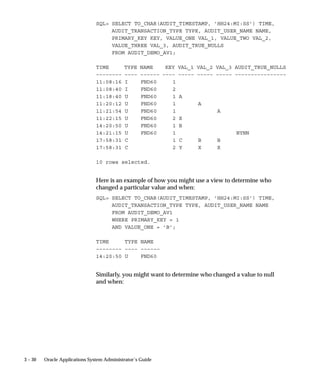
  • 558.
    For example, ifyou are reporting on rows displaying U.S. dollars (precision=2), Japanese yen (precision=0), and Bahraini dinar (precision=3), set Mixed Currency Precision=3. Users can see and update this profile option. This profile option is visible and updatable at all four levels. Level Visible Allow Update Site Yes Yes Application Yes Yes Responsibility Yes Yes User Yes Yes The internal name for this profile option is CURRENCY:MIXED_PRECISION. Currency:Negative Format You can use different formats to identify negative currency. The default identifier is a hyphen ( – ) preceding the currency amount, as in ”–xxx”. You can also select: Angle brackets < > < xxx > Trailing hyphen – xxx – Parentheses () ( xxx ) Square Brackets [ ] [ xxx ] If you use the negative number formats of “(xxx)” or “[xxx],” in Oracle Applications Release 11, your negative numbers appear as “<xxx>”. Users can see and update this profile option. This profile option is visible and updatable at all four levels. Level Visible Allow Update Site Yes Yes Application Yes Yes Responsibility Yes Yes User Yes Yes The internal name for this profile option is CURRENCY:NEGATIVE_FORMAT. Note: Currency:Negative Format only affects the display currency. Non–currency negative numbers appear with a preceding hyphen regardless of the option selected here. A – 16 Oracle Applications System Administrator’s Guide
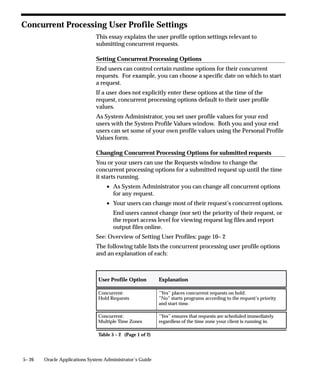
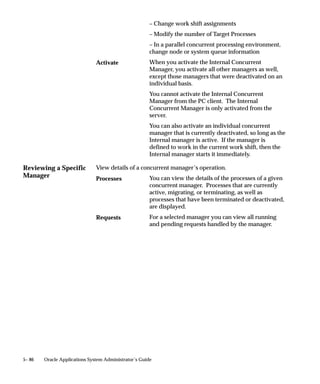
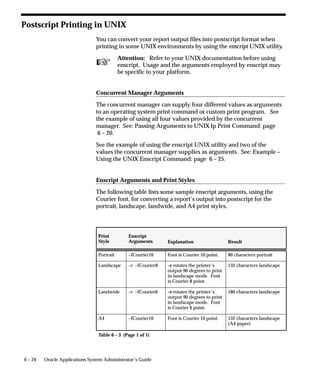
  • 559.
    Currency:Positive Format You canuse different formats to identify positive currency values. The default condition is no special identifier. Users can see and update this profile option. This profile option is visible and updatable at all four levels. Level Visible Allow Update Site Yes Yes Application Yes Yes Responsibility Yes Yes User Yes Yes The internal name for this profile option is CURRENCY:POSITIVE_FORMAT. Currency:Thousands Separator You can separate your currency amounts in thousands by placing a thousands separator. For example, one million appears as 1,000,000. Users can see and update this profile option. This profile option is visible and updatable at all four levels. Level Visible Allow Update Site Yes Yes Application Yes Yes Responsibility Yes Yes User Yes Yes The internal name for this profile option is CURRENCY:THOUSANDS_SEPARATOR. Database Instance Entering a valid two_task connect string allows you to override the default two_task. This profile is specifically designed for use with Oracle Parallel Server, to allow different responsibilities and users to connect to different nodes of the server. Users can see this profile option, but they cannot update it. This profile option is visible and updatable at all four levels. User Profiles A – 17
  • 560.
    Level Visible Allow Update Site Yes Yes Application Yes Yes Responsibility Yes Yes User Yes Yes The internal name for this profile option is INSTANCE_PATH. Default Country This is the default source for the Country field for all address zones and is used by the Flexible Address Formats feature, the Flexible Bank Structures feature and the Tax Registration Number and Taxpayer ID validation routines. The profile can be set to any valid country listed in the Maintain Countries and Territories form and can be set to a different value for each user. Users can see and update this profile option. This profile option is visible and updatable at all four levels. Level Visible Allow Update Site Yes Yes Application Yes Yes Responsibility Yes Yes User Yes Yes The internal name for this profile option is DEFAULT_COUNTRY. Flexfields:AutoSkip You can save keystrokes when entering data in your flexfields by automatically skipping to the next segment as soon as you enter a complete valid value into a segment. • “Yes” means after entering a valid value in a segment, you automatically move to the next segment. • “No” means after entering a valid value in a segment, you must press [Tab] to go to the next segment. Note: You may still be required to use tab to leave some segments if the valid value for the segment does not have the same number of characters as the segment. For example, if a segment in the flexfield holds values up to 5 characters and a A – 18 Oracle Applications System Administrator’s Guide
  • 561.
    valid value forthe segment is 4 characters, AutoSkip will not move you to the next segment. Users can see and update this profile option. This profile option is visible and updatable at all four levels. Level Visible Allow Update Site Yes Yes Application Yes Yes Responsibility Yes Yes User Yes Yes The internal name for this profile option is FLEXFIELDS:AUTOSKIP. Flexfields:BiDi Direction This profile option controls the appearance of the flexfields window in Applications running in Semitic languages. Possible values are ”Left To Right” and ”Right To Left”. If the profile option is not defined on a particular installation, the default value is ”Right To Left”, where the window appears in a normal, left to right fashion, and the text and layout are reversed to accommodate the right–to–left nature of the Semitic language environment. Users can see and update this profile option. This profile option is visible and updatable at all four levels. Level Visible Allow Update Site Yes Yes Application Yes Yes Responsibility Yes Yes User Yes Yes The internal name for this profile option is FLEXFIELDS:BIDI_DIRECTION. Flexfields:LOV Warning Limit Use Flexfields:LOV Warning Limit to improve efficiency when retrieving a list of values. Sometimes, particularly when no reduction criteria has been specified, an LOV can take a very long time to run if there is a very significant amount of data in it. Set this profile option to the number of rows to be returned before the user is asked whether to continue retrieving the entire list. User Profiles A – 19
  • 562.
    Users can seeand update this profile option. This profile option is visible and updatable at all four levels. Level Visible Allow Update Site Yes Yes Application Yes Yes Responsibility Yes Yes User Yes Yes The internal name for this profile option is QUICKPICK_ROWS_BEFORE_WARN. Flexfields:Open Descr Window You can control whether a descriptive flexfield window automatically opens when you navigate to a customized descriptive flexfield. • “Yes” means that the descriptive flexfield window automatically opens when you navigate to a customized descriptive flexfield. • “No” means that when you navigate to a customized descriptive flexfield, you must choose Edit Field from the Edit menu or use the List of Values to open the descriptive flexfield window. Users can see and update this profile option. This profile option is visible and updatable at all four levels. Level Visible Allow Update Site Yes Yes Application Yes Yes Responsibility Yes Yes User Yes Yes The internal name for this profile option is FLEXFIELDS:OPEN_DESCR_WINDOW. Note: This profile option does not apply to descriptive flexfields in folders. Flexfields:Open Key Window You can control whether a key flexfield window automatically opens when you navigate to a key flexfield. • “Yes” means that the key flexfield window automatically opens when you navigate to a key flexfield. A – 20 Oracle Applications System Administrator’s Guide
  • 563.
    • “No” meansthat when you navigate to a key flexfield, you must choose Edit Field from the Edit menu or use the List of Values to open the key flexfield window. Users can see and update this profile option. This profile option is visible and updatable at all four levels. Level Visible Allow Update Site Yes Yes Application Yes Yes Responsibility Yes Yes User Yes Yes The internal name for this profile option is FLEXFIELDS:OPEN_KEY_WINDOW. Flexfields:Shared Table Lock This profile option is used by the Oracle Applications flexfields internal code only. You should not alter the value of this profile option unless instructed to do so by an Oracle representative. The internal name for this profile option is FLEXFIELDS:SHARED_TABLE_LOCK. Flexfields:Shorthand Entry If shorthand flexfield entry is defined for your flexfield, you can use a shorthand alias to automatically fill in values for some or all of the segments in a flexfield. Not Enabled Shorthand Entry is not available for any flexfields for this user, regardless of whether shorthand aliases are defined. New Entries Only Shorthand Entry is available for entering new records in most foreign key forms. It is not available for combinations forms, updating existing records, or entering queries. Query and New Shorthand Entry is available for entering new Entry records or for entering queries. It is not available for updating existing records. All Entries Shorthand Entry is available for entering new records or updating old records. It is not available for entering queries. User Profiles A – 21
  • 564.
    Always Shorthand Entry is available for inserting, updating, or querying flexfields for which shorthand aliases are defined. Users can see and update this profile option. This profile option is visible and updatable at all four levels. Level Visible Allow Update Site Yes Yes Application Yes Yes Responsibility Yes Yes User Yes Yes The internal name for this profile option is FLEXFIELDS:SHORTHAND_ENTRY. Flexfields:Show Full Value If an alias defines valid values for all of the segments in a flexfield, and Flexfields: Shorthand Entry is enabled, when you enter the alias the flexfield window does not appear. ”Yes” displays the full flexfield window with the cursor resting on the last segment. Users can see and update this profile option. This profile option is visible and updatable at all four levels. Level Visible Allow Update Site Yes Yes Application Yes Yes Responsibility Yes Yes User Yes Yes The internal name for this profile option is FLEXFIELDS:SHOW_FULL_VALUE. Flexfields:Validate On Server This profile option is set to ”Yes” to enable server side, PL/SQL flexfields validation for Key Flexfields. This improves performance when using Key Flexfields over a wide area network by reducing the number of network round trips needed to validate the entered segment combinations. You may find, however, that your validation’s performance is better with client side validation. In this case, set this profile option to ”No”. A – 22 Oracle Applications System Administrator’s Guide
  • 565.
    Users can seeand update this profile option. This profile option is visible and updatable at all four levels. Level Visible Allow Update Site Yes Yes Application Yes Yes Responsibility Yes Yes User Yes Yes The internal name for this profile option is FLEXFIELDS:VALIDATE_ON_SERVER. FND: Debug Log Filename The file name for the file to hold debugging messages used in the Log/Trace Service. If the value of this profile option is null, then the Log/Trace Service is turned off. Users can see and update this profile option. Level Visible Allow Update Site Yes Yes Application Yes Yes Responsibility Yes Yes User Yes Yes The internal name for this profile option is AFLOG_FILENAME. FND: Debug Log Level The Log/Trace Service can filter out debugging messages depending on their priority level.. There are five levels of the Debug/Trace Service:. In order from highest priority to lowest priority, they are: Errors, Exceptions, Events, Procedures, and Statements. The Debug Log Level is the lowest level that the user wants to see messages for.. The possible profile option values are Null (which means off), and the five priority levels above. For instance, if the ”FND: Debug Log Level” profile is set to ”EVENT”, then the file will get the messages that the programmer had marked as ”EVENT”, ”EXCEPTION”, or ”ERROR”. Users can see and update this profile option. Level Visible Allow Update Site Yes Yes Application Yes Yes Responsibility Yes Yes User Yes Yes User Profiles A – 23
  • 566.
    The internal namefor this profile option is AFLOG_LEVEL. FND: Debug Log Module The Log/Trace Service can filter out debugging messages depending on their module. Module names are unique across applications and coding languages. If a module is specified for this profile option, then only messages for that module will be written to the log file. If this profile option is left blank then messages for all modules will be written to the log file. Users can see and update this profile option. Level Visible Allow Update Site Yes Yes Application Yes Yes Responsibility Yes Yes User Yes Yes The internal name for this profile option is AFLOG_MODULE. FND: Resource Consumer Group Resource consumer groups are used by the Oracle8i Database Resource Manager, which allocates CPU resources among database users and applications. Each form session is assigned to a resource consumer group. The system administrator can assign users to a resource consumer group for all of their forms sessions and transactions. If no resource consumer group is found for a process, the system uses the default group ”Default_Consumer_Group”. Users can see this profile option, but they cannot update it. Level Visible Allow Update Site Yes Yes Application Yes Yes Responsibility Yes Yes User Yes Yes The internal name for this profile option is FND_RESOURCE_CONSUMER_GROUP. FND: Override Directory The FND:Override Directory profile option is used by the Work Directory feature. The value of FND: Override Directory should be the A – 24 Oracle Applications System Administrator’s Guide
  • 567.
    directory containing youralternate files. Typically, this profile option should be set at the User level only. Users can see and update this profile option. Level Visible Allow Update Site Yes Yes Application Yes Yes Responsibility Yes Yes User Yes Yes The internal name for this profile option is APPLWRK. Folders:Allow Customization Your system administrator controls whether you can create or customize a folder definition layout in folder block. • “Yes” means that you can create or customize a folder definition, that is, the entire Folder menu is enabled in the folder block. • “No” means that you can only open an existing folder definition in a folder block, that is, only the Open option is enabled in the Folder menu. Users can see this profile option, but they cannot update it. Level Visible Allow Update Site No No Application No No Responsibility No No User Yes Yes The internal name for this profile option is FLEXVIEW:CUSTOMIZATION. Gateway User ID Oracle login for gateway account. This should be the same as the environment variable GWYUID. For example, applsyspub/pub. Users can see and but not update this profile option. This profile option is visible at all levels but may only be updated at the site level. User Profiles A – 25
  • 568.
    Level Visible Allow Update Site Yes Yes Application Yes No Responsibility Yes No User Yes No The internal name for this profile option is GWYUID. Help Localization Code Localized context–sensitive help files are preferred when your System Administrator sets this profile option. Users can see this profile option, but they cannot update it. This profile option is visible and updatable at the responsibility and user levels. Level Visible Allow Update Site Yes Yes Application Yes Yes Responsibility Yes Yes User Yes Yes The internal name for this profile option is HELP_LOCALIZATION_CODE. Help Tree Root This profile option determines which tree is shown in the navigation frame when context–sensitive help is launched. Users can see this profile option, but they cannot update it. This profile option is visible and updatable at all levels. Level Visible Allow Update Site Yes Yes Application Yes Yes Responsibility Yes Yes User Yes Yes The internal name for this profile option is HELP_TREE_ROOT. Help Utility Download Path Use this profile option to define the directory into which the Help Utility downloads help files from the Oracle Applications Help System. A – 26 Oracle Applications System Administrator’s Guide
  • 569.
    Users can seethis profile option, but they cannot update it. This profile option is visible and updatable at all levels. Level Visible Allow Update Site Yes Yes Application Yes Yes Responsibility Yes Yes User Yes Yes The internal name for this profile option is HELP_UTIL_DL_PATH. Help Utility Upload Path Use this profile option to define the directory from which the Help Utility uploads help files to the Oracle Applications Help System. Users can see this profile option, but they cannot update it. This profile option is visible and updatable at all levels. Level Visible Allow Update Site Yes Yes Application Yes Yes Responsibility Yes Yes User Yes Yes The internal name for this profile option is HELP_UTIL_UL_PATH. Hide Diagnostics Menu Entry This profile option determines whether users can access the Diagnostics menu entry from the Help menu. If it is set to Yes, the Diagnostics menu entry is hidden. If it is set to No, the Diagnostics menu entry is visible. Users cannot see nor change this profile option. This profile option is visible and updatable at the all levels. Level Visible Allow Update Site Yes Yes Application Yes Yes Responsibility Yes Yes User Yes Yes The internal name for this profile option is FND_HIDE_DIAGNOSTICS. User Profiles A – 27
  • 570.
    ICX: Client IANAEncoding This profile option is used to determine the character set of the text displayed by Java Server pages. This profile option must be set to the correct character set (that is, the character set of the Apache server on the Web tier) for the online help system to support character sets other than American English. The default setting is the US character set (ISO–8859–1). Users can see this profile option, but they cannot update it. This profile option is visible and updatable at the all levels. Level Visible Allow Update Site Yes Yes Application Yes Yes Responsibility Yes Yes User Yes Yes The internal name for this profile option is ICX_CLIENT_IANA_ENCODING. ICX: Discoverer Launcher, Forms Launcher, and Report Launcher These profile options are used by the Oracle Applications Personal Homepage. Set the site level value of each of these profile options to the base URL for launching each application. The profile option value should be sufficient to launch the application, but should not include any additional parameters which may be supplied by the Personal Homepage. Users can see these profile options, but they cannot update them. These profile options are visible and updatable at all levels. Level Visible Allow Update Site Yes Yes Application Yes Yes Responsibility Yes Yes User Yes Yes The internal name for these profile options are ICX_DISCOVERER_LAUNCHER, ICX_FORMS_LAUNCHER, and ICX_REPORT_LAUNCHER. A – 28 Oracle Applications System Administrator’s Guide
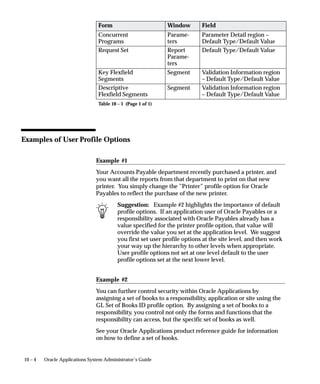
  • 571.
    Indicate Attachments This profileoption allows you to turn off indication of attachments when querying records (for performance reasons). Users can see and update this profile option. This profile option is visible and updatable at all four levels. Level Visible Allow Update Site Yes Yes Application Yes Yes Responsibility Yes Yes User Yes Yes The internal name for this profile option is ATCHMT_SET_INDICATOR. Initialization SQL Statement – Custom This profile option allows you to add site–specific initialization code (such as optimizer settings) that will be executed at database session startup. The value of this profile option must be a valid SQL statement. The system administrator may set this profile option at any level. Level