How to move files to a USB
    memory stick (Mac)
These instructions are for any file type:
    photos, documents, presentations,
 spreadsheets. The word 'file' refers to
              all of these.
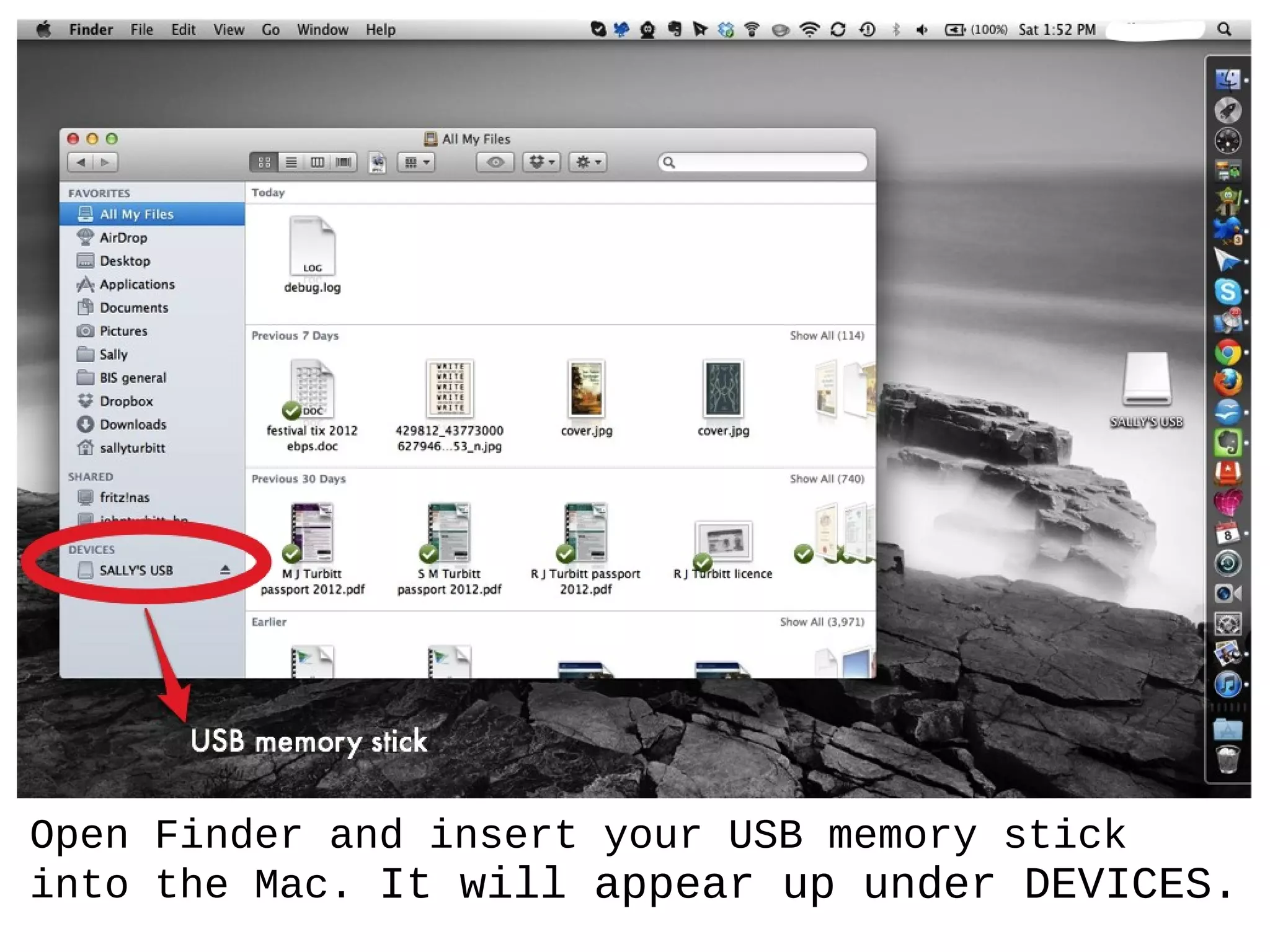
Open Finder and insert your USB memory stick
into the Mac. It will appear up under DEVICES.
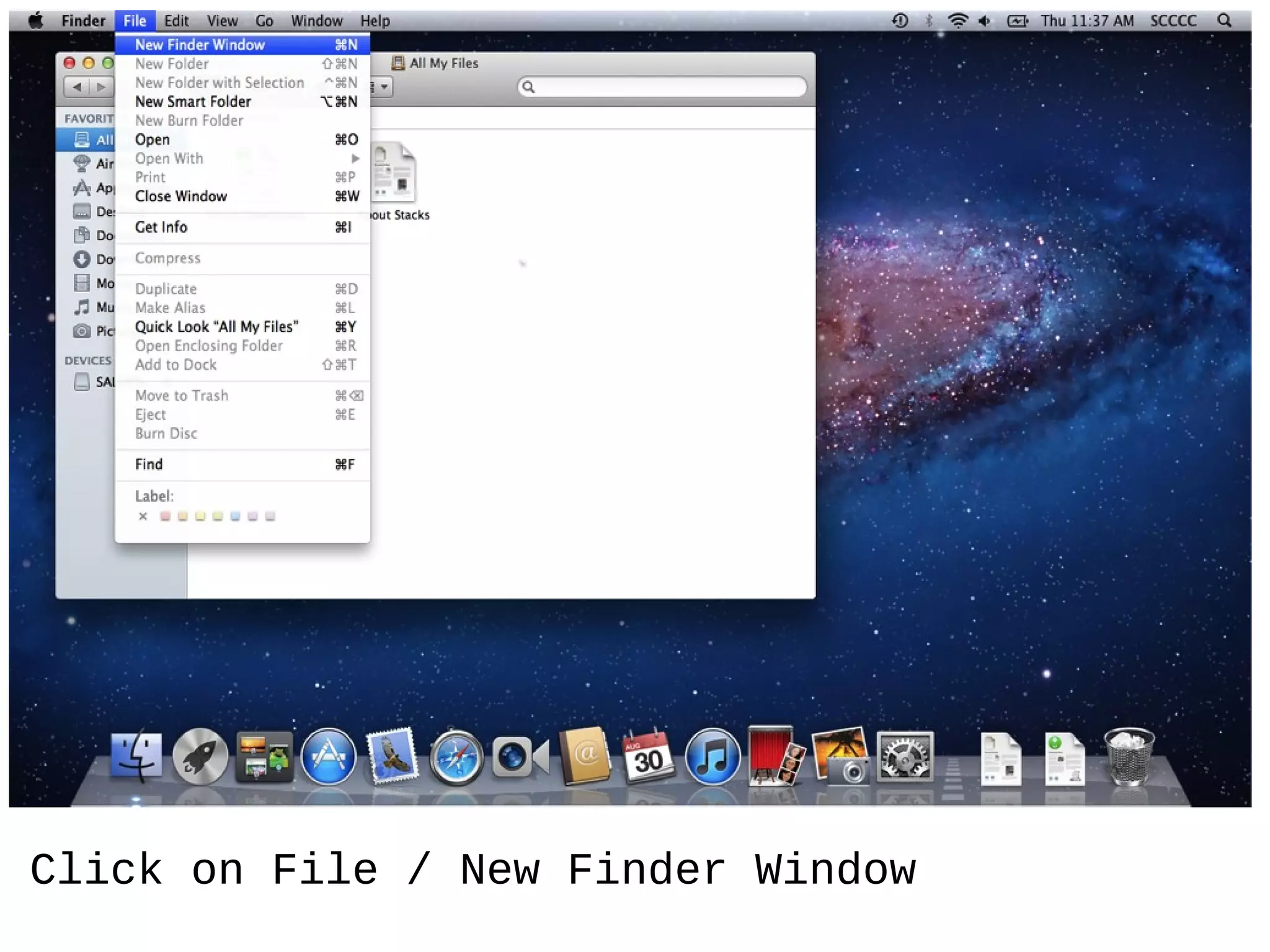
Click on File / New Finder Window
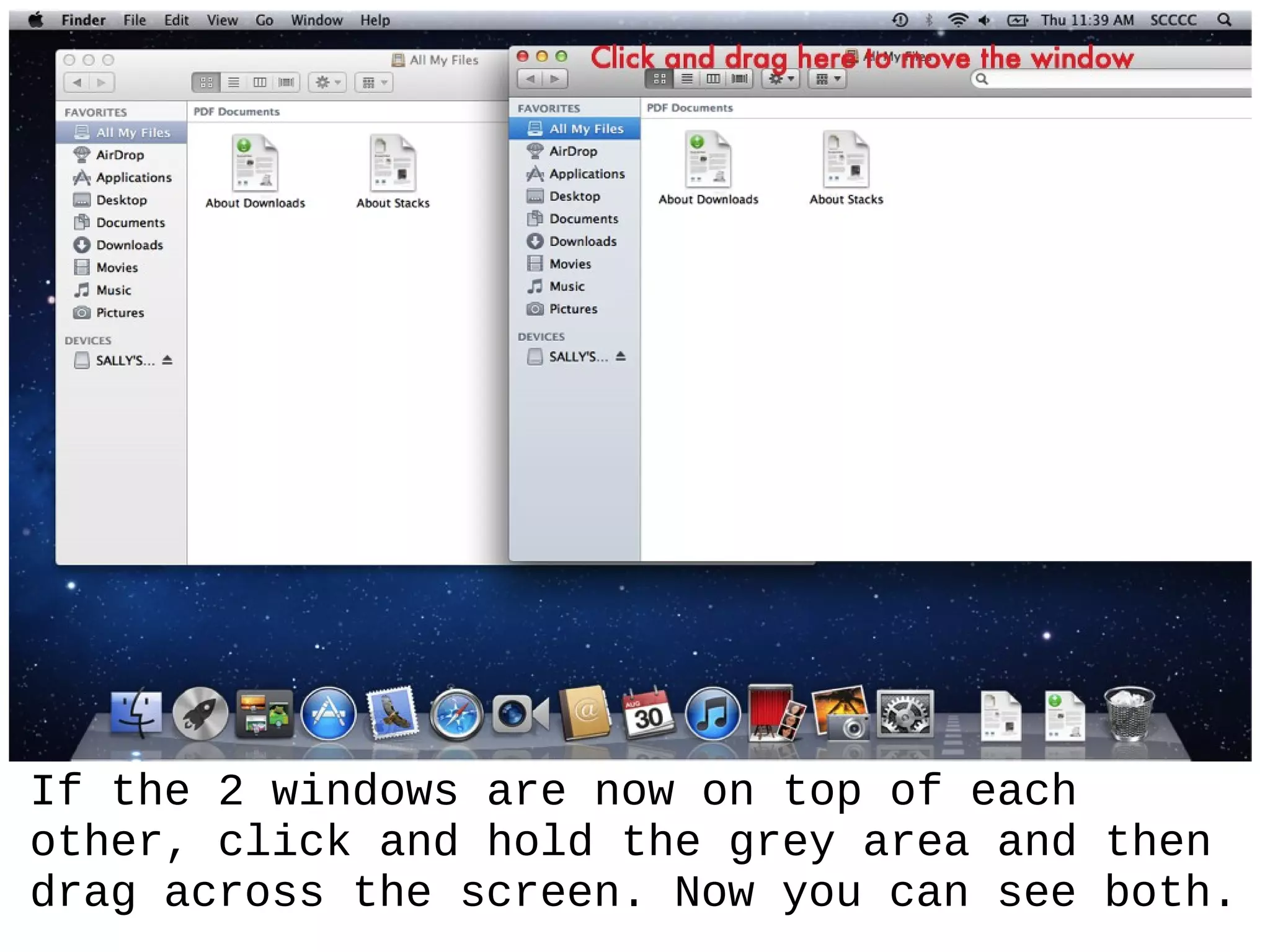
If the 2 windows are now on top of each
other, click and hold the grey area and then
drag across the screen. Now you can see both.
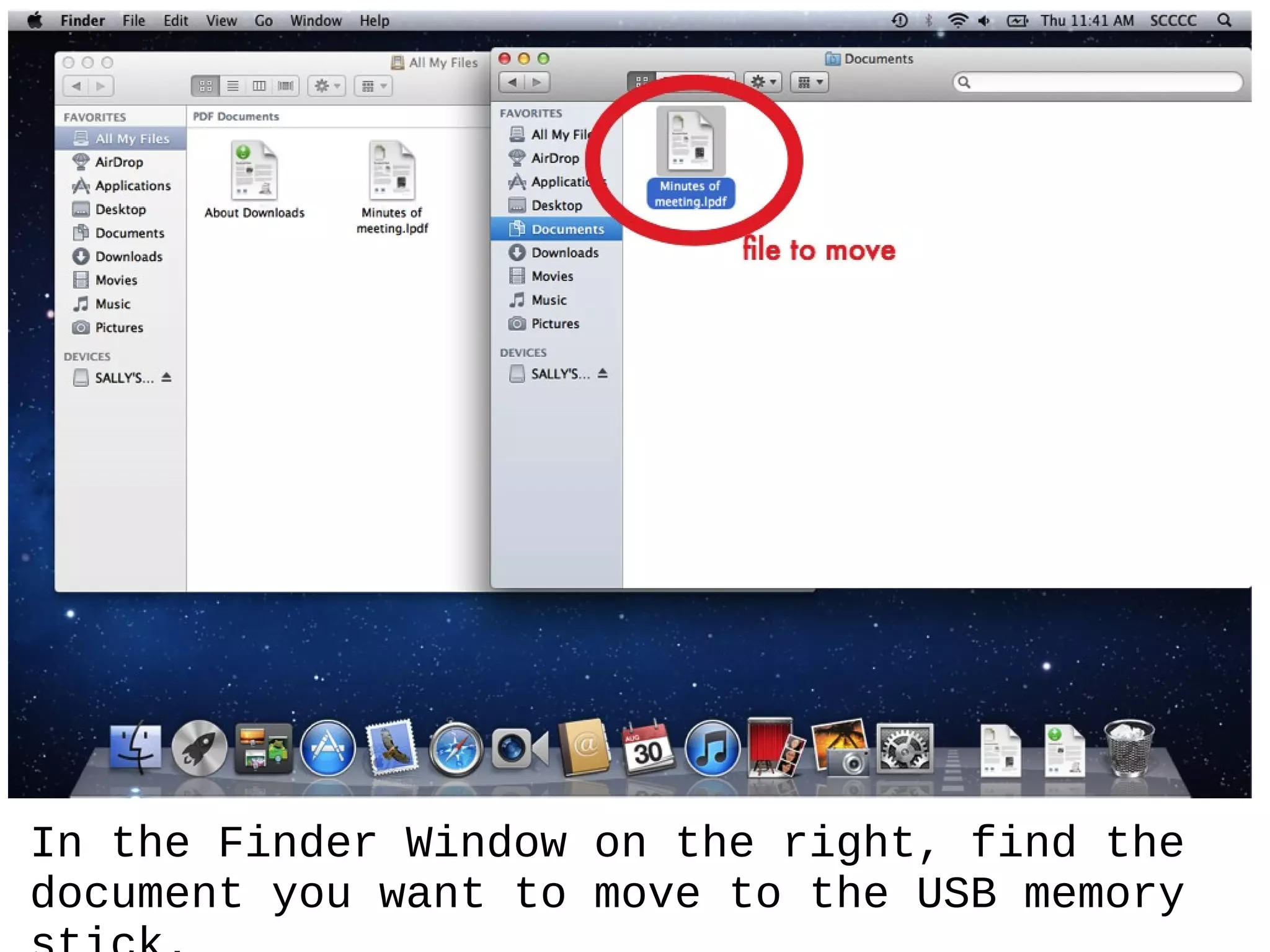
In the Finder Window on the right, find the
document you want to move to the USB memory
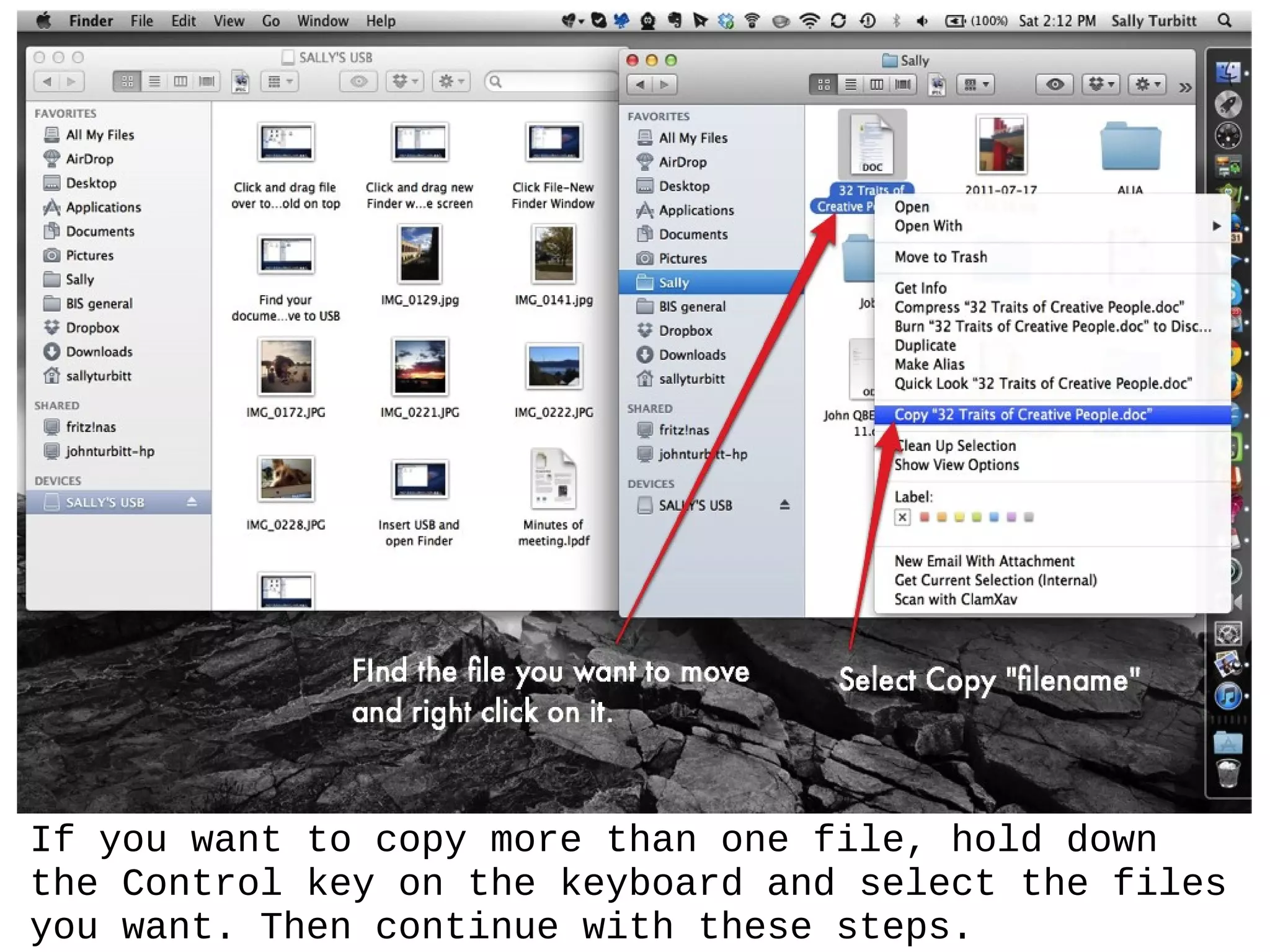
If you want to copy more than one file, hold down
the Control key on the keyboard and select the files
you want. Then continue with these steps.
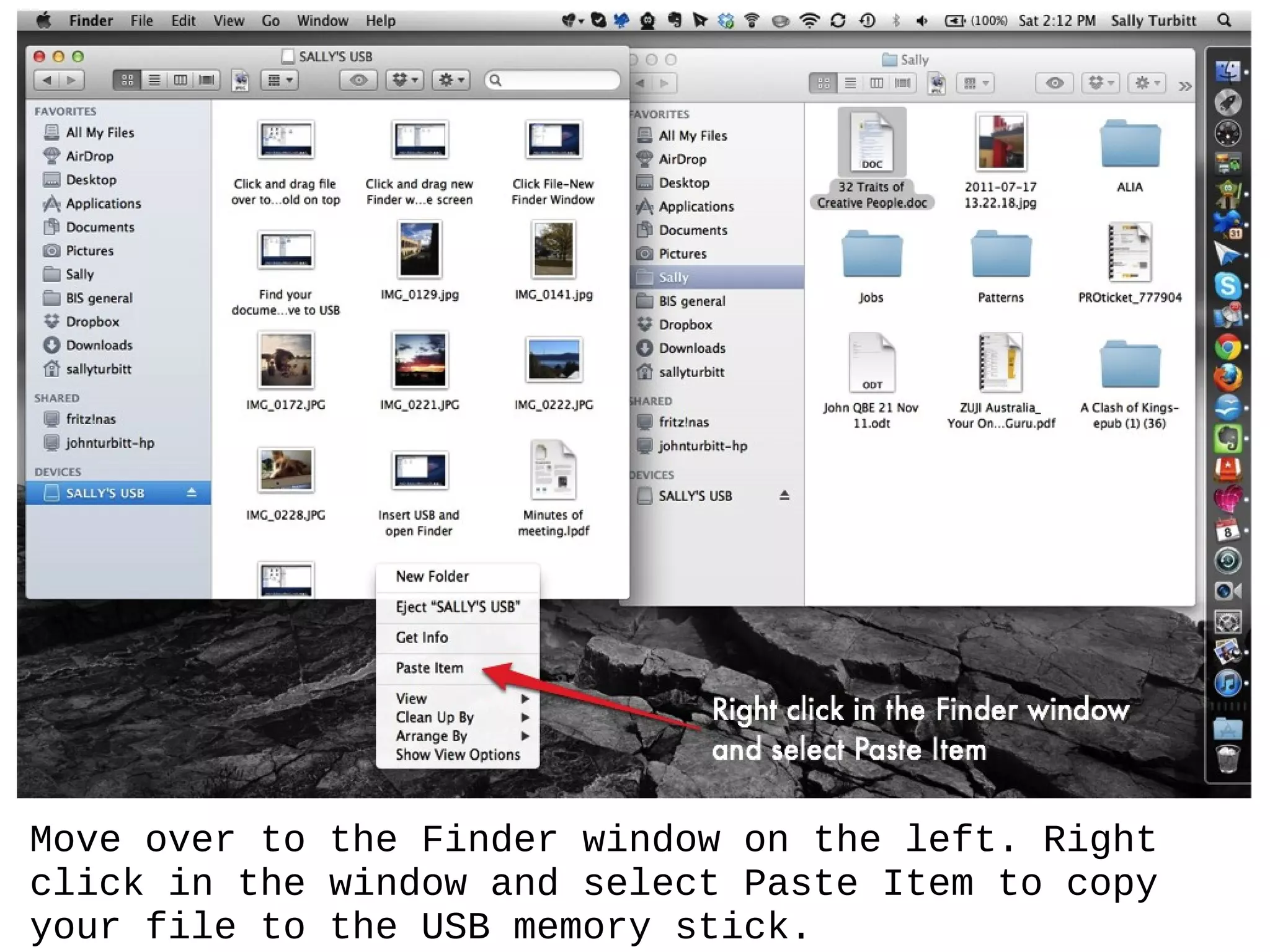
Move over to the Finder window on the left. Right
click in the window and select Paste Item to copy
your file to the USB memory stick.
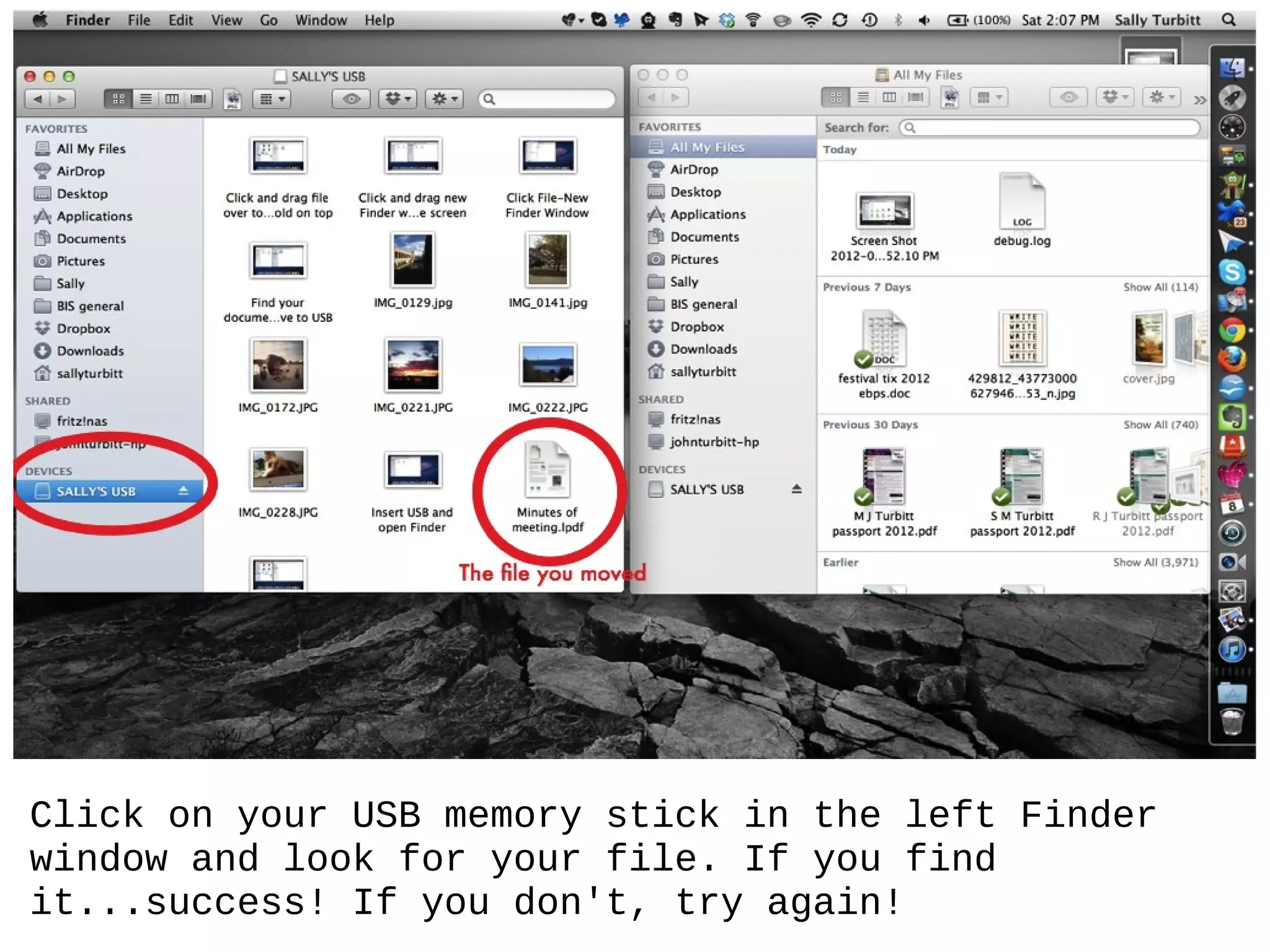
Click on your USB memory stick in the left Finder
window and look for your file. If you find
it...success! If you don't, try again!
Created by Sally
        Turbitt
       for the
Seniors Central Coast
   Computer Club
Mac Users & Beginners
        groups.

    www.scccc.org.au
www.sccccmac.blogspot.com.au


              Image via FlickrCC http://www.flickr.com/photos/46018453@N06/6772200175

How to move files to usb memory stick

  • 1.
    How to movefiles to a USB memory stick (Mac) These instructions are for any file type: photos, documents, presentations, spreadsheets. The word 'file' refers to all of these.
  • 2.
    Open Finder andinsert your USB memory stick into the Mac. It will appear up under DEVICES.
  • 3.
    Click on File/ New Finder Window
  • 4.
    If the 2windows are now on top of each other, click and hold the grey area and then drag across the screen. Now you can see both.
  • 5.
    In the FinderWindow on the right, find the document you want to move to the USB memory
  • 6.
    If you wantto copy more than one file, hold down the Control key on the keyboard and select the files you want. Then continue with these steps.
  • 7.
    Move over tothe Finder window on the left. Right click in the window and select Paste Item to copy your file to the USB memory stick.
  • 8.
    Click on yourUSB memory stick in the left Finder window and look for your file. If you find it...success! If you don't, try again!
  • 9.
    Created by Sally Turbitt for the Seniors Central Coast Computer Club Mac Users & Beginners groups. www.scccc.org.au www.sccccmac.blogspot.com.au Image via FlickrCC http://www.flickr.com/photos/46018453@N06/6772200175