Integrating Art and Science:A Collaborative Teacher ProgramAN INTRODUCTION ONHOW TO USE ONLINE TOOLS:Epsilen & ElluminateSummer 2011
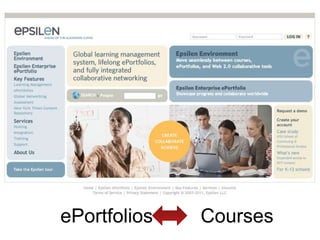
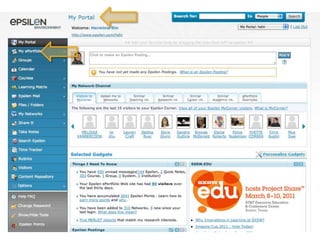
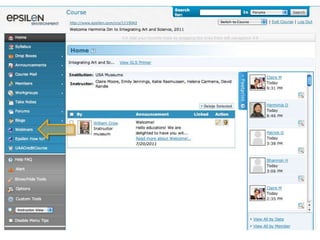
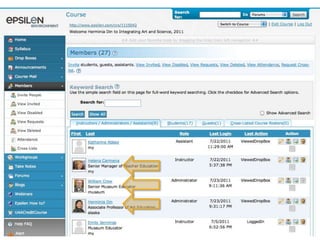
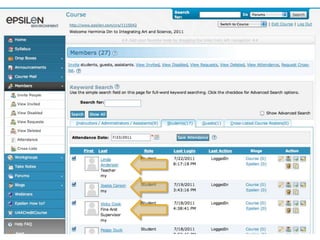
EPSILENIt is a website that provides an integrated environment for online learning. On Epsilen:Instructors can set up groups and courses.Participants can join groups and take the courses they need.All site users can interact through e-mail, forums, blogs, course chats, and wikis.The Epsilen experience—referred to as the Epsilen Environment—is built around three main components:eLearningePortfoliosNetworking
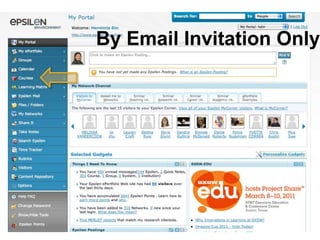
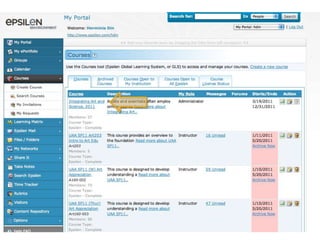
ePortfoliosCourses
By Email Invitation Only
ELLUMINATEElluminate is a user-friendly web conferencing tool that allows participants to interact in real time over regular Internet connections.Elluminateallows users to view PowerPoint presentations and share applications (i.e., Word documents, Excel documents, etc.) while listening and talking over the Internet.In addition, Elluminate allows users to chat online and transfer files at any time during the online session.
ELLUMINATEThere is a one-time downloading of software needed to connect your computer to Elluminate.After that, all you'll need to do is connect to the weblink to join Elluminate sessions.In order to participate, you will need speakers and a microphone or a headset, which is a set of headphones with a microphone incorporated.An inexpensive headset, available at Radio Shack for under $20, works fine. (Note: If you do not have a microphone, you can still participate in the meeting by typing in your comments and questions. You will need speakers in order to hear the session.)
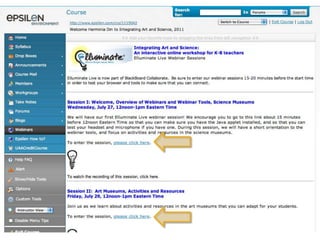
Tips on Participating in an ElluminateLive! SessionFind a comfortable place with no distractions.Use the Audio Wizard to ensure that your audio is working correctly prior to your session.Take the ElluminateLive! Online Orientation or refer to the ElluminateLive! Participant Guide for information on all the features prior to your first session.https://www.elluminate.com/resources/orientation/v10/index.phpThis information and more is available at http://support.blackboardcollaborate.com/ics/support/default.asp?deptID=8336&task=knowledge&questionID=1279
Tips on Participating in an ElluminateLive! SessionBe sure to join the session 5-10 minutes prior to the start. Set your Connection Speed to the Internet.Use the Audio Setup Wizard to test your microphone and speakers.Participate in the session by responding to polls and providing feedback to the moderator.Raise your hand when you have a question or a comment.Use Chat to send text messages to other participants and the moderator during the session.Remember that running other applications on your computer can slow your connection to ElluminateLive!
Checking System RequirementUse following link to check to make sure your computer is compatiblehttp://support.blackboardcollaborate.com/ics/support/default.asp?deptID=8336&task=knowledge&questionID=1279
Additional ResourcesYou can download the following files in
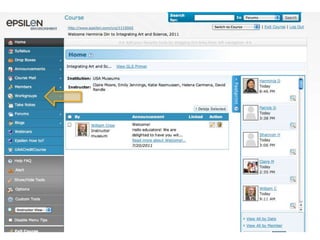
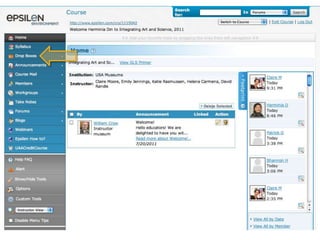
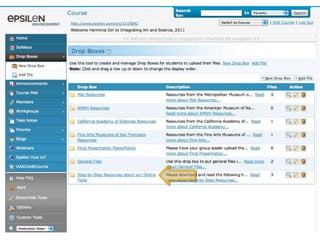
Epsilen/Course/Drop Boxes/Step-by-Step Resources Folder
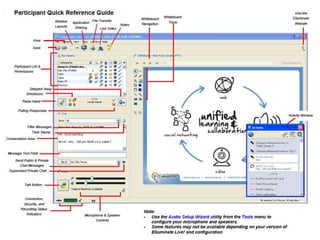
Elluminate Quick Reference Guide
Getting Started in Epsilen: A Booklet
How to create your ePortfolio
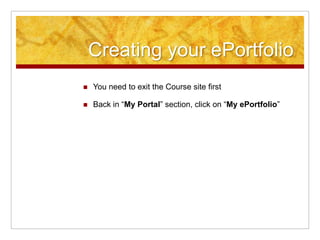
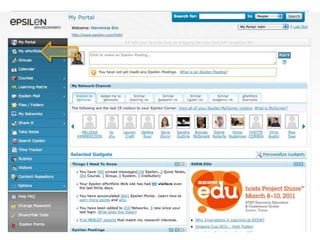
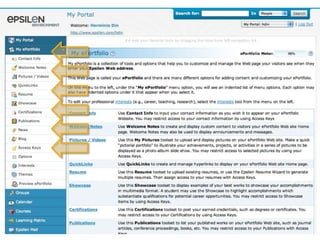
Creating your ePortfolioWe would love to get to know you!
Add a picture of you
Tell us a little bit more about you in your ePortfolio site

2011onlientools

  • 1.
    Integrating Art andScience:A Collaborative Teacher ProgramAN INTRODUCTION ONHOW TO USE ONLINE TOOLS:Epsilen & ElluminateSummer 2011
  • 2.
    EPSILENIt is awebsite that provides an integrated environment for online learning. On Epsilen:Instructors can set up groups and courses.Participants can join groups and take the courses they need.All site users can interact through e-mail, forums, blogs, course chats, and wikis.The Epsilen experience—referred to as the Epsilen Environment—is built around three main components:eLearningePortfoliosNetworking
  • 3.
  • 6.
  • 9.
    ELLUMINATEElluminate is auser-friendly web conferencing tool that allows participants to interact in real time over regular Internet connections.Elluminateallows users to view PowerPoint presentations and share applications (i.e., Word documents, Excel documents, etc.) while listening and talking over the Internet.In addition, Elluminate allows users to chat online and transfer files at any time during the online session.
  • 10.
    ELLUMINATEThere is aone-time downloading of software needed to connect your computer to Elluminate.After that, all you'll need to do is connect to the weblink to join Elluminate sessions.In order to participate, you will need speakers and a microphone or a headset, which is a set of headphones with a microphone incorporated.An inexpensive headset, available at Radio Shack for under $20, works fine. (Note: If you do not have a microphone, you can still participate in the meeting by typing in your comments and questions. You will need speakers in order to hear the session.)
  • 13.
    Tips on Participatingin an ElluminateLive! SessionFind a comfortable place with no distractions.Use the Audio Wizard to ensure that your audio is working correctly prior to your session.Take the ElluminateLive! Online Orientation or refer to the ElluminateLive! Participant Guide for information on all the features prior to your first session.https://www.elluminate.com/resources/orientation/v10/index.phpThis information and more is available at http://support.blackboardcollaborate.com/ics/support/default.asp?deptID=8336&task=knowledge&questionID=1279
  • 14.
    Tips on Participatingin an ElluminateLive! SessionBe sure to join the session 5-10 minutes prior to the start. Set your Connection Speed to the Internet.Use the Audio Setup Wizard to test your microphone and speakers.Participate in the session by responding to polls and providing feedback to the moderator.Raise your hand when you have a question or a comment.Use Chat to send text messages to other participants and the moderator during the session.Remember that running other applications on your computer can slow your connection to ElluminateLive!
  • 16.
    Checking System RequirementUsefollowing link to check to make sure your computer is compatiblehttp://support.blackboardcollaborate.com/ics/support/default.asp?deptID=8336&task=knowledge&questionID=1279
  • 17.
    Additional ResourcesYou candownload the following files in
  • 18.
  • 19.
  • 20.
    Getting Started inEpsilen: A Booklet
  • 21.
    How to createyour ePortfolio
  • 23.
    Creating your ePortfolioWewould love to get to know you!
  • 24.
  • 25.
    Tell us alittle bit more about you in your ePortfolio site