08 | Getting prepared for automation
Jeffrey Snover | Distinguished Engineer & Lead Architect
Jason Helmick | Senior Technologist, Concentrated
Technology
Course Topics
Getting Started with PowerShell
01 | Don’t fear the shell

06 | The pipeline : Deeper

02 | The Help system

07 | The Power in the Shell - Remoting

03 | The pipeline : Getting connected

08 | Getting prepared for automation

04 | Extending the shell

09 | Automation in scale - Remoting

05 | Objects for the Admin

10 | Introducing scripting and toolmaking
Module Overview
• PowerShell security goals

• Execution Policy
• Variables : a place to store stuff
• Fun with Quotes
• Getting and displaying input
• Other output for scripts and automation
PowerShell security goals

• Secured by default
• Prevents mistakes by
unintentional admins and
users
• No Script Execution
• .Ps1 associated with notepad
• Must type path to execute a
script
Execution Policy
• By default, PowerShell does
not run scripts.
• Get/Set-ExecutionPolicy
• Restricted
• Unrestricted
• AllSigned
• RemoteSigned
• Bypass
• Undefined
• Can be set with Group Policy
Variables: A place to store stuff
• Use $ to create and use
variables
• Can contain letters, numbers,
spaces and underscores
• Don’t persist after Shell exits

• New-Variable
• Set-Variable
• Get-Variable

• Clear-Variable
• Remove-Variable
• Can force a type – [int]$var

Note: The $ is not part of the variable
name, it’s a cue to access the contents
of the variable
Fun with Quotes
• Double Quotes resolve all
variables
• Can use Sub-Expressions
• Single Quotes prevent
substitution
• Get-Help
About_Quoting_Rules

• Back-tick/Grave-Accent
prevents individual substitution
Getting and displaying input
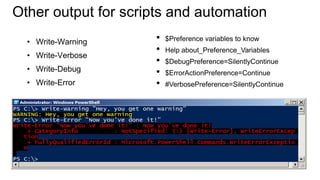
Other output for scripts and automation
• Write-Warning
• Write-Verbose

• Write-Debug
• Write-Error

•
•
•
•
•

$Preference variables to know
Help about_Preference_Variables
$DebugPreference=SilentlyContinue
$ErrorActionPreference=Continue
#VerbosePreference=SilentlyContinue
Questions or comments?
©2013 Microsoft Corporation. All rights reserved. Microsoft, Windows, Office, Azure, System Center, Dynamics and other product names are or may be registered trademarks and/or trademarks in the
U.S. and/or other countries. The information herein is for informational purposes only and represents the current view of Microsoft Corporation as of the date of this presentation. Because Microsoft
must respond to changing market conditions, it should not be interpreted to be a commitment on the part of Microsoft, and Microsoft cannot guarantee the accuracy of any information provided after
the date of this presentation. MICROSOFT MAKES NO WARRANTIES, EXPRESS, IMPLIED OR STATUTORY, AS TO THE INFORMATION IN THIS PRESENTATION.

08 getting prepared for automation

  • 1.
    08 | Gettingprepared for automation Jeffrey Snover | Distinguished Engineer & Lead Architect Jason Helmick | Senior Technologist, Concentrated Technology
  • 2.
    Course Topics Getting Startedwith PowerShell 01 | Don’t fear the shell 06 | The pipeline : Deeper 02 | The Help system 07 | The Power in the Shell - Remoting 03 | The pipeline : Getting connected 08 | Getting prepared for automation 04 | Extending the shell 09 | Automation in scale - Remoting 05 | Objects for the Admin 10 | Introducing scripting and toolmaking
  • 3.
    Module Overview • PowerShellsecurity goals • Execution Policy • Variables : a place to store stuff • Fun with Quotes • Getting and displaying input • Other output for scripts and automation
  • 4.
    PowerShell security goals •Secured by default • Prevents mistakes by unintentional admins and users • No Script Execution • .Ps1 associated with notepad • Must type path to execute a script
  • 5.
    Execution Policy • Bydefault, PowerShell does not run scripts. • Get/Set-ExecutionPolicy • Restricted • Unrestricted • AllSigned • RemoteSigned • Bypass • Undefined • Can be set with Group Policy
  • 6.
    Variables: A placeto store stuff • Use $ to create and use variables • Can contain letters, numbers, spaces and underscores • Don’t persist after Shell exits • New-Variable • Set-Variable • Get-Variable • Clear-Variable • Remove-Variable • Can force a type – [int]$var Note: The $ is not part of the variable name, it’s a cue to access the contents of the variable
  • 7.
    Fun with Quotes •Double Quotes resolve all variables • Can use Sub-Expressions • Single Quotes prevent substitution • Get-Help About_Quoting_Rules • Back-tick/Grave-Accent prevents individual substitution
  • 8.
  • 9.
    Other output forscripts and automation • Write-Warning • Write-Verbose • Write-Debug • Write-Error • • • • • $Preference variables to know Help about_Preference_Variables $DebugPreference=SilentlyContinue $ErrorActionPreference=Continue #VerbosePreference=SilentlyContinue
  • 10.
  • 11.
    ©2013 Microsoft Corporation.All rights reserved. Microsoft, Windows, Office, Azure, System Center, Dynamics and other product names are or may be registered trademarks and/or trademarks in the U.S. and/or other countries. The information herein is for informational purposes only and represents the current view of Microsoft Corporation as of the date of this presentation. Because Microsoft must respond to changing market conditions, it should not be interpreted to be a commitment on the part of Microsoft, and Microsoft cannot guarantee the accuracy of any information provided after the date of this presentation. MICROSOFT MAKES NO WARRANTIES, EXPRESS, IMPLIED OR STATUTORY, AS TO THE INFORMATION IN THIS PRESENTATION.