Interactive Development Environments Philip Johnson Collaborative Software Development Laboratory  Information and Computer Sciences University of Hawaii Honolulu HI 96822
What is an IDE? An interactive development environment is a software development tool with the following properties: Language-aware editing Project definition facilities Integrated compilation Integrated stepwise execution (debugger) Other common features: Wizards  Diagramming Integration with configuration management Refactoring
IDEs and Non-IDEs Is an IDE: Emacs Eclipse Idea JBuilder Visual Studio NetBeans Xcode etc Is not an IDE: Notepad Textpad Edit Vi (debatable) etc
Why use an IDE? IDEs are: complicated to learn to use take time to master slower to bring up than non-IDEs So why use them? You use an IDE because developers who are skilled with an IDE can successfully: understand large software systems faster correct large software systems faster improve large software systems faster
One other reason to use an IDE As told to me by a senior software developer in charge of hiring at a local/national high tech firm: My first question to a potential new hire at an interview is,  “What editor do you like best for writing software?”  If their answer is “Notepad” or “Wordpad”, then the interview is effectively over right then.
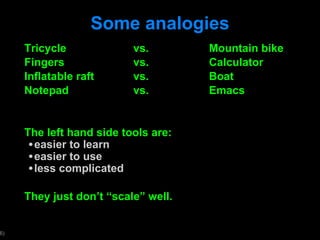
Some analogies Tricycle vs. Mountain bike Fingers  vs.  Calculator Inflatable raft vs. Boat Notepad vs. Emacs The left hand side tools are: easier to learn easier to use  less complicated They just don ’t “scale” well.
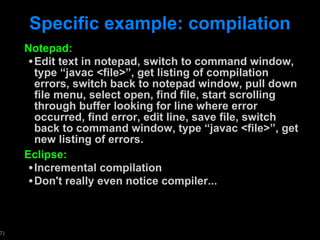
Specific example: compilation Notepad: Edit text in notepad, switch to command window, type  “javac <file>”, get listing of compilation errors, switch back to notepad window, pull down file menu, select open, find file, start scrolling through buffer looking for line where error occurred, find error, edit line, save file, switch back to command window, type “javac <file>”, get new listing of errors.  Eclipse: Incremental compilation Don't really even notice compiler...
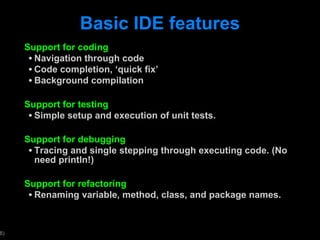
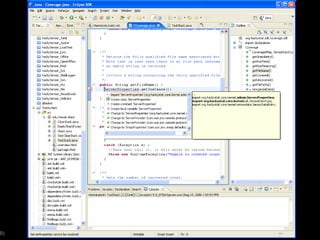
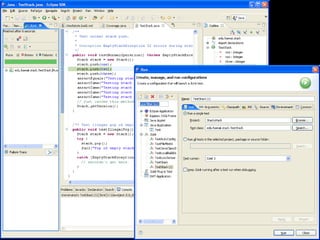
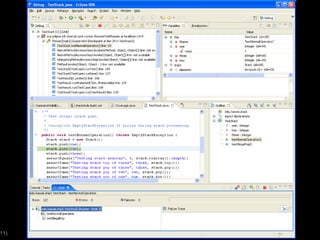
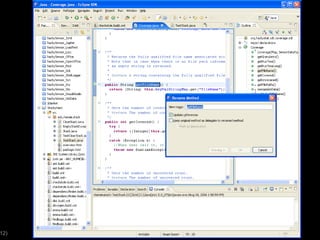
Basic IDE features Support for coding Navigation through code Code completion,  ‘quick fix’ Background compilation Support for testing Simple setup and execution of unit tests. Support for debugging Tracing and single stepping through executing code. (No need println!) Support for refactoring Renaming variable, method, class, and package names.


If things can be accomplished fast, you are likely to do them: Traverse a package hierarchy, searching for all instances of a specific string. Single-step through a function. Generate a UML diagram. Get the completions for a method name prefix. Reformat code. Check matching braces. Change a method name.
IDEs vs. Build tools IDEs provide support for: code writing incremental compilation and testing IDEs are developer-specific Build tools provide support for IDE-independent, cross-platform, standardized: compilation testing packaging automated quality assurance Build tools are the bridge that allows developers and users to work together, even though they are: on different platforms  prefer different IDEs.
IDE Standard You must use Eclipse version 3.7 (Indigo) for this course.  Reasons for Eclipse: It ’s a good IDE. It ’s open source. It runs on Mac/Unix/Windows. It provides infrastructure for other useful tools (JUnit, SVN, etc.) Even if it ’s not your favorite IDE, it is better for everyone to use the same one so that collaboration and knowledge spreads faster.
Getting comfortable with Eclipse To help you get comfortable with Eclipse, you will: Implement FizzBuzz this week using Eclipse. Implement a RoboCode robot next week.
 

Interactive Development Environments

  • 1.
    Interactive Development EnvironmentsPhilip Johnson Collaborative Software Development Laboratory Information and Computer Sciences University of Hawaii Honolulu HI 96822
  • 2.
    What is anIDE? An interactive development environment is a software development tool with the following properties: Language-aware editing Project definition facilities Integrated compilation Integrated stepwise execution (debugger) Other common features: Wizards Diagramming Integration with configuration management Refactoring
  • 3.
    IDEs and Non-IDEsIs an IDE: Emacs Eclipse Idea JBuilder Visual Studio NetBeans Xcode etc Is not an IDE: Notepad Textpad Edit Vi (debatable) etc
  • 4.
    Why use anIDE? IDEs are: complicated to learn to use take time to master slower to bring up than non-IDEs So why use them? You use an IDE because developers who are skilled with an IDE can successfully: understand large software systems faster correct large software systems faster improve large software systems faster
  • 5.
    One other reasonto use an IDE As told to me by a senior software developer in charge of hiring at a local/national high tech firm: My first question to a potential new hire at an interview is, “What editor do you like best for writing software?” If their answer is “Notepad” or “Wordpad”, then the interview is effectively over right then.
  • 6.
    Some analogies Tricyclevs. Mountain bike Fingers vs. Calculator Inflatable raft vs. Boat Notepad vs. Emacs The left hand side tools are: easier to learn easier to use less complicated They just don ’t “scale” well.
  • 7.
    Specific example: compilationNotepad: Edit text in notepad, switch to command window, type “javac <file>”, get listing of compilation errors, switch back to notepad window, pull down file menu, select open, find file, start scrolling through buffer looking for line where error occurred, find error, edit line, save file, switch back to command window, type “javac <file>”, get new listing of errors. Eclipse: Incremental compilation Don't really even notice compiler...
  • 8.
    Basic IDE featuresSupport for coding Navigation through code Code completion, ‘quick fix’ Background compilation Support for testing Simple setup and execution of unit tests. Support for debugging Tracing and single stepping through executing code. (No need println!) Support for refactoring Renaming variable, method, class, and package names.
  • 9.
  • 10.
  • 11.
  • 12.
  • 13.
    If things canbe accomplished fast, you are likely to do them: Traverse a package hierarchy, searching for all instances of a specific string. Single-step through a function. Generate a UML diagram. Get the completions for a method name prefix. Reformat code. Check matching braces. Change a method name.
  • 14.
    IDEs vs. Buildtools IDEs provide support for: code writing incremental compilation and testing IDEs are developer-specific Build tools provide support for IDE-independent, cross-platform, standardized: compilation testing packaging automated quality assurance Build tools are the bridge that allows developers and users to work together, even though they are: on different platforms prefer different IDEs.
  • 15.
    IDE Standard Youmust use Eclipse version 3.7 (Indigo) for this course. Reasons for Eclipse: It ’s a good IDE. It ’s open source. It runs on Mac/Unix/Windows. It provides infrastructure for other useful tools (JUnit, SVN, etc.) Even if it ’s not your favorite IDE, it is better for everyone to use the same one so that collaboration and knowledge spreads faster.
  • 16.
    Getting comfortable withEclipse To help you get comfortable with Eclipse, you will: Implement FizzBuzz this week using Eclipse. Implement a RoboCode robot next week.
  • 17.