How To Put Text
Behind an Image.
1.

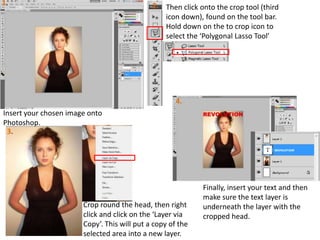
2. Then click onto the crop tool (third
icon down), found on the tool bar.
Hold down on the to crop icon to
select the ‘Polygonal Lasso Tool’

4.
Insert your chosen image onto
Photoshop.
3.

Crop round the head, then right
click and click on the ‘Layer via
Copy’. This will put a copy of the
selected area into a new layer.

Finally, insert your text and then
make sure the text layer is
underneath the layer with the
cropped head.
Before.

After.

How to put text behind an image

  • 1.
    How To PutText Behind an Image.
  • 2.
    1. 2. Then clickonto the crop tool (third icon down), found on the tool bar. Hold down on the to crop icon to select the ‘Polygonal Lasso Tool’ 4. Insert your chosen image onto Photoshop. 3. Crop round the head, then right click and click on the ‘Layer via Copy’. This will put a copy of the selected area into a new layer. Finally, insert your text and then make sure the text layer is underneath the layer with the cropped head.
  • 3.