H5P Workshop - Session 03
Outcomes:
1. Familiarization with Interactive Video features
o Create an H5P interactive video with the following Interactions:
 Label, Text, Link, True/False & Summary
Create an Interactive Video
1. Click on the My Account link
2. Your Account page appears
3. Click on the Create New Content button
4. The Create Interactive Content screen appears
5. Click on the drop down menu Select content type
6. Scroll down the list, locate Interactive Video
7. Click on the Details button to the right of Interactive video
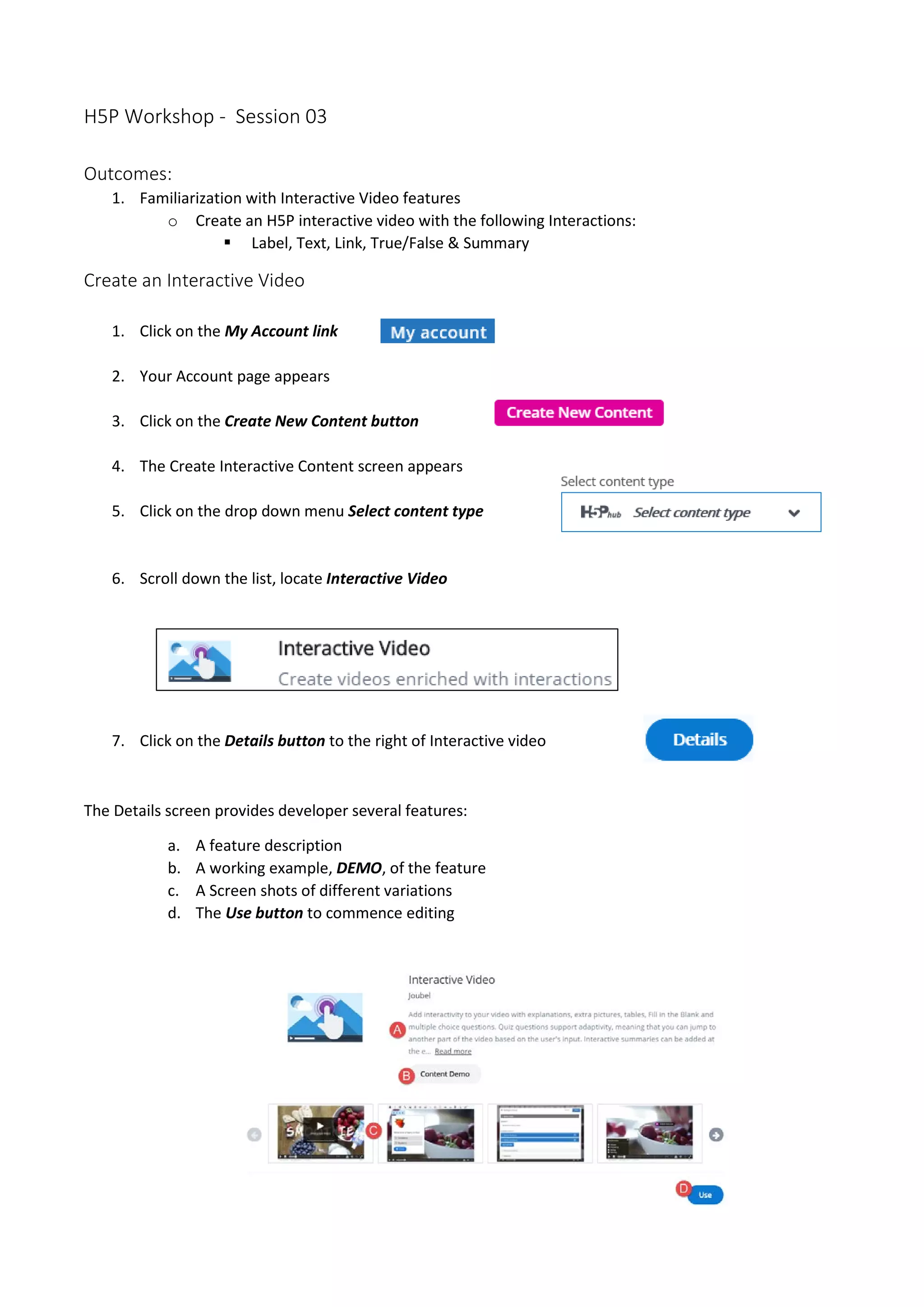
The Details screen provides developer several features:
a. A feature description
b. A working example, DEMO, of the feature
c. A Screen shots of different variations
d. The Use button to commence editing
8. Click on the Use button
9. In the Title textbox, input How Deep is the Ocean
10. Note that under the Select content type box is a Tutorial and an Example link
11. There are three steps to assembling an interactive video
a. Upload a video (in this tutorial we will not embed a video)
b. Add interactions
c. Create a Summary task
Upload a video
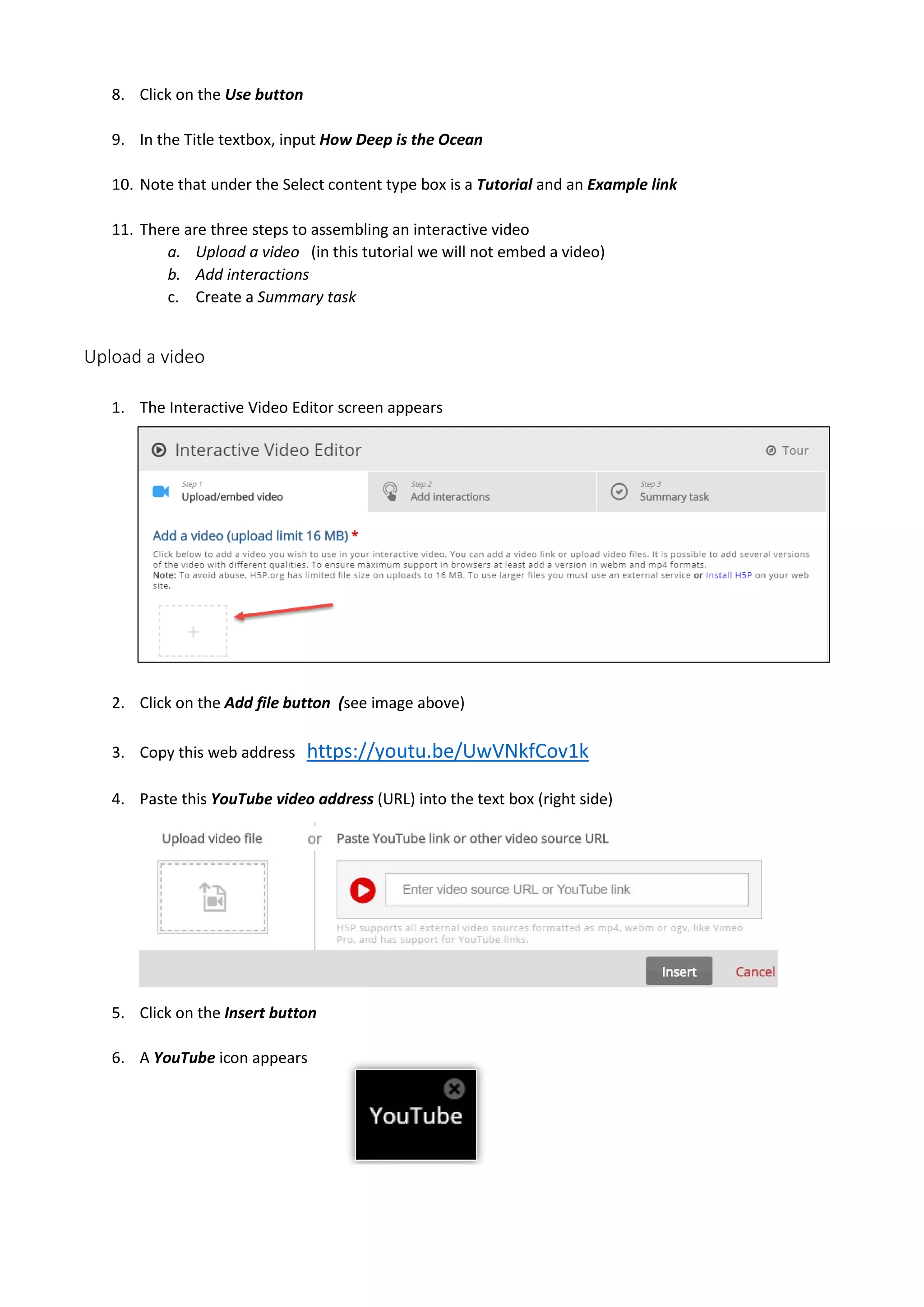
1. The Interactive Video Editor screen appears
2. Click on the Add file button (see image above)
3. Copy this web address https://youtu.be/UwVNkfCov1k
4. Paste this YouTube video address (URL) into the text box (right side)
5. Click on the Insert button
6. A YouTube icon appears
7. There are several video options (these are not covered in this tutorial)
8. To continue, click on the Add interactions button
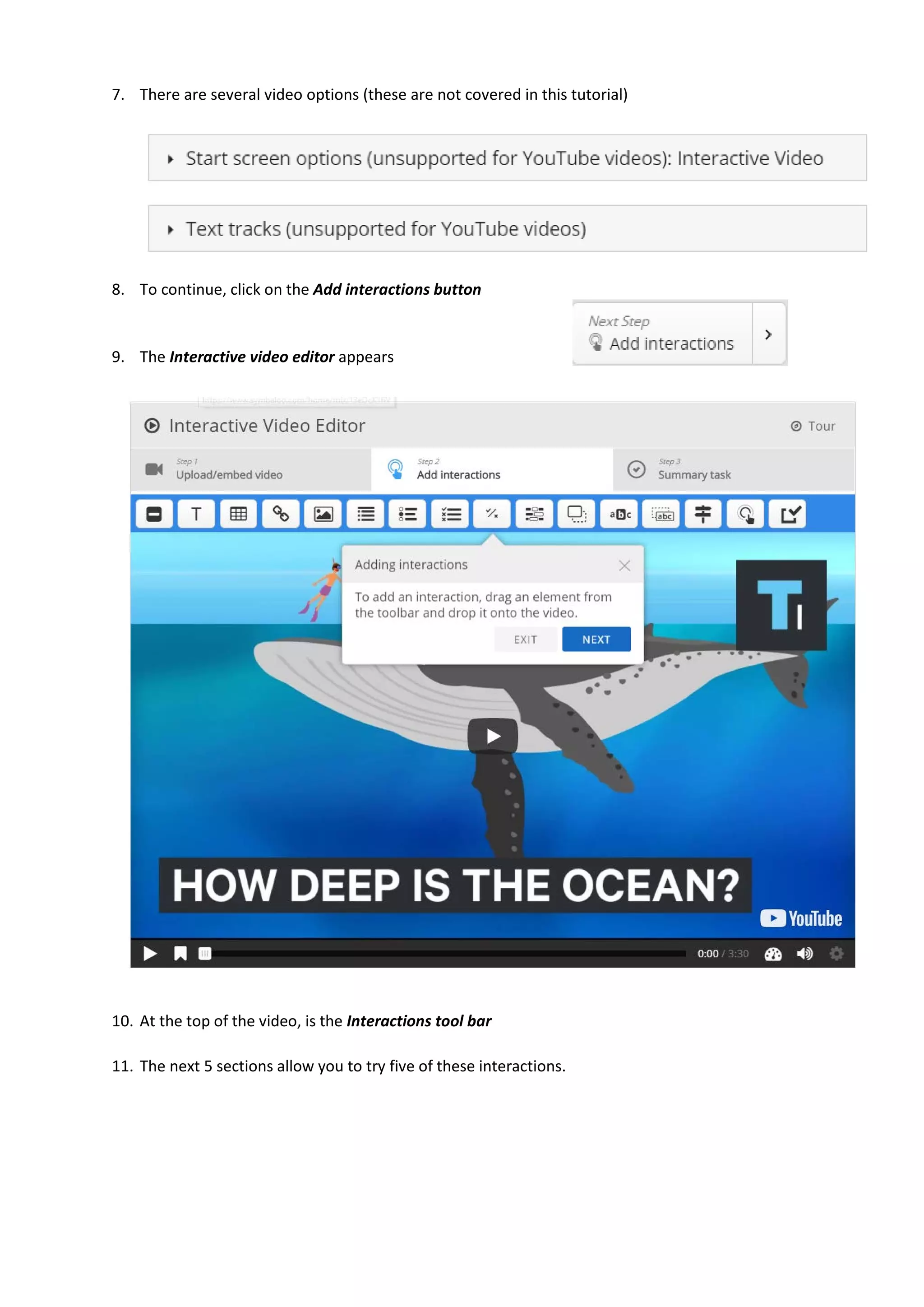
9. The Interactive video editor appears
10. At the top of the video, is the Interactions tool bar
11. The next 5 sections allow you to try five of these interactions.
Label
1. At 0:01, click on the Label button
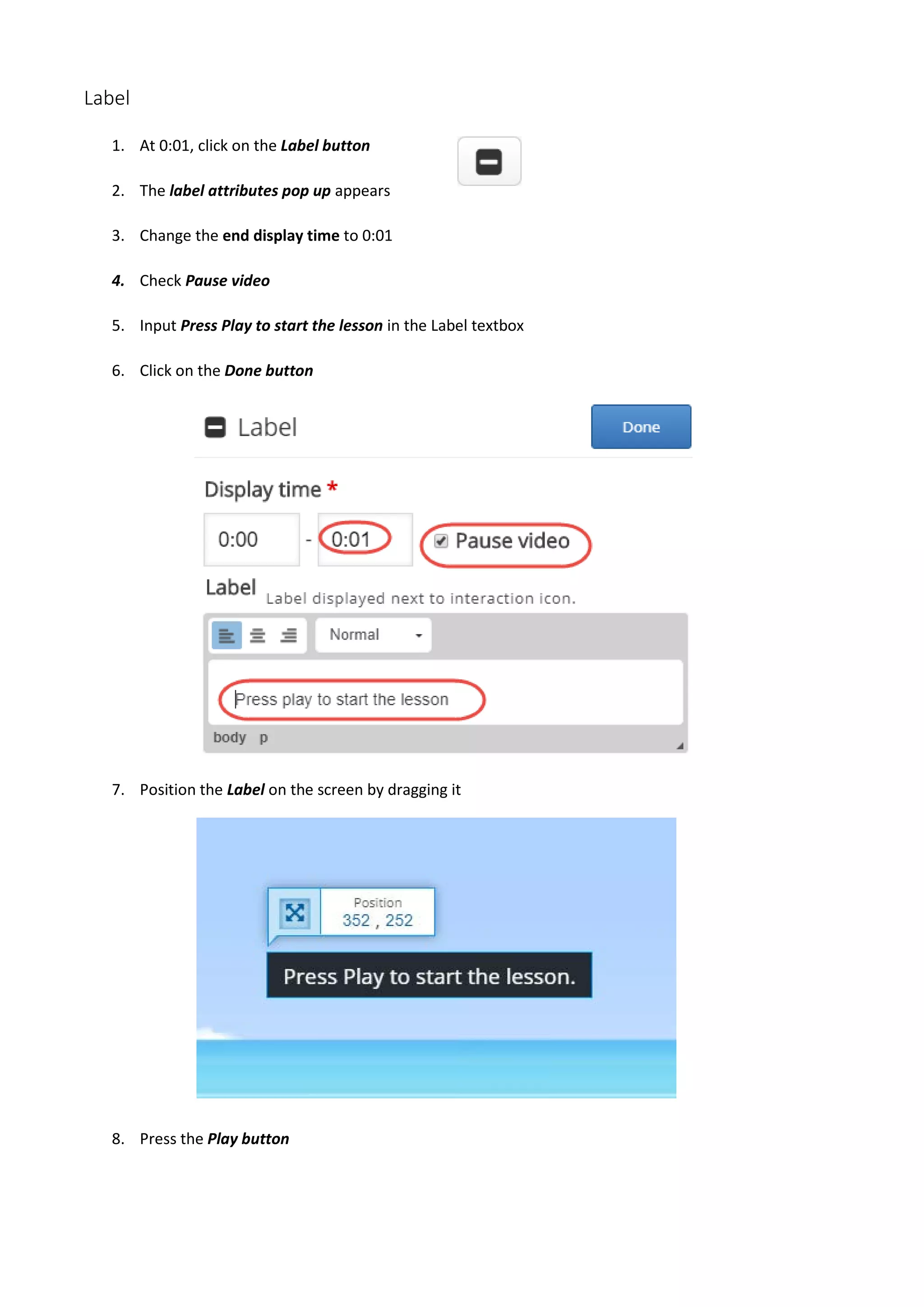
2. The label attributes pop up appears
3. Change the end display time to 0:01
4. Check Pause video
5. Input Press Play to start the lesson in the Label textbox
6. Click on the Done button
7. Position the Label on the screen by dragging it
8. Press the Play button
Text
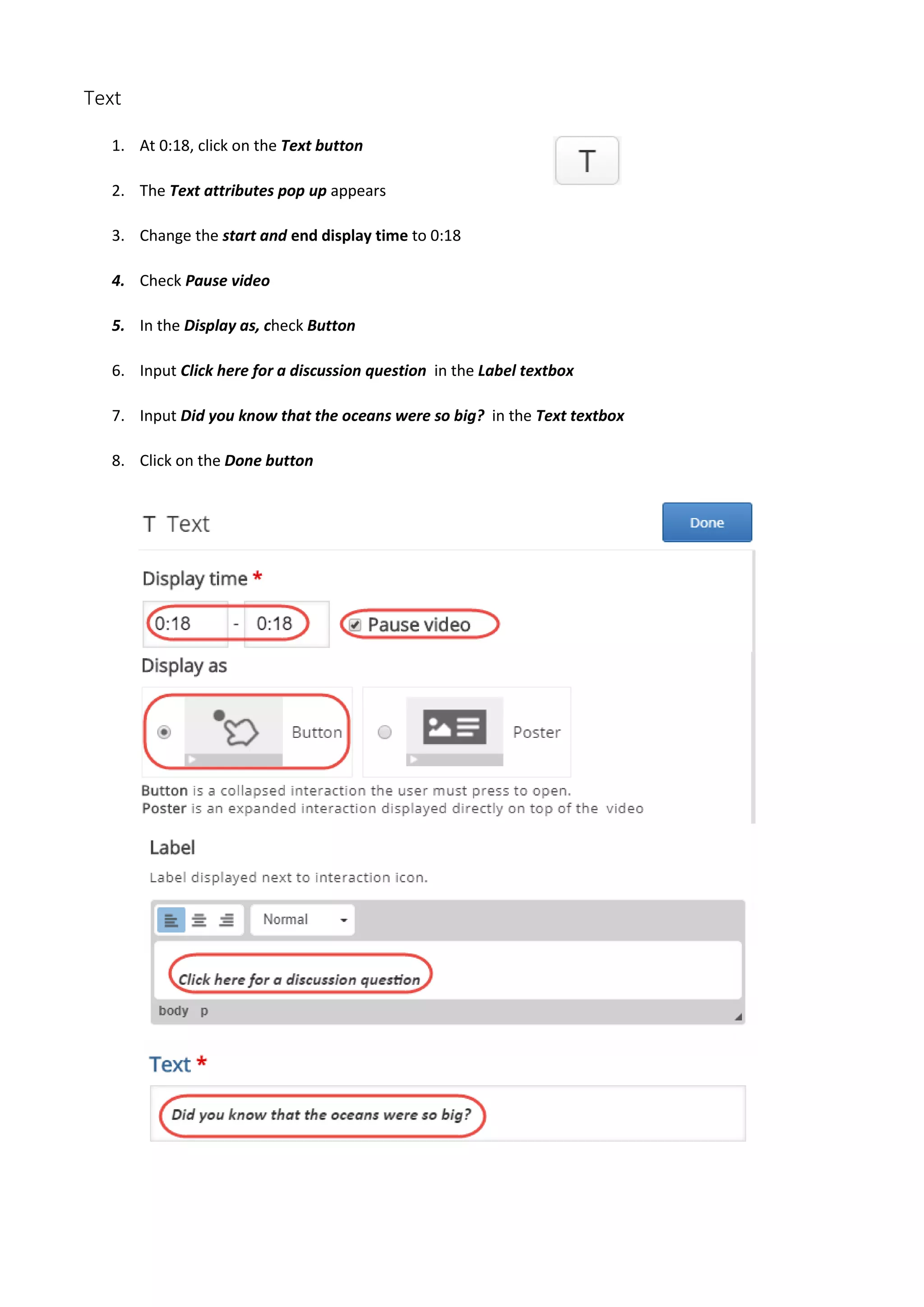
1. At 0:18, click on the Text button
2. The Text attributes pop up appears
3. Change the start and end display time to 0:18
4. Check Pause video
5. In the Display as, check Button
6. Input Click here for a discussion question in the Label textbox
7. Input Did you know that the oceans were so big? in the Text textbox
8. Click on the Done button
9. Position the Text button on the screen by dragging it
10. Press the Play button
Link
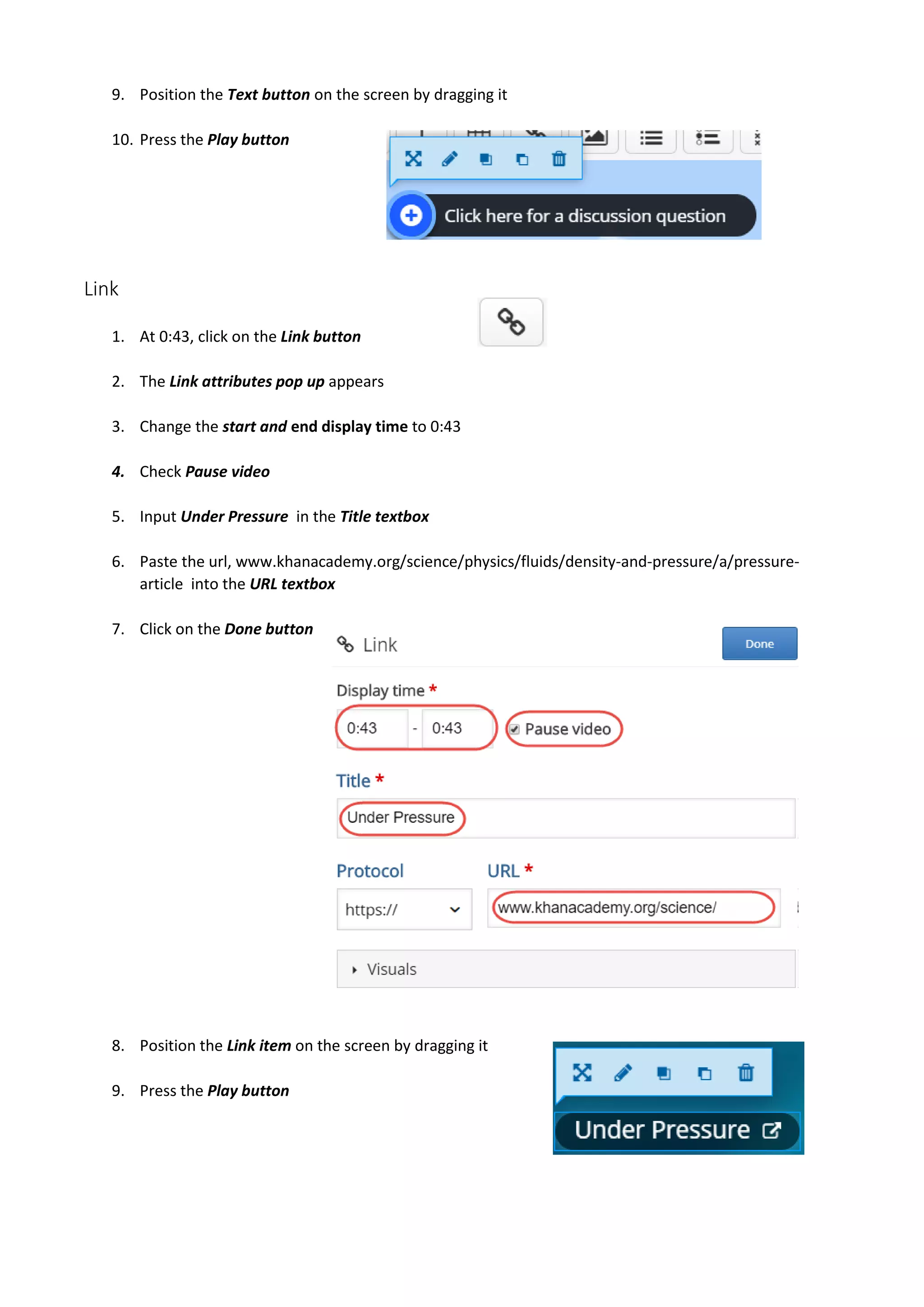
1. At 0:43, click on the Link button
2. The Link attributes pop up appears
3. Change the start and end display time to 0:43
4. Check Pause video
5. Input Under Pressure in the Title textbox
6. Paste the url, www.khanacademy.org/science/physics/fluids/density-and-pressure/a/pressure-
article into the URL textbox
7. Click on the Done button
8. Position the Link item on the screen by dragging it
9. Press the Play button
True/False Question
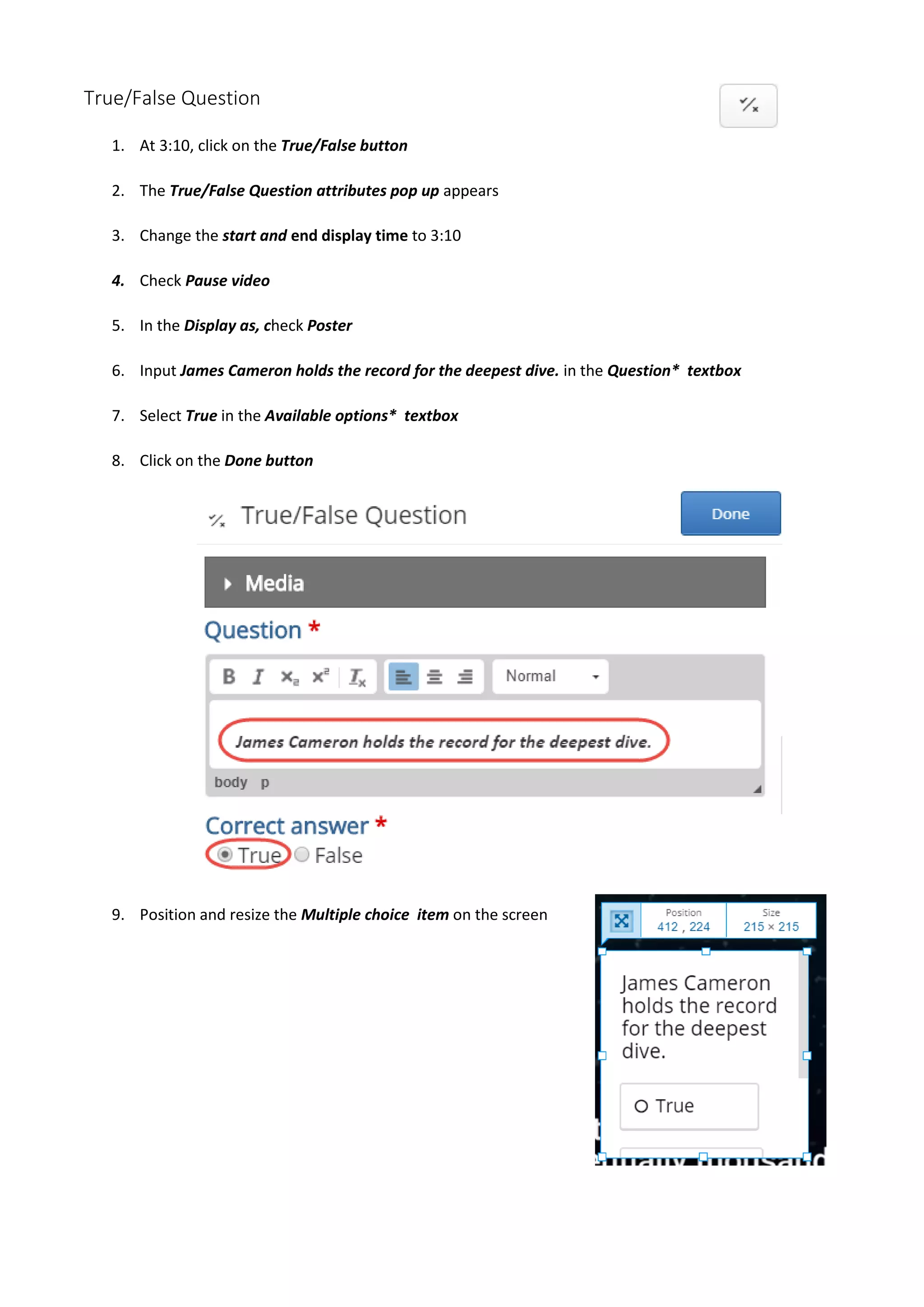
1. At 3:10, click on the True/False button
2. The True/False Question attributes pop up appears
3. Change the start and end display time to 3:10
4. Check Pause video
5. In the Display as, check Poster
6. Input James Cameron holds the record for the deepest dive. in the Question* textbox
7. Select True in the Available options* textbox
8. Click on the Done button
9. Position and resize the Multiple choice item on the screen
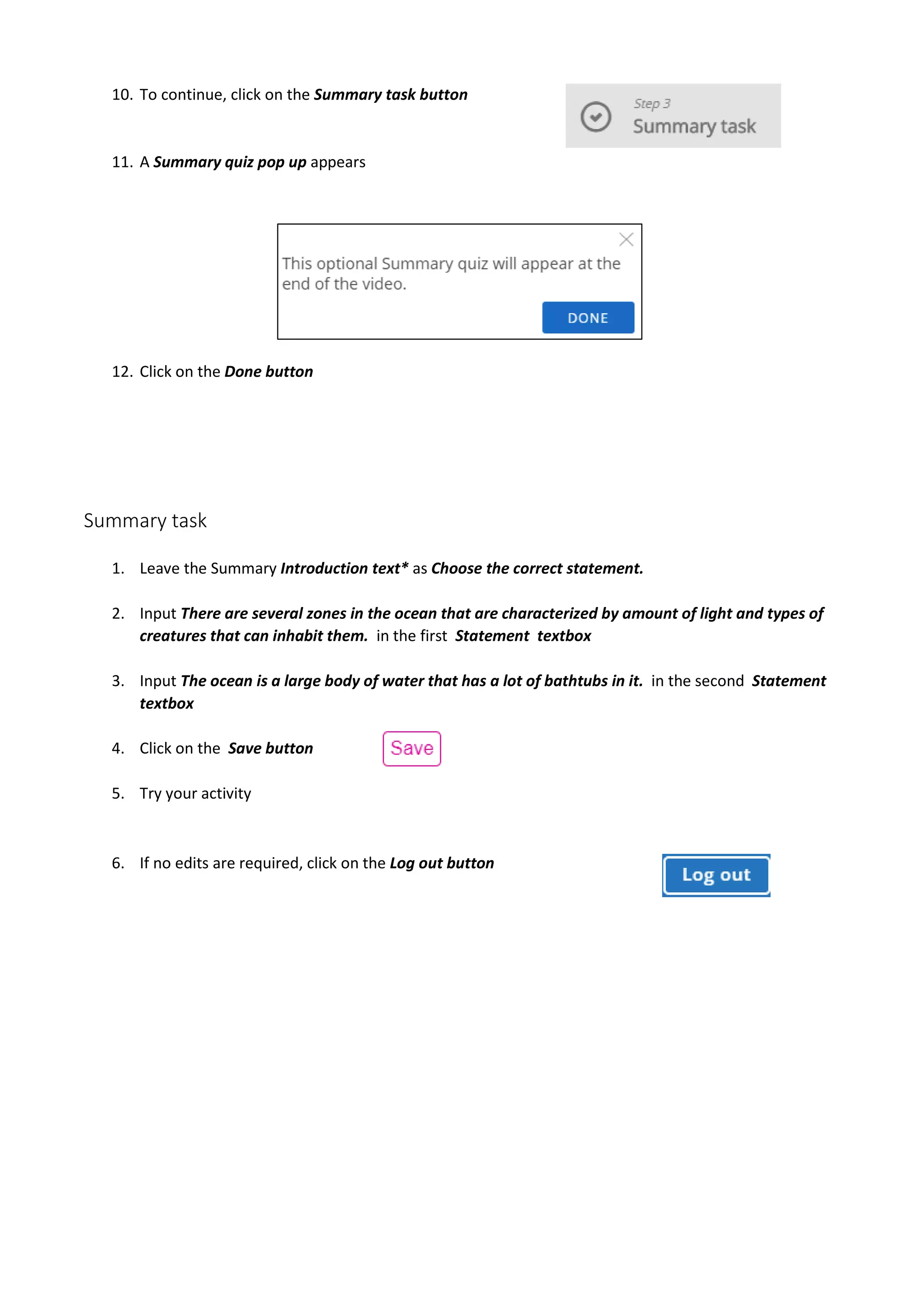
10. To continue, click on the Summary task button
11. A Summary quiz pop up appears
12. Click on the Done button
Summary task
1. Leave the Summary Introduction text* as Choose the correct statement.
2. Input There are several zones in the ocean that are characterized by amount of light and types of
creatures that can inhabit them. in the first Statement textbox
3. Input The ocean is a large body of water that has a lot of bathtubs in it. in the second Statement
textbox
4. Click on the Save button
5. Try your activity
6. If no edits are required, click on the Log out button

H5P Start up workshop session 03

  • 1.
    H5P Workshop -Session 03 Outcomes: 1. Familiarization with Interactive Video features o Create an H5P interactive video with the following Interactions:  Label, Text, Link, True/False & Summary Create an Interactive Video 1. Click on the My Account link 2. Your Account page appears 3. Click on the Create New Content button 4. The Create Interactive Content screen appears 5. Click on the drop down menu Select content type 6. Scroll down the list, locate Interactive Video 7. Click on the Details button to the right of Interactive video The Details screen provides developer several features: a. A feature description b. A working example, DEMO, of the feature c. A Screen shots of different variations d. The Use button to commence editing
  • 2.
    8. Click onthe Use button 9. In the Title textbox, input How Deep is the Ocean 10. Note that under the Select content type box is a Tutorial and an Example link 11. There are three steps to assembling an interactive video a. Upload a video (in this tutorial we will not embed a video) b. Add interactions c. Create a Summary task Upload a video 1. The Interactive Video Editor screen appears 2. Click on the Add file button (see image above) 3. Copy this web address https://youtu.be/UwVNkfCov1k 4. Paste this YouTube video address (URL) into the text box (right side) 5. Click on the Insert button 6. A YouTube icon appears
  • 3.
    7. There areseveral video options (these are not covered in this tutorial) 8. To continue, click on the Add interactions button 9. The Interactive video editor appears 10. At the top of the video, is the Interactions tool bar 11. The next 5 sections allow you to try five of these interactions.
  • 4.
    Label 1. At 0:01,click on the Label button 2. The label attributes pop up appears 3. Change the end display time to 0:01 4. Check Pause video 5. Input Press Play to start the lesson in the Label textbox 6. Click on the Done button 7. Position the Label on the screen by dragging it 8. Press the Play button
  • 5.
    Text 1. At 0:18,click on the Text button 2. The Text attributes pop up appears 3. Change the start and end display time to 0:18 4. Check Pause video 5. In the Display as, check Button 6. Input Click here for a discussion question in the Label textbox 7. Input Did you know that the oceans were so big? in the Text textbox 8. Click on the Done button
  • 6.
    9. Position theText button on the screen by dragging it 10. Press the Play button Link 1. At 0:43, click on the Link button 2. The Link attributes pop up appears 3. Change the start and end display time to 0:43 4. Check Pause video 5. Input Under Pressure in the Title textbox 6. Paste the url, www.khanacademy.org/science/physics/fluids/density-and-pressure/a/pressure- article into the URL textbox 7. Click on the Done button 8. Position the Link item on the screen by dragging it 9. Press the Play button
  • 7.
    True/False Question 1. At3:10, click on the True/False button 2. The True/False Question attributes pop up appears 3. Change the start and end display time to 3:10 4. Check Pause video 5. In the Display as, check Poster 6. Input James Cameron holds the record for the deepest dive. in the Question* textbox 7. Select True in the Available options* textbox 8. Click on the Done button 9. Position and resize the Multiple choice item on the screen
  • 8.
    10. To continue,click on the Summary task button 11. A Summary quiz pop up appears 12. Click on the Done button Summary task 1. Leave the Summary Introduction text* as Choose the correct statement. 2. Input There are several zones in the ocean that are characterized by amount of light and types of creatures that can inhabit them. in the first Statement textbox 3. Input The ocean is a large body of water that has a lot of bathtubs in it. in the second Statement textbox 4. Click on the Save button 5. Try your activity 6. If no edits are required, click on the Log out button