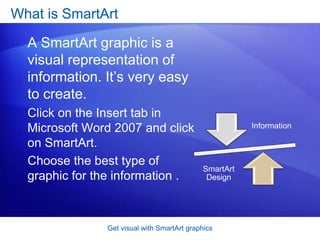
What is SmartArtA SmartArt graphic is a visual representation of information. It’s very easy to create.  Click on the Insert tab in Microsoft Word 2007 and click on SmartArt.Choose the best type of graphic for the information .Get visual with SmartArt graphics
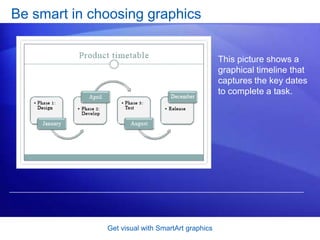
Get visual with SmartArt graphicsBe smart in choosing graphicsThis picture shows a graphical timeline that  captures the key dates to complete a task.
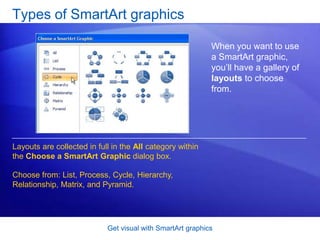
Get visual with SmartArt graphicsTypes of SmartArt graphicsWhen you want to use a SmartArt graphic, you’ll have a gallery of layouts to choose from.Layouts are collected in full in the All category within the Choose a SmartArt Graphic dialog box.Choose from: List, Process, Cycle, Hierarchy, Relationship, Matrix, and Pyramid.
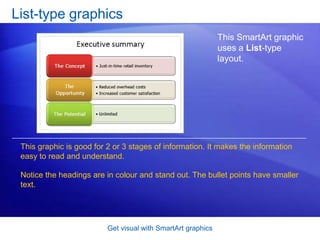
Get visual with SmartArt graphicsList-type graphicsThis SmartArt graphic uses a List-type layout. This graphic is good for 2 or 3 stages of information. It makes the information easy to read and understand.Notice the headings are in colour and stand out. The bullet points have smaller text.
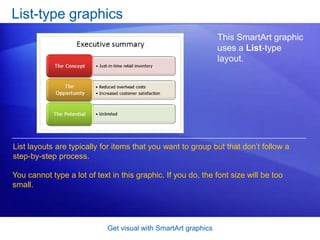
Get visual with SmartArt graphicsList-type graphicsThis SmartArt graphic uses a List-type layout. List layouts are typically for items that you want to group but that don’t follow a step-by-step process.You cannot type a lot of text in this graphic. If you do, the font size will be too small.
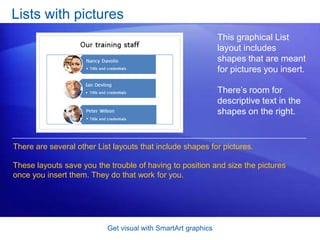
Get visual with SmartArt graphicsLists with picturesThis graphical List layout includes shapes that are meant for pictures you insert. There’s room for descriptive text in the shapes on the right.There are several other List layouts that include shapes for pictures. These layouts save you the trouble of having to position and size the pictures once you insert them. They do that work for you.
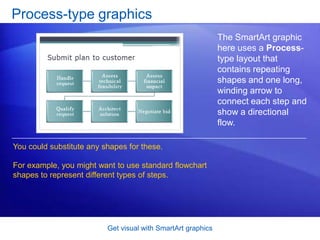
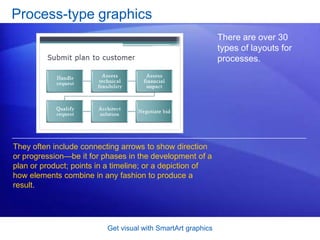
Get visual with SmartArt graphicsProcess-type graphicsThe SmartArt graphic here uses a Process-type layout that contains repeating shapes and one long, winding arrow to connect each step and show a directional flow. You could substitute any shapes for these. For example, you might want to use standard flowchart shapes to represent different types of steps.
Get visual with SmartArt graphicsProcess-type graphicsThere are over 30 types of layouts for processes. They often include connecting arrows to show direction or progression—be it for phases in the development of a plan or product; points in a timeline; or a depiction of how elements combine in any fashion to produce a result.
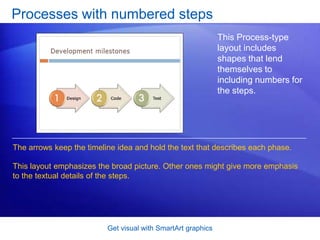
Get visual with SmartArt graphicsProcesses with numbered stepsThis Process-type layout includes shapes that lend themselves to including numbers for the steps. The arrows keep the timeline idea and hold the text that describes each phase. This layout emphasizes the broad picture. Other ones might give more emphasis to the textual details of the steps.
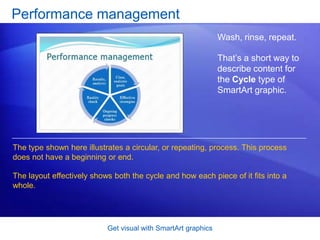
Get visual with SmartArt graphicsPerformance managementWash, rinse, repeat. That’s a short way to describe content for the Cycle type of SmartArt graphic. The type shown here illustrates a circular, or repeating, process. This process does not have a beginning or end.The layout effectively shows both the cycle and how each piece of it fits into a whole.
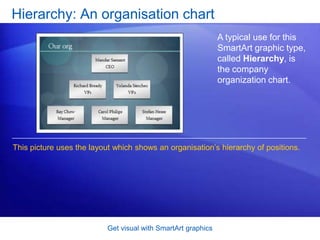
Get visual with SmartArt graphicsHierarchy: An organisationchartA typical use for this SmartArt graphic type, called Hierarchy, is the company organization chart. This picture uses the layout which shows an organisation’shierarchy of positions.
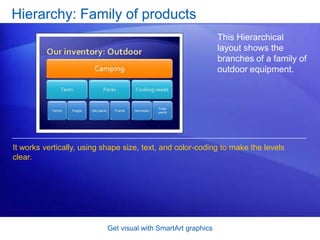
Get visual with SmartArt graphicsHierarchy: Family of productsThis Hierarchical layout shows the branches of a family of outdoor equipment.It works vertically, using shape size, text, and color-coding to make the levels clear.
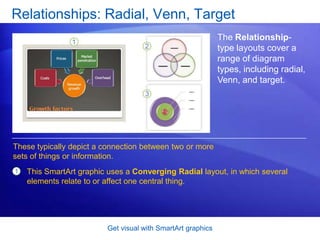
Get visual with SmartArt graphicsRelationships: Radial, Venn, TargetThe Relationship-type layouts cover a range of diagram types, including radial, Venn, and target. These typically depict a connection between two or more sets of things or information.This SmartArt graphic uses a Converging Radial layout, in which several elements relate to or affect one central thing.
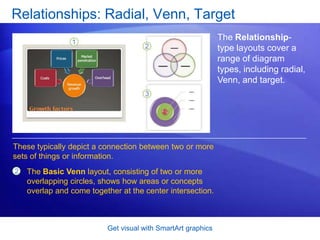
Get visual with SmartArt graphicsRelationships: Radial, Venn, TargetThe Relationship-type layouts cover a range of diagram types, including radial, Venn, and target. These typically depict a connection between two or more sets of things or information.The Basic Venn layout, consisting of two or more overlapping circles, shows how areas or concepts overlap and come together at the center intersection.
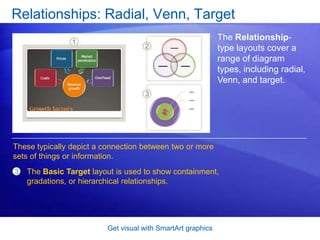
Get visual with SmartArt graphicsRelationships: Radial, Venn, TargetThe Relationship-type layouts cover a range of diagram types, including radial, Venn, and target. These typically depict a connection between two or more sets of things or information.The Basic Target layout is used to show containment, gradations, or hierarchical relationships.

Smart art

  • 2.
    What is SmartArtASmartArt graphic is a visual representation of information. It’s very easy to create. Click on the Insert tab in Microsoft Word 2007 and click on SmartArt.Choose the best type of graphic for the information .Get visual with SmartArt graphics
  • 3.
    Get visual withSmartArt graphicsBe smart in choosing graphicsThis picture shows a graphical timeline that captures the key dates to complete a task.
  • 4.
    Get visual withSmartArt graphicsTypes of SmartArt graphicsWhen you want to use a SmartArt graphic, you’ll have a gallery of layouts to choose from.Layouts are collected in full in the All category within the Choose a SmartArt Graphic dialog box.Choose from: List, Process, Cycle, Hierarchy, Relationship, Matrix, and Pyramid.
  • 5.
    Get visual withSmartArt graphicsList-type graphicsThis SmartArt graphic uses a List-type layout. This graphic is good for 2 or 3 stages of information. It makes the information easy to read and understand.Notice the headings are in colour and stand out. The bullet points have smaller text.
  • 6.
    Get visual withSmartArt graphicsList-type graphicsThis SmartArt graphic uses a List-type layout. List layouts are typically for items that you want to group but that don’t follow a step-by-step process.You cannot type a lot of text in this graphic. If you do, the font size will be too small.
  • 7.
    Get visual withSmartArt graphicsLists with picturesThis graphical List layout includes shapes that are meant for pictures you insert. There’s room for descriptive text in the shapes on the right.There are several other List layouts that include shapes for pictures. These layouts save you the trouble of having to position and size the pictures once you insert them. They do that work for you.
  • 8.
    Get visual withSmartArt graphicsProcess-type graphicsThe SmartArt graphic here uses a Process-type layout that contains repeating shapes and one long, winding arrow to connect each step and show a directional flow. You could substitute any shapes for these. For example, you might want to use standard flowchart shapes to represent different types of steps.
  • 9.
    Get visual withSmartArt graphicsProcess-type graphicsThere are over 30 types of layouts for processes. They often include connecting arrows to show direction or progression—be it for phases in the development of a plan or product; points in a timeline; or a depiction of how elements combine in any fashion to produce a result.
  • 10.
    Get visual withSmartArt graphicsProcesses with numbered stepsThis Process-type layout includes shapes that lend themselves to including numbers for the steps. The arrows keep the timeline idea and hold the text that describes each phase. This layout emphasizes the broad picture. Other ones might give more emphasis to the textual details of the steps.
  • 11.
    Get visual withSmartArt graphicsPerformance managementWash, rinse, repeat. That’s a short way to describe content for the Cycle type of SmartArt graphic. The type shown here illustrates a circular, or repeating, process. This process does not have a beginning or end.The layout effectively shows both the cycle and how each piece of it fits into a whole.
  • 12.
    Get visual withSmartArt graphicsHierarchy: An organisationchartA typical use for this SmartArt graphic type, called Hierarchy, is the company organization chart. This picture uses the layout which shows an organisation’shierarchy of positions.
  • 13.
    Get visual withSmartArt graphicsHierarchy: Family of productsThis Hierarchical layout shows the branches of a family of outdoor equipment.It works vertically, using shape size, text, and color-coding to make the levels clear.
  • 14.
    Get visual withSmartArt graphicsRelationships: Radial, Venn, TargetThe Relationship-type layouts cover a range of diagram types, including radial, Venn, and target. These typically depict a connection between two or more sets of things or information.This SmartArt graphic uses a Converging Radial layout, in which several elements relate to or affect one central thing.
  • 15.
    Get visual withSmartArt graphicsRelationships: Radial, Venn, TargetThe Relationship-type layouts cover a range of diagram types, including radial, Venn, and target. These typically depict a connection between two or more sets of things or information.The Basic Venn layout, consisting of two or more overlapping circles, shows how areas or concepts overlap and come together at the center intersection.
  • 16.
    Get visual withSmartArt graphicsRelationships: Radial, Venn, TargetThe Relationship-type layouts cover a range of diagram types, including radial, Venn, and target. These typically depict a connection between two or more sets of things or information.The Basic Target layout is used to show containment, gradations, or hierarchical relationships.

Editor's Notes

  • #2 Adapted by Diane Evans, AAWC