Globus for System Administrators
Vas Vasiliadis
vas@uchicago.edu
May 2, 2019
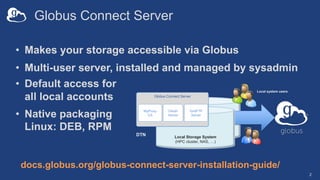
Globus Connect Server
2
• Makes your storage accessible via Globus
• Multi-user server, installed and managed by sysadmin
docs.globus.org/globus-connect-server-installation-guide/
Local system users
Local Storage System
(HPC cluster, NAS, …)
Globus Connect Server
MyProxy
CA
GridFTP
Server
OAuth
Server
DTN
• Default access for
all local accounts
• Native packaging
Linux: DEB, RPM
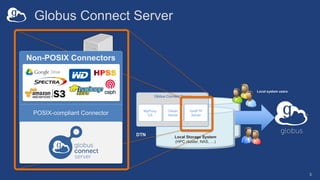
Globus Connect Server
3
Local system users
Local Storage System
(HPC cluster, NAS, …)
Globus Connect Server
MyProxy
CA
GridFTP
Server
OAuth
Server
DTN
Non-POSIX Connectors
POSIX-compliant Connector
server
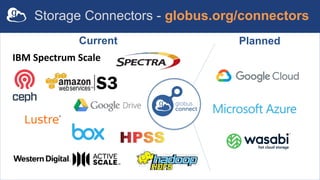
IBM Spectrum Scale
Current Planned
Storage Connectors - globus.org/connectors
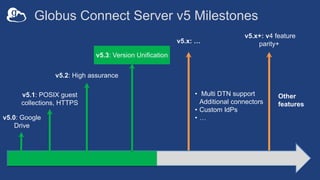
Globus Connect Server v5 Milestones
v5.0: Google
Drive
v5.1: POSIX guest
collections, HTTPS
v5.x+: v4 feature
parity+v5.x: …
• Multi DTN support
Additional connectors
• Custom IdPs
• …
Other
features
v5.2: High assurance
v5.3: Version Unification
By default, assume you
should use GCS v4
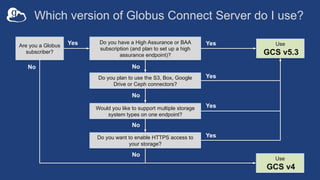
Which version of Globus Connect Server do I use?
Are you a Globus
subscriber?
Do you have a High Assurance or BAA
subscription (and plan to set up a high
assurance endpoint)?
Use
GCS v4
Use
GCS v5.3
No
Yes
No
Yes
Would you like to support multiple storage
system types on one endpoint?
Do you want to enable HTTPS access to
your storage?
Do you plan to use the S3, Box, Google
Drive or Ceph connectors?
No
No
No
Yes
Yes
Yes
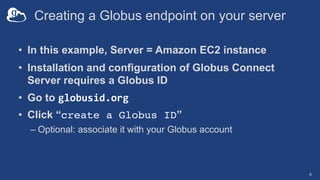
Creating a Globus endpoint on your server
• In this example, Server = Amazon EC2 instance
• Installation and configuration of Globus Connect
Server requires a Globus ID
• Go to globusid.org
• Click “create a Globus ID”
– Optional: associate it with your Globus account
8
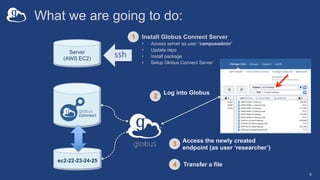
What we are going to do:
Install Globus Connect Server
• Access server as user “campusadmin”
• Update repo
• Install package
• Setup Globus Connect Server
Server
(AWS EC2)
ssh
ec2-22-23-24-25
Log into Globus
Transfer a file
1
2
3
Access the newly created
endpoint (as user ‘researcher’)
4
9
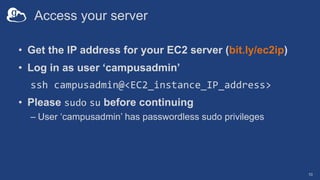
Access your server
• Get the IP address for your EC2 server (bit.ly/ec2ip)
• Log in as user ‘campusadmin’
ssh campusadmin@<EC2_instance_IP_address>
• Please sudo su before continuing
– User ‘campusadmin’ has passwordless sudo privileges
10
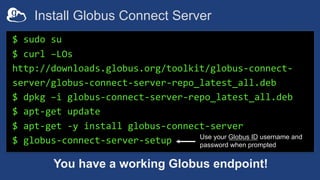
Install Globus Connect Server
$ sudo su
$ curl –LOs
http://downloads.globus.org/toolkit/globus-connect-
server/globus-connect-server-repo_latest_all.deb
$ dpkg –i globus-connect-server-repo_latest_all.deb
$ apt-get update
$ apt-get -y install globus-connect-server
$ globus-connect-server-setup
You have a working Globus endpoint!
Use your Globus ID username and
password when prompted
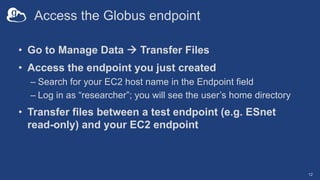
Access the Globus endpoint
• Go to Manage Data à Transfer Files
• Access the endpoint you just created
– Search for your EC2 host name in the Endpoint field
– Log in as “researcher”; you will see the user’s home directory
• Transfer files between a test endpoint (e.g. ESnet
read-only) and your EC2 endpoint
12
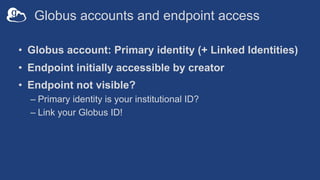
Globus accounts and endpoint access
• Globus account: Primary identity (+ Linked Identities)
• Endpoint initially accessible by creator
• Endpoint not visible?
– Primary identity is your institutional ID?
– Link your Globus ID!
Configuring Globus
Connect Server
14
Endpoint configuration
• On the Globus service: app.globus.org/endpoints
• On your DTN: /etc/globus-connect-server.conf
– Standard .ini format: [Section] Option = Value
– To enable changes run globus-connect-server-setup
– “Rinse and repeat”
15
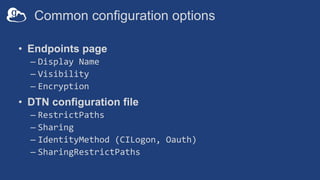
Common configuration options
• Endpoints page
– Display Name
– Visibility
– Encryption
• DTN configuration file
– RestrictPaths
– Sharing
– IdentityMethod (CILogon, Oauth)
– SharingRestrictPaths
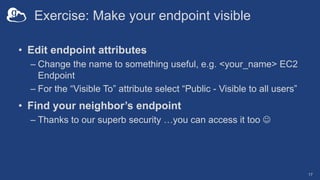
Exercise: Make your endpoint visible
• Edit endpoint attributes
– Change the name to something useful, e.g. <your_name> EC2
Endpoint
– For the “Visible To” attribute select “Public - Visible to all users”
• Find your neighbor’s endpoint
– Thanks to our superb security …you can access it too J
17
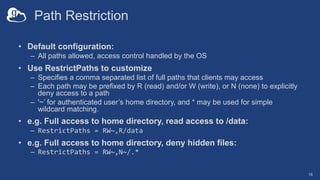
Path Restriction
• Default configuration:
– All paths allowed, access control handled by the OS
• Use RestrictPaths to customize
– Specifies a comma separated list of full paths that clients may access
– Each path may be prefixed by R (read) and/or W (write), or N (none) to explicitly
deny access to a path
– '~’ for authenticated user’s home directory, and * may be used for simple
wildcard matching.
• e.g. Full access to home directory, read access to /data:
– RestrictPaths = RW~,R/data
• e.g. Full access to home directory, deny hidden files:
– RestrictPaths = RW~,N~/.*
18
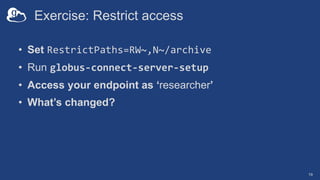
Exercise: Restrict access
• Set RestrictPaths=RW~,N~/archive
• Run globus-connect-server-setup
• Access your endpoint as ‘researcher’
• What’s changed?
19
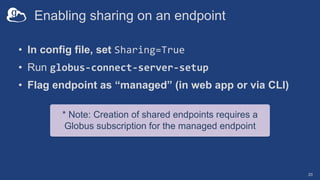
• In config file, set Sharing=True
• Run globus-connect-server-setup
• Flag endpoint as “managed” (in web app or via CLI)
* Note: Creation of shared endpoints requires a
Globus subscription for the managed endpoint
Enabling sharing on an endpoint
20
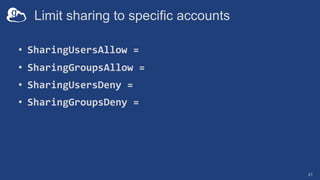
Limit sharing to specific accounts
• SharingUsersAllow =
• SharingGroupsAllow =
• SharingUsersDeny =
• SharingGroupsDeny =
21
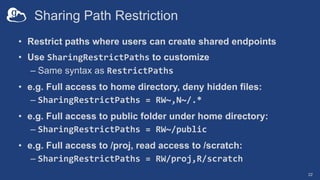
Sharing Path Restriction
• Restrict paths where users can create shared endpoints
• Use SharingRestrictPaths to customize
– Same syntax as RestrictPaths
• e.g. Full access to home directory, deny hidden files:
– SharingRestrictPaths = RW~,N~/.*
• e.g. Full access to public folder under home directory:
– SharingRestrictPaths = RW~/public
• e.g. Full access to /proj, read access to /scratch:
– SharingRestrictPaths = RW/proj,R/scratch
22
Endpoint Access
Control/Activation
23
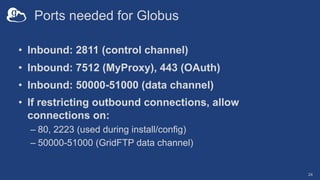
Ports needed for Globus
• Inbound: 2811 (control channel)
• Inbound: 7512 (MyProxy), 443 (OAuth)
• Inbound: 50000-51000 (data channel)
• If restricting outbound connections, allow
connections on:
– 80, 2223 (used during install/config)
– 50000-51000 (GridFTP data channel)
24
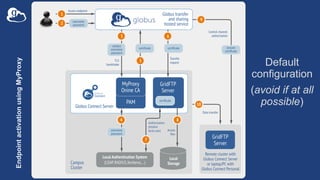
EndpointactivationusingMyProxy
Default
configuration
(avoid if at all
possible)
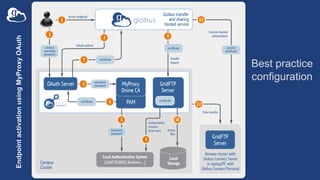
EndpointactivationusingMyProxyOAuth
Best practice
configuration
Single Sign-On with InCommon/CILogon
• Your Shibboleth server must release R&S attributes to
CILogon—especially the ePPN attribute
• Local account must match institutional ID (InCommon ID)
– Test by creating a local user with same name
• In /etc/globus-connect-server.conf set:
AuthorizationMethod = CILogon
CILogonIdentityProvider =
<institution_listed_in_CILogon_IdP_list>
27
Managed endpoints and
subscriptions
28
Subscription configuration
• Subscription manager
– Create/upgrade managed endpoints
– Requires Globus ID linked to Globus account
• Management console permissions
– Independent of subscription manager
– Map managed endpoint to Globus ID
• Globus Plus group
– Subscription Manager is admin
– Can grant admin rights to other members
29
Creating managed endpoints
• Required for sharing, management console, reporting, …
• Convert existing endpoint to managed via CLI (or web):
globus endpoint update --managed <endpt_uuid>
• Must be run by subscription manager
• Important: Re-run endpoint update after deleting/re-
creating endpoint
30
Monitoring and managing
Globus endpoint activity
31
Management console
• Monitor all transfers
• Pause/resume specific transfers
• Add pause conditions with various options
• Resume specific tasks overriding pause conditions
• Cancel tasks
• View sharing ACLs
32
Endpoint Roles
• Administrator: define endpoint and roles
• Access Manager: manage permissions
• Activity Manager: perform control tasks
• Activity Monitor: view activity
33
Demonstration:
Management console
Endpoint Roles
Usage Reporting
34
…on performance
35
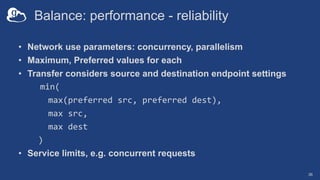
Balance: performance - reliability
• Network use parameters: concurrency, parallelism
• Maximum, Preferred values for each
• Transfer considers source and destination endpoint settings
min(
max(preferred src, preferred dest),
max src,
max dest
)
• Service limits, e.g. concurrent requests
36
Deployment Scenarios
37
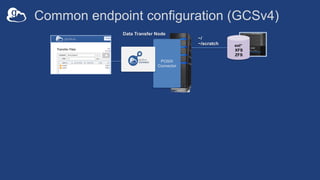
ext*
XFS
ZFS
~/
~/scratch
Common endpoint configuration (GCSv4)
Data Transfer Node
POSIX
Connector
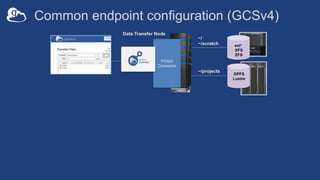
ext*
XFS
ZFS
GPFS
Lustre
~/projects
Common endpoint configuration (GCSv4)
Data Transfer Node
POSIX
Connector
~/
~/scratch
ext*
XFS
ZFS
GPFS
Lustre
~/projects
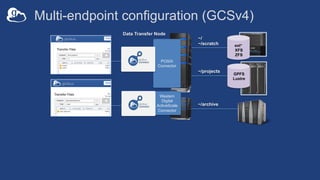
Multi-endpoint configuration (GCSv4)
Data Transfer Node
POSIX
Connector
Western
Digital
ActiveScale
Connector
~/archive
~/
~/scratch
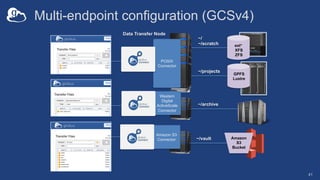
~/vault
ext*
XFS
ZFS
GPFS
Lustre
~/projects
Multi-endpoint configuration (GCSv4)
41
Data Transfer Node
POSIX
Connector
Western
Digital
ActiveScale
Connector
~/archive
Amazon
S3
Bucket
Amazon S3
Connector
~/
~/scratch
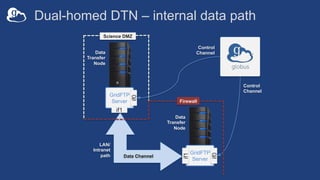
Network paths
• Separate control and data interfaces
• "DataInterface =" option in globus-connect-server-
conf
• Common scenario: route data flows over Science
DMZ link
42
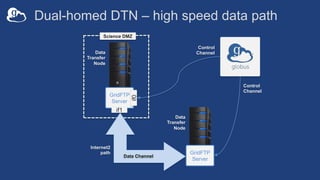
Dual-homed DTN – high speed data path
Data
Transfer
Node
GridFTP
Server
Science DMZ
Control
Channel
Data
Transfer
Node
GridFTP
Server
Data Channel
if0
if1
Internet2
path
Control
Channel
Dual-homed DTN – internal data path
Data
Transfer
Node
GridFTP
Server
Science DMZ
Control
Channel
Data
Transfer
Node
GridFTP
Server
Data Channel
if0
if1
LAN/
Intranet
path
Control
Channel
Firewall
if0
if1
Other Deployment Options
45
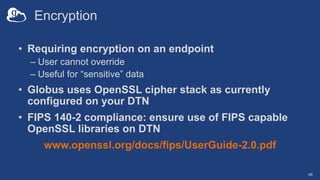
Encryption
• Requiring encryption on an endpoint
– User cannot override
– Useful for “sensitive” data
• Globus uses OpenSSL cipher stack as currently
configured on your DTN
• FIPS 140-2 compliance: ensure use of FIPS capable
OpenSSL libraries on DTN
www.openssl.org/docs/fips/UserGuide-2.0.pdf
46
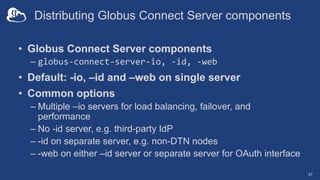
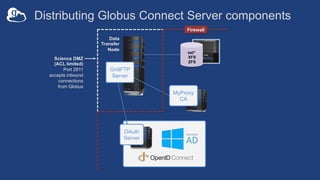
Distributing Globus Connect Server components
• Globus Connect Server components
– globus-connect-server-io, -id, -web
• Default: -io, –id and –web on single server
• Common options
– Multiple –io servers for load balancing, failover, and
performance
– No -id server, e.g. third-party IdP
– -id on separate server, e.g. non-DTN nodes
– -web on either –id server or separate server for OAuth interface
47
ext*
XFS
ZFS
Distributing Globus Connect Server components
Data
Transfer
Node
OAuth
Server
GridFTP
Server
MyProxy
CA
Science DMZ
(ACL limited)
Port 2811
accepts inbound
connections
from Globus
Firewall
Setting up multiple –io servers
• Guidelines
– Use the same .conf file on all servers
– First install on the server running the –id component, then all others
• Install Globus Connect Server on all servers
• Edit .conf file on one of the servers and set [MyProxy] Server to the hostname
of the server you want the –id component installed on
• Copy Globus Connect Server configuration file to all servers
• Run globus-connect-server-setup on the server running the –id component
• Run globus-connect-server-setup on all other servers
• Repeat steps 2-5 as necessary to update configurations
49
Example: Two-node DTN
50
-id
-io
-io
On other DTN nodes:
/etc/globus-connect-server.conf
[Endpoint] Name = globus_dtn
[MyProxy] Server = 34.20.29.57
On “primary” DTN node (34.20.29.57):
/etc/globus-connect-server.conf
[Endpoint] Name = globus_dtn
[MyProxy] Server = 34.20.29.57
Open Discussion
51

Tutorial: Introduction to Globus for System Administrators

  • 1.
    Globus for SystemAdministrators Vas Vasiliadis vas@uchicago.edu May 2, 2019
  • 2.
    Globus Connect Server 2 •Makes your storage accessible via Globus • Multi-user server, installed and managed by sysadmin docs.globus.org/globus-connect-server-installation-guide/ Local system users Local Storage System (HPC cluster, NAS, …) Globus Connect Server MyProxy CA GridFTP Server OAuth Server DTN • Default access for all local accounts • Native packaging Linux: DEB, RPM
  • 3.
    Globus Connect Server 3 Localsystem users Local Storage System (HPC cluster, NAS, …) Globus Connect Server MyProxy CA GridFTP Server OAuth Server DTN Non-POSIX Connectors POSIX-compliant Connector server
  • 4.
    IBM Spectrum Scale CurrentPlanned Storage Connectors - globus.org/connectors
  • 5.
    Globus Connect Serverv5 Milestones v5.0: Google Drive v5.1: POSIX guest collections, HTTPS v5.x+: v4 feature parity+v5.x: … • Multi DTN support Additional connectors • Custom IdPs • … Other features v5.2: High assurance v5.3: Version Unification
  • 6.
    By default, assumeyou should use GCS v4 Which version of Globus Connect Server do I use?
  • 7.
    Which version ofGlobus Connect Server do I use? Are you a Globus subscriber? Do you have a High Assurance or BAA subscription (and plan to set up a high assurance endpoint)? Use GCS v4 Use GCS v5.3 No Yes No Yes Would you like to support multiple storage system types on one endpoint? Do you want to enable HTTPS access to your storage? Do you plan to use the S3, Box, Google Drive or Ceph connectors? No No No Yes Yes Yes
  • 8.
    Creating a Globusendpoint on your server • In this example, Server = Amazon EC2 instance • Installation and configuration of Globus Connect Server requires a Globus ID • Go to globusid.org • Click “create a Globus ID” – Optional: associate it with your Globus account 8
  • 9.
    What we aregoing to do: Install Globus Connect Server • Access server as user “campusadmin” • Update repo • Install package • Setup Globus Connect Server Server (AWS EC2) ssh ec2-22-23-24-25 Log into Globus Transfer a file 1 2 3 Access the newly created endpoint (as user ‘researcher’) 4 9
  • 10.
    Access your server •Get the IP address for your EC2 server (bit.ly/ec2ip) • Log in as user ‘campusadmin’ ssh campusadmin@<EC2_instance_IP_address> • Please sudo su before continuing – User ‘campusadmin’ has passwordless sudo privileges 10
  • 11.
    Install Globus ConnectServer $ sudo su $ curl –LOs http://downloads.globus.org/toolkit/globus-connect- server/globus-connect-server-repo_latest_all.deb $ dpkg –i globus-connect-server-repo_latest_all.deb $ apt-get update $ apt-get -y install globus-connect-server $ globus-connect-server-setup You have a working Globus endpoint! Use your Globus ID username and password when prompted
  • 12.
    Access the Globusendpoint • Go to Manage Data à Transfer Files • Access the endpoint you just created – Search for your EC2 host name in the Endpoint field – Log in as “researcher”; you will see the user’s home directory • Transfer files between a test endpoint (e.g. ESnet read-only) and your EC2 endpoint 12
  • 13.
    Globus accounts andendpoint access • Globus account: Primary identity (+ Linked Identities) • Endpoint initially accessible by creator • Endpoint not visible? – Primary identity is your institutional ID? – Link your Globus ID!
  • 14.
  • 15.
    Endpoint configuration • Onthe Globus service: app.globus.org/endpoints • On your DTN: /etc/globus-connect-server.conf – Standard .ini format: [Section] Option = Value – To enable changes run globus-connect-server-setup – “Rinse and repeat” 15
  • 16.
    Common configuration options •Endpoints page – Display Name – Visibility – Encryption • DTN configuration file – RestrictPaths – Sharing – IdentityMethod (CILogon, Oauth) – SharingRestrictPaths
  • 17.
    Exercise: Make yourendpoint visible • Edit endpoint attributes – Change the name to something useful, e.g. <your_name> EC2 Endpoint – For the “Visible To” attribute select “Public - Visible to all users” • Find your neighbor’s endpoint – Thanks to our superb security …you can access it too J 17
  • 18.
    Path Restriction • Defaultconfiguration: – All paths allowed, access control handled by the OS • Use RestrictPaths to customize – Specifies a comma separated list of full paths that clients may access – Each path may be prefixed by R (read) and/or W (write), or N (none) to explicitly deny access to a path – '~’ for authenticated user’s home directory, and * may be used for simple wildcard matching. • e.g. Full access to home directory, read access to /data: – RestrictPaths = RW~,R/data • e.g. Full access to home directory, deny hidden files: – RestrictPaths = RW~,N~/.* 18
  • 19.
    Exercise: Restrict access •Set RestrictPaths=RW~,N~/archive • Run globus-connect-server-setup • Access your endpoint as ‘researcher’ • What’s changed? 19
  • 20.
    • In configfile, set Sharing=True • Run globus-connect-server-setup • Flag endpoint as “managed” (in web app or via CLI) * Note: Creation of shared endpoints requires a Globus subscription for the managed endpoint Enabling sharing on an endpoint 20
  • 21.
    Limit sharing tospecific accounts • SharingUsersAllow = • SharingGroupsAllow = • SharingUsersDeny = • SharingGroupsDeny = 21
  • 22.
    Sharing Path Restriction •Restrict paths where users can create shared endpoints • Use SharingRestrictPaths to customize – Same syntax as RestrictPaths • e.g. Full access to home directory, deny hidden files: – SharingRestrictPaths = RW~,N~/.* • e.g. Full access to public folder under home directory: – SharingRestrictPaths = RW~/public • e.g. Full access to /proj, read access to /scratch: – SharingRestrictPaths = RW/proj,R/scratch 22
  • 23.
  • 24.
    Ports needed forGlobus • Inbound: 2811 (control channel) • Inbound: 7512 (MyProxy), 443 (OAuth) • Inbound: 50000-51000 (data channel) • If restricting outbound connections, allow connections on: – 80, 2223 (used during install/config) – 50000-51000 (GridFTP data channel) 24
  • 25.
  • 26.
  • 27.
    Single Sign-On withInCommon/CILogon • Your Shibboleth server must release R&S attributes to CILogon—especially the ePPN attribute • Local account must match institutional ID (InCommon ID) – Test by creating a local user with same name • In /etc/globus-connect-server.conf set: AuthorizationMethod = CILogon CILogonIdentityProvider = <institution_listed_in_CILogon_IdP_list> 27
  • 28.
  • 29.
    Subscription configuration • Subscriptionmanager – Create/upgrade managed endpoints – Requires Globus ID linked to Globus account • Management console permissions – Independent of subscription manager – Map managed endpoint to Globus ID • Globus Plus group – Subscription Manager is admin – Can grant admin rights to other members 29
  • 30.
    Creating managed endpoints •Required for sharing, management console, reporting, … • Convert existing endpoint to managed via CLI (or web): globus endpoint update --managed <endpt_uuid> • Must be run by subscription manager • Important: Re-run endpoint update after deleting/re- creating endpoint 30
  • 31.
    Monitoring and managing Globusendpoint activity 31
  • 32.
    Management console • Monitorall transfers • Pause/resume specific transfers • Add pause conditions with various options • Resume specific tasks overriding pause conditions • Cancel tasks • View sharing ACLs 32
  • 33.
    Endpoint Roles • Administrator:define endpoint and roles • Access Manager: manage permissions • Activity Manager: perform control tasks • Activity Monitor: view activity 33
  • 34.
  • 35.
  • 36.
    Balance: performance -reliability • Network use parameters: concurrency, parallelism • Maximum, Preferred values for each • Transfer considers source and destination endpoint settings min( max(preferred src, preferred dest), max src, max dest ) • Service limits, e.g. concurrent requests 36
  • 37.
  • 38.
    ext* XFS ZFS ~/ ~/scratch Common endpoint configuration(GCSv4) Data Transfer Node POSIX Connector
  • 39.
    ext* XFS ZFS GPFS Lustre ~/projects Common endpoint configuration(GCSv4) Data Transfer Node POSIX Connector ~/ ~/scratch
  • 40.
    ext* XFS ZFS GPFS Lustre ~/projects Multi-endpoint configuration (GCSv4) DataTransfer Node POSIX Connector Western Digital ActiveScale Connector ~/archive ~/ ~/scratch
  • 41.
    ~/vault ext* XFS ZFS GPFS Lustre ~/projects Multi-endpoint configuration (GCSv4) 41 DataTransfer Node POSIX Connector Western Digital ActiveScale Connector ~/archive Amazon S3 Bucket Amazon S3 Connector ~/ ~/scratch
  • 42.
    Network paths • Separatecontrol and data interfaces • "DataInterface =" option in globus-connect-server- conf • Common scenario: route data flows over Science DMZ link 42
  • 43.
    Dual-homed DTN –high speed data path Data Transfer Node GridFTP Server Science DMZ Control Channel Data Transfer Node GridFTP Server Data Channel if0 if1 Internet2 path Control Channel
  • 44.
    Dual-homed DTN –internal data path Data Transfer Node GridFTP Server Science DMZ Control Channel Data Transfer Node GridFTP Server Data Channel if0 if1 LAN/ Intranet path Control Channel Firewall if0 if1
  • 45.
  • 46.
    Encryption • Requiring encryptionon an endpoint – User cannot override – Useful for “sensitive” data • Globus uses OpenSSL cipher stack as currently configured on your DTN • FIPS 140-2 compliance: ensure use of FIPS capable OpenSSL libraries on DTN www.openssl.org/docs/fips/UserGuide-2.0.pdf 46
  • 47.
    Distributing Globus ConnectServer components • Globus Connect Server components – globus-connect-server-io, -id, -web • Default: -io, –id and –web on single server • Common options – Multiple –io servers for load balancing, failover, and performance – No -id server, e.g. third-party IdP – -id on separate server, e.g. non-DTN nodes – -web on either –id server or separate server for OAuth interface 47
  • 48.
    ext* XFS ZFS Distributing Globus ConnectServer components Data Transfer Node OAuth Server GridFTP Server MyProxy CA Science DMZ (ACL limited) Port 2811 accepts inbound connections from Globus Firewall
  • 49.
    Setting up multiple–io servers • Guidelines – Use the same .conf file on all servers – First install on the server running the –id component, then all others • Install Globus Connect Server on all servers • Edit .conf file on one of the servers and set [MyProxy] Server to the hostname of the server you want the –id component installed on • Copy Globus Connect Server configuration file to all servers • Run globus-connect-server-setup on the server running the –id component • Run globus-connect-server-setup on all other servers • Repeat steps 2-5 as necessary to update configurations 49
  • 50.
    Example: Two-node DTN 50 -id -io -io Onother DTN nodes: /etc/globus-connect-server.conf [Endpoint] Name = globus_dtn [MyProxy] Server = 34.20.29.57 On “primary” DTN node (34.20.29.57): /etc/globus-connect-server.conf [Endpoint] Name = globus_dtn [MyProxy] Server = 34.20.29.57
  • 51.