Census Data Explorer
1
(1) Area profiles
Using Area Profiles, it is possible to compare up to three geographical areas at once,
however ‘Scotland’ is always one of the areas.
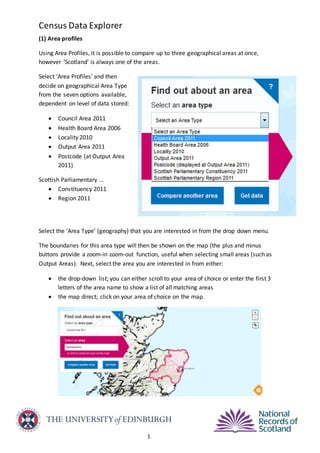
Select ‘Area Profiles’ and then
decide on geographical Area Type
from the seven options available,
dependent on level of data stored:
 Council Area 2011
 Health Board Area 2006
 Locality 2010
 Output Area 2011
 Postcode (at Output Area
2011)
Scottish Parliamentary …
 Constituency 2011
 Region 2011
Select the ‘Area Type’ (geography) that you are interested in from the drop down menu.
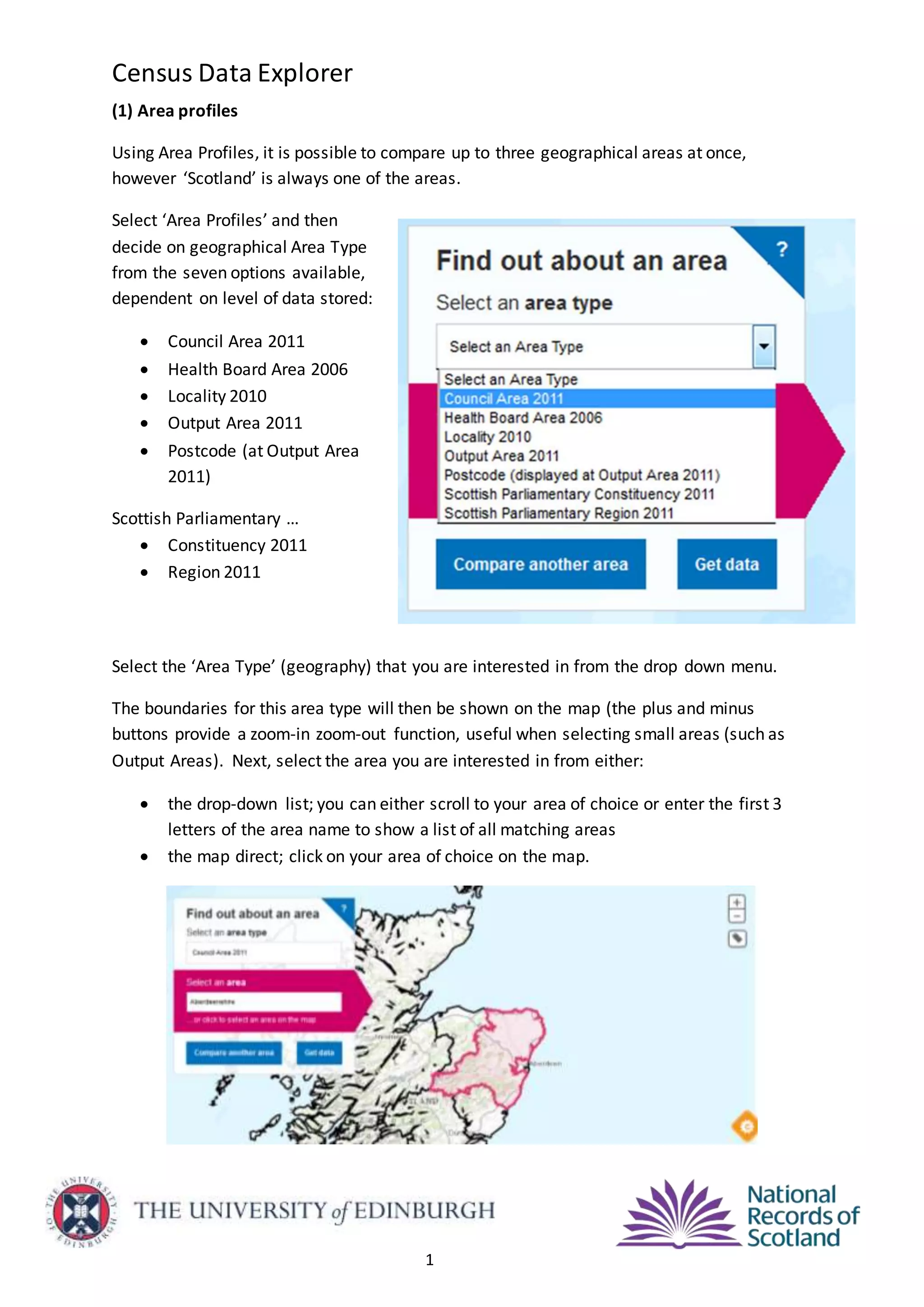
The boundaries for this area type will then be shown on the map (the plus and minus
buttons provide a zoom-in zoom-out function, useful when selecting small areas (such as
Output Areas). Next, select the area you are interested in from either:
 the drop-down list; you can either scroll to your area of choice or enter the first 3
letters of the area name to show a list of all matching areas
 the map direct; click on your area of choice on the map.
Census Data Explorer
2
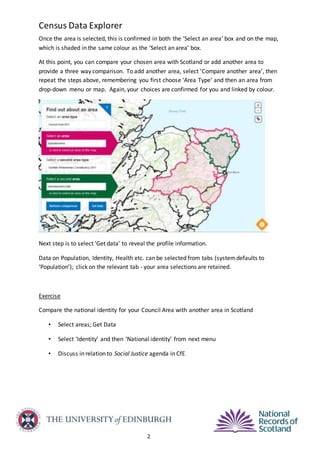
Once the area is selected, this is confirmed in both the ‘Select an area’ box and on the map,
which is shaded in the same colour as the ‘Select an area’ box.
At this point, you can compare your chosen area with Scotland or add another area to
provide a three way comparison. To add another area, select ‘Compare another area’, then
repeat the steps above, remembering you first choose ‘Area Type’ and then an area from
drop-down menu or map. Again, your choices are confirmed for you and linked by colour.
Next step is to select ‘Get data’ to reveal the profile information.
Data on Population, Identity, Health etc. can be selected from tabs (systemdefaults to
‘Population’); click on the relevant tab - your area selections are retained.
Exercise
Compare the national identity for your Council Area with another area in Scotland
• Select areas; Get Data
• Select ‘Identity’ and then ‘National identity’ from next menu
• Discuss in relation to Social Justice agenda in CfE
Census Data Explorer
3
(2) Maps and Charts
Maps and charts are a very useful way to bring statistics to life. They can be used to
highlight patterns and trends and make statistics more accessible to a wide variety of
people.
Select ‘Maps and Charts’ and then decide on a Topic from the seven options available:
 Population and Households
 Housing and Accommodation
 Health
 Ethnicity, Identity, Language and Religion
 Education
 Labour Market
 Transport (currently no standard charts or maps)
Dependent on choice of topic a subset of charts of maps is available. Advantage over
area profiles is any or all Council Areas can be selected simultaneously. For charts,
the default display is Aberdeen City, Dundee City, City of Edinburgh and Glasgow City
but users can select / de-select from the full set of council areas using the table beneath
the chart. Choropleth maps are generated for selected statistics, shading Scotland in
proportion to the measurement of the statistical variable displayed.
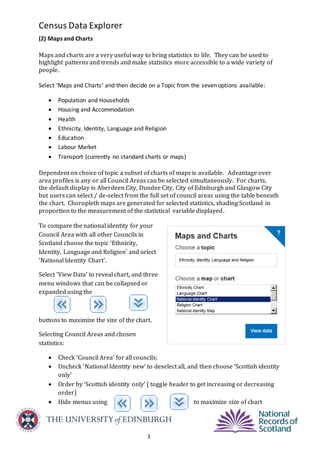
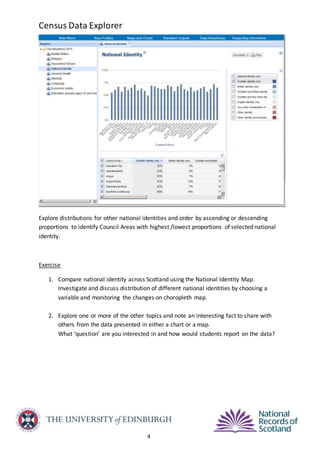
To compare the national identity for your
Council Area with all other Councils in
Scotland choose the topic ‘Ethnicity,
Identity, Language and Religion’ and select
‘National Identity Chart’.
Select ‘View Data’ to reveal chart, and three
menu windows that can be collapsed or
expanded using the
buttons to maximize the size of the chart.
Selecting Council Areas and chosen
statistics:
 Check ‘Council Area’ for all councils;
 Uncheck ‘National Identity new’ to deselect all, and then choose ‘Scottish identity
only’
 Order by ‘Scottish identity only’ ( toggle header to get increasing or decreasing
order)
 Hide menus using to maximize size of chart
Census Data Explorer
4
Explore distributions for other national identities and order by ascending or descending
proportions to identify Council Areas with highest /lowest proportions of selected national
identity.
Exercise
1. Compare national identity across Scotland using the National Identity Map.
Investigate and discuss distribution of different national identities by choosing a
variable and monitoring the changes on choropleth map.
2. Explore one or more of the other topics and note an interesting fact to share with
others from the data presented in either a chart or a map.
What ‘question’ are you interested in and how would students report on the data?
Census Data Explorer
5
(3) Standard Outputs
If you know a table is available with the data that you want there are two main routes for
accessing that through Standard Outputs and Data Warehouse.
Standard Outputs allow access to a single table, at a single geography (e.g. Council Area)
and, if needed, for a number of those selected geographies (e.g. a selection of Council
Areas).
In Standard Outputs you can choose a Topic, or go straight to choosing a Table you are
looking for using the drop-down menu.
Sticking to core topic example of Ethnicity, Identity, Language and Religion:
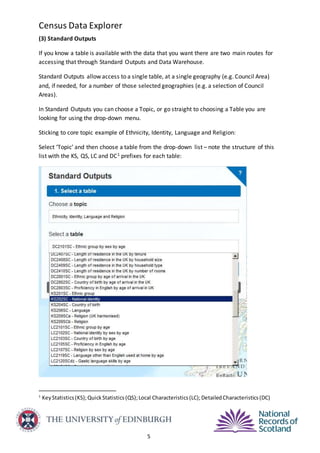
Select ‘Topic’ and then choose a table from the drop-down list – note the structure of this
list with the KS, QS, LC and DC1 prefixes for each table:
1
KeyStatistics(KS);QuickStatistics(QS);Local Characteristics(LC);DetailedCharacteristics(DC)
Census Data Explorer
6
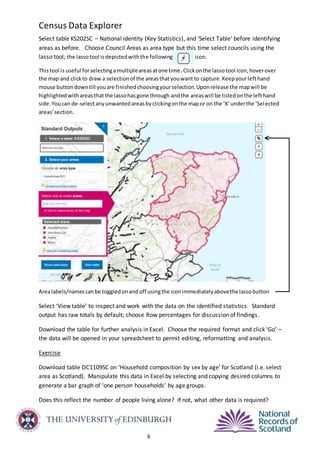
Select table KS202SC – National identity (Key Statistics), and ‘Select Table’ before identifying
areas as before. Choose Council Areas as area type but this time select councils using the
lasso tool; the lassotool isdepictedwiththe following icon.
Thistool is useful forselectingamultipleareasatone time.Clickonthe lassotool icon,hoverover
the map and clickto draw a selectionof the areasthatyouwant to capture.Keepyourlefthand
mouse buttondowntill youare finishedchoosingyourselection.Uponrelease the mapwill be
highlightedwithareasthatthe lassohasgone through andthe areaswill be listedonthe lefthand
side. Youcan de-selectanyunwantedareasbyclickingonthe mapor on the ‘X’underthe ‘Selected
areas’section.
Arealabels/namescanbe toggledonand off usingthe iconimmediatelyabovethe lassobutton
Select ‘View table’ to inspect and work with the data on the identified statistics. Standard
output has raw totals by default; choose Row percentages for discussion of findings.
Download the table for further analysis in Excel. Choose the required format and click ‘Go’ –
the data will be opened in your spreadsheet to permit editing, reformatting and analysis.
Exercise
Download table DC1109SC on ‘Household composition by sex by age’ for Scotland (i.e. select
area as Scotland). Manipulate this data in Excel by selecting and copying desired columns to
generate a bar graph of ‘one person households’ by age groups.
Does this reflect the number of people living alone? If not, what other data is required?

Census dataexplorer practicalworksheet_150217

  • 1.
    Census Data Explorer 1 (1)Area profiles Using Area Profiles, it is possible to compare up to three geographical areas at once, however ‘Scotland’ is always one of the areas. Select ‘Area Profiles’ and then decide on geographical Area Type from the seven options available, dependent on level of data stored:  Council Area 2011  Health Board Area 2006  Locality 2010  Output Area 2011  Postcode (at Output Area 2011) Scottish Parliamentary …  Constituency 2011  Region 2011 Select the ‘Area Type’ (geography) that you are interested in from the drop down menu. The boundaries for this area type will then be shown on the map (the plus and minus buttons provide a zoom-in zoom-out function, useful when selecting small areas (such as Output Areas). Next, select the area you are interested in from either:  the drop-down list; you can either scroll to your area of choice or enter the first 3 letters of the area name to show a list of all matching areas  the map direct; click on your area of choice on the map.
  • 2.
    Census Data Explorer 2 Oncethe area is selected, this is confirmed in both the ‘Select an area’ box and on the map, which is shaded in the same colour as the ‘Select an area’ box. At this point, you can compare your chosen area with Scotland or add another area to provide a three way comparison. To add another area, select ‘Compare another area’, then repeat the steps above, remembering you first choose ‘Area Type’ and then an area from drop-down menu or map. Again, your choices are confirmed for you and linked by colour. Next step is to select ‘Get data’ to reveal the profile information. Data on Population, Identity, Health etc. can be selected from tabs (systemdefaults to ‘Population’); click on the relevant tab - your area selections are retained. Exercise Compare the national identity for your Council Area with another area in Scotland • Select areas; Get Data • Select ‘Identity’ and then ‘National identity’ from next menu • Discuss in relation to Social Justice agenda in CfE
  • 3.
    Census Data Explorer 3 (2)Maps and Charts Maps and charts are a very useful way to bring statistics to life. They can be used to highlight patterns and trends and make statistics more accessible to a wide variety of people. Select ‘Maps and Charts’ and then decide on a Topic from the seven options available:  Population and Households  Housing and Accommodation  Health  Ethnicity, Identity, Language and Religion  Education  Labour Market  Transport (currently no standard charts or maps) Dependent on choice of topic a subset of charts of maps is available. Advantage over area profiles is any or all Council Areas can be selected simultaneously. For charts, the default display is Aberdeen City, Dundee City, City of Edinburgh and Glasgow City but users can select / de-select from the full set of council areas using the table beneath the chart. Choropleth maps are generated for selected statistics, shading Scotland in proportion to the measurement of the statistical variable displayed. To compare the national identity for your Council Area with all other Councils in Scotland choose the topic ‘Ethnicity, Identity, Language and Religion’ and select ‘National Identity Chart’. Select ‘View Data’ to reveal chart, and three menu windows that can be collapsed or expanded using the buttons to maximize the size of the chart. Selecting Council Areas and chosen statistics:  Check ‘Council Area’ for all councils;  Uncheck ‘National Identity new’ to deselect all, and then choose ‘Scottish identity only’  Order by ‘Scottish identity only’ ( toggle header to get increasing or decreasing order)  Hide menus using to maximize size of chart
  • 4.
    Census Data Explorer 4 Exploredistributions for other national identities and order by ascending or descending proportions to identify Council Areas with highest /lowest proportions of selected national identity. Exercise 1. Compare national identity across Scotland using the National Identity Map. Investigate and discuss distribution of different national identities by choosing a variable and monitoring the changes on choropleth map. 2. Explore one or more of the other topics and note an interesting fact to share with others from the data presented in either a chart or a map. What ‘question’ are you interested in and how would students report on the data?
  • 5.
    Census Data Explorer 5 (3)Standard Outputs If you know a table is available with the data that you want there are two main routes for accessing that through Standard Outputs and Data Warehouse. Standard Outputs allow access to a single table, at a single geography (e.g. Council Area) and, if needed, for a number of those selected geographies (e.g. a selection of Council Areas). In Standard Outputs you can choose a Topic, or go straight to choosing a Table you are looking for using the drop-down menu. Sticking to core topic example of Ethnicity, Identity, Language and Religion: Select ‘Topic’ and then choose a table from the drop-down list – note the structure of this list with the KS, QS, LC and DC1 prefixes for each table: 1 KeyStatistics(KS);QuickStatistics(QS);Local Characteristics(LC);DetailedCharacteristics(DC)
  • 6.
    Census Data Explorer 6 Selecttable KS202SC – National identity (Key Statistics), and ‘Select Table’ before identifying areas as before. Choose Council Areas as area type but this time select councils using the lasso tool; the lassotool isdepictedwiththe following icon. Thistool is useful forselectingamultipleareasatone time.Clickonthe lassotool icon,hoverover the map and clickto draw a selectionof the areasthatyouwant to capture.Keepyourlefthand mouse buttondowntill youare finishedchoosingyourselection.Uponrelease the mapwill be highlightedwithareasthatthe lassohasgone through andthe areaswill be listedonthe lefthand side. Youcan de-selectanyunwantedareasbyclickingonthe mapor on the ‘X’underthe ‘Selected areas’section. Arealabels/namescanbe toggledonand off usingthe iconimmediatelyabovethe lassobutton Select ‘View table’ to inspect and work with the data on the identified statistics. Standard output has raw totals by default; choose Row percentages for discussion of findings. Download the table for further analysis in Excel. Choose the required format and click ‘Go’ – the data will be opened in your spreadsheet to permit editing, reformatting and analysis. Exercise Download table DC1109SC on ‘Household composition by sex by age’ for Scotland (i.e. select area as Scotland). Manipulate this data in Excel by selecting and copying desired columns to generate a bar graph of ‘one person households’ by age groups. Does this reflect the number of people living alone? If not, what other data is required?