MENTIMETER
FACULITIY SCIENCE AND MATHEMATICS
PRESENTER BY
SARATHY A/P HARI KUMAR (D20191088459)
CHRISTEVE AUDREY KIBAS ANAK ADER (D20191088436)
NURUL SHAHIRA FARHANA BT MOHIZZAM (D20191088514)
WHAT IS MENTIMETER ?
• Mentimeter is a Swedish company based in Stockholm that develops
and maintains an eponymous app used to create presentations with
real-time feedback.
• The app also focuses on online collaboration for the students or
public members to answer questions anonymously.
• This app enables users to share knowledge and real-time feedback on
mobile with presentations, polls or brainstorming sessions in classes,
meeting, gatherings, conferences and other group activities.
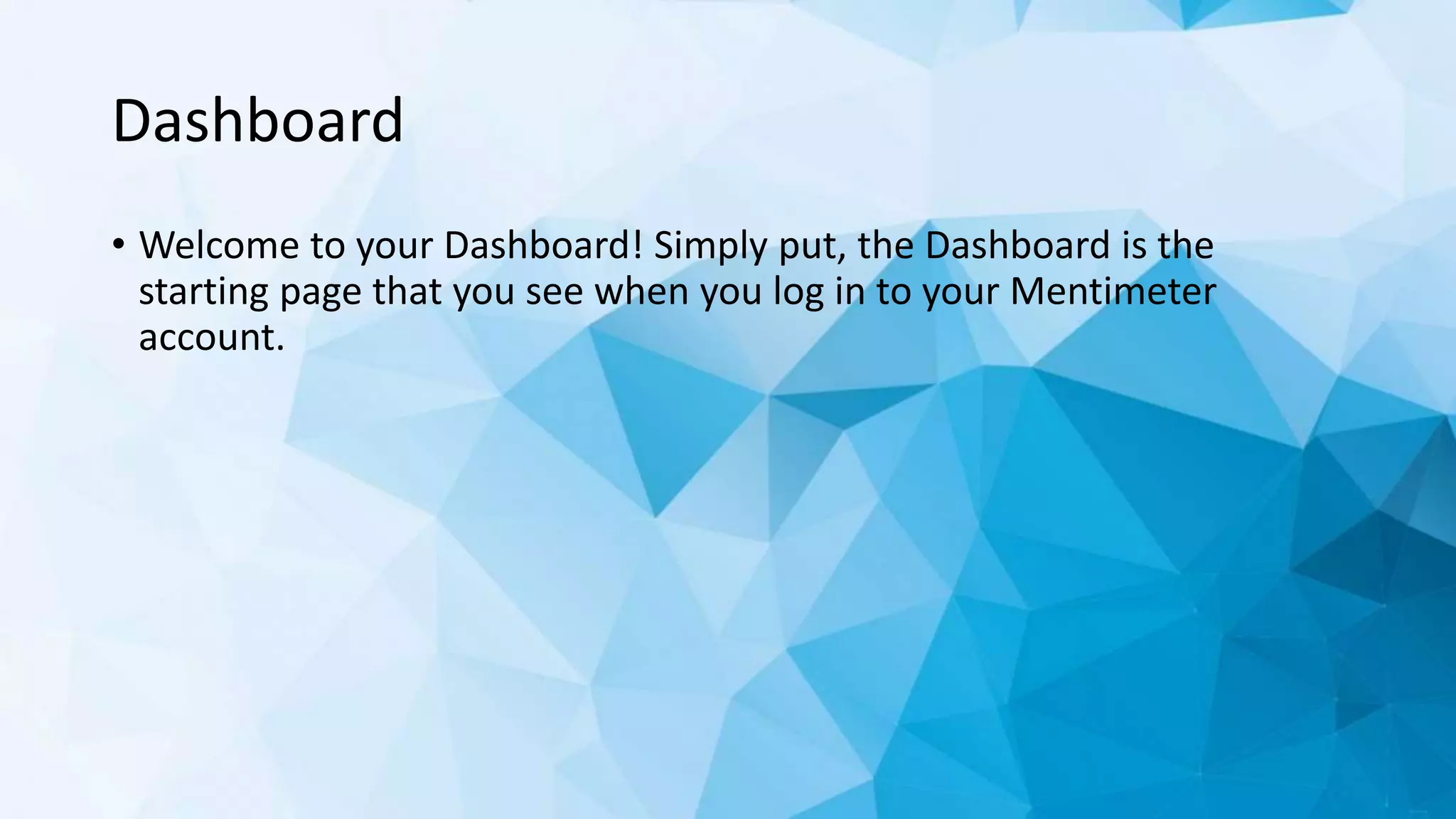
Step 1: How to sign up
• To create an account, head over to
https://www.mentimeter.com/signup.
• click sign-up button
• Enter a valid email address and a password that is at least six
characters long. Press sign up and you are good to go!
• That's it! No installations, no downloads, nothing required but your
web browser and an internet connection needed.
CLICK HERE!!!
Dashboard
• Welcome to your Dashboard! Simply put, the Dashboard is the
starting page that you see when you log in to your Mentimeter
account.
Import a presentation file from your
computer
1.Create a new presentation
2.Select the “Import” button
3.Choose a file from your computer
4.The imported slides will show up at the end of
your presentation
You can upload ppt, pptx or pdf files.
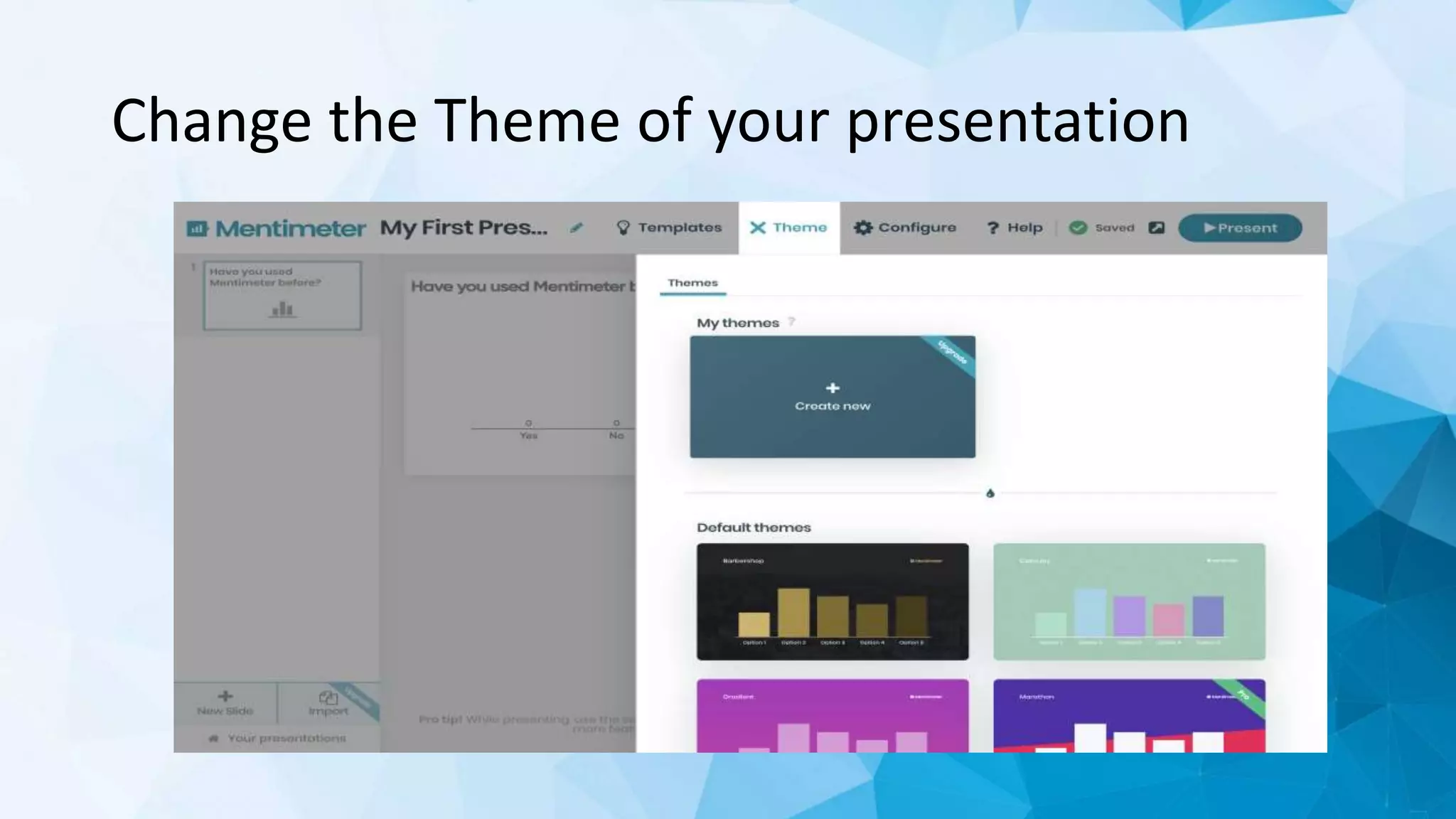
Change the Theme of your presentation
Present your slides with two different paces
1. Presenter’s pace
- With Presenter’s pace active, only the slide that you
currently show can be seen in your audience’s phones.
- They will only be able to proceed and vote on the
following question as you switch to the next slide in
your presentation.
2. Audience’s pace
- With this pacing, your participants will start from the first
question and then they are able to proceed to the following slides
in their own pace.
FOLDERS IN MENTIMETER
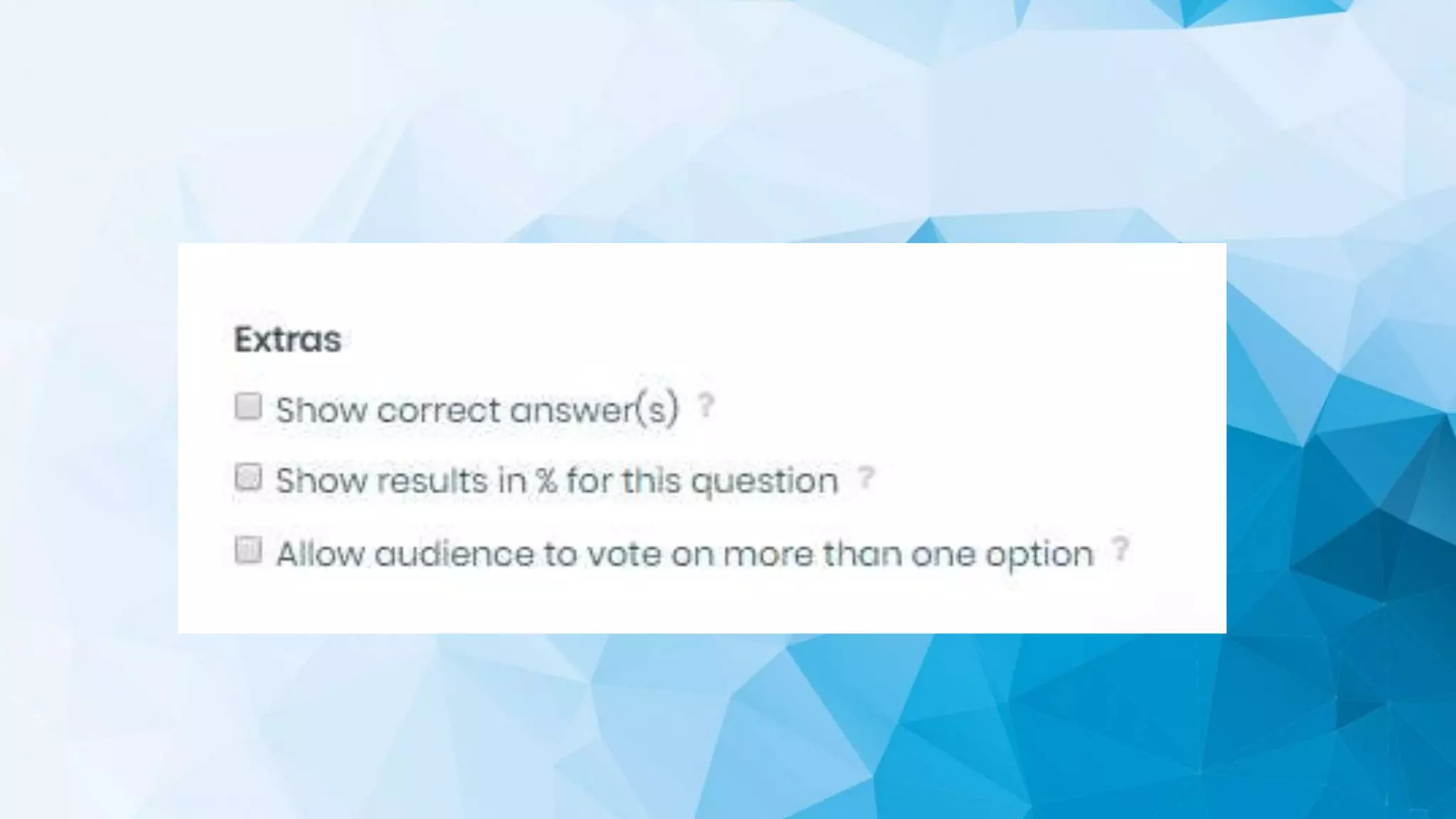
MULTIPLE CHOICE
1) Create a new slide
2) Choose Multiple
3) Choice question
4) Fill in your question
5) Enter answer options
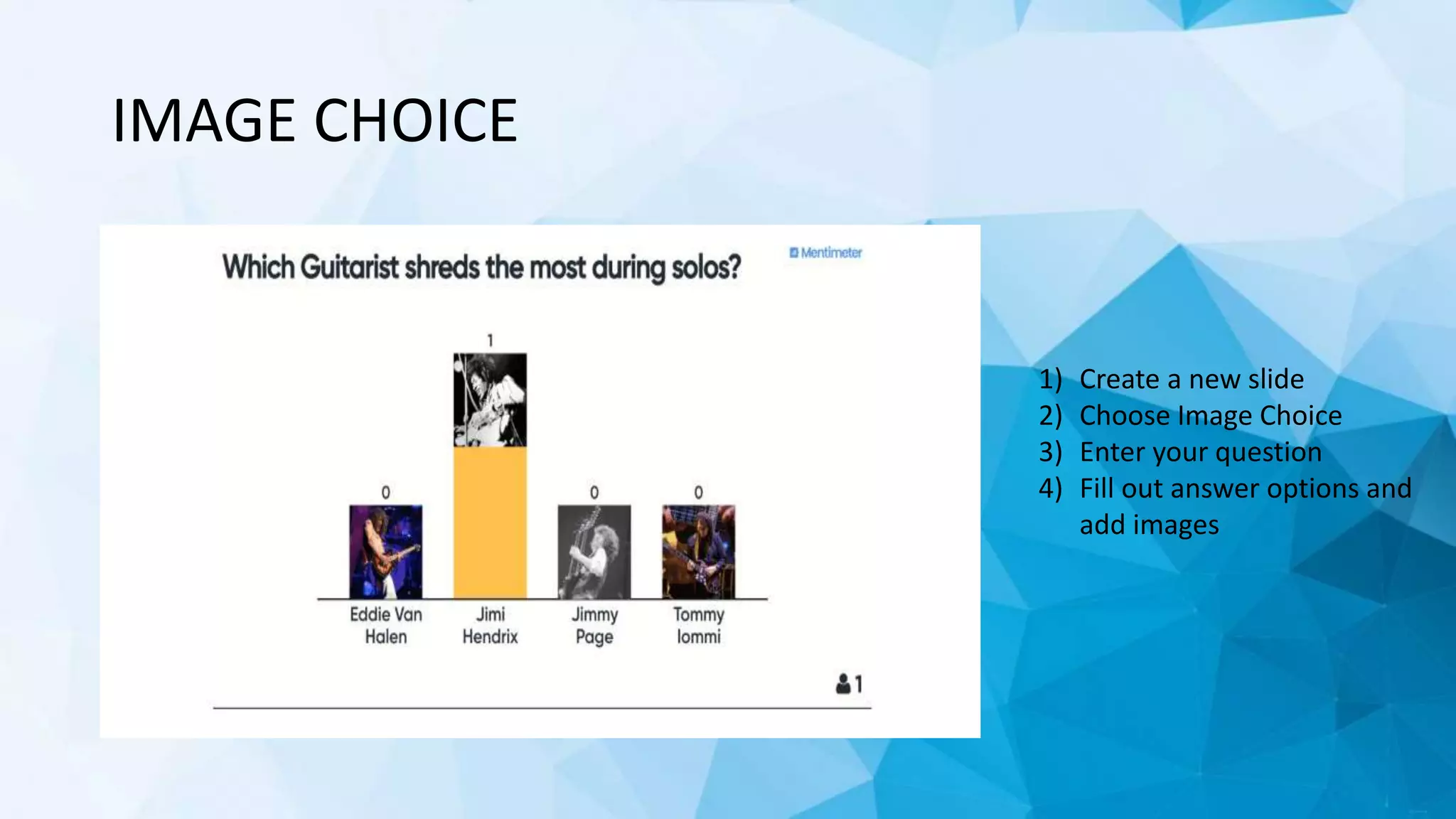
IMAGE CHOICE
1) Create a new slide
2) Choose Image Choice
3) Enter your question
4) Fill out answer options and
add images
WORD CLOUD
1) Create a new slide
2) Choose Word Cloud
3) Fill in your question
SCALES
1) Create a new slide
2) Choose Scales
question
3) Fill in your heading
4) Enter statements to
rate
5) (Optional) Change
the high and low
label of the scale
SCALES
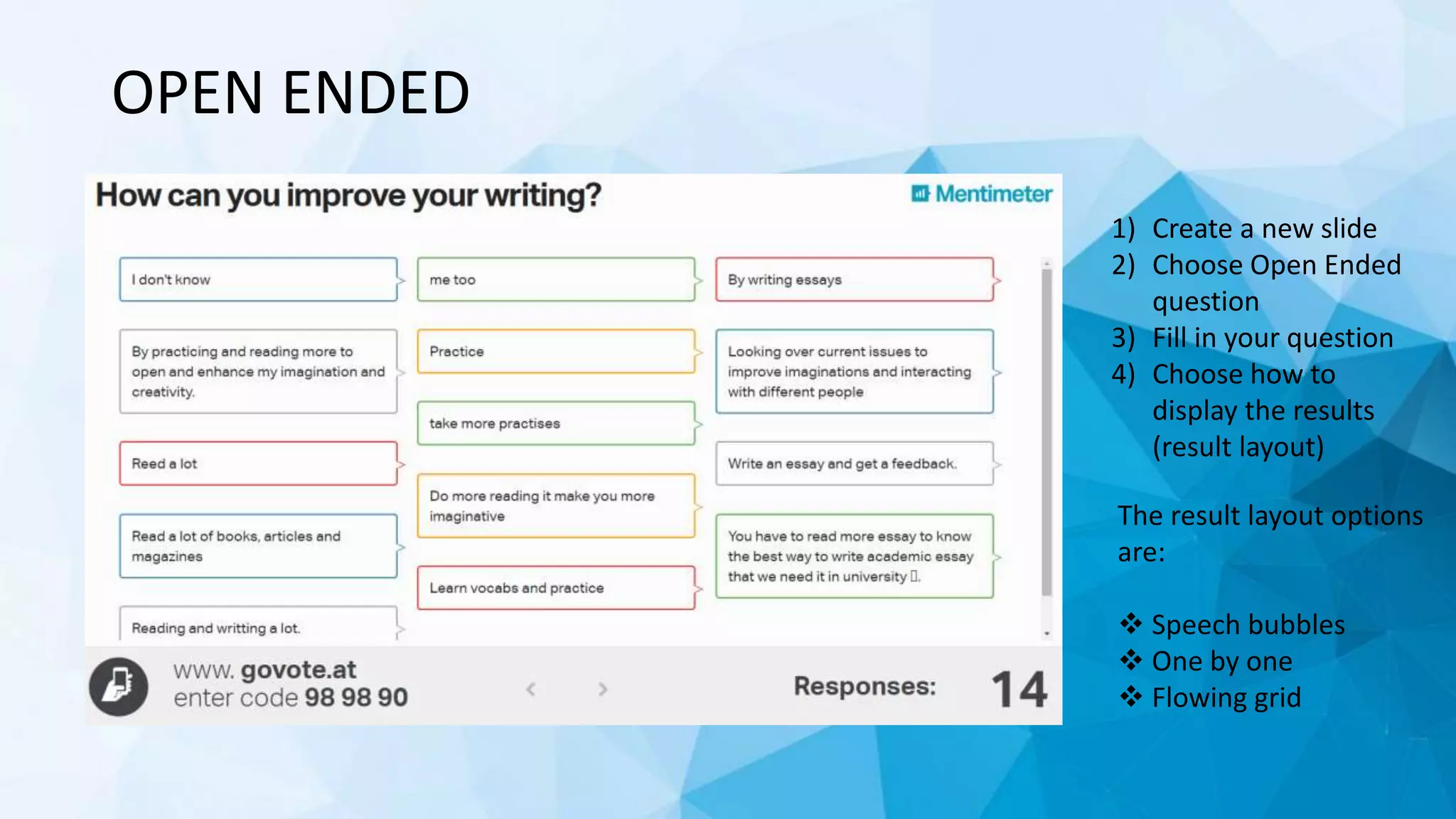
OPEN ENDED
1) Create a new slide
2) Choose Open Ended
question
3) Fill in your question
4) Choose how to
display the results
(result layout)
The result layout options
are:
 Speech bubbles
 One by one
 Flowing grid
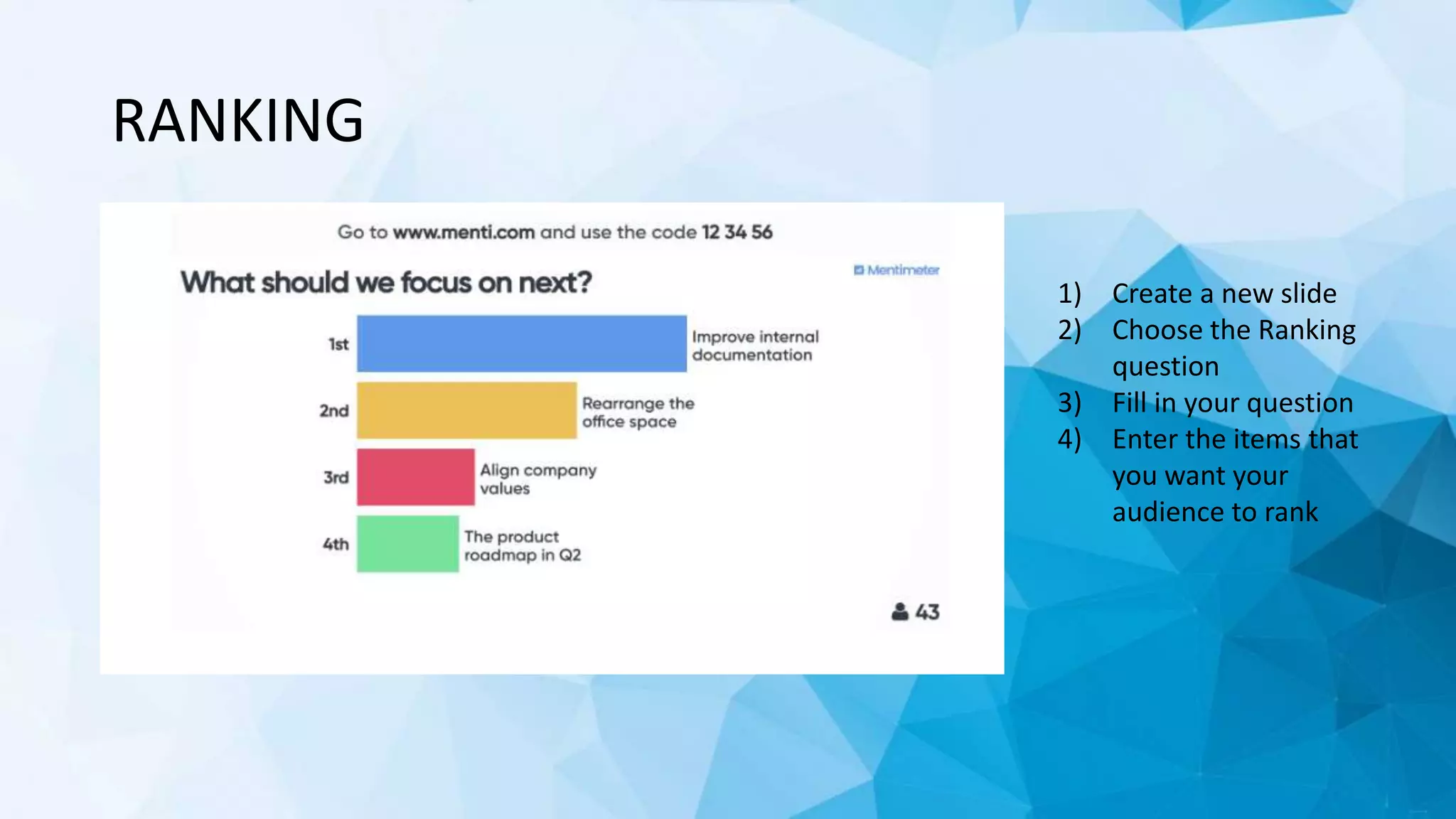
RANKING
1) Create a new slide
2) Choose the Ranking
question
3) Fill in your question
4) Enter the items that
you want your
audience to rank
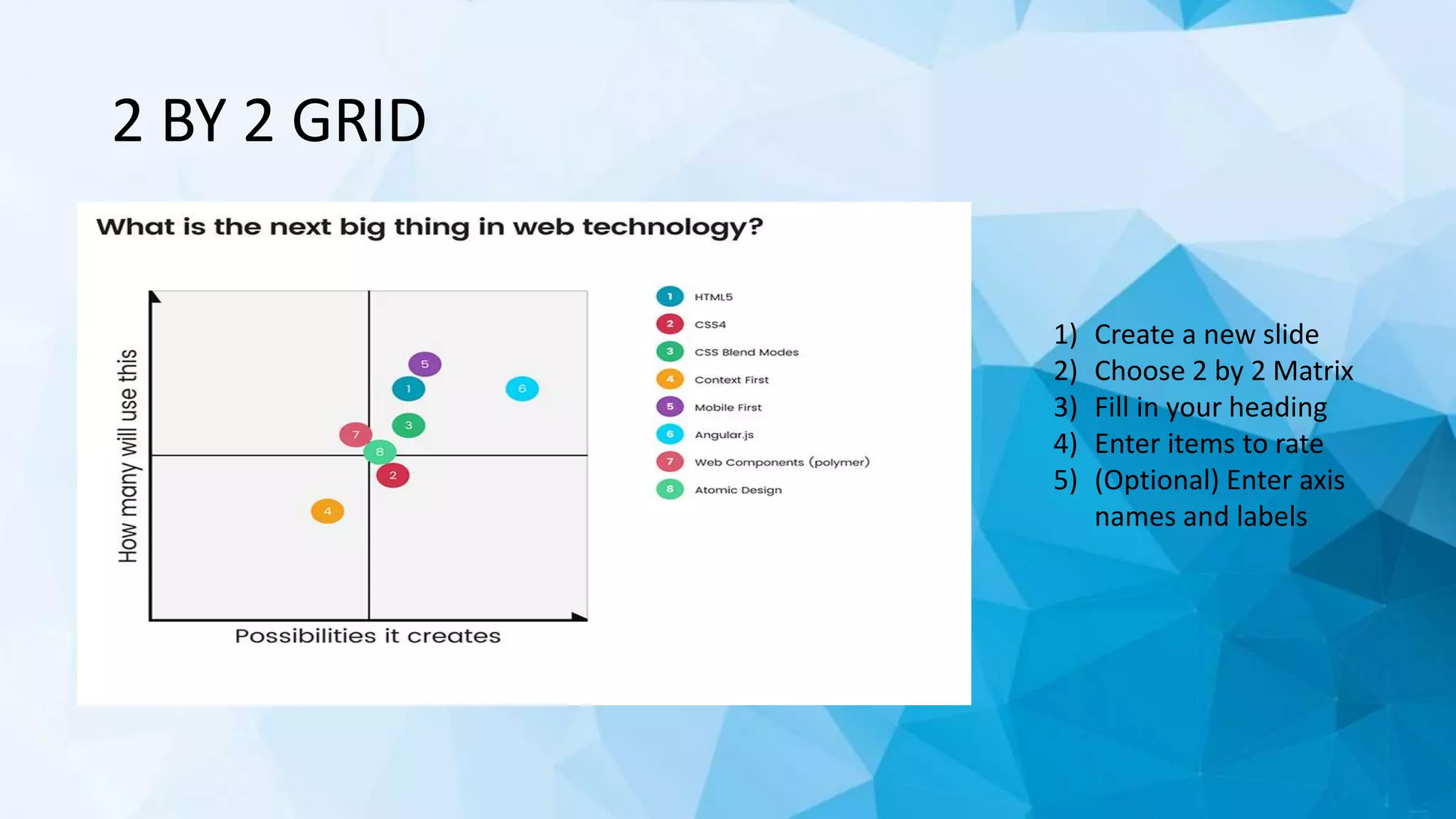
2 BY 2 GRID
1) Create a new slide
2) Choose 2 by 2 Matrix
3) Fill in your heading
4) Enter items to rate
5) (Optional) Enter axis
names and labels
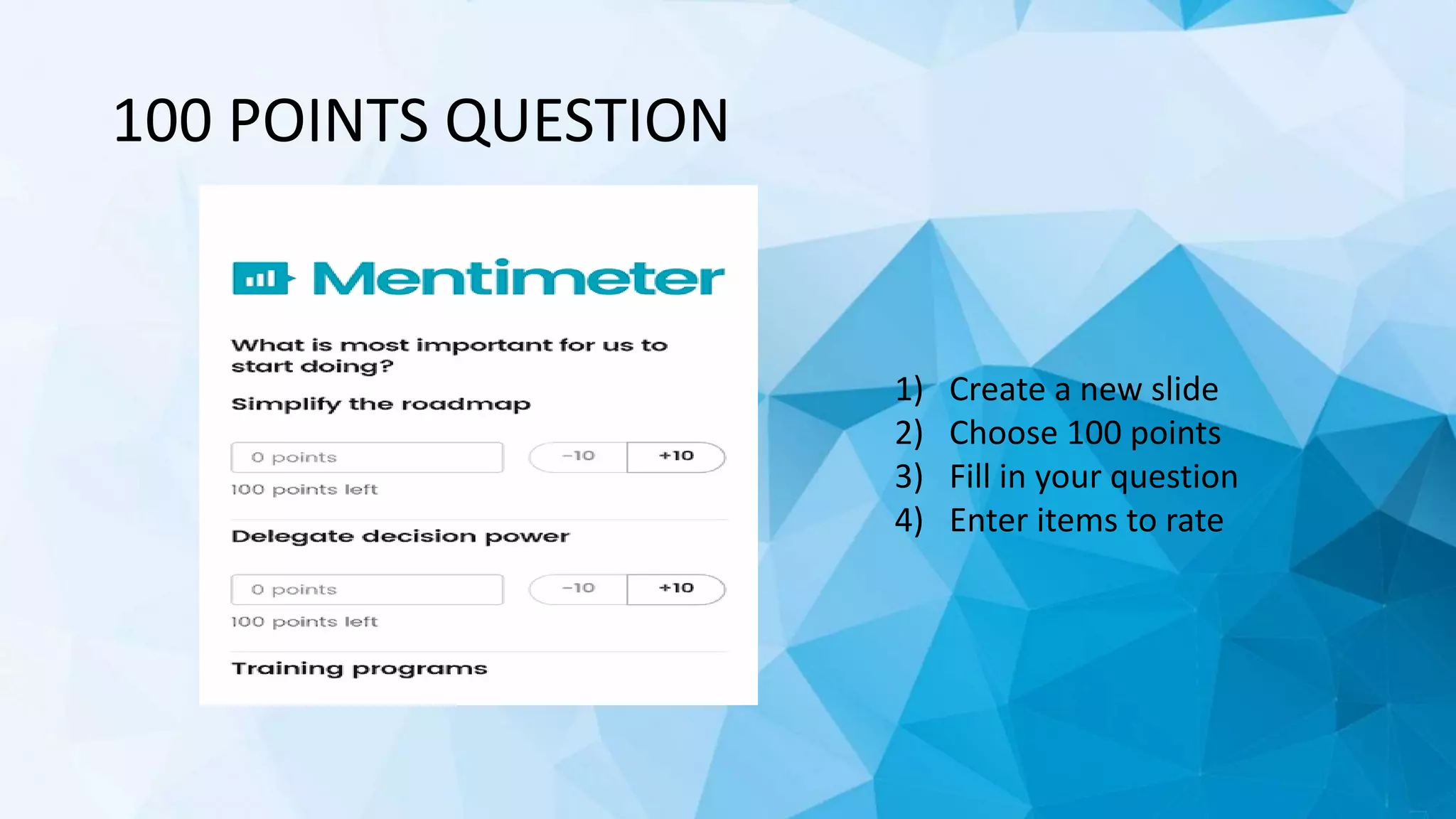
100 POINTS QUESTION
1) Create a new slide
2) Choose 100 points
3) Fill in your question
4) Enter items to rate
WHO WILL WIN?
1) Create a new slide
2) Choose 'Who will win?'
3) Fill in your question
4) Enter contestants
QUICK FORM
• Quick Form is a question type that enables facilitators to collect
information from their audience to analyze in an Excel export after
the presentation is over.
QUICK SLIDE
How to enter the voting session
• Enter voting code
• Connect via a QR code
• Share the voting link to give the audience direct access
~ THANK YOU ~

Mentimeter

  • 1.
    MENTIMETER FACULITIY SCIENCE ANDMATHEMATICS PRESENTER BY SARATHY A/P HARI KUMAR (D20191088459) CHRISTEVE AUDREY KIBAS ANAK ADER (D20191088436) NURUL SHAHIRA FARHANA BT MOHIZZAM (D20191088514)
  • 2.
    WHAT IS MENTIMETER? • Mentimeter is a Swedish company based in Stockholm that develops and maintains an eponymous app used to create presentations with real-time feedback. • The app also focuses on online collaboration for the students or public members to answer questions anonymously. • This app enables users to share knowledge and real-time feedback on mobile with presentations, polls or brainstorming sessions in classes, meeting, gatherings, conferences and other group activities.
  • 3.
    Step 1: Howto sign up • To create an account, head over to https://www.mentimeter.com/signup. • click sign-up button • Enter a valid email address and a password that is at least six characters long. Press sign up and you are good to go! • That's it! No installations, no downloads, nothing required but your web browser and an internet connection needed.
  • 4.
  • 6.
    Dashboard • Welcome toyour Dashboard! Simply put, the Dashboard is the starting page that you see when you log in to your Mentimeter account.
  • 13.
    Import a presentationfile from your computer 1.Create a new presentation 2.Select the “Import” button 3.Choose a file from your computer 4.The imported slides will show up at the end of your presentation You can upload ppt, pptx or pdf files.
  • 16.
    Change the Themeof your presentation
  • 17.
    Present your slideswith two different paces 1. Presenter’s pace - With Presenter’s pace active, only the slide that you currently show can be seen in your audience’s phones. - They will only be able to proceed and vote on the following question as you switch to the next slide in your presentation.
  • 18.
    2. Audience’s pace -With this pacing, your participants will start from the first question and then they are able to proceed to the following slides in their own pace.
  • 22.
  • 24.
    MULTIPLE CHOICE 1) Createa new slide 2) Choose Multiple 3) Choice question 4) Fill in your question 5) Enter answer options
  • 27.
    IMAGE CHOICE 1) Createa new slide 2) Choose Image Choice 3) Enter your question 4) Fill out answer options and add images
  • 28.
    WORD CLOUD 1) Createa new slide 2) Choose Word Cloud 3) Fill in your question
  • 30.
    SCALES 1) Create anew slide 2) Choose Scales question 3) Fill in your heading 4) Enter statements to rate 5) (Optional) Change the high and low label of the scale
  • 31.
  • 32.
    OPEN ENDED 1) Createa new slide 2) Choose Open Ended question 3) Fill in your question 4) Choose how to display the results (result layout) The result layout options are:  Speech bubbles  One by one  Flowing grid
  • 33.
    RANKING 1) Create anew slide 2) Choose the Ranking question 3) Fill in your question 4) Enter the items that you want your audience to rank
  • 34.
    2 BY 2GRID 1) Create a new slide 2) Choose 2 by 2 Matrix 3) Fill in your heading 4) Enter items to rate 5) (Optional) Enter axis names and labels
  • 35.
    100 POINTS QUESTION 1)Create a new slide 2) Choose 100 points 3) Fill in your question 4) Enter items to rate
  • 36.
    WHO WILL WIN? 1)Create a new slide 2) Choose 'Who will win?' 3) Fill in your question 4) Enter contestants
  • 37.
    QUICK FORM • QuickForm is a question type that enables facilitators to collect information from their audience to analyze in an Excel export after the presentation is over.
  • 38.
  • 39.
    How to enterthe voting session • Enter voting code • Connect via a QR code • Share the voting link to give the audience direct access
  • 41.