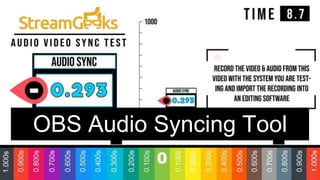
OBS Audio Syncing Tool
Using the Audio Video
Sync Test
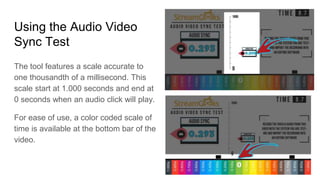
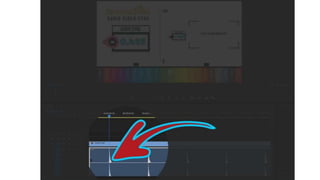
The tool features a scale accurate to
one thousandth of a millisecond. This
scale start at 1.000 seconds and end at
0 seconds when an audio click will play.
For ease of use, a color coded scale of
time is available at the bottom bar of the
video.
Recording Process
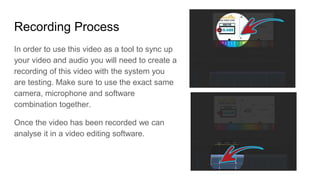
In order to use this video as a tool to sync up
your video and audio you will need to create a
recording of this video with the system you
are testing. Make sure to use the exact same
camera, microphone and software
combination together.
Once the video has been recorded we can
analyse it in a video editing software.
Determining the Audio
Delay
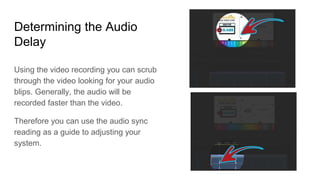
Using the video recording you can scrub
through the video looking for your audio
blips. Generally, the audio will be
recorded faster than the video.
Therefore you can use the audio sync
reading as a guide to adjusting your
system.
Adding the Audio Delay
Once you have determined the amount
of audio delay your system will require
it’s time to apply that audio delay in
OBS.
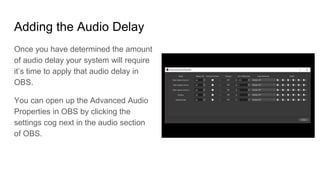
You can open up the Advanced Audio
Properties in OBS by clicking the
settings cog next in the audio section
of OBS.
Subscribe to the
StreamGeeks!
On YouTube and Facebook!

Obs audio syncing tool

  • 1.
  • 2.
    Using the AudioVideo Sync Test The tool features a scale accurate to one thousandth of a millisecond. This scale start at 1.000 seconds and end at 0 seconds when an audio click will play. For ease of use, a color coded scale of time is available at the bottom bar of the video.
  • 3.
    Recording Process In orderto use this video as a tool to sync up your video and audio you will need to create a recording of this video with the system you are testing. Make sure to use the exact same camera, microphone and software combination together. Once the video has been recorded we can analyse it in a video editing software.
  • 4.
    Determining the Audio Delay Usingthe video recording you can scrub through the video looking for your audio blips. Generally, the audio will be recorded faster than the video. Therefore you can use the audio sync reading as a guide to adjusting your system.
  • 6.
    Adding the AudioDelay Once you have determined the amount of audio delay your system will require it’s time to apply that audio delay in OBS. You can open up the Advanced Audio Properties in OBS by clicking the settings cog next in the audio section of OBS.
  • 7.
    Subscribe to the StreamGeeks! OnYouTube and Facebook!