ICT Workshop 2022
GOOGLE MEET
Department of English
Maharaja Krishnakumarsinhji Bhavnagar University
Prepared by: Nilay Rathod
rathodnilay2017@gmail.com
8 August 2022
Google Meet: objective of this
presentation
This presentation is demonstration for Google Meet in a
workshop (ICT Workshop) where students are learning the
basics.
In this presentation you will find the introductory information to
make you familiar with Google Meet so you won’t find any
difficulty as a beginner.
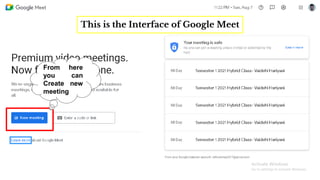
This is the Interface of Google Meet
From here
you can
Create new
meeting
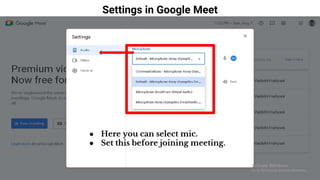
Settings in Google Meet
● Here you can select mic.
● Set this before joining meeting.
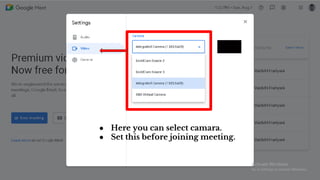
● Here you can select camara.
● Set this before joining meeting.
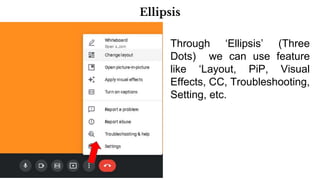
Ellipsis
Through ‘Ellipsis’ (Three
Dots) we can use feature
like ‘Layout, PiP, Visual
Effects, CC, Troubleshooting,
Setting, etc.
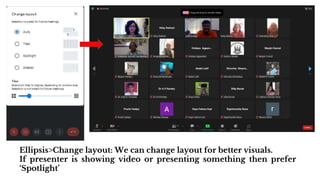
Ellipsis>Change layout: We can change layout for better visuals.
If presenter is showing video or presenting something then prefer
‘Spotlight’
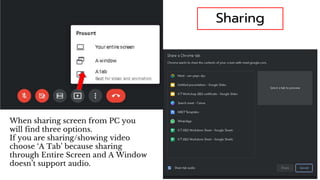
Sharing
When sharing screen from PC you
will find three options.
If you are sharing/showing video
choose ‘A Tab’ because sharing
through Entire Screen and A Window
doesn’t support audio.
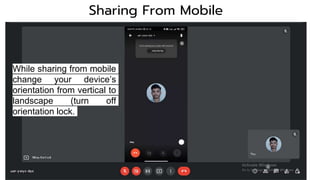
Sharing From Mobile
While sharing from mobile
change your device’s
orientation from vertical to
landscape (turn off
orientation lock.
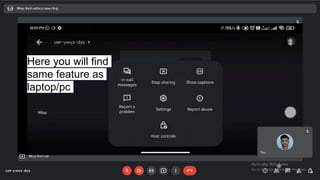
Here you will find
same feature as
laptop/pc
You can control the audio output of your
meeting.
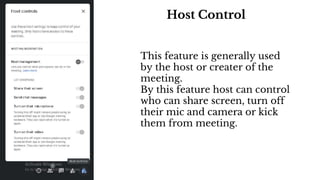
Host Control
This feature is generally used
by the host or creater of the
meeting.
By this feature host can control
who can share screen, turn off
their mic and camera or kick
them from meeting.
Thank you

Google Meet -ICT Workshop 2022 .pptx

  • 1.
    ICT Workshop 2022 GOOGLEMEET Department of English Maharaja Krishnakumarsinhji Bhavnagar University Prepared by: Nilay Rathod rathodnilay2017@gmail.com 8 August 2022
  • 2.
    Google Meet: objectiveof this presentation This presentation is demonstration for Google Meet in a workshop (ICT Workshop) where students are learning the basics. In this presentation you will find the introductory information to make you familiar with Google Meet so you won’t find any difficulty as a beginner.
  • 3.
    This is theInterface of Google Meet From here you can Create new meeting
  • 4.
    Settings in GoogleMeet ● Here you can select mic. ● Set this before joining meeting.
  • 5.
    ● Here youcan select camara. ● Set this before joining meeting.
  • 6.
    Ellipsis Through ‘Ellipsis’ (Three Dots)we can use feature like ‘Layout, PiP, Visual Effects, CC, Troubleshooting, Setting, etc.
  • 7.
    Ellipsis>Change layout: Wecan change layout for better visuals. If presenter is showing video or presenting something then prefer ‘Spotlight’
  • 8.
    Sharing When sharing screenfrom PC you will find three options. If you are sharing/showing video choose ‘A Tab’ because sharing through Entire Screen and A Window doesn’t support audio.
  • 9.
    Sharing From Mobile Whilesharing from mobile change your device’s orientation from vertical to landscape (turn off orientation lock.
  • 10.
    Here you willfind same feature as laptop/pc
  • 11.
    You can controlthe audio output of your meeting.
  • 12.
    Host Control This featureis generally used by the host or creater of the meeting. By this feature host can control who can share screen, turn off their mic and camera or kick them from meeting.
  • 13.