How to use and get
started with
What is Dropbox?
An online storage of
your files, photos
and videos
Stores your files for
flexible access
anytime,anywhere and
on any device
Allows easy sharing to
anyone through Gmail
links or Facebook
Easy sharing of large
files like videos and
massive photos
Automatic update of
changes done by
other person
...whom you
shared your file or
folder with
Synced files to all
devices
Safe storage of your
important files
Signing up to
Dropbox
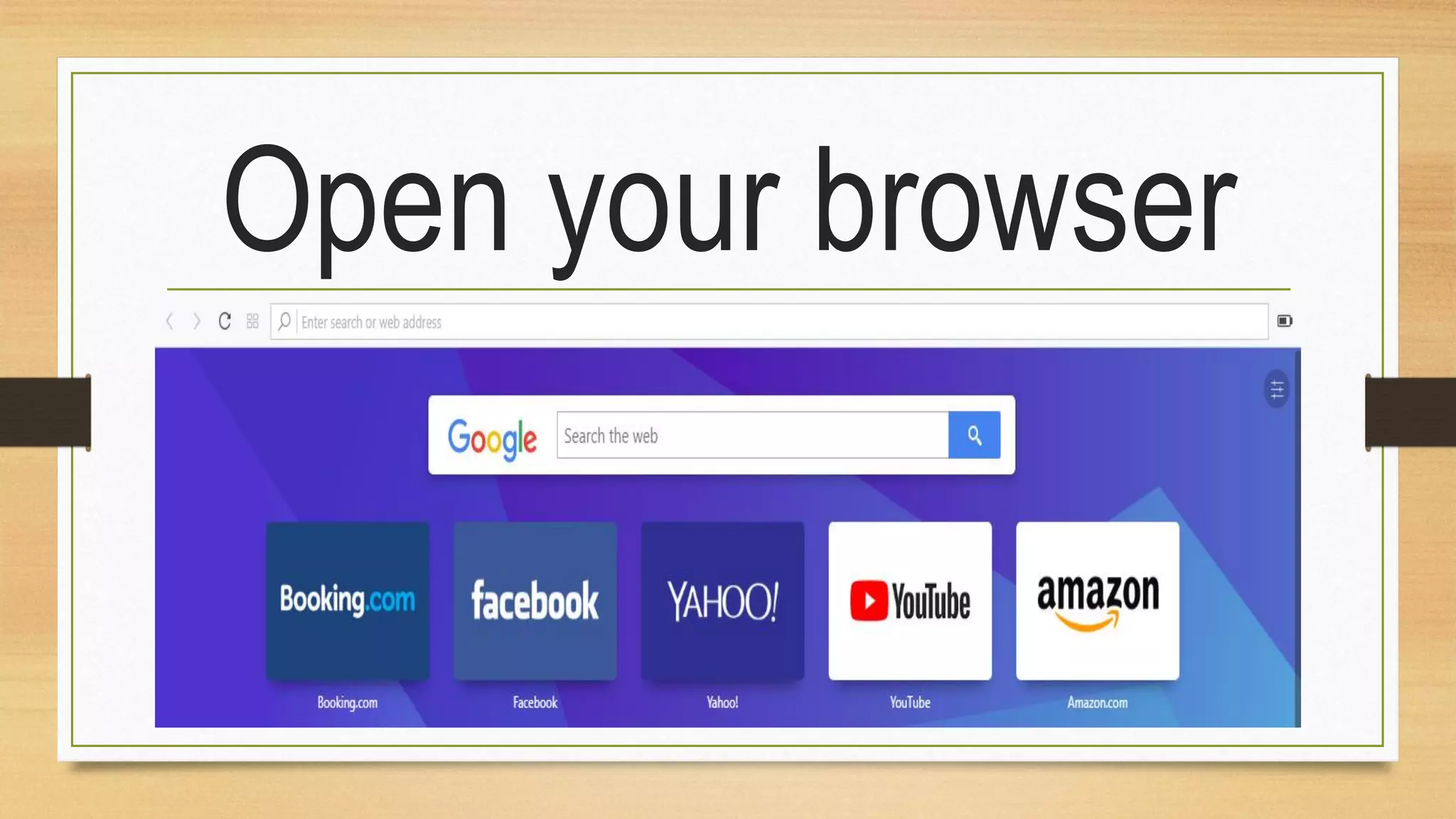
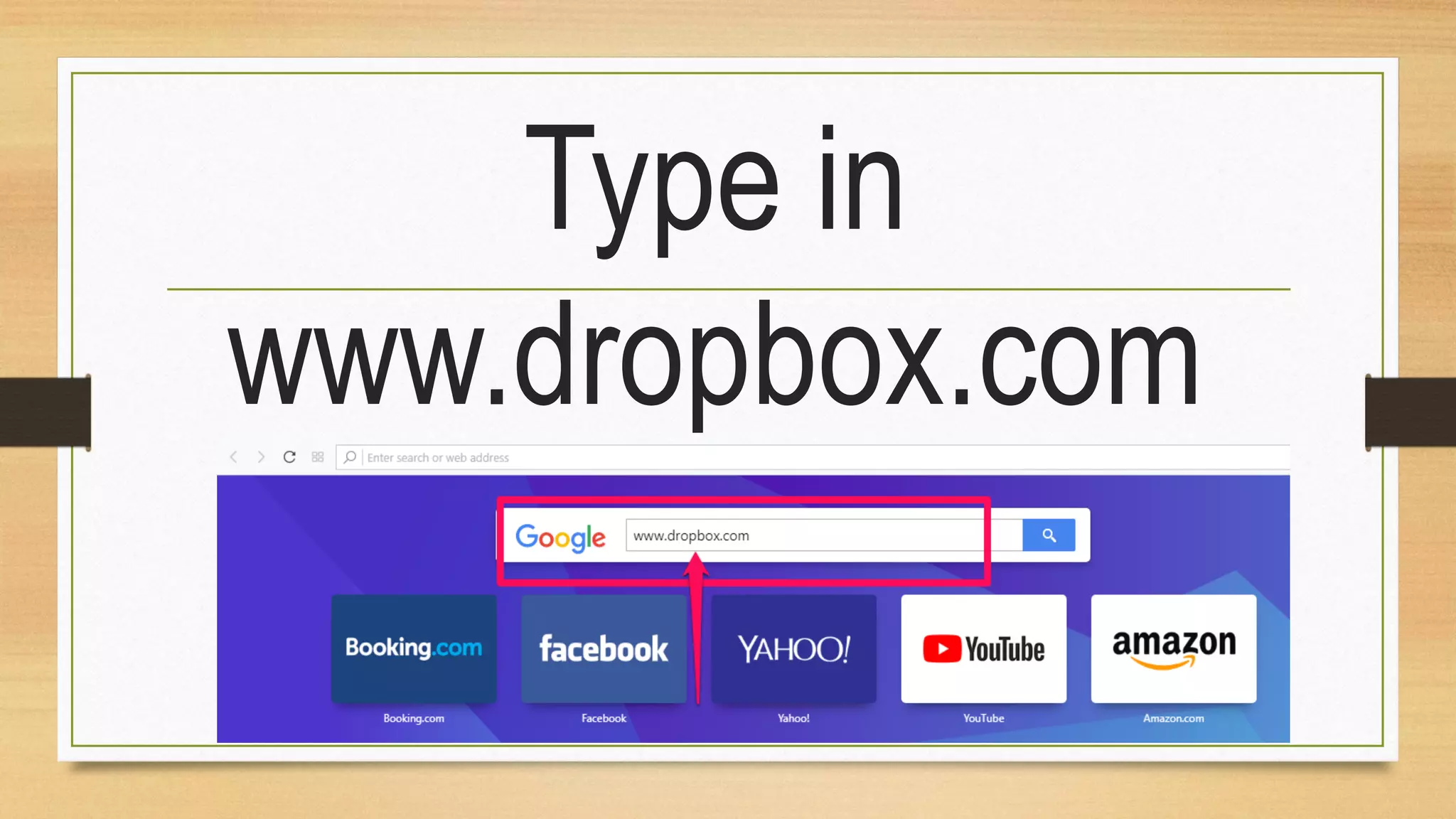
Open your browser
Type in
www.dropbox.com
Hit enter key
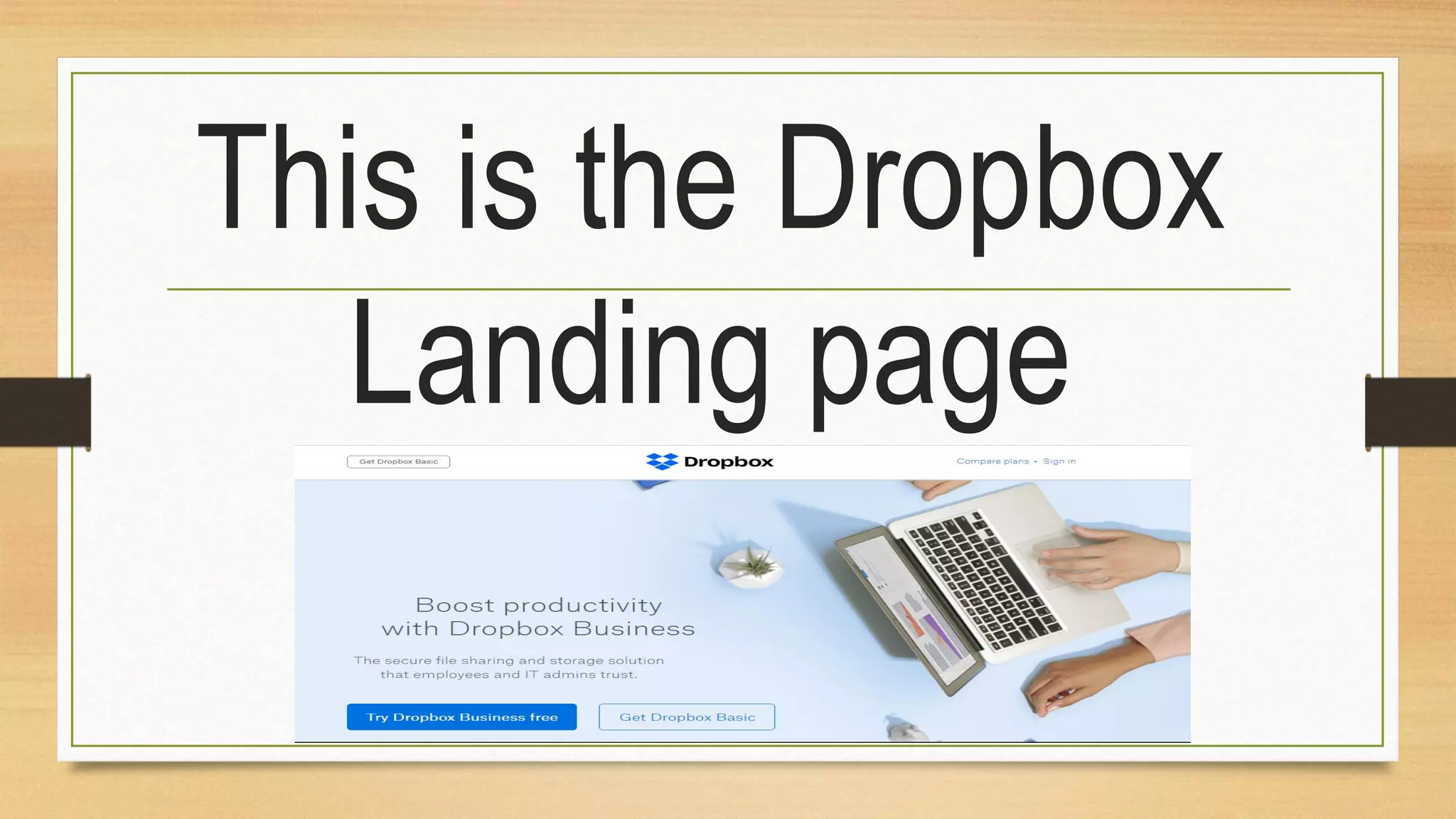
This is the Dropbox
Landing page
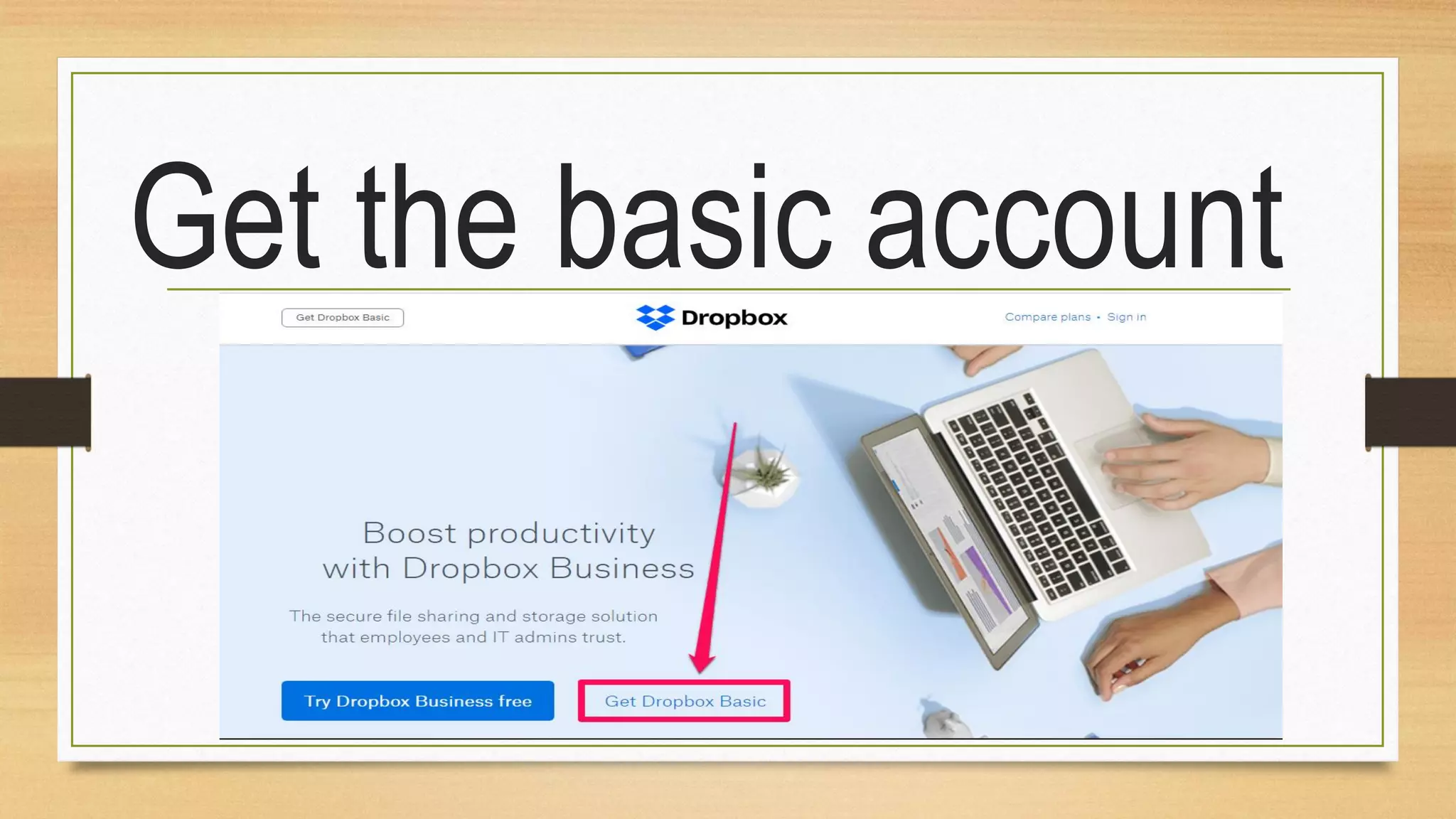
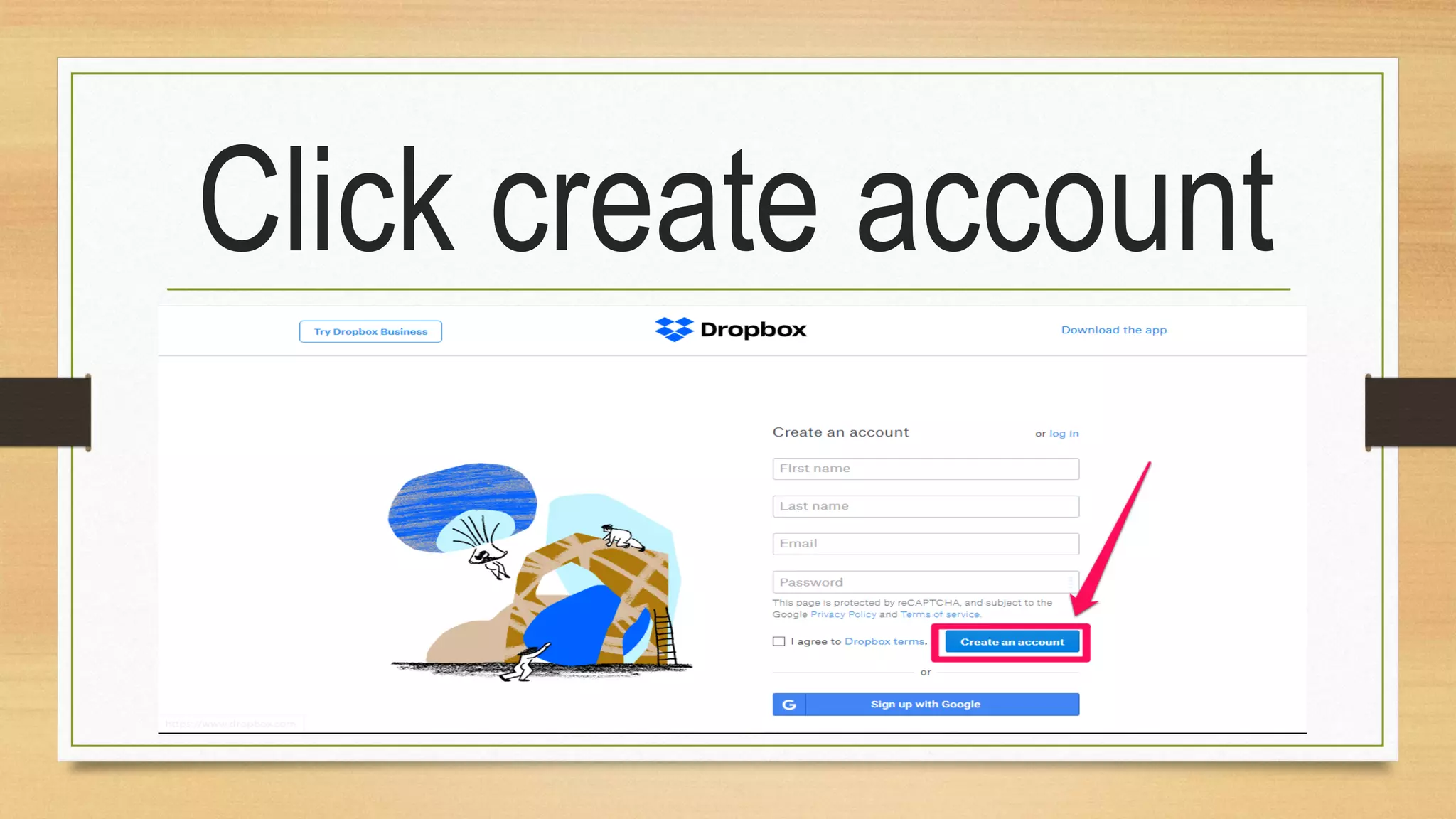
Get the basic account
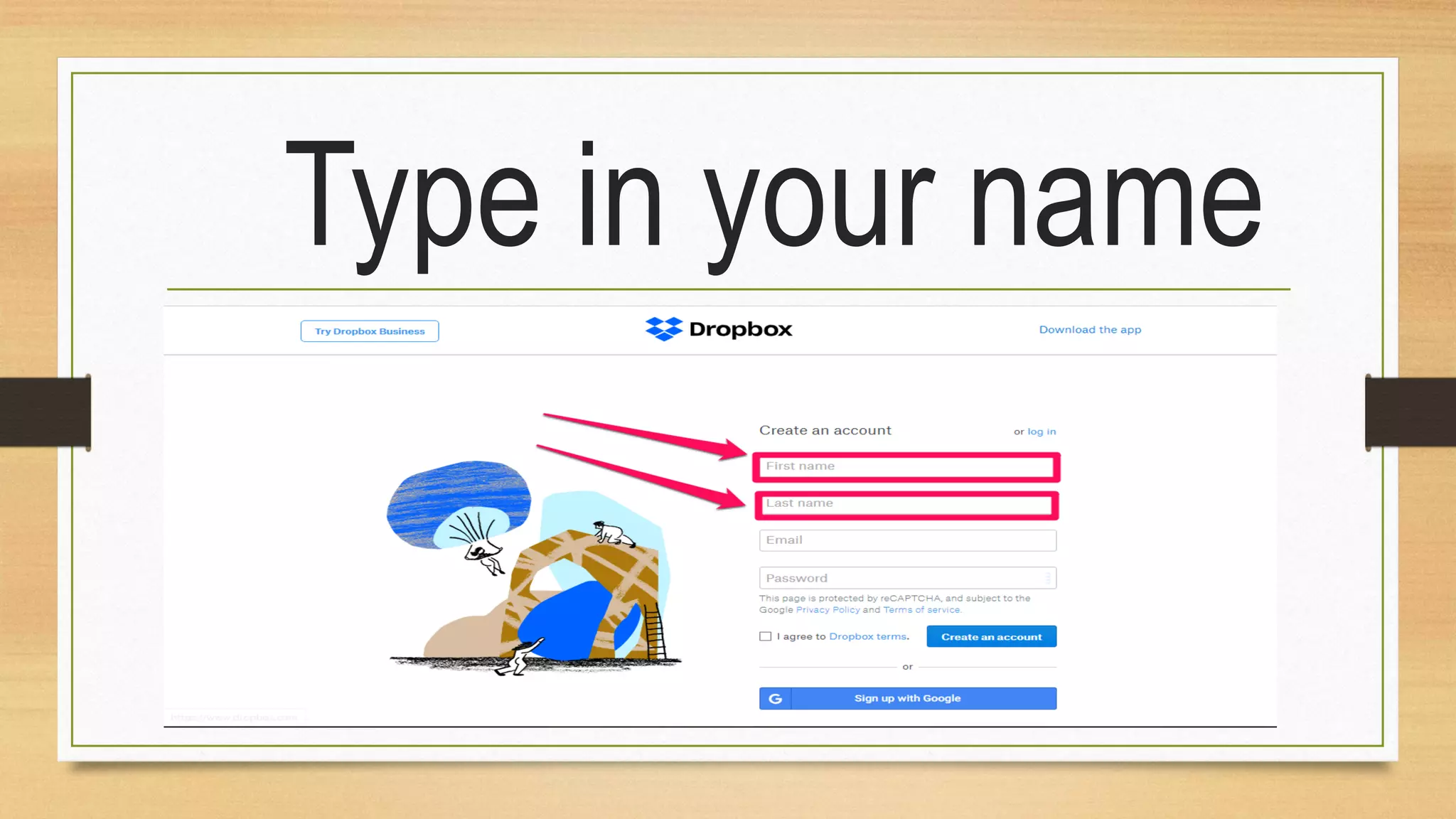
Type in your name
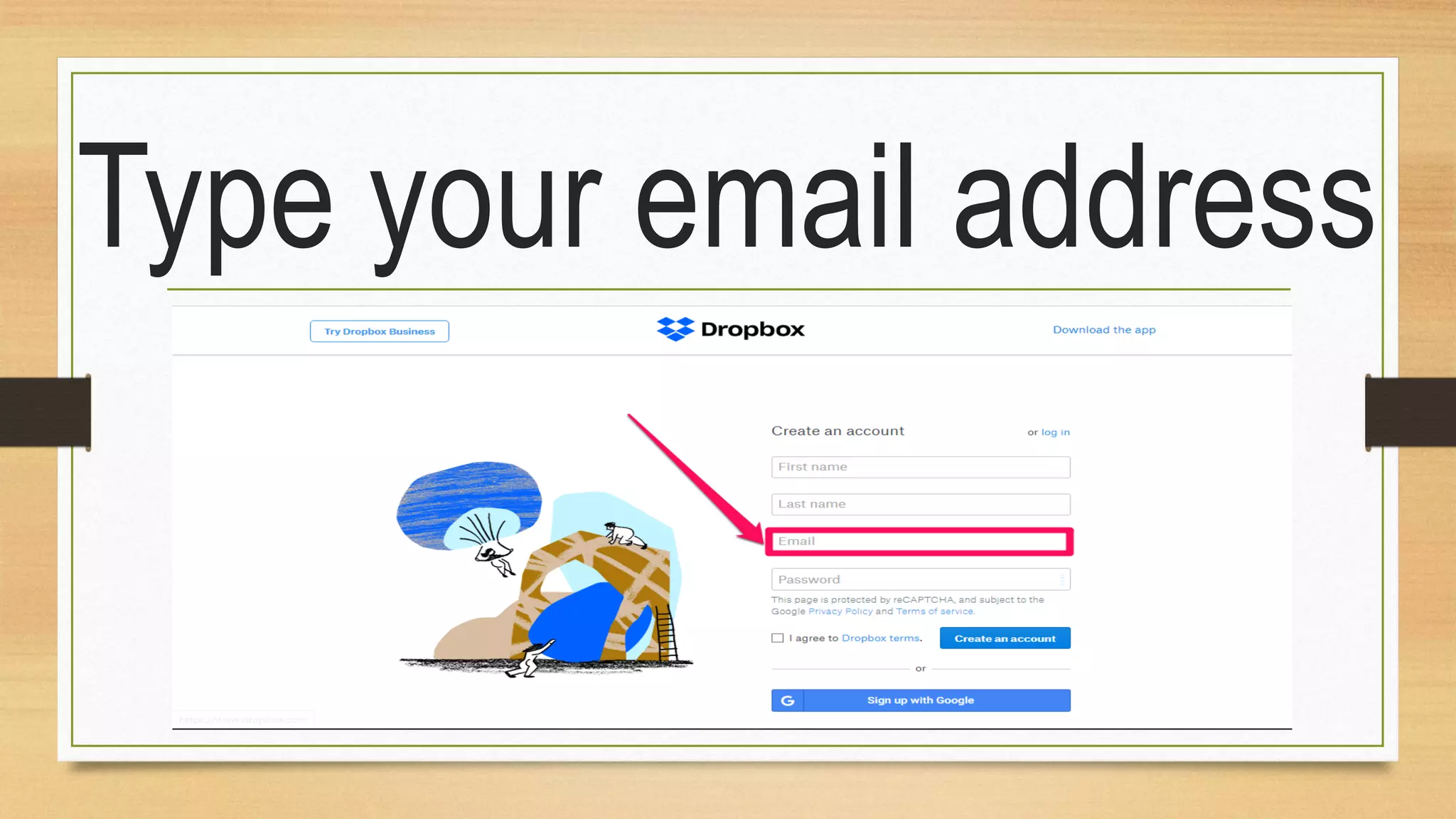
Type your email address
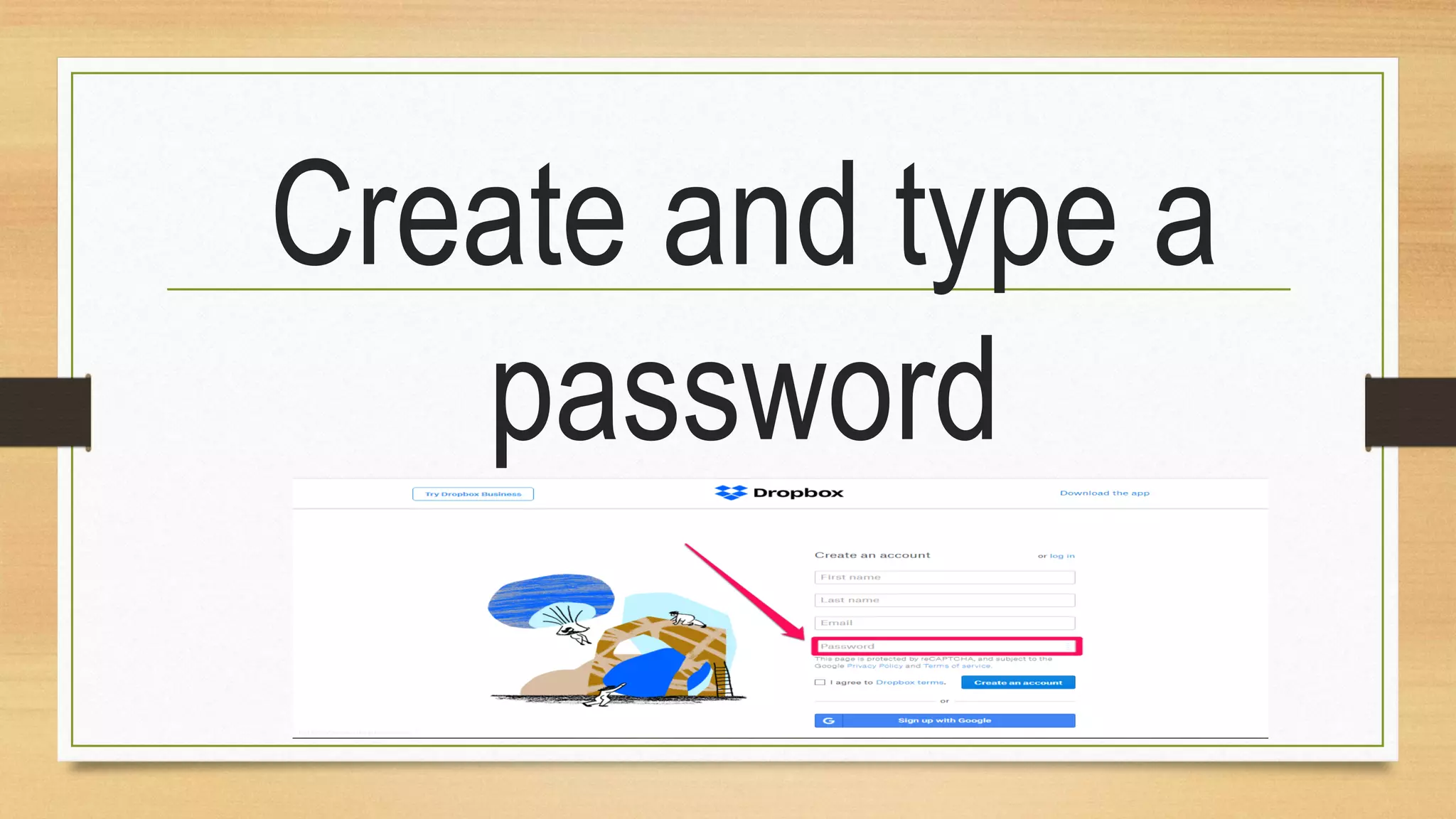
Create and type a
password
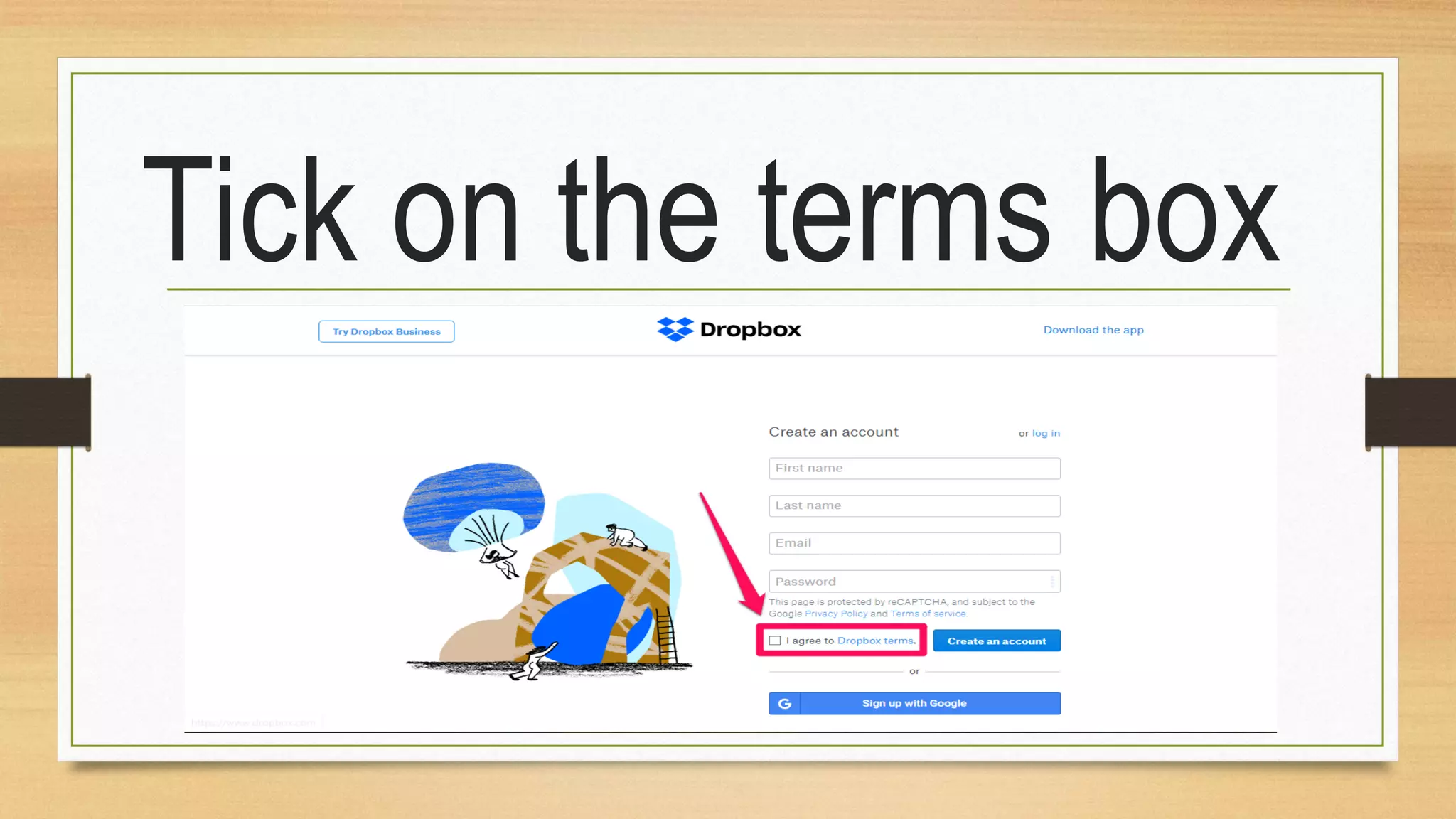
Tick on the terms box
Click create account
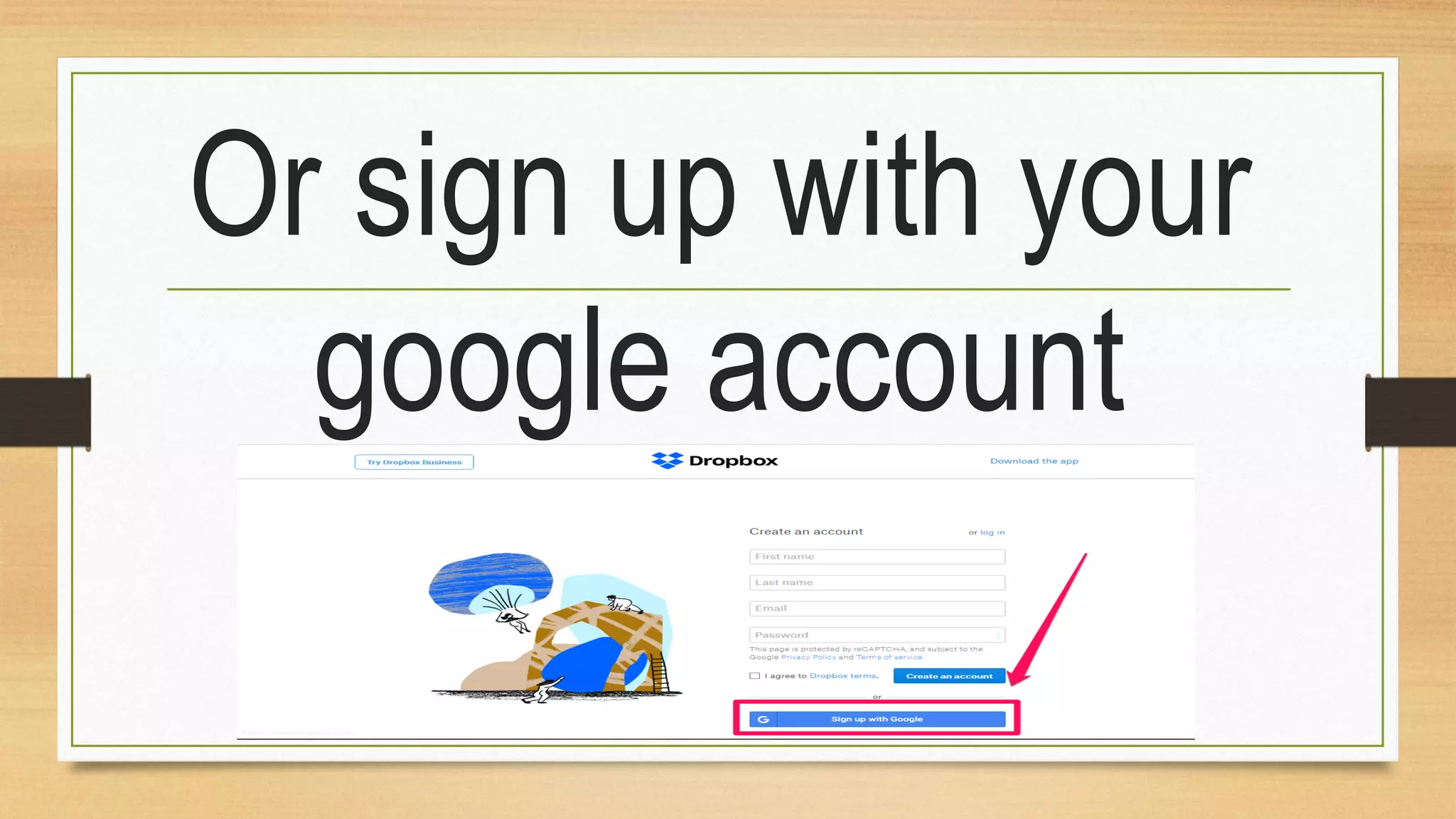
Or sign up with your
google account
Installing Dropbox to
your computer
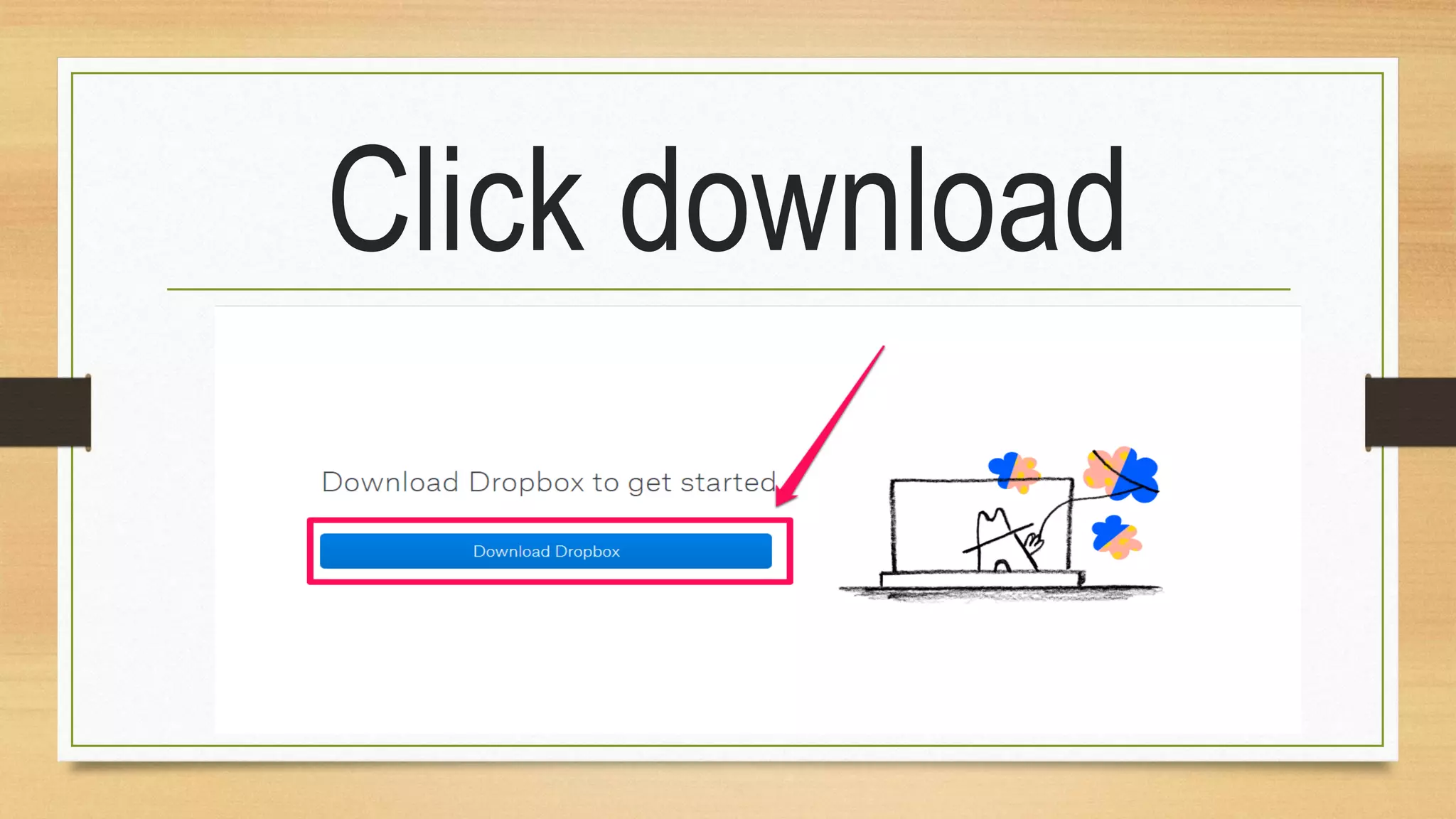
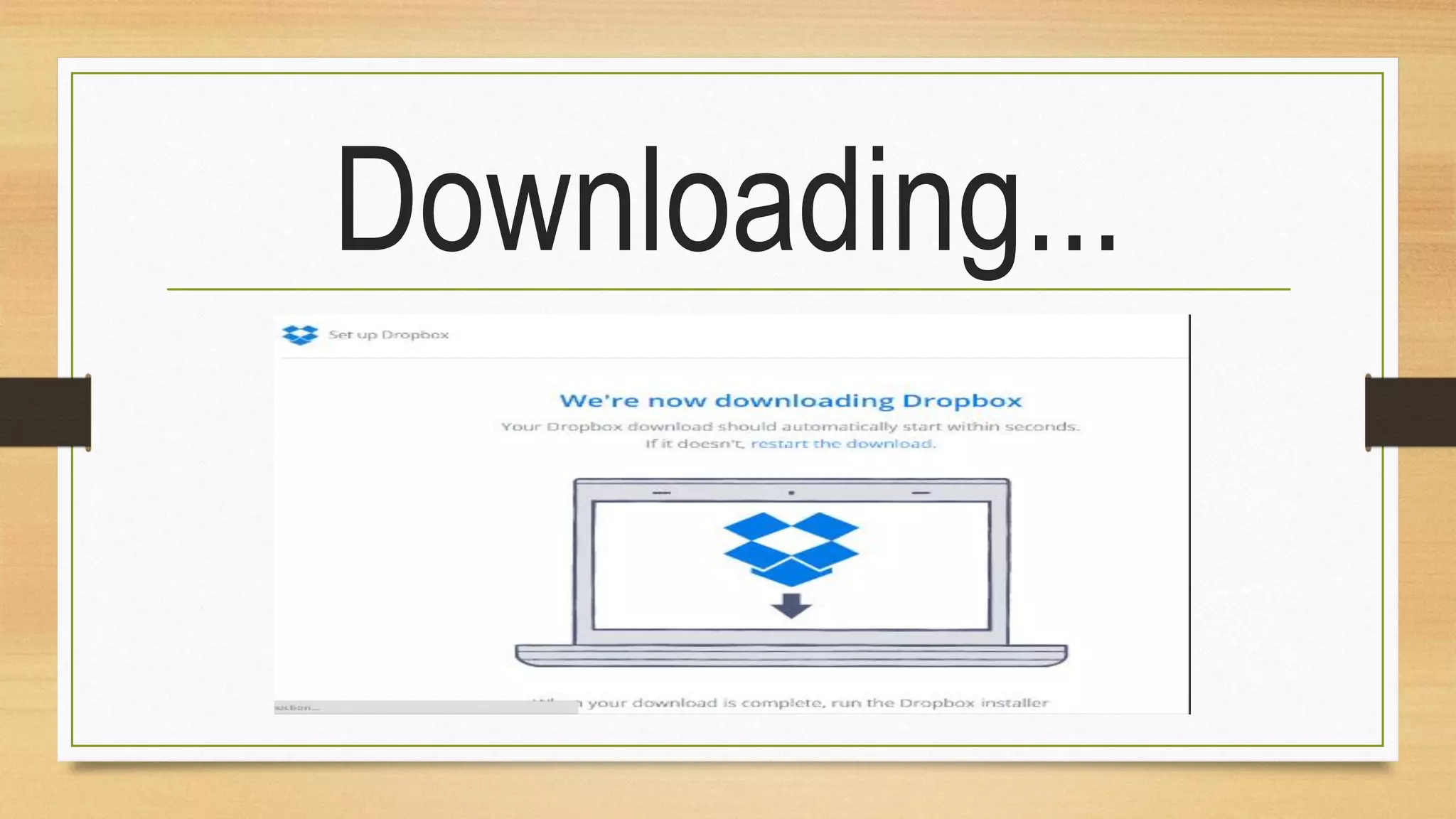
Click download
Downloading...
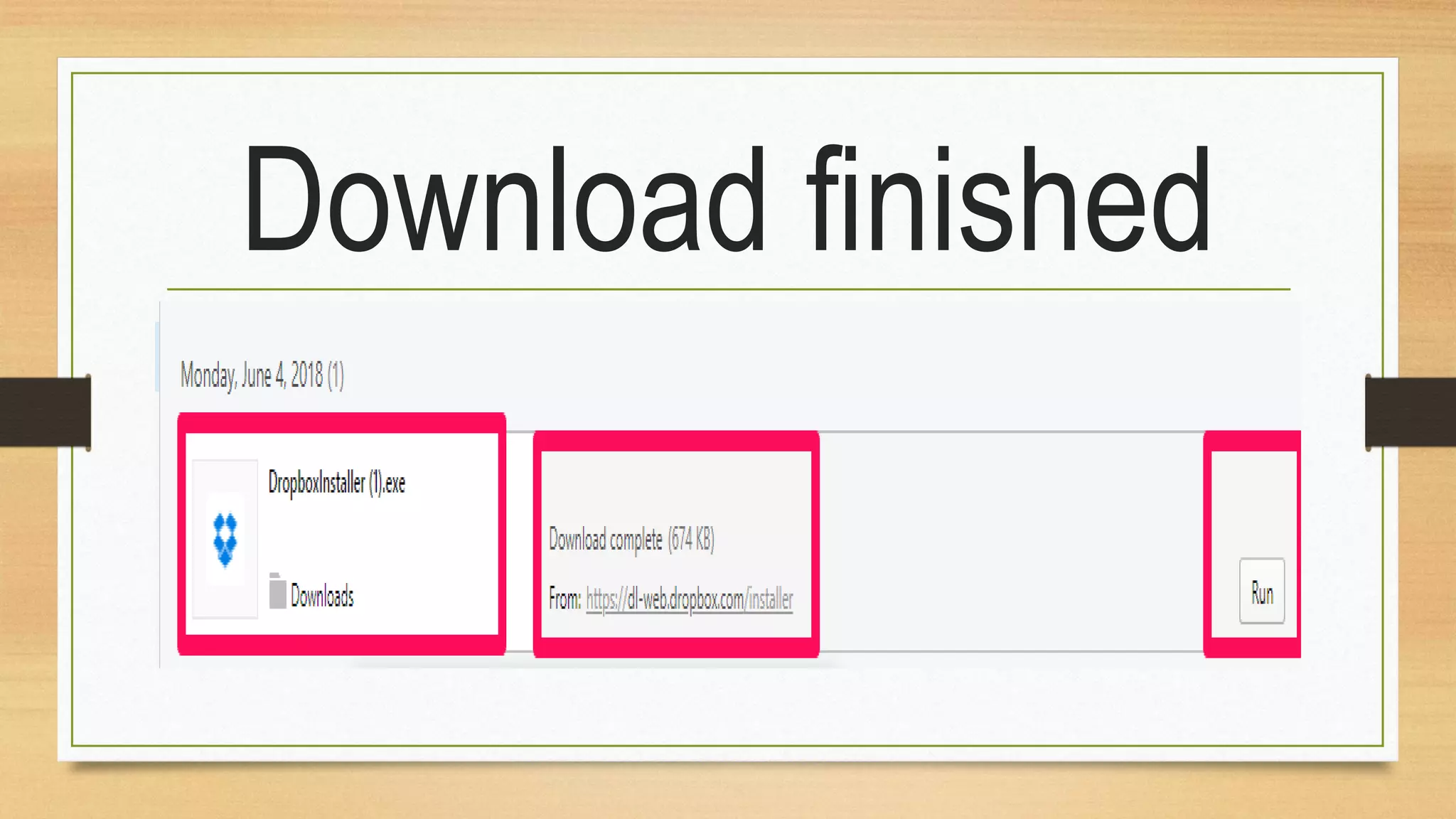
Download finished
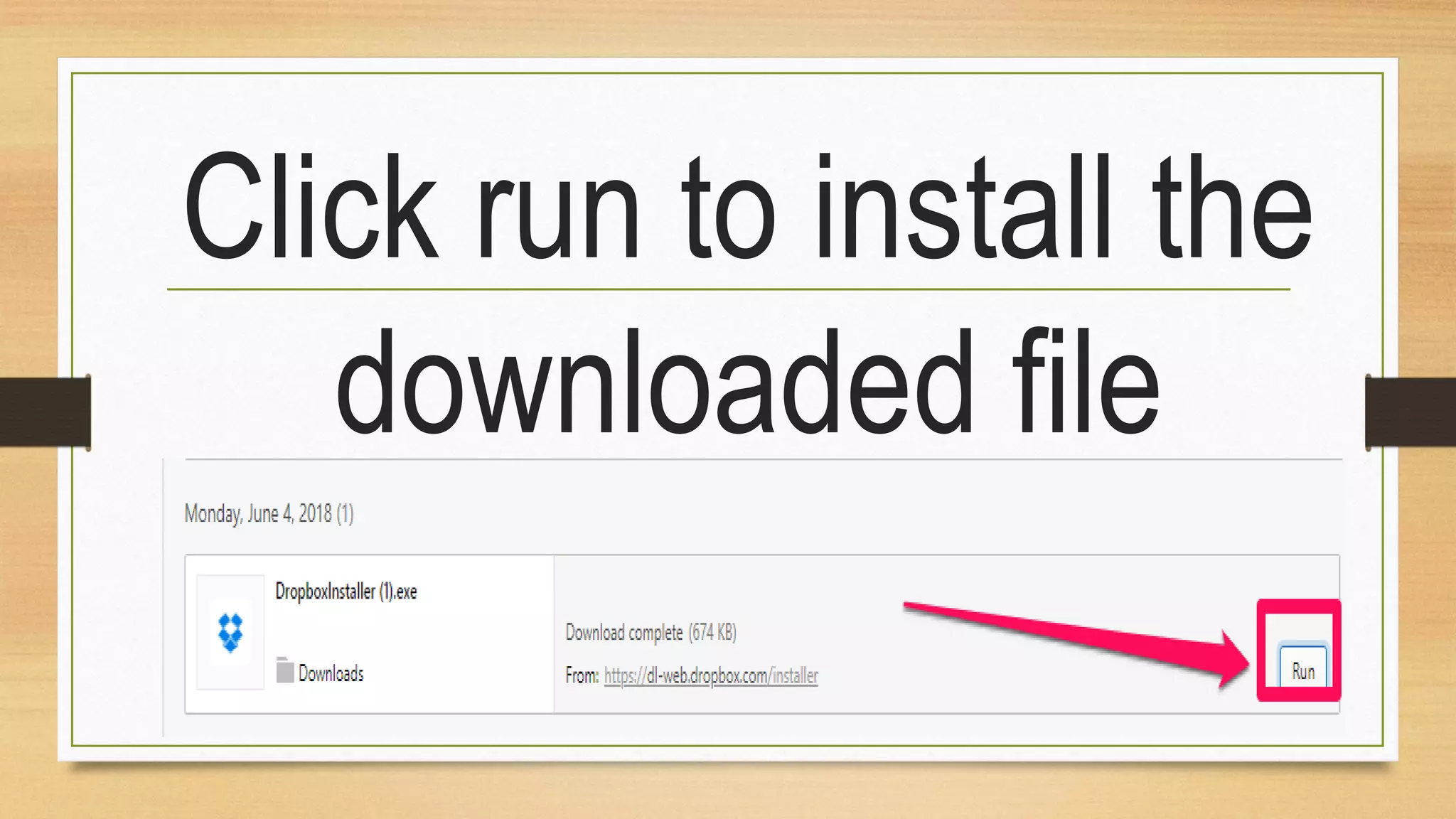
Click run to install the
downloaded file
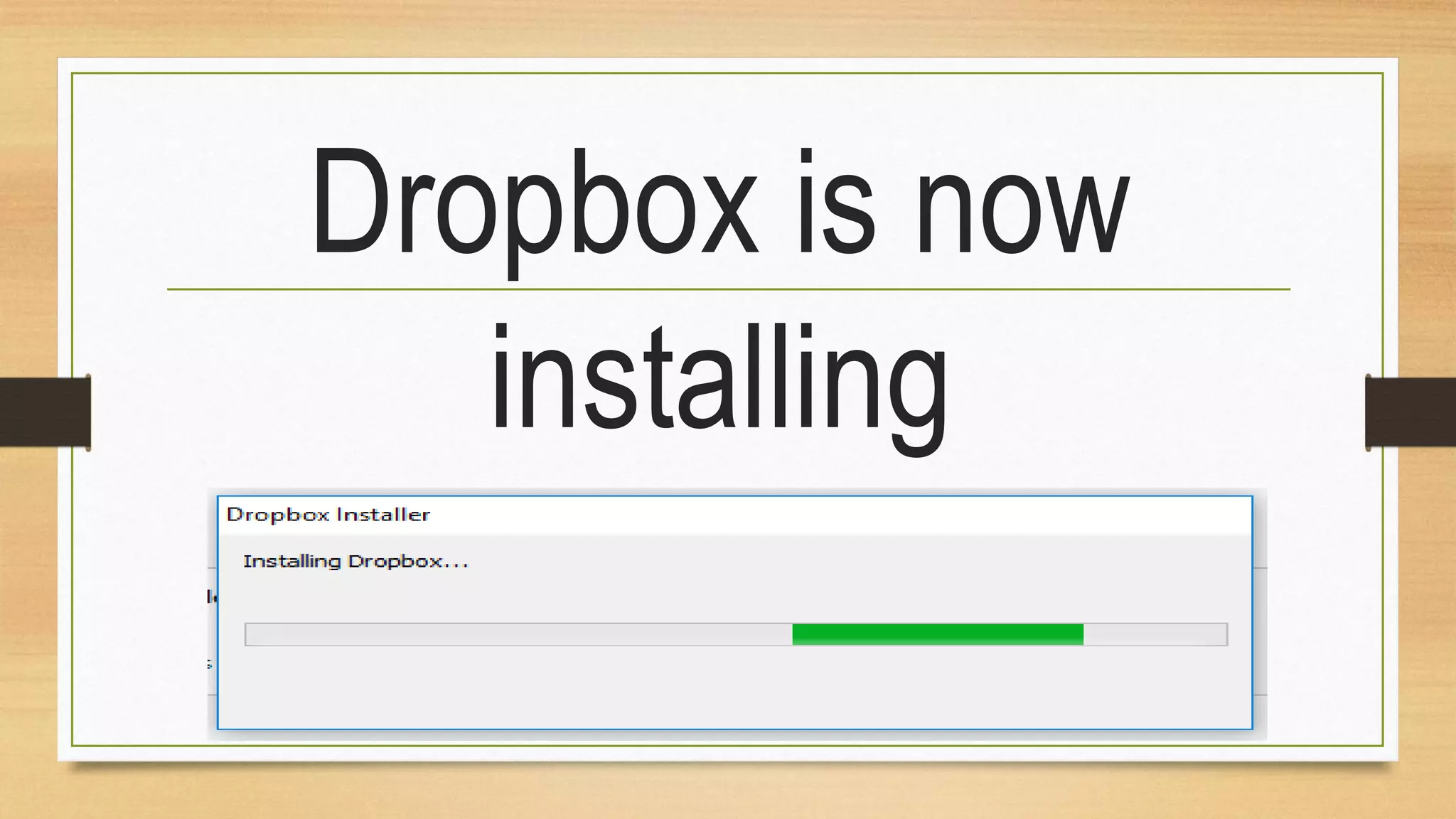
Dropbox is now
installing
Installation is done
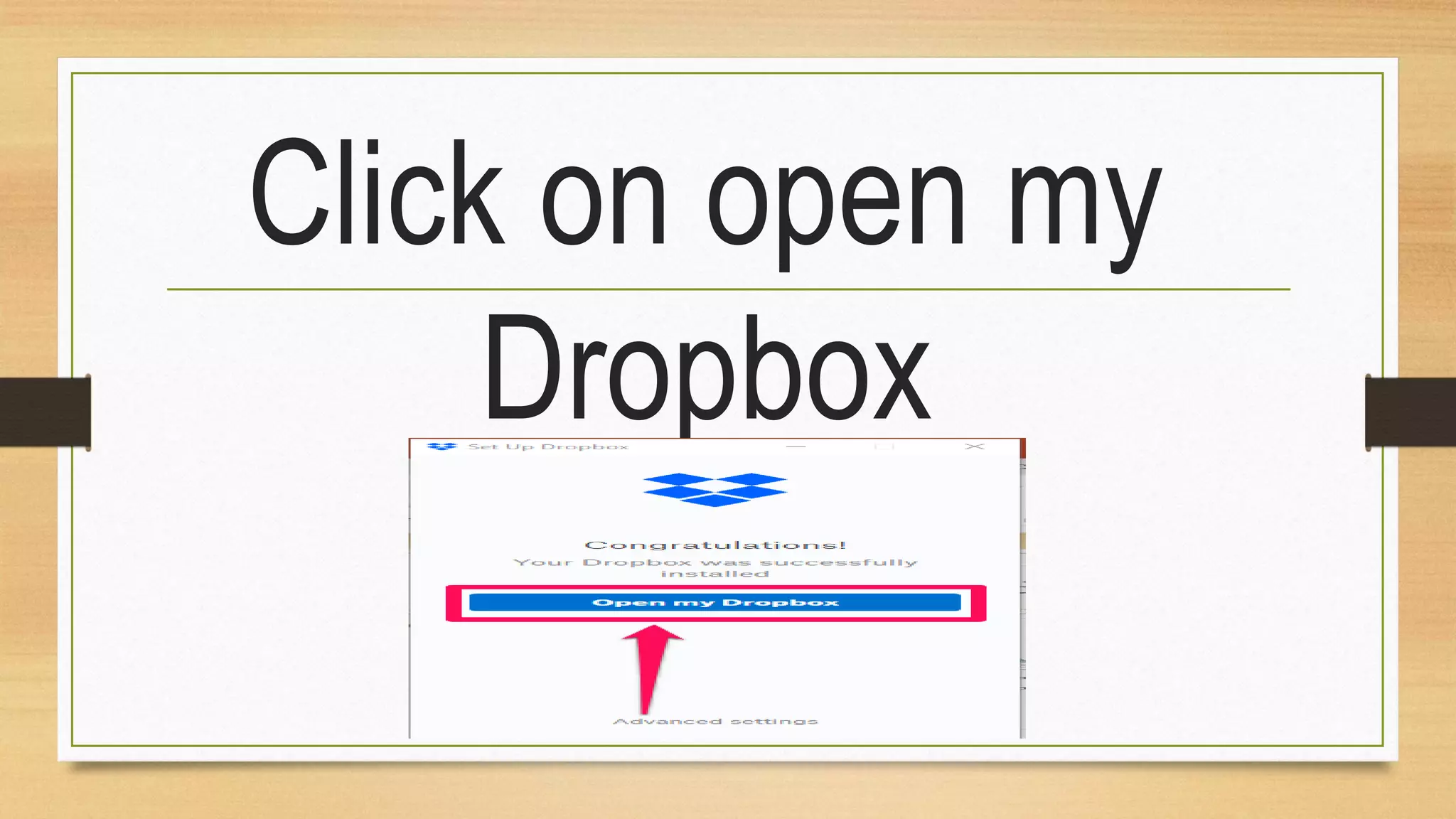
Click on open my
Dropbox
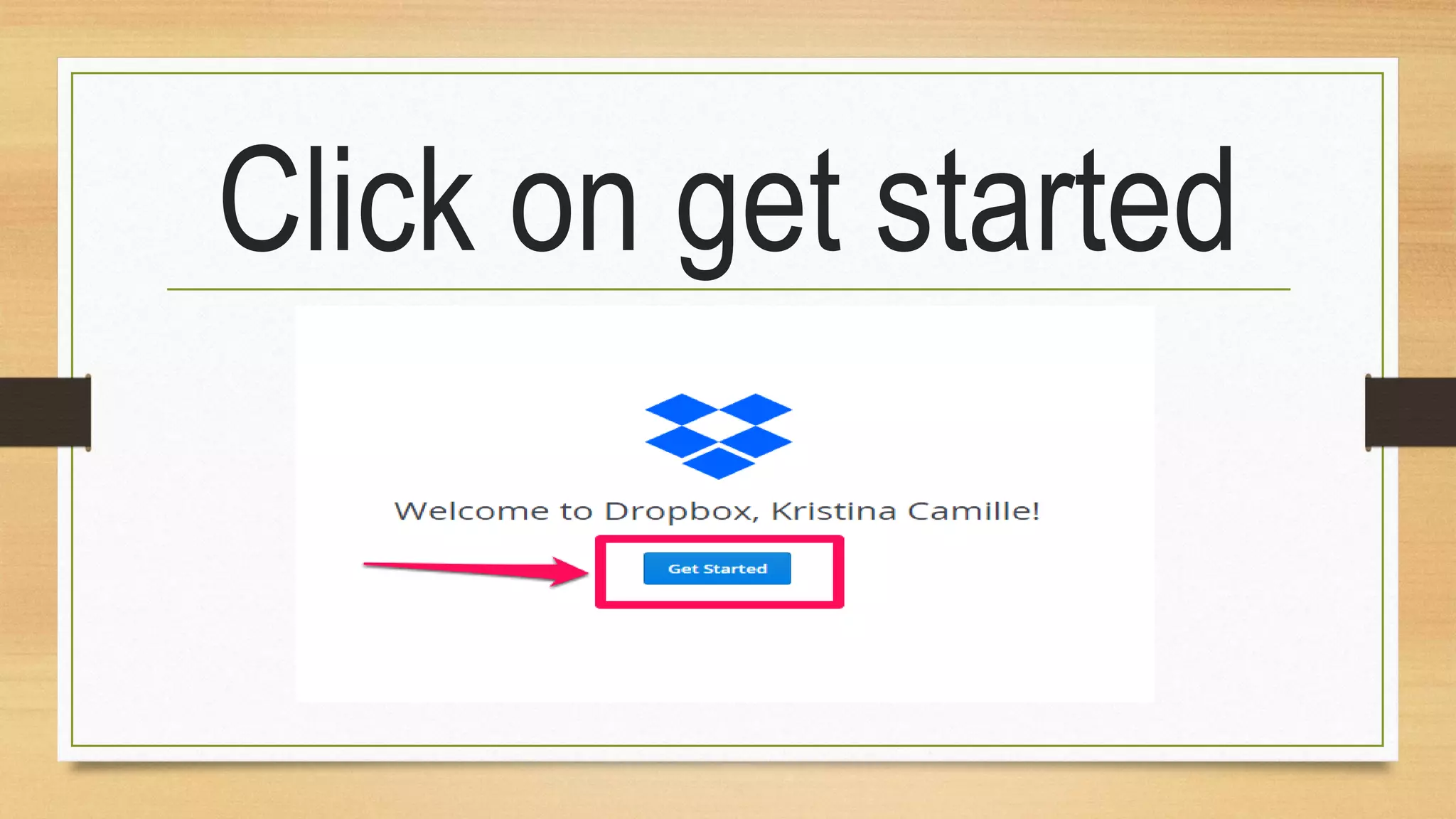
Click on get started
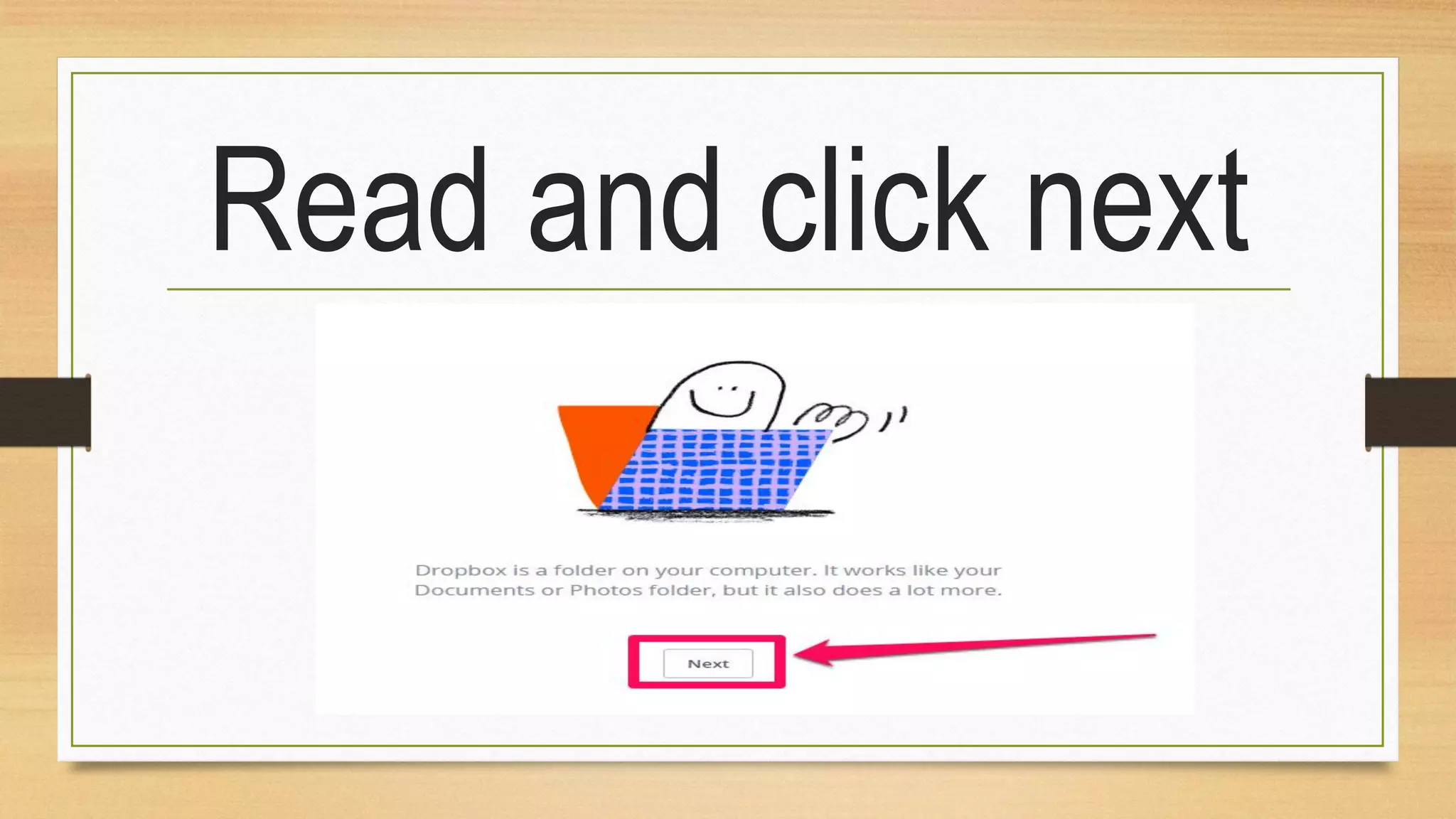
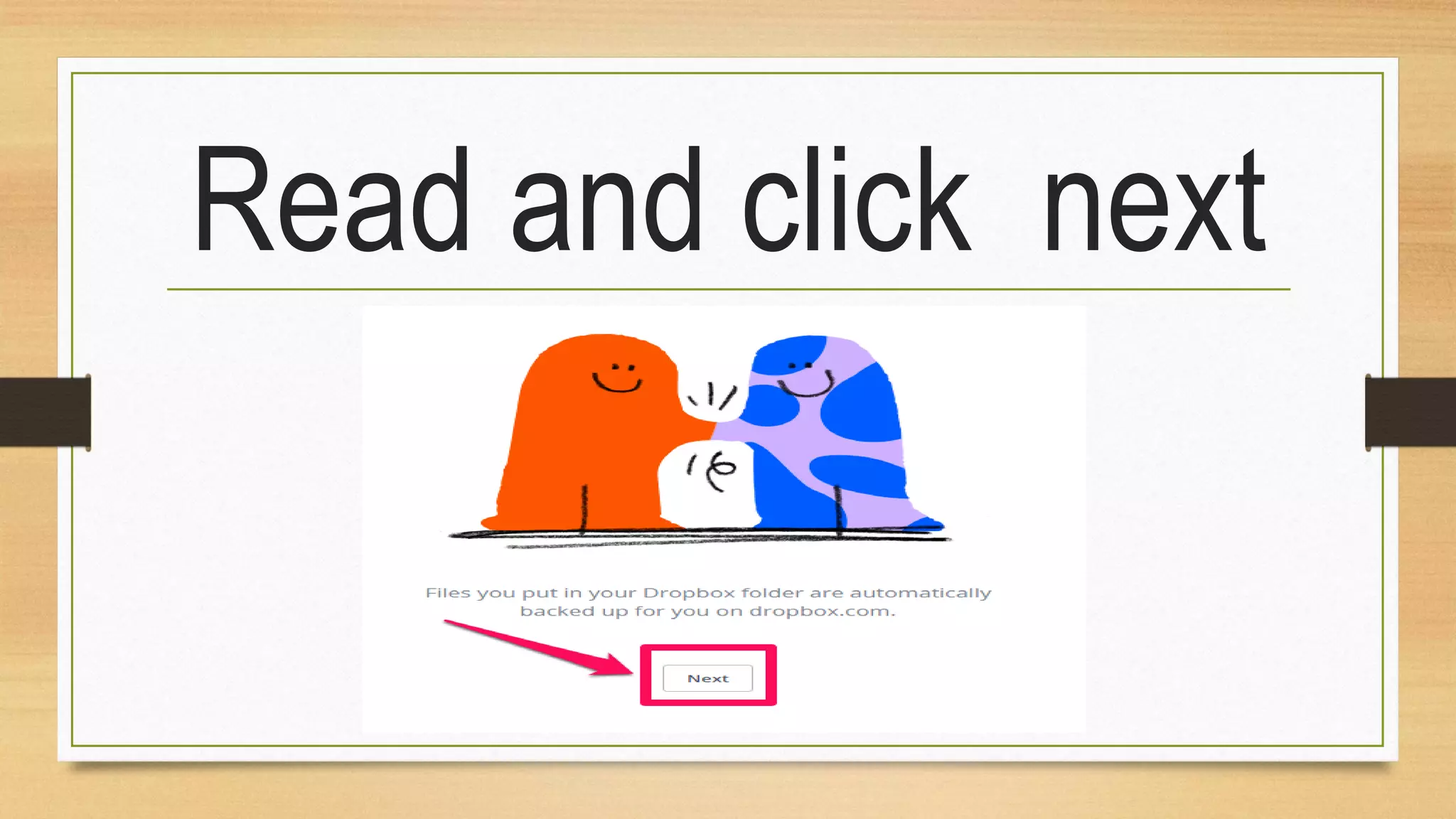
Read and click next
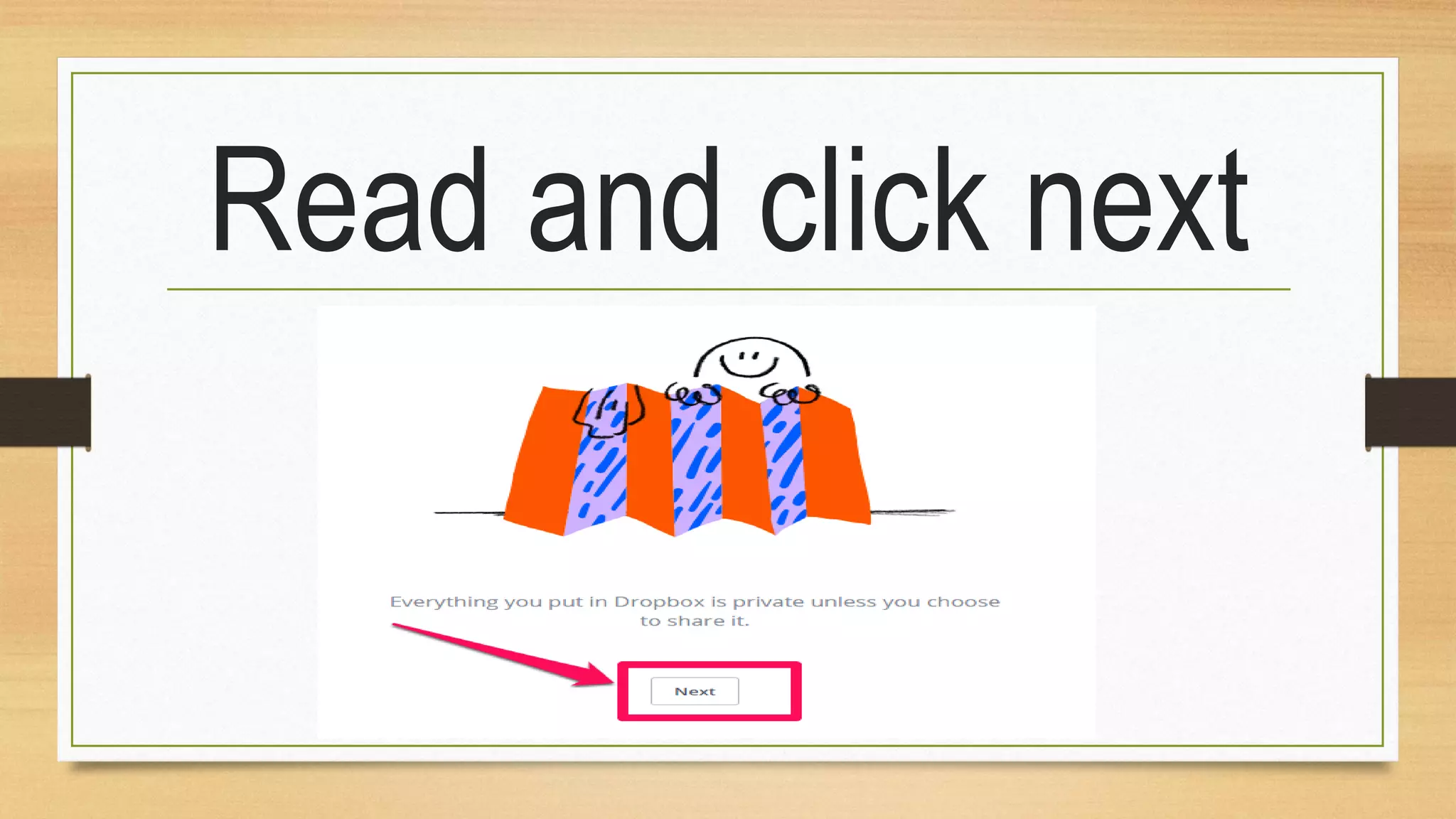
Read and click next
Read and click next
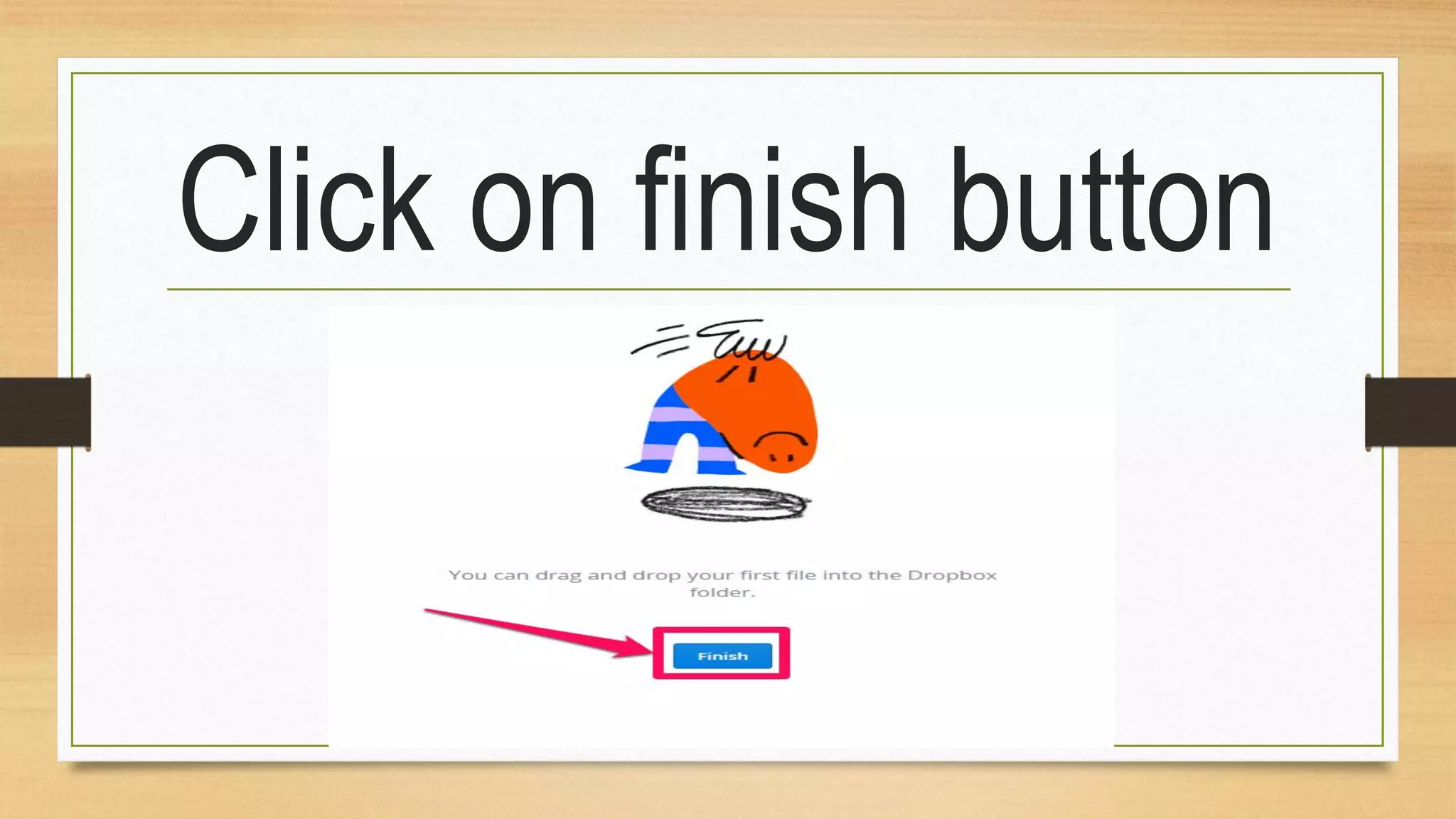
Click on finish button
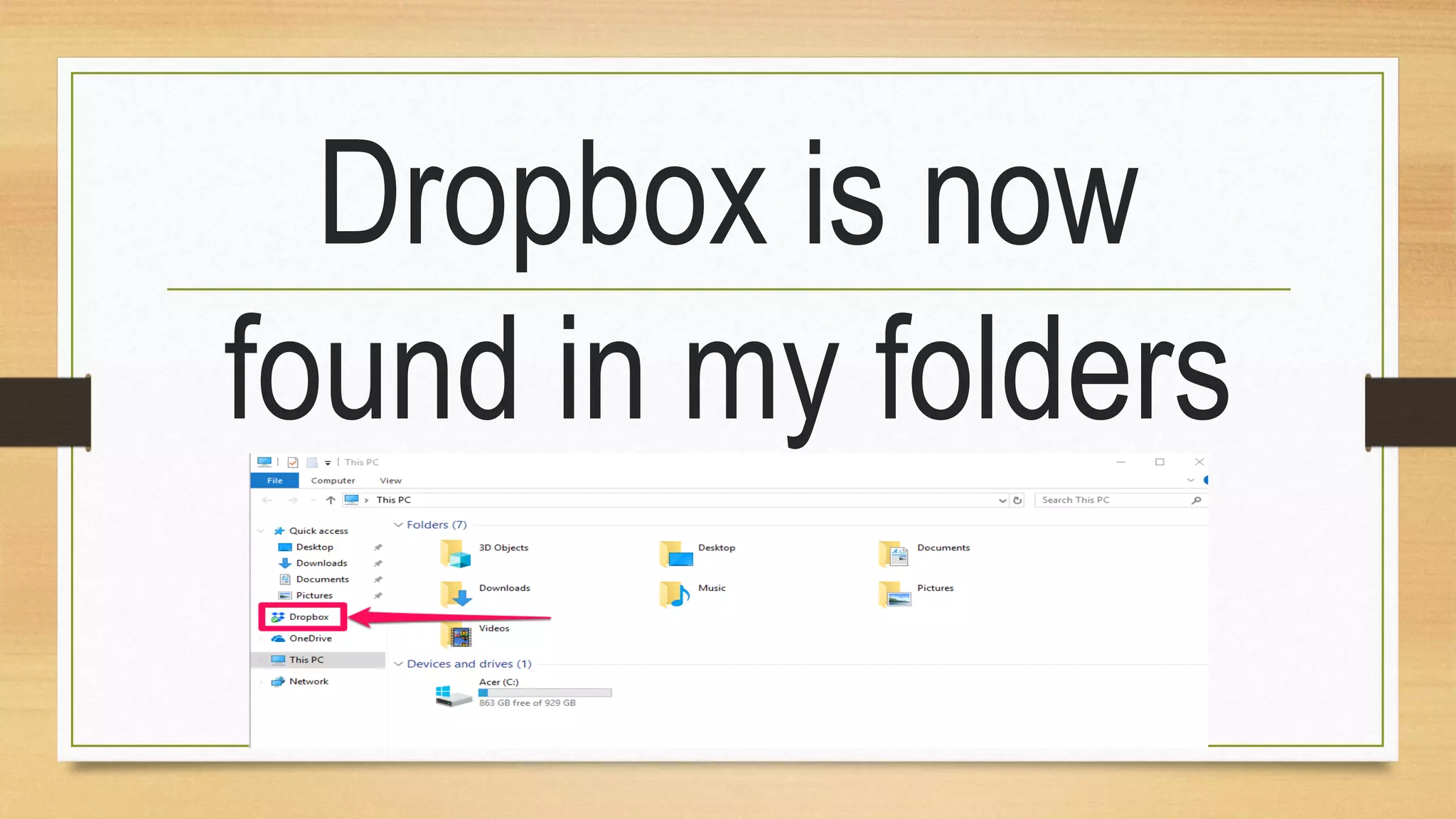
Dropbox is now
found in my folders
Verify the Dropbox
account
Log in to your email
account. I used
Gmail account
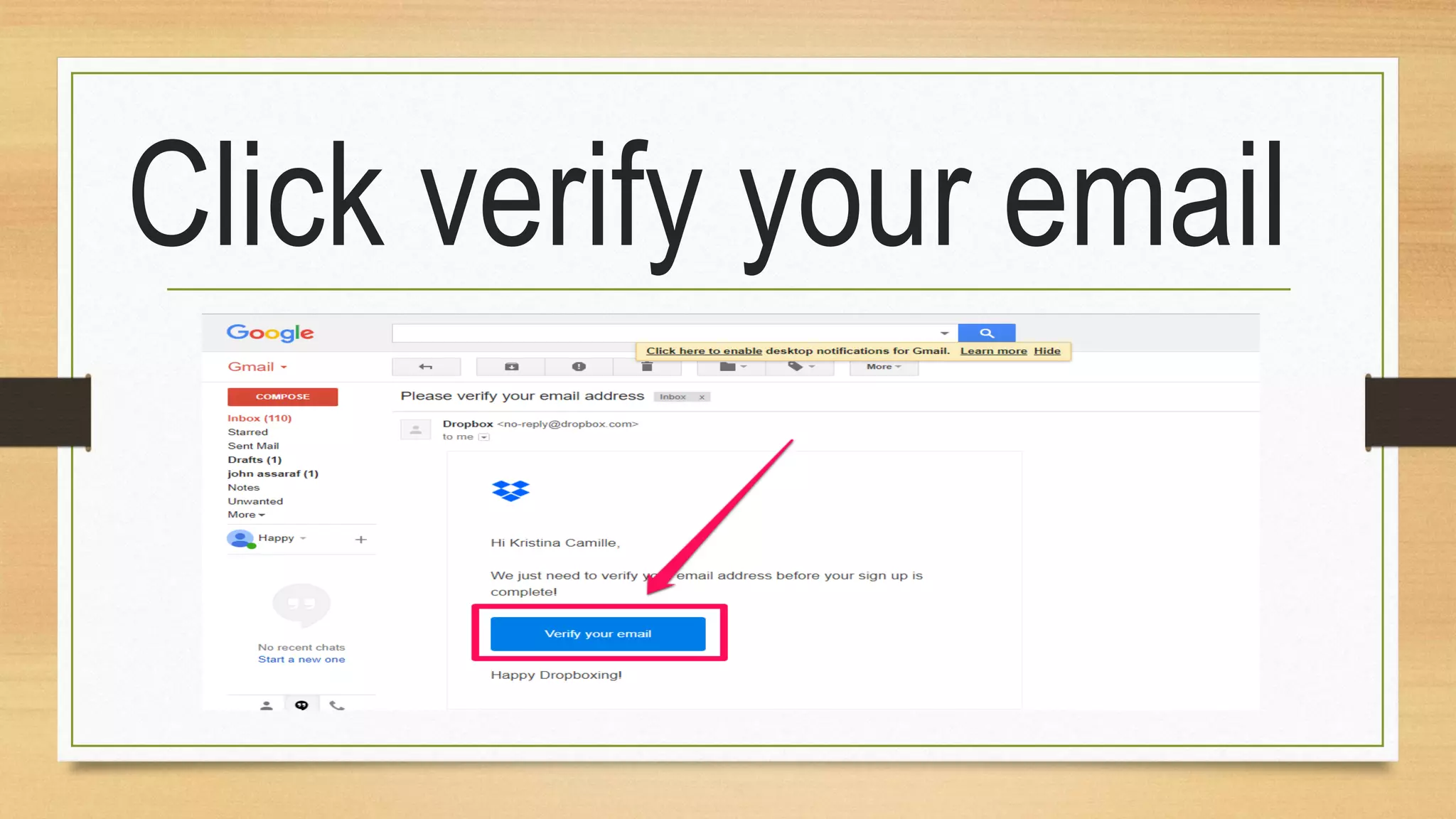
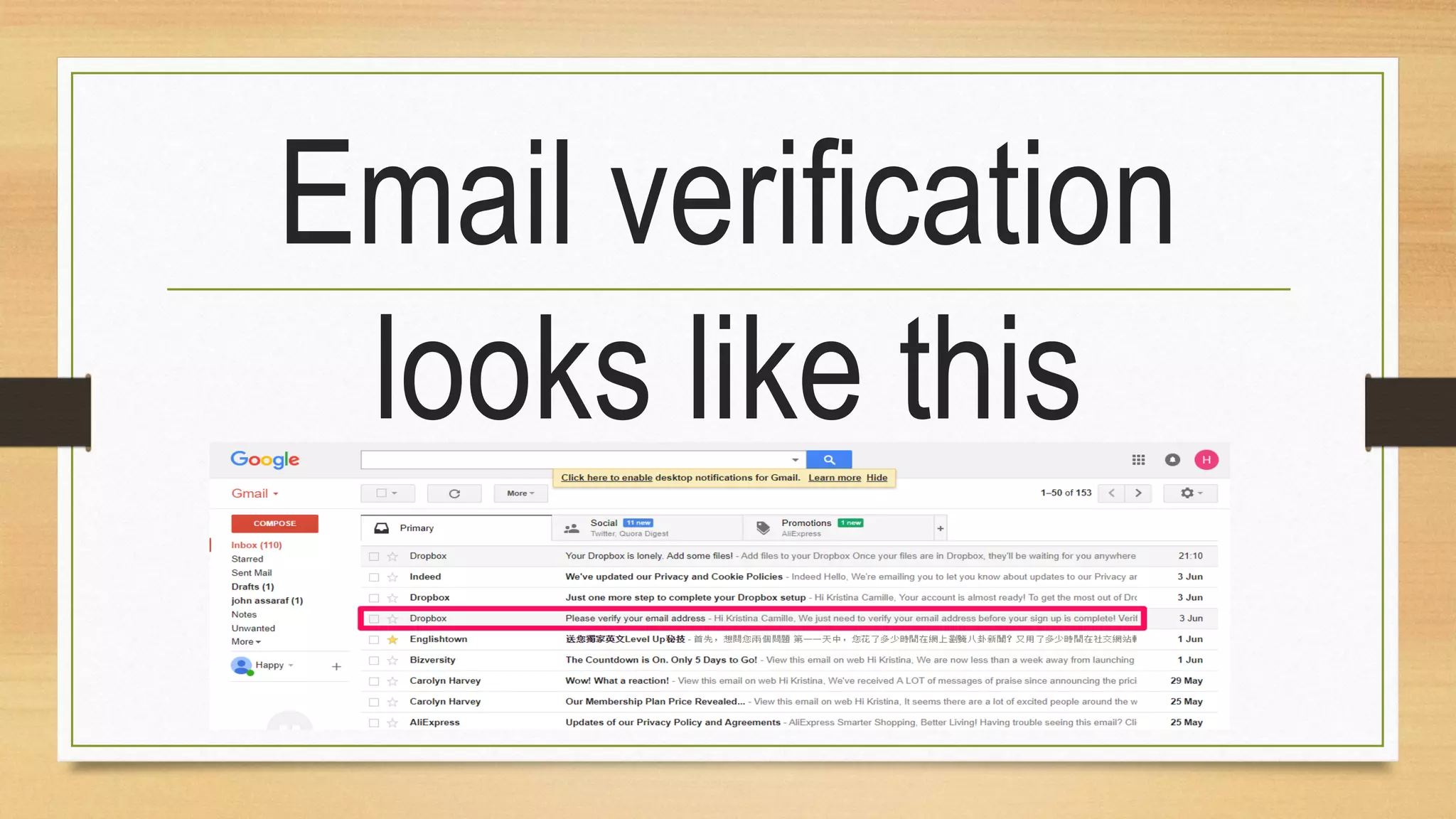
Email verification
looks like this
Click to open
Click verify your email
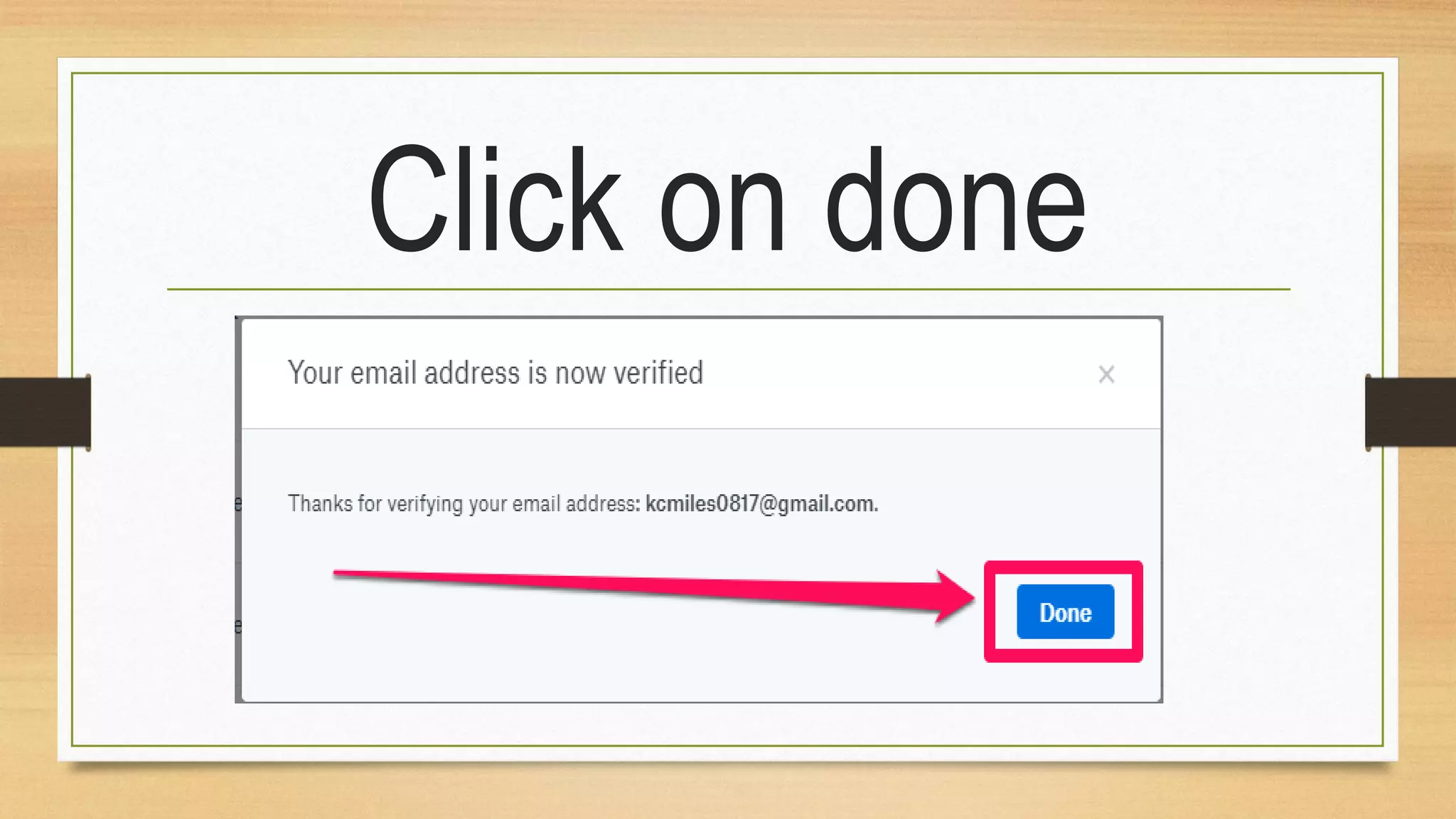
Click on done
We just verified your
dropbox account
Adding or Uploading
a file and a folder
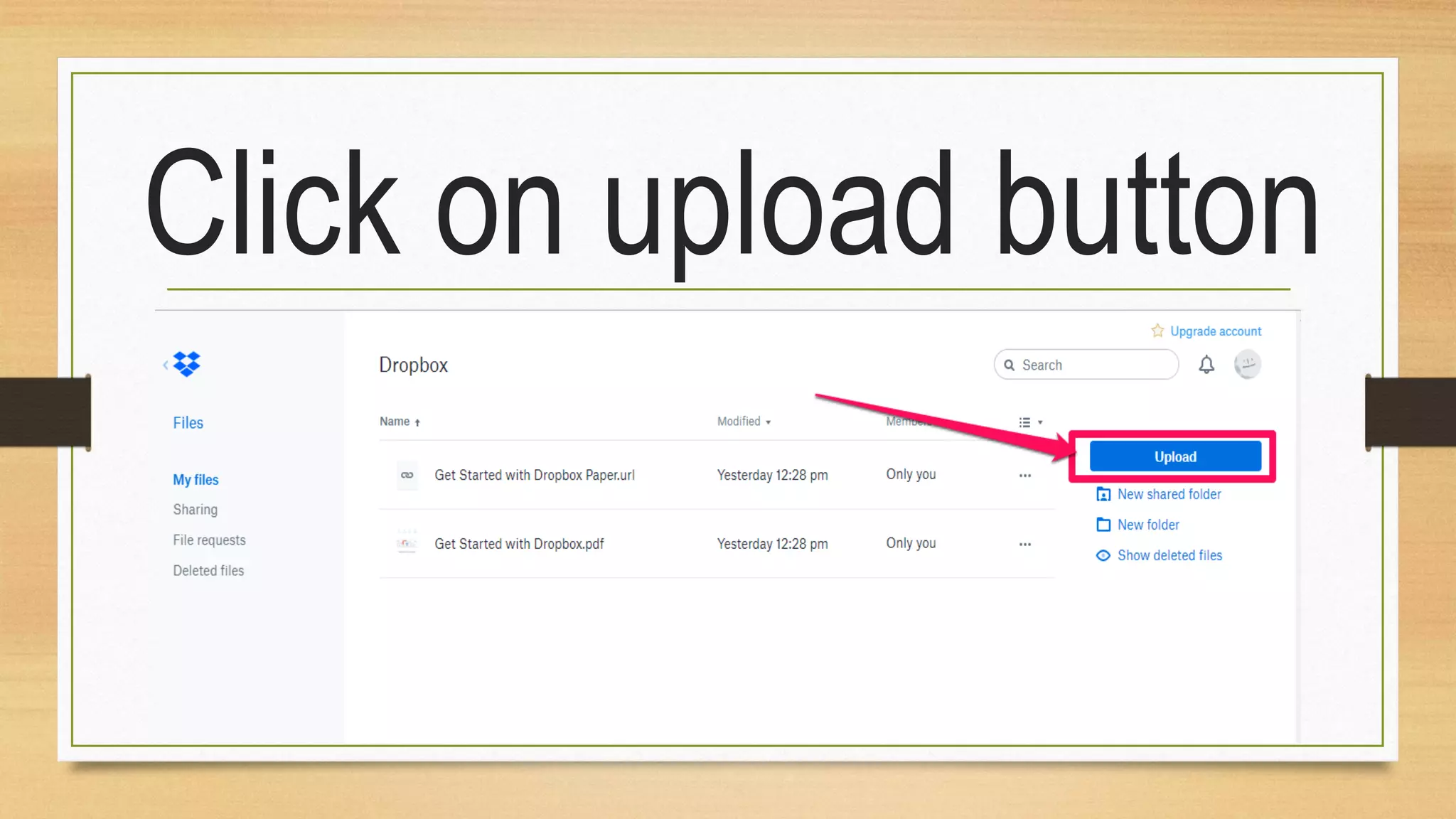
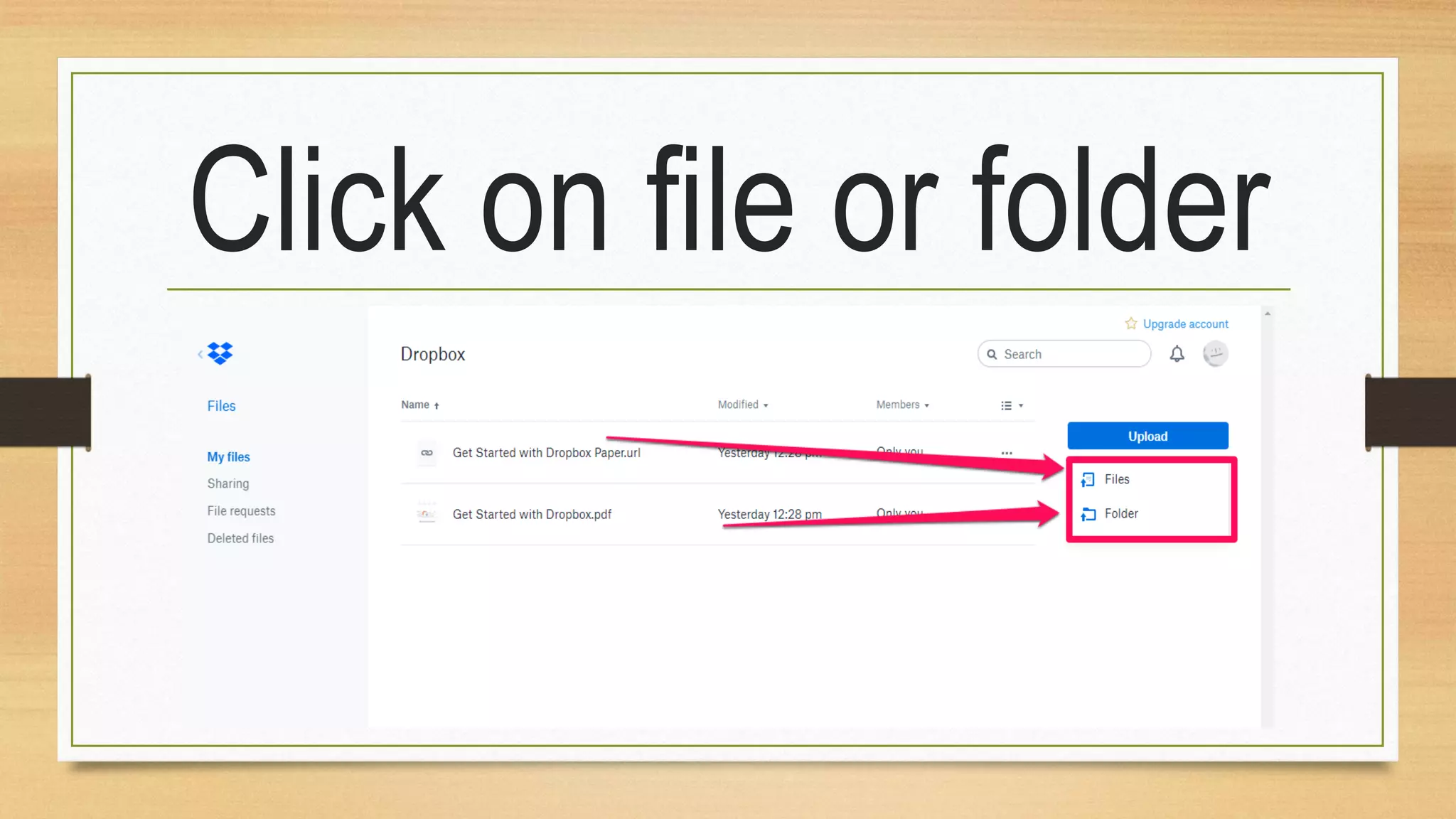
Click on upload button
Click on file or folder
I will upload a file
first
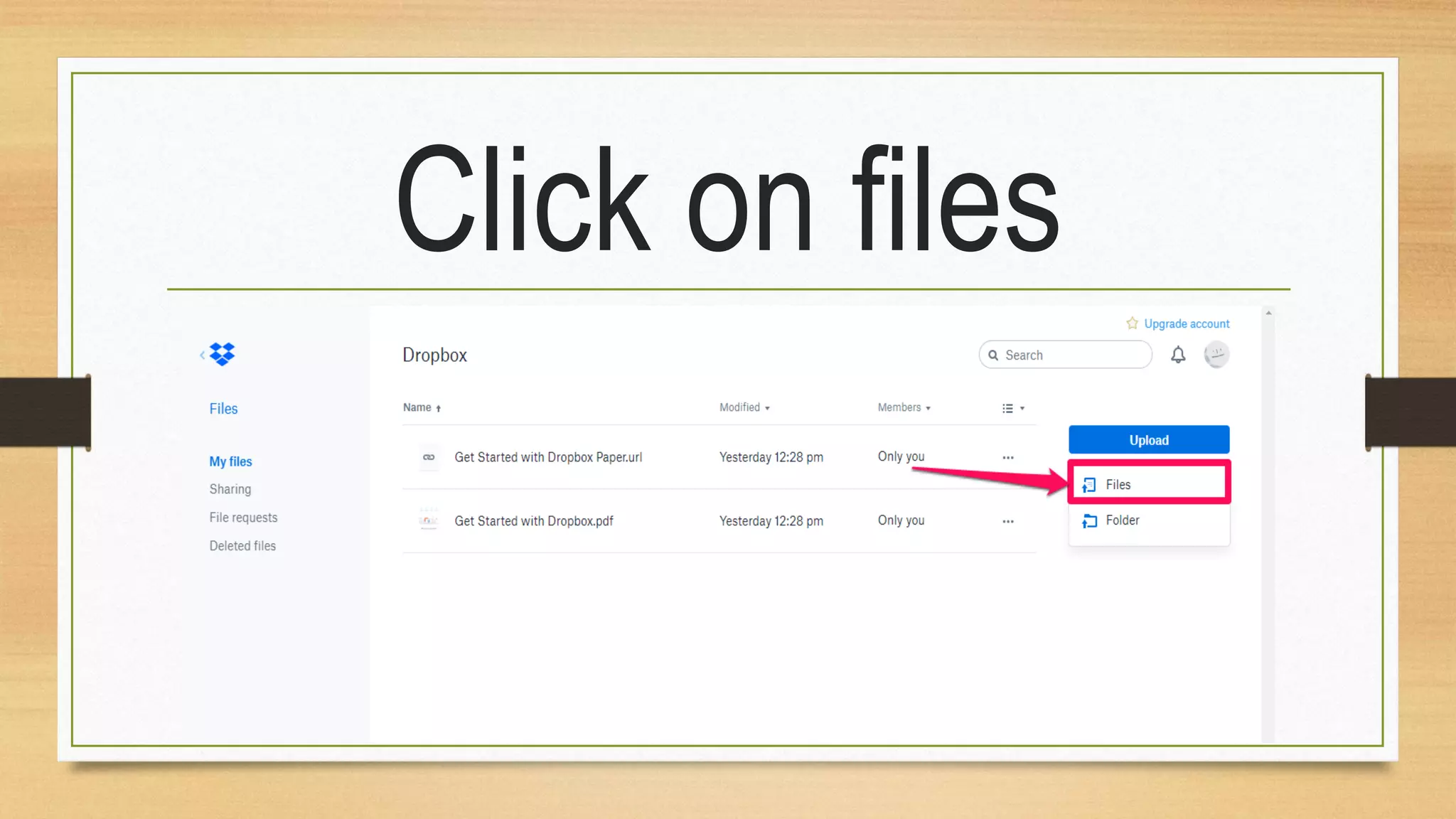
Click on files
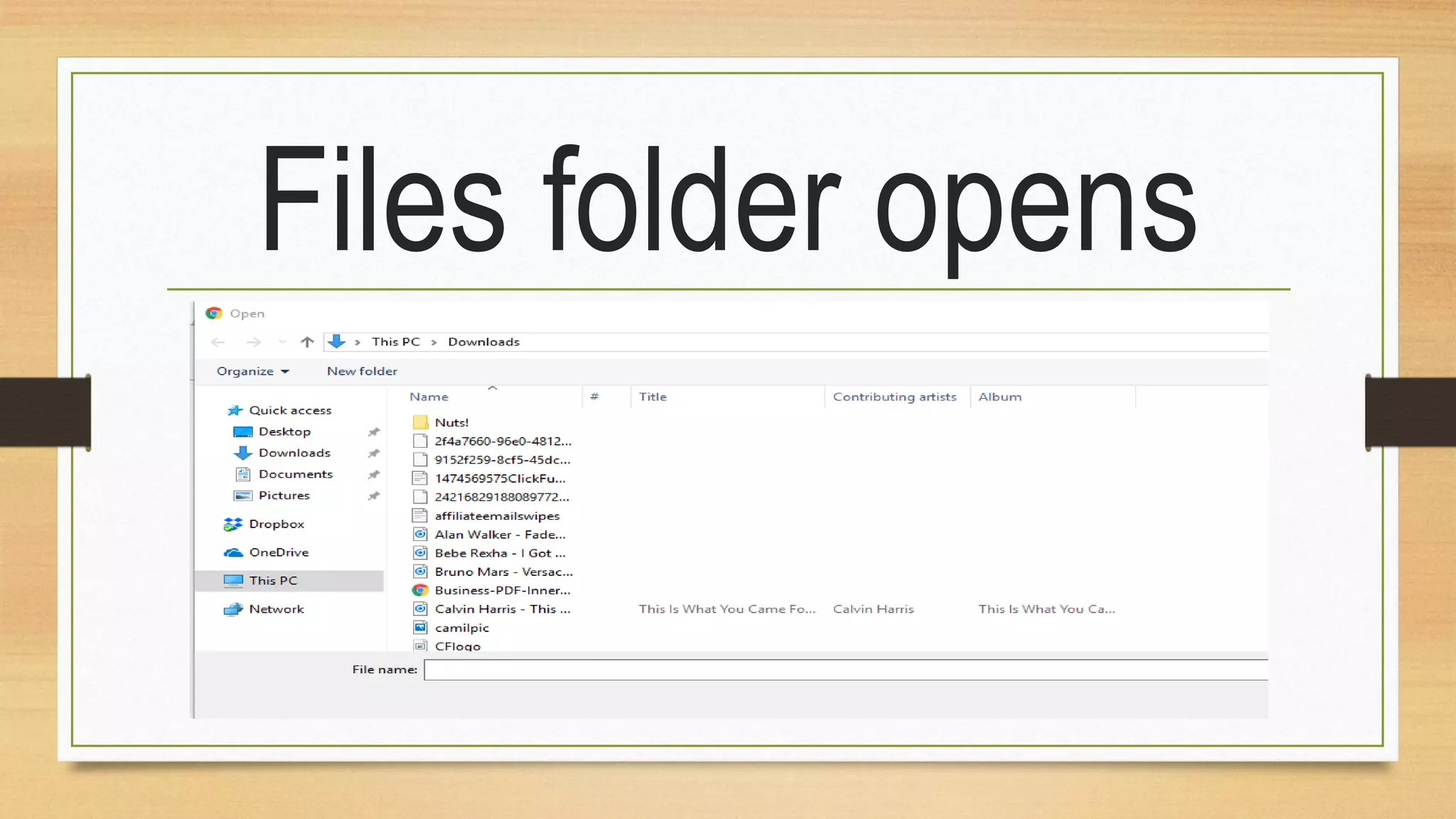
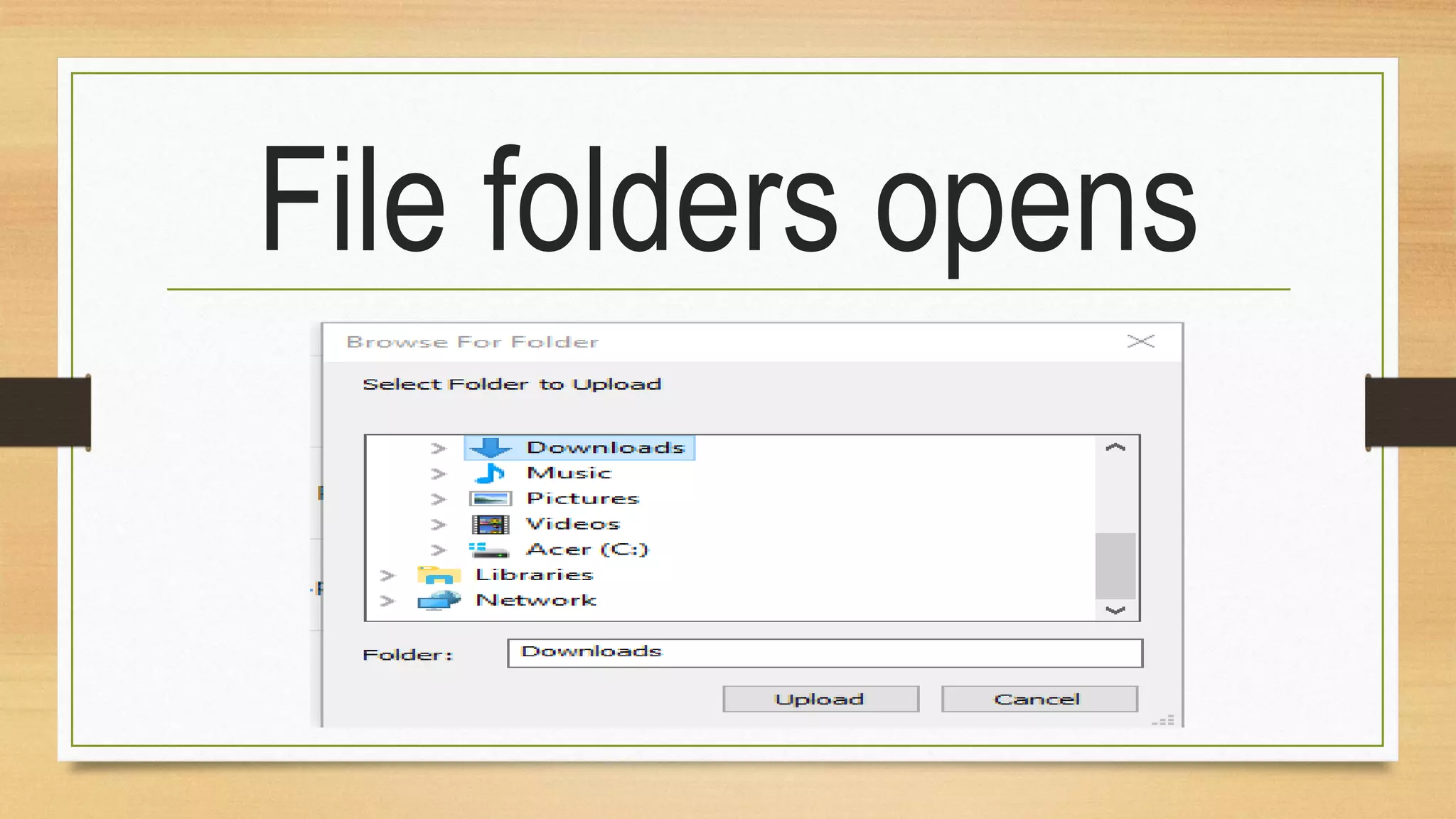
Files folder opens
Choose a file you
want to upload
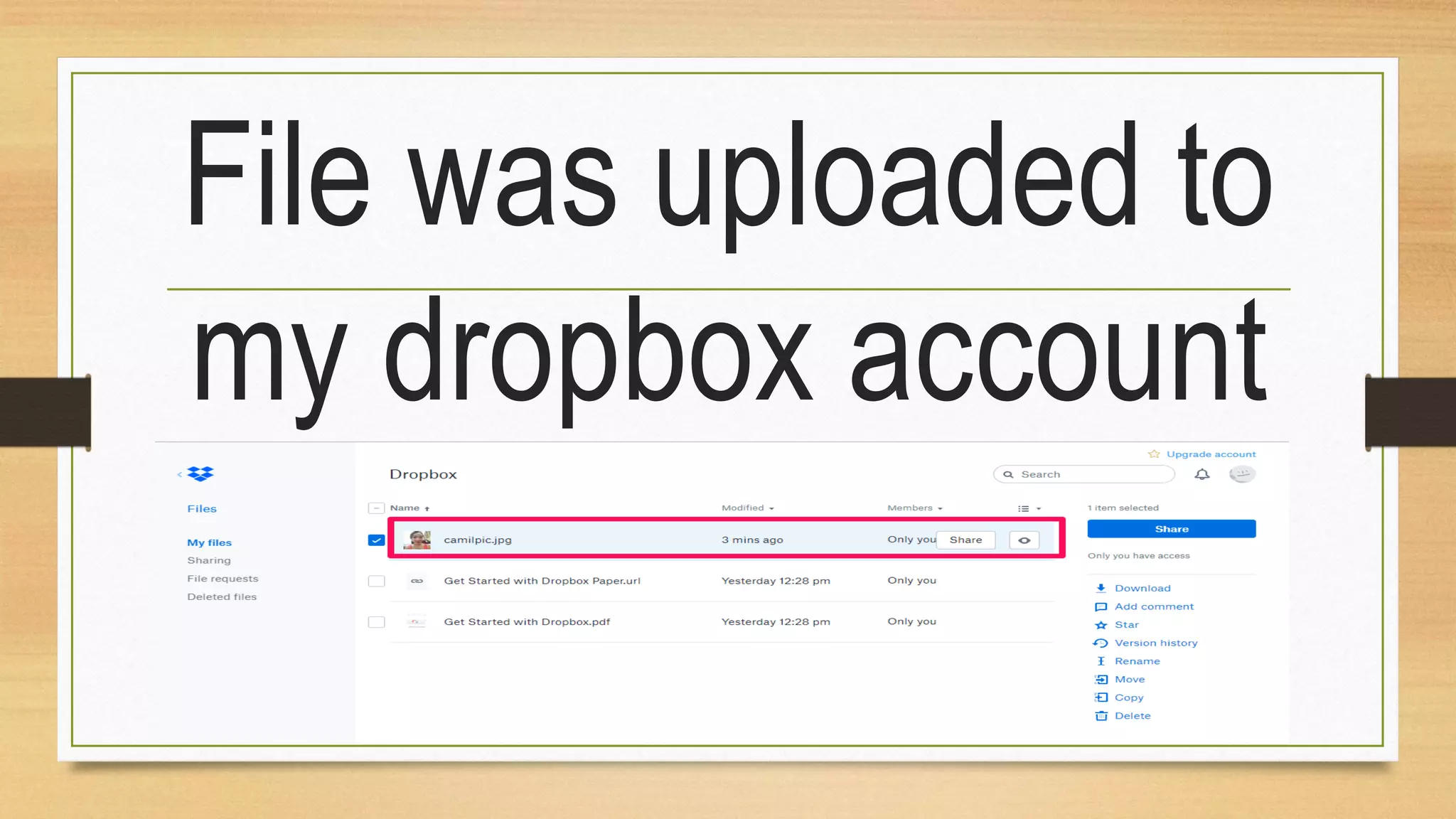
File was uploaded to
my dropbox account
Choose to upload a
folder
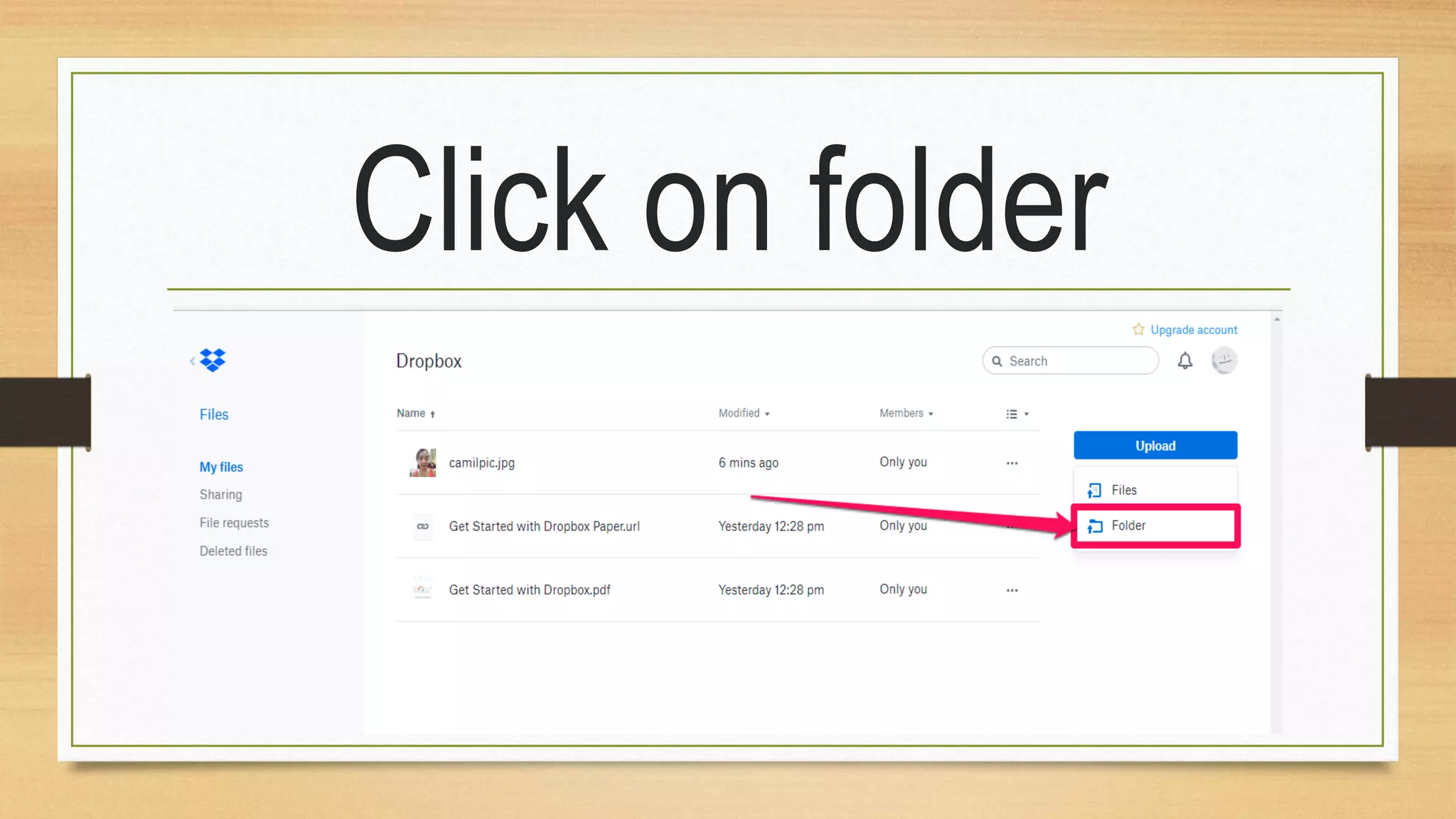
Click on folder
File folders opens
Choose a folder to
upload
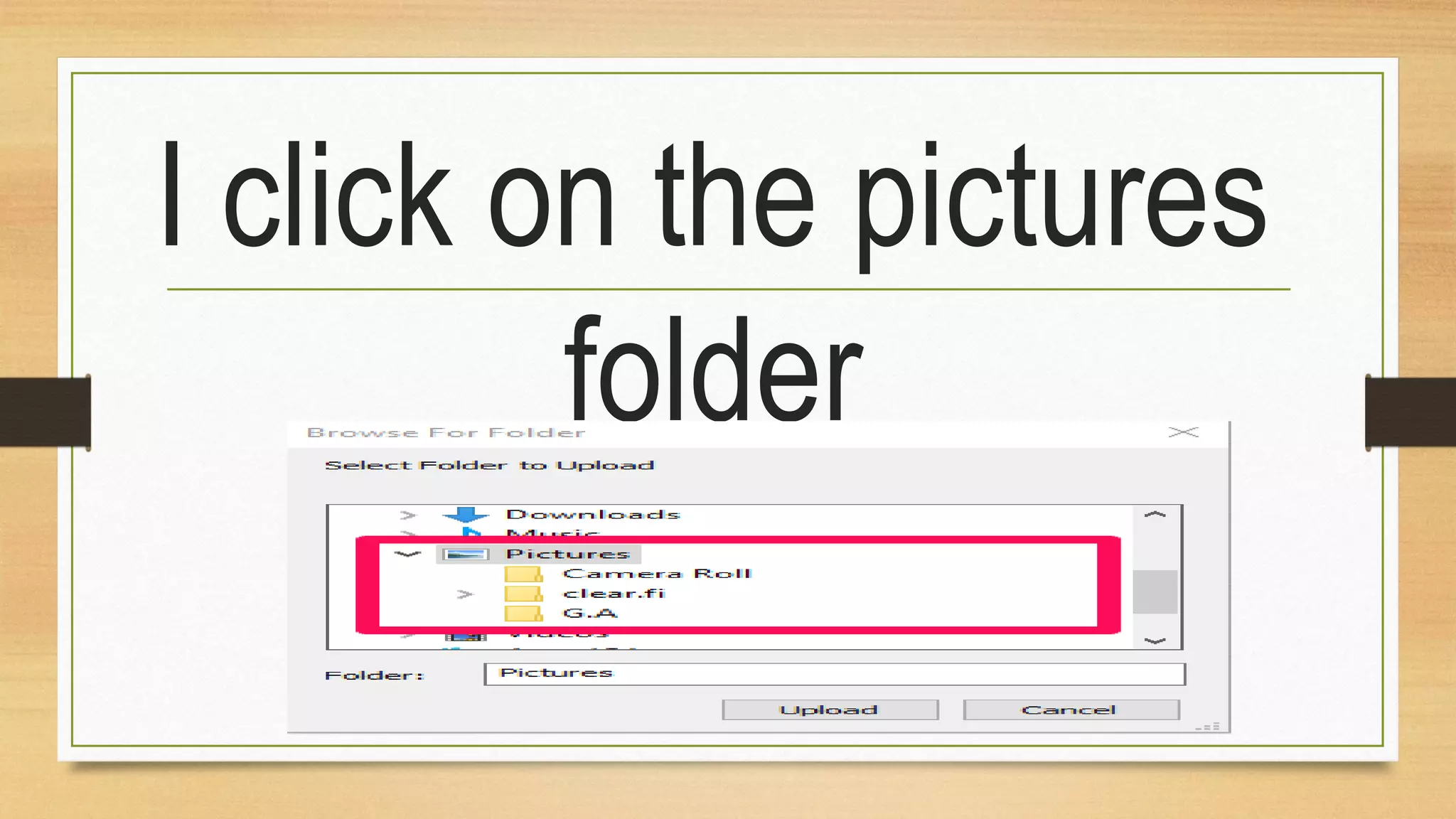
I click on the pictures
folder
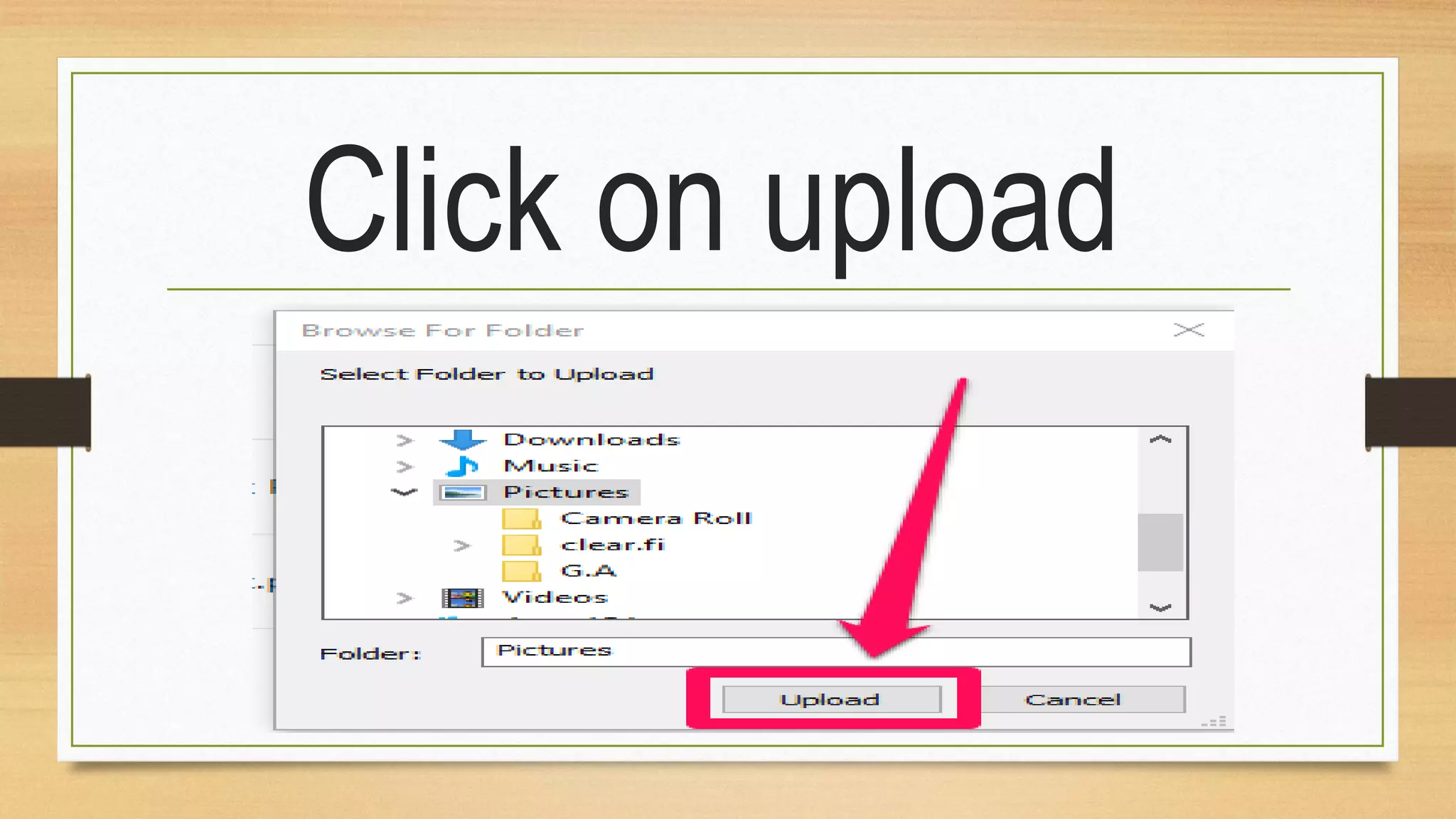
Click on upload
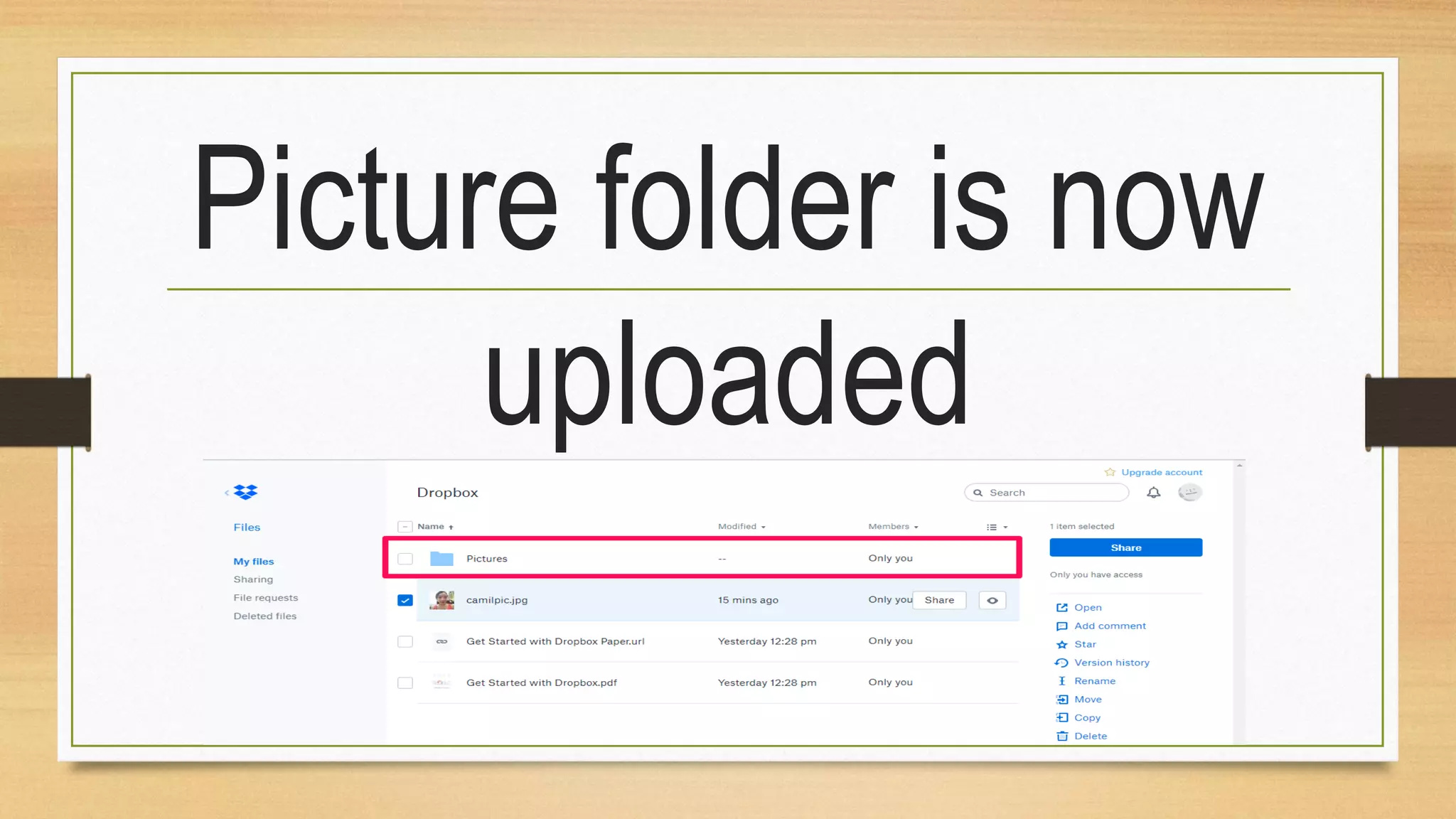
Picture folder is now
uploaded
Sharing a link
Select a file you
want to share
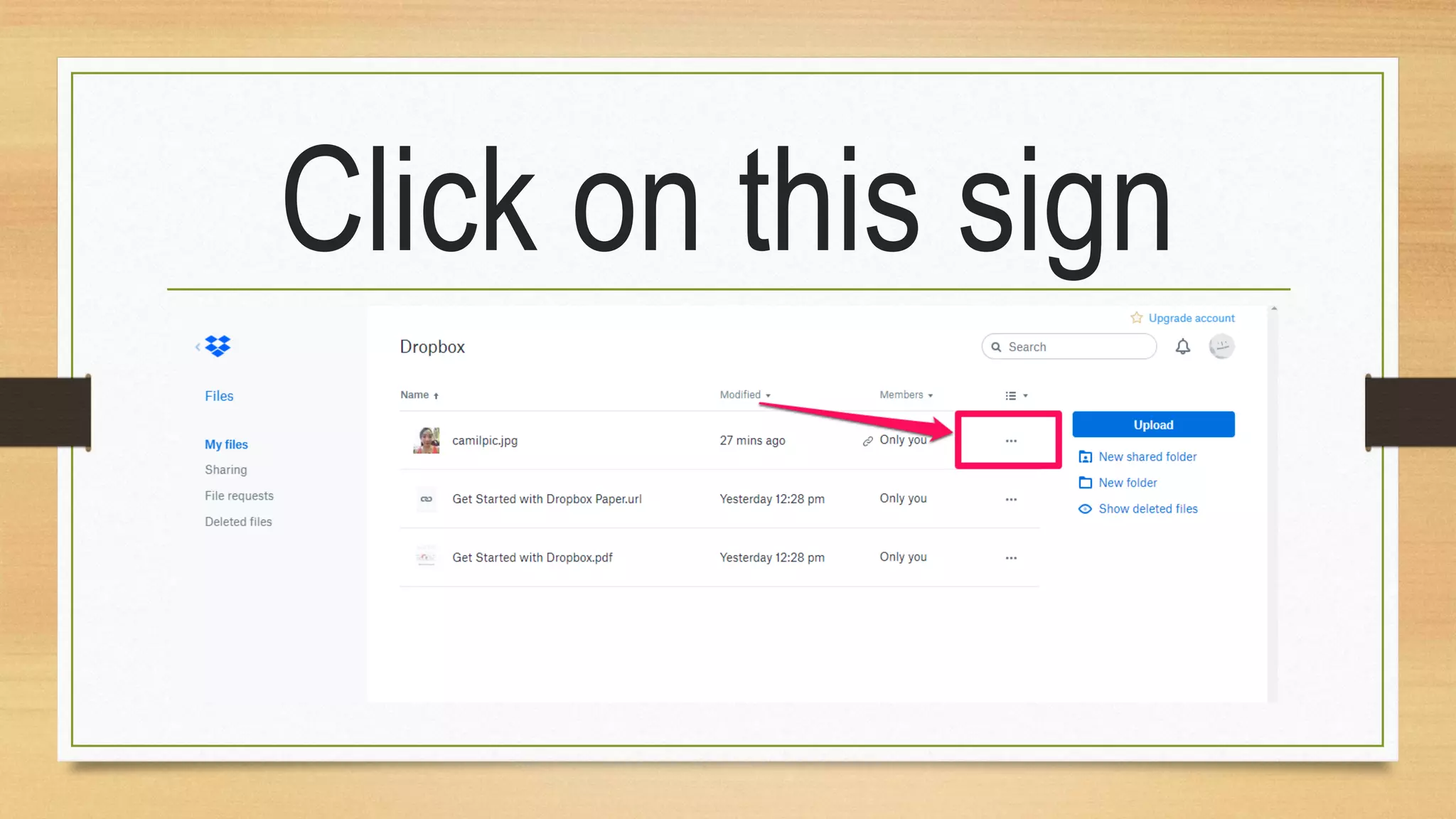
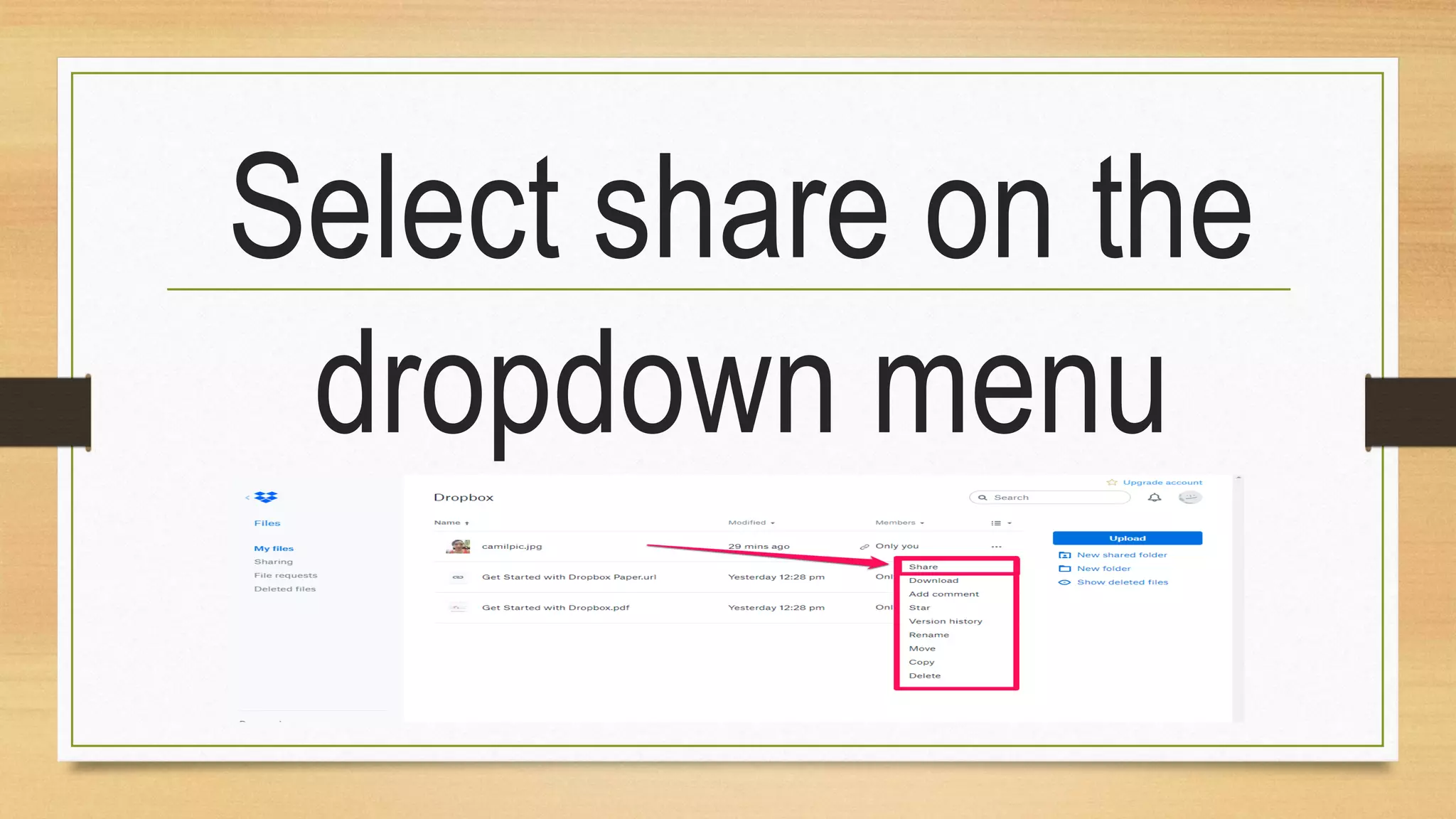
Click on this sign
Select share on the
dropdown menu
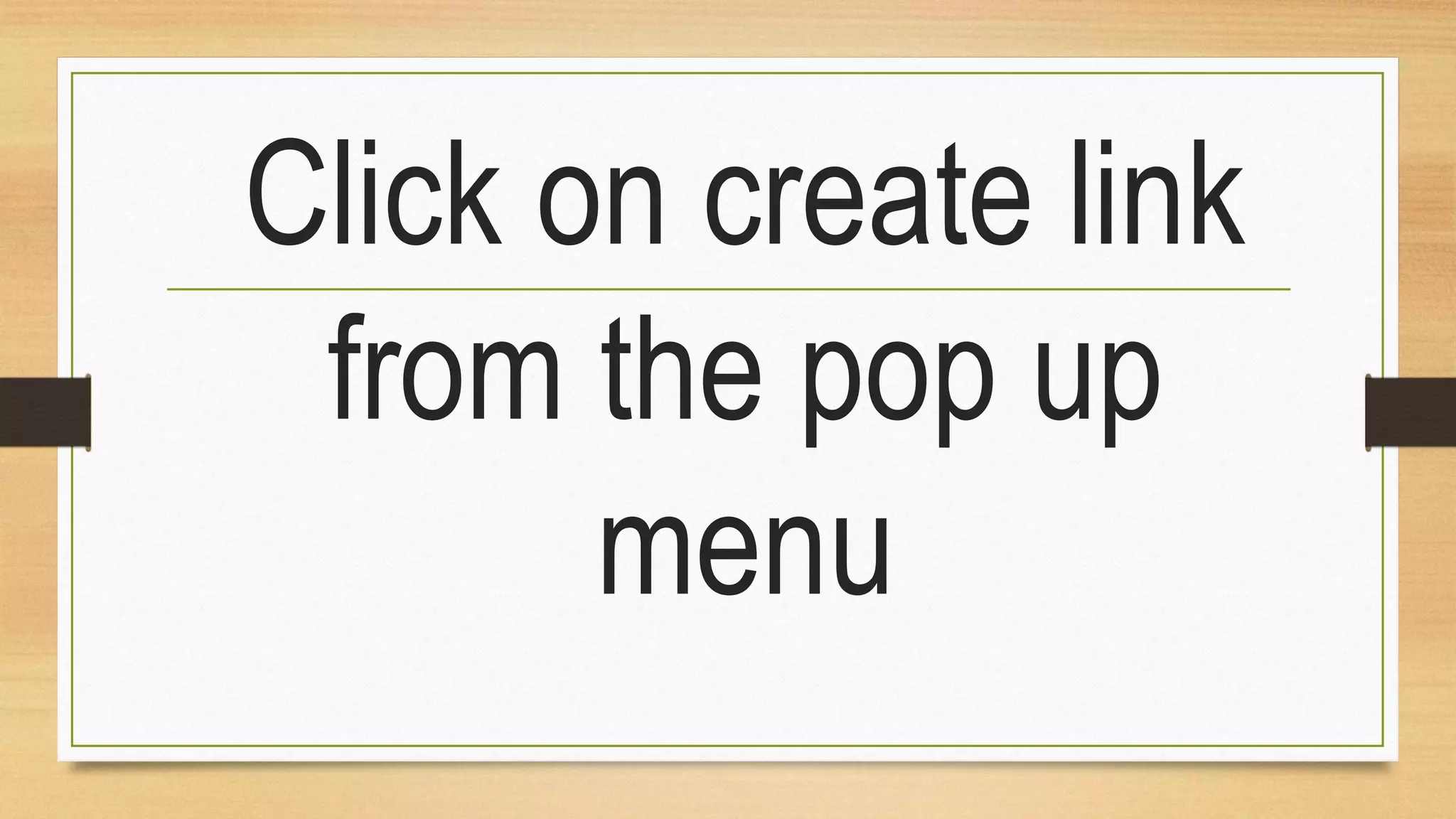
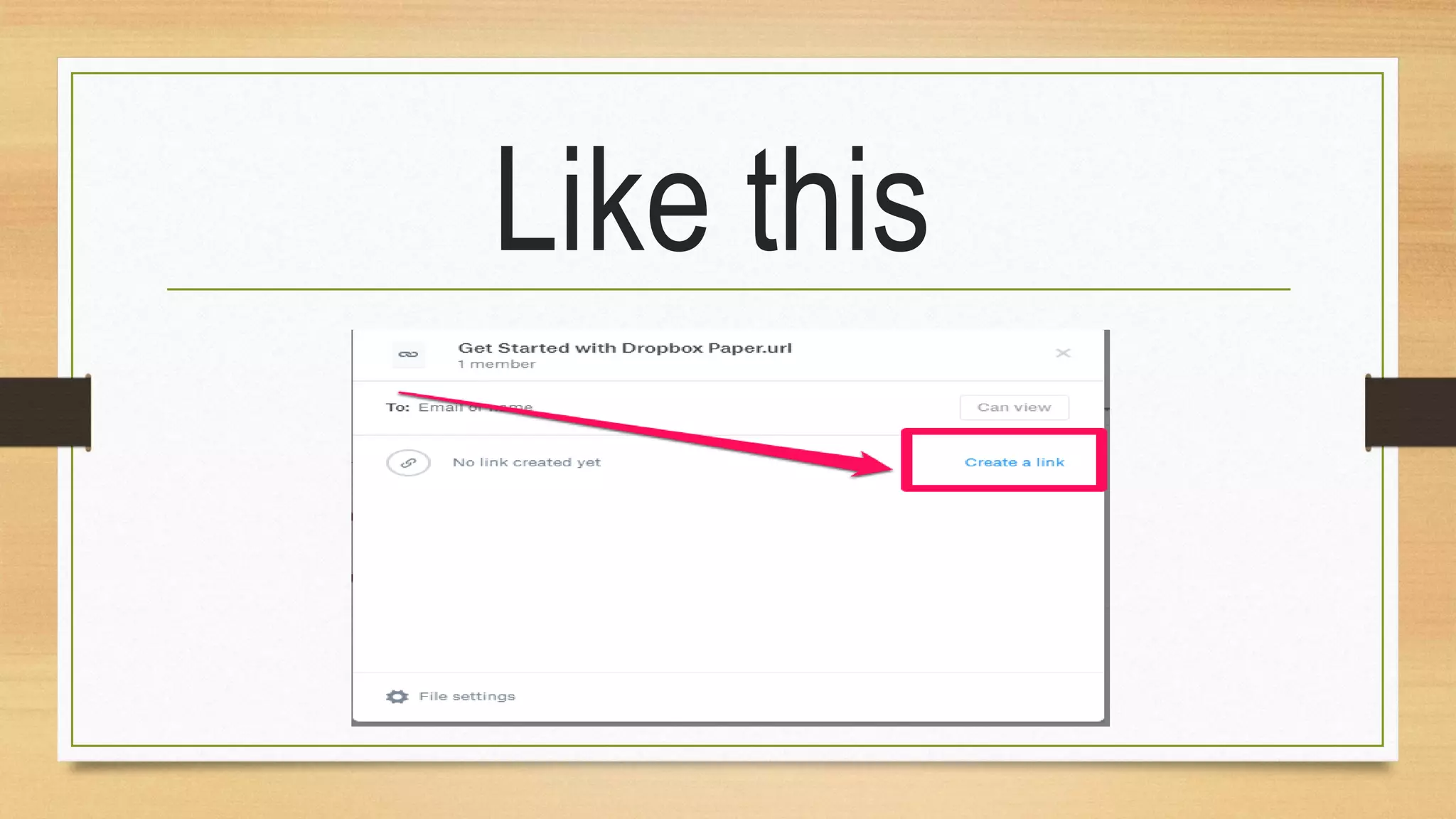
Click on create link
from the pop up
menu
Like this
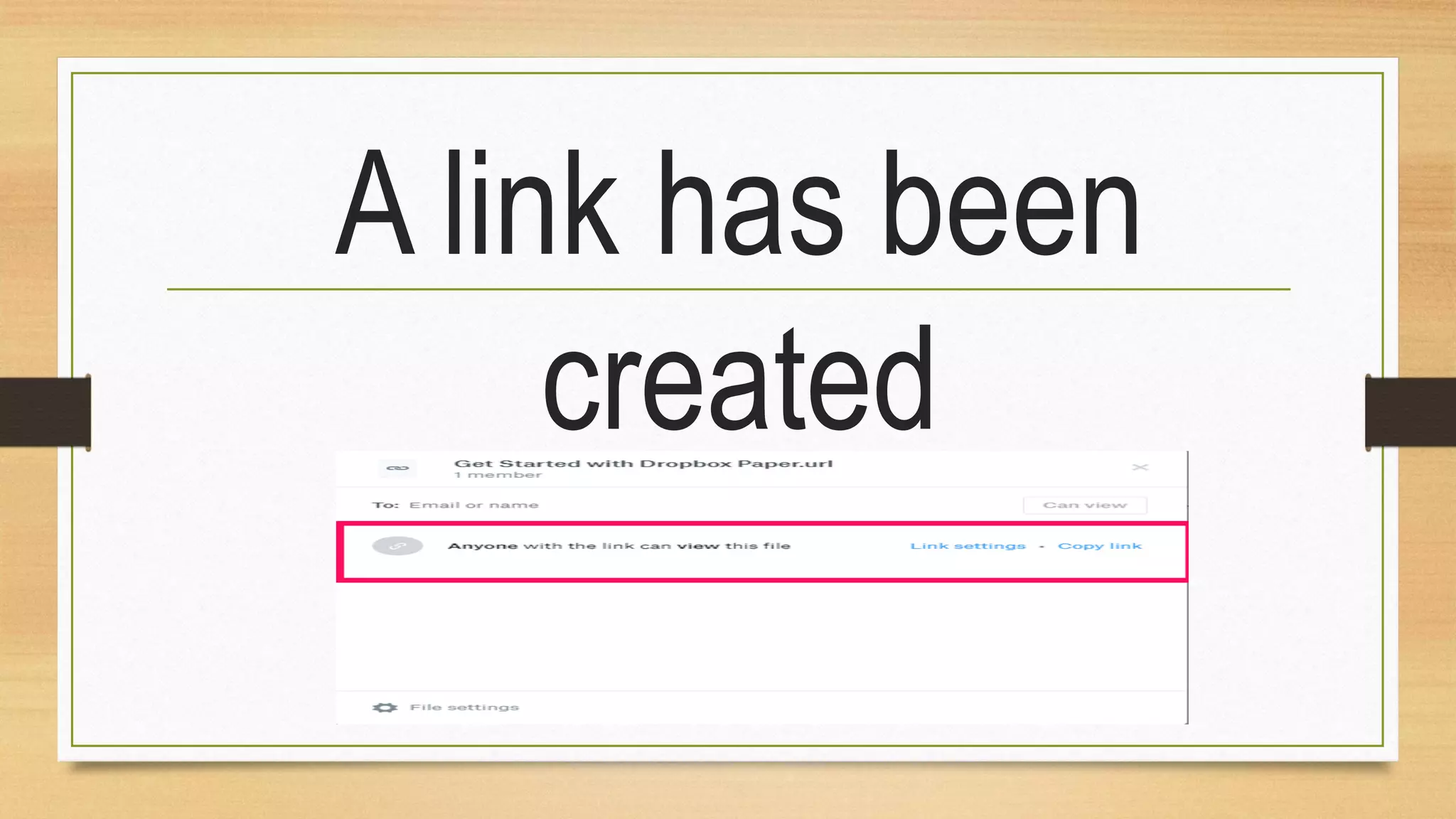
A link has been
created
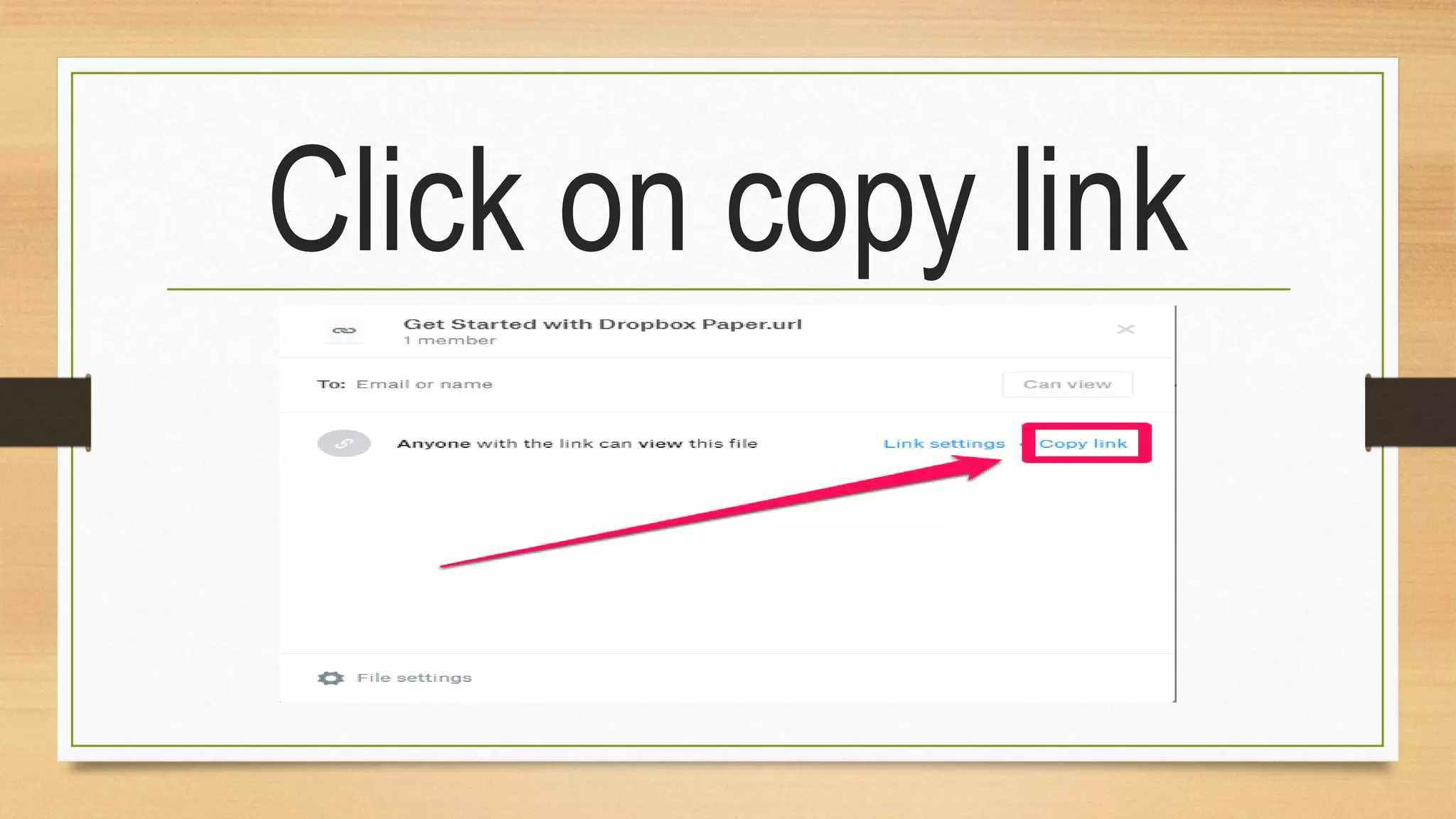
Click on copy link
Paste and send it to
whom you want to
share the file
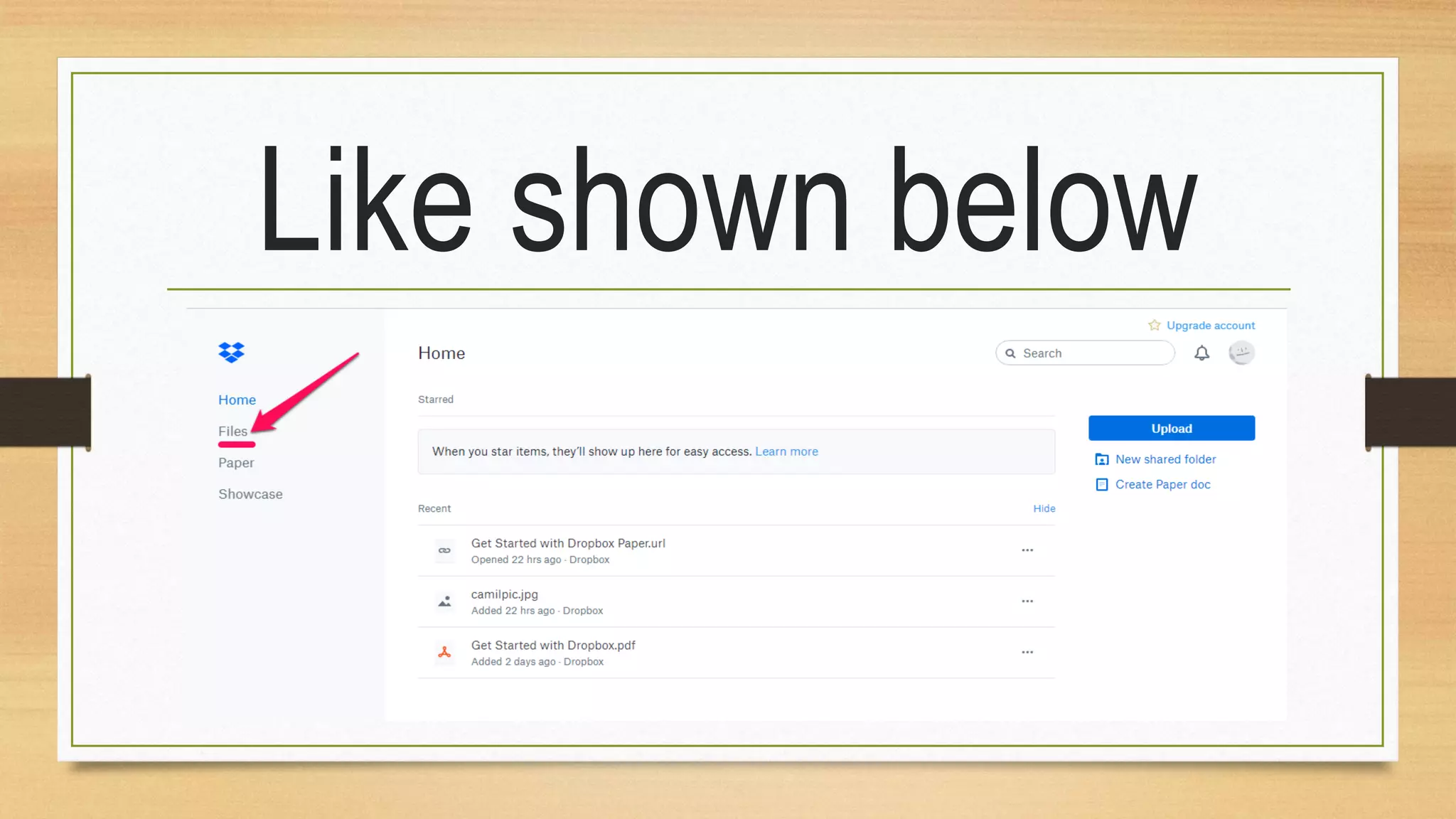
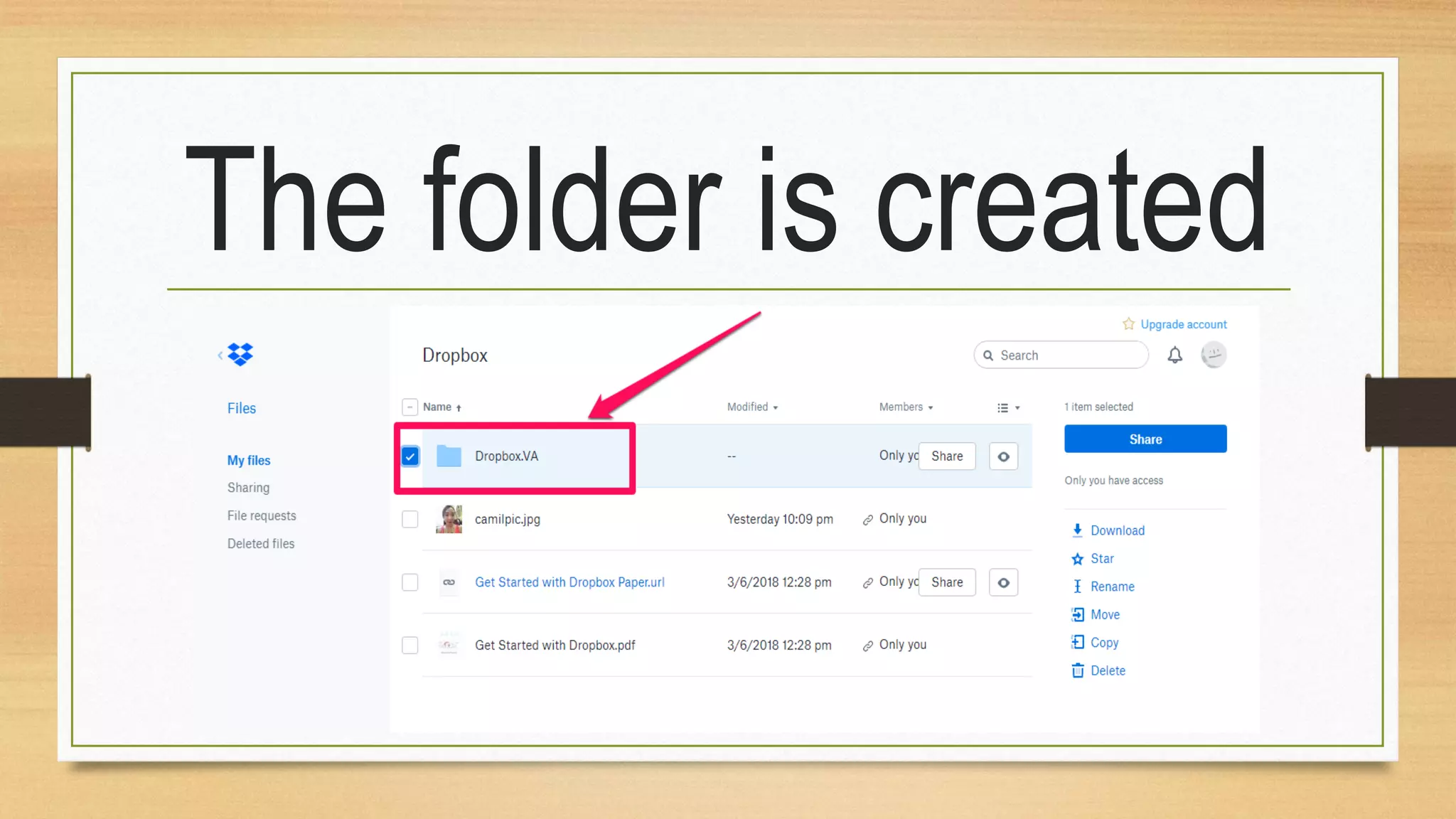
Create new folder
Click on the files on
the Dropbox
homepage
Like shown below
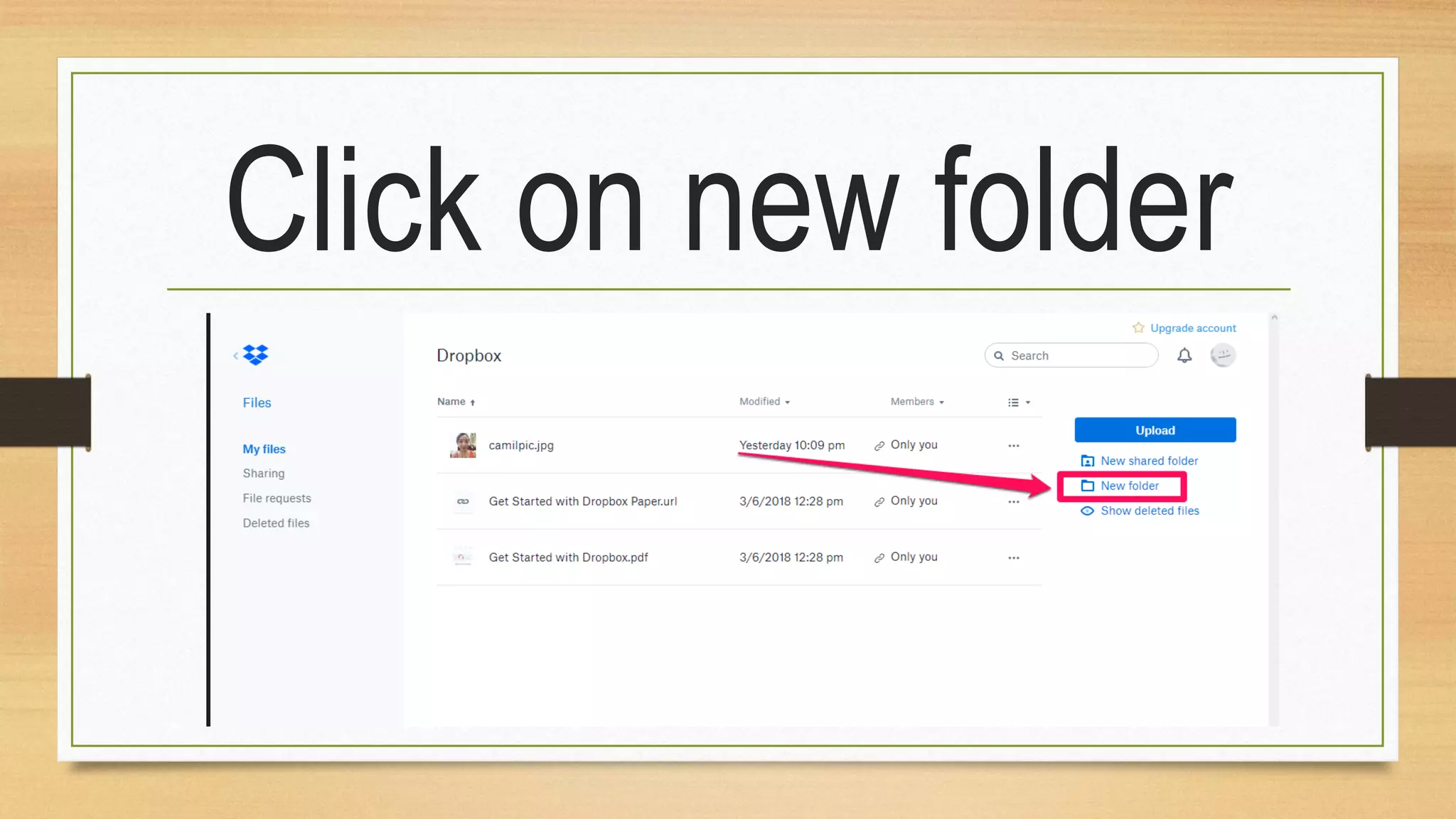
Click on new folder
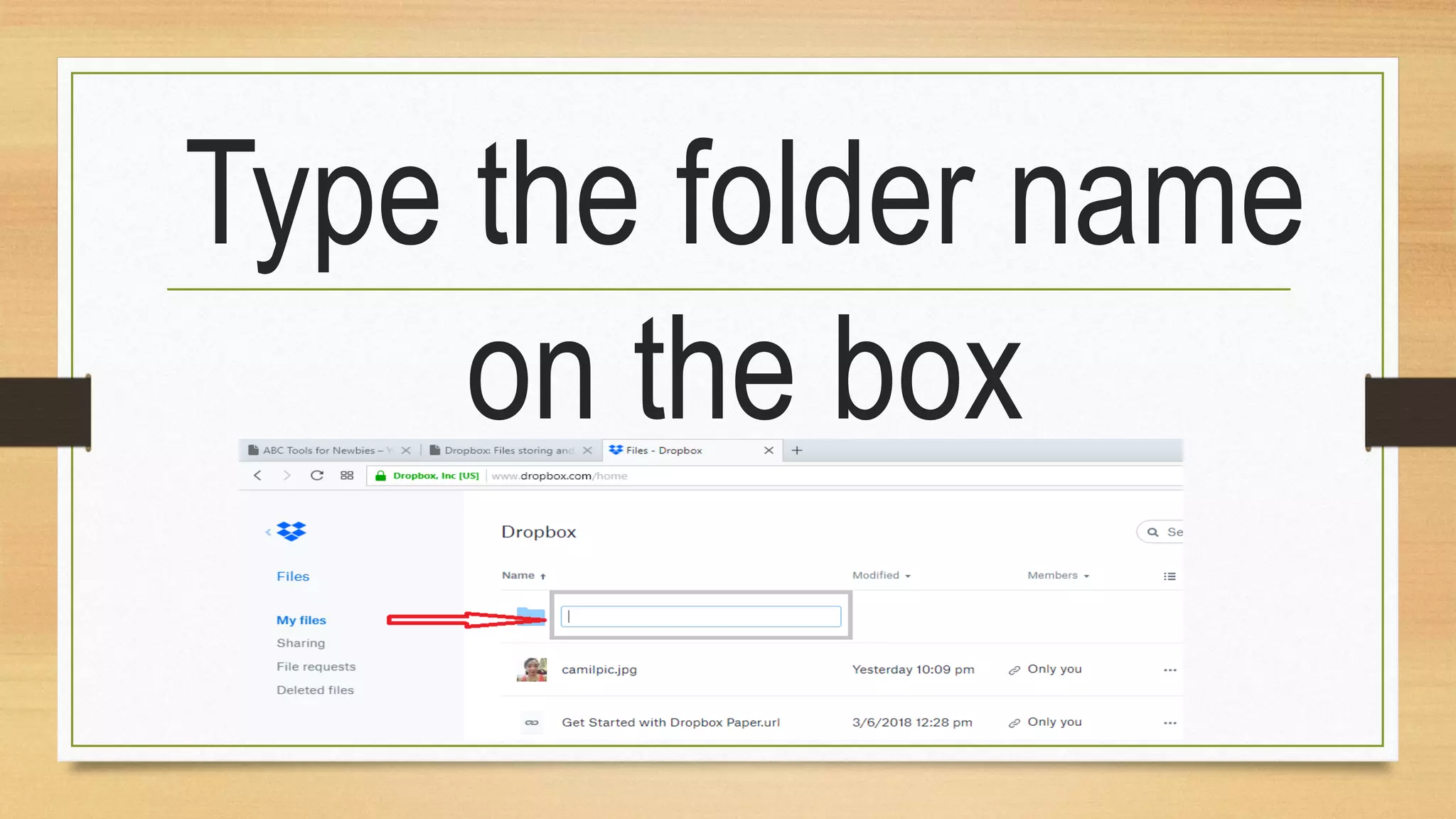
Type the folder name
on the box
I named the folder to
Dopbox.VA and hit
enter
The folder is created
Sharing a folder
Choose a folder you
want to share
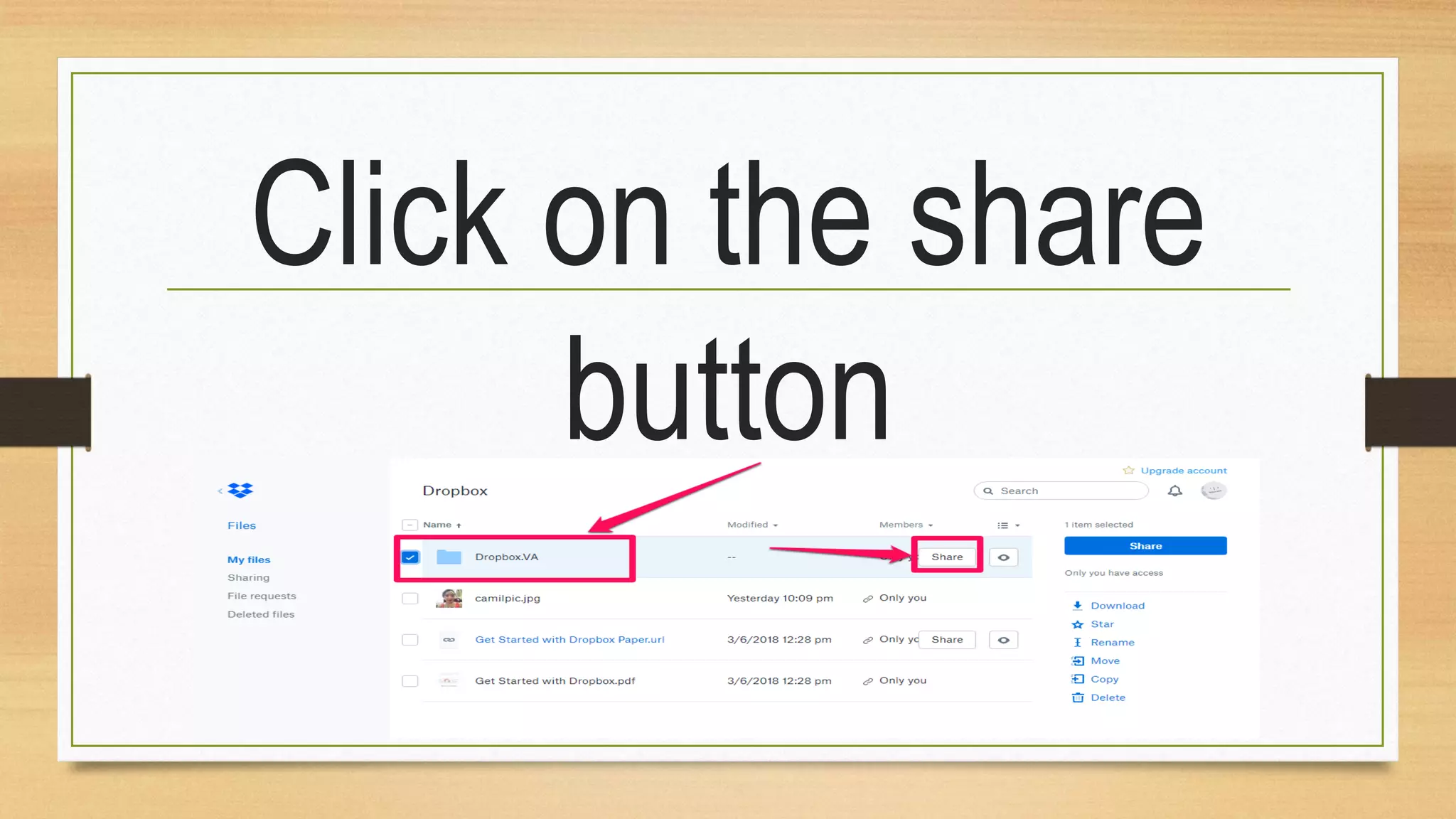
Click on the share
button
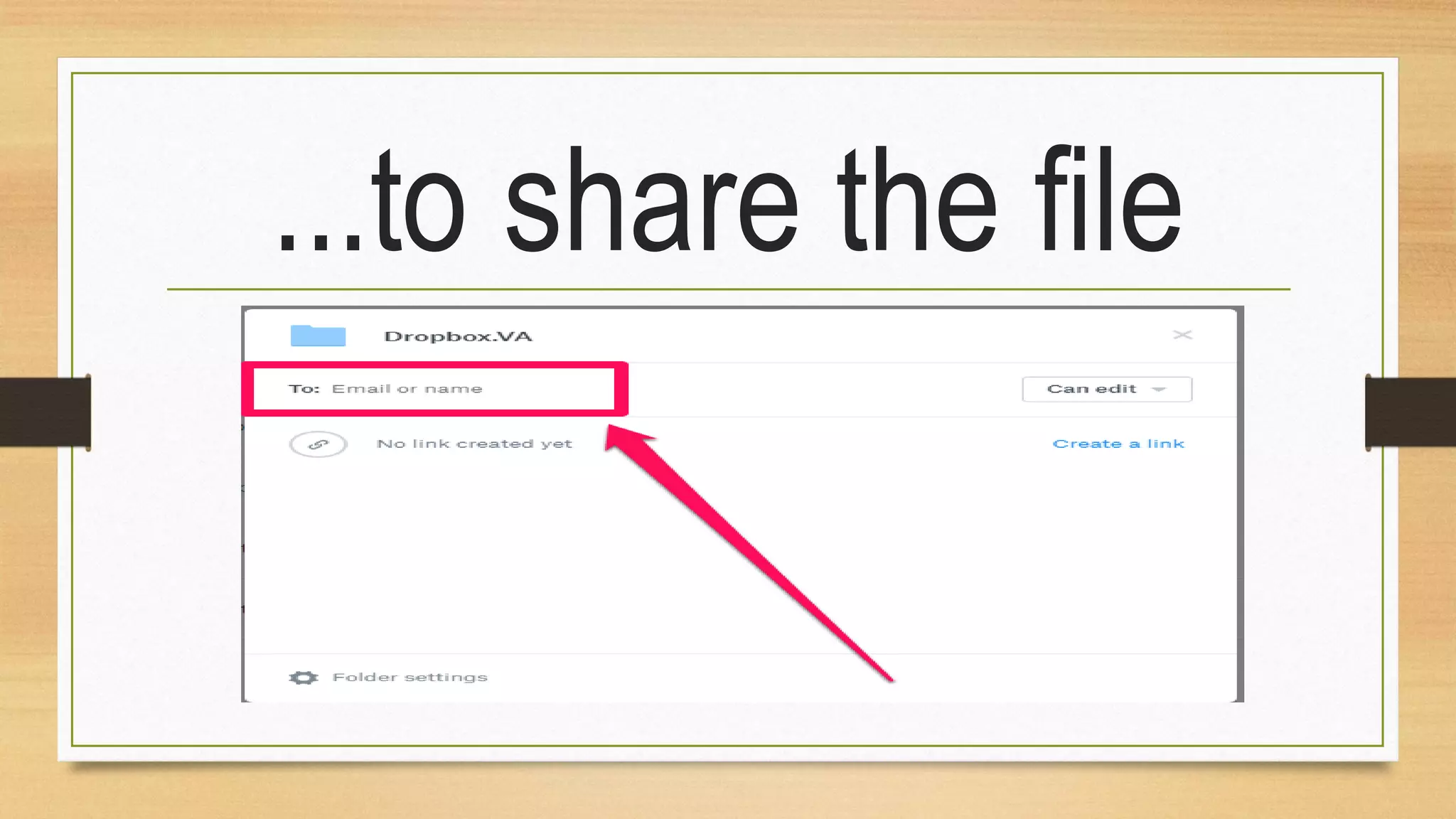
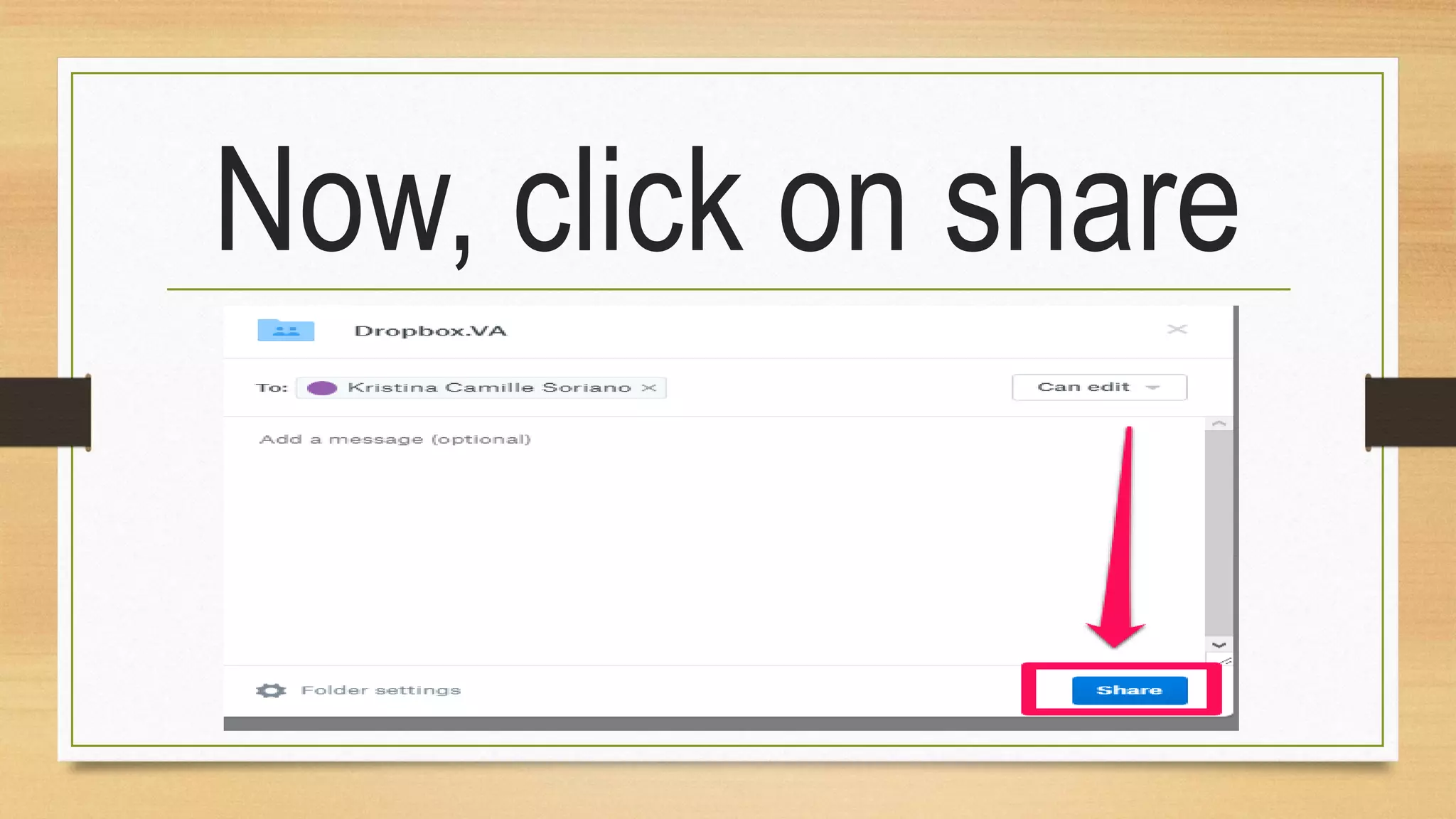
Type the email
address whom you
want
...to share the file
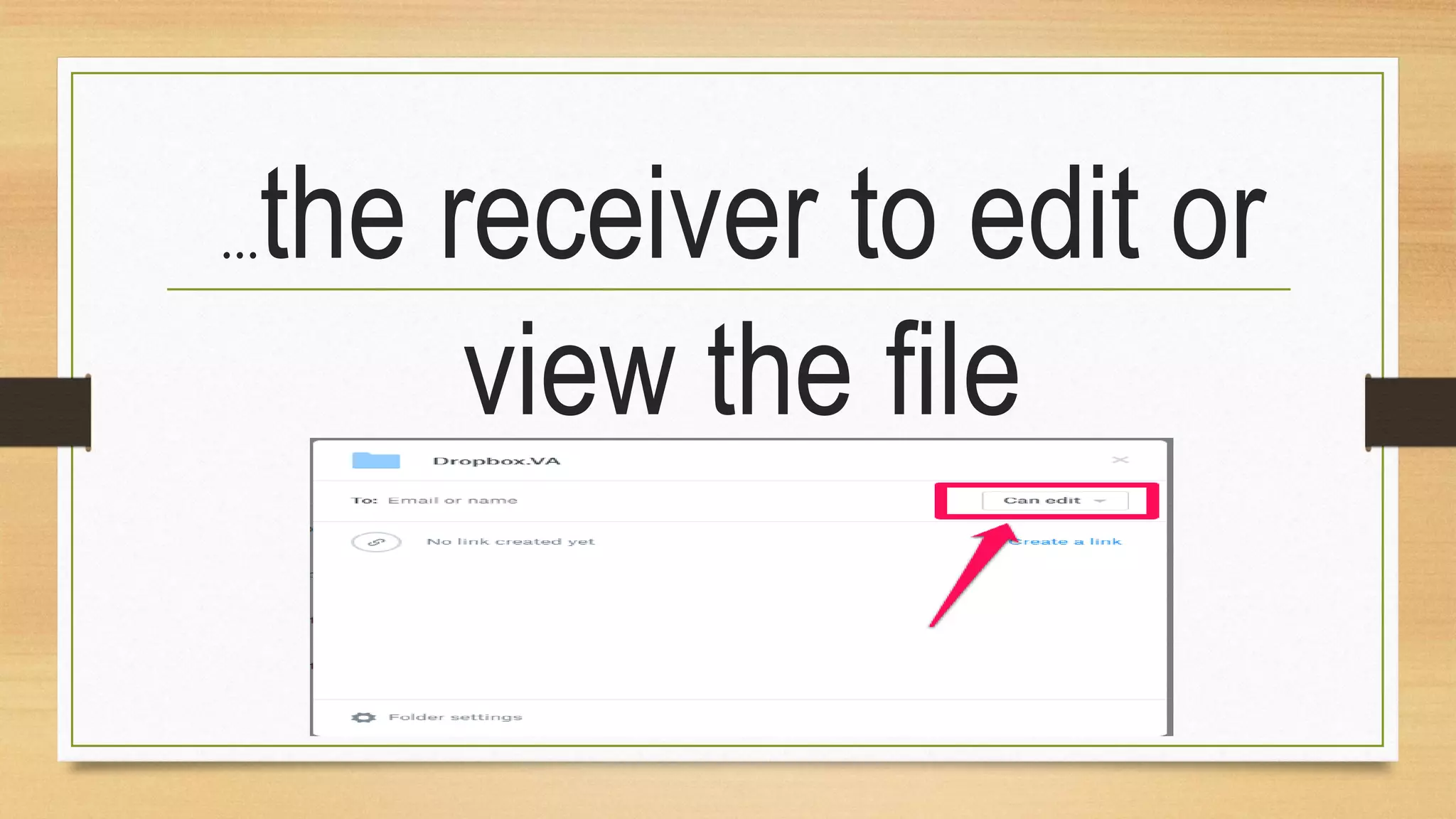
Click on this option
also if you want
...the receiver to edit or
view the file
Edit option allows
the receiver to
...edit, delete, comment
and add the file on their
Dropbox
View option allows
the receiver to
...view, download
and comment on the
file
Can add optional
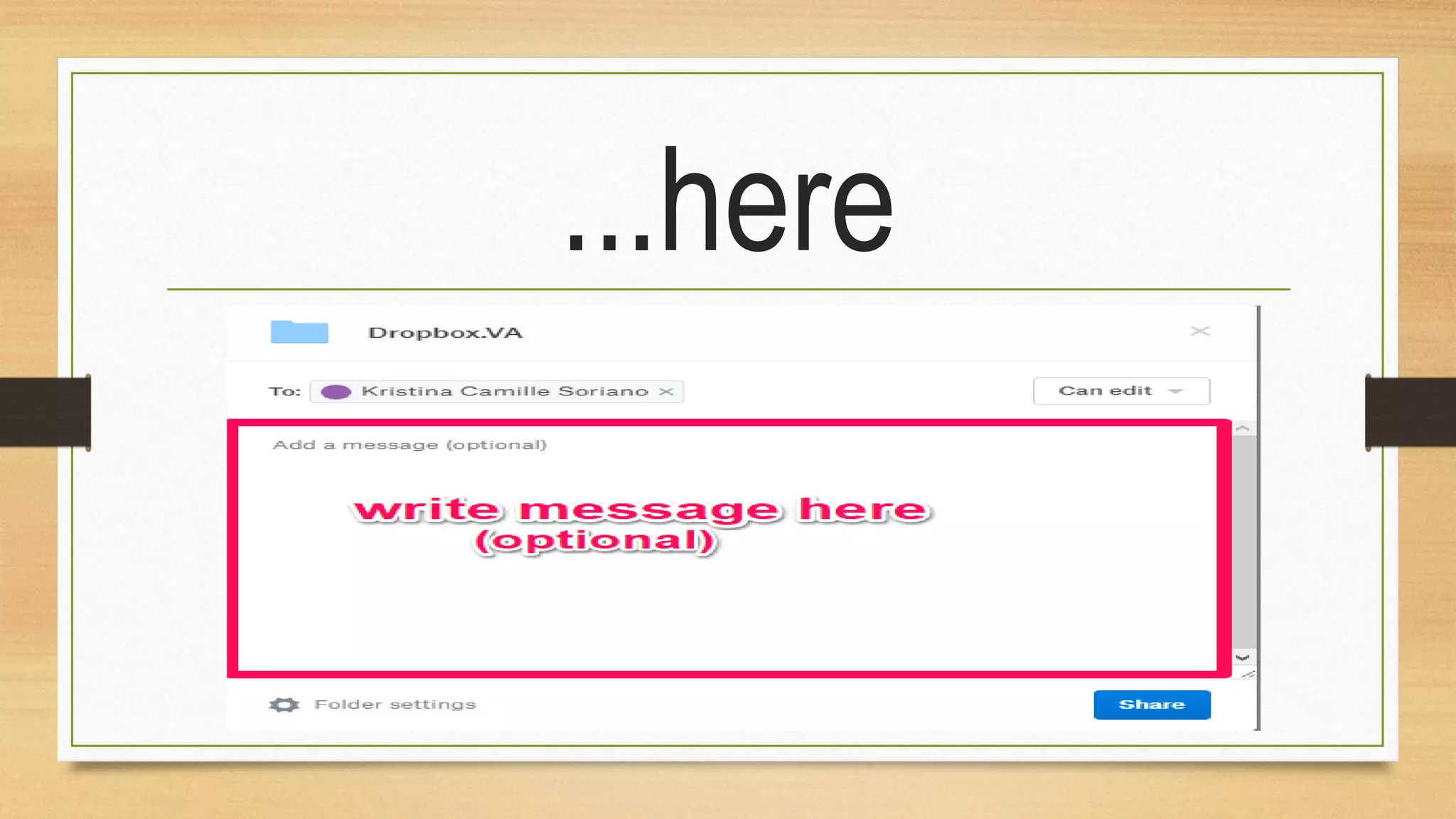
message
...here
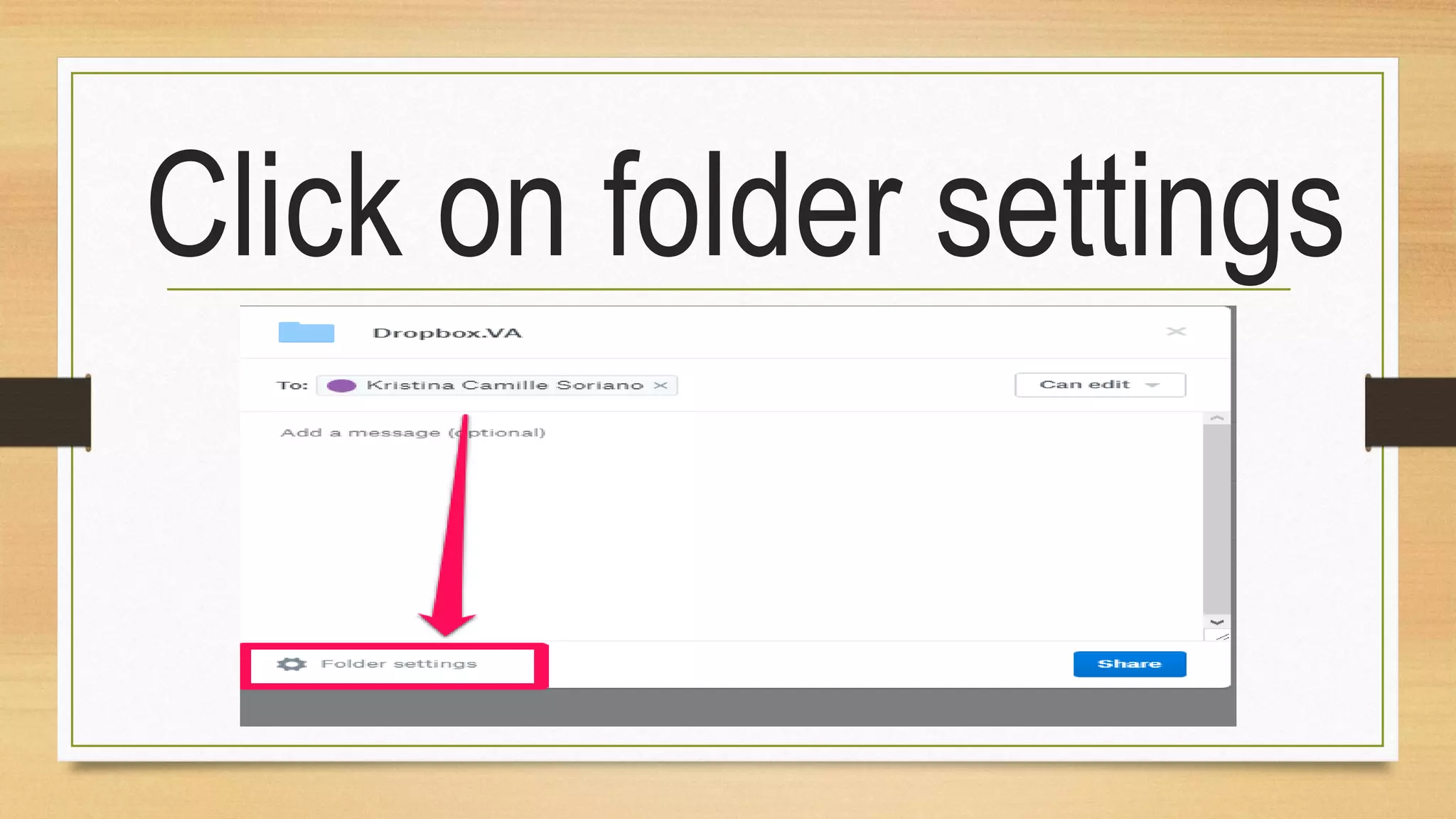
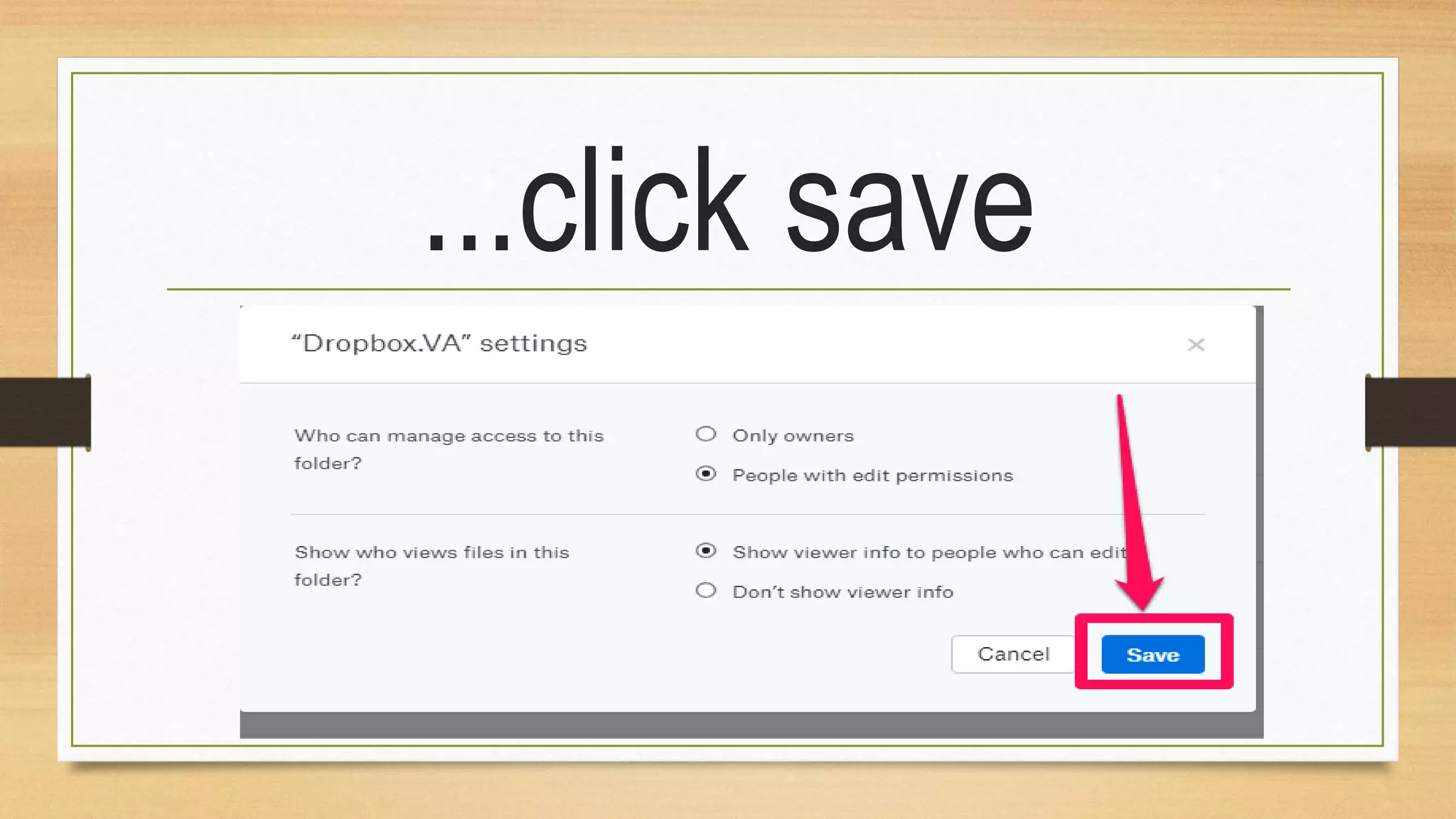
Click on folder settings
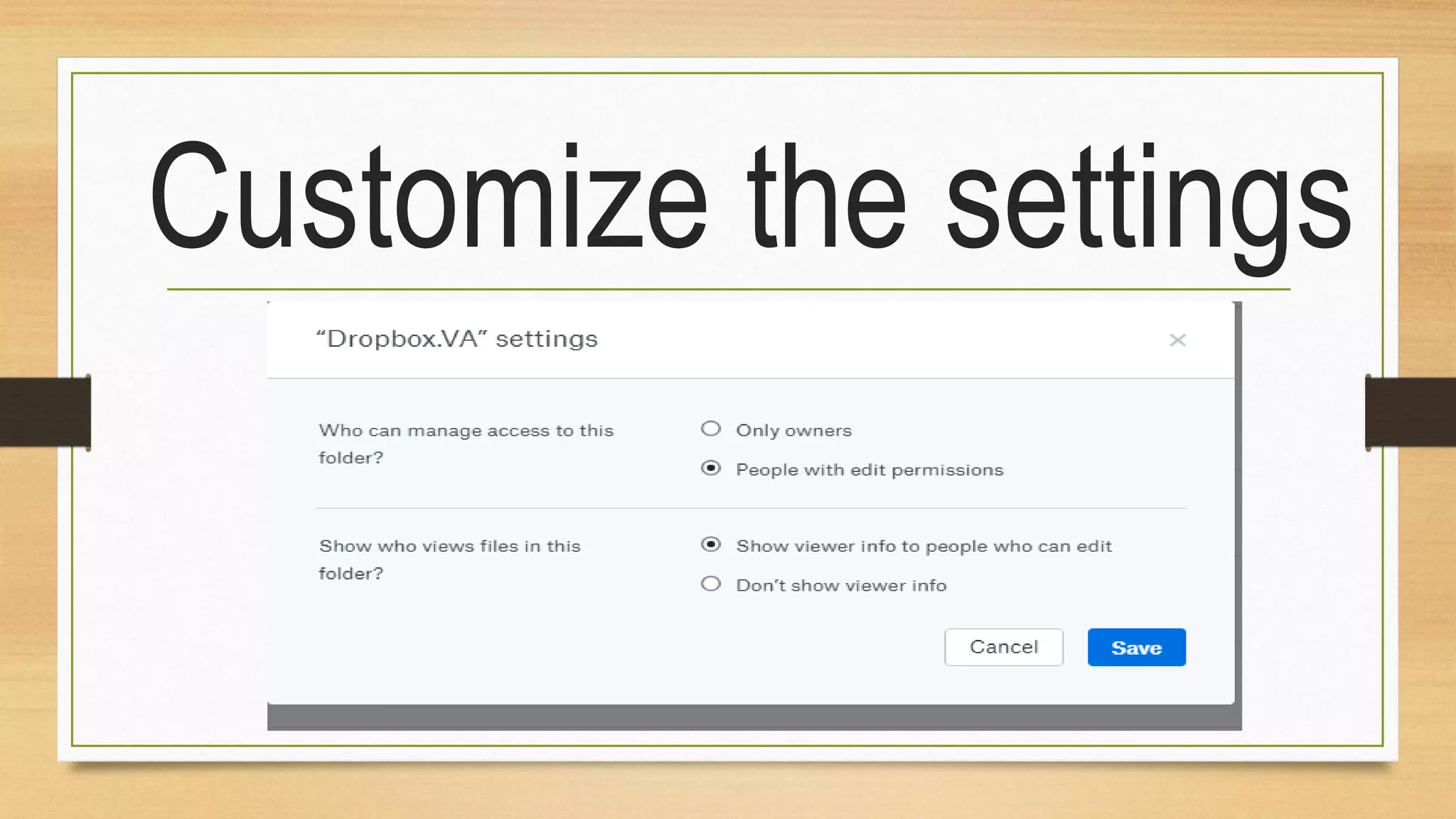
Customize the settings
...click save
Now, click on share
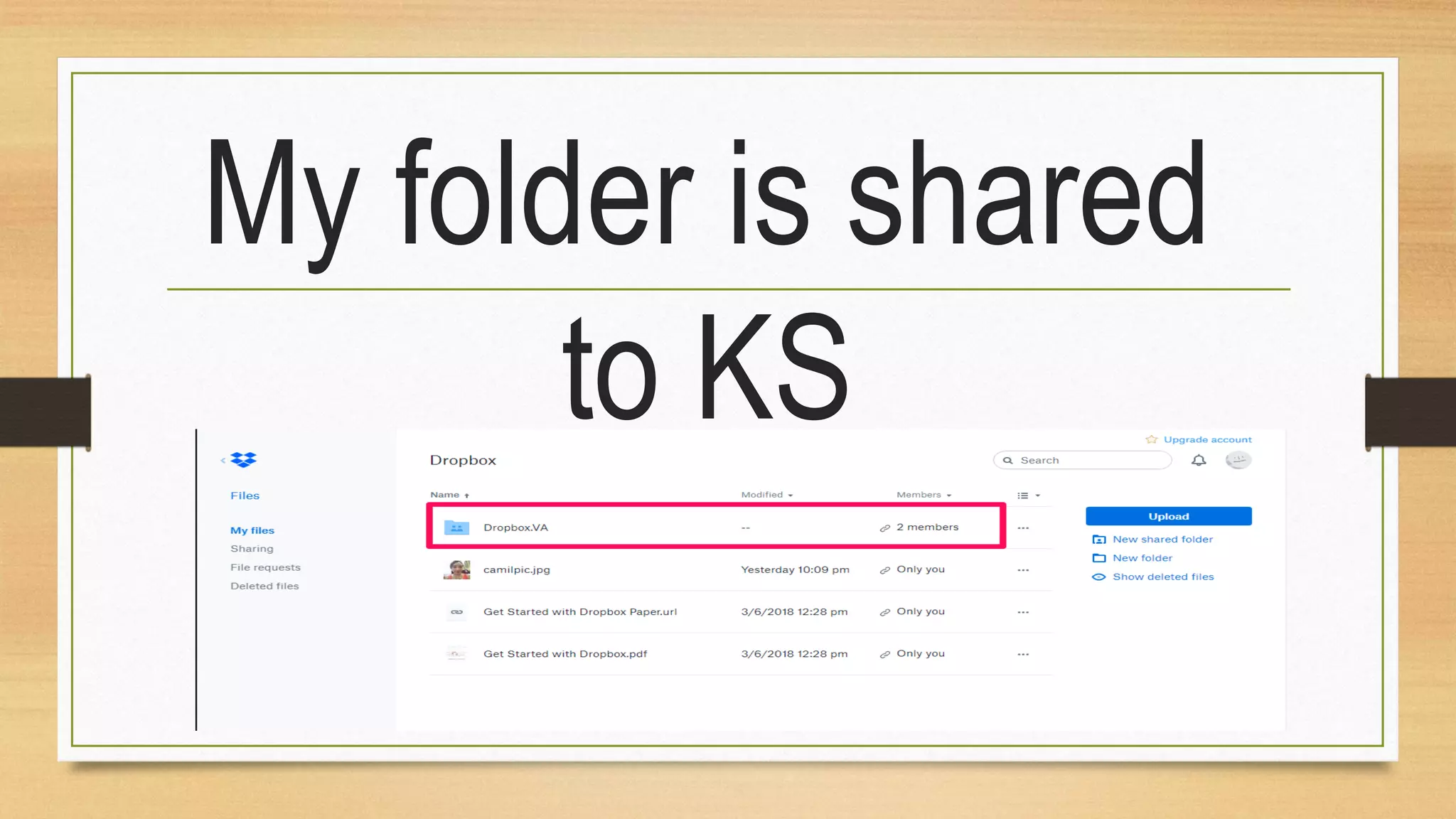
My folder is shared
to KS
Uploading a photo
on your account
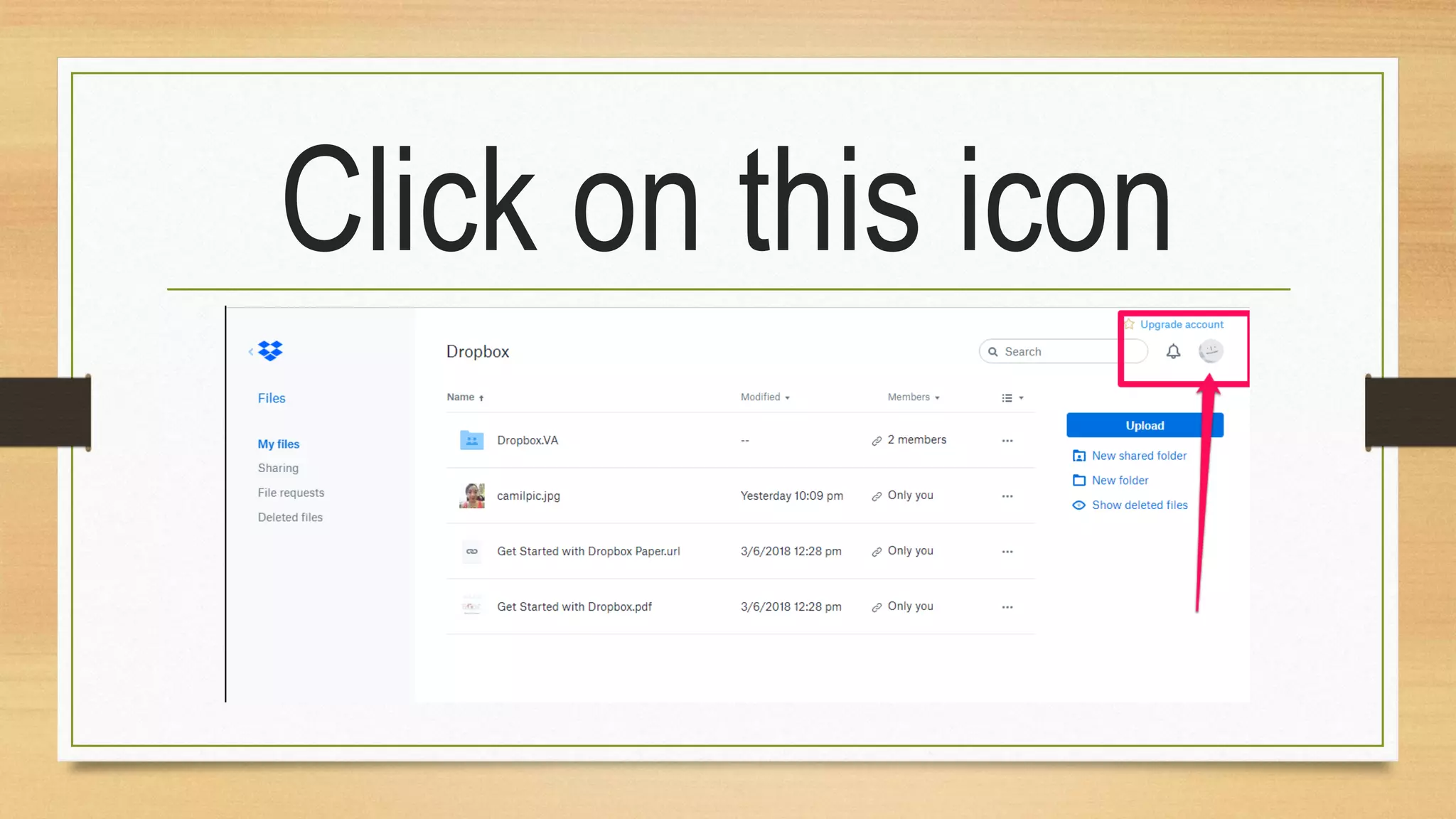
Click on this icon
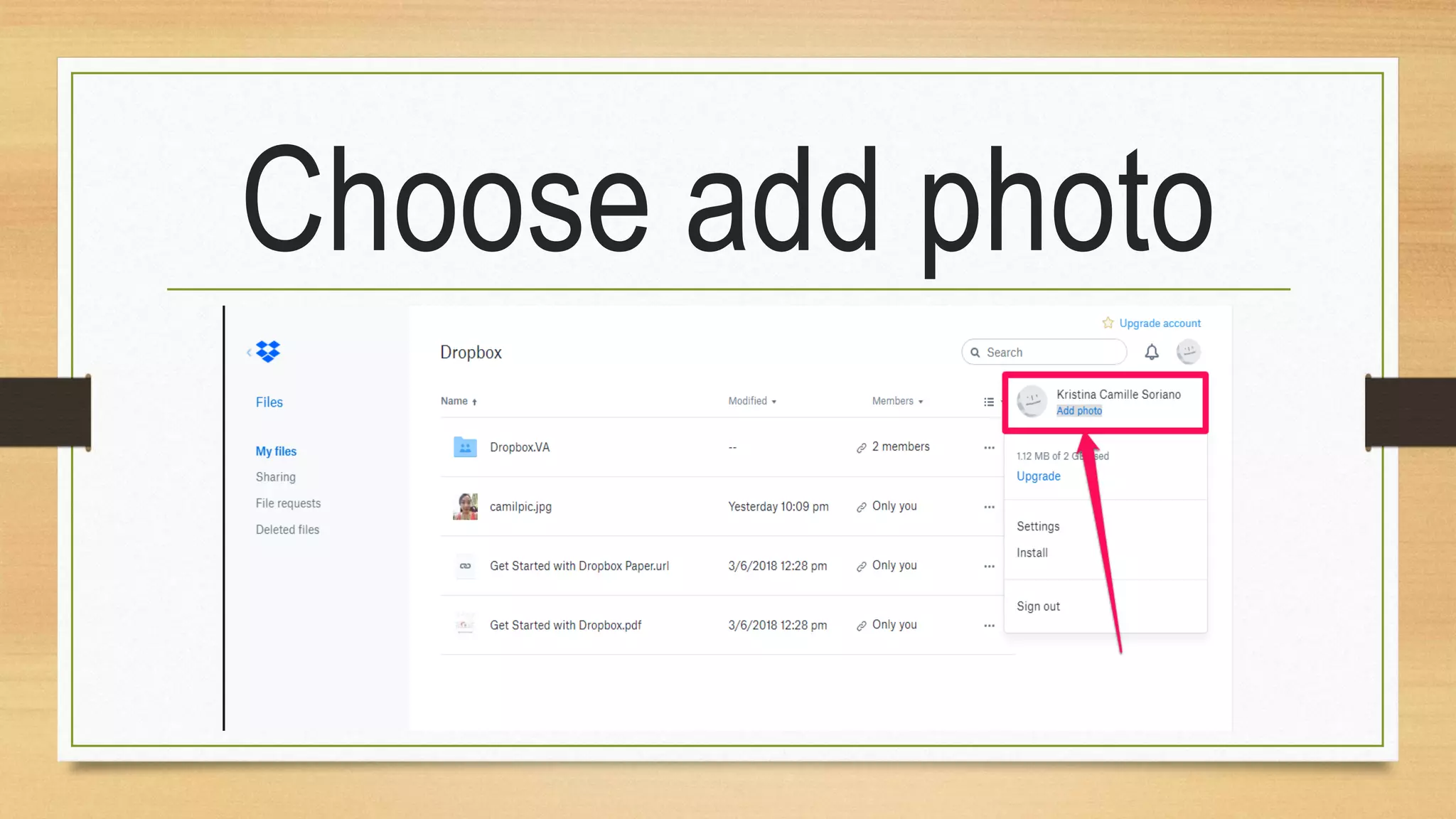
Choose add photo
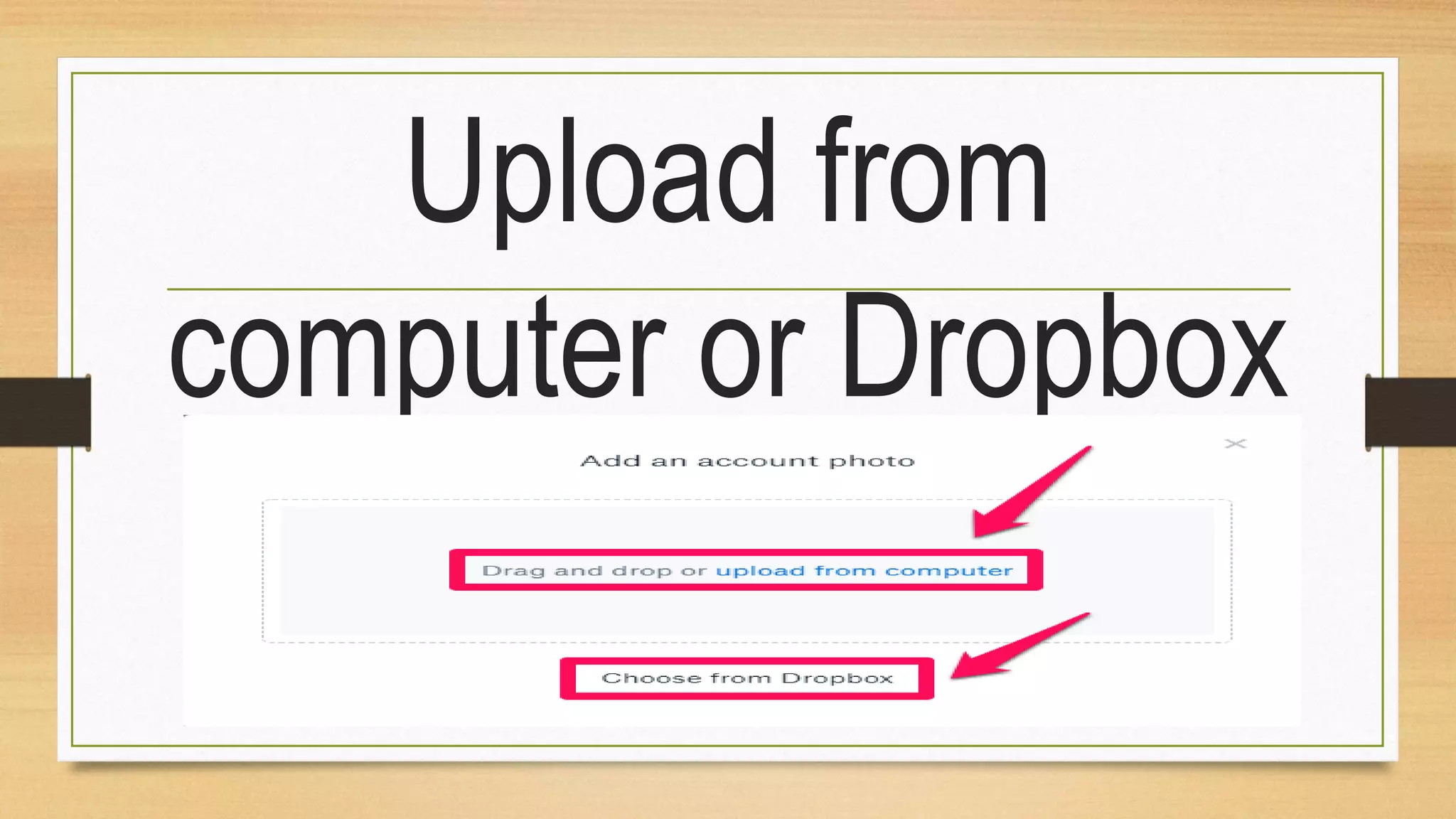
Upload from
computer or Dropbox
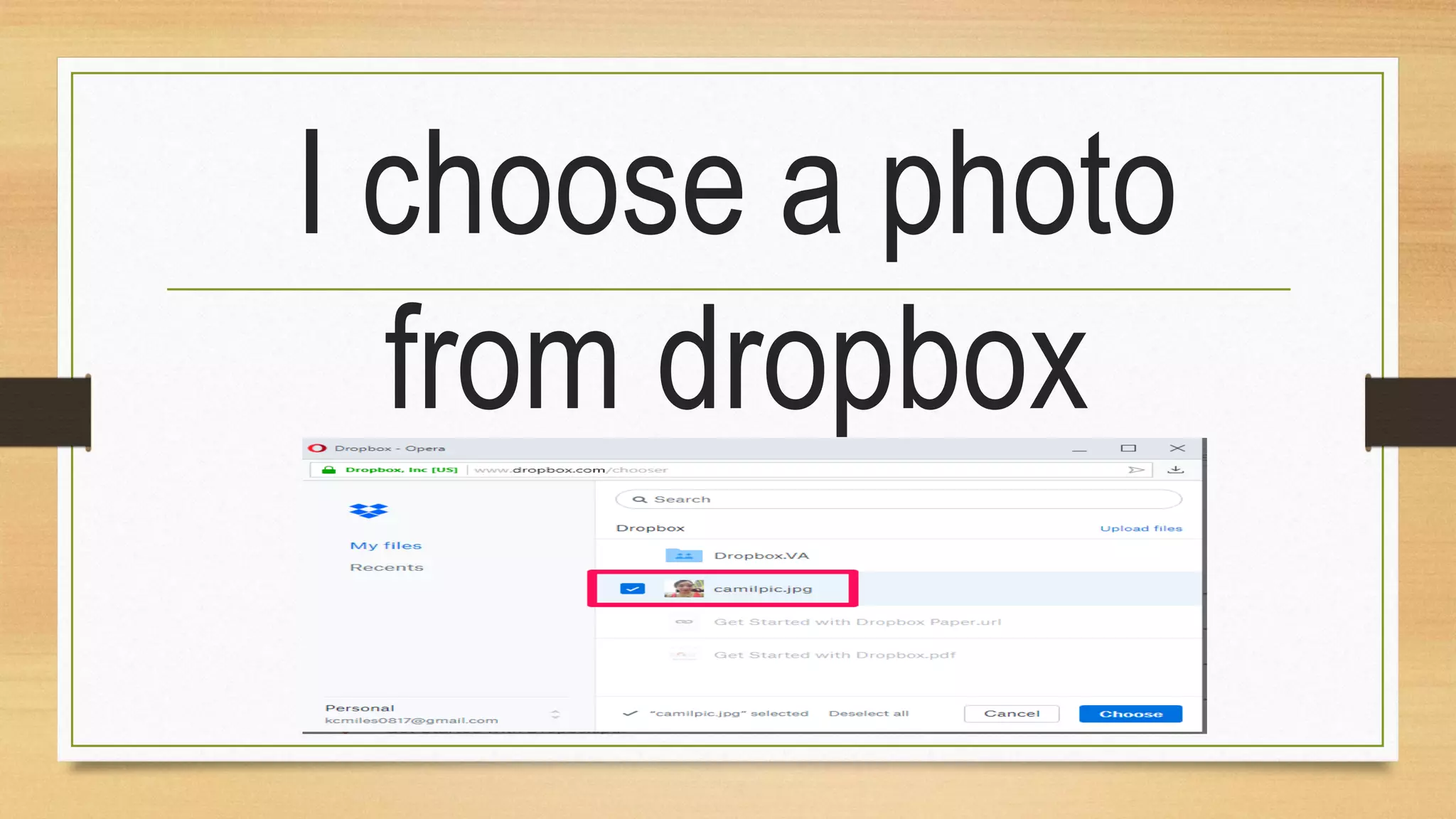
I choose a photo
from dropbox
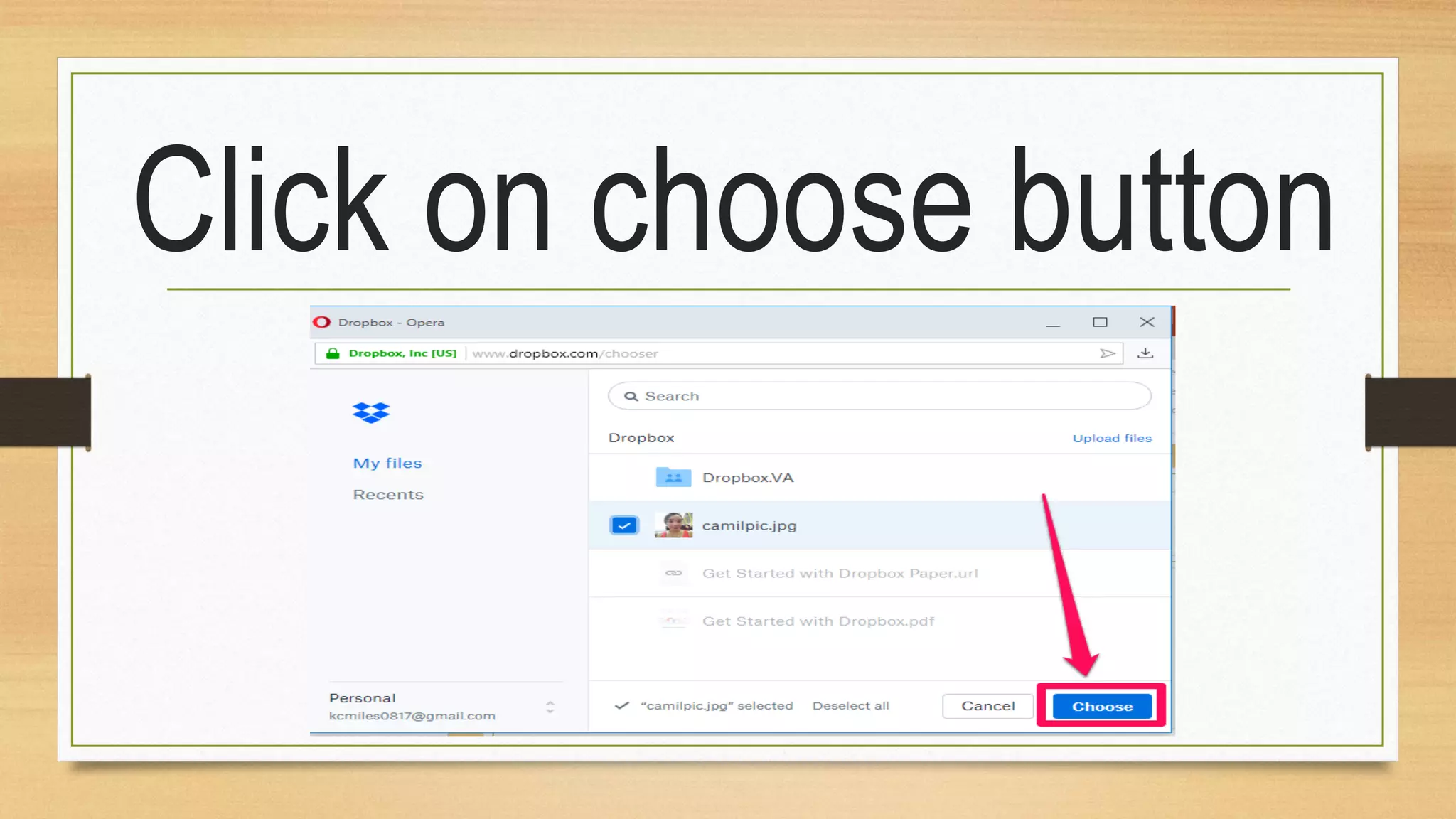
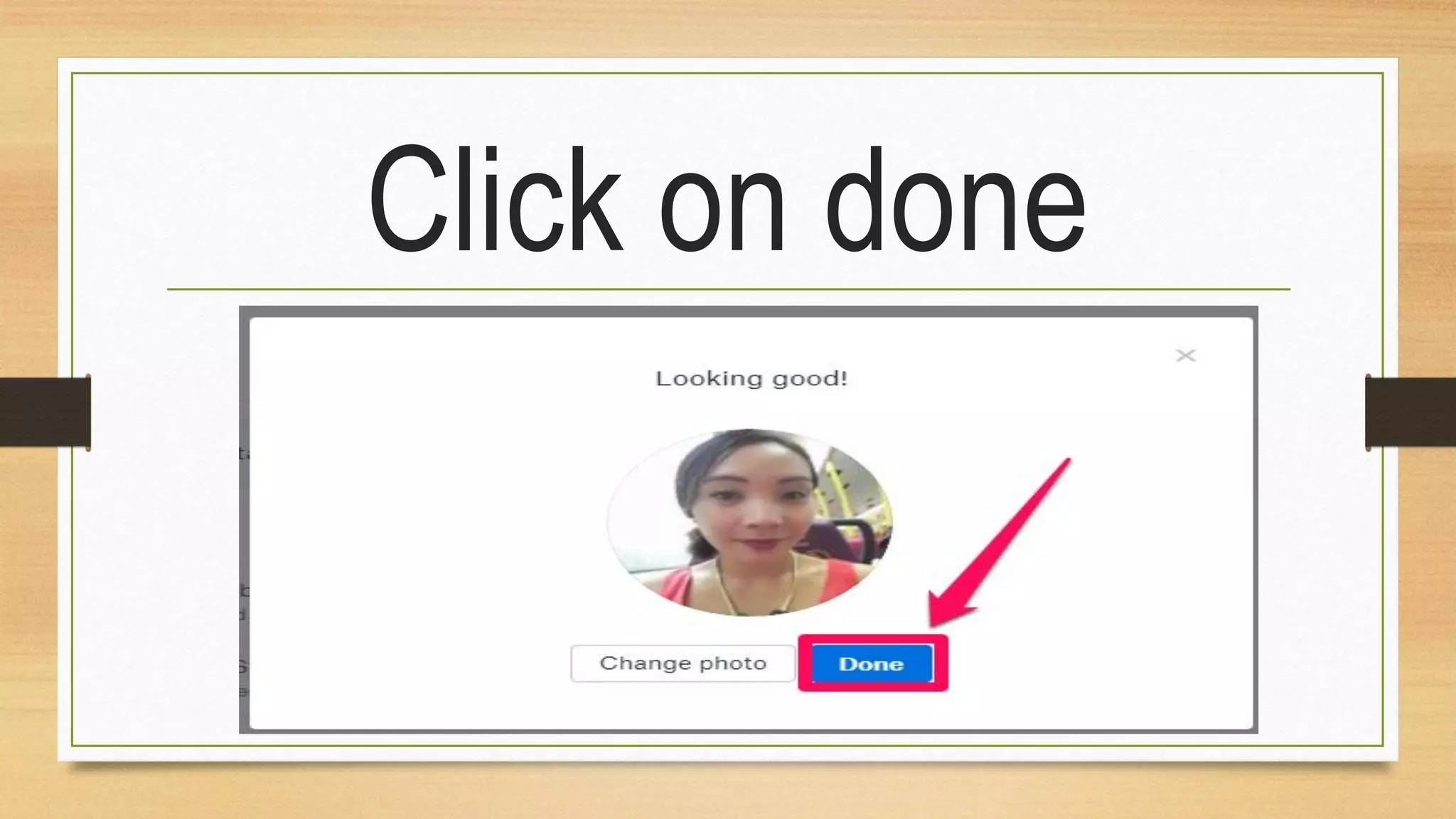
Click on choose button
Click on done
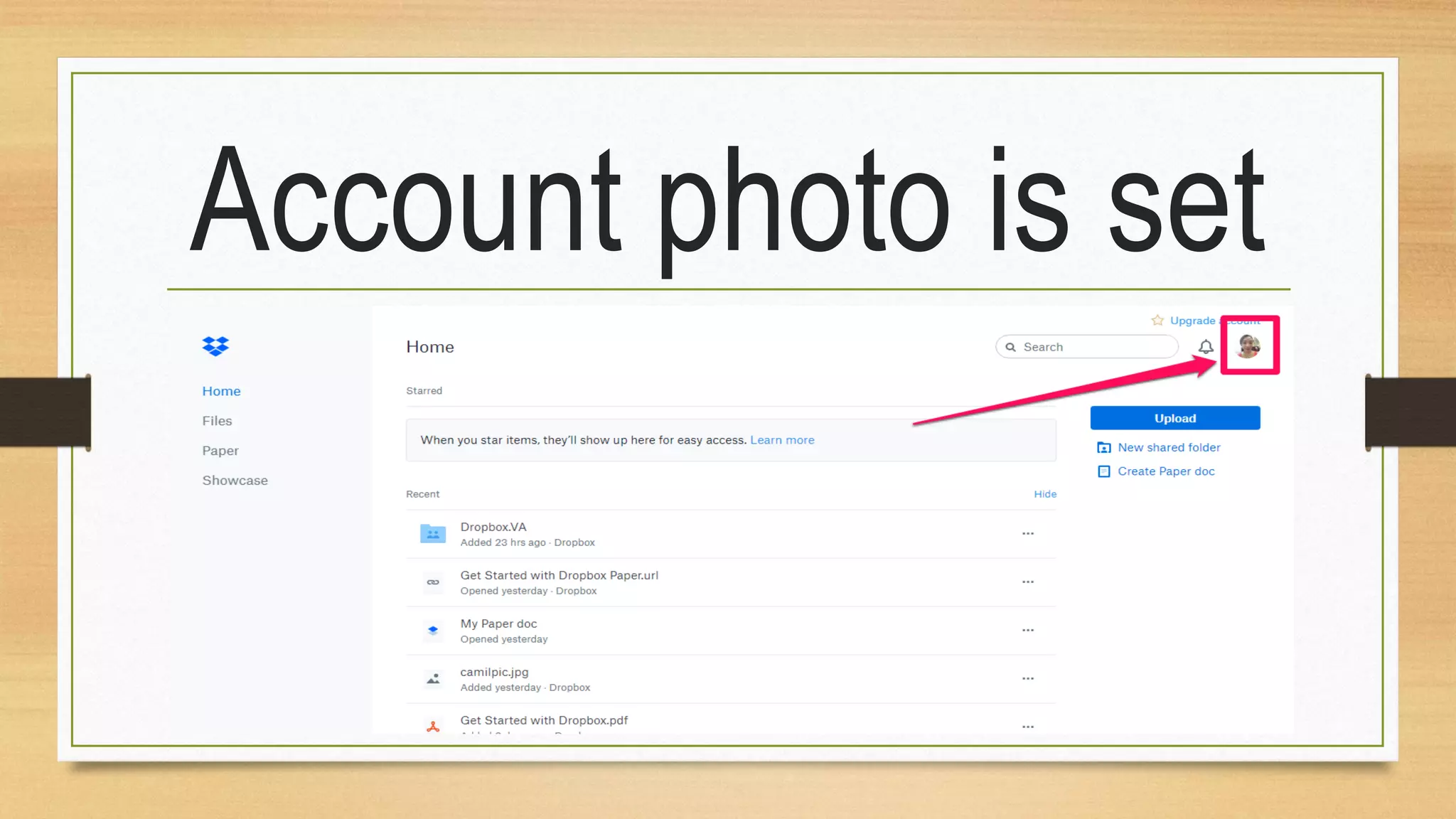
Account photo is set
Signing out from
your account
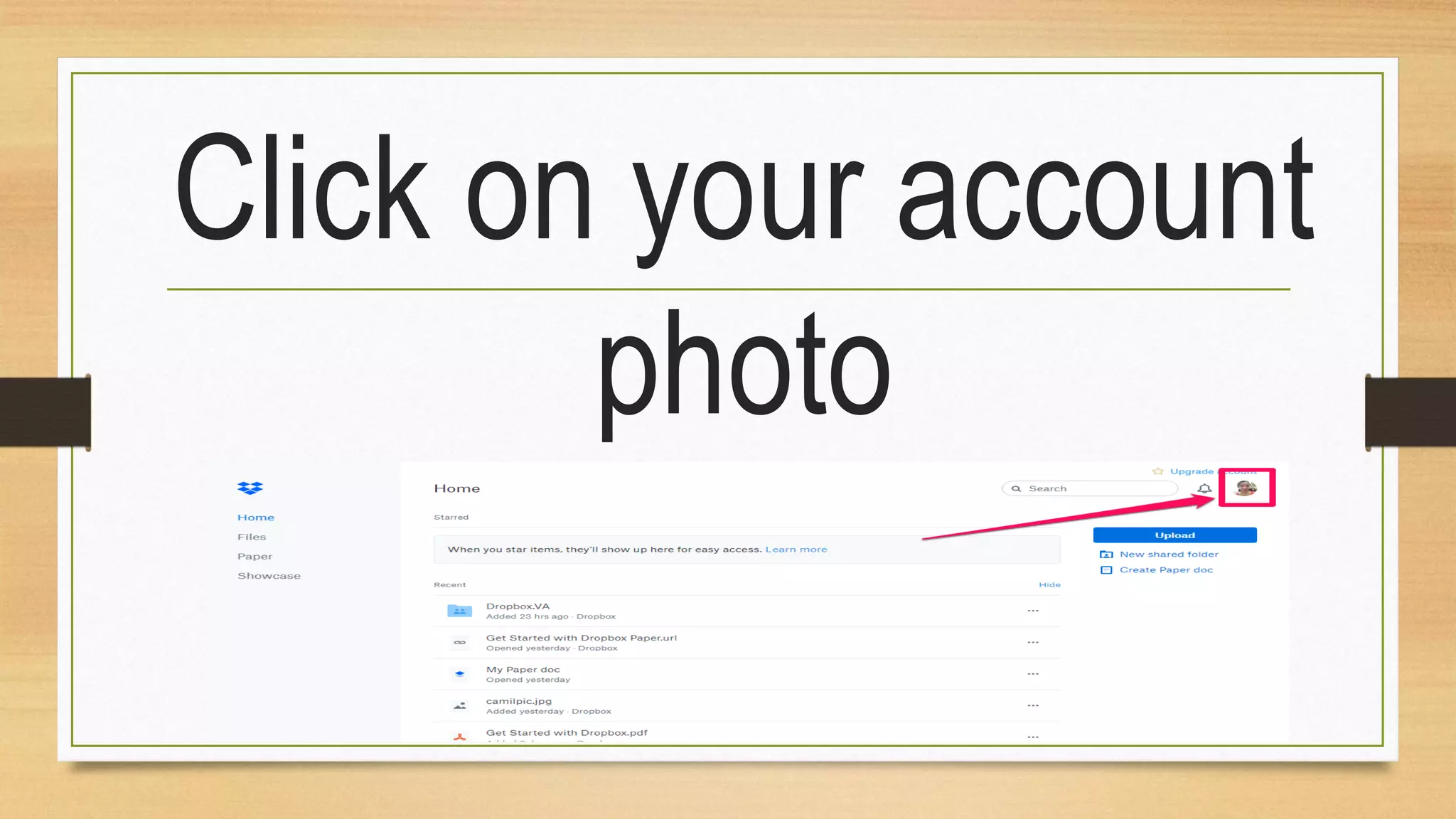
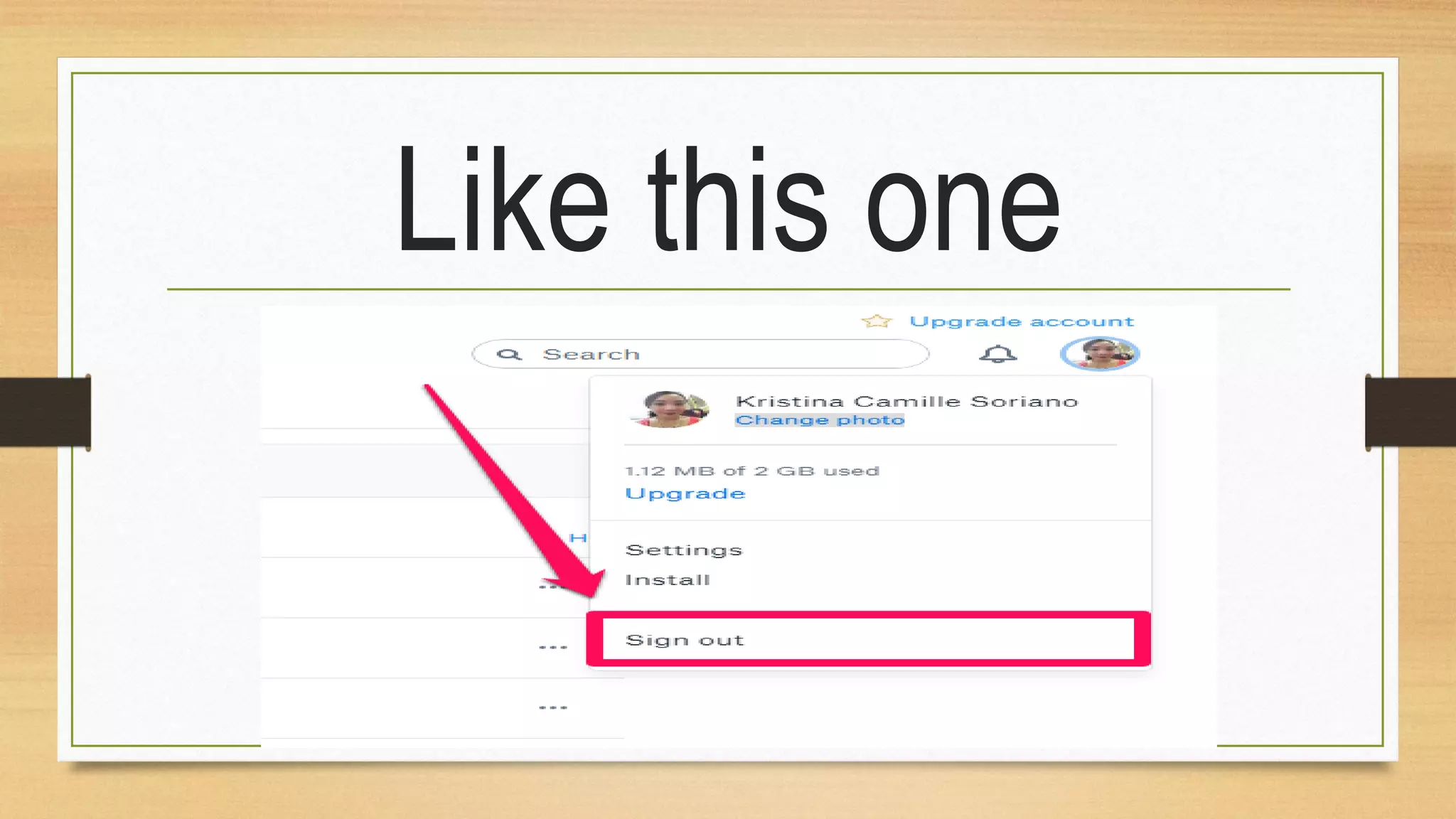
Click on your account
photo
Click on the sign out
button on the drop
down menu
Like this one
Checking our Dropbox
folder installed in the
computer
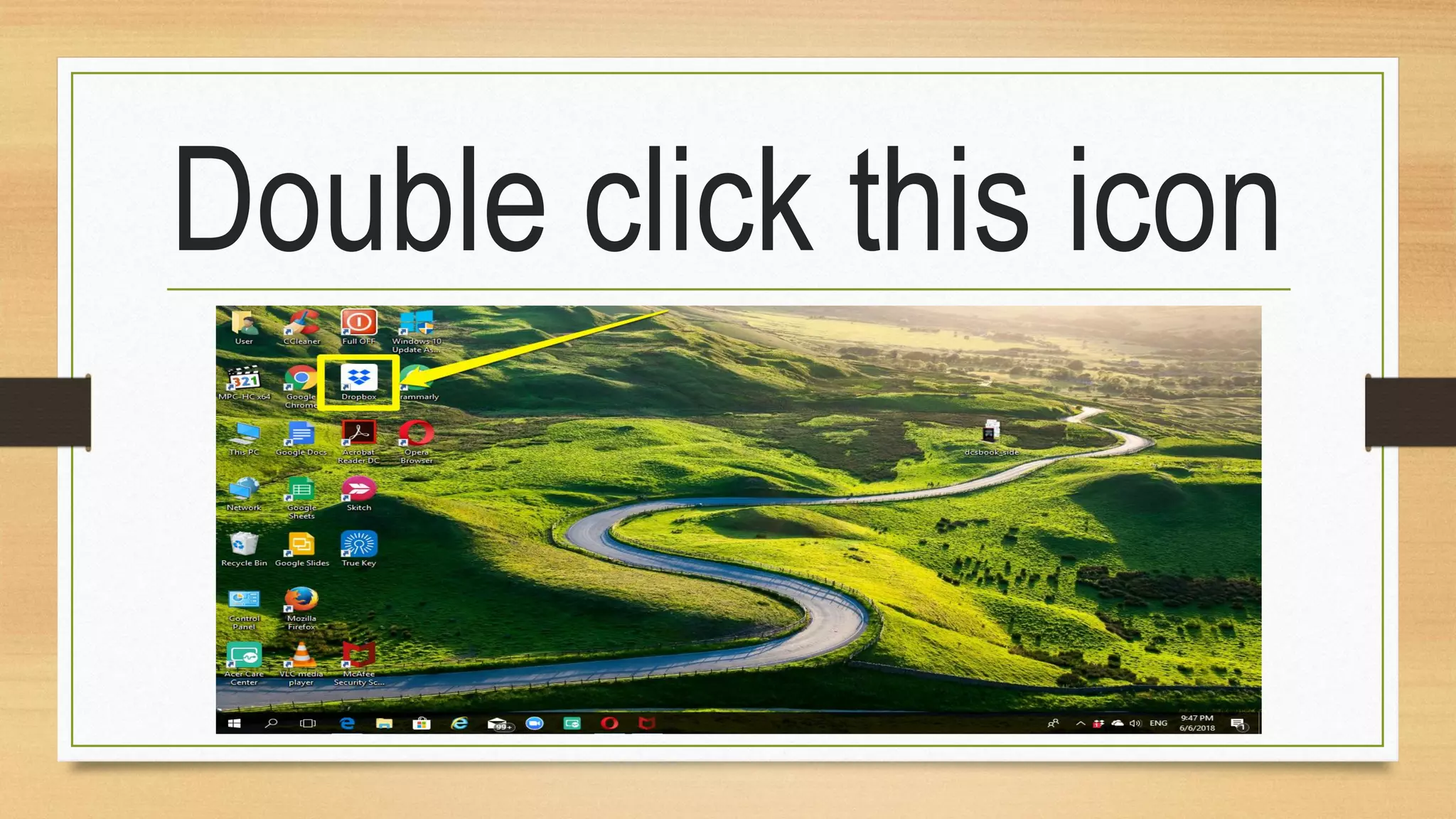
Locate Dropbox
shortcut in your
desktop icons
Double click this icon
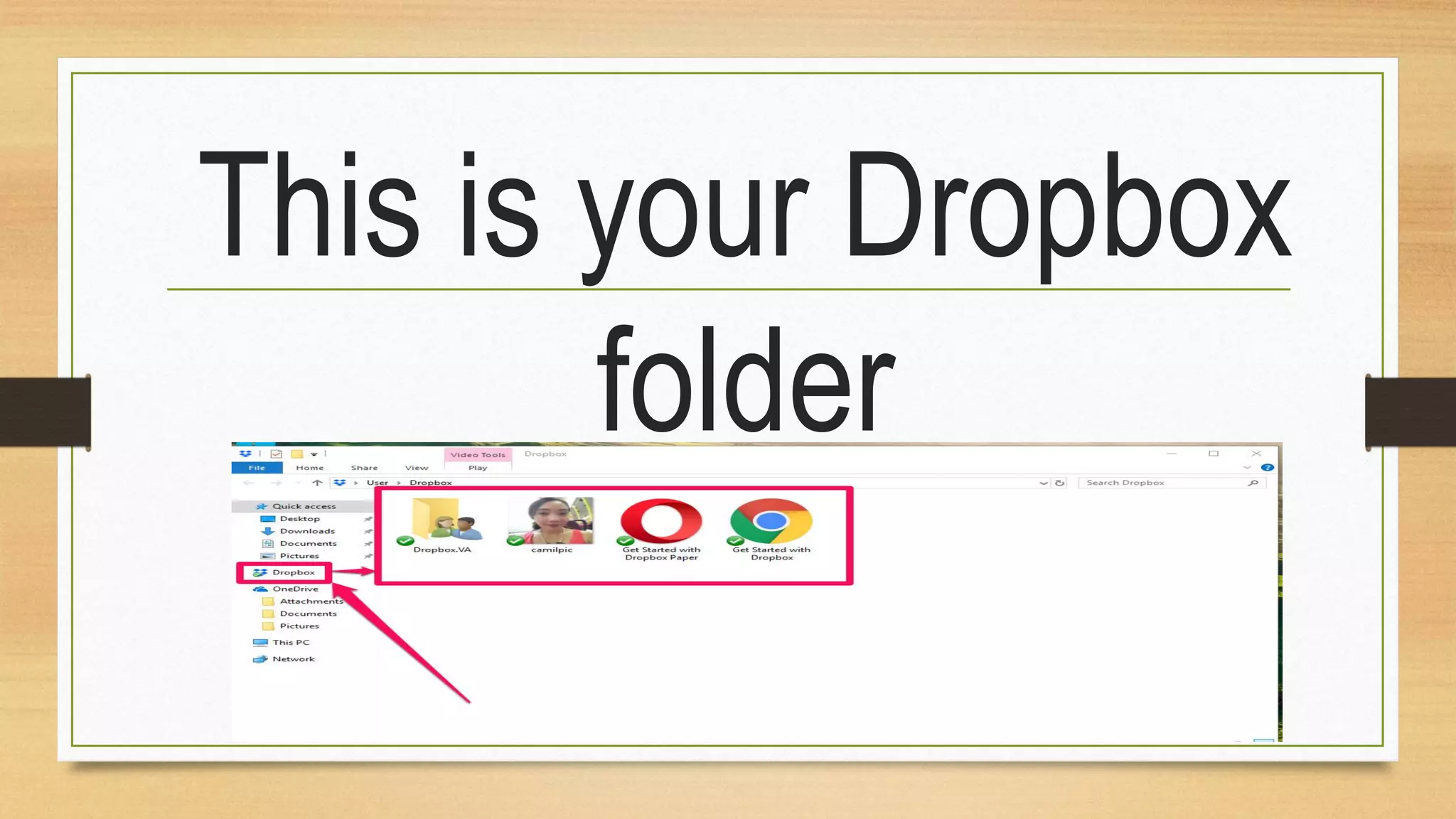
This is your Dropbox
folder
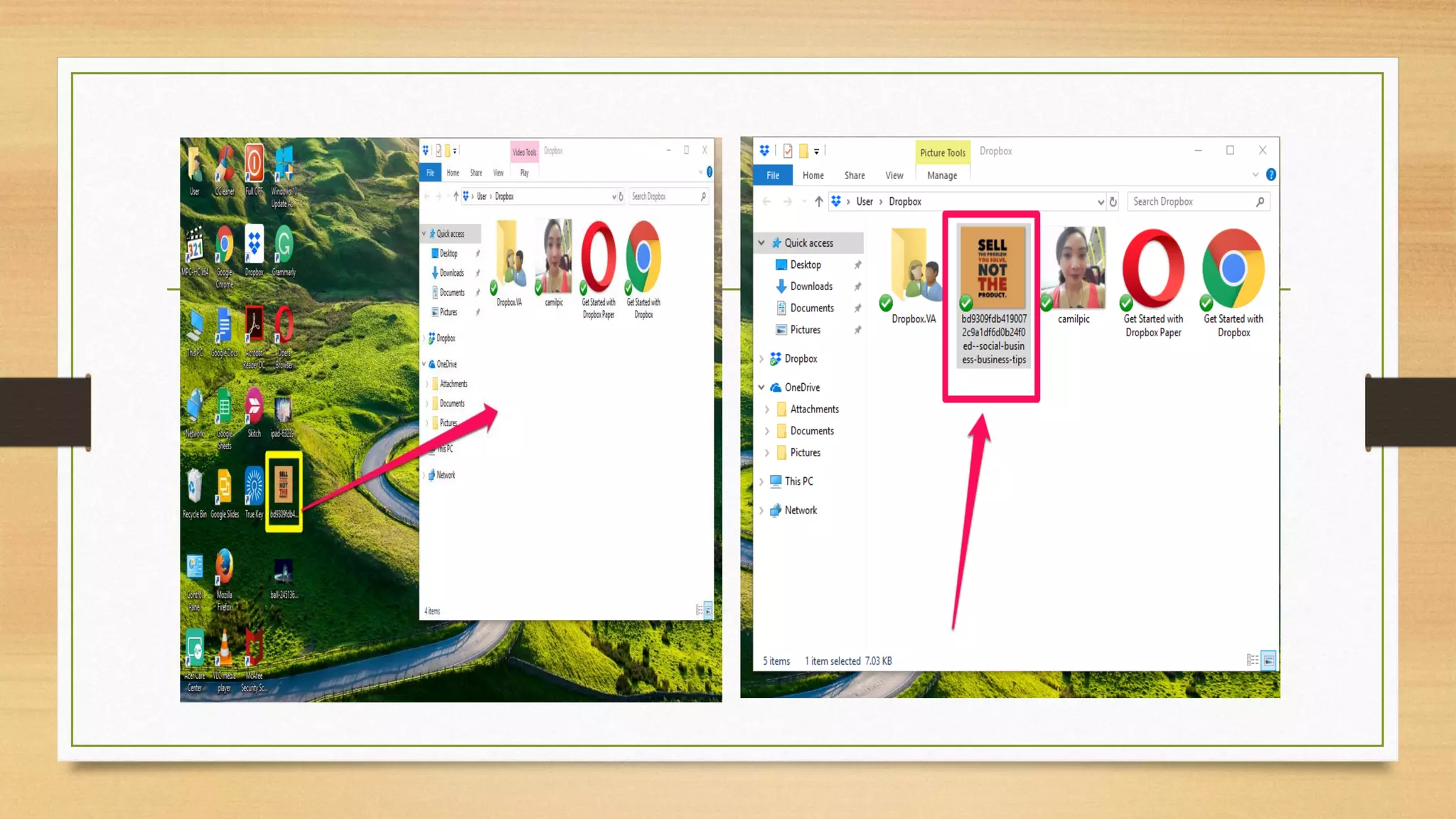
We can move file
from the computer to
Dropbox by dragging
To copy a file to
Dropbox
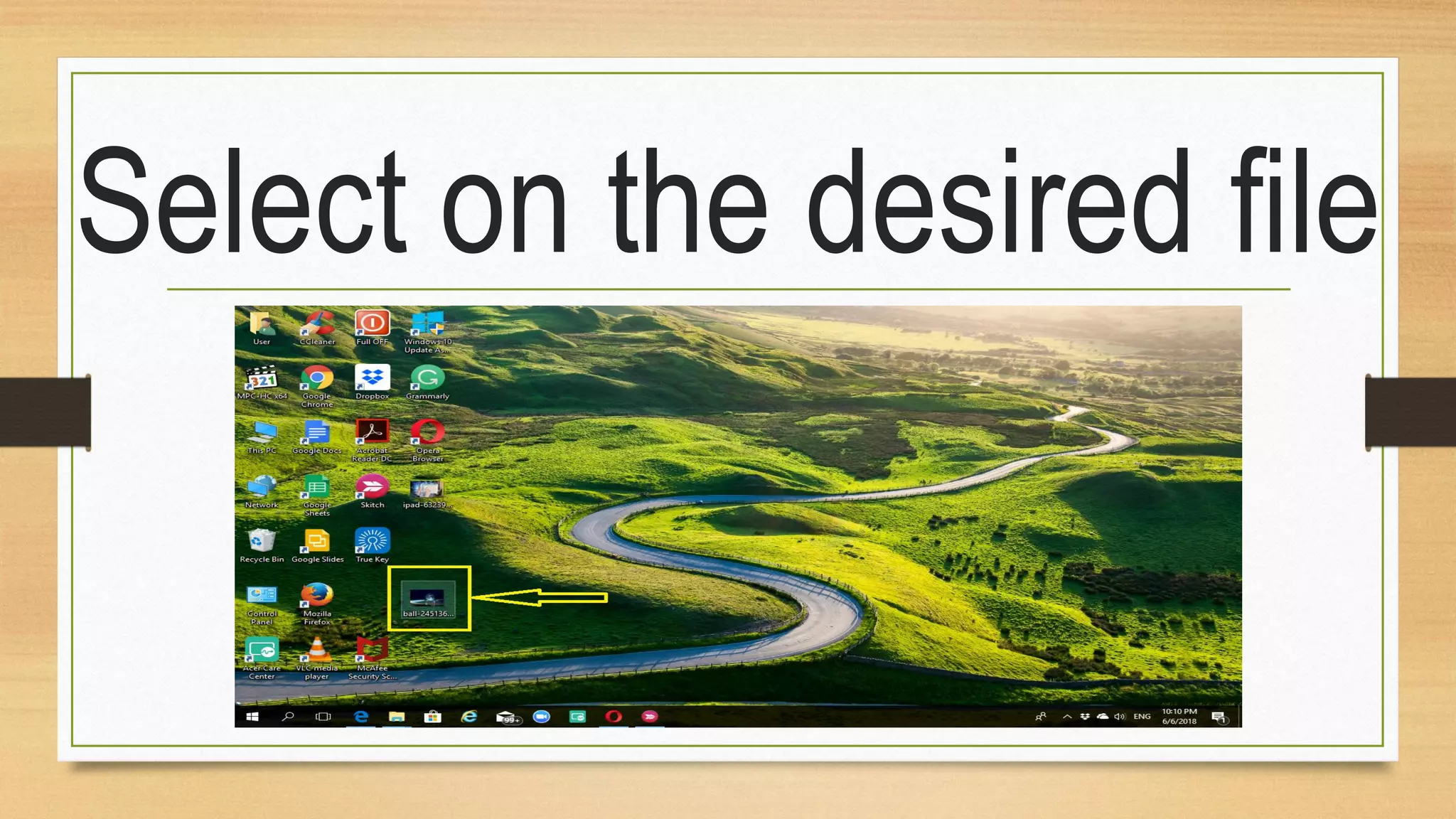
Select on the desired file
Hit ctrl + c on your
keyboard to copy the
file
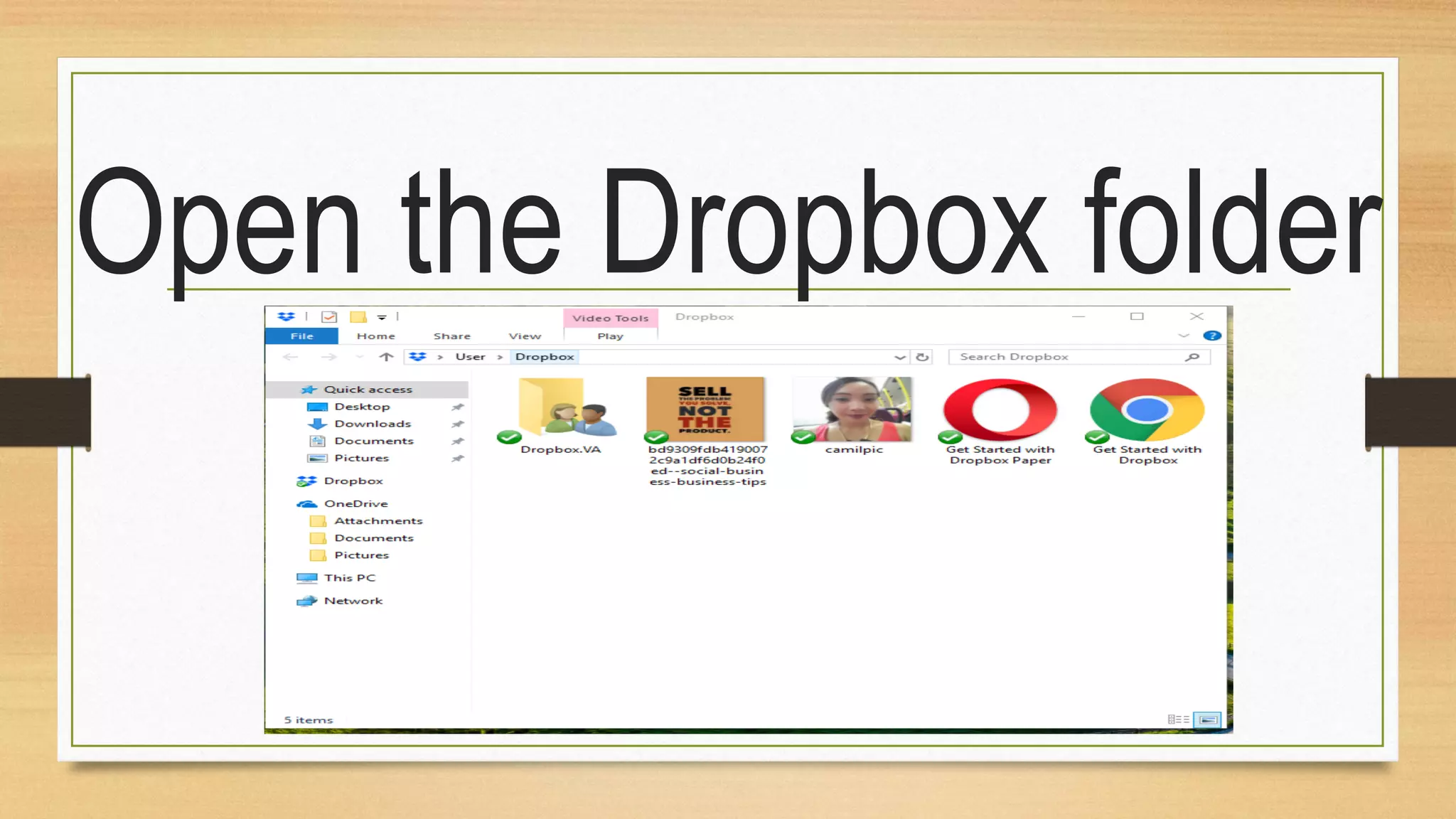
Open the Dropbox folder
Press ctrl + v in your
keyboard to paste
the file
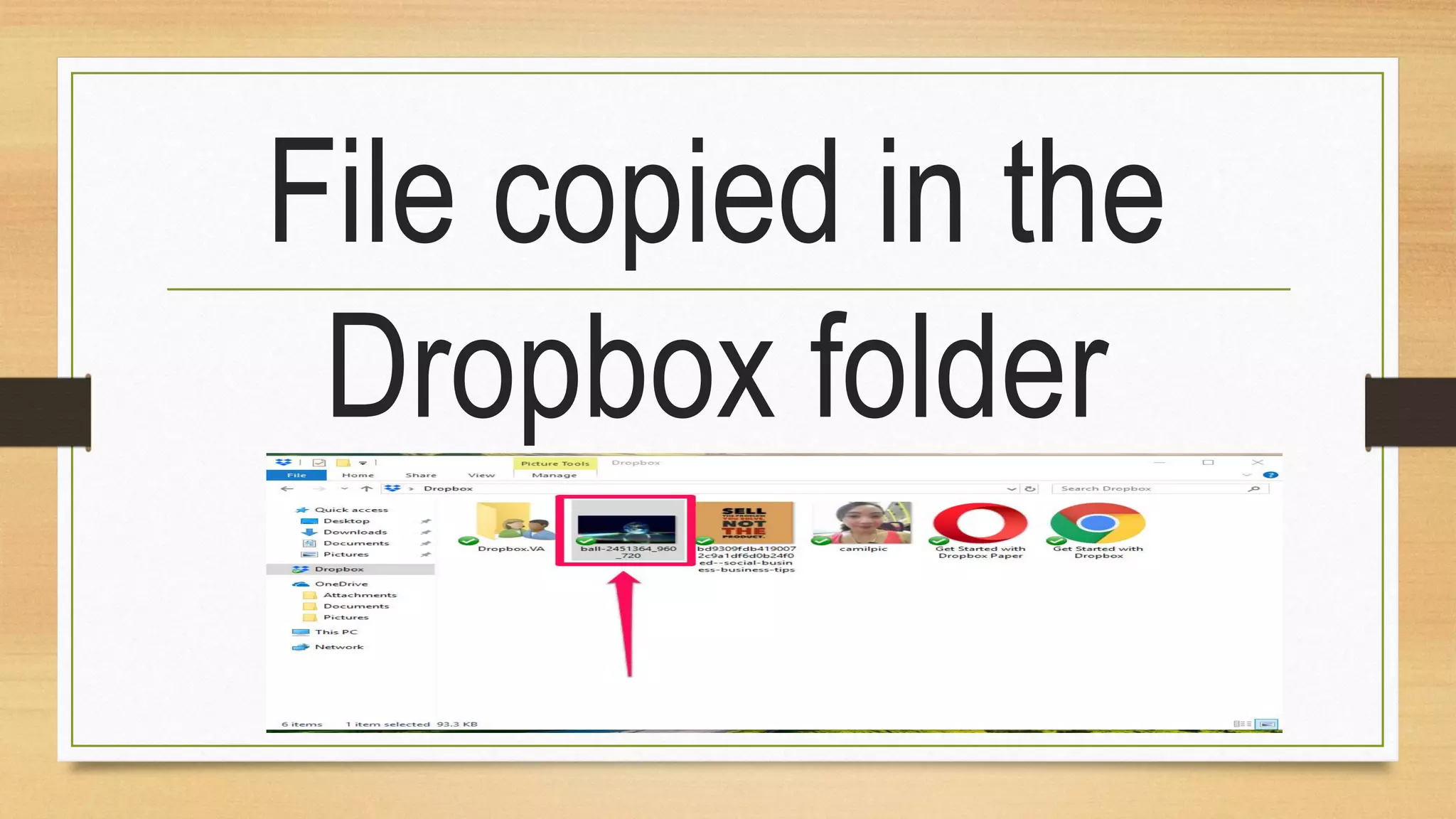
File copied in the
Dropbox folder
File is automatically
updated in the
Dropbox
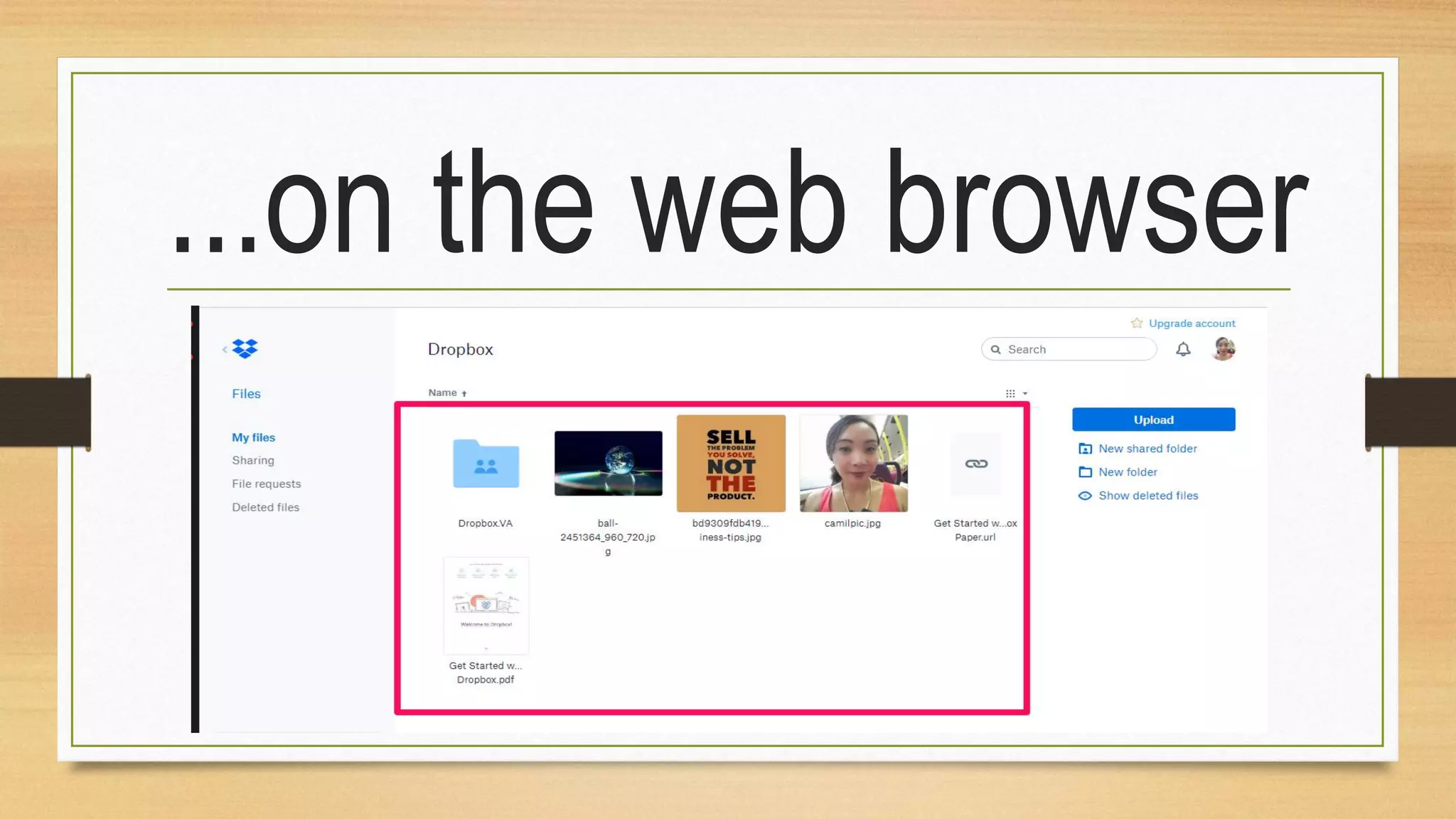
...on the web browser
Newest feature on
Dropbox called
PAPER
It is a collaborative
document editing
service
A flexible working
space that brings
people
...and ideas together
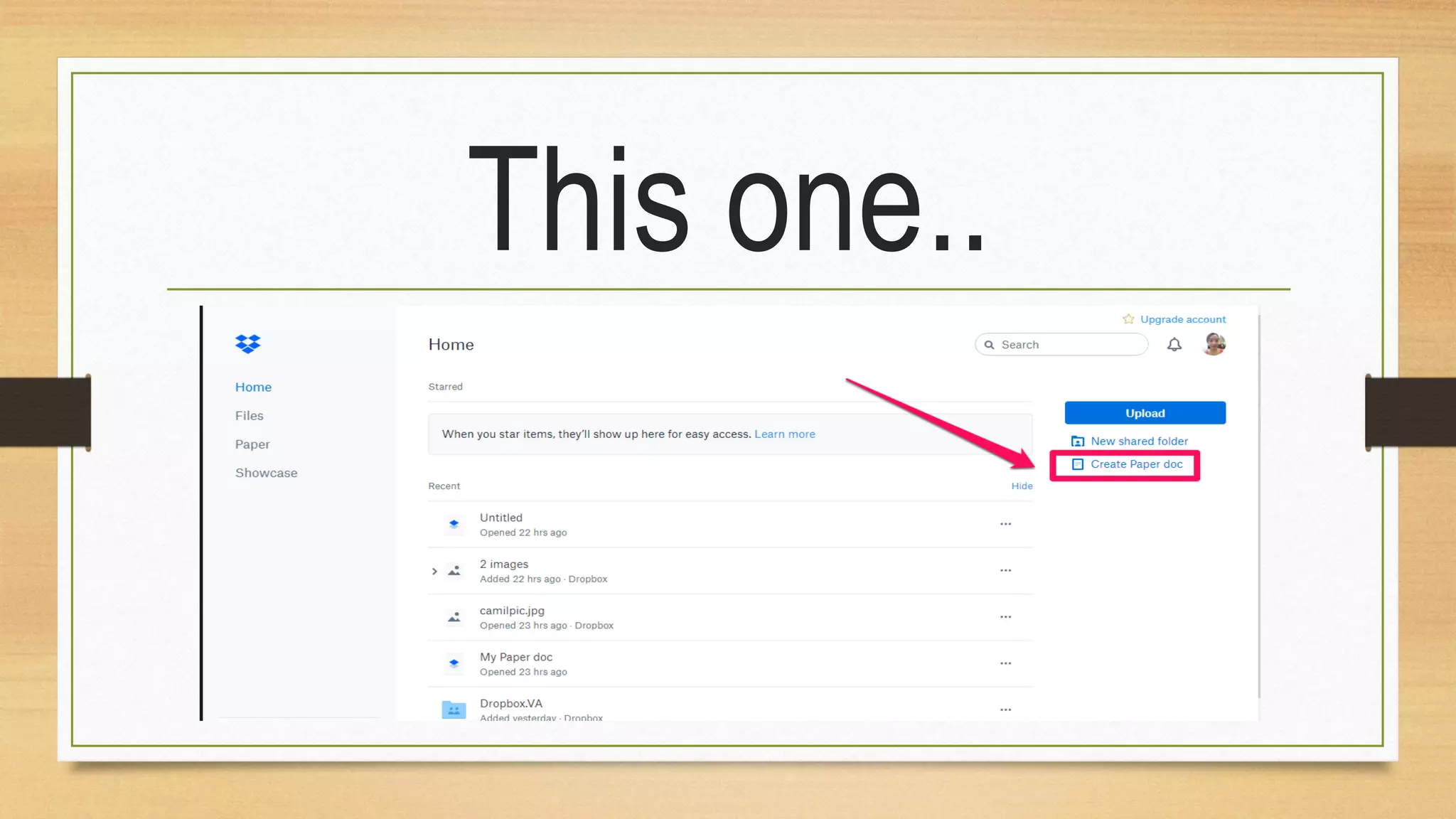
On the dashboard,
click on create paper
doc
This one..
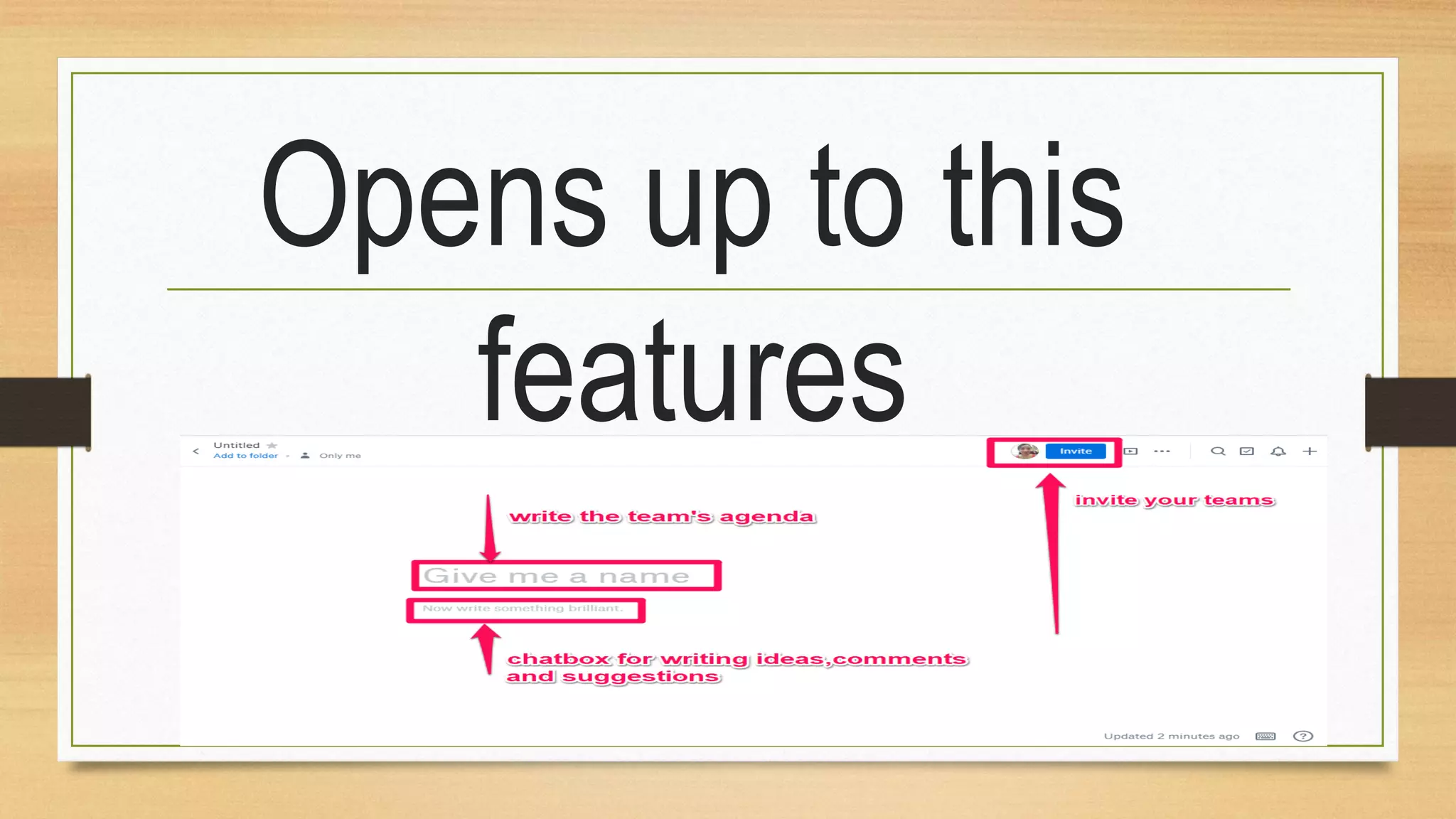
Opens up to this
features
You just learned about
getting started and
using Dropbox and it's
latest feature
For more tutorials
visit my website
www.kristinacamilles
oriano.com
How to use and get started with dropbox

How to use and get started with dropbox